A first time look at a Sharp OEM install. Sharp was a manufacturer of compact laptops that were popular in Japan, but also made a few for the western market. They did have some sort of a retail presence in the UK as you could find their laptops in stores like Curry’s, but they were always sub-notebooks. Like Fujitsu and NEC, Sharp also made computers for the 8/16bit home computer market in Japan.
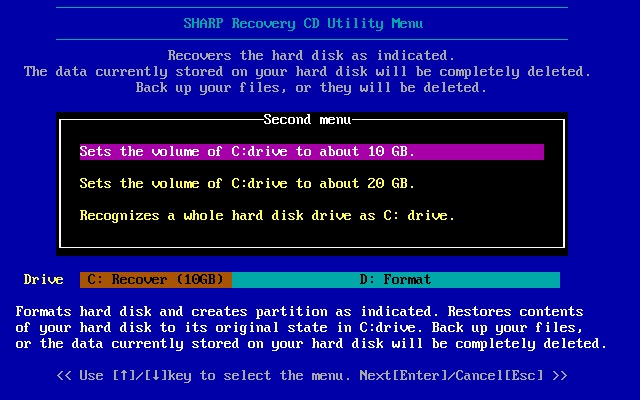
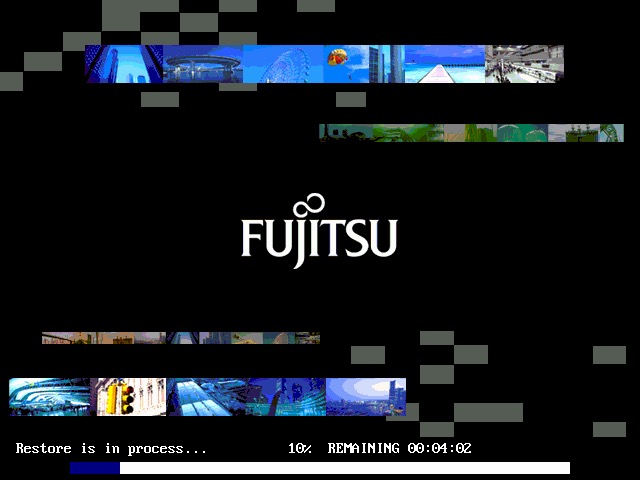
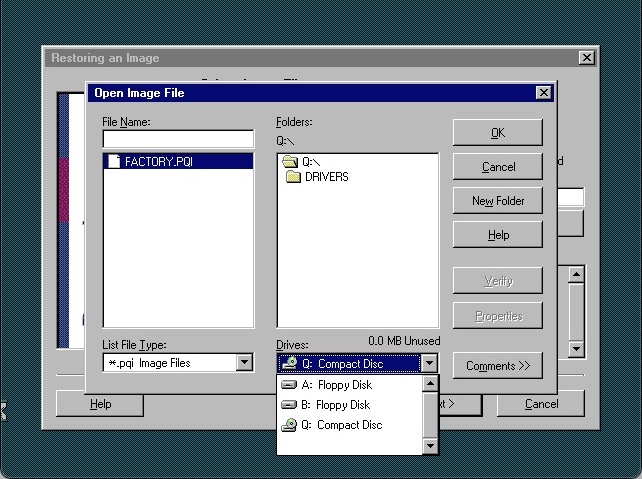
The recovery utility which seems to want us to split the disk into two partitions. This was common across some OEM’s with the belief that storing user data on the second partition would help with fragmentation whilst leaving the operating system and program files on the main partition. Though your document folder would still be mapped to the main partition also.
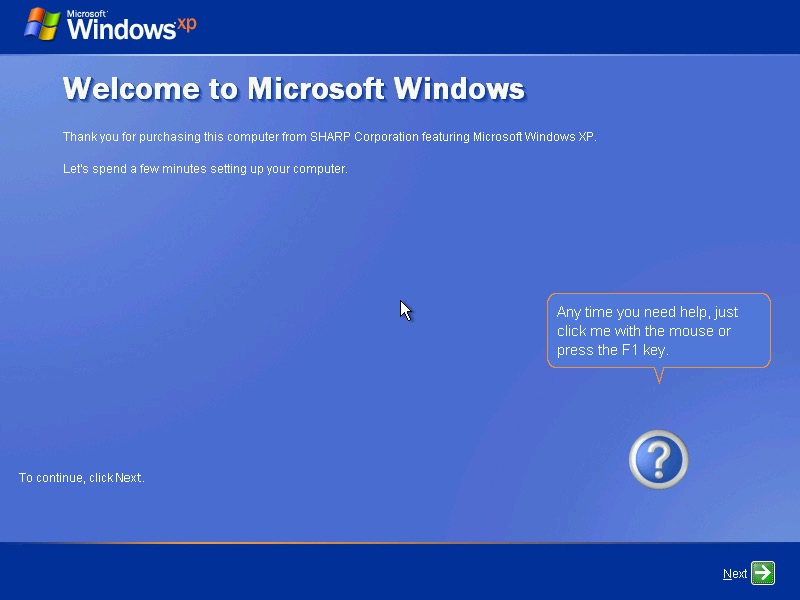
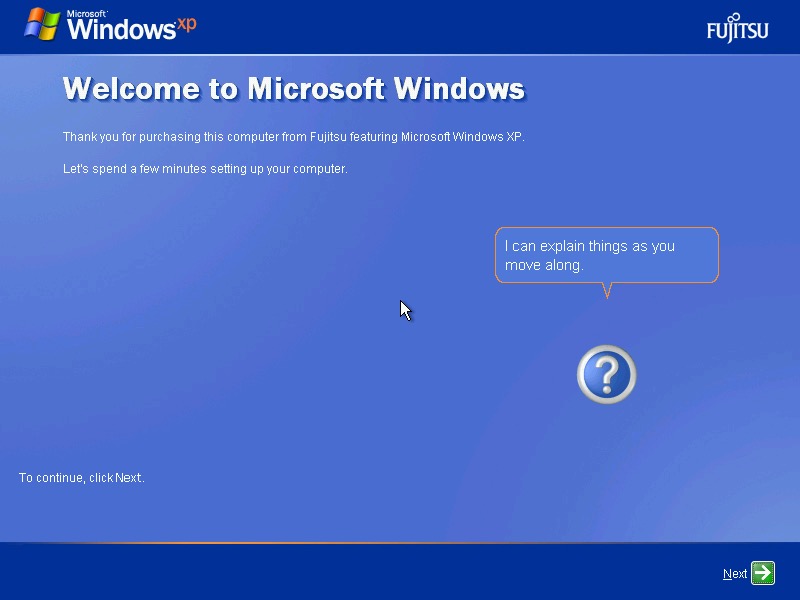
Going through the OOBE, theres no logo in the top right corner as we’ve seen with other OEM installs
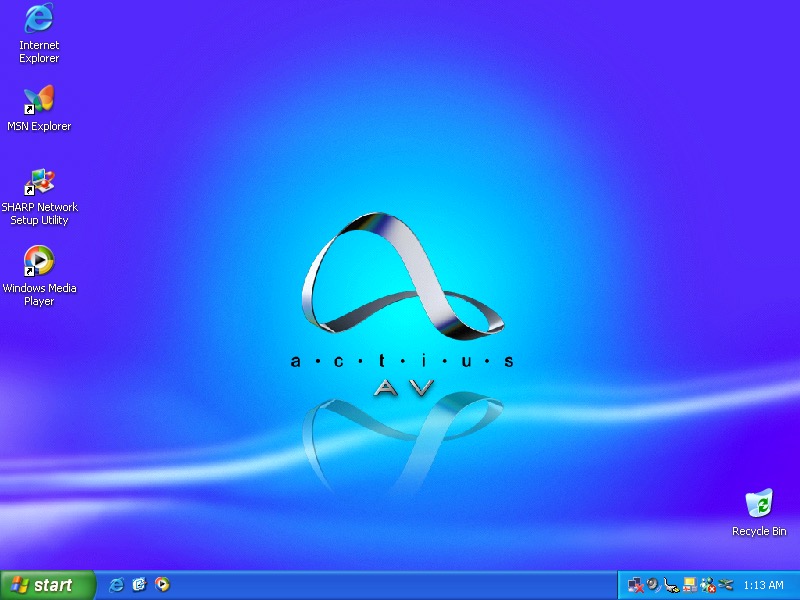
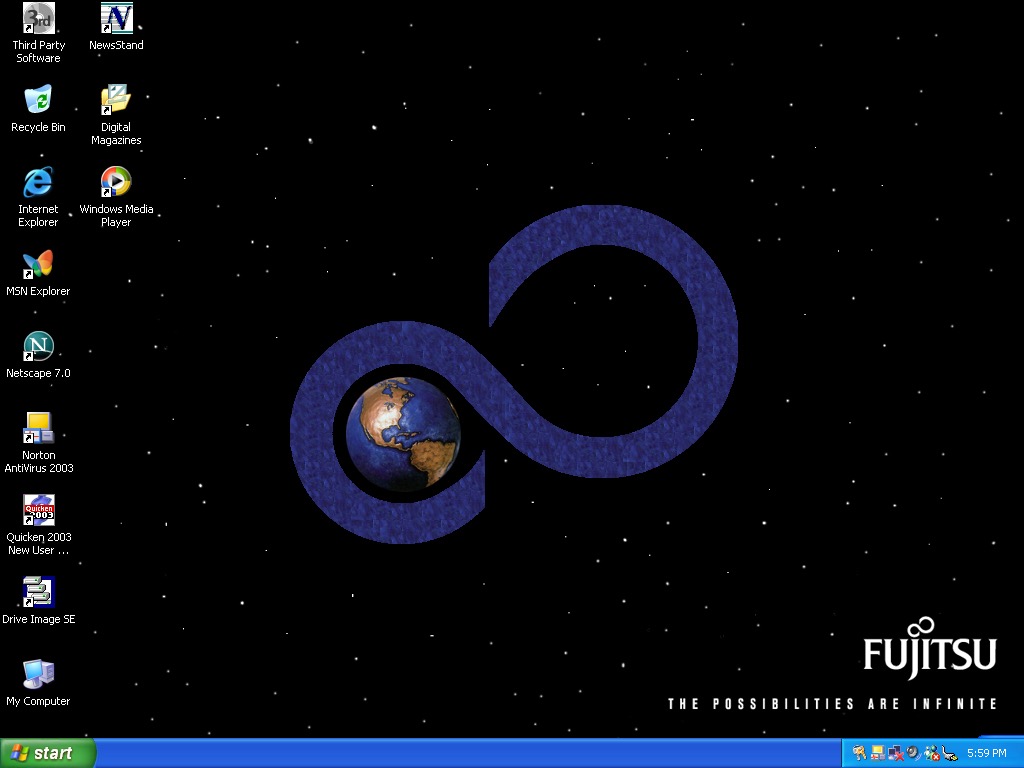
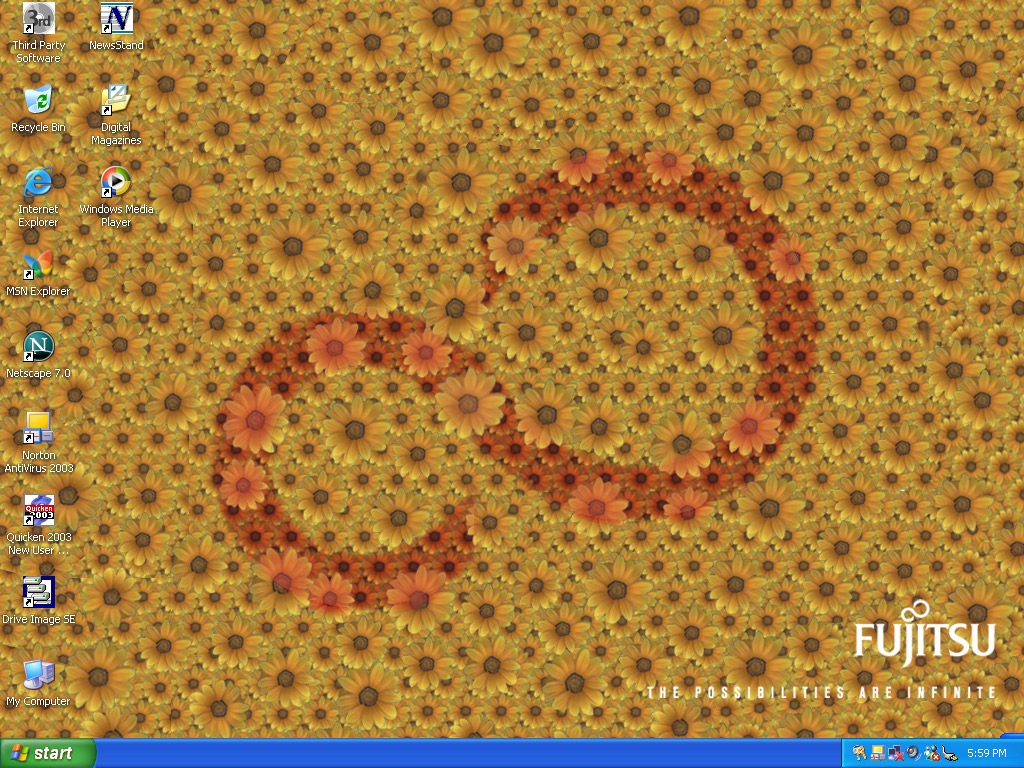
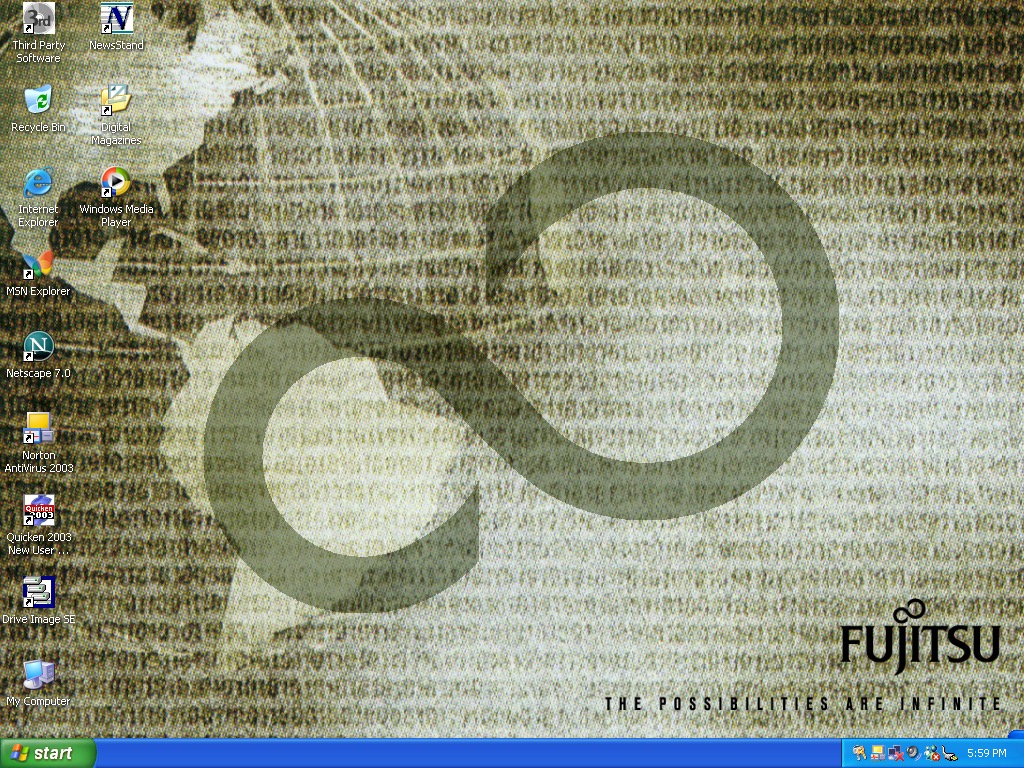
The desktop, with a custom wallpaper. Resolution is a little but understandable considering this is a netbook class of computer
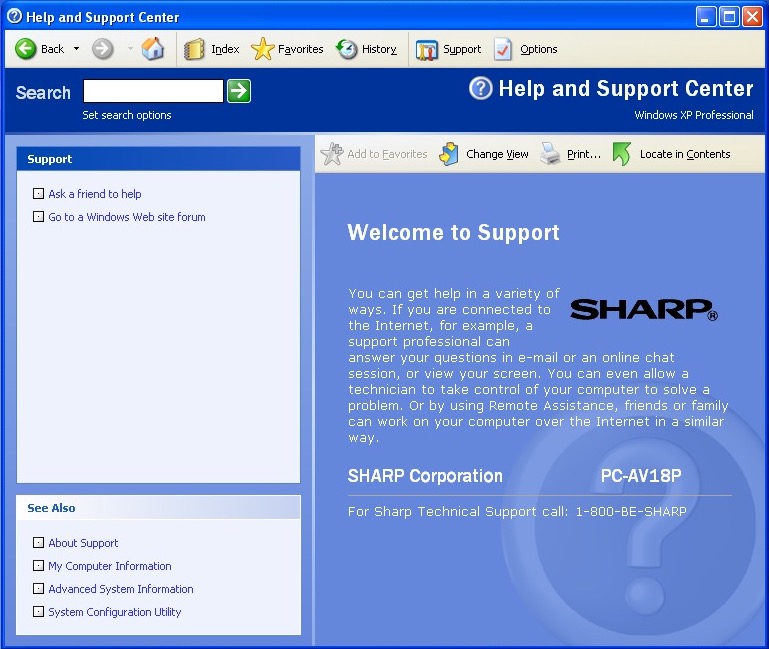
Windows Help & Support with a touch of Sharp
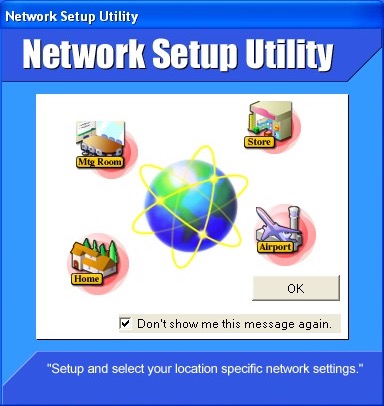
Network Setup Utility, each icon represents a network settings or profile. It looks a little blank as it was intended for use with the notebooks internal WiFi card.
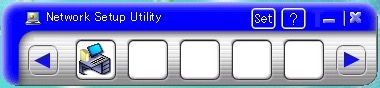
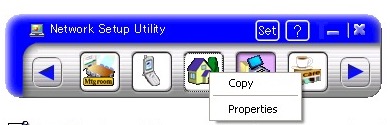
Here is what it’s supposed to look like. The different icons represent the types of network you can connect to and the profiles can represent the different sharing settings. This isn’t too different to what modern Windows does when it asks you to set either a Home, Work or Public connection which affect the file sharing ability, since you might not want to enable Public file sharing when you’re connected to a public hotspot
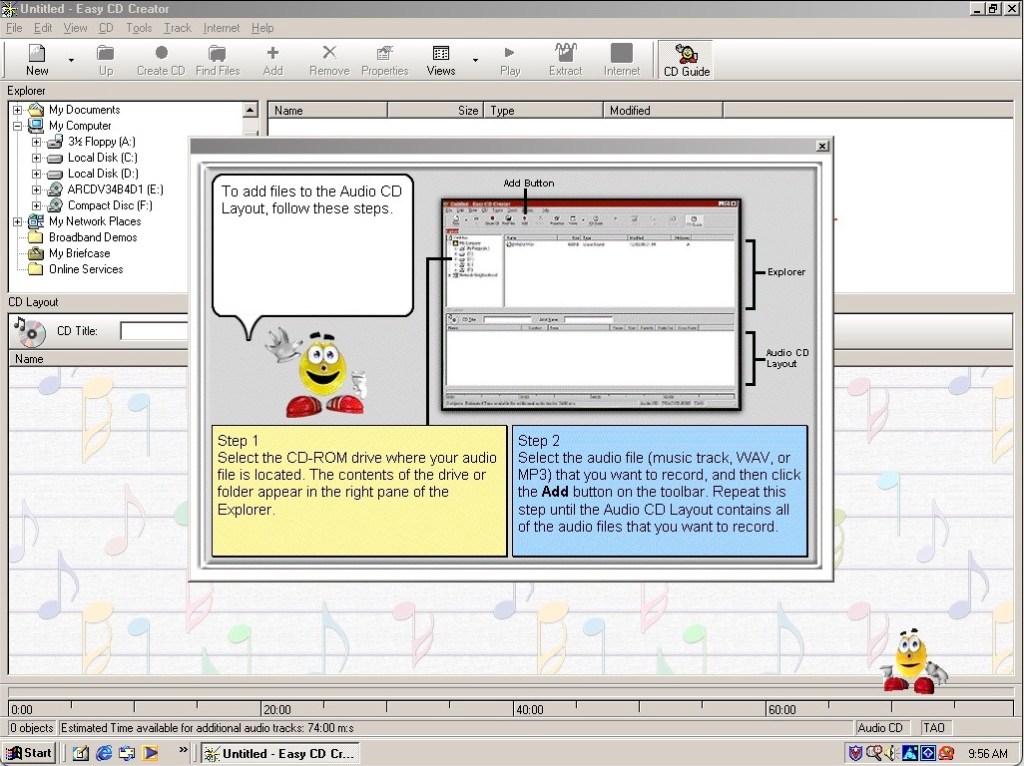
Drag’n Drop CD+DVD – disc burning application. This places a sidebar to the bottom right of the screen where you can drag files to be copied to a CD.
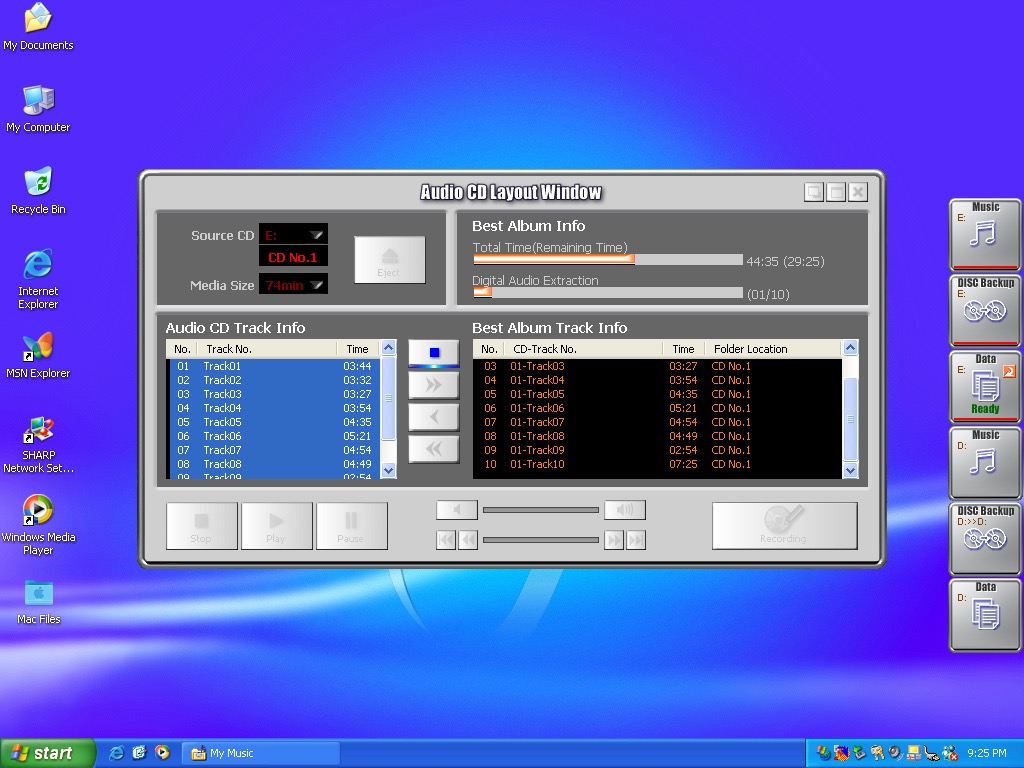
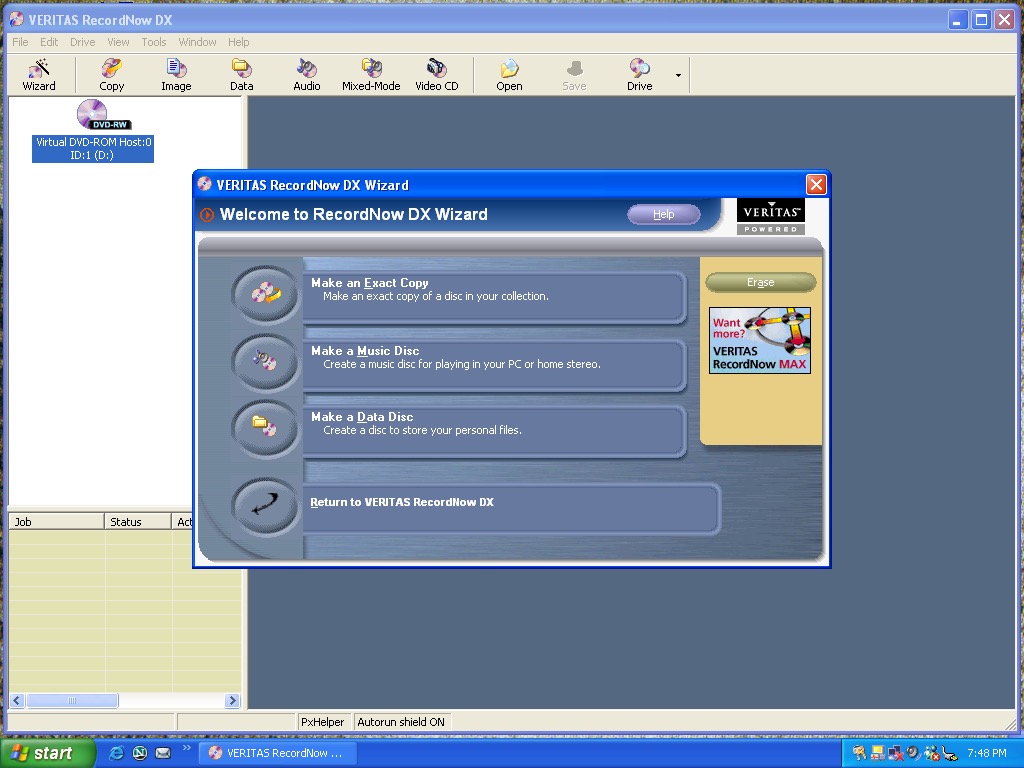
This appears to have been developed by Sonic Solutions who also went to develop RecordNow! Seen on other OEM installs.
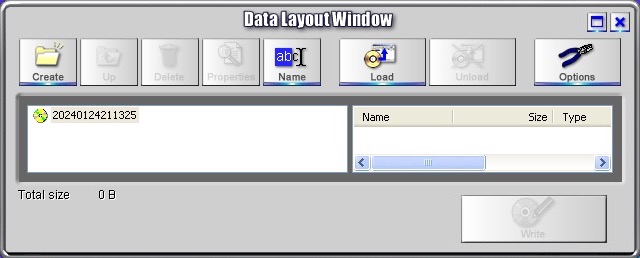
Here you can rip an audio CD, or burn existing files to disc. It a bit clunky to operate and the UI looks like something you would see out of a Hollywood TV, it’s rare to see a program refer to itself as a window.
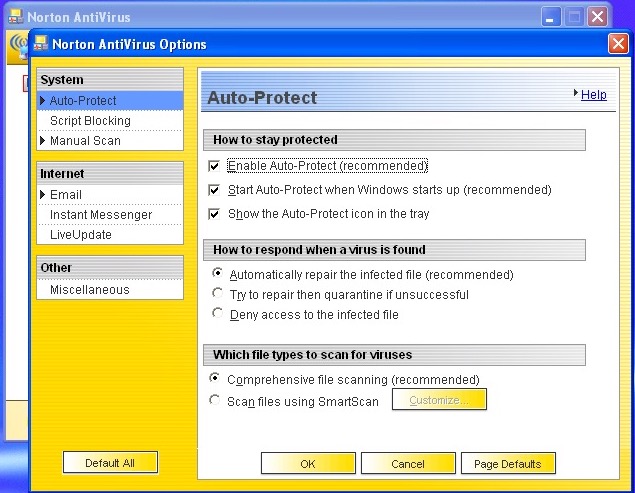
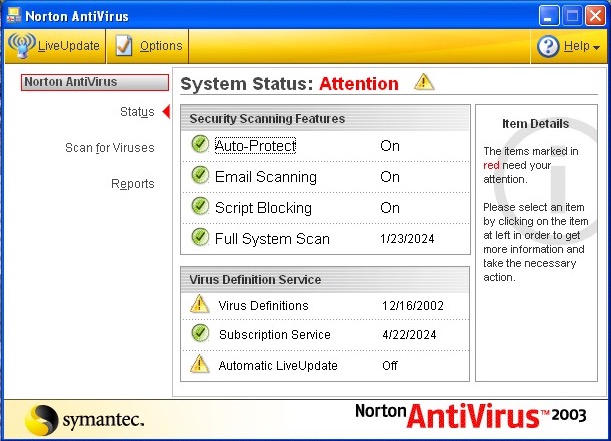
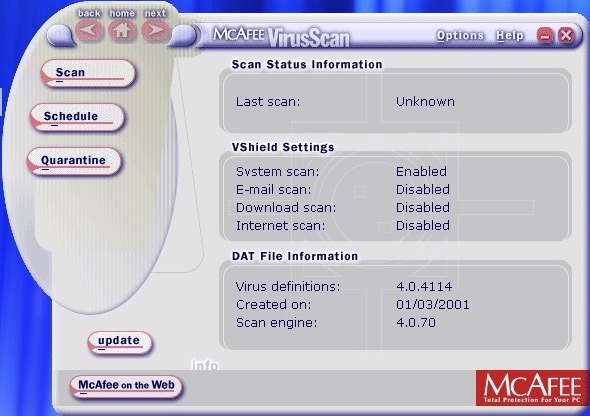
And Norton Antivirus 2003 comers included
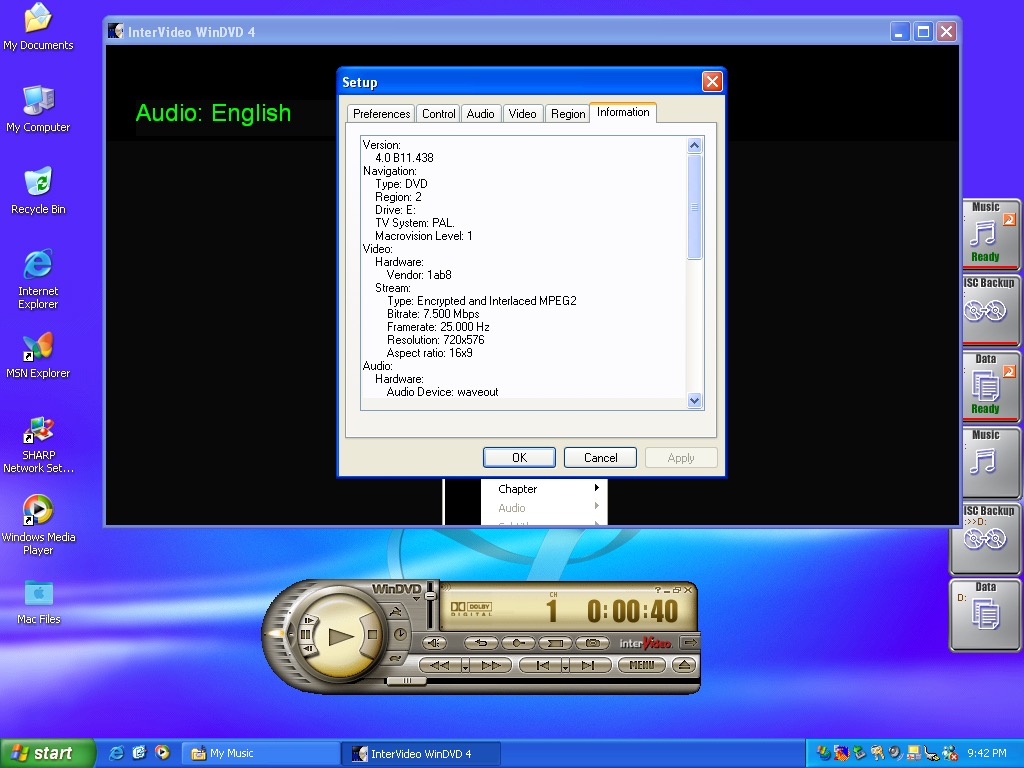
Lastly we have InterVideo WinDVD4 which serves as the default DDVD player. Amazing this worked within the virtual machine so this must provide some sort of software MPEG2 recorder. At least I thought it worked, it decoded the first frame and was then froze on that frame. The audio was still playing however and when I eventually closed, a quick shot of the last frame came up before closing the program.
Recovery Media Download – From Archive.org, This version is unlocked to function on any machine











 Drew1440: Blog