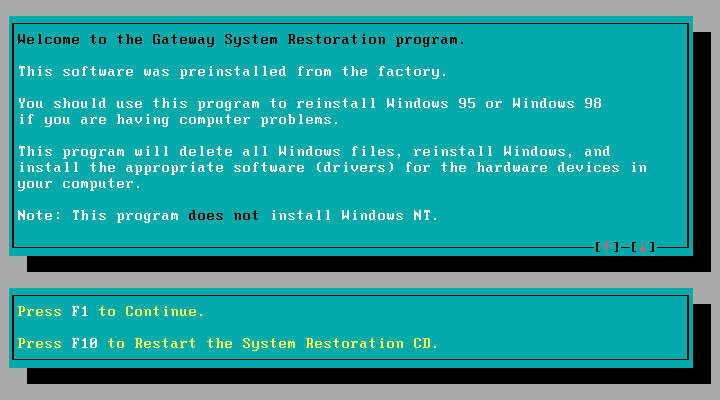
A look at a typical restore CD provided by Gateway systems of the era. Unlike recovery discs provided by other OEM’s, Gateway requires you to have the Windows 98, or 95 install disc. This was also bundled with the system.
The latest release of 86Box (Version 4.1.1) has added a load of Gateway systems for us to look at, here I am using the Lucas motherboard which is a modified MSI MS-5185
The recovery disc is bootable and can initialize a blank hard drive using the built in FDISK tool. When booted, you are given the option to use either a Windows 98 or 95 install CD. No mention of Windows NT, which might have been out of the scope of Gateway since they commonly shipped PC’s for the home consumer market.
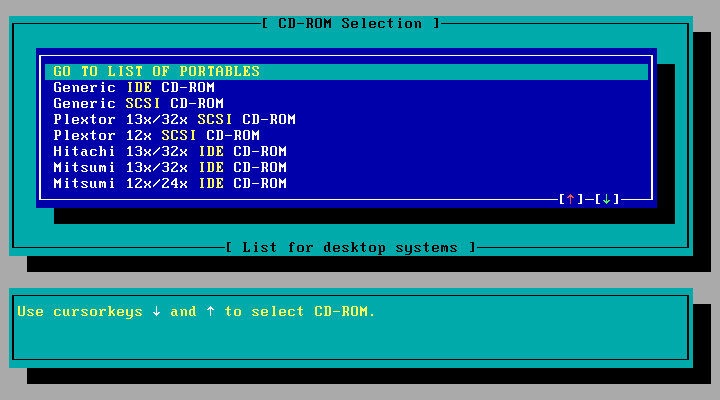
Selecting an CD-ROM driver, you have a list of IDE drives to choose from which would have been the drives that Gateway had actually shipped from the factory, or you can select a generic IDE driver.
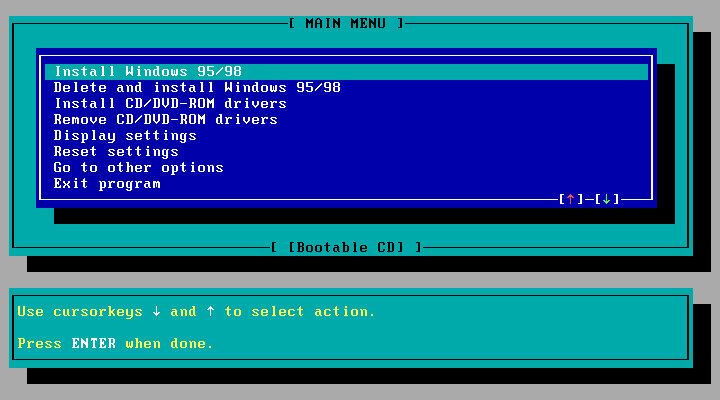
Selecting the install option, which will reboot and will prompt you to reboot your PC and will then prompt you to insert the Windows install disk. This actually boots from the HDD and will go through an automated Windows install. You don’t need to navigate or answer any questions for the installer.
Once completed, the system will reboot and will boot into Windows. Here you will go through the regular OOBE where you will need to provide your name, and the Windows OEM serial key.
Were not done yet, since additional software provided by Gateway will need to be installed. This is done automatically and the Windows will reboot several times here.
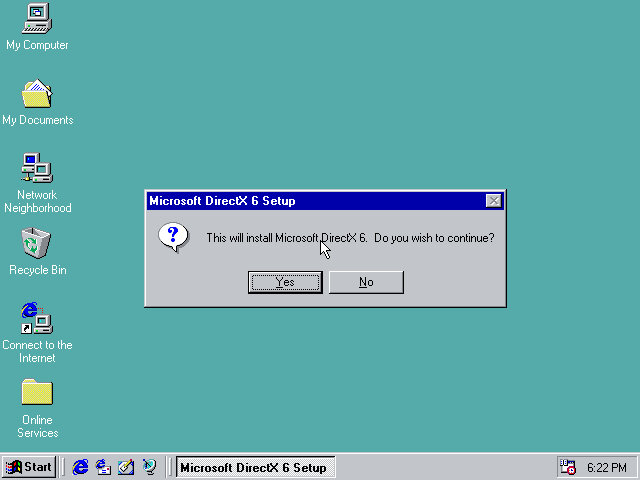
DirectX6 is automatically installed, of which 5.1 came with Windows 98.
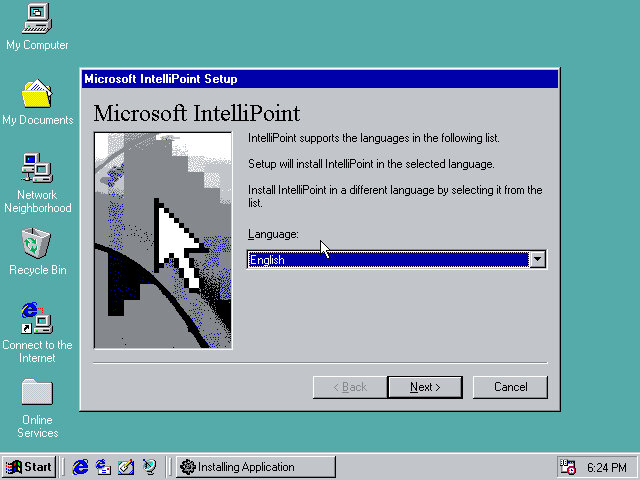
Microsoft IntelliPoint is also installed, as Gateway typically bundled Microsoft Mice with their systems.
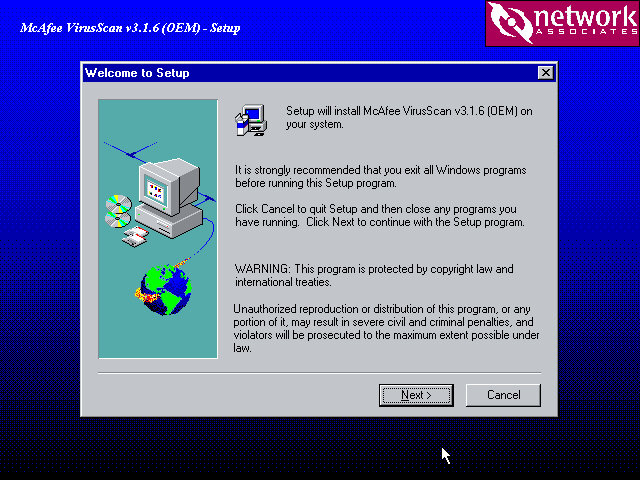
McAffee VirusScan also comes included.
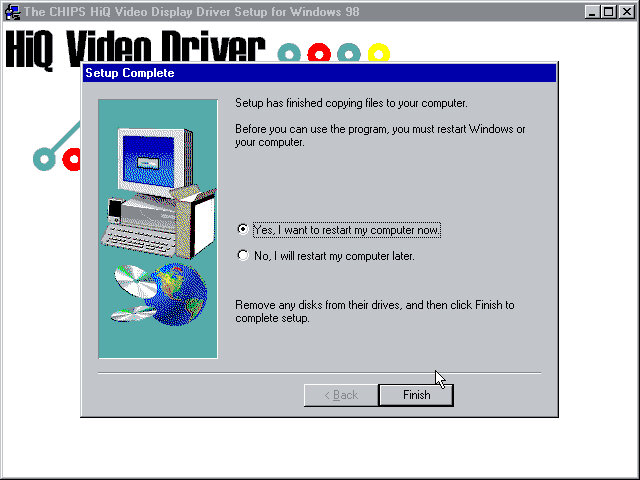
The Chips Technology driver also starts to install here, since I’m using the B69000 video card. This also indicates drivers are also installed if supported hardware can be found.
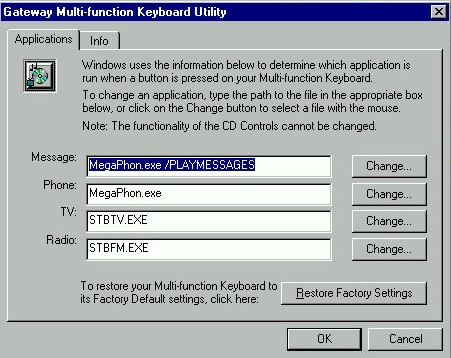
The keyboard utility in the Windows Control Panel
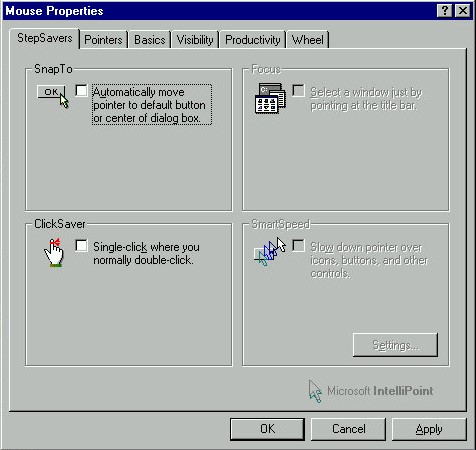
IntelliPoint comes with additional features for the mouse. You don’t actually need as Microsoft Mouse to use most of these features, and some like the scroll wheel will work on all models of mice.
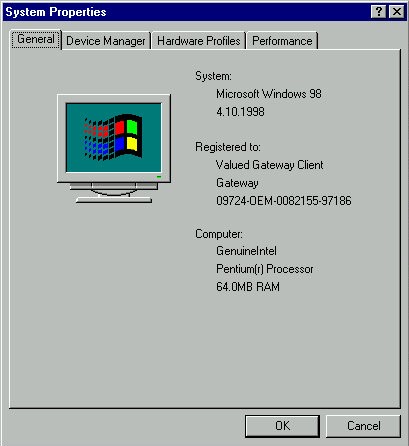
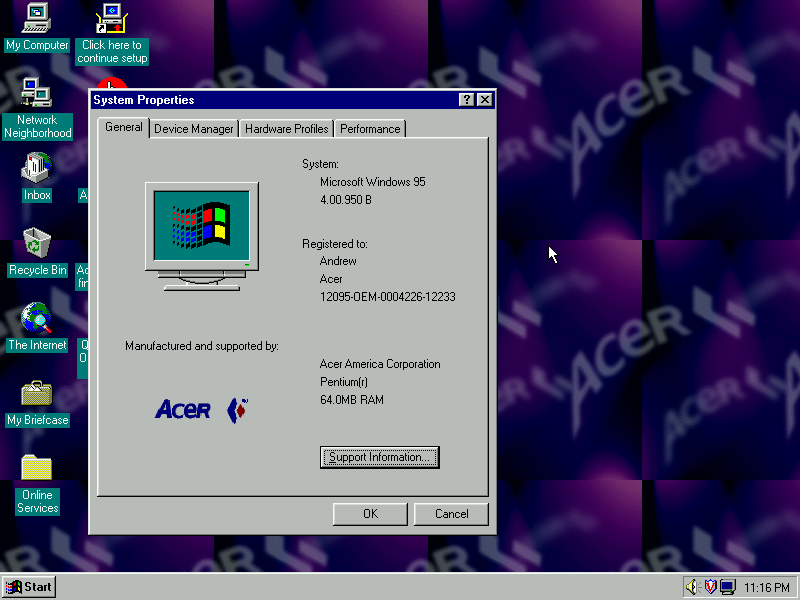
And a look at the system properties, strangely there is no OEM logo or information. Just the Registered To fields are prepopulated.
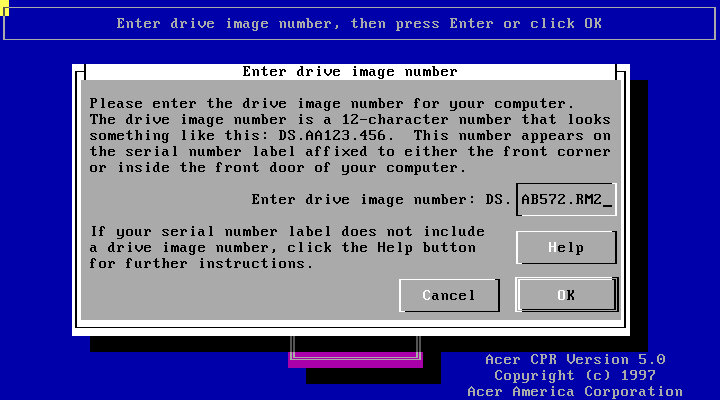
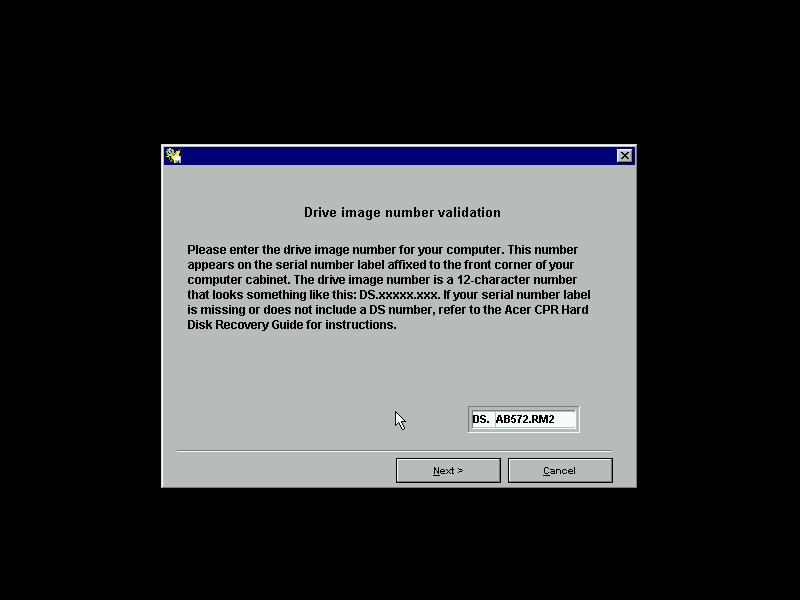
A non-model specific restore/OEM Install, this looks like it was intended to be used across various models of Acer’s Aspire line, as it prompts for a reference number during recovery. Aspire is Acer’s brand for desktop and laptop computers for domestic users, similar to Dell’s Dimension or IBM’s Aptiva line of systems.
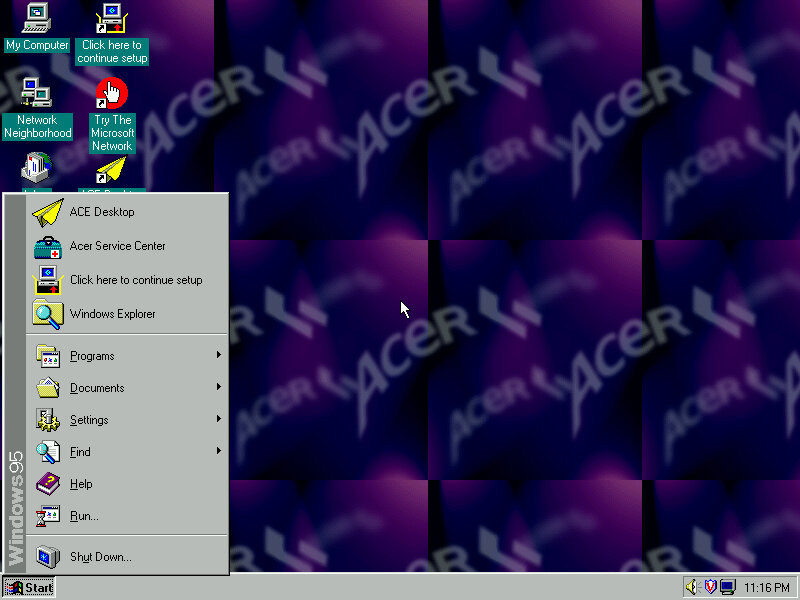
The default desktop, post recovery
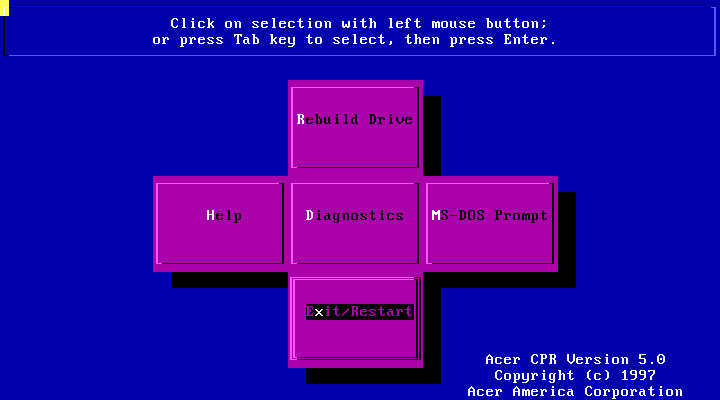
Running the recovery program, interesting menu layout you see here which gives you options to restore the drive, perform a few diagnostics or to go straght to the MS-DOS Prompt.
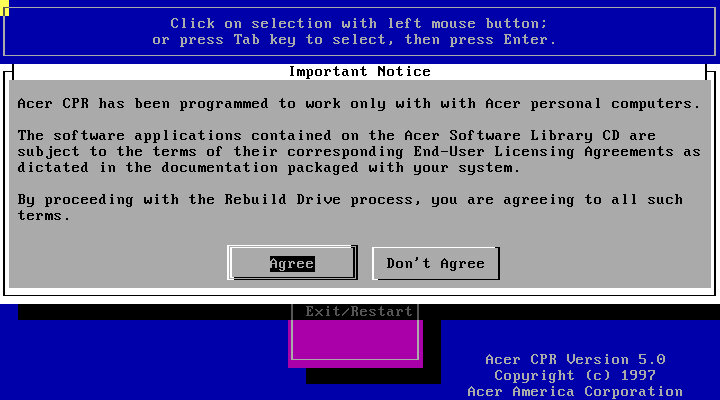
Following through with a full recovery, which will initalise the hard drive
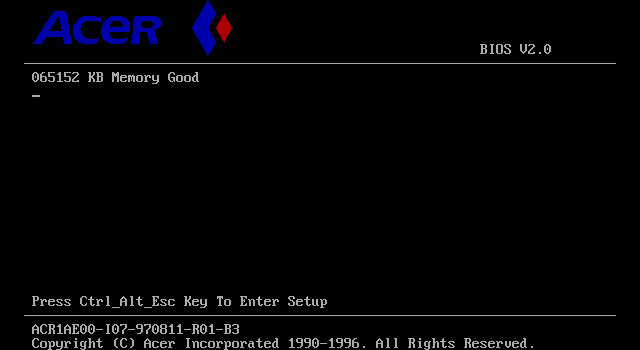
The Acer BIOS, here we are using the V35 motherboard that is emulated in 86Box.
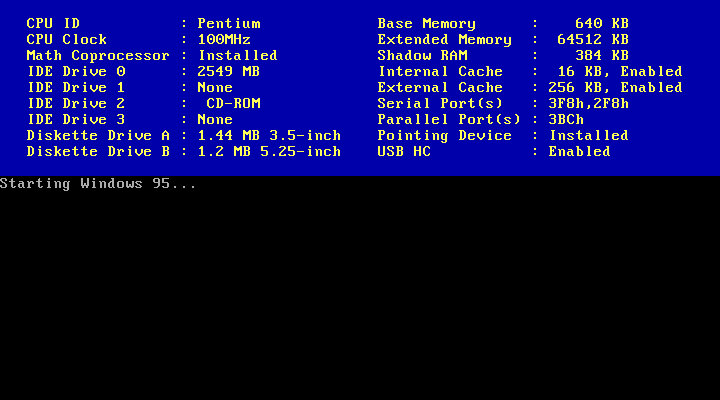
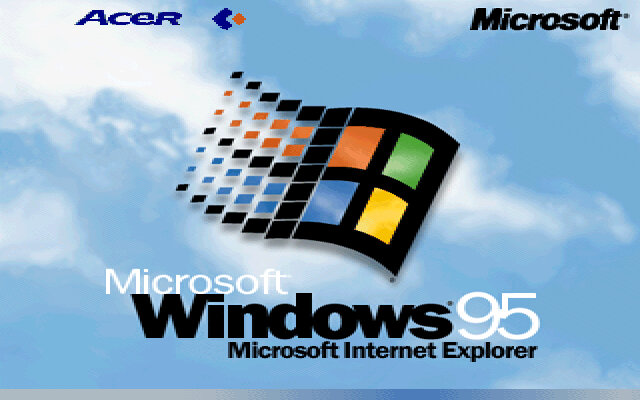
The boot screen, with Acer branding. Here we have Windows 95B, with the USB supplement already installed.
It’s a shame than the bootscreen gets overwritten when installing the 95 Plus! pack. If you wish to preserve it, copy the LOGO.SYS file on the root of your C: drive before installing the Plus! Pack.
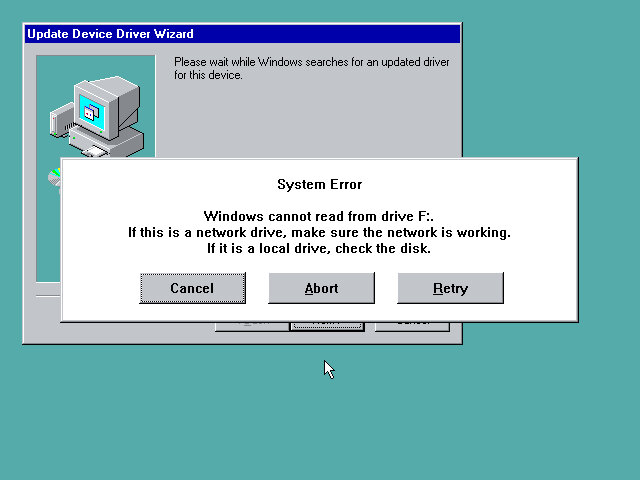
Uh-Oh, not sure what happened here but a quick reboot fixed it. My guess is that setup reinstalled or updated the IDE drivers, and lost access to the CD drive as a result. Acer possibly used various different IDE controllers or chipsets across their motherboard, and this was their way of ensuring the correct drivers were installed for that specific chipset.
Thankfully after a reboot we were able to proceed with the setup and registration wizard
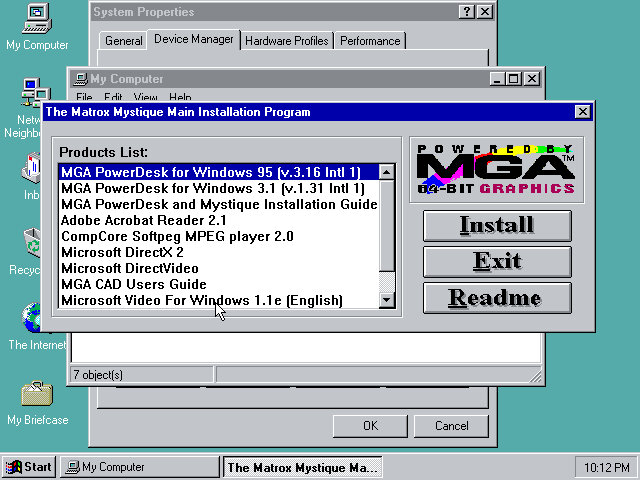
Installing graphics drivers for the Matrox graphics card, which 86Box now supports.
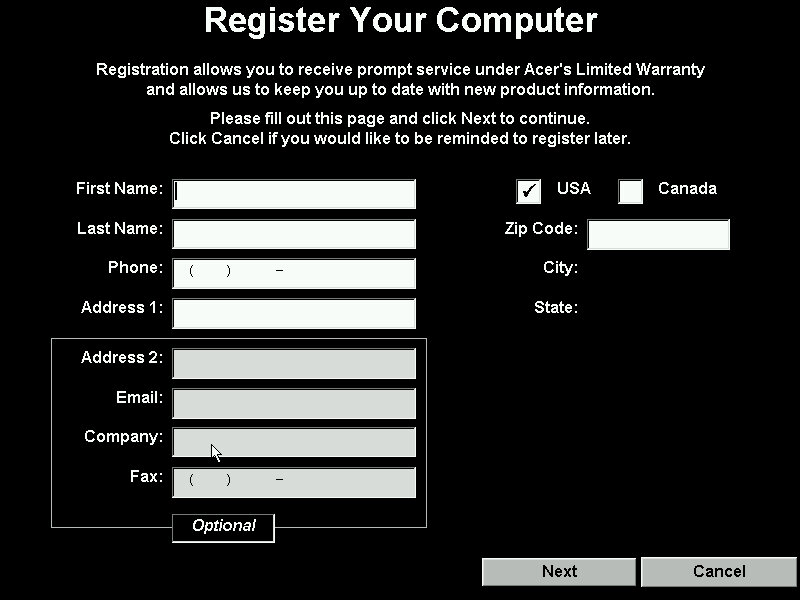
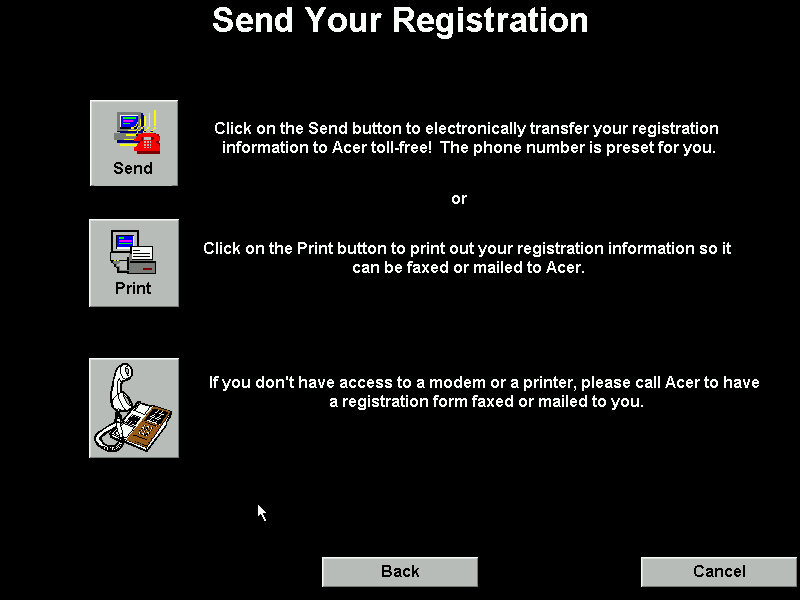
Running the registration utility
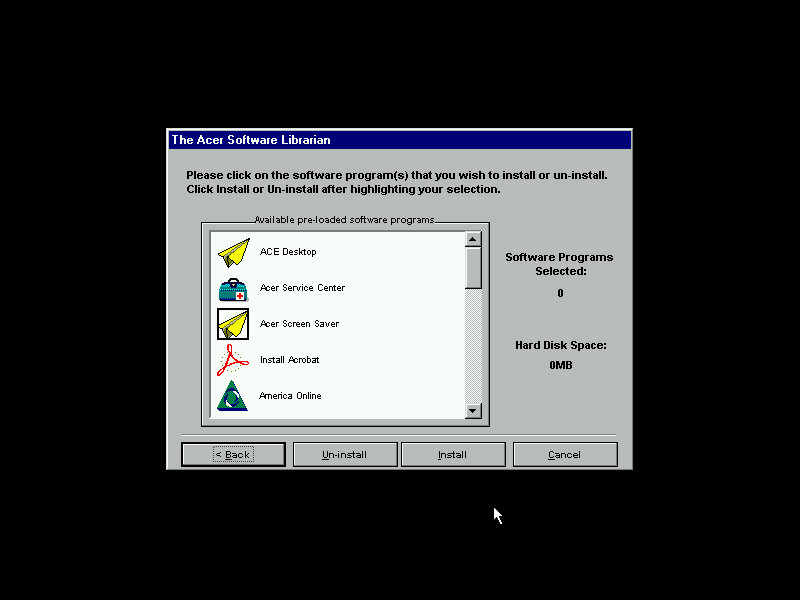
The Acer Software Librarian which is used to install the software that shipped with your machine. You need to enter an identifier provided so the software knows which software and drivers to install for the correct model
Some of the software requires additional CD’s to install from
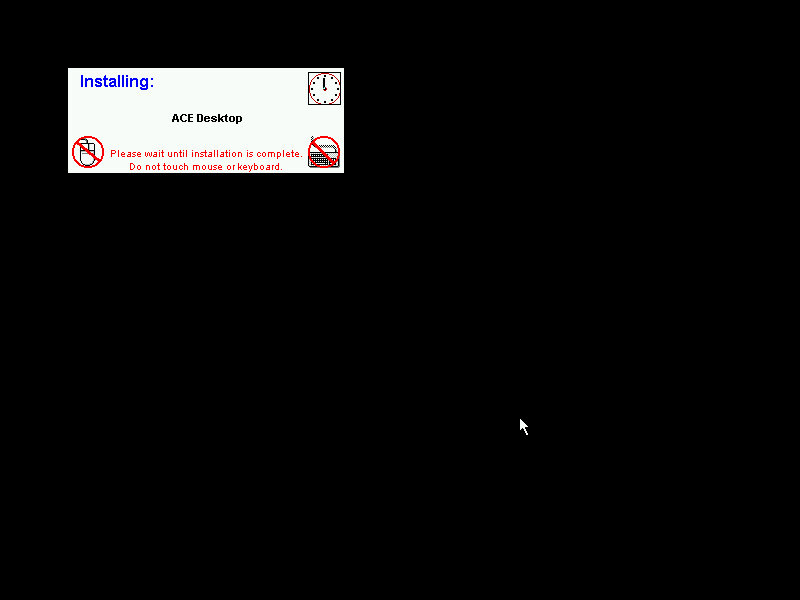
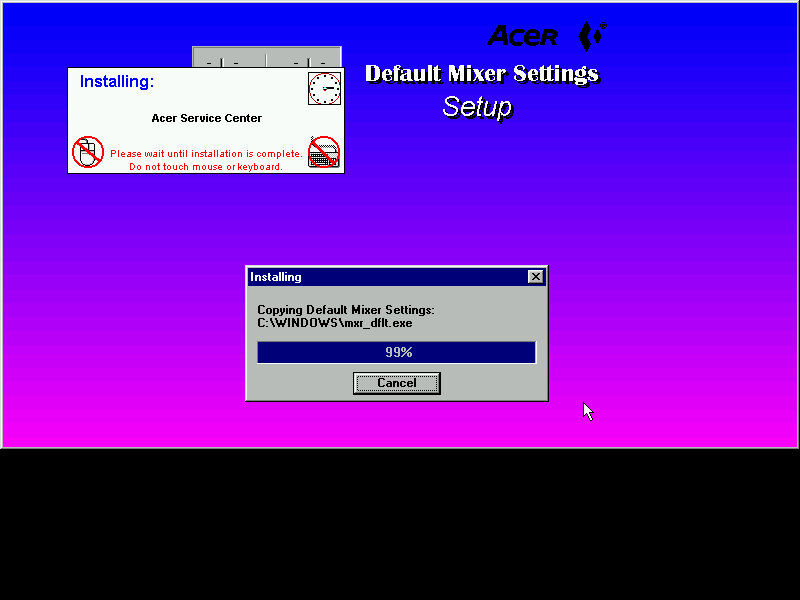
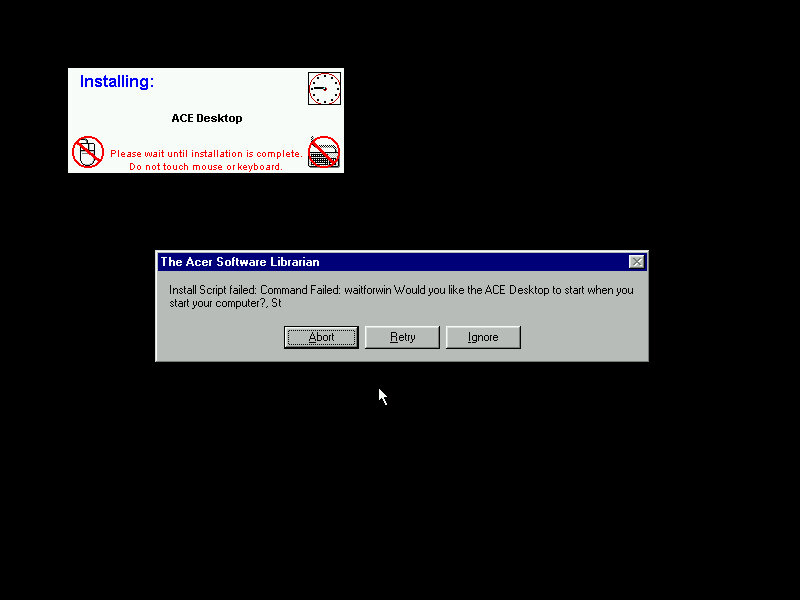
The installers are automated, but can go AWOL if the installer throws up a message that wasn’t expected. This will result in the message informing that the install script failed and will give you the famous Abort, Retry or Fail Ignore. Choosing the retry option to restart the installer. I believe the install script tries to mimic the user’s keypresses, during this it’s best not to touch the keyboard or mouse whilst the script is running.
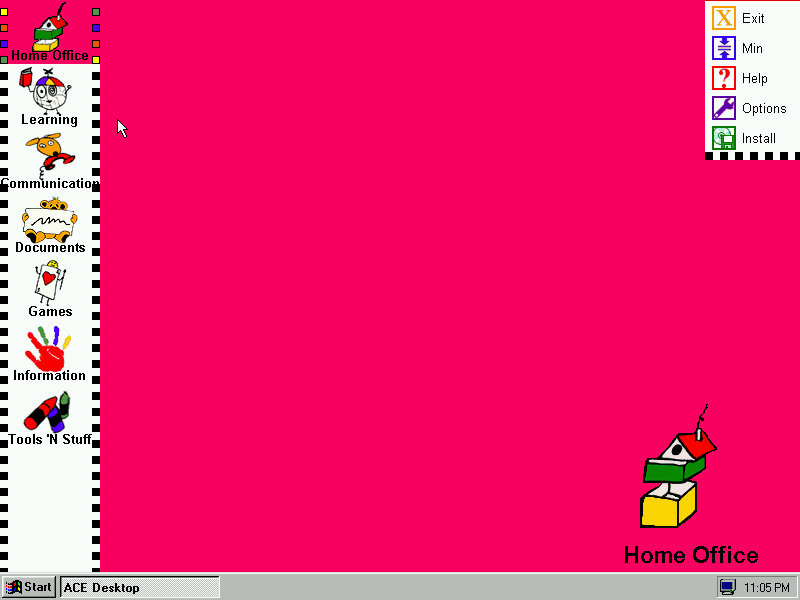
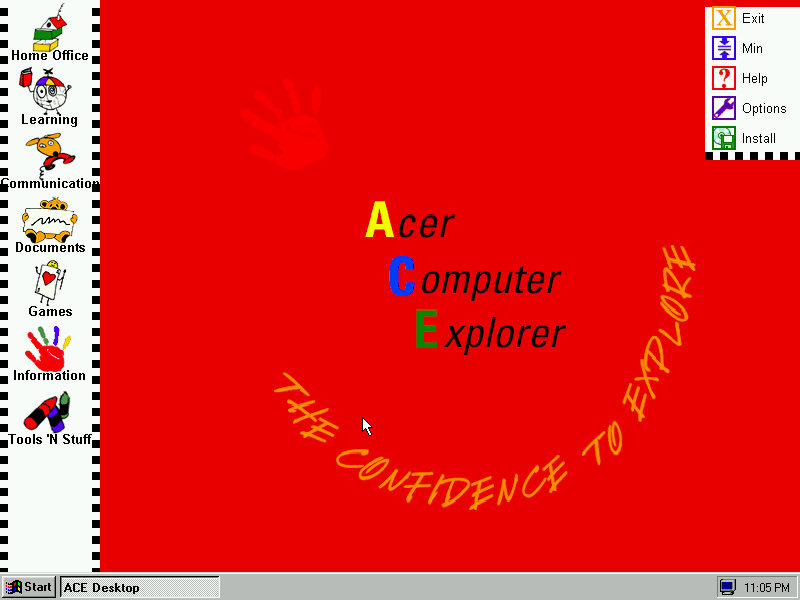
ACE Acer Computer Explorer provide a child friendly interface, like Packard Bell Navigator. There isn’t any software installed that takes advantage of this so we can’t fully demonstrate it.
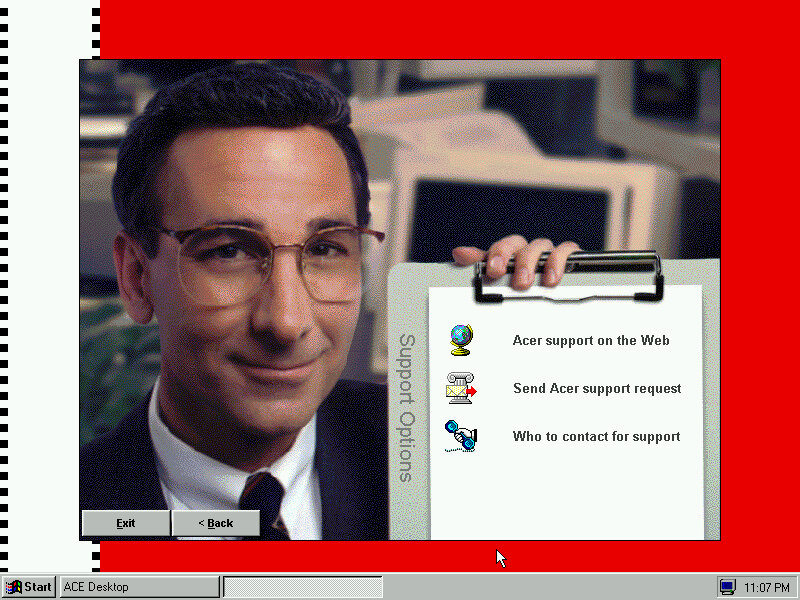
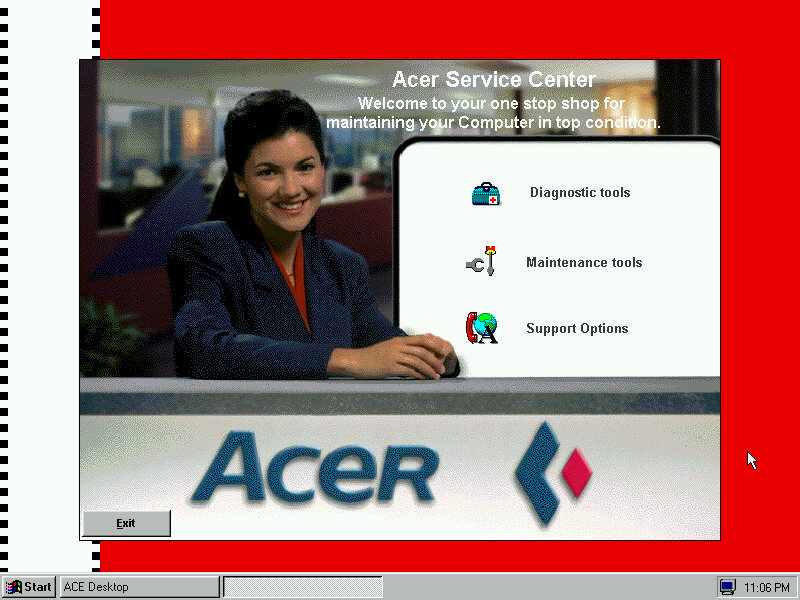
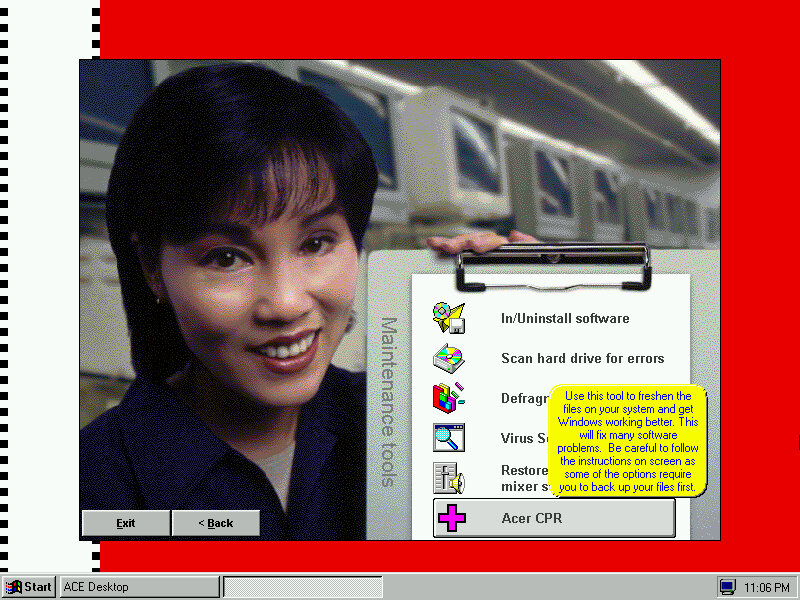
Acer Service Center which providers support information and details about your computer. I kinda dig the aesthetic with the dithered stock photograph of a typical 90s office, almost like an episode of Friends.
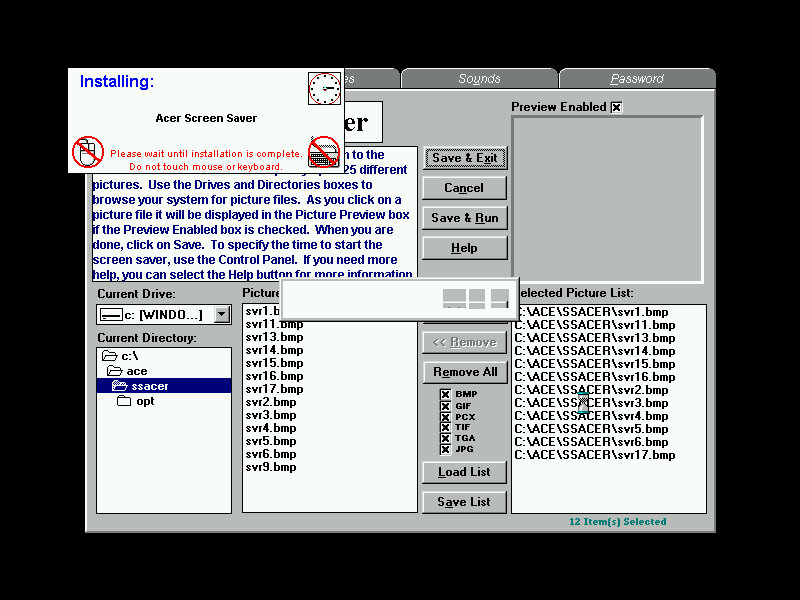
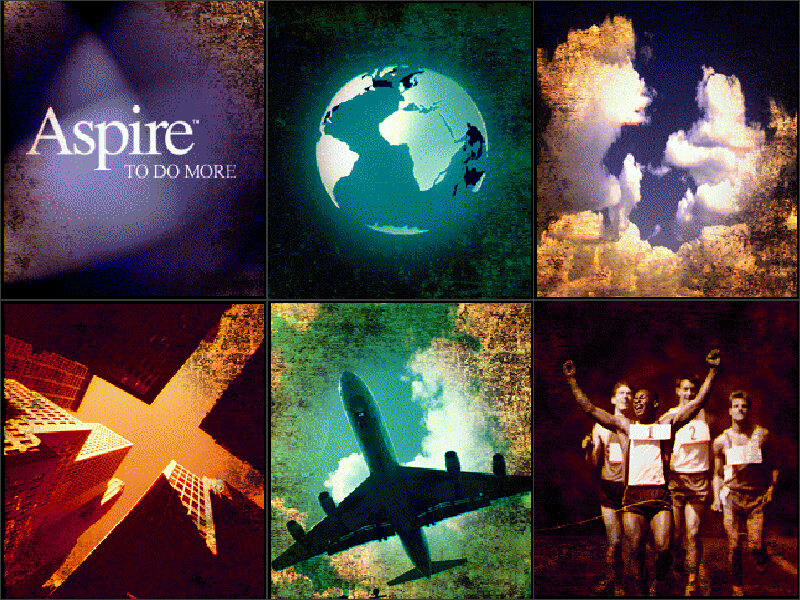
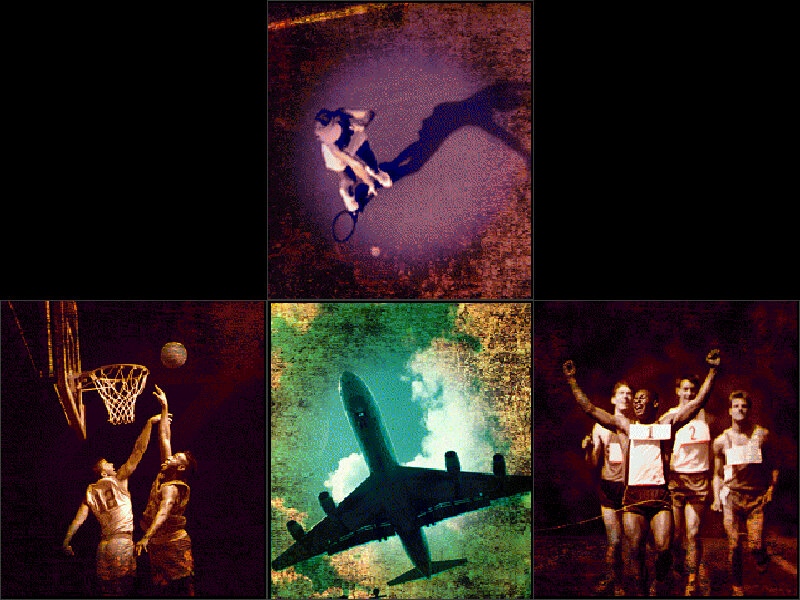
The default screensaver which shows a collage of aspiring photographs (Acer Aspire, geddit?)
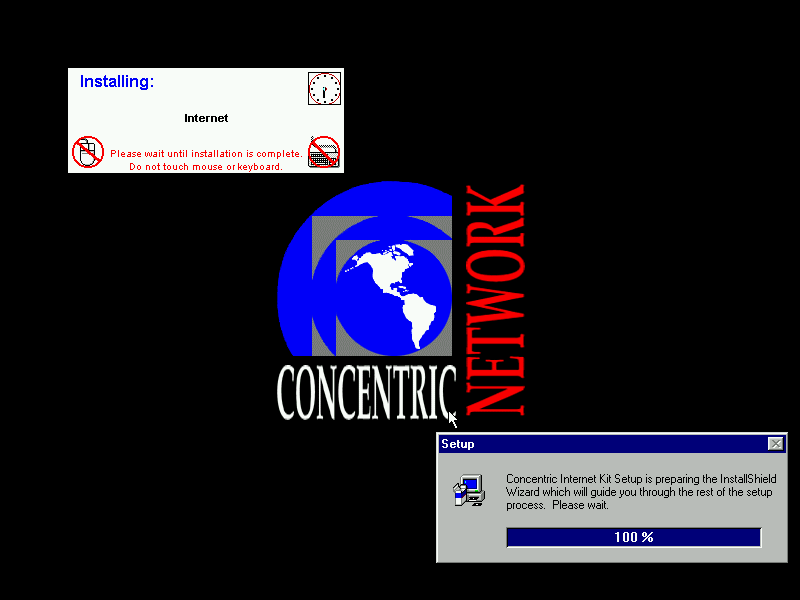
Concentric Network Communications, appears to be an internet provided for SME businesses, it’s since been absorbed into Verizon, according to the XO Communications wiki page.
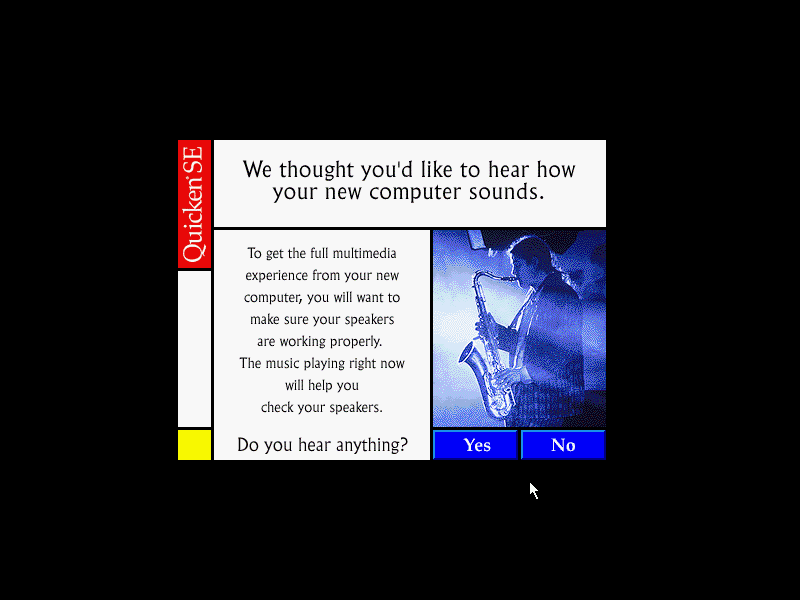
The Quicken, this popped up once I install the sound drivers
Another look at the desktop with the System Properties
The included wallpapers, which are small Acer logo’s which are intended to be tiled
Download link if you’re interested in trying this yourself. I’ve not tested it on any other motherboard in 86Box apart from the Acer V35, so I’m not sure if it performs a hardware check or if it just relies on the code you enter being correct to perform the restore.
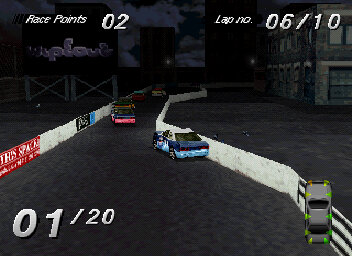
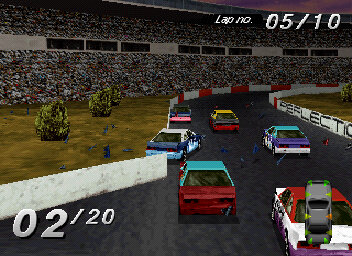
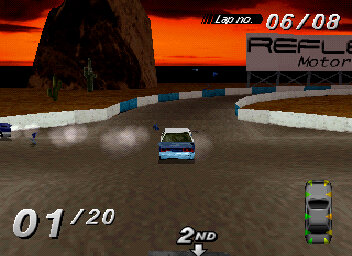
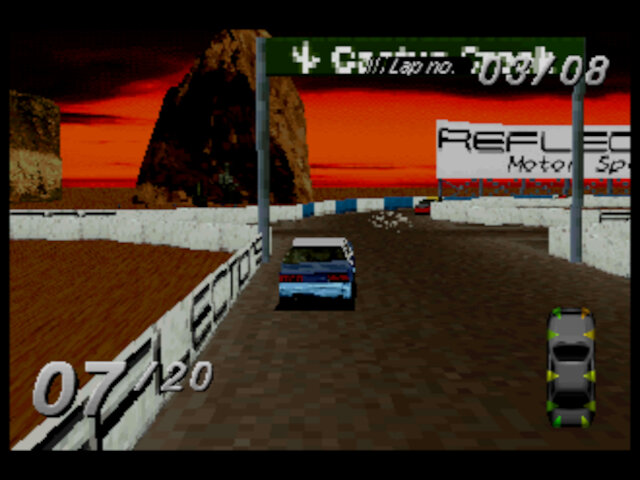
A racing & combat game, developed by Reflections (Who went on to produce Driver) that was released in 1995, at the begriming of the 3D gaming revolution. In Destruction Derby, players compete in demolition derby-style events where the objective is to crash into opponents’ cars to damage them while trying to survive and be the last car running. The game features both racing and demolition derby modes:
Destruction Derby Mode: In this mode, players compete in arenas specifically designed for vehicular combat. The last car that remains operational wins the match. Players can earn points by inflicting damage on opponents’ vehicles. Wreckin’ Racing Mode: This mode combines racing and demolition derby elements. Players race around circuits while attempting to wreck opponents’ cars. The winner is determined by a combination of finishing position and damage inflicted. Stock Car Racing: Traditional racing mode where you finish a race of multiple laps Time Trials: Similar to Stock Car Racing, but you have to aim to get the fastest lap time. Getting the quickest time will allow you to enter your name as a high score.
Each mode can be played in practice, championship, dual or multiplayer mode.
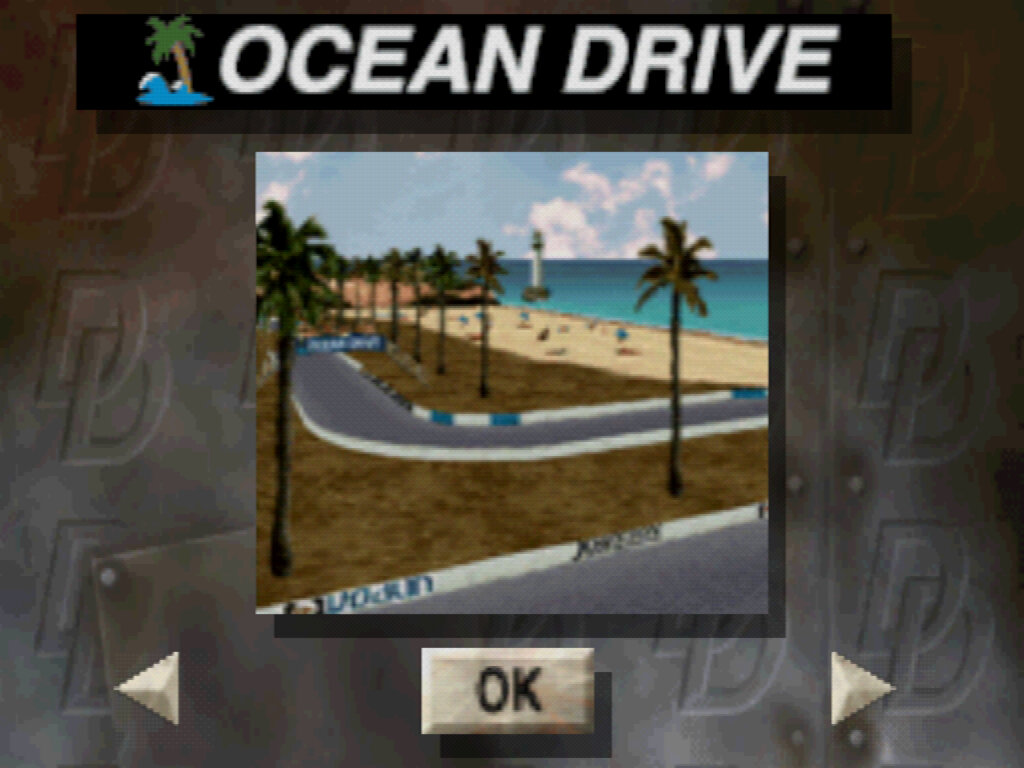
Five tracks are available at the start of the game, Speedway, CrossOver, Ocean Drive, Catus Creek, and City Heat. Each track is set in it’s own environment and have their own unique track design. Some feature a loop design which require you to dodge and avoid opposing cards, otherwise it easy to lose which direction you’re supposed to go. Pileups are also fairly common on these type of tracks.
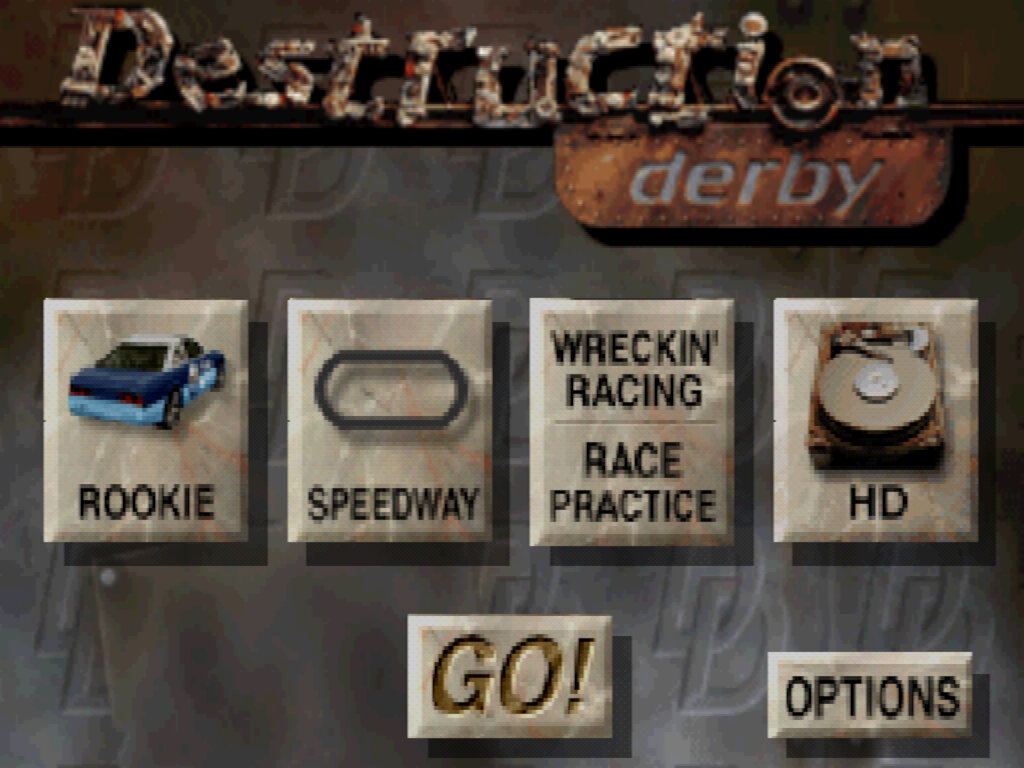
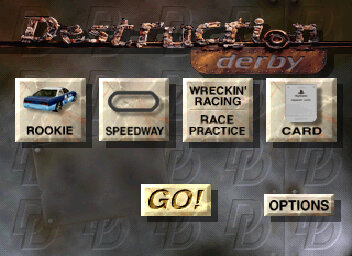
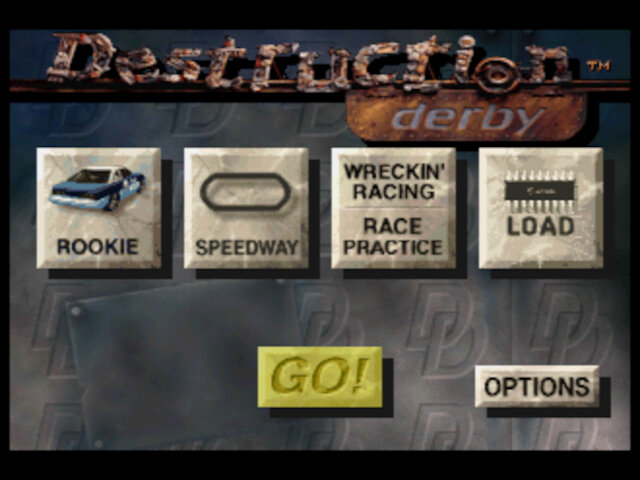
A look at the main menu of the PC relase, which features 3D tiles that function as menu items. Similar to the save screen on Mario 64 or on the SGI demos of the era.
Windows
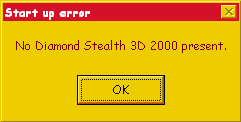
The Windows version had support for S3D acceleration, with was supported on S3 graphics cards which were common of the time. This required the use of a specific OEM copy of the game that shipped with a computer that featured the S3 ViRGE video card. Other PC releases would make use of MS-DOS and software rendering instead, which was inferior to the S3D and console releases. One issue with the S3 version is it’s limited to Diamond Stealth 3D 2000 cards, and will refuse to function on even the 3000 model. This can be bypassed with a patch that removes this check. There I also an option to enable texture filtering that gives the textures a smoother look, but at the expense of framerate. It can be togged on the settings menu of the game.
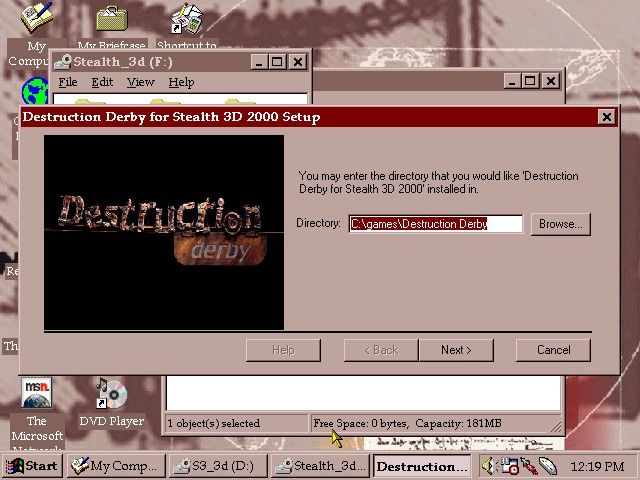
86Box is able to play this version of this game by using the emulated Diamond Stealth 3D card, paired with a Pentium MMX. Windows 95 lacks built in drivers for this card but they can be obtained here.
Trying to run the game without using a Diamond graphics card, using a generic S3 ViRGE card instead. A patch exists to remove this check.
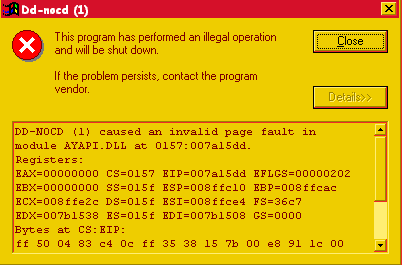
Using the Stealth 3000 caused a crash, with the AYAPI.DLL causing the issue despite using the Diamond drivers and the fixed EXE.
If you’re wondering about the colour scheme, its the RE-MAN theme from the Windows 95 Plus! pack.
PlayStation
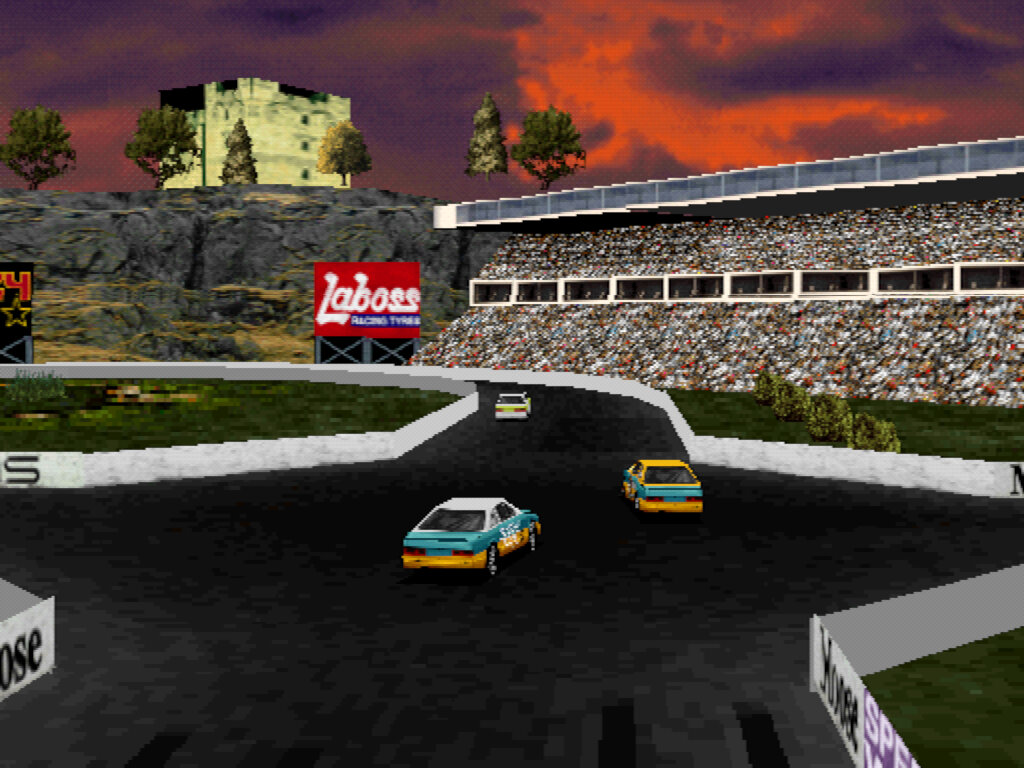
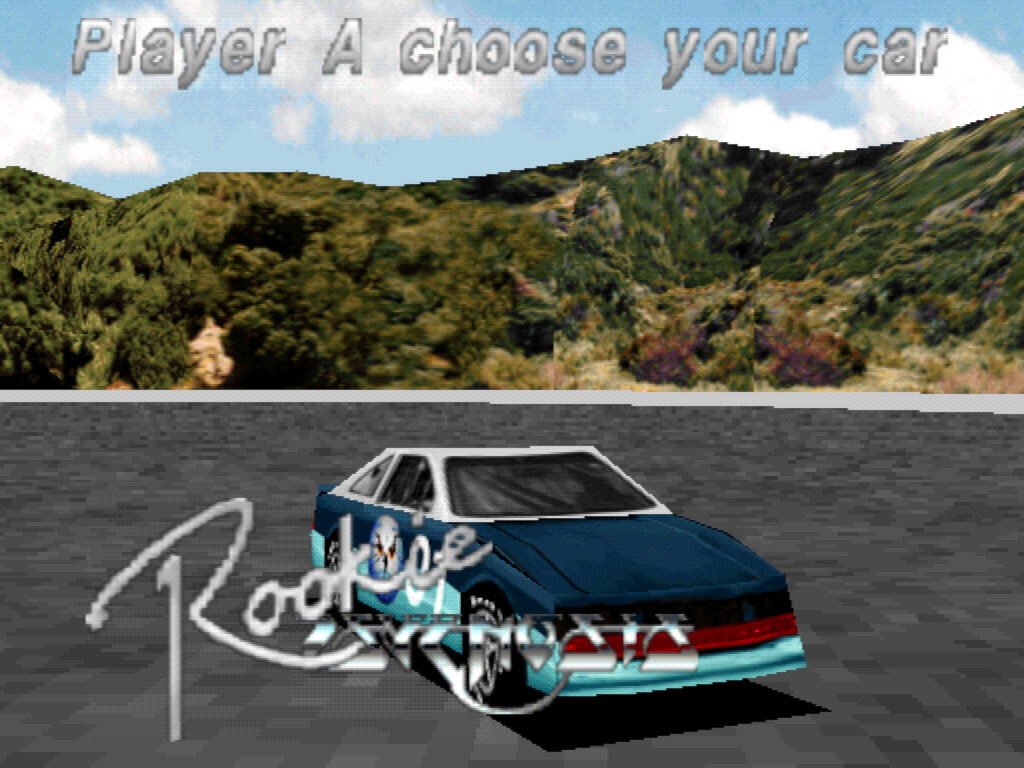
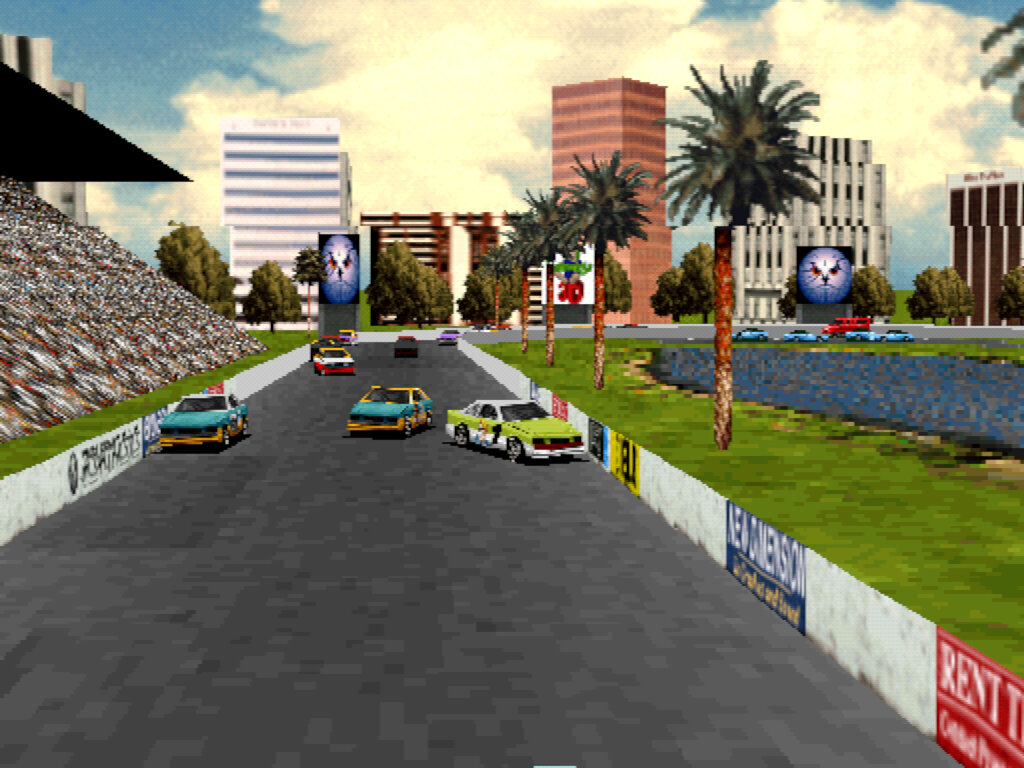
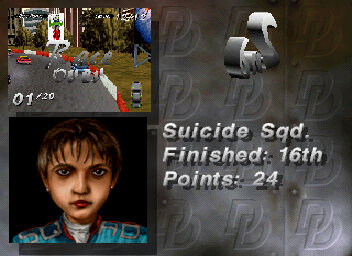
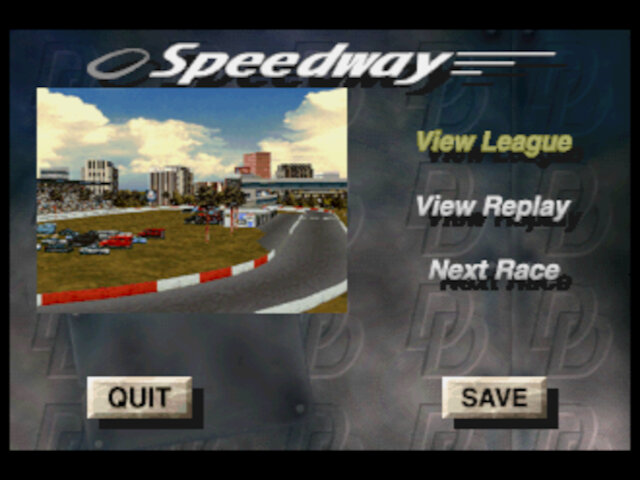
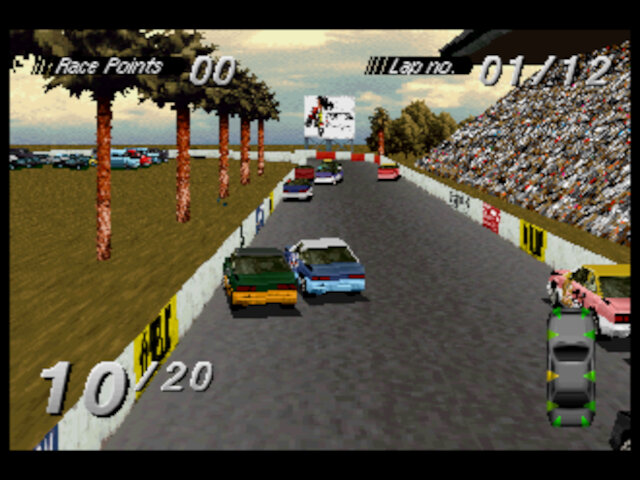
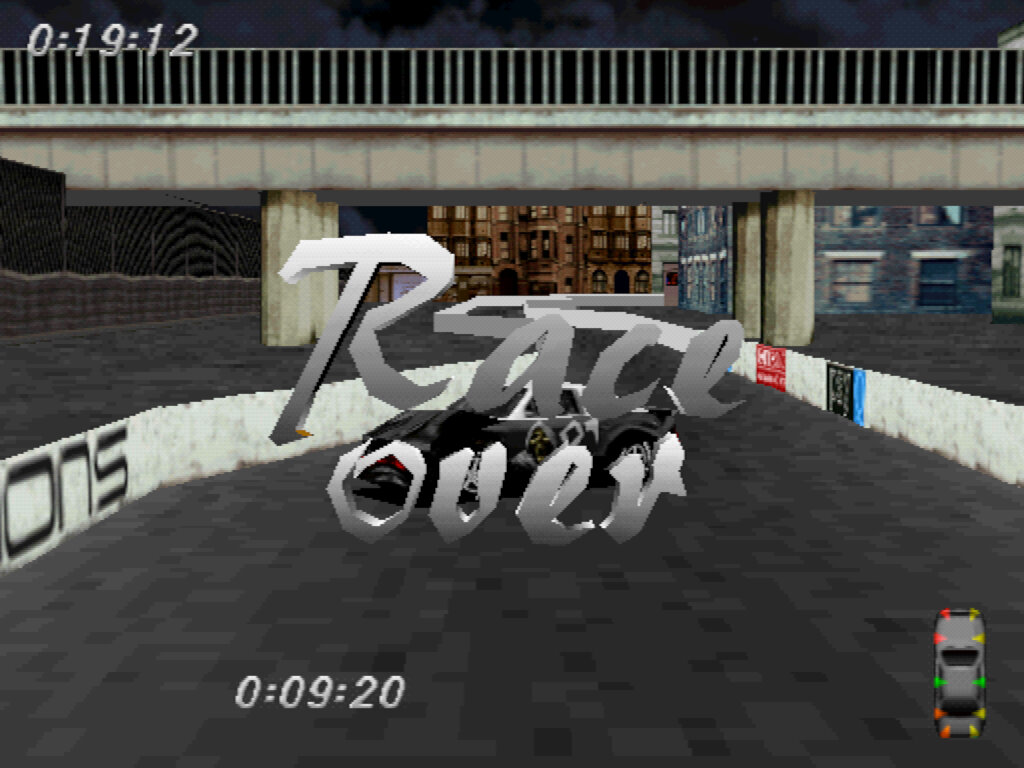
The game was also ported to the PlayStation, This release is a lot more polished, and features thumbnails of the rival characters after the race, showcasing their overall position. The framerate is also a lot more smoother compared to the PC but misses out on the potential of texture filtering unless an emulator is used. DuckStation is the emulator used here, with the stock graphic settings (no enhancements)
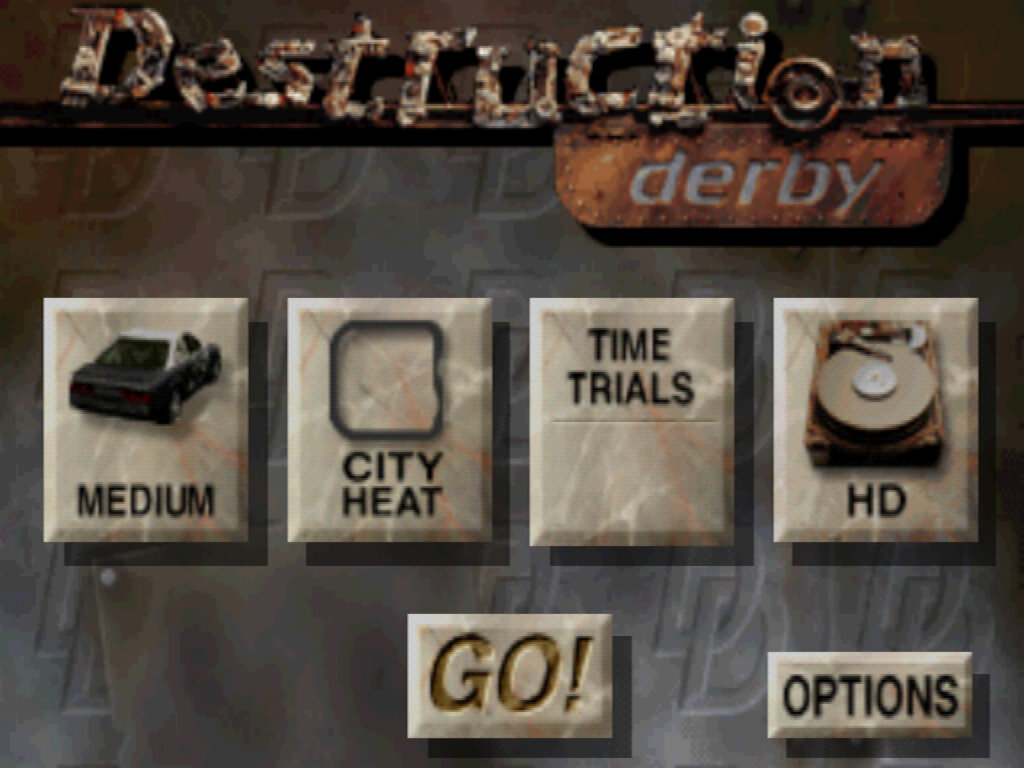
For analogue control the NeGcon controller can be used for more precise turns, as this game predates the release of the dual-analogue controller. The menu controls are awkward to control compared to traditional PlayStation games, as you have to press the start button to confirm/enter menus rather than using the X button that most other games use.
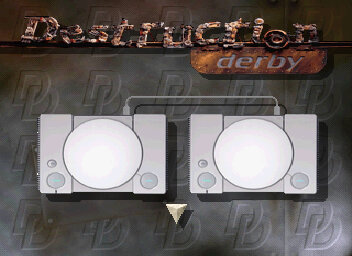
Multiplayer is also a better experience in this version of the game because it supports the use of the PlayStation link cable. For this, two consoles and copies of the game are required, as split screen is not supported.
It’s also a lot more easily accessible, since it can be brought from the PSN store and played on the PS3.
Sega Saturn
There was also a Saturn version, released in 1996 in Europe. Like other third-party ports it suffers from a poorer framerate compared to the PlayStation version. Still the game is playable and defiantly worth checking out if you’re interested in Saturn racing games. The Mednafen emulator is used for the screenshots below.
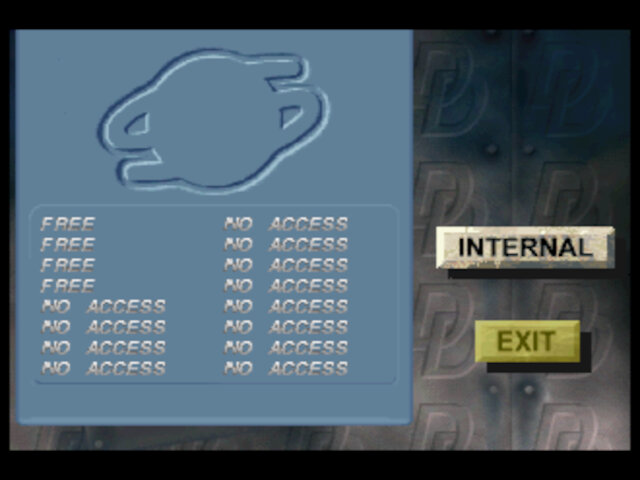
The game supports saving to the internal memory, or though the backup cartridge
The game does not appear to support the 3D controller, which means the game lacks analogue control support.
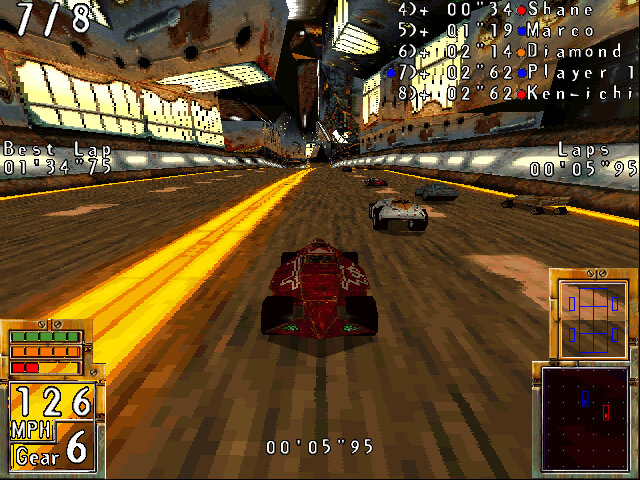
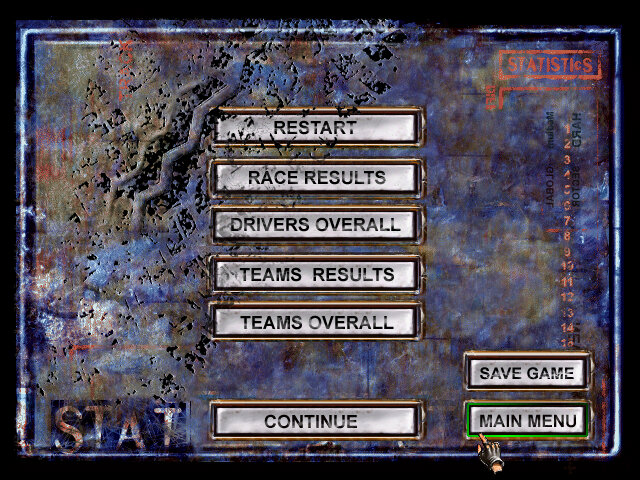
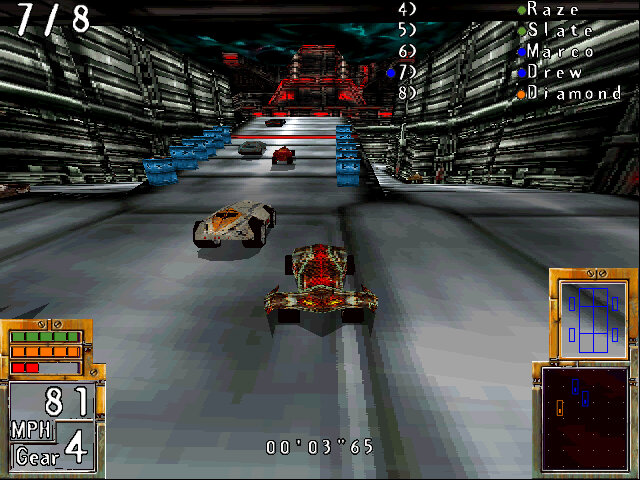
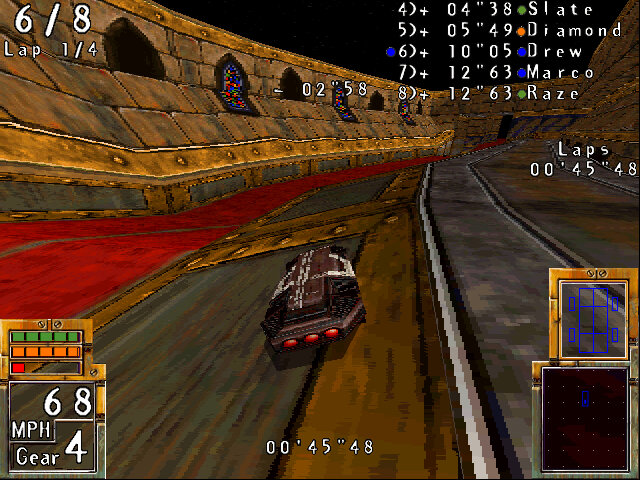
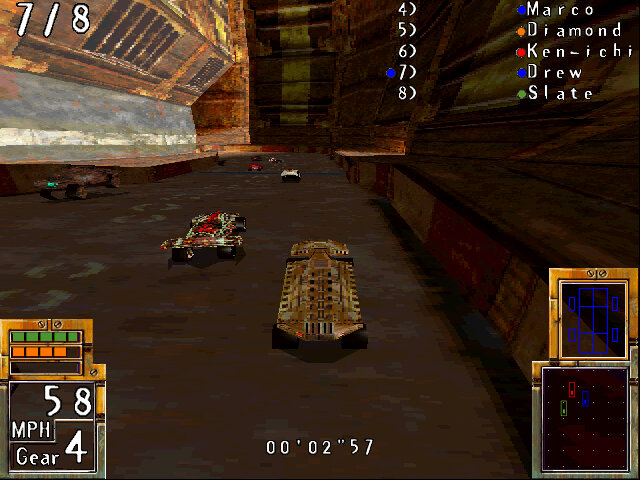
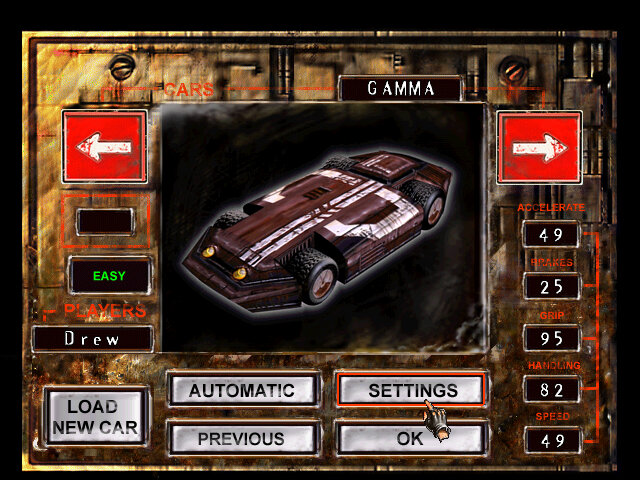
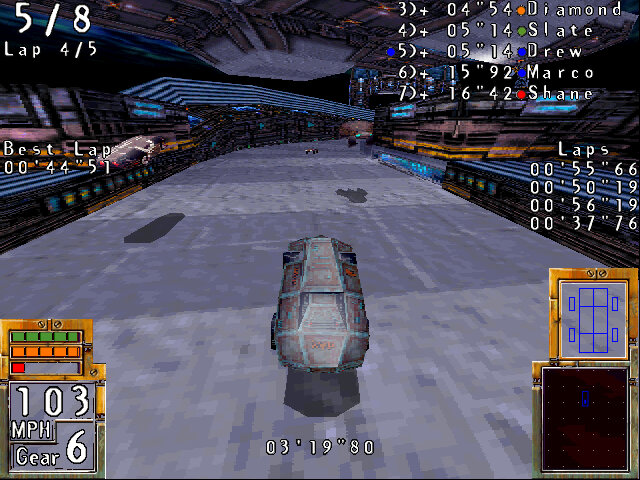
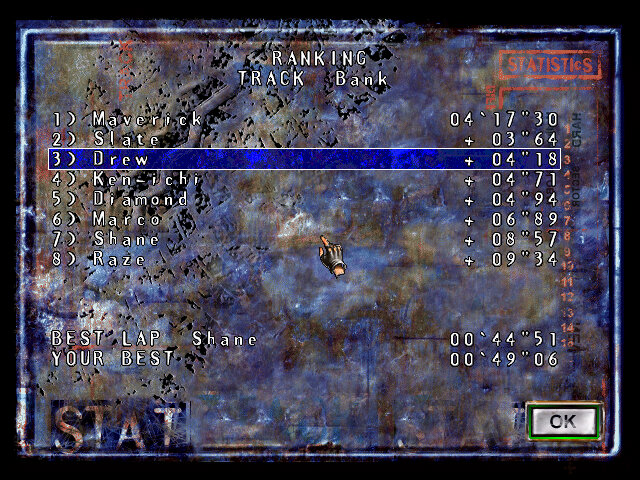
A futuristic racing game developed and published by Ubisoft in 1997, exclusively on the Microsoft Windows platform. A showcase of Intel’s MMX technology and a standard futuristic racing game. There are no weapons, just your opponents and the track with a few hazards in the way. Unusually despite being a 3D textured racing game, there was no port for a home console, I guess the developers were busy supporting the different 3D graphics cards of the day.
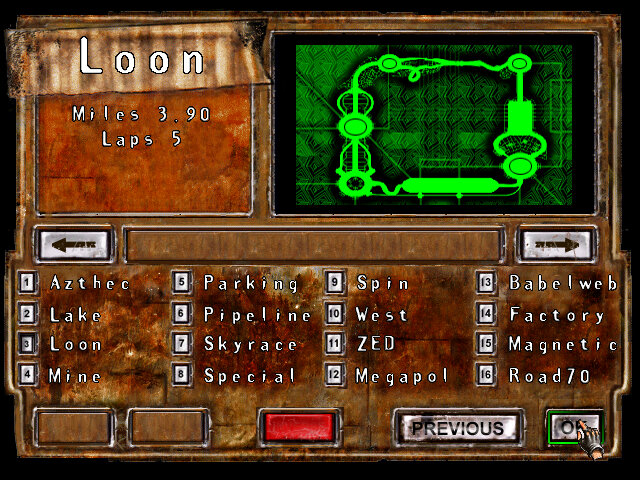
There are a few FMV’s in the game that make use of Intel’s Indeo technology which is installed by default. Content-wise there’s a lot of tracks included, with the ability to download and install further more tracks. Many of the tracks follow their own unique style and are varied in their environment. Some of the tracks feature multiple routes which offer shortcuts where others can increase the difficulty of the race. Making a wrong turn can cause you to lose the race, which requires you to memorise the tracks and their routes.
A championship mode is included, here you earn points depending on your finishing position. Each race has eight opponents, which you can reduce if desired.
Multiplayer is supported, either by using a split screen mode which is done through the keyboard which both plays will need to share. Multiplayer over a network is also supported over IPX or via the serial cable.
The game was only released on Microsoft Windows, making it one of the few PC exclusive games. As it was released in the mid 90s, it supports a wide range of 3D API’s including the industry standard DirectX.
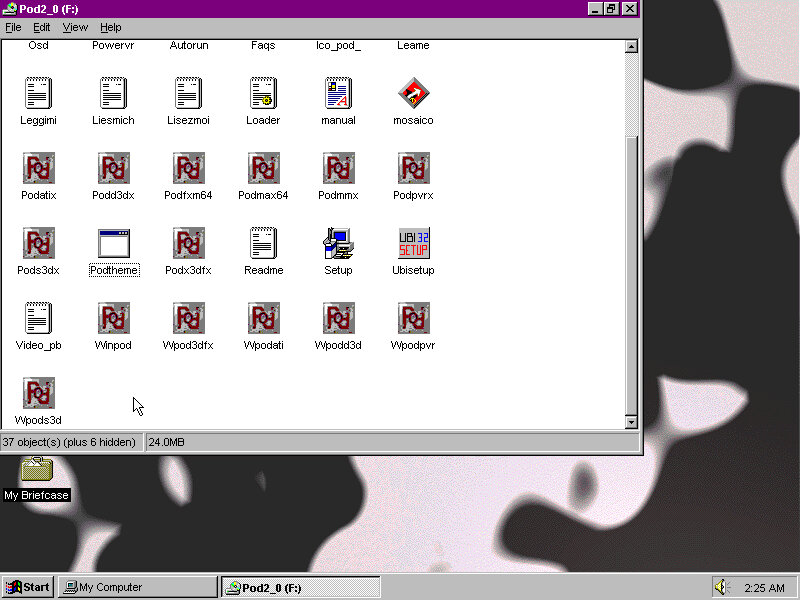
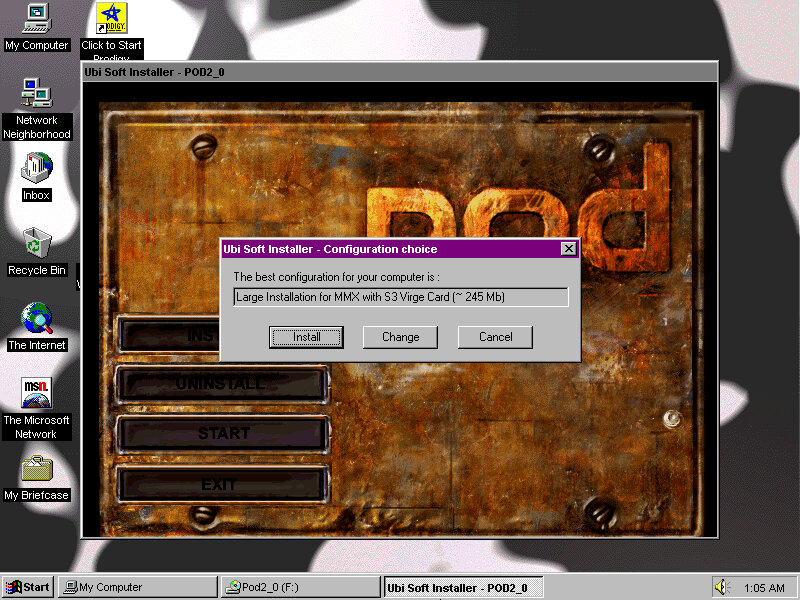
The installer will detect and will load the appropriate version the game that matched your 3D hardware. Some later games support additional API’s and Intel MMX.
So many exe files for different configurations
S3 S3D
This version is playable on 86box using a virtual machine with an S3 ViRGE video card and the Windows 95 operating system. You may have to install updated drivers from S3, as the stock drivers that ship with Windows 98 will lack S3D support.
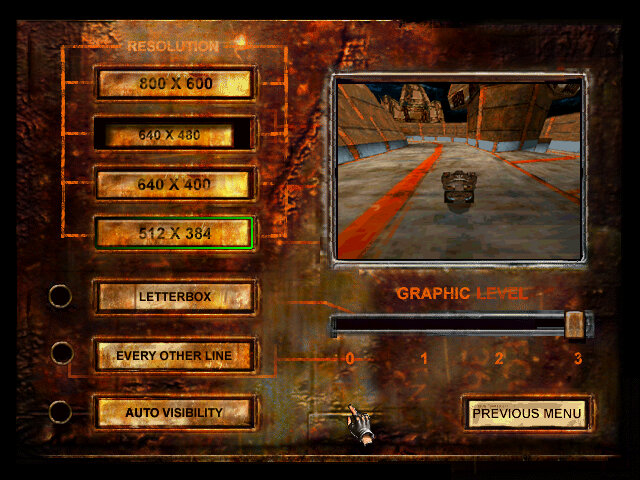
The graphics settings screen for the S3D version of the game
ATI CIF
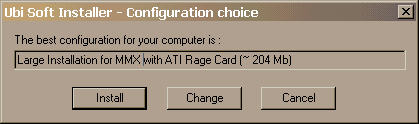
Supported on most ATI RAGE cards with pre-2000 drivers, this version has texture warping on the outer walls of the track. Screens here were captured off a Dell OptiPlex GX1 with the ATi RAGE PRO TURBO onboard graphics.
Other graphics API’s supported are 3DFX’s Glide, and PowerVR. POD fails to run on Windows NT 4 with either an S3 or a 3DFX voodoo card., it only appears to run on the Windows 9x series of operating systems.
Windows Theme
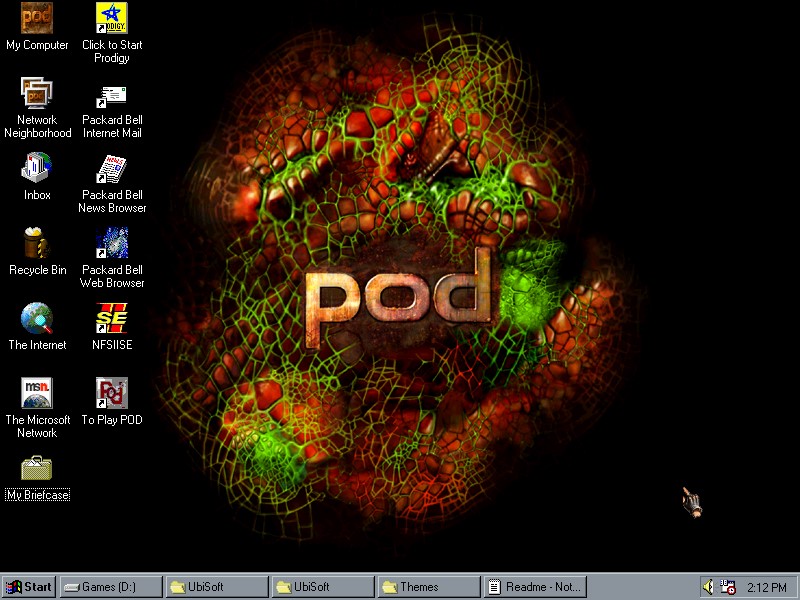
A custom desktop theme comes bundled with the game which gives a wallpaper, colour scheme and sound from the game onto your desktop. For Windows 95 you will need the Plus/1 pack as themes are not supported by default. For 98 and ME you can use the Desktop Themes applet that comes with those operating systems. To install you have to open the installer that’s at the root of the CD-ROM, and then run the WinZip self-extractor and extract to the Themes folder. You can also replace the bootup and shutdown screens that appear when Windows starts up.
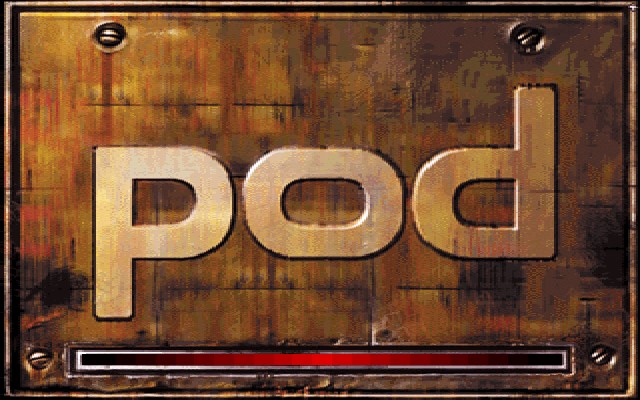
The Windows bootscreen
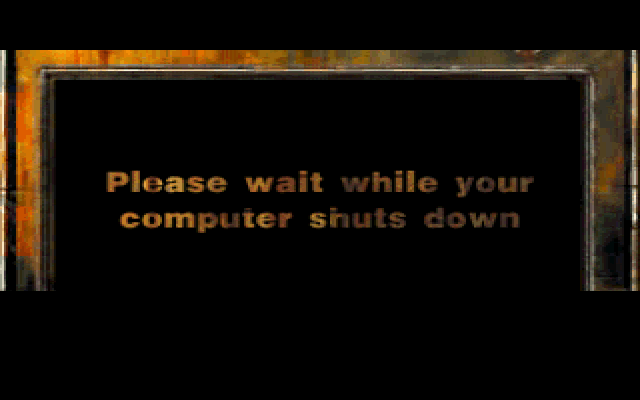
The shutdown screen which appears and disappears quicky, preventing a full screenshot from being taken
The Apple TV for the most part is pretty much a regular Mac, but cut down and intended for use in streaming content from iTunes. Spec wise it features an Intel Pentium M, and an Nvidia GoForce 7300. In a way it’s kinda similar to the original Xbox with its Pentium P3 based CPU and Nvidia graphics. Whilst it was once the forefront of Apple’s contribution to your living room, nowadays it’s a doorstop with only the iTunes sync counterpart being the only working feature. Thanks to the modding communities it’s possible to run OS X on the unit itself, turning it into a mini Mac mini, or a thin client Mac if you prefer.
Mac OS X can be installed, either Tiger or Leopard onto either the internal hard disk or an external USB drive. To install to a USB drive, you will need to issue some terminal commands as the Apple TV firmware expects a specific partition layout for it to boot from an external drive. Here’s the full tutorial that I used.
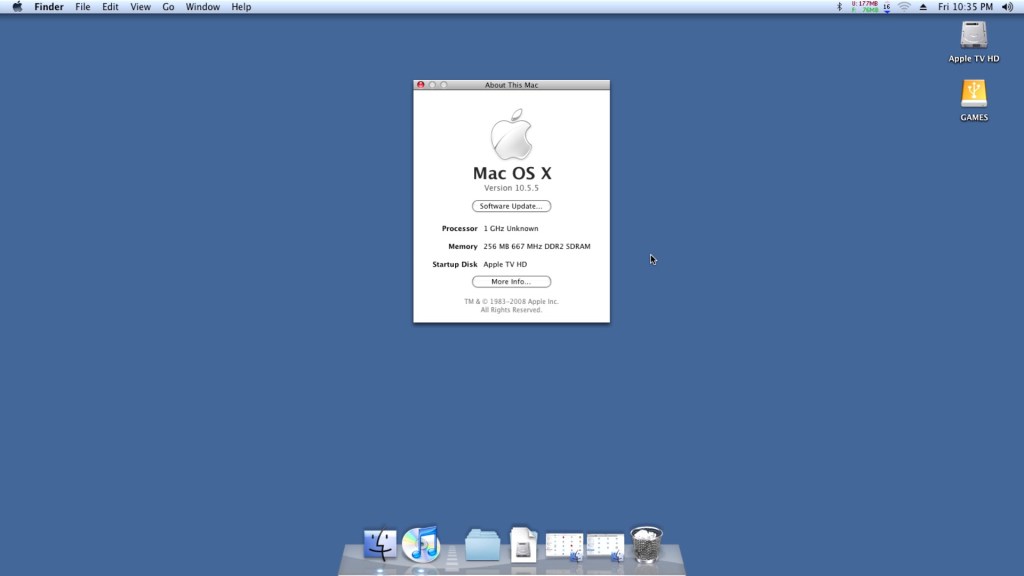
OS X Leopard is quite heavy to be running on the 256MB Apple TV, given that Apple required you to have 512 MB of RAM minimum. So running it with 256MB is not going to be a good experience, with a lot of disk swapping going on as OS X tries to find scraps of RAM to use. As the memory is fixed onto the mother LogicBoard, it’s difficult (but not impossible) to upgrade the memory. Tiger would be a much better fit and it is possible to run and install Tiger, After all the Apple TV’s stock firmware was actually based on the Tiger kernel, but all of the tutorial’s found online involve stripping out the Nvidia kexts (device drivers) from the system folder, leaving you with no graphics acceleration and leaving the poor Pentium M having to do all the work and limits the software you can run.
So it’s either choose between an OS that gives you not much memory for multitasking, or an OS without any graphics acceleration.
Install was pretty simple when you follow this guide, Really you just need a lot of patience if you go down the USB flash drive route, since this is very slow to boot and run from. Also given the limited RAM it’s going to be page filing a lot, making it even more slow. Alternatively you can take out the internal hard drive and connect into a more modern Mac, which should allow you to restore directly to the drive by using an IDE adaptor.
Once the restore is completed we can boot into our new operating system,. Here it continues like any other Mac would where the opening welcome movie plays, followed by the registration assistant.
Software
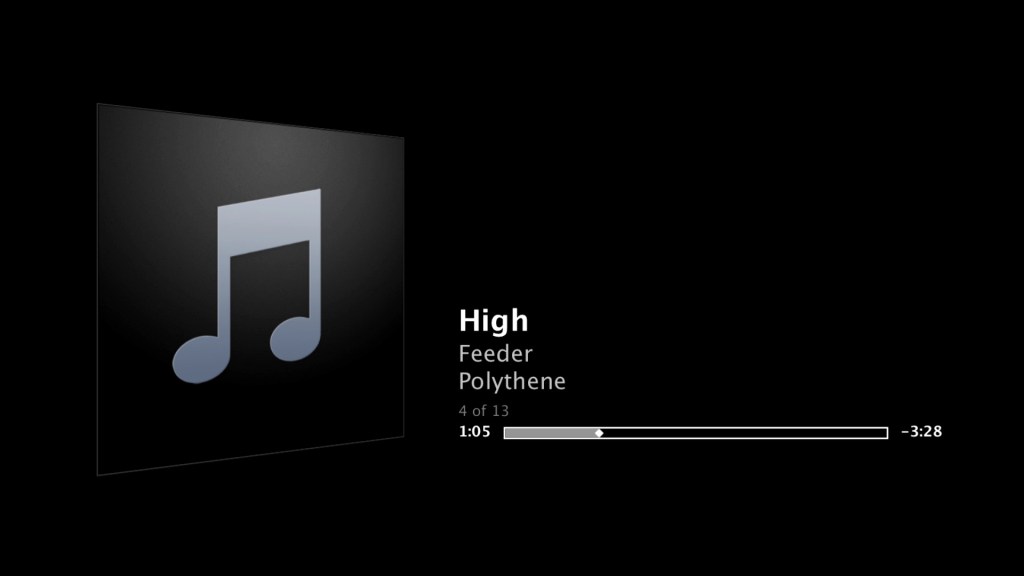
iTunes works OK here, and is a lot more functional compared to the stock software. Here you can store music onto the unit itself, m or use an external USB HDD if you prefer to have your media directly connected. Playback from iTunes servers are also supported, which the stock software didn’t appear to support. Most NAS drives have support for this and allows you to share your music over LAN.
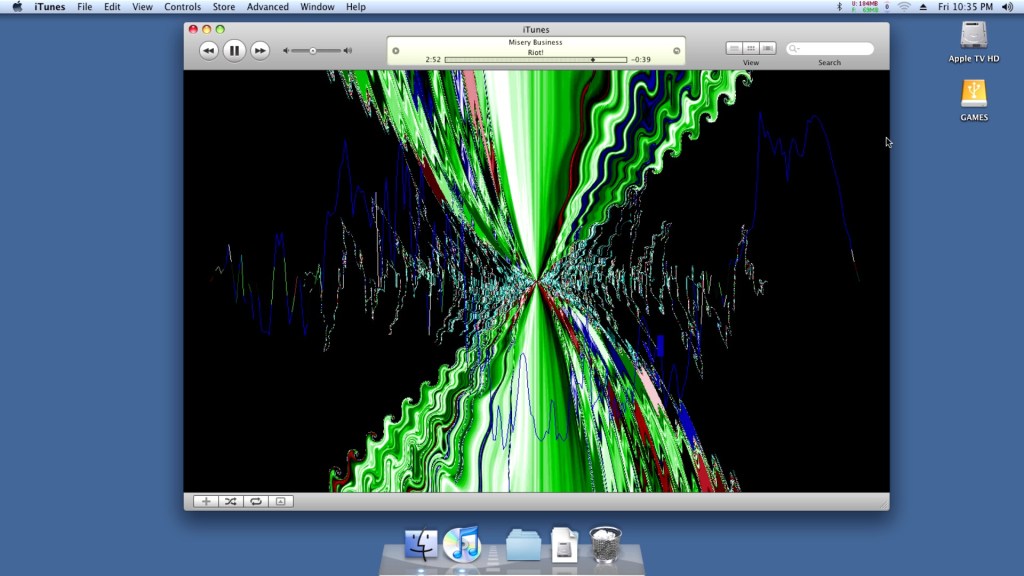
A look at the iTunes visualisations, which run flawlessly.
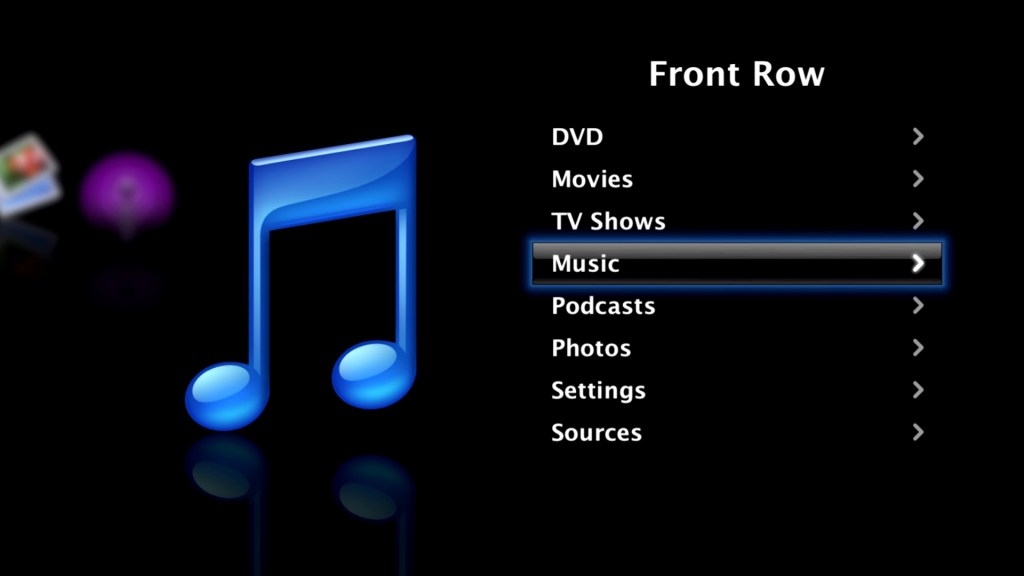
Also the Front Row experience itself, you can continue to use your existing Media Remote to control and navigate the menu’s.
DVD playback did run into some issues. So the stock software for the Apple TV does not support DVD playback since the unit has no optical drive and despite the presence of a USB port, you cannot connect an external DVD drive. Apple fully intended you to purchase and watch your movies though the iTunes Store.
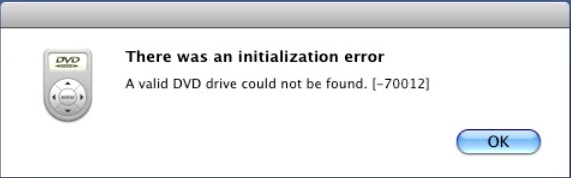
Leopard comes with a DVD player built in, and by connecting an external USB DVD drive we have the ability to play back DVD’s. Although for some reason it failed to detect my Dell external drive, even though it was connected to a powered USB hub port. The LG drive worked perfectly and OS X recognised a DVD movie was in the drive but refused to play it back with there error message below:
Not sure why this was the case, even Front Row had issues playing back a DVD
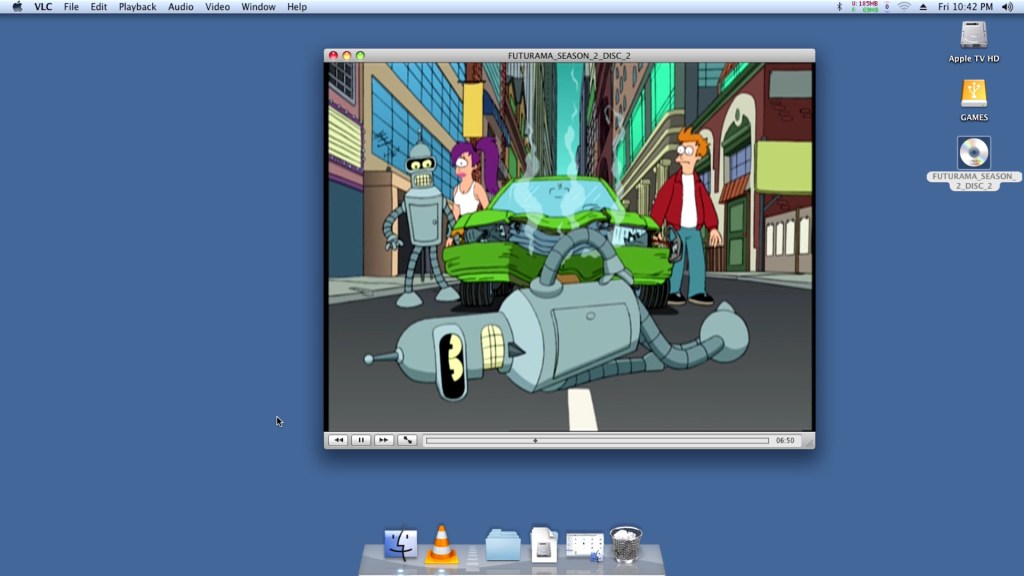
Well where OS X lets you down, VLC has your back. Version 1.1.10 appears to be the latest for Leopard, and it works perfect for playing back DVD’s. I’m not sure if this is using the MPEG2 acceleration that the GeForce supports, but the playback appears smooth for a PAL DVD.
Honestly I don’t get why this wasn’t a standard feature on the stock software, given they would have wanted customers to transition to the iTunes Store for their content, It would make sense to bundle a DVD player for customers who have an existing DVD collection to eventually migrate their purchases to the iTunes Store, especially with the HD era on the horizon.
Rosetta does not appear to run, which locks us out of PowerPC applications. One theory from this post is due to the Pentium M processor not featuring certain instructions that the later Core/Core 2 processor feature, which Rosetta needs in order to translate the PowerPC instructions.
This does give us a problem with installing and running Universal software, since many would have been released in PowerPC format, with their installer also being written in PowerPC also. Once workaround was to install the software in a Leopard/Tiger VM (A Macintosh VM will work just as well), and then transfer it back to the Apple TV where it would run.
Sometimes you can also inspect the package contents and run the PKG installer instead, which should work regardless of CPU.
Games
Well how well does the AppleTV perform with some Mac games, well with only 256MB of RAM were are going to be limited in what titles we can run, and with the Rosetta issues outlined above we are restricted to games that have universal binaries. Still the AppleTV comes with a Nvidia GoForce 7300, which whilst mostly intended for use with decoding MPEG4 video, can also do a decent job rendering 3D graphics. Quartz and CoreImage are also supported for iWork and iLife applications.
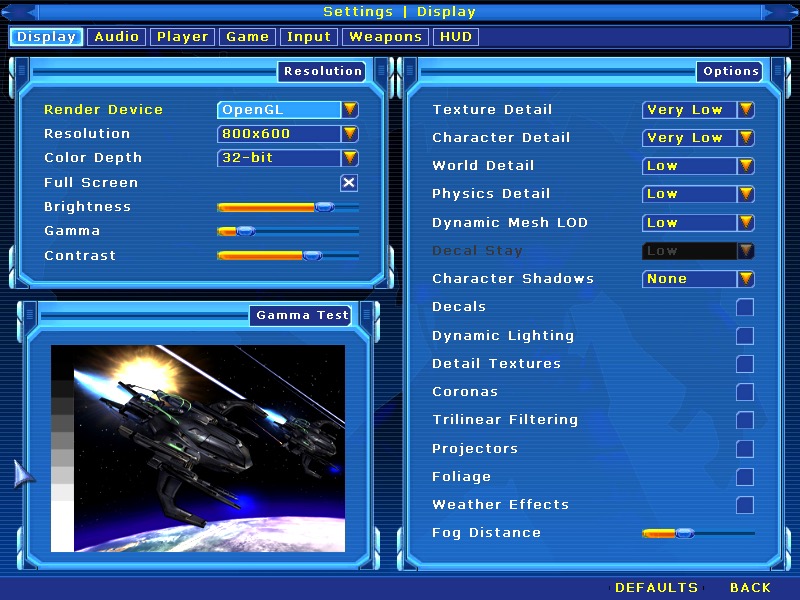
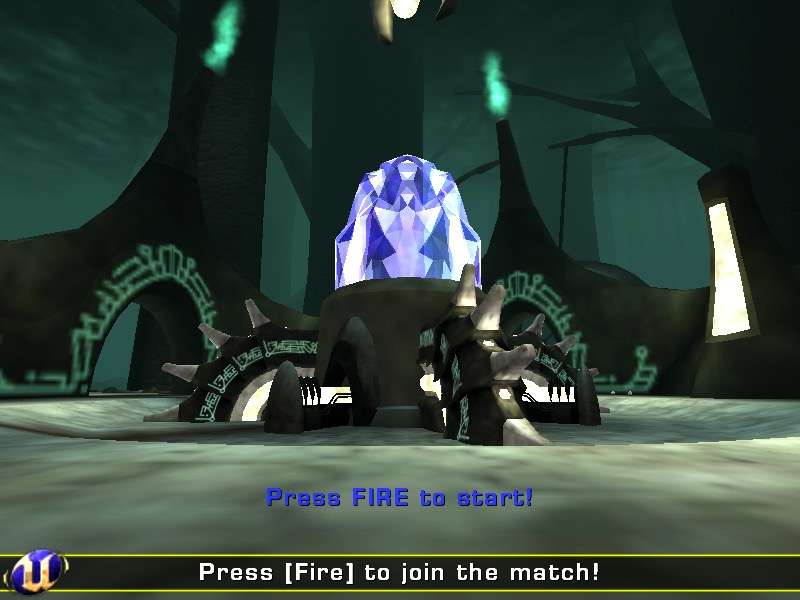
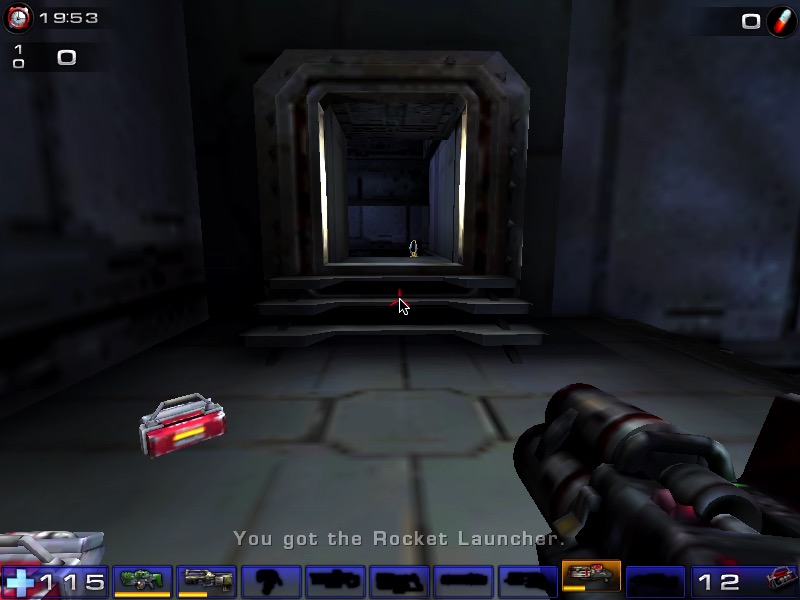
Unreal Tournament 2004 – Works well if you set the graphics settings to their lowest values. At this settings it looks worse than its Xbox counterpart (Unreal Championship) though you do benefit from a higher resolution. Multiplayer also works well, though the master servers were taken down recently. Still LAN multiplayer is possible and given the small footprint of this machines, it would have made for a nice portable LAN party box.
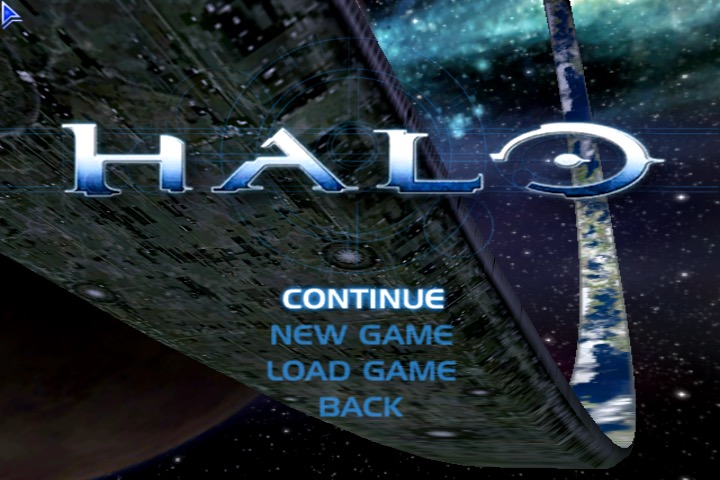
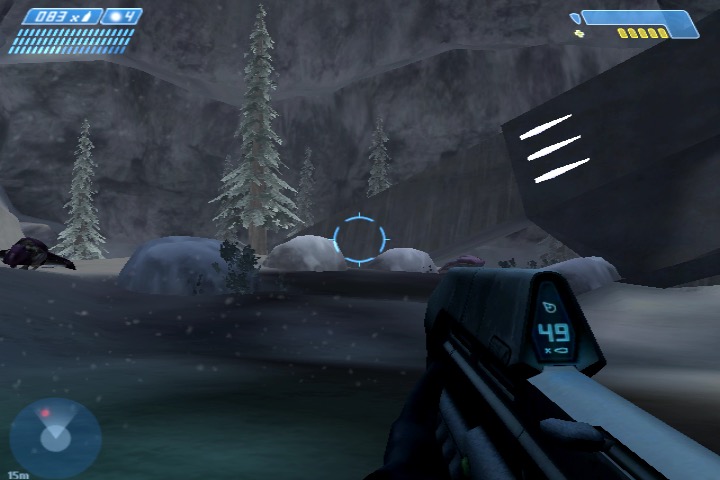
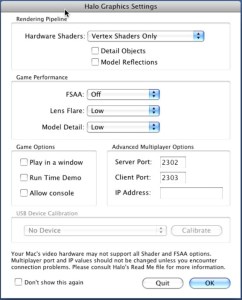
Halo: Combat Evolved – also works well if you run at 800×600 resolution with vertex shaders only. It’s relatively stable if you turn off the AA (Anti-Aliasing) as I managed to play through a couple of hours.
Sample settings for the game
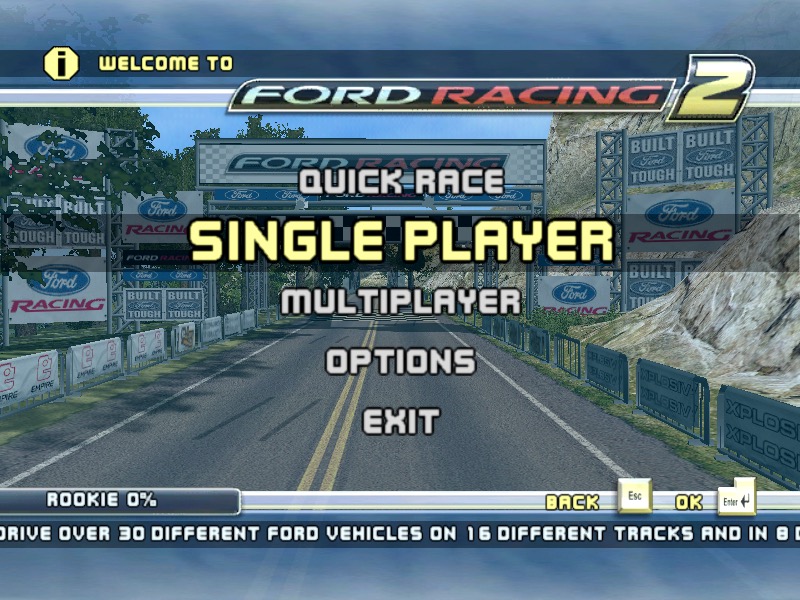
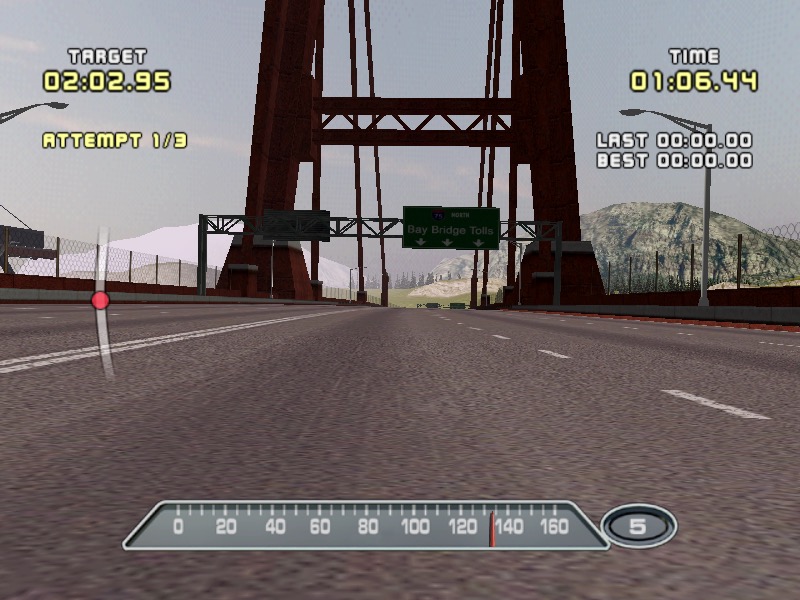
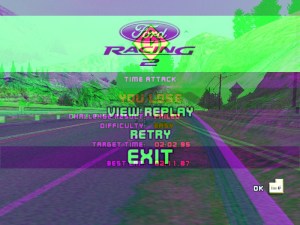
Ford Racing 2 – Works well but after a few minutes some weird graphical glitches appear on screen which remain throughout the game.
Not sure what causes this as it appears regardless of the graphic settings chosen
Postal 1 – Works well considering this was originally a 1997 game
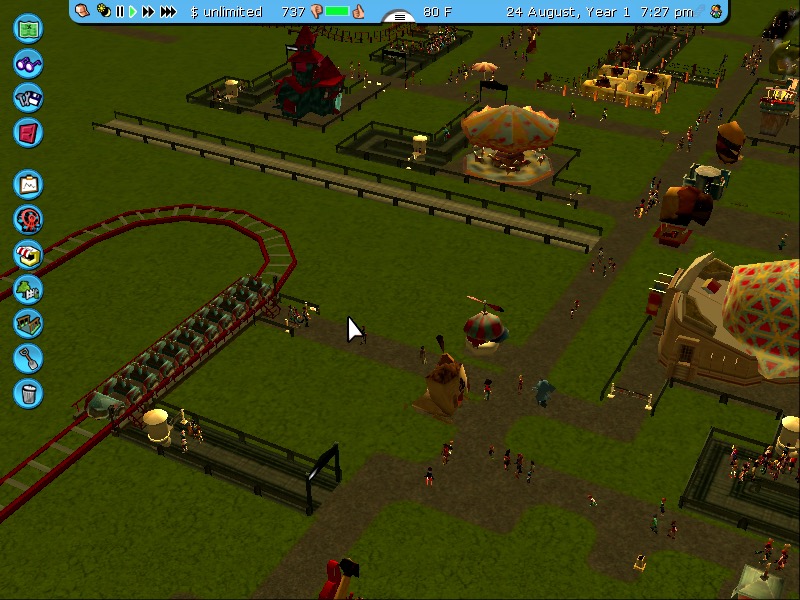
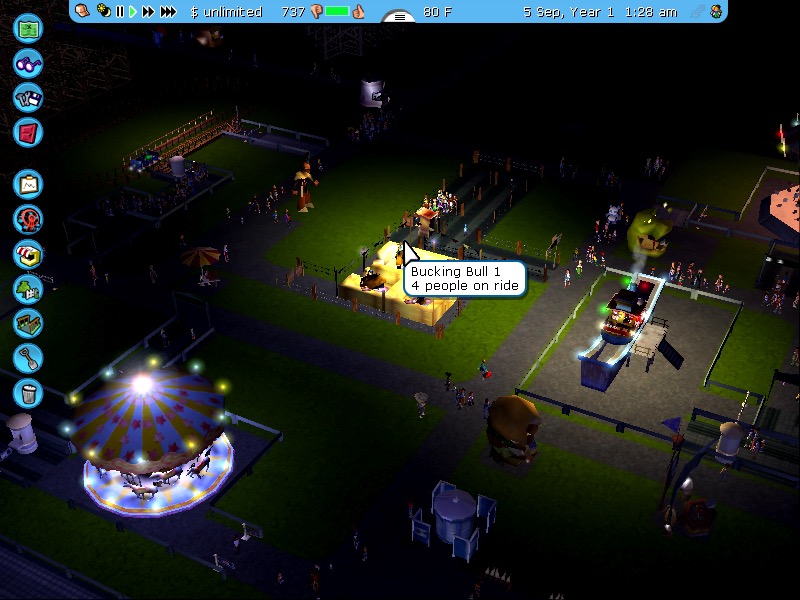
RollerCoaster Tycoon 3 – works well even after playing for a few hours.
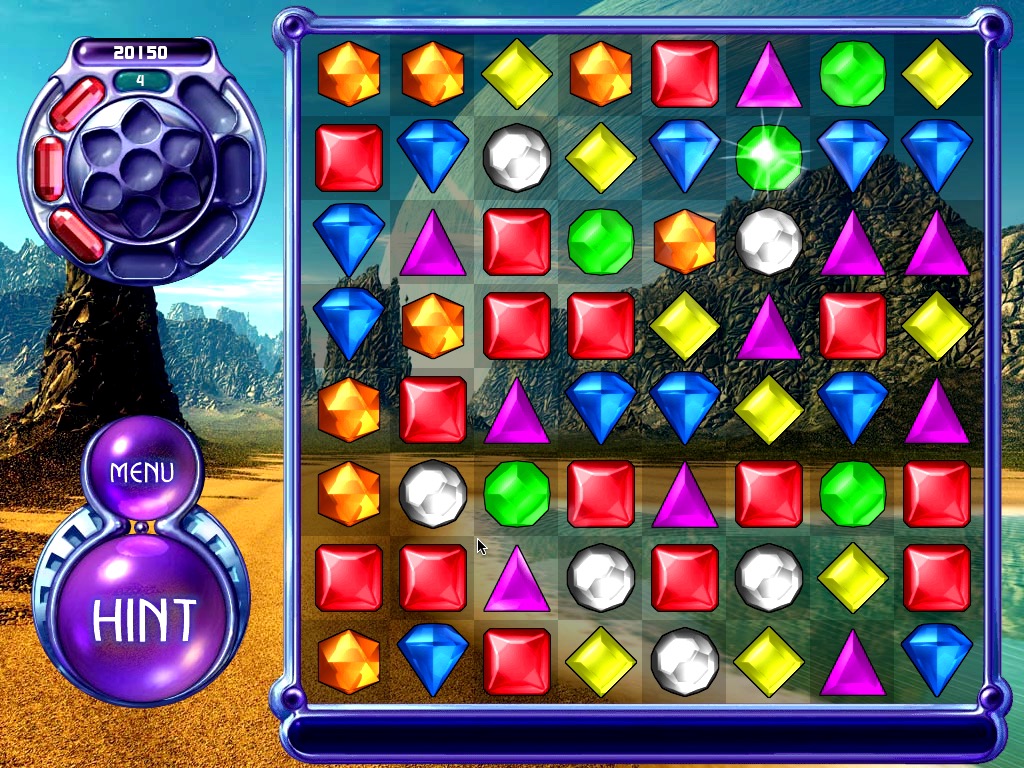
Bejewelled 3 – It’s a pretty simple game, so it runs well on the AppleTV
Shrek 2 – Starts up and runs ok for the most part, but it does jitter when moving about due to the RAM limitations
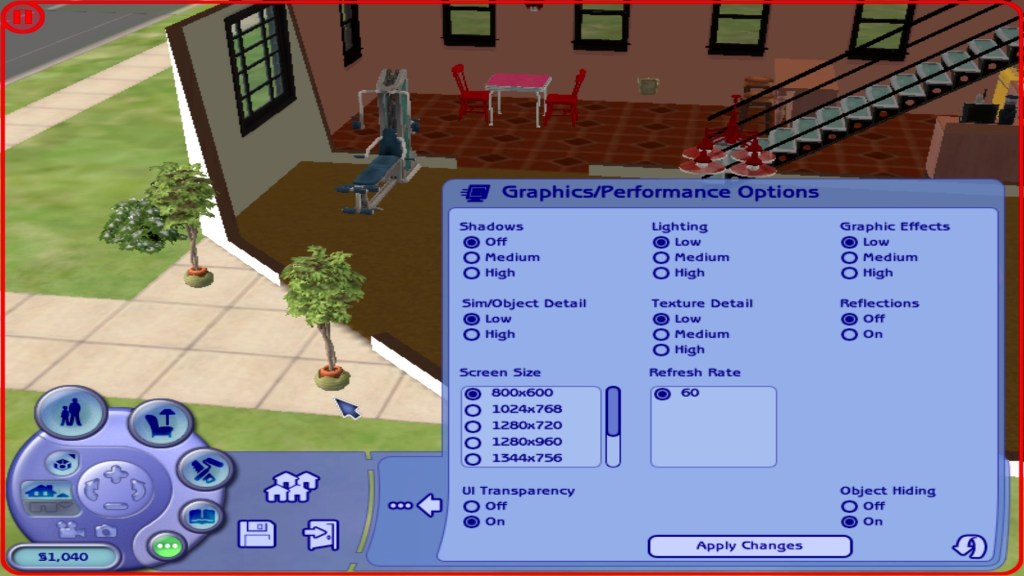
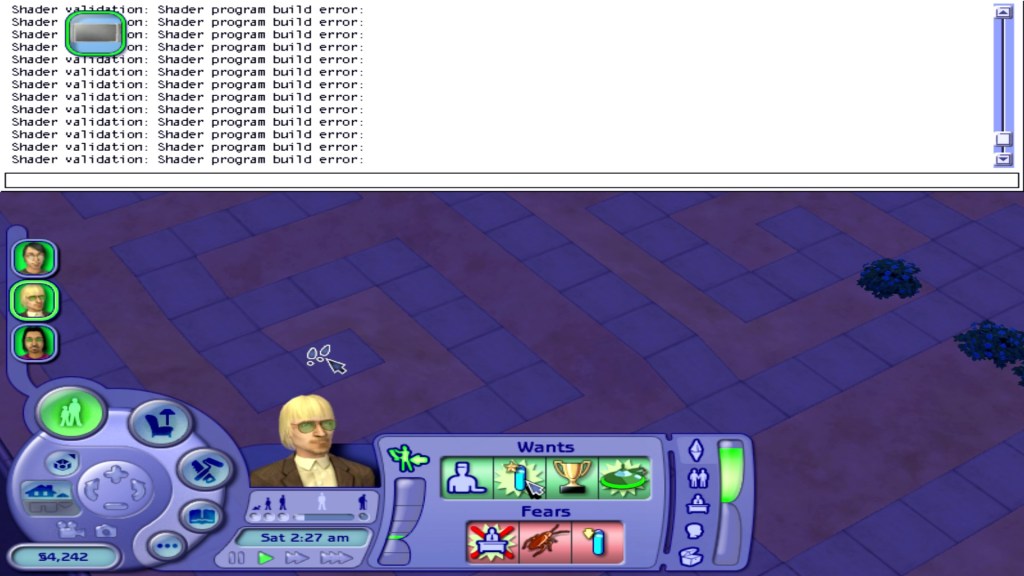
The Sims 2 – Runs Ok on the lowest graphics settings on small lots. Some weird error messages appear in the games cheat console.
So it ain’t exactly a console experience given the mixed results above, but if you don’t mind playing the supported titles on low settings, then it is passable.
Misc Observations
The unit does not appear to shut down, and selecting the shutdown options appears to spin down the hard drive, and you land on a light blue screen. Here you will have to cut power to the AppleTV since it won’t power off in this state (and there’s no power button either)
Restarting works fine
Sleep mode also does not work, it will enter sleep mode but will immediately resume.
No audio on the HDMI, but you can use the optical audio out to a local sounder. There are around four audio outputs in the system preferences and I suppose you could always use USB speakers or a supported sound card instead.
It’s really quiet, not sure if the fan speed can be adjusted since I don’t trust Apple with cooling. Problem is many software fan controllers run resident in memory, which is a previous commodity on the Apple TV.
A lot of games I had installed to an external Hard drive connected via USB, since the internal HDD is typically busy with the VM pageful. USB2 isn’t very fast compared to the internal IDE, but is the fastest external interface we have for the Apple TV.
Speaking of, the Intel HDD is a Fujitsu 4200RPM IDE (Yes, IDE) drive. Being 4200rpm, the HDD can also become a bottleneck especially with the content swapping. An SDD might bring some improvements and some IDE SSD’s exist but the ones I have found are from unknown Chinese brand’s that have varied reviews. Also many lack DRAM support, though it’s arguable how much benefit this would bring over the IDE inference. Then again it would make a difference for ram access reads. I guess the easiest way is to try one and find out.
OS X isn’t the only OS the AppleTV could run, since it’s an X86 computer at heart you could run a supported Linux distro. Forget about Windows XP, whilst it would be ideal for this XP cannot boot from EFI which is what the AppleTV likely uses. Maybe this might be possible in the future with a mod, but XP SP3 on 256MB is equally painful.


 Drew1440: Blog