Another Sony VAIO, one of my favorite PC OEM’s

VAIO desktop, post install
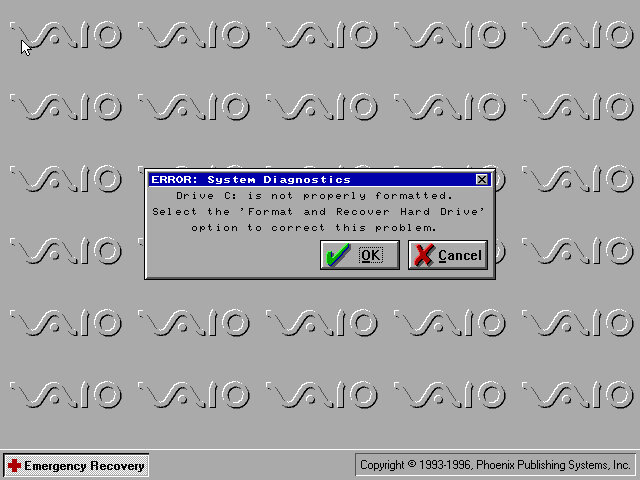
Oh god, its just like the PCV-90. This is gonna be a pain in the ass
Or maybe not since we actually get working mouse support and the software is able to see the CD drive so we don’t have to modify the boot disk.
The restore utility cannot initialize a drive since it assumes its already formatted, What you need to do is FDISK it and initialize the drive, in order to start the recovery process. Also once you init the drive, VMWare will try to boot from it. If you keep getting Missing Operating System – Power off the VM and them click on Power On To Firmware option in the dropdown menu next to the Play/Power button.
Once you are in the Firmware (BIOS), go to the boot section and pop the CD-ROM drive at the top of the list (Press Shift and + to move it up)
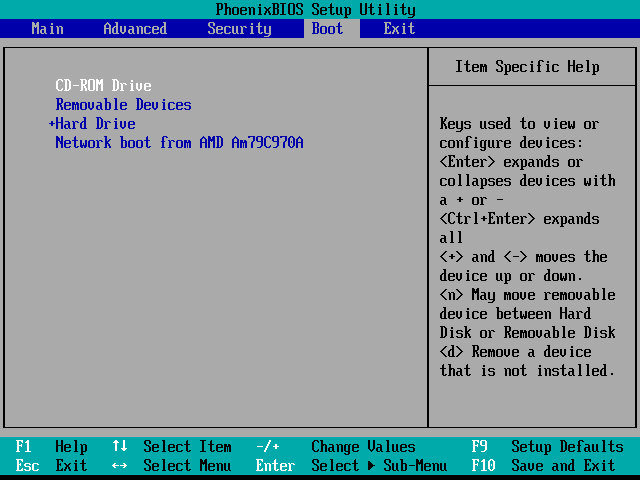
Although the recovery program tells you to run a specific .bat command, this is very specific to the machine’s hard disk and will not apply to our VM, unless our HDD is the exact size.
Before we get to the desktop, we are treated with an IOS error

This occurs because the CPU we are running on is too fast for Windows 95 and this causes a fault with a built-in race condition as part of the Windows 95 boot process. Thankfully there’s a community made fix for this and allows us to have a bootable system

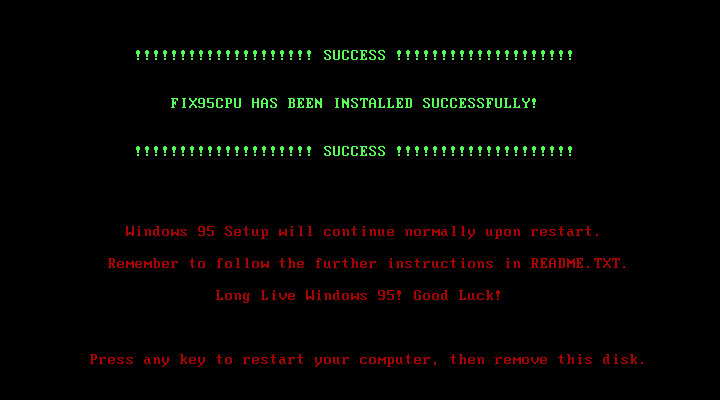
Post Install
After we are taken through the last part of the installation where we need to enter identity information. We then have to progress through a series of New Hardware prompts, (Use a hardware profile 6.2 or lower to avoid this, later versions install a lot of PCI-PCI bridges which are way overkill for what we are using)
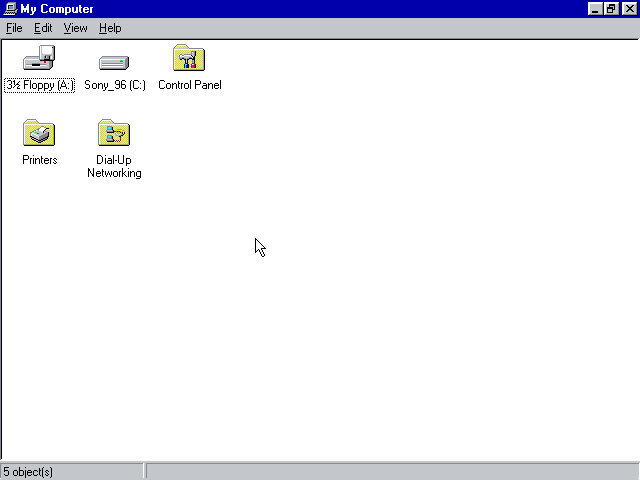
Installing VMware Tools, Or maybe not, our CD-ROM drive has gone missing…
It came back after a reboot, I’m not sure why it disappeared

From here it’s very similar to the PCV-90 that was looked at previously, with a lot of the software being bundled with the install.
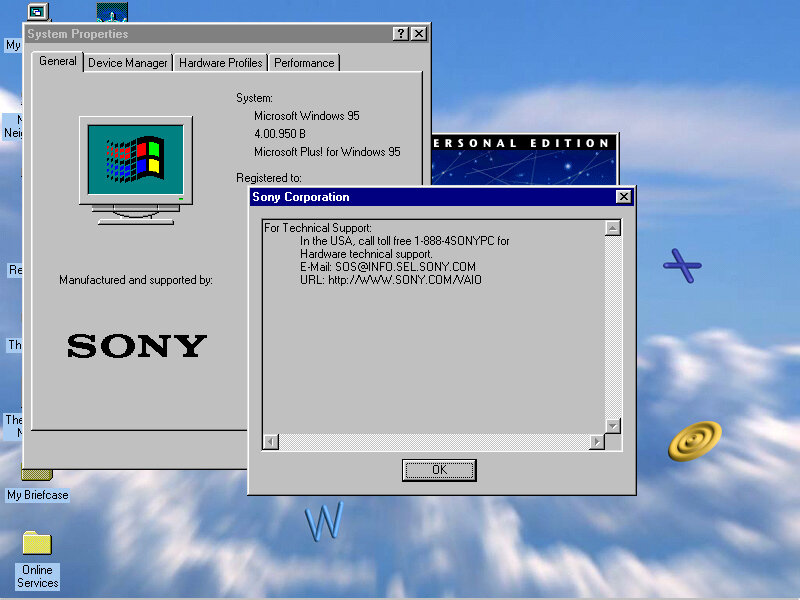
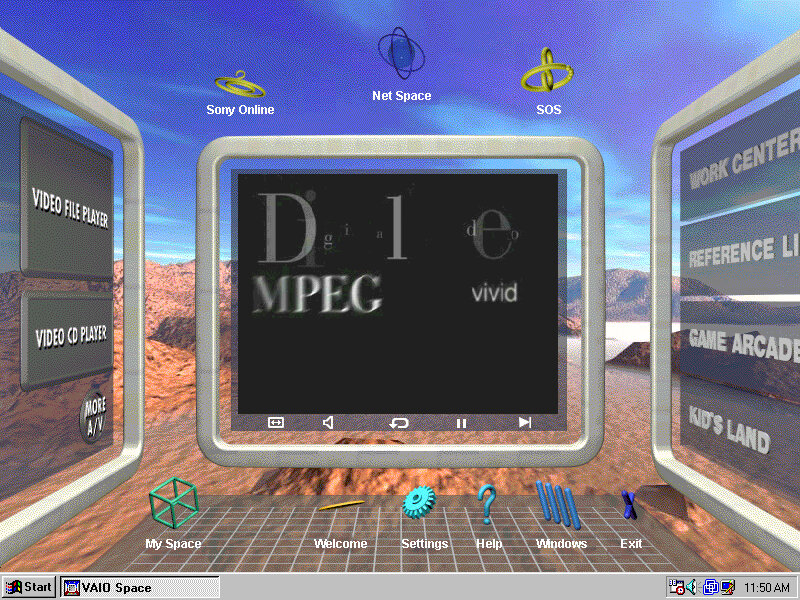
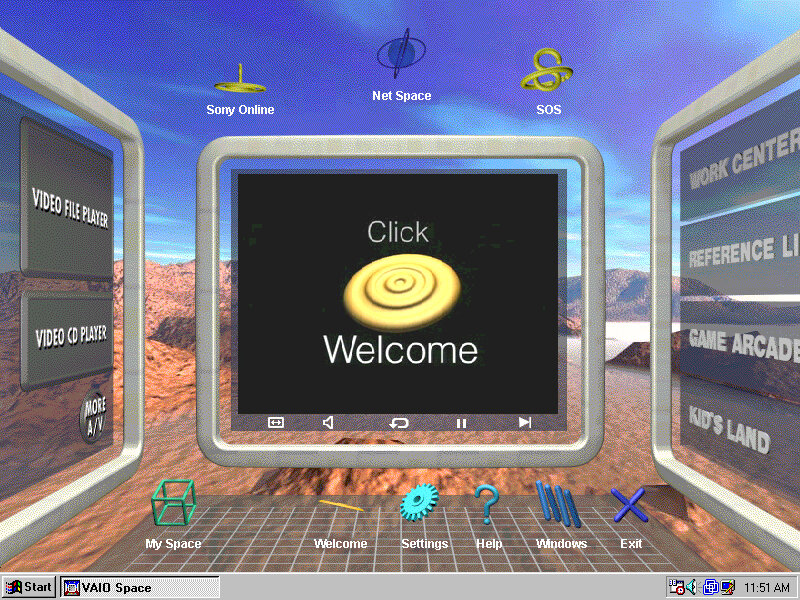
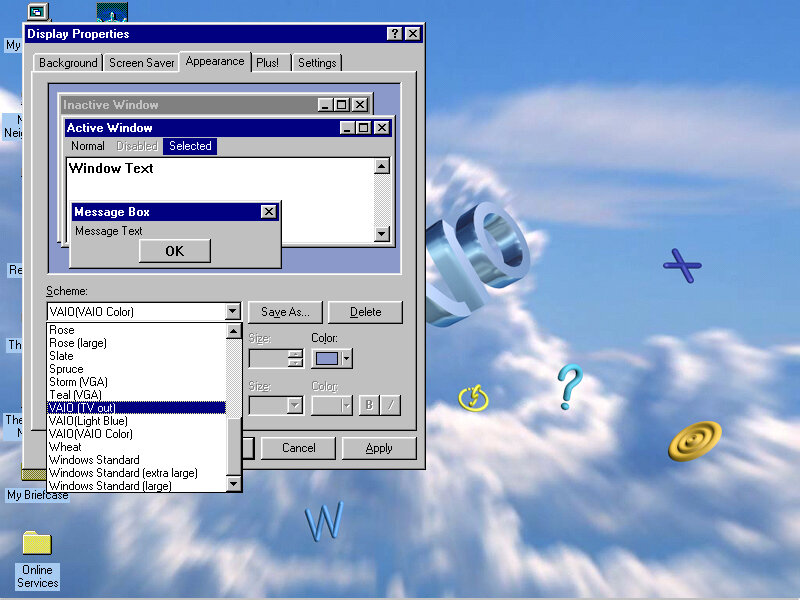
86Box
VMWare can be a bit problematic with these old Windows 95 installs, so we can use 86Box instead. Here I quickly setup a system using VirtualPC 2007 motherboard, and loaded the restore CD when it gave this error message:

I don’t get it, the BIOS screen reports no errors?
I disabled ACPI in the BIOS since that can cause problems and made sure both floppy drives were correctly enabled in the BIOS, and that seemed to fix it. Lets give this another try…
After going through the recovery steps again this time it worked properly, and the hardware detection was a lot less painful to go through. However there is one other issue, the IDE CD-ROM drive is no longer detected once we boot into Windows 95 and this is likely due to the Hitachi IDE drivers being used which causes issues.
It’s possible to fix this by changing the motherboard but considering we had issues with the PCV-90, I believe it’s more of an emulation issue with 86Box.
A workaround is to install and use the SoundBlaster 16 PNP which will feature its own IDE controller. If you do this you must put the CD-ROM as IDE 2:0 or 2:1 to assign it to the SoundBlaster, Windows 95 will generally detect and install a driver BUT you must have a copy of the Windows 95 install disc, as it requires a few files in order for it to install the driver.
Alternatively, you can attach an Adaptec SCSI interface instead, again you will need to have a Windows 95 install disc for it to detect and install a driver, or you can locate the driver files yourself. The SCSI option is a lot more flexible as you can install up to around 7 drives (CD/ZIP or hard disks)
Overall this system is very similar to the PCV90 and included a lot of its software, so there isn’t much to cover that we have not done so already. To be honest its probably worthwhile installing in VMWare, then upgrading it to Windows 98 to make it usable in VMWare, as it should be more useable that way.
 Drew1440: Blog