Category Archives: Applications

Project Manager Pro (1996)

A project management software from 1996 that I found on a bundled OEM PC from TIME. Lets take a look at what project management was like in 1996

The software was intended to be used on Windows 95 and 3.1, which was still in common use at the time of release. It was developed by SoftKey Multimedia, who were well known for their line of budget software that was typically sold as part of a bundle. SoftKey would later acquire MECC and software division of The Learning Company. If you’re not familiar with project Management software, it’s intended for professional project managers and larger organizations to handle complex projects (e.g., construction, IT development) with detailed scheduling and resource management.

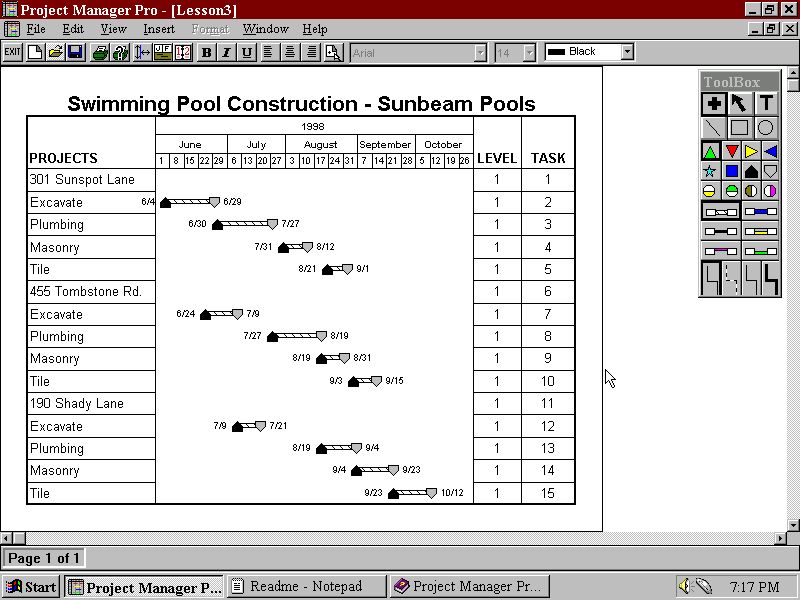
Here we have a straightforward interface, leveraging the graphical capabilities of Windows 95 to provide a more accessible experience compared to earlier DOS-based and Windows 3.1 tools. It included built-in features for creating Gantt charts, a popular feature for visualizing project timelines, influenced by the historical development of project management software like the Harmonogram and Gantt charts which are very common for project management.

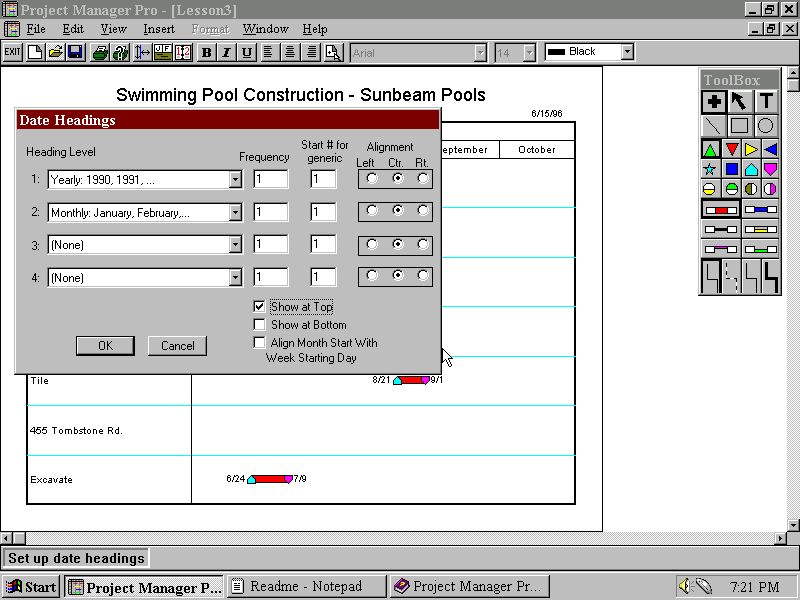
Typical features were that users could create and manage tasks, breaking down projects into smaller, actionable components. This included setting task names, descriptions, and priorities, a standard feature for project management tools of the time.

The Symbol/Connector Date Sensitive feature is one of the ways Project Manager Pro will let you show progress. This feature causes symbols and connectors to change after the current date line to indicate future activity. The date. For straight line connectors, the line pattern will change from solid to dash. You can define dependencies between tasks, ensuring that certain tasks could not start until others were completed, reflecting methodologies like the Critical Path Method.

There is another way to show progress with Project Manager Pro. This is through the use your start and end date. Your start date is connected to the progress symbol and the progress symbol is connected to the end date.

In comparison to Microsoft Project 4.1a which would have been released around the same period, Microsoft’s is a professional-grade tool with advanced scheduling, resource management, and scalability for complex projects, targeting enterprises and experienced users. Project Manager Pro is a simplified, budget-friendly option for small-scale projects, designed for ease of use by non-experts.

Flock (Web Browser)

The OG social web browser

Flock was a web browser that was designed to integrate social media platforms and tools into its interface, allowing users to easily access and interact with their social networks while browsing the web. It was first released in 2005 and was based on the same codebase as Mozilla Firefox and mostly retained the same interface layout and was even compatible with its extensions.

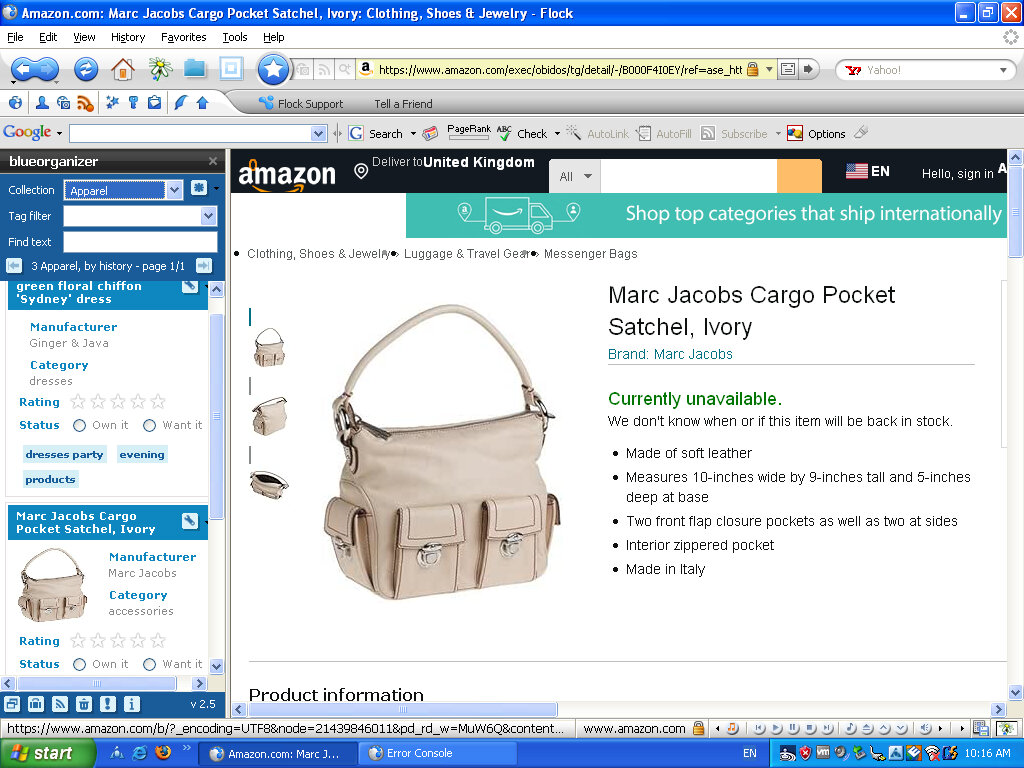
Some other features of Flock included native sharing of content, the ability to preview online videos, a built-in RSS reader, a built-in blog editor and reader, and synchronization with web-based email1. The browser was popular because it had social media integration. With this, you could easily keep track of social networks or your webmail at any time. Another standout feature was the ability to post directly to own blog or social media page directly from the webpage, years before Facebook/X had the ability to do this.

Flock integrated with social media networks by allowing users to log into their social media accounts through the browser. Once logged in, Flock could track updates from friends on sites such as MySpace, Facebook, YouTube, Twitter, Flickr, Blogger, Gmail, Yahoo! Mail, etc. This allowed users to easily keep track of their social networks and webmail at any time.

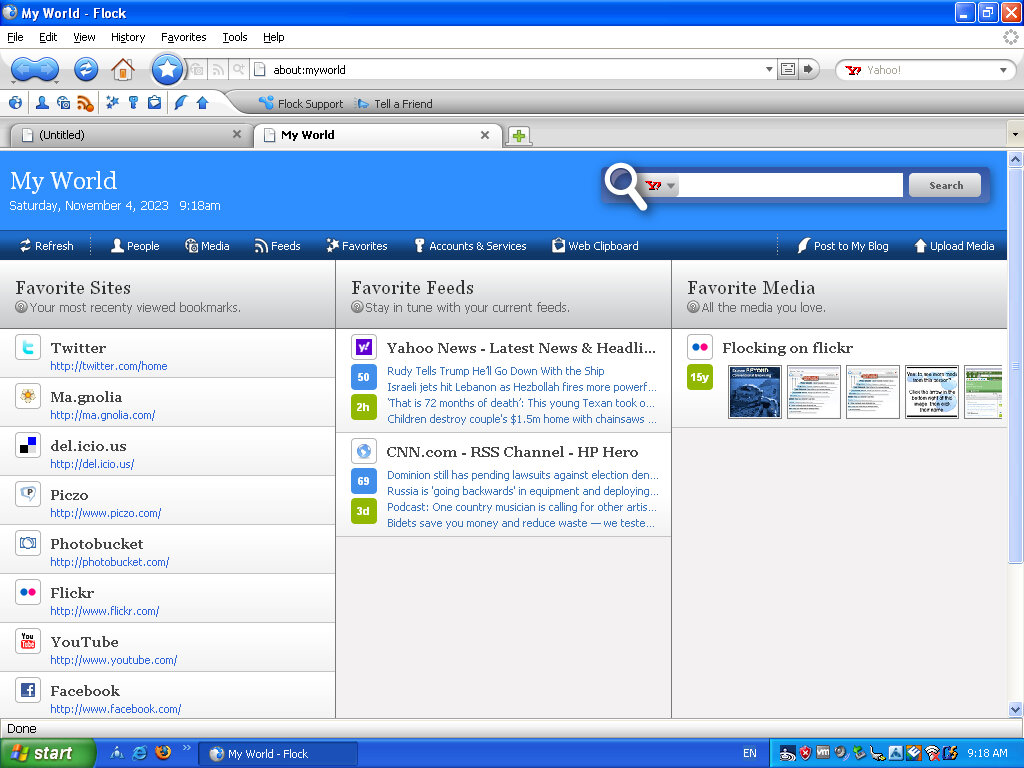
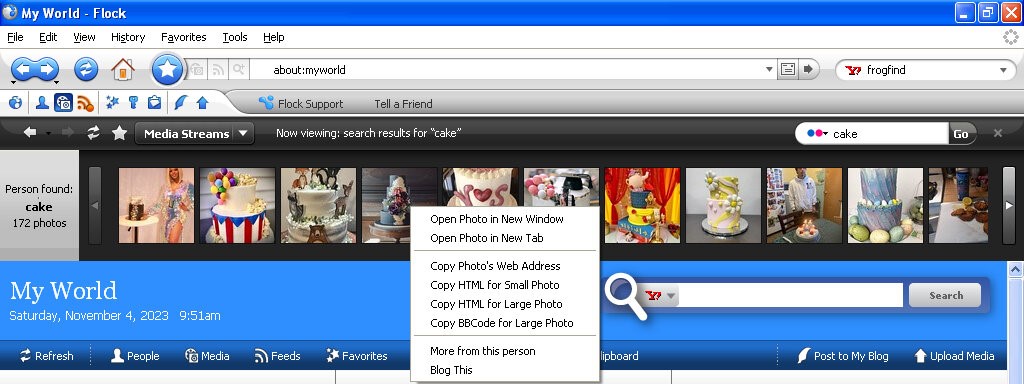
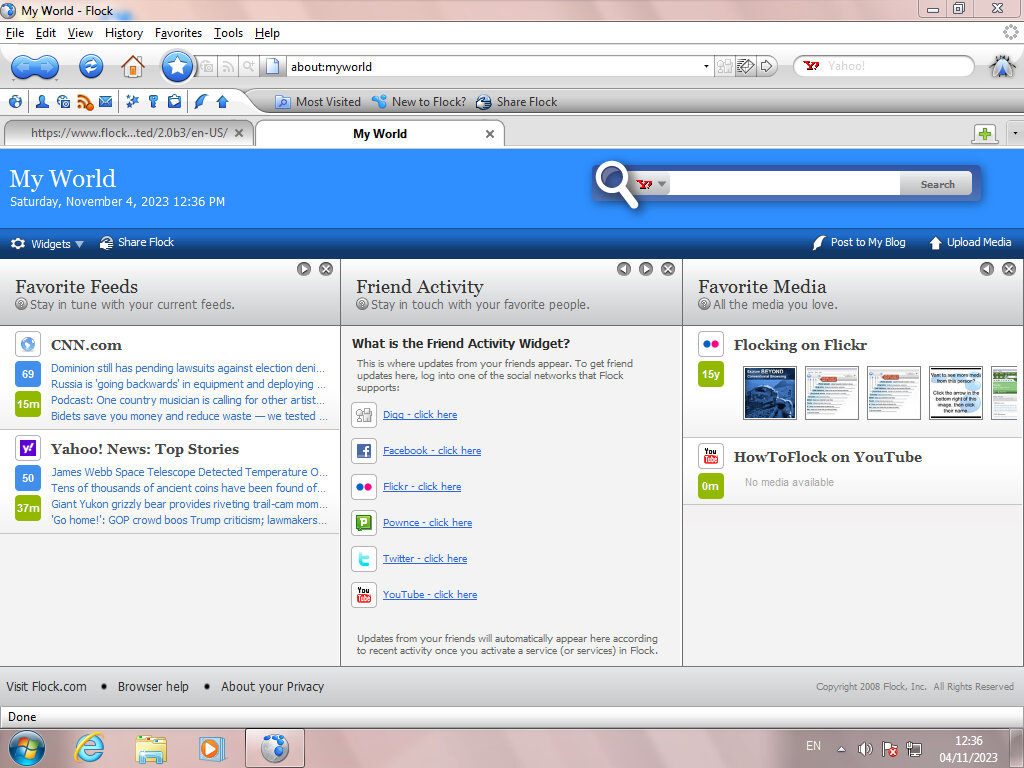
The MyWorld page is where most of the magic happens, giving shortcuts to popular social media and web 2.0 sites. RSS feeds are also displayed here which can be customized.
The user interface is a departure from Firefox, with a glossy blue and white interface. Different themes can be installed, with many from Firefox being compatibility, though the Flock content and customization will standout.

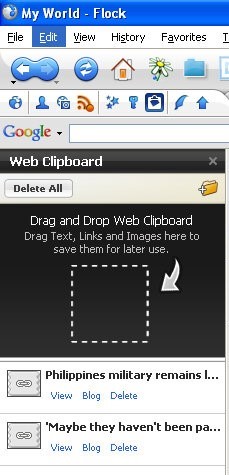
Web Clipboard, sort of like a scrapbook that you cn save pages to for blogging later. You can simply drag the page tab to the sidebar and it will save it for you. Pages can also be sorted into folders for better organisation. Modern browsers also have this functionality, at least in Vivaldi.

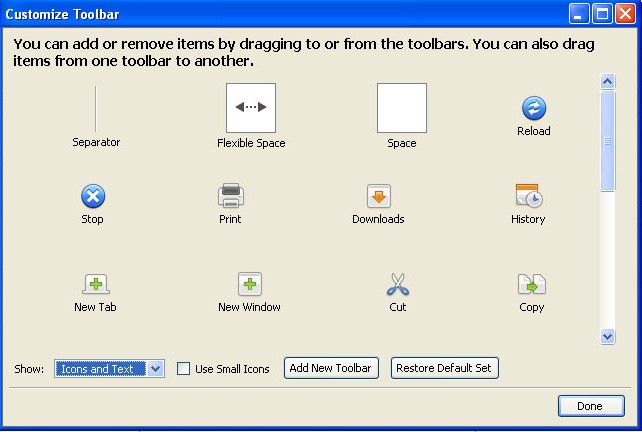
Like Firefox, you can add or remove buttons from the toolbar, and even create your own toolbar. Most icons have been rebranded to Flock’s visual style.

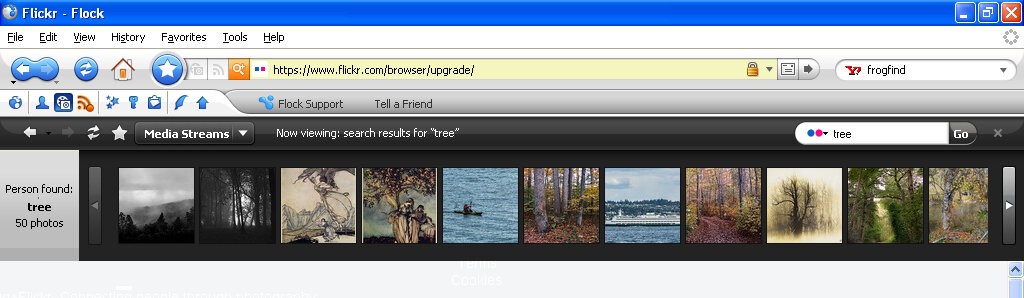
Lets you view content within website that specializes in photo content like Flickr, Photobucket, YouTube and Truveo. These appear within the browser, allowing you to continue on the current website you are on, and can be hidden or closed at anytime.

Flickr appears to work, as I can search for a term that comes back with the relevant results. Clicking on an image takes you to that page. Right clicking on an image lets you copy a link to the picture, for when you want to embed it into a comment or a blog post.

The other services no longer work, I guess Flickr has kept their API unchanged or well maintained.
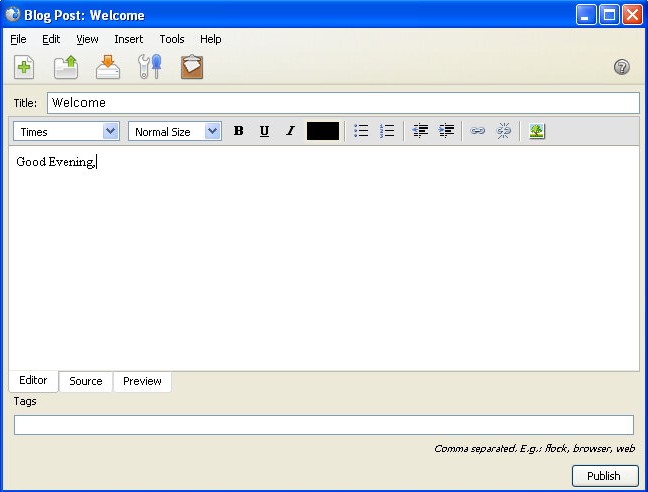
The blog interface, here you can directly write and publish to a supported platform. Protocols such as Atom, MetaWeblog and MovableType.
A lot of social media websites are resistive to social media integration when it comes to displaying content on a third party platform. Many would prefer for you to stay within their platform and app, rather than a third party platform. Windows Phone kinda had the same philosophy with multiple social media networks being present within the phones user interface, removing the need to access the apps individually. A lot of social media comes from engagement and algorithms. Which cannot be done as easily through a browser like Flock. Again they would much rather you access their platform directly and stay there. As such modern replacements are difficult to do, preventing another Flock like browser. Reddit recently implemented some changed to their third party access API’s which make it difficult and uneconomical for third party apps.

The Flock browser had a strong relationship with the concept and practices associated with Web 2.0. Web 2.0 refers to a shift in the way the internet was utilized and experienced, characterized by user-generated content, social media, and interactive web applications. Flock was specifically designed to embrace and cater to the Web 2.0 environment by integrating social media and user interaction into the browsing experience. basically the end user has a way to contribute to the website, in the form of comments or uploading their own content.

Flock was one of the first browsers to deeply integrate social media directly into the browsing experience. It allowed users to access, manage, and interact with multiple social networks from within the browser, aligning with the Web 2.0 trend of social interaction and user-generated content. Web 2.0 emphasized collaboration and user interaction. Flock incorporated tools and features that enabled users to share, comment on, and interact with content and friends’ updates across various social media platforms without leaving the browser.
Flock encouraged active participation and engagement with online content. Its features facilitated easy sharing, bookmarking, and interactions with social media, aligning with the Web 2.0 trend of active user participation and content sharing.

Version 2 added support for additional social networks and services and updated the Gecko rendering engine. This is based off Firefox version 3.

Old Versions for download

Compton’s Interactive Encyclopedia 99 Deluxe

Compton’s Interactive Encyclopedia 99 was a popular educational software program released in the late 1990s. It aimed to provide users with a comprehensive and interactive encyclopedia experience on their personal computers. This version was taken from a Time PC bundle.

Distributed on two CD-ROMs, you will be required to swap out the CD for certain articles or media clips. If your PC had two CD drives and has both discs inserted, the software will automatically switch between the two drives. You will still receive a prompt to swap the disc but if you click Ok, then the software will automatically swap to the next drive.

Atlas

Clicking on the Atlas button on the Control Bar displays an interactive atlas that lets you find places in the world by location and name. Use the atlas to find locations on a world map; maps of continents, regions, countries and dependencies, states, and provinces; and historical and thematic maps.

When you first click on the Atlas button, a world map appears. If you click on an atlas icon in an article, in Related Items, in the Find Viewer, or in other lists, the atlas opens to the specified location.

Timeline

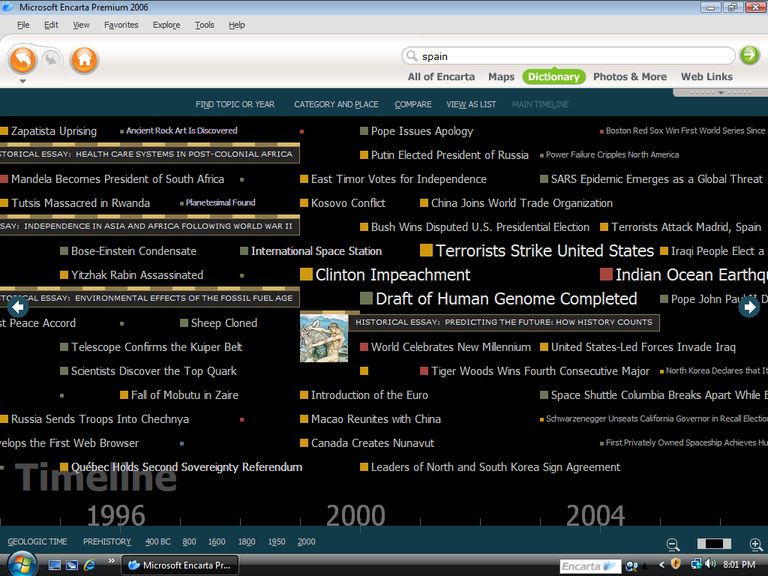
The Timeline button on the Control Bar lets you explore information about important events, people, and eras or trends throughout world history, from 10,000 B.C. to the present. Use the timeline to discover when a particular event occurred, the order in which a series of events happened, and which events were happening at the same time.

The timeline has a horizontal scroll bar along the top of the window that shows the complete span of time, a portion of which can be viewed on the timeline below. The small box in the scroll bar represents the position in time that is currently shown in the timeline.

The pictures, icons, text, and era bars on the timeline mark specific events you can explore. Use the vertical scroll bar to move up and down to see all the timeline elements for the currently displayed time period for the United States and/or World History. Move the cursor over a timeline element to see the date an event happened and a brief description of it. Clicking on other elements will present music or sound, movies, tables, maps, or articles. Some era bars may also link to lists of events from that era that in turn link to articles, sound, and other types of media. Click on any underlined text in an article to open a related article.

Research Tools

The Topic Chooser can be used to see the contents of the encyclopedia as a set of topics and branching subtopics. Browse through the topic lists to find areas of interest. Start with a broad subject and narrow your view to a specific aspect by exploring related subtopics.

Each topic on the first list has a folder beside it, indicating that each topic has related subtopics and articles. Subtopics are indicated by folders, which can also be opened to show more subtopics or articles.

You can use the Bookmark List to see a list of the bookmarks you’ve created. (Bookmarks can be created to mark an article, a Dictionary/Thesaurus entry, a Timeline item, a picture, a movie, a sound, a table, an Atlas map, an update, or a Web link.

Dictionary / Thesaurus

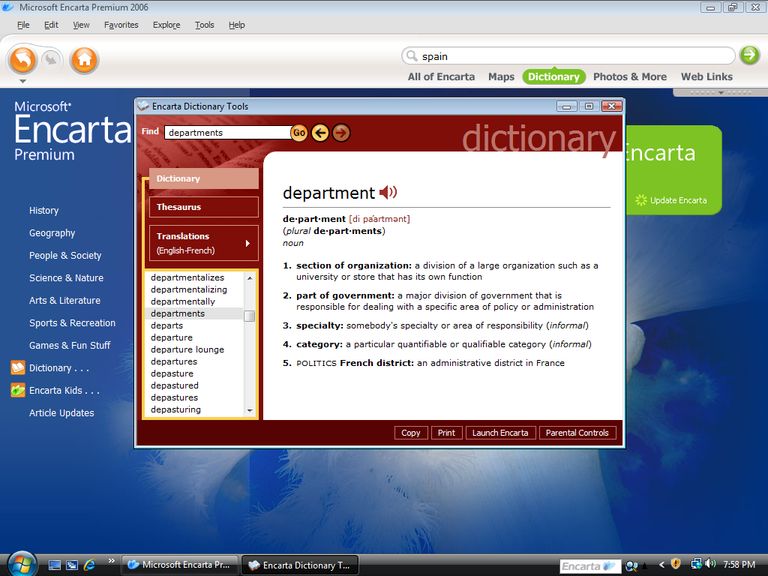
The Dictionary/Thesaurus can be used to look up words using Webster’s New World Dictionary, Third College Edition, and the New Revised Edition of Webster’s New World Thesaurus. You can also double-click on a word in an article or a caption to access these features. When you open the Dictionary/Thesaurus from the Research Tools button on the Control Bar, type a word in the viewer’s text box and press Enter to see the word’s definition. When you open the Dictionary/Thesaurus by double-clicking on a word in text, the word appears in the viewer’s text box and its definition is displayed.

Presentation Maker

Presentation Maker allows you to create multimedia shows and presentations by combining and arranging information you find in Compton’s Interactive Encyclopedia—articles, tables, pictures, Atlas maps, Timeline items, movies (including animations and slide shows), sounds, atlases, and star maps. You can also create title screens and other screens of text, which you can decorate with borders and colored backgrounds. For a finishing touch, you can even record your voice to narrate the show.

Creating a show is easy, Gather or create the components of your show and place them into a script. Your show can contain any combination of these four kinds of elements:

  • Items from the encyclopedia, such as articles, tables, pictures, maps, movies, and sounds. You can “collect” items from the encyclopedia by creating bookmarks, or you can select them directly from the Presentation Maker screen.
  • Title screens, which are screens of text that you create.
  • Extra sounds, which you can record or add from other sources.
  • Extra pictures, such as art you’ve created in a paint program, photos you’ve scanned, or pictures you’ve gathered from other sources.

Online

The options available from the Online button on the Control Bar give you access to Internet resources. Offline, you can browse a list of Web site descriptions and then link to a site by clicking on its title.

In addition to searching for a topic, you can click on the topic categories. Websites are grouped thematically. When you click on a topic with a Web link icon, a pop-up viewer displays a listing of one or more related Web sites that includes a title, an Internet address, a target age group, and a description. You can use the listings to look up information available on the Internet, and then click on the Web site title to go to that Web site, though most of the links are no longer active unless you use the WayBack machine.

You can view descriptions of Web sites by clicking on the Web Links information type in the Find Viewer, Web Links in the drop-down menu in Related Items, or the Web Links icon in articles, on the Timeline, and elsewhere in the encyclopedia.

Special Features

Here you can explore exciting multimedia collages and timelines related to a specific subject.

  • Biomes of the World: Explore environments from the harsh desert landscapes of Asia and North Africa to the forests of the temperate zones.
  • Space Exploration: Race to space with the Soviets and the Americans from the first orbiting satellite to space stations and the space shuttle program. The pioneers of the last frontier include many firsts—the first person in space, the first in orbit, the first to walk in space, and the first to land on the moon.
  • Ancient & Classical Civilizations: Go back in time and relive the ancient world of the Chinese dynasties, Greek and Roman empires, and other civilizations.
  • World Cultures: Journey through five continents and meet the people who live there through their art, music, and dance.
  • U.S. History 1775–1877: Travel back in time to the Revolutionary War, the Oregon Trail, the California Gold Rush, and the building of the transcontinental railroad.
  • U.S. History 1877–Present: Discover the events that shaped American life 100 years ago and 10 years ago.

The Planetarium shows the night sky in your area at the current time (if you are using the program at night) or at dusk (if you are using the program during daylight hours). The date and time appear at the top of the map.

Overall, Compton’s Interactive Encyclopedia 99 was a comprehensive and engaging educational resource for its time. It provided a wealth of information on various topics, along with interactive features that enhanced the learning experience. Its age means a lot of articles are now outdated, but its nice to go back and look at previous articles in hindsight.

Europress Primary Education

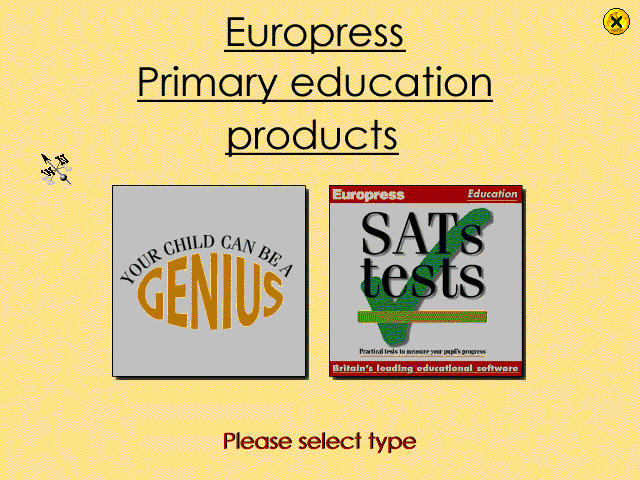
A bundled CD-ROM multimedia title designed for primary school users, that was often bundled with a Time Windows PC (A common OEM at the time). This stuff pretty much helped me graduate from school.

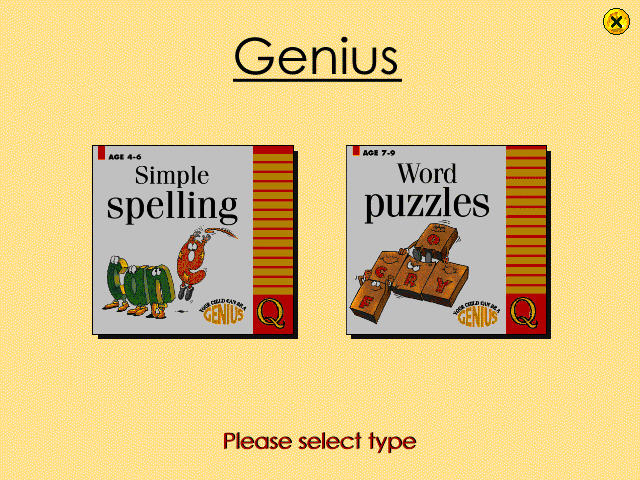
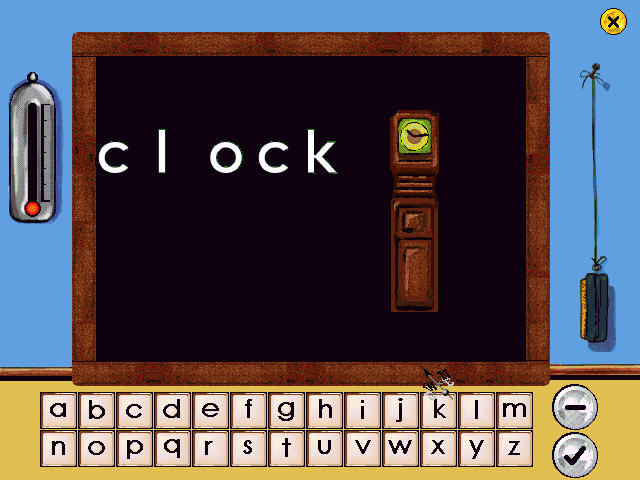
Simple Spelling

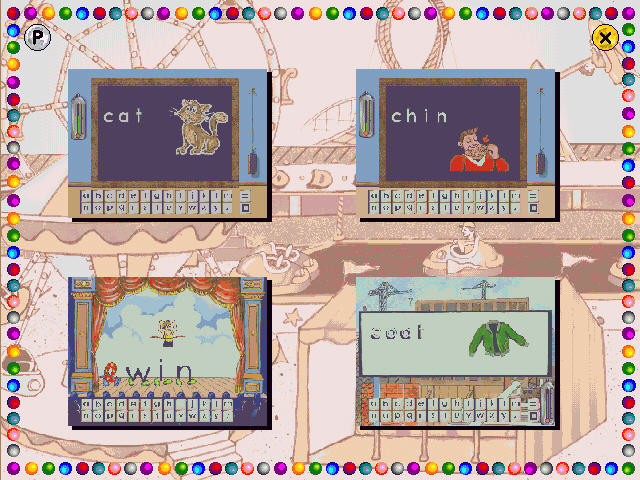
This section teaches spelling in the form of phonetic concepts. There are three programs in the package that provide speech, graphics, animations and sound effects and is controlled by using the mouse.

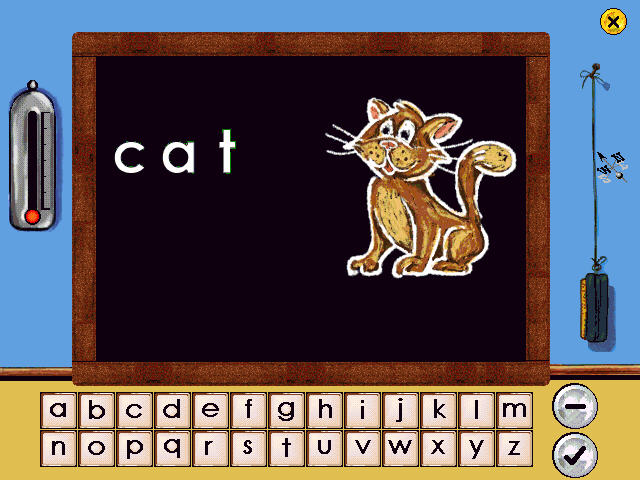
The first program concentrates on the fundamental three-letter words that are the traditional phonic nursery slopes – cat, mat, hat, etc. You also get audio that sounds out the word, though it comes through rather choppy.

On the next activity, you deal with letter blends such as cl (clown/clown), bl, and fl. Again words are shown and sounded out and we are given the task to spell out the words.

Again the sounds occasionally come out choppy, despite running on a 16x CD-ROM drive.

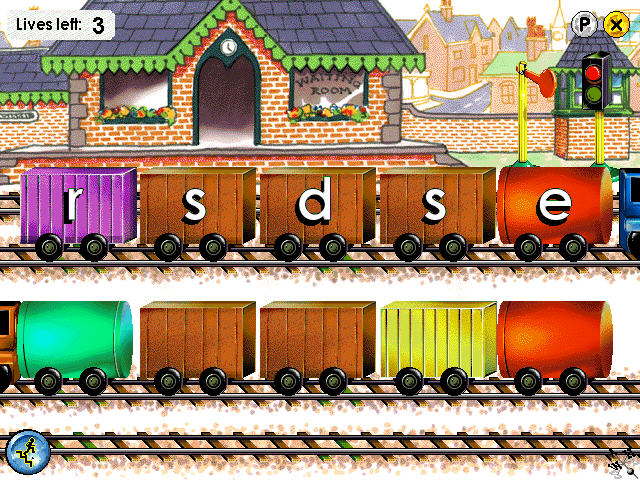
The final activity teaches the concept of magic e, how putting the letter e at the end of a word changes the sound of a preceding vowel.

So it’s basically your average English lesson with the magic of 90s PC multimedia.

Word Puzzles

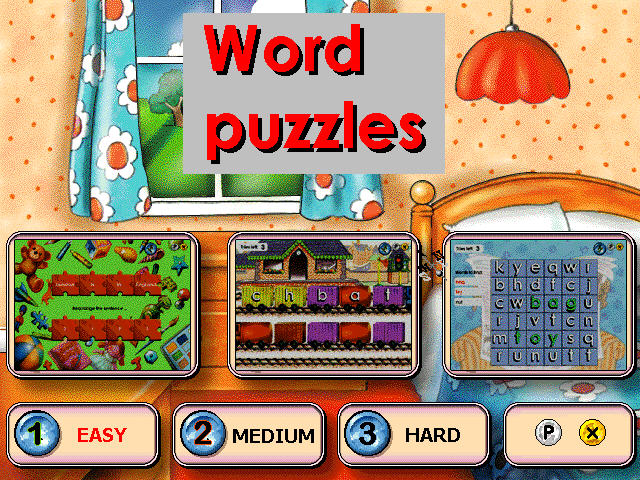
There are three puzzles, anagrams, word search and fun with sentences.

Anagrams: This help understand the structure of a word, particularly noting the position of vowels and the way words blend together, such as “fr” and “cl”, there are three levels that range in difficulty, the user rearranges the letters in the correct order. The player uses the mouse to click on a letter and drag it onto a blank space to build up the correct word. Three attempts are allowed before moving on to the next word.

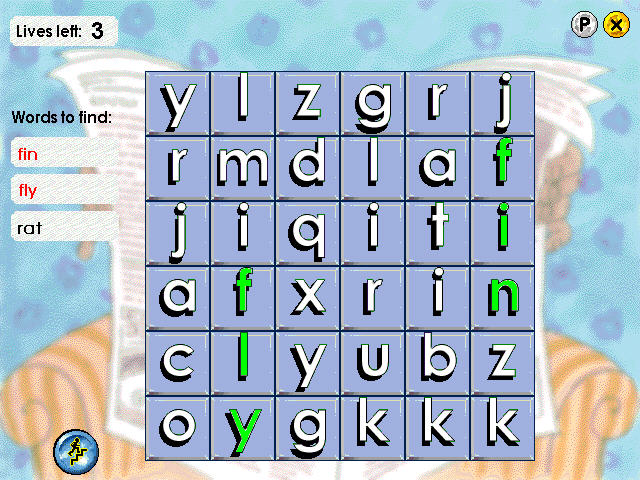
Word Search: A list of the words is shown on the left of the screen and each is highlighted when the word has been found. Clicking on the correct first letter of a word turns the whole word green. Clicking on the wrong letter loses a life, of which there are only three. If the player clicks on a letter and nothing happens, it means the letter is within a hidden word.

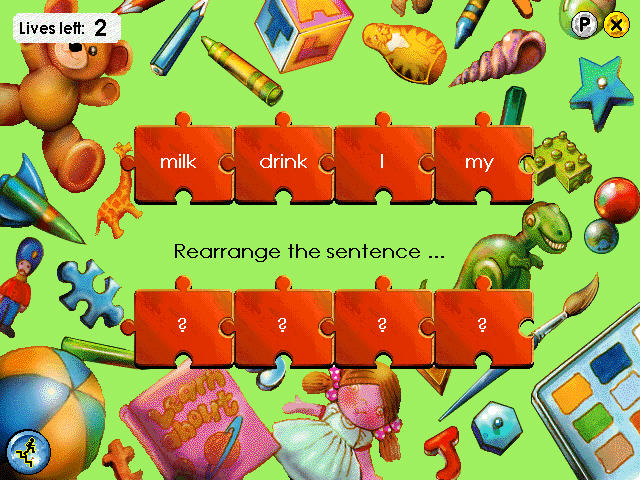
Fun with Sentences: This consists of two different puzzles, each of which is designed to help think of the structure of sentences. In the first game, the player is invited to pick the correct word from a choice in order to complete a simple sentence.  The second game requires the player to rearrange the words in a jumbled sentence. The mouse is used to click on a word and drag it to its correct place in the sentence. 

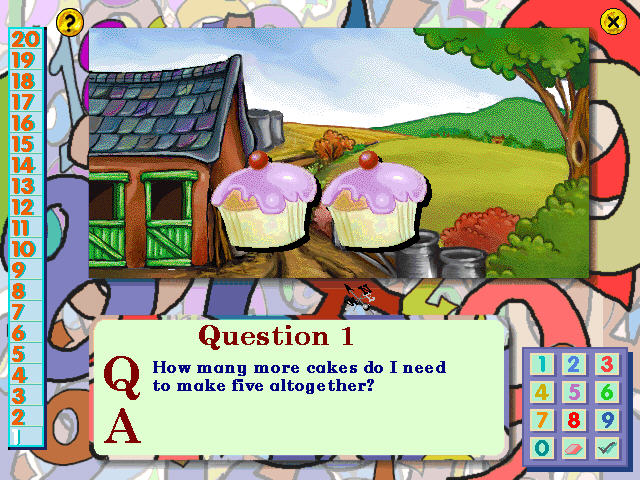
SATs Tests

Helps prepare for SAT’s tests, which are standardized exams that are carried out in the UK. The questions included here are part of the national curriculum. There are 20 questions to be answered that are covert at either a Key Stage 1 or 2 levels (the difference being the age, 1 intended for ages 7 and 2 intended for 11)

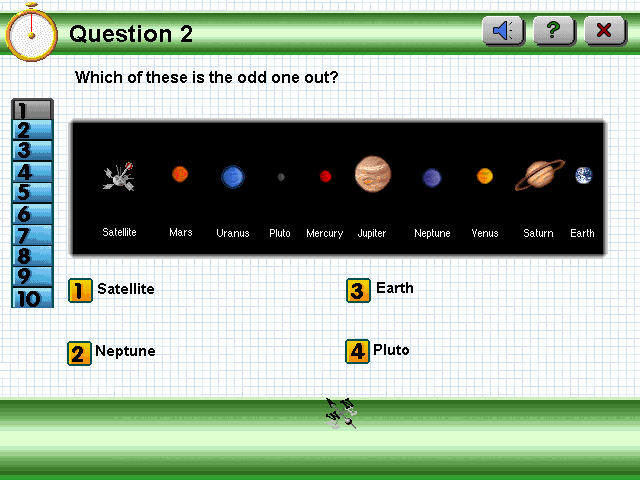
Each question is selected at random and can be answered by selecting a number or typing the answer. Sometimes you will need to select a graphic or icon on the screen.

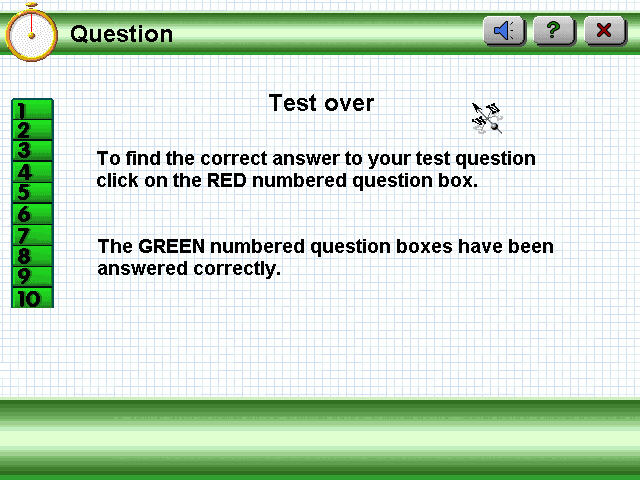
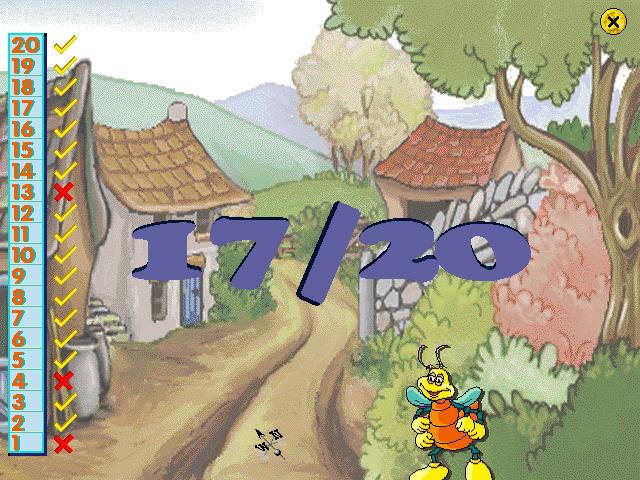
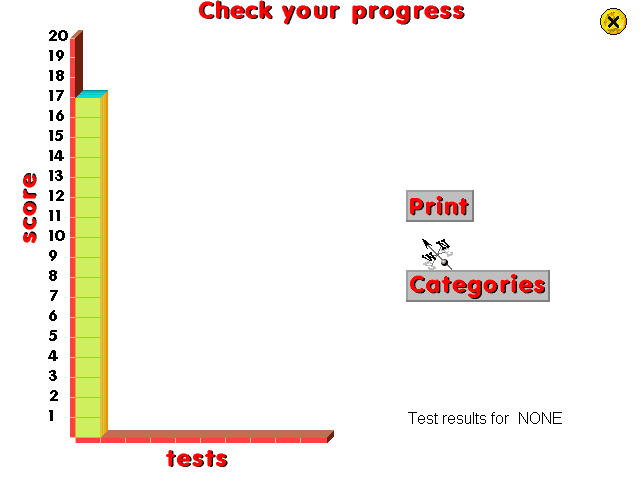
At the end of the test, you are graded and can see the questions that you got incorrect. The program keeps track of your scores in a graph view so you can track your progress over time.

Download

Archive.org

Letts Maths Explorer

Similar to Letts Science Explorer, Maths Explorer uses the same Pre-rendered environment to navigate a virtual maths learning center, which appears to be set on Mars (The Science one appeared to be set underwater), it kind of gives the feel of Myst.

The application is desinged to run under Windows 95 or 99, but the user guide makes reference to Win32s which is intended for use on Windows 3.11.

The entrance that appears when you start the program, you are prompted to enter your name, which is where your score and progress are saved under. There is also a link to the Letts online website, that opens your default web browser.

Navigation is done by clicking on the edges of the screen to move to a different section of the room, doors can be clicked on to go to a specific room, which are based on different subjects of mathematics. As you browse the center, you are offered various different activities that can be invoked by clicking on them, each zone has its own set of activities. You can quickly view these by clicking on the Map button on the top left of the screen.

The different zones are:

  • Number: Fractions, currency & counting.
  • Calculation Zone: Use of a calculator and different functions
  • Computer Zone: What computers are and a summarization of how they function
  • Game Zone: Various activities that are designed to test your maths skills.
  • Data Zone: Relating to collecting and analyzing data, and how it becomes information
  • Measurement Zone: Various different units of imperial and metric and how they are used
  • Shape Zone: Shapes, Angles & Symmetry.
  • Information Point: Serves as an introduction to the zone itself and how it relates to mathematics and what can be explored
  • Fact Point: Shows an important fact that is relevant to the zone itself
  • Puzzle Post: Gives you a challenge that can be done away from the computer.
  • Investigations: The main attraction of the zone, this explores a specific subject and they are divided into three sections, Learn About, Main Investigation & Tell Me More
    • Learn About – This is where you learn more about the subject at hand, a narrator will read what is displayed on the screen (which can be muted at any time) and a picture or graphics will appear to accompany the learning material
  • Main Investigation – A mini-game or activity that is in relation to what was conveyed in the Learn About section, these typically have three difficulty levels and some allow you to play with another person, but only one player can play at a time.
  • Tell Me More: Offer supplementary information on that subject, not essential but information that is good to know
  • There is also a Test Yourself activity where you can answer questions related to that subject and can view your score

Towards the top of the screen there is a navigation bar of some sort, that lets you access different areas of the application. The map will let you quickly jump to a specific area of the zone, which saves having to keep clicking in order to navigate.

The catalog gives a directly of the different topics that can be quickly accessed, useful if you need to learn about a specific subject, and which subject they belong to

The Notes section lets you view any saved notes that are specific to your user profile and are tied to any investigations that you complete.

The Logbook will keep track of your progress and will mark any activities taken. Scores from Test Yourself activities are also recorded.

Lastly, there are Print Materials which is its own separate application. Here you can select a subject and a topic that you can print out for later reference.

Ahh Frijj milkshakes