The OOBE can be tricky to navigate without the proper graphics drivers, but if you use the Tab keys to navigate, and then press c to accept (It’s underlined) the terms and conditions, it should let you progress through. The main issue here is the lack of graphics drivers, and the HP OOBE assumes you are running at 800×600.
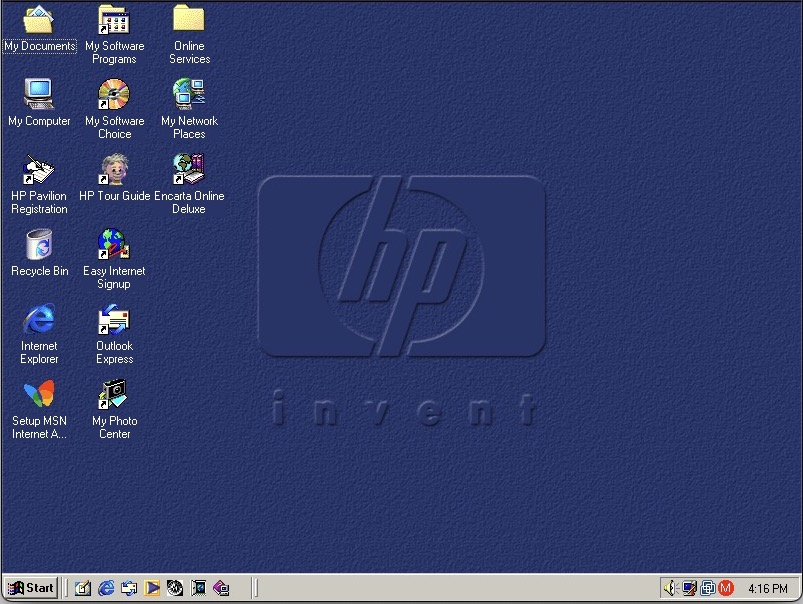
Can this wait until I’ve installed the graphics drivers? The dude at the bottom left is HP’s tour guide and assistant that has a habbit of popping up whilst you’re trying to install stuff.
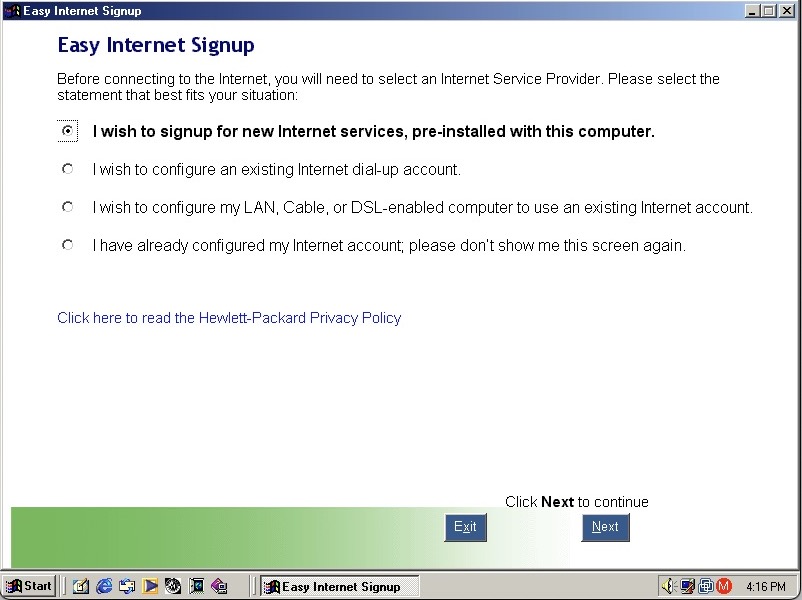
HP Internet setup utility that helps you connect to the internet, which would most likely be a dial up connection unless you were lucky enough to have a ADSL or Cable DOCSIS connection.
HP’s own assistant. Its like they saw Clippit and went ‘Hold my beer’
As you can imagine it’s designed focusers who are new to computing and need assistance in navigating Windows. He sort of acts as a tutorial guide and clicking him can be used to ask about either the desktop, software or internet applications. Unlike the Microsoft Assistant, these questions are fixed, you cannot type in a question.
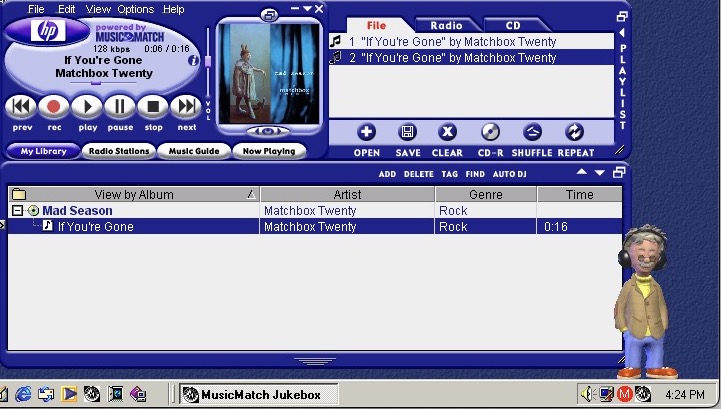
MusicMatch Jukebox with custom HP branding, MusicMatch was an MP3 and WAV music player that also supported internet radio streams. Main alternatives were RealPlayer with RealAudio Jukebox, iTunes/Quicktime and of course Windows Media Player which is still included.
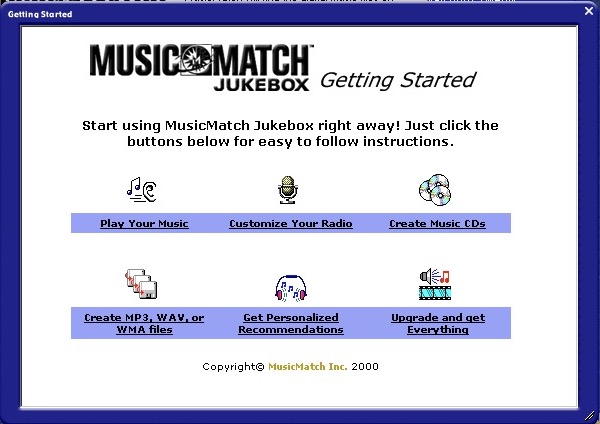
MusicMatch start screen
A song comes included, If’ You’re Gone by Mad Season, its only a short 16 second clip compared to the Beck Sample that Windows Media Player provided. A nice touch is the HP assistant will put on his headphones whilst the music plays.
The Radio guide is long obsolete, I wonder what streaming format was supported?
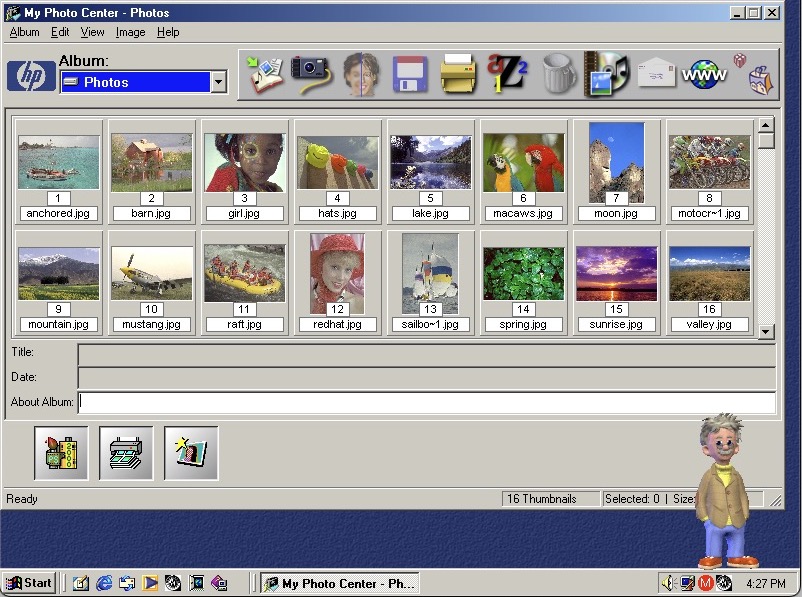
HP PhotoBase – A photo editing application. Here you can import photos off a supported digital camera, which were becoming popular at the time. You can edit photos (like removing red eye), and print them to a photo printer or email them as an attachment.
ArcSoft PhotoStudio 2000 – This is the default image editing applications and opens when you try to edit a photo in PhotoBase.
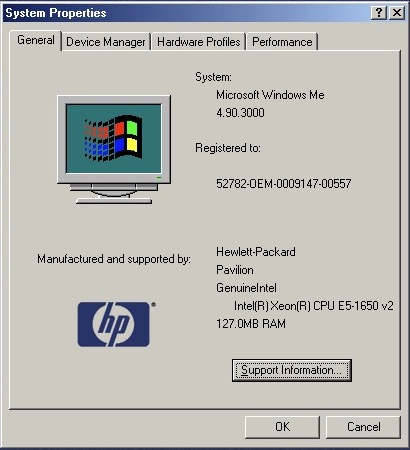
System properties with the OEM logo
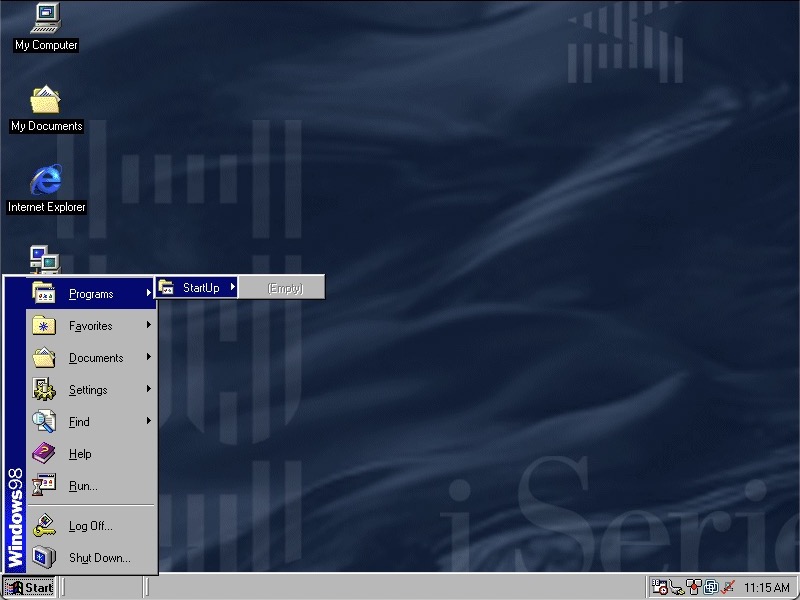
Start Menu showing the included programs
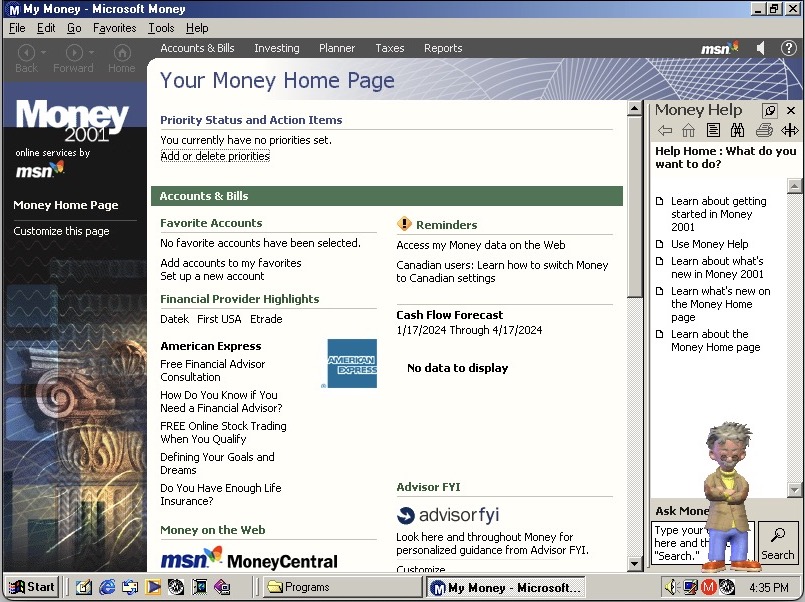
Microsoft Money, a standard on budget home PC’s of the era
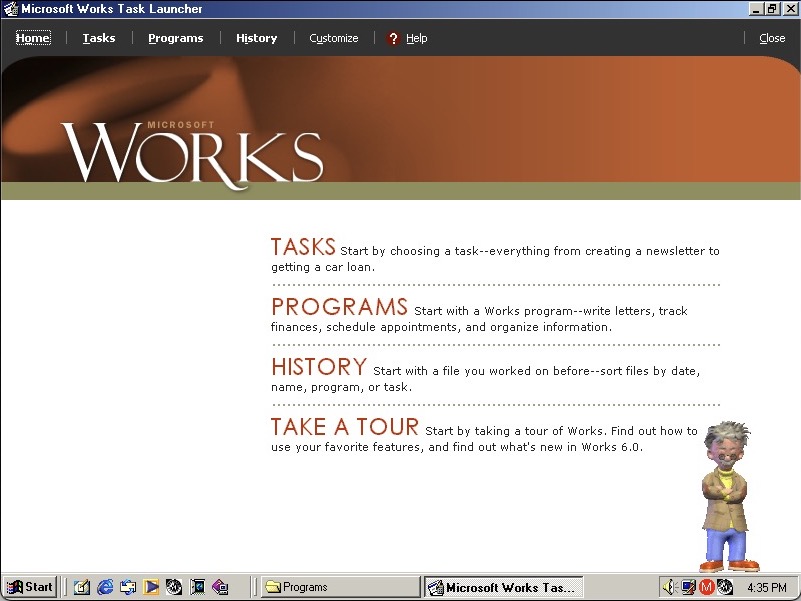
Microsoft Works also comes bundled as a basic productivity suite, version 6
HP Help & Support Center that shows information of the system. Sadly it crashed when tying to access the other tabs
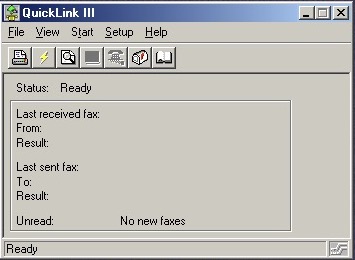
QuickLink III looks like modem software, we don’t have one so there’s limited use. This would have been used to send and receive fax’s. This was a common method of sending documents over the telephone line, before email attachments became more common.
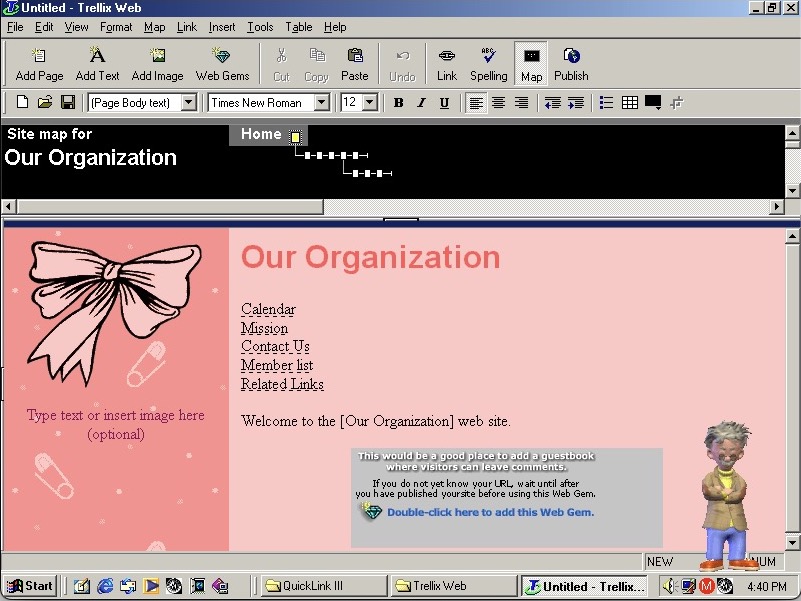
Trellix Web is software to create your own websites, the same as included on a few eMachines installs
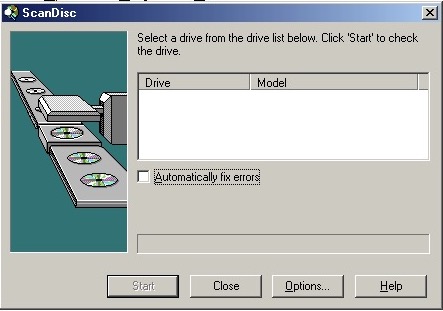
Adaptec DirectCD is included, I guess this system would have come with a CD recorder so you can burn the songs acquired from Napster. Nothing shows up when using the VMWare drives. I connected a Usb external DVD drive writer and passed it through VmWare but this wasn’t detected. Turns out we have an issue with the USB PCI device. Calling it ScanDisc is going to cause confusion with the disk checking utility on Windows, not sure why they named it that.
A compact netbook laptop released around 2000. Lets look at a recovery image for that laptop.
Something’s gone wrong, where are the start menu items?
The Program Files folder does not look good…
Well for some reason the install script that ran after you reboot wasn’t converting the directories back to the respective lengths, so they were stuck at 8 characters. I believe this is called 32-bit file access?
The only way to fix it was to reformat the hard drive as FAT16 and then retry the restore process again. Eventually this worked but we are limited to 2GB, though we could later convert to FAT32 and expand the partition back to 8GB. I can’t image they would have used FAT16 on the actual laptop since it came with a 4.3GB hard drive, according to a few archived product information pages. Might be a quirk with the recovery utility.
Also for your own sake, If you’re using VMWare make sure you are using hardware version 6, as using later versions means you are stuck having to install a bunch of PCI to PCI bridges. I swear there are 30 of these to go through and Windows 9X always wants to search for a driver for it. The later hardware versions offer no advantage for operating systems this old.
Post Install
After a few driver issues, the sound drivers were not installed automatically but a separate driver install is available here for VMWare guests – https://archive.org/details/win95-98-driver
There’s an OOBE registration process where you can fill in your personal details to personalize your install. This is only available in VGA since this runs before we can install the VMWare SVGA drivers.
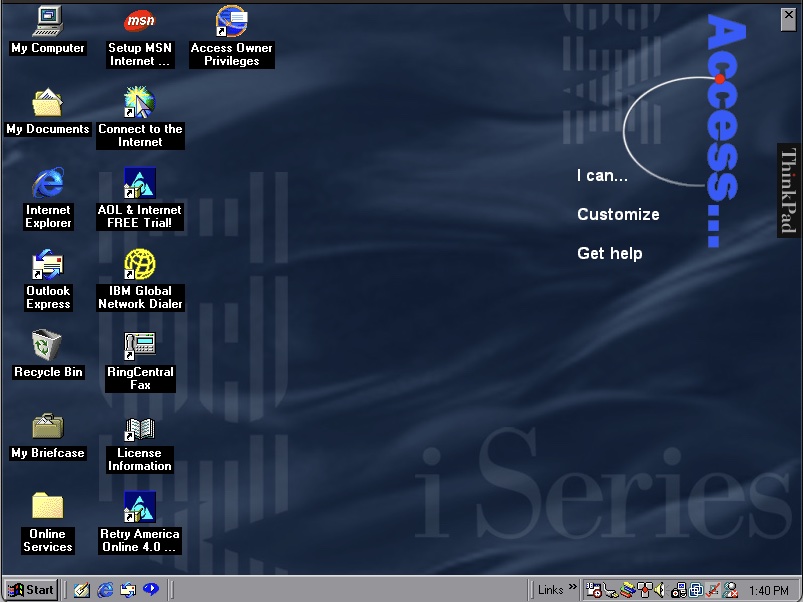
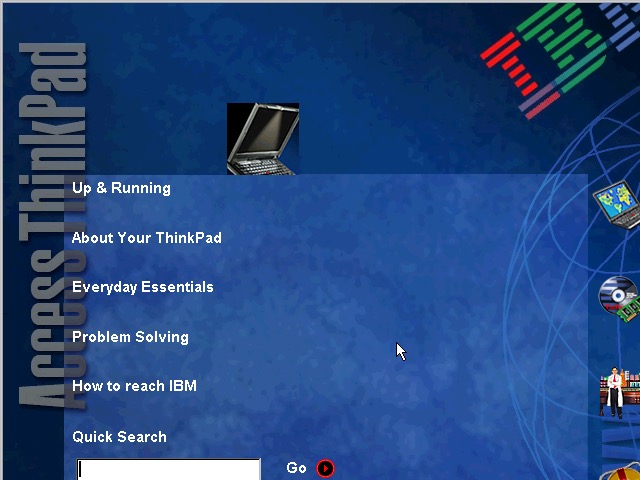
Once we are at the desktop you can see the Access Thinkpad which resides on the desktop and gives access to common programs and functions depending on what you want to do. Clicking on I Can will show you different tasks like Writing a Letter or Send e-mail which will open Outlook. This makes the system easier to use as a newbie might not be aware of Outlook but might want to send an email that they have heard of. Power users might also find this useful as a shortcut to quickly send an email. Some links will open help dialog boxes that provide further information.
If this is annoying or you prefer a traditional desktop you can close this via the X in the right corner
Also regarding the wallpaper, it’s a very corporate blue style background that would expect to find in your typical office.
As with other IBM installs, you also have custom colour schemes, wallpapers and sound schemes.
For security we have Norton Anti-Virus 5.0, which the virus definitions are dated March 1999. I wonder how this fares against the common malware/worms of the era. Like other Anti-Virus programs it will run in the background and scan files automatically that could be suspicious. There is also a LiveUpdate utility to download new virus definitions.
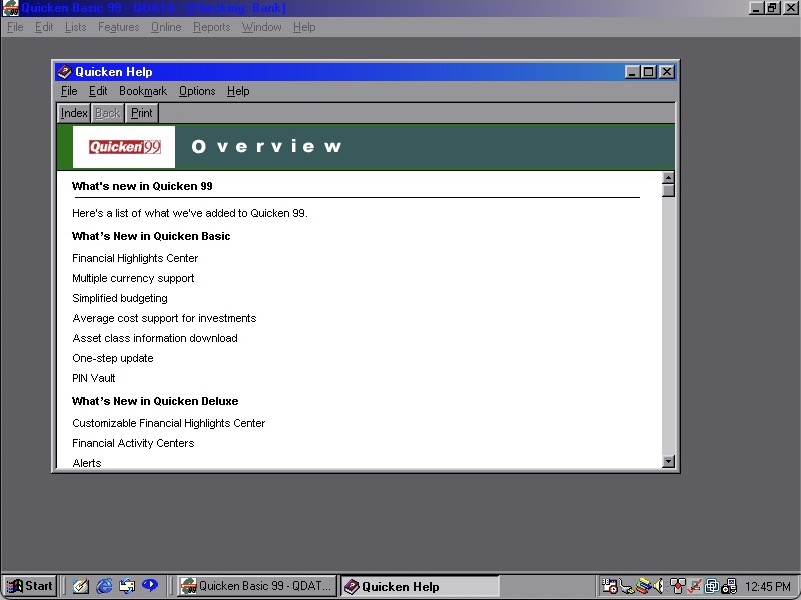
Quicken 99 also comes included for our financial needs
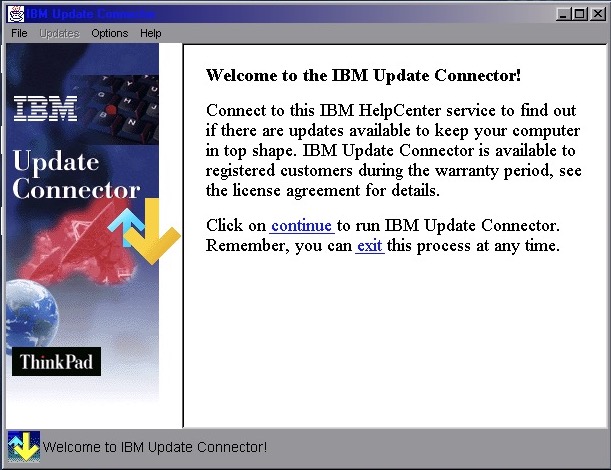
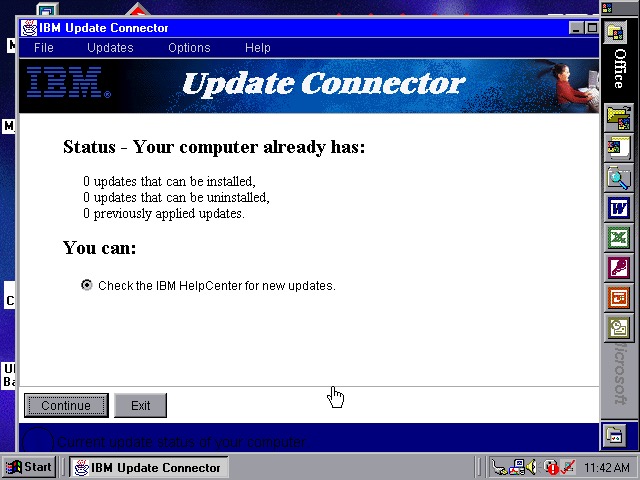
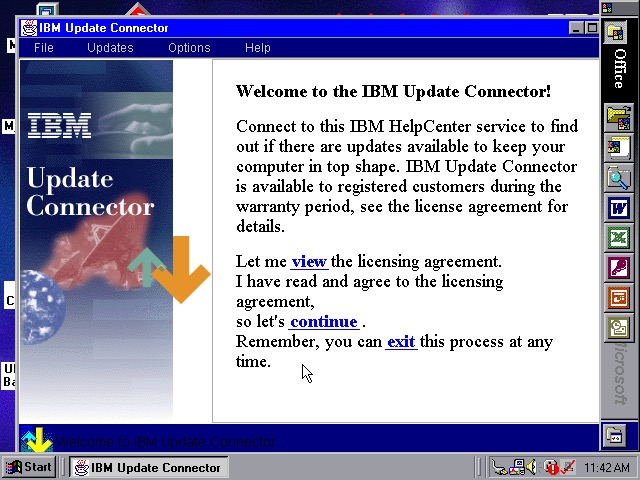
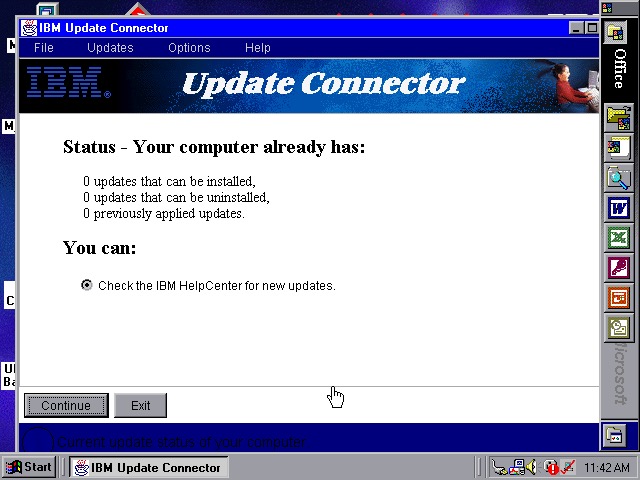
IBM Update Connector makes another appearance, this would check for driver and software updates for the included IBM software. Not sure if it supports Windows updates since you could use Windows Update for that.
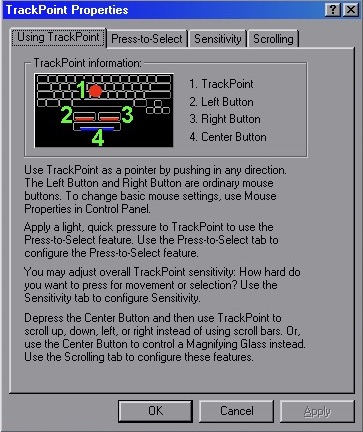
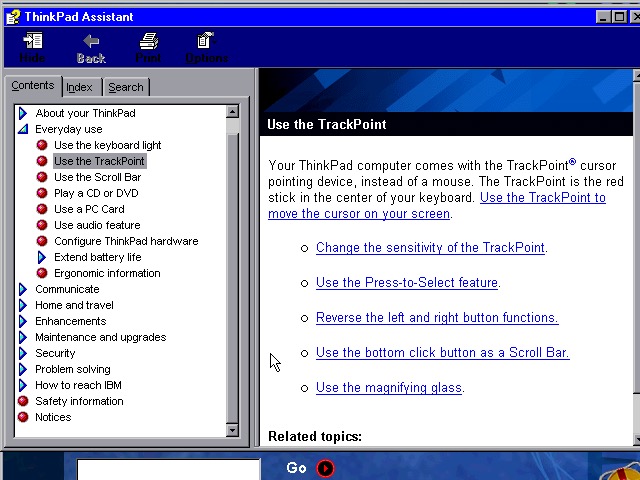
TrackPoint properties lets you view and adjust the features of the Trackball which was commonly unique to IBM’s ThinkPad as an alternative to the trackpad. Here you can adjust the sensitivity, enable the press-to-select feature and adjust the scrolling method.
Mediamatics DVDExpress , enabled you to play back DVD’s which would have been a very high-end feature for 1999. This would have required some sort of MPEG2 decoder or accelerator since processors of the time couldn’t decode this software, so it wouldn’t work within VMWare. It looks to be a custom branded version with IBM logo’s added on.
Features of the software include parental control that works off the age rating of the disc, and the ability to change the region of the DVD drive. There is also a 256 colour mode, cant imagine what that would look like.
IBM Global Network Dealer lets you set and configure different phone numbers or internet providers to dial out to, back when dial up was the main method of using the internet.
One observation I found is the Windows Explorer windows are designed to be as minimal as possible since this laptop had an 800×600 screen.
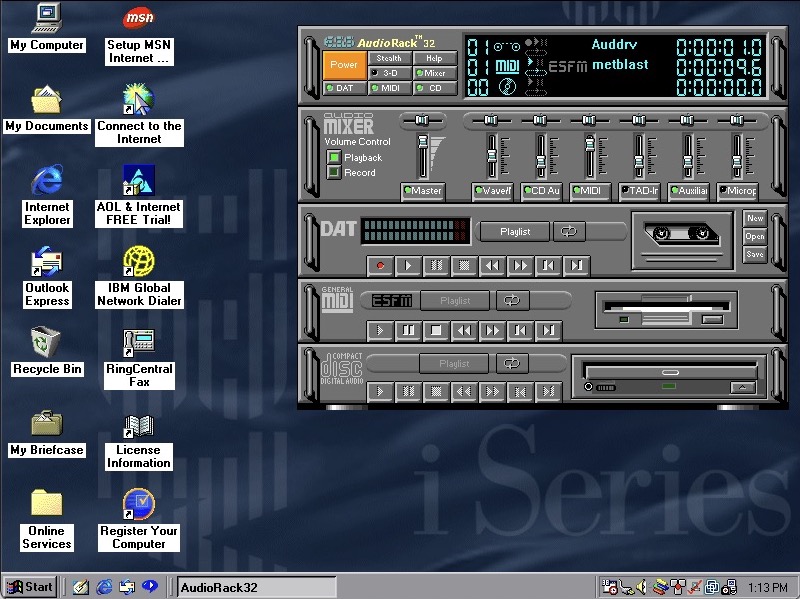
ESS AudioRack 32 – lets you play MIDI, CD music and DAT tapes? Clicking on open brings up an open dialog box for wav files. Despite using the VMWare SoundBlaster, this appears to work well for playing MIDI and WAV music files.
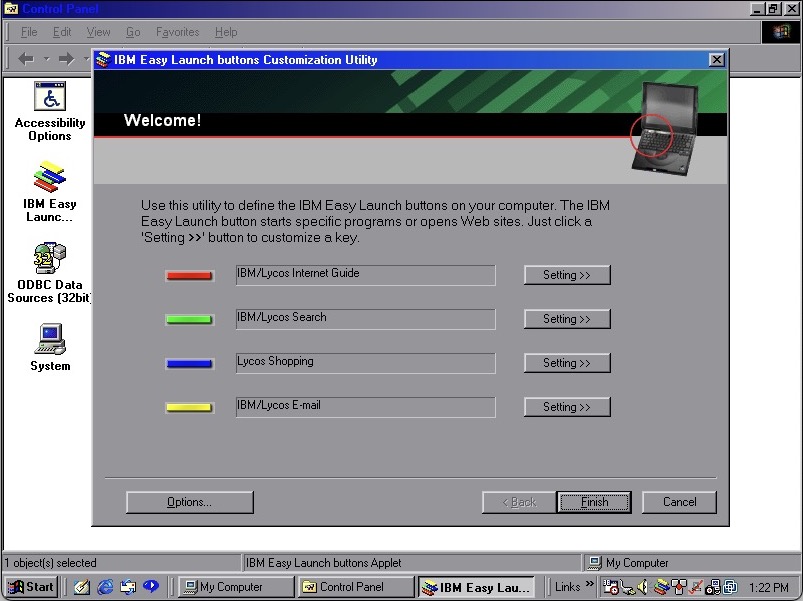
IBM Easy Launch Buttons, these act as shortcuts to open preferred programs or links. They use the same colours as Teletext/fastext keys found on televisions in Europe with the red/green/blue/yellow that correspond to a function. When a button is pressed, an onscreen text of the command appears on screen in bright green, simulating the OSD on some older Sony CRT TV’s of the time.
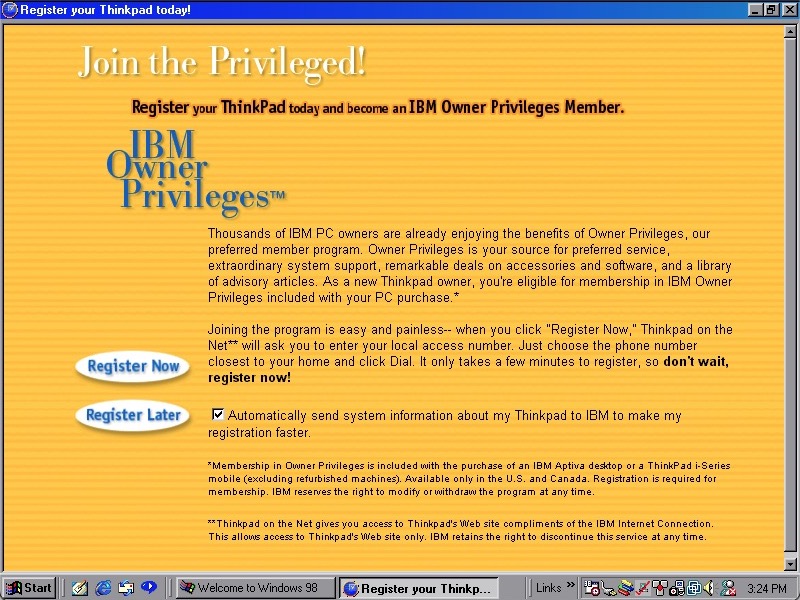
How to register your ThinkPad model, this would have given discounts in purchasing software from IBM, probably Lotus SmartSuite office.
Checking for updates using a restored version of the Microsoft Update, Using windowsupdaterestored.com
Other software included is RealPlayer G2/v6, RingCentral Fax and Config Safe. Many of these have been covered in a similar install.
Another budget eMachines system is designed to be an internet machine. This one is running the famous Windows ME(me)
This copy of the recovery program is modified to work on any system or virtual machine, here I have decided to try out Vmware Fusion on macOS since it is one of the few VM’s to support addons/acceleration for Windows ME (Parallels only has graphics support, no sound or mouse acceleration)
Also for some reason VMware Fusion has no screenshot feature? Instead you have to use the macOS Screenshot utility instead.
As with other machine utilities looked at in the past, recovery is pretty straightforward forward where Ghost is used to restore the recovery image. And as with using these images with VMWare there is an awful amount of New Hardware dialog boxes to get through, most of which are for the PCI to PCI Bridge.
eMachines branding on the boot screen
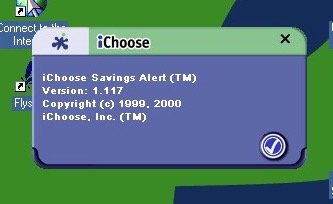
iChoose – Not sure what this is but from the about screen it looks to be a shopping assistant where it notifies you of any savings or if a product is available cheaper elsewhere, whilst datamining you in the background. Cortana on Microsoft Edge did this a few years back, before Microsoft yeeted it due to GDPR
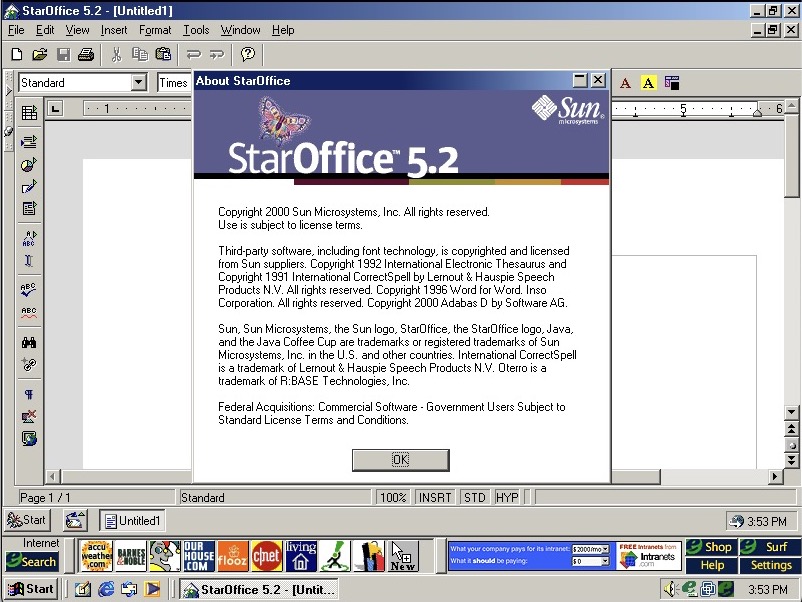
StarOffice is the Office suite included, featuring a word processor, presentation/PowerPoint and spreadsheet software. This was developed by Sun Microsystems and would eventually become OpenOffice, which would influence to LibreOffice, and then Apache OpenOffice.
It will try to use its own file format (.sdw for Writer), but is capable of opening HTML, Microsoft Word (doc) files and even WordPerfect (W4W) documents
Since there is not much difference here that we’ve not seen in other eMachine installs, lets try and upgrade to Windows XP.
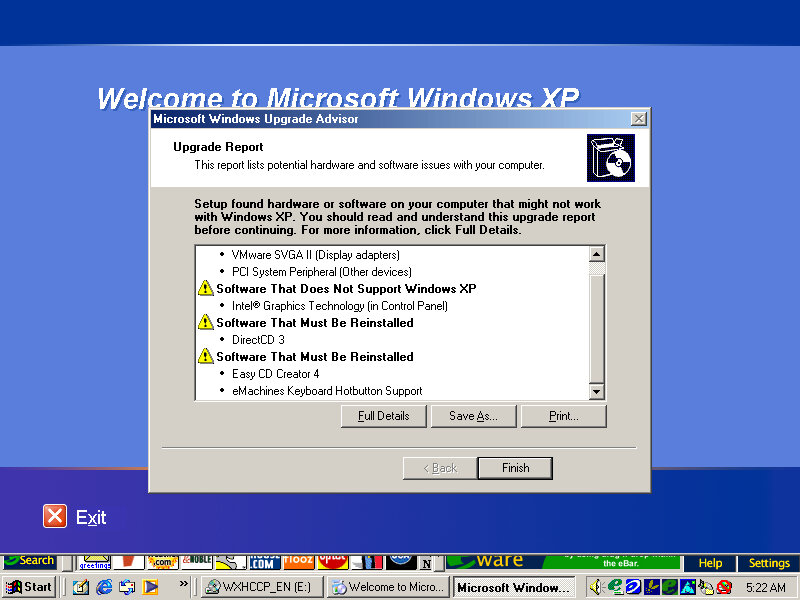
Running the compatibility report advisor, the Keyboard hotkey driver and the iChoose alert applications appear to have issues and will need to be updated.
Starting the upgrade, things went a bit pear-shaped when he VM window appeared to have closed, in reality it resized itself to 1×1 pixels which was odd. I thought the VM had crashed until I heard the ME shutdown sound after about 2 minutes and then it rebooted into setup.
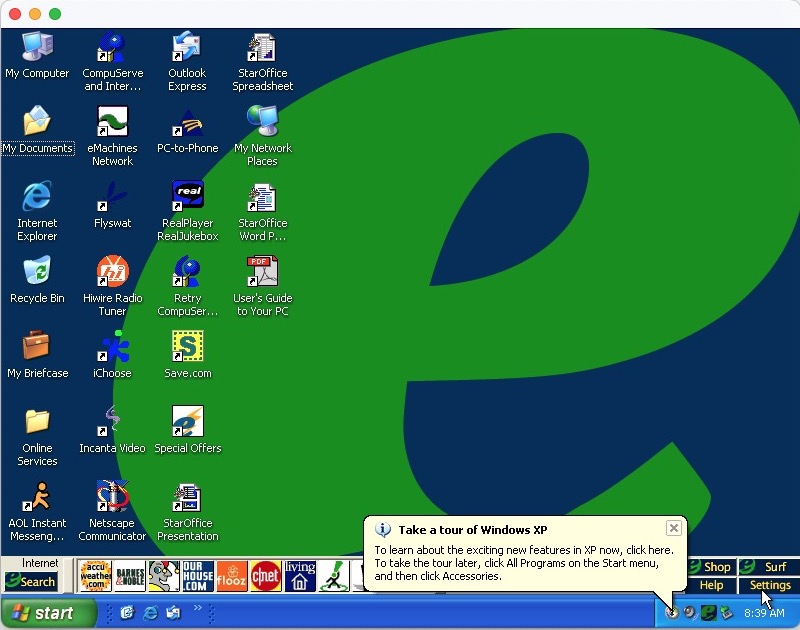
Soon after we are rewarded with the Windows desktop, along with the lovely eWare toolbar.
At this point I discovered save.com, which looks to be a voucher/coupon application that requires both a printer and an internet connection. Guess I must have missed this earlier.
Apart from the issues mentioned in the compatibility advisor, no further issues were found.
There’s quite a few OEM customizations included here, so I’m curious what gets transferred over and if anything breaks. The original system came with Windows ME which was built on the 9x/Hybrid DOS kernel.
Since we are going from a 9x to NT-based install, changes are going to be drastic with new device drivers requiring to be installed. Before installing, Windows does a compatibility check for existing applications and drivers and will alert if any are found to have issues or require updates. This only alerts if Windows finds a known issue with the program based on Microsoft’s testing, some lesser-known applications might not have been tested.
The install appears to have started, but after a few seconds the screen went blank and the VM was unresponsive. Rebooted and was greeted with an option to start Windows or cancel XP Setup. Booting into Windows ME instead boots directly into the XP Setup, which appears a little darker than usual
Not sure why it’s prompting to create a password, never seen that before
The default desktop post-upgrade, along with the eWare banner above the taskbar
Adaptec CreateCD requires an upgrade before it can function. Interestingly is this is generated by Windows XP. RealJukebox works but failed to load the previous files since the documents directly have changed from Windows ME. What’s strange is the music files have been renamed?
Windows Vista
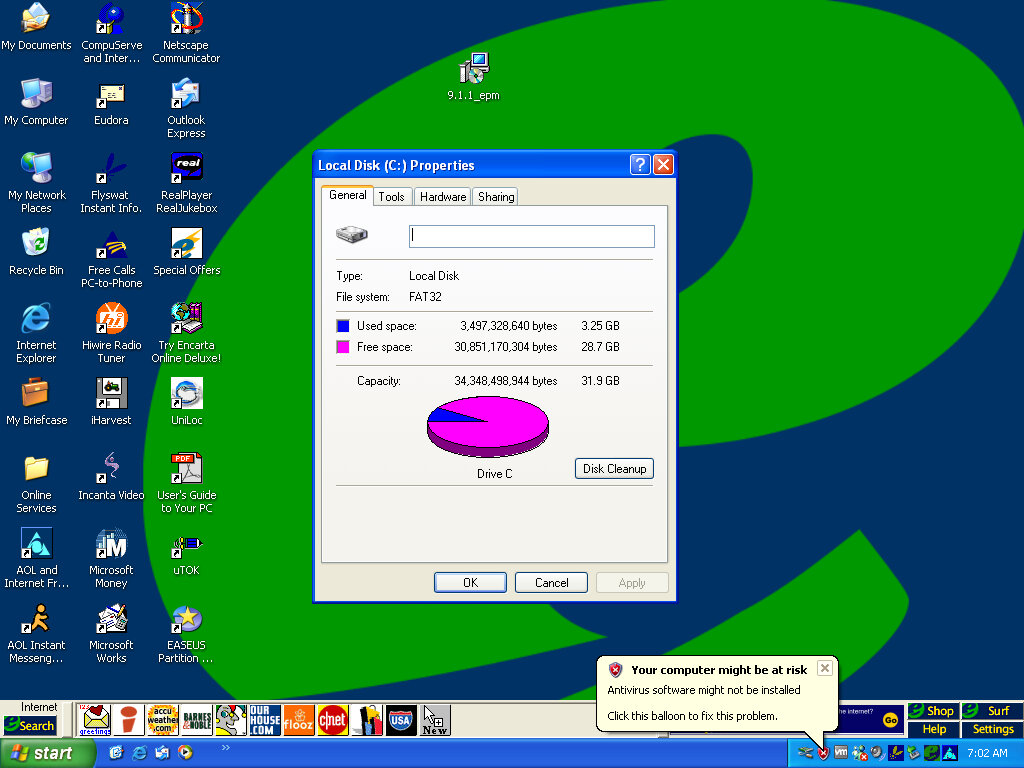
And we hit the wall, since the drive is formatted as FAT32 from the ME install, we cannot install Vista without reformatting the hard disk. We also have to convert FAT32 to NTFS
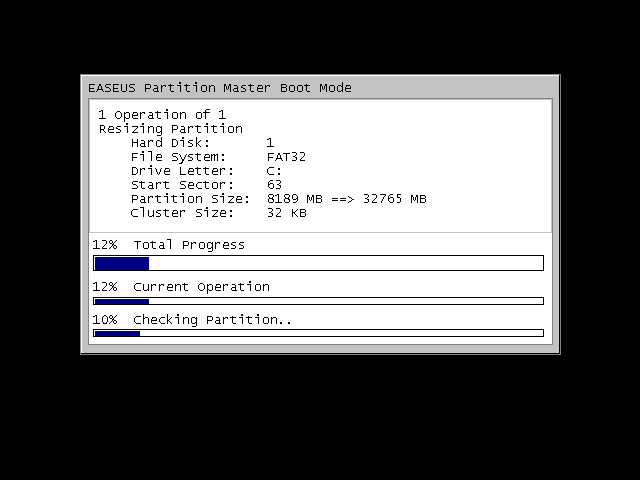
There were a few obstacles, first we had to expand the VMWare disk, as it was set to 8GB by default. Once expanded we had to extend the partition which wasn’t possible in XP’s disk management utility, so I had to use an old version of EASEUS Partition manager to extend the partition.
We can also use EASEUS to convert the disk to NTFS, so we can finally install Vista, and hopefully Windows 7. Before conversion, a quick disk check is done.
Some issues were found but some of these are part of the VM and might not apply to the actual machine, either way it lets us continue
The Flyswat toolbar appears to be broken, and we are missing some buttons on the eWare taskbar
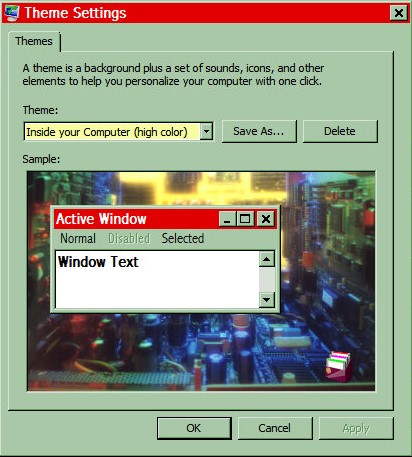
Some of the Windows 98 themes still remain and surprisingly they work. Color schemes, sounds and screensavers.
Adaptec CreateCD has now stopped working completely and will not launch, instead displaying the above dialog box. Later versions of Windows usually keep a database of incompatible programs, including ones that require patches to work.
Windows 7
Install was a lot easier since most of the prep work was done for Vista
Application compatibility is the same as Windows Vista, Meanwhile the icons on the eWare toolbar have started to function gain. It’s rare that you will be able to install this on the actual machines without extensive upgrades, and I’d imagine the eWare links would also long be dead at this point. Also the eWare toolbar sticks out like a sore thumb when combined with the Windows 7 taskbar.
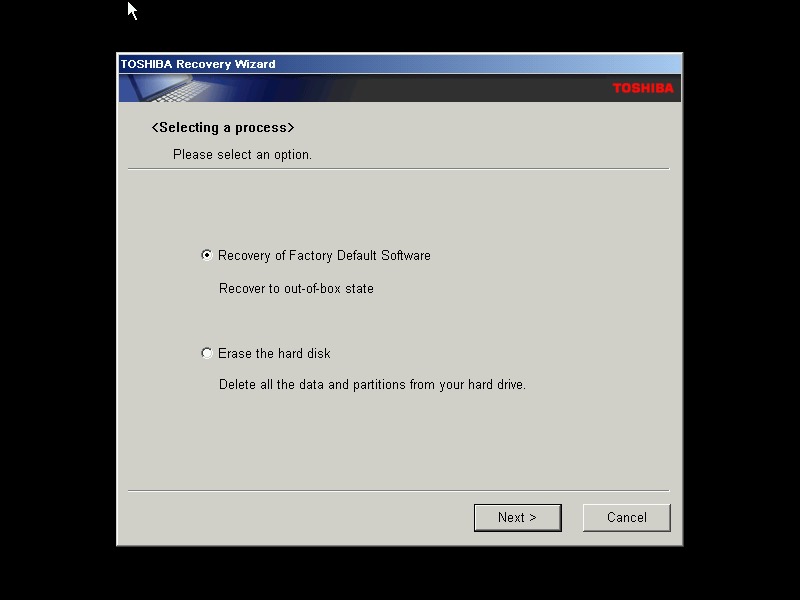
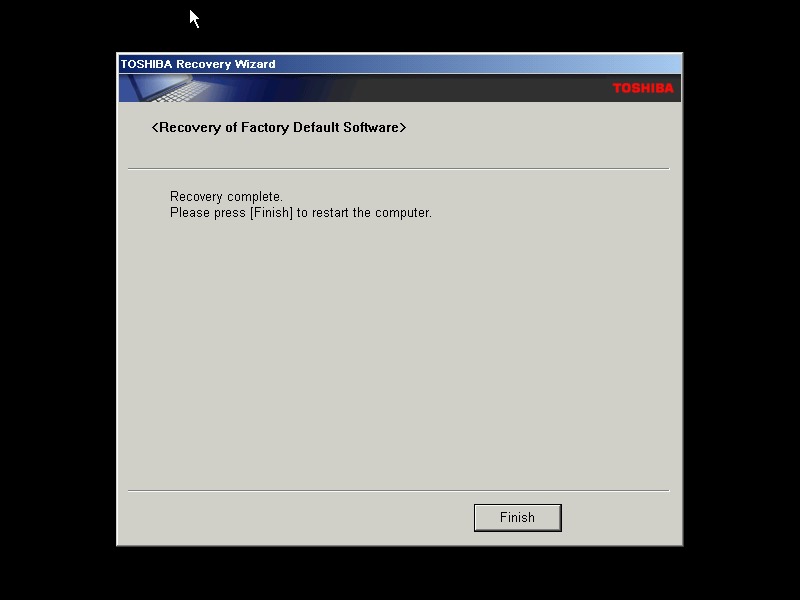
A typical Toshiba laptop from 2005, let’s take a look at what a factory install looks like.
This restore CD is unlocked which allows you to install it onto any PC or virtual machine, Parallels 18 is being used here.
I actually have one of these laptops, though it is a much later revision that shipped with Windows Vista basic, and featured integrated Intel graphics and an Intel Pentium (Core) Dual core processor. Confusingly A100 refers to the chassis design, as there is a wide range of specifications in this series which is confusing. Whilst you can expect differences in memory and hard drive storage, Toshiba even provided different graphics cards and optical drives in this range.
The Out Of Box Experience which features the Toshiba logo, this is mostly the same here you accept the license agreement
Post-install with the default theme and wallpaper, with Windows XP Home Edition being installed with SP2
Appearance
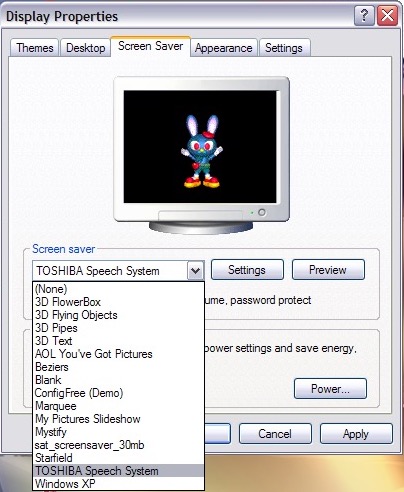
A few screensavers come included, including a speech one that talks to you and will ask you how you are today. The other screensaver is simply an advertising reel that shows the features of the laptop with a compressed guitar playing in the background.
Software
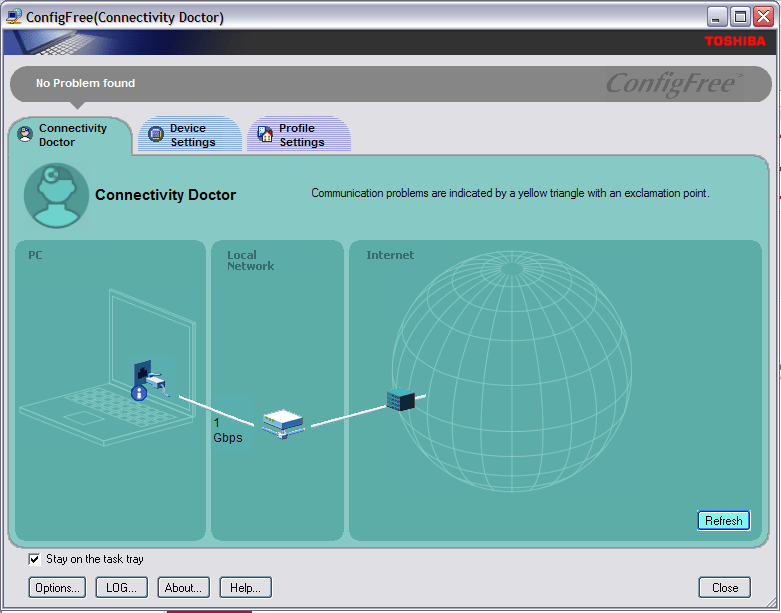
ConfigFree – A network utility that was bundled with various Toshiba laptops of the era, I remember this most from an old Satellite Pro A60 that I had from around 2004ish that functioned very similar to the version here, along with memories of trying to run The Sims 2 on its integrated Radeon 7000 graphics card.
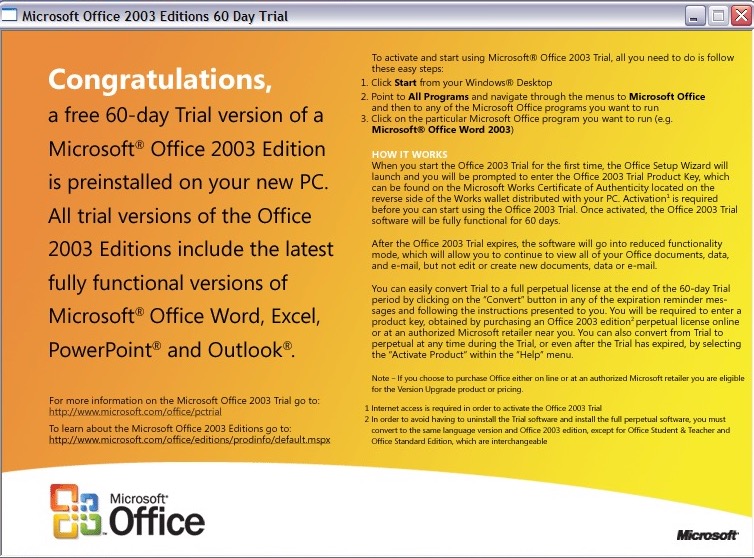
Microsoft Office 2003 – This version makes the debut of OneNote, which has become a staple of Office since, and is even found as a standalone product on modern versions of Windows. It’s a not taking application that can sync across multiple devices.
Your standard Office applications are also included with Work, Excel, PowerPoint and Outlook.
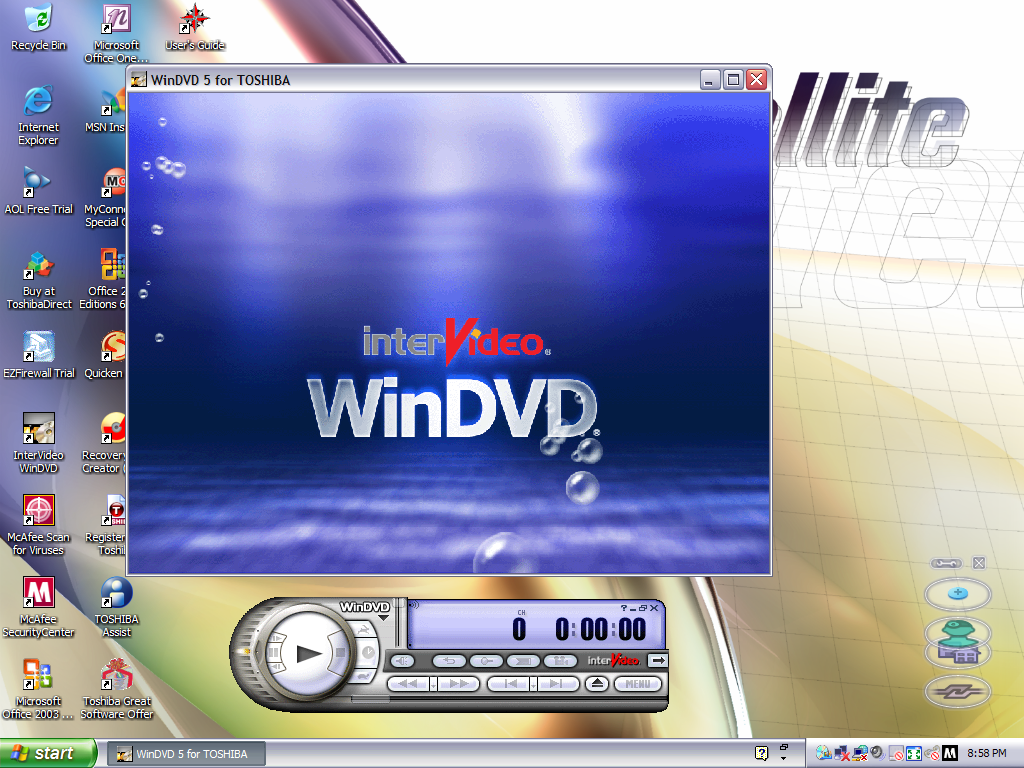
Intervideo WinDVD (V5) – Standard DVD player to play back DVD and VCD movies using the built-in DVD drive. This wasn’t possible not the VM since the graphics drivers do not support MPEG2 deciding which software required
McAfee Security and AntiVirus – Our favorite AntiVirus suite comes bundled here, this also includes a firewall as part of its Internet Security suite. It’s pretty out of date, and has issues downloading new virus definitions since it’s over 16 years old.
Toshiba Assist – Acts as a launcher for many Toshiba utilities. The Optimie section contains a few interesting ones, with the Toshiba Hardware Settings allowing you to change BIOS-specific settings from within Windows. You can configure the power on password, USB legacy support and the boot priority.
Other settings let you change the hotkey assignments, optical drives acoustic noise. There is also a diagnostic tool that lets you test various components of your laptop.
Microsoft Works – A little redundant since we have full-fat Office installed here. I would assume some restore images don’t include Office so Works was included as a backup option. I should mention that Office by default is not activated and prompts for a product key, so it might be the case that Toshiba offered Microsoft Office as an optional extra. Maybe some SKU’s come with a key.
Quicken 2005 – Finance management program
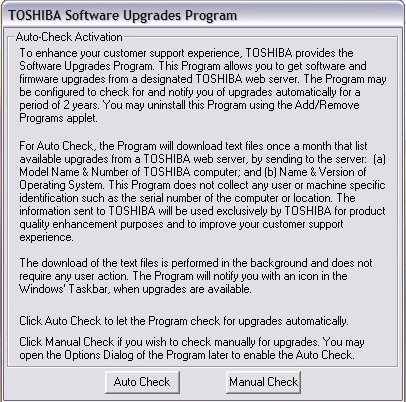
Toshiba Software Upgrade – Checks and installs software updates. The interface hasn’t changed much from the 1998 version
Yahoo! Music Engine – Music player that can play you legally acquired MP3 files, this also features a music store that Yahoo operates to purchase and download music. There is also Y! Unlimited which I assumed was some sort of music subscription service but I couldn’t find any further information since the help files just point to a dead web address.
I don’t think it’s like Spotify or Deezer, but rather a service you could download say 10 tracks inclusive per month
Sonic RecordNow! – Disc burning application. Typically this can burn audio CDs if Windows Media Player isn’t your thing. This appears to be a basic version as there are a few options that are only available when you upgrade, this includes burning ISO images
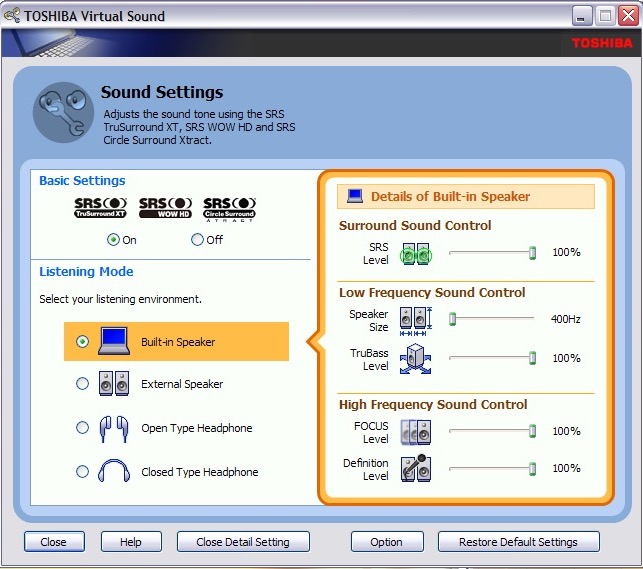
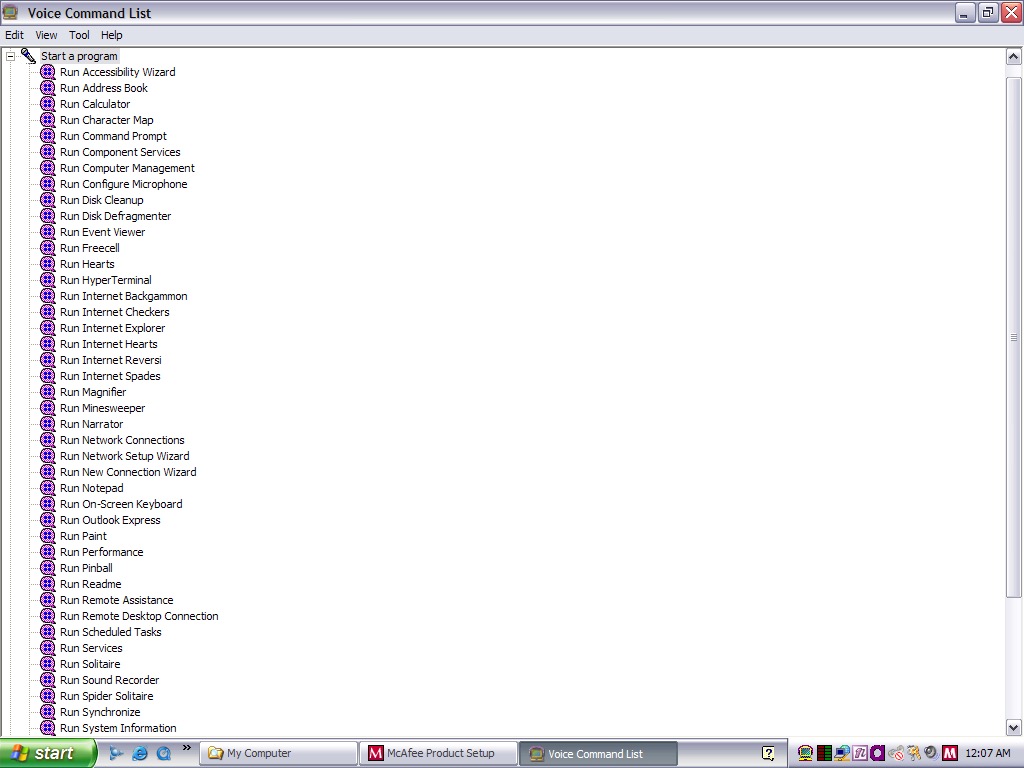
Toshiba Speech System – A voice recognition program that runs in the background and listens to the microphone so you can soak commands into the computer. You can start specific programs by speaking ‘Run Calculator’
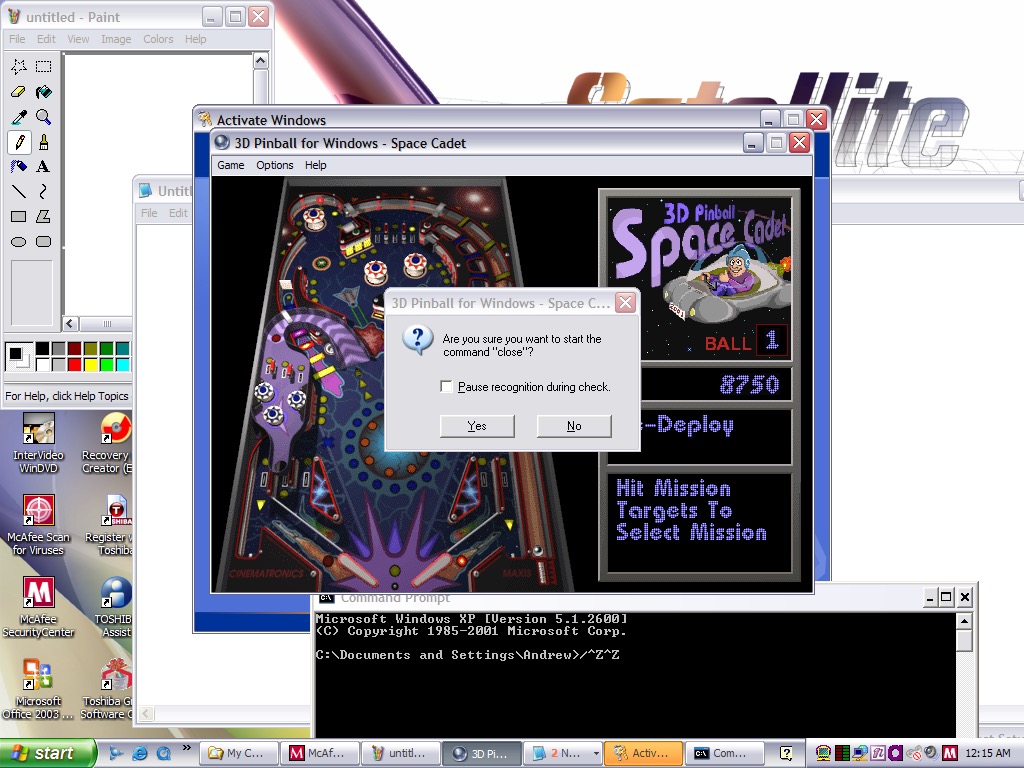
Despite running in a virtual machine, I was able to pass through the microphone and it was able to pick up my voice. As you can expect this is very finicky with it failing to recognize certain commands or misinterpret noise as commands. It was even though the noise from my mechanical keyboard was the undo command. Probably best to disable this feature to avoid losing any work, since it will also misinterpret commands for deleting or cutting.
You can configure it to listen through a button instead which will cut down the amount of misinterpreted words. For tethering else it’s best to move the microphone away from the keyboard, presumably on the actual laptop this would be somewhere toward the top of the screen.
And yes, noise from applications and games can also interfere. Playing 3D Pinball will cause it to launch a command prompt window after you hit a bumper and finishing a game will cause it to run the MSN Backgammon game.
Imagine trying to play a Halo LAN party with this thing enabled.
eTrust EZ Firewall – Optional firewall that can be installed, this is a ,limited trial copy. This looks very similar to ZoneAlarm firewall.
Other bundled software included AOL, RealPlayer 8, QuickTime 6, Adobe Reader & Windows Media Player 10
Misc Observations
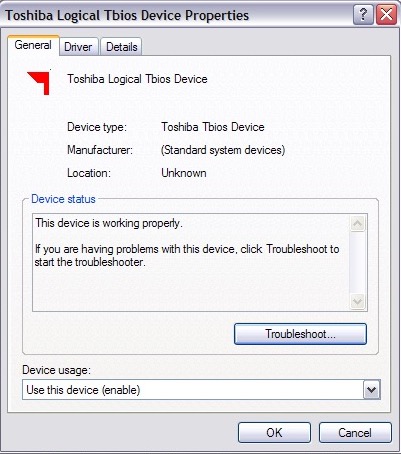
Not sure what a Tbios device but could be used to interact with the BIOS more closely
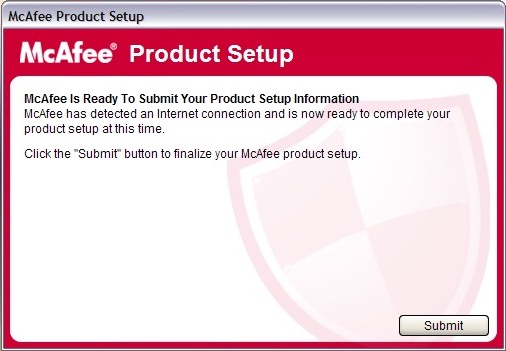
Once again McAfee is nagging us for further information, this happens a lot with McAfee
Adware on a fresh install?
Custom Windows Media Player skin
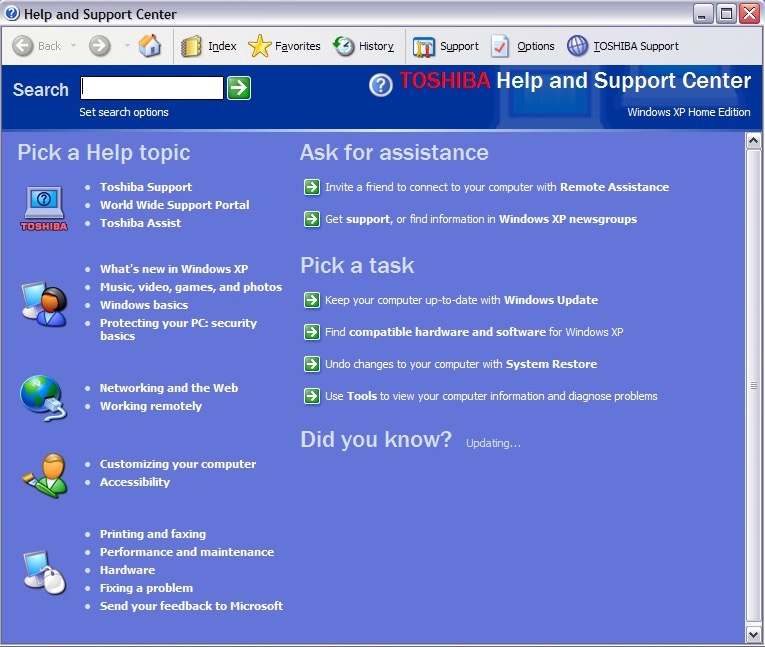
Help and Support with Toshiba branding
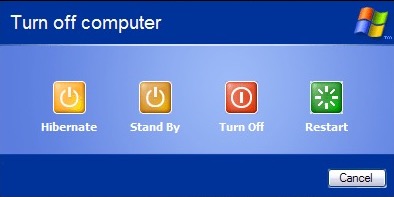
Shutting down the laptop, it has an altered shutdown screen that features four options which I have seen on a few Dell installs of the era
The PCV-70 originally shipped with Windows 95, but can be upgraded possibly to Windows XP. Along the way you will have to upgrade the processor and the amount of memory to run modern versions of Windows, which is easier to do in 86Box (4.0.1)
For this I’m more concerned with how far the OEM install can take us whilst maintaining the existing install. And what applications that Sony shipped with the PC still remain functional.
Windows 98
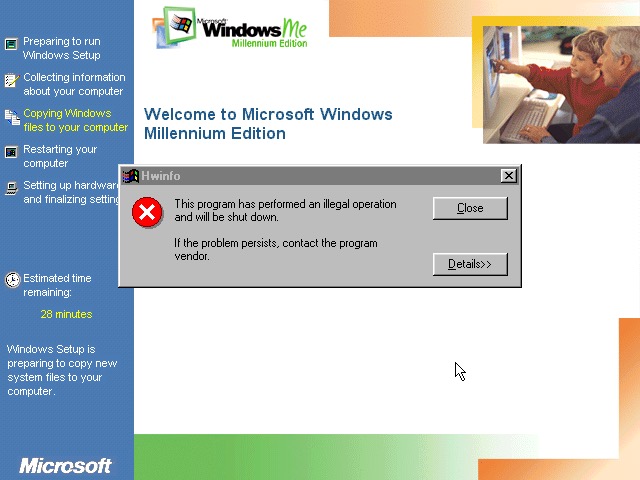
Great, something called HWINFO has crashed. That’s always a good sign
Install appears to continue though
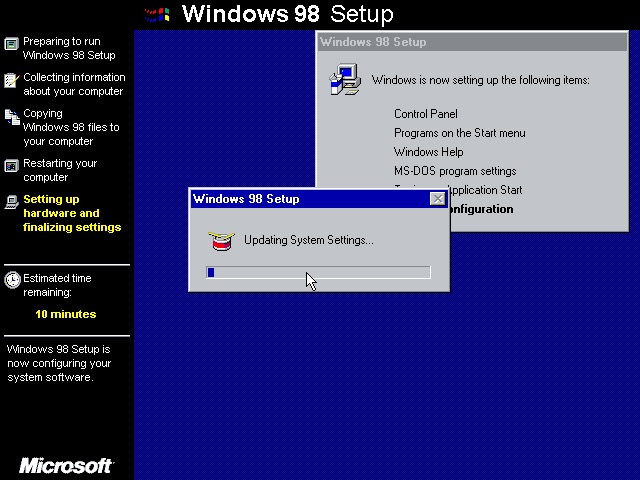
A couple of reboots and Windows 98 starts to initialize its driver database
Not this shit again, thankfully the installation continues
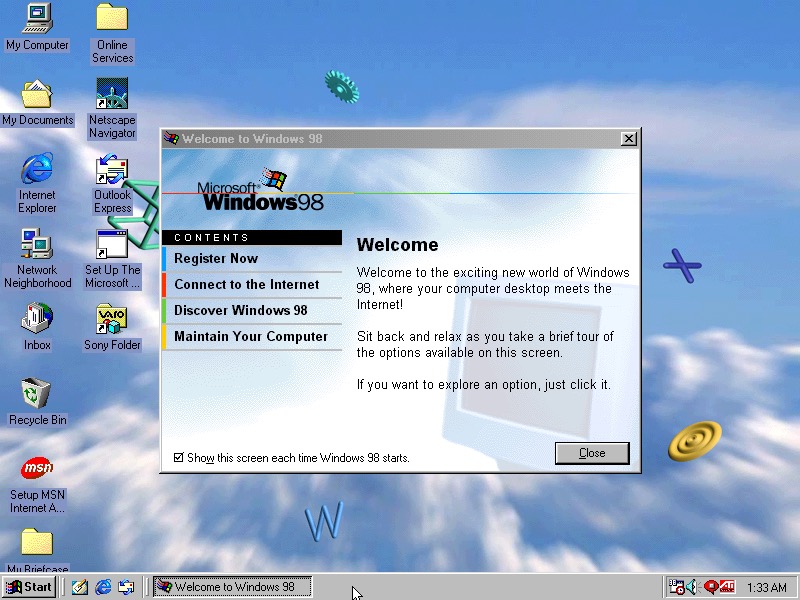
Install was successful with the welcome to Windows dialog appearing
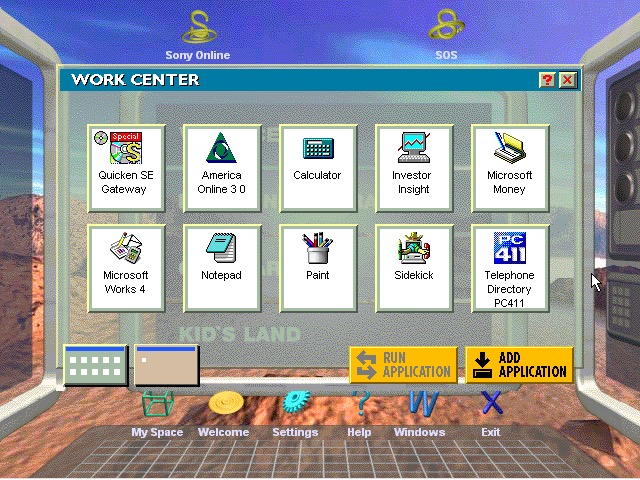
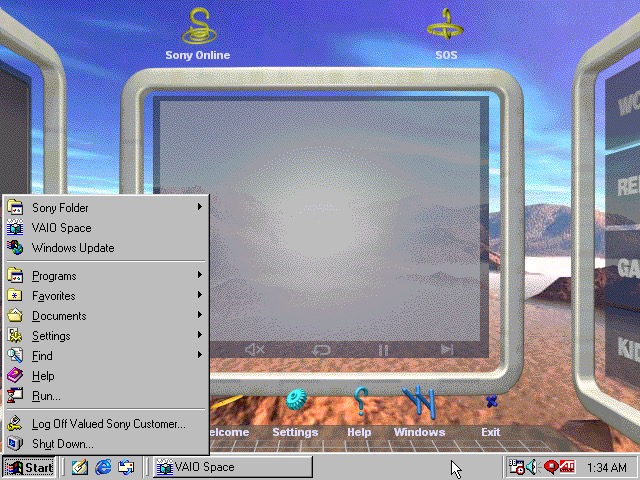
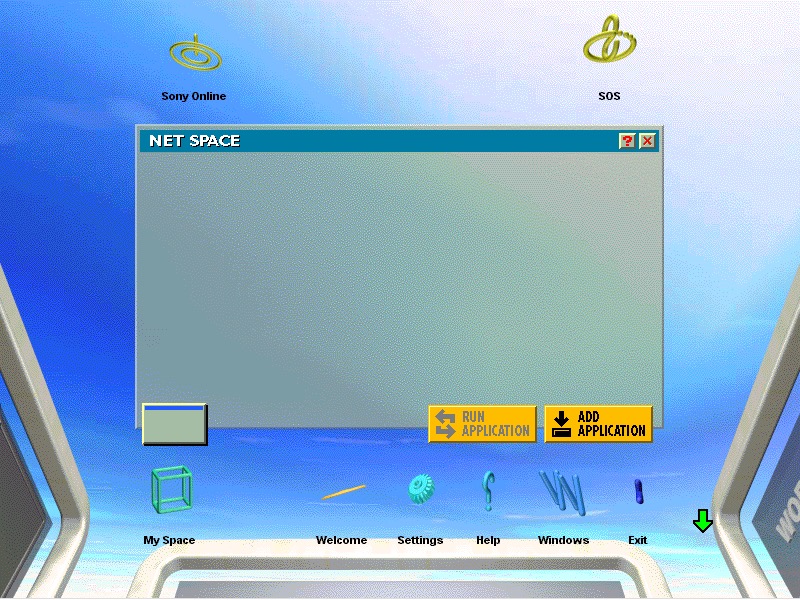
The VAIO Space appears to work OK
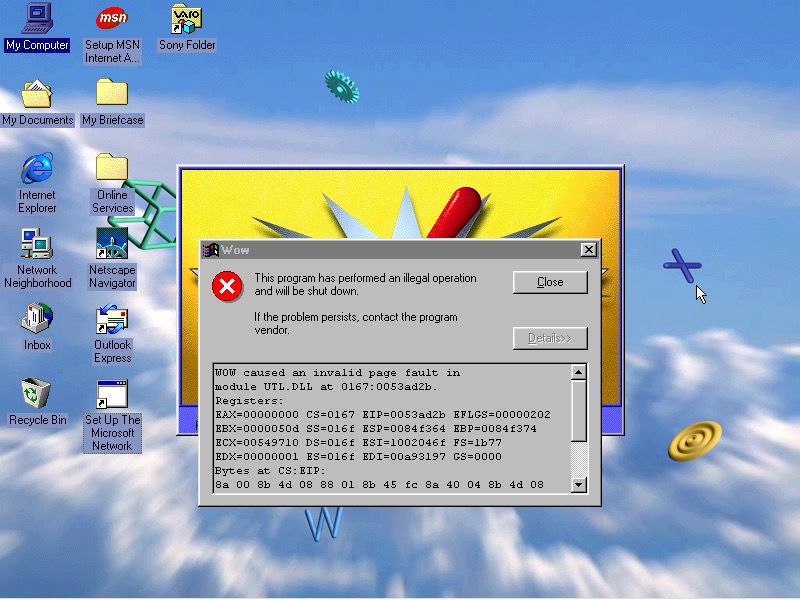
Another casualty is the WOW application. Wipeout also no longer launches, I won’t count this since we are not using a RAGE 3D accelerator (No 86Box support for that yet)
VAIO themes, wallpapers and colour schemes have been preserved
Windows ME
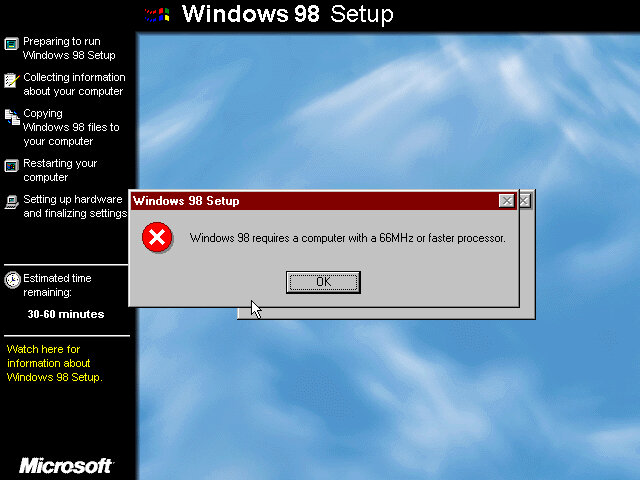
Looks like I need to bump up the CPU speed, so ME allows us to install. Enter the Pentium running at 166MHz
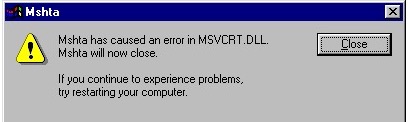
Again, Seriously? What is this and why does it keep crashing through an upgrade?
Something else went wrong
Windows Media Player seems to have taken a hit during the install
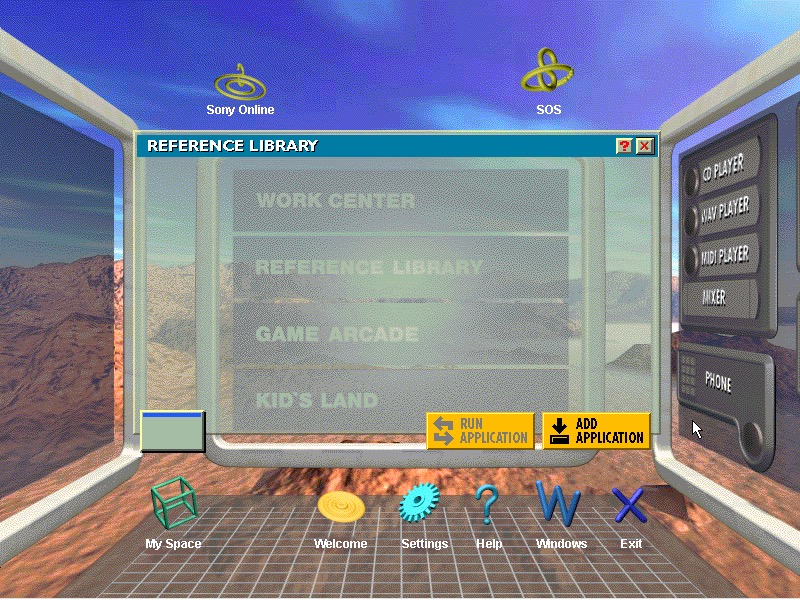
VAIO space is up and running, but some of the program links are missing. Also we are unable to launch the CD player or any of the multimedia applications
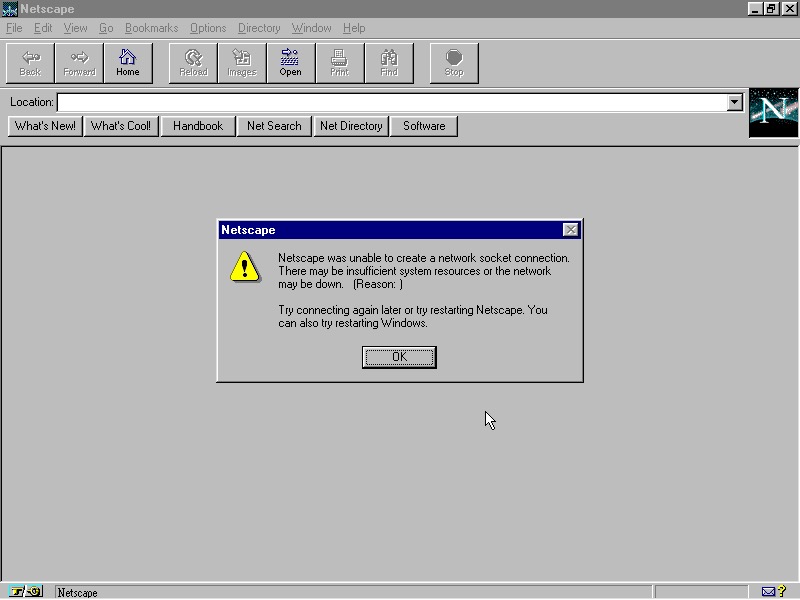
Netscape Navigator also has issues, but this is a very old version (2.0)
And Windows Media Player now works, not sure how?
No major issues were found with other applications, though losing functionality from VAIO space takes away one of the unique features of the PC.
Windows XP
Sadly we hit a roadblock here, as we do not have enough disk space to complete the upgrade (We have a 2GB hard disk with 652MB free, but Windows XP demands at least 800MB)
Perhaps I can expand the VHD. It’s worth noting the original system only came with a 2.1GB hard drive.
Even if we got XP installed, it’s a struggle running it on a 200MHz Pentium through 86Box, any faster and the emulator starts to throttle the speed. Might be worth revisiting in the future but for now ME is the best we can get.
A similar laptop to the ThinkPad T20, but this appears to be a customized image for a specific University. Lets take a look…
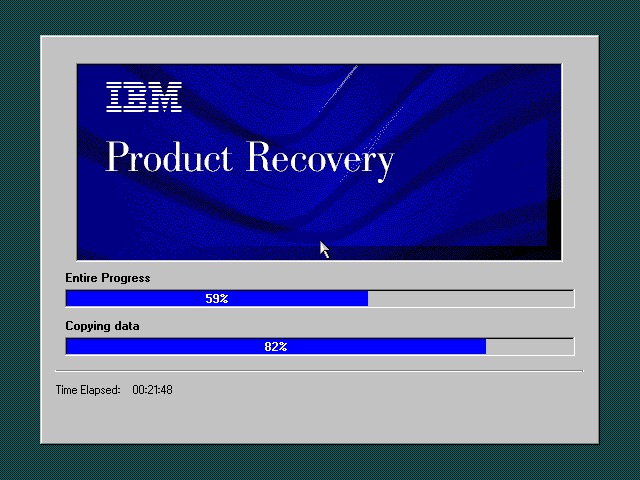
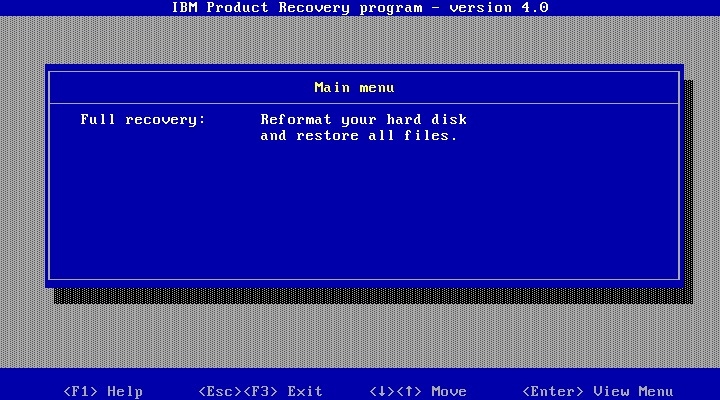
The recovery utility is very similar to what we have seen previously. This will restore the operating system installed to the hard drive, and will initialize it if the drive is blank. Once completed the system will restart.
Currently using 86Box (4.0.1) with the Gigabyte GA-686BX motherboard, which has a similar chipset to the actual notebook itself, Intel 440BX chipset.
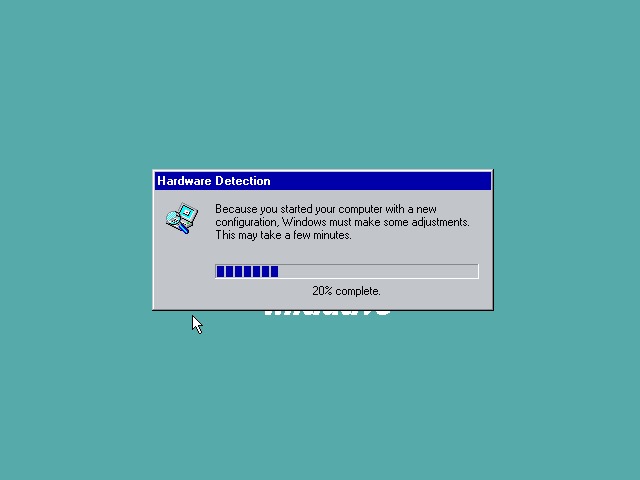
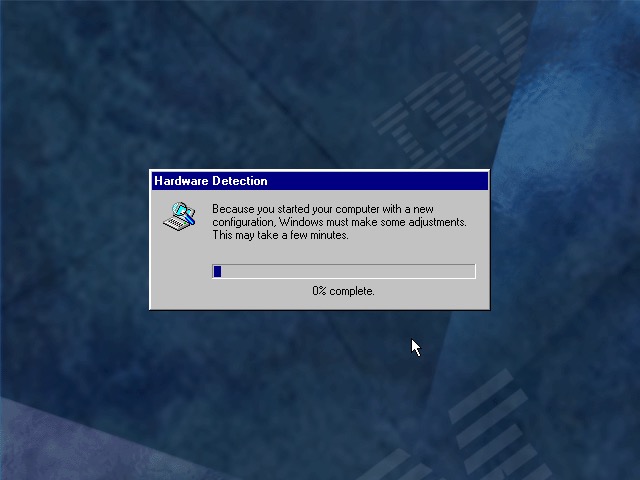
After a few New Hardware Dialog boxes, we arrive at the desktop. Here we have Windows 98, compared to Windows 95 that the T20 we look at came with.
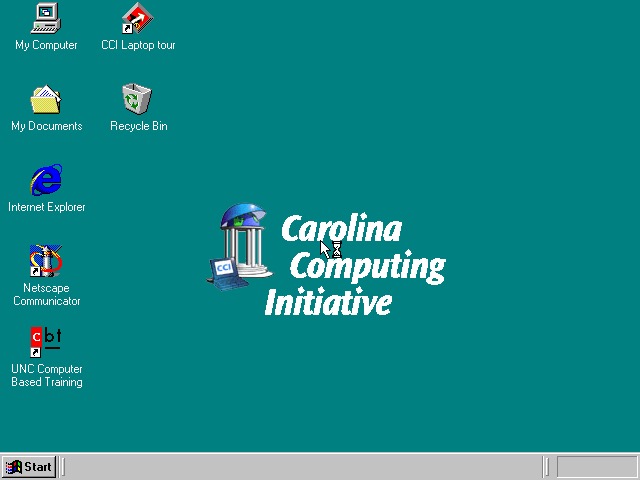
Very similar to the T20 we have the IBM custom wallpapers, sound schemes and colour schemes that can be selected. There is also a custom wallpaper from the Carolina Computing Initiative which is the default wallpaper and it appears this is a disto that’s intended to be imaged on ThinkPad laptops for a North Carolina University.
I guess IBM had a facility where institutions could create their own recovery images, complete with their own branding and any additional utilities to allow these images to be distributed to all notebooks that are used within that institution.
Office 2000 looks to be preinstalled for us, this includes Word, Excel, PowerPoint, Outlook and Access, along with a sidebar to quickly launch Office. Not the best idea for a laptop with a small resolution screen (640×480) since it takes up valuable screen estate. Thankfully you can disable this.
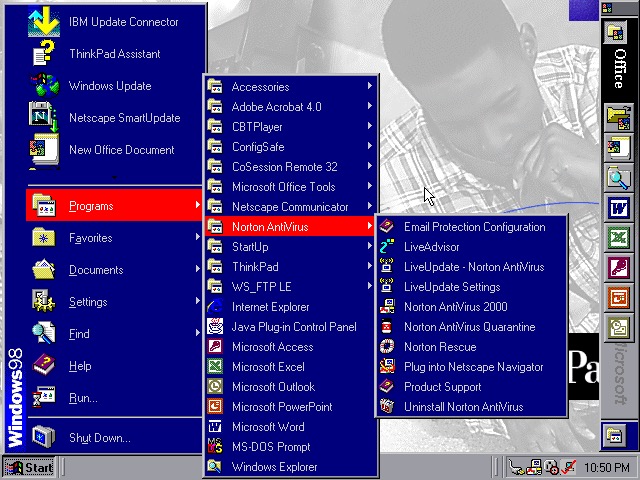
The Start menu showing preinstalled applications, and one of the custom IBM colour schemes
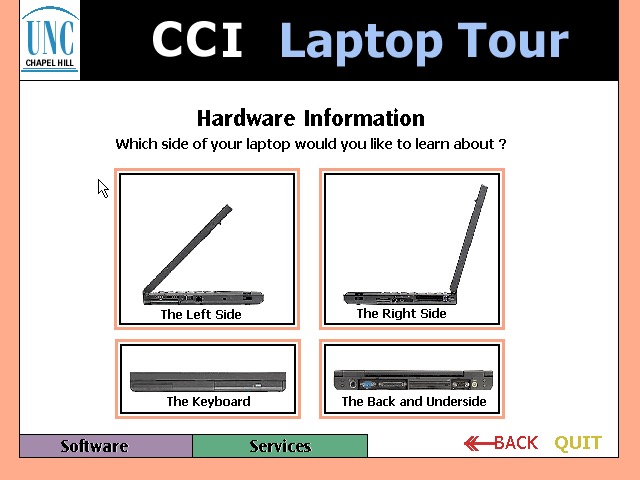
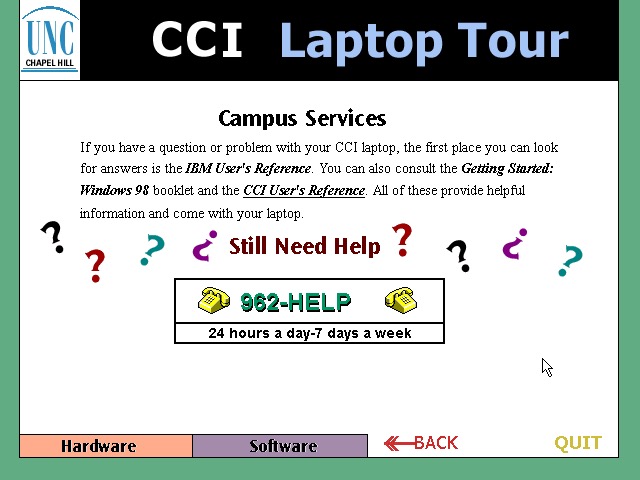
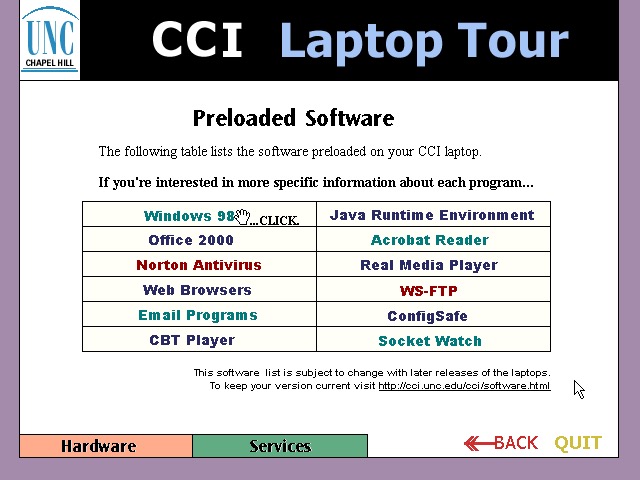
CCl Laptop Tour: A tutorial application that is built using Macromedia Flash (Now Adobe, now dead). This provides information regarding the laptop itself, and is to help get students accustomed to using their new notebook. Information on installed software is also included. One thing to note is this program is very noisy, with swoosh sound effects for every animated text on the screen. It reminds be of creating PowerPoint presentations using PowerPoint 2003 and littering the slideshow with different animations and sound effects to make it more cool.
Norton AntiVirus 2000
Norton AntiVirus 2000
Norton AntiVirus 2000
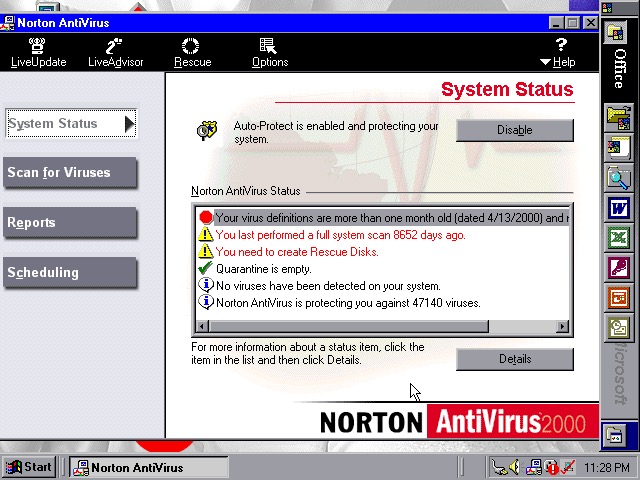
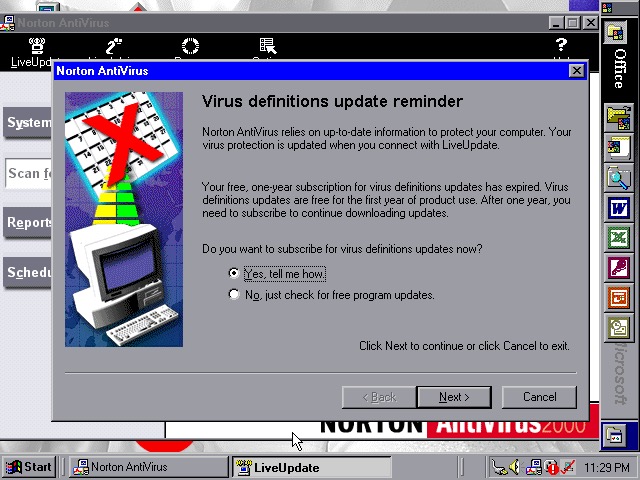
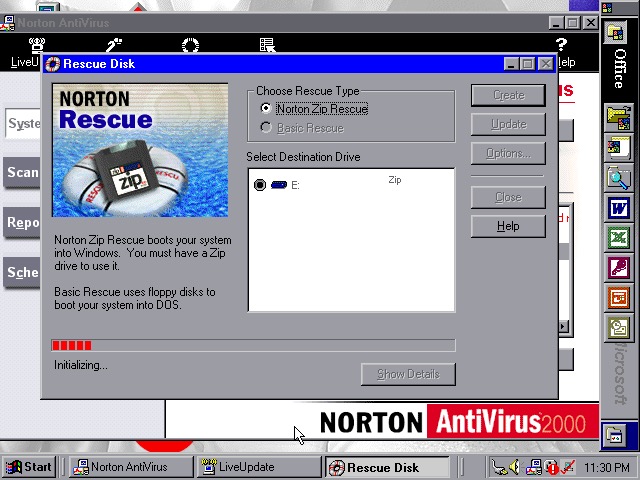
Norton AntiVirus 2000 comes with the install, here you can run virus scans (or set a reoccurring schedule), and make system backups to floppy or Zip disk drives if you have one plugged in. Like other Thinkpad’s of the era, this model supports the SmartBay that lets the user swap and install drives whilst the system is active, and Zip drives are supported using this bay.
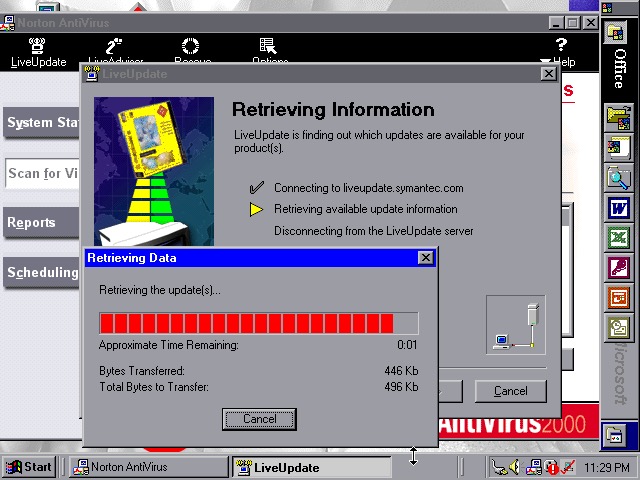
Norton also included a Liveupdate feature for both program and virus definition updates, but this just crashed the program, and the entire system
ConfigSafeEZ makes a copy of critical system files, kind redundant when you have Norton Rescue installed
IBM ThinkPad A20
IBM ThinkPad A20
A couple of ThinkPad utilities come included:
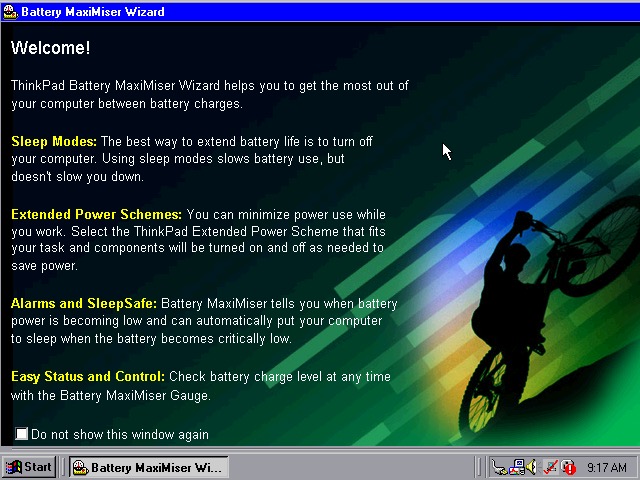
Battery MaxiMiser – a simple program that informs the user on how to get the most from their battery. The Presentation Director Wizard shows you details on how to connect and enable an external LCD projector or display. You can change the external resolution which will scale the internal display (since it only supports 640×480)
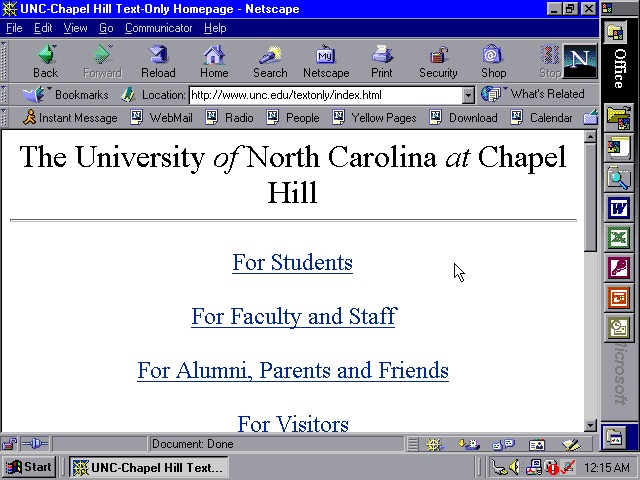
We also have Netscape Navigator 4.7 preinstalled as an alternative to Internet Explorer, showing the default homepage of the era using theoldnet as a proxy server.
WS_FTP
WS_FTP
WS_FTP
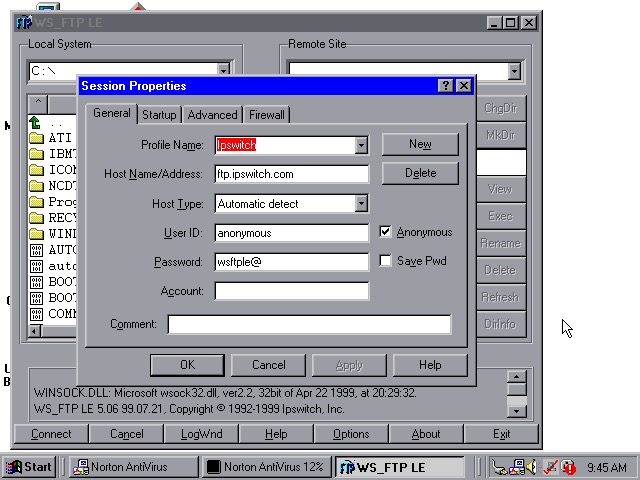
WS_FTP appears to be an FTP (File Transfer protocol) program to connect to remote FTP servers, This has already been configured to connect to an Ipswich server, though there are plenty of other servers included by default.
Tried connecting to a few servers (Microsoft, NASA) but no luck
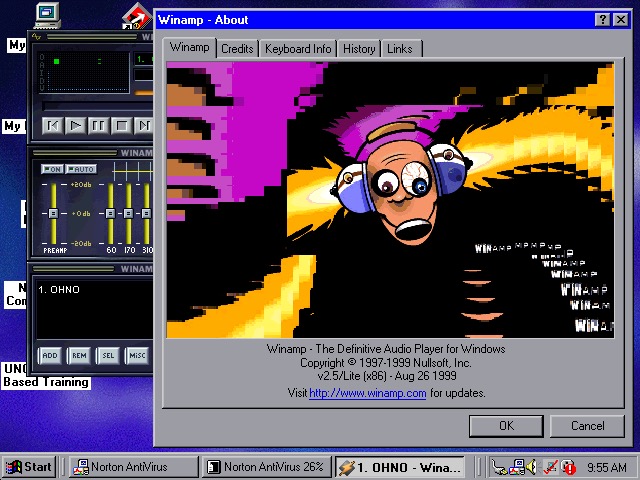
WinAmp 2.5 is also preinstalled to playback MP3’s from Napster
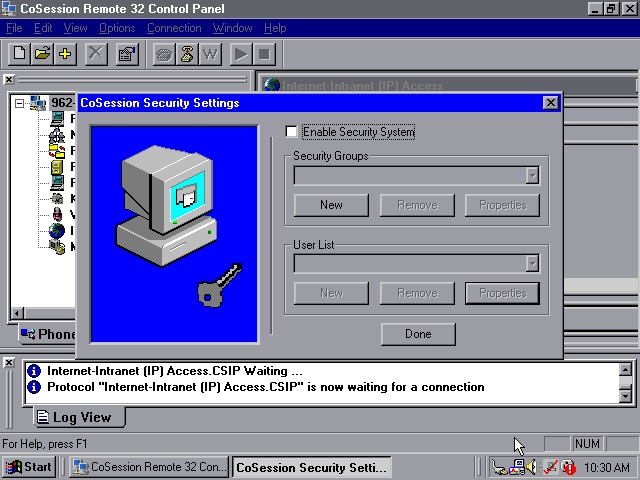
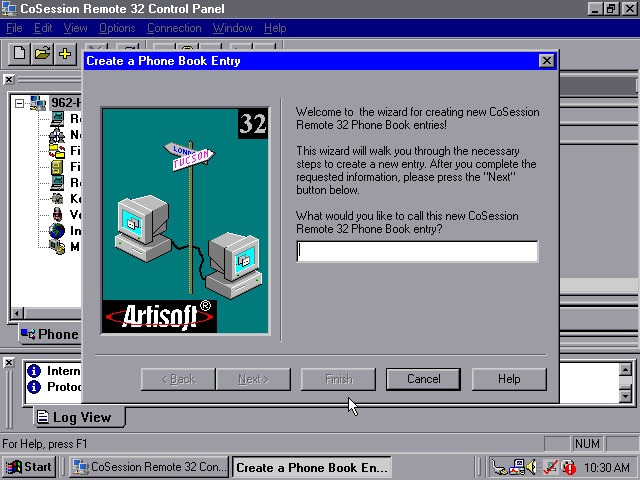
CoSession Remote 32 (v8.1) – A remote control program that lets you control a desktop computer (That also has the supporting software installed) over a network, similar to Remote Desktop or VNC. It will also function over the internet and can be used to transfer files.
Main use for the program would be for Helpdesk support purposes, or if new software needs to be installed remotely. I’ll have to look at this in more detail when I find another copy.
A low-end laptop released in 2000, let’s take a look at the recovery media and what a typical IBM Thinkpad install would look like.
First attempt was using the MSI MS-5119, whilst the recovery environment would start, it would get stuck at the actual recovery stage and would just freeze. Changing to the Intel motherboard fixed this and allowed a full recovery, though this BIOS takes a while to boot.
Other motherboards might work better, I mainly picked these two since they contained very similar chipsets to the actual IBM system.
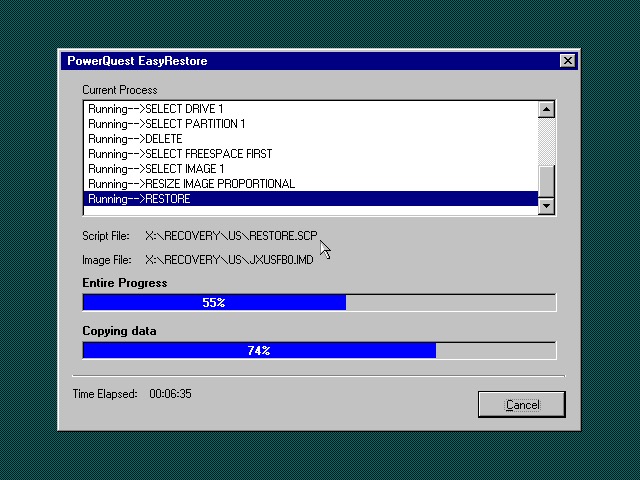
Once the HDD is prepared, the recovery program begins the restore
I’m a little confused as to why this is running Windows 95? From researching online the Thinkpad T20 came out in late 1999, when Windows 98SE and NT 4 were the main operating systems and were in the mature stages of their life cycle.
Once recovery has been completed we can reboot into our new install
Going through the New Hardware Wizards
Something went wrong when installing the Crystal sound drivers. Ended up Swapping the Crystal for a SoundBlaster 16 PnP, which worked much better.
The main desktop with the default IBM wallpaper, I’ll always like IBM’s design of the era with its business-oriented blue. Some wallpapers also make an appearance from the Thinkpad 390E
Two screensavers come included, Think 1 and Think 2. None of them have any settings to configure and really serve as advertisements.
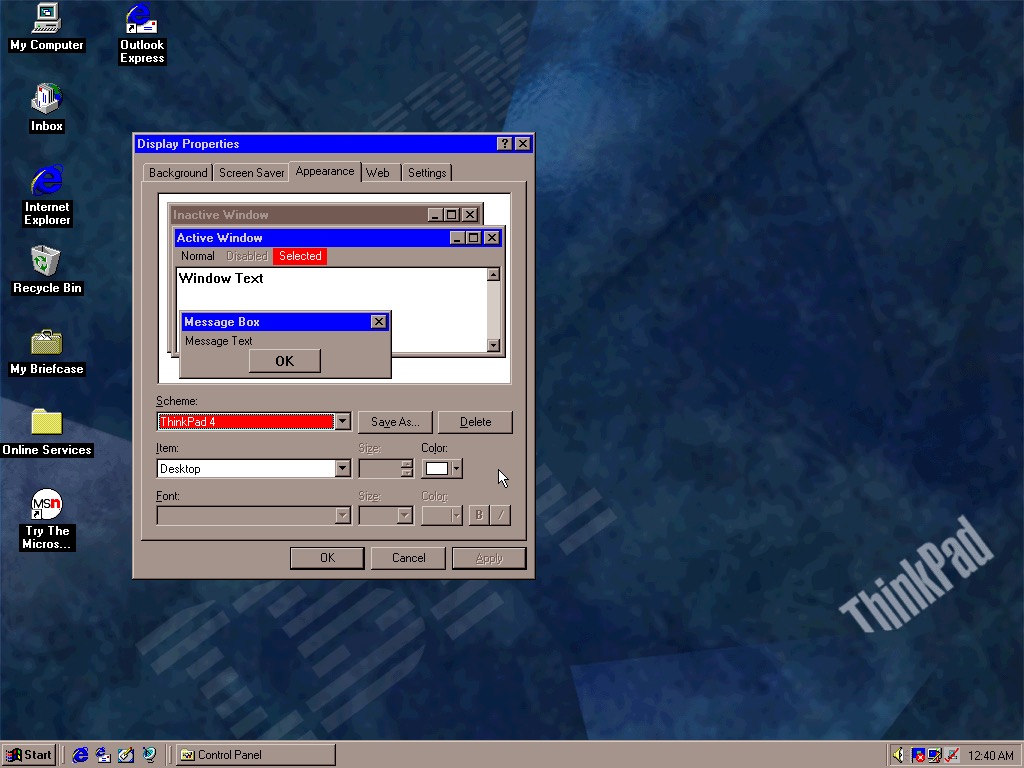
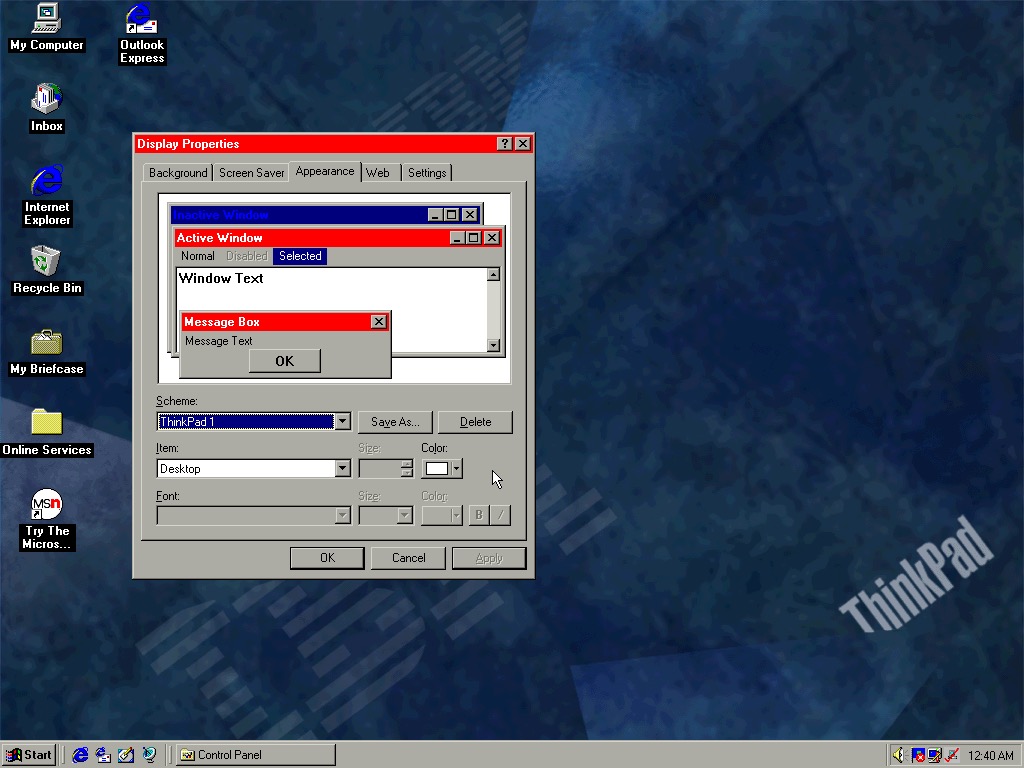
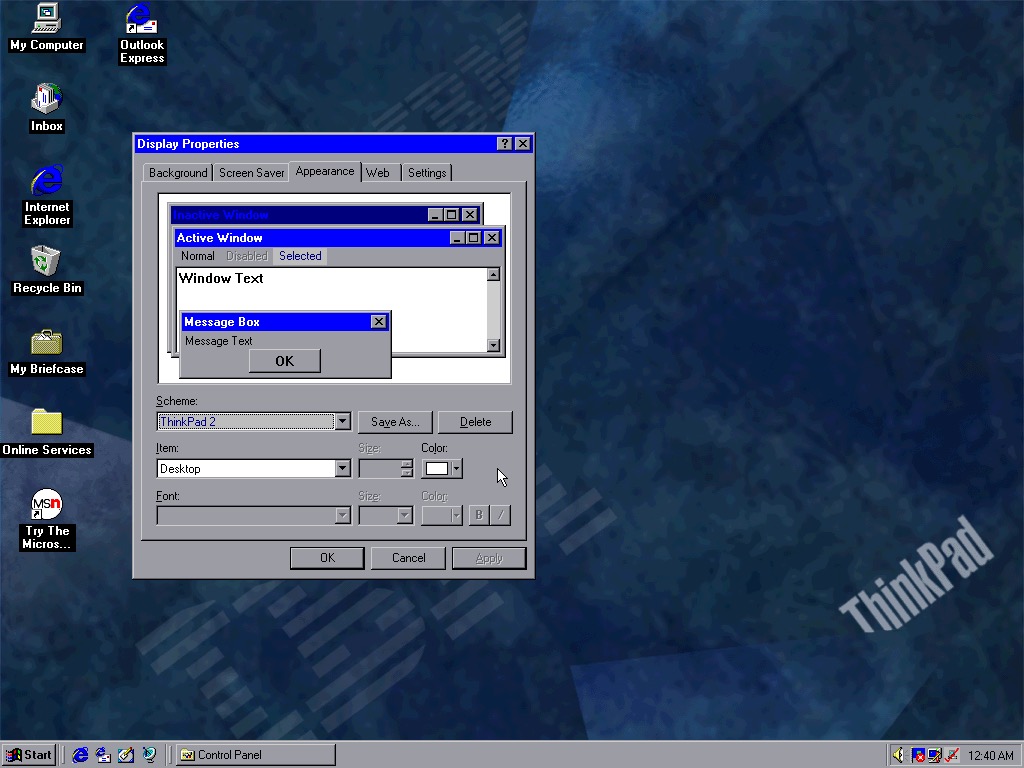
Four colour schemes come included, though they are not set as the default. These give either red or blue highlights and give a bit of Thinkpad style to the Windows desktop.
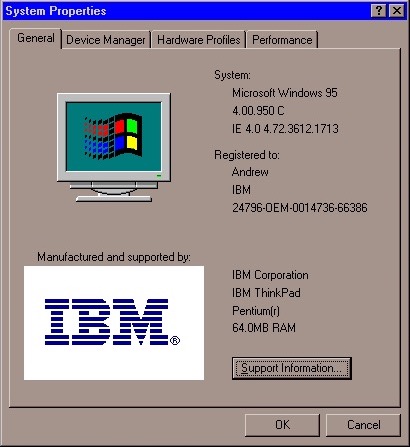
System properties showing the OEM logo and support information.
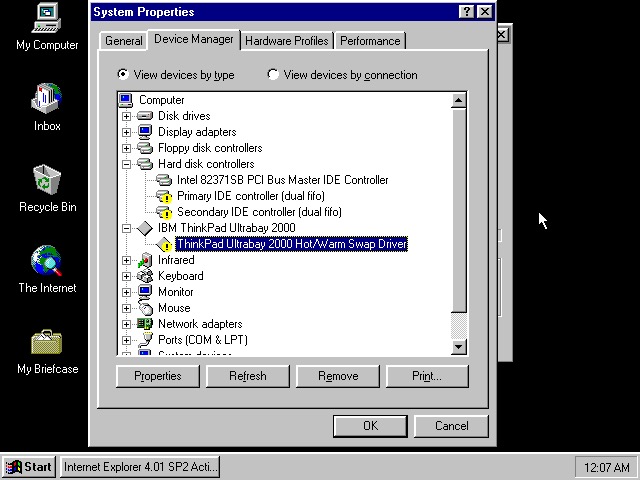
Device manager showing the UltraBay dock adaptor. The was a custom dock that allowed the user to quickly connect a monitor, desktop and keyboard by placing the laptop in the dock. Nowadays you can just use USB 3 dock, or Thunderbolt if your computer supports it.
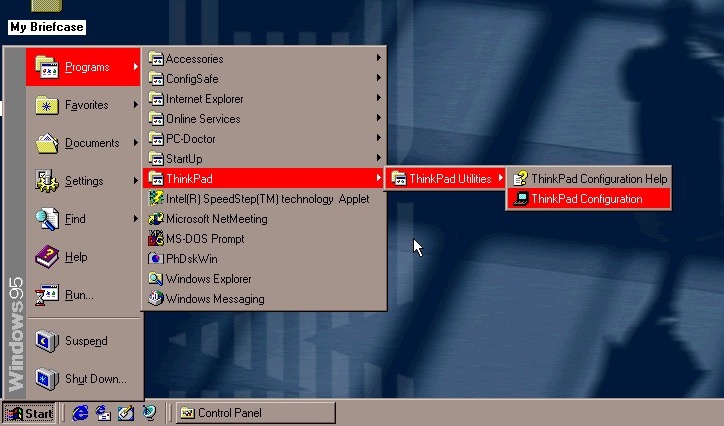
The Start menu, with the suspend feature enabled.
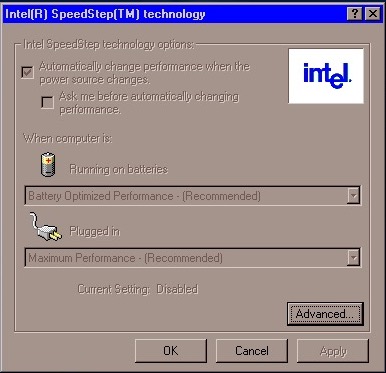
A look at Intel SpeedStep, which I’m surprised existed this far back. I always assumed that came out with the first-generation i7/i5 chips. Here it functions the same where it will slow the processor down to conserve battery power, a desirable feature for ultra-portable notebooks.
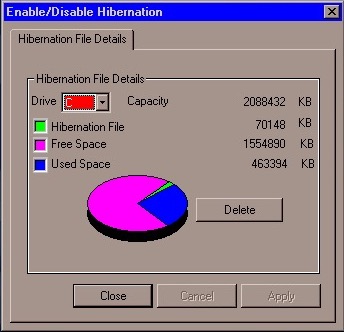
PhDiskWin, looks to be a liberation file monitor. You can delete the file to free up disk space, which Windows will recreate when you next enter hibernation.
PC-Doctor, runs through a few tests to check for any issues or faults with your system
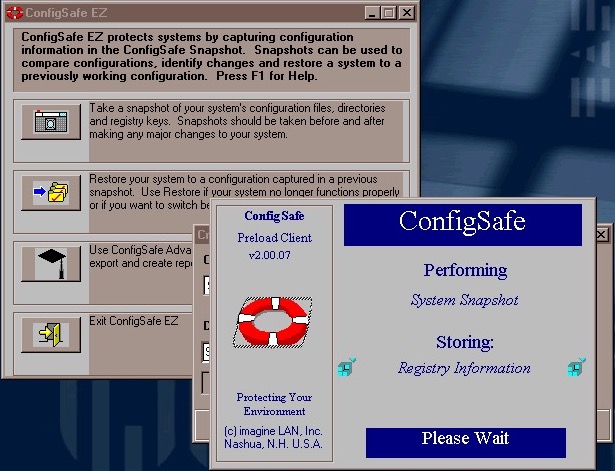
ConfigSafe Ez – sort of like a predecessor to System restore introduced in Windows ME, though commonly known from Windows XP. This takes a snapshot of critical files that can be restored should there be any issues.
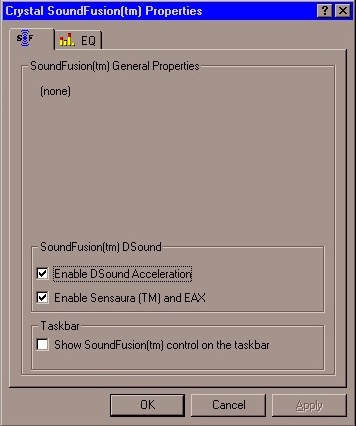
SoundFusion control panel applet which would have configured the onboard sound card. This looks to be produced from Crystal, which could be why the earlier sound card failed to install. I doubt 86Box can emulate the exact model that this notebook had shipped with.
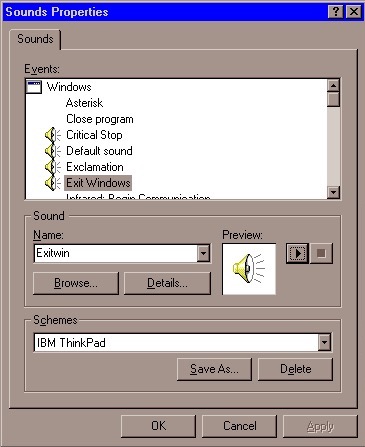
A custom sound scheme also comes included which changed the Windows Start and Exit sounds to IBM’s own, which are very Rock/Aerosmith.
Links
Archive.org – Modified archive copy, this should allow it to install on any PC or VM
The Latitude line was Dell’s professional series of laptops intended for business use. They typically come with features such as docking station support, enhanced security or encryption options. They also typically came with support for Windows NT operating system, however, some models could also come with a Windows 9x operating system if this is preferred.
Trying to install using a VM for 86Box, was a bit of a mess. There were a few virtual machines we could use, but many would result in a non-functional system. In most cases the keyboard was unresponsive which prevented us from being able to login.
Instead lets use VMWare
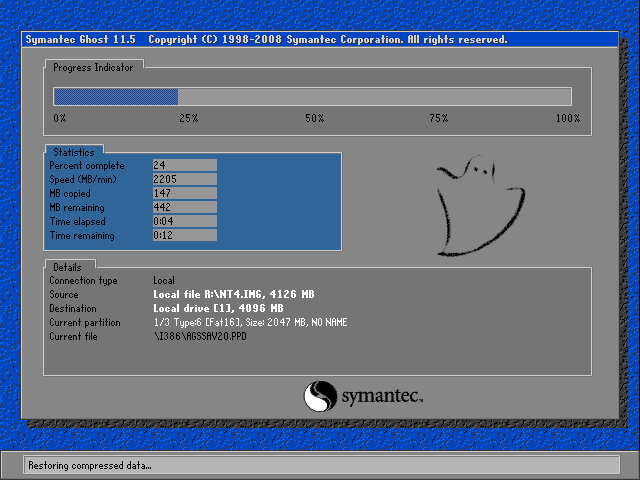
The recovery tool uses Symantec Ghost to restore the image. The software is capable of initializing a blank hard drive and will reboot the system when done.
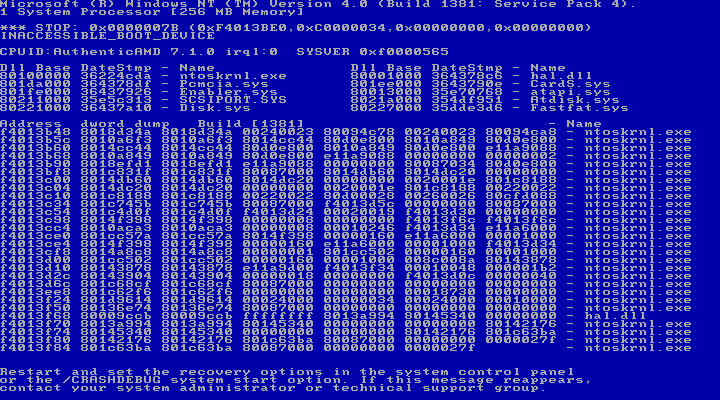
After booting up we get an instant BSOD with an Inaccessible Boot device error (0x0000007B). Turns out it was because VMWare allocate hard drives under a SCSI controller, instead of an IDE controller which NT 4 prefers. Changing the hard disk to IDE fixes the issue.
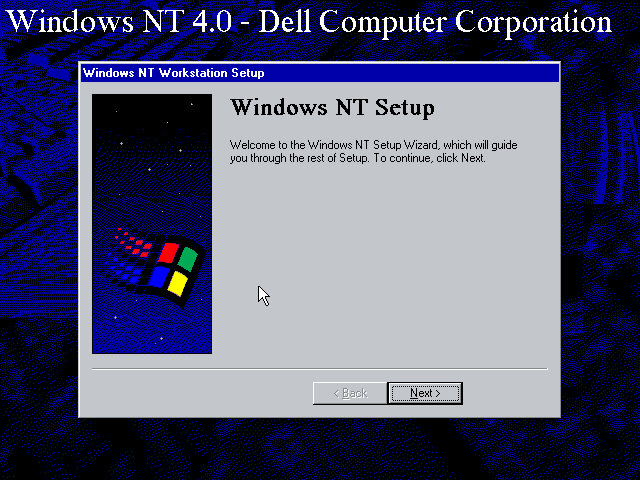
After we fixed that, the setup utility starts where you enter details of the user and computer name, and the serial number is entered here.
A Y2K utility appears to load and then crash soon after we log in. I guess this checks the BIOS version to prevent any issues with Y2k compliance, which was a much-talked-about issue when this laptop would have been released.
NT will not pick up the soundcard upon bootup, but we can install a compatible Creative Driver. Once installed and rebooted, we get sound.
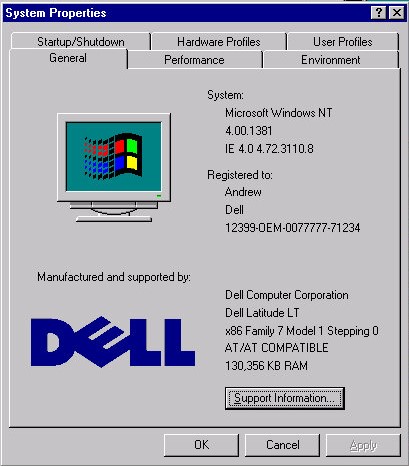
System properties that shows the OEM customization.
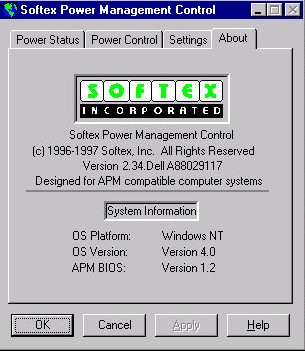
A look at the battery utility which controls the power management settings. It appears to be developed by Softex Incorporated and would have provided ACPI support that was desirable for laptops, but was not yet fully supported in the Windows NT line, not until Windows 2000.
Dell have included a couple of utilities, the first one will convert the hard disk to NTFS (its FAT32 by default) and the second will create a recovery disk using a blank floppy disk.
And that’s it. There isn’t much software included and it’s likely Dell supplied any bundled software separately, and they would have kept the base install as minimal for businesses to customize.
Like other NT 4 installs, this does not power off the computer, rather it will just restart the VM even if you select the shutdown option. On the actual machine itself, I’d image Dell would have implemented ACPI support allowing for auto shutdown.
First hurdle we get to the hard disk recovery key, this is a six digit number that identifies the SKU model of the computer, and dictates which software will be restored along with the needed drivers. 555251 was the one I had used, but you can find a list of them on the CD-ROM drive itself. Simply navigate to the BU\A\ directory where you will find a list of SCR files with the number titled in the file name. These can also be opened in notepad or any text editor and will list the files that will be restored.
For 86Box I used the Packard Bell PB410A as the motherboard which comes with an onboard video card (Headland) and uses an Intel 486 class processor.
Running the recovery application, you may have to specific a NEC drive in order for the recovery to work. As this motherboard only has one IDE channel, the CD-ROM drive was placed as a slave drive. Its likely Packard Bell had used one of the propriety CD-ROM interface that were commonly used from around this era. Panasonic, Sony, Philips and Mitsumi all used their own CD-ROM interface as opposed to IDE.
First hurdle we get to the hard disk recovery key, this is a six digit number that identifies the SKU model of the computer, and dictates which software will be restored along with the needed drivers. 555251 was the one I had used, but you can find a list of them on the CD-ROM drive itself. Simply navigate to the BU\A\ directory where you will find a list of SCR files with the number titled in the file name. These can also be opened in notepad or any text editor and will list the files that will be restored. One caution is to ensure the video card being used matches what you are emulating, a Cirrus Logic driver wont go very far on a VM running a Headland video card. The soundcard driver will also throw up an error as no emulator currently support the soundcard that Packard bell had used, but we can easily uninstall it and add our own, though some soundcard utilities will no longer function.
Looks like its expecting to use a Panasonic CD-ROM drive, likely a Matshuita CD interface drive.
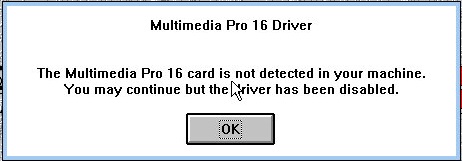
Sound card error, not much we can do about that
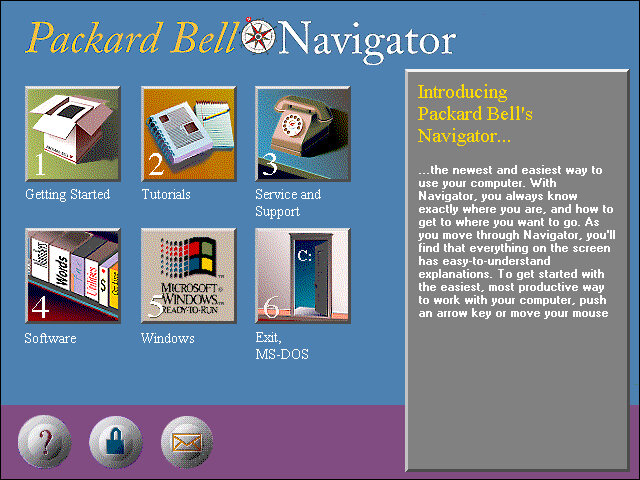
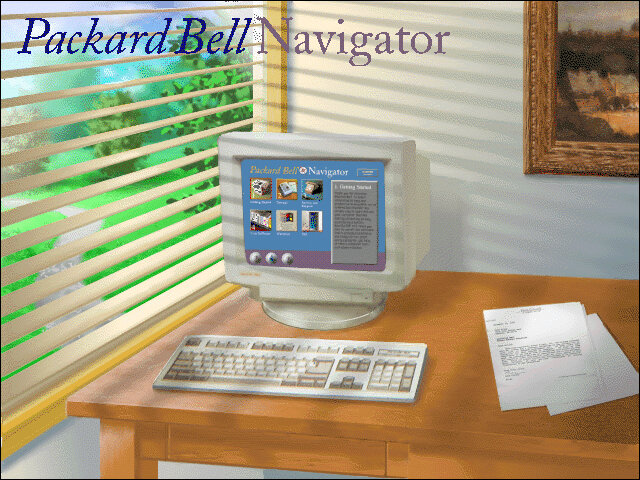
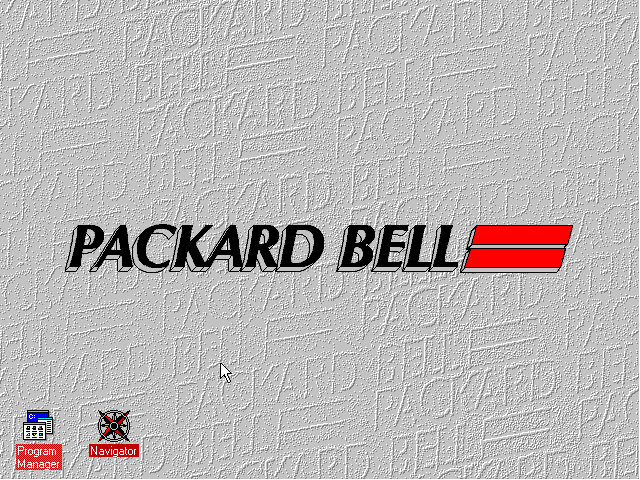
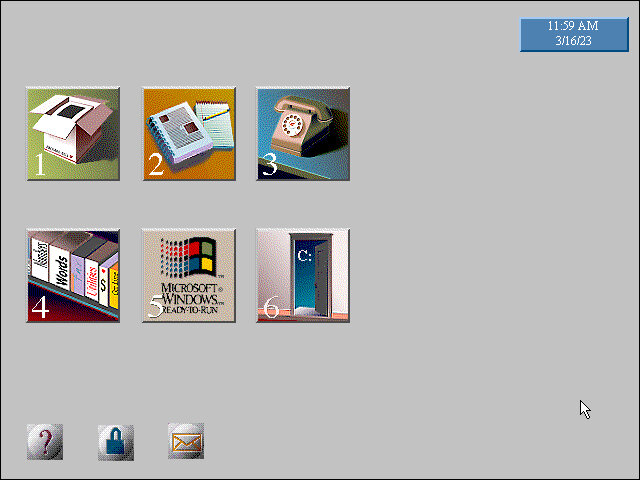
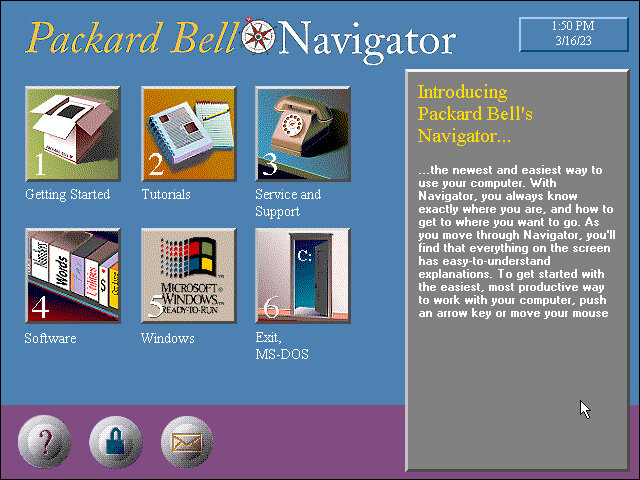
The Packard Bell Navigator which was an alternative user interface to make it more appealing to use a computer for the novice user. It serves as an alternative launcher to install applications, though the Windows 3.1 interface is still included and can be accessed via a dedicated option on the main menu. Launching an application will run it in the standard Windows 3.1 interface.
There were many attempts to make computers more user friendly by incorporating a dumbed down user interface, one that comes to mind was RM Window Box which was a user interface targeted towards primary school users, and allows teachers to manage the programs installed on the computer whilst restricting access to the Windows system for the students.
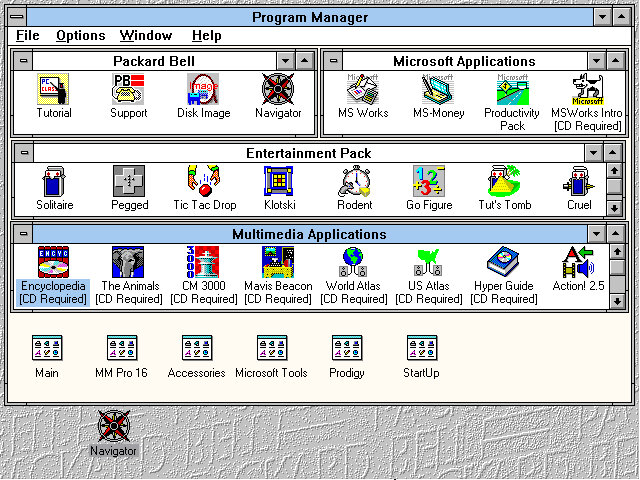
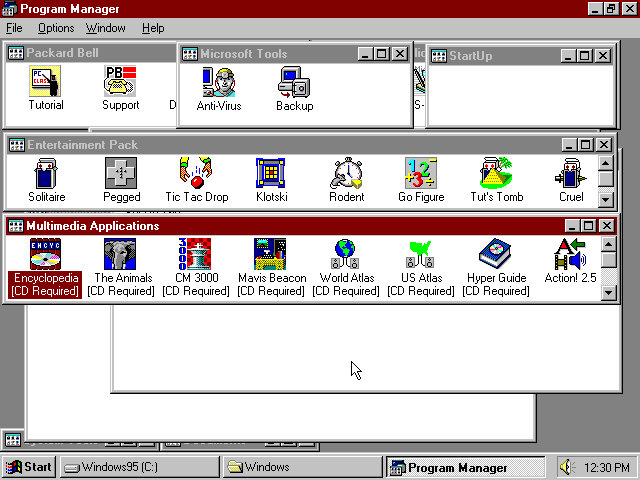
The Program Manager with a customised preset design, showcasing the preinstalled applications.
The Headland utility for changing the screen resolution and the colour palette.
Included software
From Packard Bell
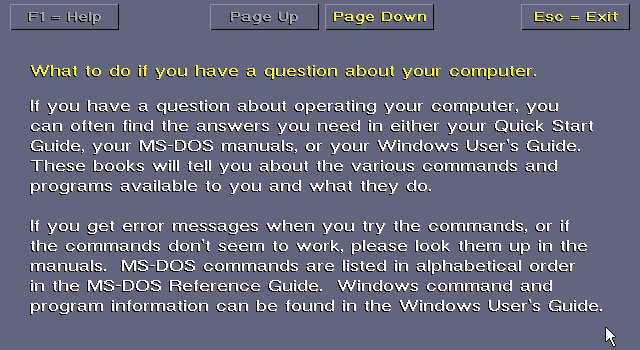
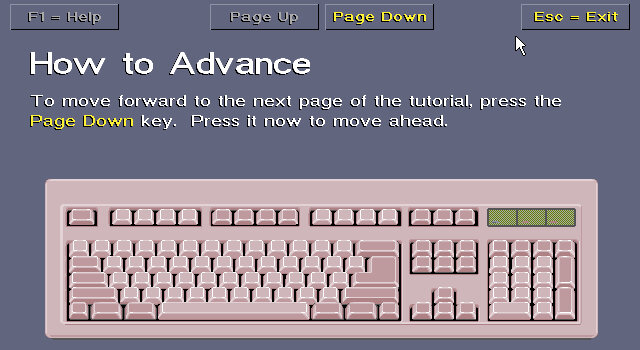
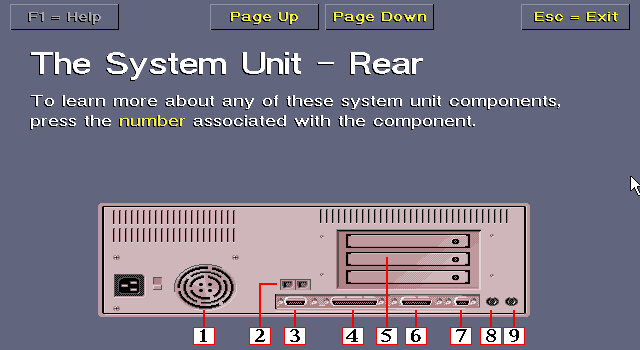
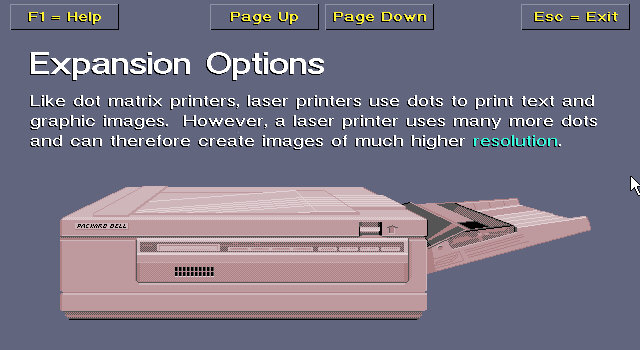
Tutorial: Gives an in-depth insight into how your computer operates, its expansion options, and how to use the software.
Support: A simple application that shows how to contact Packard Bell for support, how to connect to their BBS and warranty information.
Disk Image: Creates a recovery disc image
Navigator: Starts the Packard Bell Navigator environment
The Microsoft Entertainment pack
A selection of additional games which included Rodent, Go Figure, Tut’s Tomb and Tic Tac Drop.
There is also a Jurassic Park that comes with the install and is located under the Entertainment pack program group.
Microsoft Applications
MS Works: Versions 2.0 Multimedia Edition, software suite that included several applications, including a word processor, spreadsheet, database, calendar, and communications tools. It was intended to be a comprehensive solution for basic office tasks, suitable for home and small business use. The word processor included in Microsoft Works 2.0 had a range of basic formatting options, such as font selection, text alignment, and line spacing. The spreadsheet application supported basic formulas and functions and could create charts and graphs. The database application allowed users to create and manage simple databases, while the calendar application provided basic scheduling features.
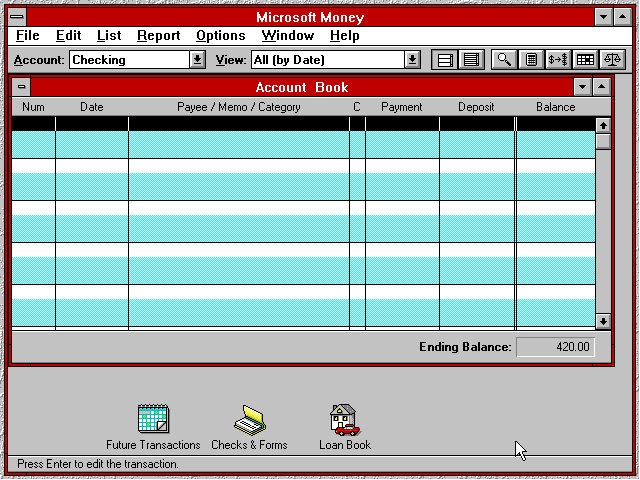
MS Money: Version 2.0a, a personal finance software program developed by Microsoft Corporation and released in 1992 as a successor to the original Microsoft Money. It was designed to help users manage their personal finances by tracking income and expenses, creating budgets, and analysing financial data. The software included several features to help users manage their finances, including checkbook balancing, bill payment tracking, and investment tracking. It also included a range of tools for creating reports and charts to help users visualize their financial data.
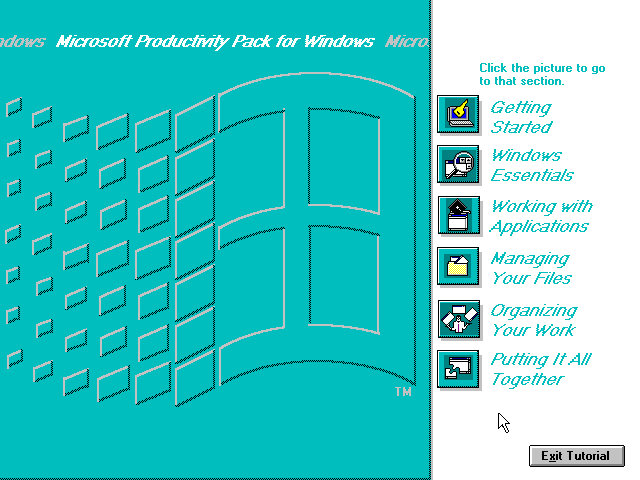
Productivity Pack: A tutorial to using the mouse and keyboard and elements of using Windows 3.1
Multimedia Applications
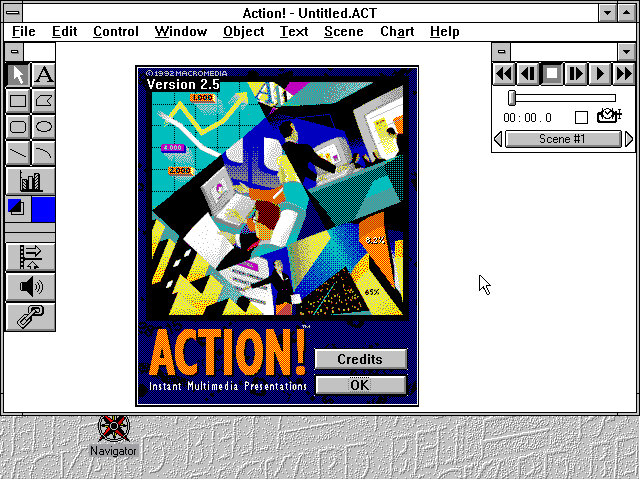
Macromedia Action! 2.5: This was an early competitor to Microsoft PowerPoint and allowed for presentations that incorporated multimedia elements PBTV: Allows for video capture form an external analog capture card or device. Authorware Star: Authorware Star was a software program developed by Macromedia, which was a multimedia authoring tool used for creating interactive learning content. The software was widely used for creating educational and training materials, especially in the early days of e-learning. One of the key features of Authorware Star was its ability to create branching scenarios, where learners could choose different paths through the content depending on their responses to questions or interactions. This made it possible to create personalized learning experiences that were tailored to the needs and preferences of individual learners.
Other software that is included but requires a separate CD-ROM to run: Mavis Beacon,US Atlas, Music Box, Encyclopedia.
Upgrades
Lets see that the upgrade experience was like, as this motherboard came with a 486 processor we should be able to upgrade to Windows 98 and later 98. Windows 2000 & ME will require a processor upgrade, perhaps to the Pentium Overdirve which would have fitted into the existing CPU socket, though the experance will be rough as were still using the same video card. Memory will also have to be upgraded.
Windows 95
Install appeared to go smoothly with most of the settings being carried over. This was done using the floppy disk version of Windows 95 as the VM lacked CD-ROM support.
A message indicating for us to power off our computer appears on startup, likely a remaint from
Some compatibility issues with the Packard Bell Navigator with the background elements missing, Most of the other applications appear to be fine
And the Program Manager which can still be accessed from Windows 95
Windows 98
Now that its running 95, lets try to install 98. For this we have to bump up the memory to around 16MB at a minimum, instead I maxed it out to 36MB which is the most the motherboard supports. Initially it appears we need a faster CPU to install Windows 98, With 86Box we have an option to use an AMD486 running at 75Mhz which should allow for 98 to install. How well it runs is another issue.
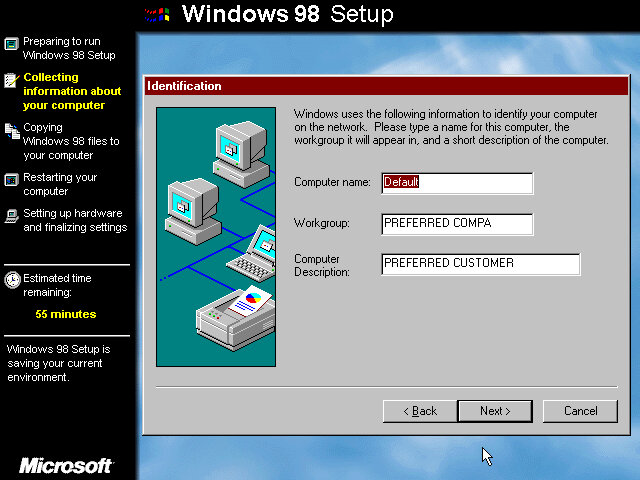
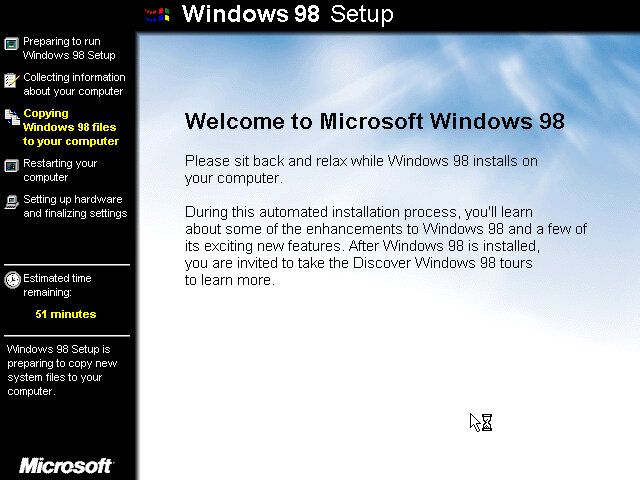
Also the 98 upgrade installer looks a lot better? It makes a change from the electric blue background of the OEM/Retail installer.
Packard Bell navigator appears to work better in this version.
Windows 2000 & ME
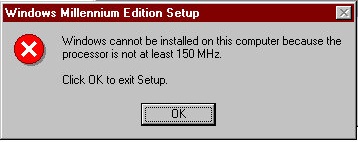
Was not able to install as our CPU isn’t fast enough as I was running a AMD 486 at 75MHz and Windows ME needs at least 150MHz. I tried a Cyrix 5×86 at 133Mhz on the off chance it might work, but no luck.
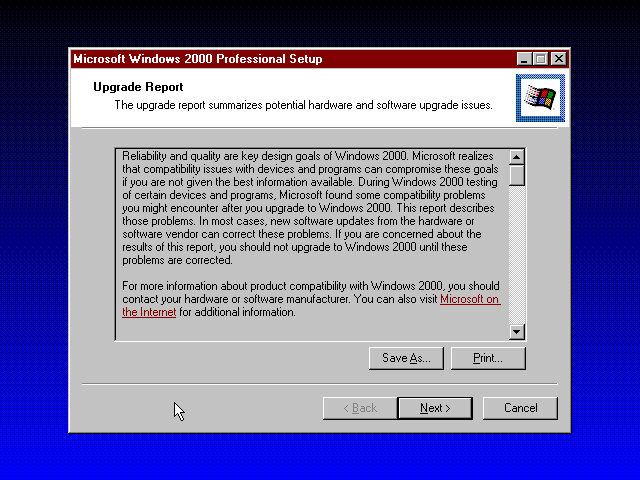
Windows 2000 was more promising and gave us a report of the potential incompatibilities, including the Headland video card. Unfortunate I was unable to progress due to the lack of hard disk space as this motherboard can only address around 518MB due to being reliant on the old C/H/S system. It seems Windows 98 is the max we can take this install to.
Maybe using a SCSI hard disk could get around that issue.






































































 Drew1440: Blog