Oh god, its just like the PCV-90. This is gonna be a pain in the ass
Or maybe not since we actually get working mouse support and the software is able to see the CD drive so we don’t have to modify the boot disk.
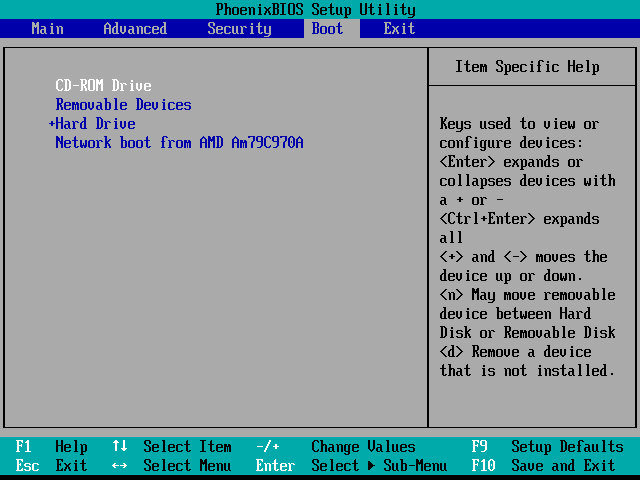
The restore utility cannot initialize a drive since it assumes its already formatted, What you need to do is FDISK it and initialize the drive, in order to start the recovery process. Also once you init the drive, VMWare will try to boot from it. If you keep getting Missing Operating System – Power off the VM and them click on Power On To Firmware option in the dropdown menu next to the Play/Power button. Once you are in the Firmware (BIOS), go to the boot section and pop the CD-ROM drive at the top of the list (Press Shift and + to move it up)
Although the recovery program tells you to run a specific .bat command, this is very specific to the machine’s hard disk and will not apply to our VM, unless our HDD is the exact size.
Before we get to the desktop, we are treated with an IOS error
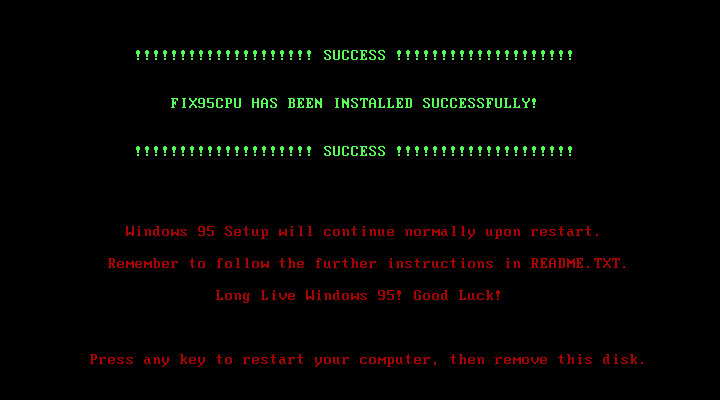
This occurs because the CPU we are running on is too fast for Windows 95 and this causes a fault with a built-in race condition as part of the Windows 95 boot process. Thankfully there’s a community made fix for this and allows us to have a bootable system
Post Install
After we are taken through the last part of the installation where we need to enter identity information. We then have to progress through a series of New Hardware prompts, (Use a hardware profile 6.2 or lower to avoid this, later versions install a lot of PCI-PCI bridges which are way overkill for what we are using)
Installing VMware Tools, Or maybe not, our CD-ROM drive has gone missing…
It came back after a reboot, I’m not sure why it disappeared
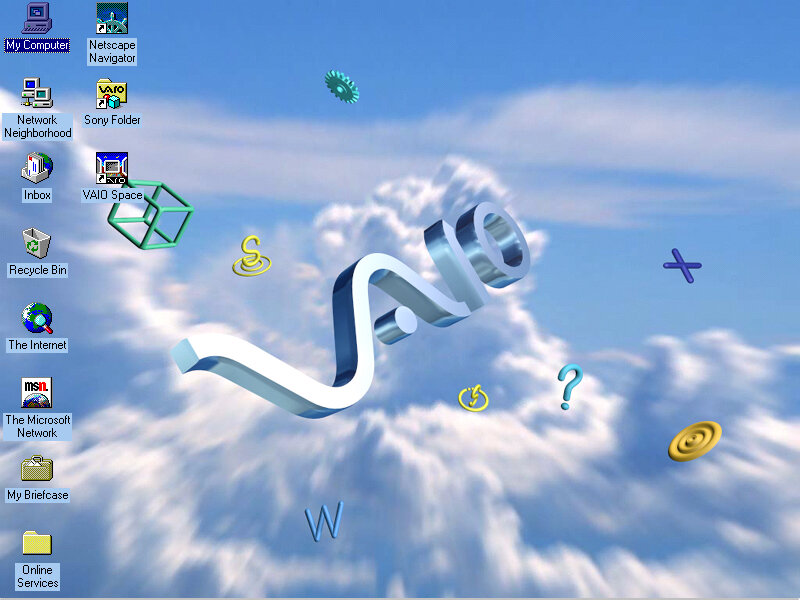
From here it’s very similar to the PCV-90 that was looked at previously, with a lot of the software being bundled with the install.
86Box
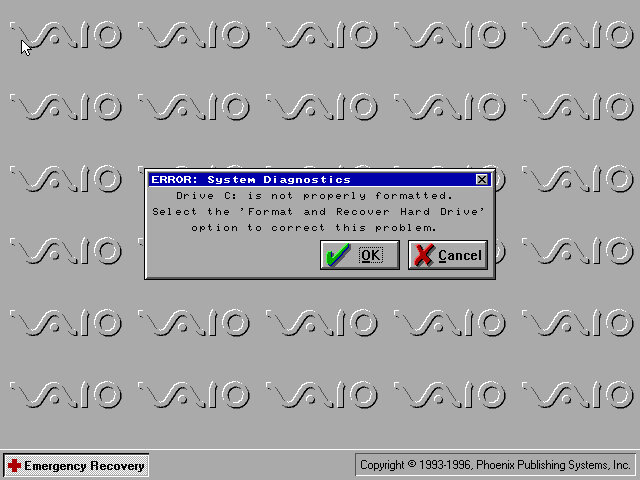
VMWare can be a bit problematic with these old Windows 95 installs, so we can use 86Box instead. Here I quickly setup a system using VirtualPC 2007 motherboard, and loaded the restore CD when it gave this error message:
I don’t get it, the BIOS screen reports no errors?
I disabled ACPI in the BIOS since that can cause problems and made sure both floppy drives were correctly enabled in the BIOS, and that seemed to fix it. Lets give this another try…
After going through the recovery steps again this time it worked properly, and the hardware detection was a lot less painful to go through. However there is one other issue, the IDE CD-ROM drive is no longer detected once we boot into Windows 95 and this is likely due to the Hitachi IDE drivers being used which causes issues. It’s possible to fix this by changing the motherboard but considering we had issues with the PCV-90, I believe it’s more of an emulation issue with 86Box. A workaround is to install and use the SoundBlaster 16 PNP which will feature its own IDE controller. If you do this you must put the CD-ROM as IDE 2:0 or 2:1 to assign it to the SoundBlaster, Windows 95 will generally detect and install a driver BUT you must have a copy of the Windows 95 install disc, as it requires a few files in order for it to install the driver. Alternatively, you can attach an Adaptec SCSI interface instead, again you will need to have a Windows 95 install disc for it to detect and install a driver, or you can locate the driver files yourself. The SCSI option is a lot more flexible as you can install up to around 7 drives (CD/ZIP or hard disks)
Overall this system is very similar to the PCV90 and included a lot of its software, so there isn’t much to cover that we have not done so already. To be honest its probably worthwhile installing in VMWare, then upgrading it to Windows 98 to make it usable in VMWare, as it should be more useable that way.
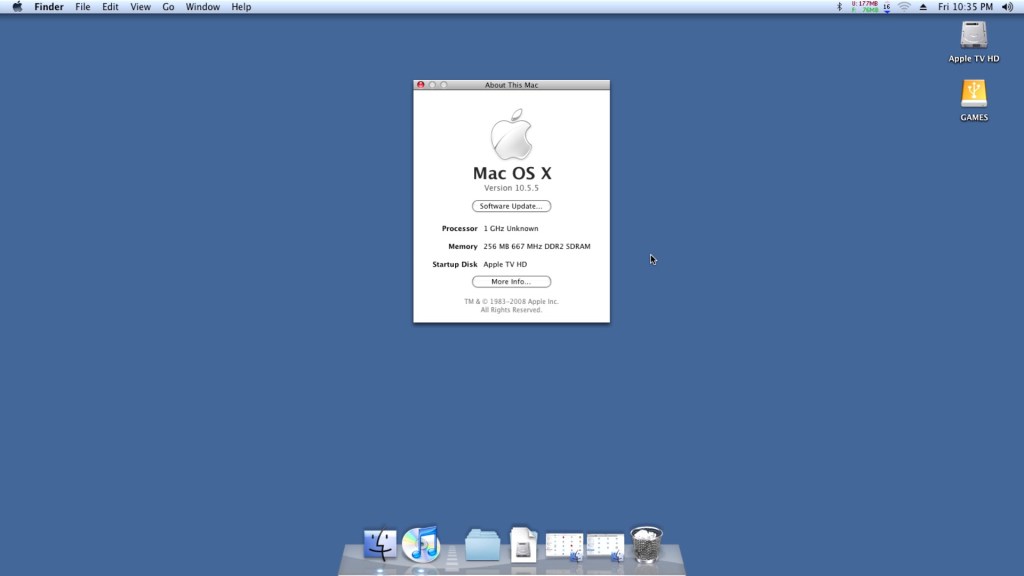
The Apple TV for the most part is pretty much a regular Mac, but cut down and intended for use in streaming content from iTunes. Spec wise it features an Intel Pentium M, and an Nvidia GoForce 7300. In a way it’s kinda similar to the original Xbox with its Pentium P3 based CPU and Nvidia graphics. Whilst it was once the forefront of Apple’s contribution to your living room, nowadays it’s a doorstop with only the iTunes sync counterpart being the only working feature. Thanks to the modding communities it’s possible to run OS X on the unit itself, turning it into a mini Mac mini, or a thin client Mac if you prefer.
Mac OS X can be installed, either Tiger or Leopard onto either the internal hard disk or an external USB drive. To install to a USB drive, you will need to issue some terminal commands as the Apple TV firmware expects a specific partition layout for it to boot from an external drive. Here’s the full tutorial that I used.
OS X Leopard is quite heavy to be running on the 256MB Apple TV, given that Apple required you to have 512 MB of RAM minimum. So running it with 256MB is not going to be a good experience, with a lot of disk swapping going on as OS X tries to find scraps of RAM to use. As the memory is fixed onto the mother LogicBoard, it’s difficult (but not impossible) to upgrade the memory. Tiger would be a much better fit and it is possible to run and install Tiger, After all the Apple TV’s stock firmware was actually based on the Tiger kernel, but all of the tutorial’s found online involve stripping out the Nvidia kexts (device drivers) from the system folder, leaving you with no graphics acceleration and leaving the poor Pentium M having to do all the work and limits the software you can run.
So it’s either choose between an OS that gives you not much memory for multitasking, or an OS without any graphics acceleration.
Install was pretty simple when you follow this guide, Really you just need a lot of patience if you go down the USB flash drive route, since this is very slow to boot and run from. Also given the limited RAM it’s going to be page filing a lot, making it even more slow. Alternatively you can take out the internal hard drive and connect into a more modern Mac, which should allow you to restore directly to the drive by using an IDE adaptor.
Once the restore is completed we can boot into our new operating system,. Here it continues like any other Mac would where the opening welcome movie plays, followed by the registration assistant.
Software
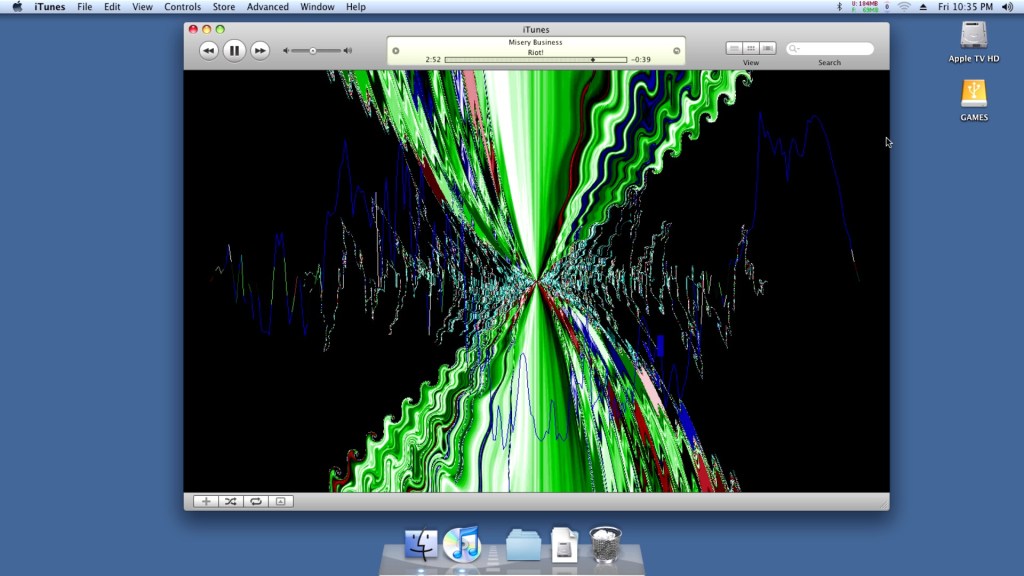
iTunes works OK here, and is a lot more functional compared to the stock software. Here you can store music onto the unit itself, m or use an external USB HDD if you prefer to have your media directly connected. Playback from iTunes servers are also supported, which the stock software didn’t appear to support. Most NAS drives have support for this and allows you to share your music over LAN.
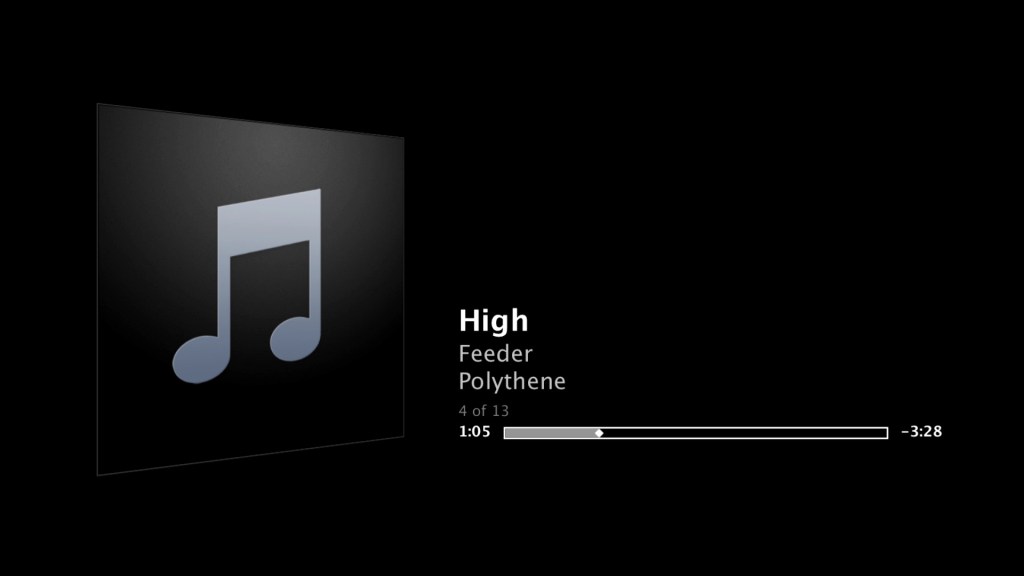
A look at the iTunes visualisations, which run flawlessly.
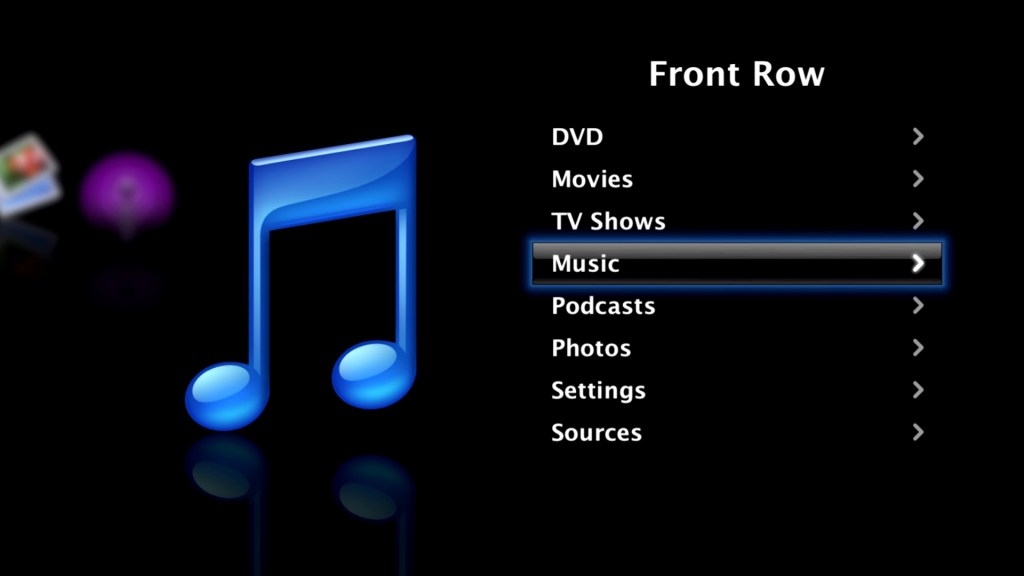
Also the Front Row experience itself, you can continue to use your existing Media Remote to control and navigate the menu’s.
DVD playback did run into some issues. So the stock software for the Apple TV does not support DVD playback since the unit has no optical drive and despite the presence of a USB port, you cannot connect an external DVD drive. Apple fully intended you to purchase and watch your movies though the iTunes Store.
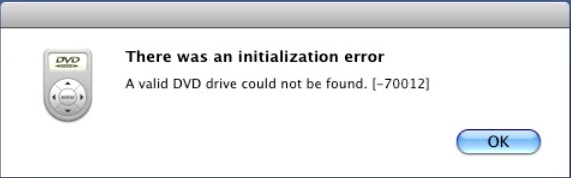
Leopard comes with a DVD player built in, and by connecting an external USB DVD drive we have the ability to play back DVD’s. Although for some reason it failed to detect my Dell external drive, even though it was connected to a powered USB hub port. The LG drive worked perfectly and OS X recognised a DVD movie was in the drive but refused to play it back with there error message below:
Not sure why this was the case, even Front Row had issues playing back a DVD
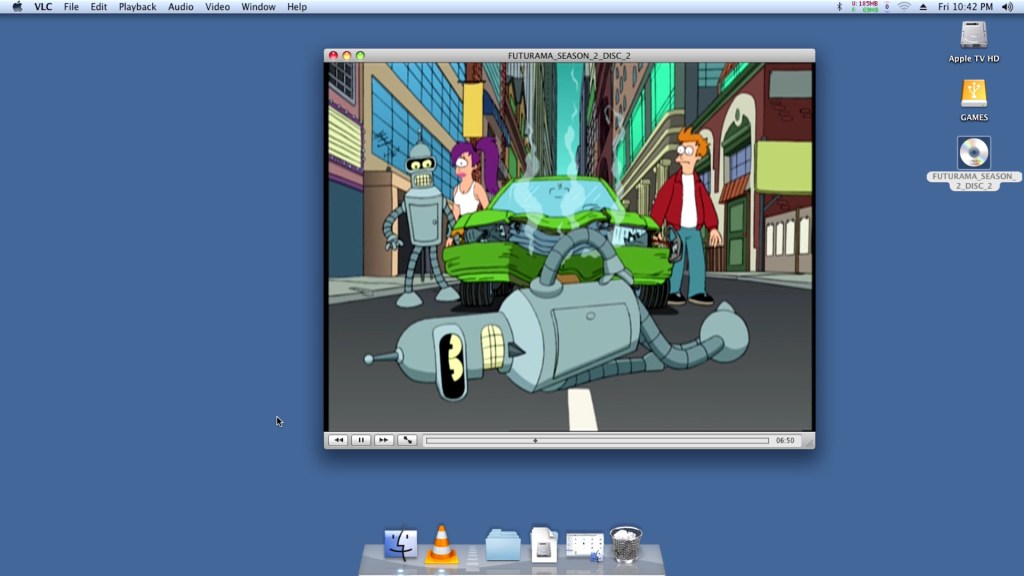
Well where OS X lets you down, VLC has your back. Version 1.1.10 appears to be the latest for Leopard, and it works perfect for playing back DVD’s. I’m not sure if this is using the MPEG2 acceleration that the GeForce supports, but the playback appears smooth for a PAL DVD.
Honestly I don’t get why this wasn’t a standard feature on the stock software, given they would have wanted customers to transition to the iTunes Store for their content, It would make sense to bundle a DVD player for customers who have an existing DVD collection to eventually migrate their purchases to the iTunes Store, especially with the HD era on the horizon.
Rosetta does not appear to run, which locks us out of PowerPC applications. One theory from this post is due to the Pentium M processor not featuring certain instructions that the later Core/Core 2 processor feature, which Rosetta needs in order to translate the PowerPC instructions.
This does give us a problem with installing and running Universal software, since many would have been released in PowerPC format, with their installer also being written in PowerPC also. Once workaround was to install the software in a Leopard/Tiger VM (A Macintosh VM will work just as well), and then transfer it back to the Apple TV where it would run.
Sometimes you can also inspect the package contents and run the PKG installer instead, which should work regardless of CPU.
Games
Well how well does the AppleTV perform with some Mac games, well with only 256MB of RAM were are going to be limited in what titles we can run, and with the Rosetta issues outlined above we are restricted to games that have universal binaries. Still the AppleTV comes with a Nvidia GoForce 7300, which whilst mostly intended for use with decoding MPEG4 video, can also do a decent job rendering 3D graphics. Quartz and CoreImage are also supported for iWork and iLife applications.
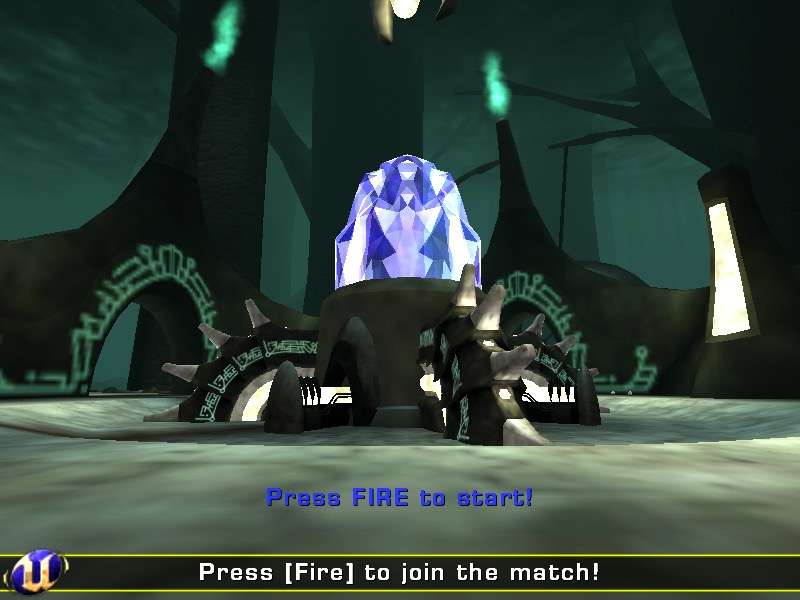
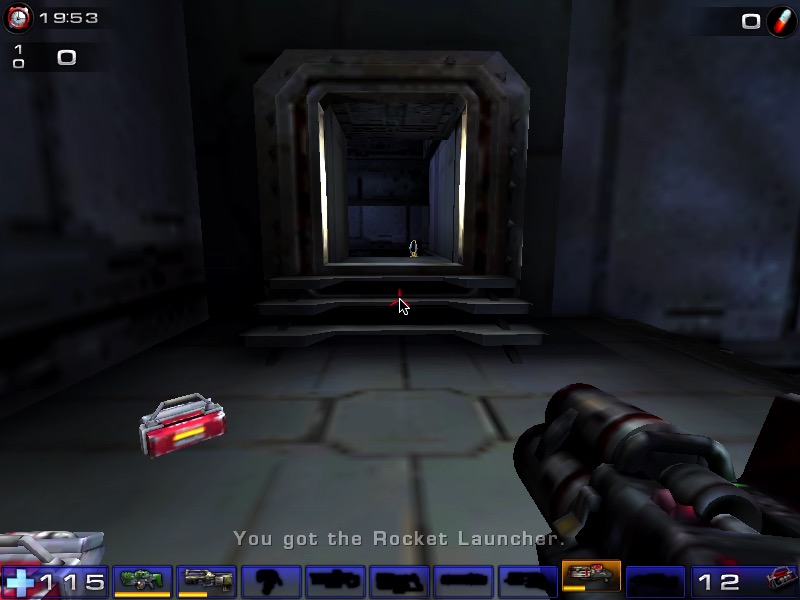
Unreal Tournament 2004 – Works well if you set the graphics settings to their lowest values. At this settings it looks worse than its Xbox counterpart (Unreal Championship) though you do benefit from a higher resolution. Multiplayer also works well, though the master servers were taken down recently. Still LAN multiplayer is possible and given the small footprint of this machines, it would have made for a nice portable LAN party box.
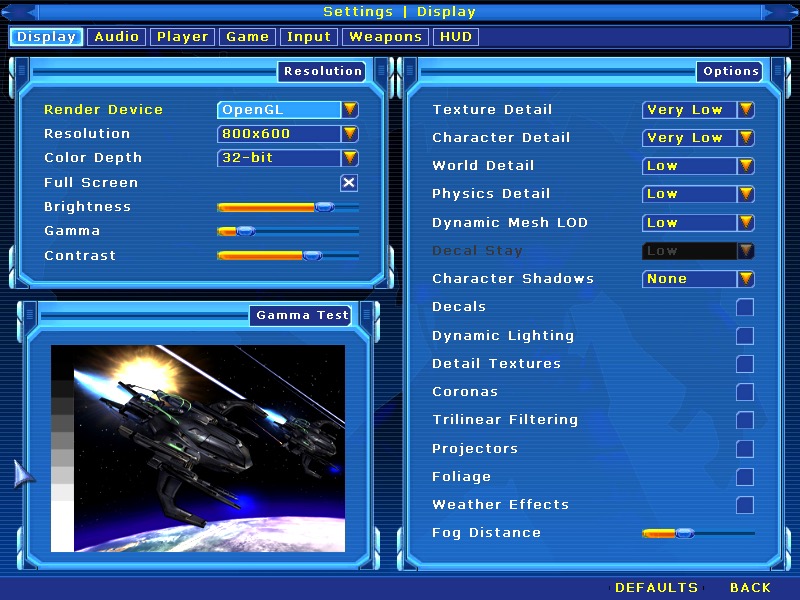
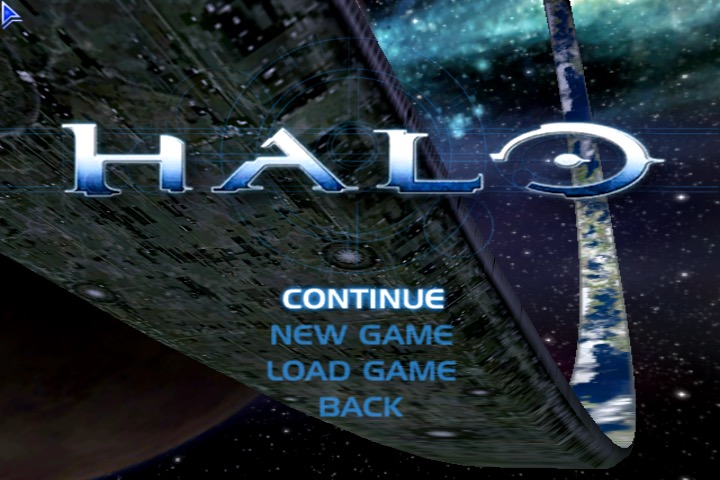
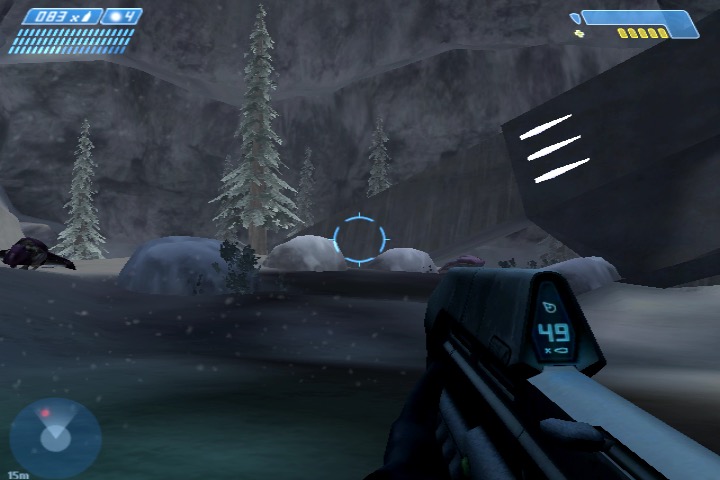
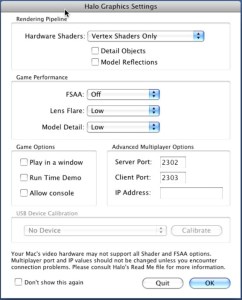
Halo: Combat Evolved – also works well if you run at 800×600 resolution with vertex shaders only. It’s relatively stable if you turn off the AA (Anti-Aliasing) as I managed to play through a couple of hours.
Sample settings for the game
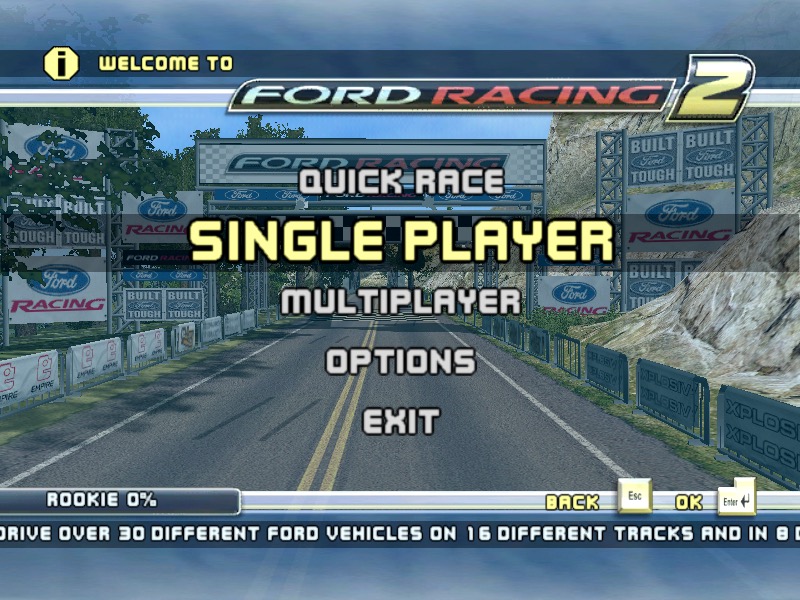
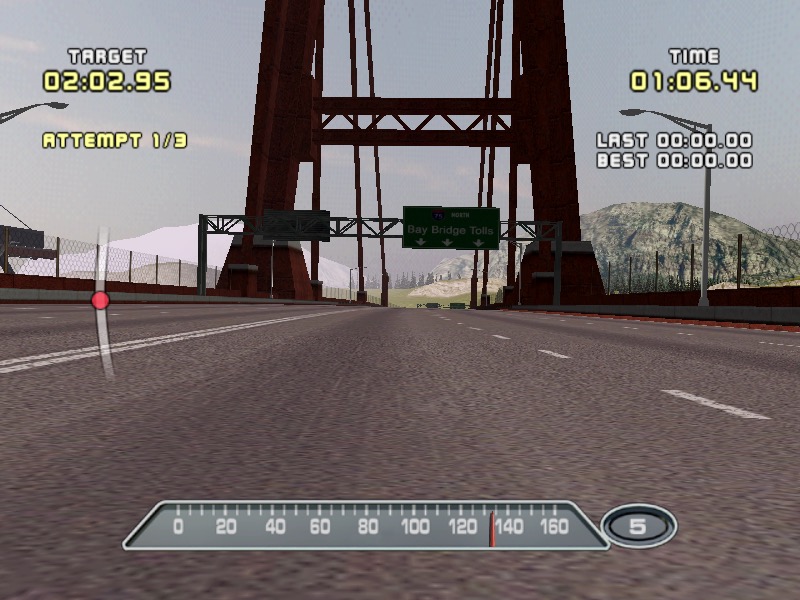
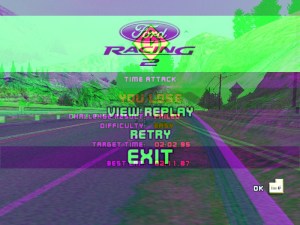
Ford Racing 2 – Works well but after a few minutes some weird graphical glitches appear on screen which remain throughout the game.
Not sure what causes this as it appears regardless of the graphic settings chosen
Postal 1 – Works well considering this was originally a 1997 game
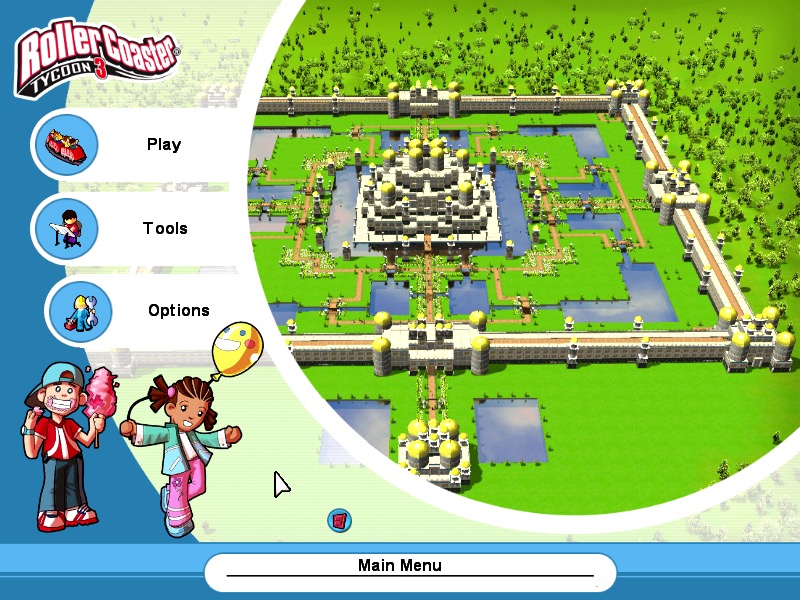
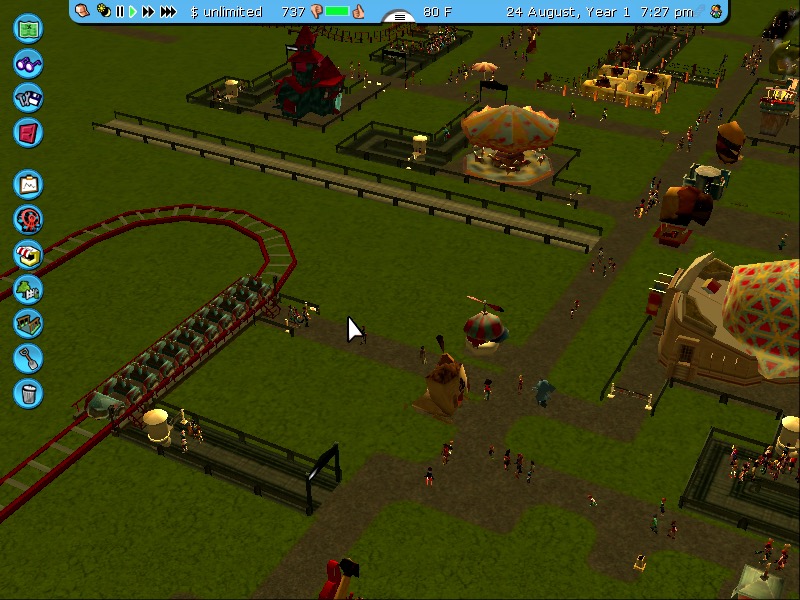
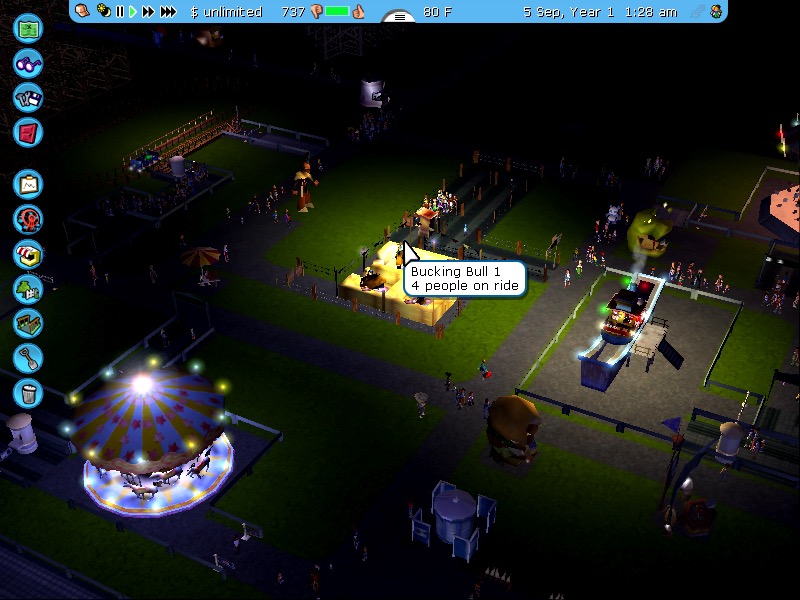
RollerCoaster Tycoon 3 – works well even after playing for a few hours.
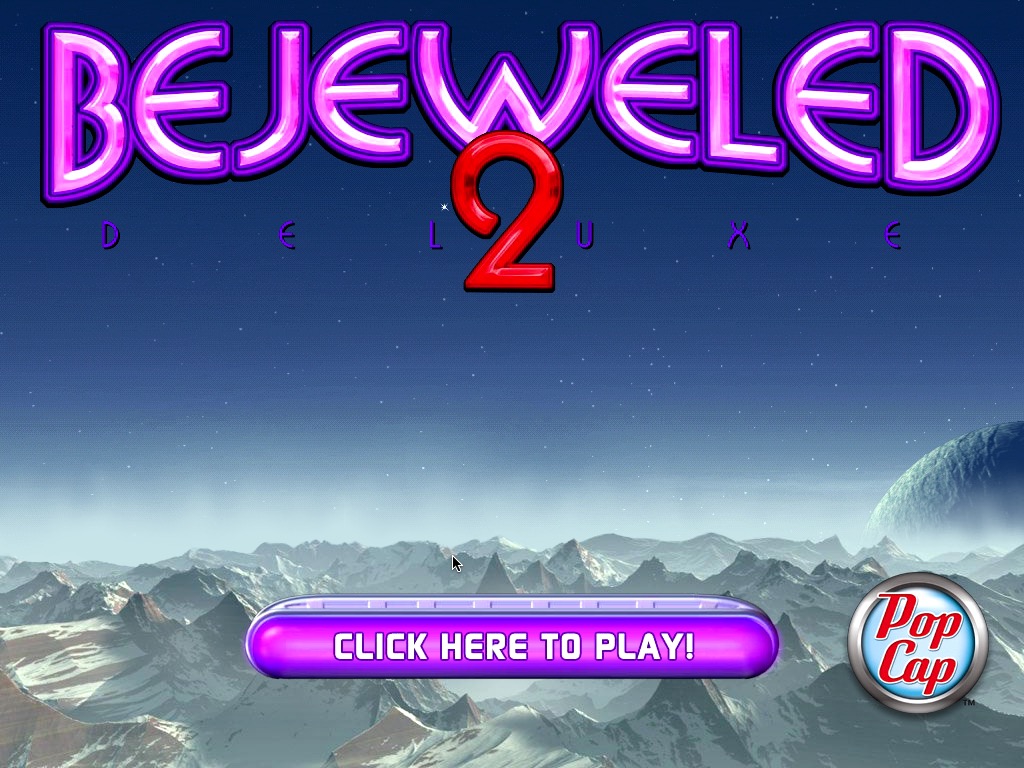
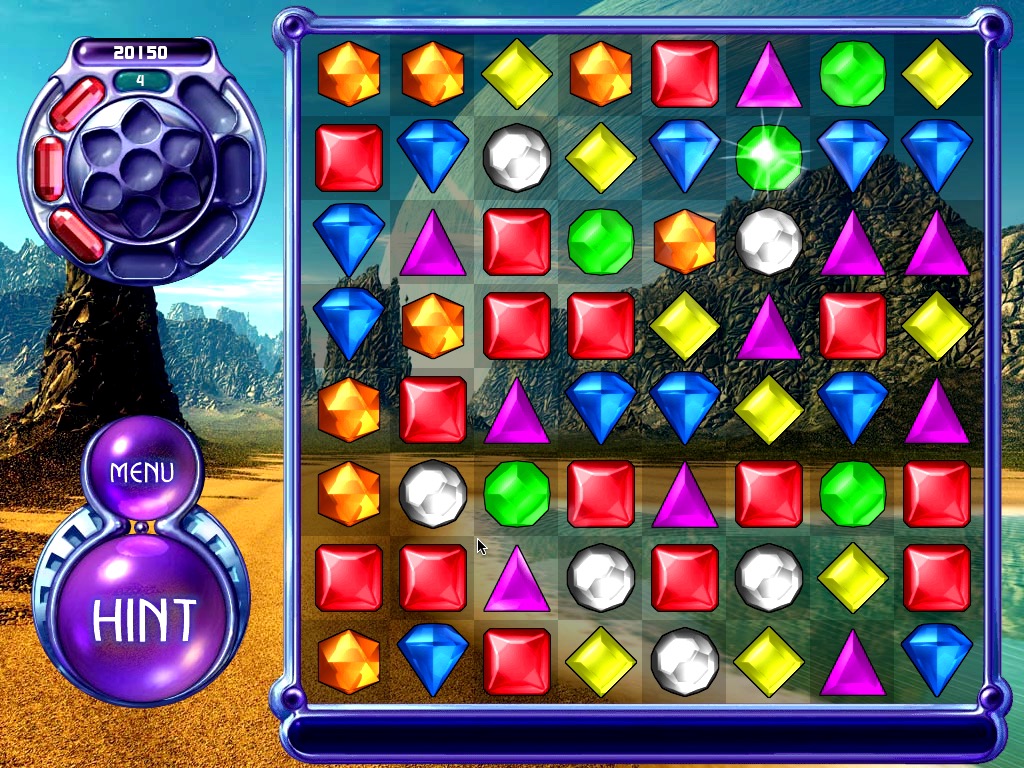
Bejewelled 3 – It’s a pretty simple game, so it runs well on the AppleTV
Shrek 2 – Starts up and runs ok for the most part, but it does jitter when moving about due to the RAM limitations
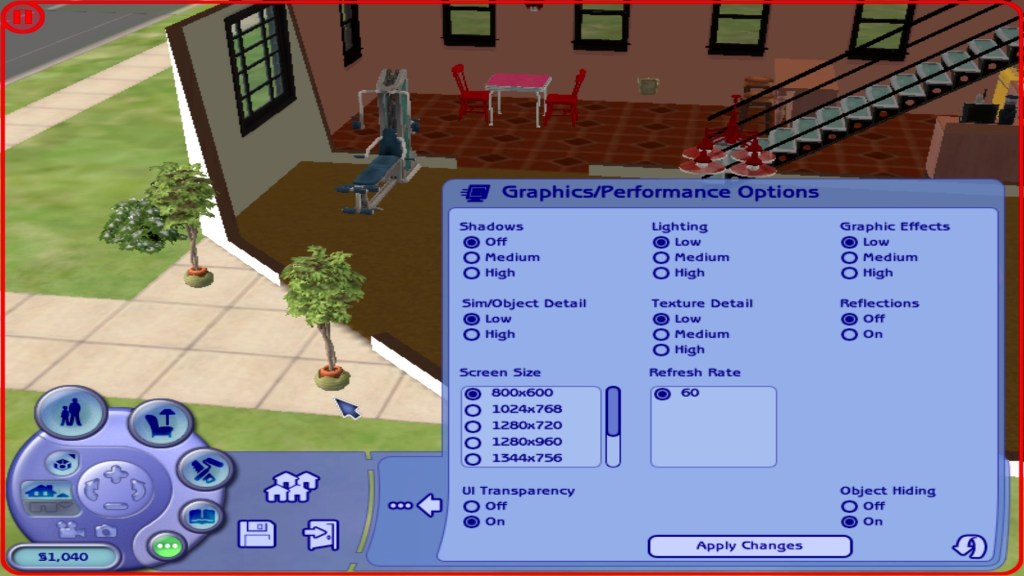
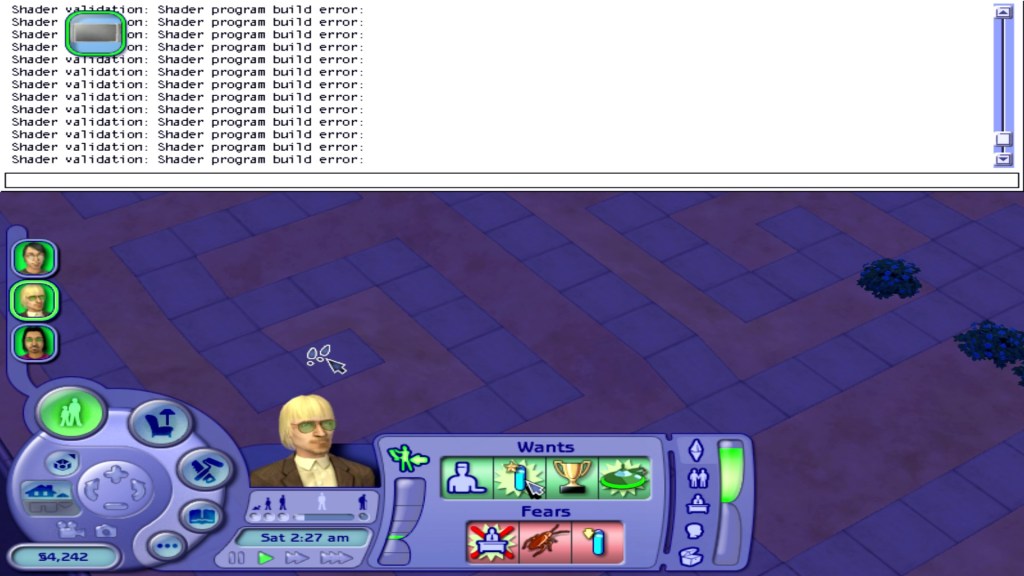
The Sims 2 – Runs Ok on the lowest graphics settings on small lots. Some weird error messages appear in the games cheat console.
So it ain’t exactly a console experience given the mixed results above, but if you don’t mind playing the supported titles on low settings, then it is passable.
Misc Observations
The unit does not appear to shut down, and selecting the shutdown options appears to spin down the hard drive, and you land on a light blue screen. Here you will have to cut power to the AppleTV since it won’t power off in this state (and there’s no power button either)
Restarting works fine
Sleep mode also does not work, it will enter sleep mode but will immediately resume.
No audio on the HDMI, but you can use the optical audio out to a local sounder. There are around four audio outputs in the system preferences and I suppose you could always use USB speakers or a supported sound card instead.
It’s really quiet, not sure if the fan speed can be adjusted since I don’t trust Apple with cooling. Problem is many software fan controllers run resident in memory, which is a previous commodity on the Apple TV.
A lot of games I had installed to an external Hard drive connected via USB, since the internal HDD is typically busy with the VM pageful. USB2 isn’t very fast compared to the internal IDE, but is the fastest external interface we have for the Apple TV.
Speaking of, the Intel HDD is a Fujitsu 4200RPM IDE (Yes, IDE) drive. Being 4200rpm, the HDD can also become a bottleneck especially with the content swapping. An SDD might bring some improvements and some IDE SSD’s exist but the ones I have found are from unknown Chinese brand’s that have varied reviews. Also many lack DRAM support, though it’s arguable how much benefit this would bring over the IDE inference. Then again it would make a difference for ram access reads. I guess the easiest way is to try one and find out.
OS X isn’t the only OS the AppleTV could run, since it’s an X86 computer at heart you could run a supported Linux distro. Forget about Windows XP, whilst it would be ideal for this XP cannot boot from EFI which is what the AppleTV likely uses. Maybe this might be possible in the future with a mod, but XP SP3 on 256MB is equally painful.
A sort of expansion pack for the Windows NT 4 operating system, which adds a set of tools and resources. You can consider this to be a mixture of the resource packs that were released for the 9x line of operating system, but with Plus! content included
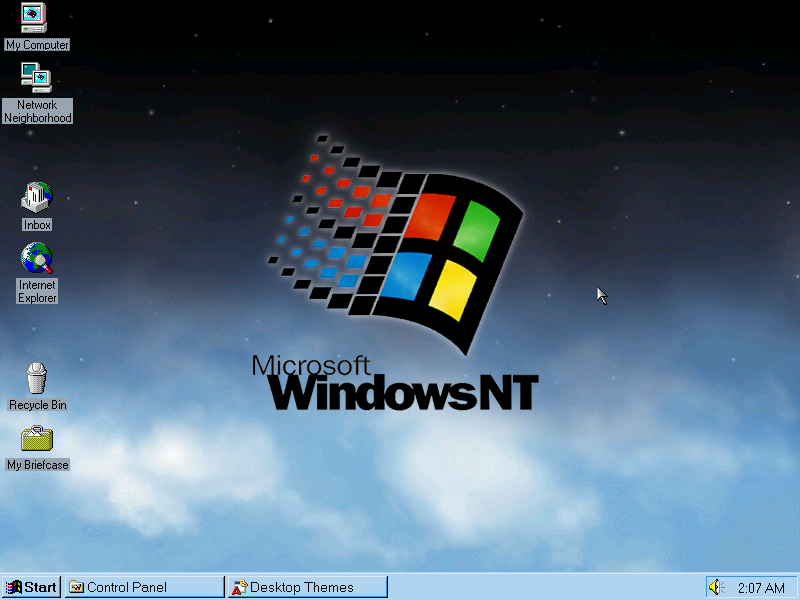
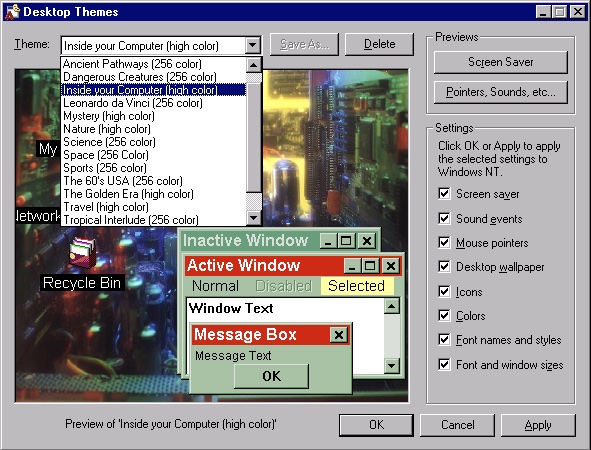
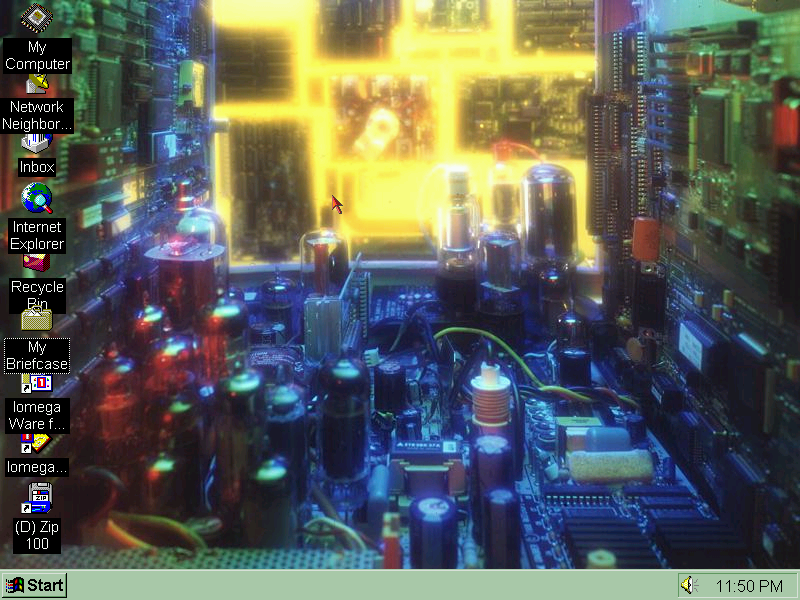
A new desktop theme and wallpaper that ships with the resource kit, this makes use of additional colours that the regular NT desktop themes lack the use of.
Themes
Screenshot
Like the Plus! pack for Windows 95, the resource kit adds desktop theme support and comes bundled with themes, some of which came with the 95 Plus! and some would go on to appear in Windows 98.
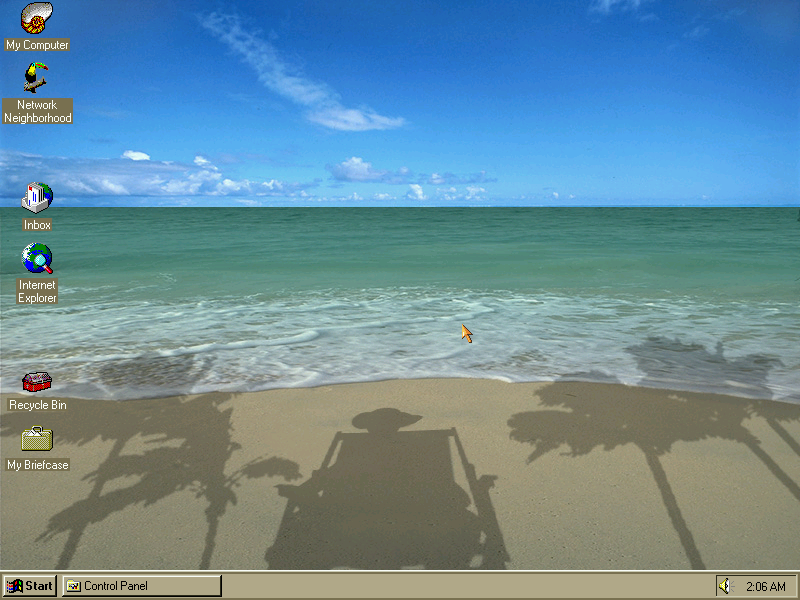
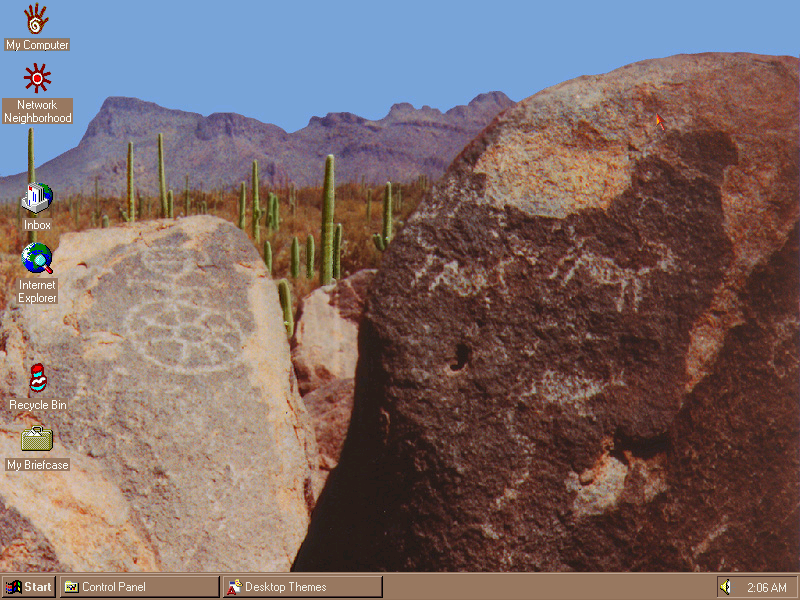
Themes exclusive to Windows NT
From L-R, Tropical Interlude, Ancient pathways, and the Windows NT theme pictured at the very top, These were exclusive to the NT resource kit.
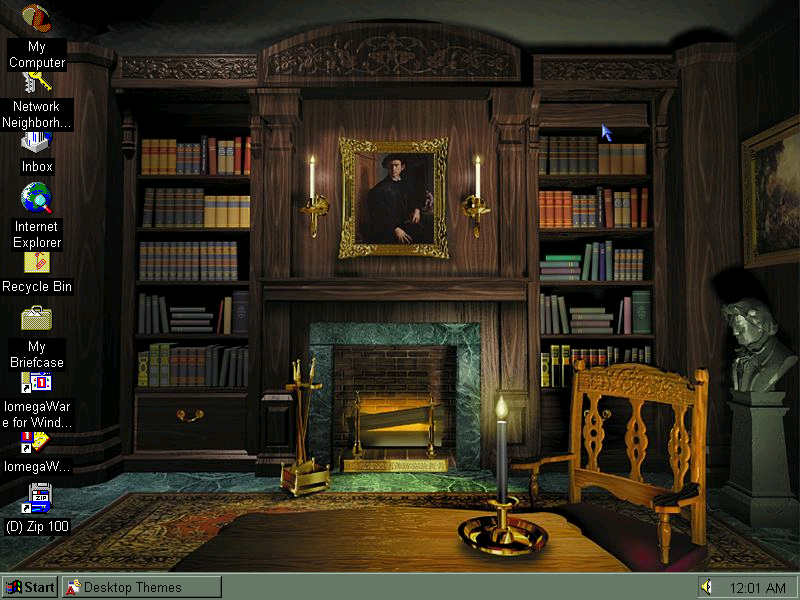
Themes from Windows 95 Plus!
Returning themes include The Golden Era, Mystery, Space and Inside Your Computer which were included in Plus! 95 and in Windows 98. Some of these themes differ in the chosen font compared to the 9x counterparts
Configuration
Screenshot
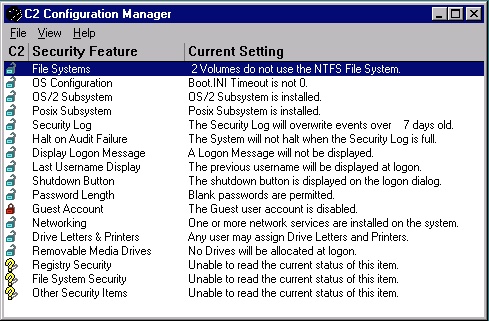
C2 Configuration: This was a tool to ensure your PC workstation was C2 compliant, which was a set of standards by the NSA to ensure integrity and security. Here you can configure certain policies such as logon messages/privacy where the previous username is cleared upon logon. These features are now standard in every corporate domain environment.
Auto Logon: Automatically log on a specific user when the PC is turned on. Useful if this is the only user that will be using the PC or if the PC is intended for specific use like in a factory or automation. This only appears to work once in my case.
Command Scheduler: Like the task scheduler in Windows 98, you can schedule maintenance tasks for disk defragmenter or virus scanners.
Desktop Tools
Screenshot
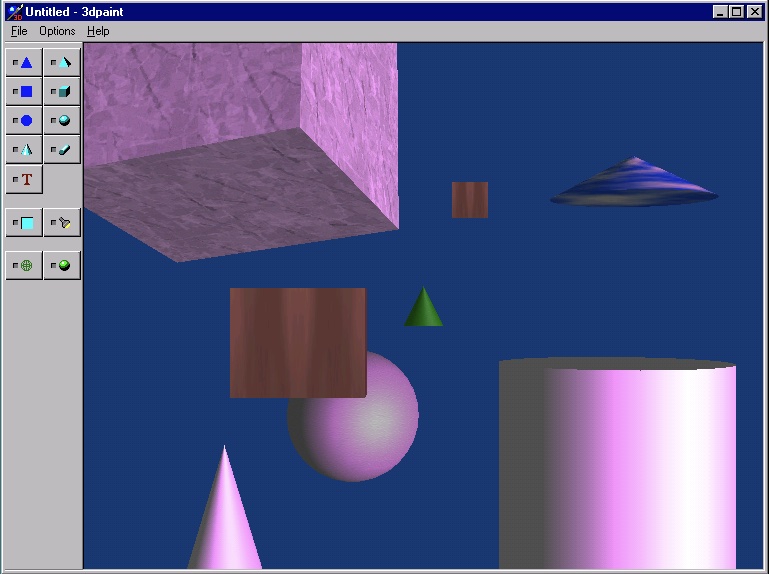
3D Paint: Not to be confused with the 3D Paint from later versions of Windows 10, this lets you place 3D objects onto the viewport. You can adjust the size, rotation and dimensions of the object, and add any additional shading or texture mapping. It’s not Bryce, but it does let you create some interesting images if you’re willing to spends some time with it. Bitmaps can be applied to the 3D objects themselves, and you can apply different colour hues to the shading and change the direction of light.
Files are saved in the 3DP format.
Advanced Cursor Editor: Open and edit cursor animations, including the ones that come with the operating system. You can edit additional frame, or add new frames in between.
Screenshot
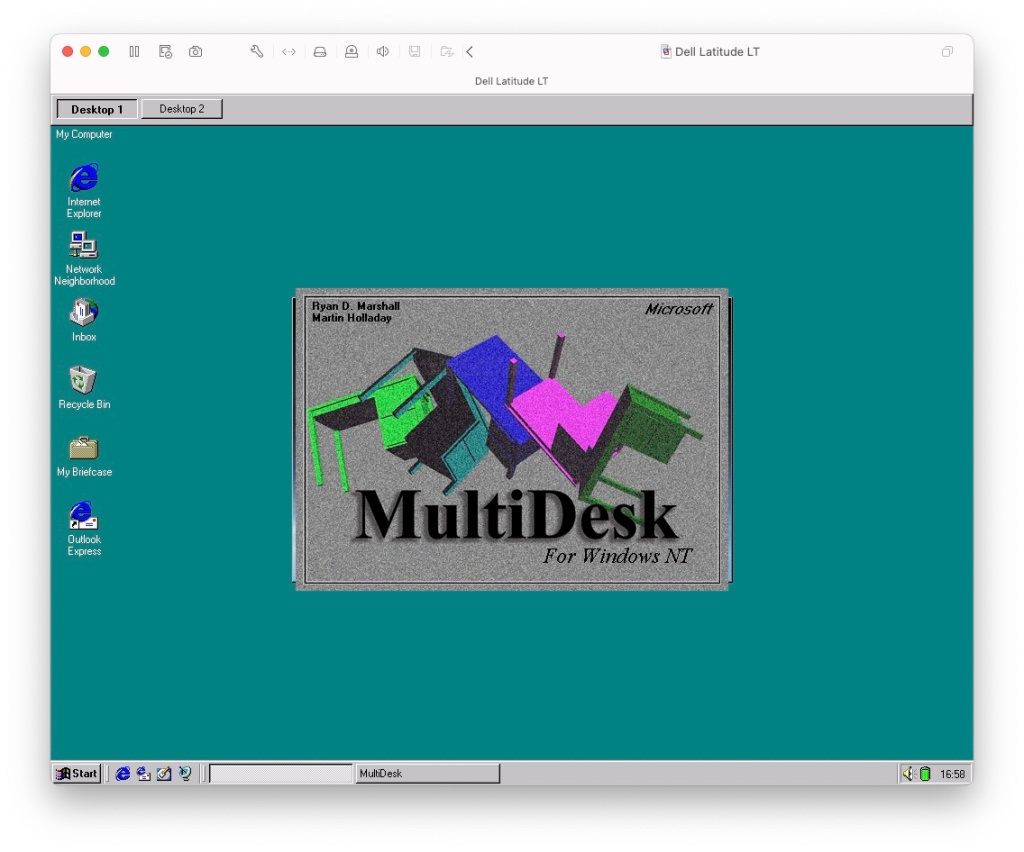
Microsoft Desktops: Lets you have multiple desktops with active windows, like many Linux distros supported.
Image Editor: Bitmap image editor, not much use for JPEG or GIF images. Even with bitmaps you are limited to images no larger than 256×256. Even if you try to open a smaller bitmap, it has to be a valid 3.0 format bitmap file. Because it these limitations, there not much use outside editing icons or clipart. The program dates from 1992 which could explain the limitations.
Text Viewer: Looks like Windows Explorer in tree view, but when you click on a file it appears as if you have opened it in notepad. Useful for HTML developers or programmers, or even gamers if they need to quickly edit an ini file since you can edit and save text file directly.
There are other various utilities such as Disk Probe, Fault Tolerance Editor, Network Watch, Process Viewer and Quick Slice. A lot of these are niche for use to look at as they serve a specific purpose.
First hurdle we get to the hard disk recovery key, this is a six digit number that identifies the SKU model of the computer, and dictates which software will be restored along with the needed drivers. 555251 was the one I had used, but you can find a list of them on the CD-ROM drive itself. Simply navigate to the BU\A\ directory where you will find a list of SCR files with the number titled in the file name. These can also be opened in notepad or any text editor and will list the files that will be restored.
For 86Box I used the Packard Bell PB410A as the motherboard which comes with an onboard video card (Headland) and uses an Intel 486 class processor.
Running the recovery application, you may have to specific a NEC drive in order for the recovery to work. As this motherboard only has one IDE channel, the CD-ROM drive was placed as a slave drive. Its likely Packard Bell had used one of the propriety CD-ROM interface that were commonly used from around this era. Panasonic, Sony, Philips and Mitsumi all used their own CD-ROM interface as opposed to IDE.
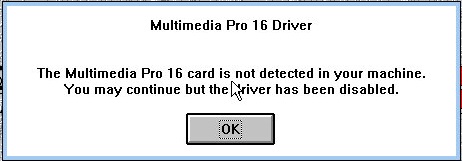
First hurdle we get to the hard disk recovery key, this is a six digit number that identifies the SKU model of the computer, and dictates which software will be restored along with the needed drivers. 555251 was the one I had used, but you can find a list of them on the CD-ROM drive itself. Simply navigate to the BU\A\ directory where you will find a list of SCR files with the number titled in the file name. These can also be opened in notepad or any text editor and will list the files that will be restored. One caution is to ensure the video card being used matches what you are emulating, a Cirrus Logic driver wont go very far on a VM running a Headland video card. The soundcard driver will also throw up an error as no emulator currently support the soundcard that Packard bell had used, but we can easily uninstall it and add our own, though some soundcard utilities will no longer function.
Looks like its expecting to use a Panasonic CD-ROM drive, likely a Matshuita CD interface drive.
Sound card error, not much we can do about that
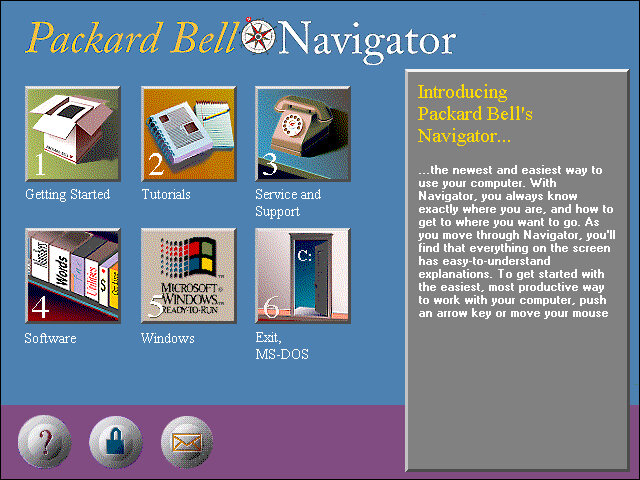
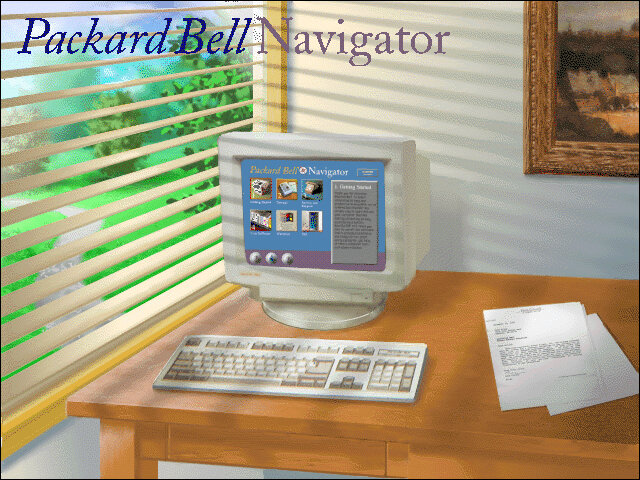
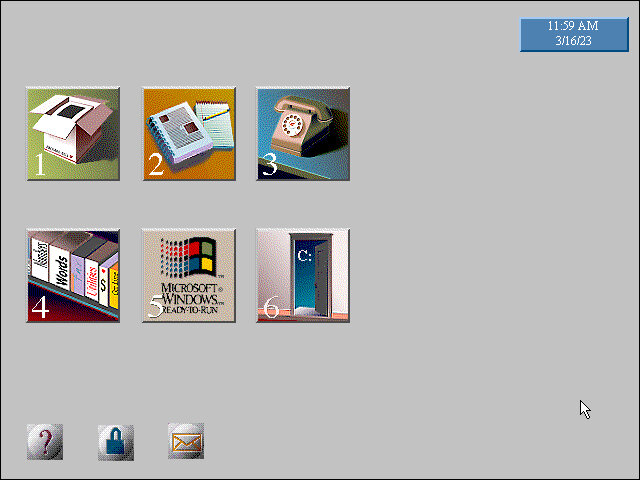
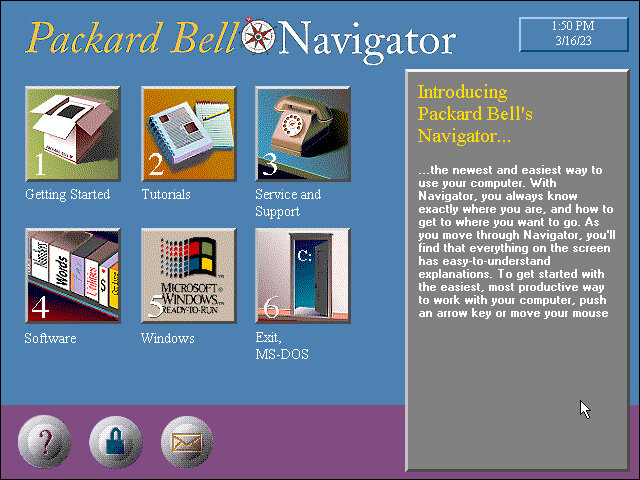
The Packard Bell Navigator which was an alternative user interface to make it more appealing to use a computer for the novice user. It serves as an alternative launcher to install applications, though the Windows 3.1 interface is still included and can be accessed via a dedicated option on the main menu. Launching an application will run it in the standard Windows 3.1 interface.
There were many attempts to make computers more user friendly by incorporating a dumbed down user interface, one that comes to mind was RM Window Box which was a user interface targeted towards primary school users, and allows teachers to manage the programs installed on the computer whilst restricting access to the Windows system for the students.
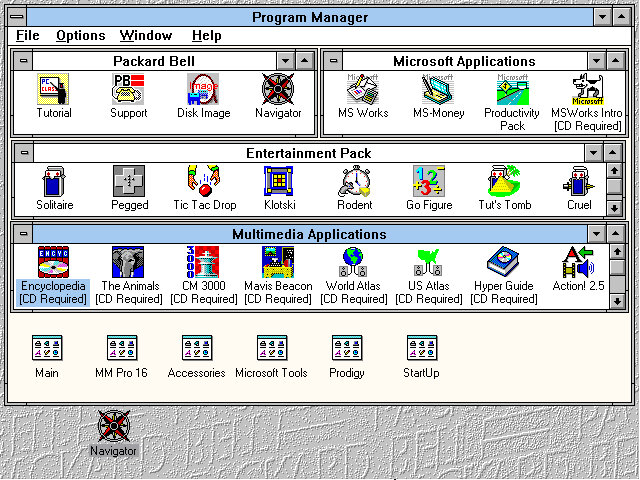
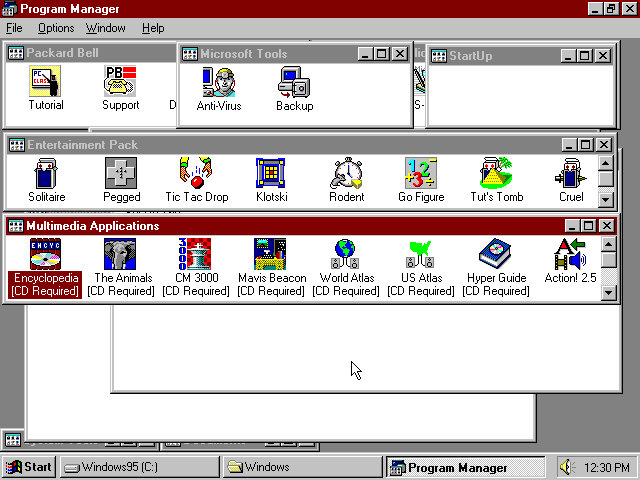
The Program Manager with a customised preset design, showcasing the preinstalled applications.
The Headland utility for changing the screen resolution and the colour palette.
Included software
From Packard Bell
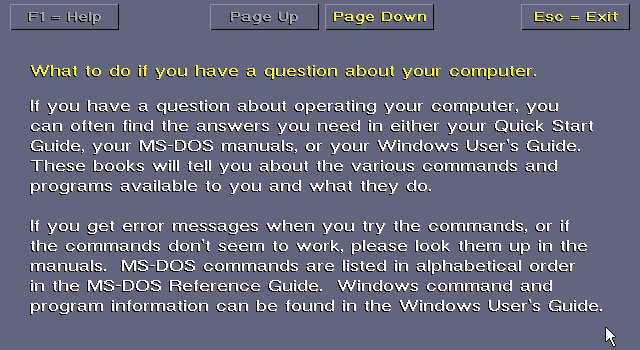
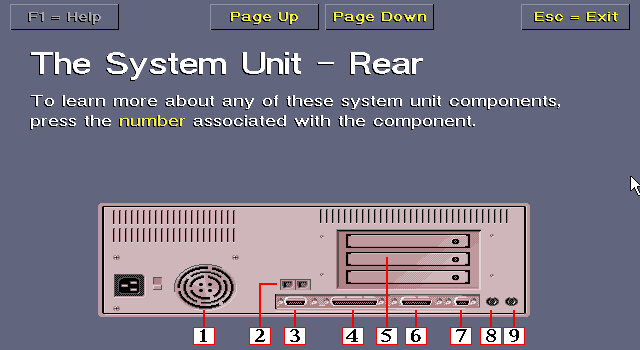
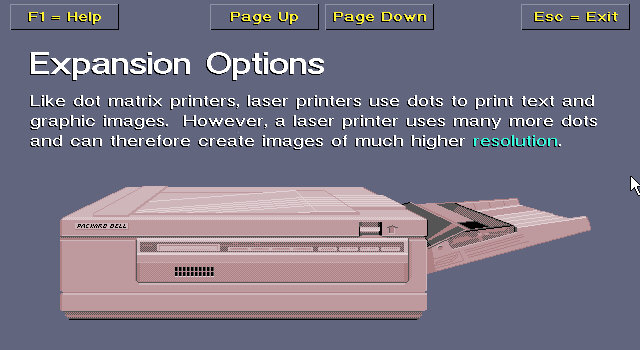
Tutorial: Gives an in-depth insight into how your computer operates, its expansion options, and how to use the software.
Support: A simple application that shows how to contact Packard Bell for support, how to connect to their BBS and warranty information.
Disk Image: Creates a recovery disc image
Navigator: Starts the Packard Bell Navigator environment
The Microsoft Entertainment pack
A selection of additional games which included Rodent, Go Figure, Tut’s Tomb and Tic Tac Drop.
There is also a Jurassic Park that comes with the install and is located under the Entertainment pack program group.
Microsoft Applications
MS Works: Versions 2.0 Multimedia Edition, software suite that included several applications, including a word processor, spreadsheet, database, calendar, and communications tools. It was intended to be a comprehensive solution for basic office tasks, suitable for home and small business use. The word processor included in Microsoft Works 2.0 had a range of basic formatting options, such as font selection, text alignment, and line spacing. The spreadsheet application supported basic formulas and functions and could create charts and graphs. The database application allowed users to create and manage simple databases, while the calendar application provided basic scheduling features.
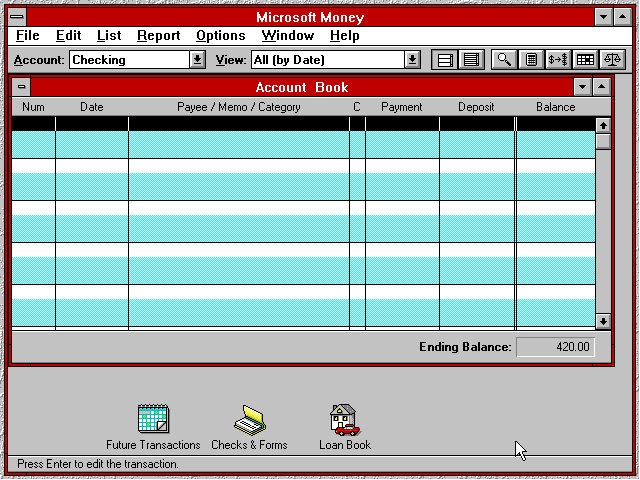
MS Money: Version 2.0a, a personal finance software program developed by Microsoft Corporation and released in 1992 as a successor to the original Microsoft Money. It was designed to help users manage their personal finances by tracking income and expenses, creating budgets, and analysing financial data. The software included several features to help users manage their finances, including checkbook balancing, bill payment tracking, and investment tracking. It also included a range of tools for creating reports and charts to help users visualize their financial data.
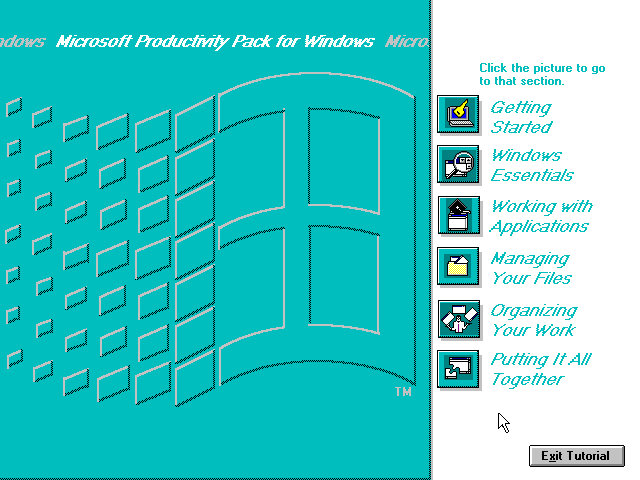
Productivity Pack: A tutorial to using the mouse and keyboard and elements of using Windows 3.1
Multimedia Applications
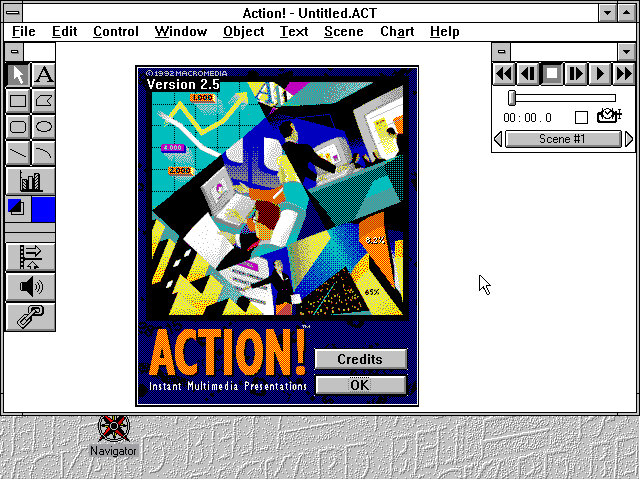
Macromedia Action! 2.5: This was an early competitor to Microsoft PowerPoint and allowed for presentations that incorporated multimedia elements PBTV: Allows for video capture form an external analog capture card or device. Authorware Star: Authorware Star was a software program developed by Macromedia, which was a multimedia authoring tool used for creating interactive learning content. The software was widely used for creating educational and training materials, especially in the early days of e-learning. One of the key features of Authorware Star was its ability to create branching scenarios, where learners could choose different paths through the content depending on their responses to questions or interactions. This made it possible to create personalized learning experiences that were tailored to the needs and preferences of individual learners.
Other software that is included but requires a separate CD-ROM to run: Mavis Beacon,US Atlas, Music Box, Encyclopedia.
Upgrades
Lets see that the upgrade experience was like, as this motherboard came with a 486 processor we should be able to upgrade to Windows 98 and later 98. Windows 2000 & ME will require a processor upgrade, perhaps to the Pentium Overdirve which would have fitted into the existing CPU socket, though the experance will be rough as were still using the same video card. Memory will also have to be upgraded.
Windows 95
Install appeared to go smoothly with most of the settings being carried over. This was done using the floppy disk version of Windows 95 as the VM lacked CD-ROM support.
A message indicating for us to power off our computer appears on startup, likely a remaint from
Some compatibility issues with the Packard Bell Navigator with the background elements missing, Most of the other applications appear to be fine
And the Program Manager which can still be accessed from Windows 95
Windows 98
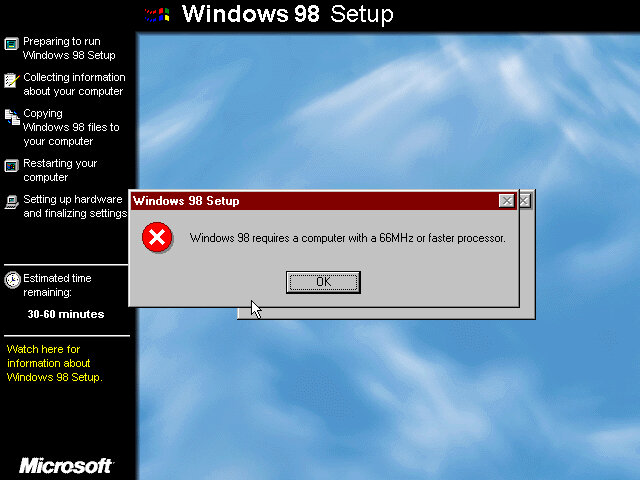
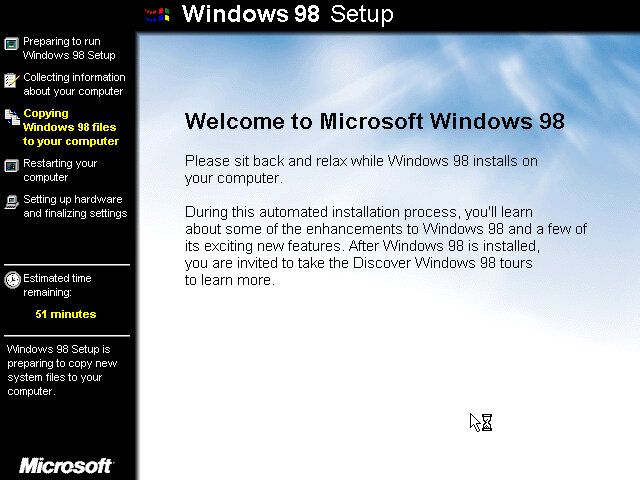
Now that its running 95, lets try to install 98. For this we have to bump up the memory to around 16MB at a minimum, instead I maxed it out to 36MB which is the most the motherboard supports. Initially it appears we need a faster CPU to install Windows 98, With 86Box we have an option to use an AMD486 running at 75Mhz which should allow for 98 to install. How well it runs is another issue.
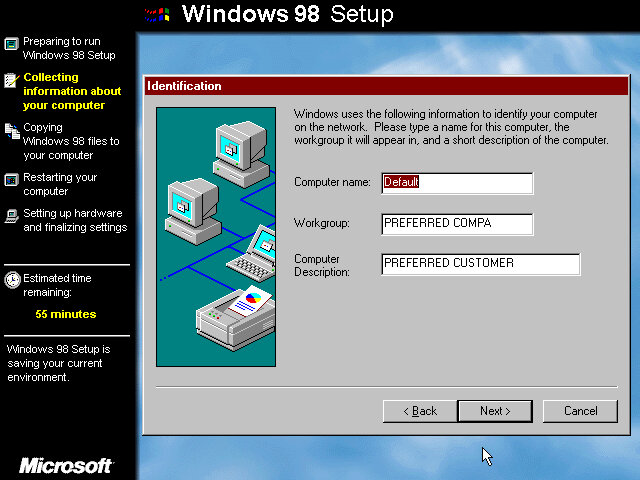
Also the 98 upgrade installer looks a lot better? It makes a change from the electric blue background of the OEM/Retail installer.
Packard Bell navigator appears to work better in this version.
Windows 2000 & ME
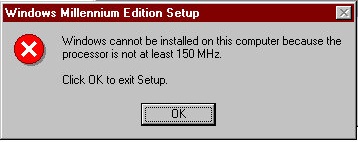
Was not able to install as our CPU isn’t fast enough as I was running a AMD 486 at 75MHz and Windows ME needs at least 150MHz. I tried a Cyrix 5×86 at 133Mhz on the off chance it might work, but no luck.
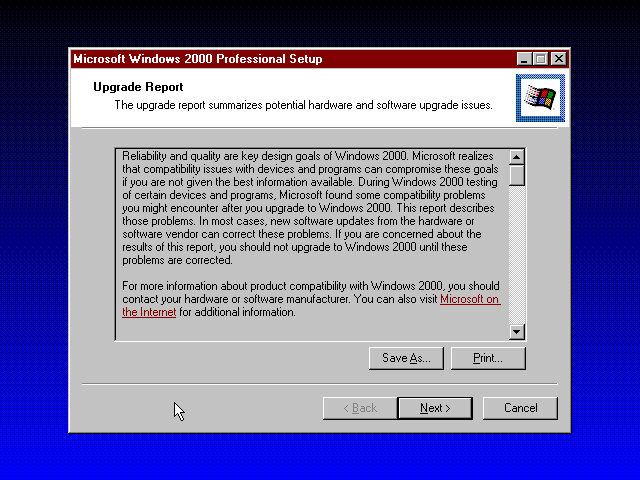
Windows 2000 was more promising and gave us a report of the potential incompatibilities, including the Headland video card. Unfortunate I was unable to progress due to the lack of hard disk space as this motherboard can only address around 518MB due to being reliant on the old C/H/S system. It seems Windows 98 is the max we can take this install to.
Maybe using a SCSI hard disk could get around that issue.
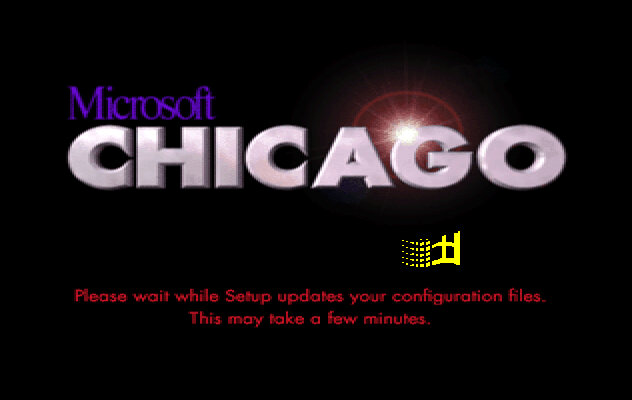
Install was started in a similar fashion to the earlier build from DOS. Setup looks similar to the earlier build, only we are prompted to agree to a few NDA’s, there are four in total that we have to accept.
Once there aps that we are prompted if we wish to install plus pack components, which consist of additional utilities. These would later come was the Windows 95 Plus! Expansion which added utilities like DriveSpace and high colour icons, kind of like a n expansion pack for Windows.
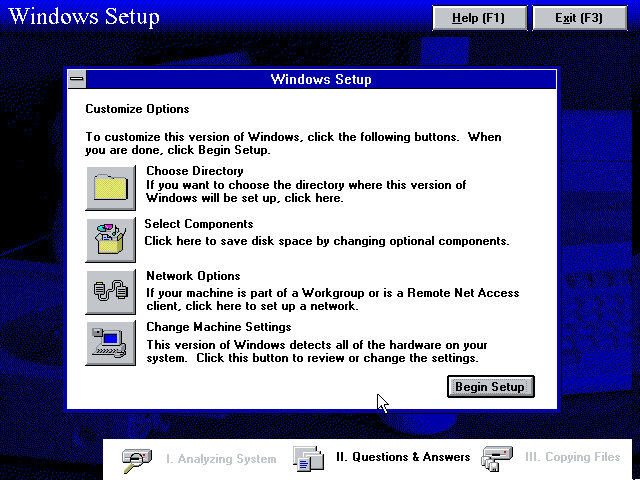
We are given an opportunity to add additional components, or amend the system configuration if we have any specific hardware that setup needs to know about. The Network Options is redundant as a message box is displayed informing us we can only configure network options later in the setup process.
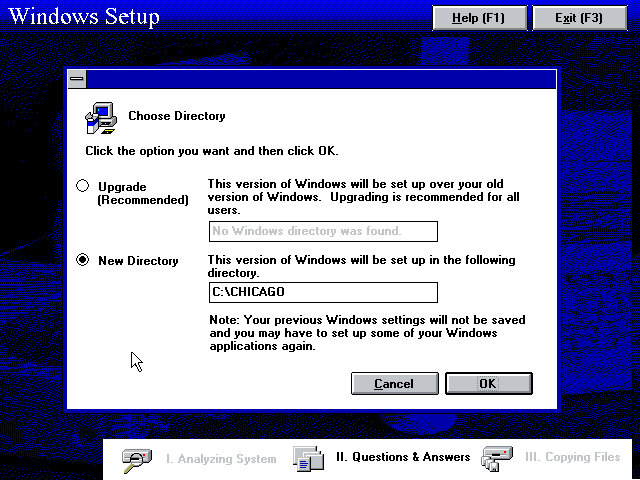
The Chicago directory is used by default instead of the Windows directory, possibly to enable dual booting or too leave the previous install intact. This would be renamed to just the Windows directory once development had been finalised.
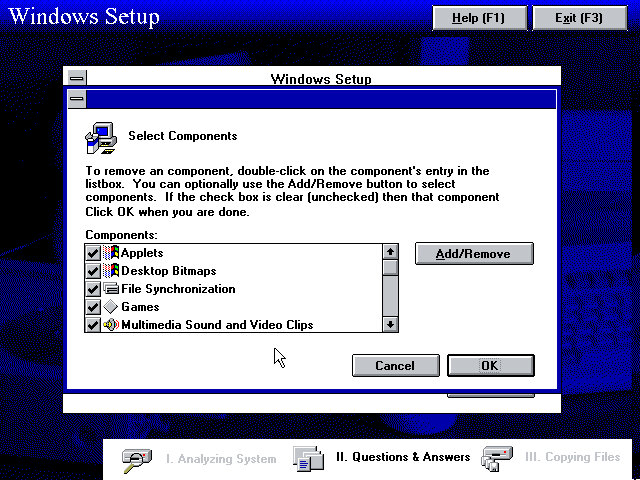
Additional component that can be added.
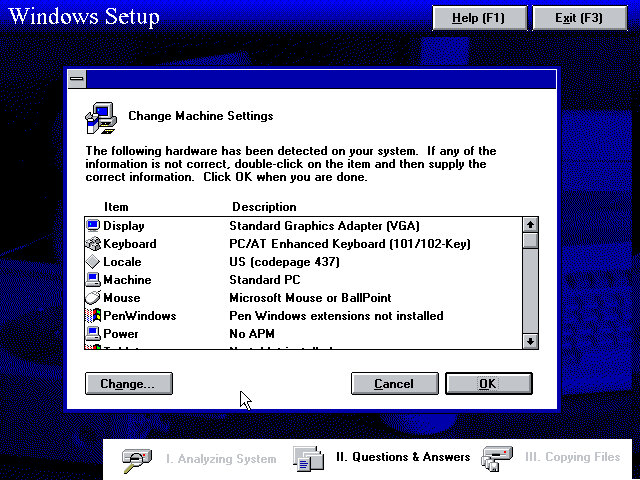
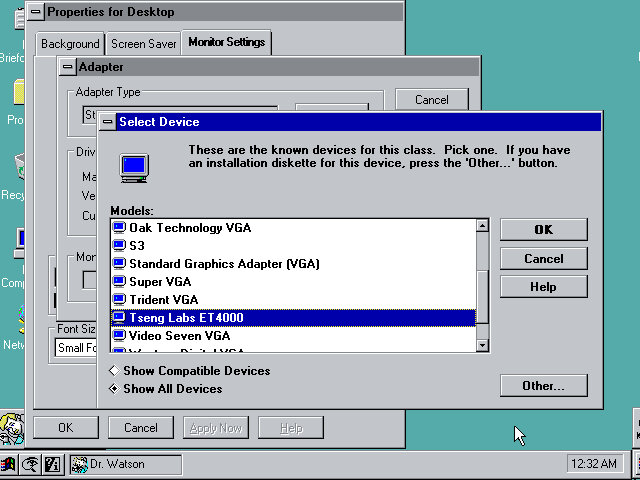
Machine configuration, we can see the setup utility detected the InPort mouse that 86box supports. VGA card wasn’t detected however, but our Tseng ET4000 can be selected s and used with the driver that comes with the install.
A weird message that came up, clicking cancel is recommended here since I started setup from the Windows 95 bootdisk. I think setup requires you to start it from a currently running MS-DOS session from the hard drive instead of a floppy boot disk which is why this happened.
Network configuration where you can setup the network card, the Novell NE2000 was used, though I had to amend the IRX to 10 instead of the default settings, 3.
Boot up screen with the windows logo dotting about.
The logon screen, from here you can enter a name and a password if you wish and Windows will create it for you. Pressing the cancel button will log you in regardless.
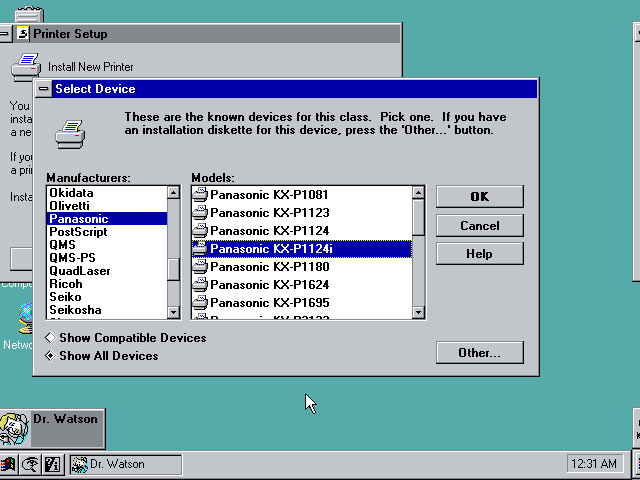
After the initial login we are prompted to setup a printer.
Setting up the VGA driver, at this point I realized the IDE CD-ROM drives were missing, leaving only the floppy, hard drive. I did try to used the MSCDEX driver to get them to appear but this did not seem to work. The only workaround to get CD drives to appear was to use the SCSI CD ROM drive, which required be to repeat the install process. The Adaptec seems to be recognised and installed during setup.
Post Install
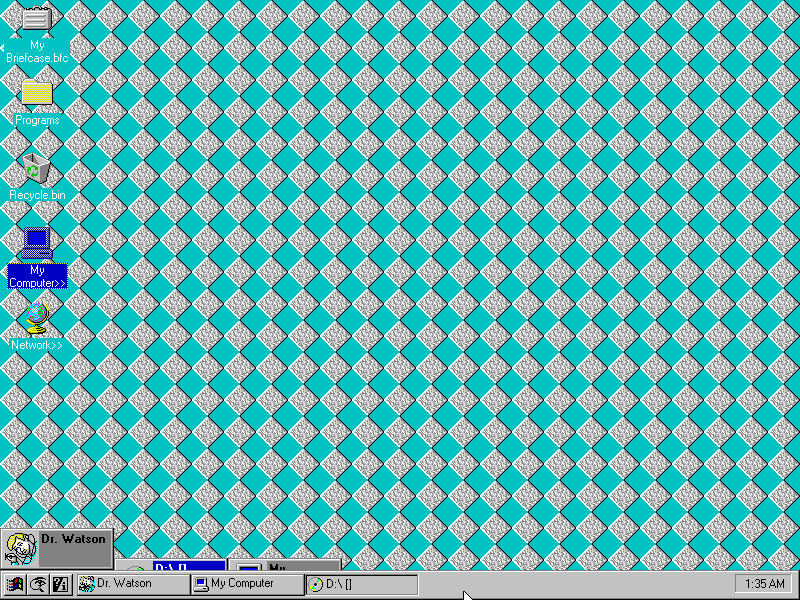
The Desktop, this build still has the separate start menu buttons, with the others being find and help.
The find button kind of mirrors Windows 10 in a way, that you can search directly from the taskbar. Chicago M5 just simply opens a menu to launch the find feature but does make it more accessible, later Windows versions would move this to the Start Menu itself.
Copying a file using the explorer interface. In this build this was still referred to as the File Cabinet
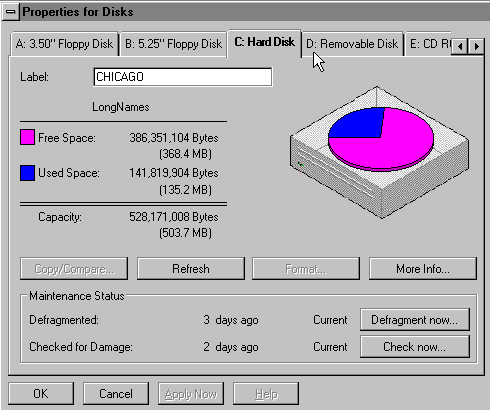
Disk drive properties window, this gives access to the capacity and used space of the drives present in the system.
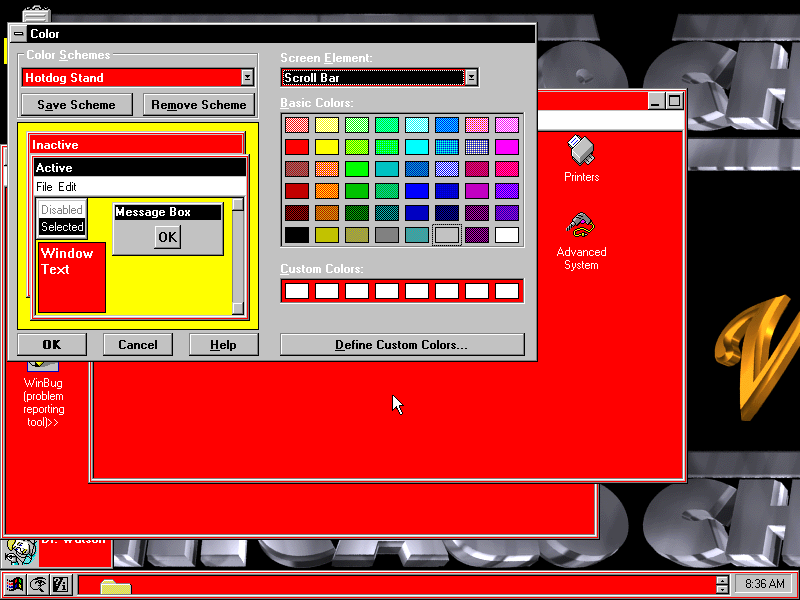
Colour scheme settings, many of the Windows 3.x schemes are still present and can be applied, though some of the windows and buttons remain grey.
Advanced System, an early version of the Windows Device Manager which shows the current devices present in your system. The Properties button opens a separate window that lists the Manufacturer, Model, Device ID and Plug/Play capabilities. There is also a Resources tab for IRQ, DMA Channels and Address spaces. Many of the information strings are non functional and do not yet yield any information.
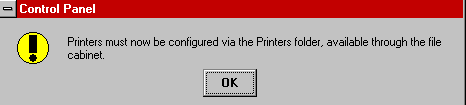
Microsoft changed the way printers are now configured, moving them to a separate folder in the Main program group.
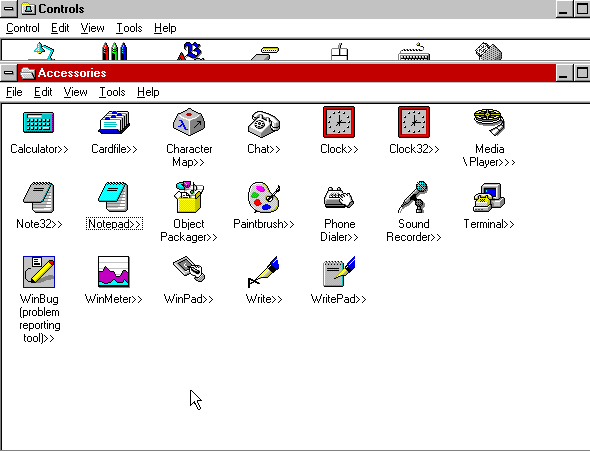
Some applications in the Accessories group have change, and are now in 32bit flavour. The existing versions are still included.
The size of the taskbar can be changed by clicking and dragging the edge of the bar,. at a certain height the clock will shift to the left of the taskbar, likely to make room for further tasks and applications, something that later Windows versions do not do.
Software
32bit software will be hit or miss, as the API has not been fully implemented, if at all. Windows 3.11 era software should work but anything multimedia-rich appears to have issues.
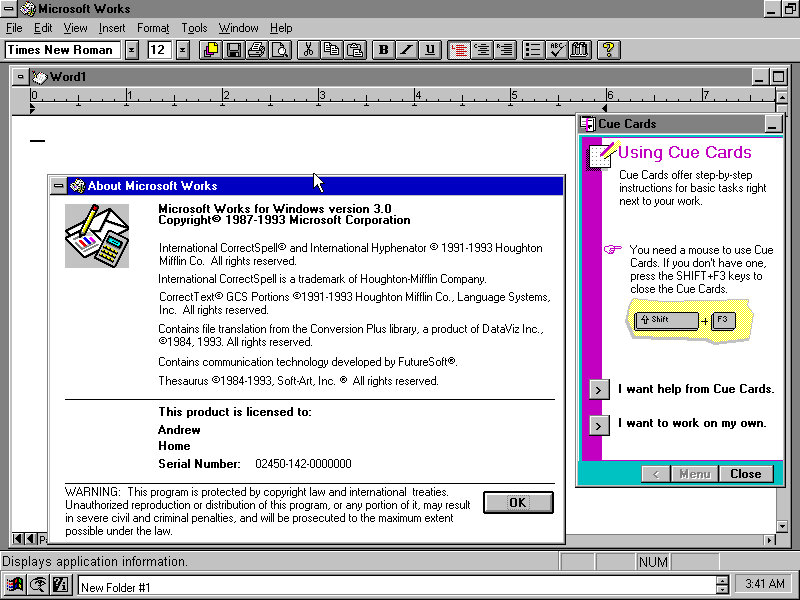
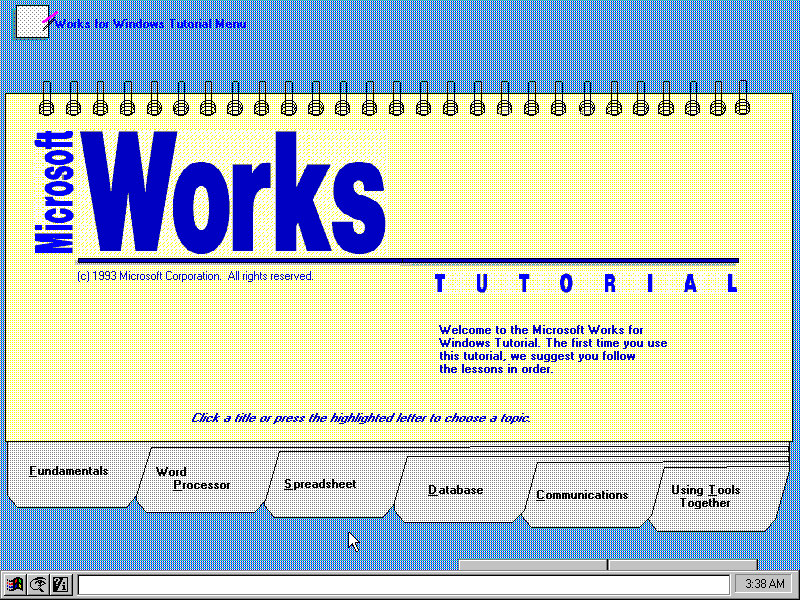
Microsoft Works: Installs and works fine, this was a lightweight office suite intended for home users.
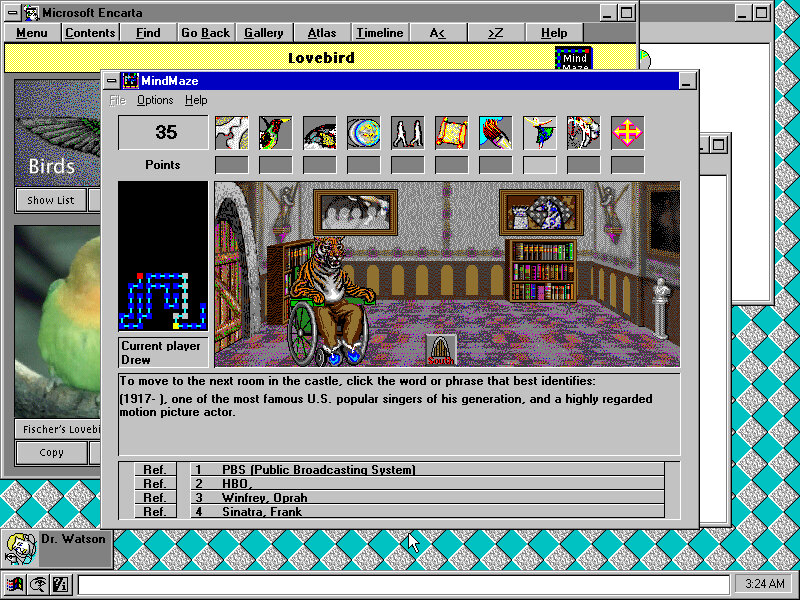
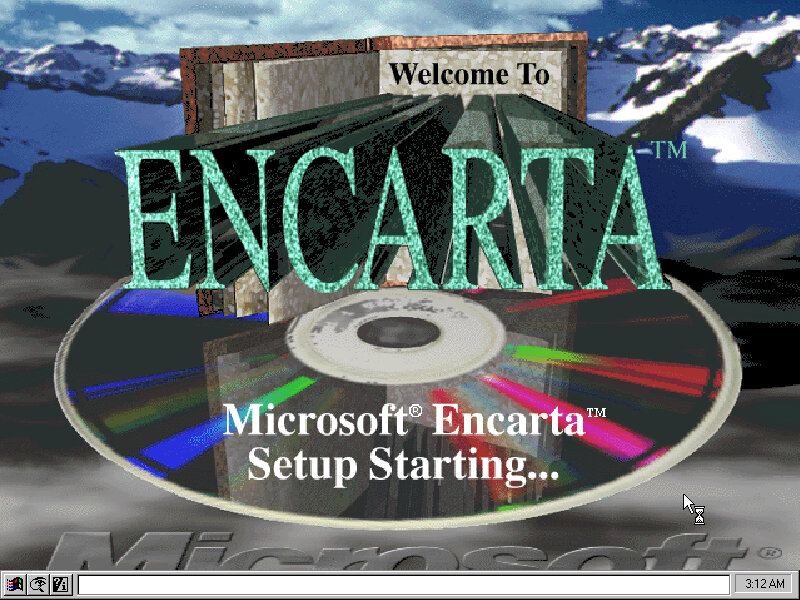
Microsoft Encarta 1993: Installs fine but complains about the soundcard not being detected towards the end of the install. Runs fine.
Internet Explorer 3: This was the Windows 3.1 version of Internet Explorer 3, Installs but fails to run, revealing the error message ‘Call to Undefined Dynalink’ Rebooting after install revels a weird error message to press Ctrl+Alt+Del to reboot your mac?
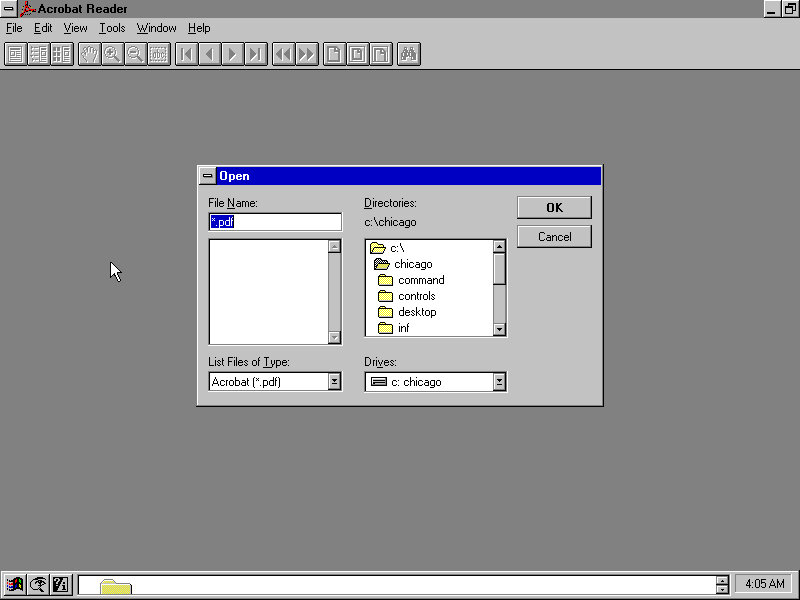
Acrobat Reader 2.0: Installs and runs fine
Netscape 1: The setup installers complains about a dialog box that it cannot display? Also fails to launch after install.
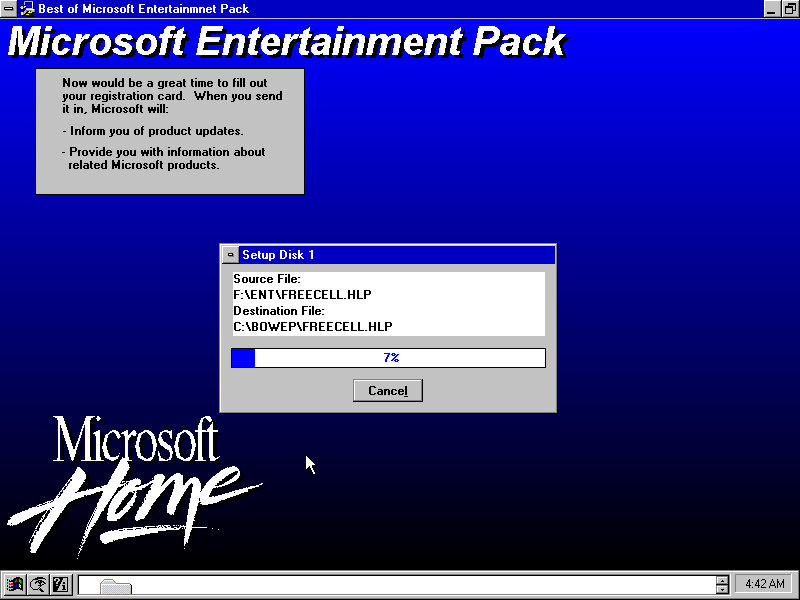
Microsoft Entertainment Pack (Best of): Works just fine
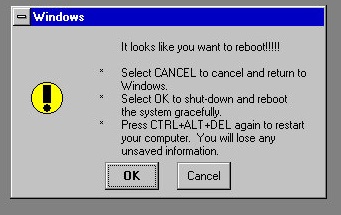
Pressing Ctrl + Alt & Delete will show this message, this is replaced by the End Task dialog box in later builds.
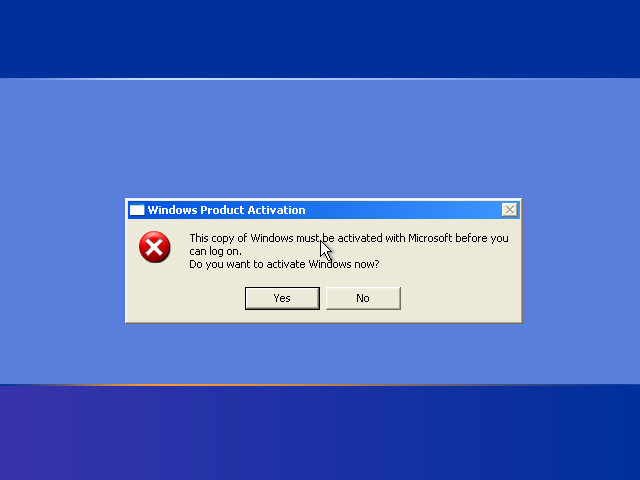
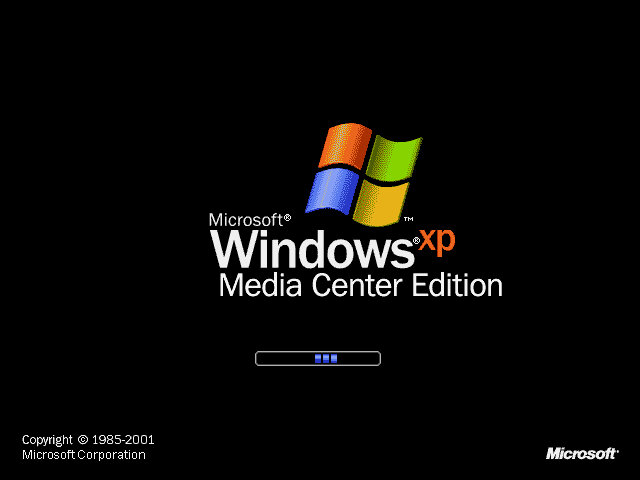
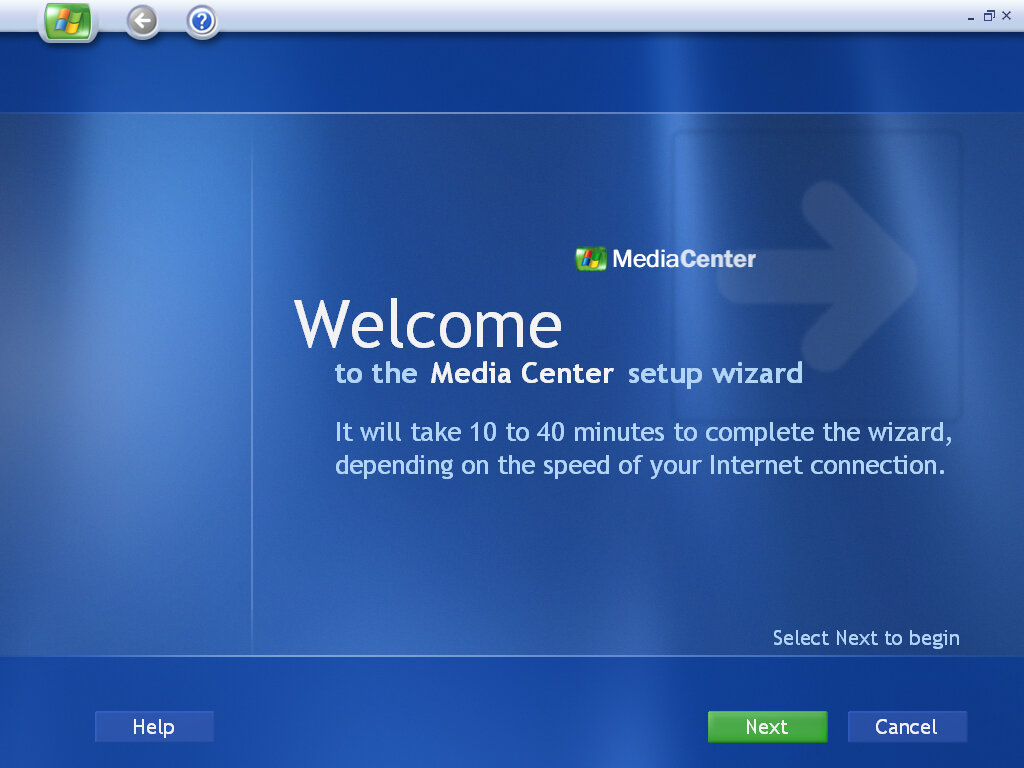
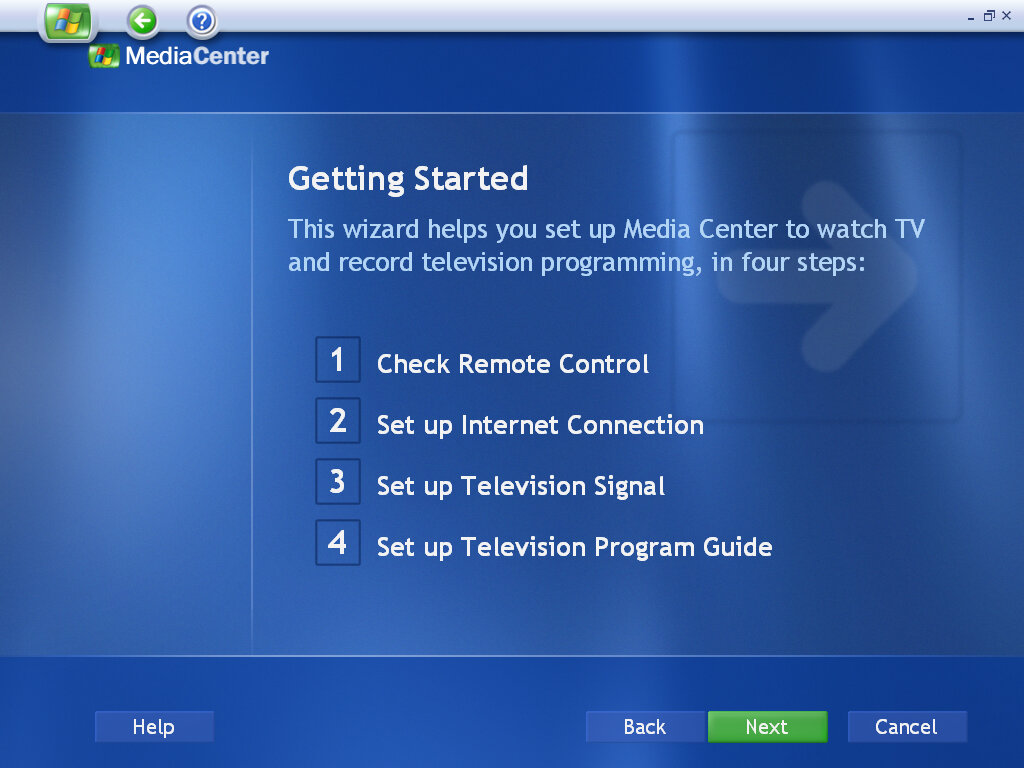
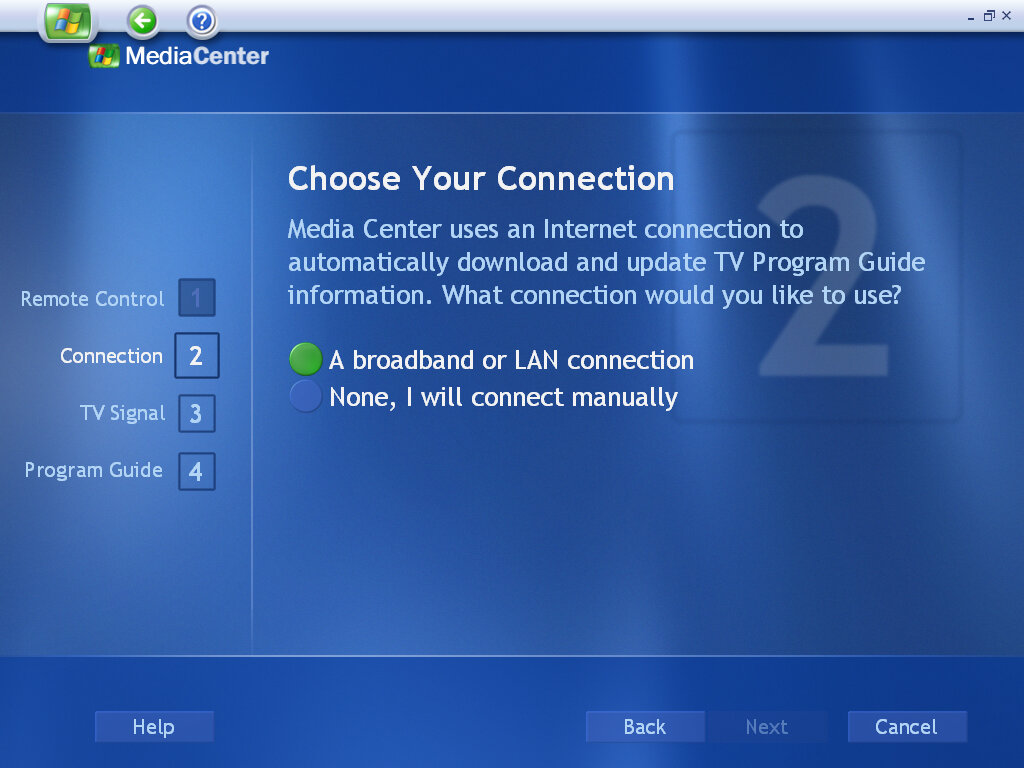
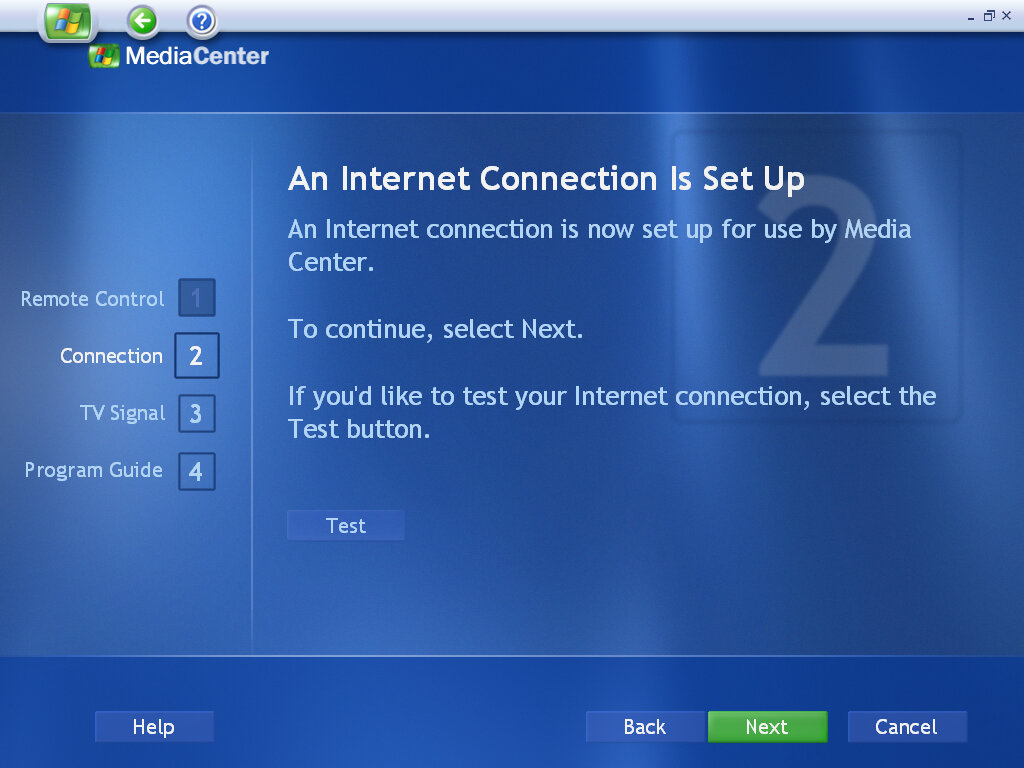
An update to Windows XP Media Center, again intended for OEM use. Very little has changed on the desktop side with most of the enhancements being done to the Media Center program. Again this version was intended solely for OEMs, so only OEM-type product keys can be used. When installing on an OEM system, like my Dell XPS Gen5, activation was automatic and I don’t remember it prompting for a product key. On VMWare, it’s a different story with it being locked out of the OS on the initial boot-up.
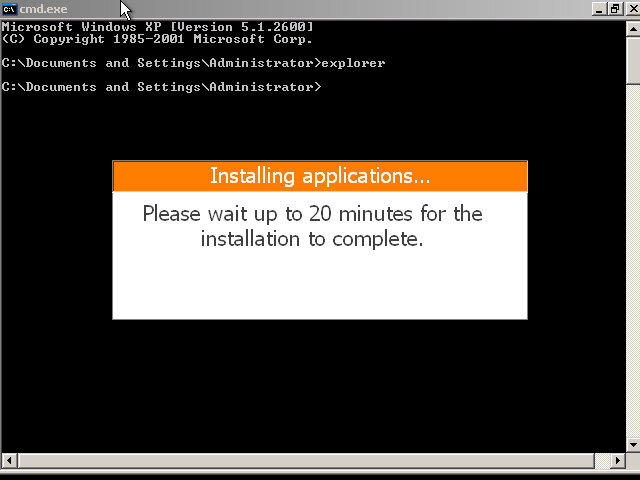
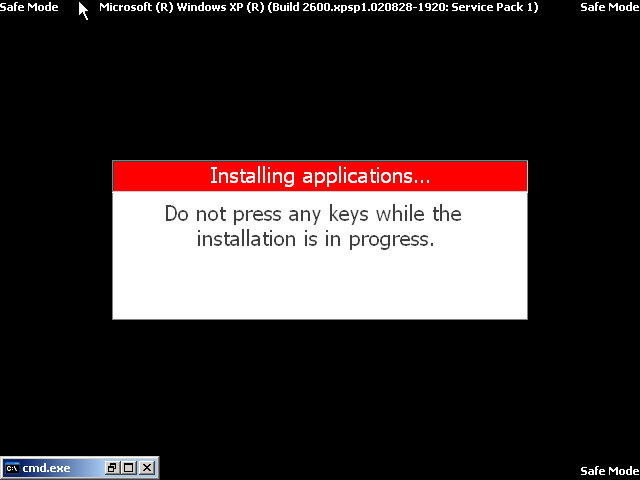
Some issues may occur regarding product activation since this is a Dell OEM copy, to get around this: Spam F8 upon boot up Select Start in Command Prompt When the Command prompt window appears, enter ‘explorer’ and wait for the setup prompt to finish, this will reboot the PC automatically
Version Information
Component
Version
Internet Explorer
6.0.2800.1106.xpsp11.020828-1920
Outlook Express
6.00.2800.1106
Windows Media Player
9.00.00.3005
Windows Messenger
4.7.0041
Windows Movie Maker
1.1.2427.1
The desktop remains the same as a default Windows XP, with the only noticeable difference being the Media Center icon on the Start Menu. A new Online Spotlight option is now present, This would take you to an online website, displayed within the Media Center application (possibly using the Internet Explorer engine) that would have provided further information with using Media Center.
Play DVD
The main DVD player, again we have difficulties playing DVD discs due to the lack of hardware MPEG2 decoder. You would think they would support software rendering by now.
My Videos
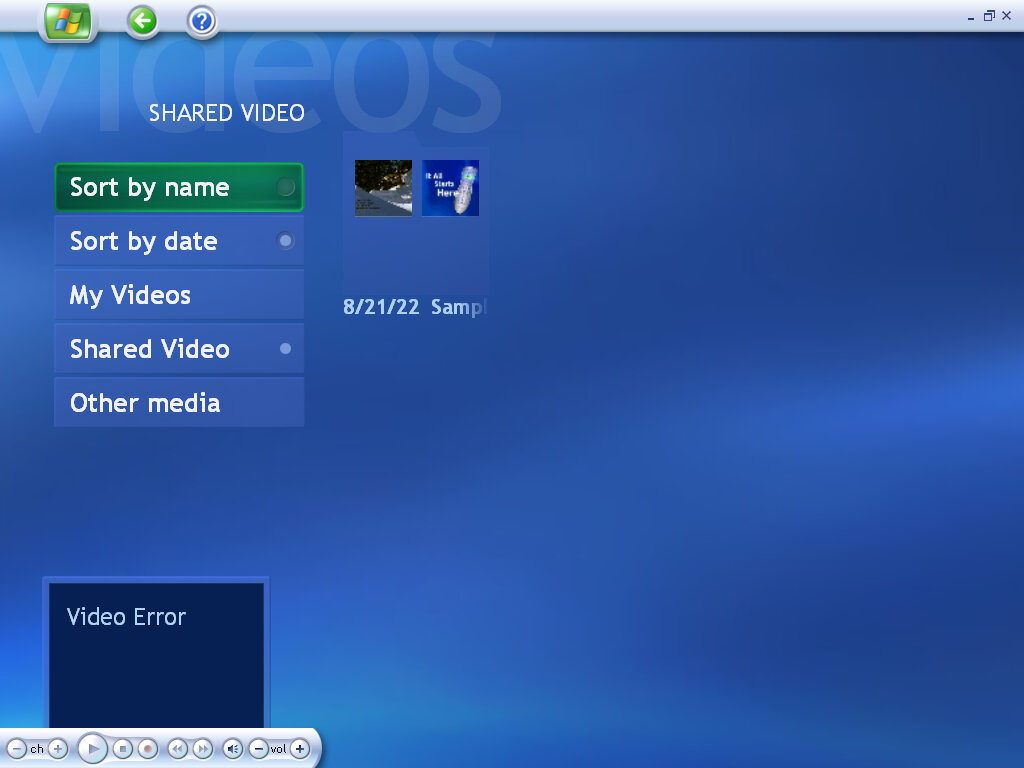
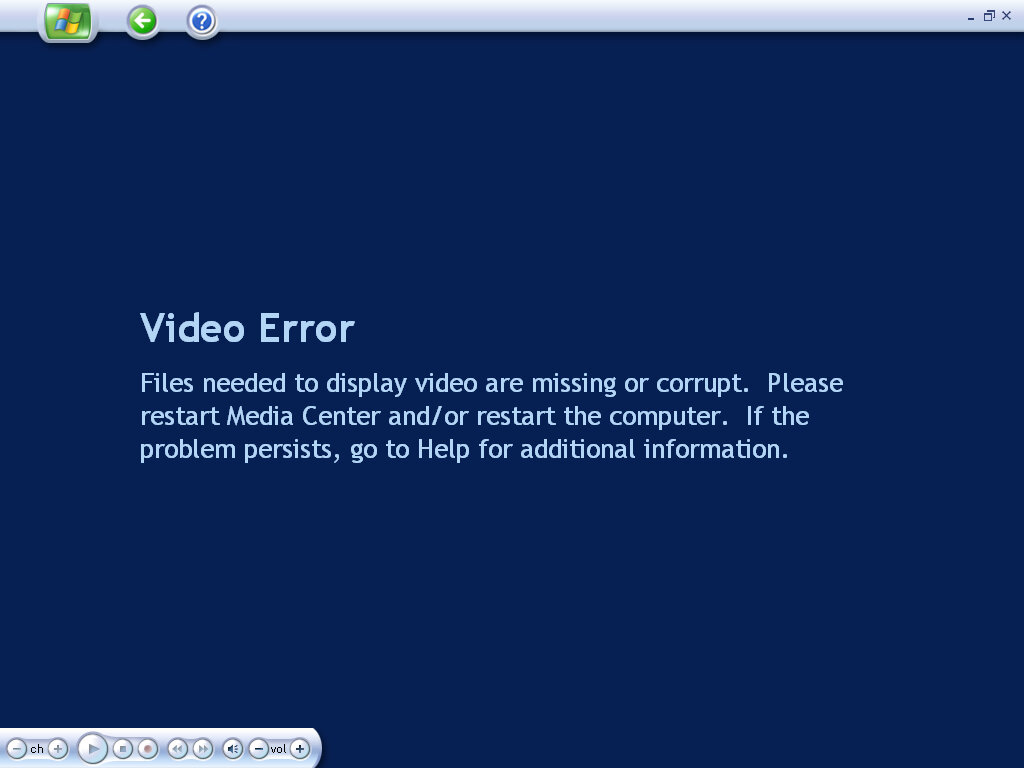
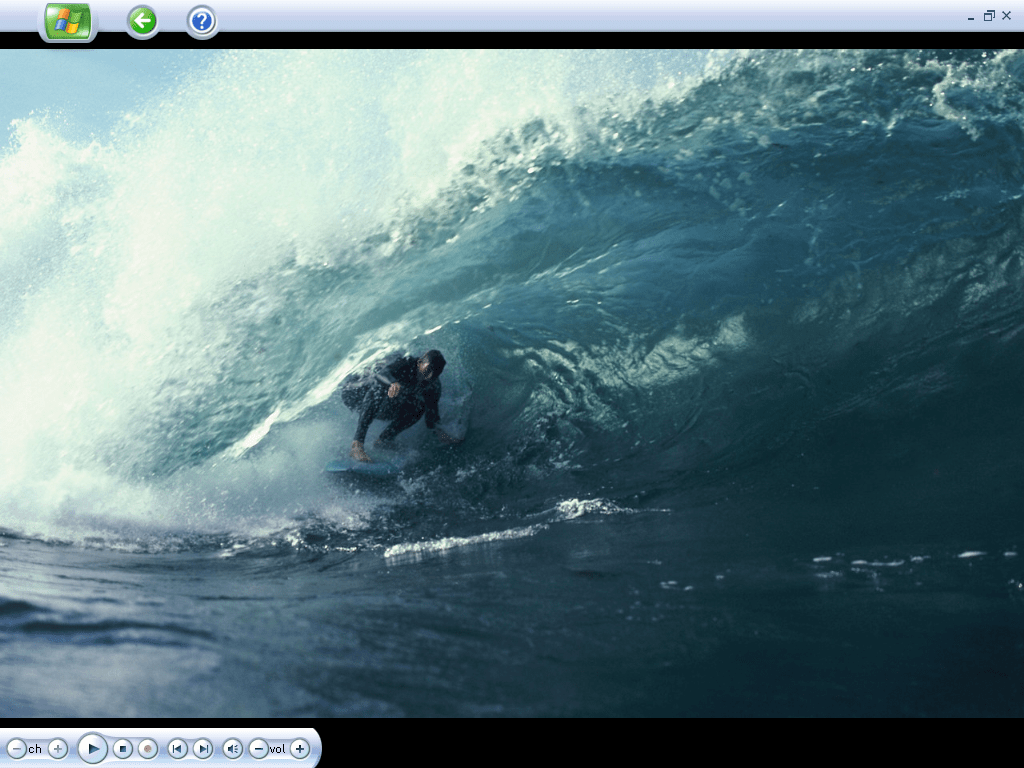
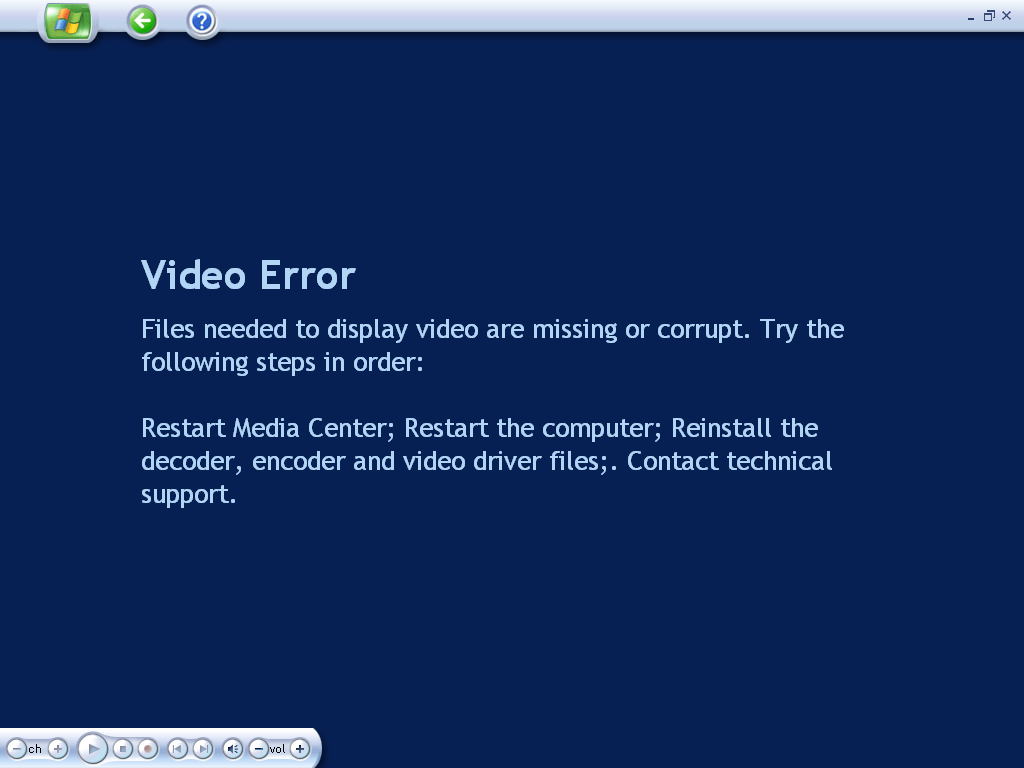
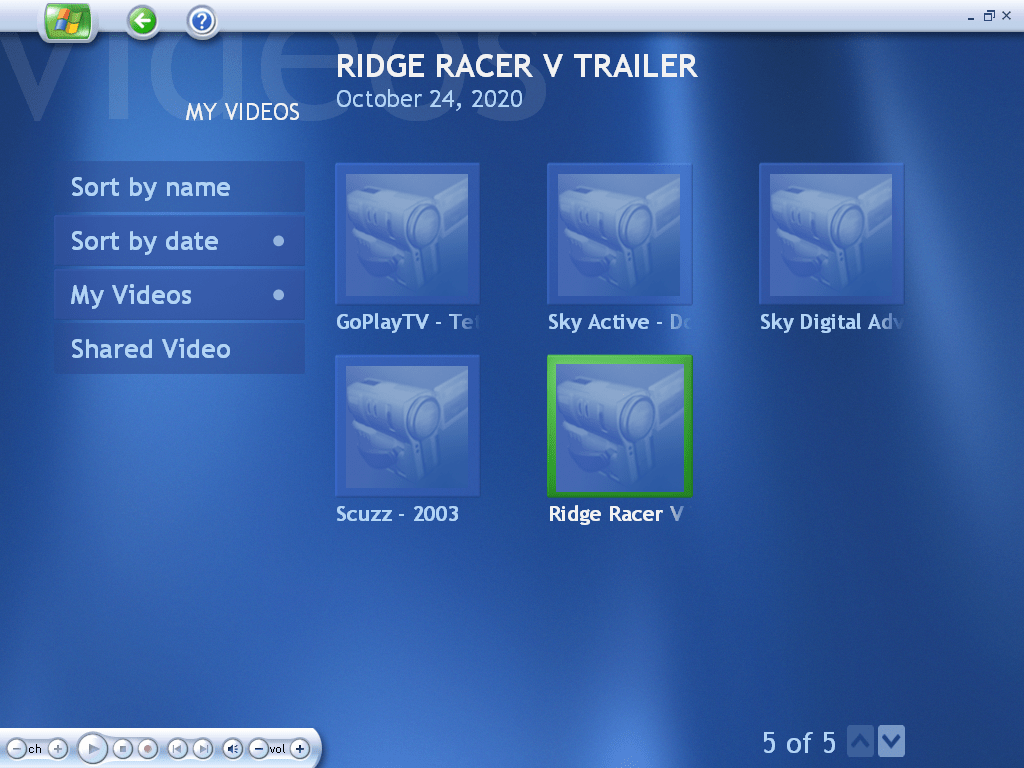
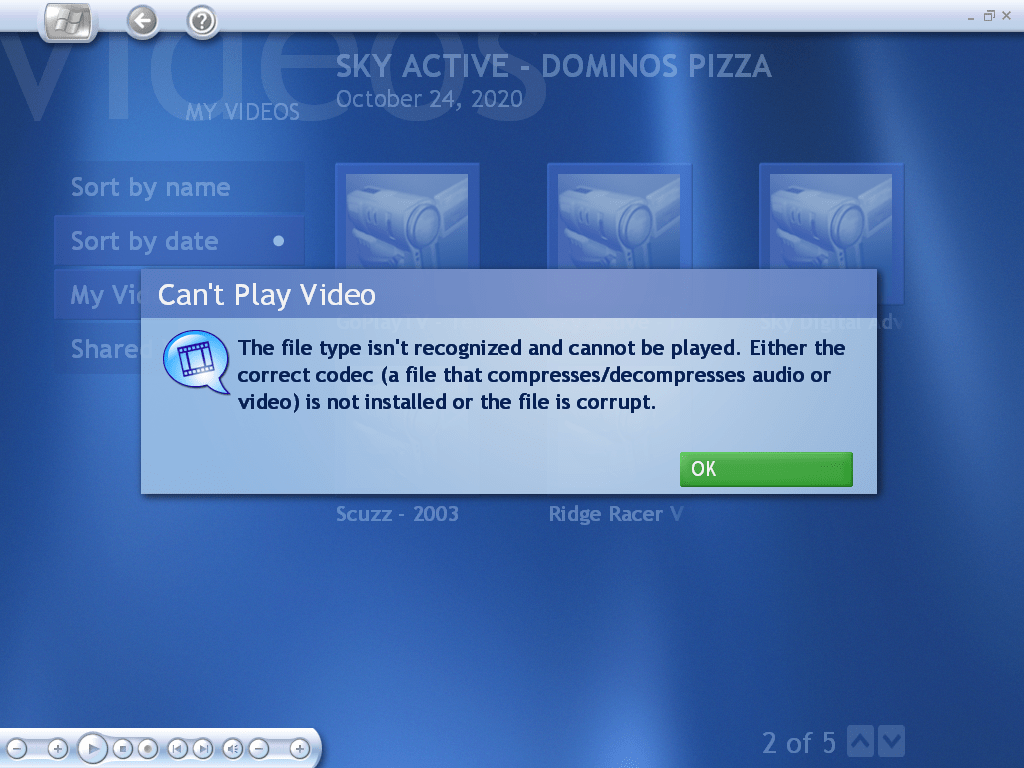
Videos stored in the My Videos folder are located and played back here. This does not include Recorded TV, which has its own section. Video playback requires a supported graphics card that will provide acceleration, that VMWare (Or its driver) does not support.
My Pictures
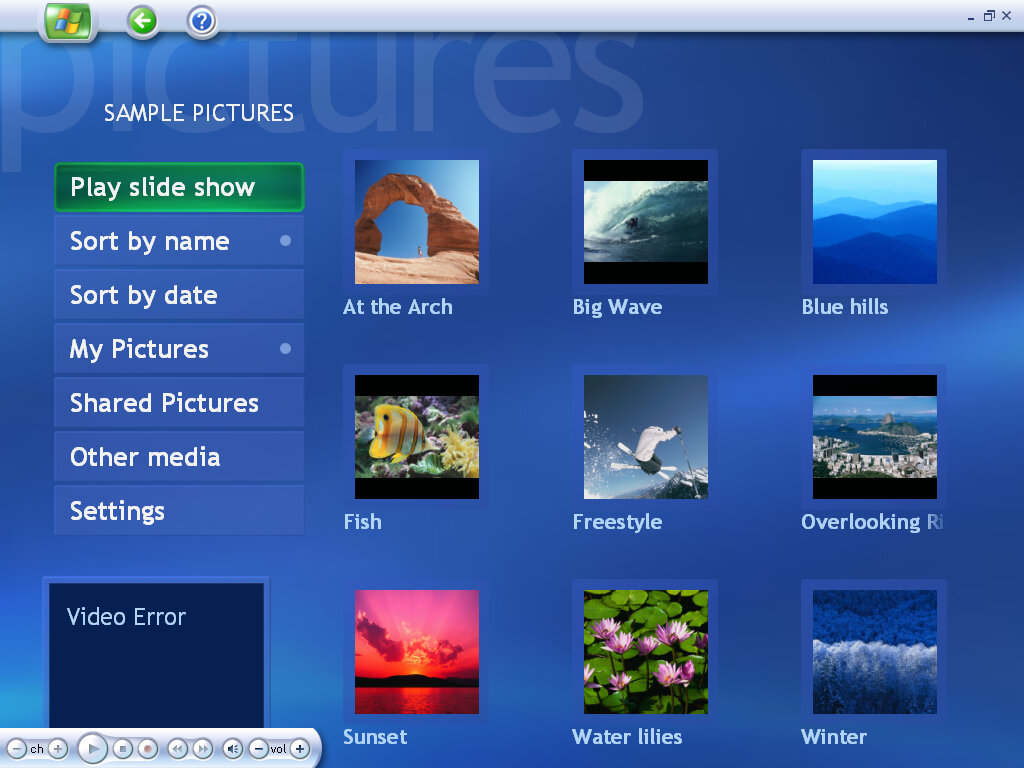
Similar has before, photos can be displayed as a single image or as part of a slideshow. Media center supports the common file formats and will display images from the My Pictures folder, or the Shared Pictures
My TV
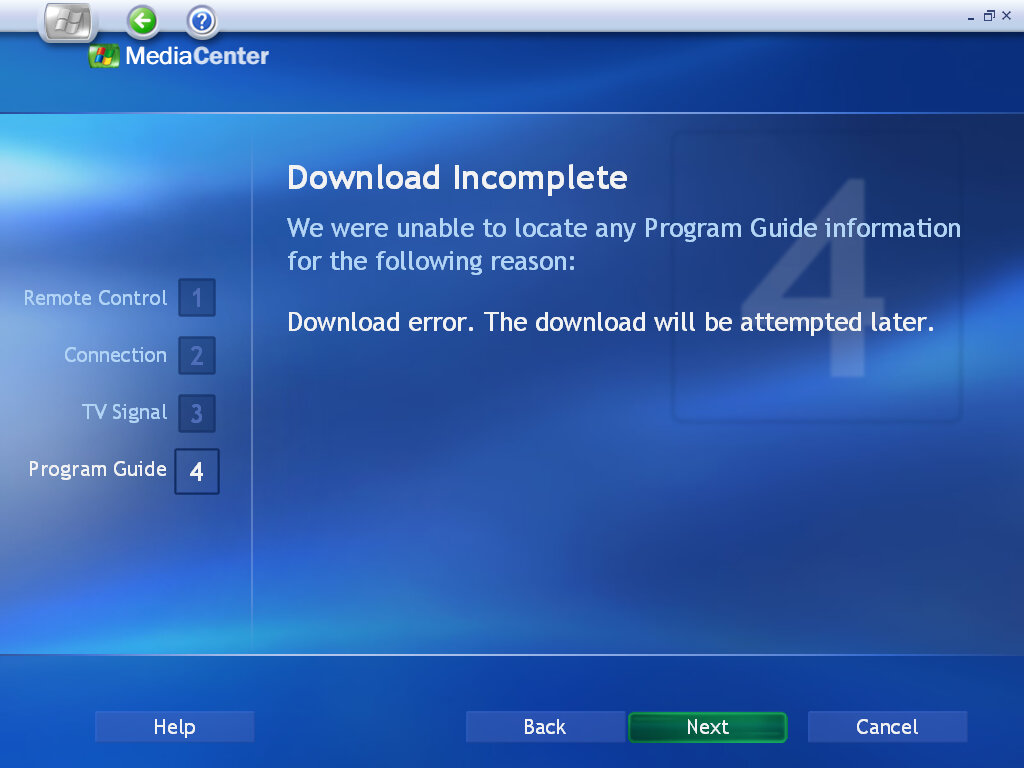
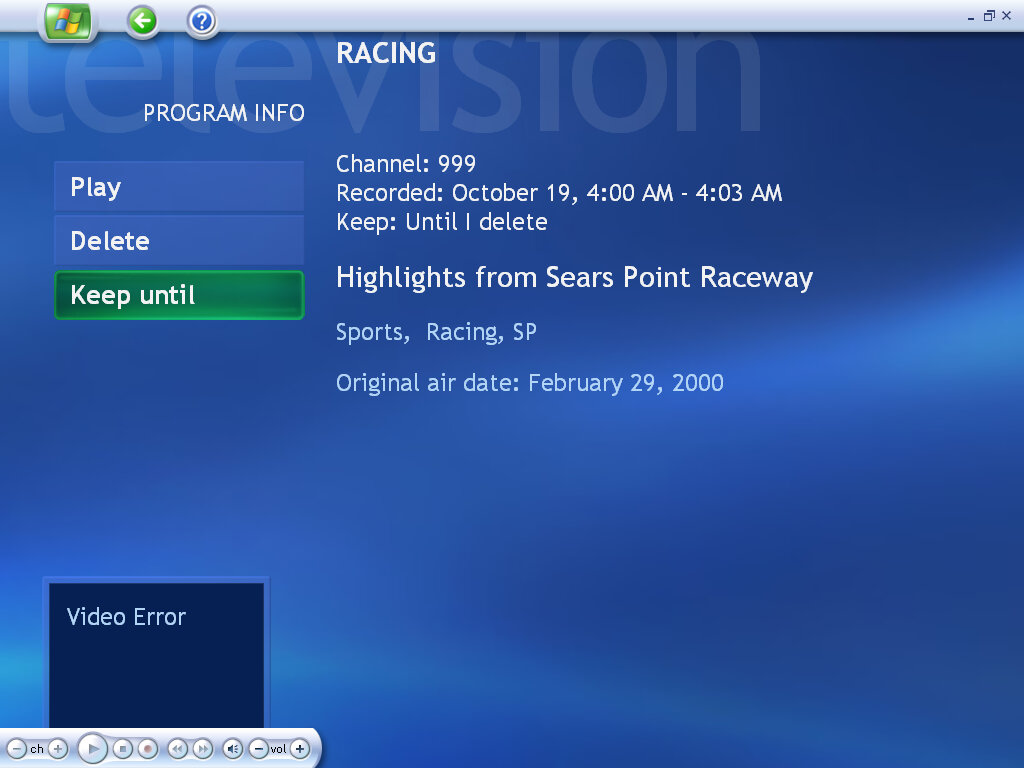
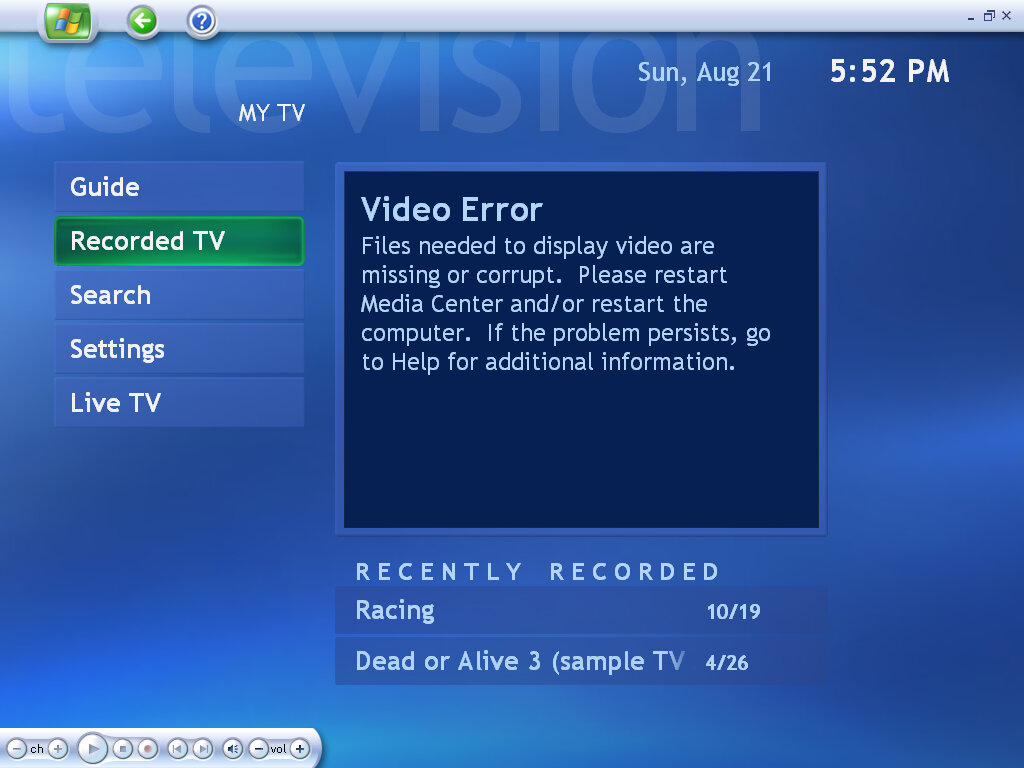
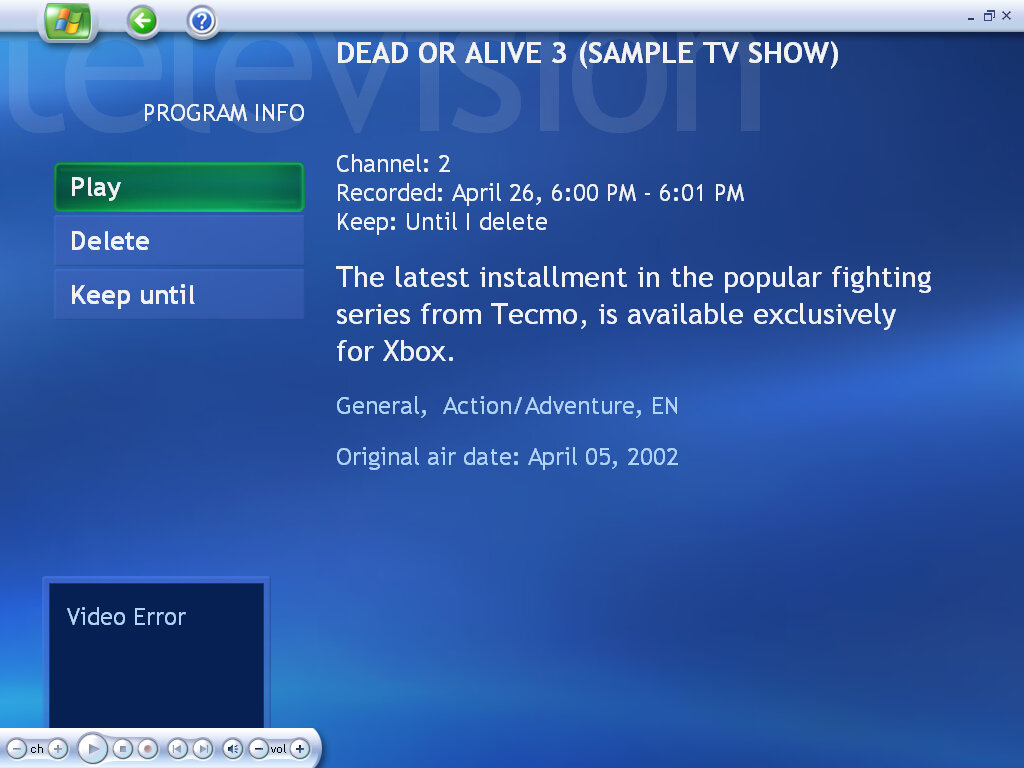
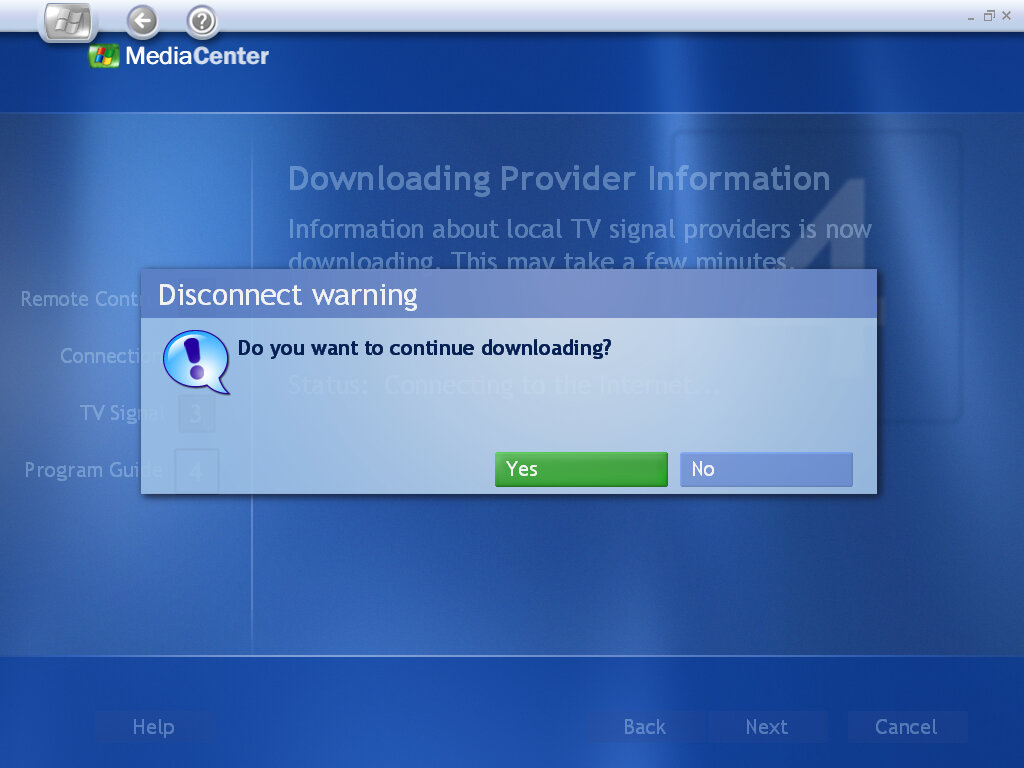
TV functionality is still a mystery, as my DVB-T tuner adaptor is still not recognized by the Media Center Application. From looking at the help files, Media Center has full PVR functionality with the ability to schedule recordings, pause live TV & rewind. You can now watch TV in slow motion, which is useful for sports events or frame by frame to check if anything has been missed (or for any subliminal messages). As with the previous version, you can configure the TV source to be through an antenna, using a satellite or a cable feed. The latter two probably need a set-top box along with an infrared blaster to control it. Pay-Per-View also appears to be supported, but I’m unsure how this is implemented. Possibly it interacts with your cable box’s PPV application? As for the TV listings, as Microsoft has killed off the EPG servers we are unable to load any channel listings.
My Music
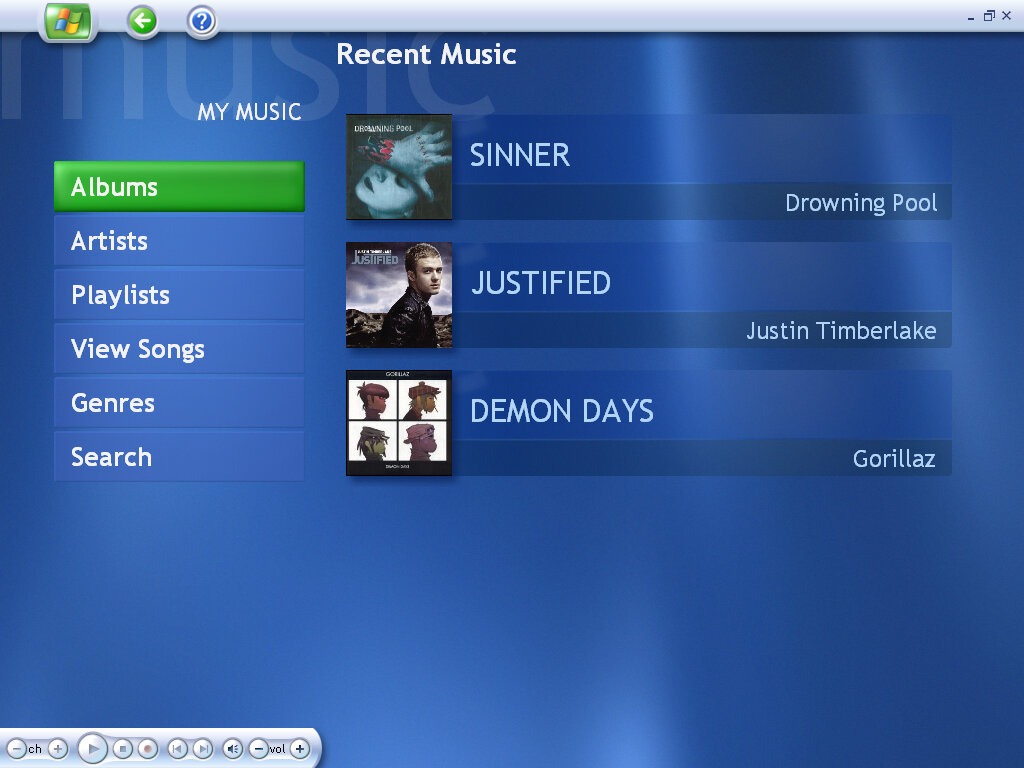
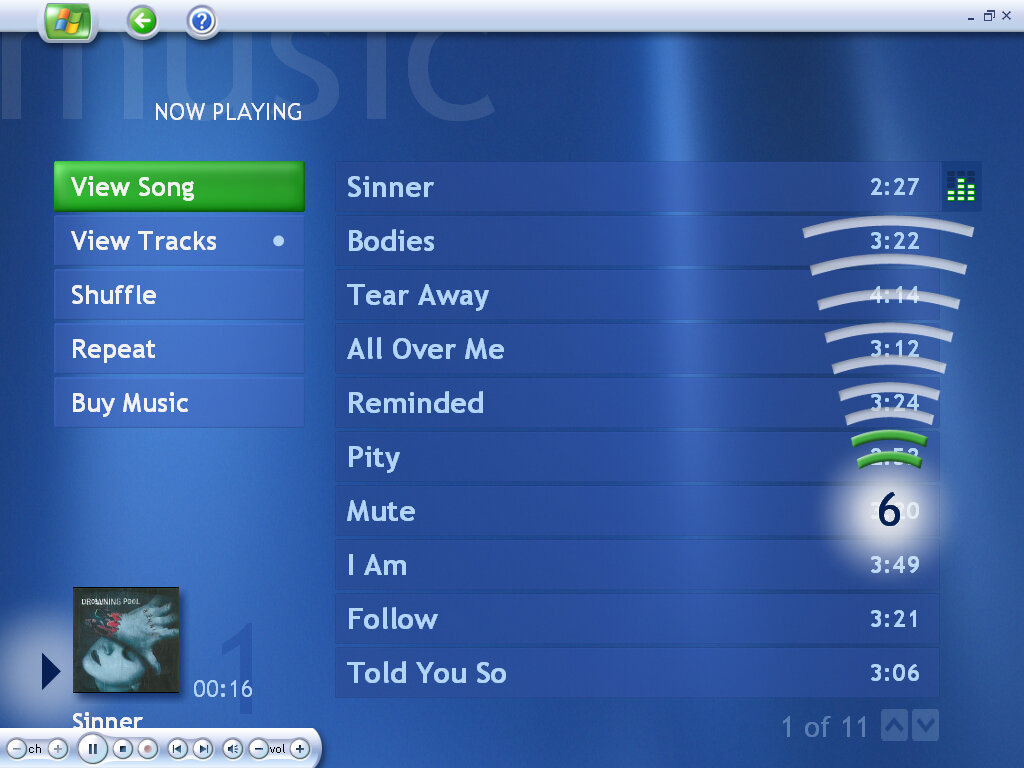
Little here has changed compared to the previous version. Music stored in the My Music folder can be played or organized into a playlist, and played through the media center application.
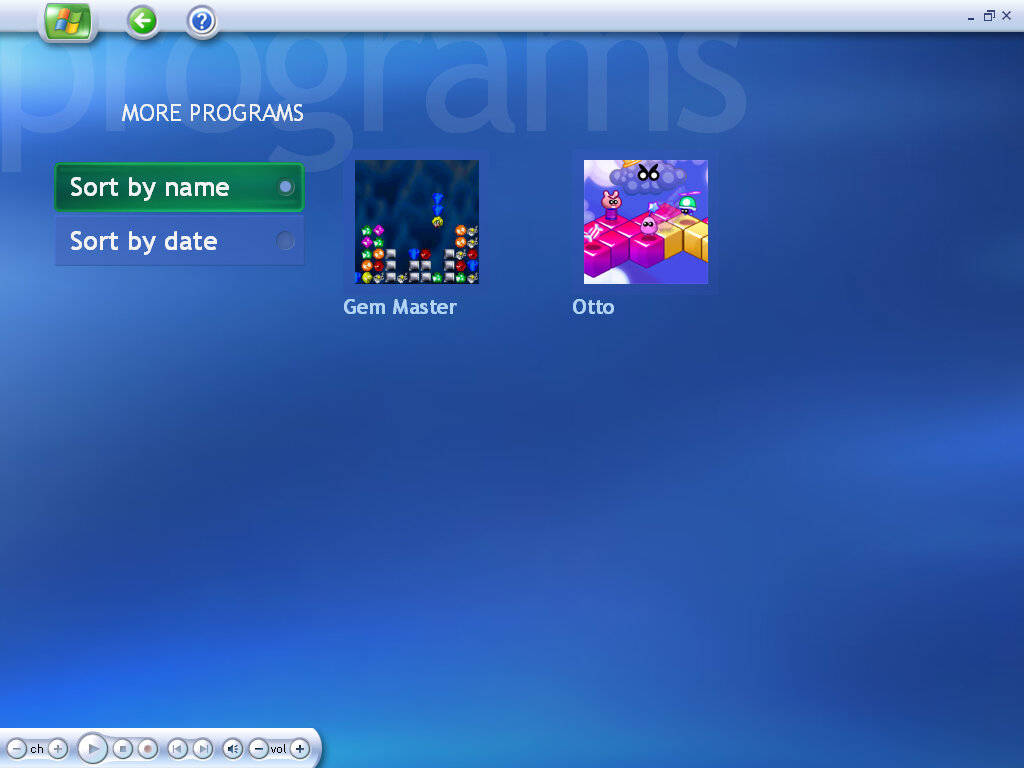
More Programs
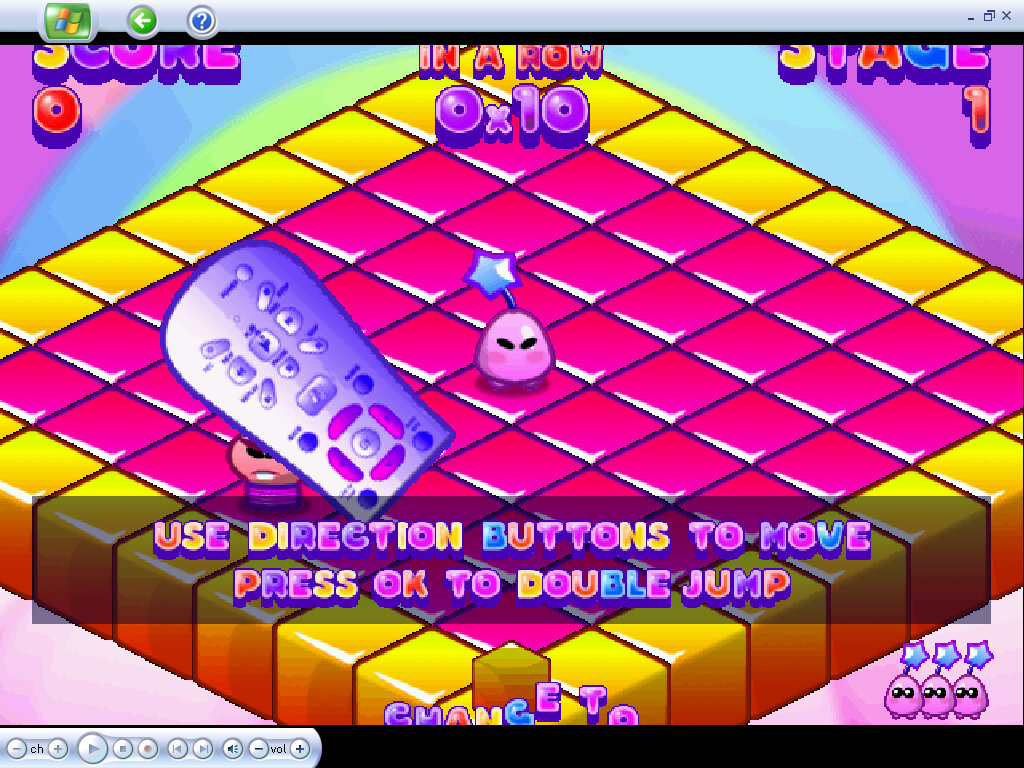
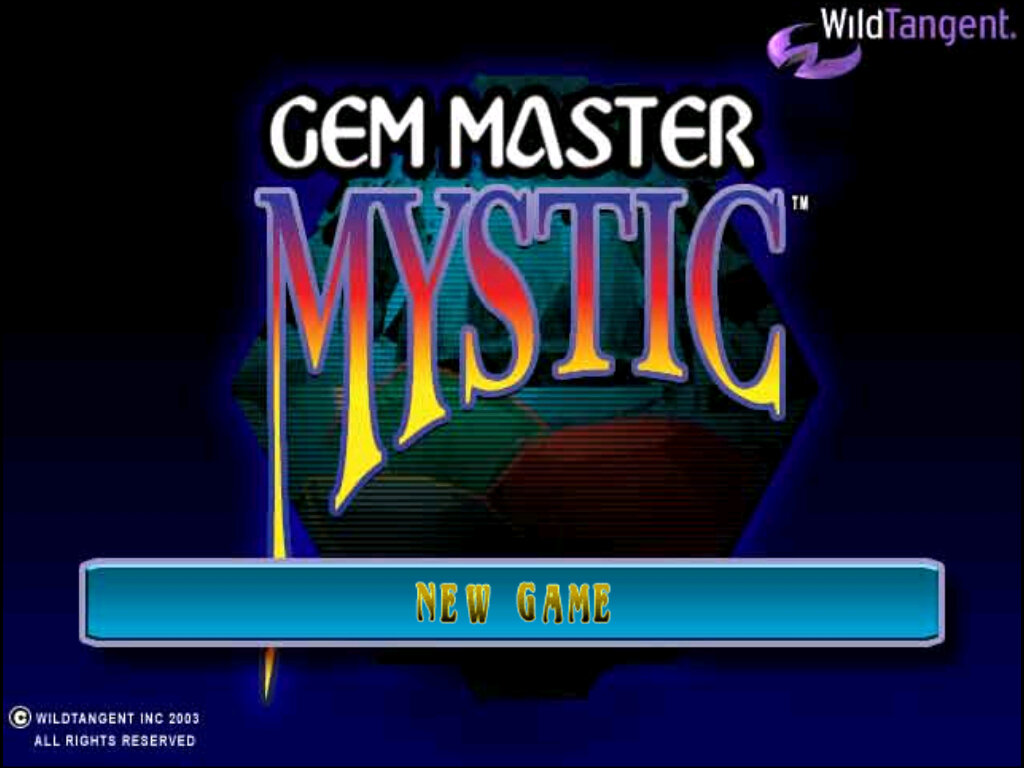
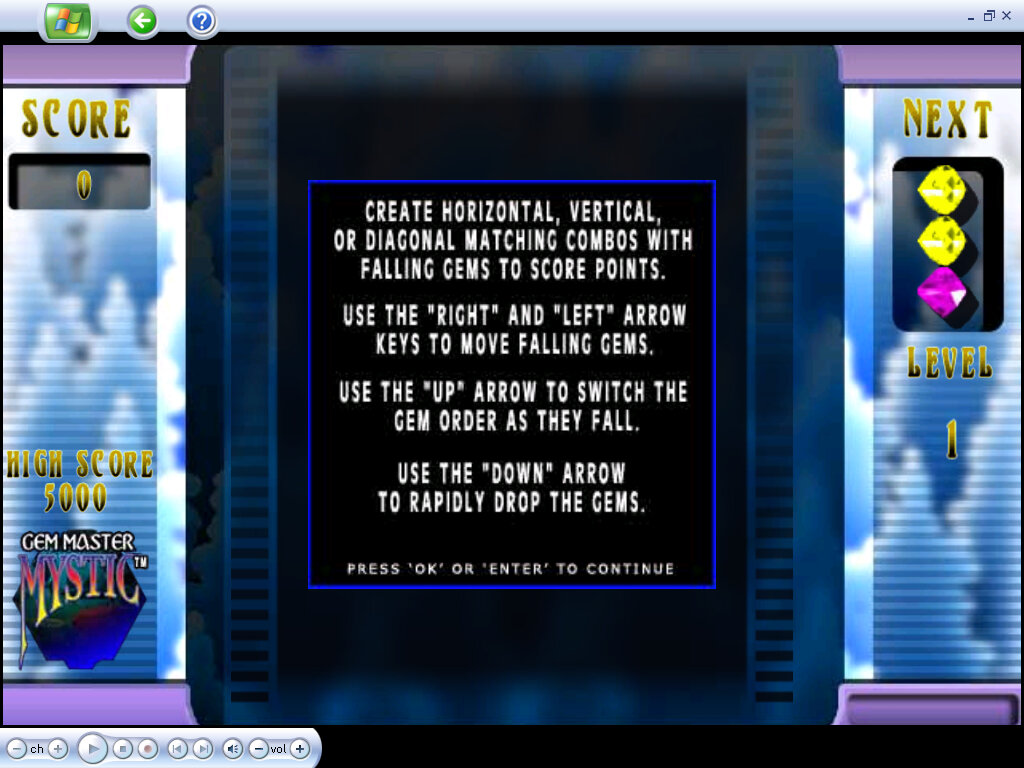
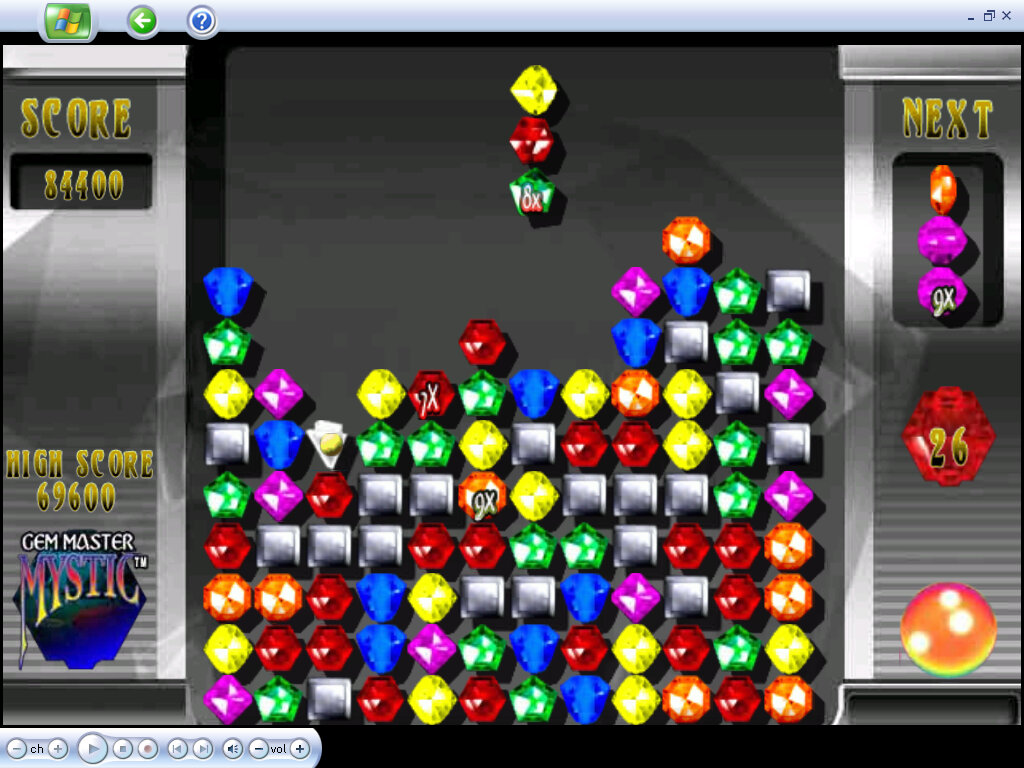
Additional programs that integrate into Media Center are displayed here, which can include games or links to the website. Dell has bundled a few WildTangent games that are intended to be played using the Media Center remote.
Otto: The objective is to turn all of the squares into your colour, whilst avoiding the enemies.
Gem Master: Similar to Sega Columns, clear the board by matching three or more colours together
Microsoft Server operating system spin-off, intended for home users who were looking to create a home server to back up their files and share their media across multiple PCs and devices, like the Xbox 360. Built off the Windows Server 2003 codebase, it bares a resemblance to Windows XP and is generally compatible with it.
Install
So this took a few attempts to install, as Microsoft had implemented strict system requirements.
Attempt 1
Failed due to using a SCSI drive instead of an IDE or SATA drive, as the installer did not support VMWare’s SCSI controller which was enabled by default. Another issue was the VM memory was set too low, as Windows Home Server needs at least 512MB to pass the install
Attempt 2
Failed because the virtual hard drive was not large enough, by default VMWare created a 40GB and the installation needs 65GB
Attempt 3
Failed again because the first hard drive was 40GB, even though an 80GB HDD exists on the virtual system, it wants the primary disk to the over 65GB.
Attempt 4
Managed to make inroads into the install but after completing the setup wizard, the system restarted to a blank screen and would reboot back into the setup wizard where it would begin from the start.
Attempt 5
This time I removed both hard disks and created a new blank 80GB and attached it to IDE 1 master. Again it installed but rebooted to a blank screen,
Attempt 6
This time I created a new blank 80GB SATA disk and installed it to that. I managed to get further as at this point the install was completed and rebooted into a setup sequence similar to Windows XP, and then it BSOD
Attempt 7
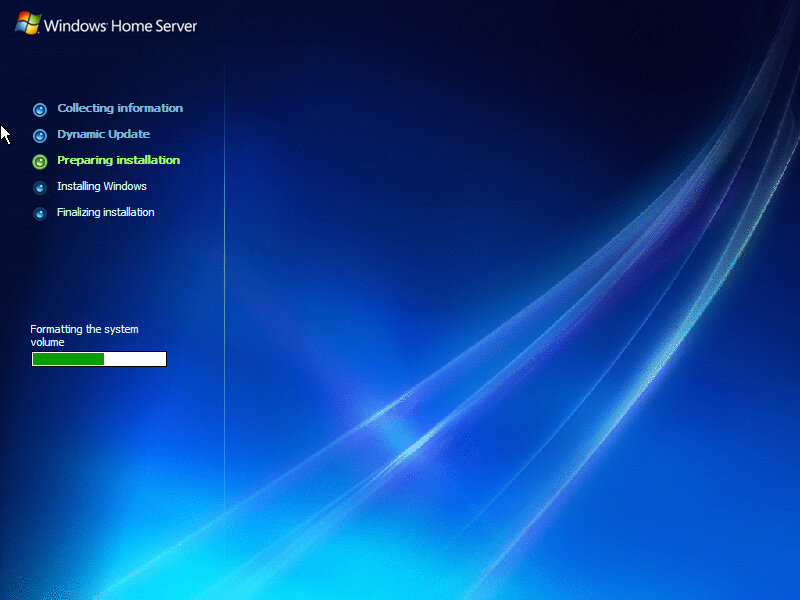
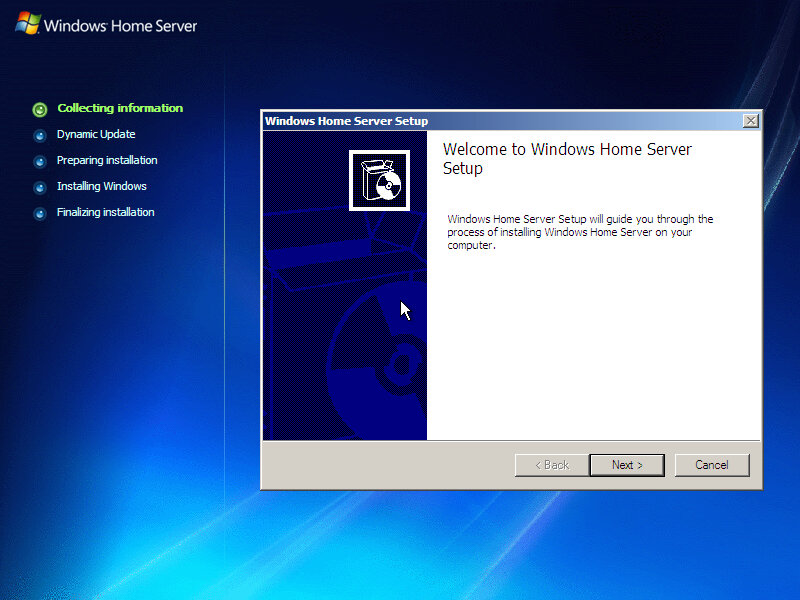
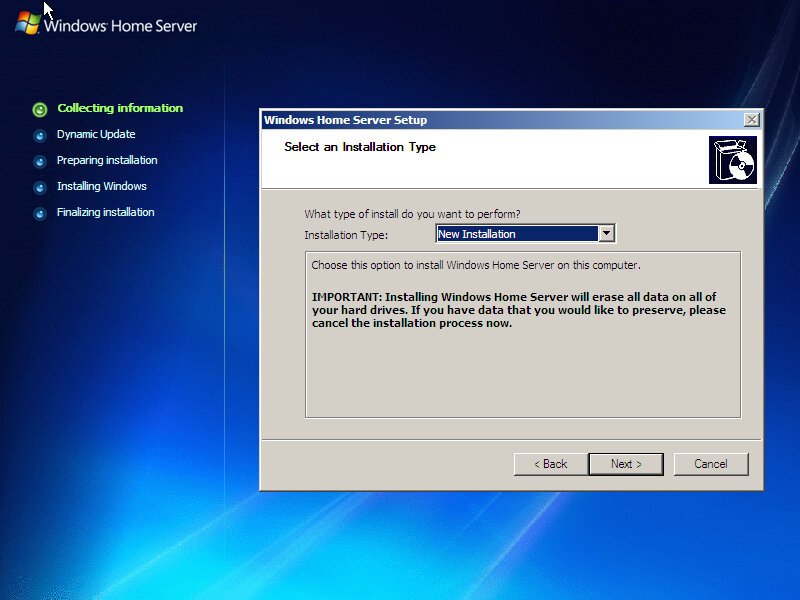
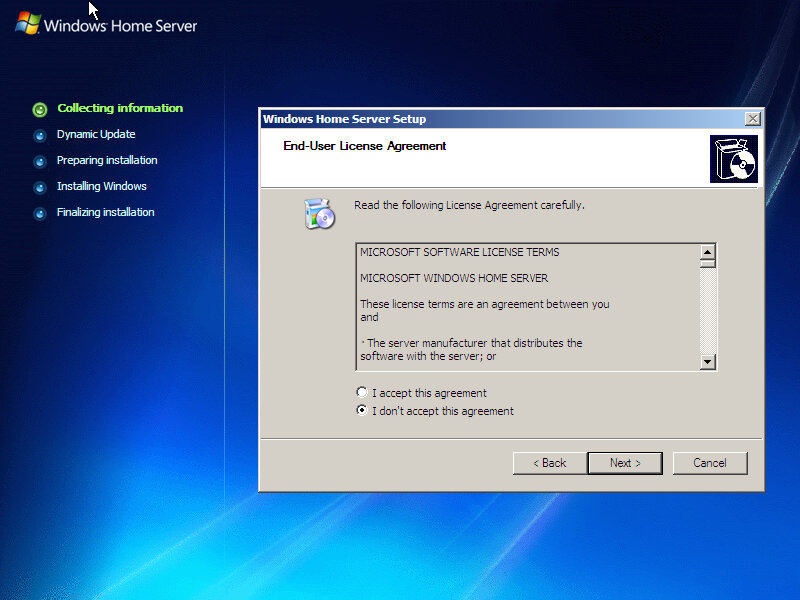
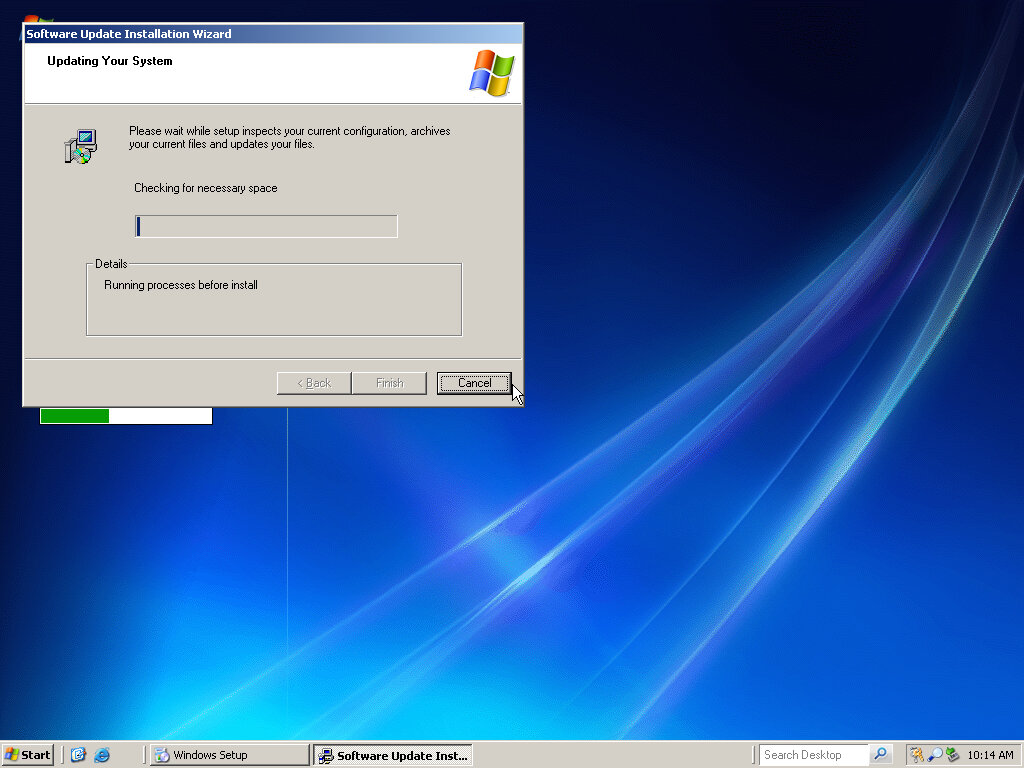
Same as above but replace SATA with IDE, eventually we are able to get this cunting thing to install. At this point, the install identifies itself as Windows Server 2003 which the OS was possibly based on. Later we reboot again aback into the Windows Home Server and install the setup design looks remarkably like Windows Vista with its light auras,
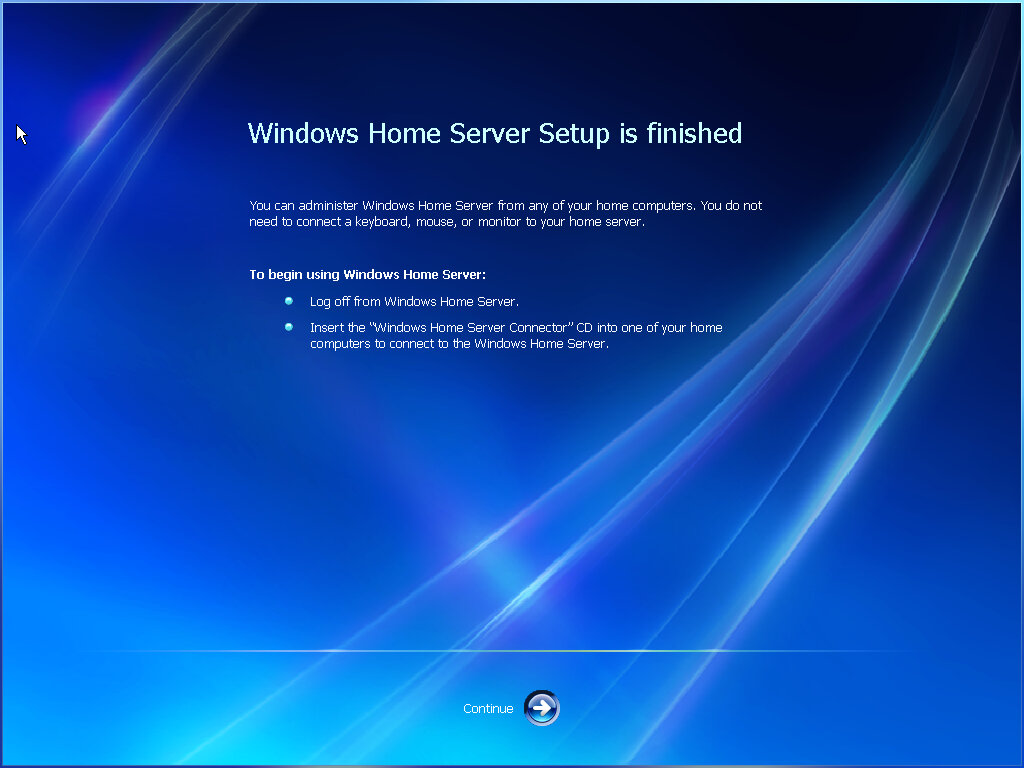
Eventually we get to the desktop but the setup isn’t finished yet, and the system is rebooted once more.
Although it wants to check the disk, maybe its procedure: You can skip it but it will nag you every time it boots, so might as well get it done with.
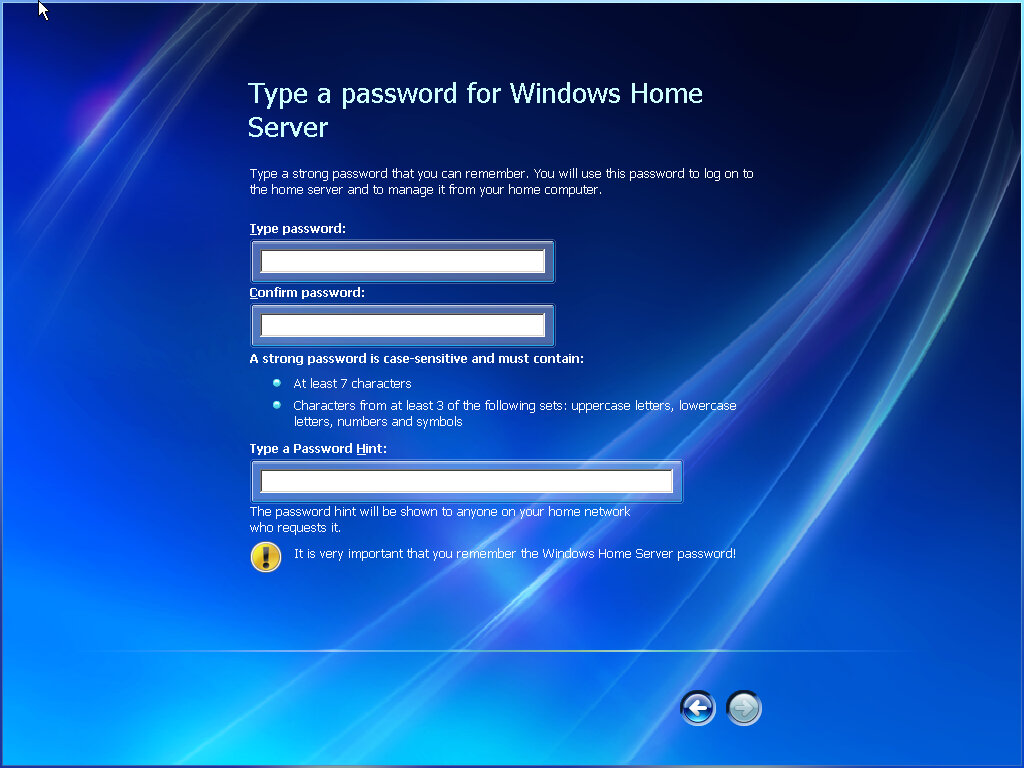
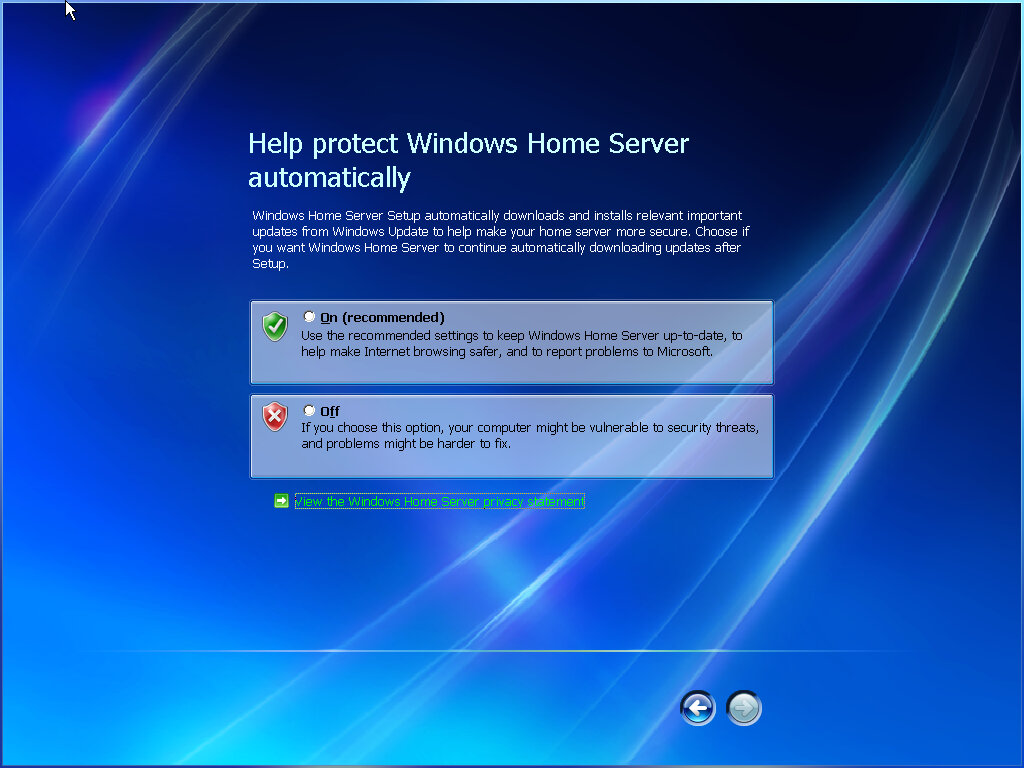
After that we are back into the install to complete once more, this is getting like Windows Fundamentals for Legacy PCs where we had to reboot a fair few times before we got a usable system. I’m guessing it’s using the same setup procedure? It does look remarkably similar to FLP.
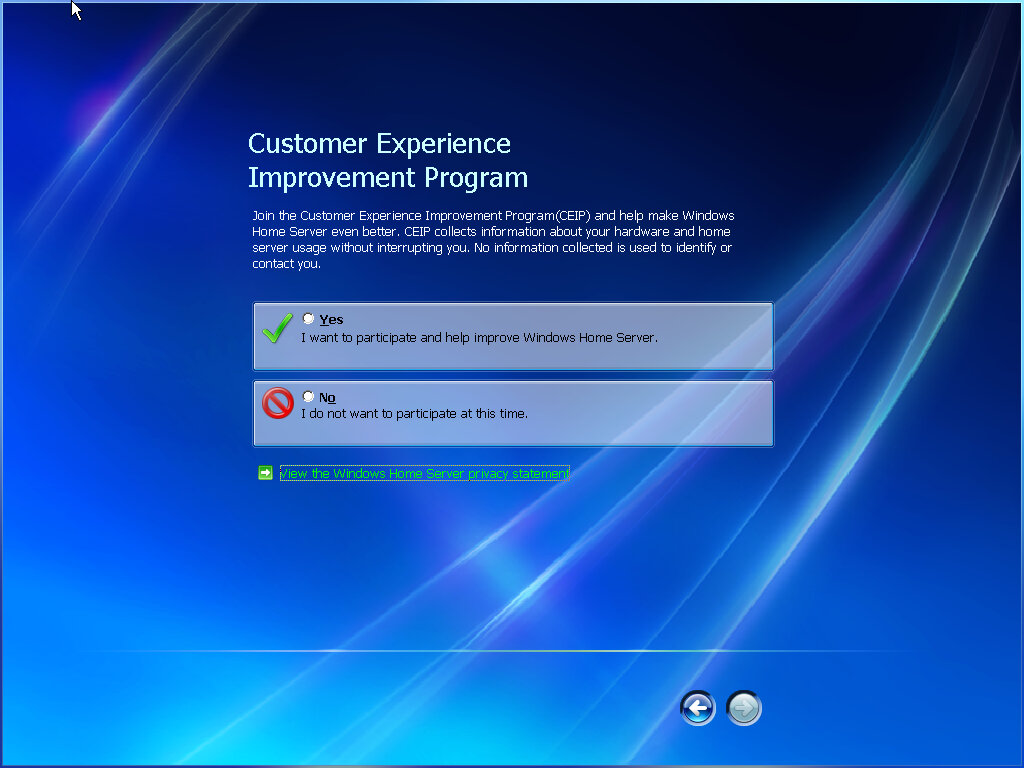
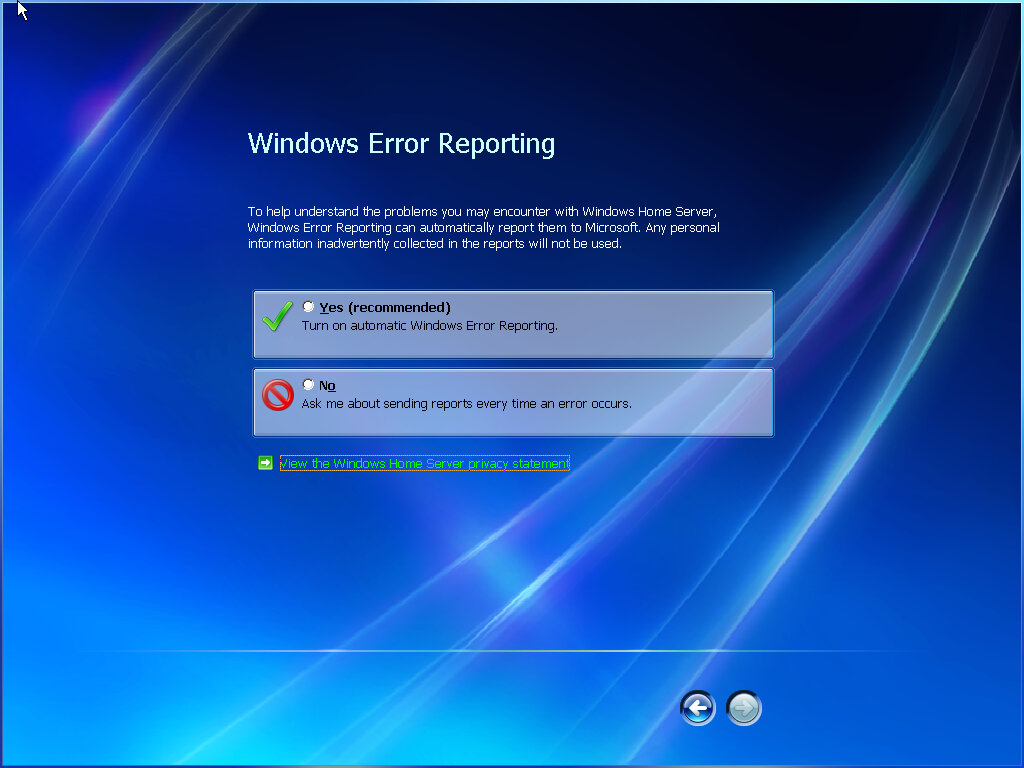
So to summarize, to install Windows Home Server in VMWare:
Have an IDE Hard Disk, 80GB or larger (VMWare will try to allocate this as a SATA or SCSI drive, always ensure it’s an IDE drive)
Set at least 512MB of memory, more is recommended but remember this is a 32bit operating system
VMWare will autodetect the ISO image as Windows Server 2003, which is technically correct but will cause it to set the default virtual machine settings incorrectly.
Desktop
Here we see a unique desktop background that looks similar to the ones that appeared in Windows Vista.
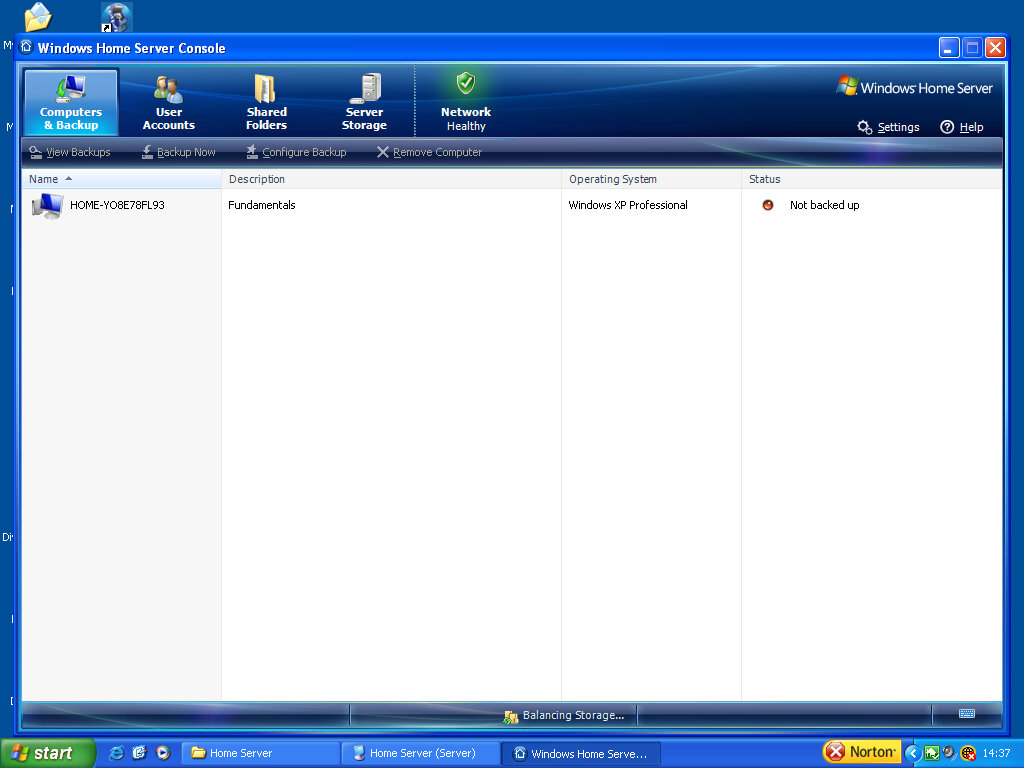
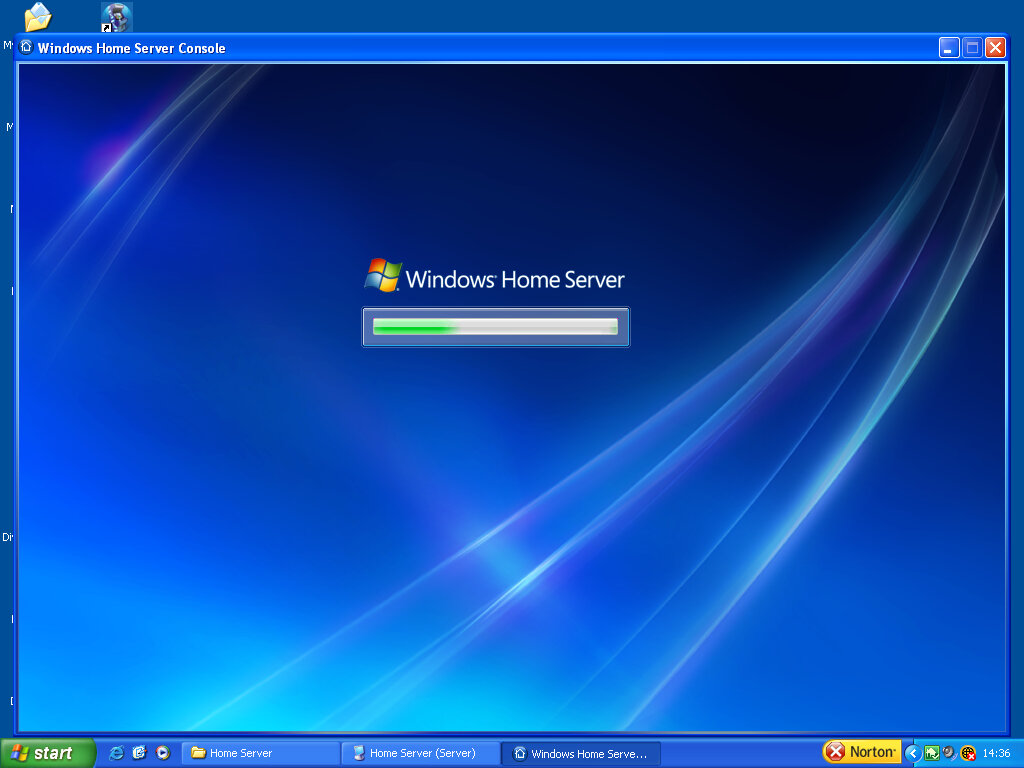
Windows Home Server Console
This is the main user interface for setting up and configuring your home server. As this was intended to be used by a home user who may not be knowledgeable about servers.
Computers & Backup
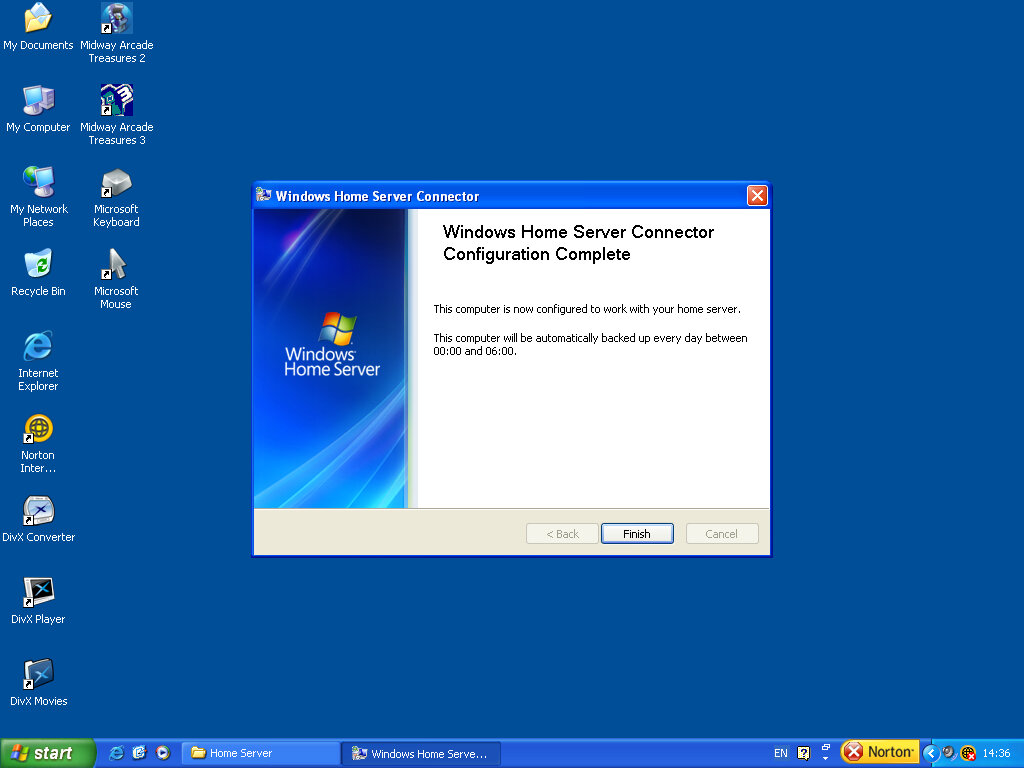
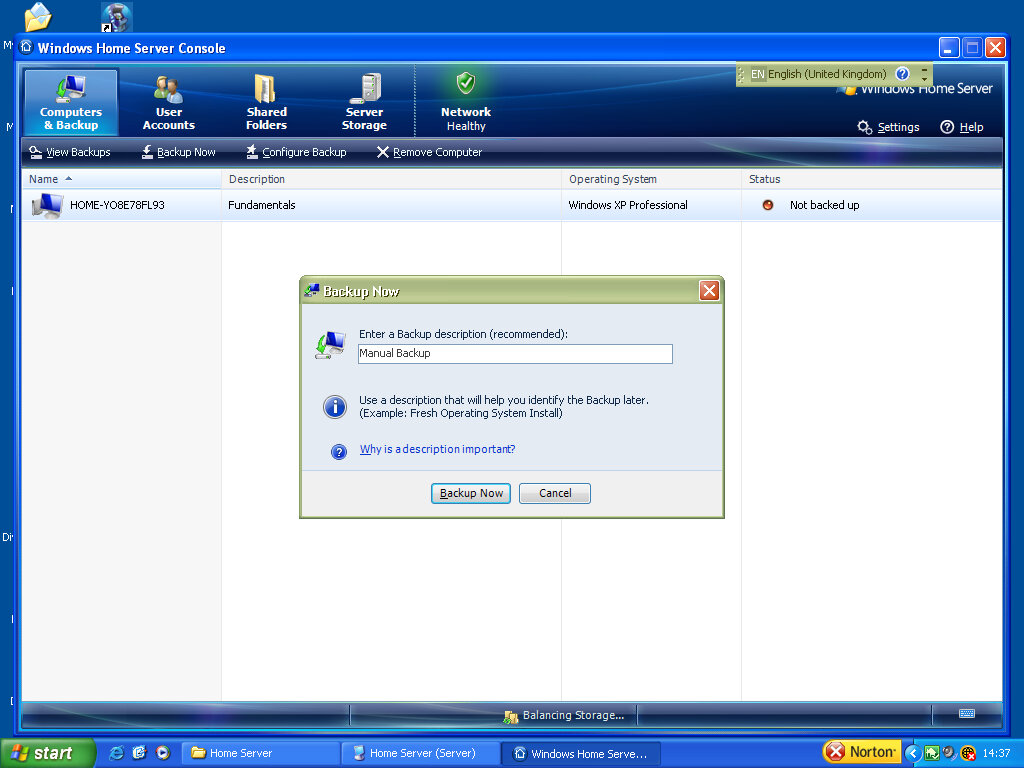
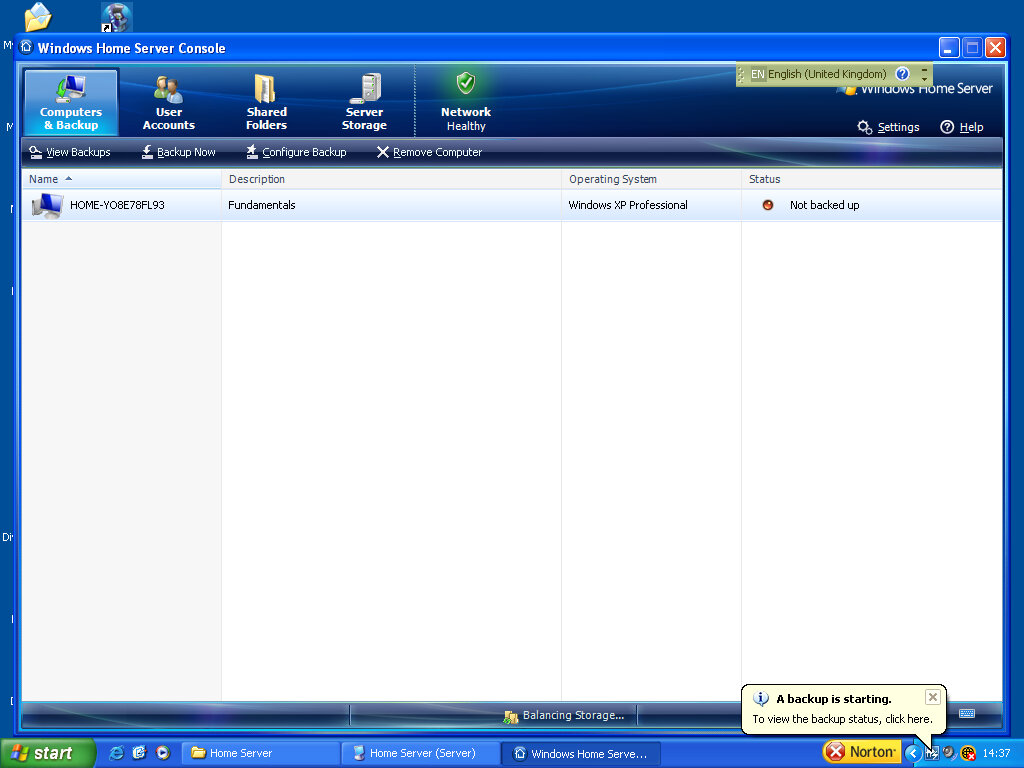
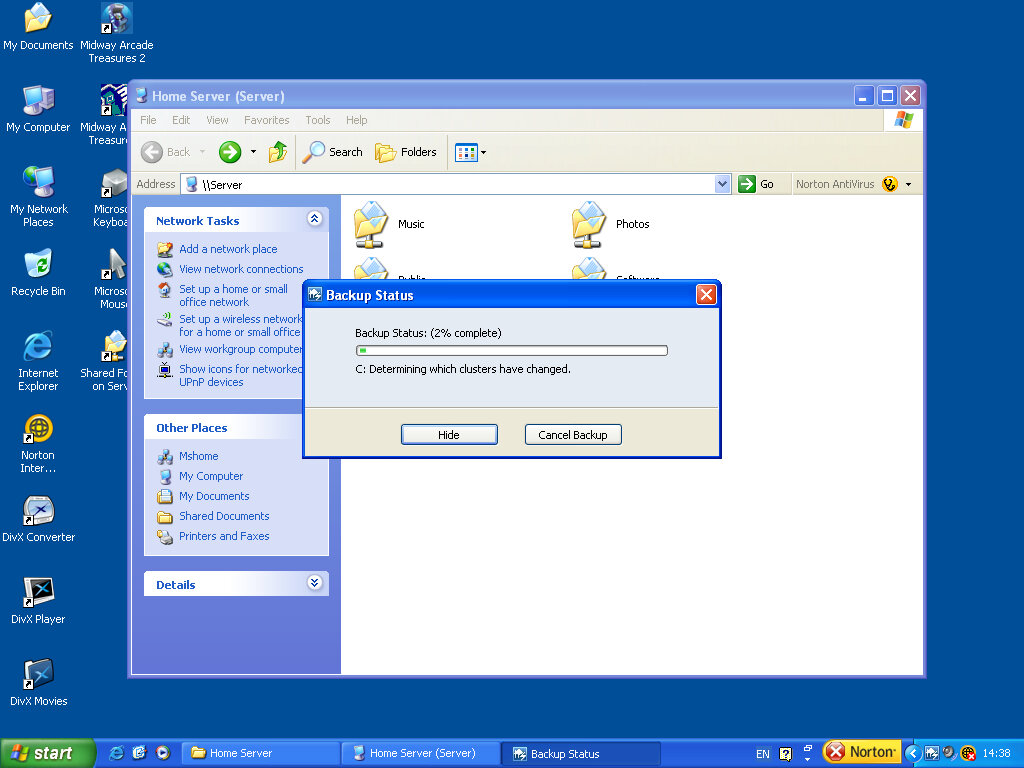
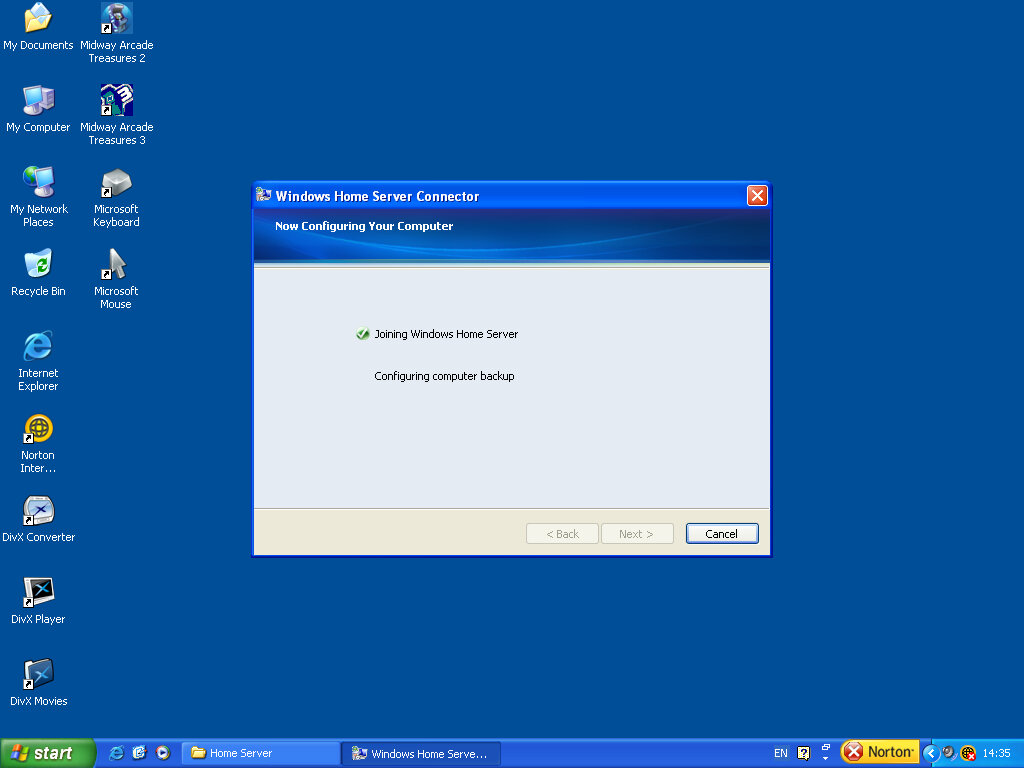
A list of computers that are linked with your home server. This requires the installation of the Home Server Companion software in order to function on the client machine. Once added, you can schedule backups on a fixed scheduled basis.
User Accounts
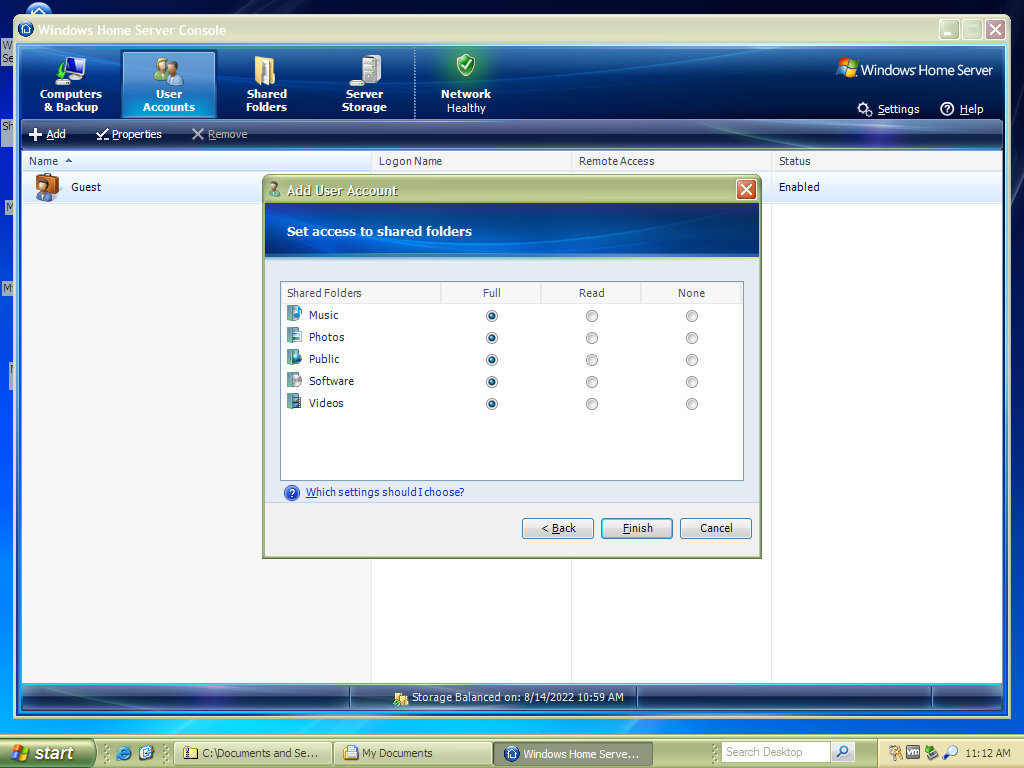
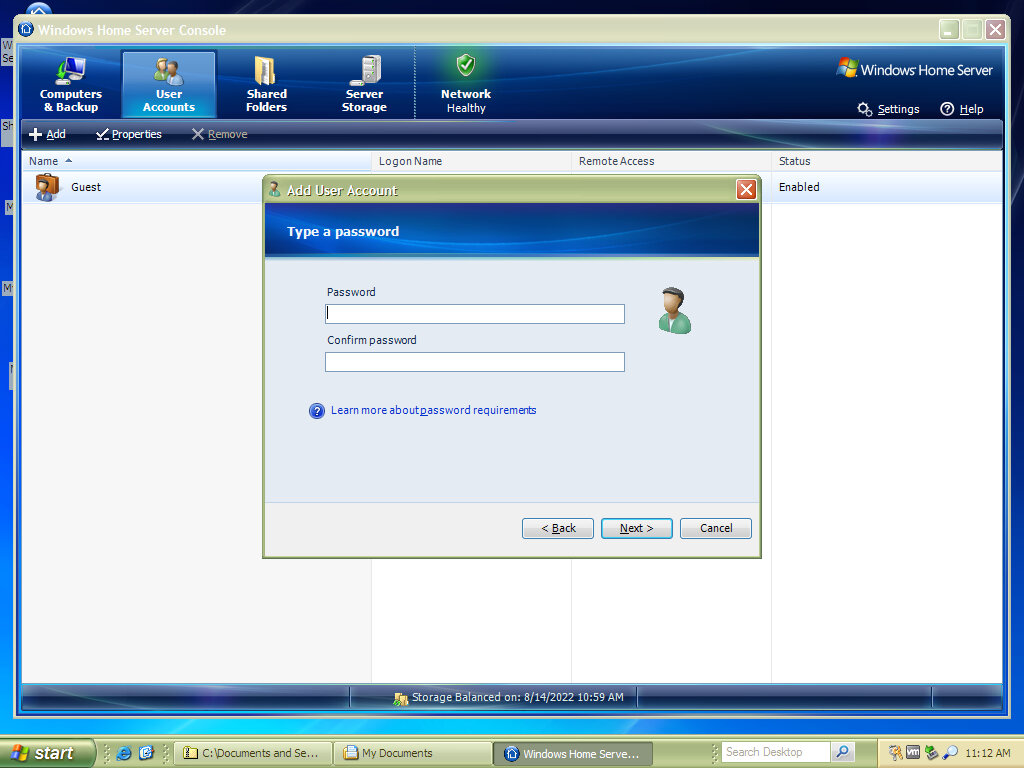
You can add multiple user accounts who are then able to log into the server. Each user has their own folder to store their files in. Typically default folders will include a Picturer, Music & Videos folder.
Each user can set their own password for secure access, and user accounts can be disabled at any time.
Shared Folders
By default, there are five folders, Music, Photos, Public, Software & Videos. All are dedicated folders to help store and share files on your network. Very similar to a typical home NAS drive. Each user account also has its own folder, of which only the user themselves has access to the drive, although this can be configured by the server administrator.
After the installation, a link to the server’s network share is placed on the user’s desktop. No network drives are mapped.
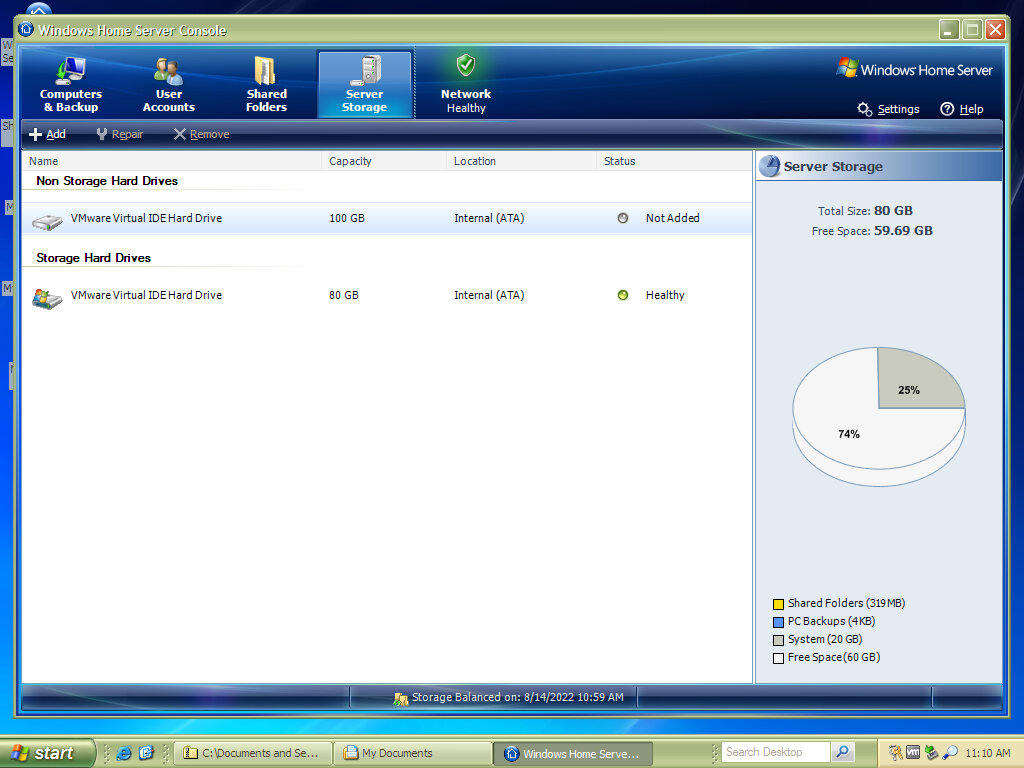
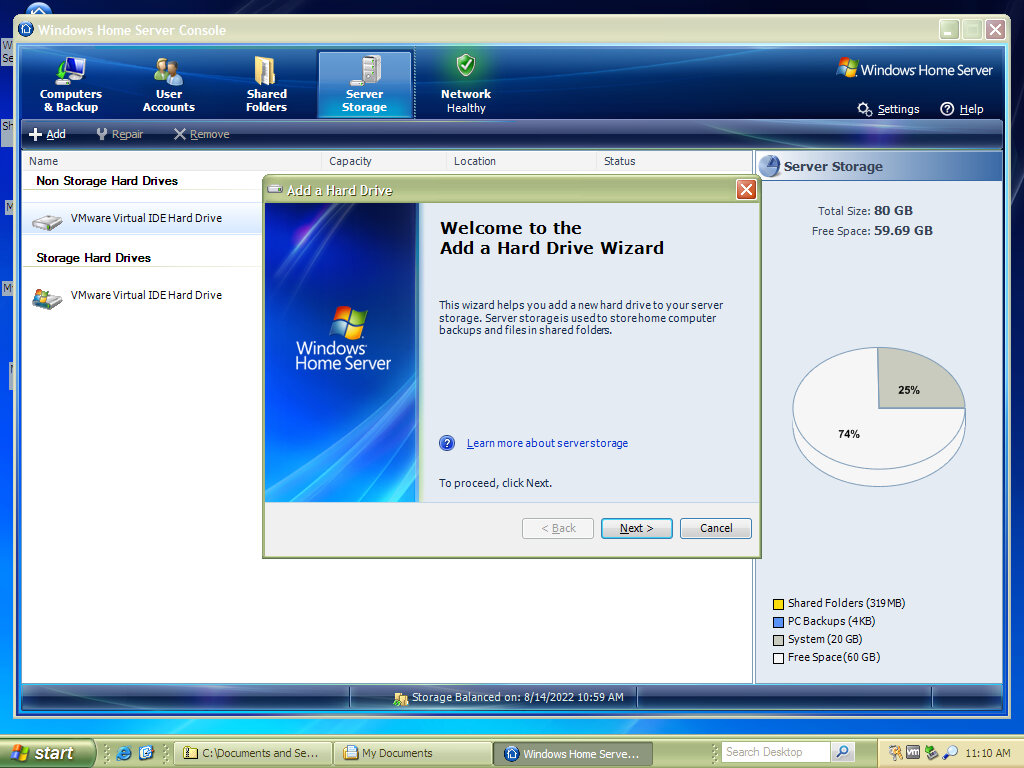
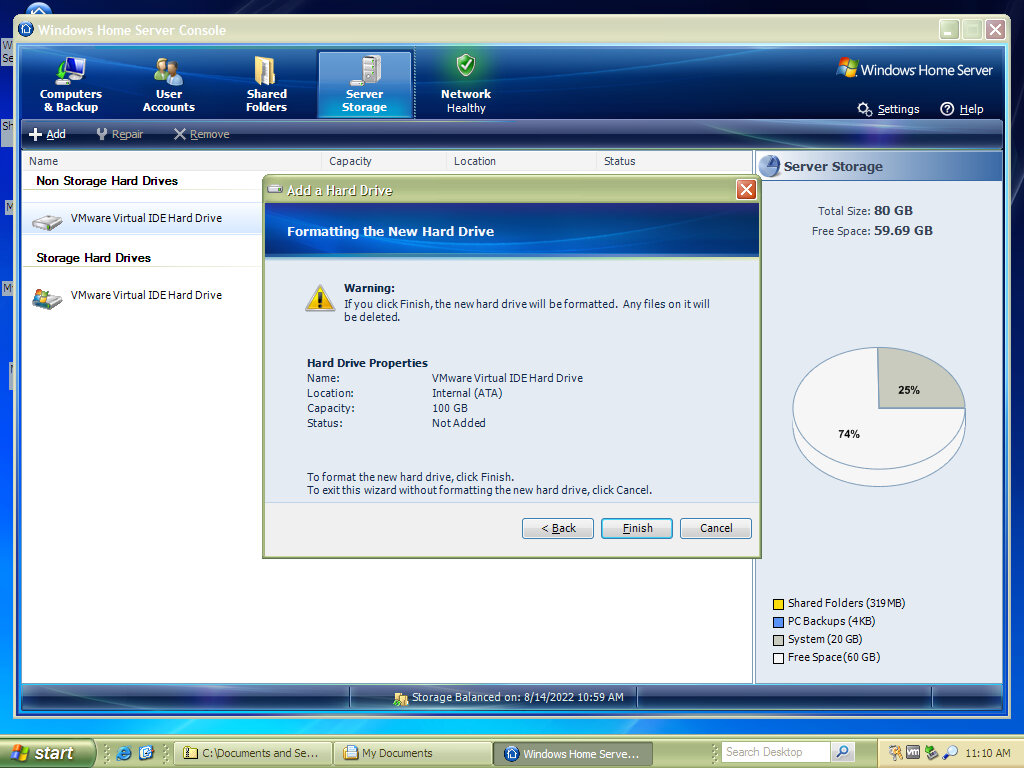
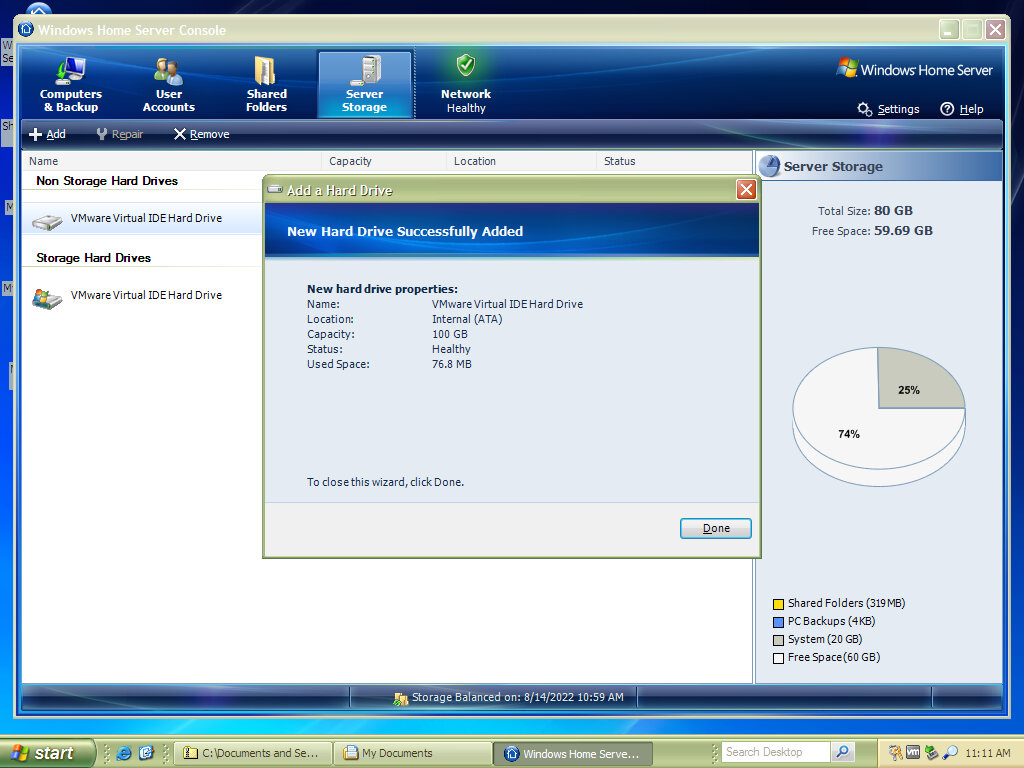
Server Storage
A list of all volumes currently connected to the server shows the disk status and the capacity. The storage usage is displayed.
Windows Desktop Search
The version comes included with the operating system which replaces the Windows XP style search and is more akin to the one found in Windows Vista (Windows Search was also available as a downloadable upgrade for Windows XP) Benefit here is a full indexed search that looks in your documents folders.
Start Menu & Themes
By default, the Start menu is barren compared to a regular Windows install since this is really intended for server management rather than day-to-day application use. But we can easily customize it to look like the regular Windows XP Start Menu.
The Windows Classic theme is set by default, and upon attempting to change it appears the Luna themes from XP are missing or are not included. Even when trying to install additional themes has little to no effect (Like the Zune or Media Center Royale theme)
To enable the use of Luna themes, the Windows Theming (Visual Styles) service must be enabled by enabling it within the Windows Service management console. Once enabled, a Luna theme can be set, even the default themes included in XP are now available.
Windows Media Player 10 comes integrated into the operating system, along with Internet Explorer 6 and Outlook Express (6.00.3790.3959)
Component
Version
Internet Explorer
6.0.3790.3959
Windows Media Player
10.00.00.3997
Windows Messenger
Does not appear to be installed
Outlook Express
6.00.3790.3959
Windows Movie Maker
Does not appear to be installed
Software Compatability
Installing Anti-Virus software seemed to be problematic, with Windows Live OneCare and Avast refusing to install. Possibly this requires the server versions of these applications?
Zune software also failed to install
Internet Explorer – Version 6 comes included, but we cannot install regular versions of Internet Explorer 7 or 8. Unless there are specialized versions of these that were released, it appears these browsers are not supported, despite running Service Pack 2. (A specialized build of Internet Explorer 8 can be found here)
This probably ties into the fact Windows Home Server isn’t a consumer operating system, so later versions of Internet Explorer were not released.
Still, DirectX 9.0c comes integrated into the OS and in testing a few titles seem to work ok.
Graphis drivers should be fine, although be aware this is running on the Server 2003 codebase (NT5.2) so I’d recommend using Server 2003 drivers instead of XP. This is also a 32bit only operating system.
Windows Home Server Companion
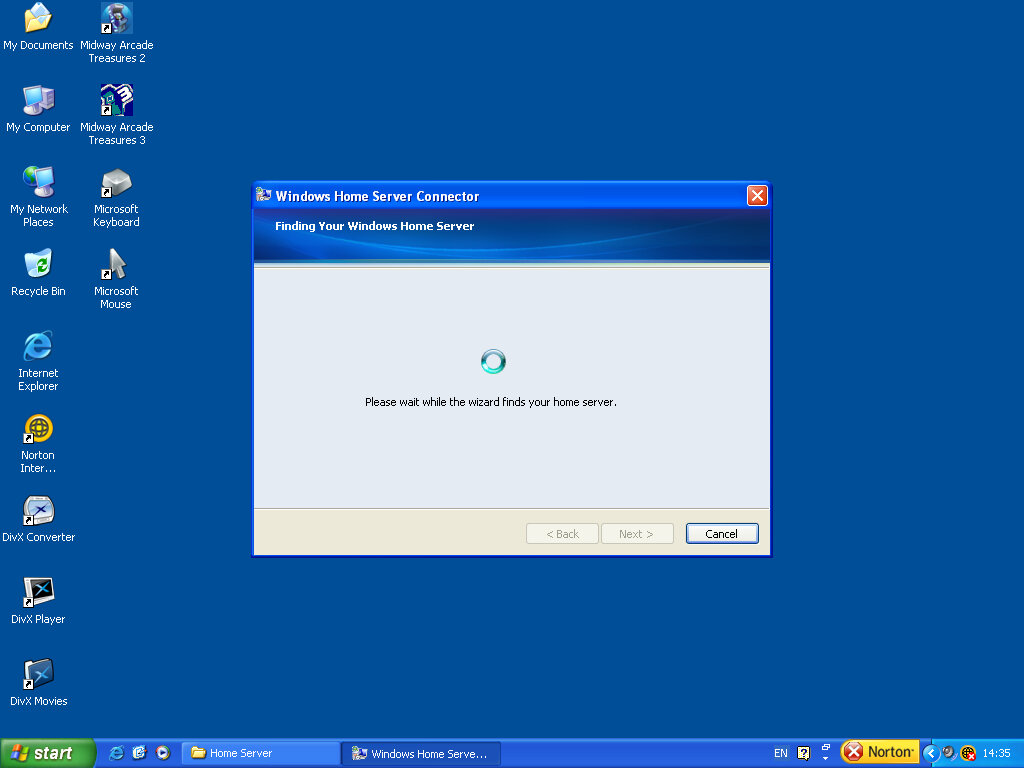
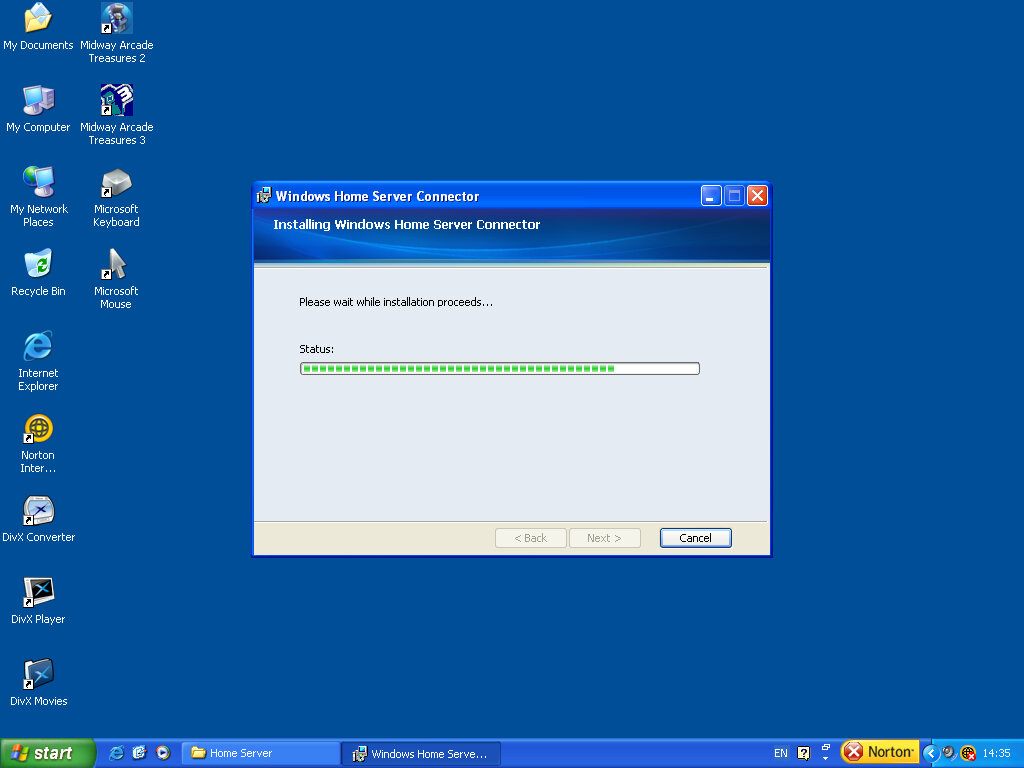
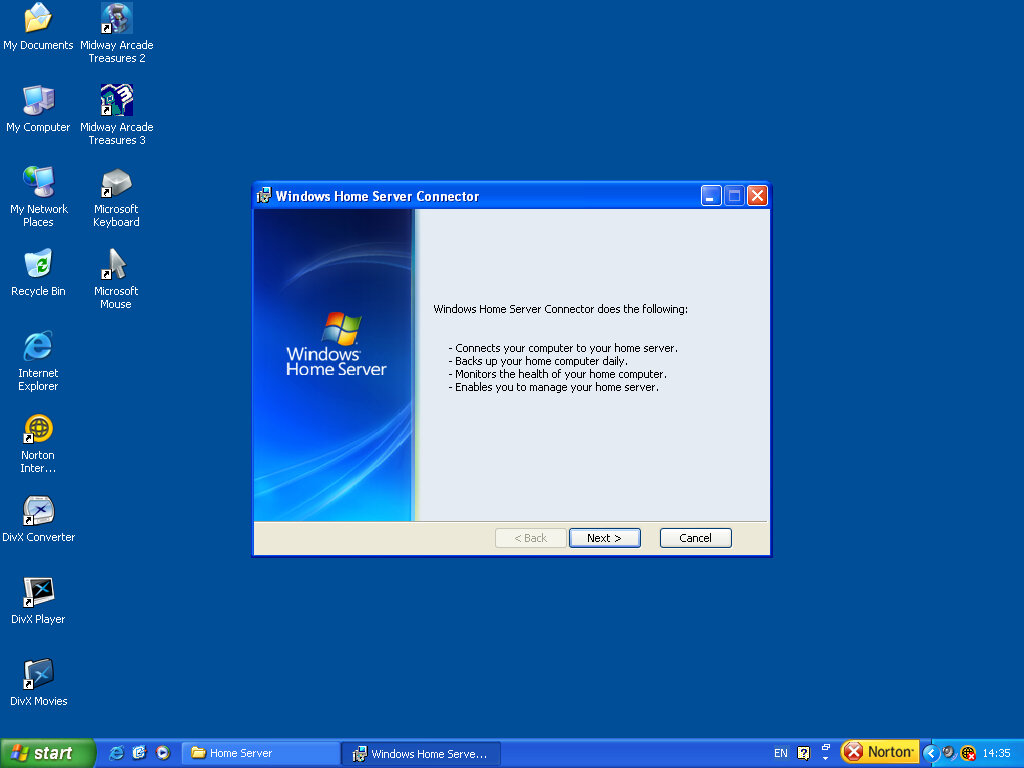
This is a utility that is installed onto a Windows XP system to allow full compatibility with the Home Server and is required to use the Home Backup features. It requires a version of Windows XP running Service Pack 2, although it runs as fine on Windows Fundamentals for Legacy PCs.
This isn’t required to access files on the server, as you can do this over SMB as long as the server is part of your Workgroup (All must use the same workgroup name, typically MSHOME or WORKGROUP)
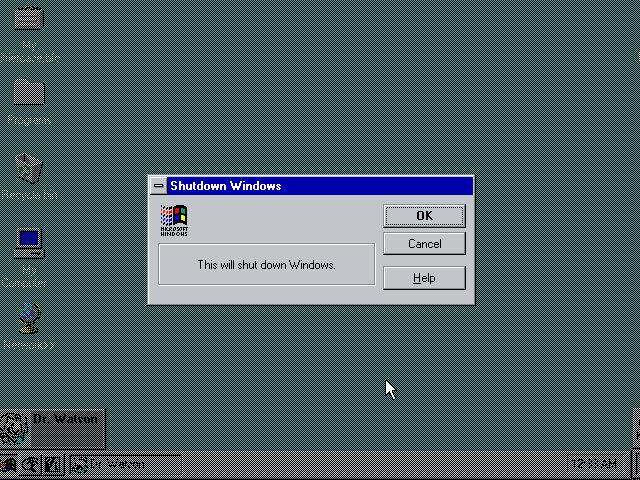
Shutdown
Power Packs
Major updates were released as ‘Power Packs’ which added additional functionality to the Home Server component, particularly Power Pack 2 which adds support for Windows Media Center for editions of XP and Vista that were released around the same period. The Home Server companion was also upgraded to take advantage and adds a link to the shared folders to the media menu. This allows pictures and music stored on the server to be streamed directly to the media center PC.
Because calling it Windows XP Basic Editon wasn’t elaborate enough…
Logon screen
Windows Fundamentals for Legacy PC (FLP for short) is basically Windows XP but for old systems and was intended to be used in an Enterprise environment since it was only offered through this channel. It was not made an option for OEM or Retail channels and was intended to be used for computers that were previously running say Windows NT or 98, who wanted to run an XP-based os but due to the limited specifications were unable to run the ‘Full fat Xp’. As this was released in 2005, and 98/NT4 was due to lose support the next year, this OS was intended to be an upgrade path for those old PCs that were still running those operating systems but were not capable enough of running Windows XP.
Install
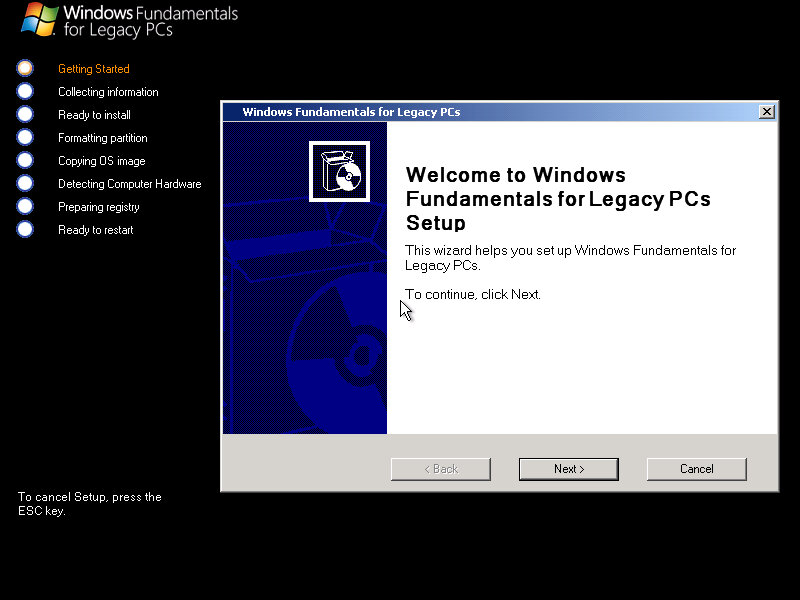
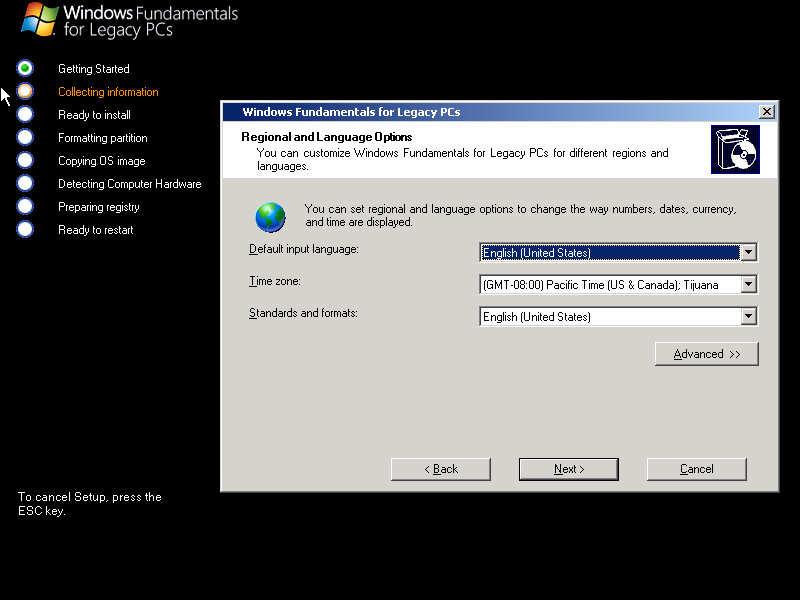
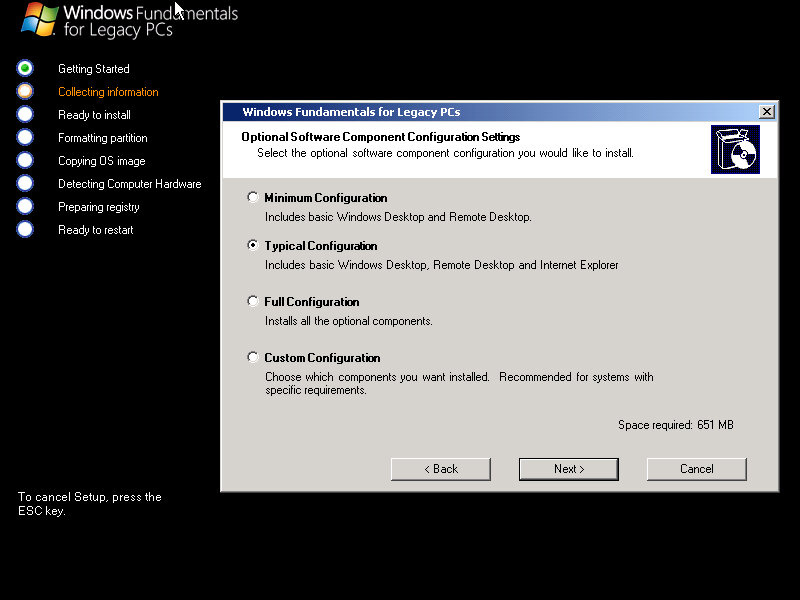
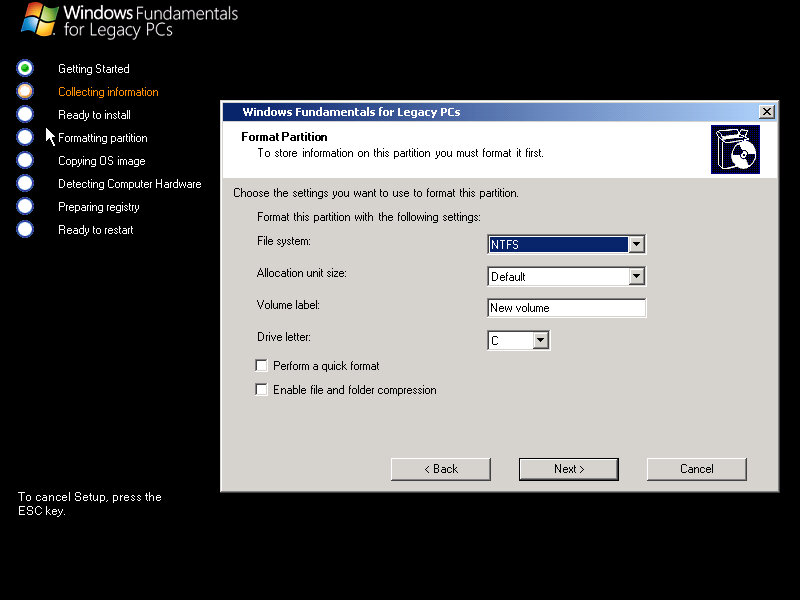
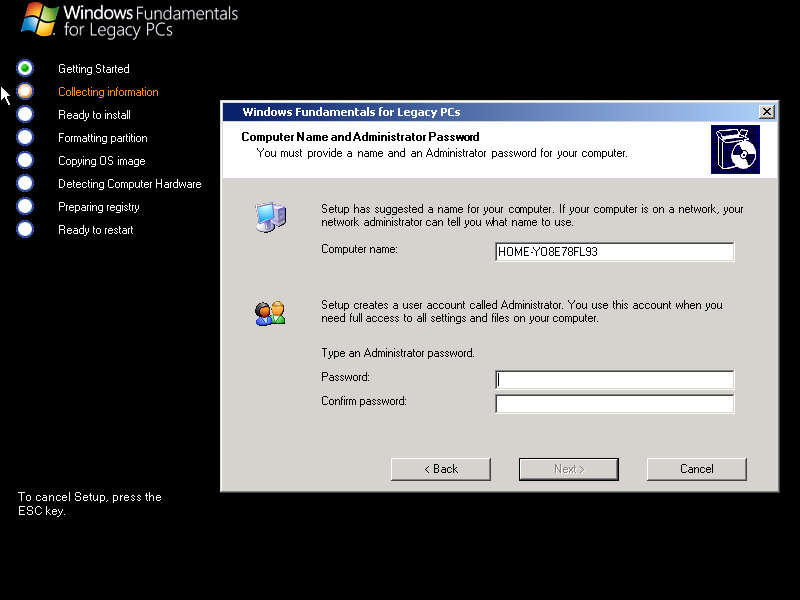
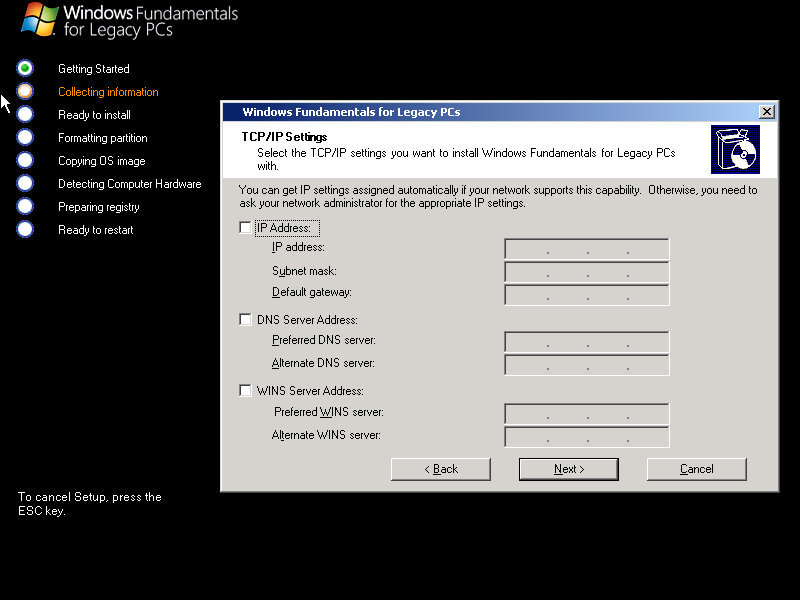
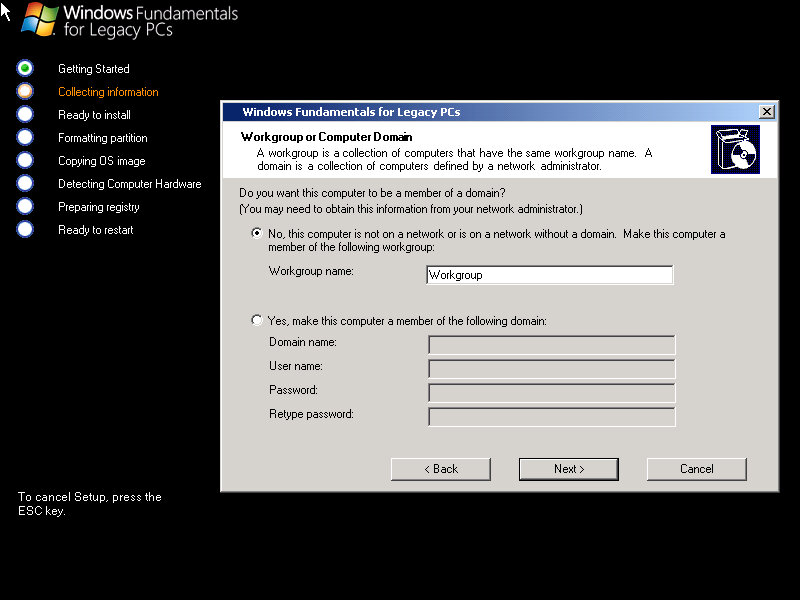
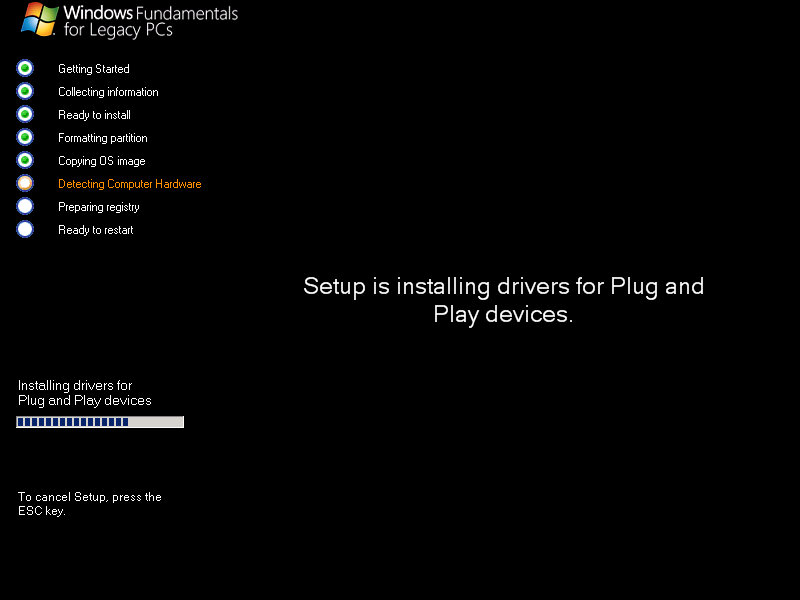
You will notice that this installs differently compared to stock Windows XP, and using a newer Windows Installer. Gone is the blue install screen. This is similar to what Windows Vista would use, and the Longhorn Beta’s (Pre-Reset) would install in a similar method.
After the installation has been completed you are prompted to reboot your PC. After the initial reboot, you are treated to a configuring screen, of which you are prompted to reboot again, and again. There are several reboots needed before the install finished and we are presented with a desktop.
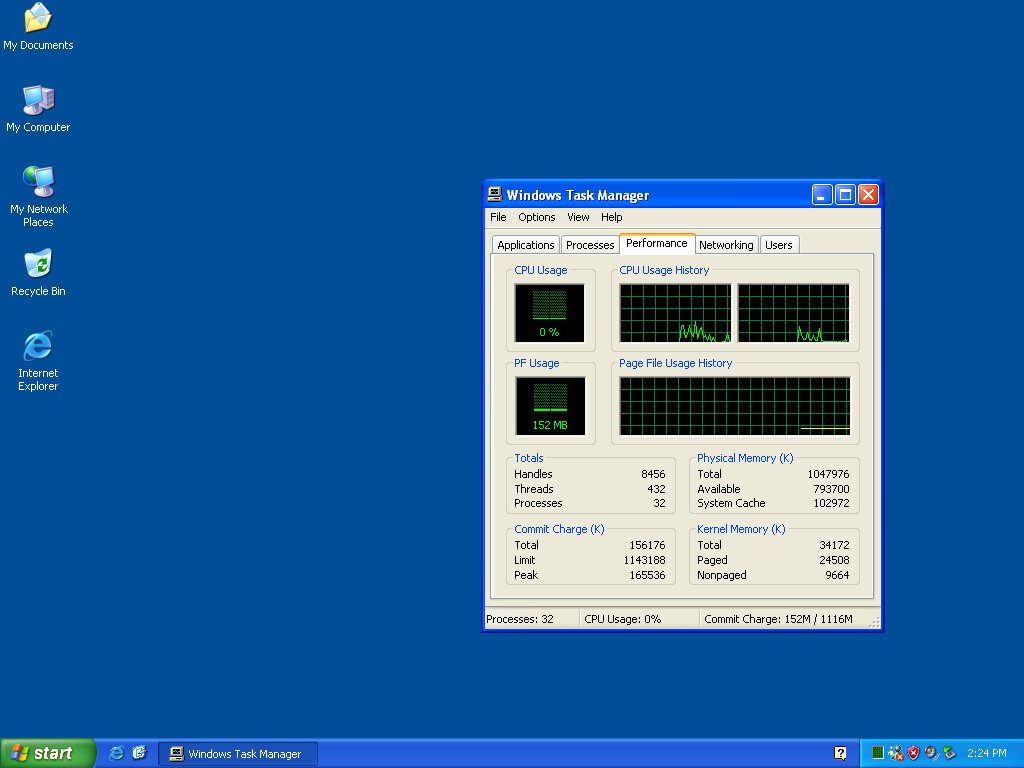
Well, it looks just like a regular Windows XP install, minus the desktop background which has been replaced with a regular solid blue colour.
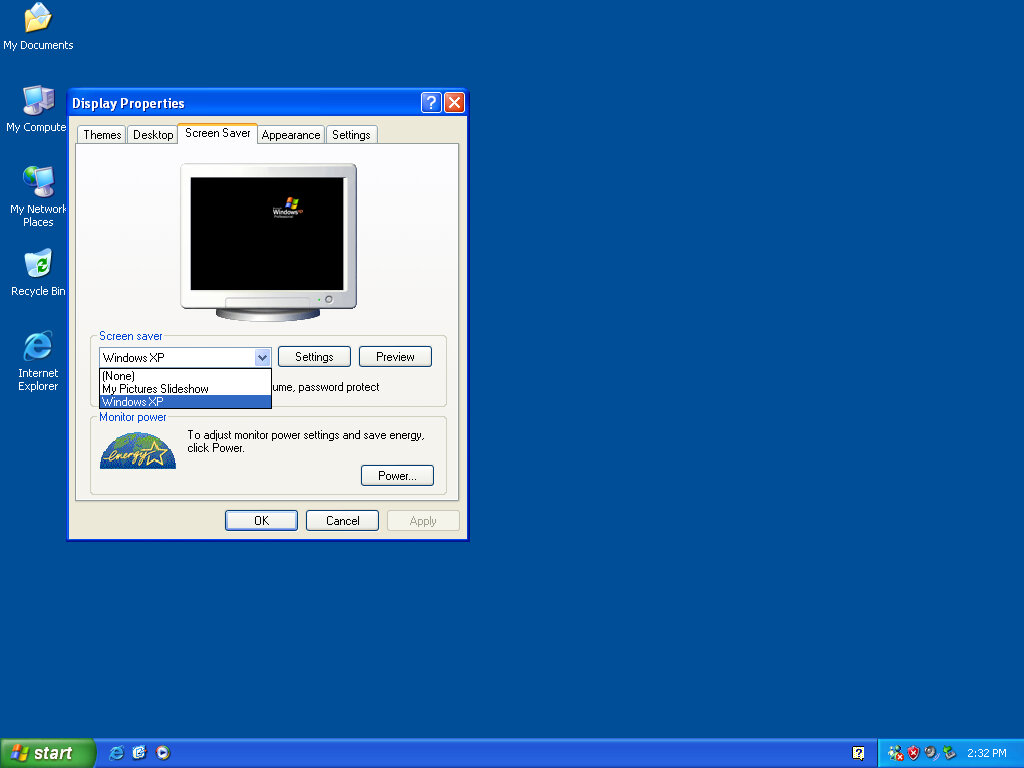
A lot of personalization themes are missing, there are very few screen savers or desktop backgrounds available, although the desktop styles can be changed. I’m curious as to why Luna is included and selected by default? Surley an OS intended for low-end usage would use the Windows Classic theme, or maybe there is very little performance difference between the two?
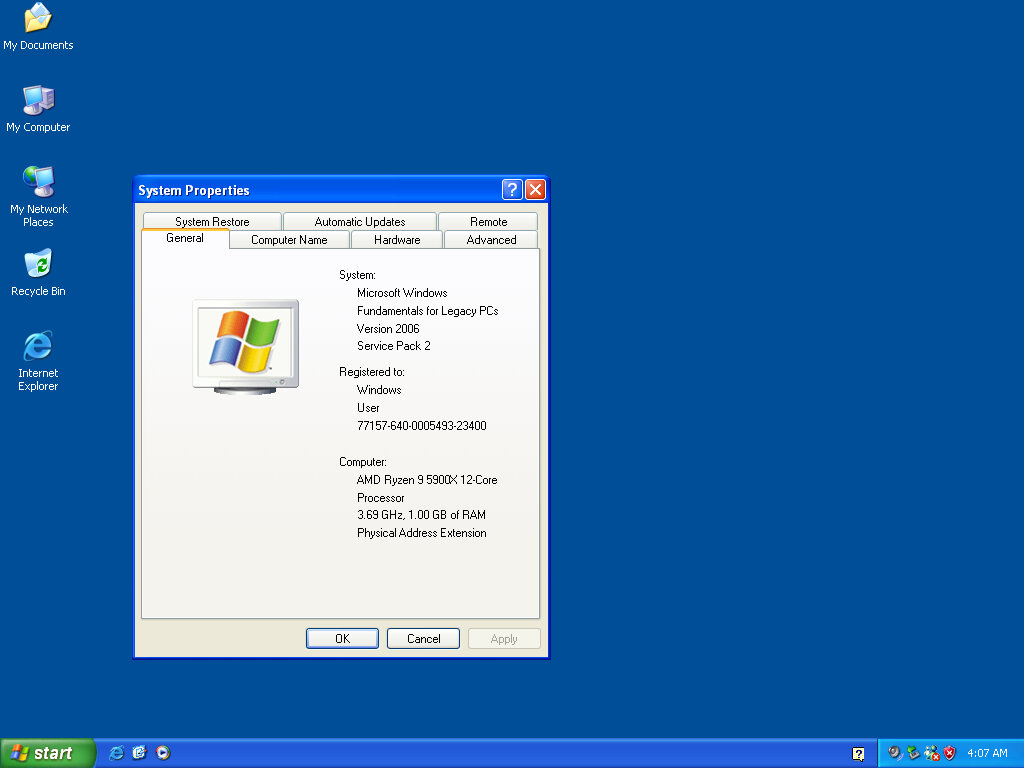
So let’s see what missing and if anything has been removed or added. On a note, a fresh install is using 1.33GB (post-VMWare addon installed)
Windows classic theme with 16bit colour
The security center from the XP service pack 2 is included and will warn that updates are not enabled and that no antivirus software is installed.
Windows Media Player 10 is included with the OS and was the latest release at the time, Again I’m confused why this is included instead of Media Player 9 or 8, which would have helped reduce the install size
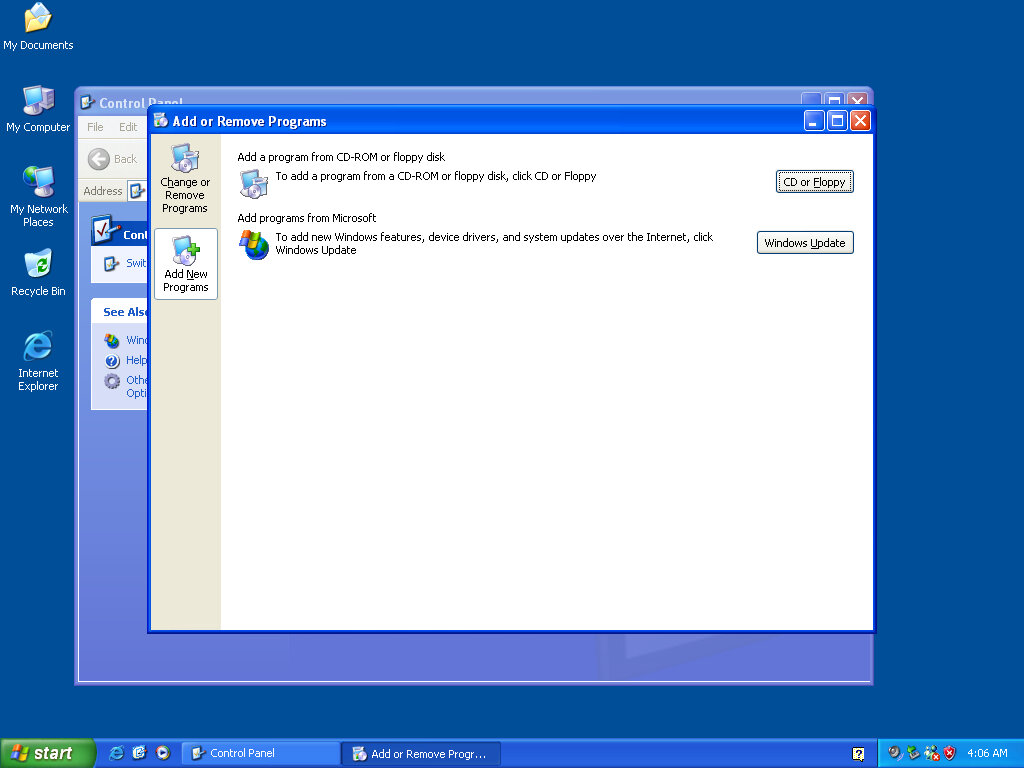
There are no built-in games with this build, and they cannot be optionally installed (The Windows components section is missing)
No option to add Windows components
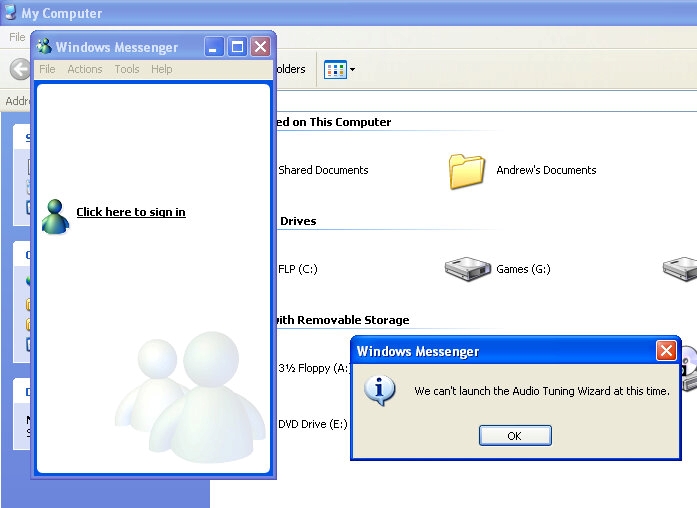
Windows Messenger 4.7 comes with this build also. Strangely the audio tuning wizard does not work, just giving the error message when we try to open it
An observation I found was how Windows handles an application crashing, an error message appears in the same fashion Windows NT 4 would crash, with no option to generate a useful error report, no apology, just a notification that the program has crashed.
Software Testing
Curious to see how it handles software of the era it was released in. Most 32bit Windows software should run fine, though I wonder how well DirectX games will run. DirectX 9 does come included with the OS preinstalled.
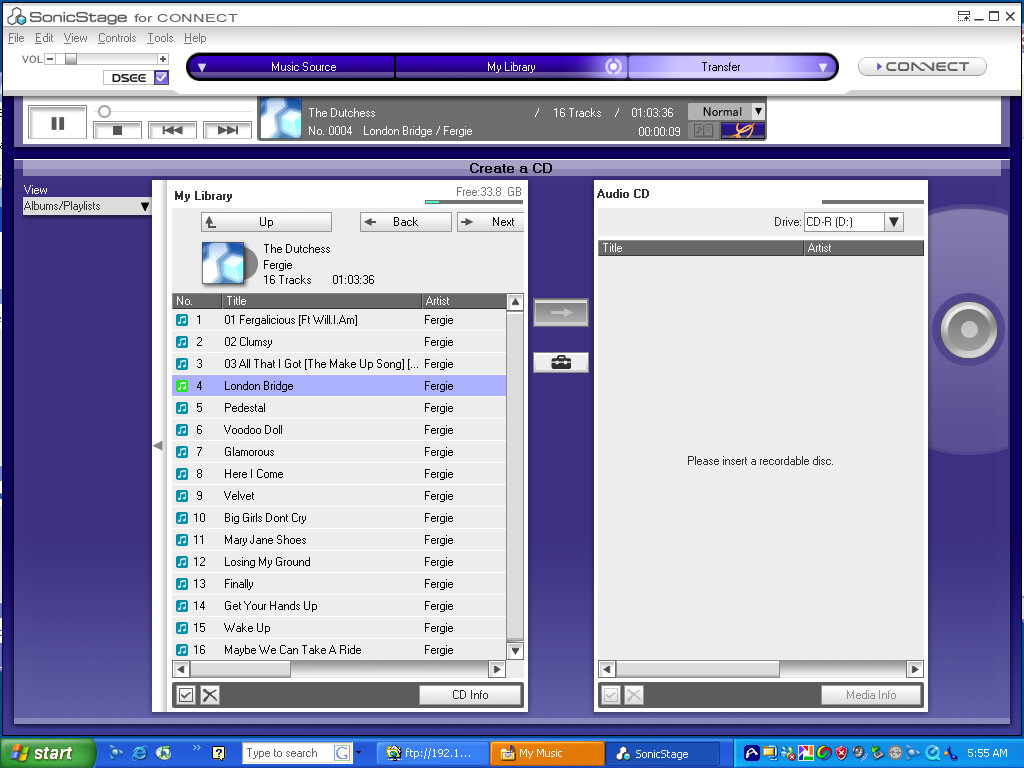
Sonic Stage
Sony’s music player software for their Walkman music player (Think of the iPod but better), this can playback ATARC files, which was Sony’s own file format, and could connect and purchase music from the CONNECT store, which they shut down in 2008
Unreal Tournament
A DirectX-based game, but can run in software rendering instead. Here it works but is prone to graphical glitches, possibly due to the VMWare graphics acceleration
San Francisco Rush 2049
One of my favorite games in the San Franciso Rush series, and only 17 years until it becomes reality. Runs without any issues
Norton Internet Security 2006
Standard Anti-Virus and security software by Symantec
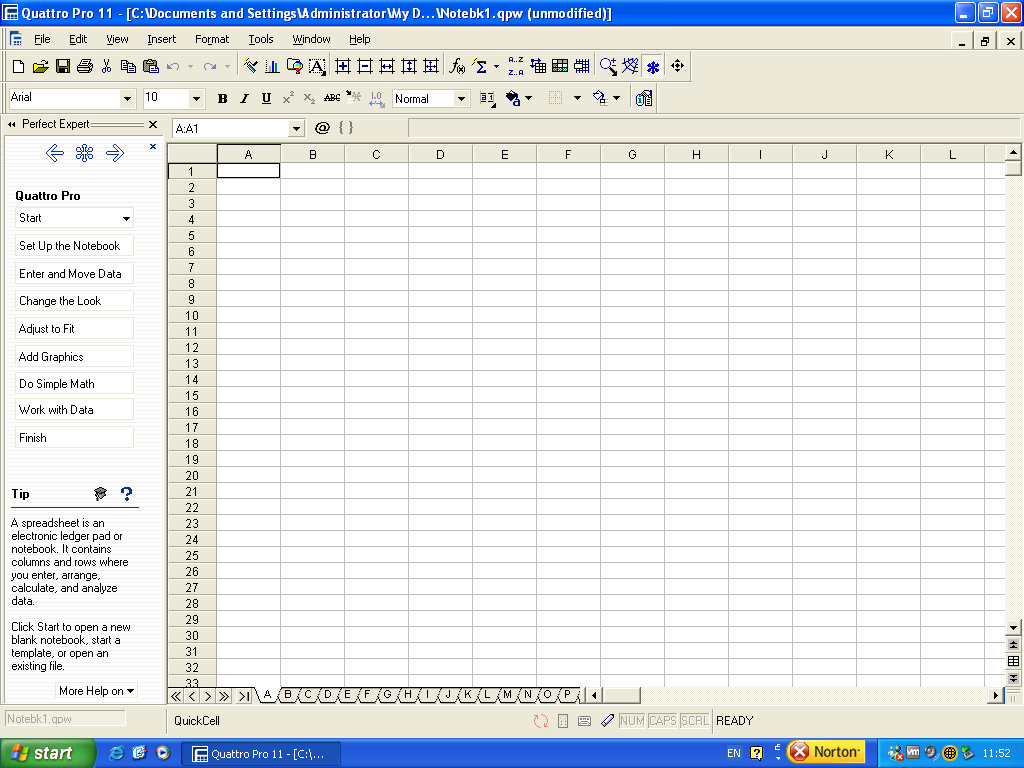
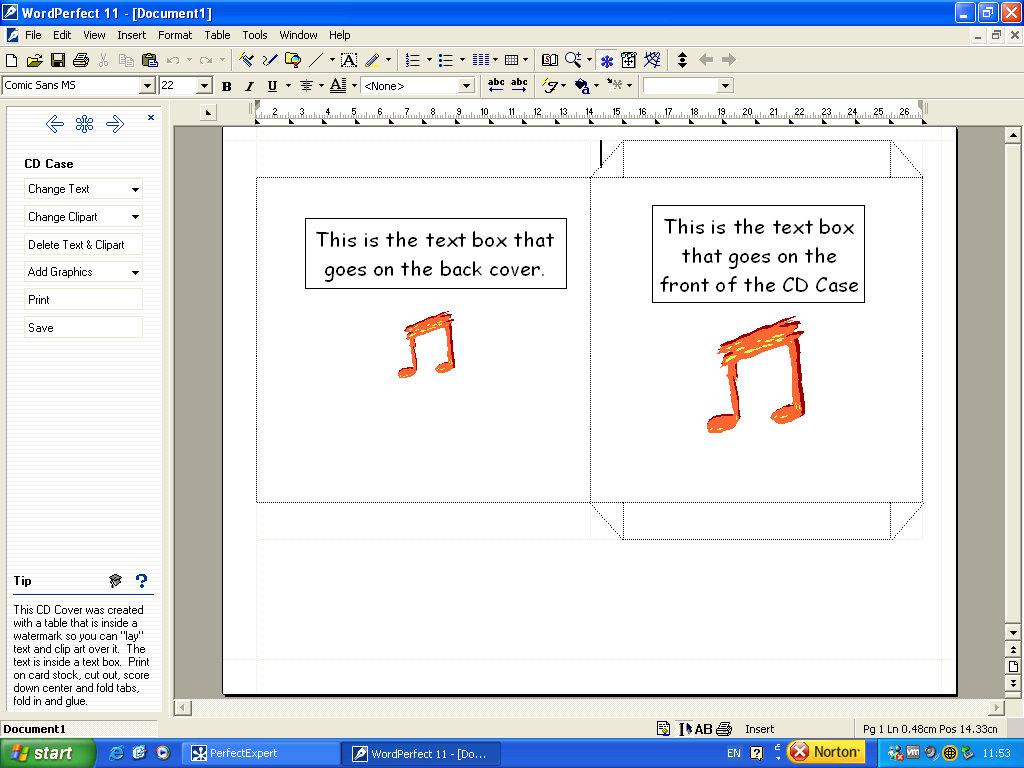
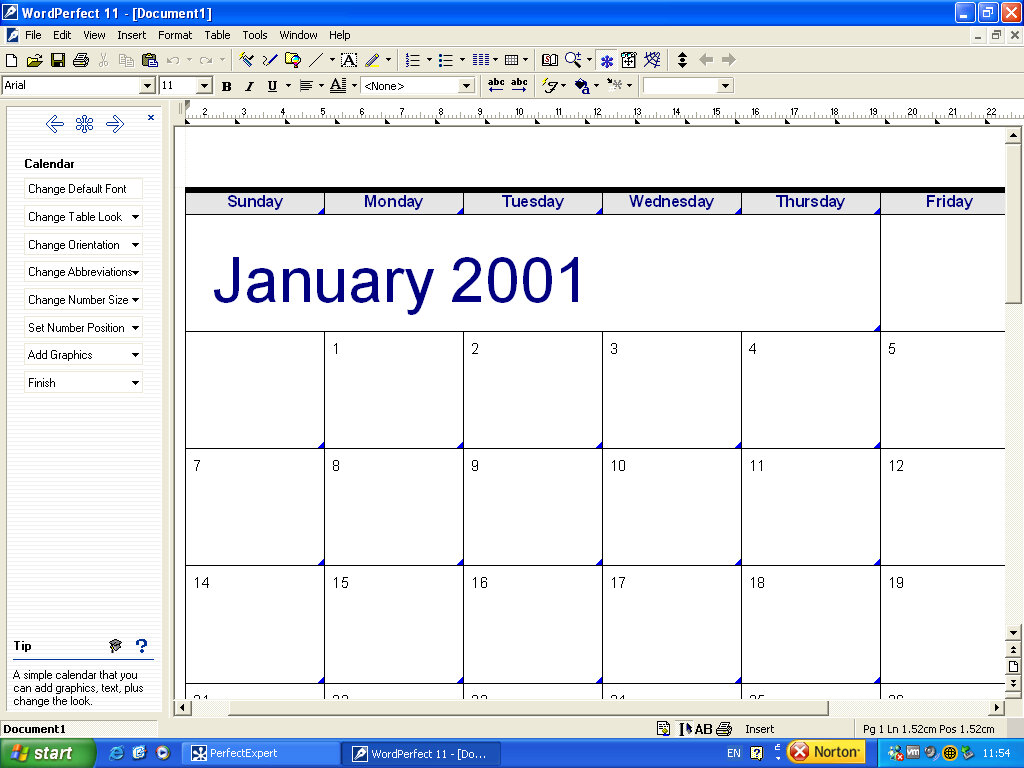
WordPerfect 2006
An alternative basic office suite similar to Microsoft Office suite included a word processor and a spreadsheet application.
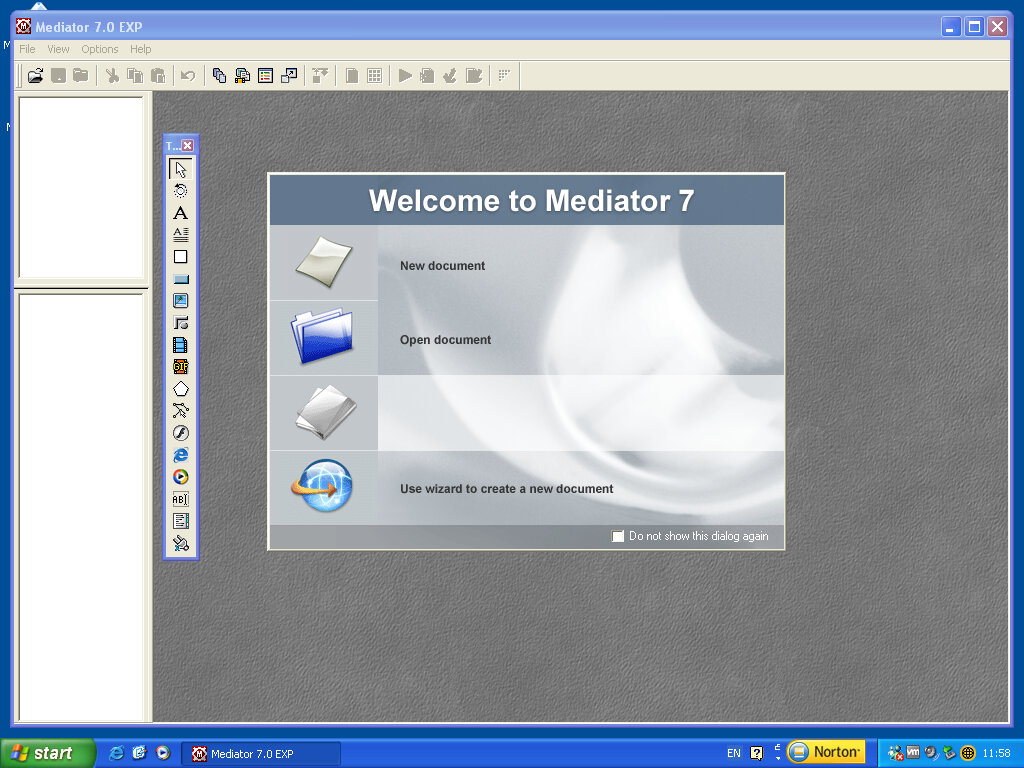
Matchware Mediator
Similar to Adobe Dreamweaver, this lets you build rich multimedia pages
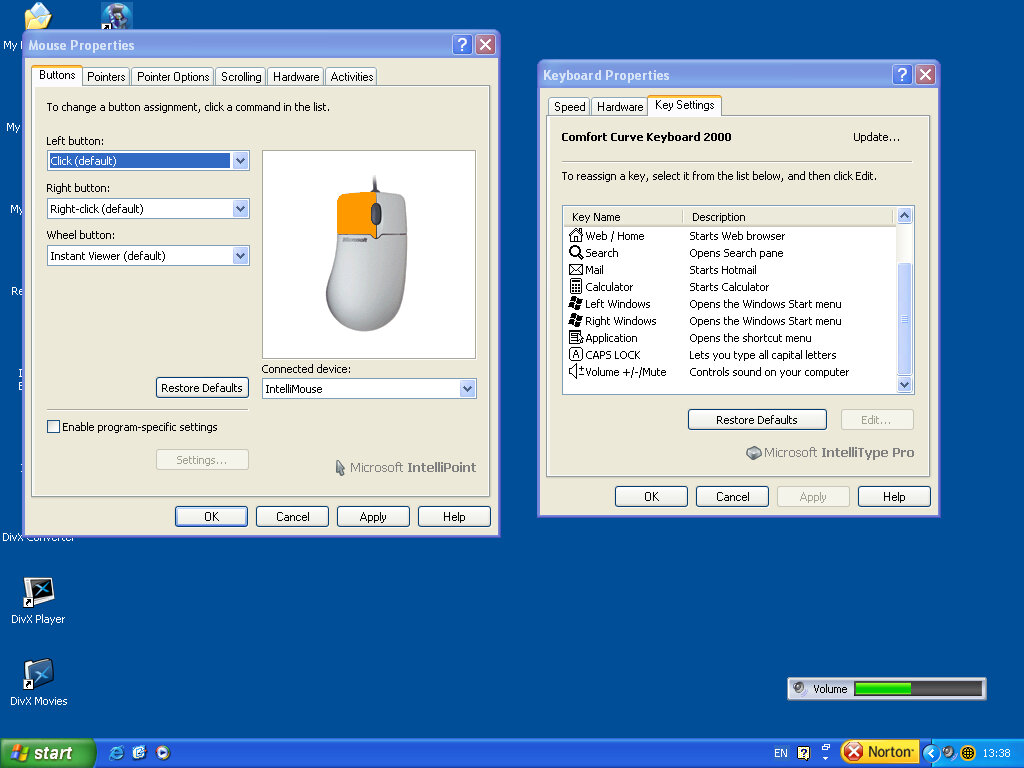
Microsoft Intellipoint & Intellitype 6.2
Utility commonly bundled with Microsoft keyboard and mice, adds additional functionality that is not covered by Windows but can be used with third-party keyboards. I like to use it because it adds a volume indicator when using the volume keys on a keyboard that features one.
Upgrades
By default Service Pack 2 is included, and service pack 3 can be installed as an optional upgrade. Internet Explorer 7 and 8 can also be installed as upgrades to Internet Explorer 6.
Support for Windows FLP ended on the same date as Windows XP – April 2014.
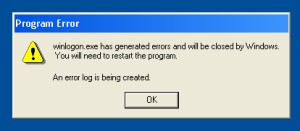
Well, I’m not sure what happened but I seem to have broken the OS, at least when it comes to shutting down. A few errors with winlogon.exe come up, before the OS BSODs completely.
One of the many editions of Windows XP, this time intended for use in the living room and to react to the growing popularity of media centers of the era like the Tivo in the US, and the Sony PSX DVR in Japan.
Install
Mostly appears the same as Windows XP Professional and even identifies itself as such.
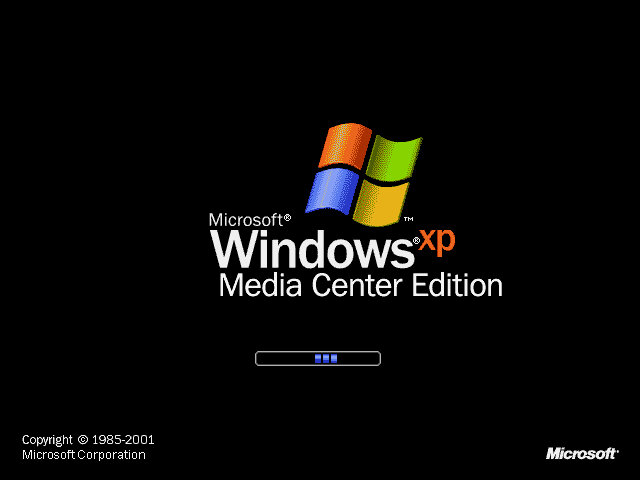
Has its own boot screen, which would disappear in service pack 2
Desktop
The desktop will resemble a stock version of Windows XP. The only difference you will notice is the Media Center icon in the start menu.
Media Center
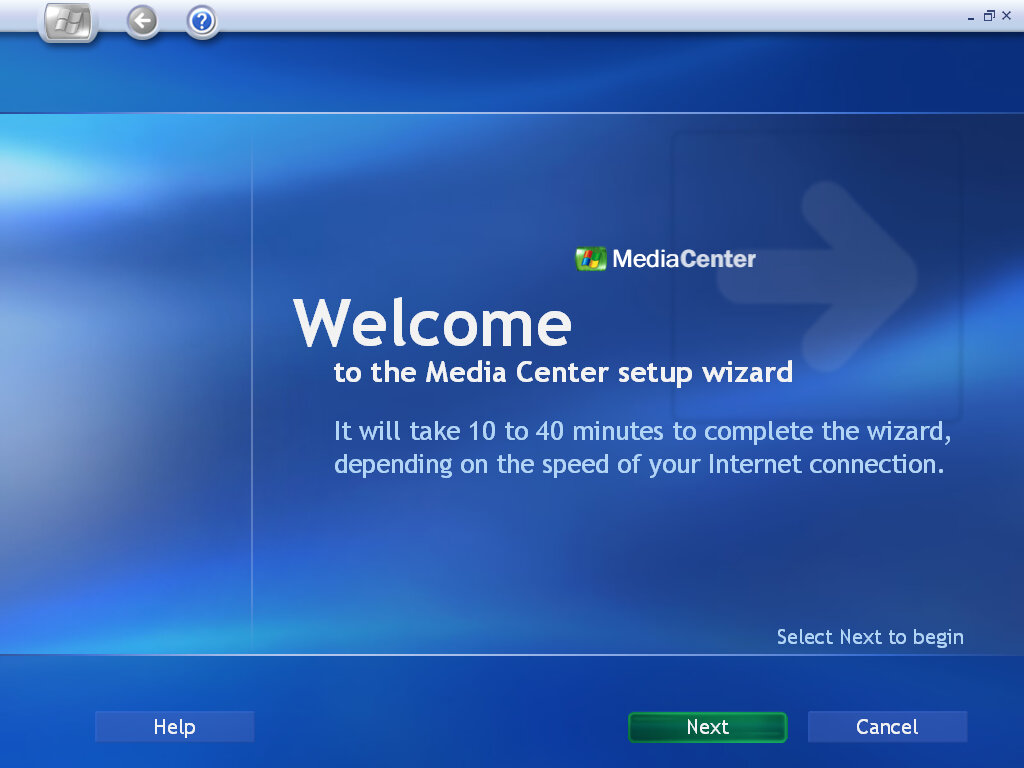
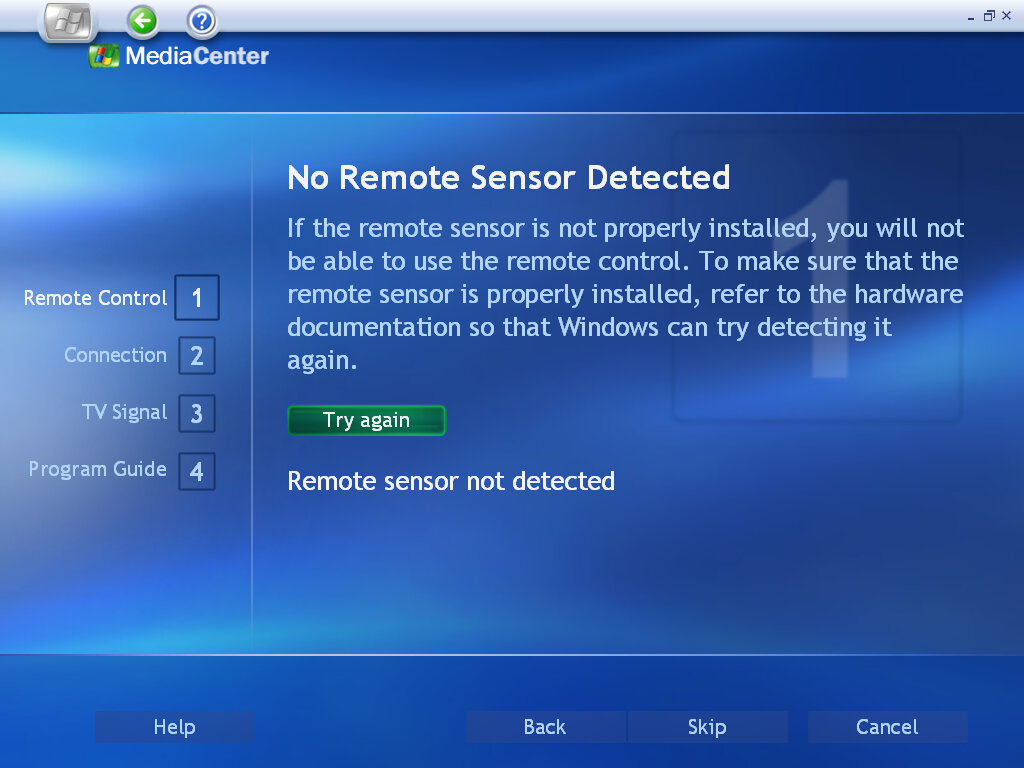
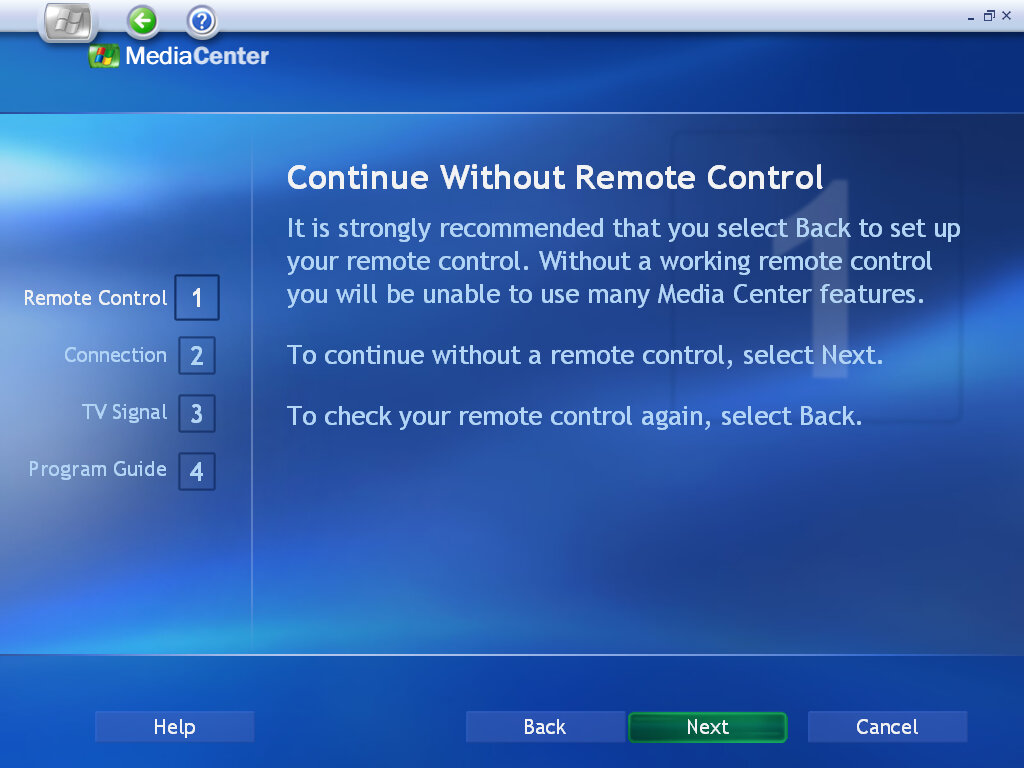
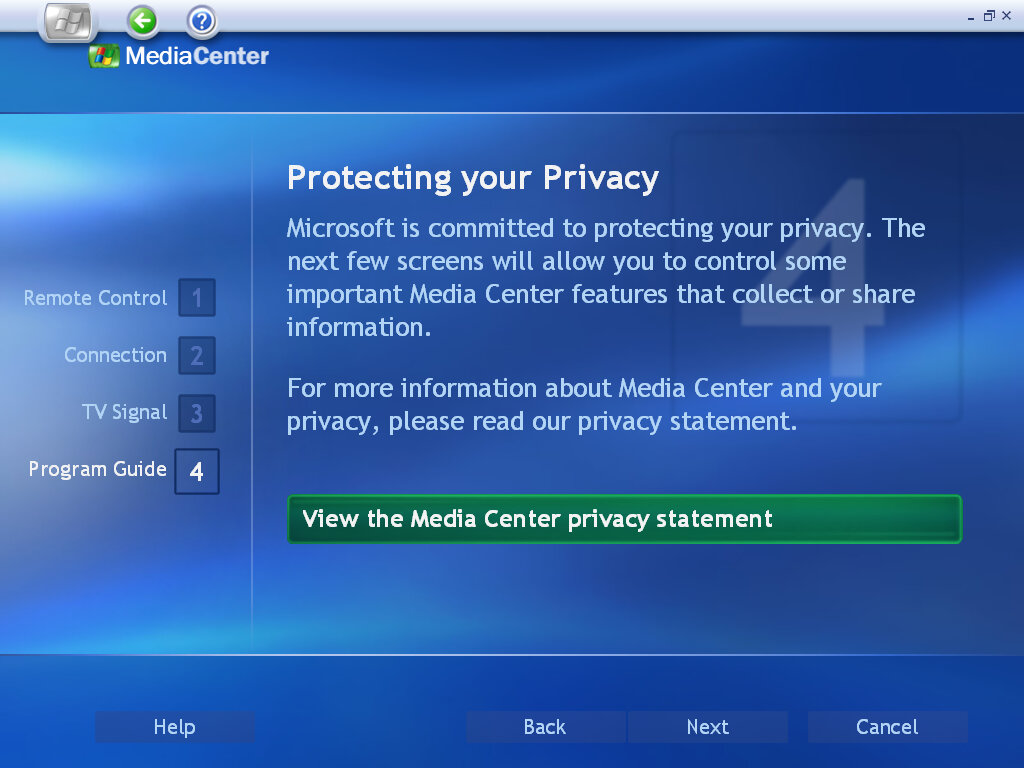
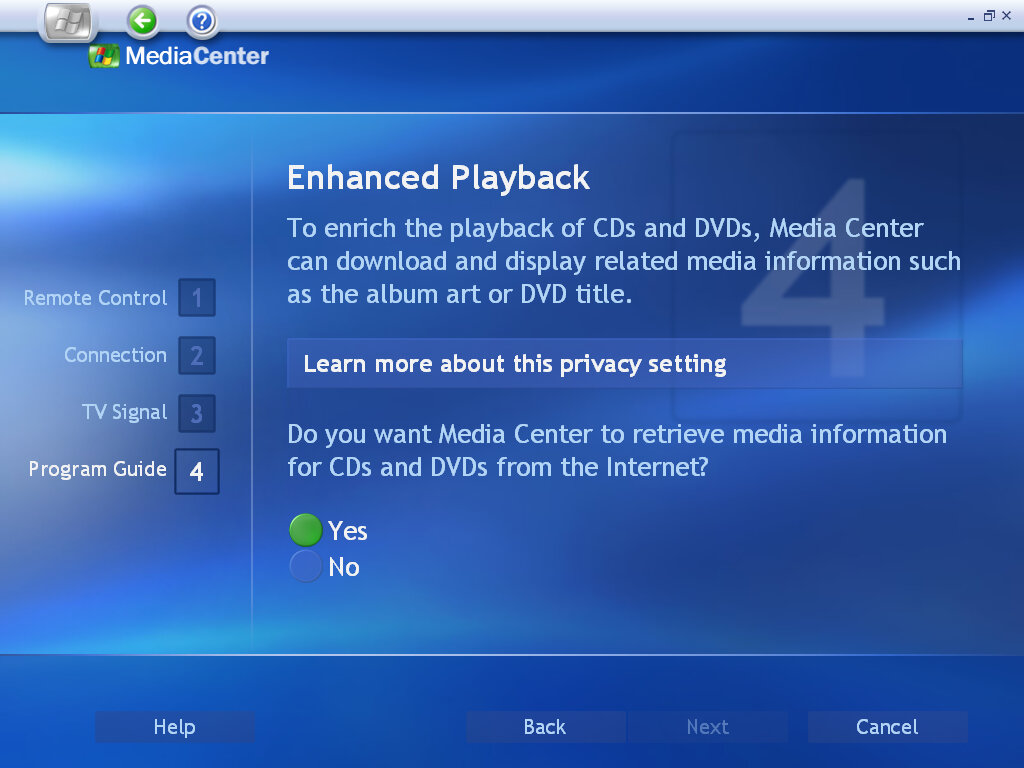
This is the main attraction to the Windows Media Center edition and is only included in these editions of Windows XP. It’s intended to be controlled using the media center remote which would have been included with the Media Center PC, although third-party remotes, along with their dongles would come available. As such it’s fiddley to use with just the keyboard and mouse.
MyTV
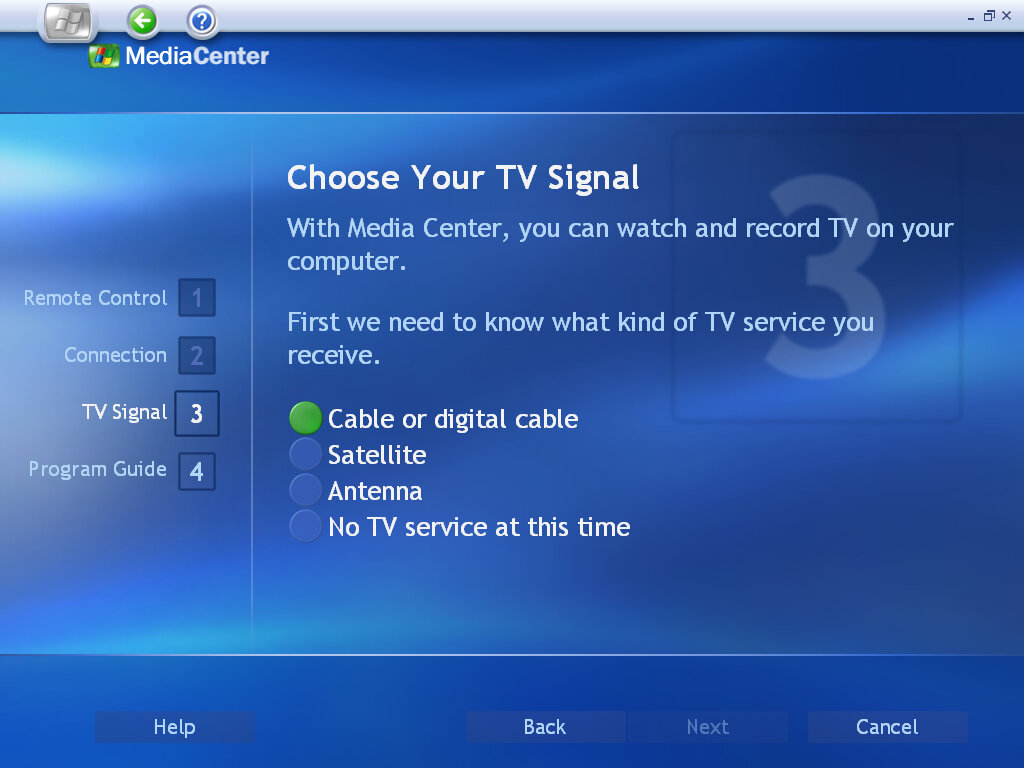
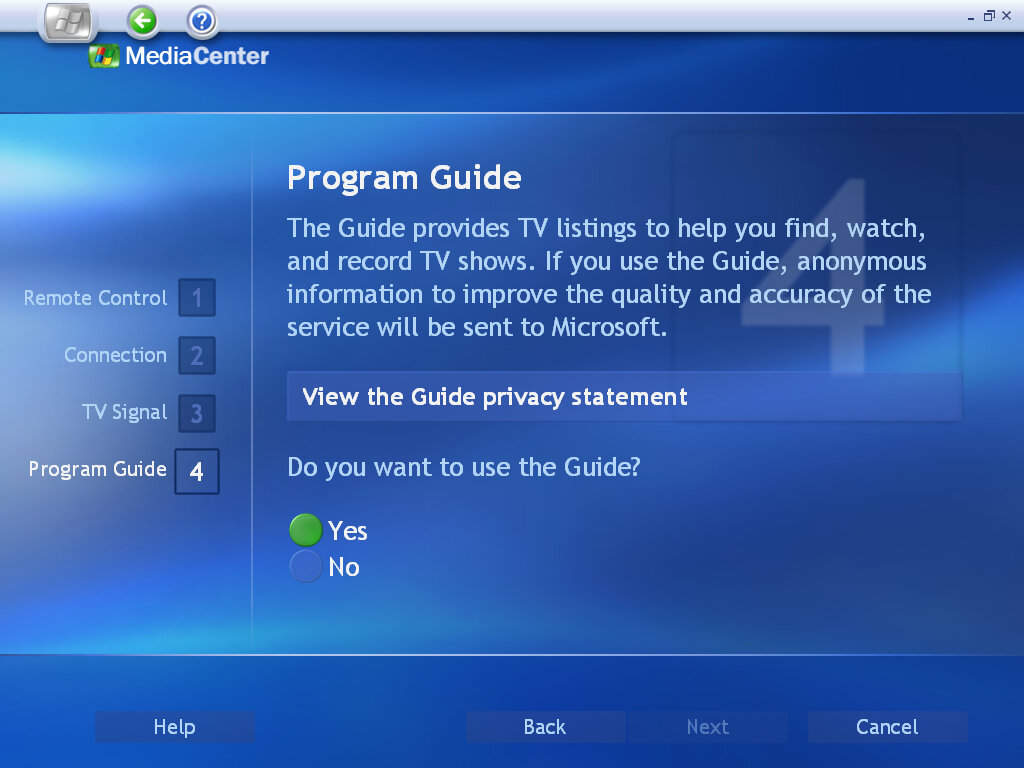
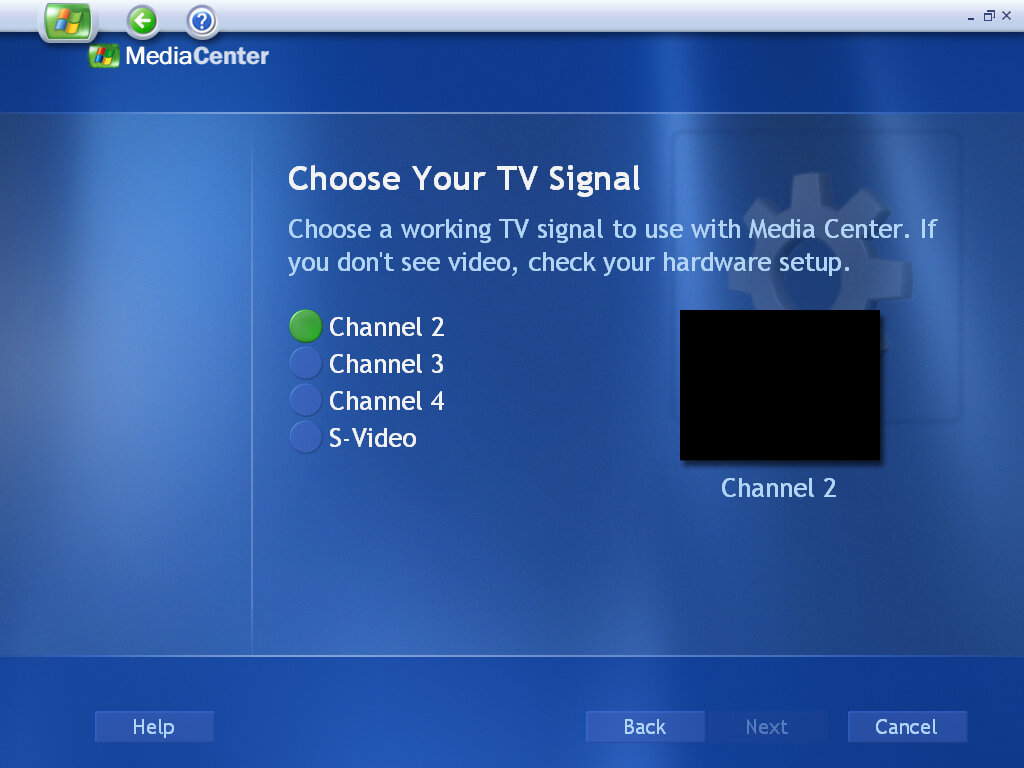
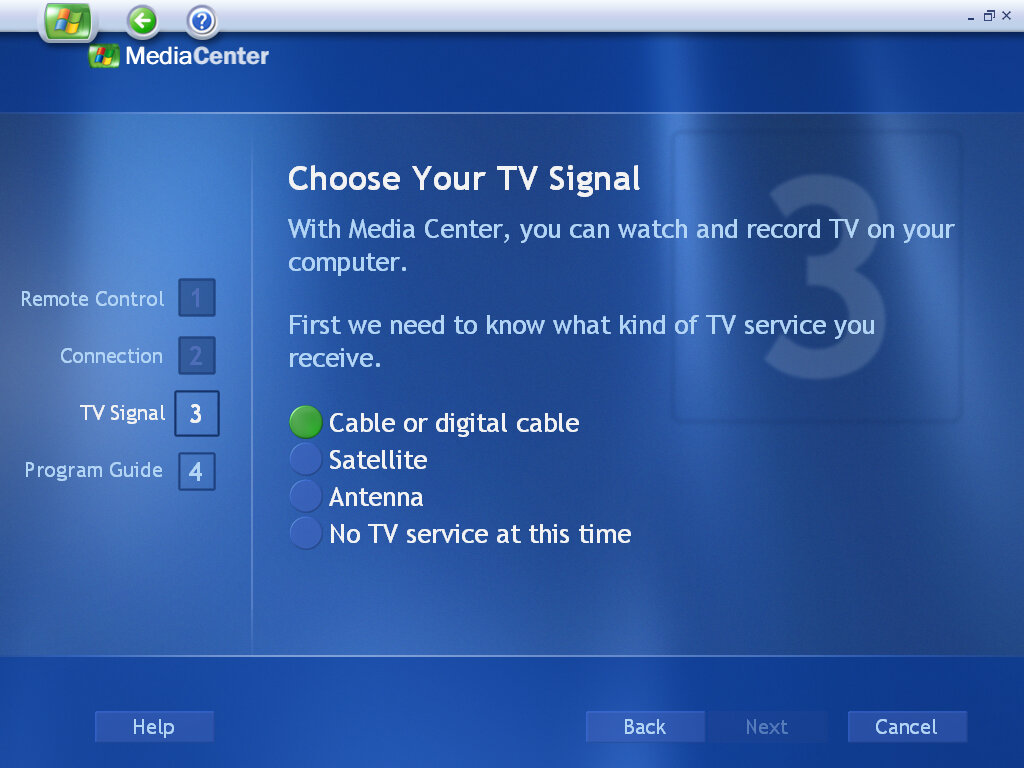
The place where your TV channels are located. Here you can browse the TV Guide, also known as an EPG, and set up and configure recordings that allow your PC to become a DVR (Digital Video Recorder, like a Tivo or Sky+) There are various options to set up your TV signal, either through cable (with or without a set-top box), satellite or terrestrial/antenna signals.
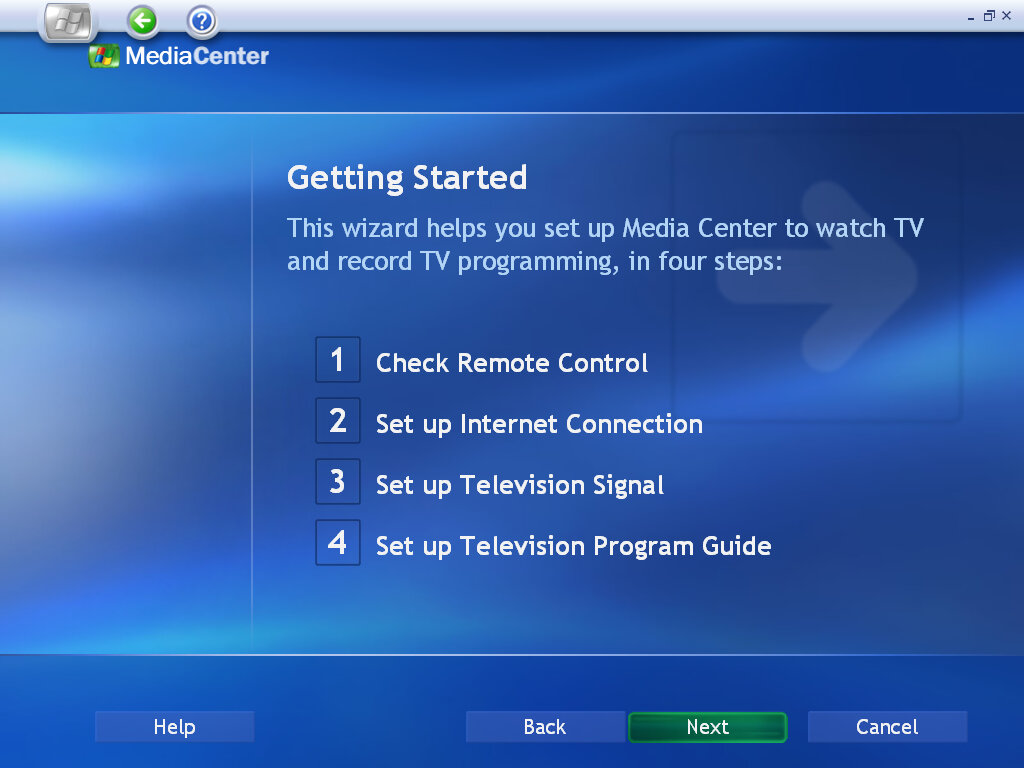
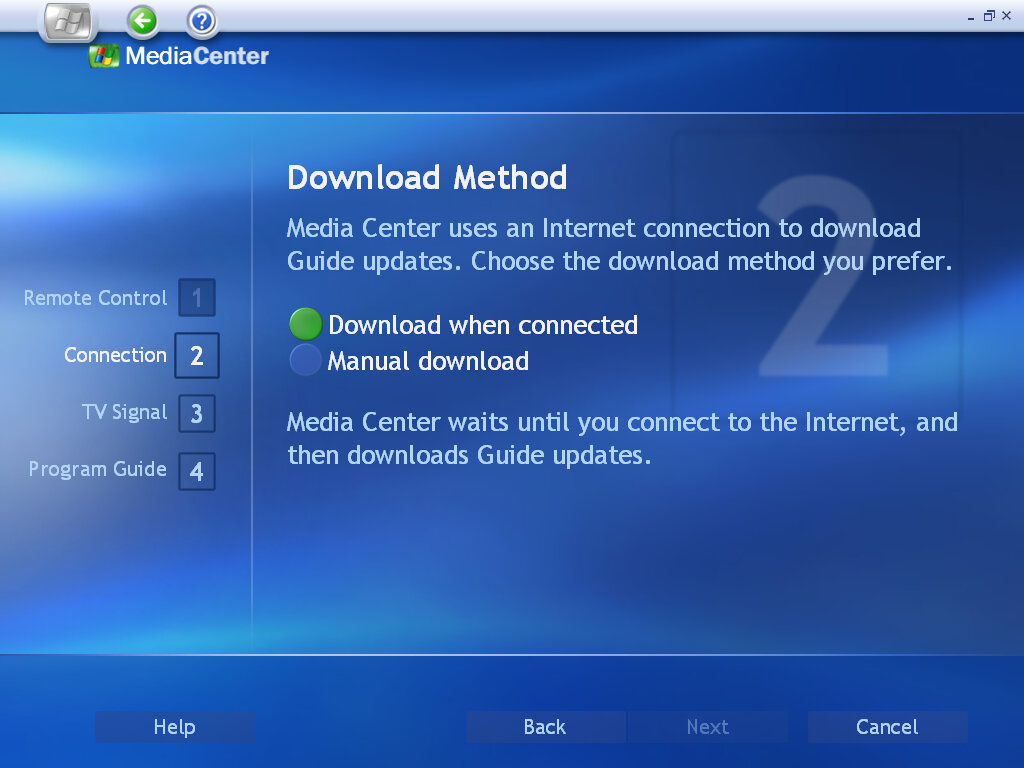
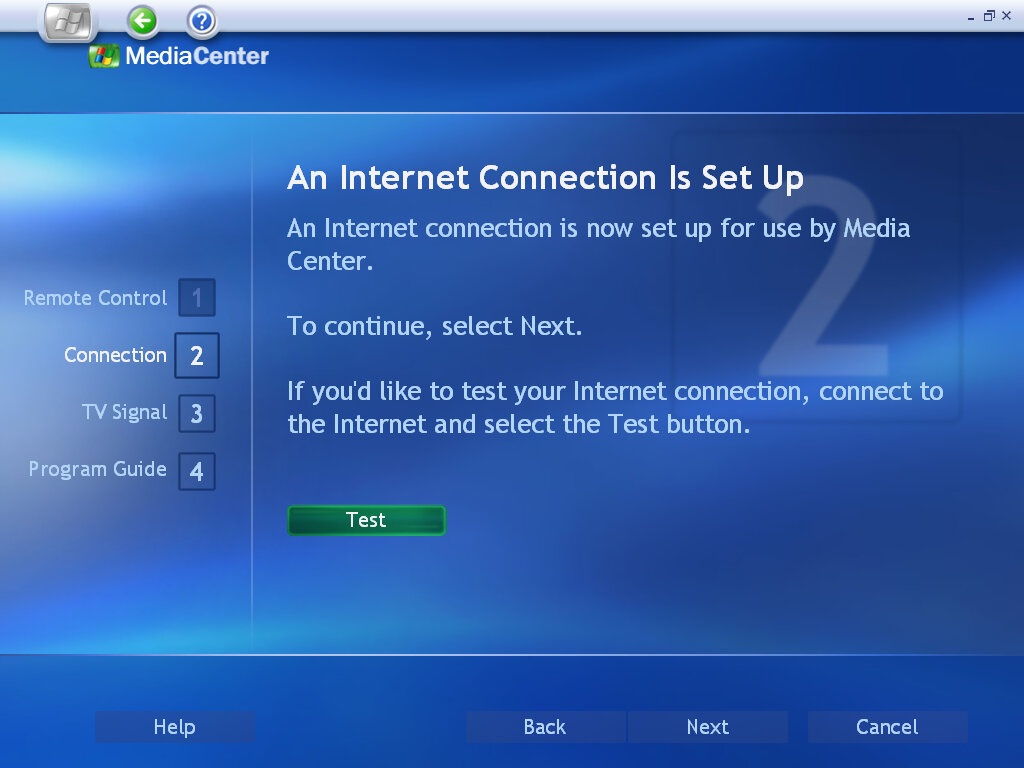
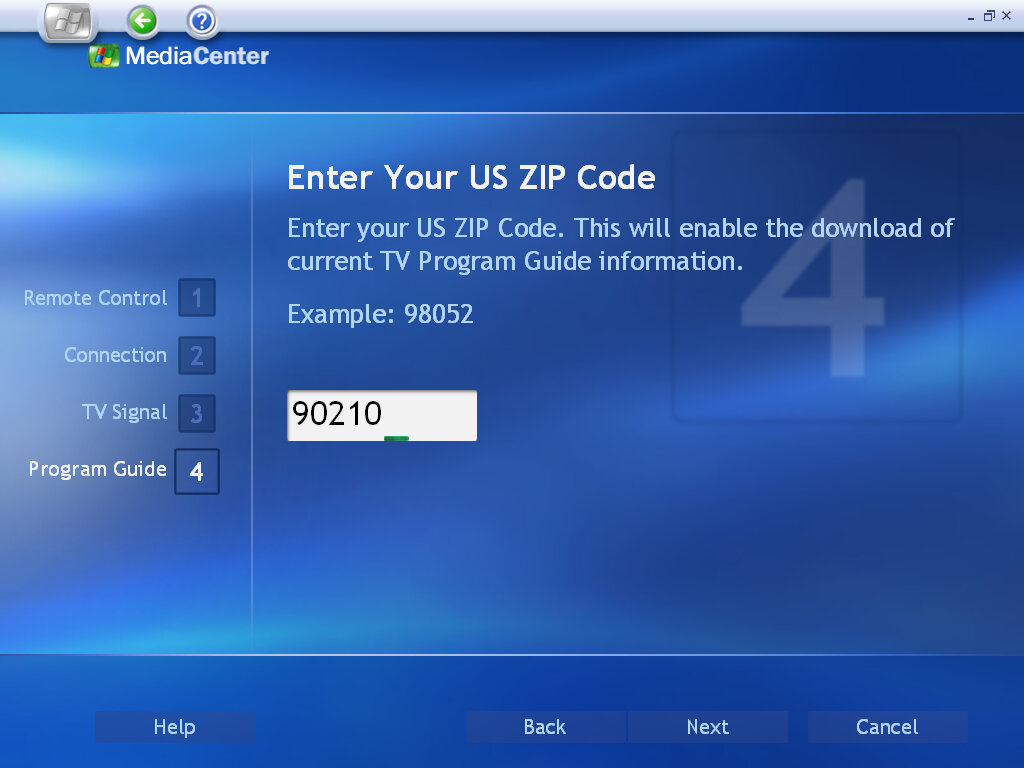
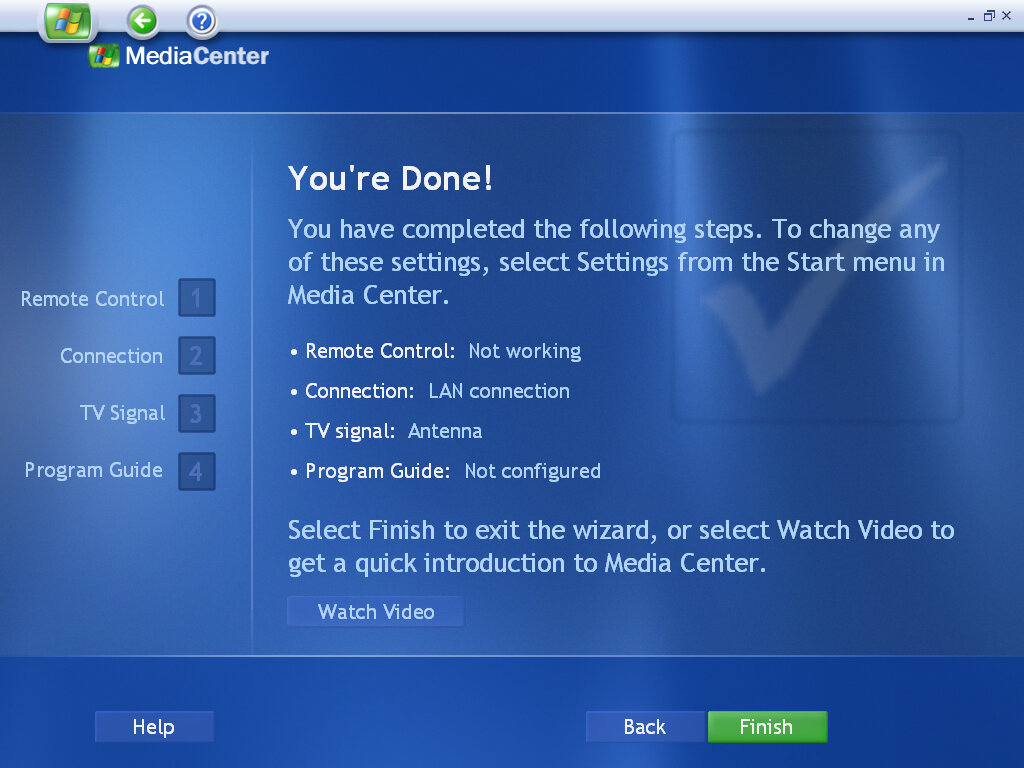
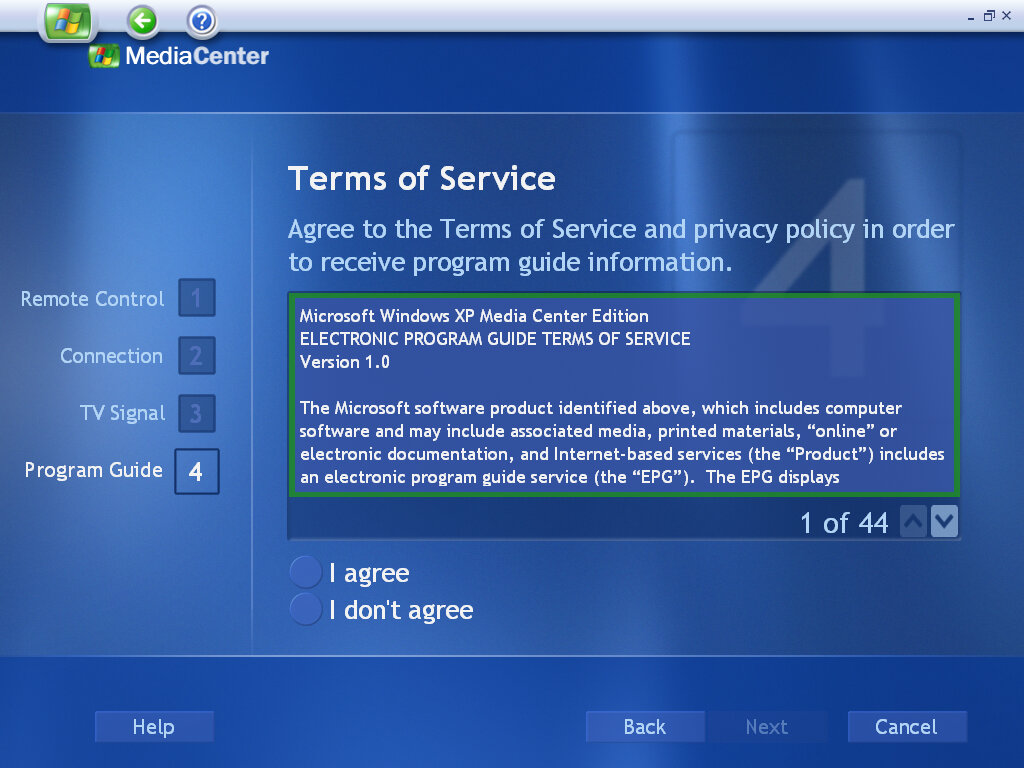
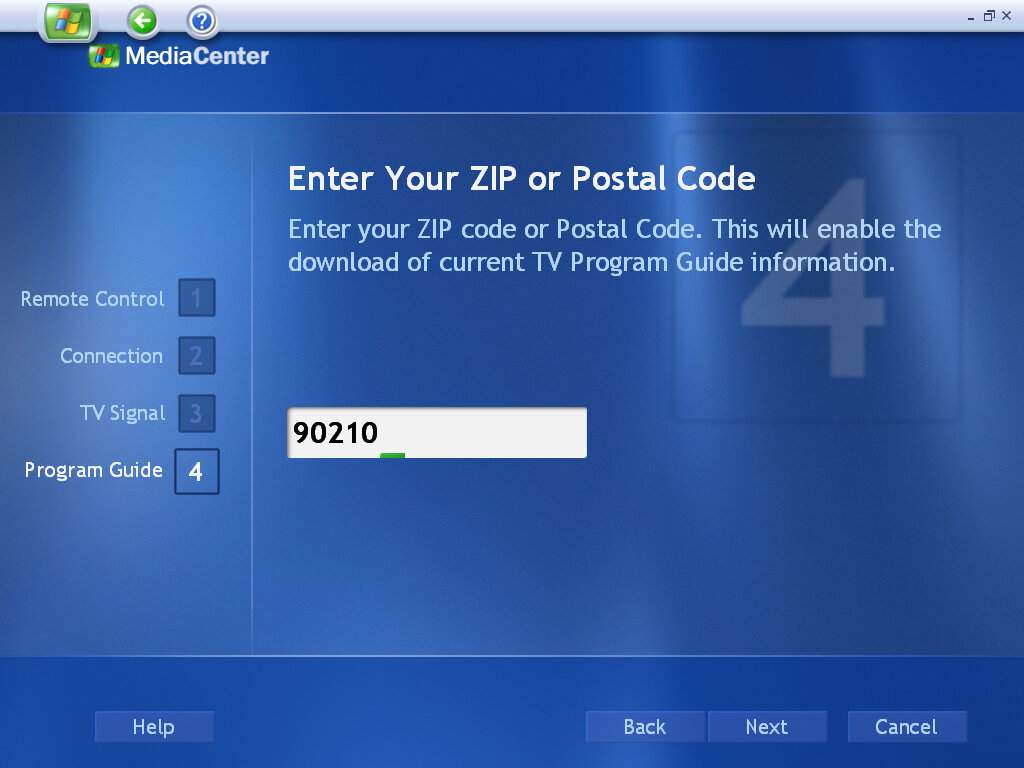
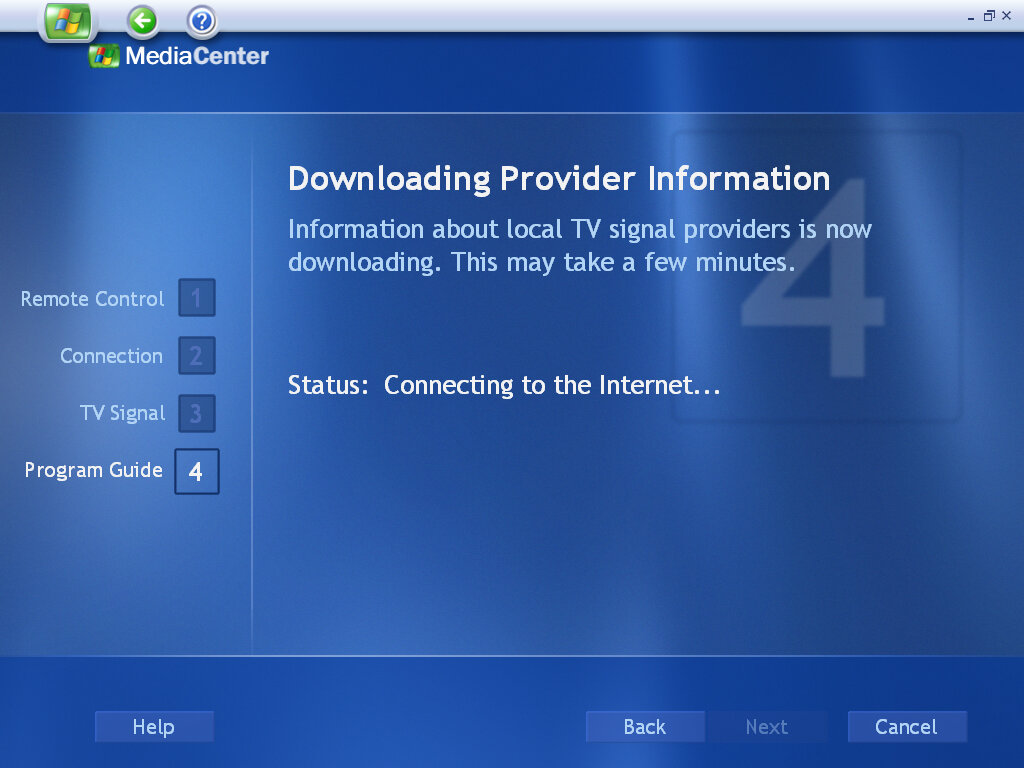
Settings up the TV signal requires you to connect to Microsoft and provide your Zip or postal code (only US zip codes work, my postcode wasn’t recognized at all despite my locale being set to the United Kingdom)
I was curious to see if my DVB-T tuner was recognized over USB, since Freeview had only recently launched back in 2002 when this operating system was released, Sadly this was not the case as DVB-T wasn’t supported, despite being a thing in 2002 (Freeview in the UK launched in 2002, and we had DTT since 1998 with the launch of ONdigital, however, the USofA uses ATSC which Media Center might support since Microsoft tends to be US-centric for its first generation products)
In a way this is the successor to Web TV for Windows that shipped with Windows 98
My Music
Music tracks ripped from an audio CD will appear here, and sync with Windows Media Player so any tracks added with also appear in Media Center. Presumably, this would also support DRM music from either MSN Music, since this predated Playsforsure or the Zune DRM (Microsoft had a lot of music stores).
My Pictures
Photos and image files located in the My Pictures folder will be displayed here and can be played in a slideshow. Images can be sorted into albums if you have sorted them into folders within the My Pictures folder. Pictures can be sorted by name or date
My Videos
Similar to Pictures, but videos are shown instead. We seem to run into the same issue with playing DVD video as documented below, likely due to requiring graphics acceleration for video playback.
Windows Media Player doesn’t seem to give a shit and will play the file regardless, so why can’t Media Center?
Play DVD
I was unsuccessful in getting a DVD movie to play, and I believe this is due to the lack of a hardware MPEG2 decoder that is required to play back DVDs. This was a Microsoft OEM requirement and meant some TV tuner cards were incompatible as they decoded MPEG2 in software instead, using the main CPU to do the decoding.
As VMWare lacks a hardware MPEG2 decoder, Windows Media Center and Media Player are unable to play back DVDs in their current form. Even after installing the K-Lite codec pack, we are unable to play.
We might have better luck installing on an actual system from the era, specifically one with a graphics card that has onboard MPEG2 decoding, assuming Media Center is compatible with it. I should note that some ATI All-In-Wonder graphics cards of the time also used software decoding to reduce costs and had issues getting their cards certified for the media center due to this implementation. As for why Microsoft did not allow for software decoding, it could be because of multitasking concerns if the user tries to do something else whilst watching a DVD, or DRM concerns. In contrast, the Xbox console decodes MPEG2 in software on its Pentium 3 processor, but it’s unknown if the GeForce GPU accelerates this somewhat.
Maybe later versions are more flexible when it comes to decoding but for now let’s skip ahead.
Conclusion
And that’s it, its pretty much Windows XP with an added Media Center application bundled in. As for why it wasn’t sold as a software upgrade package was due to Microsoft imposing strict hardware specifications in order to use Media Center, specifically with the processor, hardware MPEG decoding, 3D graphics acceleration and an IR remote and sensor. Microsoft really didn’t want anyone using this on hardware that was subpar or missing any components in order to give a consistent experience for the end user.
Version Information
These version numbers will change once later service packs are installed.
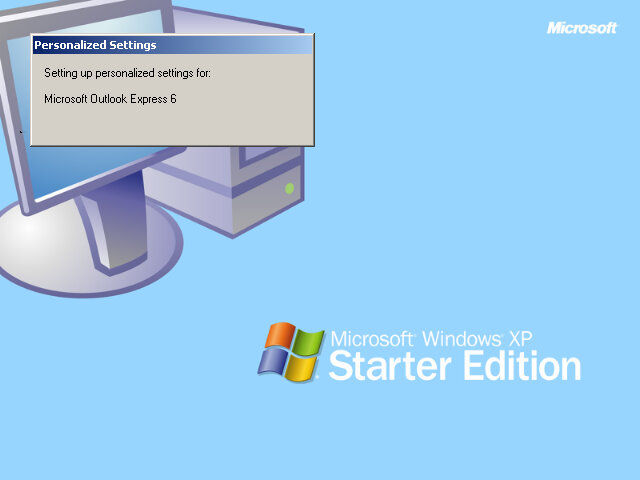
A very crippled version of Windows XP intended for use in developing countries and for users new to desktop computers. One of the limitations is you can only run up to three programs at a time, and Windows Explorer will prevent you from opening more. So what counts as a program? Well, it seems anything that has an icon on the taskbar. Background programs or programs that hide in the system tray don’t seem to count until you click on them. One example is MSN messenger which will run in the background, but we cannot get to the main window if we have three programs already running. Also because of this, it likes to group applications into the same icon on the taskbar even if we only have one instance running. Opening Internet Explorer and creating a new window is a good example of this.
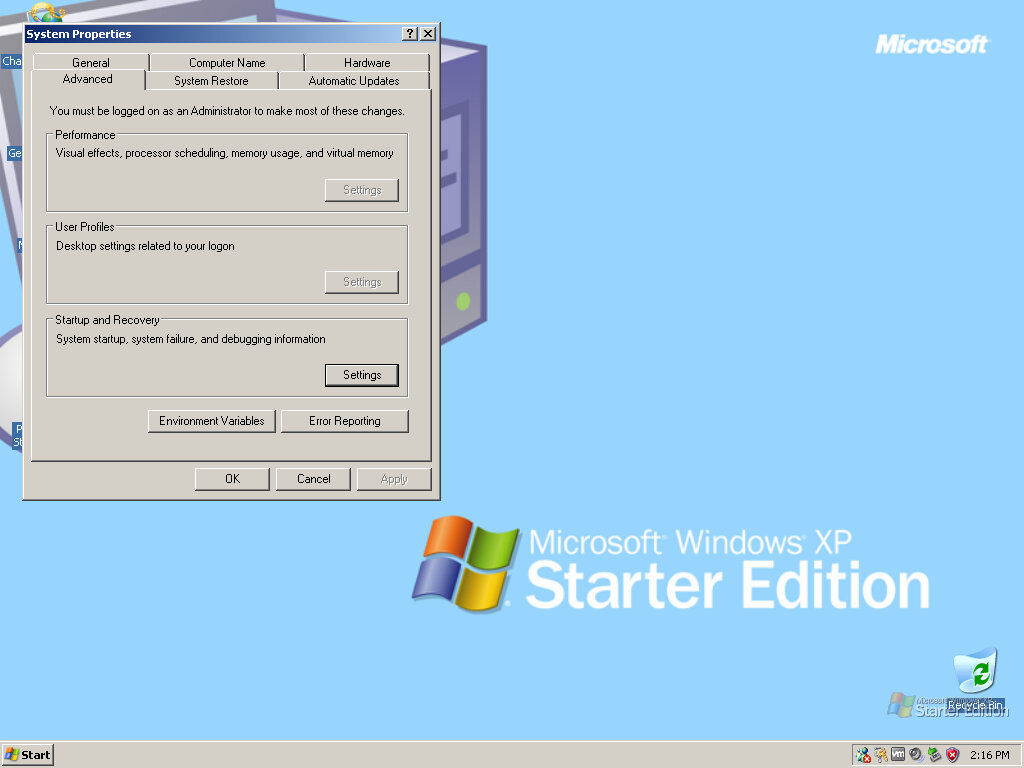
The screen resolution is limited to 1024 by 768, not a huge issue since that screen resolution was common back when this was released, although it seems a silly limitation to implement. I’m also not sure how it handles widescreen resolutions. After installing the Vmware tool and trying to resize the resolution by expanding the window, Windows just restored the resolution back to 1024×768. There probably are ways to get around this, via the use of registry modifications but then you might as well install a properer version of Windows, not Diet Windows XP
Install
The installer is the same as every other Windows XP installer and even identifies as Windows XP Home Edition
Desktop
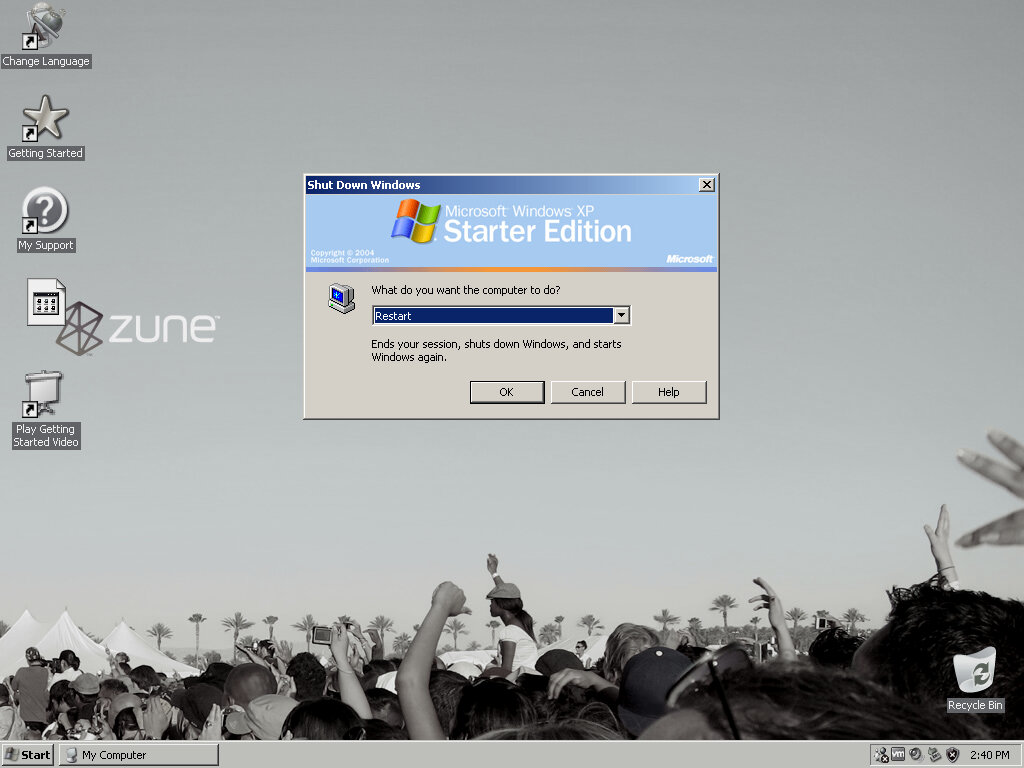
Well, it looks like we’re stuck with the Windows Classic theme, no Luna themes here. In face we don’t even have the ability to customize the classic themes, all colour schemes and even the theme tab of the display properties has been disabled. I even tried to install the Royale and Zune themes but they have no effect. The only thing you can customize is the background (Only ships with one) and the screensaver, which included two exclusive screensavers.
Another annoying thing is the removal of context menus, the ones that come up when you right-click. Why they removed that I have no idea.
Programs
There are a few bundled programs that are exclusive to this edition of XP:
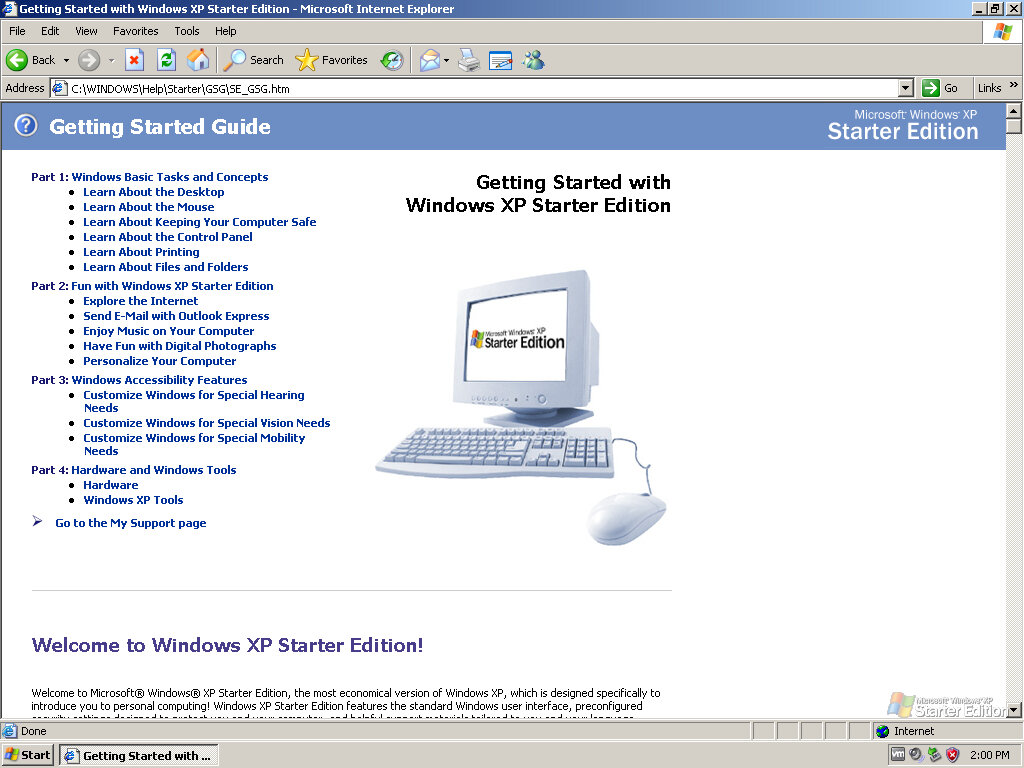
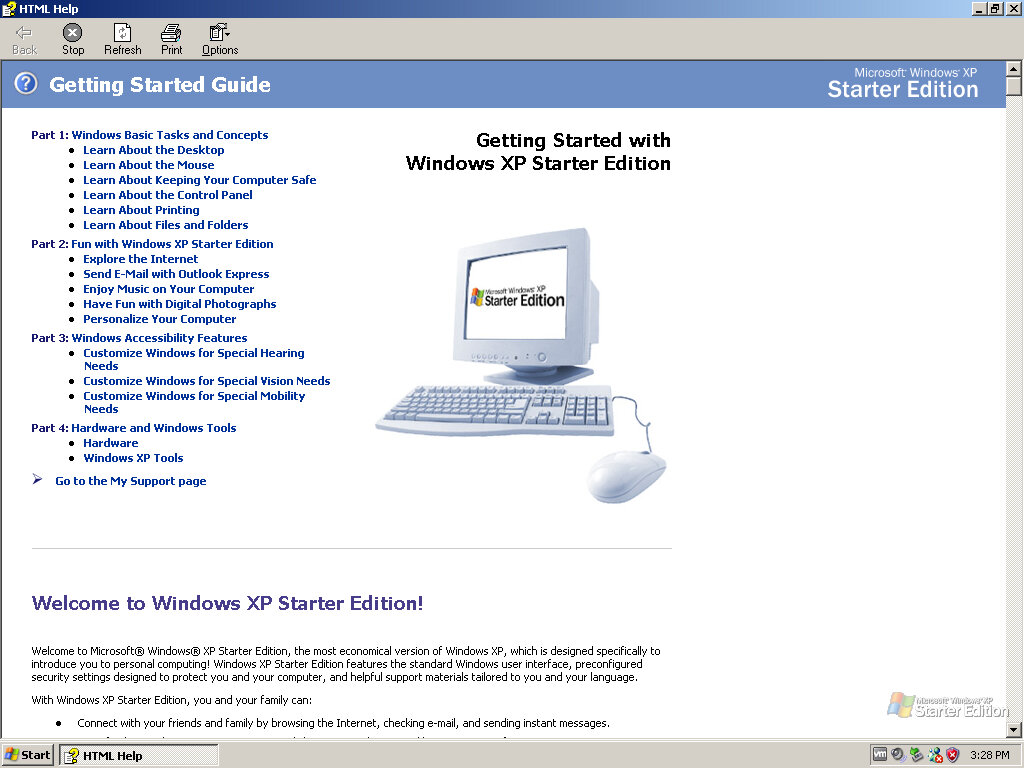
Getting Started
A user guide of sorts for new and inexperienced users which goes through the basics of using Windows, and how to perform common tasks like browsing the internet, Email, listening to music and importing photos from a digital camera. All of this runs within the Windows HTML help engine
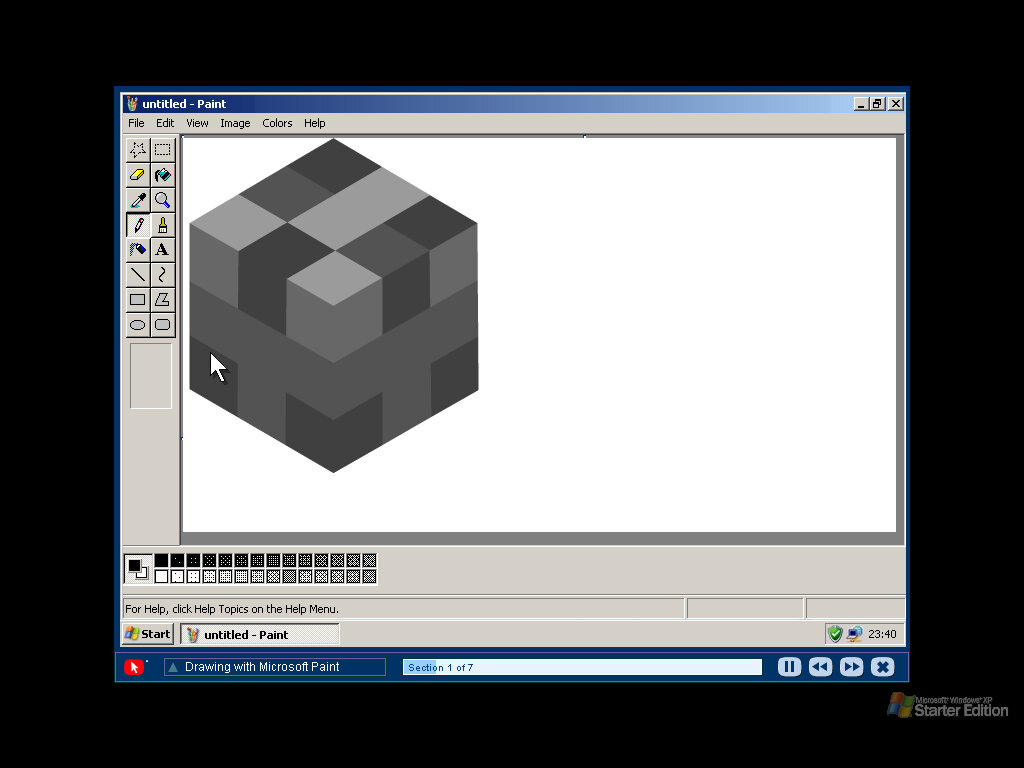
Video Help
A more interactive version of the Getting Started program, complete with sound and visual demonstrations. Some of these would be presented in a different language
My Support
Very similar to the Getting Started program, but resembles a knowledge base website and provides more information on using the various applications on the computer. Also includes a glossary.
Change Language
A utility to change the systems language is likely intended to be used by a system builder since the average user won’t use this often.
Control Panel
Seems we are stuck with the category view, with no option to use the traditional classic view
Also, there are a few options here that are non-functional, like the option to set up a windows workgroup or a home network since it does not exist in this version, but the link to it still remains. You would think Microsoft would remove the link to it at least. This does make it difficult to share files other a network with the lack of direct Samba support, FTP seems to still be functioning.
Windows Firewall is set to be always on and cannot be directly controlled.
Screensaver
Image Spiral
Wind Silk
Conclusion
In terms of compatibility, it seems to be a regular version of Windows XP, with support for DirectX 9.0 that gives 3D gaming support.
16bit programs will also run without any issue, although DOS compatibility will be the same as Windows XP
You have to wonder why this even existed, as Windows XP was already a few years old at this point & PCs of the time shouldn’t have too much trouble running it, and even if it did you would prefer to install an older version like Windows 2000 or ME. Possibly Microsoft wanted to curb piracy in these developing countries and fend off competing Linux distributions. But again why would you prefer a legal but crippled version of Windows over a pirate copy that has little to no restrictions for the end user?
Microsoft would also make starter editions of their successive operating systems, Windows Vista and Windows 7 starter editions but would ease up on the restrictions
Version Information
These version numbers will change once later service packs are installed.
Component
Version
Internet Explorer
6.0.2900.2180.xpsp_sp2_rtm.040803-2158
Outlook Express
Same as Internet Explorer
Windows Media Player
9.00.00.3250
Windows Messenger
4.7.3000
Windows Movie Maker
2.1.4026.0 (This build brings up the Windows version in Help, About)












































































 Drew1440: Blog