Oh god, its just like the PCV-90. This is gonna be a pain in the ass
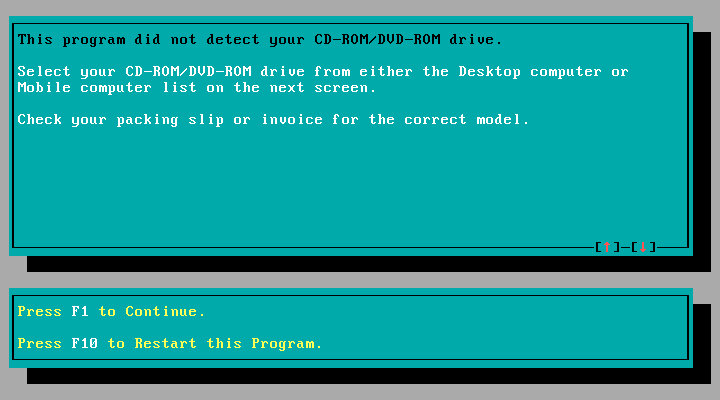
Or maybe not since we actually get working mouse support and the software is able to see the CD drive so we don’t have to modify the boot disk.
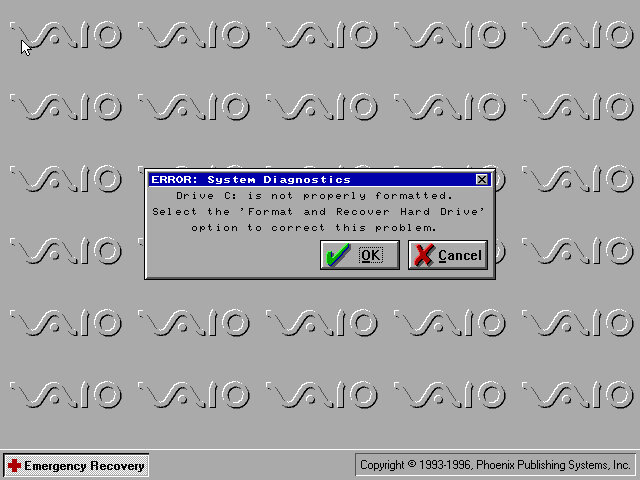
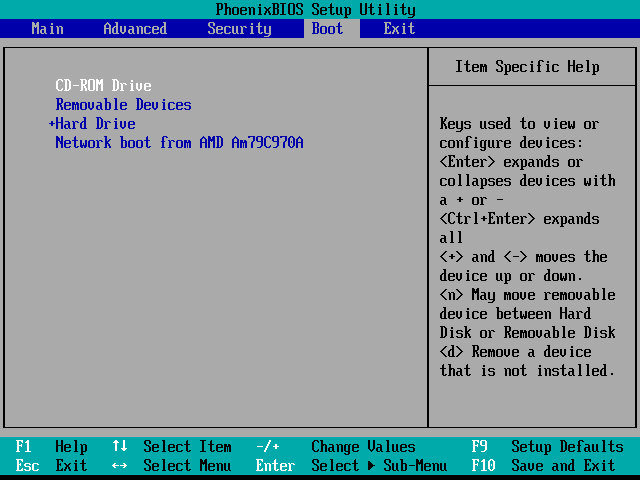
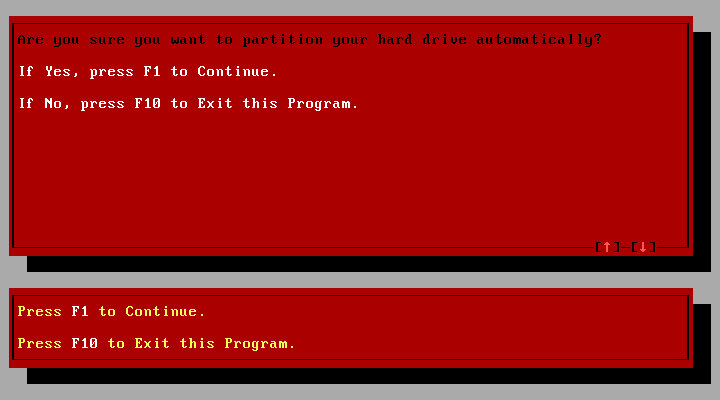
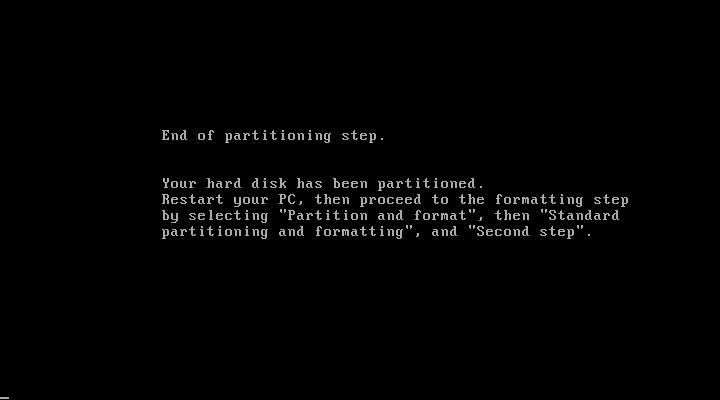
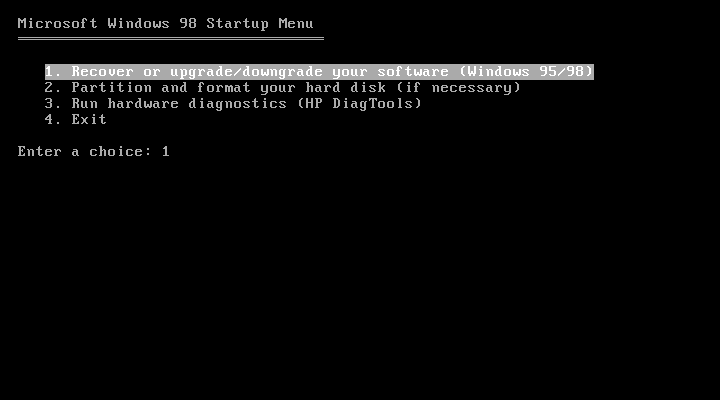
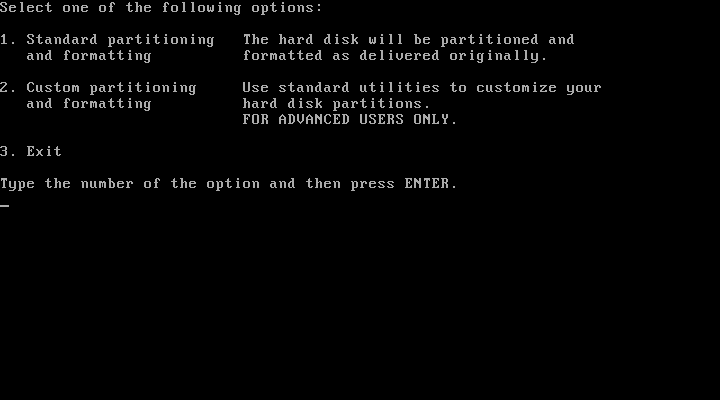
The restore utility cannot initialize a drive since it assumes its already formatted, What you need to do is FDISK it and initialize the drive, in order to start the recovery process. Also once you init the drive, VMWare will try to boot from it. If you keep getting Missing Operating System – Power off the VM and them click on Power On To Firmware option in the dropdown menu next to the Play/Power button. Once you are in the Firmware (BIOS), go to the boot section and pop the CD-ROM drive at the top of the list (Press Shift and + to move it up)
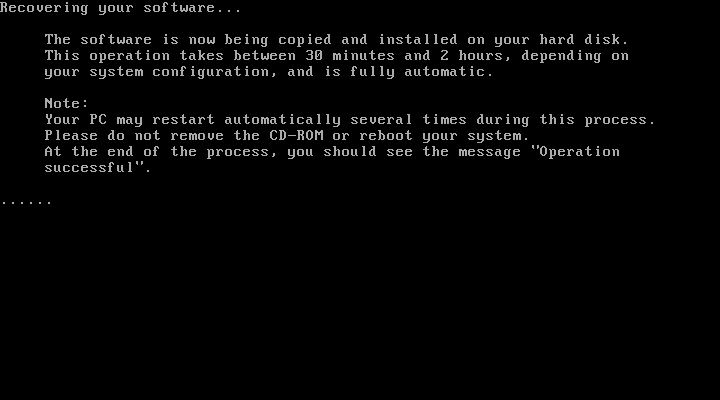
Although the recovery program tells you to run a specific .bat command, this is very specific to the machine’s hard disk and will not apply to our VM, unless our HDD is the exact size.
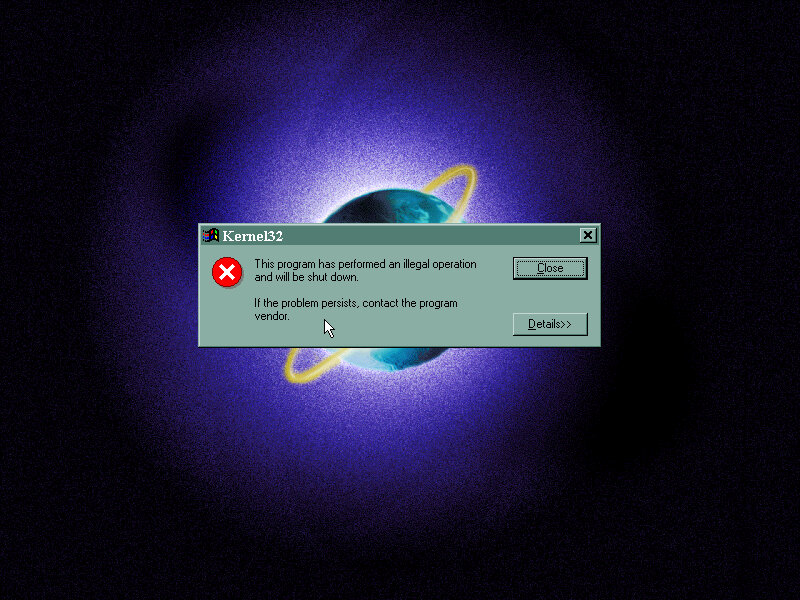
Before we get to the desktop, we are treated with an IOS error
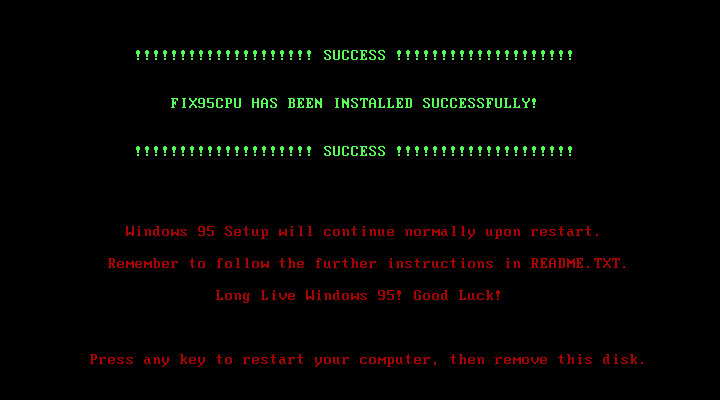
This occurs because the CPU we are running on is too fast for Windows 95 and this causes a fault with a built-in race condition as part of the Windows 95 boot process. Thankfully there’s a community made fix for this and allows us to have a bootable system
Post Install
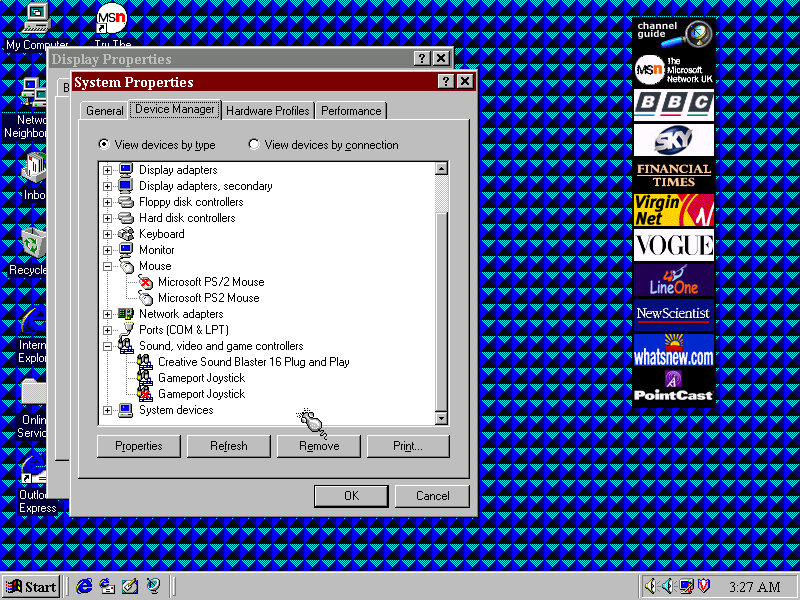
After we are taken through the last part of the installation where we need to enter identity information. We then have to progress through a series of New Hardware prompts, (Use a hardware profile 6.2 or lower to avoid this, later versions install a lot of PCI-PCI bridges which are way overkill for what we are using)
Installing VMware Tools, Or maybe not, our CD-ROM drive has gone missing…
It came back after a reboot, I’m not sure why it disappeared
From here it’s very similar to the PCV-90 that was looked at previously, with a lot of the software being bundled with the install.
86Box
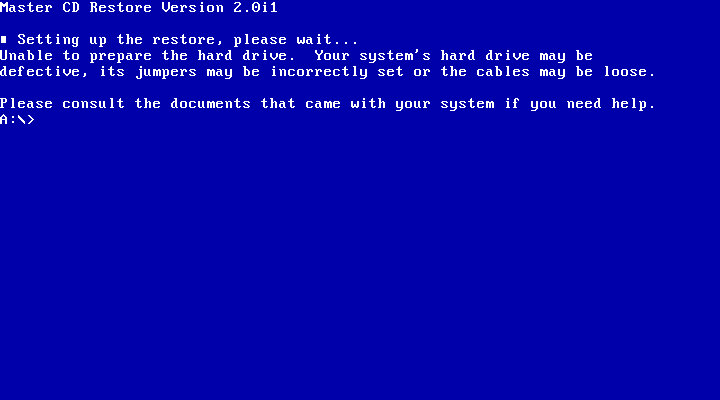
VMWare can be a bit problematic with these old Windows 95 installs, so we can use 86Box instead. Here I quickly setup a system using VirtualPC 2007 motherboard, and loaded the restore CD when it gave this error message:
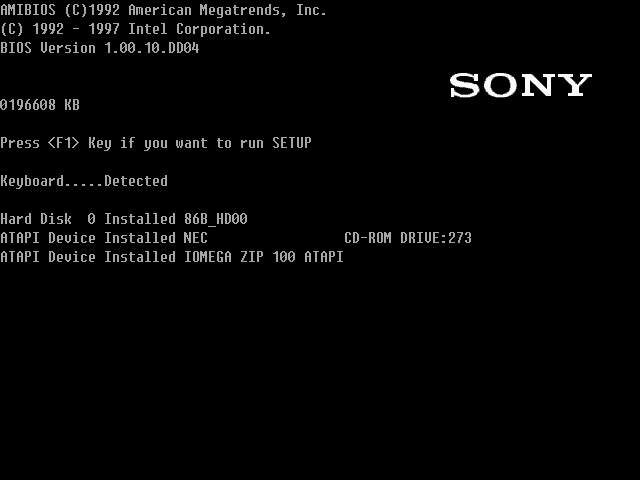
I don’t get it, the BIOS screen reports no errors?
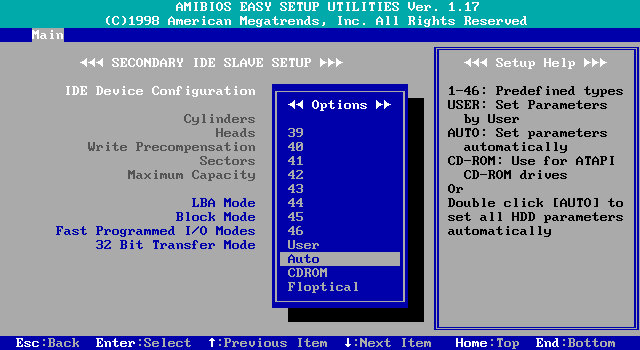
I disabled ACPI in the BIOS since that can cause problems and made sure both floppy drives were correctly enabled in the BIOS, and that seemed to fix it. Lets give this another try…
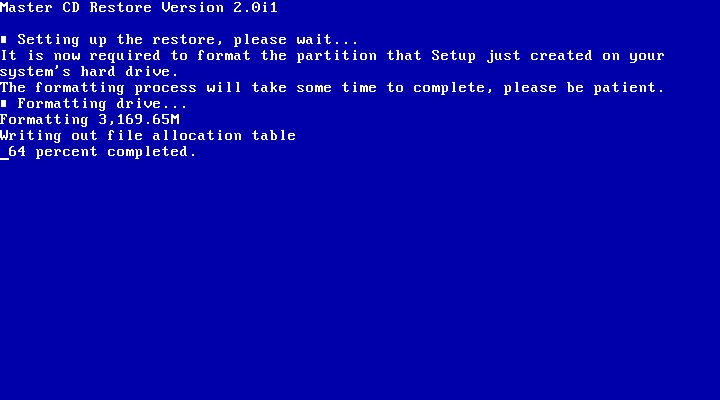
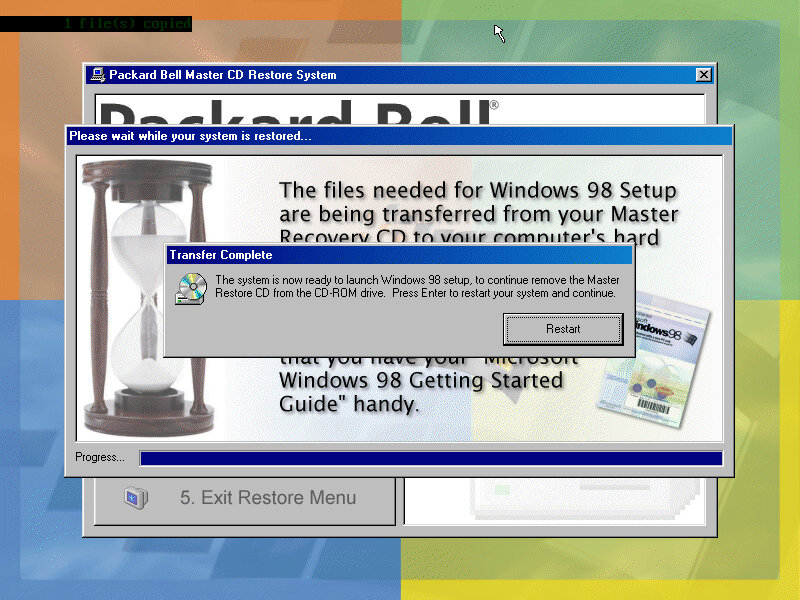
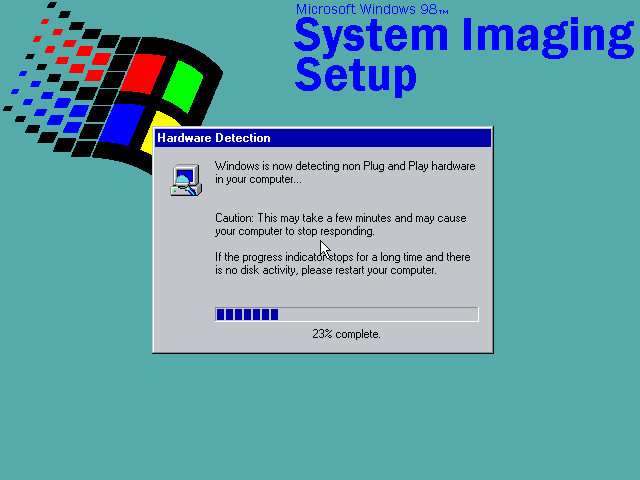
After going through the recovery steps again this time it worked properly, and the hardware detection was a lot less painful to go through. However there is one other issue, the IDE CD-ROM drive is no longer detected once we boot into Windows 95 and this is likely due to the Hitachi IDE drivers being used which causes issues. It’s possible to fix this by changing the motherboard but considering we had issues with the PCV-90, I believe it’s more of an emulation issue with 86Box. A workaround is to install and use the SoundBlaster 16 PNP which will feature its own IDE controller. If you do this you must put the CD-ROM as IDE 2:0 or 2:1 to assign it to the SoundBlaster, Windows 95 will generally detect and install a driver BUT you must have a copy of the Windows 95 install disc, as it requires a few files in order for it to install the driver. Alternatively, you can attach an Adaptec SCSI interface instead, again you will need to have a Windows 95 install disc for it to detect and install a driver, or you can locate the driver files yourself. The SCSI option is a lot more flexible as you can install up to around 7 drives (CD/ZIP or hard disks)
Overall this system is very similar to the PCV90 and included a lot of its software, so there isn’t much to cover that we have not done so already. To be honest its probably worthwhile installing in VMWare, then upgrading it to Windows 98 to make it usable in VMWare, as it should be more useable that way.
A 1995 OEM install that was deployed on their Aptiva line of systems which are IBM’s consumer line of home computers. Not sure of the specific model, but it could be a generic restore image used for the Aptiva systems of the era.
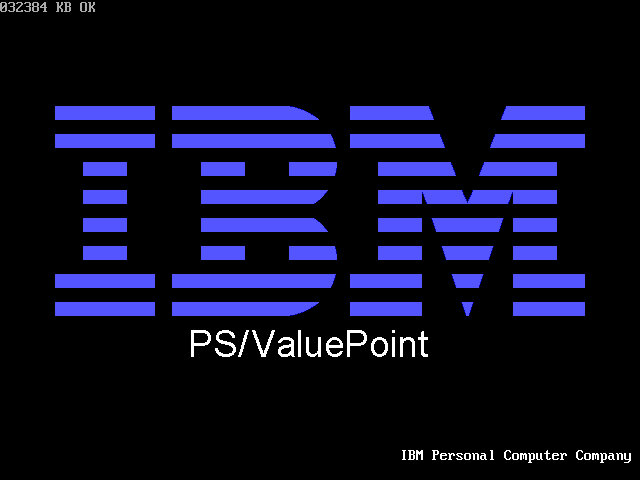
86Box has a limited amount of supported Pentium IBM machines, with the closets models being PS/ValuePoint P60 – an early Pentium PC. Since a system of this era would have shipped with Windows 95, this appear s to be the closest match
Once rebooting we are presented with a lot of hardware installation dialogue messages as this was intended to be used on a different machine. Windows 95 does support a lot of this hardware out of the box but we need to run the New Hardware Wizard for it to be detected and installed. For this I recommend only having the base hardware setup in 86box, don’t add any network, sound or SCSI controllers just yet.
86Box Configuration
Machine: IBM PS/ValuePoint P60 Processor: Pentium 60MHz Memory: 32MB – 128MB Max Graphics: Tseng Labs ET4000/w32 – 2MB Sound: SoundBlaster AWE32 PnP (Has an additional IDE channel) Network: Realtek RTL8019AS
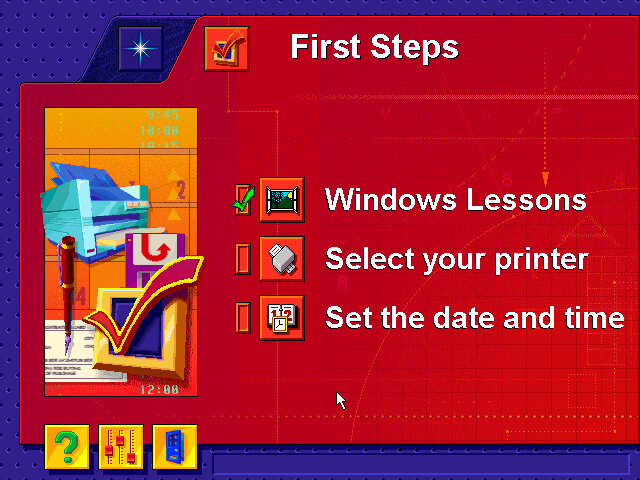
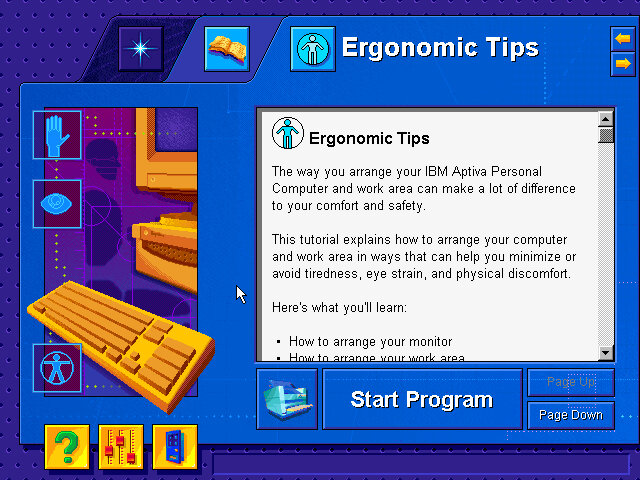
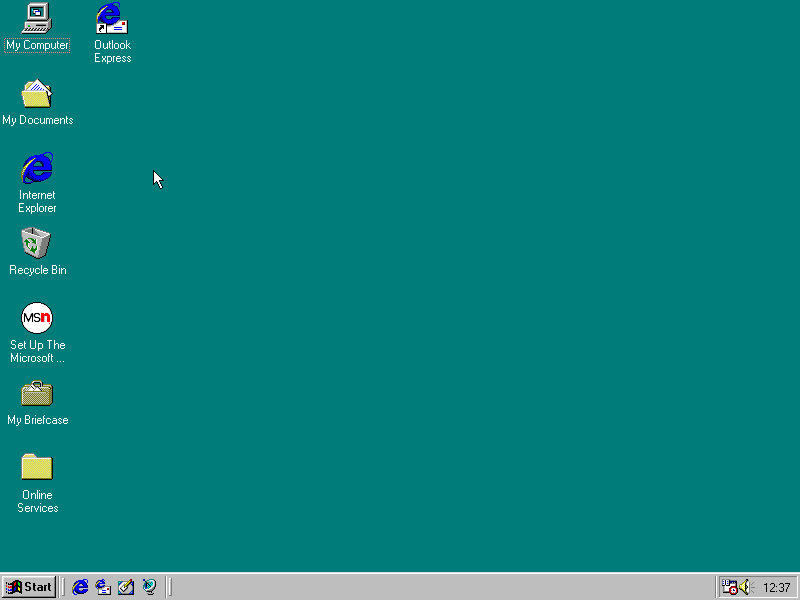
After install we are treated to a tutorial application that goes through the basics of using a mouse. Next we are given the opportunity to register our PC, either via mail or modem.
Windows 95 B, released a few months later and adds few improvements compared to the original release.
Applications
A few bits of bundled software
Netscape 3: The internet browser that comes with the system, this must have been before Microsoft mandated that OEM bundle Internet Explorer into their systems. Speaking of which, Internet Explorer 3 also comes with the OS. I always liked this version of IE due to the background italics on the explorer bar.
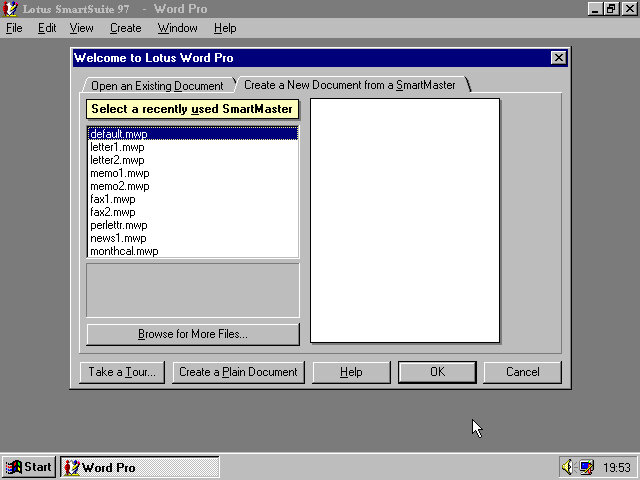
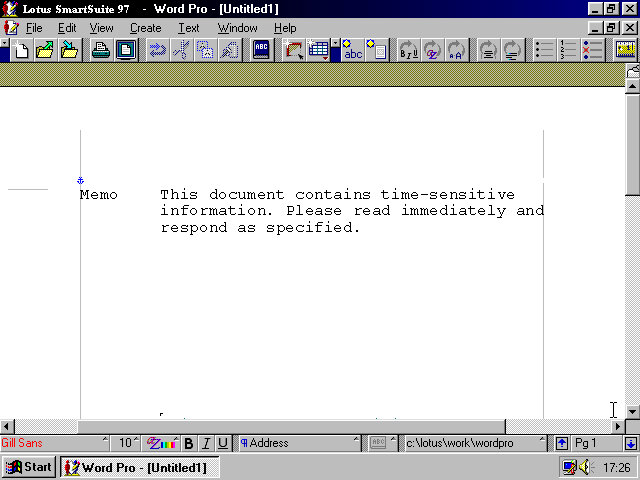
IBM Lotus SmartSuite Instead of Microsoft Office IBM opted to include their Lotus SmartSuite software which was a competitor suite of applications that bundled a word processor, spreadsheet and organiser software into one package
One of the premade templates, memo.
And Lotus 1-2-3 that was once the industry standard spreadsheet software. Possibly still being used
And lastly the organiser, this incorporates an early form of skemorphism with it representing a real diary book.
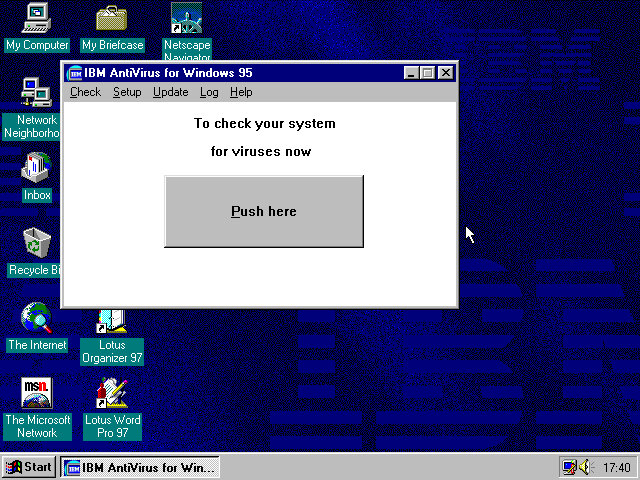
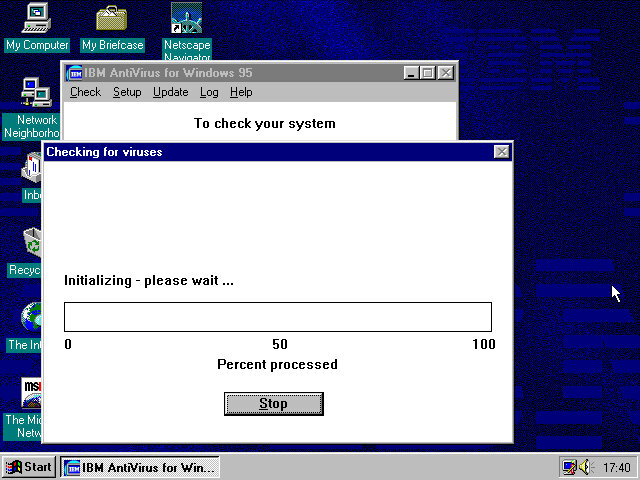
And the actual devil itself which looks like a Windows 3.x program. The big Push here button kinda makes it look like a pop up window scam. Updates are delivered through floppy disk although you could probably download them from the IBM website. The program simply asks you for the file path of where the updates are located.
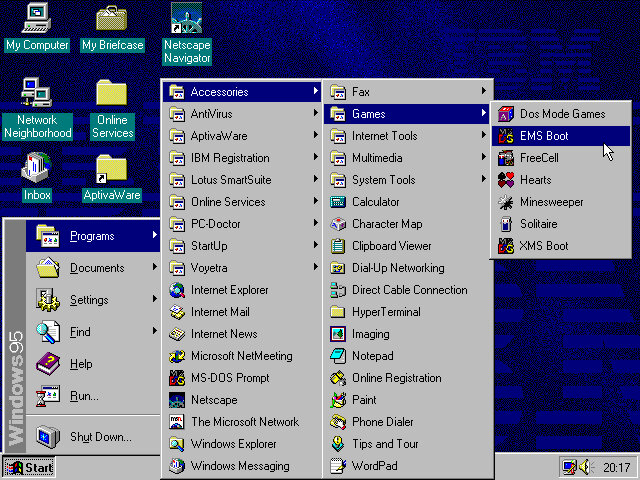
In the Accessories, Games folder there are a few options that relate to MS-DOS such as EMS boot and XMS. These would relates to certain types of memory that DOS had used and was needed to use certain games. Selecting these options will reboot the computer into that specific DOS mode. Honestly I’m not sure which games require a specific mode, but I remember my old TIME PC having a similar set of options in its bootup menu.
AptivaWare
In the Accessories, Games folder there are a few options that relate to MS-DOS such as EMS boot and XMS. These would relate to certain types of memory that DOS had used and was needed to use certain games. Selecting these options will reboot the computer into that specific DOS mode. Honestly I’m not sure which games require a specific mode, but I remember my old TIME PC having a similar set of options in its bootup menu.
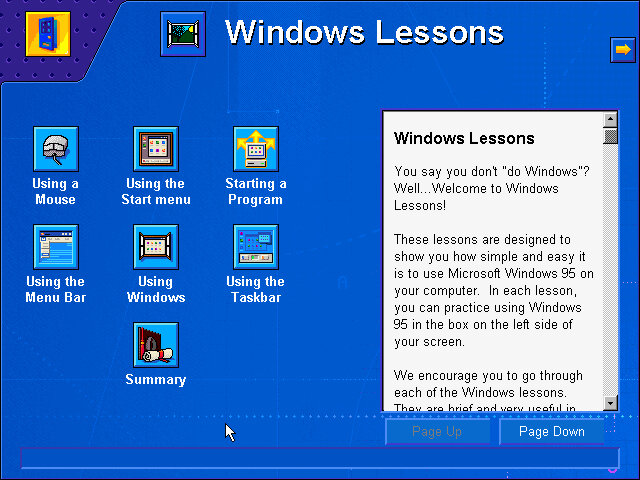
Tutorials for Windows are also featured here, which follows basic Windows concepts such as the taskbar, expanding and minimizing windows to the taskbar and using the Start menu.
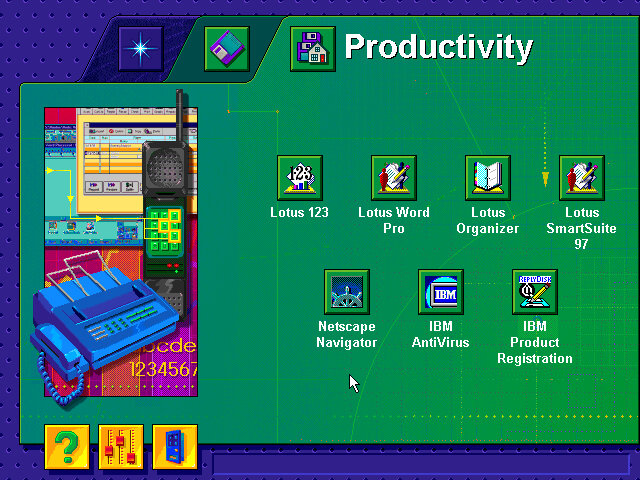
There are also links to the bundled software applications, meaning this acts as a software launcher.
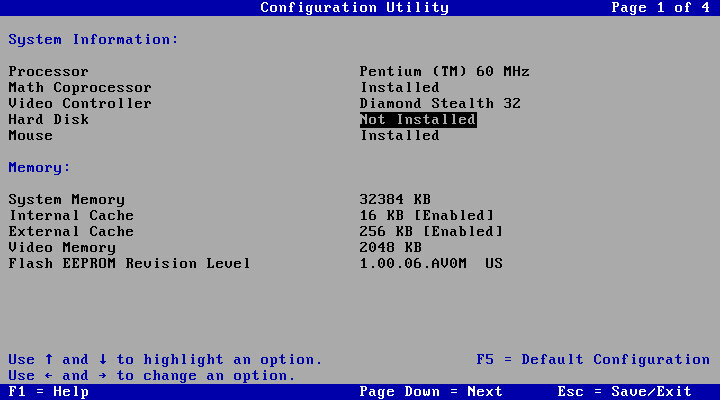
Lastly a look at the systems BIOS of an IBM ValuePoint, with a clean looking setup utility. The hard drive is limited to around 520MB and it cannot address any further. Larger hard disks might be possible with a SCSI controller, plus it would let you add up to around 7 different drives.
The BIOS is straightforward to navigate, with the arrow keys being used to select and change settings. The Pg Up and Pg Dn keys can be used to cycle through the different screens.
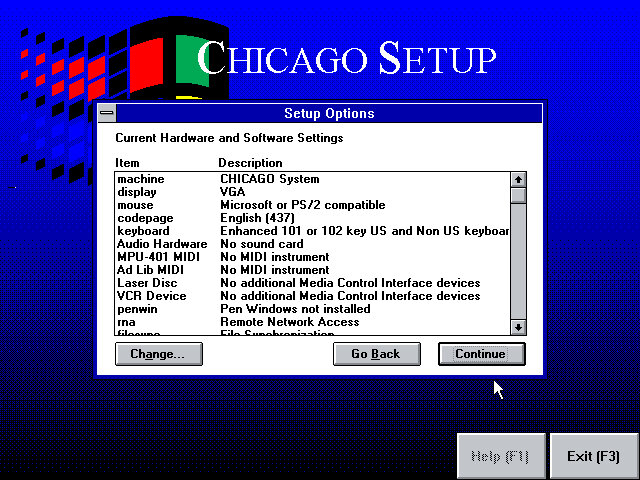
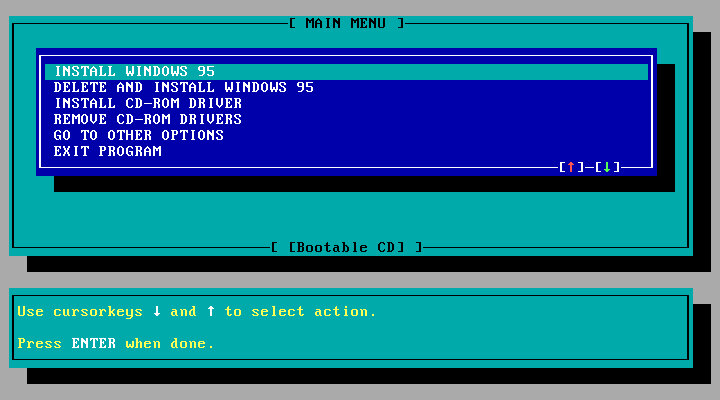
Install was started in a similar fashion to the earlier build from DOS. Setup looks similar to the earlier build, only we are prompted to agree to a few NDA’s, there are four in total that we have to accept.
Once there aps that we are prompted if we wish to install plus pack components, which consist of additional utilities. These would later come was the Windows 95 Plus! Expansion which added utilities like DriveSpace and high colour icons, kind of like a n expansion pack for Windows.
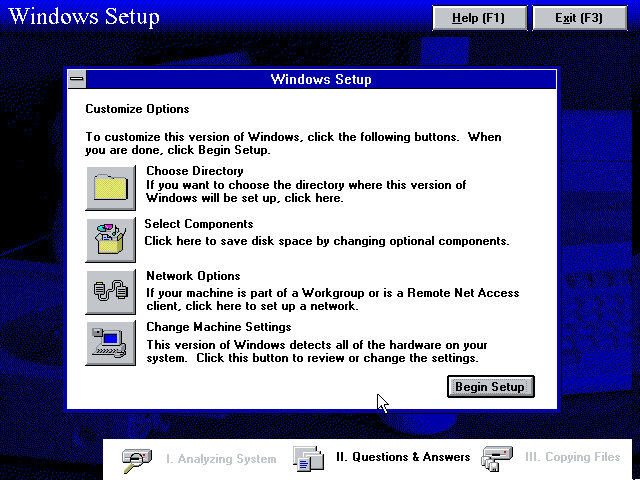
We are given an opportunity to add additional components, or amend the system configuration if we have any specific hardware that setup needs to know about. The Network Options is redundant as a message box is displayed informing us we can only configure network options later in the setup process.
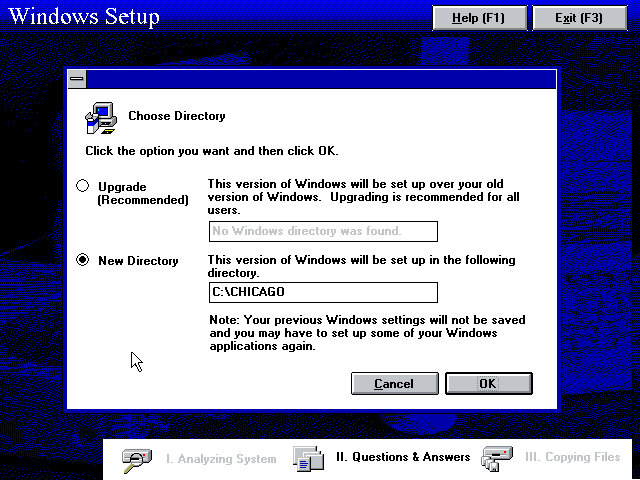
The Chicago directory is used by default instead of the Windows directory, possibly to enable dual booting or too leave the previous install intact. This would be renamed to just the Windows directory once development had been finalised.
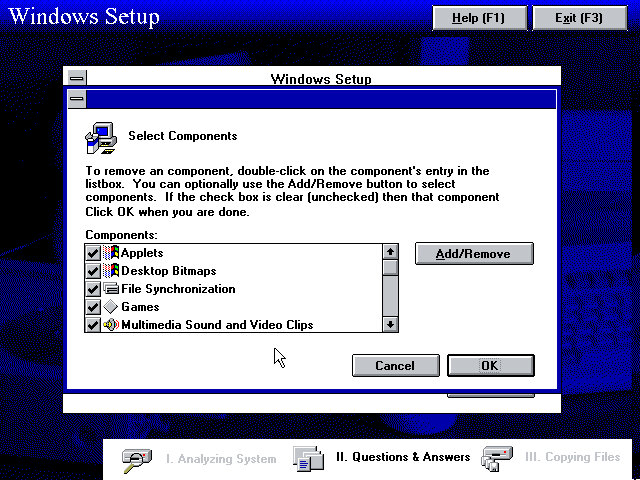
Additional component that can be added.
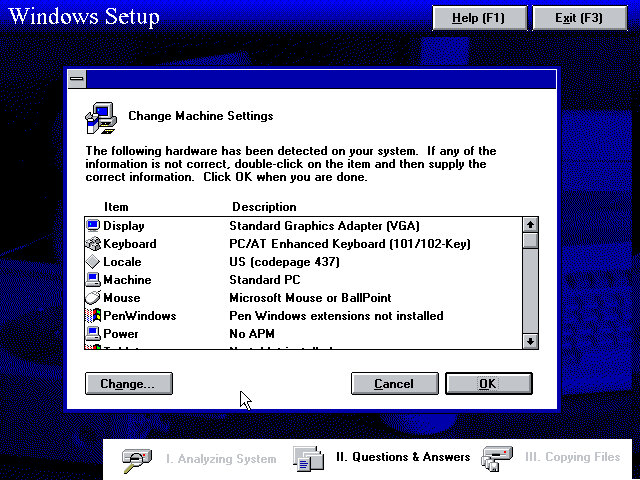
Machine configuration, we can see the setup utility detected the InPort mouse that 86box supports. VGA card wasn’t detected however, but our Tseng ET4000 can be selected s and used with the driver that comes with the install.
A weird message that came up, clicking cancel is recommended here since I started setup from the Windows 95 bootdisk. I think setup requires you to start it from a currently running MS-DOS session from the hard drive instead of a floppy boot disk which is why this happened.
Network configuration where you can setup the network card, the Novell NE2000 was used, though I had to amend the IRX to 10 instead of the default settings, 3.
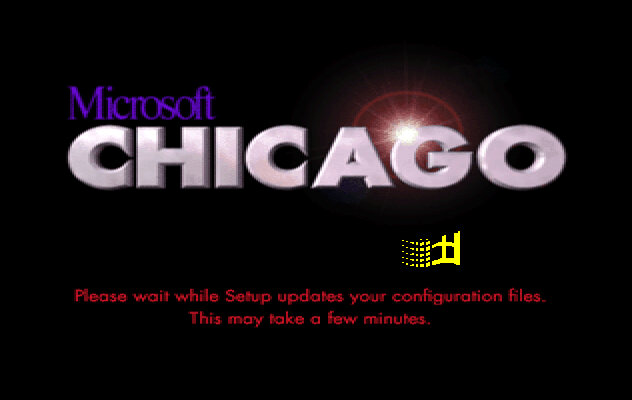
Boot up screen with the windows logo dotting about.
The logon screen, from here you can enter a name and a password if you wish and Windows will create it for you. Pressing the cancel button will log you in regardless.
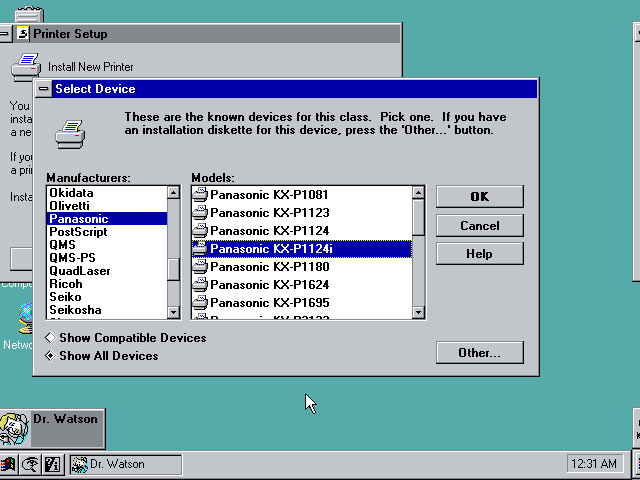
After the initial login we are prompted to setup a printer.
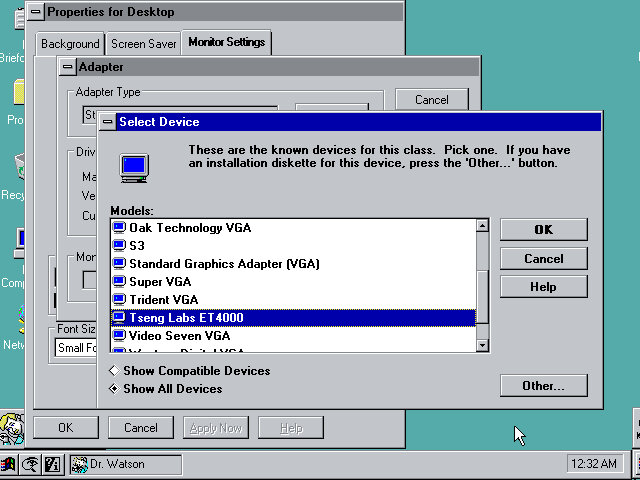
Setting up the VGA driver, at this point I realized the IDE CD-ROM drives were missing, leaving only the floppy, hard drive. I did try to used the MSCDEX driver to get them to appear but this did not seem to work. The only workaround to get CD drives to appear was to use the SCSI CD ROM drive, which required be to repeat the install process. The Adaptec seems to be recognised and installed during setup.
Post Install
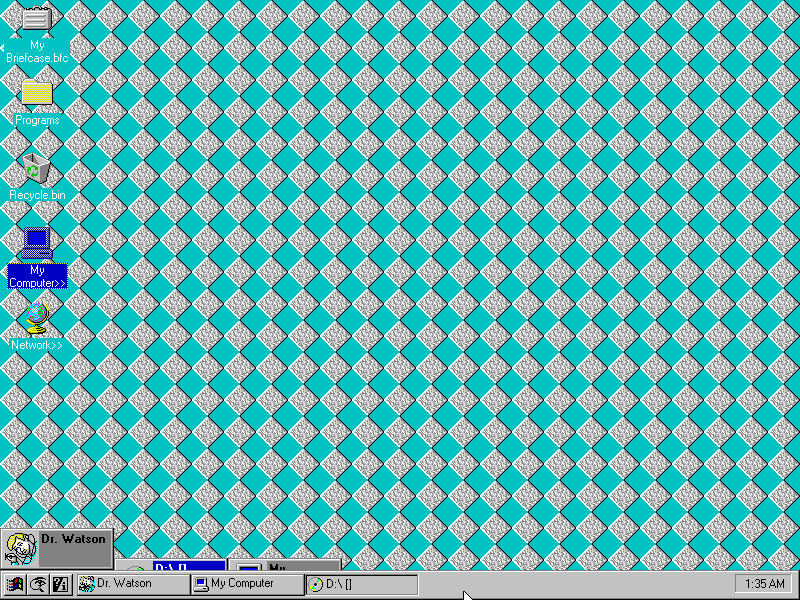
The Desktop, this build still has the separate start menu buttons, with the others being find and help.
The find button kind of mirrors Windows 10 in a way, that you can search directly from the taskbar. Chicago M5 just simply opens a menu to launch the find feature but does make it more accessible, later Windows versions would move this to the Start Menu itself.
Copying a file using the explorer interface. In this build this was still referred to as the File Cabinet
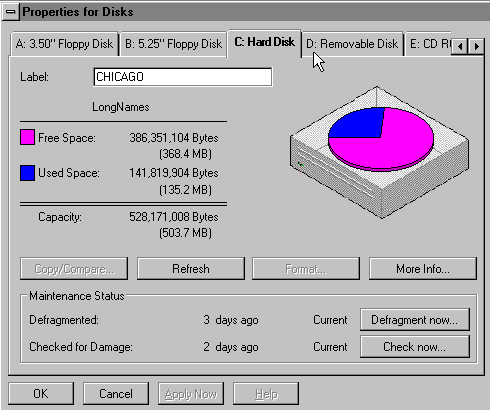
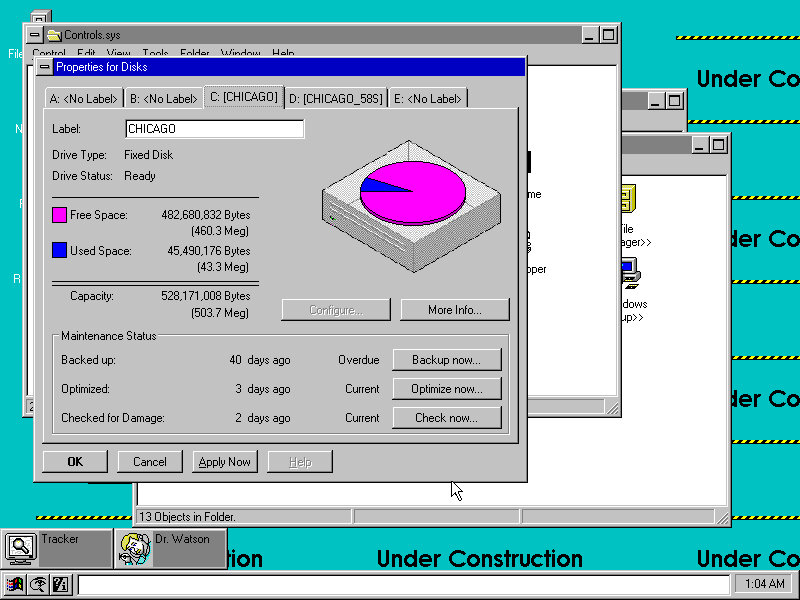
Disk drive properties window, this gives access to the capacity and used space of the drives present in the system.
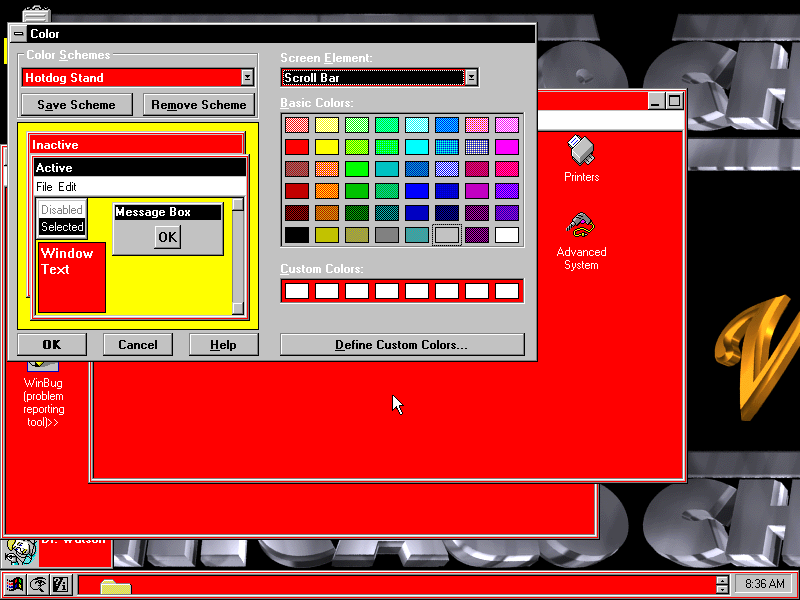
Colour scheme settings, many of the Windows 3.x schemes are still present and can be applied, though some of the windows and buttons remain grey.
Advanced System, an early version of the Windows Device Manager which shows the current devices present in your system. The Properties button opens a separate window that lists the Manufacturer, Model, Device ID and Plug/Play capabilities. There is also a Resources tab for IRQ, DMA Channels and Address spaces. Many of the information strings are non functional and do not yet yield any information.
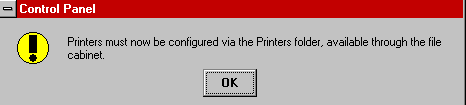
Microsoft changed the way printers are now configured, moving them to a separate folder in the Main program group.
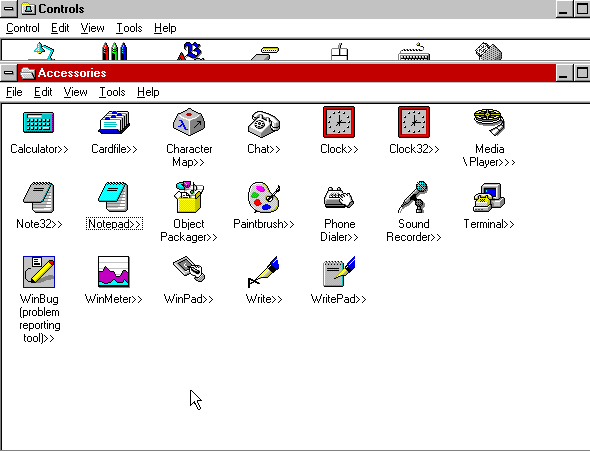
Some applications in the Accessories group have change, and are now in 32bit flavour. The existing versions are still included.
The size of the taskbar can be changed by clicking and dragging the edge of the bar,. at a certain height the clock will shift to the left of the taskbar, likely to make room for further tasks and applications, something that later Windows versions do not do.
Software
32bit software will be hit or miss, as the API has not been fully implemented, if at all. Windows 3.11 era software should work but anything multimedia-rich appears to have issues.
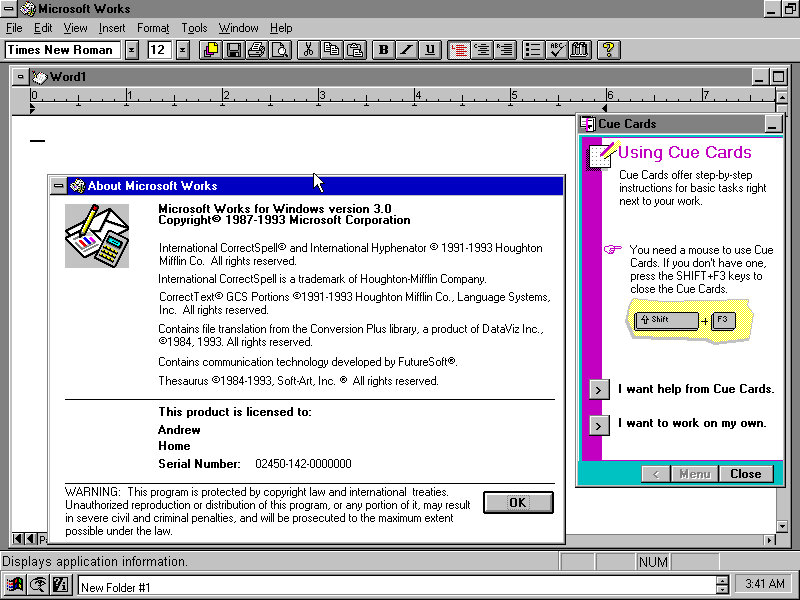
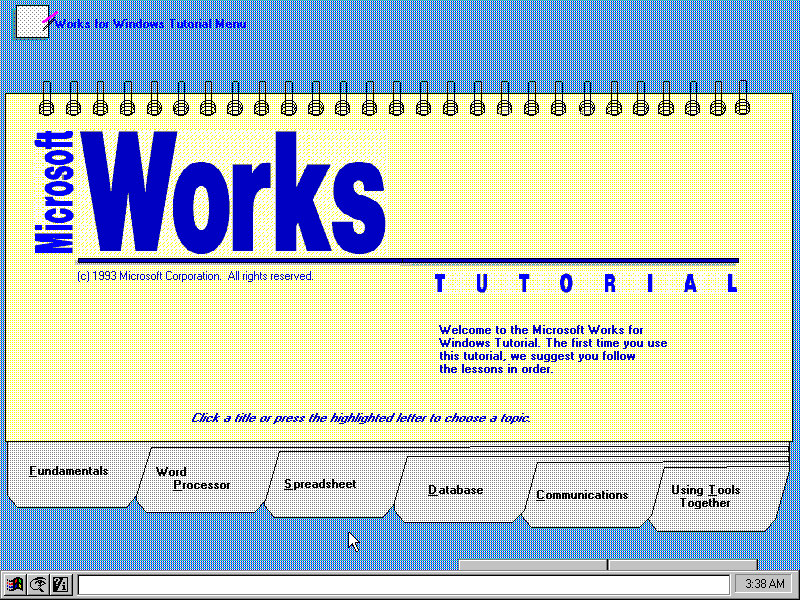
Microsoft Works: Installs and works fine, this was a lightweight office suite intended for home users.
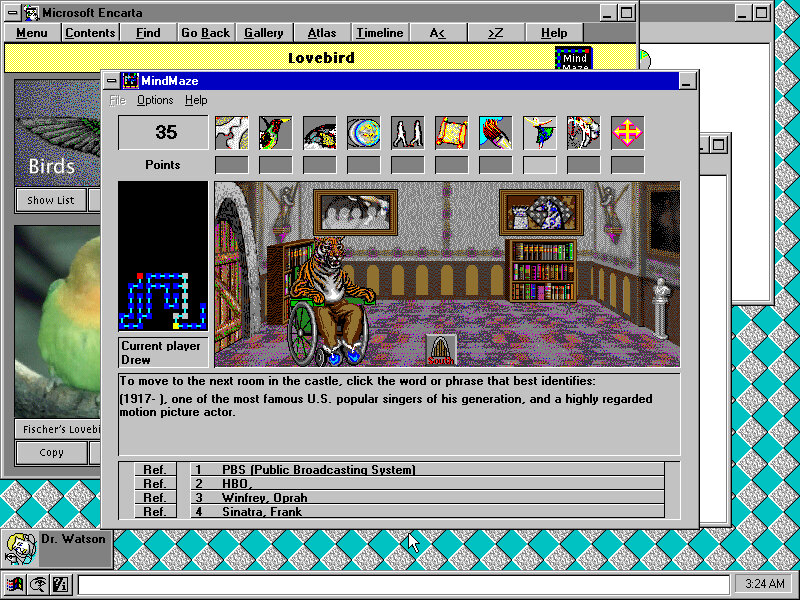
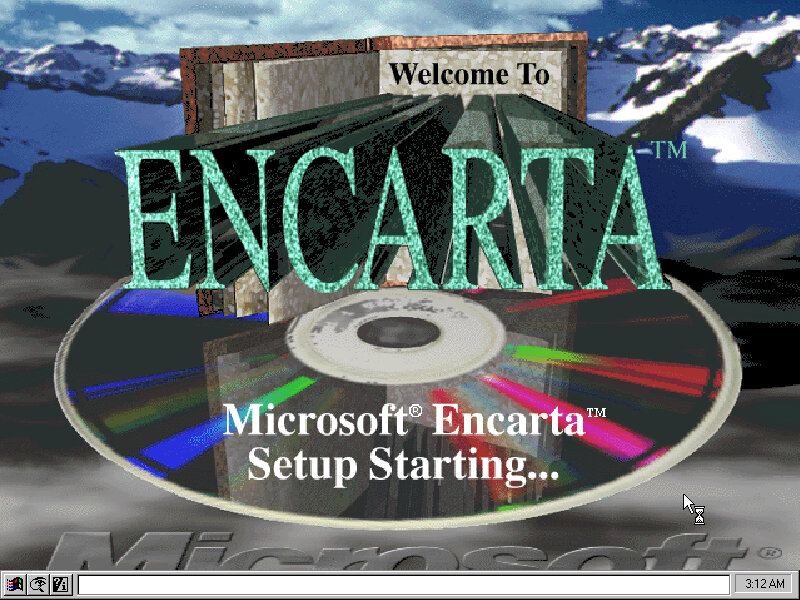
Microsoft Encarta 1993: Installs fine but complains about the soundcard not being detected towards the end of the install. Runs fine.
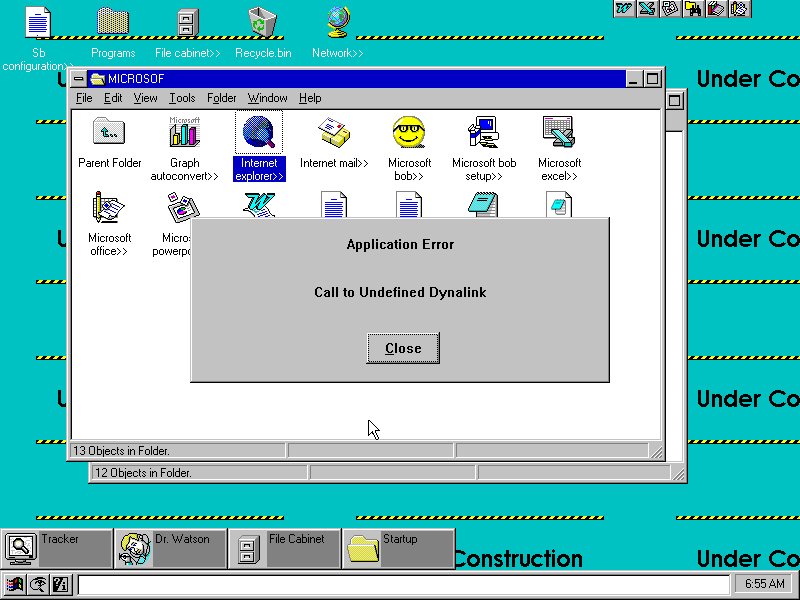
Internet Explorer 3: This was the Windows 3.1 version of Internet Explorer 3, Installs but fails to run, revealing the error message ‘Call to Undefined Dynalink’ Rebooting after install revels a weird error message to press Ctrl+Alt+Del to reboot your mac?
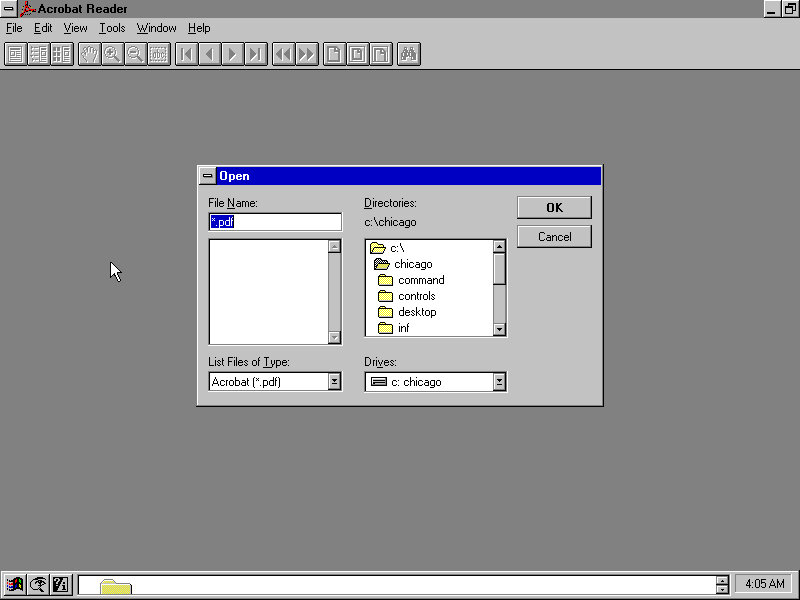
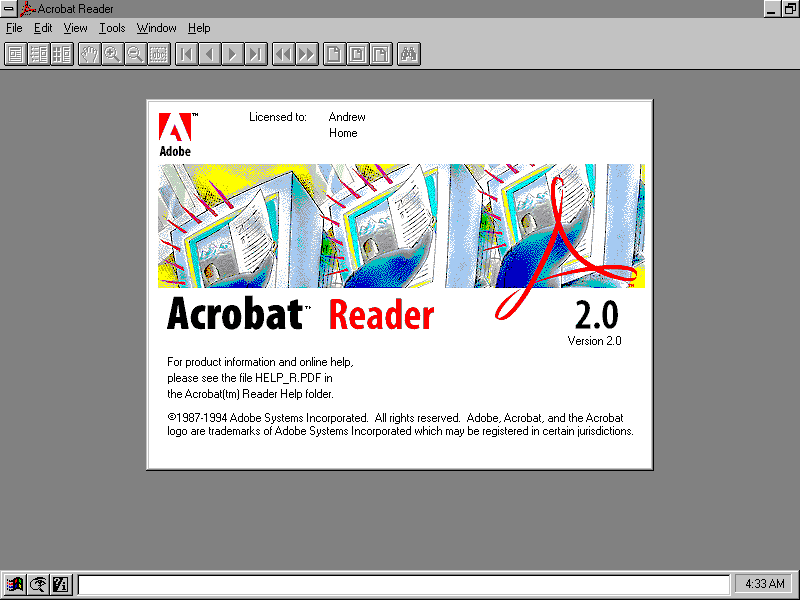
Acrobat Reader 2.0: Installs and runs fine
Netscape 1: The setup installers complains about a dialog box that it cannot display? Also fails to launch after install.
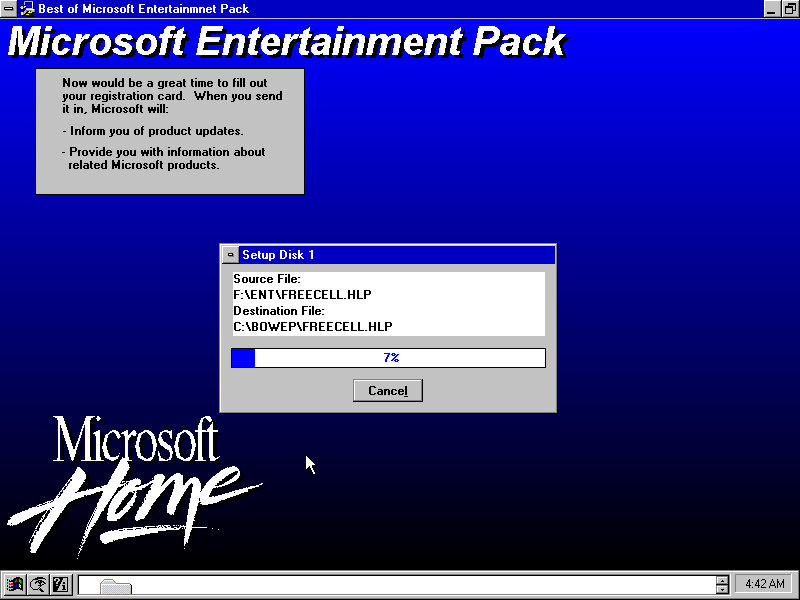
Microsoft Entertainment Pack (Best of): Works just fine
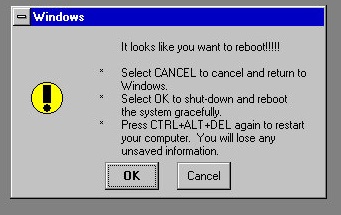
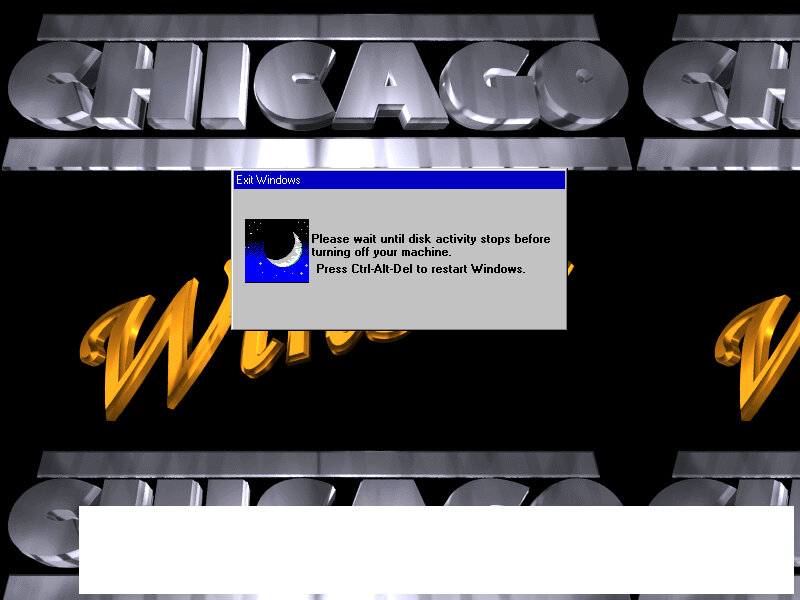
Pressing Ctrl + Alt & Delete will show this message, this is replaced by the End Task dialog box in later builds.
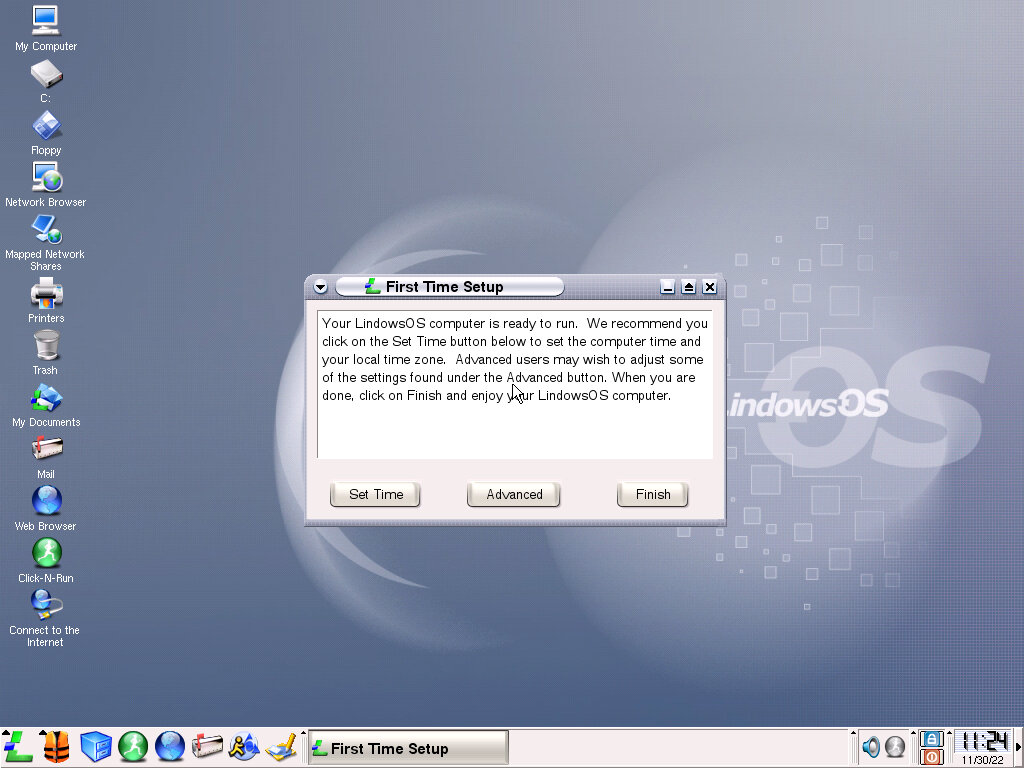
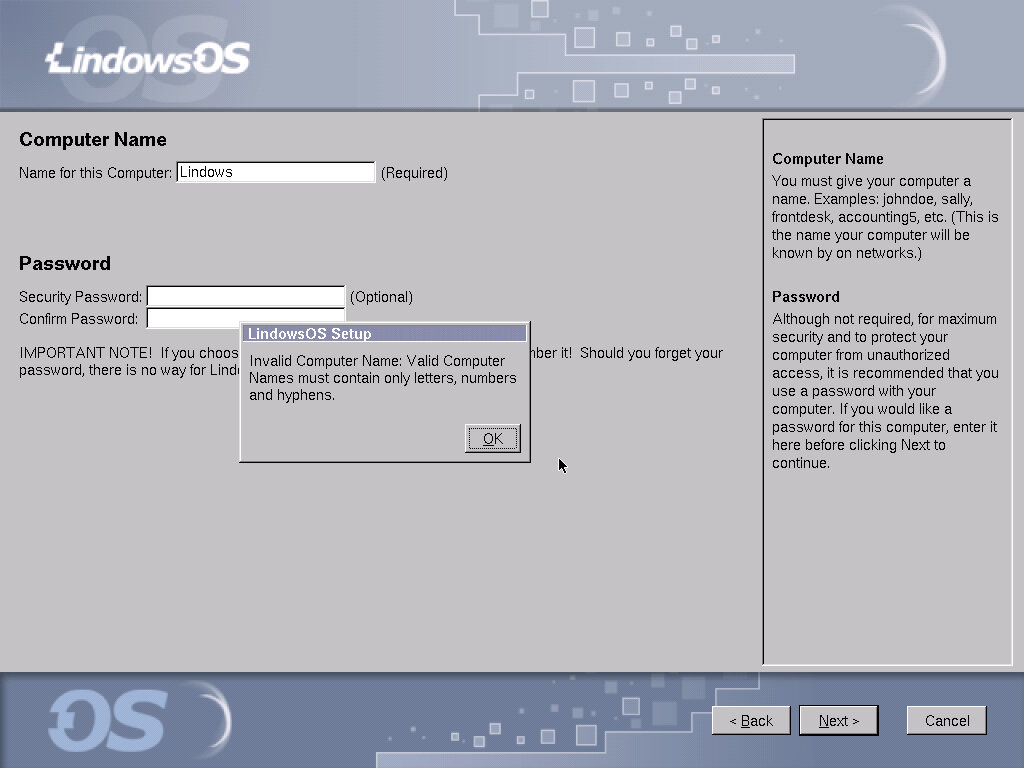
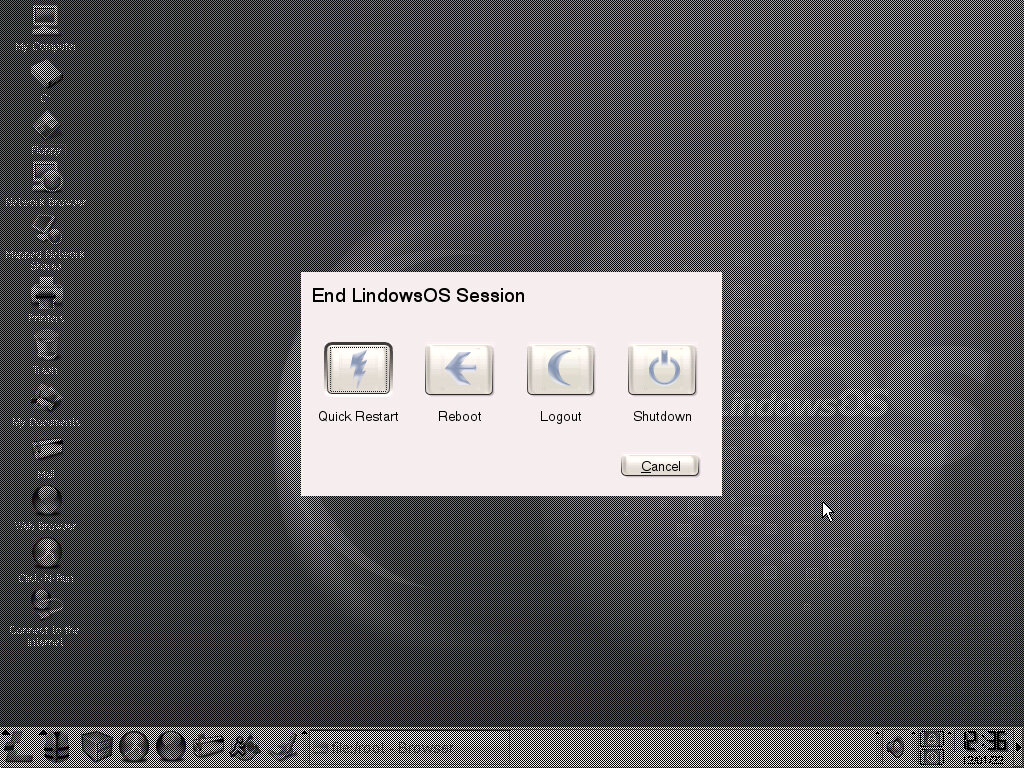
A follow up to Lindows 2, an popular Linux distro that was released in 2002, lets see what has changed in this version. It’s also an operating system that’s a pain to search for since both Google & Bing think it’s a type and keep correcting it to Windows.
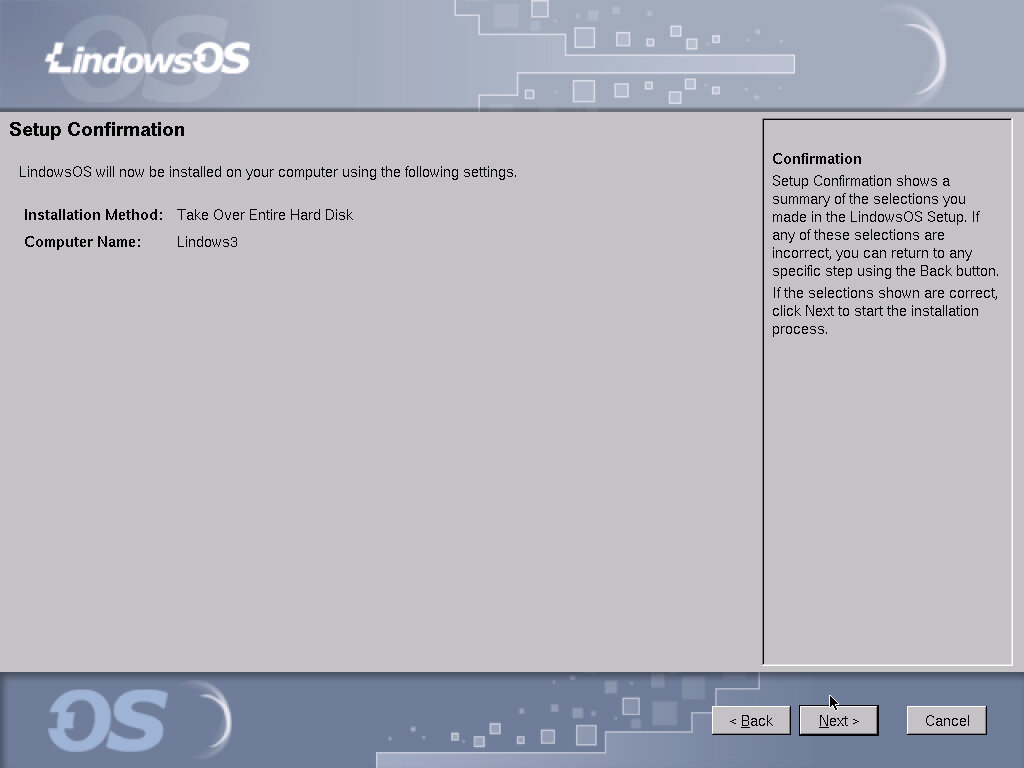
The install process is typically the same as before, with the install being booted directly off the CD
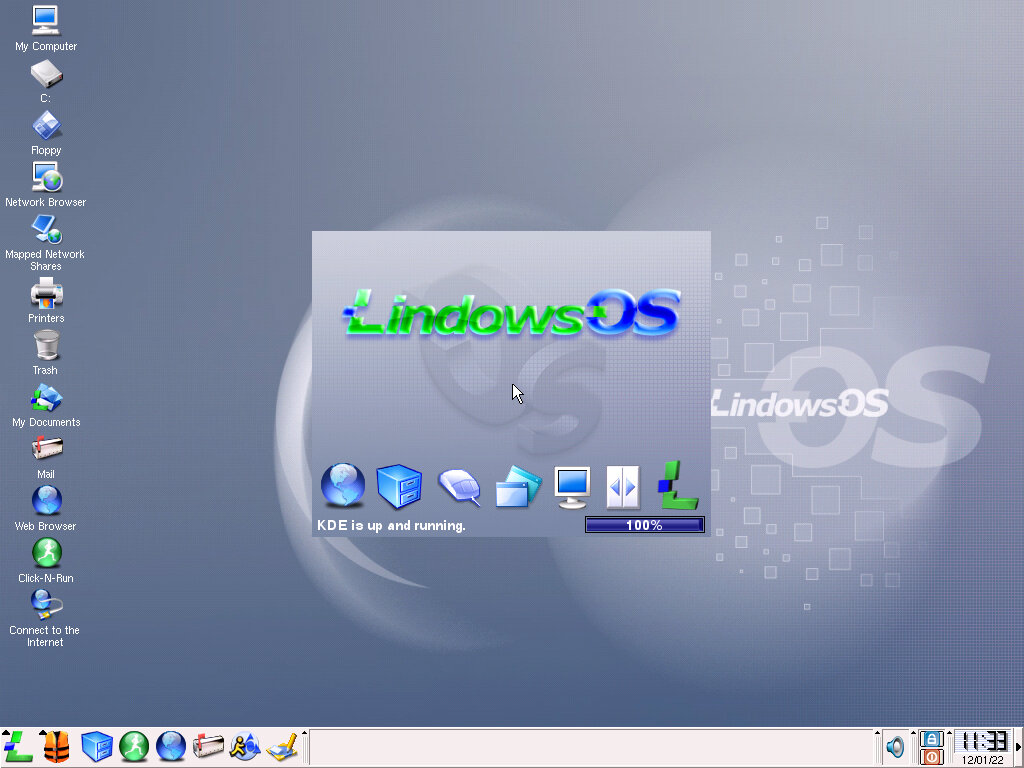
Upon bootup we still get the same selection process.
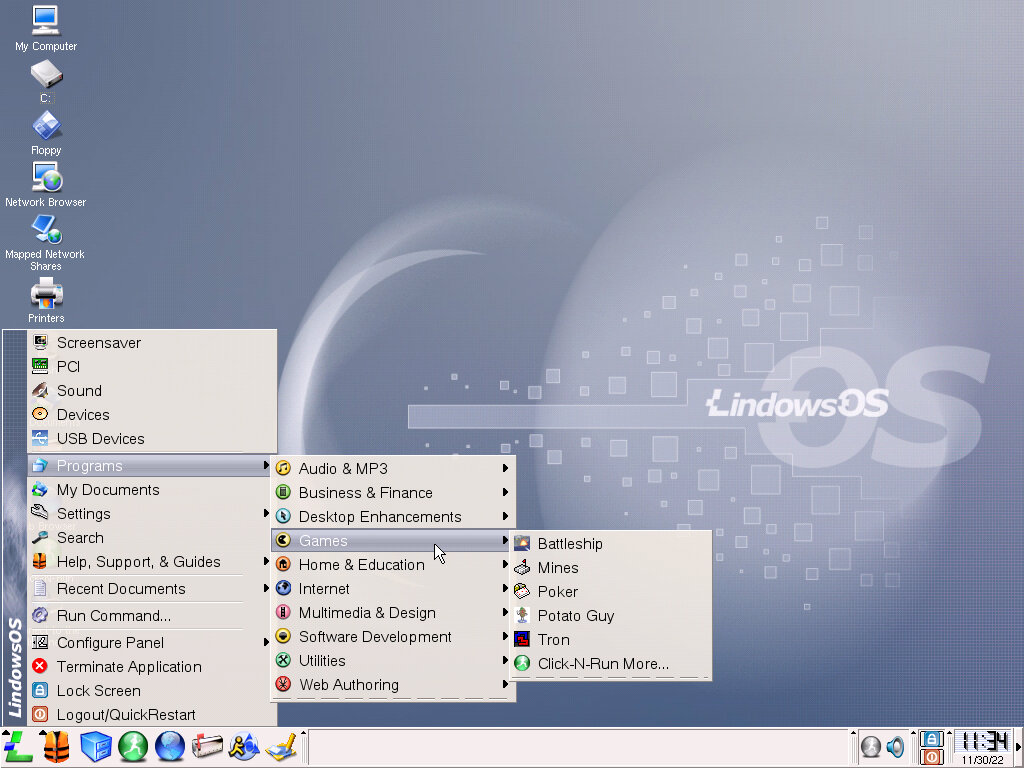
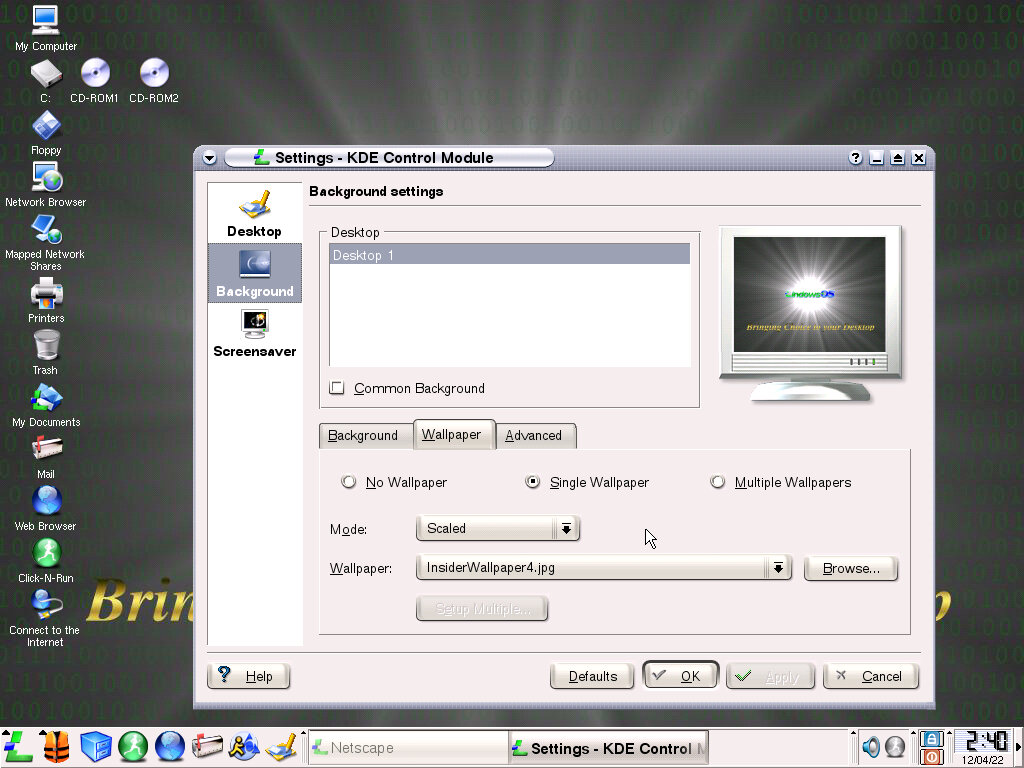
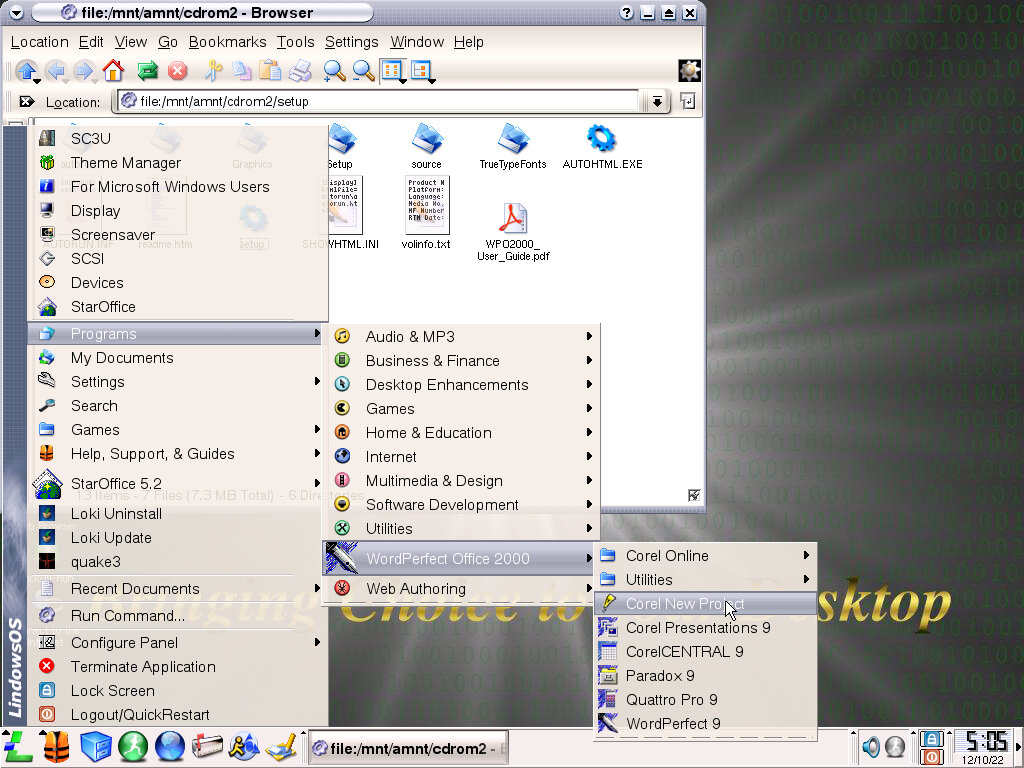
Desktop, not much has changed, but when clicking the Lindows menu we see a slightly altered font The menu itself holds the same layout as the previous distro, with bundled programs being placed in their own category to make organizing much more easier. Not all applications will install into this folder, Simcity 3000 for example creates its own games directory instead of using the one located in the game folder. This can lead to confusion as you have two of the same folders unless the user manually changes the directory upon installation.
It also means whilst the menu looks relatively tidy, it will become cluttered as more applications are installed.
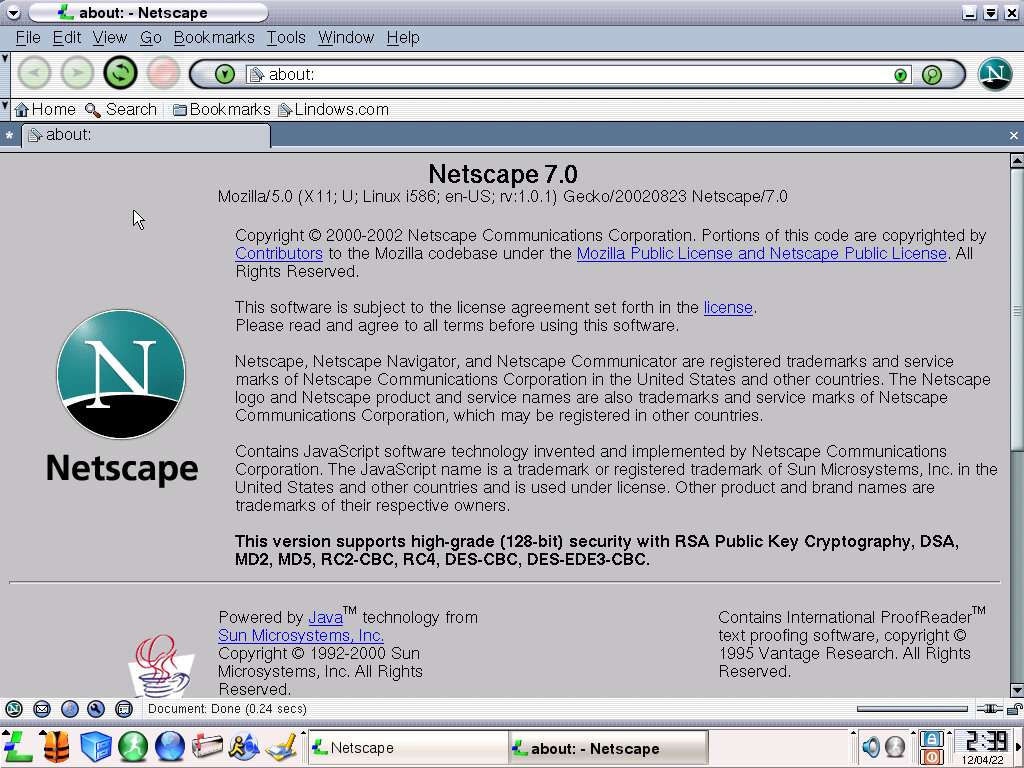
Click-N-Run applications are present, although there are no major changes, with only a few minor updates. Netscape browser comes as the default internet browser which is the exact same version as the preious release.
Missing from this build is the Microsoft Office viewers, with only the basic Text editor remaining in the Business & Finance category. I guess Redmond brought out the lawyers.
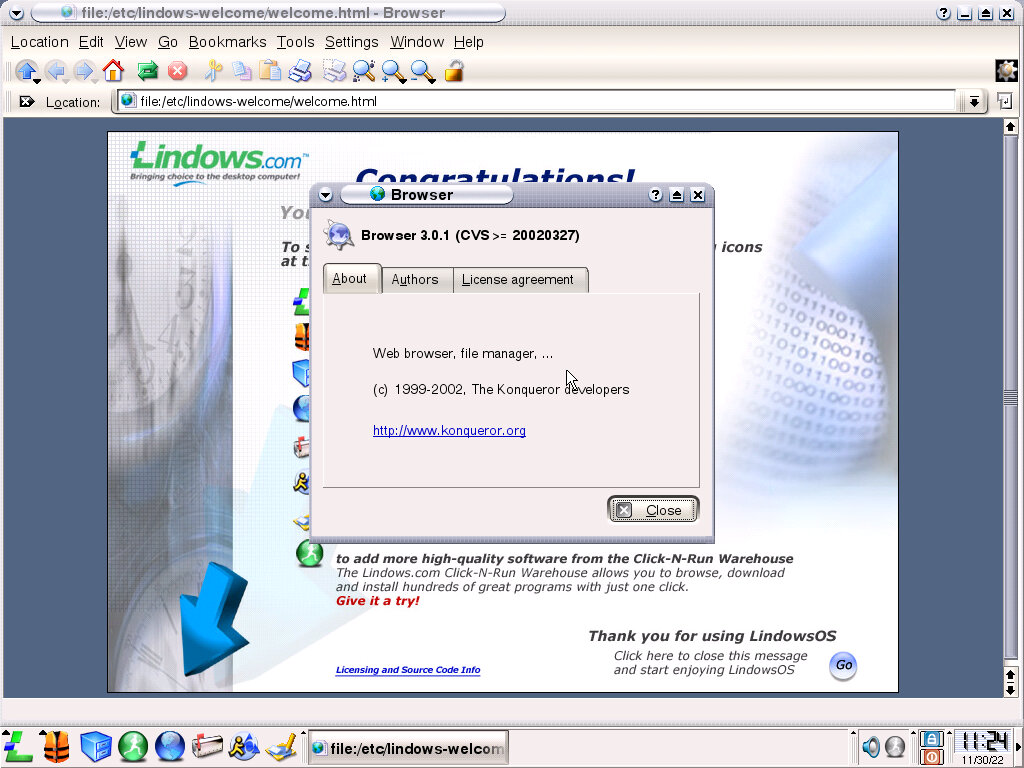
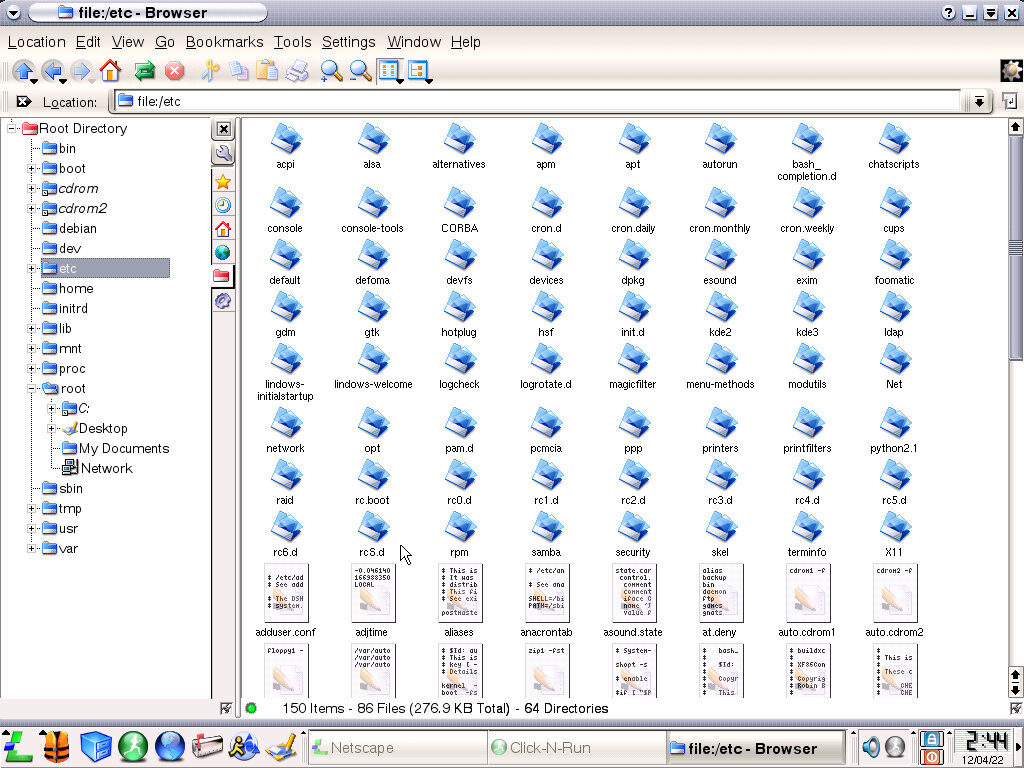
The KDE file manager is modeled after Windows Explorer which should make it familiar to switching users. Konqueror version 3.0.1 is used.
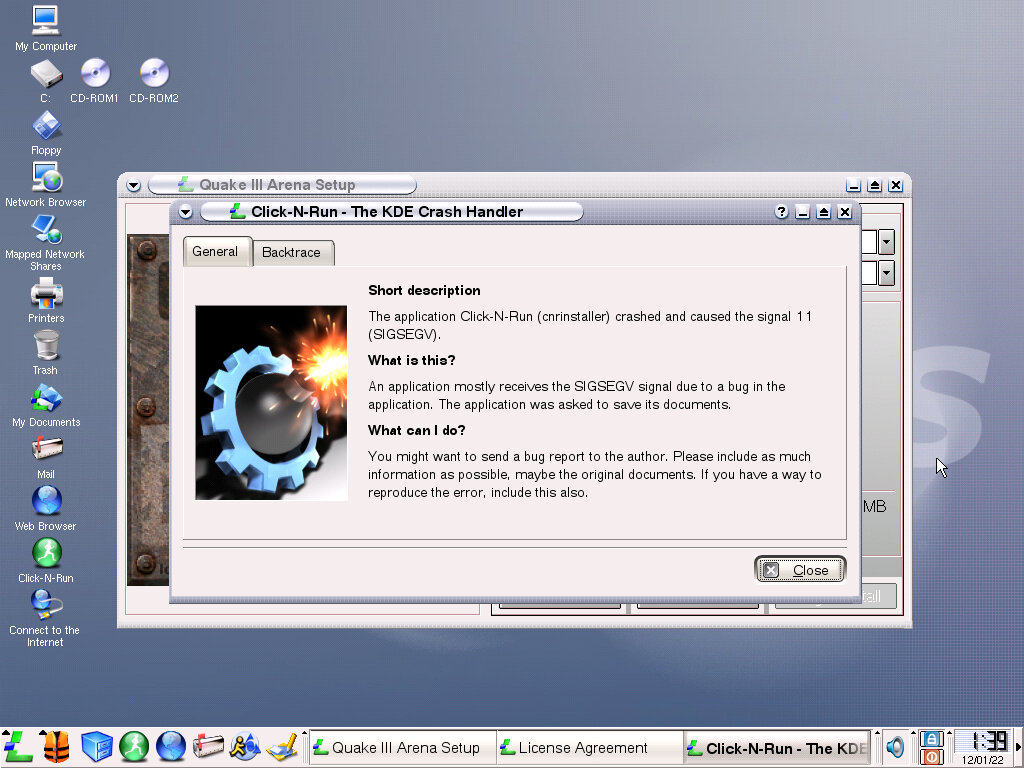
When software crashes in Lindows, a crash handler comes up explaining what has happened.
Software
Since there isn’t much that’s changed compared to Lindows 2, let’s see what period-correct software we can use.
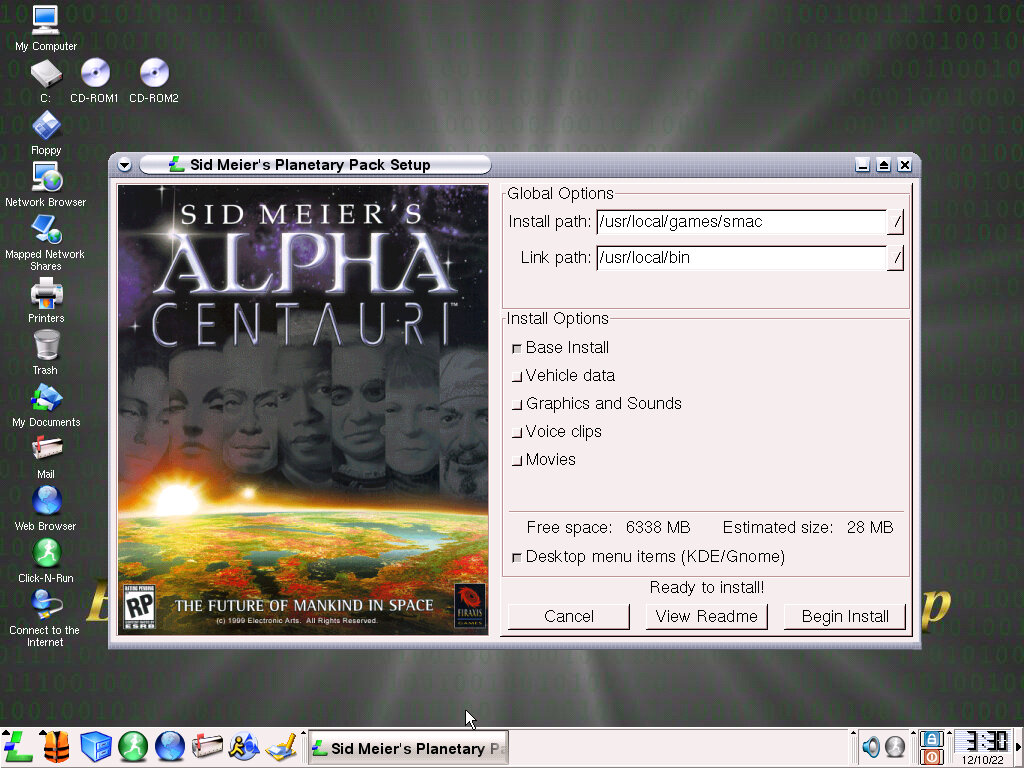
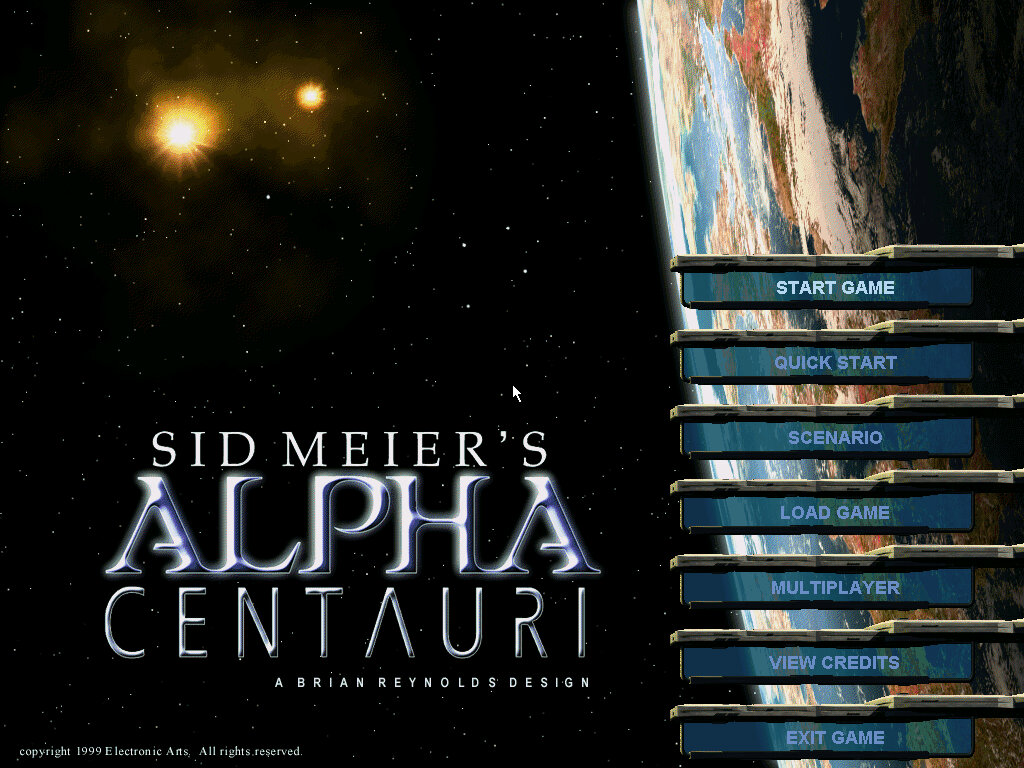
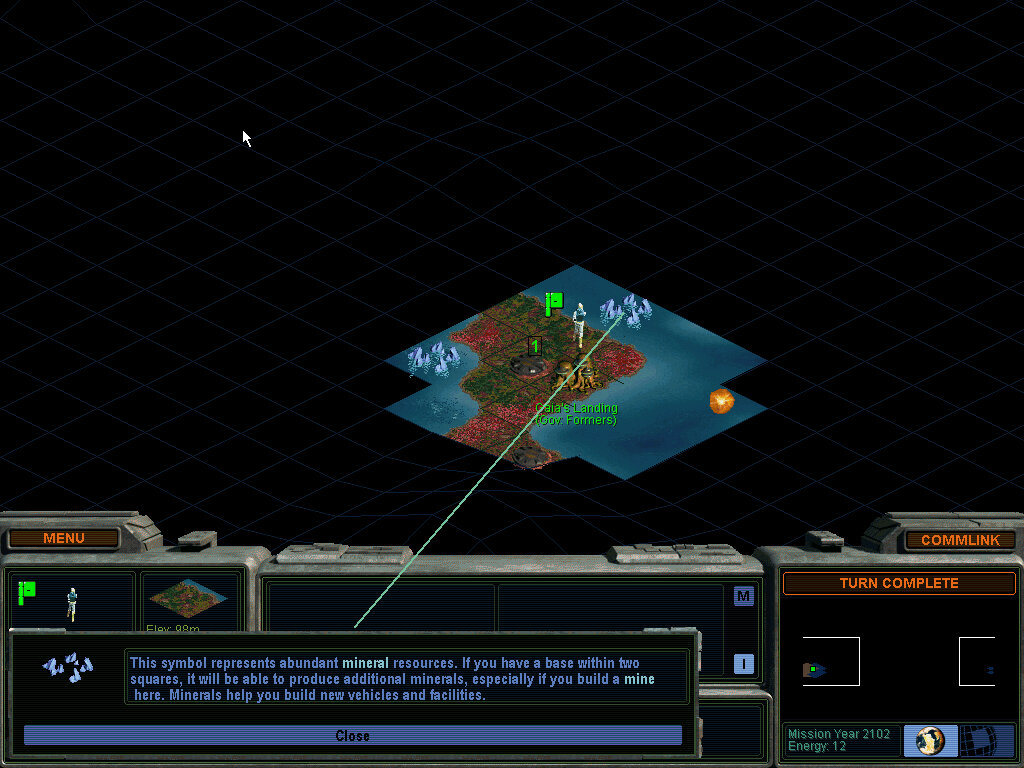
Sid Meier’s Alpha Centauri – Seems to work well, installs successfully and the opening FMV plays with a bit of stuttering probably because of the CPU chosen. I do wonder if these early Linux games were well-optimized or just quick and dirty ports. There is a bit of slowdown at the start of a level which could be an issue with no graphics acceleration with the video card chosen ( S3 ViRGE)
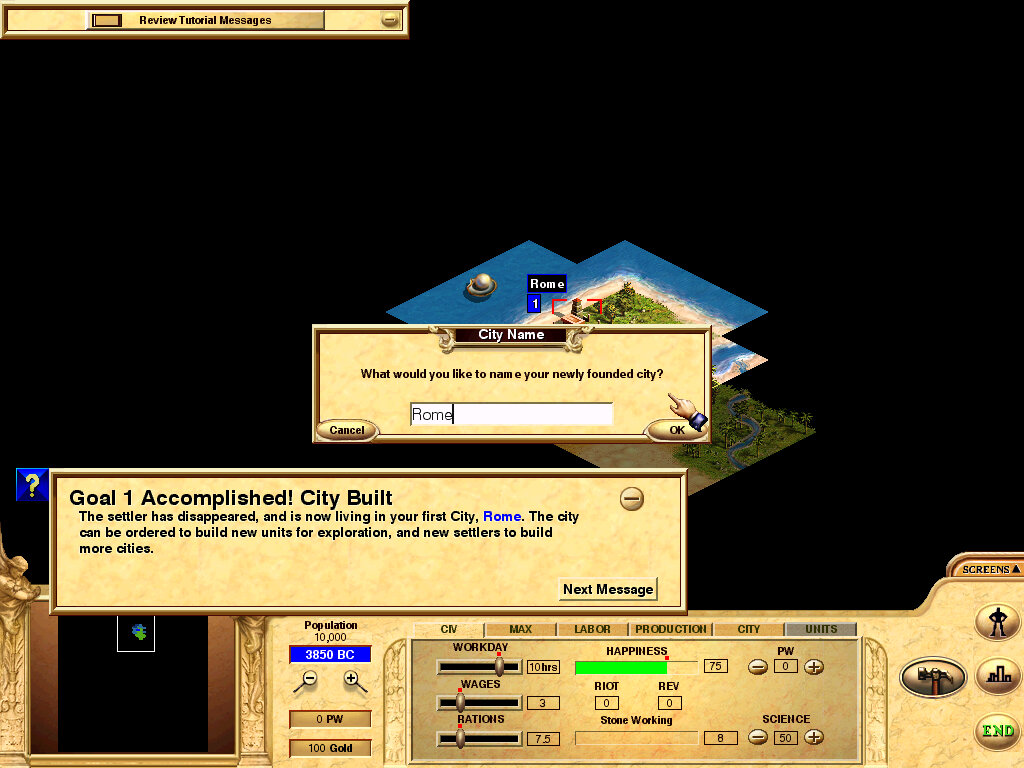
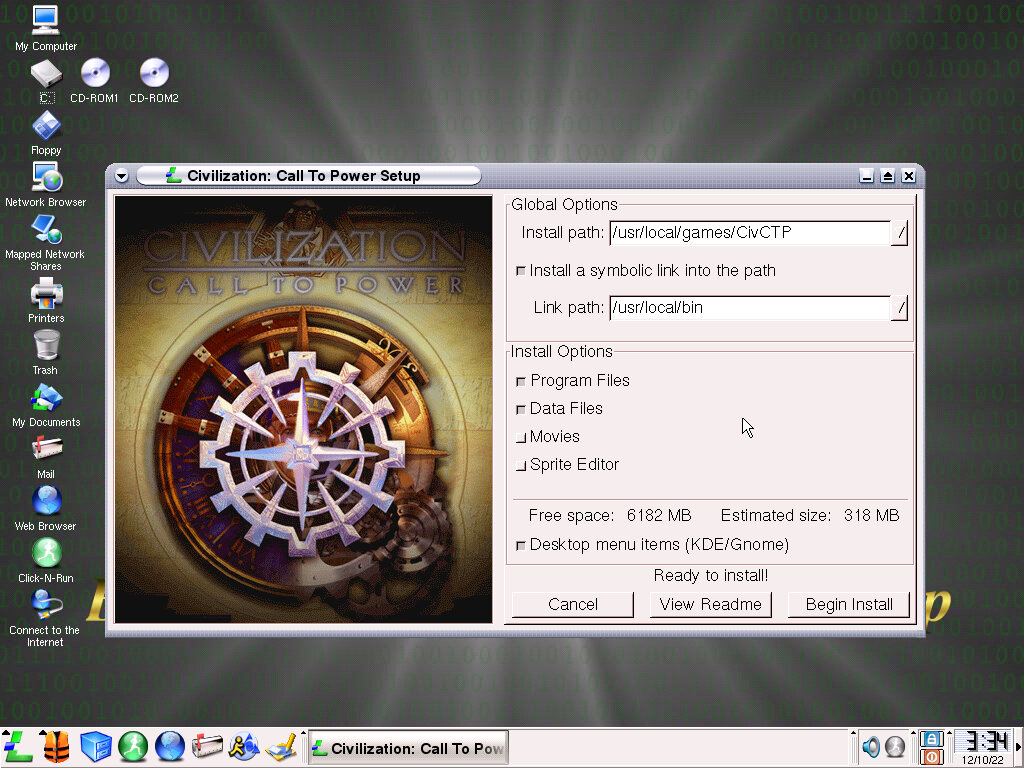
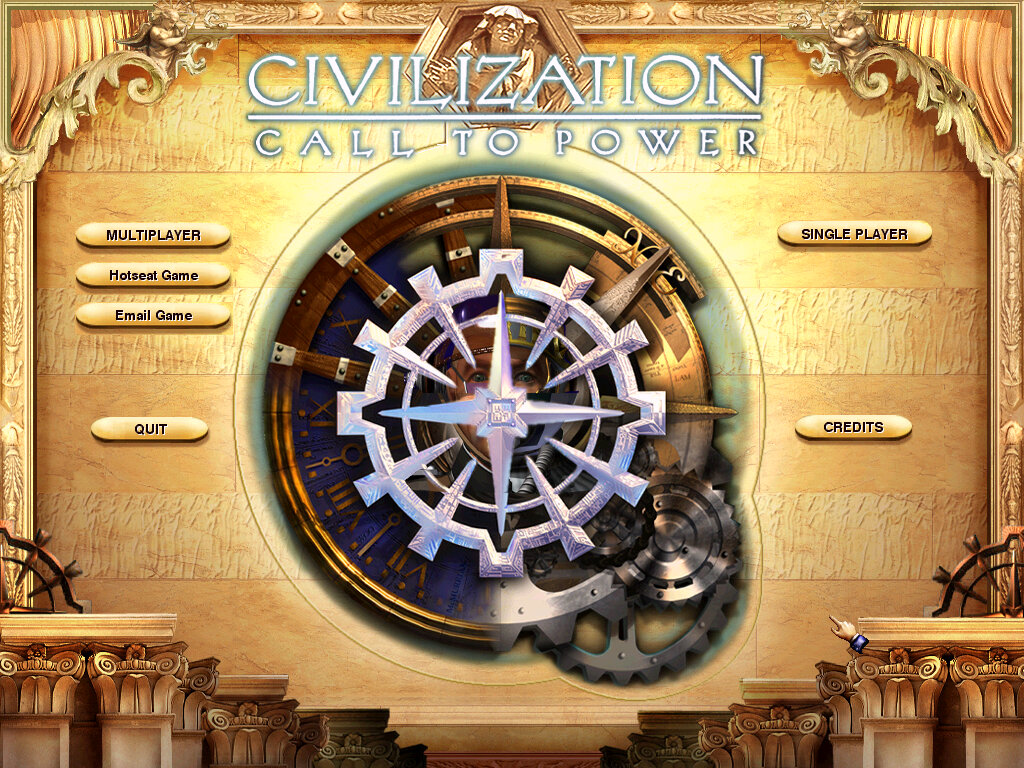
Civilization Call to Power – Installs and works fine, this game seems to be less demanding than Alpha Centauri and runs a lot better.
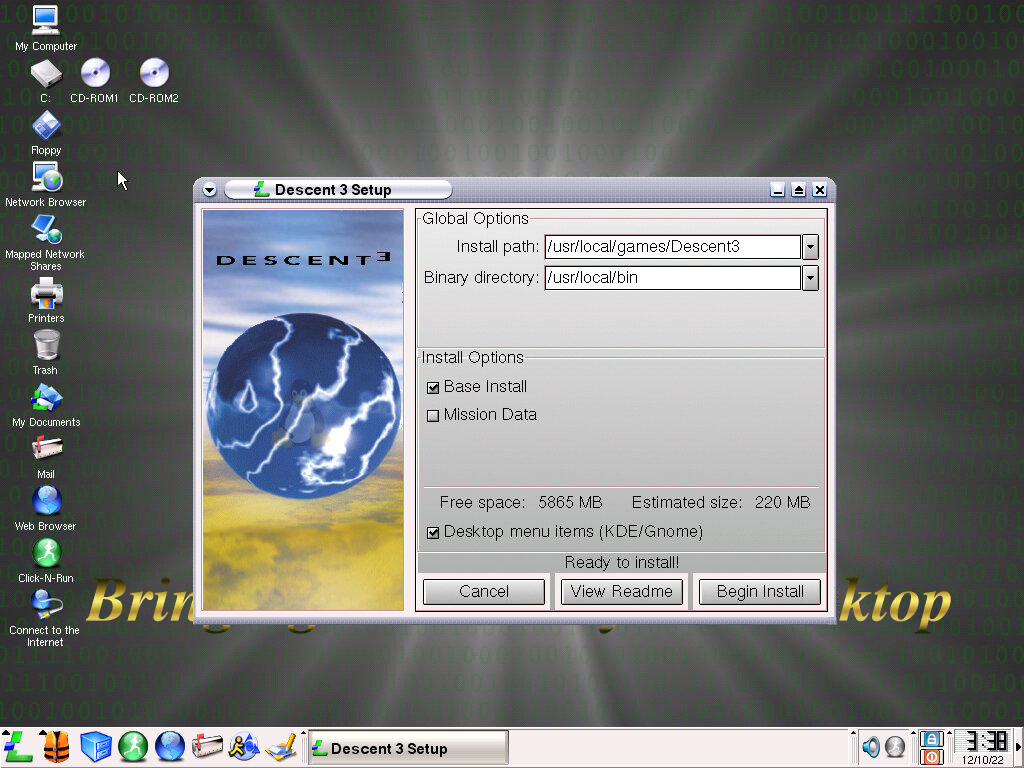
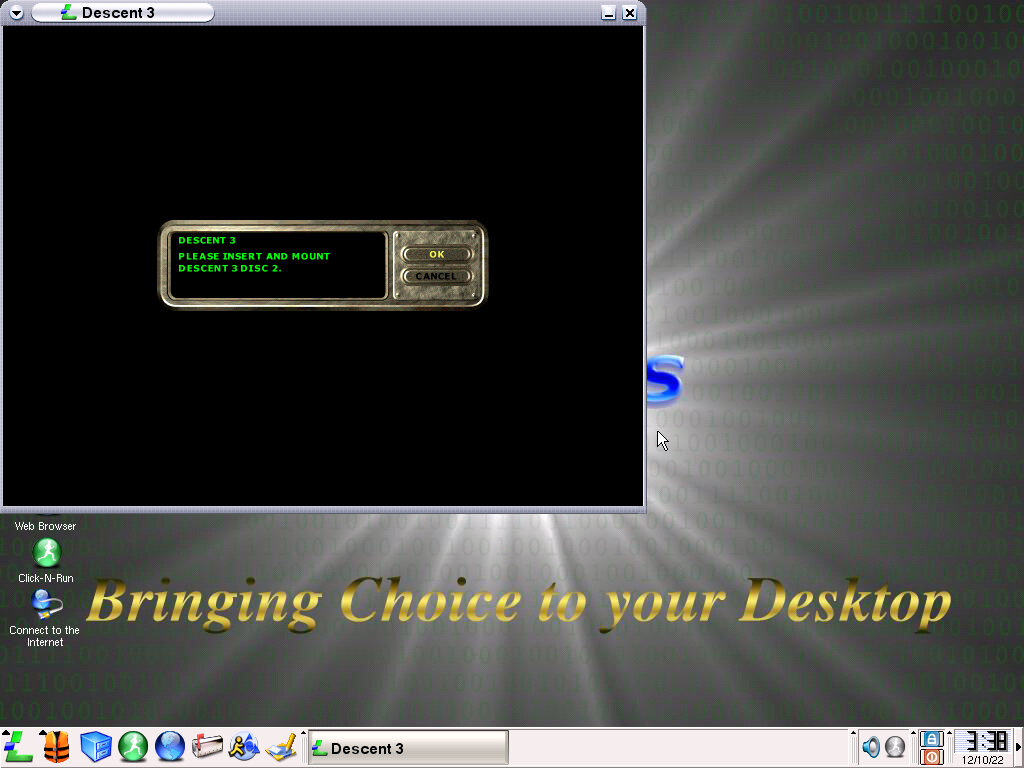
Descent 3 – Installs fine, but when running it prompts you to insert disc 2 which is not recognized after mounting in 86Box. Clicking Ok seems to launch the game but the graphics are pixilated. Had to hard reset the VM to get back into the desktop, After rebooting the game loads and plays the opening FMV, but still has blocky graphics.
SimCity 3000 – Still non-functional
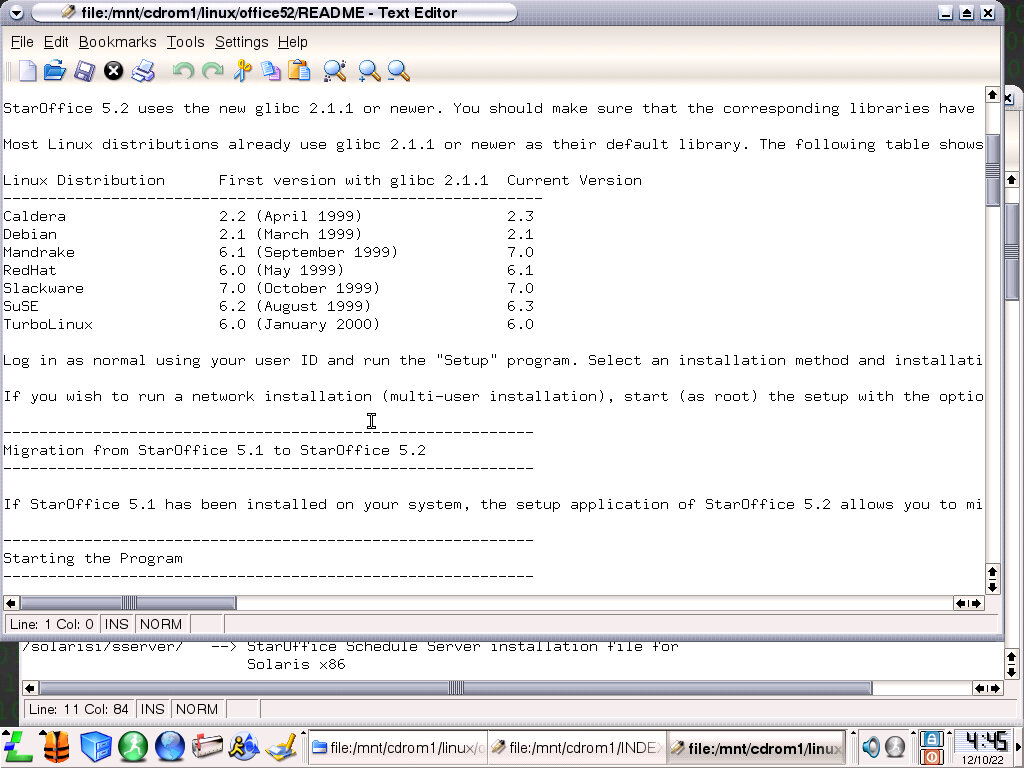
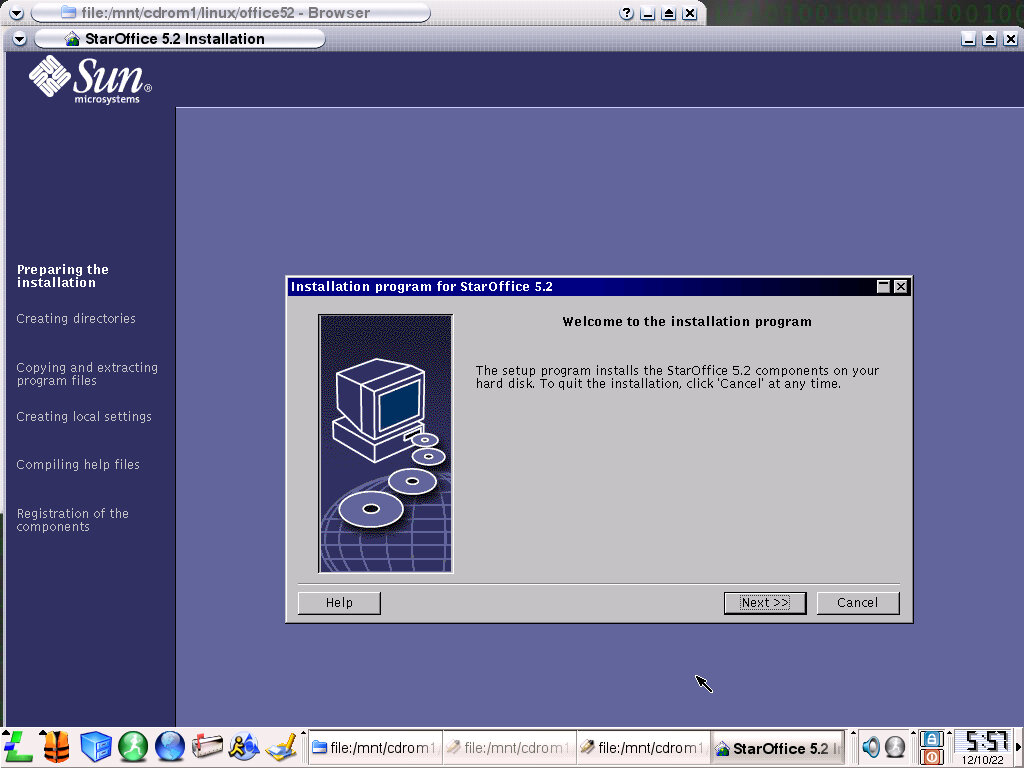
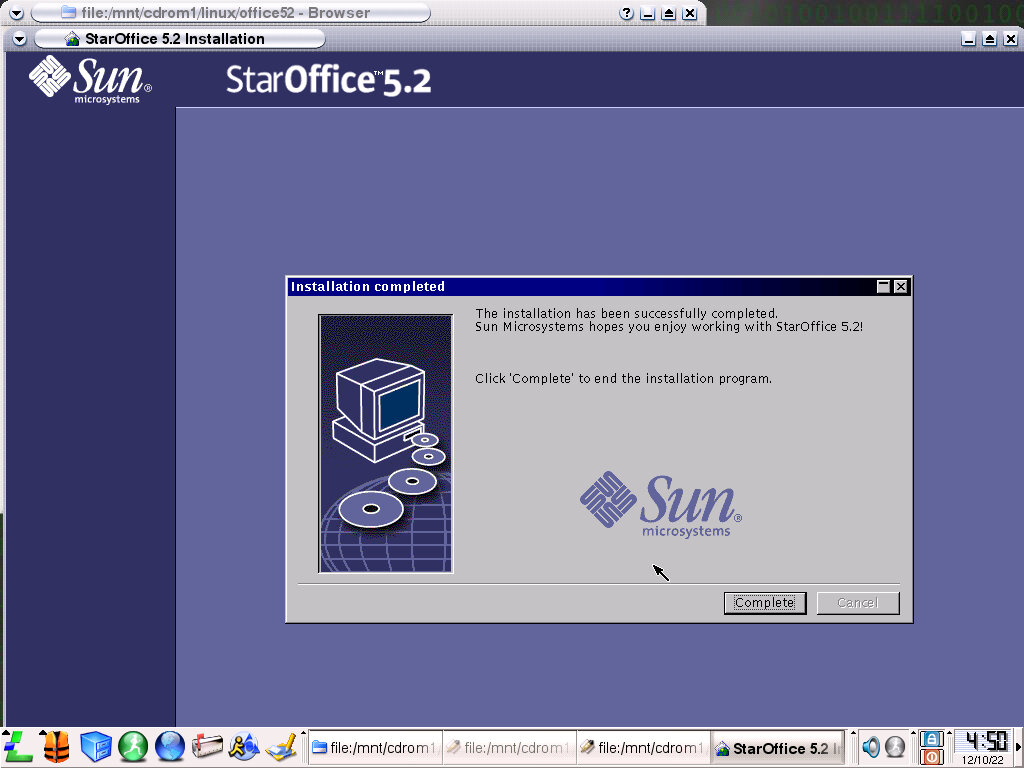
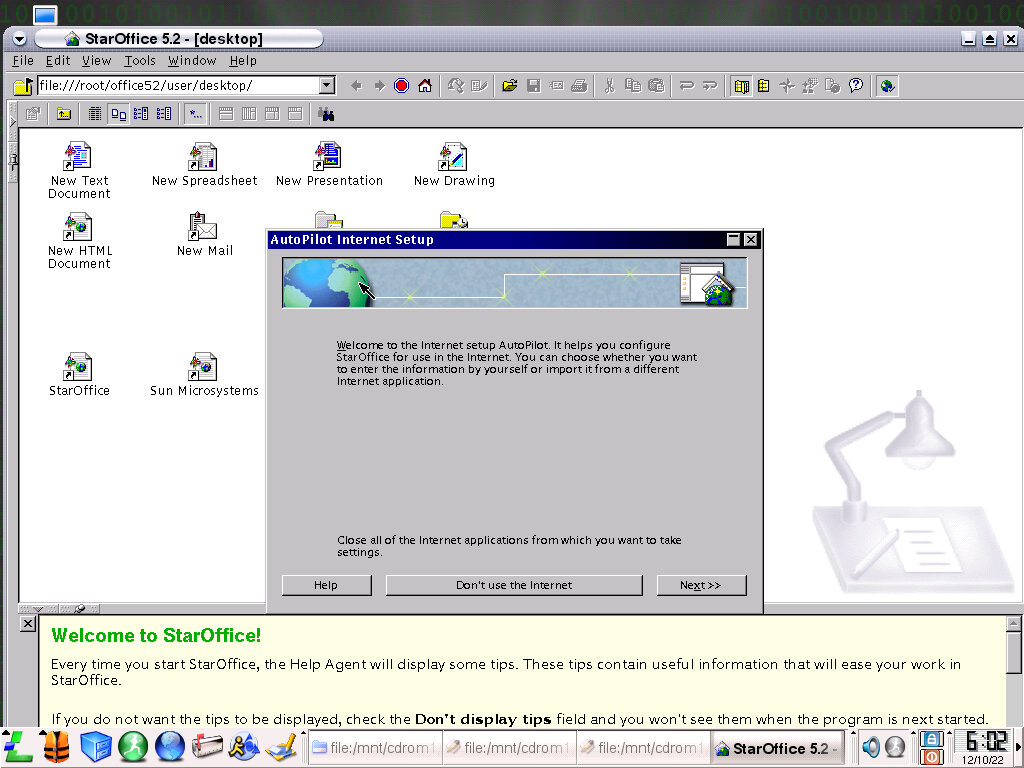
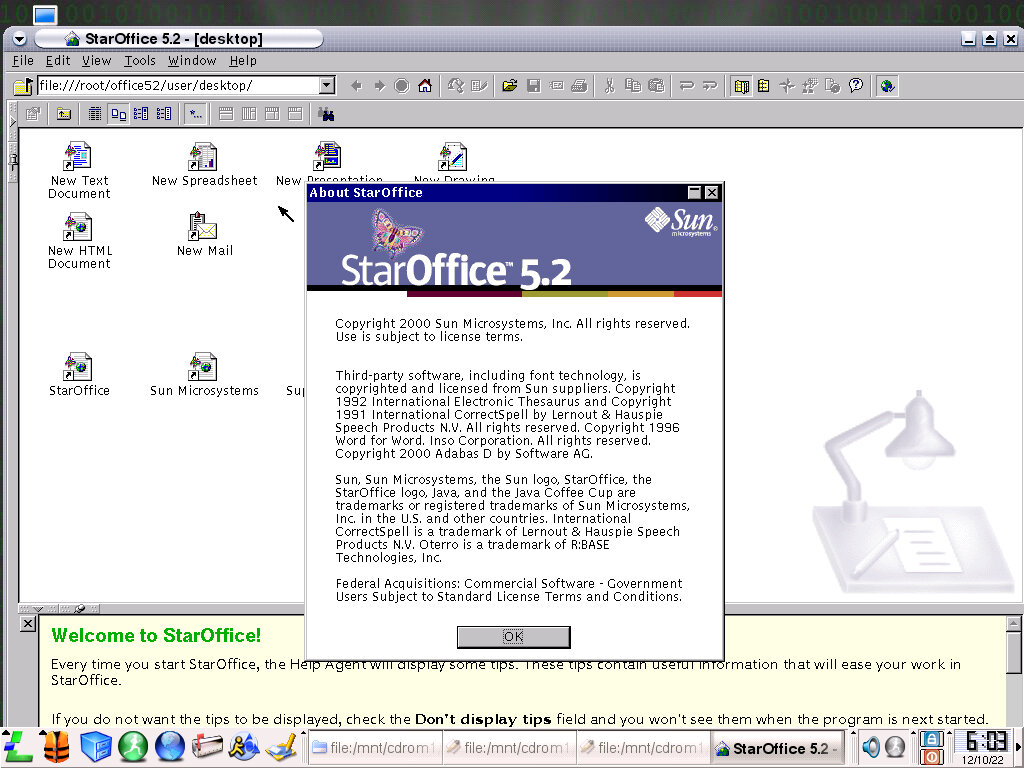
Star Office – An office suite by Sun Microsystems that installs and runs perfectly. It’s very similar to Microsoft Office or IBM Lotus SmartSuite in that it bundles a word processor, spreadsheet software and slide show into one package. The interface tries to mimic Windows, there’s even a start menu present, along with a taskbar.
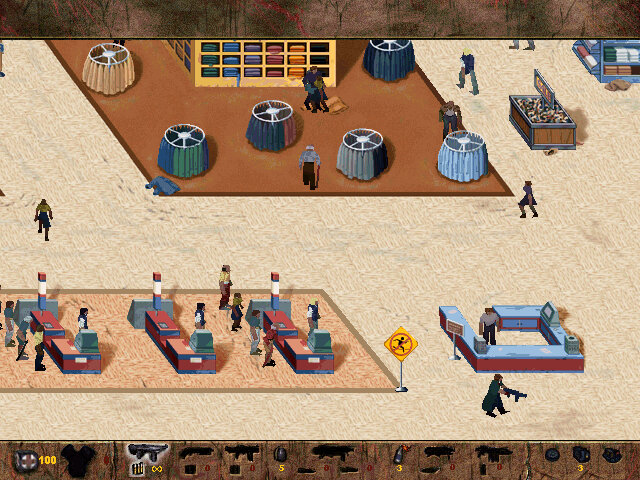
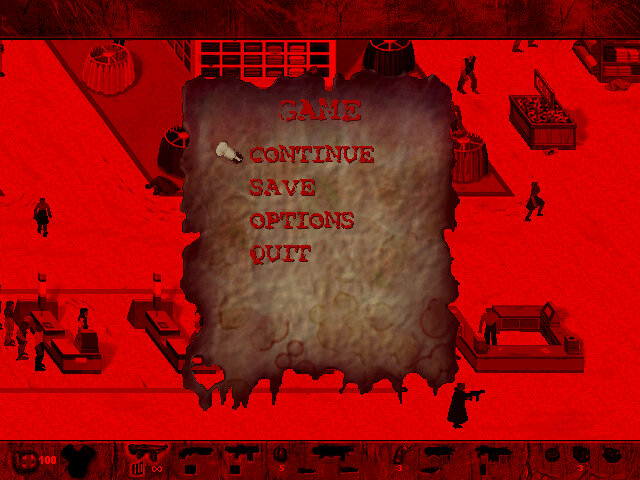
Postal – Installs and works fine but the menus run too fast. The demo sequence starts after 3 seconds meaning you need to quickly navigate the menu. Quitting the game seems to cause a graphics error.
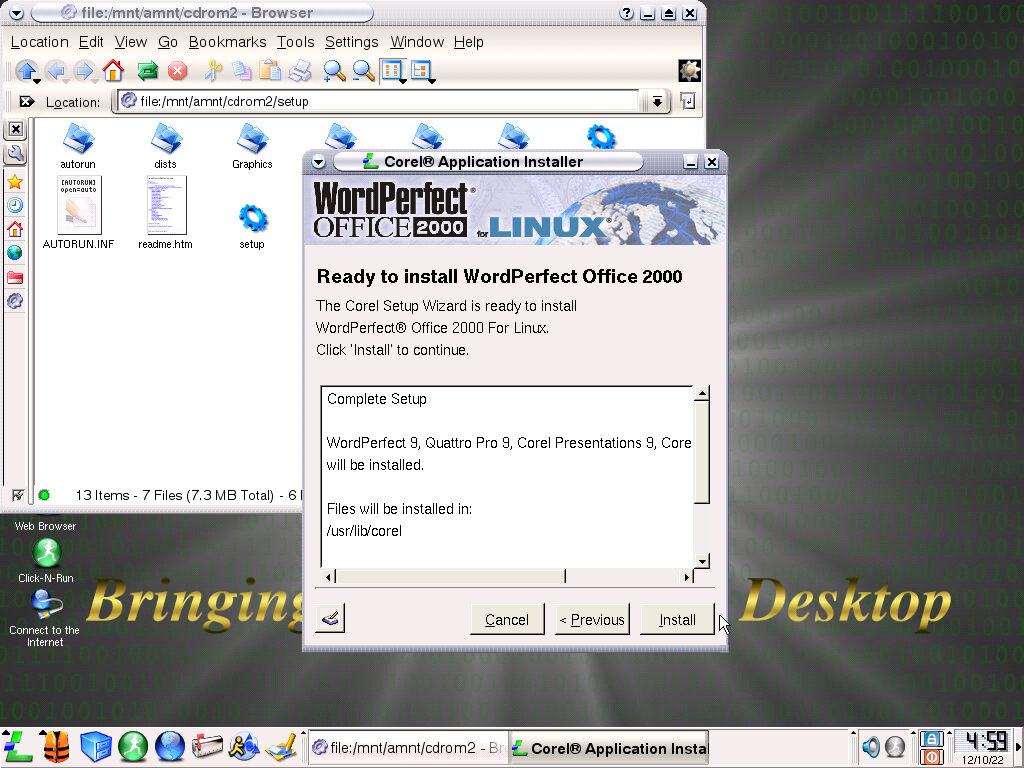
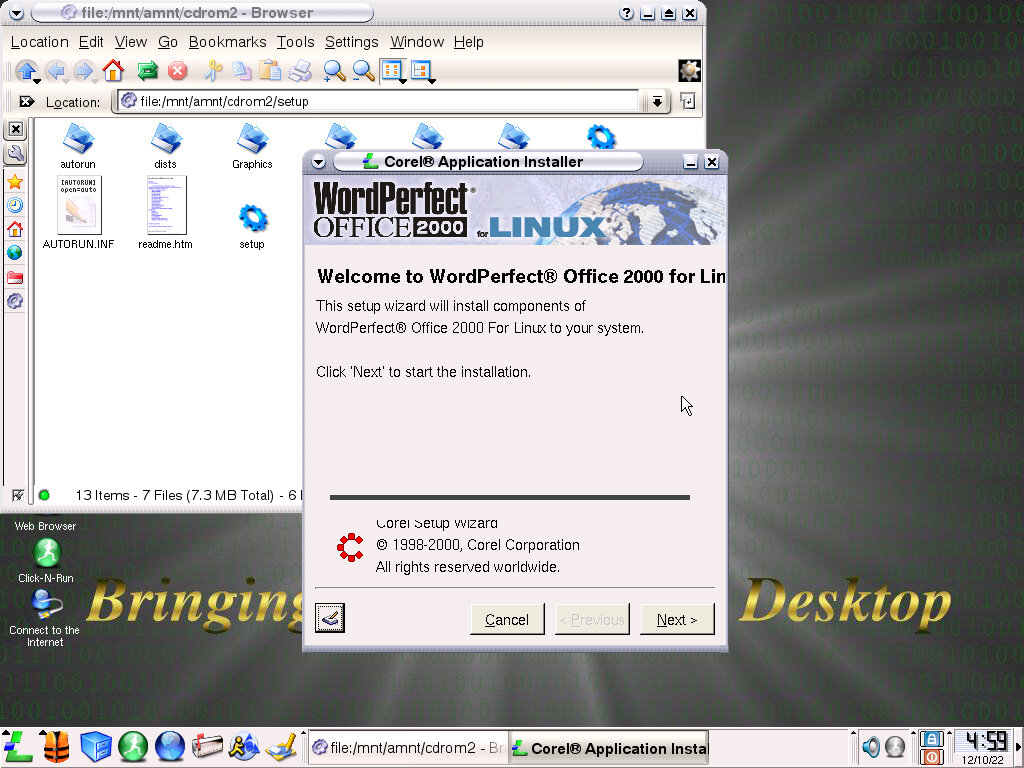
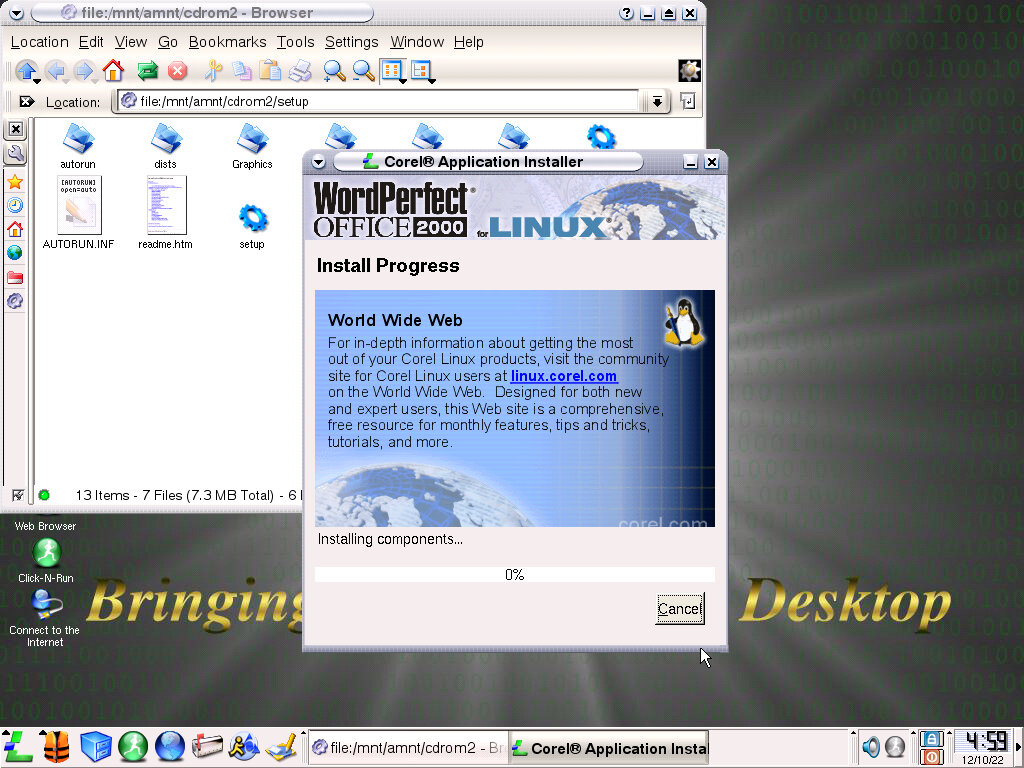
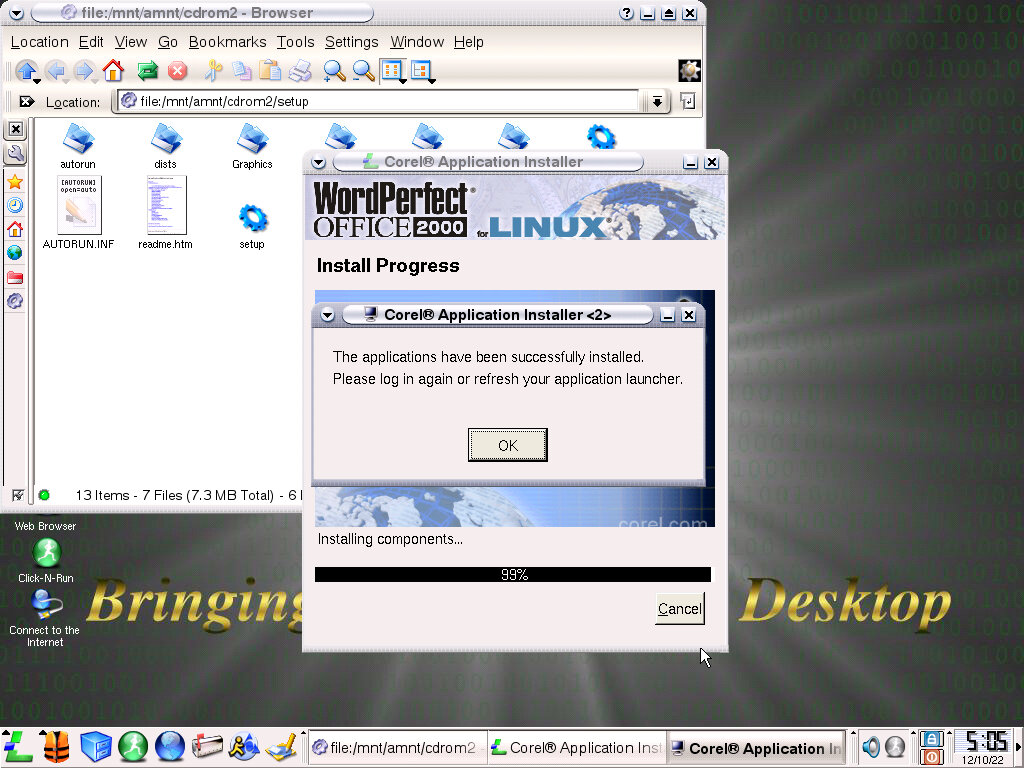
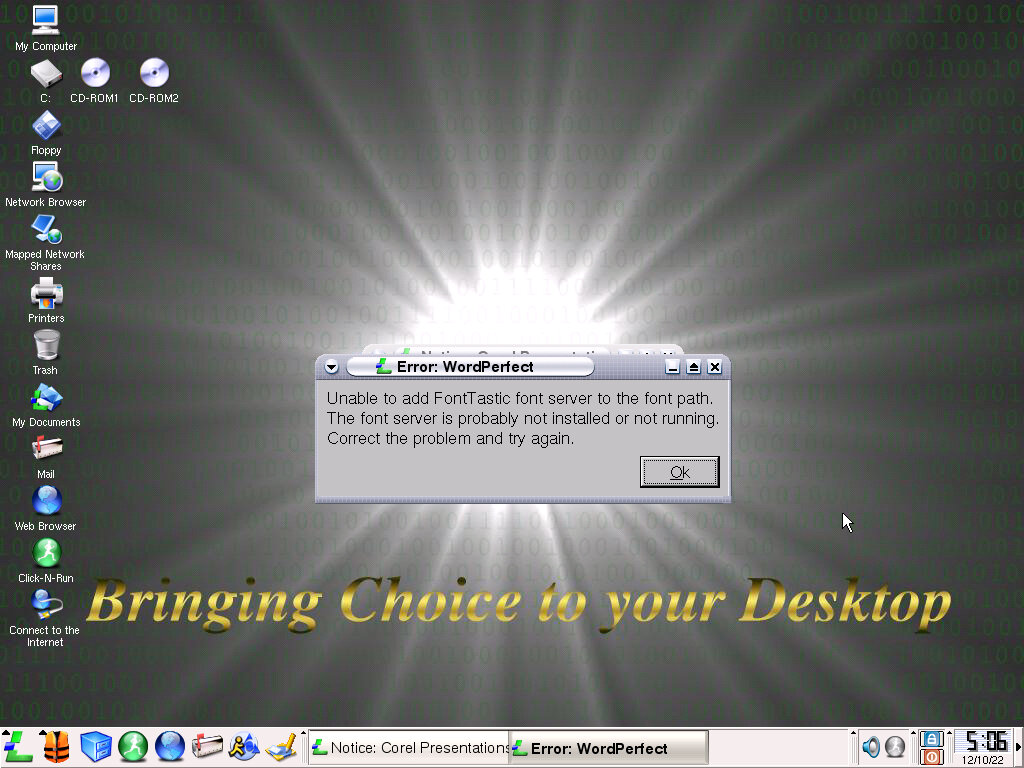
Wordperfect – Installs correctly and appears in the application. Upon launching it shows a message advising not to run the application as root, and another in relation to a missing font server. Unable to progress past this point, even after a reboot it refused to run due to this missing font server.
Soldier of Fortune – Installed and ran fine, but required a CD key. I think this is the first time I’ve used Linux software that requires a CD key? Performance isn’t good, it runs so slow on this VM at nearly 1fps. Checking the readme file indicates it needs some sort of 3D accelerator, I guess it’s time to add a Voodoo card but I figure the CPU that we have (AMD K6 233Mhz) isn’t enough to cut it.
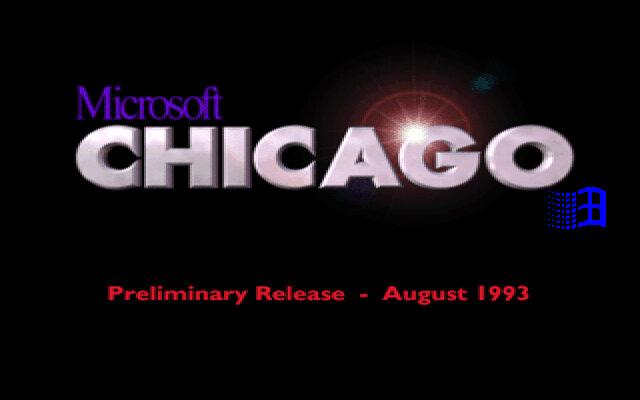
An existing Windows 3.1 installation is required to launch setup, and this release can be considered an upgrade of sorts. However very little gets transferred over, likening it to a fresh install
Results of the hardware detection, our SoundBlaster 16 is not detected, and neither is our network card.
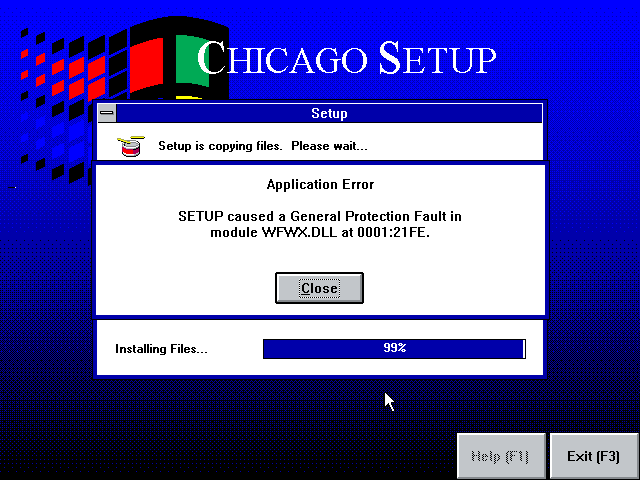
A crash towards the end of the setup, this left the VM unbootable and we had to reboot into MS-DOS to launch the Chicago installer again. Providing you told setup to install in a different folder (Chicago instead of WINDOWS) then you can easily boot back in Windows 3.x
Installing again fixed it, no hardware change was done. Could just be a random bug in the install?
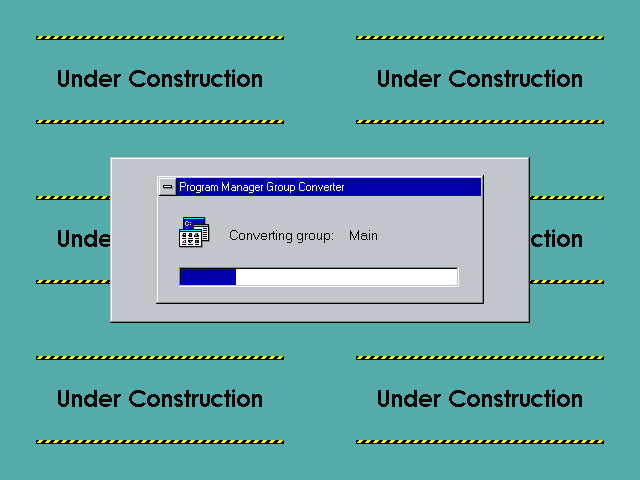
Upon first boot, Windows ‘explorer’ will convert your program manager groups to the ones that Chicago will use.
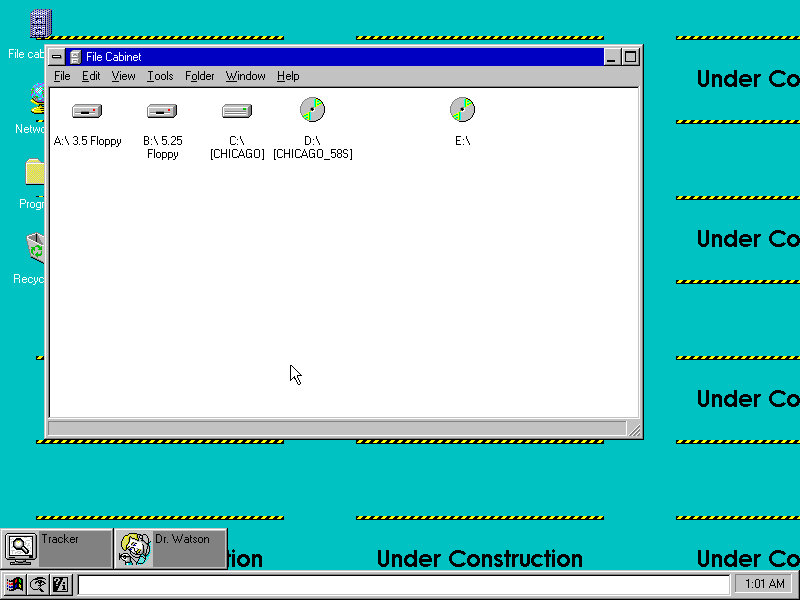
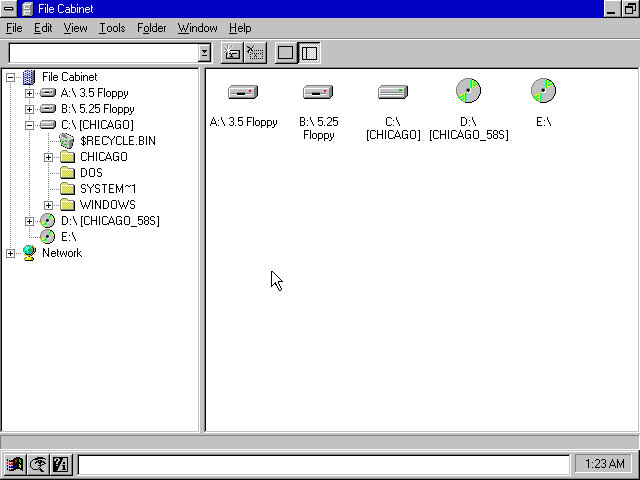
You will see that what we know as Windows Explorer will be known as File Cabinet.
The File Cabinet looks a lot like My Computer from the final builds of Windows 95.
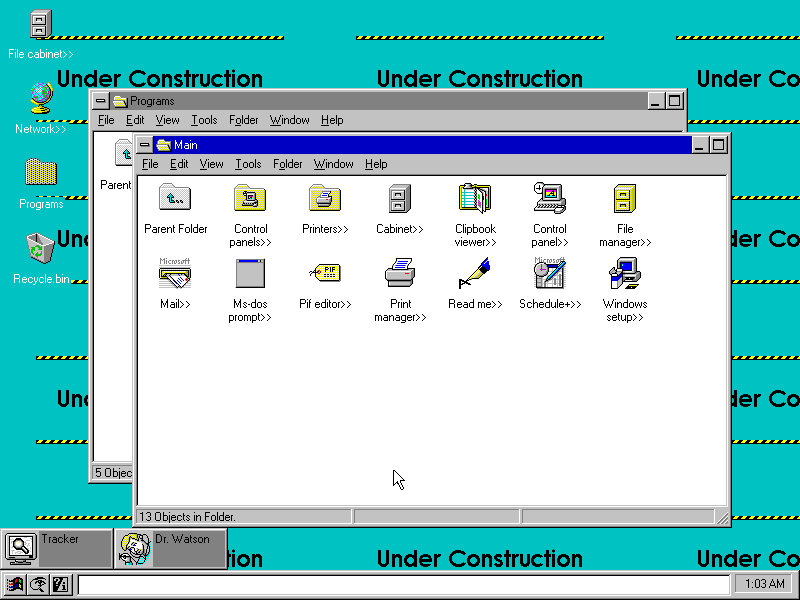
The Main program group, it seems there are still elements of the old Program Manager present.
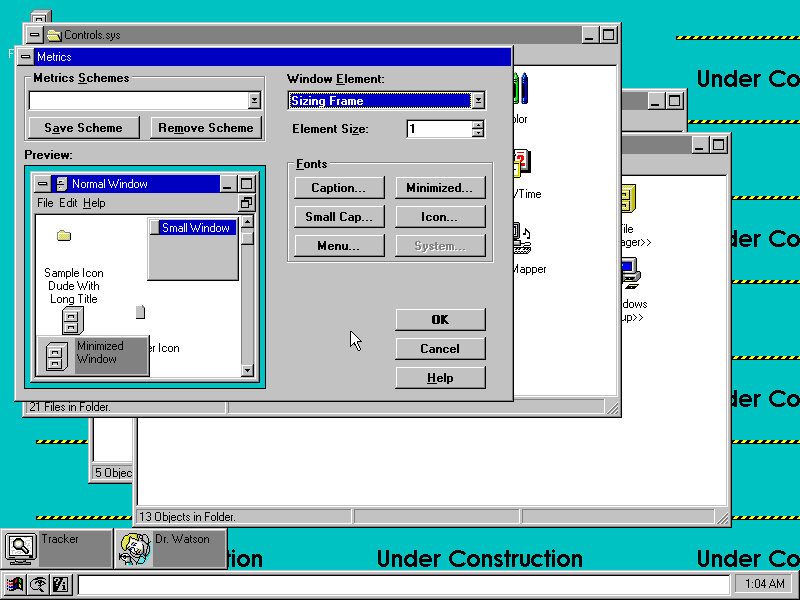
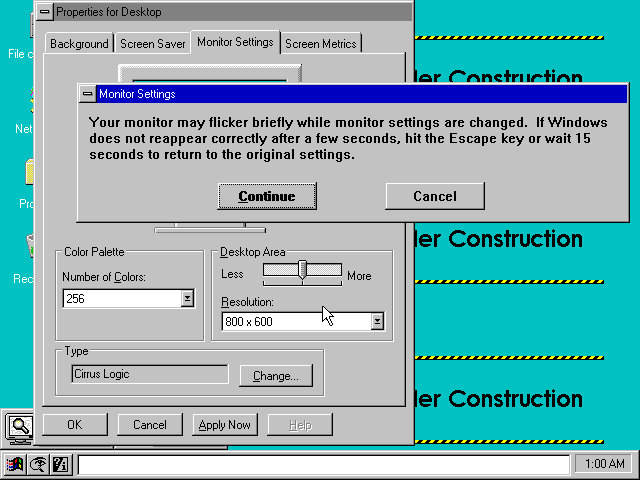
Windows Metrics, also known as just Metrics lets you adjust various user interface components, and lets you save and apply certain themes. There are currently no themes included by default.
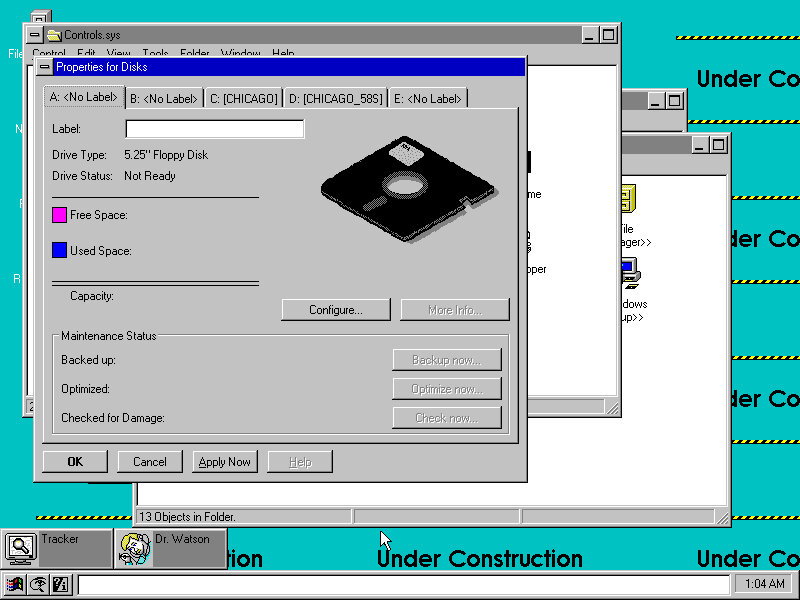
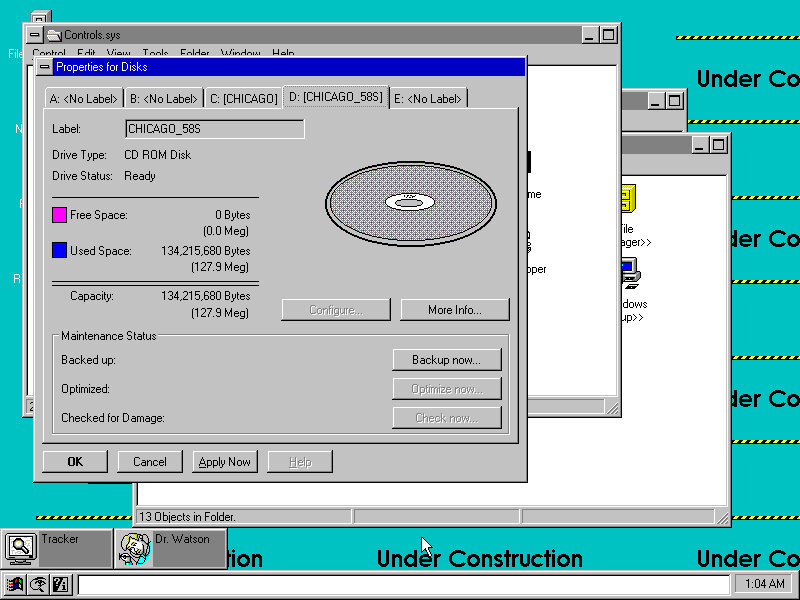
Disk drive information for both floppy drives and hard disk drives, looks a lot better and more detailed than the final release.
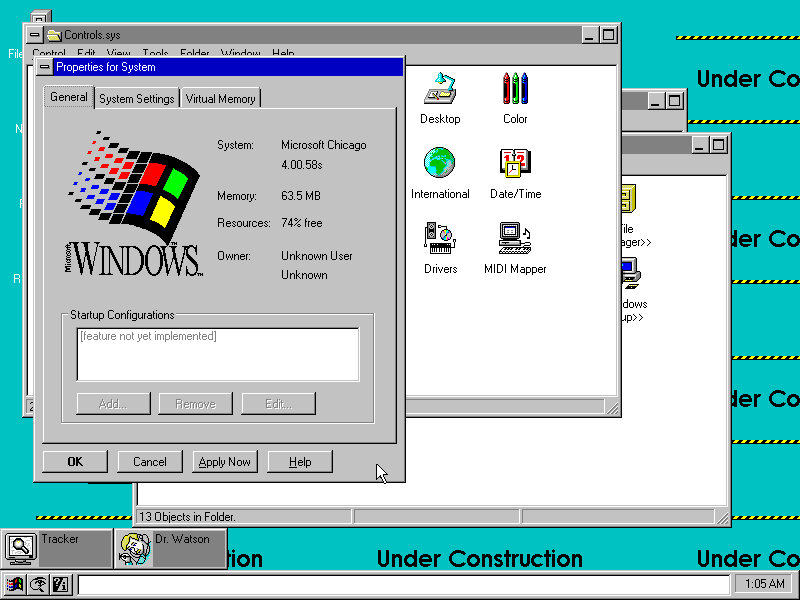
System Information, shows build version and the amount of memory installed. Resourceses refers to the Windows GDI.
What looks to be device manager, a lot of things here are incomplete and show up as blank dialog boxes.
A heavily dithered graphic.
Right-clicking and bringing up the properties pane.
The full file browser, known as the file cabinet. An issue I found was this build does not show more than five drives, which is possible if you attach multiple SCSI drives. Since the floppy drives are useless in this build you might as well get rid of them.
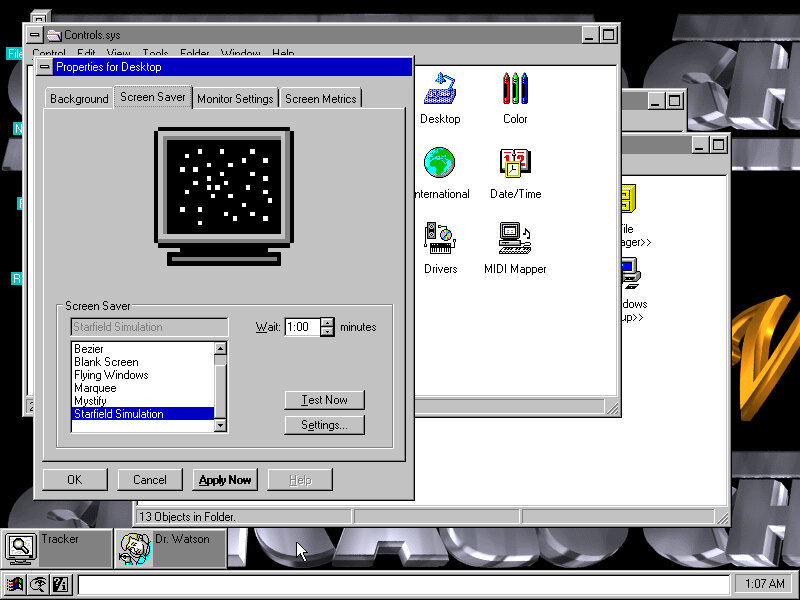
Viewing and modifying the screensaver. All of these came from Windows 3.1
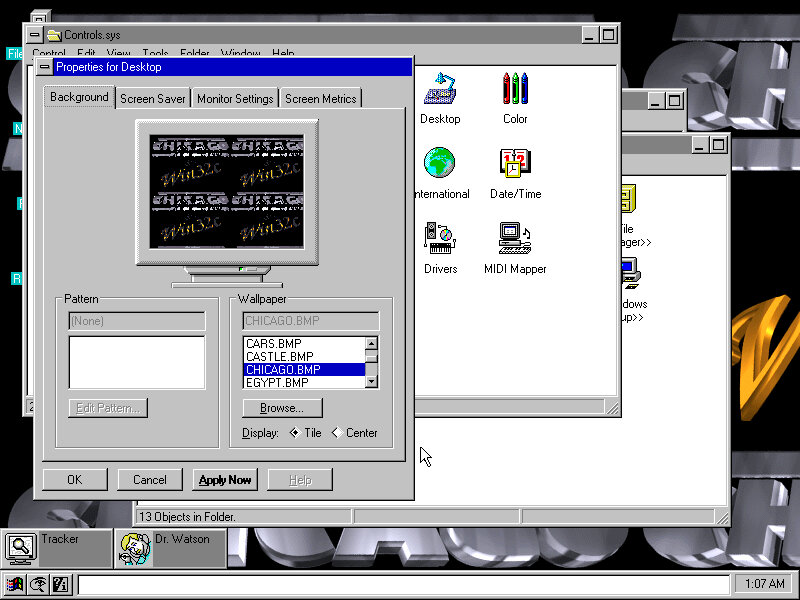
Modifying the desktop background
A list of games, and a look at Minesweeper game that comes included
The task pane, also you can customise the size of the taskbar. This seems like a docking area where icons can pinned for quick access, instead of displaying the active windows like Windows does today. Instead the tasks window serves this purpose.
Software Compatability
Seems to be a very mixed bag in terms of what works and what fails to run. The full Win32 API has not been implemented so 32bit applications will not work and existing Windows applications seem to have a mixed compatability with some programs refusing to run or crashing.
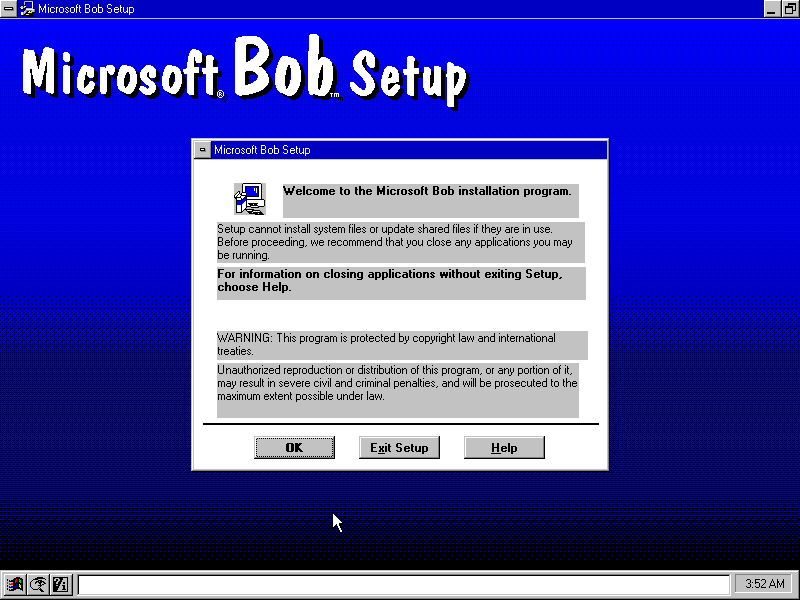
Microsoft BOB
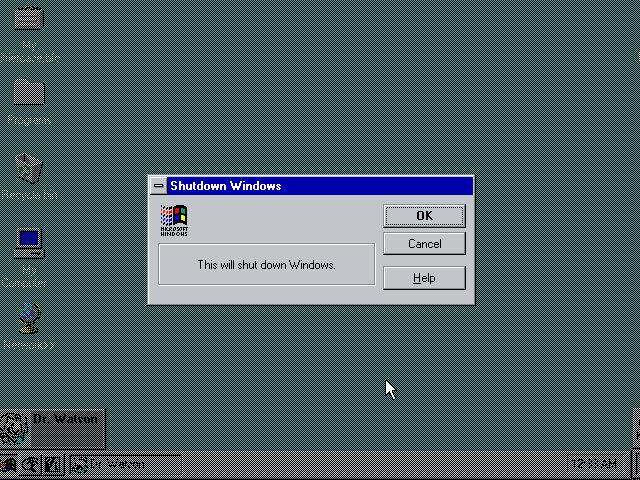
Installs but does not run. Instead a Dr Watson error comes up
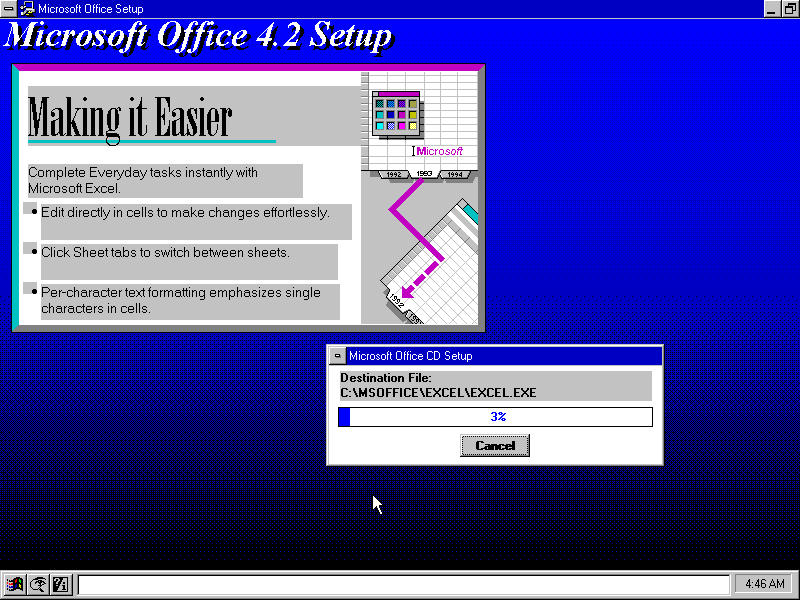
Microsoft Office
Microsoft Office 4.3 installs and runs without issues
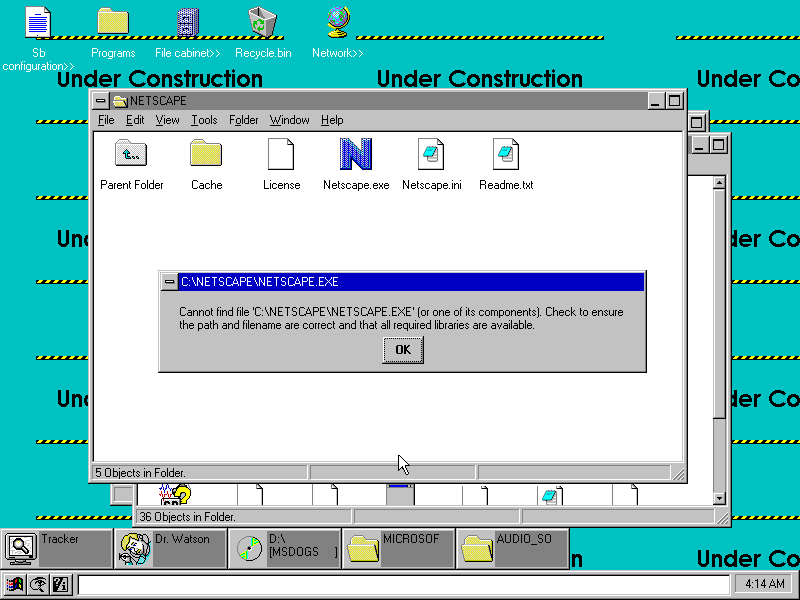
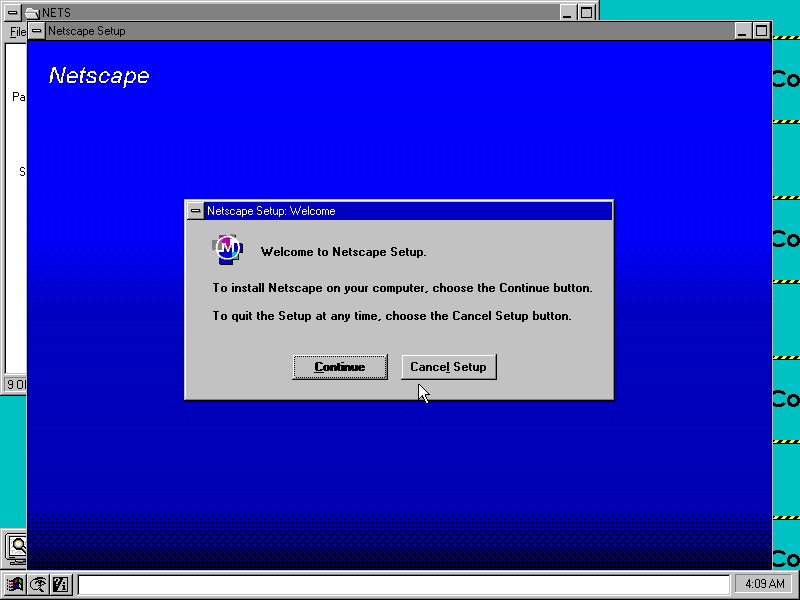
Netscape
This is odd, it installed but then claims not to find the exe file when we try to open?
Opera
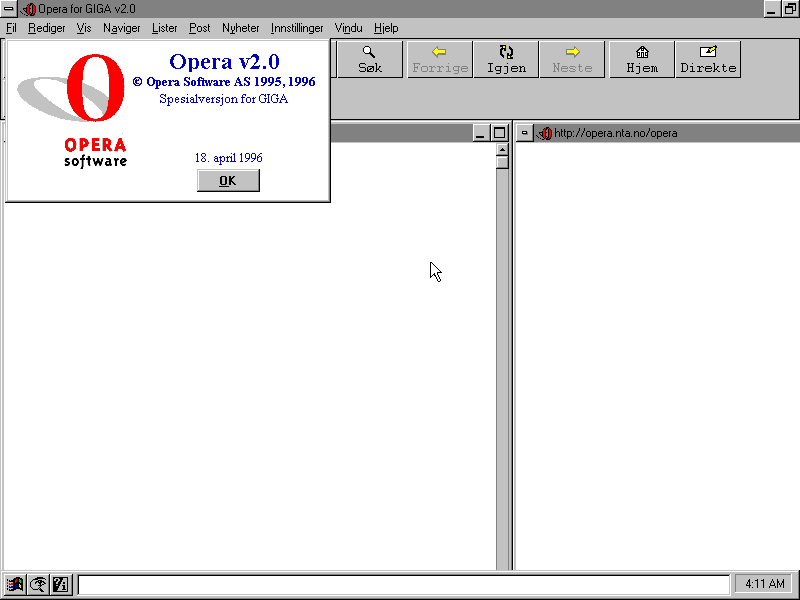
Opera browser, installs fine (in another language for some reason, despite English being selected)
Internet Explorer
Internet Explorer 3 had a 16bit release for Windows 3.1 which should work on Chicago build 58 but it’s unable to run
Simpsons Cartoon Studio
The application tried to run in full screen, but the task bar on the bottom remains visible. Alos the Office toolbar (From the Office 4.3 install) remains visible. Another thing to note was the game failed to start using the shortcut provided by the installer, and only worked instead by navigating to the CD-ROM drive and launching the CD-ROM executable from there.
Adobe Reader
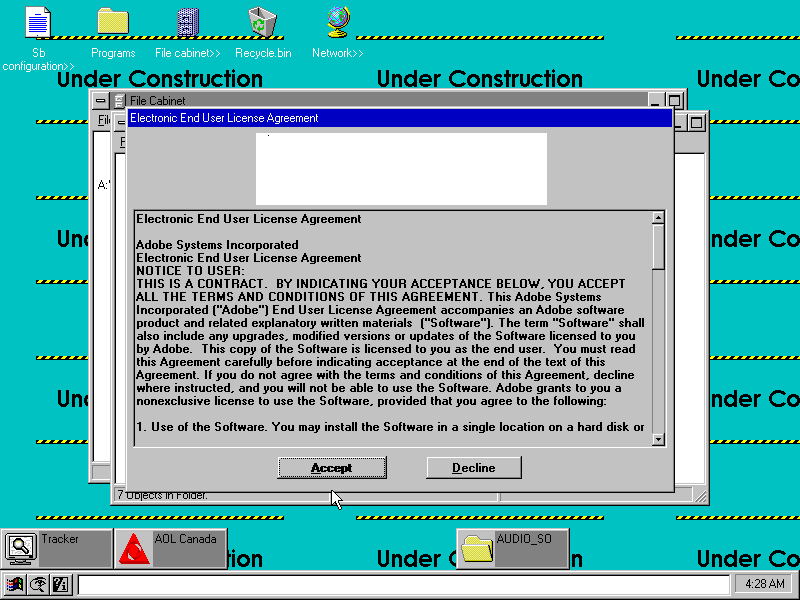
Installs and works fine, but it looks like a few graphics are missing from the installer and are replaced instead by a white box. This could be a driver or emulation issue with the Cirrus Logic video card used.
Another machine that’s supported by 86box and has a recovery CD available online
A desktop PC with a Pentium 166Mhz (No MMX), 32MB of RAM (Although we will be giving it 128MB, the max amount), an 8X CD-ROM, floppy drive, and a 2.1GB HDD. The PCV-90 was a higher-end machine and featured the Pentium at 200Mhz and a 2.5GB HDD. Both systems use the ATI RAGE 3D graphics card with 2MB VRAM.
Setting Up
86box does not support all of the hardware that the PCV70 shipped with, the ATI RAGE graphics accelerator is missing and currently un-emulated so we had to substitute another graphics card instead.
Recovery Disc
A copy was posted onto the Internet Archive which was the full backup disc that shipped with the computer, which was intended to restore the PC back to factory shipped state. This is where we encountered issues, the recovery utility rightly detected that the hard drive was unformatted since this was a new machine VHD, and instructed me to exit the interface and run a command, which would have initialized the disc. But these commands fail to run, they appear to be batch files that would have run FDISK with a specific argument to create the disc. There are two of these, one for each model since both models had different hard disk sizes.
When the CD-ROM boots, it mounts a virtual floppy drive to drive A: and the actual floppy drive is moved to B: This image is located as an IMG file and can be extracted and mounted in modern Windows. For some reason when this IMG file is booted, it loads some sort of customized boot disk but fails to load the CD-ROM drive despite it being detected by the Windows 95 or 98 bootdisks. As a result, the recovery utility cannot see the CD-ROM drive since that is running off the virtual floppy drive mentioned earlier. The reconvey utility is non-functional due to the lack of CD drive detected by the emulated boot disk, likely Sony is using a custom boot disk that came with its own set of drivers. When the driver loads you can quickly see an error message informing no CD drivers were found.
So in order to make these CD’s work with 86Box we are going to have to work around them
Solution
The easiest way was to install Windows 95 RTM, then boot into the recovery program and have it overwrite the files and replace the install, this also involved initializing the disk. To save time I would opt for a minimal install and use the RTM version instead of the later OSR releases as that’s the version Sony used (They actually used the plus pack version, which is integrated into the recovery image and gets installed regardless)
Once Windows 95 is installed and fully bootable, I had to trick the recovery utility to load files from the G: CD-ROM drive, but the regular Microsoft boot discs will place the CD-ROM drive as D: which the Sony utility will refuse to see. Multiple ways to do this was: Both methods work best when you have a basic Windows 95 install, this is because the recovery software has issues writing to the bootsector.
Method 1: Bruteforce SCSI
Add a supported SCSI adaptor to the 86box machine, and add a load of both IDE and SCSI CD-ROM drives with the hope one of them would become the G: drive.
I would then use the Windows 98 recovery disc, which has the SCSI drivers to detect the drives and load the recovery program. Once the boot disk environment had loaded, verify the C drive was accessible (If not FDISK it using FAT16). You have to type ‘lock C:’ to enable full access to the C: (See the Note below) Then I mounted the extracted OSBOOT file as a floppy disk in 86box. This was done by extracting the OSBOOT file from the iso and mounting it after the Windows 98 boot disk had loaded, once mounted I ran the recover.exe file and mounted the actual iso image under the G drive.
Once the recovery utility loads, select restore system without format, and it should begin the restore process, where it will copy the files onto the C drive, once completed you can reboot the system and it will go through the initial setup procedure. Remember to eject any floppy discs
Note: The version of DOS that the Windows 98 bootdisk shipped with disables direct writing to the C: drive by default unless the lock C: command was used before the recovery software was loaded. Even then the software had issues writing to the boot sector, so even after transferring and unpacking the files we were still left with an unbootable system. This is why I advised installing an RTM version of 95 then using the recovery utility to overwrite it with the Sony image.
Once the OS is installed you can remove the SCSI drive if you prefer.
Method 2: Modify the 95 bootdisk (Recommended)
Here we modify the existing Windows 95 boot disk to set the CD-ROM drive to be G: instead of D: The easiest way to do this was to mount 9Make a backup first) the bootdisk in a working Windows install or use a third-party utility, and edit the AUTOEXEC.BAT file on the root of the boot disc and change the line:
LH A:\MSCDEX.EXE /D:mscd001 /l:d
See the /l:d We want to change that to /l:g instead Then save This tells the DOS driver to start allocating CD-ROM or ATAPI drives from G: onwards
Now we mount and open the OSBOOT.IMG that was extracted from the Recovery CD, and pinch some files off it, namely the recover.exe, recover.ini, profile.ini and sony.exe All four of the files total 236KB and we want to copy them to the Windows 95 boot disk, If you run out of space there are a few utilities like regedit that can be deleted off the boot disk. Save and then mount the modified boot disc and boot the machine into it. If prompted on the startup disc, load the NEC IDE CROM driver. If everything is correct it should show
Drive G = Driver MSCD001 unit 0
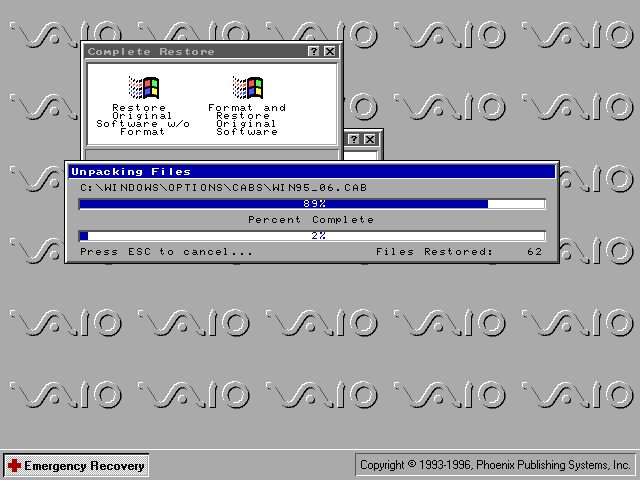
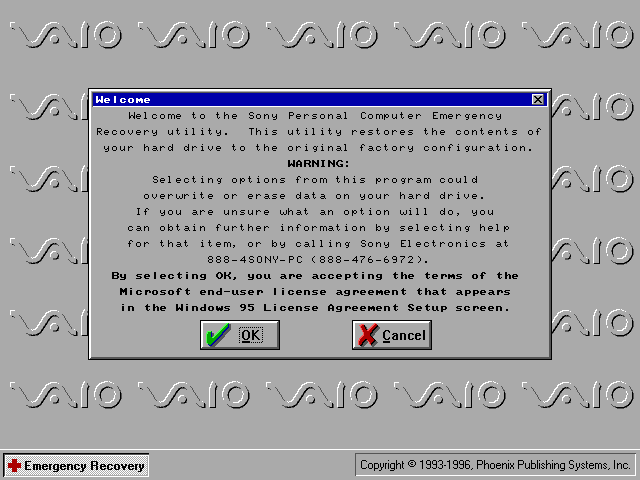
At the prompt, type recover then hit enter (Should be on the A: drive) The recovery environment will then load Select Complete Restore Select Restore Original Software w/o Format You may get a few error messages that it was unable to copy certain system files, I believe this is related to the boot sector files I indicated earlier, as long as your original Windows 95 install was bootable then the recovery should work regardless.
I should note that despite testing both methods, both methods result in missing applications like Netscape Navigator. This wasn’t so much of an issue since I could reinstall them alter, and the recovery CD has dedicated options for reinstalling both browsers anyway, along with Microsoft Works and Money.
Update: It seems I had to do another reinstall, and on that one it did install both Netscape and Internet Explore, not sure what I did differently?
We had to substitute a few device drivers in order for us to have a working system
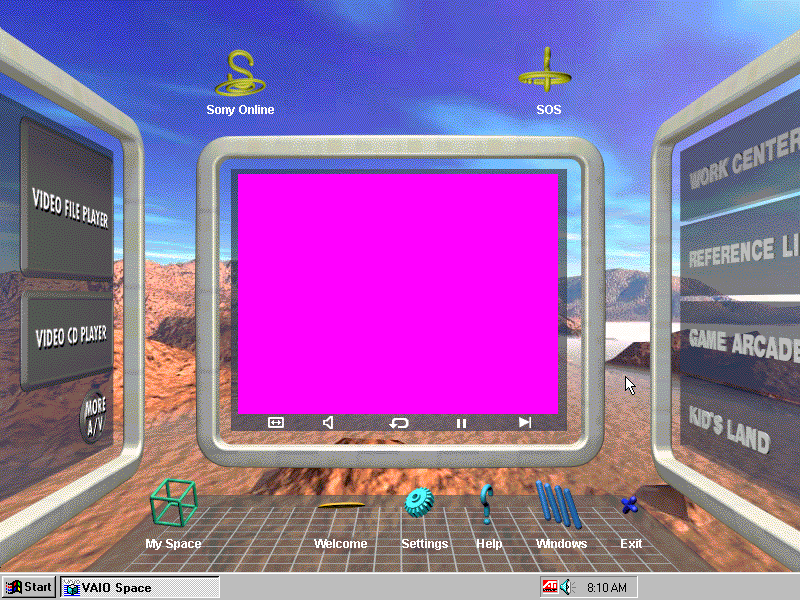
The ATI RAGE card is unemulated in 86box, instead, I used an ATI MAch64VT2 instead. Do note this card lacks MPEG decoding support so some video sequences will be corrupted and will just display a pink color screen
The Yamaha sound card was also unemulated, instead, I replaced it with a Crystal ISA soundcard instead. The originally bundled utilities will still function to an extent.
There is a shedload of software bundled with this VAIO PC, with many titles requiring an additional CD-ROM to be inserted in order to run, which would have been bundled with the system.
VAIO Space
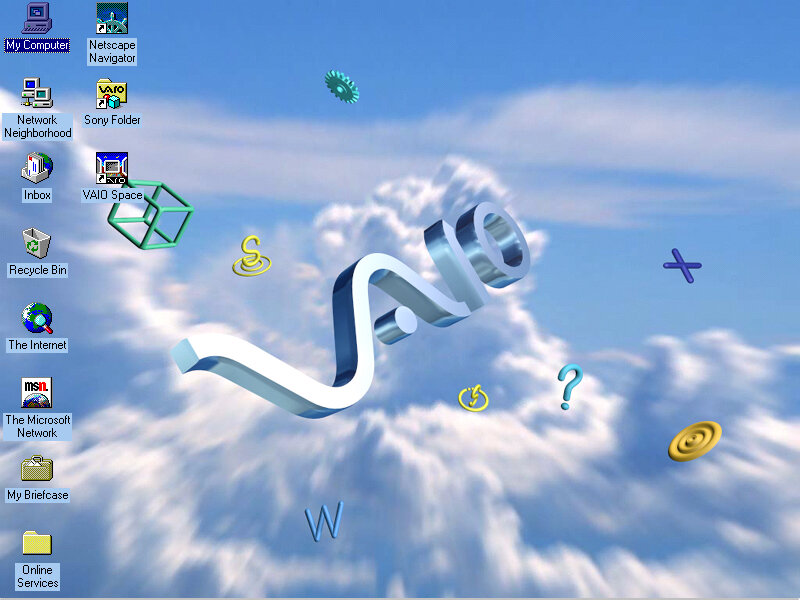
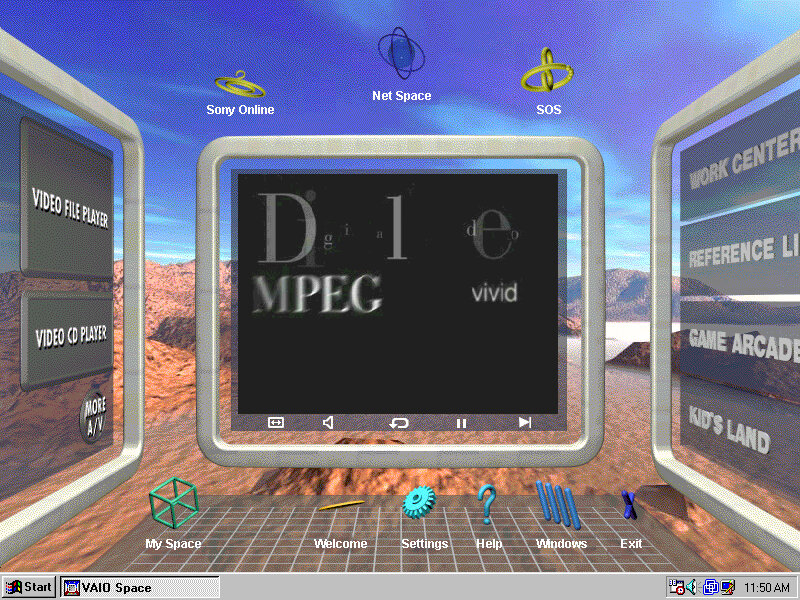
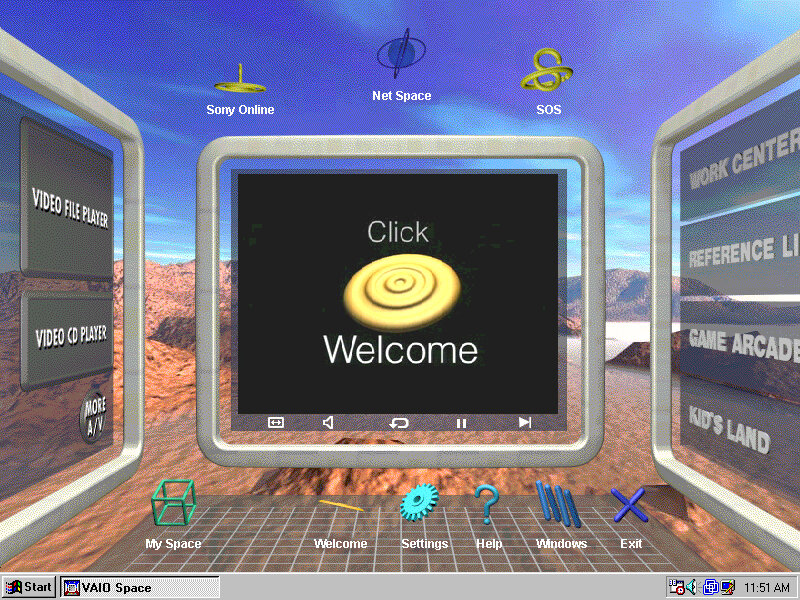
This was the default launcher that came with the system and would run in place of the Windows desktop, similar to the Packard Bell navigator and RM Window Box, oh and don’t forget Microsoft BOB. VAIO Space tries to take full advantage of the hardware that Sony offered and many parts of the launcher make use of MPEG video (which isn’t functional in 86box since no graphics card can accelerate MPEG video, so your left with pink squares instead.
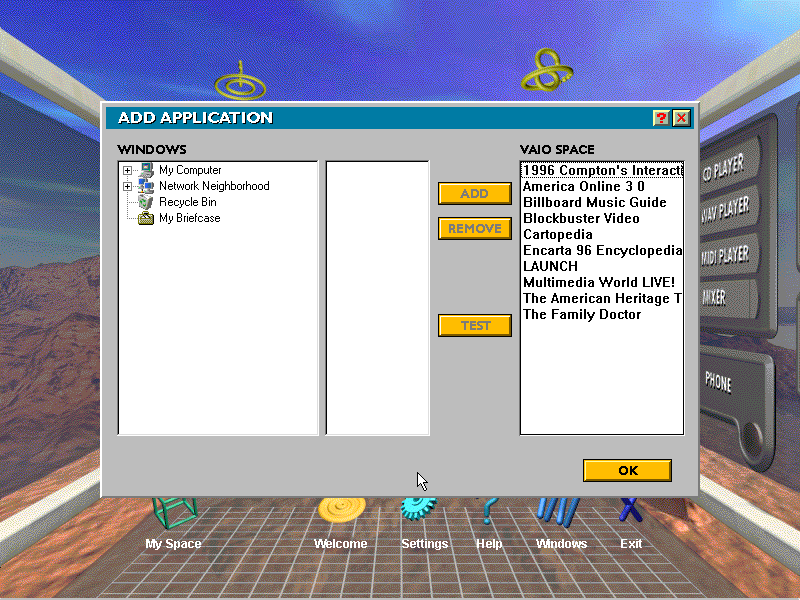
There are a few different areas of the VAIO Space that contains links to dedicated applications: Home: Features links to My Space, a Welcome demo, the setting page. The Windows button takes you back to the 95 desktop My Space: Add shortcuts to your favorite applications. Windows: Take you to the Windows 95 desktop Help: Gives you a short description on how to use the VAIO Space utility
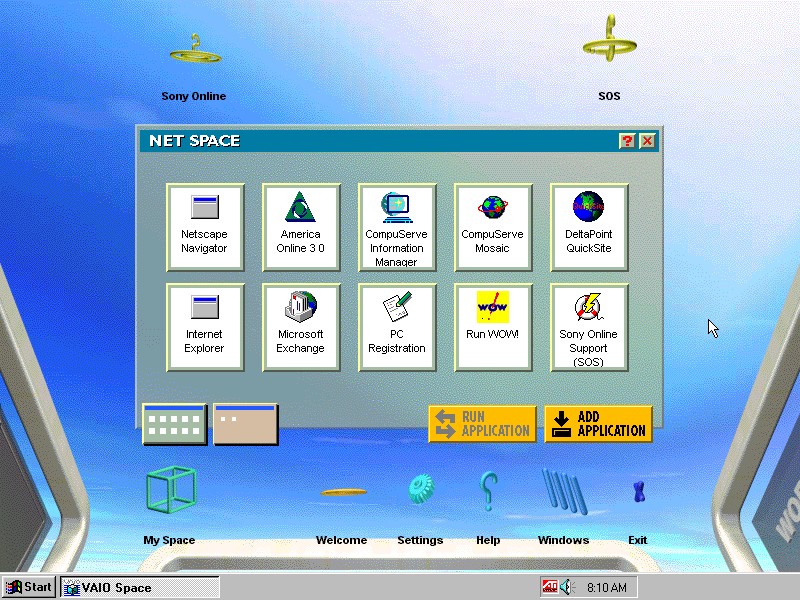
Net Space Accessible by clicking towards the top of the screen, this takes you ‘up’ and gives you a selection of internet applications like AOL, Netscape and Internet Explorer which were not installed on my system. There’s also links to Sony’s online website and an SOS button which opens up a phone dialler to dial 911
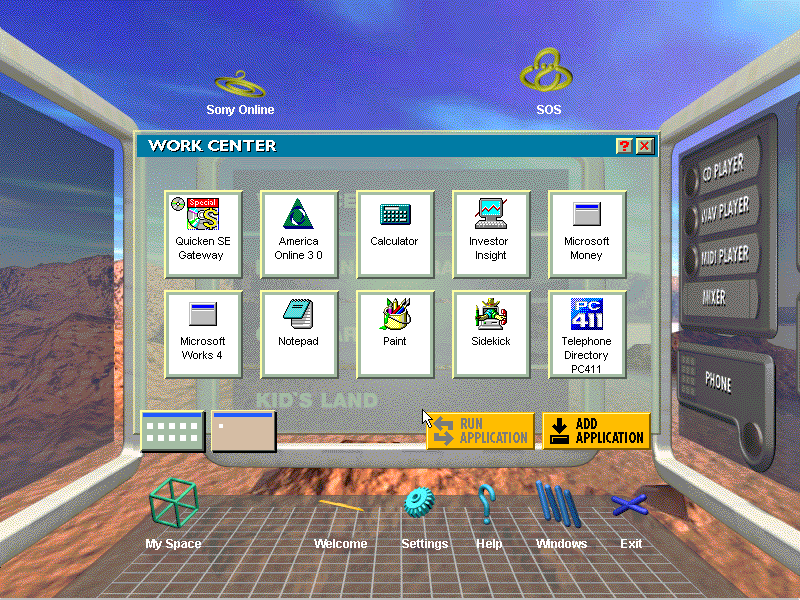
Screen 2 Click left from the home screen takes you to this screen, here you see four different categories: Work Center: features productivity software like Microsoft Works, Microsoft Money and Paint Reference Library: Links to reference stuff like Encarta, Family Doctor and Compton’s interactive encyclopedia. As the internet wasn’t very widespread it made sense to bundle this software/ Game Arcade: Links to various games like Wipeout and Mechwarrior 2, also featuring the entertainment pack games and the bundled windows games. Kids Land: Child-friendly software like 3D movie maker
Screen 3 Multimedia applications like the CdPlayer and WAV/MIDI player. These do not open the standalone windows applications, rather Sony’s own that they have bundled. The More A/V button shows the Window standard programs.
Judging from the software bundled, this was designed to be a family PC with various bits of software to suit everyone.
Overall its defiantly a unique experience and was designed to make it easier for novice users to use the system. Not sure how Microsoft felt about it though, image developing a new user interface only for some OEM to replace it with their own.
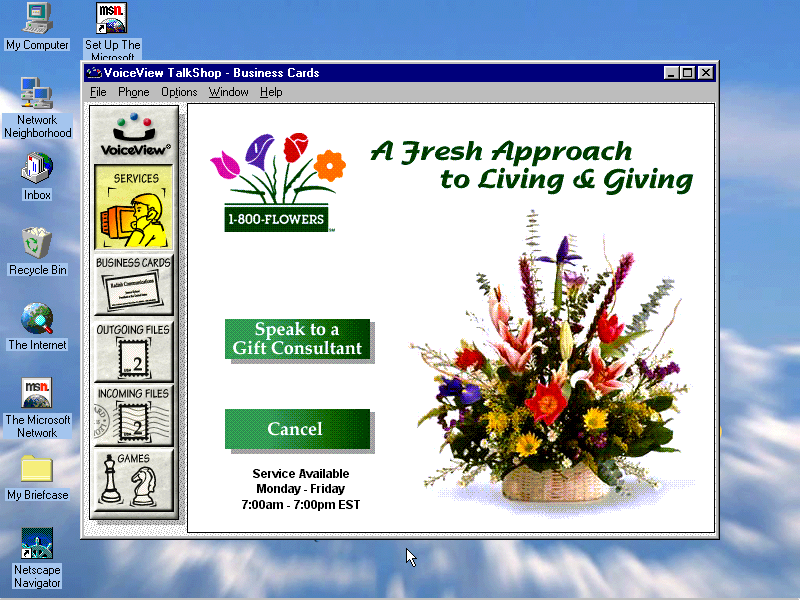
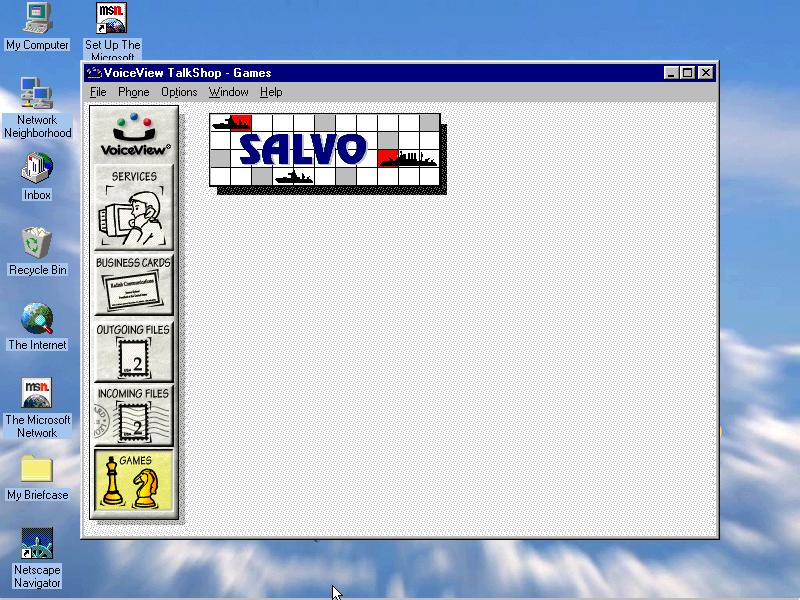
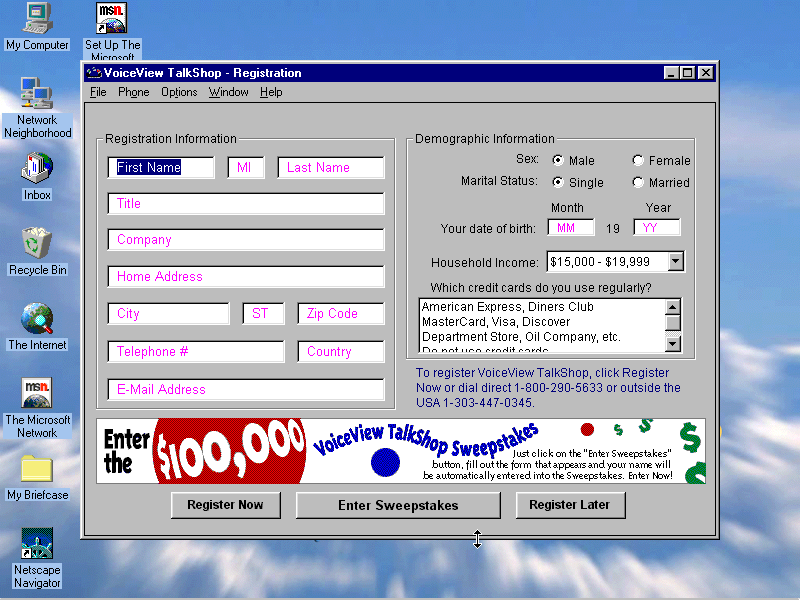
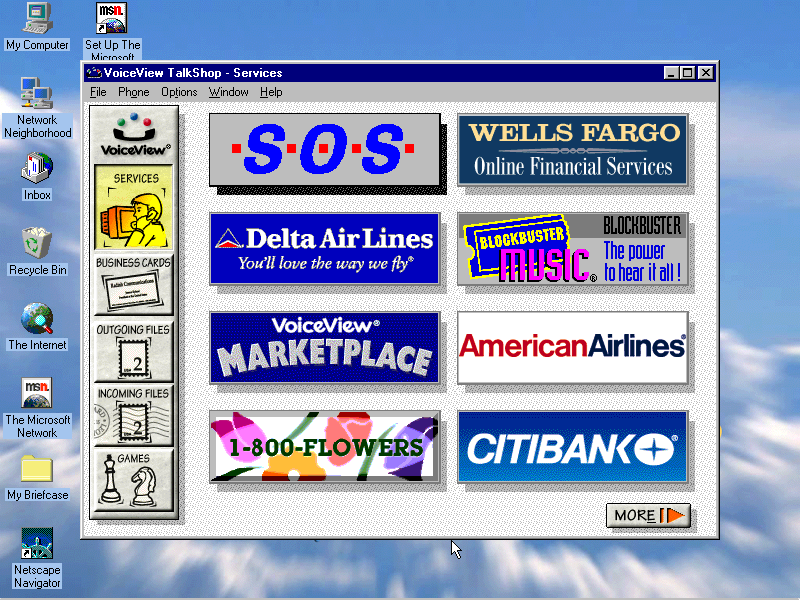
VoiceView: Seems to be a gateway to various online services, has an online game but this crashes when you try to open it
Billboard Music Guide: Needs CD-ROM
Compton’s Interactive Encyclopedia: Needs CD-ROM
AOL: Desktop client for AOL, an internet service provider
Compuserve: Another Internet service provider client
Microsoft 3D Movie Maker: Popular movie maker application that was part of the Microsoft Home bundle
CyberPassage: Needs CD-ROM
DeltaPoint: Needs CD-ROM
Cartopedia: Needs CD-ROM
The Family Doctor: CD-ROM needed
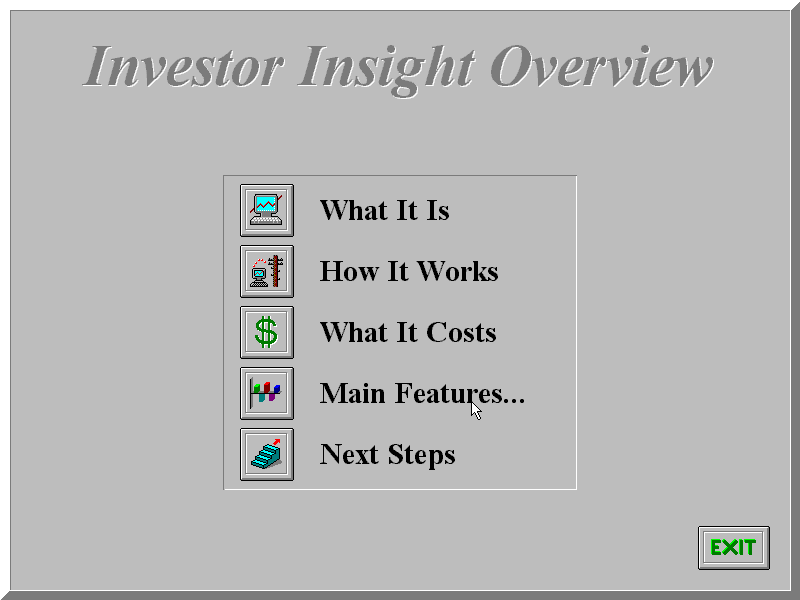
Investor Insight: Another financial application
LAUNCH: Unknown, does not even open without the CD inserted
Microsoft Money: Accounting management software, the 96 edition is included here
Microsoft Phone: Looks like a phone dialer, to make calls through your PC
Microsoft Works: Microsoft’s basic productivity suite, version 4
Microsoft Reference: Works like an offline Wikipedia, needs a CD to run
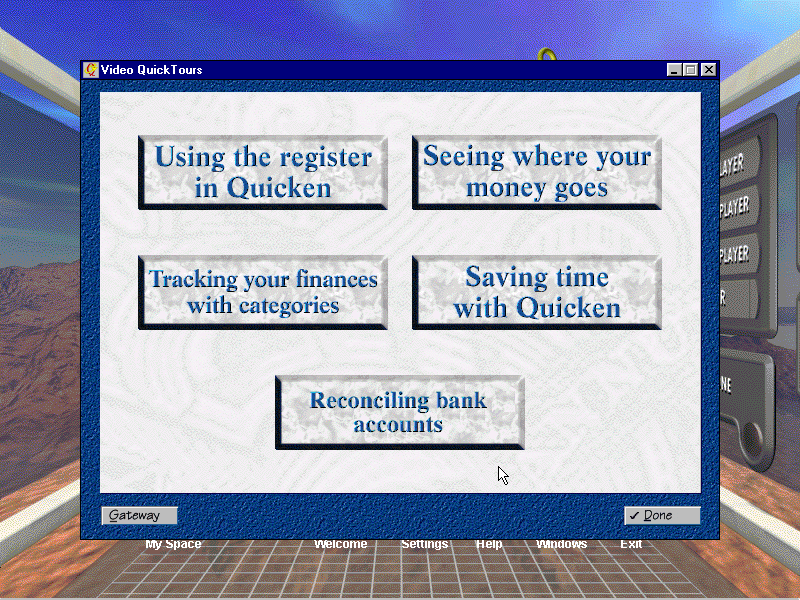
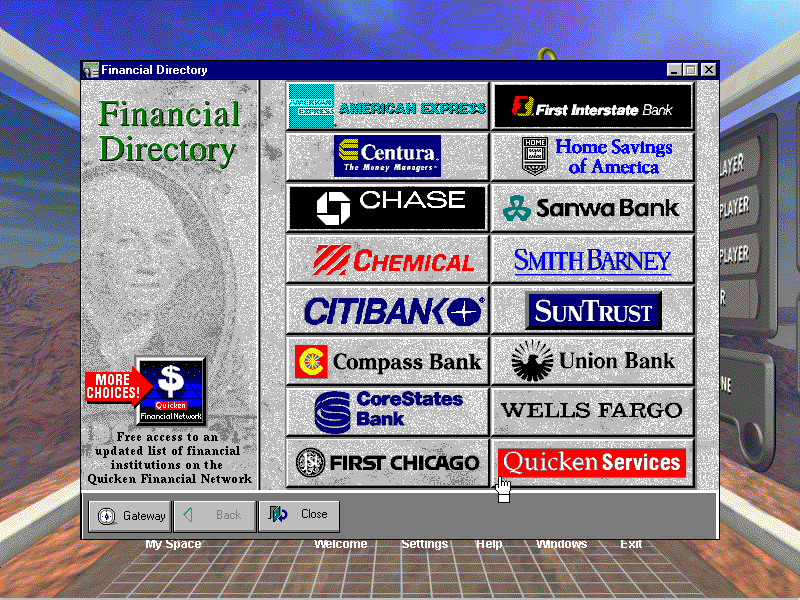
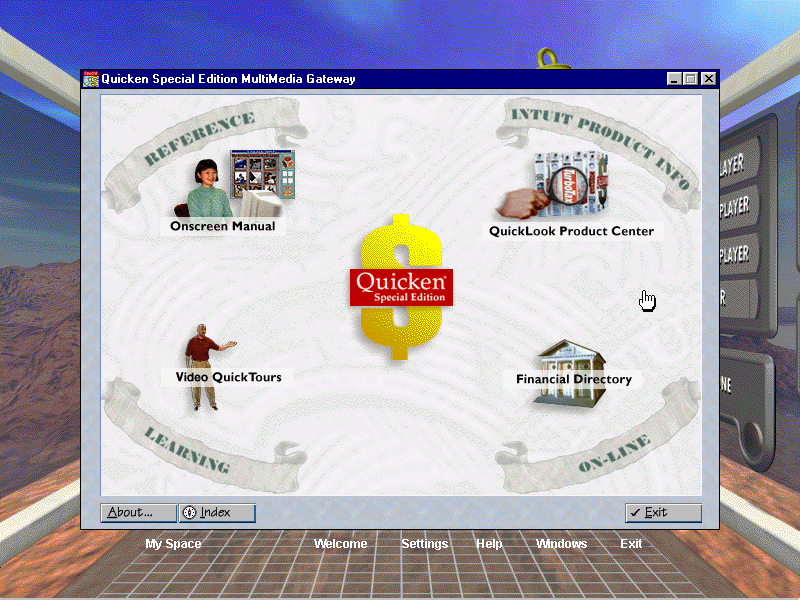
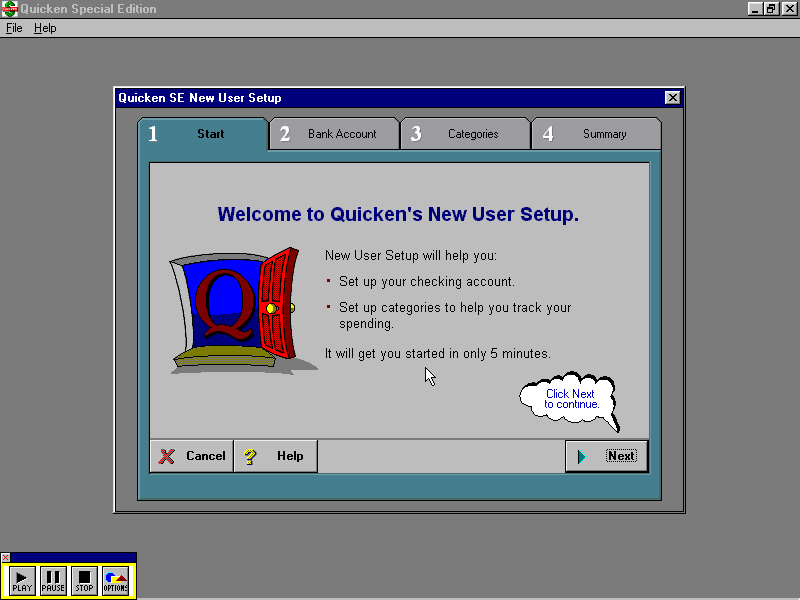
Quicken SE Gateway: Looks to be a finance application and has a lot of links to various banks, requires a CD to fully run and appears to be trialware – limited to 10 launches.
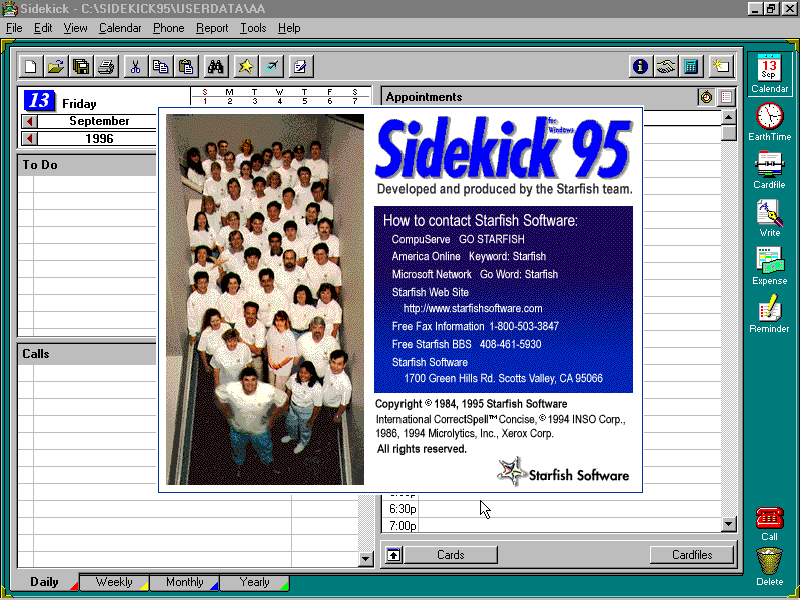
Sidekick 95: Some sort of personal information manager, like Outlook that would store user contacts email address and phone numbers
Reader Rabbit: Needs a CD in order to run
American Heritage Talking Dictionary: Mainly functions as a dictionary, but has a few extras including an anagram generator and a thesaurus
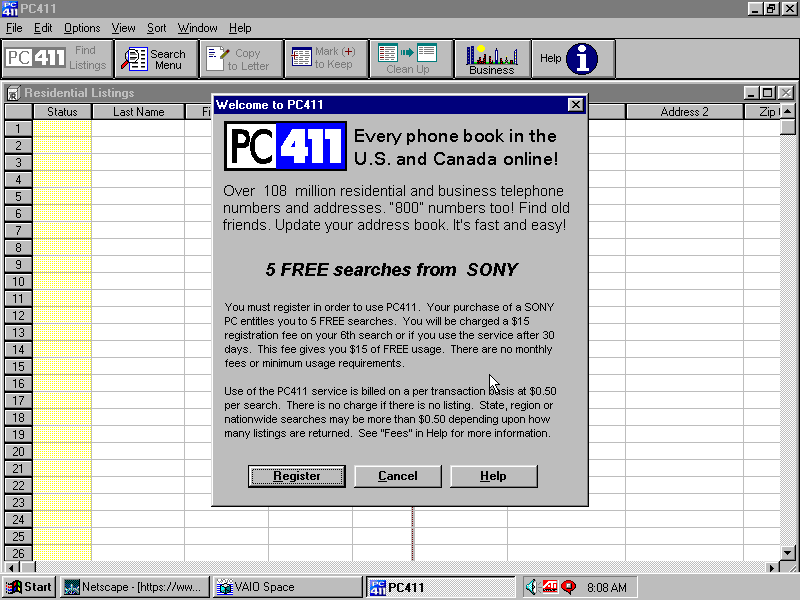
Telephone Directory PC411: A phonebook application
Games
Wipeout: A 32bit version of the popular PlayStation game, running using the ATI CIF graphics engine. Sadly 86box cannot emulate this and using a 3DFX or the S3 ViRGE won’t work because it’s designed exclusively for the ATI CIF API, which I hope to cover later on as there are quite a few titles that use this technology.
Also to note, WipEout was one of the launch games for the PlayStation
MechWarrior 2: Retail game that I’ll cover separately at some point in the future, again it needs its own CD-ROM
Microsoft Entertainment Pack: Included games like Chip’s Challange, Dr Black jack, and Jezzball to name a few
Hover: That game that came on the Windows 95 CD
Other
USB Support
This was one of the first home desktops to ship with onboard USB, two years before the iMac which was said to have popularised the standard. However, the version of Windows 95 that Sony shipped with the computer had no USB support. The intention was to ship USB support in an update once Microsoft had released the upgrade for Windows 95, which would be introduced in a supplement update to OSR2 which was released in August 1997, nearly a year after Sony had released the PCV-70/90.
Early Windows 95 USB was a bit of a disaster and didn’t have much support, in fact, it wasn’t until Windows 98SE that USB support was to the standard that we accept today, with the earlier versions lacking many USB drivers.
86Box does not allow for USB devices to be connected, so there isn’t much point in upgrading to this version anyway. Regardless i did try to upgrader it to a USB supported build, which ended up bricking the OS completely. Apparently you have to upgrade in steps first, to OSR1, then OSR2, then install the USB supplement, whilst I tried to install the USB supplement update only, which resulted in a VxD error upon bootup. Not even safe mode could rescue me here, I had to reinstall from scratch.
You would think the Microsoft installer would check first and tell me to upgrade to a supported version of 95, instead it just happily installed
Another prebuilt system supported by 86Box that a restore disc is available for. From the looks of the software included this was intended to be a family PC, typically sold in computer stores of the era (PCWorld or Staples)
BIOS splash screenThe BIOS itself
The PC itself
This motherboard featured onboard 3DFX Voodoo 3 graphics, along with the onboard audio. Although 86Box has support for the Voodoo 3, there are various issues with the emulation that cause sever graphical issues when just on the desktop. The onboard soundcard is not emulated at all, meaning we have to use a discreet sound card instead.
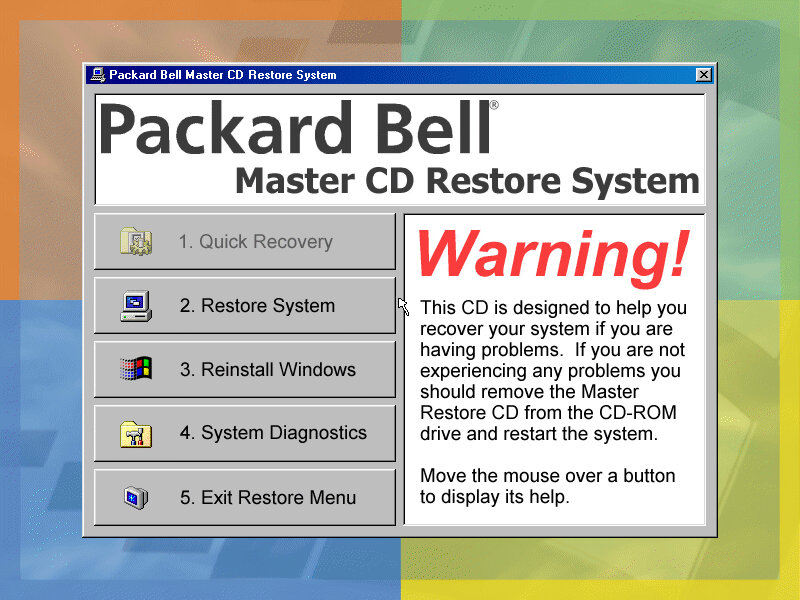
Running the initial recovery software was easy since the disc is bootable from the CD-ROM itself. From here you can format and initialize the hard disk and begin the recovery process.
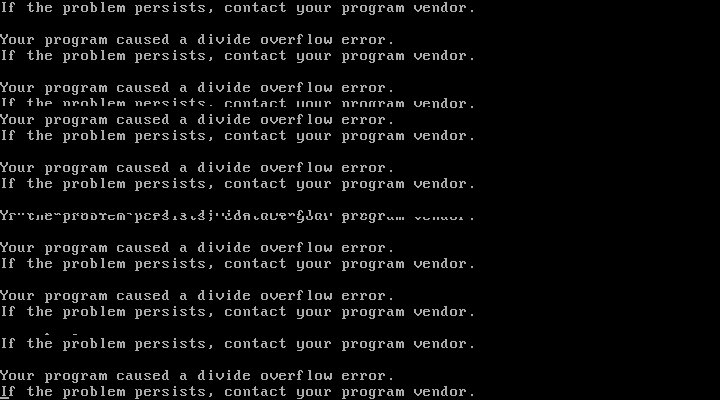
After the first stage, things went a bit wrong and the system crashed to a bizarre divide overflow error. This didn’t affect anything and the install continued after a quick reboot
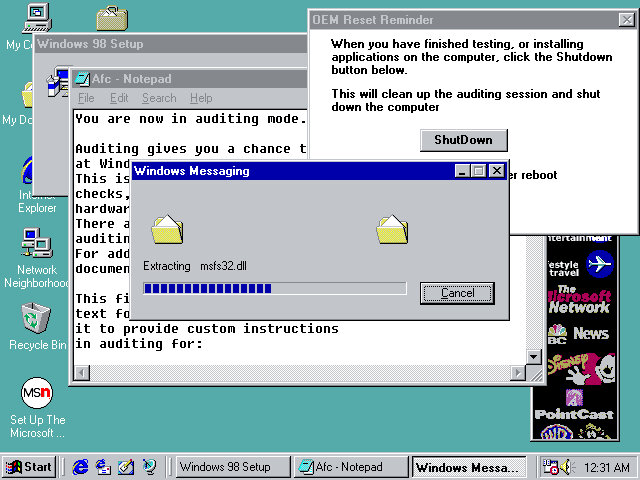
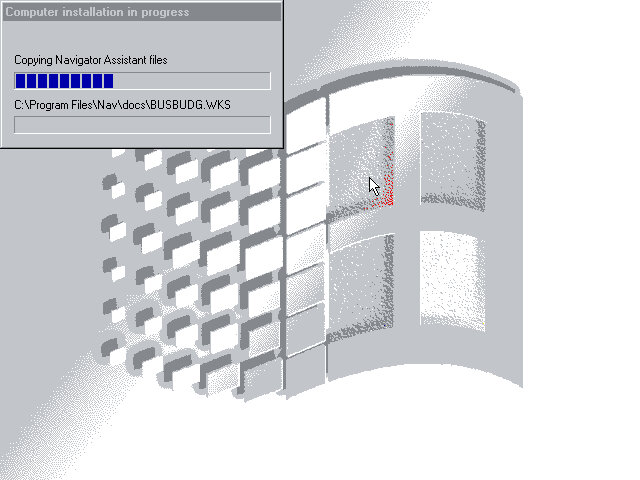
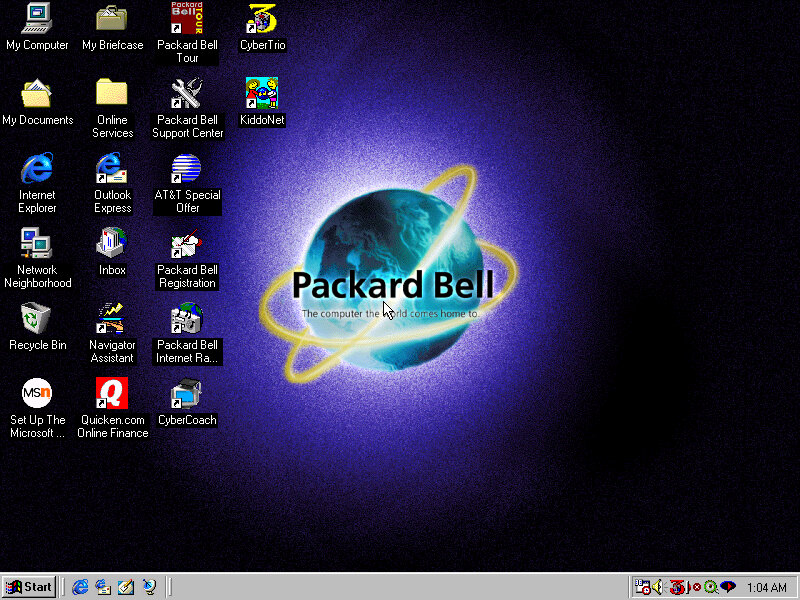
The last stage took you to the Windows desktop, but the recovery was not yet finished as additional software installers had continued to run.
Software
Lots of bundled software to look at here:
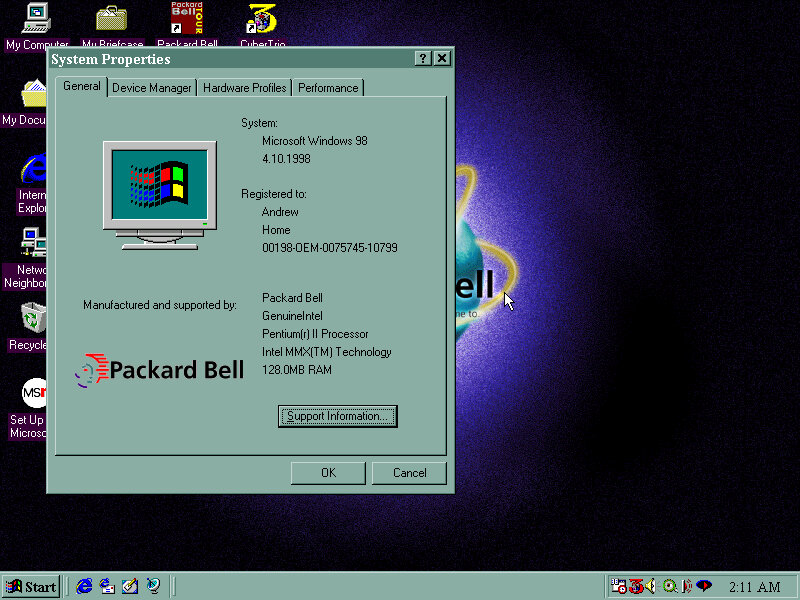
Packard Bell Tour
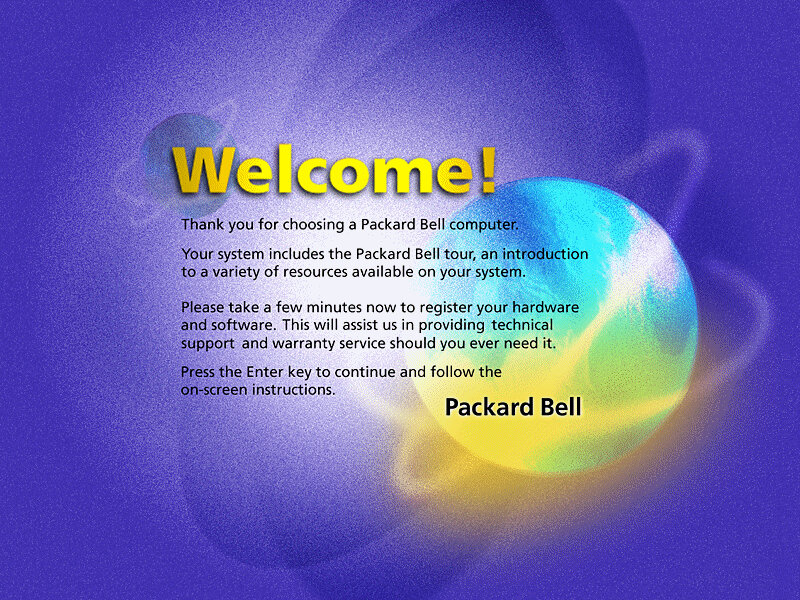
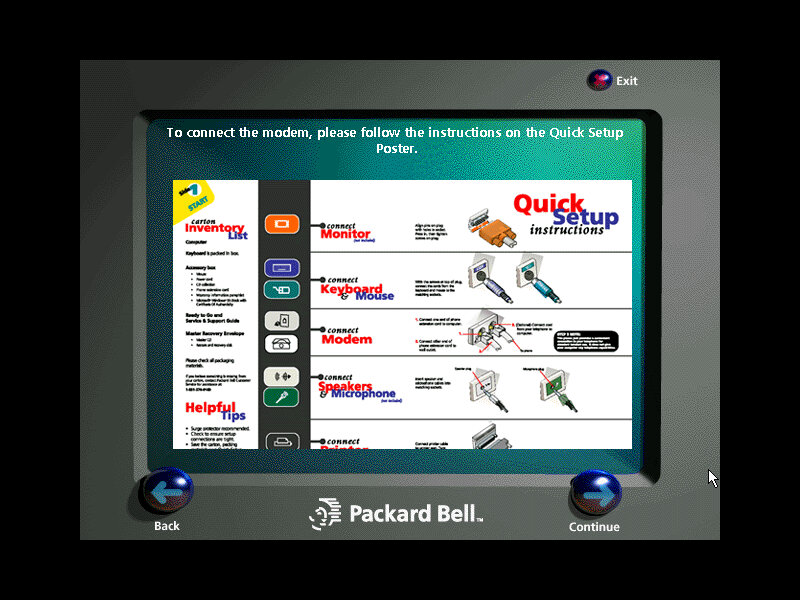
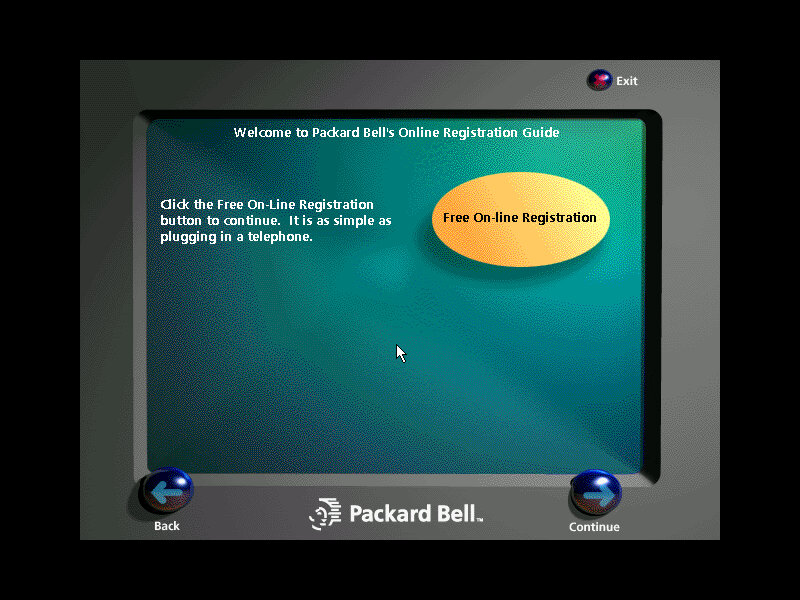
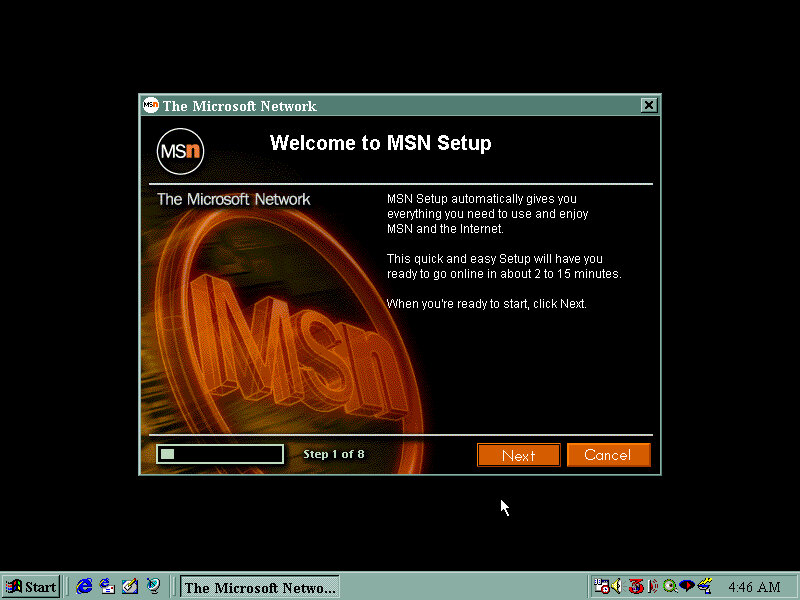
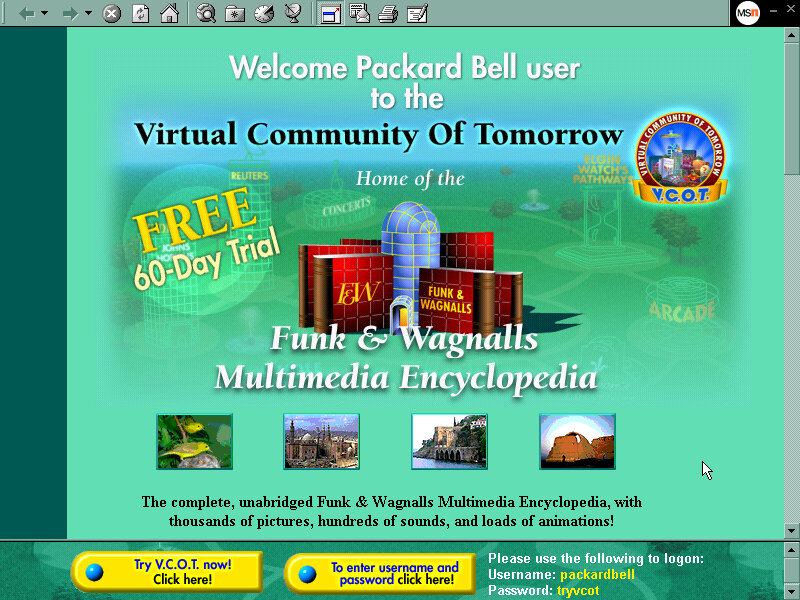
A browser-based tour (You can see it launching Internet Explorer briefly), it gives a rundown of the features of your new PC, and gives you the option to register.
Packard Bell Support Center
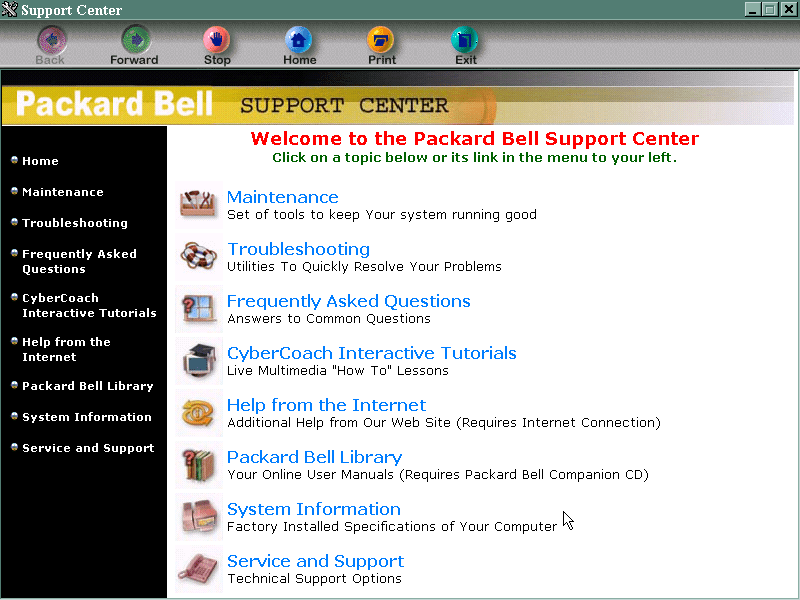
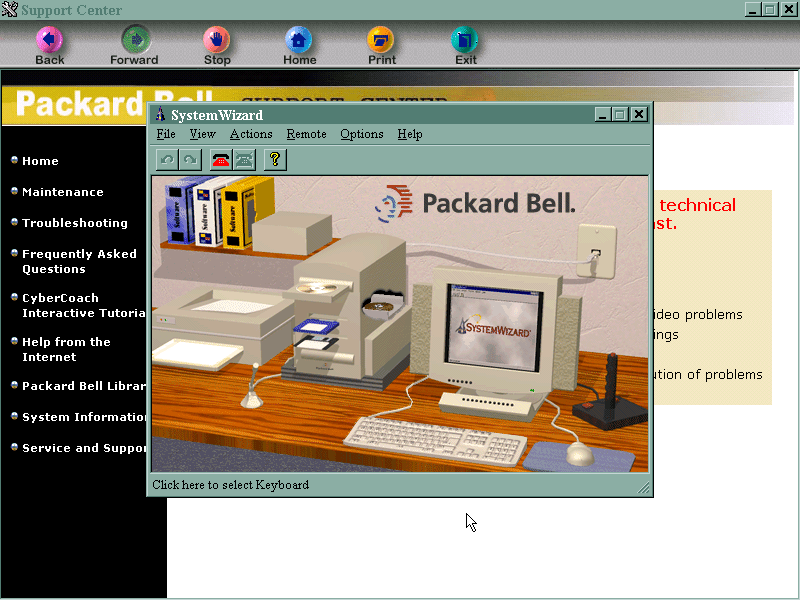
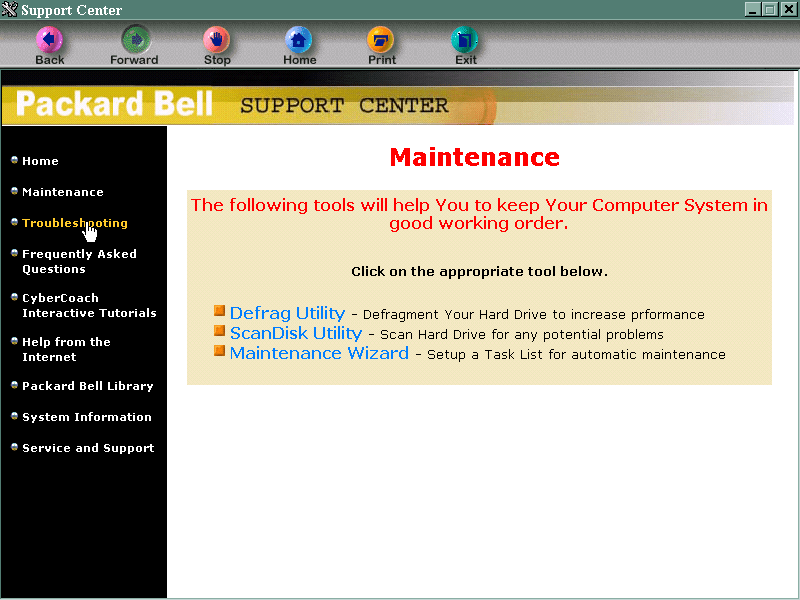
This is sort of the replacement of Windows help, although that still exists by pressing the F1 key. It gives you troubleshooting and maintenance information and your computer’s specifications. It also links to the CyberCoach tutorials.
AT&T Special Offer
Signs you up with AT&T, the internet service provider. Not much use outside the US.
Packard Bell Internet Radio
Appears to be a link to an online website, but its probably long since discontinued. It also wont open, thinking that we have yet to set up an internet connection. This is despite using the PCI ethernet adaptor.
Cyber Coach
Targeted to novice computer users or for those who are new to Windows, gives a step by step demonstration of different software included on the system and how to perform basic tasks.
CyberTrio / Kiddos
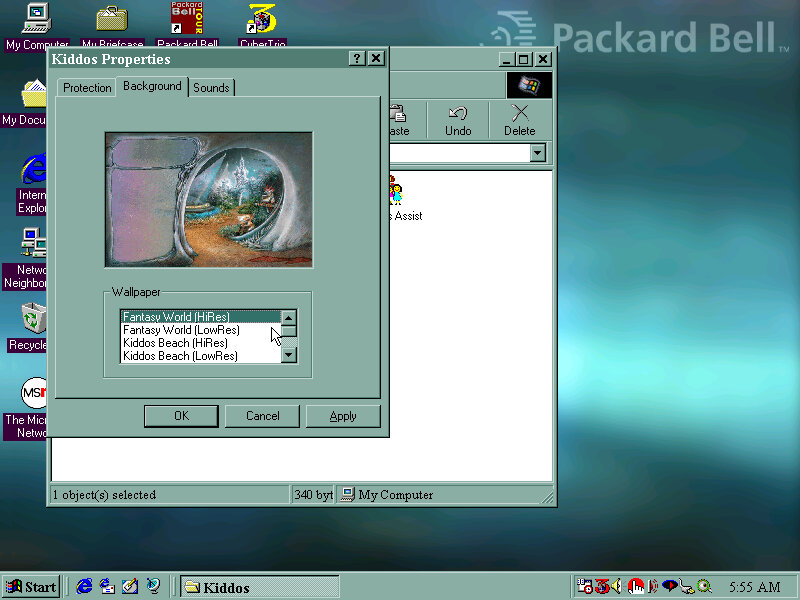
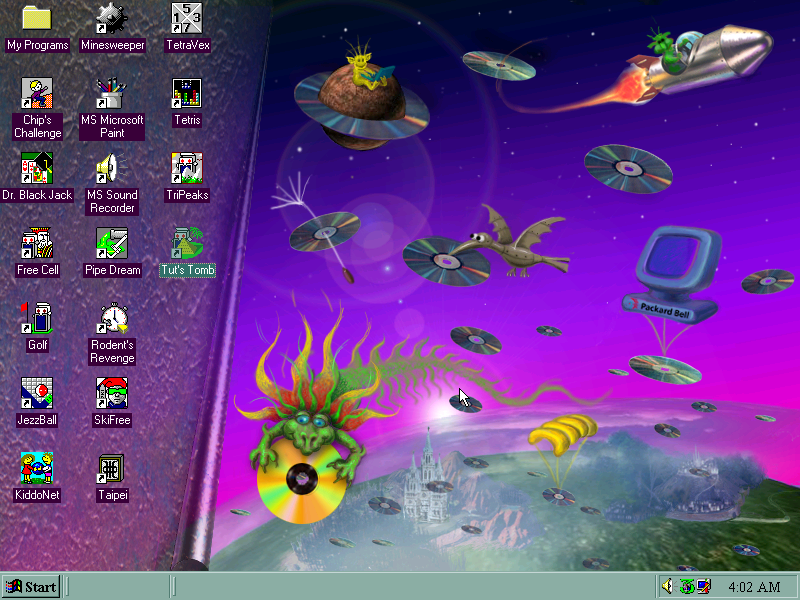
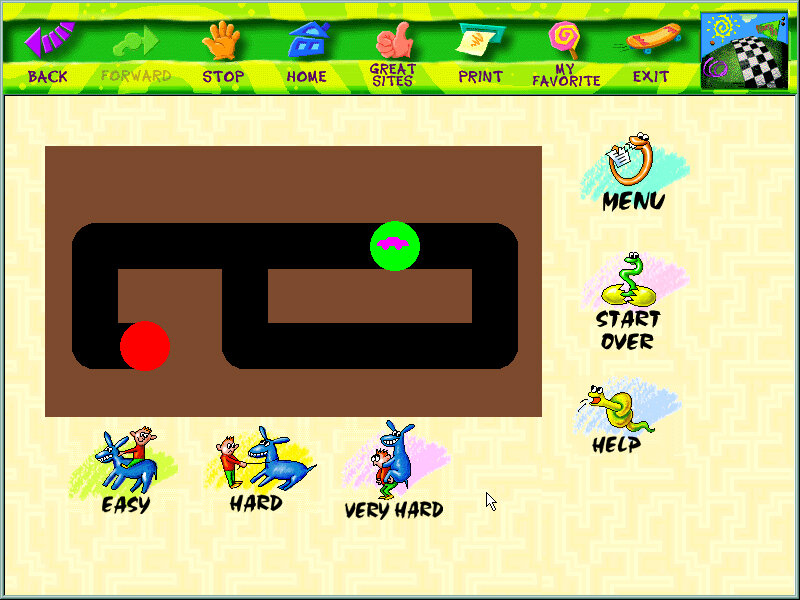
An interesting program that affects the Windows environment. There are different modes: Basic mode: sort of like a limited user mode seen in Windows XP, prevents users from modifying critical system settings Advanced mode: Typical Windows environment Kiddos: A restricted environment designed for young kids to allow them to use the computer without potentially damaging or affecting system files. Clicking on the icon will take you to a customized desktop. I’m not sure if this is a customized user account or just a custom version of Windows Explorer.
Also if you ever wondered where the ImgBurn sound comes from (The one that plays at the end of a successful burn) it originated from here and acts as the Kiddos logon sound.
You can manually add programs to the Kiddos area, such as any games or additional software that was installed after. Packard Bell have already set up and installed a few child-friendly applications such as the games from the Microsoft Entertainment pack.
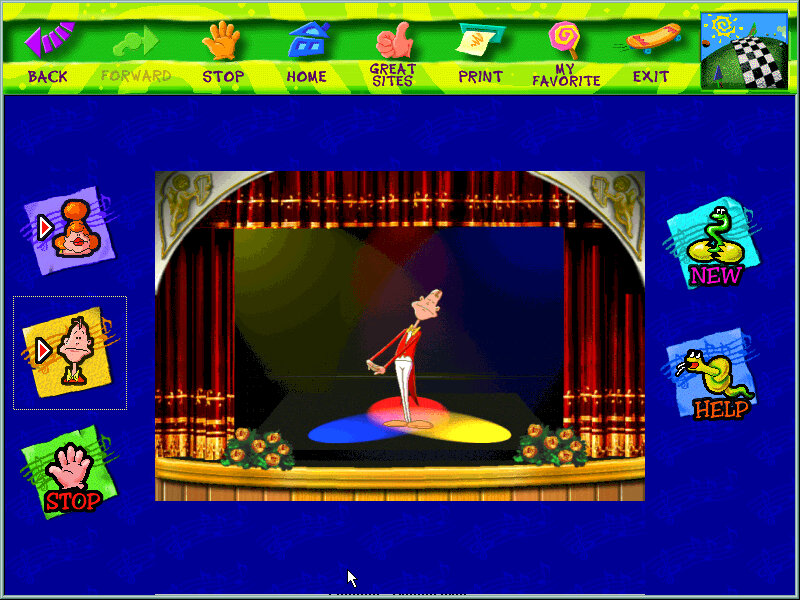
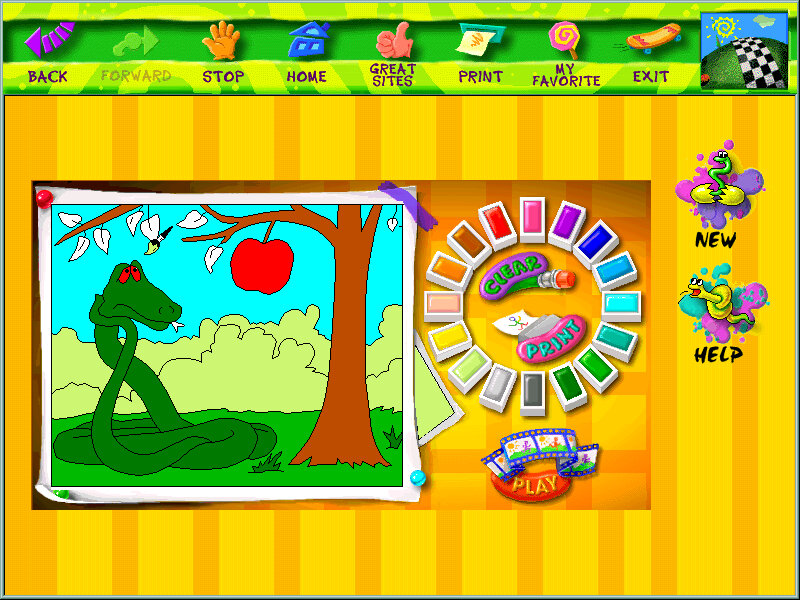
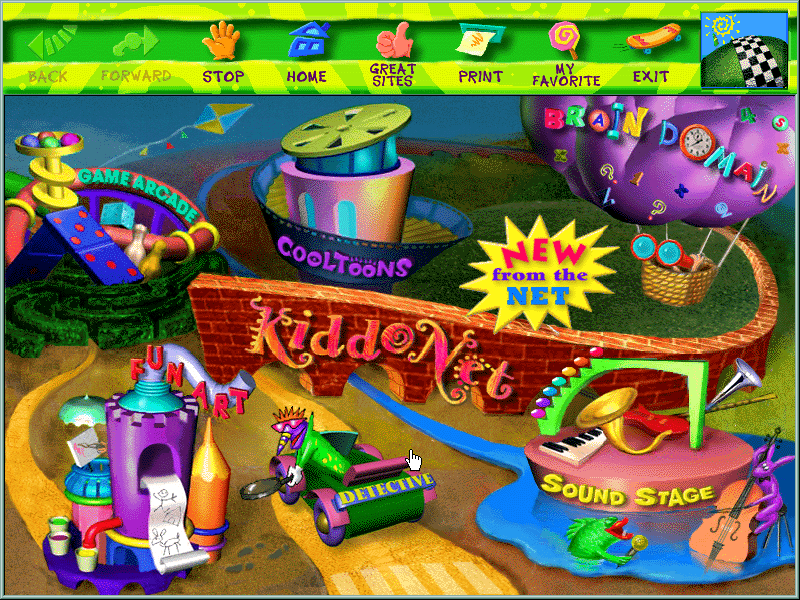
KiddoNet
An activity center for kids, with various different activities
Quicken.com Online Finance
Some shortcut to an online website, no longer active and an archived version does not exist.
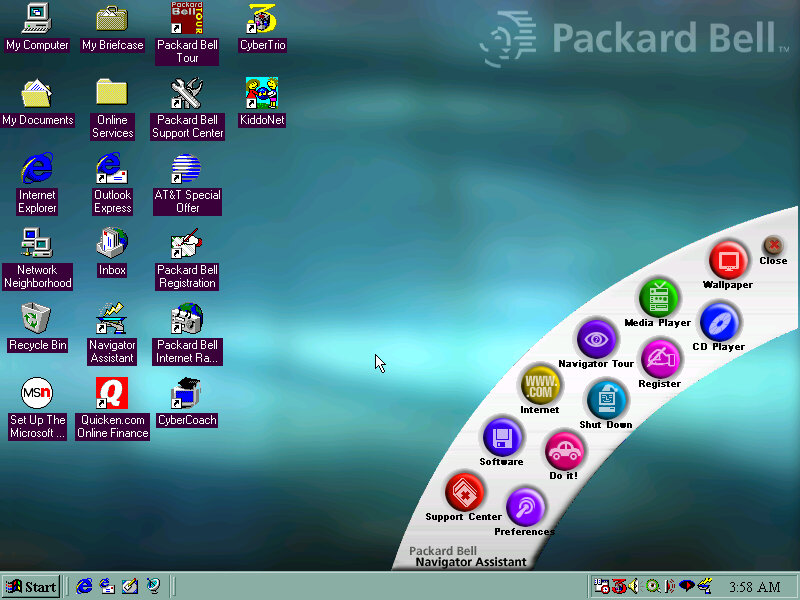
Navigator Assistant
Just opens a banner with shortcuts to various applications and tools like the internet, CD player. Kind of pointless since it’s located on the desktop so you will need to minimize to open the banner, would have been better off as a quick launch icon. My guess is the computer would have came with a bundled keyboard that had a dedicated button that opened the Navigator Assistant.
Microsoft Word 97
Just Microsoft Word is installed here instead of the whole office suite.
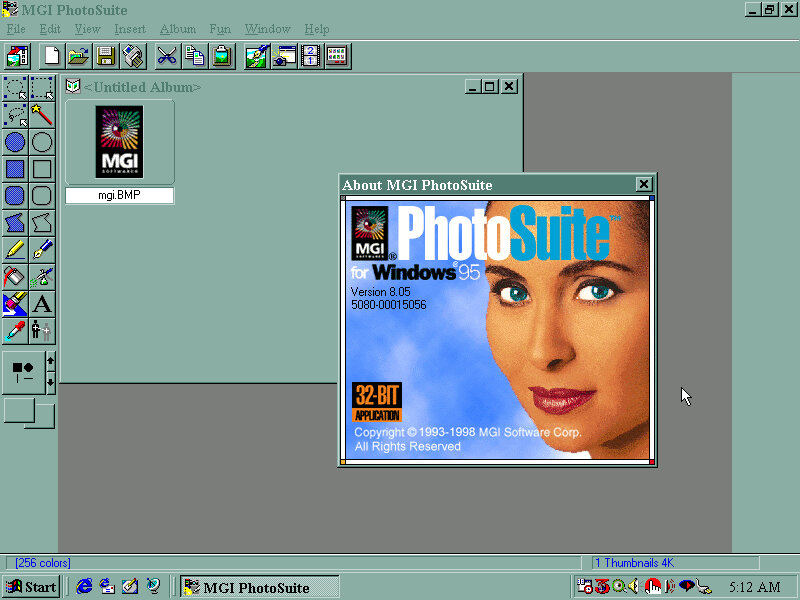
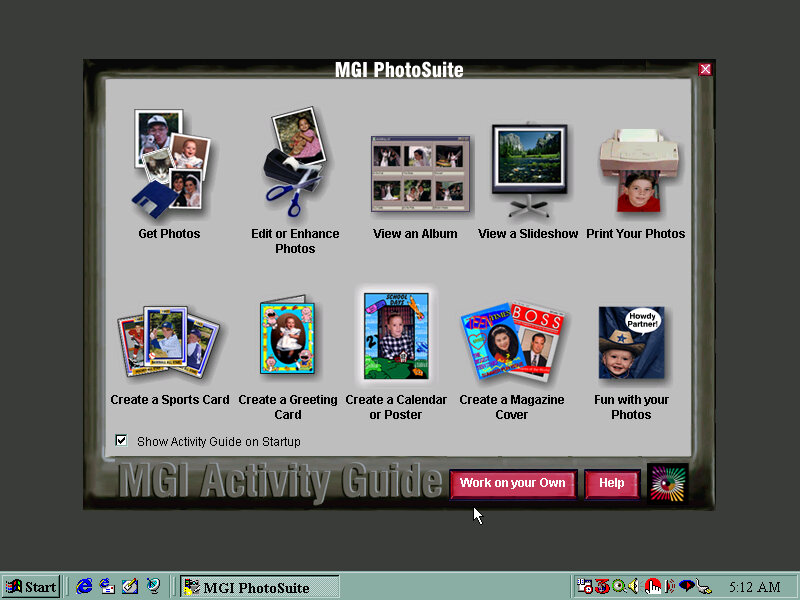
MGI Photosuite
Early photo editing software, typically shipped on systems that came with a flatbed scanner.
Other Screenshots
Expansion
There are four expansion slots, 3 PCI and one ISA slot
The SoundBlaster card was part of the premade configuration in Winbox86, and features an onboard IDE controller that supports two drives. In combination with the motherboard IDE controller you can have up to 6 IDE drives, plus the two floppy drives for a total of eight. The SoundBlaster IDE is a bit temperamental due to the emulation so I recommend connecting a CD-ROM and Zip drive to it, and having the hard drives and one CD-ROM drive connected to the motherboard, since this BIOS is capable of CD-ROM booting. In the end I swapped it for a ISA AWE32, and using a SCSI card for the additional drives since Windows 98 would sometimes fail to detect the SoundBlaster IDE device upon boot. As mentioned earlier, the board also had onboard sound but the SoundBlaster was substituted instead, unless support comes in later 86Box versions.
The AMD PCnet card is automatically detected and installed as part of Windows setup and should work out of the box, the actual system did not have an onboard NIC or a modem.
The video card used was a 3DFX Voodoo Banshee which did not work out of the box, and required an additional driver to be installed. I would recommend a Cirrus Logic for the OOBE setup, then change to whichever graphics card you prefer. Since the motherboard included a 3DFX card onboard, you may prefer to have a Voodoo Banshee or Voodoo 3 instead
Another OEM system, but this seems to be a motherboard that was used in multiple Gateway systems from around 1997.
Motherboard appears to be based on an Intel design, might be a clone of an Intel board but with a Gateway customized BIOS. This was possibly used in various different models used throughout the late Pentium era. I actually had a Gateway system that was in a similar time frame, but we had it second hand and the original owner had wiped it in favor of a fresh Windows 98 install.
Supports up to 128MB RAM Supports CD-ROM booting No sign of USB, 86Box cannot interface with USB currently
Install/Recovery CD
You will get the option to format as FAT32 or FAt16, whichever one you choose will depend on what build of Windows 95 you have, this restore Cd does not feature a Windows 95 install, instead it contains a set of drivers and utilities that are installed in conjunction to Windows 95, but you must use your own Windows install disk instead. FAT32 is supported on OSR2.1 onwards, whilst earlier builds use FAt16, if in doubt choose FAT16. I believe you can ‘Upgrade’ to FAT32 once you update the OS.
One potential issue here was the IDE CD-ROM driver, the restore CD gives you the option to choose, possibly because some systems might have used a propriety CD-ROM interface, or might be using the IDE interface on the soundcard instead. This could potentially cause issues if you choose the wrong option. For this I chose the Generic IDE-ROM driver, which can be found all the way at the bottom.
Once you begin the restore process you are requested to insert the Windows 95 install Cd and reboot, of which the system will begin to copy the Windows 95 files.
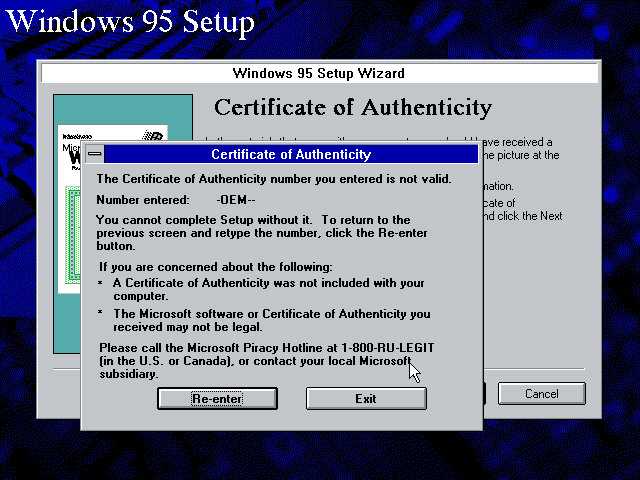
From here setup runs like a typical Windows 95 retail install, however on mine I encountered an error with the OEM serial number, and had to manually enter another one. I’m not sure of eyes are specific to the OEM version they were bundled with, or if each manufacture uses a slightly different algorithm, or maybe something failed to validate in the background.
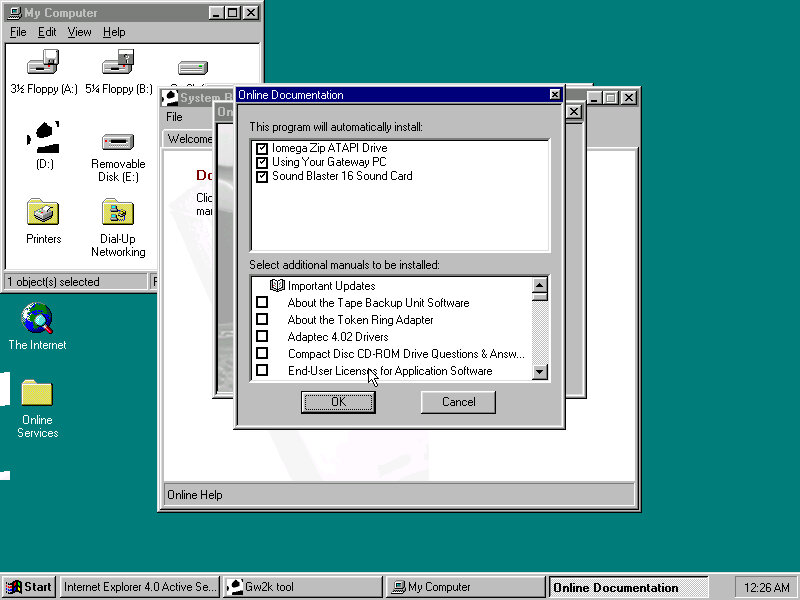
Reboot, then Gateway software proceeds to install
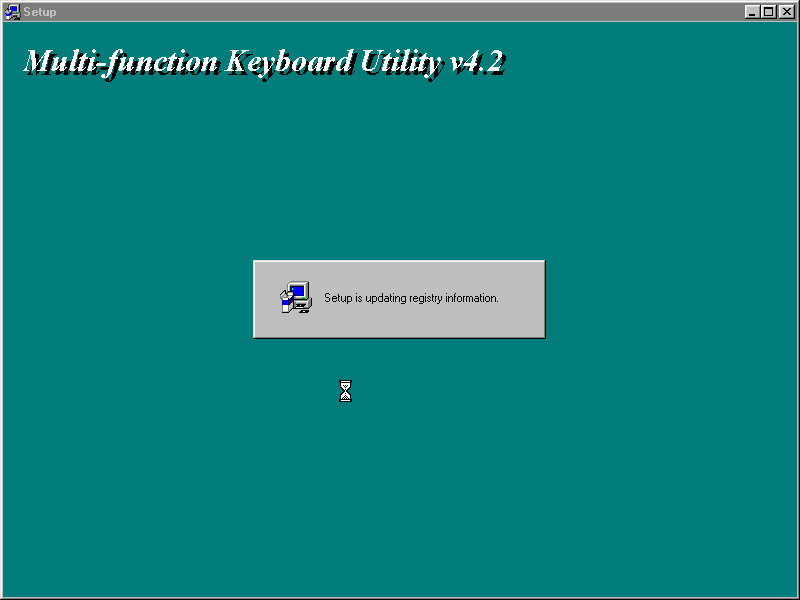
Installs keyboard multimedia utility, then install utility freezes. I had to force a reboot at this point
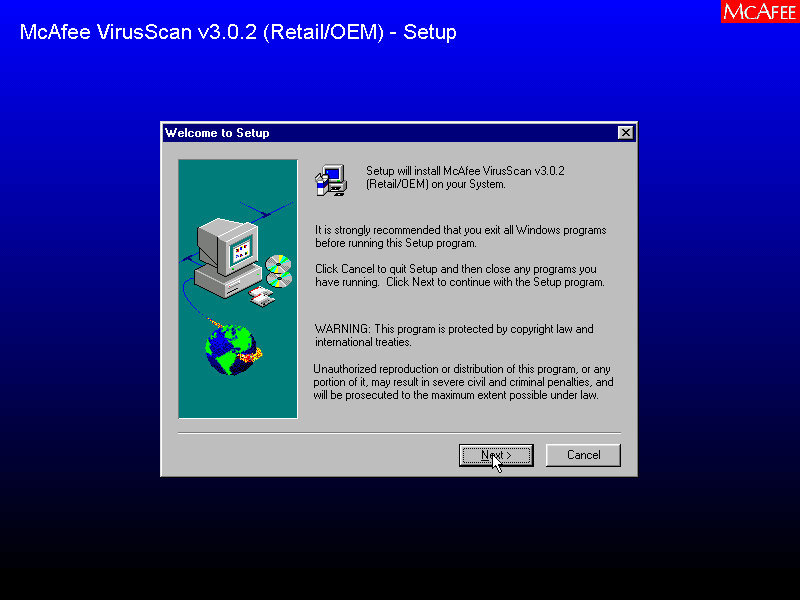
A quick reboot and it then installs McAfee Anti-Virus
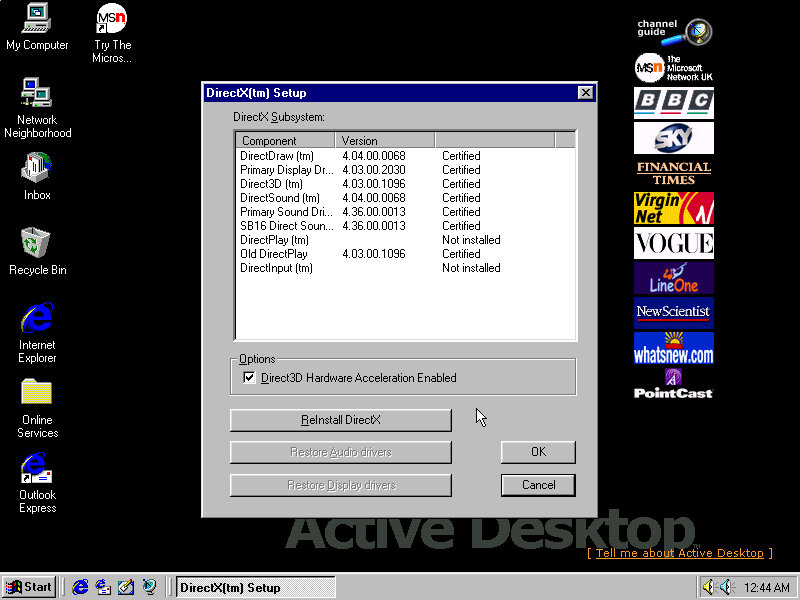
Installs DirectX 5, reboots again. Kind of redundant since OSR2 already included DirectX 5
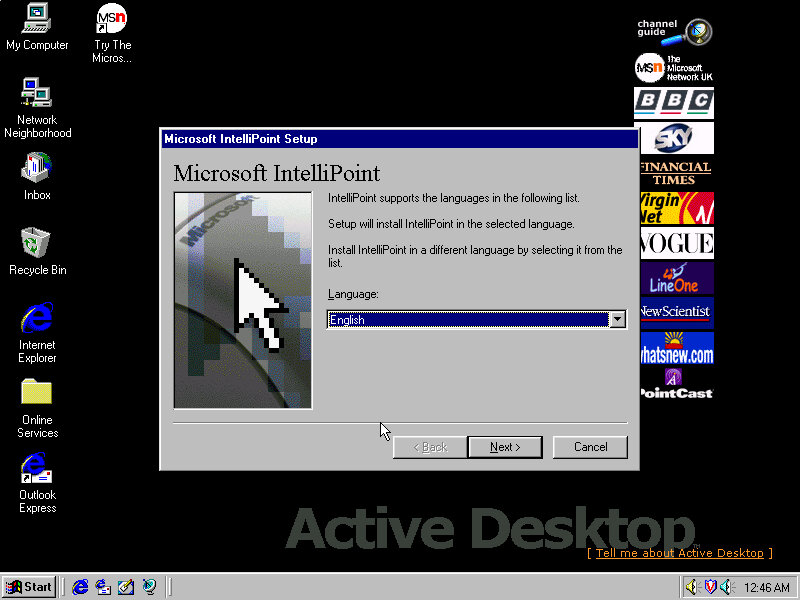
Installs Microsoft Intellipoint, Gateway possibly bundled the Microsoft mouse with their systems
Lastly the sound card software install, Windows had already detected the SoundBlaster on install, but here it inclused the Creative sound software.
Post Install
Megaphone
Appears to be a modem and address book software to manage internet connections and user contact information.
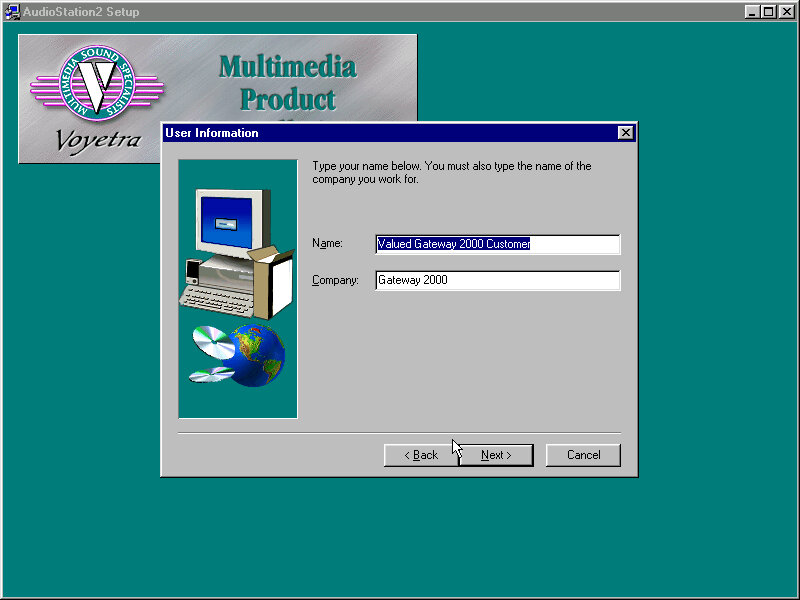
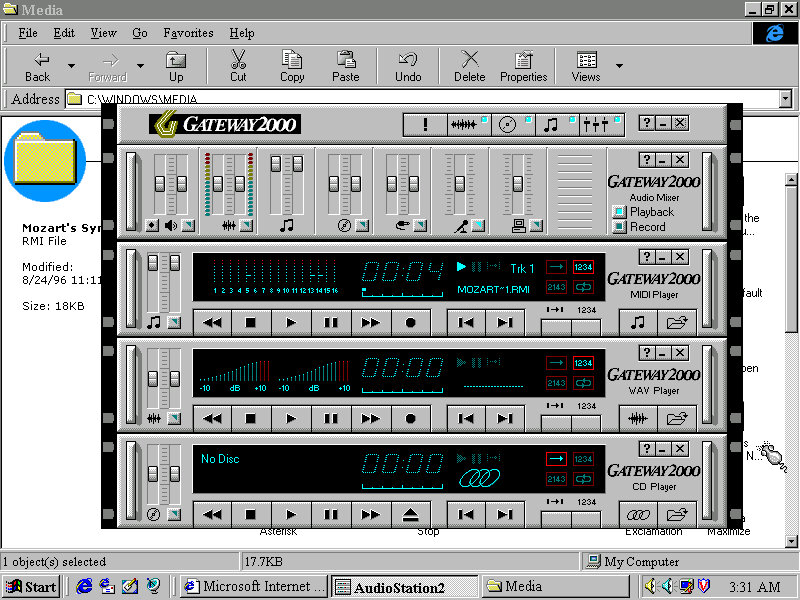
AudioStation2
A MIDI and CD player with a Hi-Fi like interface, something similar was also installed on the Sony VAIO PCV-90
Adding a second drive
The motherboard has two IDE channels for a total of four IDE drive, with the SoundBlaster 16 PnP card we can also add an extra two for a total of six IDE devices.
Adding the second IDE drive, I encountered a problem since after adding it as IDE slave (0:1), Windows 95 would freeze upon bootup. The way to fix it was to use the Windows 95 bootdisk, use the FDISK /FPRMT command to initialize the salve drive, format as FAT32 (Or FAT16 if you are using an earlier version of Windows 95), then reboot and format within the boot disk. After then would Windows 95 boot up and mount the drive.
Preinstalled Software
This was a bit dry, I presume Gateway didn’t bundle much with their systems or this is typically stored on another disk. From browsing the CD-ROM it’s a generic recovery disk with a range of drivers that covered the hardware that gateway would have shipped in their desktops. Any additional bundled software would have been shipped on a separate disk.
Even the OEM branding was scarce, I expected there to be a cow-skin themed wallpaper like the cardboard boxes used
Adding additional devices
PCI: Video Card (S3 Trio64) PCI: 3D Accelerator (3DFX Voodoo) PCI: For future use PCI: For future use ISA: Ethernet (AMD PCnet-ISA) ISA: For future use ISA: Soundcard (SoundBlaster 16 PnP)
PCI slots are based on the amount found on the Vogons wiki, there are four PCI slots in total but there may be many more as this board could optionally come with onboard video (This could be AGP?) Or sound. Some versions of the board came with an onboard S3 Trio64, the Phoenix in 86box was the closest match and as a bonus was automatically detected and installed during instillation.
Windows 95 OSR2.5 (2.1 might be a better fit, or the original Windows 95, make sure to choose the FAT16 option when formatting for pre-OSR2.1 Windows 95)
Vectra is a line of desktop PC’s by HP that are targeted towards the business/Home Office segment, like the Dell OptiPlex or the Compaq Deskpro series of computers. Typically come with Intel Celeron/Pentium processors and onboard video.
The VEi8 can feature a Pentium II running at 350/400MHz or a Pentium III at 450/500MHz. with a Intel 440ZX chipset. Onboard video is the Matrox Millennium G200 with 8MB of graphics memory, which 86Box does not yet emulate
Not much branding here…
Recovery Disc
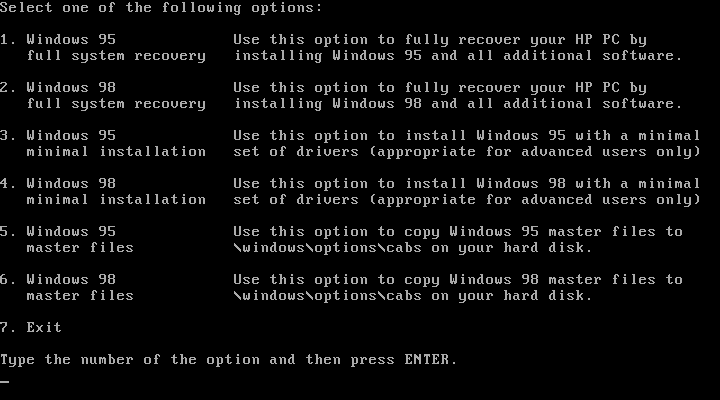
We have the option of restoring either a Windows 95 or Windows 98 image.
Windows 95 didn’t go as planned as we encountered a protection error upon boot up. At first I though the CPU used was too fast for Windows 95 as early builds had issues with CPU’s over a certain speed due to a race condition that’s executed upon boot up. A patch is available but you need to be in the Windows environment in order to install it. Downgrading the CPU and its speed had no effect in 86box. Sadly I wasn’t able to fix this, and went for the Windows 98 option instead.
Post Install
There isn’t much to see here, since its pretty close to a vanilla Windows install compared to the Compaq Presario, just a few HP utilities. I guess the Vecta line were intended to be used in business and office environment who would prefer to control and maintain the software that they would install.
Upon the first reboot a tutorial is run which gives a basic demonstration on how to use a computer. This looks like some sort of Windows 3.1 environment and only appears once.
Installed Software
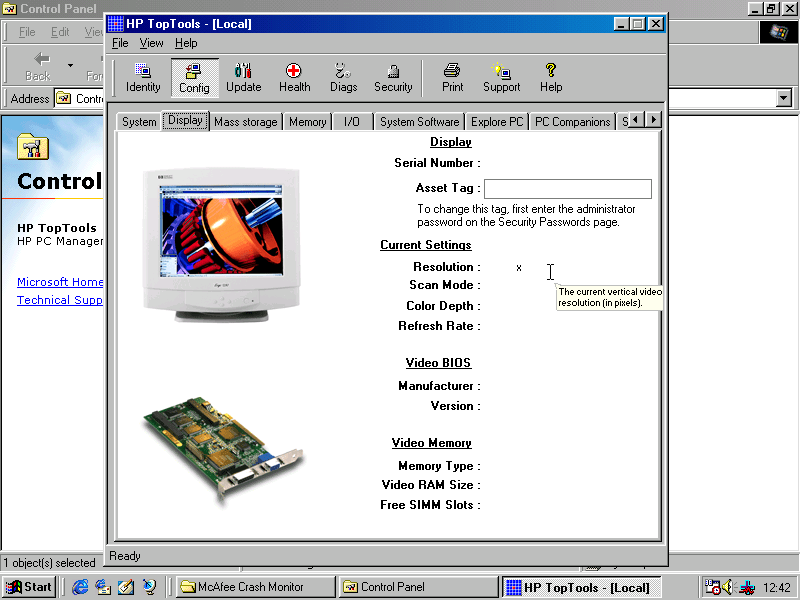
HP TopTools
HP TopTools
Looks to be a hardware diagnostic application that shows detailed information on your system.
McAfee
McAfee Antivirus and crash monitor are preinstalled by default and provide basic protection.
Supplementary Hardware
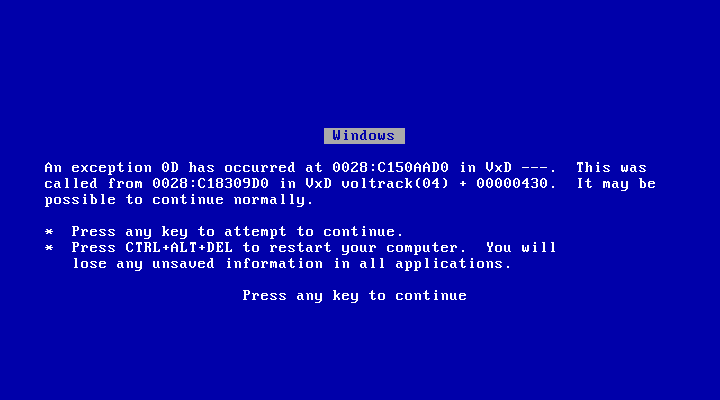
The real motherboard supports two floppy disks, and four IDE devices across two channels. Additional drives can be added by installing a SCSI adaptor in 86Box. Here I was using the Tekram DC-390 which Windows 98 detected as a AMD PCI SCSI controller automatically and installed a driver for it. This wasn’t 100% perfect as adding a hard disk or a writable ZIP or Magneto optical disk would cause a blue screen upon boot up. Since we want to attach a writable drive to the computer, this was far from ideal. I tried installing a driver I found online but it had no effect, there is an issue when using this adaptor in 86Box. I switched it out for another PCI SCSI card, Buslogic but it had the same issue with a BSOD upon boot up when a writable drive is attached.
That’s a lie, it wouldn’t continue normally
Couldn’t find anything online relating to the BSOD above, any results turn up of that video of Windows 98 crashing in front of Bill Gates after plugging in a scanner.
In the end I tried to use another SCSI card instead, this time a ISA based card which required me to disable PCI IRQ steering for IRQ 10 & 11 to free up an IRQ slot for both the SCSI and the sound card. Which made no difference, it still BSOD upon boot up.
I even mounted the image as write protected but it made little to no difference. The rest of the devices (Zip 250/CD-ROM drives) worked fine, just hard disks and the magneto optical drives caused the BSOD.
I did notice an odd issue when I added the slave IDE hard drive, where Windows would BSOD with an error about drive D: which it would have been mounted as. Booting from the Windows 95 start disk and formatting as FAT32 seemed to fix it as after booting up the system was fine, and the new volume was detected and mounted in My Computer. My guess is HP are using some unorthodox driver that interfacing when another volume or partition is added.
For networking the Realtek RTL8029 was used, which Windows 98 has built in drivers for. 3D acceleration is possible by adding a 3DFX Voodoo card, which Windows 98 will also have a driver for but you will be better off installing an updated driver instead.
In terms of expansion, the motherboard itself has 3 ISA and 3 PCI slots
86box has been able to emulate a large amount of motherboards, and has recently added a few OEM desktop systems to its roster. These are mostly faithful to the original hardware to the extent that you can access their bios. Quite a few OEM recovery discs have popped up on Archive.org which will only run on those actual systems they were intended for, since they often include an OEM copy of Windows.
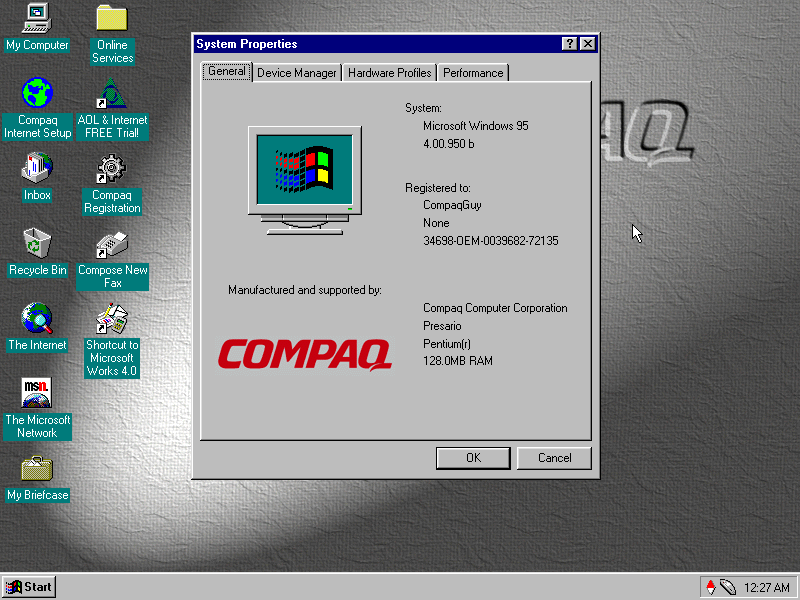
Whilst this emulates the motherboard and the BIOS firmware that was shipped, certain pieces of hardware are left unemulated like the graphics adapter or the soundcard. Fortunately you are able to substitute alternative components, but you might run into issues upon first boot up since Windows may not have drivers preinstalled. The machine here I’m trying to emulate is a Compaq Presario 4500, of which the specifications can be found here: http://h10032.www1.hp.com/ctg/Manual/bpb12296.pdf
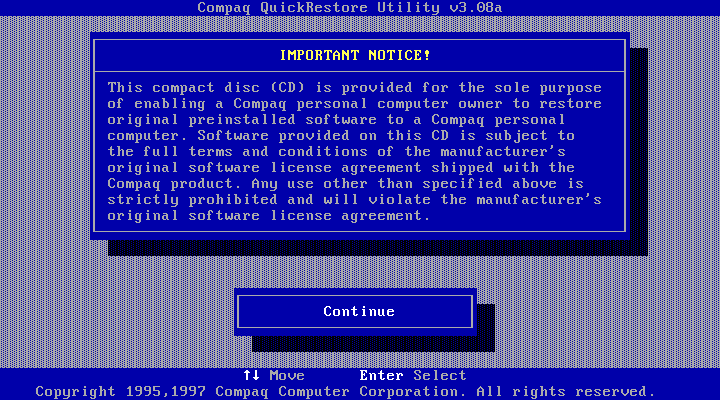
Compaq QuickRestore Utility
This ran straight off the CD-ROM which was bootable from the BIOS and performed a few tests before initialising the hard drive, which had been newly created and had no partitions. After copying was done, the system rebooted and Windows 95 started up. This utility did require me to enter the serial number of the system, which I was able to find online.
Setting Up Windows 95
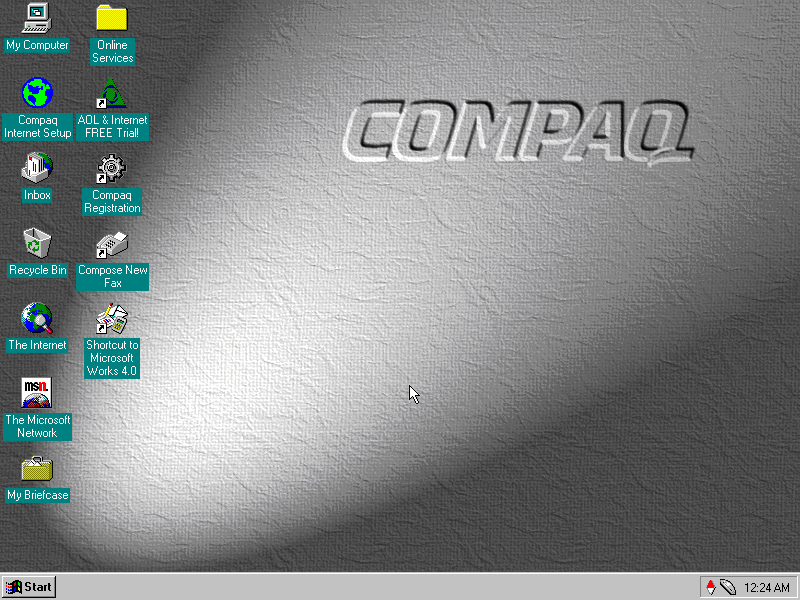
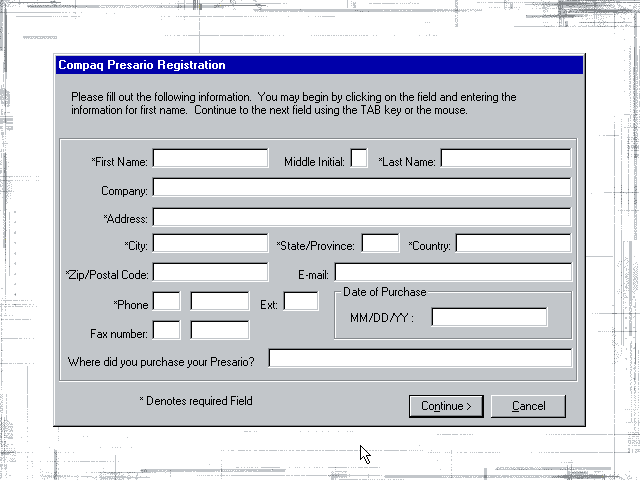
After the first reboot Windows seemed to have problems finding the graphics driver and reverted to using the failsafe VGA driver instead, which limited us to 16 colours. At this point we were prompted to register our system and to fill out the registration form. I somehow doubt Compaq (Or HP as its now known) have the registration servers active. After manually installing the graphics drivers for the S3 ViRGE that I had selected for the system, Windows went to the desktop and we are presented with the default Compaq desktop theme.
Bundled Applications & Utilities
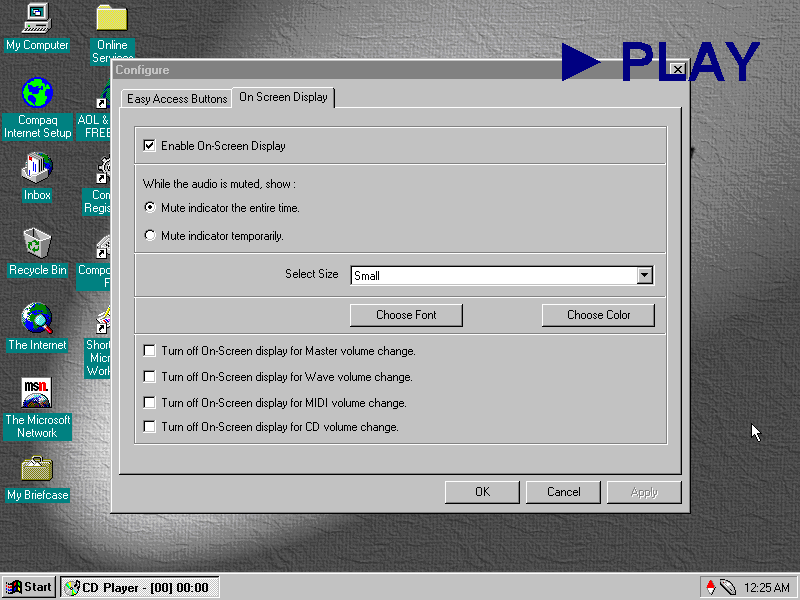
Compaq Quick Access: Runs in the background and provides functionality for shortcuts to be used on the keyboard that would have shipped with the system. Here you can reconfigure the different ‘Easy Access Button’ to perform different function. By default they are used for the calculator and to open in the internet browser. This utility also manages the on screen display, which appears when the volume keys are pressed or if one of the media control keys (Play, Fast Forward, Rewind) are used. I’m not sure if 86box is capable of passing these commands through since it only emulates a regular PC keyboard.
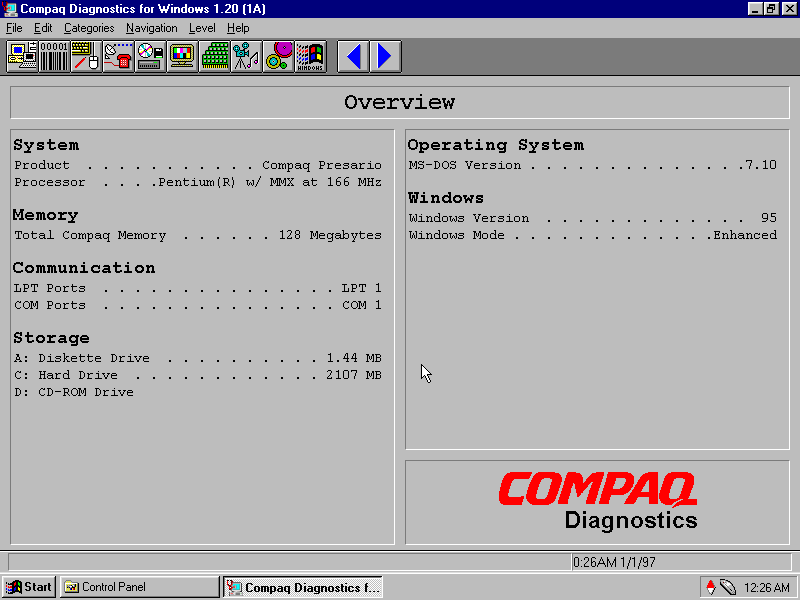
Compaq Diagnostics: Displays information about your computer system and the Windows OS. You can view the specifications here
SPRYNET Connection Manager: Manages internet connections for the dial up analogue modem, replaces the standard Windows utility.
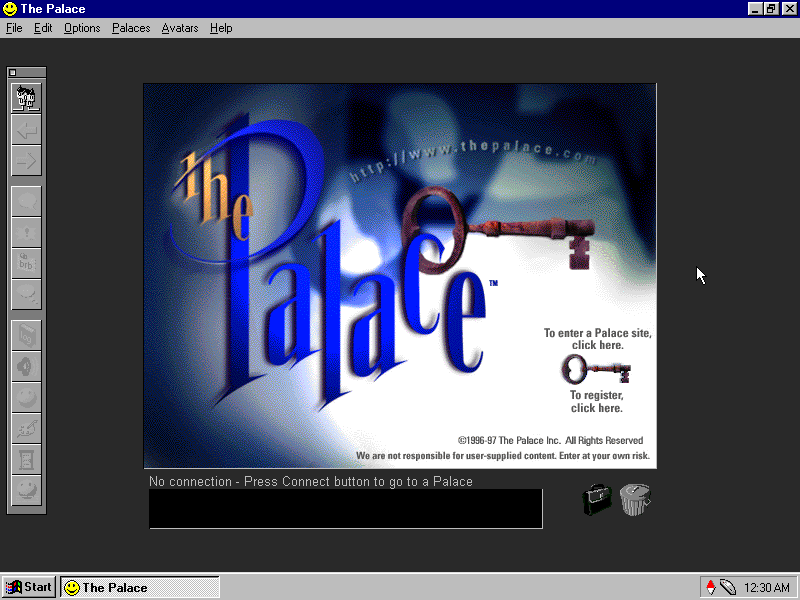
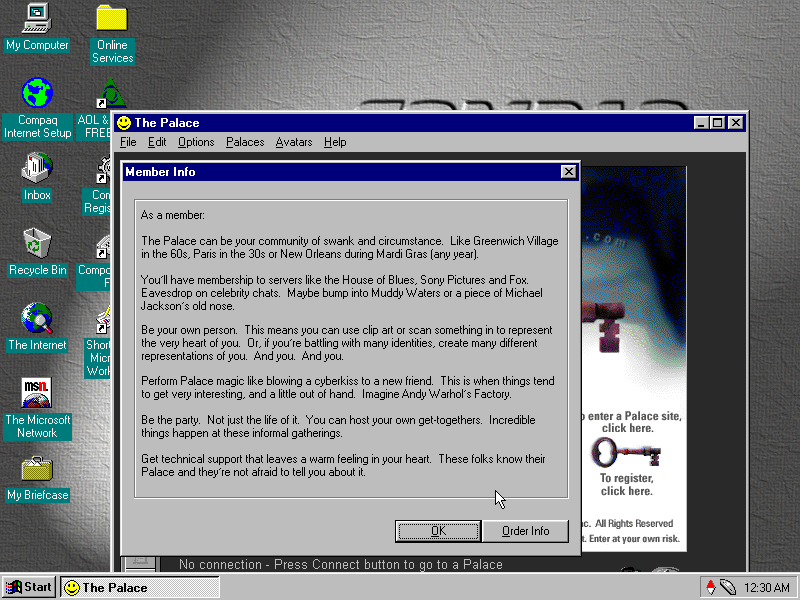
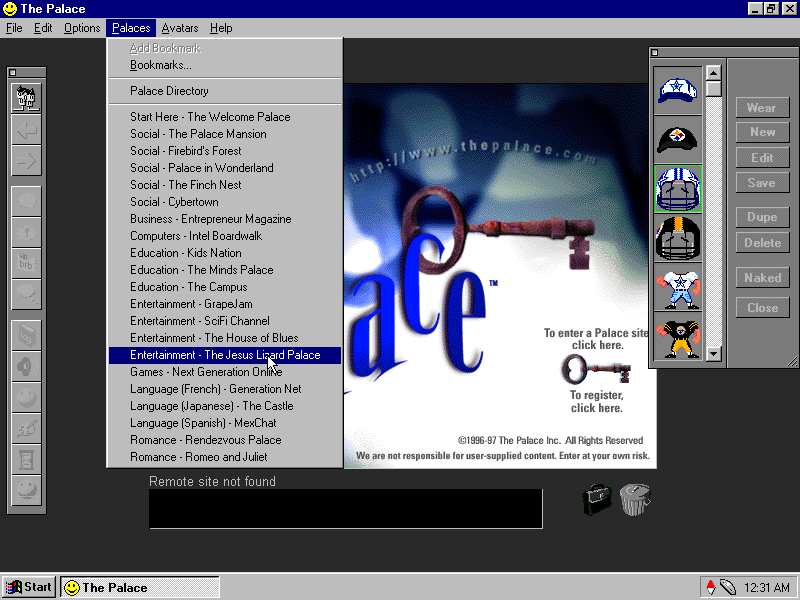
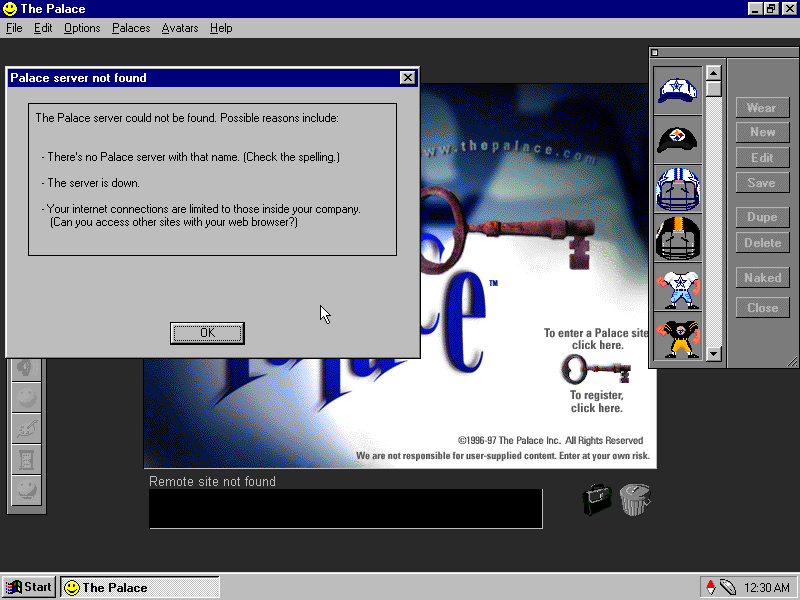
The Palce: A third party application that was bundled with the system, it seems to be some sort of online chat room server, similar to IRC but uses animated avatars and colour backgrounds to give the illusion of environment. Users could join different room dedicated to certain subjects. This Compaq system would have come with a free trial allowance to entice the customer to subscribe, beck before social media mould datamine the hell out of you. Sadly the servers are long gone.
SimCity 2000: Not sure what this is doing here, its just the network client and not the full game, maybe it was bundled with the Palace as a game that could be played using it? The full game is not bundled here.
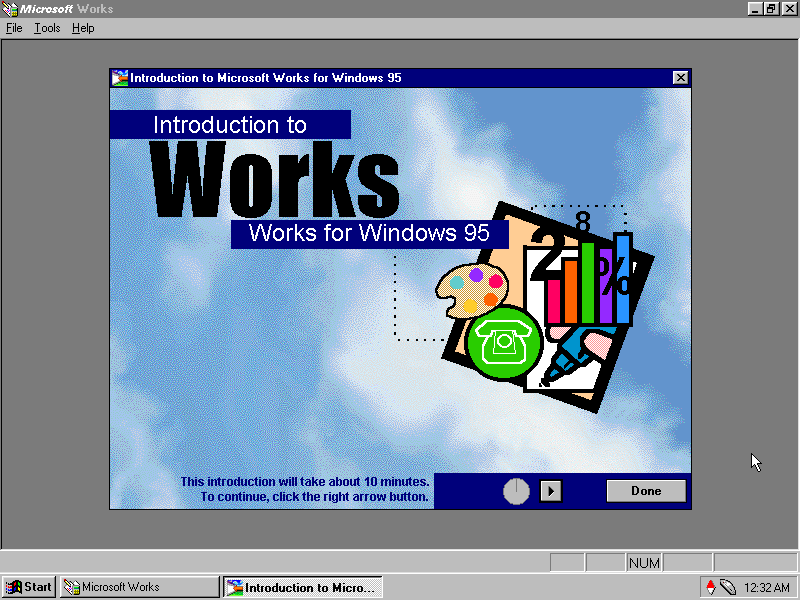
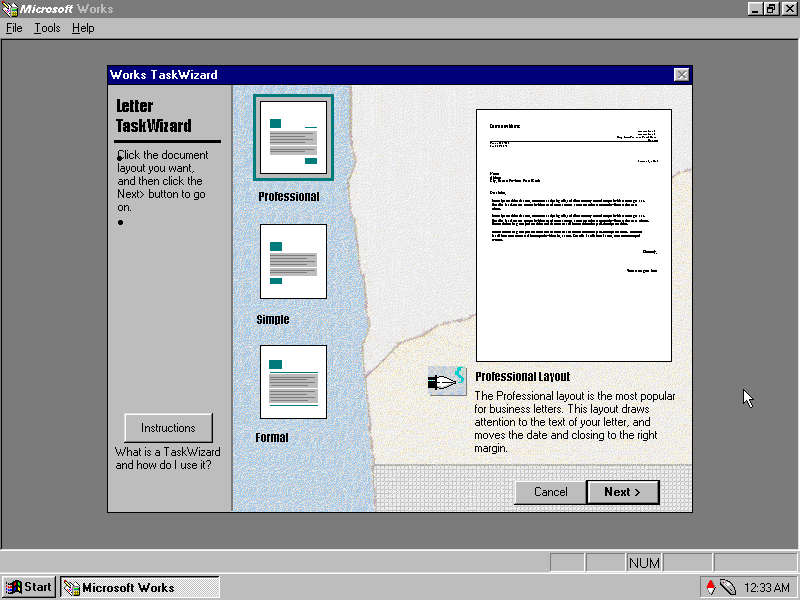
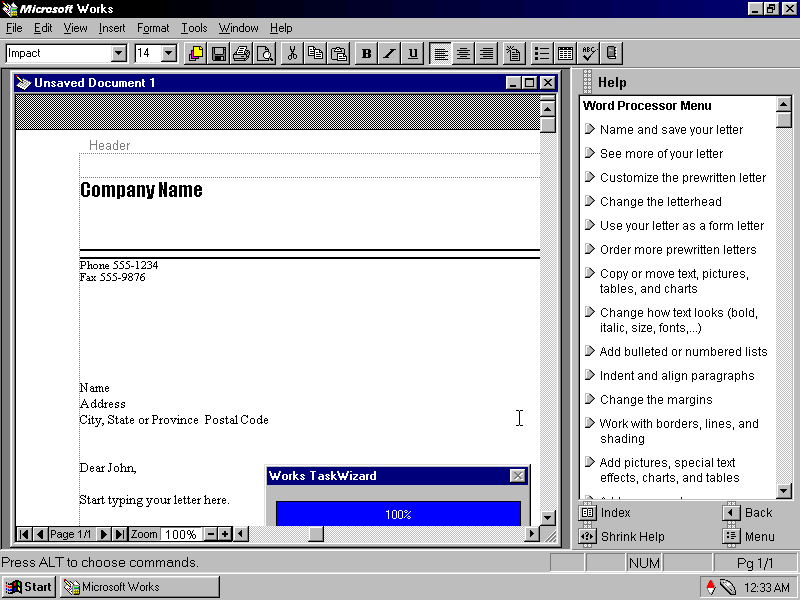
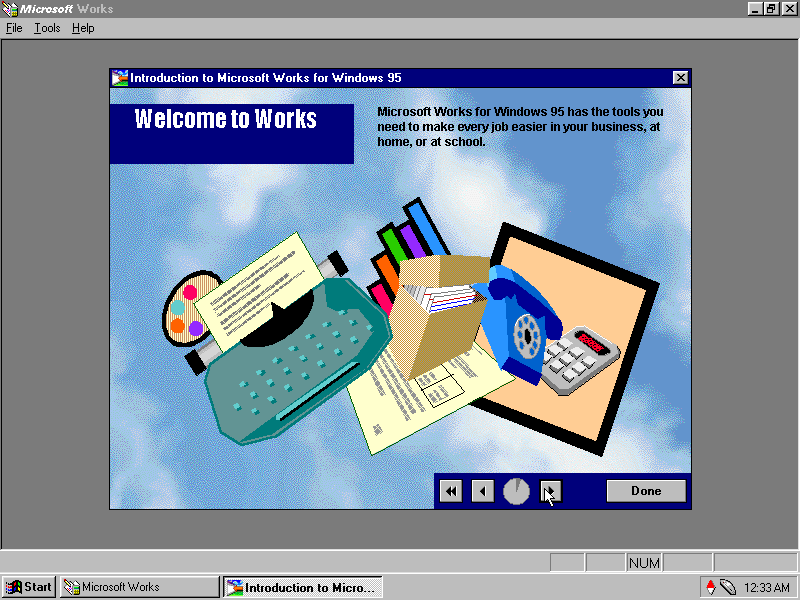
Microsoft Works: The OG Oxymoron, this was a basic version of Microsoft Office bundled with OEM systems to give them basic Office functionality. It is considered productivity software suite which combines a word processor, spreadsheet and a basic database system. As it was a lot cheaper than Microsoft Office, it was commonly bundled with OEM systems to increase their value, although it was also available separately.
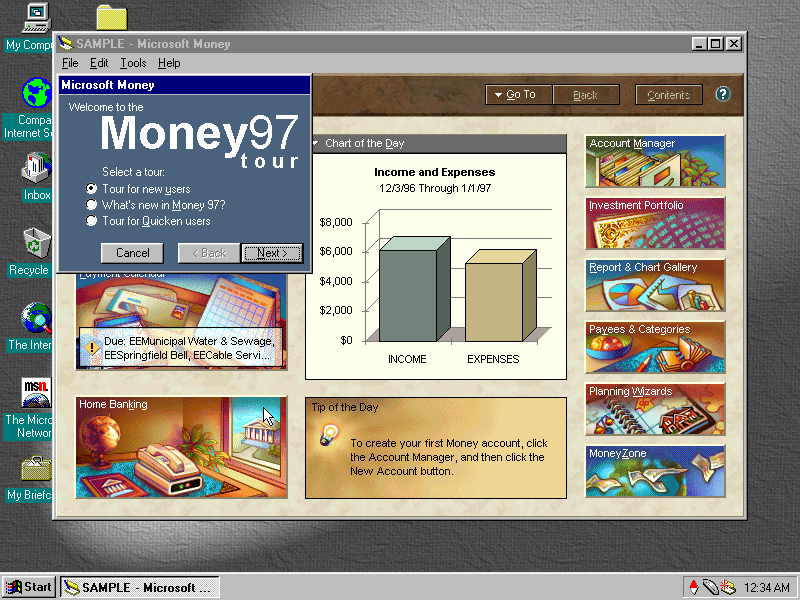
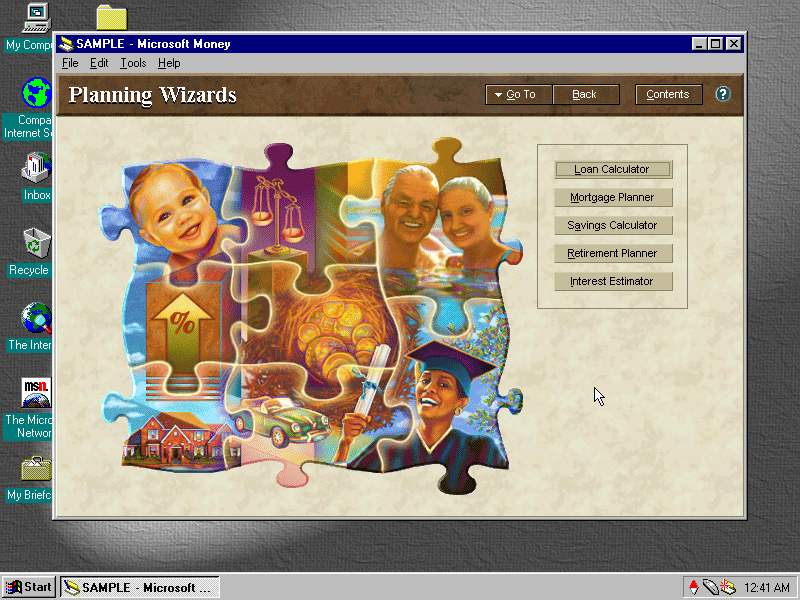
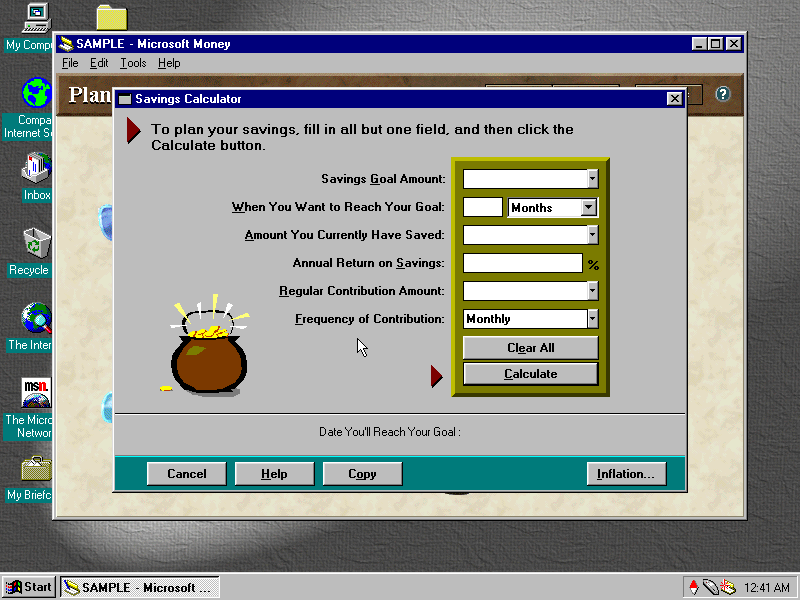
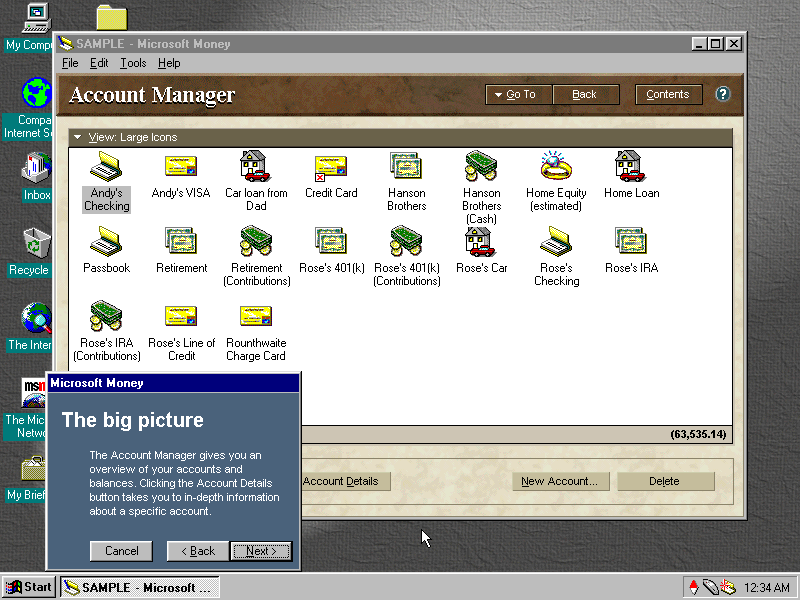
Money 97: Software to help manage your bills and bank accounts, before internet banking was widespread. I like the interface design and art used here, you defiantly wouldn’t expect to come across design like this in accounting software
AOL: Also bundled with the system and serves as the recommended ISP
































































 Drew1440: Blog