Samsung’s attempt to appeal to the high-end iDevice market.
Samsung’s Android line of handsets have always had their mass appeal style, prioritising form over function which is reflected in their handsets with removable batters, plastic covers that can easily be replaced and are cheap to manufacture and feature upgradable storage. The Galaxy Alpha gives up most of that, and serves to appeal to the market Samsung had struggled to capture.
Lets look at the Android experience Samsung has shipped with the phone.
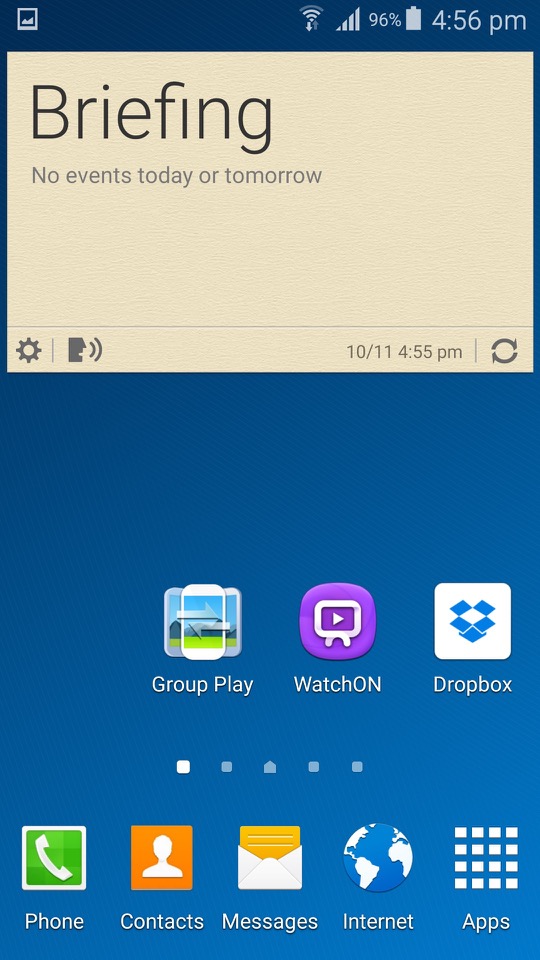
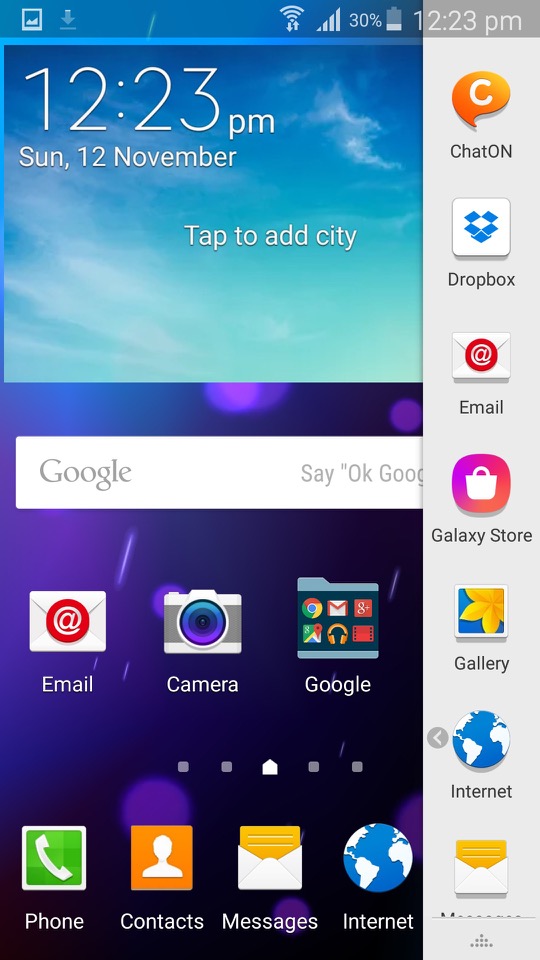
The home screen with the default wallpaper, which is a departure from the Bliss-like wallpapers on the Galaxy S4. This blends in with the premium design of the Alpha which Samsung had targeted.
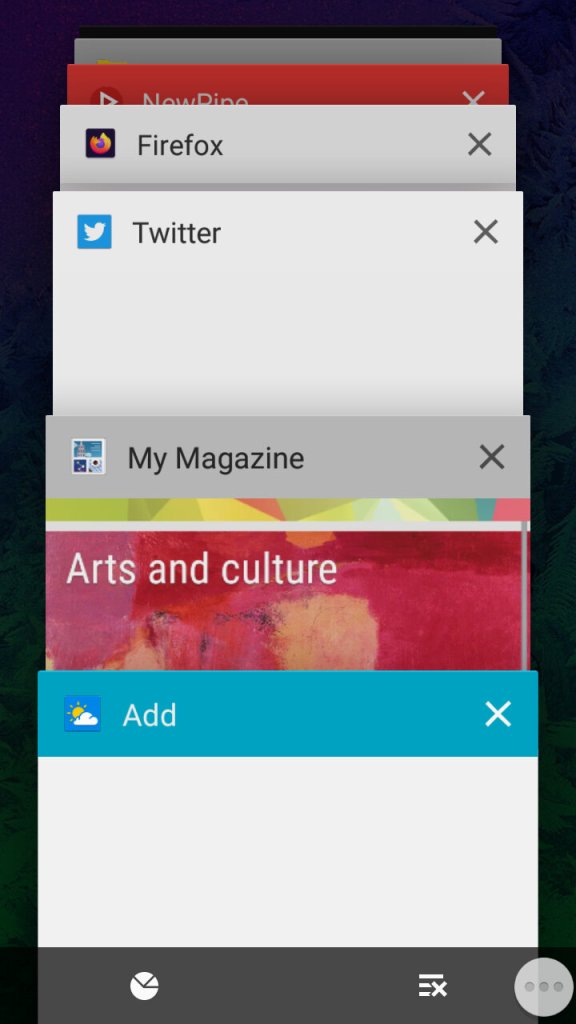
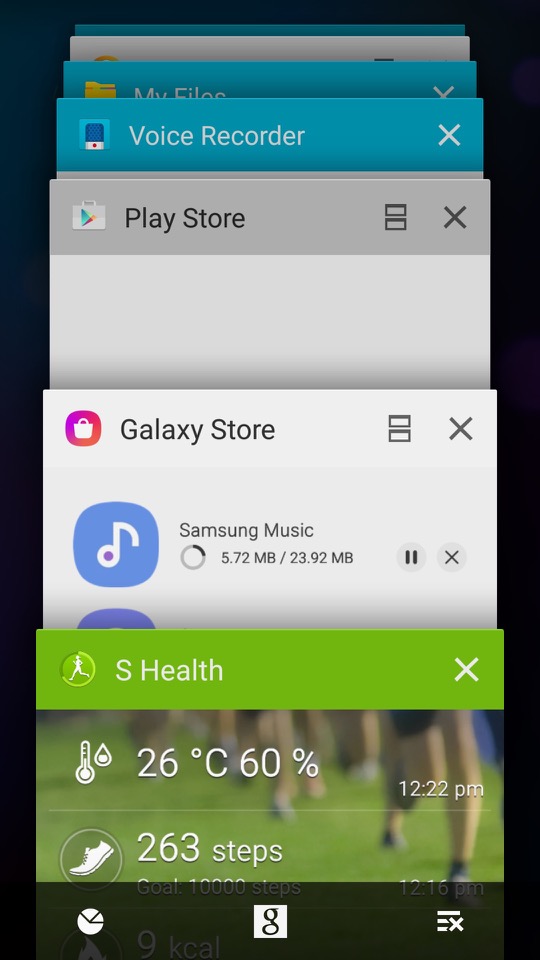
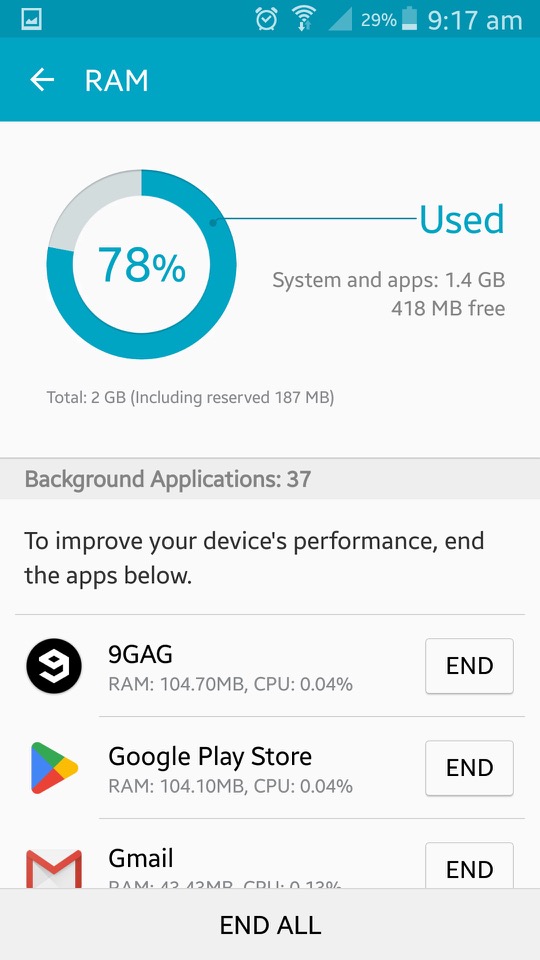
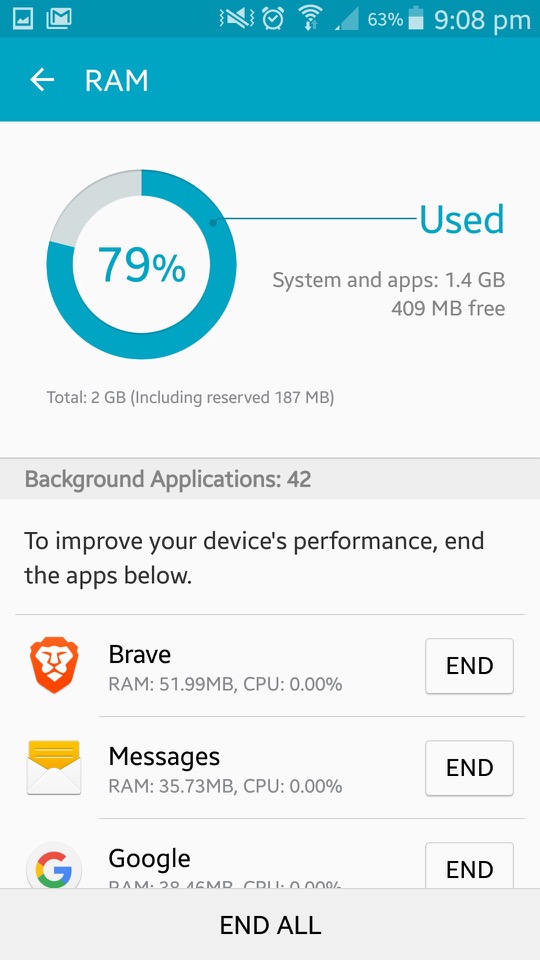
The task switcher that Samsung has added a dedicated button to access this, replacing the menu button on previous handsets. This brings it in line with other Android handsets that follow the stock button scheme, though the back button is still to the right of the home button. Tapping on the icons at the bottom will take you to the memory status where you can see what apps are consuming memory, and even end them. As Android manages your memory automatically and will liberate apps that aren’t in use, you normally don’t need to do this unless you have a malfunctioning app.
The button to the right will close all inactive windows.
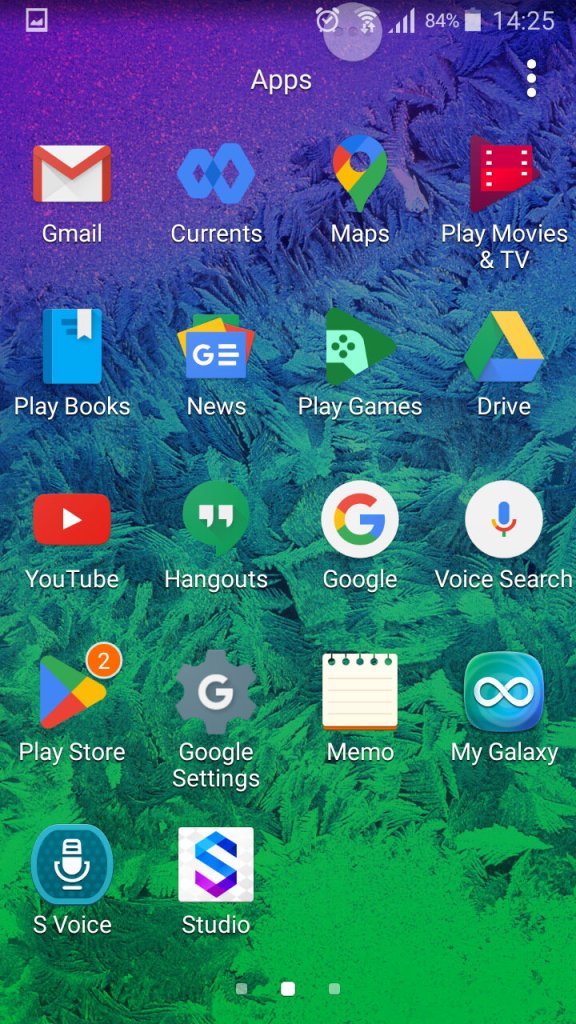
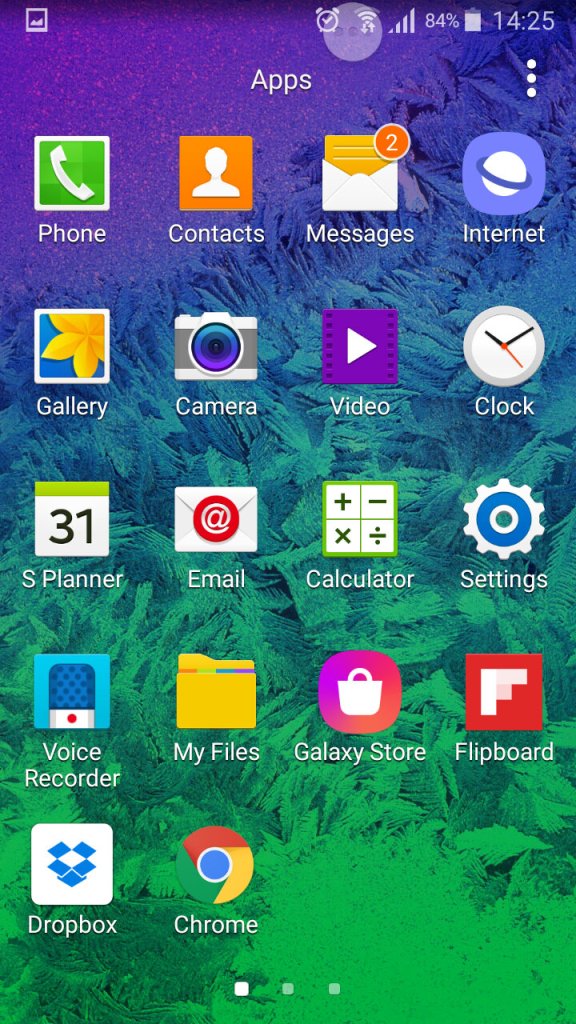
The list of apps, here you can sort apps by alphabetical, or in a custom order.
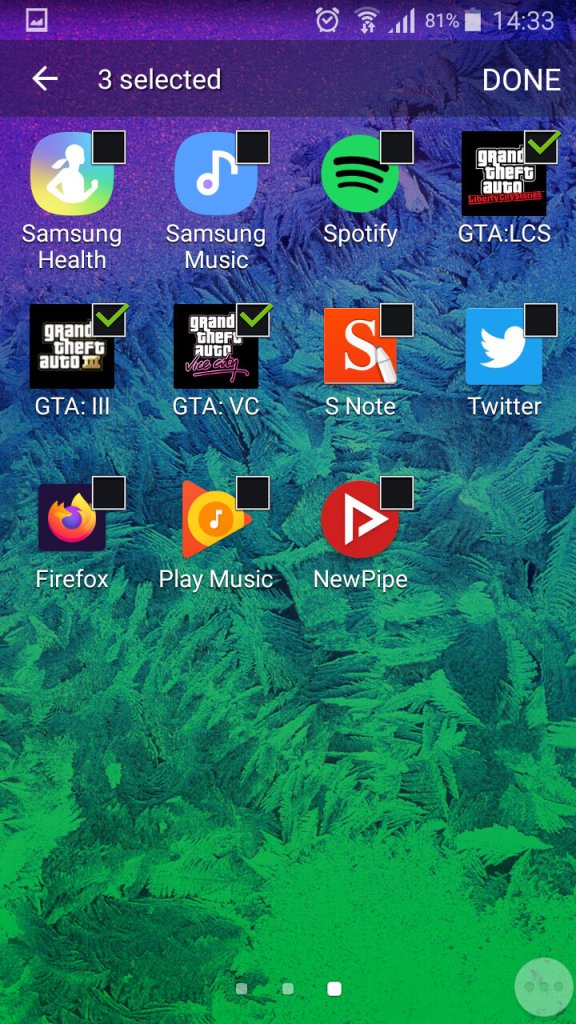
You can also create app folders to keep thing organised by tapping on the tree dots, then select ‘Add’, you cannot just drag an app over the folder icon like you can on the home screen.
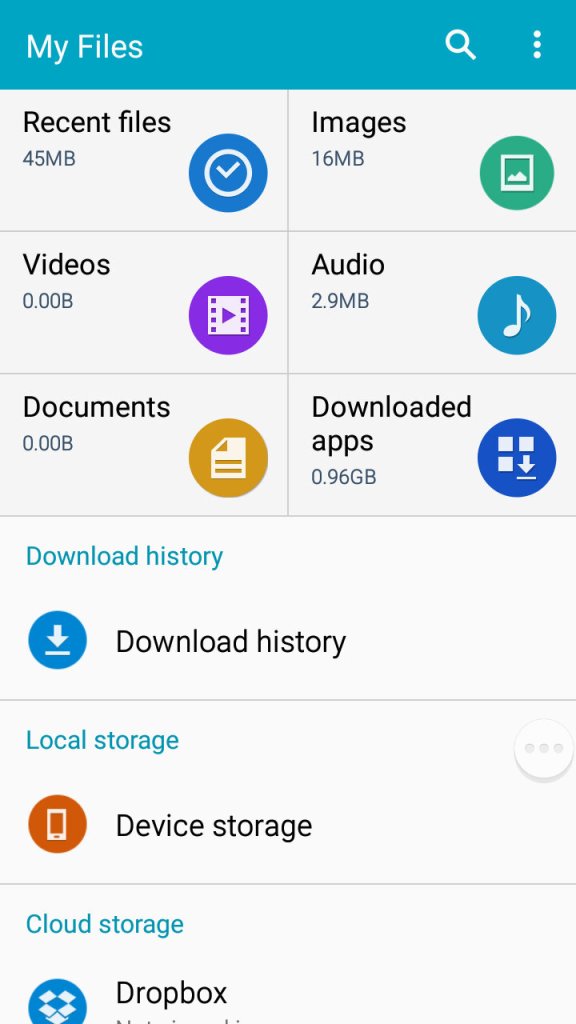
A look at the phones file manager. Unlike other Samsung handsets of the time, the Alpha only comes with 32GB Internal Storage with no option for a microSD card. Samsung would later do this for the Galaxy S6, to a negative reception.
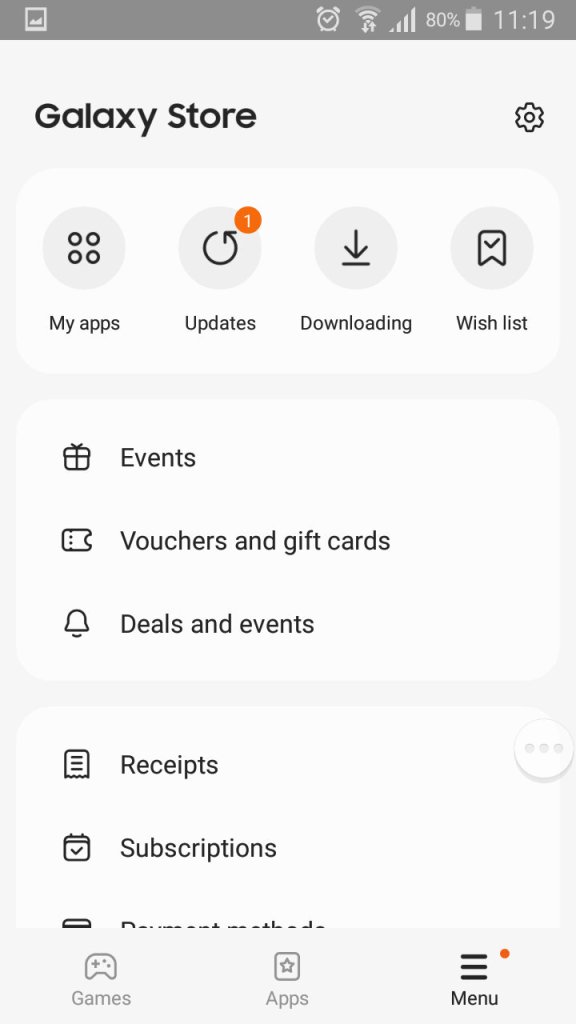
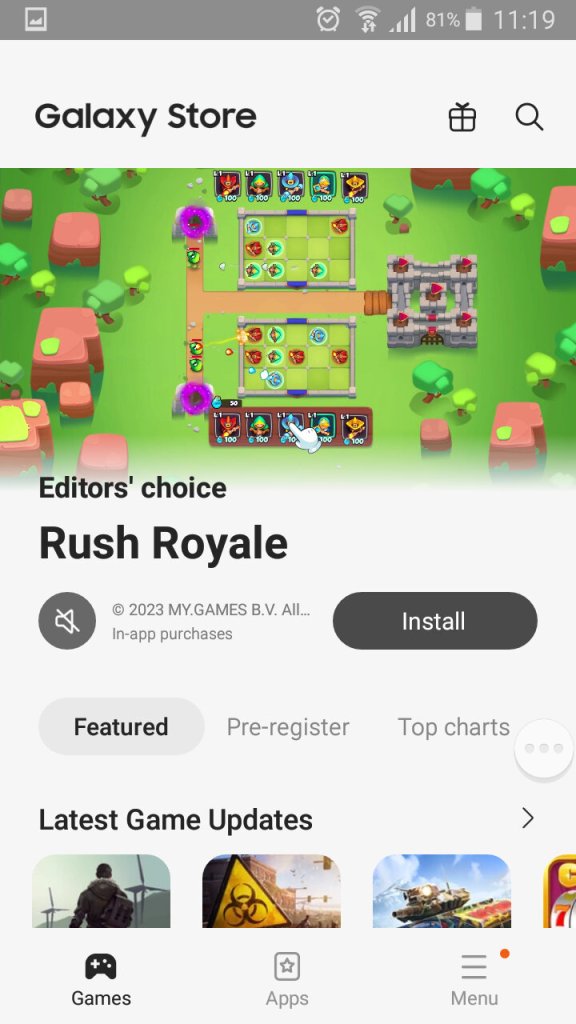
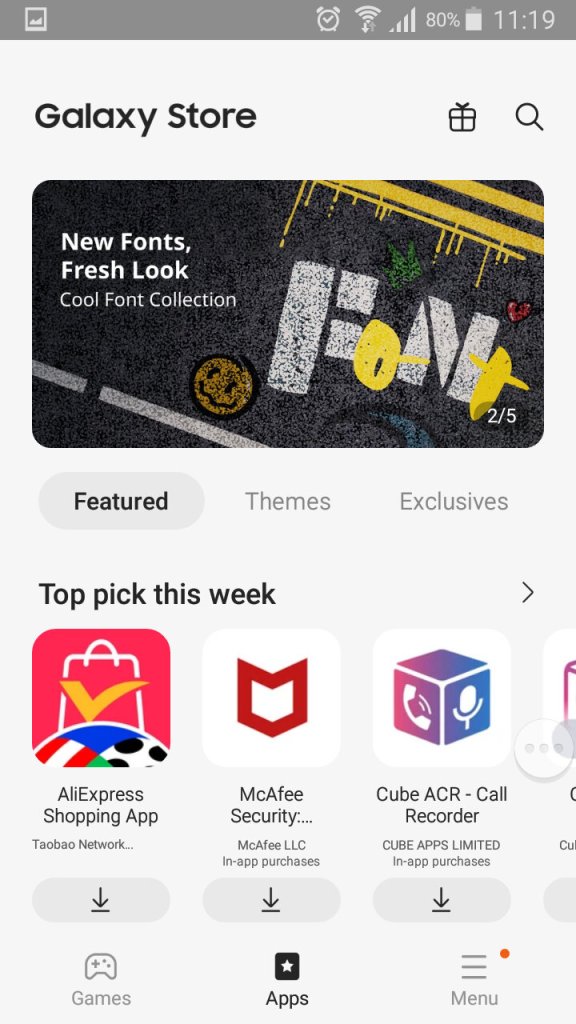
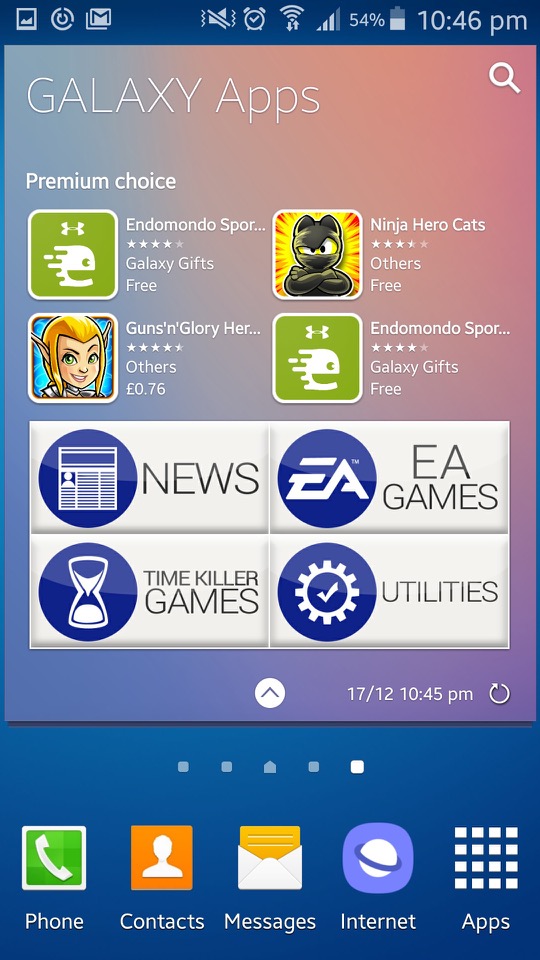
The Galaxy Store, which is Samsung’s own App Store and a alternative to the Google Play Store.
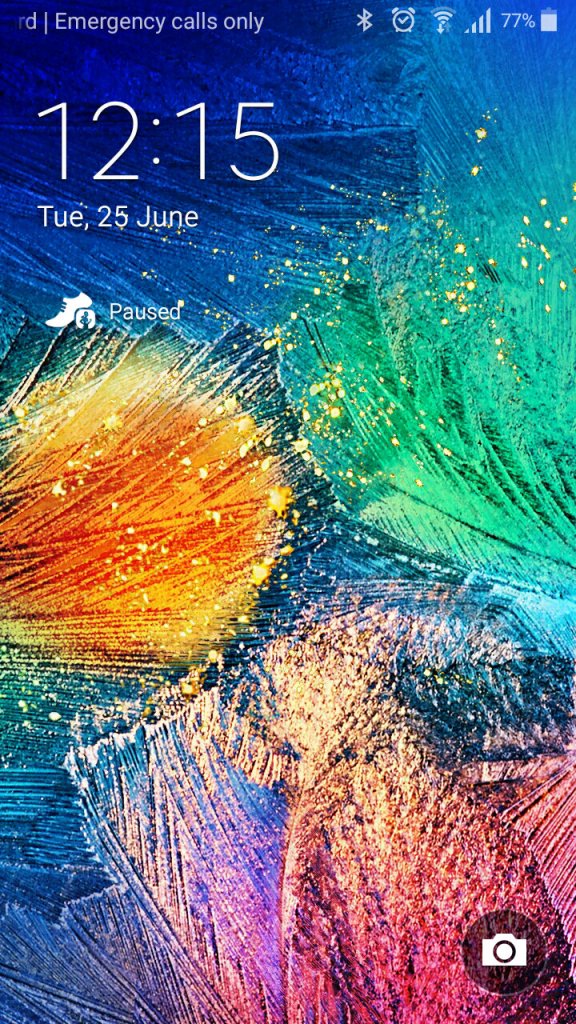
A very colourful lock screen, with Samsung adopting a different wallpaper styles for the Alpha, gone are the fields with blue skies that we say with the Galaxy S4. It’s a welcome change and gives the phone a more edgy appearance.
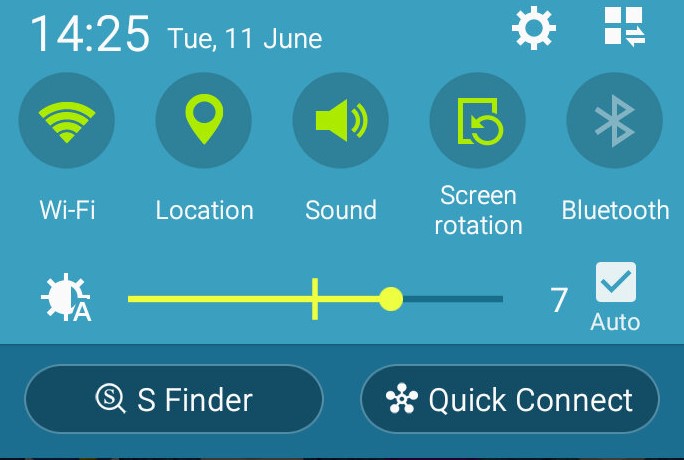
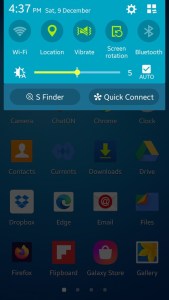
The dropdown still remains the same as the S4,
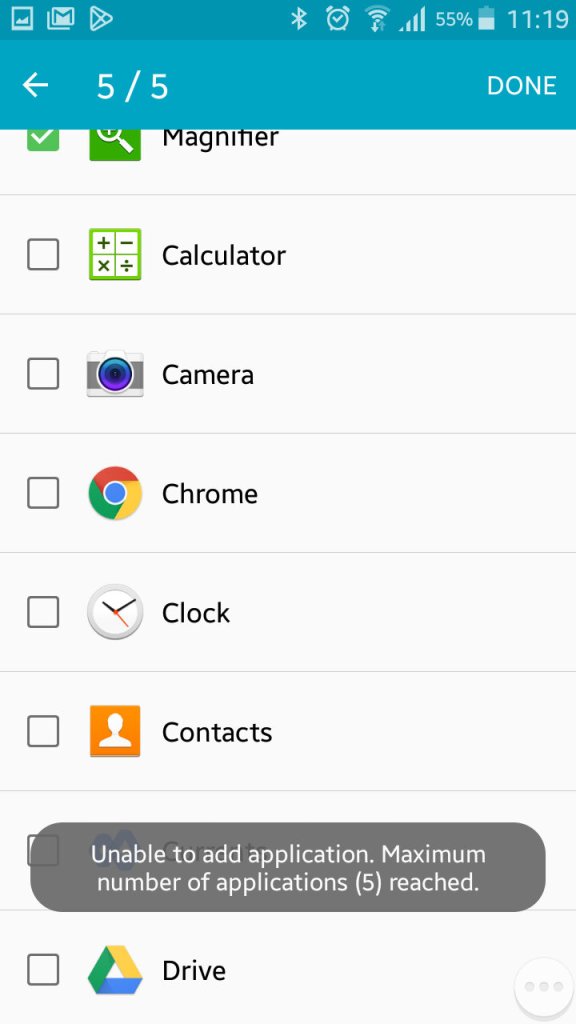
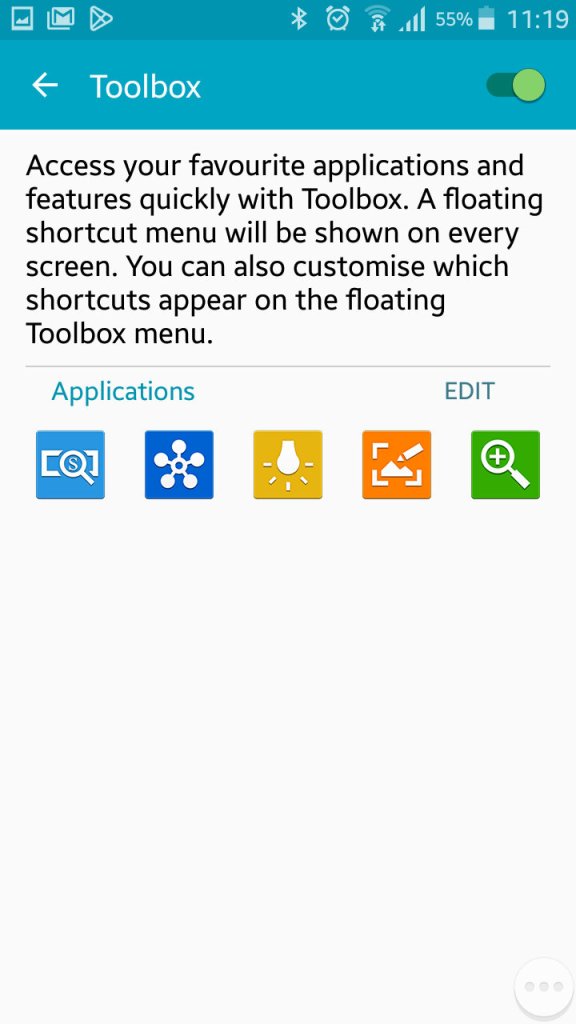
Once thing you might have noticed is a floating three-dot widget that you can press to open shortcuts. This is called the toolbox, you can quickly access the camera, take a screenshot, activate the flashlight and open QuickConnect. This can be turned off if you find this annoying as it does appear over all apps. You can also add additional apps, but you are always limited to 5.
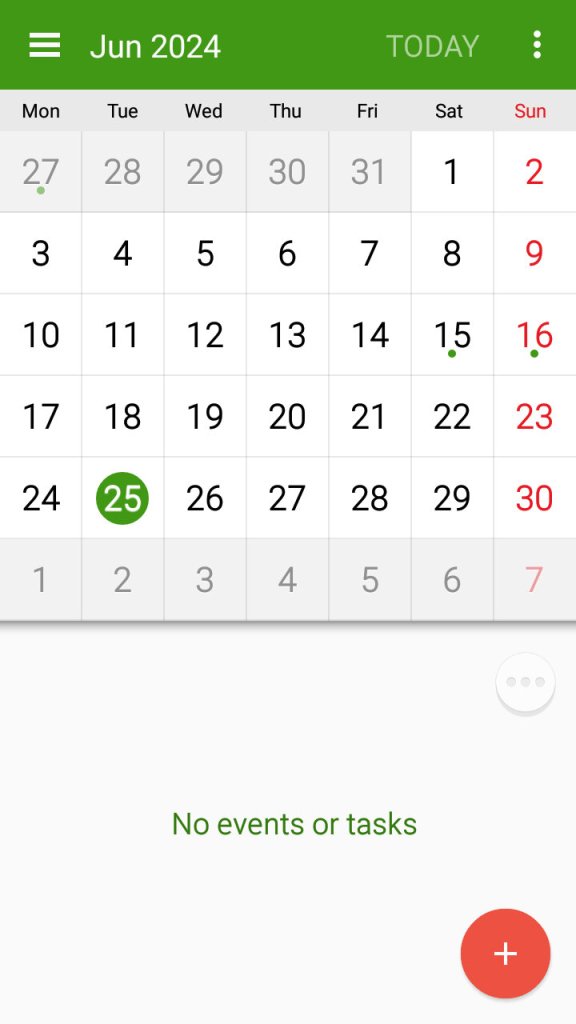
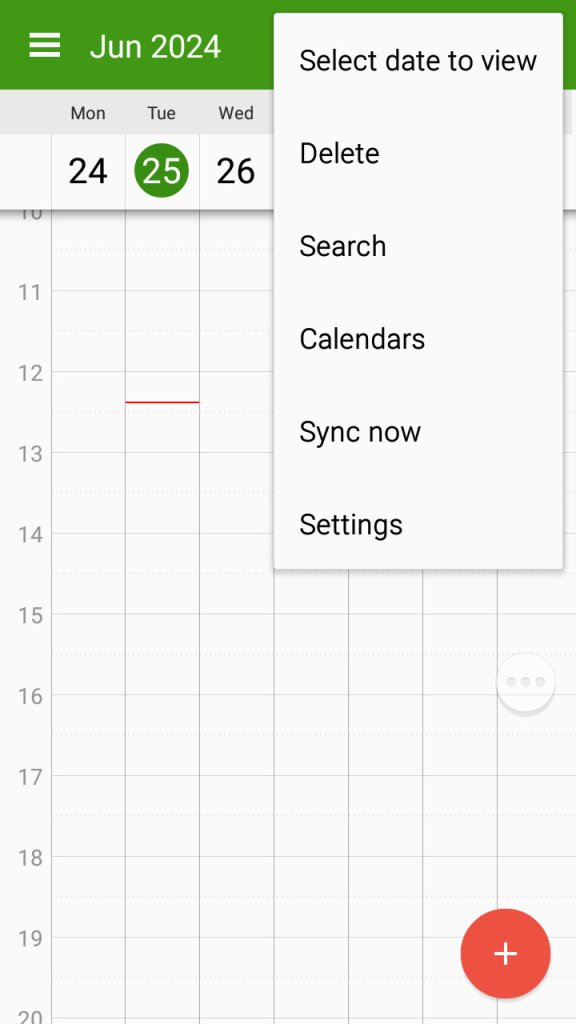
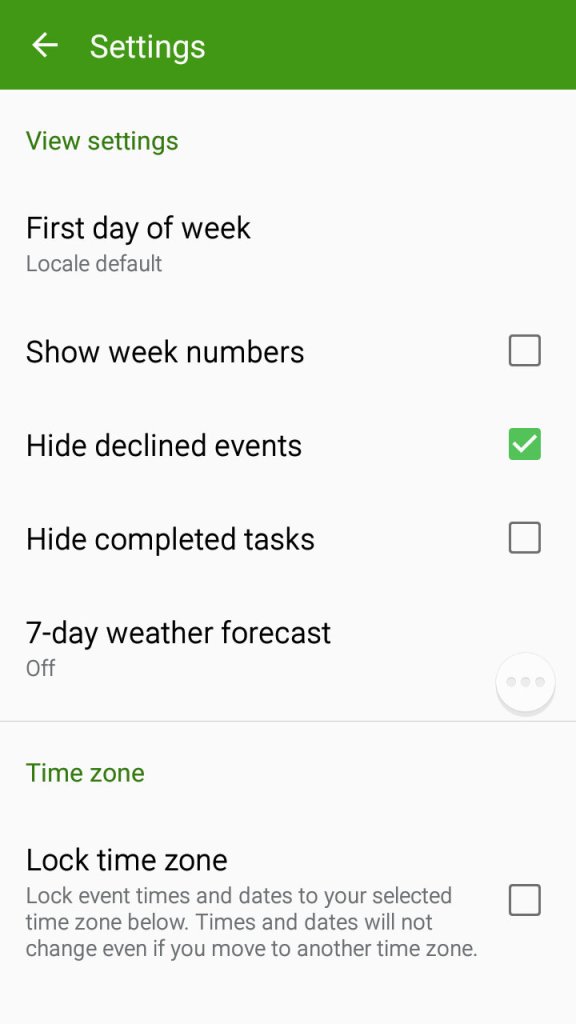
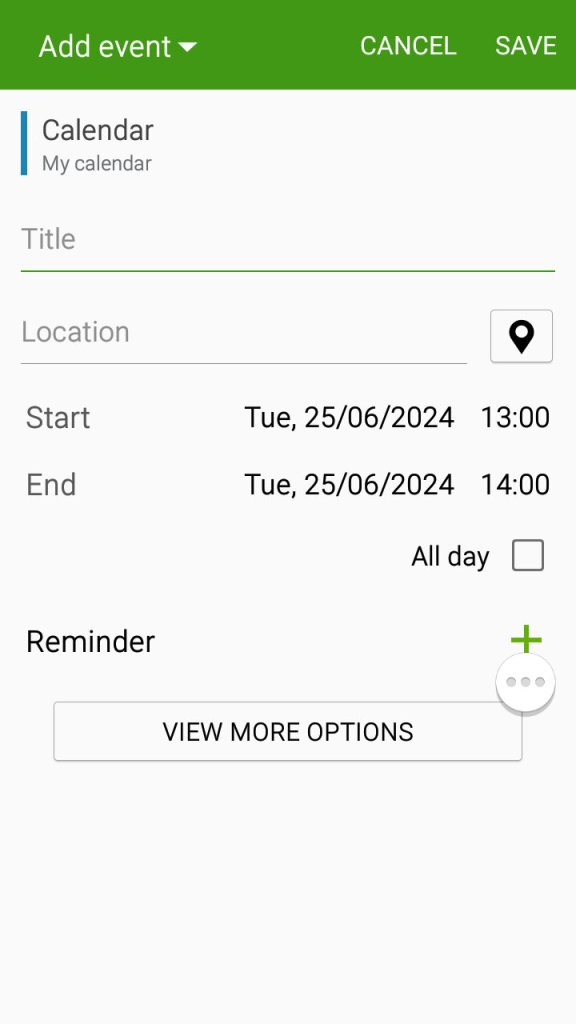
The S planner app which can be used to view the calander, set appointments and reminders and sync with Samsung or Google’s web calendar.
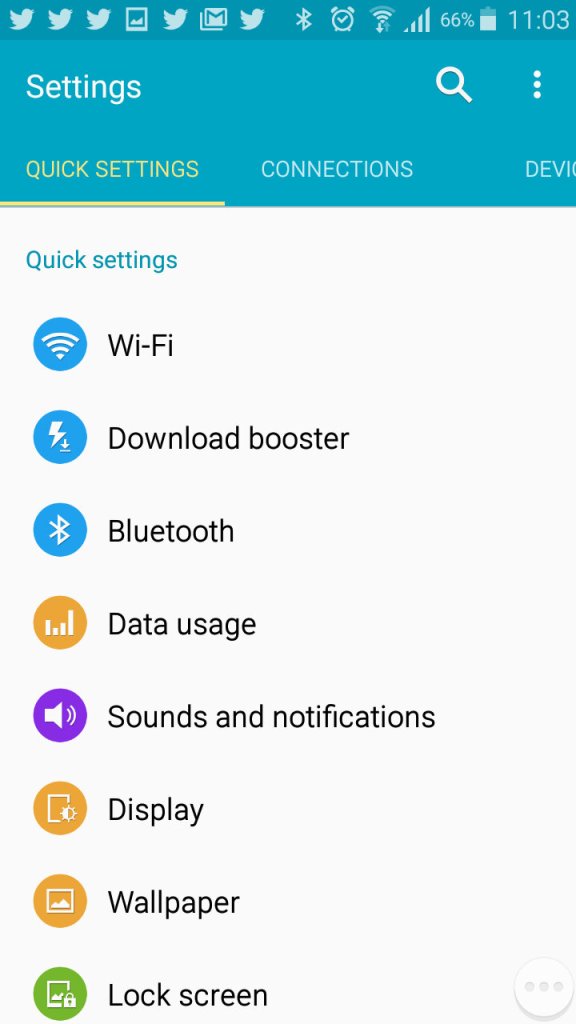
Settings Menu
A look at the setting menu which Samsung has reorganised
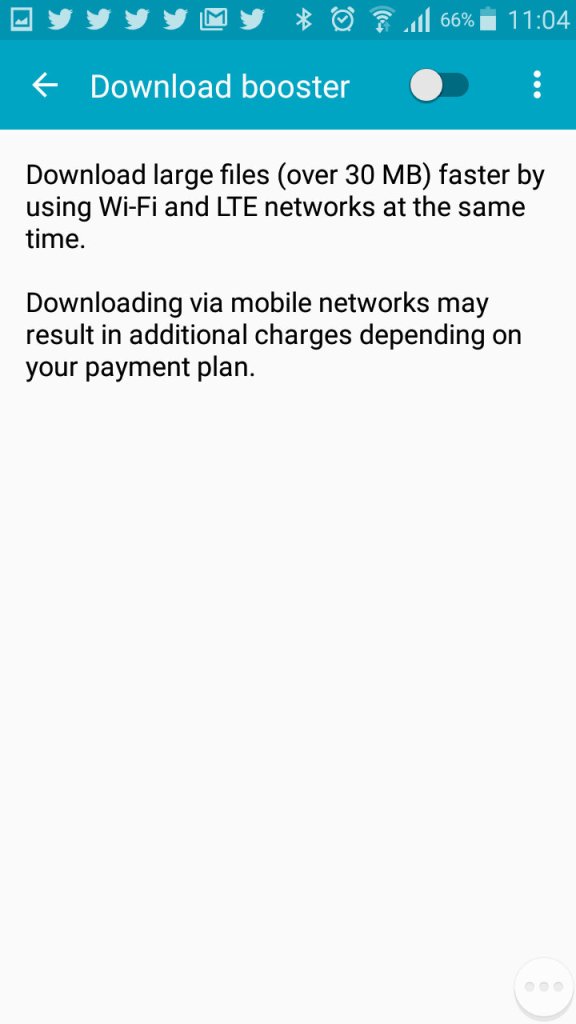
Download booster allows your phone to download using both the mobile network and the WiFi network, subject to the operator supporting this functionality
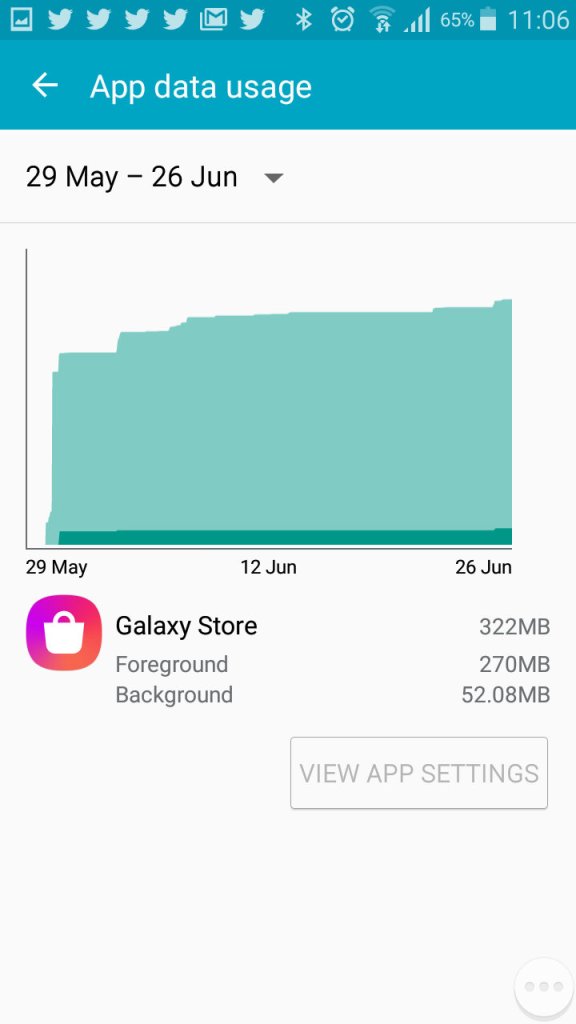
Viewing Android data usage
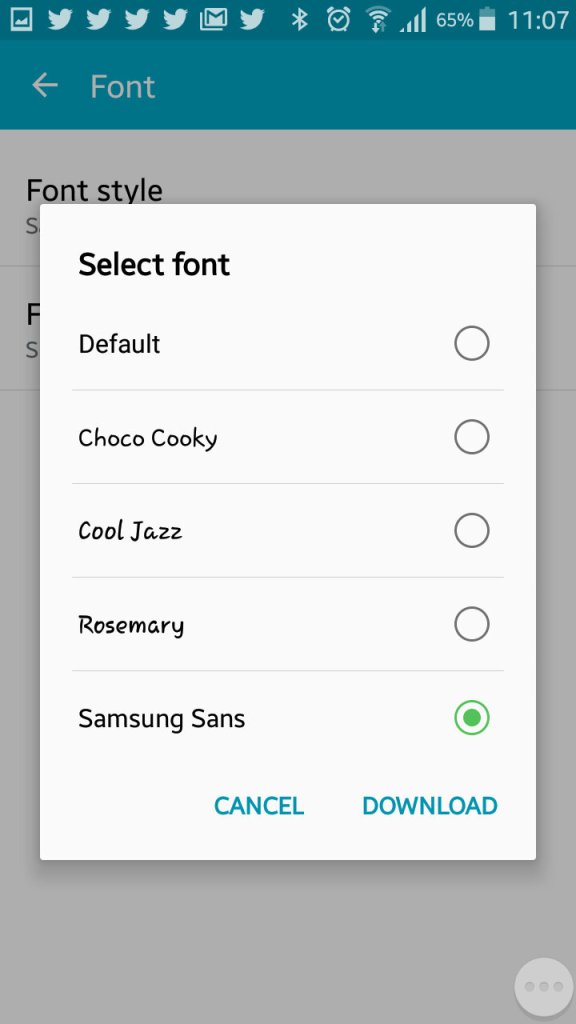
Samsung are one of the few OEM’s that allow you to change the active font of the device. You can also increase the font size to make the text more readable.
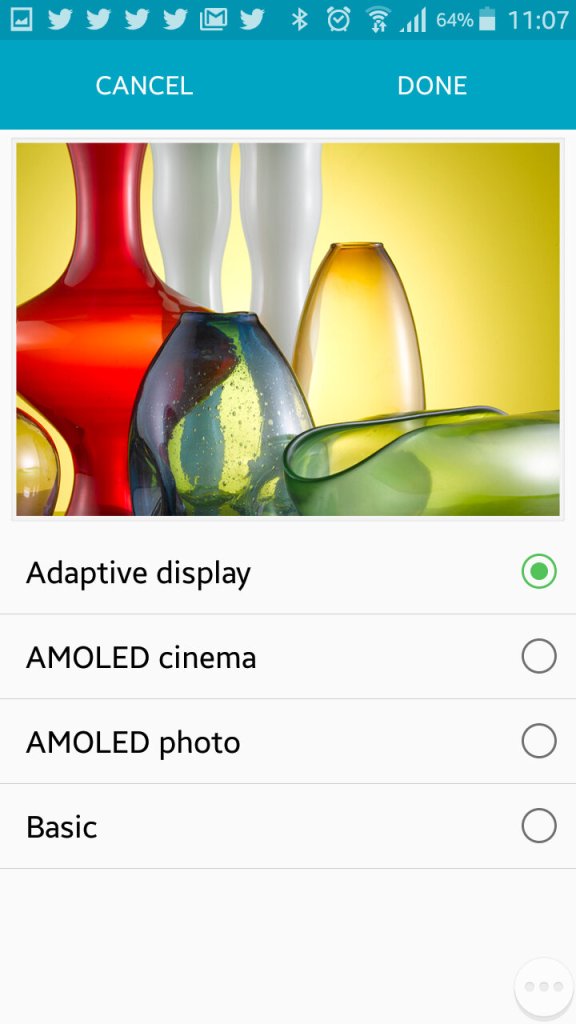
The adaptive display feature which adjusts the displays contract depending on the media or app you are using.
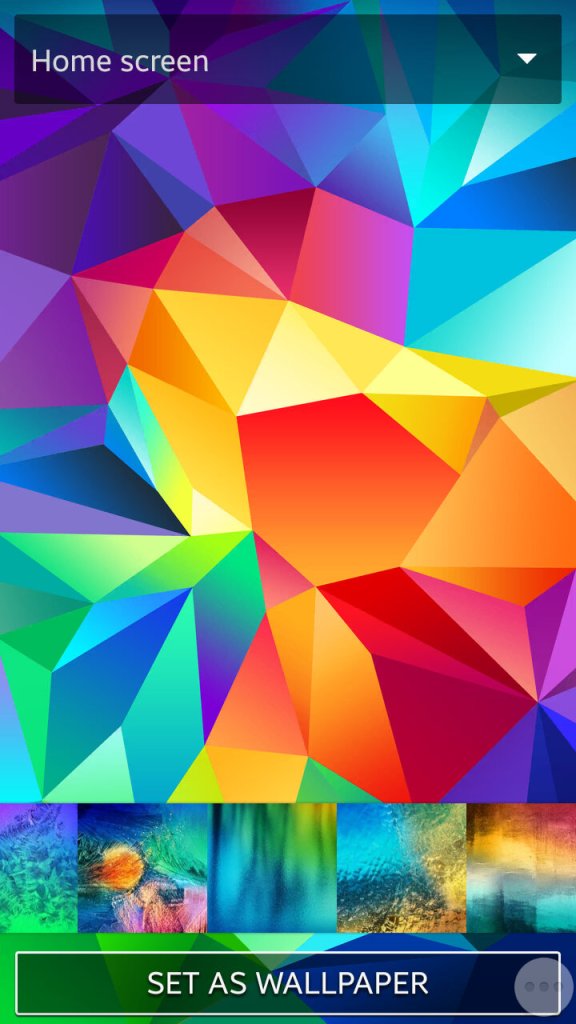
Setting the wallpaper and a look at the default wallpapers that shipped with the phone
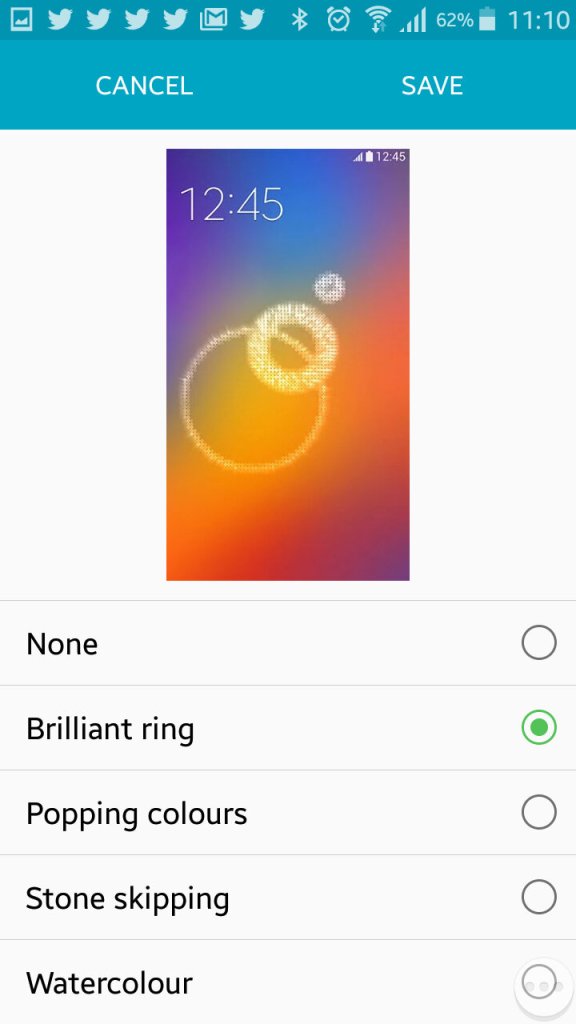
Changing the unlock animation that plays when you swipe your finger on the lock screen.
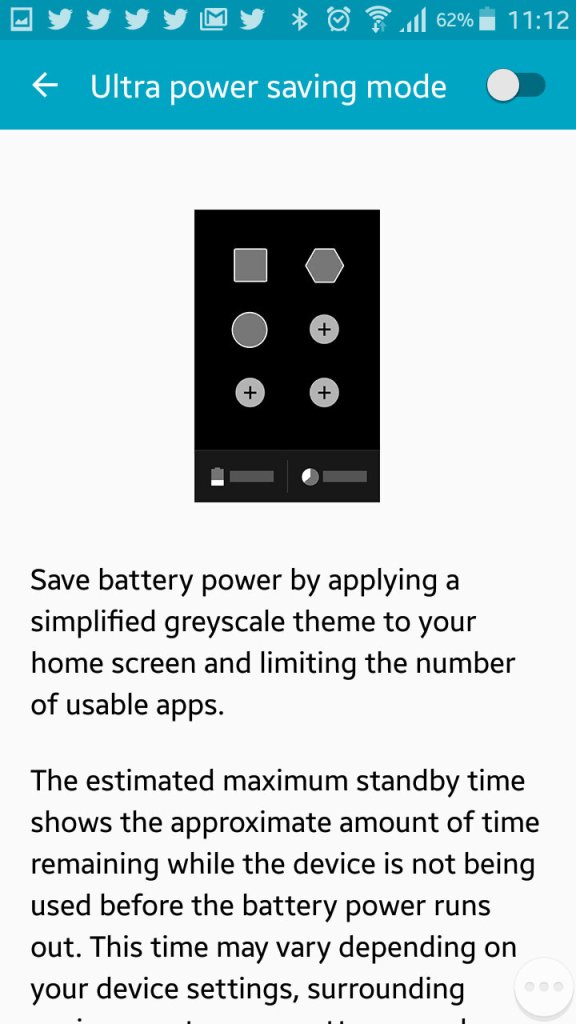
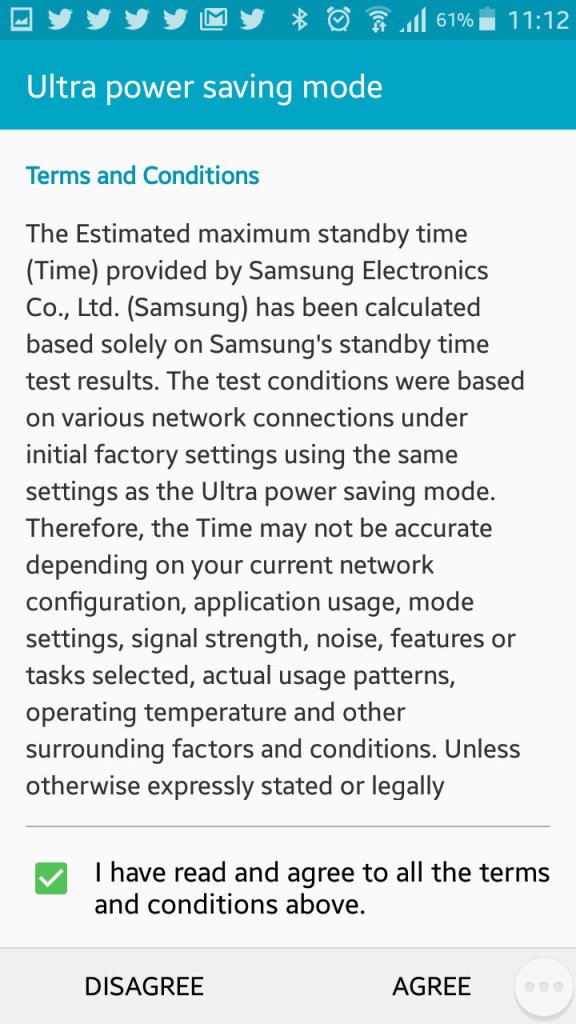
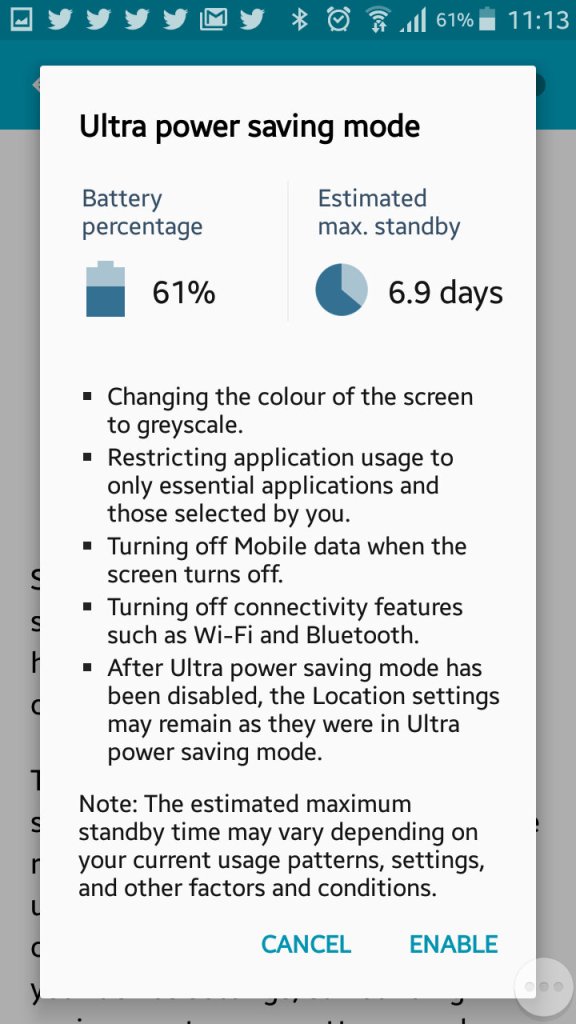
Ultra power saving mode, when enabled will change the display to greyscale mode and will restrict the apps that canoe run on the device. Ideal if you will be away for while and wont have access to a power supply. Apps can still run though you are very limited to the ones that can run, Twitter was the only third party app that could be run in this mode.
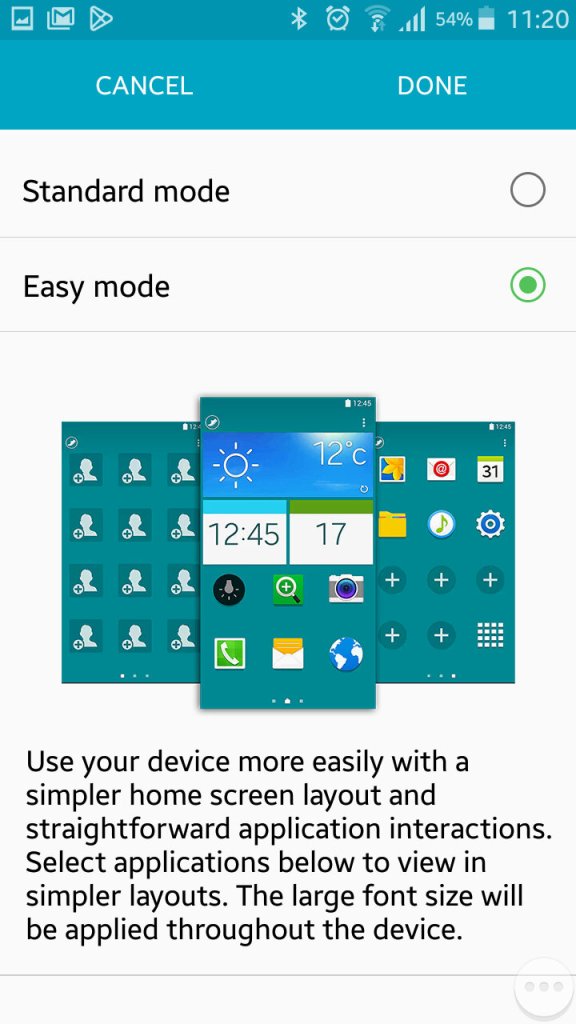
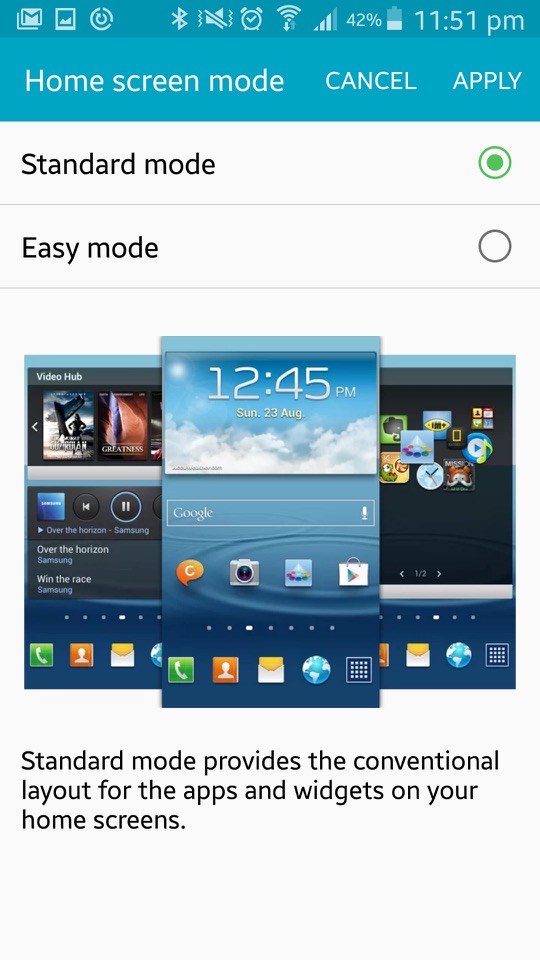
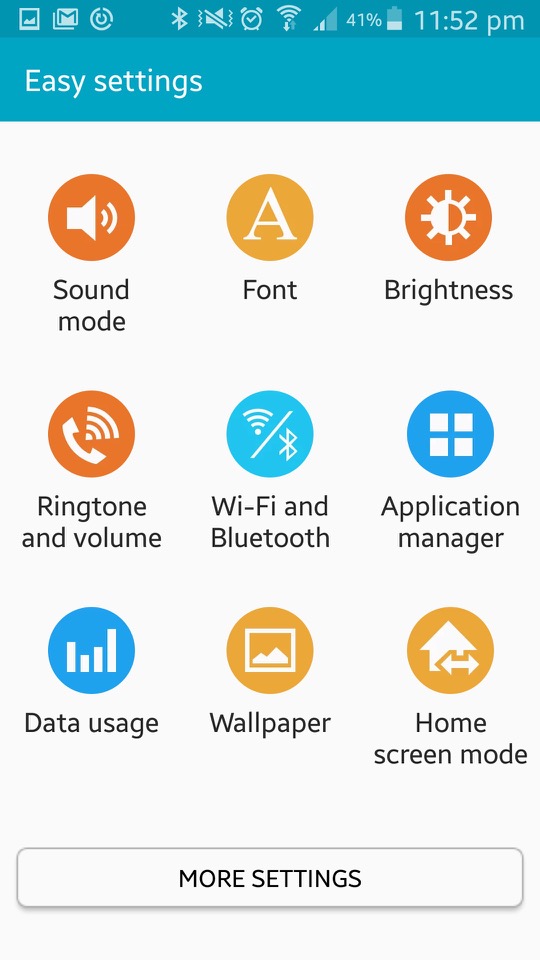
Easy mode makes the phone more simple to use for users who are not experienced with Android handsets
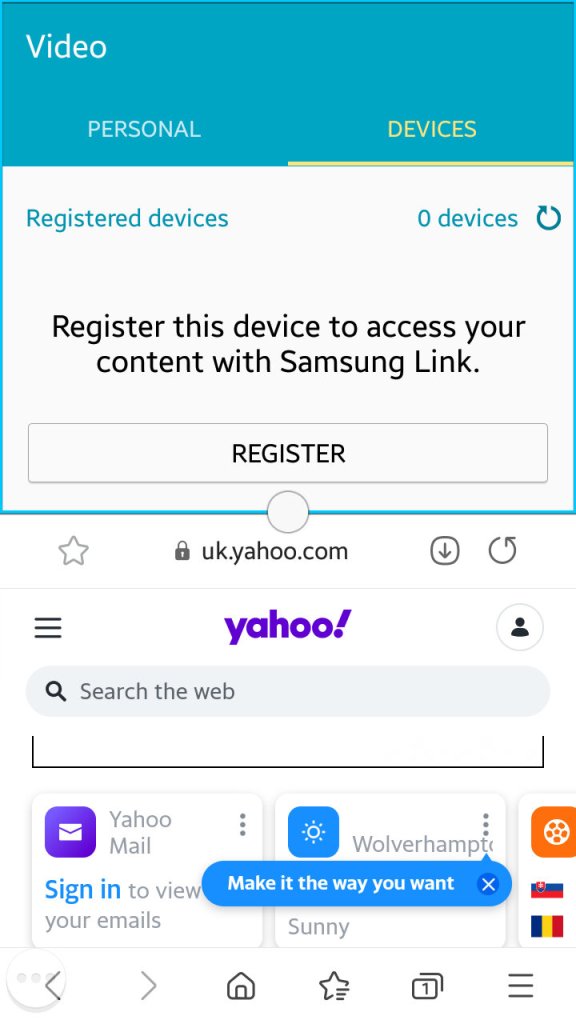
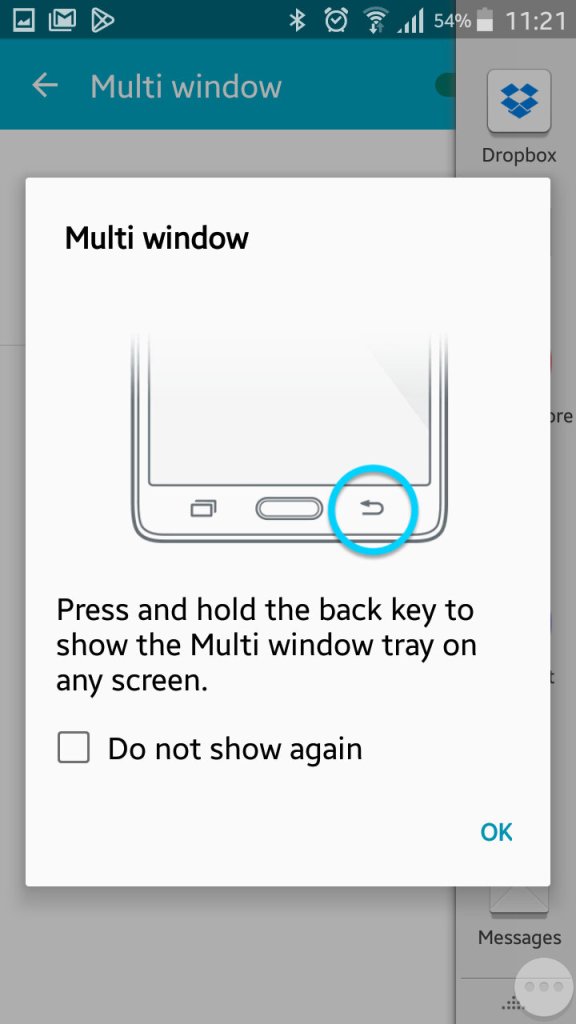
Multiwindow allows you to open multiple apps in a small window to be viewed on the same screen. Here you can split screen apps and have a Youtube video in one part of the screen whilst you browse the internet with another. Whilst handy it’s limited by the 4.7 inch screen, defiantly something that was useful on the Note series of phones.
Enabling it can be down by bringing up the list of apps and tapping on the split screen icon, this can only be done with supporting apps.
The S4’s design it’s a Samsung, it’s that familiar plastic build. It’s lightweight, and some might say a bit on the cheap side compared to some competitors like the HTC One. But it’s got that removable back for the battery, and that can be a plus. The display, though, that’s where Samsung shines. A beautiful 5-inch Super AMOLED screen with a 1080p resolution. Colors pop, blacks are deep, it’s a joy for media consumption.
Under the hood, it’s packing either a Snapdragon 600 or an Exynos 5 Octa, depending on your region and network operator. The Snapdragon models feature 4G support, which was still an emerging technology. For providers that didn’t support 4G, the Exynos process was provided instead. There is a performance difference between the two given the different amount of cores. This does seem unfair as some will have a different experience of the S4, depending on what apps they use. Its a tough issue for Samsung as they design their own Exynos processors (Samsung are big in the semiconductor space) and whilst they cam compete in performance, Qualcomm have the upper hand with baseband technology and are able to integrate 4G LTE into the SoC themselves, which would require a separate processor in the Xenon at the cost of size and battery power. Still, why not call it the Galaxy S4G instead of causing confusion?
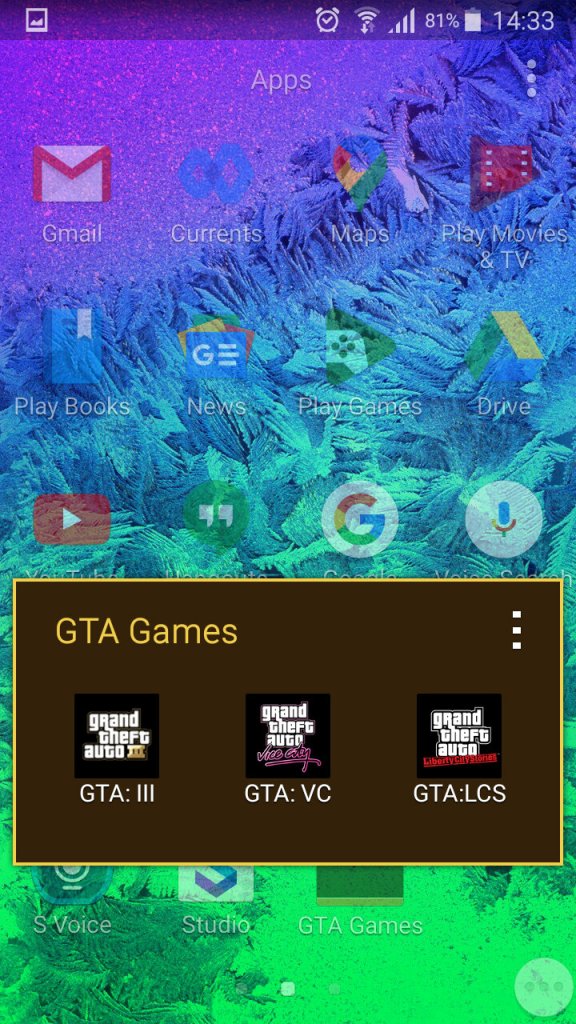
Gaming performance is Ok, with it being able to run the mobile port of GTA III as decent frame rates. The PowerVR SGX544MP3 is put to good use here (Adreno in the Snapdragon model)
The phone mainly competed with:
Sony Xperia Z – The Xperia had a better camera, offered dust and waterproofing, both both feature the Snapdragon 600 processor
LG G2 – The G2 had a larger screen and came with the Snapdragon 800 processor.
HTC One M7 – HTC features a more premium metal design which make the S4 look cheap with his plastic covers, still no removable battery. The HTC also used the Snapdragon 800 processor but falls short with its screen size of 4.7 inches.
Nokia Lumia 1020 – The Lumia had a smaller screen and ran a different operating system (Windows Phone) but had a much more impressive camera. Samsung would later release the Galaxy Zoom as a response.
Launcher
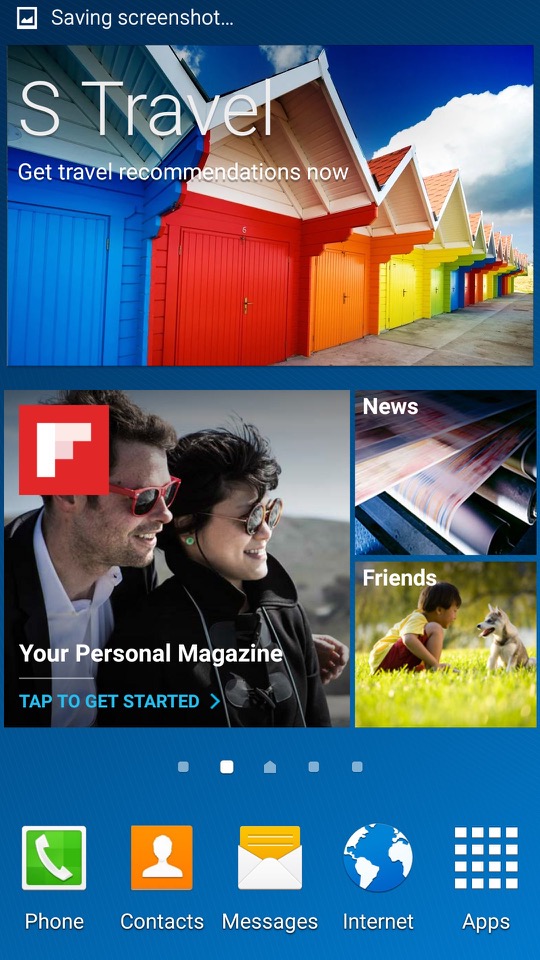
TouchWiz makes an appearance and is the default launcher that come with the phone. Some hate it, some prefer it, personally I’m indifferent abut it.
One of the cool things about TouchWiz is the widgets. They’re like little magic squares you can throw on your home screen to get quick info or control certain features. Weather, clock, music player – you name it, there’s a widget for it.
TouchWiz is like the playground where you get to customise your Galaxy S4. It’s Samsung’s own flavour of Android, and it’s all about making your phone truly yours. You can tweak, twist, and customise your home screen until it screams “you.”
Need to toggle Wi-Fi, Bluetooth, or brightness in a flash? TouchWiz brings you the quick settings menu. Swipe down, and there they are, your shortcut buttons to the most-used settings. Easy peasy.
Easy Mode
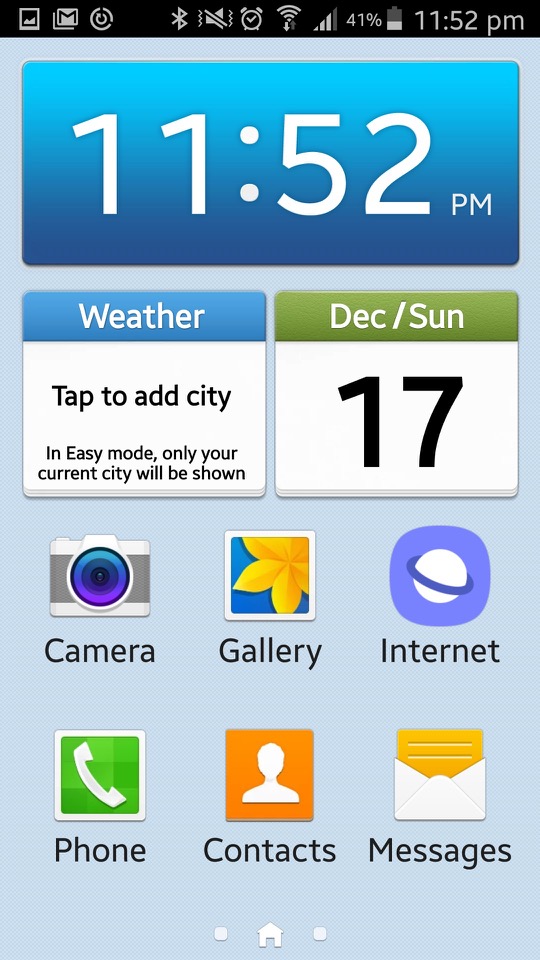
Easy Mode is like turning your Galaxy S4 into a smartphone for beginners. It simplifies everything, giving you a clean, stripped-down interface. Think of it as the “no-frills” version, perfect for those who want a straightforward, easy-to-use experience. In Easy Mode, everything gets a size upgrade. Icons are bigger. Fonts are larger. The goal is to make things super easy to see and tap, especially if you’re not a fan of squinting at your phone.
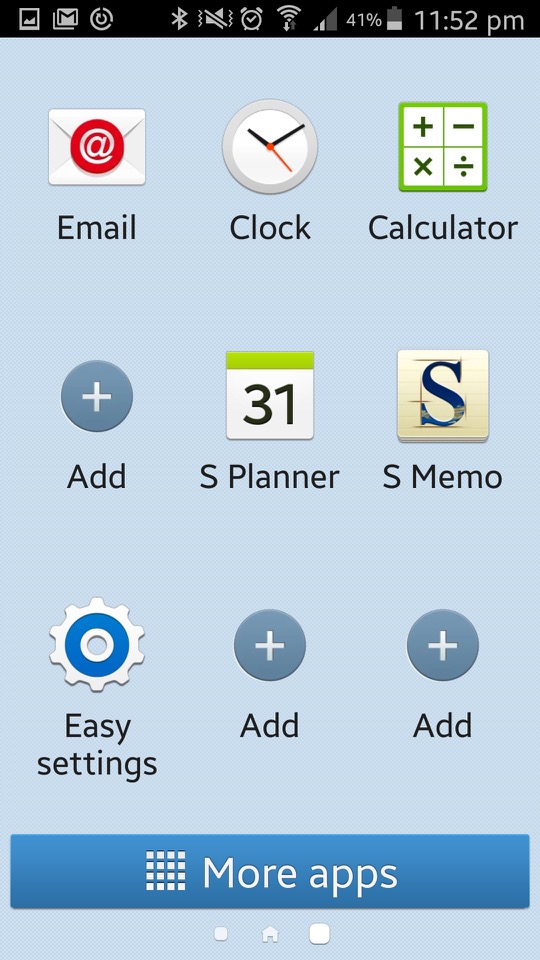
Easy Mode focuses on the basics. You get the must-haves right on your home screen – phone, contacts, messaging, and camera. No unnecessary apps hogging space. It’s like a minimalist’s dream. If you’ve got a tech-challenged grandma or anyone who’s new to the smartphone game, Easy Mode is like a gentle introduction. Less confusion, more simplicity. Grandma will be texting and calling in no time. Settings can be a maze, right? Not in Easy Mode. They’re straightforward, stripped of complexity. Adjusting things becomes a breeze, even if you’re not a tech genius.
Bundled Apps
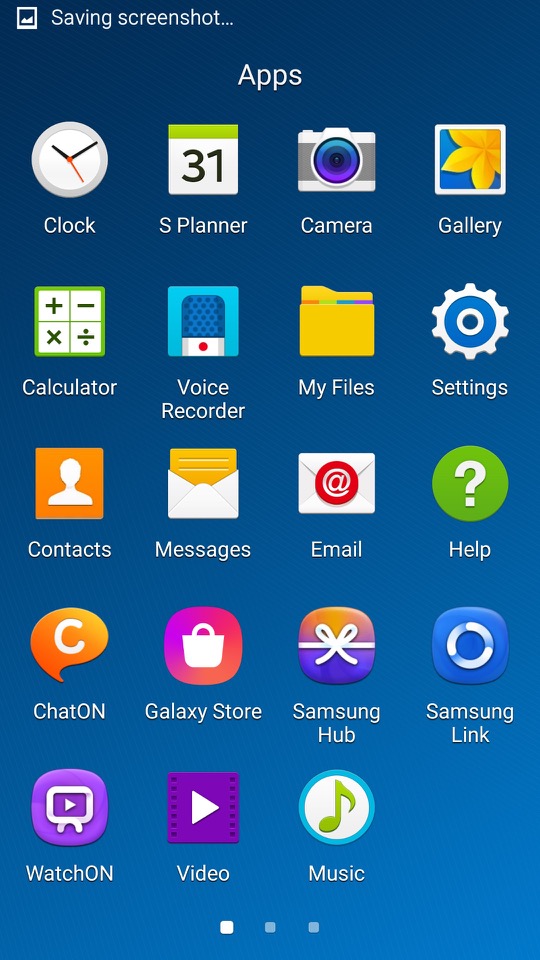
ChatON: Samsung’s version of WhatsApp, a cross platform rich SMS service
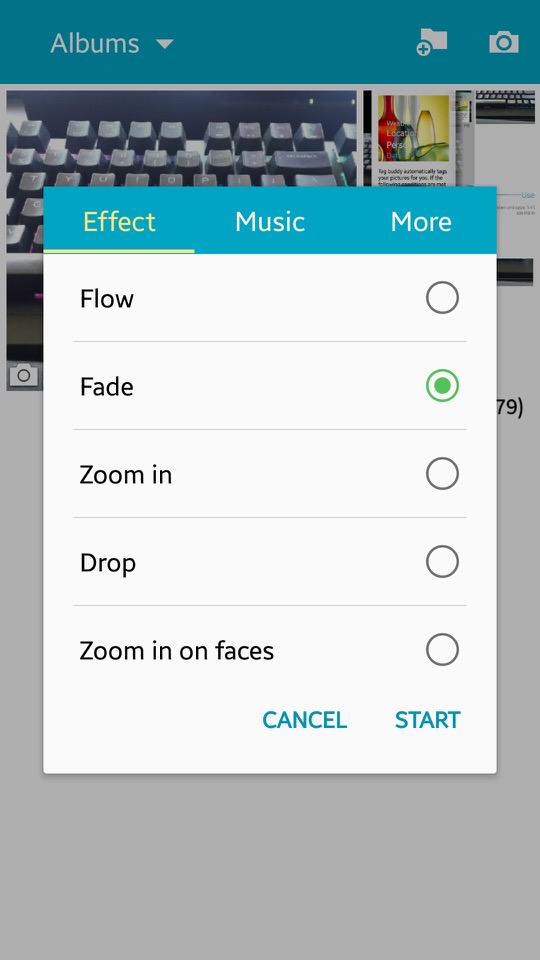
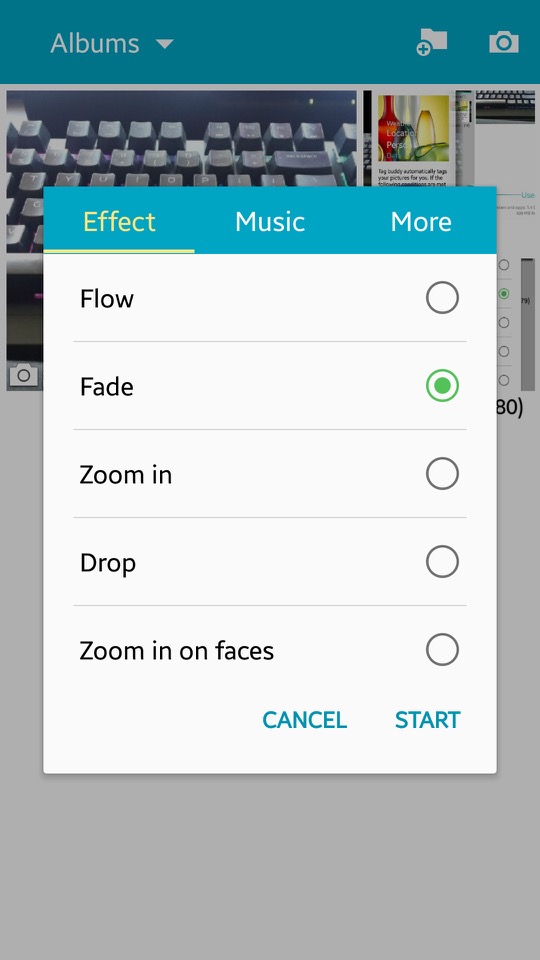
Gallery: Photos captured by the camera can be viewed here. You can sort phots into specific albums, and create collages of different images. A slideshow can also be displayed, of which you can select the transition effects and play a background music track.
Flipboard: News app that recommends articles based on the users interests
Group Play: Similar to what was included on previous models, you can play the same media on multiple devices.
Internet: Samsung had started to bundled a customised web browser, based on chromium
KNOX: Samsung KNOX is all about locking down your device, especially if you’re using it for work. One of the cool things about KNOX is this dual persona mode. It’s like having a split personality for your phone – one side for your personal stuff, memes, and cat videos, and the other side for serious work or handling sensitive information. Now, for you tech commanders out there, KNOX lets you take control. You can remotely manage your fleet of devices, set policies, and even wipe things clean if a device goes rogue. This is very useful for enterprise use.
Messages: Default SMS and MMS app. Messages here are offered in a threaded view.
My Files: The phones default file manager, can be used to browse files on both the internal storage and the microSD card if one inserted.
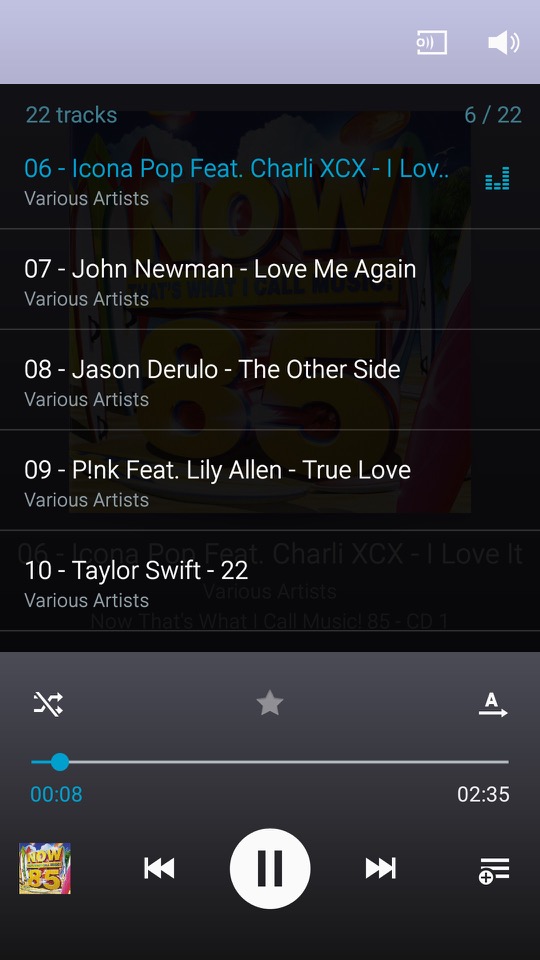
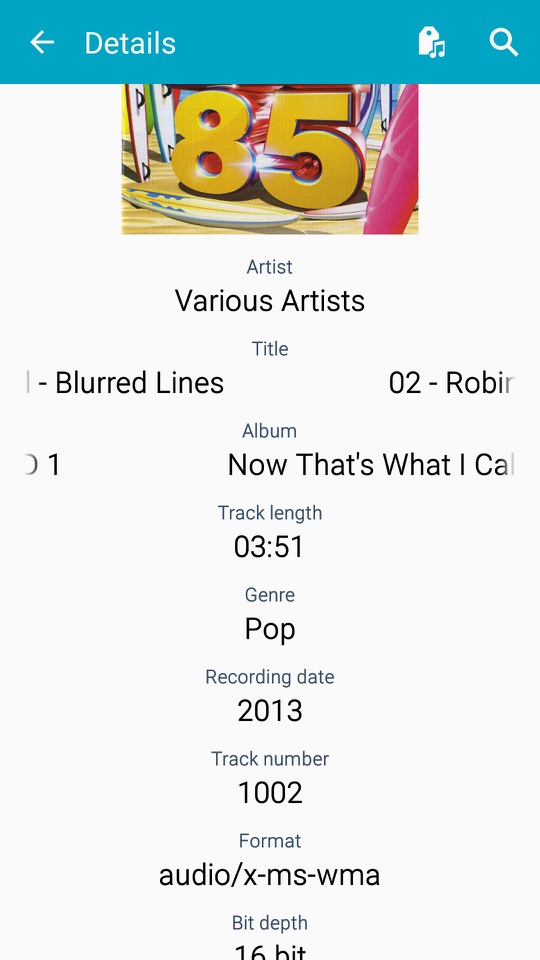
Music: The default music player that comes with the phone, very similar to what we got with the S2
Optical Reader: OCR that converts text on images into actual text.
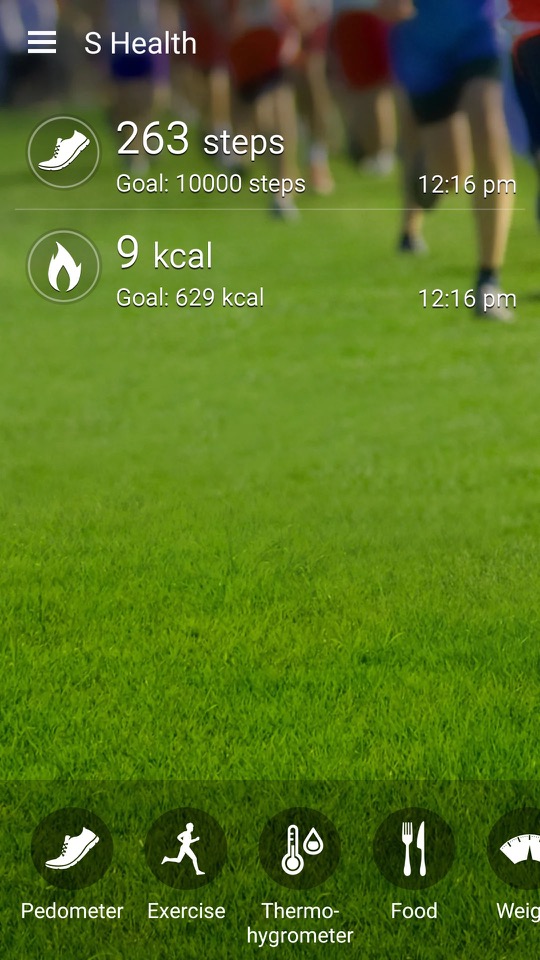
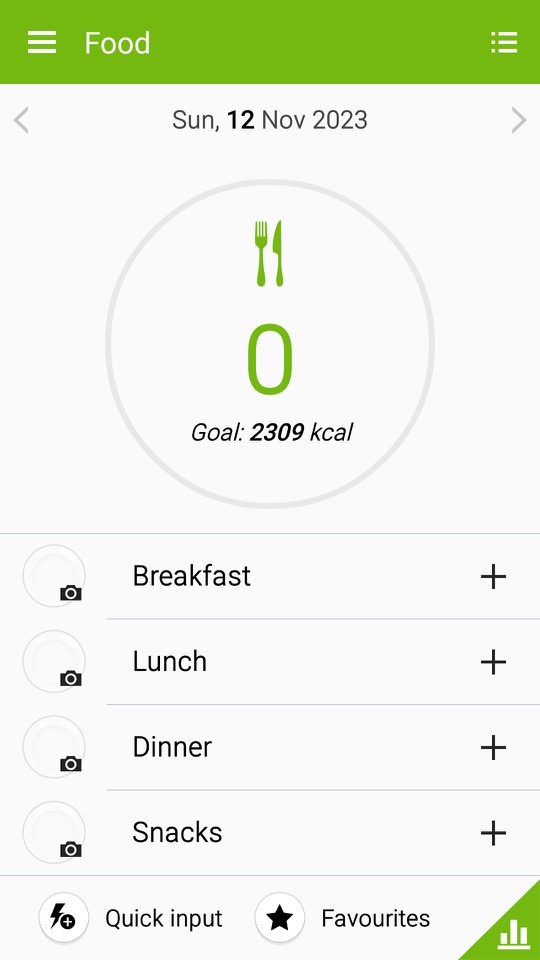
S Health / Samsung Health: A health and fitness application developed by Samsung. It was designed to help users monitor and manage various aspects of their health and wellness. The app offered a range of features to support fitness tracking, nutrition monitoring, and overall well-being. At some point this was rebranded as Samsung Health and featured a new user interface. S Health included a pedometer to track the number of steps a user took throughout the day which aimed to encourage physical activity and help users set daily step goals. Users could also manually log various types of exercises and workouts, such as running, walking, cycling, and more. The app provided information on duration, distance, and estimated calories burned. Very similar to the Fitbit or MyFitnessPal which are aimed to make the user aware of their lifestyle and health.
S Planner: calendar and scheduling application developed by Samsung. It was designed to help users organise their events, appointments, and tasks in a convenient and visually appealing manner.
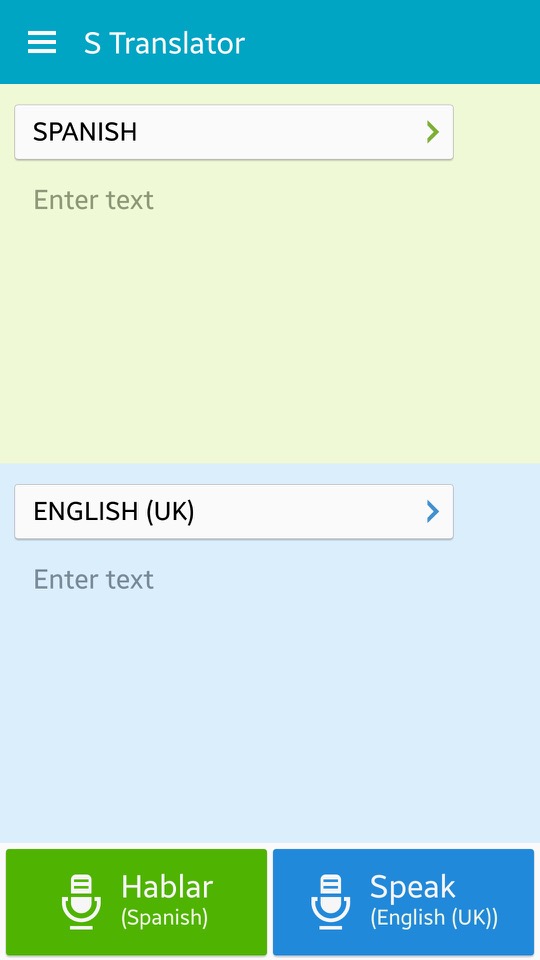
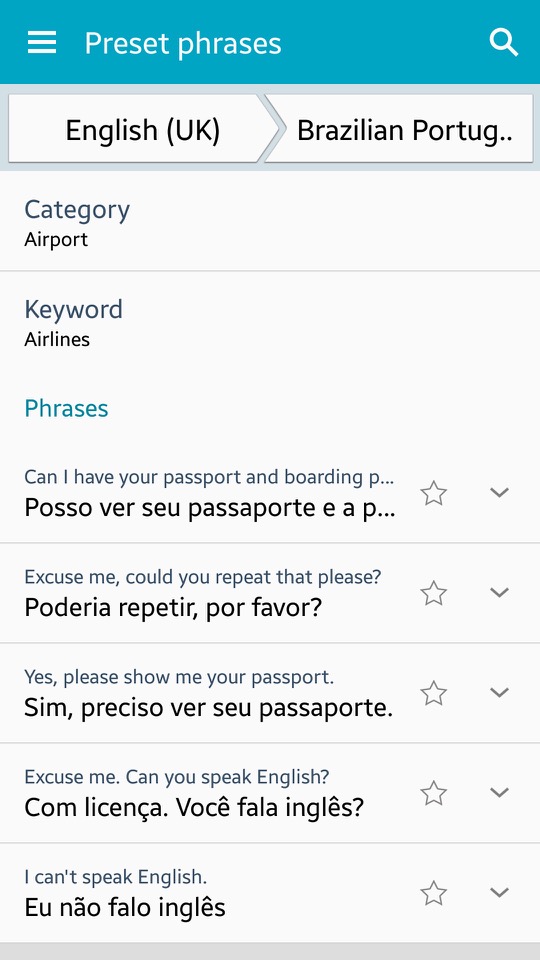
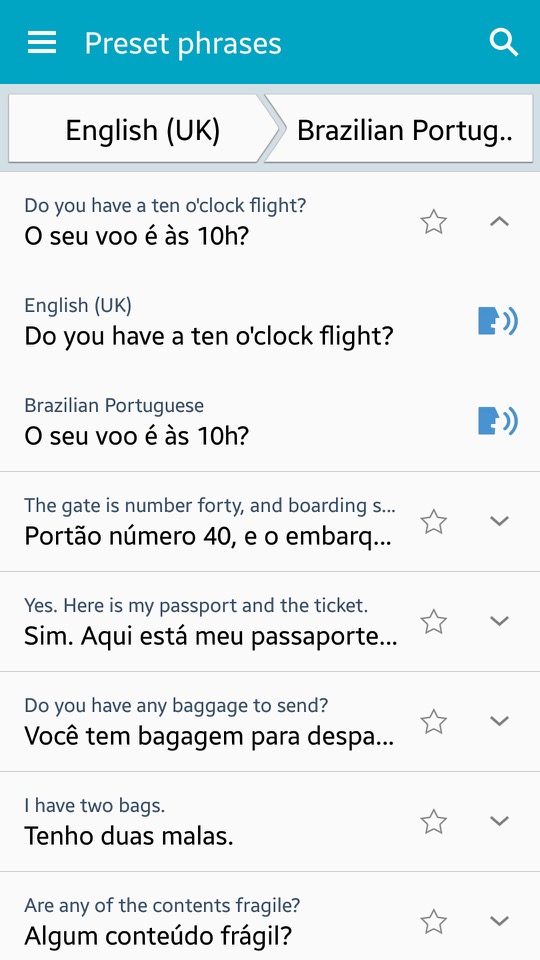
S Translator: Translates text from one language to another – Users can have conversations with others in different languages using the app, which also includes predefined phrases for common use and the ability to save favourite translations for quick access. Additionally, the Galaxy S4 features an Optical Reader that can translate written text on documents and scan QR codes. You can also speak the translated text via the text to speech engine, if you aren’t comfortable with pronouncing certain words. There is also adoption to view preset sentences for easy access.
S Voice: Samsungs alternative to Apple’s Siri and Microsoft Cortana. This has been deprecated and replaced with Bixby.
Samsung Hub: Apps are promoted here by Samsung, giving recommendations for popular apps.
Samsung Link: This was a service that allowed you to connect and share content across multiple devices, including smartphones, tablets, PCs, and smart TVs. It enabled seamless sharing and playback of multimedia content like photos, videos, and music across different devices on the same network.
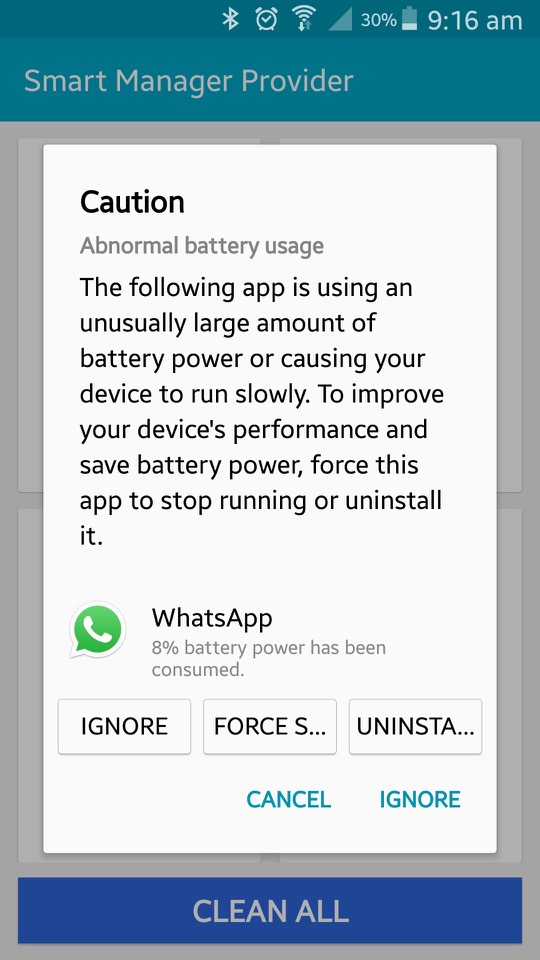
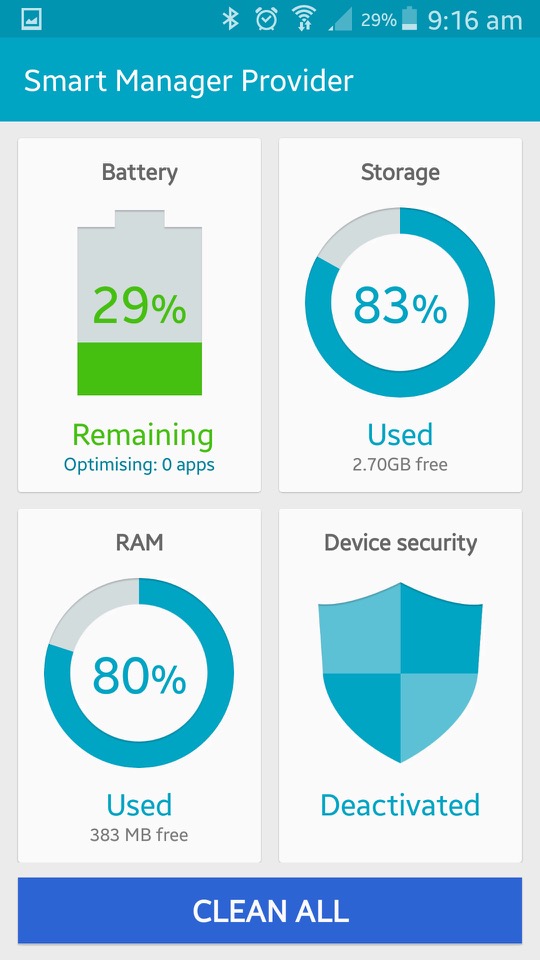
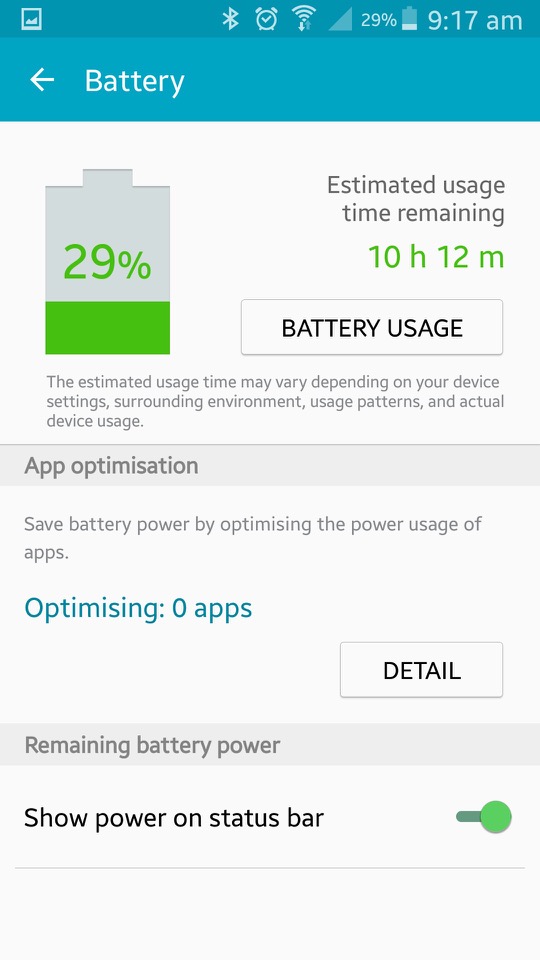
Smart Manager: This shows the current status of the device, and is split into four sections. Battery monitor energy use based on the usage of different apps. It will tell you the estimated battery time remaining. Storage shows information on the phones internal storage and lets you activate disk cleanup which will remove files deemed needed by the phone. The RAM action is similar but lets you view active running apps, and close existing apps that could be using too much RAM. This issn really needed as Android will look after this automatically. Lastly is the security section which acts as an antivirus of sorts. It will also display the status of KNOX.
Story Album: This app was a feature on older Samsung phones that allowed users to create digital albums of their photos and videos. It provided various layout templates and themes, making it easy to organise and personalise content into stories or events. Users could also order physical photo books directly from the app
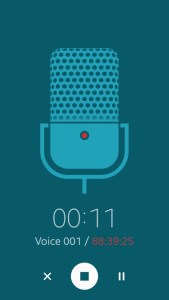
Voice Recorder: Your standard voice recorder. Addition features include noise reduction, recording volume and the recording quality. You can also choose to save recordings directly to the microSD card.
Widgets
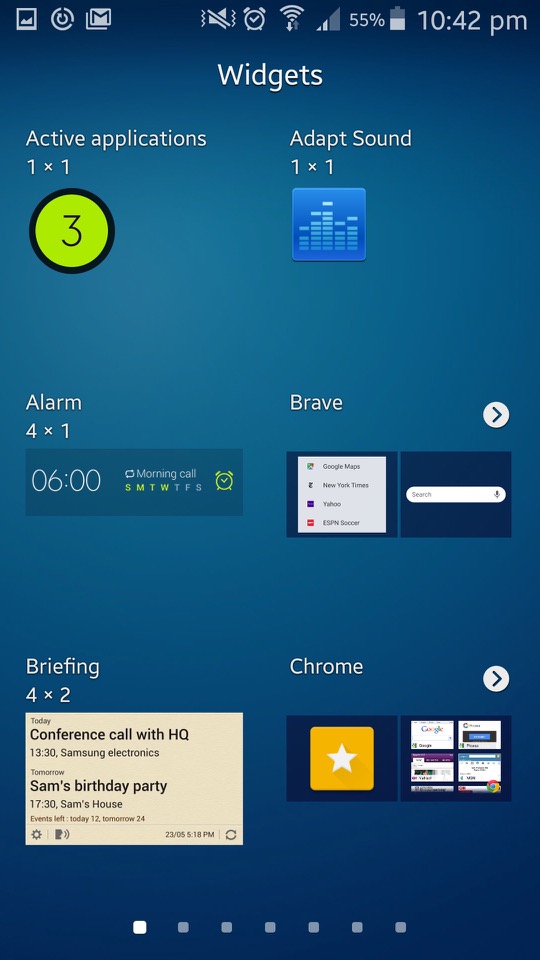
A look at some of the widgets that form as part ot TouchWiz, all of these serve as extensiosn to the apps that feature with the phone and will relay information and updated to the home screen. Tapping on the widget will open the app.
Settings
The control panel of the phone. Samsung have provided further categories for different settings.
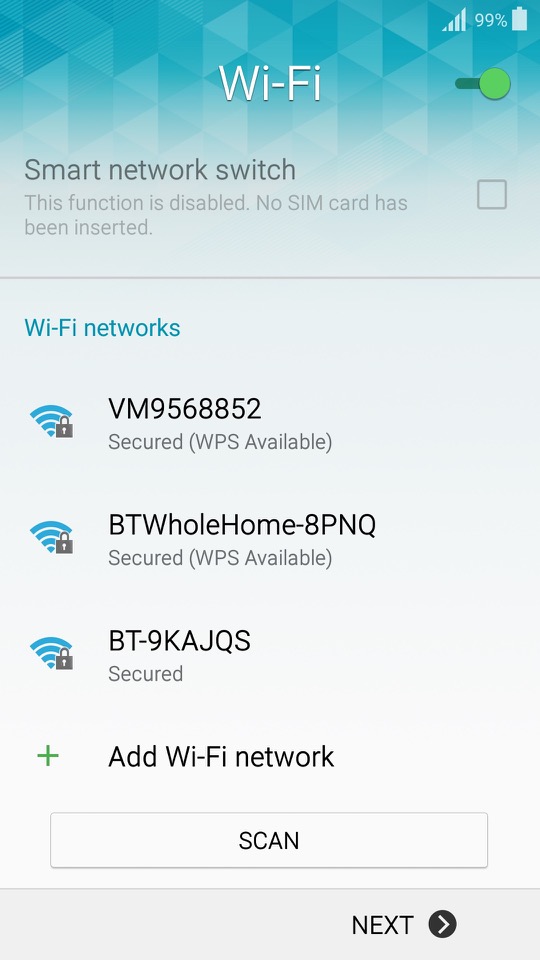
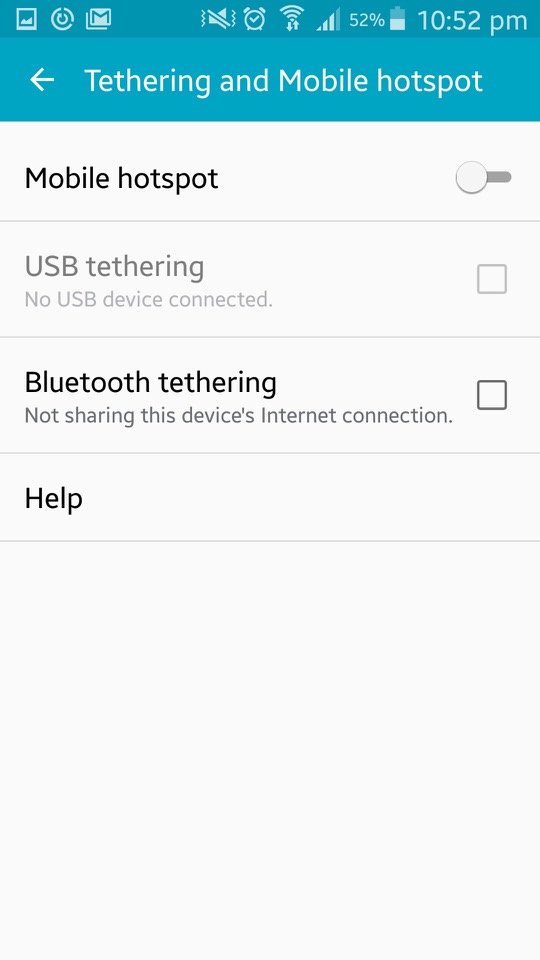
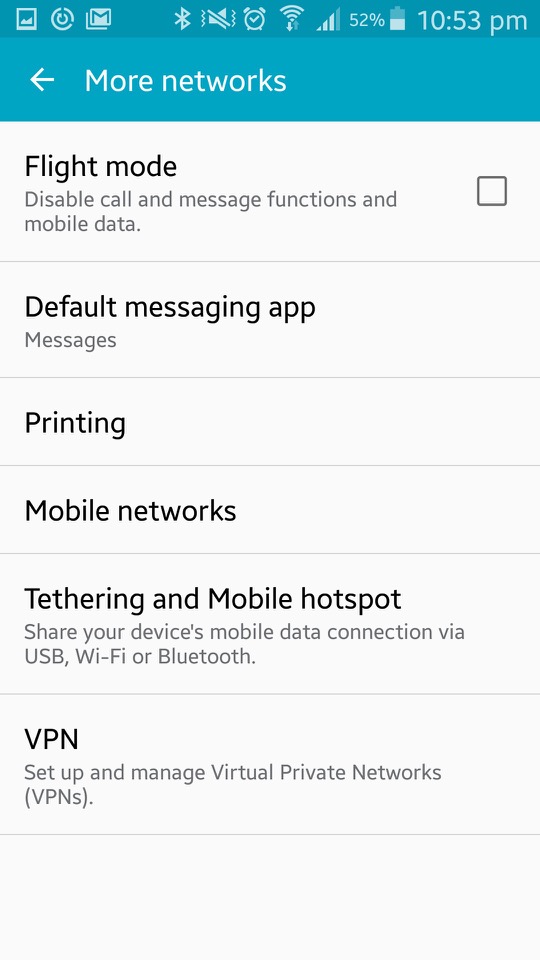
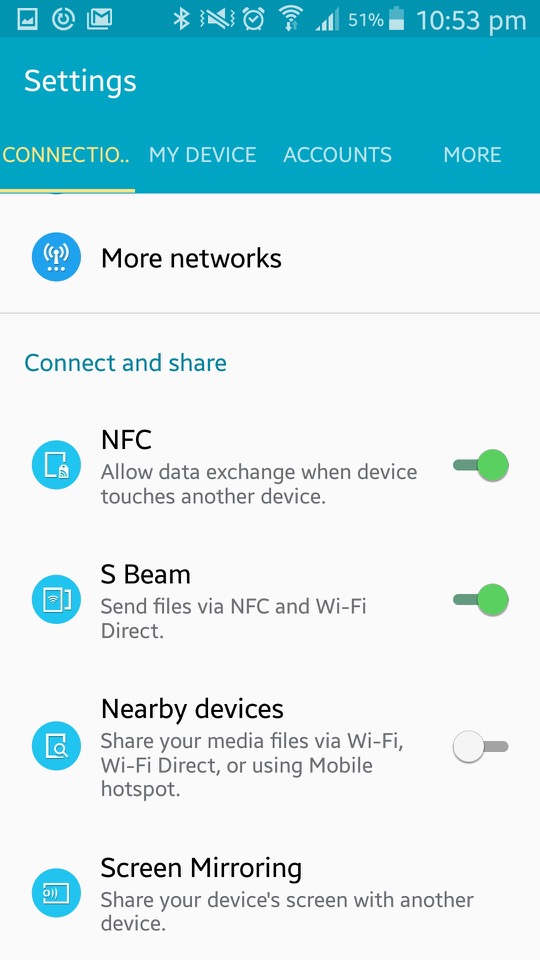
Connections: Wifi, Bluetooth, mobile data and cellular netwoks are listed here. You can also configure wireless printers from here, with the Samsung print service plugin being installed by default (Samsung made printers, one upon a time) The S4 also supports internet weathering over Bluetooth, USB or WiFi. Additional options here are for NFC, S Beam File transfer over Wifi direct, which is initiated by NFC) Screen Mirroring which used the Miracast protocol and allows you to broadcast your display to another TV.
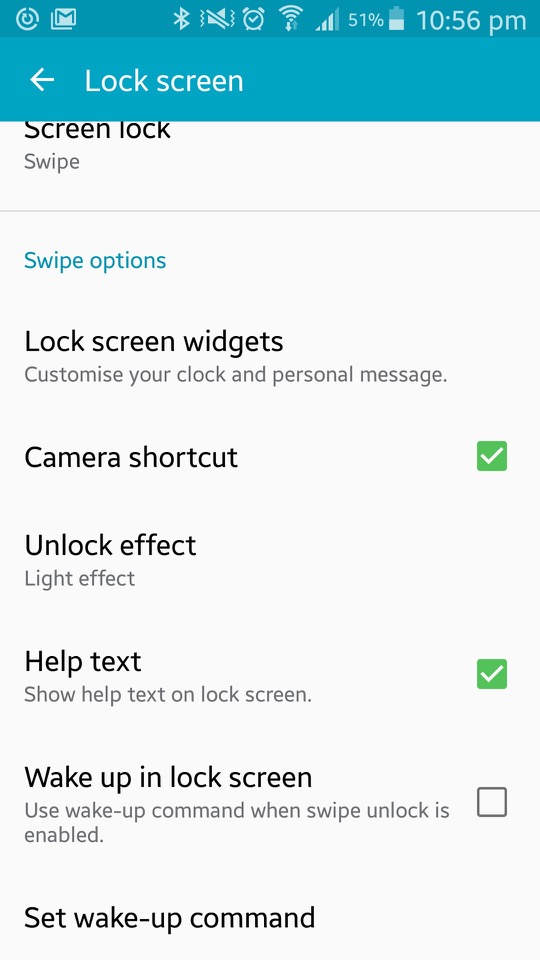
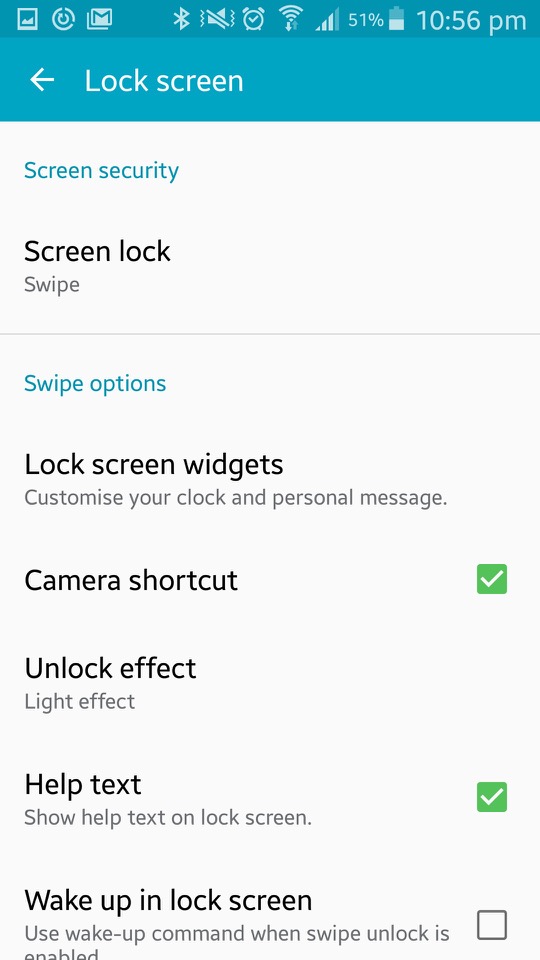
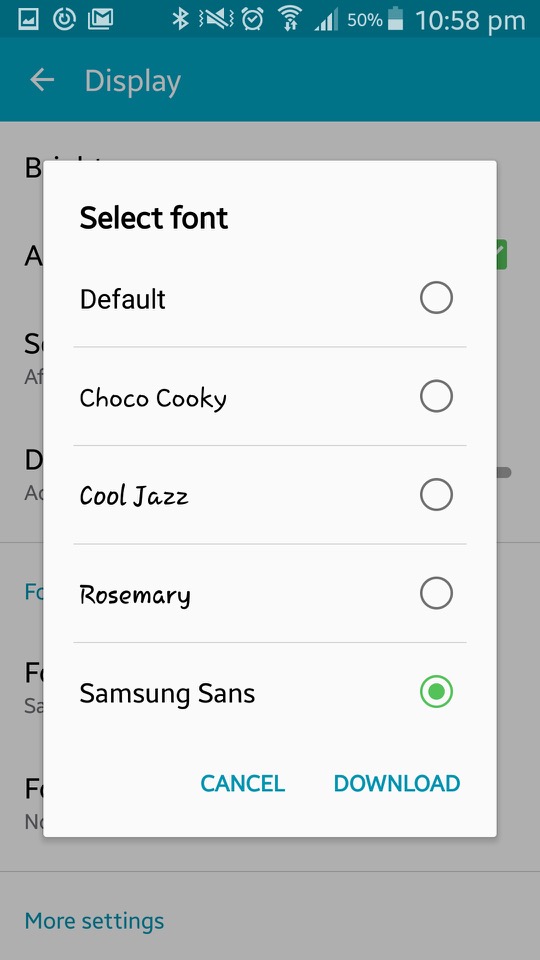
The My Device section offer options tailored to personalisation of the device. Here you can configure settings for the locks creen (lock effects, enable different shortcuts that appear on the lock screen). Display settings consist of selecting a different wallpaper that can be set for both the home and lock screen. The tock wallpapers all have a fruitier aero feel to them and are very vibrant to show off the AMOLED display. You can also change the font style and size which is set to Samsung Sans by default, other fonts include Chock Cooky, Cool Jazz and Rosemary, with the option to download additional fonts to the phone)
The LED indicator can be set to indicate if the phone is charging, or to show notifications. Seems the only options are between a Red or blue LED, instead of the multiple colours that Blackberry handsets offered.
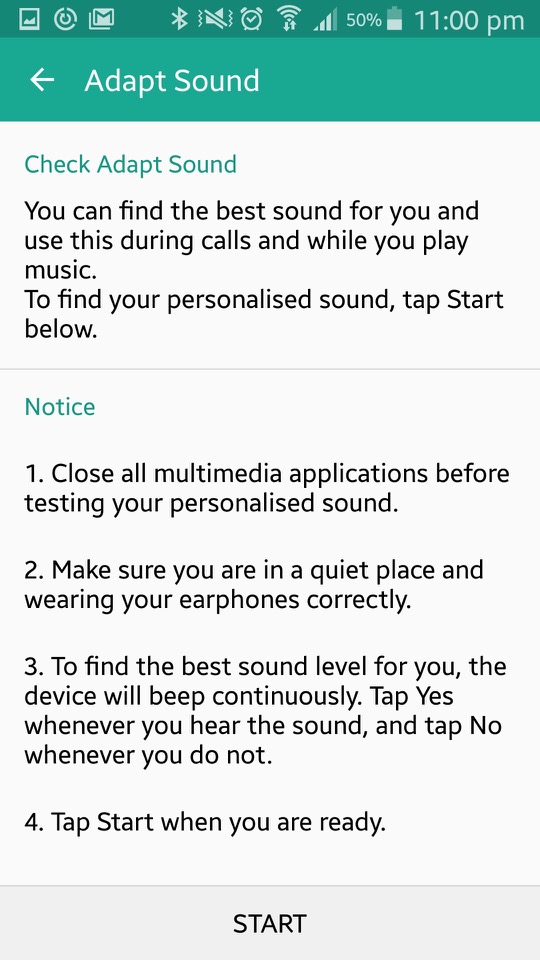
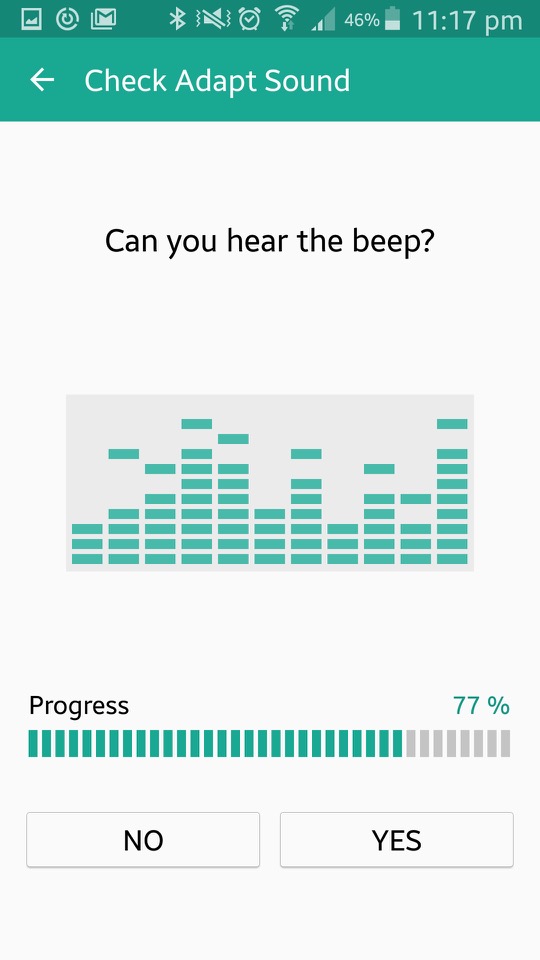
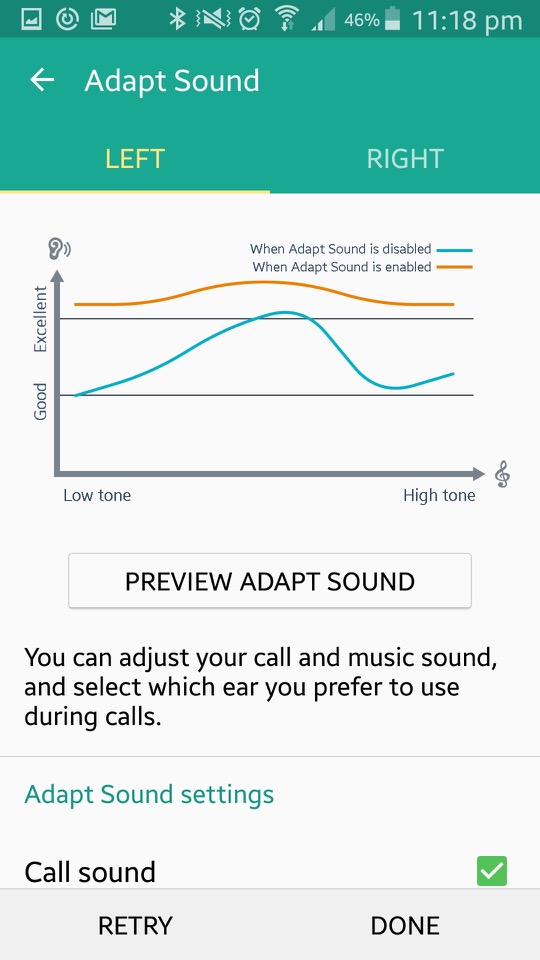
In the sound section there is Adapt Sound, which will take you few a few tests that require the use of earphones. The phone will play various beeping sounds at different frequency range in an attempt to personalise sounds to the frequencies your ear are capable of listening to. The goal of Adapt Sound is to optimise sound settings based on individual preferences and hearing abilities, resulting in a more customised and enjoyable listening experience. I guess this is more for those who are hard of hearing and is considered more of an accessibility feature.
Safety Assistance lets you set up emergency contacts. These are the people you want to know if things go south. Emergency Mode is like your phone’s superhero transformation. When you activate it, your phone dials back on the fancy stuff to save power and focuses on the essentials – making emergency calls and sending out distress messages.
The S Cover is an option accessory for the phone that adds a flip cover to the front of the phone. There is a transparent plastic window that when detected, the phone will show the time and notifications for quick access. Opening the cover will activate the phone.
Lastly there is a More section, that handles the standard Android settings like device information, security, location and application settings.



 Drew1440: Blog