The OOBE can be tricky to navigate without the proper graphics drivers, but if you use the Tab keys to navigate, and then press c to accept (It’s underlined) the terms and conditions, it should let you progress through. The main issue here is the lack of graphics drivers, and the HP OOBE assumes you are running at 800×600.
Can this wait until I’ve installed the graphics drivers? The dude at the bottom left is HP’s tour guide and assistant that has a habbit of popping up whilst you’re trying to install stuff.
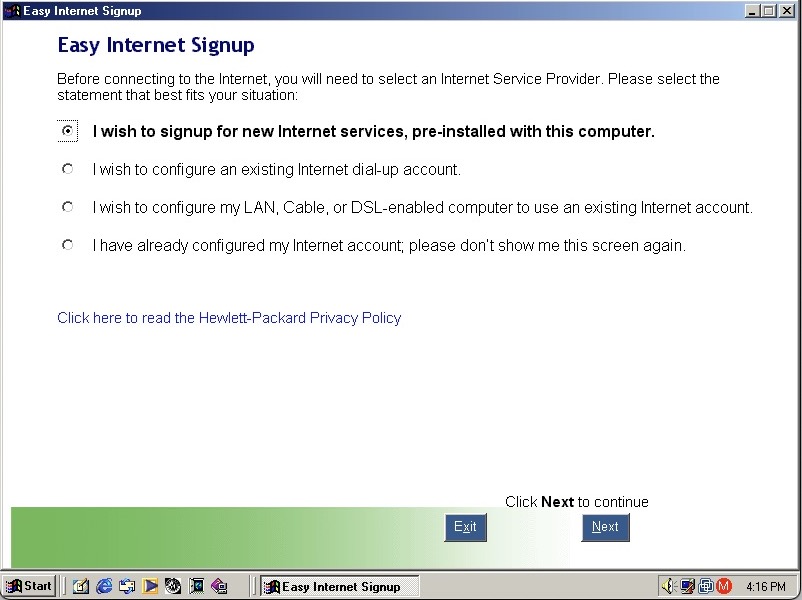
HP Internet setup utility that helps you connect to the internet, which would most likely be a dial up connection unless you were lucky enough to have a ADSL or Cable DOCSIS connection.
HP’s own assistant. Its like they saw Clippit and went ‘Hold my beer’
As you can imagine it’s designed focusers who are new to computing and need assistance in navigating Windows. He sort of acts as a tutorial guide and clicking him can be used to ask about either the desktop, software or internet applications. Unlike the Microsoft Assistant, these questions are fixed, you cannot type in a question.
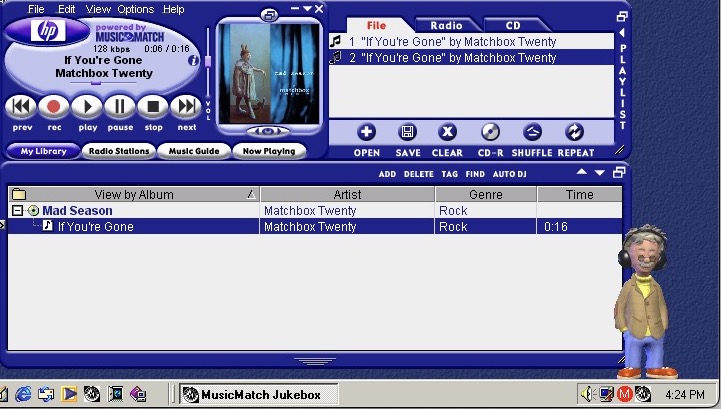
MusicMatch Jukebox with custom HP branding, MusicMatch was an MP3 and WAV music player that also supported internet radio streams. Main alternatives were RealPlayer with RealAudio Jukebox, iTunes/Quicktime and of course Windows Media Player which is still included.
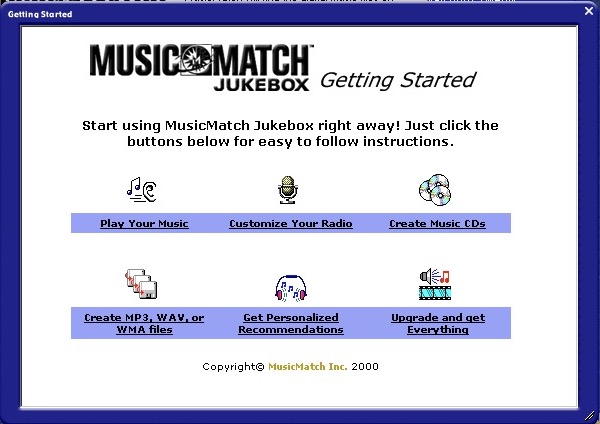
MusicMatch start screen
A song comes included, If’ You’re Gone by Mad Season, its only a short 16 second clip compared to the Beck Sample that Windows Media Player provided. A nice touch is the HP assistant will put on his headphones whilst the music plays.
The Radio guide is long obsolete, I wonder what streaming format was supported?
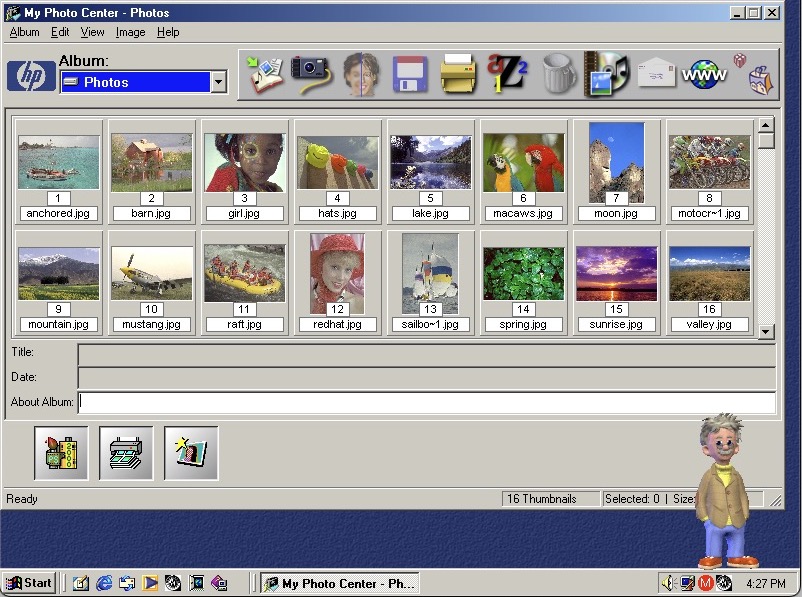
HP PhotoBase – A photo editing application. Here you can import photos off a supported digital camera, which were becoming popular at the time. You can edit photos (like removing red eye), and print them to a photo printer or email them as an attachment.
ArcSoft PhotoStudio 2000 – This is the default image editing applications and opens when you try to edit a photo in PhotoBase.
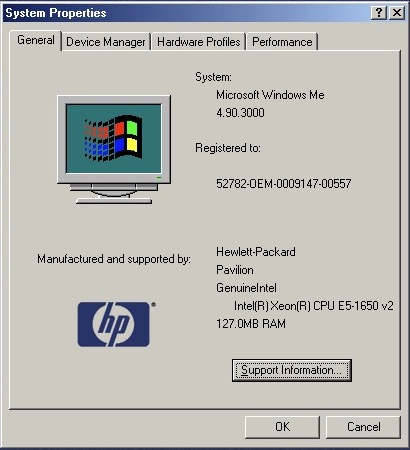
System properties with the OEM logo
Start Menu showing the included programs
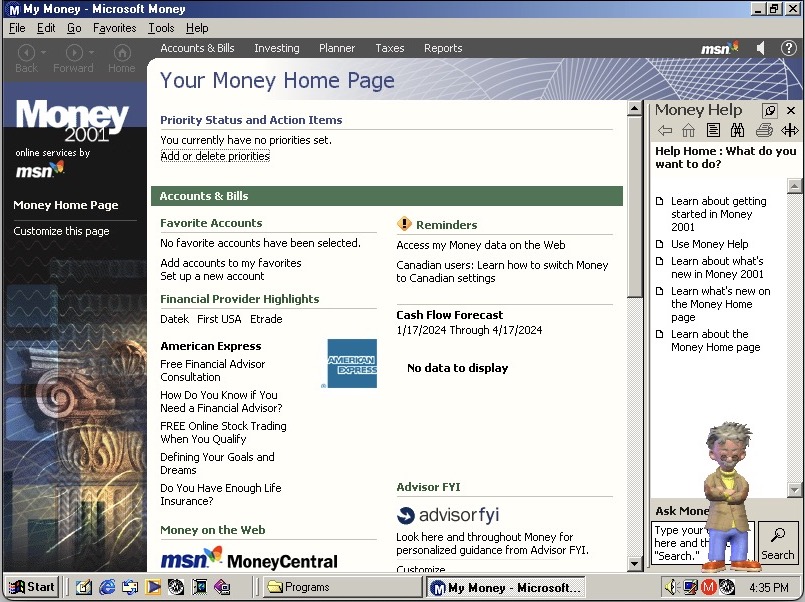
Microsoft Money, a standard on budget home PC’s of the era
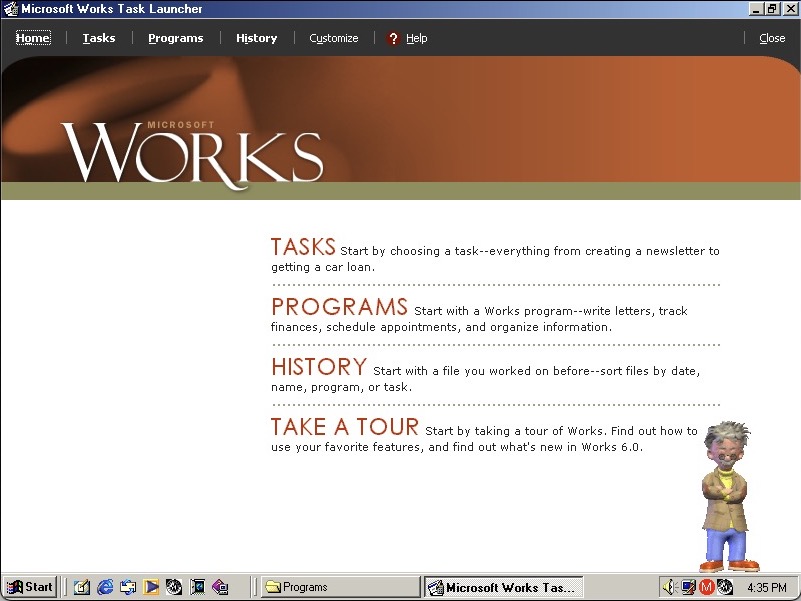
Microsoft Works also comes bundled as a basic productivity suite, version 6
HP Help & Support Center that shows information of the system. Sadly it crashed when tying to access the other tabs
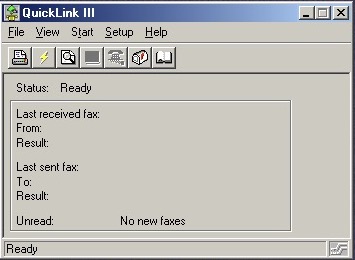
QuickLink III looks like modem software, we don’t have one so there’s limited use. This would have been used to send and receive fax’s. This was a common method of sending documents over the telephone line, before email attachments became more common.
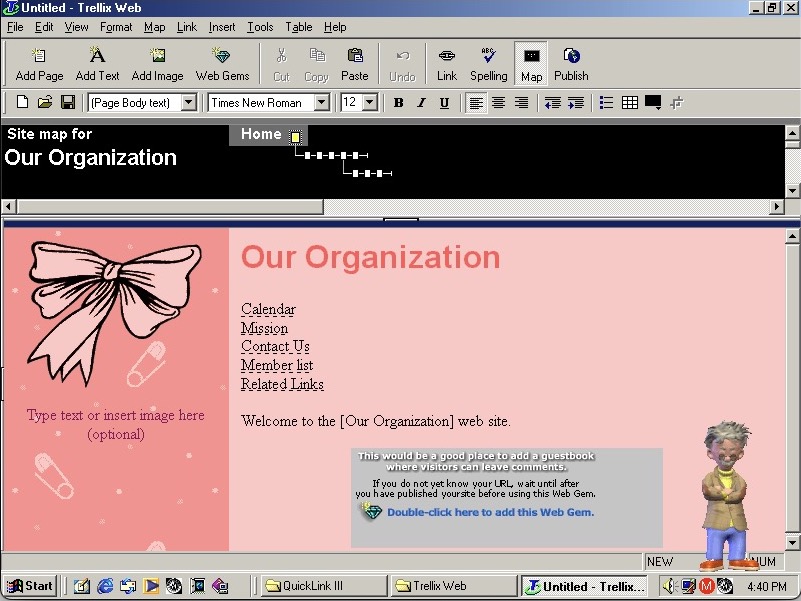
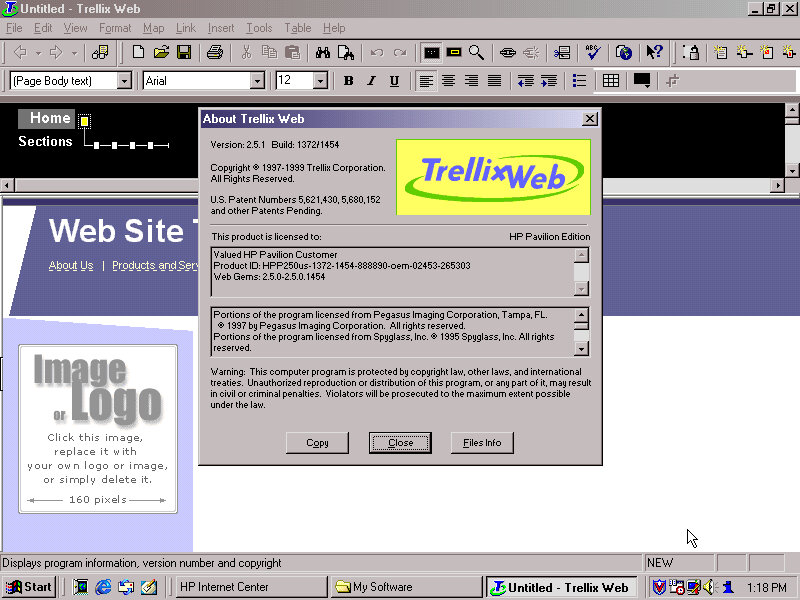
Trellix Web is software to create your own websites, the same as included on a few eMachines installs
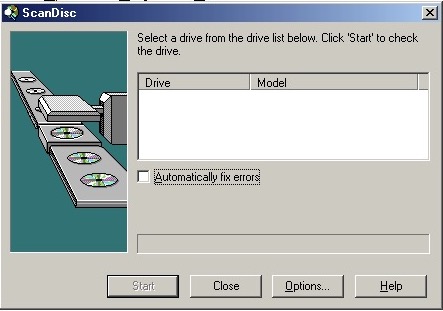
Adaptec DirectCD is included, I guess this system would have come with a CD recorder so you can burn the songs acquired from Napster. Nothing shows up when using the VMWare drives. I connected a Usb external DVD drive writer and passed it through VmWare but this wasn’t detected. Turns out we have an issue with the USB PCI device. Calling it ScanDisc is going to cause confusion with the disk checking utility on Windows, not sure why they named it that.
An early 2000s desktop PC running Windows 98SE, designed as a basic desktop PC for simple web browsing as evidenced with its included software which is geared to the casual home user.
The Pavilion is HP’s brand of conventional desktop PCs tailored to the home market, similar to IBM’s Aptiva and the Dell Dimension line.
According to an archive CNET page, it has a Celeron 500MHz processor with 64MB of memory and a 10.2GB hard drive. For 86Box I used a smaller 4GB hard drive and a slower processor to ease on the emulation. Variations of this model exist with different optical drives, hard drives and processor combinations with some coming with AMD K6 processors and CD-R drives.
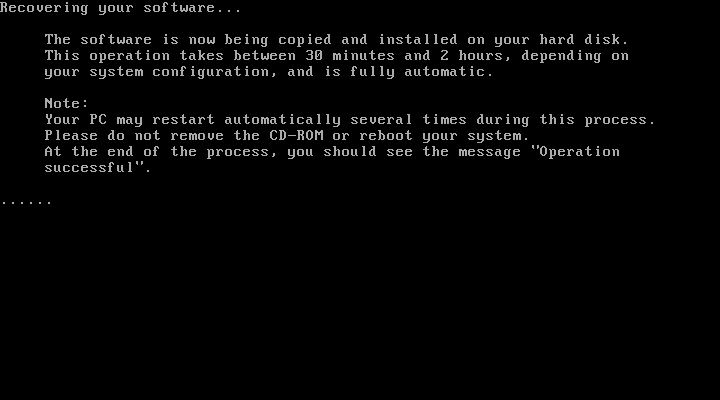
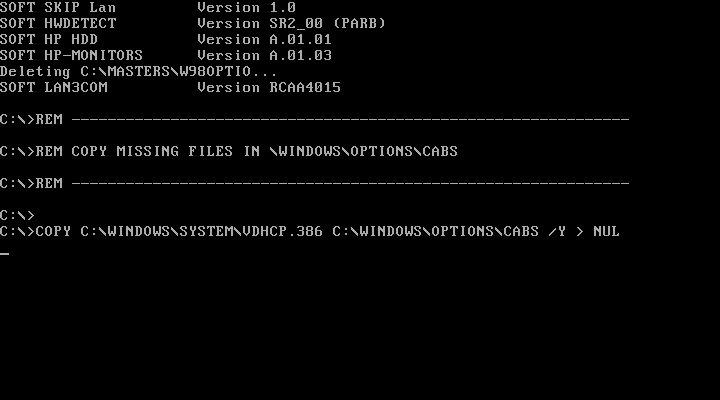
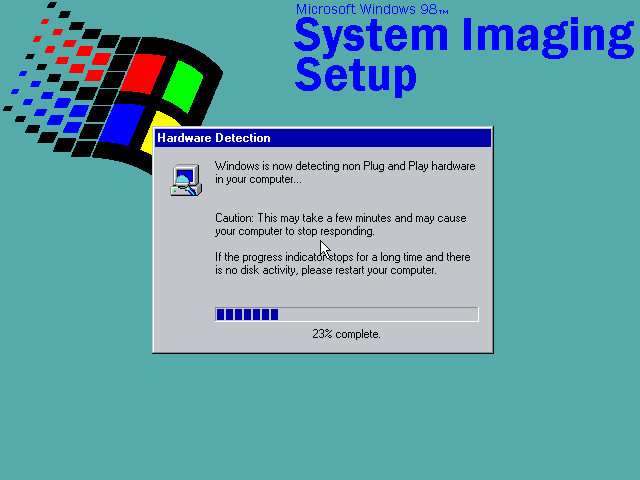
Starting the recovery process, which just inflates the OS files from a previous install. There is no instillation wizard, HP just took an install and made a restore image out of it. This does mean a lot of New Hardware dialog boxes will appear due to this, and I had originally intended to use it on a HP Brio motherboard in 86Box, but had great difficulty with resource conflicts and BSoD’s. The Virtual PC profile/motherboard worked much better instead.
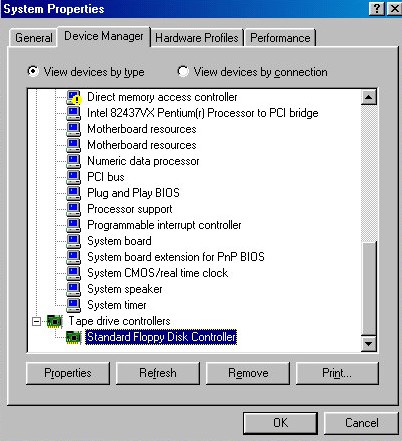
With the old VM it even thought the floppy drive controller was a tape drive.
Post Restore
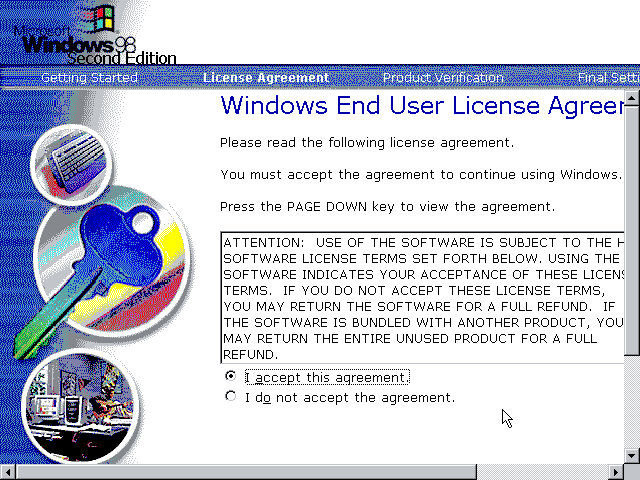
We are booted into a wizard that asks us to confirm the licence agreement, set the keyboard layout, confirm our region and our OEM product key. After a reboot, another wizard starts:
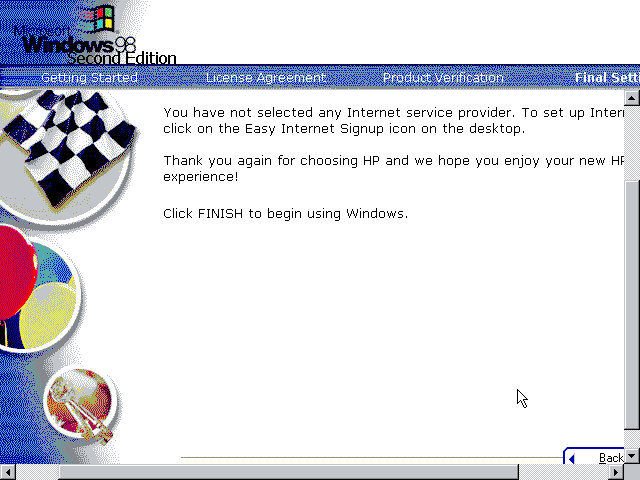
Before we get to the desktop, we are invited to complete the registration wizard where we enter our name, address and our product key which would have been provided in a separate booklet.
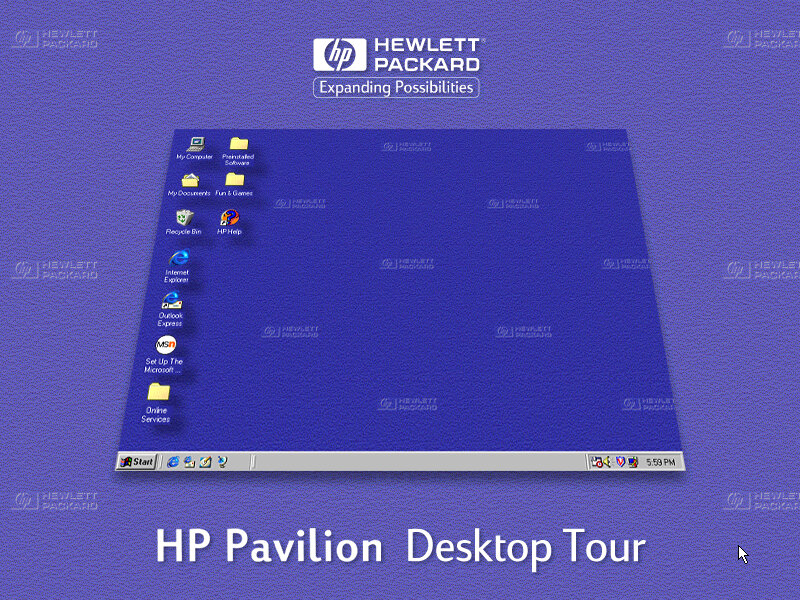
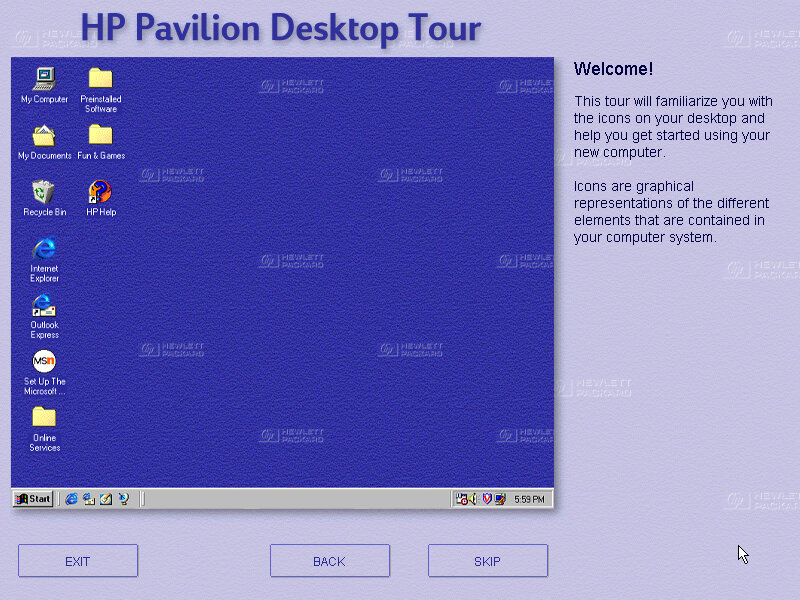
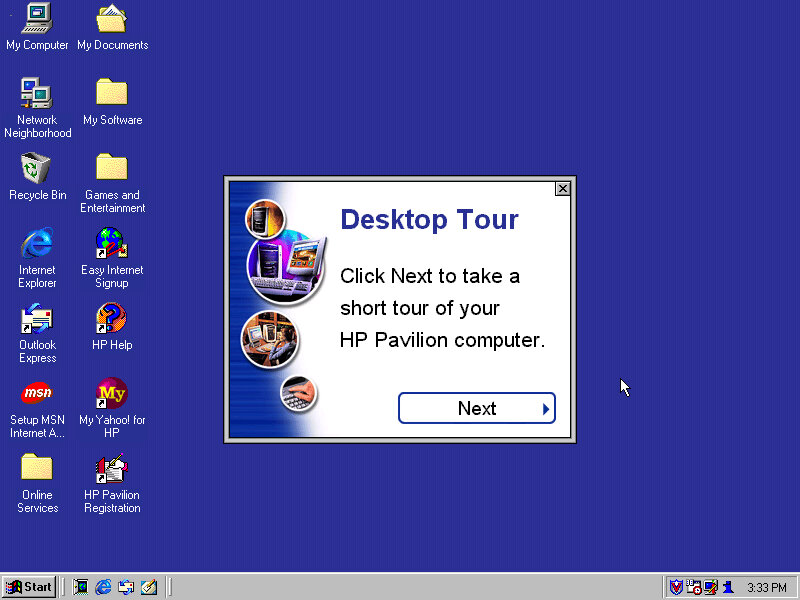
And then after that we are given a tour of the operating system, as some users may have been upgrading from a Windows 95 system, or might even be their first PC. This goes around the basic elements of Windows 98 and gives an animated demonstration of navigating Windows Explorer. This also complement’s the built in Windows tutorials for Microsoft.
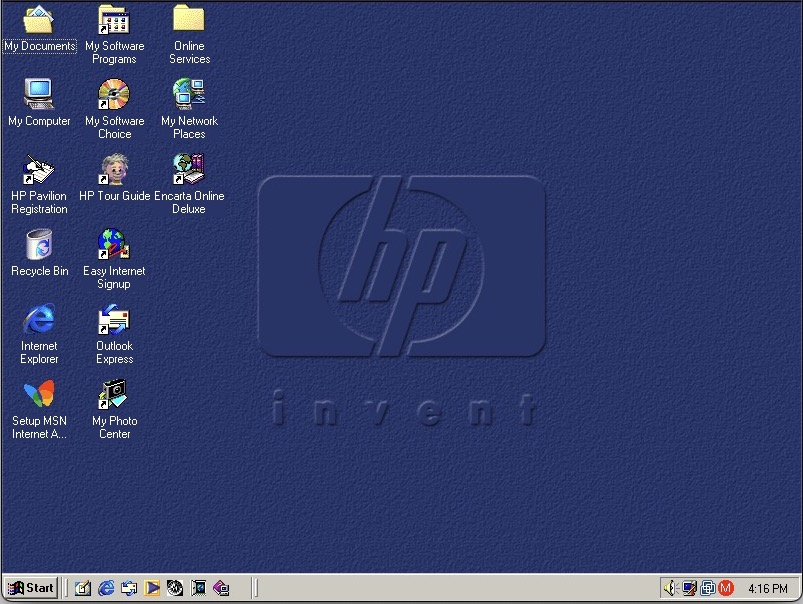
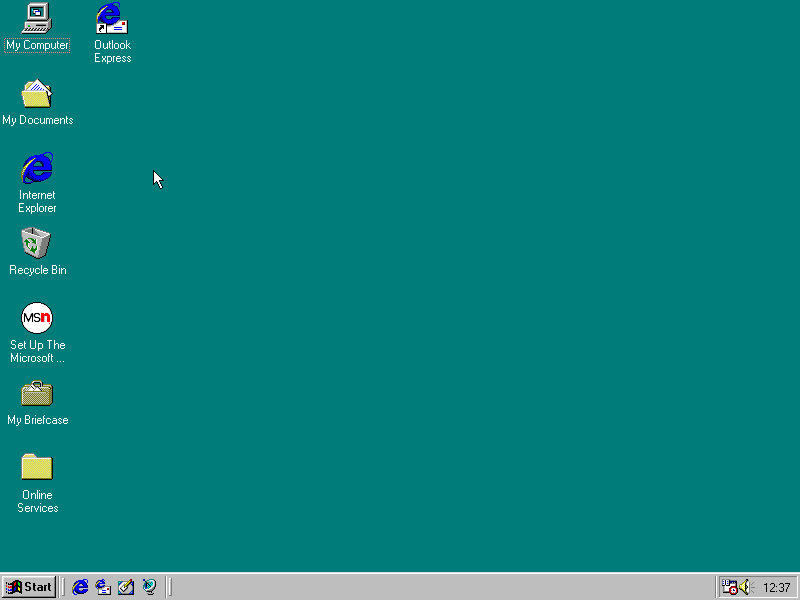
Desktop
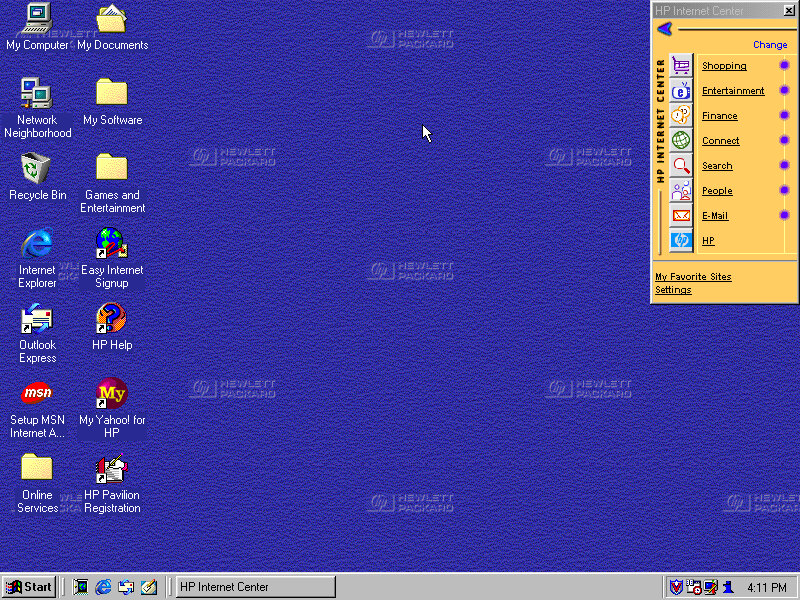
The Windows desktop with some of HP’s customisations. You will notice the HP Internet Manager, which provides easy access to various internet sites and are sorted by categories affirming that this computer was designed for the consumer that wants to browse the internet.
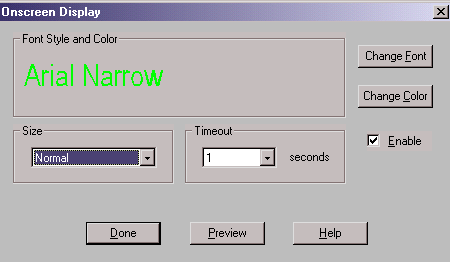
Clicking on any of the links (Such as Shopping) will open Internet Explorer with a customised link to that page. It sort of works in a similar manor to the internet channels included with Windows 98 and is HP’s replacement for the channel bar. Also, when you click on a link, large green text appears to the bottom left of the screen showing which button you clicked. I think this is supposed to replicate the OSD of many TV’s of the 90s where volume would be displayed in that style of display.
Sadly most of these links are long since dead, and the wayback machine does not hold any archived copies, possibly because they were not designed to be indexed. All of them lead to a paviliondownload.com domain.
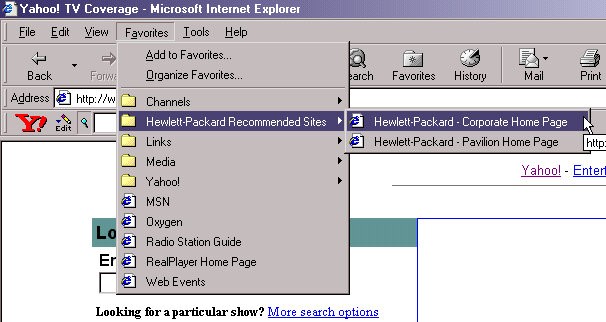
Whilst we have Internet Explorer open, we can see the Yahoo! Toolbar that was preinstalled. Yahoo was popular at the time and was the common homepage for many users, similar services were AOL, Lycos and AOL. As for Internet Explorer, version 5.00.2614.3500 is installed.
HP have also bundled a few favourites (Bookmarks) of their own with links to their corporate and dedicated Pavilion homepage.
Also another look at the green OSD, it appears when you adjust the volume too. You can actually customise this in the HP keyboard utility. Changes that can be made include the duration of the message, colour and font size.
Themes and Customisation
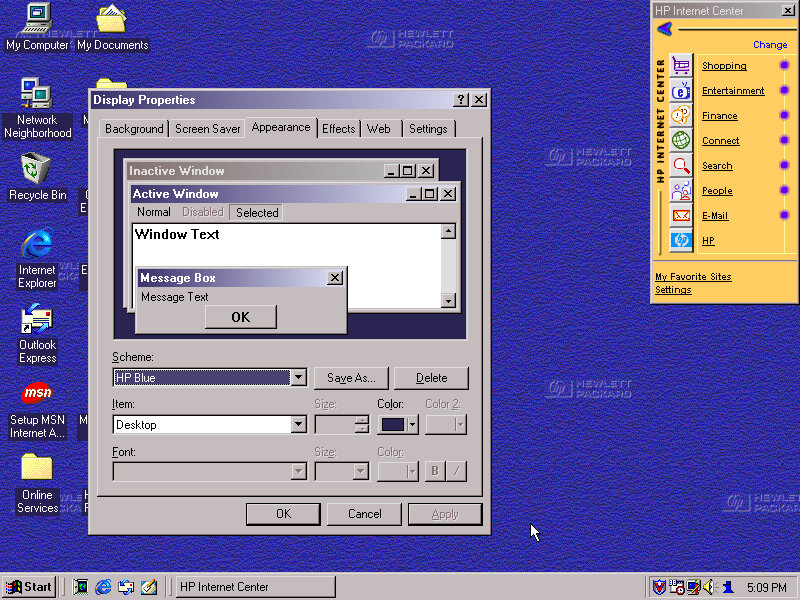
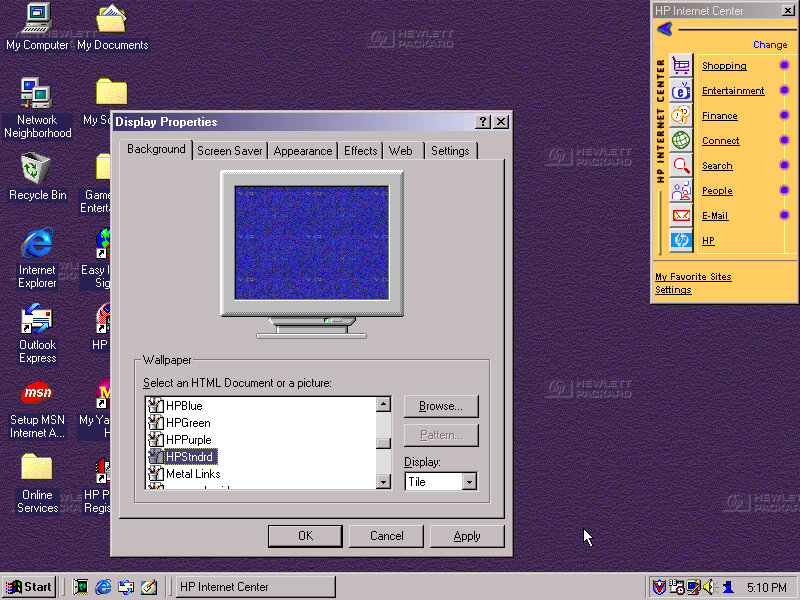
We can see HP have included a customised desktop wallpaper, in fact there are four of them provided in different colours (Purple, Green & Blue) and HPStndrd which is a lighter version of blue.
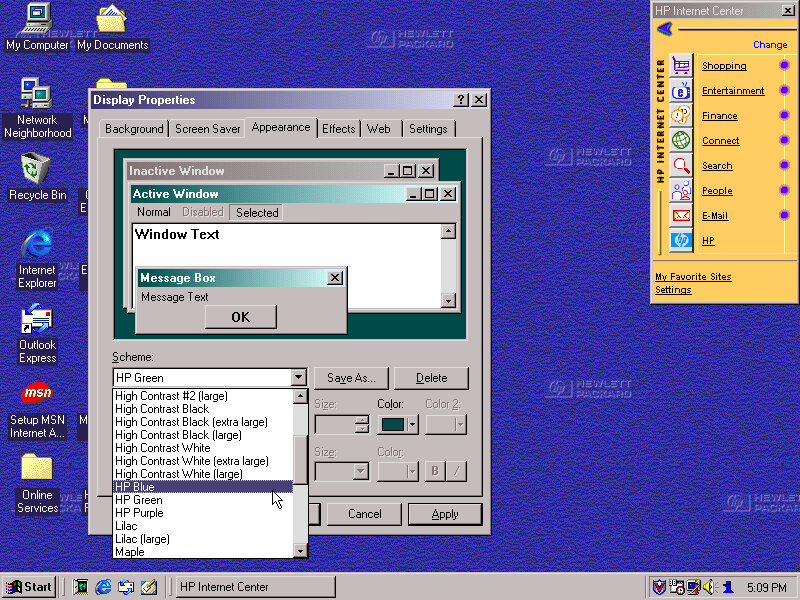
HP also added three custom colour schemes that can be selected in the appearance tab, again the choices being Blue/Green and Purple
Also a shot of the system properties box, with the OEM logo and support information.
Bundled Applications & Utilities
Microsoft Encarta 2000 – Preinstalled but requires the Encarta 2000 disc in order to do anything.
Microsoft Money – Finance management software, the 2000 edition is used here.
Microsoft Works – basic productivity suite that includes a word processor, organiser and a spreadsheet application.
Trellix – Some sort of website builder that included a few templates that allowed for users to create and build their own website. I wonder if they will work with WordPress?
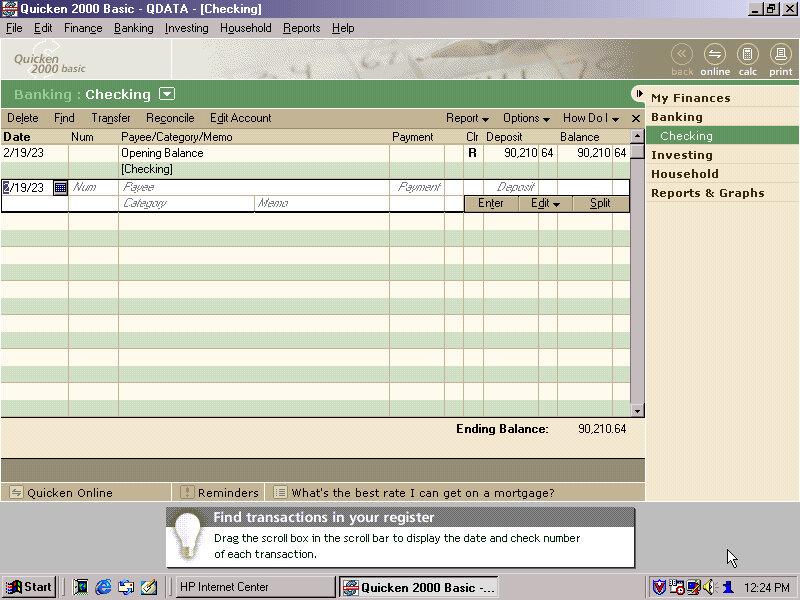
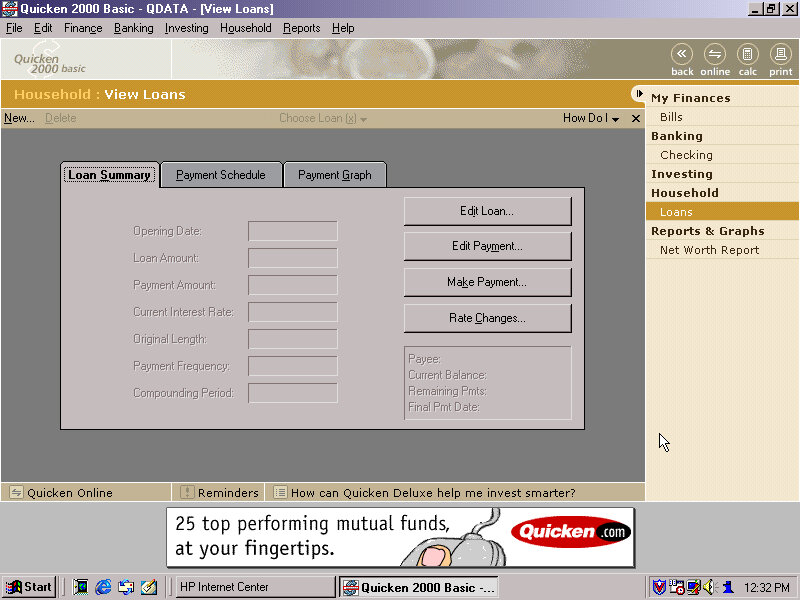
Quicken – Basic 2000 comes preinstalled and is a personal finance management utility, similar to Microsoft Money which was also included. I guess here you’re supposed to populate this with you bank statements and recent purchase’s, so you can get a rough idea of your balance history.
There’s a few online services included within the Online Services folder – AOL, AT&T WorldNET, Disney’s Club Blast, EarthLink, GTE Easy Sign Up, MindSpring, Prodigy internet and Compuserve.
Also, a Games and Entertainment category in the Start menu. Here you can find links to RealPlayer G2 and MusicMatch JukeBox which was a popular MP3 music player, along with a link to Emusic.com. There are also shortcuts to Windows games like Solitaire.
There is a My Yahoo program in the Start Menu, clicking on that takes you to an internet connection wizard that is HP branded. Since we are connecting via LAN, we can breeze past this. Dialup internet was a very common way of accessing the internet and would have been the de facto way of getting online, but was also around the era where cable and DSL broadband internet was starting to become mainstream.
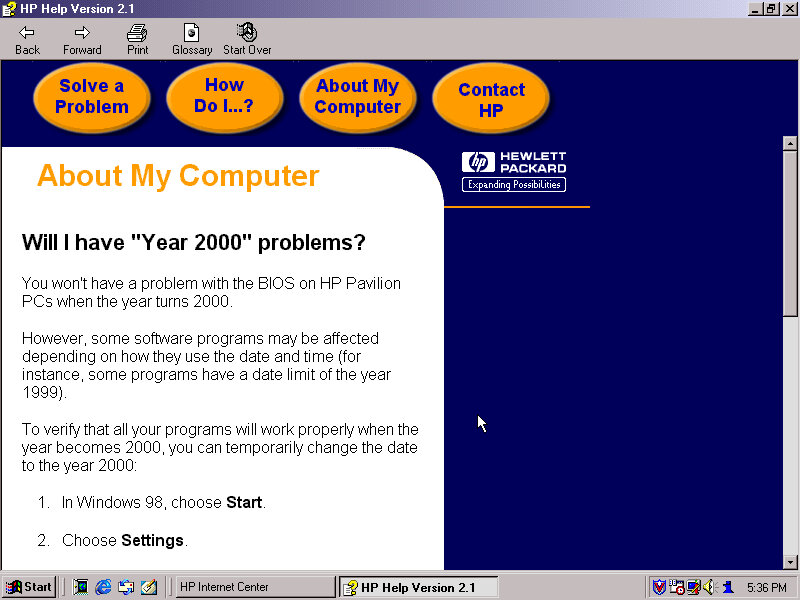
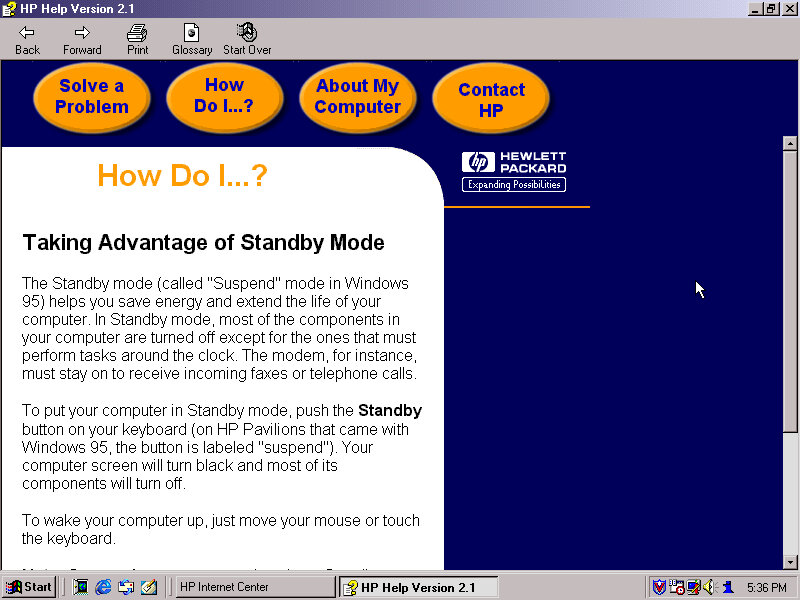
HP Help: Help and support centre for novice users. This can give information about your HP system and comes with a link to the user manual. This does require a separate CD that has this contained, it is not saved on the hard disk.
FAX (QuickLink III) Fax application, if you cannot use the built in Windows fax utility.
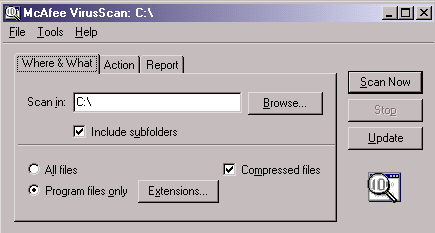
Lastly we also have McAfee security suite which can be found in the system tools folder. This includes the anti-virus and the V-Shield that acts as a firewall. A necessity as Windows did not come with any virus protection at all, that was left up to the end user or the system builder and may would bundle either McAfee or Norton Security.
The typical Windows 98 experience
Additional Links
Recovery Image – Archive.org – This version is cracked which allows for it to be installed on any PC or virtual environment and is an alternative to a regular install. There are two versions with the November 1999 being linked, an August 1999 version exists but has not been tested, perhaps that’s regular Windows 98FE?
Vectra is a line of desktop PC’s by HP that are targeted towards the business/Home Office segment, like the Dell OptiPlex or the Compaq Deskpro series of computers. Typically come with Intel Celeron/Pentium processors and onboard video.
The VEi8 can feature a Pentium II running at 350/400MHz or a Pentium III at 450/500MHz. with a Intel 440ZX chipset. Onboard video is the Matrox Millennium G200 with 8MB of graphics memory, which 86Box does not yet emulate
Not much branding here…
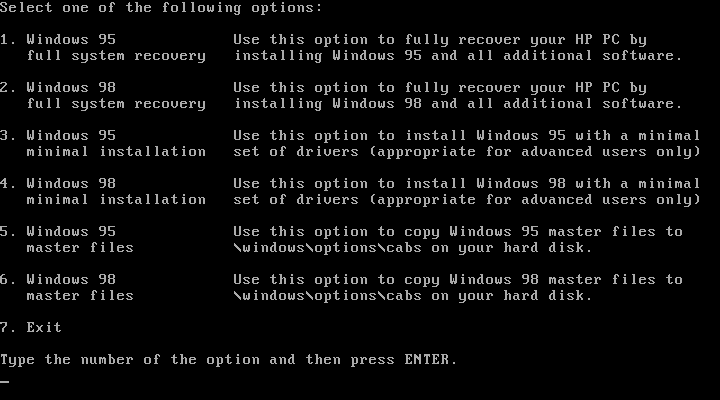
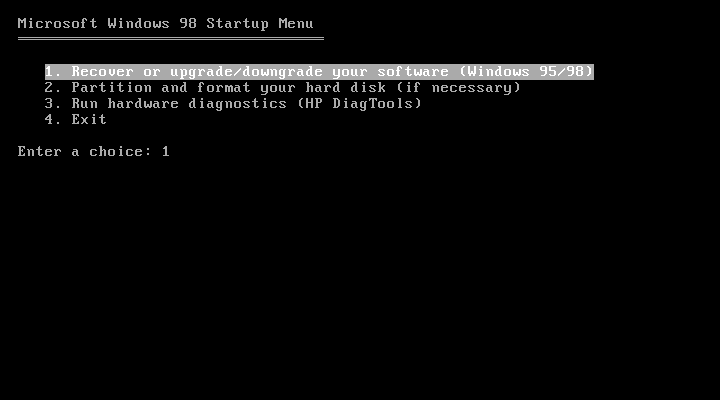
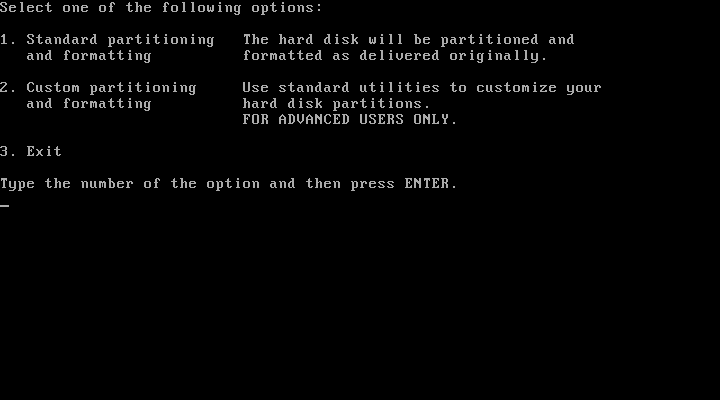
Recovery Disc
We have the option of restoring either a Windows 95 or Windows 98 image.
Windows 95 didn’t go as planned as we encountered a protection error upon boot up. At first I though the CPU used was too fast for Windows 95 as early builds had issues with CPU’s over a certain speed due to a race condition that’s executed upon boot up. A patch is available but you need to be in the Windows environment in order to install it. Downgrading the CPU and its speed had no effect in 86box. Sadly I wasn’t able to fix this, and went for the Windows 98 option instead.
Post Install
There isn’t much to see here, since its pretty close to a vanilla Windows install compared to the Compaq Presario, just a few HP utilities. I guess the Vecta line were intended to be used in business and office environment who would prefer to control and maintain the software that they would install.
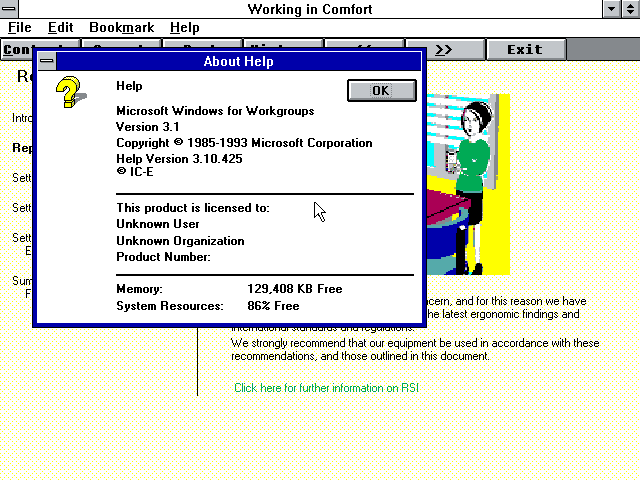
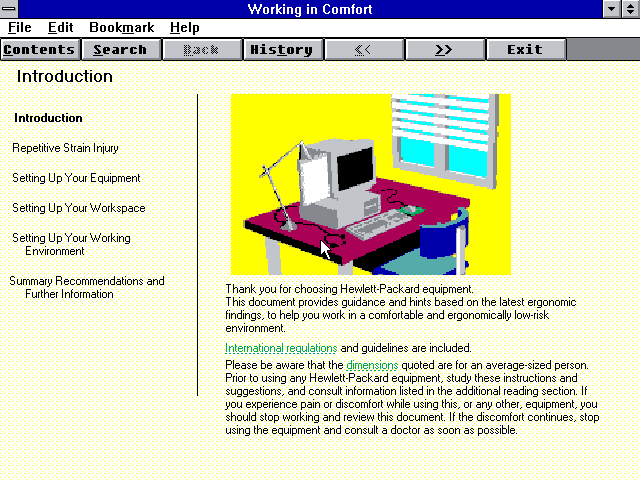
Upon the first reboot a tutorial is run which gives a basic demonstration on how to use a computer. This looks like some sort of Windows 3.1 environment and only appears once.
Installed Software
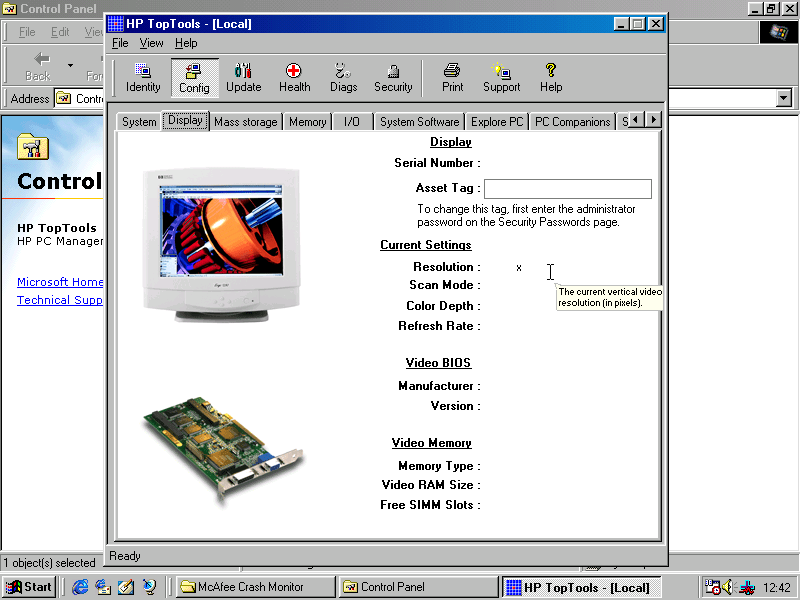
HP TopTools
HP TopTools
Looks to be a hardware diagnostic application that shows detailed information on your system.
McAfee
McAfee Antivirus and crash monitor are preinstalled by default and provide basic protection.
Supplementary Hardware
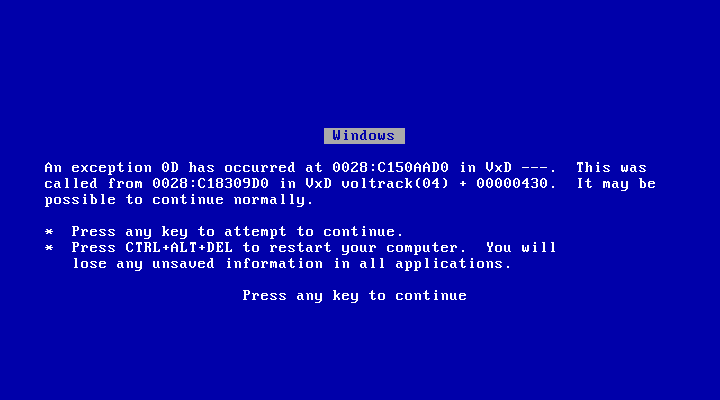
The real motherboard supports two floppy disks, and four IDE devices across two channels. Additional drives can be added by installing a SCSI adaptor in 86Box. Here I was using the Tekram DC-390 which Windows 98 detected as a AMD PCI SCSI controller automatically and installed a driver for it. This wasn’t 100% perfect as adding a hard disk or a writable ZIP or Magneto optical disk would cause a blue screen upon boot up. Since we want to attach a writable drive to the computer, this was far from ideal. I tried installing a driver I found online but it had no effect, there is an issue when using this adaptor in 86Box. I switched it out for another PCI SCSI card, Buslogic but it had the same issue with a BSOD upon boot up when a writable drive is attached.
That’s a lie, it wouldn’t continue normally
Couldn’t find anything online relating to the BSOD above, any results turn up of that video of Windows 98 crashing in front of Bill Gates after plugging in a scanner.
In the end I tried to use another SCSI card instead, this time a ISA based card which required me to disable PCI IRQ steering for IRQ 10 & 11 to free up an IRQ slot for both the SCSI and the sound card. Which made no difference, it still BSOD upon boot up.
I even mounted the image as write protected but it made little to no difference. The rest of the devices (Zip 250/CD-ROM drives) worked fine, just hard disks and the magneto optical drives caused the BSOD.
I did notice an odd issue when I added the slave IDE hard drive, where Windows would BSOD with an error about drive D: which it would have been mounted as. Booting from the Windows 95 start disk and formatting as FAT32 seemed to fix it as after booting up the system was fine, and the new volume was detected and mounted in My Computer. My guess is HP are using some unorthodox driver that interfacing when another volume or partition is added.
For networking the Realtek RTL8029 was used, which Windows 98 has built in drivers for. 3D acceleration is possible by adding a 3DFX Voodoo card, which Windows 98 will also have a driver for but you will be better off installing an updated driver instead.
In terms of expansion, the motherboard itself has 3 ISA and 3 PCI slots




















 Drew1440: Blog