HTC’s 2015 flagship which continues on the HTC One M8 design, featuring a premium unibody metal design, giving off a stylish look.

Most notable for the appearance is the Front-facing stereo speakers which was a standout feature of the phone. Offering clear audio from the phone, It was like a little concert in your pocket. That was an awesome design choice and HTC have managed to blend the speaker design into the phone.
Powering the phone is the Snapdragon 810 processor with 3GB of RAM, originally running Android 5, later updates introduced Android 7. 32Gb of storage is included, and it can be expanded using a microSD card.
The M9 had some issues with getting hot under the collar. That shiny, beautiful metal body had a downside: it sometimes turned into a portable oven. Now, don’t get me wrong, a bit of warmth is okay, but overheating can be a deal-breaker, especially if the phone heats up when you’re not doing anything too taxing. I hate to think how hot this phone gets when under full use with a plastic case attached.
Launcher + Notifications
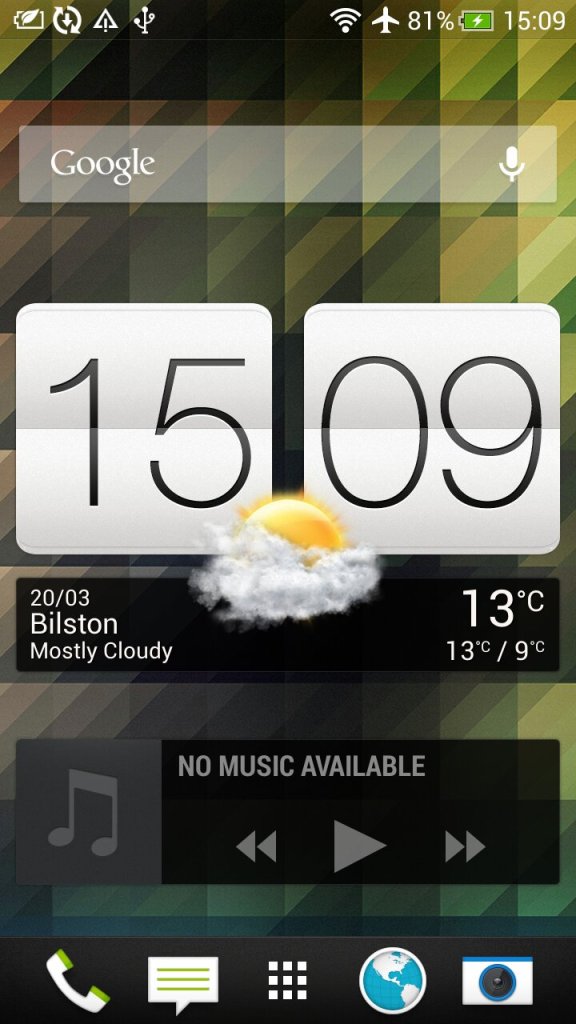
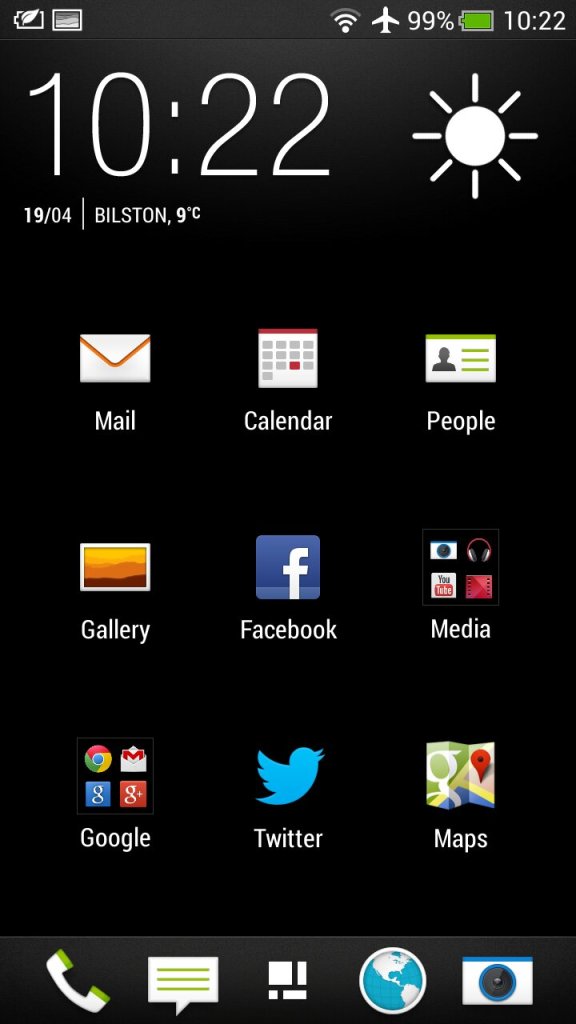
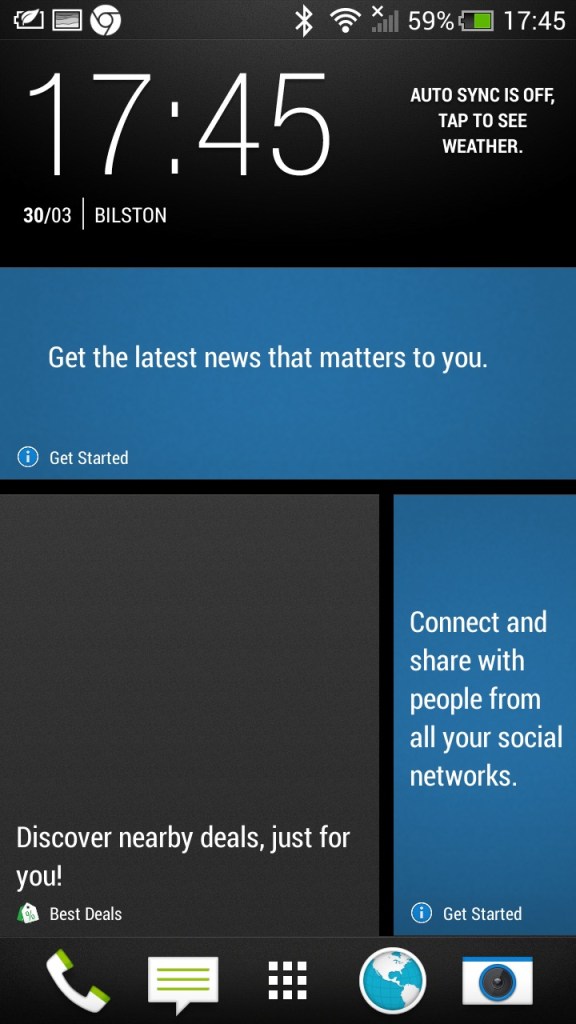
HTC Sense is the default user interface for the handset, You’ve got this neat home screen with customizable widgets and themes. The themes can give your phone a whole new look and feel, and if you’re into making your phone truly yours, this is a big win.
HTC Sense Home is supposed to be smart and intuitive, changing your apps based on your location and habits. It’s like your phone’s playing mind reader. It’s a cool concept, but it doesn’t always nail it. Sometimes, you just want your apps right where you put ’em, right? And having to search for them kind of defeats the purpose of it.

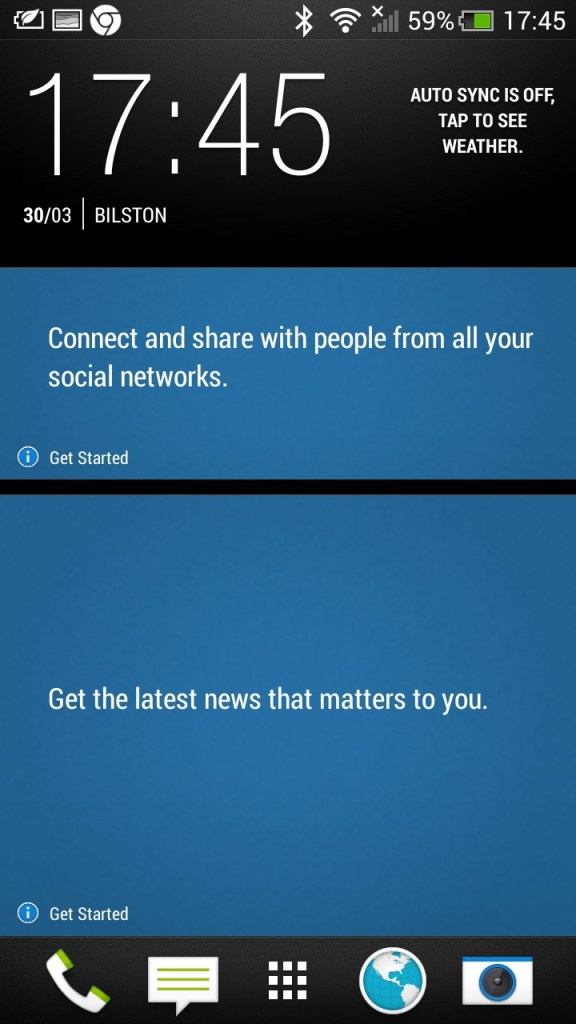
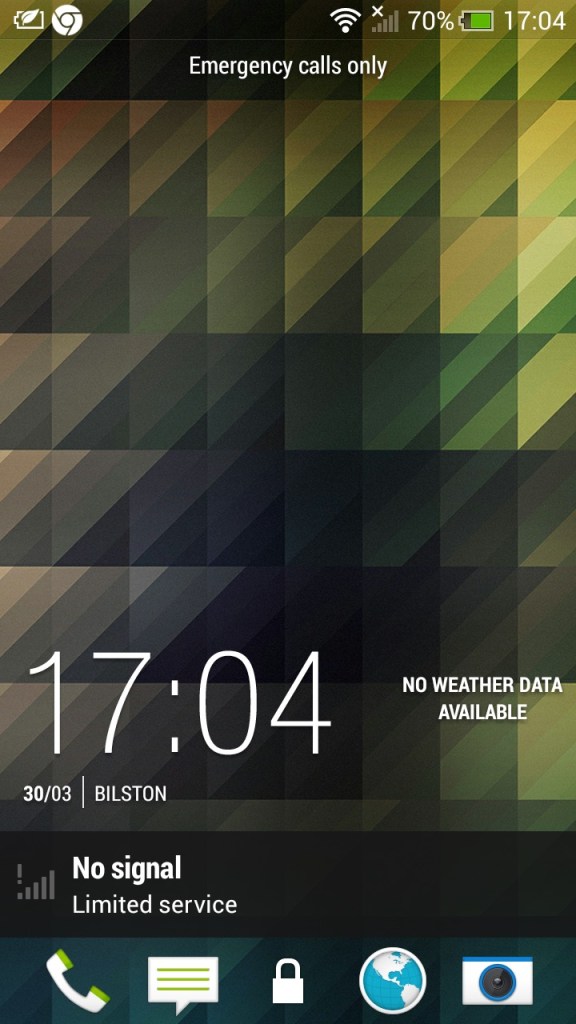
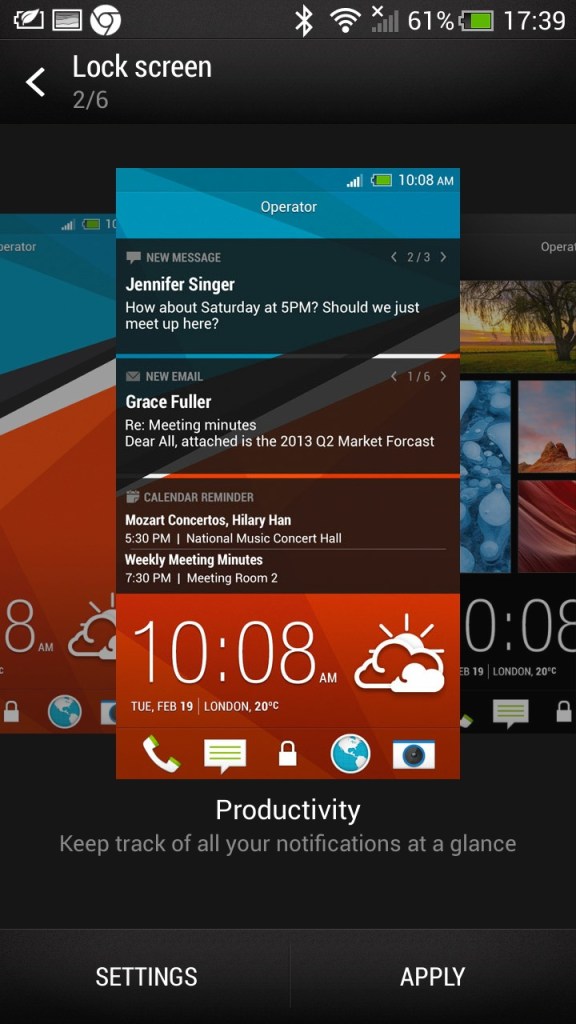
The lock screen with a row of shortcut icons at the bottom. YOu can swipe up from these icons to go directly to them when the phone is unlocked, allowing for easy access to the app. You can also customize the layout and which app icons appear on this screen.
Blinkfeed also makes an appearance, but I have mixed feelings about it. It’s a news aggregation feature right on your home screen. It’s nice to have all that info at your fingertips, but sometimes, I just want a clean slate when I unlock my phone. Maybe it’s my inner control freak, but I want to decide when and where I consume my news. But hey, it’s there for those who want to stay on top of things and it can be disabled.

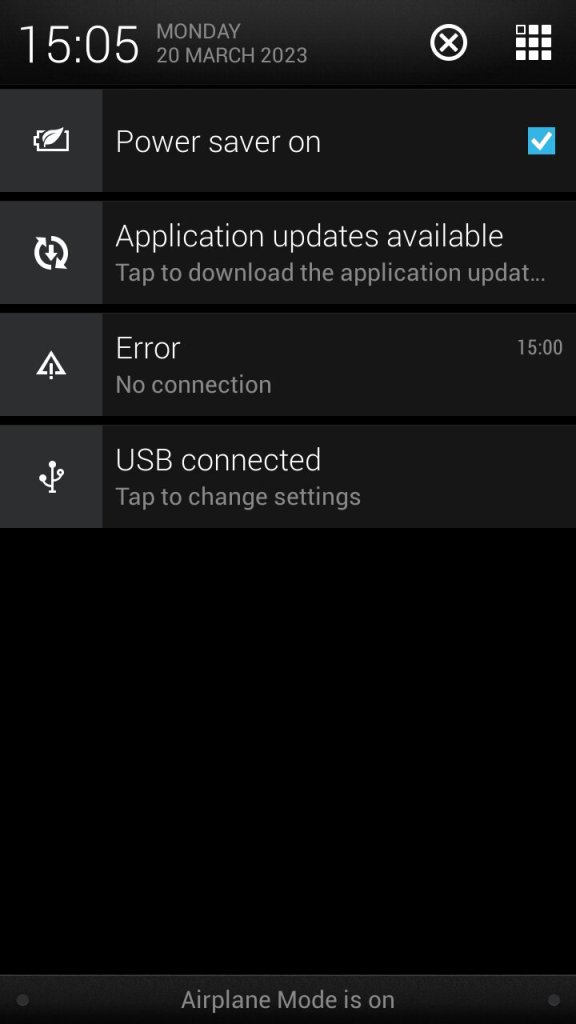
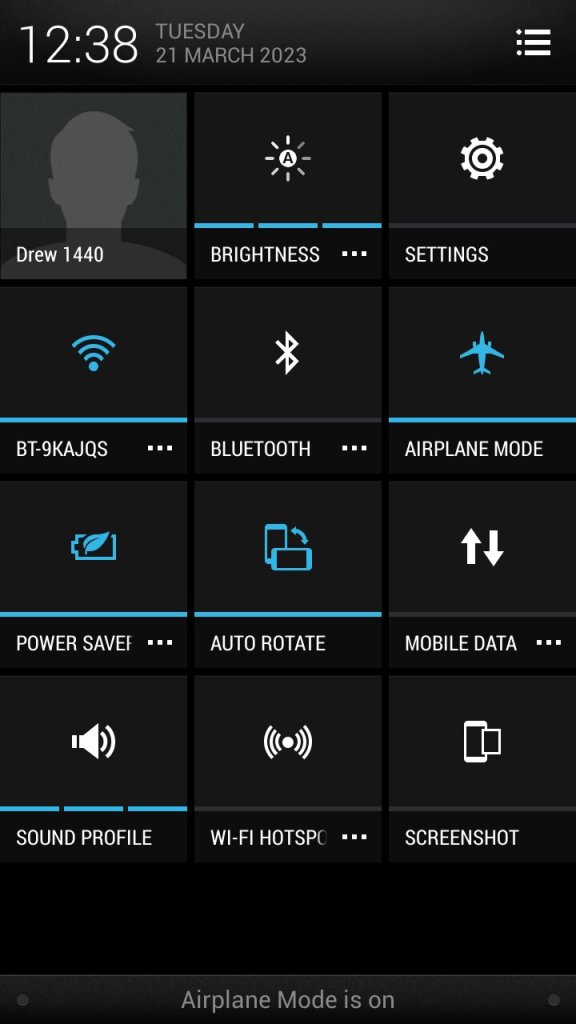
The notification drop down, which also provided access to phone functions

List of apps that are installed on the handset.

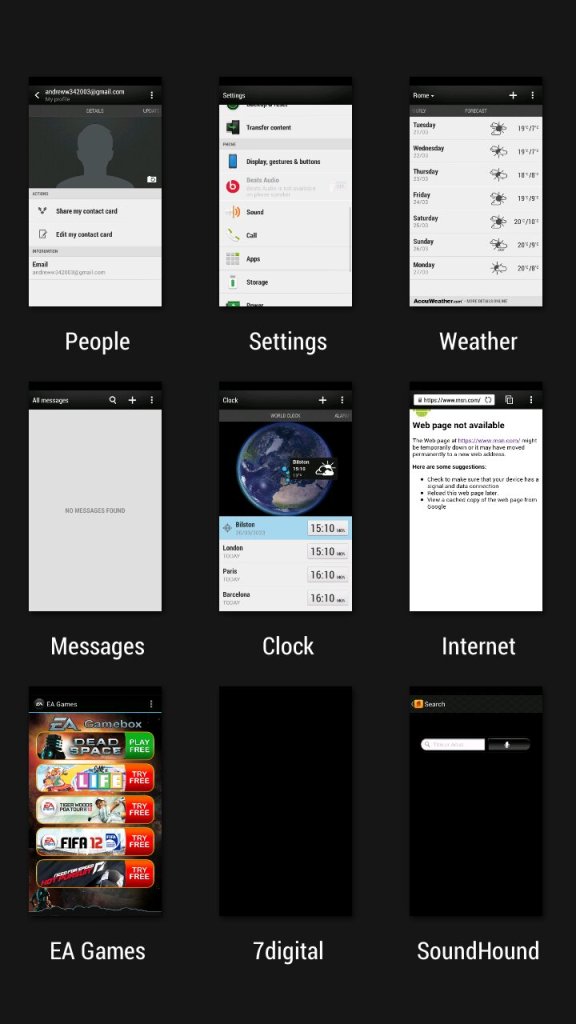
Shows any recently open apps that you can quickly switch back to, or apps that are currently running in the background. You can choose from a card or a grid view layout as seen below. Screen pinning can also be enabled from here.


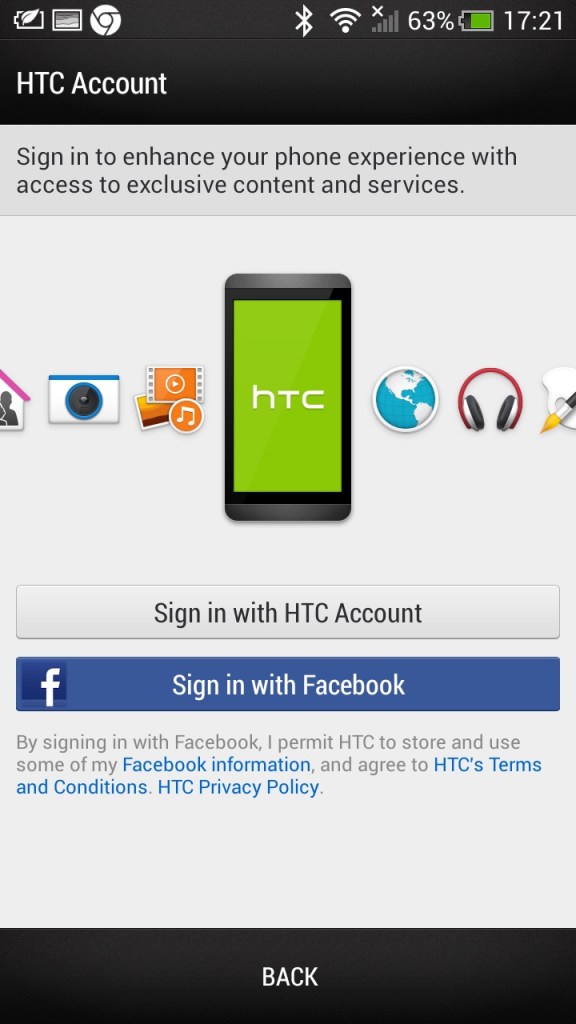
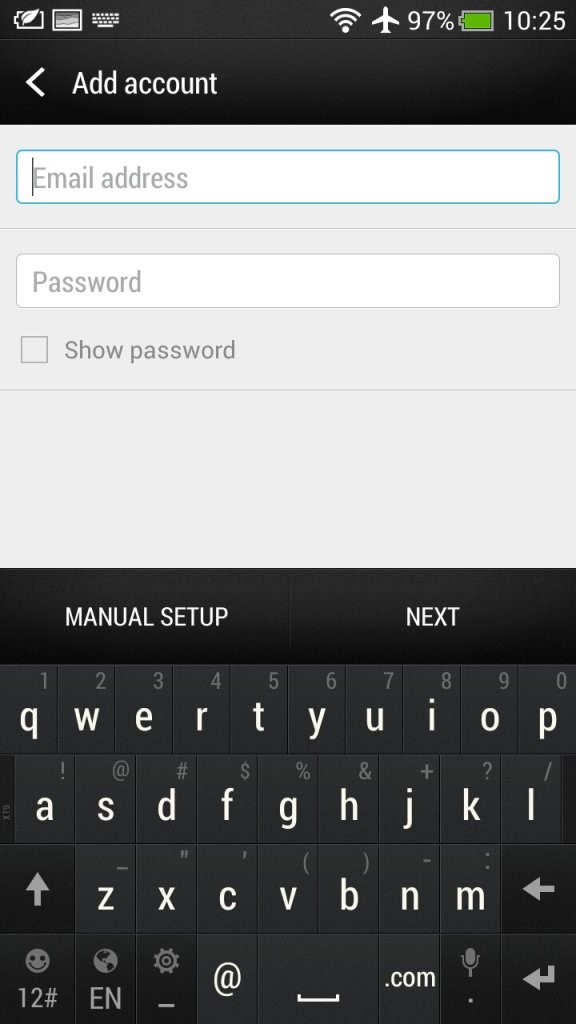
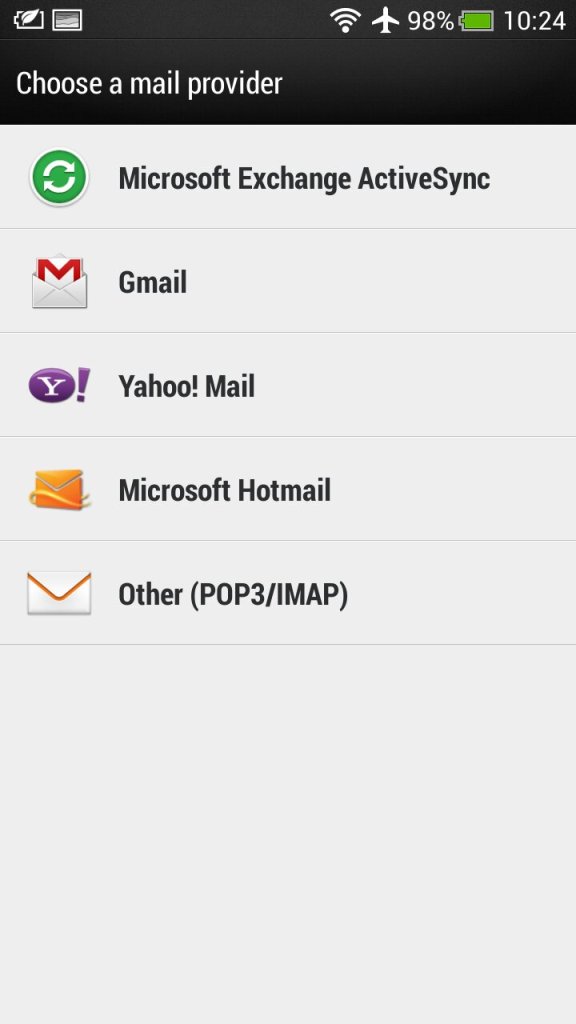
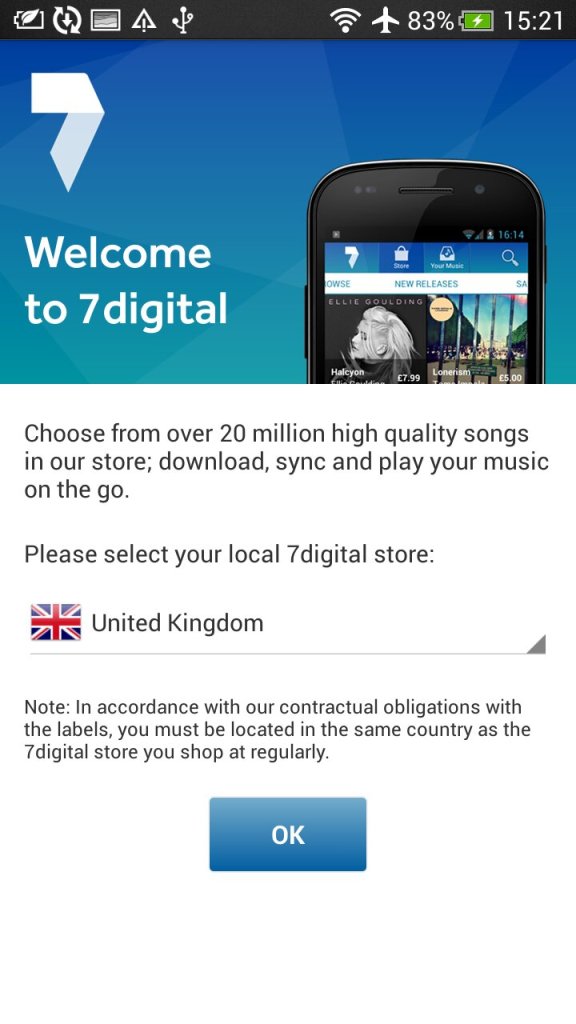
Lastly some shots of the initial setup application

Oh look, a system update for Android 7. I guess this handset hasn’t been used for a few years.
Applications
HTC had created their own set of applications for common phone functions and preinstalled a few third-party apps.


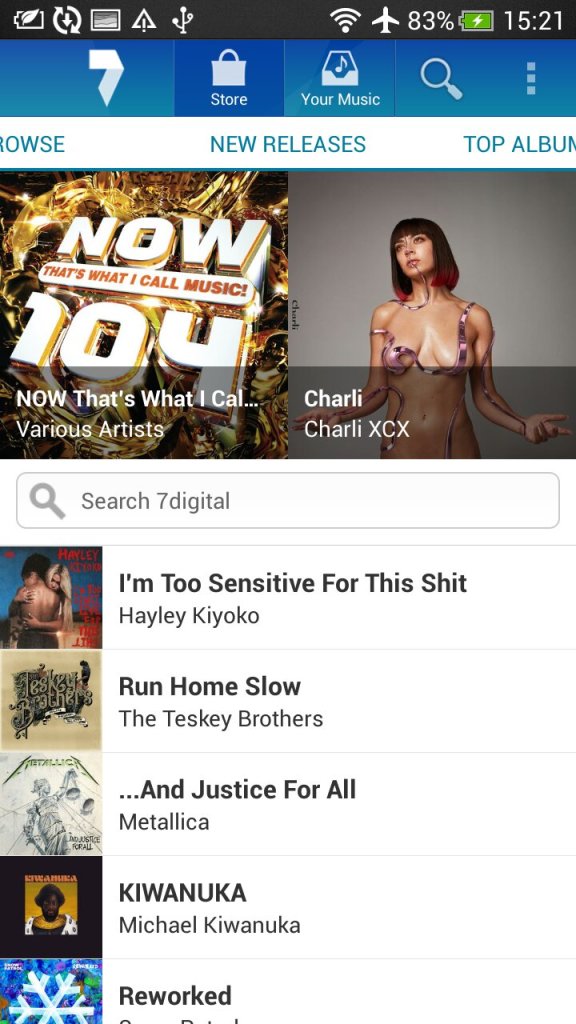
Music: A fully featured music player is included which can playback your standard music formats. There is also an option to playback from a DLNA server, provided you are connected to a Wi-Fi network. This had no problems playing back from a WDMycloud NAS, but album art was missing and it would play the same track again, there was no sequential playback unless you manually skipped to the next track.
There is also a trippy visualizer, but this only works for locally stored music files, DLNA tracks have no visualizer.
Still, HTC went to a lot of effort for their music player, though you can’t change the pitch like in the LG G4’s music player.
Kid Mode: HTC’s answer to Windows Phones’s Kid’s corner. Here you can pin specific apps to restrict access to the phone.
News Republic: A news aggregation app that used to come pre-installed on some Android devices, including some HTC smartphones. It was developed by a company called News Republic, which aimed to provide users with a comprehensive and personalized news reading experience.

HTC Print Studio: HTC Print Studio was to enable users to create physical prints of photos and images directly from their HTC device, kinda like Snapfish. In addition to standard photo prints, HTC Print Studio sometimes offered the option to order various print products, such as photo books, greeting cards, calendars, and posters.


HTC Help: This app provides troubleshooting and hardware testing to see if there are any faults with the device. You can also view the power usage of individual apps. There are also How-to guides on how to use various features of the phone.

HTC Dot View: This is a special case that’s attached to the phone that adds a protective front cover with a bunch of holes. By using the dot view app, you can customize the standby screen and patterns, which would show the current time and if there are any notifications.
Peel Smart Remote: The M9 has a built-in IR transmitter that allows the phone to control a TV or Set-top Box, similar to what the LG G4 had featured.
Photo Editor: basic editing tools such as cropping, rotating, and straightening images to adjust their composition, plus a variety of filters and effects. You can also change the brightness and colour balance.


Polaris Office 5: View and open documents and spreadsheets on the phone itself. This also has compatibility with Microsoft Office formats.
Zoe Video Editor: Zoe is a video editor and social media app created by HTC, the smartphone manufacturer. It’s designed to allow users to easily create and share short video clips with various visual effects and music. Zoe was initially introduced as a feature on some HTC smartphones and later became a standalone app available for download on various Android devices.
You can edit and enhance video clips with a range of editing tools. Users can trim, splice, and arrange clips to create a cohesive video. The app offers various visual effects and filters that can be applied to video clips. These effects can change the look and mood of the video, adding creative and artistic touches.

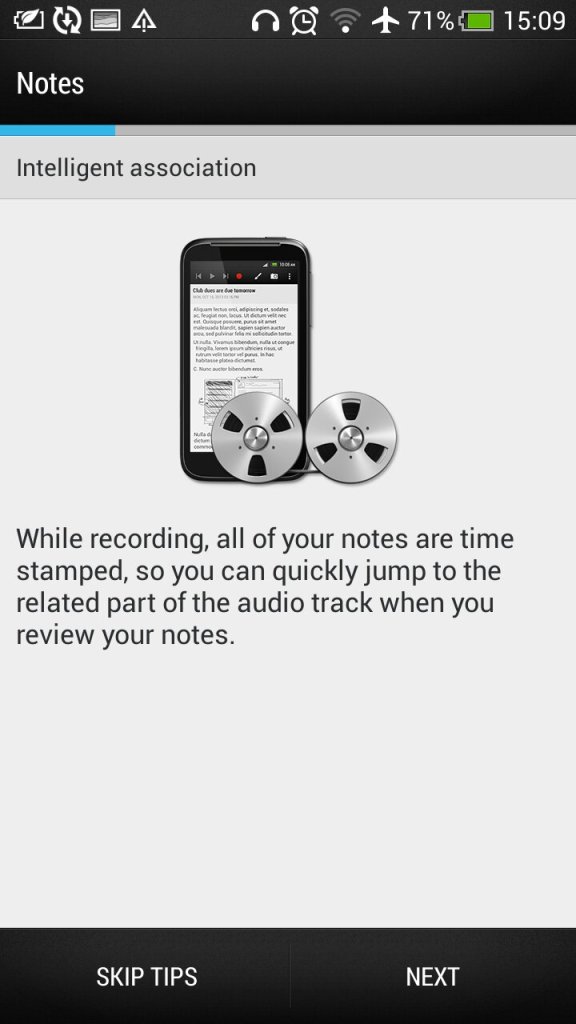
Voice Recorder: Simple voice recorder app that supports recording in a variety of audio formats from AMR to ACC. Most phones should support both of these formats.


HTC Power To Give: Some sort of distributed computing app that downloads small workloads to process. Very similar to Folding@Home for the PS3 and PC.


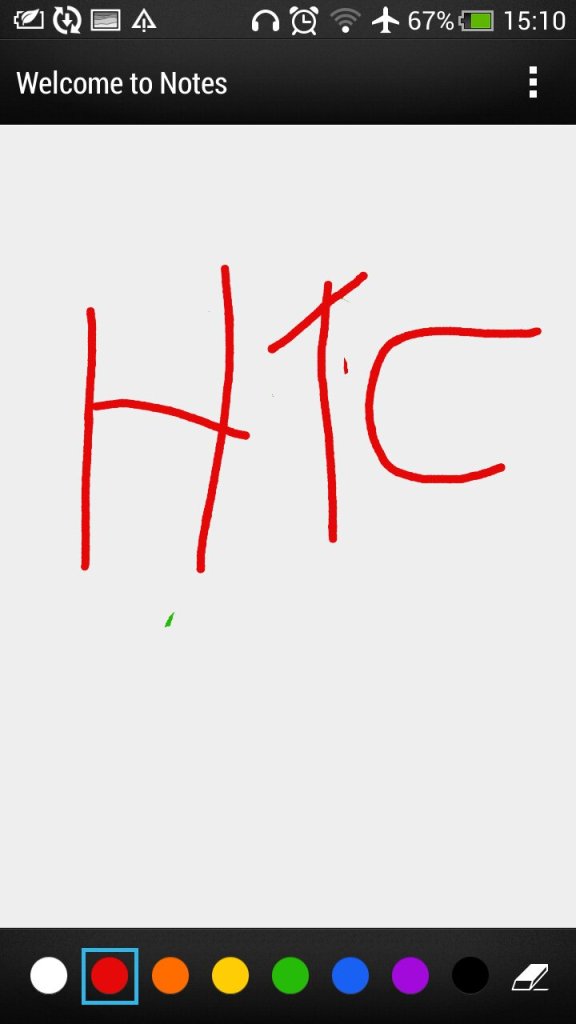
Scribble: A scrapbook-like app that allows for drawing and freehand text. You can drag with your finger, or a stylus (Which isn’t included with the phone) for more accuracy. Samsung and LG have included similar apps in their Android handsets for sharing created images.
Emergency Alerts: Displays any emergency alerts, not much to say since we hardly get any natural emergencies over here. I would imagine this would notify of any disasters or riots of peace nearby.


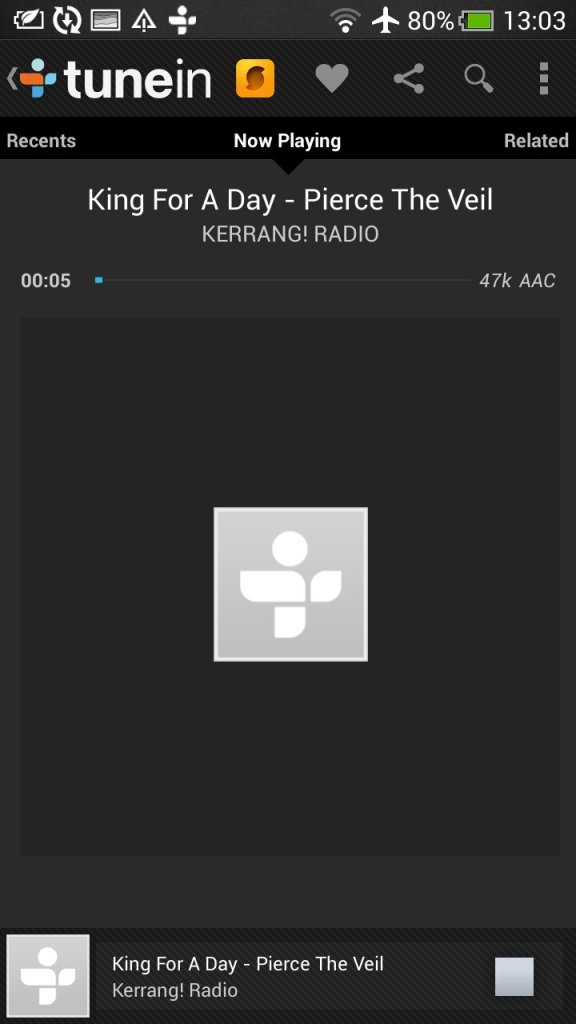
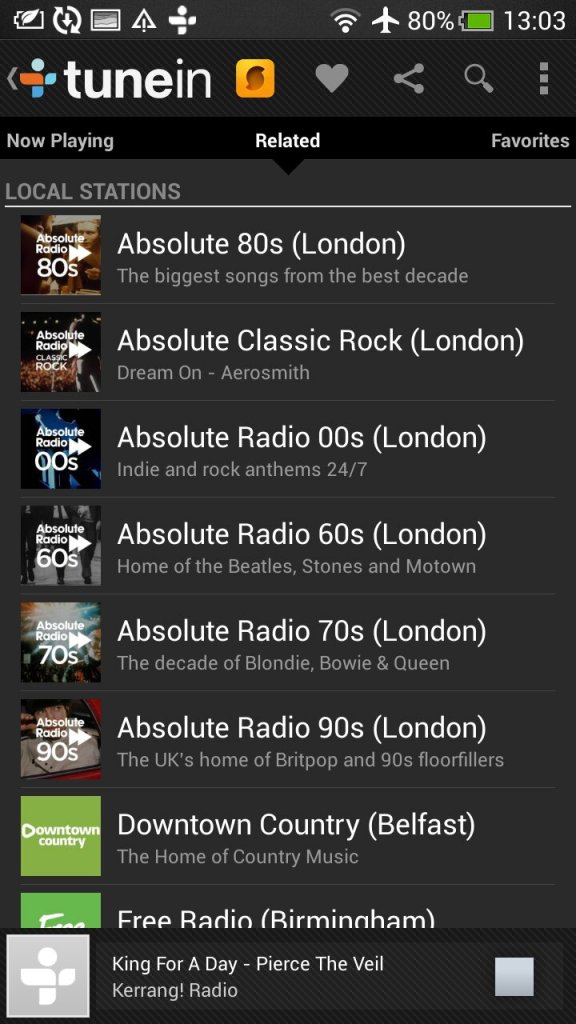
FM Radio: Simple FM radio that supports auto-tuning and RDS. Radio stations can be saved by tapping on the heart button for easy access.
Gallery: Where photos and videos captured by the camera reside, here you can easily edit or share, or organize into an album.

Flashlight: Turns on the LED flashlight, with a nice skeuomorphic torch on screen,


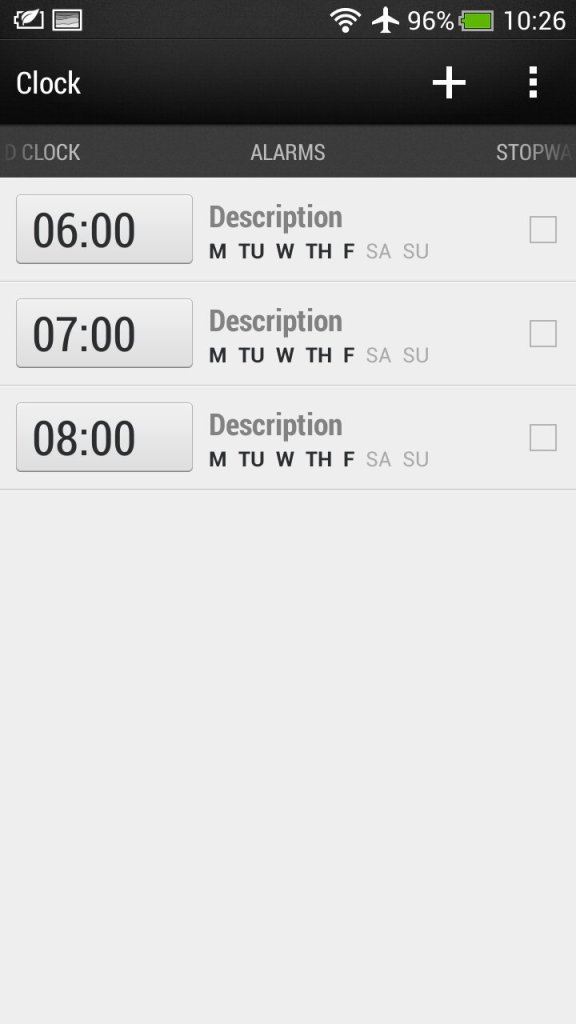
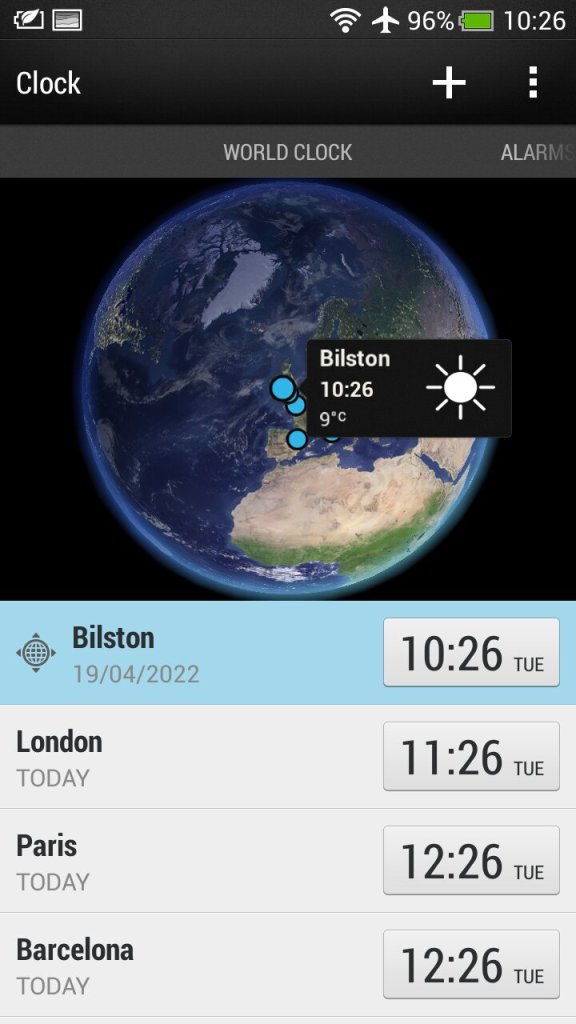
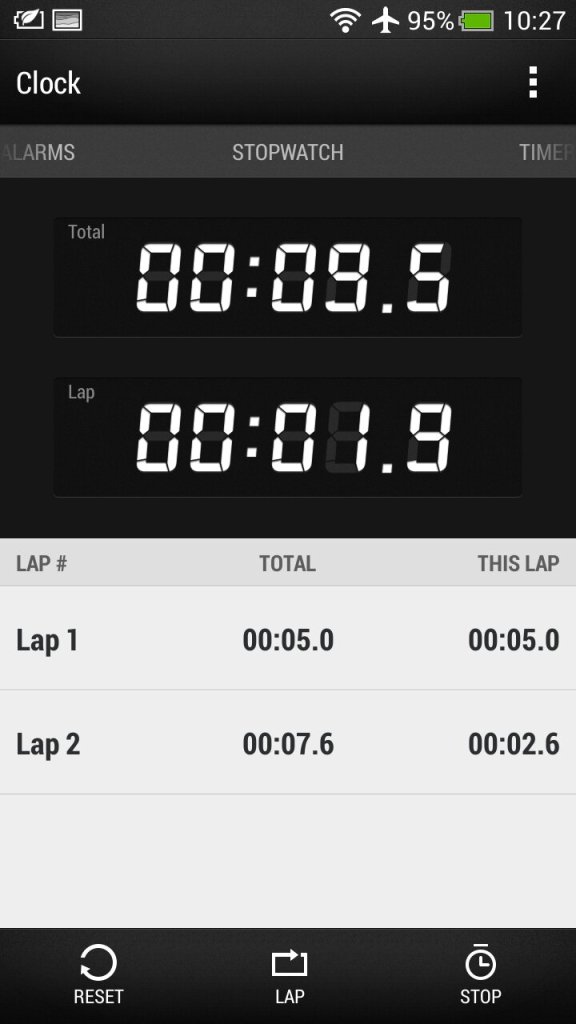
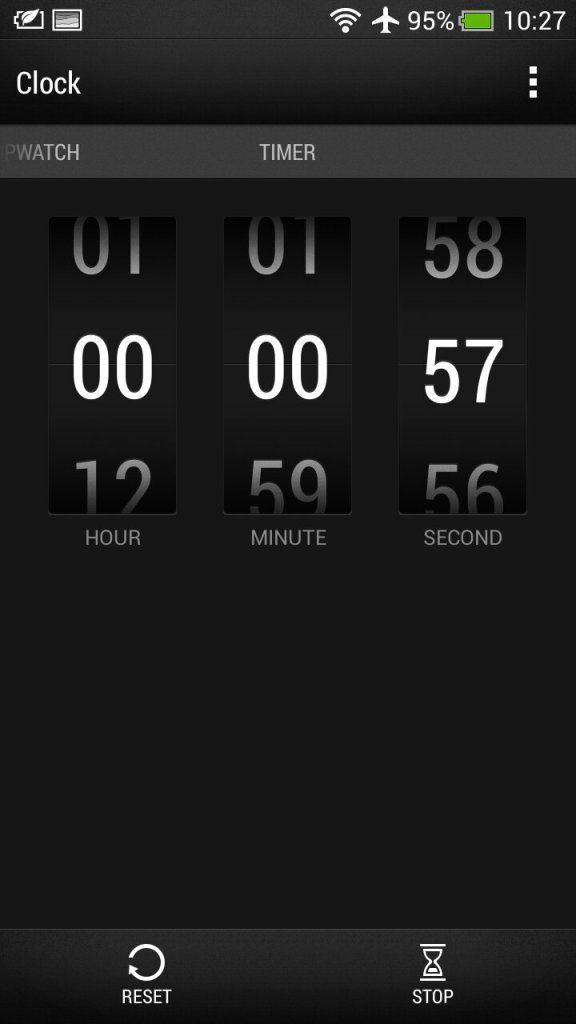
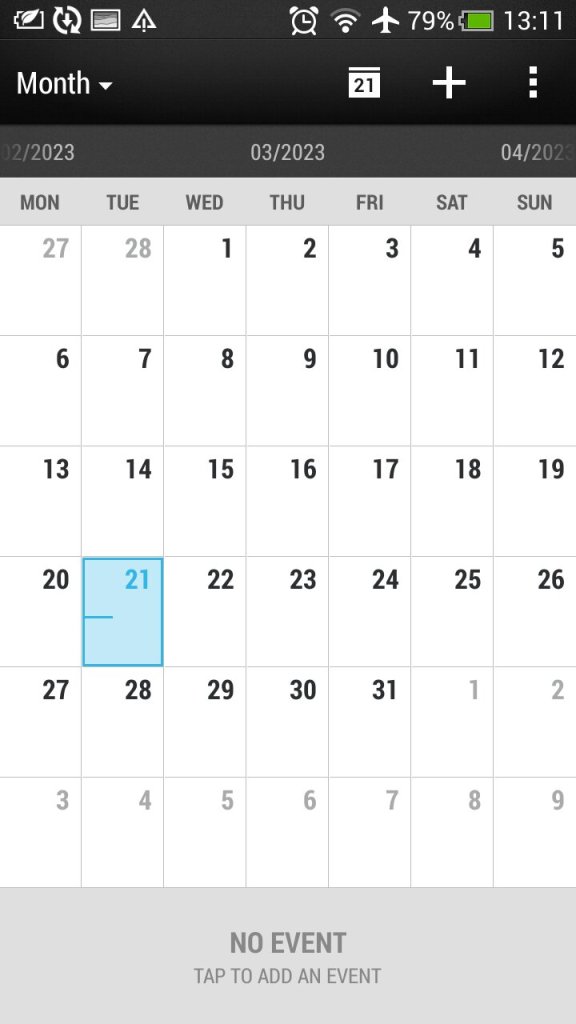
Clock: View different timezones, set an alarm or 5, and access the stopwatch or a lap/countdown timer.


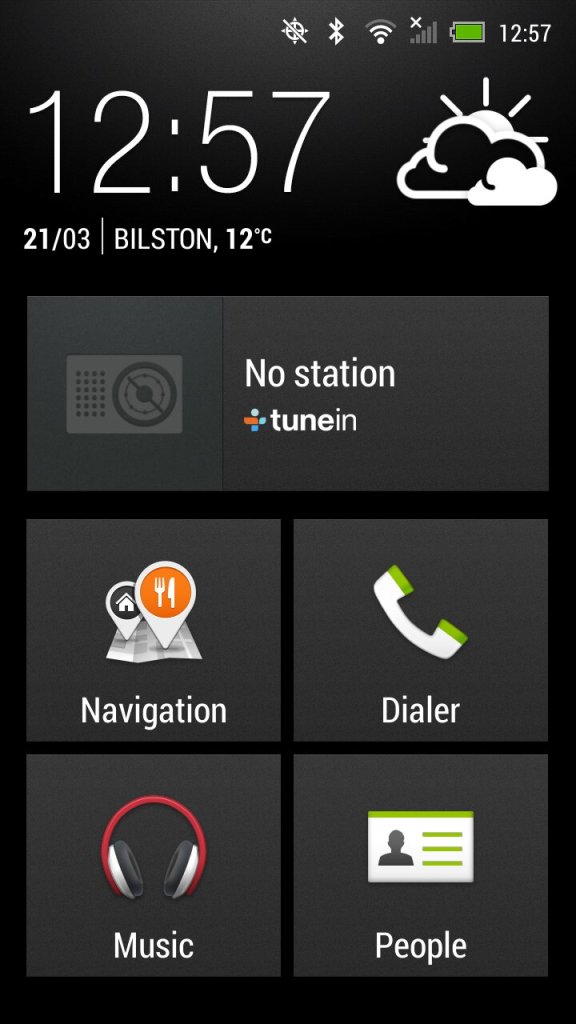
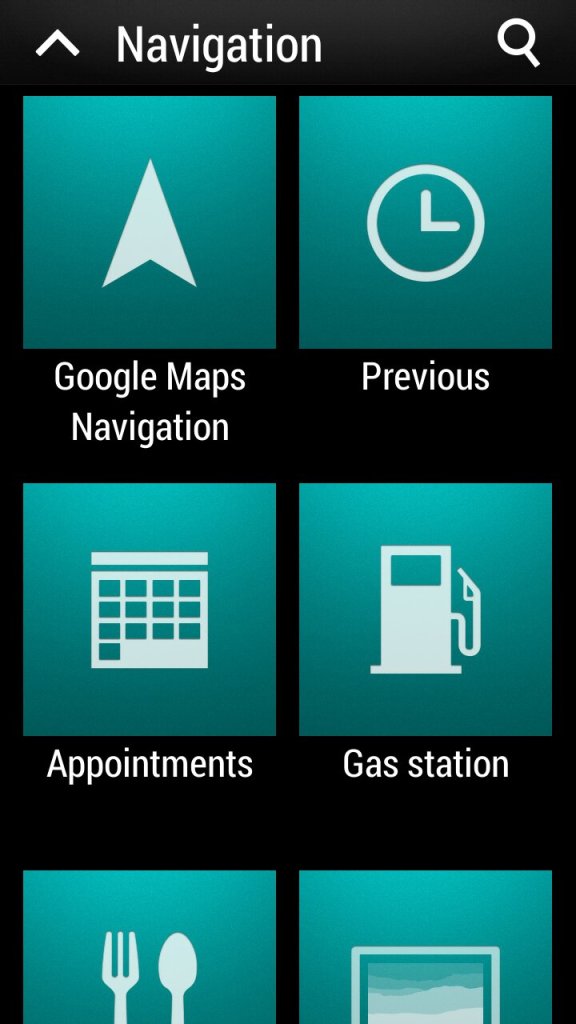
Car: Enabled Car mode which allows earlier access to phone functions when you are driving
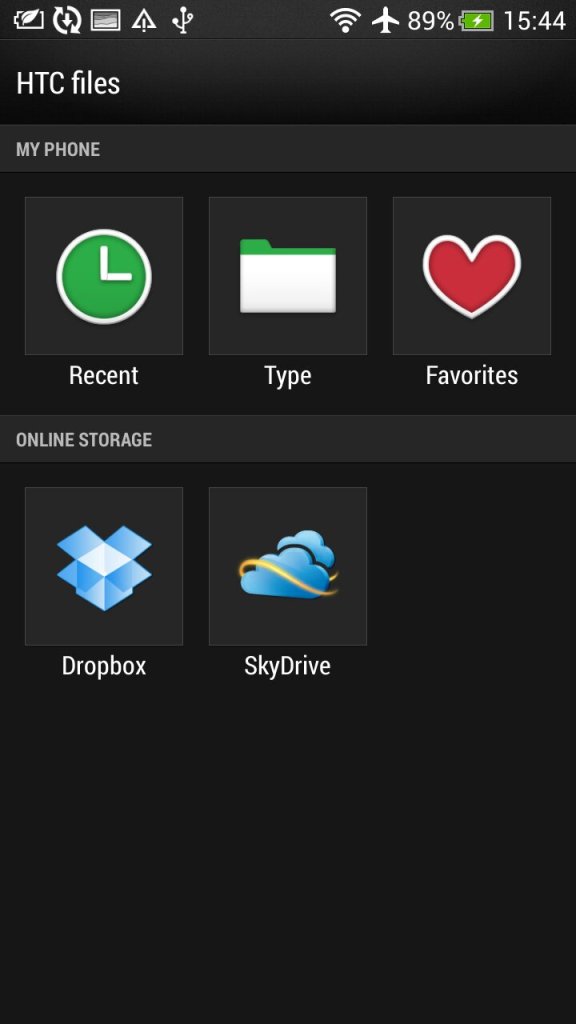
File Manager: Browse and access files on both the internal memory or the SD card.


Weather: Shots of the weather app, which uses the Accuweather API
Widgets
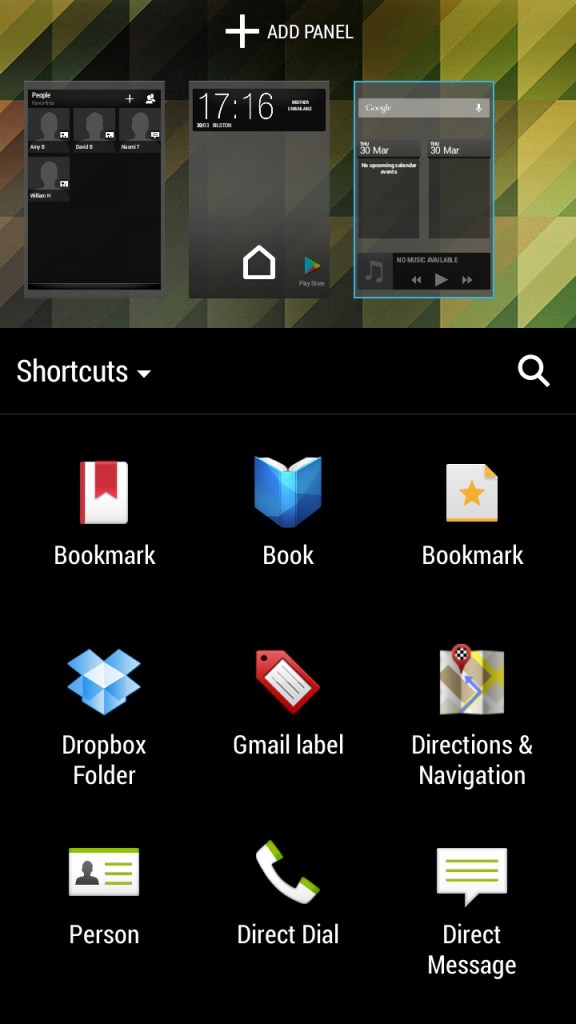
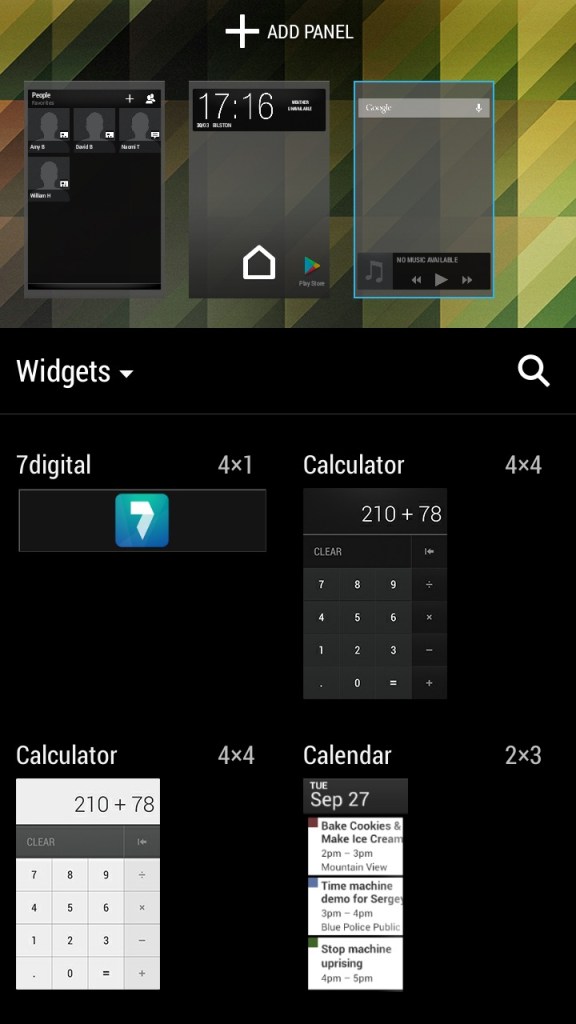
A few custom widgets come with the phone, many are linked to the bundled apps.


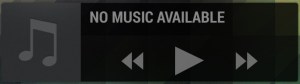
- The music widget will either show the currently playing track, or any recently played tracks.
- The Peel app can also be set as a widget, allowing for quick control without having to open the app.
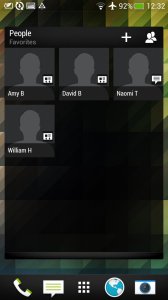
- People widgets let you set quick access contacts to easily call or send a message, similar to how contacts could be pinned to the Windows Phone home screen.
- The Sense widgets will show you frequently or recently used apps that the phone will learn over time
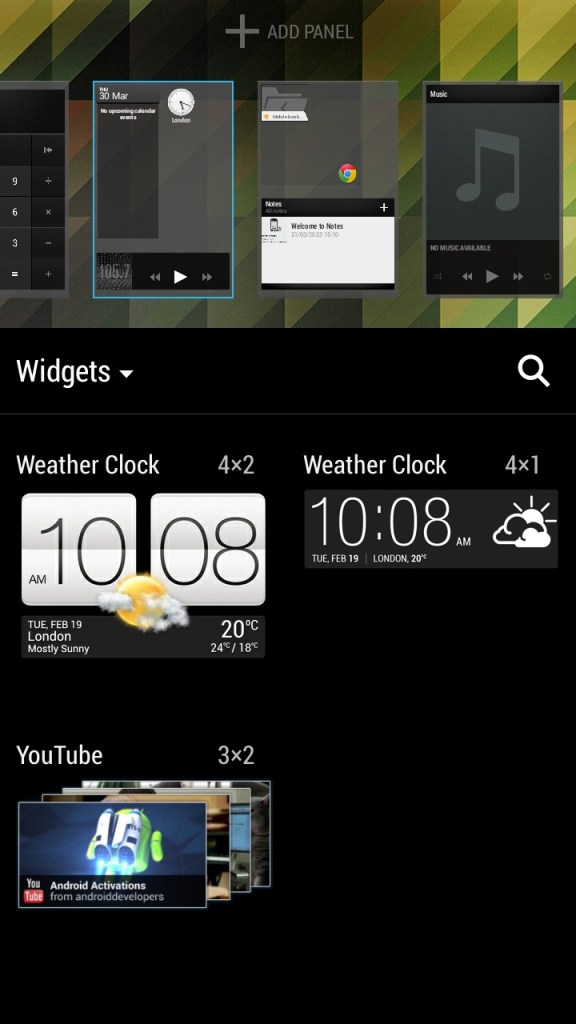
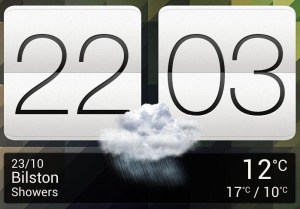
- A weather clock widget that come with a variety of clock faces, tapping on it will open the app to access the stopwatch or set an alarm. A variant of the widget will display multiple clocks for different time zones.
- Data dashboard lets you quickly enable and disable certain phone features like the wifi, this is redundant since the notification bar can be used for this
Settings
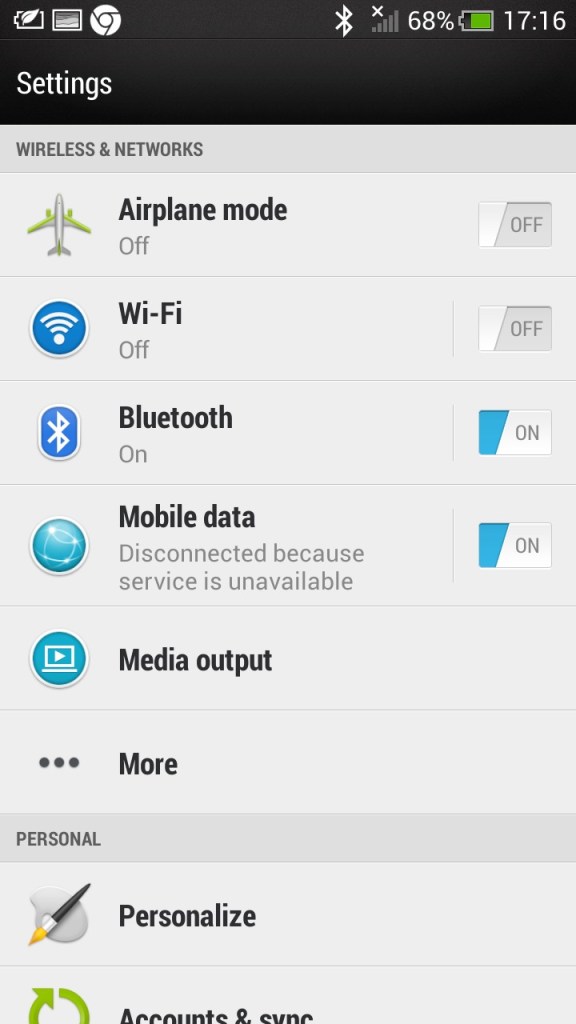
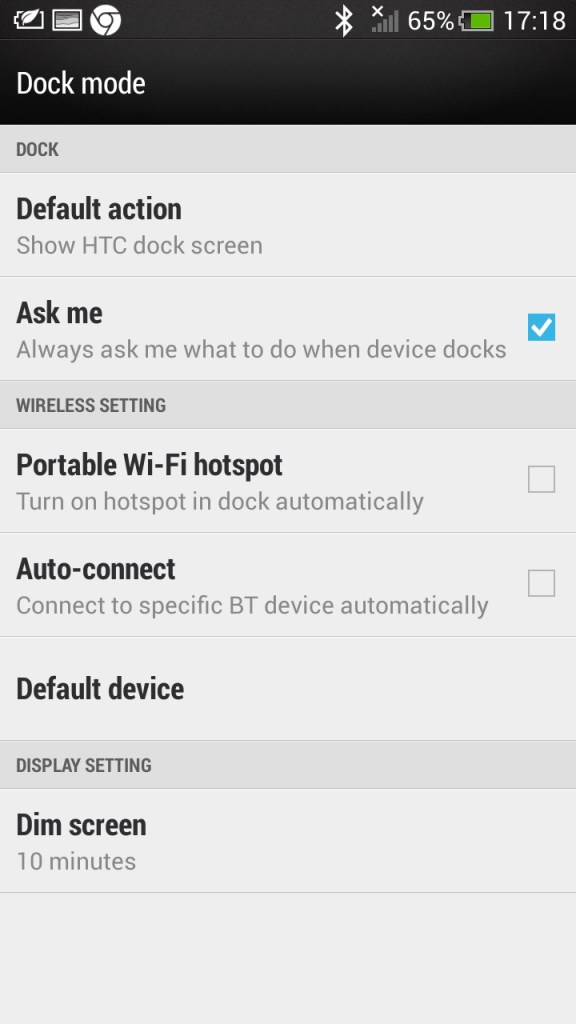
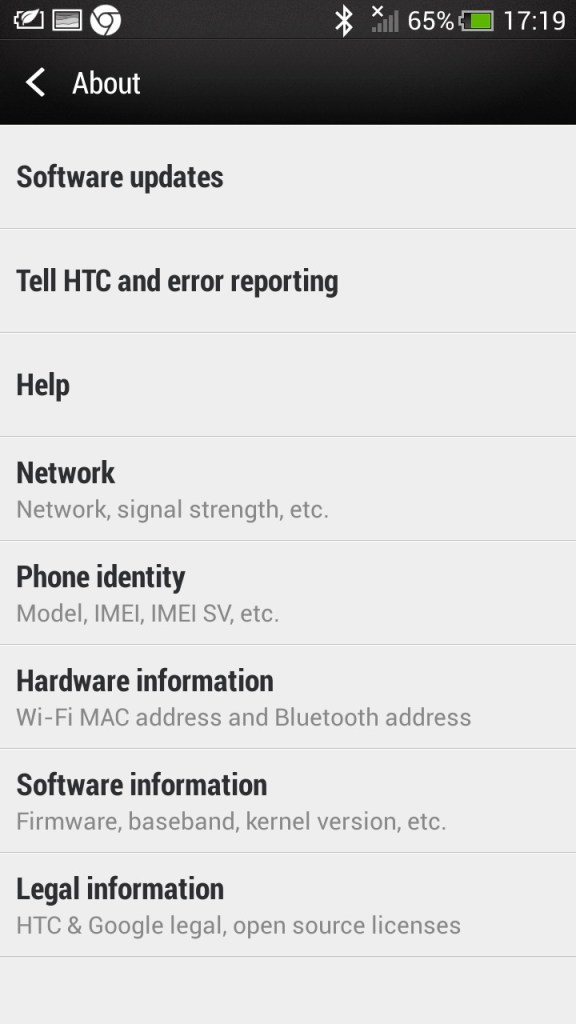
A view of the main settings screen

HTC Connect lets you share content via DLNA or screen mirroring. A variety of protocols are supported including Apple’s Airplay, Chromecast, Miracast and Blackfire.


HTC Mini+ was a compact device that linked to the phone for easier access, kind of like a smartwatch. It’s marketed as an easy way to get access to the core features of the phone without having to use the actual handset, like if you wish to make a quick phone call or send a text message.


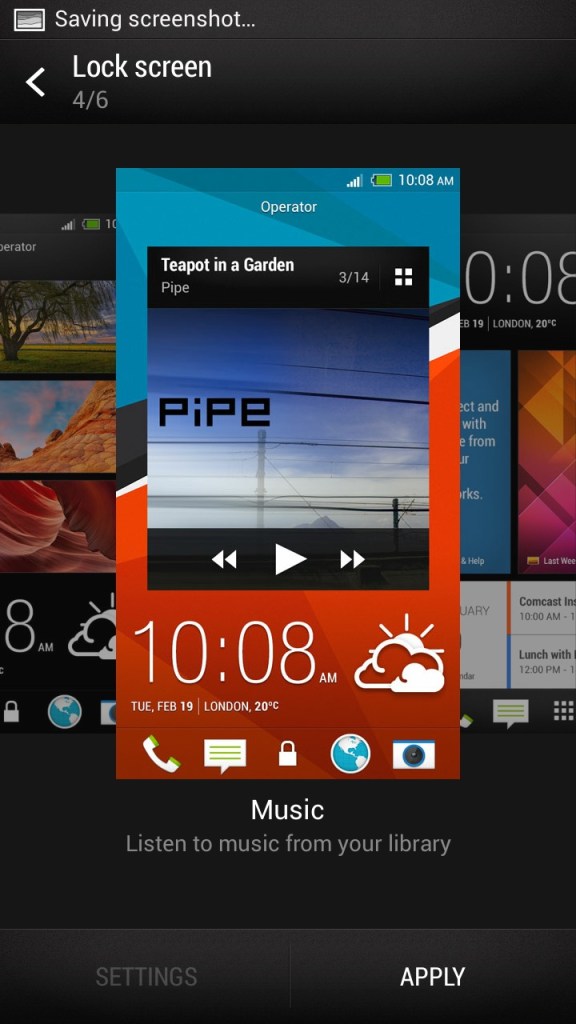
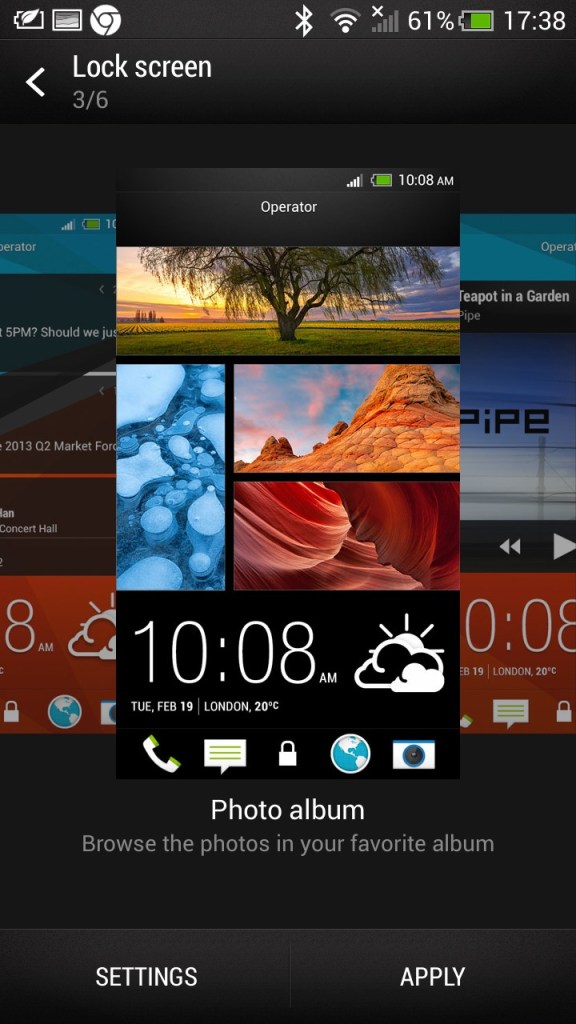
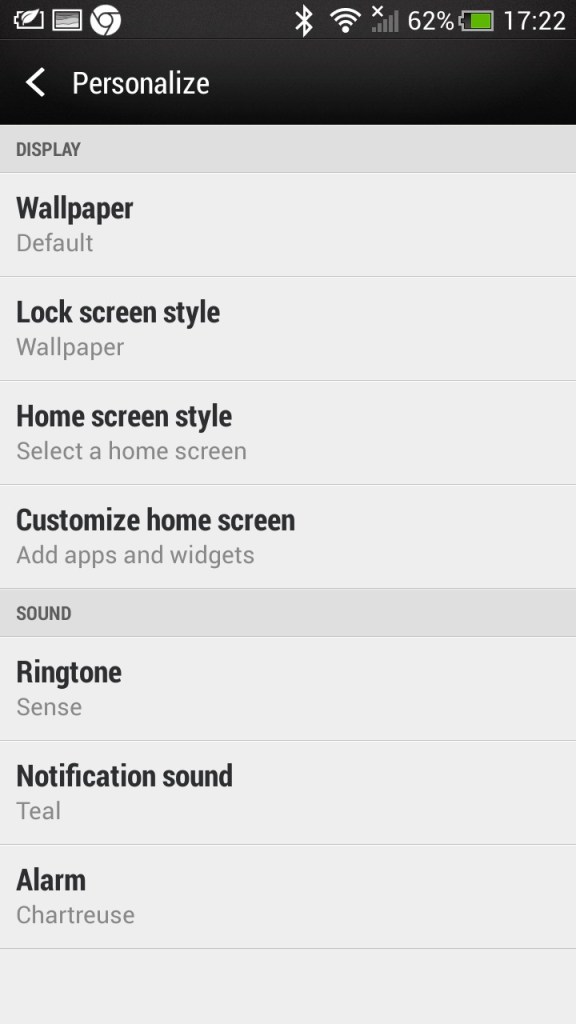
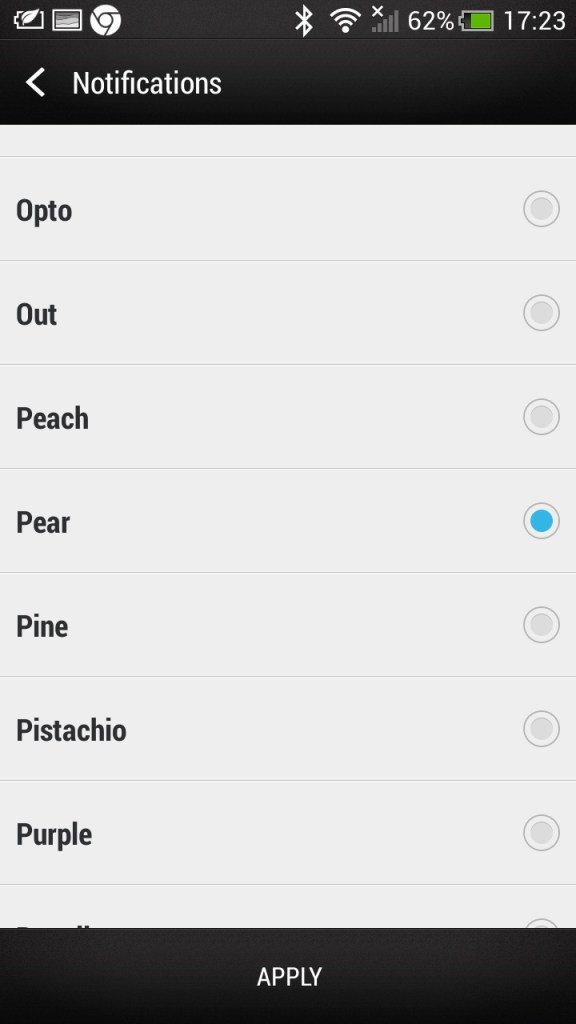
The personalize section lets you change the appearance of the phone and the notifications that it sounds. Themes can be downloaded and applied to the phone which changes the sound, wallpaper and menu fonts. Like the LG G4, the bottom navigation bar can be customized with additional icons being added in addition to the Home, Back and Tasks buttons.


The phone comes with a variety of gestures, in response to the Galaxy S4. You can enable and disable specific gestures that can be used to trigger phone functions. Glove mode increases the sensitivity of the screen to allow it to pick up input from users wearing gloves.


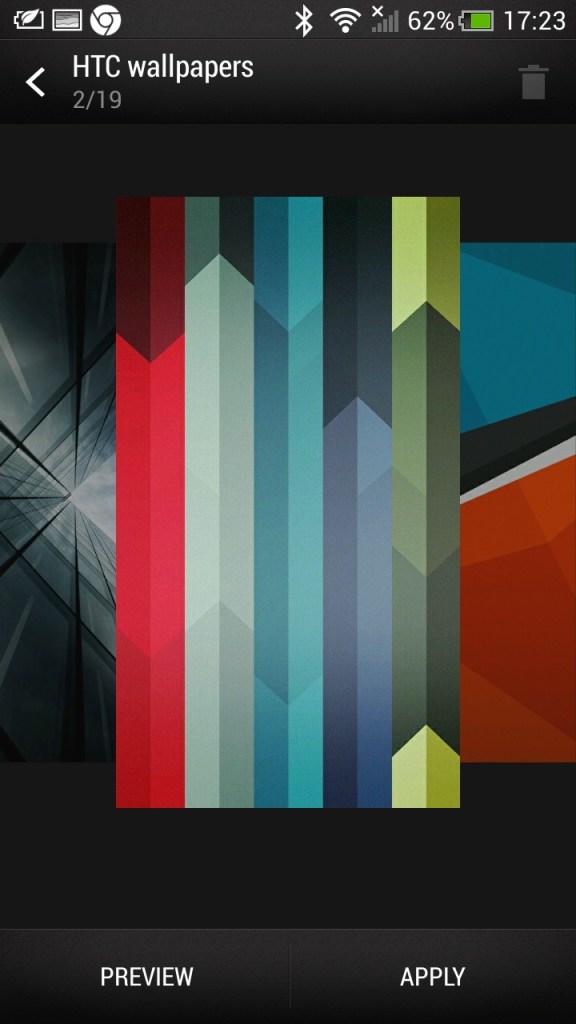
Lastly a look of the themes and wallpapers that shipped with the phone.

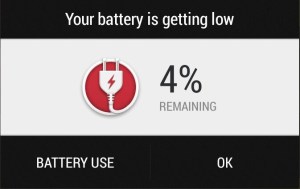
This can happen if you charge the phone whilst connected to a USB 2.0 port. The device needs more than 500mA for optimized charging.
Conclusion
Overall, the HTC One M9 was a looker, no doubt about it. It had that premium feel, it oozed style, and it was like holding a piece of art in your hand. But it did have some quirks, like the heat issue and the button placement. Nevertheless, it was a solid design for its time. HTC knew how to make a phone that was both functional and easy on the eyes.

Shutting down the One M9, done by holding the power/lock button.
 Drew1440: Blog