A typical Toshiba laptop from 2005, let’s take a look at what a factory install looks like.
This restore CD is unlocked which allows you to install it onto any PC or virtual machine, Parallels 18 is being used here.
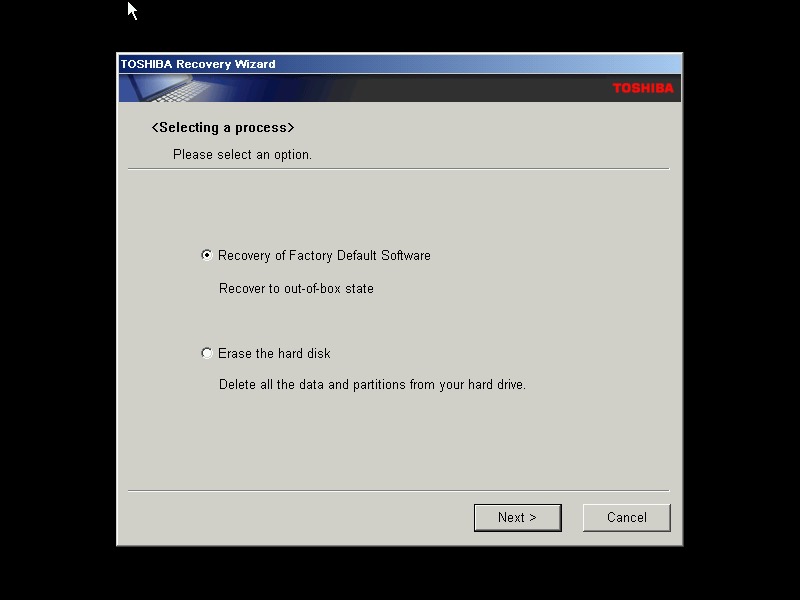
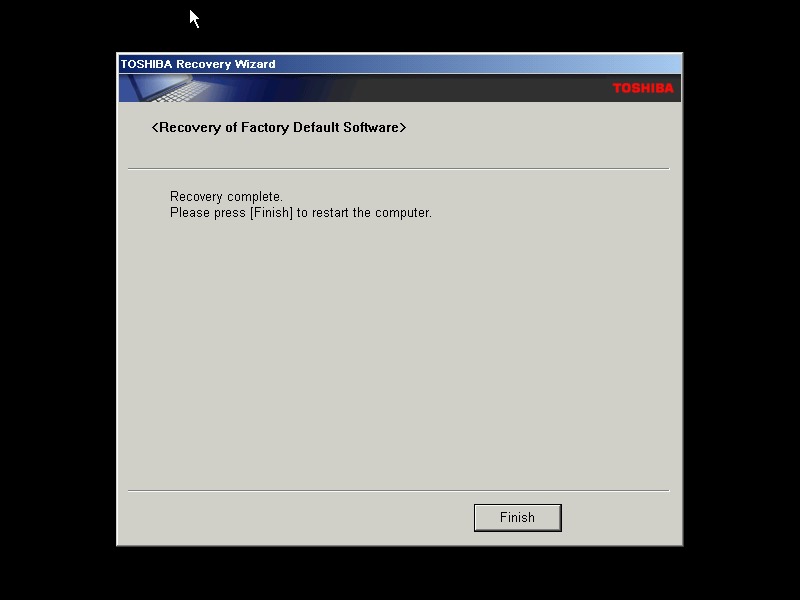
I actually have one of these laptops, though it is a much later revision that shipped with Windows Vista basic, and featured integrated Intel graphics and an Intel Pentium (Core) Dual core processor. Confusingly A100 refers to the chassis design, as there is a wide range of specifications in this series which is confusing. Whilst you can expect differences in memory and hard drive storage, Toshiba even provided different graphics cards and optical drives in this range.

The Out Of Box Experience which features the Toshiba logo, this is mostly the same here you accept the license agreement

Post-install with the default theme and wallpaper, with Windows XP Home Edition being installed with SP2
Appearance
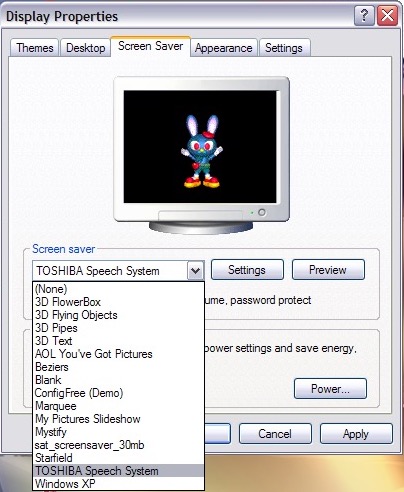

A few screensavers come included, including a speech one that talks to you and will ask you how you are today. The other screensaver is simply an advertising reel that shows the features of the laptop with a compressed guitar playing in the background.
Software
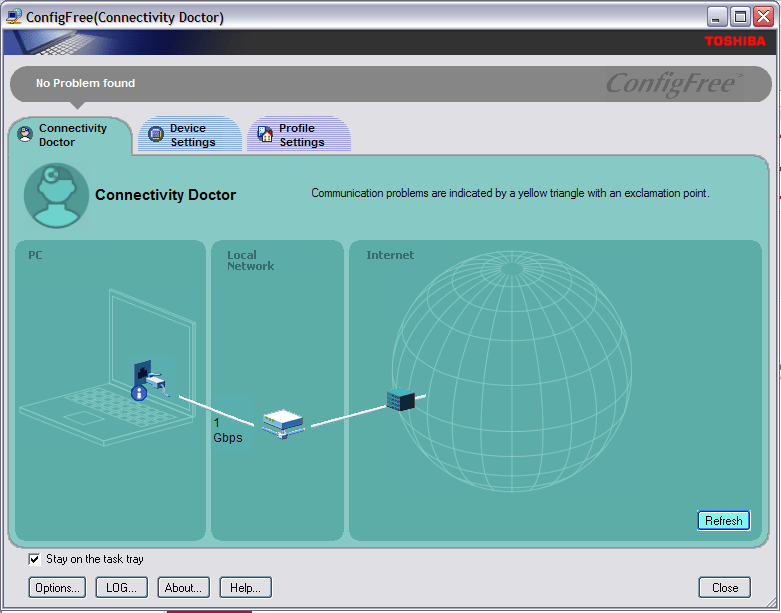
ConfigFree – A network utility that was bundled with various Toshiba laptops of the era, I remember this most from an old Satellite Pro A60 that I had from around 2004ish that functioned very similar to the version here, along with memories of trying to run The Sims 2 on its integrated Radeon 7000 graphics card.
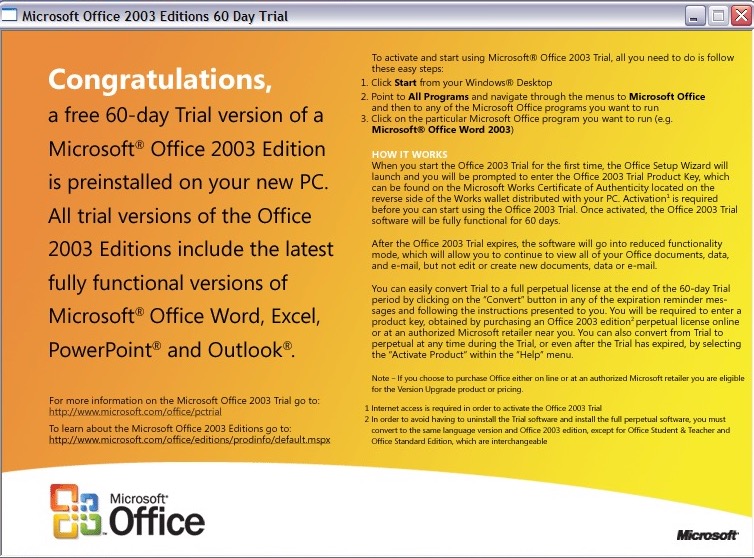
Microsoft Office 2003 – This version makes the debut of OneNote, which has become a staple of Office since, and is even found as a standalone product on modern versions of Windows. It’s a not taking application that can sync across multiple devices.
Your standard Office applications are also included with Work, Excel, PowerPoint and Outlook.
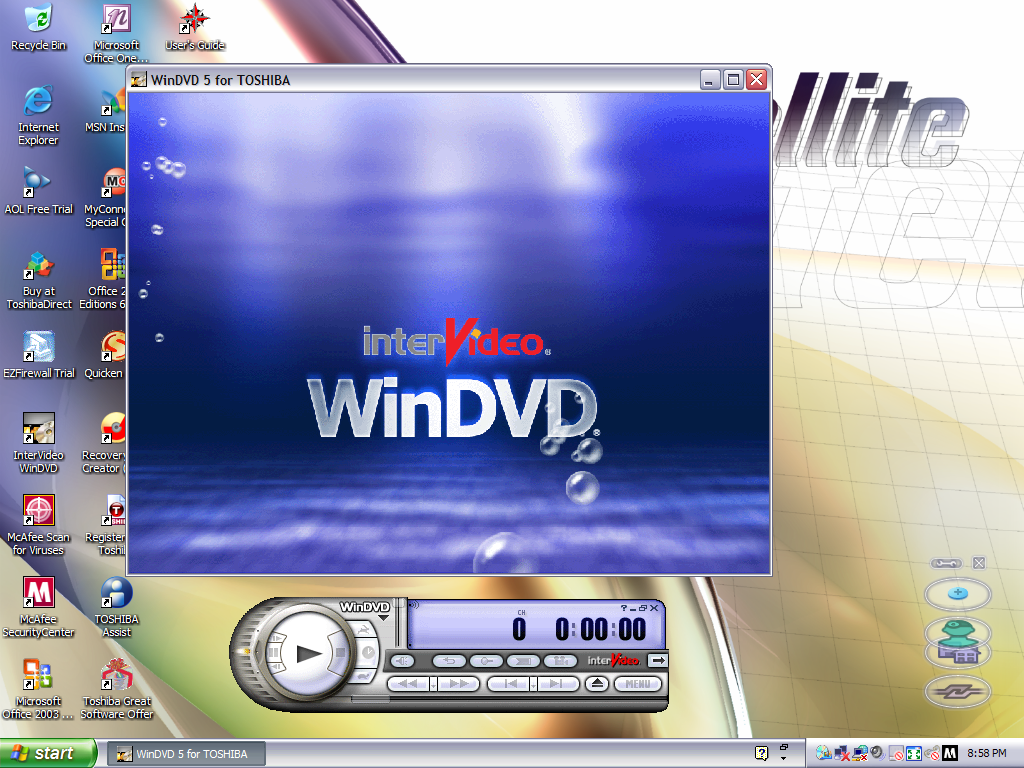
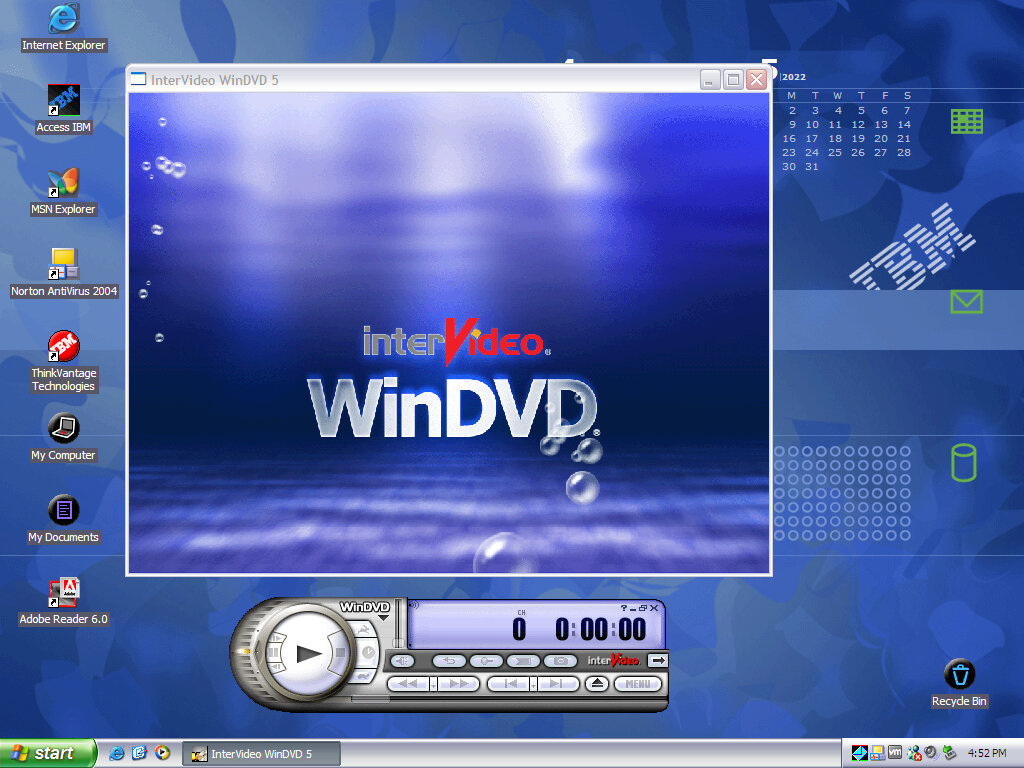
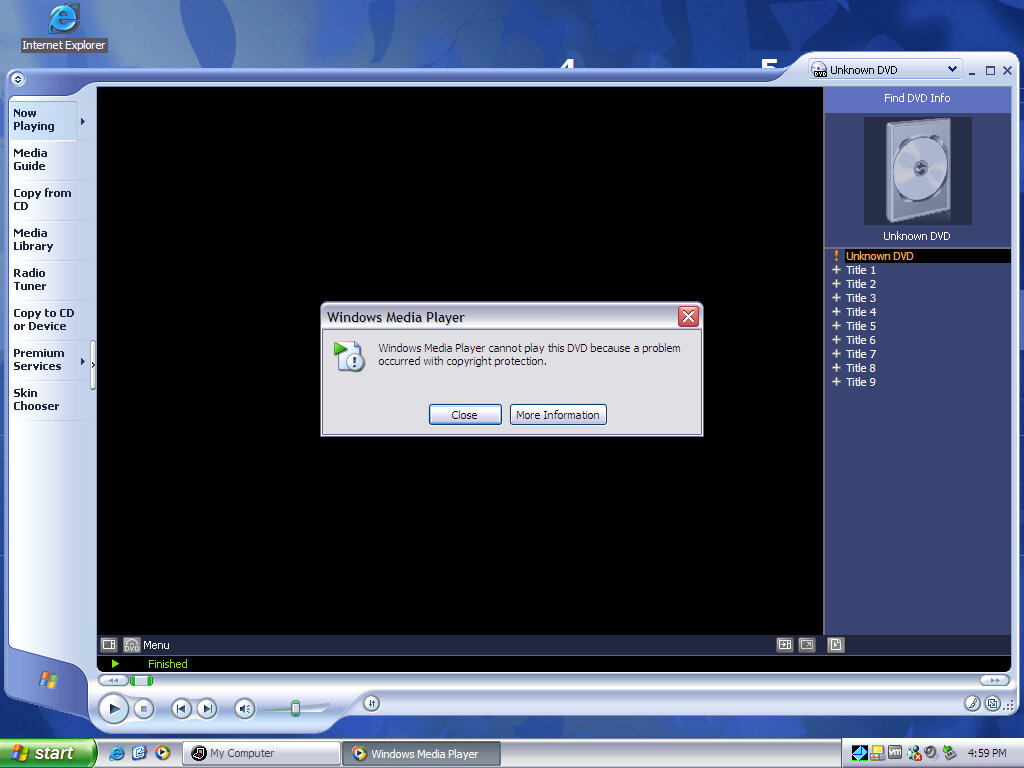
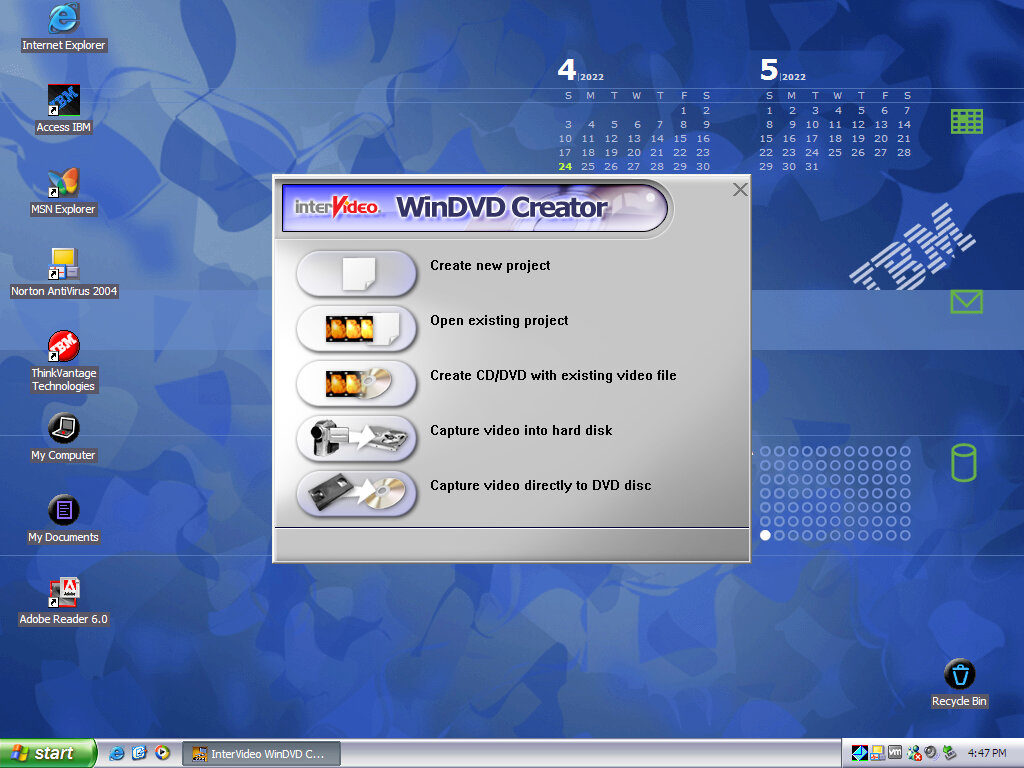
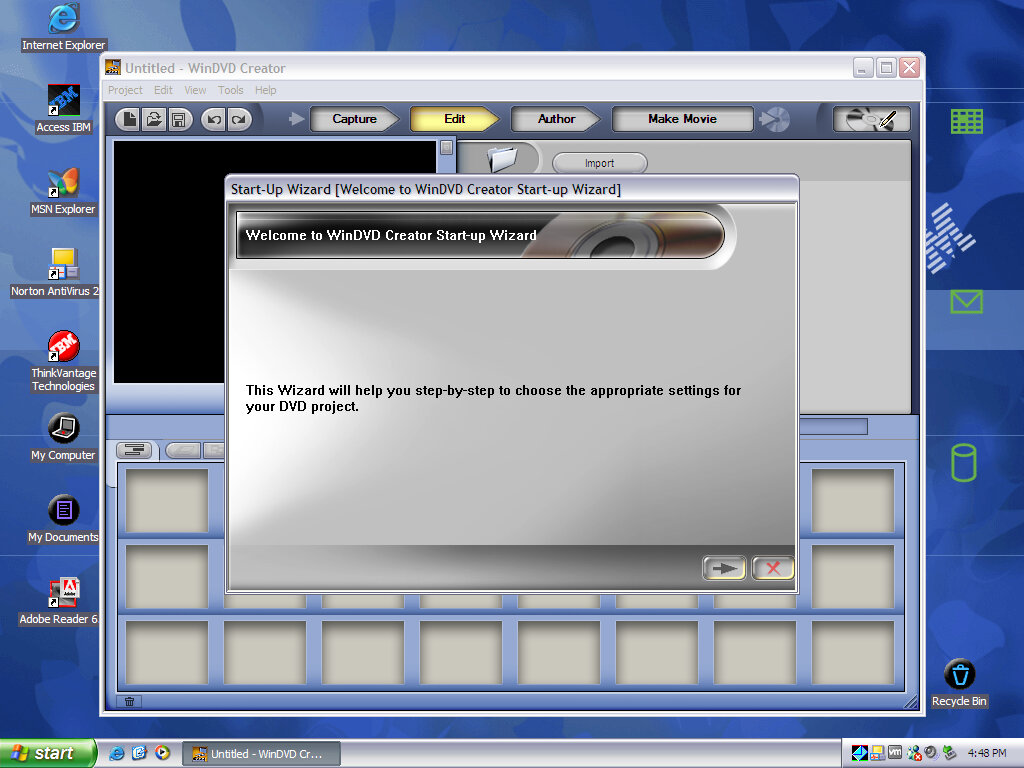
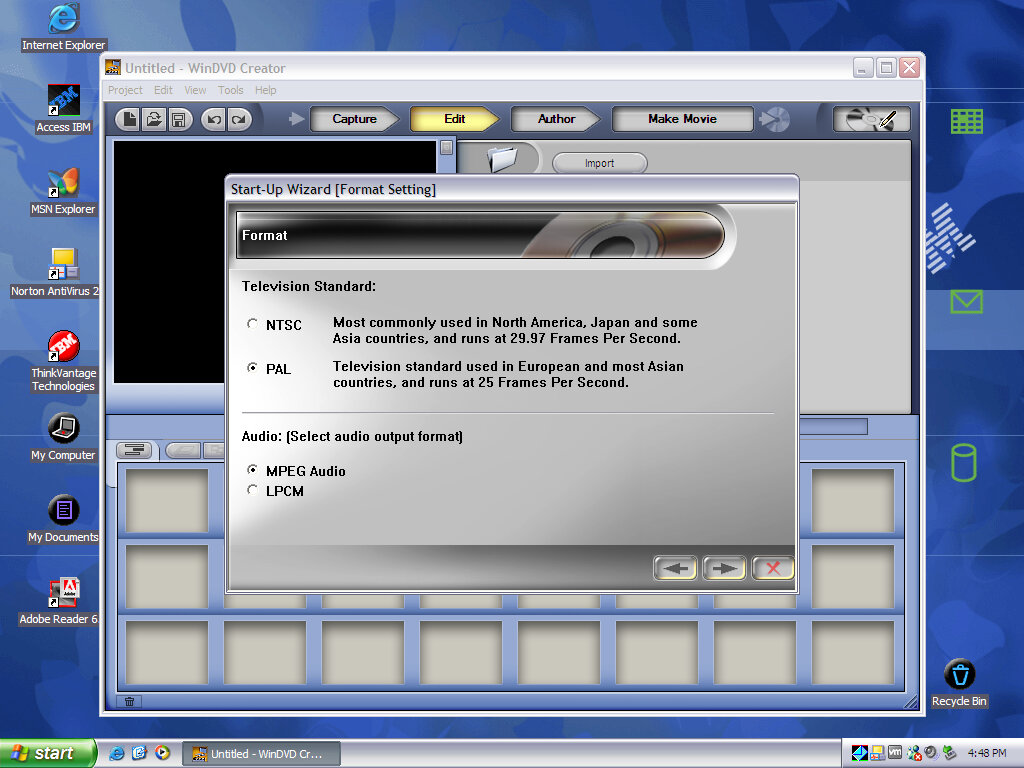
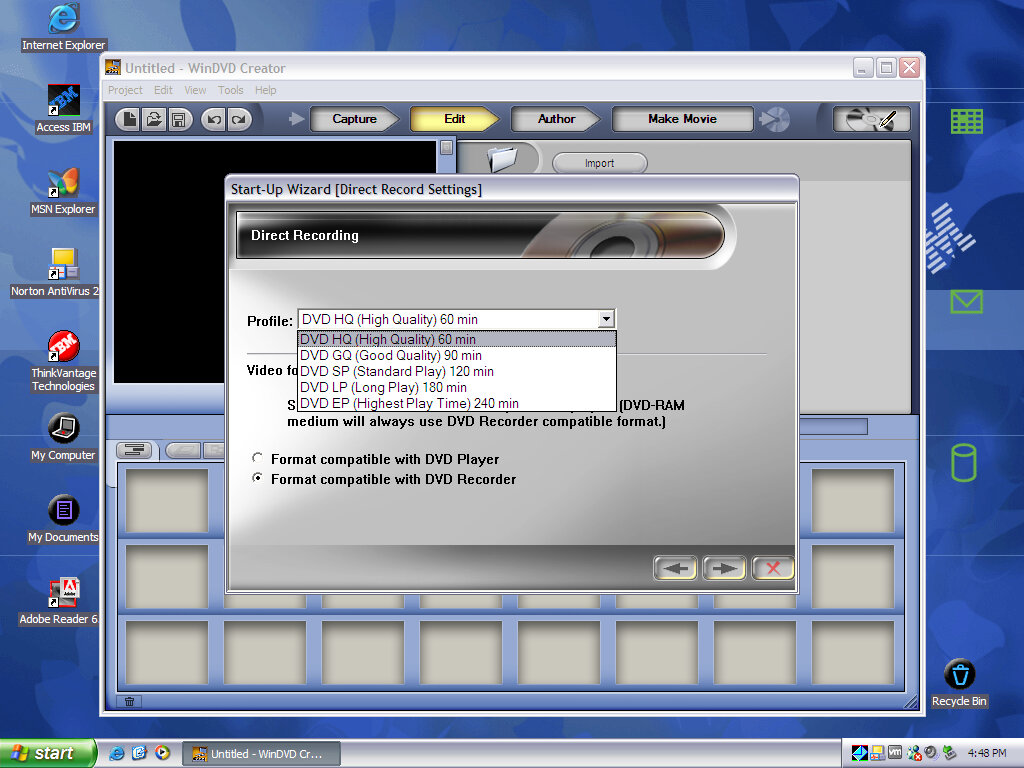
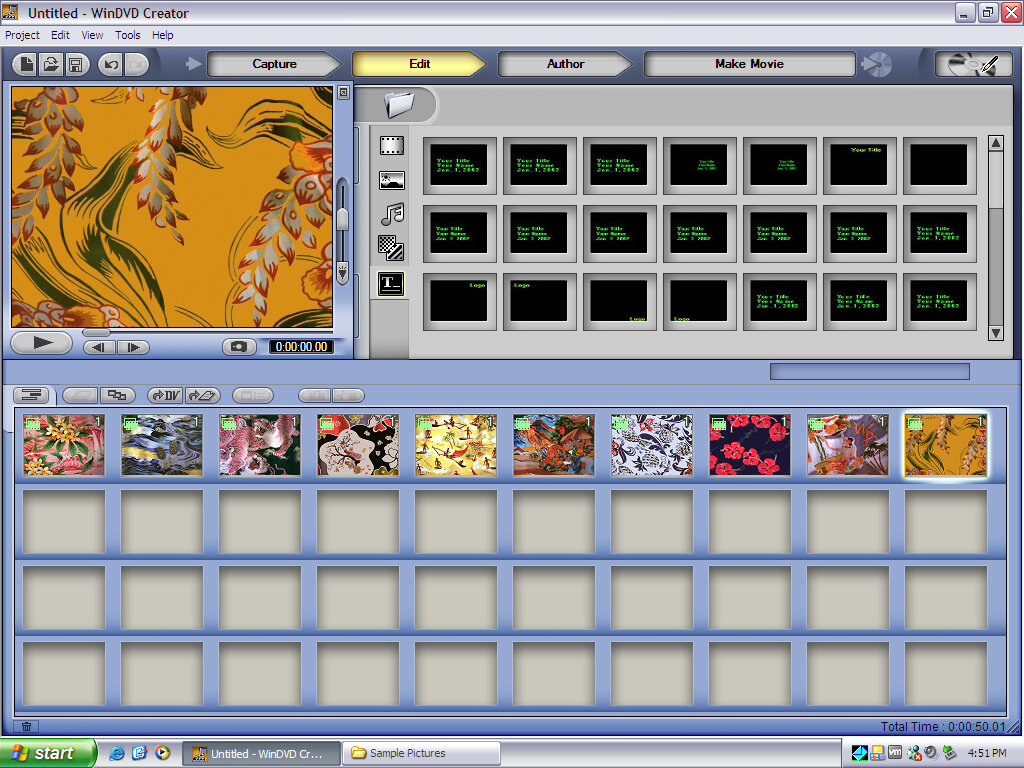
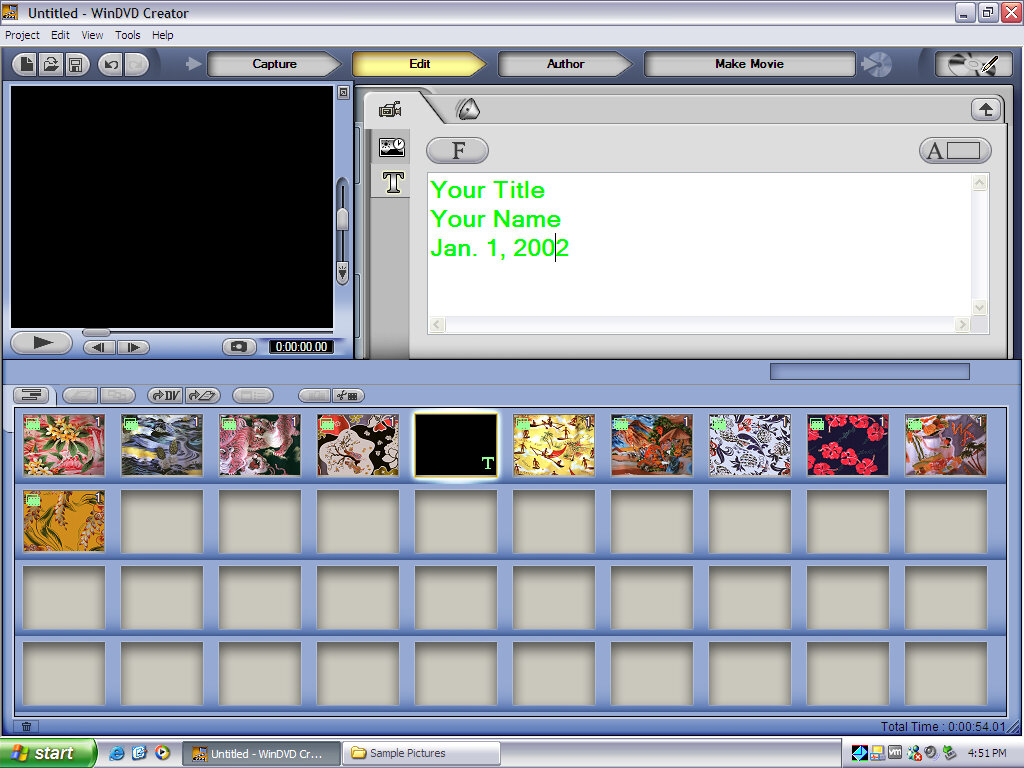
Intervideo WinDVD (V5) – Standard DVD player to play back DVD and VCD movies using the built-in DVD drive. This wasn’t possible not the VM since the graphics drivers do not support MPEG2 deciding which software required

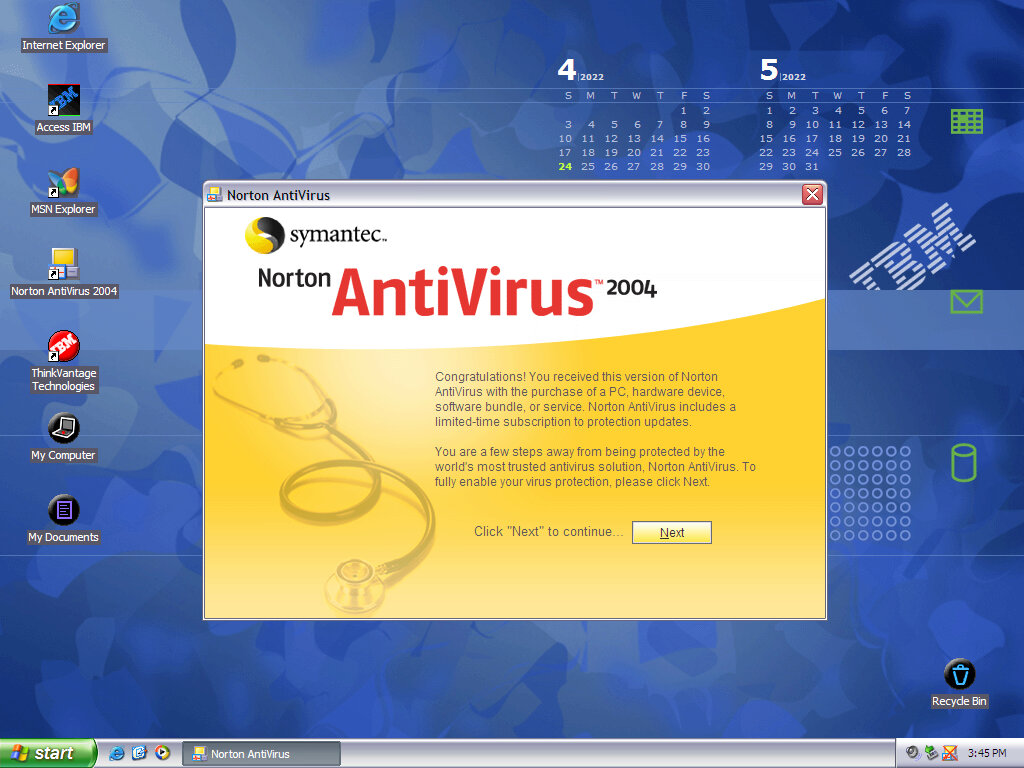
McAfee Security and AntiVirus – Our favorite AntiVirus suite comes bundled here, this also includes a firewall as part of its Internet Security suite. It’s pretty out of date, and has issues downloading new virus definitions since it’s over 16 years old.

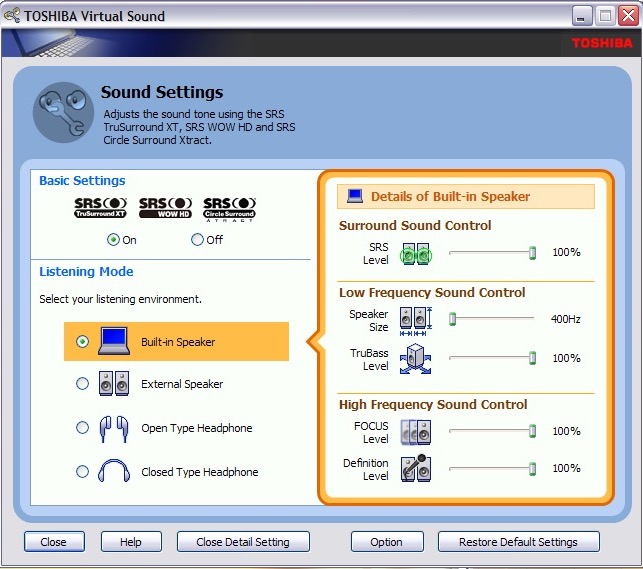


Toshiba Assist – Acts as a launcher for many Toshiba utilities. The Optimie section contains a few interesting ones, with the Toshiba Hardware Settings allowing you to change BIOS-specific settings from within Windows. You can configure the power on password, USB legacy support and the boot priority.
Other settings let you change the hotkey assignments, optical drives acoustic noise. There is also a diagnostic tool that lets you test various components of your laptop.
Microsoft Works – A little redundant since we have full-fat Office installed here. I would assume some restore images don’t include Office so Works was included as a backup option. I should mention that Office by default is not activated and prompts for a product key, so it might be the case that Toshiba offered Microsoft Office as an optional extra. Maybe some SKU’s come with a key.
Quicken 2005 – Finance management program
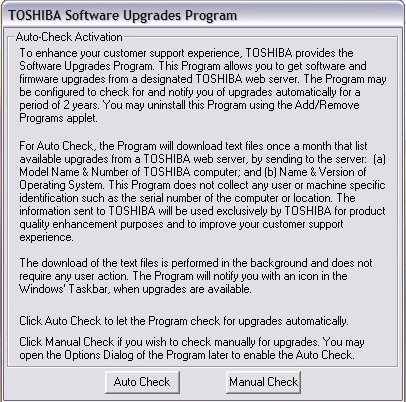

Toshiba Software Upgrade – Checks and installs software updates. The interface hasn’t changed much from the 1998 version

Yahoo! Music Engine – Music player that can play you legally acquired MP3 files, this also features a music store that Yahoo operates to purchase and download music. There is also Y! Unlimited which I assumed was some sort of music subscription service but I couldn’t find any further information since the help files just point to a dead web address.
I don’t think it’s like Spotify or Deezer, but rather a service you could download say 10 tracks inclusive per month

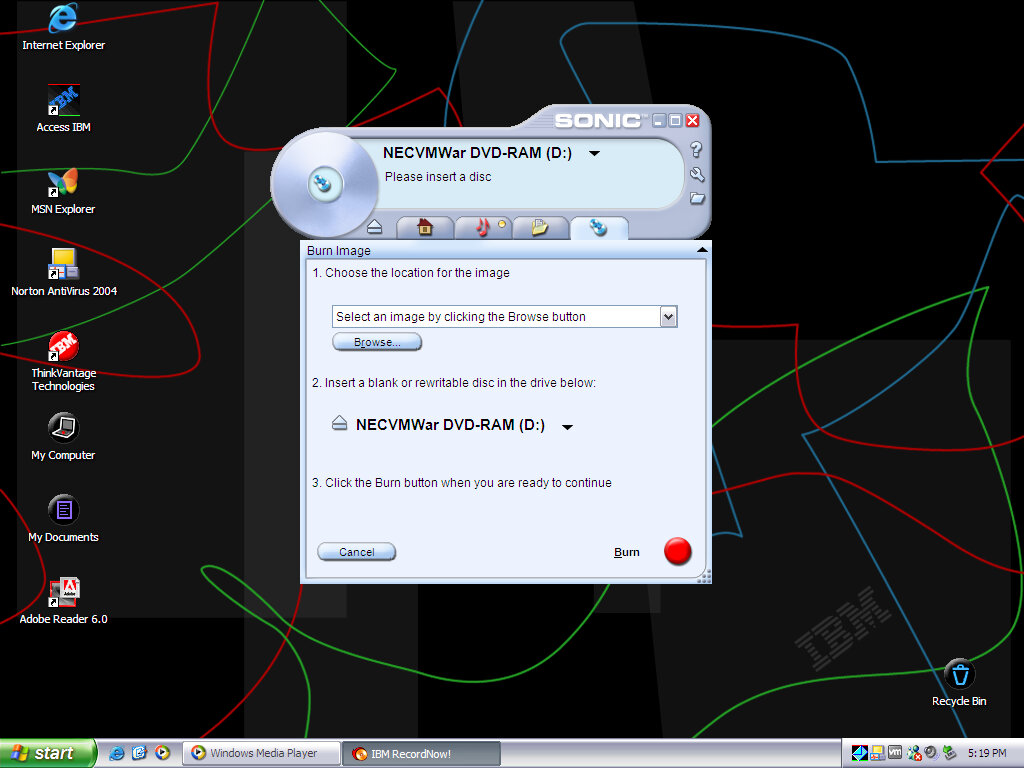
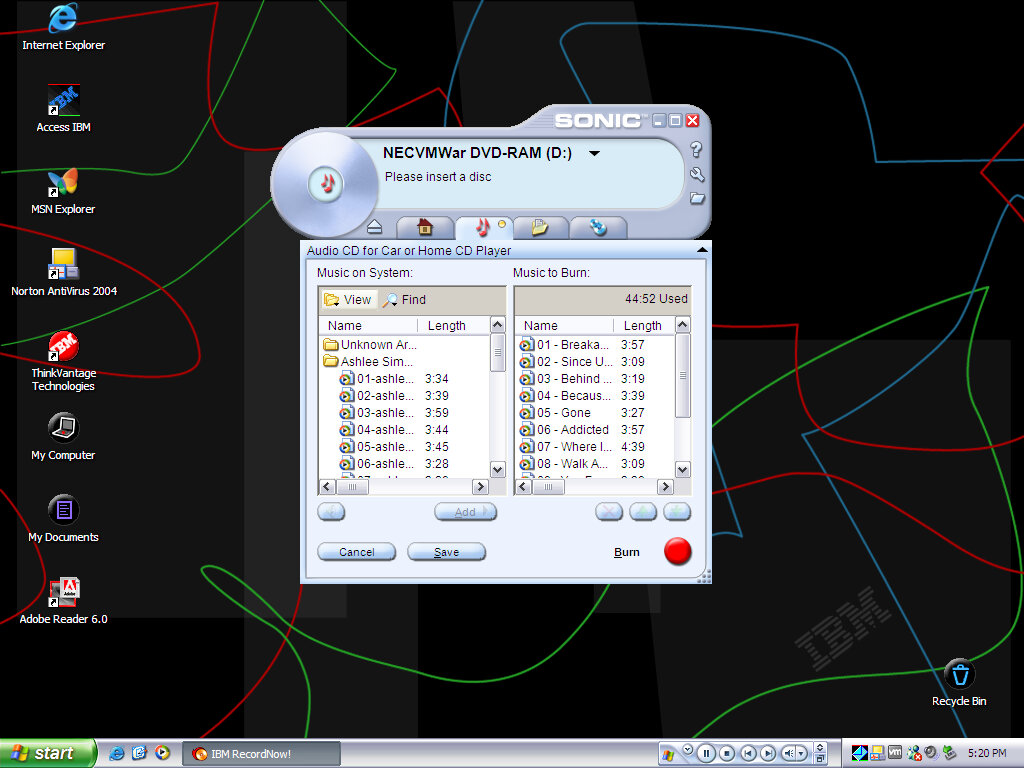
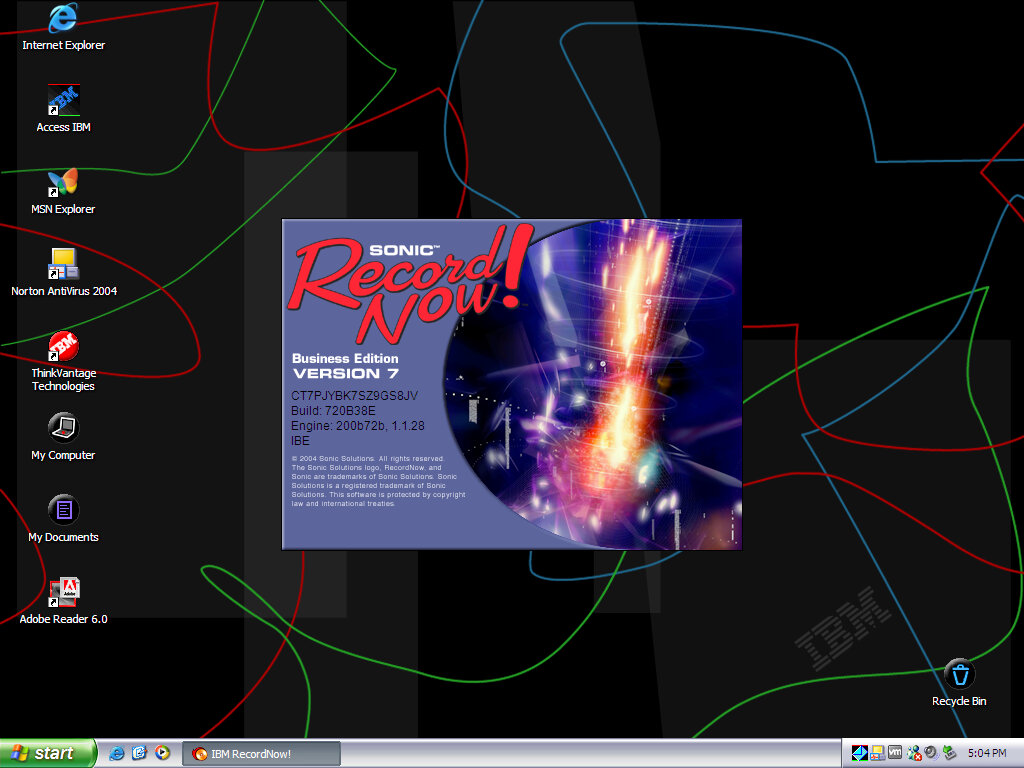
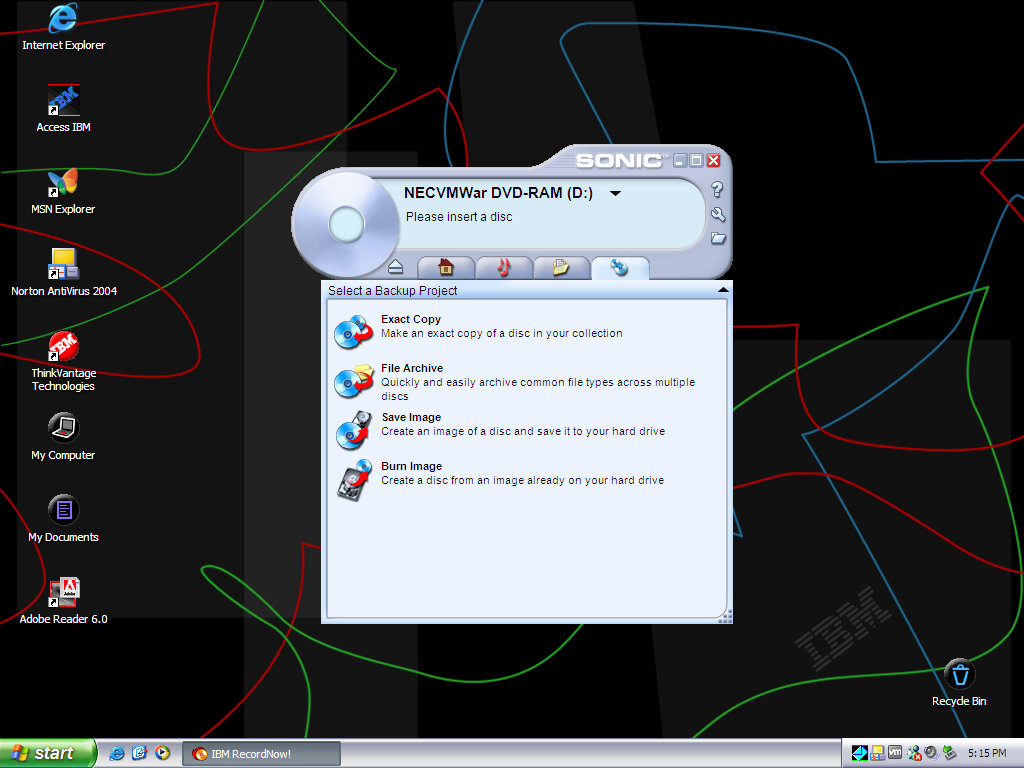
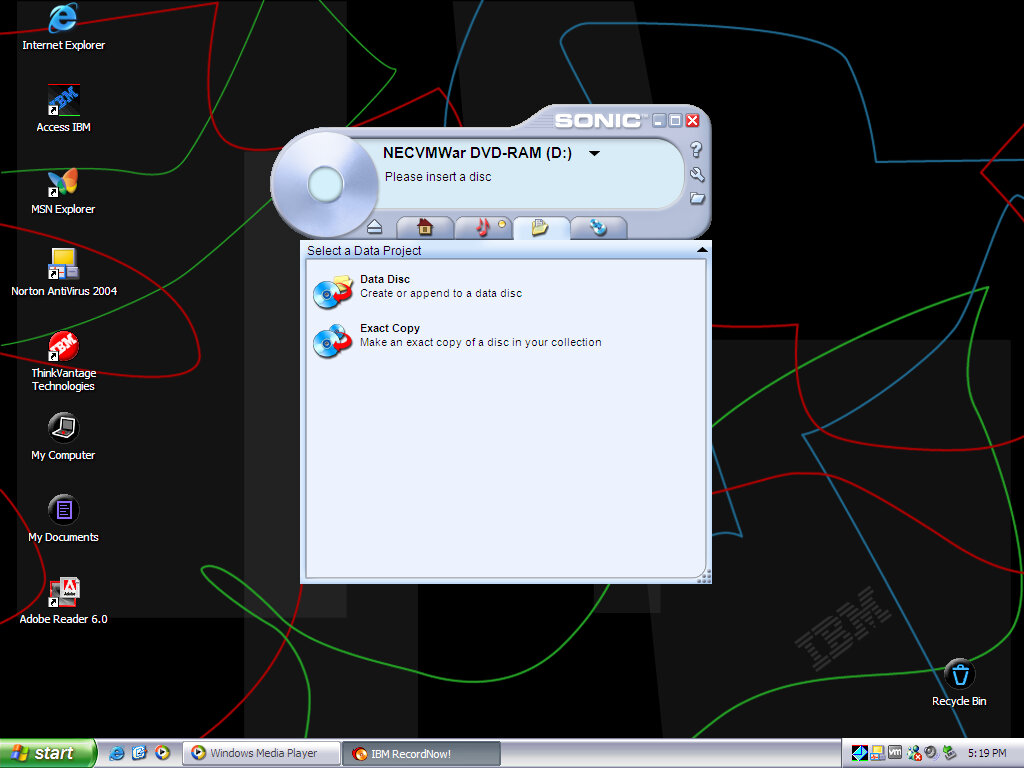
Sonic RecordNow! – Disc burning application. Typically this can burn audio CDs if Windows Media Player isn’t your thing. This appears to be a basic version as there are a few options that are only available when you upgrade, this includes burning ISO images
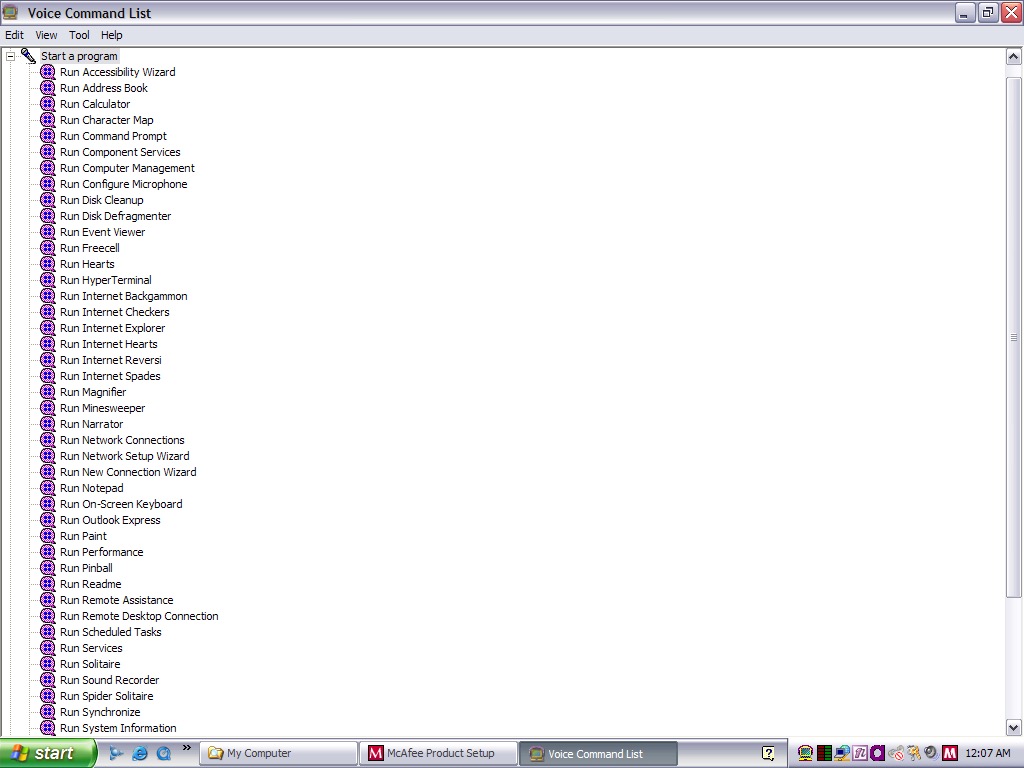
Toshiba Speech System – A voice recognition program that runs in the background and listens to the microphone so you can soak commands into the computer. You can start specific programs by speaking ‘Run Calculator’
Despite running in a virtual machine, I was able to pass through the microphone and it was able to pick up my voice. As you can expect this is very finicky with it failing to recognize certain commands or misinterpret noise as commands. It was even though the noise from my mechanical keyboard was the undo command. Probably best to disable this feature to avoid losing any work, since it will also misinterpret commands for deleting or cutting.
You can configure it to listen through a button instead which will cut down the amount of misinterpreted words. For tethering else it’s best to move the microphone away from the keyboard, presumably on the actual laptop this would be somewhere toward the top of the screen.
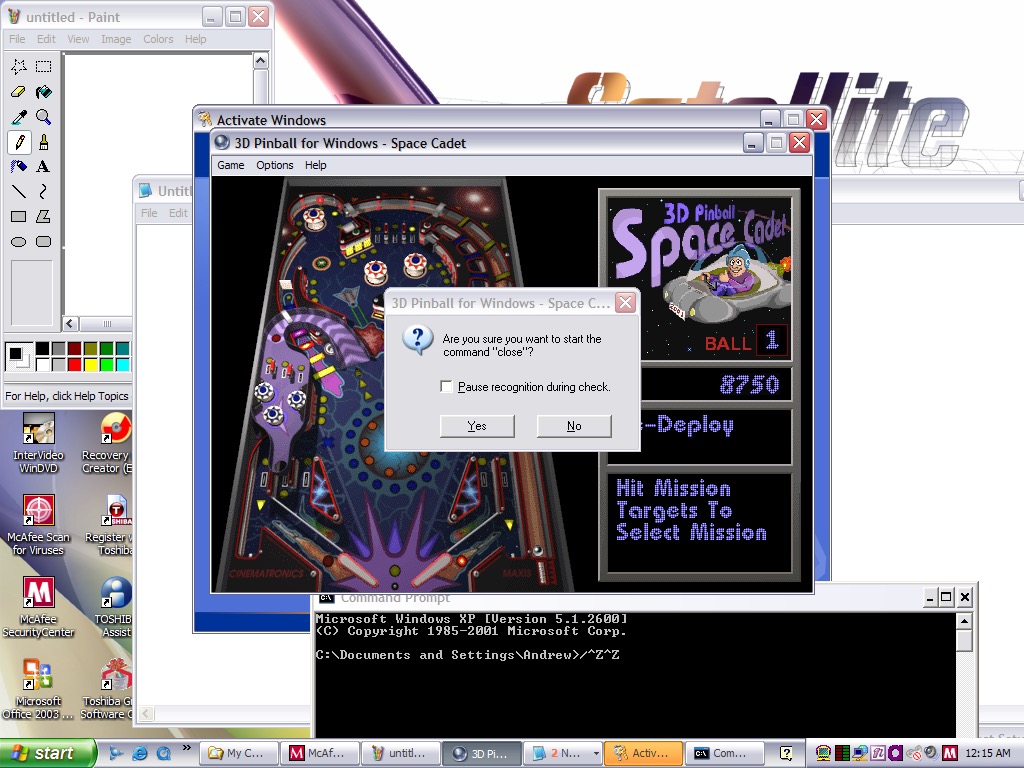
And yes, noise from applications and games can also interfere. Playing 3D Pinball will cause it to launch a command prompt window after you hit a bumper and finishing a game will cause it to run the MSN Backgammon game.
Imagine trying to play a Halo LAN party with this thing enabled.

eTrust EZ Firewall – Optional firewall that can be installed, this is a ,limited trial copy. This looks very similar to ZoneAlarm firewall.
Other bundled software included AOL, RealPlayer 8, QuickTime 6, Adobe Reader & Windows Media Player 10
Misc Observations
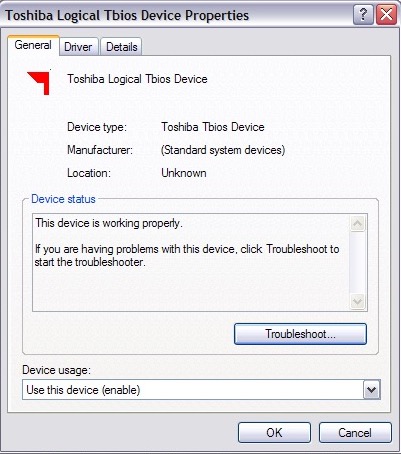
Not sure what a Tbios device but could be used to interact with the BIOS more closely
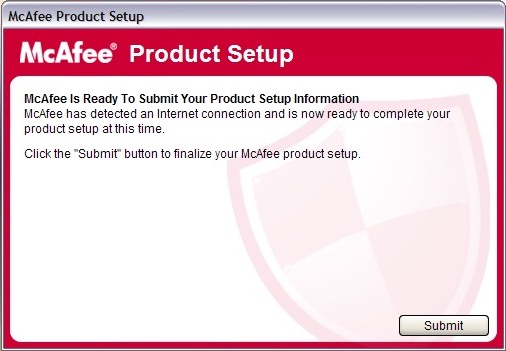
Once again McAfee is nagging us for further information, this happens a lot with McAfee

Adware on a fresh install?

Custom Windows Media Player skin
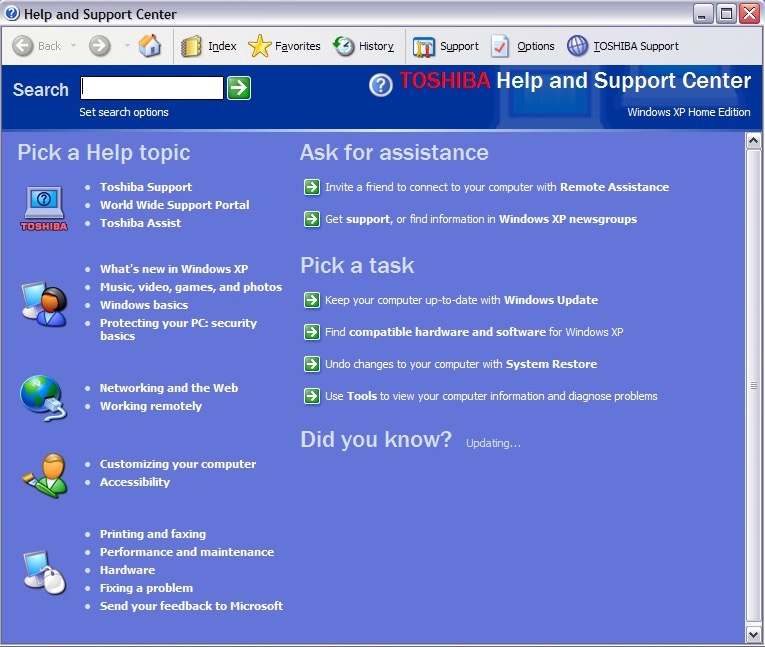
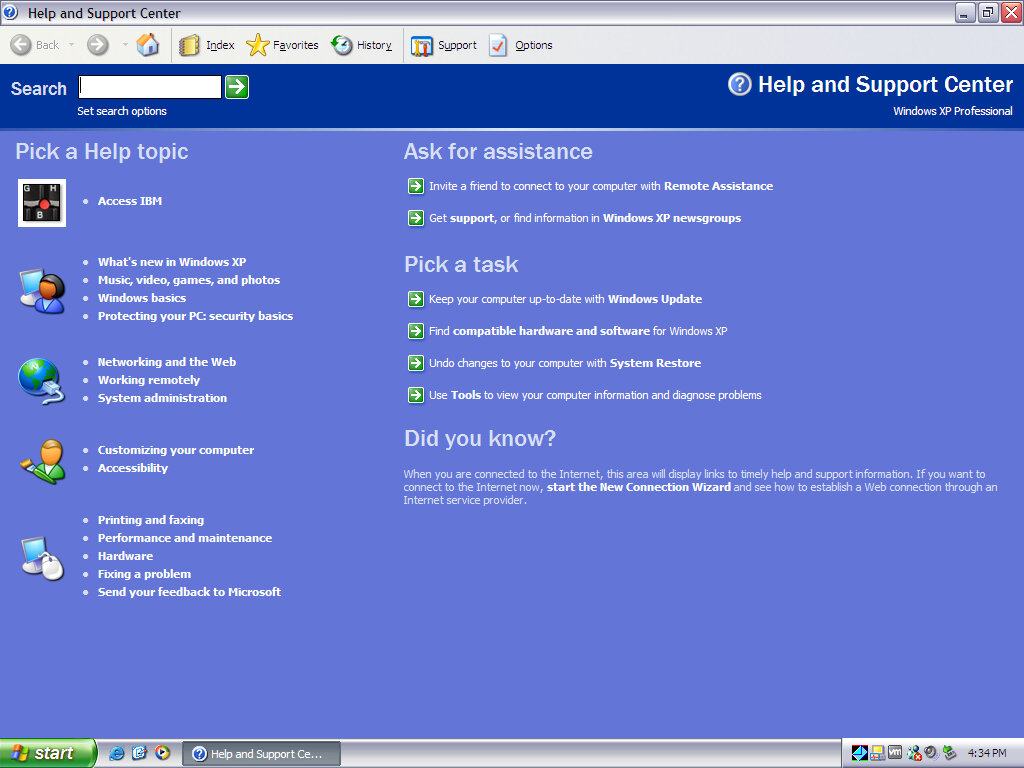
Help and Support with Toshiba branding
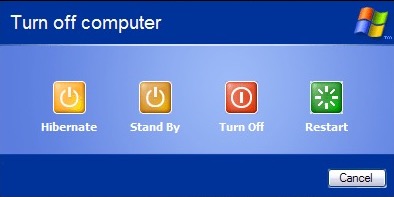
Shutting down the laptop, it has an altered shutdown screen that features four options which I have seen on a few Dell installs of the era
 Drew1440: Blog