The next release of the popular Linux distro. The Lindows name flew too close for Microsoft’s likening, and after a couple of legal BS, Lindows was rebranded as Inspire. Should have renamed it to Linsta instead as Windows Vista was due for release next year.
Install
The OS has also received a slight makeover also, bringing it closer to Windows XP Luna style of interface.
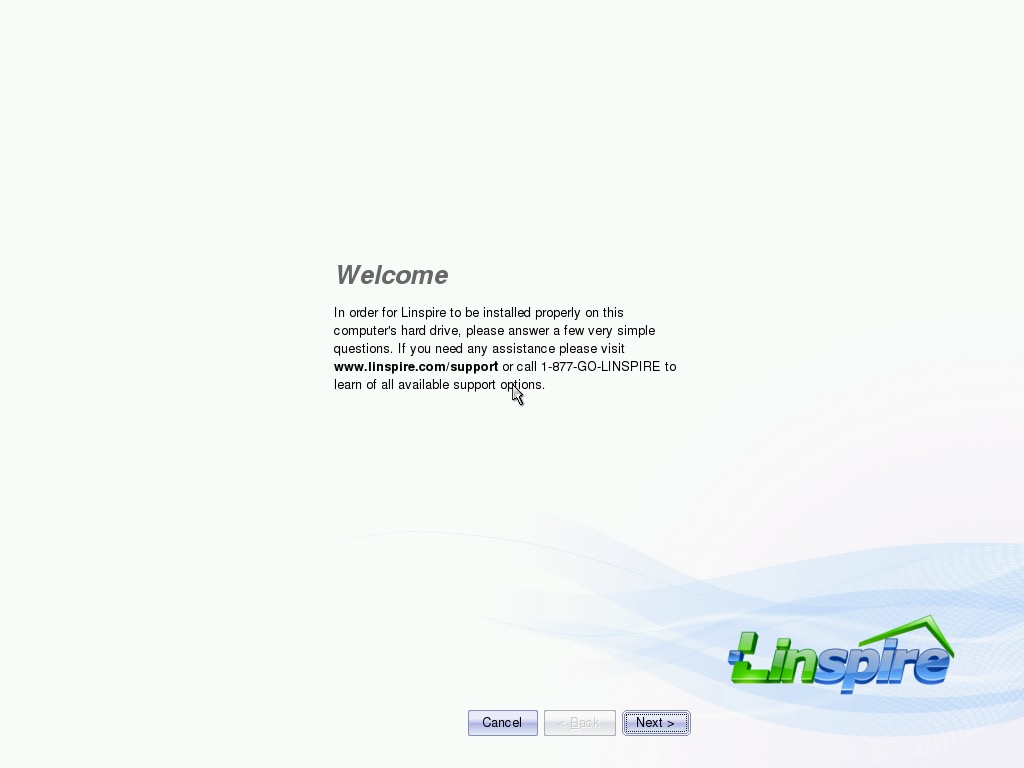
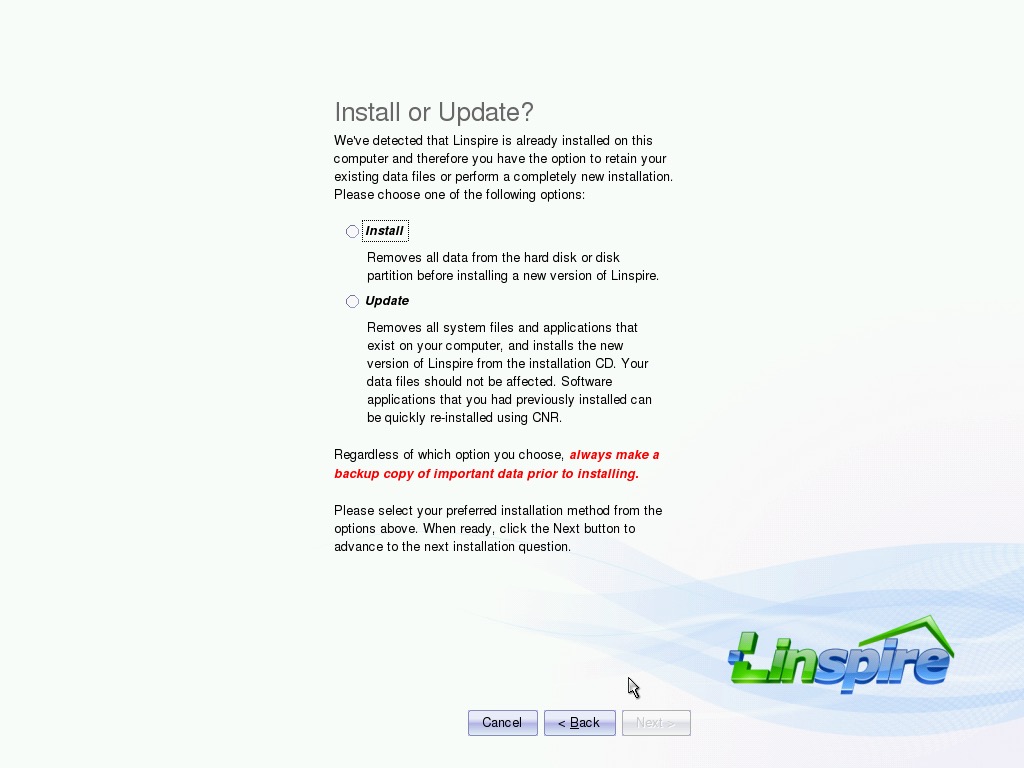
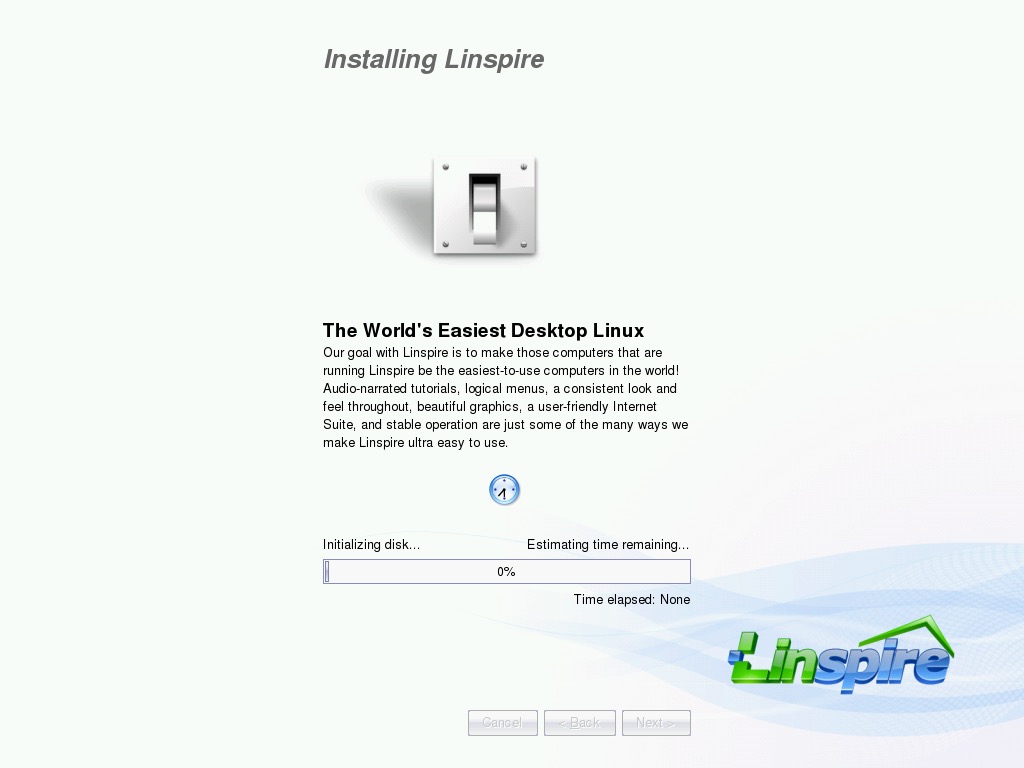
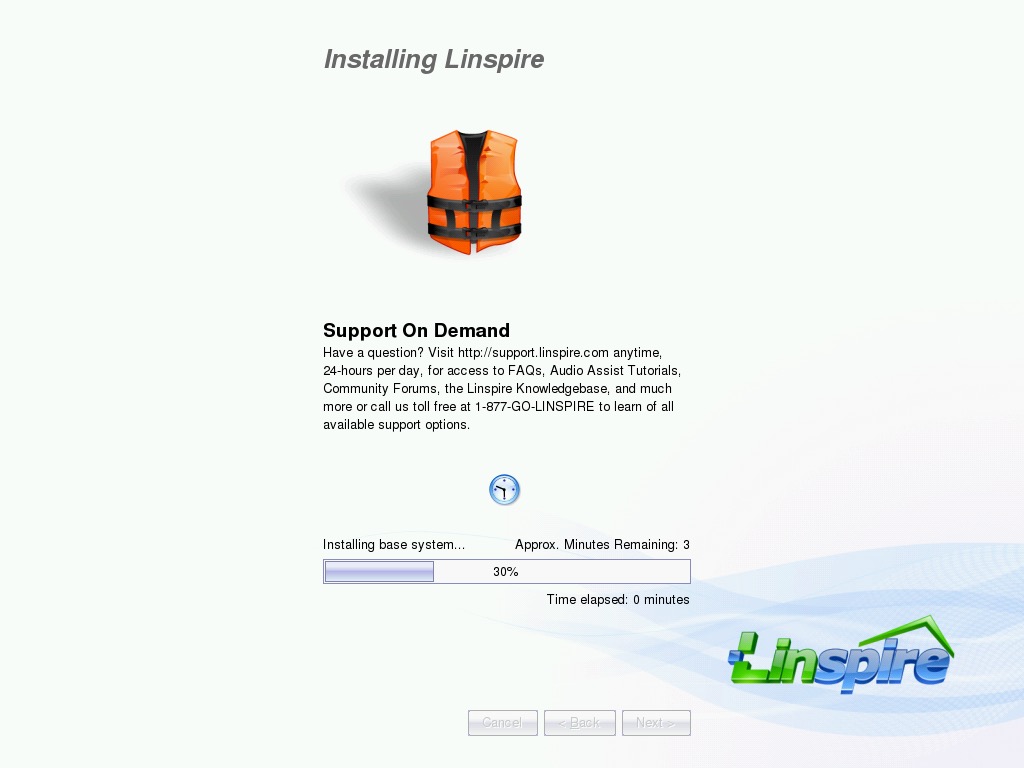
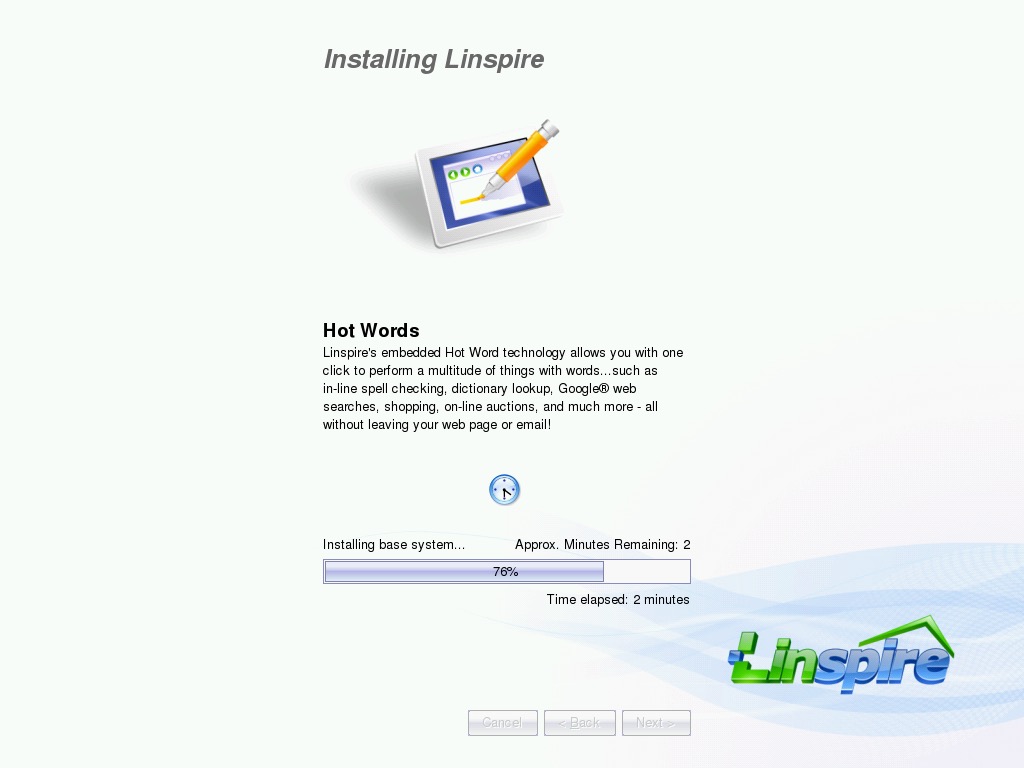
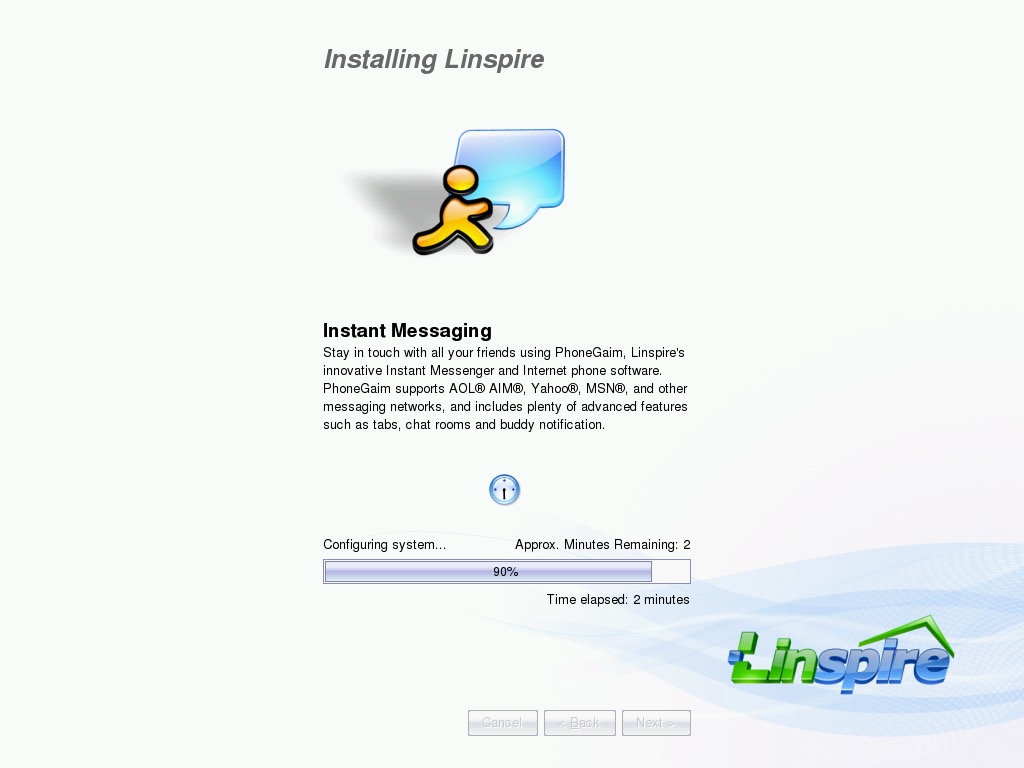
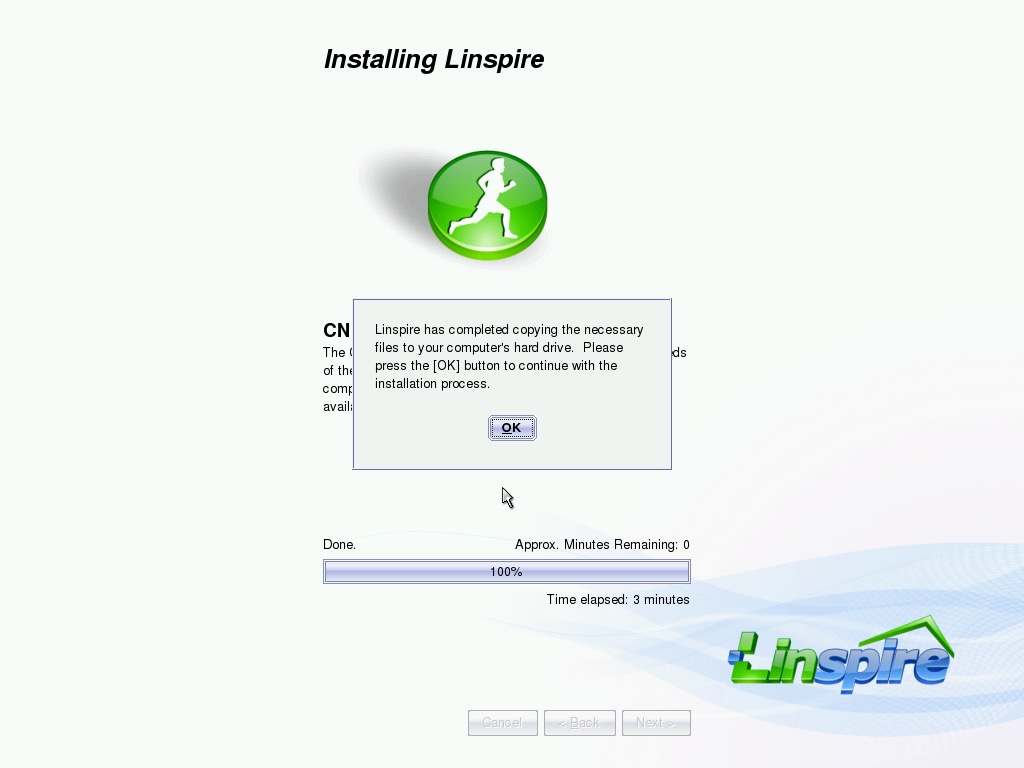
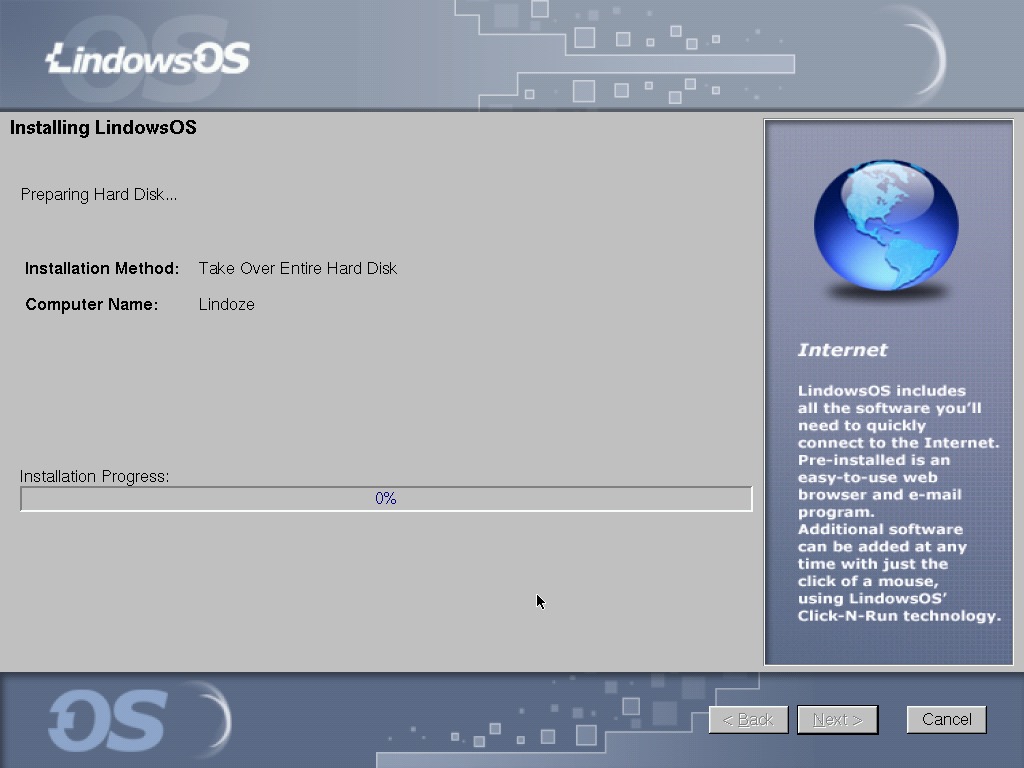
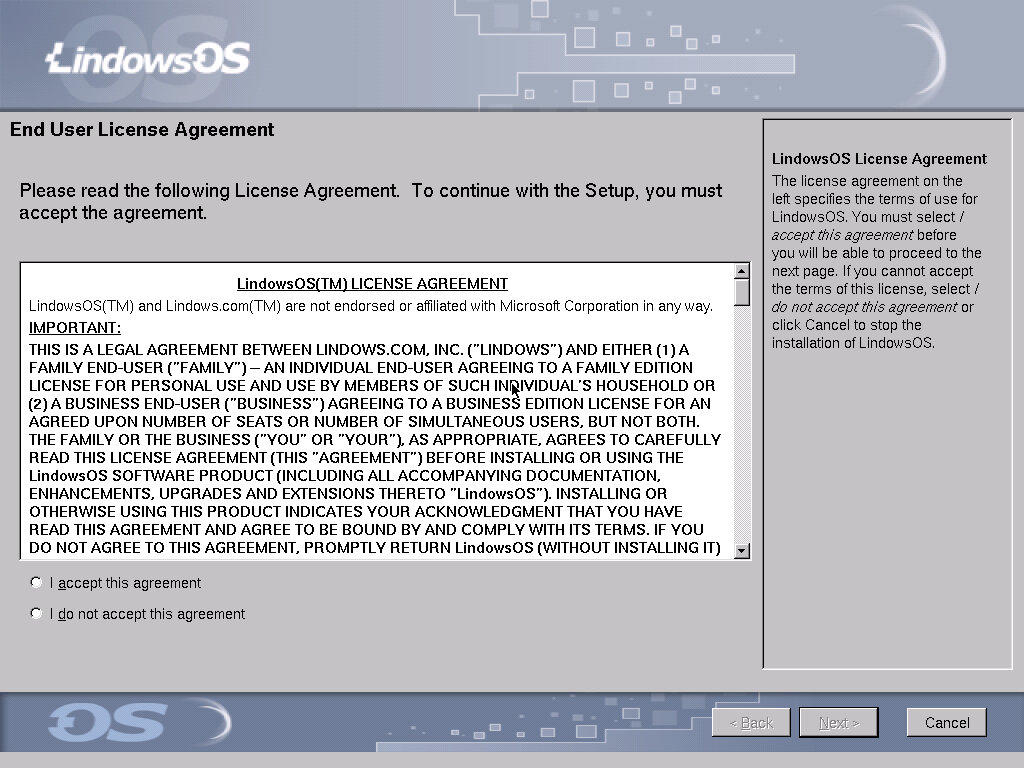
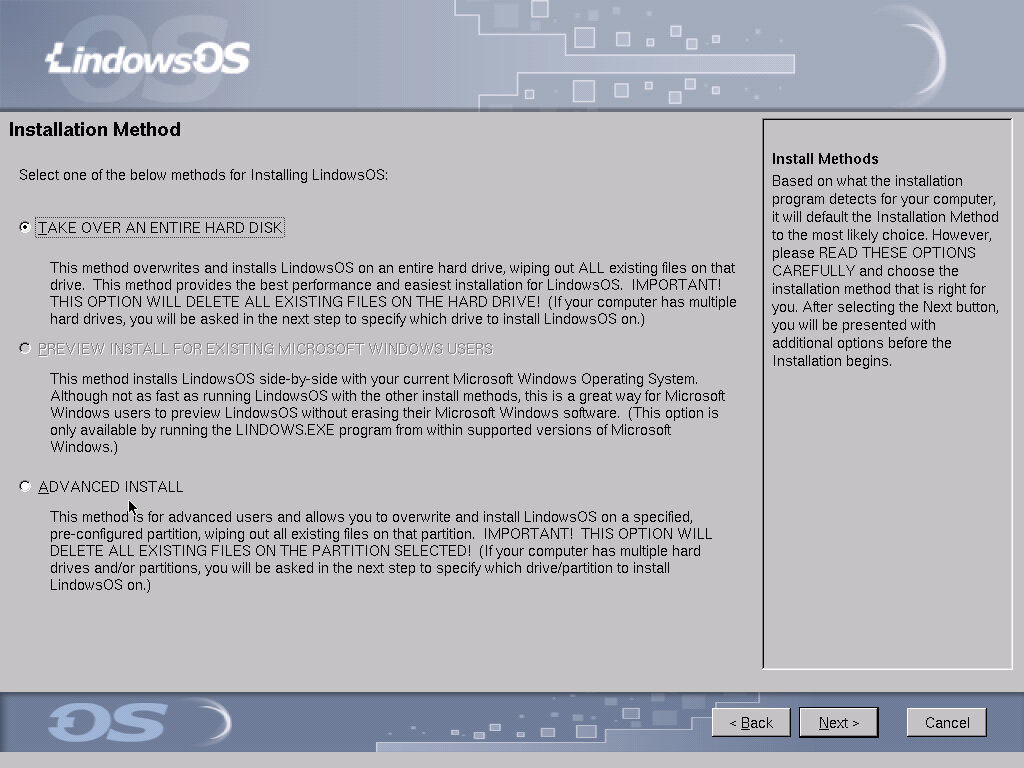
We are also treated to a redesigned installer which aims to make it even more user-friendly. Here it explains the different elements of Inspire
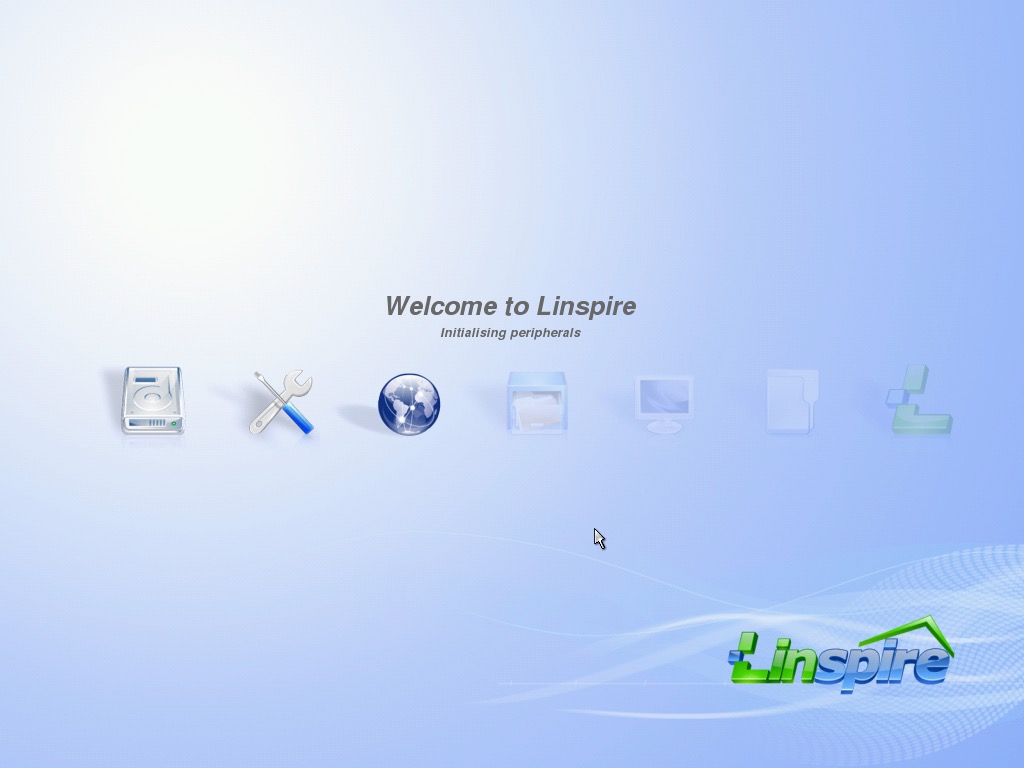
After a reboot, we are presented with a new splash screen.
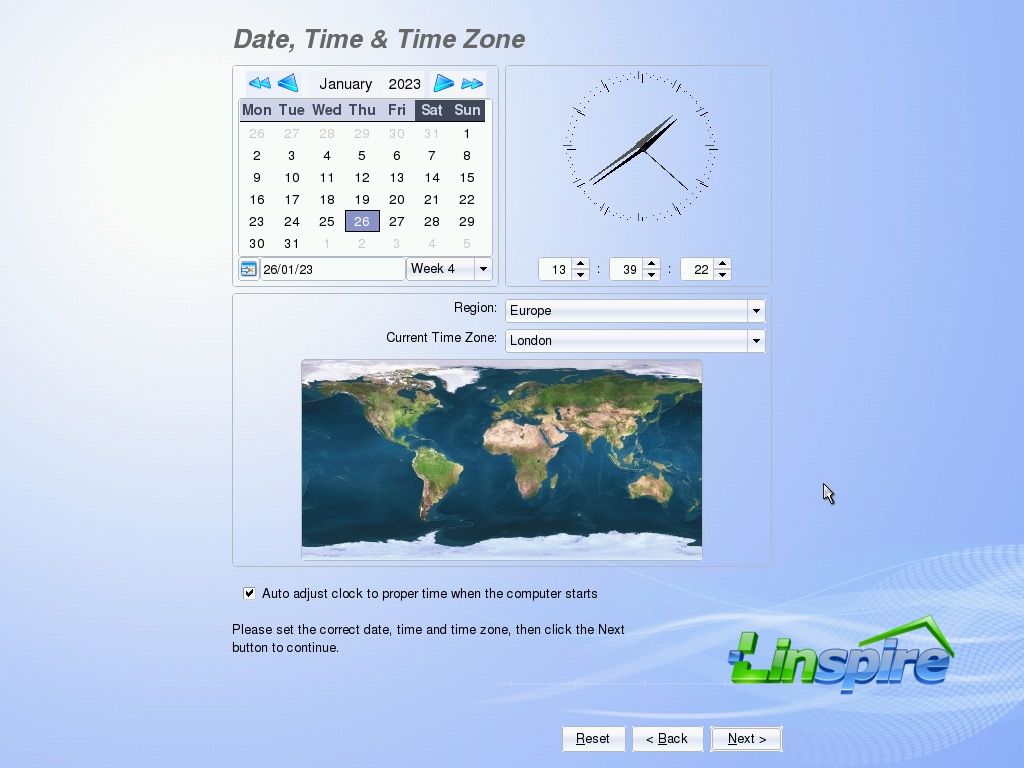
Another EULA with a few more options to configure like the time zone.
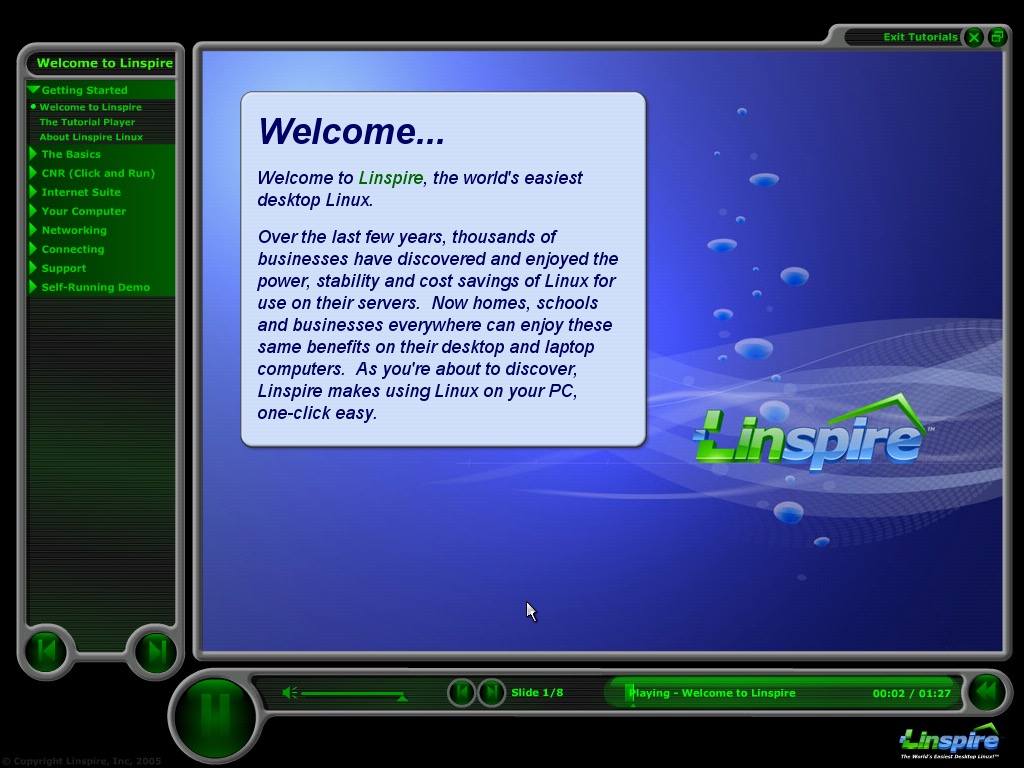
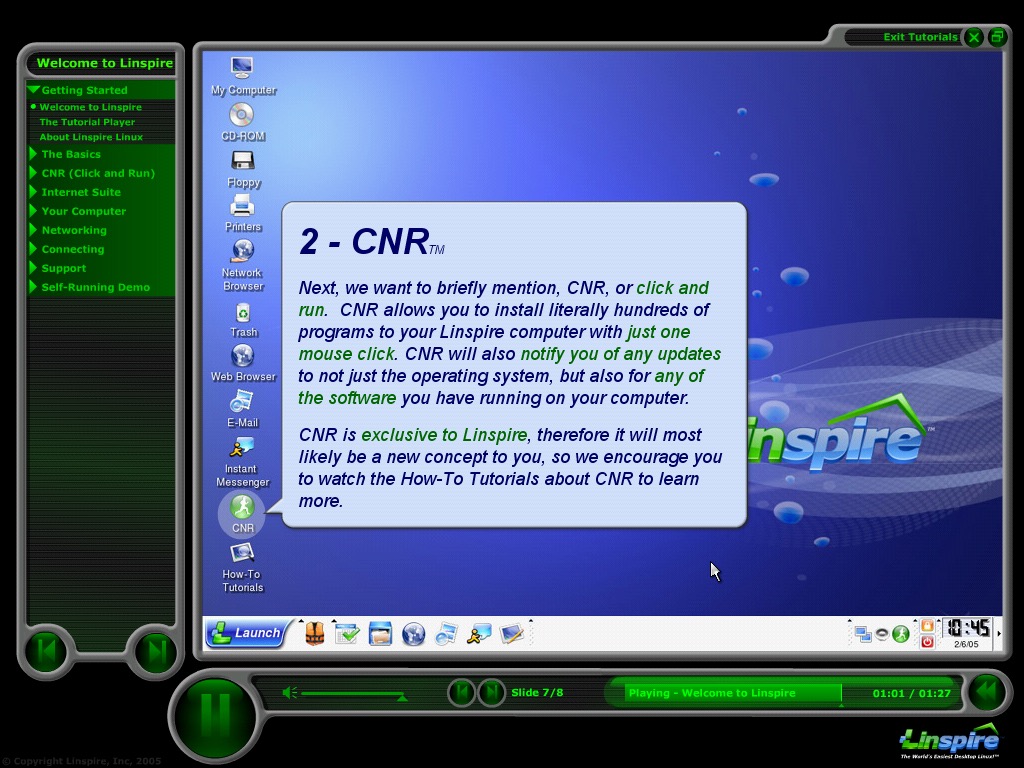
After the installation has been completed a tutorial is then shown which guides the user on how to use various elements of the OS.
Desktop
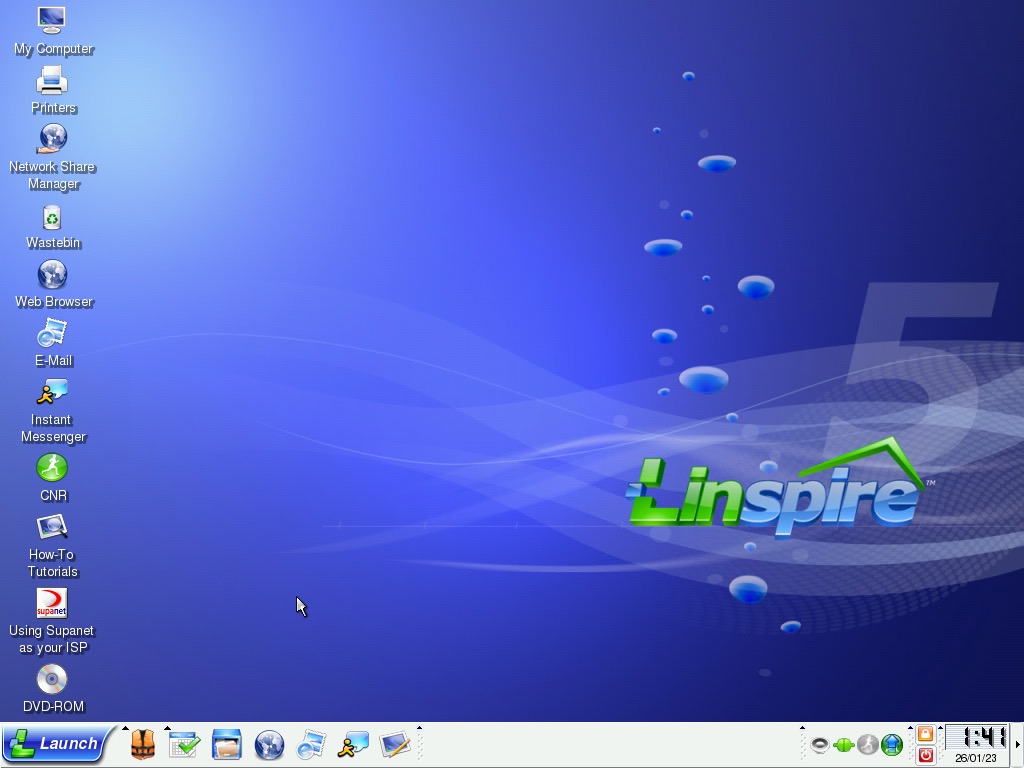
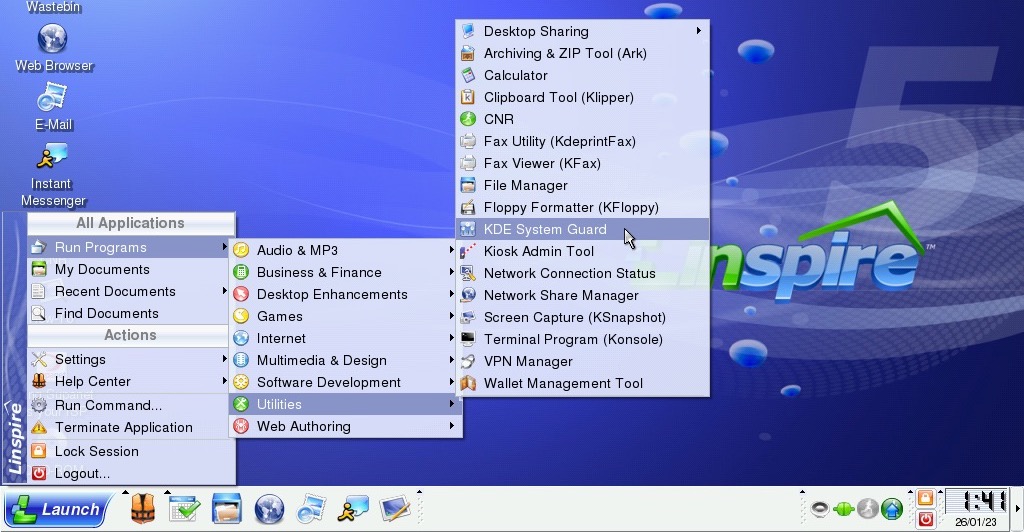
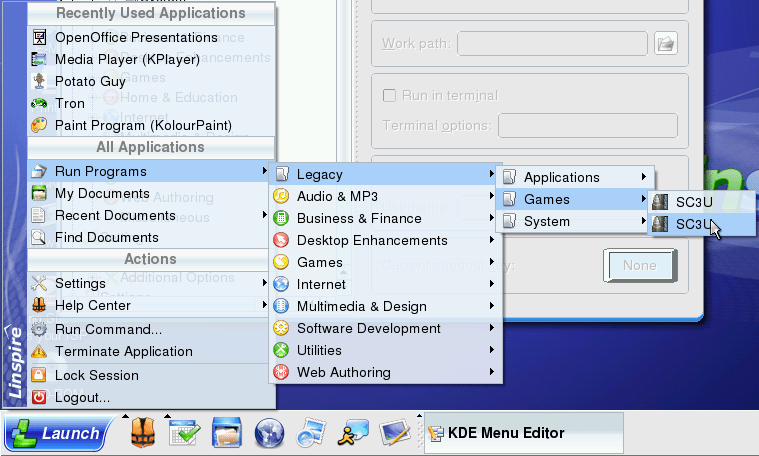
The Linspire 5 desktop. The Launch button to the bottom left acts as a Start menu of sorts and shows applications that are currently installed on the system, with recently used programs being displayed at the top section of the menu.
As with the previous versions there are dedicated buttons for the help center, file manager & internet applications.
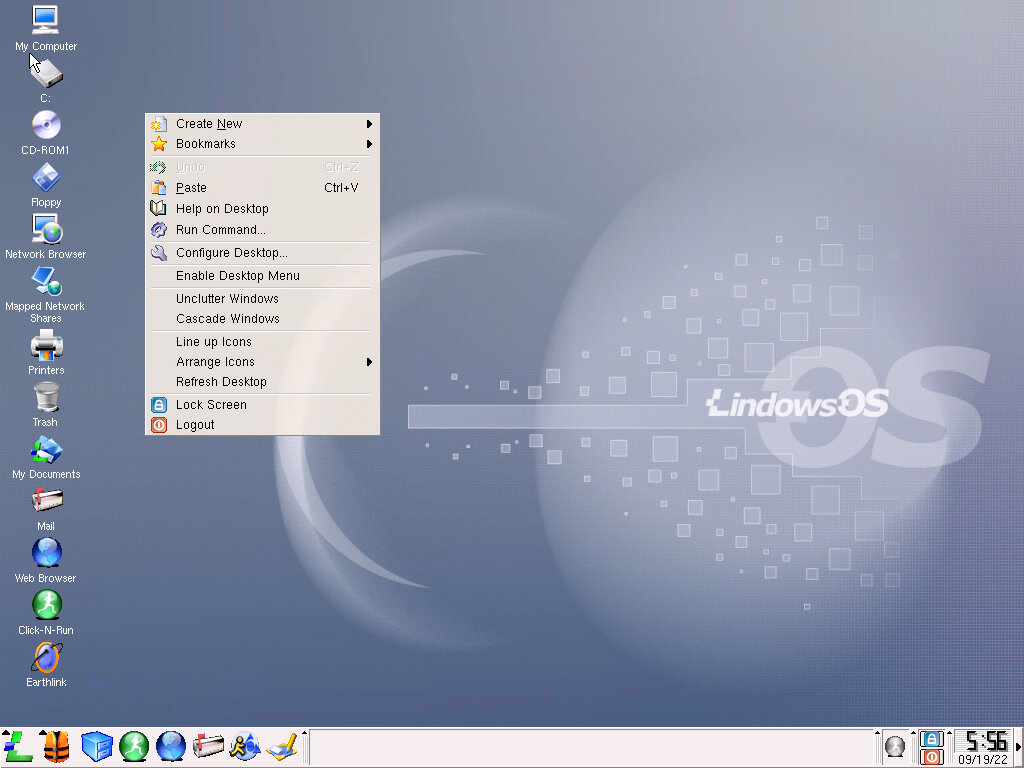
Right-clicking on the desktop, the create new menu lets you create a new document from here. But this seems limited and does not include links to office applications that you would expect. Still, you can create shortcuts to applications.
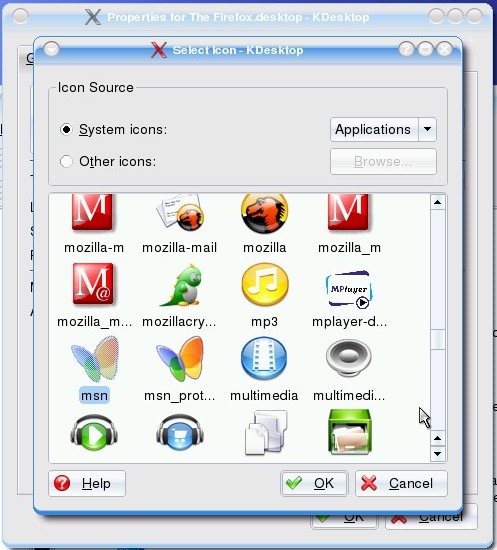
The icon set for Lindows, also includes some Microsoft-inspired logos with the MSN logo.
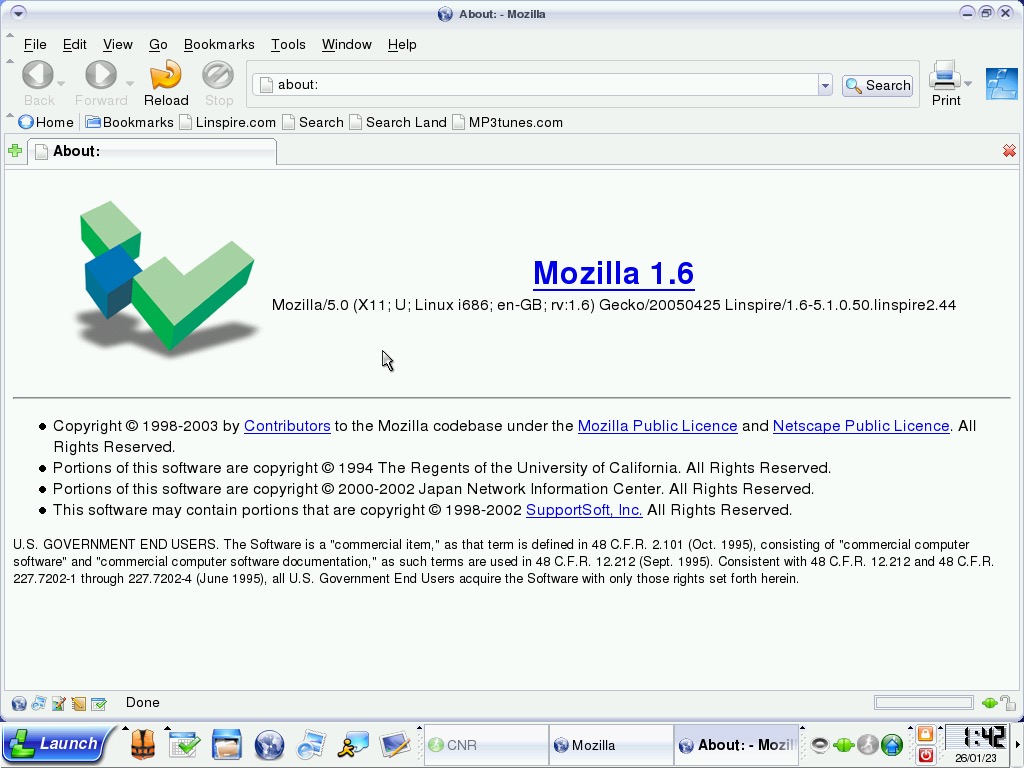
The Mozilla-based browser
Sometimes we run into this error, the only fix is to reboot the virtual machine.
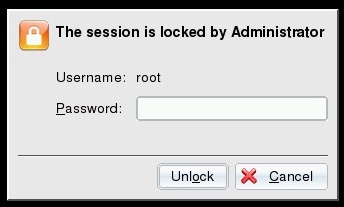
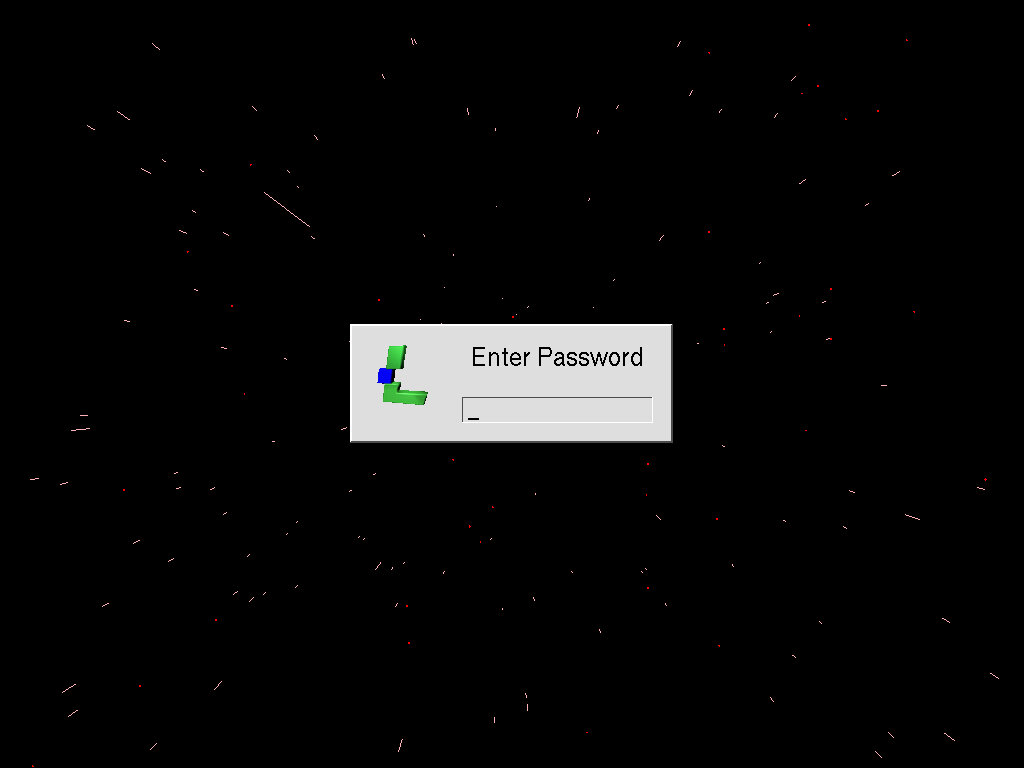
Password prompt when a screensaver is currently running, by default the user account is root.
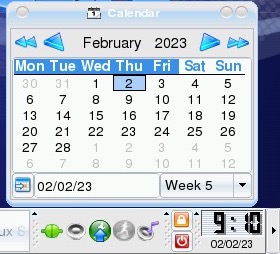
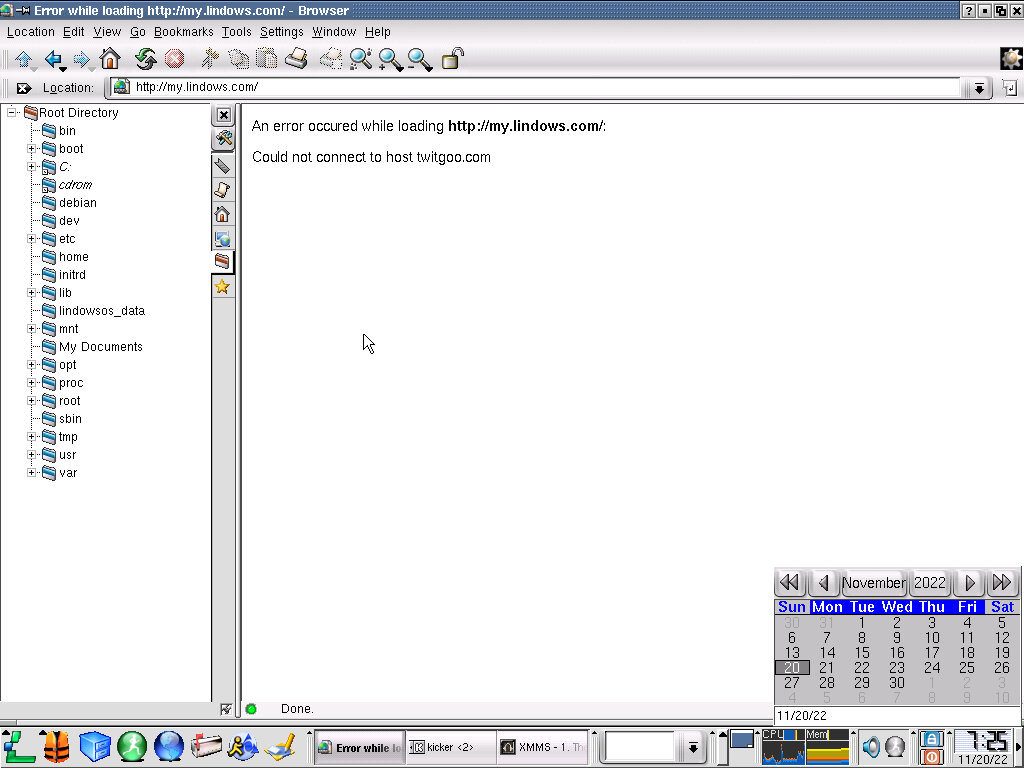
The mini calendar that appears when you click on the clock is located in the taskbar. This predates the Windows 7 calendar by around 4 years.
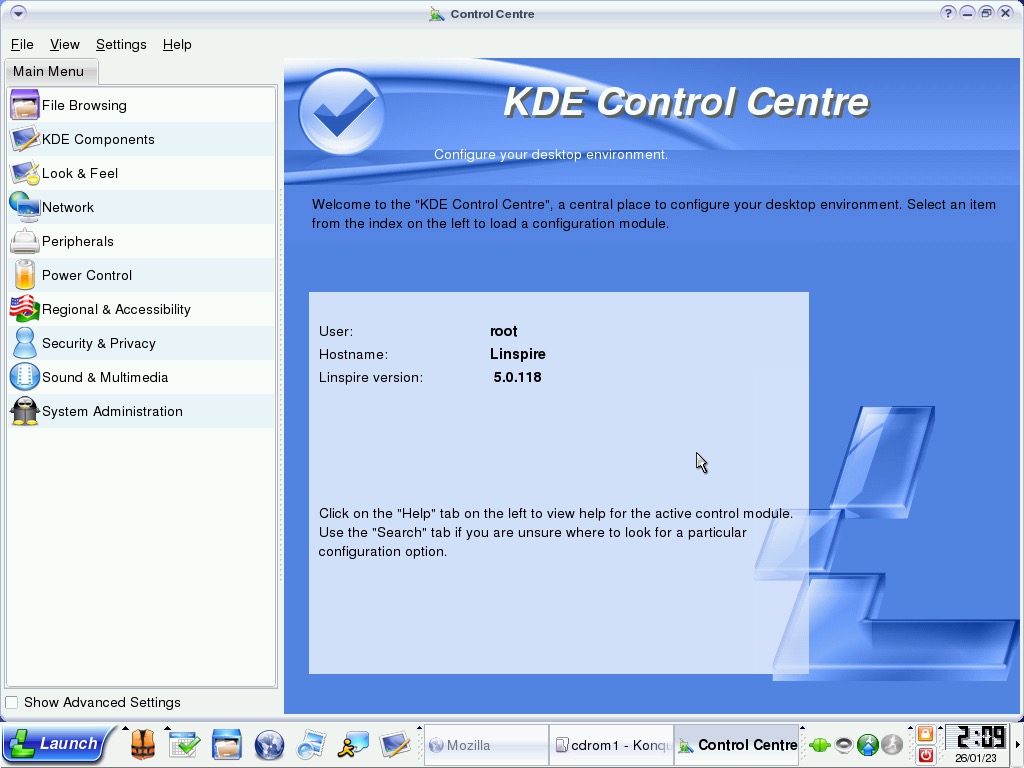
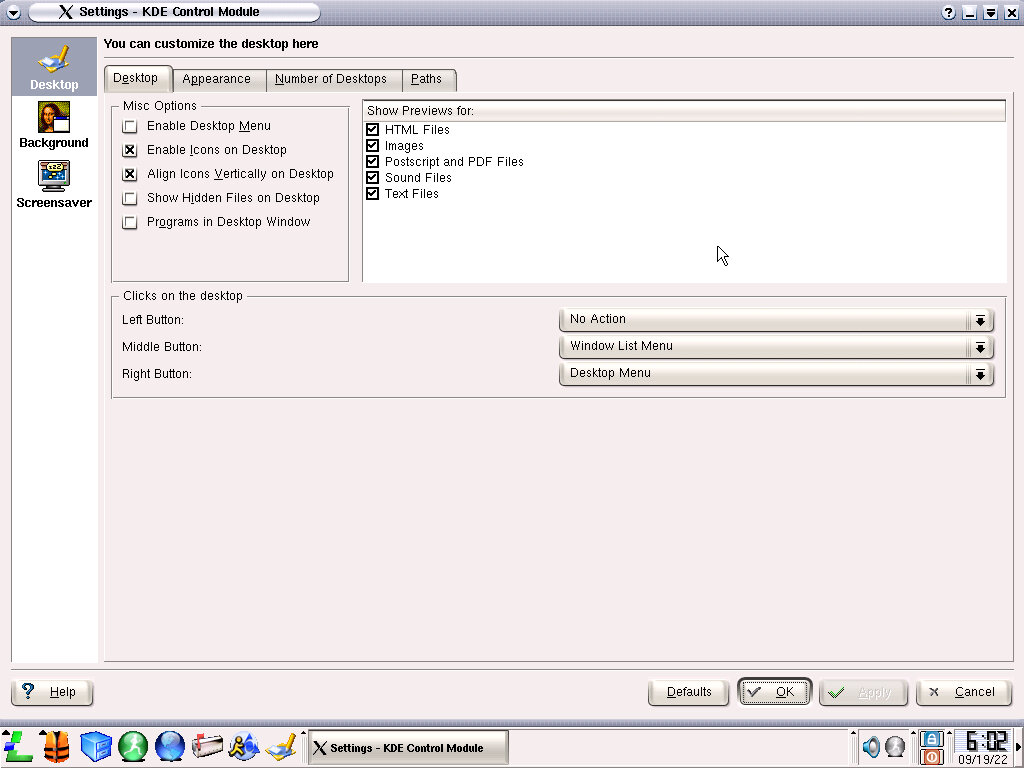
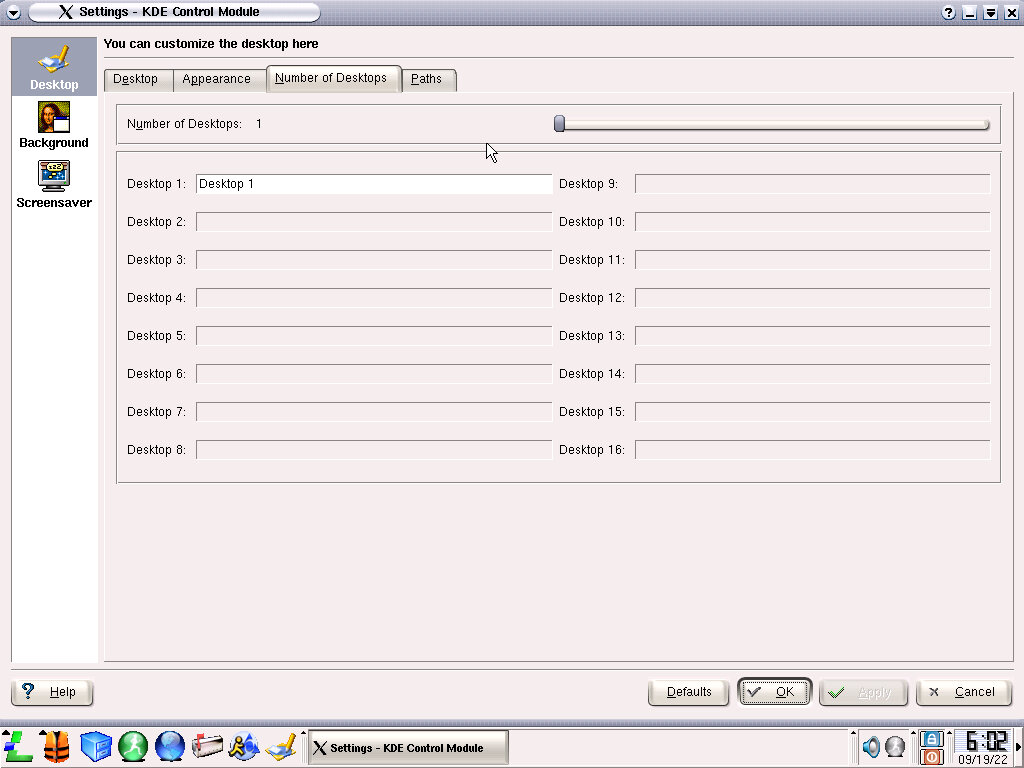
KDE Control Center
This serves as the Control Panel of sorts, various settings in relation to the user experience can be changed here but anything advanced will require the use of the terminal.
As in the previous versions, you select an option from the left panel which will open up its page.
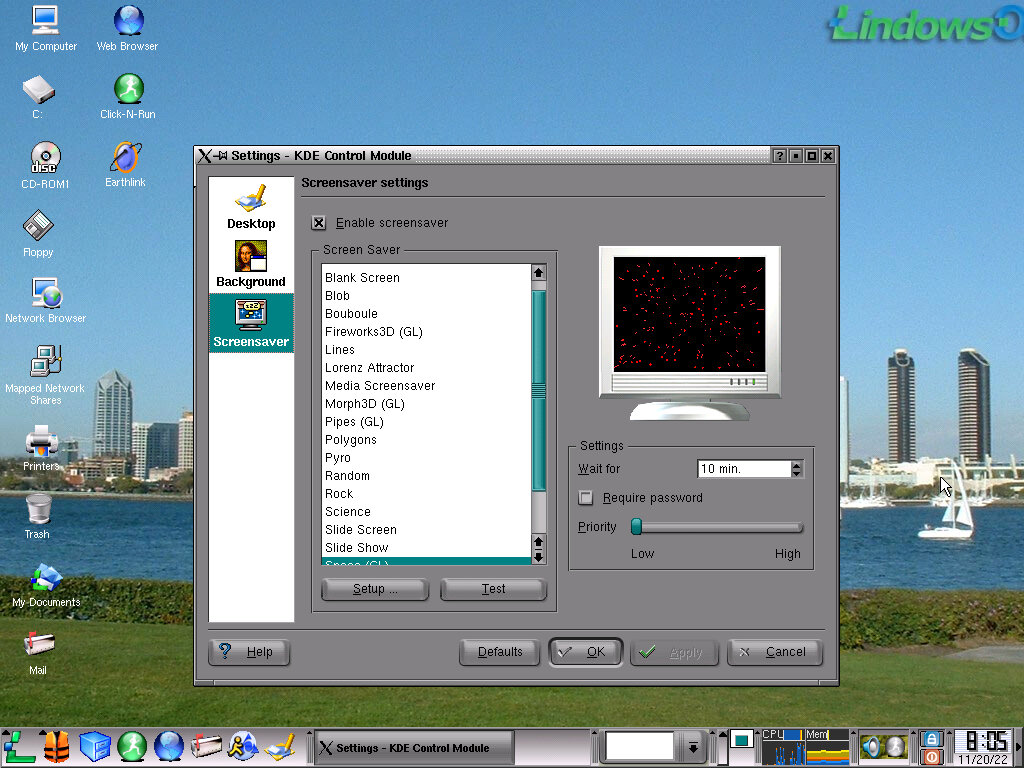
A look at some of the included screensavers
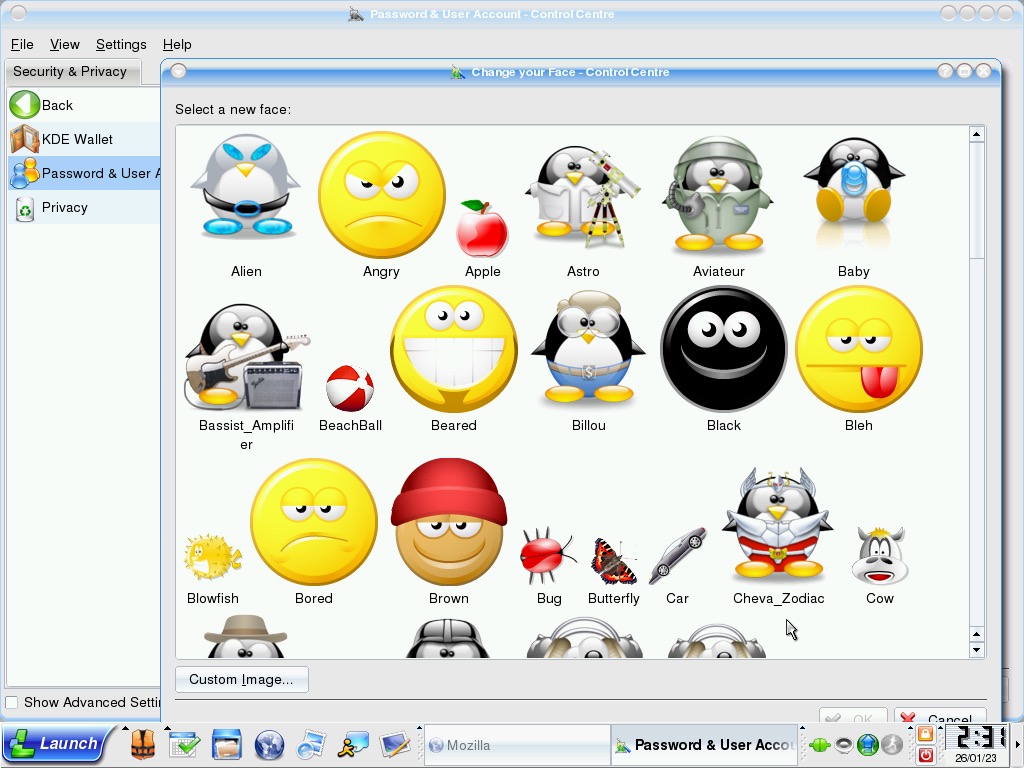
Changing your user icon, they seem styled by the ‘smiles’ design that was popular of the era, they also seem to vary in size compared to the Windows XP account pictures.
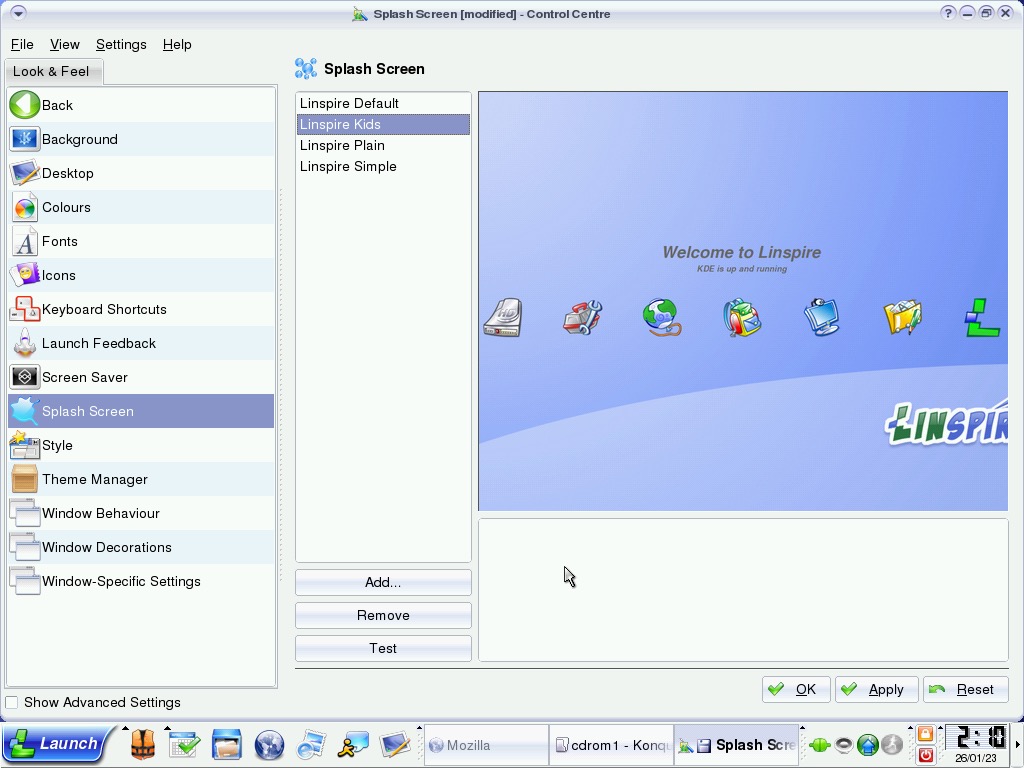
You can change the appearance of the splash screen that appears upon boot.
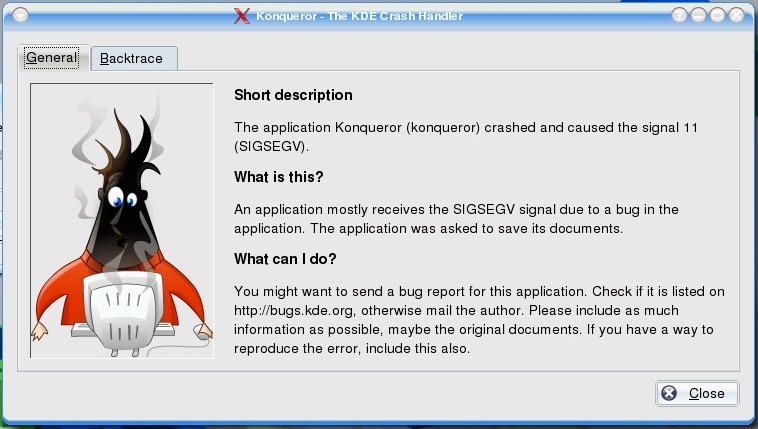
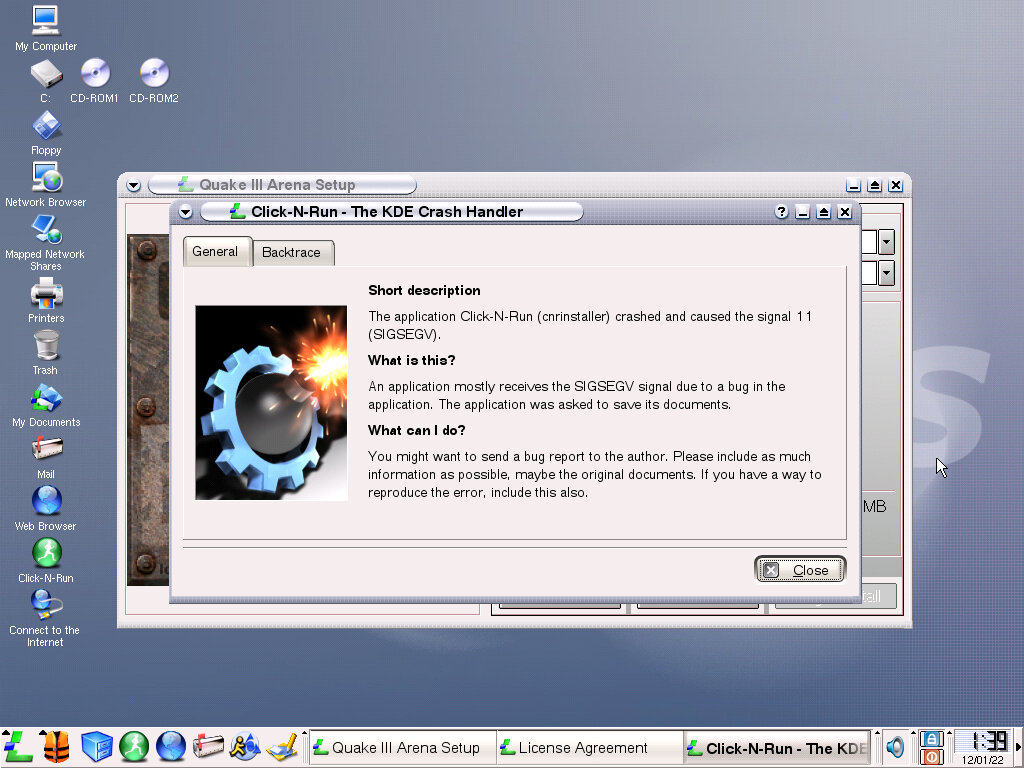
Also here’s what happens when a program crashes or quits.
Installed Software
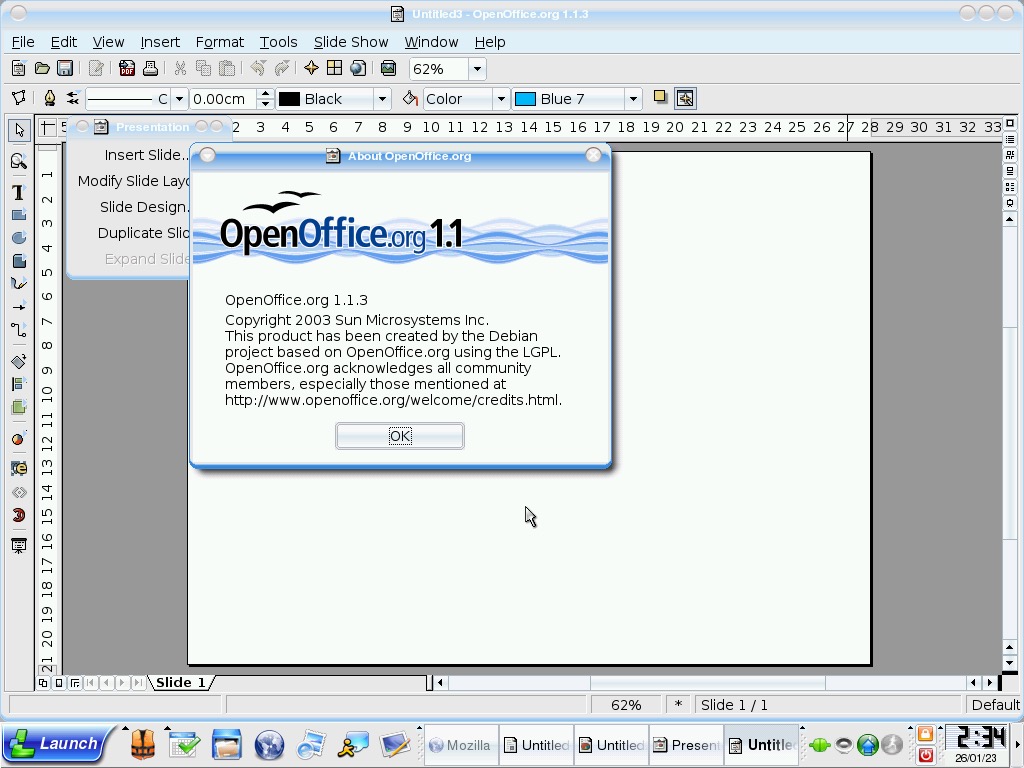
OpenOffice 1.1 – The default Office productivity suite, designed as a replacement to Microsoft Office and is compatible with most of its file formats.
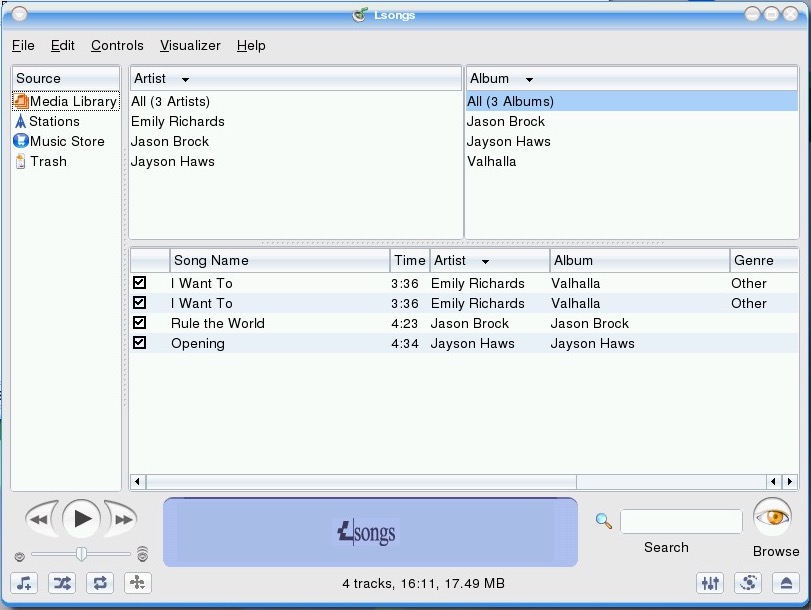
LSongs – Music and media player that looks a lot like iTunes
LTorrent – A Bittorrent client
Lassist – A collection of organizer-like applications that include a calendar, reminders and an address book. Not sure if pronounced as L’assist or L-Assist
Lphoto – Organise and view photos imported from a digital camera
Trying to play a DVD video using the built-in media player turned out to be near impossible out of the box. Additional software will most likely be required since DVD is a protected format (MPEG2 was still patented). VirtualBox seemed to have a problem accessing the disc, as the Vm would frequently freeze and become unresponsive. Since DVD was in its prime when this operating system was released, not having native support was a serious setback for many casual users.
Additional Software
Additional software can be installed, but it’s difficult to locate them once installed as they do not appear in the Launch menu. I don’t know if there’s a launcher that I’m missing or if they are being installed in a separate location but whichever software I install cannot be opened using the Launch menu. The only thing I can do is locate it through the file manager and create a shortcut to it.
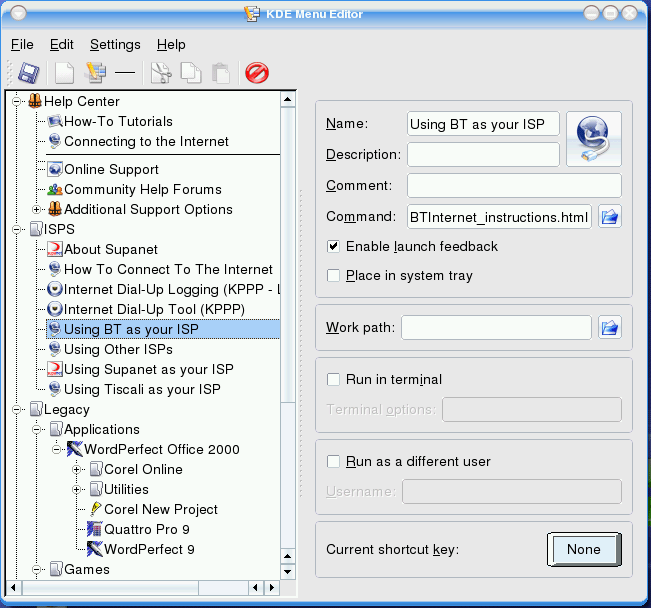
So after messing around in the launcher settings, there is a program group that exists in the Launch menu, known as the KDE menu. This is hidden by default but you can drag this to the Run programs menu which will allow you to run older applications or applications that don’t conform to Linspire’s menu structure.
Maybe this was to push users to use their CNR store/packages?
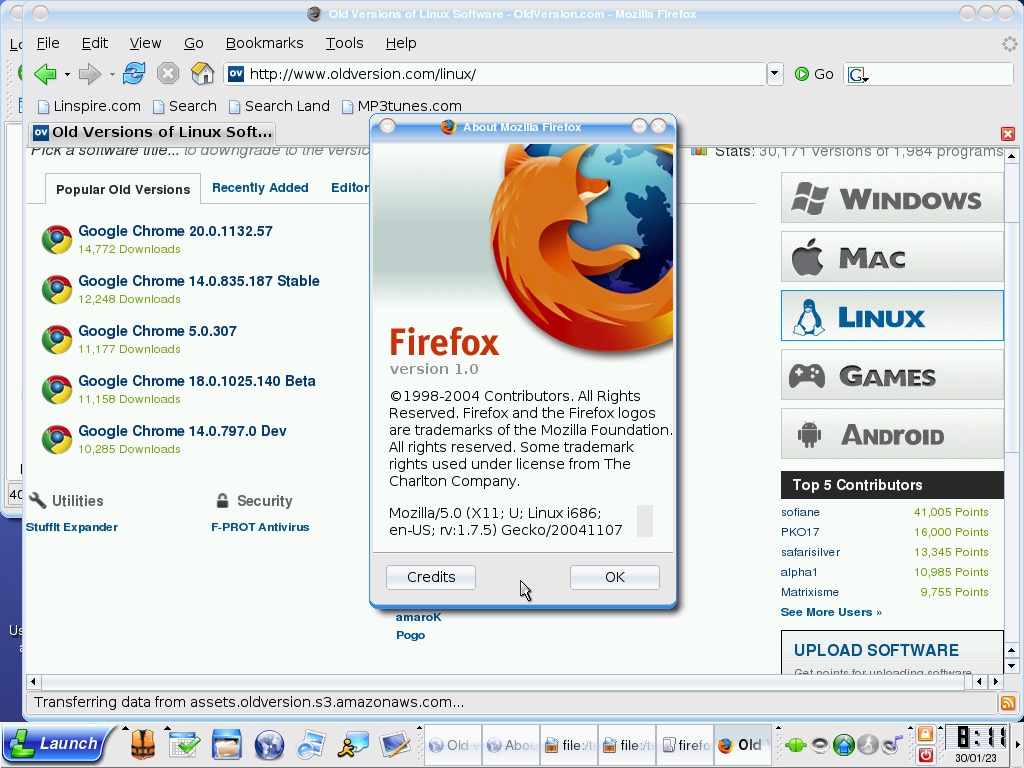
Firefox 1 can be installed and works fine but the install sets the location by default to the desktop?
SimCity 3000 failed to install which gave an error. Chances are the libraries used in this distro version are too new and we need to apply the fix that was done in Ubuntu 4.04. The text installer only seemed to work instead of the GUI install that came up in Mandrake.
Alpha Centurai was installed and worked fine but had no sound. Postal was also installed and worked fine, but still no sound. I guess the sound libraries had changed in this version, breaking compatibility,
Lindows 4, the next installment in the line of Windows-inspired operating systems and is an easy-to-use Linux operating system, designed to appeal to your typical Windows user of the era.
This time I will be using VirtualBox 5, as the OS is a bit heavy for 86Box to handle. We should have some luck with the emulated hardware that VirtualBox uses and supports. Host machine uses an Intel Core i5 2500.
Install is pretty much the same as previous versions, simply choose the hard disk you wish to install and away you go. No need to optionally configure packages, though power users might prefer this to optimize their installation and remove stuff they do not see.
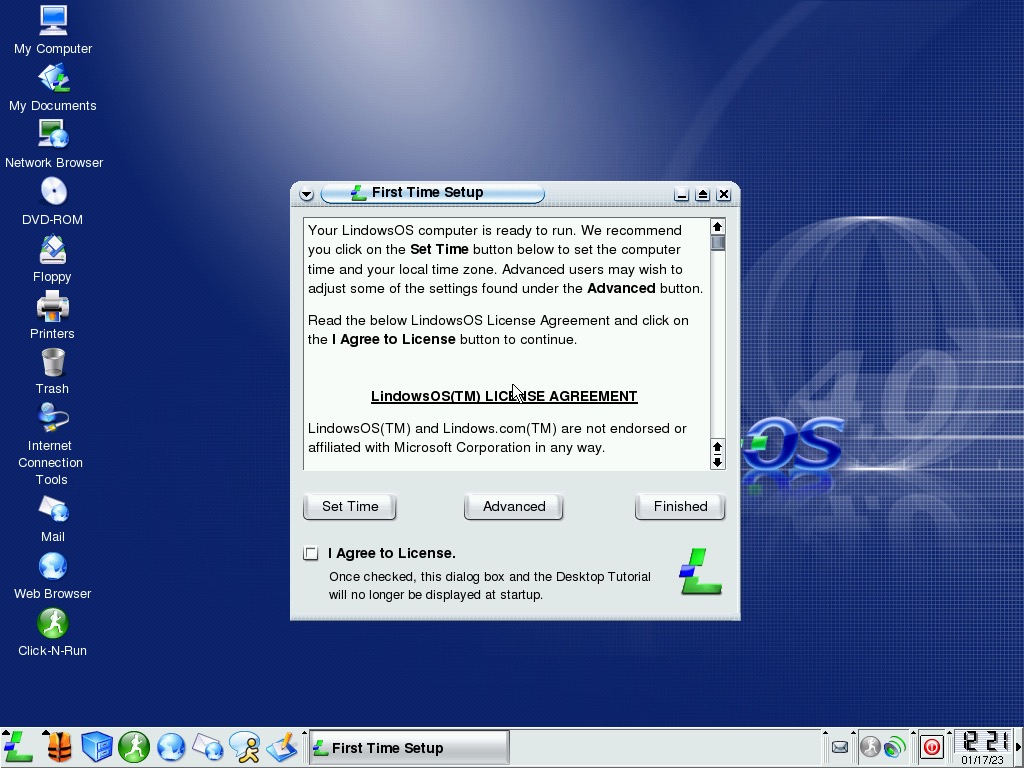
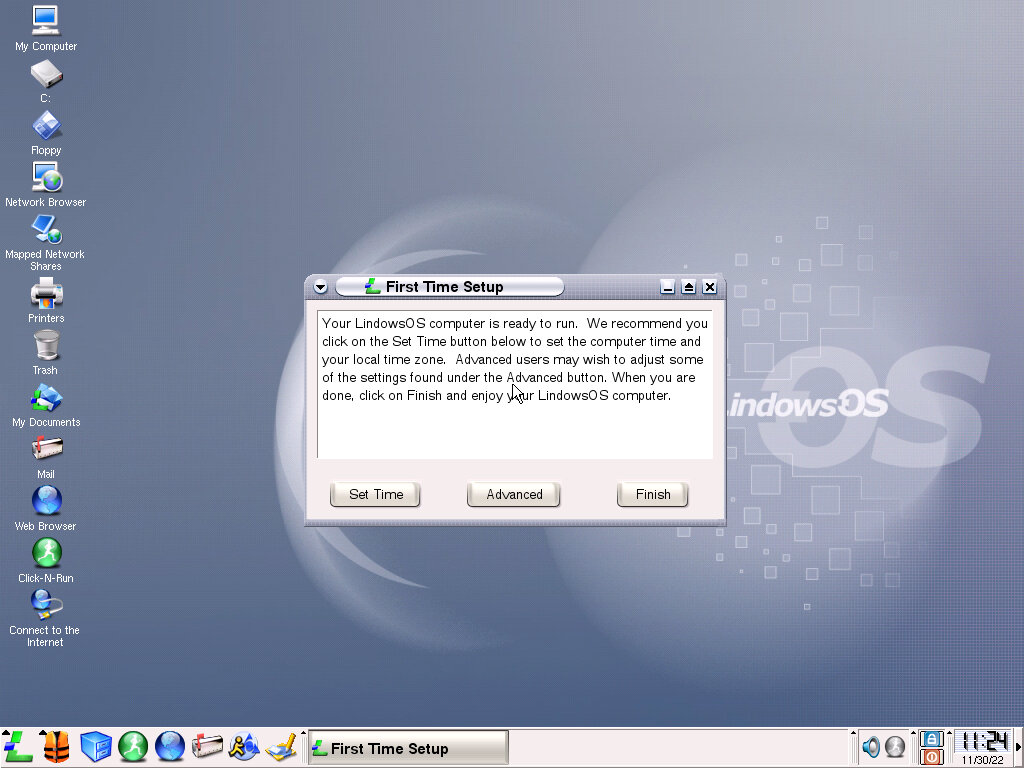
After installation we are greeted with a first run box that reminds us to set the time zone of our computer, along with the option to set an administrator password if one wasn’t set using the install. The screen resolution can also be set here, by default it’s 1024×768.
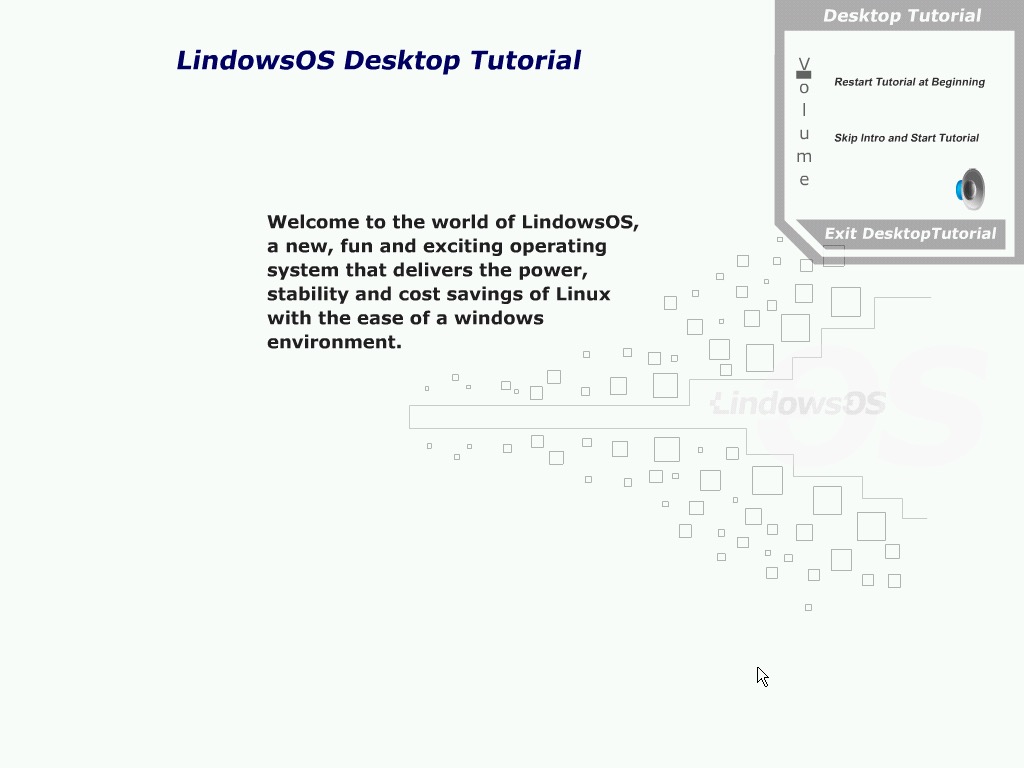
After this we are treated to a tutorial that explain the basics of navigating the operating system. This reminds me of the tutorial that would launch when you first started Windows 98, along with a slideshow list of features included in the operating system. For first-time Linux user this is a welcome addition and lets them feel comfortable using their new operating system.
The user can mouse over the different desktop icons and taskbar items to find more information on their purpose and how they are typically used.
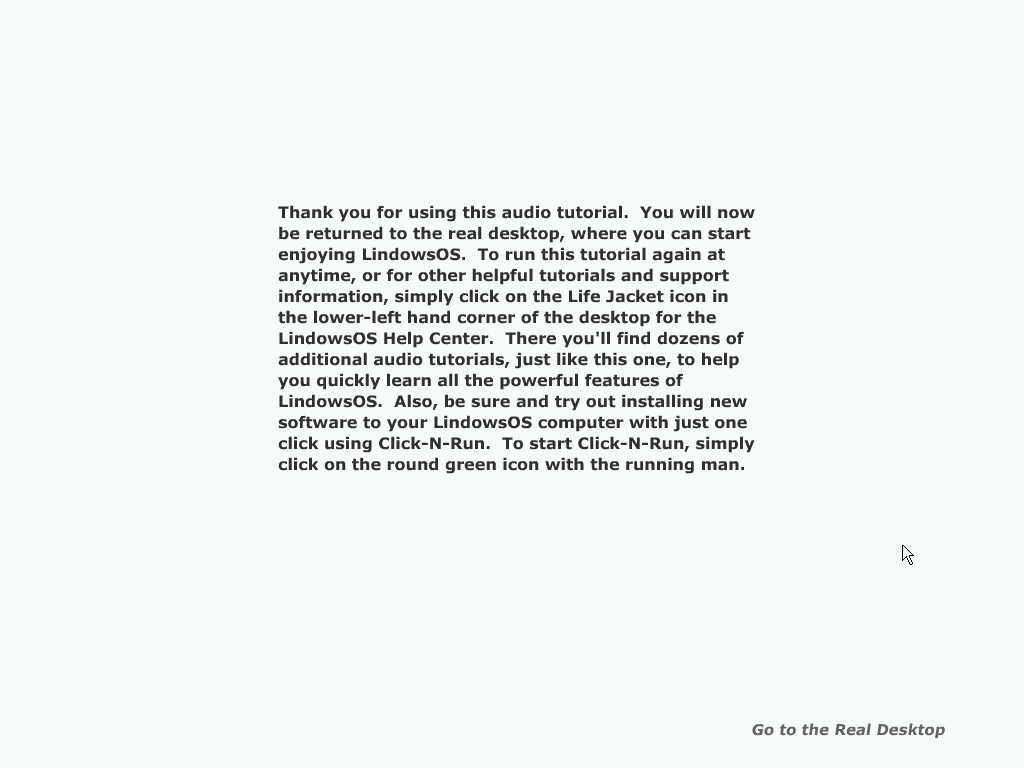
Exiting the tutorial prodded to be problematic, despite clicking on the ‘Go to the Real Desktop’ link, the application froze. I waited a couple minutes but nothing happened, the OS become unresponsive.
A quick reboot brought the OS back to life, through the damned tutorial started again. I even saw a browser window showing a SWF file, proving the tutorial was made in Adobe (Macromedia) Flash, Luckily I was able to exit it this time.
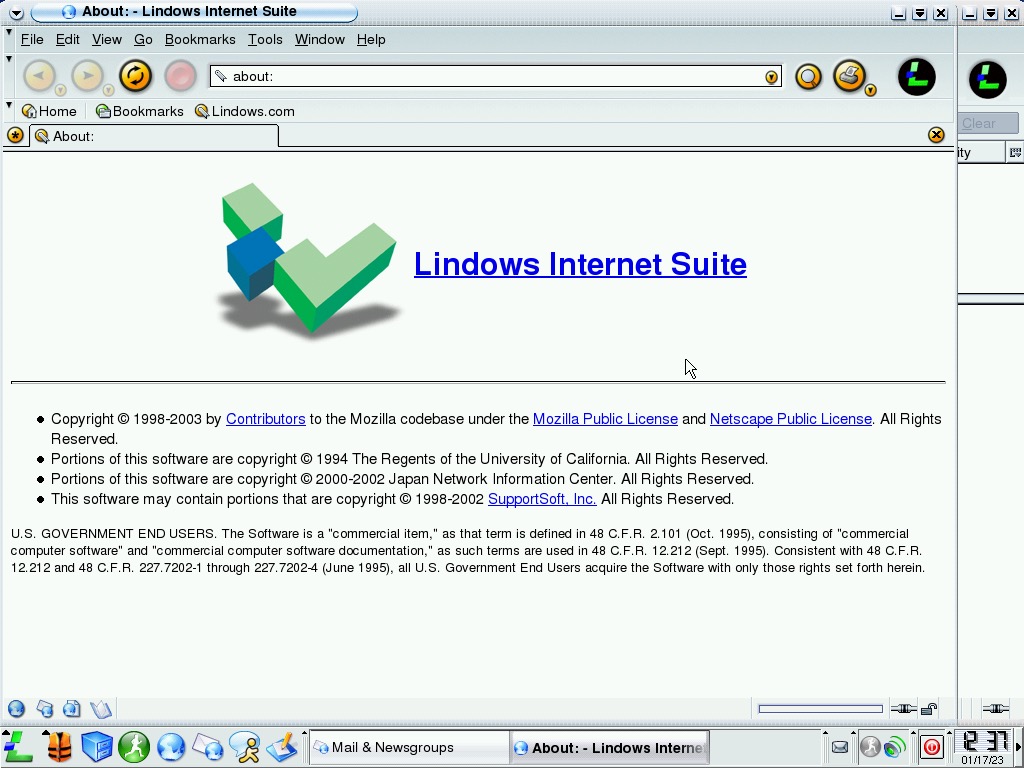
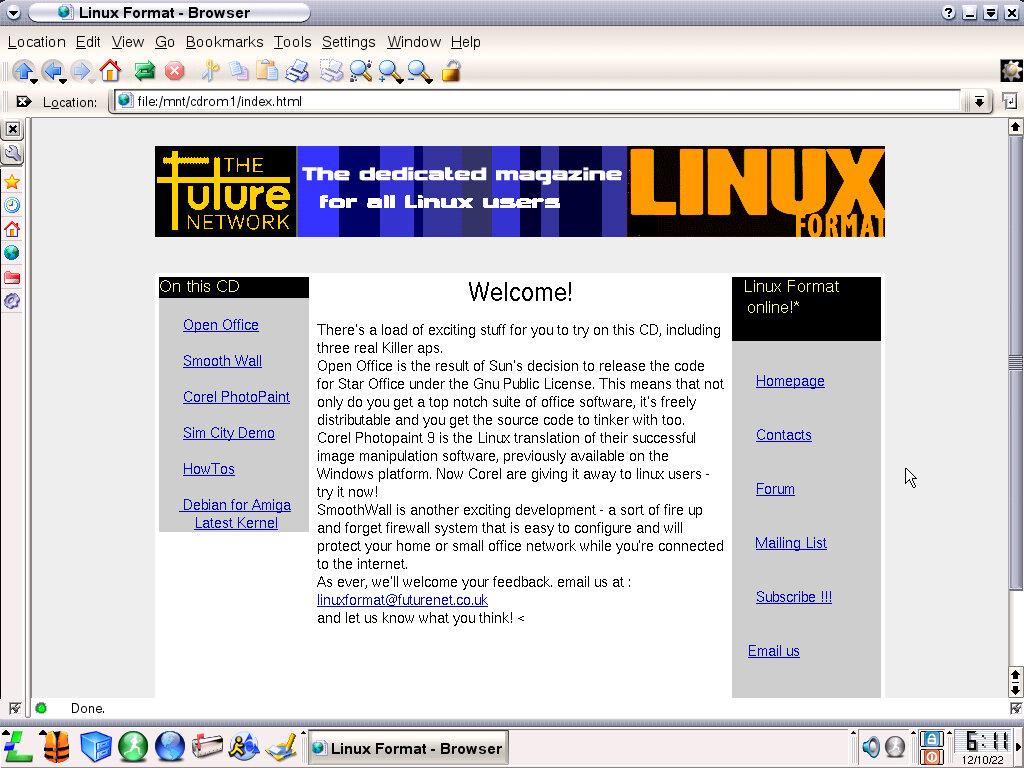
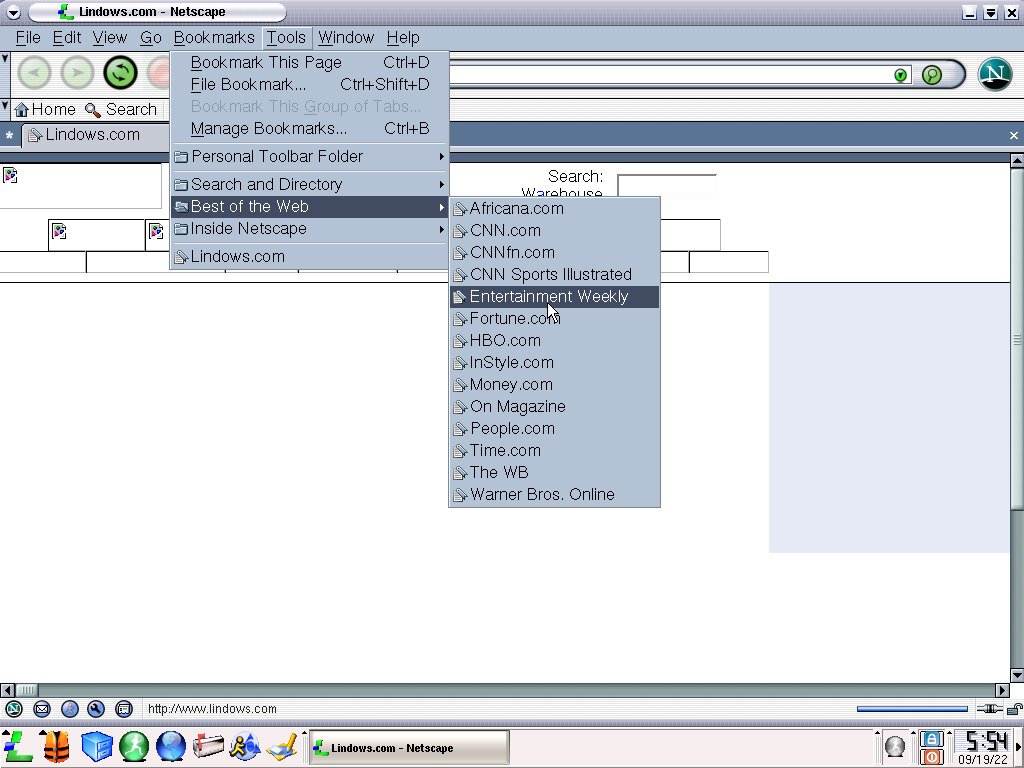
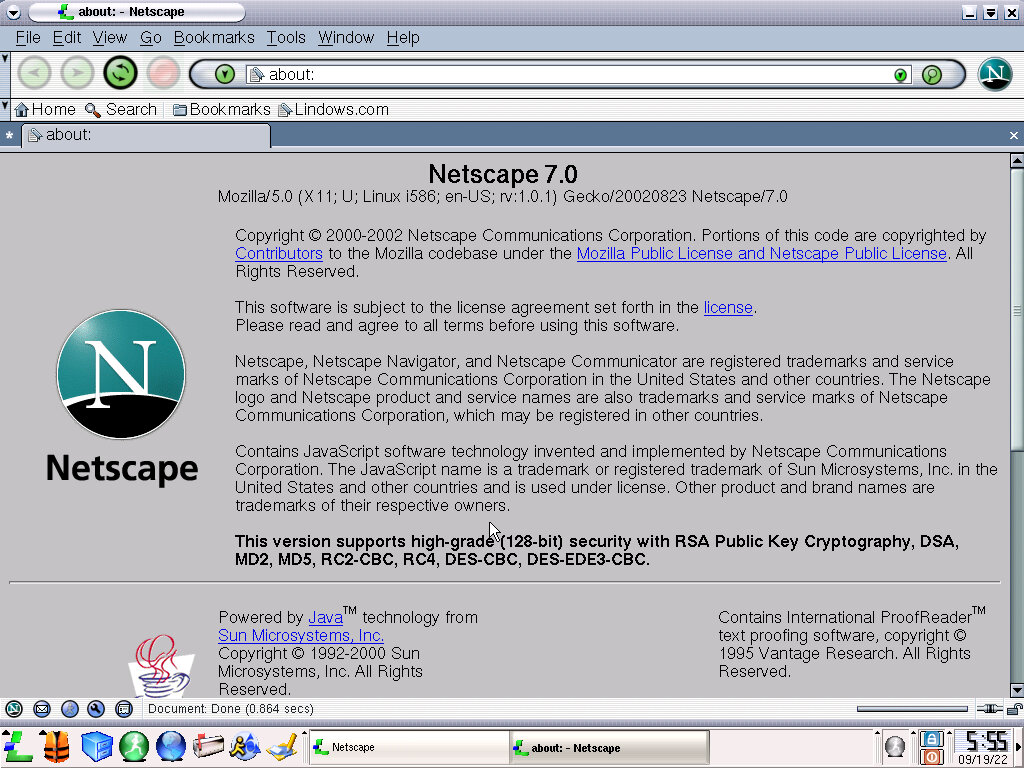
For whatever reason Lindows Internet Suite decided to load, this serves as the default email client of the OS, along with the browser. From the looks, it’s just a rebranded version of Netscape Navigator. I believe this was the era when Netscape was purchased by AOL and began reimagining their web browser before making it open source, though the about box mentions Mozilla so maybe that already happened.
The Windows-like user interface
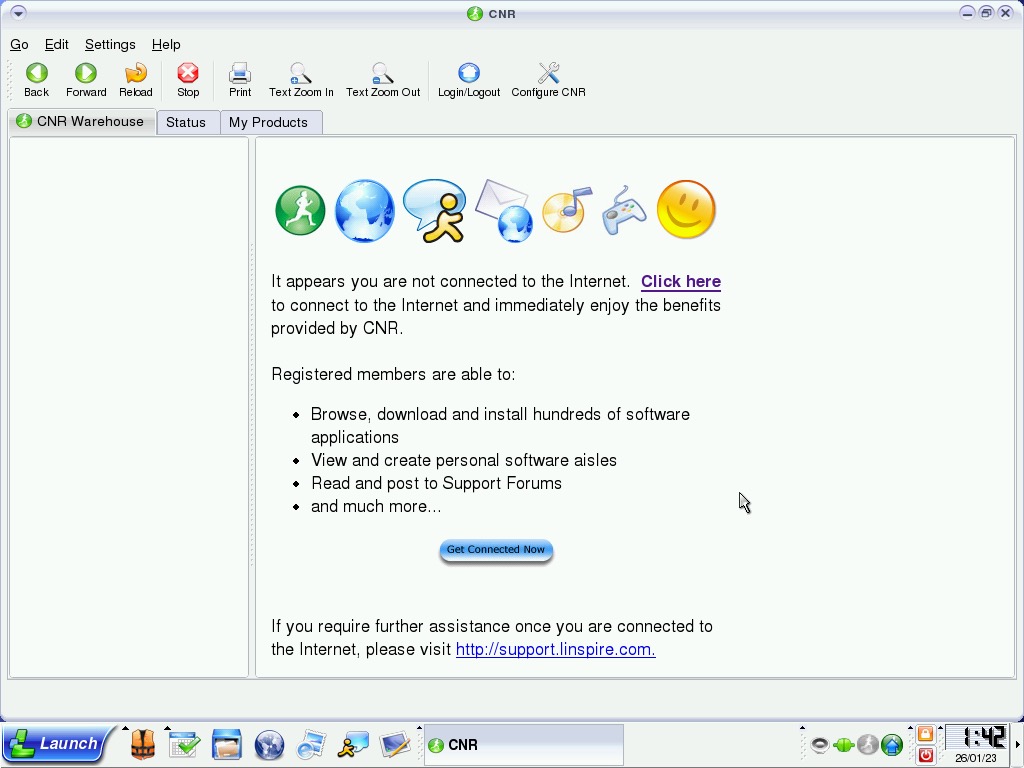
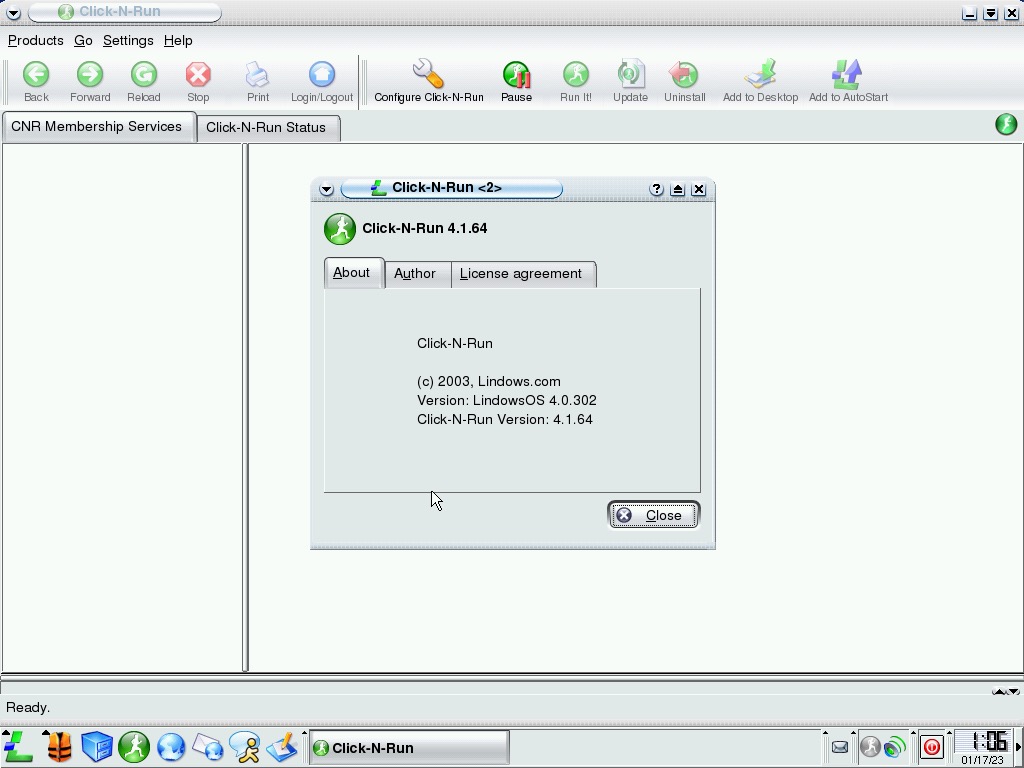
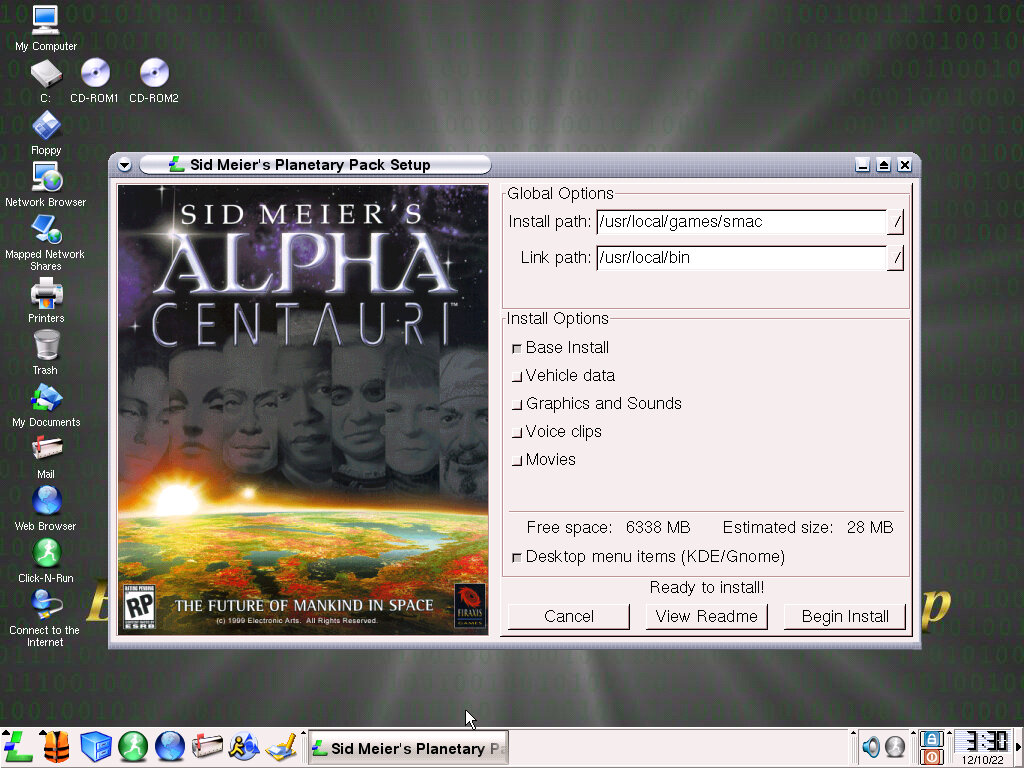
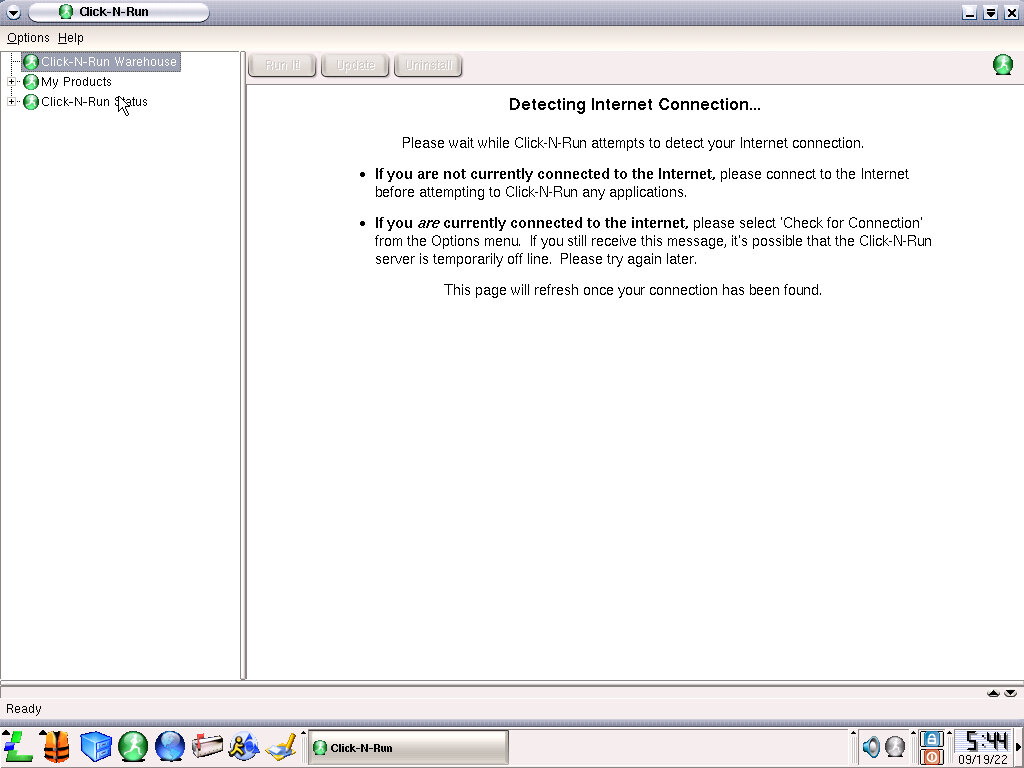
Click-N-Run is still at the forefront of the OS and was the preferred way of installing software rather than using a package manager. This was aimed at making easy-to-install software by mimicking the Windows way of installing via the use of a setup wizard.
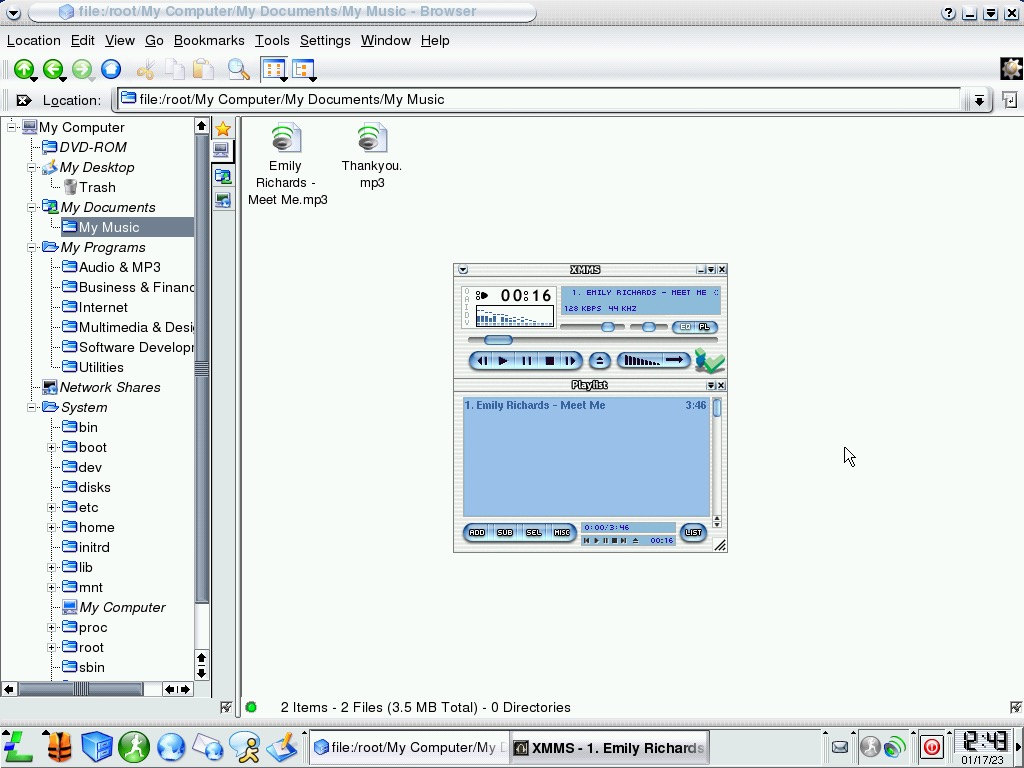
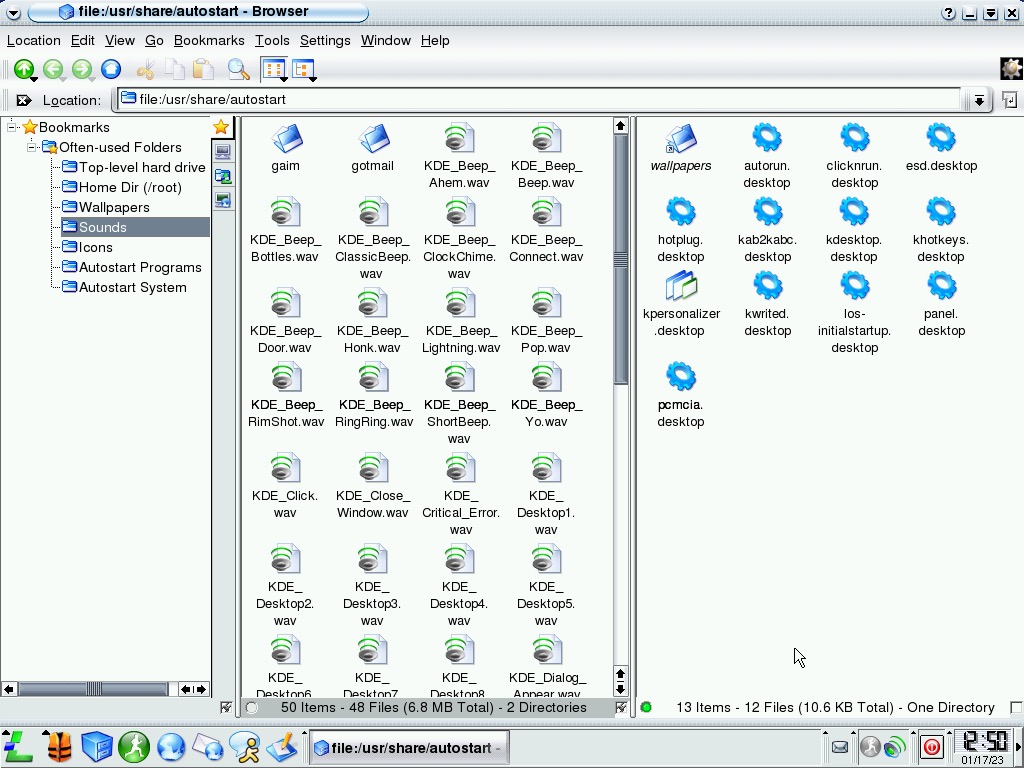
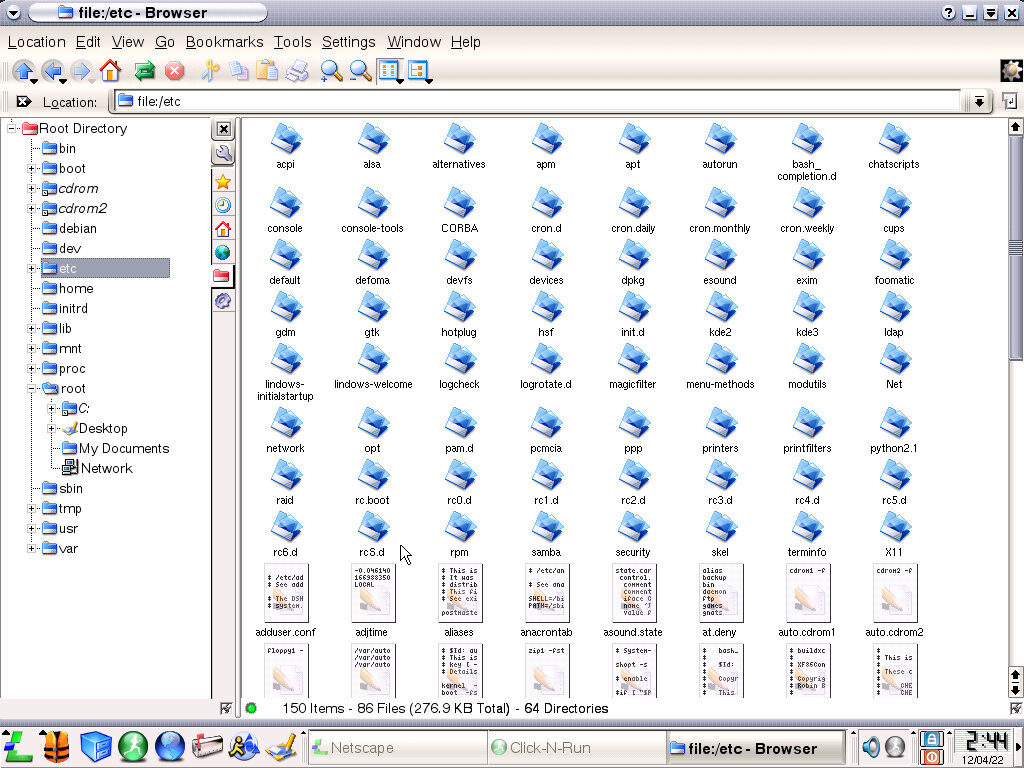
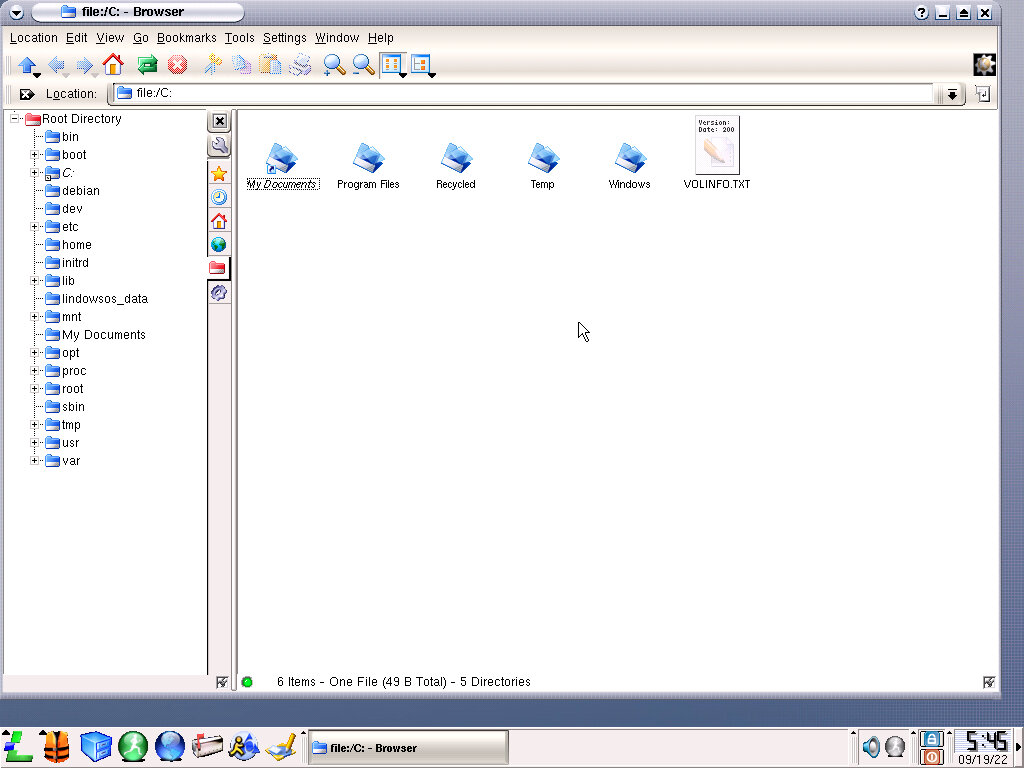
The file manager of the OS, you can see a lot of inspiration from the Windows XP silver Luna theme via the button bar and the style of the icons which mimic Windows Explorer, yet the taskbar still has the Windows 2000 feel to it.
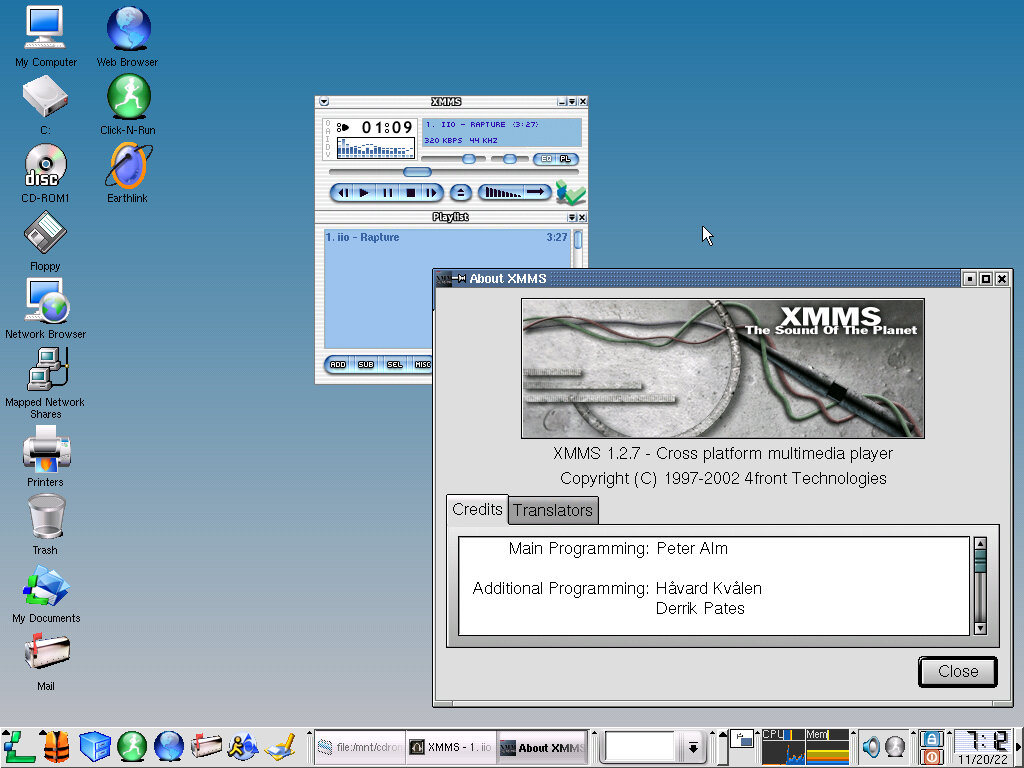
Two MP3 files come bundled with the OS, showcasing the multimedia capabilities. One is a typical pop song of the era, and the other is an audio voice thanking you for choosing Lindows. Kind of similar to how Windows ME included that Beck song, or that David Grey song in Windows XP
XMMS still looks like an OS X Aqua program with version 1.2.7 is used here. Also, our sound drivers are working! (AC97)
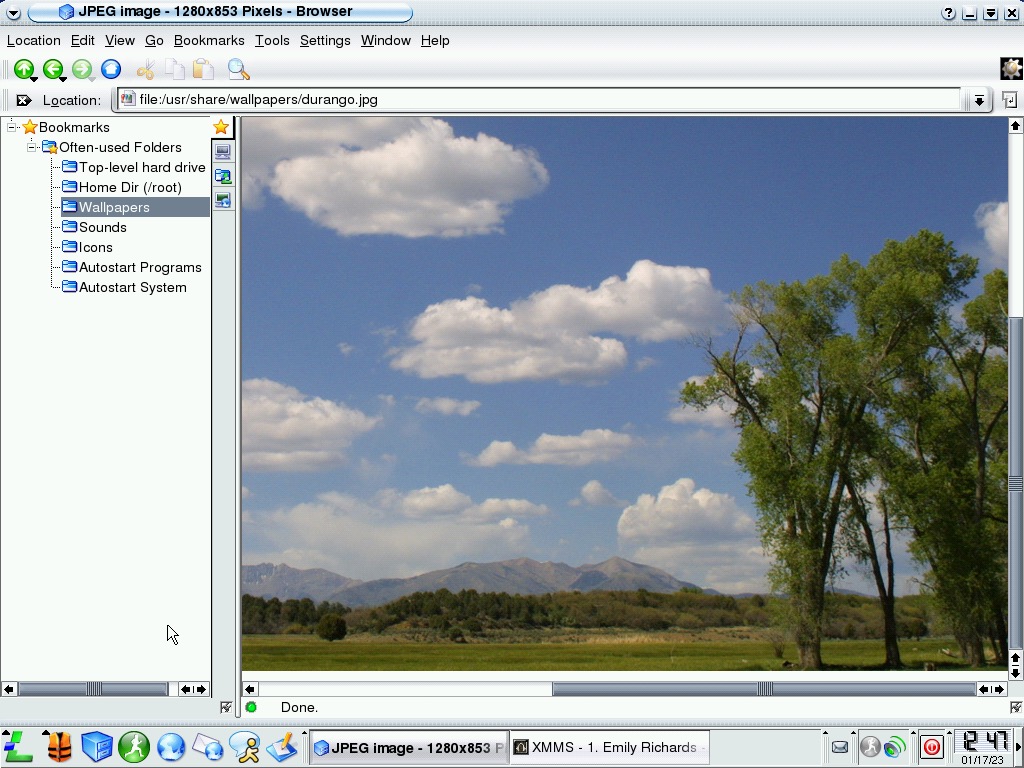
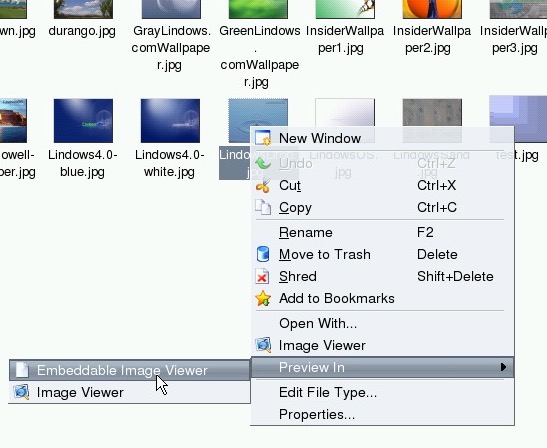
Images can be previewed within the file manager itself
Right-clicking can bring up a context menu that lists the different actions available
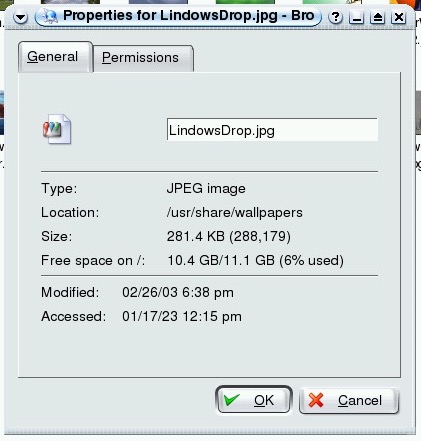
File properties window
It’s also possible to split view the file manager, like an earlier version of Windows snap though this gives it a total commander feel to it.
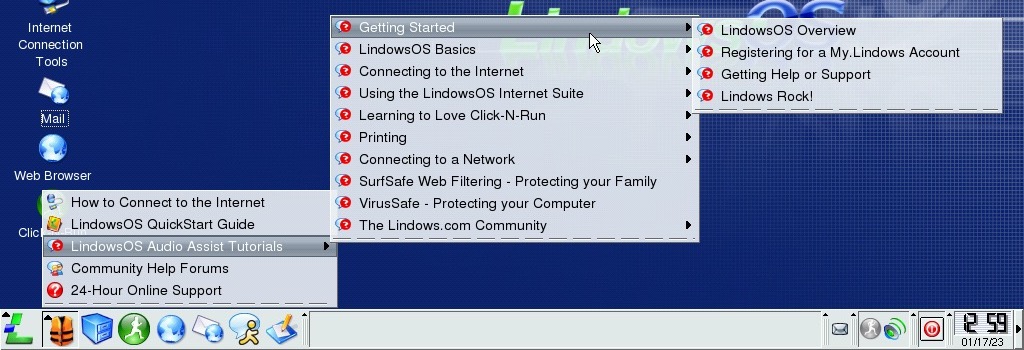
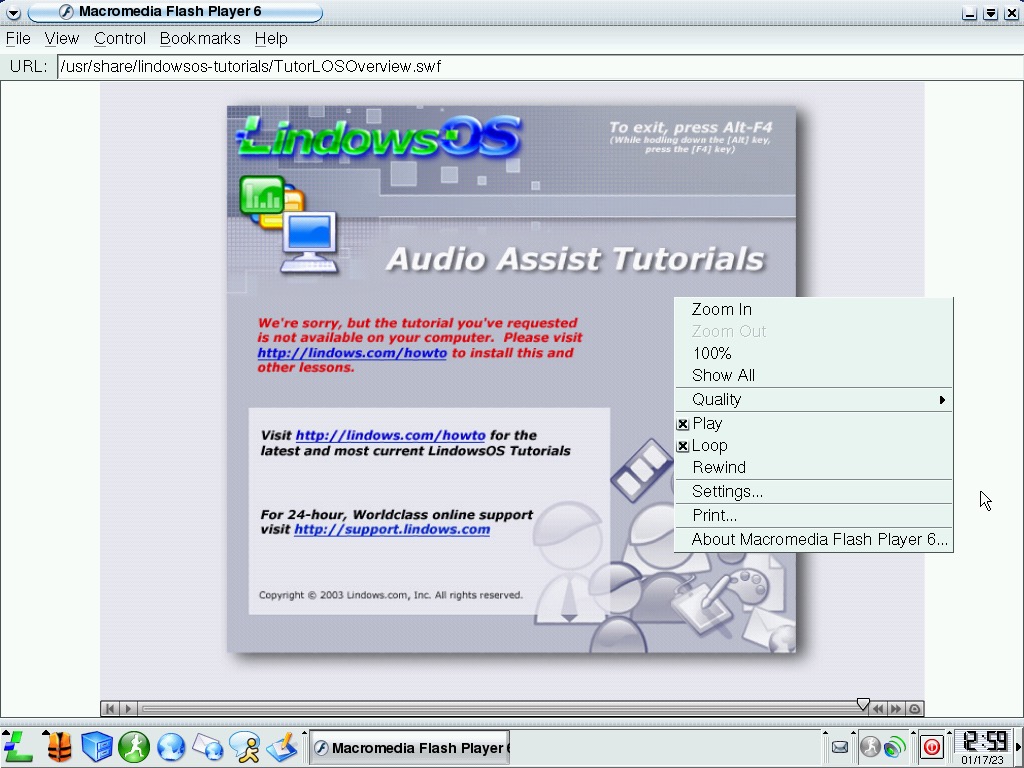
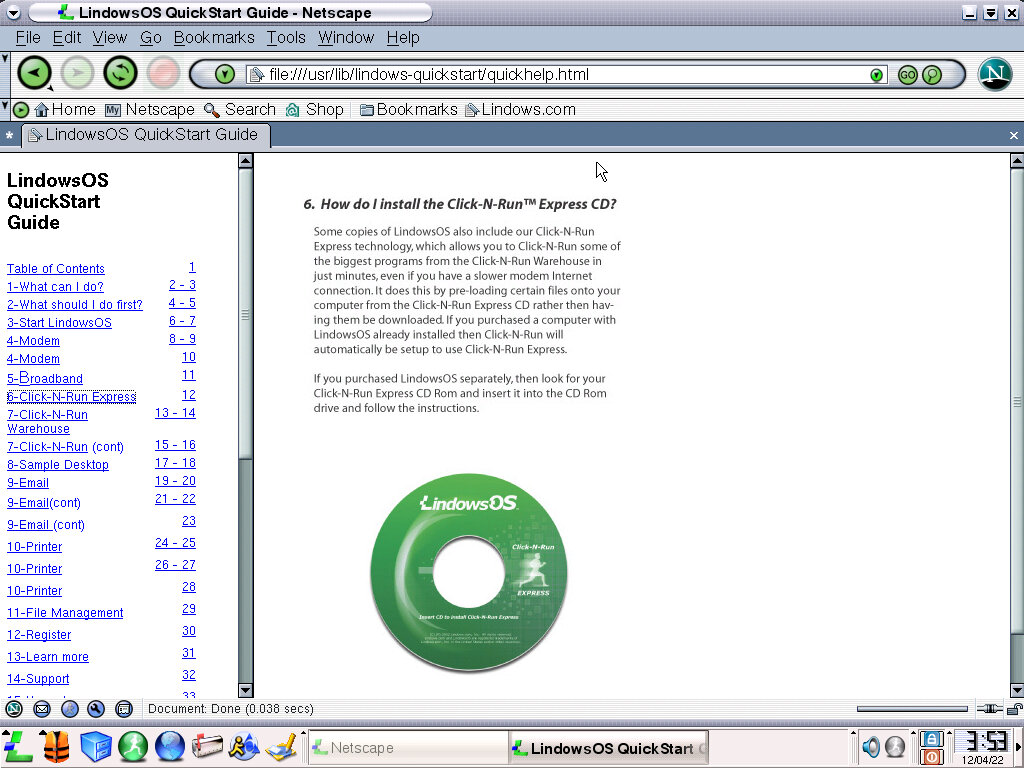
Clicking on the icon that looks like a lifeboat jacket brings a menu with a list of tutorials, and link for further help online. Like the earlier tutorial, it’s all drivers in Macromedia Flash 6.
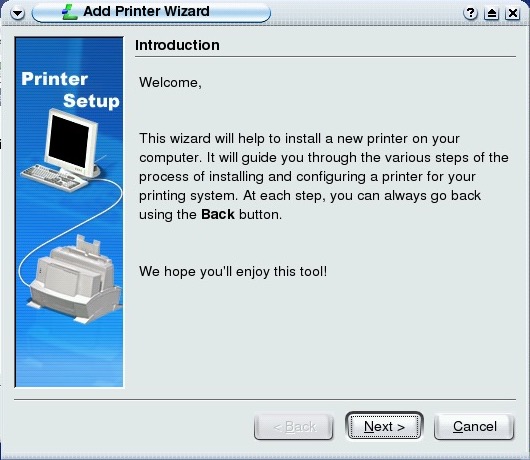
Printers control panel, which uses the KDE Control Module. Here print jobs can be managed and canceled for physical and virtual document printers.
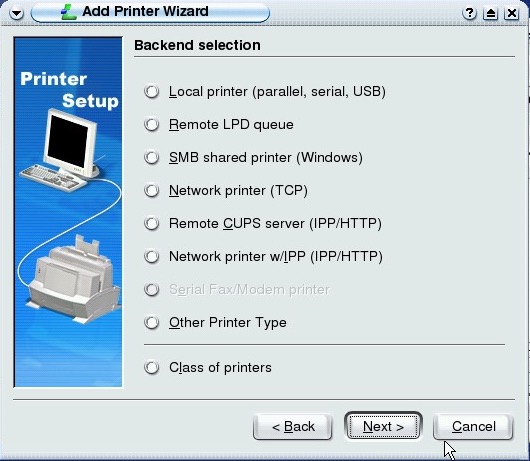
There are a few printers supported, but I don’t own any of them to test. It does give a few options for the type of printers, including SMB network-connected printers. USB is also supported, with the list corresponding to the amount of USB ports the machine has?
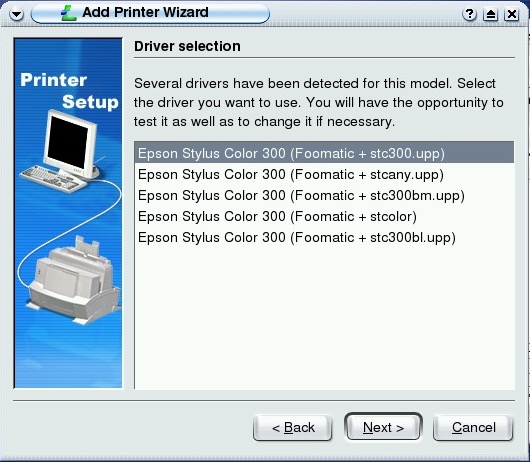
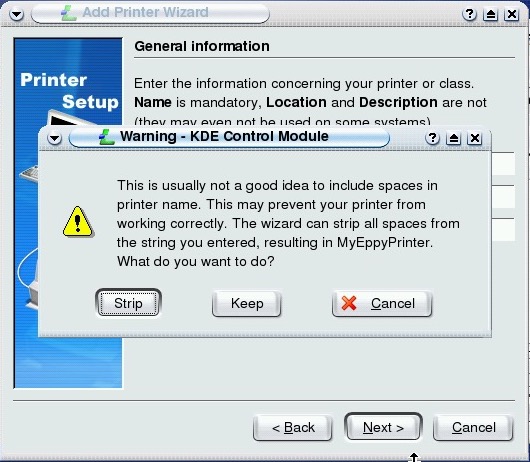
Quite a few options here, I guess the user has to trial and error them to see what works best? There are further options remaining for setting the borders of the page, the option to share the printer on the network and setting a page limit quota.
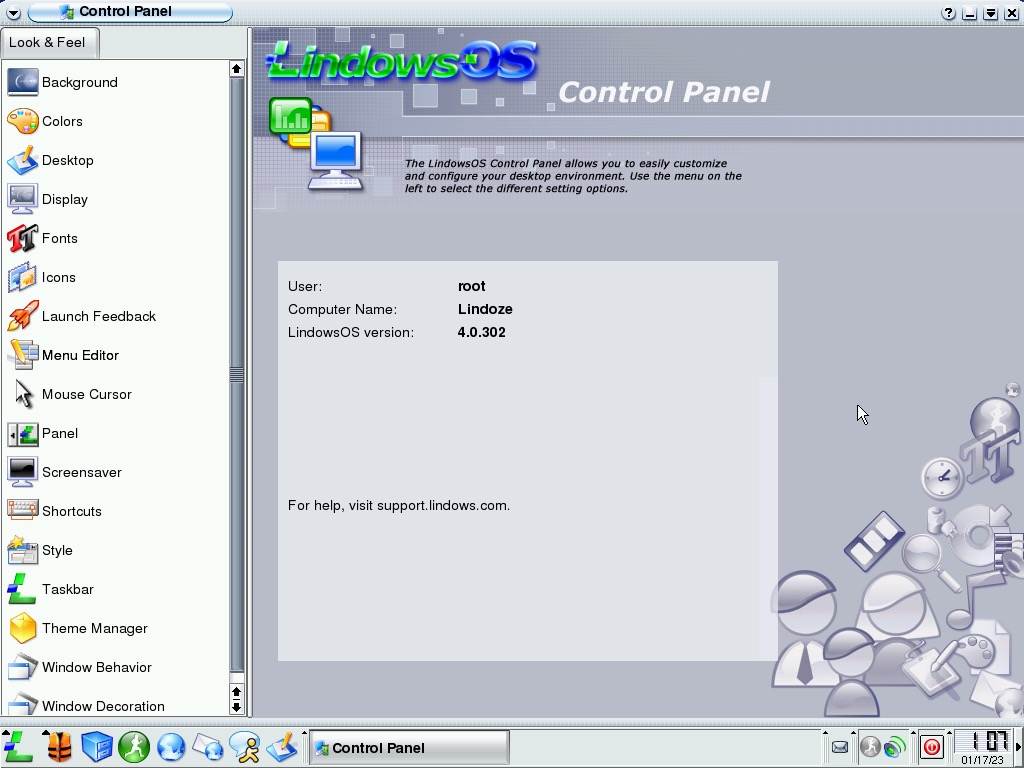
The Control Panel has had a slight redesign, let’s see what’s changed.
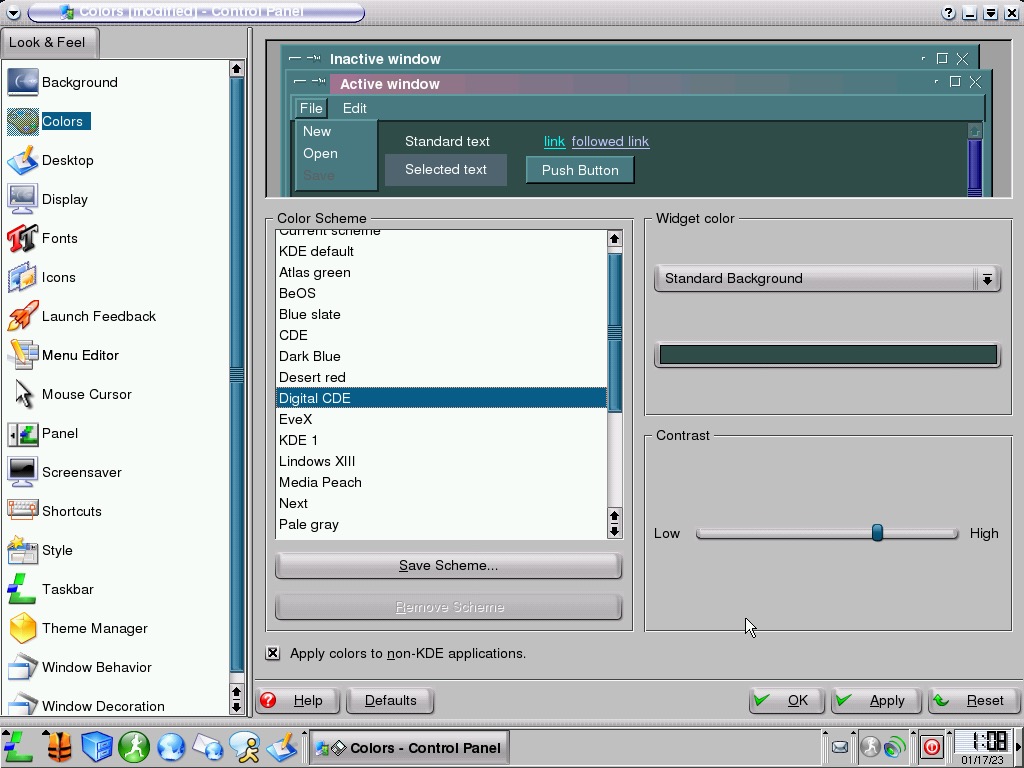
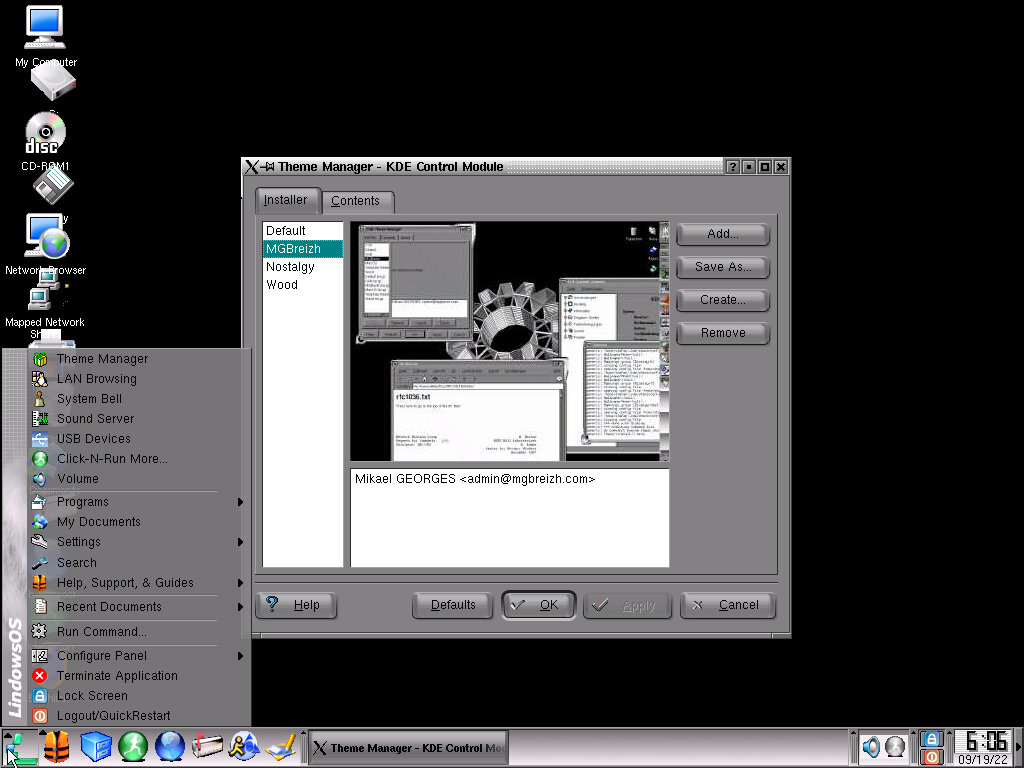
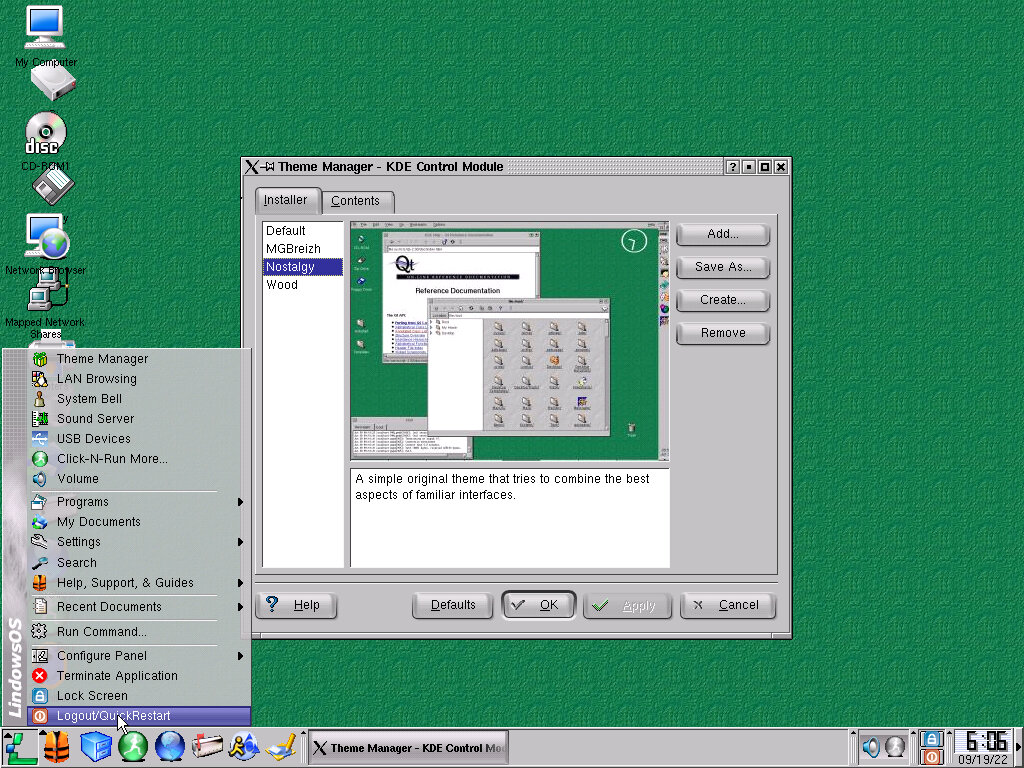
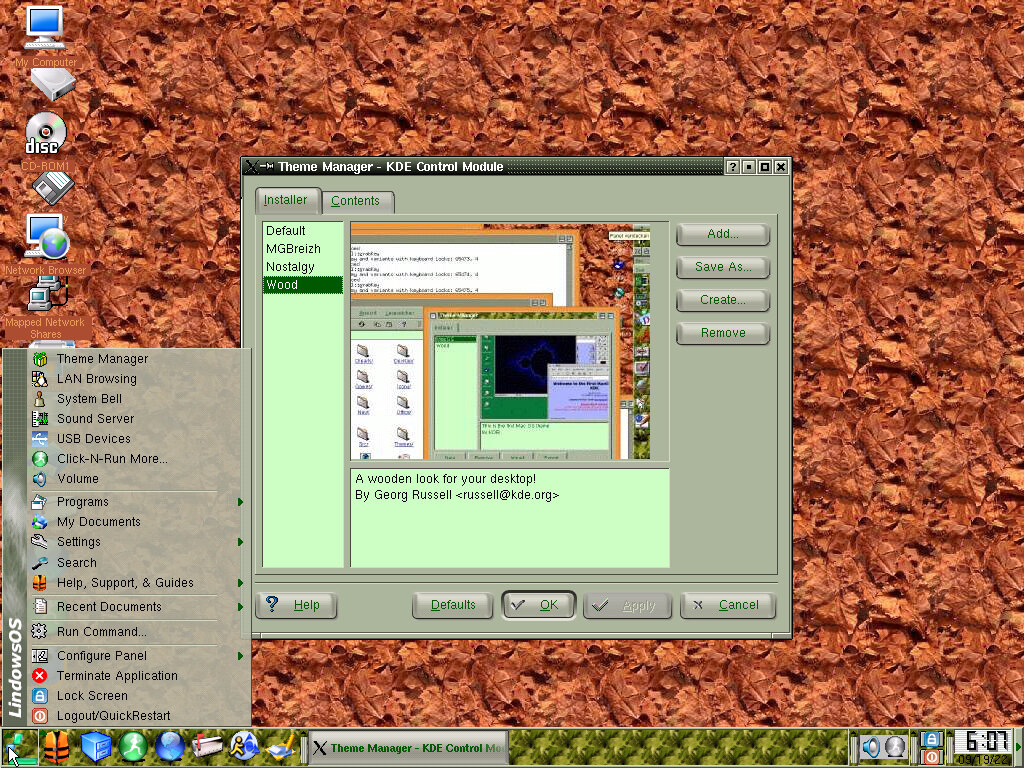
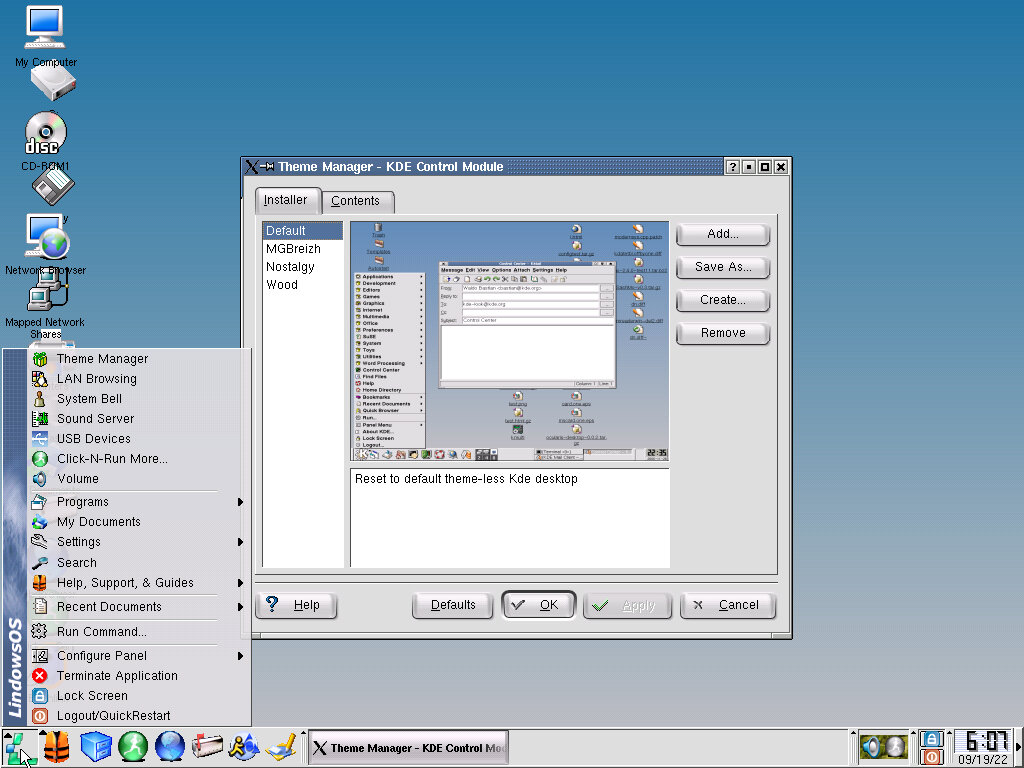
A few themes are included, with some mimicking your favorite OS. The default Lindows theme has been altered compared to previous versions.
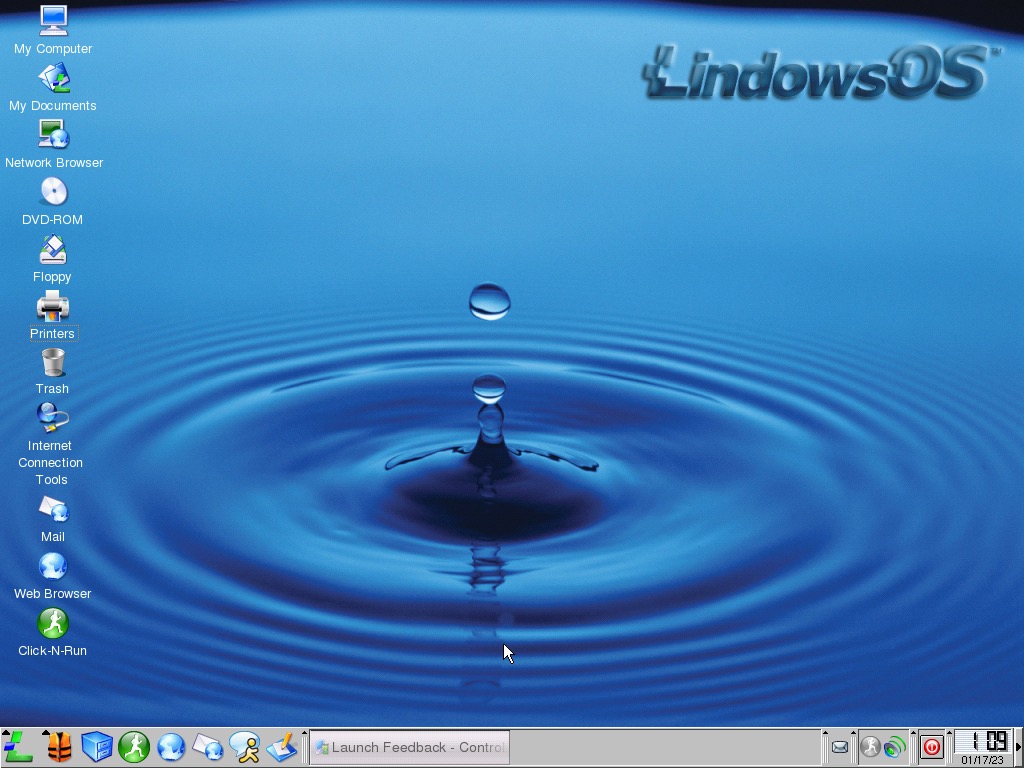
I’m sure this was the wallpaper used on some Sony DVD players when they were idle (Powered on without a disc inserted)
A few of the included screensavers, the Virtual Machine one made me think the OS was self-aware in how was being run
One of the benefits of Linux is every element can be customized, and that trickled down into KDE and Lindows itself. Different aspects of the UI can be tweaked to your benefit. This won’t apply to most users who would rather pick from a default theme or style and use them, but is a nice option for power users.
Not much change has been made to the bundled applications, in-fact the only notable addition is the Wifi utility which is based on KWifiManager. I guess this only supports 802.11b networks using WEP, anything beyond that is unsupported.
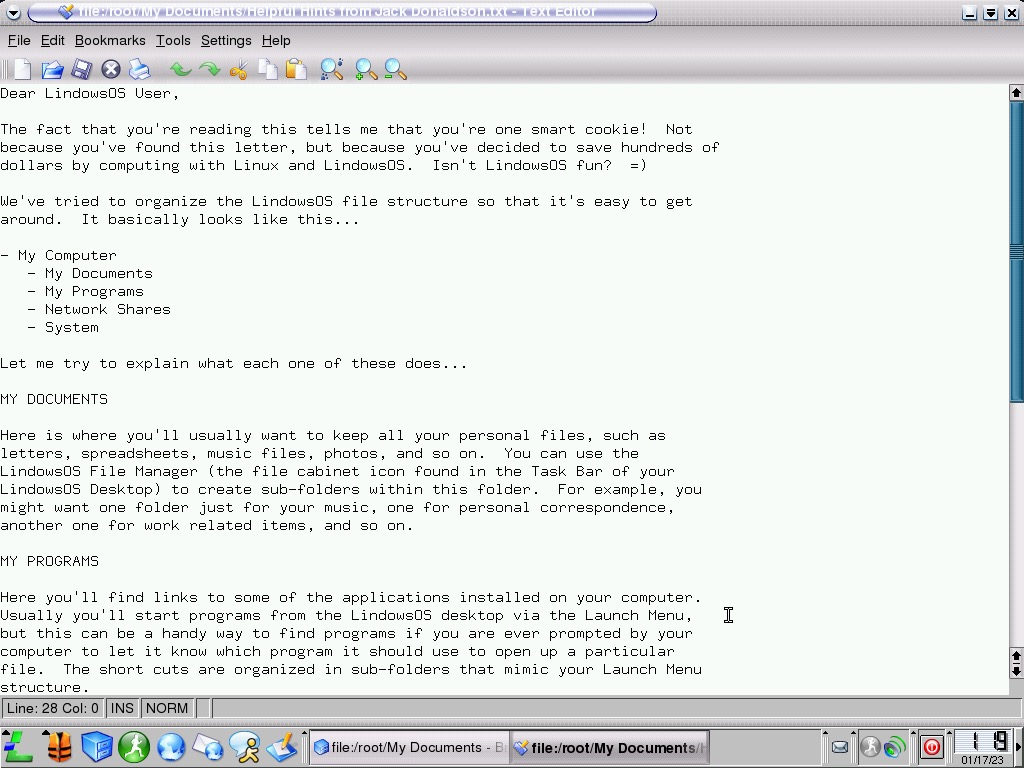
A readme file written and left for us by Jack Donaldson explains some of the elements of their start menu and the file directories. Thanks Jack!
I wonder if he’s still involved with Linux?
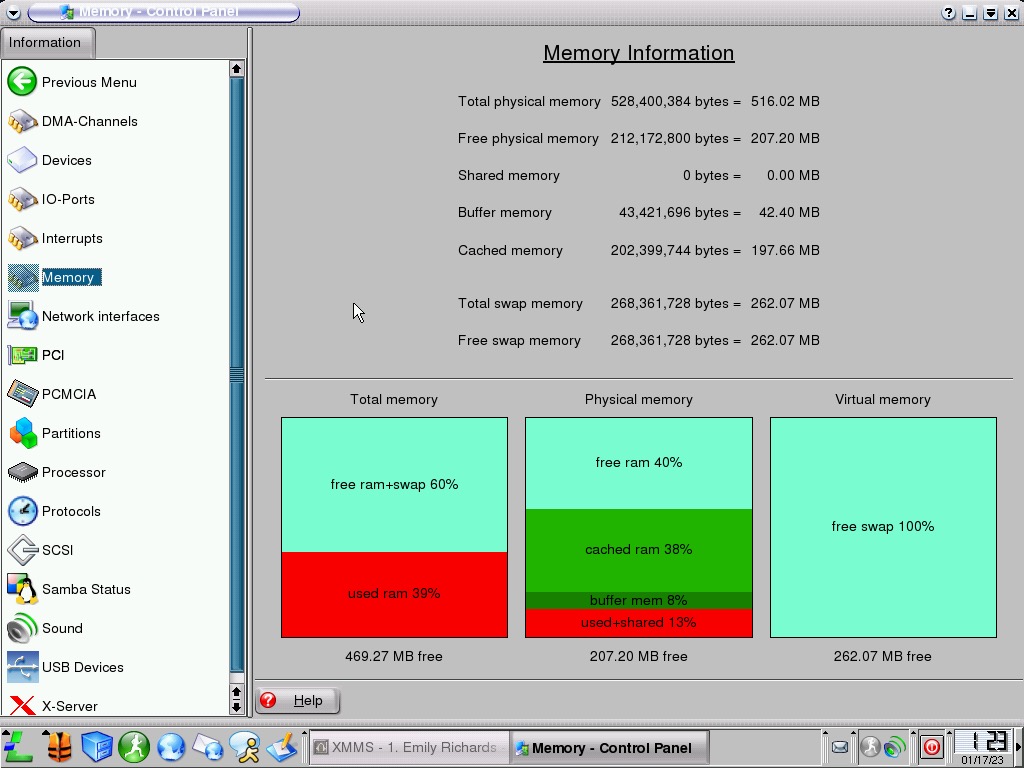
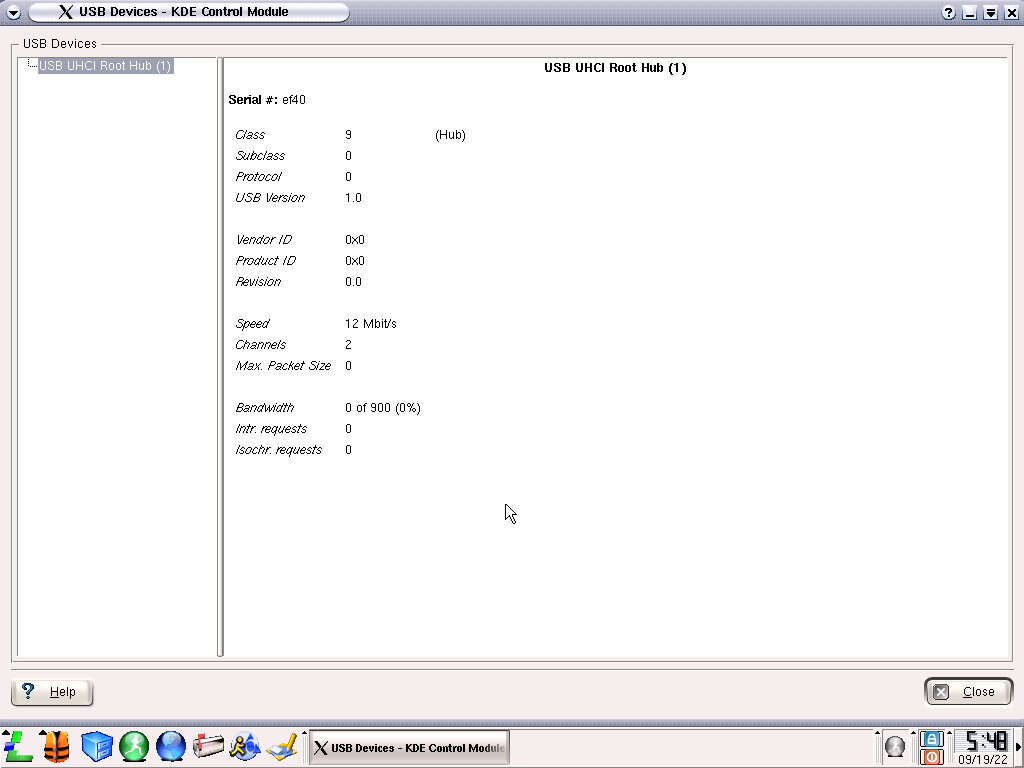
An extended look at the control panel, here we can find information about our system like the memory usage, I gave the OS 512MB which seems to be plenty. Information about the installed hardware can also be viewed in a similar manner to the Windows Device Manager
A follow up to Lindows 2, an popular Linux distro that was released in 2002, lets see what has changed in this version. It’s also an operating system that’s a pain to search for since both Google & Bing think it’s a type and keep correcting it to Windows.
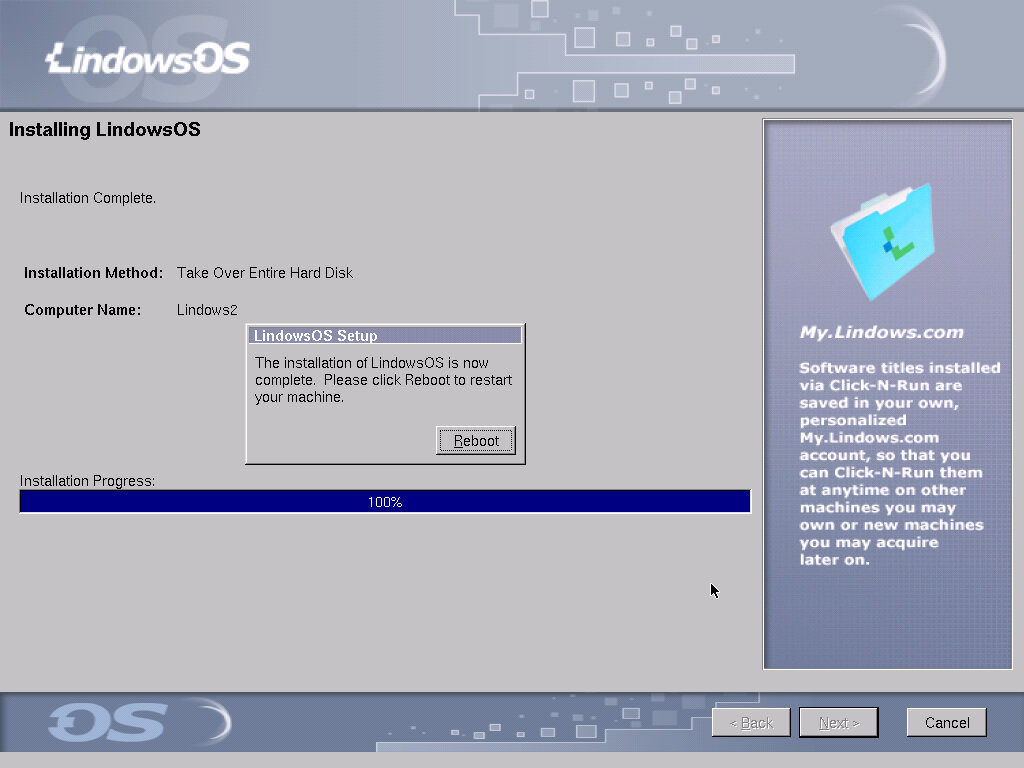
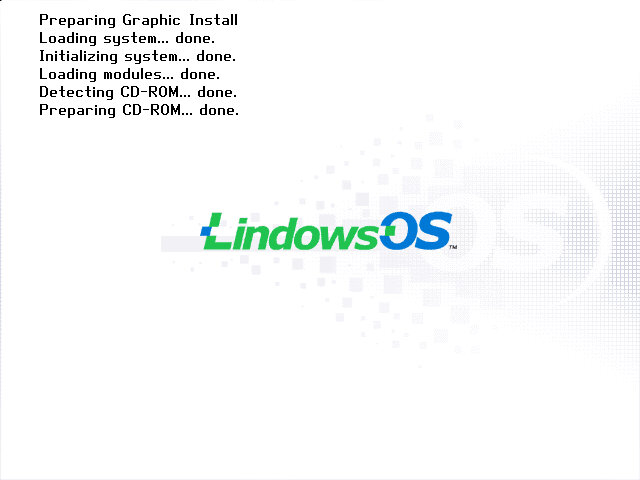
The install process is typically the same as before, with the install being booted directly off the CD
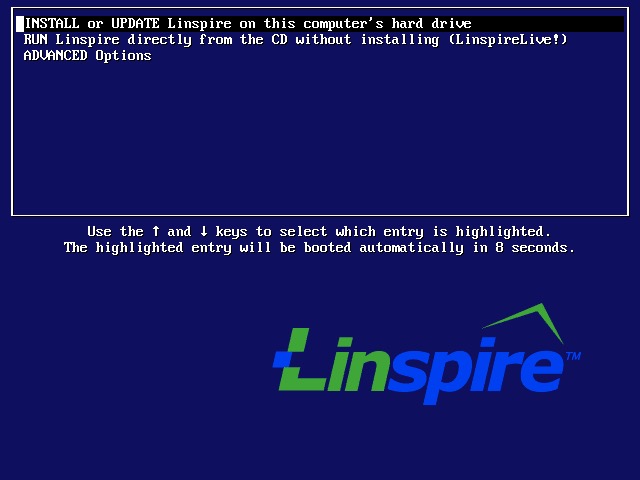
Upon bootup we still get the same selection process.
Desktop, not much has changed, but when clicking the Lindows menu we see a slightly altered font The menu itself holds the same layout as the previous distro, with bundled programs being placed in their own category to make organizing much more easier. Not all applications will install into this folder, Simcity 3000 for example creates its own games directory instead of using the one located in the game folder. This can lead to confusion as you have two of the same folders unless the user manually changes the directory upon installation.
It also means whilst the menu looks relatively tidy, it will become cluttered as more applications are installed.
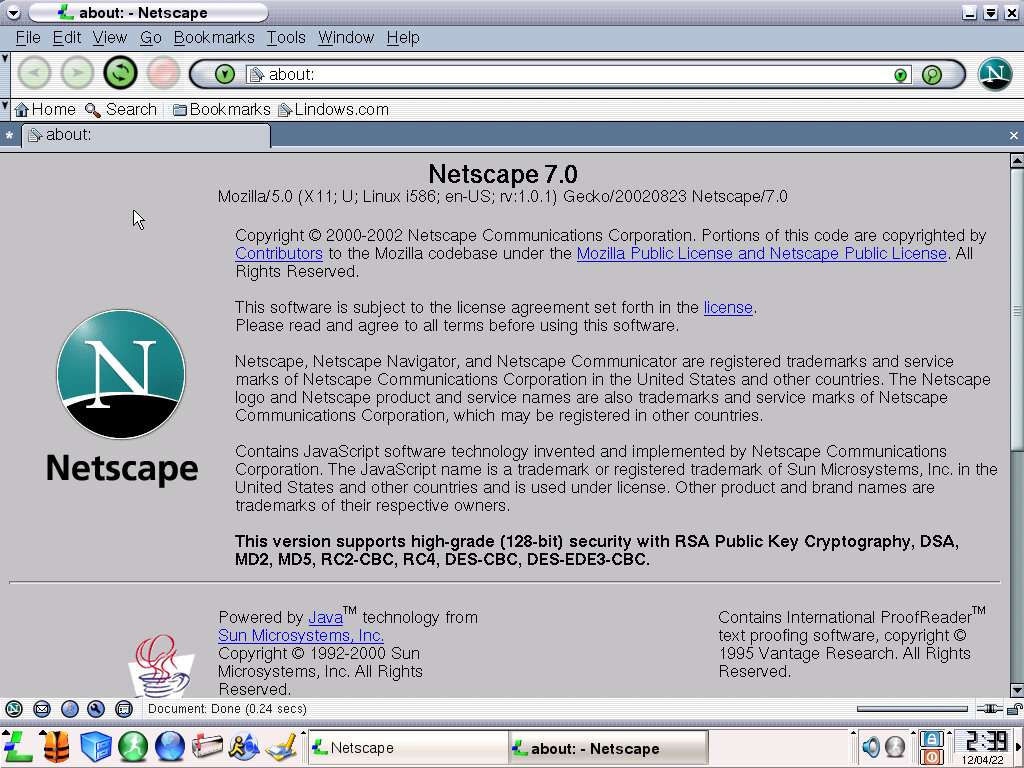
Click-N-Run applications are present, although there are no major changes, with only a few minor updates. Netscape browser comes as the default internet browser which is the exact same version as the preious release.
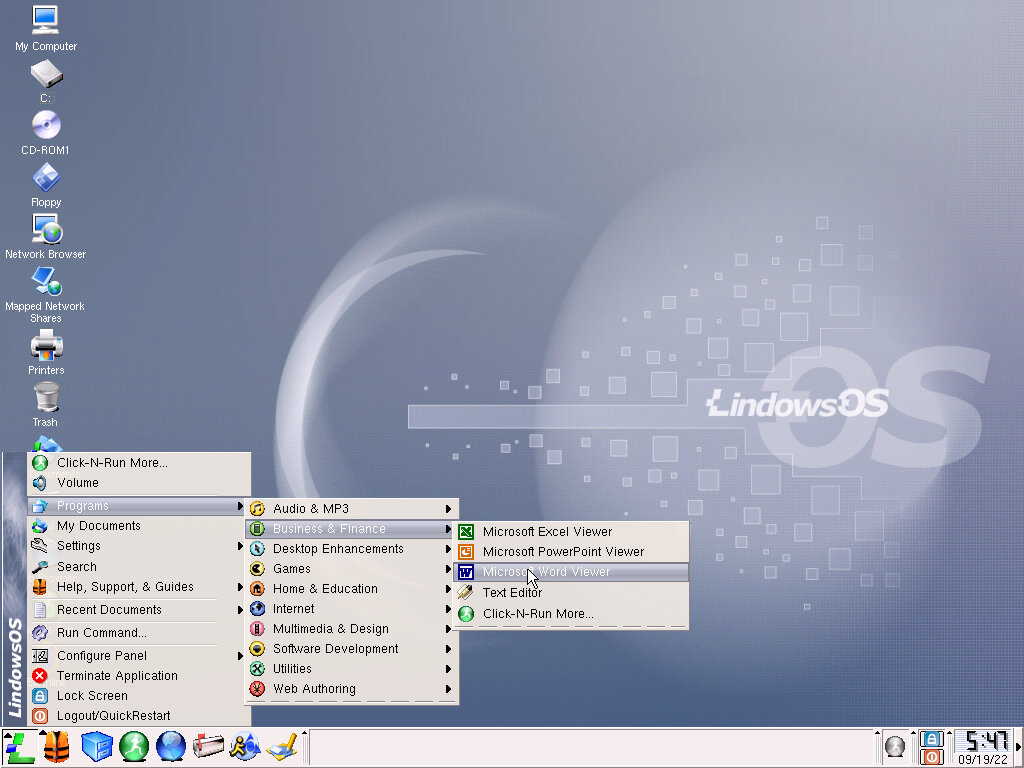
Missing from this build is the Microsoft Office viewers, with only the basic Text editor remaining in the Business & Finance category. I guess Redmond brought out the lawyers.
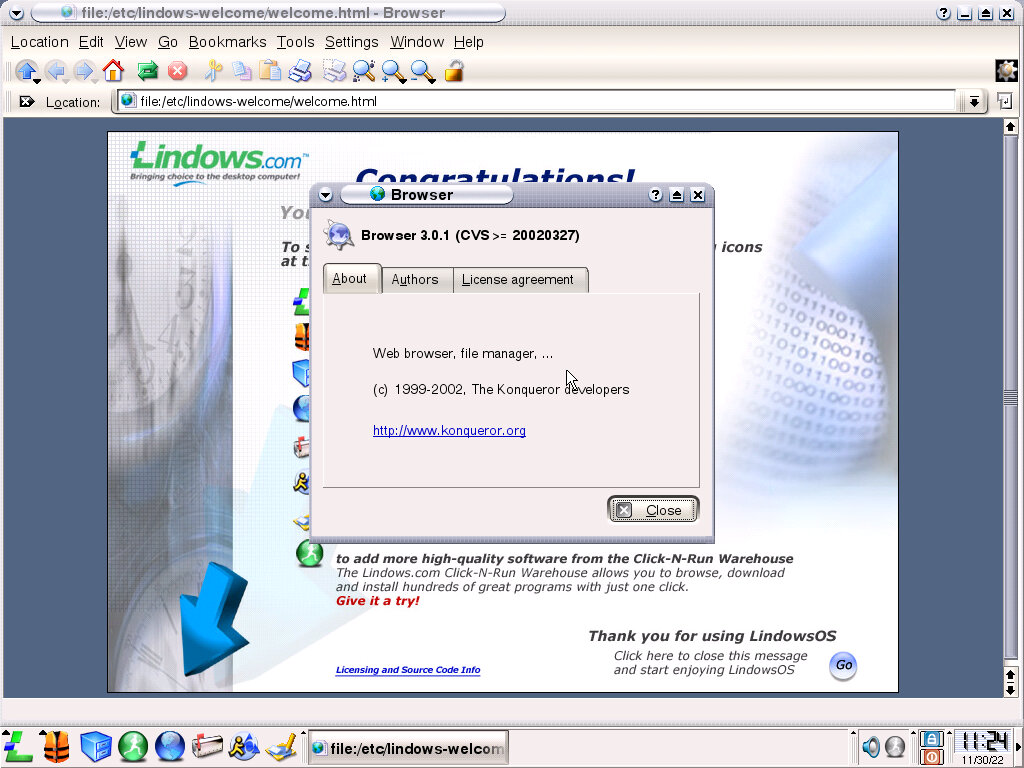
The KDE file manager is modeled after Windows Explorer which should make it familiar to switching users. Konqueror version 3.0.1 is used.
When software crashes in Lindows, a crash handler comes up explaining what has happened.
Software
Since there isn’t much that’s changed compared to Lindows 2, let’s see what period-correct software we can use.
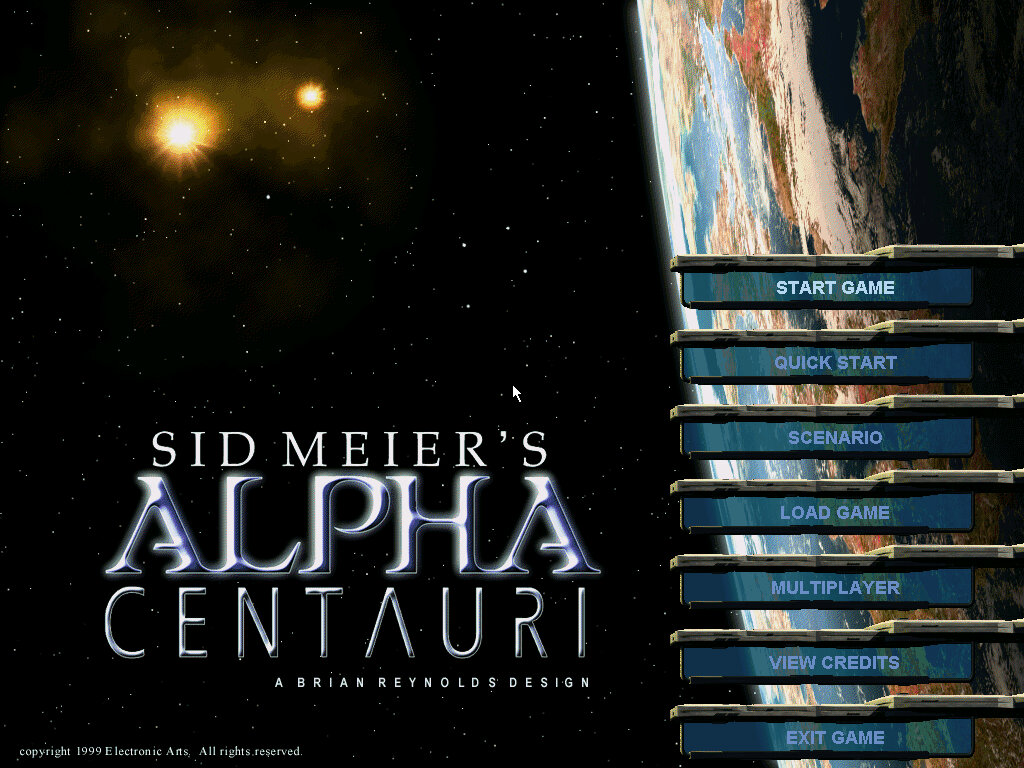
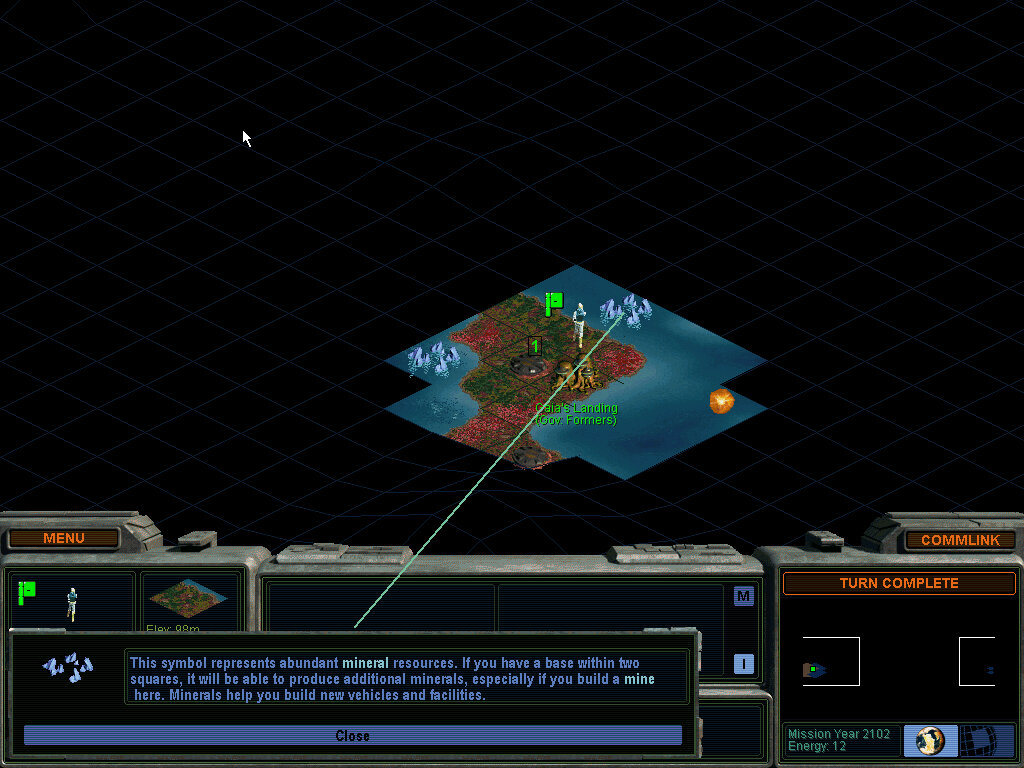
Sid Meier’s Alpha Centauri – Seems to work well, installs successfully and the opening FMV plays with a bit of stuttering probably because of the CPU chosen. I do wonder if these early Linux games were well-optimized or just quick and dirty ports. There is a bit of slowdown at the start of a level which could be an issue with no graphics acceleration with the video card chosen ( S3 ViRGE)
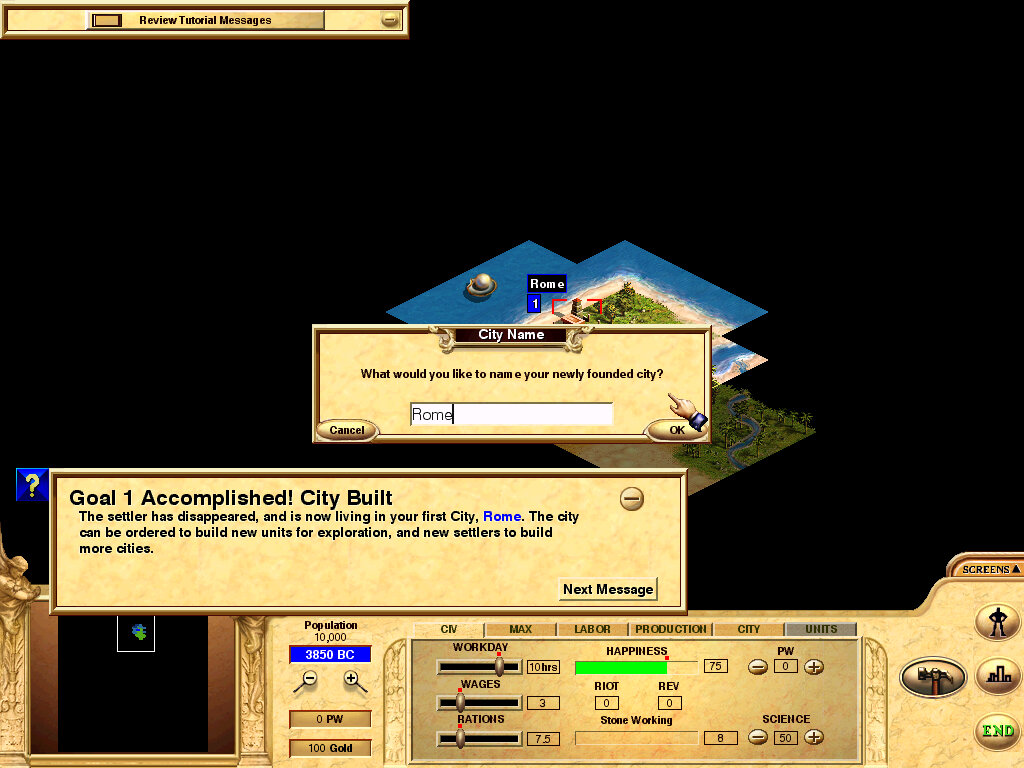
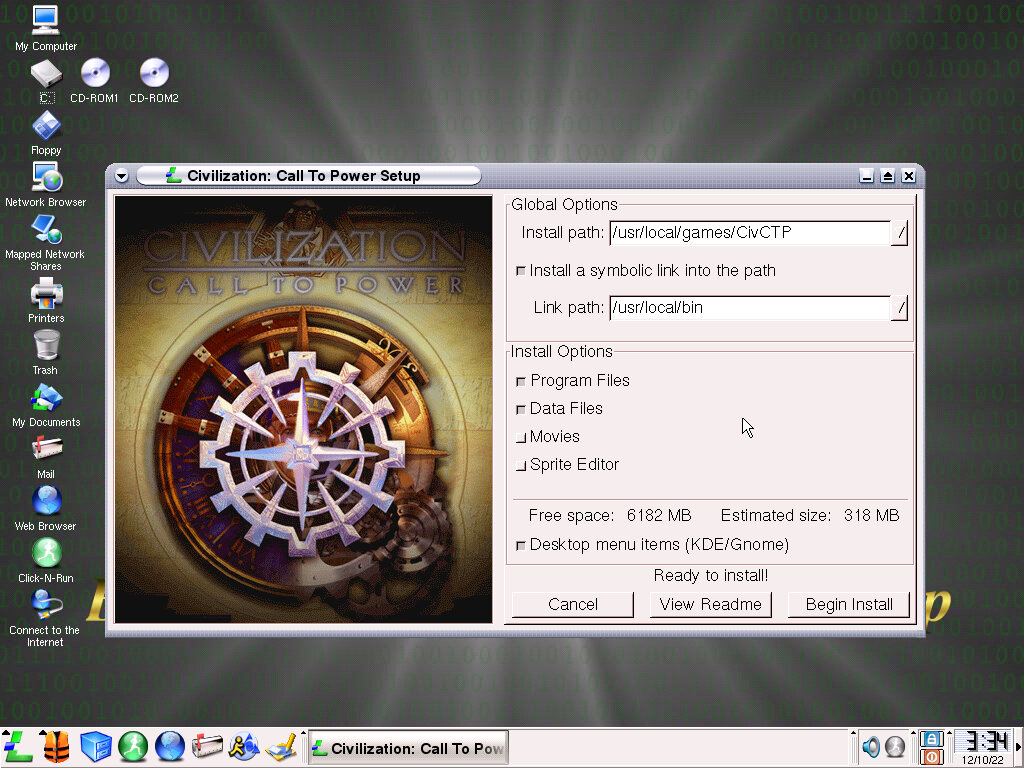
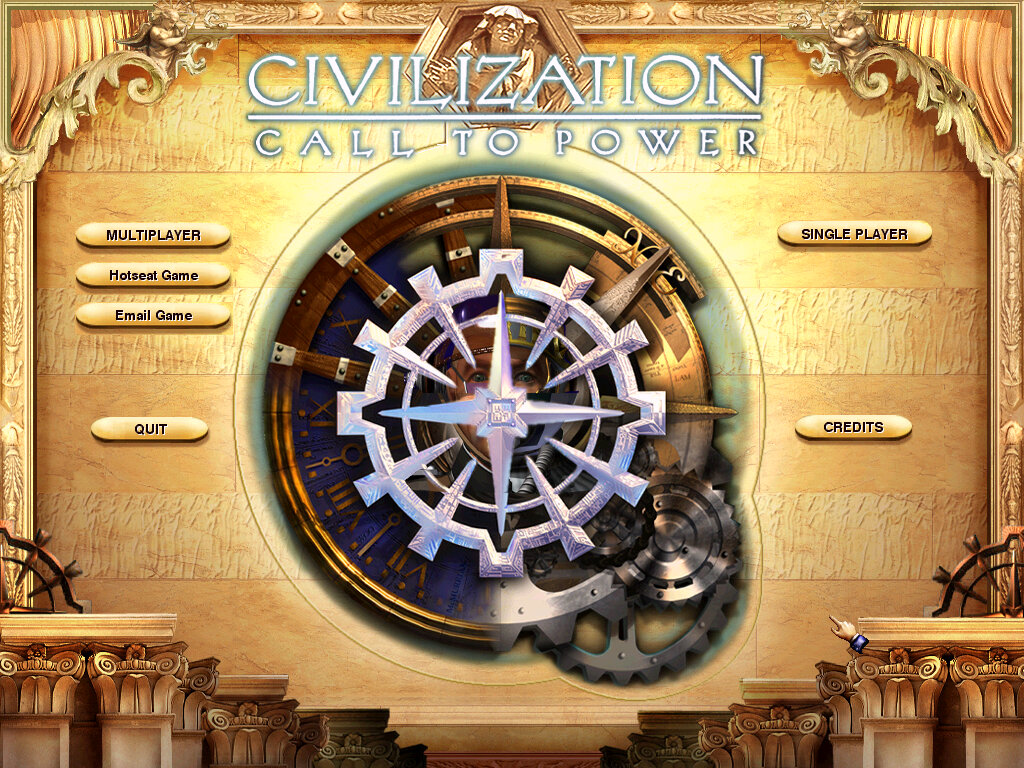
Civilization Call to Power – Installs and works fine, this game seems to be less demanding than Alpha Centauri and runs a lot better.
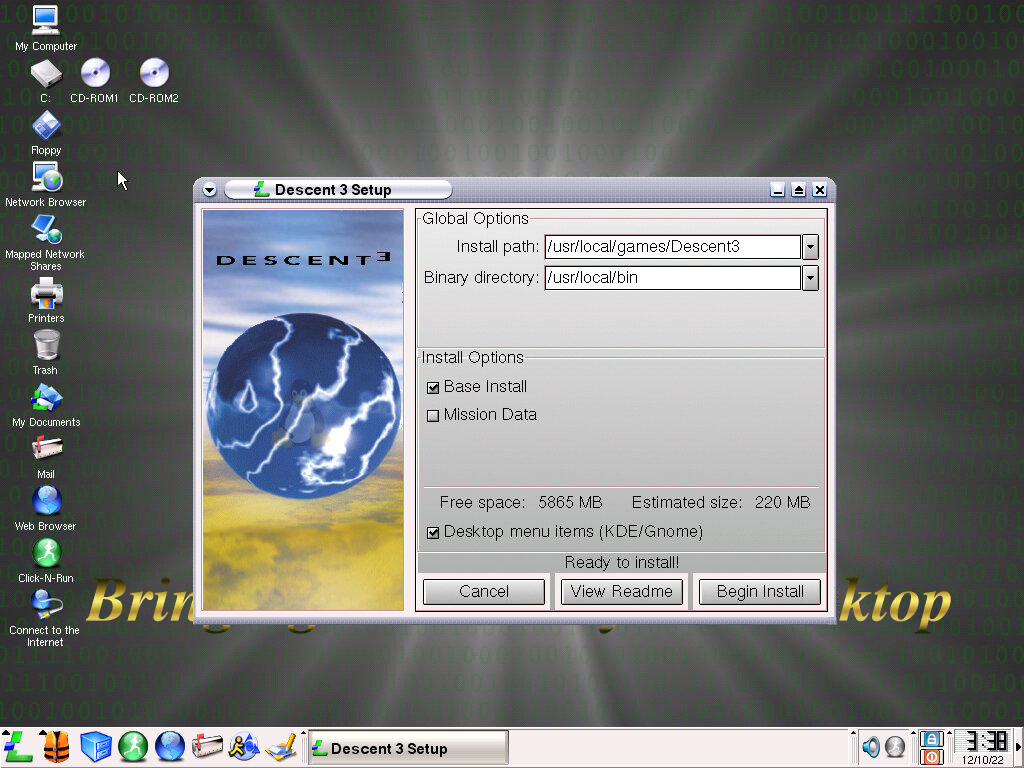
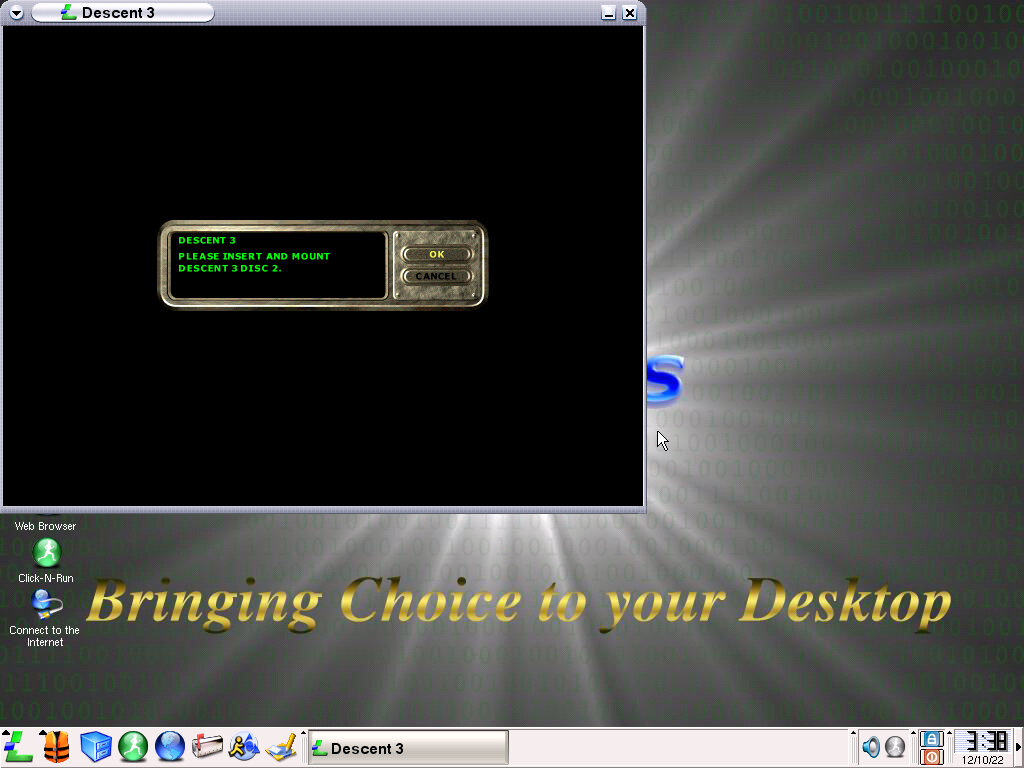
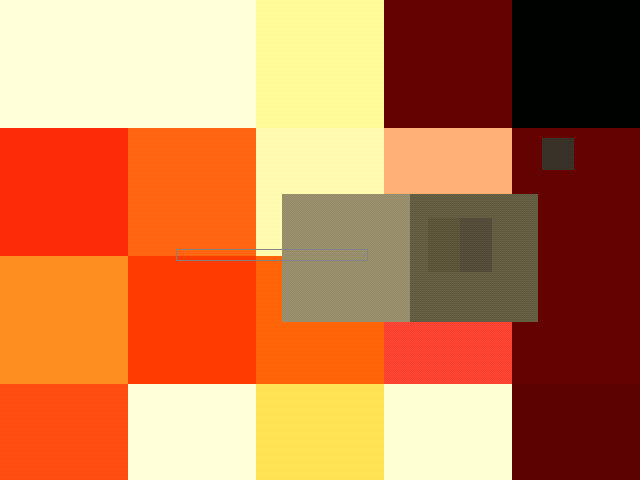
Descent 3 – Installs fine, but when running it prompts you to insert disc 2 which is not recognized after mounting in 86Box. Clicking Ok seems to launch the game but the graphics are pixilated. Had to hard reset the VM to get back into the desktop, After rebooting the game loads and plays the opening FMV, but still has blocky graphics.
SimCity 3000 – Still non-functional
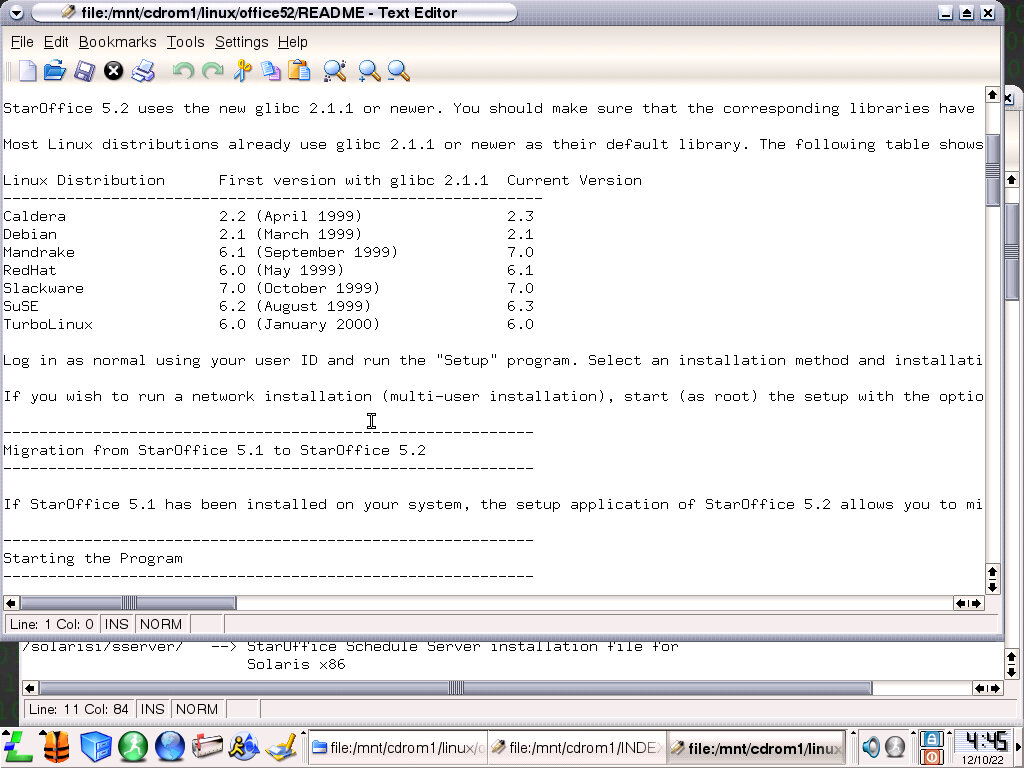
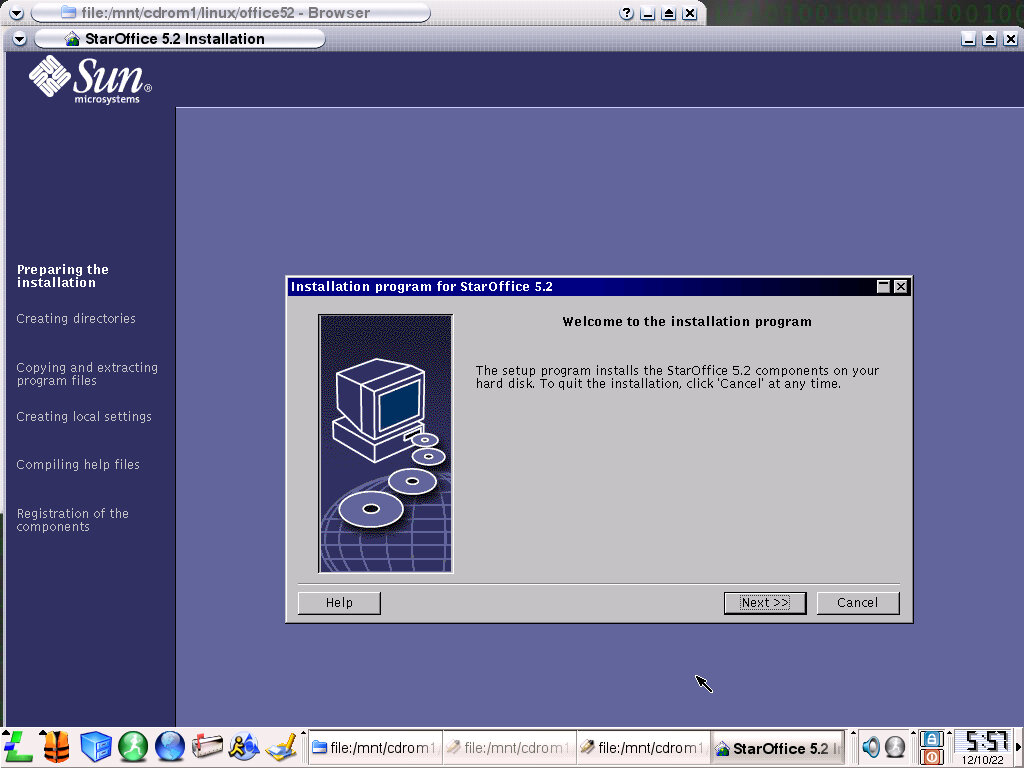
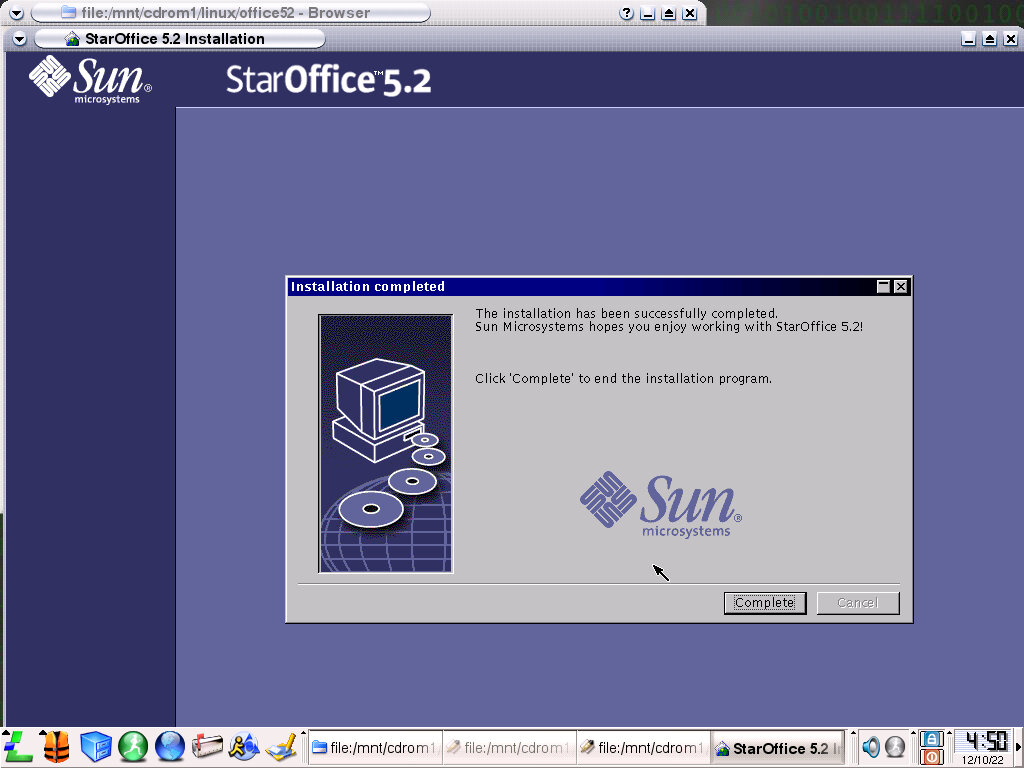
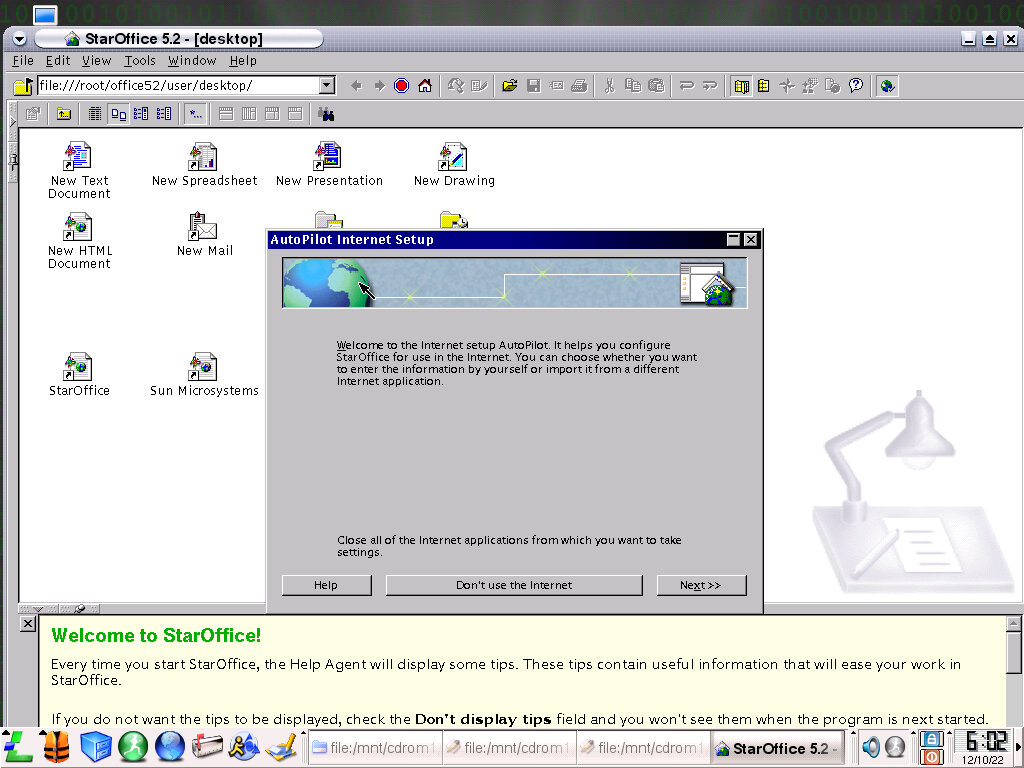
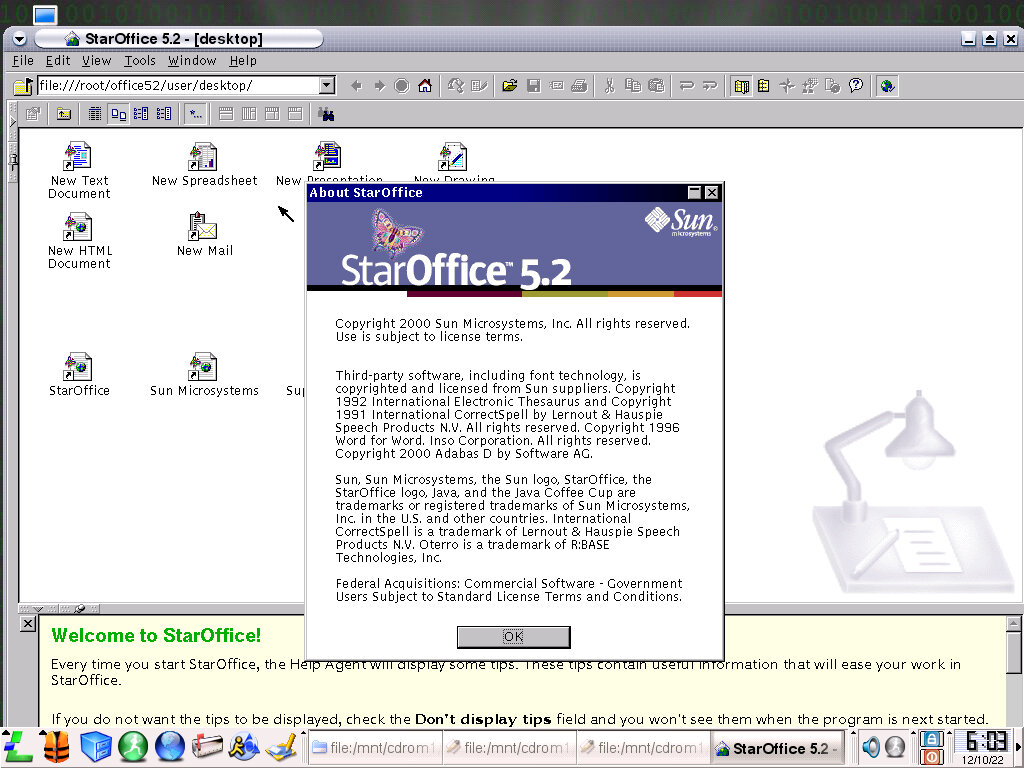
Star Office – An office suite by Sun Microsystems that installs and runs perfectly. It’s very similar to Microsoft Office or IBM Lotus SmartSuite in that it bundles a word processor, spreadsheet software and slide show into one package. The interface tries to mimic Windows, there’s even a start menu present, along with a taskbar.
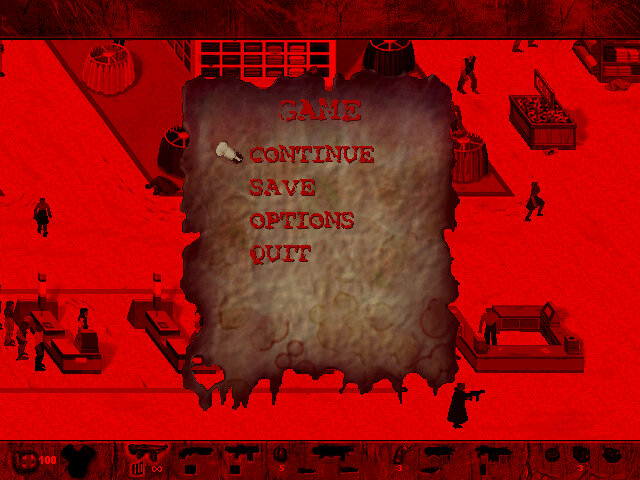
Postal – Installs and works fine but the menus run too fast. The demo sequence starts after 3 seconds meaning you need to quickly navigate the menu. Quitting the game seems to cause a graphics error.
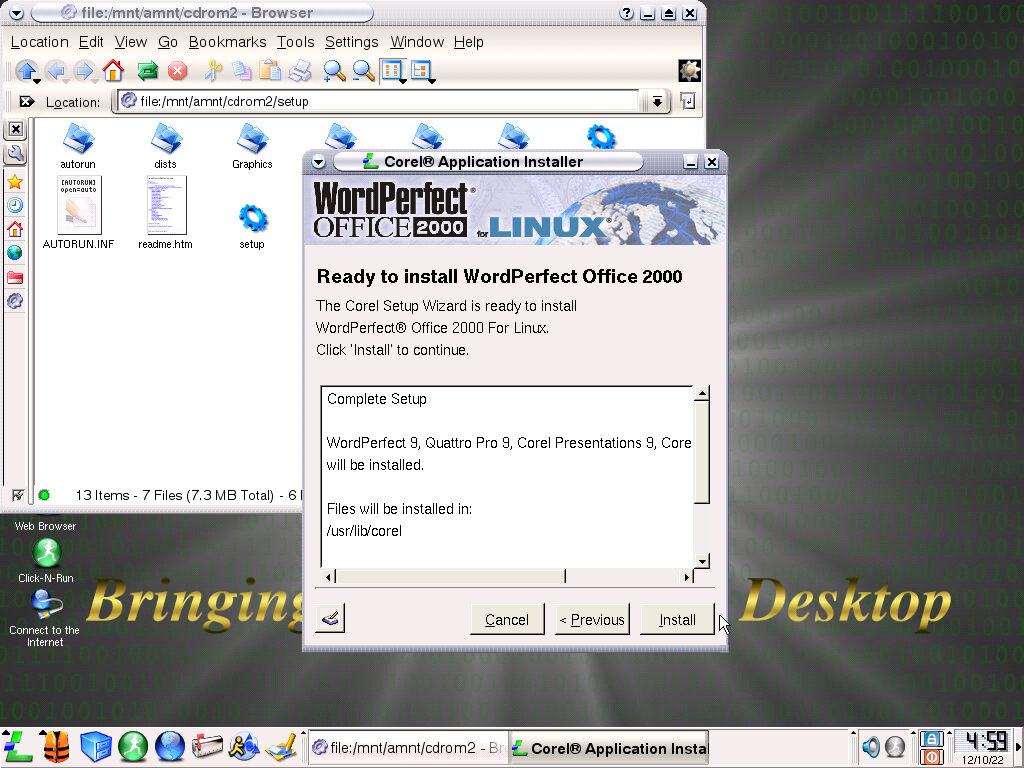
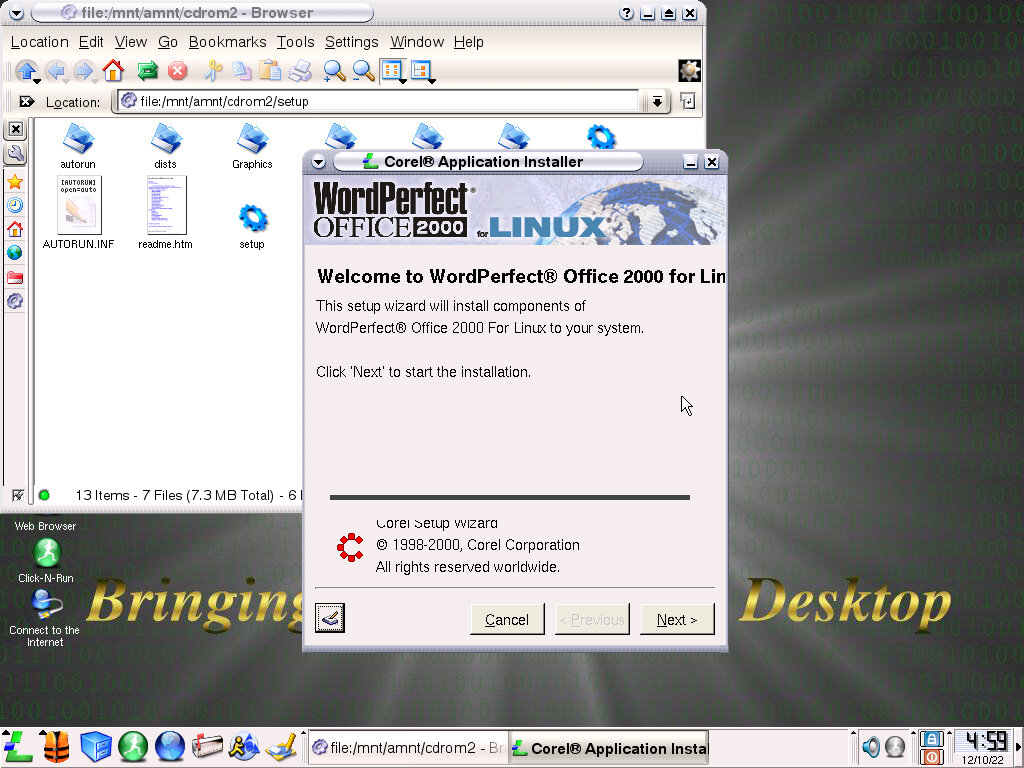
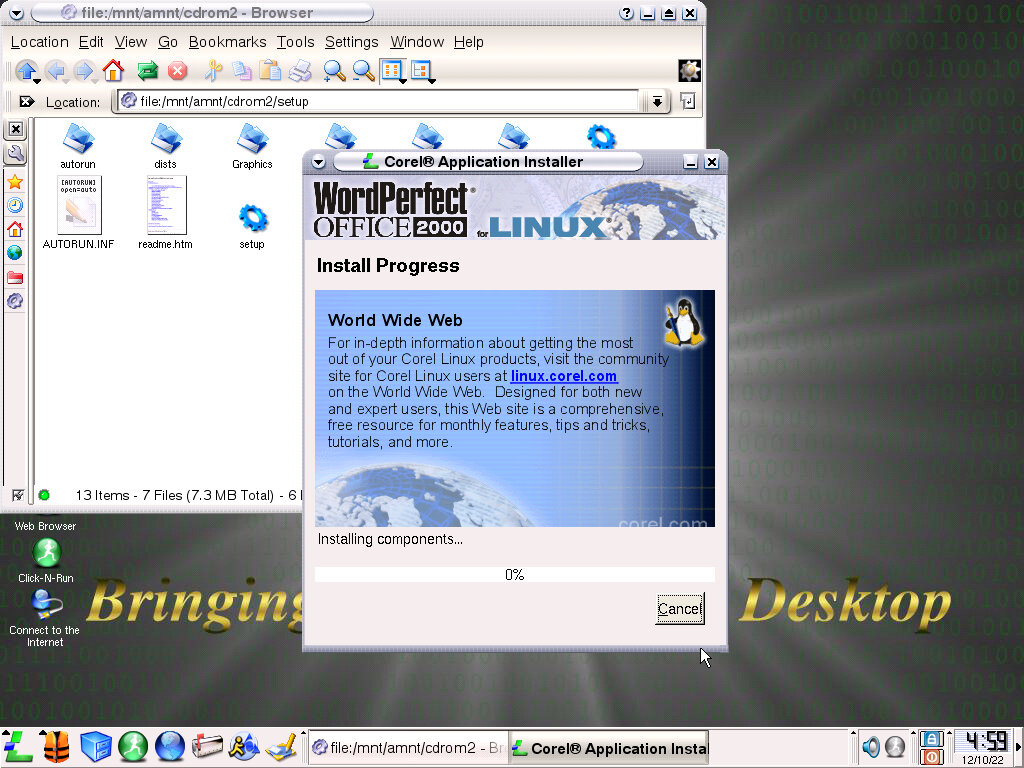
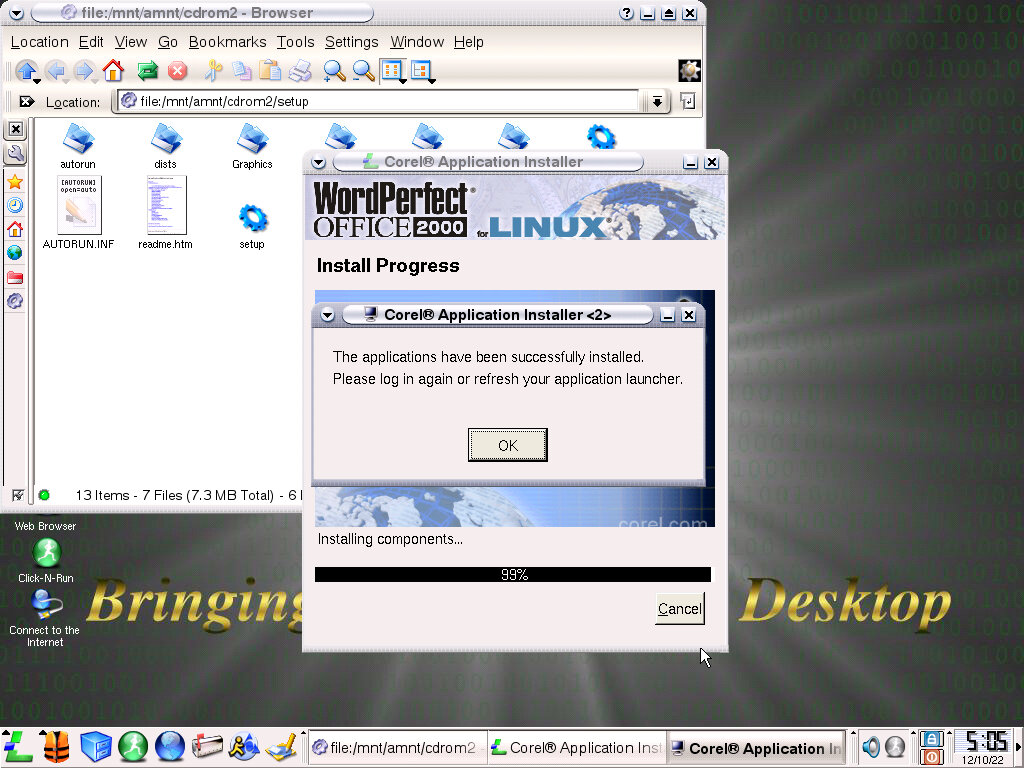
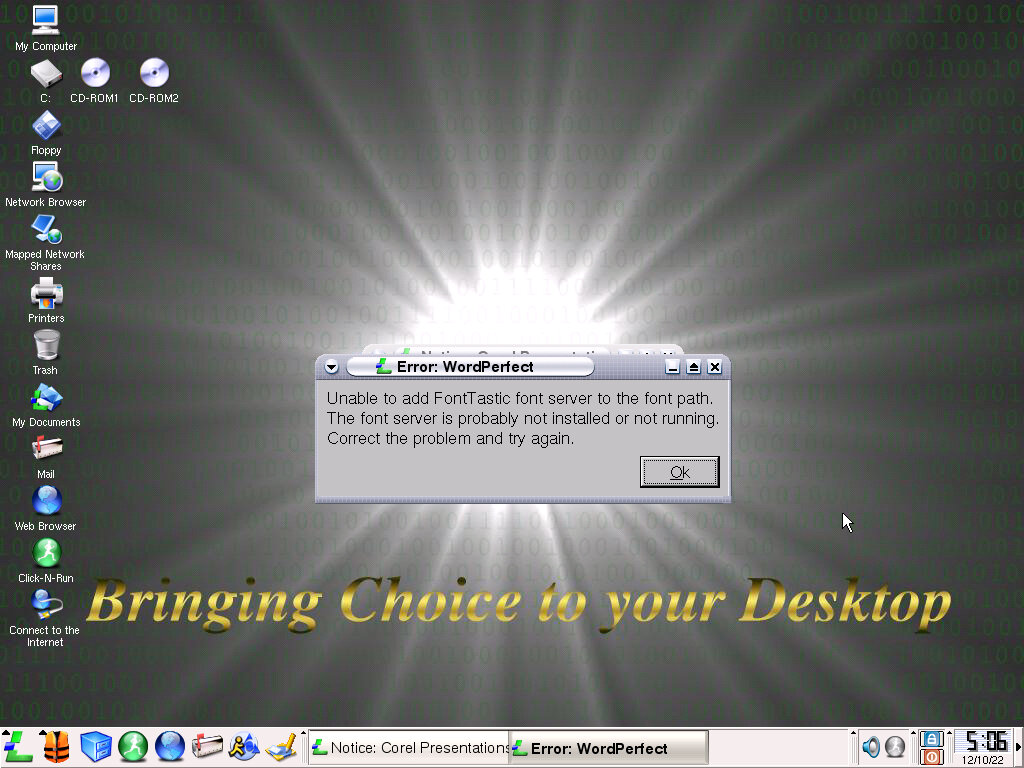
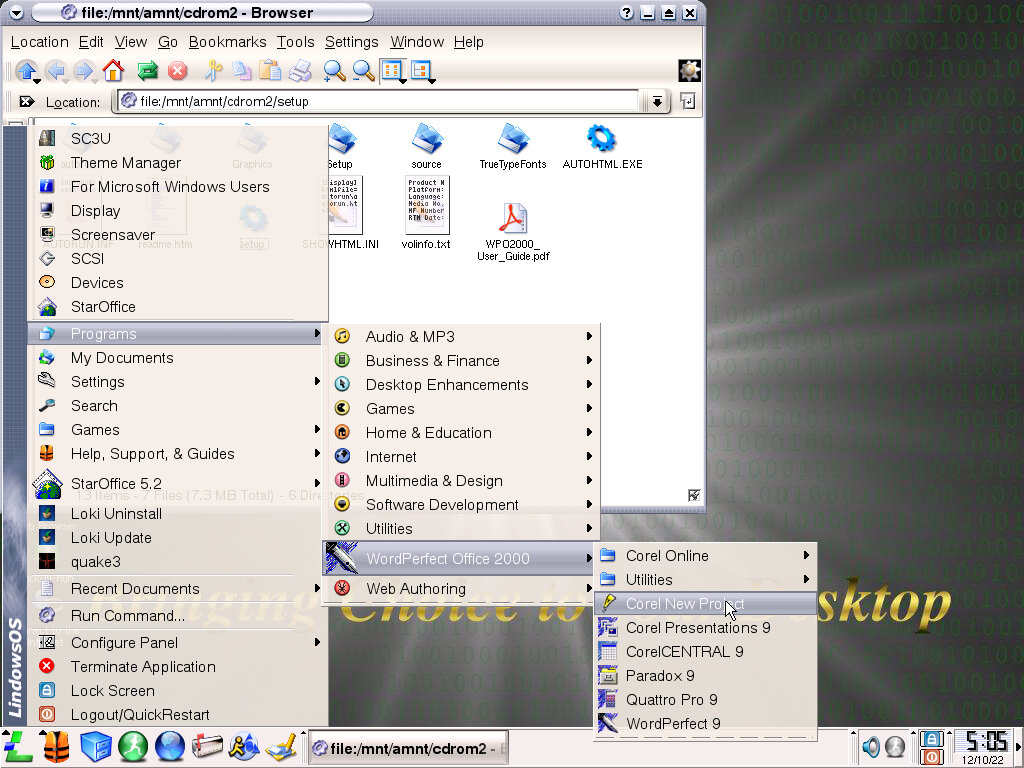
Wordperfect – Installs correctly and appears in the application. Upon launching it shows a message advising not to run the application as root, and another in relation to a missing font server. Unable to progress past this point, even after a reboot it refused to run due to this missing font server.
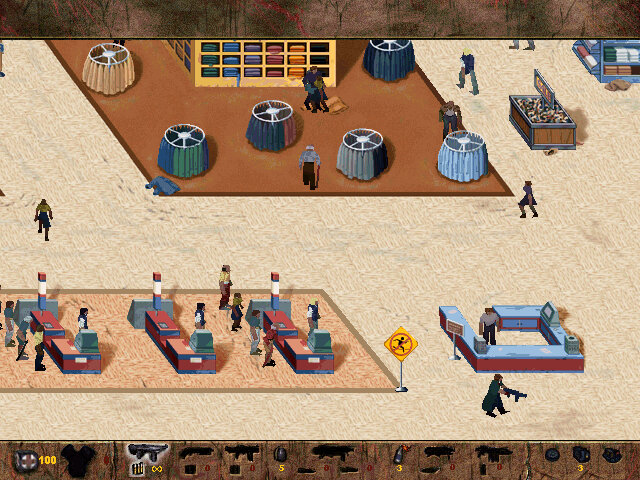
Soldier of Fortune – Installed and ran fine, but required a CD key. I think this is the first time I’ve used Linux software that requires a CD key? Performance isn’t good, it runs so slow on this VM at nearly 1fps. Checking the readme file indicates it needs some sort of 3D accelerator, I guess it’s time to add a Voodoo card but I figure the CPU that we have (AMD K6 233Mhz) isn’t enough to cut it.
A simple-to-use Linux distribution designed for the Windows migrant, with a familiar user interface to make them feel at home. Built on the KDE user interface and introducing an early form of an App Store, it would be one of the more popular distro for its time but would eventually lose its userbase to Ubuntu or Fedora.
Installation
Install was done using an 86box virtual machine, since these old Linux distros have issues running on more modern hardware. For memory give it as much as the virtual machine supports, generally 256MB or higher will ensure a smooth experience. 86Box Version 3.6 Motherboard: AOpen AP53 Processor: IDT WinChip 2 200Mhz Video: S3 Vision968 Sound: C-Media CMI8338 Network: Realtek RTL8029AS
Install was started from the boot floppy which comes with the operating system, as many motherboard of the era has not mastered booting from the CD-ROM drive just yet.
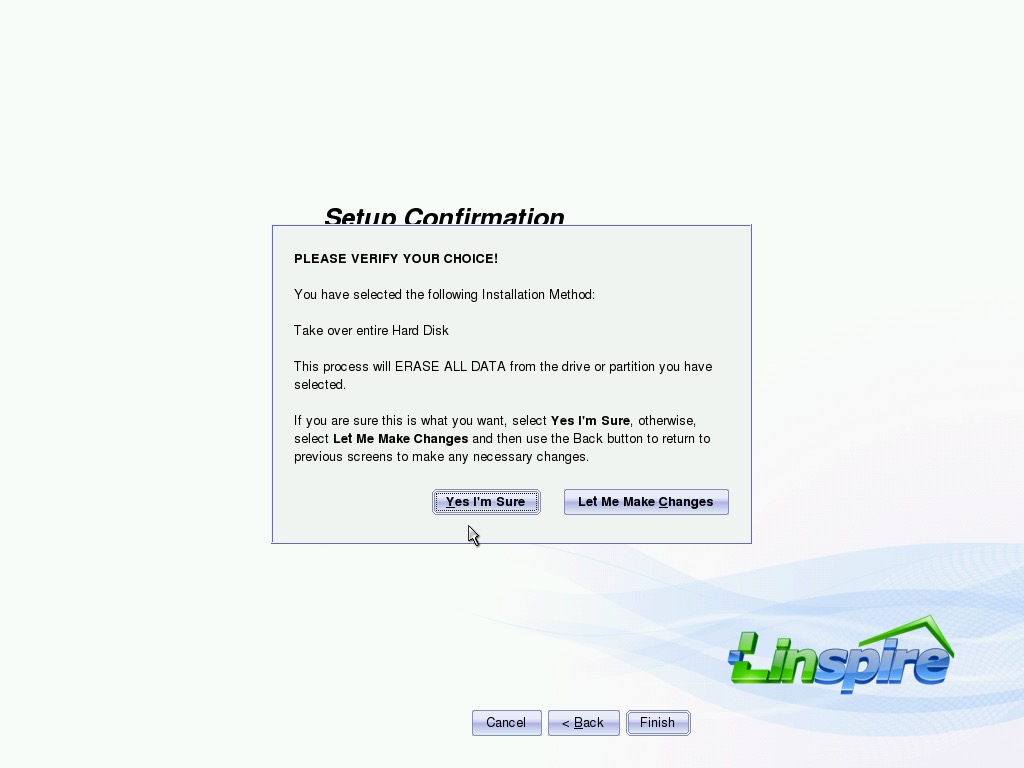
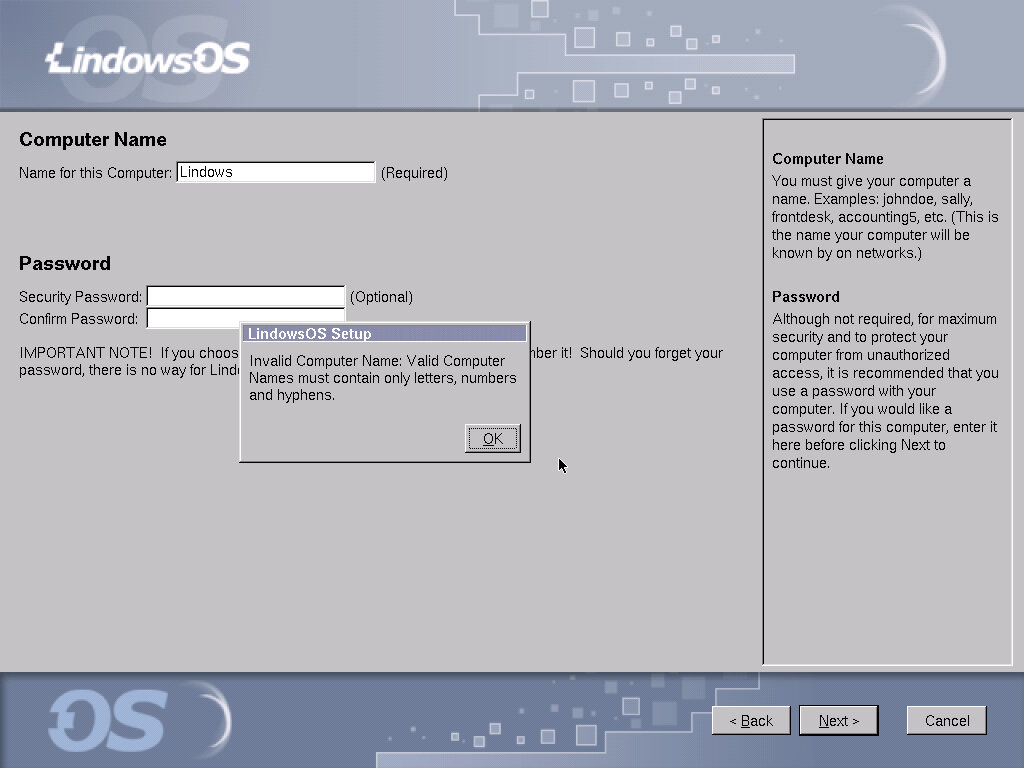
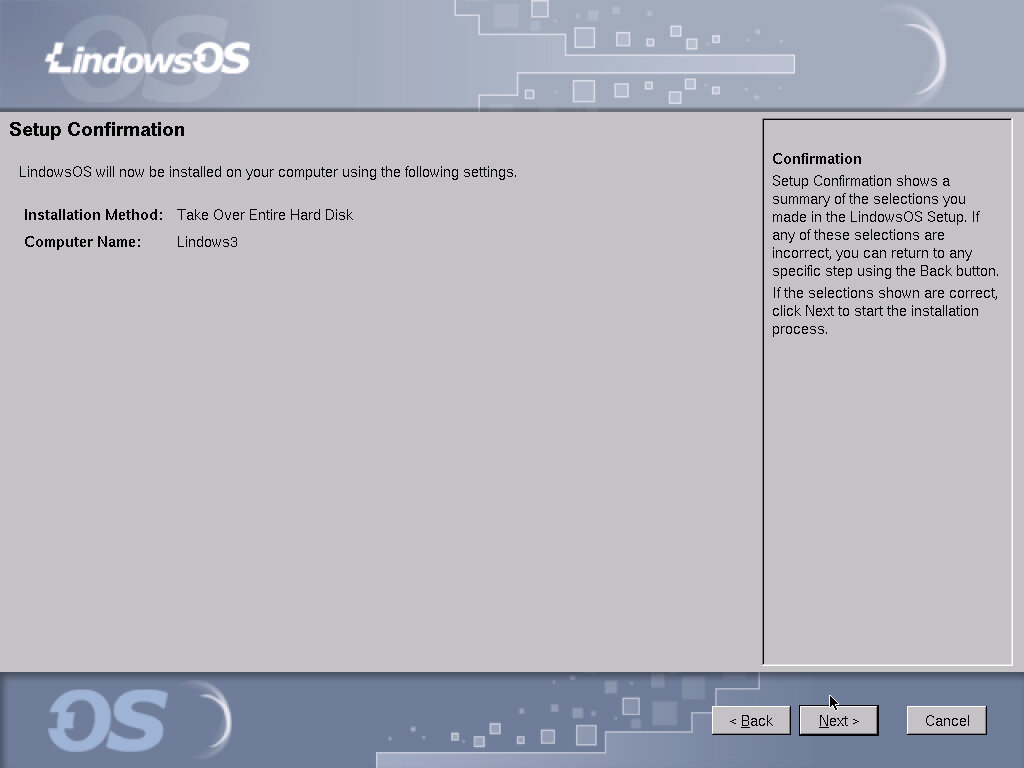
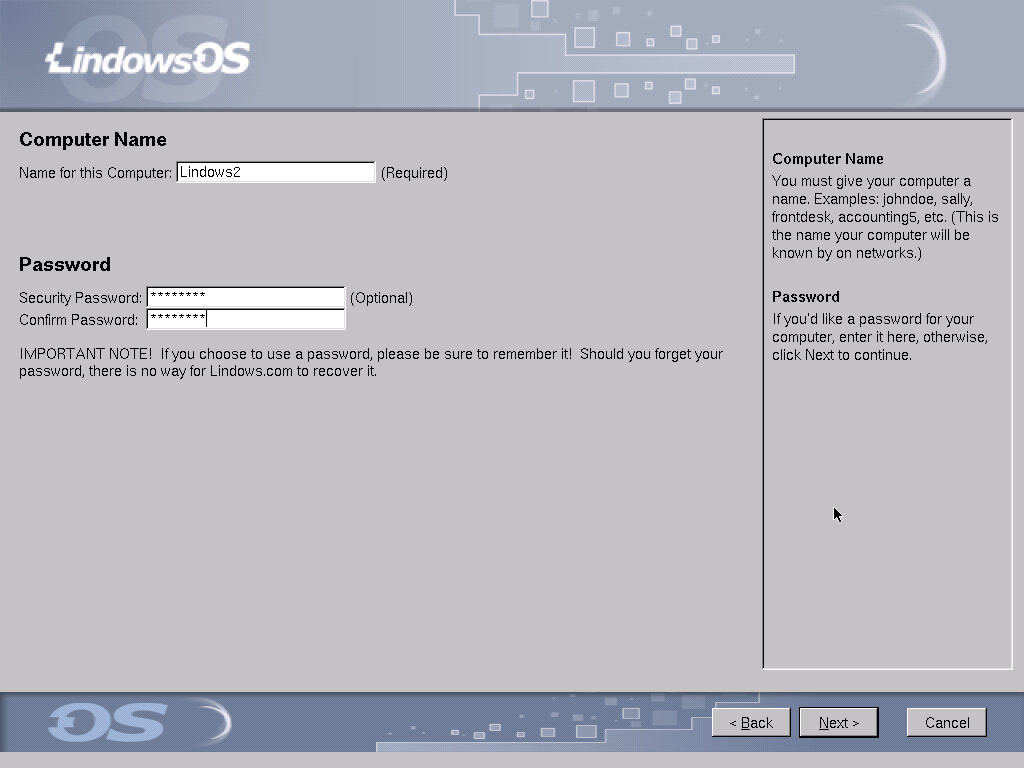
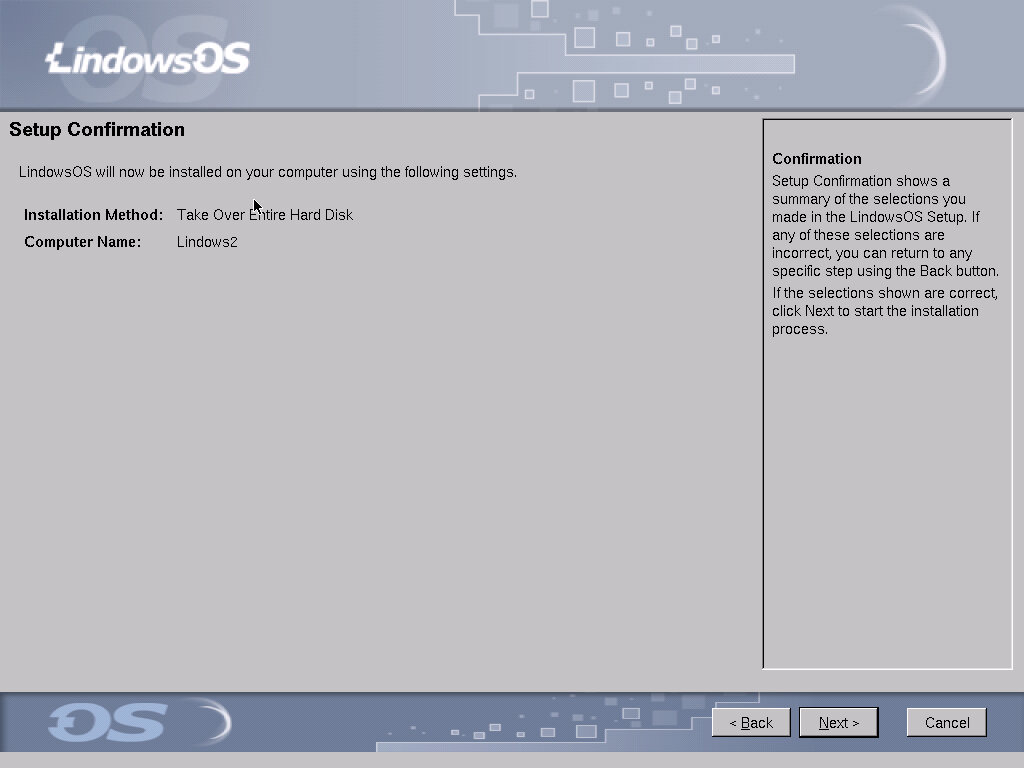
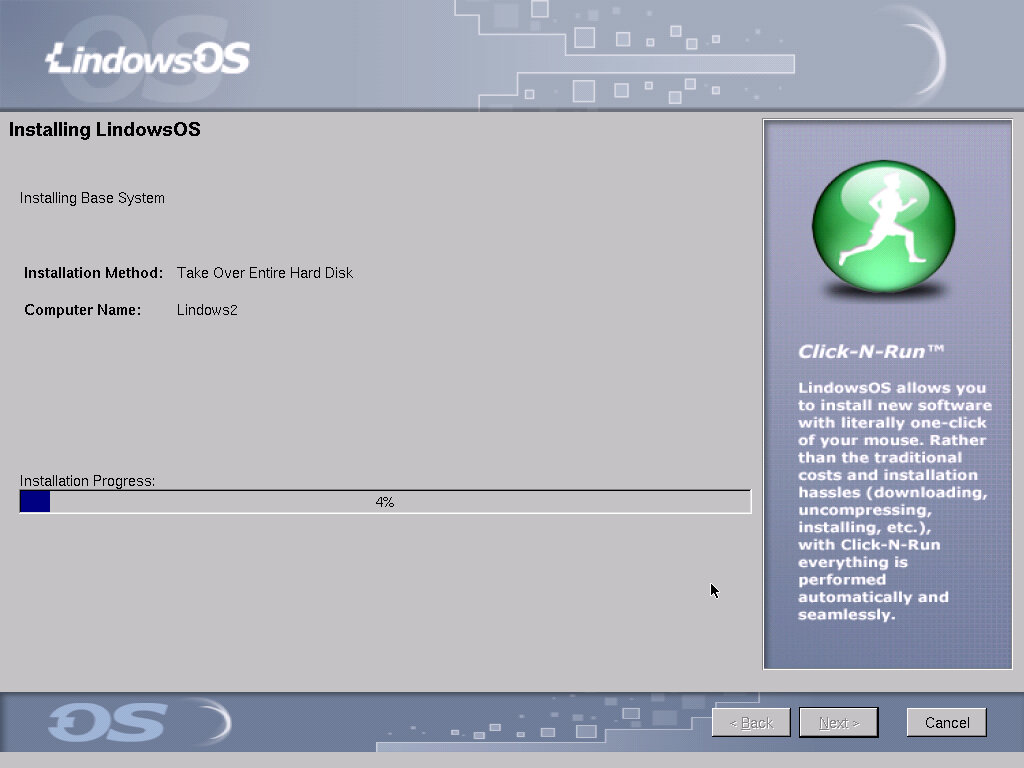
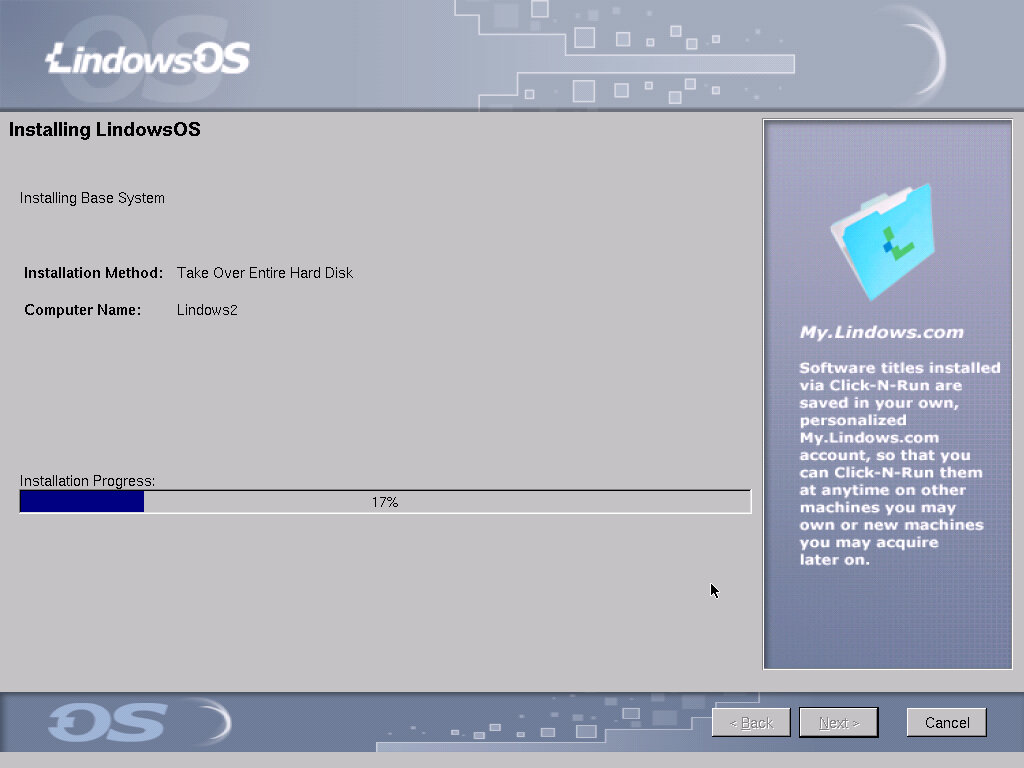
When the install menu appears, a wizard-like interface is used to guide you through the installation process. You are presented with the opportunity to configure the install, and to set a user password. Once completed, the system will prompt you to reboot.
Post – Install
Booting up the system will land you at a boot menu first, giving you the option of booting into a recovery mode, if you choose the regular mode. The login screen will appear, here you enter the password that you created during the install.
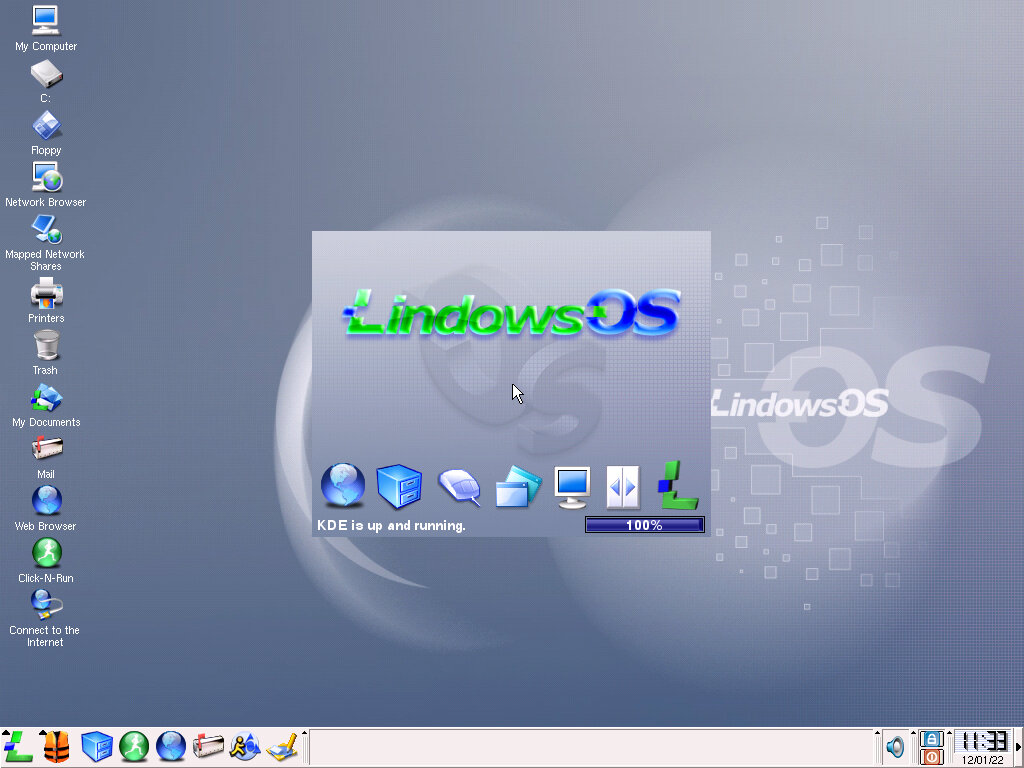
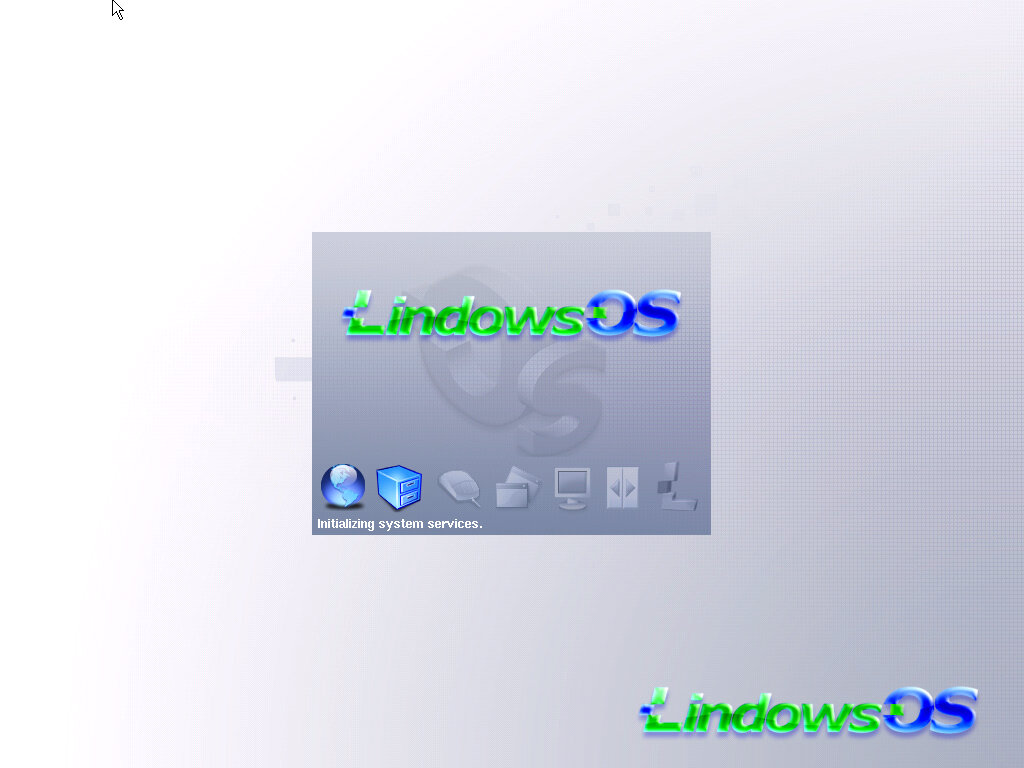
A logon splash screen, seems various components of the OS are not even initialized yet.
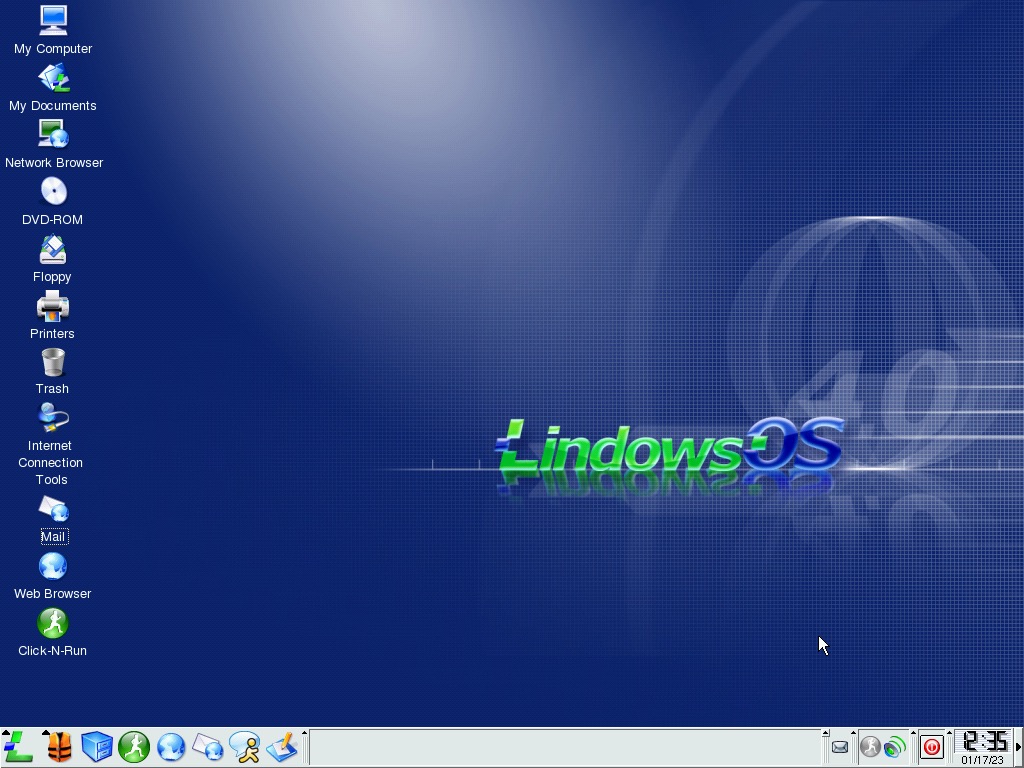
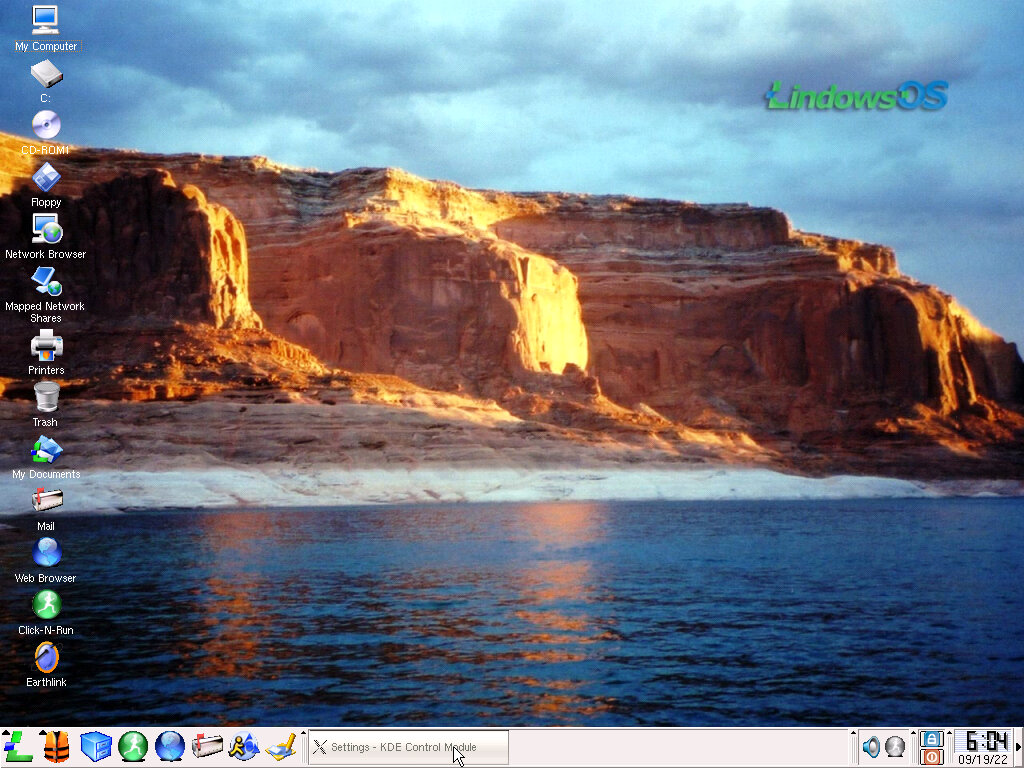
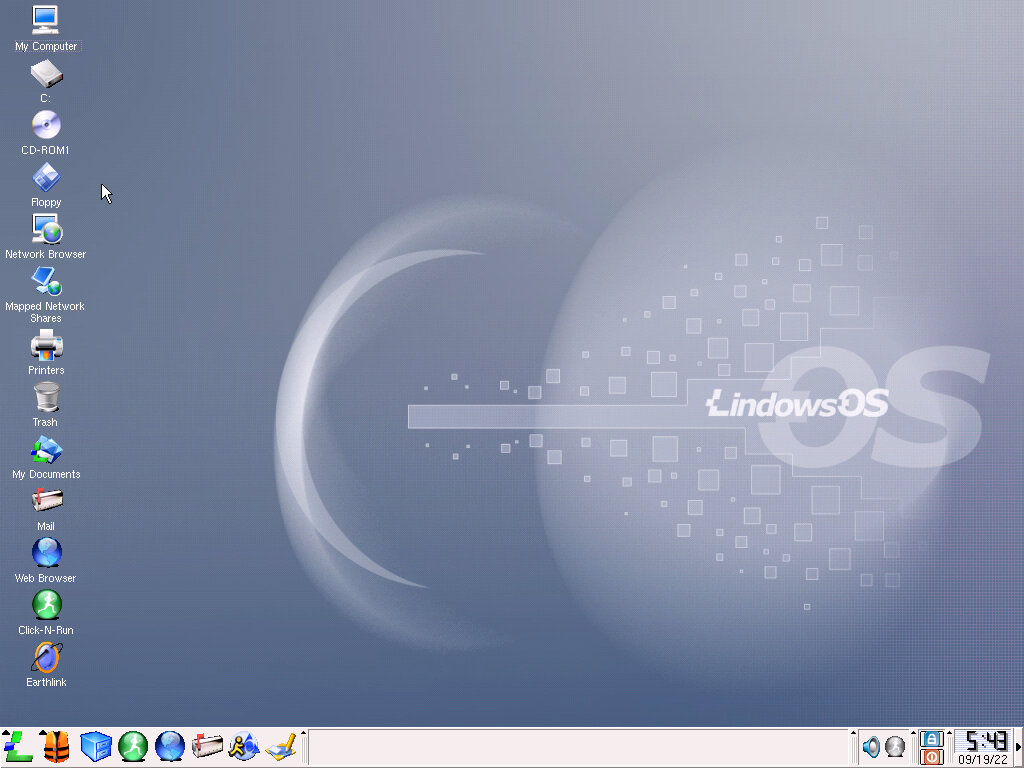
Here we are at the desktop, which looks similar to your average Windows desktop install.
Click-N-Run
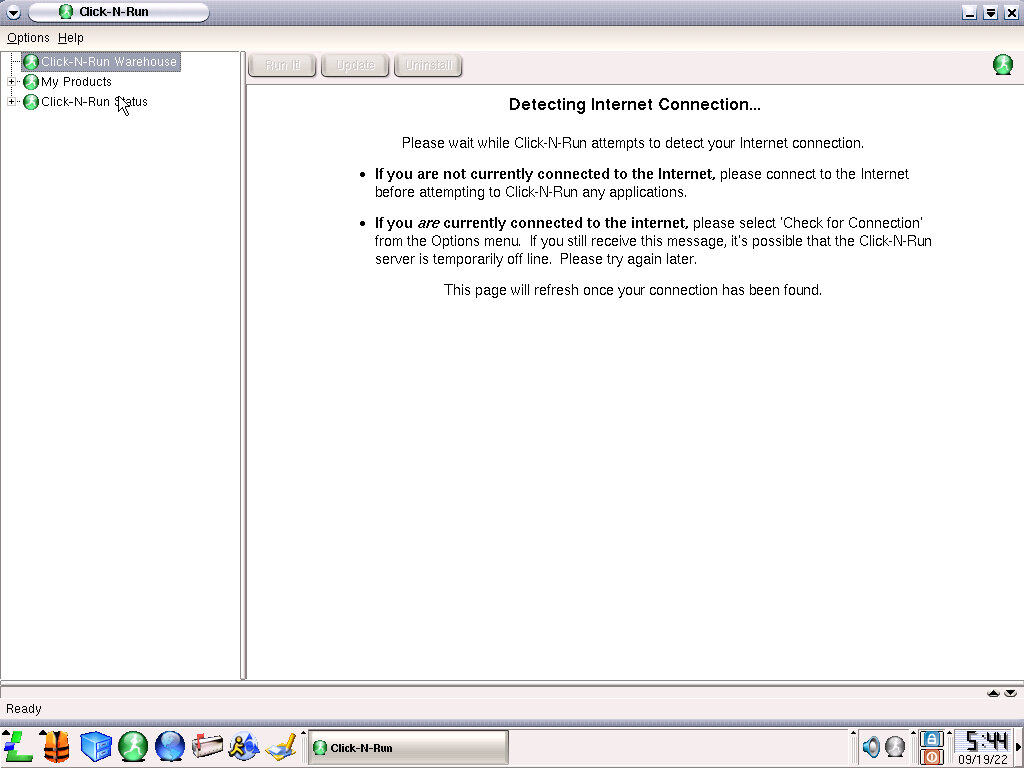
This was an attempt to bring an app store-like interface to the Linux desktop by offering applications that could easily be downloaded and installed to the user’s PC. This would consist of commercial applications and free software (Both gratis and price). The portal has long since been discontinued, so software can no longer be obtained this way. Modern Linux distros introduced something similar like the Ubuntu software center and the elementaryOS store which offers paid for apps. All of these are designed to increase the software support of Linux, and to allow for an easy way for the user to install software.
Interface
First impressions are that it’s a bit cluttered, compared to a clean Windows install with various icons placed on the desktop (like the individual drives that were detected during startup) and a few sponsored applications like EarthLink. Still its clear to the end user which applications does what, and there are shortcuts to the internet browser that can easily be accessed, along with the email client.
Like Windows, there is a taskbar at the bottom of the screen which will hold currently open programs. This can be customized and additional panels can be added. One example is a resource meter that lets you see your systems memory and processor usage in a realtime graph (like task manager embedded into the taskbar, Like Windows, you can right click on a running application on the taskbar to minimize it, or shade it. What this does is shirk the window to just its title bar, similar to what the classic MacOS does. I’m not sure what benefit this has over just minimizing the window, but I feel its intended for Mac users who may prefer that method. You can also send a program window to another screen, or desktop. Like many distros, this supports having multiple desktop panels that can be switched through easily.
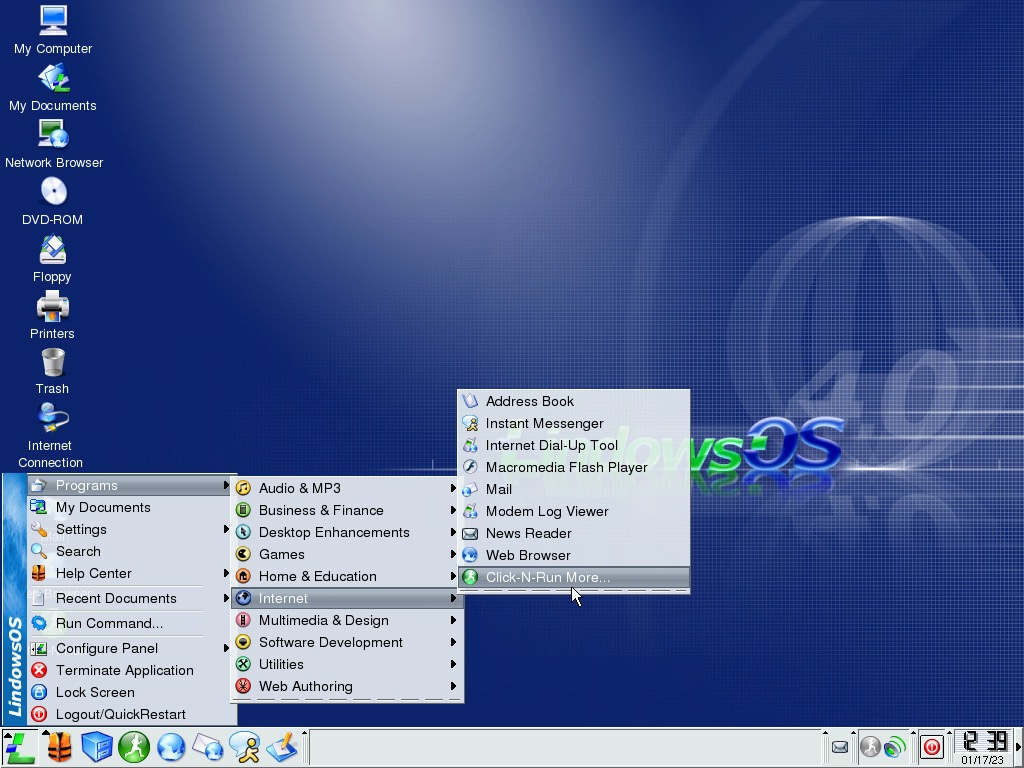
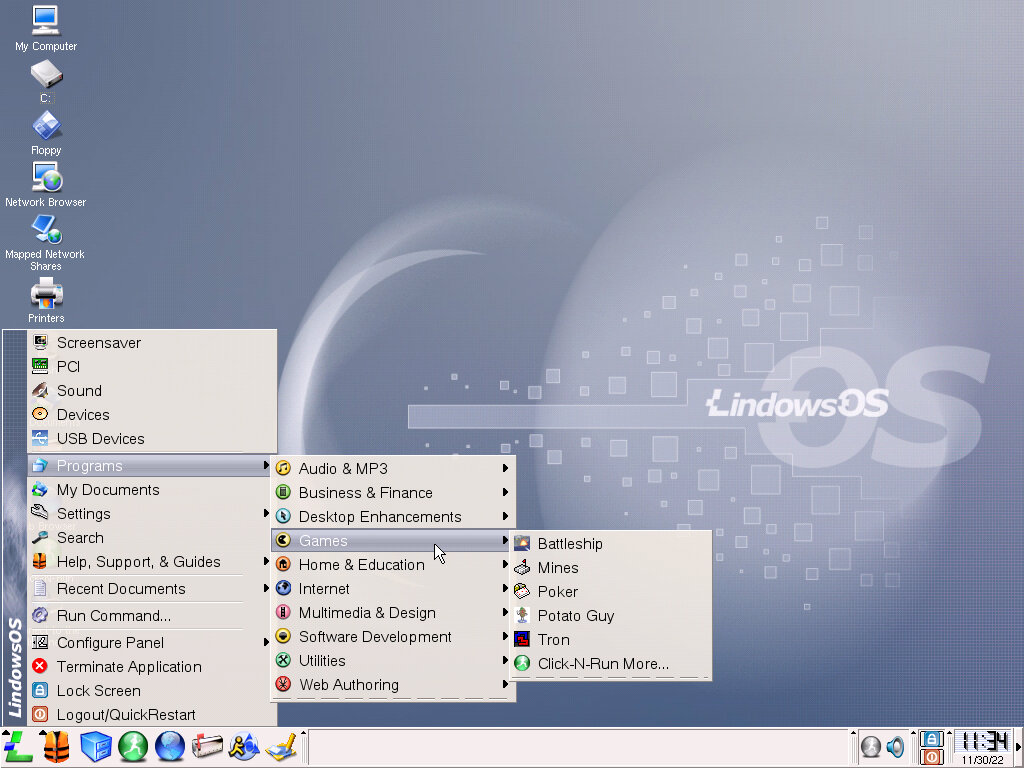
Installed software can be accessed using the start Lindows menu, which looks a lot familiar to a certain operating system. Whilst it’s good to bring a familiar interface, it does feel like a rip-off of sorts. Plus this was already outdated, as Windows XP debuted the previous year with its revised Start menu, although it could be configured to show the classic start menu instead.
Clicking on the time will bring up the date, along with a mini calendar.
Lastly to the left is a series of icons that will bring up various menus and software applications. The large ‘L’ icon will bring up the equivalent start menu where programs and settings can be accessed. The yellow life jacket-looking icon will bring up the help menu and the blue file cabinet icon will bring up the file explorer window. Other icons will act like the quick launch feature from windows, and applications can be pinned easily for convent use.
Settings
A submenu on the Lindows menu, this is the Control Panel of the operating system and is sorted into subcategories.
Login Manager: Part of the KDE Control Module, lets you create and manage user accounts and the appearance of the login screen. You can change the background, the font of the login window, the greeting message and the type of session to use (which will often be kde3) There are also options for auto login, similar to what TweakUi could do for Windows NT
File Manager: Change file extension associations and the appearance of the file browser window. You can set folders (directories) to open in a new window
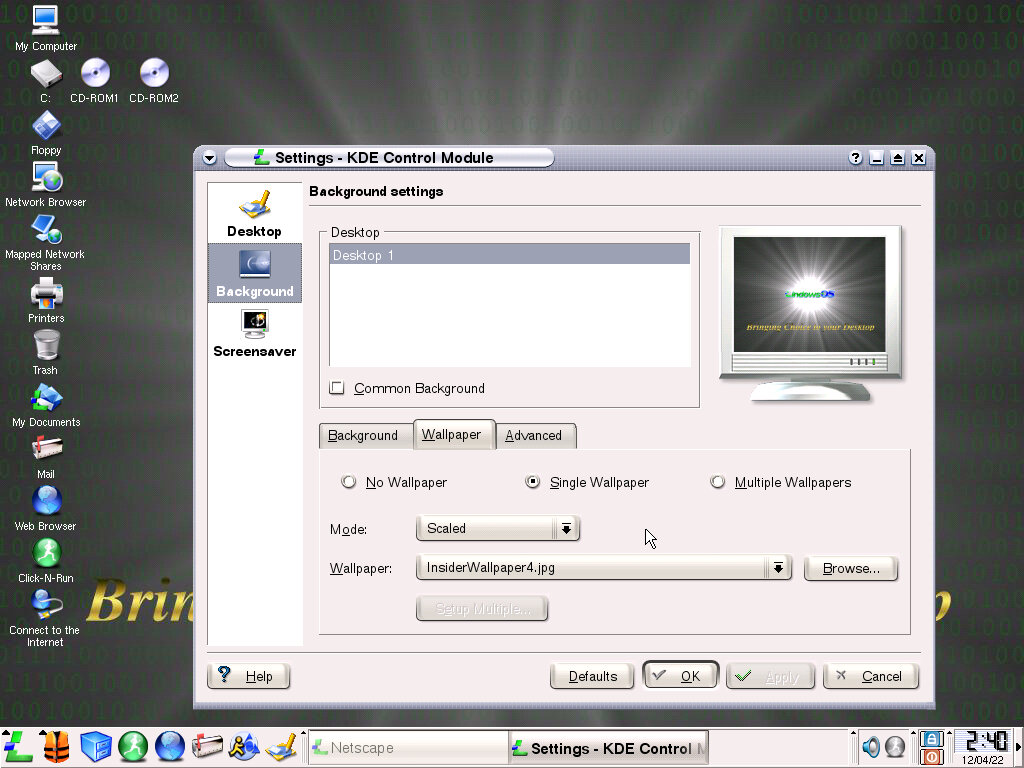
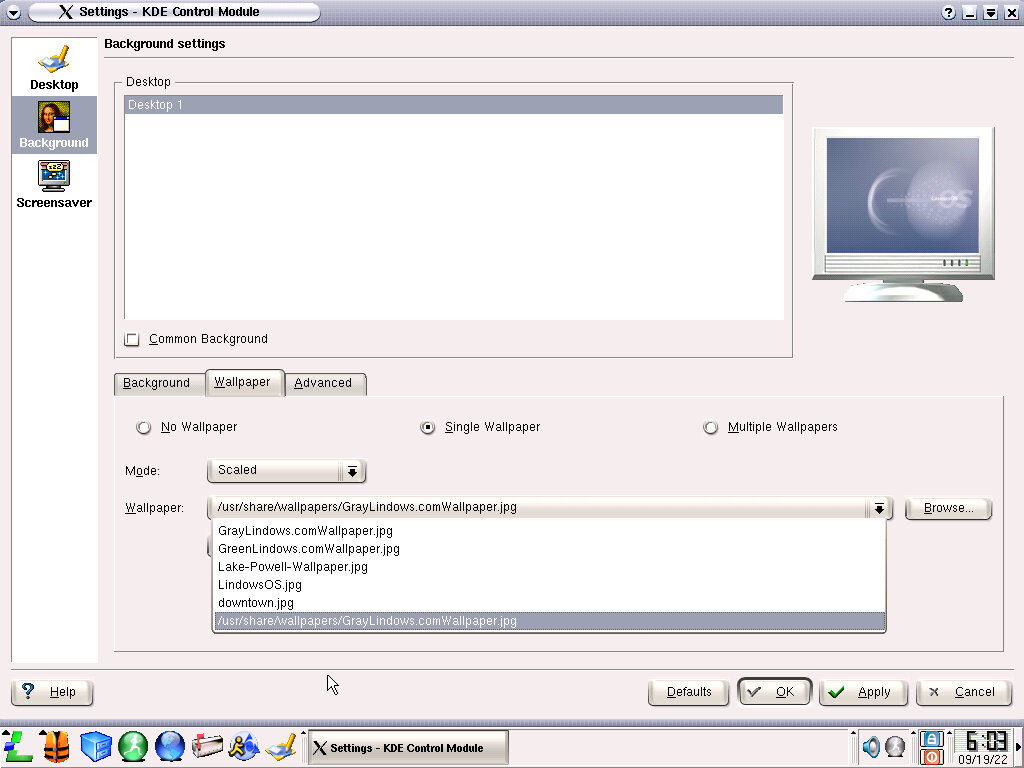
Look & Feel: Change various settings in relation to the appearance of the OS. Includes the wallpaper, the screensaver, mouse cursor and the installed fonts. Very similar to what can be done within Windows. At lot of the built on styles can be set to mimic various other operating systems to make the interface more familiar to the user.
Network: Configure options such as TCP/IP and Samba file sharing. Appears to have basic WiFi support, possibly only 802.11a/b given the age of the operating system.
Peripherals: Options for the Monitor, Mouse, keyboard and Printers. Again similar to what Windows offers where the colour depth and refresh rate can be set for the monitor, the type rate and layout for the keyboard and scroll wheel settings for the mouse.
Personalization: Appears to the miscellaneous settings like accessibility and the region of the install. Also has a shortcut for the command console.
Power Control: More useful for laptops, lets you set the low battery notifications, and the energy usage. Can also set the monitor and HDD standby times
Sound: Adjust the volume and system notification sounds
Web Browsing: Similar to network, but has options for proxies, cookies and cache. Most of this only applies to the Netscape browser.
Advanced Settings: Options for Midi, Audio CD IO and Mixer, could these not have been included under Sound?
Installed Software
Software can be accessed using the start Lindows menu which looks a lot familiar to a certain operating system. Whilst its good to bring a familiar interface, it does feel like a rip off of sorts. Plus this was already outdated, as Windows XP debuted the previous year with its revised Start menu, although it could be configured to show the classic start menu instead.
Audio & MP3
CD Player: Typical CD player that uses the analog CD audio line for playback.
KreateCD: Some sort of CD burning applications, of limited use since 86Box does not emulate a CD burner.
MP3 Player: A typical MP3 player with the Mac OS X Aqua-like interface of the era. Works well with modern MP3 files even if the interface is a bit hard to read on the count of the text being too small. Supports the use of playlists and can play files from a remote network server. Appears to be a variant of XMMS 1.2.7
Business & Finance
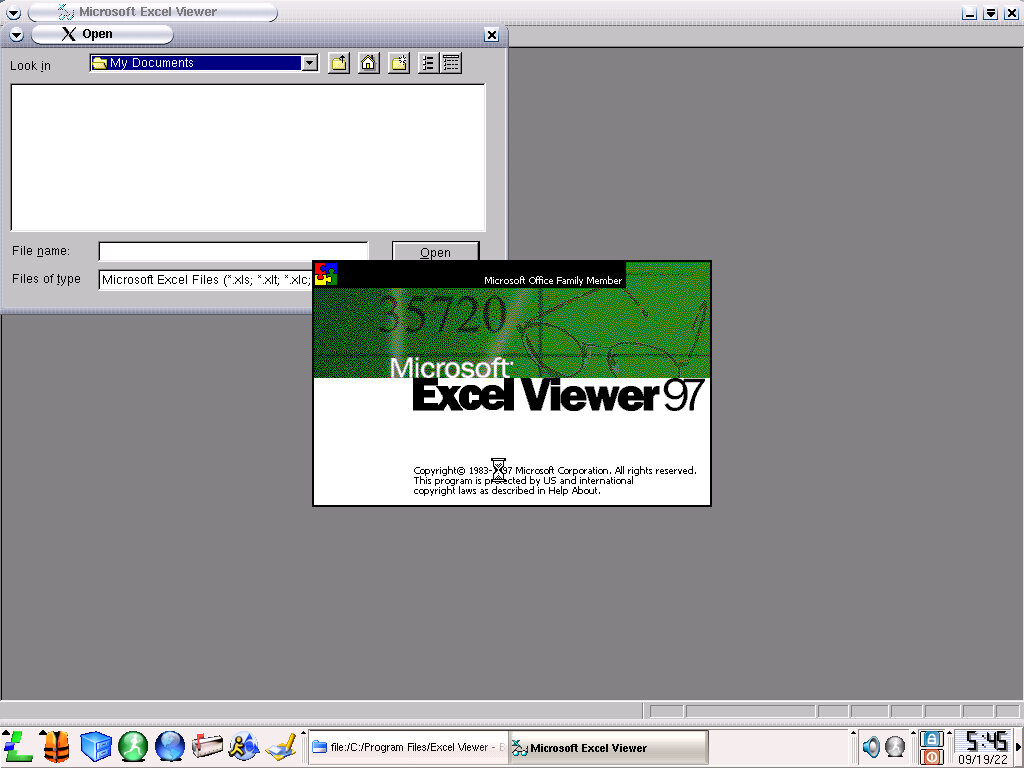
Microsoft Office Viewer: Office 97 viewers actually come bundled with the operating system and look to be the actual Windows version that is included. Possibly this is running under a Win32 wrapper such as Wine. Either that or it’s a very well-made knock off, even plagiarizing the copyright notice from Microsoft.
Text Editor: Your typical notepad-like text editor, based on Kwrite 4.0
Games
Battleship: A multi-player battleship client
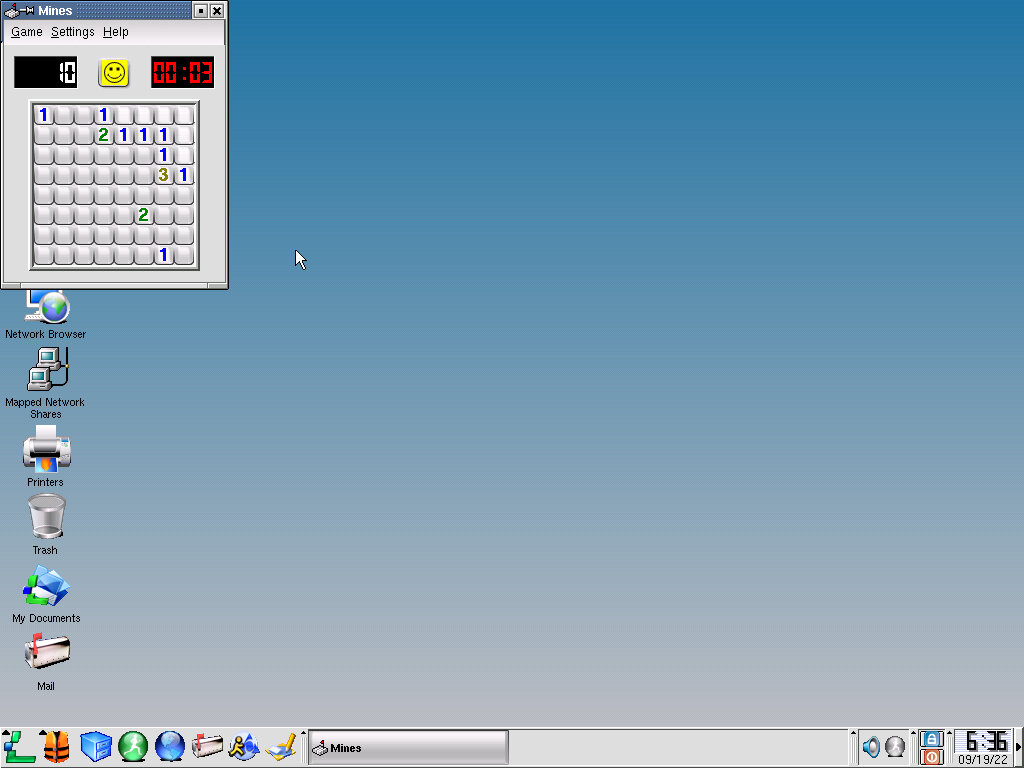
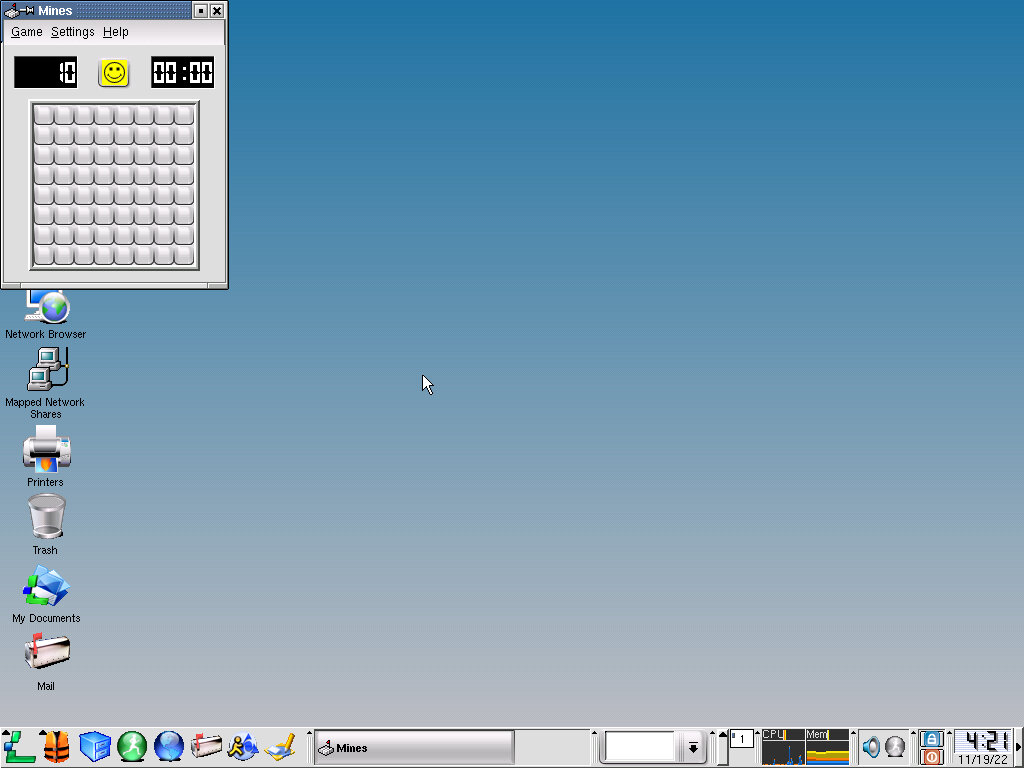
Mines: Minesweeper clone
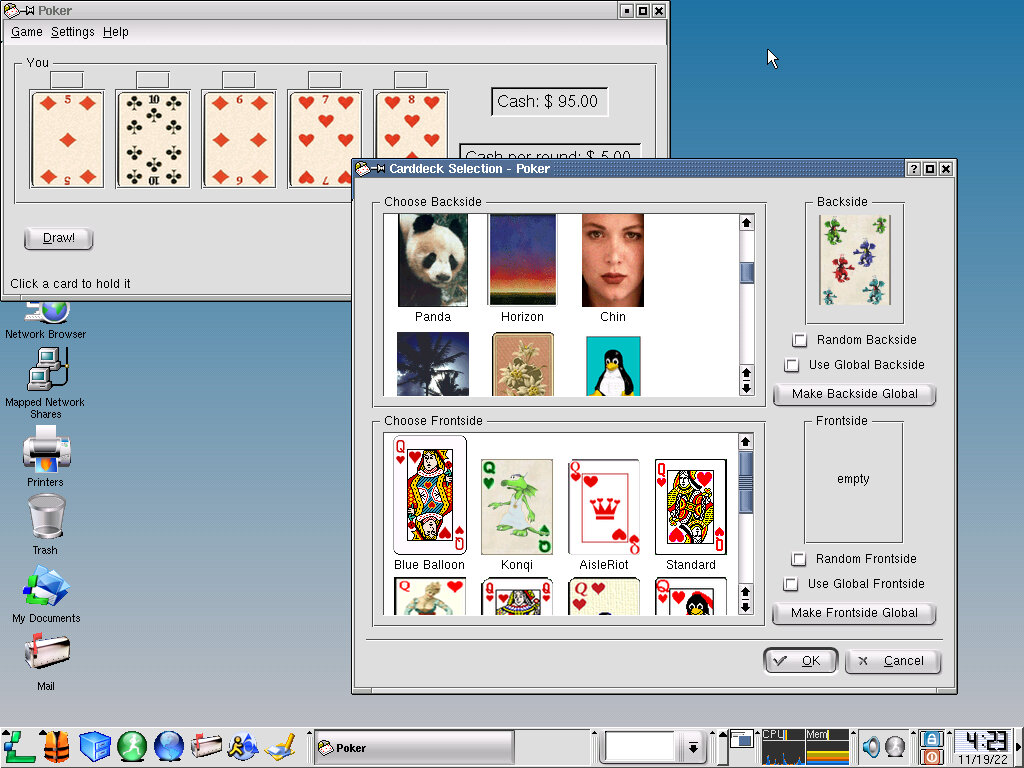
Poker: Some sort of poker game, I’ve never played poker so I have no clue what to do here
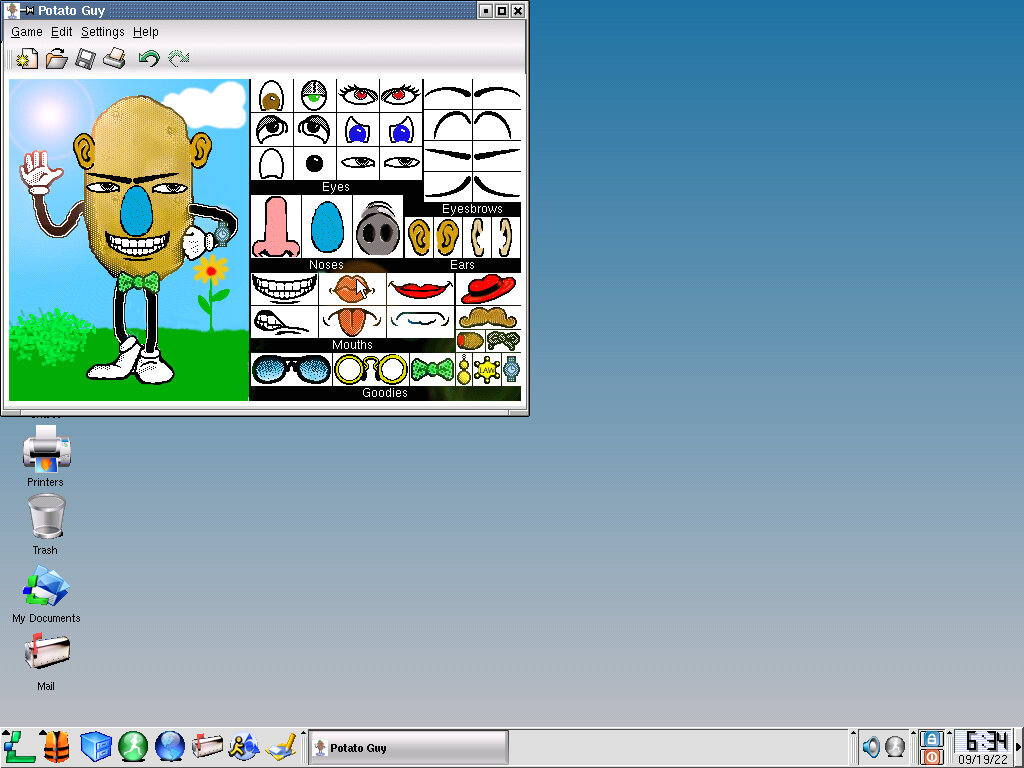
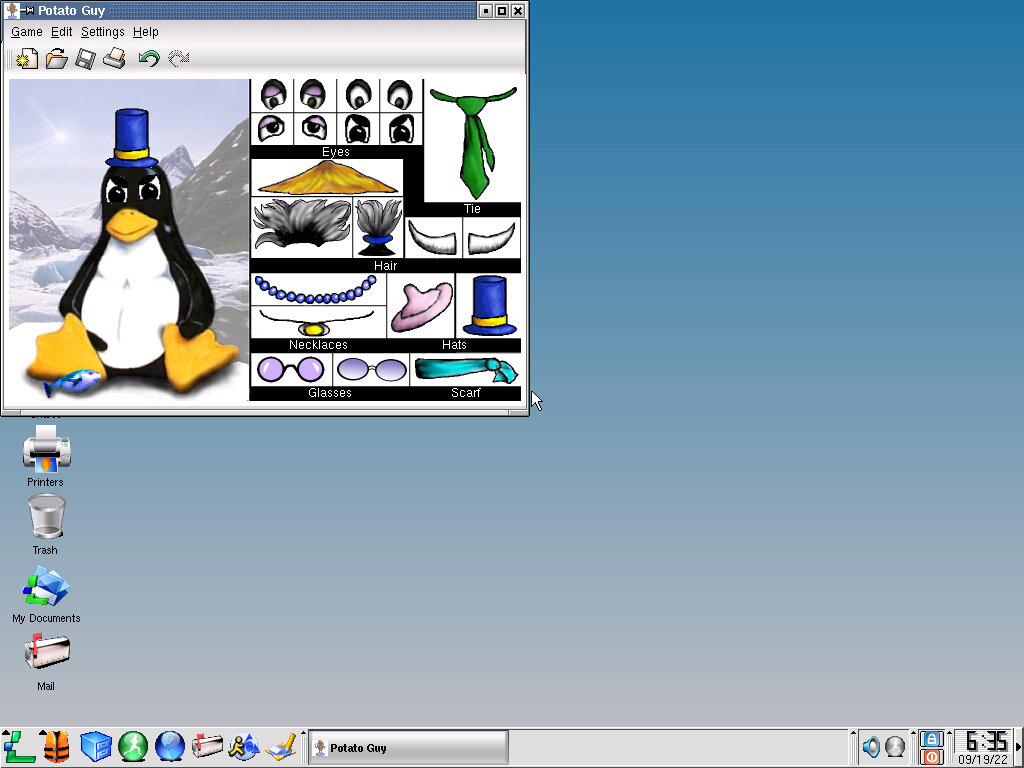
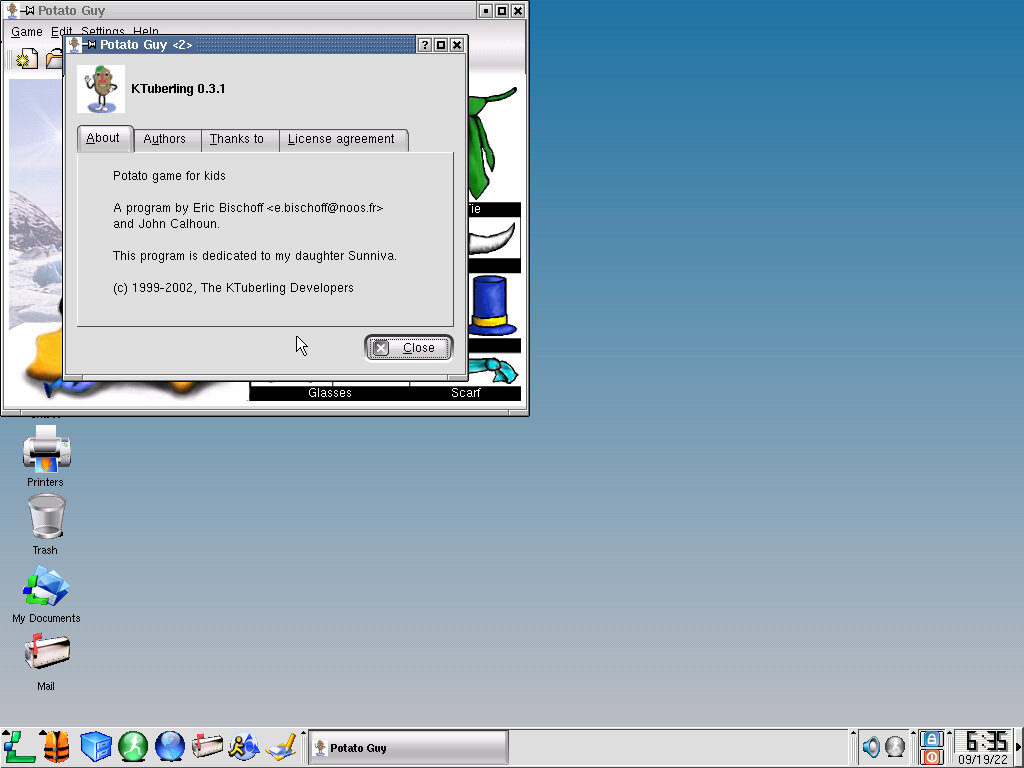
Potato Guy: Not really a game, more like a kids activity where they have to drag the different parts in order to dress up, similar to Mr Potato Head where you have to give them eyes, ears and hats.
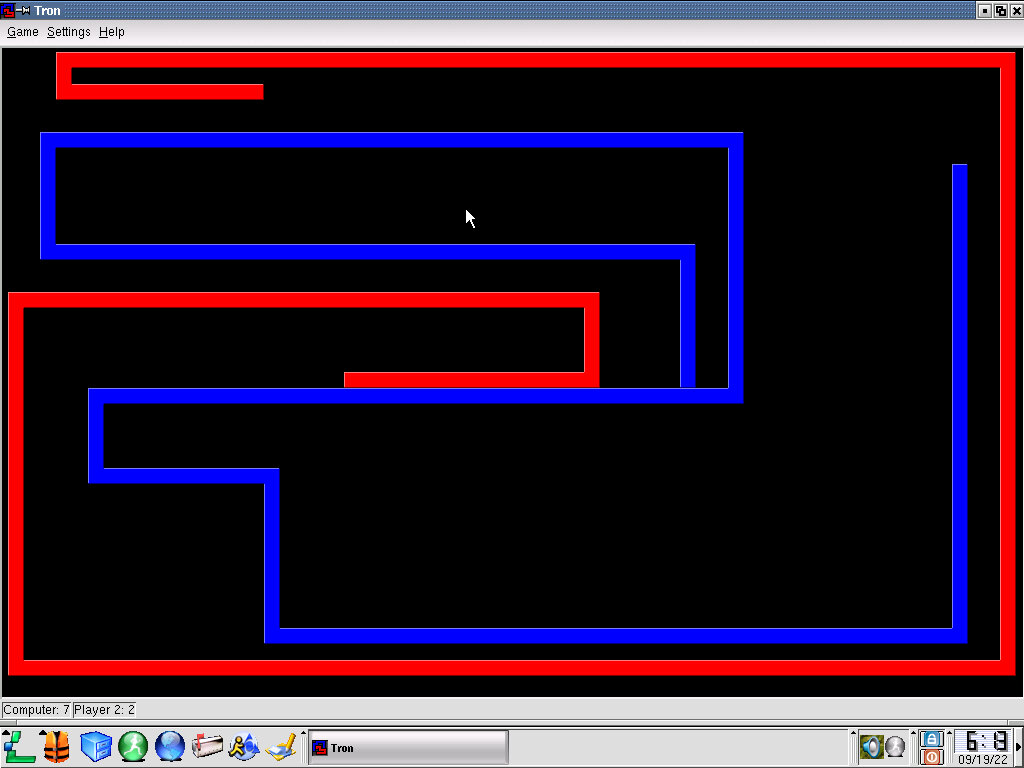
Tron: Tron game inspired by the movie, similar to the version included in Mandrake 7
Internet
Address Book: This opens the Netscape address book, here you can address contacts that are presented as ‘Cards’ which can then be saved.
Instant Messenger: Again this uses the Aim component of Netscape browser, which will sign onto the AOL instant messenger service.
Internet Dial-Up Tool: Connects and starts a dial up connection, intended for users who are using a dial-up modem which were still common back in 2002. This is a rebrand of the kppp utility.
Mail: Opens the Netscape client, which incorporates a mail client.
Multimedia & Design
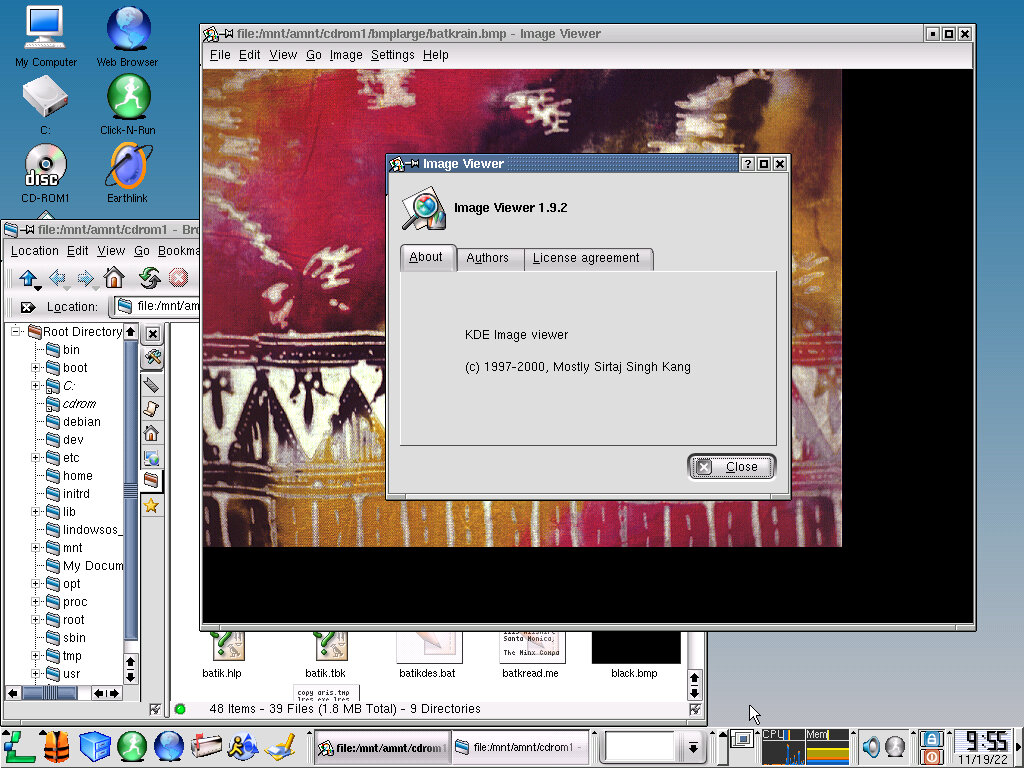
Image Viewer: KDE Image viewer
PS/PDF Viewer: KghostView 0.13.1 – standard PDF viewer
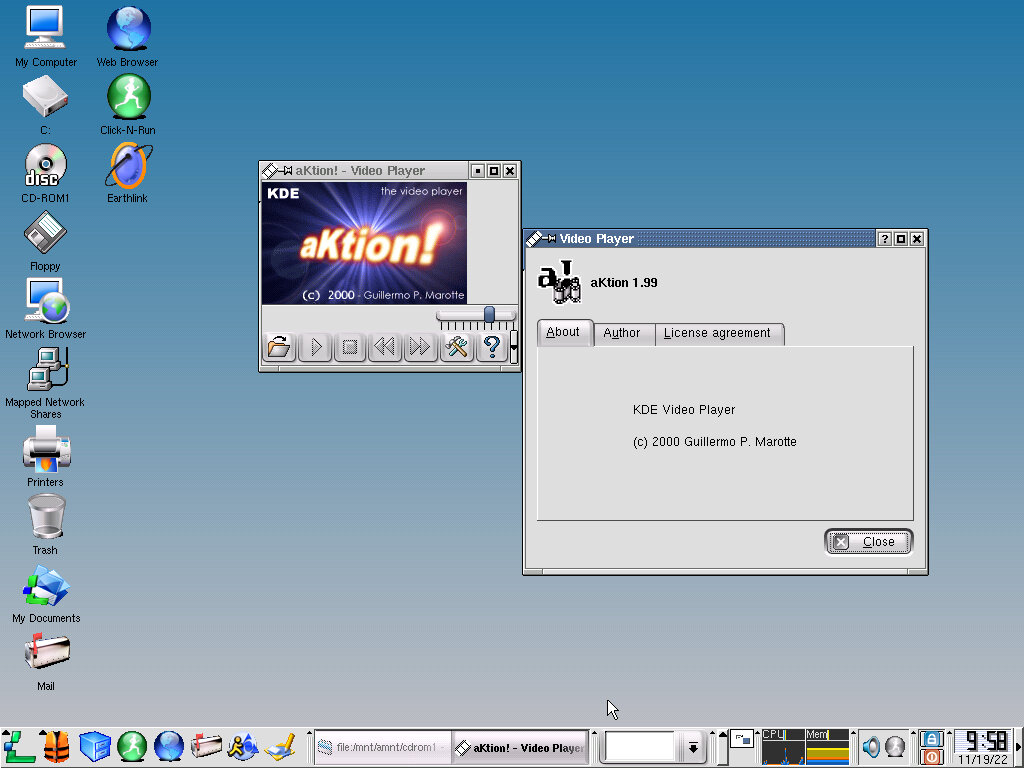
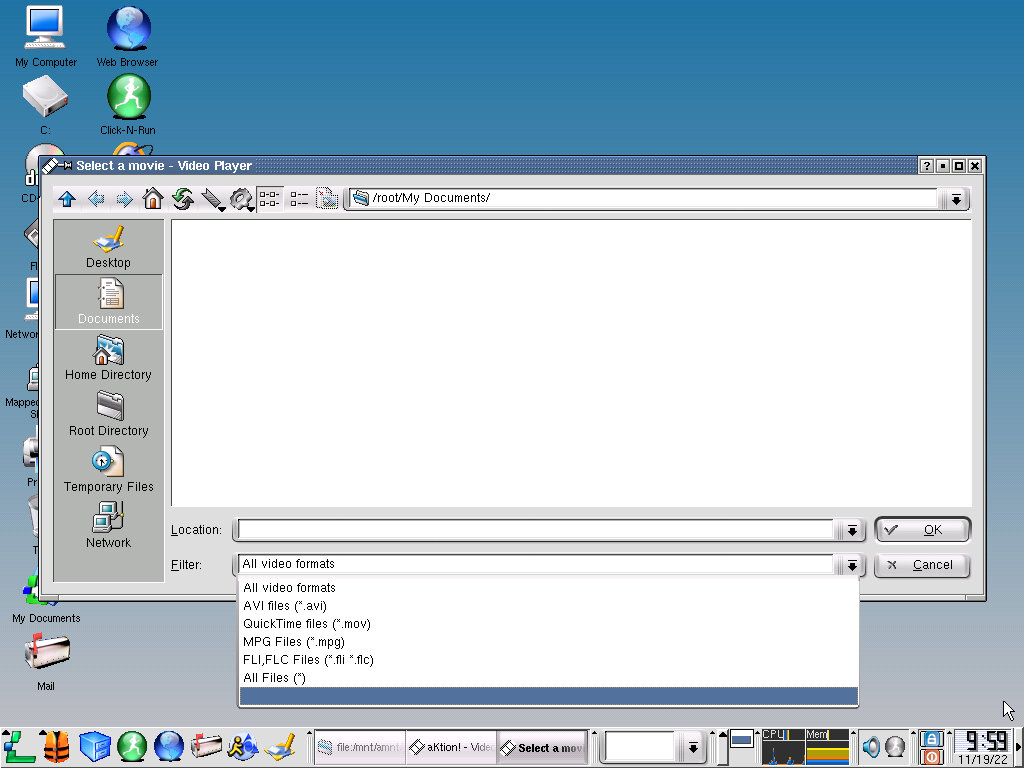
Video Player: aKtion 1.99 – Video file player, supports AVI/Quicktime MOV/ MPEG MPG and FLI/FLC files.
Utilities
Archiving Tool: Ark v2.1.9 – An archive utility to create or open archive ZIP and tar archives, along with RAR archives
Clipboard Tool: Klipper – Runs in the background and allows you to manage items copied to the clipboard
There are various other utilities like the Console, Floppy Formatter, KDE Help Center, KDE System Guard and the Network Share Manager
Third Party Software (Wine)
Wine comes integrated within the operating system which is supposed to provide some sort of Win32 compatibility. In practice whilst it runs the included Office viewers, experience with other Windows software is very poor, if not horrendous. With many graphical glitches and programs closing for no reason (possibly crashing in background).
I did attempt to run a set of popular Windows software that was commonly used when this operating system was released (2002) like MusicMatch, Also tried to use a few CD-ROM titles like Adi, and Microsoft Encarta. When switching an ISO image within the emulator, the virtual machine has to be restarted before it will see the new disc. Trying to browse the CD-ROM directory results in a list of garbled file names. I’m not sure if there’s a specific command that I’m supposed to run when swapping the CD image but its defiantly annoying having to reboot the system each time a new CD-ROM is inserted.
Third Party Software (Linux)
So I tried a few Linux games and applications that were also released in the period, these are actual ports of Windows games that were released for Linux in general.
Quake 3: Installed but did not run, would not even load in software rendering mode.
Simcity 3000: This also refused to run after install. I tried switching video cards just to see if that was the issue, but no luck.
I seem to remember experiencing the same issues with Corel Linux, but I put this down to the distro being too old to work. It’s possible a component is missing that is not installed but the setup program.
Postal: This one actually works… barley. I can get the game to appear but its not much playable with the window not filling the entire screen and the game running at a slower speed.
Terminate Application
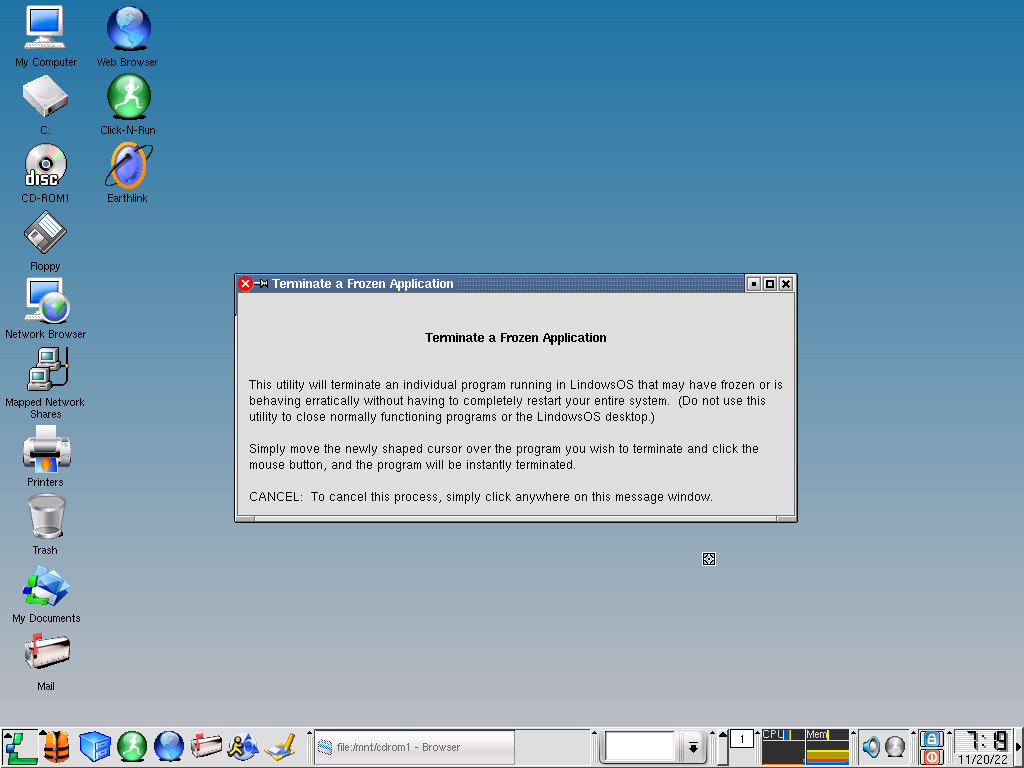
If a program becomes unresponsive, you can open the Terminate Application program, which is used to force close applications that become unresponsive. This is not without its problems, since clicking everywhere will terminate the process associated with it, even when you click on the taskbar or the desktop which will make it difficult, if not impossible to open applications. It seems like very poor design but I guess they didn’t think the user would find a terminal list of process appealing, still it means the user could accidently terminate a critical system process by accident, without any confirmation.
KDE Control Panel
Themes
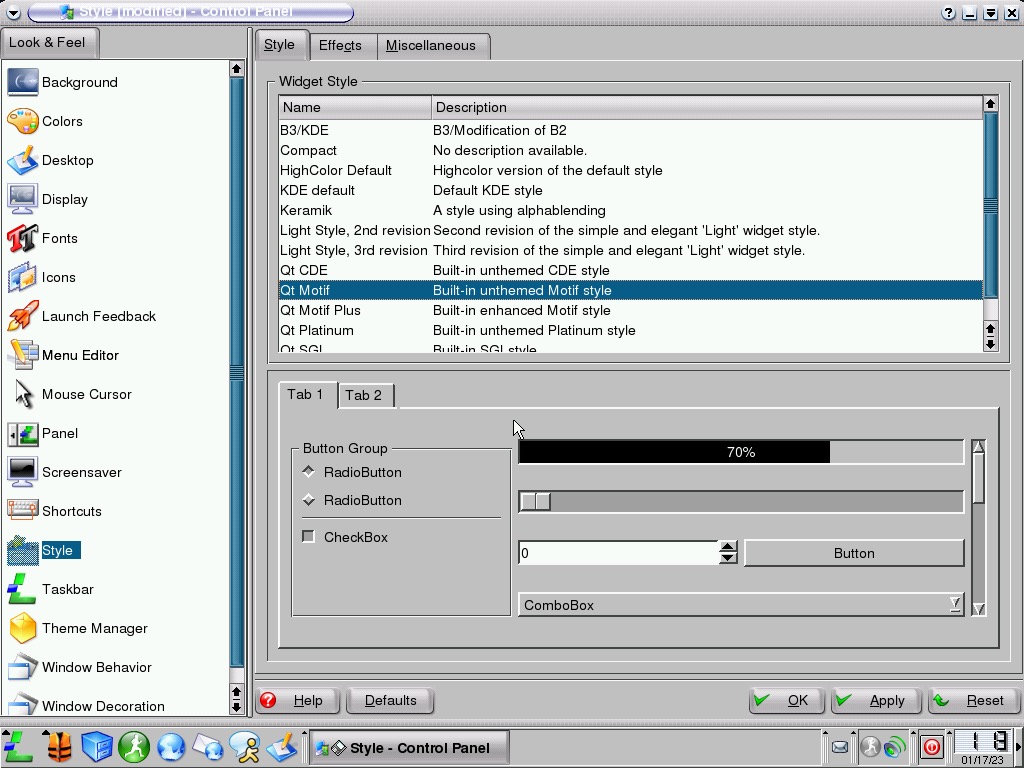
A few themes come bundled with Lindows, with additional themes to be downloaded
Screensavers
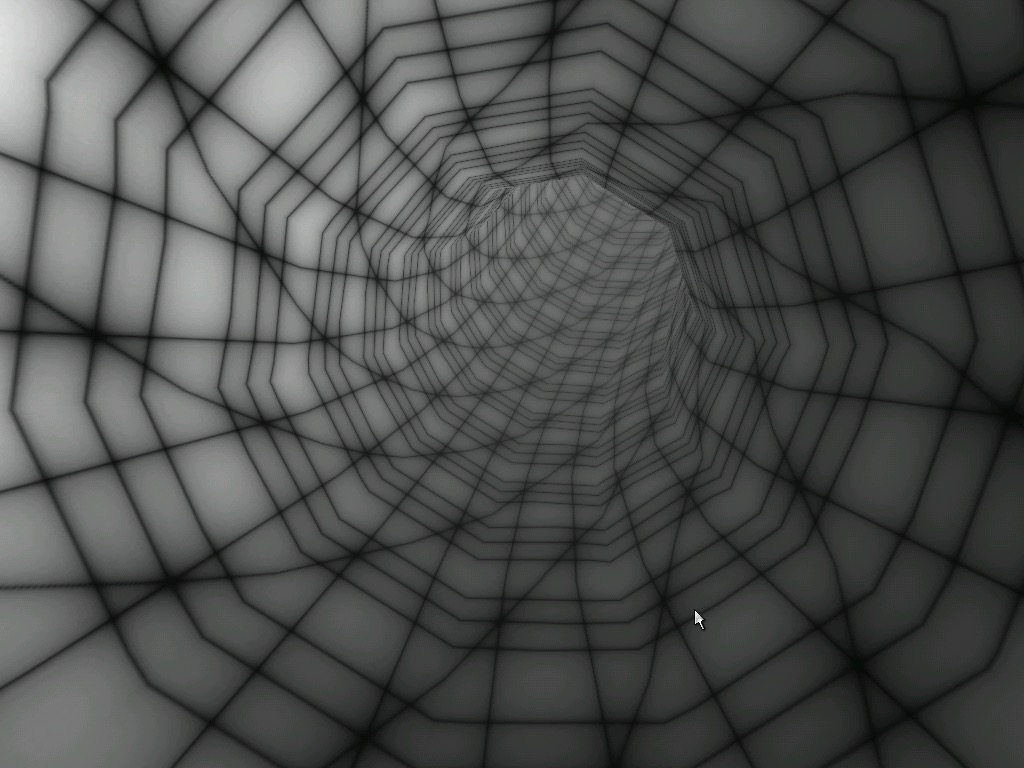
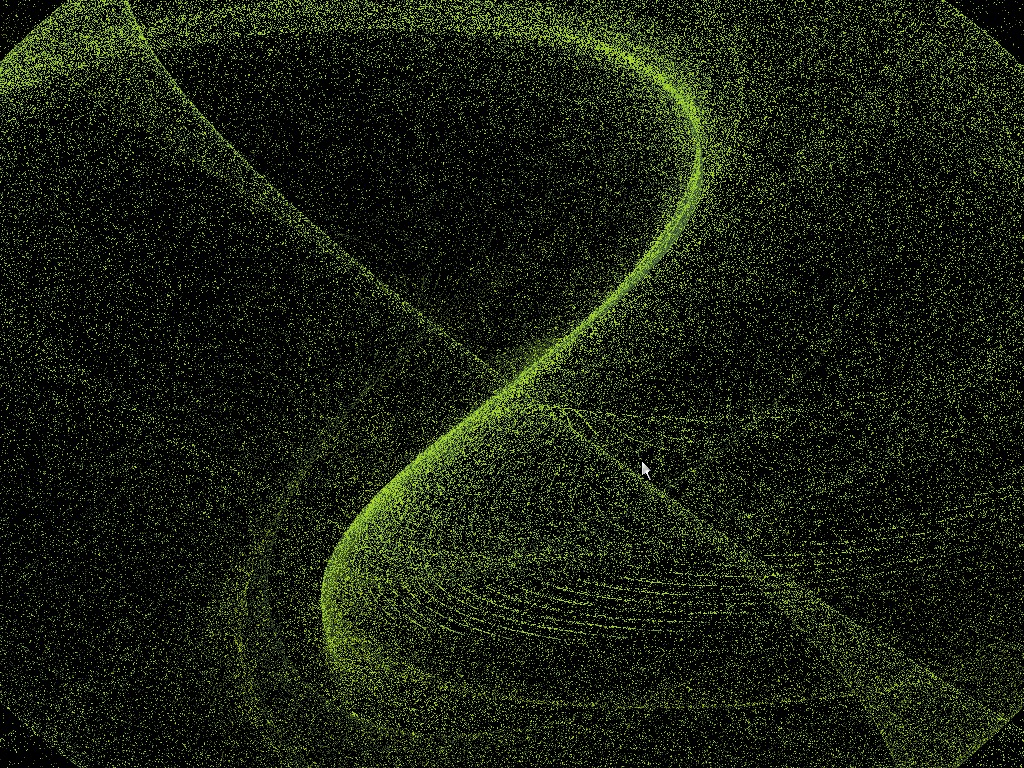
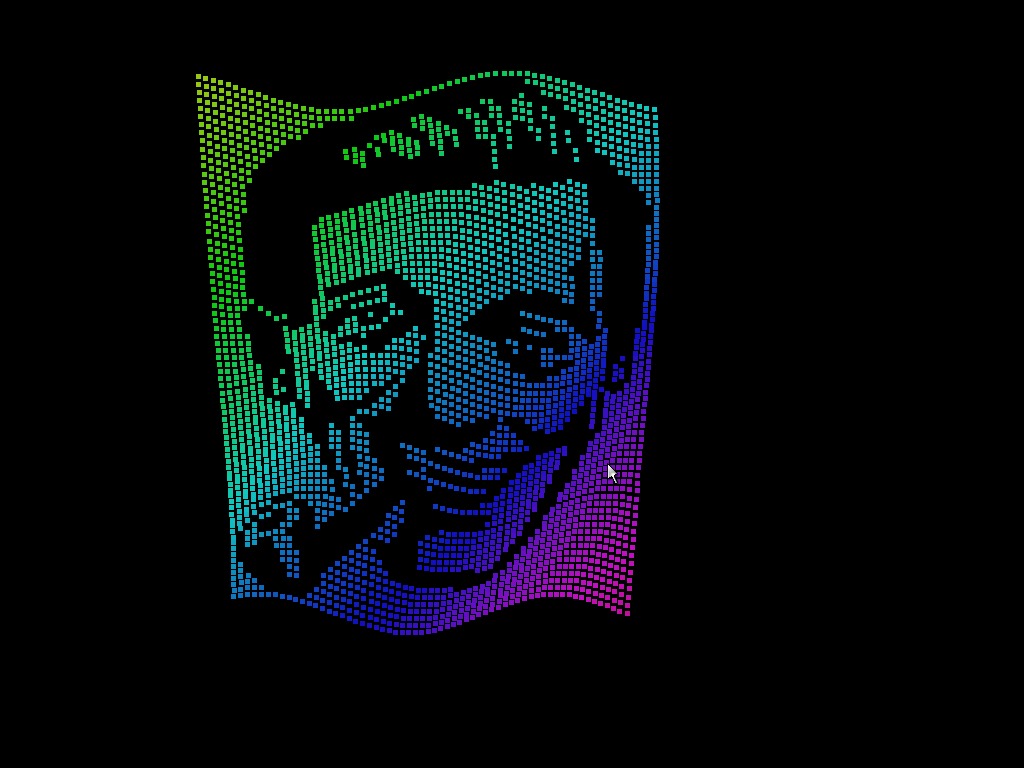
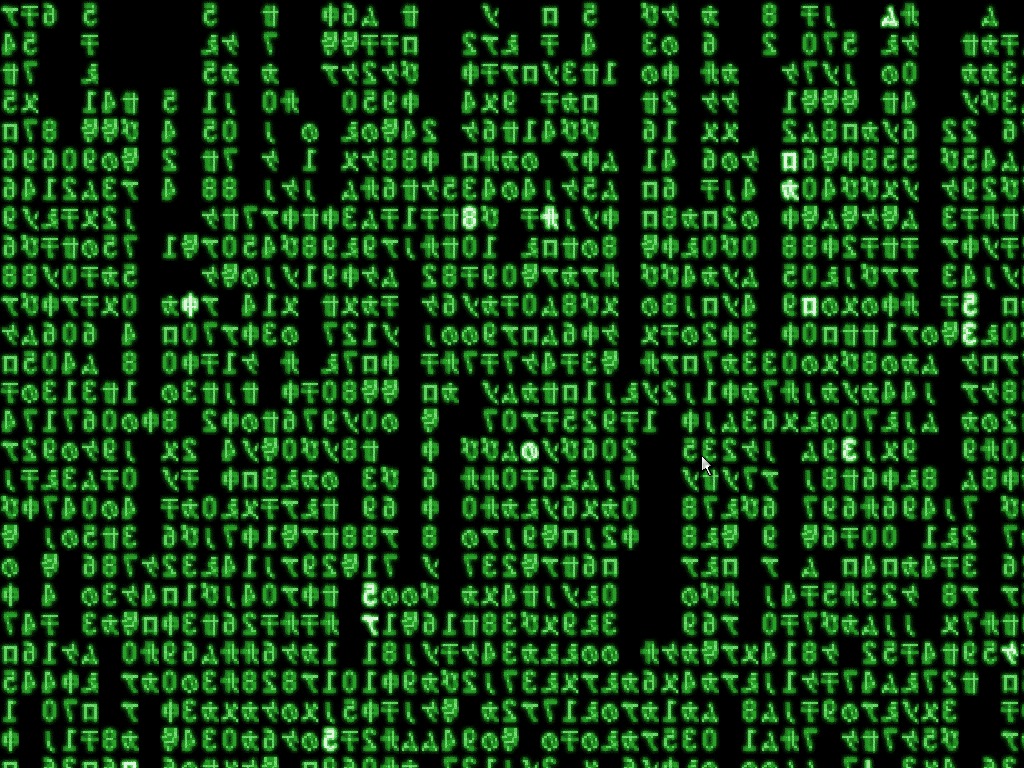
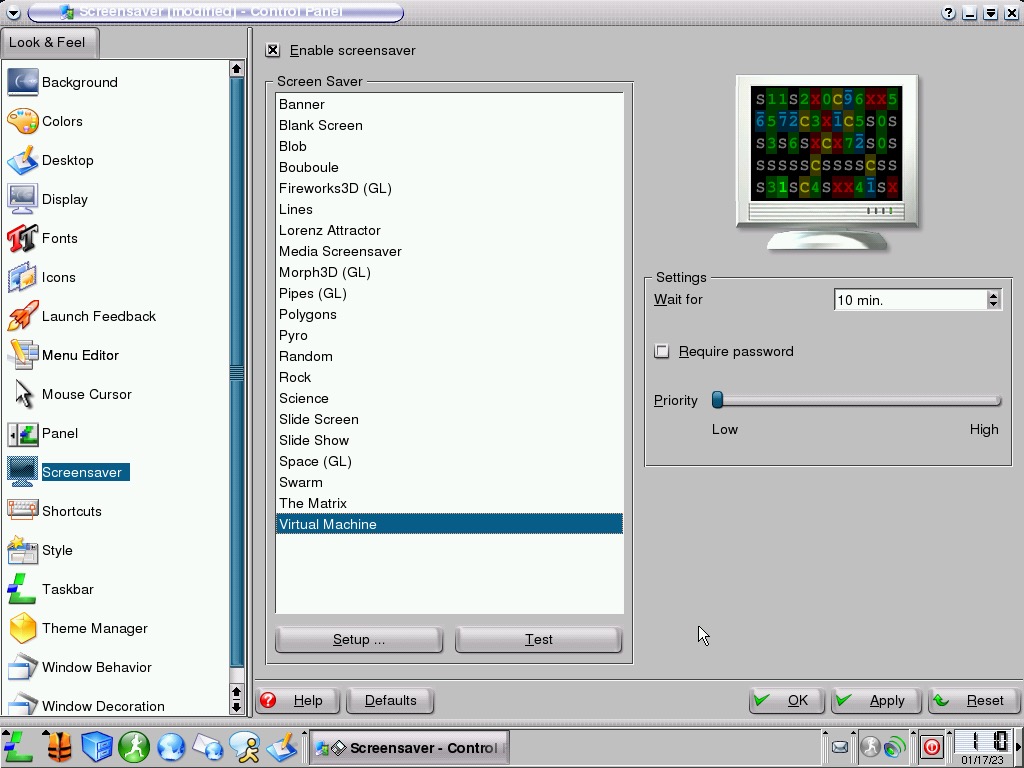
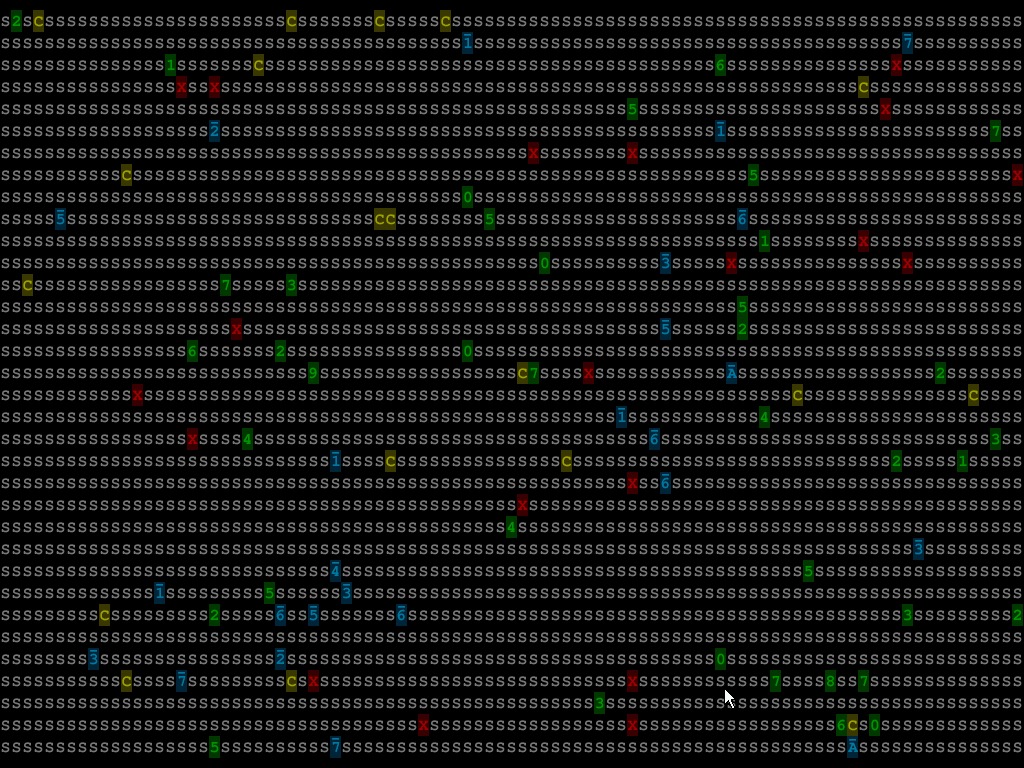
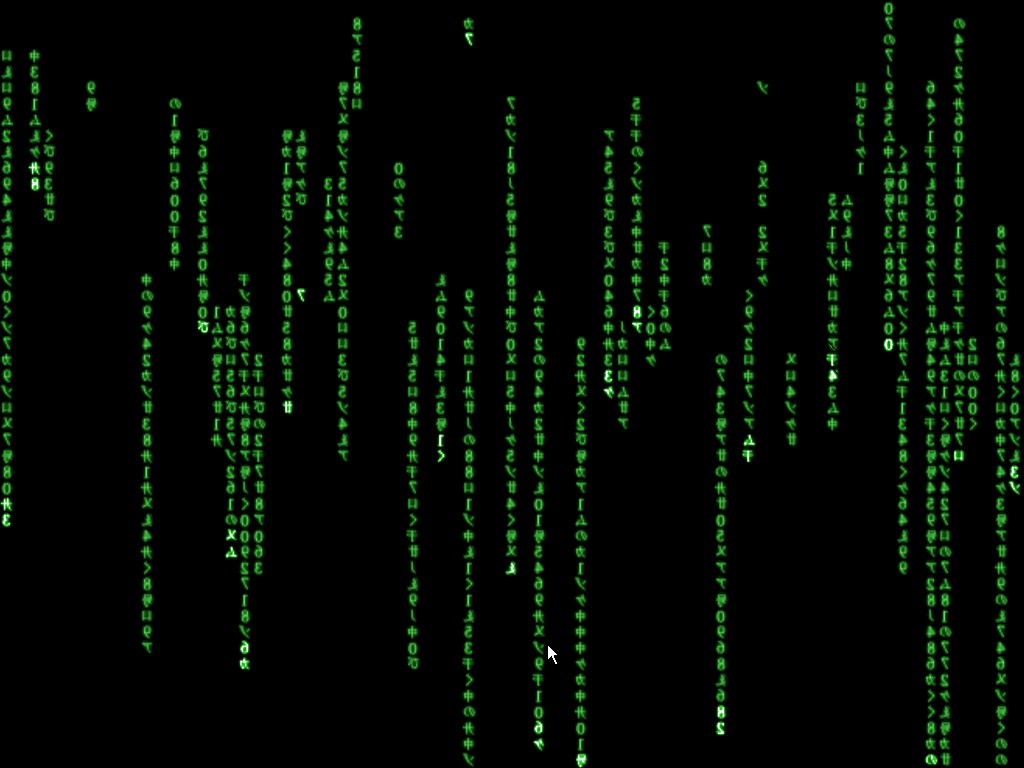
A collection of screensavers that come with operating system, like Windows you can set a password to unlock after a set amount of time. There are 21 screensavers that come included.
Shutdown
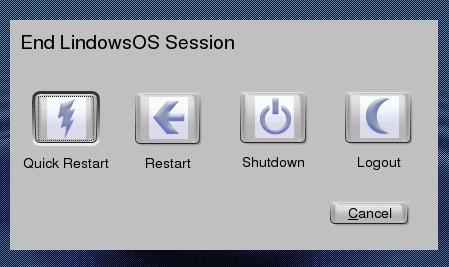
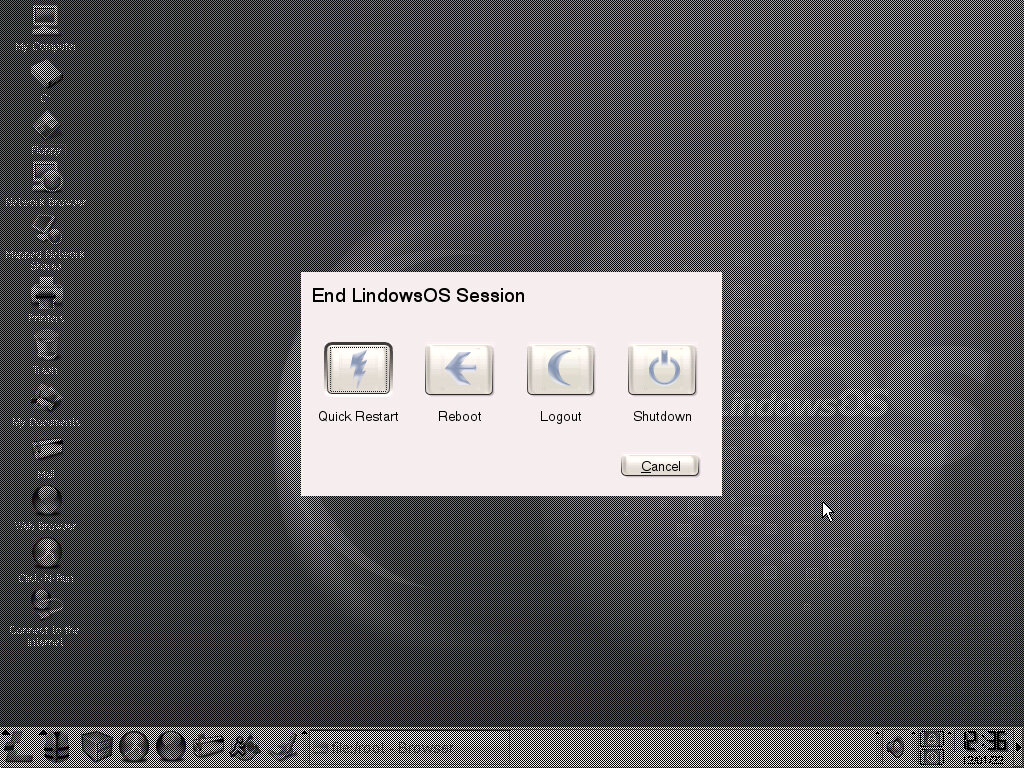
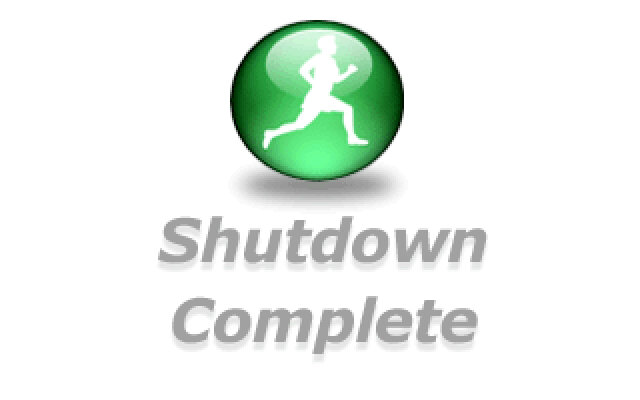
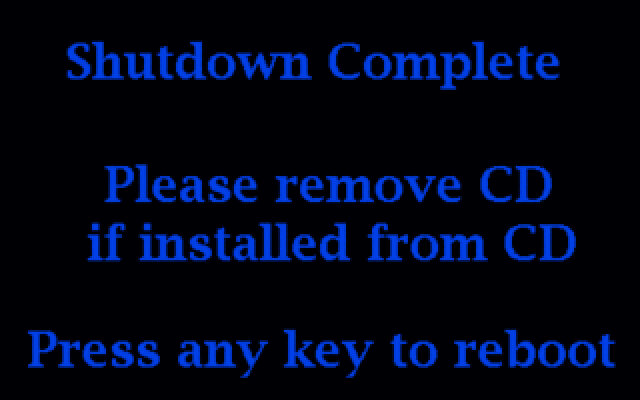
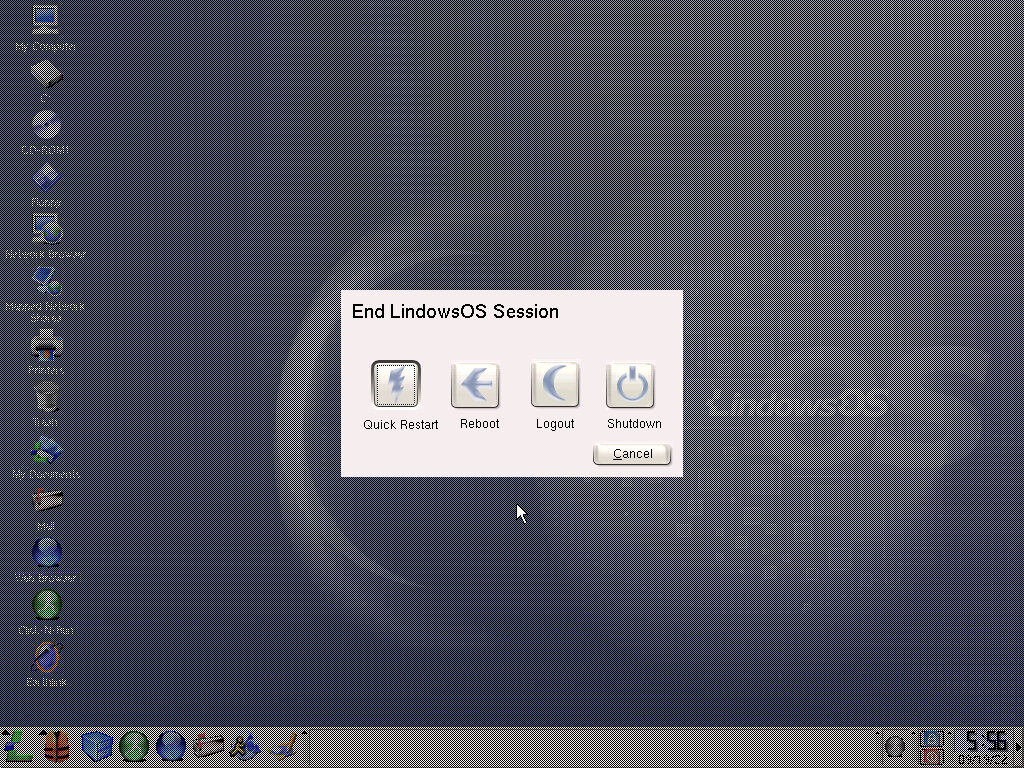
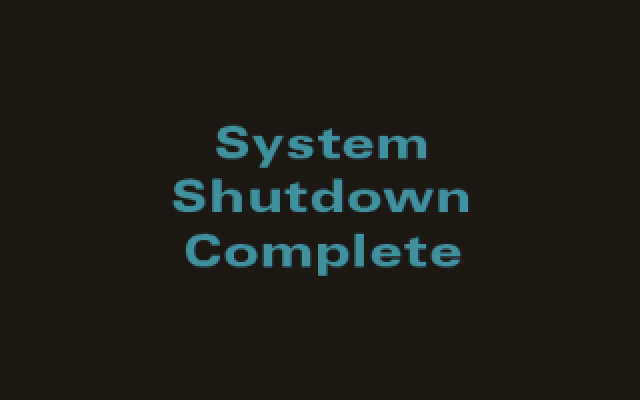
The shutdown process is similar to Windows, where you click on the applications menu, then shutdown. A menu will appear, giving you options to restart, enter standby mode or shutdown your PC. Upon shutdown, the system will close all running GUI programs, will drop down to a command terminal and eventually display the shutdown complete screen. If your PC is ACPI aware, the PC may turn off automatically.












 Drew1440: Blog