Samsung’s attempt to appeal to the high-end iDevice market.
Samsung’s Android line of handsets have always had their mass appeal style, prioritising form over function which is reflected in their handsets with removable batters, plastic covers that can easily be replaced and are cheap to manufacture and feature upgradable storage. The Galaxy Alpha gives up most of that, and serves to appeal to the market Samsung had struggled to capture.
Lets look at the Android experience Samsung has shipped with the phone.

The home screen with the default wallpaper, which is a departure from the Bliss-like wallpapers on the Galaxy S4. This blends in with the premium design of the Alpha which Samsung had targeted.
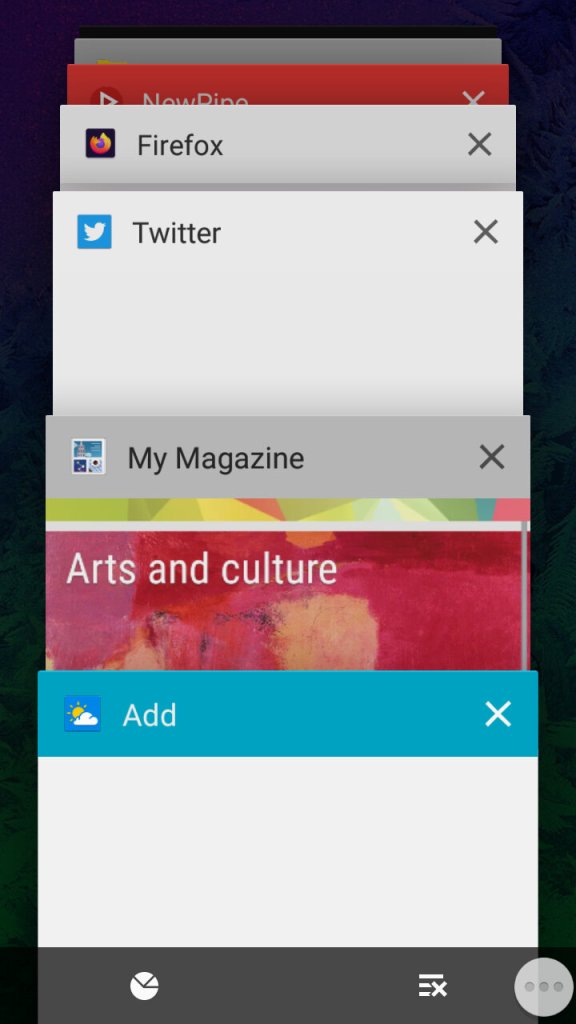
The task switcher that Samsung has added a dedicated button to access this, replacing the menu button on previous handsets. This brings it in line with other Android handsets that follow the stock button scheme, though the back button is still to the right of the home button. Tapping on the icons at the bottom will take you to the memory status where you can see what apps are consuming memory, and even end them. As Android manages your memory automatically and will liberate apps that aren’t in use, you normally don’t need to do this unless you have a malfunctioning app.
The button to the right will close all inactive windows.
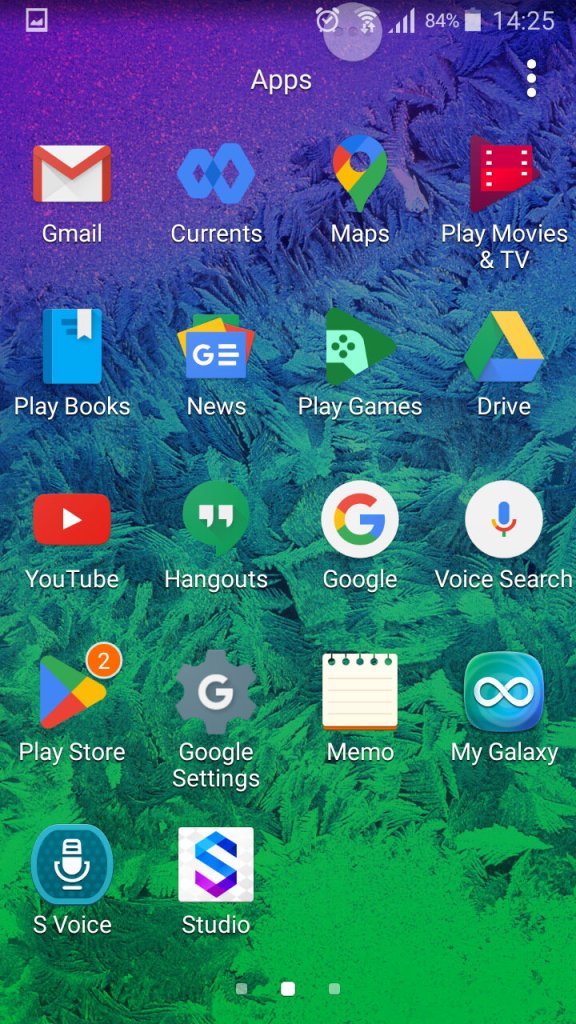
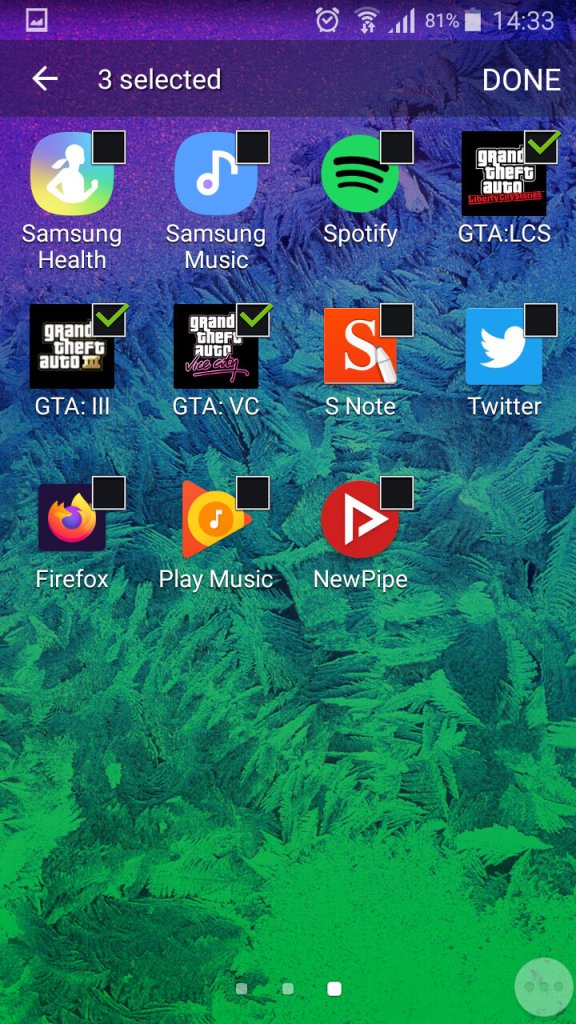
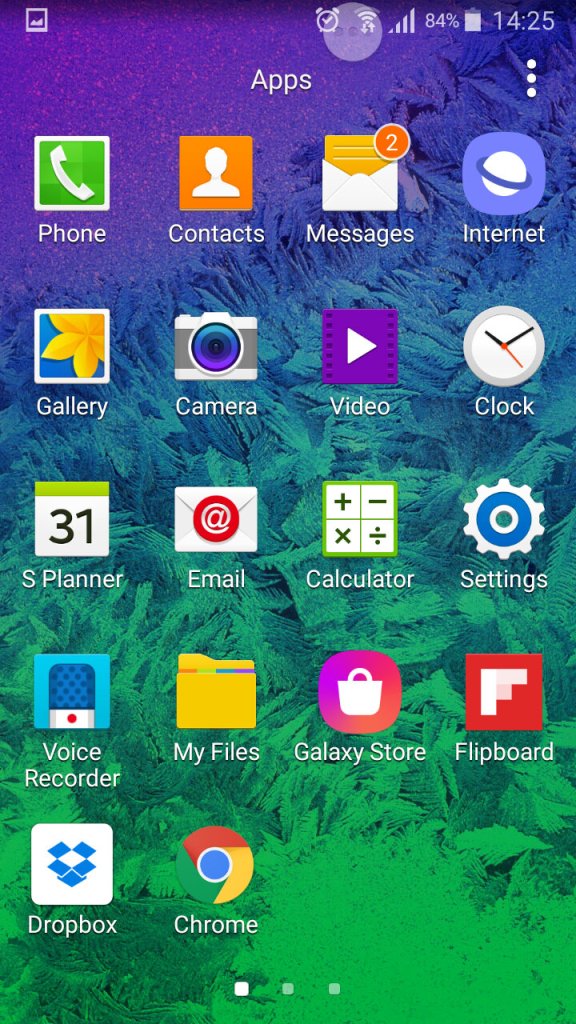
The list of apps, here you can sort apps by alphabetical, or in a custom order.
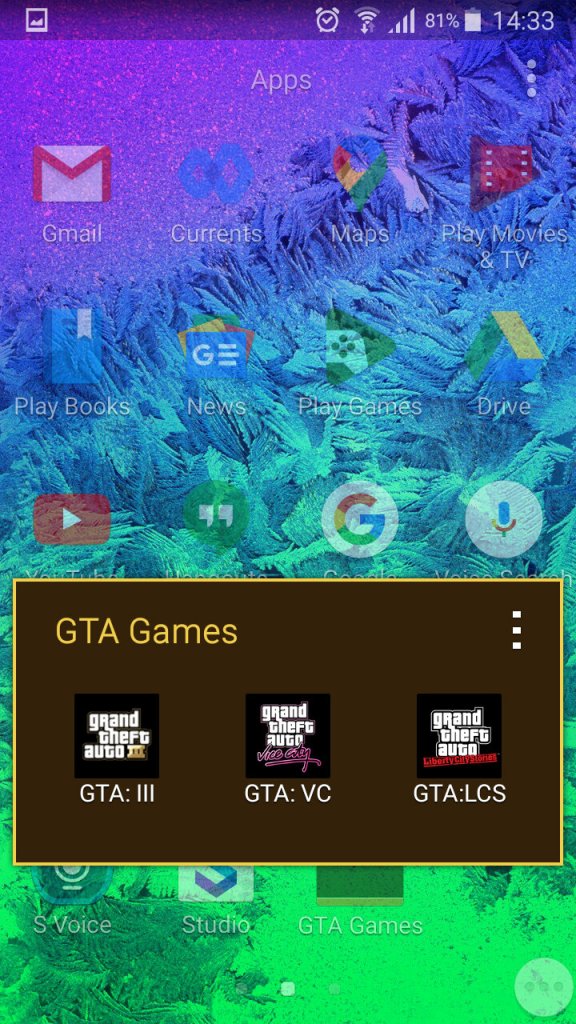
You can also create app folders to keep thing organised by tapping on the tree dots, then select ‘Add’, you cannot just drag an app over the folder icon like you can on the home screen.
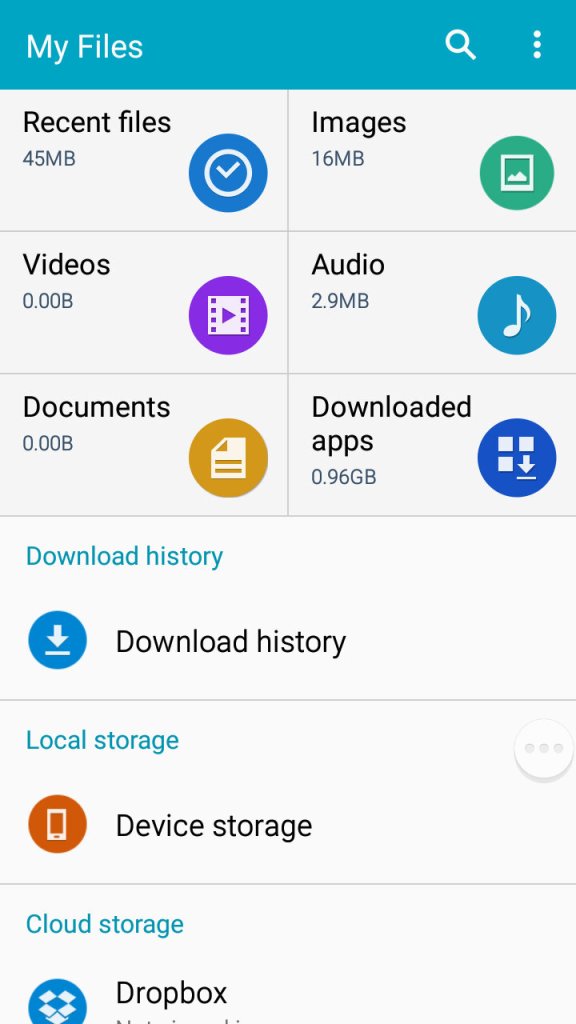
A look at the phones file manager. Unlike other Samsung handsets of the time, the Alpha only comes with 32GB Internal Storage with no option for a microSD card. Samsung would later do this for the Galaxy S6, to a negative reception.
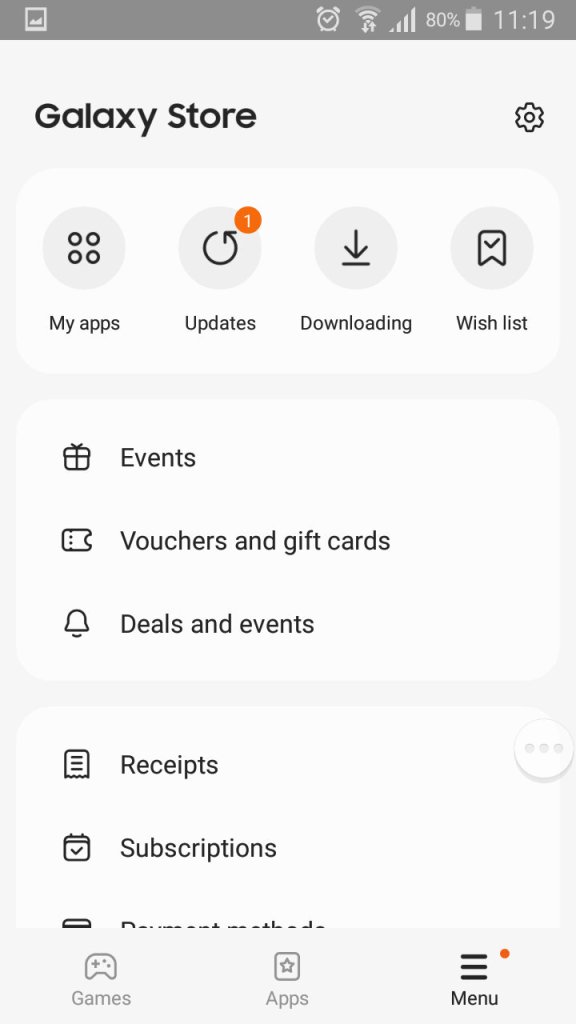
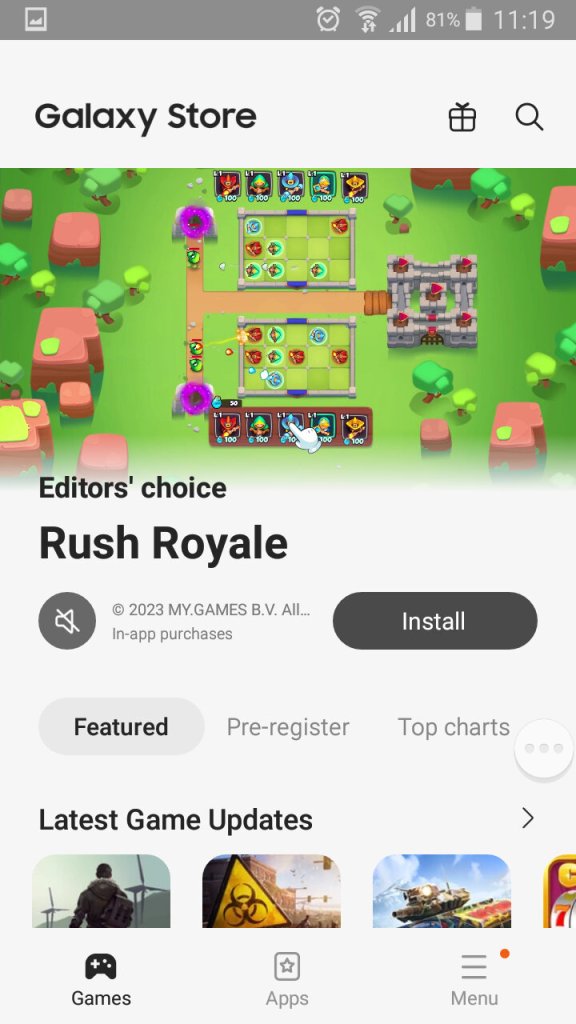
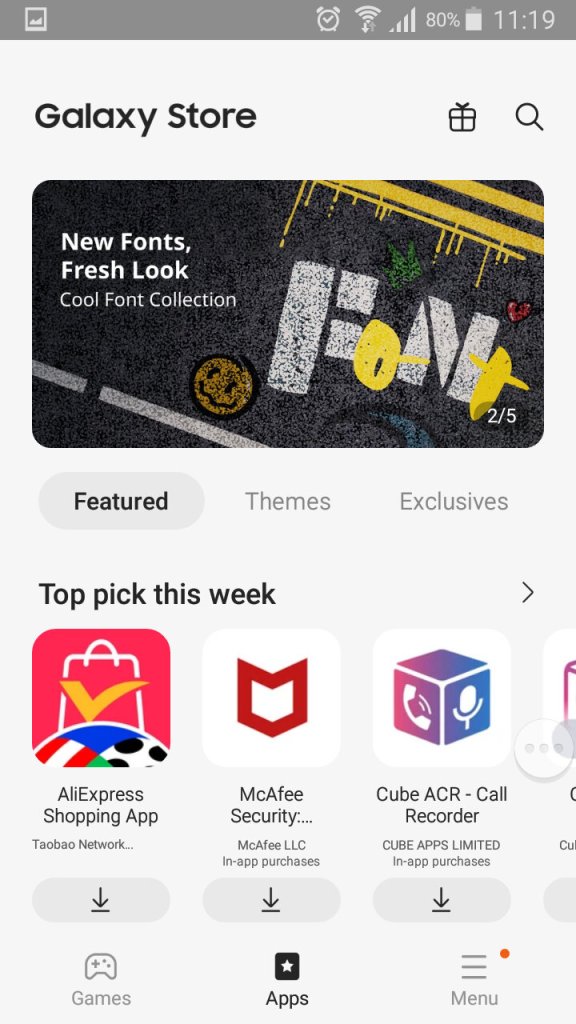
The Galaxy Store, which is Samsung’s own App Store and a alternative to the Google Play Store.
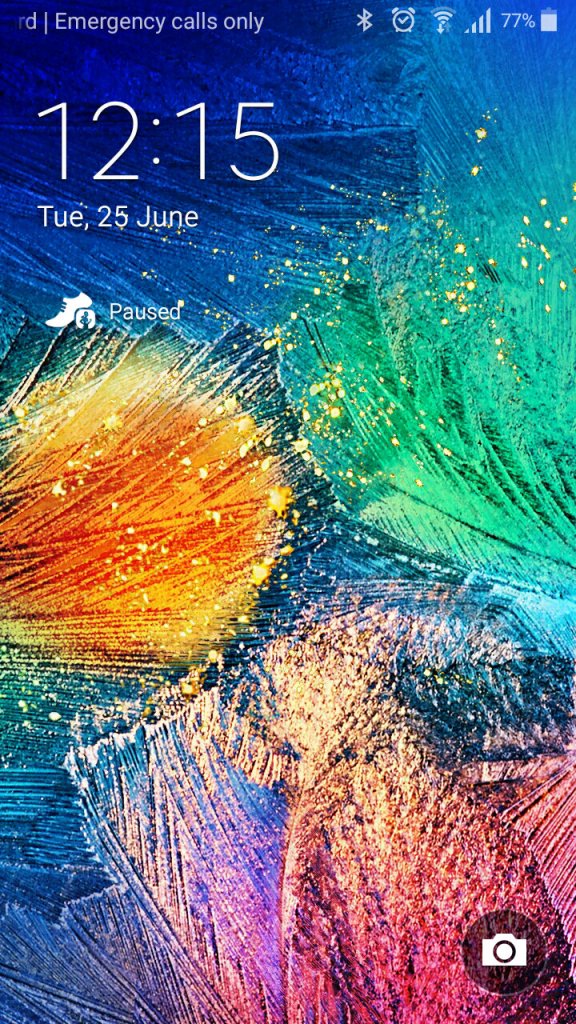
A very colourful lock screen, with Samsung adopting a different wallpaper styles for the Alpha, gone are the fields with blue skies that we say with the Galaxy S4. It’s a welcome change and gives the phone a more edgy appearance.
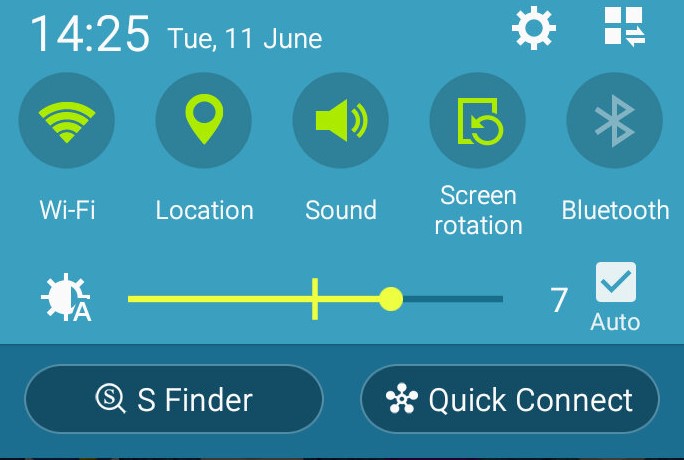
The dropdown still remains the same as the S4,
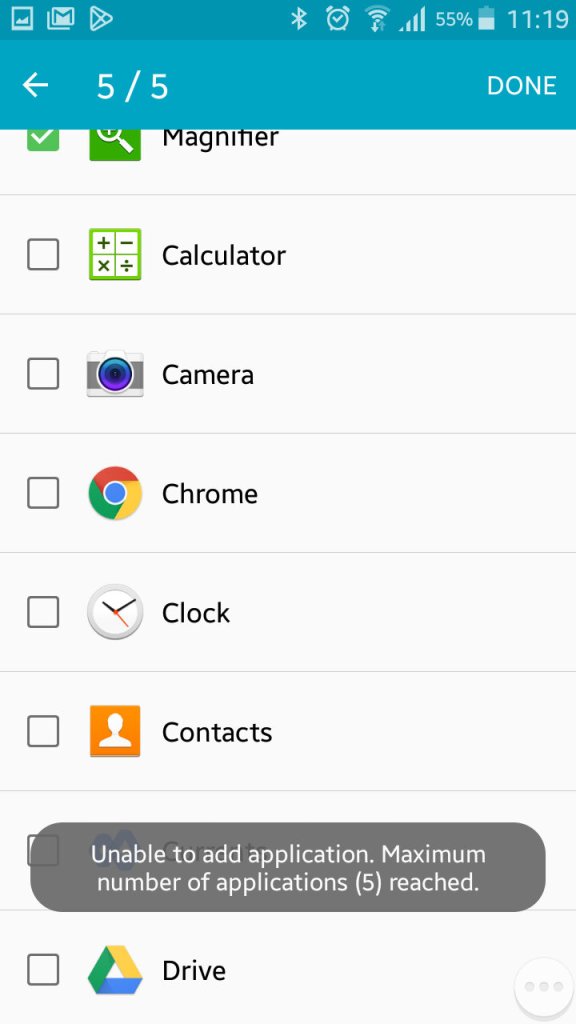
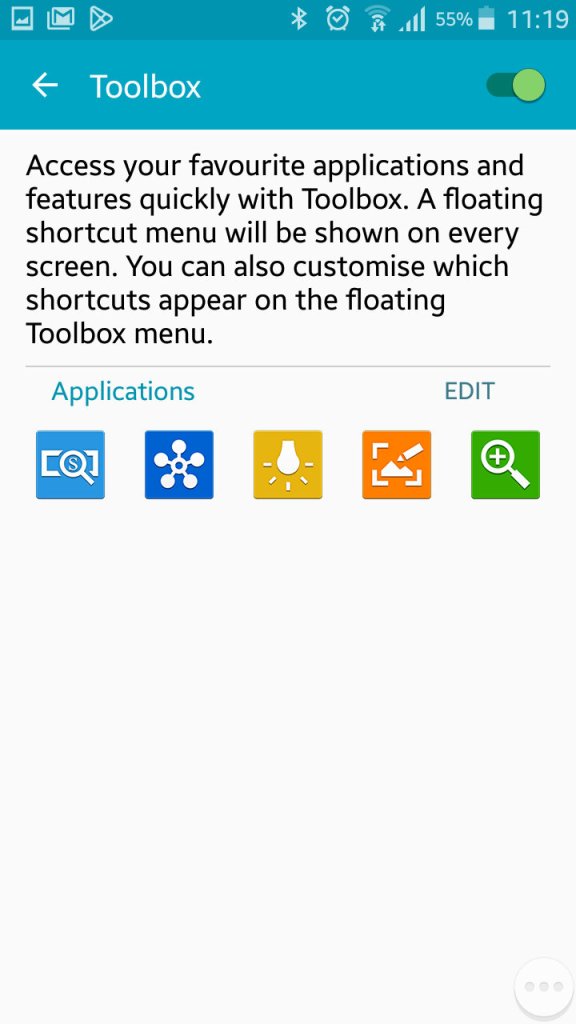
Once thing you might have noticed is a floating three-dot widget that you can press to open shortcuts. This is called the toolbox, you can quickly access the camera, take a screenshot, activate the flashlight and open QuickConnect. This can be turned off if you find this annoying as it does appear over all apps. You can also add additional apps, but you are always limited to 5.
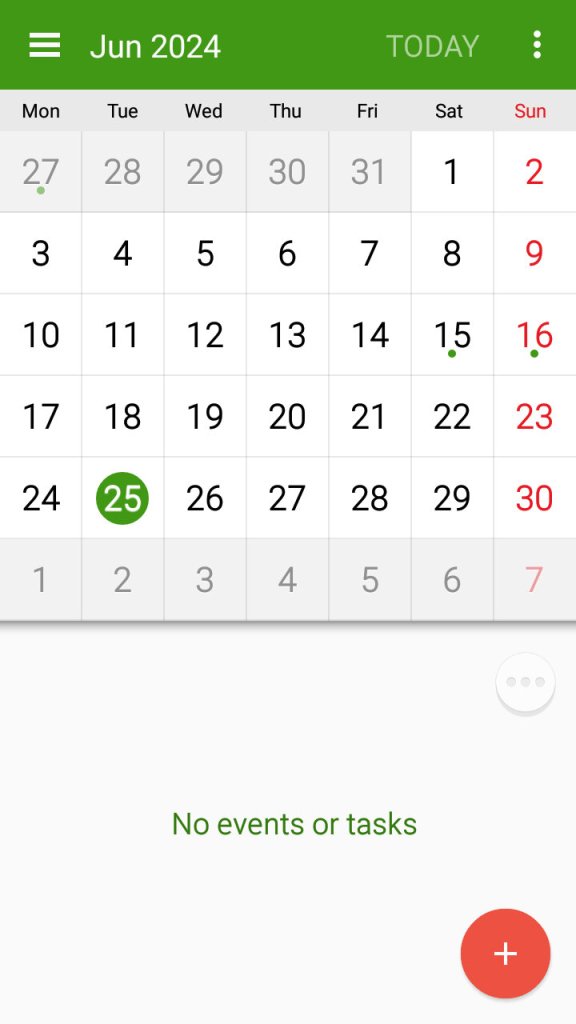
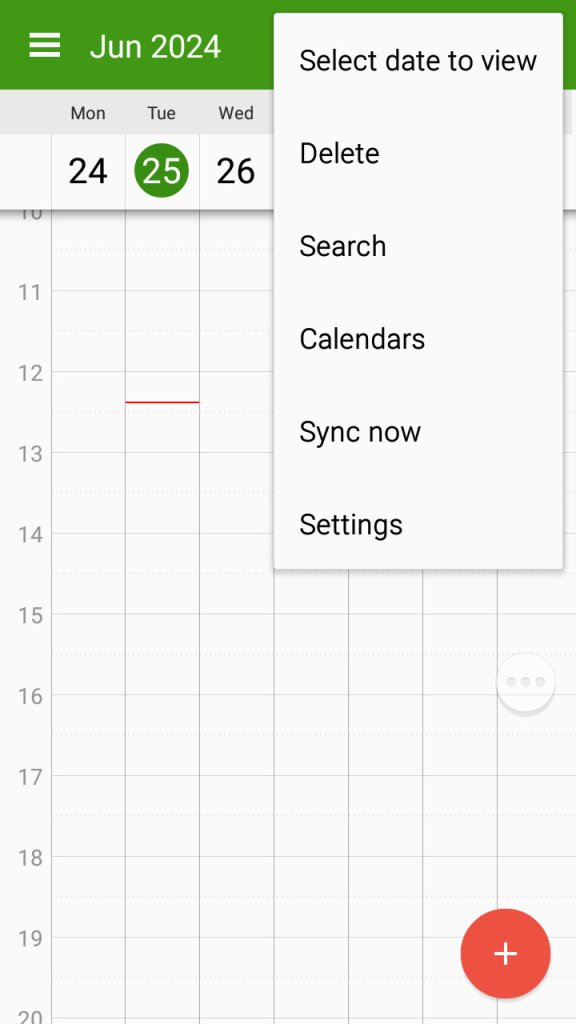
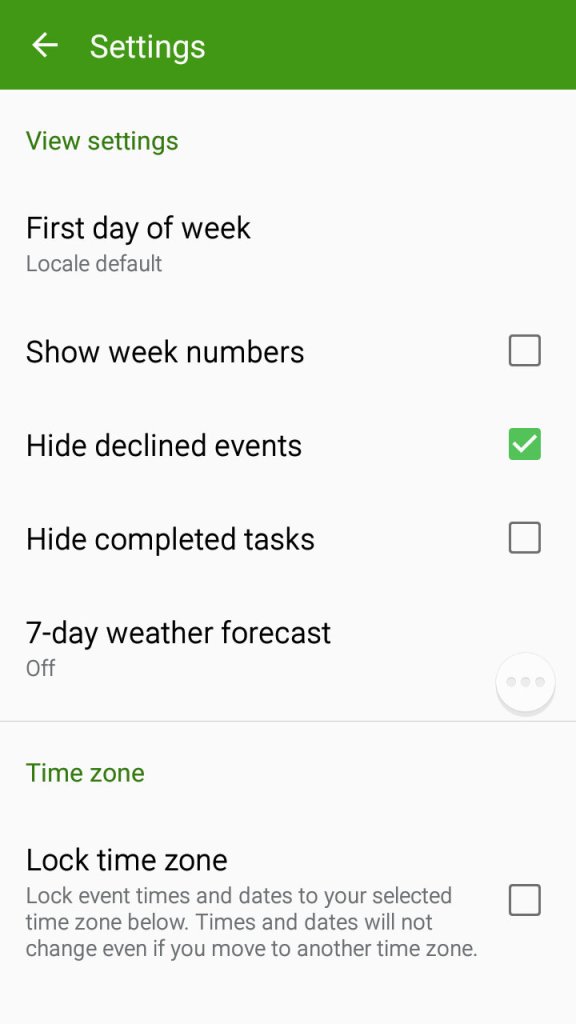
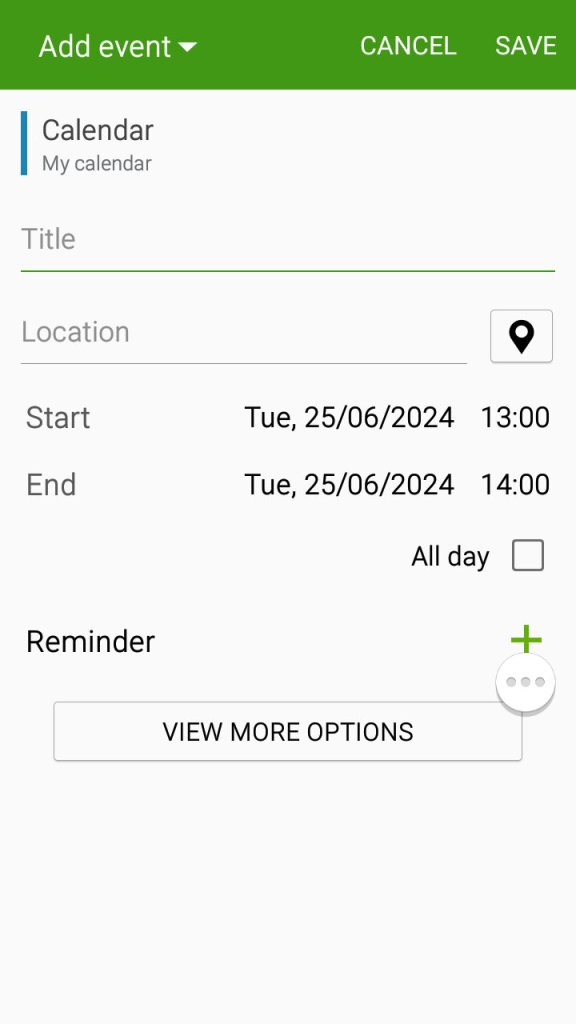
The S planner app which can be used to view the calander, set appointments and reminders and sync with Samsung or Google’s web calendar.
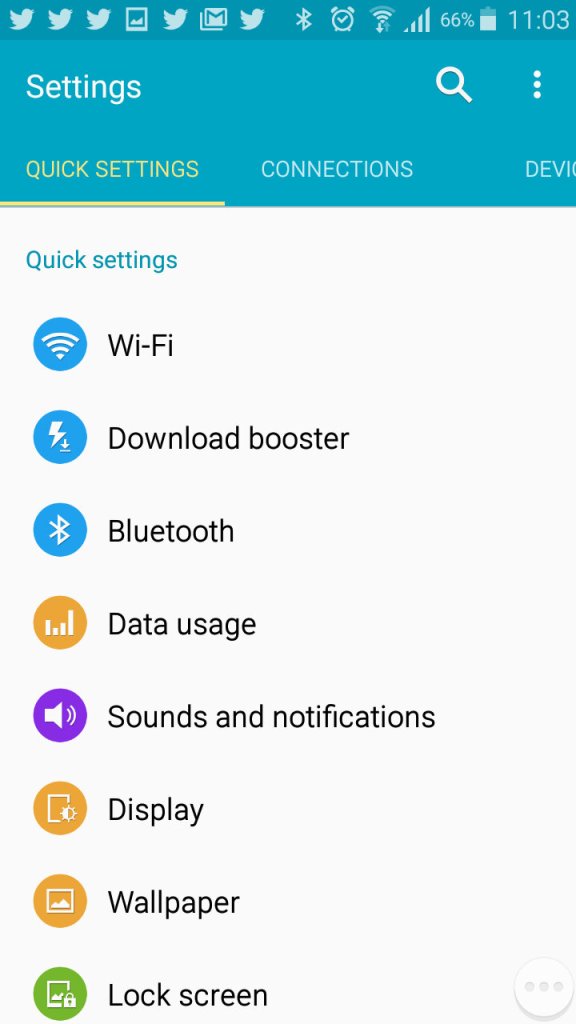
Settings Menu
A look at the setting menu which Samsung has reorganised
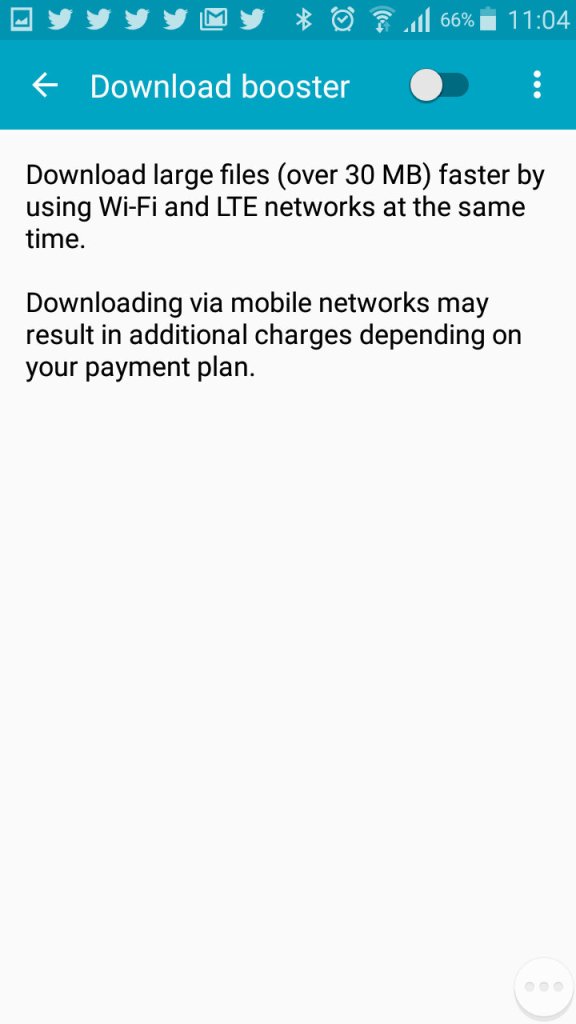
Download booster allows your phone to download using both the mobile network and the WiFi network, subject to the operator supporting this functionality
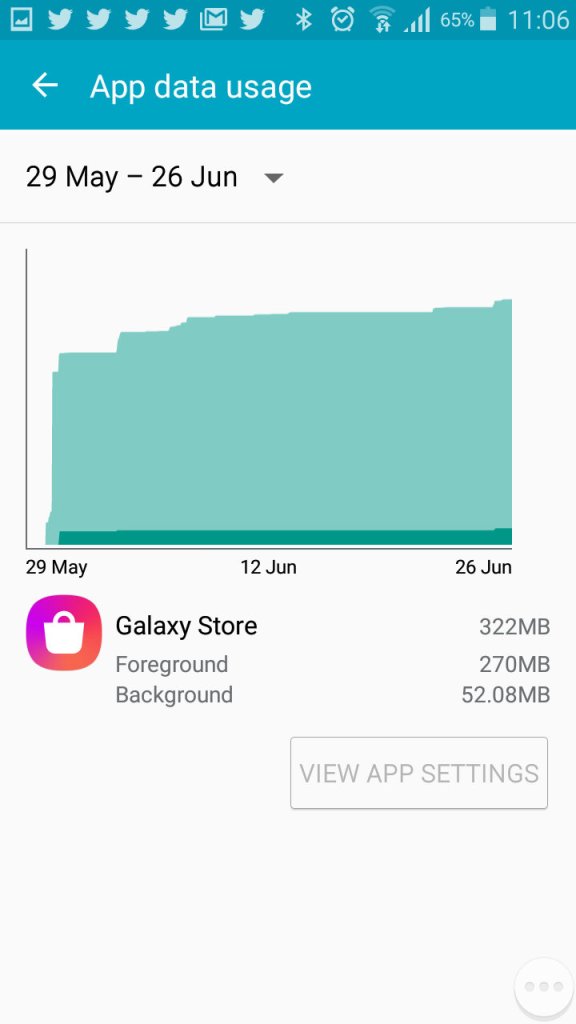
Viewing Android data usage
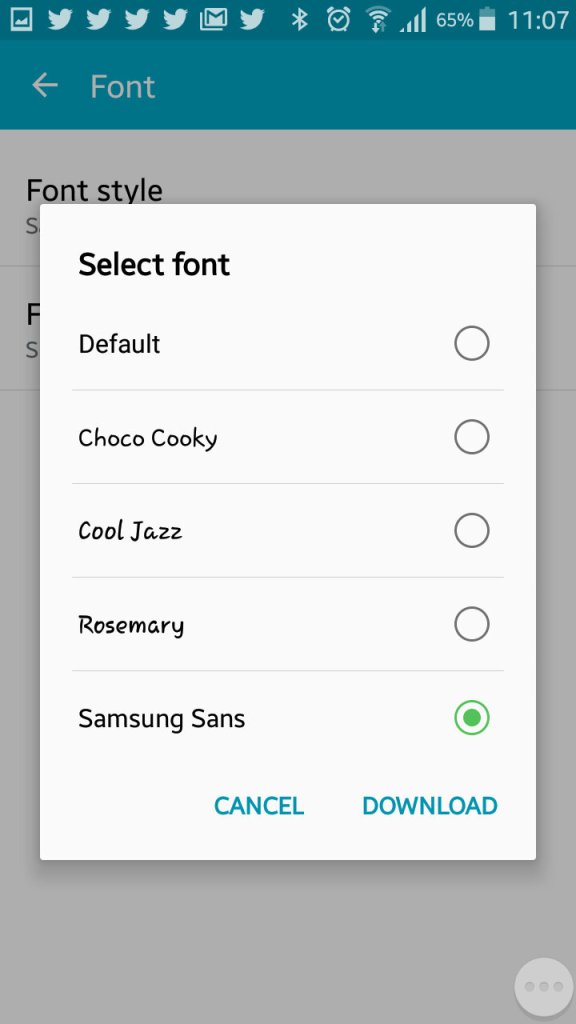
Samsung are one of the few OEM’s that allow you to change the active font of the device. You can also increase the font size to make the text more readable.
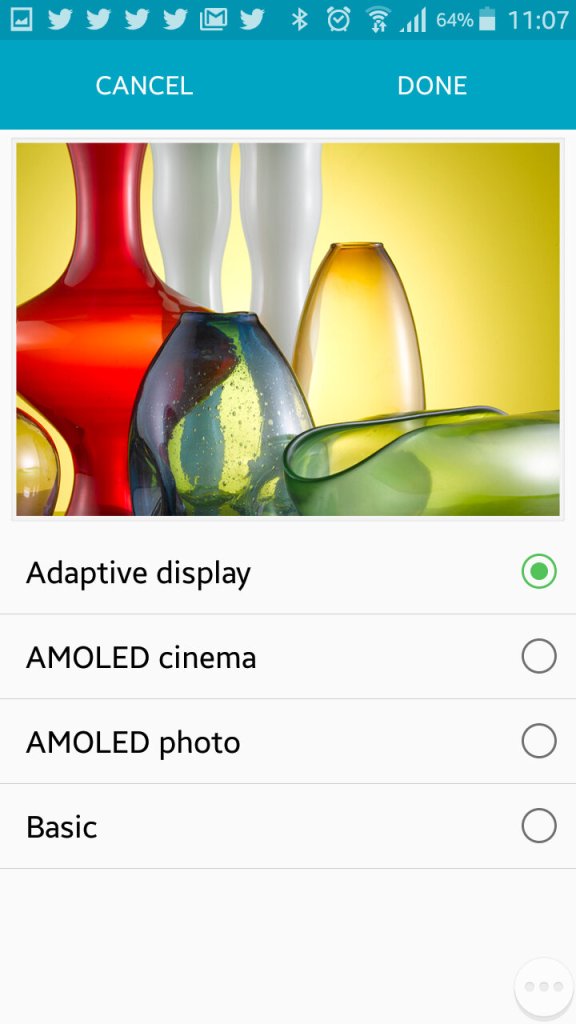
The adaptive display feature which adjusts the displays contract depending on the media or app you are using.
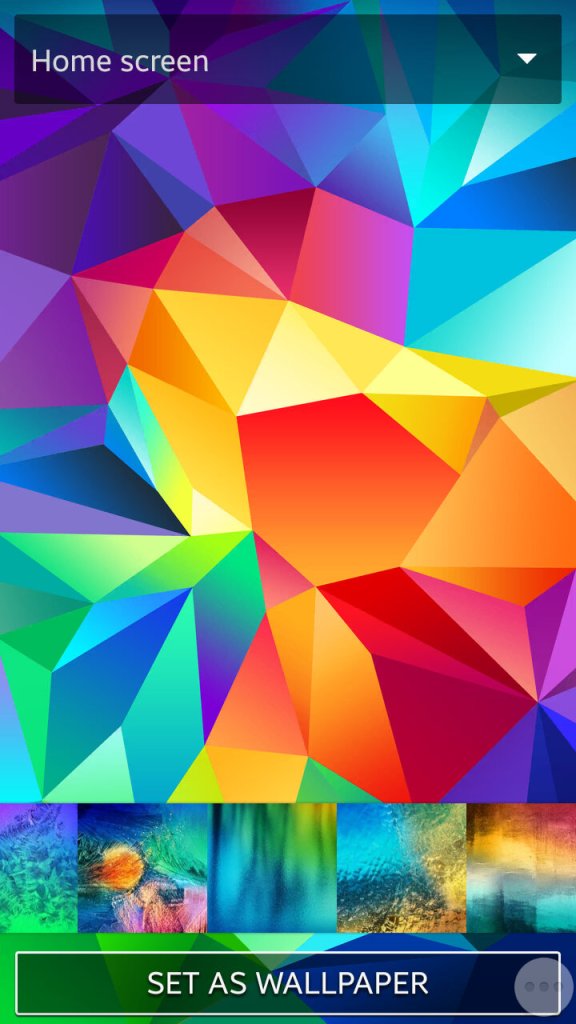
Setting the wallpaper and a look at the default wallpapers that shipped with the phone
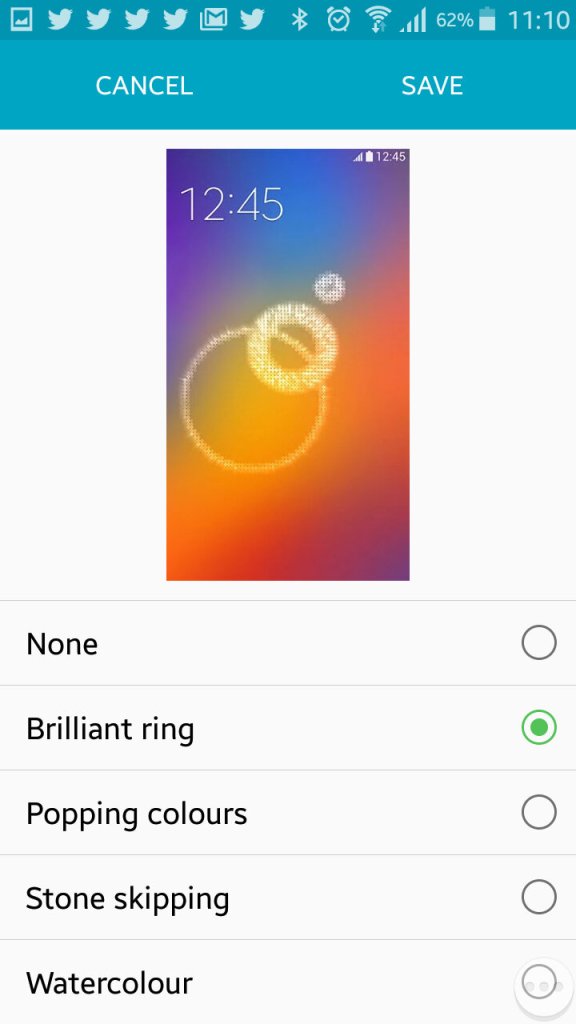
Changing the unlock animation that plays when you swipe your finger on the lock screen.
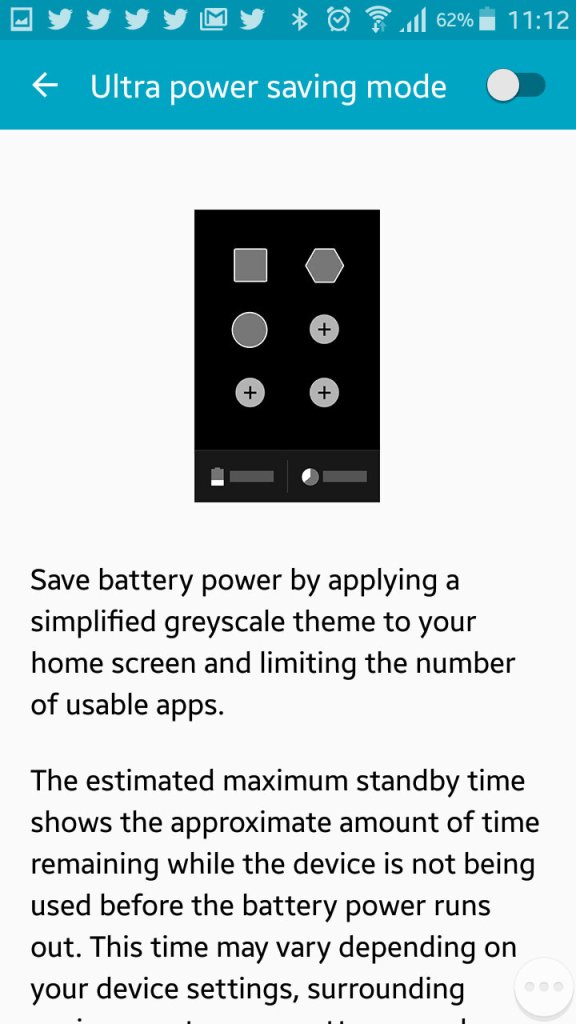
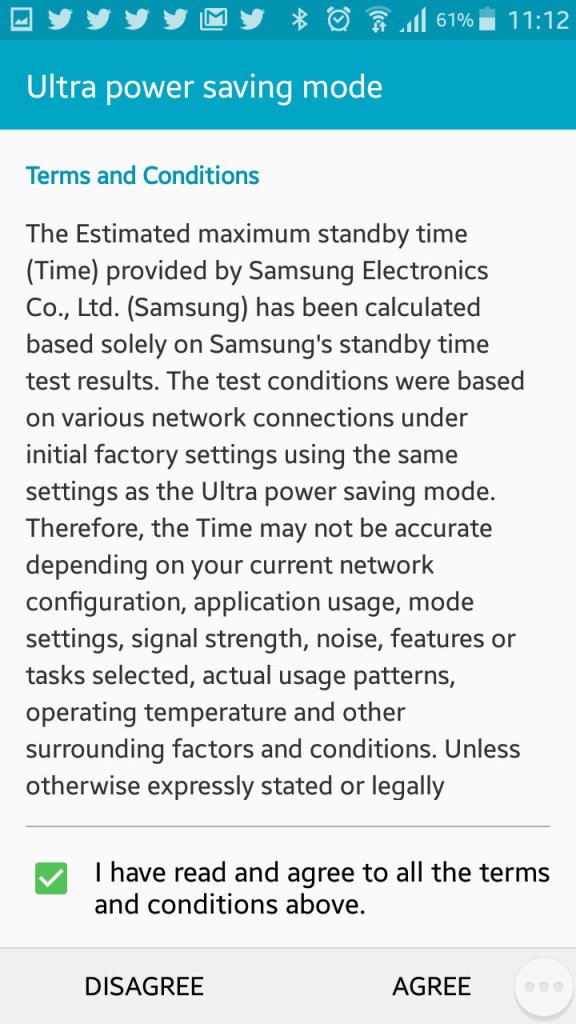
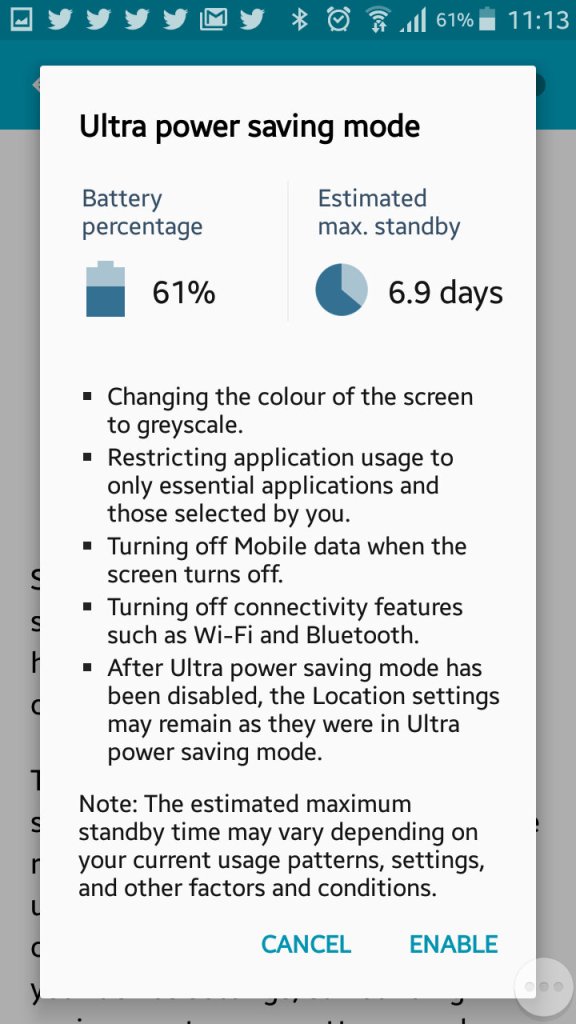
Ultra power saving mode, when enabled will change the display to greyscale mode and will restrict the apps that canoe run on the device. Ideal if you will be away for while and wont have access to a power supply. Apps can still run though you are very limited to the ones that can run, Twitter was the only third party app that could be run in this mode.
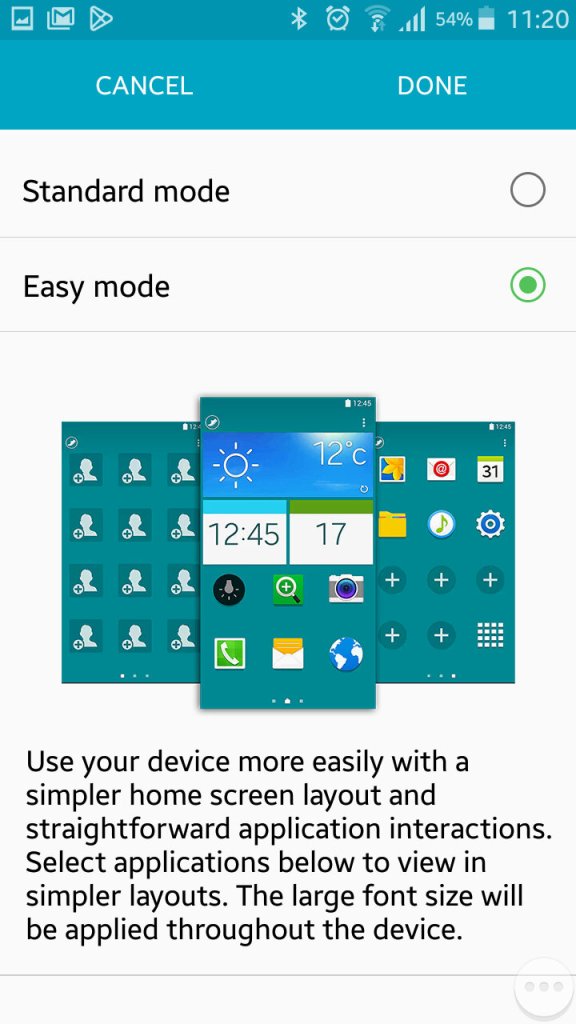
Easy mode makes the phone more simple to use for users who are not experienced with Android handsets
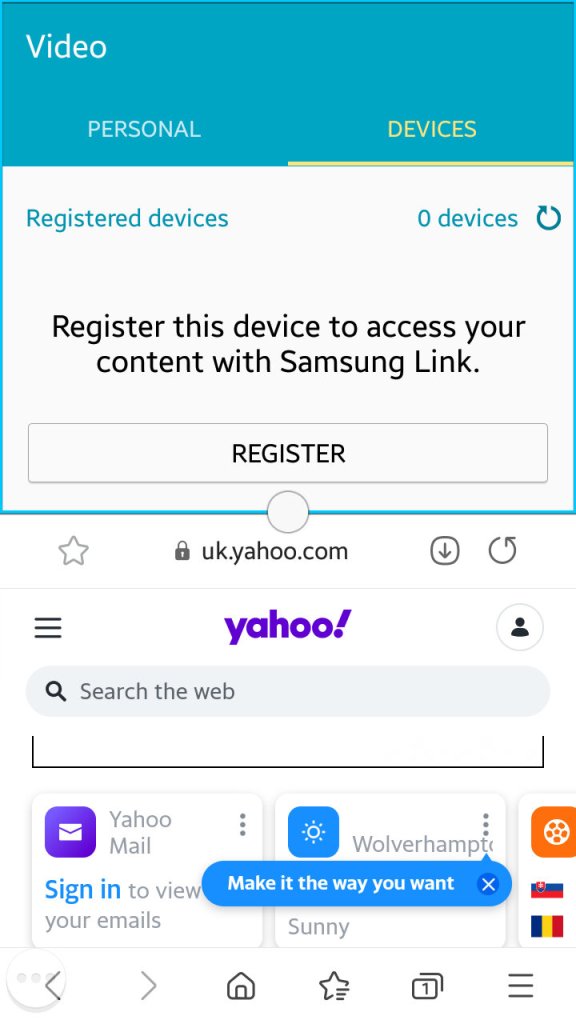
Multiwindow allows you to open multiple apps in a small window to be viewed on the same screen. Here you can split screen apps and have a Youtube video in one part of the screen whilst you browse the internet with another. Whilst handy it’s limited by the 4.7 inch screen, defiantly something that was useful on the Note series of phones.
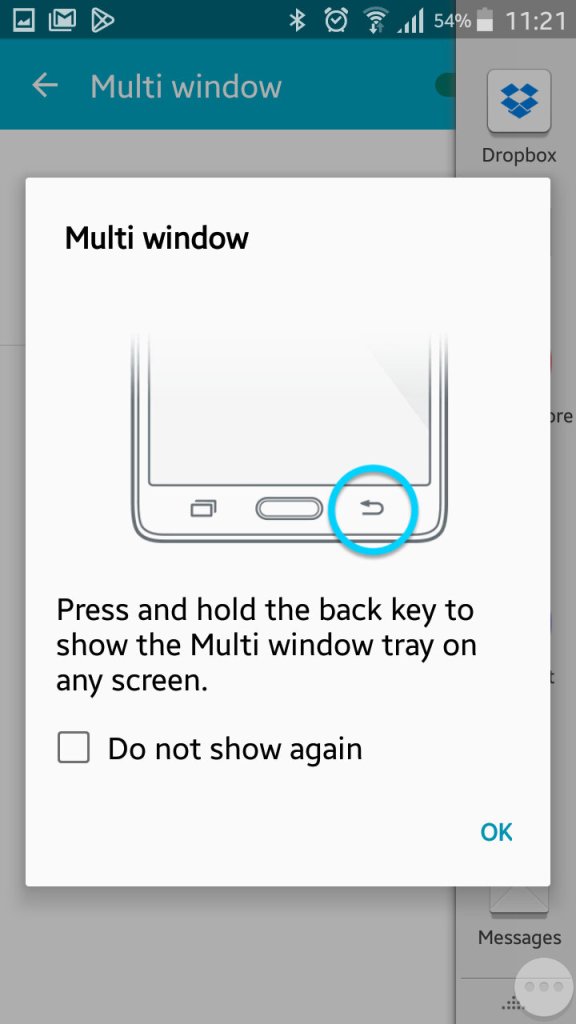
Enabling it can be down by bringing up the list of apps and tapping on the split screen icon, this can only be done with supporting apps.
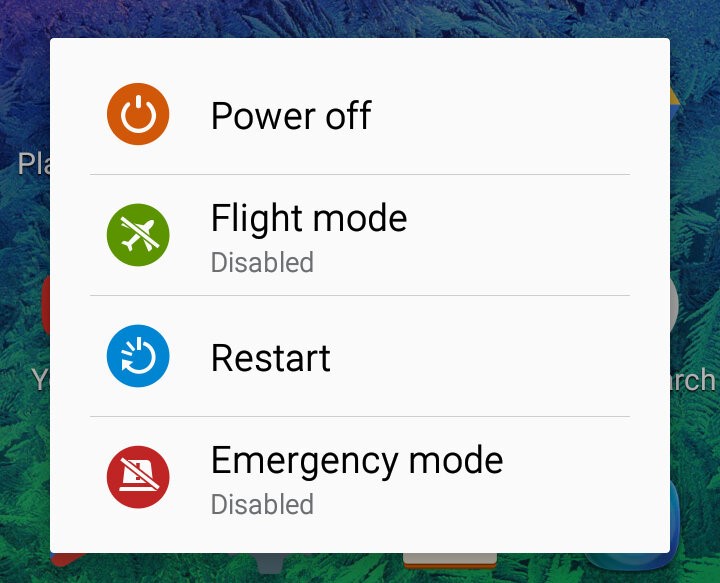
Powering off the phone
 Drew1440: Blog