Alienware’s Steam Machine
The Alienware Alpha was one of the few systems designed to be part of Valve’s Steam machines, which were computers designed for the living room to better compete with the console hardware of the time, which would have been the Xbox One, PlayStation 4 and the Wii U.
The Alpha is quite a small unit, only slightly larger than a Mac Mini and lacks an optical drive, but it packs an Nvidia GeForce 860M, capable of 1.3TF of performance which would have placed it in the same league of the Xbox One. 4GB of RAM comes with the machine, with some configurations supporting 8GB. The size and performance is underwhelming for a gaming system which makes me think Alienware intended for this to be the lower – end machine, with a larger and more powerful mode challenging the PS4 for it’s performance. With an 860M it’s mostly going to be a 720p machine.
This Alpha however lacks the bundled SteamOS, shipping with Windows 8 instead. Probably a good call from Dell/Alienware since the amount of native SteamOS games were very minor, and Steam’s Proton wasn’t a thing yet. Hardware-wise there are two USB 3.0 ports on the Rear, and two USB2.0 on the front, along with a single 2.0 port underneath which is intended for use with a wireless controller dongle. With only one HDMI output, running multiple screens isn’t possible unless you opt for a DisplayLink dock, like the Dell D3100 dock.
Restoring the Operating System
Since this unit was a second hand unit, it looks like the original owner had stripped the original install, along with the recovery partition and had install the latest version of Windows 10. Dell do offer recovery images for the Windows 10/11 systems on their website which can be download using this tool, just pop in your machines service tag along with a 16GB USB memory stick and off you go.
The recovery image Dell offer appears to be based off build 1809, and will require several updates. It also seems to lack the Nvidia drivers which kind of defeats the point of using Dell’s recovery image. The AlphaUI also isn’t included and had to be download separately off the machines drivers & downloads page. If I had to guess, Dell just provide a generic Windows 10 image for older machines, which simply gives OEM and support branding.
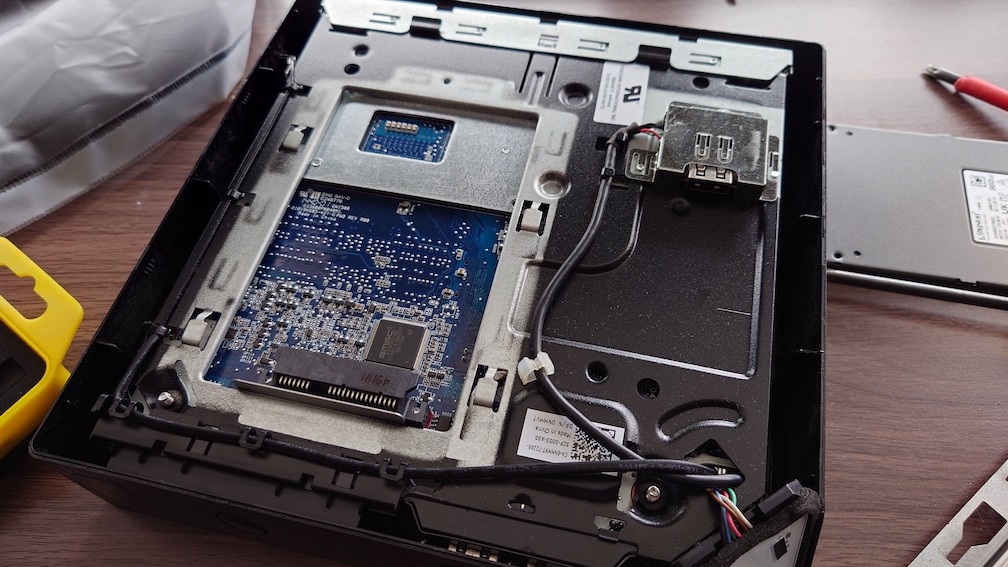
Also these machines come with a HDD as standard, which I promptly replaced with an SSD. Installation was easily, simply turn the computer upside-down and remove the bottom cover and you will see the HDD bay immediately.
Alienware Command Center
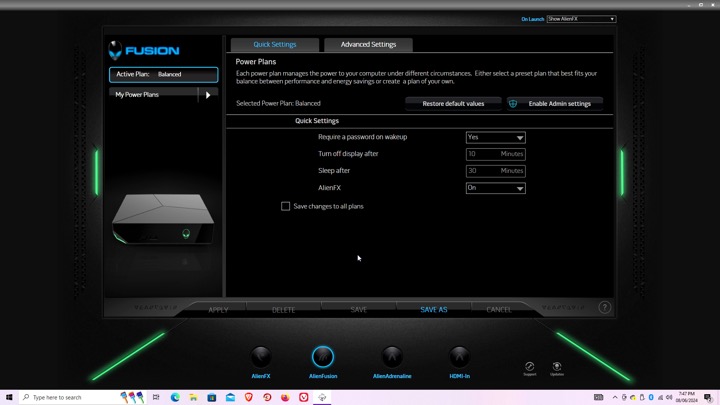
Here is where you can configure the various different settings, like the LED lightning.
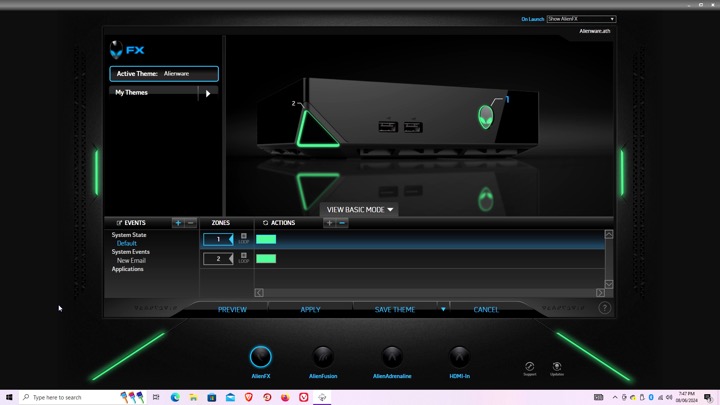
AlienFX: You can set different profiles which will change the colour scheme of the unit’s LED lights, this can be applied to different games or programs, although with Steam games you will need to navigate to the steamapps directory to locate the game’s exe file, otherwise you will get an error message. The Steam games on your desktop are just shortcuts.
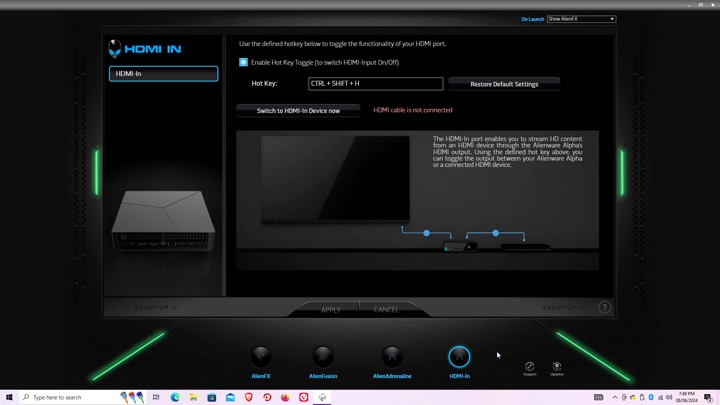
Settings for the HDMI input, there isn’t much to do there since you cannot capture the input. It simply functions as a passthrough, more suited to displays that only feature a limited amount of HDMI ports.
AlphaUI
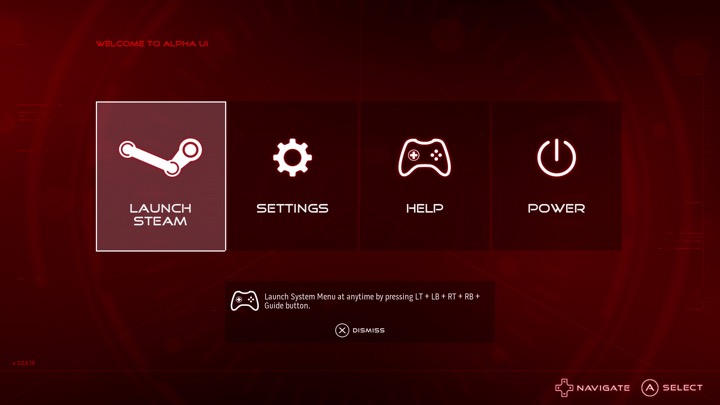
This was the intended interface for the Alpha, Alienware had originally planned to launch the Alpha as a dedicated Steam machine, sadly Valve time was a thing and the SteamOS was delayed several times. Alienware decided to cobble up a quick 10-foot UI that acts as a launcher. It’s based on XBMC and if you are familiar with it you will recognise some of the sounds when you select an option.
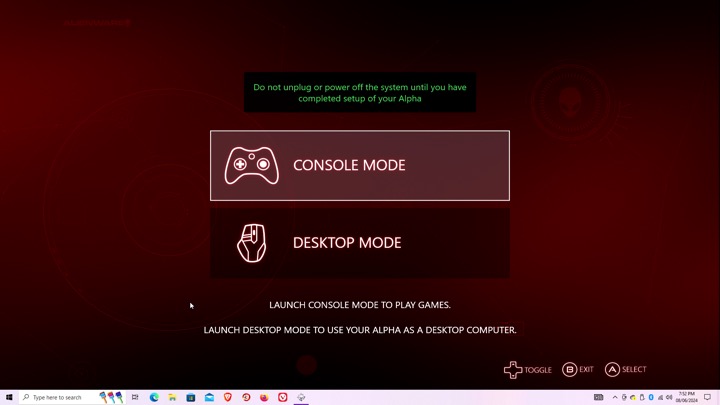
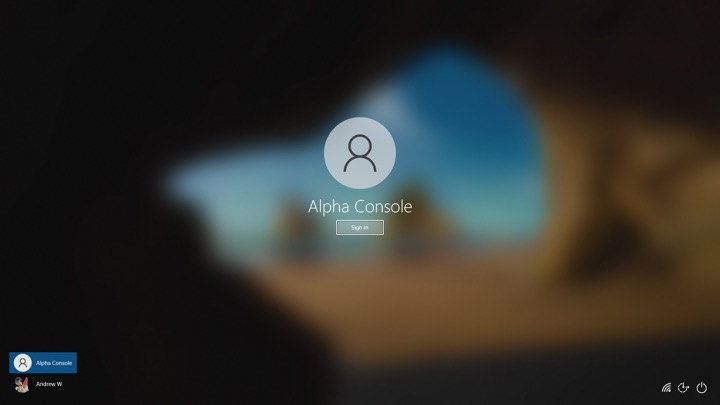
Setting up the AlphaUI, once we click on console mode we are immediately rebooted and a new user account is created. This interface is designed to be used from a controller, Alienware previously bunded an Xbox 360 controller with the system.
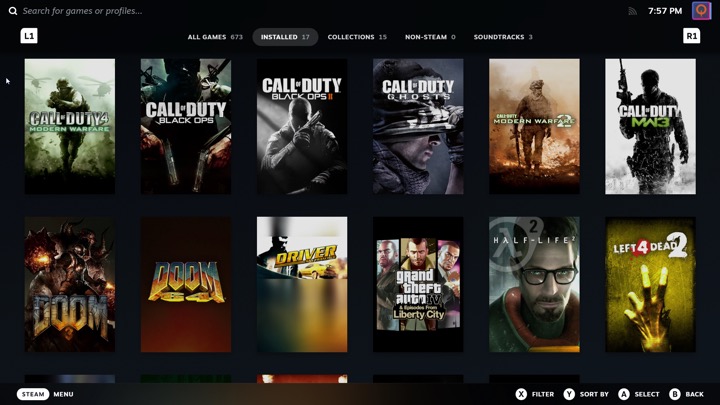
Selecting Steam will launch the Steam Big Picture interface. The Steam UI has changed since the AlphaUI was released and is orientated towards the SteamDeck, which is a little trickly to use on a non-touch screen hardware.
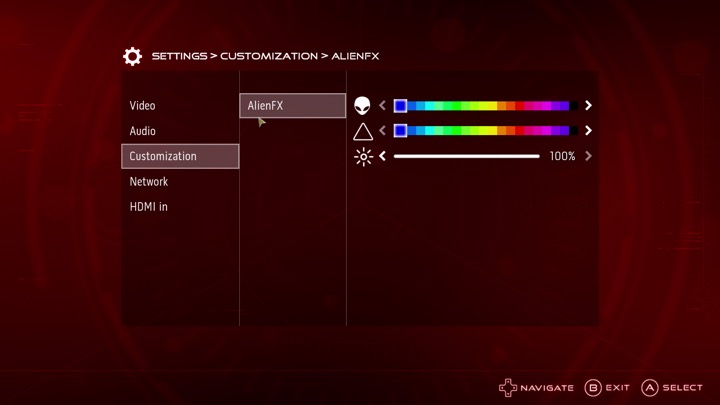
The settings menu, here you can adjust the video resolution and volume, along with customizing the AlienFX features. You can also switch into the HDMI input.
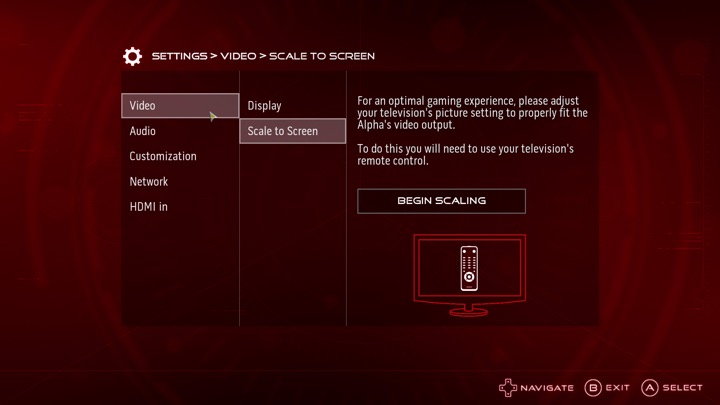
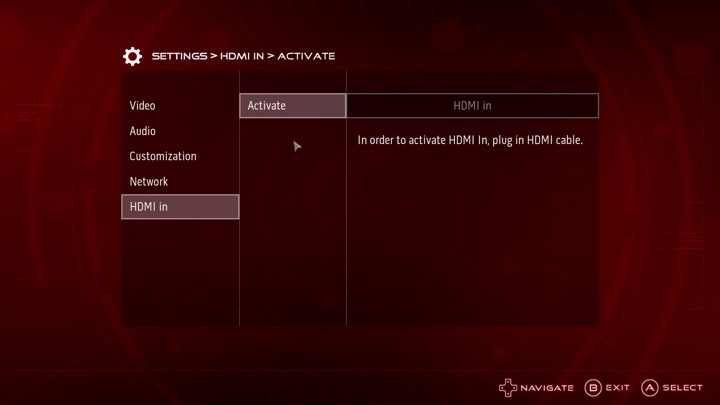
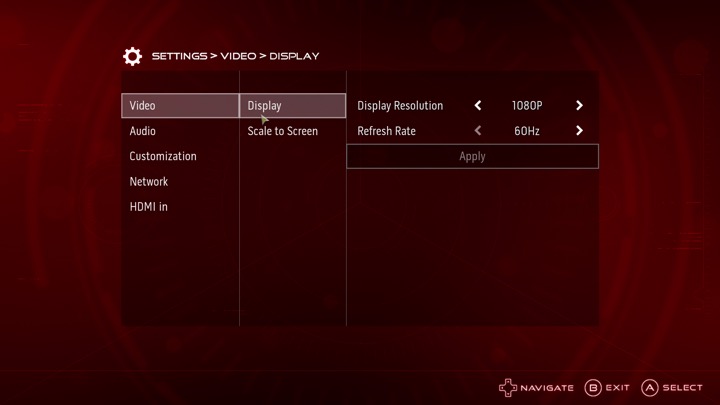
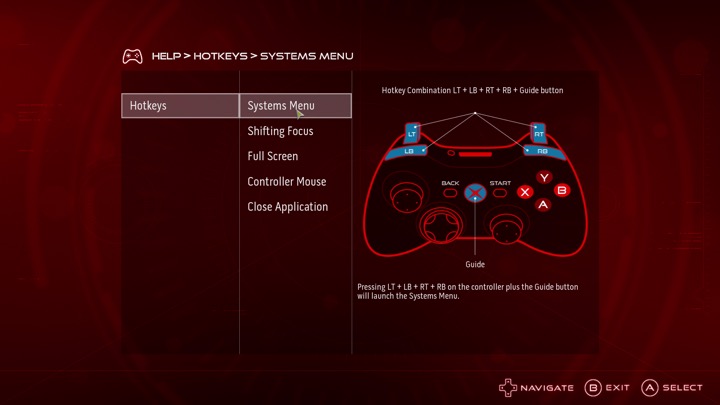
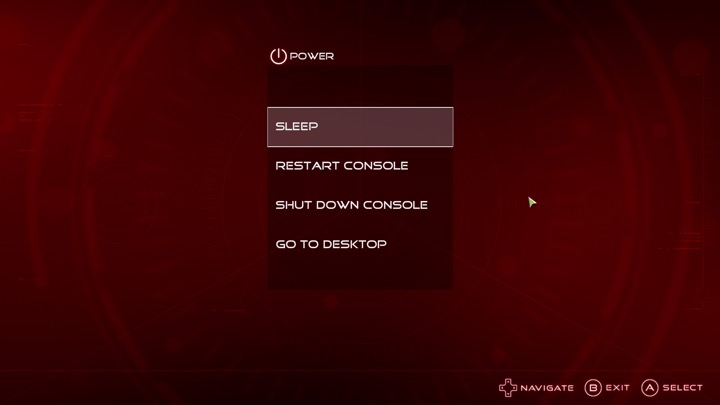
I can’t seem to find an option to add a custom program or launcher, it seems to assume you want to use Steam which makes it impossible to load something like Retroarch, unless you manually add it through Steam. It’s a bit of a letdown but not a big issue.
Lastly going to desktop will sign you out of the Alienware user account and will return you to your default Windows account.
Sadly the Alpha didn’t sell well, but was regarding as being the more popular of the Steam Machines. There was one hardware refresh that upgrades the graphics processor, and add an external PCI Express socket for an eGPU. Also the new Steam interface does not play well with just a controller, and Windows 10 can interfere with it’s silly feedback requests. Still there’s nothing stopping you from installing SteamOS and using it like a true Steam Machine.
 Drew1440: Blog