A high-end multimedia laptop released in 2010, featuring a Core i5 processor, 6-8GB of RAM, a built in Blu-Ray player and a Radeon HD 5450 graphics processor.
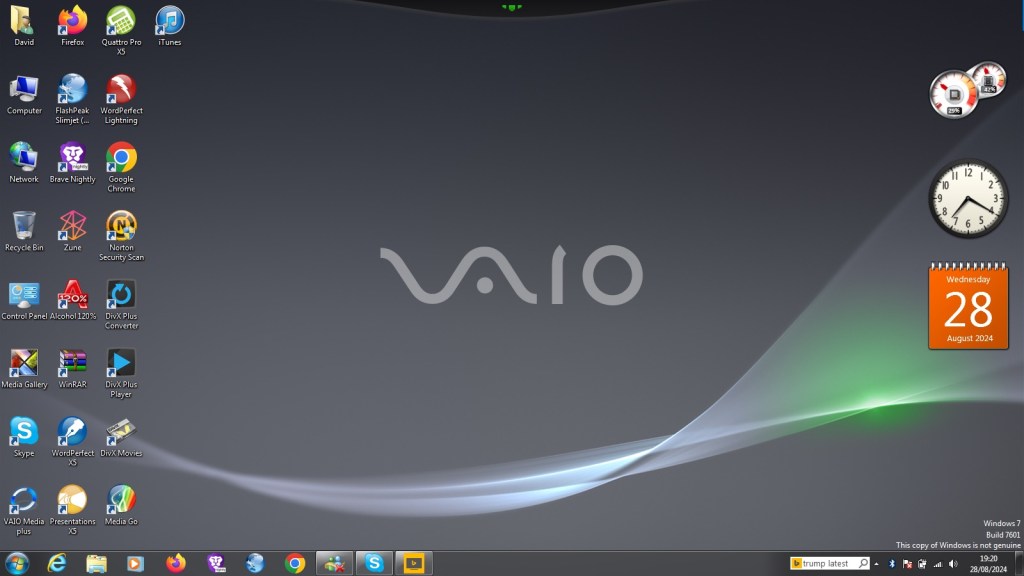
The laptop comes with Windows 7 Home Premium with some Sony software included. When I got the laptop it had a fresh install with Windows 10, but the recovery partition was broken on this model as it could not complete a restore. And even worse the laptop shipped with a 5400rpm hard drive which was slow after using SSD’s for a few years. Recovering the install was another issue, since the only recovery disc I could find online was intended for a similar model, but the recovery utility still would not co-operate due to the model number mismatch, despite the laptops having similar specifications.
A work around was to extract the recovery image and use a utility to extract the files. They are actually Windows Installer files but in a container format (.mod) which is run during the Sony restore utility. By using this method we can install the Sony itilities and drivers, making this close to an actual install. For installing Windows 7, I used a standard OEM Home Premium found online and activated it using the product key found underneath the notebook itself.
Here’s the recovery image I used/extracted
Sony VAIO Recovery Patcher – A bit time consuming to run, I found it easier to extract the mod files and run them as Windows insallers (double click to run). Some of these are redundant since they are designed for specific regions, and some just install registry keys. For more information, see the support page
VAIO Control Center
This acts as a control panel that is customised for Sony’s specific functions, here you can change settings relating to power management, Network and display options. It’s a more simplified interface of the Windows control panel.
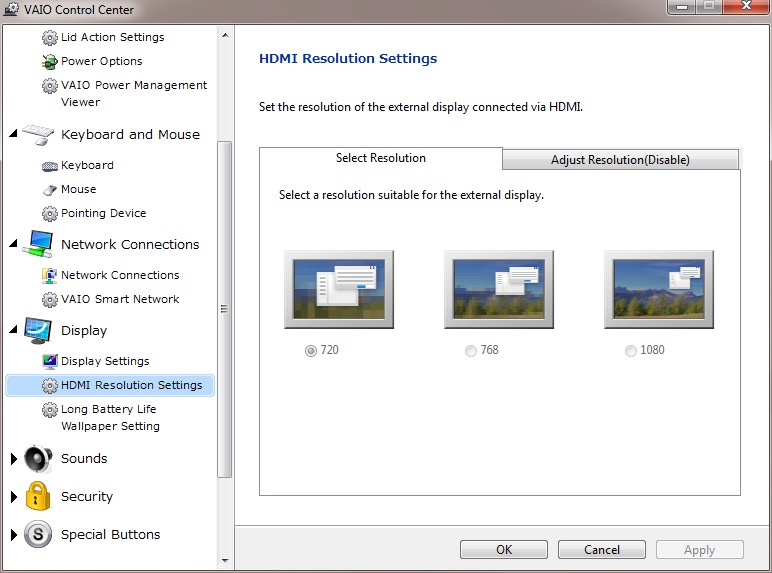
It will also display the heath of your battery (this one happens to be a GreenCell battery I got off Amazon, which shows as healthy yet struggled to hold a charge when disconnected from the AC adaptor.
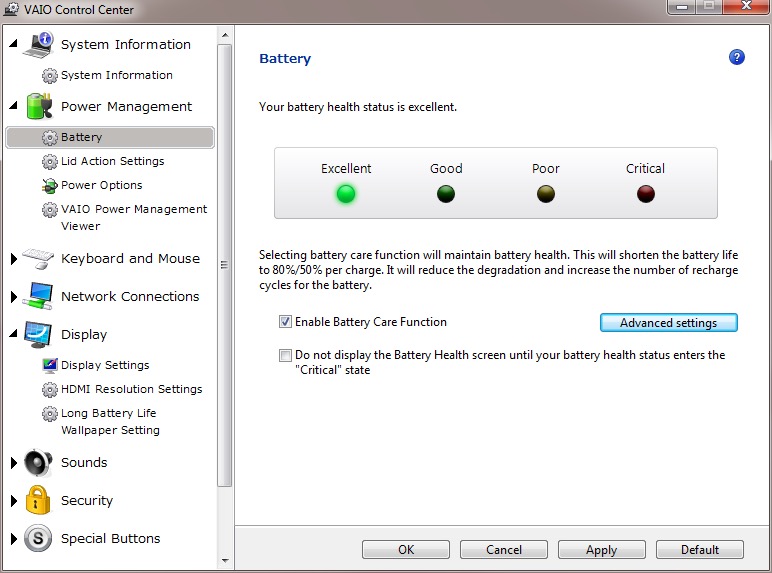
There is also a battery care function that limits the charging to 80%, which is supposed to extend the life of the battery.
VAIO Media plus
Sony’s Media Centre that lets you view photo’s video and music that is stored on your notebook in a full screen view. Possibly intended for use when you connected your VAIO to your HD TV.
There is the SenseME feature which analyses and organises your music into different modes/playlists, depending on how energetic or smoothing the song is.
VAIO Gate
This acts as a shortcut launcher that appears at the top of the screen, and has shortcuts to most preinstalled utilities. You can also pin applications here for pick access, similar to the Mac OS X dock or the Windows Quick Launch that was deprecated in Windows 7.
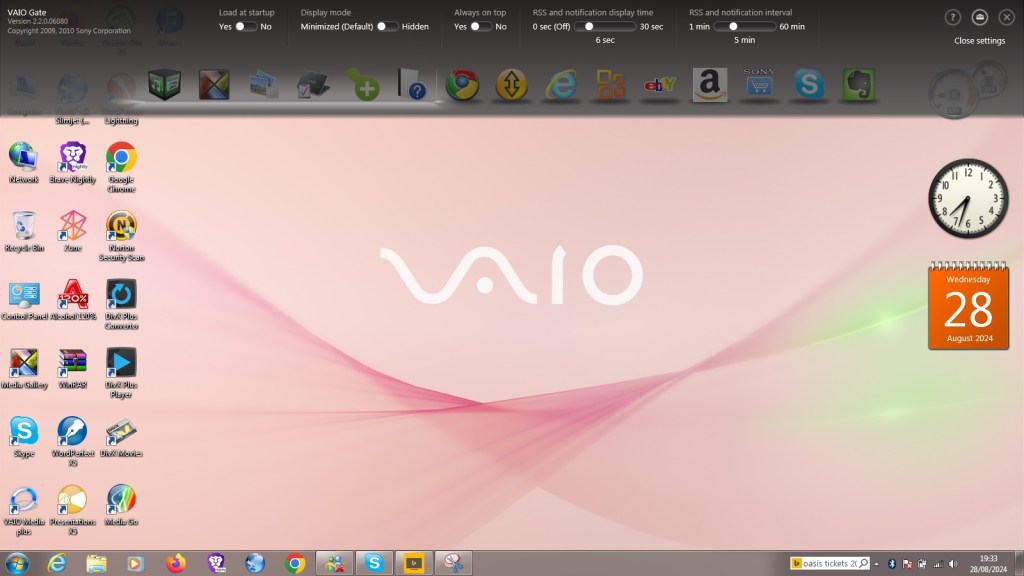
Whilst intended to be useful, its placement can be annoying, by default if you place your mouse cursor anywhere near the top of the screen it will poppet, making it difficult to use iof you’re using a browser such aa Google Chrome, or any browser that places it’s tab bar at the top of the screen, which is all of them.
At the time this was released, this design was uncommon as Firefox and Internet Explorer placing their tab bars near the bottom of the toolbar. Just above the web page itself with the applications title bear residing at the top.
PlayStation Tools
If you owned a PS3 gaming system at the time of this laptop, Sony bundled two useful utilities to use with your PS Triple.
Remote Play
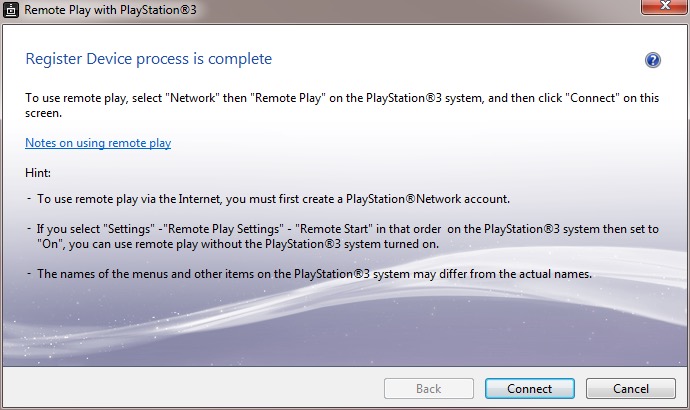
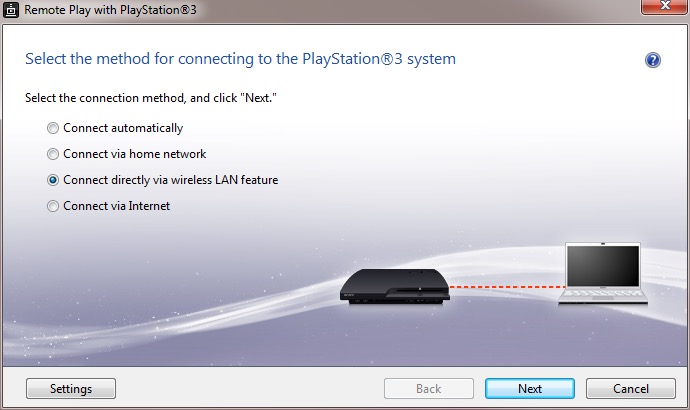
Sony bundled two utilities to allow fours with the PlayStation3, which was their current console when this computer was released. Remote Play will let you control and stream your PS3 console to your laptop.
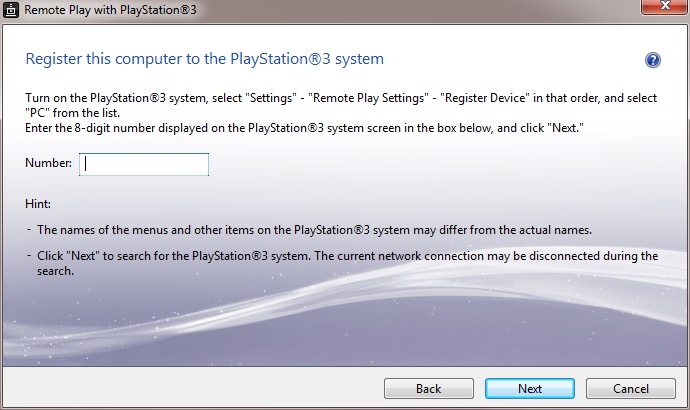
Setting it up requires pairing your PS3 to your computer by entering a code, you can then enabled and allow the PS3 to functional a WiFI hotspot to allow your remote device to turn the PS3 on. This is only for remote play use, you cannot share your internet connection this way.
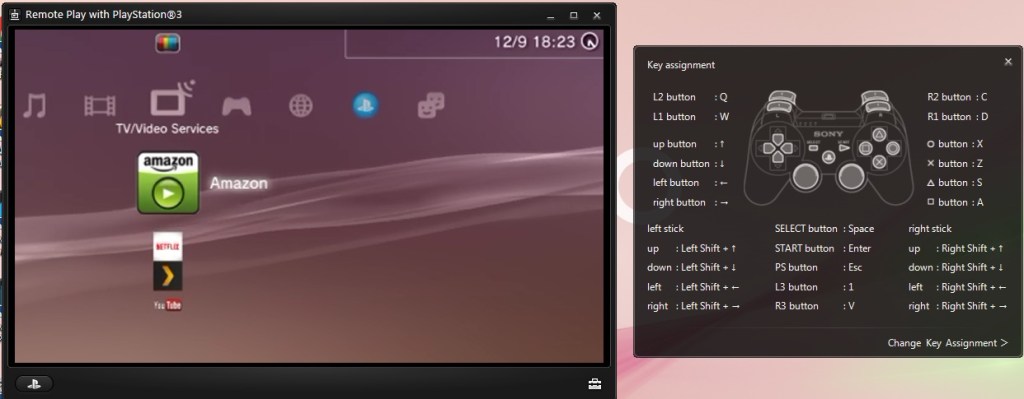
The performance leaves a lot to be desired, even when both devices are connected via ethernet, the performance is just too poor with the lag reaching to around 3-5 seconds delay to respond to a button press. This gradually gets worse as you use it.
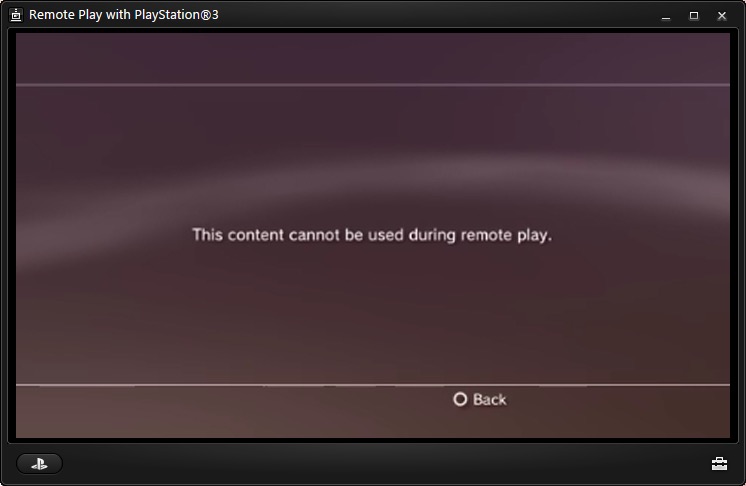
Also to play games, the PS3 game itself must support remote play since it required a certain amount of system RAM to be reserved, along with a spare SPU to encode the video. The amount of titles supported is very small, too much that I don’t have access to a game that is on the list.
PS1 games are supposed to work and a few of the digital titles do work, but you could just download an PSX emulator and play it that way instead, then you woudnt have to deal with the poor latency.
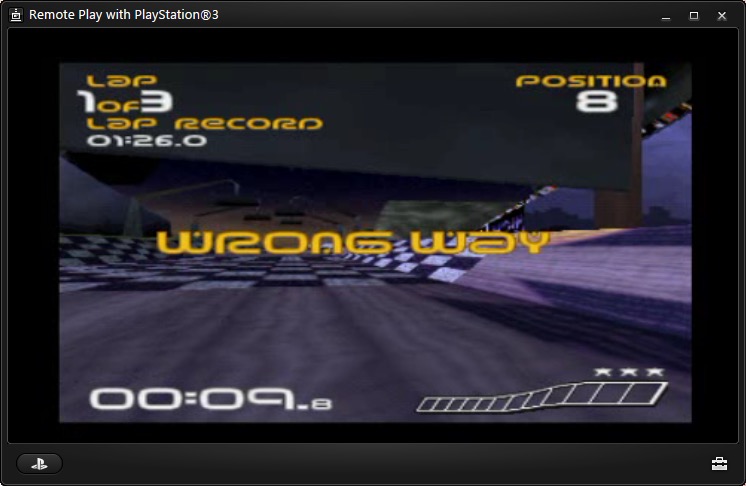
Overall it’s a waste of effort. I remember this working much better with the PSP instead.
Remote Keyboard
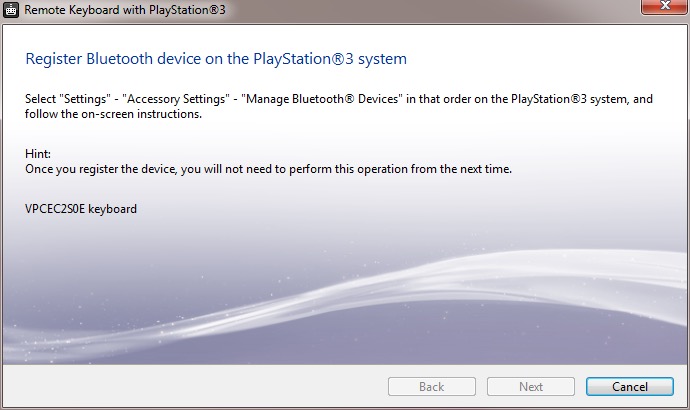
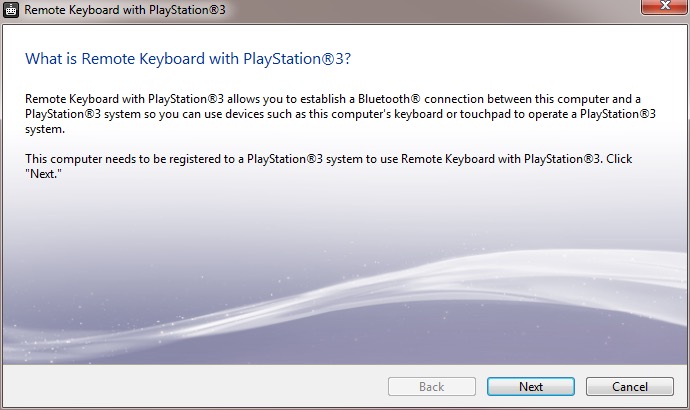
The other utility is the remote keyboard, which lets you pair the PS3 via Bluetooth to allow your VAIO’s keyboard and trackpad to functional it it were connected to the PS3. The setup will guide you on how to pair both devices and once enabled, you can fully control the XMB. This does prevent you from using the laptop whilst connected to the PS3, requiring you to disconnect it from the PS3 XMB, or by pressing Ctrl + Alt+ Backspace on the keyboard.
It useful but niche, how often are you going to be using this in games? Maybe for text entry for games that require it, but many games just don’t need this.
There are a few select titles that did support the keyboard function for gameplay, Unreal Tournament 3 was one such title (the PS2 port of Unreal Tournament also supports this) allowing me to enter a match and play using the PC traditional WASD controls.
There are issues when sending a keystroke and moving the mouse at the same time, making aiming jerky. You can also send only one keystroke at a time, making dodging or jumping difficult. Really you’re best of getting a cheap Bluetooth keyboard and mouse and just pair it directly top the PS3. Maybe at the time these were much more expensive which made it a nice addition, but I just can’t see this being useful.
The only other use for it would be to browse the PS3’s web browser, which again is pointless since the laptop’s browser will be a much better experience.
Upgrade Options
This is one of the few laptops that supports upto two internal SATA drives through the use of an aftermarket adapter which allows you to connect two SATA drives which would have been ideal to add an SSD as a extra SATA drive. These are very difficult to find now, so I had to replace the internal HDD with the SSD instead and leave the second bay empty.
Still the laptop also features an eSATA connector which you can use to attach an external eSATA hard drive or optical drive. eSATA hard drive enclosure’s are difficult to find, but the Dell external optical drives are easily available for eBay.
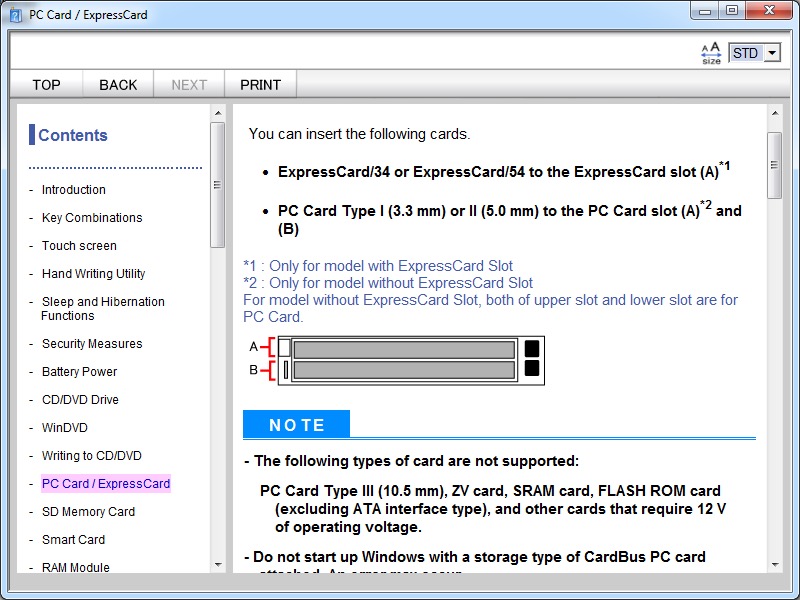
There is also an ExpressCard connector, which allows for an expansion card to be inserted. A USB 3.0 card can be inserted, or alternatively a Firewire 800 card can be installed instead. The power supply is limited over Expresscard, so for high power devices you will need a power adaptor that supplied an additional 5V or a powered USB 3.0 hub.












 Drew1440: Blog