Tag Archives: Windows Vista

eMachines eTower (Part 2)

There’s quite a few OEM customizations included here, so I’m curious what gets transferred over and if anything breaks. The original system came with Windows ME which was built on the 9x/Hybrid DOS kernel.

Original Post

Windows XP

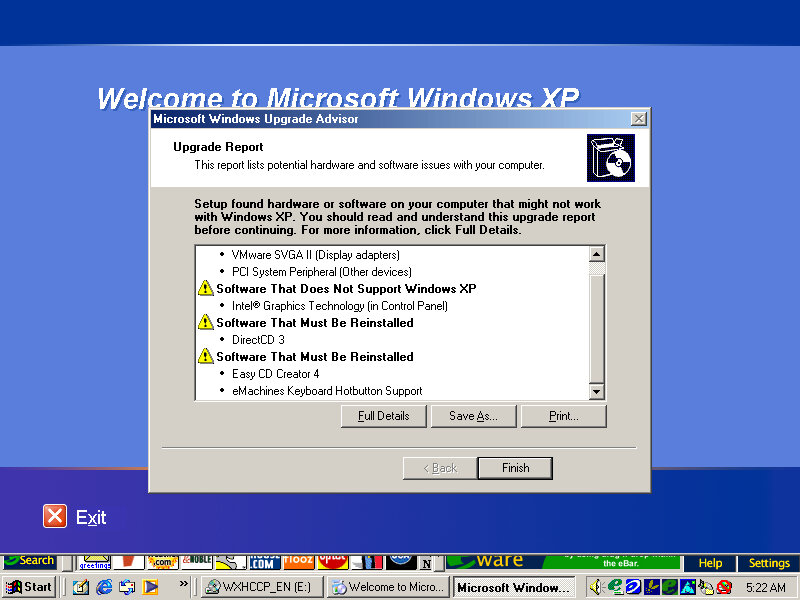
Since we are going from a 9x to NT-based install, changes are going to be drastic with new device drivers requiring to be installed. Before installing, Windows does a compatibility check for existing applications and drivers and will alert if any are found to have issues or require updates. This only alerts if Windows finds a known issue with the program based on Microsoft’s testing, some lesser-known applications might not have been tested.

The install appears to have started, but after a few seconds the screen went blank and the VM was unresponsive. Rebooted and was greeted with an option to start Windows or cancel XP Setup.
Booting into Windows ME instead boots directly into the XP Setup, which appears a little darker than usual

Not sure why it’s prompting to create a password, never seen that before
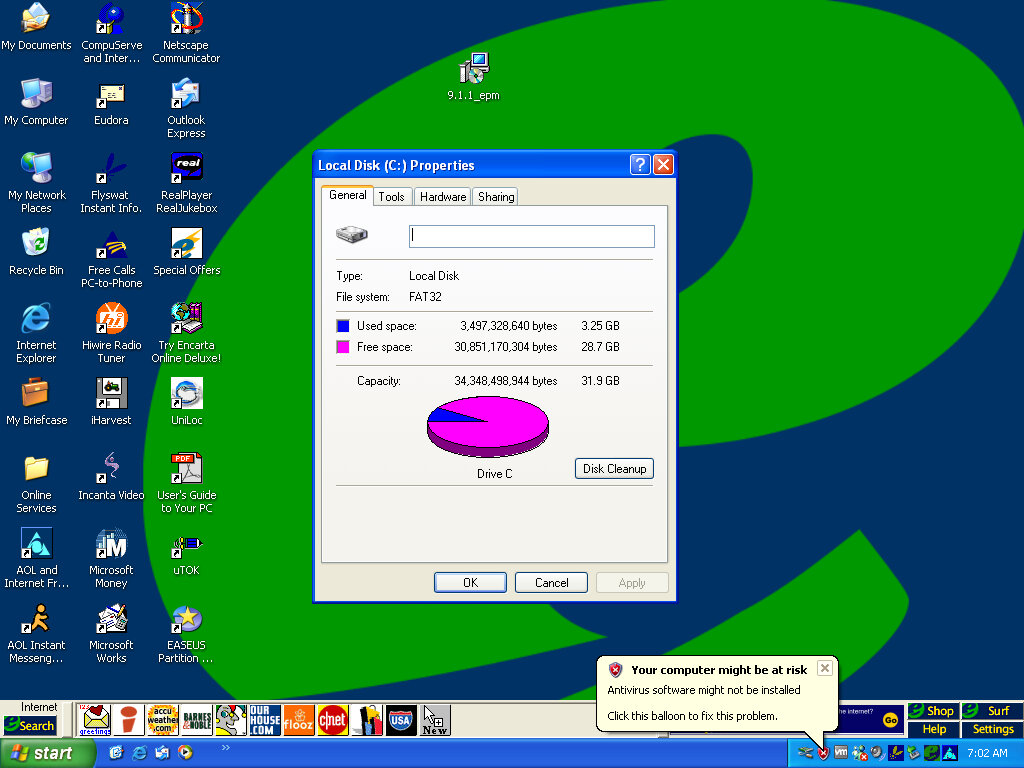
The default desktop post-upgrade, along with the eWare banner above the taskbar

Adaptec CreateCD requires an upgrade before it can function. Interestingly is this is generated by Windows XP. RealJukebox works but failed to load the previous files since the documents directly have changed from Windows ME. What’s strange is the music files have been renamed?

Windows Vista

And we hit the wall, since the drive is formatted as FAT32 from the ME install, we cannot install Vista without reformatting the hard disk. We also have to convert FAT32 to NTFS
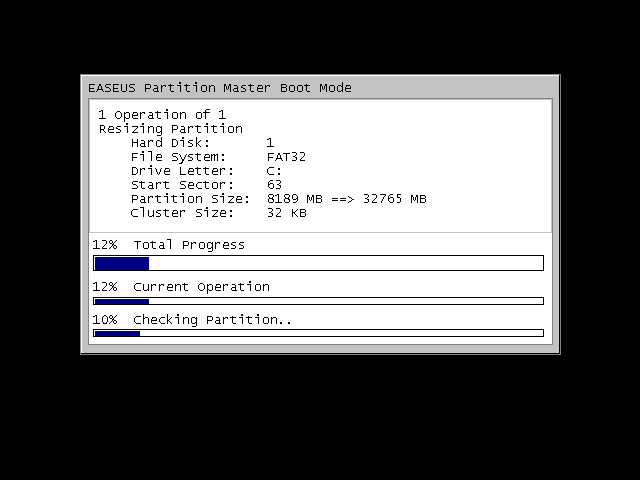
There were a few obstacles, first we had to expand the VMWare disk, as it was set to 8GB by default. Once expanded we had to extend the partition which wasn’t possible in XP’s disk management utility, so I had to use an old version of EASEUS Partition manager to extend the partition.

We can also use EASEUS to convert the disk to NTFS, so we can finally install Vista, and hopefully Windows 7. Before conversion, a quick disk check is done.

Some issues were found but some of these are part of the VM and might not apply to the actual machine, either way it lets us continue

The Flyswat toolbar appears to be broken, and we are missing some buttons on the eWare taskbar
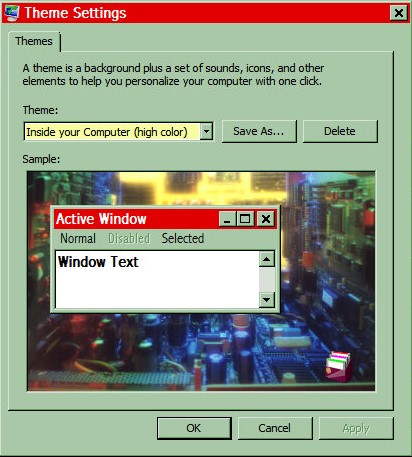
Some of the Windows 98 themes still remain and surprisingly they work. Color schemes, sounds and screensavers.

Adaptec CreateCD has now stopped working completely and will not launch, instead displaying the above dialog box. Later versions of Windows usually keep a database of incompatible programs, including ones that require patches to work.

Windows 7

Install was a lot easier since most of the prep work was done for Vista

Application compatibility is the same as Windows Vista, Meanwhile the icons on the eWare toolbar have started to function gain. It’s rare that you will be able to install this on the actual machines without extensive upgrades, and I’d imagine the eWare links would also long be dead at this point. Also the eWare toolbar sticks out like a sore thumb when combined with the Windows 7 taskbar.

Windows Longhorn (Milestone 7 – Build 7074)

It’s no secret that Microsoft’s Windows Vista went through a troubled development cycle. Much of the features introduced in Vista were a reaction to Mac OS X Panther and Tiger. This is similar to what Apple went through when it developed the Copland operating system where feature creep took priority over stability and many new features would be added but were then left unrefined as the development team continued to implement more features.

Build 7074 pictured here is considered to be one of the more stable build prior to the reset, yet suffers from occasional explorer memory leaks that can impact the overall performance.

The setup utility looks very different compared to the XP and final Vista interface.

All Done

Now for the ritual of installing the drivers. I did run into an issue with the virtual box drivers initially not installing, this was fixed by running the VM addons setup applications in compatibility mode for Windows XP.

After a quick reboot and we have full graphics acceleration. The first thing you will notice is the side bar to the right, which houses the gadgets, clock, quick launch and the tray icons. These were previously on the task bar itself, freeing it for the running applications.

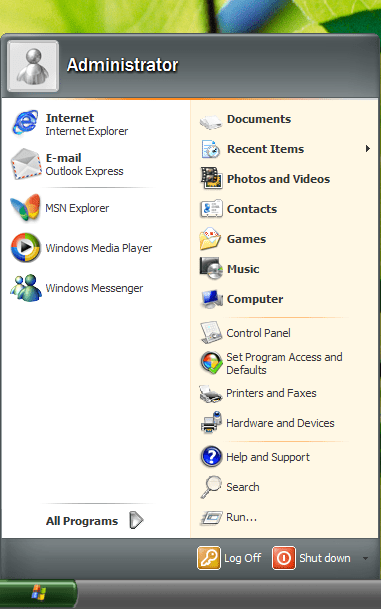
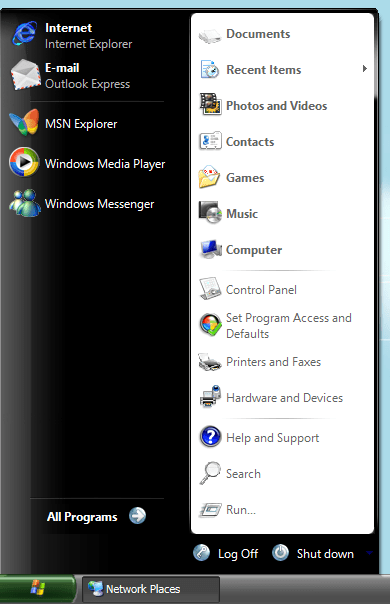
The start menu meanwhile remains unchanged from Windows XP aside from a new colour scheme

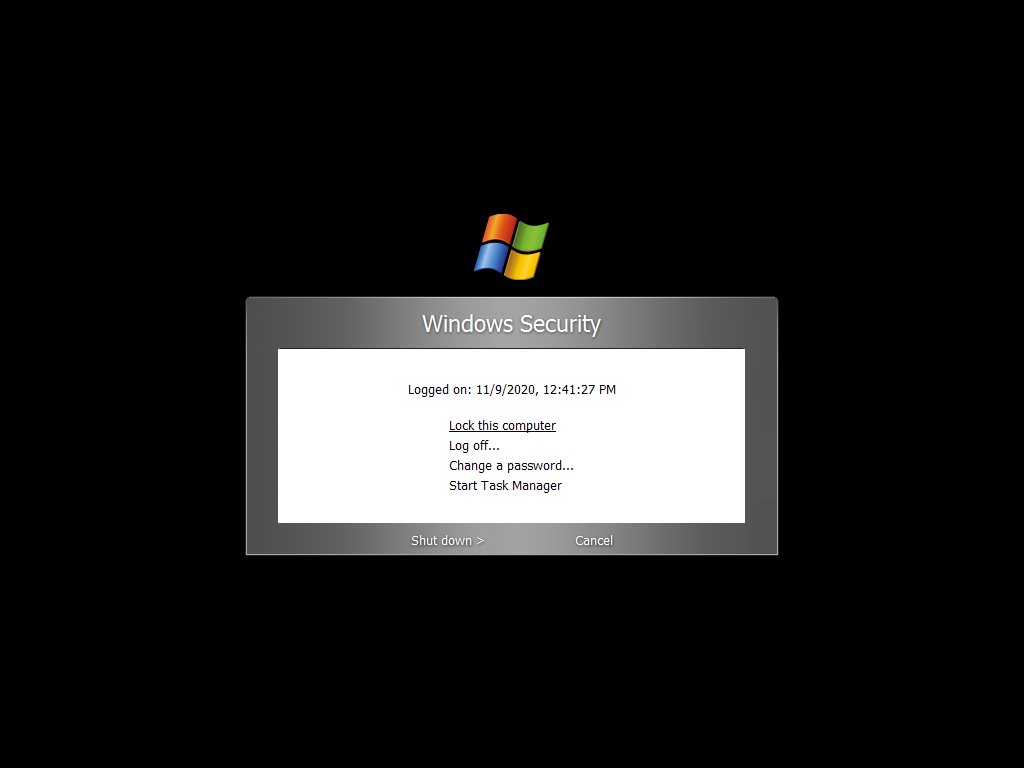
Pressing Ctrl+Alt+Del yields a new Windows Security Prompt screen, from here Task Manager can be invoked.

One of the many glitches that can happen in thus build, a quick reboot fixes it.

Windows Explorer has undergone a significant face lift, building on the change introduced in Windows XP, more information is shown in relation to the drive status, earlier access to common document shortcuts. While the new appearance is a welcome change, the waste in screen real estate is not, especially the blue area near the top of the screen. Storage favourites lets you bookmark folders in Windows explorer, similar to how bookmarks function in a web browser.

The new games area

I wonder if there are any updates for this build?

One of the main attractions of Longhorn was a redefined search facility, however in this build it still functions the same as how the XP search facility operated. Indexed search would not appear until after the Longhorn reset. Also no search assistant :/

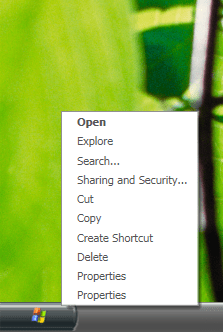
Two Properties? One is for the start menu older properties and the other for the task bar settings.

Longhorn comes with several visual styles, Slate (currently set) and Jade

Jade version of the Start menu

Outlook Express has had a redesign

A new feature added was the hardware and Devices sections that lists all devices installed in the system, a more graphical version of device manager.

System Properties

Internet Explorer in action, I’m surprised the Windows Update page still works, although this seems to be for the final Windows Vista version

You can change how the operating system delivers notifications, presumably form the tray icons

Installing The Sims…

Whilst it works OK most of the time, running it in windowed mode and panning the camera can yield some interesting graphics glitches, thankfully they go away when you release the right mouse button.

Nice feature, you can change the starup programs without having to use MSCONFIG

Not sure I like the file details being in an explorer window, certainly not an efficient use of space

Sample of a crashed program in Windows Longhorn

Sadly GTA3 refused to install on this build, despite using compatibility mode.

Not sure what fast items are, the replacement for quick launch?

Also the side bar can be resized,

Shutting down Longhorn

Overall this is considered to be the last stable built of Longhorn pre-reset, as the next few builds would become incredibility bug ridden. The sidebar is also an unusual concept that may be seen as a distraction. Thankfully it can be set to auto hide. However a common theme is that a lot of windows have a lot of vacant space (see the top blue area of My Computer) which take up a lot of screen estate, and the UI buttons (search) in explorer are also quite large with no option to resize them. This becomes an issue when running this build on systems with a low resolution display, since it is easy for the screen to become cluttered, especially since low end laptops, ultra mobile PC’s and netbooks started to become popular towards the end of the XP era.