Tag Archives: Windows XP

An S3 Mirage3 Experience (Dell Optiplex 160)

SiS are not a huge name in the GPU market, thats largely dominated by Nvidia and AMD. But they were once one of the more popular choices for entry level 3D graphics cards when the 3D accelerator market was in it’s infancy. When I saw one that had been featured in a Dell Thin client PC, I was curious to see its performace. The system itself (A Dell Optiplex 160) isnt intended for high performace computing, it features a first generation Intel Atom processor running at 1.6Ghz. It’s more of a thin client, or a net top PC, a simple PC design for basic tasks with much less power consumption than a typical desktop PC.

From looking at the specifications, its clear this GPU will struggle against its rivals, with the GMA3100 and Radeon HD2000 being the main competition, along with the low end GeForce series (7100 for example). From what I’ve found online, it lacks hardware T&L support which is hard to believe for a GPU released in 2007. Nvidia released their first T&L GPU with the original GeForce in 1999, with AMD (Then ATI) following suit with the Radeon in 2000. Intel would eventually release their own T&L capable card much later.

What is T&L? Well it stands for Transform and Lighting and means the GPU is capable of generating its own geometry such as polygons and is able to apply effect independent of the CPU. When 3D first hit the market back around 1994, many 3D graphics cards were known as 3D accelerators, with their main purpose being able to offload certain rendering tasks off the CPU, freeing the CPU of the burden and leaving more time and cycles to perform other tasks. How much was offloaded depending on the accelerators capabliles, a lot of the first generation only did texture wrapping and shading. Since they were reliant on the CPU to generate the geometry, it meant the CPU could become a bottleneck if it couldn’t render polygons fast enough for the card.

That’s kind of what we are dealing with the Mirage, since its going to be reliant on the Atom CPU to handle some of the geometry rending. It’ is a dual core model’s a single core dual threaded model, though i’m uncertain how well the micro-arictecture is with geometry calculations. Intel Atom’s typically have their own processor design that is independent from the Pentium 4 (Netburst) and Intel’s Core that was used in the Intel Core 2 duo series.

Still, knowing this, we can kind of guess which  generation of games will best work with the machine, already we know it on the same feature level as the Nvidia TNT and the Ati Rage series of graphics processers, but does benefit from additional rendering features SiS might have added. We also will struggle to run games from when this machines was first released 2008.

GHG (Greenham Gaming) did a feature on this system, running what appears to be Windows 7 and concluded it was an epic fail when it game to gaming. A few older titles worked, but even then some had rendering issues. I’m not sure how much was apparent to running Windows 7, but I was curious to see what performance would have been like for Windows XP, which tends to be the go to choice for running retro games, at least for its broad compatibility across hardware.

For this, keeping in line with the machines embedded roots, I decided to use Windows Embedded POSReady 2009, which was a more upto date version of Windows XP SP3 designed for embedded use like sales kiosk’s (hence the name POS – Point of Sale, what else did you think it stood for?). However its still mostly a full fledged version for Windows XP, and even features an up to date installer that can detect SATA drives that this machine uses (still needs to be in IDE mode, AHCI is not supported).

Missing ksuser.dll? (Windows POSReady 2009)

Post install, there were a couple of issues. Most of the drivers provided by Dell did install, except for the sound driver. When installing, it would complain about missing ksuser.dll file and the installer couldn’t continue without this file. Searching inline pointed to the issue with DirectX, but POSReady does come with DirectX 9.0c already installed, and installing the updated runtime from Microsoft’s website didn’t work.

What did work was to install Windows Media Player, which wasn’t installed by default. You can easily install this by popping over to the Control Panel, opening Add/Remove programs, then click Add/Remove Windows Components and select Windows Media at the bottom to install it. Version 11 will then be installed. You could also select this option when installing the OS, but I left it at the typical settings, which appear to not install Windows Media Player. Makes sense I guess, since this is intended for checkouts and cashpoints which might not require sound (unless for disability purposes)

S3 Utilities

They’re pretty basic, you can adjust settings for the gamma and screen rotation, but very little can be changed for the 3D. The system does support dual monitors, but will always identify a VGA monitor as a CRT, regardless if it’s a flat panel.

Here we are using driver version 6.14.0010, which is the latest from Dell’s website. By dedefault, 28MB of memory is allocated to the graphics, which can be adjusted in the systems BIOS, upto 256MB to 32MB at the lowest. It seems to pass the Direct3D rending testes, upto version 9

Games

Here I have mostly tested a few Direct3D 6 & 7 class games:
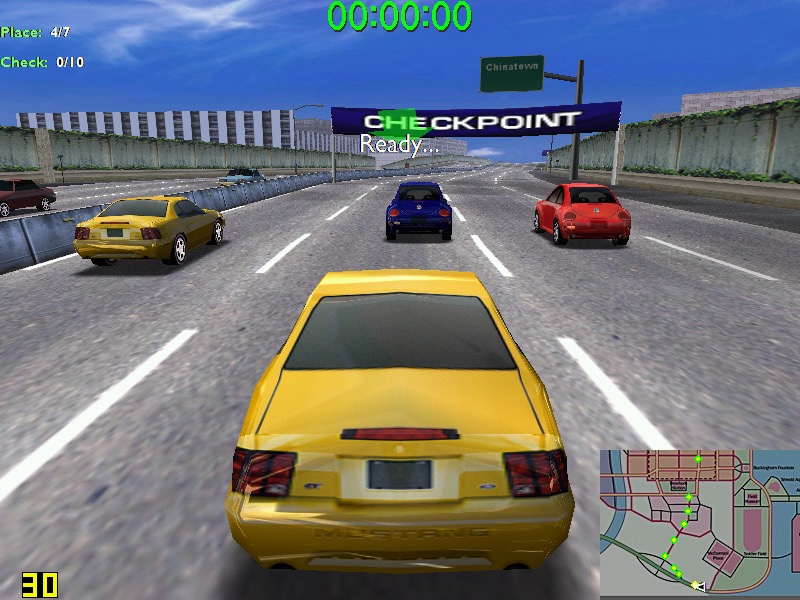
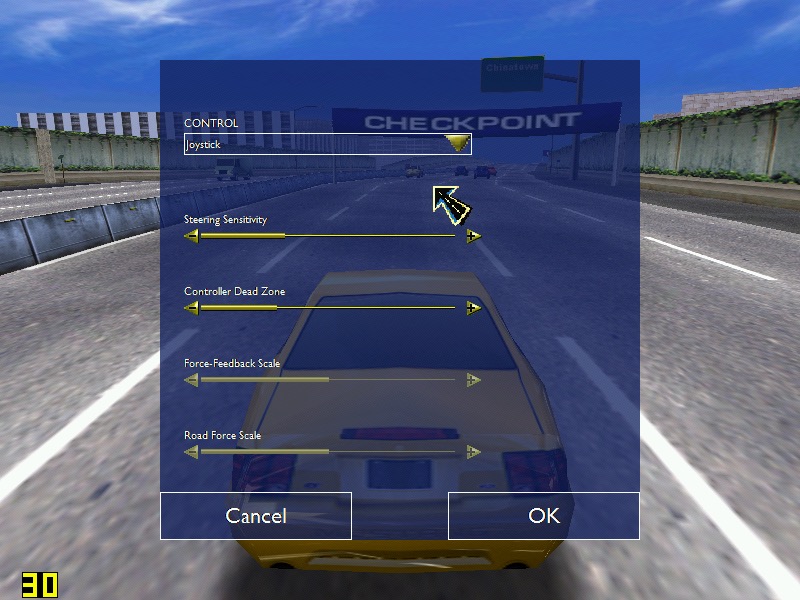
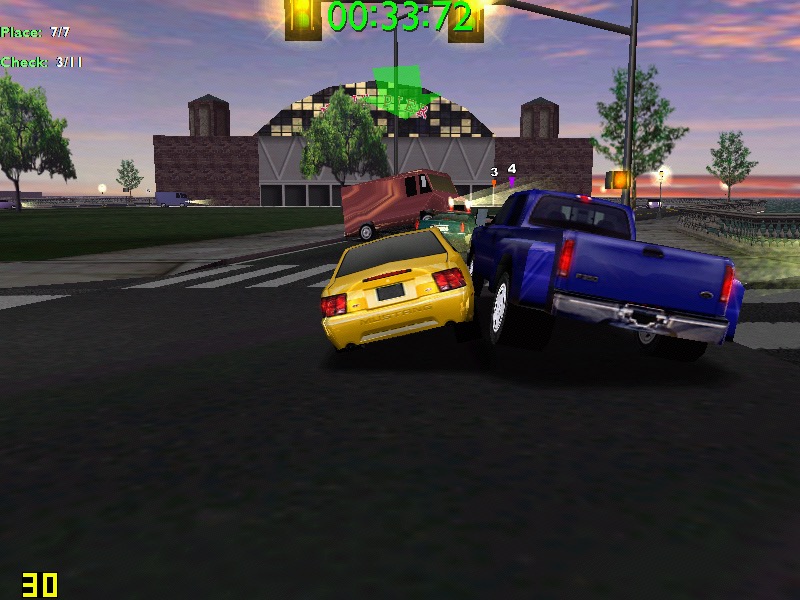
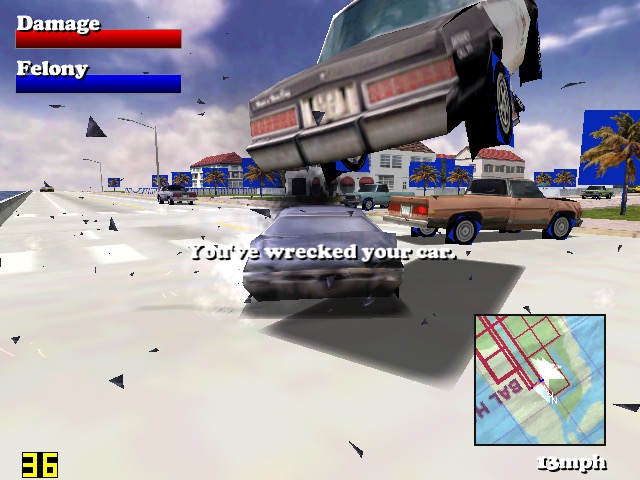
Midtown Madness – Hits 30 fps on high settings – 800×600, but can suffer to 22 when there are a lot of cars on screens. In underground tunnels we can get upto 44fps. No rendering or texture issues from what I can see.
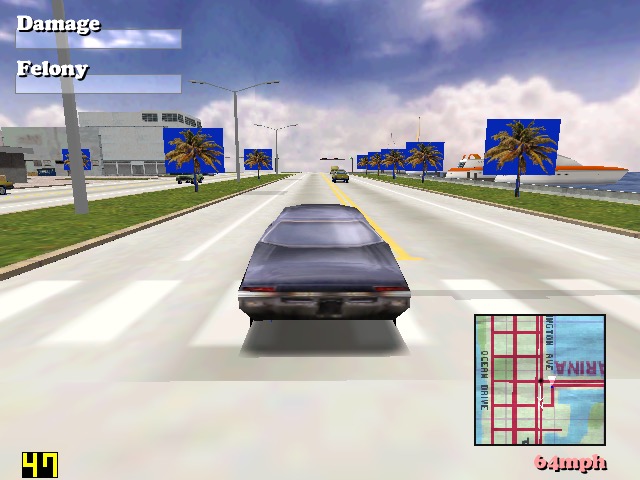
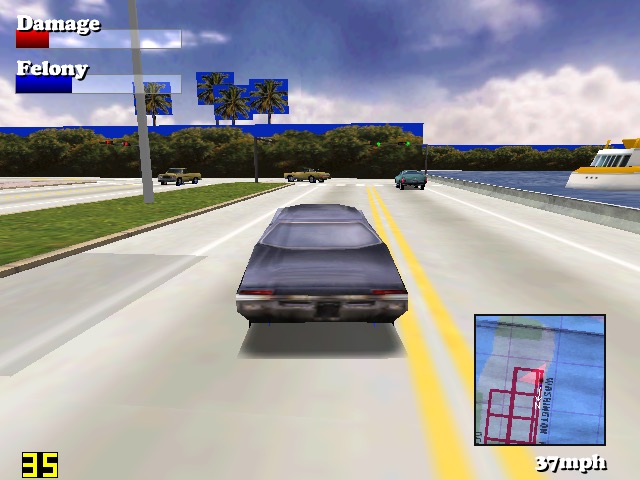
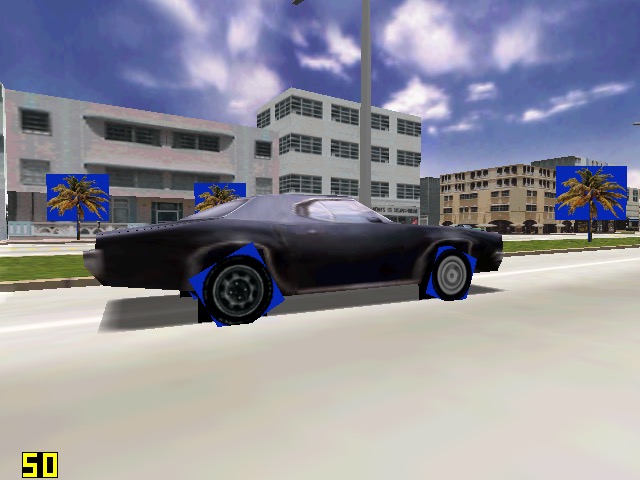
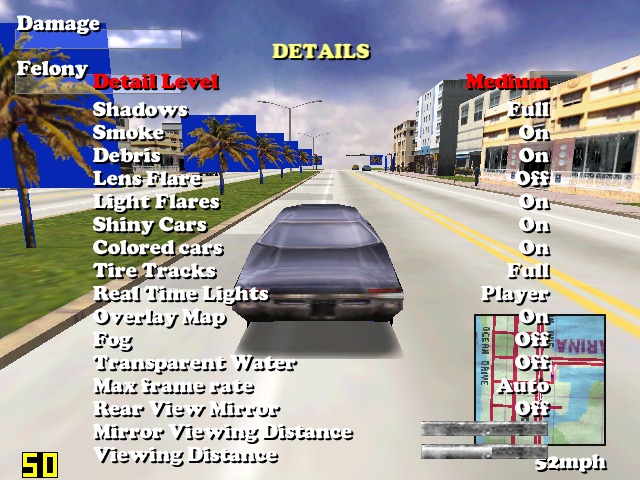
Driver: We started to see struggles in this one. When running at 640×480, we can see blue squares around the trees, and on the edges of the car wheels, suggesting there is an issues with the transparency for certain textures. Playing at 800×600 result in partially missing graphics like the car wheels and some of the building. A shame because we got a semi-decent frame rate on medium settings.
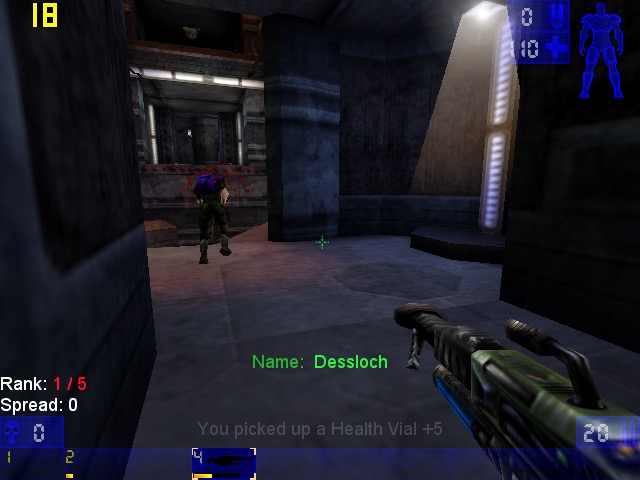
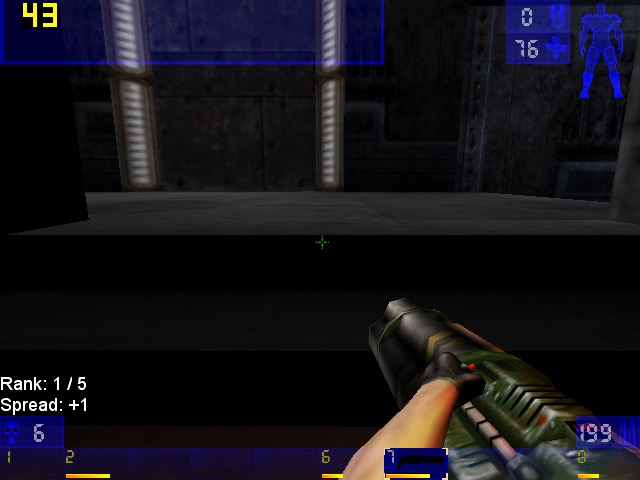
Unreal Tournament: Framerate struggles in some of the more busy areas of the maps, framerate seems to hover round 20-30fps, with 22fps being common in more open areas. The opening sequence did dip to 14FPS during the skyscraper sequence. Using an updated Direct 3D9 render helps out massively, with it nearly reaching 60fps in certain parts of the map. Patches can be found here

Sega Touring Car Championship: Runs very well at 640×480

Monster Truck Madness 2: This crashed the graphics driver when selecting 3D acceleration, by default it opted for software rendering. I had some luck choosing the image quality to ‘normal’. Unfortunately it didn’t play well with Fraps, and would lock the system up when trying to run both, sometimes resulting in a BSOD. On its own however, its mostly stable.
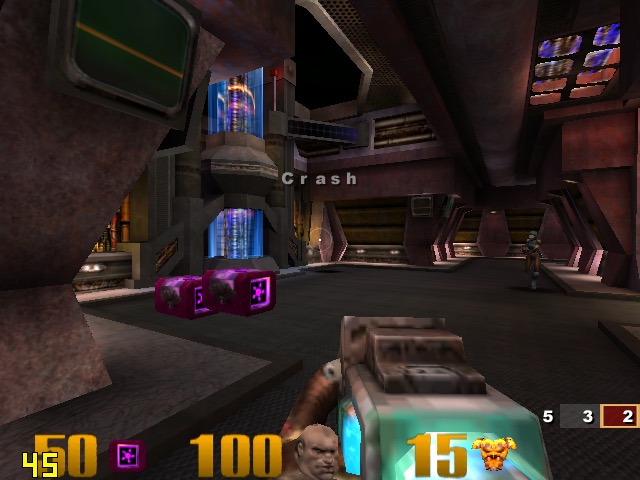
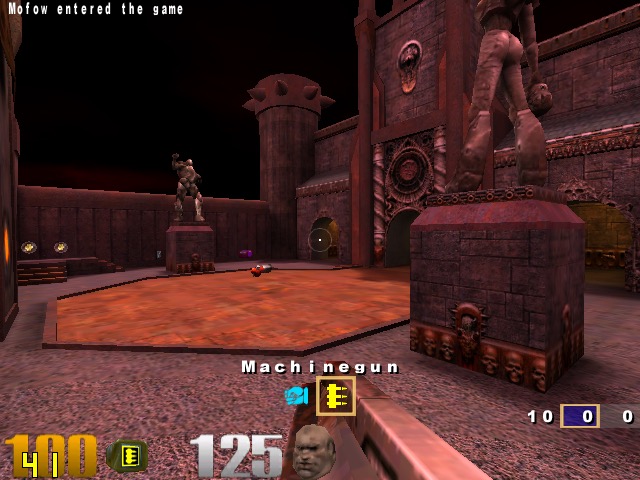
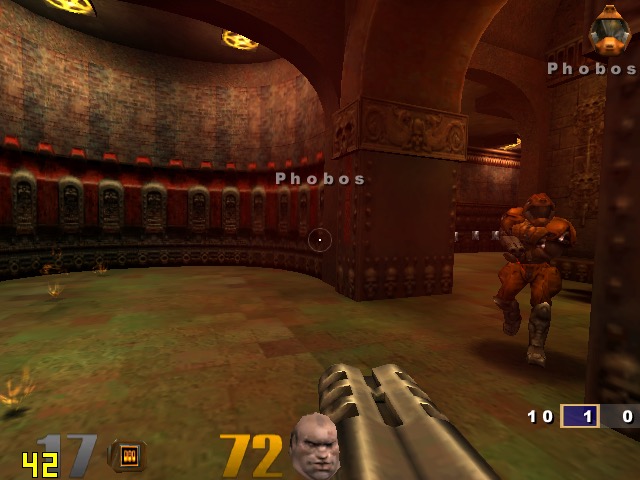
Quake 3: Here we can work off average of 50fps, with the game only slowing down when there is too much action on the screen. One of the few native OpenGL games.
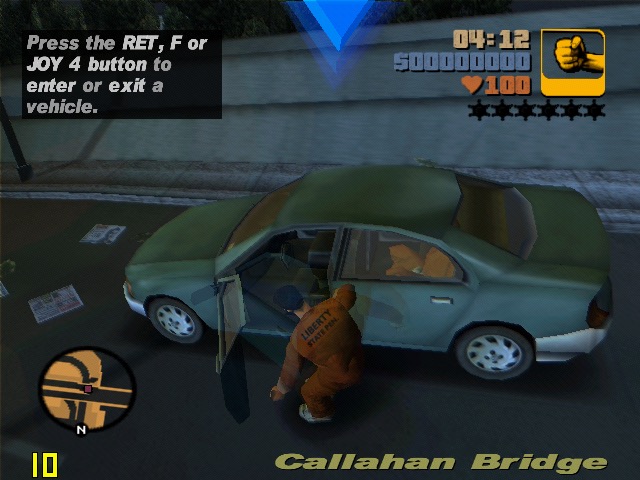
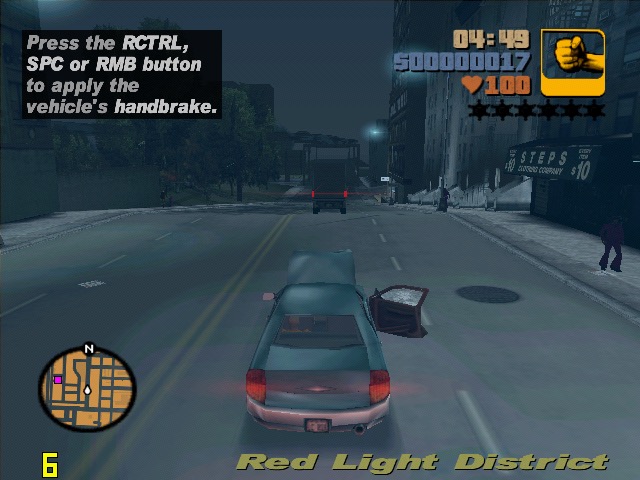
GTA III: On default settings at 640×480 we are treated to a slideshow of 8fps for the opening mission, dropping even lower once we are in control. Turning off the trails and reducing the draw distance did little to help unfortunately. Yup this is unplayable.

The Operative: No One Lives Forever, On standard configuration at 640×480, we have an average framerate of around 12fps during the opening sequence outside, inside the building it does go up to around 25 but we still get a few dips. Once we get into gameplay it’s a different story, only managing 3fps for the training section. Dropping the graphics settings to ‘Best Performance’ only gives up a marginal improvement of 8fps. If you point the camera down to the flow when moving you can get reasonable performance but not what I would regard as playable.

Alcatraz Prison Escape: This was also unplayable, managing only 1fps for the opening sequence. The game only runs at either 800×600 or 1024×768, no option for 480. Another game to avoid
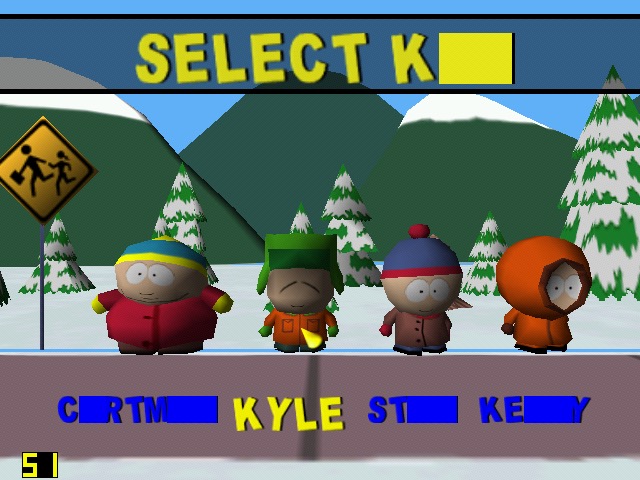
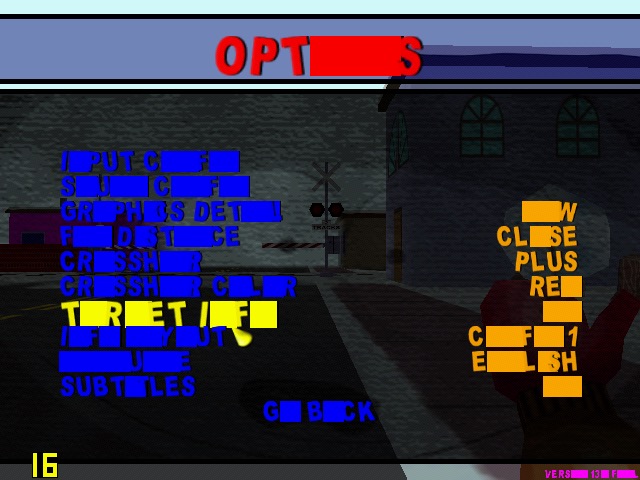
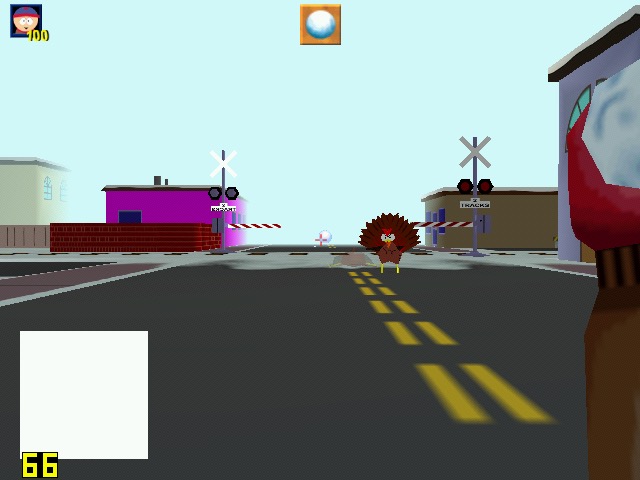
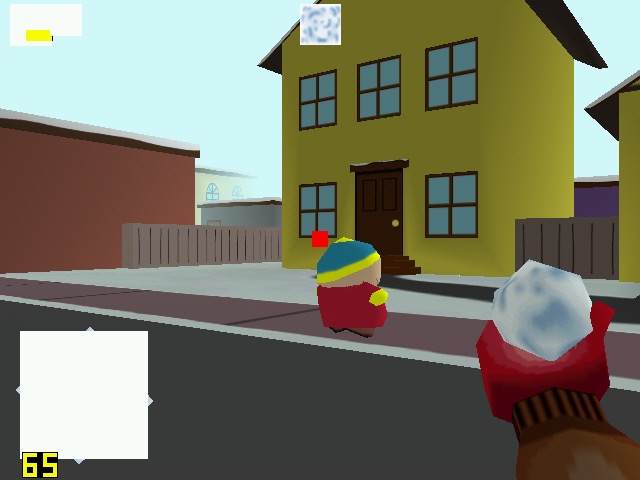
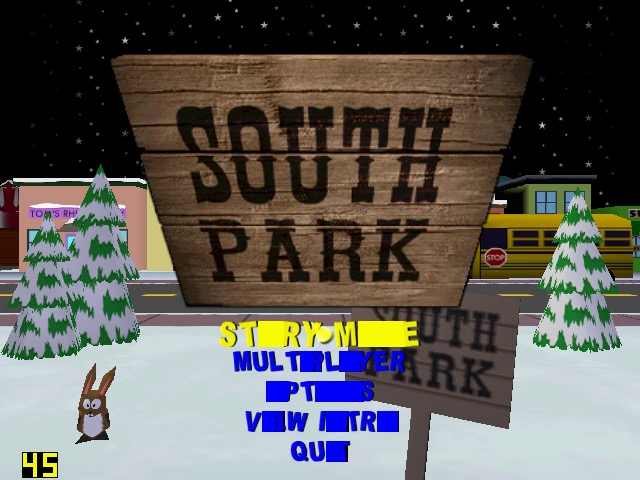
South Park: Had issues getting this to work, I had to install nGlide to get the game to start up. However I was then able to select the correct graphics rendered (it detected the DirectX SiS Mirage renderer) but there are multiple graphics issues when playing the game, with some of the games text not being rendered correctly. The framerate, although it appears to be running at around 25 is very jerky with the game freezing every 2 seconds. Settings the graphics quality to low and long with lowering the draw distances helps out with the framerate, but we still have missing or corrupted textures, especially with the HUD. The freezing I also odd since the game still runs – you can attack enemies and hear them respond but the screen will freeze for a few seconds.
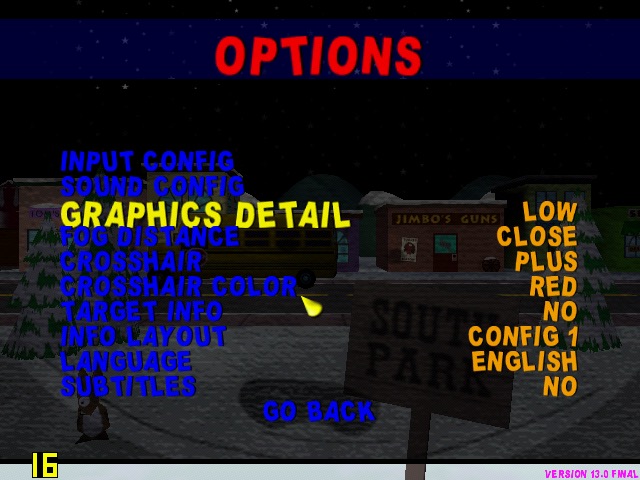

Running the game with the Glide wrapper (nGlide) ended up being a much better experience, since the game was a t a more decent framerate, reaching 26fps and only lowering when there were too much turkey’s onscreen.
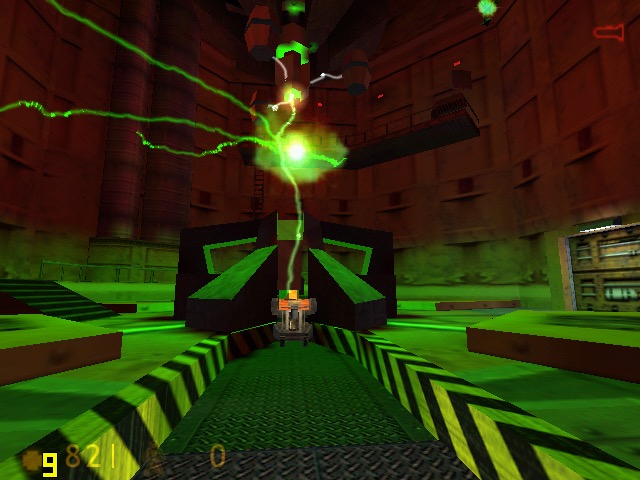
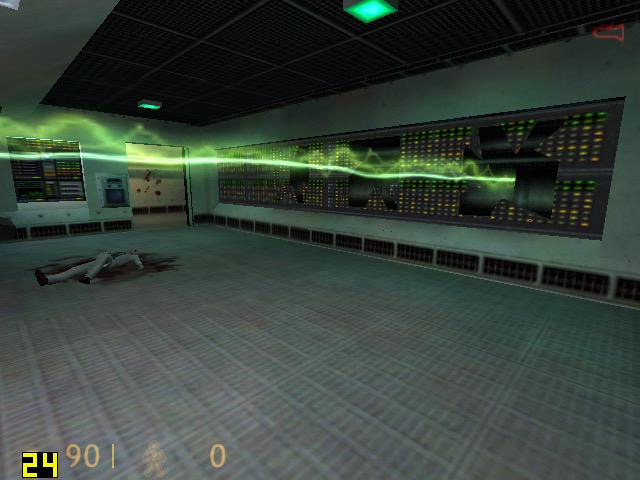
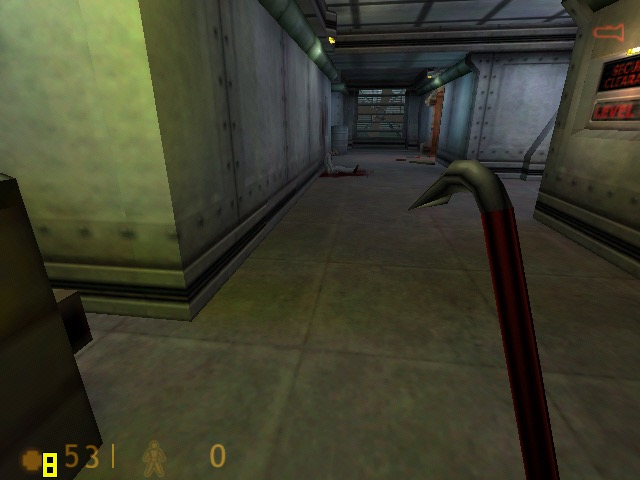
Half life: Here I tested the original release of the game, not the Source based re-release. Running at 640×480, its performance is dismal in the opening cutscene, dropping frames to a low 7fps. Walking through the facility corridors gives us a more fluid framerate. Half Live offers the choice of three renderers, a software based one either Direct3D or OpenGl.

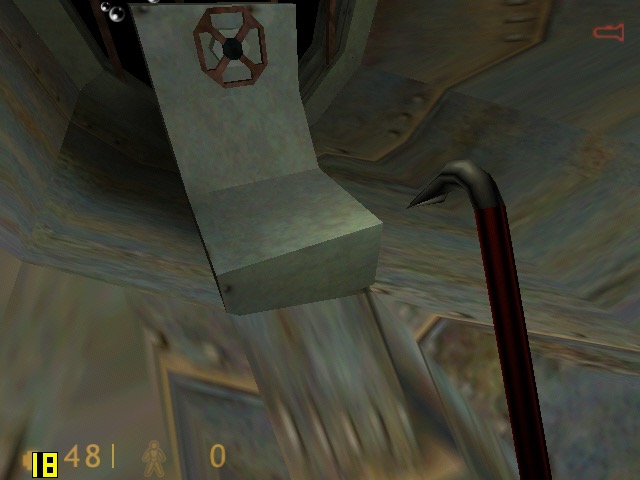
OpenGl did give up better performance but was a lot more unstable, with the game crashing particularly at the moment the Lambada experiment goes awry. Switching to Direct3D allowed me to progress past that part but the performance just wasn’t good enough. We are able to lower the resolution but at that point it start’s to low more like a PS1 game. Oh and the water effect;s are non existant, with the textures warping like a PS1 game during the underwater sections, as seen in the last screenshot.

Conclusion

So performance is pretty dismal across the various different games that were tested. I expected it to handles games that were released within the sixth generation of consoles, but it struggles to run even certain late 90s games at 480p. How much of this is down to the Mirage, or the Atom CPU remains to be seen. 

It does appear to be on the level of the Sega Dreamcast in terms of overall performance, and you have to contend that SiS possibly haven’t optimised their driver like Nvidia or ATI (AMD) have previously done. You also have to take into accound that due to the machine being fanless for both the CPU anf GPU, thermal throttling could also be a issue that could explaint the less than ideal performace.

This does appear to the one of the last release of SiS graphics chips, the XGI Volari is closely related but there are difficult to find except for a few Asus server boards.
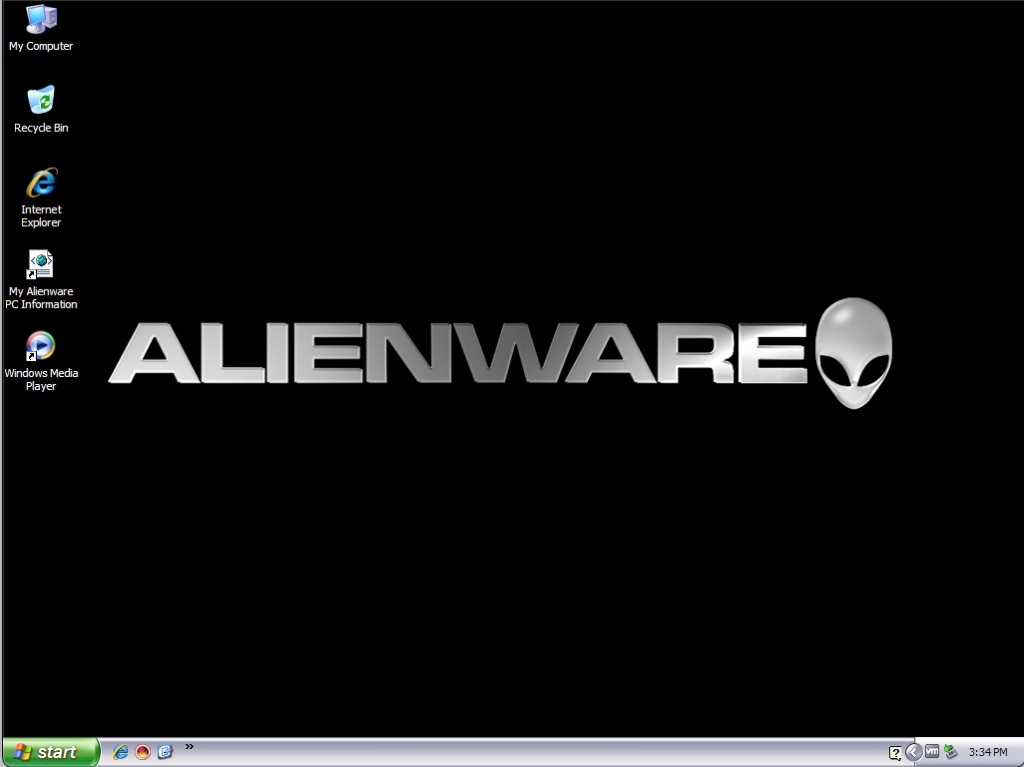
Alienware M7700 

Browsing a couple of preinstalled VMWare OEM images and found an Alienware Windows XP install, I was curious to see what an XP install would have looked like from Alienware since this would have been before the Dell acquision. Since this is a preinstalled VMWare images all I had to do was extract and import it into VmWare Fusion.

Product Information

A successful boot up, surprisingly we have not triggered the Windows XP activation. The install appears to be a late generation XP install as wee have Service Pack 3 and DirectX 9c included.

A look at the My PC Information file on the desktop, this contains customer name and account information that I’ve blanked out to stop any possible privacy issues. This goes though the configuration of the laptop as it left the production, and shows the results of the various different benchmarks

125fps in Doom 3, that’s good for a laptop from this era. It appears this laptop is based off the Clevo D900T design, who are a common OEM for laptops for uncommon brands like Medion, Advent, Time/Tiny and RM (Research Machines). Acer/Samsung also did this and are such examples of such OEM’S that sell hardware designed to be rebranded.

Dual optical drives? That’s very rare for laptops in 2006. Makes you wonder how often both were utilised. 

For a lot of PC’s of this era, it was common to see dual optical drives since one would be the DVD-ROM drive and the second being a CD-RW drive. DVD-R drives that could also write to CD existed for laptops at this point, so I’m unsure why they didn’t go for that approach instead, unless you wanted to burn a CD whilst you watched a DVD movie.

A look at the different checks that Alienware go through before the system is shipped, I wonder if they still do this when Dell took over? (Maybe, since there is no sign of McAfee, or any antivirus for that matter)

CyberLink PowerDVD – Designed for the playback of DVDs but also various video files. Also features a screen-capture feature to save screencaps of content.

Alternatively you could use Windows Media Player 10 instead which came bundled with Windows.

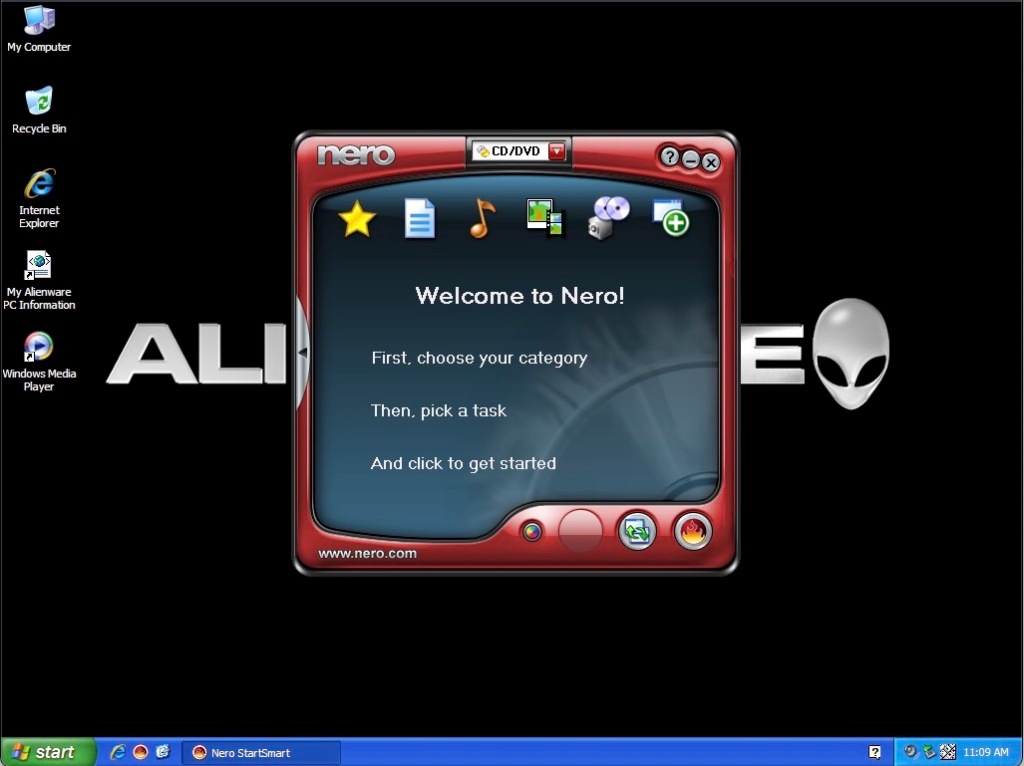
Nero also comes included to copy and burn CD and DVD’s, there is a few components included for multimedia playback.

Nero later developed into full media center software to compete with Windows Xp Media Center Edition.

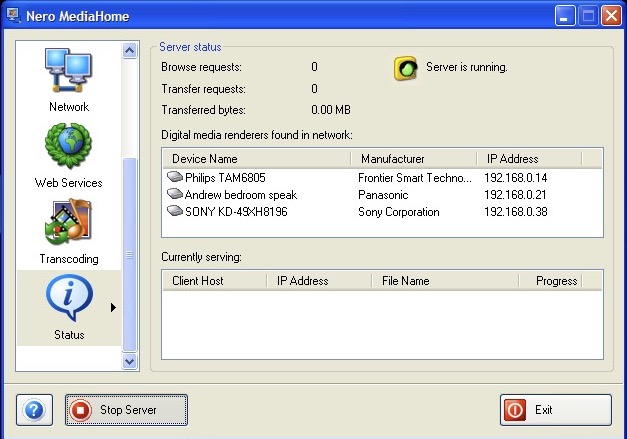
This can also function as a DLNA media server, to share content with the consoles and set top boxes of the era. This actually still works with modern stuff like smart speakers or smart TV’s. Useful since Windows XP did not have support for DLNA media sharing unless you installed the Windows Media Player 11 Update.

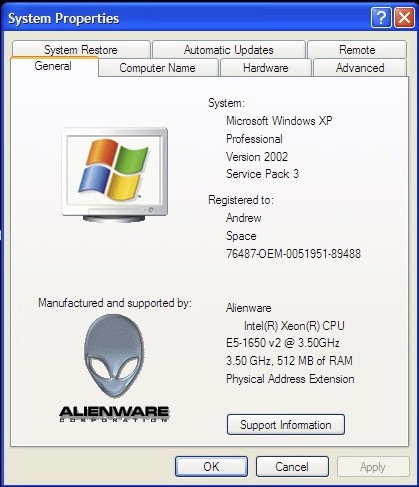
Lastly, A look at the system properties box with the Alienware branding.

Overall it’s a clean install with a few multimedia software packages included. I’m surprised about the lack of game demos since this was designed as a gaming laptop, a few demo’s of games of the era would have been a good way to demo the graphics capabilities of the notebook.

Download – Works in VMWare Player or Fusion

Sharp AV18P

A first time look at a Sharp OEM install. Sharp was a manufacturer of compact laptops that were popular in Japan, but also made a few for the western market. They did have some sort of a retail presence in the UK as you could find their laptops in stores like Curry’s, but they were always sub-notebooks. Like Fujitsu and NEC, Sharp also made computers for the 8/16bit home computer market in Japan.

Product Information

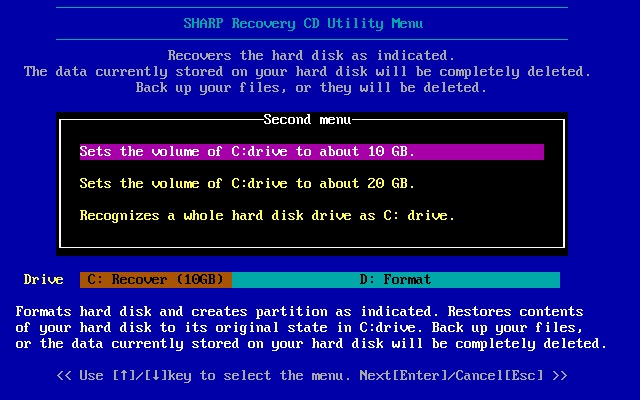
The recovery utility which seems to want us to split the disk into two partitions. This was common across some OEM’s with the belief that storing user data on the second partition would help with fragmentation whilst leaving the operating system and program files on the main partition. Though your document folder would still be mapped to the main partition also.

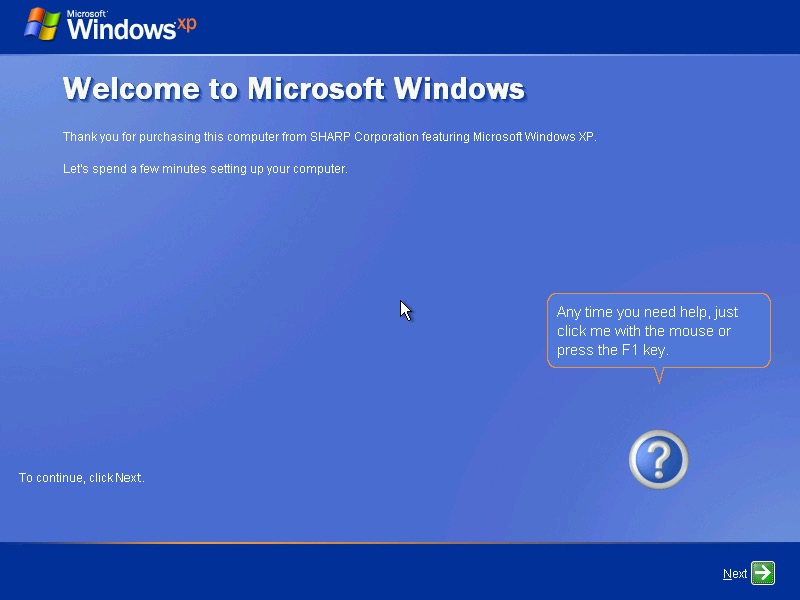
Going through the OOBE, theres no logo in the top right corner as we’ve seen with other OEM installs

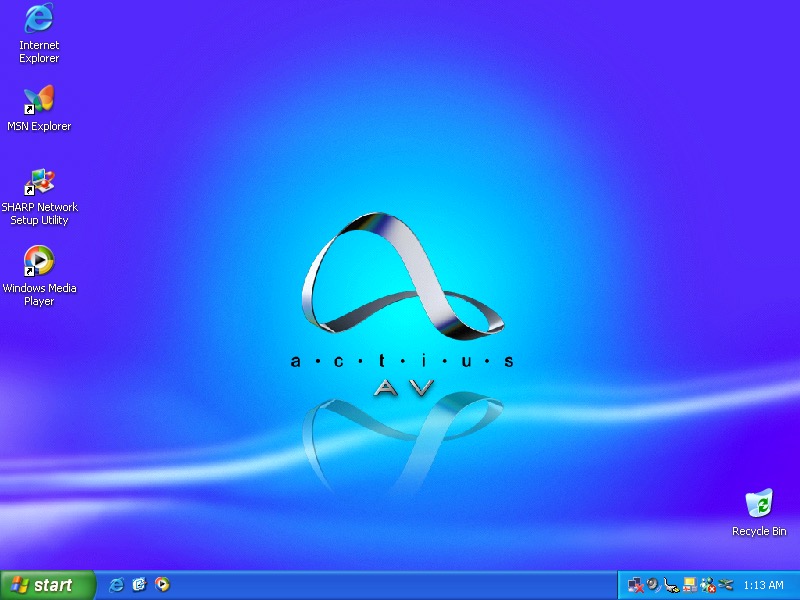
The desktop, with a custom wallpaper. Resolution is a little but understandable considering this is a netbook class of computer

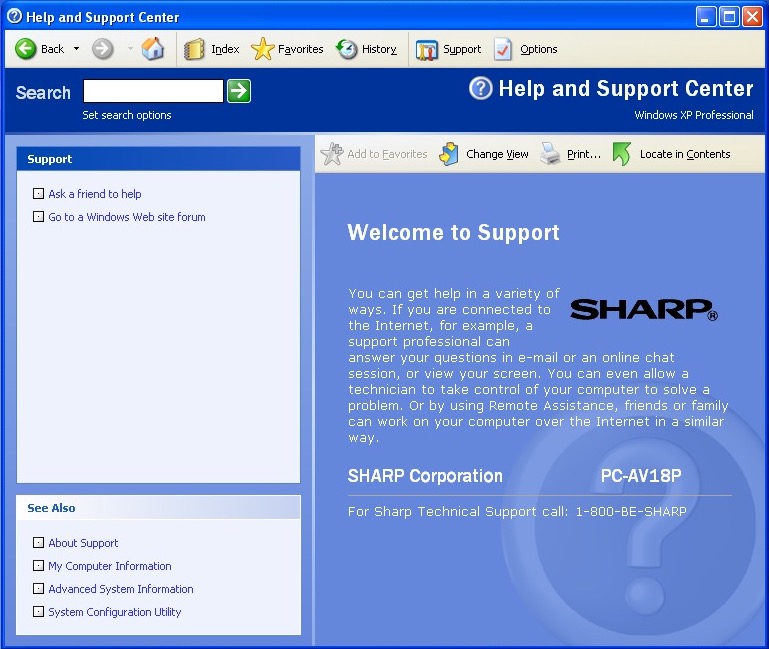
Windows Help & Support with a touch of Sharp

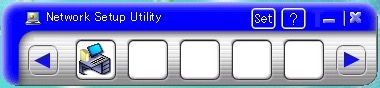
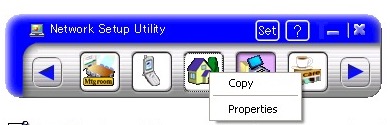
Network Setup Utility, each icon represents a network settings or profile. It looks a little blank as it was intended for use with the notebooks internal WiFi card.

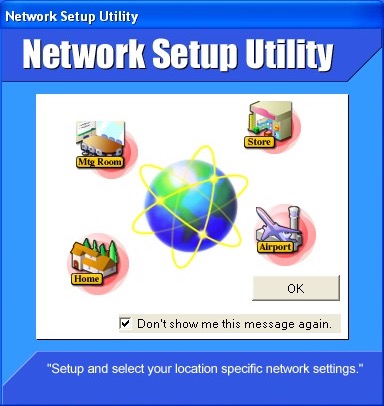
Here is what it’s supposed to look like. The different icons represent the types of network you can connect to and the profiles can represent the different sharing settings. This isn’t too different to what modern Windows does when it asks you to set either a Home, Work or Public connection which affect the file sharing ability, since you might not want to enable Public file sharing when you’re connected to a public hotspot

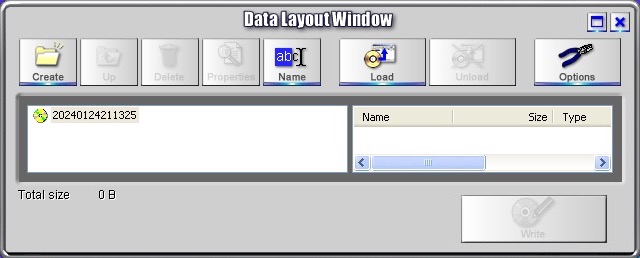
Drag’n Drop CD+DVD – disc burning application. This places a sidebar to the bottom right of the screen where you can drag files to be copied to a CD.

This appears to have been developed by Sonic Solutions who also went to develop RecordNow! Seen on other OEM installs.

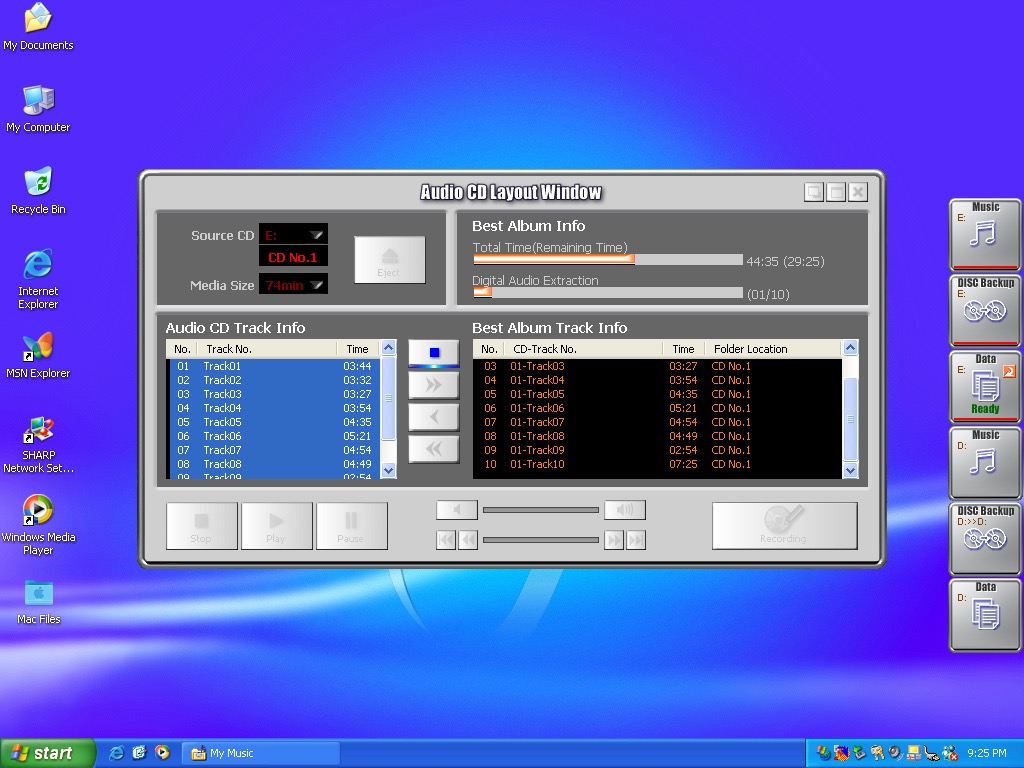
Here you can rip an audio CD, or burn existing files to disc. It a bit clunky to operate and the UI looks like something you would see out of a Hollywood TV, it’s rare to see a program refer to itself as a window.

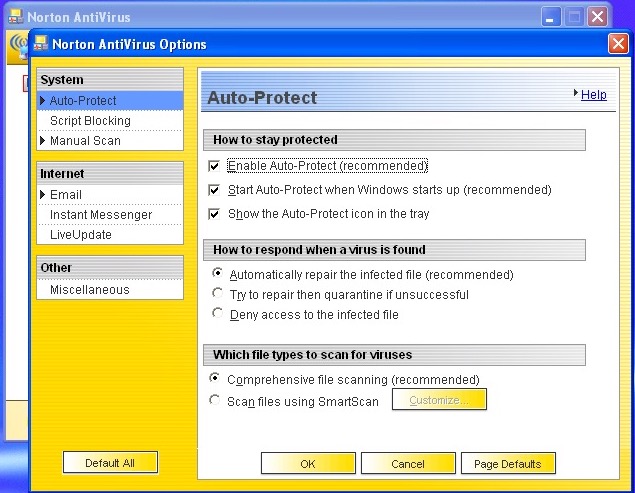
And Norton Antivirus 2003 comers included

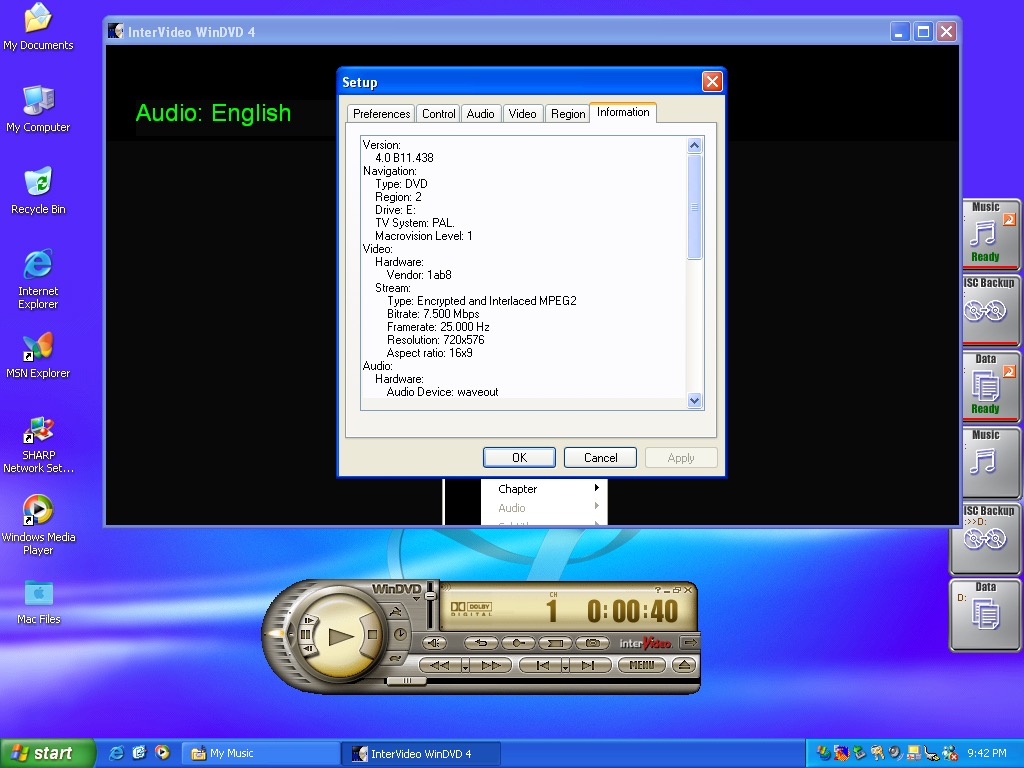
Lastly we have InterVideo WinDVD4 which serves as the default DDVD player. Amazing this worked within the virtual machine so this must provide some sort of software MPEG2 recorder. At least I thought it worked, it decoded the first frame and was then froze on that frame. The audio was still playing however and when I eventually closed, a quick shot of the last frame came up before closing the program.

Recovery Media Download – From Archive.org, This version is unlocked to function on any machine

Fujitsu LifeBook S6120

A look at the Fujitsu LifeBook S6120 Windows install, running in a Parallels Virtual machine. Fujitsu are a well known brand in Japan for Personal Computers and are no stranger in the West either, having enterprise contracts with various corporations and governments for IT solutions. Fujitsu also produced FM Townes Marty range of computers that were popular with the Japanese market and used x86 processors. 

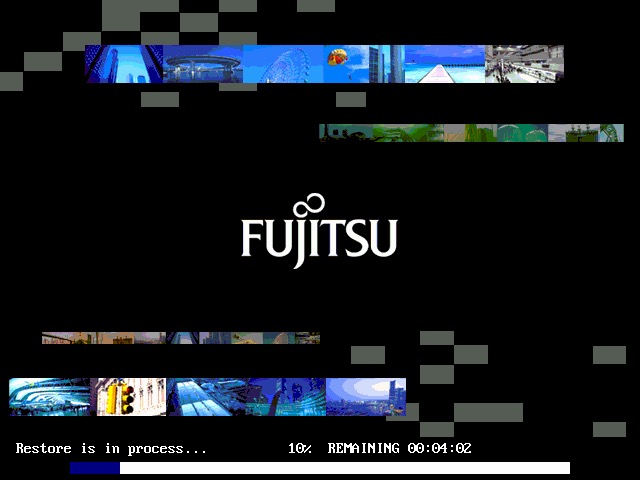
Starting the recovery process. At first i thought the graphics were corrupted, probably not a good idea to use this effect for recovery software

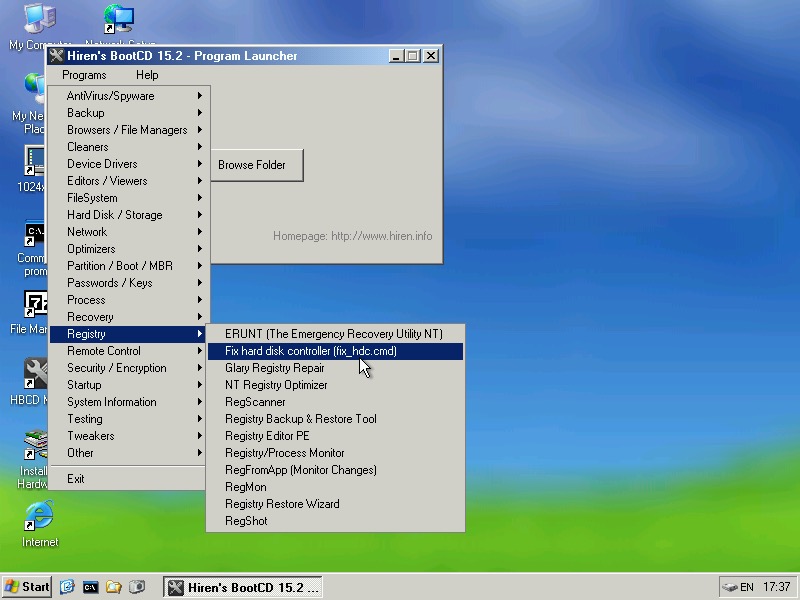
We need to reset the HDDcontroller settings in the Windows registry, to do this we need Hiren’s boot cd. Start Mini windows XP and then click on Hiren’s Menu and select Fix HDD controller form the Registry menu. If you’re stuck at this point, refer to the two screens above which will point you in the right direction

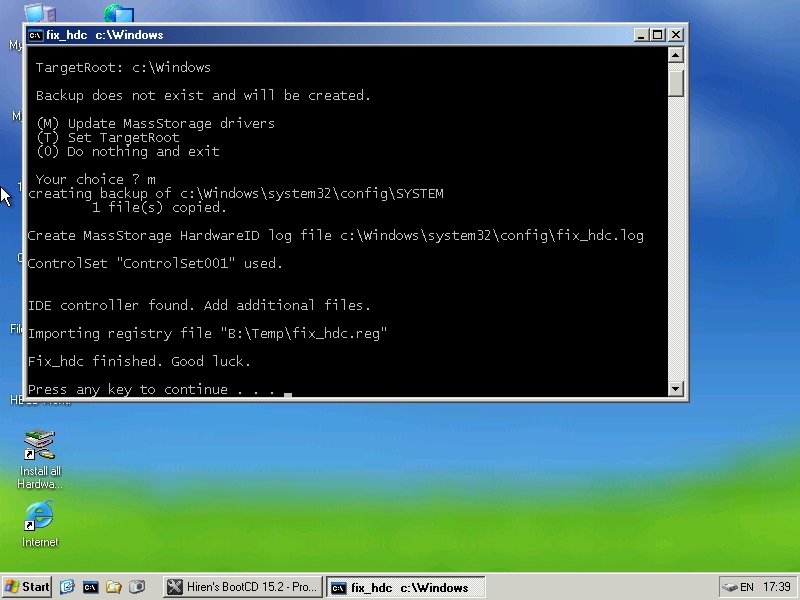
Once the console comes up, select option 2 and then enter the install directory of the Windows folder, which will be C:\Windows.

If unsure, Alt Tab out and check in my Computer to see which drive letter its mounted as

When everything is correct, you can reboot into the install

Windows XP Fujitsu

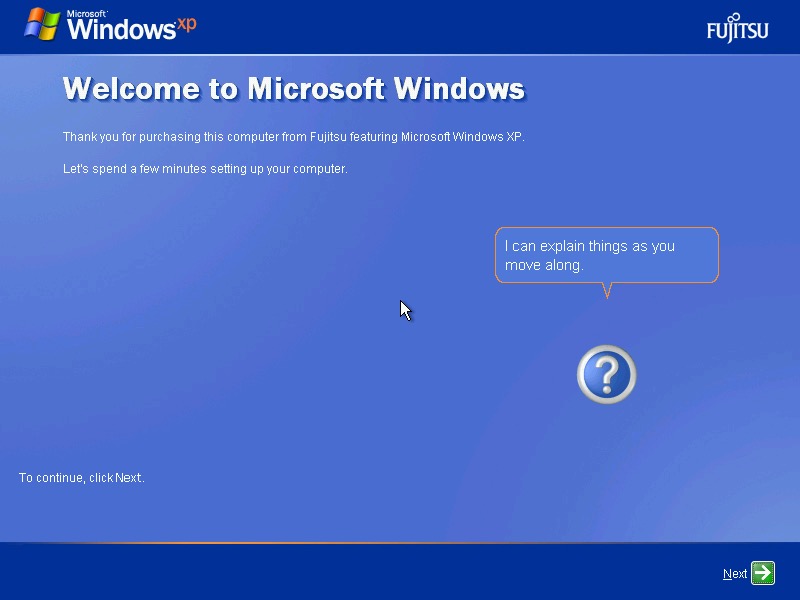
The OOBE with the Fujitsu Logo

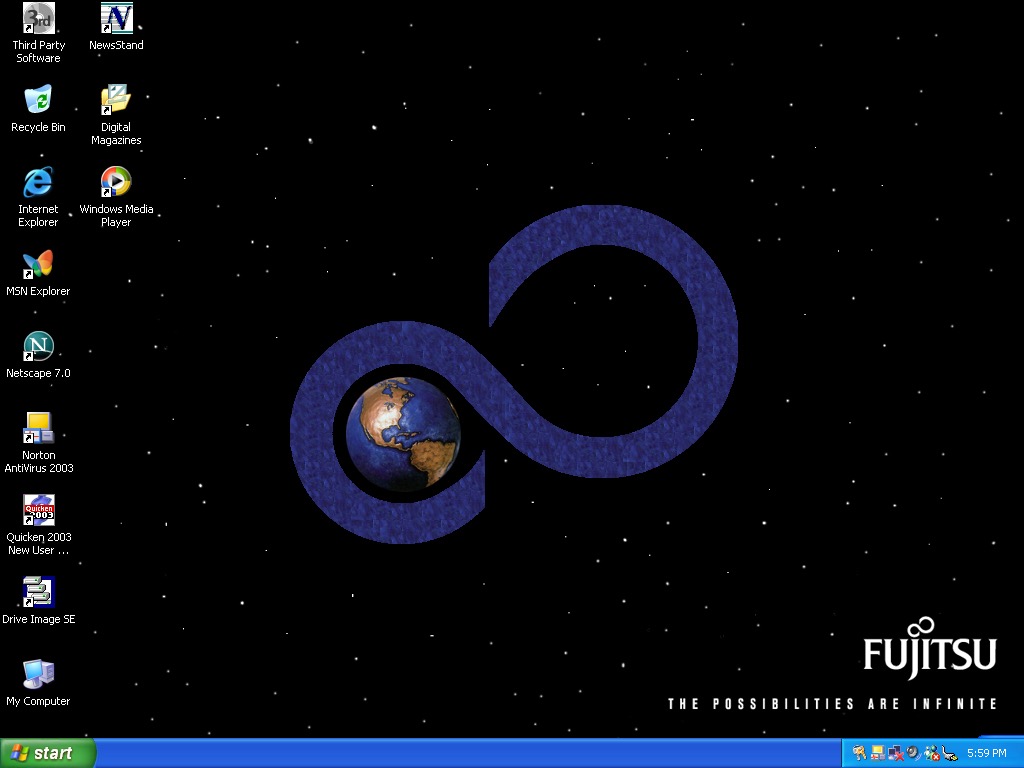
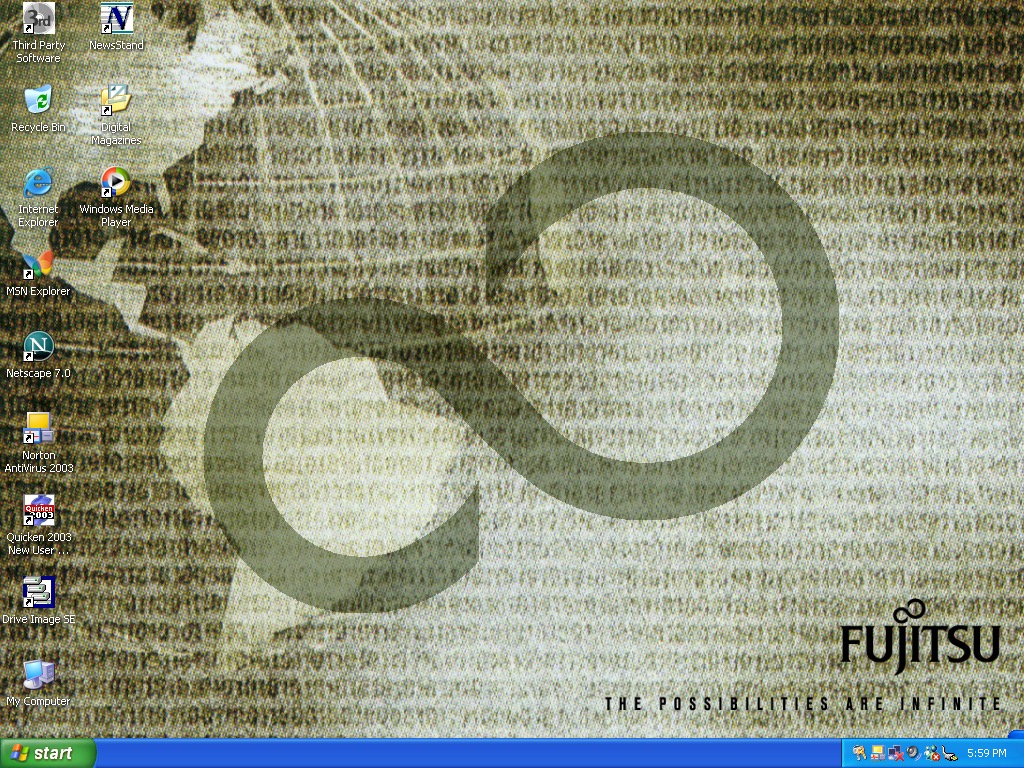
Fujitsu desktop

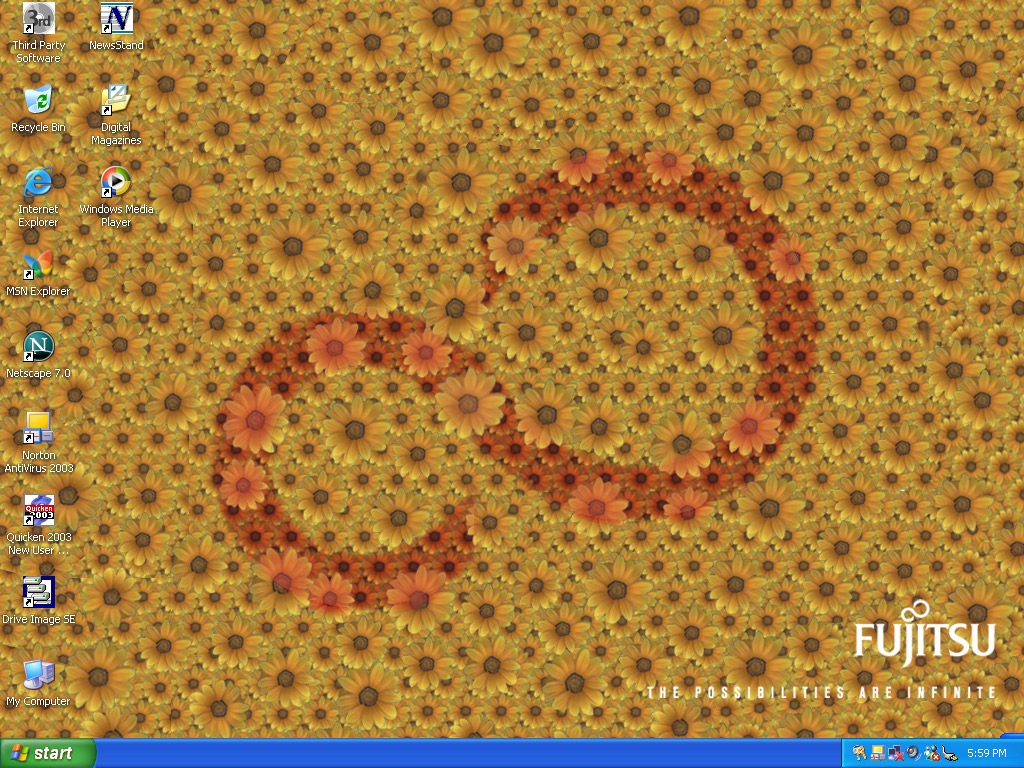
And the desktop, with a custom Fujitsu wallpaper. A few others come included that have the Fujitsu infinite logo, which reminds me of that hidden Sonic CD screen (fun is infinite)

Now lets take a look at some of the software

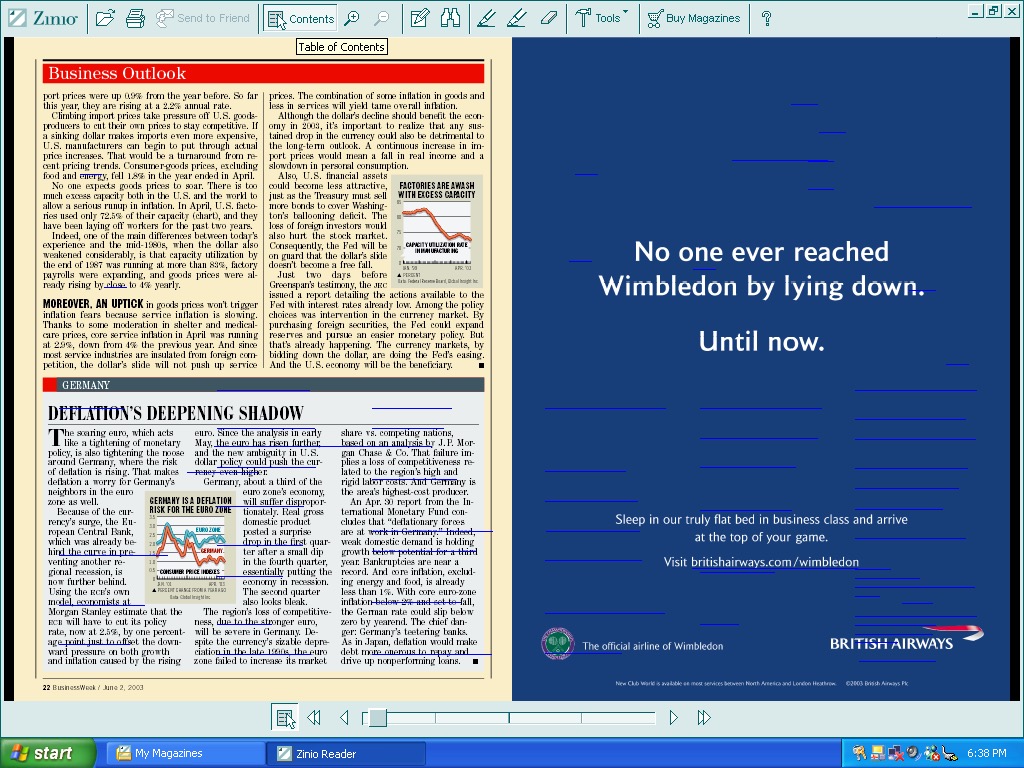
Zinio Reader, appears to be a magazine reader of sorts. Kind of like Adobe Reader but has a few documents on there already which look to be magazines.

Unfortunately whilst I can open them, trying to turn the page causes the VM to freak out and suspend with a graphics error. I’m guessing the program is trying to do something that the virtual GPU does not like. This happens quite friendly and you can see a bunch of blue lines appear when it happens.

Included magazines appear to be from BuisnessWeek, Harvard Business Review, Sporting News and PC Magazine. This service is actually still going, and you can still purchase magazines from there, although this version of the client is long obsolete.

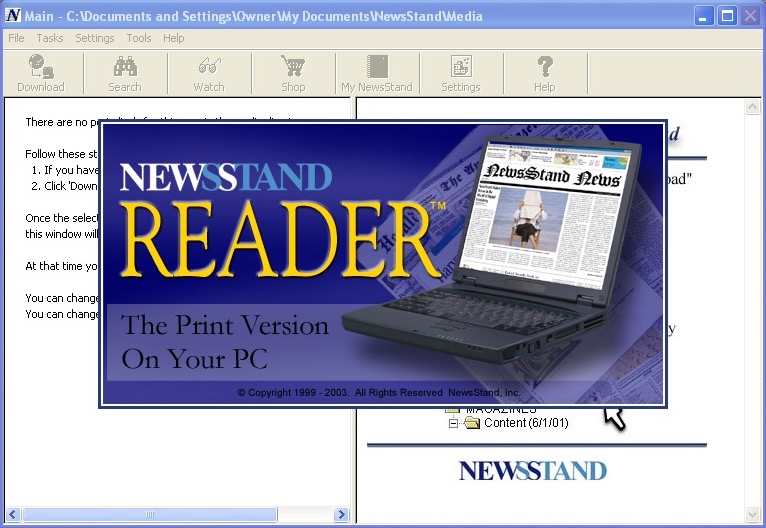
NewsStand Reader

There’s also NewsStand reader, which serves the same purpose

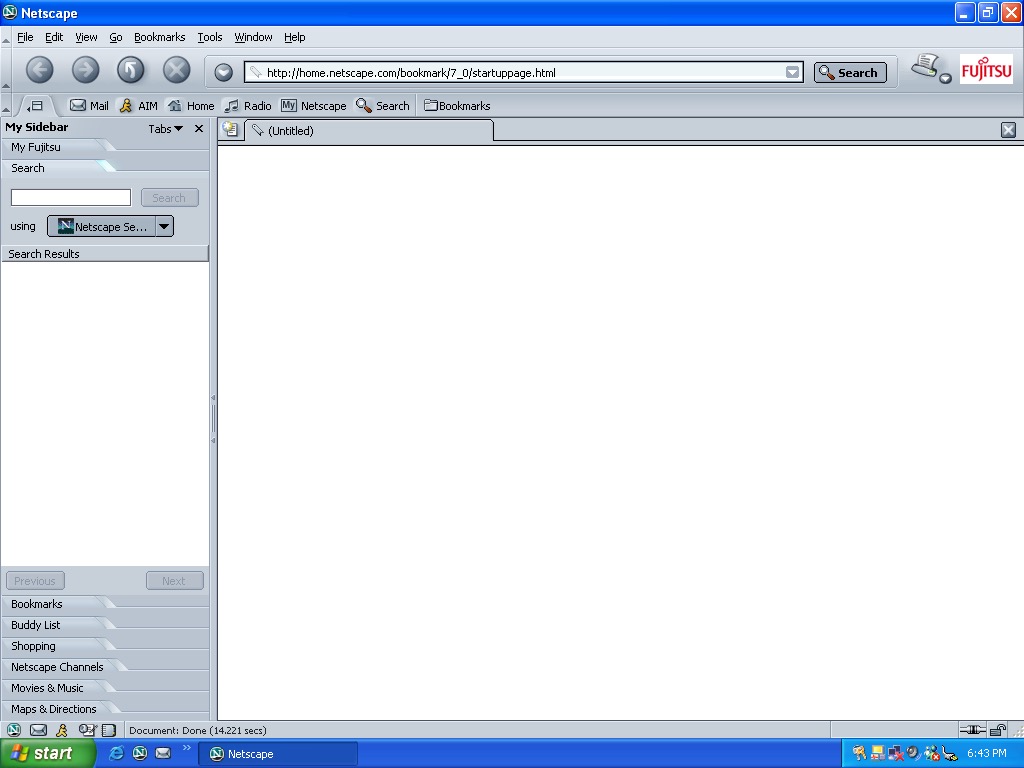
Netscape Fujitsu

Netscape version 7 comes included, with some Fujitsu branding

Norton Antivirus 2003

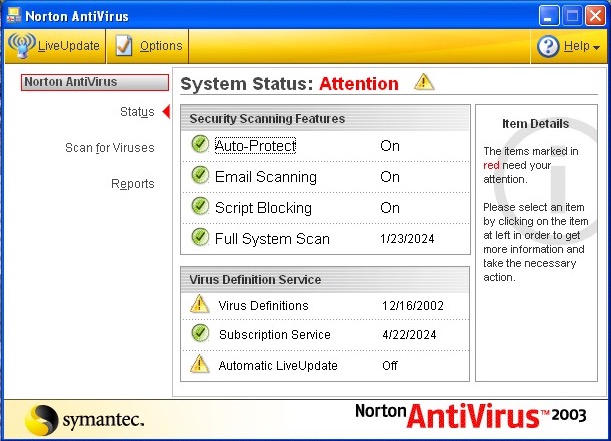
Norton AntiVirus 2003 is the security software included here. This only includes the antivirus, not the internet security suite. I couldn’t get this to update unlike the Norton Internet Security that was seen in the VAIO RG620

Veritas RecordNow DX

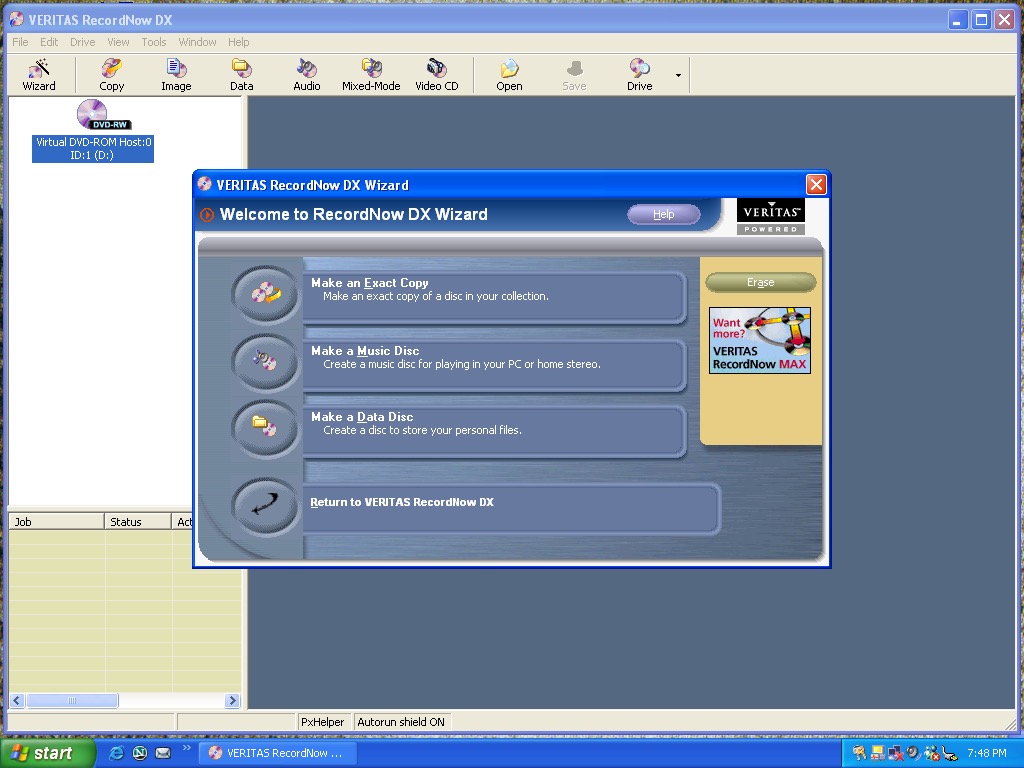
Veritas RecordNow – I’m sure this was originally made by Sonic (Sonic RecordNow!) or they might have acquired off them. Either way this is the software used to burn CD and DVD’s containing either data or music.

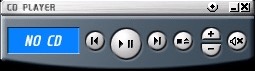
A CD player application comes invoiced that can play audio compact discs. You might think why does this exist when you have Windows Media Player installed but this is a dedicated CD pLayer application and have a very compact interface, ideal if you just want to listen to CD’s without the bloat of Windows Media Player. This only plays from the primary CD player, so connecting a USB CD drive didn’t work at first until I 69’d the drive letters in disk management so that the USB drive was the D:\ drive.

It’s a nice program to listen to music to whilst you work, and you can possibly control the playback via the media keys on the laptop itself.

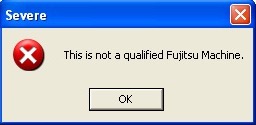
There is also a security panel application, but this does not load. Instead we are treated to this error message. Chances are its BIOS locked to Fujitsu laptops.

Microsoft Works comes included here which serves as a basic productivity suite. Im surprised this here as this class of laptops would have been used in an office environment where Microsoft Office would have been used instead.

Other software that comes with, but not already installed is Microsoft Reader and Windows Journal Viewer. This can be installed by clicking on the Third Party Software icon on the desktop which opens the folder where the installers are located

Fujitsu Windows XP

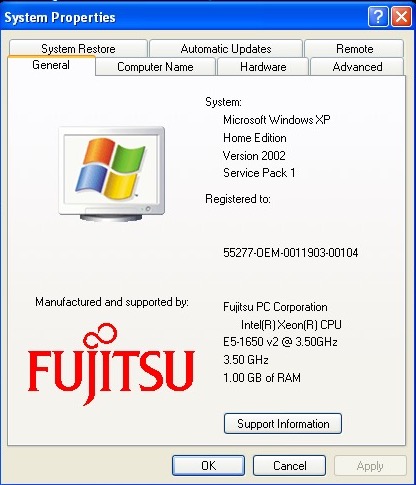
A look at the OEM branding in the system properties

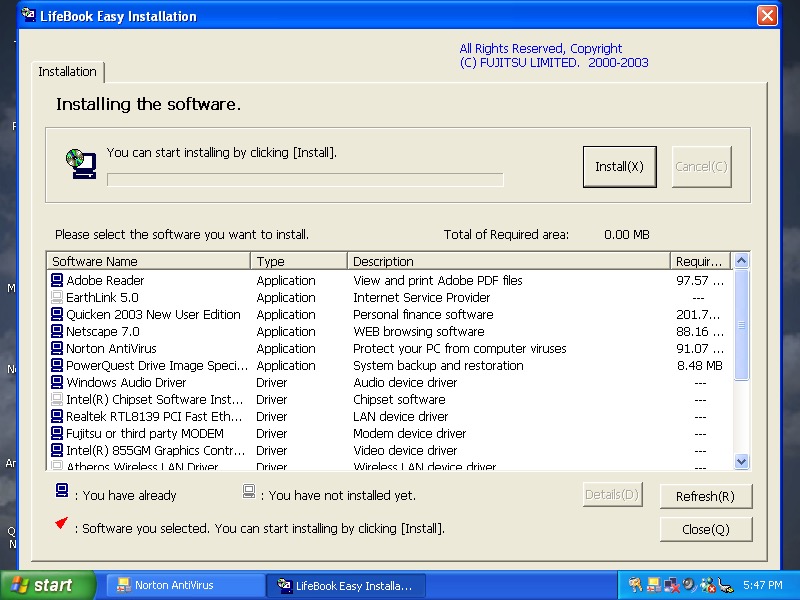
Inserting the second CD-ROM starts the easy instillation which is used to install additional software. So far everything appears to be installed already from the recovery image, though this might be used to install supplementary software the retailer might have included as part of a bundle.

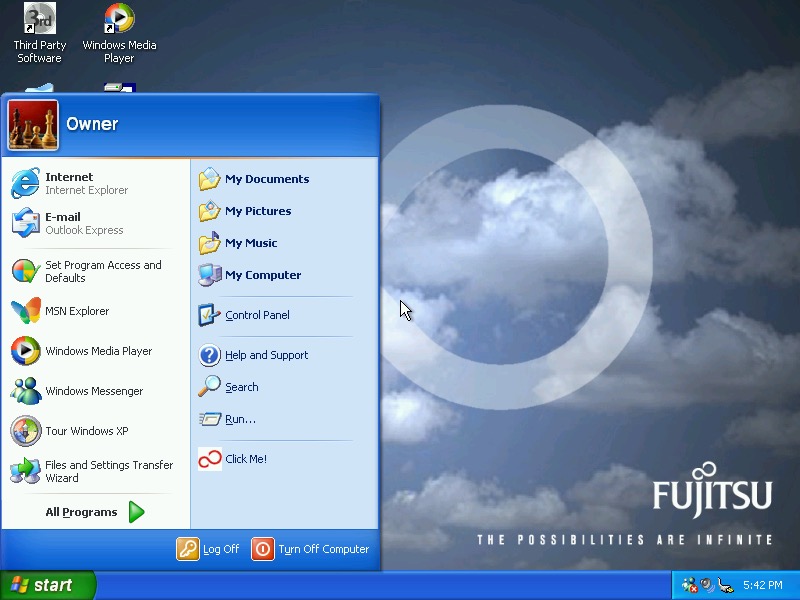
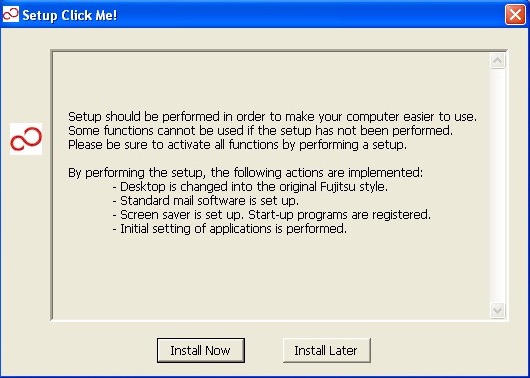
If you’re wondering what the Click Me! link in the start menu does, it displays this message and then disappears, along with the shortcut itself. Probably self terminates if it detects it’s not on a legit Fujitsu machine

eMachines eTower (Part 2)

There’s quite a few OEM customizations included here, so I’m curious what gets transferred over and if anything breaks. The original system came with Windows ME which was built on the 9x/Hybrid DOS kernel.

Original Post

Windows XP

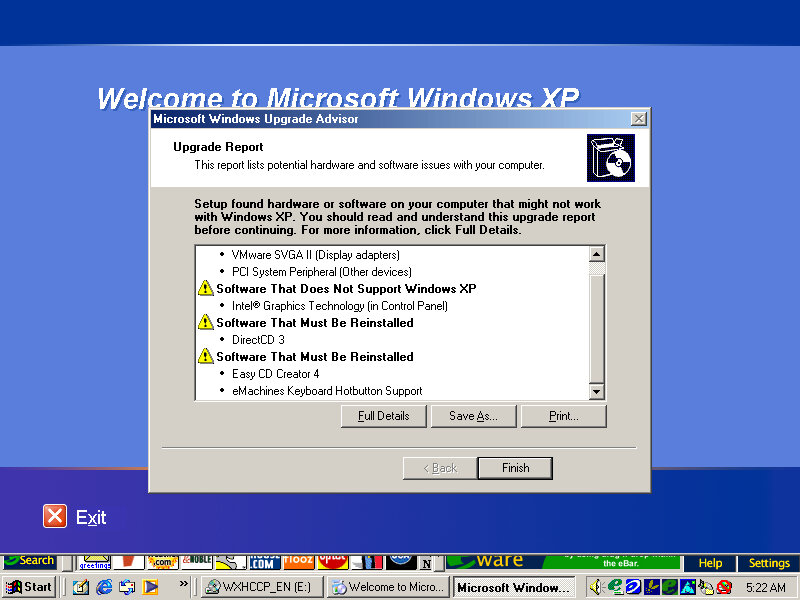
Since we are going from a 9x to NT-based install, changes are going to be drastic with new device drivers requiring to be installed. Before installing, Windows does a compatibility check for existing applications and drivers and will alert if any are found to have issues or require updates. This only alerts if Windows finds a known issue with the program based on Microsoft’s testing, some lesser-known applications might not have been tested.

The install appears to have started, but after a few seconds the screen went blank and the VM was unresponsive. Rebooted and was greeted with an option to start Windows or cancel XP Setup.
Booting into Windows ME instead boots directly into the XP Setup, which appears a little darker than usual

Not sure why it’s prompting to create a password, never seen that before

The default desktop post-upgrade, along with the eWare banner above the taskbar

Adaptec CreateCD requires an upgrade before it can function. Interestingly is this is generated by Windows XP. RealJukebox works but failed to load the previous files since the documents directly have changed from Windows ME. What’s strange is the music files have been renamed?

Windows Vista

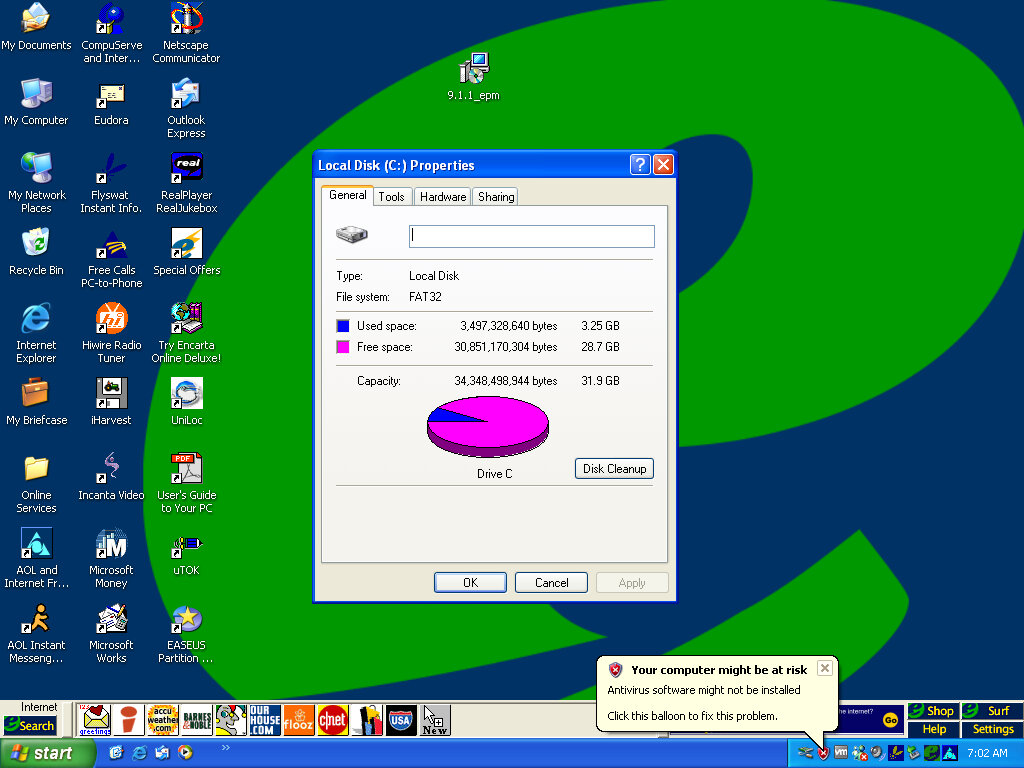
And we hit the wall, since the drive is formatted as FAT32 from the ME install, we cannot install Vista without reformatting the hard disk. We also have to convert FAT32 to NTFS

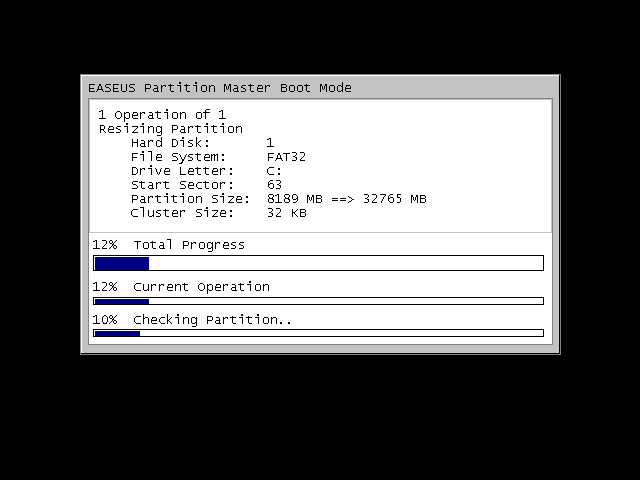
There were a few obstacles, first we had to expand the VMWare disk, as it was set to 8GB by default. Once expanded we had to extend the partition which wasn’t possible in XP’s disk management utility, so I had to use an old version of EASEUS Partition manager to extend the partition.

We can also use EASEUS to convert the disk to NTFS, so we can finally install Vista, and hopefully Windows 7. Before conversion, a quick disk check is done.

Some issues were found but some of these are part of the VM and might not apply to the actual machine, either way it lets us continue

The Flyswat toolbar appears to be broken, and we are missing some buttons on the eWare taskbar

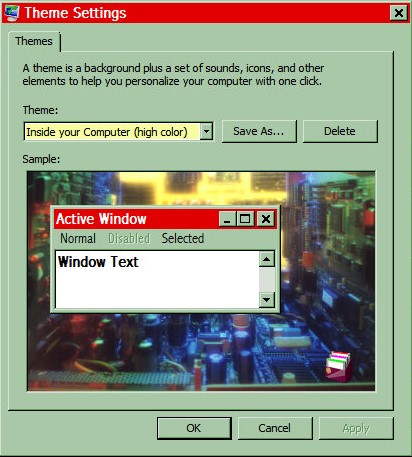
Some of the Windows 98 themes still remain and surprisingly they work. Color schemes, sounds and screensavers.

Adaptec CreateCD has now stopped working completely and will not launch, instead displaying the above dialog box. Later versions of Windows usually keep a database of incompatible programs, including ones that require patches to work.

Windows 7

Install was a lot easier since most of the prep work was done for Vista

Application compatibility is the same as Windows Vista, Meanwhile the icons on the eWare toolbar have started to function gain. It’s rare that you will be able to install this on the actual machines without extensive upgrades, and I’d imagine the eWare links would also long be dead at this point. Also the eWare toolbar sticks out like a sore thumb when combined with the Windows 7 taskbar.

Toshiba A100 (Windows XP)

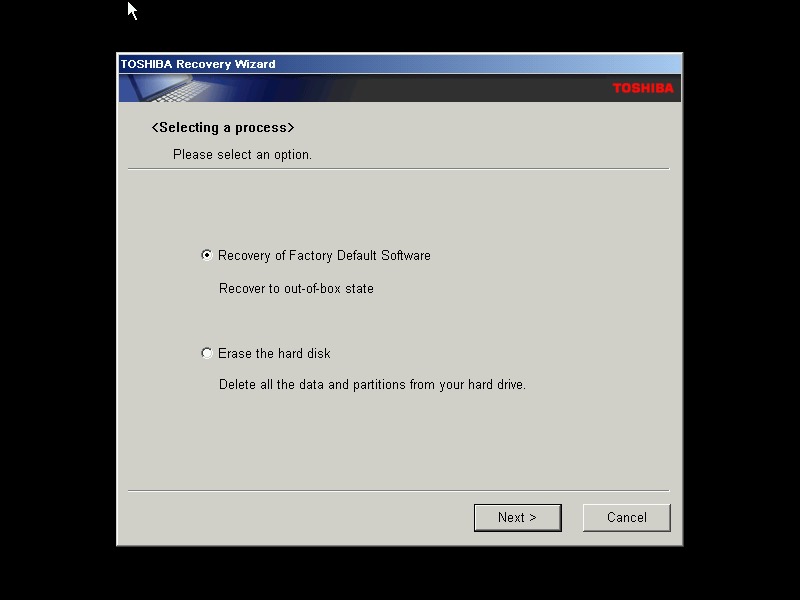
A typical Toshiba laptop from 2005, let’s take a look at what a factory install looks like.

This restore CD is unlocked which allows you to install it onto any PC or virtual machine, Parallels 18 is being used here.

I actually have one of these laptops, though it is a much later revision that shipped with Windows Vista basic, and featured integrated Intel graphics and an Intel Pentium (Core) Dual core processor. Confusingly A100 refers to the chassis design, as there is a wide range of specifications in this series which is confusing. Whilst you can expect differences in memory and hard drive storage, Toshiba even provided different graphics cards and optical drives in this range.

The Out Of Box Experience which features the Toshiba logo, this is mostly the same here you accept the license agreement

Toshiba Satellite A100

Post-install with the default theme and wallpaper, with Windows XP Home Edition being installed with SP2

Appearance

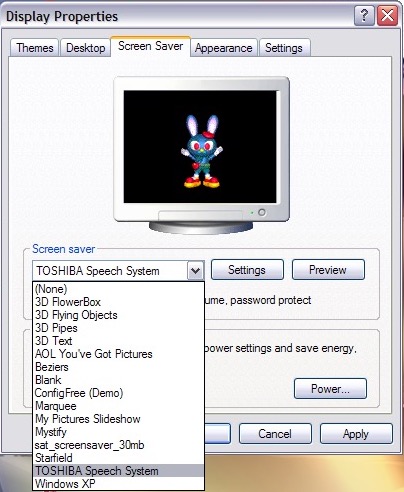
A few screensavers come included, including a speech one that talks to you and will ask you how you are today. The other screensaver is simply an advertising reel that shows the features of the laptop with a compressed guitar playing in the background.

Software

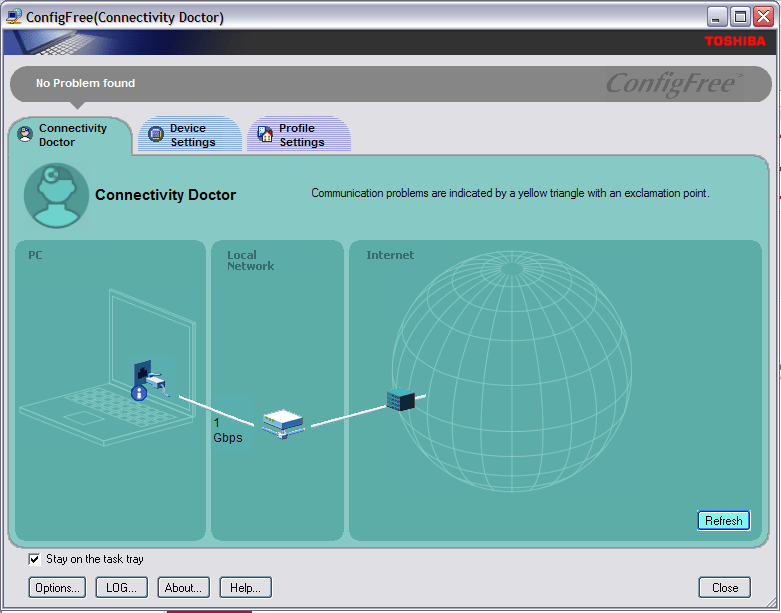
ConfigFree – A network utility that was bundled with various Toshiba laptops of the era, I remember this most from an old Satellite Pro A60 that I had from around 2004ish that functioned very similar to the version here, along with memories of trying to run The Sims 2 on its integrated Radeon 7000 graphics card.

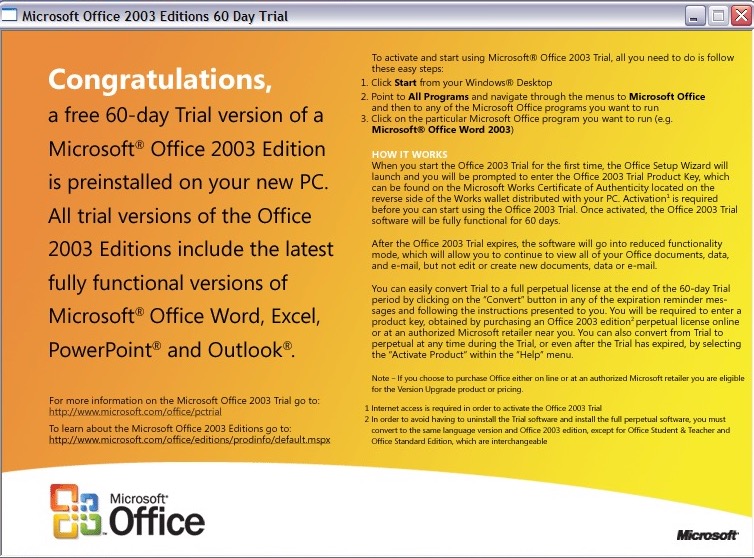
Microsoft Office 2003 Trial

Microsoft Office 2003 – This version makes the debut of OneNote, which has become a staple of Office since, and is even found as a standalone product on modern versions of Windows. It’s a not taking application that can sync across multiple devices.

Your standard Office applications are also included with Work, Excel, PowerPoint and Outlook.

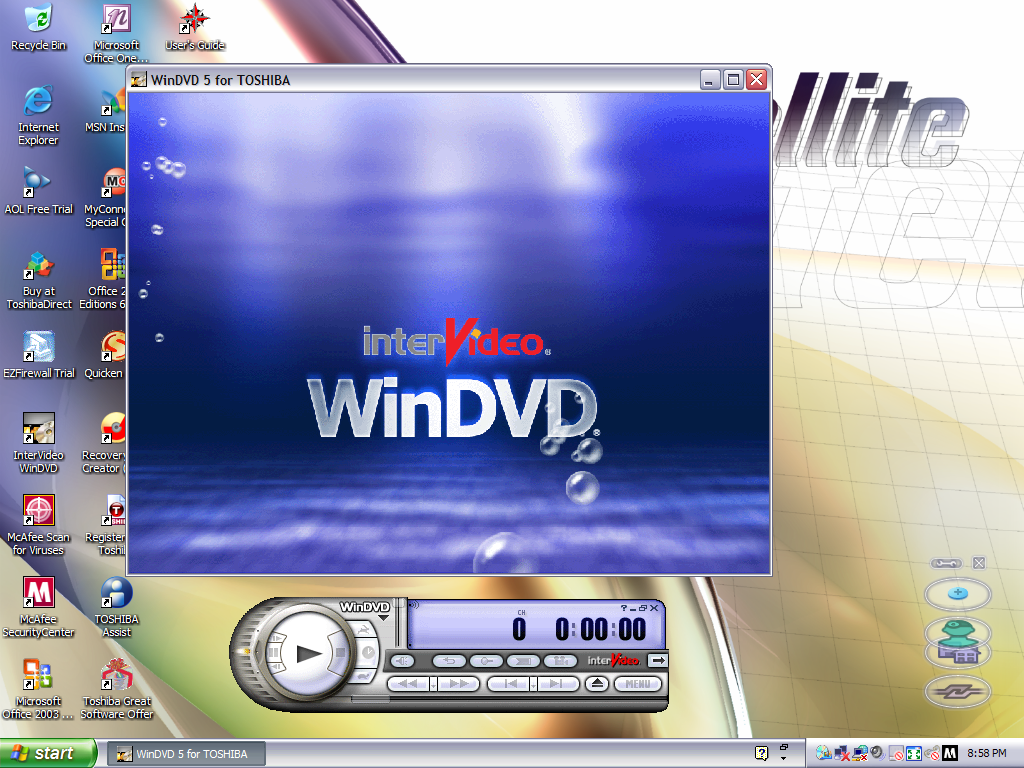
InterVideo WinDVD

Intervideo WinDVD (V5) – Standard DVD player to play back DVD and VCD movies using the built-in DVD drive. This wasn’t possible not the VM since the graphics drivers do not support MPEG2 deciding which software required

McAfee Security

McAfee Security and AntiVirus – Our favorite AntiVirus suite comes bundled here, this also includes a firewall as part of its Internet Security suite. It’s pretty out of date, and has issues downloading new virus definitions since it’s over 16 years old.

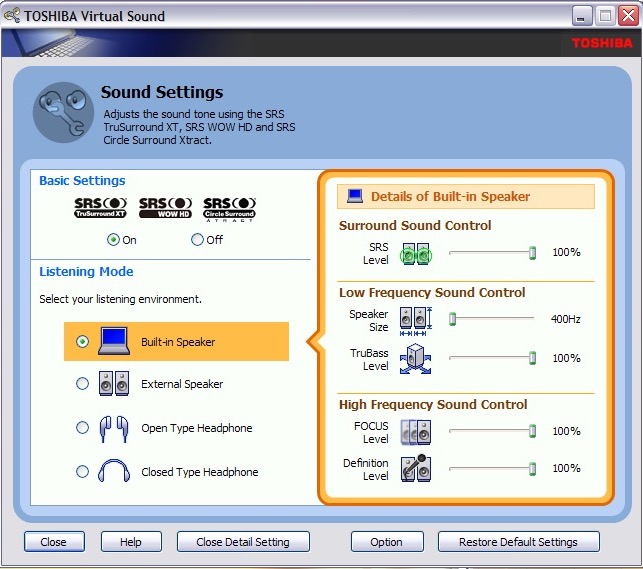
Toshiba Assist – Acts as a launcher for many Toshiba utilities. The Optimie section contains a few interesting ones, with the Toshiba Hardware Settings allowing you to change BIOS-specific settings from within Windows. You can configure the power on password, USB legacy support and the boot priority.

Other settings let you change the hotkey assignments, optical drives acoustic noise. There is also a diagnostic tool that lets you test various components of your laptop.

Microsoft Works – A little redundant since we have full-fat Office installed here. I would assume some restore images don’t include Office so Works was included as a backup option. I should mention that Office by default is not activated and prompts for a product key, so it might be the case that Toshiba offered Microsoft Office as an optional extra. Maybe some SKU’s come with a key.

Quicken 2005 – Finance management program

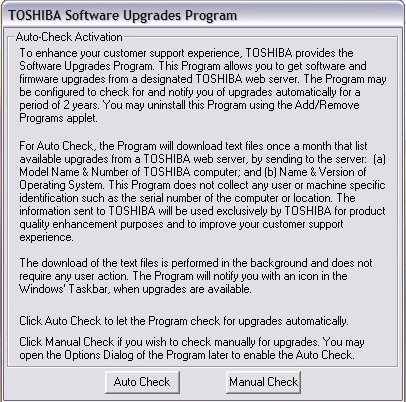
Toshiba Software Upgrade – Checks and installs software updates. The interface hasn’t changed much from the 1998 version

Yahoo Music Player

Yahoo! Music Engine – Music player that can play you legally acquired MP3 files, this also features a music store that Yahoo operates to purchase and download music. There is also Y! Unlimited which I assumed was some sort of music subscription service but I couldn’t find any further information since the help files just point to a dead web address.

I don’t think it’s like Spotify or Deezer, but rather a service you could download say 10 tracks inclusive per month

Sonic RecordNow! – Disc burning application. Typically this can burn audio CDs if Windows Media Player isn’t your thing. This appears to be a basic version as there are a few options that are only available when you upgrade, this includes burning ISO images

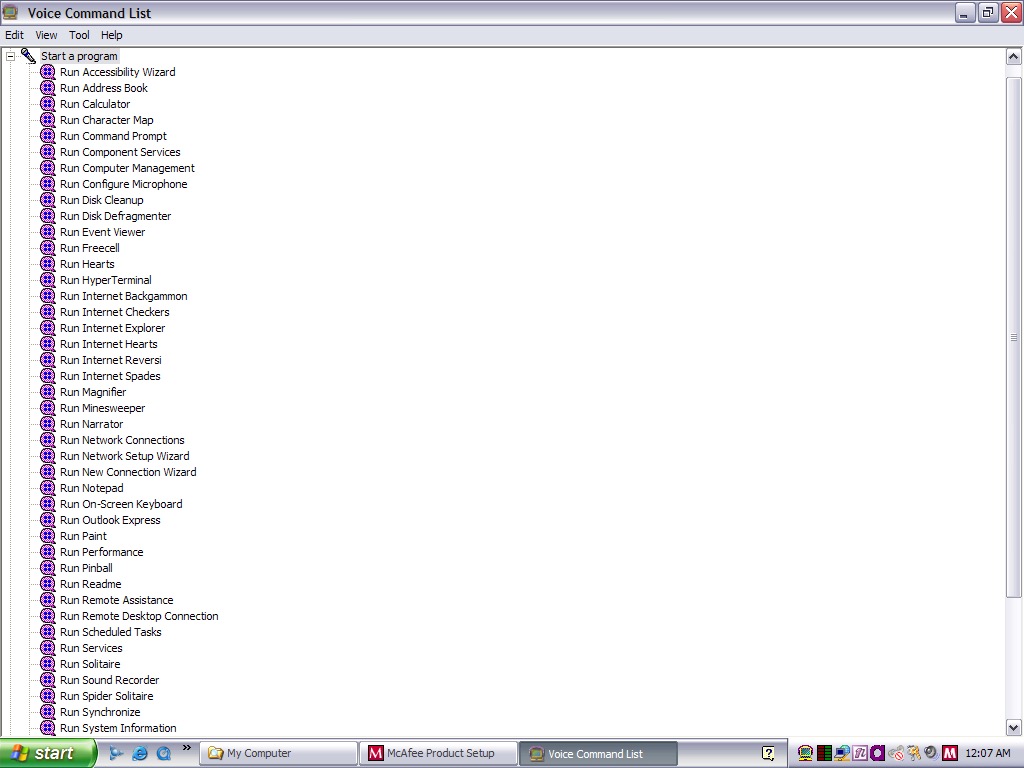
Toshiba Speech System – A voice recognition program that runs in the background and listens to the microphone so you can soak commands into the computer. You can start specific programs by speaking ‘Run Calculator’ 

Despite running in a virtual machine, I was able to pass through the microphone and it was able to pick up my voice. As you can expect this is very finicky with it failing to recognize certain commands or misinterpret noise as commands. It was even though the noise from my mechanical keyboard was the undo command. Probably best to disable this feature to avoid losing any work, since it will also misinterpret commands for deleting or cutting.

You can configure it to listen through a button instead which will cut down the amount of misinterpreted words. For tethering else it’s best to move the microphone away from the keyboard, presumably on the actual laptop this would be somewhere toward the top of the screen.
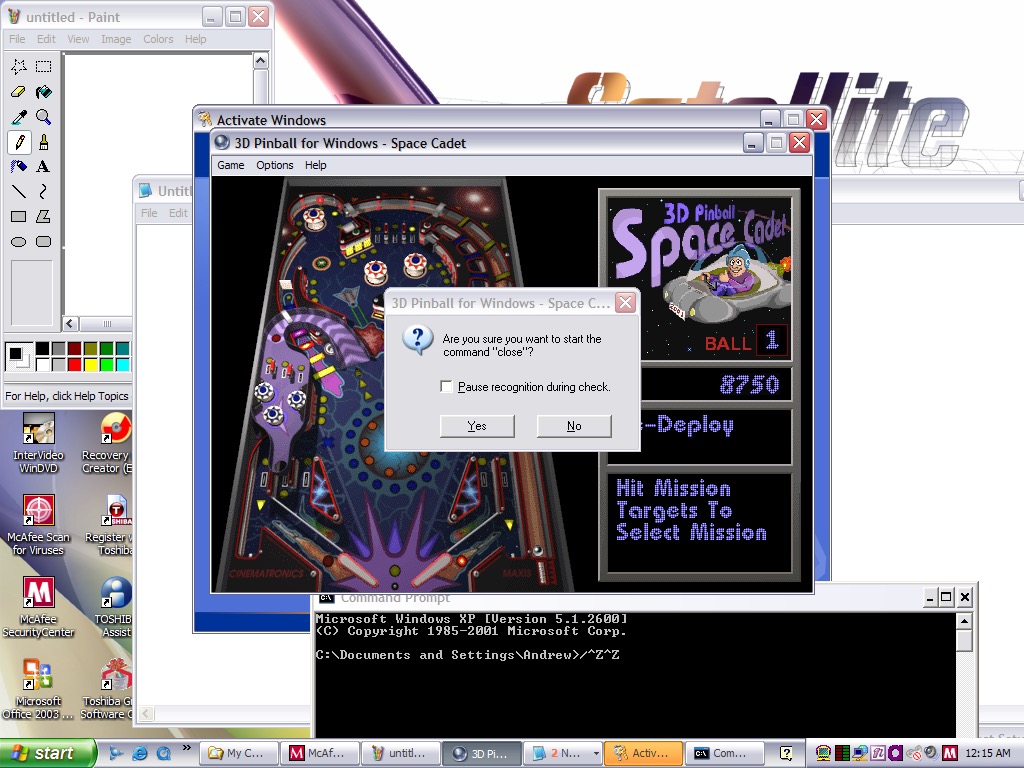
And yes, noise from applications and games can also interfere. Playing 3D Pinball will cause it to launch a command prompt window after you hit a bumper and finishing a game will cause it to run the MSN Backgammon game.

Imagine trying to play a Halo LAN party with this thing enabled.

EZ Firewall

eTrust EZ Firewall – Optional firewall that can be installed, this is a ,limited trial copy. This looks very similar to ZoneAlarm firewall.

Other bundled software included AOL, RealPlayer 8, QuickTime 6, Adobe Reader & Windows Media Player 10

Misc Observations

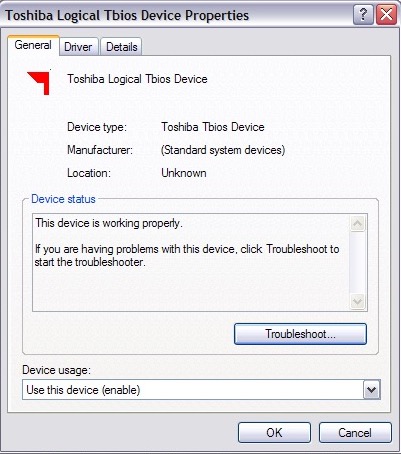
Not sure what a Tbios device but could be used to interact with the BIOS more closely

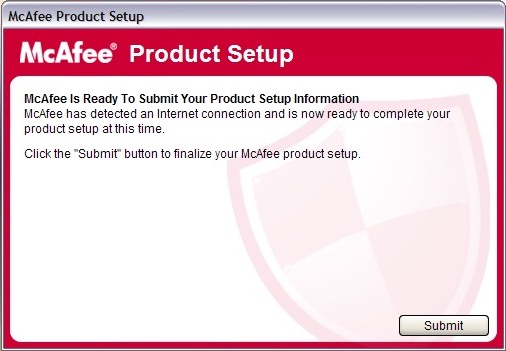
Once again McAfee is nagging us for further information, this happens a lot with McAfee

Adware on a fresh install?

Toshiba Media Player Skin

Custom Windows Media Player skin

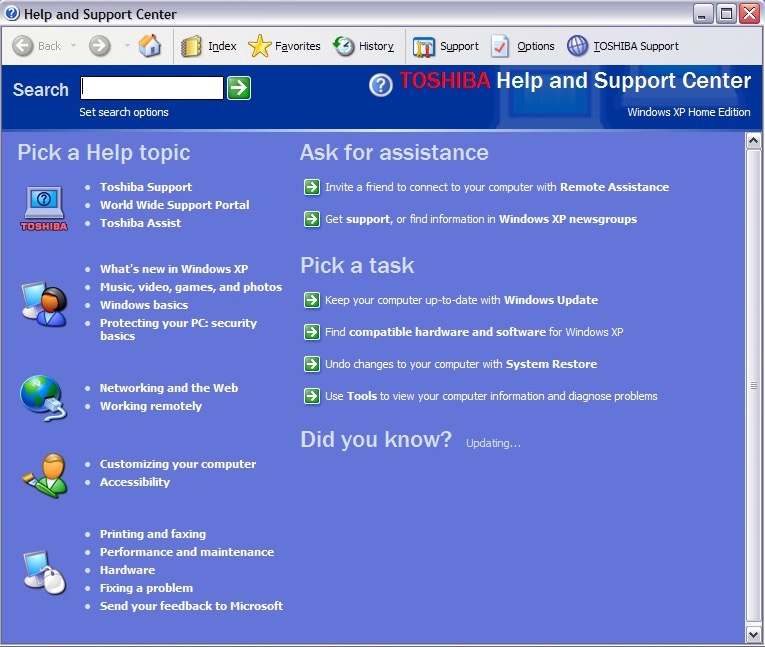
Toshiba Help & Support

Help and Support with Toshiba branding

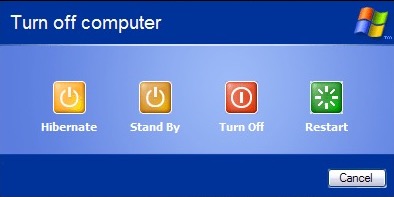
Shutting down the laptop, it has an altered shutdown screen that features four options which I have seen on a few Dell installs of the era 

Sony VAIO PCV-70 – Part 2

What happens when we try to upgrade Windows?

Original Install

The PCV-70 originally shipped with Windows 95, but can be upgraded possibly to Windows XP. Along the way you will have to upgrade the processor and the amount of memory to run modern versions of Windows, which is easier to do in 86Box (4.0.1)

For this I’m more concerned with how far the OEM install can take us whilst maintaining the existing install. And what applications that Sony shipped with the PC still remain functional.

Windows 98

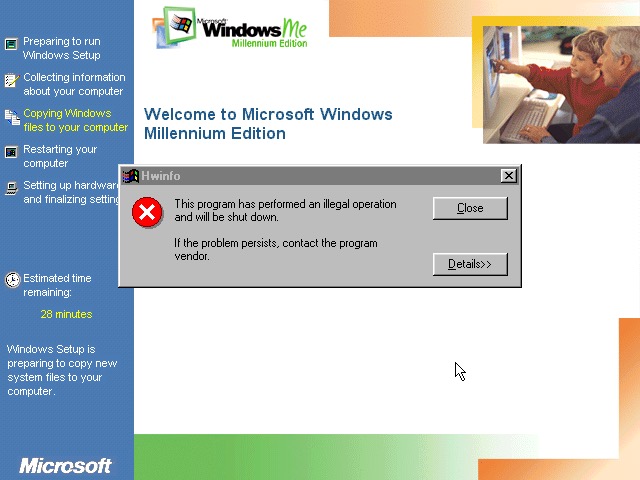
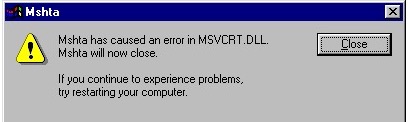
Great, something called HWINFO has crashed. That’s always a good sign

Install appears to continue though

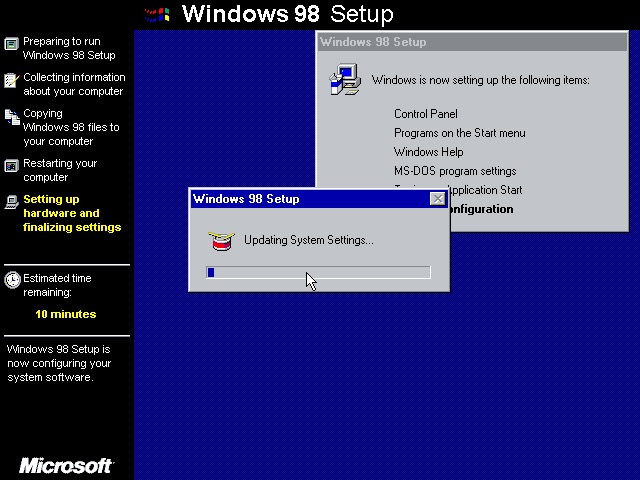
A couple of reboots and Windows 98 starts to initialize its driver database

Not this shit again, thankfully the installation continues

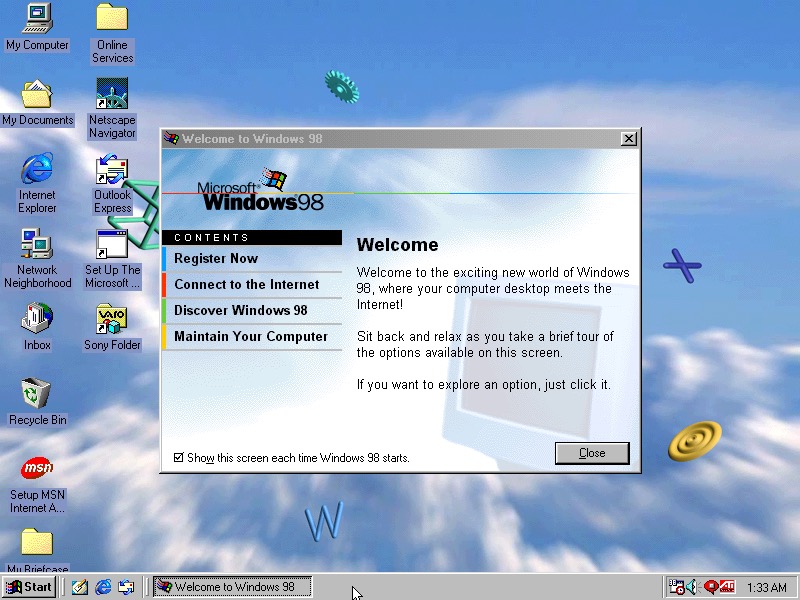
Install was successful with the welcome to Windows dialog appearing

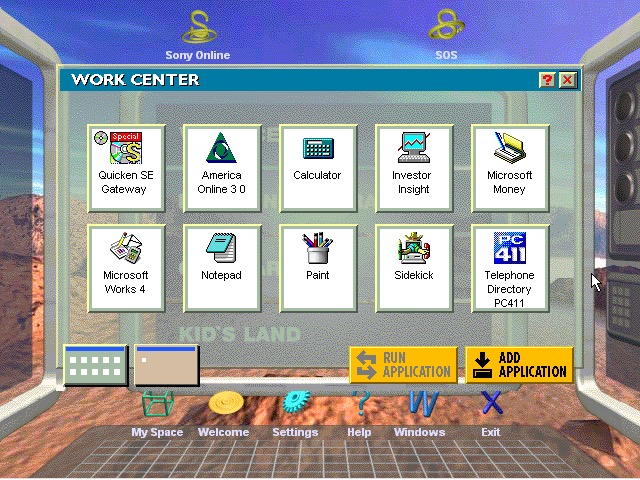
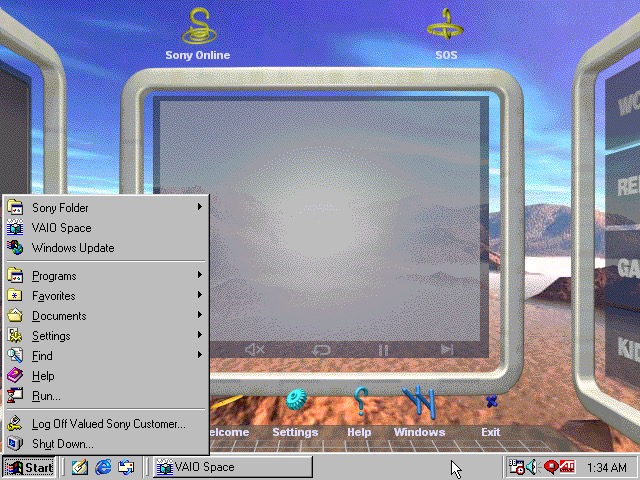
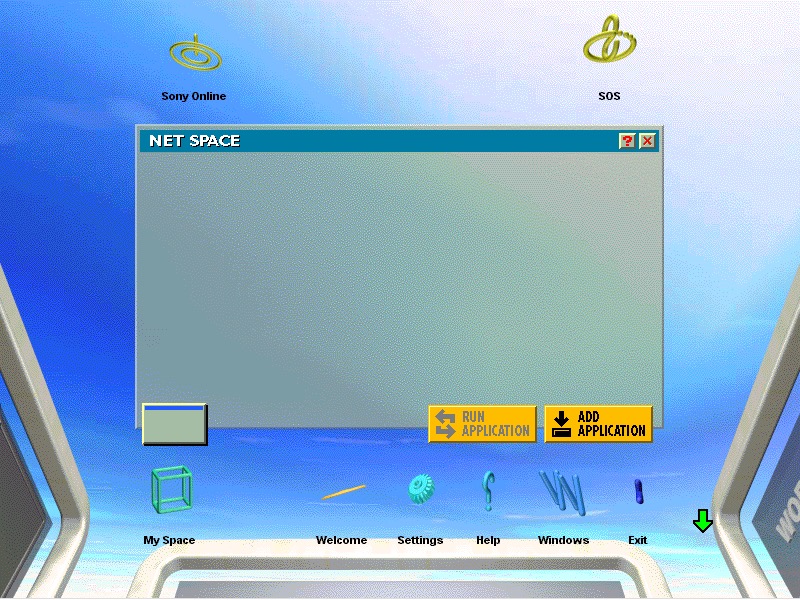
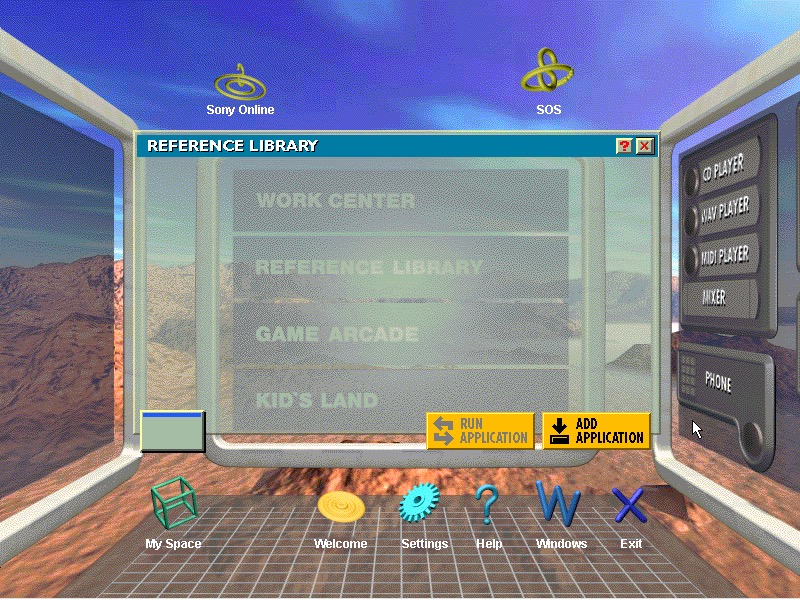
The VAIO Space appears to work OK

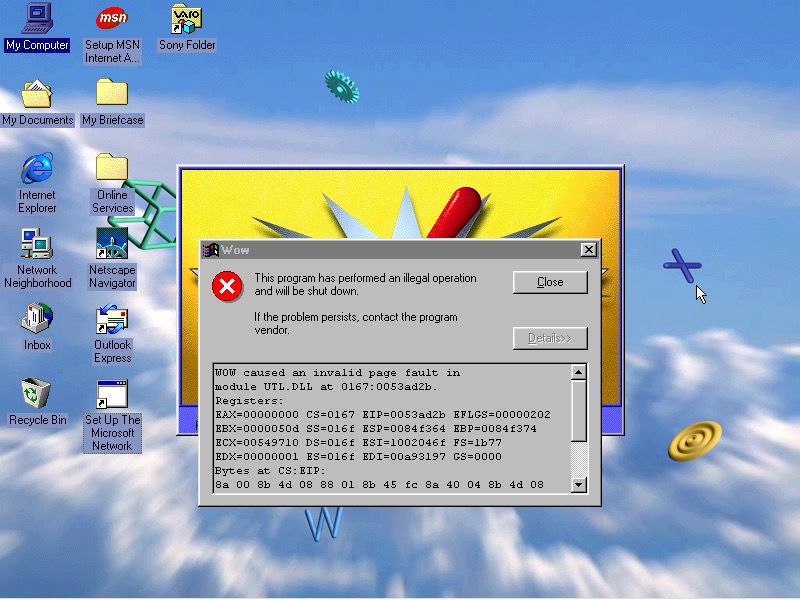
Another casualty is the WOW application. Wipeout also no longer launches, I won’t count this since we are not using a RAGE 3D accelerator (No 86Box support for that yet)

VAIO themes, wallpapers and colour schemes have been preserved

Windows ME

Looks like I need to bump up the CPU speed, so ME allows us to install. Enter the Pentium running at 166MHz

Again, Seriously? What is this and why does it keep crashing through an upgrade?

Something else went wrong

Windows Media Player seems to have taken a hit during the install

VAIO space is up and running, but some of the program links are missing. Also we are unable to launch the CD player or any of the multimedia applications

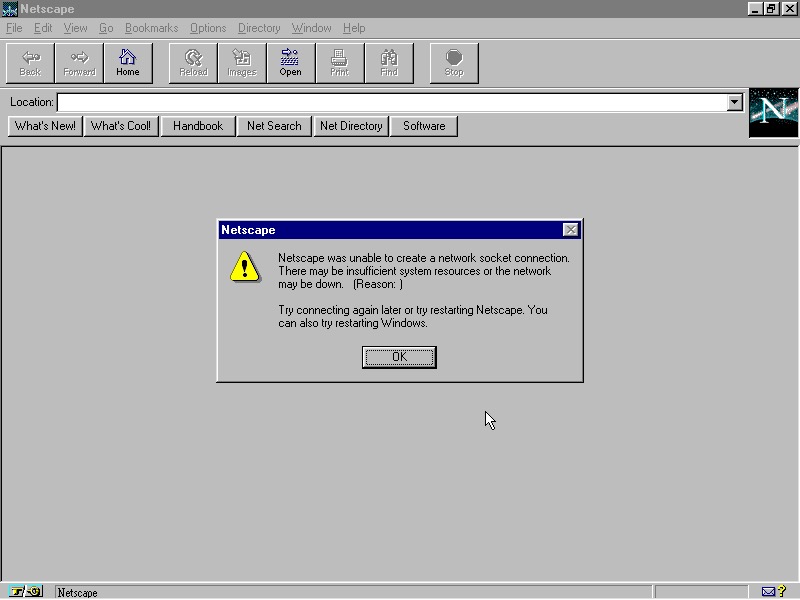
Netscape Navigator also has issues, but this is a very old version (2.0)

And Windows Media Player now works, not sure how?

No major issues were found with other applications, though losing functionality from VAIO space takes away one of the unique features of the PC.

Windows XP

Sadly we hit a roadblock here, as we do not have enough disk space to complete the upgrade (We have a 2GB hard disk with 652MB free, but Windows XP demands at least 800MB)

Perhaps I can expand the VHD. It’s worth noting the original system only came with a 2.1GB hard drive.

Even if we got XP installed, it’s a struggle running it on a 200MHz Pentium through 86Box, any faster and the emulator starts to throttle the speed. Might be worth revisiting in the future but for now ME is the best we can get. 

Windows XP Media Center Edition 2004

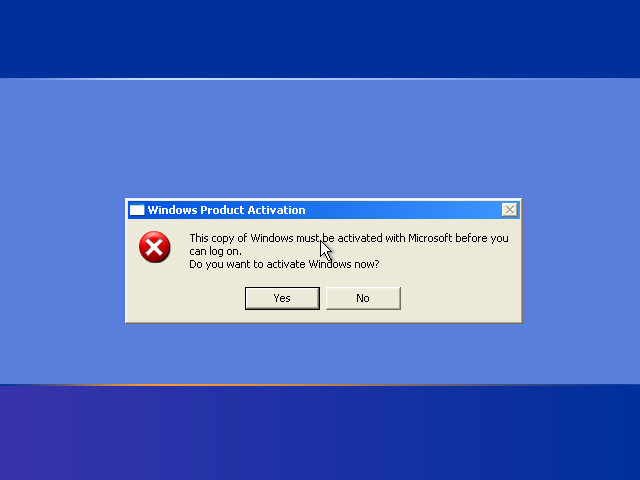
An update to Windows XP Media Center, again intended for OEM use. Very little has changed on the desktop side with most of the enhancements being done to the Media Center program. Again this version was intended solely for OEMs, so only OEM-type product keys can be used. When installing on an OEM system, like my Dell XPS Gen5, activation was automatic and I don’t remember it prompting for a product key. On VMWare, it’s a different story with it being locked out of the OS on the initial boot-up.

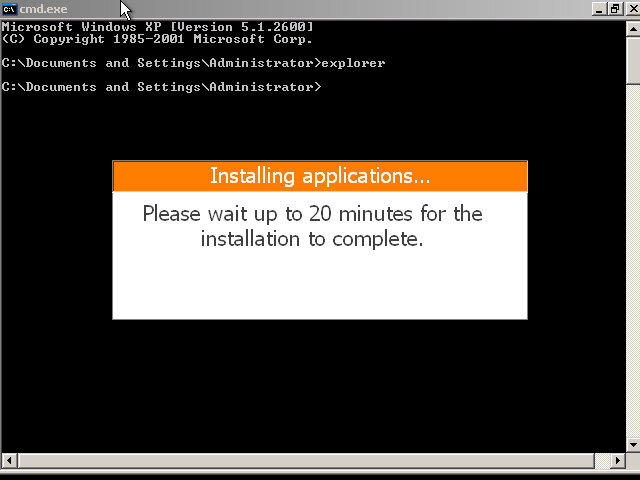
Some issues may occur regarding product activation since this is a Dell OEM copy, to get around this:
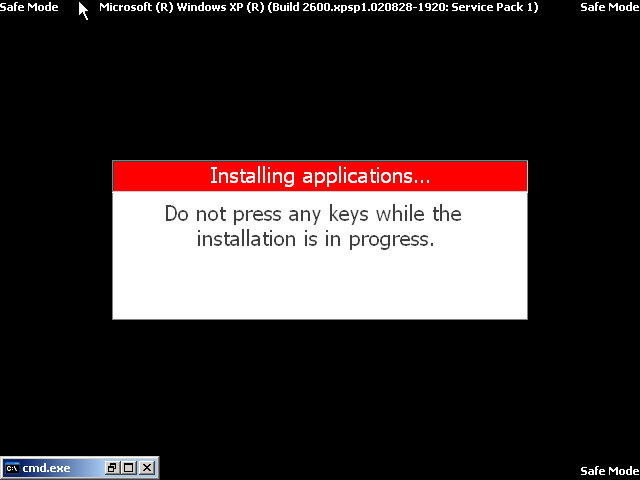
Spam F8 upon boot up
Select Start in Command Prompt
When the Command prompt window appears, enter ‘explorer’ and wait for the setup prompt to finish, this will reboot the PC automatically

Version Information

ComponentVersion
Internet Explorer6.0.2800.1106.xpsp11.020828-1920
Outlook Express6.00.2800.1106
Windows Media Player9.00.00.3005
Windows Messenger4.7.0041
Windows Movie Maker1.1.2427.1

The desktop remains the same as a default Windows XP, with the only noticeable difference being the Media Center icon on the Start Menu. A new Online Spotlight option is now present, This would take you to an online website, displayed within the Media Center application (possibly using the Internet Explorer engine) that would have provided further information with using Media Center.

Play DVD

The main DVD player, again we have difficulties playing DVD discs due to the lack of hardware MPEG2 decoder. You would think they would support software rendering by now.

My Videos

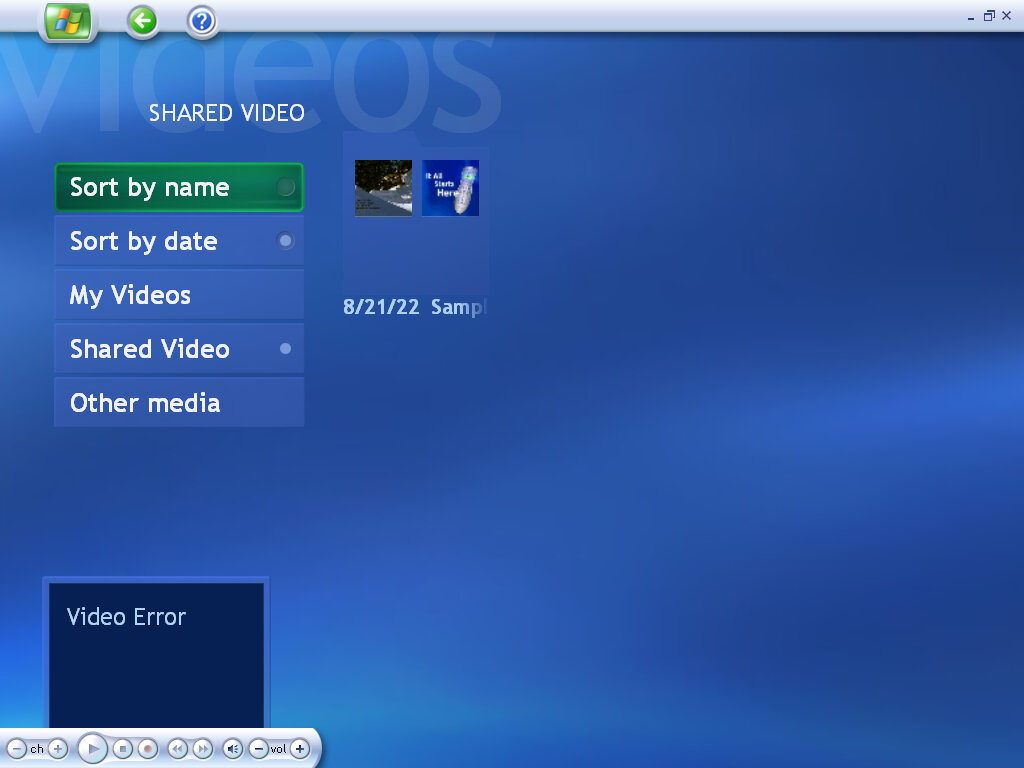
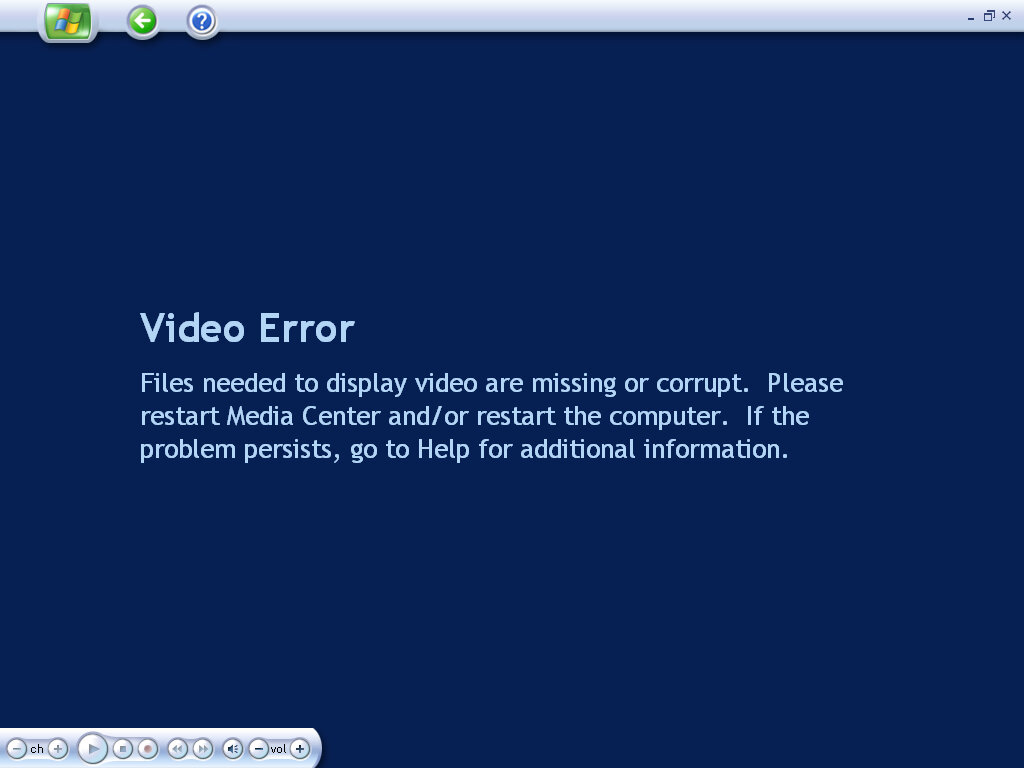
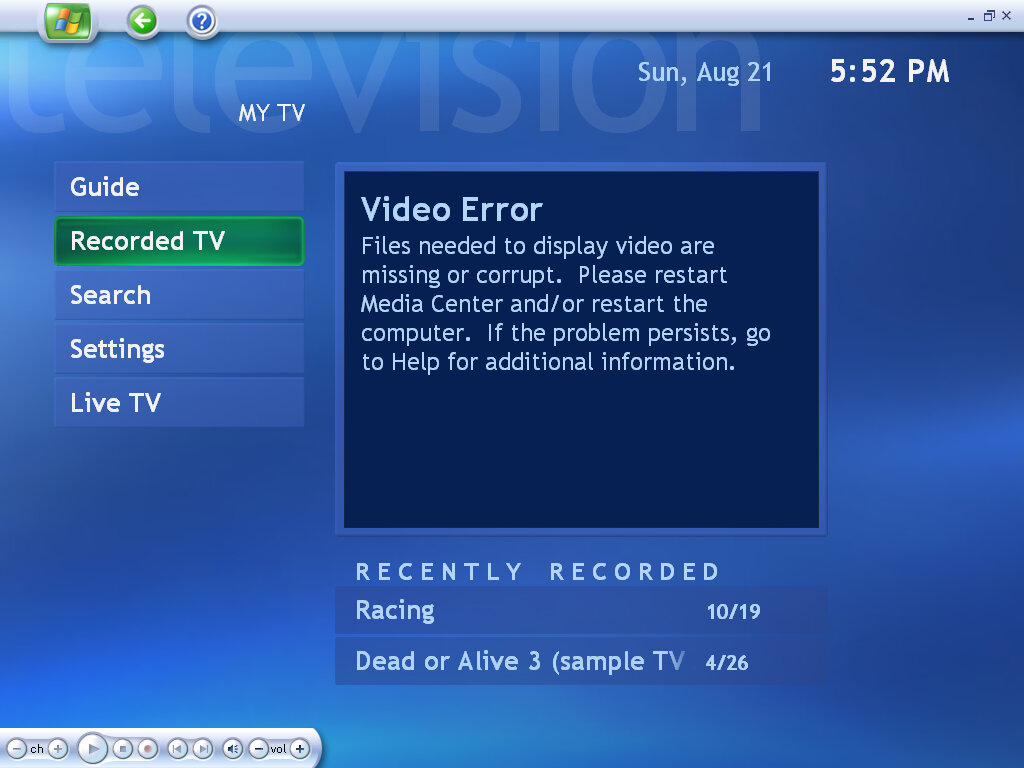
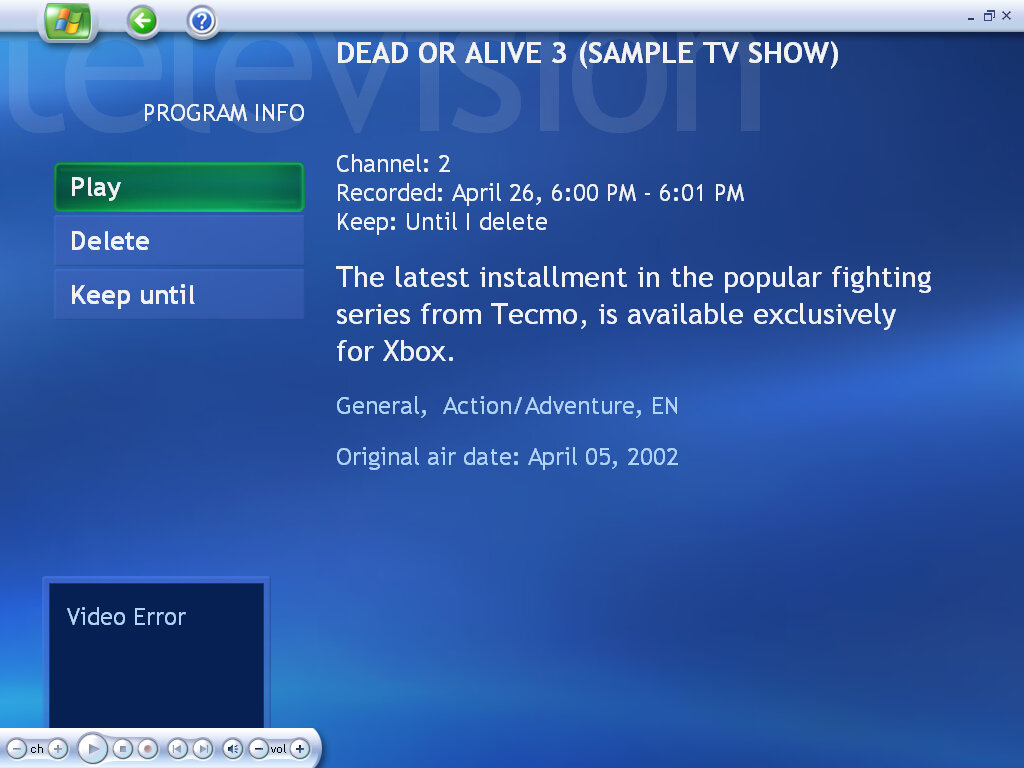
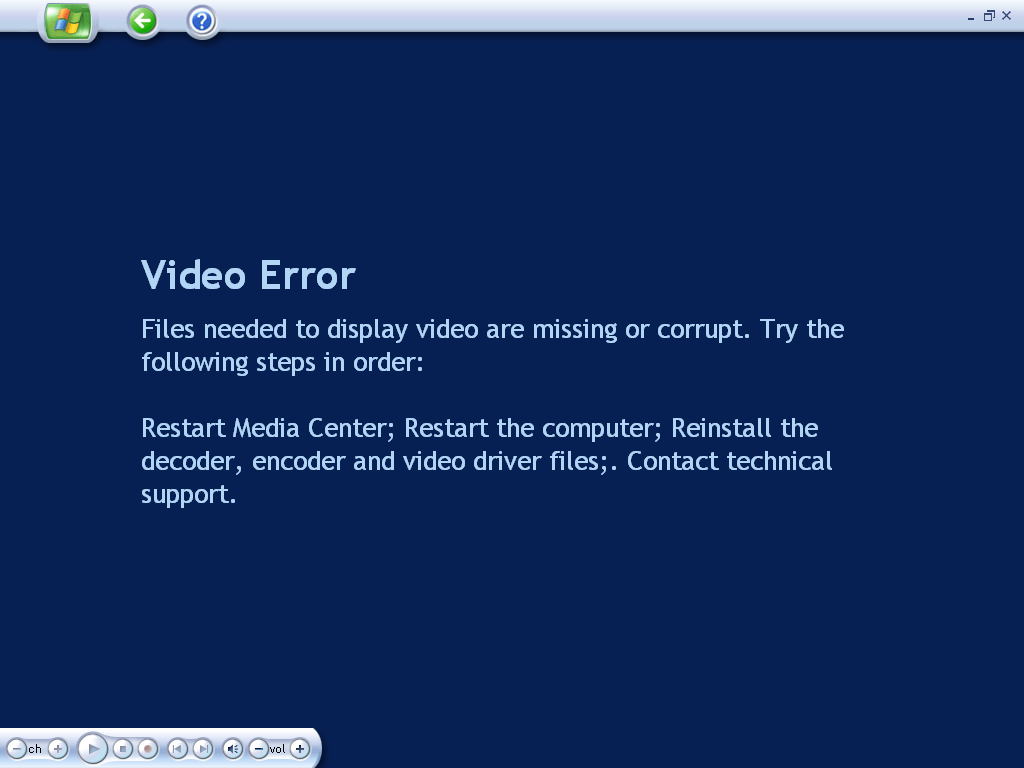
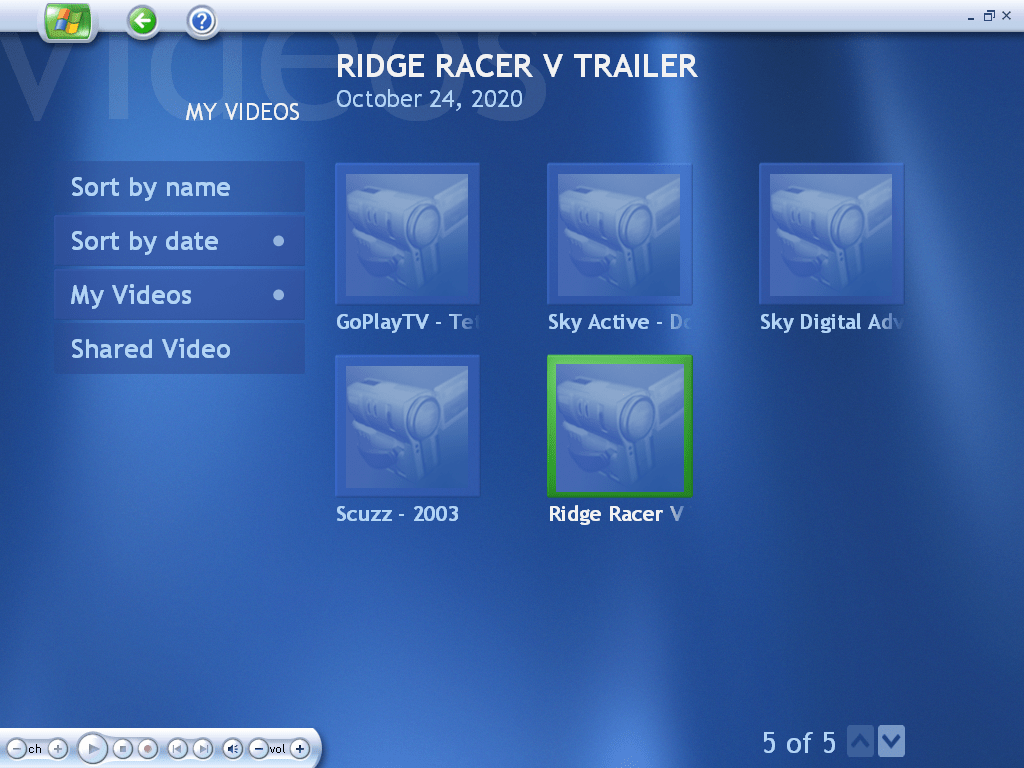
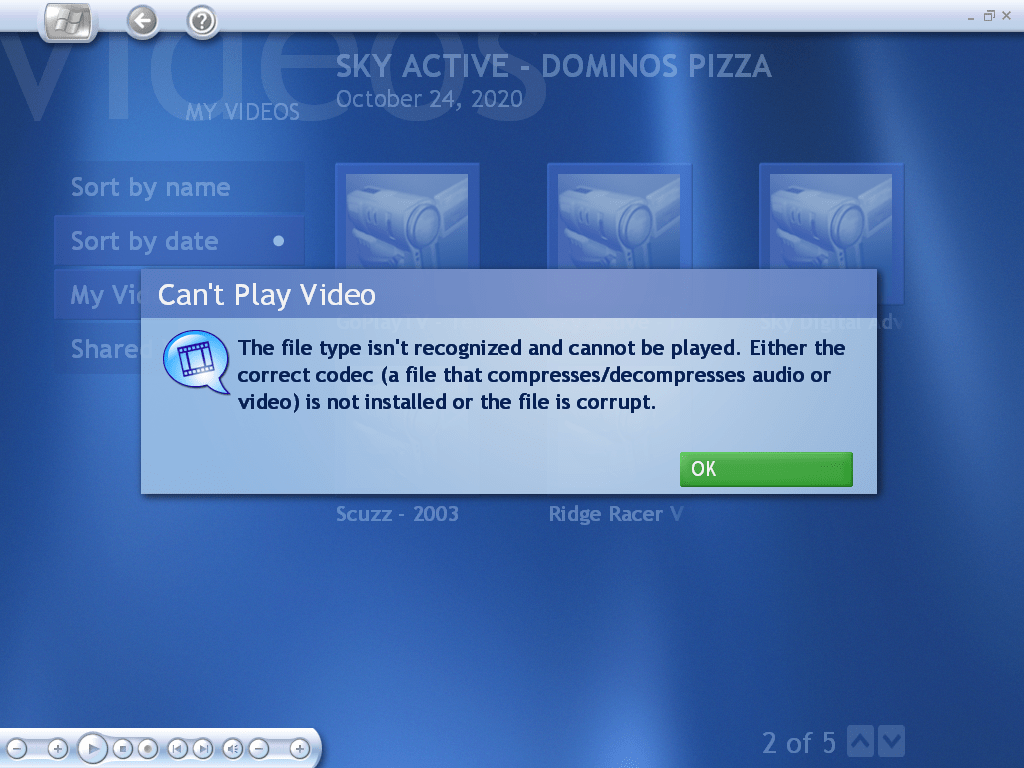
Videos stored in the My Videos folder are located and played back here. This does not include Recorded TV, which has its own section. Video playback requires a supported graphics card that will provide acceleration, that VMWare (Or its driver) does not support.

My Pictures

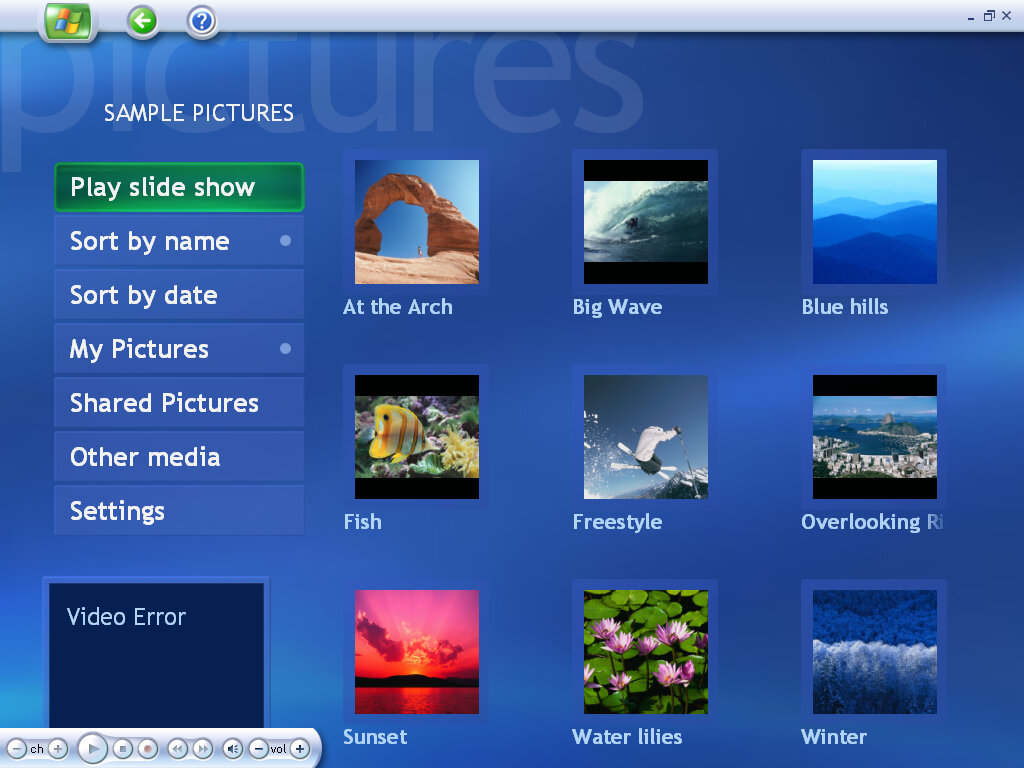
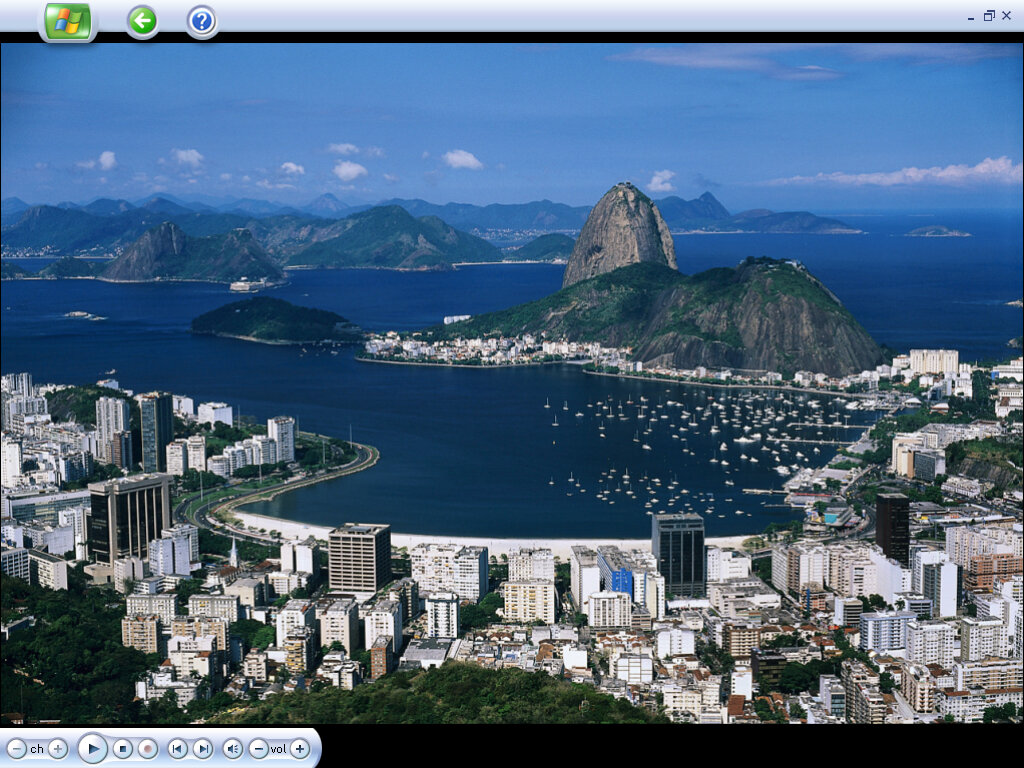
Similar has before, photos can be displayed as a single image or as part of a slideshow. Media center supports the common file formats and will display images from the My Pictures folder, or the Shared Pictures

My TV

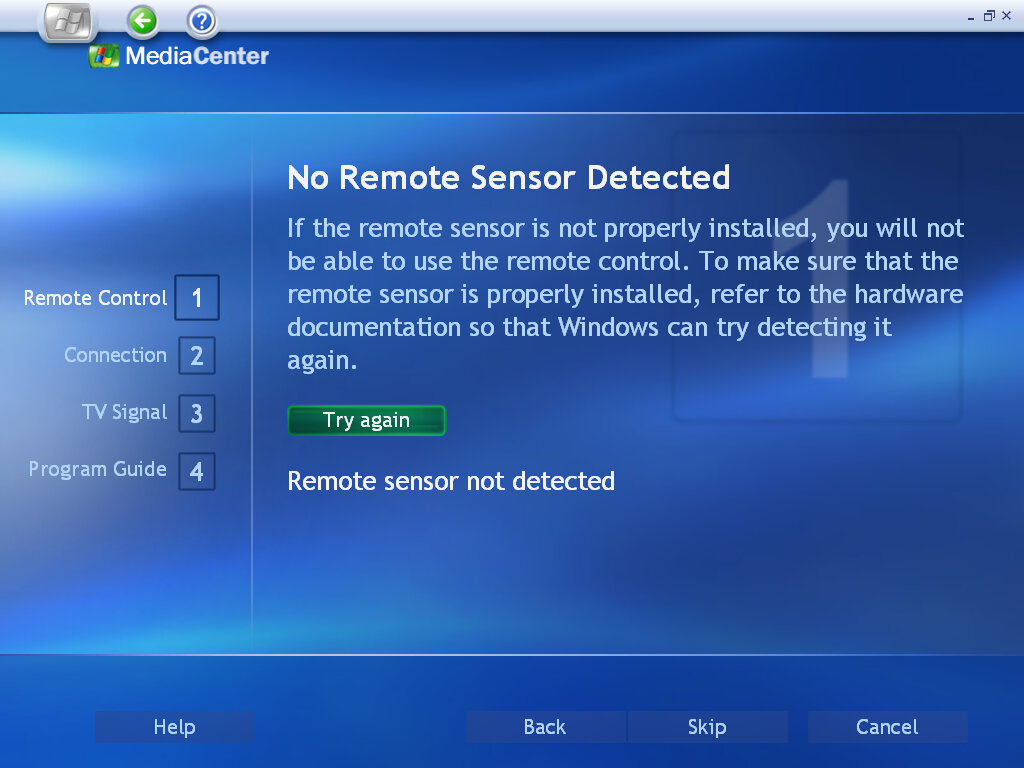
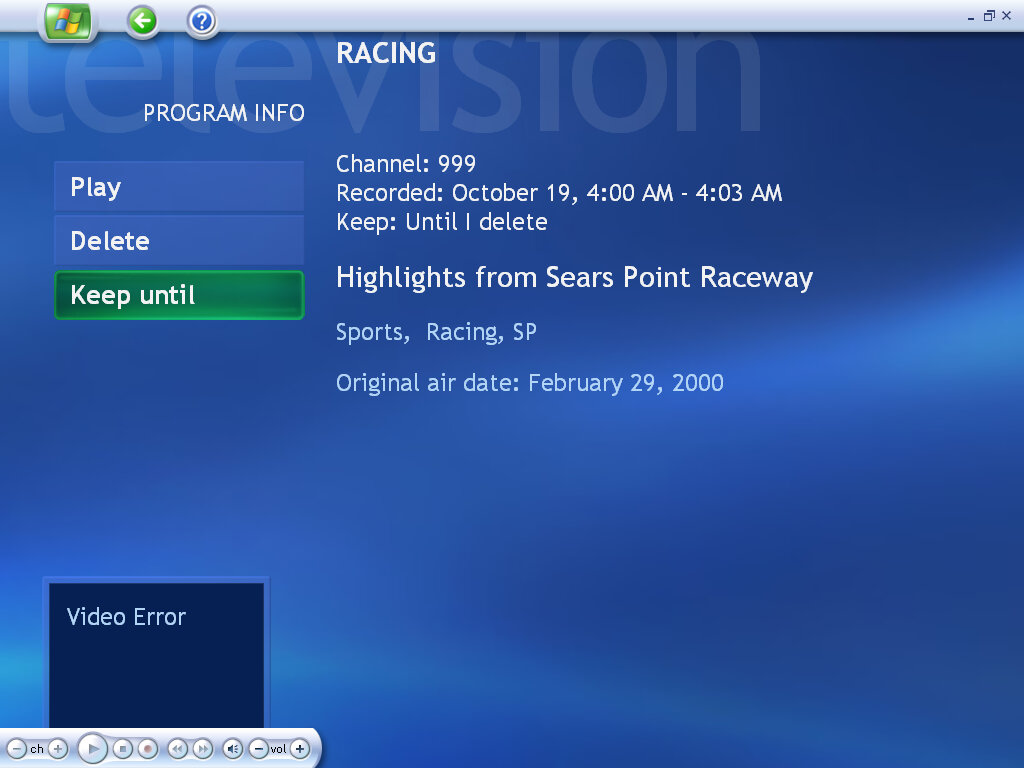
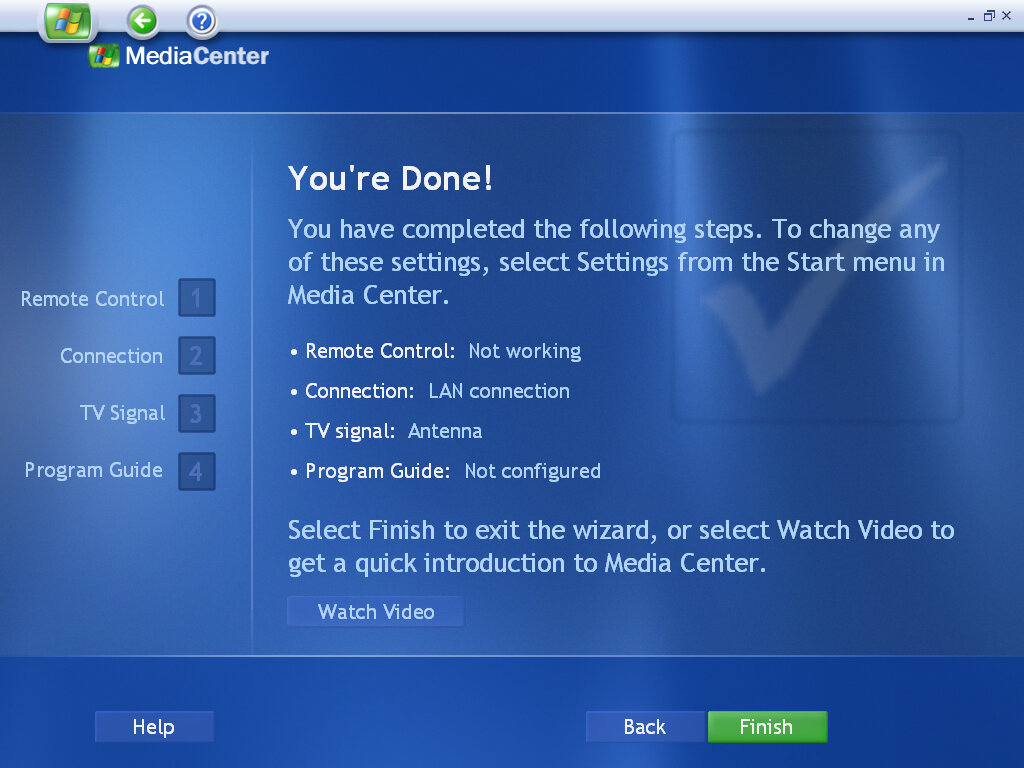
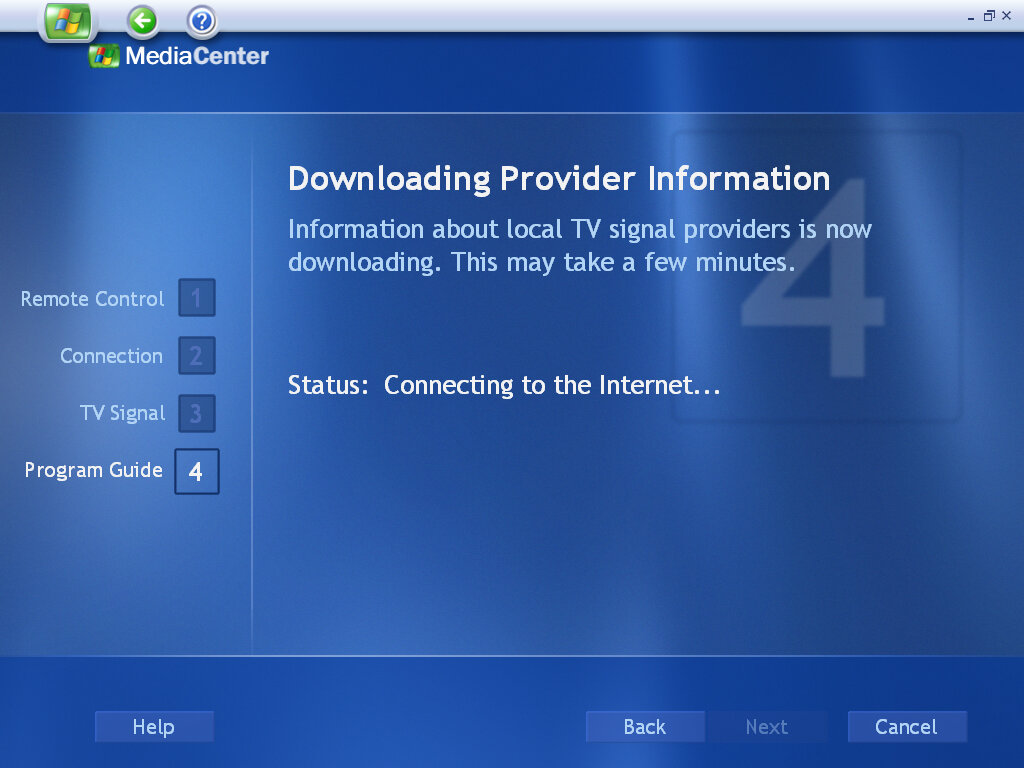
TV functionality is still a mystery, as my DVB-T tuner adaptor is still not recognized by the Media Center Application. From looking at the help files, Media Center has full PVR functionality with the ability to schedule recordings, pause live TV & rewind. You can now watch TV in slow motion, which is useful for sports events or frame by frame to check if anything has been missed (or for any subliminal messages).
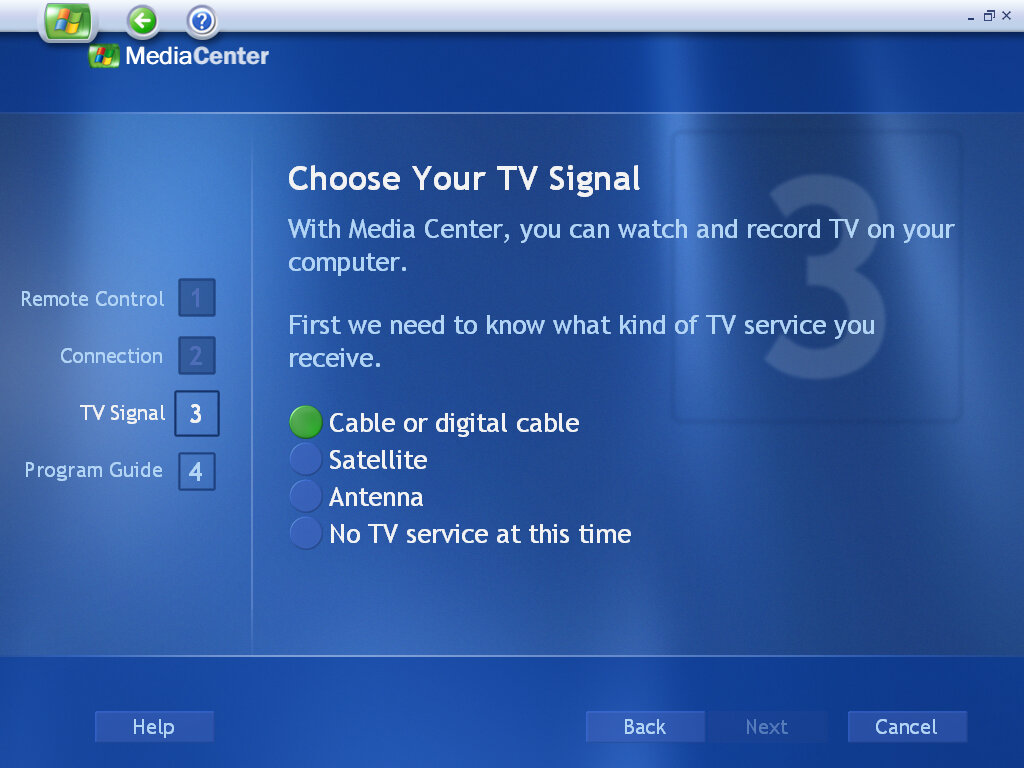
As with the previous version, you can configure the TV source to be through an antenna, using a satellite or a cable feed. The latter two probably need a set-top box along with an infrared blaster to control it.
Pay-Per-View also appears to be supported, but I’m unsure how this is implemented. Possibly it interacts with your cable box’s PPV application?
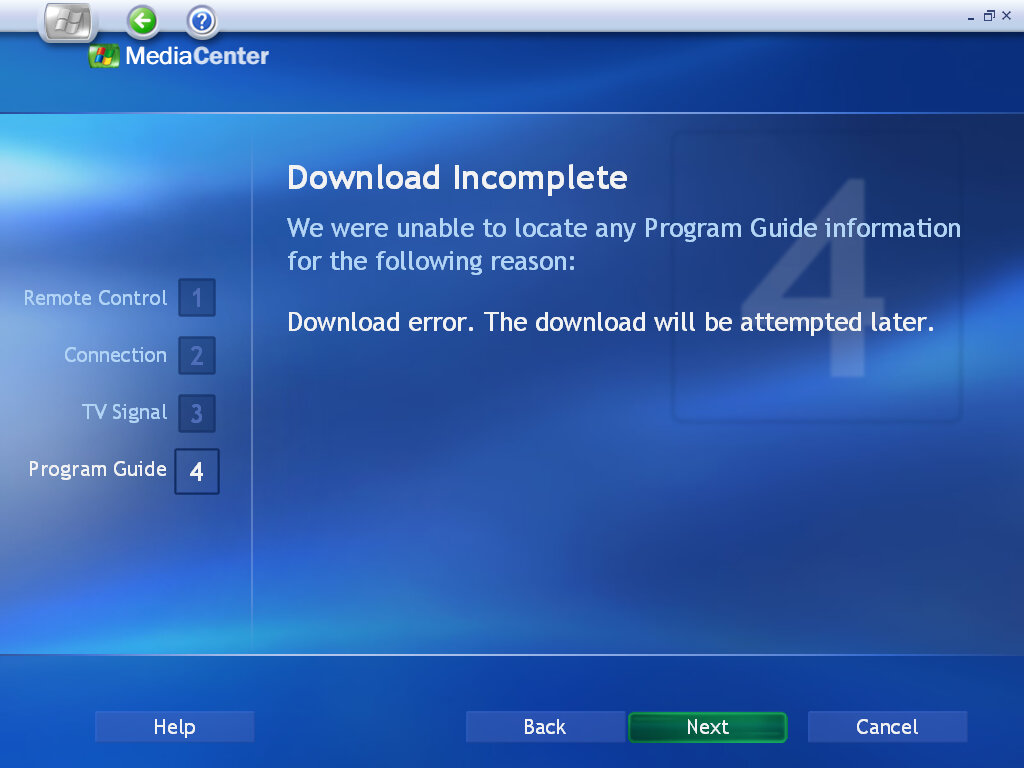
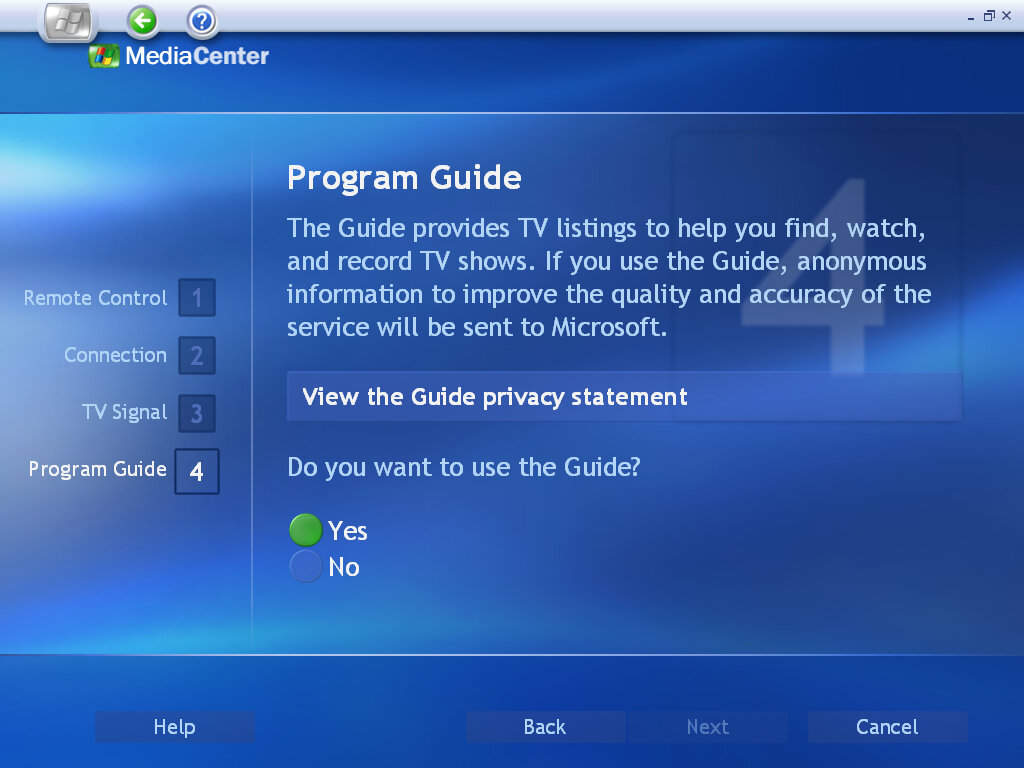
As for the TV listings, as Microsoft has killed off the EPG servers we are unable to load any channel listings.
My Music

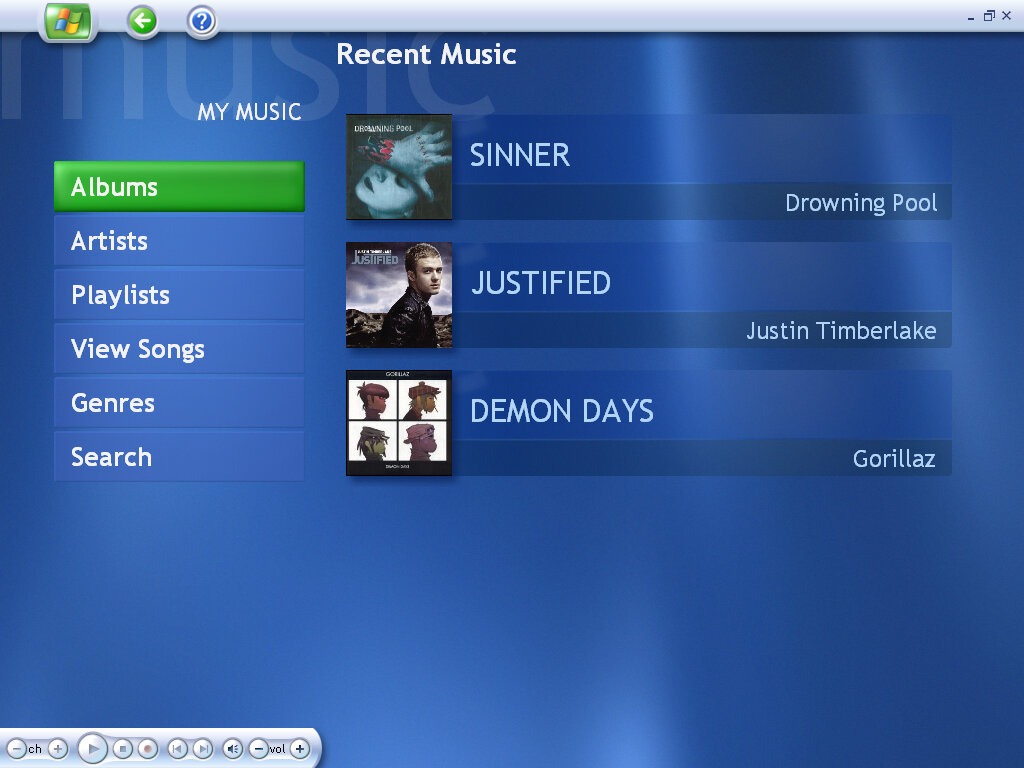
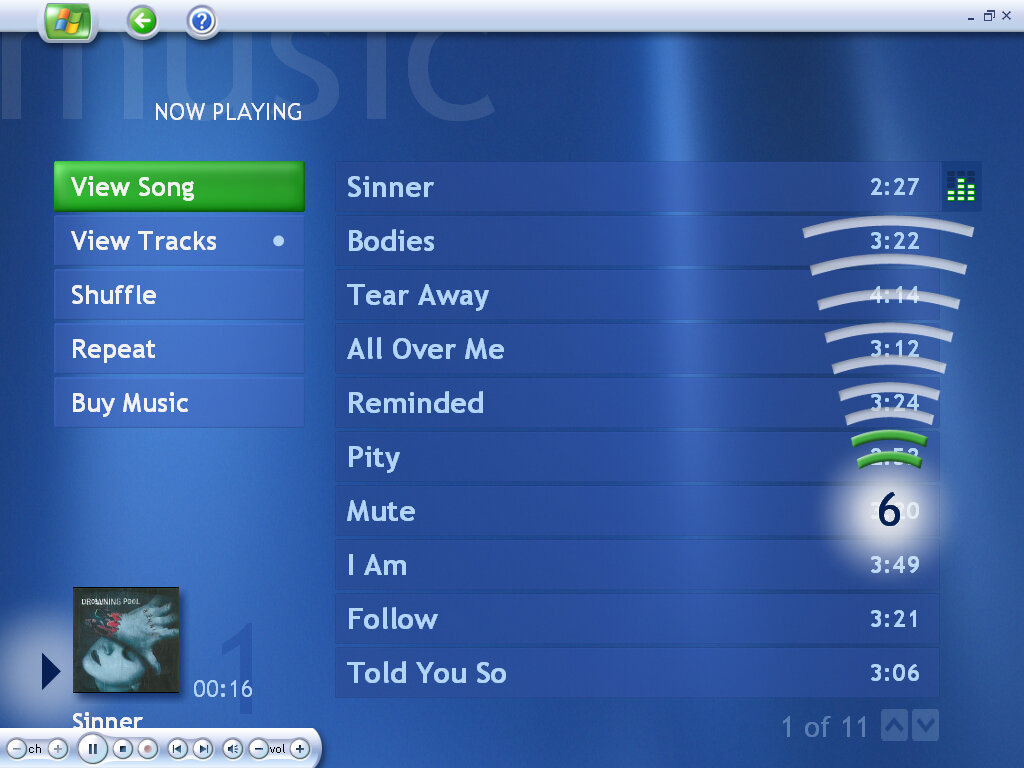
Little here has changed compared to the previous version. Music stored in the My Music folder can be played or organized into a playlist, and played through the media center application.
More Programs

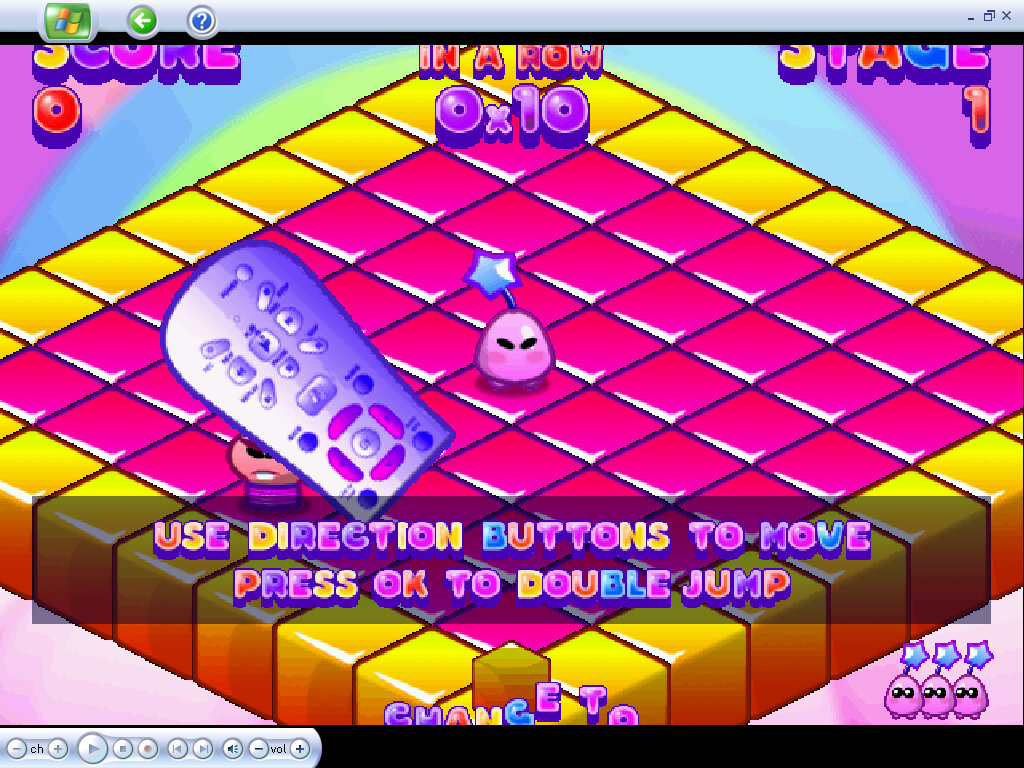
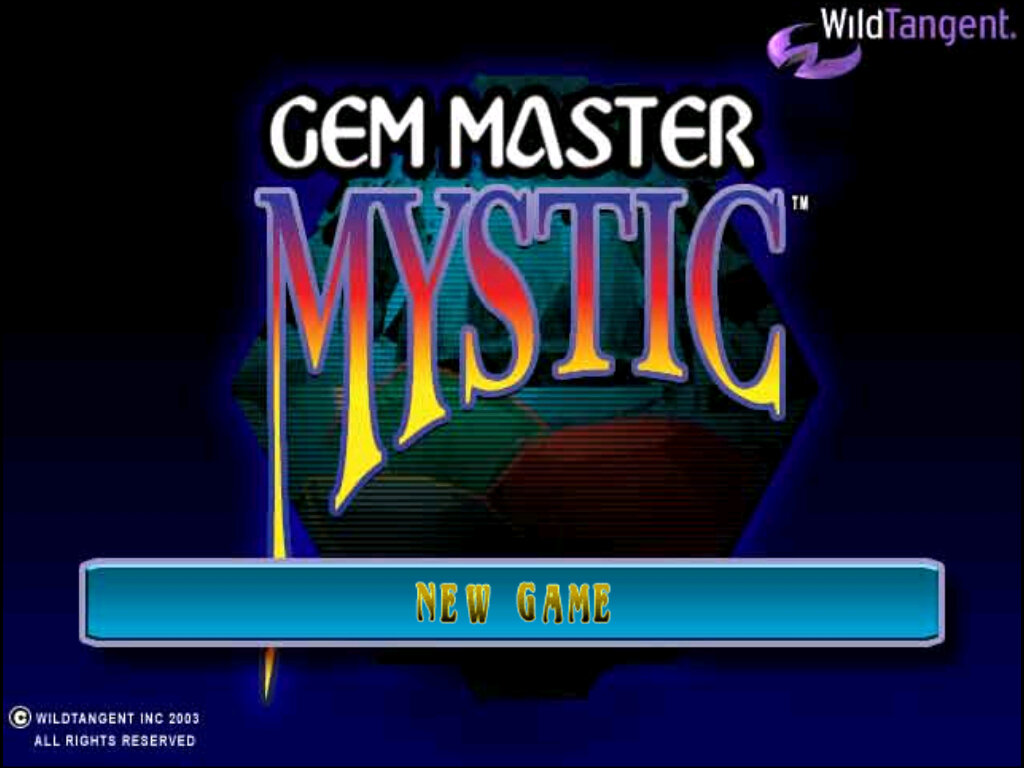
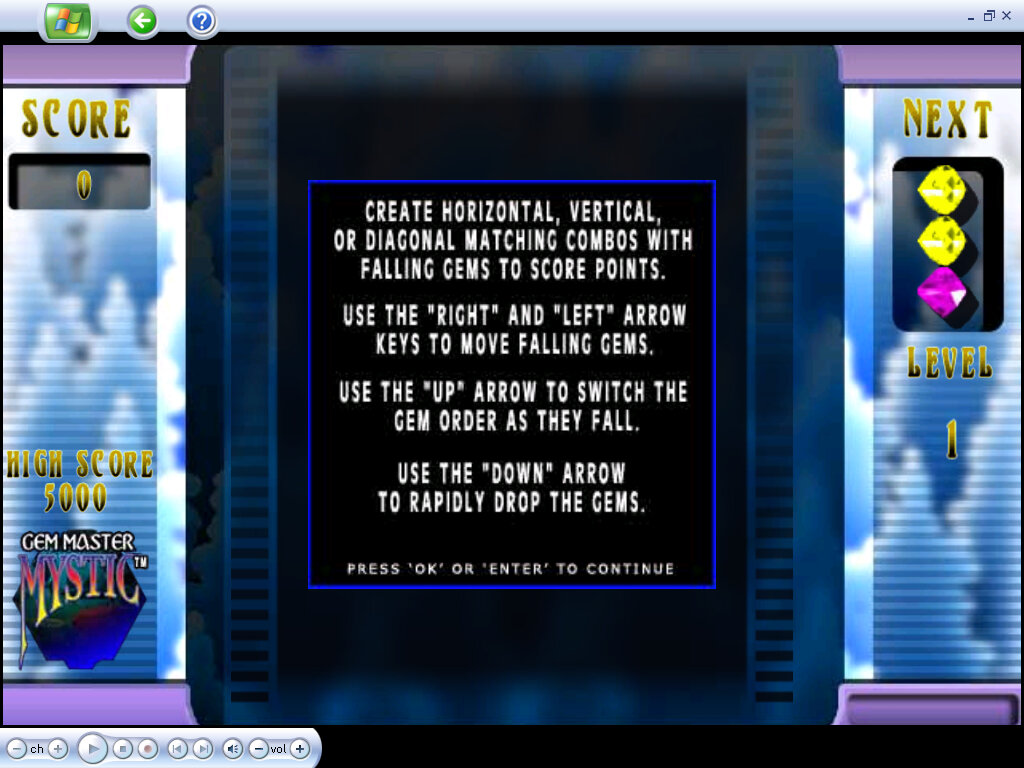
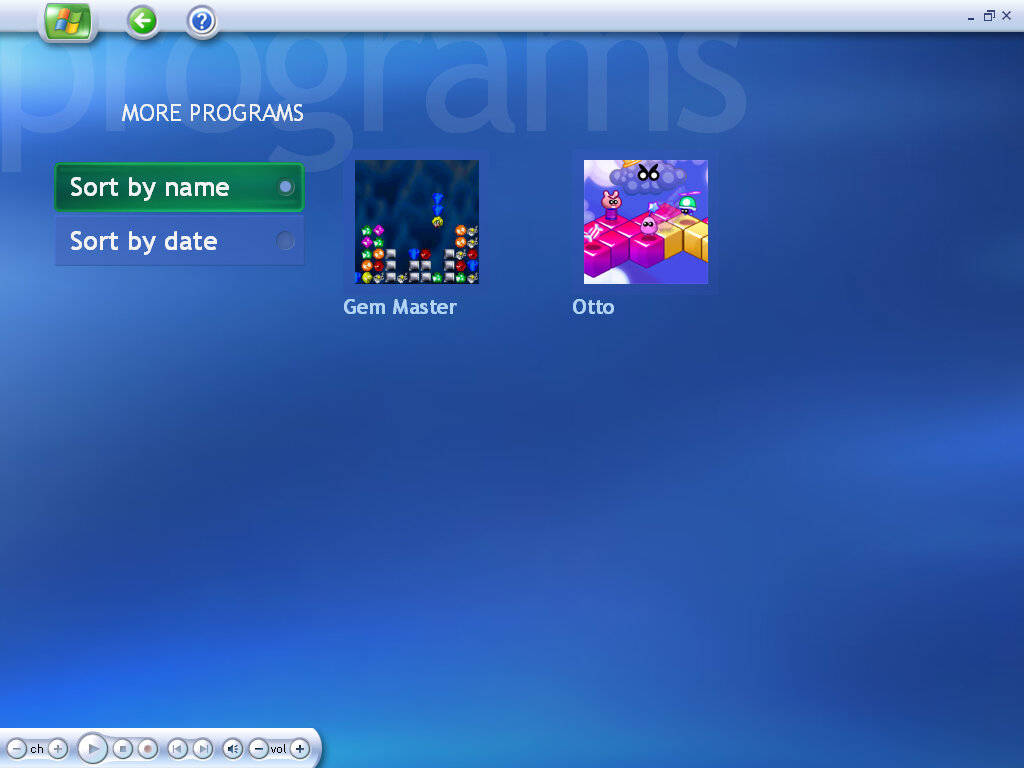
Additional programs that integrate into Media Center are displayed here, which can include games or links to the website. Dell has bundled a few WildTangent games that are intended to be played using the Media Center remote.

Otto: The objective is to turn all of the squares into your colour, whilst avoiding the enemies.

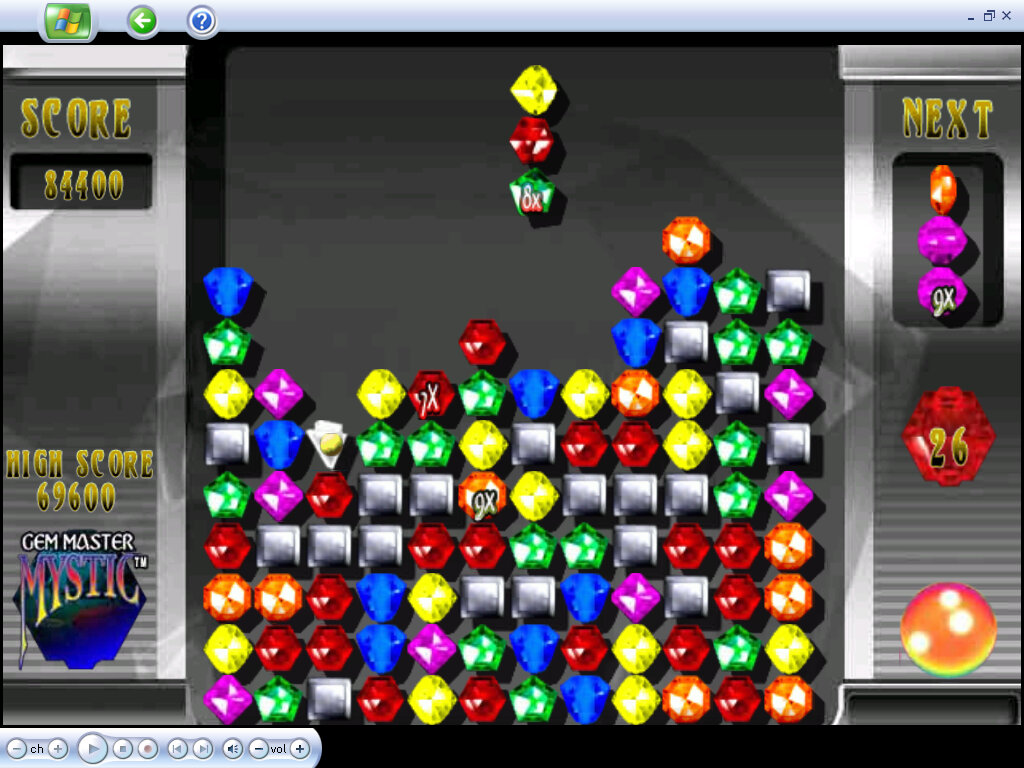
Gem Master: Similar to Sega Columns, clear the board by matching three or more colours together

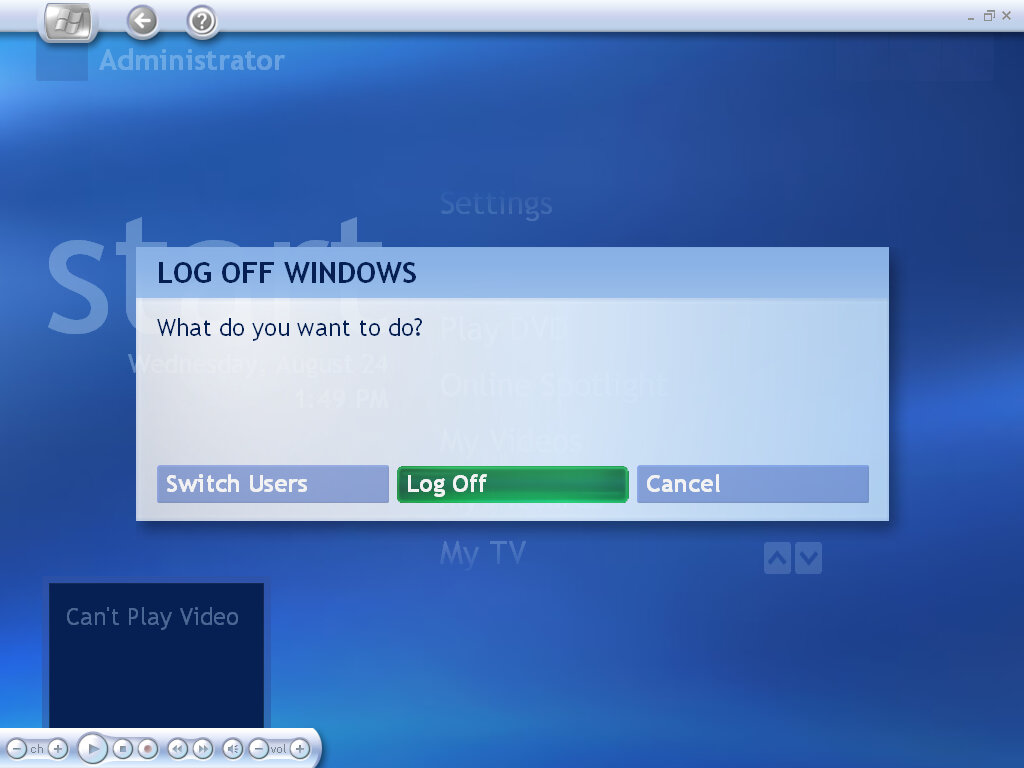
Shutting down within media center

Windows XP Media Center Edition

Windows comes to the TV

One of the many editions of Windows XP, this time intended for use in the living room and to react to the growing popularity of media centers of the era like the Tivo in the US, and the Sony PSX DVR in Japan.

Install

Mostly appears the same as Windows XP Professional and even identifies itself as such.

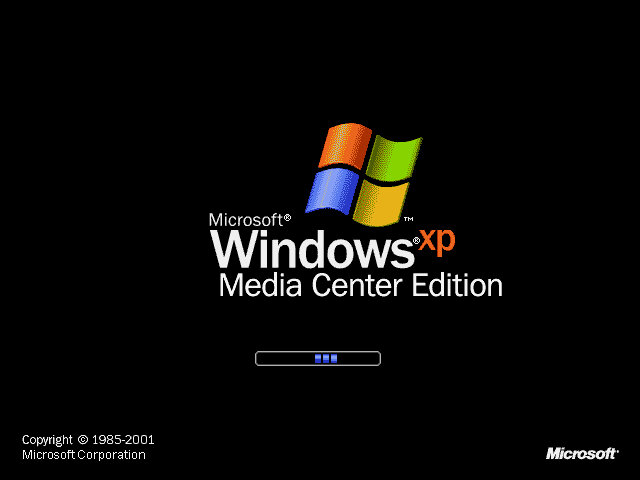
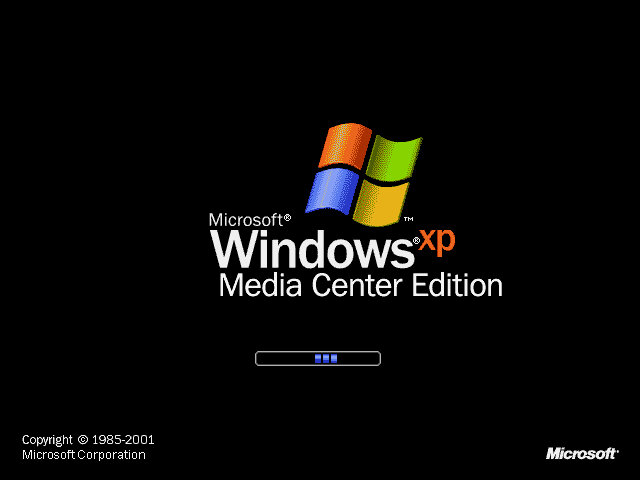
Has its own boot screen, which would disappear in service pack 2

Desktop

The desktop will resemble a stock version of Windows XP. The only difference you will notice is the Media Center icon in the start menu.

Media Center

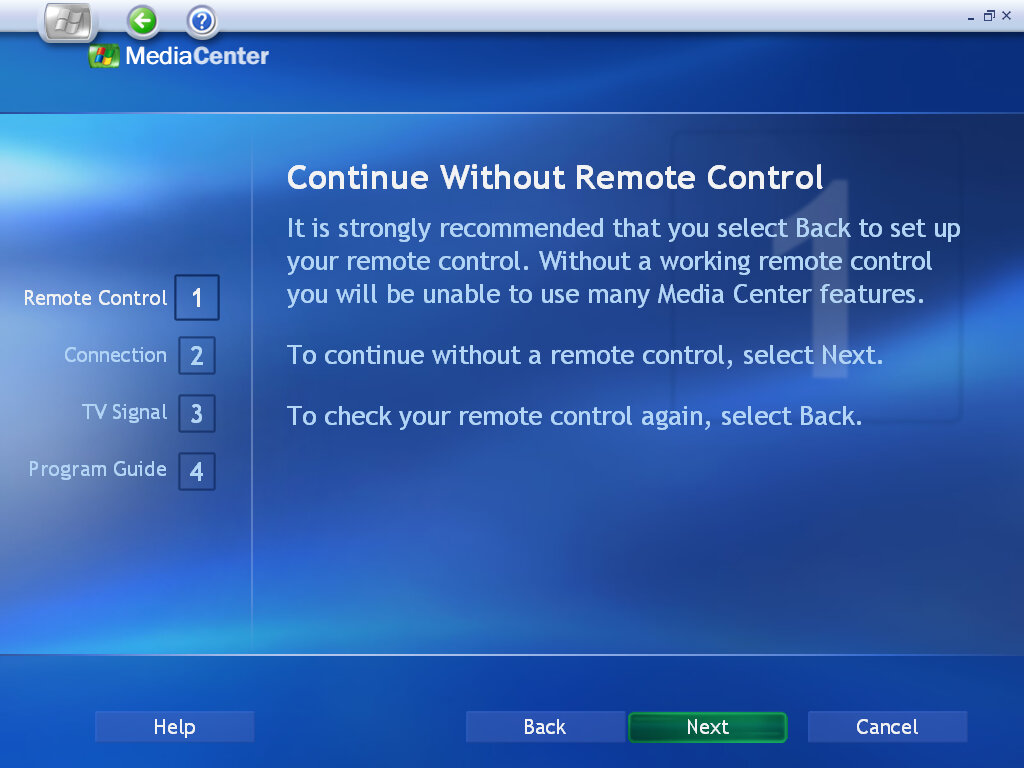
This is the main attraction to the Windows Media Center edition and is only included in these editions of Windows XP. It’s intended to be controlled using the media center remote which would have been included with the Media Center PC, although third-party remotes, along with their dongles would come available. As such it’s fiddley to use with just the keyboard and mouse.

MyTV

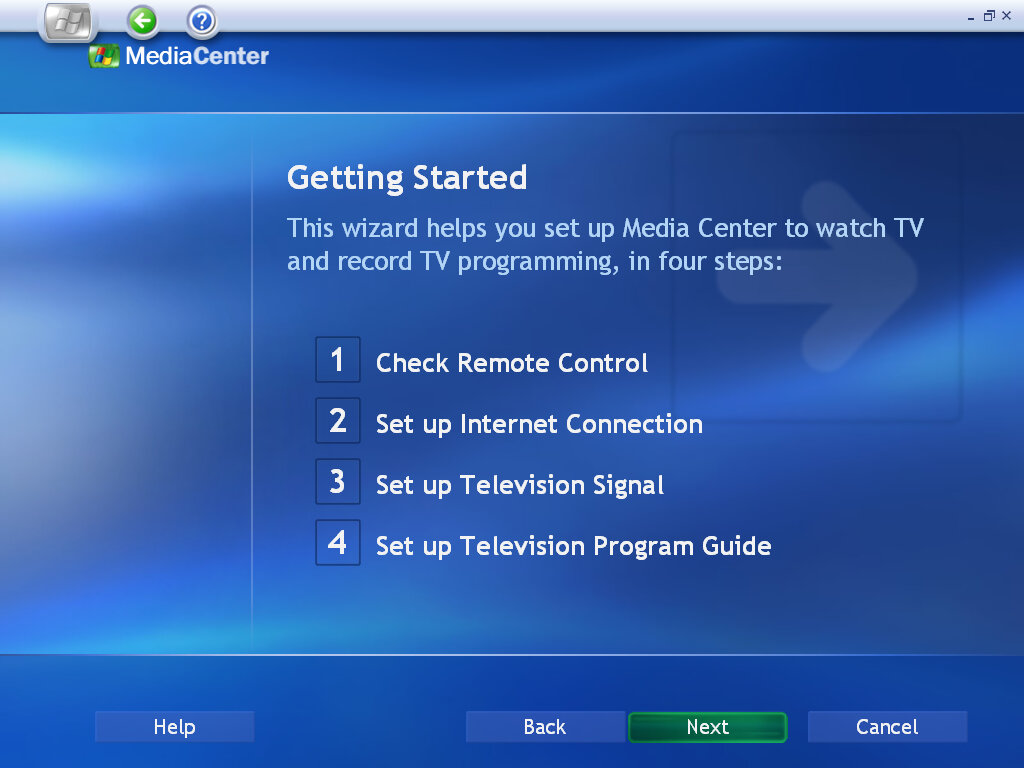
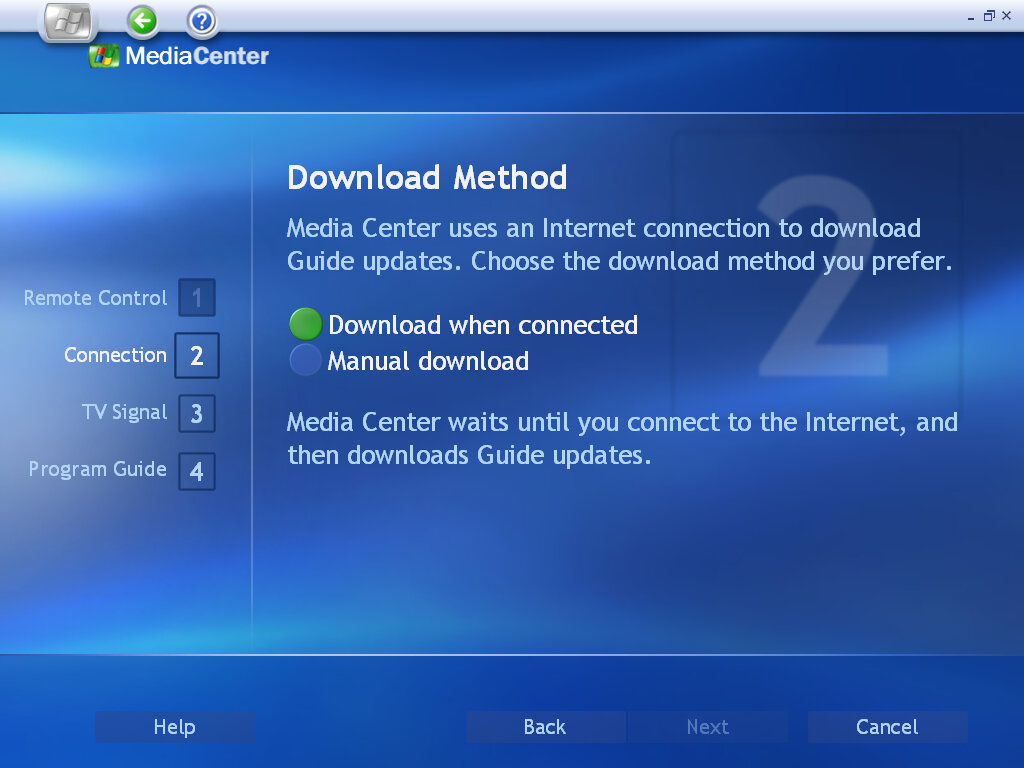
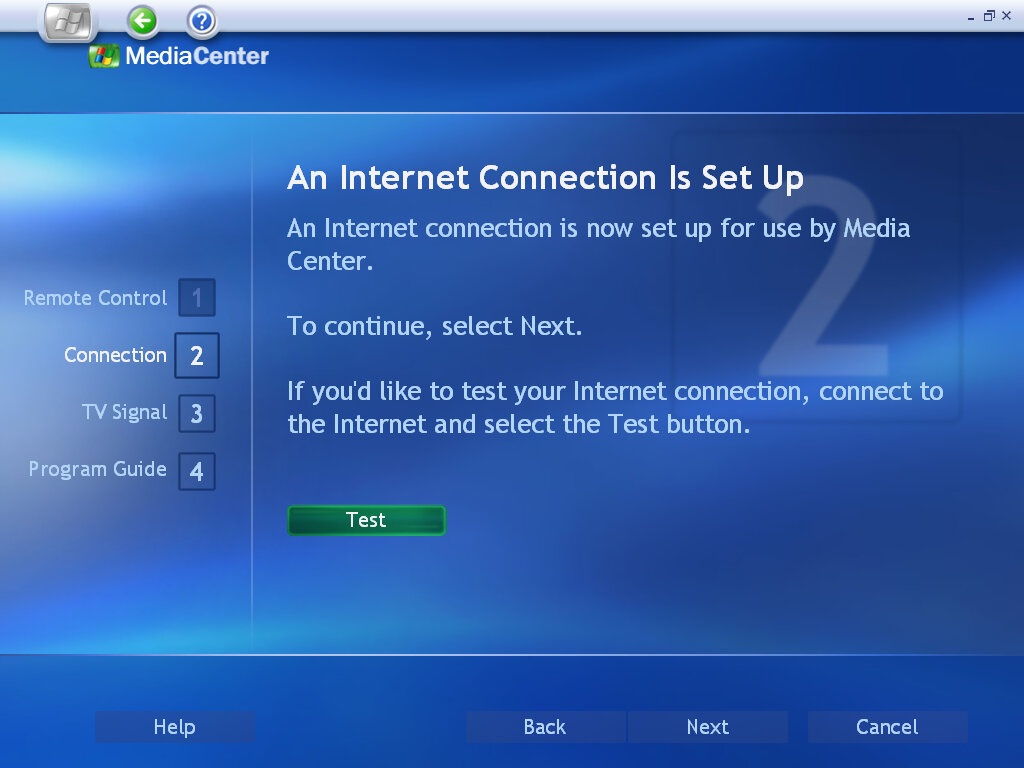
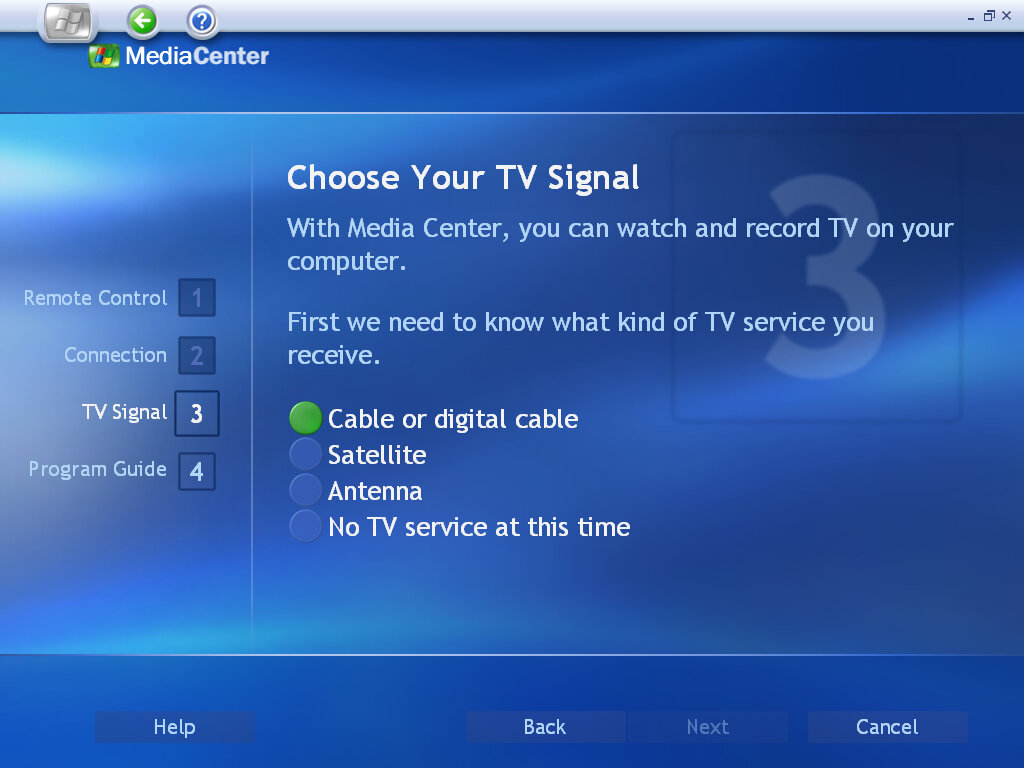
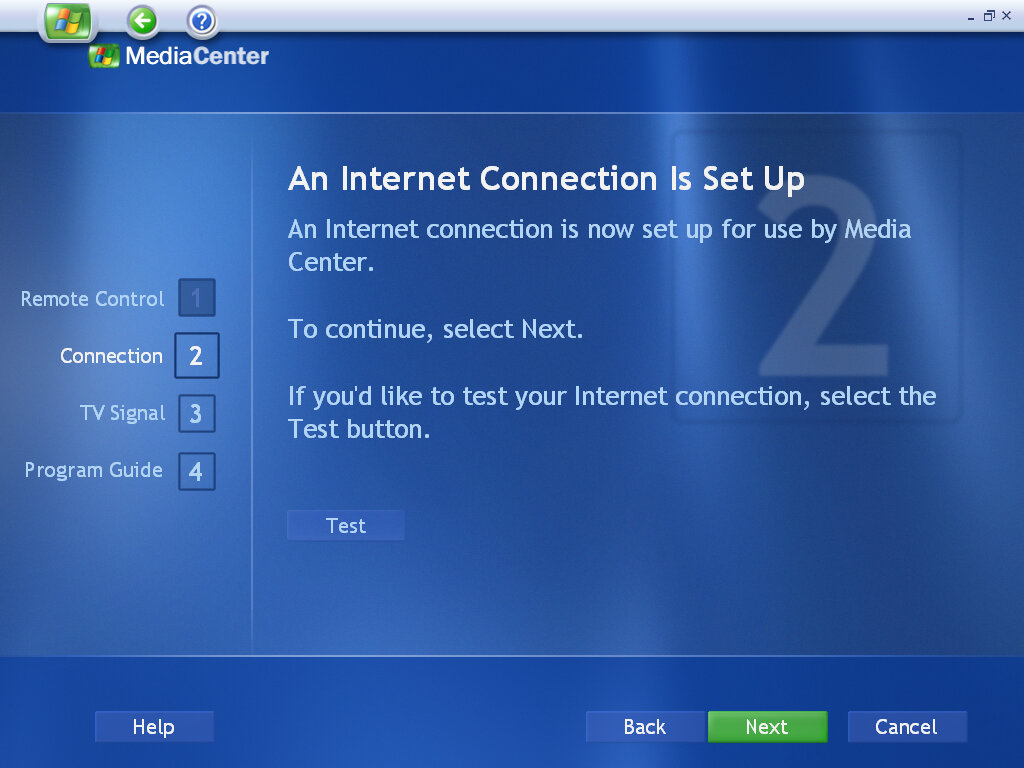
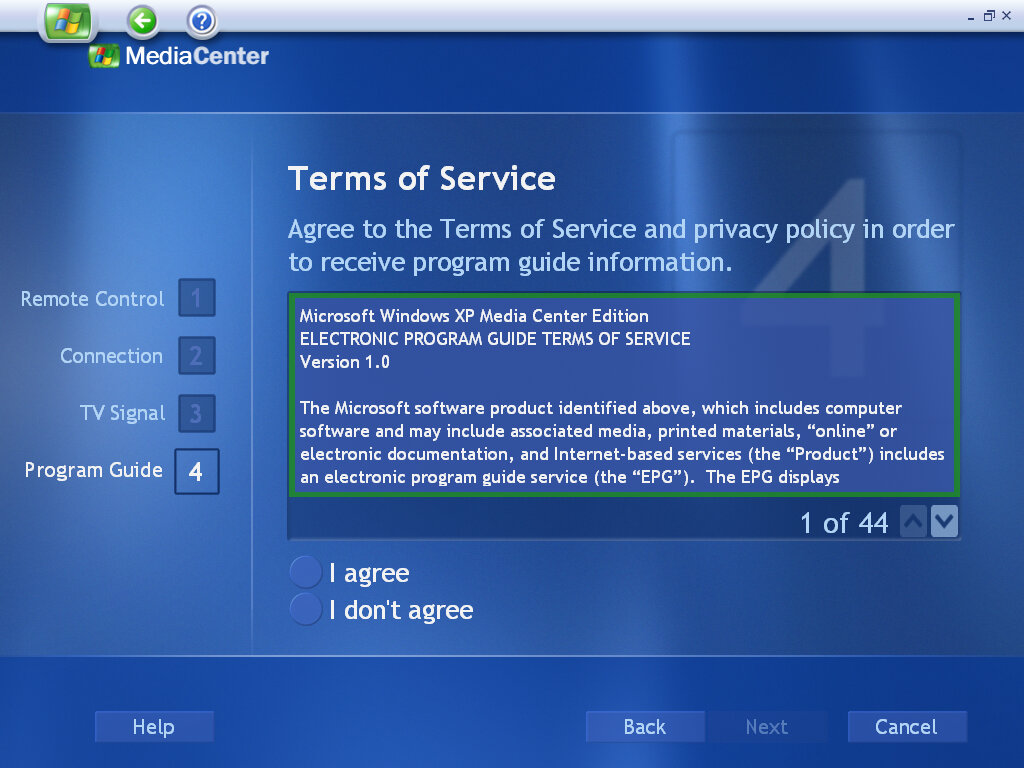
The place where your TV channels are located. Here you can browse the TV Guide, also known as an EPG, and set up and configure recordings that allow your PC to become a DVR (Digital Video Recorder, like a Tivo or Sky+) There are various options to set up your TV signal, either through cable (with or without a set-top box), satellite or terrestrial/antenna signals.

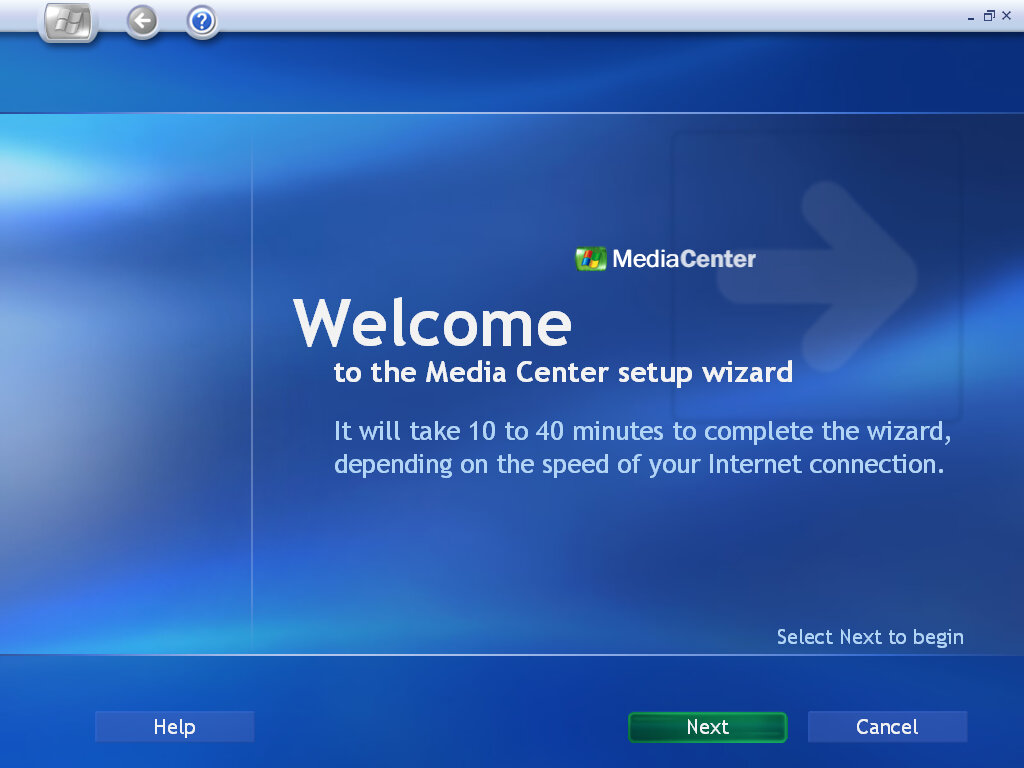
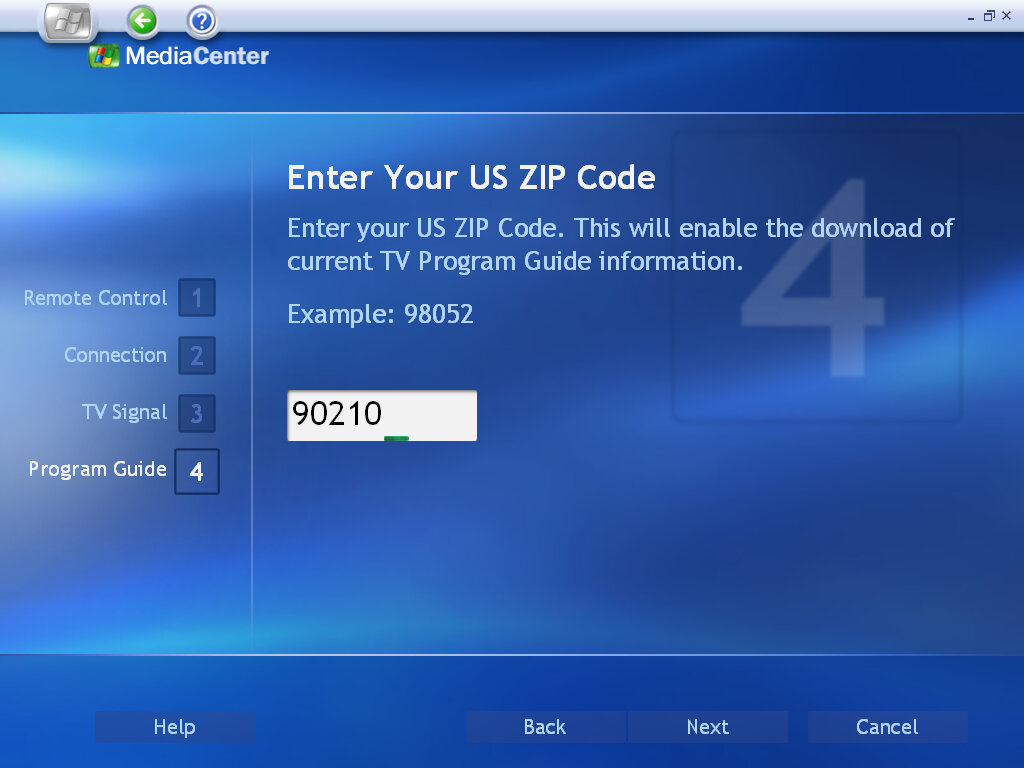
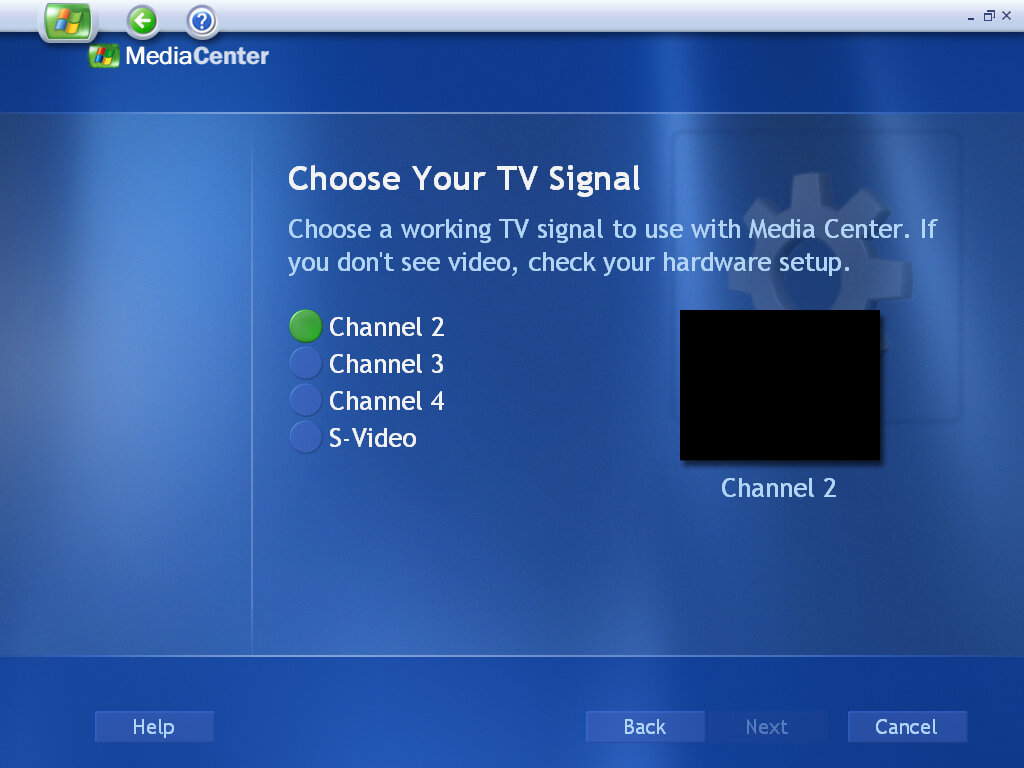
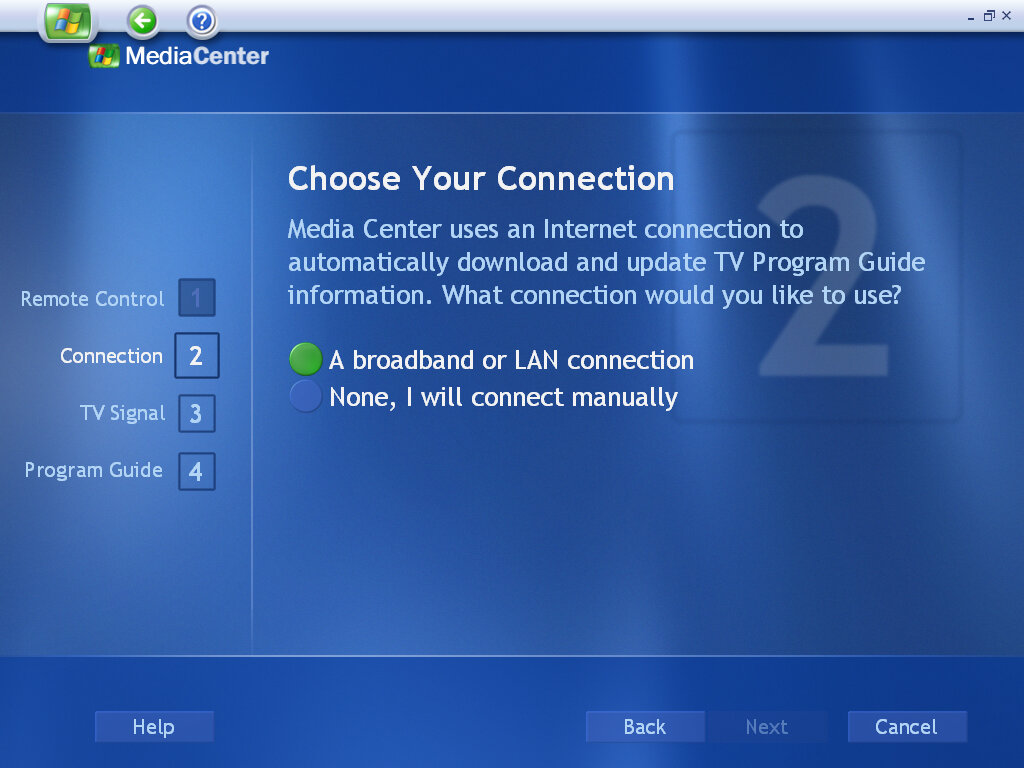
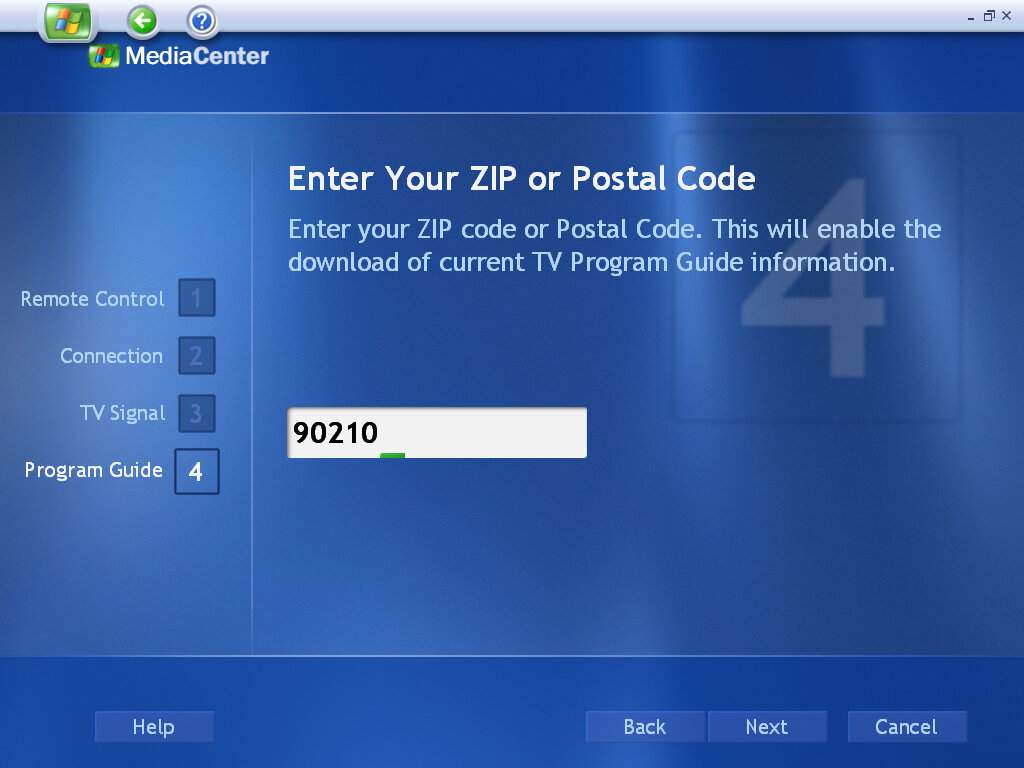
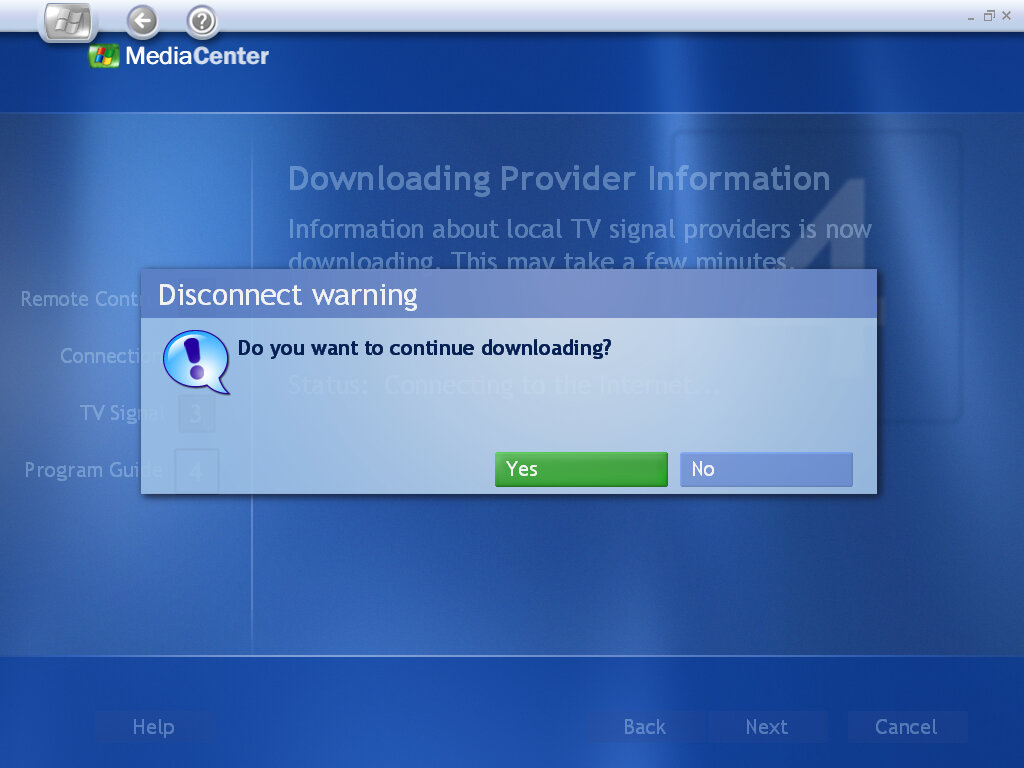
Settings up the TV signal requires you to connect to Microsoft and provide your Zip or postal code (only US zip codes work, my postcode wasn’t recognized at all despite my locale being set to the United Kingdom)

I was curious to see if my DVB-T tuner was recognized over USB, since Freeview had only recently launched back in 2002 when this operating system was released, Sadly this was not the case as DVB-T wasn’t supported, despite being a thing in 2002 (Freeview in the UK launched in 2002, and we had DTT since 1998 with the launch of ONdigital, however, the USofA uses ATSC which Media Center might support since Microsoft tends to be US-centric for its first generation products)

In a way this is the successor to Web TV for Windows that shipped with Windows 98

My Music

Music tracks ripped from an audio CD will appear here, and sync with Windows Media Player so any tracks added with also appear in Media Center. Presumably, this would also support DRM music from either MSN Music, since this predated Playsforsure or the Zune DRM (Microsoft had a lot of music stores).

My Pictures

Photos and image files located in the My Pictures folder will be displayed here and can be played in a slideshow. Images can be sorted into albums if you have sorted them into folders within the My Pictures folder. Pictures can be sorted by name or date

My Videos

Similar to Pictures, but videos are shown instead. We seem to run into the same issue with playing DVD video as documented below, likely due to requiring graphics acceleration for video playback.

Windows Media Player doesn’t seem to give a shit and will play the file regardless, so why can’t Media Center?

Play DVD

I was unsuccessful in getting a DVD movie to play, and I believe this is due to the lack of a hardware MPEG2 decoder that is required to play back DVDs. This was a Microsoft OEM requirement and meant some TV tuner cards were incompatible as they decoded MPEG2 in software instead, using the main CPU to do the decoding.

As VMWare lacks a hardware MPEG2 decoder, Windows Media Center and Media Player are unable to play back DVDs in their current form. Even after installing the K-Lite codec pack, we are unable to play.

We might have better luck installing on an actual system from the era, specifically one with a graphics card that has onboard MPEG2 decoding, assuming Media Center is compatible with it. I should note that some ATI All-In-Wonder graphics cards of the time also used software decoding to reduce costs and had issues getting their cards certified for the media center due to this implementation. As for why Microsoft did not allow for software decoding, it could be because of multitasking concerns if the user tries to do something else whilst watching a DVD, or DRM concerns. In contrast, the Xbox console decodes MPEG2 in software on its Pentium 3 processor, but it’s unknown if the GeForce GPU accelerates this somewhat.

Maybe later versions are more flexible when it comes to decoding but for now let’s skip ahead.

Conclusion

And that’s it, its pretty much Windows XP with an added Media Center application bundled in. As for why it wasn’t sold as a software upgrade package was due to Microsoft imposing strict hardware specifications in order to use Media Center, specifically with the processor, hardware MPEG decoding, 3D graphics acceleration and an IR remote and sensor. Microsoft really didn’t want anyone using this on hardware that was subpar or missing any components in order to give a consistent experience for the end user.

Version Information

These version numbers will change once later service packs are installed.

ComponentVersion
Internet Explorer6.0.2800.1106.xpsp1.020828-1920
Outlook ExpressExact same as Internet Explorer
Windows Media Player8.00.00.4487
Windows Messenger4.7.0041
Windows Movie Maker1.1.2427.1
DirectX8.1 (4.08.01.0810)

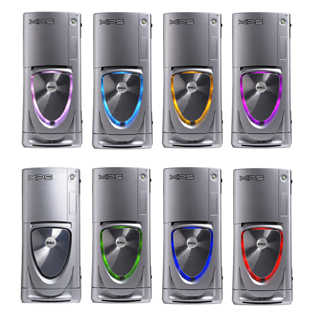
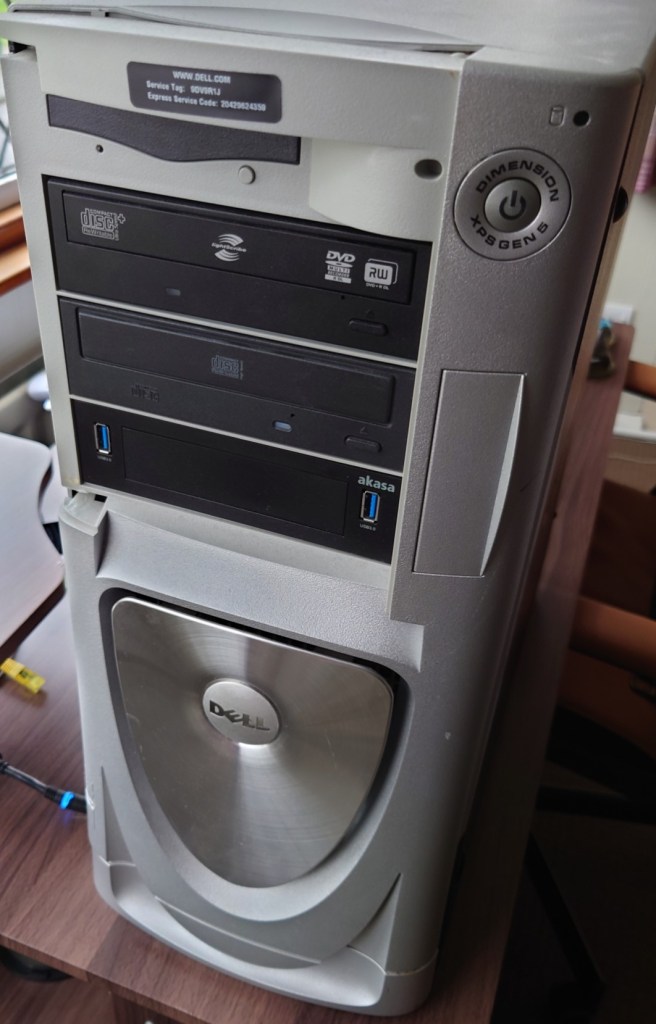
Dell XPS Gen 5

Upgrading a 2005 dream PC

Dell’s XPS line of systems had always caught my attention, that and the Alienware Area51s/Auroras of the time had eye catching designs that stood out from the rest. I wanted an older gaming system purely for the games that were released in the era of Windows XP, from 2001 – 2006. Whilst most of these games can be maxed out on many modern systems, sadly compatibility issues are starting to occur when playing these old titles, and as Microsoft continue to update Windows 10, these issue’s are starting to become more apparent.

So I figured why not buy an older high end system and modernize it. By modernize I meant installing additions like an SSD and a USB3 card to make the system ore convenient to use whilst still keeping the original core hardware.

The Operating System

Windows XP Professional

The default choice for a machine of this era and type, for the best compatibility

Windows XP Professional 64bit Edition

Yep, there was a 64bit version of Windows XP, two in fact. The system is capable of running 64bit code thanks to the Pentium 4, and the system can detect all 4GB of its ram. I did install this to use as the main operating system, but found out some games ran into compatibility issues with the 64 bit kernel.

Windows 98/ME?

I have considered this, for a dual booting purpose only. Reason being this is one of the last machines to support Windows 98, or at least have native drivers for it. In theory you could create the ultimate Windows 98 gaming PC with these specifications without breaking compatibility.

In reality, Windows 98 was on its deathbed at this time, whilst software does support it, its only basic support that the game actually starts up so that it ‘runs’, there are numerous performance issues just from the operating system itself, and many games are missing certain graphical effects. And the fact 98 was notoriously unstable compared to XP.

The drivers also have the same story, with the NVidia drivers being notoriously unoptimized. The NVidia card for example has the latest XP driver being released in 2012, compared to the Windows 98 driver being released in 2005, that 7 years of driver optimizations and progress being missed out on.

In reality if you are buying a high end pc in 2005, its incredibly unlikely you would be running Windows 98 in it, and manufactures knew that.

Linux

Or GNU/Linux if that’s more your thing, I’ve also contemplated dual booting a Linux based operating system on it from that era. Something like Ubuntu 8.04 or Red Hat purely to see what it’s like. And maybe get some old GNU/Linux games going…

Components

Processor Intel Pentium 4

Pentium 4’s weren’t my first choice of CPU back then. Truth be told they were very hot boys and had a tendency to overheat if they were not properly cooled. Dell made sure that wouldn’t happen with this monster of a heatsink with two 120mm fans.

For some reason Dell are allergic to AMD, something that still rings true today. Most of their systems use Intel chips with only a small amount of models supporting AMD chips. This is despite the fact that AMD chips of the era ran cooler and consumed less power, Dell insisted on using Pentium 4’s on small form factor PC’s like the OptiPlex SX270.

Graphics NVidia GT 6800 Ultra

GPU’s were very competitive around this era, what with the Xbox 360 and PS3 being due to launch. Whilst the 6800 is a generation behind the RSX used in the PS3, it’s ideal for maxing out games from the 2001-2006 era

Memory4GB DDR2

4GB seems a bit overkill for a system like this. Considering Dell would have shipped a 32bit operating system on it, limiting it to only 3.2GB. I guess the previous owner must had upgraded it to 64bit Vista at some point.

Looking at the SPD data in CPU-Z it seems the system left the factory with 2Gb of RAM, with the remainder being added later. I’ll probably take the excess RAM out at some point and install it in another machine, since it’s never going to be needed with Windows XP, unless I decide to run some 15 year old CAD programs on it

Sound Card: Creative Audigy

Dedicated soundcards are uncommon today, with most motherboard having onboard Realtek or Conexant audio. Still Dell shipped the system with the Creative Audigy as the sole sound card on the system, no onboard audio here. This was the last era that supported EAX effects in games that this soundcard supported.

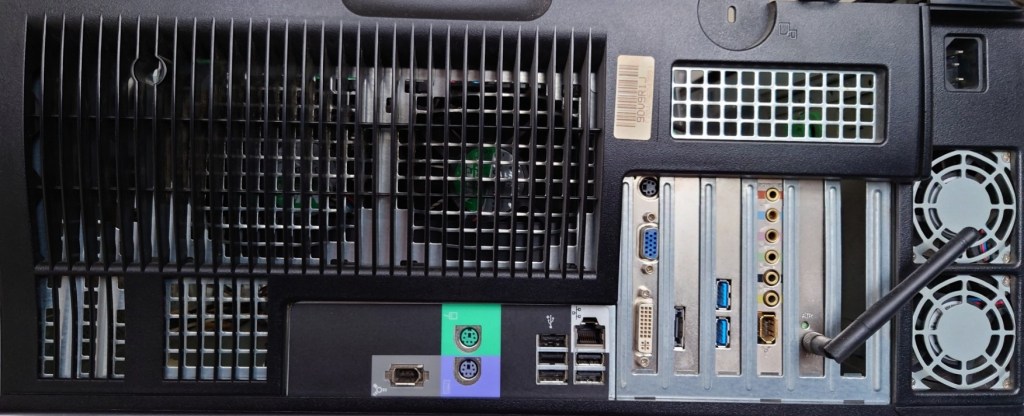
Dell XPS Gen 5 rear panel with upgrades

Maxing out: Upgrades

Top to bottom, Wifi, Sound card, USB3 card ,SATA card

USB3 PCI Express Card

USB3 didn’t exist when Windows XP was released, and even USB2 was still in its draft stage before it started appearing on motherboard in late 2002, however many manufacturers have provided drivers for Windows XP for both 32 and 64bit editions. Having a USB3 interface will come useful when it comes to connecting external hard disks. This card also has a front panel connector which I will use with the Akasa Front panel USB3 bay.

SATA SSD

A must for any modern PC, and although there were not common back when this system was released, I had no problems installing it (a 2.5 to 3.5 adaptor is recommended) and it was detected by the BIOS and Windows XP setup. One issue is that dell insist you use these green drive brackets to mount the drive, the idea is that it’s supposed to be a tooless design so that the drive can be pulled out of the slot.

In practice the clips ended up breaking since they had become brittle, and I was unable to screw in the SSD bracket since Dell designed the drive bay for it to be used with the clips so for now the drive is just resting on top of the hard drive.

SATA3 Card

This is a SATA 3 capable PCI Express card which would have been necessary for the SSD upgrade, since the onboard SATA can only support up to SATA. Whilst SATA standards are backwards compatible, it would have meant the SSD would have been bottlenecked by the onboard interface. A bonus is this card provides an eSATA port

Wifi – Broadcom

This was already installed by the previous user, or it may have been a optional factory upgrade installed by Dell. This is quite old and only support 802.11g protocol, which was standard in 2005. It also supports WPA2 and it capable of connecting to my BT Smart Hub. However I will be using the onboard Ethernet for when I connect it to the network, because Windows XP is no longer supported its not a good idea to have it connected to the internet.

Akasa Front panel USB3

Adds two front panel USB ports and also serves as a 2.5 inch bracket to mount floppy drives or memory card readers. I might add a memory card bay to it at a later date.

CD-RW Drive

Pulled from an old HP machine. The system has a spare drive bay and I had this drive laying around so why not?

Concerns

Power Supply

One of the main disadvantages of pre built Dell Systems is they tend to deviate from ATX standards, and the power supply unit used here is one example. First issue is the design, a standard ATX power supply cannot be used as a replacement unless the case is modified

SSD

Windows XP predates mainstream SSD support, and as a result does not implement TRIM. Windows did not support this until Windows 7. One advised workaround was to under partition the SSD, say to about 90%. Whilst you do loose storage capacity, since our games are stored on the hard drive this is not so much an issue.

Capacitors

This system came out during the capacitor plague, where many substandard capacitors were used that had a tendency to leak much earlier than usual. Also given that this system was on the extreme end of the power draw spectrum,

Steam

Plenty of games from this era were released on Stream, and up until 2019 you could install the client on Windows XP. However Steam dropped support for the operating system due to the Chromium Embedded Framework no longer offering support for XP either. This meant that future steam update’s would no longer be provided to Windows XP users, and sooner or later they would no longer be able to access their accounts via Steam, preventing the ability for them to play games. There are workaround’s to this that allow the client to run, but you are unable to access the Steam Store or the community features. Also I can’t imagine Valve’s being happy that modified clients are being used to access the Steam service.

Really you are better off sticking with the retail DVD or CD releases, or with GOG where games do not come with DRM and can be played without the reliance of a client.

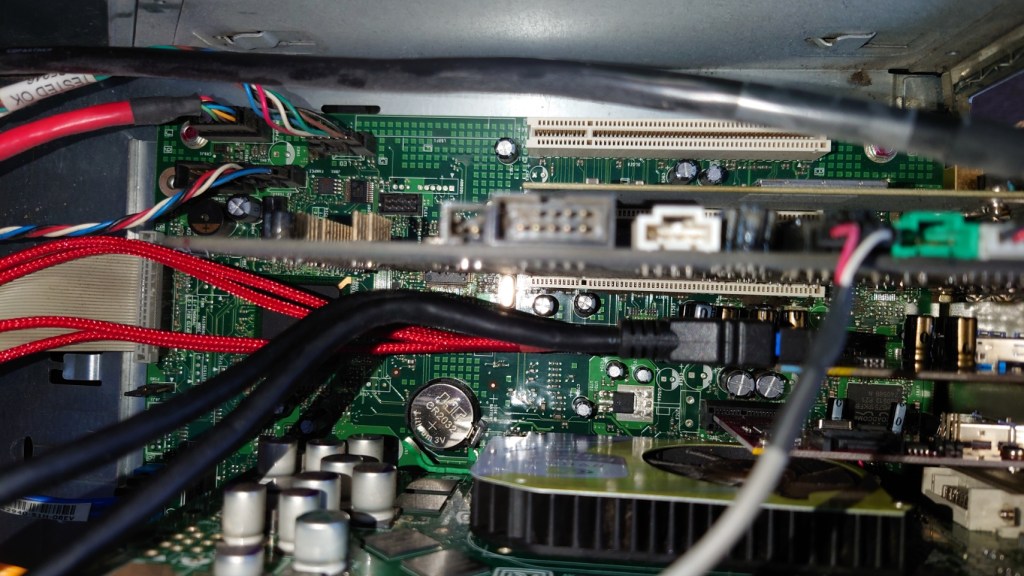
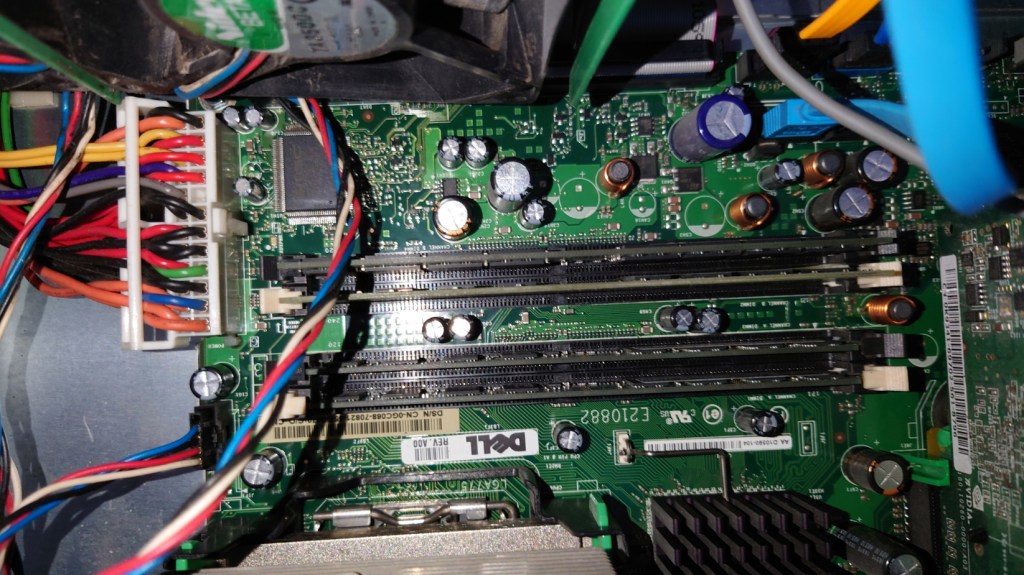
Fans were in dire need of cleaning, managed to get most of the dust off for now
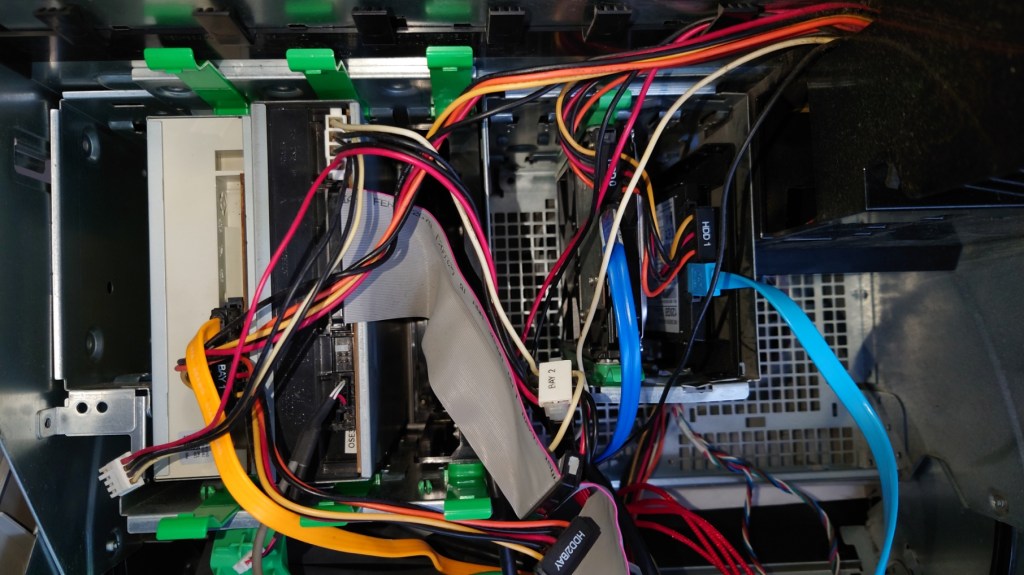
Cable management isn’t my forte but its hard to do it in this case, the power cables and SATA/data cables go in different directions
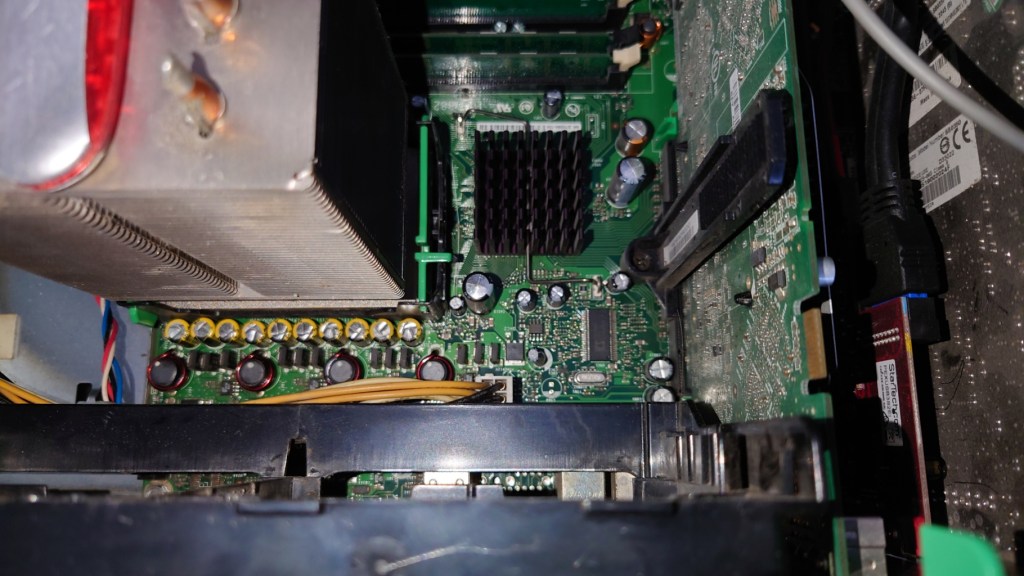
With the fans removed, hopefully those capacitors aren’t bulging
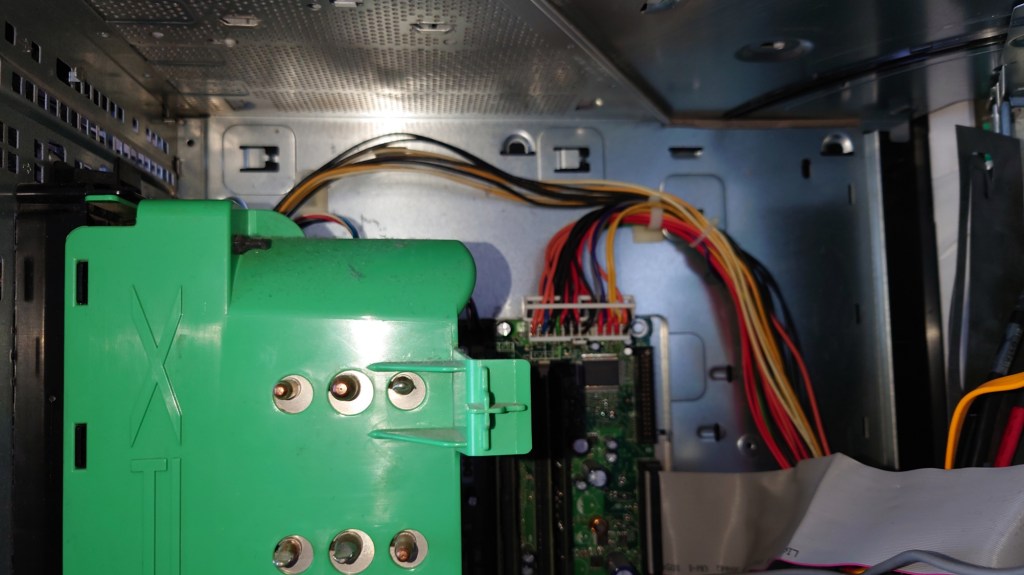
With the fans put back on, I think Dell made this case a bit too big judging by the space above
The front of the system, sadly the front panel cover for the drives is missing
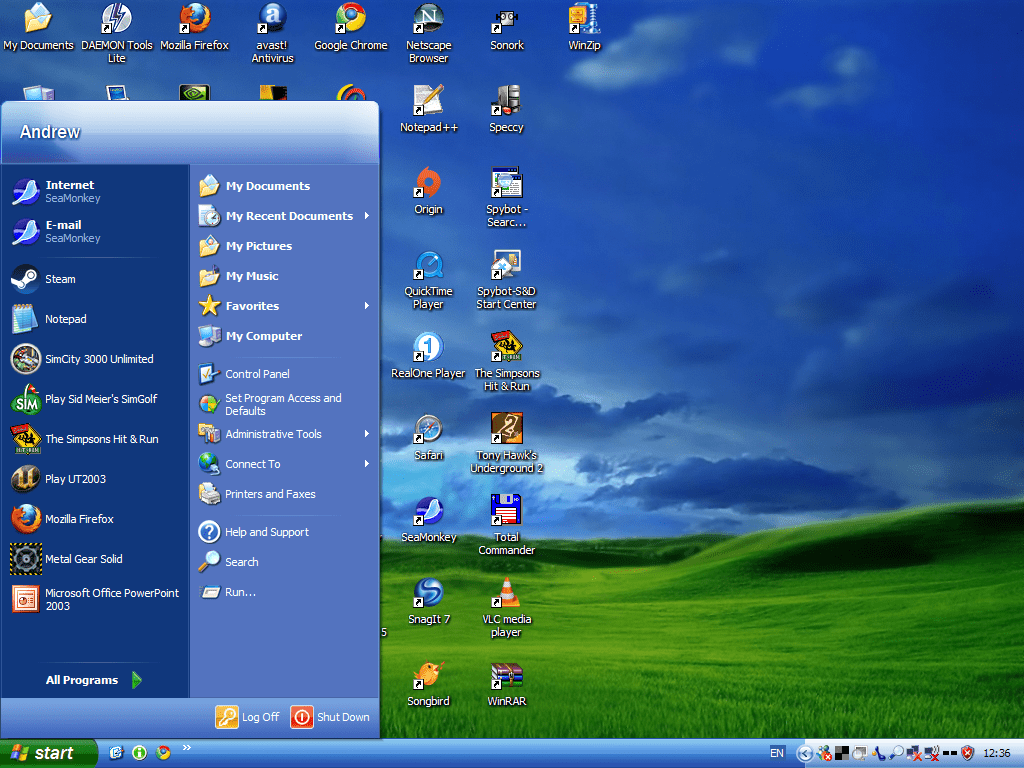
XP desktop with Royale theme – Media Centre
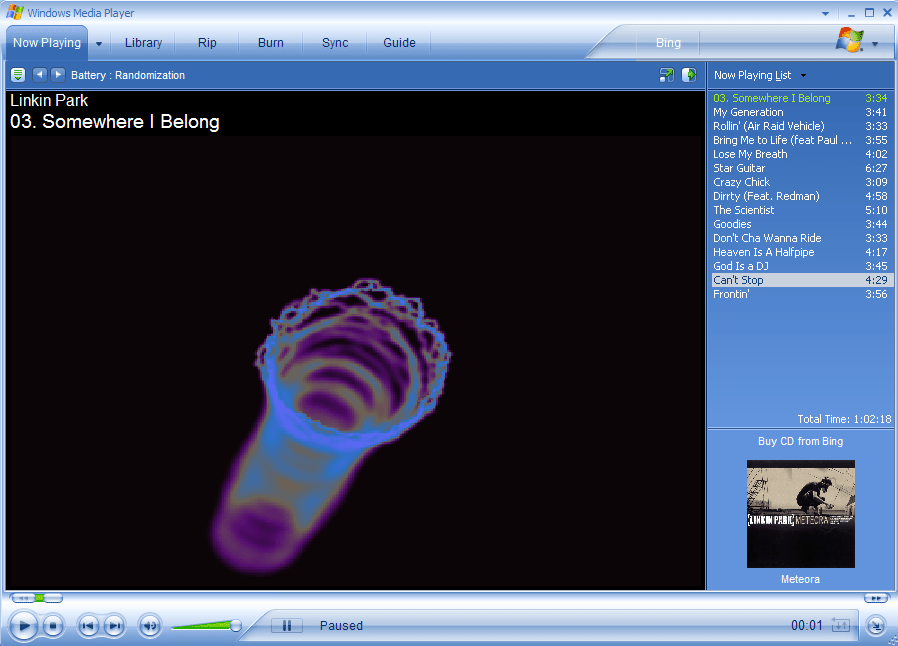
Ah the good old days of Windows Media Player 10

Conclustion

I have to admit, the main thing fuelling this was nostalgia. having memories of booting into Windows XP brought back moments when we would sign into MSN messenger and MySpace using Internet Explorer or Mozilla Firefox with several toolbars installed. Sadly these service are no longer available as they was, with MSN Messenger being discontinued in favour of Skype. From a gaming standpoint, whilst it has no issues maxing out games from 2001- 2004, stuff released from 2005 (eg Splinter Cell Chaos Theory, Driver Parallel Lines) onwards has a tendency to stress the hardware out, and I found myself having to downgrade the resolution in order to boost the framerate, which had me considering why not just play these games on a modern rig that can max these game out easily.

I suppose the main saving grace is compatibility, with these Pentium 4 (and Athlon) systems being the epitome of backwards compatibility. For this one in particular Dell provides drivers for Windows 98/ME, XP, and Vista, allowing you to theoretically triple boot the system for maximum compatibility without any concern with drivers. Any newer and drivers and compatibility with 98/ME becomes an issue, and anything older will have issue with Vista or 7 support

Whilst I haven’t played any game on it from 2007 onwards, I suppose you could get away with it providing you play at a lower resolution, although you might as well get a Core 2 Duo system with a GeForce 8 series or a Radeon HD200 series GPU