A mid-range smartphone released in 2011 and part of the second generation of Windows Phone 7 devices which see an increase in the processing power and shipping with the Mango update by default.
The Omnia W has a sleek and stylish design with a 3.7-inch AMOLED display. It has a solid build quality and feels comfortable to hold, though its plastic feels a tad on the cheap side.
Powered by a 1.4 GHz single-core processor and comes with 512MB of RAM along with a Adreno 205 GPU which gave it better performance. Even with stock apps the performance increase is noticeable with the Xbox Avatar app having a much smoother framerate compared to Adreno 200 devices like the LG Optimus 7. Out of the box the smartphone runs on Windows Phone 7.5 Mango OS, which is a stable and reliable operating system. The phone performs well for basic tasks like web browsing, email, and social media though at the time it had access to the Windows Phone store which has now since been discontinued.
Storage is where the Omnia W falls, as it comes with 8GB of internal storage, which is non-expandable. Compared to the Optimus 7 that had 16GB, its a step backward for those that want to store more. Microsoft had launched the Zune music pass at around this time, which would as stream music rather than have it saved locally on the handset itself. Like other Windows Phone devices, the Zune software is used to sync media to the phone.
Applications
There were some exclusive apps available for the Samsung Omnia W that were not available on other devices running on Windows Phone 7.5.
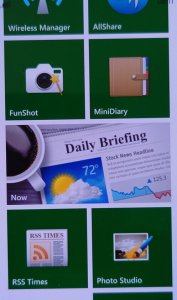
AllShare: This app allowed users to stream media from their phone to other compatible devices, such as a TV or a computer. This uses the DLNA protocol to share to a supported device on the same network. As Windows Phone did not have native support for DLNA, many manufacturers would bundle their own media player apps that supported it. Also screen casting/mirroring wasn’t a thing back then, or was very uncommonly supported so DLNA acted as a good workaround to push content onto an external screen or device. Several Android handsets would do the same, at least until Miracast became standard.
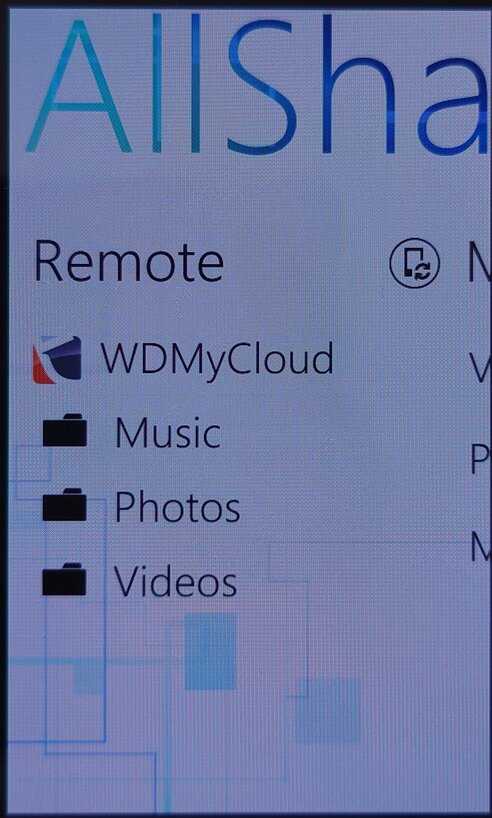
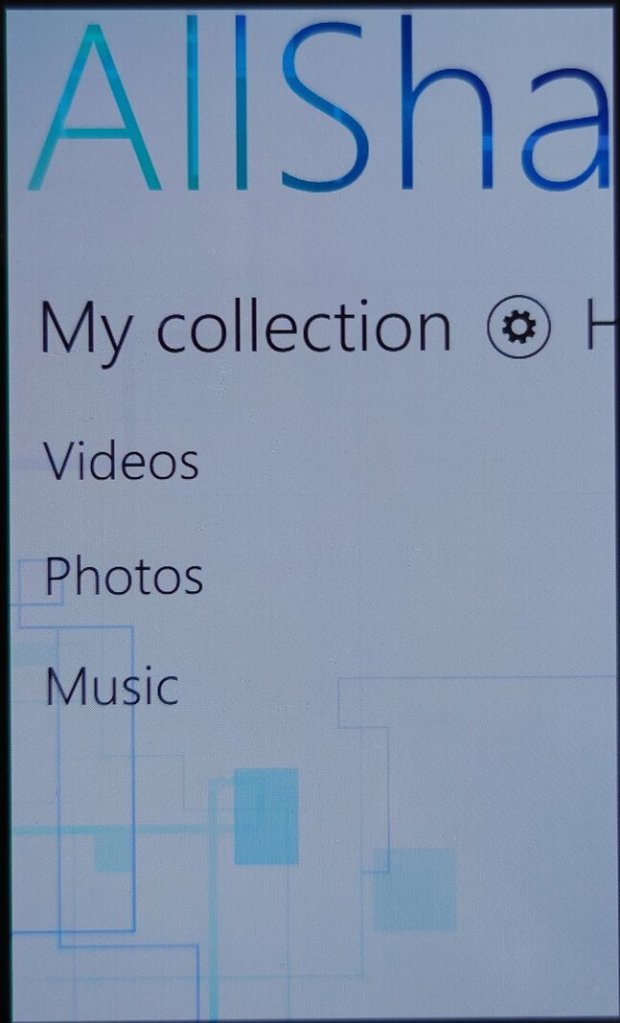
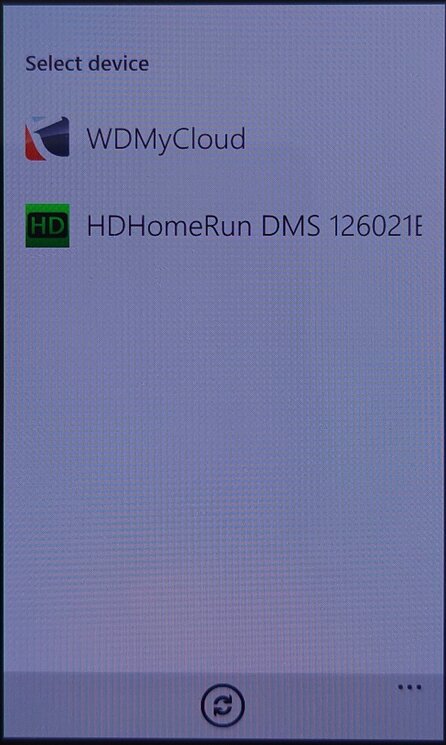
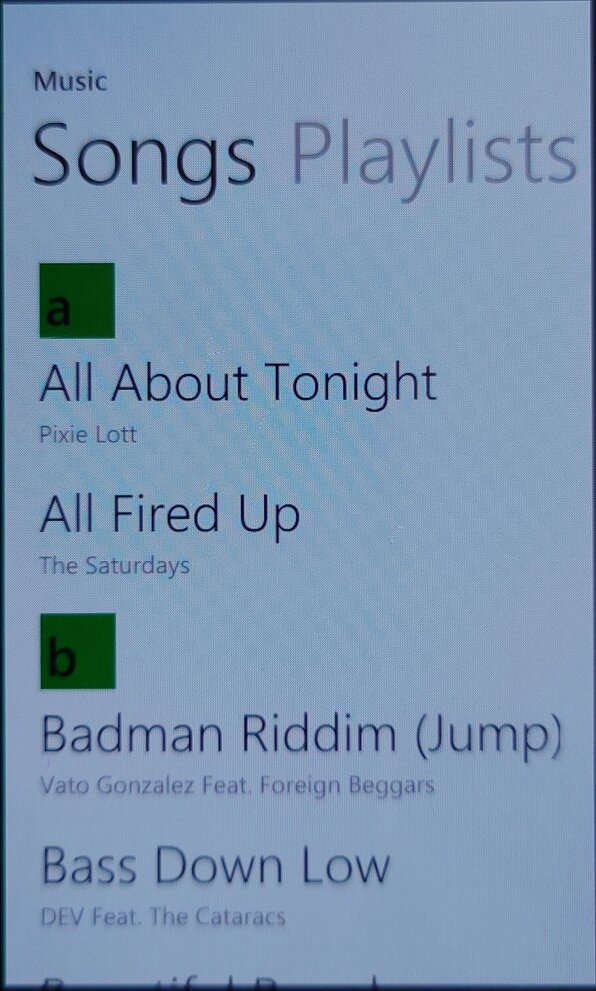
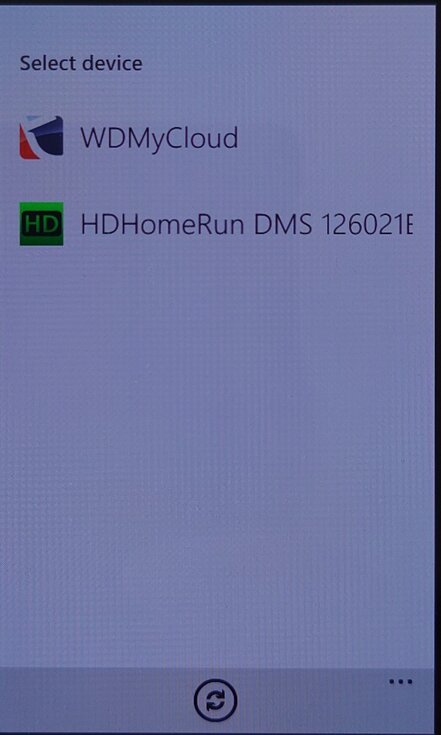
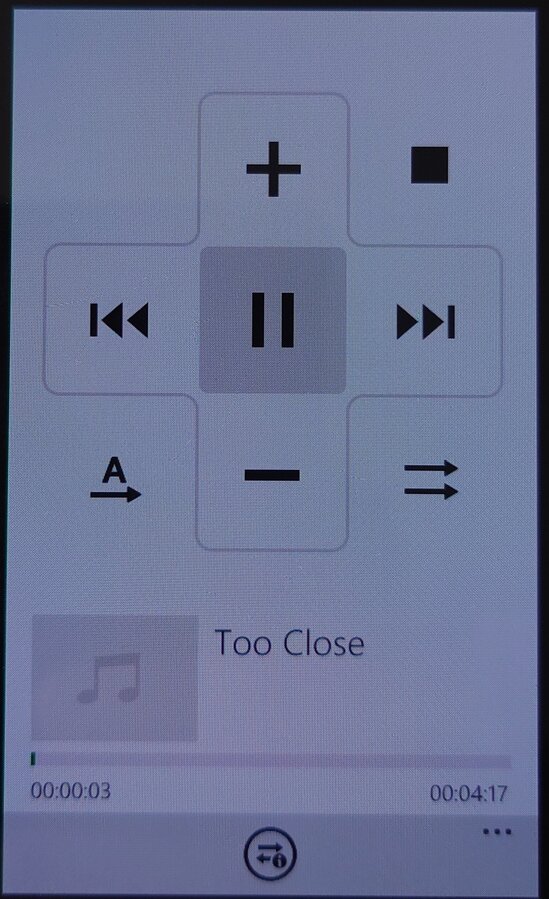
The app is able to pull music from an external source or server, and push it to another DLNA-compatible device, in this example I was able to stream from my MyCloud DLNA server, and cast it to a Panasonic smart speaker.
Not all devices were supported, my PS3 and Sony Android smart TV did not appear in the device list, the HDHomeRun appeared but nothing could be done with it.
Family Story: This app allowed users to share photos, videos, and messages with family members and friends who were using a Samsung device.
Fun Shot: This app provided users with a variety of camera effects and filters to enhance their photos, example effects are bulge, pinch, twirl, twist and stretch. Many of these were not supported in the stock Windows Phone camera app.
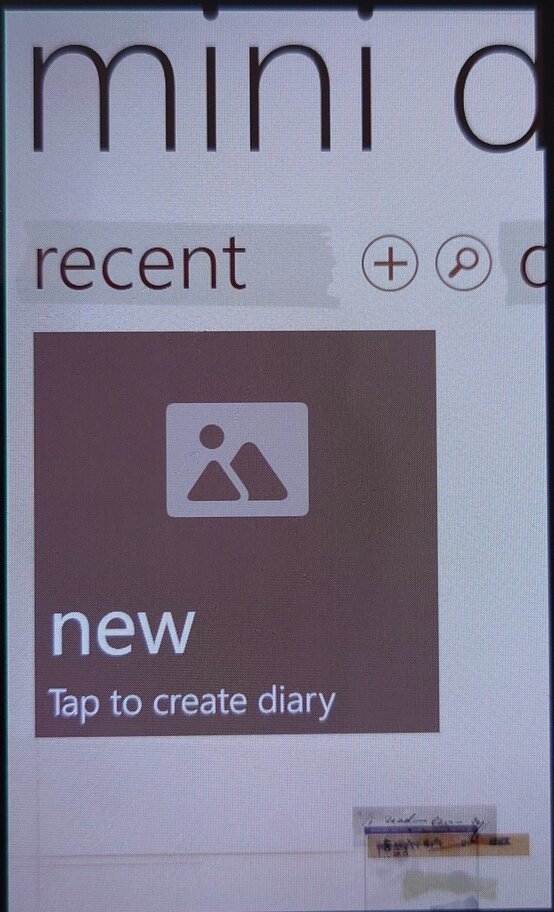
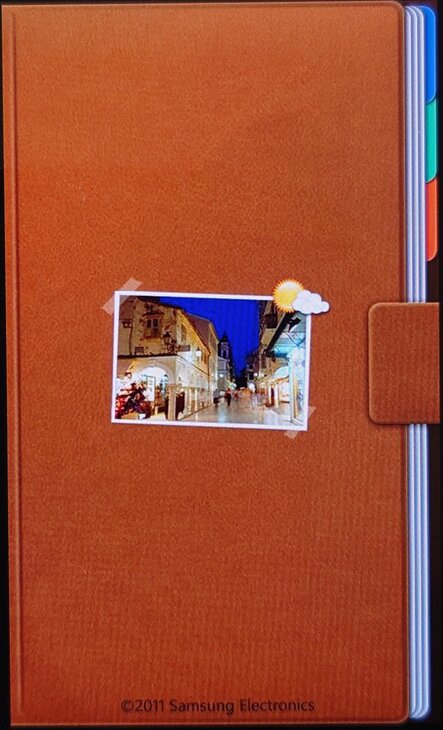
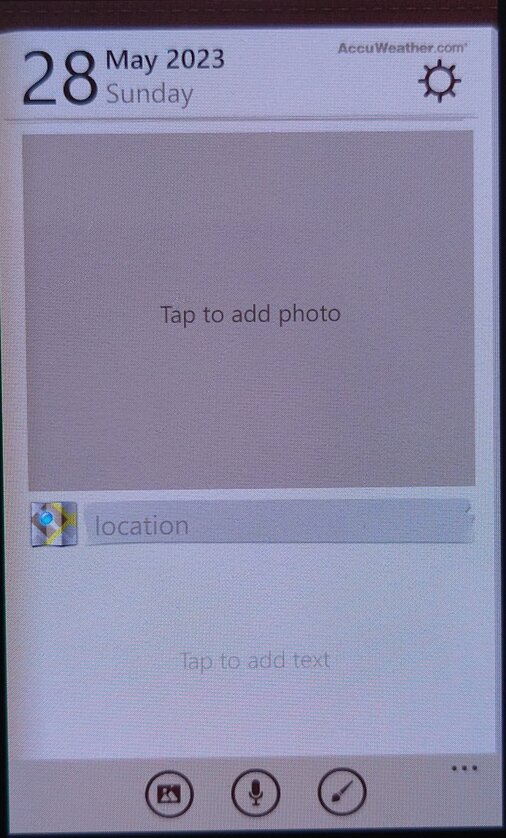
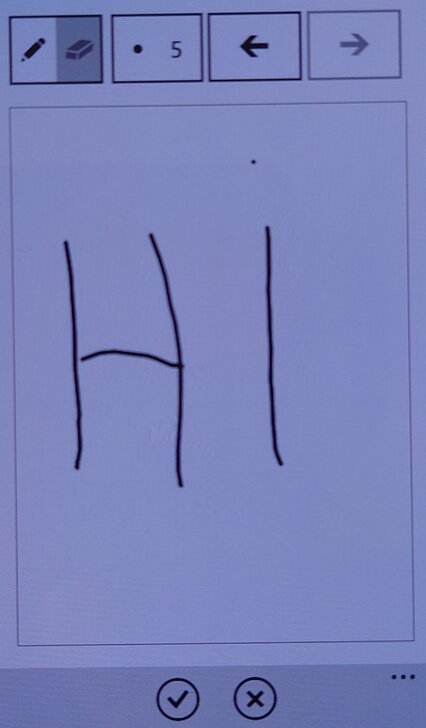
Mini Diary: This app allowed users to create and save notes, photos, and other information in a digital diary. Kind of like a digital scrap book.
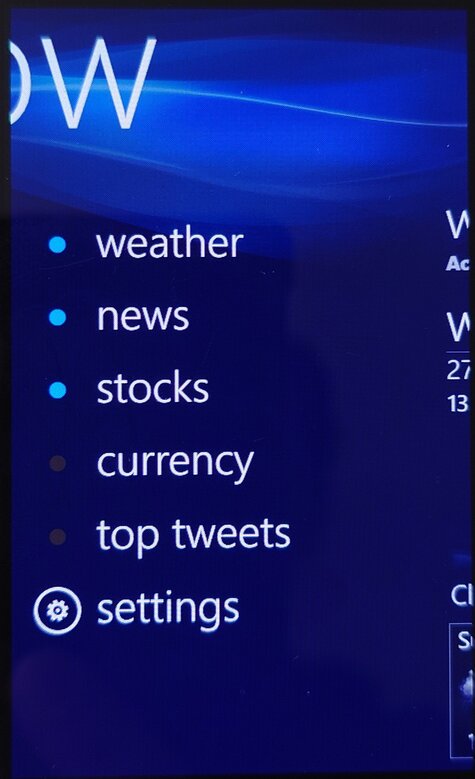
Now: This app provided users with information about the weather, news, and other updates in real-time. Information like news bulletins and weather are displayed on the live tile. Weather information was done using the Accuweather protocol whilst the news & stocks is provided by Yahoo! News.
Lastly there is also a top tweets section that would shows you the popular tweets of the week.

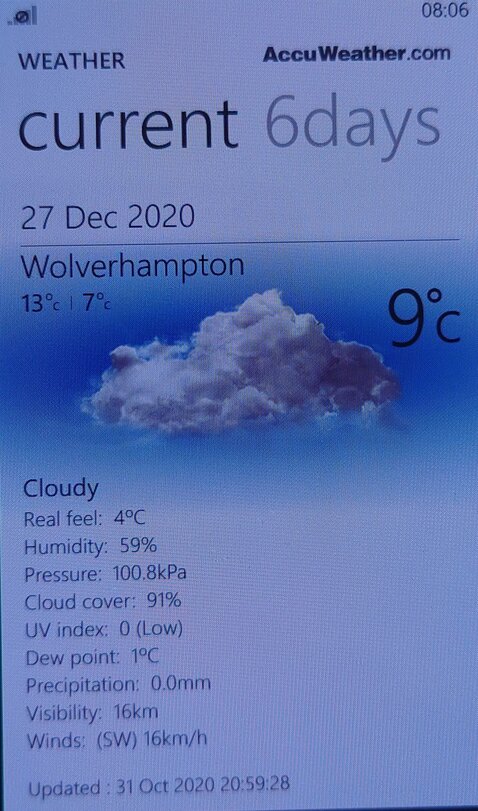
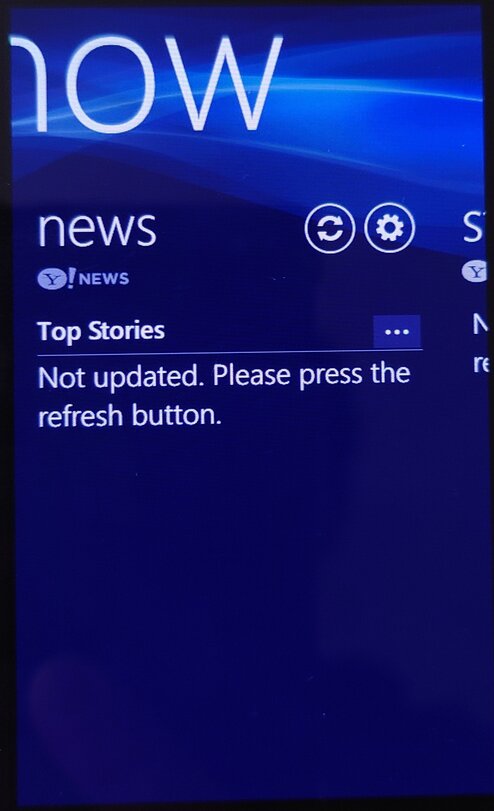
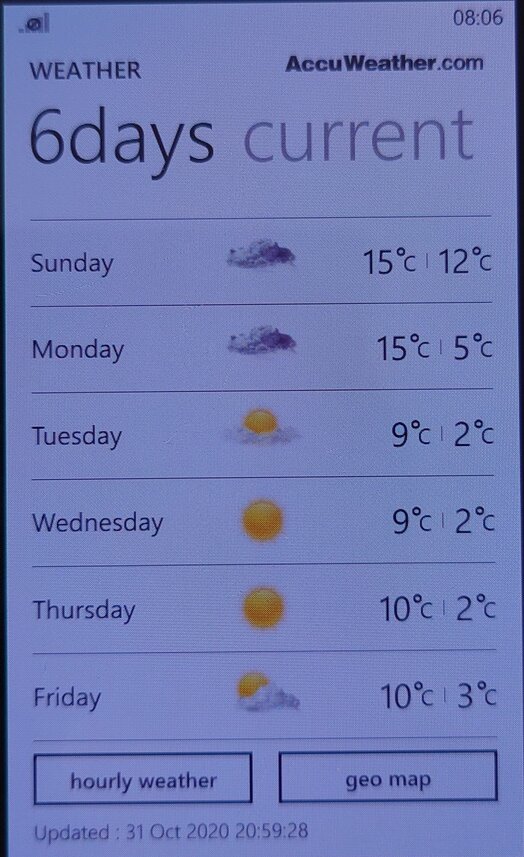
I don’t recall Windows Phone having a built-in News application (MSN News was an optional download Microsoft offered) so this would have been an essential addition.
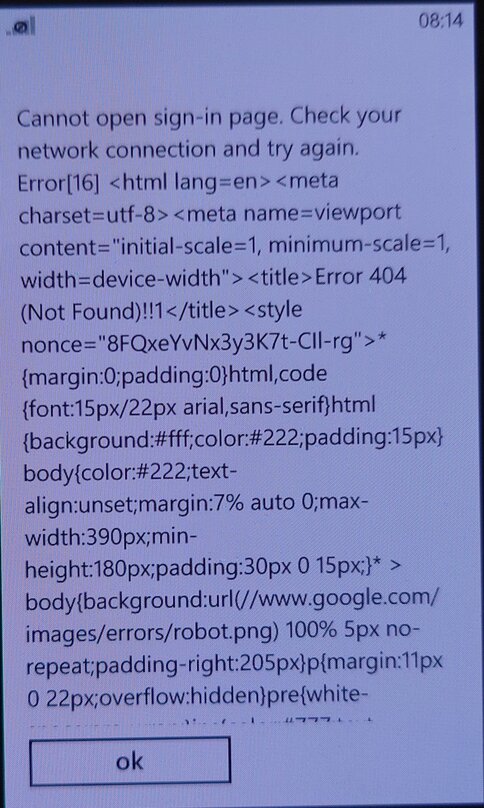
The services for the app appear to have stopped working around 2021, with December 2020 being the last time I was able to sync the app.
Wireless Manager: You would think this was to do with WiFI-related settings, but is really where you can configure mobile network settings that the standard Windows Phone OS does not let you directly configure. Options such as Call forwarding, call waiting and APN configuration can be set here.
The APN is typically set automatically by Windows Phone, but in some circumstances, you may have to manually enter settings if Windows Phone does not have any for your mobile operator.
RSS Times: A RSS reader that allows you to subscribe and update your RSS feeds. This requires use of a Google account, of which it’s no longer possible to sign into.
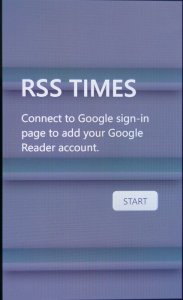
Video Call: Lets you make a video call over the 3G UMTS network protocol, I guess Windows Phone did not support this natively? Odd since this is supposed to be a smartphone platform.
Settings Menu
Microsoft allowed manufacturers to bundle their own settings applications
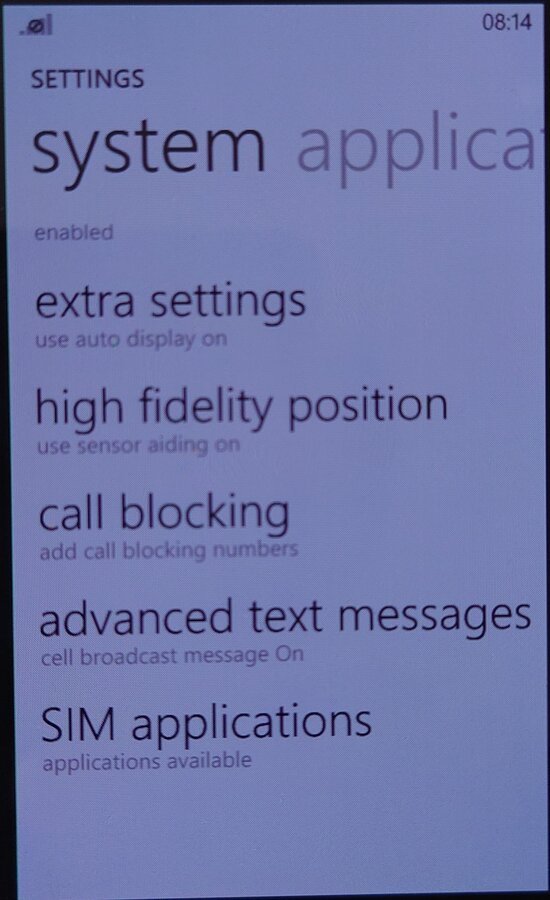
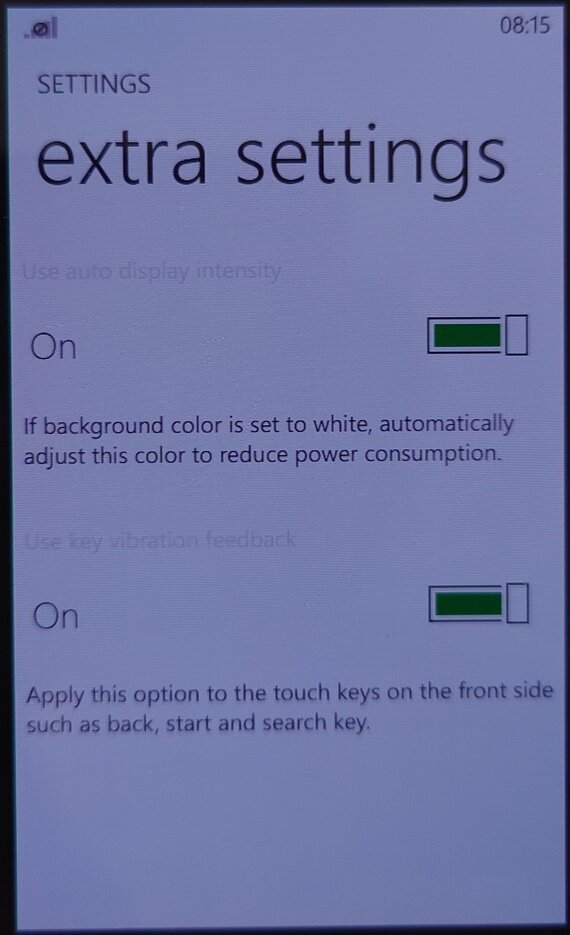
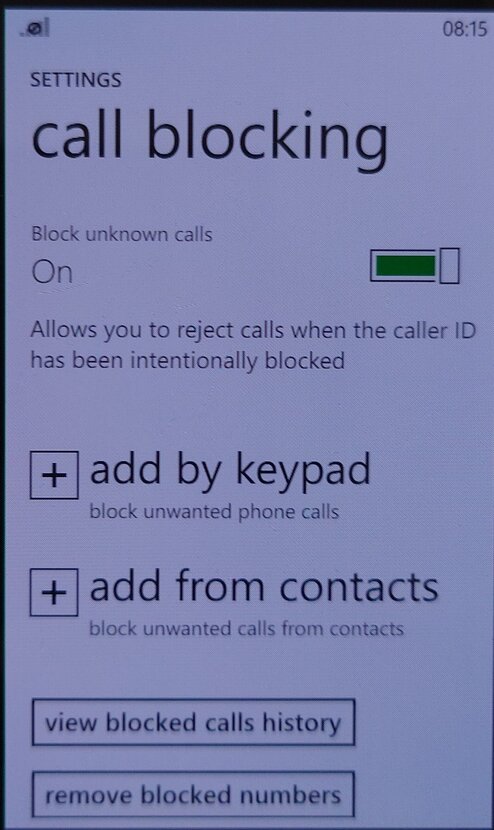
- Extra Settings: Enable auto display intensity which reduces the brightness for the AMOLED screen when the display is mostly white. The second setting is to enable haptic feedback when you press the bottom navigation button (Back, Search) which are touch buttons, this provides haptic feedback when these buttons are pressed.
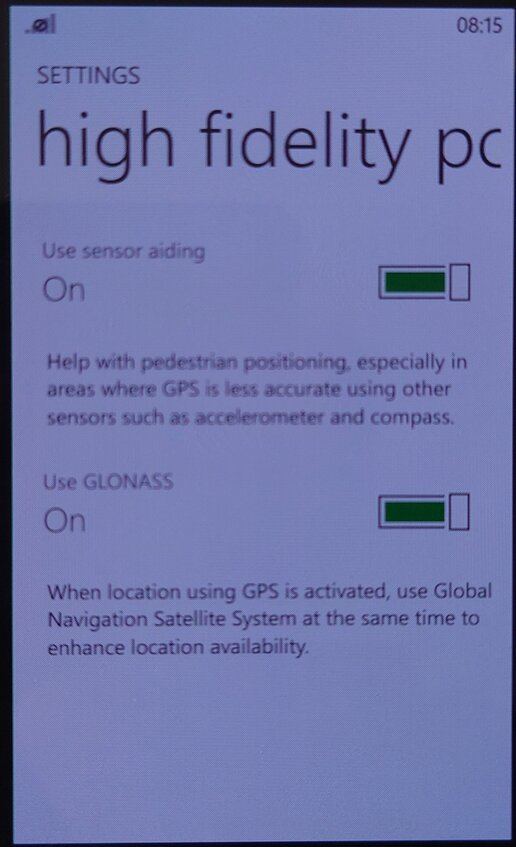
- High-Fidelity Position: Enables the use of GLONASS for more accurate GPS tracking. These can be turned off to conserve battery power.
- Call Blocking: Block specific numbers from calling or sending SMS messages. You can also block calls without caller ID (Caller Display)
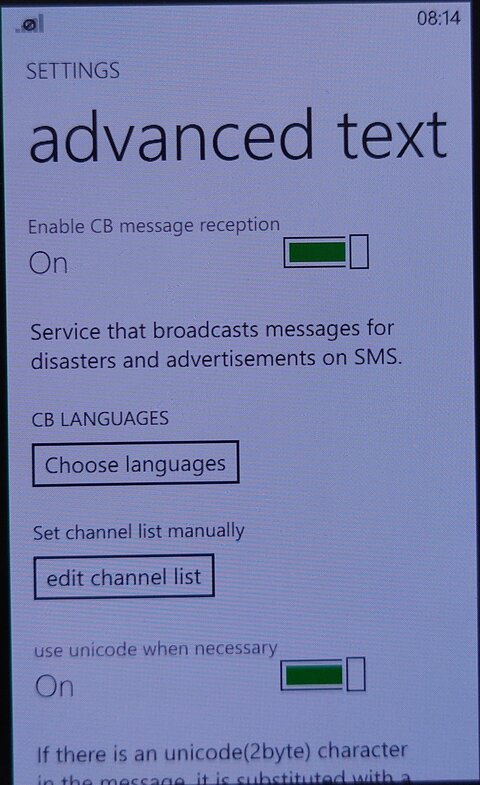
- Advanced Text Messages: Enables the use of CB broadcast SMS messages if they are supported by your network operator. Useful for nearby alerts though I’ve never seen this used in the UK.
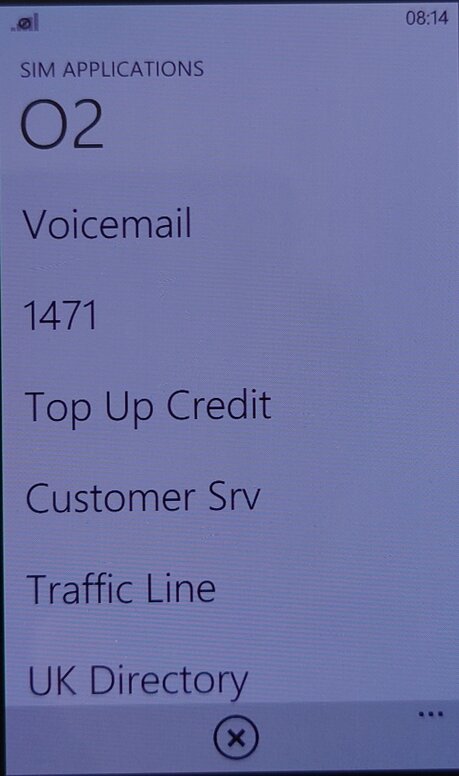
- SIM Applications: Access the SIM-AT Toolkit, if they are offered by your SIM card or operator. They are commonly used to access certain features of your operator.


Pingback: Samsung ATIV S | Drew1440: Blog