Samsung cross between Windows Phone and the Galaxy S3
Samsung was always a common OEM for Microsoft’s smartphones, producing the Focus and Omnia models for Windows Mobile and Windows Phone 7. Following on from that, Samsung introduced the ATIV branding for their Windows 8 devices. ATIV is basically Vita spelt backwards and is Latin for Life, which was also used for the Sony PlayStation Vita, also released in 2012. Coincidence? Maybe
The ATIV branding was supposed to complement the Galaxy branding for Samsung’s Android smart phones, though it also extended to their Windows Laptops and hybrid tablets. The launch device for all this was the ATIV S, which was Samsung flagship Windows Phone for 2012, launching with version 8 of the OS. Windows Phone 8 looks similar to it’s predecessor Windows Phone 7, but under the hood it was practically are written operating system, making use of the Windows NT kernel instead of the Windows CE that WP7 had used. Due to the drastic changes, no WP7 smartphones could be upgraded to WP8, since it required a dual core processor that no WP7 device had supported (and its widely believed the WP7 core couldn’t support this, hence the need to reboot the OS with a new kernel) IDK Why they didn’t do this when they introduced WP7, maybe the hardware at the time didn’t support this? This is kind of why Windows Phone failed, there was no consistent stepping stone between major versions, and with Window’s Phone 8 they effectively reported the OS from scratch again, existing handsets could not upgrade to WP8
The ATIV S itself has very similar specifications to the Galaxy S3, both have a 4.8 inch 720p screen, both feature 1GB of RAM and 16GB of user storage and a dual core processor (the ATIV differs by using a Snapgradon processor whilst the Galaxy used Samsung’s own Exynos cores).
The user interface is pretty much Windows Phone, with its innovative live tiles and social media integration. Samsung did bundle their own exclusive apps and settings which are worth looking into.
Apps
NOW: Similar to what was seen in the Omnia W, this is Samsung’s News, Weather and Stock/Sports information app. News is provided by Yahoo news, who have since discontinued it’s integration but would have shown the latest news headlines for your area. This app supports both the live tile and the lock screen feature, weather information can be displayed on the locks screen itself.
Photo Editor: A simple image editor that can apply a wide range of filters and effect to captured photo’s, and also allows you to place stickers for novelty use. Cropping and zooming are also supported, although you can do this in the Windows stock image viewer.
Mini Diary: Lets you create a journal or a note where photos or drawings can be attached to them. You can also record a voice note for upto 10 minutes.
Settings
Samsung has included their owns settings applets that are located towards the bottom of the Settings app, these allow you to change features that are exclusive to the ATIV S
Additional call settings: Check the status and enable call forwarding and call waiting, if they are supported by your network operator
advanced text messages: Allows you to enable CB message reception for broadcast SMS messages, not something we have in the UK
call blocking: lets you enable and add phone numbers to the blocklist which the phone will prevent from contacting you. You can also set to block any callers that withhold their number.
Extra settings: other settings that don’t have their own category, you can change settings for haptic feedback if you want the phone to vibrate when the touch buttons are used.
Contacts import: import contacts from another phone via Bluetooth, which Windows Phone didn’t support for some reason.
apn: change access point settings, if the phone did not detect your SIM card provider. You need these settings to access the internet and to send or receive MMS messages. Typically you don’t have to do this unless you insert a SIM card that the handset cannot detect the correct settings for, or if they are outdated.
Conclusion
Whilst the ATIV S was the phone to get when Windows Phone 8 was released, it quickly was thrown to the wayside after Nokia started released their flagship handsets, along with their custom exclusive apps for the platform. The ATIV S, along with other Windows Phones didn’t really sell that well, and this caused Samsung to lose interest in the platform. The handset would be followed up by the ATIV S Neo. The ATIV S was well supported in terms of updates, with the 8.1 update being released in 2013 that introduced an updated boot screen, Cortana (RIP), new features for the Start screen and OS features thanks to Microsoft’s update policy.
The fact that the ATIV wasn’t a best seller, and that Microsoft had a strong partnership with Nokia at the time cause them to exit the Windows Phone platform. Samsung would follow-up with the ATIV Odyssey that was a cheaper low-end device and then the ATIV SE, No Windows 10 handsets were released from Samsung.
Lets look at a typical Huawei smartphone from 2016, this would have been their flagship mid range model, with the P9 being the main flagship. The P9 lite is smaller, has less storage and a slightly weaker processor.
Huawei EMUI
EMUI is Huawei’s take on Android design, and is an alternative to the standard Android interface. EMUI is shot for Emotion UI and brings a nice clean interface compared to the Frutiger-Aero like interfaces by Samsung or LG, or the material design that Google was adopting. Whilst it looks minimal from the screenshots, Huawei have been it very customisable, with many advanced features packed away in sub menus for intermediate users.
Originally shipped with Android 6, it was updated to Android 7 in 2017. No further Android updates were released, though many apps are still supported as of 2024.
The home menu screen, after running the setup wizard. The default widget shows the time and the weather once you give it permission to access the location.
The pull down notification bar where you can quickly activate the Wifi/Bluetooth and the mobile data. This can be expanded to two rows to access more items like the torch, airplane mode and to activate Huawei Share. You can reorganize and add more icon to this menu by dragging them. You can also adjust the brightness from here, and a shortcut to the settings menu is also here
As this device does not contain physical navigation buttons, on-screen ones are used instead. Huawei also allowed you to adjust the order of the buttons, and even add one that quickly pulls down the notification menu which saves having to put your finger at the top of the screen
A look at the task switcher, that lets you switch back to previously opened apps. You can quickly close all recent apps by tapping the bin icon, which will also show the currently used memory in MB, sort of like the Windows Task Manager
And the lock screen, which will display your step count if this is enabled. It will also display the album art when your are listing using it’s system music app.
There is also a one-handed mode that shifts the screen to one side of the display, to make it easier for use with one hand which can be an issue with screens of a certain size
Some images of the setup wizard that runs when you first power on the device, which will guide you through setting up the handset, and to sign into your Google or Huawei account.
And the stock keyboard that comes with the phone, known as Huawei Swype that makes use of swiping gestures to facilitate keyboard input.
Preinstalled Apps
The contacts app, where you can access the phone dialler, and any synchronized contacts . You can also set certain contacts to be favourites if they are frequently used.
Phone Manager: This serves as a housekeeping tool for the phone and will let you check the device health. The cleanup tool will clean your user storage for both the internal and external SD card locations, and will advise on what you can clear. Given this handset has only 16Gb of storage, it’s a useful utility to delete and remove excess files.
There is also a memory cleanup which will remove aged apps from memory, although the Android kernel should do this automatically. I’m guessing this give the user illusion they are doing something to help with the performance of the phone but also gives it a PC vibe, that you have to routinely perform maintenance which isn’t always the case for smartphones.
You can also clear the cache for installed apps which will free up space but this can also cause a negative impact since the app will have to redownload or generate the data. Normally you should only do this if your experience technical issues with the app itself, doing it too often will negatively impact performance.
A blocklist is also offered that will block certain contacts from contacting you. A little odd place for this feature to be as it would be better suited for the privacy section of the settings menu, but at least the feature is there.
The battery power information which will show the remaining energy, and will let you activate the power saving mod, or ultra saving mode which will shut of moist of the smart function. Ideal if you really need to conserve power. You can also reduce the resolution of the display to conserve power.
And running the optimize tool which will amend your phones settings, and will advise for settings for other apps to conserve power like disabling automatic sync.
Scanning for viruses, which is supplied by Avast.
Themes: Two themes come preloaded onto the phone. Modern and BlackLabel. Themes have the ability to change the wallpaper, app icons and the colour scheme.
The default player for songs that are stored on your phone. A song is shipped with the phone by default – Dream It possible by Delacey which is supposed to be Huawei’s national anthem, similar to Samsung’s Over The Horizon. The app comes with your standard music playback features like repeat and shuffle, and you can view the lyrics for a song if this has been provided.
In landscape view
The Health app lets you monitor your steps and log your weekly exercise. If you’re losing weight it can also log your weekly weight and amount of calories burnt, very similar to Sony’s Lifelog and Fitbit apps.
The Notes app lets you create text and multimedia notes, you can embed images within notes and add additional formatting like bullet points for lists. Notes can be tagged as either Personal, Travel, Life or Work for better organisation.
Weather app which will shows the current forecast, scrolling down will revel additional information like the Wind, Humidity and the weekly forecast. You can add additional locations.
The sound recorder, which lets you add tags that lets you jump to sections of the recording as they are added. This is useful if you have an long recording, and you need to quickly jump to a specific section, like if you were recording a lecture. It’s a nice feature that you don’t normally encounter with smartphone voice recording apps. You can also choose to playback from the loudspeaker or the earpiece instead for better privacy.
Some screenshots of the other default apps like the calendar, clock/alarm app, etc. These aren’t really noteworthy but still interesting to see the design language and style that Huawei have adopted.
And the file manager, which looks very similar to the one that was in the Samsung Galaxy Alpha
Settings
If you’re an iOS user you might be familiar with the layout of the settings screen. Here’s Huawei’s take on the design.
The phone include dual sim card slots to allow the use of dual SIM cards.
The Wi-Fi settings page, which has an option for Wi-Fi+/ This lets you quickly switch between Wi-Fi and mobile network data, if you are in a weak or fringe Wi-Fi zone. You can also set the Wi-Fi to automatically enable when you are at your home location, rather than leave it turned on all day, similar to Wi-Fi sense on Windows Phone.
A look at the Bluetooth settings, and the mobile data screen that lets you monitor the amount of data each app has used, and to configure usage limits for when you have a limited data plan. You can also specifically set if you want an app to allow or block data access for Wi-Fi or mobile data individually. The Bluetooth screen also has a handy shortcut for received files, as many OEM’s will just point you to the phones default file manager, typically in the downloads folder.
Changing the home screens style, you can choose the standard interface which emulated the iOS setup, where all installed apps are placed on the screen, or the Drawer interface which is closer to the Android style, where apps are placed in a drawer and only pinned apps appear on the home screen.
The display settings where you can change the wallpaper, font size and the screensaver for when the phone is charging. The eye comfort feature is similar to the NightShift feature of iOS, or the Flux/Night Light utility for Windows where is filters out the blue light to make it easier for night time use.
Sound settings for the volume and changing the ringtone, if you have dual sims you can set a ringtone for each SIM card. You can also toggle sounds off or on for individual events. .
Do Not Disturb will silence the phone notification’s for a specific amount of time, or for a fixed schedule. You can set priority interruptions for specific contacts like family members if they need to ungently contact you.
Smart Assistance, where you can enable features like Motion Control that allows you to mute the phone by turning it over when an incoming call is received. The Floating Dock will show the main navigation buttons into a widget that is drawn over other apps and can be freely moved around the screen. Smart Headset control lets you add additional functions to the volume controls on the headset, you can double press to like song, or to enable shuffle. This only works in the Huawei music app and does not function on apps like Spotify or Deezer. Lastly Mirror Share is the phones Miracast feature for casting your screen to a TV or supported device.
Storage information for both internal and external storage. The SD card can only be used a portable storage, Huawei has disabled the adoptable storage feature of android which limits what apps can be installed to the SD card.
System update settings, here we are running the latest build for this handset, And the system information screen
Samsung’s attempt to appeal to the high-end iDevice market.
Samsung’s Android line of handsets have always had their mass appeal style, prioritising form over function which is reflected in their handsets with removable batters, plastic covers that can easily be replaced and are cheap to manufacture and feature upgradable storage. The Galaxy Alpha gives up most of that, and serves to appeal to the market Samsung had struggled to capture.
Lets look at the Android experience Samsung has shipped with the phone.
The home screen with the default wallpaper, which is a departure from the Bliss-like wallpapers on the Galaxy S4. This blends in with the premium design of the Alpha which Samsung had targeted.
The task switcher that Samsung has added a dedicated button to access this, replacing the menu button on previous handsets. This brings it in line with other Android handsets that follow the stock button scheme, though the back button is still to the right of the home button. Tapping on the icons at the bottom will take you to the memory status where you can see what apps are consuming memory, and even end them. As Android manages your memory automatically and will liberate apps that aren’t in use, you normally don’t need to do this unless you have a malfunctioning app.
The button to the right will close all inactive windows.
The list of apps, here you can sort apps by alphabetical, or in a custom order.
You can also create app folders to keep thing organised by tapping on the tree dots, then select ‘Add’, you cannot just drag an app over the folder icon like you can on the home screen.
A look at the phones file manager. Unlike other Samsung handsets of the time, the Alpha only comes with 32GB Internal Storage with no option for a microSD card. Samsung would later do this for the Galaxy S6, to a negative reception.
The Galaxy Store, which is Samsung’s own App Store and a alternative to the Google Play Store.
A very colourful lock screen, with Samsung adopting a different wallpaper styles for the Alpha, gone are the fields with blue skies that we say with the Galaxy S4. It’s a welcome change and gives the phone a more edgy appearance.
The dropdown still remains the same as the S4,
Once thing you might have noticed is a floating three-dot widget that you can press to open shortcuts. This is called the toolbox, you can quickly access the camera, take a screenshot, activate the flashlight and open QuickConnect. This can be turned off if you find this annoying as it does appear over all apps. You can also add additional apps, but you are always limited to 5.
The S planner app which can be used to view the calander, set appointments and reminders and sync with Samsung or Google’s web calendar.
Settings Menu
A look at the setting menu which Samsung has reorganised
Download booster allows your phone to download using both the mobile network and the WiFi network, subject to the operator supporting this functionality
Viewing Android data usage
Samsung are one of the few OEM’s that allow you to change the active font of the device. You can also increase the font size to make the text more readable.
The adaptive display feature which adjusts the displays contract depending on the media or app you are using.
Setting the wallpaper and a look at the default wallpapers that shipped with the phone
Changing the unlock animation that plays when you swipe your finger on the lock screen.
Ultra power saving mode, when enabled will change the display to greyscale mode and will restrict the apps that canoe run on the device. Ideal if you will be away for while and wont have access to a power supply. Apps can still run though you are very limited to the ones that can run, Twitter was the only third party app that could be run in this mode.
Easy mode makes the phone more simple to use for users who are not experienced with Android handsets
Multiwindow allows you to open multiple apps in a small window to be viewed on the same screen. Here you can split screen apps and have a Youtube video in one part of the screen whilst you browse the internet with another. Whilst handy it’s limited by the 4.7 inch screen, defiantly something that was useful on the Note series of phones.
Enabling it can be down by bringing up the list of apps and tapping on the split screen icon, this can only be done with supporting apps.
The HTC 10 is a well-rounded flagship smartphone with a focus on build quality, audio performance, and camera capabilities. It’s a solid choice for users who prioritize these aspects and prefer a near-stock Android experience since HTC dialled down their customisations with the launcher. The phone’s design is more similar to what you would see with a typical Samsung or Sony flagship handset.
There’s no doubting that the HTC10 is fast. The Snapdragon 820 processor is quadcore, running at 2.2GHz, and has a massive 4GB of RAM available. It’s a noticeable step-up from the slower 8-core processor of the One M9, but perhaps not quite as powerful as Samsung’s Exynos processor used in the Galaxy S7. The phone is equipped with 32GB of data storage, and can be upgraded with a microSD card.
The OS is Android 6 with the latest pared-down version of HTC Sense with fewer pre-installed apps, and has received upgraded to Android 7 and 8. HTC’s new Freestyle Layout frees up your creativity, allowing you to pin icons and widgets wherever you like. It’s a welcome change from the usual Android grid, but can get a little anarchic at times.
Ther setup wizard that appears when you power on the phone for the first time
The HTC home screen which used their own custom launcher, swiping to the left will show another screen which will display the time and weather which will be a widget that you can tap on to open the weather app
Customising the launcher, here you can select a different theme, change the background wallpaper and add additional widgets or app shortcuts. The edit page button lets you select which screen you want to appear as the home screen, or remove any vacant screens.
The HTC Sense settings, where you can adjust the notification settings. HTC would have sent notifications regarding new themes that had been released, and any offers and promotions. The settings screen can be triggered by holding your finger on an empty area of the launcher, which will popup the menu on the left.
The pull down notification bar which gives quick access to common phone functions.
The messaging app which incorporates Google’s material design. Messages can be backed up and protected with a password. You can also setup a block list to block specific numbers or spam. There are also message templates to quickly enter a message to send.
The phone app which is used to make calls, and to view saved contacts. Voice dialling is supported where you can speak the name of your contact, though a language pack must be downloaded first.
The camera viewfinder, The camera may just have 12 megapixels, but it does everything it can to capture light – using a 1.55μm pixel size, a huge f/1.8 aperture and Optical Image Stabilisation. A two-tone LED flash is also available, to get the very best night-time shots.
Perhaps even better is the front camera, which, although it has just 5 megapixels, is very good at capturing the best shots. It’s an autofocus camera and also features an f/1.8 aperture, auto HDR mode and (uniquely) Optical Image Stabilisation, making it one of the best selfie cameras you’ll find. The rear camera can capture 4K video, while the front camera sticks to 1080p.
HTC’s weather app which by default shows your local weather based on your location, and will show for the different major cities. Data is obtained from either Google, or Accuweather.
The Clock app, which also functions as a timer and a stopwatch
The voice recorder, which supports saving recorded audio in AMR or AAC format, AMR is lower quality but is more supported when sending to older devices
Scribble – A memo drawing app that can be used to create notes. These can contain text, or any drawing created by the touchscreen. Images taken from the camera can also be inserted into the memo, along with stickers.
The bundled keyboard which is a customised variant of the Touchpad keyboard. As with other android keyboards you can adjust the size, appearance and features of the keyboard such as emoji or GIF support.
HTC Mini is also supported, which is a compact device that links to your smartphone, kind of like a smartwatch.
A feature you will see in the settings menu is HTC Boomsound manipulates the phones speak to provide multichannel audio using the phone’s mono speaker. There are two modes, Music and Theater which will relelate to the type to content you are playing. Unlike the preious HTC flagships (M9,M8) the 10 only has a single speaker located at the bottom of the device.
Device storage screen, HTC are one of the few Android OEMs to support adoptable stage where the microSD card is merged with the internal phone storage. This has the benefit that larger apps (Games) can use both types of storage, but means the apps cannot be used should the microSD be removed.
Is that a GameCube controller?
Lastly we have a software update, even though the phone is around 8 years old.
A high end Android phone released in 2014, and put LG on the map against the Galaxy S5, The Sony Xperia Z2 and the HTC One M7. It’s sucsessor, the G4 is very similar but with the faster Snapdragon 808 processor.
Powered by a quad-core Qualcomm Snapdragon 801 processor and 2GB or 3GB of RAM (depending on the variant), the LG G3 delivered smooth and responsive performance. Apps launched quickly, and multitasking was a breeze. The device handled everyday tasks with ease, including web browsing, gaming, and media consumption, even today with modern apps. With a 5.5 inch screen, it almost competed in the phablet market with the Galaxy Note 4
The phone also came with LG’s flavour of Android, original 4.4, it was updated to Android 6.
Shortly after the first boot, the phone picks up a few updates
The home screen, showing the LG launcher with the default widget and icon layout.
The lock screen, which will display weather affects if you have your location enabled. here you can see raindrops that signify rain. I wonder what effect a hurricane or a blizzard would have?
Swiping to the left will reveal the Smart Bulletin section of the launcher. Smart Bulletin served as a central hub for aggregating and displaying relevant information from different sources and apps on the device. This included things like upcoming calendar events, weather forecasts, recent photos, and LG Health data. You can customize Smart Bulletin by adding or removing different cards based on their preferences and needs.
There is integration with the LG Health app, which will show you your current step count and the amount of calories burnt. You can also launches the music player, and control your TV if you have the QuickRemote configured. Ina. Way it’s similar to the live tiles feature on Windows Phone and It think this was what LG was attempting to replicate.
The weather app, which pulls data from Accuweather. You can let it detect your location, or manually add a city.
The Clock app, of which you can set alarms and stuff. The navigation bar near the top can be swiped to move to the next item, similar to the Windows Phone interface.
LG’s internet browser which is based on Chrome 38 that was released in 2014. That’s quite out of date and LG papers to have not released further updated that apply to the handset. At least a more modern browser can be installed through the Play Store, like Brave 1.31.90 (Chrome 95) which the latest supported for Android 6.
This might be using the Android embedded browser, which might explain
The App drawer which will display App’s and Widgets, along with the Home Screen Settings that lets you change the icon size. You can also organise the apps by name, download date or in a custom order.
The pull down notification section. You can swipe the icons to reveal more quick settings and add additional icons and reorder the existing set. Some additional options are for the extra features LG have included, but aren’t enabled by default as to not intimidate users.
The calculator which can function in a simple or scientific mode.
I should mention the Slide feature that appears on multiple LG apps, this lets you multitask the apps as they appear, mimicking a desktop user interface. You can drag to move the window and a slider lets you make the app transparent. This makes good use of the G3’s Hughe screen and give you a Samsung Note-like experience.
The contacts app which also serves as the phones dialer. Contacts can be pulled from the phones memory, the Sim card or sync’d from your Google account. Each contact can have a custom ringtone, a photo assigned to it and a custom notification colour. Favourite contacts can be set, for frequently used contacts.
The file manager, which is used to display various files that are present on the internal, external SD storage and any supported cloud storage services. Supported services are Google Drive, Box, Dropbox and OneDrive. Of all the services, only Google Drive appears to still be functional as of 2024.
The SMS app, with a spam feature that lets you block SMS messages based on keywords. Flagged messages are immediacy stored in a dedicated spam folder. There are a few template messages that can be selected and sent for quick messaging. The attachment icon lets you add media, which will convert to an MMS message.
The music player, which can play back files stored locally or from the (Google) cloud. Additional effect’s can be applied such as adjusting the pitch and speed.
McAfee comes included with adds an anti-virus scanner. It also comes with a backup utility with requires you to subscribe to McAfee;s cloud service
The voice recorder app
QuickMemo which lets you create a journal consisting of either text, freeform drawing or pictures imported from apps. You can also add supplementary information like the weather and location which can be done by tapping on its respective icon at the bottom. It’s kinda useful if you want to capture and record an outing or event.
LG Health app lets you monitor the amount of steps walked in a day, along with settings fitness goals and targets.
A look at the settings page
Media sharing is where the phone will act as a DLNA media server, so you can stream content to a supported TV or console.
The stock ringtones that come with the phone
Different fonts can be set also
The navigation bar that appears at the bottom of the screen can have additional icons at the bottom,. The Android Back, Home, Task buttons can’t be removed but can be rearranged.
Daydreams are essentially screensavers and will appear if the phone is docked or is charging.
The SmartCleaning app helps to delete files that consume space
And a look at the stock keyboard, along with LG’s emoji set
LG EasyHome
This was a feature that make the device’s user interface much more simplified, at least for the launcher. This is meant to appeal to basic users, or users that have come from iOS or a feature phone that are new to Android smartphones. .
LG PC Sync
LG’s version of iTunes, that lets you back up the data on your phone, transfeer content to and from your PC in a user friendly manor. You can aos performs oftware updateds and enable SmartShare – where the Suite software acts as a DLNA server for over devices on your network.
Music, photo and Videos can also be transferred, though its a bit limited compared to iTunes or Windows Media Player. For one you cannot sync and convert music to a lwoer bit rate and there’s no support for smart playlist’s.
Still you can use Windows Media Player to transfer music, as long as the phone is conencted in MTP mode.
Another software update, looks like LG kepp supporting the handset until 2018.
The S4’s design it’s a Samsung, it’s that familiar plastic build. It’s lightweight, and some might say a bit on the cheap side compared to some competitors like the HTC One. But it’s got that removable back for the battery, and that can be a plus. The display, though, that’s where Samsung shines. A beautiful 5-inch Super AMOLED screen with a 1080p resolution. Colors pop, blacks are deep, it’s a joy for media consumption.
Under the hood, it’s packing either a Snapdragon 600 or an Exynos 5 Octa, depending on your region and network operator. The Snapdragon models feature 4G support, which was still an emerging technology. For providers that didn’t support 4G, the Exynos process was provided instead. There is a performance difference between the two given the different amount of cores. This does seem unfair as some will have a different experience of the S4, depending on what apps they use. Its a tough issue for Samsung as they design their own Exynos processors (Samsung are big in the semiconductor space) and whilst they cam compete in performance, Qualcomm have the upper hand with baseband technology and are able to integrate 4G LTE into the SoC themselves, which would require a separate processor in the Xenon at the cost of size and battery power. Still, why not call it the Galaxy S4G instead of causing confusion?
Gaming performance is Ok, with it being able to run the mobile port of GTA III as decent frame rates. The PowerVR SGX544MP3 is put to good use here (Adreno in the Snapdragon model)
The phone mainly competed with:
Sony Xperia Z – The Xperia had a better camera, offered dust and waterproofing, both both feature the Snapdragon 600 processor
LG G2 – The G2 had a larger screen and came with the Snapdragon 800 processor.
HTC One M7 – HTC features a more premium metal design which make the S4 look cheap with his plastic covers, still no removable battery. The HTC also used the Snapdragon 800 processor but falls short with its screen size of 4.7 inches.
Nokia Lumia 1020 – The Lumia had a smaller screen and ran a different operating system (Windows Phone) but had a much more impressive camera. Samsung would later release the Galaxy Zoom as a response.
Launcher
TouchWiz makes an appearance and is the default launcher that come with the phone. Some hate it, some prefer it, personally I’m indifferent abut it.
One of the cool things about TouchWiz is the widgets. They’re like little magic squares you can throw on your home screen to get quick info or control certain features. Weather, clock, music player – you name it, there’s a widget for it.
TouchWiz is like the playground where you get to customise your Galaxy S4. It’s Samsung’s own flavour of Android, and it’s all about making your phone truly yours. You can tweak, twist, and customise your home screen until it screams “you.”
Need to toggle Wi-Fi, Bluetooth, or brightness in a flash? TouchWiz brings you the quick settings menu. Swipe down, and there they are, your shortcut buttons to the most-used settings. Easy peasy.
Easy Mode
Easy Mode is like turning your Galaxy S4 into a smartphone for beginners. It simplifies everything, giving you a clean, stripped-down interface. Think of it as the “no-frills” version, perfect for those who want a straightforward, easy-to-use experience. In Easy Mode, everything gets a size upgrade. Icons are bigger. Fonts are larger. The goal is to make things super easy to see and tap, especially if you’re not a fan of squinting at your phone.
Easy Mode focuses on the basics. You get the must-haves right on your home screen – phone, contacts, messaging, and camera. No unnecessary apps hogging space. It’s like a minimalist’s dream. If you’ve got a tech-challenged grandma or anyone who’s new to the smartphone game, Easy Mode is like a gentle introduction. Less confusion, more simplicity. Grandma will be texting and calling in no time. Settings can be a maze, right? Not in Easy Mode. They’re straightforward, stripped of complexity. Adjusting things becomes a breeze, even if you’re not a tech genius.
Bundled Apps
ChatON: Samsung’s version of WhatsApp, a cross platform rich SMS service
Gallery: Photos captured by the camera can be viewed here. You can sort phots into specific albums, and create collages of different images. A slideshow can also be displayed, of which you can select the transition effects and play a background music track.
Flipboard: News app that recommends articles based on the users interests
Group Play: Similar to what was included on previous models, you can play the same media on multiple devices.
Internet: Samsung had started to bundled a customised web browser, based on chromium
KNOX: Samsung KNOX is all about locking down your device, especially if you’re using it for work. One of the cool things about KNOX is this dual persona mode. It’s like having a split personality for your phone – one side for your personal stuff, memes, and cat videos, and the other side for serious work or handling sensitive information. Now, for you tech commanders out there, KNOX lets you take control. You can remotely manage your fleet of devices, set policies, and even wipe things clean if a device goes rogue. This is very useful for enterprise use.
Messages: Default SMS and MMS app. Messages here are offered in a threaded view.
My Files: The phones default file manager, can be used to browse files on both the internal storage and the microSD card if one inserted.
Music: The default music player that comes with the phone, very similar to what we got with the S2
Optical Reader: OCR that converts text on images into actual text.
S Health / Samsung Health: A health and fitness application developed by Samsung. It was designed to help users monitor and manage various aspects of their health and wellness. The app offered a range of features to support fitness tracking, nutrition monitoring, and overall well-being. At some point this was rebranded as Samsung Health and featured a new user interface. S Health included a pedometer to track the number of steps a user took throughout the day which aimed to encourage physical activity and help users set daily step goals. Users could also manually log various types of exercises and workouts, such as running, walking, cycling, and more. The app provided information on duration, distance, and estimated calories burned. Very similar to the Fitbit or MyFitnessPal which are aimed to make the user aware of their lifestyle and health.
S Planner: calendar and scheduling application developed by Samsung. It was designed to help users organise their events, appointments, and tasks in a convenient and visually appealing manner.
S Translator: Translates text from one language to another – Users can have conversations with others in different languages using the app, which also includes predefined phrases for common use and the ability to save favourite translations for quick access. Additionally, the Galaxy S4 features an Optical Reader that can translate written text on documents and scan QR codes. You can also speak the translated text via the text to speech engine, if you aren’t comfortable with pronouncing certain words. There is also adoption to view preset sentences for easy access.
S Voice: Samsungs alternative to Apple’s Siri and Microsoft Cortana. This has been deprecated and replaced with Bixby.
Samsung Hub: Apps are promoted here by Samsung, giving recommendations for popular apps.
Samsung Link: This was a service that allowed you to connect and share content across multiple devices, including smartphones, tablets, PCs, and smart TVs. It enabled seamless sharing and playback of multimedia content like photos, videos, and music across different devices on the same network.
Smart Manager: This shows the current status of the device, and is split into four sections. Battery monitor energy use based on the usage of different apps. It will tell you the estimated battery time remaining. Storage shows information on the phones internal storage and lets you activate disk cleanup which will remove files deemed needed by the phone. The RAM action is similar but lets you view active running apps, and close existing apps that could be using too much RAM. This issn really needed as Android will look after this automatically. Lastly is the security section which acts as an antivirus of sorts. It will also display the status of KNOX.
Story Album: This app was a feature on older Samsung phones that allowed users to create digital albums of their photos and videos. It provided various layout templates and themes, making it easy to organise and personalise content into stories or events. Users could also order physical photo books directly from the app
Voice Recorder: Your standard voice recorder. Addition features include noise reduction, recording volume and the recording quality. You can also choose to save recordings directly to the microSD card.
Widgets
A look at some of the widgets that form as part ot TouchWiz, all of these serve as extensiosn to the apps that feature with the phone and will relay information and updated to the home screen. Tapping on the widget will open the app.
Settings
The control panel of the phone. Samsung have provided further categories for different settings.
Connections: Wifi, Bluetooth, mobile data and cellular netwoks are listed here. You can also configure wireless printers from here, with the Samsung print service plugin being installed by default (Samsung made printers, one upon a time) The S4 also supports internet weathering over Bluetooth, USB or WiFi. Additional options here are for NFC, S Beam File transfer over Wifi direct, which is initiated by NFC) Screen Mirroring which used the Miracast protocol and allows you to broadcast your display to another TV.
The My Device section offer options tailored to personalisation of the device. Here you can configure settings for the locks creen (lock effects, enable different shortcuts that appear on the lock screen). Display settings consist of selecting a different wallpaper that can be set for both the home and lock screen. The tock wallpapers all have a fruitier aero feel to them and are very vibrant to show off the AMOLED display. You can also change the font style and size which is set to Samsung Sans by default, other fonts include Chock Cooky, Cool Jazz and Rosemary, with the option to download additional fonts to the phone)
The LED indicator can be set to indicate if the phone is charging, or to show notifications. Seems the only options are between a Red or blue LED, instead of the multiple colours that Blackberry handsets offered.
In the sound section there is Adapt Sound, which will take you few a few tests that require the use of earphones. The phone will play various beeping sounds at different frequency range in an attempt to personalise sounds to the frequencies your ear are capable of listening to. The goal of Adapt Sound is to optimise sound settings based on individual preferences and hearing abilities, resulting in a more customised and enjoyable listening experience. I guess this is more for those who are hard of hearing and is considered more of an accessibility feature.
Safety Assistance lets you set up emergency contacts. These are the people you want to know if things go south. Emergency Mode is like your phone’s superhero transformation. When you activate it, your phone dials back on the fancy stuff to save power and focuses on the essentials – making emergency calls and sending out distress messages.
The S Cover is an option accessory for the phone that adds a flip cover to the front of the phone. There is a transparent plastic window that when detected, the phone will show the time and notifications for quick access. Opening the cover will activate the phone.
Lastly there is a More section, that handles the standard Android settings like device information, security, location and application settings.
HTC’s 2015 flagship which continues on the HTC One M8 design, featuring a premium unibody metal design, giving off a stylish look.
Most notable for the appearance is the Front-facing stereo speakers which was a standout feature of the phone. Offering clear audio from the phone, It was like a little concert in your pocket. That was an awesome design choice and HTC have managed to blend the speaker design into the phone. Powering the phone is the Snapdragon 810 processor with 3GB of RAM, originally running Android 5, later updates introduced Android 7. 32Gb of storage is included, and it can be expanded using a microSD card.
The M9 had some issues with getting hot under the collar. That shiny, beautiful metal body had a downside: it sometimes turned into a portable oven. Now, don’t get me wrong, a bit of warmth is okay, but overheating can be a deal-breaker, especially if the phone heats up when you’re not doing anything too taxing. I hate to think how hot this phone gets when under full use with a plastic case attached.
Launcher + Notifications
HTC Sense is the default user interface for the handset, You’ve got this neat home screen with customizable widgets and themes. The themes can give your phone a whole new look and feel, and if you’re into making your phone truly yours, this is a big win. HTC Sense Home is supposed to be smart and intuitive, changing your apps based on your location and habits. It’s like your phone’s playing mind reader. It’s a cool concept, but it doesn’t always nail it. Sometimes, you just want your apps right where you put ’em, right? And having to search for them kind of defeats the purpose of it.
The lock screen with a row of shortcut icons at the bottom. YOu can swipe up from these icons to go directly to them when the phone is unlocked, allowing for easy access to the app. You can also customize the layout and which app icons appear on this screen.
Blinkfeed also makes an appearance, but I have mixed feelings about it. It’s a news aggregation feature right on your home screen. It’s nice to have all that info at your fingertips, but sometimes, I just want a clean slate when I unlock my phone. Maybe it’s my inner control freak, but I want to decide when and where I consume my news. But hey, it’s there for those who want to stay on top of things and it can be disabled.
The notification drop down, which also provided access to phone functions
List of apps that are installed on the handset.
Shows any recently open apps that you can quickly switch back to, or apps that are currently running in the background. You can choose from a card or a grid view layout as seen below. Screen pinning can also be enabled from here.
Lastly some shots of the initial setup application
Oh look, a system update for Android 7. I guess this handset hasn’t been used for a few years.
Applications
HTC had created their own set of applications for common phone functions and preinstalled a few third-party apps.
Music: A fully featured music player is included which can playback your standard music formats. There is also an option to playback from a DLNA server, provided you are connected to a Wi-Fi network. This had no problems playing back from a WDMycloud NAS, but album art was missing and it would play the same track again, there was no sequential playback unless you manually skipped to the next track. There is also a trippy visualizer, but this only works for locally stored music files, DLNA tracks have no visualizer. Still, HTC went to a lot of effort for their music player, though you can’t change the pitch like in the LG G4’s music player.
Kid Mode: HTC’s answer to Windows Phones’s Kid’s corner. Here you can pin specific apps to restrict access to the phone.
News Republic: A news aggregation app that used to come pre-installed on some Android devices, including some HTC smartphones. It was developed by a company called News Republic, which aimed to provide users with a comprehensive and personalized news reading experience.
HTC Print Studio: HTC Print Studio was to enable users to create physical prints of photos and images directly from their HTC device, kinda like Snapfish. In addition to standard photo prints, HTC Print Studio sometimes offered the option to order various print products, such as photo books, greeting cards, calendars, and posters.
HTC Help: This app provides troubleshooting and hardware testing to see if there are any faults with the device. You can also view the power usage of individual apps. There are also How-to guides on how to use various features of the phone.
HTC Dot View: This is a special case that’s attached to the phone that adds a protective front cover with a bunch of holes. By using the dot view app, you can customize the standby screen and patterns, which would show the current time and if there are any notifications.
Peel Smart Remote: The M9 has a built-in IR transmitter that allows the phone to control a TV or Set-top Box, similar to what the LG G4 had featured.
Photo Editor: basic editing tools such as cropping, rotating, and straightening images to adjust their composition, plus a variety of filters and effects. You can also change the brightness and colour balance.
Polaris Office 5: View and open documents and spreadsheets on the phone itself. This also has compatibility with Microsoft Office formats.
Zoe Video Editor: Zoe is a video editor and social media app created by HTC, the smartphone manufacturer. It’s designed to allow users to easily create and share short video clips with various visual effects and music. Zoe was initially introduced as a feature on some HTC smartphones and later became a standalone app available for download on various Android devices. You can edit and enhance video clips with a range of editing tools. Users can trim, splice, and arrange clips to create a cohesive video. The app offers various visual effects and filters that can be applied to video clips. These effects can change the look and mood of the video, adding creative and artistic touches.
Voice Recorder: Simple voice recorder app that supports recording in a variety of audio formats from AMR to ACC. Most phones should support both of these formats.
HTC Power To Give: Some sort of distributed computing app that downloads small workloads to process. Very similar to Folding@Home for the PS3 and PC.
Scribble: A scrapbook-like app that allows for drawing and freehand text. You can drag with your finger, or a stylus (Which isn’t included with the phone) for more accuracy. Samsung and LG have included similar apps in their Android handsets for sharing created images.
Emergency Alerts: Displays any emergency alerts, not much to say since we hardly get any natural emergencies over here. I would imagine this would notify of any disasters or riots of peace nearby.
FM Radio: Simple FM radio that supports auto-tuning and RDS. Radio stations can be saved by tapping on the heart button for easy access.
Gallery: Where photos and videos captured by the camera reside, here you can easily edit or share, or organize into an album.
Flashlight: Turns on the LED flashlight, with a nice skeuomorphic torch on screen,
Clock: View different timezones, set an alarm or 5, and access the stopwatch or a lap/countdown timer.
Car: Enabled Car mode which allows earlier access to phone functions when you are driving
File Manager: Browse and access files on both the internal memory or the SD card.
Weather: Shots of the weather app, which uses the Accuweather API
Widgets
A few custom widgets come with the phone, many are linked to the bundled apps.
The music widget will either show the currently playing track, or any recently played tracks.
The Peel app can also be set as a widget, allowing for quick control without having to open the app.
People widgets let you set quick access contacts to easily call or send a message, similar to how contacts could be pinned to the Windows Phone home screen.
The Sense widgets will show you frequently or recently used apps that the phone will learn over time
A weather clock widget that come with a variety of clock faces, tapping on it will open the app to access the stopwatch or set an alarm. A variant of the widget will display multiple clocks for different time zones.
Data dashboard lets you quickly enable and disable certain phone features like the wifi, this is redundant since the notification bar can be used for this
Settings
A view of the main settings screen
HTC Connect lets you share content via DLNA or screen mirroring. A variety of protocols are supported including Apple’s Airplay, Chromecast, Miracast and Blackfire.
HTC Mini+ was a compact device that linked to the phone for easier access, kind of like a smartwatch. It’s marketed as an easy way to get access to the core features of the phone without having to use the actual handset, like if you wish to make a quick phone call or send a text message.
The personalize section lets you change the appearance of the phone and the notifications that it sounds. Themes can be downloaded and applied to the phone which changes the sound, wallpaper and menu fonts. Like the LG G4, the bottom navigation bar can be customized with additional icons being added in addition to the Home, Back and Tasks buttons.
The phone comes with a variety of gestures, in response to the Galaxy S4. You can enable and disable specific gestures that can be used to trigger phone functions. Glove mode increases the sensitivity of the screen to allow it to pick up input from users wearing gloves.
Lastly a look of the themes and wallpapers that shipped with the phone.
This can happen if you charge the phone whilst connected to a USB 2.0 port. The device needs more than 500mA for optimized charging.
Conclusion
Overall, the HTC One M9 was a looker, no doubt about it. It had that premium feel, it oozed style, and it was like holding a piece of art in your hand. But it did have some quirks, like the heat issue and the button placement. Nevertheless, it was a solid design for its time. HTC knew how to make a phone that was both functional and easy on the eyes.
Shutting down the One M9, done by holding the power/lock button.
The Sony Xperia Z2 was a flagship smartphone released by Sony Mobile in April 2014. It was part of Sony’s Xperia Z series and was designed to be a high-end device with a focus on water and dust resistance, camera capabilities, and premium design which set it aside from competing handsets of its time.
Competing smartphones of its time was the Samsung Galaxy S5. The HTC One M8 compared favourably but had perceived better audio quality owing to its front facing speakers.The LG G3 also beat it in the display department, offering a Quad HD display. However the Xperia offered more memory, a better camera and generally a larger display.
The Xperia Z2’s design – it’s unmistakably Sony. Glass on the front and back, sandwiched with a solid metal frame. The overall aesthetic screams premium, no doubt. But be ready to deal with some smudges and fingerprints, because this thing attracts them like a moth to a flame. One standout feature was the water and dust resistance, with the handset offering cover flaps for both the charging and card slots which set it apart from other handsets, but its glass back frame was a source of weakness, with owners reporting broken or cracked backs from minor drops. It was imperative to use a third party case, which detracted from the appearance of the phone.
The Xperia’s main menu, very close to the stock Android interface few a few Sony enhancements. Also note the Sackboy from LittleBigPlanet and what I assume is the main character from Medieval, two of Sony’s game franchises.
Still theres a distinct lack of Kratos from God Of War.
Swiping right takes you to another home screen, here you can see the clock, Google search box (which is a widget that can be changed to any search engine that you like) and shortcuts to Google’s services.
The lock screen, which provides shortcuts to the camera when you swipe up in that direction. A common design you will see are waves, which were similar to what was seen on the PS3 XMB and the PS4 home menu, I guess its Sony’s thing
Included Apps
Xperia Lounge: It was designed to offer Xperia users a variety of exclusive content, offers, and experiences that were tailored to their devices and interests. The app aimed to provide a unique and personalised experience for Xperia smartphone owners, offering access to a range of content and perks that were not available to users of other devices. Mainly this was ringtones, themes and wallpapers, though some offers were promoted, mainly for obscure services/products that no one would ever use like vegan chocolate.
PlayStation: Should need no introduction, this was Sony’s app to manage and view your PlayStation trophies and friends. You could also access the PSN store.
Music: Sony’s music player, though I’m a little disappointed with the lack of Walkman branding, considering at one point Sony had Walkman phones.
Music can be sorted by Artist, Album, Genres or the entire list of songs can be displayed. If album art is saved it will be displayed also. Podcasts also have their own category.
Music can also be streamed directly from Google Drive.
Album: Photo viewer, photos captured with the camera will appear here.
Camera: Both still images and videos can be captured, and Sony have offered additional customizable settings to fine-tune the image before it’s captured. Sony also offers additional apps for specific effects like panorama, timeshift video and 4K capture. Since these are separate apps you will need to go through the permissions malarky the first time you launch these apps.
The Xperia Z2 has a dedicated analog camera button that helps control the focus when capturing an image, similar to the two-stage camera button that was common on Windows Phones.
Support: A help center where users could get more information on how how to use the phone, or how to perform specific features. You can also find out detailed information of the handset itself such as memory usage, or perform hardware tests if you are experiencing issues with the handset.
You can also set an automated backup, which can use the SD card, USB storage or an online service
The STAMINA feature lets you prolong battery life by reducing power usage when the battery hits a certain threshold, very similar to the battery saver feature of Windows Phone. There is also an ultra STAMINA feature, which reduces the phone to a feature phone, ideal if you’re going on a camping trip for the weekend and need to conserve battery power. Though why not just bring a power bank?
Email: A basic email client to connect to email services that didn’t offer their own mobile app. As long as POP3/IMAP is supported, the amp and connect and synchronize with your provider. Most users would typically use either Outlook/Gmail or Yahoo Mail.
Microsoft Exchange was also supported.
Weather: Sony’s stock weather app, powered by Accuweather. Surprisingly this still works well and is able to bring up weather information from my local area.
Calendar: Your standard calander app
Newsfrom Socialife: Sony’s news app. The app aimed to curate news articles, blog posts, and other online content based on users’ interests, allowing them to stay informed about topics they cared about. The app would aggregate news articles, blog posts, and other content from various sources across the internet and present them in a personalized news feed. The content displayed would be based on the user’s selected interests and preferences.
Users could choose their favorite topics, categories, and sources to tailor their news feed to their interests. This allowed users to receive updates about subjects that mattered to them. The app also supported offline reading so that articles could be read in the event they no longer had access to date, ideal if you travel the underground subway/railway.
As of 2023 the app is now dead but was replaced by News Suite, which is still a thing on modern Xperia smartphones, at least on my Xperia 1 IV.
Calculator: Your standard calculator, appears to license some code from SGI (Silicon Graphics) which was a major workstation vendor.
Clock: Standard clock application that is similar to other apps of this type. Includes a stopwatch, alarm clock, clock that supports multiple time zones and a timer.
Lifelog: This was designed to help users track and record various aspects of their daily activities and experiences, creating a digital “lifelog” of their interactions, movements, and habits. The app aimed to provide users with insights into their daily routines and behaviors, with a focus on health, fitness & entertainment. The main features of this app were Activity Tracking, The app used sensors like the phone’s accelerometer and GPS to track physical activities, such as walking, running, and cycling. It could also monitor your movements throughout the day. Additional features were sleep tracking, health insights, goals and social integration. In many ways it was similar to the FitBit app.
Sketch: Sony’s own version of MSPaint, allows you to freehand draw using either the brush, pencil or sticker tools. Shaps can also be added and there’s various image manipulation tools like smudging
The background can also be changed to give the appearance of writing or graph paper, which can also be customized.
There is also an option to place stickers onto your drawing, of which Panda themed stickers are included by default. At one point you could download additional sticks from Sony online, but has since been discontinued.
TrackID: Sony’s own version of Shazam, which has access to the Gracenote database. The app was designed to quickly identify the title, artist, and album of a song playing in the background, which was particularly useful for discovering new music or identifying tracks you encountered in various settings.
AVG protection: Virus protection was a thing on Android, and Xperia’s were commonly bundled with AVG which offered basic protection. With the option to upgrade to a paid version which offered better support.
Well at least it’s not McAfee or Norton.
PS Video: A video-on-demand store where you could purchase movies and TV series boxsets to own, which could then be played on the PS3 or PS4, or if you had a smart Bravia TV. Not to be confused with PlayStation Vue, which was an OTT streaming service limited to the US.
File Commander: A third-party file manager application funded with the phone, and one of the few apps that has adverts. Files can be browsed on both the internal storage, and the SD card if one is inserted. This appears to be a limited trial that requires a license to be unlocked.
Smart Connect: Lets you setup and enable certain events to trigger when you connect an accessory, like a headset or charger. For headsets you can set the phone to automatically open the music app and set it to only happen within set time period. You can also use this for timed profiles, where you can set the phone to go on silent mode between a set time period.
Kobo eBooks: A bookstore that competes with Amazon’s Kindle, preloaded partly as Sony had discontinued their own bookstore for their eReader series.
Navigation: A rebranded Garmin client, servers as an alternative to Google Maps and makes use of the assisted GPS feature of the phone.
TV SideView: TV SideView was designed to serve as a companion app for Sony’s BRAVIA line of smart televisions. It allowed users to control and interact with their Sony smart TVs using their Xperia smartphones. It can be used as a remote control (requires the TV to be connected to the same network) a program guide powered by Gracenote, and content recommendations for upcoming TV programs. This still works with modern BRAVIA Android TV’s and will pull the current channel list along with TV listings.
Messages: Supports SMS and MMS, with custom stickers.
Notification & Launcher
Sony’s launcher is very similar to what you would find on a stock Android handset, complete with multiple home screens. The home screens can be customized with custom icons or widgets.
Xperia Keyboard, Sony would later switch to the Switfkey keyboard, additional skins can be selected to customize the keyboard
One-handed mode is a feature to make the phone easier to use.
Sony have their own set of emoji’s that can be used over the stock Android ones
The task switcher, the bar along the bottom appears to be some soft of quick launch bar. The default options are Internet Browser, Timer, Calculator and Screen capture (Which allows you to capture the window itself, like the Windows snipping tool)
Settings
The settings menu is divided into different sections for easier navigation:
Wireless & Networks: Connect to a WiFI network, Bluetooth. In the Device Connections menu, you can ‘Throw’ media onto an external display using either screen mirroring or DLNA, if the TV supports either of these. The Throw feature integrates with Sony’s media apps, giving a unified experience. There are separate options for casting and screen mirroring which are managed by Android.
This might be because screen mirroring was included as standard in later Android versions/updates, but was not at the phone’s release.
Alternatively you can set the phone to be a media server, and have your devices connect to it instead.
Another feature is the ability to pair a DualShock 4 controller, which is the standard PS4 controller. This is useful for playing games that support the Android controller API. This didn’t work on three of my controllers (CUH-ZCT2E) the first couple of attempts, but after closing and resetting the Bluetooth I eventually got it to pair, as it would attempt to pair but would then fail.
Once paired you can controller the phone via the controller and can navigate base menus.
The Device section gives you settings for personalization, such as themes, display, notifications & sound. Theme in particular can be downloaded and applied. to the phone and can change the colour scheme, icons and background wallpaper.
The follow-up to the Galaxy S, which would become the staple Android handset, a highly popular smartphone that was released back in 2011. This was when Samsung started to become the goto Android manufacturer, and the main competitor to Apple’s iPhone 4S
The Galaxy S2 initially launched with Android 2.3 Gingerbread and later received updates to Android 4.1 Jelly Bean. Samsung’s TouchWiz user interface was layered on top, which added some extra features and customization options. However, over time, the device started to experience slowdowns and lacked software updates, as is often the case with older smartphones.
TouchWiz UI
TouchWiz was the main user interface that Samsung had developed and gave the device its unique identity compared to other Android handsets. Elements of the Fruitger Aero design can be seen, though the style was already on the decline with the majority of software moving to the flat design (Windows Phone)
TouchWiz offered a visually appealing and user-friendly interface. It featured colorful icons, smooth transitions, and a customizable home screen. Users could add widgets, shortcuts, and folders to personalize their devices. The notification bar in TouchWiz provided quick access to notifications, such as messages, missed calls, and app alerts. It also included toggles for commonly used settings like Wi-Fi, Bluetooth, and screen rotation and can be customized by the user to add additional shortcuts.
The app drawer housed all the installed applications on the device. TouchWiz offered a grid-based layout, allowing users to arrange and organize their apps as per their preferences. Users could also create folders within the app drawer for better app categorization.
TouchWiz on the Galaxy S2 introduced several motion and gesture-based features. For example, users could tilt the device to zoom in on images or webpages, turn over the device to mute incoming calls, or swipe their finger across the screen to capture a screenshot. The Smart Stay feature used the front-facing camera to detect the user’s eye movements and kept the screen on as long as they were looking at it, helping to prevent the display from timing out while reading or viewing content. The phone will occasionally notify you. of these gesture features when they are useful.
The task switcher is activated by holding down the home button. Clicking on the pie menu on the bottom left takes you to the active applications window, where you can force quit running applications that are in the background. It will also show currently available memory, and the amount of storage in the handset. In essence this is very similar to the Windows Task Manager or the System Monitor in Mac OS X.
Another nice feature where the default live pictures change based on the time of day. The Samsung D900 also did something similar to this with its default theme.
And the notification bar that’s pulled down from the top of the screen, which allows quick access to common phone functions like Bluetooth or settings. You can scroll through the top bar by sliding, which will reveal additional settings like power saving, or mobile data.
Apps
The Samsung Galaxy S2 came preloaded with several exclusive bundled apps that were designed to enhance the user experience, at a time when Samsung wanted to differentiate their Android phones from competitor handsets and to be a better competitor for Apple:
Samsung ChatON: This was a messaging app developed by Samsung that allowed users to send text messages, and multimedia messages, and engage in group chats. It also supported sharing of images, videos, and voice messages. Whist commonly bundled with Samsung handsets, Samsung did allow other smartphones to use the service and was also made available on Windows Phone. It was shut down as Whatsapp and Telegram were much more popular.
Samsung Apps: This was Samsung’s own app store, similar to Google Play Store, where users could discover and download apps specifically optimized for Samsung devices. Surprisingly this still works and I was able to create an account, though signing in is a mess since it has to open a separate browser to facilitate a two-step login.
AllShare: This app enabled users to wirelessly stream and share content, such as photos, videos, and music, between the Galaxy S2 and other compatible devices on the same network, like smart TVs and laptops. I’d say this would use DLNA, but it requires an account to setup which is no longer possible.
Voice Talk: This app aimed to provide a hands-free and convenient way to interact with the device, especially when users were unable or unwilling to use the touchscreen interface. With the Voice Talk app, users could activate their phone’s voice recognition system by launching the app or using a designated hotkey. Once activated, users could speak commands or requests, and the app would interpret and execute them.
As this was before the days of Google Assistant integration, this was a useful feature, although now obsolete as it’s now bundled with the latest Android releases. Common tasks supported were making phone calls, Sending messages, Opening apps, performing web searches, settings reminders & alarms, and controlling the music player.
Game Hub: provided a centralized platform for accessing and downloading games. It was designed to enhance the gaming experience on Samsung devices and offer a variety of gaming options to users. This was mainly to compete against Xbox LIVE integration on Windows Phone, and Game Center on iOS, which allowed users to keep track of achievements and leaderboards with other users. Google had yet to introduce this functionality, and would later do so under Google Play Games.
Radio: Plays FM radio and can store presets. There’s. a very skeuomorphic design with a radio dial being represented here, it’s clear Samsung was trying to mimic Apple’s design language of the era, though I do like Samsung’s twist on the design.
My Files: The phone’s file manager that lets you browse selected folders on the handset’s internal memory, or a microSD card if one is inserted. One hindrance is only one storage medium can be browsed at a time, you have to manually change the paths of the folders to either the internal storage or the memory card. Though when you insert memory card for the first time, the phone automatically changes this to the card.
I can kind of understand this, as it simplifies the storage setup on the phone, Samsung assumes the memory card will be used for multimedia content like music or photos, with the internal storage being left for the apps. I believe Android upon the phones release restricted apps to just run from the internal storage.
Power users on the other hand might prefer to use another app that gives them more access to the phone’s storage.
Gallery: Similar to the file manager but focuses on photos captured with the camera, and any screenshots that have been taken. Albums can be sorted by date taken, location (If GPS tagging was enabled) or if the photo contains a specific person (set manually). Within this you can rotate, crop, edit or set the photo as wallpaper. Printing is also supported, but only supported Samsing printers can be used that support Wi-Fi direct.
S Planner: Samsung’s calendar application, and an alternative to the Google calendar. As with other calendar apps, events and reminders can be added in the future and are synced with the Samsung account on the phone.
Other productivity apps that are included include the Calculator, Clock, Email client and a basic internet browser based on Chromium.
Music Player: Plays back MP3 and AAC files located on the phone’s storage. A simple equalizer (SoundAlive) lets you choose from different presets. You can also stream music from different DLNA sources, like a NAS server. There is also a music sequencer that lets you choose tracks based on them being Calm, Joyful, Exciting or Passionate, though none of them would open any tracks, so I’m not sure how this works. There is a quick list that you can add songs to, which acts as a playlist.
Messaging: Standard text messaging apps that has support EMS and MMS. Like iOS and Windows Phone, a threaded view is used by default. Templates are integrated by default and can be inserted into any message, along with smilies (predecessor to Emoji’s)
Another app known as Messenger+ is included, but I believe this was an old instant messenger supported by Google that is now defunct.
Mini Diary: Very similar to what was found on the Omnia W, you can create diary entries and add any photos or videos, along with a location. Useful to keep track of any memories, but is not exportable to any other application or online service.
Readers Hub: A convenient app for accessing and reading various types of digital content, such as e-books, magazines, and newspapers. Very similar to Apple’s Newsreader that was introduced in iOS 5. Readers Hub offered access to a vast library of e-books, allowing users to browse, purchase, and download e-books directly to their device. It supported various e-book formats and provided features like bookmarking, text highlighting, and adjustable font sizes for a customizable reading experience.
The app also provided access to a wide selection of digital magazines across different genres and interests. Users could subscribe to their favorite magazines or purchase individual issues, which could be read in a digital format with features like page flipping and zooming. Lastly, allowed users to access digital versions of newspapers. It offered a range of newspapers from different regions and provided a convenient way to read daily news and articles on the device.
Group cast: This was an app designed to allow sharing and viewing of content among multiple devices. The app allowed users connected on the same network to share and display their device’s screen in real-time on other devices participating in the Group Cast session, sort of like Miracast but restricted to supported Samsung devices which limits its usefulness.
When creating a session, a PIN is created to restrict access on who can access the session, who can then join provided they are connected to the same Wi-Fi network.
Memo: Simple note-taking app that supports sync with Google Docs
Video:The video app allows users to play various video formats directly on their phone. It supports common video file types such as MP4, AVI, MKV, WMV, and more. The app typically offers basic playback controls like play, pause, rewind, fast forward, and seek. Basic editing is supported for videos captured with the internal camera where videos can be trimmed/clipped.
Lastly a look at the clock app which offers the ability to set an alarm, along with a timer and stopwatch. There is a briefing alarm feature that reads out the time, upcoming schedule, weather forecast and current news headlines, very similar to what Google Assistant offers.
Widgets
TouchWiz introduced a range of widgets that users could place on their home screens. These widgets provided quick access to information and functions, such as weather updates, calendar events, news feeds, and music playback controls.
Like on other Android handsets, Widgets let users pin accessible sections of apps for quick reference or as a shortcut.
Shows your frequently accessed apps, settings or contacts.
Various clock faces can be set and displayed on the home screen
Quickly access the radio, and any stored frequencies
Quickly create a new diary entry
Shortcuts to the S Planner, which is the default calendar application for Samsung phones. From here you can quickly create a new calendar event or task.
Settings Menu
The settings menu is divided into several categories:
Wireless & Networks: Wifi, USB and Bluetooth settings. Also lets you configure DLNA configuration for sharing media. Wi-Fi Direct can also be configured here for local device-to-device sharing.Wi-Fi direct can be enabled here for connection to other wireless devices, and you can check the mobile network data usage.
Device: This has options for sound/display/storage and power settings. You can also enable the blocking feature which will backlist certain contacts or notificatins, like an early Do not disturb mode.
Personal: Settings in relation to locking/unlocking the device, and security settings.
Accounts: Shows any accounts that are setup on the device, be default you will see your Google and Samsung accounts, but additional accounts will show up here as you install third-party apps.
Storage is a little odd on this phone, there’s 2GB of main storage, plus 11.5GB ‘USB Storage’ which appears to be internal to the phone, along with SD card storage if one is inserted. I’m not sure why the internal memory is split into two, possibly to get around current Android storage limitations. The phone does support dedicated USB storage when you connect to a computer, so possibly it’s intended for direct access to the content files on the phone, as an alternative to MTP (Which is also supported), maybe Samsung wanted to give the user the luxury of two methods?
Although there are options to clear memory, Android automatically suspends tasks that are not currently in use to conserve battery power, normally the user does not need to do this.
PC Software
Kies: Kies provided both wired and wireless connectivity between the Galaxy S2 and a computer, allowing users to transfer files, sync data, and manage their device using a Windows or Mac computer.
Kies can transfer (Sync or Manual) music to either internal storage of onto the memory card. Songs that are transferred are not automatically updated by the phones music app, instead you have to wait a few minutes for the app to update with the newly added songs.
You can also optionally install the AllShare client for Windows, which lets you push content using DLNA.
Lastly, shutting down the S2. This menu appears when you press the lock/power button.
A mid-range smartphone released in 2011 and part of the second generation of Windows Phone 7 devices which see an increase in the processing power and shipping with the Mango update by default.
The Omnia W has a sleek and stylish design with a 3.7-inch AMOLED display. It has a solid build quality and feels comfortable to hold, though its plastic feels a tad on the cheap side.
Powered by a 1.4 GHz single-core processor and comes with 512MB of RAM along with a Adreno 205 GPU which gave it better performance. Even with stock apps the performance increase is noticeable with the Xbox Avatar app having a much smoother framerate compared to Adreno 200 devices like the LG Optimus 7. Out of the box the smartphone runs on Windows Phone 7.5 Mango OS, which is a stable and reliable operating system. The phone performs well for basic tasks like web browsing, email, and social media though at the time it had access to the Windows Phone store which has now since been discontinued.
Storage is where the Omnia W falls, as it comes with 8GB of internal storage, which is non-expandable. Compared to the Optimus 7 that had 16GB, its a step backward for those that want to store more. Microsoft had launched the Zune music pass at around this time, which would as stream music rather than have it saved locally on the handset itself. Like other Windows Phone devices, the Zune software is used to sync media to the phone.
Applications
There were some exclusive apps available for the Samsung Omnia W that were not available on other devices running on Windows Phone 7.5.
AllShare: This app allowed users to stream media from their phone to other compatible devices, such as a TV or a computer. This uses the DLNA protocol to share to a supported device on the same network. As Windows Phone did not have native support for DLNA, many manufacturers would bundle their own media player apps that supported it. Also screen casting/mirroring wasn’t a thing back then, or was very uncommonly supported so DLNA acted as a good workaround to push content onto an external screen or device. Several Android handsets would do the same, at least until Miracast became standard.
The app is able to pull music from an external source or server, and push it to another DLNA-compatible device, in this example I was able to stream from my MyCloud DLNA server, and cast it to a Panasonic smart speaker.
Not all devices were supported, my PS3 and Sony Android smart TV did not appear in the device list, the HDHomeRun appeared but nothing could be done with it.
Family Story: This app allowed users to share photos, videos, and messages with family members and friends who were using a Samsung device.
Fun Shot: This app provided users with a variety of camera effects and filters to enhance their photos, example effects are bulge, pinch, twirl, twist and stretch. Many of these were not supported in the stock Windows Phone camera app.
Mini Diary: This app allowed users to create and save notes, photos, and other information in a digital diary. Kind of like a digital scrap book.
Now: This app provided users with information about the weather, news, and other updates in real-time. Information like news bulletins and weather are displayed on the live tile. Weather information was done using the Accuweather protocol whilst the news & stocks is provided by Yahoo! News. Lastly there is also a top tweets section that would shows you the popular tweets of the week.
I don’t recall Windows Phone having a built-in News application (MSN News was an optional download Microsoft offered) so this would have been an essential addition.
The services for the app appear to have stopped working around 2021, with December 2020 being the last time I was able to sync the app.
Wireless Manager: You would think this was to do with WiFI-related settings, but is really where you can configure mobile network settings that the standard Windows Phone OS does not let you directly configure. Options such as Call forwarding, call waiting and APN configuration can be set here. The APN is typically set automatically by Windows Phone, but in some circumstances, you may have to manually enter settings if Windows Phone does not have any for your mobile operator.
RSS Times: A RSS reader that allows you to subscribe and update your RSS feeds. This requires use of a Google account, of which it’s no longer possible to sign into.
Video Call: Lets you make a video call over the 3G UMTS network protocol, I guess Windows Phone did not support this natively? Odd since this is supposed to be a smartphone platform.
Settings Menu
Microsoft allowed manufacturers to bundle their own settings applications
Extra Settings: Enable auto display intensity which reduces the brightness for the AMOLED screen when the display is mostly white. The second setting is to enable haptic feedback when you press the bottom navigation button (Back, Search) which are touch buttons, this provides haptic feedback when these buttons are pressed.
High-Fidelity Position: Enables the use of GLONASS for more accurate GPS tracking. These can be turned off to conserve battery power.
Call Blocking: Block specific numbers from calling or sending SMS messages. You can also block calls without caller ID (Caller Display)
Advanced Text Messages: Enables the use of CB broadcast SMS messages if they are supported by your network operator. Useful for nearby alerts though I’ve never seen this used in the UK.
SIM Applications: Access the SIM-AT Toolkit, if they are offered by your SIM card or operator. They are commonly used to access certain features of your operator.
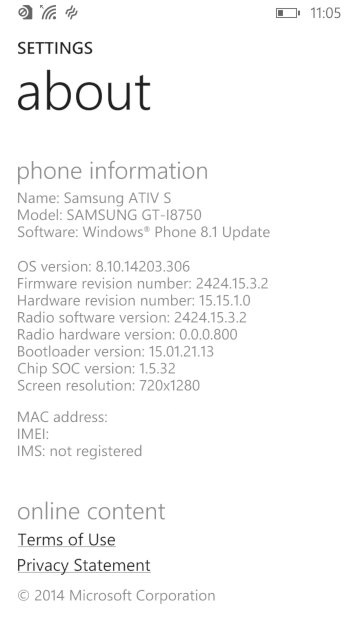
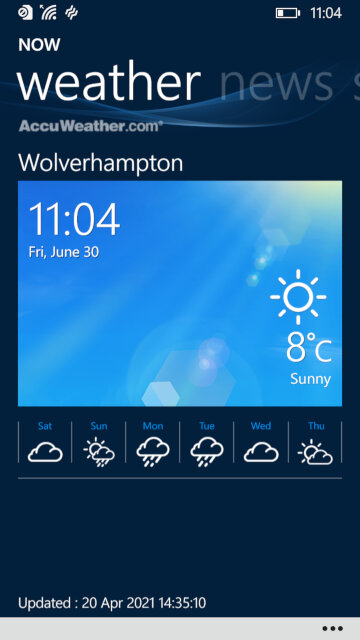
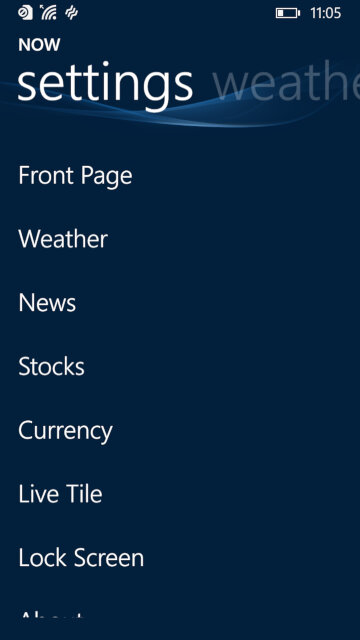
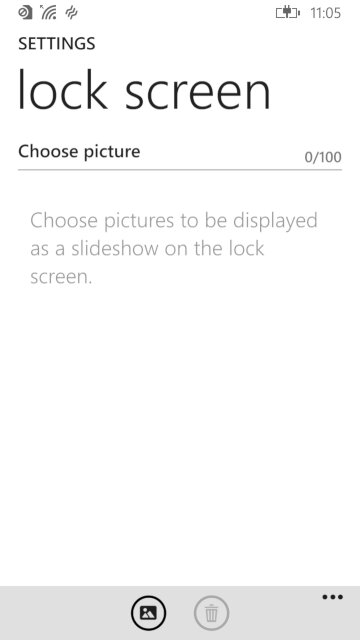
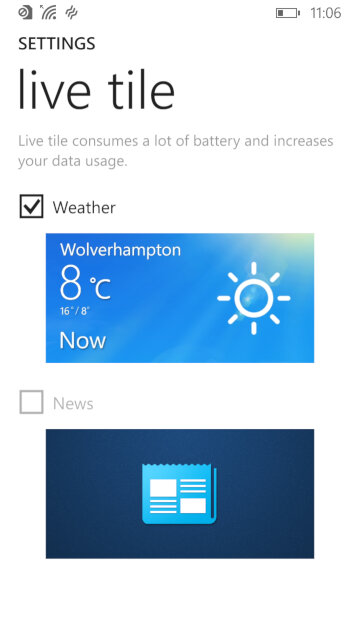
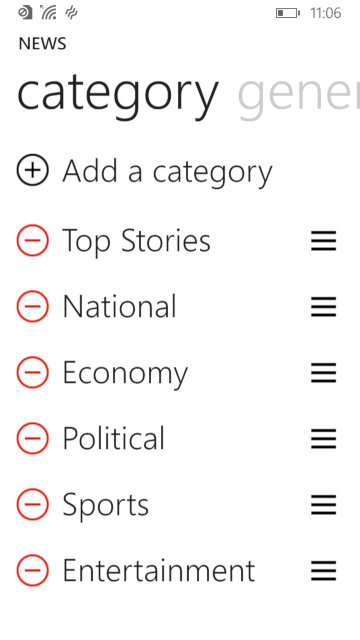
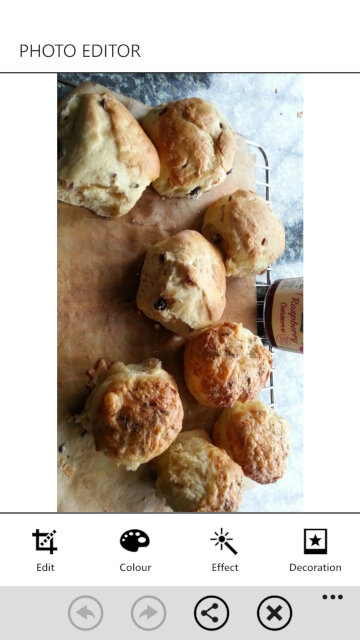
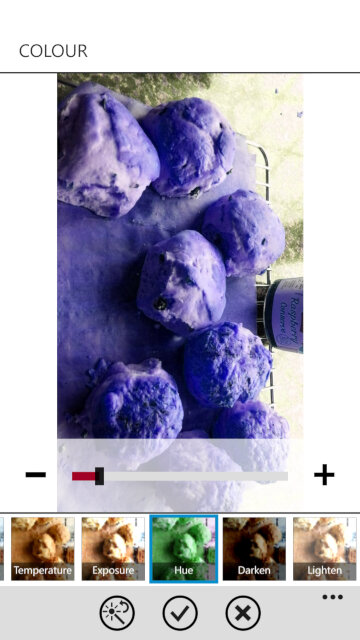
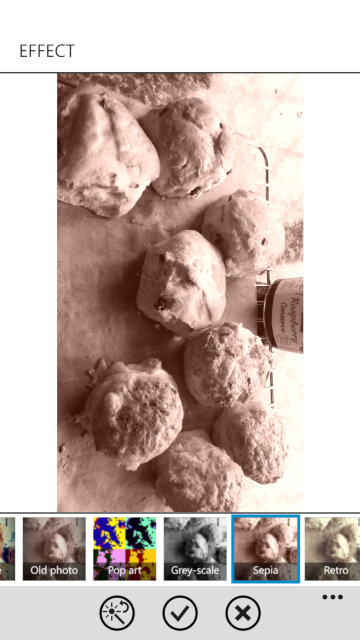
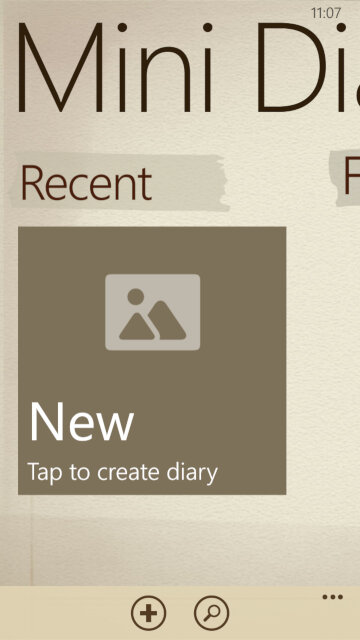
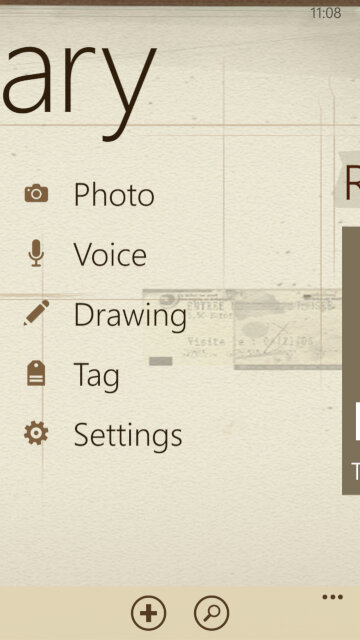
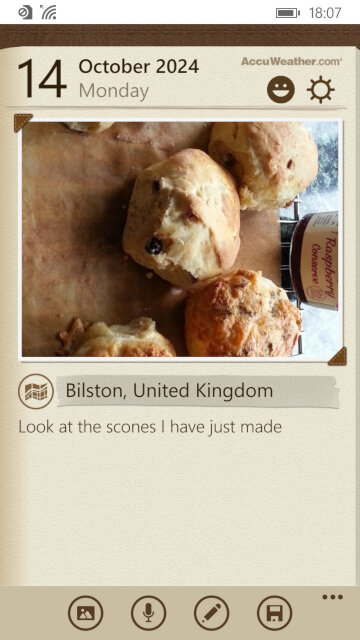
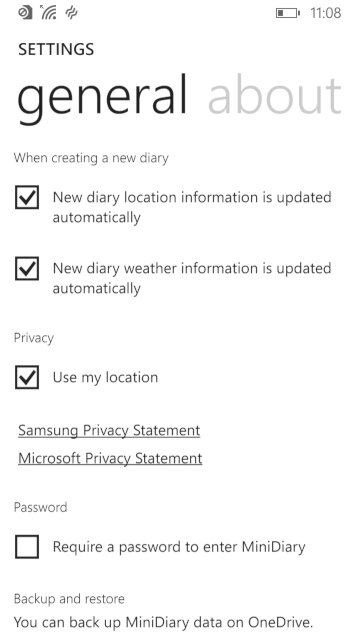
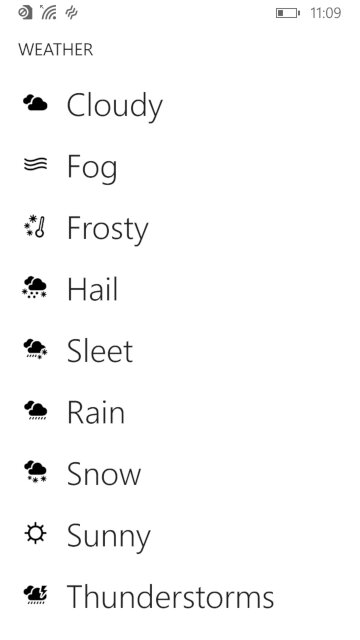
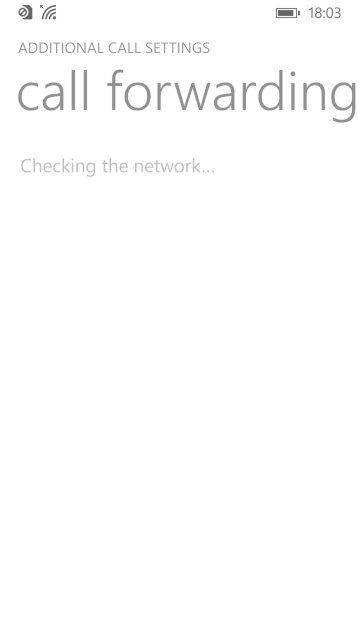
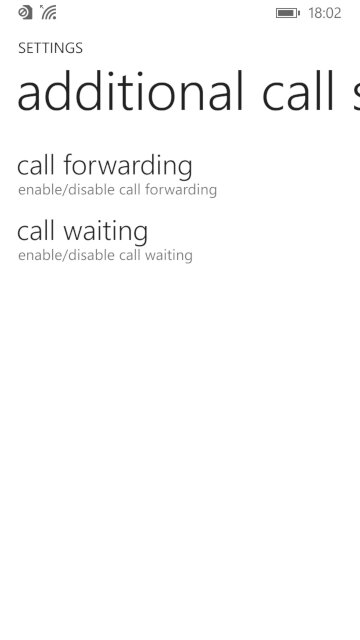
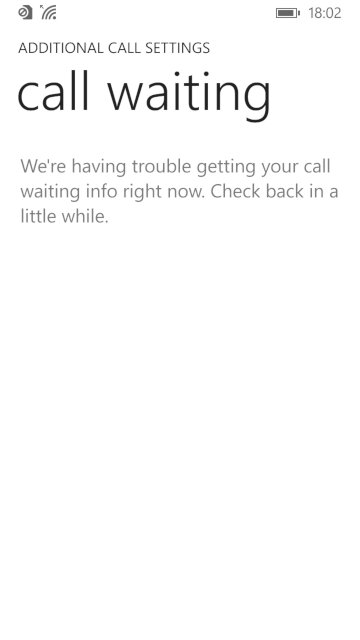
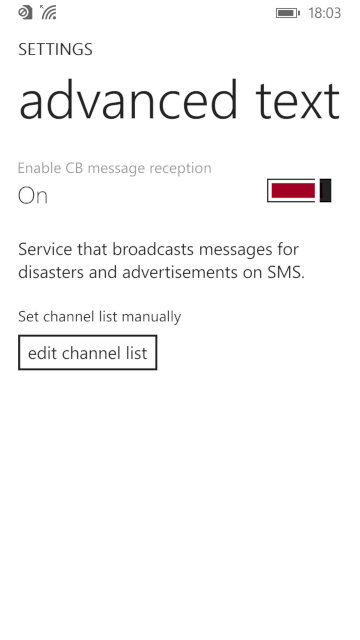
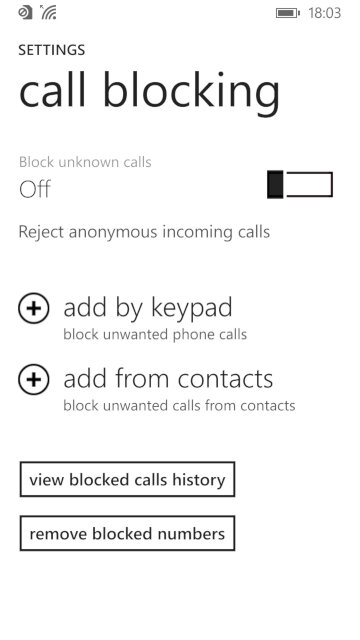
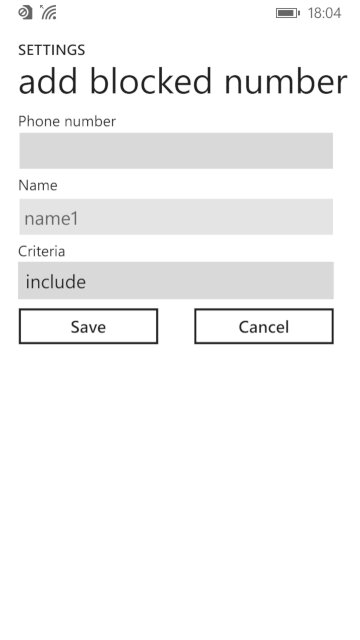
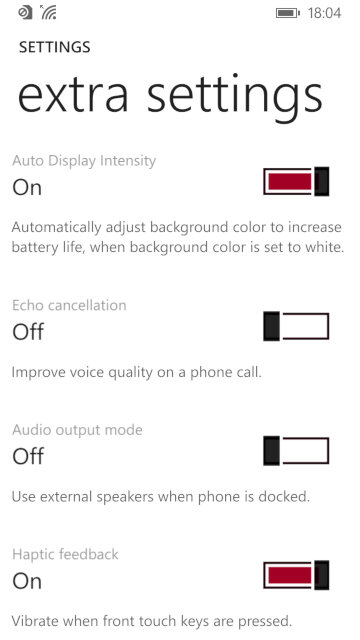
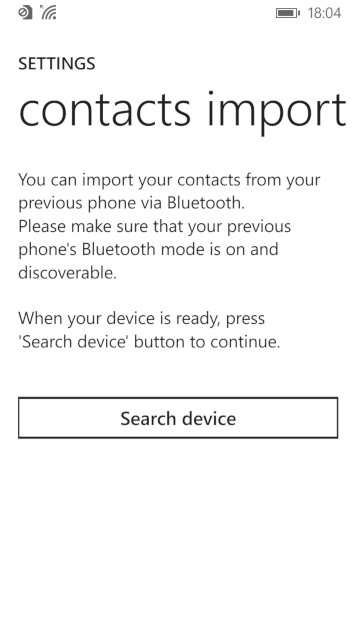
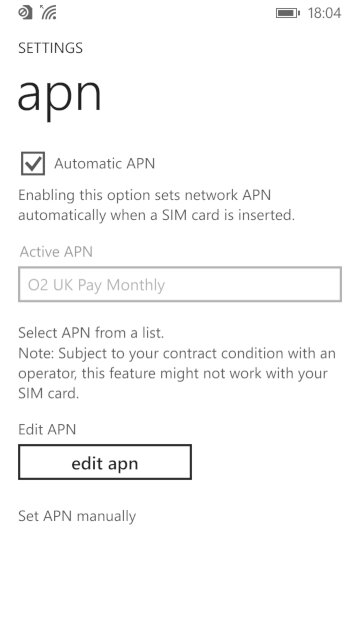
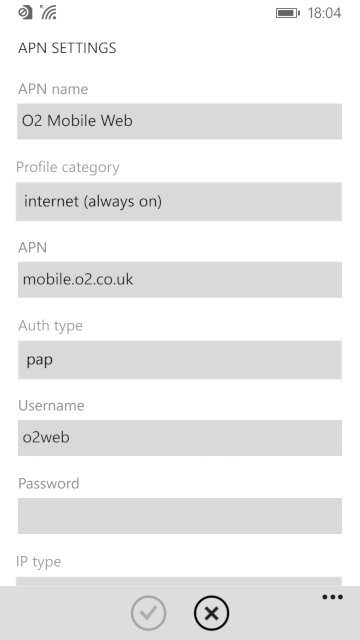
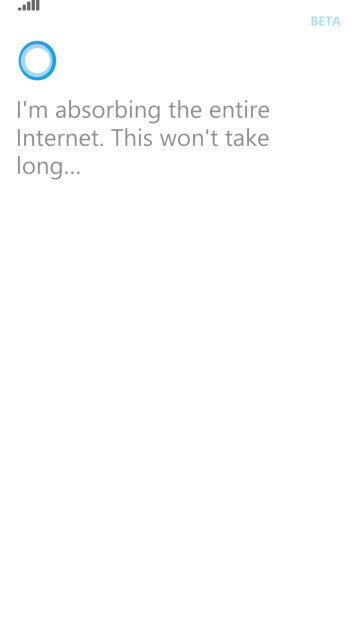
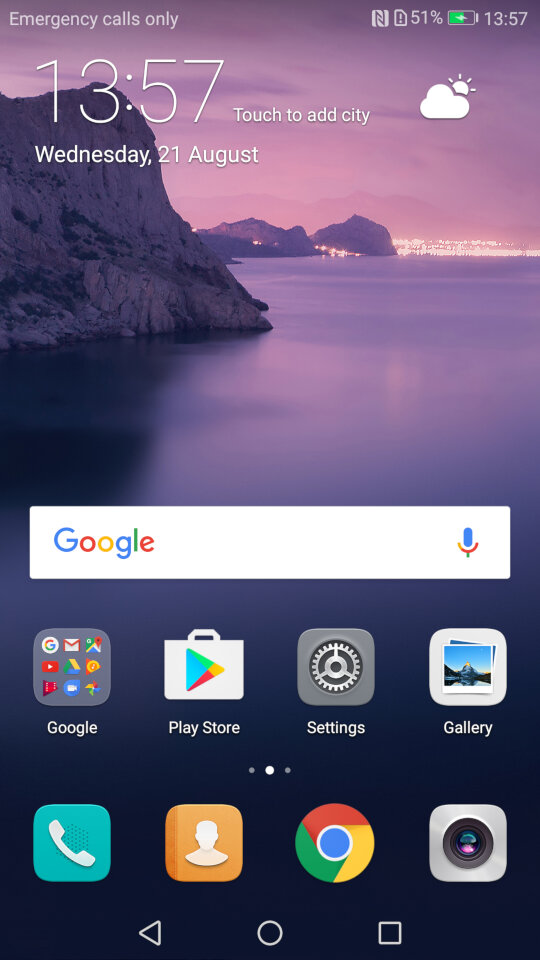
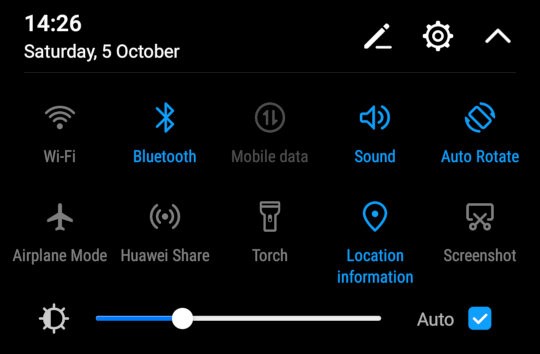
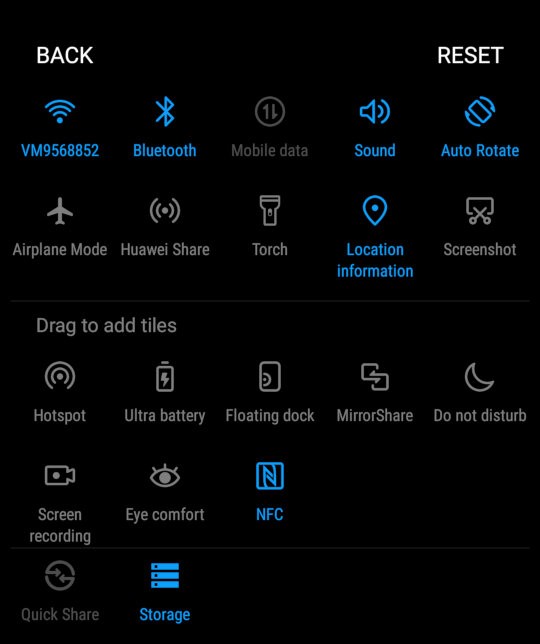
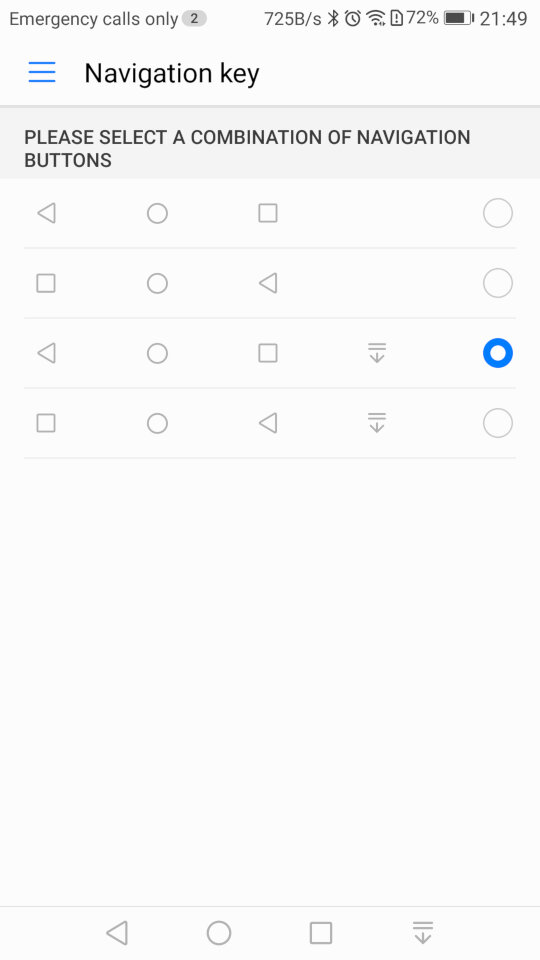
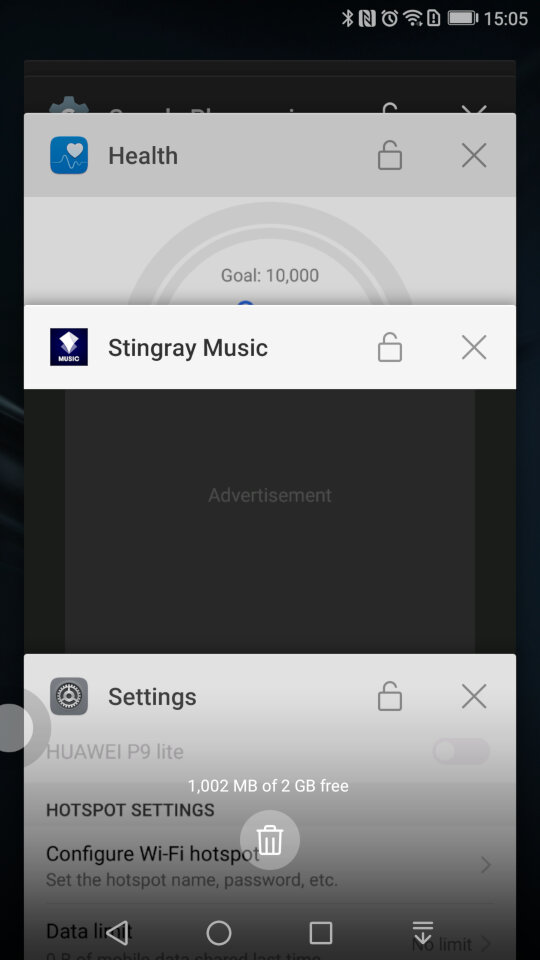
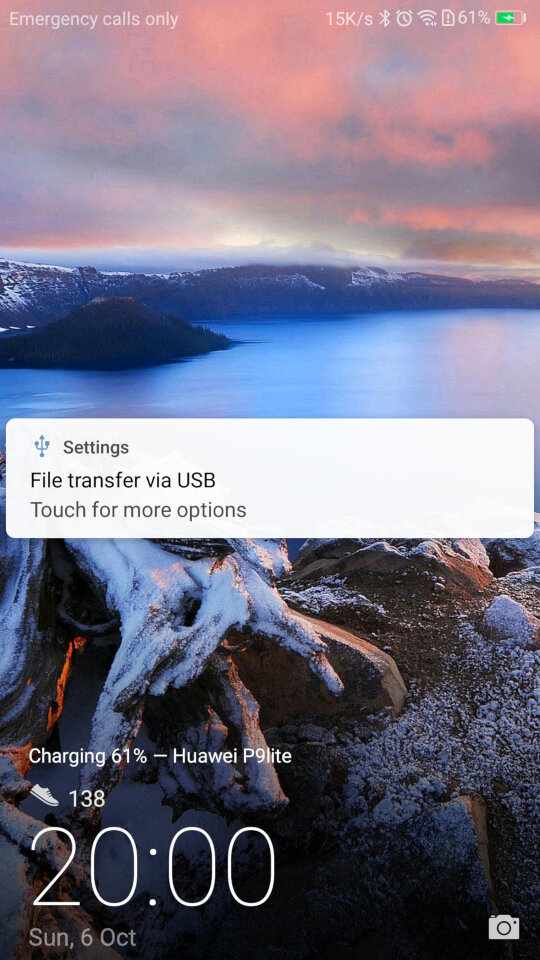
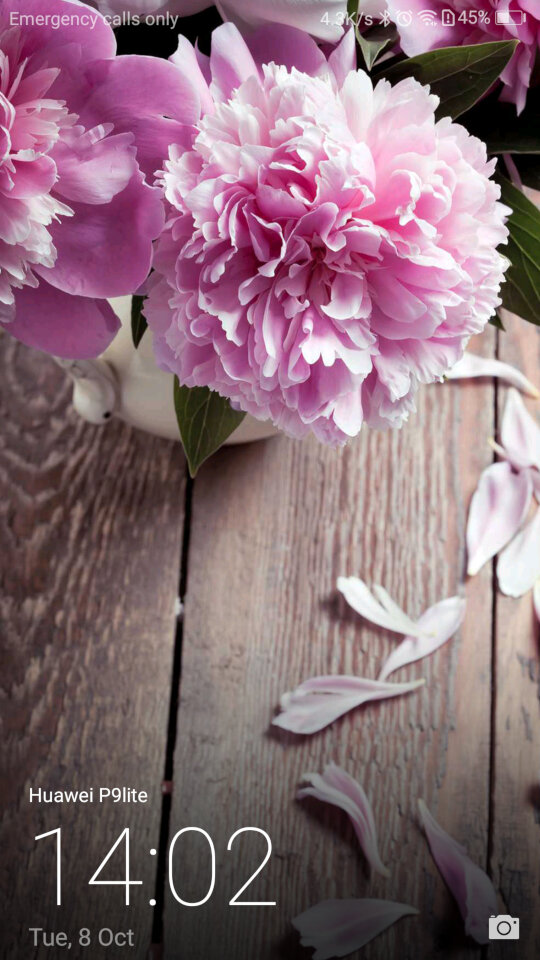
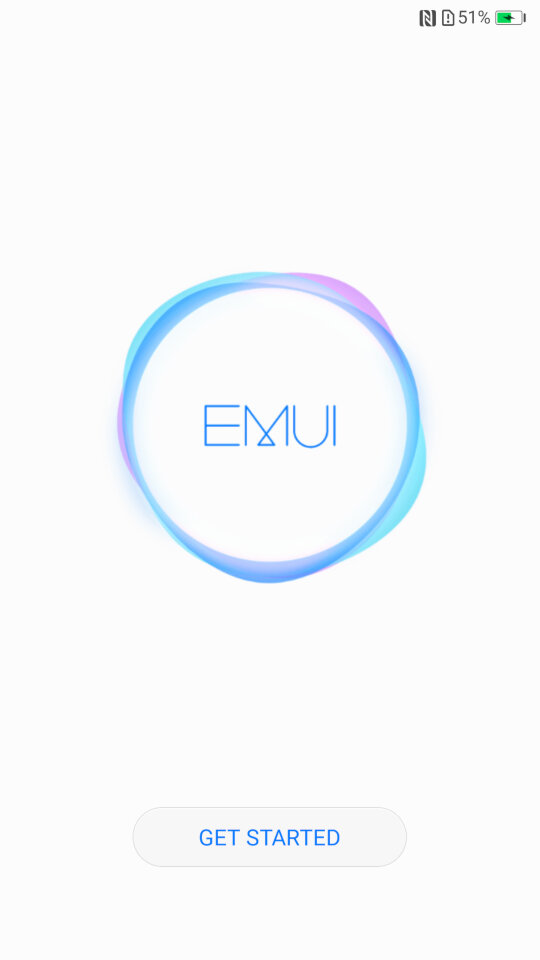
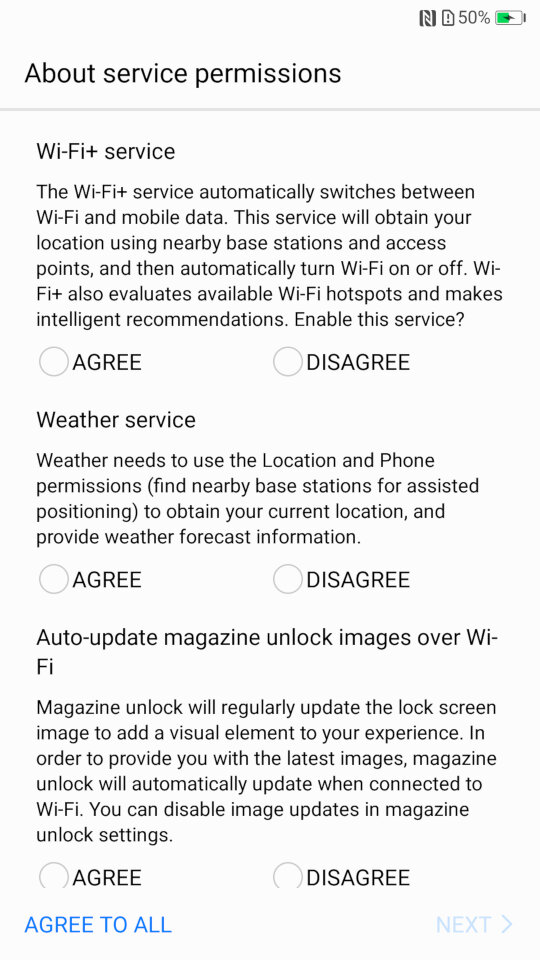
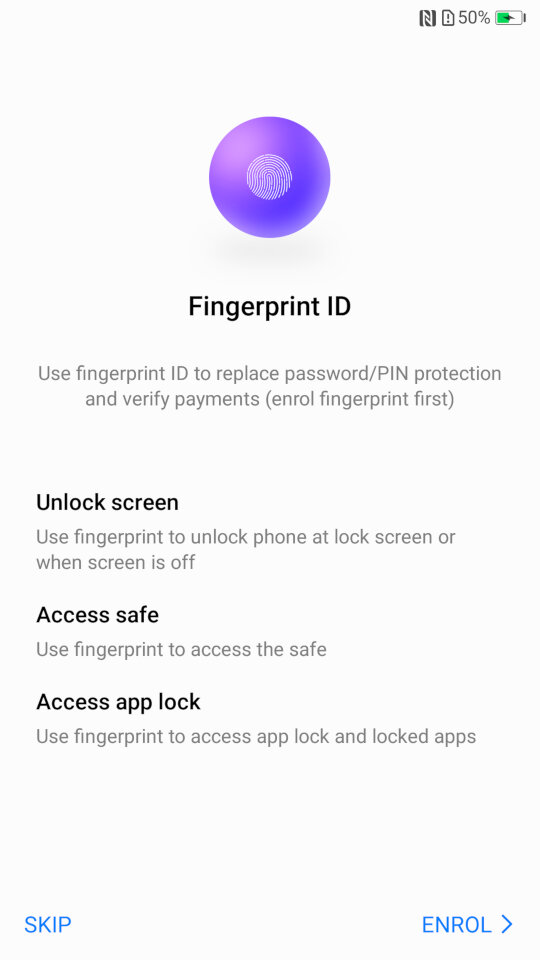
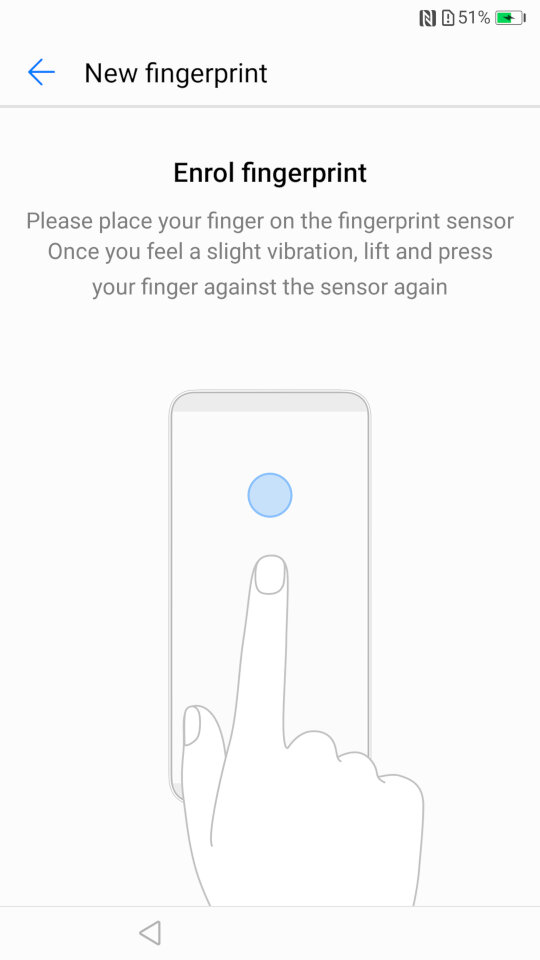
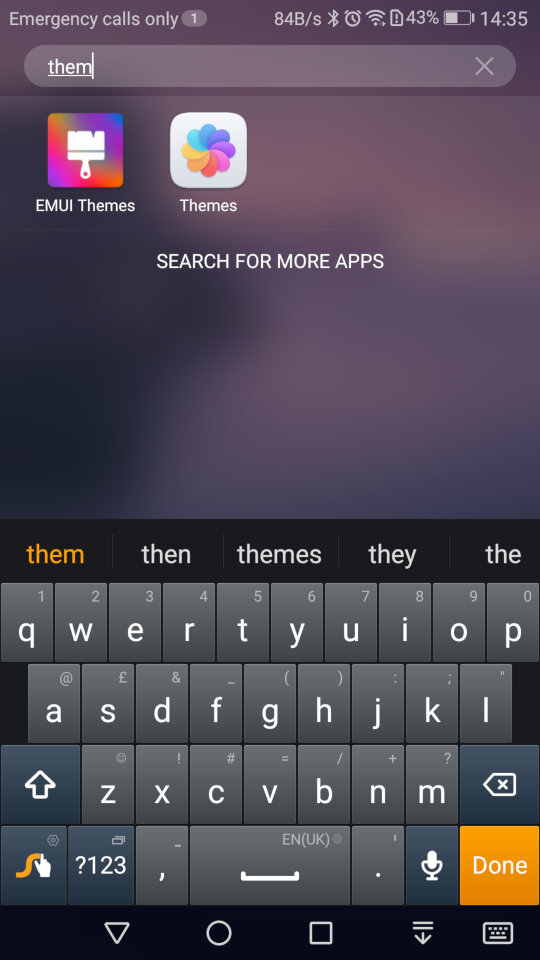
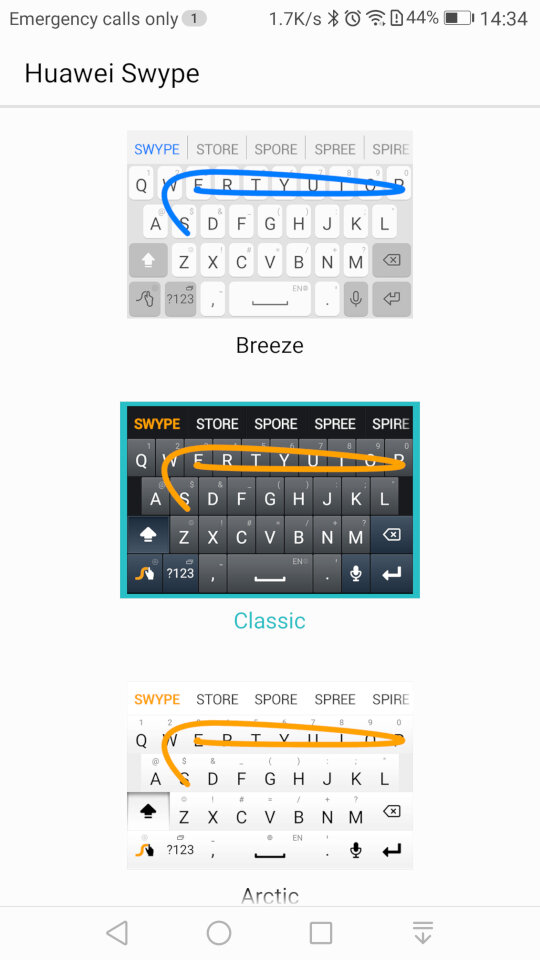
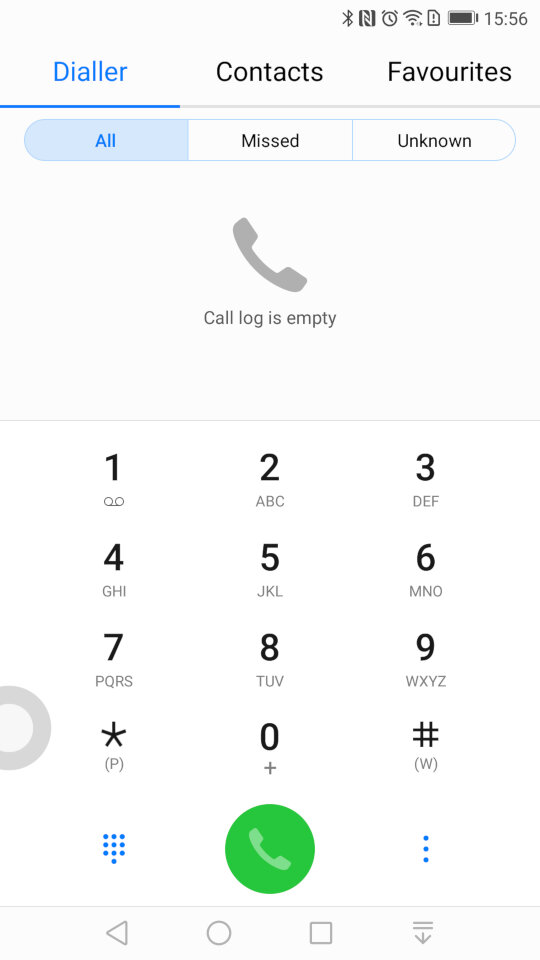
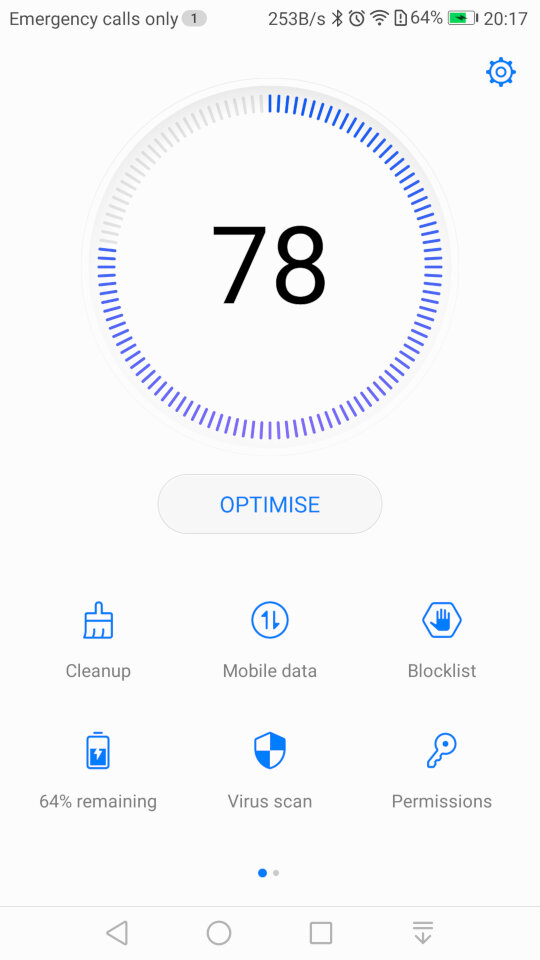
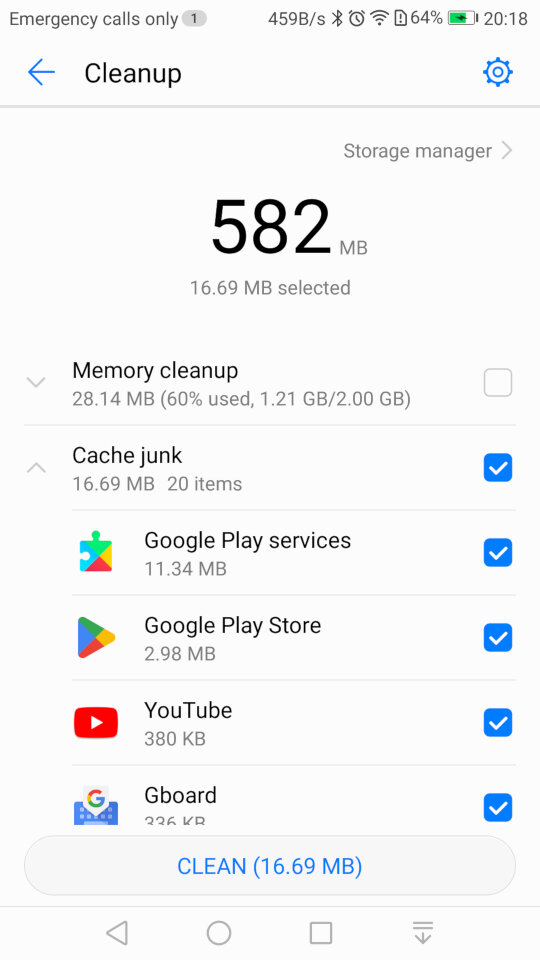
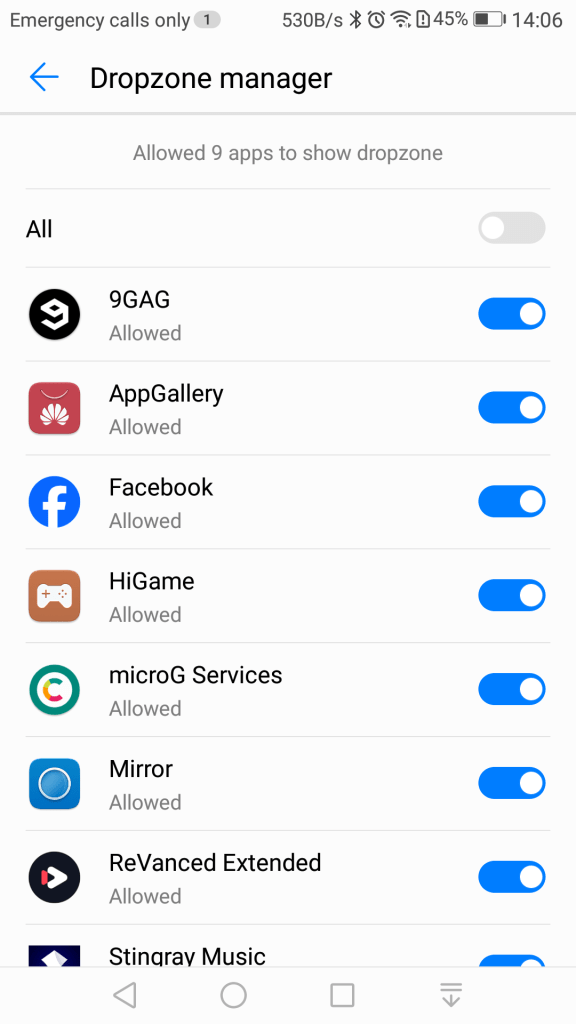
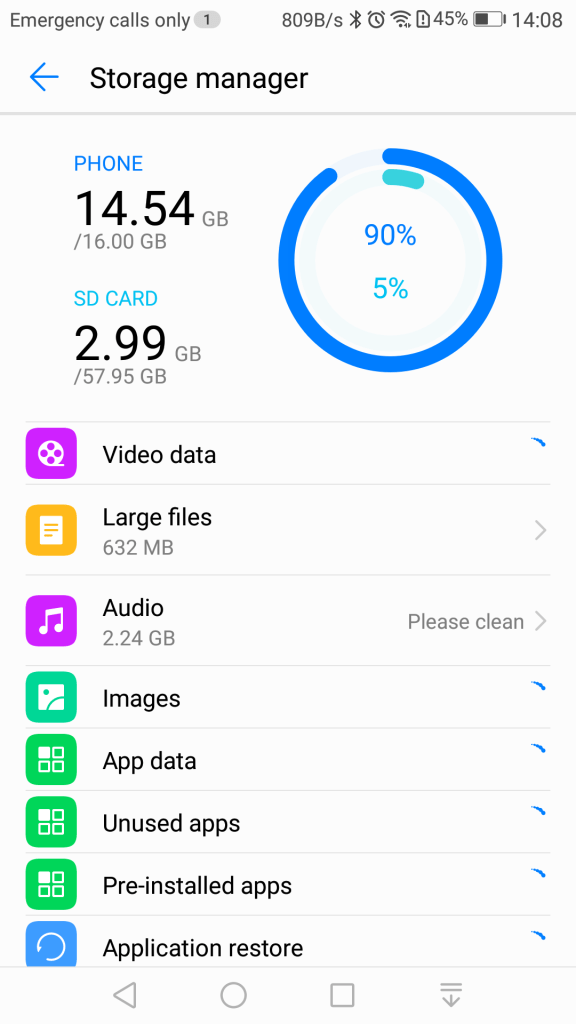
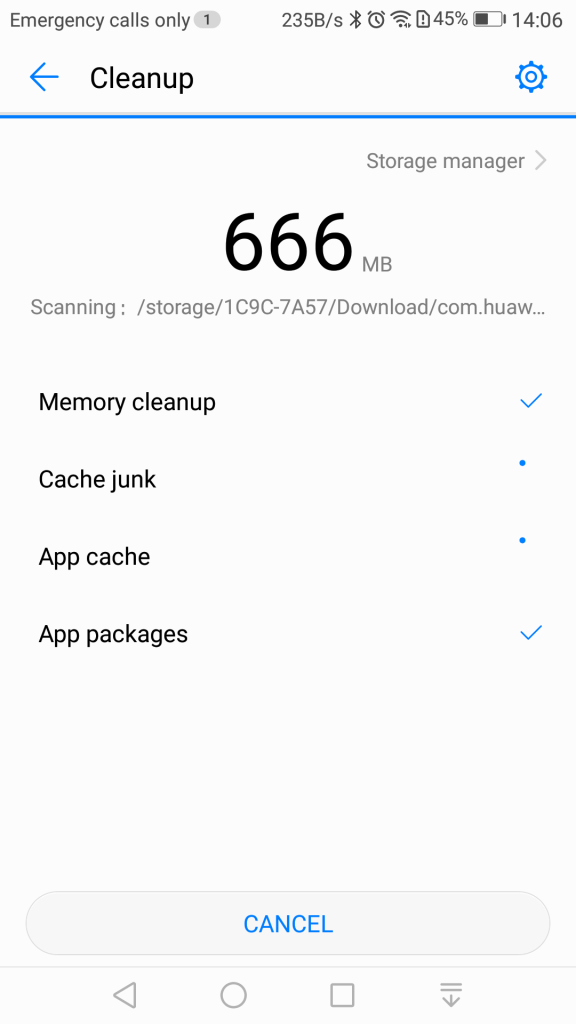
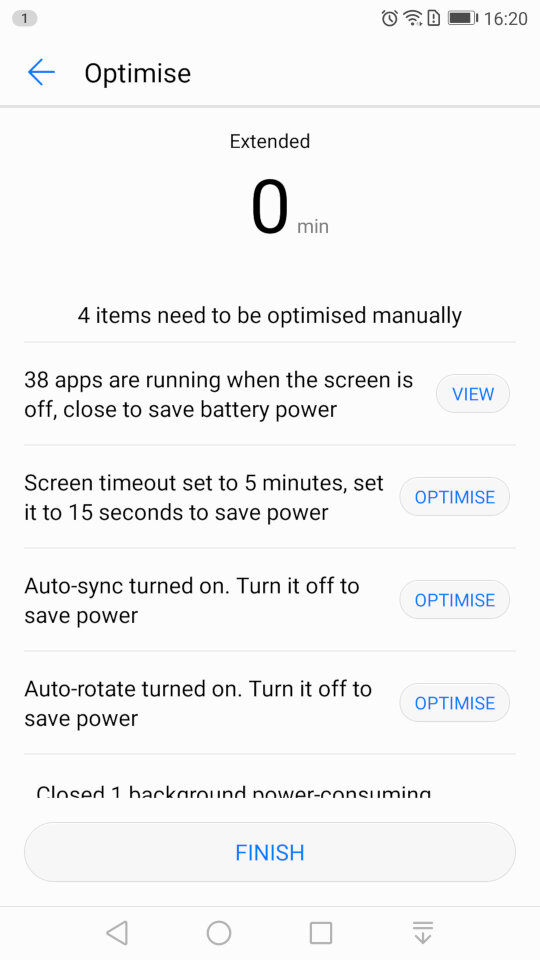
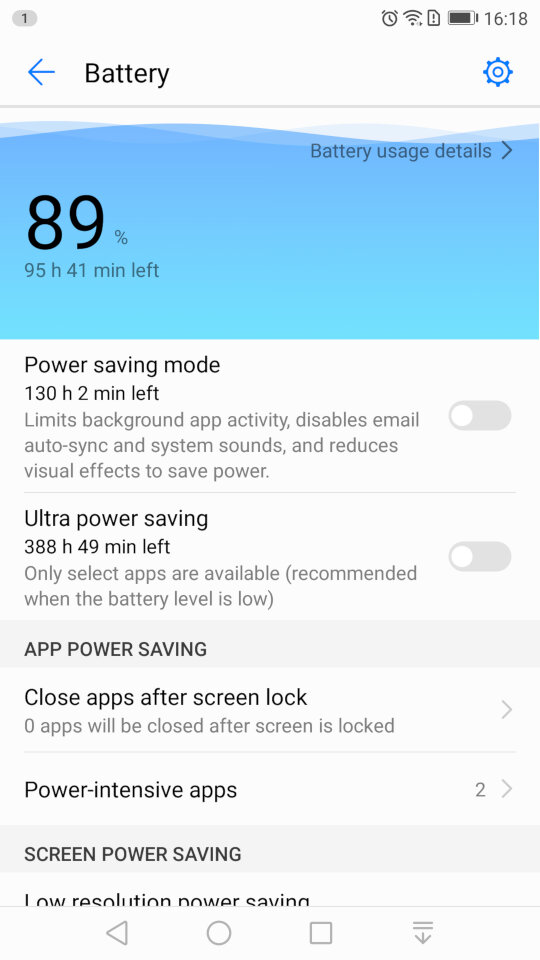
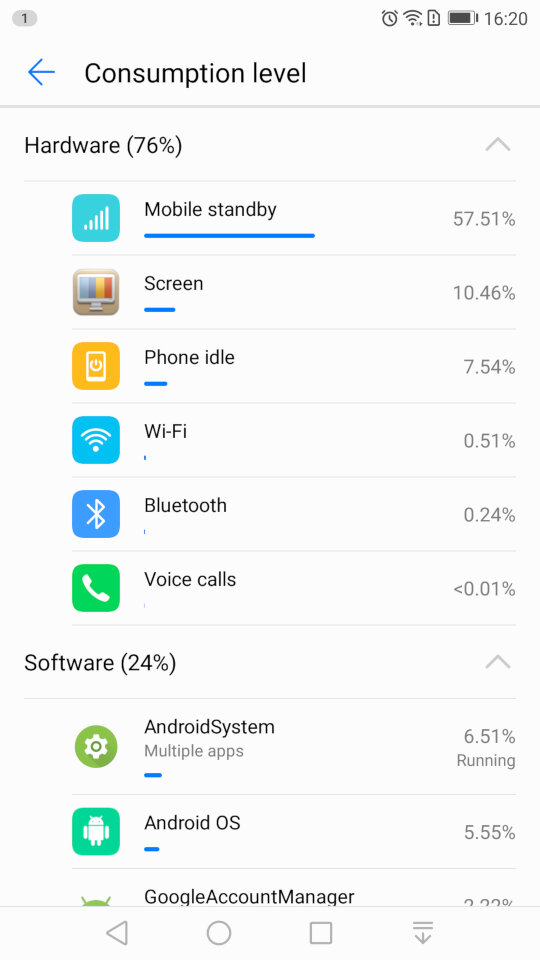
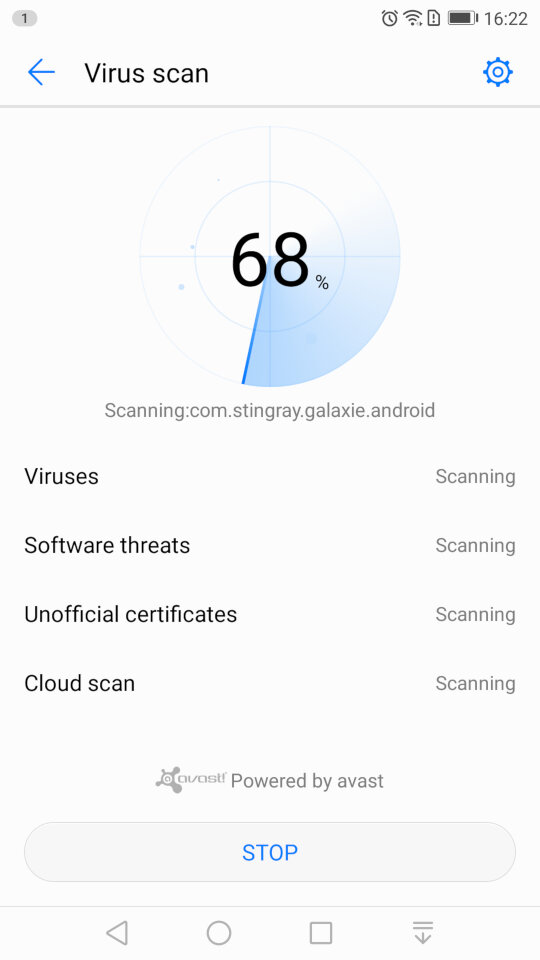
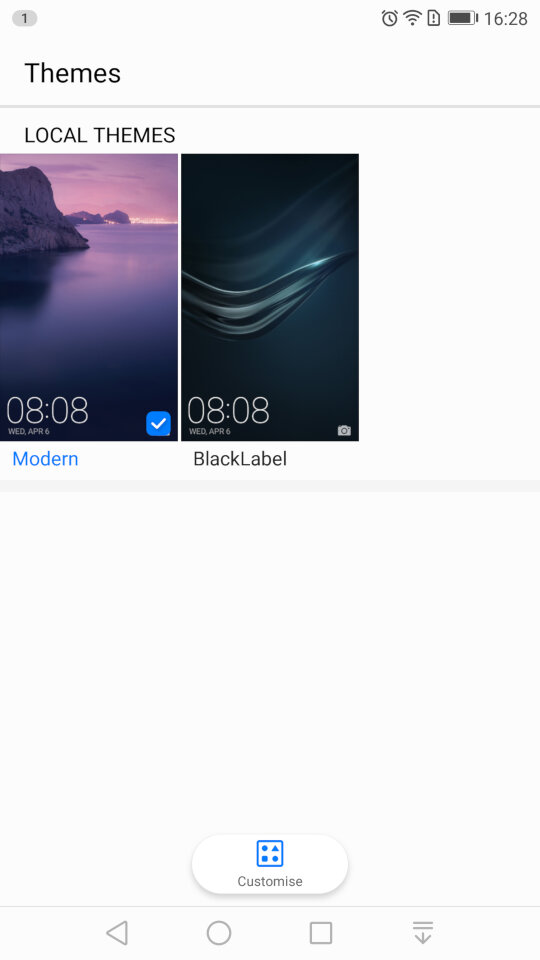
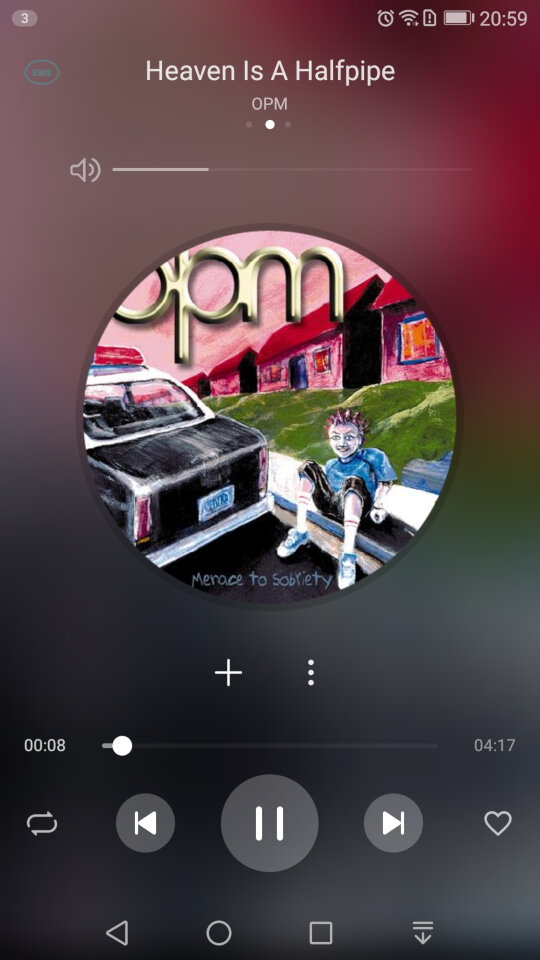
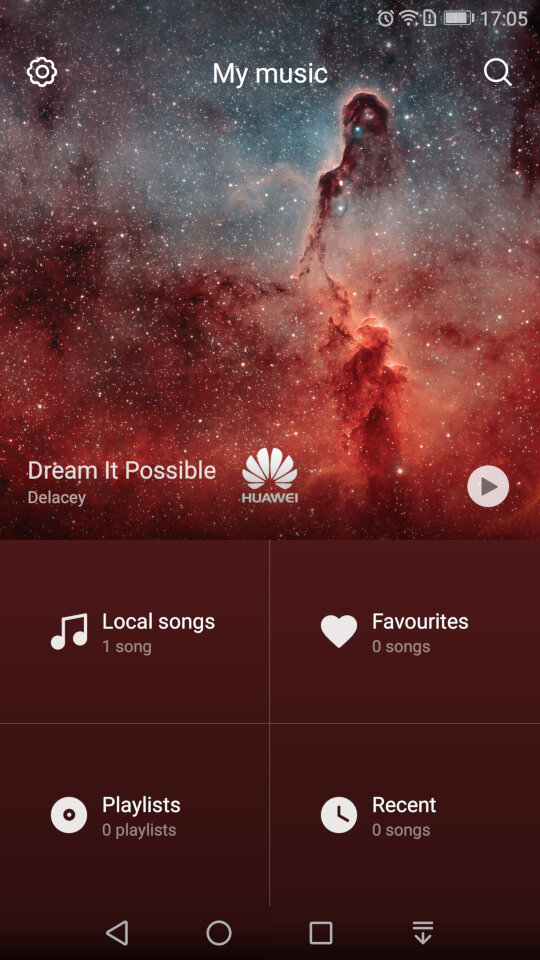
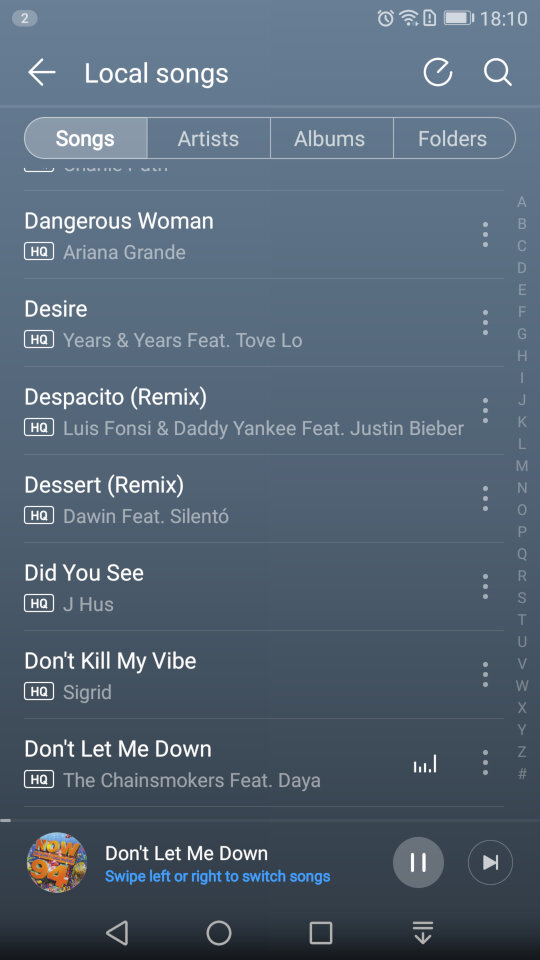
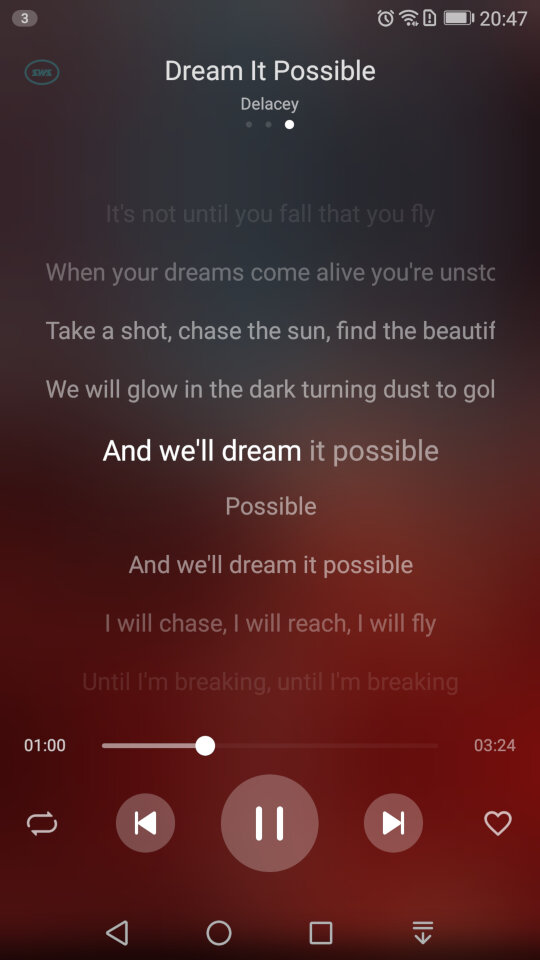
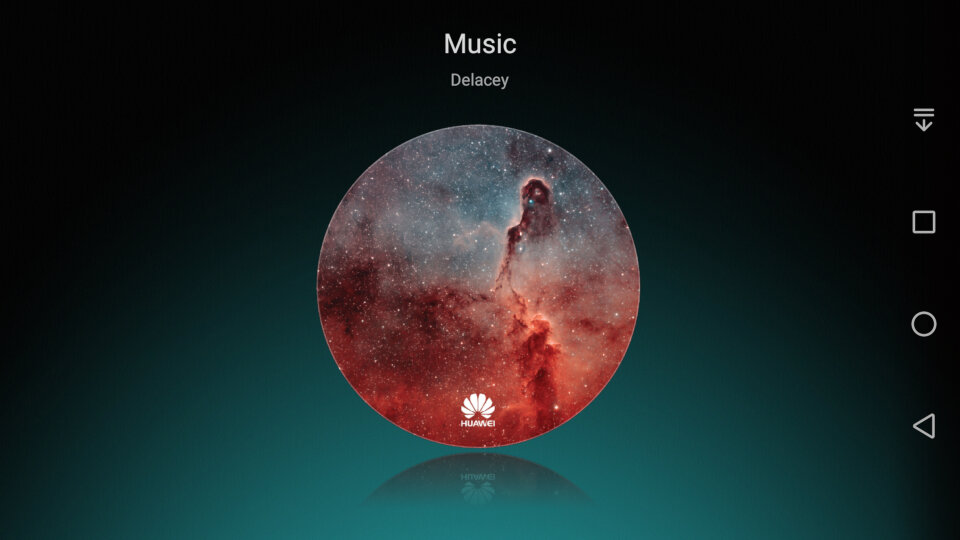
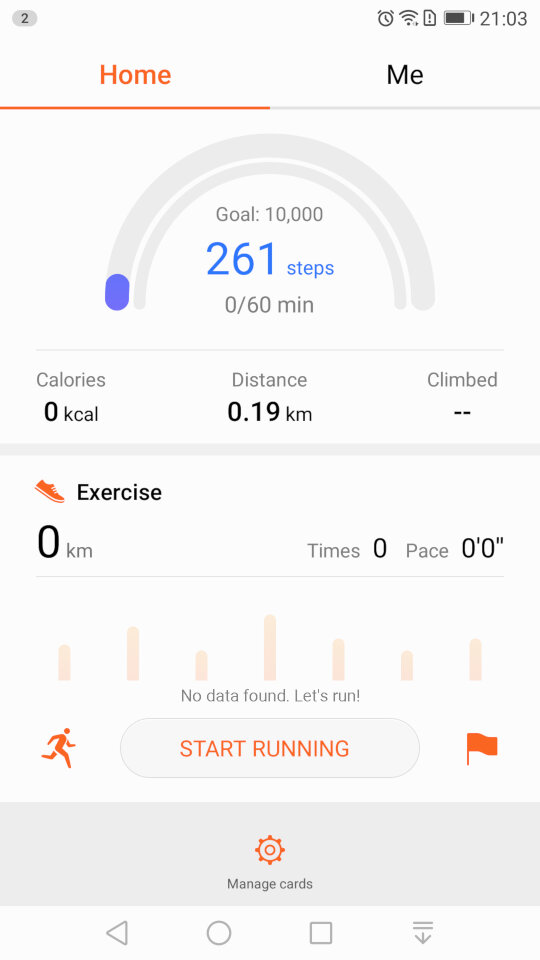
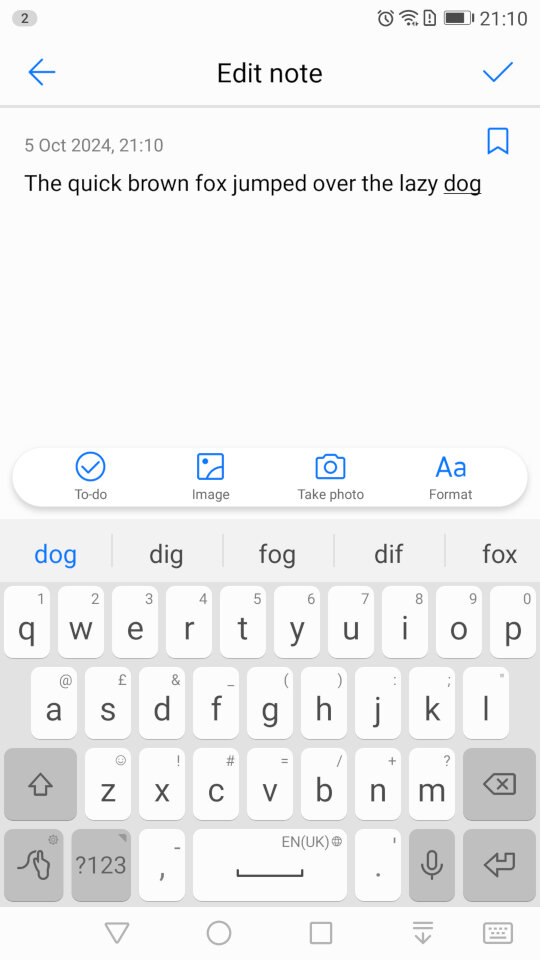
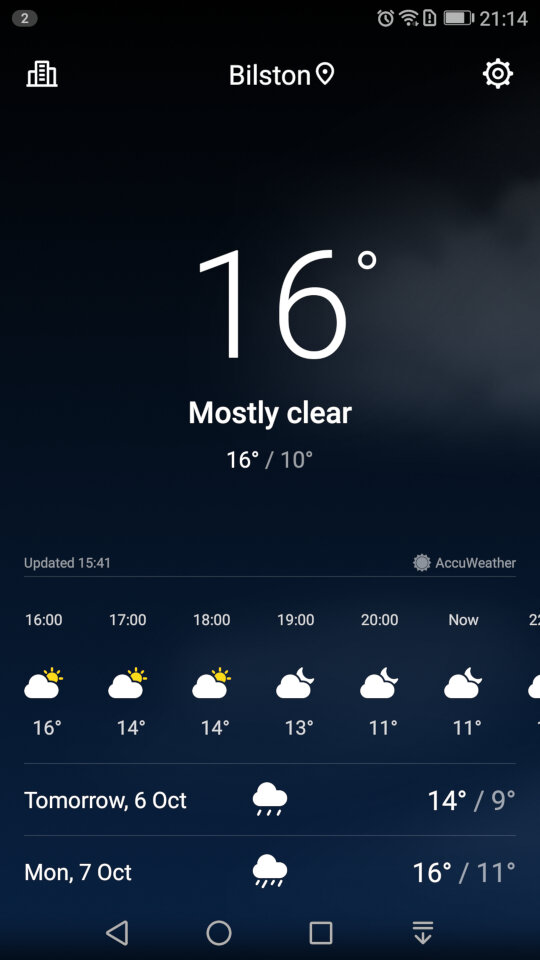
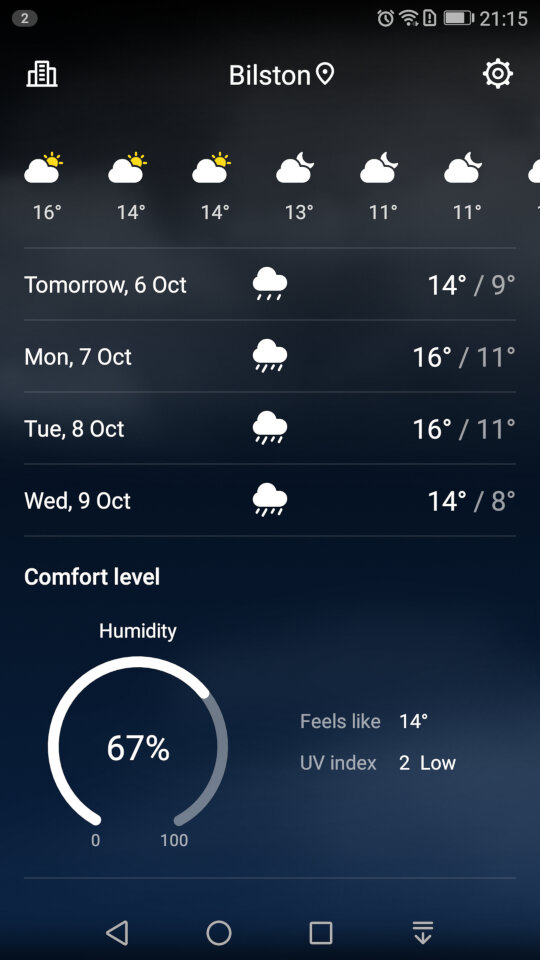
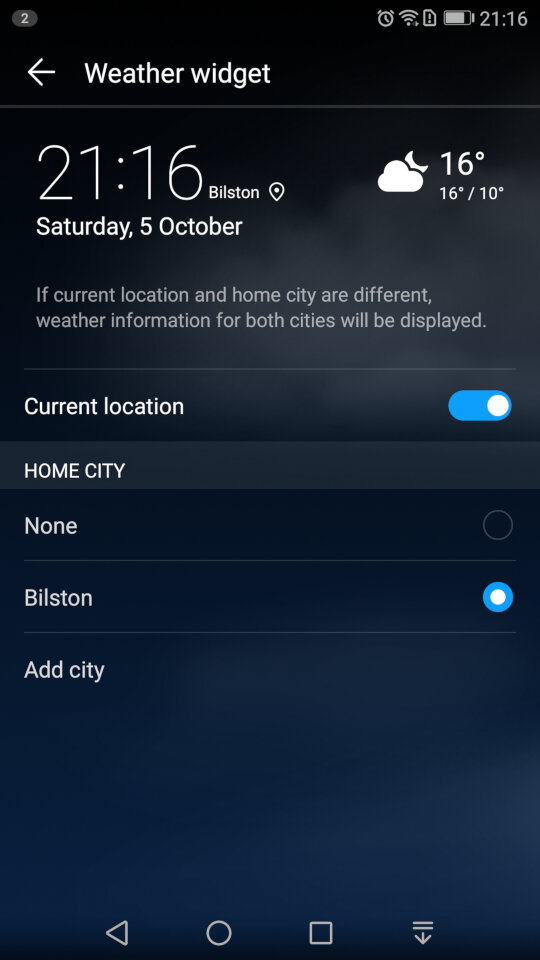
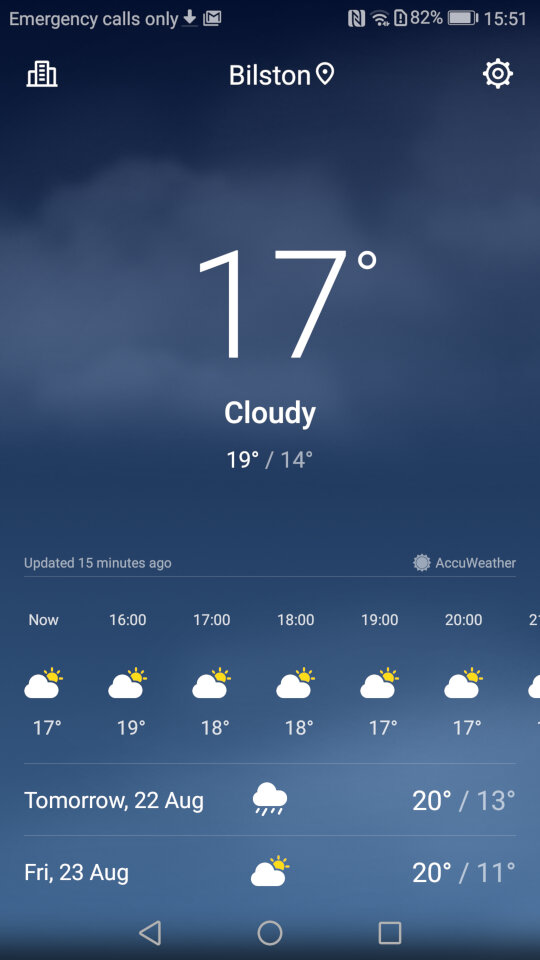
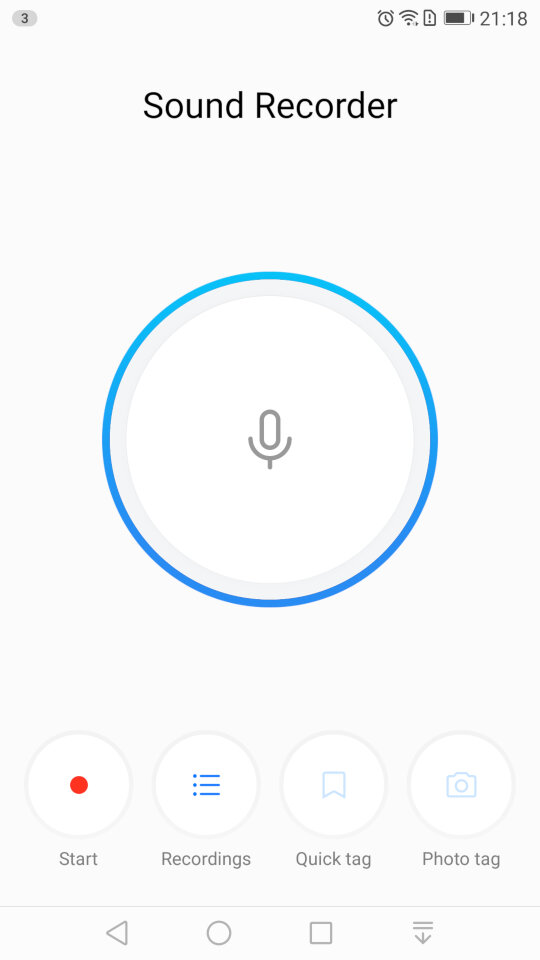
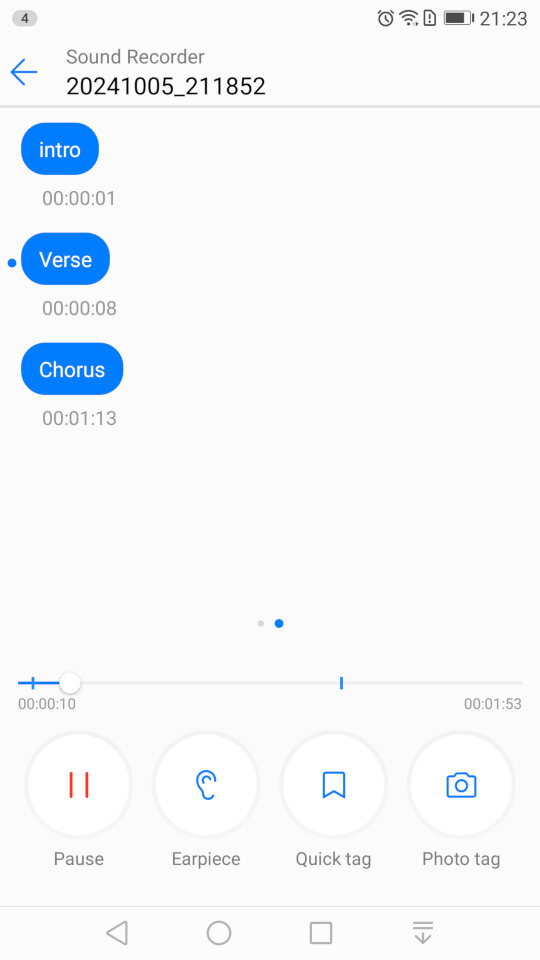
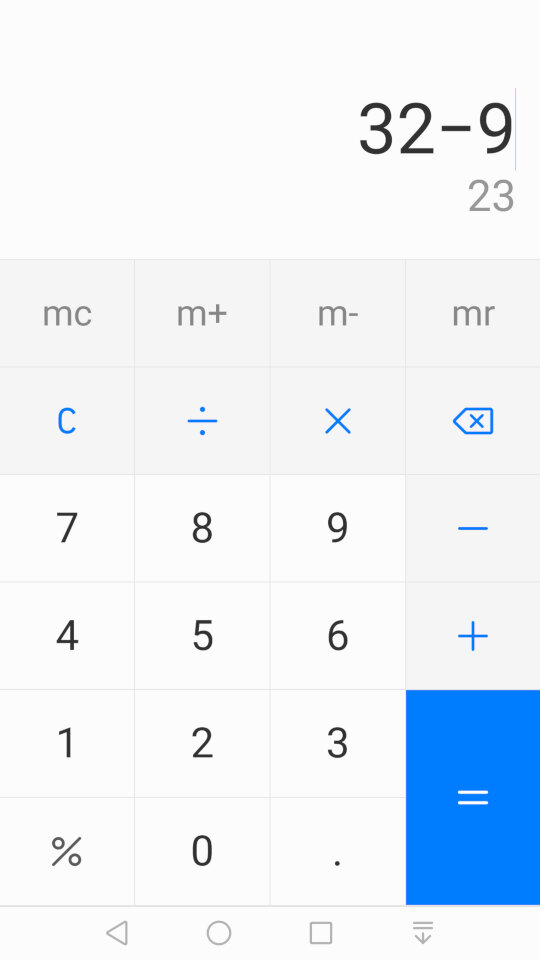
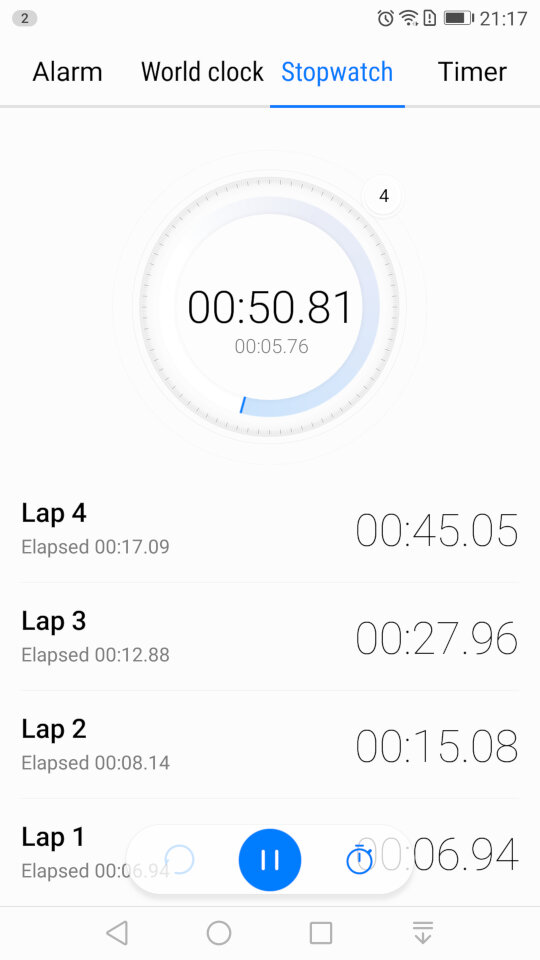
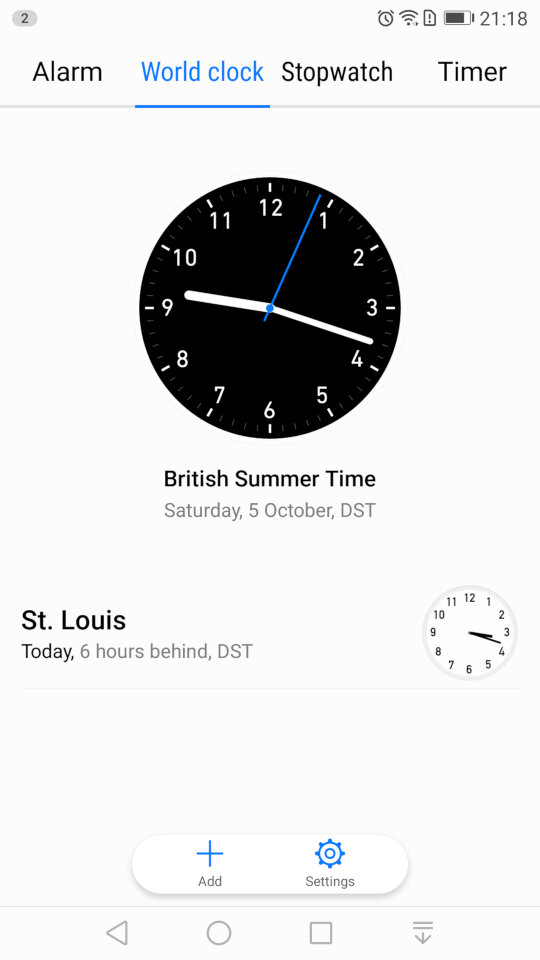
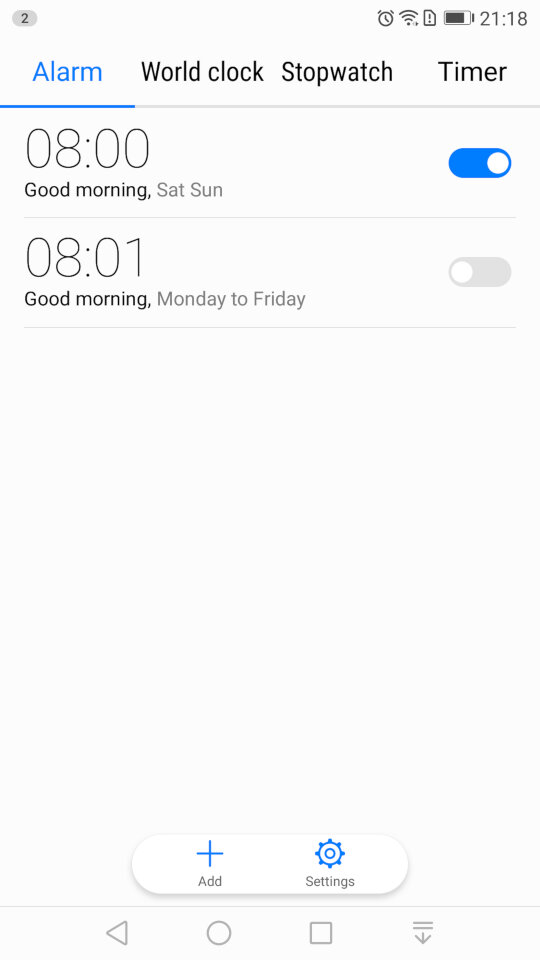
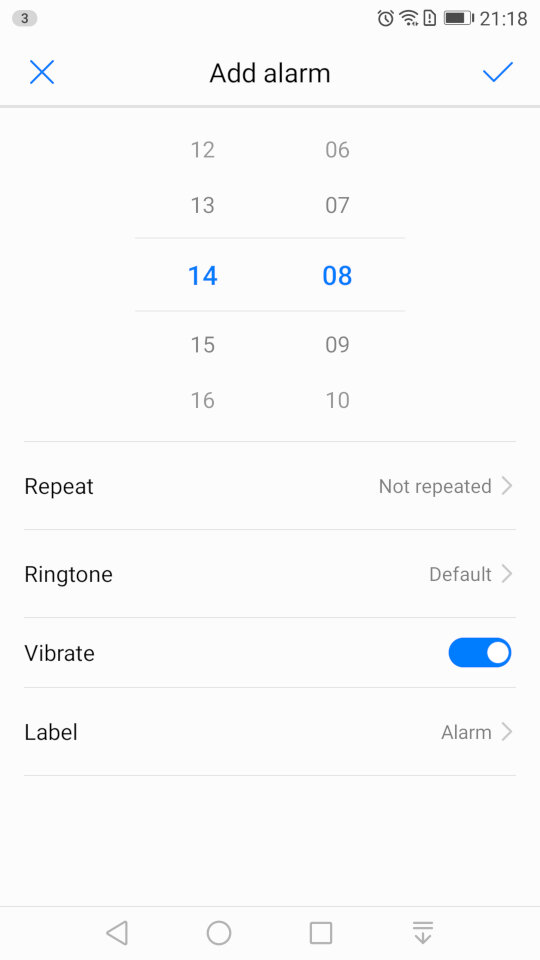
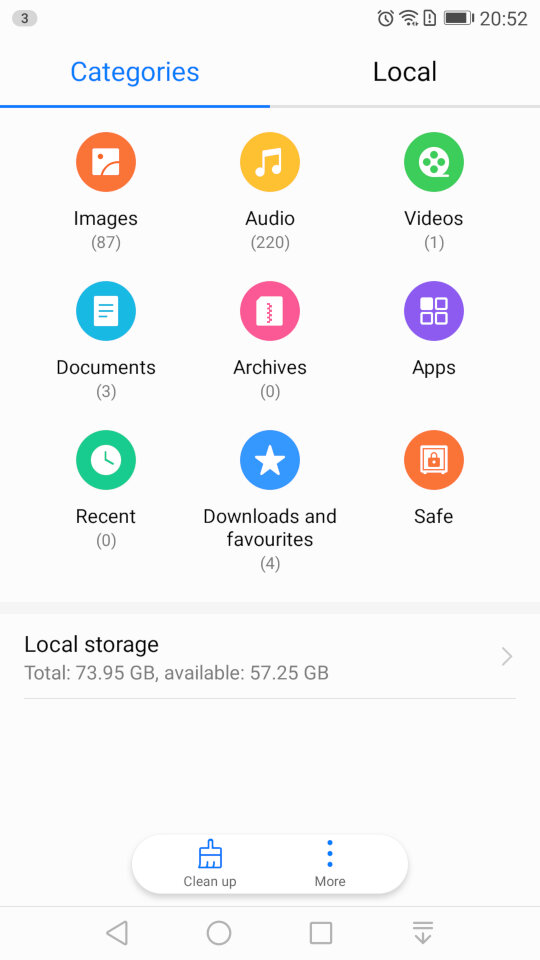
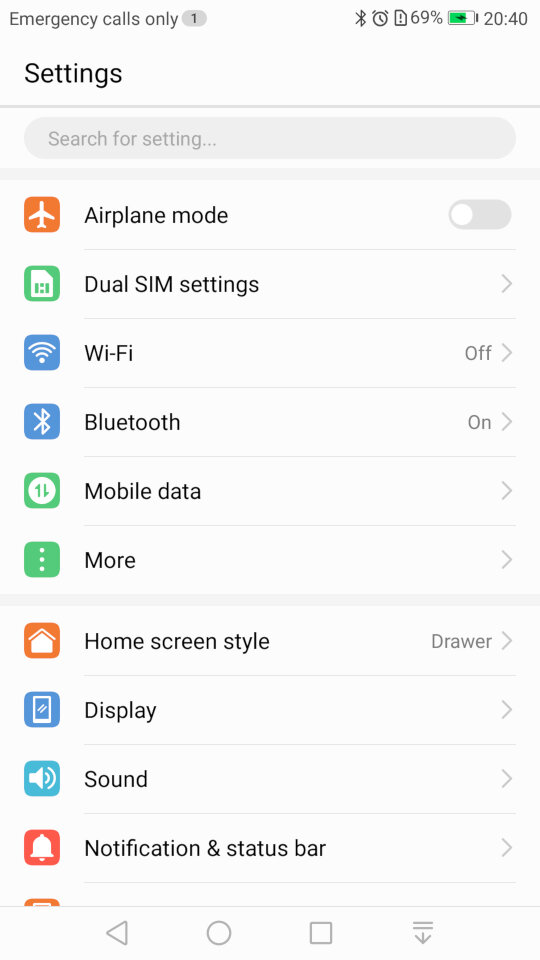
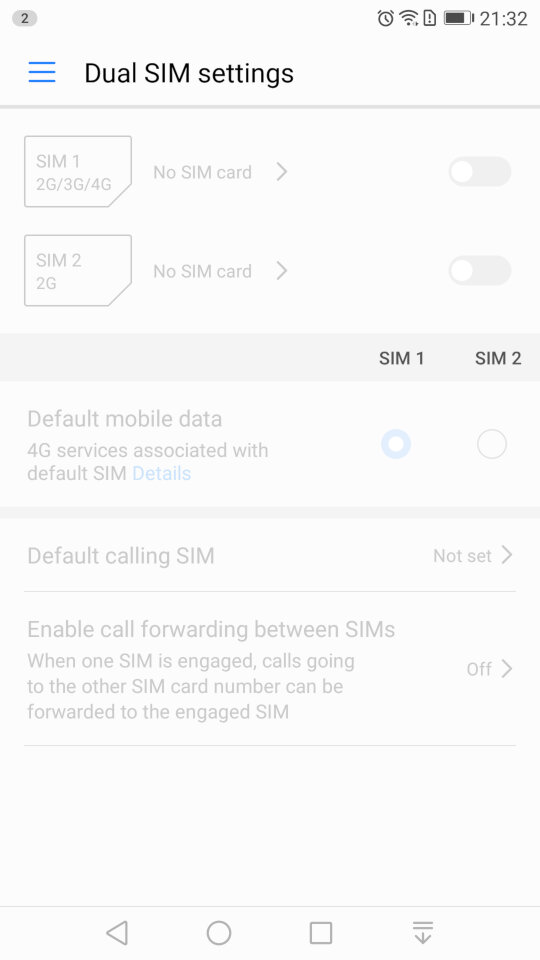
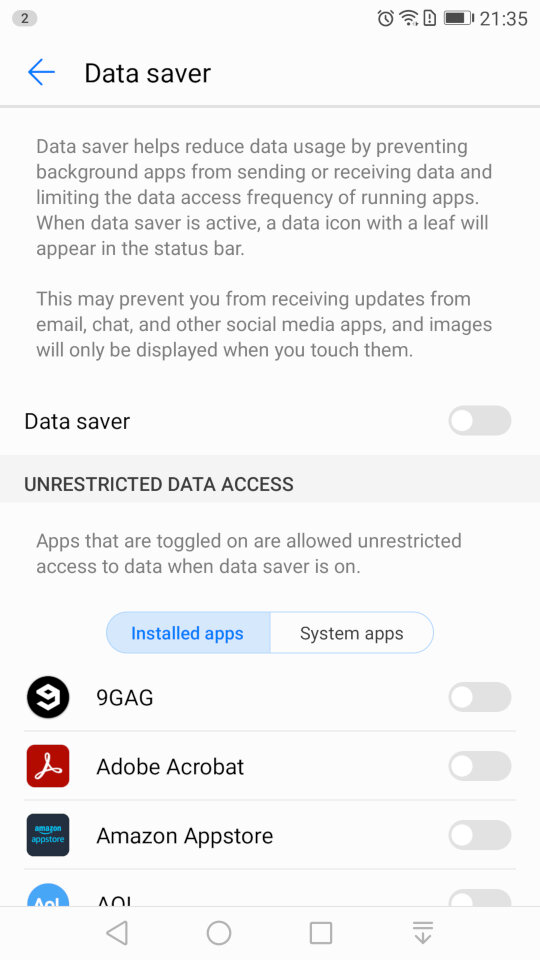
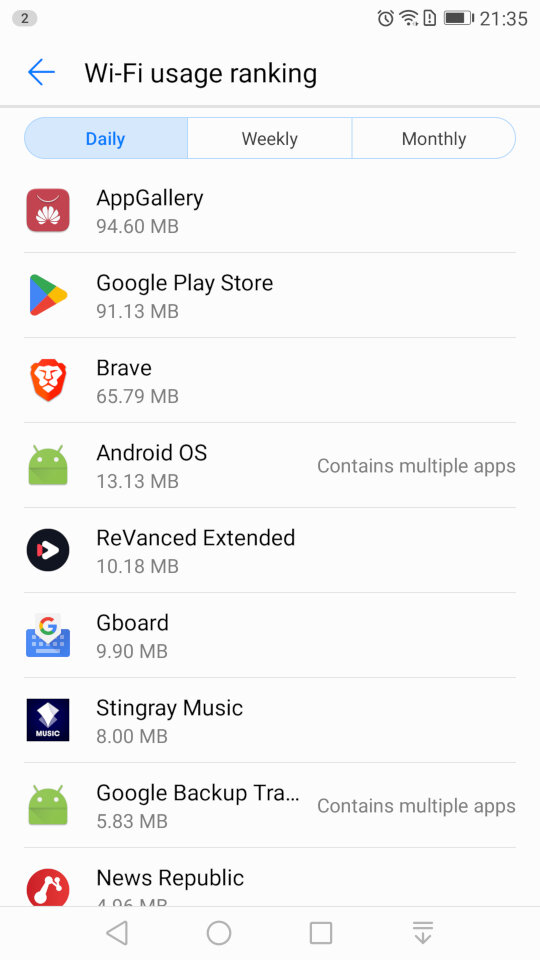
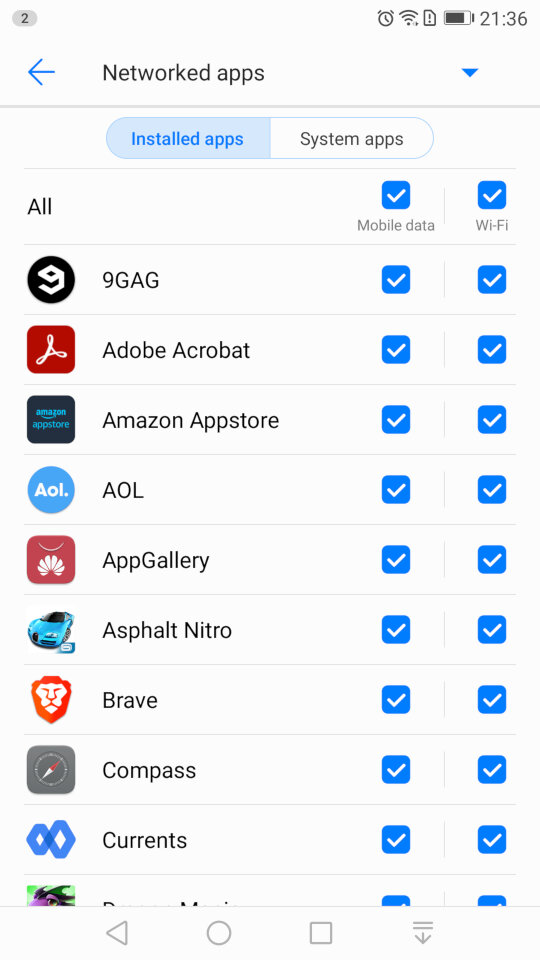
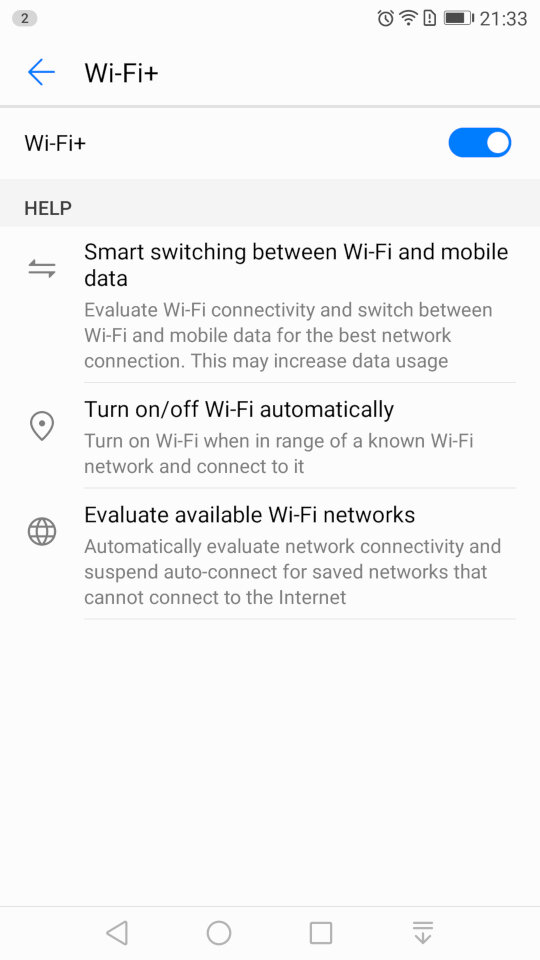
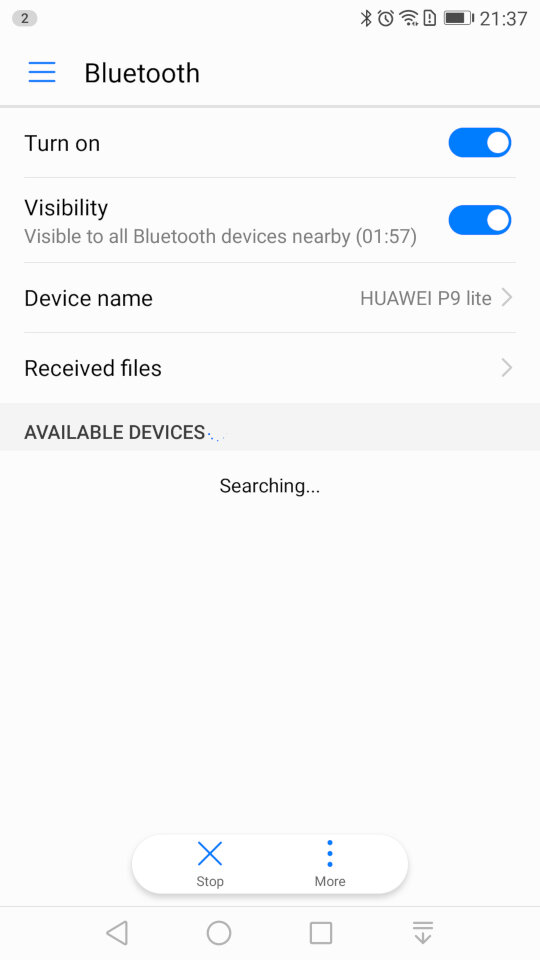
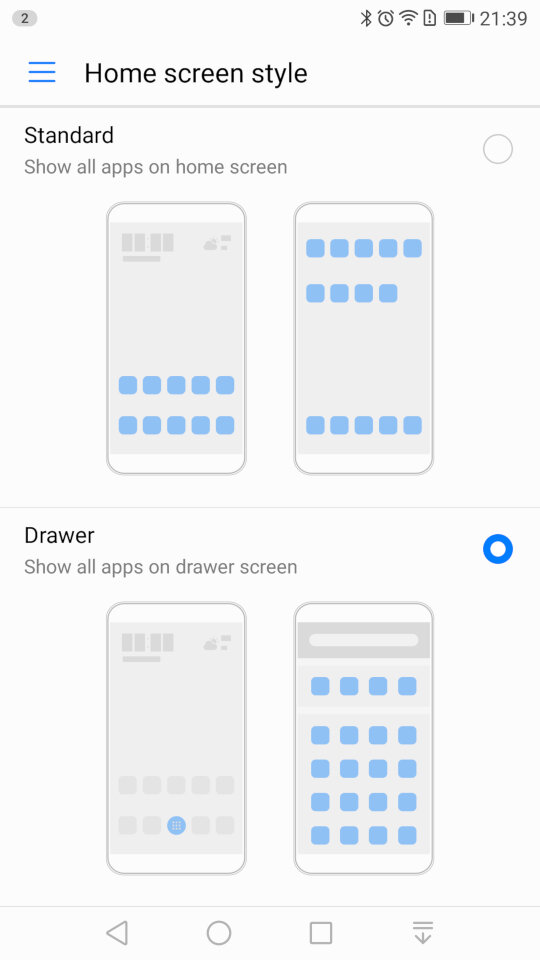
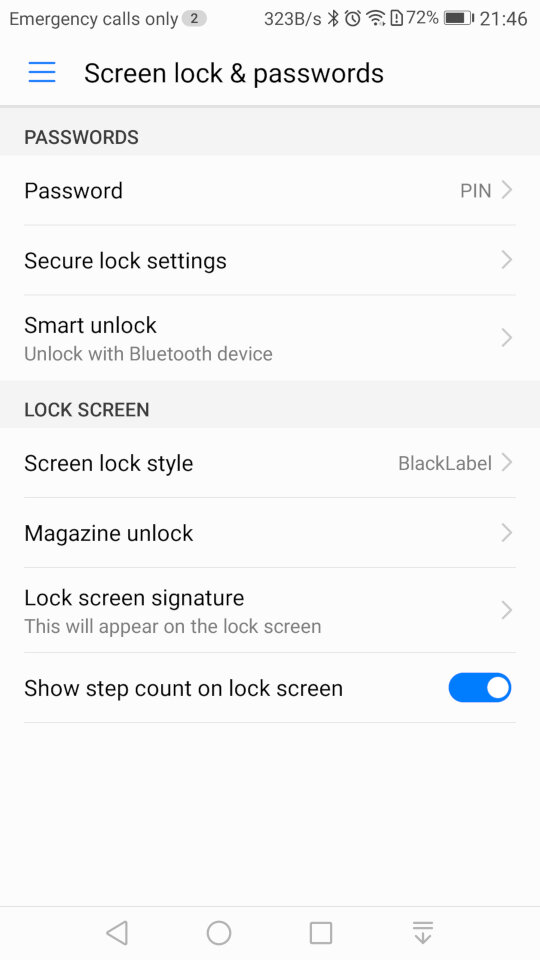
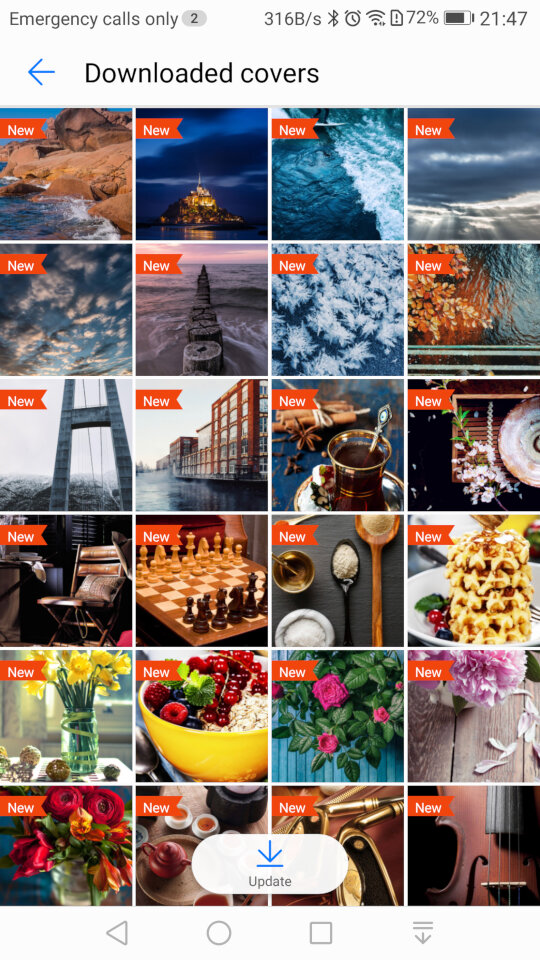
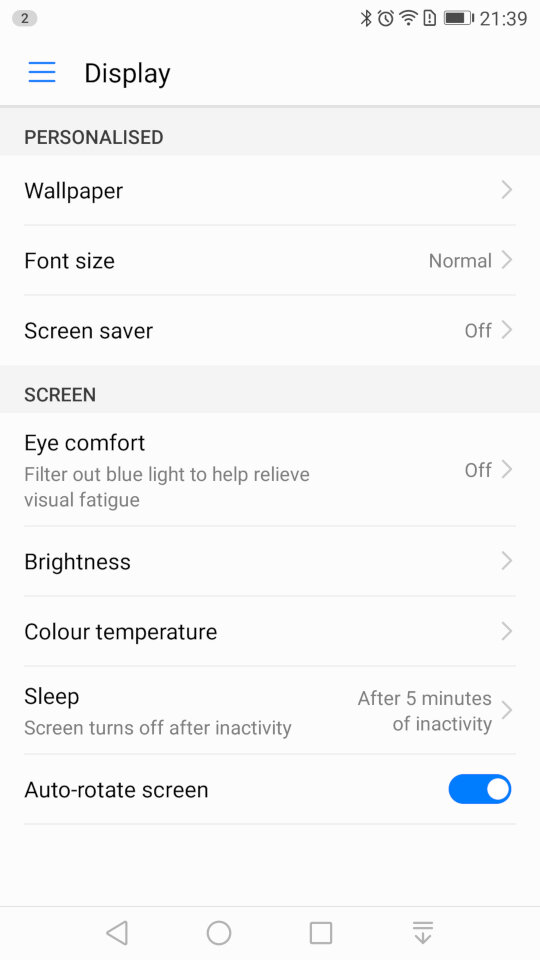
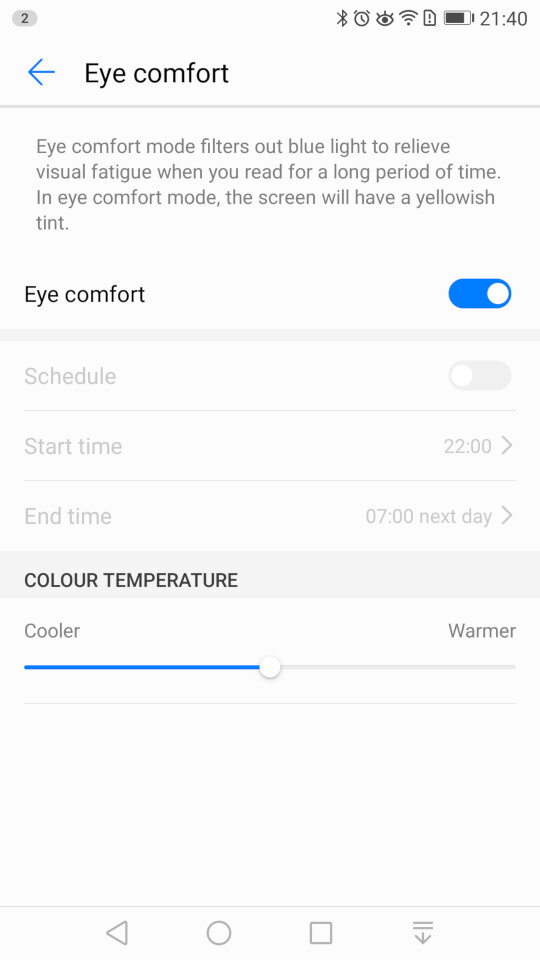
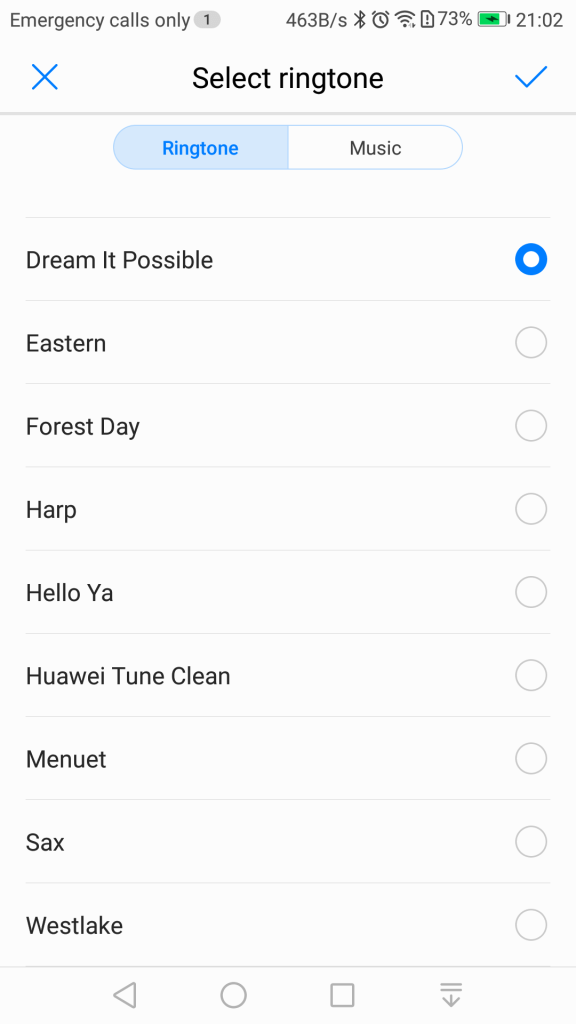
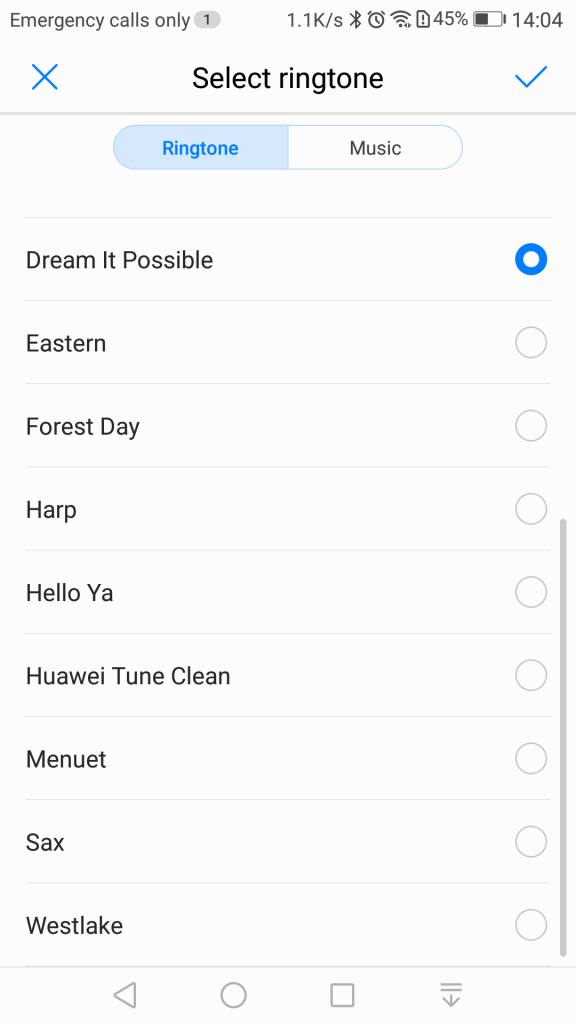
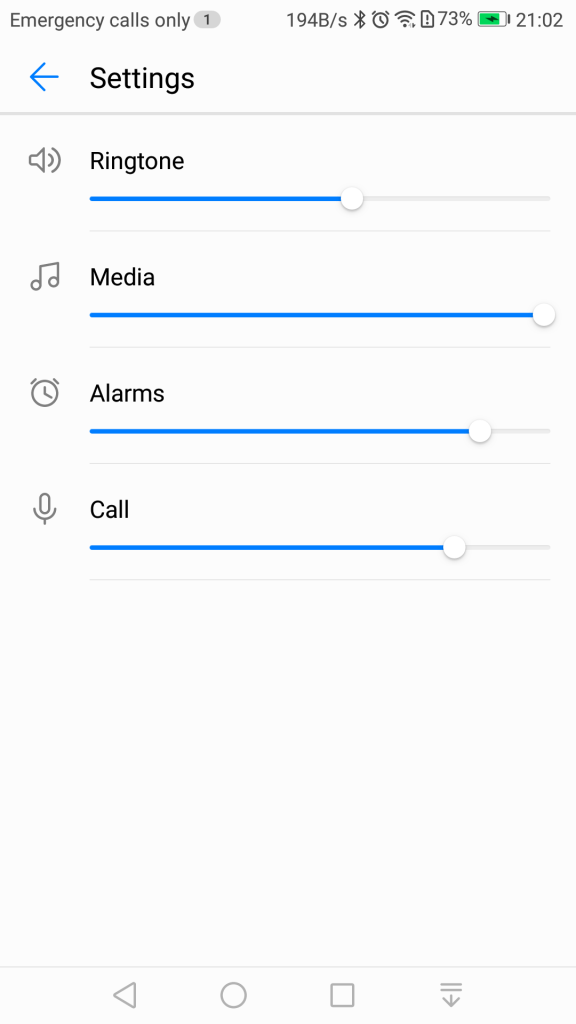
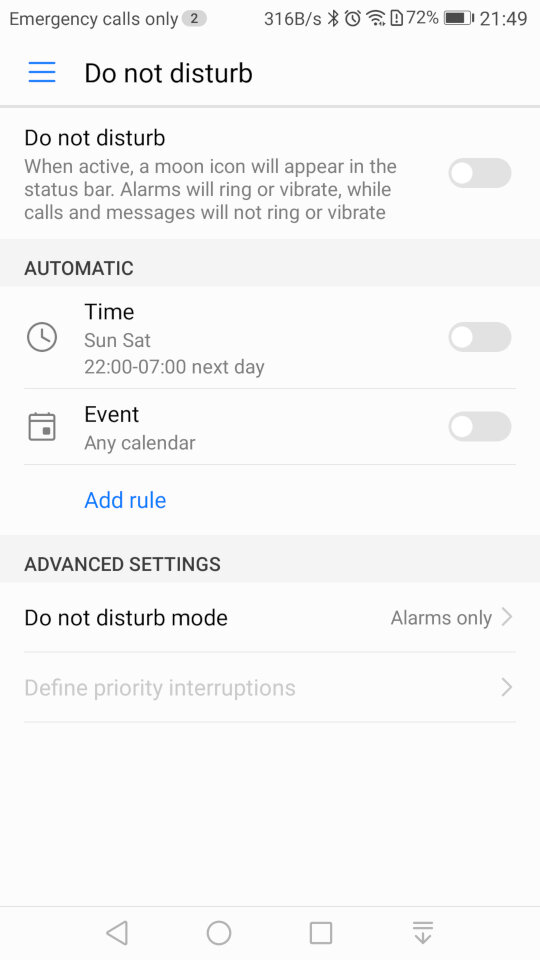
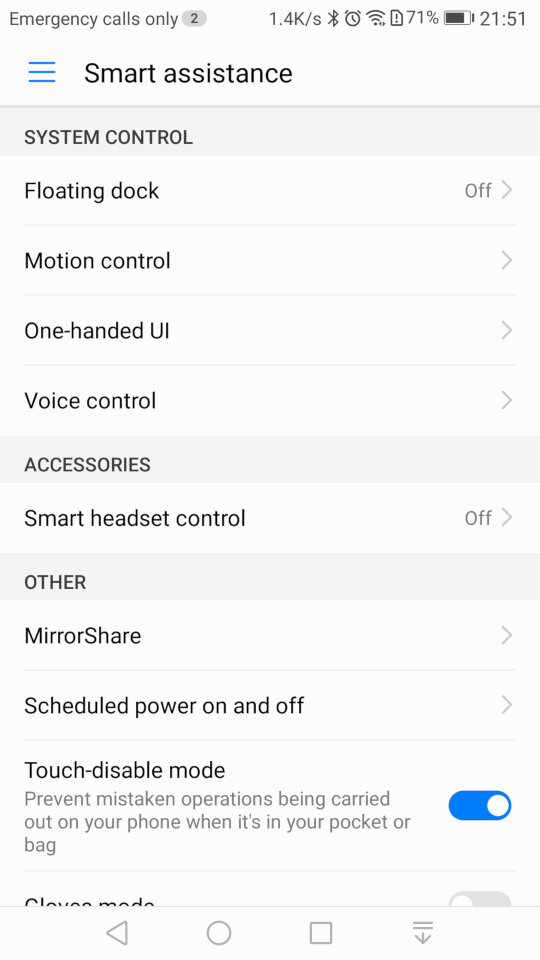
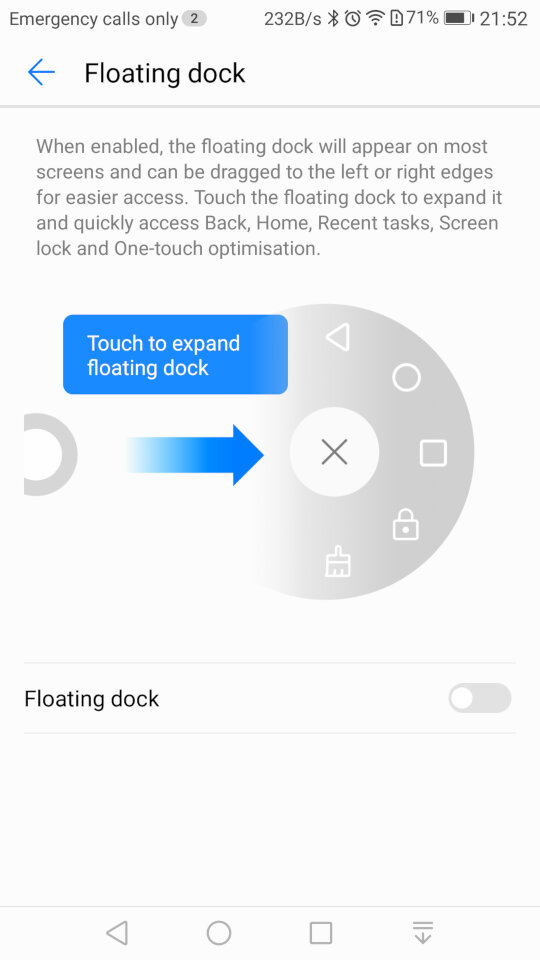
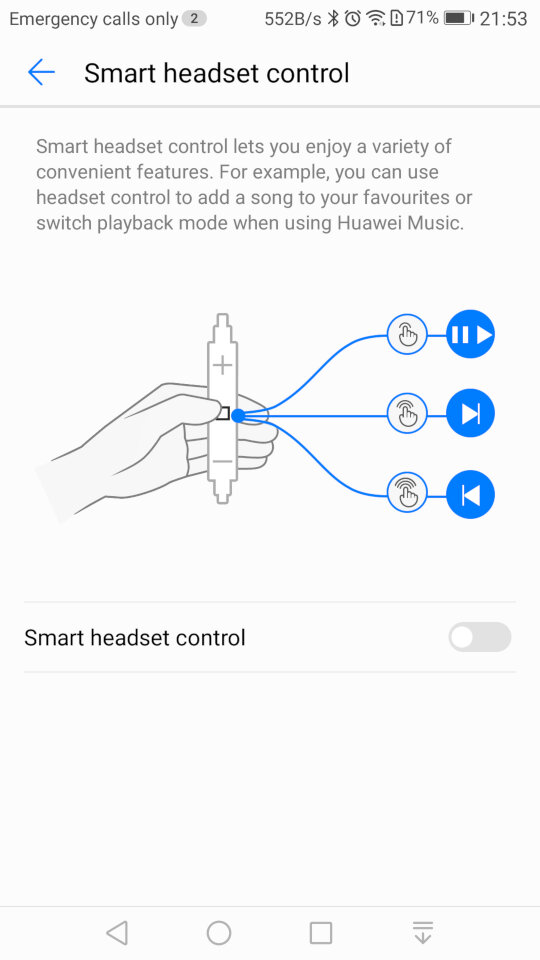
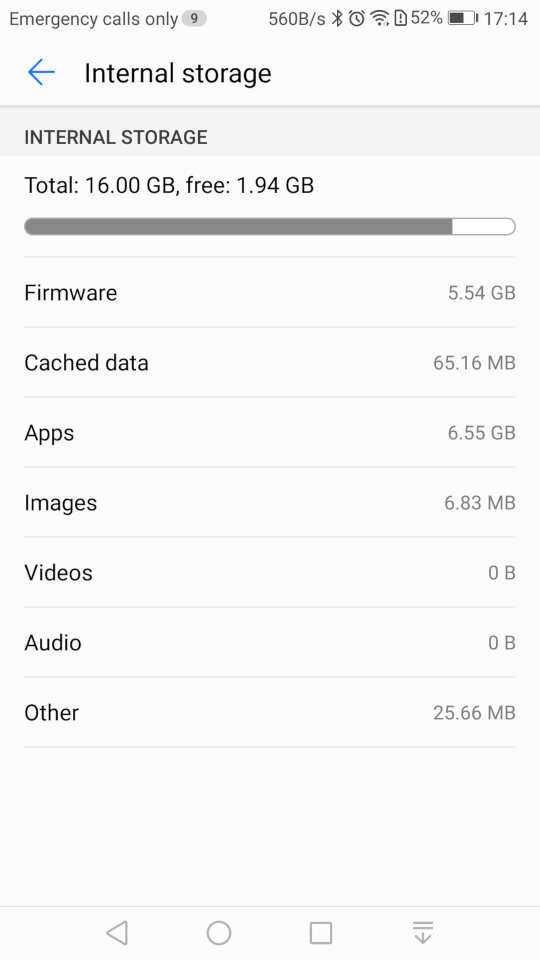
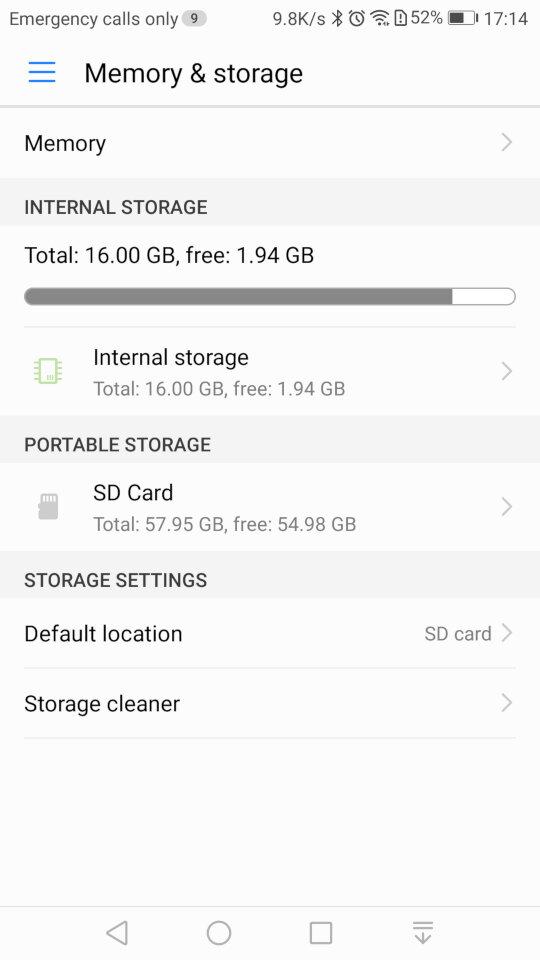
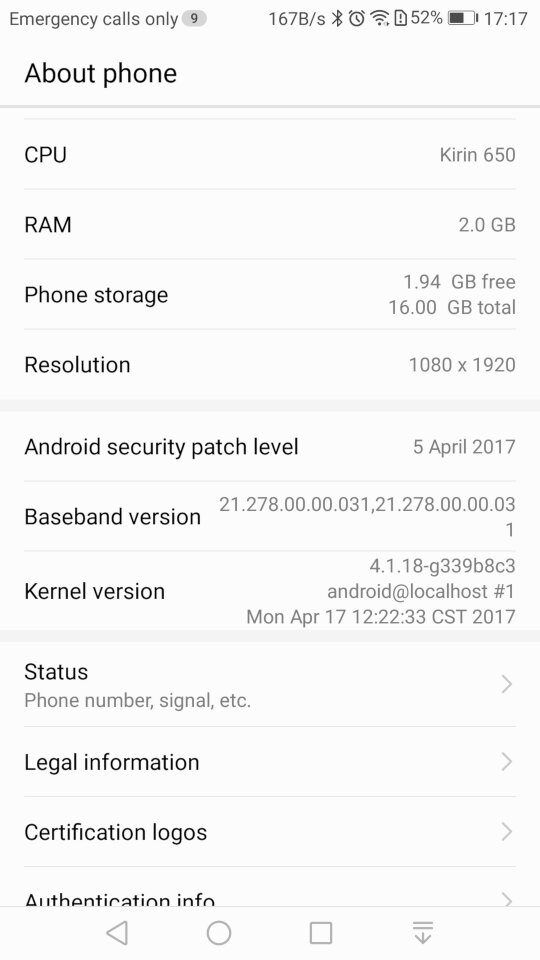
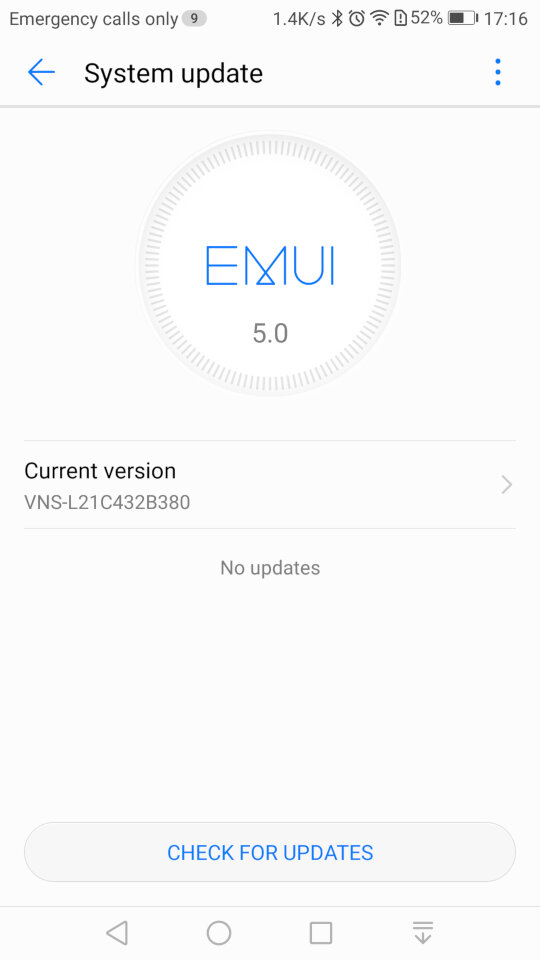
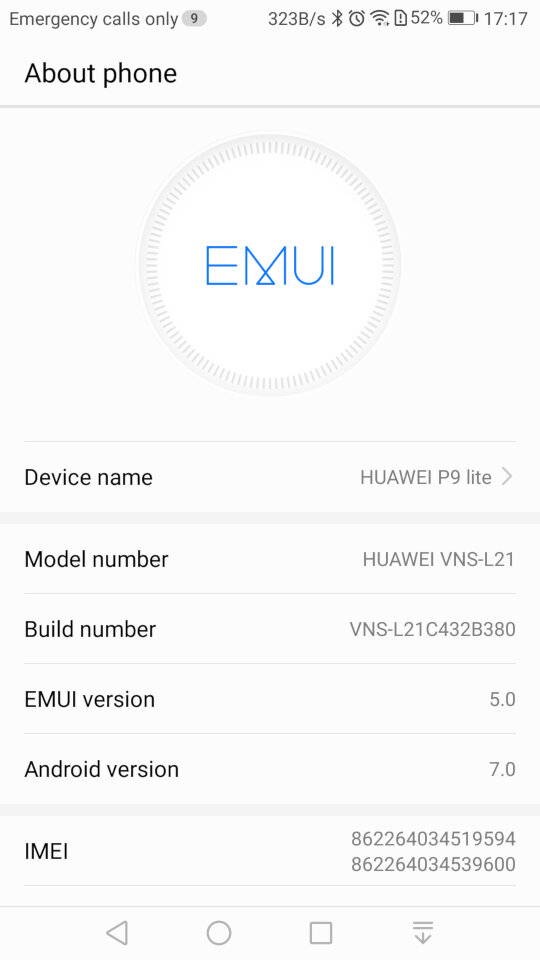
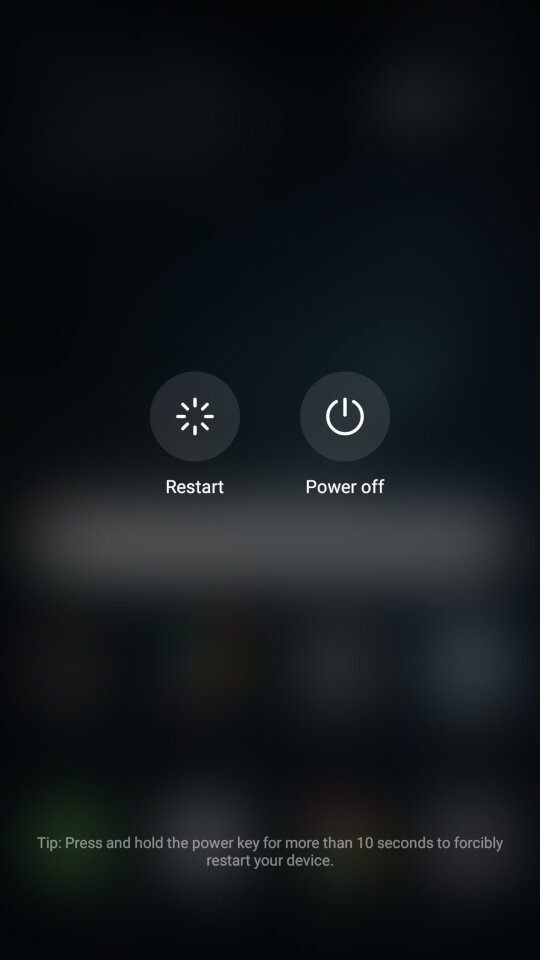

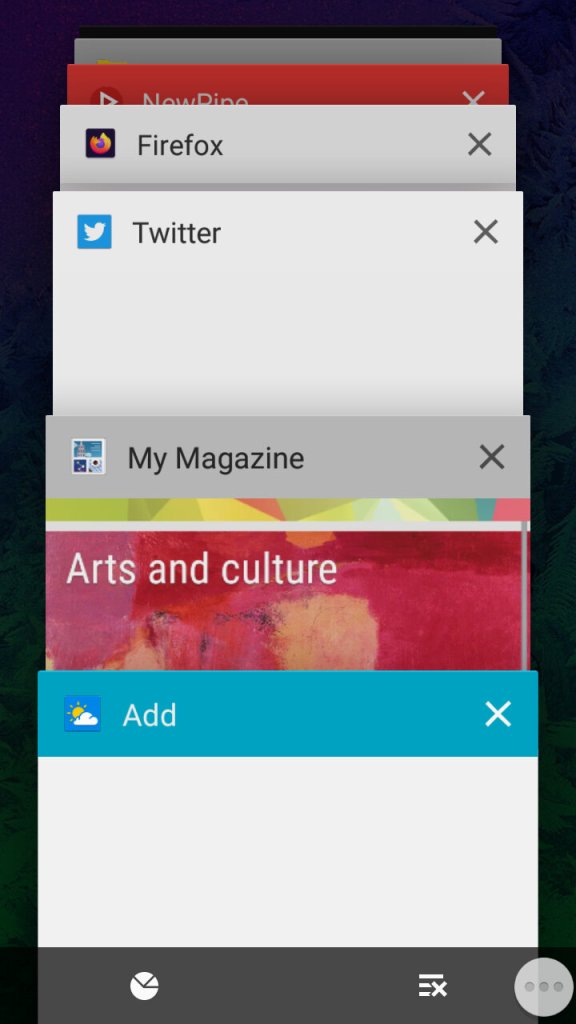
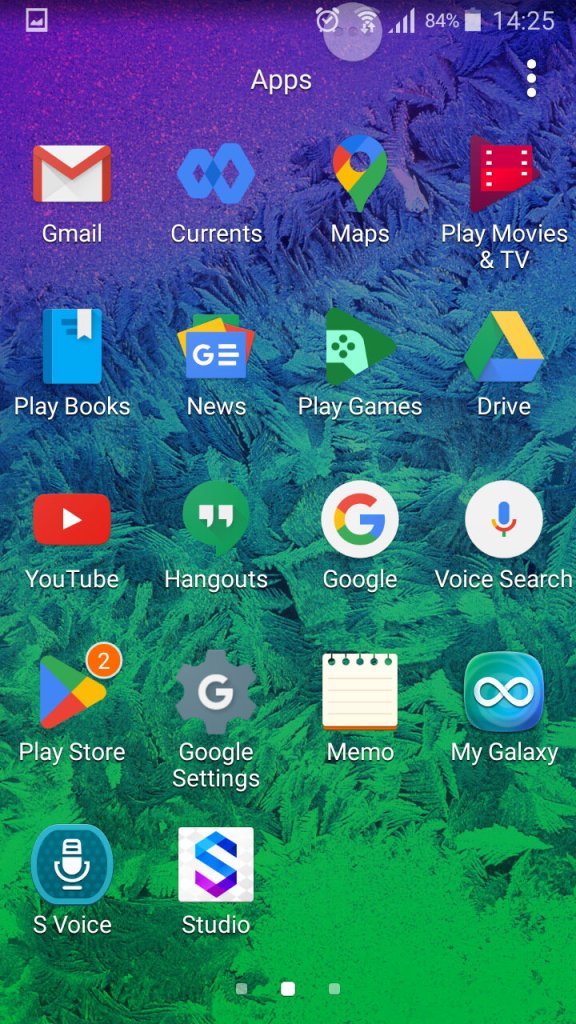
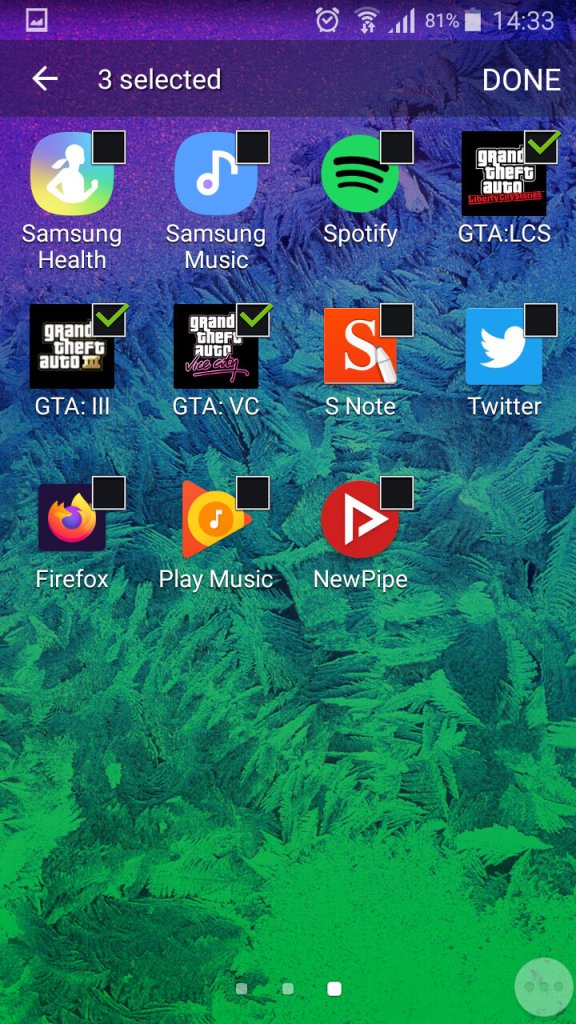
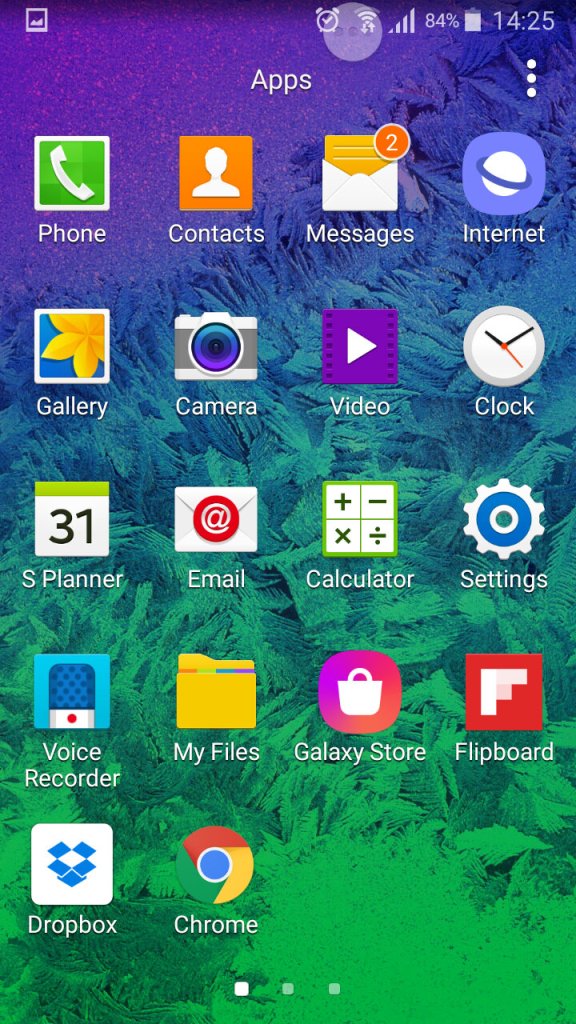
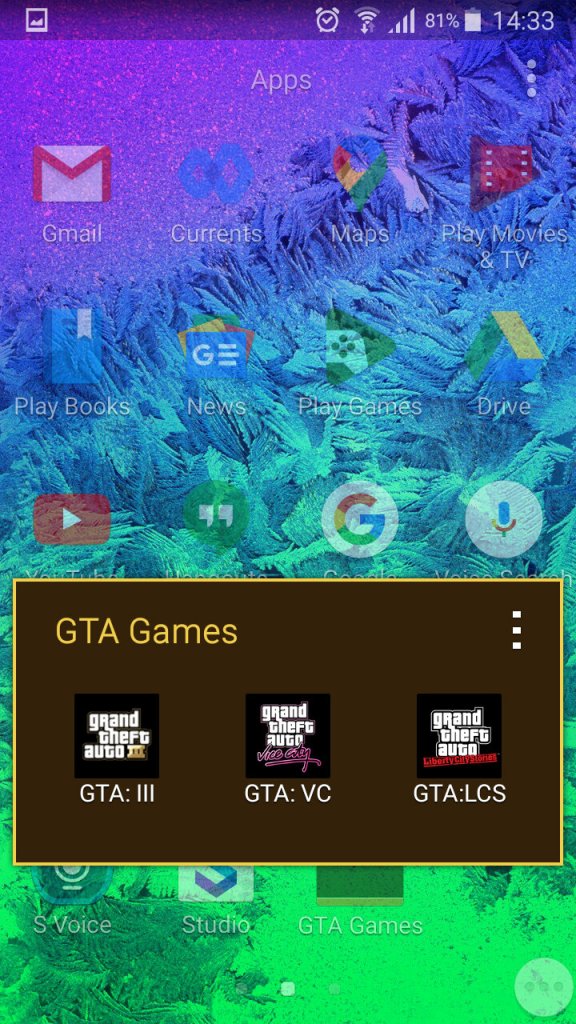
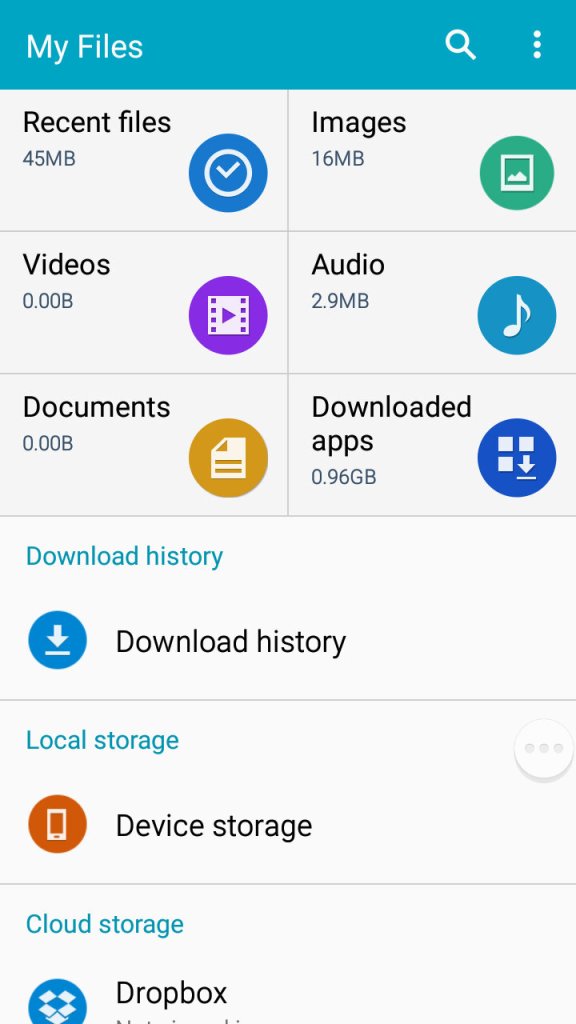
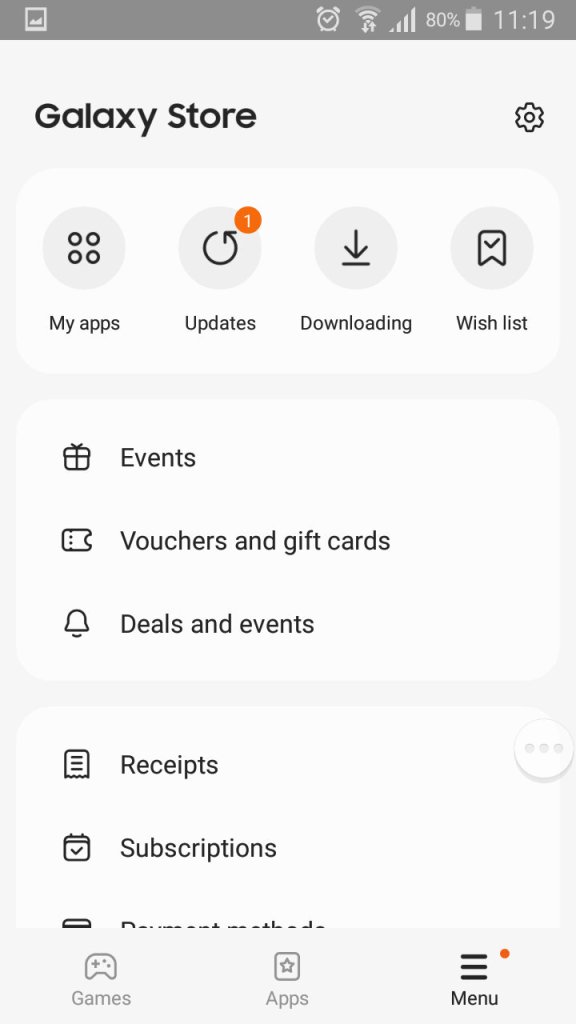
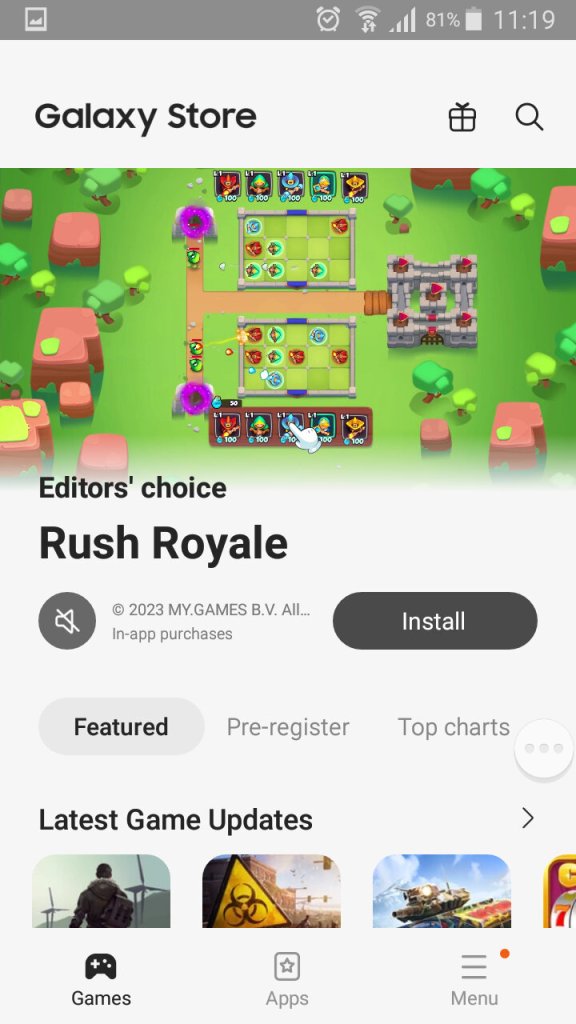
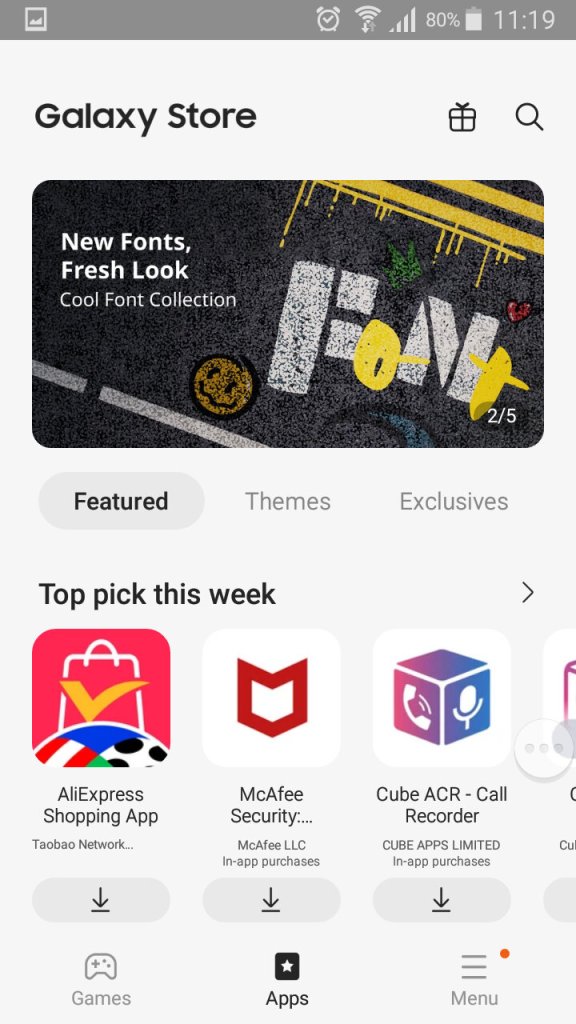
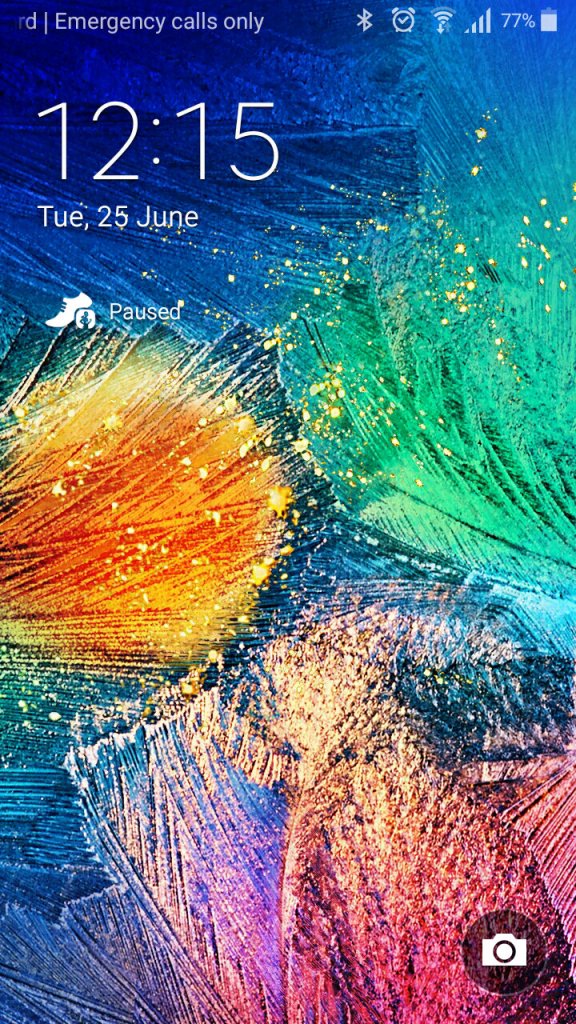
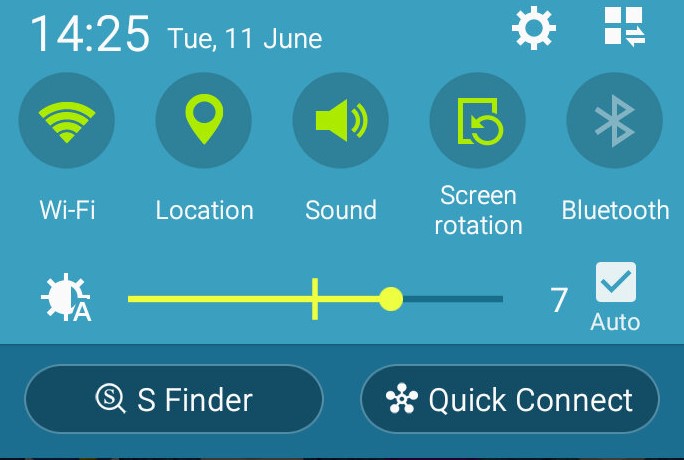
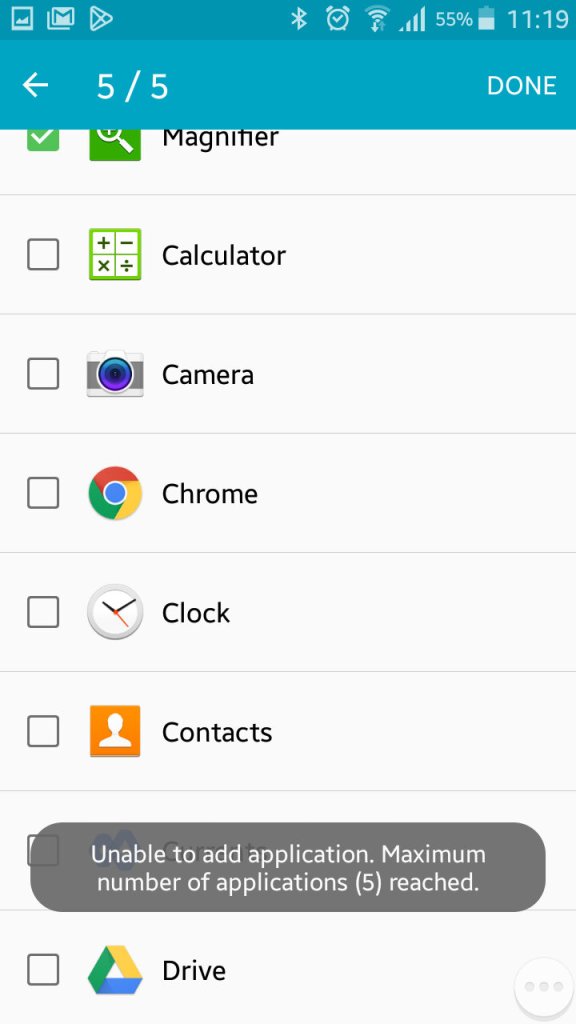
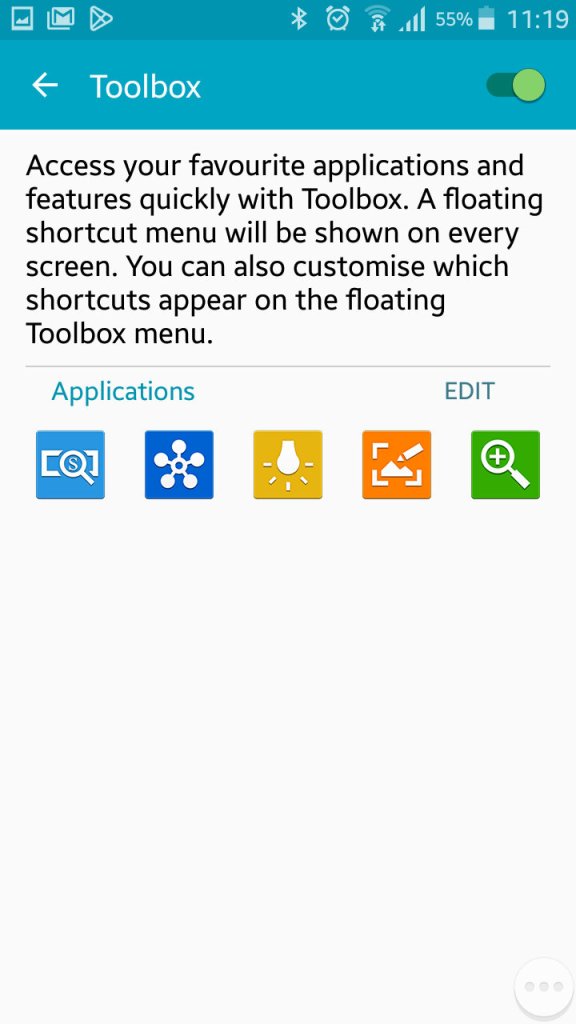
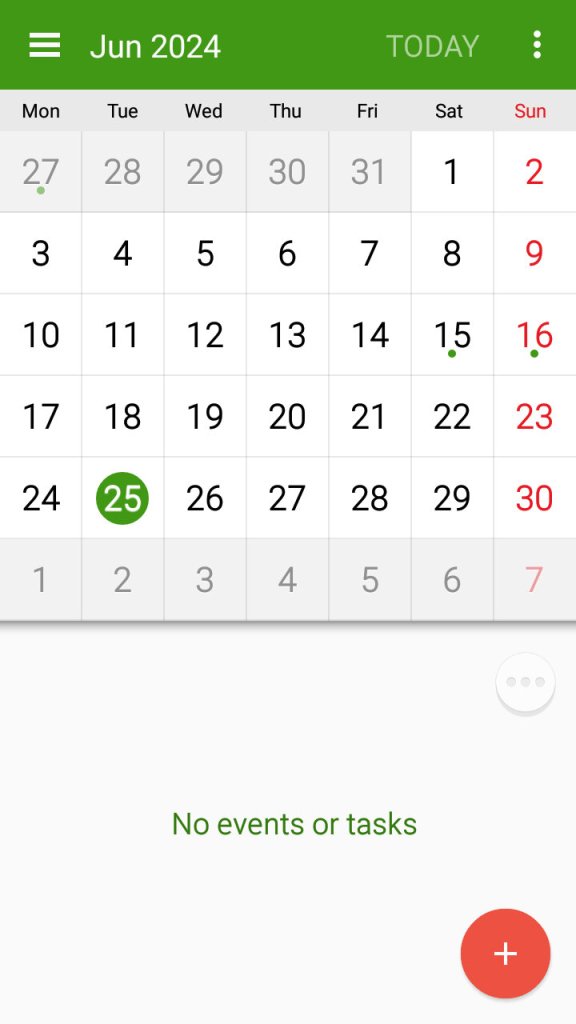
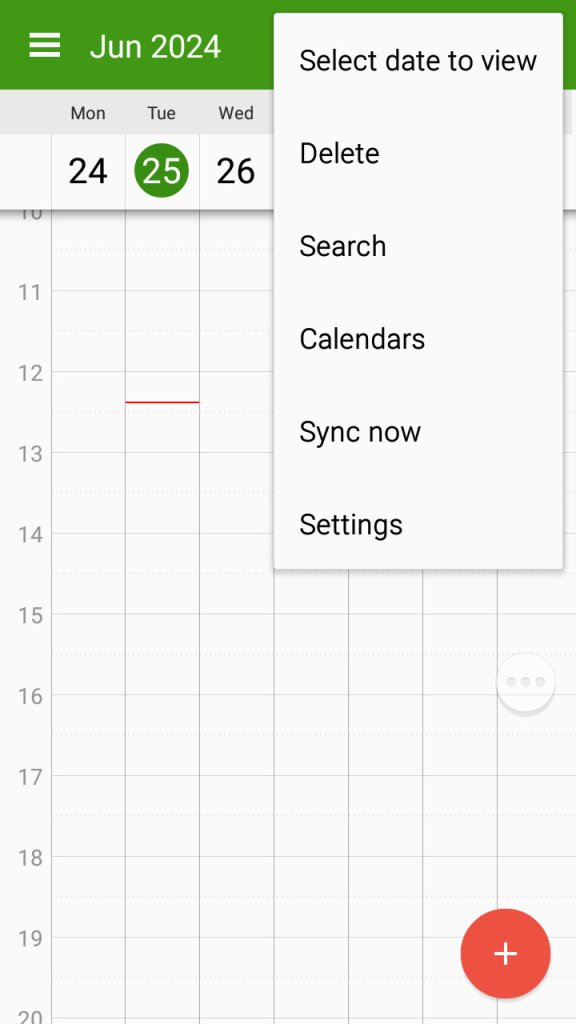
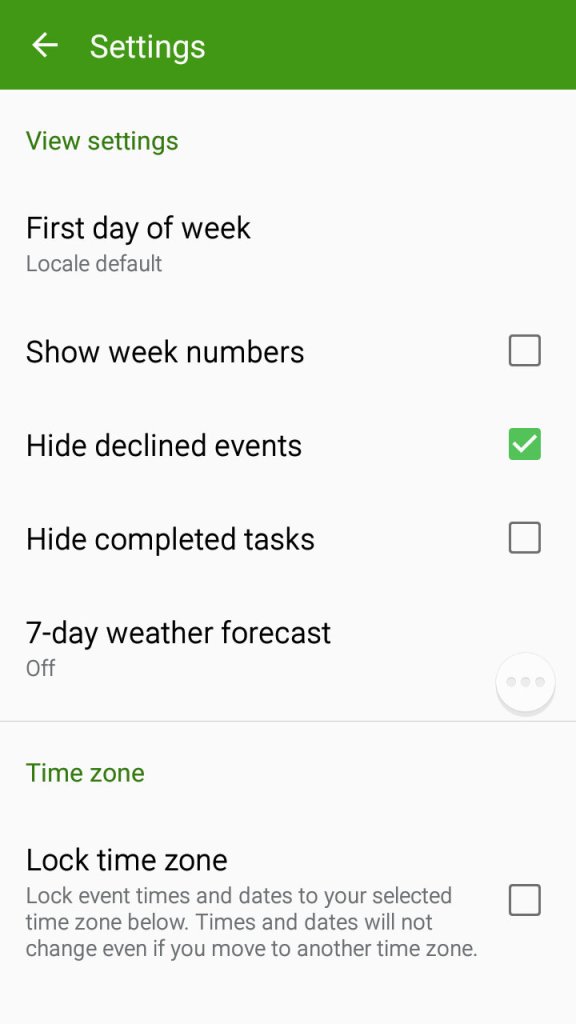
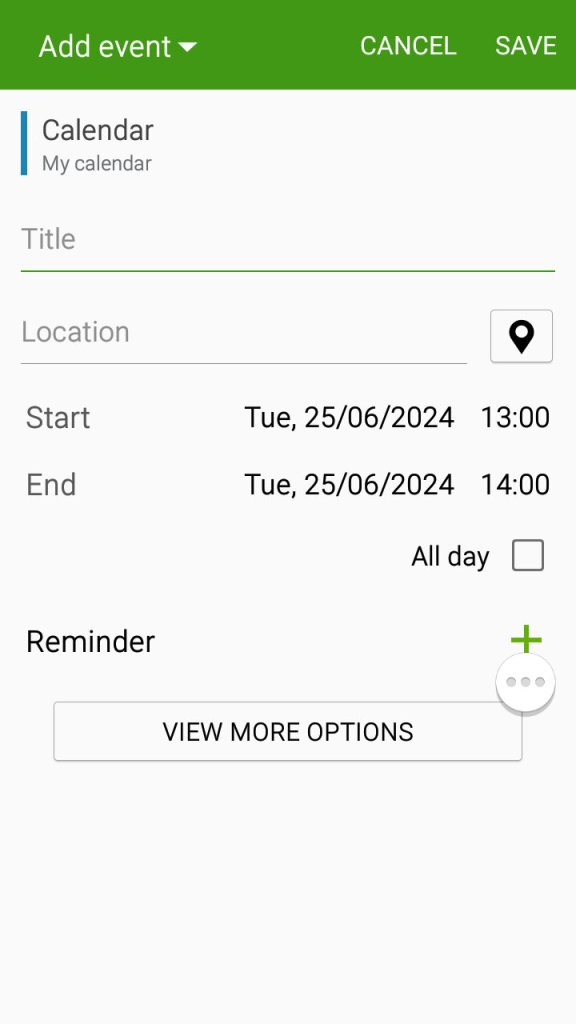
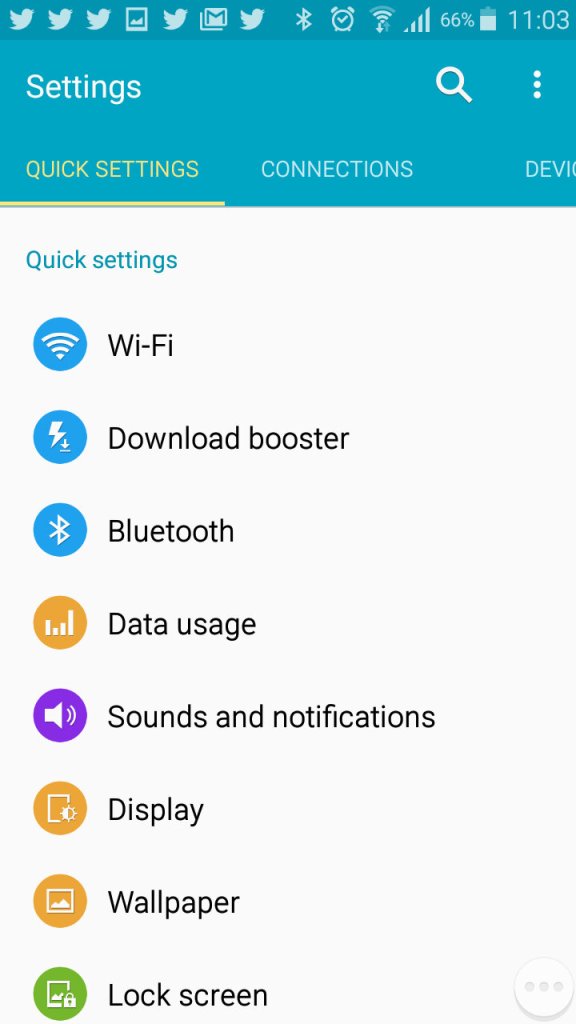
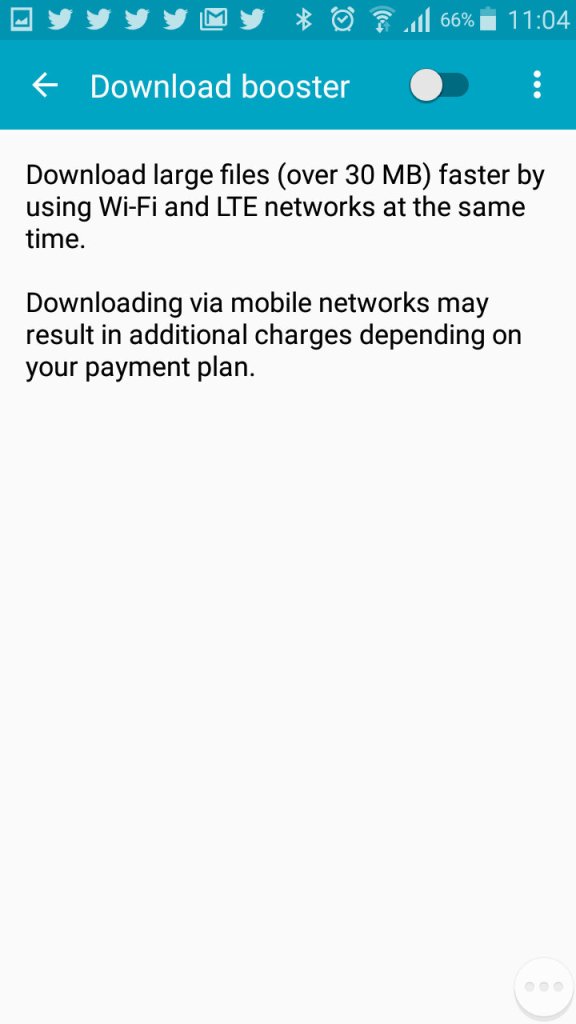
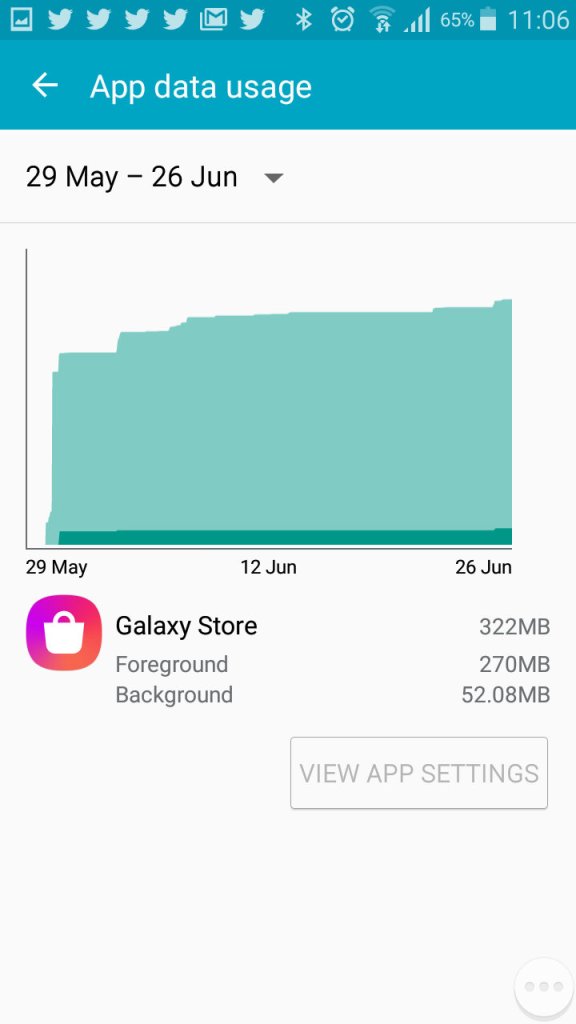
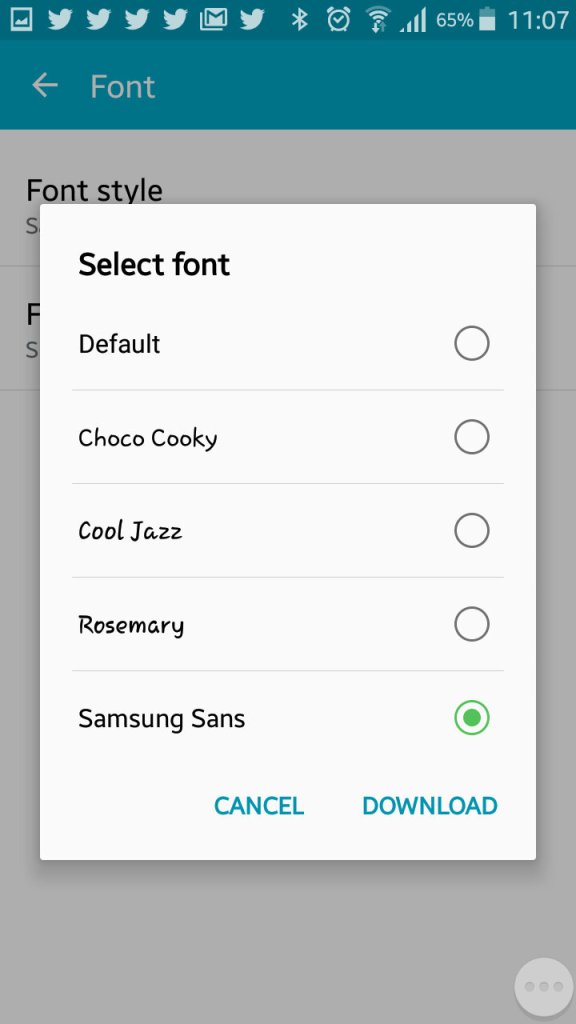
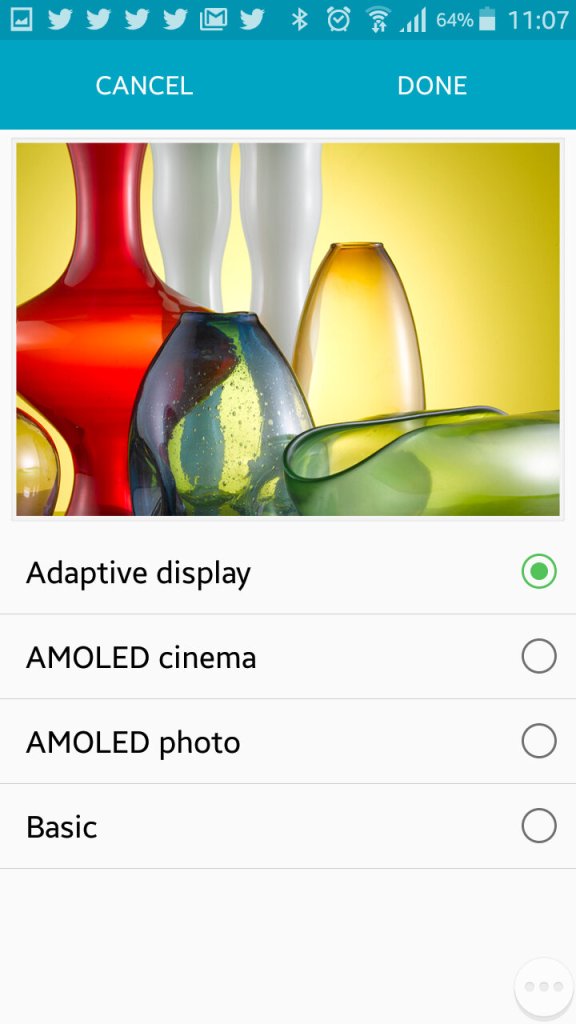
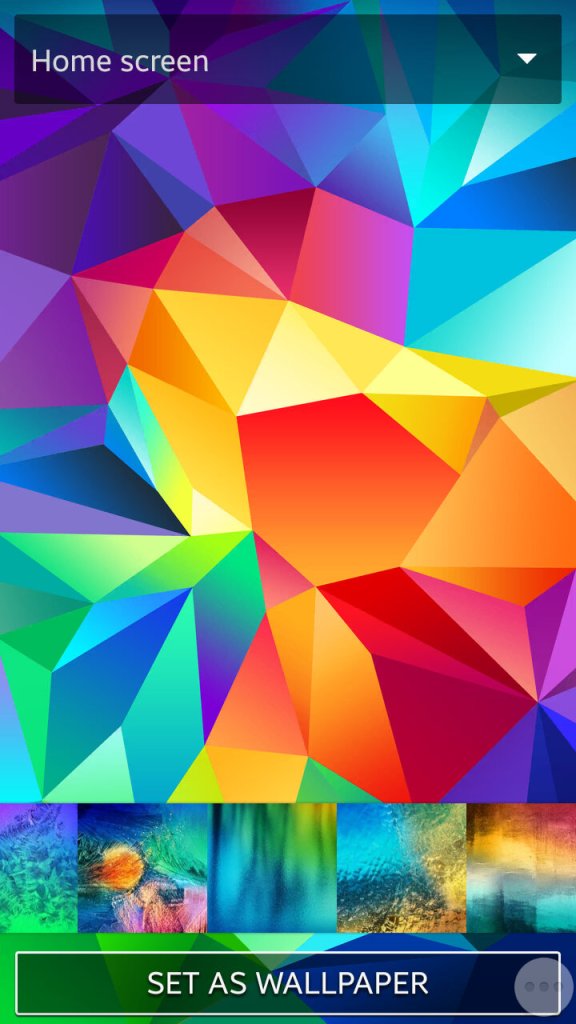
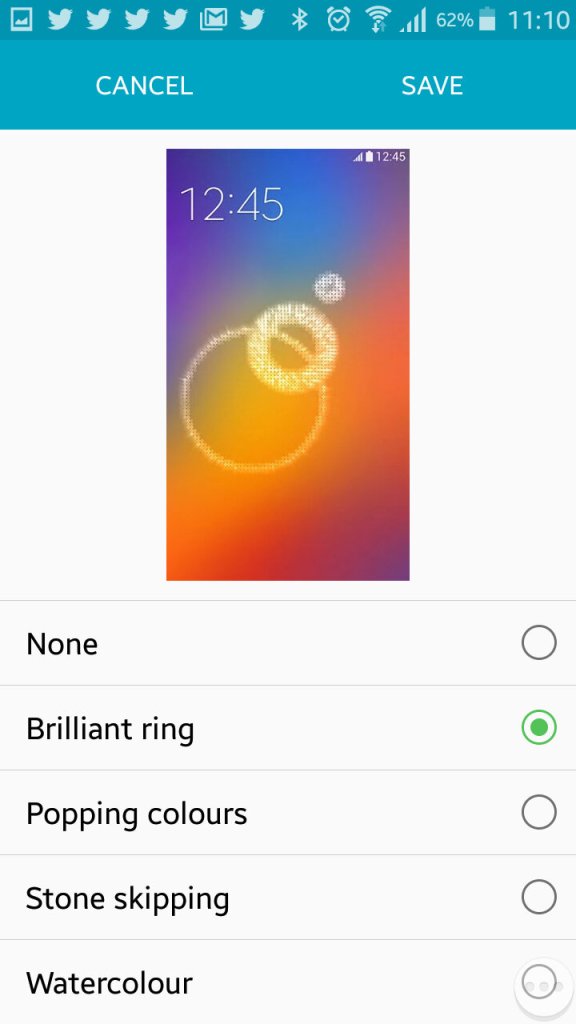
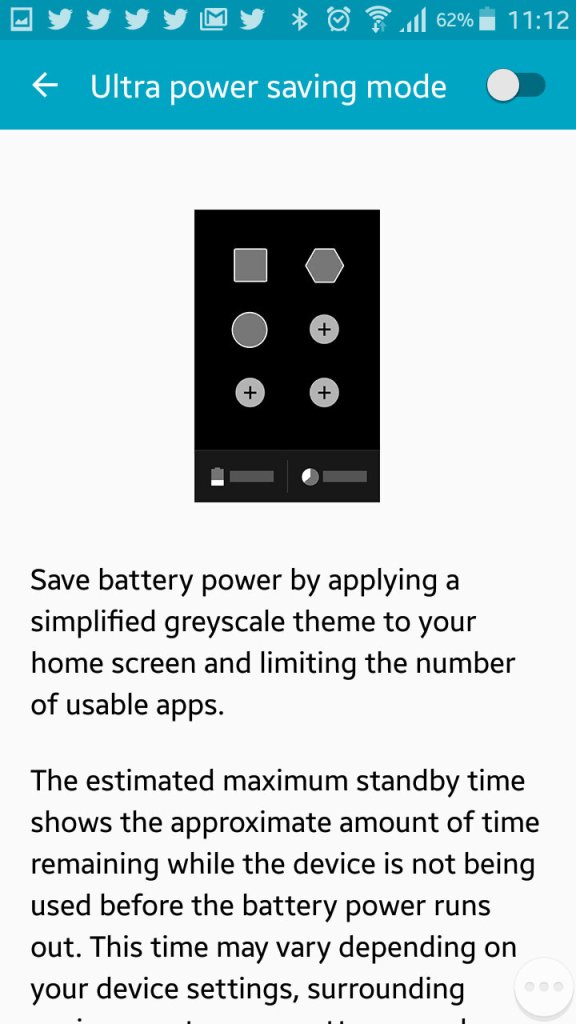
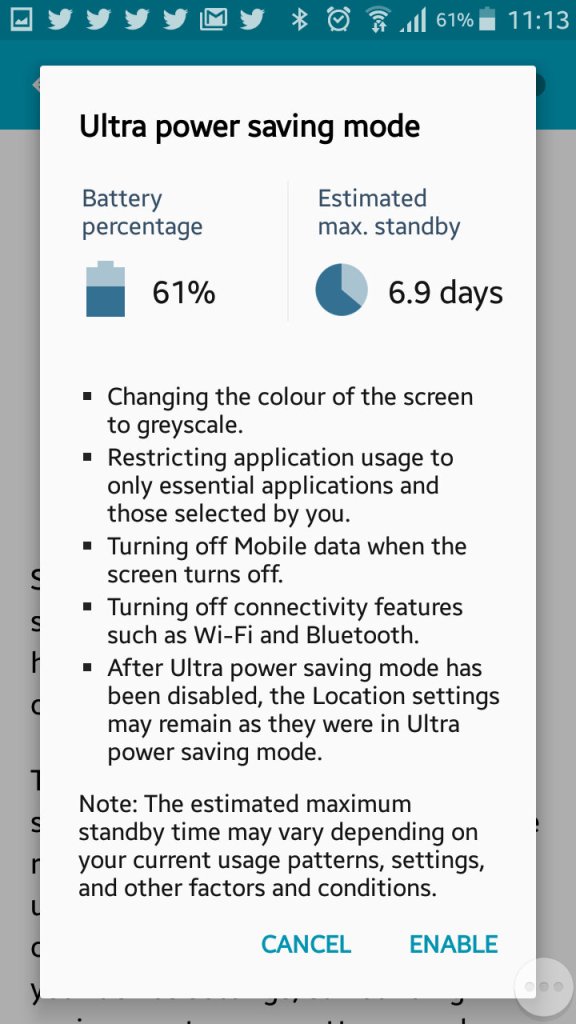
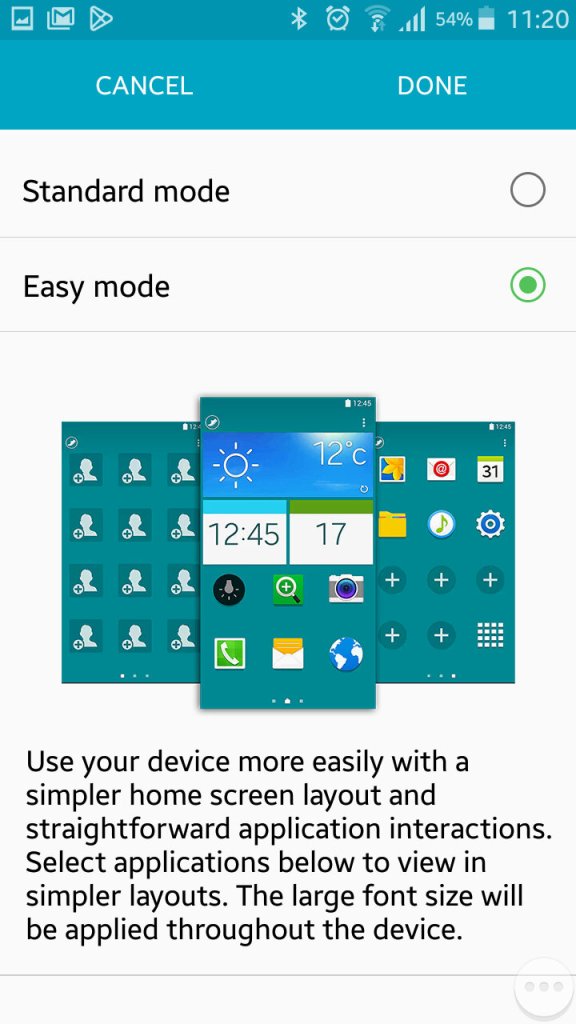
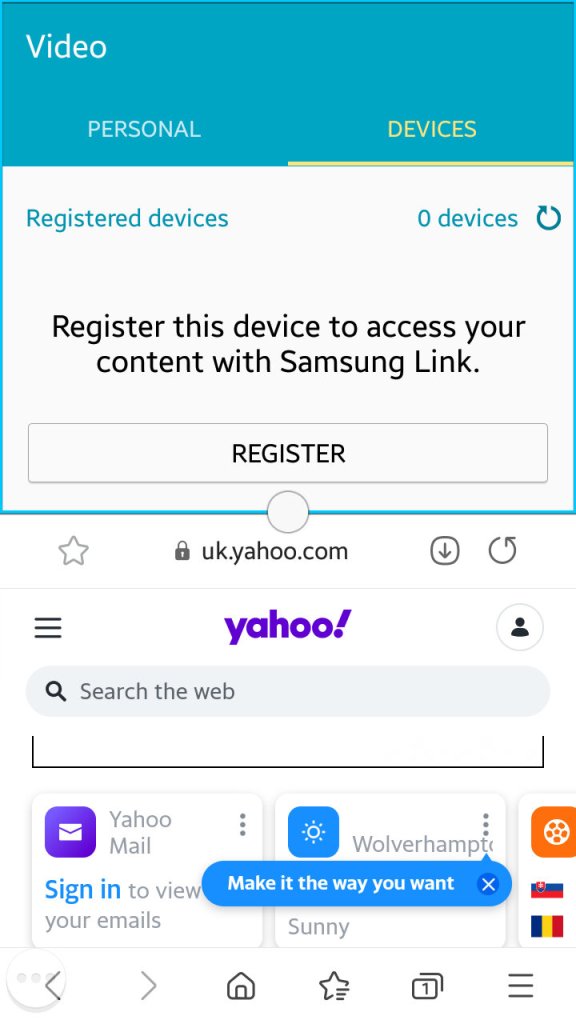
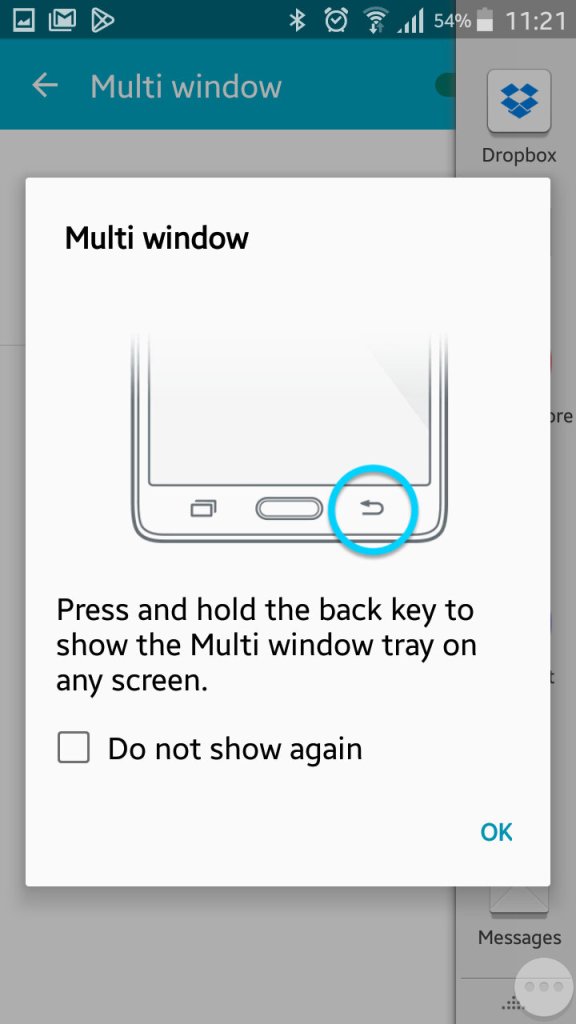
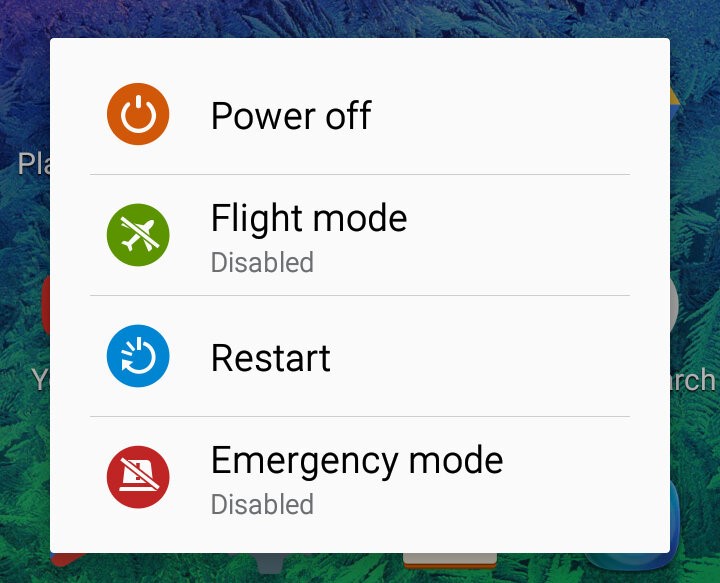
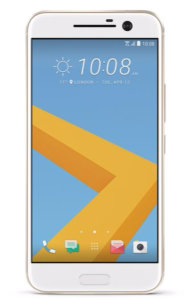
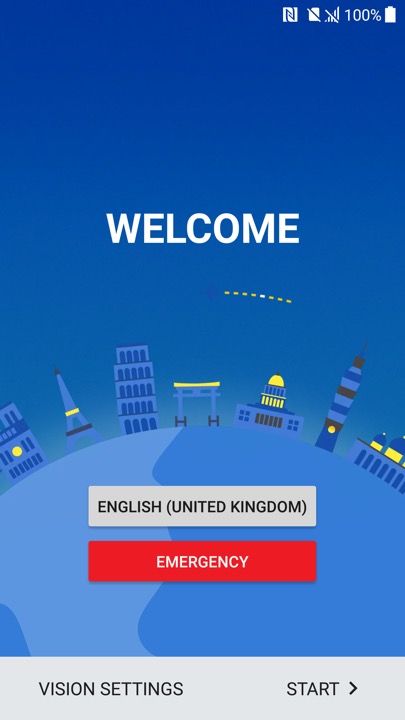
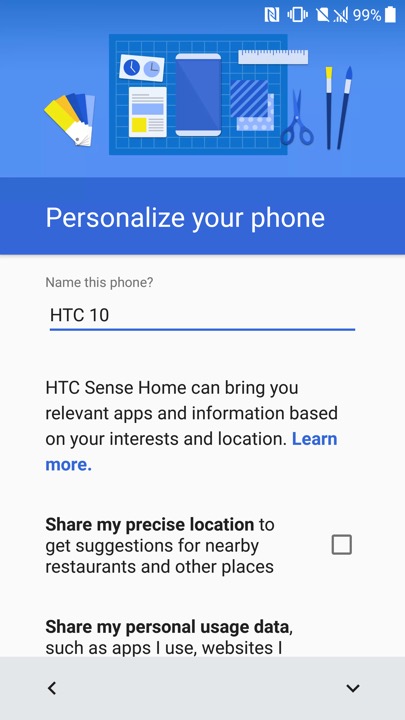
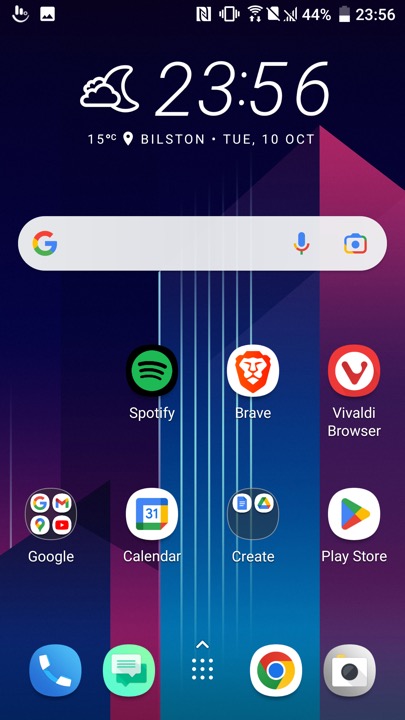
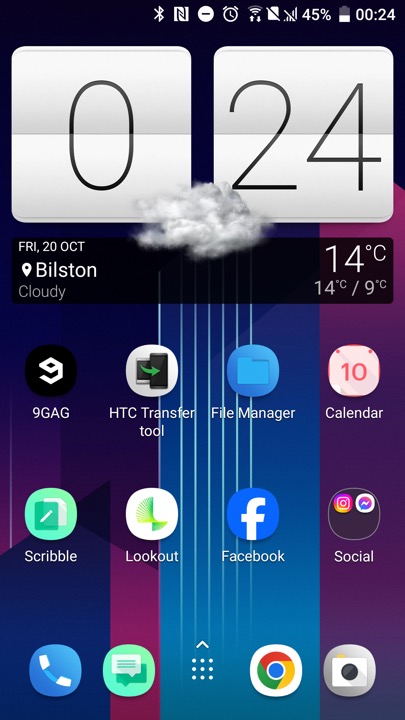
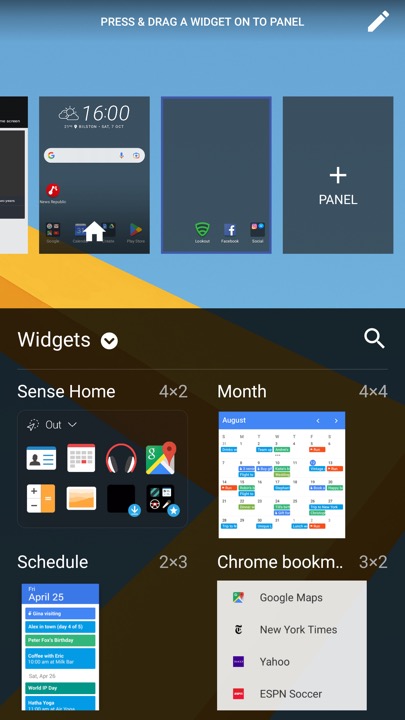
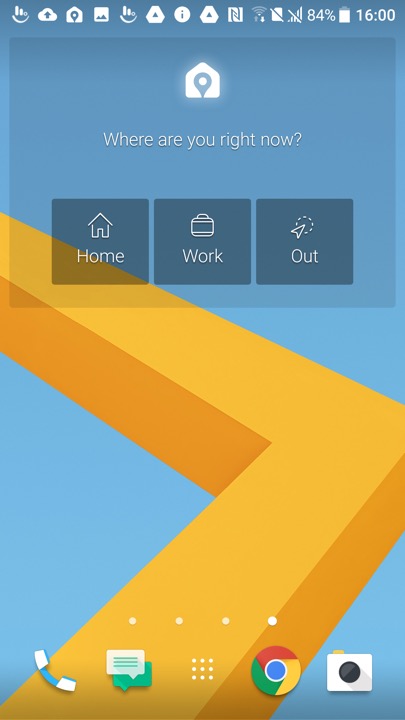
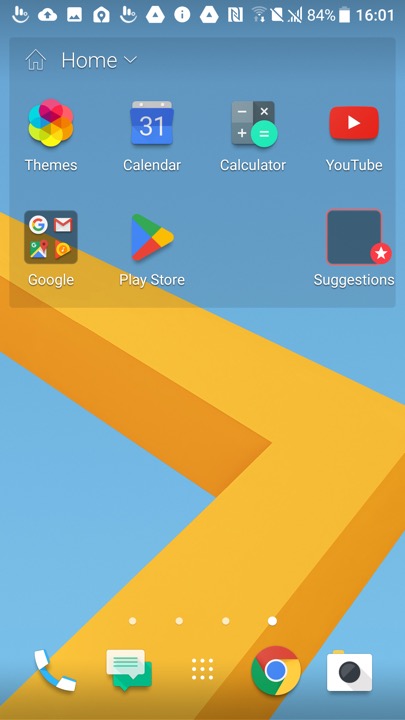
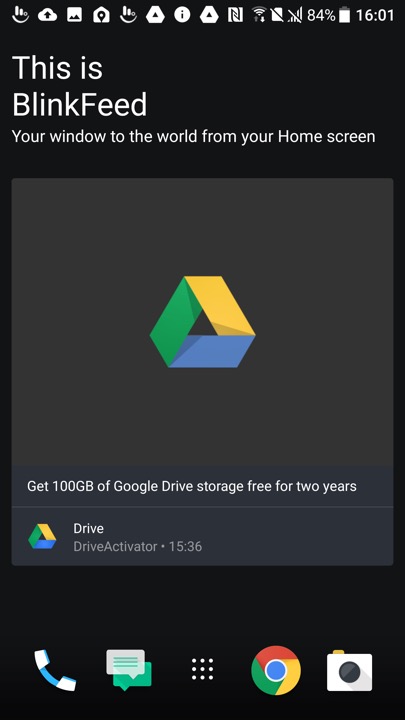
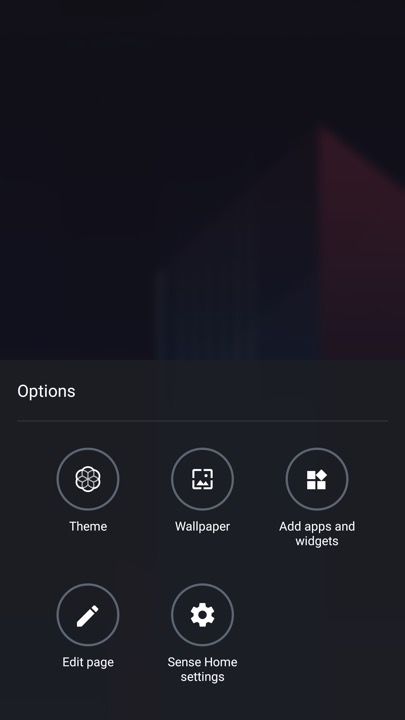
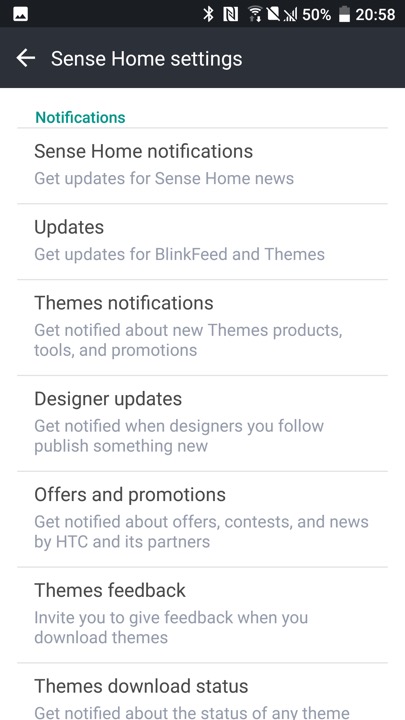
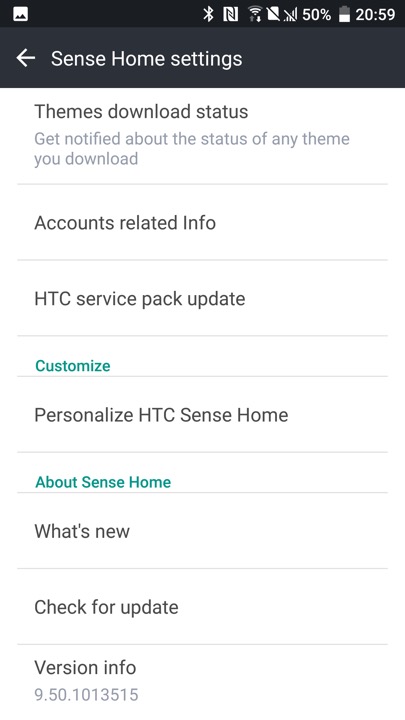
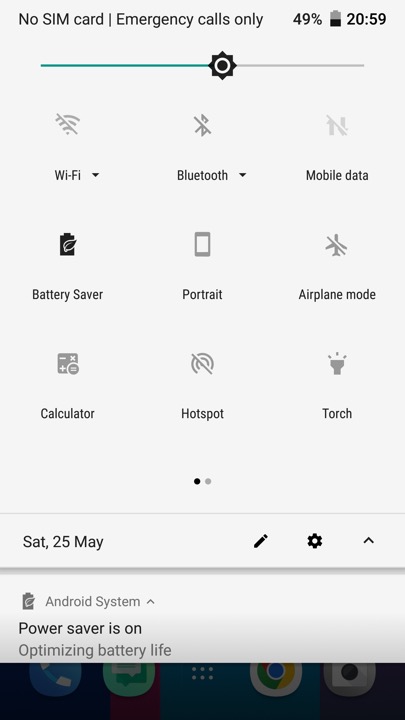
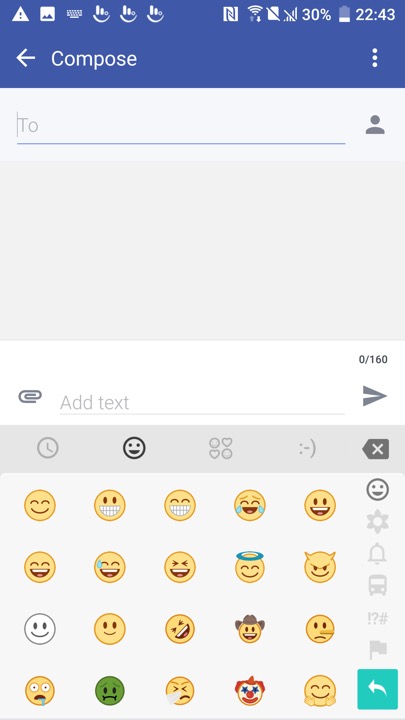
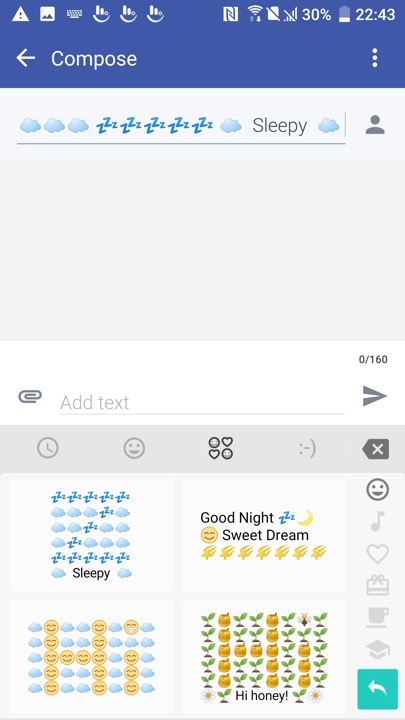
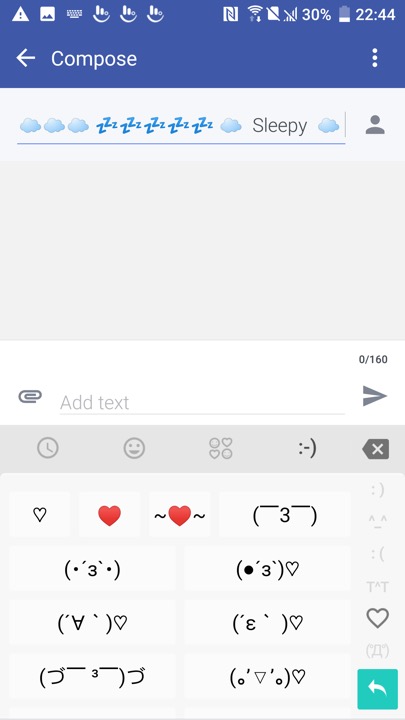
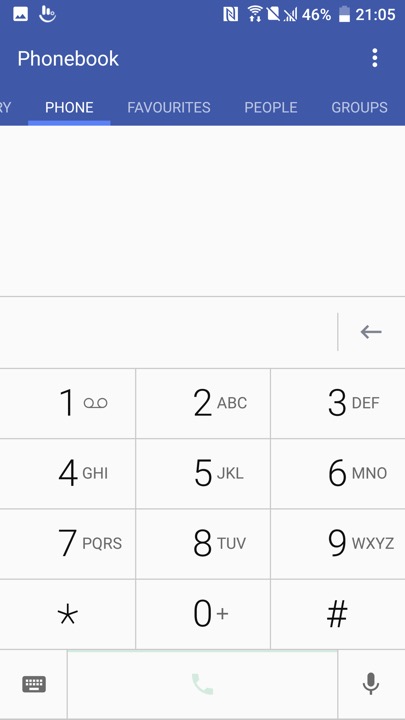
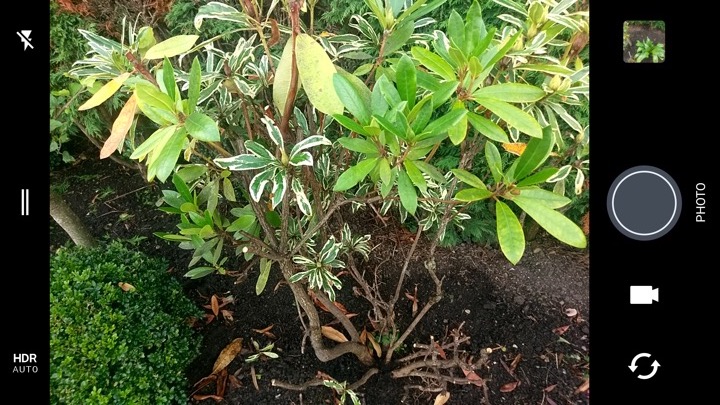
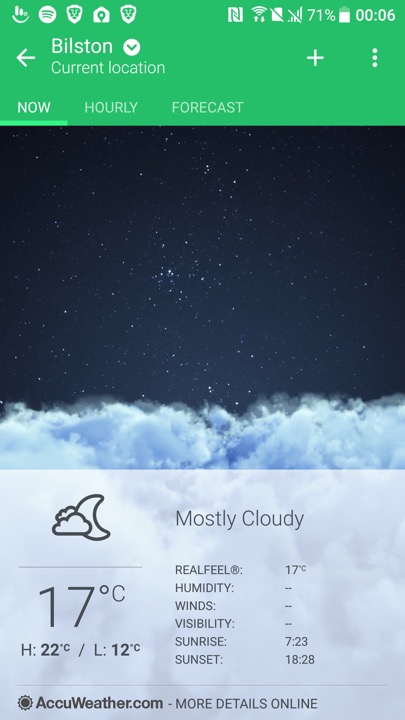
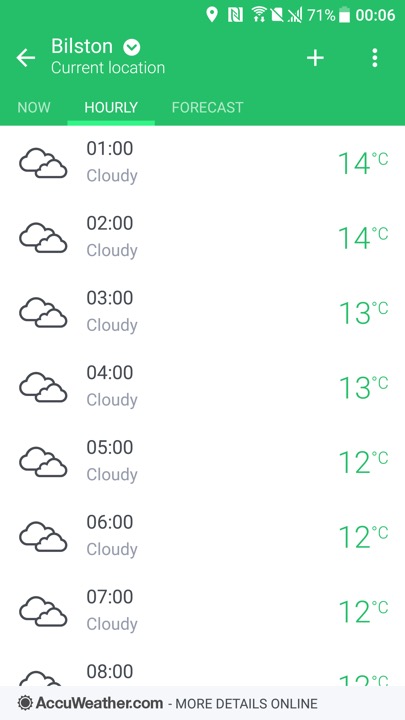
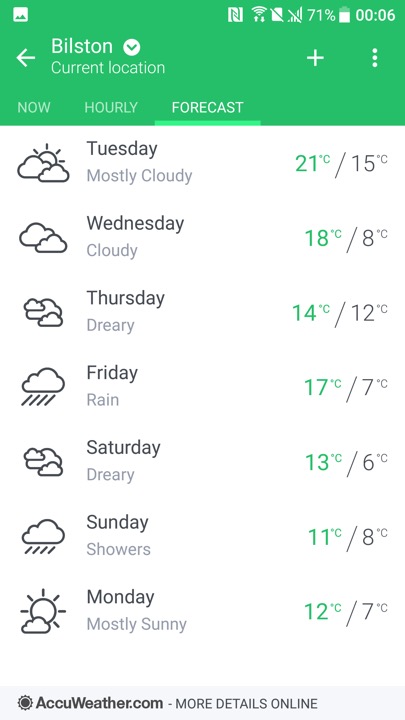
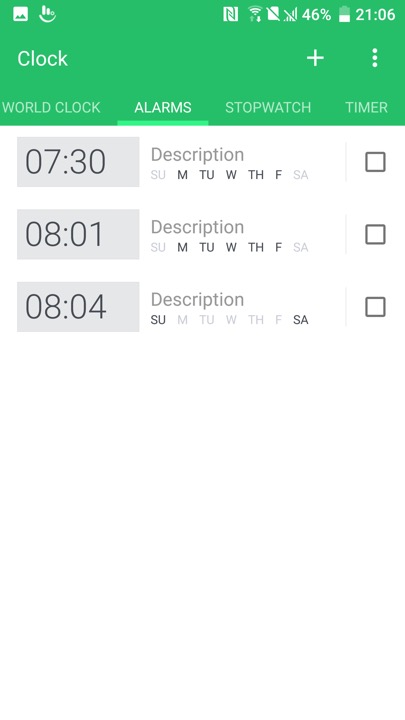
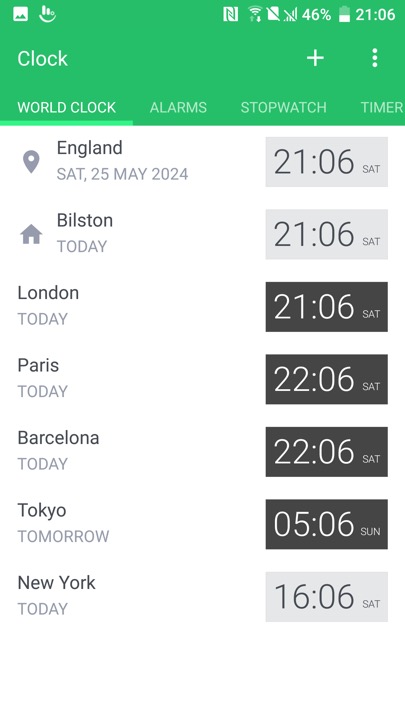
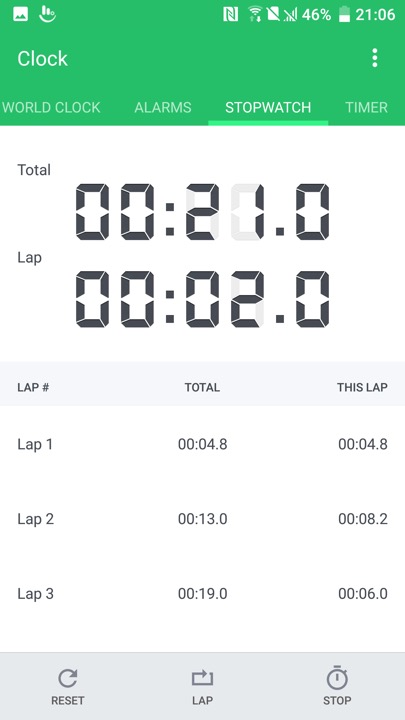
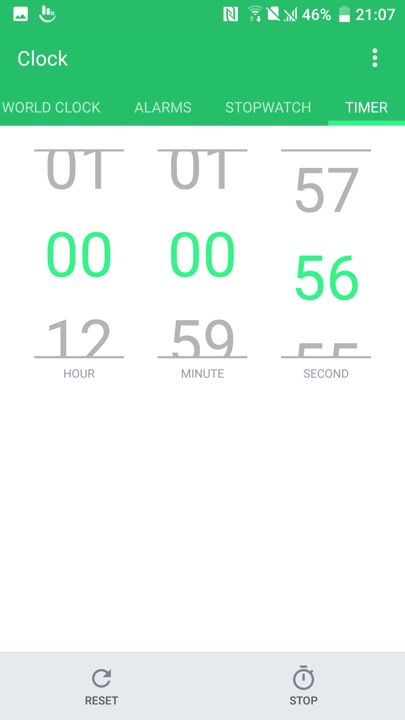
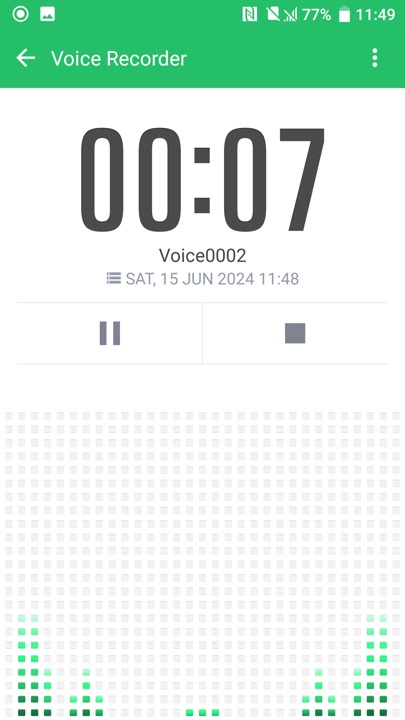
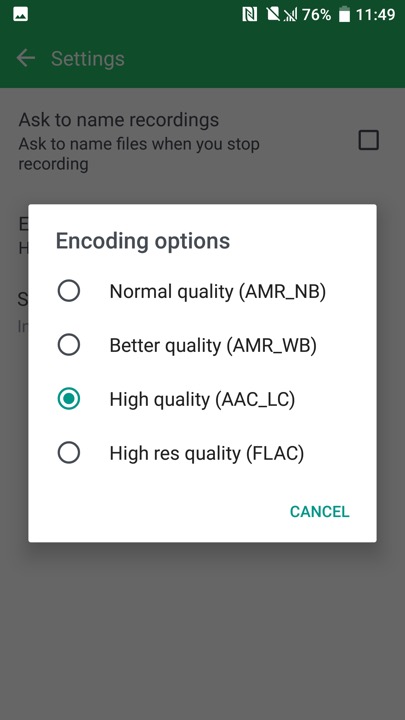
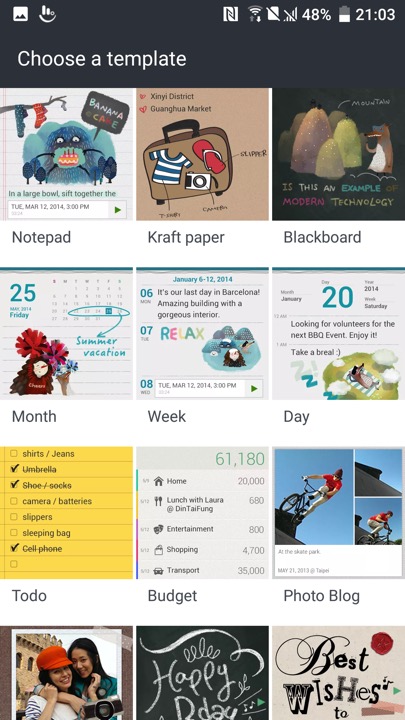
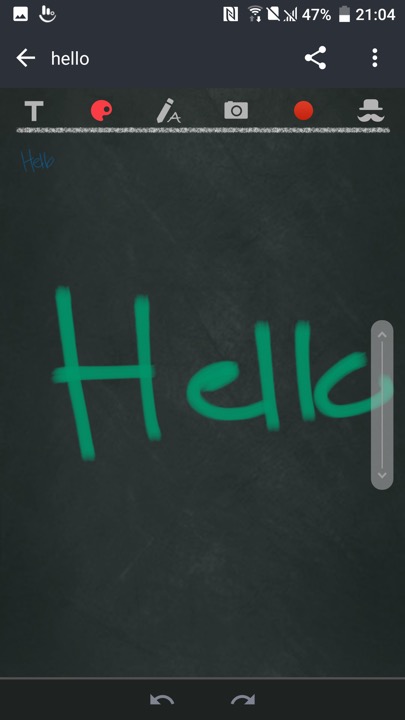
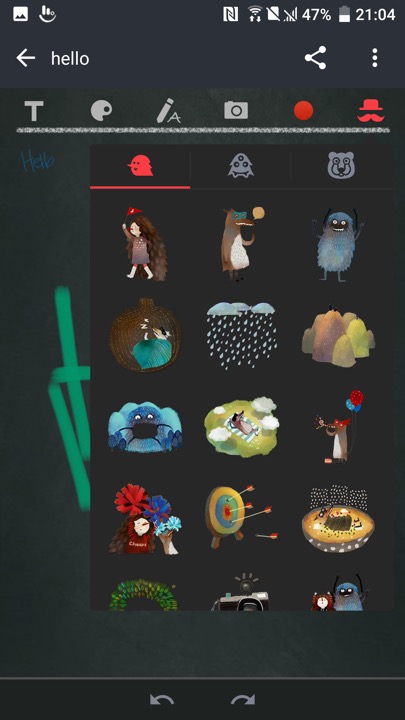
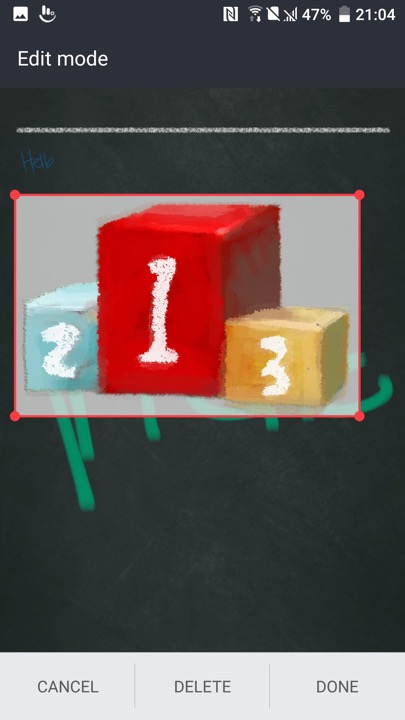
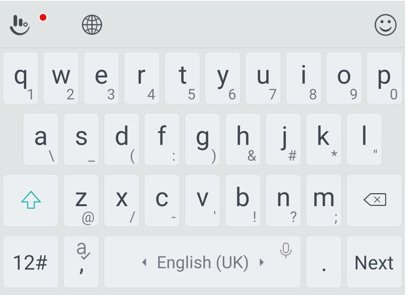
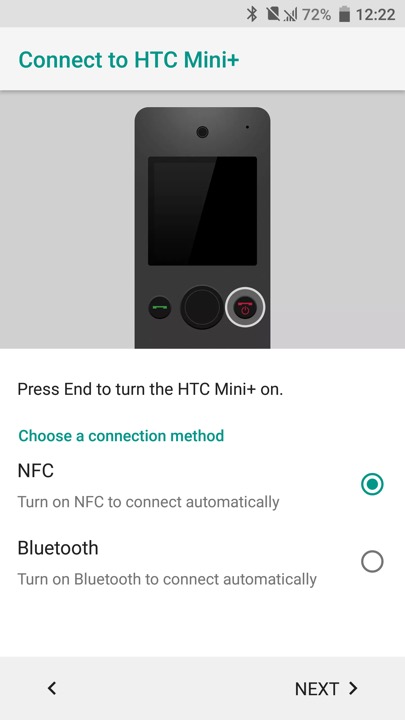
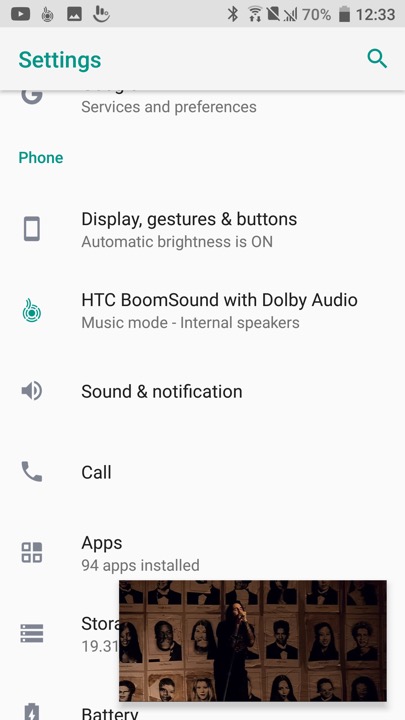
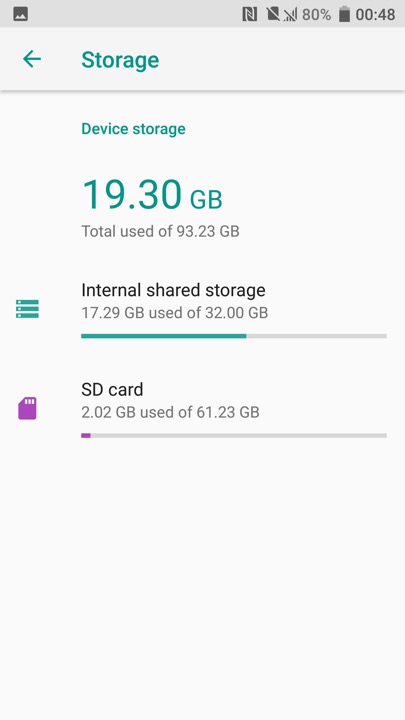
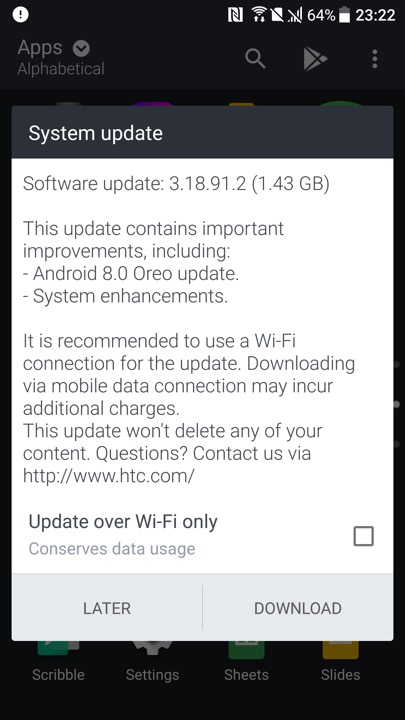
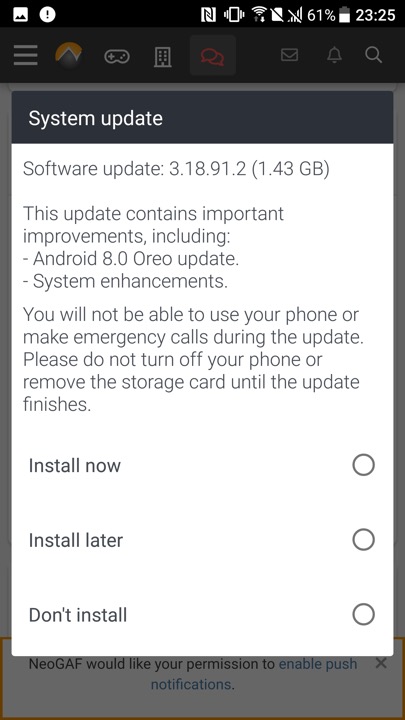
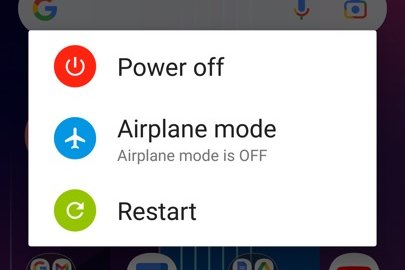
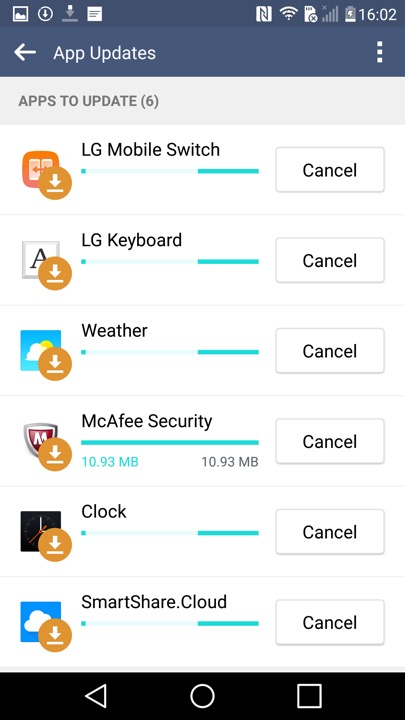
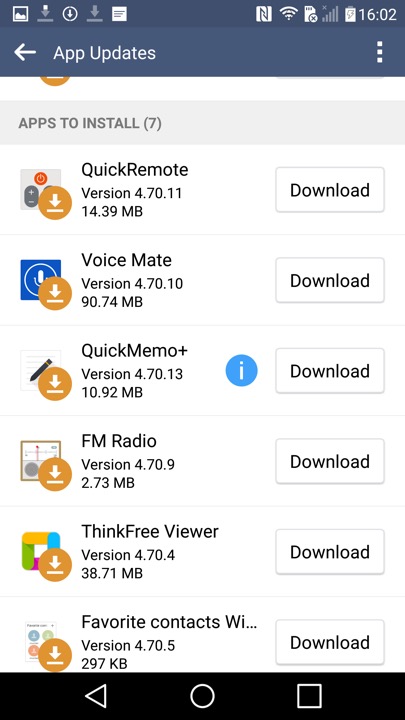
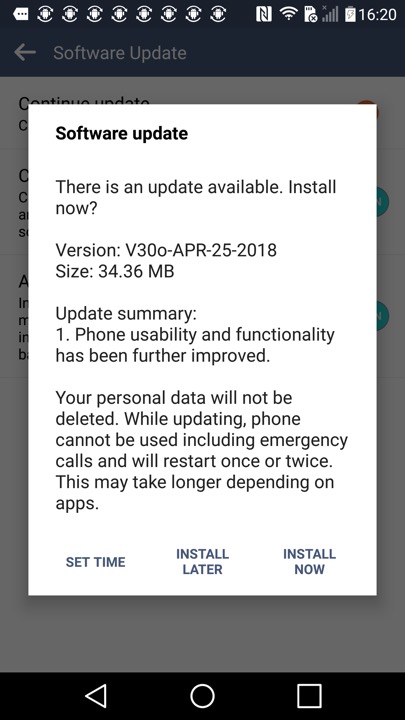
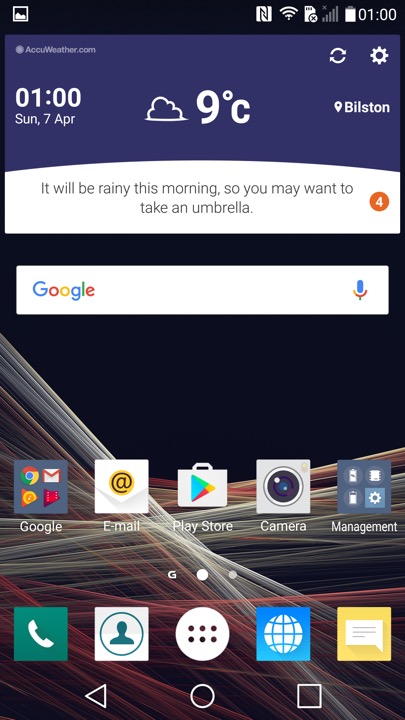
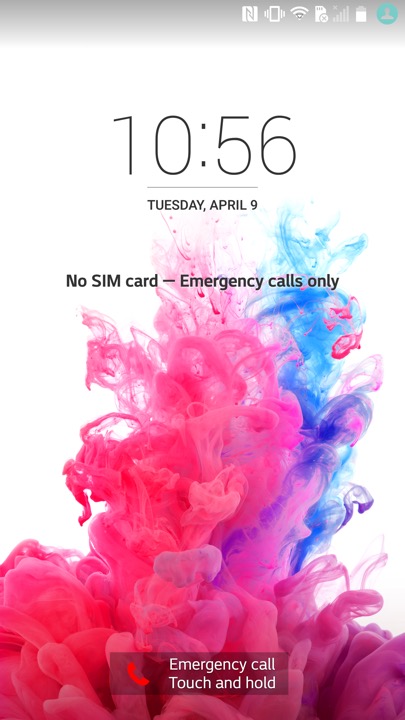
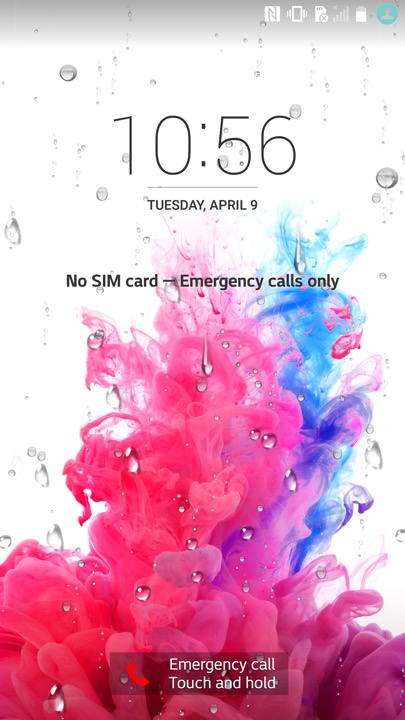
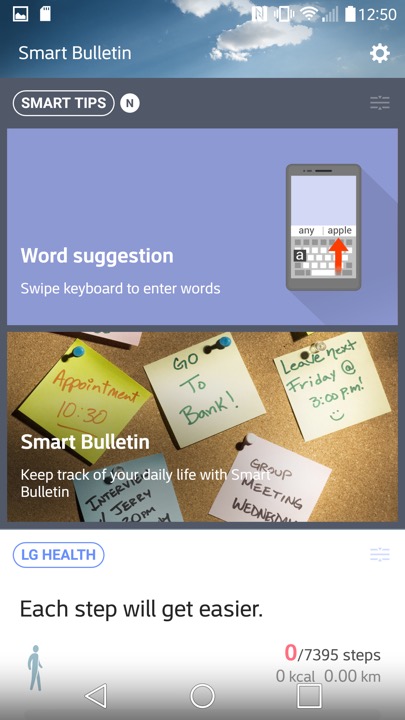
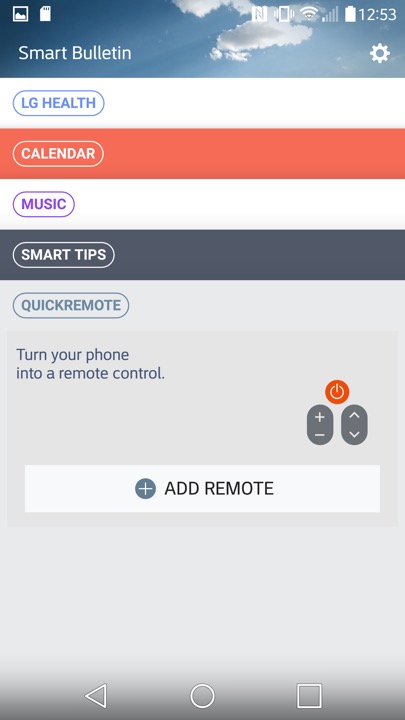
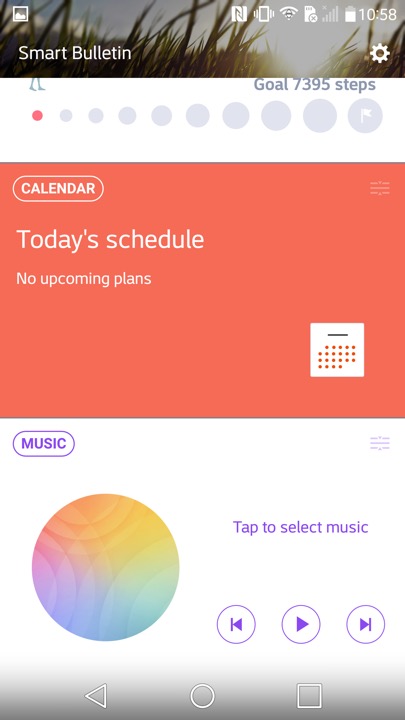
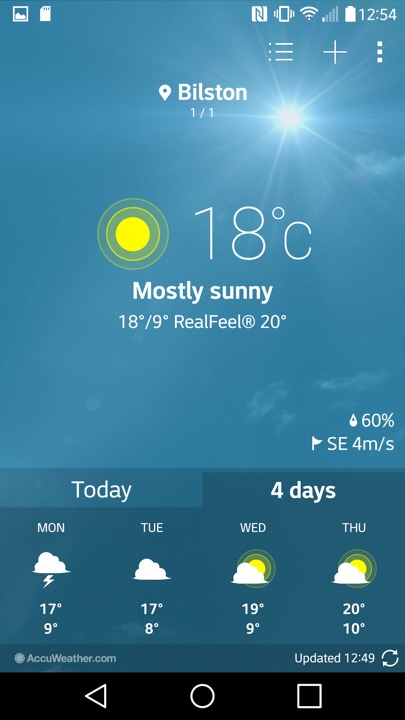
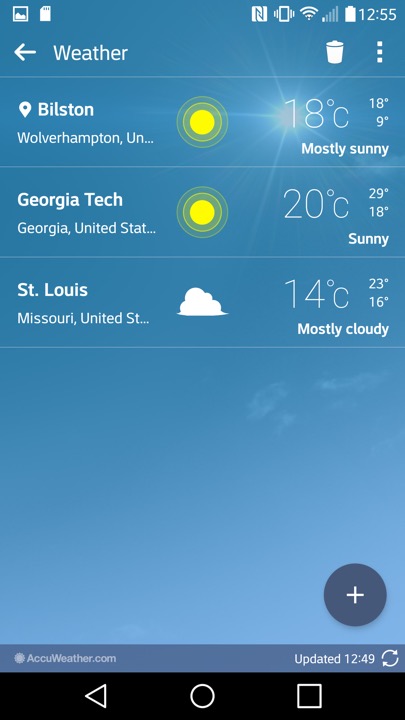
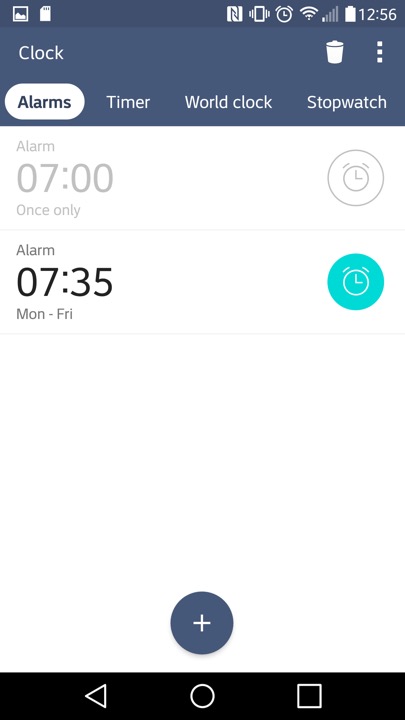
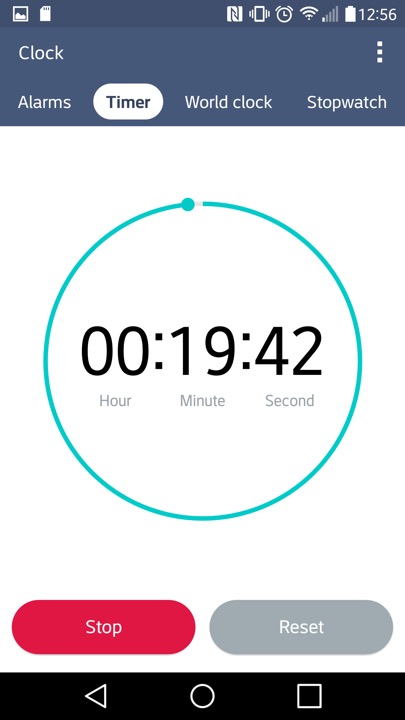
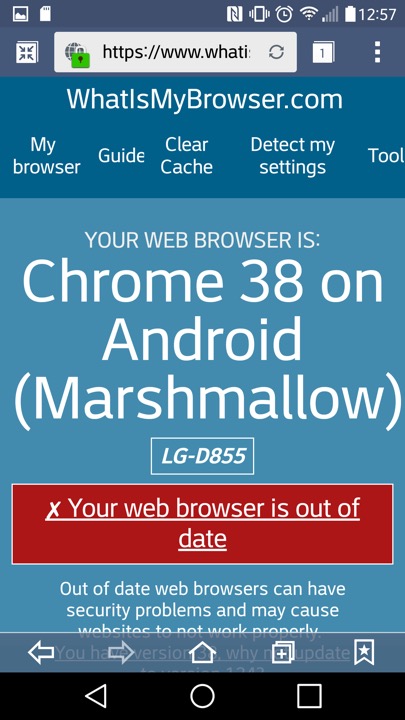
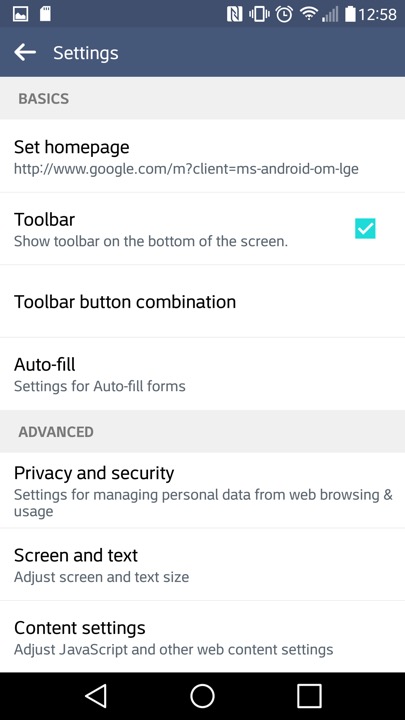
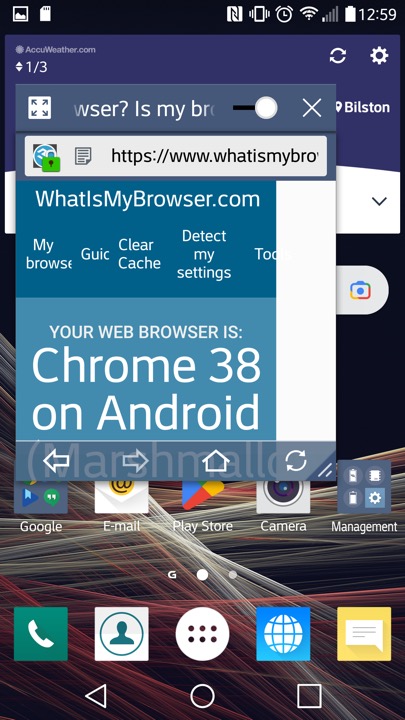
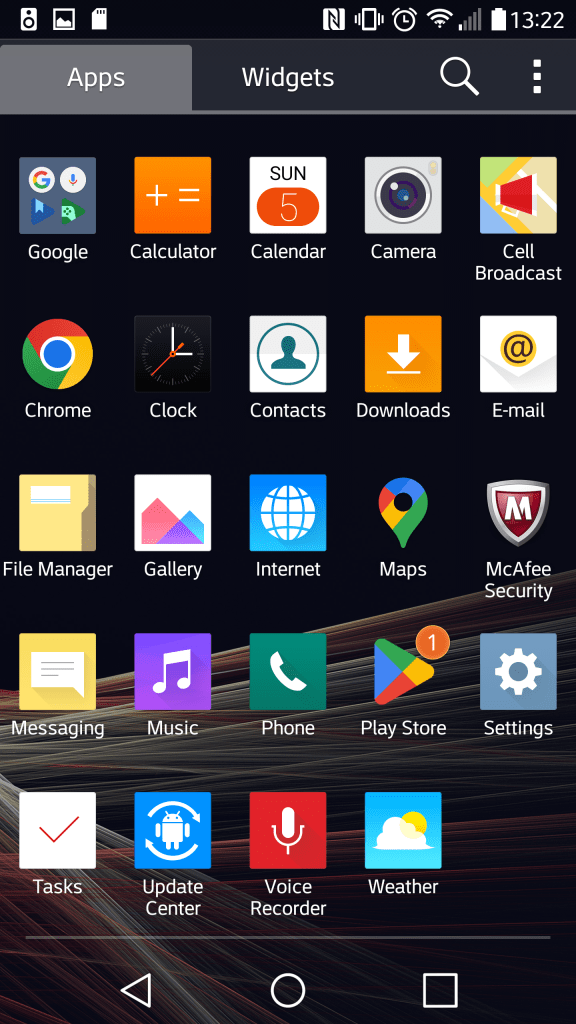
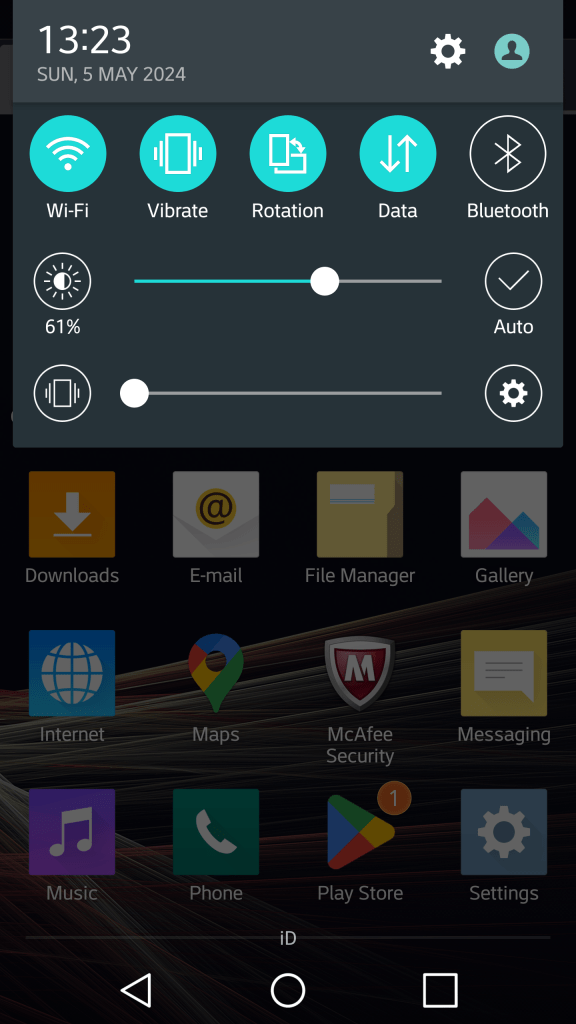
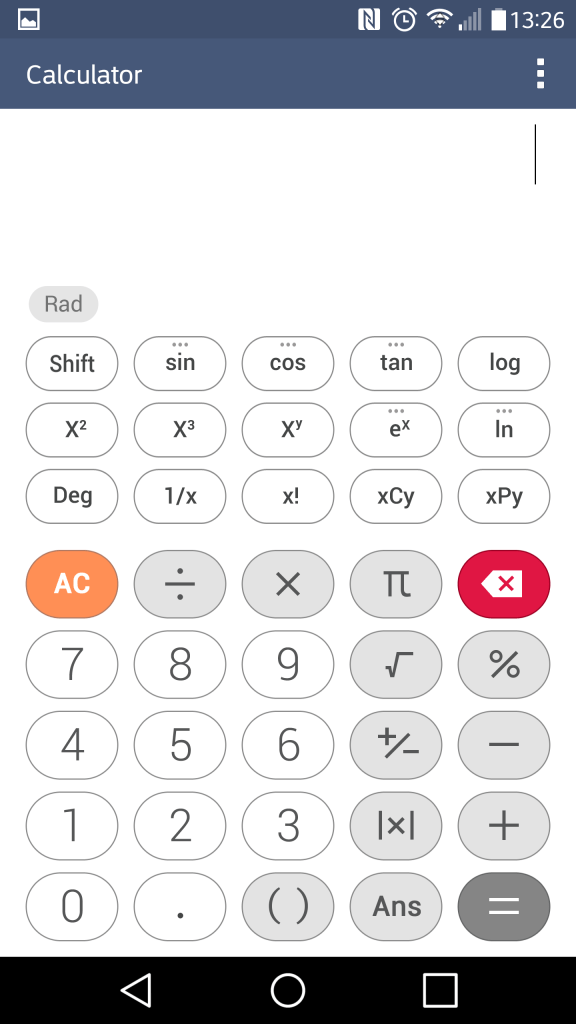
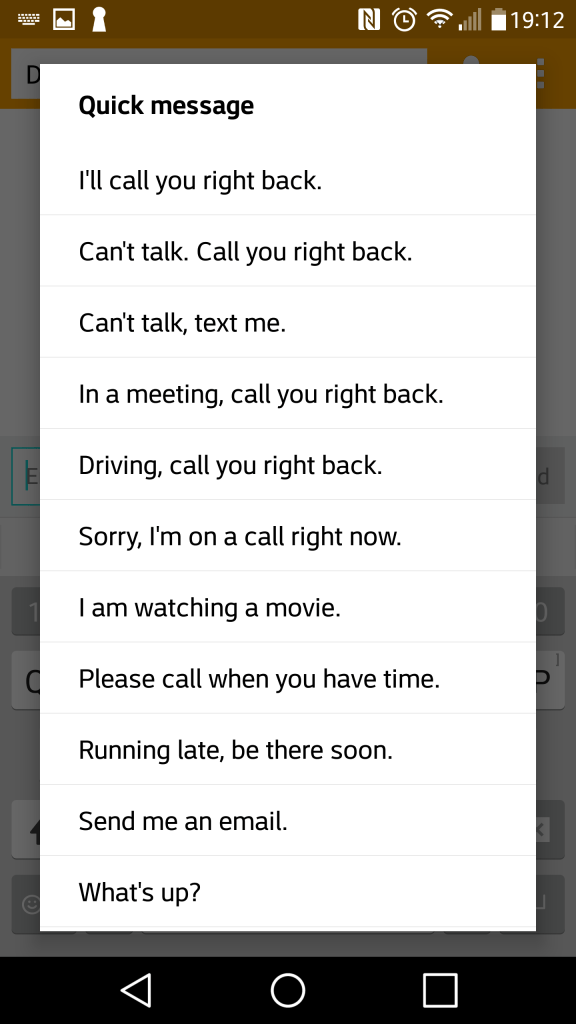
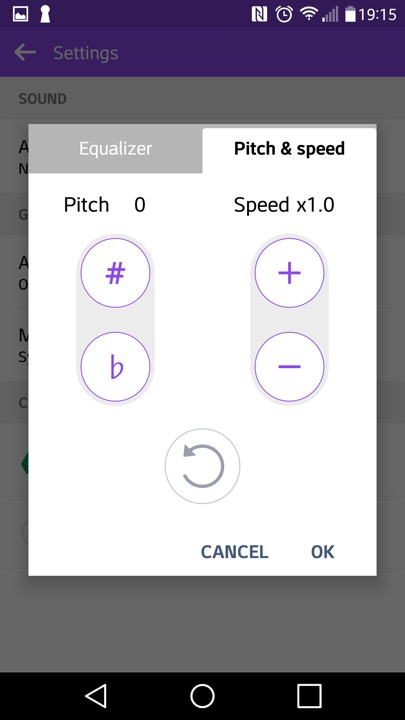
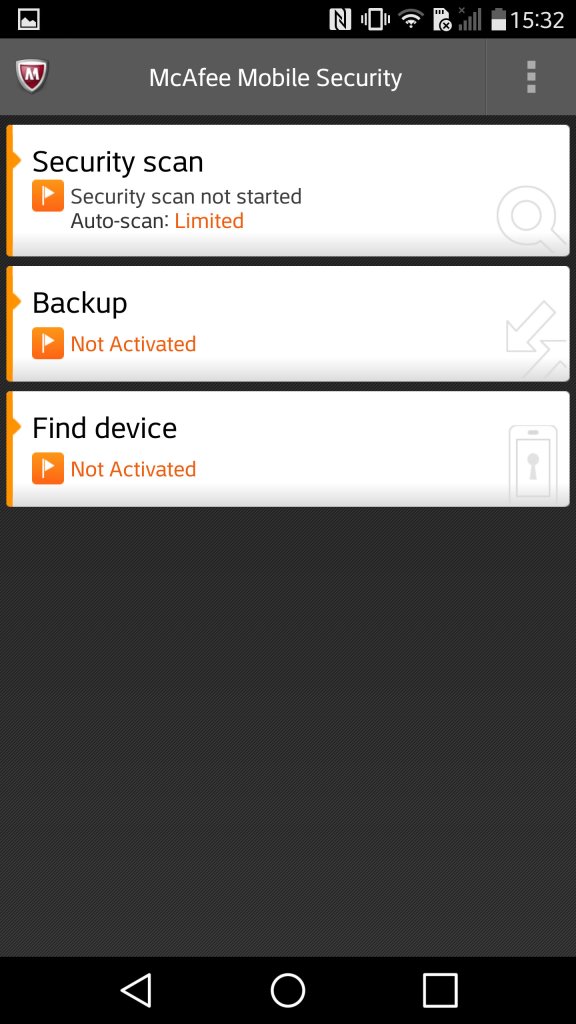
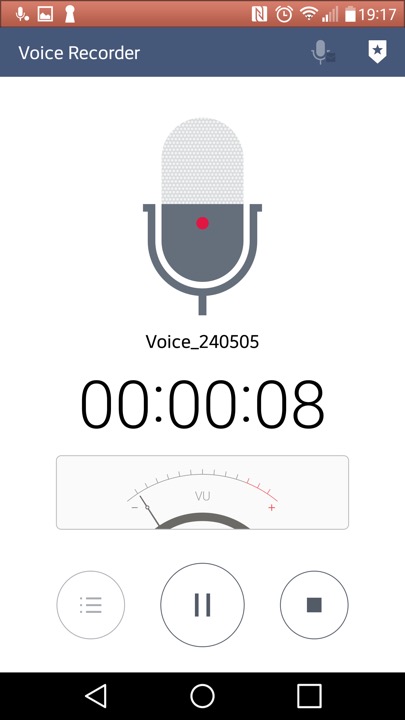
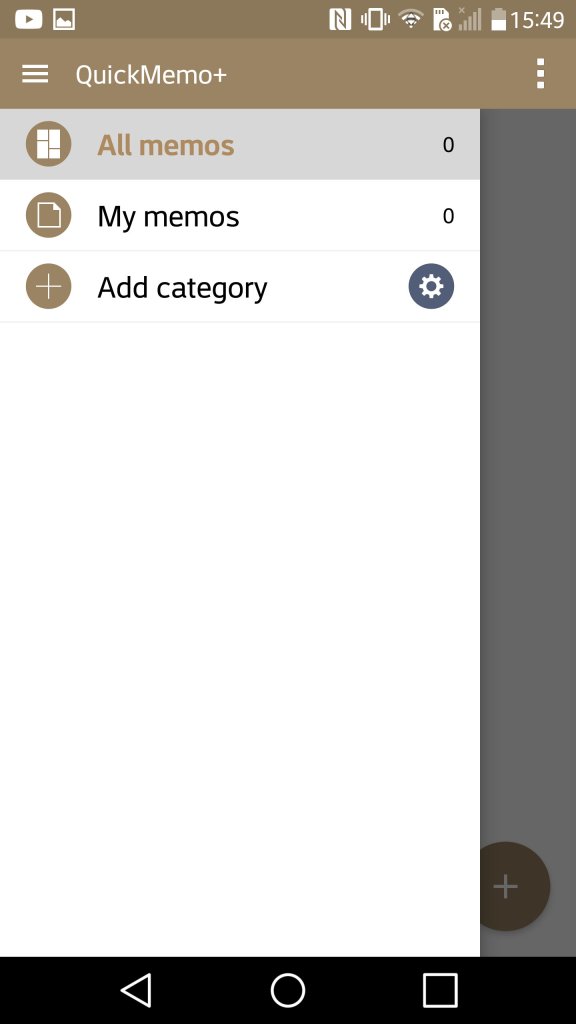
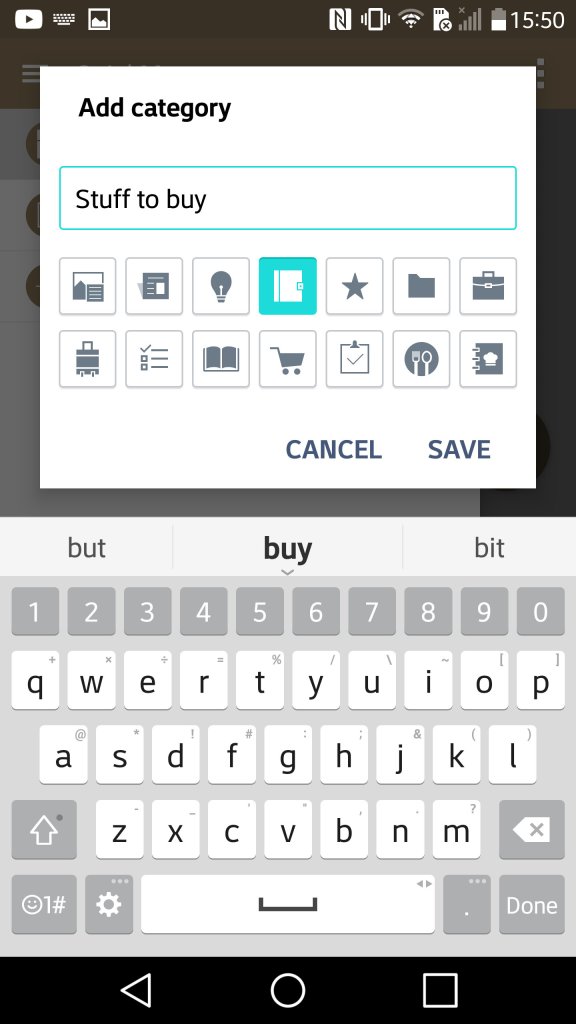
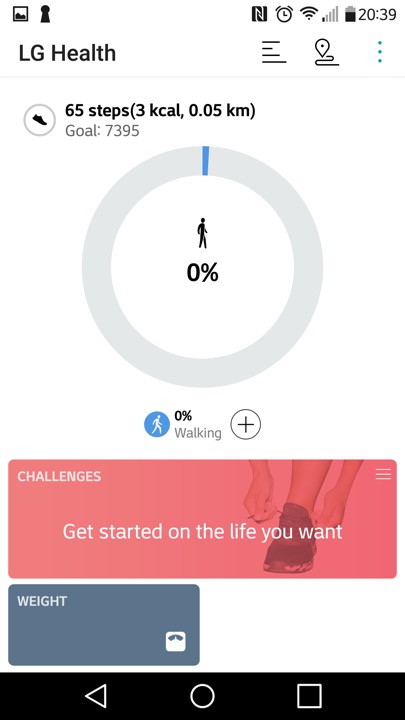
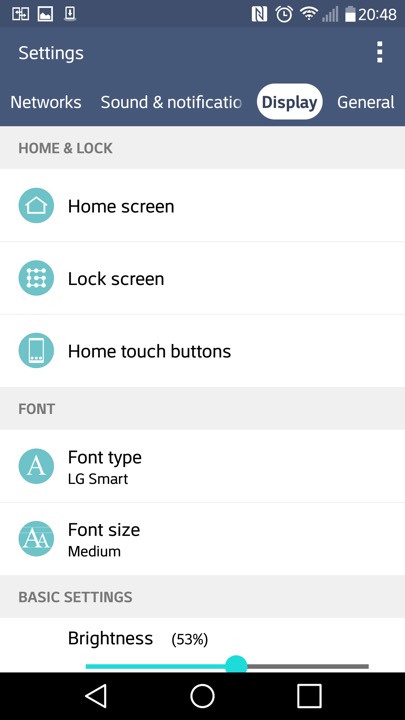
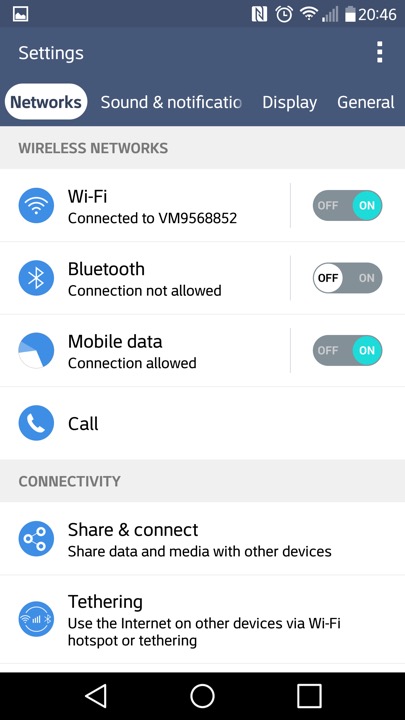
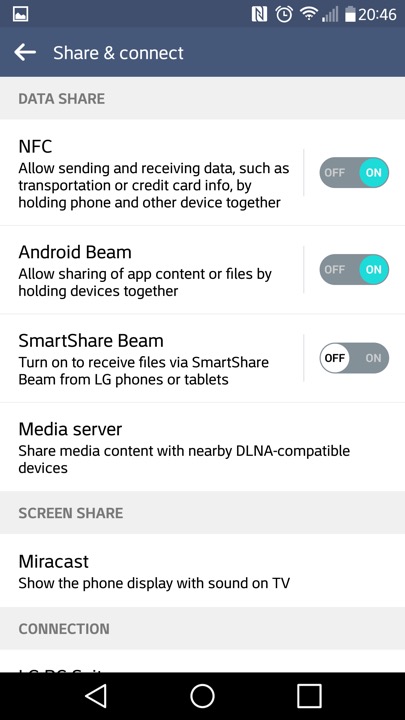
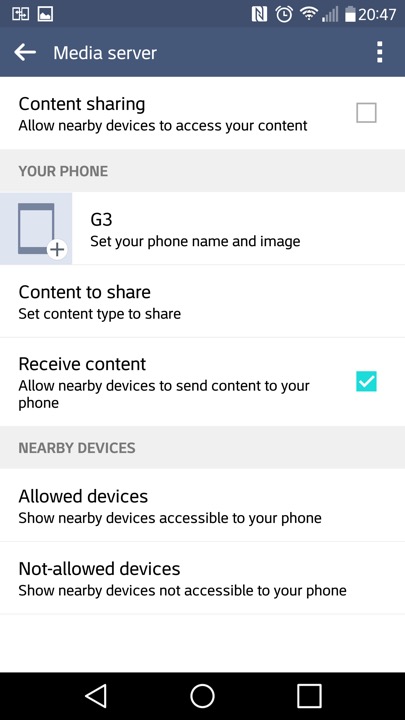
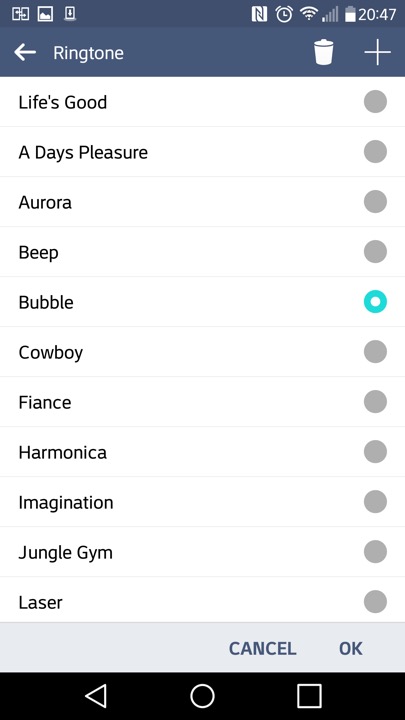
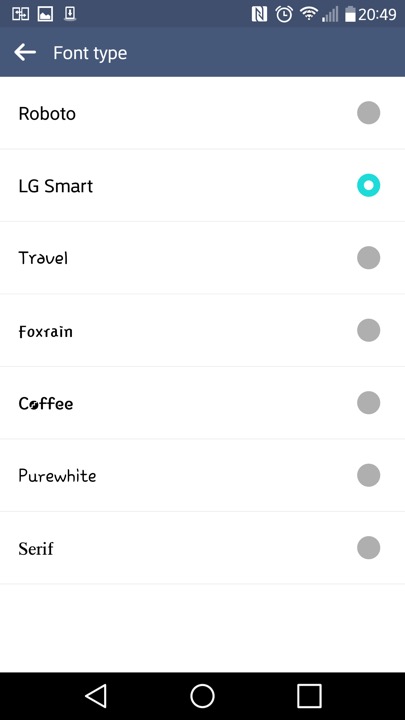
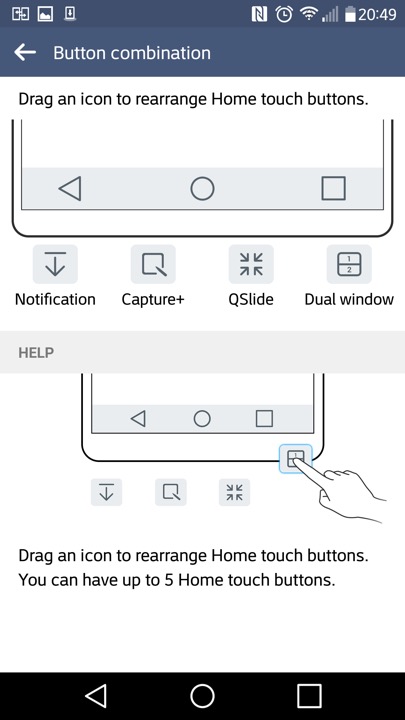
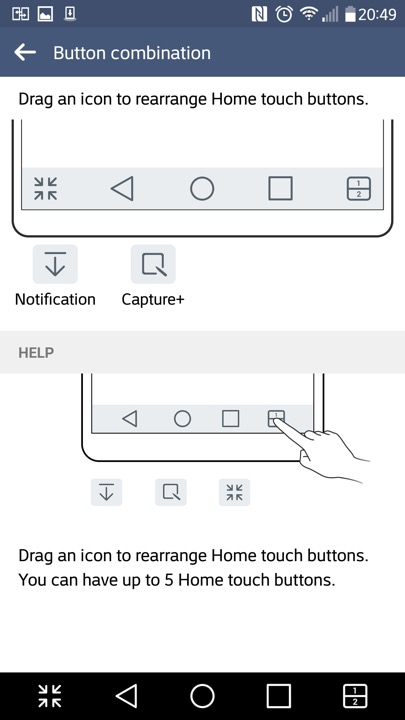
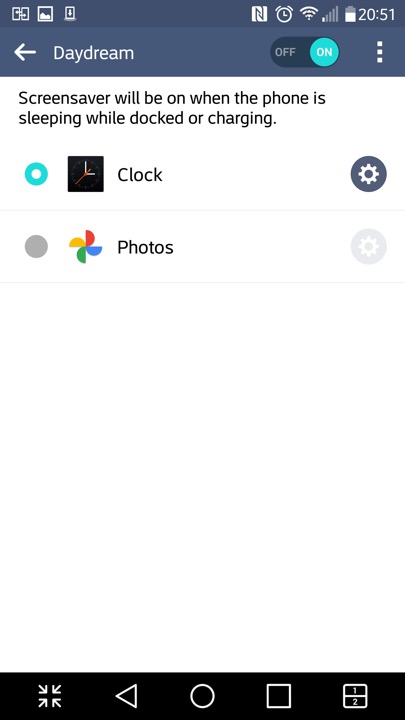
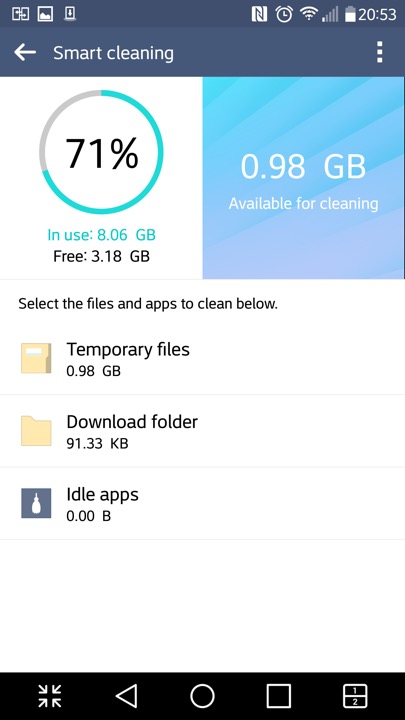
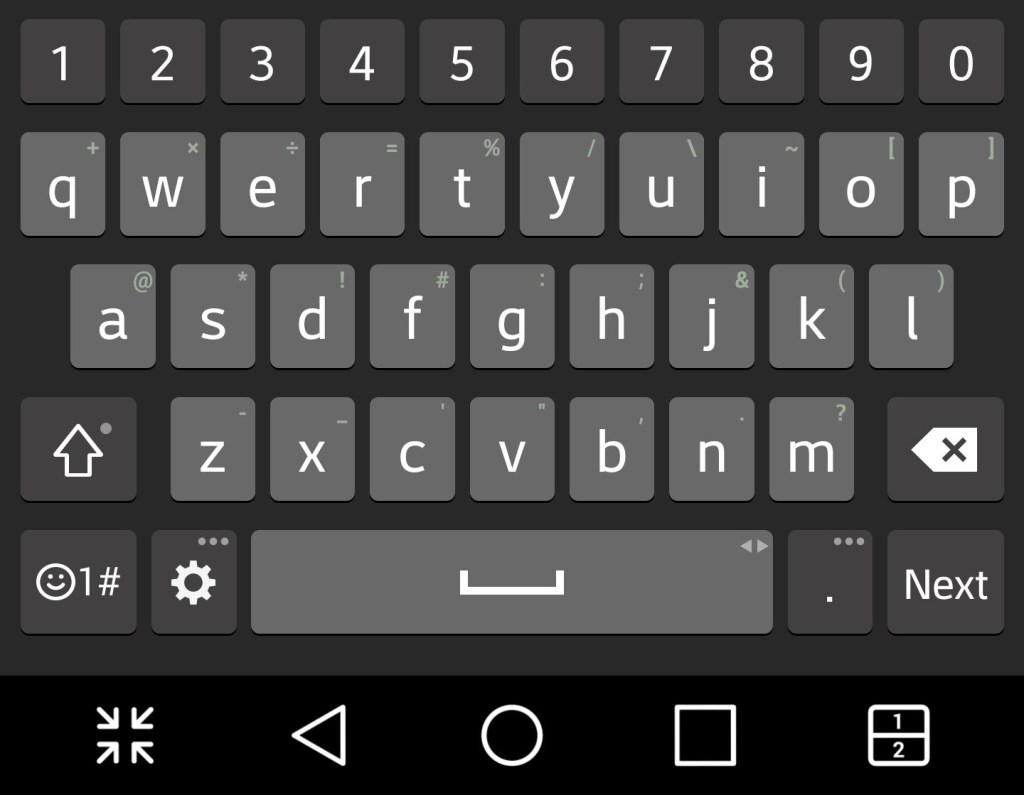
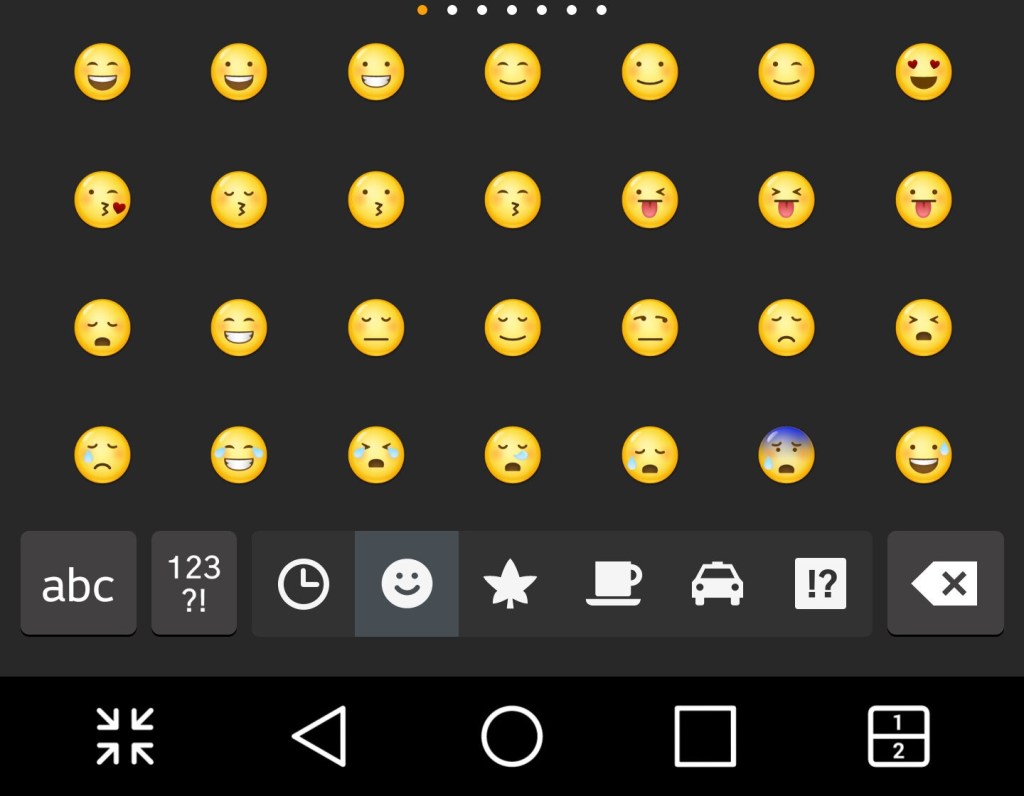
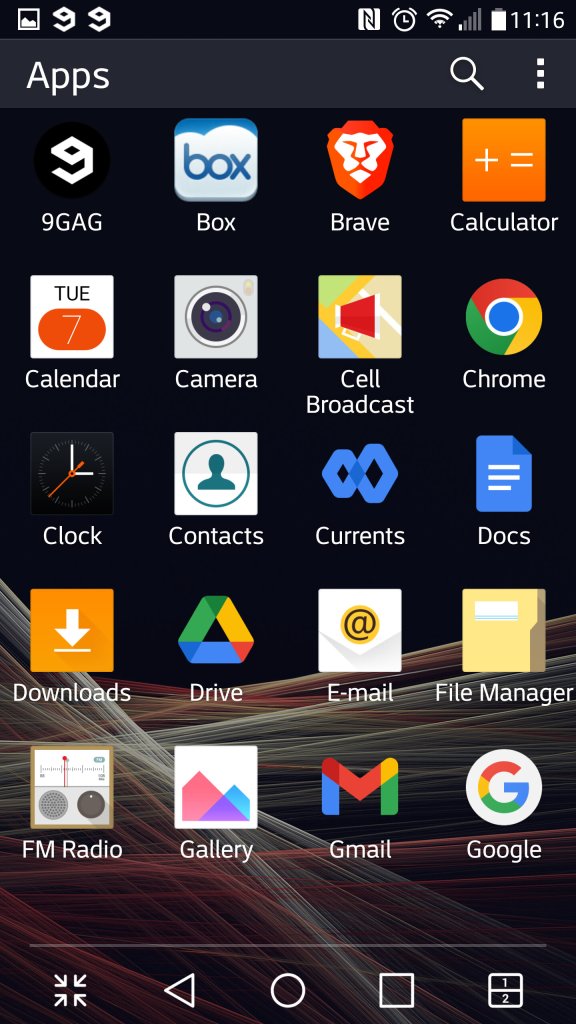
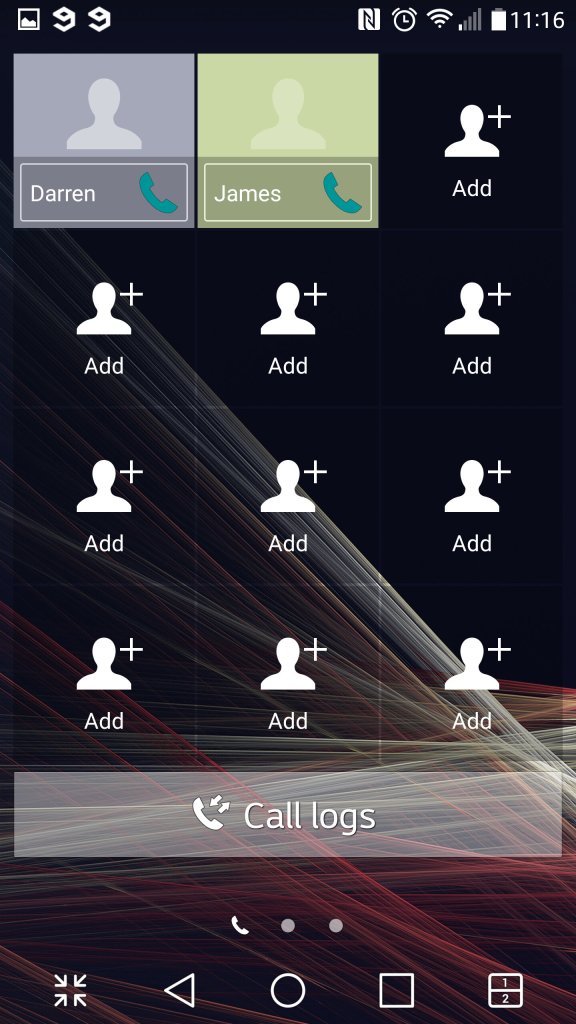
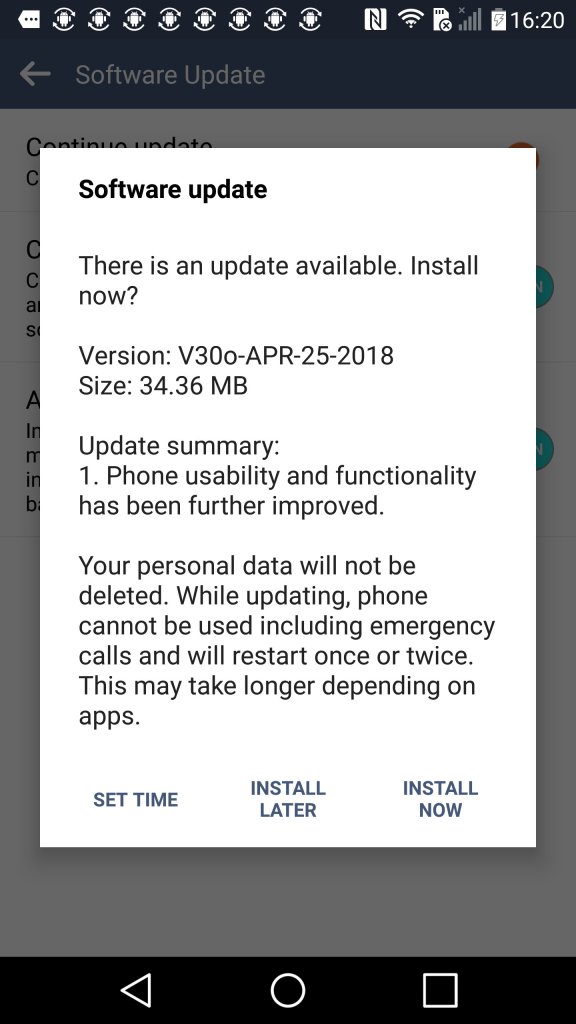

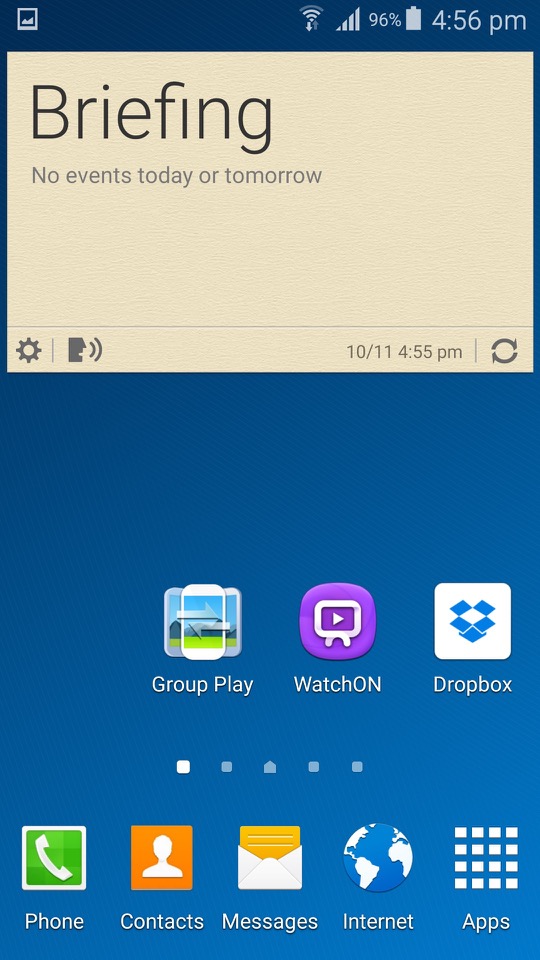
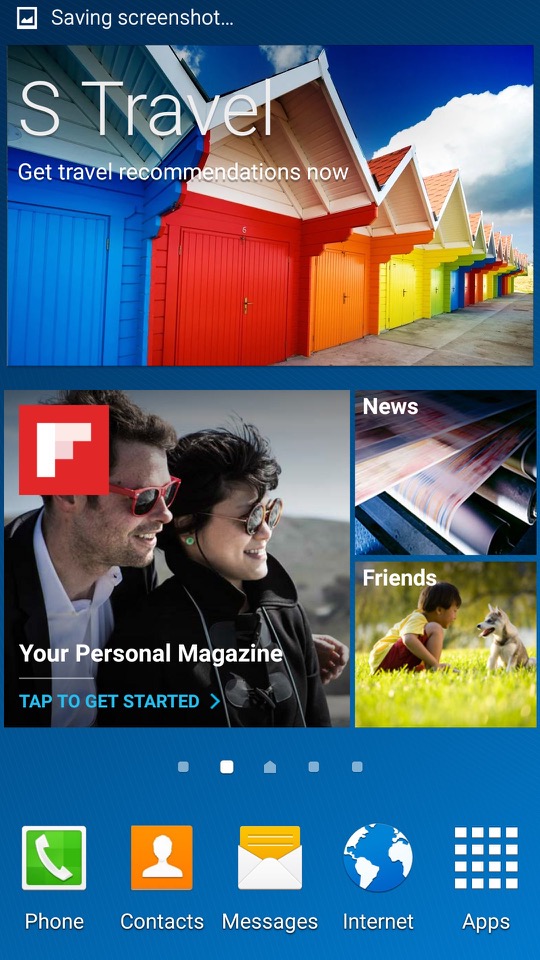
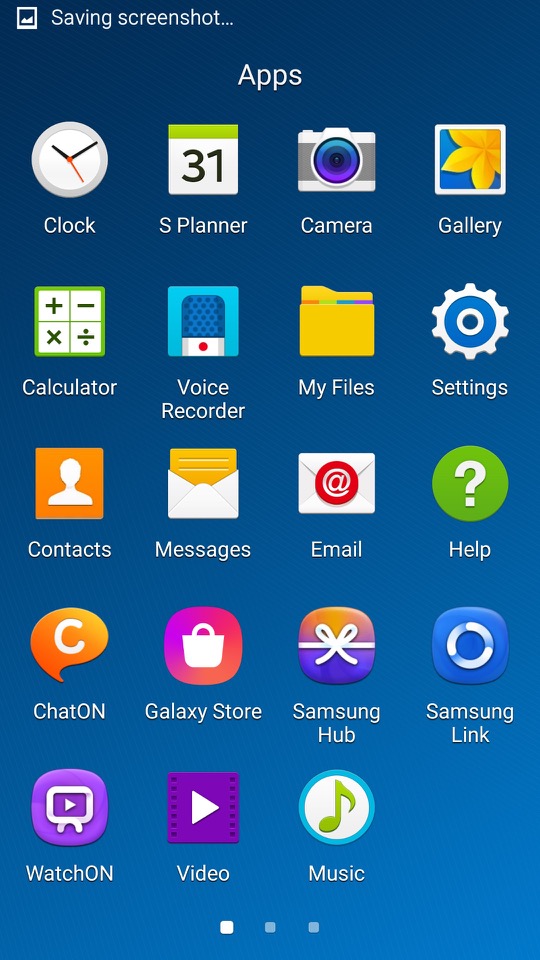
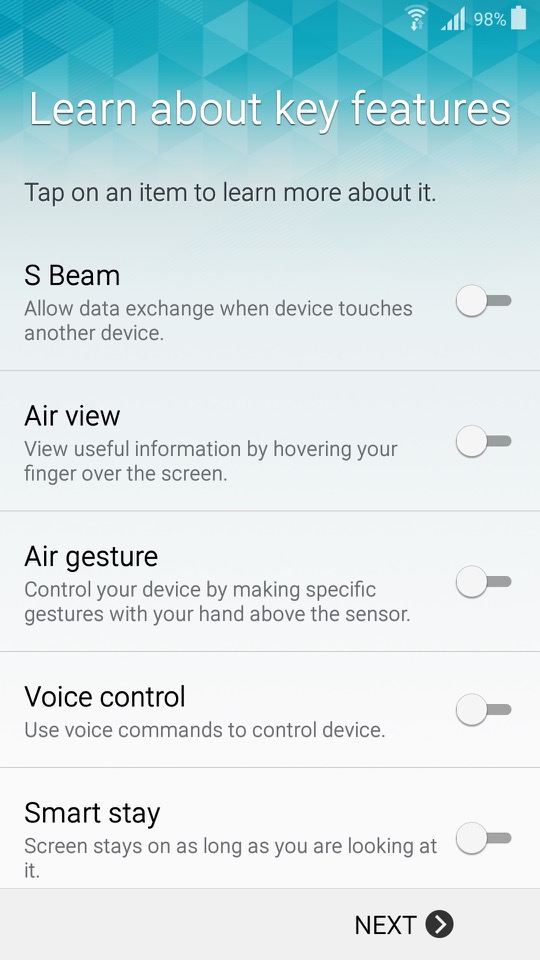
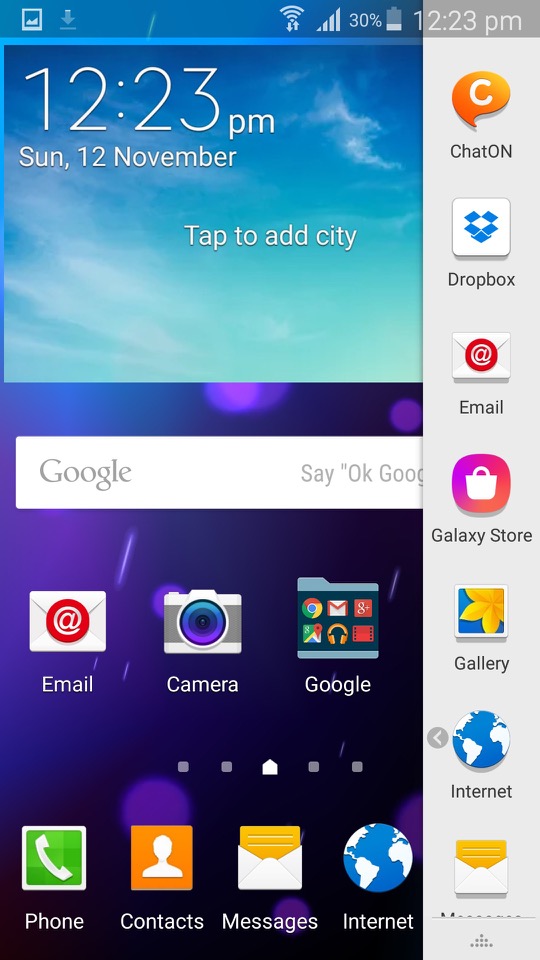
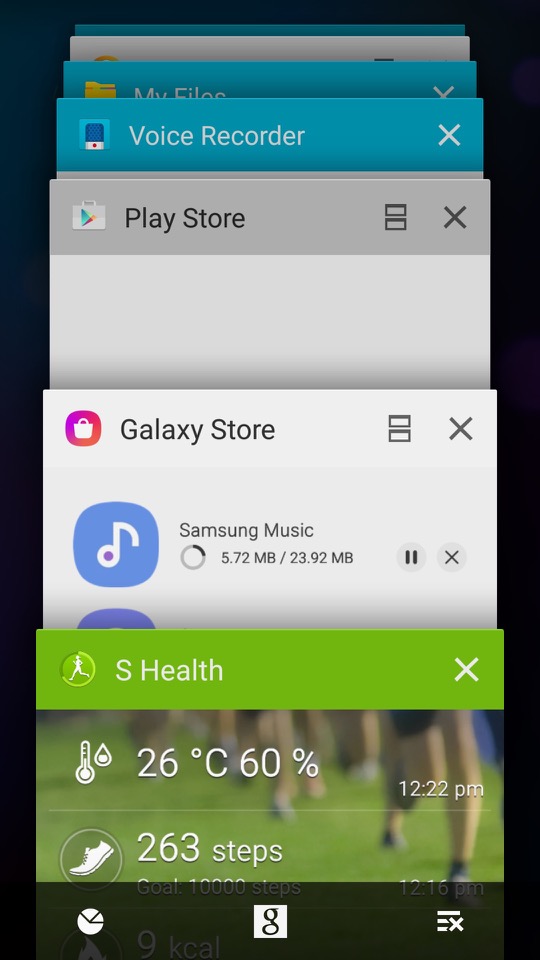
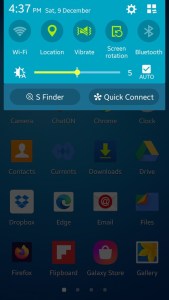
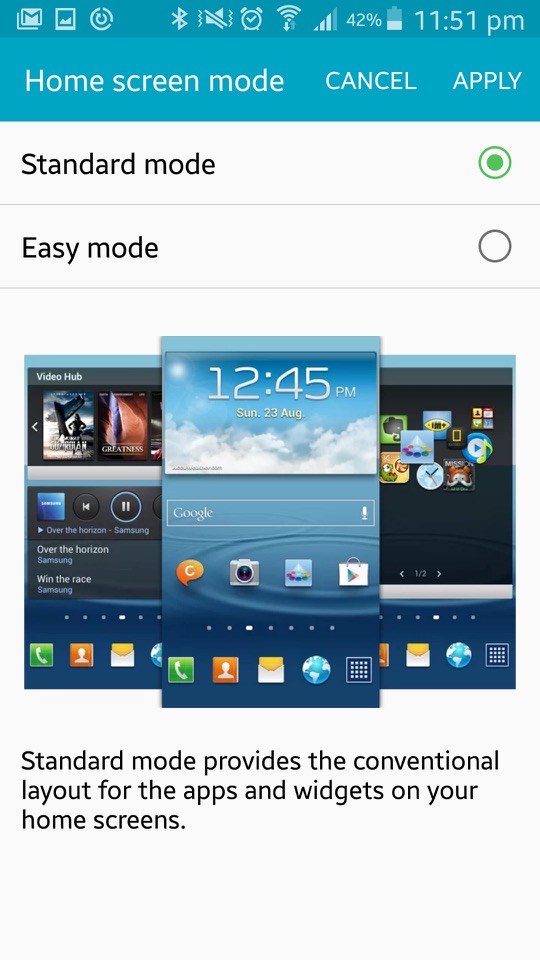
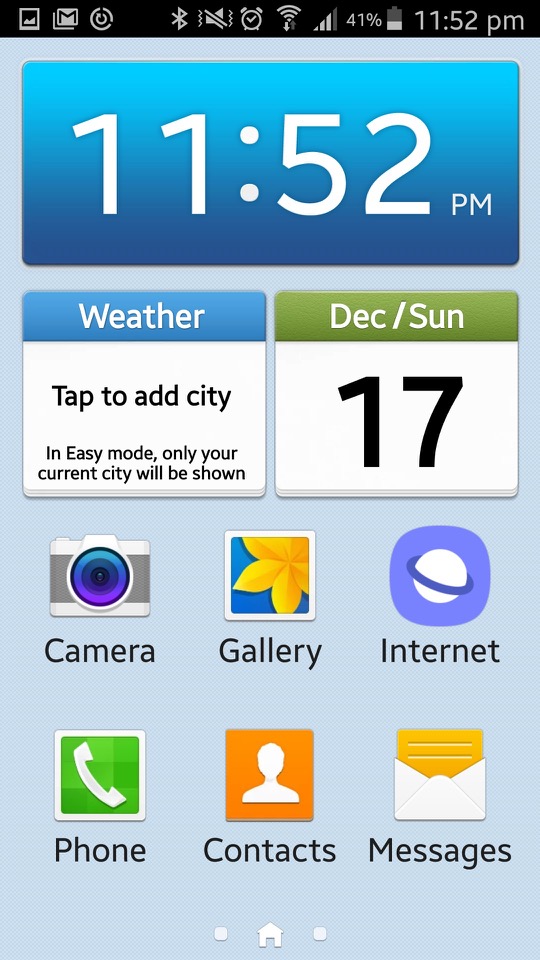
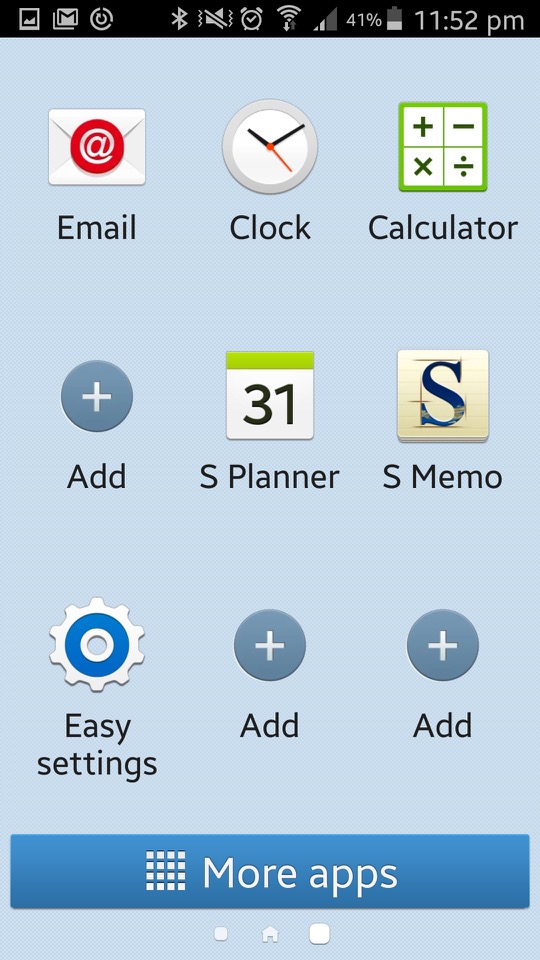
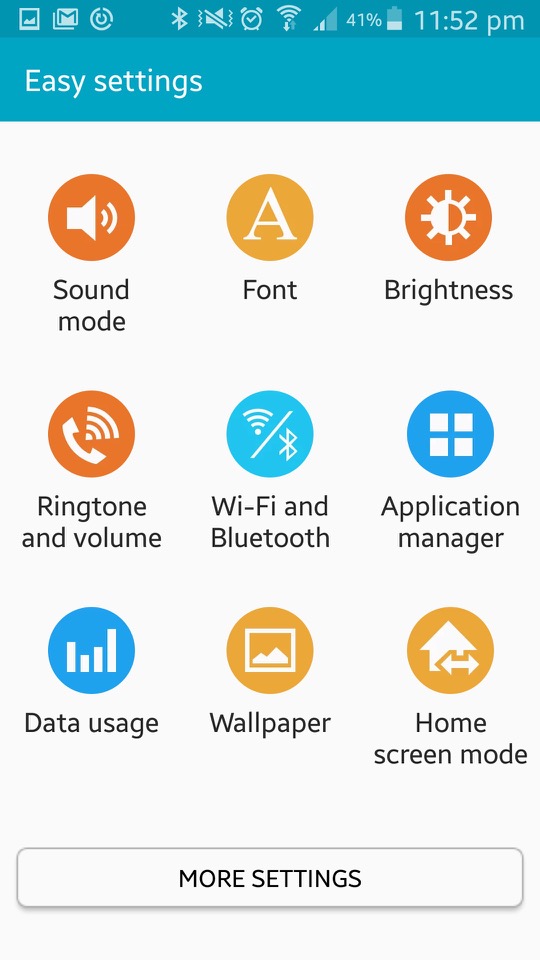
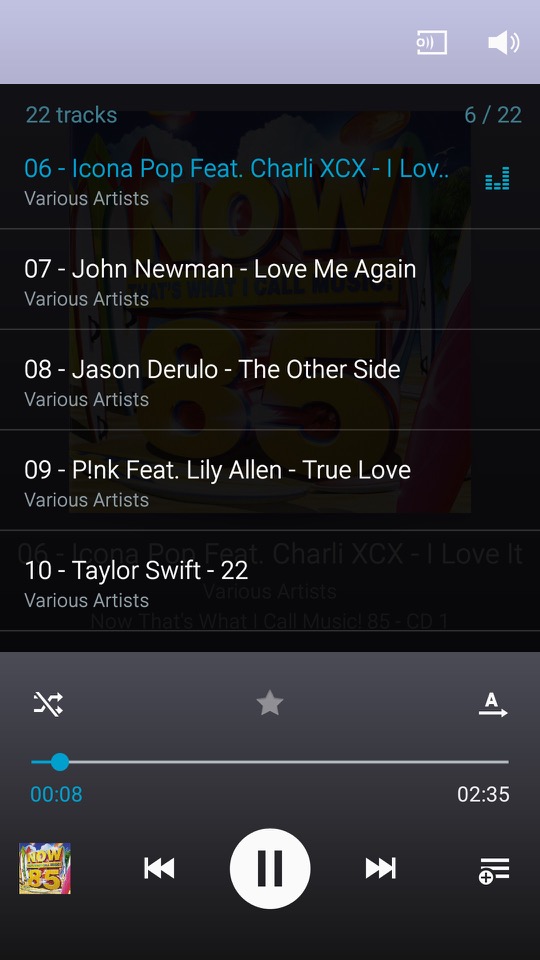
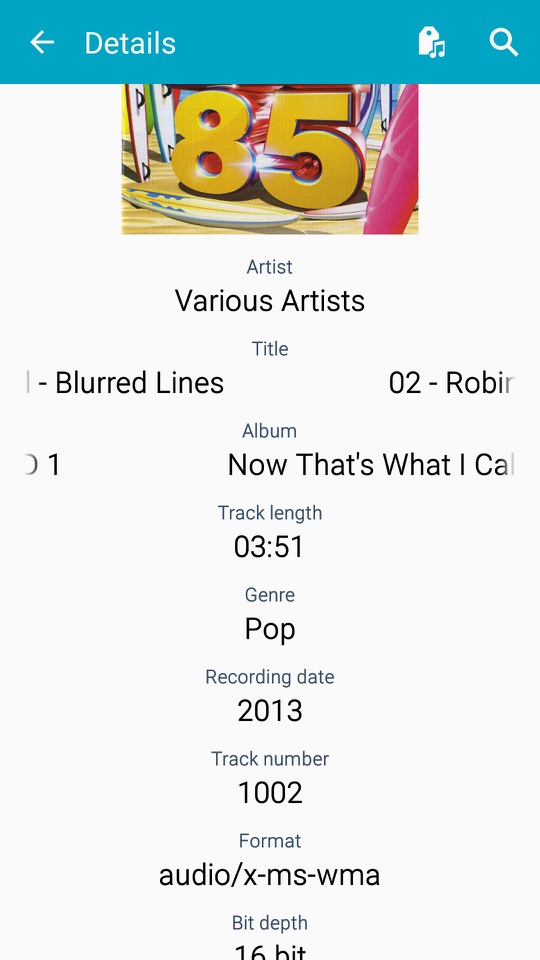
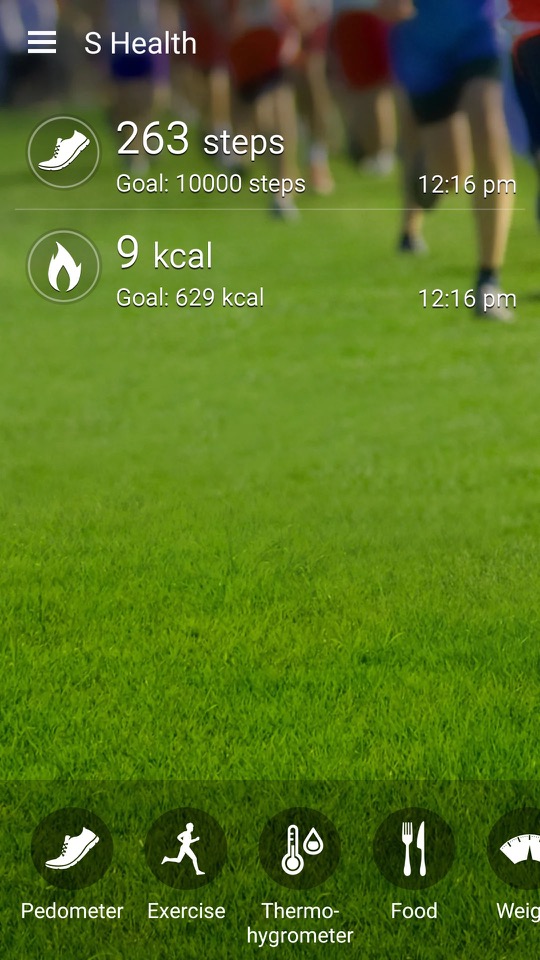
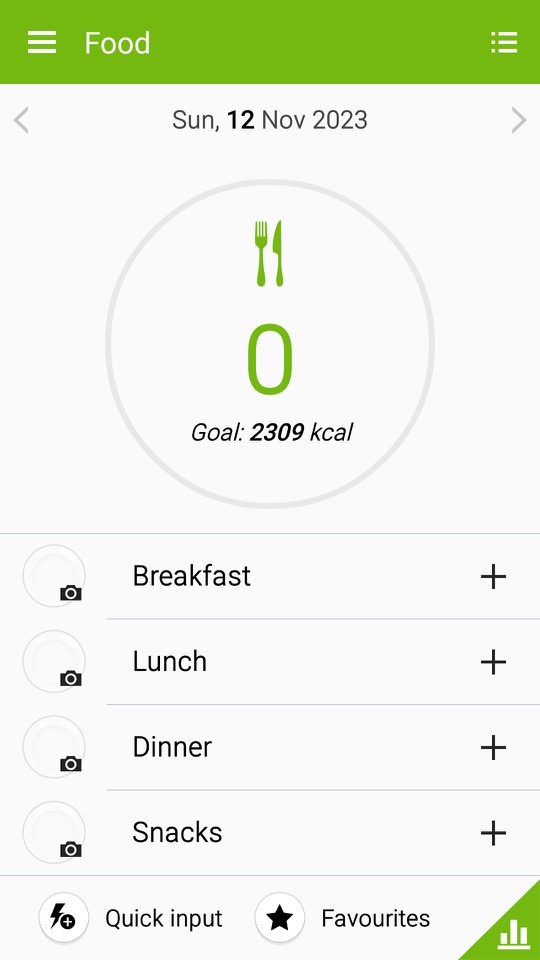
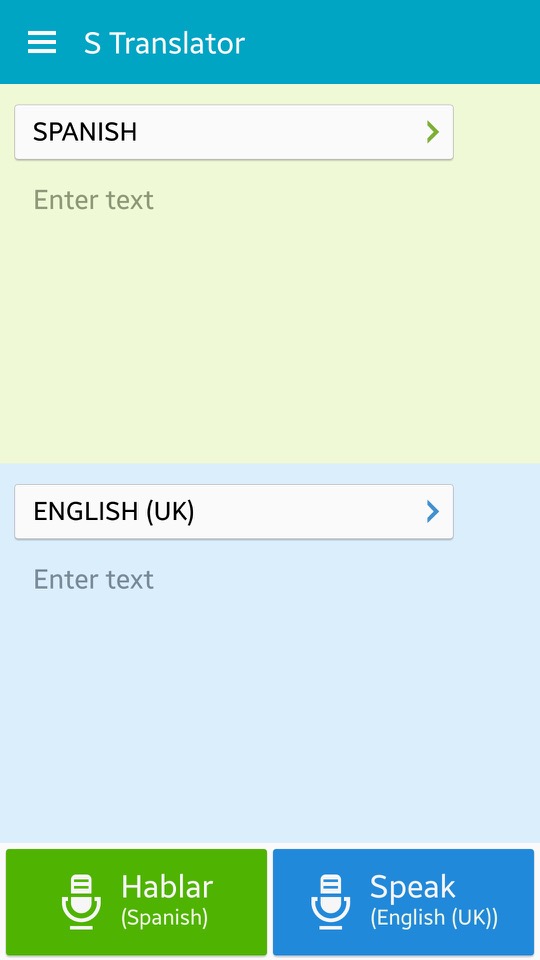
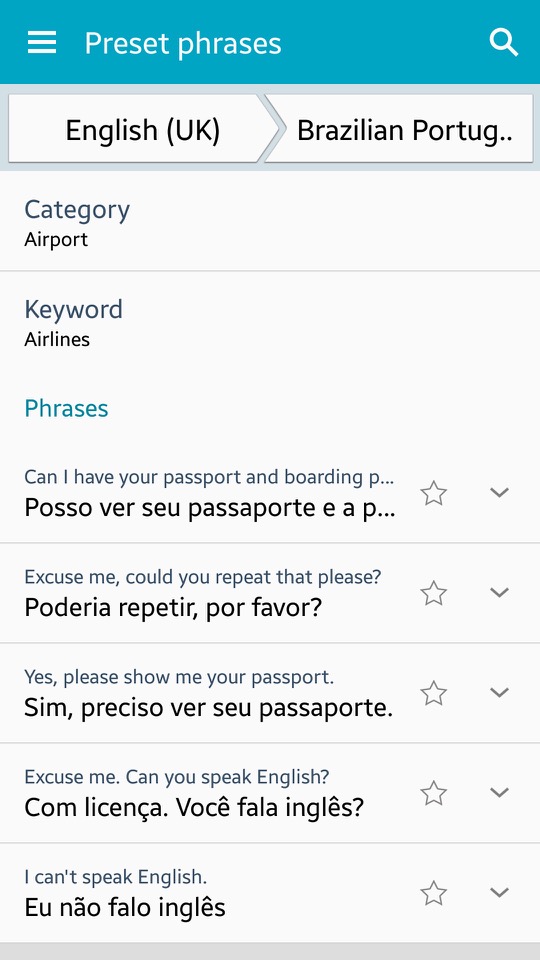
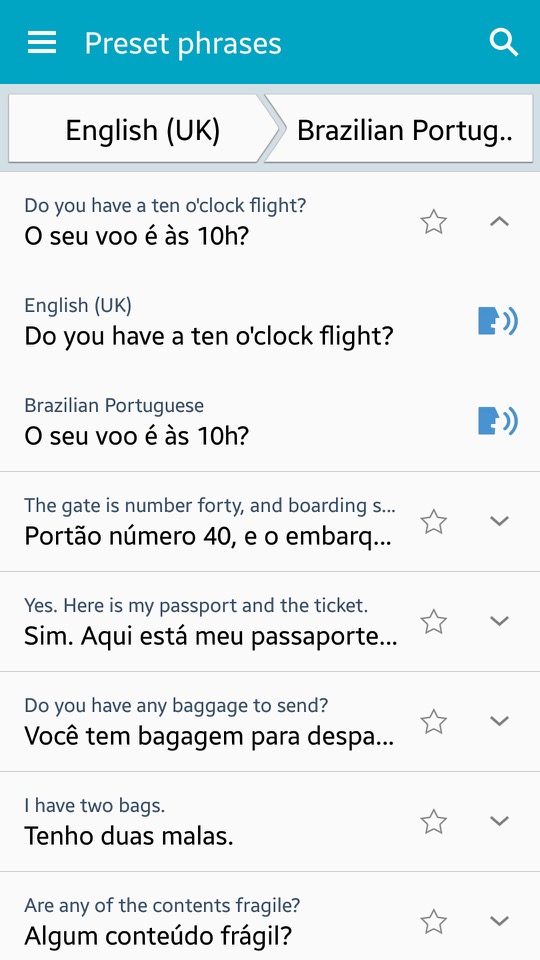
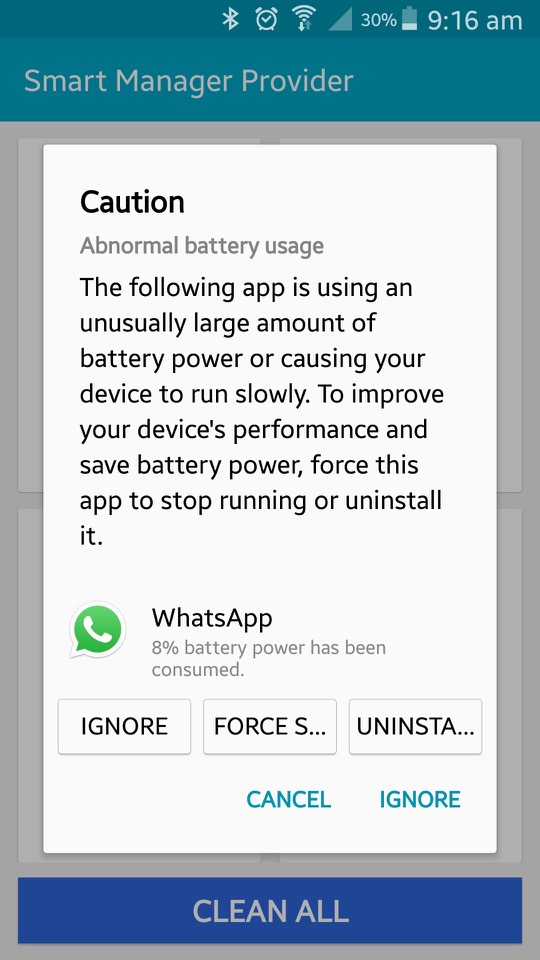
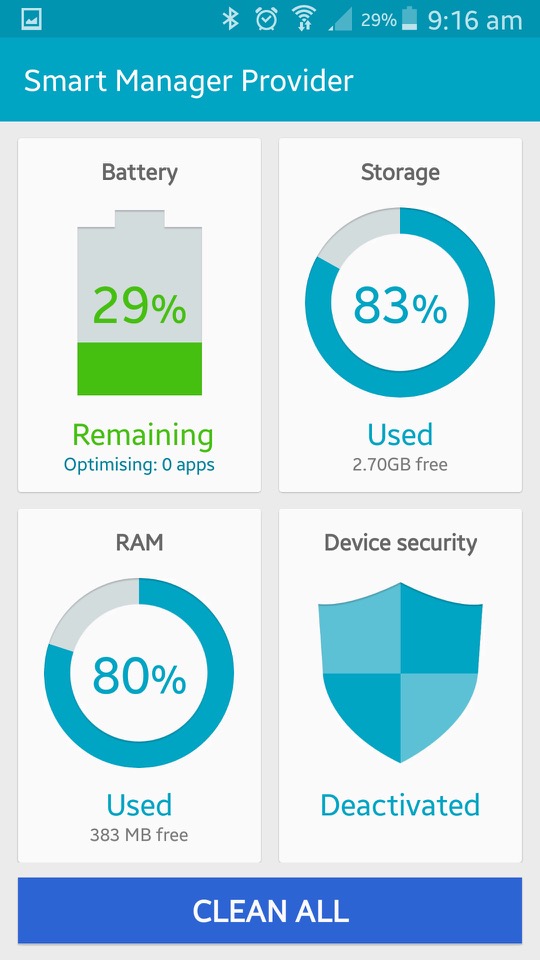
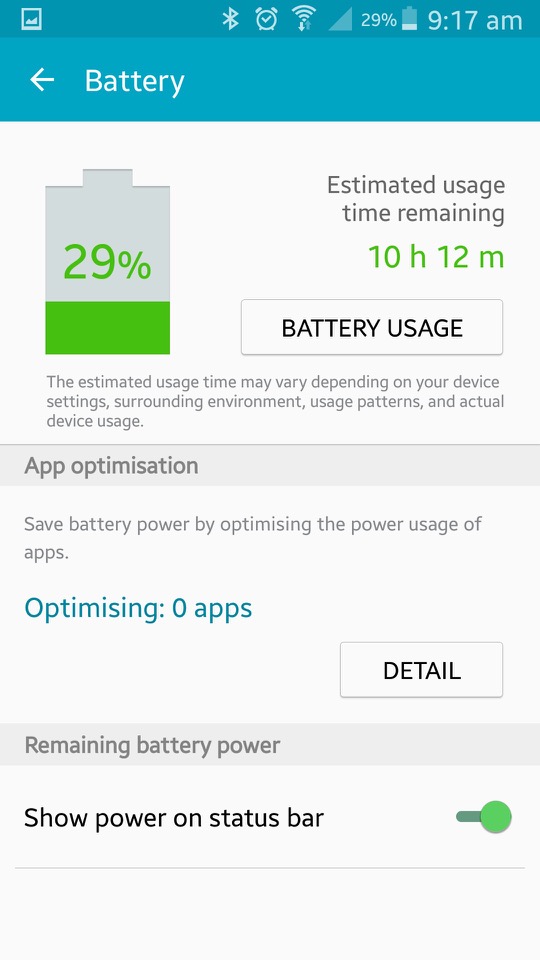
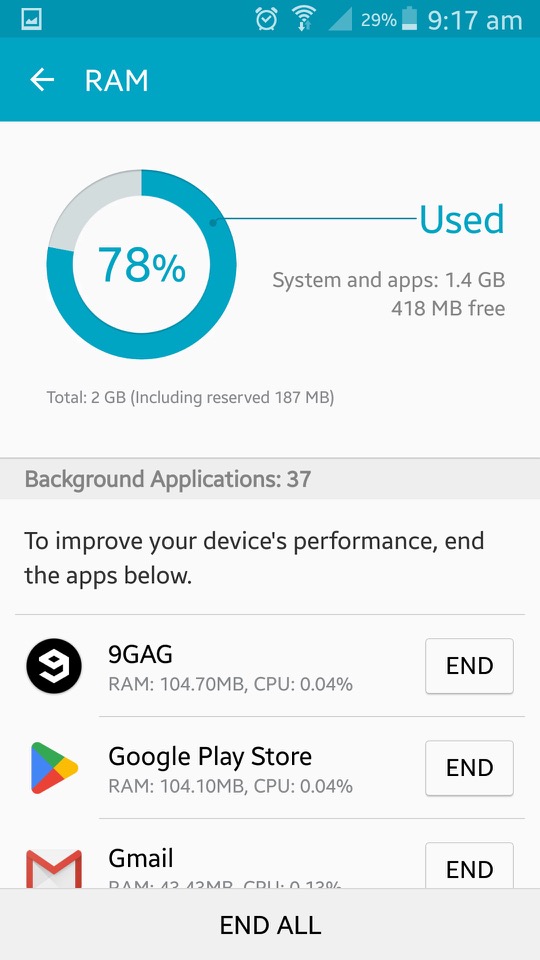
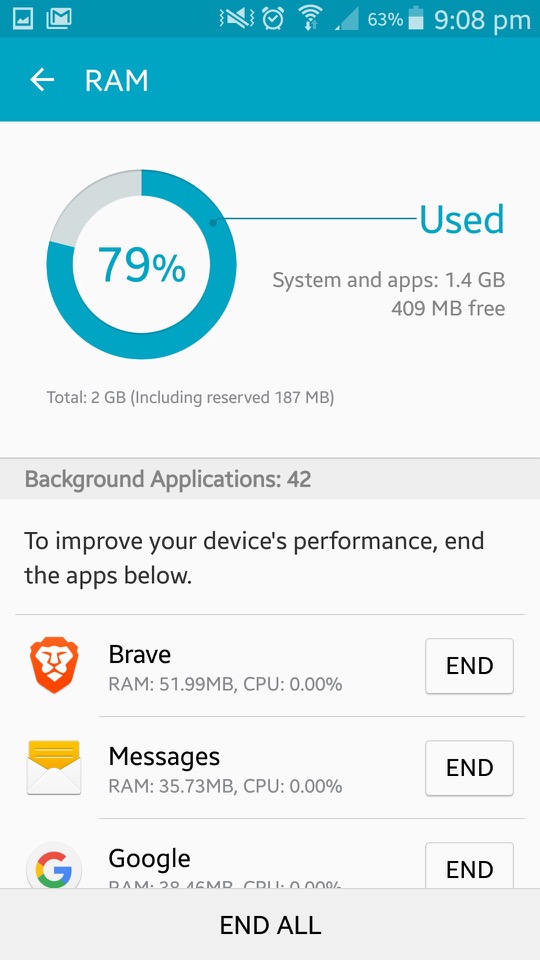
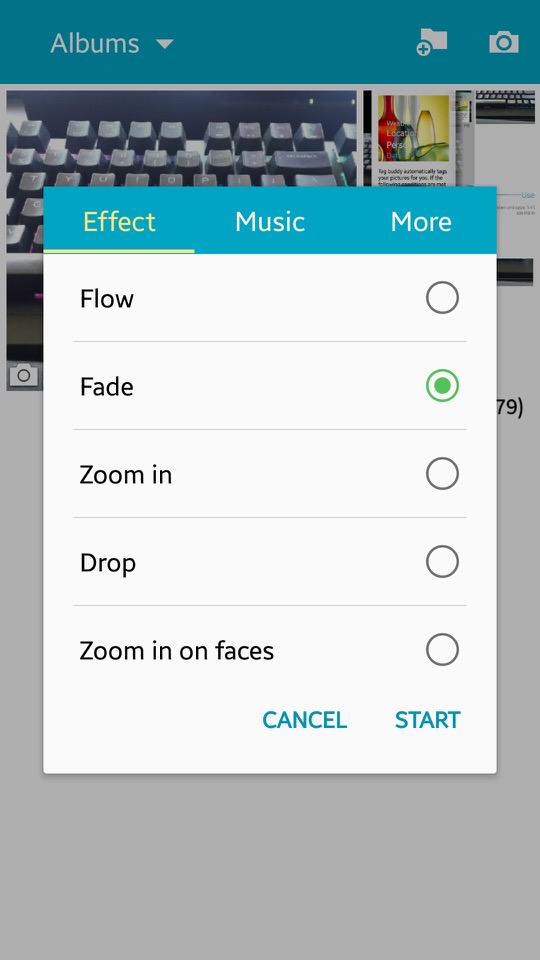
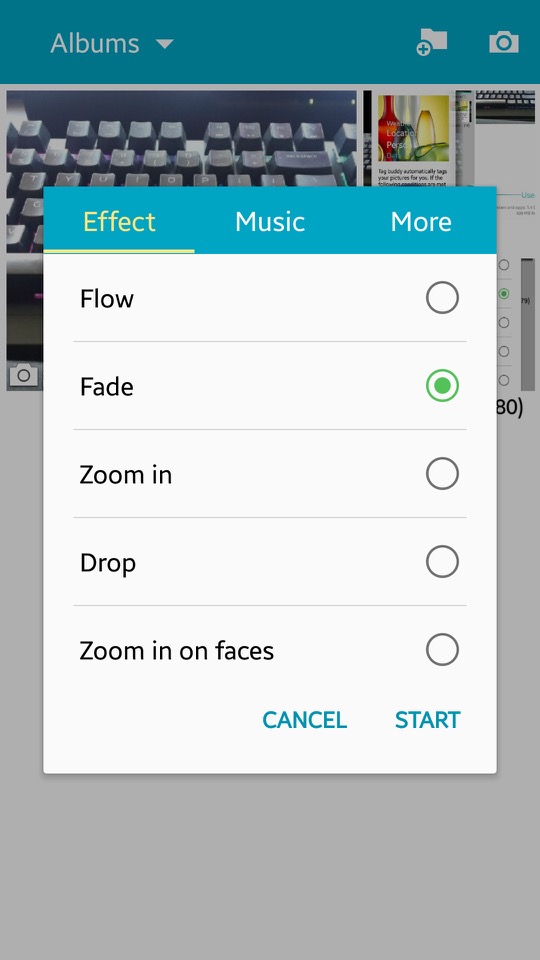
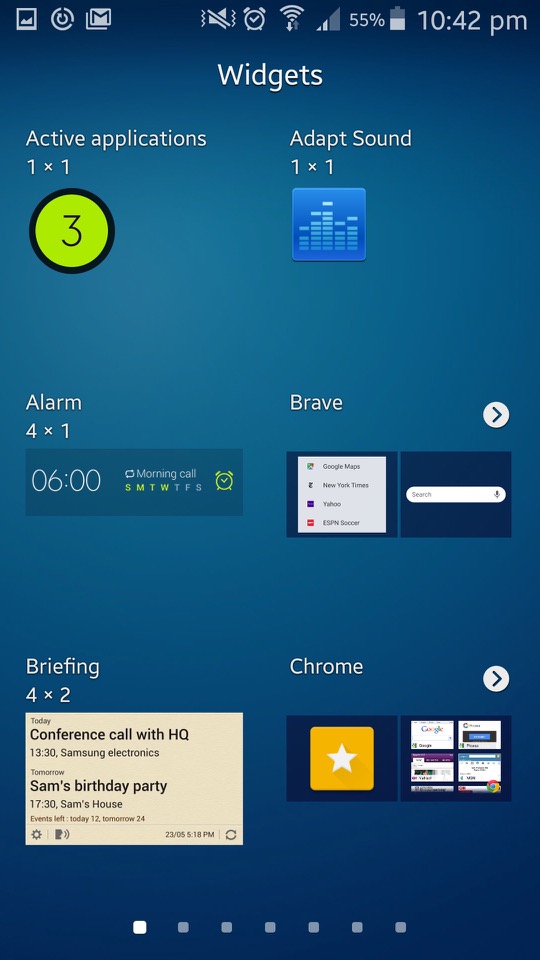
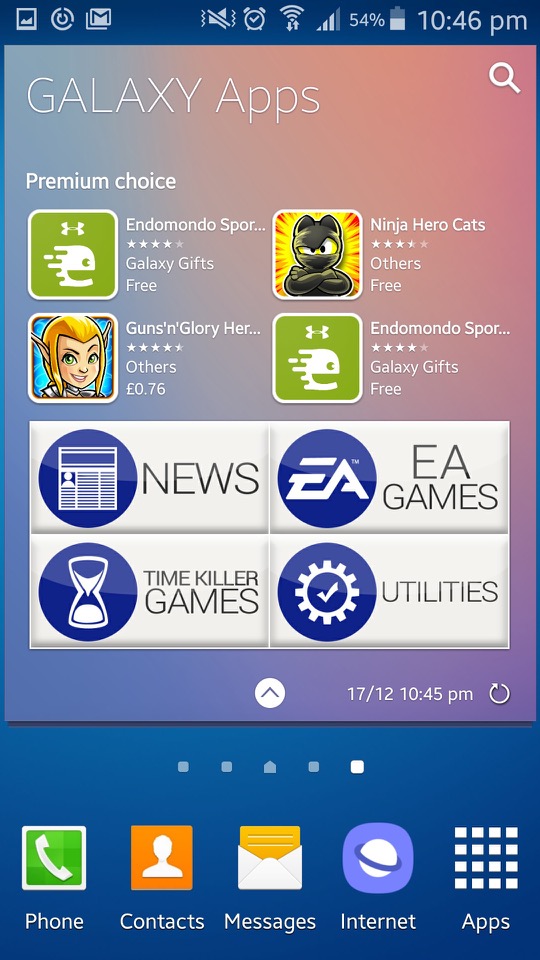
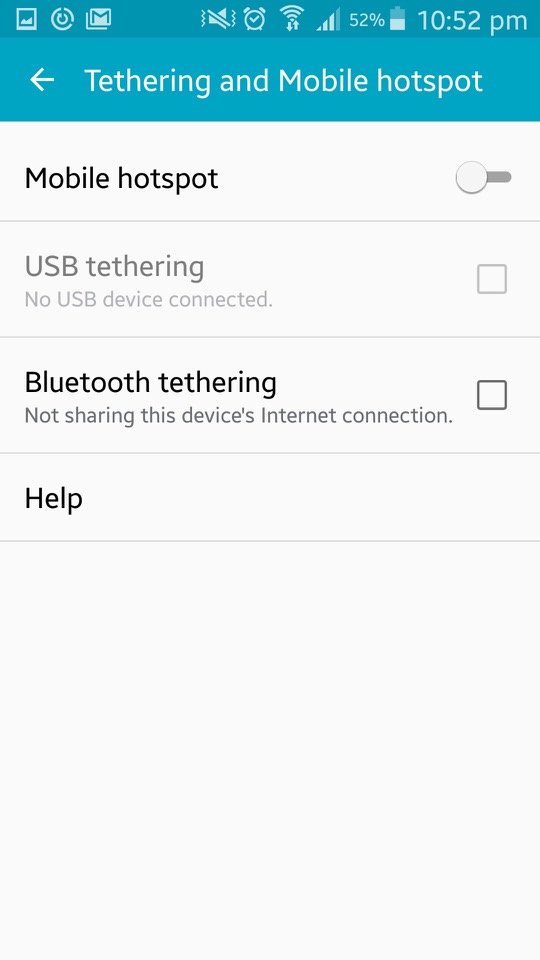
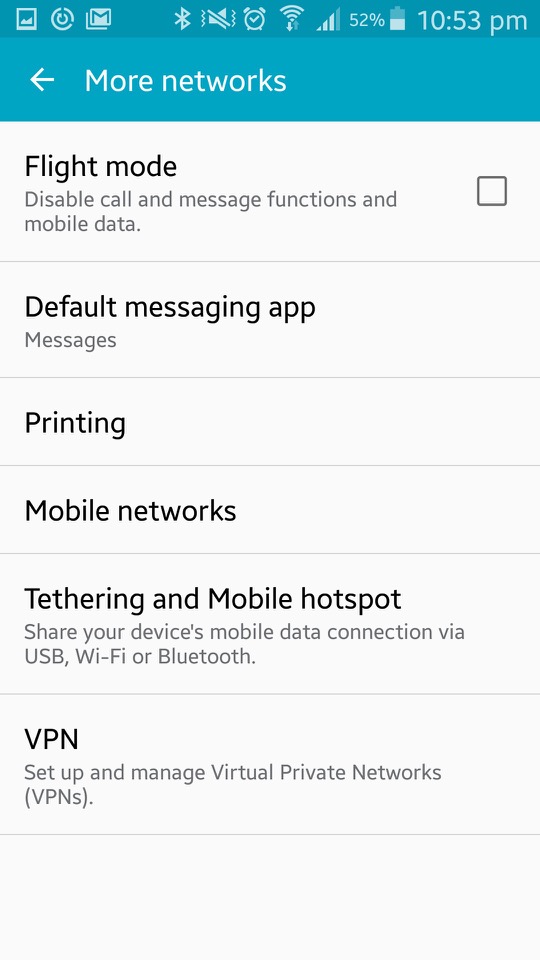
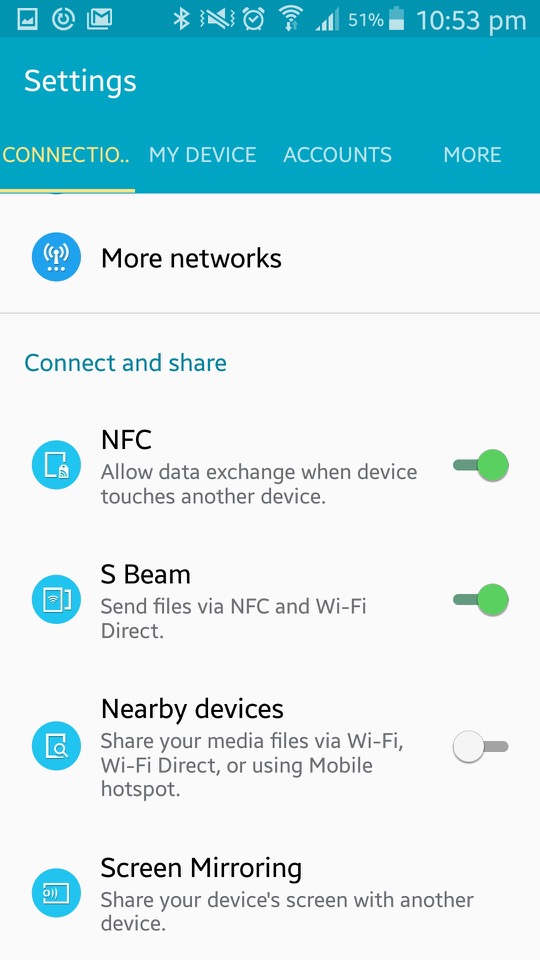
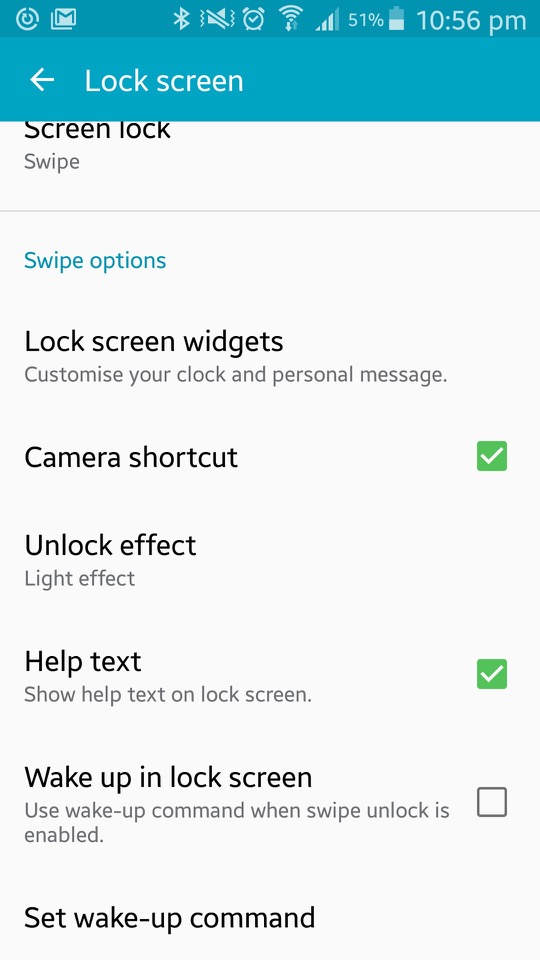
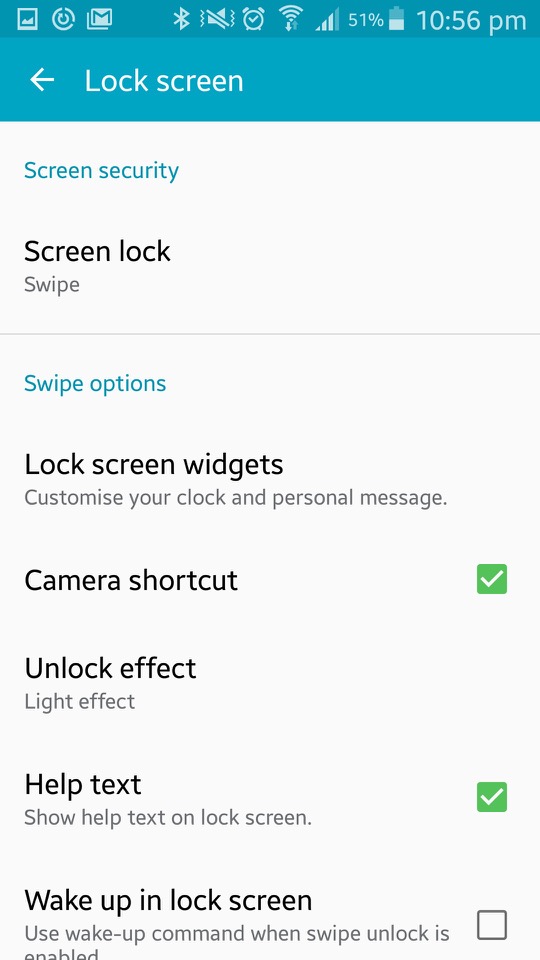

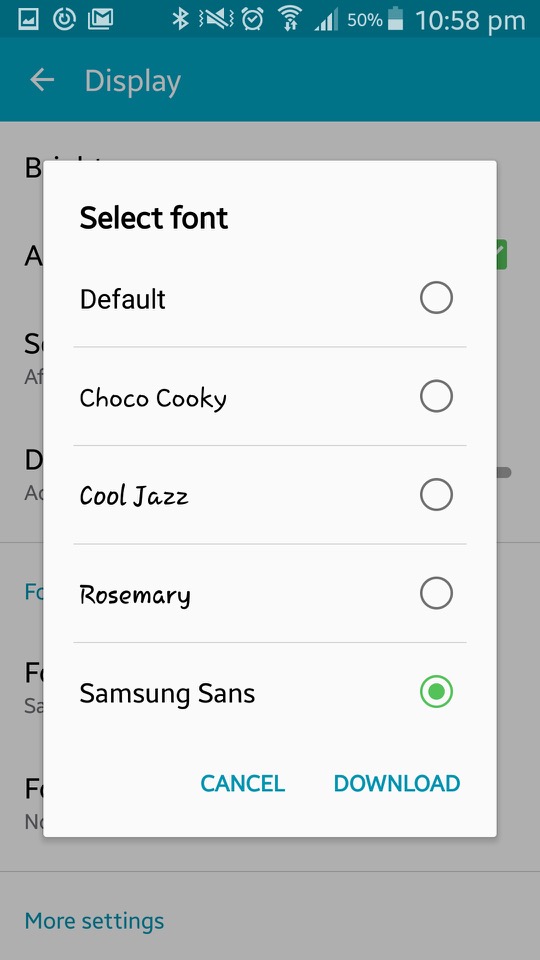
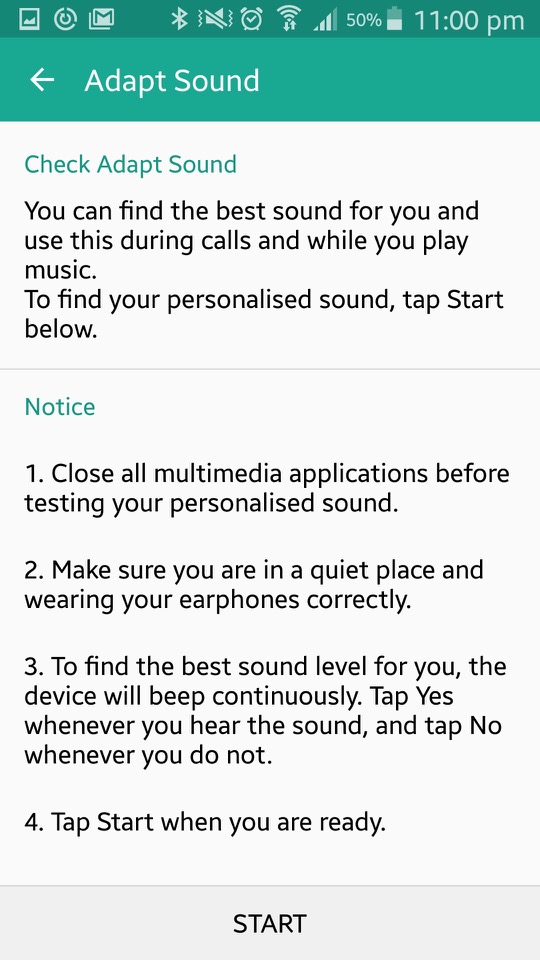
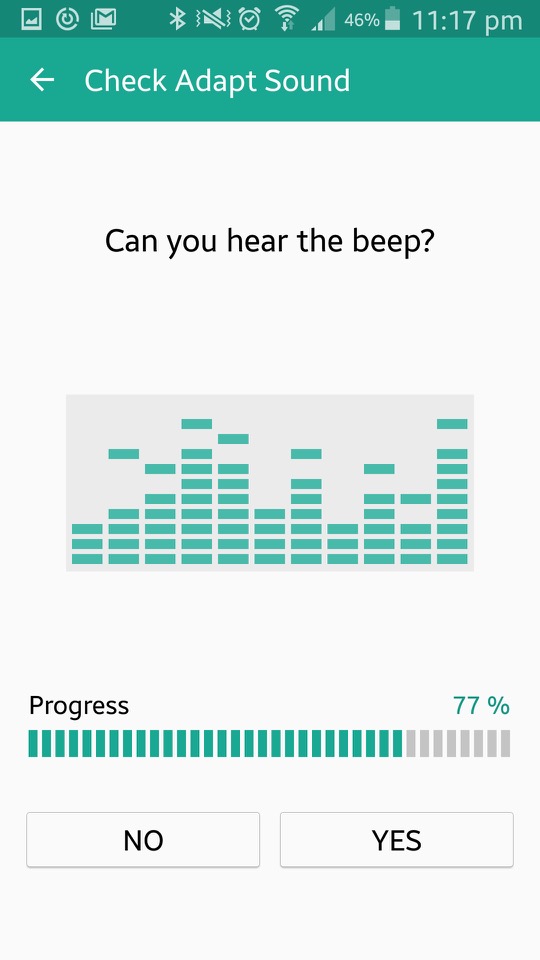
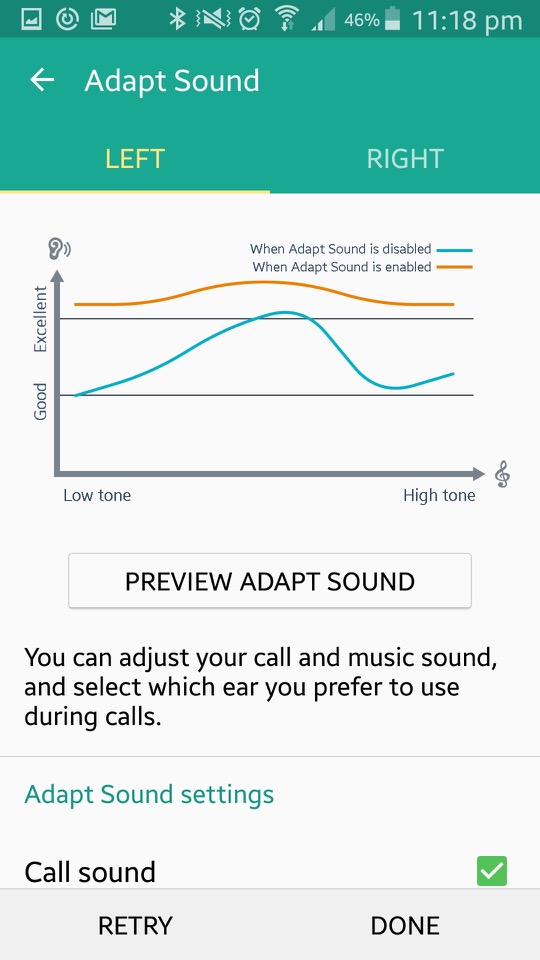




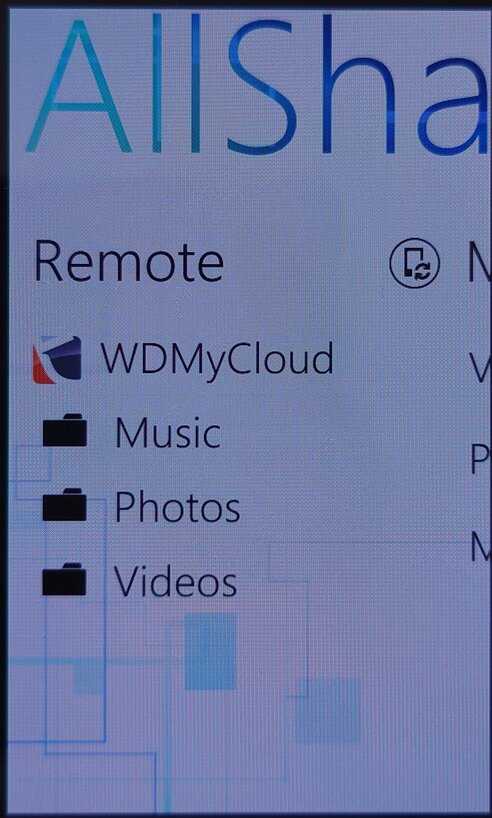
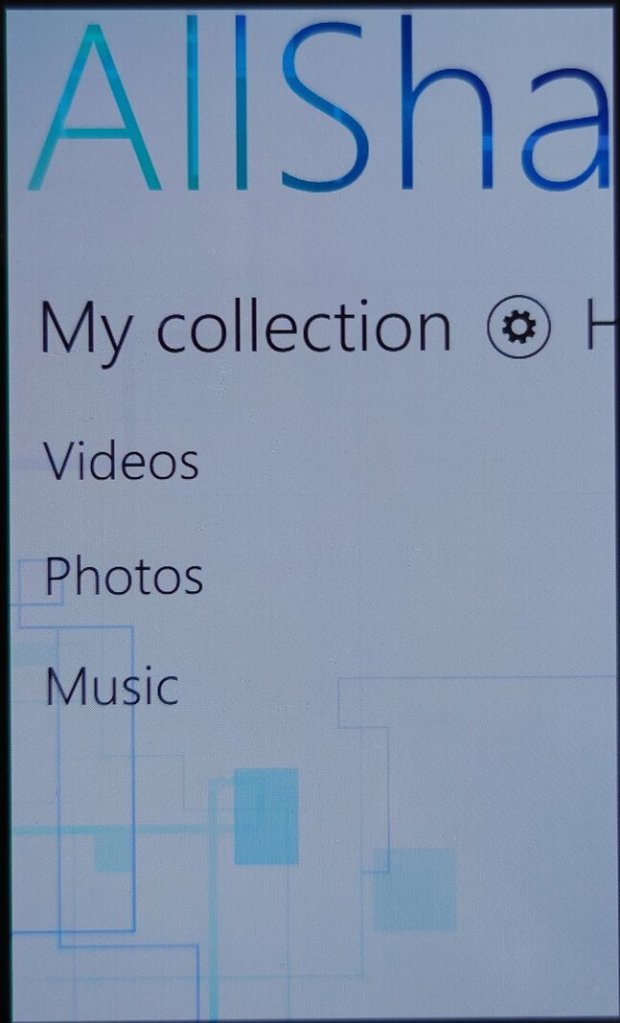
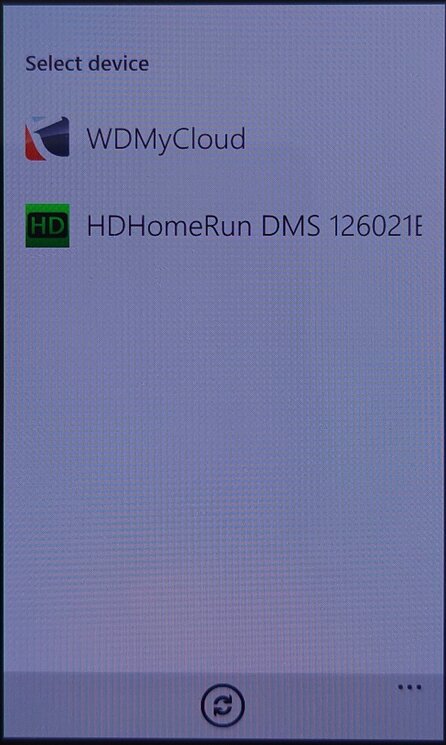
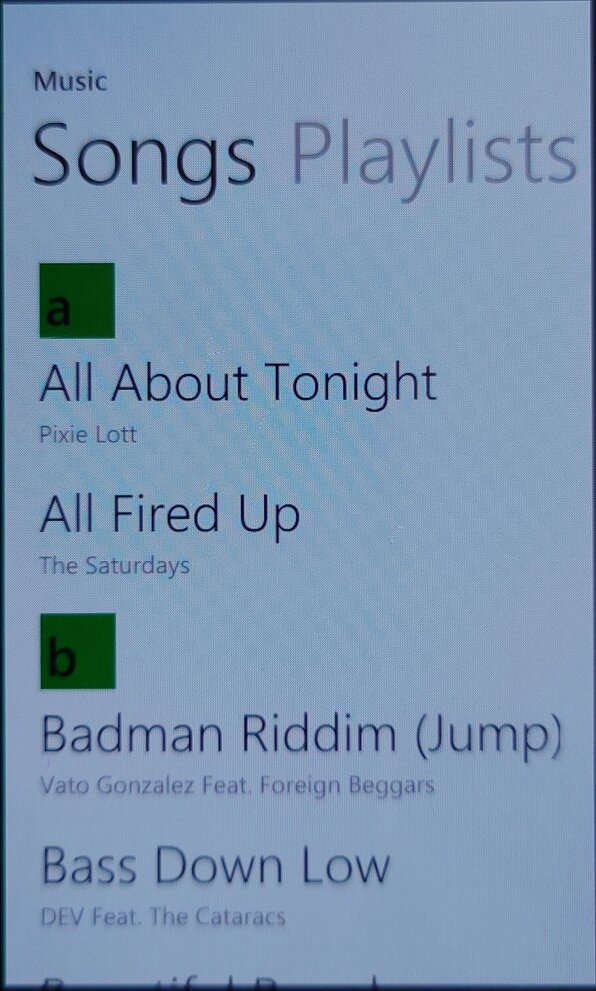
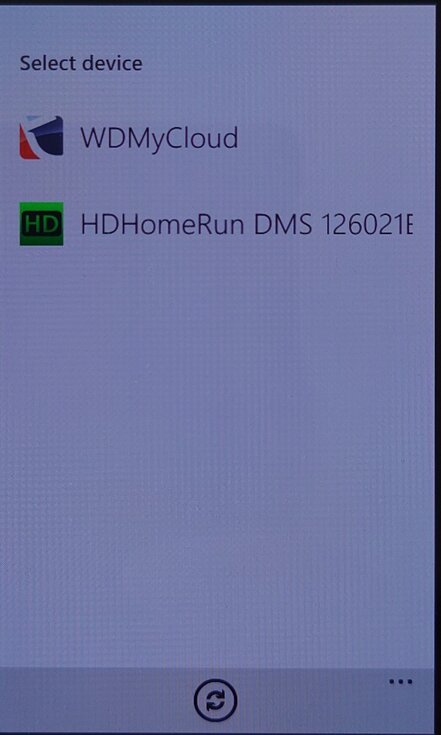
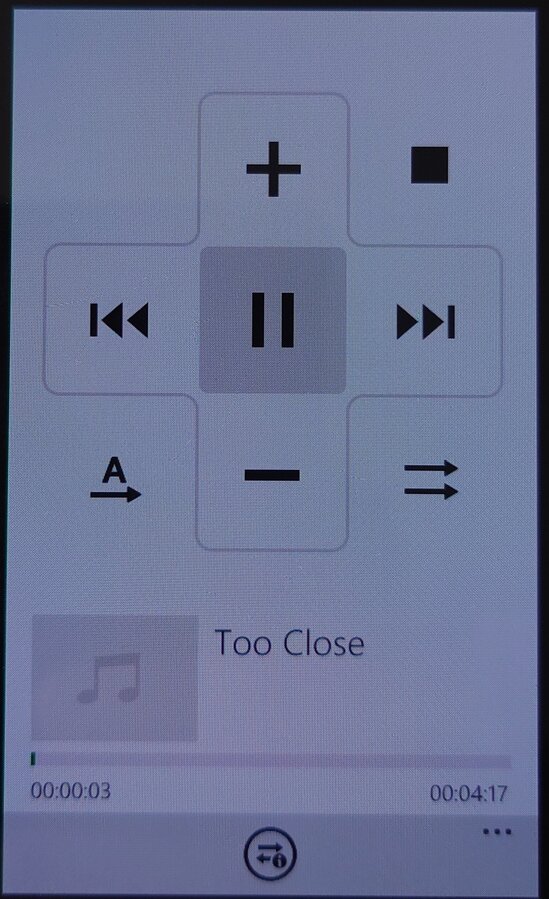
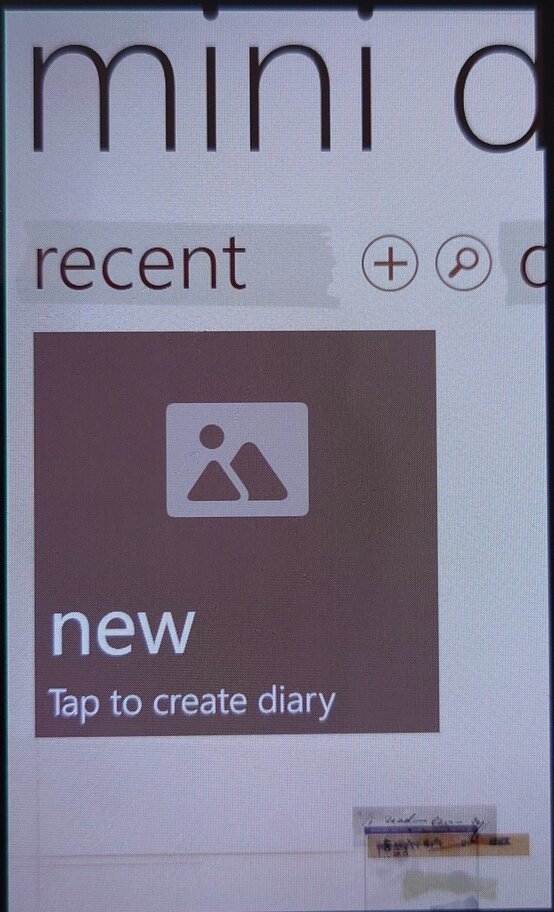
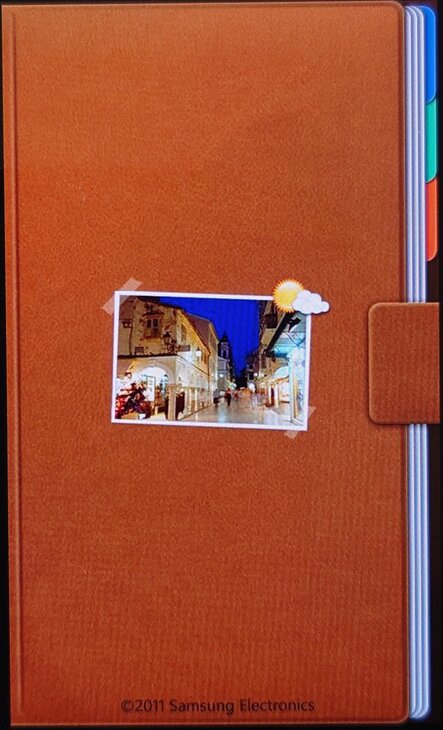
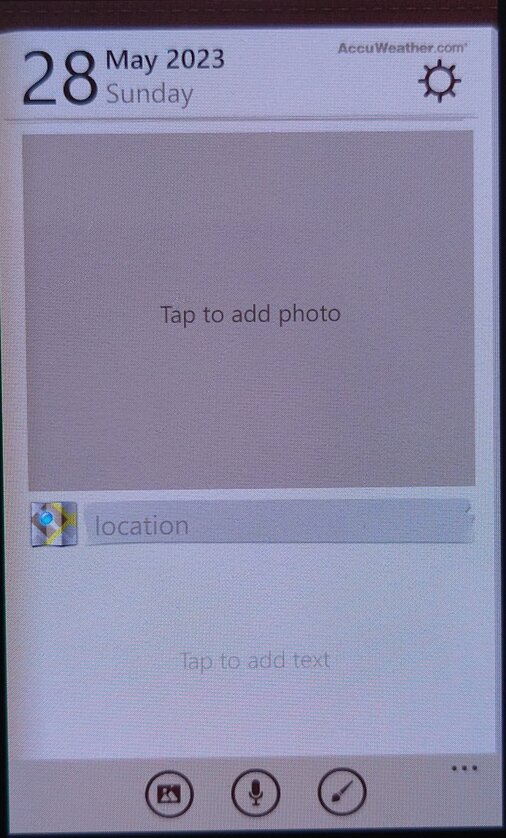
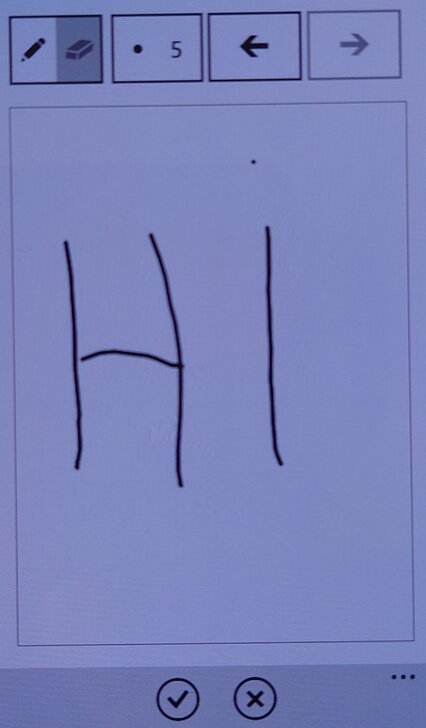

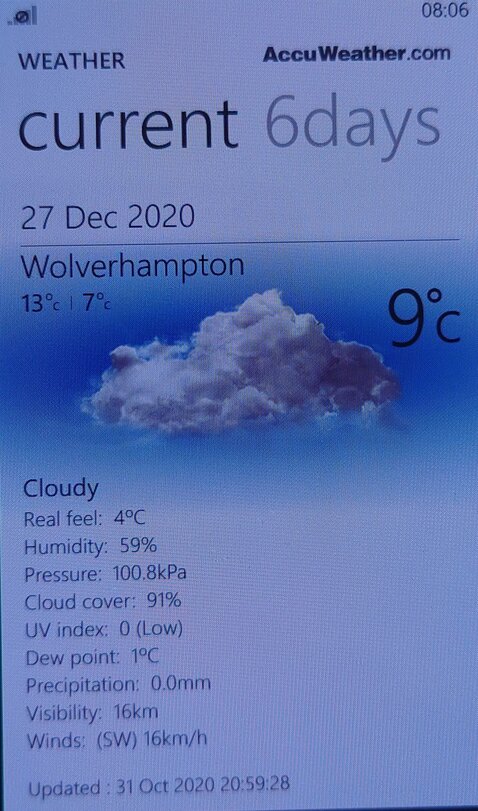
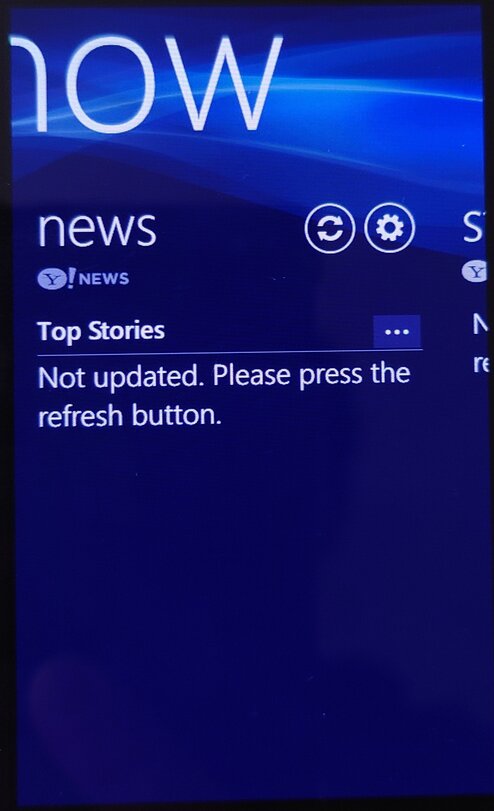
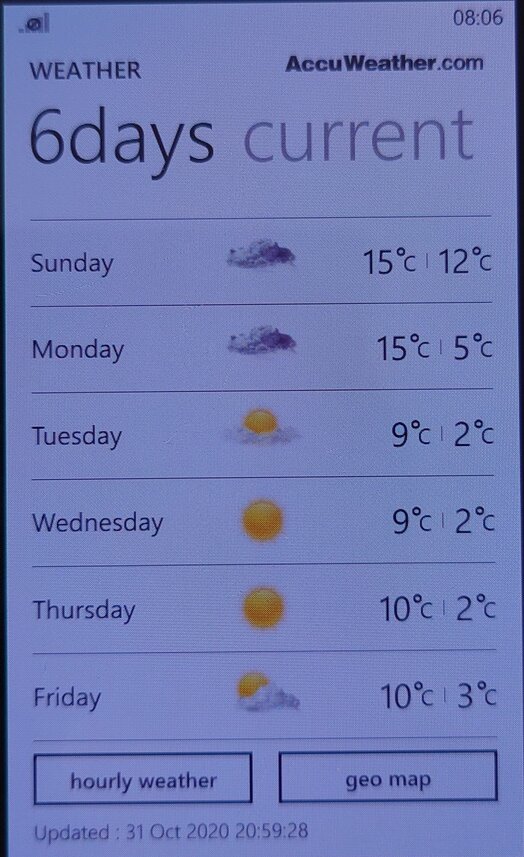
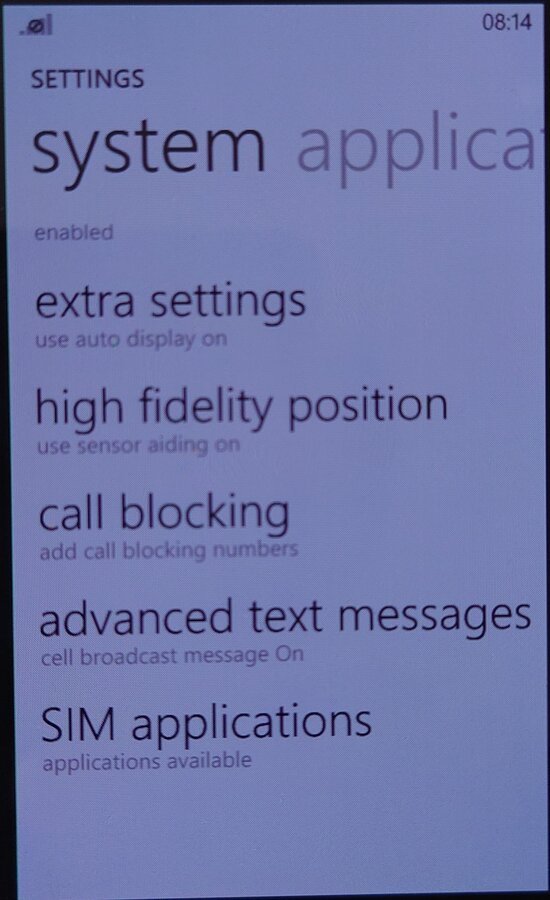
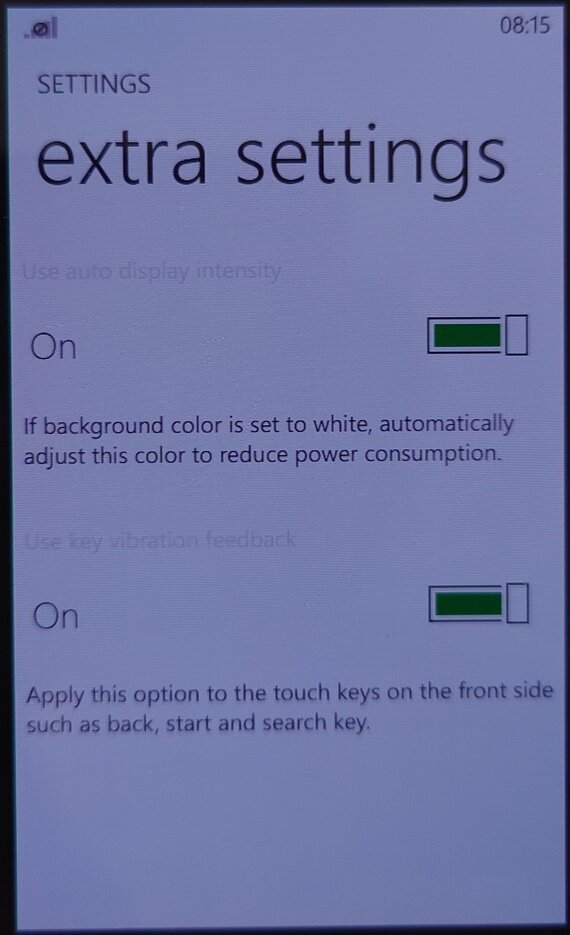
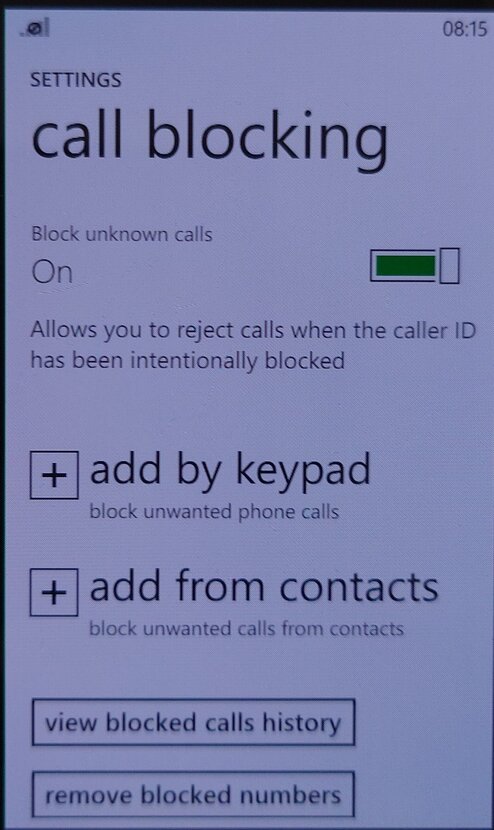
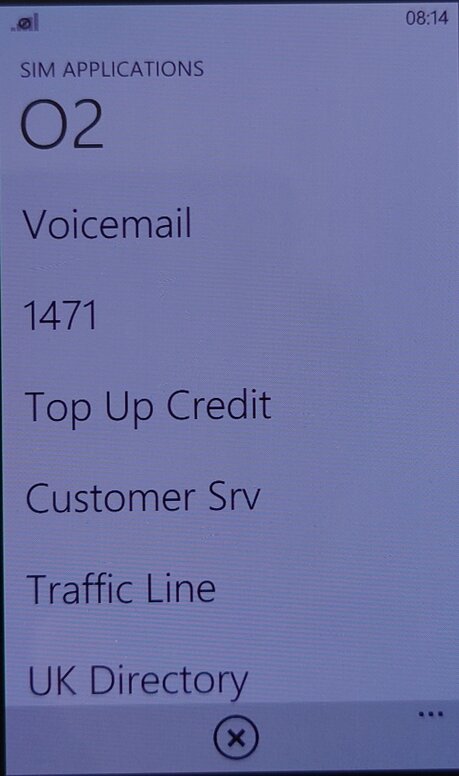
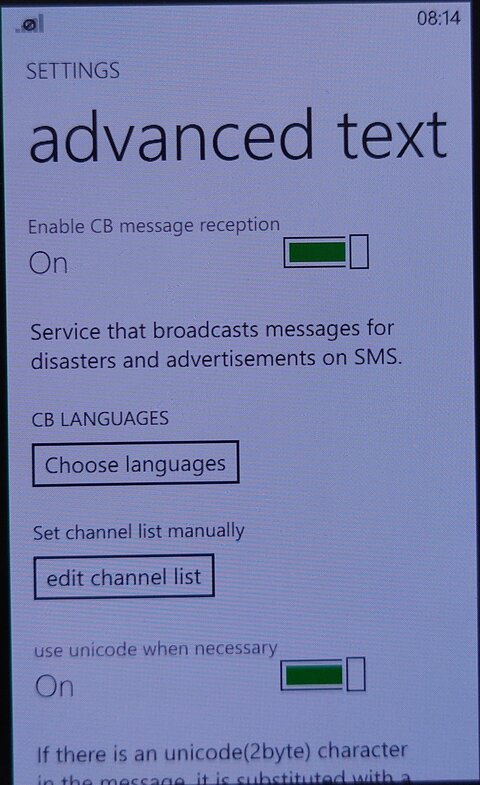
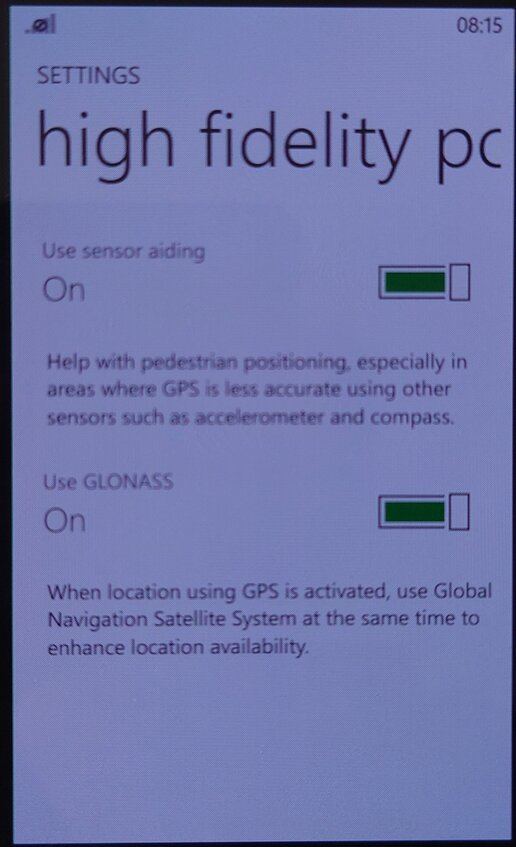
 Drew1440: Blog