The phone that introduced me to the world of Windows Phone
Released in 2010, the Optimus 7 is one of the first generation of Windows Phone 7 smartphones. As part of the first generation, its quite similar ins specifications to other Windows Phones of the time, with a single core Snapdragon processor running at 1Ghz, Adreno 200 graphics core and 512MB of RAM. For storage , it has 16GB onbord memory, but no expandable memory, a 3.8 inch screen and a 5 megapixel camera with a dedicated camera button.
This model was purchased back in 2011, originally unlocked from Expansys. Originally Running Windows Phone 7, it was alter upgraded with the NoDo update, followed by Mango and eventually the 7.8 update.
Windows Phone 7 had no screenshot support so images are captured by pointing a camera to the screen.
Bundled Apps
LG had bundled a few applications with the handset, which were available on the LG Apps Store section on the Marketplace. There were a few other apps that could be downloaded but have since been nixed by Microsoft. A few I can remember was a web and walk app, and a couple of Winnie apps that did nothing spectacular. Since the phon was factory reset at some point (gave it to a relative after they managed another iPhone) meaning all the original apps have since been lost.
Network Setup
Used to setup the network operator, to install settings for the APN and MMS configuration. Usually this is dedicated automatically by the network operator but you can manually amend them using this utility.
ScanSearch
This would search for local buisness and point of interest by suing the Gps and the phones camera to scan for barcodes or items. Its sort of like an augmented reality application that displays businesses according to the camera. I guess it was useful if you were in an unknown location and needed to find a local shop. Either Bing or Google could be used to locate the information.
As you can guess, the network functionality is dead now.
PlayTo
A DLNA casting app that lets you share photos, music and video stored on the phone, which can then be displayed on any device that supports DLNA like a network connected TV, console (PS3) or Windows Media Player (11+). In this example it picked up my AV receiver (Yamaha RX-481D) The app does warn that DRM protected content will not be shared, so no music purchased from the Zune store.
As screen mirroring or casting was not a common features in smartphones, setting up your phone as a DLNA server was an alternative workaround for displaying content on the big screen.
Panorama
A basic app that lets you take a panoramic photo, the app will guide you through the process of capturing a panoramic picture, which it will then stitch together.
MFG
A test application that used to access the phones registry, and to access developer related options. This can be accessed by entering ##634# into the phone dialler app, and then entering the password 277634#*# followed by pressing enter. You can also perform a few hardware tests for the touchscreen, camera, light and proximity sensors.
LG’s flagship for 2015 where it competed with the HTC One M9, Samsung Galaxy S5 and the Lumia 920.
The LG G4 has a curved design with a slightly arched back that makes it comfortable to hold. The phone has a leather back option, which gives it a premium feel similar to the Nokia 8800 or the Vertu series of phones. The phone is also relatively lightweight and easy to use with one hand. The G4 has a 5.5-inch Quad HD IPS LCD screen with a resolution of 1440 x 2560 pixels. The display is bright and vibrant with accurate colors and good viewing angles.
Compared to other handsets the LG takes you out of the comfort zone as the volume rocker is featured at the back of the handset rather than at the left side, it’s kind of similar to the Viewty that also had the volume rocker at the back. It does take a bit of getting used to as you will often try to reach for them at the side instead of the back. The lock/power key is also featured at the back.
The G4 is powered by a Qualcomm Snapdragon 808 processor and 3GB of RAM. The phone handles most tasks with ease, including multitasking and demanding apps. However, it may struggle with some of the more intensive games and apps. Even today the phone as a good chance of running most apps, though it does tend to heat up when running multimedia or gaming apps, YouTube an particular. We also have 32GB of storage with a microSD slot that can provide more storage if required.
LG User Interface
As with other Android handsets, it uses LG’s own customized user interface. Originally this was Android 5.1, but mine has been upgraded to Android 6 along with some updated apps that shipped with the handset. LG’s Android skin is one of the better ones as it retains the Google Material design whilst adding features for power users, which I will delve into later. Its clear LG intended this handset for the intermediate user who is familiar with smartphones.
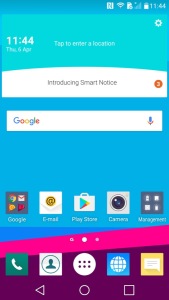
Your typical homescreen layout that consists of multiple pages of icons and widgets. LG have preset some for you, and more can be added at any time.
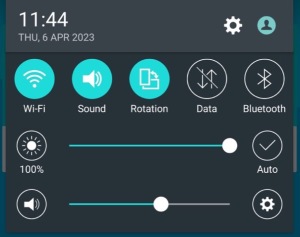
Pulls down from the top and is used for quick access to common phone features like WiFi and Bluetooth, also lets you adjust the phones volume and brightness if not set to auto.
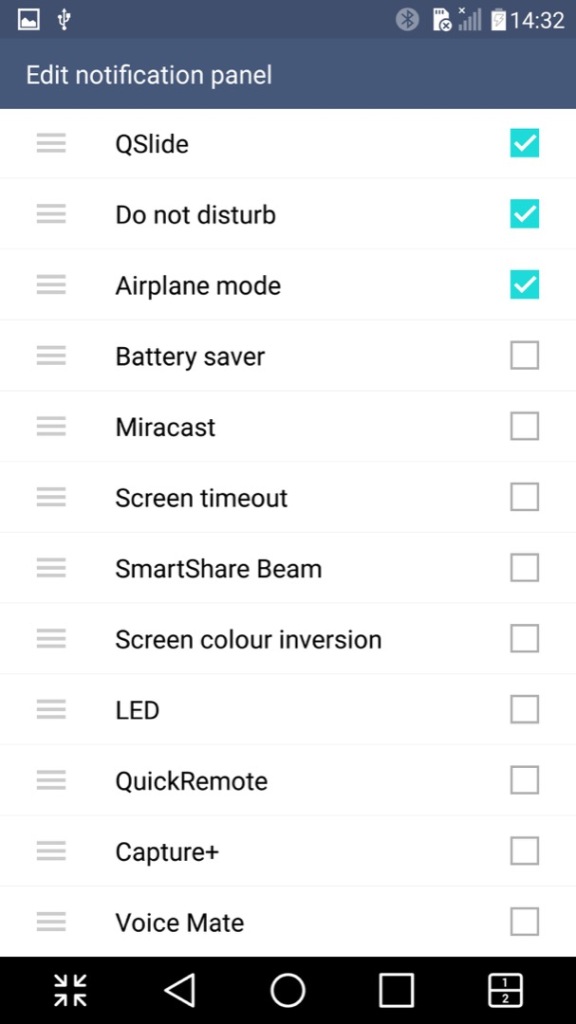
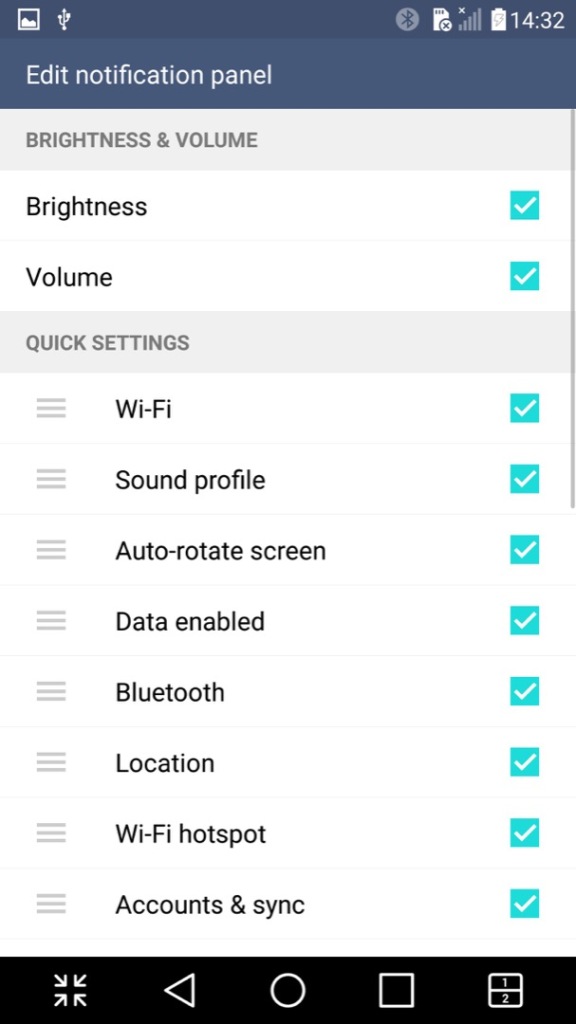
The quick access panel can be modified with additional options added
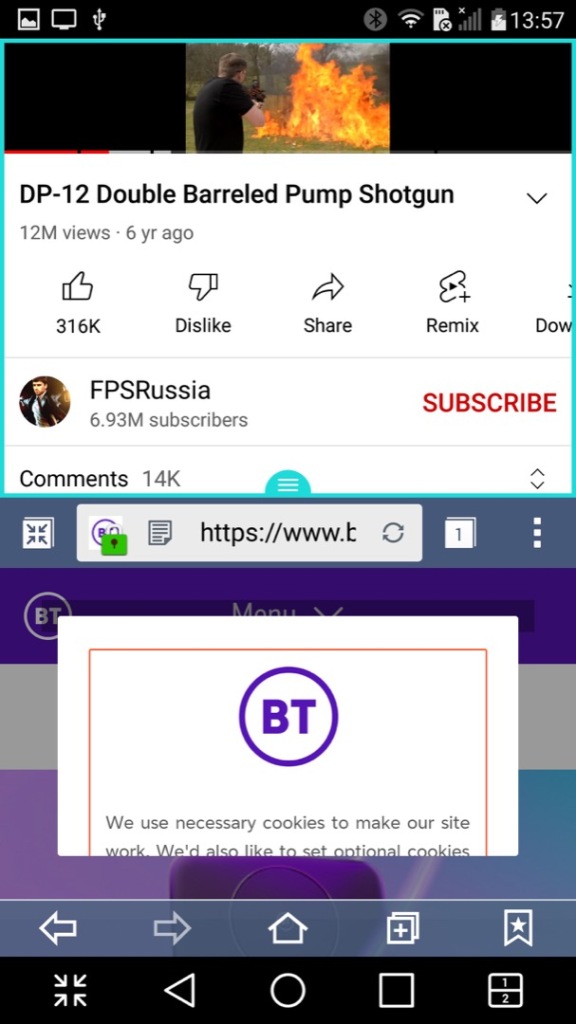
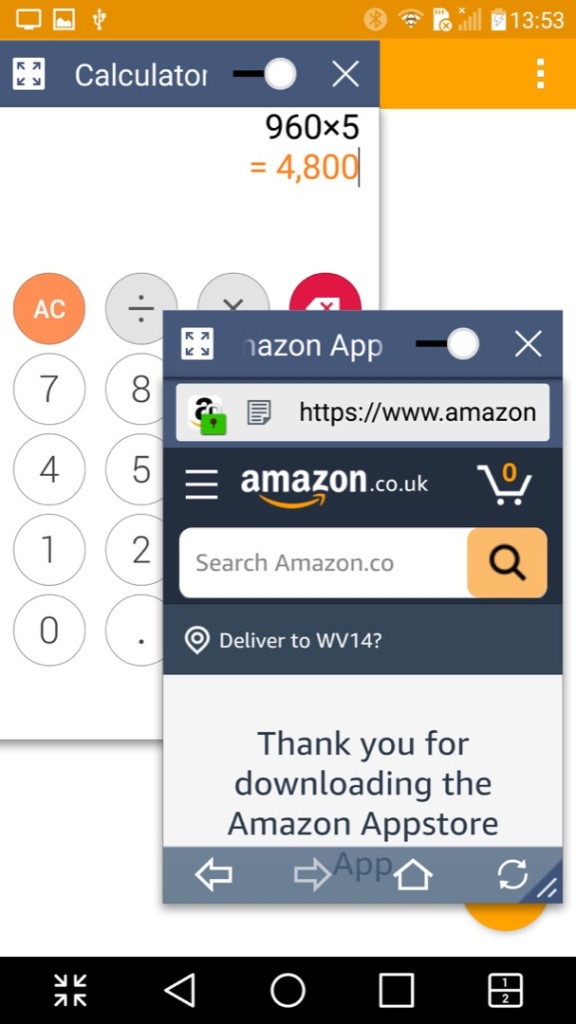
A look at LG’s Qslide feature that works with their preinstalled apps. You can have up to three different apps running on the same screen, two in a window with a regular app in the background. The windowed apps need to be Qslide aware which is mostly LG’s own applications, but the background app can be any native Android app. As you can see, it gets a little cramped. A practical use for this would be running a Youtube video in the background whilst answering an SMS message.
A similar feature is the split screen mode (sometimes called Dual Window), this is actually more beneficial though you suffer from a cramped screen, here you can split apps into two areas of the screen, allowing both to run simultaneously. This is actually a good feature and one I use heavily on my Sony Xperia 1 IV, its especially useful for phones with a larger screen.
Not all apps play nicely with this, and some that do work function a bit awkwardly. Most modern apps however do work well, but back when the phone was released the lack of split-screen support for apps would have been an issue, limiting its functionality.
I should also mention the onscreen buttons can be customized, instead of having the regular three buttons for Back, Home & Recent Apps, you can add the Qshare and splitscreen buttons directly.
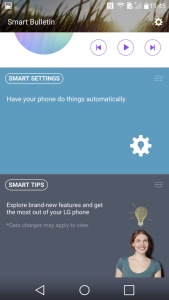
Panning to the left of the home screen reveals the Smart Bulletin screen, which shows highlighted information from the LG apps. Its very similar to the live tiles that were a mainstay in Windows Phone. This seems limited to the LG apps, so its less versatile and you cannot add your own widgets, unless you pan to another home screen.
Installed Apps
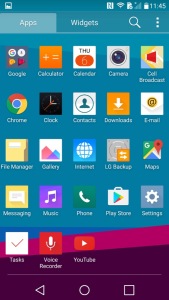
Most of LG’s apps use QSlide which allows apps to run in a window, facilitating a crude way of multitasking as seen on desktop operating systems.
LG have also developed or adapted their deign language as such, which is showcase through their applications. At the top are categories that you can scroll, which is very similar to the Windows Phone 7 / Zune interface. This is in contrast to Apple who put their category/Tabs at the bottom of the phone screen, with Samsung following suit.
Camera: The LG G4 has a 16-megapixel camera with optical image stabilization (OIS) and laser autofocus. The camera takes excellent photos with good detail and accurate colors. The OIS helps to reduce blur in low-light conditions, and the laser autofocus ensures fast and accurate focusing. The camera app also includes manual controls for advanced users.
A unique feature I’ve not seen is the ability to capture photos by saying a phrase, typically Cheese or Whisky. It’s a little goofy and does not always work, but adds to the charm and fun of the phone, also useful when capturing a group photo.
Cell Broadcast: A dedicated app to receive broadcast alerts from the cellular network. Not sure why this has its own dedicated app since its typically integrated with SMS apps
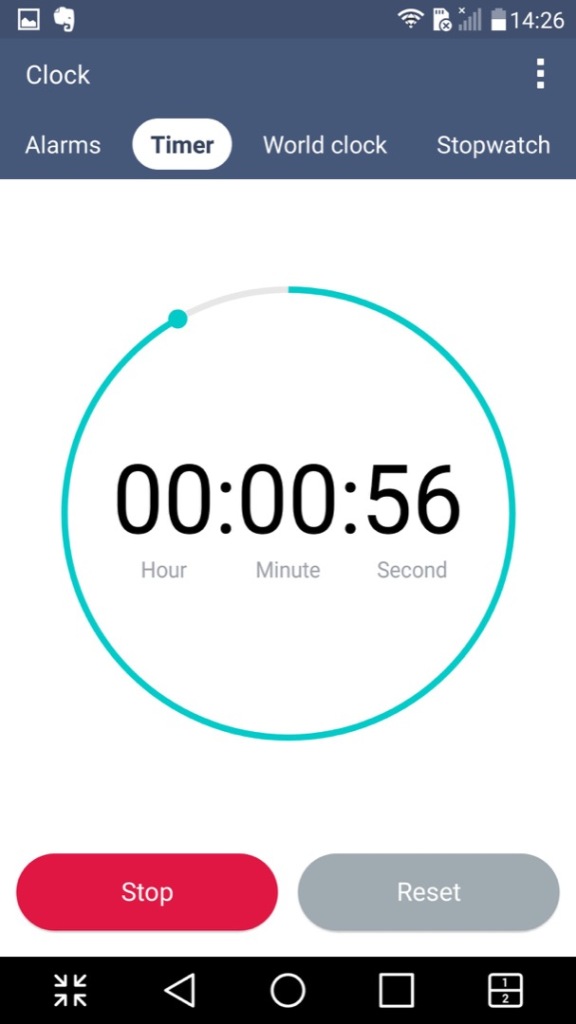
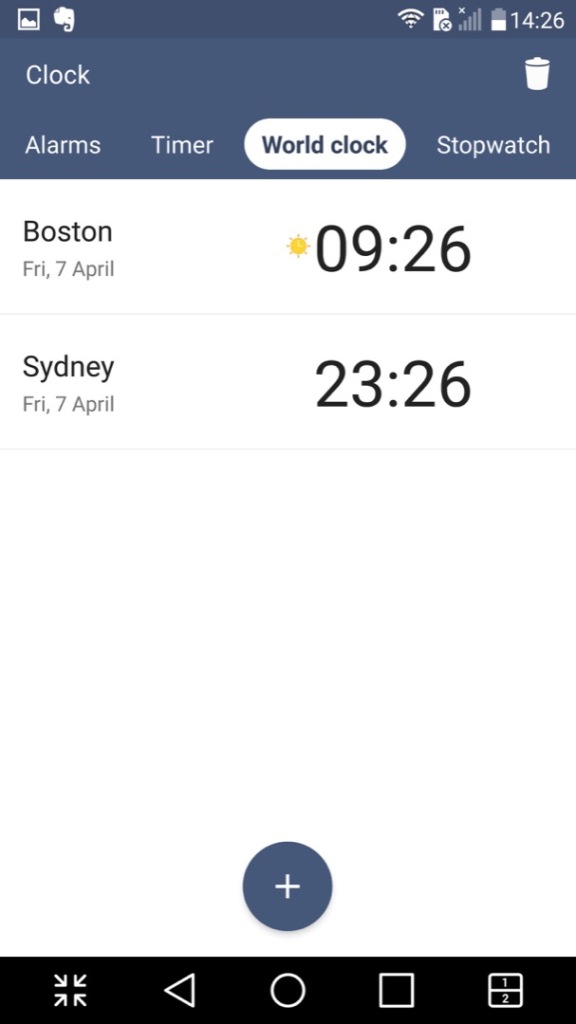
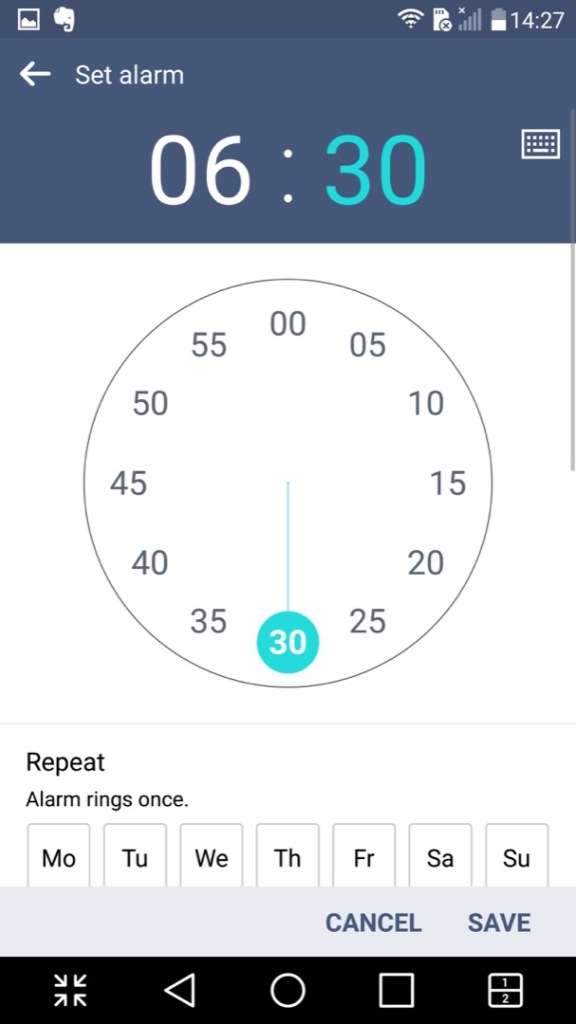
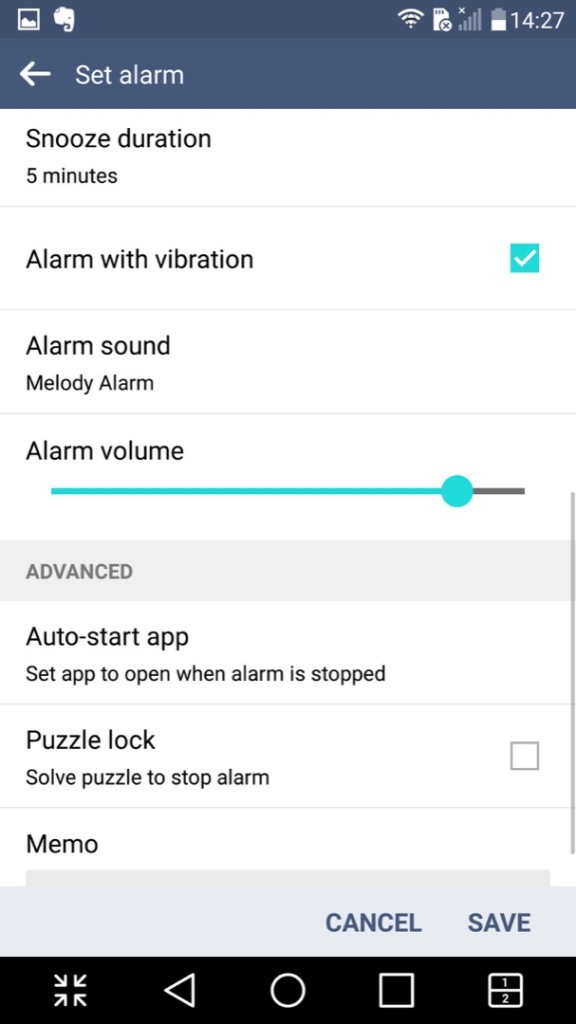
Clock: Your standard clock app with the LG design, provided functionality to set an alarm, timer, world clock and a stopwatch
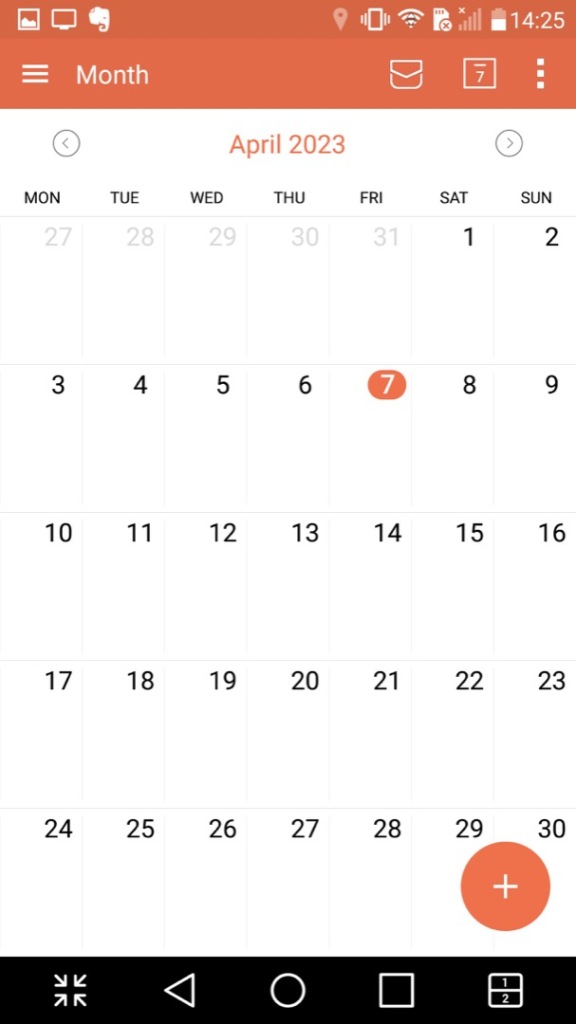
Calendar: Displays the calendar and can sync with other accounts that are set up. You can also set agendas, reminders and any holidays. A nice touch is the icon will change to reflect the current date.
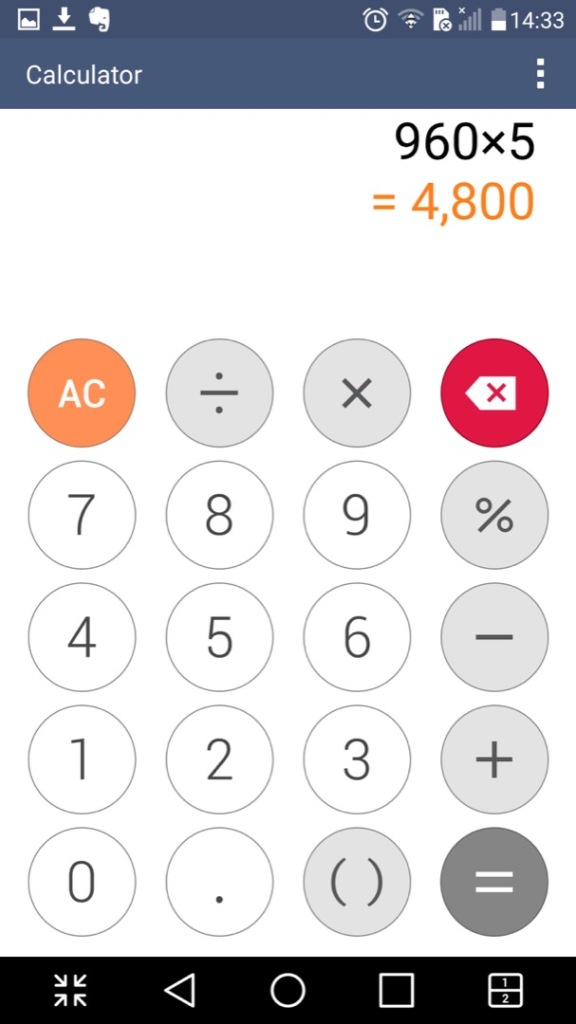
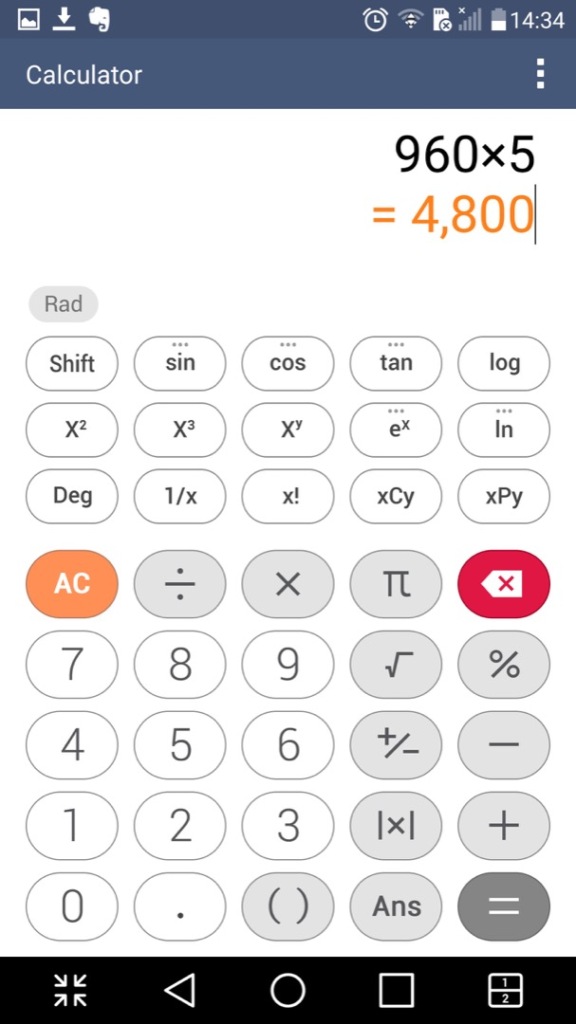
Calculator: Just your regular calculator, which functions a regular and a scientific calculator.
Contacts & Phone: Lists contacts from accounts synchronized on the phone, commonly Google. This is integrated into the phone app and you can dial directly from that application.
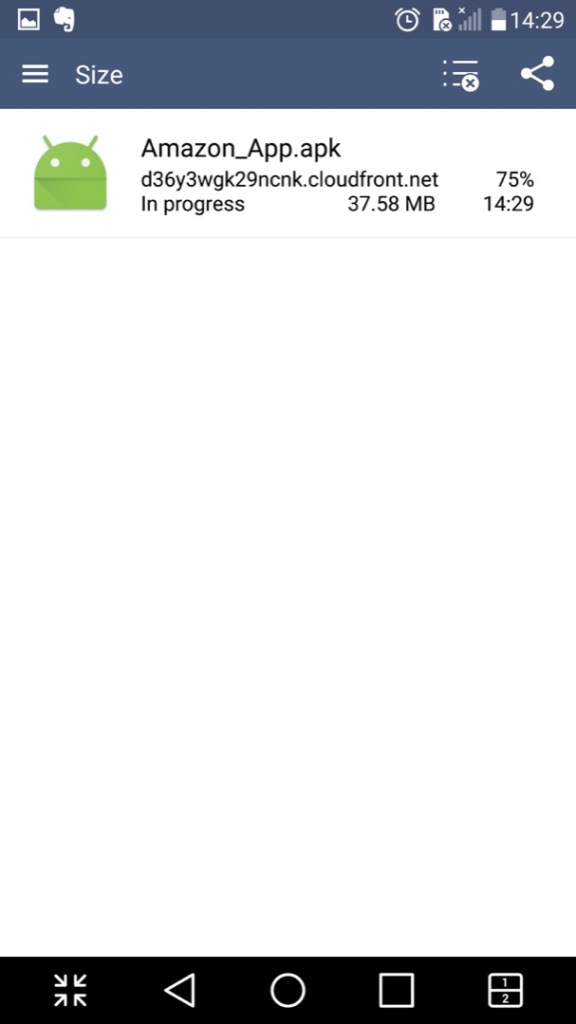
Downloads: Shows any file that has been downloaded through the phone web browser, and from some third-party browsers.
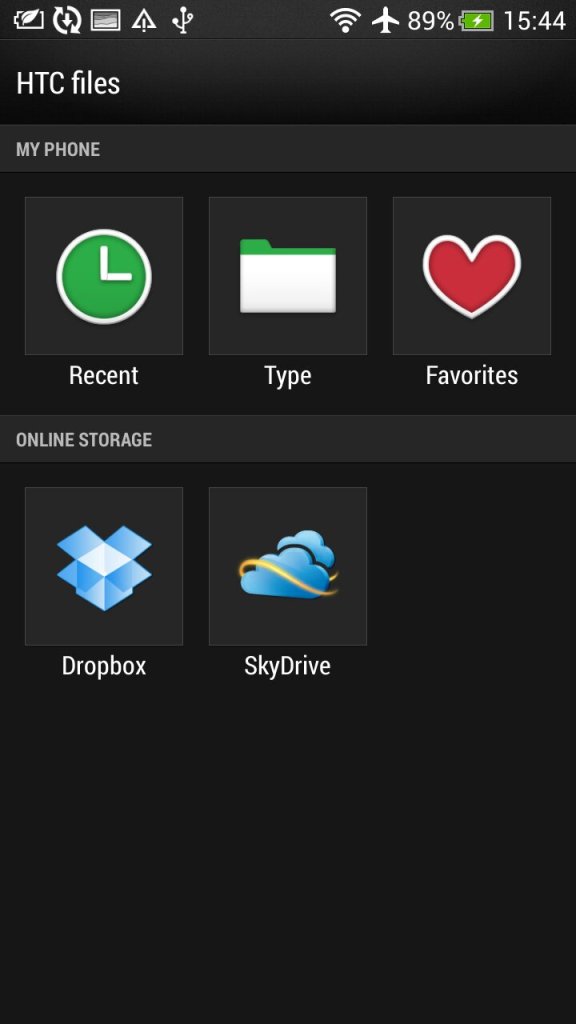
File Manager: Browse files saved on the phone, or a memory card if one is inserted. This also integrates with cloud storage services like Dropbox, OneDrive or Box.
Gallery: Like the file manager but orientated towards multimedia like photos and videos. Images taken with the phone’s camera will show here.
Internet: A chrome based internet browser, appears to be based on Chrome 38
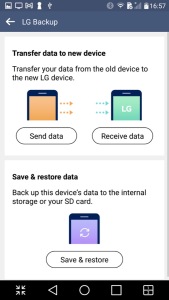
LG Backup:
Intended to transfer data from another device and can backup existing data to the inserted SD card
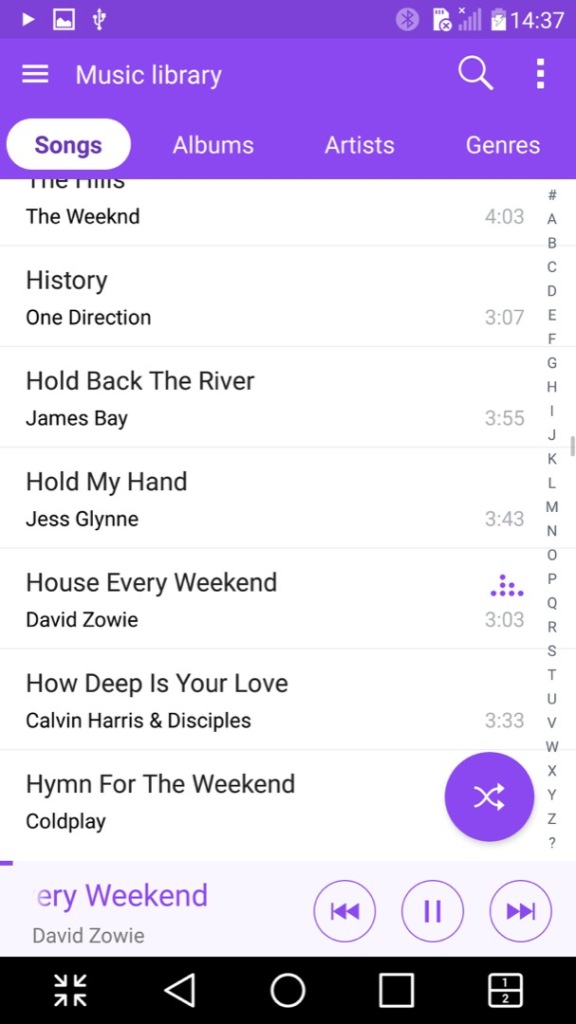
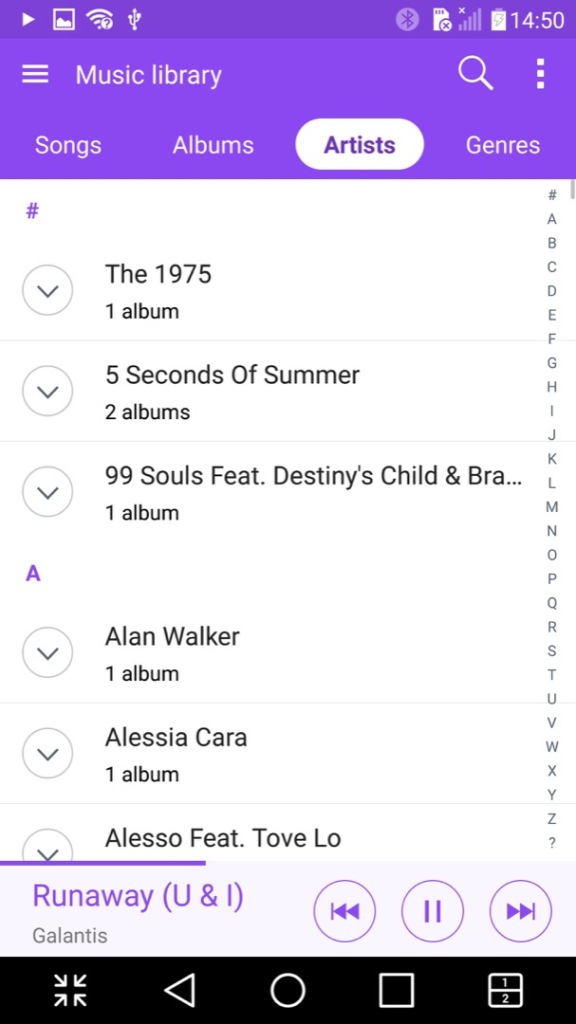
Music: Plays music files stored on the phone or the microSD card. A nice feature is it can lookup the song title on Youtube to locate the music video, its not 100% accurate since it basically searches the song and artist title. Lyrics can also be displayed if they are included or embedded with the file itself.
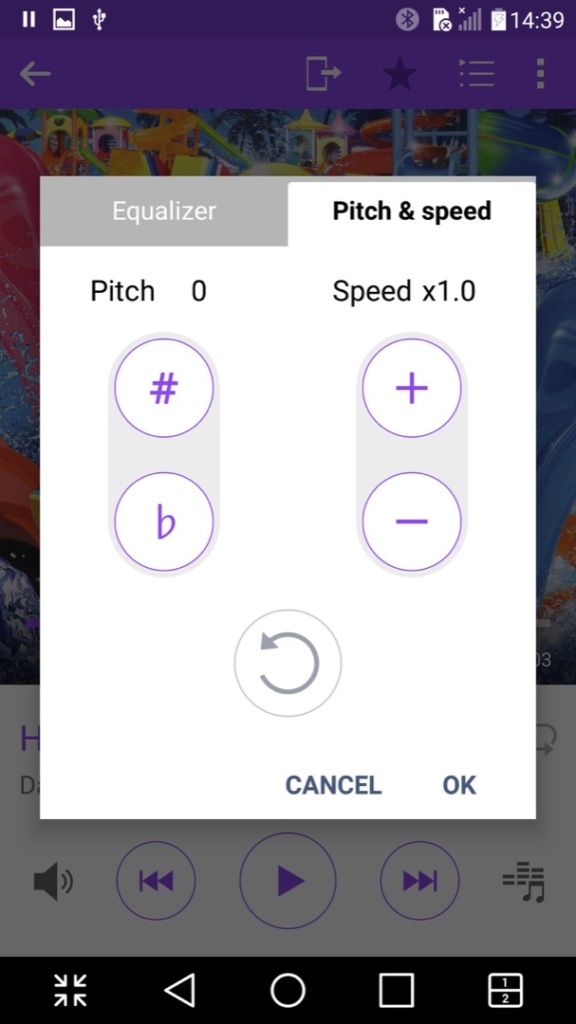
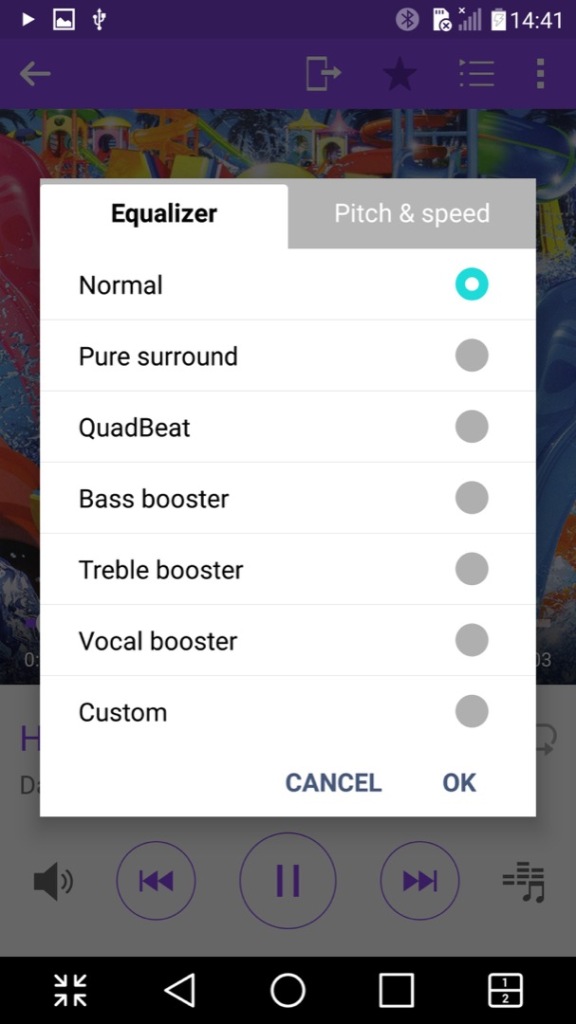
Another nice feature is the ability to adjust the vocal pitch and the track speed of the song, allowing you to create nightcore remixes directly just by playing the file. There is also an equalizer that has a few pre-sets included.
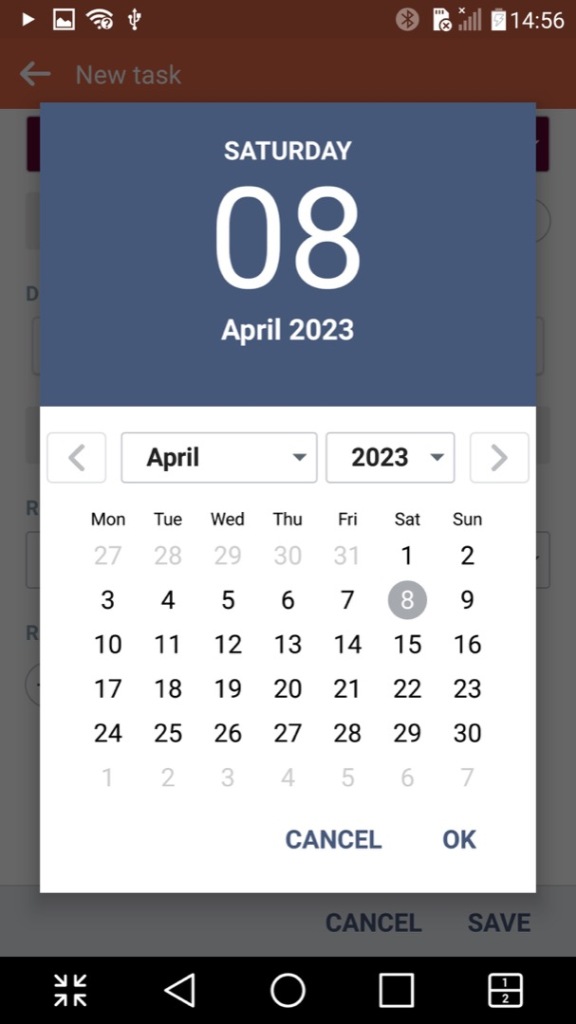
Tasks: Lets you create and set single or recurring tasks which serve as reminders. This can also sync with either your Google or LG account.
Voice Recorder: A simple voice recorder that recording using the internal microphone, recordings can be paused and resumed at any time, keeping it as a single file. Audio is encoded in the MP4 format and is saved in the 3GP container, likely for backward compatibility with older handsets when sharing the file.
Weather: Shows weather information from your local area, or a location/city that you have manually selected. Weather information is pulled from Accuweather
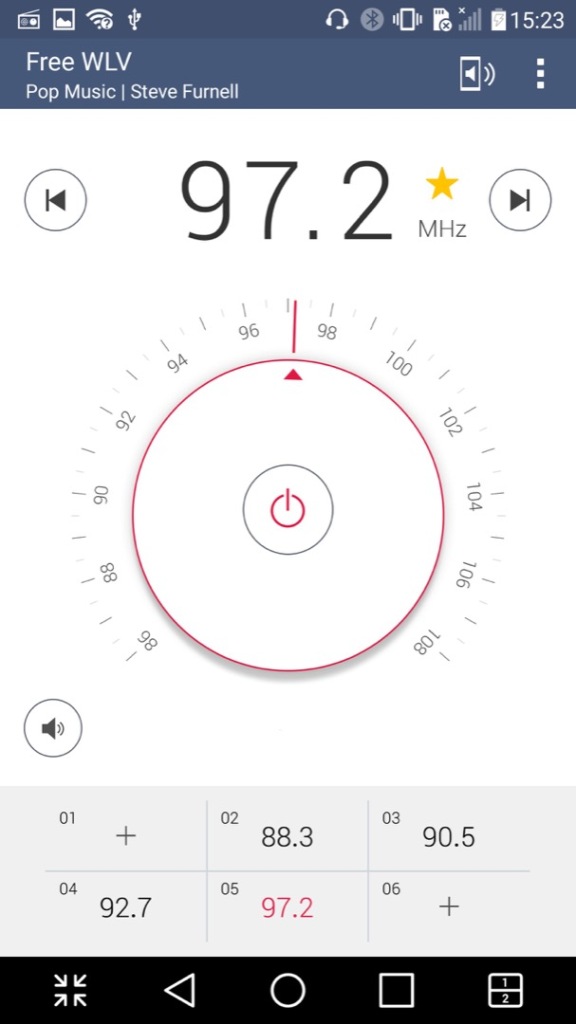
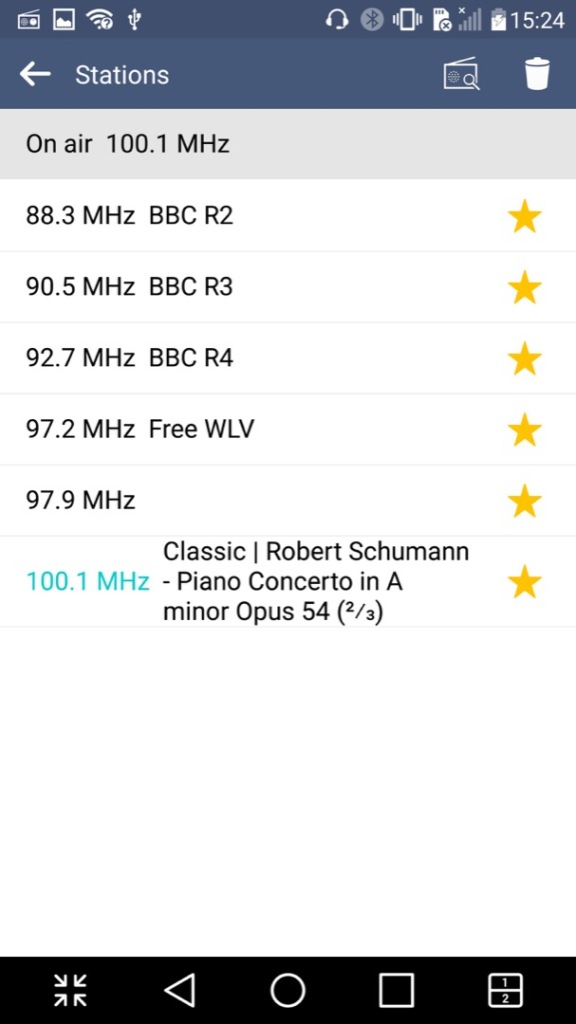
FM Radio: Plays the FM radio if a set of wired headphones are connected. Visually the app emulated a radio dial which is used to manually scan through the different frequency, but you can also set the phone to automatically scan and store radio stations that can be listened to. Weak or poor signals are ignored. Up to 12 pre-sets can be saved of your favorite radio stations. The app can all decode RDS data and display additional information if this is supported by the station.
It’s worth noting FM radio is currently on the way out in the UK and is being replaced by DAB+ radio, though internet radio is becoming popular.
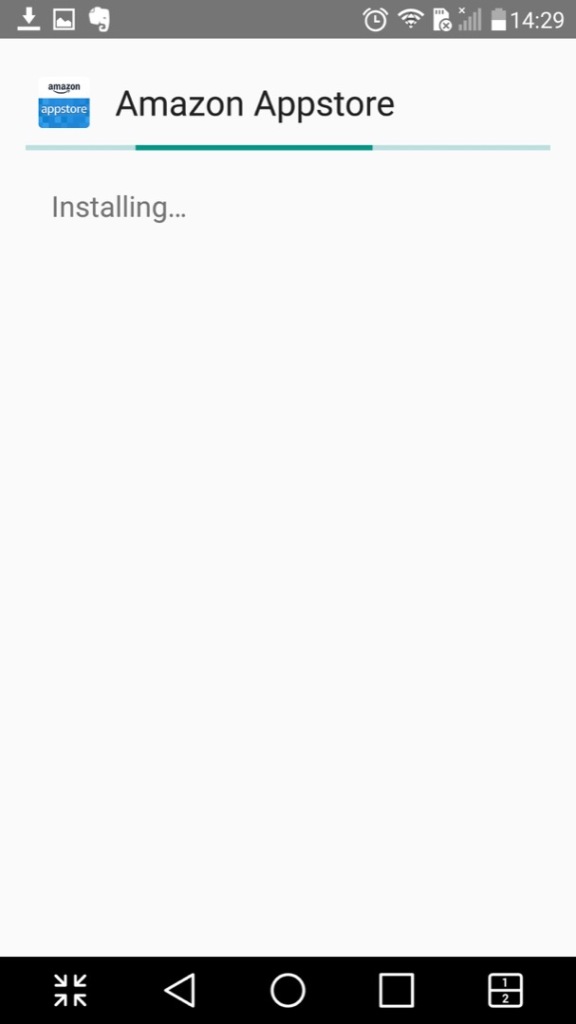
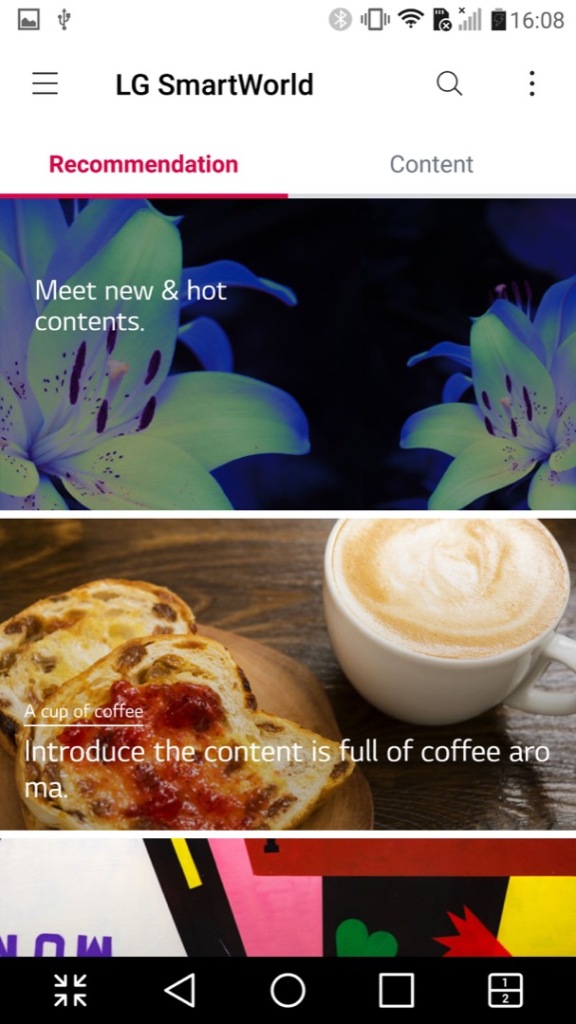
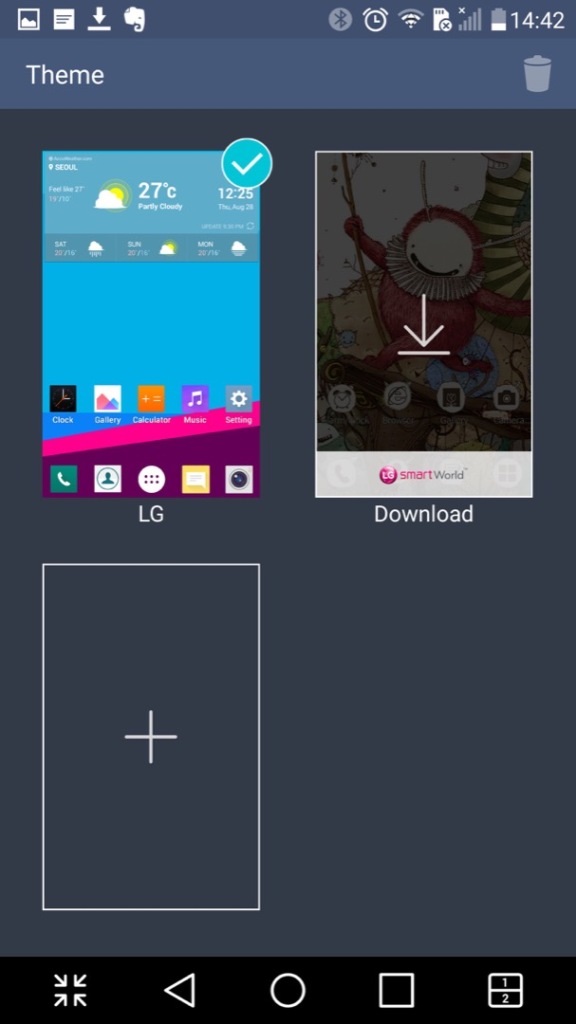
LG SmartWorld – This is a kind-of application store by LG where exclusive apps can be downloaded. Themes, wallpapers and ringtones could also be downloaded from here. This no longer appears to work which results in network connection errors, I am able to get to the main screen share it shows a couple of themes to download, but any attempt to sign in results in an error message. As LG are no longer in the smartphone market, they might be withdrawing support.
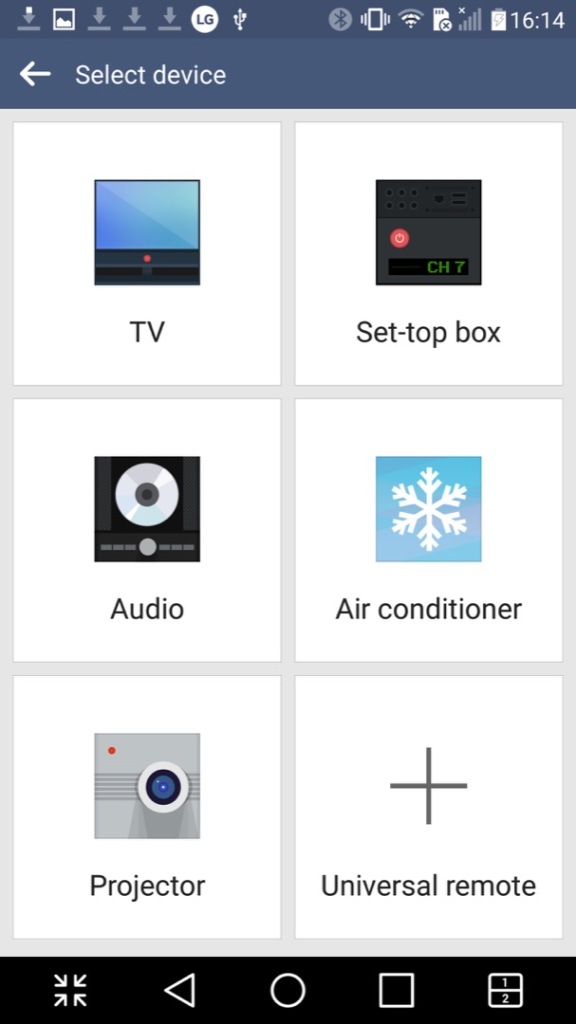
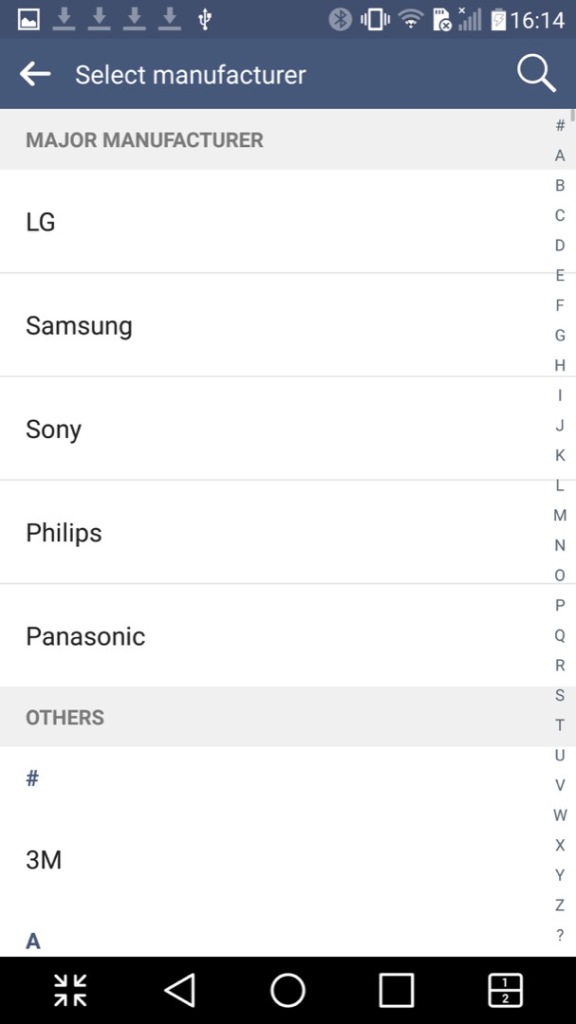
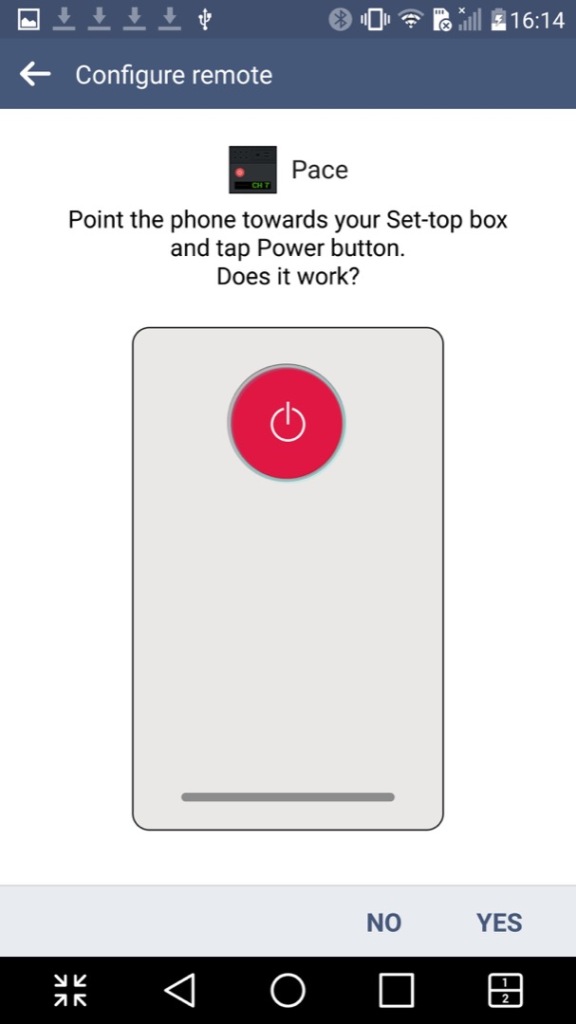
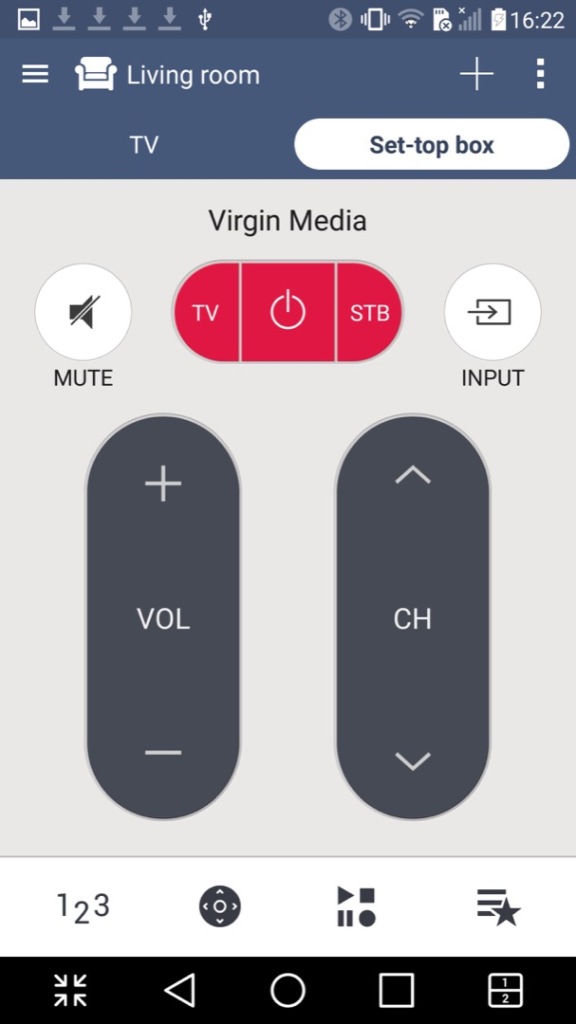
QuickRemote: Turns your phone into a universal remote that can control a TV, set-top box, an audio system or the air conditioner. You can designate the remote for different rooms of your household and can choose from a list of various different manufacturers, and will list the most common ones first. You can also search by typing in the manufacturer or service provider of your equipment.
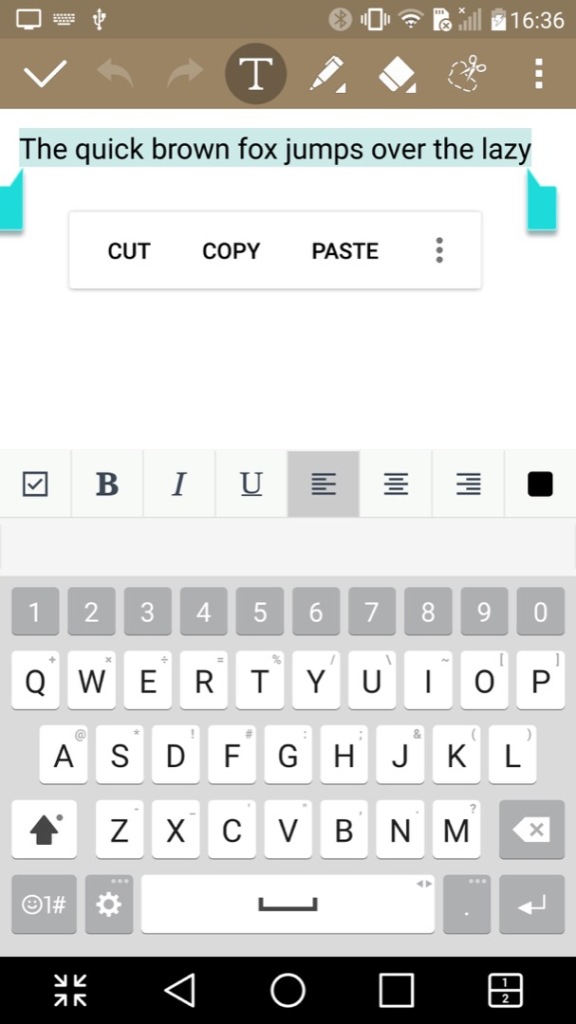
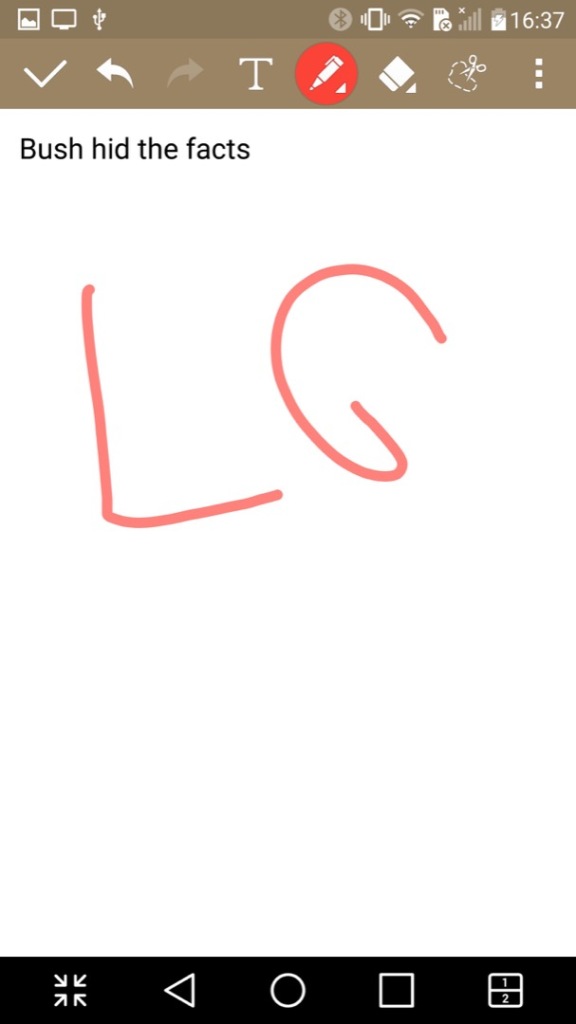
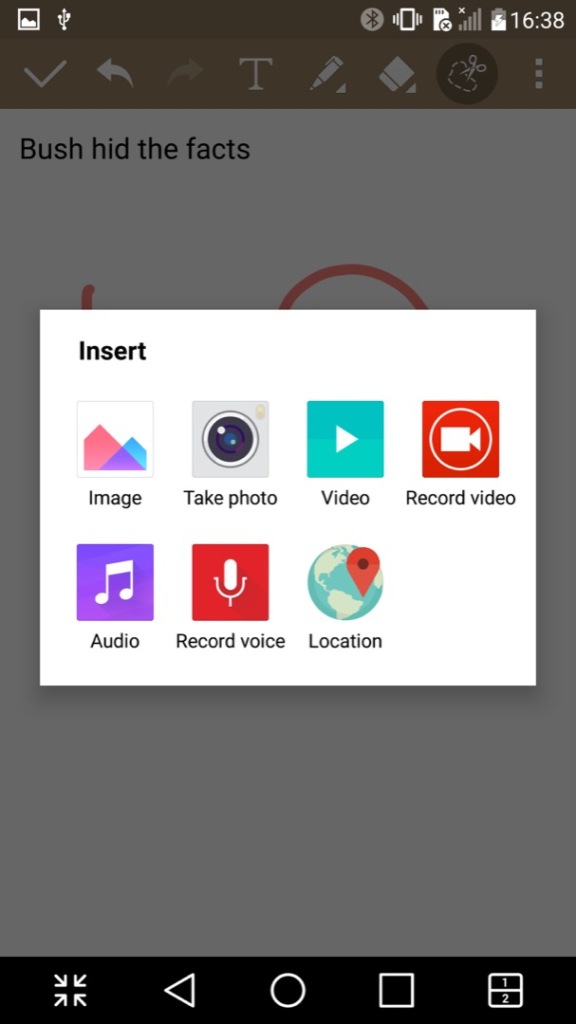
QuickMemo+: A text editor of sorts that you can either type text, or freehand draw. You can also insert pictures, audio or video clips. Its kind of like Microsoft OneNote in that sense. Files can be exported in either the QuickMemo+ (iqm) or as a PDF file.
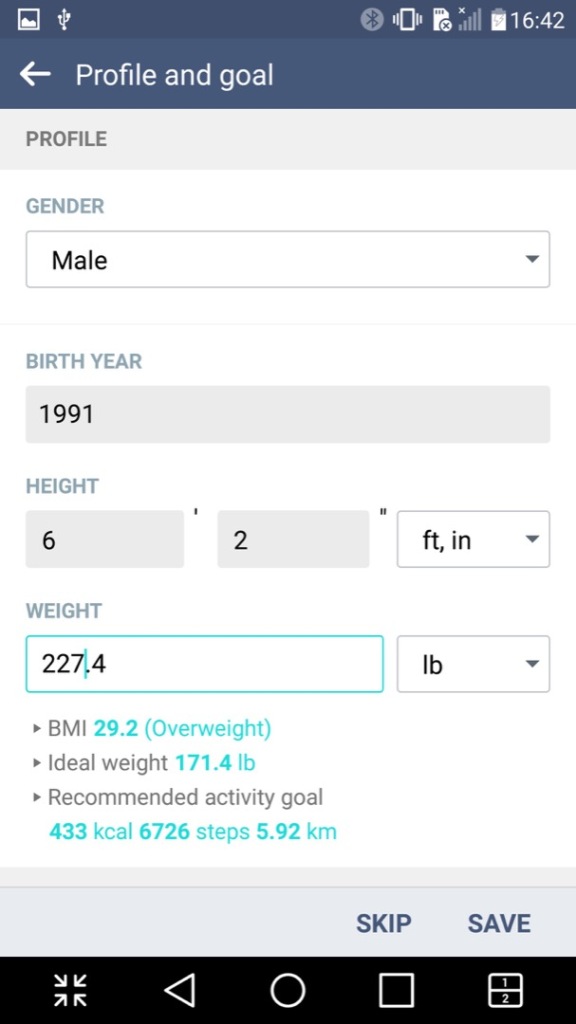
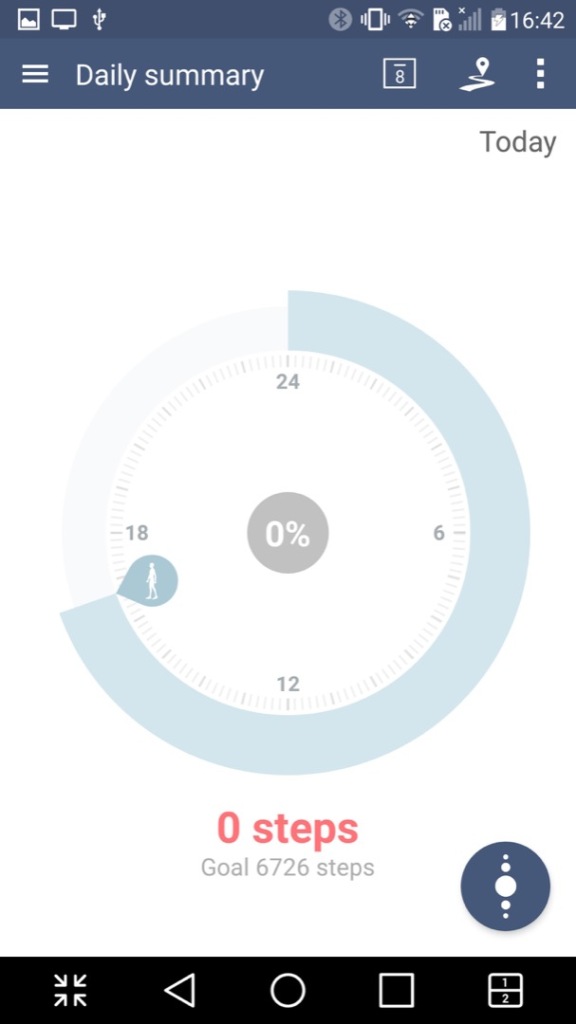
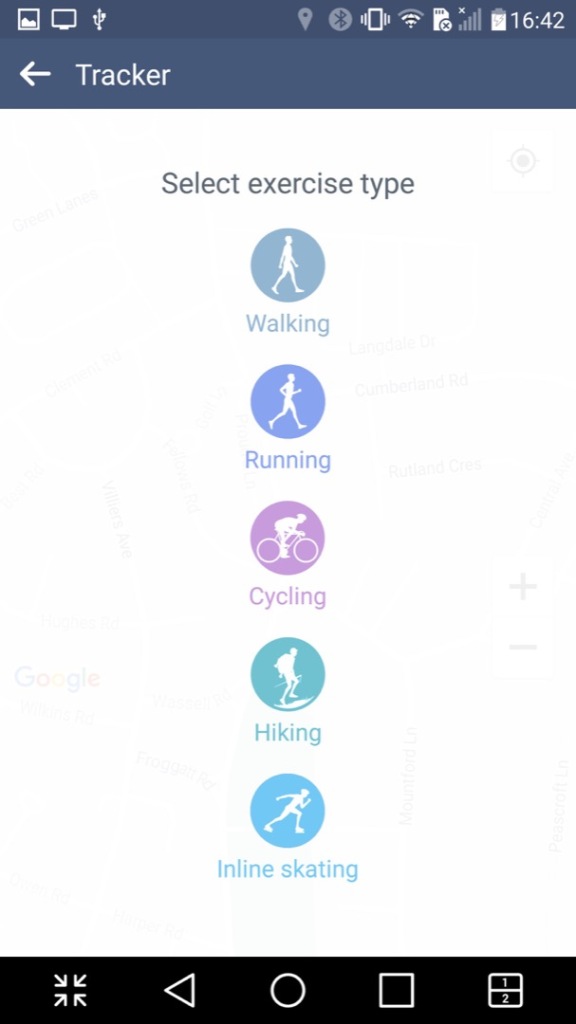
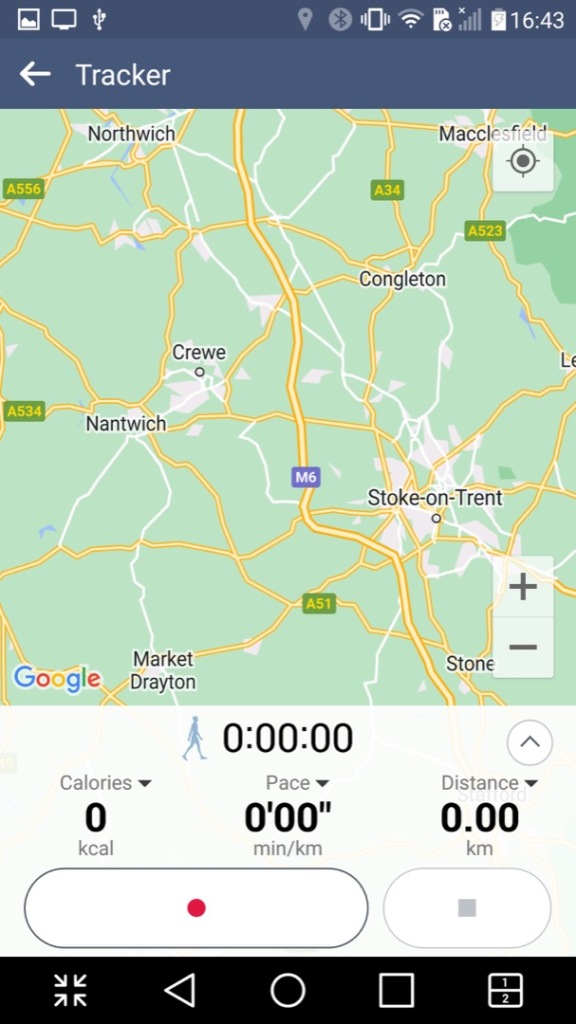
LG Health: A fitness app like Fitbit where you provide details regarding your body height and weight, along with your age. It will then calculate your BMI and your ideal weight. It can also be used to track exercises and the number of steps done within a day, assuming you keep your phone on you at all times. It has the ability to sync with Google Fit, but not much else.
RemoteCall Service: I think this is some sort of technical support app that allows LG customer service representatives to remotely access and control an LG device for the purpose of troubleshooting and resolving technical issues. The feature works by establishing a secure connection between the LG device and the customer service representative’s computer, which enables the representative to diagnose and solve problems on the device remotely. Kind of like Teamviewer or Remote Assist for Windows.
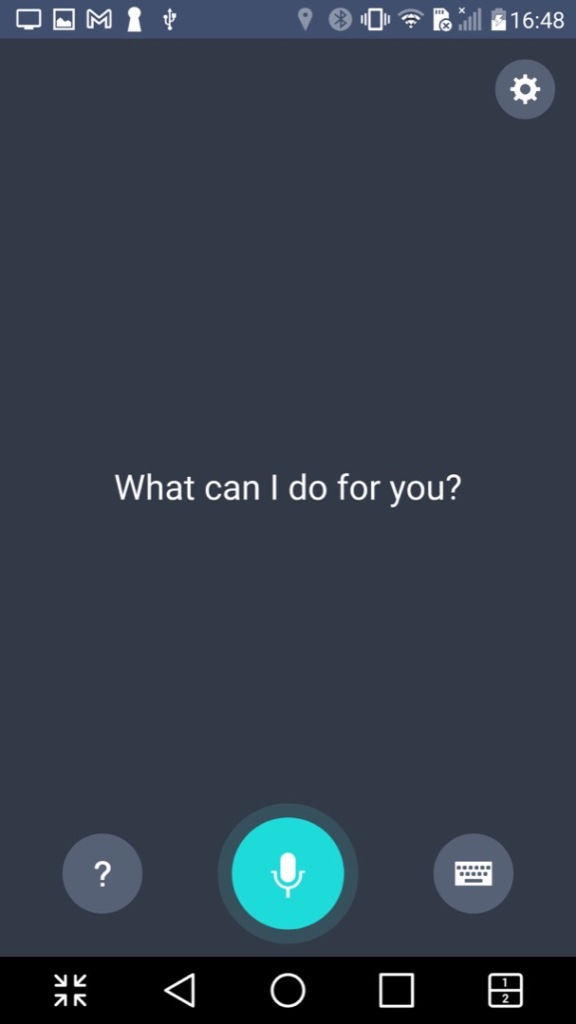
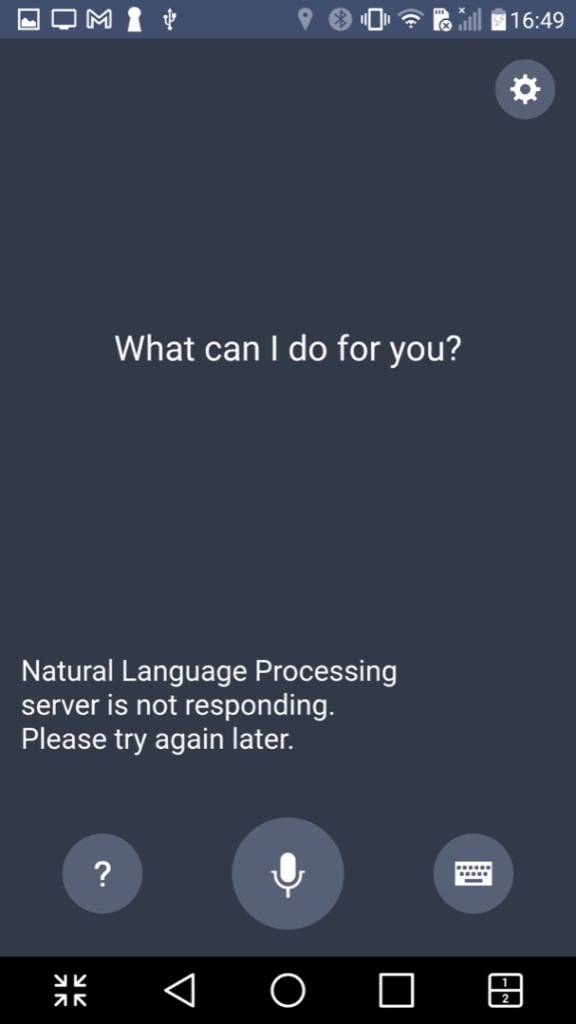
VoiceMate: LG’s own version of a voice assistant, think of it as an alternative to Cortana, Alexa or Bixby. Sadly this no longer functions and only responds with an error message about a natural language processing server.
Lastly there is Evernote, a popular note and referencing app
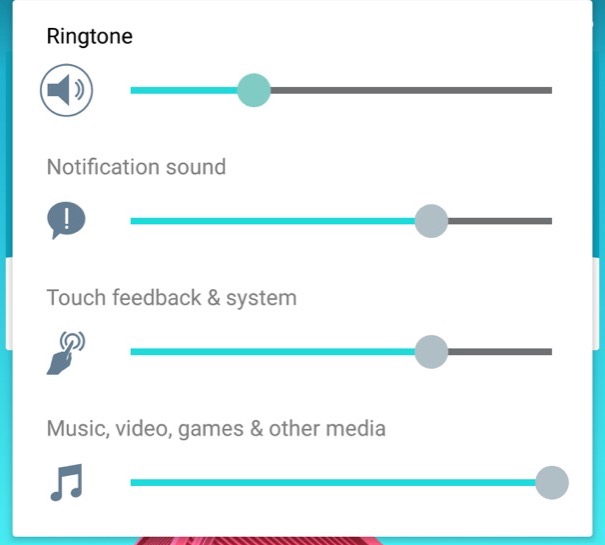
The volume control, with separate sliders for calls, notifications and multimedia.
Settings Menu
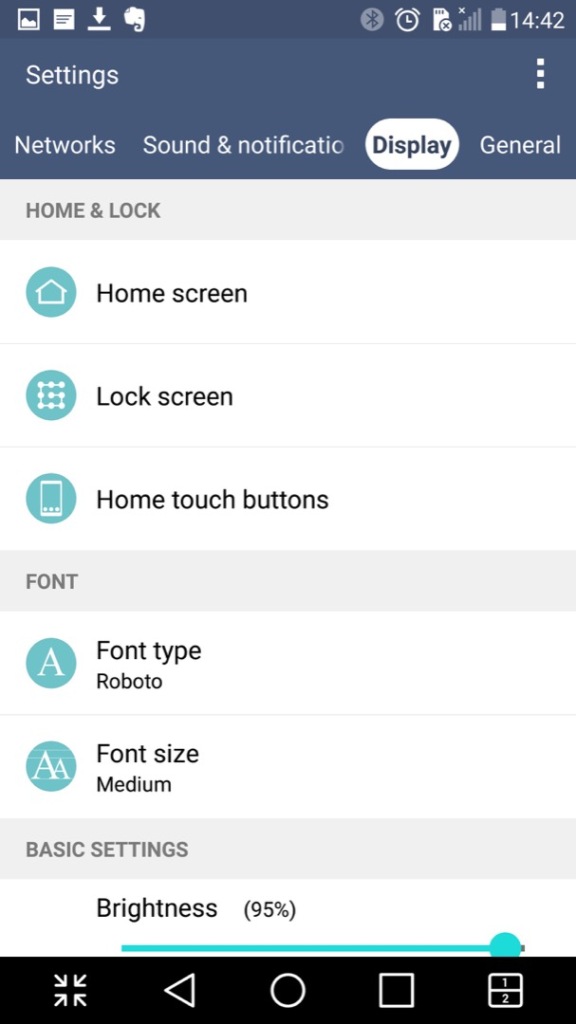
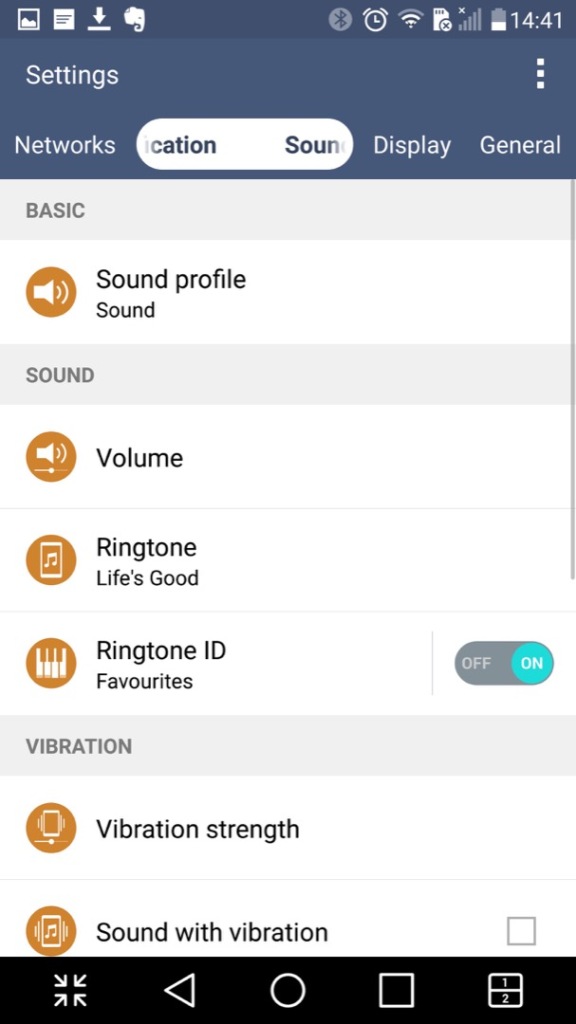
The settings menu which is split into different sections of Networks, Sound & Notifications Display and General
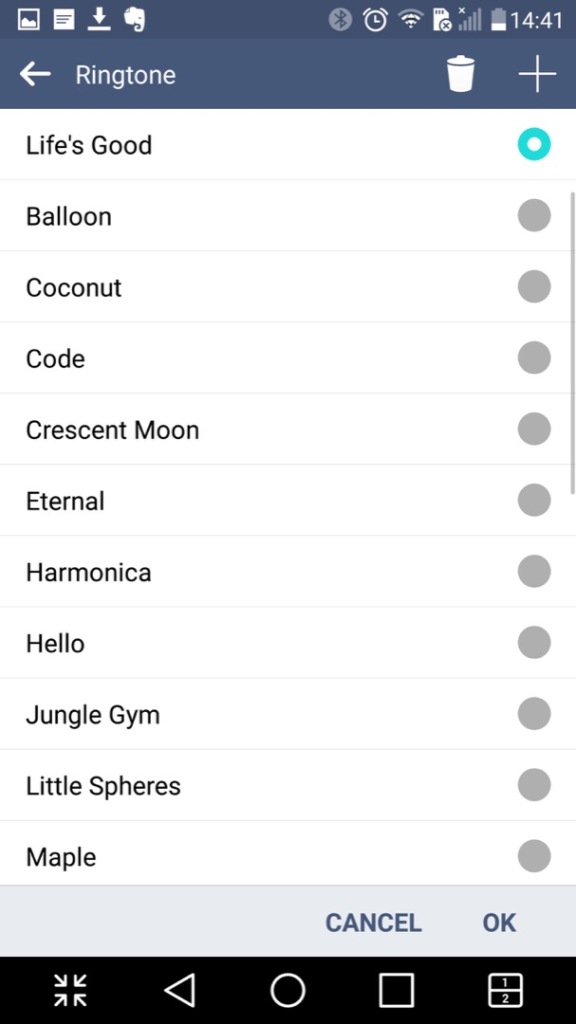
LG have bundled in their own ringtones, and have not included the stock Android ringtones.
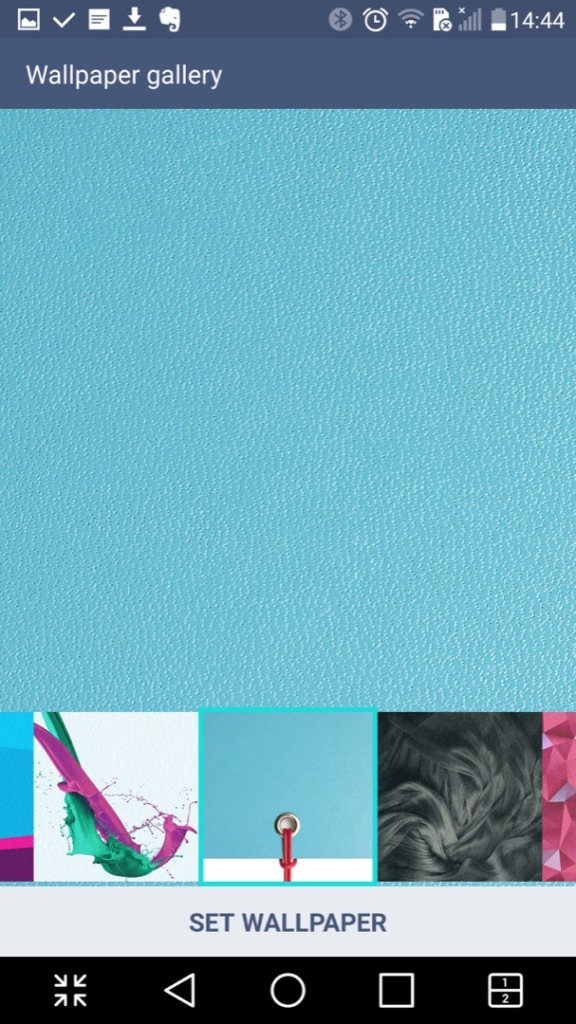
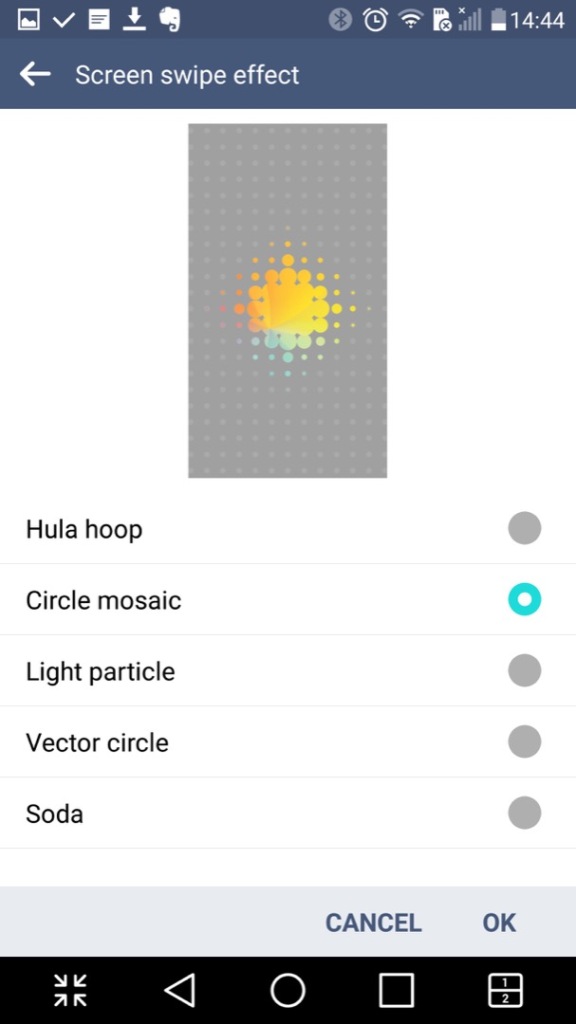
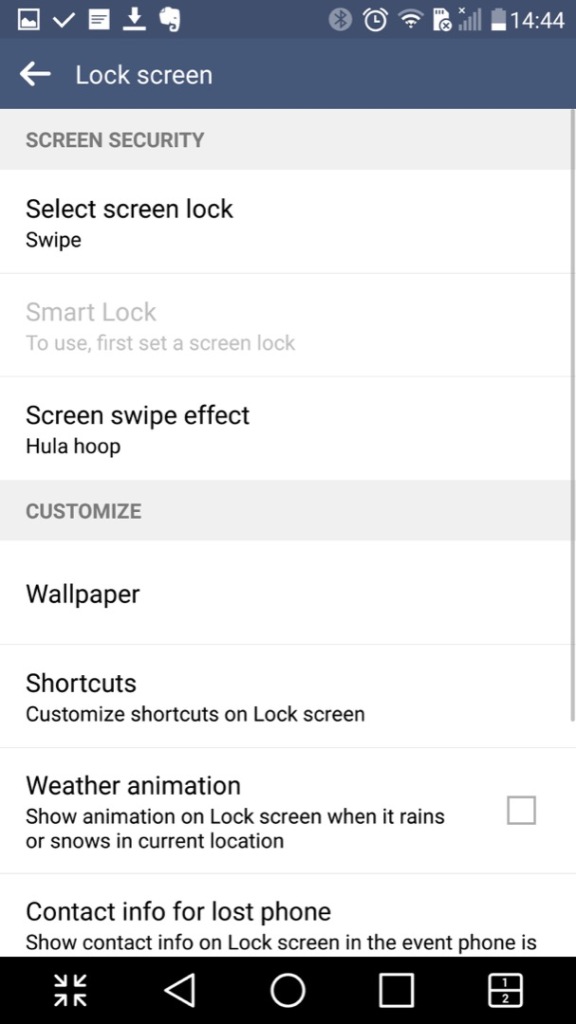
Customising the wallpaer background and the lock screen
LG also allow you to set different fonts that are used throughout the phone’s menus, however many apps will neglect to use them in favor of their own font.
Conclusion
So LG pretty much went all out with the software on this one which makes it standout from other Android phones that use the stock launcher and software. LG also didn’t skimp on the hardware either with its stunning screen and design which showcases a premium luxury feel.
Even today the phone is semi usable, with essential Android apps still being supported, although that amount is starting to reduce and the OS ages.
The HTC One X was released in 2012 and was a flagship smartphone from HTC at that time. With its sleek and stylish design, with a polycarbonate unibody and a 4.7-inch Super LCD2 display, The phone is light and easy to hold, and the display is large and clear even in outdoor environments.
The HTC One X is powered by a quad-core NVIDIA Tegra 3 processor and 1GB of RAM. It runs Android 4.0 Ice Cream Sandwich, which is upgradable to Android 4.2.2 Jelly Bean. The phone offers smooth and snappy performance for its time, with fast app loading times and seamless multitasking. The phone was powered by a quad-core NVIDIA Tegra 3 processor clocked at 1.5 GHz, which was a high-end processor at the time of its release as most smartphones only featured dual-core processors. It also had 1GB of RAM to help with multitasking, a respectable amount for the time. The Tegra 3 processor featured a fifth battery-saver core that kicked in when the phone was idle or performing low-intensity tasks to save power. When more processing power was needed, the other four cores would activate to provide smooth performance without any intervention from the user.
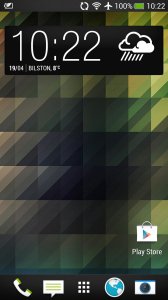
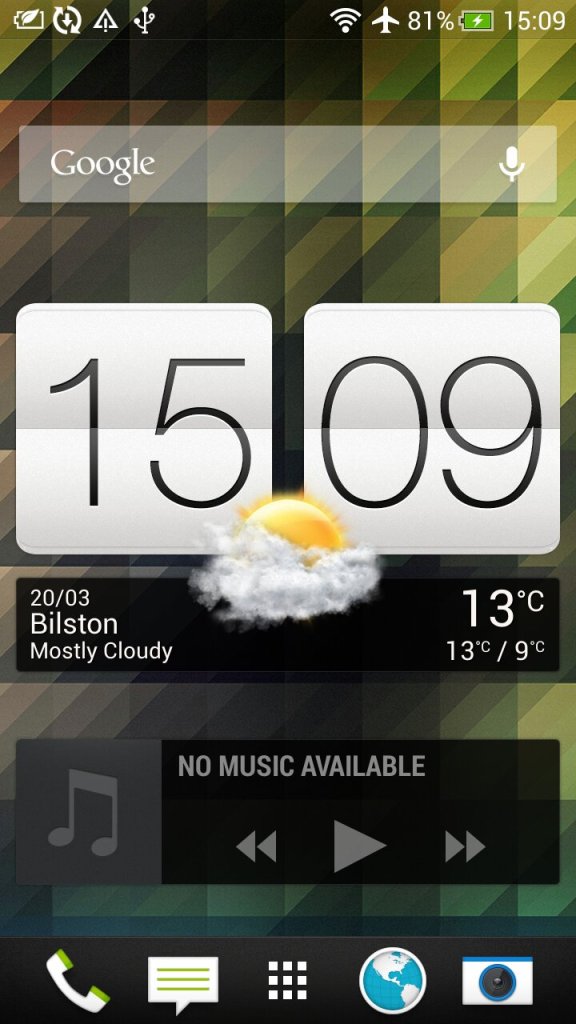
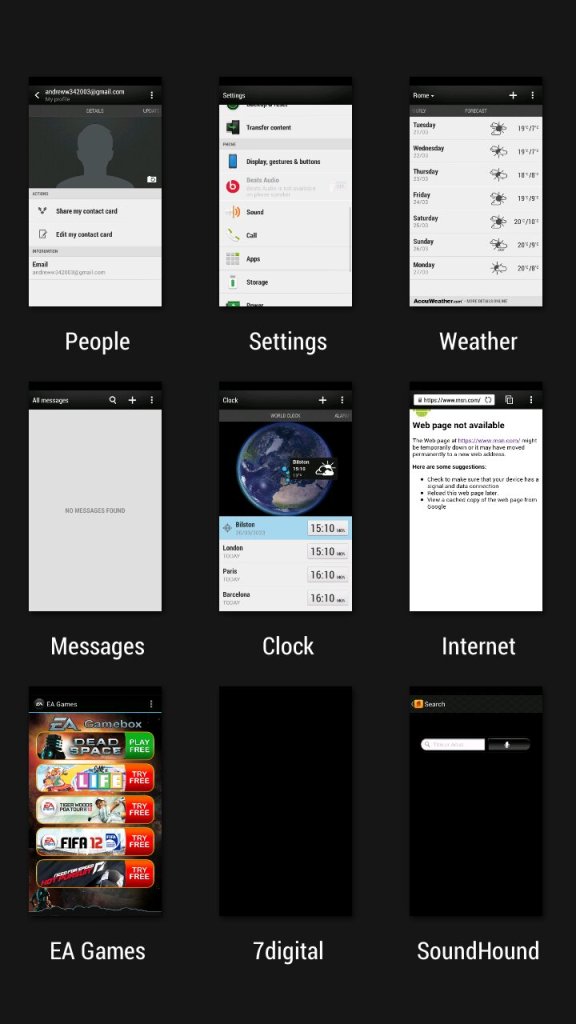
The second page of the home screen, along with the task switcher that shows recently opened apps, and lets you quickly switch between apps.
HTC Sense
The HTC Sense UI (User Interface) is a custom skin or overlay that HTC uses on top of the Android operating system on its smartphones. It is designed to provide a unique and personalized user experience for HTC users, and it includes features and enhancements that are not available on stock Android.
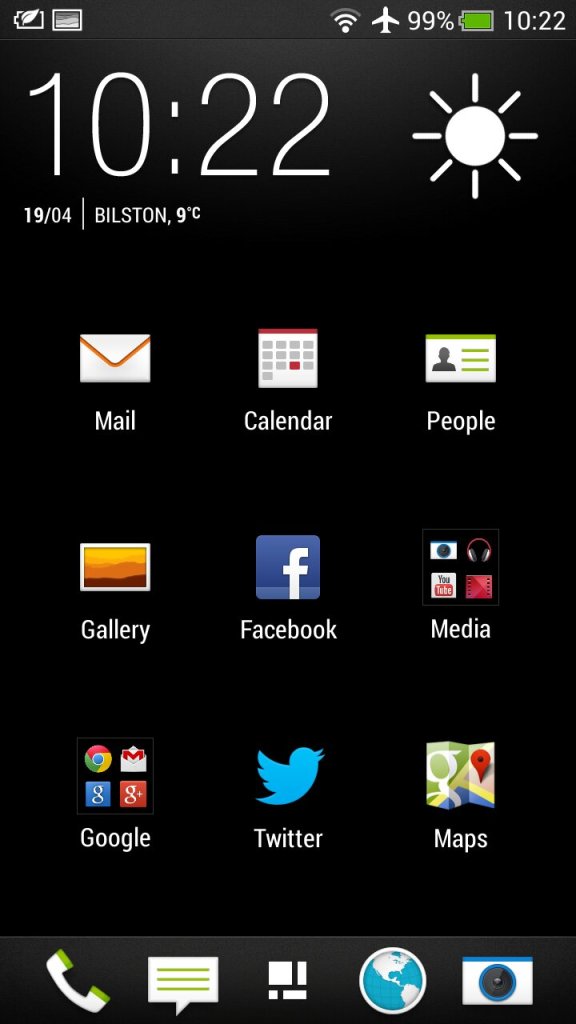
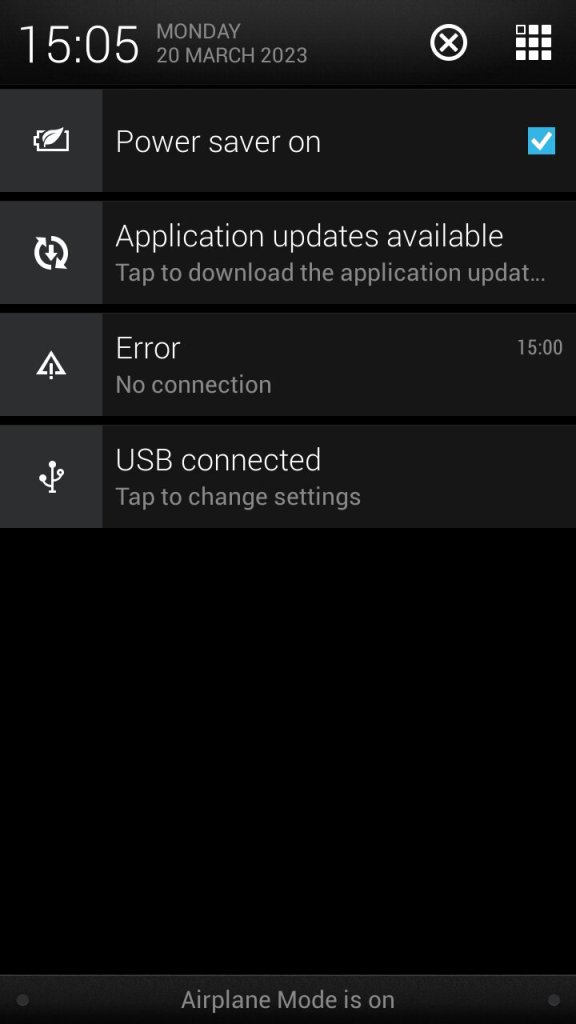
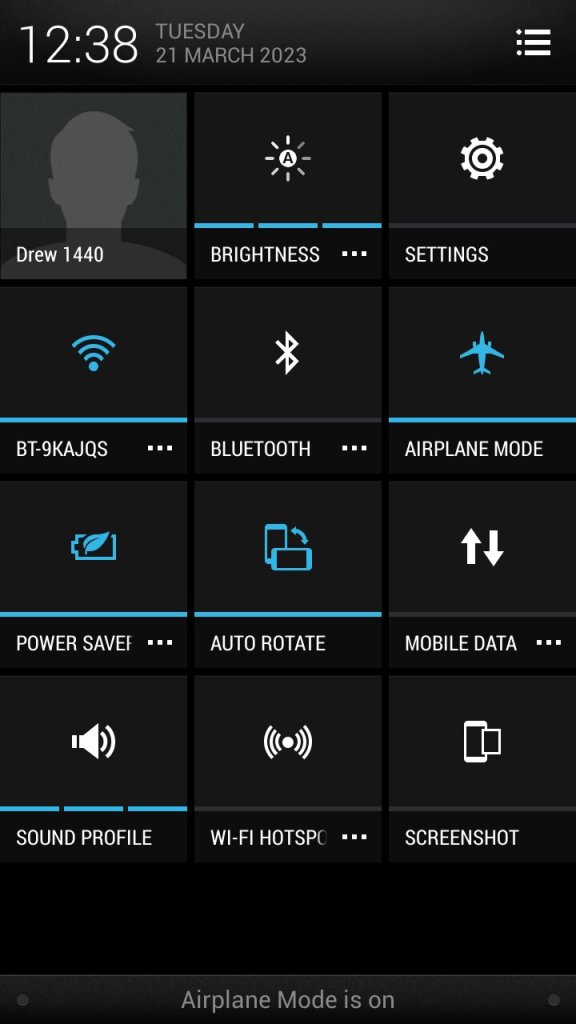
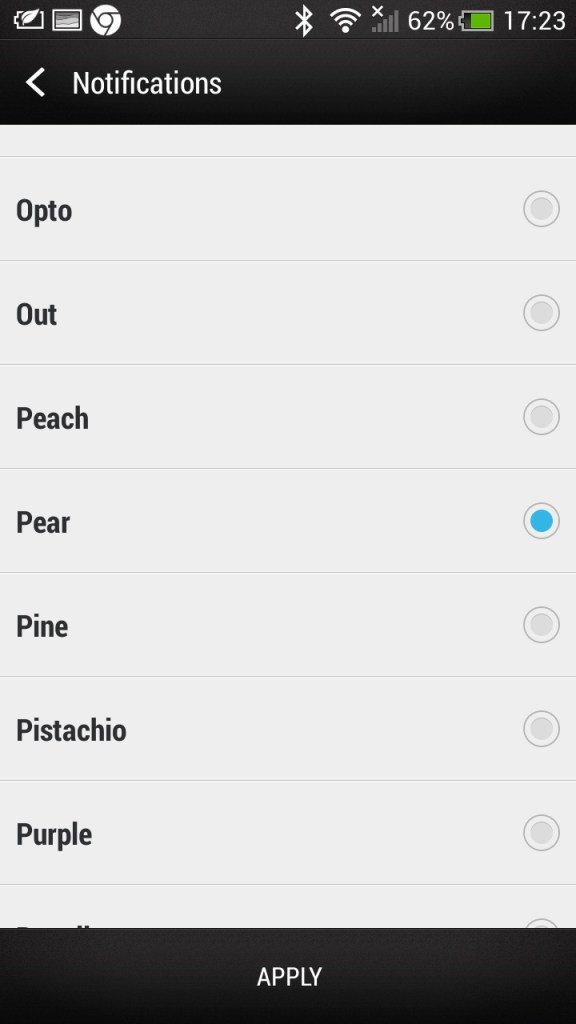
The app menu will show all installed apps on the phone, this can be customized to show apps that have been recently opened, in alphabetical order or in a custom order. The grid size can also be customized. Also the notification section, tapping on the grid button on the top right will switch to the quick access section where common features can be toggled on or off like the WiFi or Bluetooth, and the phones ringtone profile.
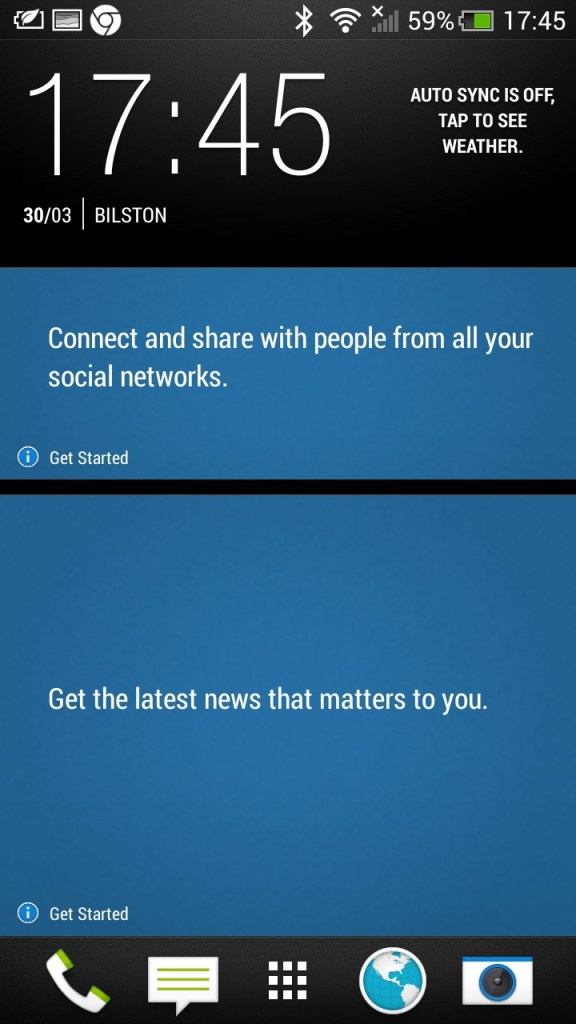
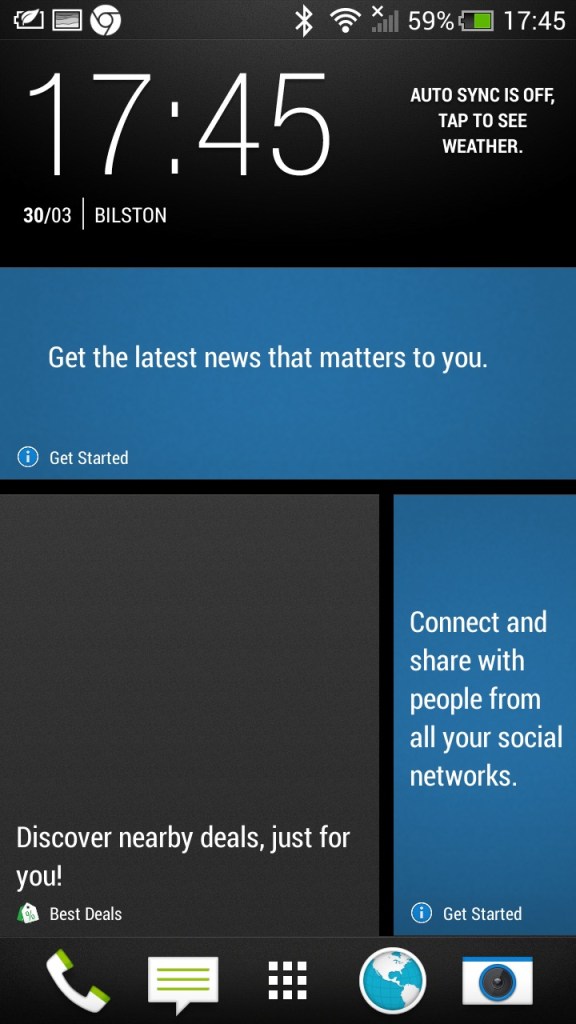
There is also Blinkfeed which collates updates from supported social media apps used on your phone (Twitter, Facebook, Instagram) and news updated from your preferred networks. I can’t help but feel its design was inspired by the Windows Phone design language.
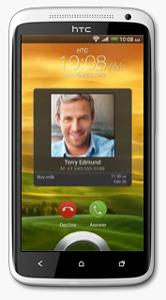
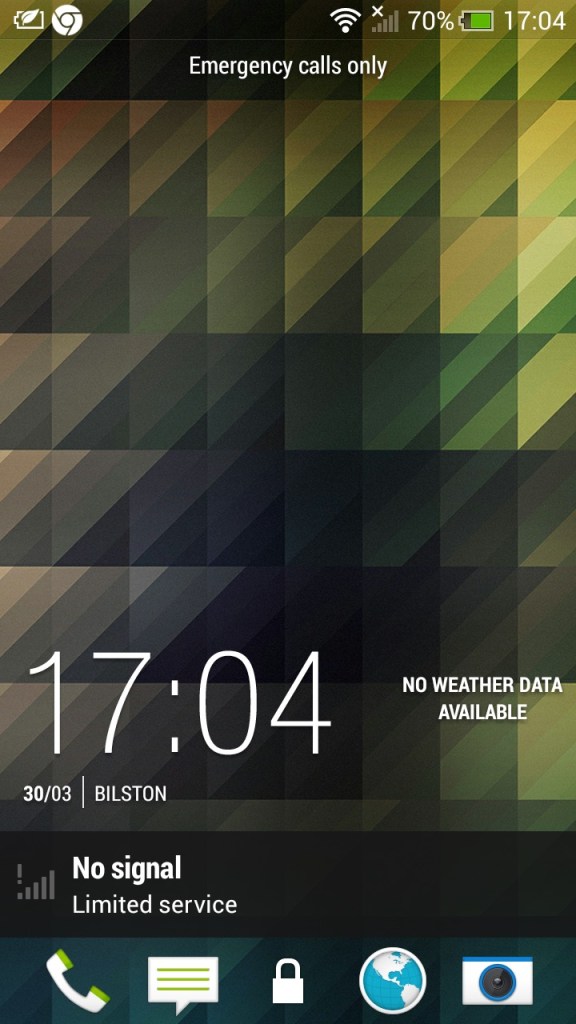
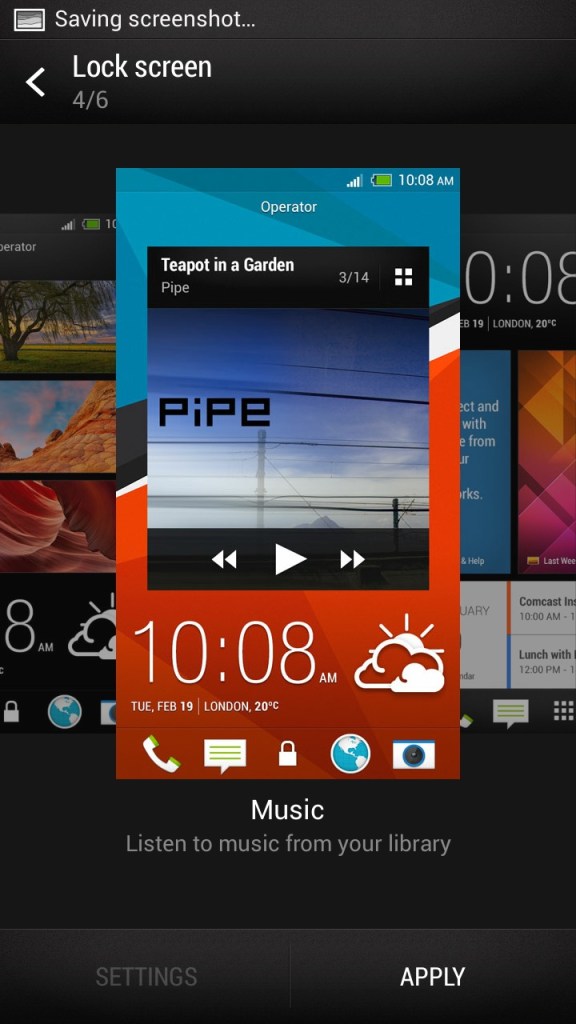
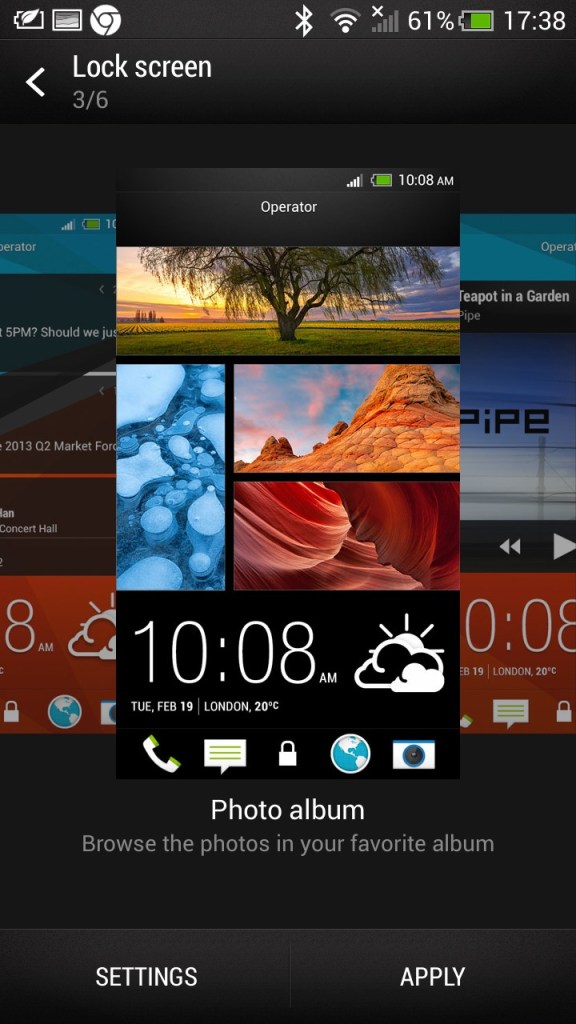
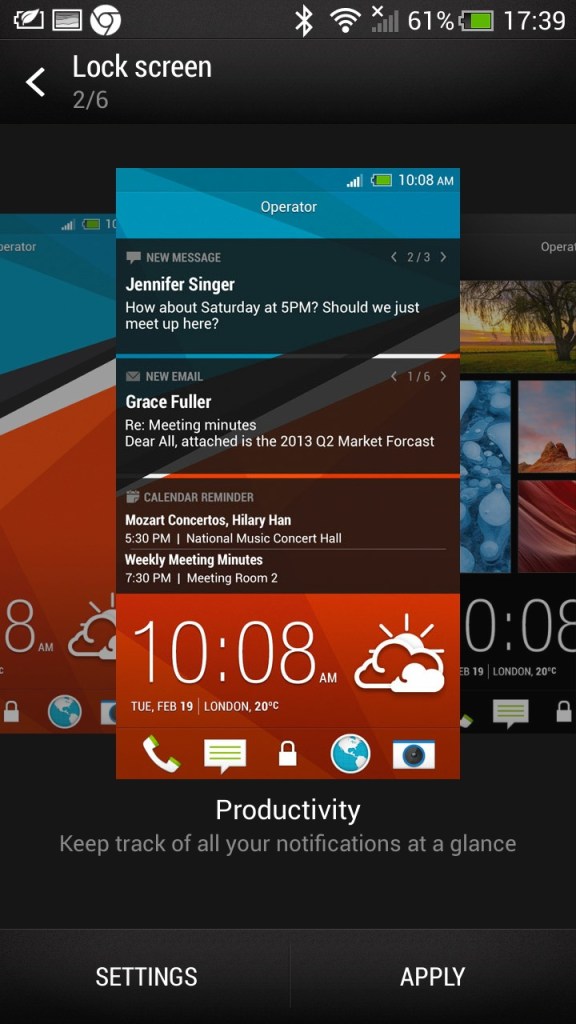
The lockscreen which is unlocked by sliding upwards, doing so raises the clock upwards which is very similar to the Windows Phone lock-screen behavior. Different lockscreens can also be set according to your preference,
Productivity – Shows information from email and calendar apps
Photo Album – Shows images in your photo albums
Music – Shows and lets you play music in your library directly from the lock screen
Or it can be configured to display a specific widget, like the weather
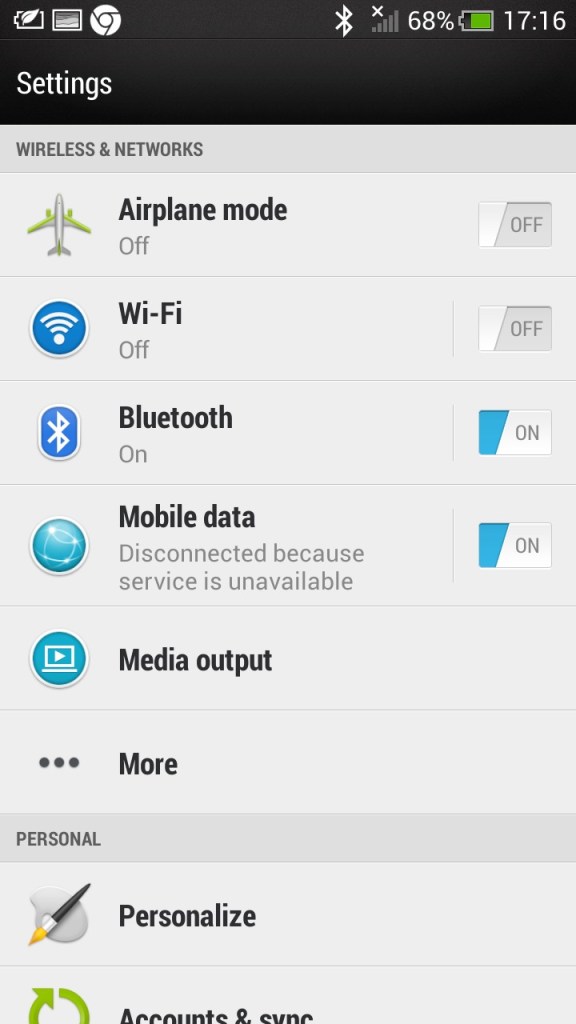
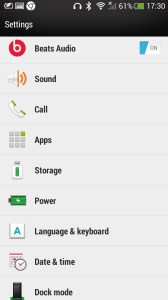
The main settings screen which divides into different sections (Wireless & Networks), Personal, Phone)
Beats audio, which was a selling feature of the phone, This was before Beats was acquired by Apple. It’s supposed to be an audio equalizer that has a specific preset, though I can’t say it makes much of a difference.
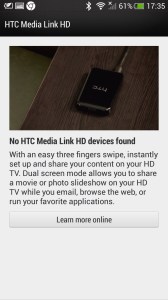
Media Link: The Media Link setting, that acts as a screensharing utility that requires the Media Link device which plugs into your TV’s HDMI input. I guess this was a predecessor to Miracast that is featured on all modern phones. The bundled tutorial showcases the ability to play movies and videos from the phone, ideal for displaying videos recorded from the camera, but I can’t imagine using it to cast Netflix (Some people actually do this, just get a streaming stick/box for fucks sake) Also remember most, if not all TV’s from this period were not ‘smart’ in that they could receive video over a network.
Multitasking is possible where the media will play on the big screen whilst you open another app, at least until the handset overheats. Still, it shows this was a very versatile smartphone.
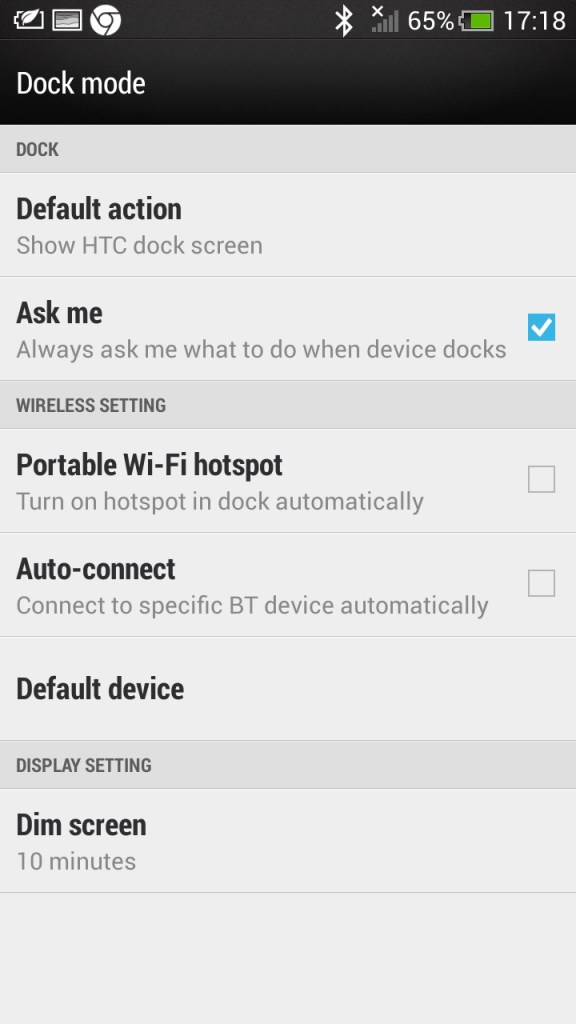
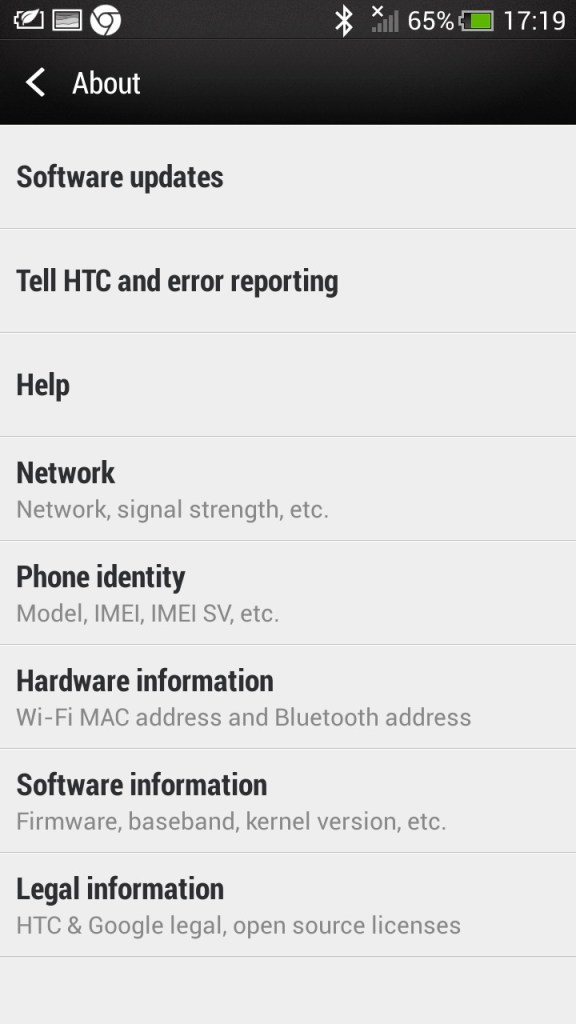
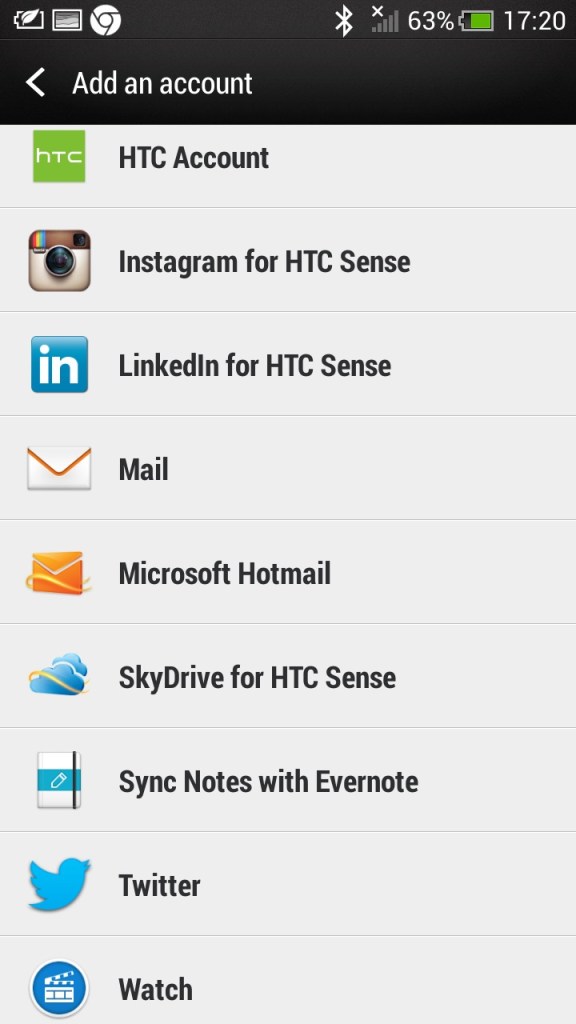
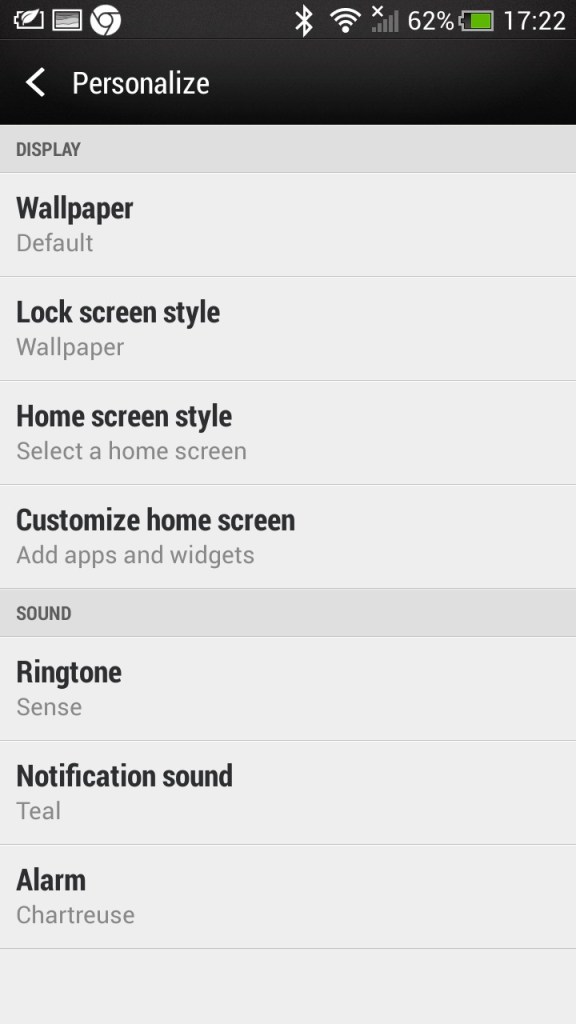
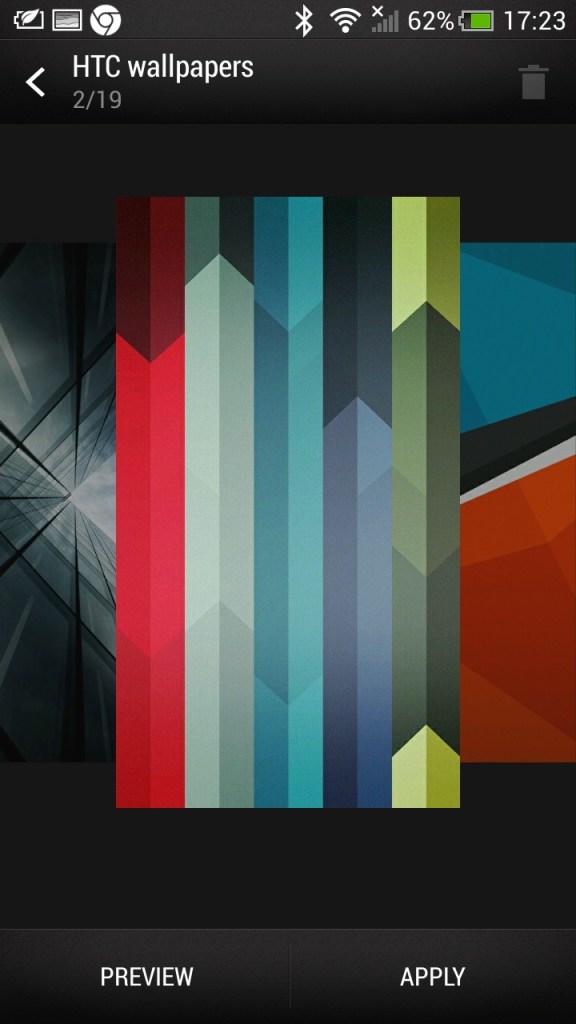
Some additional screens, including the default wallpapers HTC shipped with the phone
HTC Applications
As part of the HTC sense user interface, HTC also provided their own apps for common functions of the phone. These all conform to the same design language, achieving a consistent design across the pre-installed apps.
Messages: Your standard SMS app which can also handle MMS messages, both being presented in a threaded view.
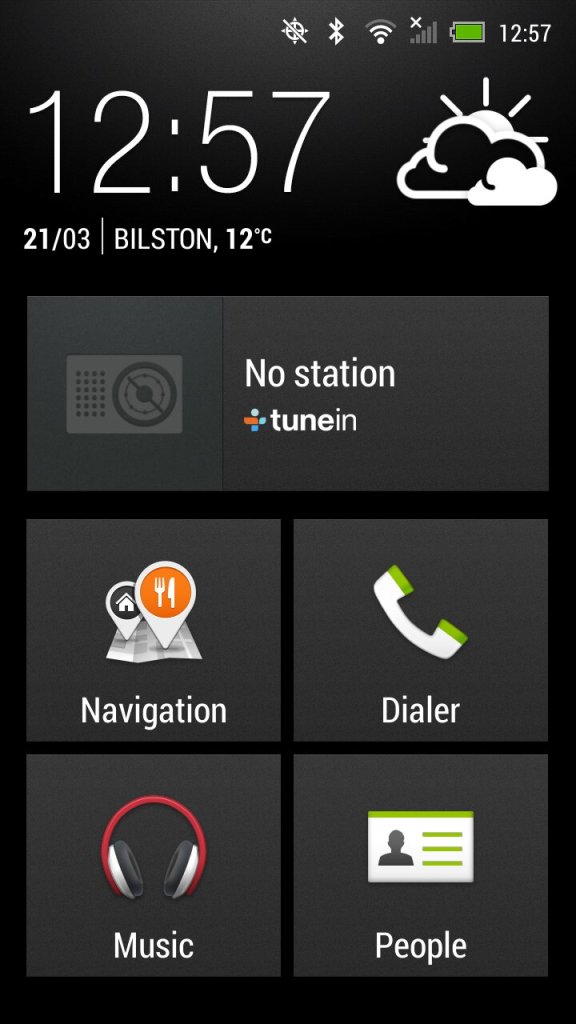
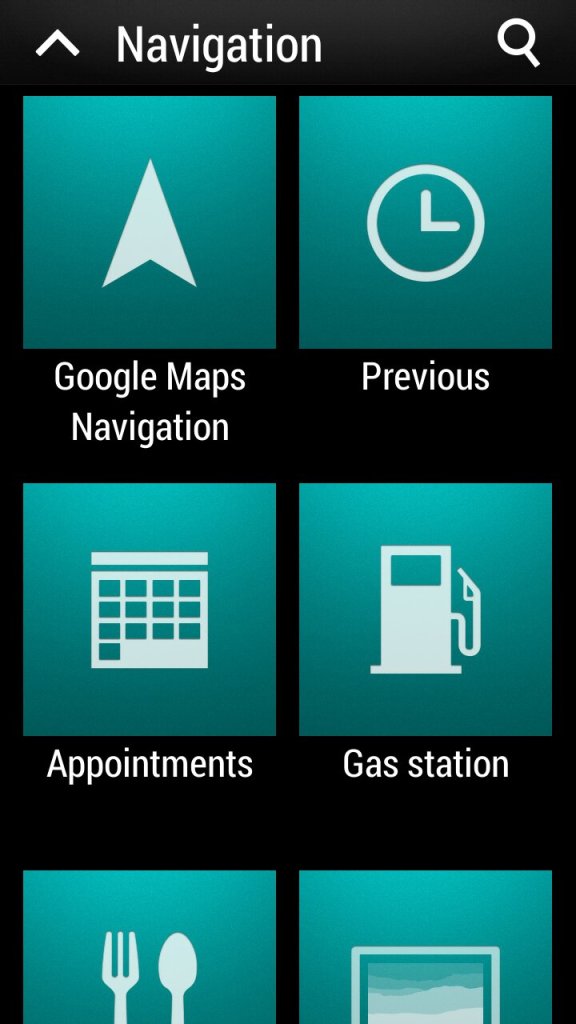
Car: for use when driving, present an easily accessible interface for using the GPS navigation and music/radio apps which are powered by Tunein. The BBC podcasts appear to work but are a few months out of date, the others no longer function. The menu can be customized to add apps that are not there by default.
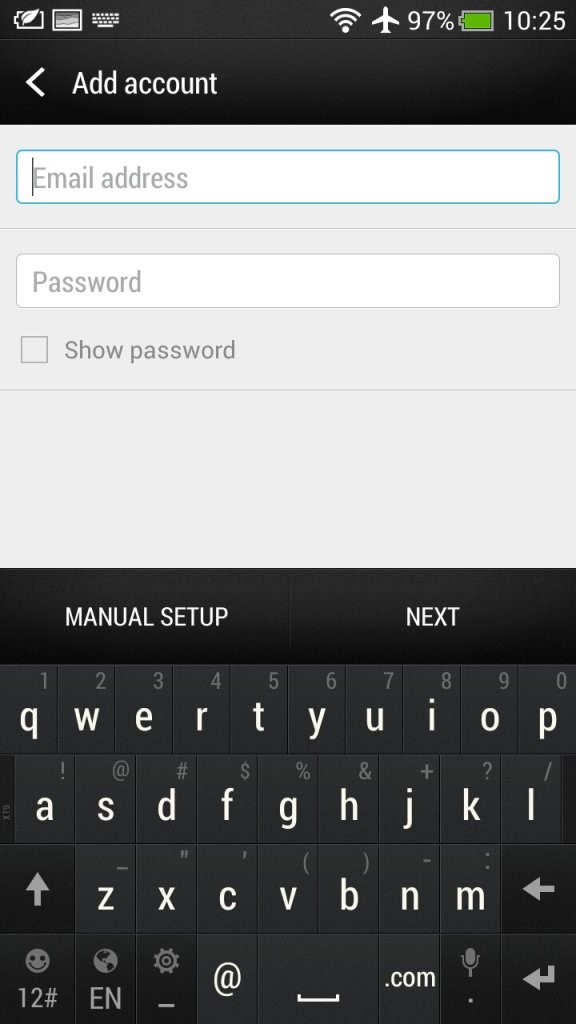
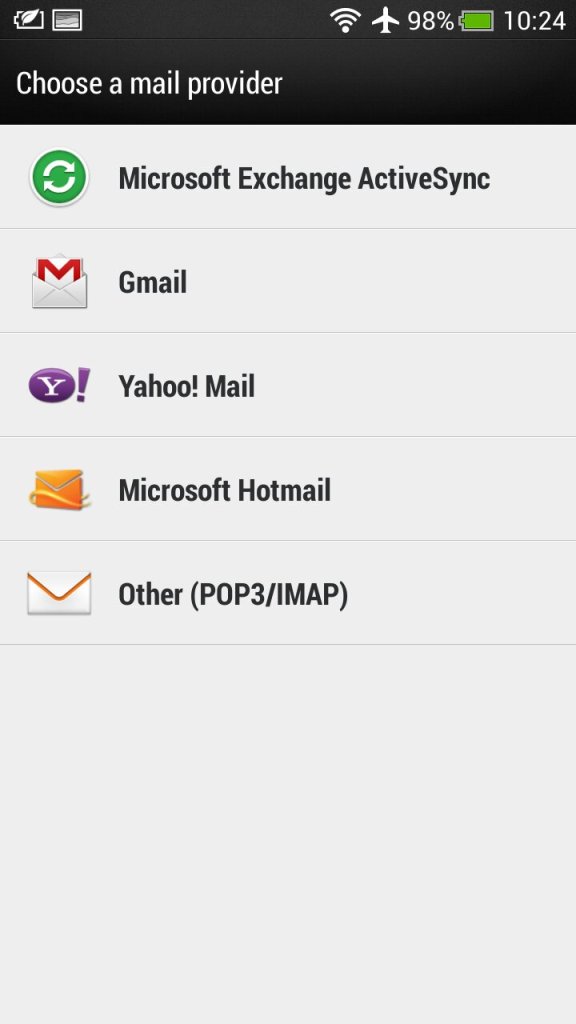
Mail: HTC’s own email client that had support for Gmail, Yahoo! Mail and Hotmail (Outlook). Other email providers can be used by setting the correct POP3/IMAP configuration. Microsoft Exchange can also be used.
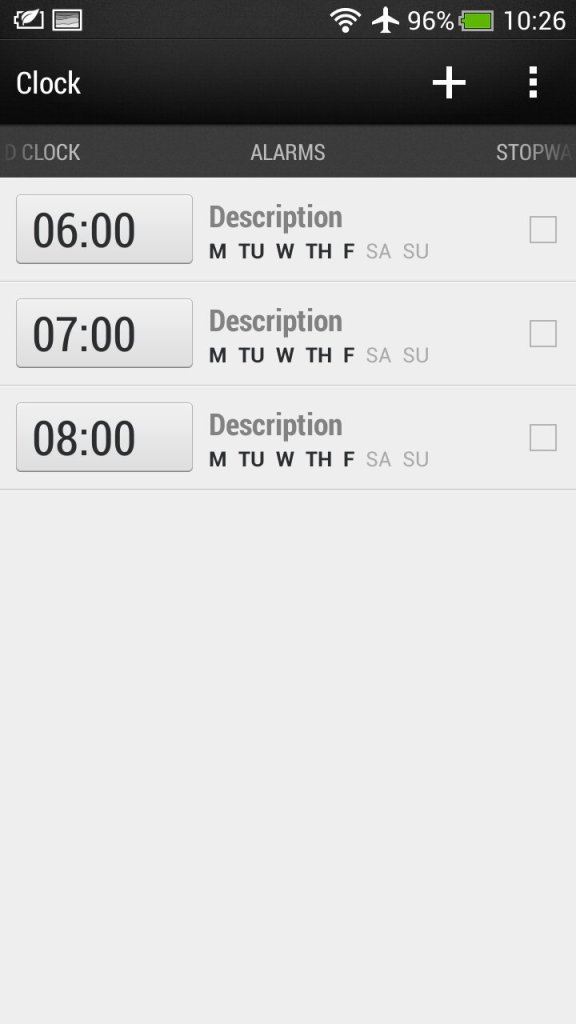
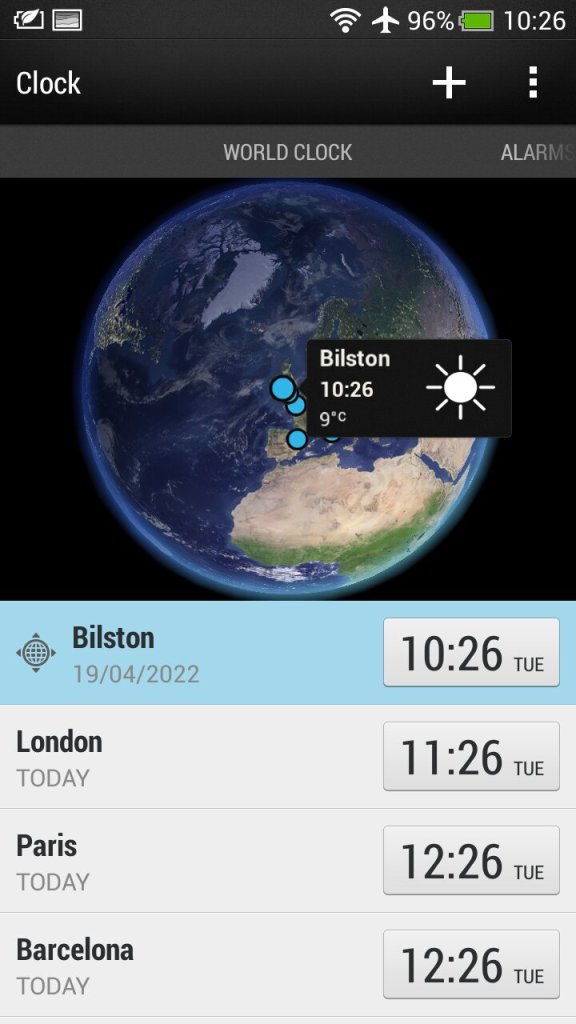
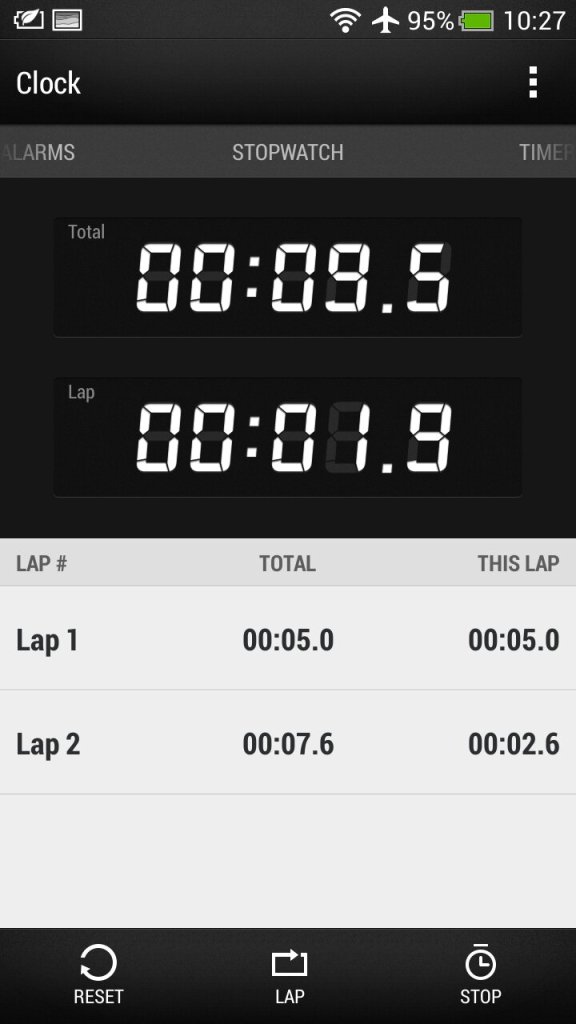
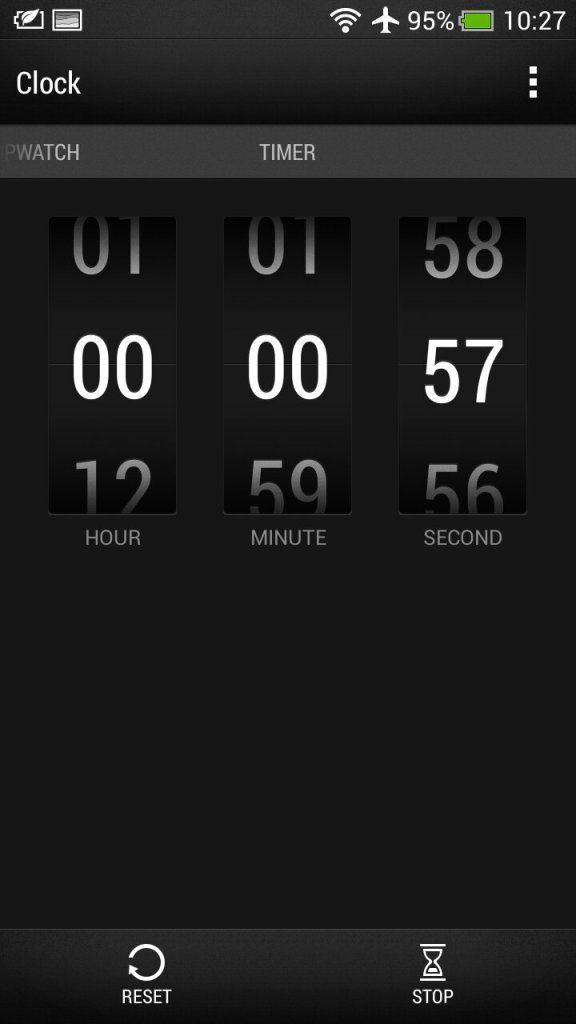
Clock: For setting the time or different timezones, of which HTC has configured a few for you. Here you can also set multiple alarms that can be a standalone or recurring. A stopwatch and a timer are also provided which mimics an old alarm clock.
Stocks: Check your stocks of which the information is delivered from Yahoo Finance.
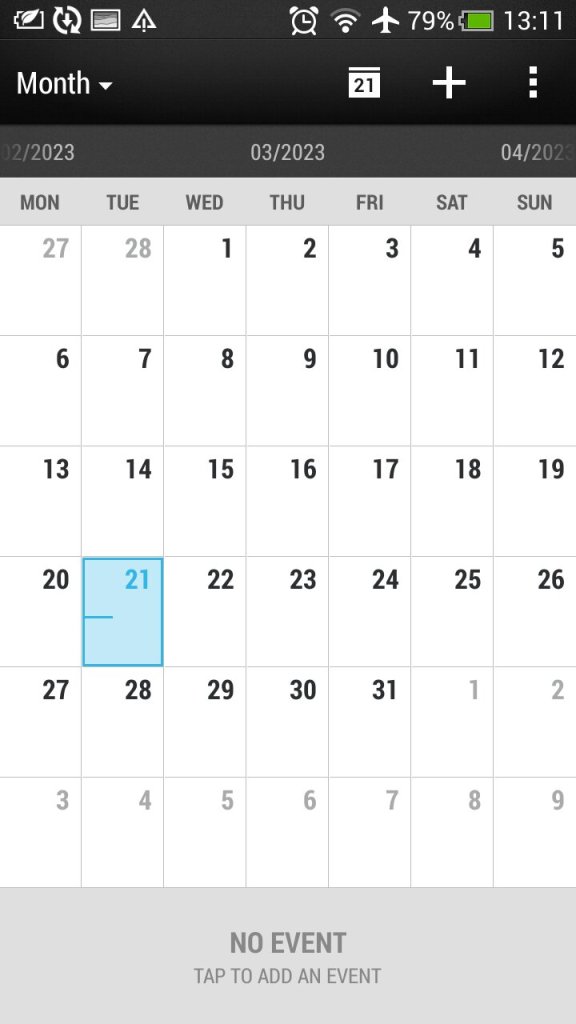
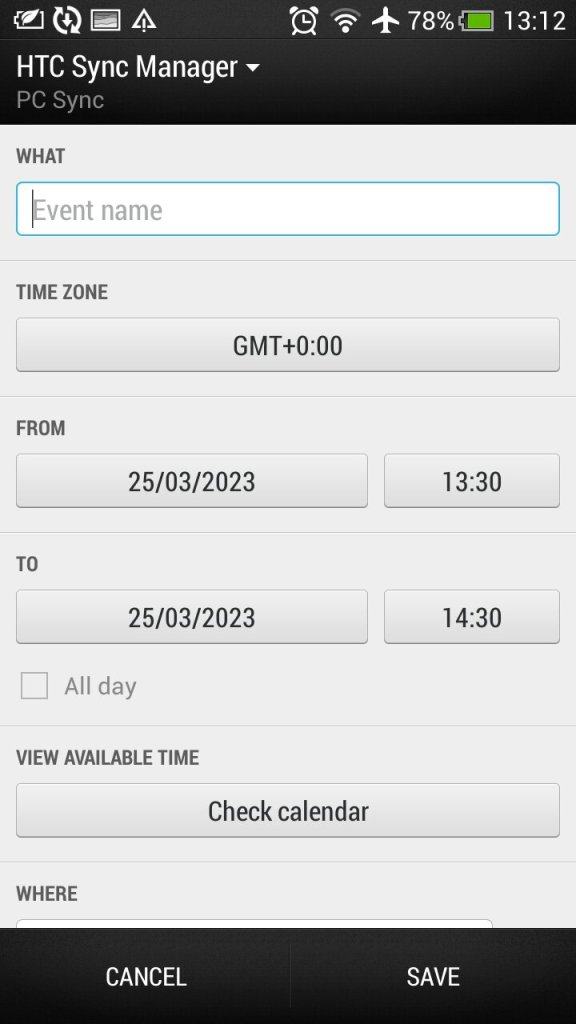
Calendar: Typical calendar app to set reminders and events. This will sync with the calender of your email provided if one is supported, otherwise this can be set to sync with HTC Sync manager, an application for your desktop PC.. Default view can be either Day, Week or Month.
Camera: The handset features an 8-megapixel camera with autofocus and LED flash. The camera is capable of capturing high-quality images and 1080p video, with good colour accuracy and sharpness. It also has a front-facing camera for video calls and selfies.
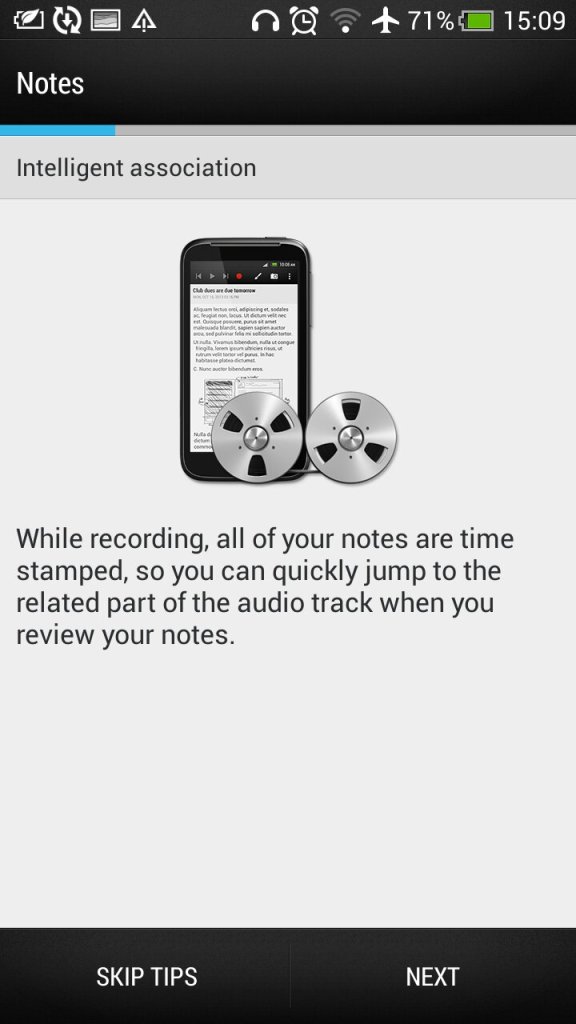
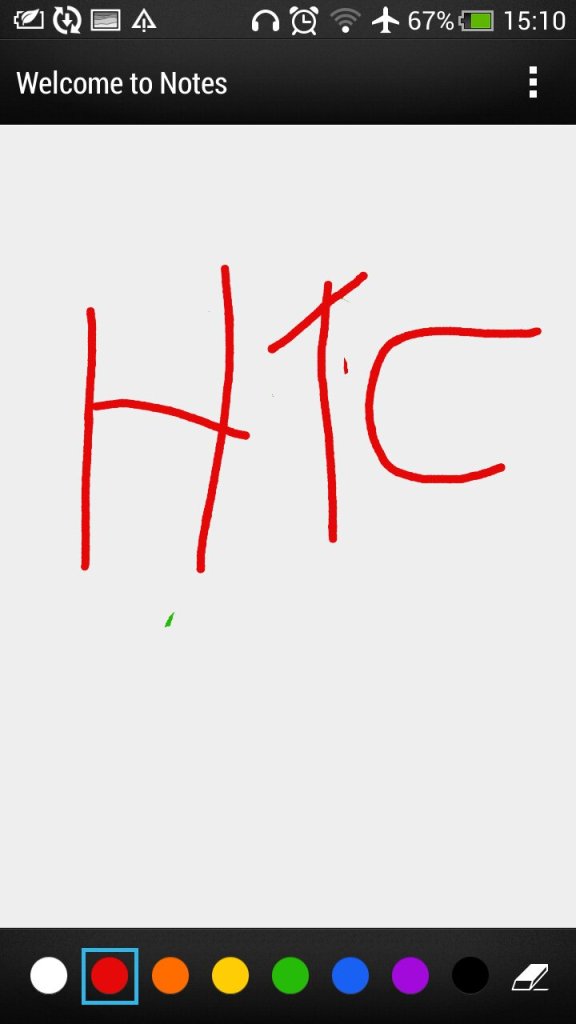
Notes: Supports both text notes and handwriting/freehand notes. Also gives access to the voice recorder feature.
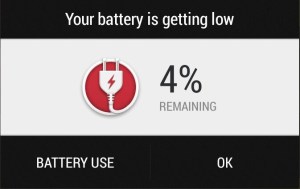
Low battery notification, which gives you a shortcut to the battery-use application that shows apps that have consumed the most power
Preinstalled Apps
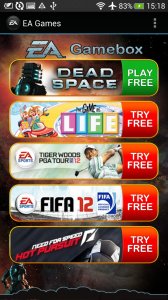
EA Gamebox: Gives us links to EA’s mobile games that you could download to your device including Dead Space, The Game of Life, Tiger Wilds, FIFA12 and Need for Speed Hot Pursuit.
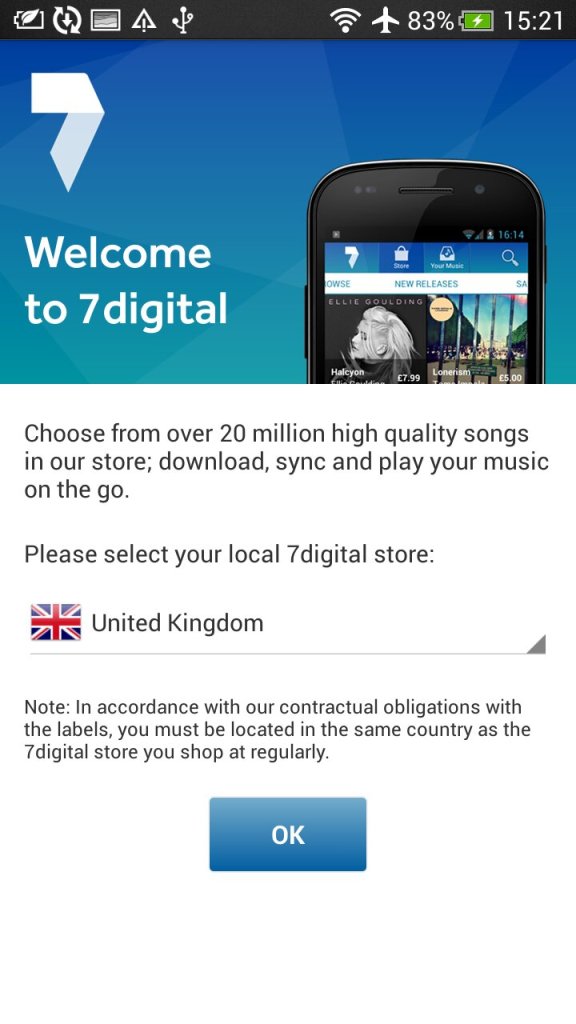
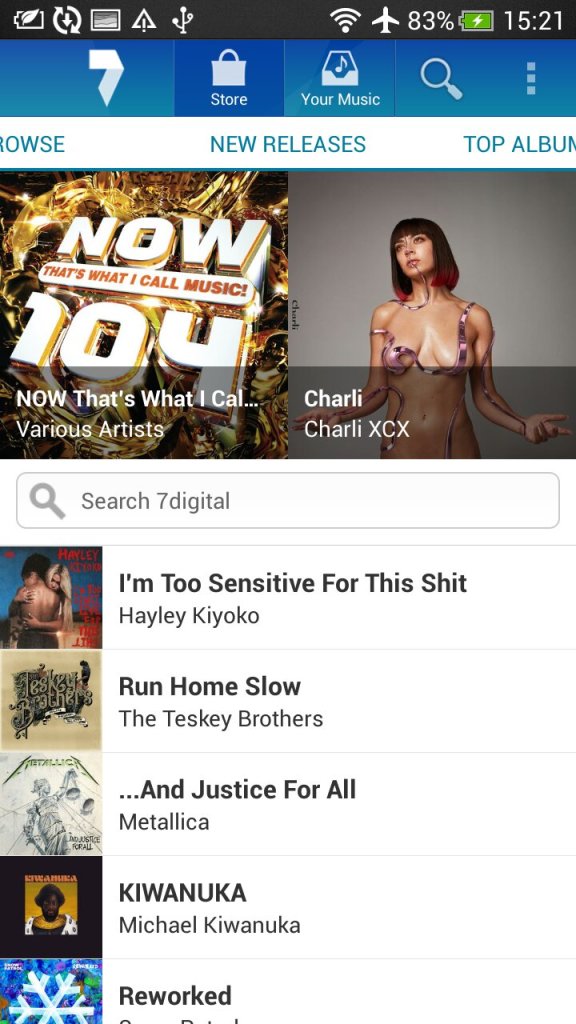
7digital: Popular music store, an alternative to the iTunes or AmazonMP3 for purchasing music. This also serves as a music player as I can play both download music off the store and any local files you transfer from a PC.
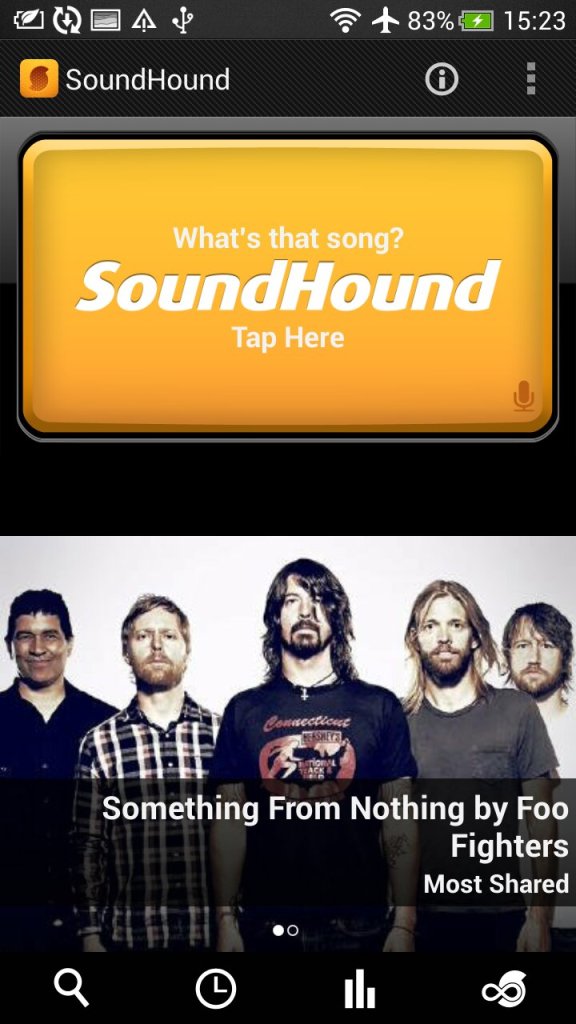
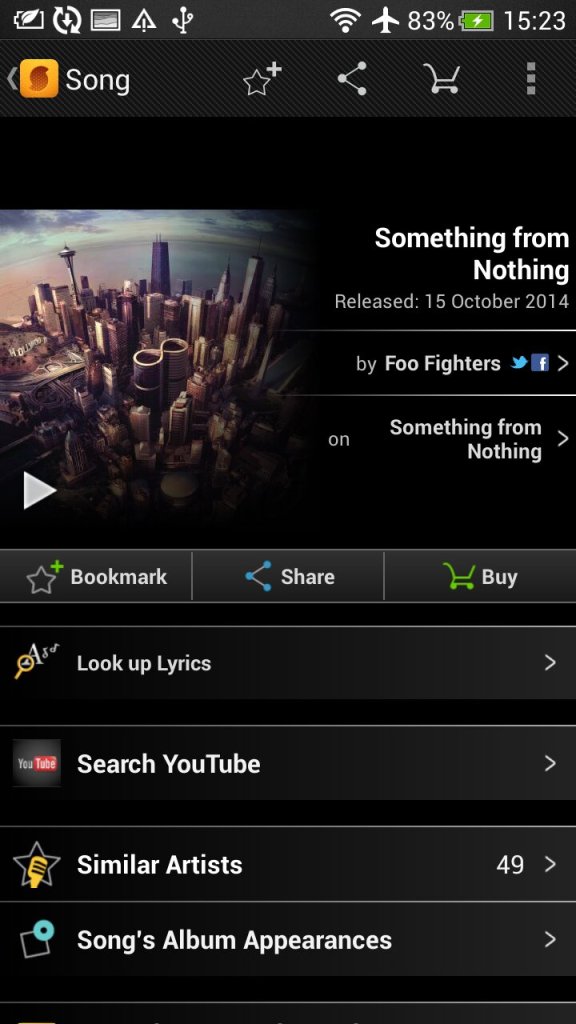
SoundHound: Music discovery tool that can detect and identify music playing my listing and sending a sample. Useful to identify a track that is unknown.
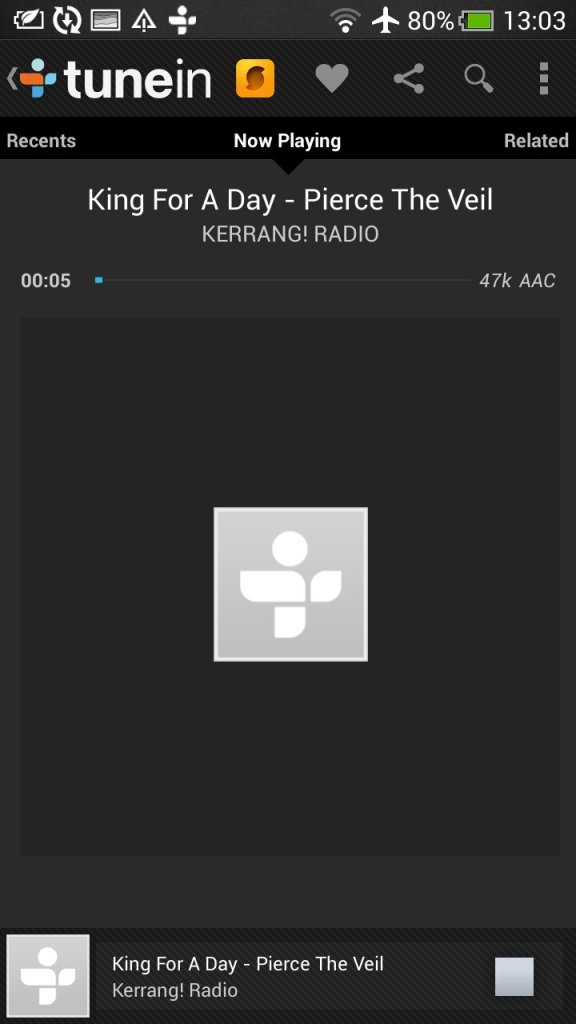
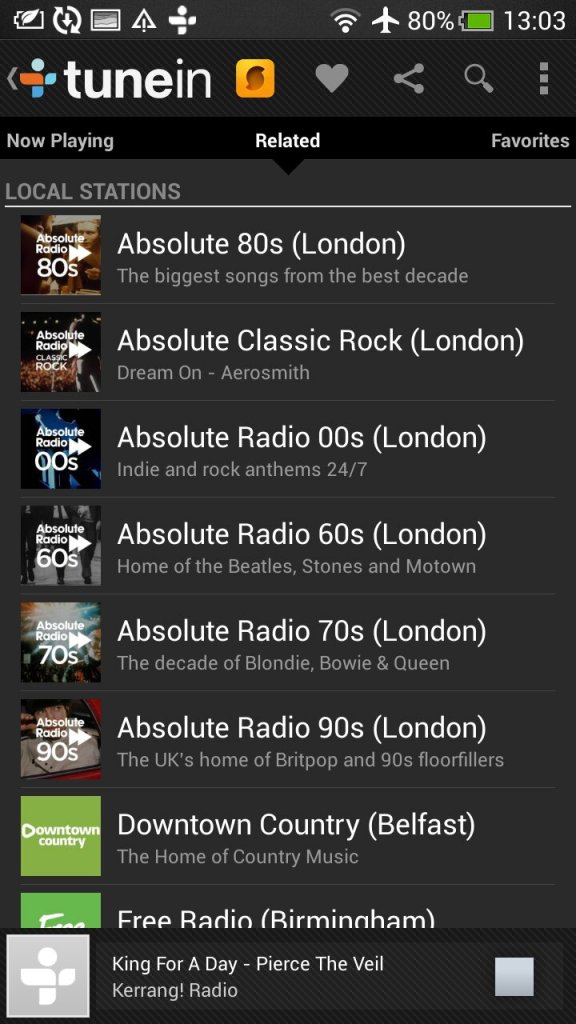
Tunein Radio: Radio player directory, used to discover and listen to internet radio stations
Dropbox: Cloud file storage app that can sync with multiple devices.
Polaris Office: Mobile office productivity suite to open documents, this can auto integrate with both Dropbox and SkyDrive (Now Onedrive) or open files off USB storage.
Standard social media apps are also included like Twitter and Facebook
Widgets
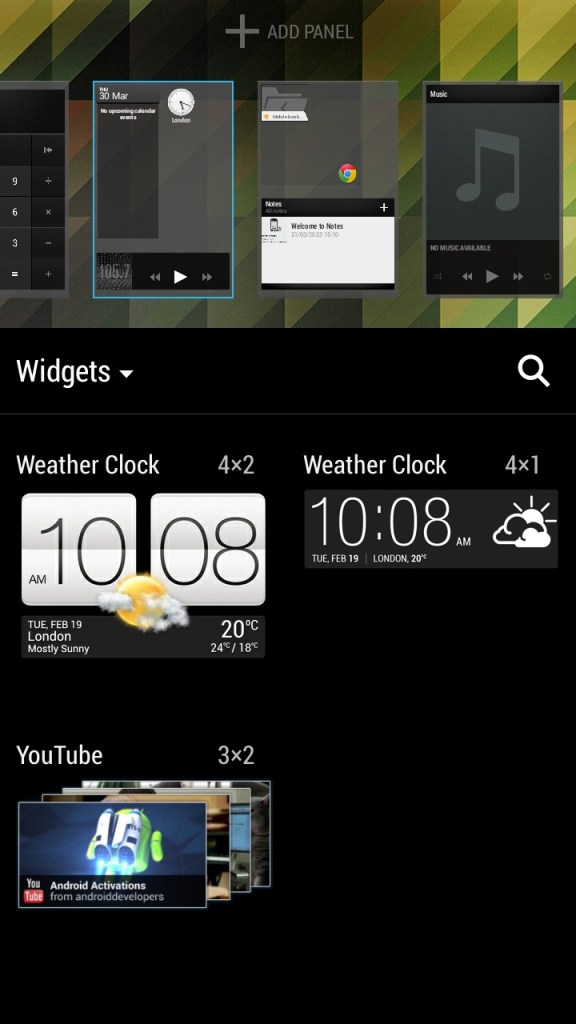
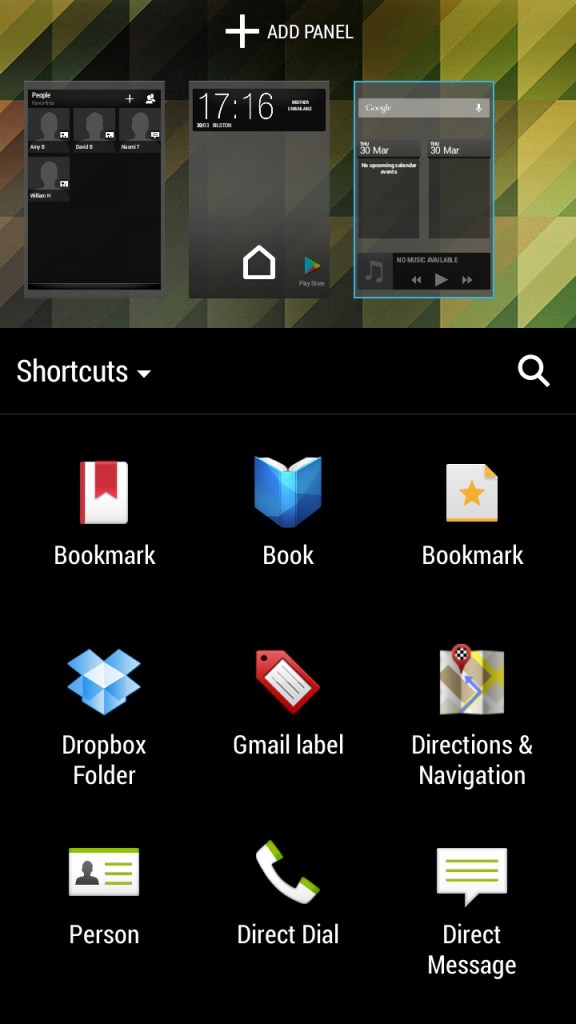
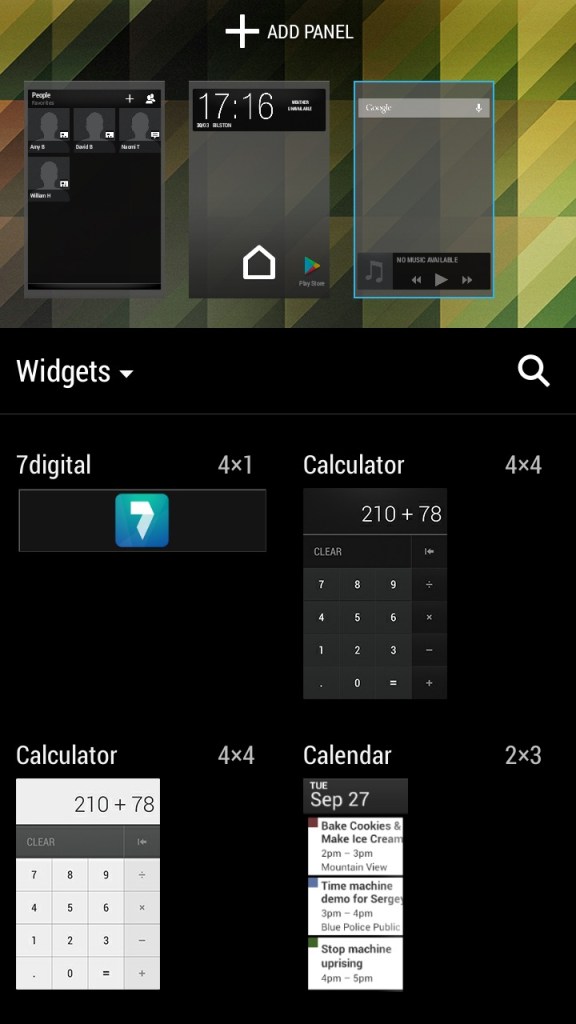
Like other Android handsets, HTC have included a few default widgets that can be placed on the Sense UI, most of these will link to existing apps on the phone and incorporate some of their functionality. You can have up to 8 different panels containing widgets or app icon shortcuts fro easy access. Switching between panels is as easy as swiping left or right.
The contacts widget lets you place your top 9 contacts, of which can be pinned for quick access. Kind of like a speed dial of sorts but you can customize what to do when you select them, either open the contact card or directly call or message the contact instead.
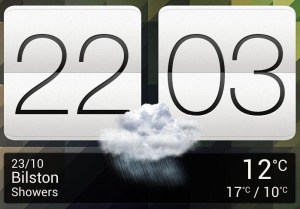
The weather and clock widget which will show the weather according to your phone’s location, when pressed will just take you to the clock app.
The music widget lets you quickly play the last played track and also lets you pause and skip tracks directly. Pressing on it will open the HTC music app.
Conclusion
Overall, the HTC One X was a great smartphone for its time, offering excellent performance, a good camera, and solid battery life. However, it is now outdated and may not be suitable for users who require the latest features and technology. Trying to use it as a daily driver 10 years later will be a challenge, whilst you can still connect and sync a Google account, the amount of Play store apps that can be installed is very low, with Twitter, Facebook and even Google’s own Youtube apps no longer being supported. Oddly Youtube Music and Kids can still be installed.
The browser side isn’t much better, the latest Google Chrome dates from 2015, whilst Dolphin Browser 12.2.9 is the latest supported. You have to remember a lot of modern Android apps are not ARM64, and his handset is only 32bit.
One of the first generation camera phones, with its built-in CIF resolution camera and a large for-the-time colour screen with a 128×160 portrait resolution. A new user interface is included to take advantage of the new display.
The phone itself also has a nice contrasting design of black with silver, and a few colours were made available including Black/Blue and Black/red. Released in 2003, it competed mainly with the Nokia 6610i, 7250i, Siemens MC60, and the Sagem My V-55.
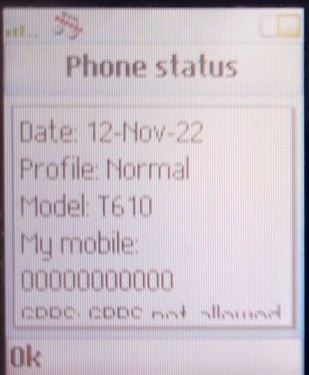
Navigation is done through the joystick located near the center of the phone. After a few years but it seems to have lost its functionality which makes navigating the menus difficult. Thankfully we can get around this by using the numeric keys to quickly access menus as a shortcut, in the main menu you can press the 5 key to open the message or the # key to access the settings menu.
For any list menus, you can use the volume keys at the side to select a menu item.
The usual left and right soft keys are present that correspond to the onscreen context, but there is also a back/return key and a C button that deletes onscreen text or cancel operations. No send or end keys that you see on regular phones.
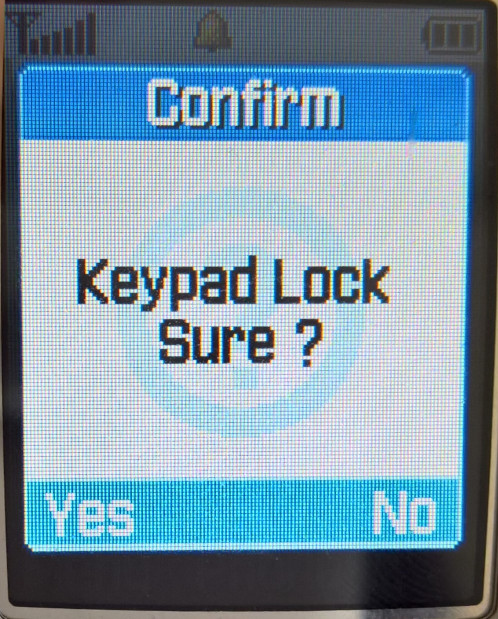
On the right there is a dedicated internet browser button that opens the WAP browser, even when the handset is in standby which could trigger it accidentally and incur additional WAP charges if not part of your plan, locking the keys will stop this.
On the left side there is a dedicated camera key that will open the camera to take photos, and the two-volume keys to quickly adjust the volume in a call. On standby mode you can press to see the handset status, and hold it to access the voice command feature if you have set this up.
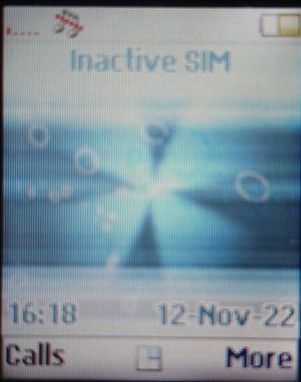
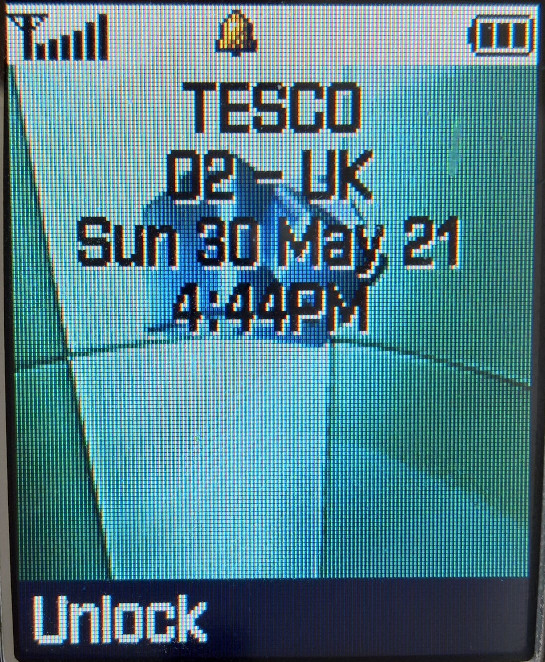
On the home screen the mobile network is displayed alogn with the time and date. The soft keys default to calls and the More menu which lets you quickly access certain functions of the phone,
Main Menu
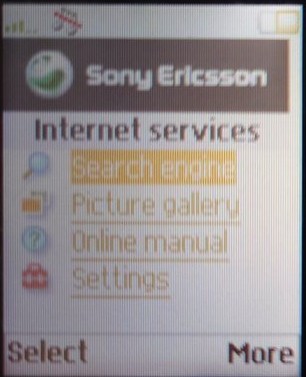
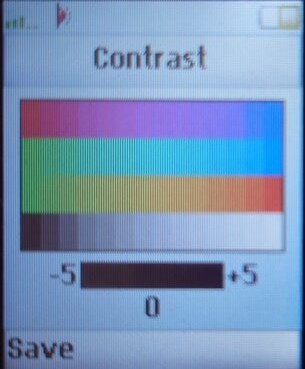
Images are a bit unclear since the screen on this model seems to have issues with its contract, possibly due to the age of the phone (Nearly 20 years old). I’ve tried to adjust the contrast in the phone’s service menu but there’s only so much that can be done, given this handset is approaching 20 years old and is an STN display.
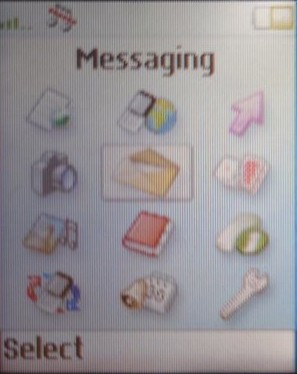
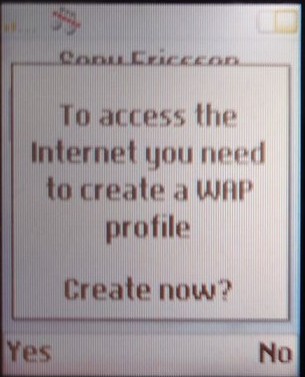
From the top left, the First option takes you to the Sony Ericsson WAP site, which was intended for you to download ringtones, wallpapers & additional games. If you got your phone through an operator, then this will be replaced with the operator’s logo and will be a link to their WAP site if they customized the phones ROM.
Internet Services
Takes you to your WAP homepage, by default this will be the Sony Ericsson homepage or one set by your operator. Here you can freely browse the internet using the internal browser, and have access to features such as bookmarks and the ability to send the page as an SMS message link.
The phone supports both CSD and GPRS for data.
My Shortcuts
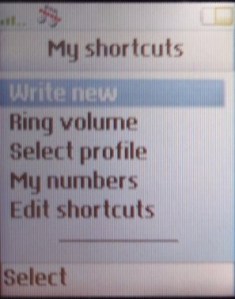
A customized menu that lets you quickly access various features of the phone within one menu. By default, we are given the option to write a new SMS message, adjust the ring volume, select the ringer profile, view your SIM card number, and edit shortcuts. The menu can be modified at any time with your own shortcuts.
Camera
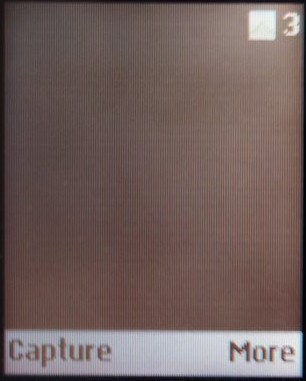
Takes you directly to the camera viewfinder where you can capture a phone by pressing the Capture soft key. The viewfinder will then give you the option to save, or send directly to an MMS recipient.
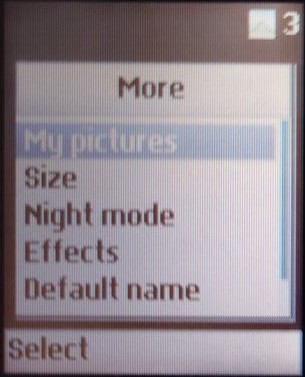
The viewfinder will also show the remaining photos that can be taken according to the internal memory. You can also adjust the resolution of the photos captured, from CIF (228×352) to MMS (120×160), using a lower resolution reduces file size. A night mode allows for pictures to be captured in the dark, although this isn’t much use as the camera lacks a flash. You also have the option of adding effects such as black & white, negative colour and sepia. Lastly, there is also a self-timer option that counts down from 7 seconds.
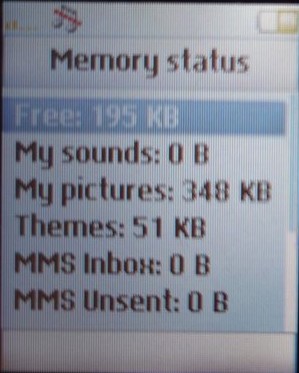
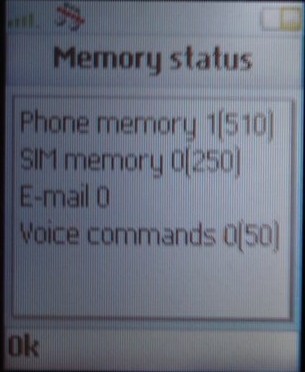
With only 2MB of storage that is shared across the phone, you will quickly run into space limits and will have to delete content to save space.
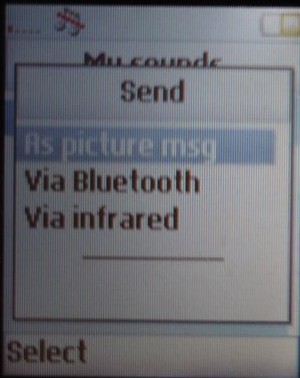
Photos are the main feature of the phone, with a dedicated camera button on the left side of the phone which launches the image capture, another press will capture the image. Once saved, you can easily send photos via Bluetooth, Infrared or via MMS which Sony Ericsson promoted as Quickshare.
Messages
Various options for sending and viewing receiving messages
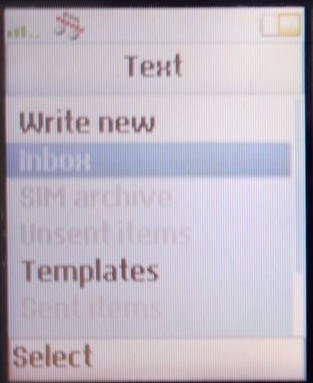
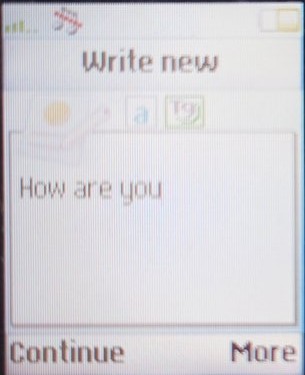
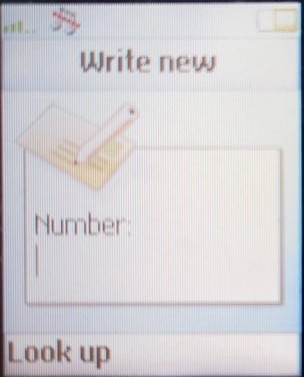
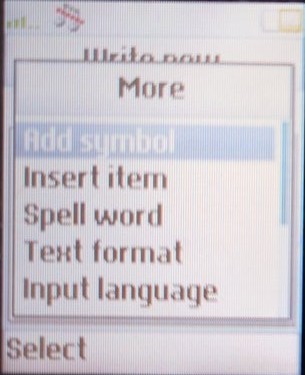
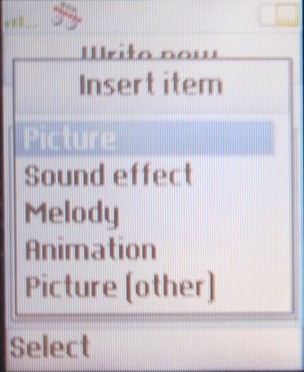
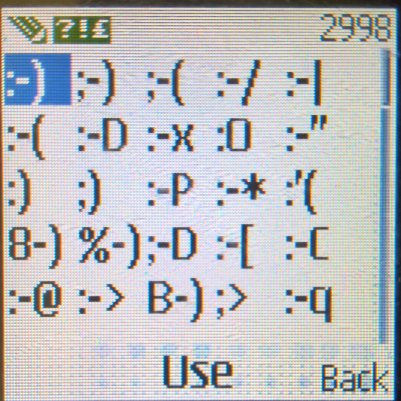
Text refers to standard SMS messages that can be composed using the text editor. Symbols can be added, and emojis (Then known as smileys) could also be added. Graphics can also be added which uses the EMS protocol, and the handset will show you the number of characters remaining within a single SMS message, and will show you if two or more SMS messages need to be sent. Canceling a typed message will automatically save it as a draft for you to edit or delete later. You also have the option of using an SMS template if you need to quickly text someone. Finally, messages can be saved to either the SIM card or the phone’s memory.
A picture message is essentially an MMS message, here you can attach photos or ringtones to the message. The phone does require an MMS profile to be created, which is done then your mobile network operator send you their APN configuration.
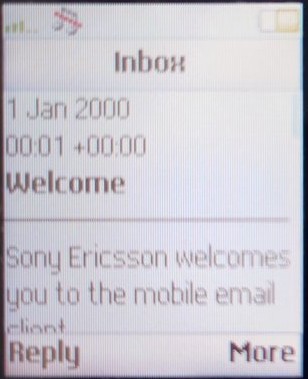
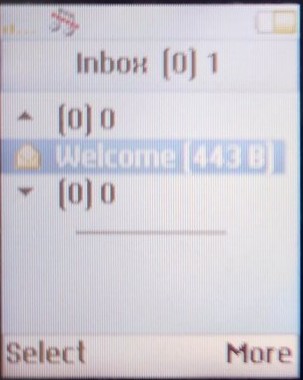
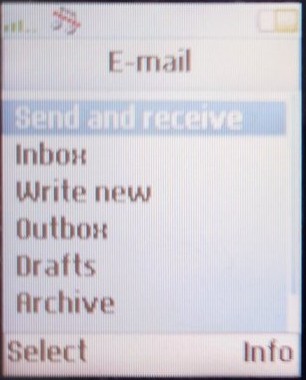
Emails can also be sent using the phones GRPS data connection, but this is not a push-based system like you would see on a BlackBerry. Instead, you will need to manually check and download any messages or attachments. Like MMS you can add attachments such as a photo to the email, and you can specify options for CC, BCC or priority settings.
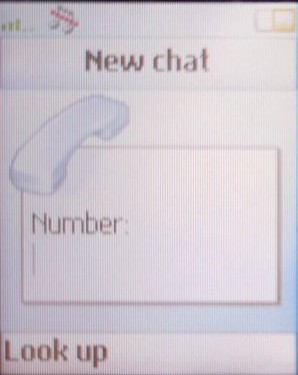
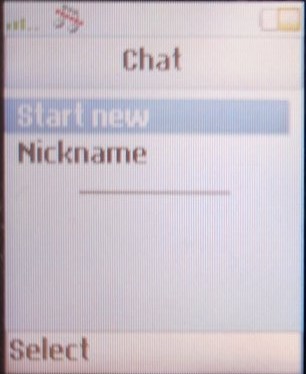
Chat is like SMS messages but gives you a 1-1 interface with the sender.
Games
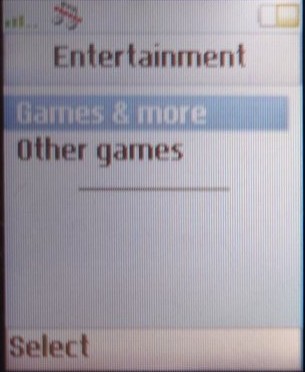
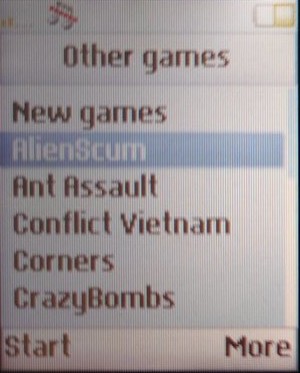
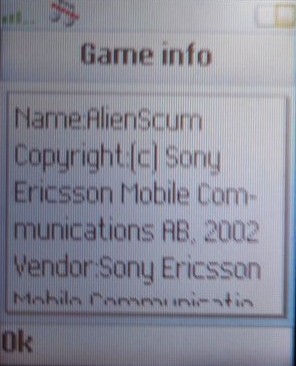
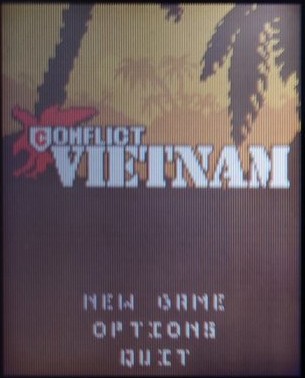
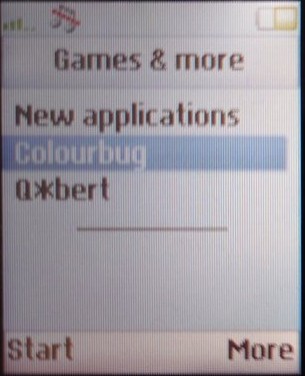
The handset also features support for both Java and Mophun, allowing for a large game library to be played. There is no limit to the amount of Java games that can be installed, with only the phone’s memory being the limit. The Games & More option is where the Java-based game are found, whilst Mophun games are under Other Games. Games can be downloaded and installed either through WAP or via PC, even through Bluetooth. The phone will automatically install the application once received.
Pictures & Sounds
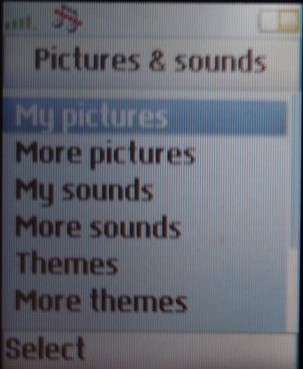
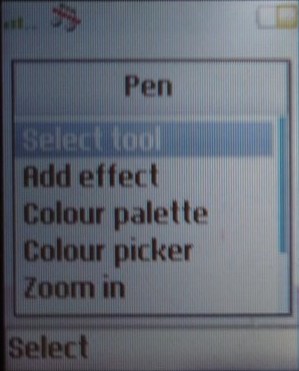
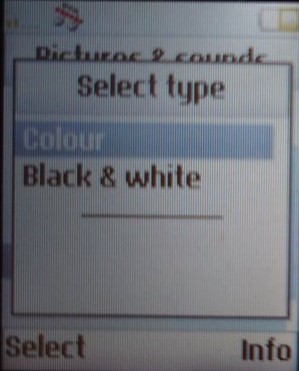
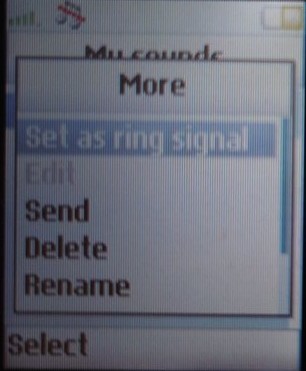
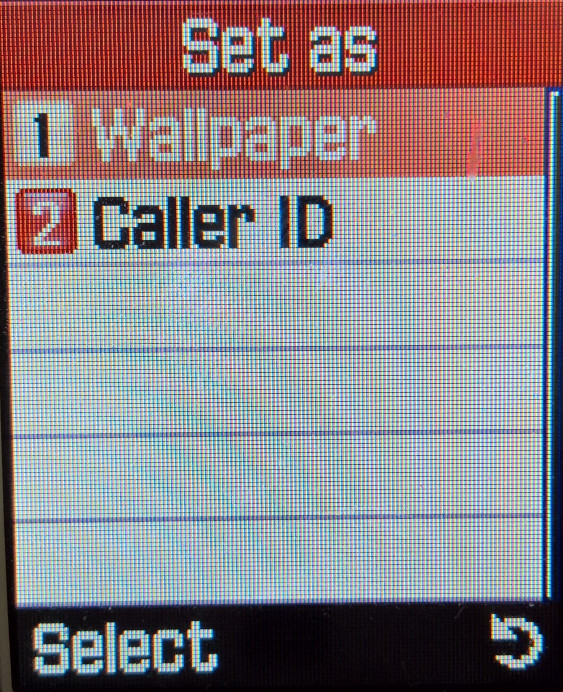
Photos taken with the camera will be found here, along with the default wallpapers. Opening a picture file allows you to set it was the wallpaper, or the screensaver instead, or even assign it to a contact. Basic editing can also be done with rotating. There is a edit option in the menu but its currently grayed out.
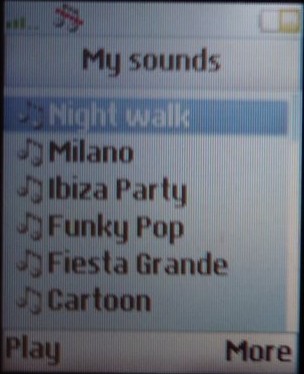
Sounds is very similar, but you can set either the ringtone or the message alert tone. Any tracks created with MusicDJ will show up here.
The themes option lets you view any apply different themes, although only one comes with the handset, Classic.
There is also a hyperlink option to download more pictures/sounds from WAP, in case you missed the dedicated menu option. They really wanted users to buy and download, thought you would think they would have included more memory for storage.
Phonebook
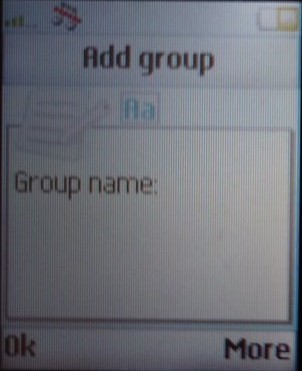
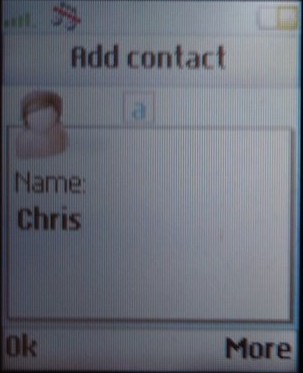
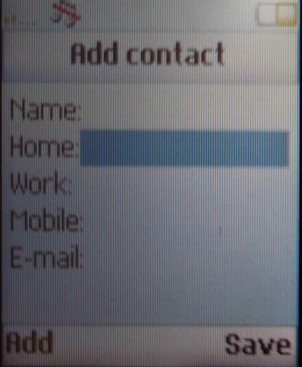
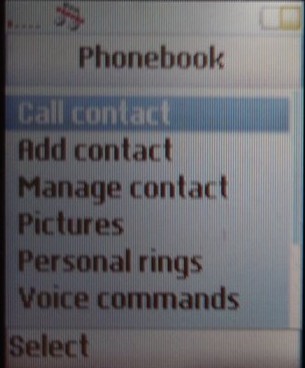
Contacts can be saved to either the phone memory or the SIM card. Contacts saved to the phone memory can have additional attributes assigned to them such as work/home contact numbers & email addresses.
Contacts can also be synchronized with an external service or using the iSync utility in OS X.
You can also set a unique ringtone for each contact.
Calls
A menu to manage incoming, outgoing and missed calls, by default, there is a shortcut to this on the home screen. You can also view call costs and minutes used, useful for keeping track of your monthly usage. Options for call waiting can be set here also. You can also use the Manage Calls option to filter to only numbers in the phonebook, or in a certain group.
Connectivity
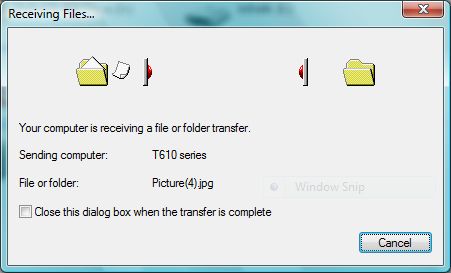
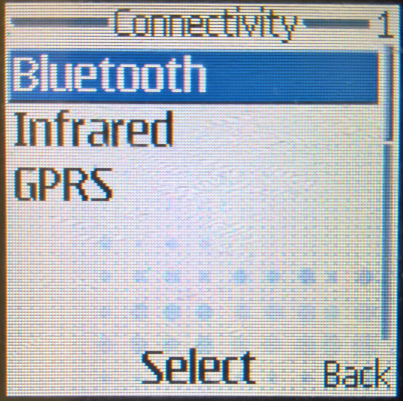
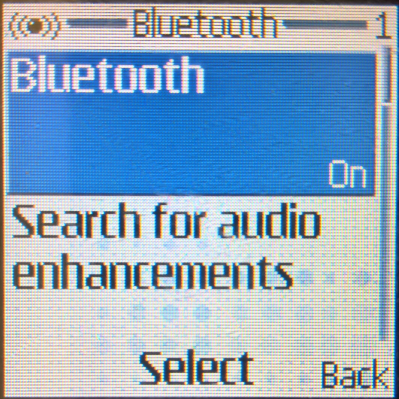
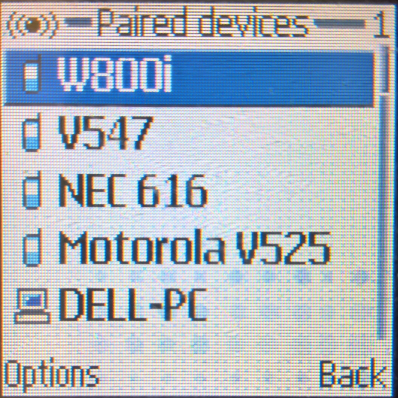
For connectivity there is Bluetooth, infrared and WAP support, supporting both GSM data and GPRS for faster network connections for the time. MMS is also supported which allows for pictures to be sent as a text message, one of the main selling points of the phone. Infrared does not require any additional software to use, you can freely send and receive files using the standard IrDA protocol.
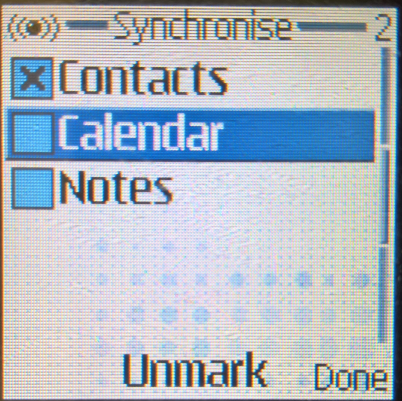
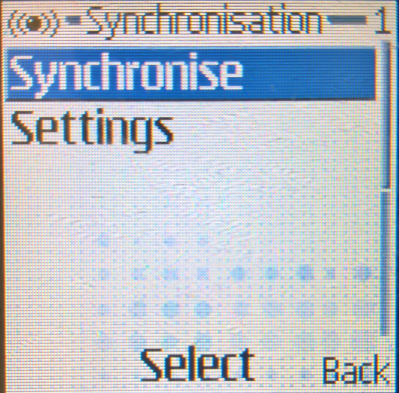
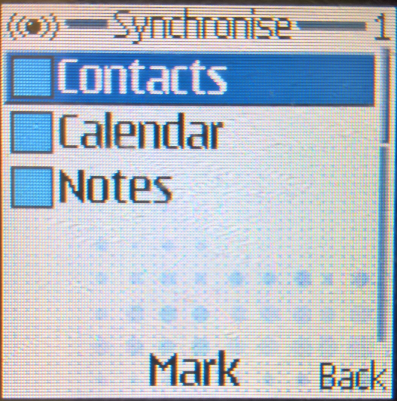
There is also access to the Sim toolkit menu if your Sim card supports this. Lastly, there is also a synchronization option that lets you sync calendar and phone book contacts with a service provider.
Organizer
Calendar: Your standard calendar which you can set reminders and events for later notification, you can change the view to a daily weekly or monthly, which will also list upcoming events, or you can search for them using the search tool built into the phone.
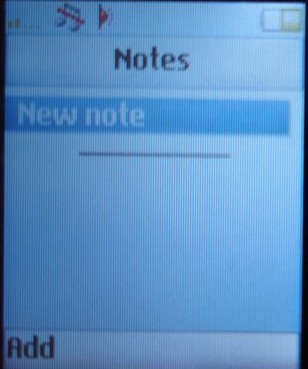
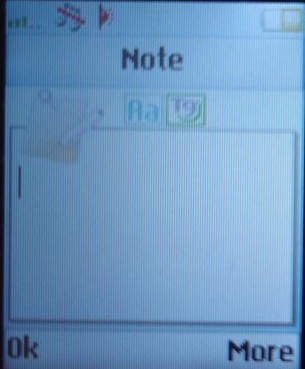
Note: Similar to how the Windows notepad would work, lets you save text notes to the phone for later viewing
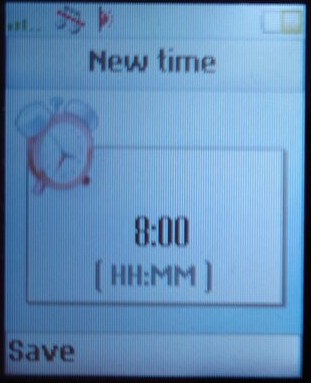
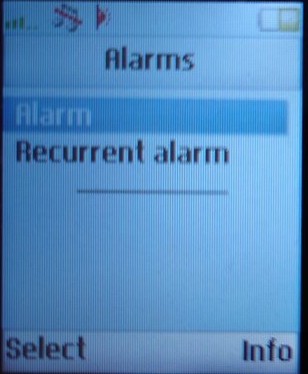
Alarms: Set a single or recurring alarm that repeats on certain days of the week.
Timer: Sets a countdown timer
Stopwatch: Supports lapping and can run in the background.
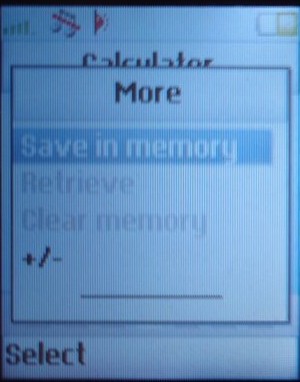
Calculator: A typical calculator
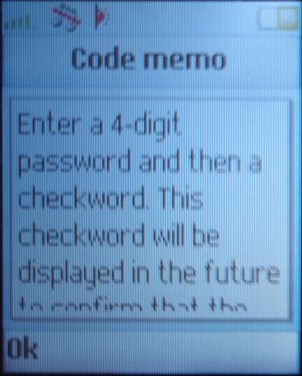
Code Memo: Same as notes but you can set a 4-digit PIN to access and save notes, this is not the same as the PIN for the SIM card.
Settings
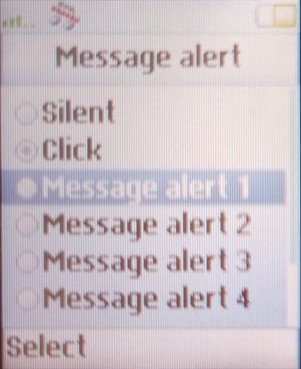
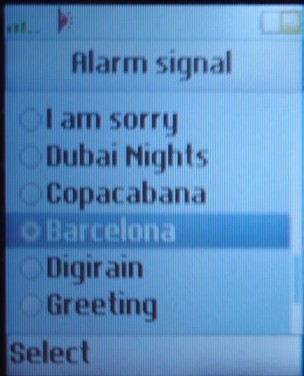
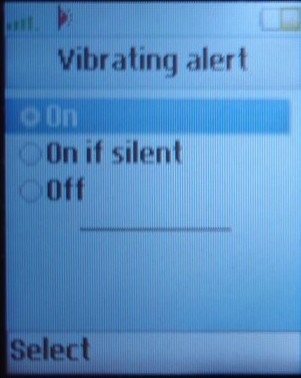
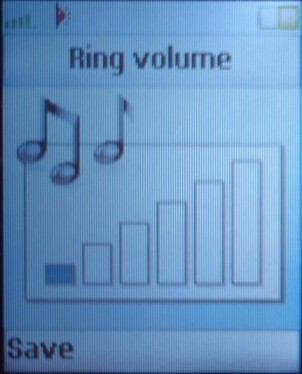
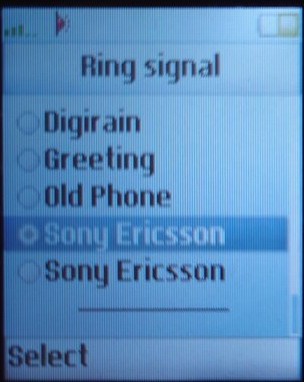
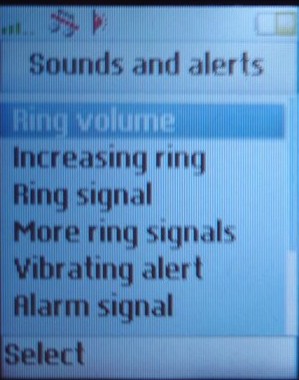
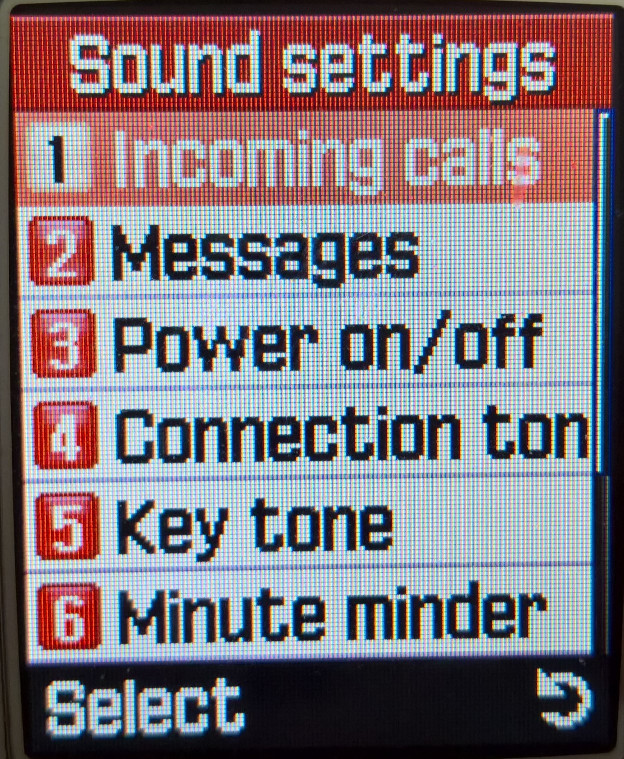
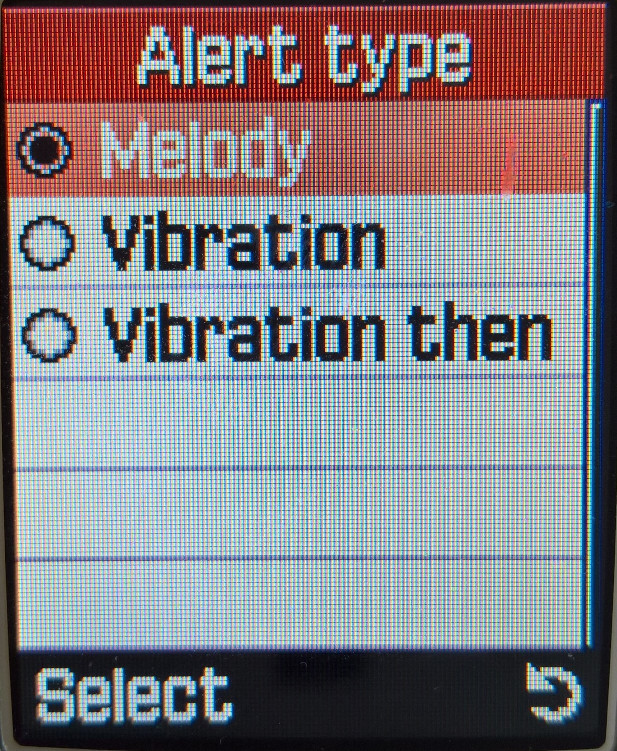
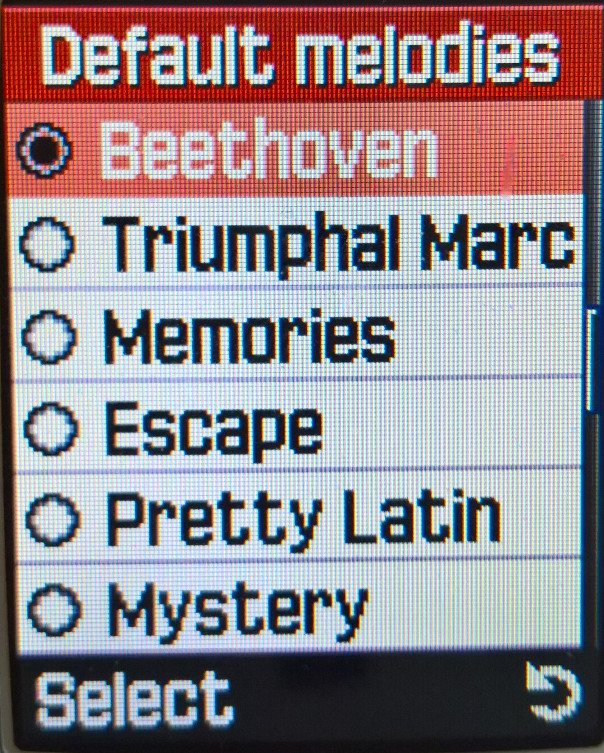
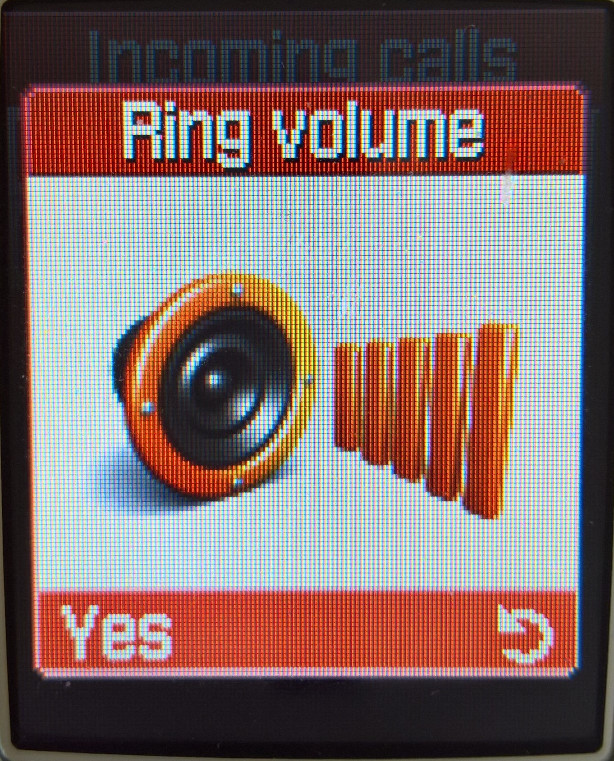
Sound and Alerts – Set the ringtone, and message alert tone, you can set the ringing to be ascending and can also enable toe vibration alert. A key sound can also be enabled which sounds upon button press and a minute minder which will beep when you are in a call, allowing you to keep track on how long the call has lasted, ideal for PAYG customers keeping track of their usage.
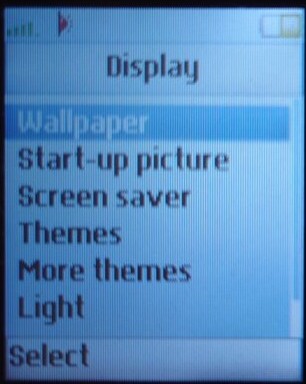
Display: Change the wallpaper, the stary-up picture, the screensaver and set a theme. The backlight and screen contrast can also be set.
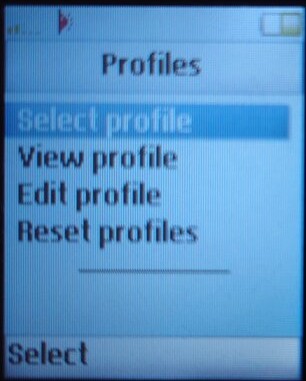
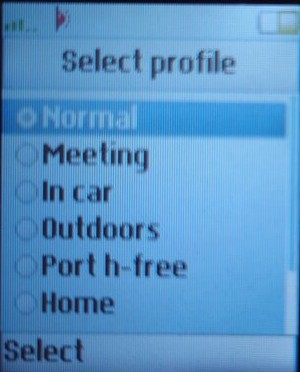
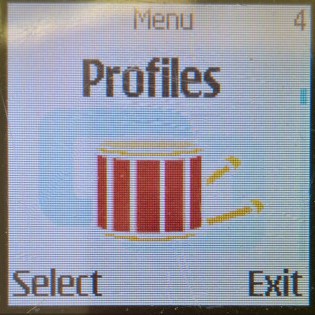
Profiles: Set and adjust the ring tone profiles, preset profiles are Normal, Meeting, In car, Outdoors, Port hands-free, Home, Office, & TTY Accessory.
Language: Set the language for both the phone menus and the T9 predictive input, options are English, French or German.
Time and Date: Set the time and date or have the phone update it automatically.
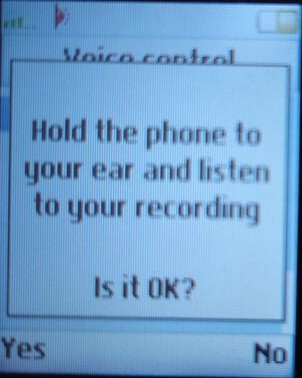
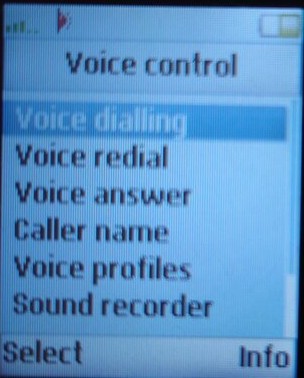
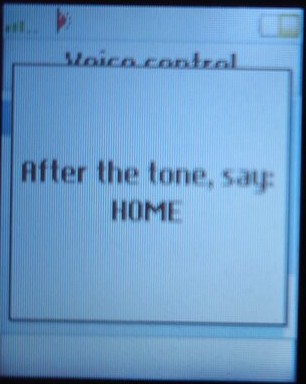
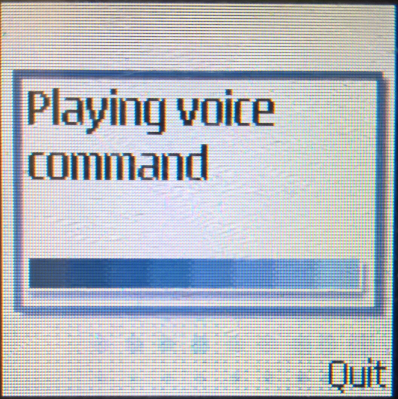
Voice Control: You can record and set voice commands for common phone functions, then you can trigger them by holding the volume key in standby mode and then speaking the command. Surprisingly this works considerably well, but struggles in noisy environments.
Locks: Set and change the SIM and Phone locks, and enable the auto keylock.
Master Reset: reset the phone settings back to the factory default
Downloads
A collection of themes that originated from the Sony Ericsson WAP download site, originally intended for the Z600 but will work on the T610 and possibly the T630.
A set of Mophun games that can be transferred to the phone, many of them are trial & demo copies to show the capabilities of the platform, some are intended for the T68 and have a smaller screen resolution. Always look for the 129×160 version for the T610.
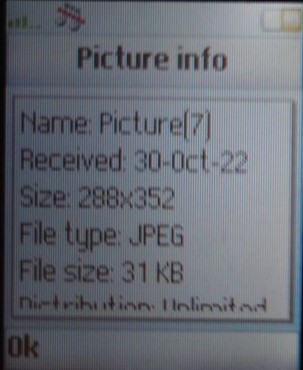
First two images are captured using the standard mode, with the last two using the Black&White and negative mode. All images are captured at 288×352
T-Six-Ten
To promote the phone, a website was launched called T-Six-Ten which was to promote the photo and image capabilities of the phone. users can submit their captured photos and share them online, as well as show tips and information to get the most from your T610 phone.
Dell was one of the launch manufacturers for Windows Phone, back when it launched in 2010. The Venue 7 stood out compared to the other models thanks to its slide form factor which is reminiscent of the old Samsung slide phones of the era. A gentle push will reveal the phone’s keyboard, which looks similar to a standard PC keyboard in terms of layout.
Aside from that, it’s pretty much the same compared to other Windows Phone 7 handsets with its 5-megapixel camera, Qualcomm Snapdragon 1GHz processor with an Adreno 200 graphics core, and 16GB onboard storage. No micro-SD support so storage cannot be expanded.
This would be Dell’s last foray into the mobile market, Dell also had a few Android handsets like the Dell Streak and would produce a few tablet devices like the Dell Venue.
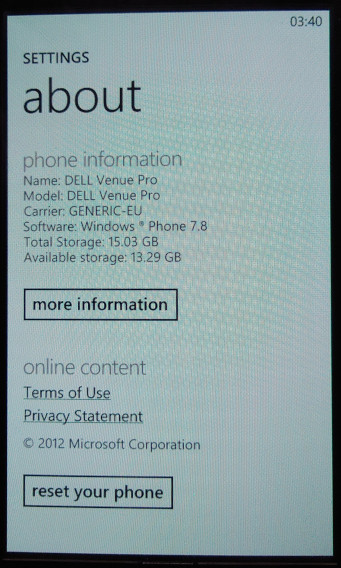
This handset originally ran the launch builds of Windows Phone 7 and was later upgraded to 7.8 which backported various Windows Phone 8 features.
Microsoft has slowly phased support for Windows Phone 7, with various services ceasing support. Bing no longer works, the app store has since been discontinued meaning you can no longer download and install applications for the device, limiting its capabilities as a smartphone. You’re pretty much limited to what comes with the device, which is very little in this case. The handset has pretty much become a basic feature phone with web browsing functionality but with Internet Explorer 9 the browsing is very limited with certain sites refusing to load due to how old the browser is and the lack of support for modern security protocols.
As someone who use Windows Phone from 2011 – 2017, it’s a sad state to see how this once fantastic but flawed mobile OS has been abandoned, kind of like seeing how deteriorated the Titanic wreck is. Some things still work as of October 2022, like the search suggestions that appear when you type into the Internet Explorer search bar, and the Bing background wallpaper.
The games will certainly be missed as Microsoft actually put some effort into porting popular titles like Doodle Jump and Fruit Ninja, and also embraced new titles like Beards n Beaks and Wordament. All of these feature Xbox Live achievements and leaderboards which synced with your main Xbox profile.
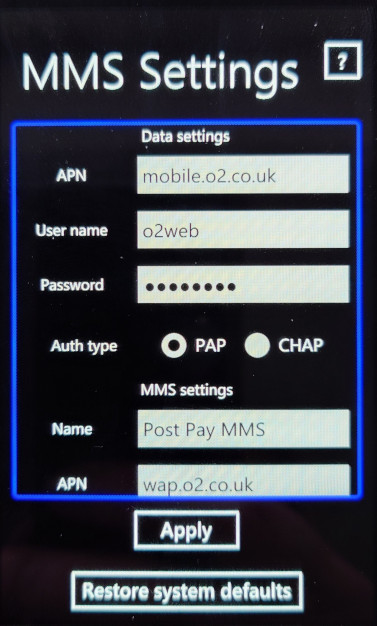
There are very few applications that are preinstalled, which Windows OEMs could do so. Considering this is a Dell, I’m surprised there no McAfree security preinstalled. The only one I can see is a network operation settings app, that lets you set the correct internet and MMS configuration for your network provider.
Music & Video
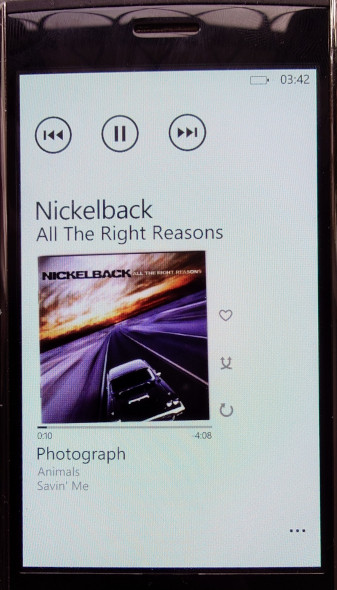
The Zune software is used to transfer media from and to the phone and is required for this purpose. You cannot use MTP to transfer content as the phones file system is not exposed to the host in any form. Its a very similar approach to what Apple took with the iPhone, where iTunes was the only way to exchange media to the phone. (Although later ios released supported PTP for easier photo transfers)
The problem here is Zune is partially broken on later Windows 10 releases since the conversion function is nonfunctional. This was useful for when you had high quality MP3 files that you wanted to transfer to the phone Zune could transcode them to a lower quality, say 128Kbps, and copy them to the phone. The result is a smaller file size in a more efficient WMA format whilst maintaining some form of quality.
Using Windows 8, 7 or Vista is recommended if you wish to transcode your music through Zune.
This does make the phone a kickass music player, and back when if was functional Zune pass was revolutionary for the time as it allowed you to subscribe to stream music from their library, similar to Spotify or Deezer today.
Lastly the Zune software could also sync podcasts and applications/games downloaded from the Zune store. This functionality has since been removed and has not been replicated, making it impossibly to load apps from your PC onto the phone itself.
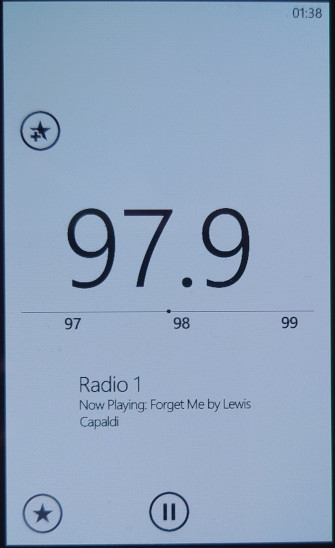
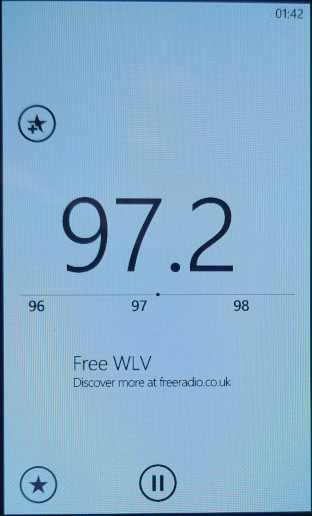
You at least get access to an FM radio, which lets you change the frequency by sliding your finger in the direction you want to scan. It can pick up station name indicators along with any supplementary information if broadcast by the station. You can also pin stations individually onto the start screen for quick access.
Conclusion
Well, it’s a shame to see that was once a smartphone has now been relegated to a feature phone, or even a dumb phone as compared to your typical Nokia or Sony Ericsson feature phone that has the ability to run third party Java programs, Windows Phone 7 now lacks this ability. Only merit it has is its Internet Explorer browser which is losing support by the day.
The 6230 was one of the major milestones when it came to multimedia handsets of 2004, whilst it lacked 3G network support, it made up for it with its 2G EDGE and Bluetooth support which allows for file transfers with other handsets that support it. A TFT colour display is offered which supports up to 65536 colours, but is stuck with the low resolution of 128×128. Marketed and sold as a business-class phone, which meant it included an email client and a calendar that could sync with an external server. A VGA resolution camera is included which is capable of capturing video.
The 6230 was another example of Nokia’s flagship handsets of the time and incorporated all of the common characteristics of Nokia, including exchangeable covers, a lanyard, and a hands-free port.
There are three soft keys, left, middle and right which can be used to activate certain functions depending on what’s displayed on the screen. The middle soft key is typically the select button, which is commonly used to confirm and enter menus. The left/right buttons are commonly used to go back or display an option/list menu. Lastly, you have the common Send/End keys, also known as green/red phone keys.
Nokia would later continue to enhance the 6230 with the 6230i, which adds a larger screen, better camera and more storage, whilst sticking with the popular form factor.
Homescreen
This will look familiar to anyone who has used Nokia S40 phones in the past, with the signal and battery power meters on the left and right respectively, along with the network operator in the middle, which can be replaced with an operator logo if one is provided (very few actually did this).
The directional keys can be used as shortcuts to common menu items, like pressing the up button opens the camera, left will open the SMS message composer.
Speed dialing can be activated by pressing and holding down a key, which will dial out the contact number assigned to it. 1 will always dial out the voicemail number.
Menu Navigation
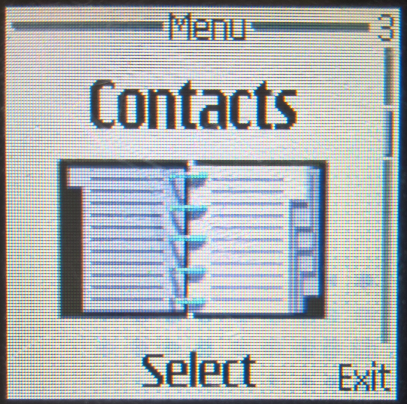
The 6230 uses the Series 40 platform, but with an updated icon set, still the menu layout remains the same as previous models.
Messages
Here you can create and send SMS text messages, or compose one using the built-in templates offered. Received messages can be entered into custom folders for long-term keeping. There is also a distribution list for when you want to spam multiple contacts with the same message, you simply enter the numbers to send the message to or select from your phonebook, and your message will be set to multiple recipients. Useful for making an announcement or sending the same message to multiple contacts frequently.
Nokia smart messaging is supported, which allows sending and receiving of ringtones and black/white static images to other supported handsets (commonly Nokia) but also with some Samsung/LG/Motorola. There are 10 templates that have been included with the handset that can be sent. EMS is not supported. Instead MMS is supported, which allows for photos and small audio clips to be sent using the phones data connection. Up to 100kb can be attached to a single MMS file.
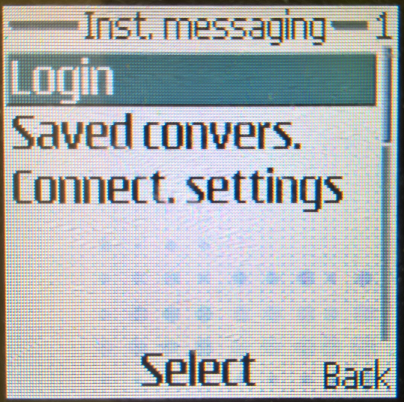
There is an option or instant messaging, where it requires connecting to an instant messaging client. Possibly you could use this for AIM or MSN Messenger, but I believe these services required you to use their own mobile clients. Possibly this was intended to be used by the network provided instead, although it may only function for users on the same mobile network. I don’t think any network providers in the Uk made use of the feature.
Lastly, there is also a built-in email client which supports POP3 and SMTP protocols which were commonly used in that time. However, it is very limited, which no support for attachments
Contacts
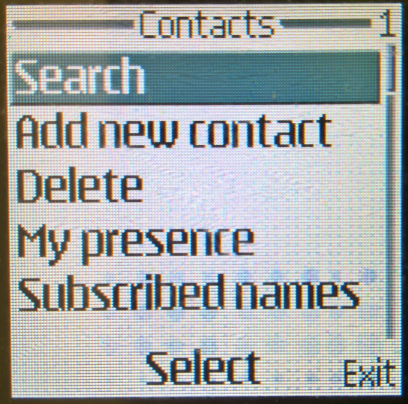
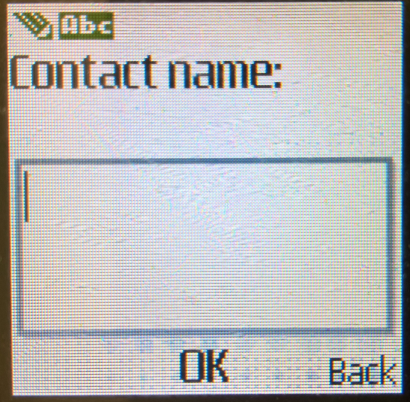
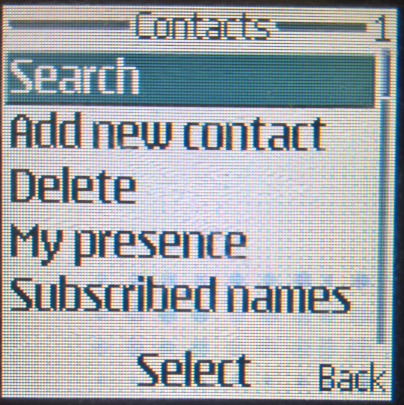
The Phonebook, up to 1000 entries can be saved to the internal memory, with a little more being saved to the SIM card. Contacts stored in the phone memory can have additional information assigned to it, such as the email address, home/landline number, fax number, office/work, and a photo of the contact assigned, which will appear onscreen when the contact shows. If a contact has multiple numbers assigned to it, the first number entered will be the default contact used.
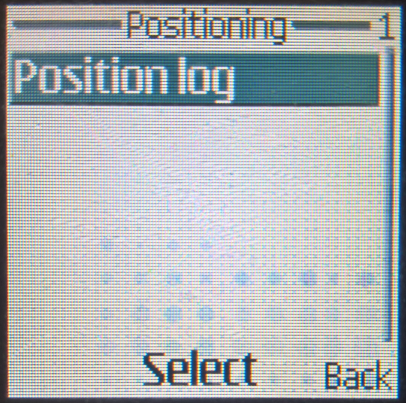
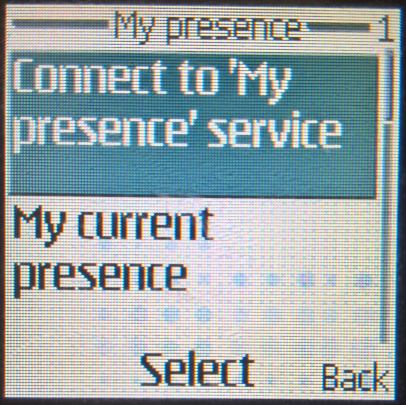
A presence service is supported, which lets you know if any contacts are available directly for chat, im not sure how this works exactly, if it uses some obscure GSM protocol to achieve this, but it was not widely used. As mentioned earlier, the contact’s photo can be st to appear when the contact calls, although you are limited to using a portrait version of the contact, and its still hard to make out due to the low size and resolution of the display. Plus you are limited to 100 contacts that can have a photo assigned to them, Contacts can slo be assigned to groups, upto 5 in total are supported. Each group can have its own custom ringtones.
Call Register
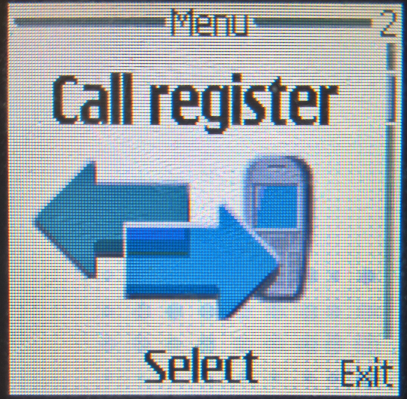
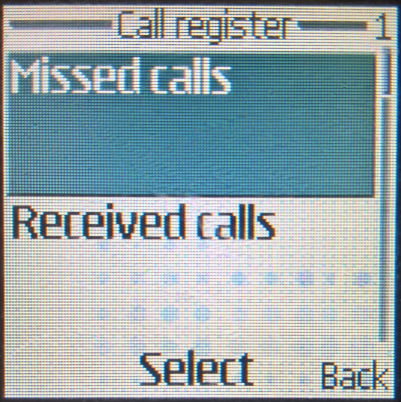
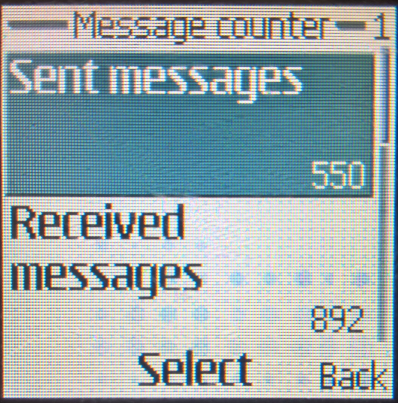
Three lists are stored here, each for received, dialed and missed calls. Each list can save up to 20 entries and will show the date/time of the call. You can also press the green call button from the idle screen to show the recently dialed numbers.
Settings
This section remains largely unchanged from the previous models, but there are some new options to take advantage of the added functionality
Profiles: Phone profilescan be set and configured from there, you can also access this by pressing the power button, located at the top of the handset.
Communication: lets you access the Bluetooth, IrDA (Infra-Red) and GPRS sync settings. For Bluetooth you can set the device to be discoverable, view any previously paired devices and set devices to connect without any confirmation required. The support of both Bluetooth and Irda is useful, as many laptops lacked Bluetooth support, but included Infrared support for data exchange. With additional software like Nokia PC Suite, you could use the GPRS connection to connect to the internet.
Gallery
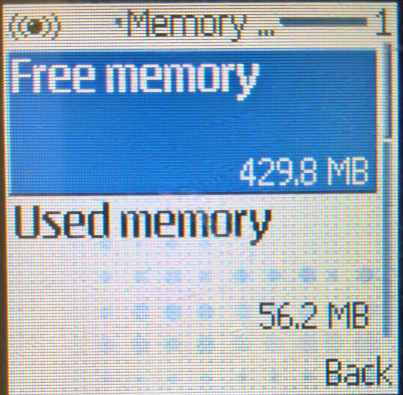
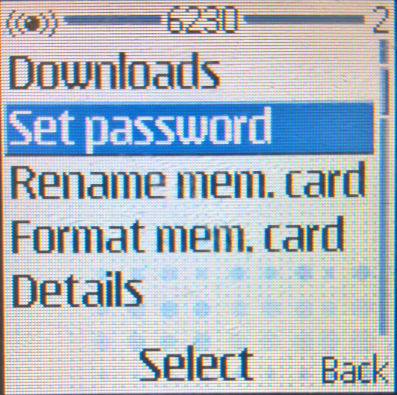
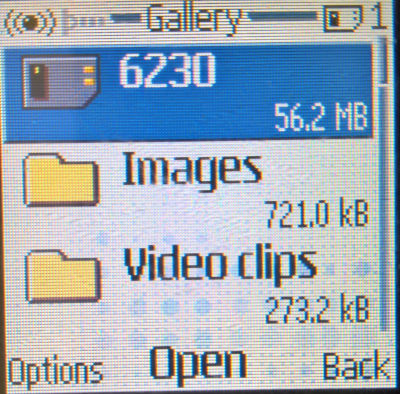
The file manager, here you can view any photos captured by the camera, or any of the ringtones and default wallpapers. The memory card can also be accessed and managed here, and files can be copied over from phone memory to the memory card. Upto 128MB is officially supported, using the MultiMedia Card standard (MMC). The added storage makes the device useful for an MP3 player. As a layer of security, you can set a passcode for the memory card, which must interfered when the card is inserted into another device.
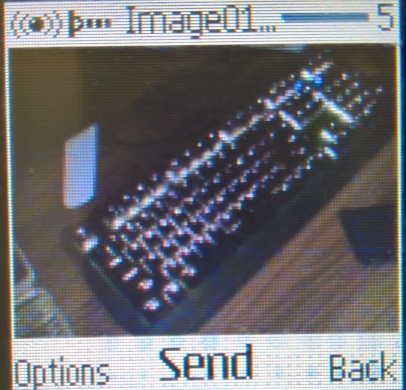
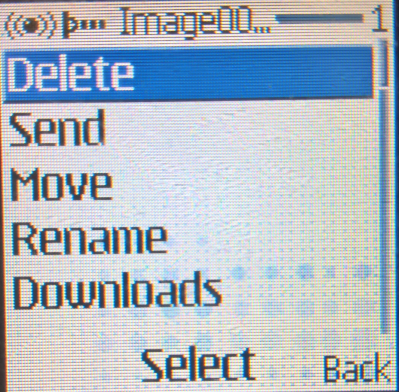
One poor design decision is the Send soft key when you are viewing a photo, pressing it directly inserts it into an MMS message, however you assume it would give you a menu to choose from if you want to send via MMS, Bluetooth or Infrared.
Media
This is where you can access most of the phone’s multimedia functions, The Camera can capture phones in regular and portrait modes, and an added night mode lets you try to take photos in low-light conditions. The files are saved in the JPEG format, and three types of compression can be used.
Media Player – Plays multimedia files like MP3 files. You can adjust the audio using the equalizer to adjust the sound output.
Music Player – Searches for and plays back Mp3 files, and supports the use of playlists.
Voice Recorder – lets you record upto 3 minutes of speech, which can function during a phone call when the handset is on loudspeaker mode.
Radio – FM radio player, this requires the handsfree or the headphones to be connected, since it functions as the radio’s antenna.
Organizer
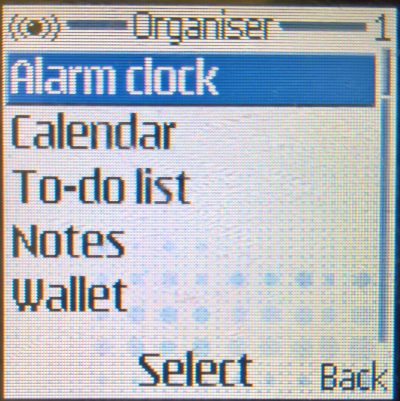
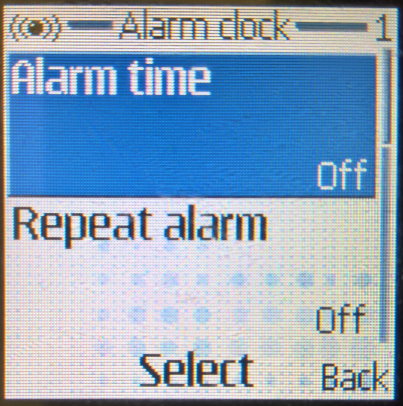
Alarm Clock: A single alarm can be set, and can be on set days of the week. A unique ringtone can be set for the alarm to distinguish it from the regular ringtones, or it can be set to play the radio, which requires the headset to be connected for it to play.
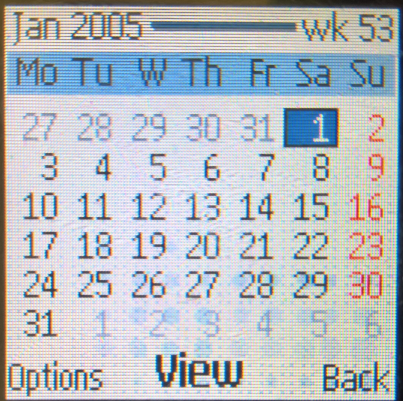
Calendar: A monthly calendar can be displayed, and up to around 200 entered can be set into the handset memory. You can view the calendar weekly or monthly, depending on which is preferred, and you can jump directly to a date, which seems to max out at the year 2080 of which the phone wraps around to 1980.
I’d be surprised if this phone will even be in use by then
Types of calendar events that can be added are meeting, call reminders, birthday, normal reminders and memo)
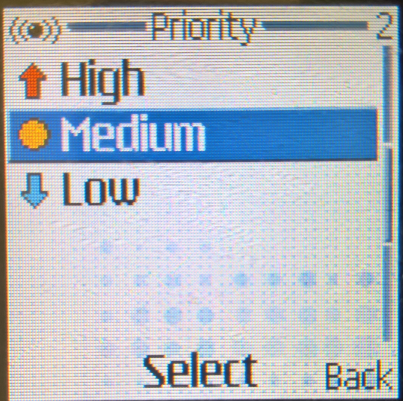
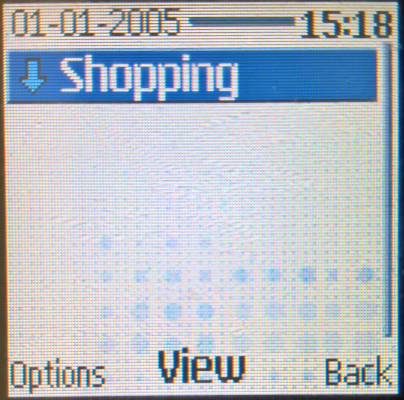
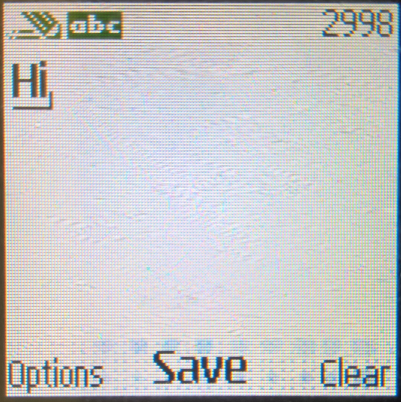
To Do List: Create occasions with three proitory rates, being High, Normal and Low, with the deadline date being set. The text editing interface is almost the same as the SMS composer.
Wallet: Information here can be protected by a passcode which makes it useful to store sensitive information like payment info.
Lastly there is a sync utility that lets you synchronise the data on your phone with an external server, which can then sync with a desktop PC or a PDA.
Applications
J2ME, which is the mobile implementation of Java is supported here, and Nokia have included a few games with the handset. Applications can only be saved onto the phone’s internal memory and is limited to 1.5MB which is shared across all applications.
Nokia also offered free downloadable games that could be downloaded through the internal browser.
Games that come included are Golf, Chess and a Beach Rally II. Additional games can be installed using the Nokia PC Suite, or through the WAP browser, but they have a chance of being installed under the Collection folder, rather than games.
For applications, a unit converter and a world time app are preinstalled.
Web
The XHTML browser, mobile websites could be browsed, and up to 20 bookmarks can be saved for easy access. There is also a service inbox that saved any web links your network operator may send. WAP sites can also be accessed, but these were quickly falling out of favor with the rise of proper mobile internet.
The Samsung E800 was one of the first generation of Samsung’s slide form factor which is semi-automatic. A gentle push will make the slide mechanism open and close automatically, spec wise it was in line with their other models of the time, with a VGA camera and a 128×160 resolution screen. It’s very similar to the Samsung E600 in terms of specifications, but has a different screen aspect ratio and uses the slide form factor. Memory capacity has been increased, with 19Mb for user storage, and 3Mb reserved for Java apps.
The screen of the device is 128x 160 resolution, and can display up to 5 text lines. The font is standard for Samsung’s phones of the era and is nice and readable, even outside.
Missing however seems to be Bluetooth functionality, with only IrDA being offered for wireless connectivity, alongside 2G GPRS. On the side there is a handsfree connector, intended for use with the optional handfree accessory, you can also connect the D500 external speaker to this connector.
Home screen
The menu system uses a grid-like layout interface, and the numeric keys can be used as shortcuts to access different menu items.
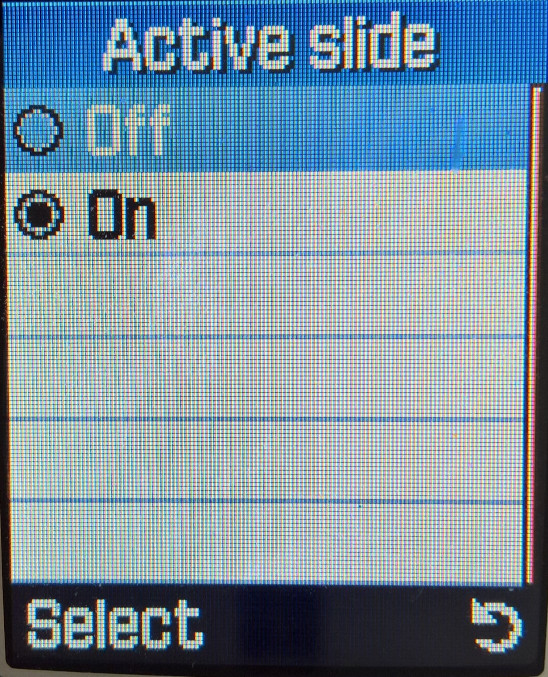
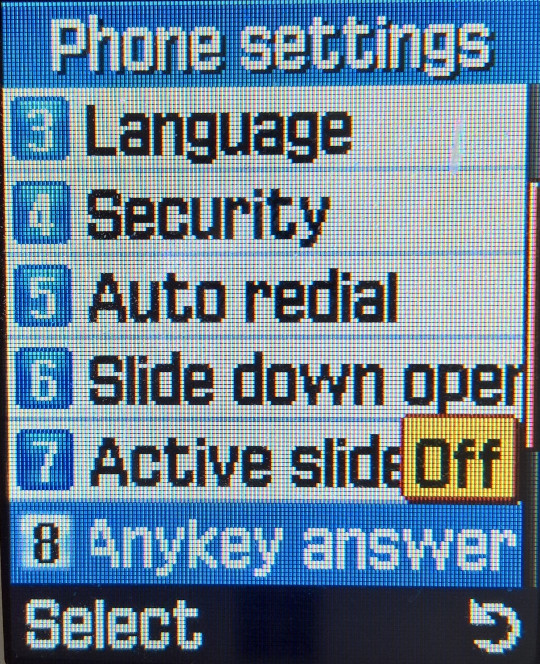
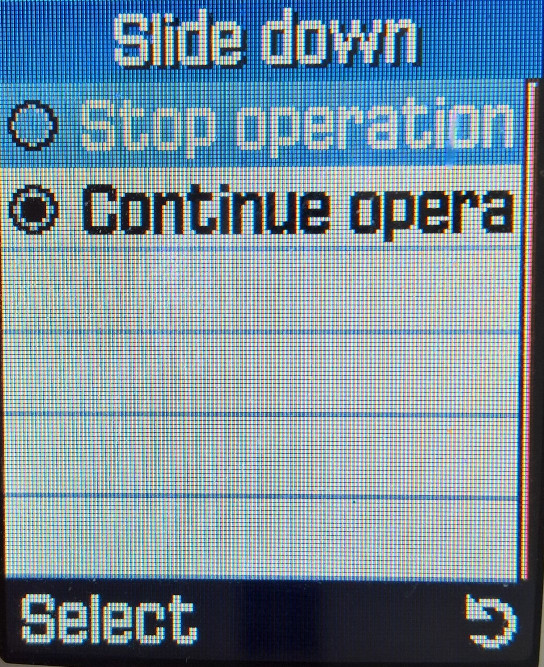
Being one of the first Samsung models to come with a slide form factor, ergonomically the phone is designed to be pushed up withyour on directional buttons, a gentle push is all thats needed for the phone to slide up. The phone is capable of functioning even with the slide down, although you cannot access the camera or numeric functions. The phone automatically locks the front visable buttons when the slide is closed, which prevents accidental operations when the phone is in your pocket, you can still unlock the phone if you need to quickly access or show photos.
Phonebook
Contacts are saved to either the phone memory or the SIM card, the storage capacity of up to 1000 on the device, and 250 on the SIM card (depending on the SIM card itself, could be less for older SIM’s. Contacts can also be shared via infrared.
When contacts are saved to the phone memory, you can set picture for individual contacts and can store and manage them into groups (Home, work, friends), of which a specific ringtone can be set for that contact. Up to 10 groups can be set.
Call Records
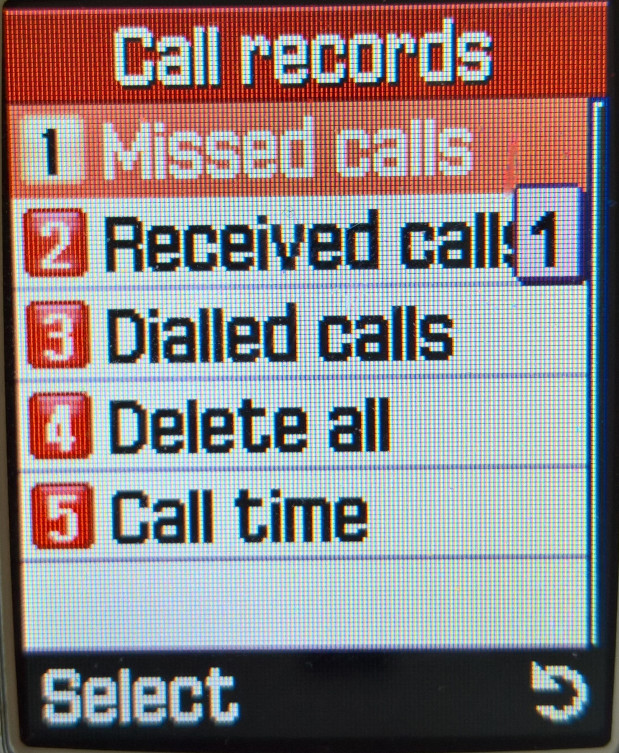
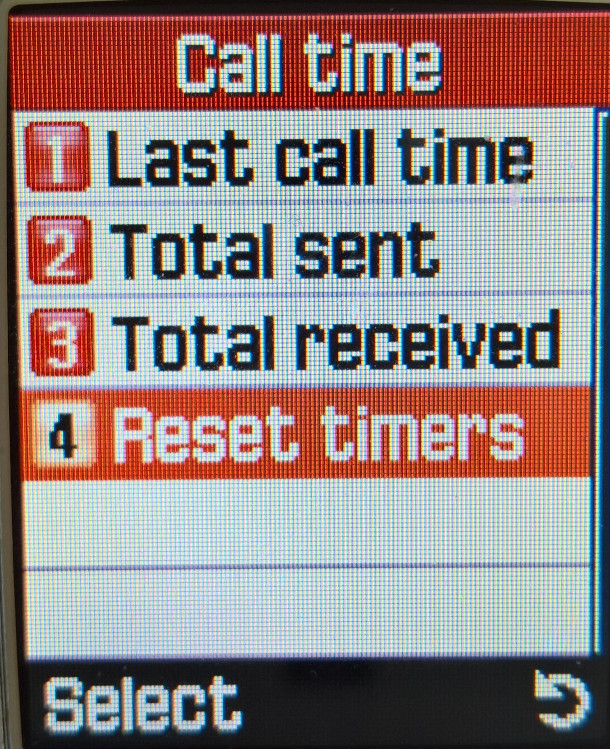
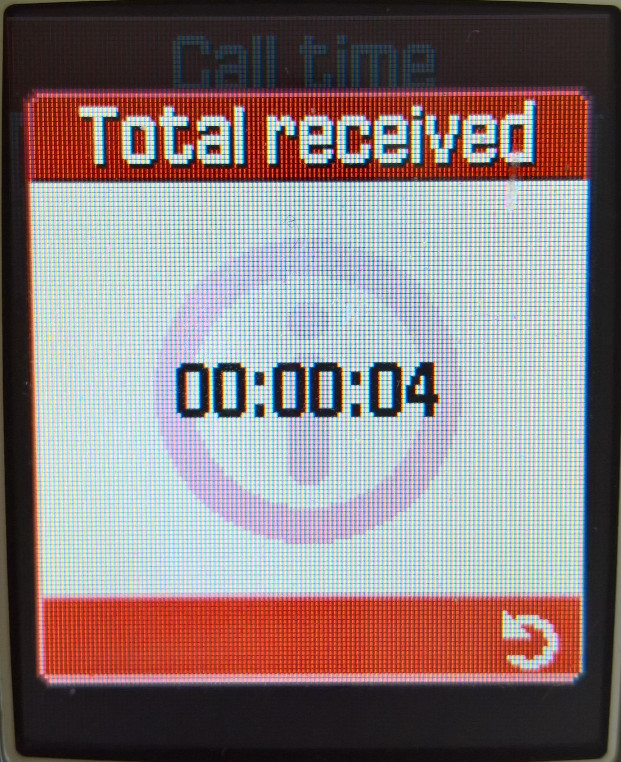
Call records can be accessed here, and by pressing the green phone button from the home screen. The handset can show the total time spent on the last call, and for all calls made in total.
Network
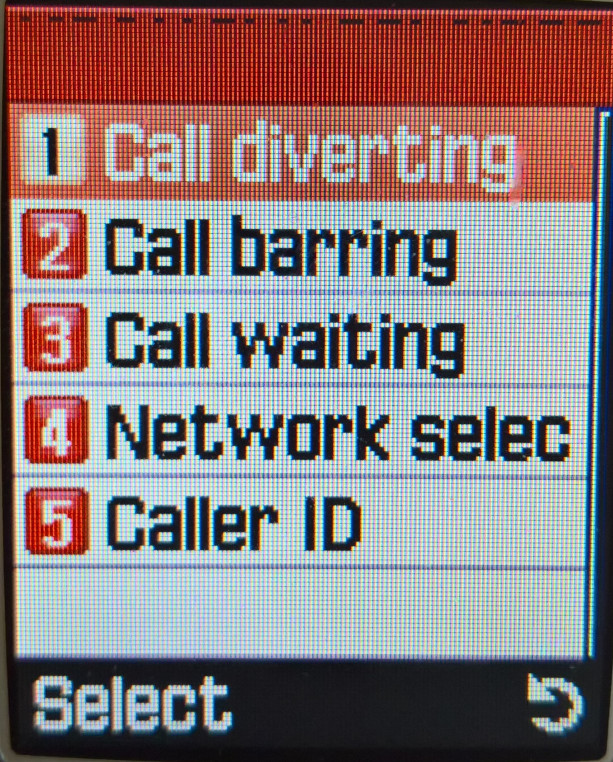
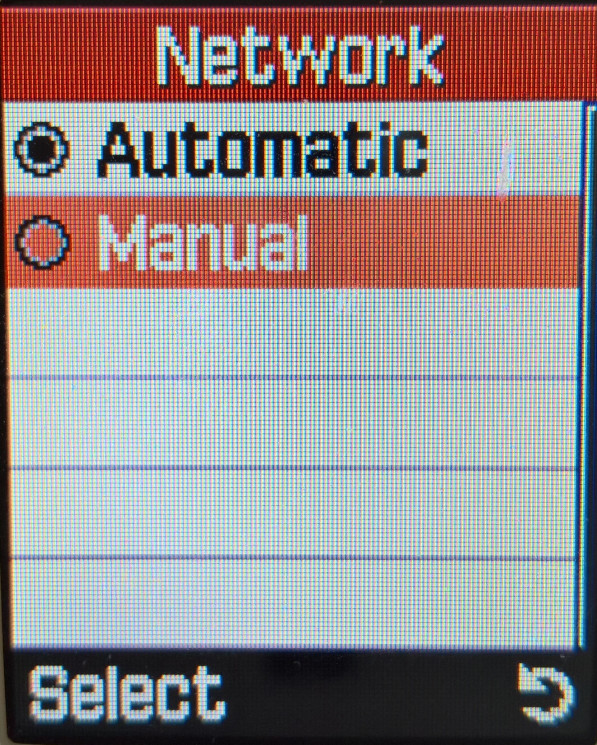
Call diverts can be managed here, and you can manually select the network to connect to if your SIM card has permission to access it.
Sound Settings
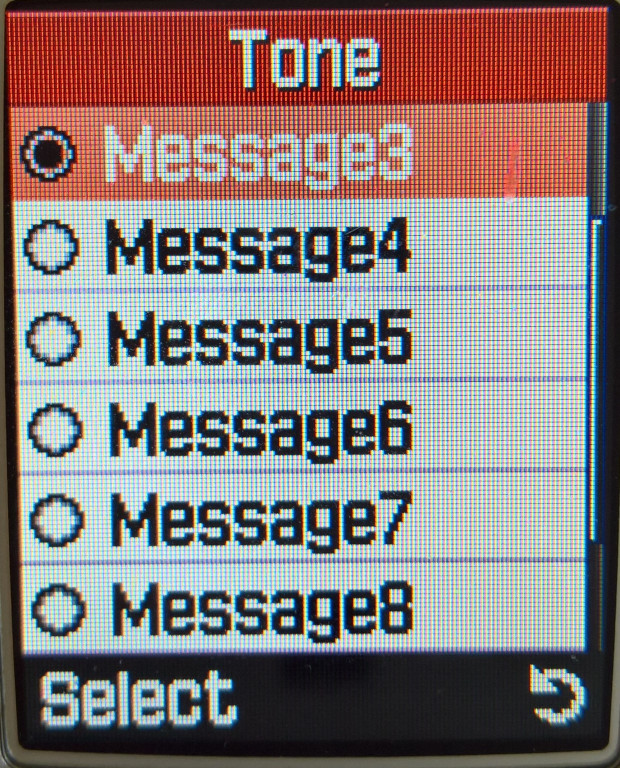
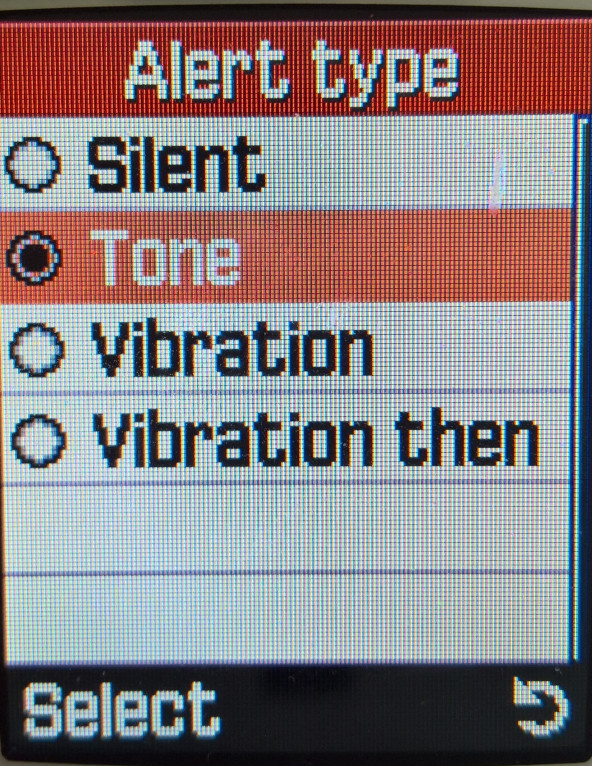
Alert and ringtones can be set here, along with any alert and menu sound the phone is capable of making
Incoming Calls
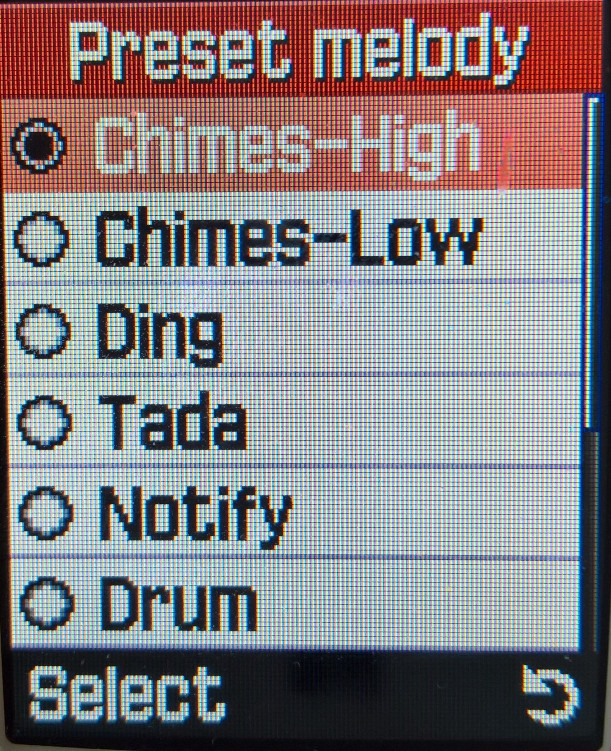
There are 30 default ringtones, plus 15 additional pre-downloaded ringtones. More can be added using the PC Suite software, which comes with up to 100 ringtone samples that can be transferred over. These are saved to the My Sounds folder.
Messages
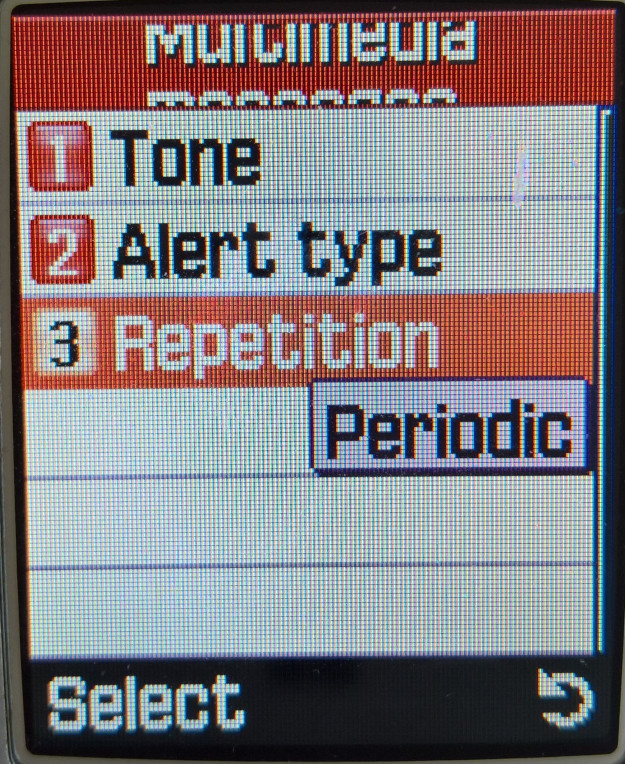
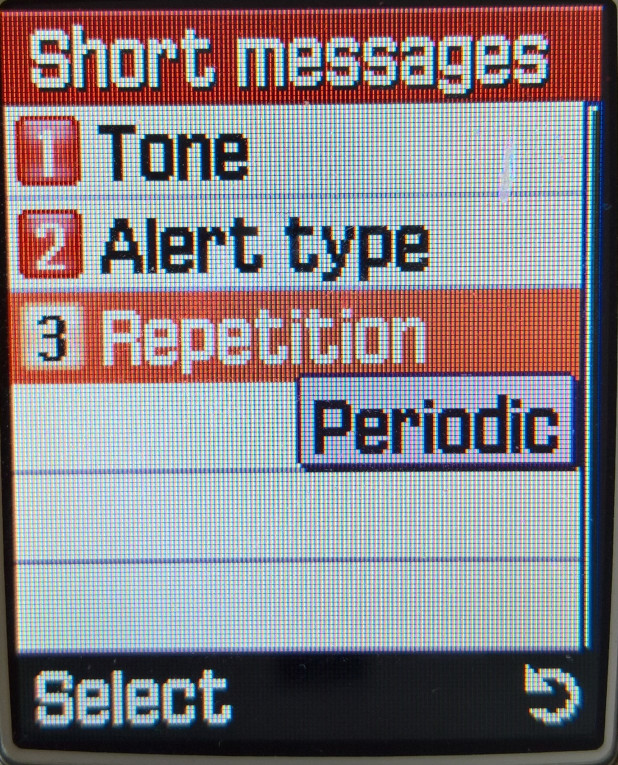
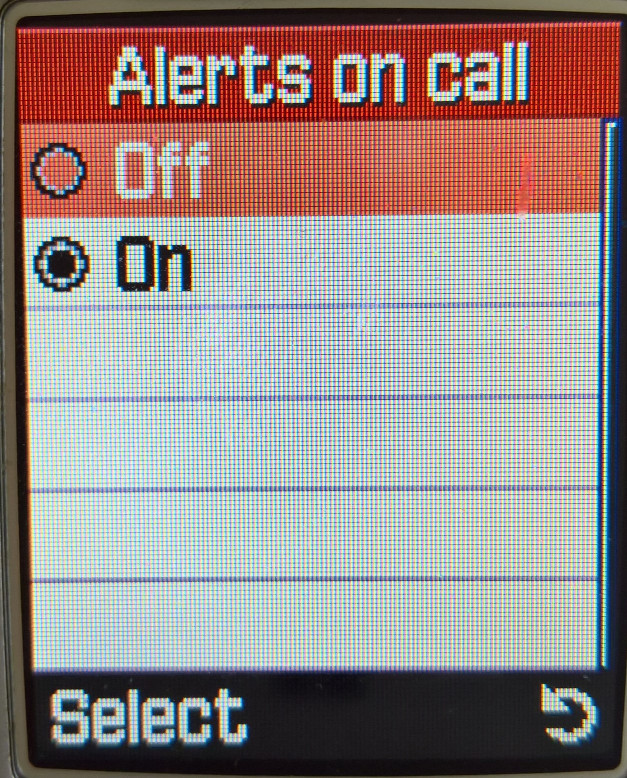
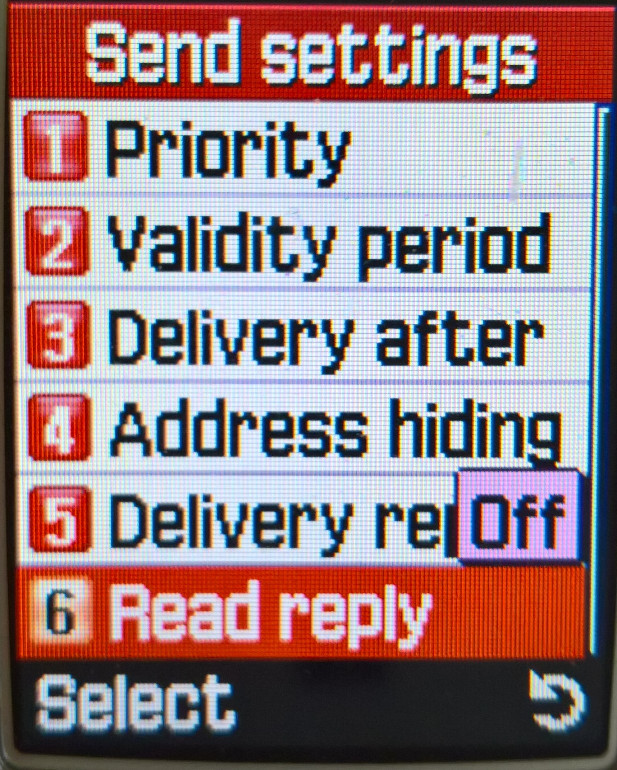
SMS message alerts can be repeated until they are read, useful if you are away from the phone for a period of time.
Other Sounds
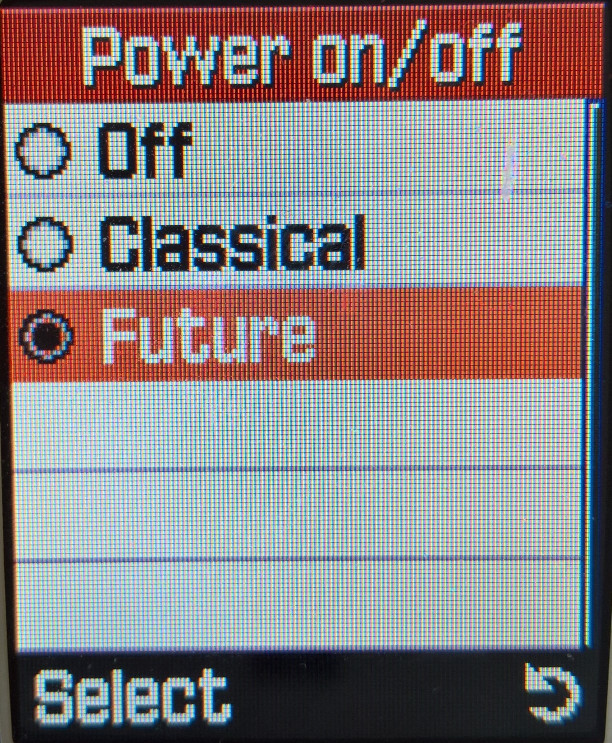
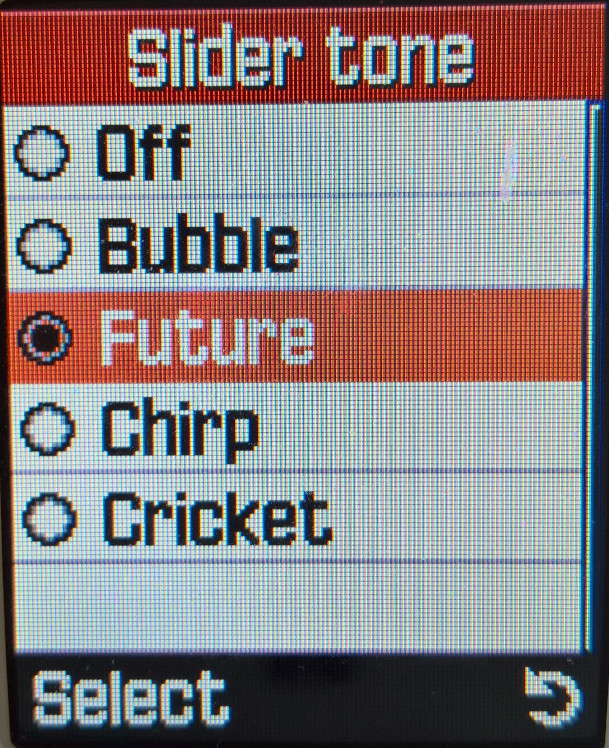
The handset will make a sound when a key is pressed, or if the slider is moved up or down. The minute minder sounds a beep every minute, allowing you to keep track of how long the call is, useful for pre-paid and customers on a limited call plan.
Messages
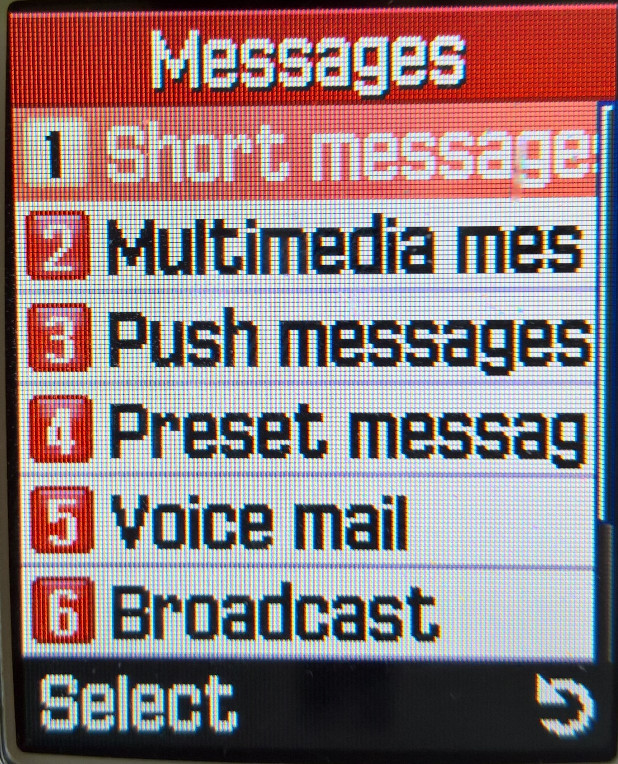
Short Messages
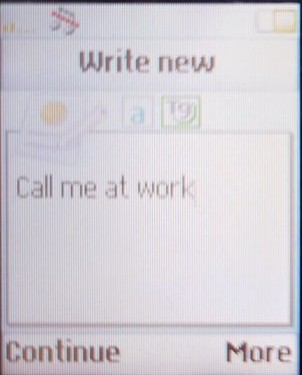
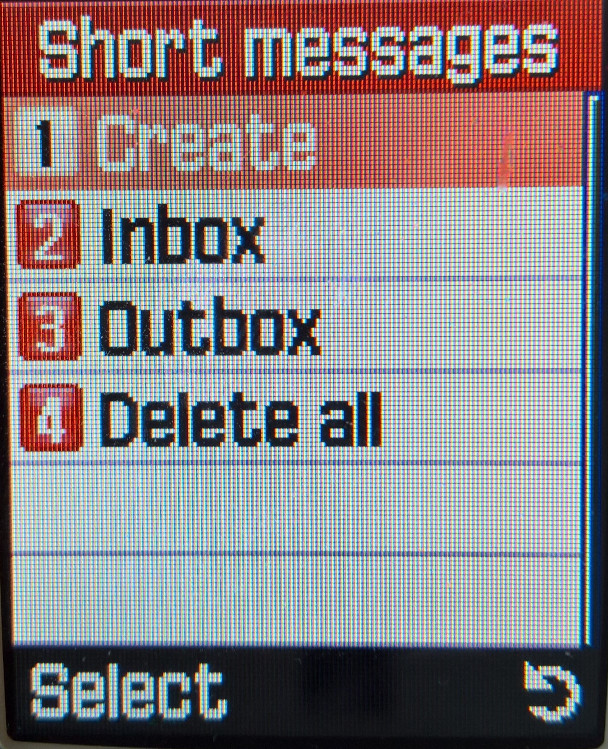
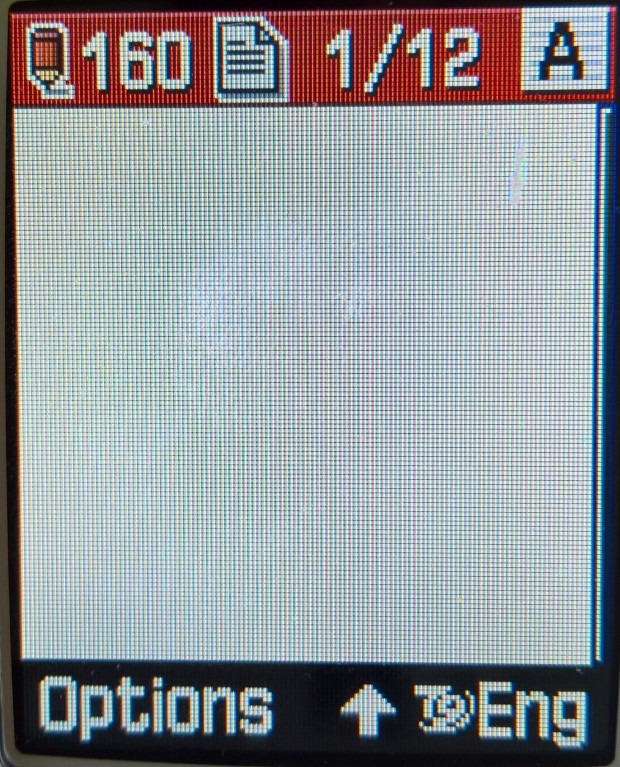
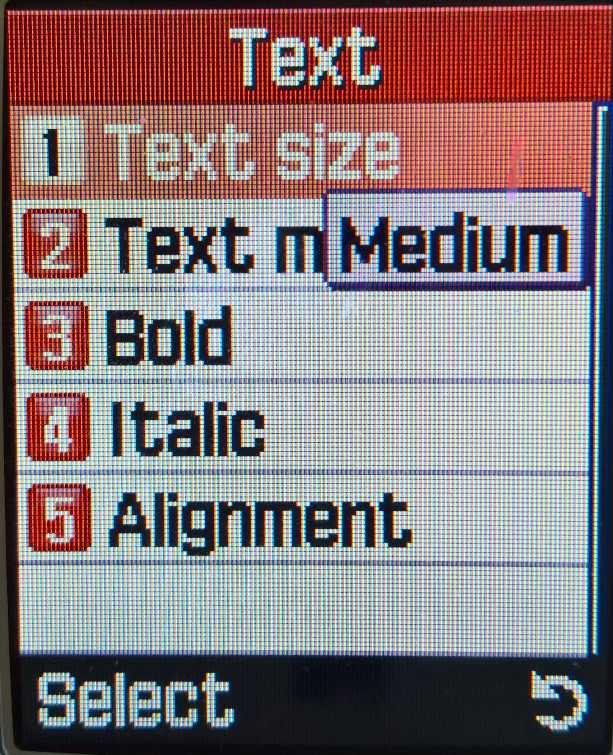
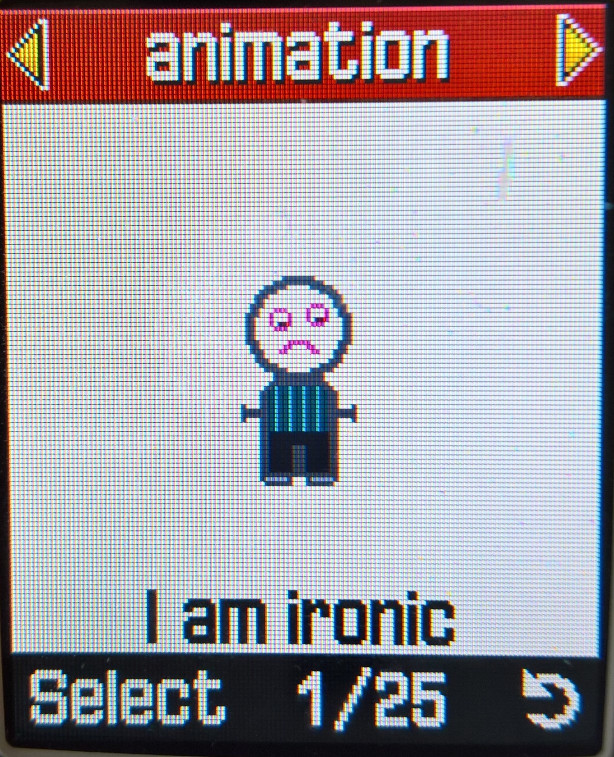
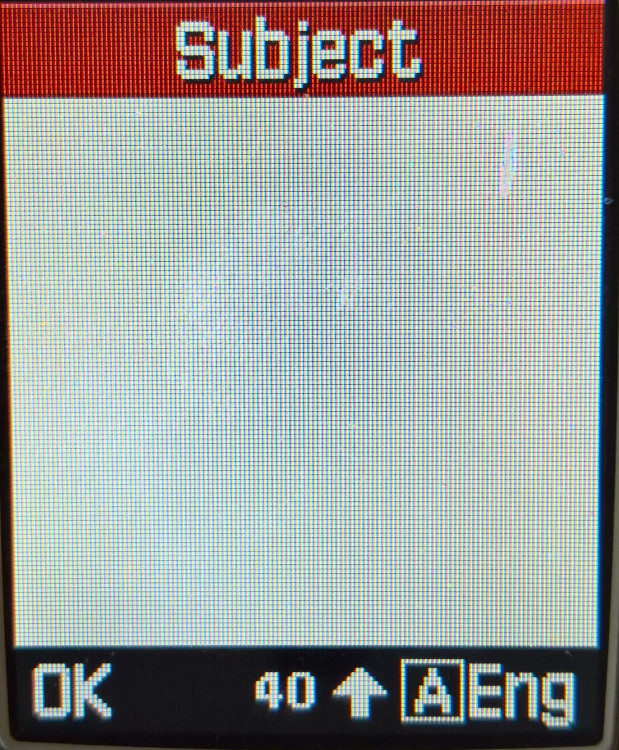
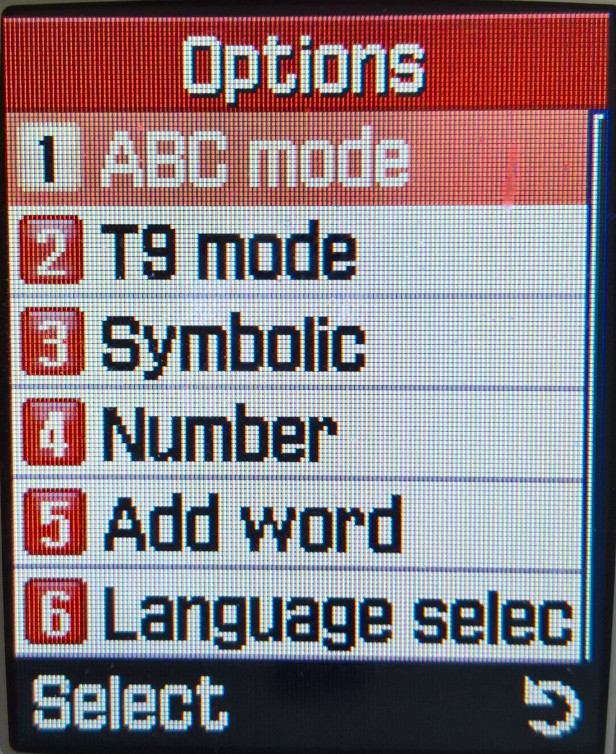
SMS messages can be created and sent from here, you also have access to MMS multimedia messages, where ringtones and pictures can be sent. Predictive text is supported for faster texting and the text size can be adjusted for easier readability. EMS is also supported and the phone comes with preloaded graphics that can be sent, ringtones can also be sent but as they are mmf files, they may not be compatible with other handsets, unlike general midi files.
Multimedia messages
MSS Multimedia messages have their own menu item, and pictures and sound files can be attached to a single message. The limit for outgoing messages was 100Kb and incoming messages were limited to 45Kb and up to 150 MMS messages can be saved.
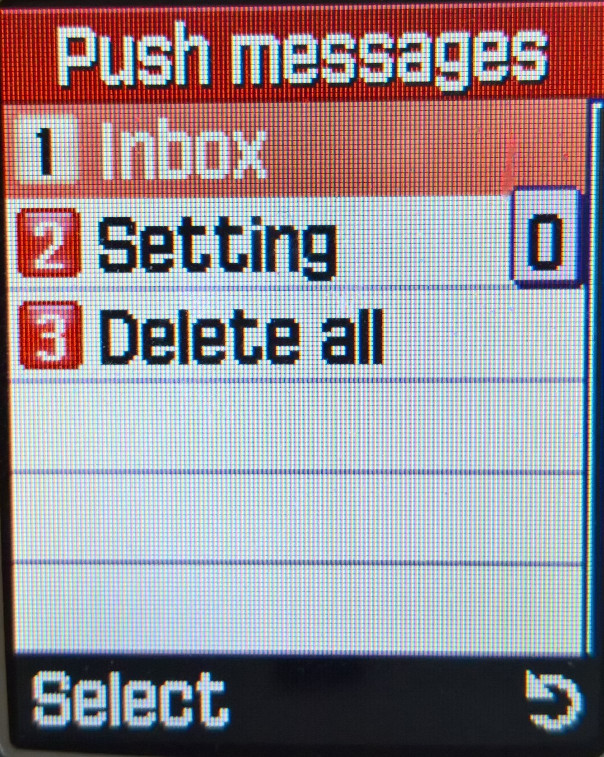
Push Messages
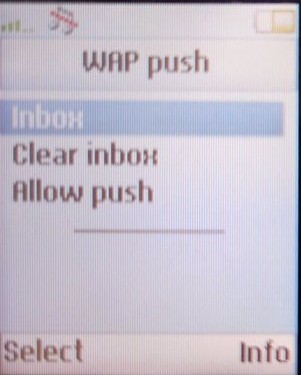
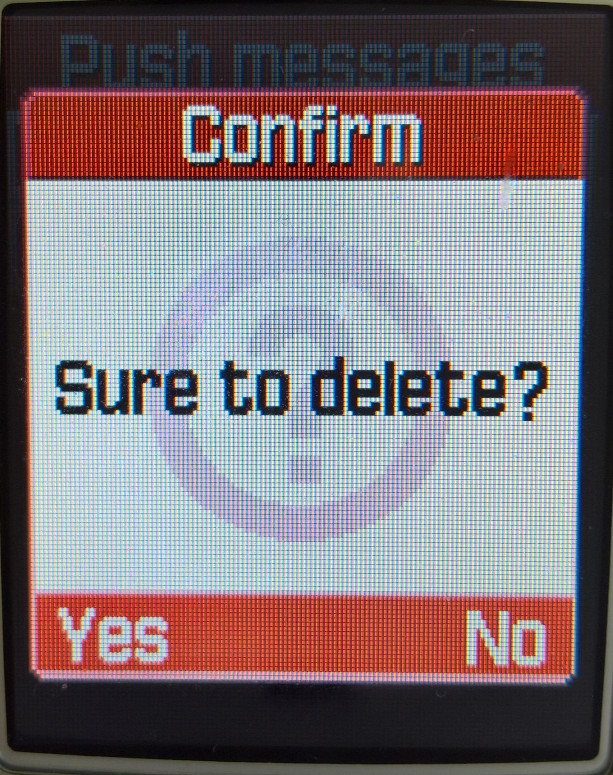
WAP push messages are received here, these messages were typically links to online services and promotions, such as discount ringtones or Java games. Blyk, a short-lived mobile operator used this to push advertising to users as part of its business model.
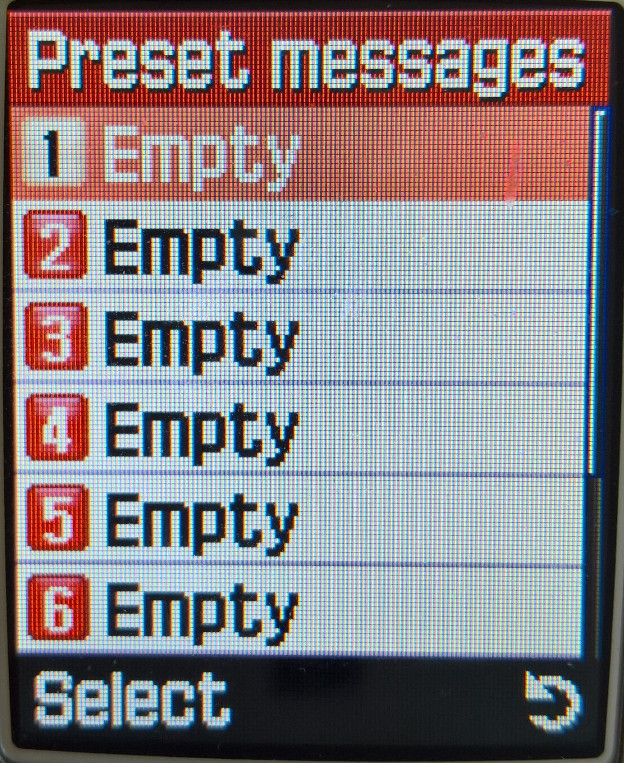
Preset Messages
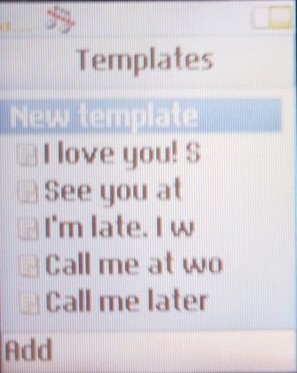
You can create and save message templates to be sent later. none have already been created by Samsung, you have to create them yourself.
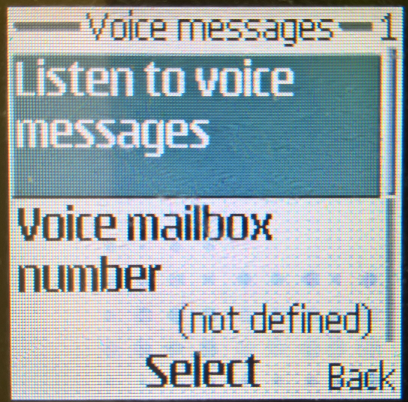
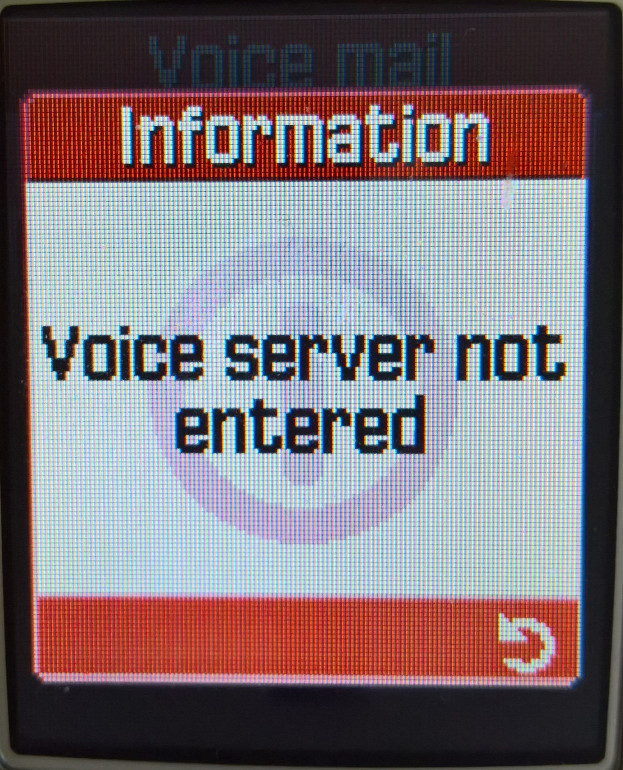
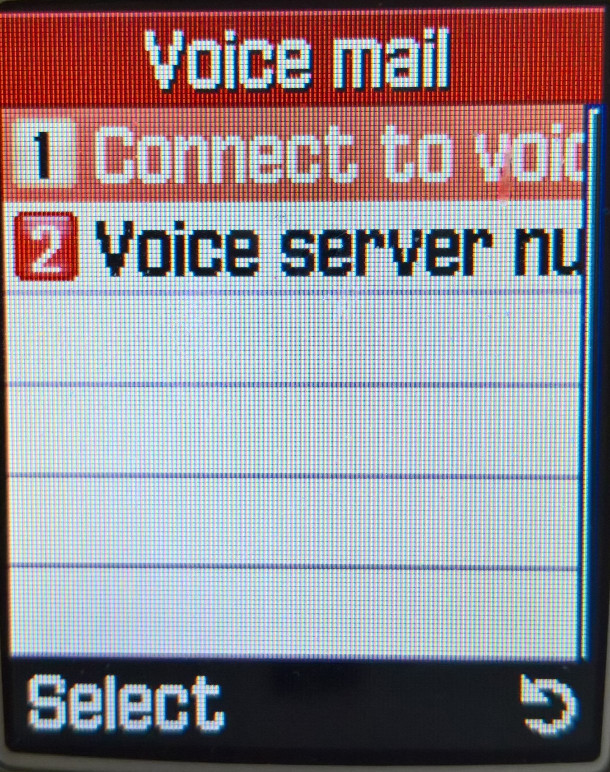
Voice Mail
Configure the voicemail contact number for your network provider, you can then access voicemail by pressing and holding the 1 key
Broadcast
This is similar to regular SMS messages, but whereas SMS is traditionally used for user-to-user messaging, Cell broadcast is intended to send a single message to a large group of users based on their geographic location. This can be used to alert users to local emergencies or planned outages. These messages would be received and displayed here, but I can’t remember any UK providers taking advantage of this.
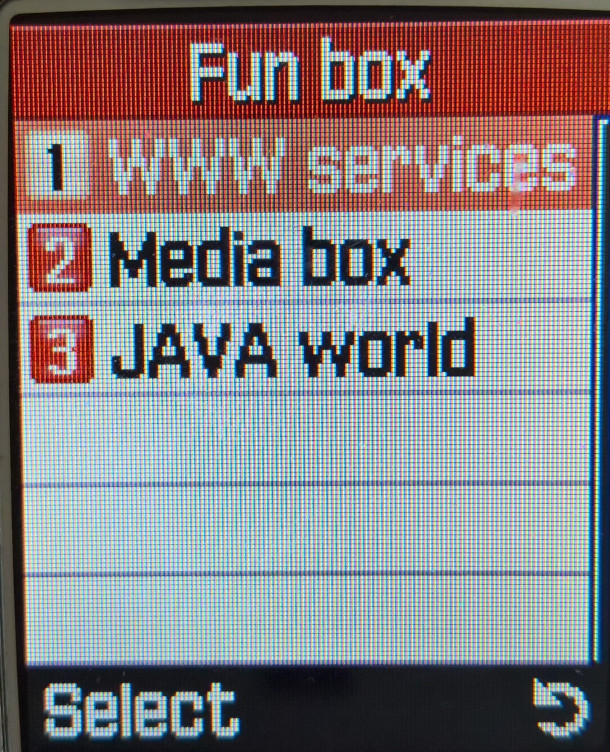
Fun Box
WWW Services
The phone’s internet browser supports both WAP and GPRS. Up to 15 bookmarks can be set and a custom URL can be set to load a website.
Media Box
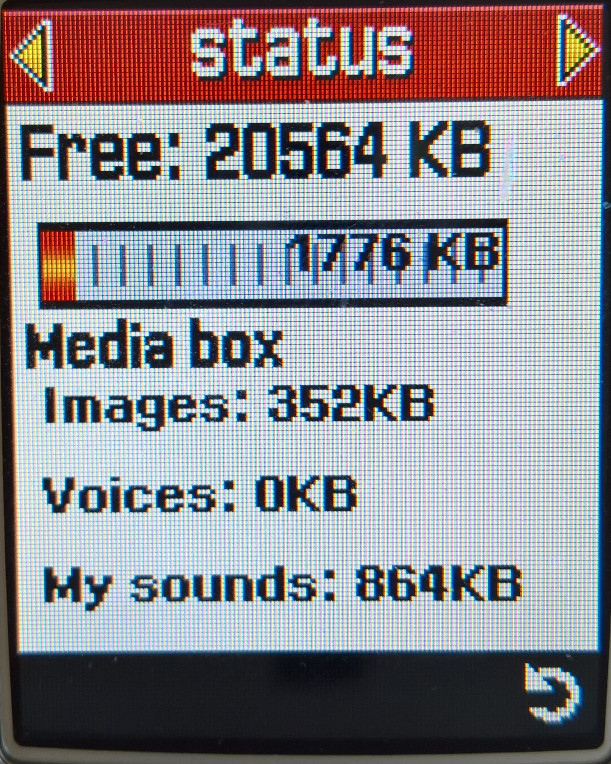
Acts as the phone’s media player, a photo viewer shows pictures that were captured to be viewed and sent. Photos can also be stored in two separate albums.
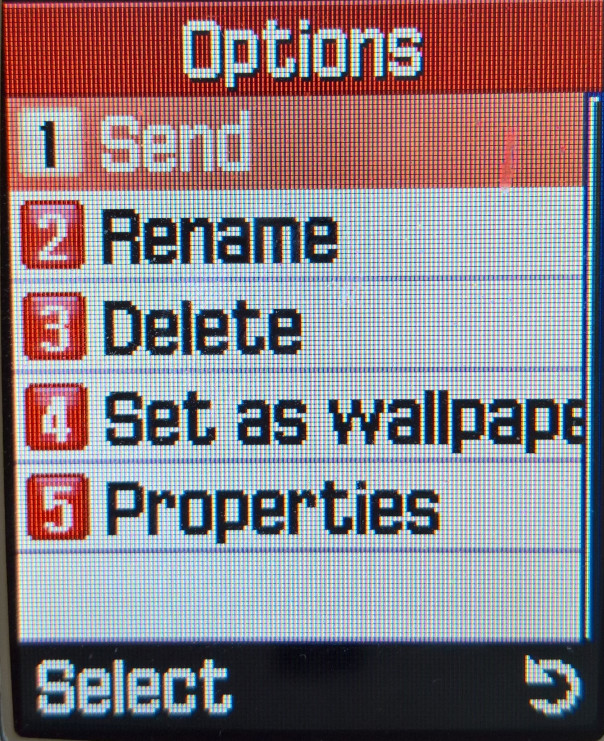
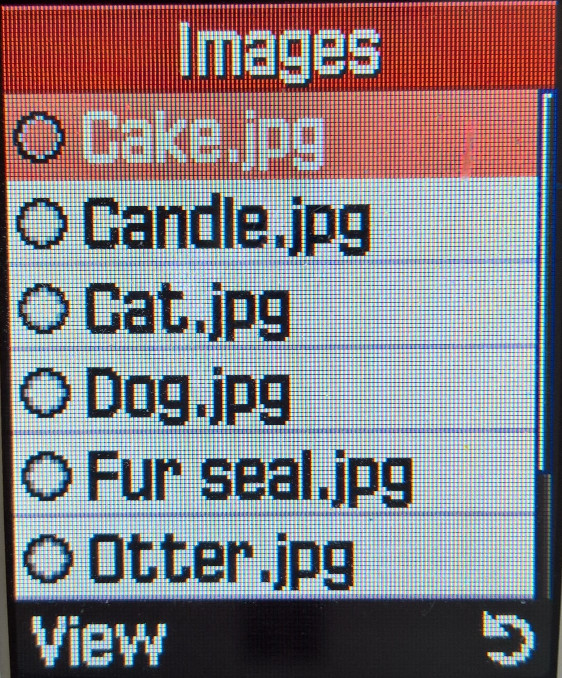
The images folder is where the phone’s wallpapers are saved, 8 wallpapers are shipped with the phone, and more can be added, either downloaded through the browser or received over MMS or IrDA.
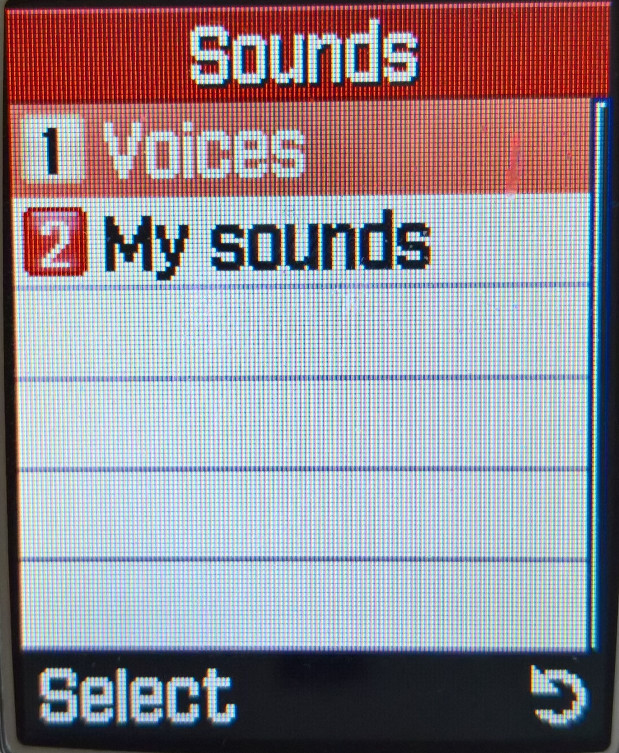
Sounds is where the voice recordings and any downloaded ringtones are saved. 15 sounds come with the phone, and more can be added by downloading via the internet browser, received from MMS or using the PC suite software. The files here can also be set as a ringtone. Ringtones are in the Yamaha MMF format, and use the internal MA-5 sound processor, which is capable of decoding 64 voice polyphonic, MMF files can store MIDI and PCM audio which is evident in some of the ringtones. Some tones can also vibrate the phone in rhythm.
Samsung also offered a multimedia pack, where polyphonic ringtones can wallpapers could be downloaded to the users PC and then transferred to the phone.
JAVA World
Java games can be downloaded and installed from here, two games are preinstalled, SnowBallFight and BubbleSmile. Up to 3Mb can be allocated for Java applications. The PC suite software does not allow for Java applications to be installed to the phone, unless specific software is used, and the phone must be put into a serial download mode.
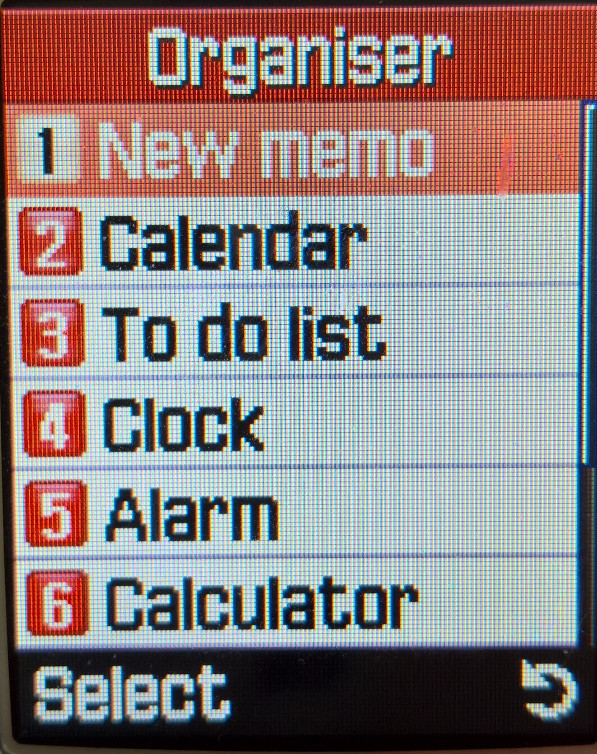
Organiser
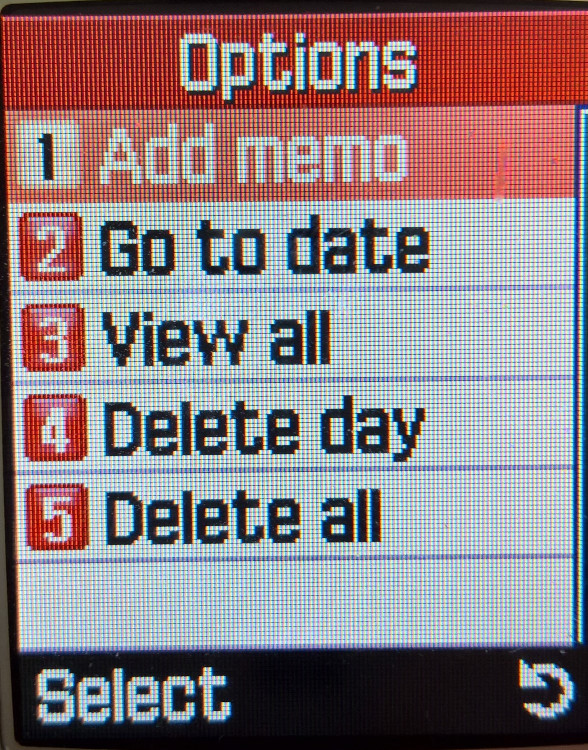
Memo
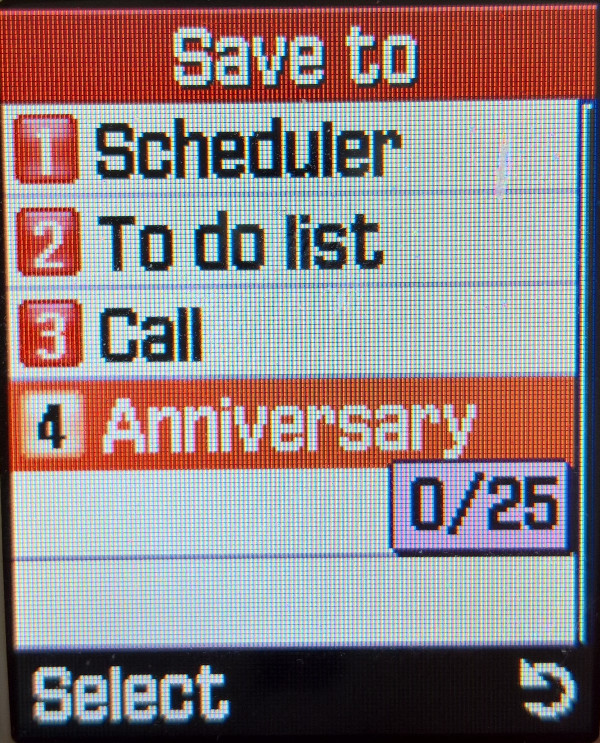
Notes can be taken and saved to the phone’s memory, text entry is similar to the SMS editor, but you are limited to 100 characters. Notes can be classified as either Scheduler, To Do list, call, or an anniversary. Up to 25 notes can be saved.
Calendar
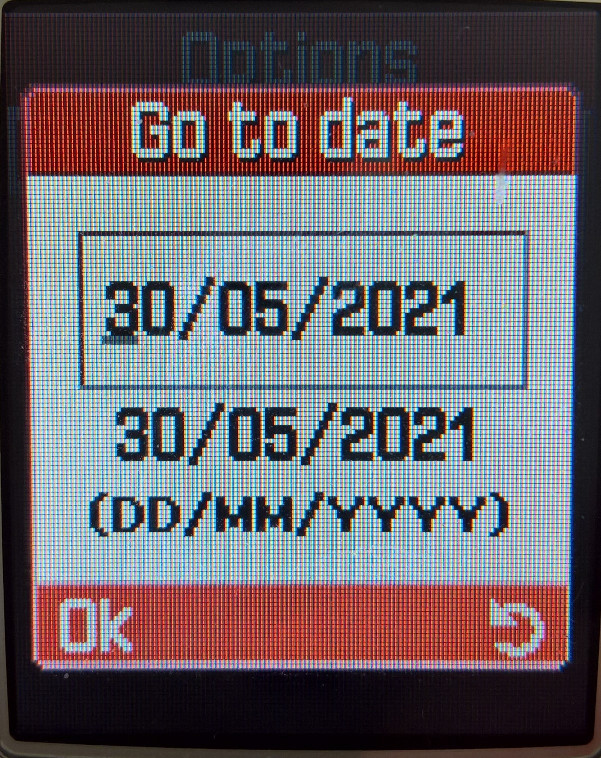
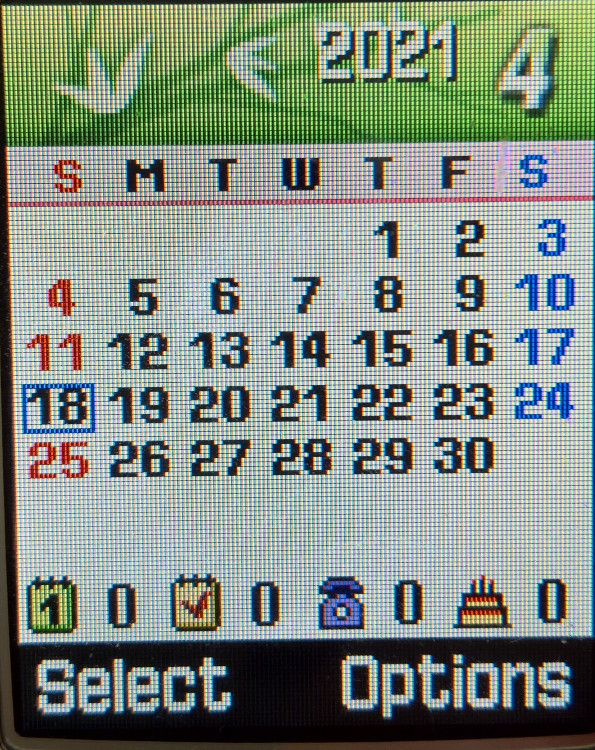
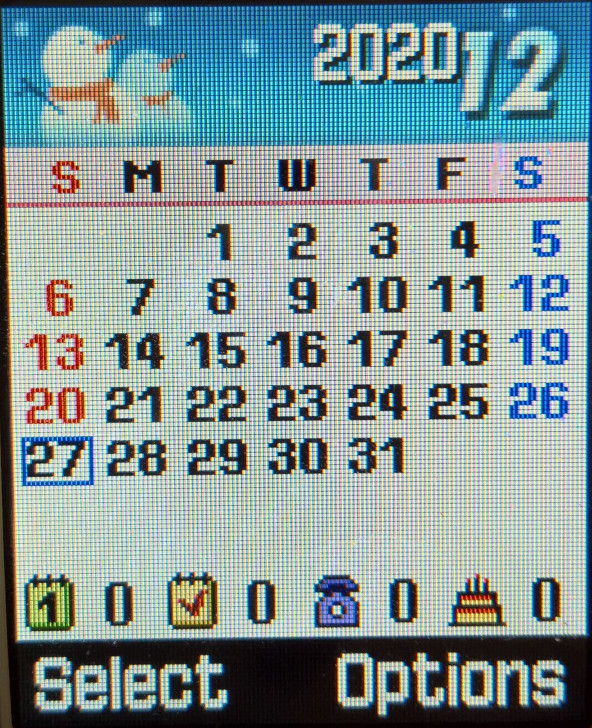
A calendar that can be used to set reminders and appointments, memos, as described above can be added to each day. A nice touch is a graphic that appears at the top of each month that reflects the month or season, kind of reminds me of the PSP XMB that would change its colour on the month.
To-Do List
Similar to the Memo, lists can be created and saved, with the option to set a date and time for an alert. This is normally intertwined with the calendar.
Clock
Time and date can be set here, along with the time format and the time zone.
Alarm
Up to 3 alarms can be set here with different times, you can set the re-occurrence and the ability for the phone to automatically power on.
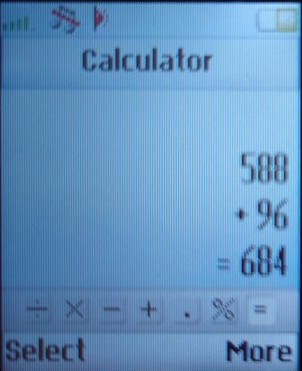
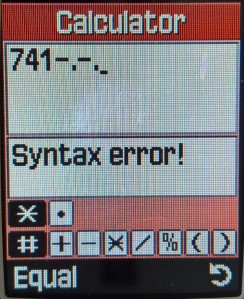
Calculator
Conversion
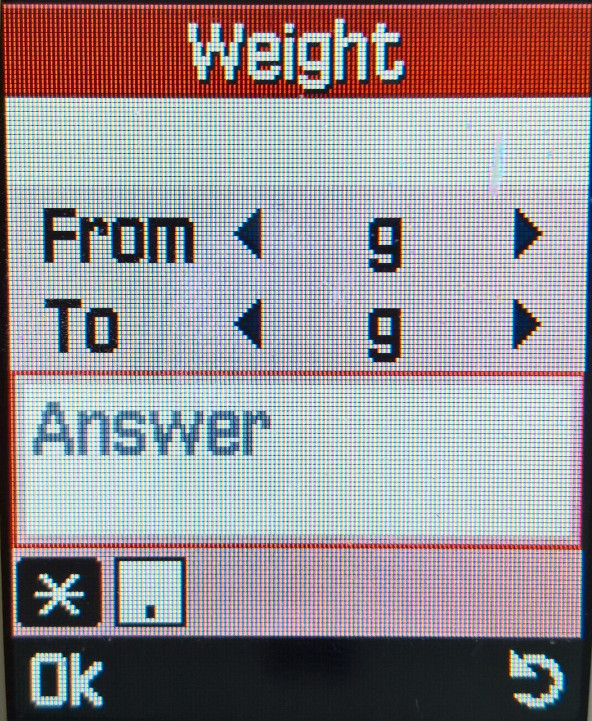
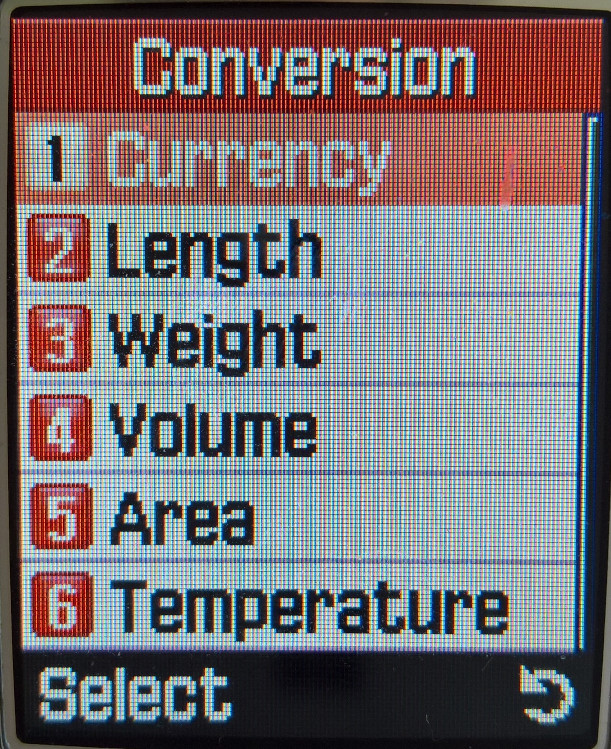
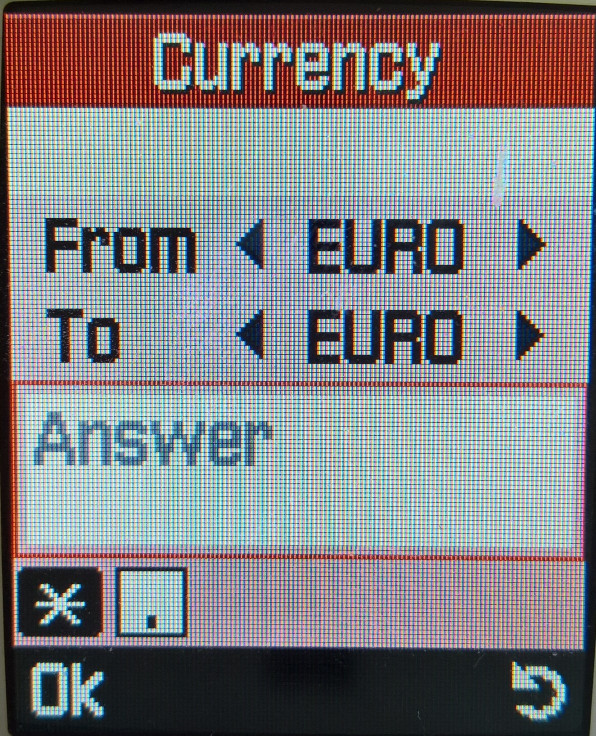
A numeric converter that supports converting currency, Length, Weight, Volume, area or temperature.
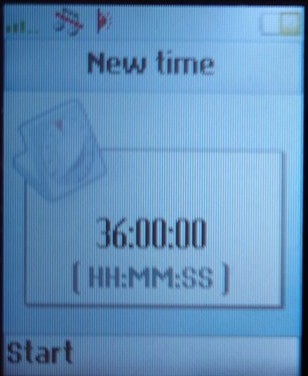
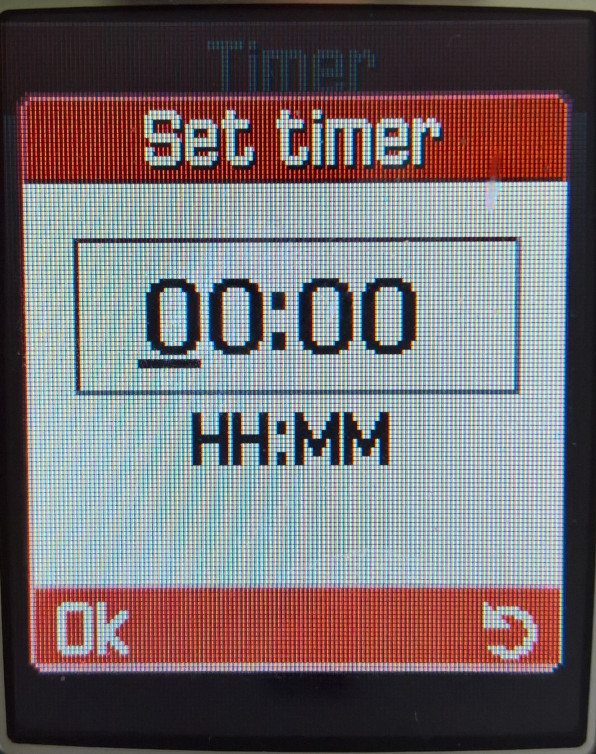
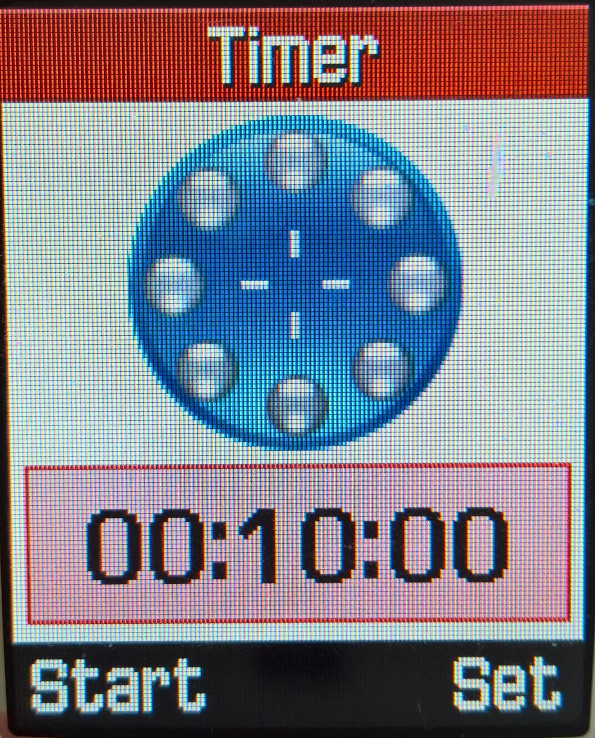
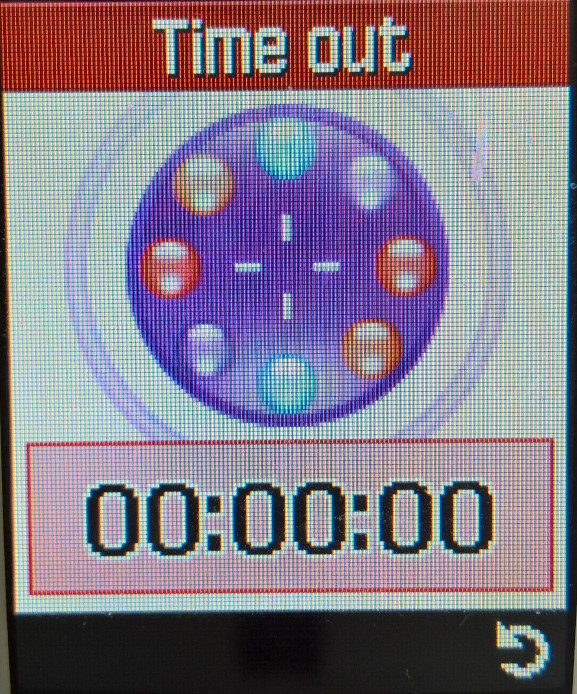
Timer
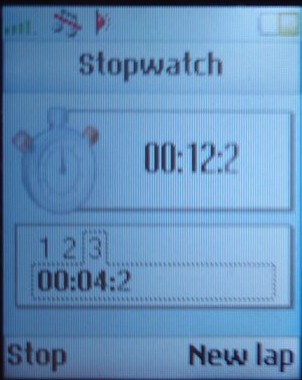
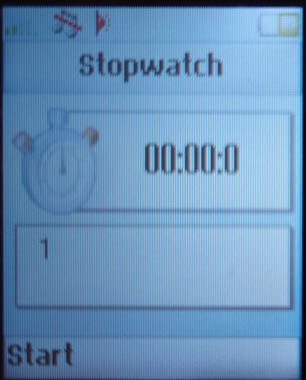
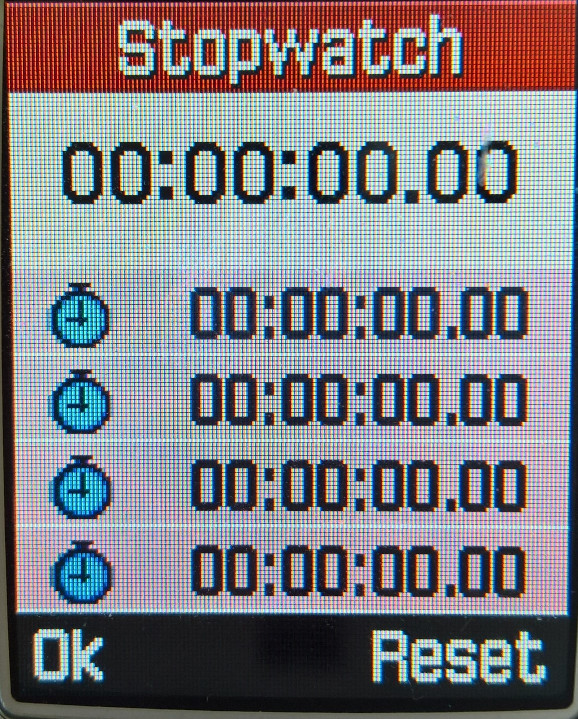
Stopwatch
Camera
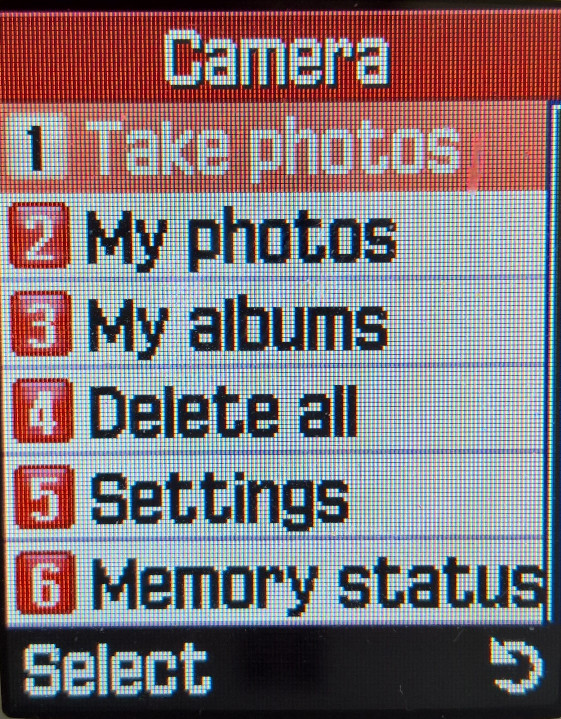
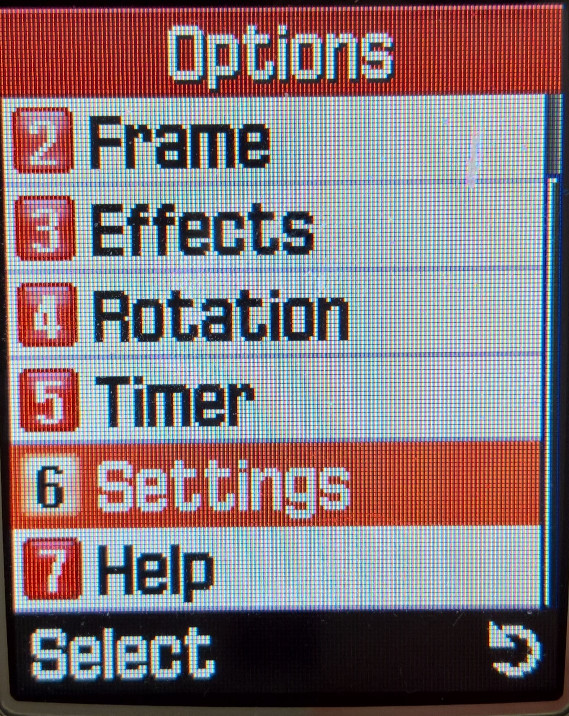
The phone has a VGA camera built in with flash and 8x digital zoom. The resolution can be changed to CIF 320×240. Built-in functions include a timer, frames, and effects (sepia, greyscale, negative). There is also a multishot function, when you press the capture key, 6,9 or 15 pictures are taken, and you can select the best picture.
Compression levels can be set from Economy, Normal, Fine and Super Fine)
Phone Settings
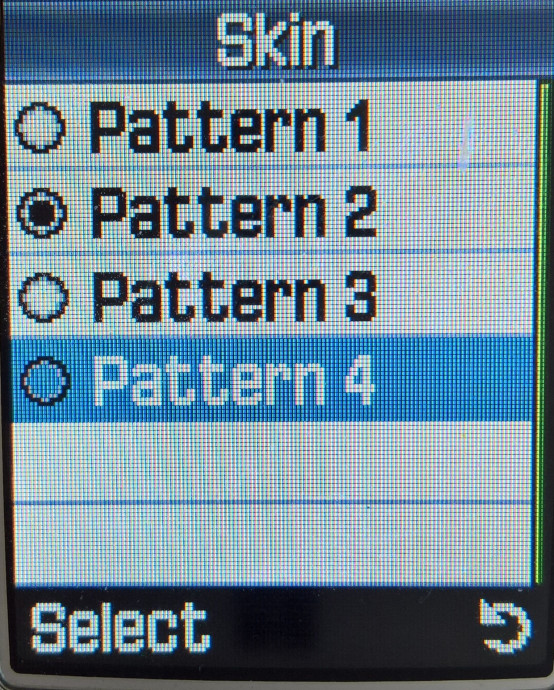
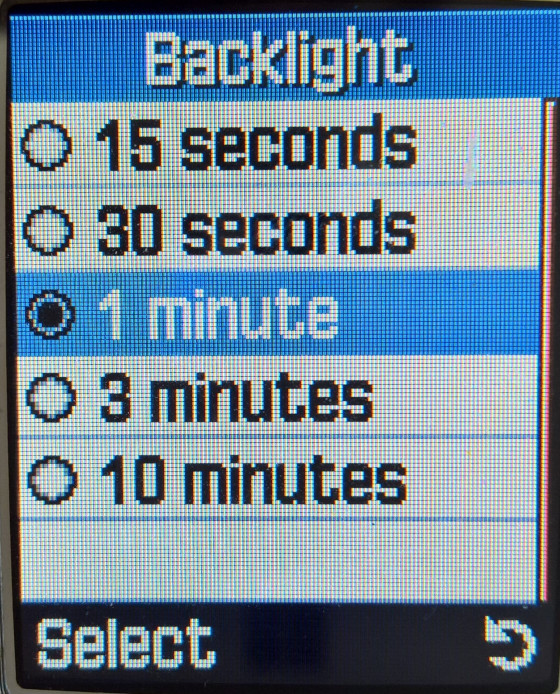
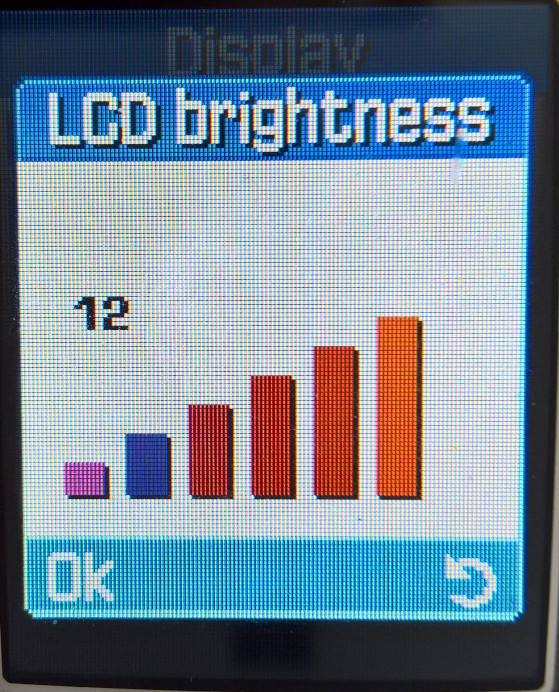
Display
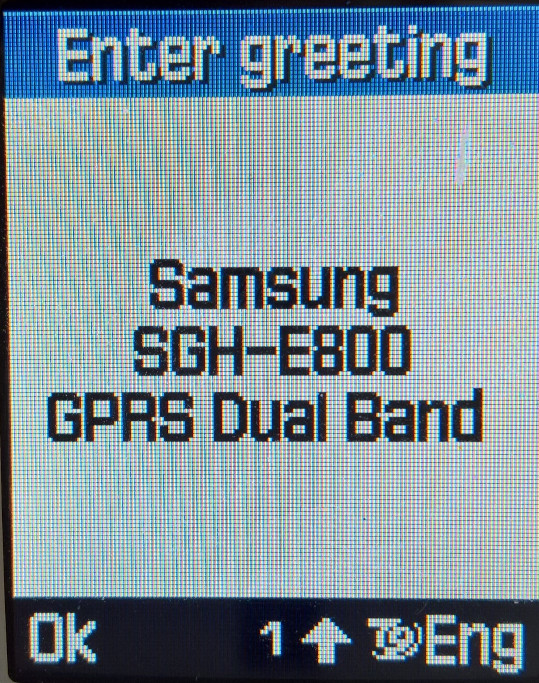
Greeting Message
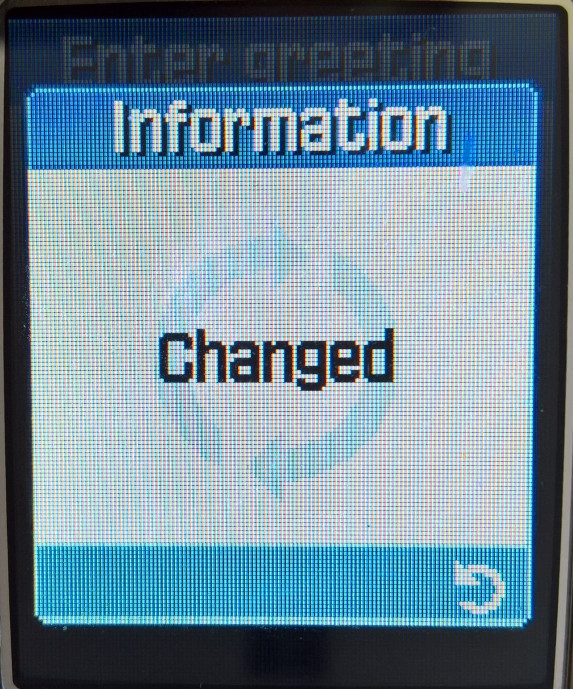
A message can be displayed when the handset is switched on with the default message is shown on the right.
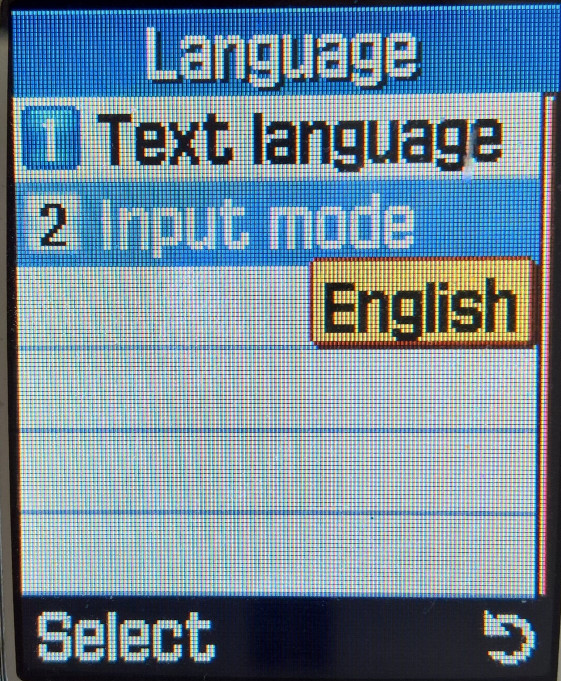
Language
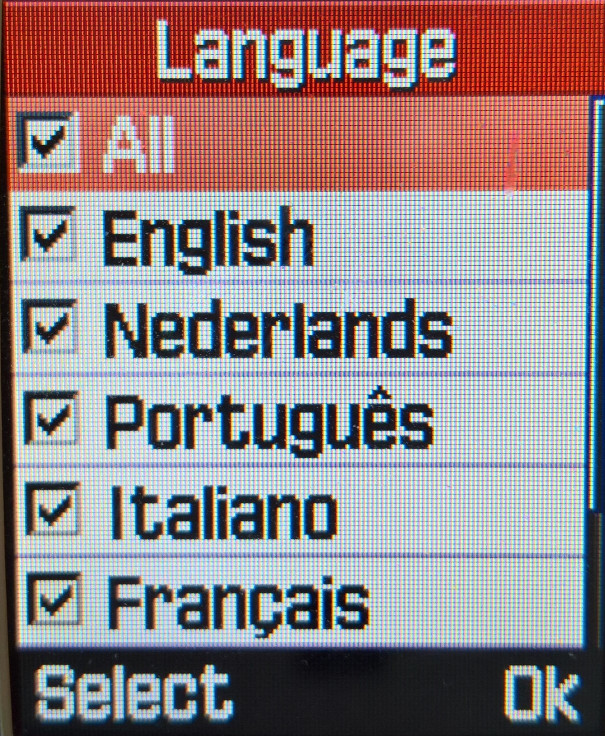
Setting the language and the type of input. As this software was intended for Europe, only common European languages are shown.
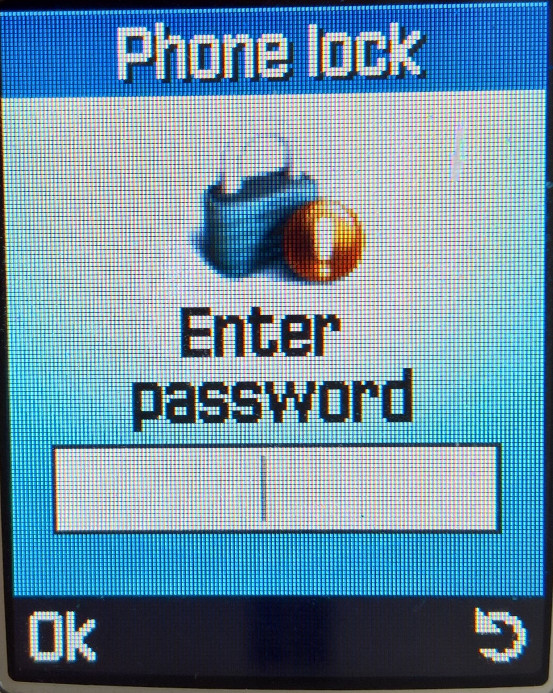
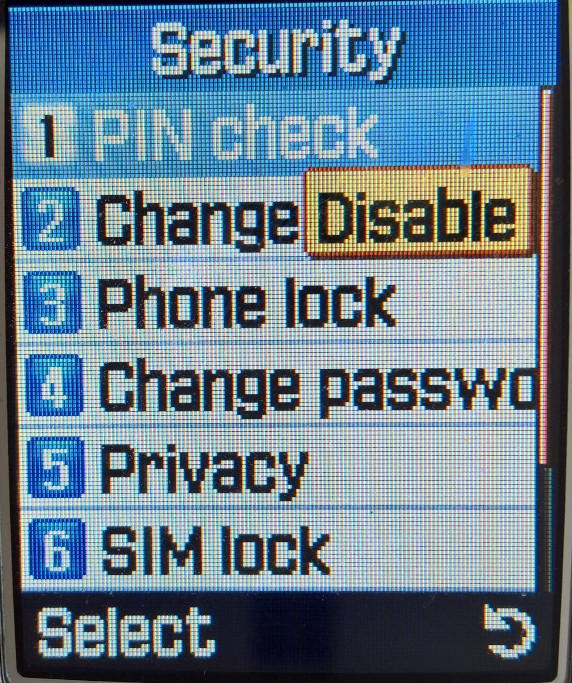
Security
A passcode can be set for when you try to access any photos or sounds on the device. PINs can also be modified here.
Other
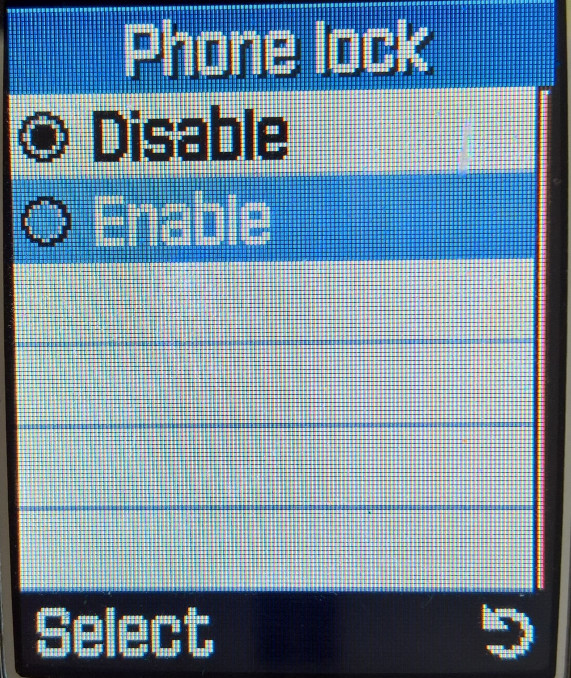
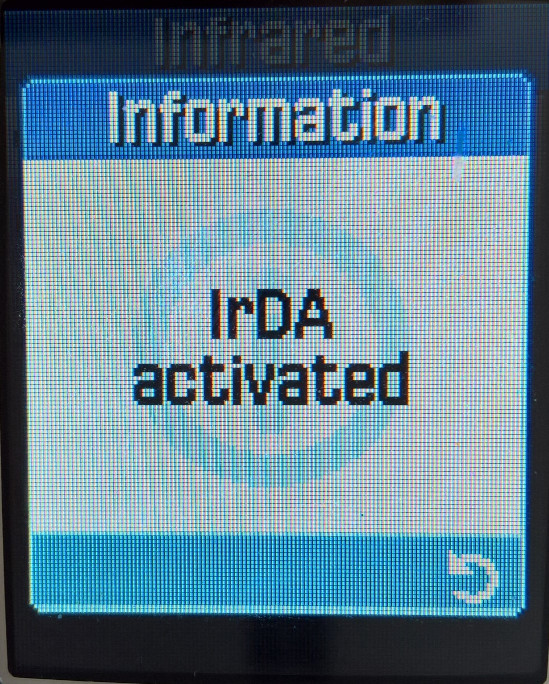
Infrared IrDA is supported however you can only use this with a Windows PC with the Samsung PC studio software, or the Samsung PIM & File Manager. You cannot exchange files with another handset, nor can you send and receive files using the default windows IrDA file transfer, you must use the Samsung software. Also, the camera and IrDA cannot be active at the same time, you cannot enter the camera without disabling the IrDA.
Camera Photo’s
A few sample images captured on a sunny day, the image sensor seems to struggle in bright conditions
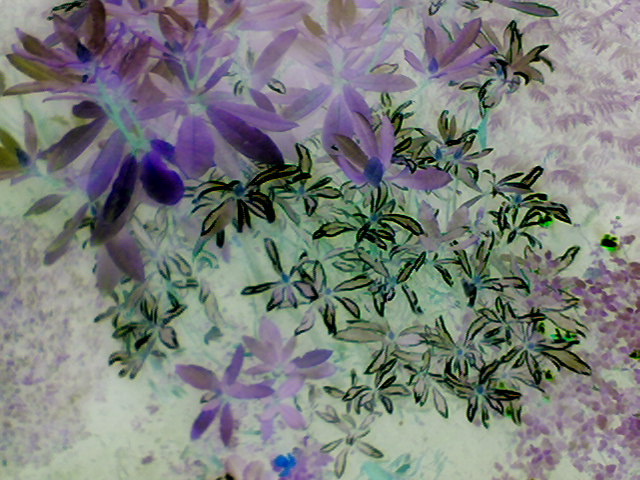
The camera can also apply different effects, but this can only be done when capturing the image. The effects are in order: Grey, Negative, Sepia, Emboss & Sketch.
Conclusion
Overall it’s a very nice functional phone with a lot of compelling features for the time. It’s slide form factor would become standard for Samsung’s high and mid-range handsets until the release of the Android-based Galaxy series.
Only downside is the lack of Bluetooth, with was beginning to become more common on handsets in this price range, and the Infra-red is limited to PC use only, although the manual mentions the ability to share contact with another Samsung handset. You can’t transfer files with another handset and for PC use, the Samsung PIM software is needed (Version 1 only, V2 has issues initiating transfers)
To Do – Possibly we can try to get GPRS working whilst 2G is still a thing in the UK, and to see if we can upload Java games over Irda, or using a data cable
A feature phone designed to appeal to the youth of the time, with its 4096 colour screen (128×128 resolution) and polyphonic ringtones, and featured support of GRPS internet browsing and MultiMedia messages. The phone also features a glow-in-the-dark cover which allows you to find your phone in the dark. As for the display, The screen uses STN technology, which makes it hard to read in the sun, and has a low response rate which can result in ghosting when navigating the menus.
The device lacks a built-in camera, but Nokia provided optional support with the Nokia Fun Camera, which could be connected to the phone’s Pop-Port to transfer photos, which can be sent via MMS.
There is also a lack of FM Radio and MP3 audio support since this was targeted as an entry-level device. There is also no Infrared or Bluetooth, so you will need to purchase a Nokia data cable to connect to your PC. In this mode you can transfer ringtones and wallpapers, and download Java apps to the phone. You can also use the handset as a modem but you are limited to GRPS.
Still the phone enables internet and multimedia message use and is compatible with nearly all of the Java mobile apps
The screens below are captured from the handset itself. Unfortunately, Nokia Series 40 phones cannot take screenshots of their display. Because of the low DPI nature of the screen, there are some screendoor like artifacts that can be seen.
Home Screen
Appears the same as any other Nokia handset from the same era. Some operators may include their own brandings, such as an operator logo or a custom background. This one appears to have the O2 background preinstalled.
Menu
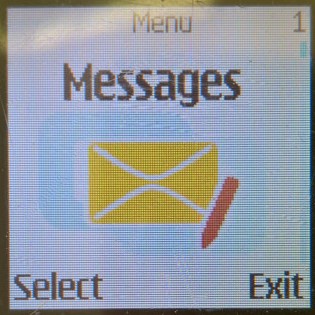
The traditional Nokia interface is used for the handsets menus, but with an updated icon set. The interface is similar to the 6610 and 6230, being Series 40-based.
The directional keys can be used as shortcuts to common menu items, like pressing the up button opens the camera, left will open the SMS message composer.
Speed dialing can be activated by pressing and holding down a key, which will dial out the contact number assigned to it. 1 will always dial out the voicemail number.
Messages
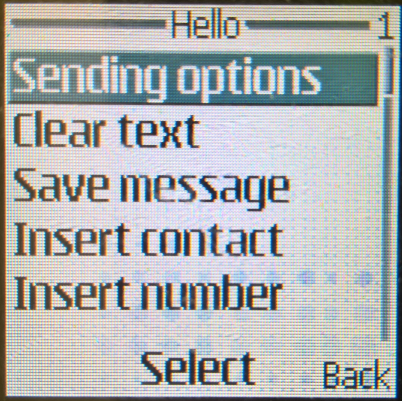
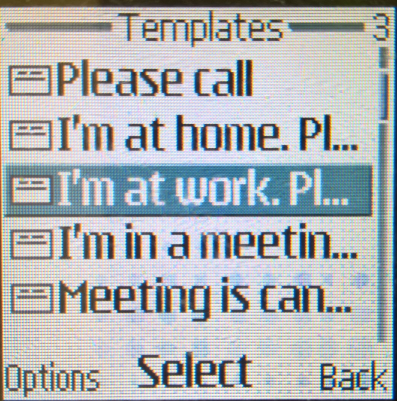
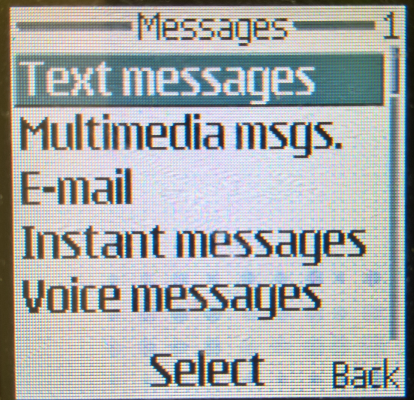
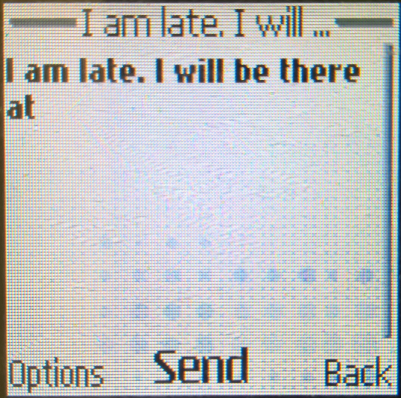
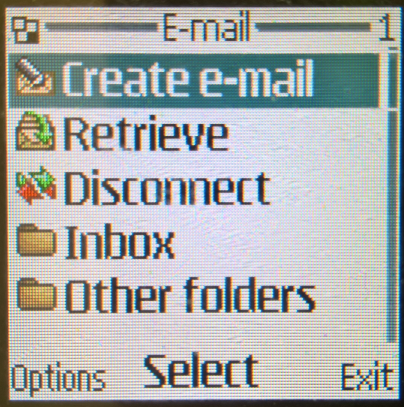
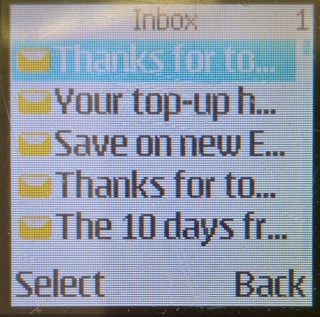
Here you can create and send SMS text messages, or compose one using the built-in templates offered. Received messages can be entered into custom folders for longer-term keeping. There is also a distribution list for when you want to spam multiple contacts with the same message, you simply enter the numbers to send the message to or select from your phonebook, and your message will be set to multiple recipients. Useful for making an announcement or sending the same message to multiple contacts frequently.
Nokia smart messaging is supported, which allows sending and receiving of ringtones and black/white static images to other supported handsets (commonly Nokia) but also with some Samsung/LG/Motorola. There are 10 templates that have been included with the handset that can be sent.
MMS is supported, which allows for photos and small audio clips to be sent using the phone’s data connection. Up to 100kb can be attached to a single MMS file. As the phone lacks a built-in camera, you would think this would have limited use. But as mentioned earlier Nokia did release a Fun Camera, which was a portable camera that would connect to the phone’s pop-port, pictures can then be imported to the phone where they can be sent.
Sony Ericsson also release something similar to their T68 handset, which is considered the direct competitor to the 3100.
Contacts
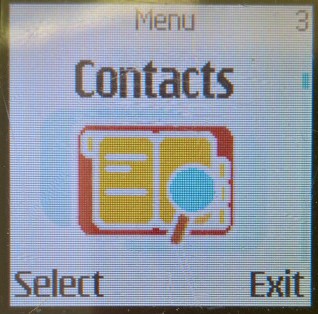
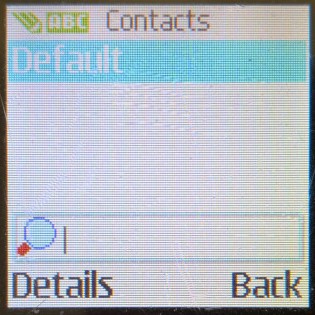
The Phonebook can save around 200 entries with a little more being saved to the SIM card. Contacts stored in the phone memory can have additional information assigned to it, such as the email address, home/landline number, fax number, office/work, and a photo of the contact assigned, which will appear on screen when the contact shows. If a contact has multiple numbers assigned to it, the first number entered will be the default contact used.
Call Register
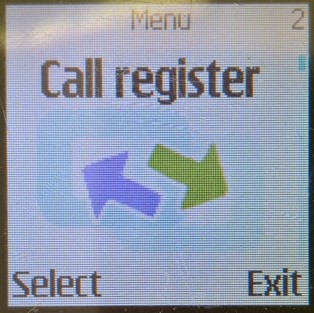
Three lists are stored here, each for received, dialed and missed calls. Each list can save up to 20 entries and will show the date/time of the call. You can also press the green call button from the idle screen to show the recently dialed numbers.
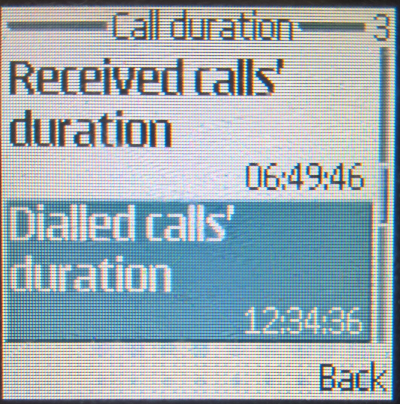
You can also view the call time counters for the last phonecall, and the lifetime calls for the device. This can also be reset at any time.
Profiles
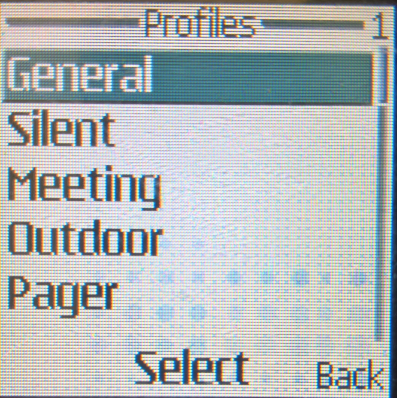
Profiles can be set and configured from there, you can also access this by pressing the power button, located at the top of the handset. Profiles can also be timed so they expire after a set amount of hours, useful when setting the device to be on silent for when you enter a meeting. The default profiles are General, Silent, Discreet, Loud, Outdoor and Pager.
Settings
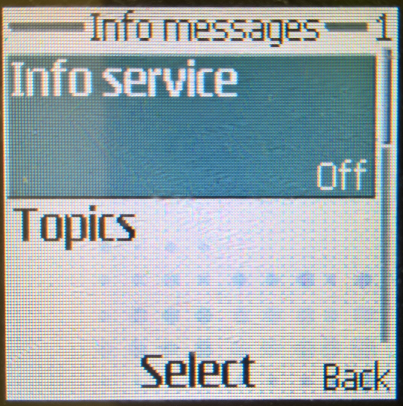
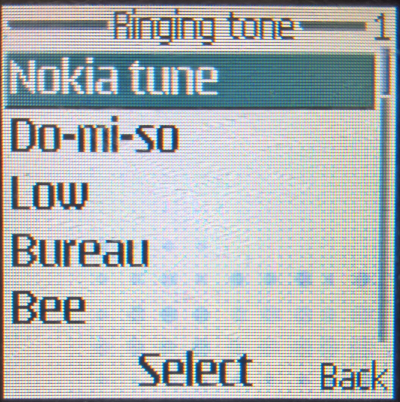
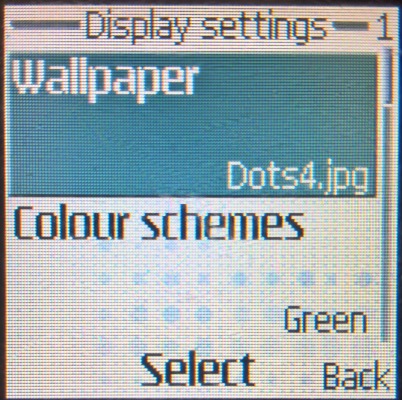
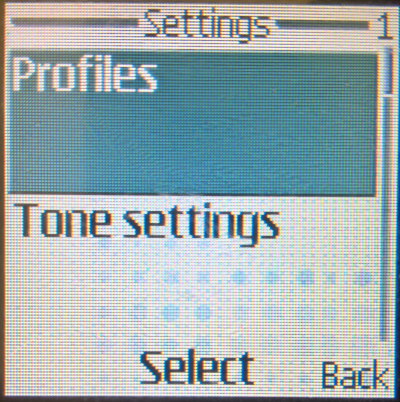
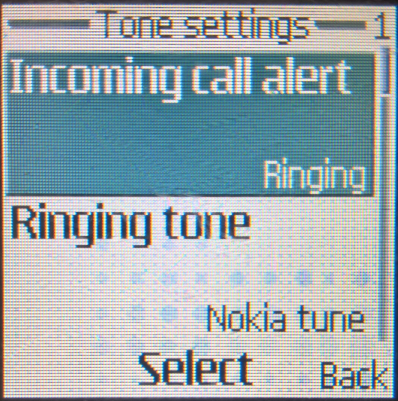
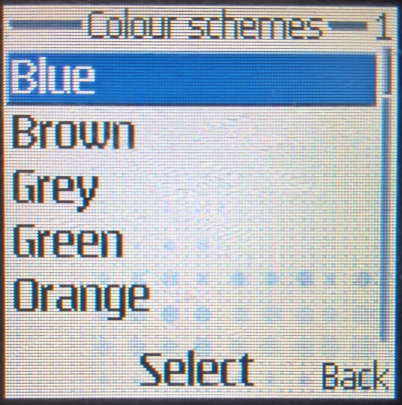
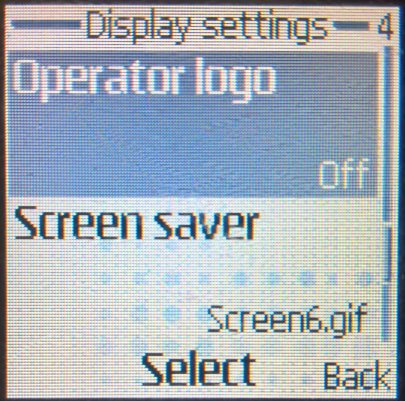
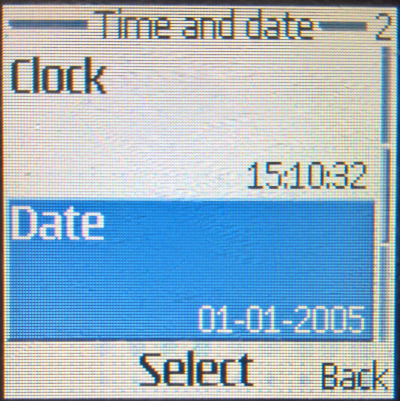
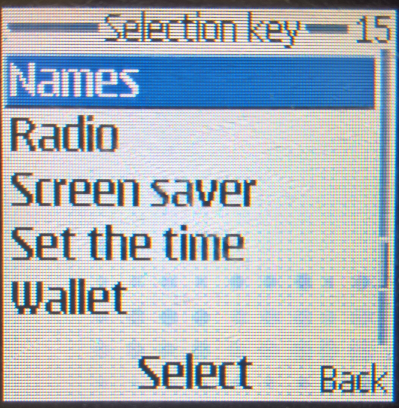
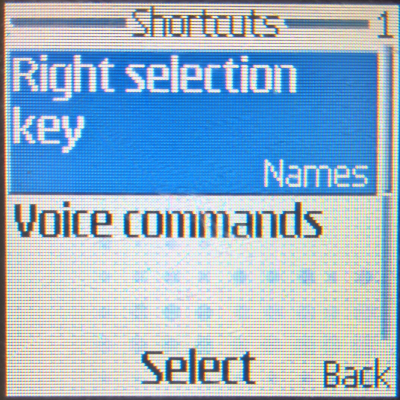
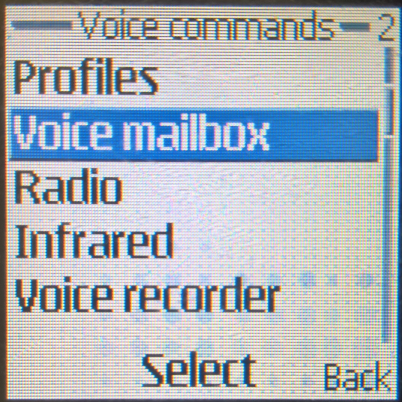
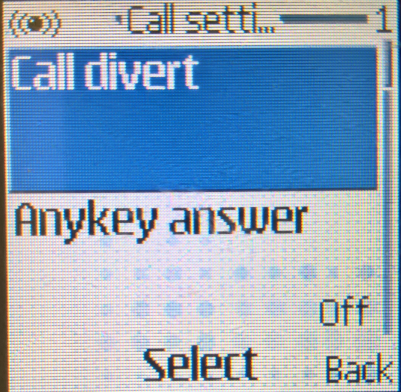
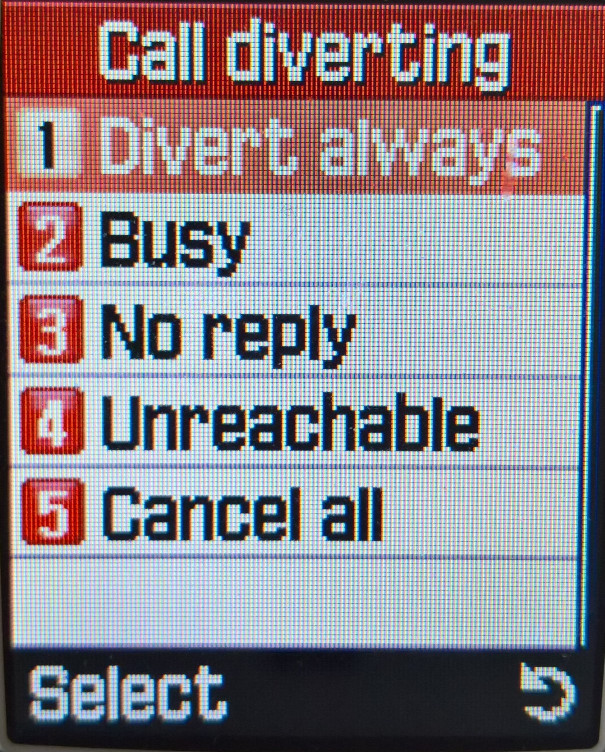
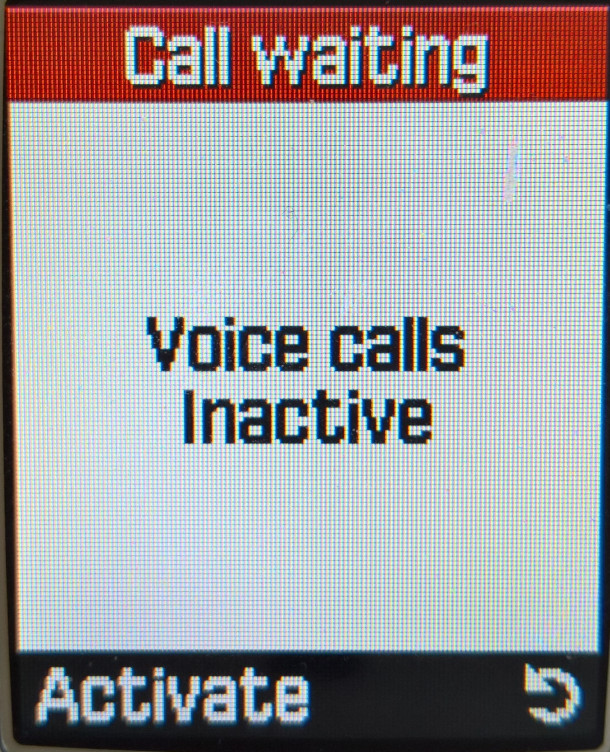
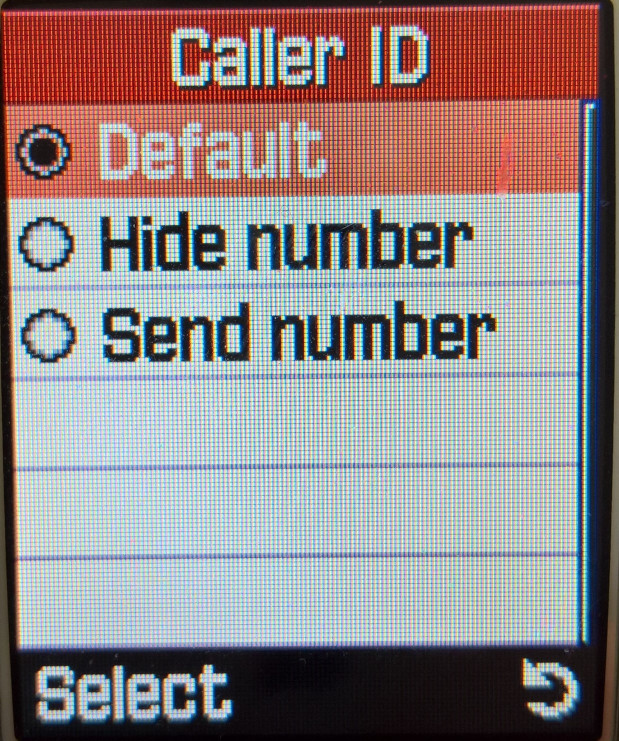
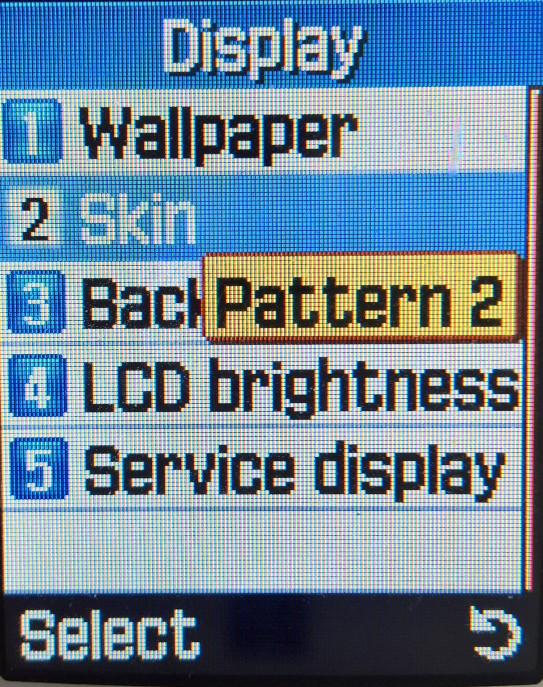
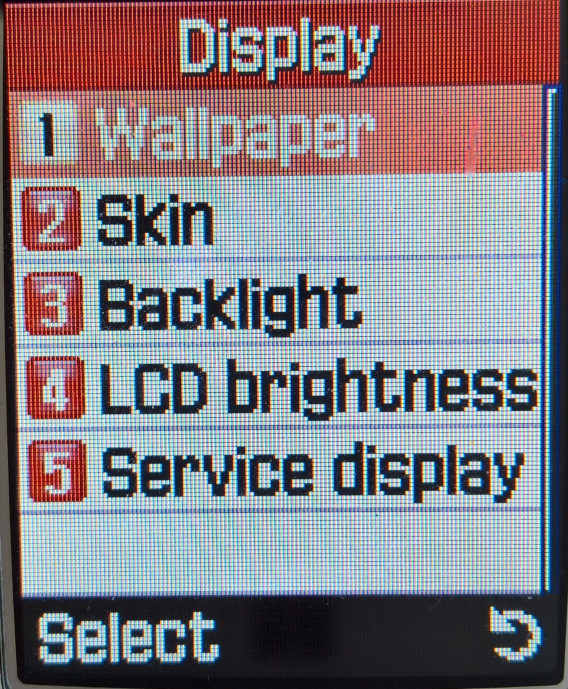
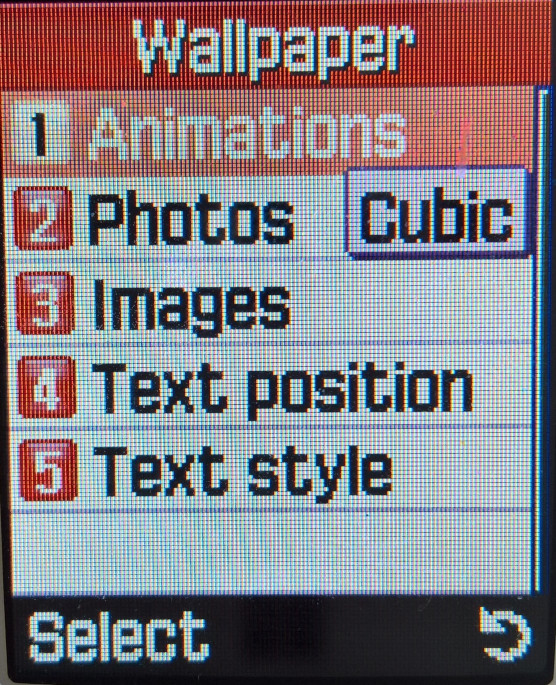
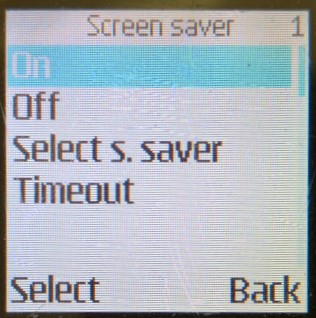
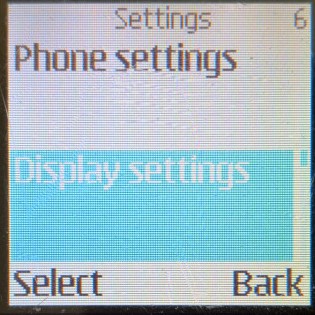
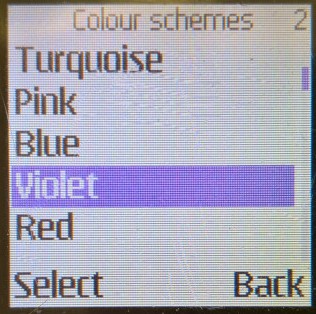
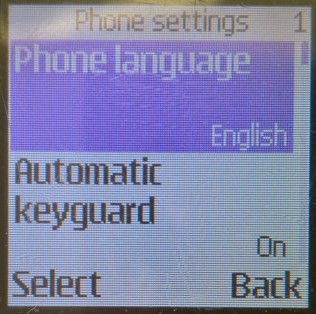
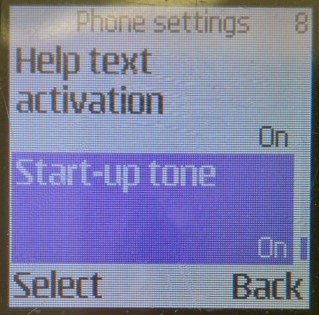
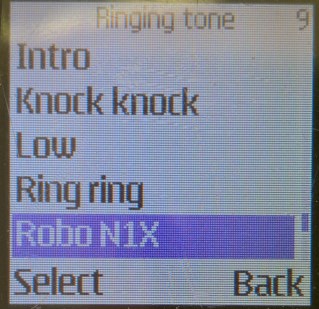
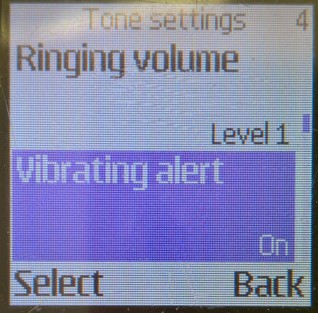
Personal Shortcuts: Change what the right selection key performs at the home screen, and customize the Go To menu Screen saver: Displays and sets the phone screensaver, and how long the screensaver should be displayed Time and date: Set the phones time and date, if it has not been set by the network Call: Set the call to divert and waiting options, and if you want your caller ID to be sent Phone: Change phone-specific settings like the language, automatic keyguard and the delay to lock the keys, Cell info display that show local information provided by the nearest mast, set the phones welcome note, the startup tone and the help text which is displayed after a few seconds when a menu item is highligted. Display: Change the wallpaper, colour scheme, and operator logo (if one has been setup). Tone: Set the ringing tone, the message tone and to enable vibration. A unique feature of the phone is it can flash its backlights in rhythm with the ringtone, however this only seems to work for ringtones shipped with the handset, downloaded ringtones will simply flash the backlight on and off. Enhancement: Which profile to set when a handsfree headset is connected to the phone Security: set and change the phones security code, and the Sim card PIN code Lastly, you can restore the factory settings, but this will require the phone security code.
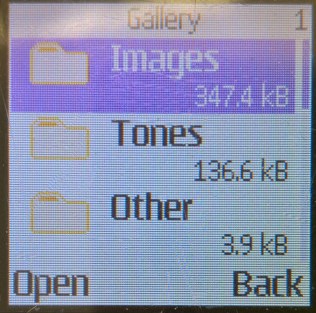
Gallery
To view wallpapers and ringtones that are included with the phone, any that have been downloaded.
Alarm Clock
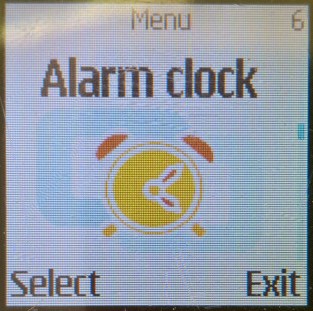
Set an alarm, only one can be set here but it can be set to repeat daily or weekly. This has its own place in the main menu, rather than being embedded into the Organiser menu on other handsets.
Calendar
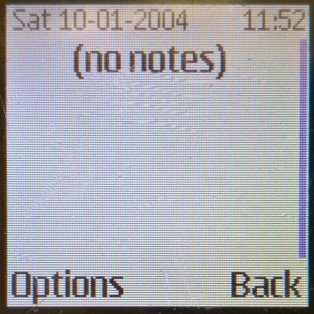
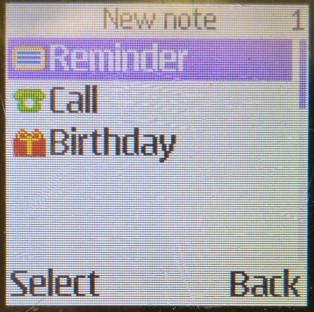
A standard calendar is offered, which can be used to add events to each day. Three times of events can be added, Reminder, Call and Birthday
Games
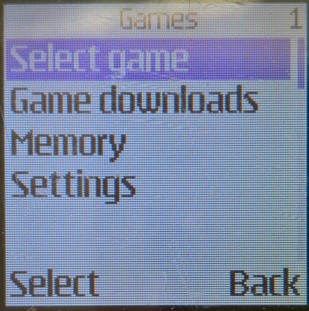
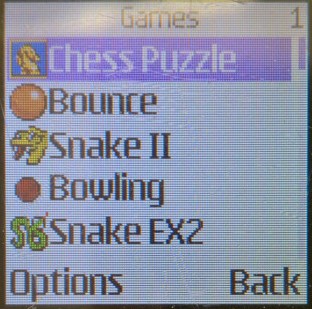
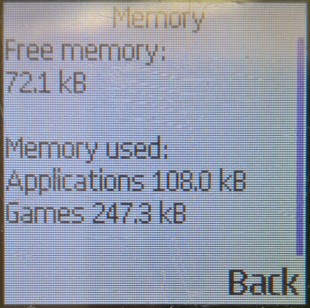
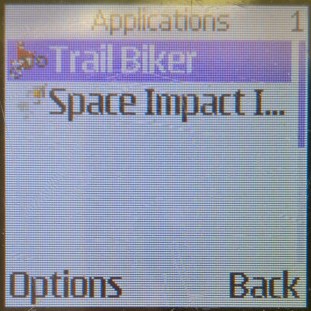
Three games are included: Snake, Beach Rally & Bowling. Optional games that could be downloaded and installed are Bounce, Space Impact, Trail Biker & Chess Puzzle. With under 1MB of user storage you’re limited to the number of games you can download.
There is also an applications menu, but none are included and must be downloaded. Sometimes games that have been downloaded will appear in the applications folder.
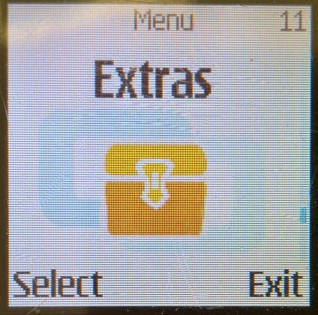
Extras
Calculator: Just a standard basic calculator Countdown Timer: Enter a time to countdown to Stopwatch: Choose either Split or Lap timing, and view any previous times
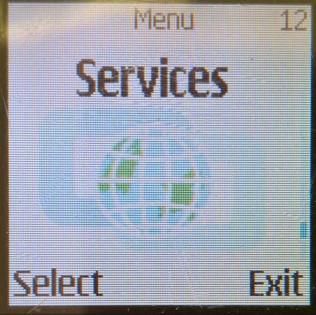
Services
The phone’s WAP and internet browser, with pre-set links to download more content like ringtones and wallpapers. Also a bookmark for Blyk, which was a mobile network that launched in 2007 and was a free mobile network that r would send adverts in the form of SMS text messages which would provide you with free credit. It totally flopped and closed in 2009.
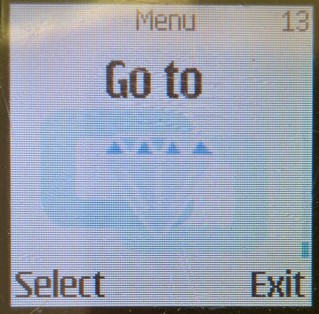
Go To
A menu that lists shortcuts that have been added
Lastly, there is also a dedicated menu for the Sim card application toolkit which will appear if the SIM card is configured to display one.
















































































































 Drew1440: Blog