Samsung cross between Windows Phone and the Galaxy S3
Samsung was always a common OEM for Microsoft’s smartphones, producing the Focus and Omnia models for Windows Mobile and Windows Phone 7. Following on from that, Samsung introduced the ATIV branding for their Windows 8 devices. ATIV is basically Vita spelt backwards and is Latin for Life, which was also used for the Sony PlayStation Vita, also released in 2012. Coincidence? Maybe
The ATIV branding was supposed to complement the Galaxy branding for Samsung’s Android smart phones, though it also extended to their Windows Laptops and hybrid tablets. The launch device for all this was the ATIV S, which was Samsung flagship Windows Phone for 2012, launching with version 8 of the OS. Windows Phone 8 looks similar to it’s predecessor Windows Phone 7, but under the hood it was practically are written operating system, making use of the Windows NT kernel instead of the Windows CE that WP7 had used. Due to the drastic changes, no WP7 smartphones could be upgraded to WP8, since it required a dual core processor that no WP7 device had supported (and its widely believed the WP7 core couldn’t support this, hence the need to reboot the OS with a new kernel) IDK Why they didn’t do this when they introduced WP7, maybe the hardware at the time didn’t support this? This is kind of why Windows Phone failed, there was no consistent stepping stone between major versions, and with Window’s Phone 8 they effectively reported the OS from scratch again, existing handsets could not upgrade to WP8
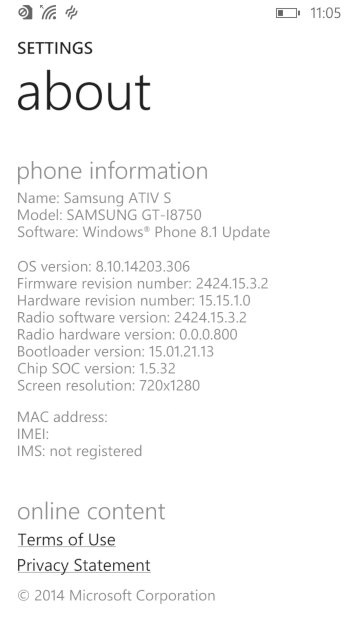
The ATIV S itself has very similar specifications to the Galaxy S3, both have a 4.8 inch 720p screen, both feature 1GB of RAM and 16GB of user storage and a dual core processor (the ATIV differs by using a Snapgradon processor whilst the Galaxy used Samsung’s own Exynos cores).
The user interface is pretty much Windows Phone, with its innovative live tiles and social media integration. Samsung did bundle their own exclusive apps and settings which are worth looking into.
Apps
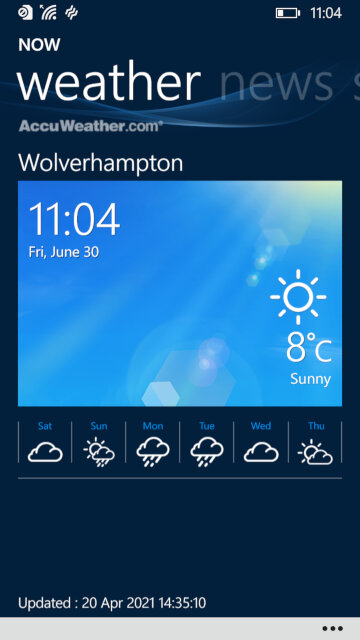
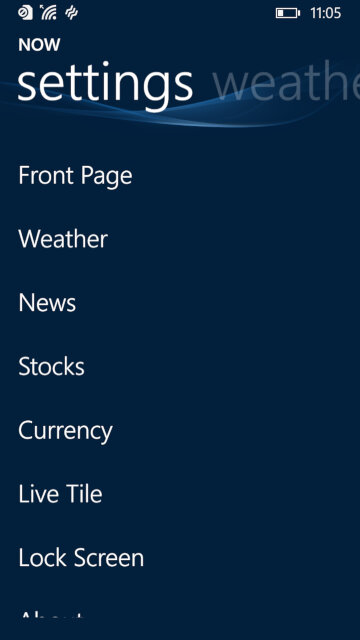
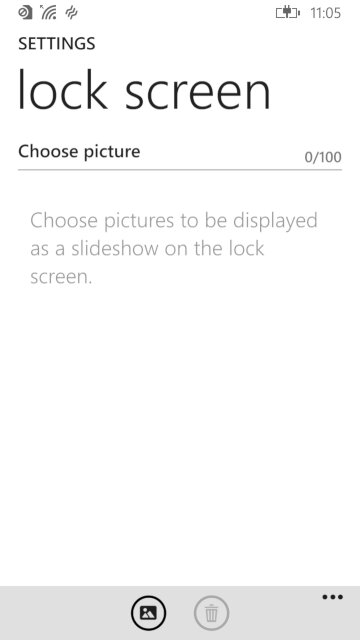
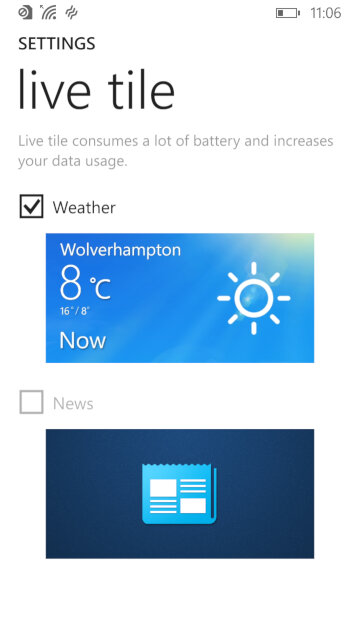
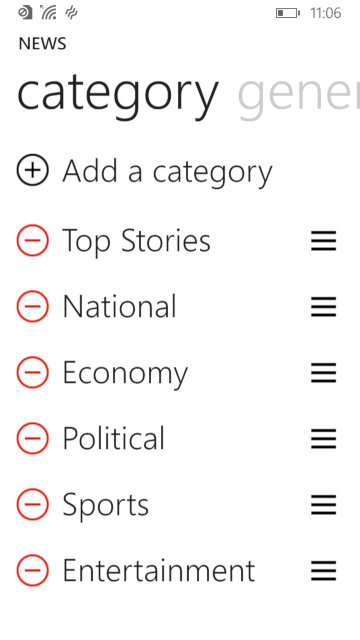
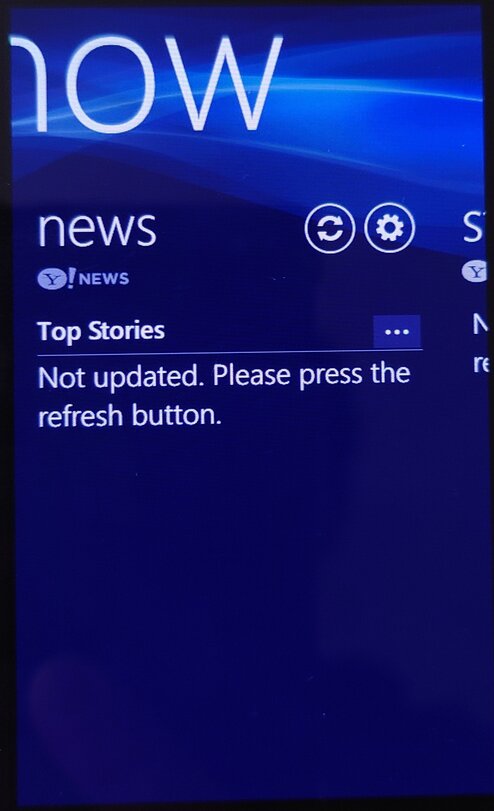
NOW: Similar to what was seen in the Omnia W, this is Samsung’s News, Weather and Stock/Sports information app. News is provided by Yahoo news, who have since discontinued it’s integration but would have shown the latest news headlines for your area. This app supports both the live tile and the lock screen feature, weather information can be displayed on the locks screen itself.
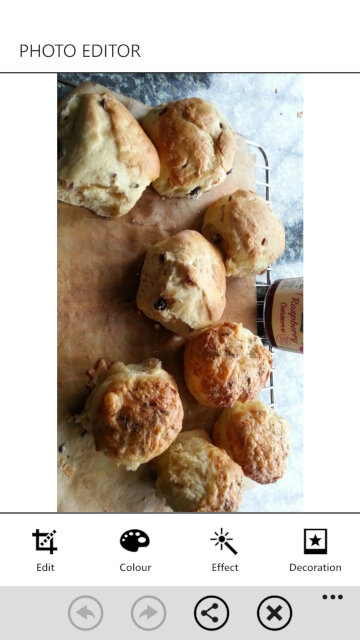
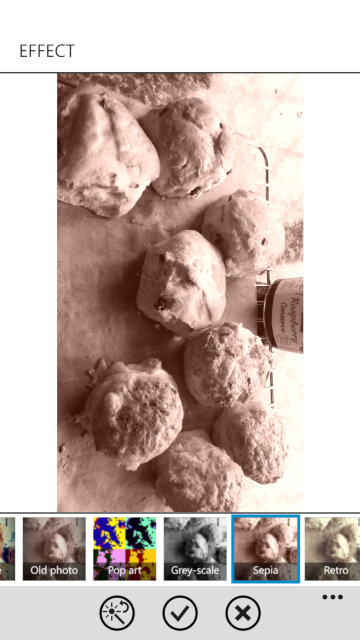
Photo Editor: A simple image editor that can apply a wide range of filters and effect to captured photo’s, and also allows you to place stickers for novelty use. Cropping and zooming are also supported, although you can do this in the Windows stock image viewer.
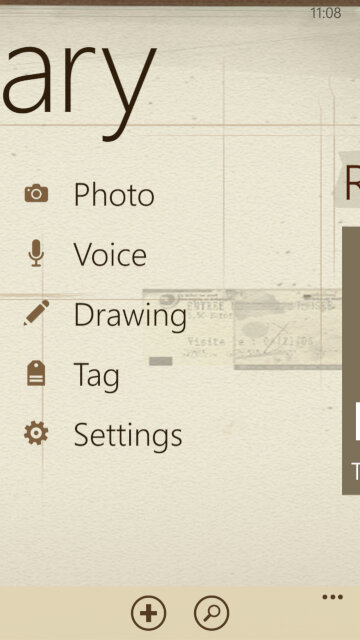
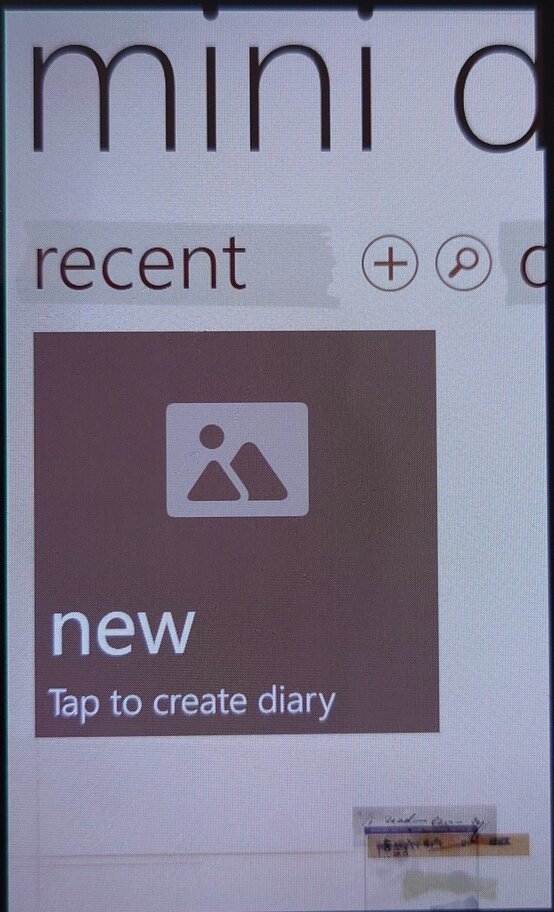
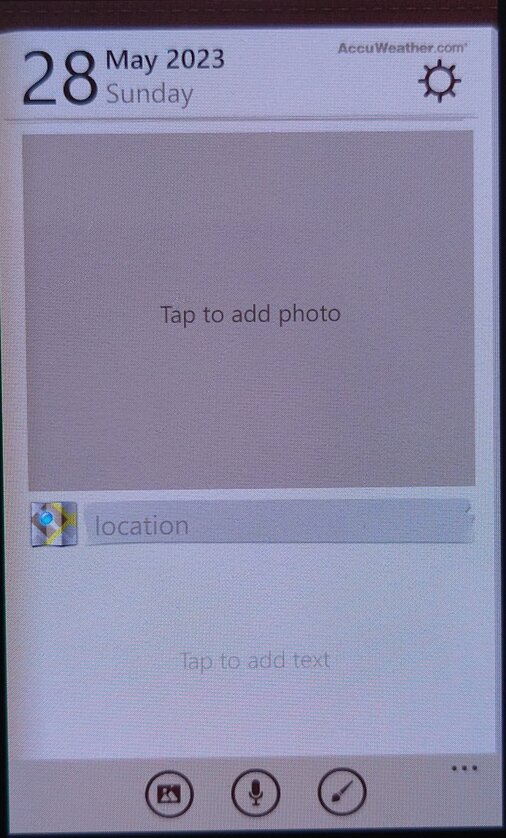
Mini Diary: Lets you create a journal or a note where photos or drawings can be attached to them. You can also record a voice note for upto 10 minutes.
Settings
Samsung has included their owns settings applets that are located towards the bottom of the Settings app, these allow you to change features that are exclusive to the ATIV S
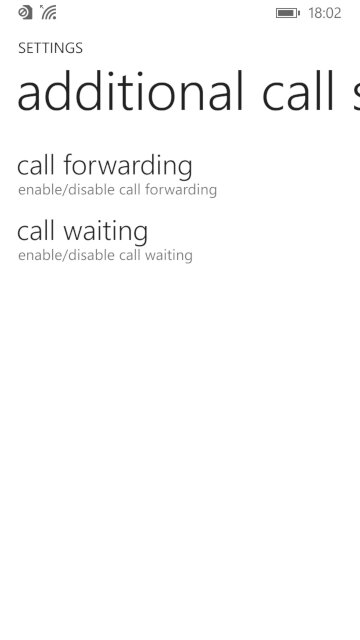
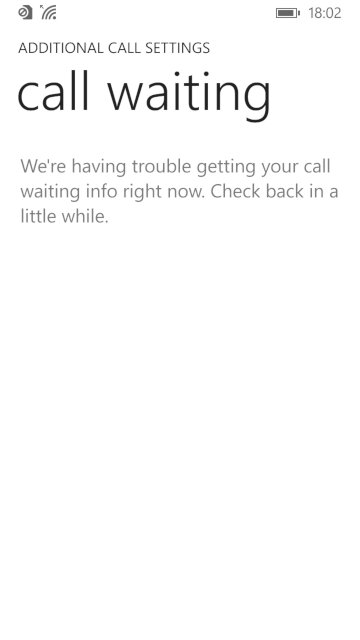
Additional call settings: Check the status and enable call forwarding and call waiting, if they are supported by your network operator
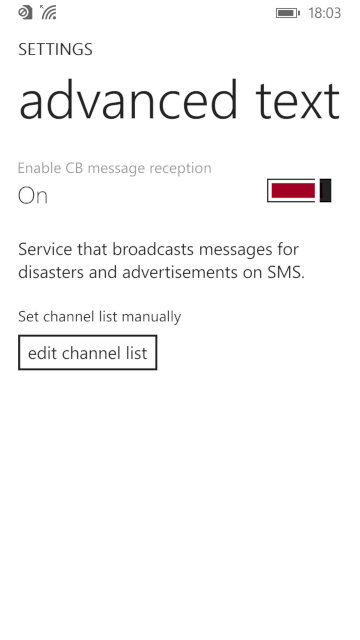
advanced text messages: Allows you to enable CB message reception for broadcast SMS messages, not something we have in the UK
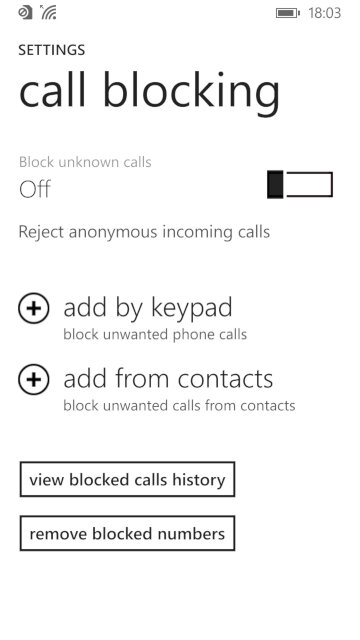
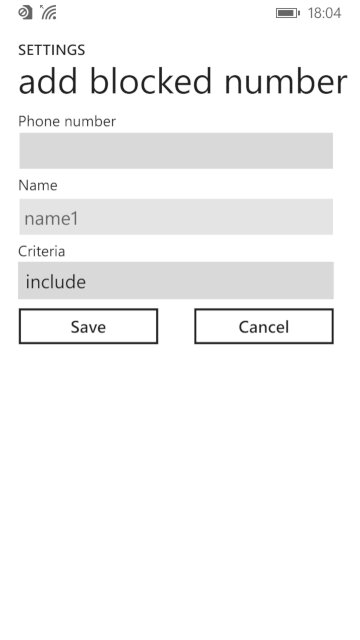
call blocking: lets you enable and add phone numbers to the blocklist which the phone will prevent from contacting you. You can also set to block any callers that withhold their number.
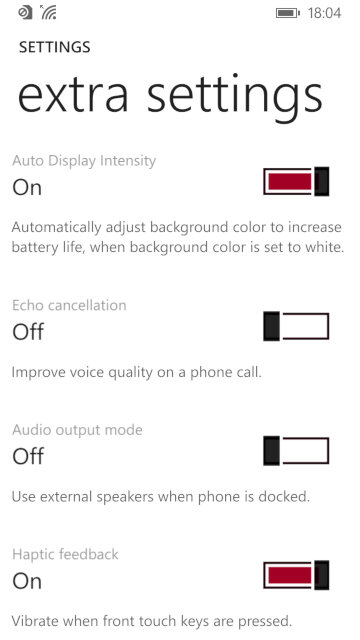
Extra settings: other settings that don’t have their own category, you can change settings for haptic feedback if you want the phone to vibrate when the touch buttons are used.
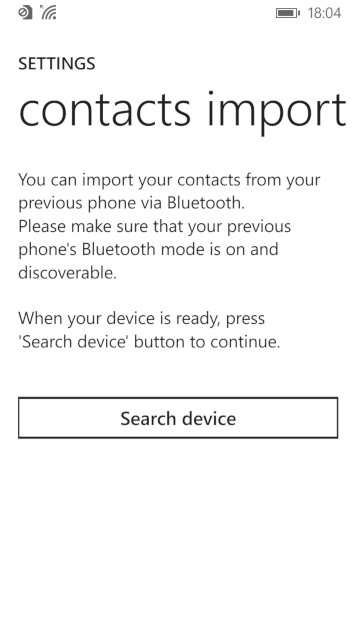
Contacts import: import contacts from another phone via Bluetooth, which Windows Phone didn’t support for some reason.
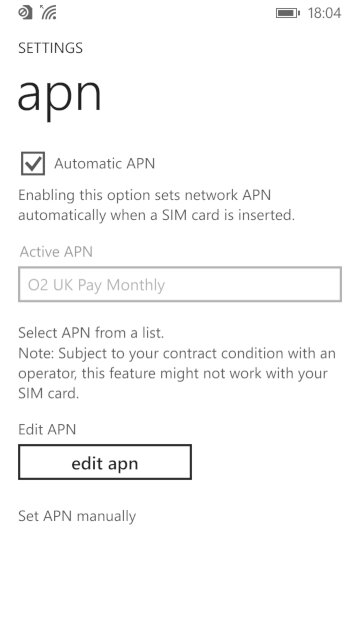
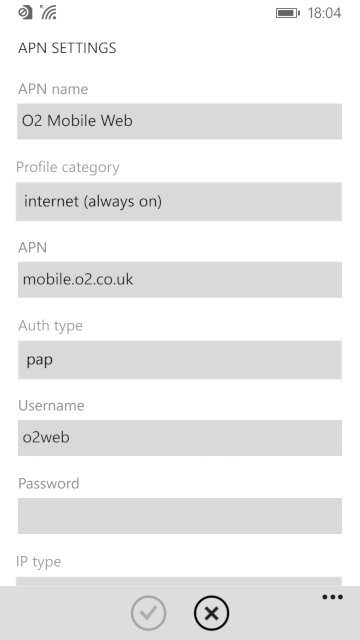
apn: change access point settings, if the phone did not detect your SIM card provider. You need these settings to access the internet and to send or receive MMS messages. Typically you don’t have to do this unless you insert a SIM card that the handset cannot detect the correct settings for, or if they are outdated.
Conclusion
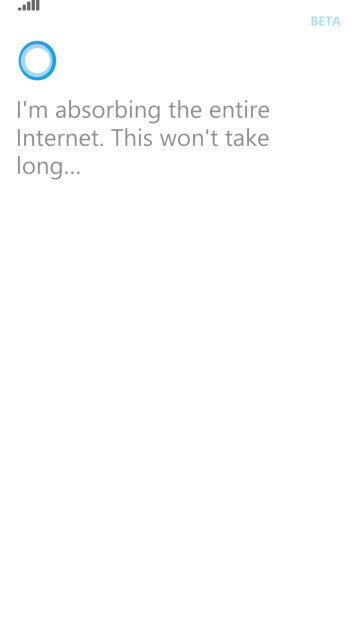
Whilst the ATIV S was the phone to get when Windows Phone 8 was released, it quickly was thrown to the wayside after Nokia started released their flagship handsets, along with their custom exclusive apps for the platform. The ATIV S, along with other Windows Phones didn’t really sell that well, and this caused Samsung to lose interest in the platform. The handset would be followed up by the ATIV S Neo. The ATIV S was well supported in terms of updates, with the 8.1 update being released in 2013 that introduced an updated boot screen, Cortana (RIP), new features for the Start screen and OS features thanks to Microsoft’s update policy.
The fact that the ATIV wasn’t a best seller, and that Microsoft had a strong partnership with Nokia at the time cause them to exit the Windows Phone platform. Samsung would follow-up with the ATIV Odyssey that was a cheaper low-end device and then the ATIV SE, No Windows 10 handsets were released from Samsung.
Samsung’s attempt to appeal to the high-end iDevice market.
Samsung’s Android line of handsets have always had their mass appeal style, prioritising form over function which is reflected in their handsets with removable batters, plastic covers that can easily be replaced and are cheap to manufacture and feature upgradable storage. The Galaxy Alpha gives up most of that, and serves to appeal to the market Samsung had struggled to capture.
Lets look at the Android experience Samsung has shipped with the phone.
The home screen with the default wallpaper, which is a departure from the Bliss-like wallpapers on the Galaxy S4. This blends in with the premium design of the Alpha which Samsung had targeted.
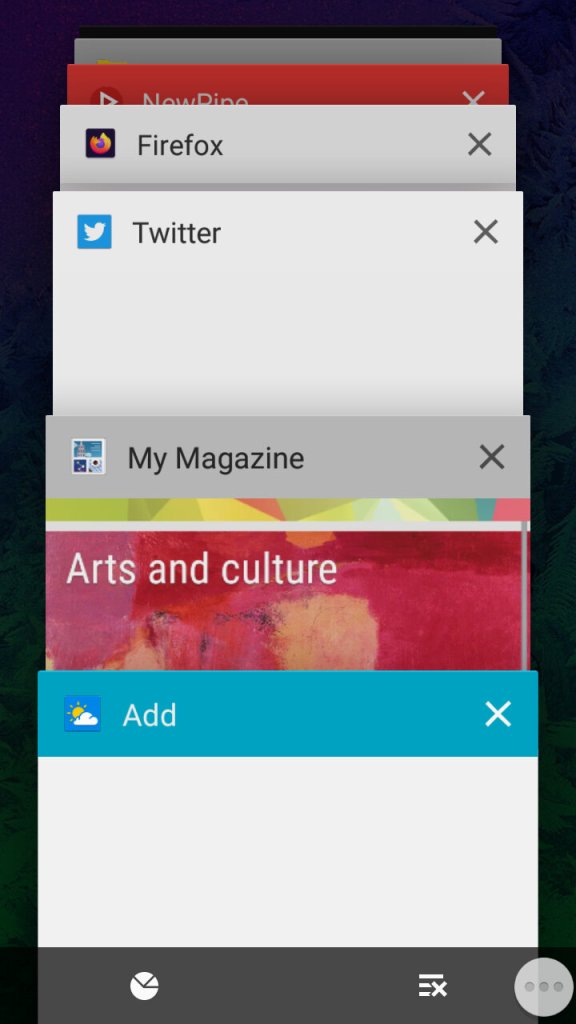
The task switcher that Samsung has added a dedicated button to access this, replacing the menu button on previous handsets. This brings it in line with other Android handsets that follow the stock button scheme, though the back button is still to the right of the home button. Tapping on the icons at the bottom will take you to the memory status where you can see what apps are consuming memory, and even end them. As Android manages your memory automatically and will liberate apps that aren’t in use, you normally don’t need to do this unless you have a malfunctioning app.
The button to the right will close all inactive windows.
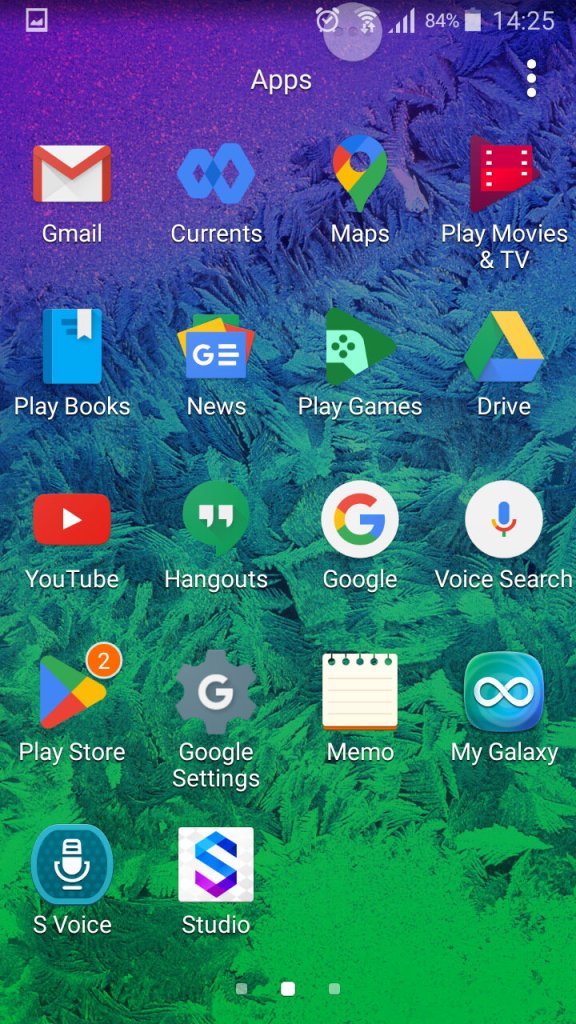
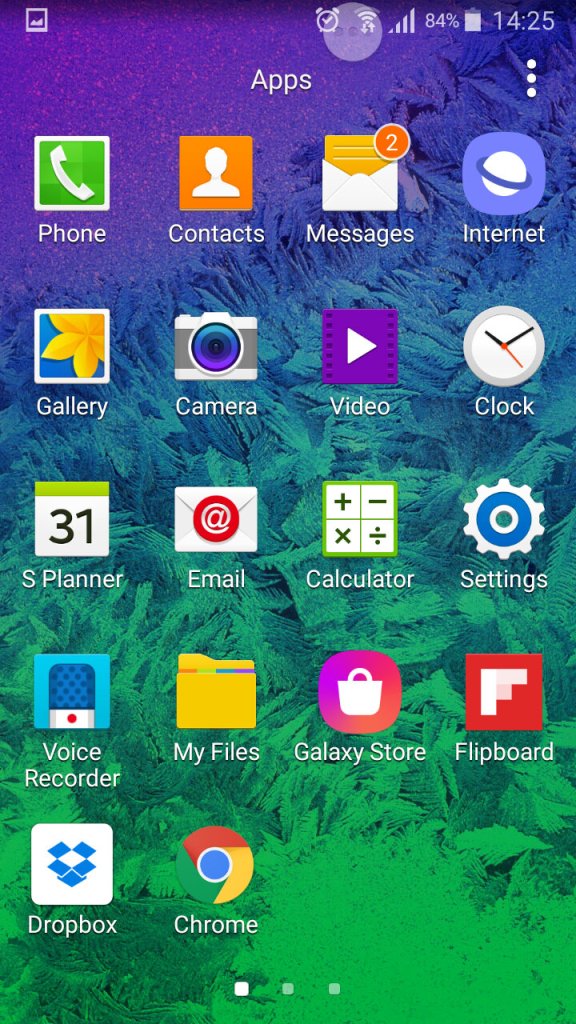
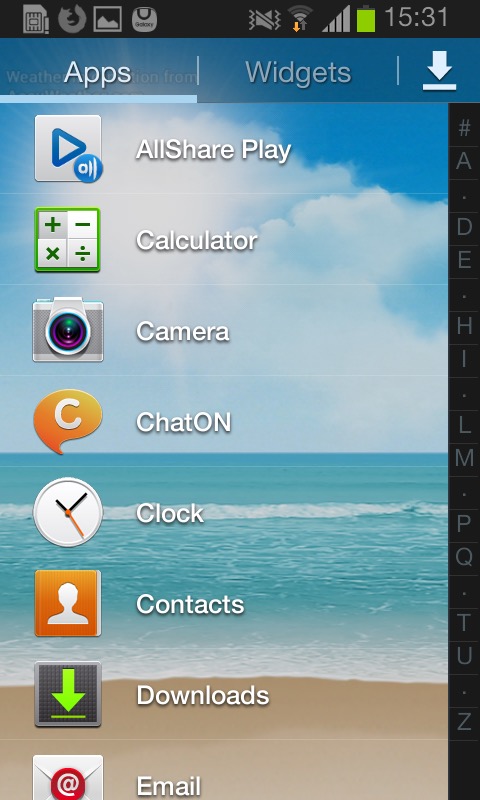
The list of apps, here you can sort apps by alphabetical, or in a custom order.
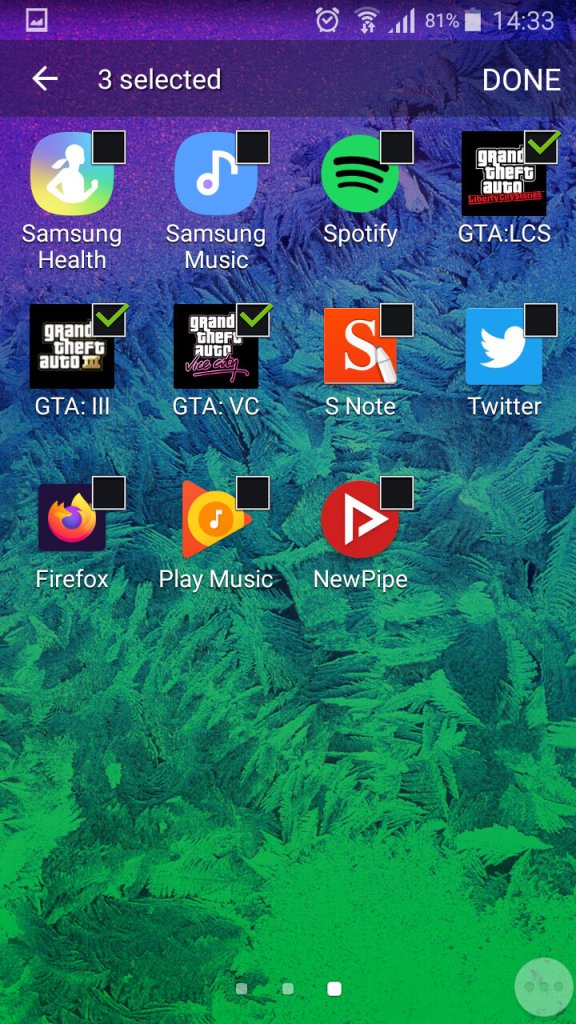
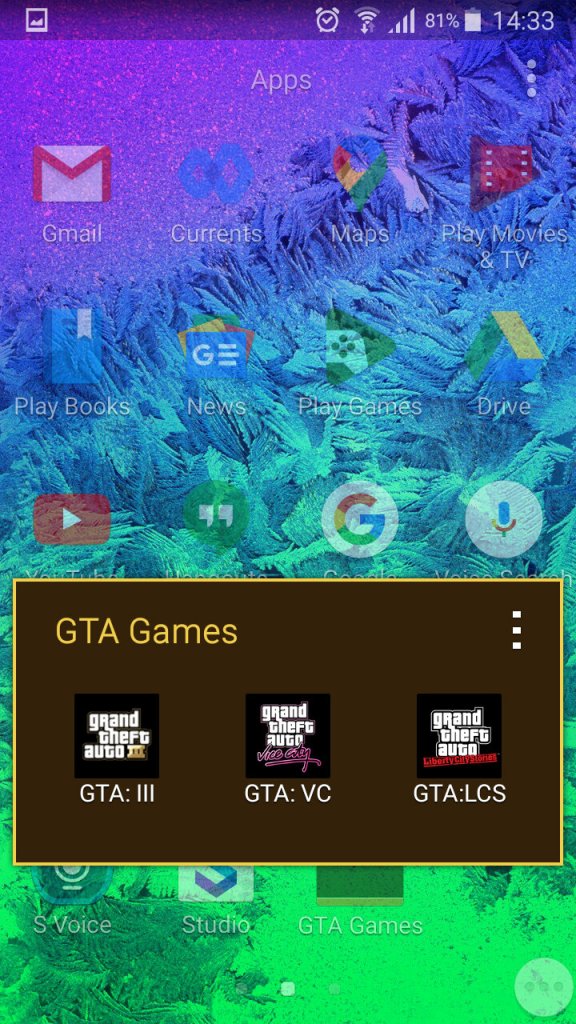
You can also create app folders to keep thing organised by tapping on the tree dots, then select ‘Add’, you cannot just drag an app over the folder icon like you can on the home screen.
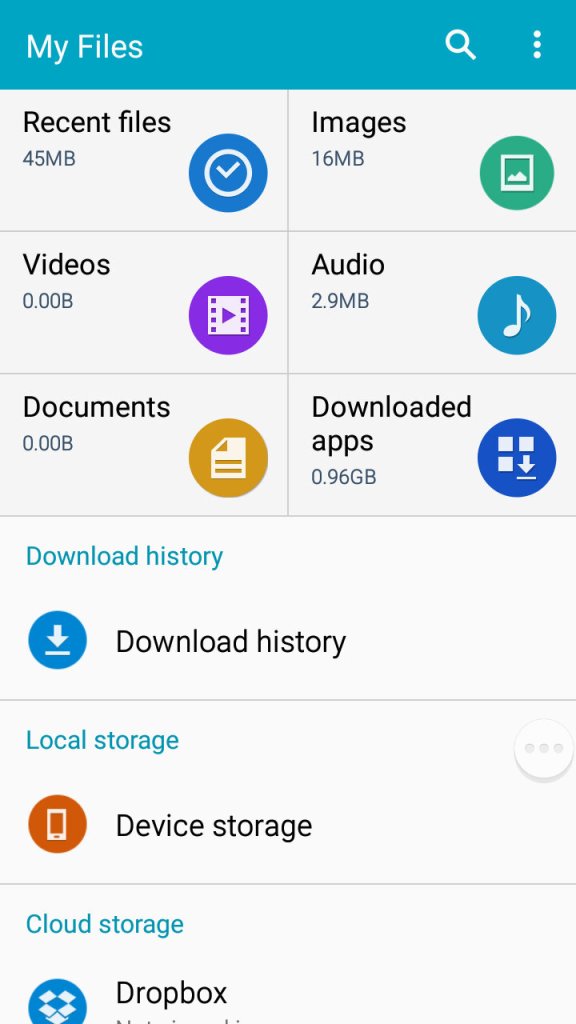
A look at the phones file manager. Unlike other Samsung handsets of the time, the Alpha only comes with 32GB Internal Storage with no option for a microSD card. Samsung would later do this for the Galaxy S6, to a negative reception.
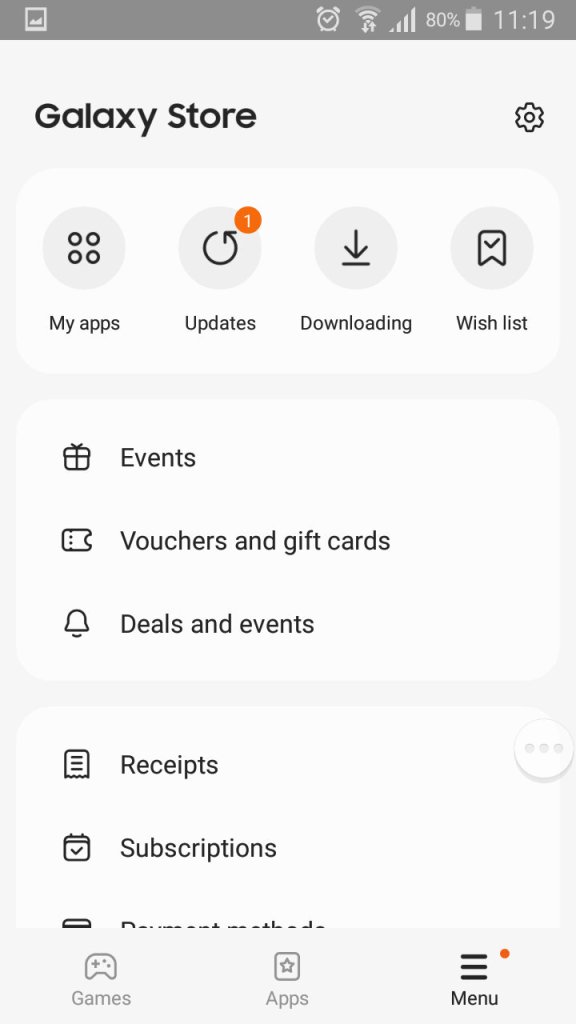
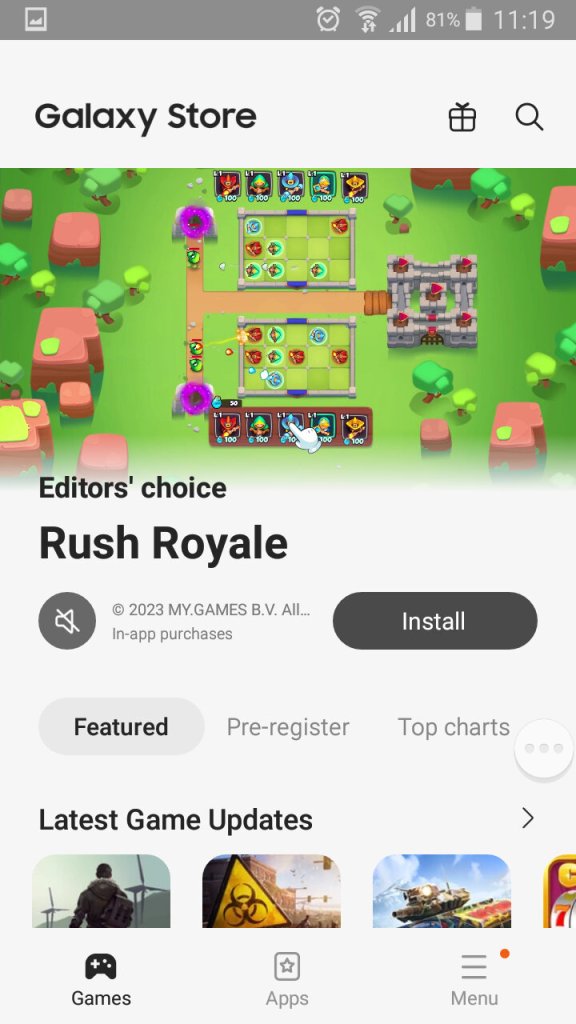
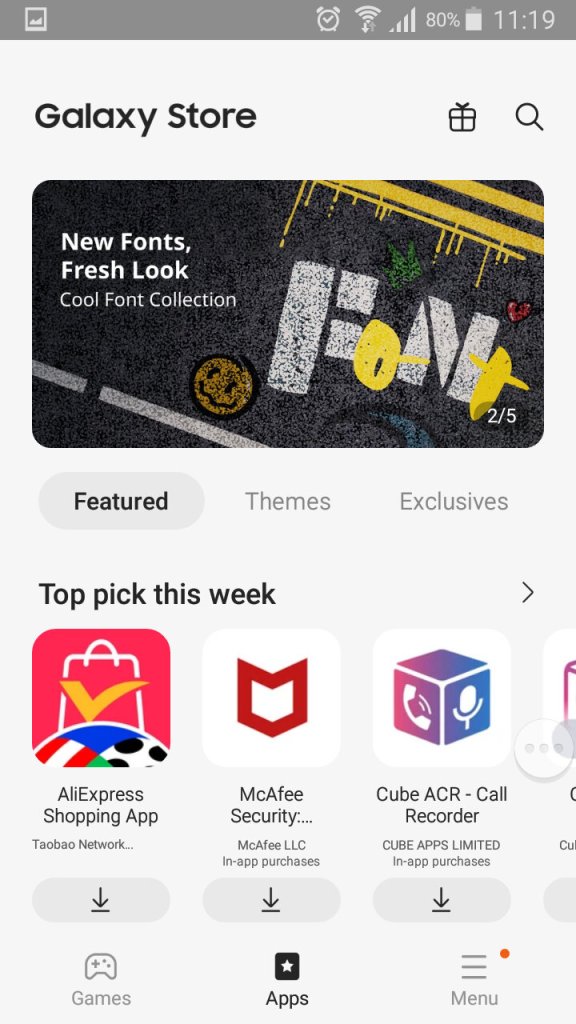
The Galaxy Store, which is Samsung’s own App Store and a alternative to the Google Play Store.
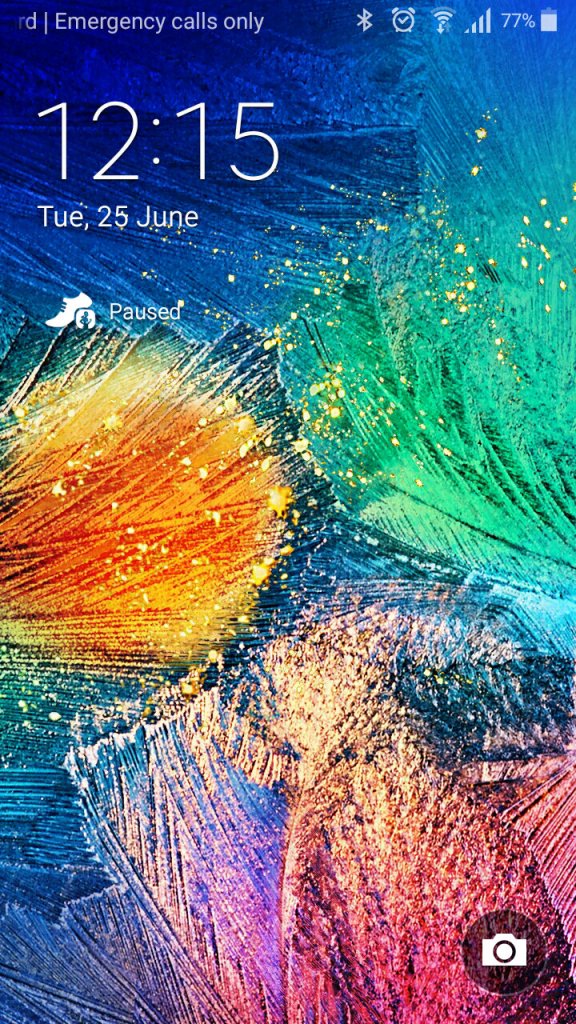
A very colourful lock screen, with Samsung adopting a different wallpaper styles for the Alpha, gone are the fields with blue skies that we say with the Galaxy S4. It’s a welcome change and gives the phone a more edgy appearance.
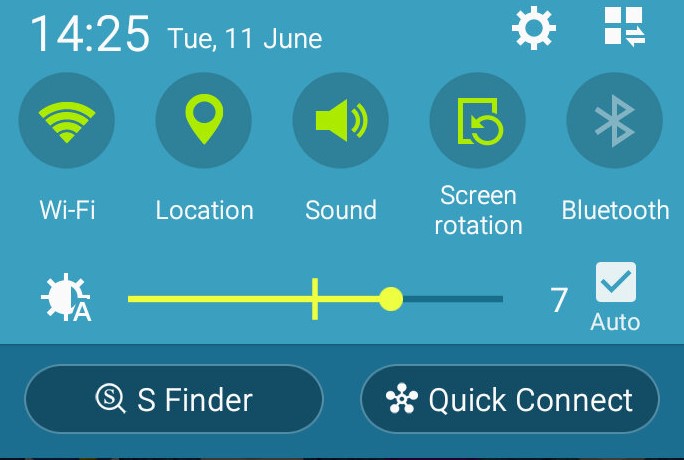
The dropdown still remains the same as the S4,
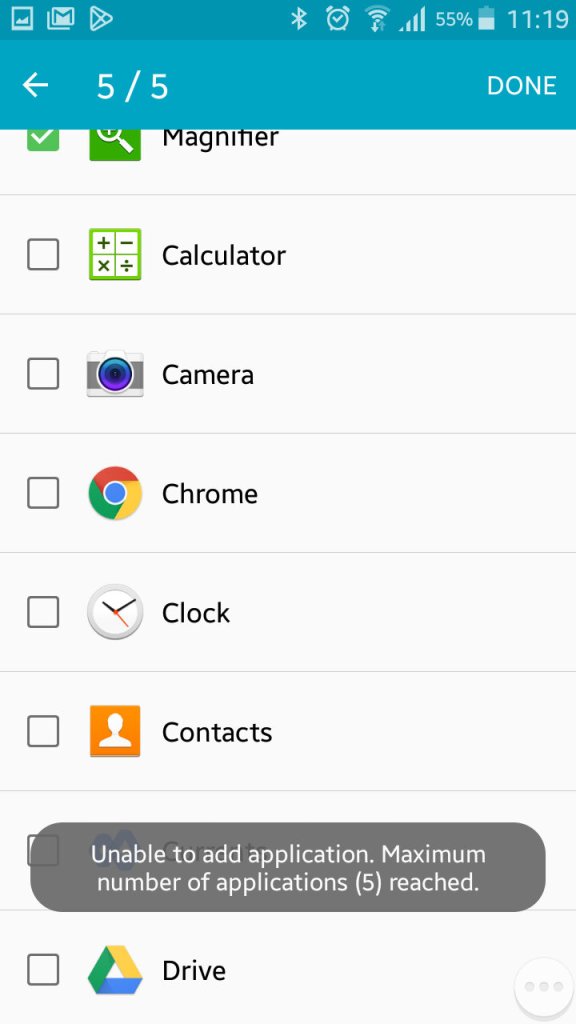
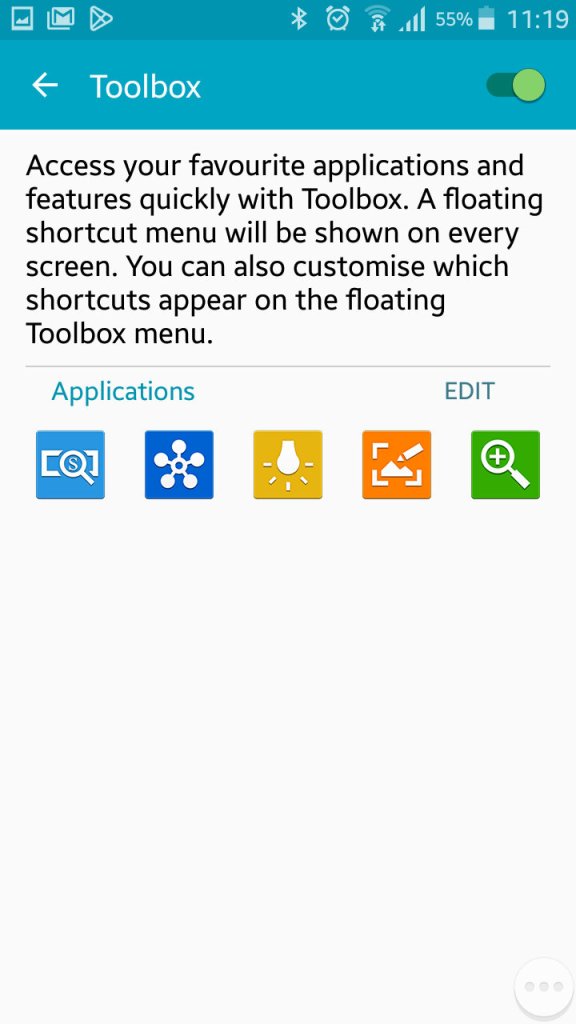
Once thing you might have noticed is a floating three-dot widget that you can press to open shortcuts. This is called the toolbox, you can quickly access the camera, take a screenshot, activate the flashlight and open QuickConnect. This can be turned off if you find this annoying as it does appear over all apps. You can also add additional apps, but you are always limited to 5.
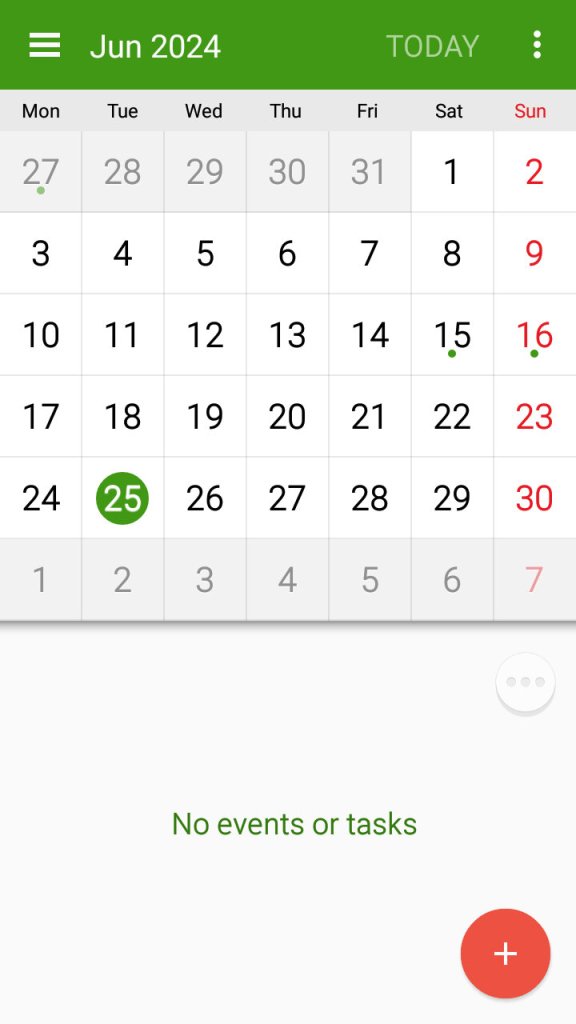
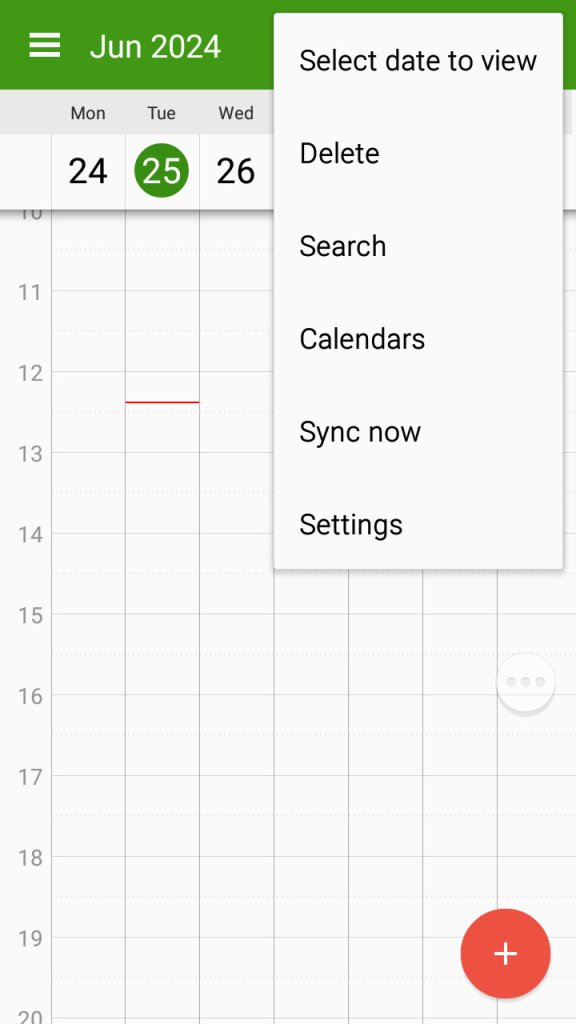
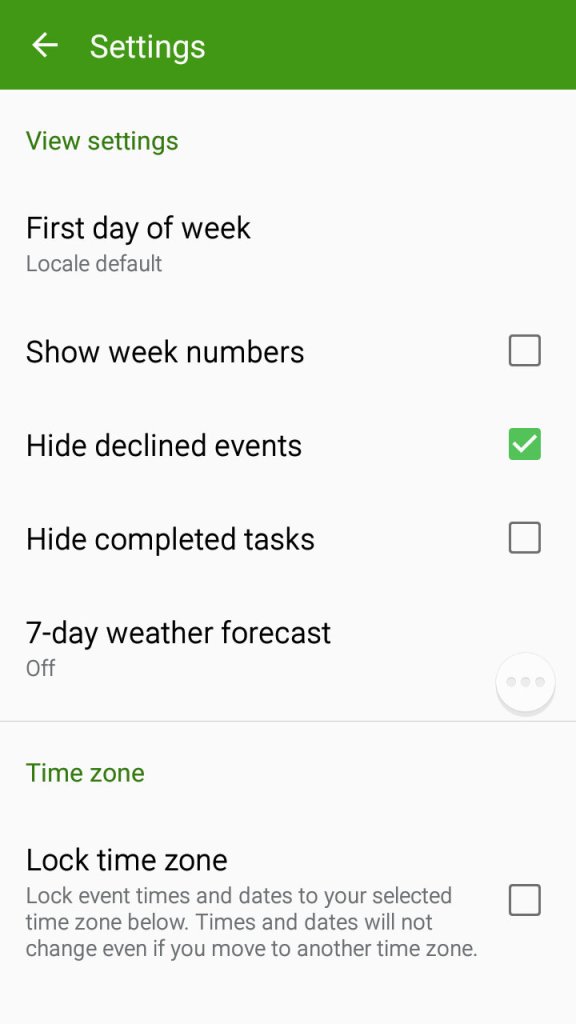
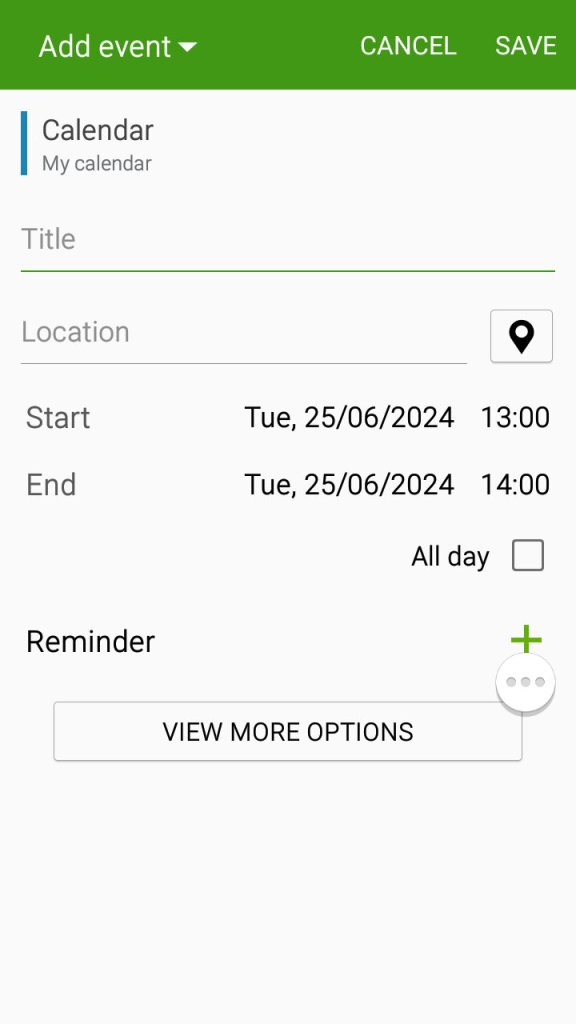
The S planner app which can be used to view the calander, set appointments and reminders and sync with Samsung or Google’s web calendar.
Settings Menu
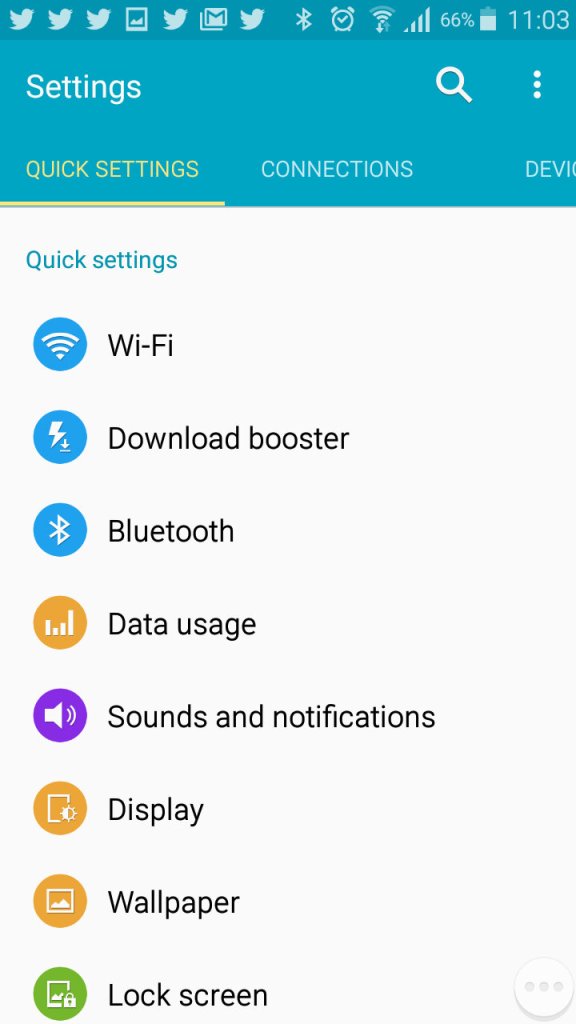
A look at the setting menu which Samsung has reorganised
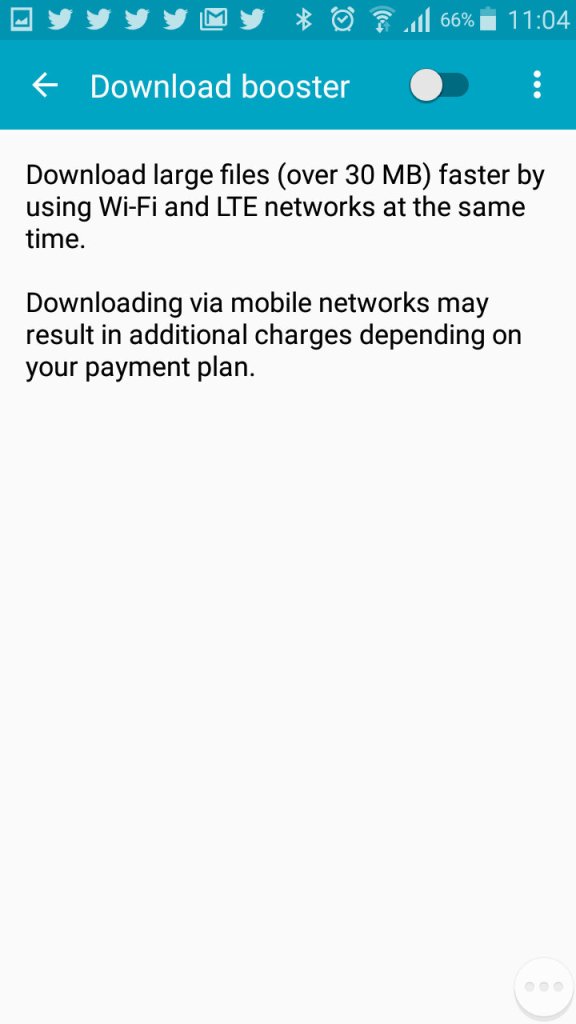
Download booster allows your phone to download using both the mobile network and the WiFi network, subject to the operator supporting this functionality
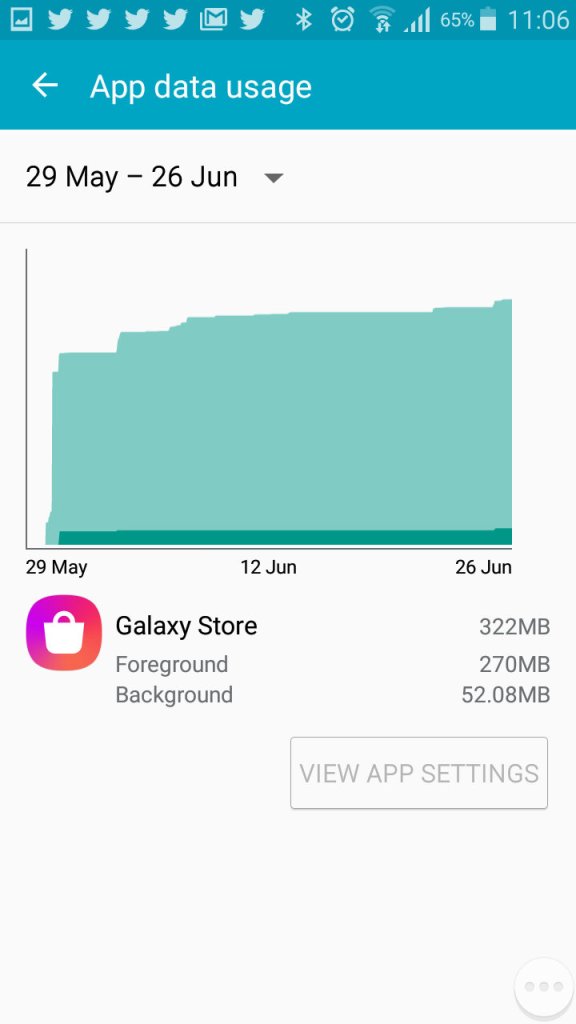
Viewing Android data usage
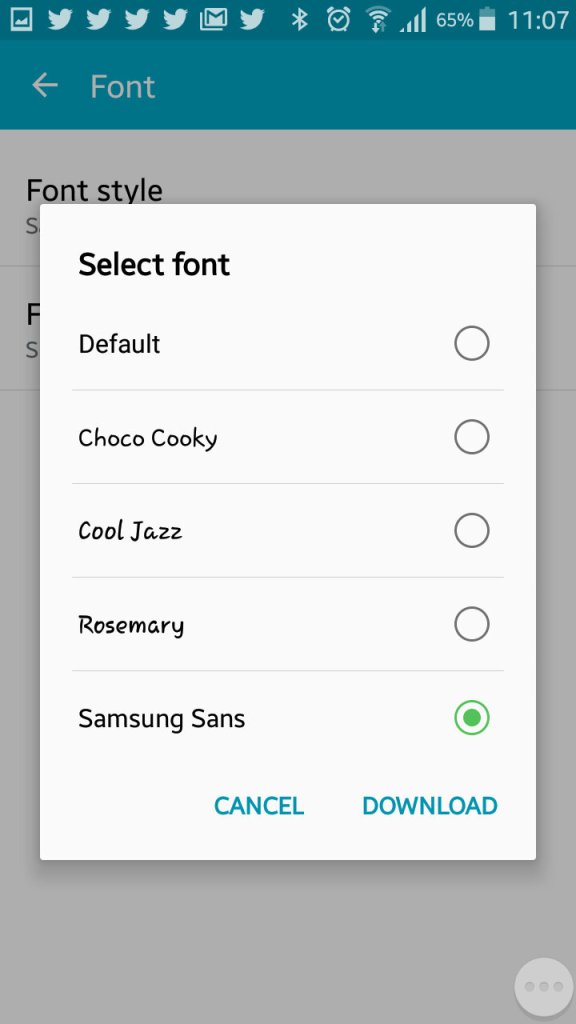
Samsung are one of the few OEM’s that allow you to change the active font of the device. You can also increase the font size to make the text more readable.
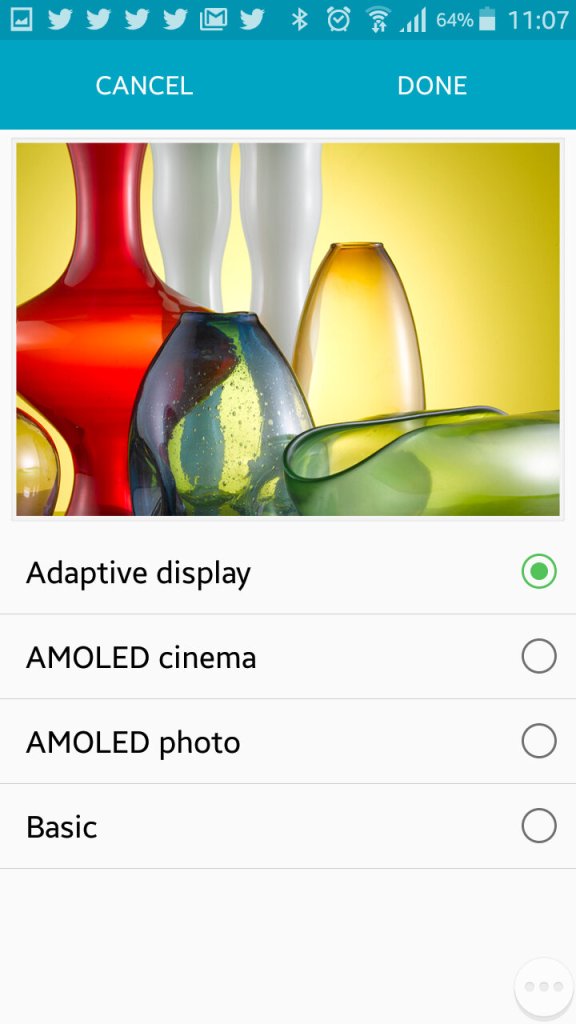
The adaptive display feature which adjusts the displays contract depending on the media or app you are using.
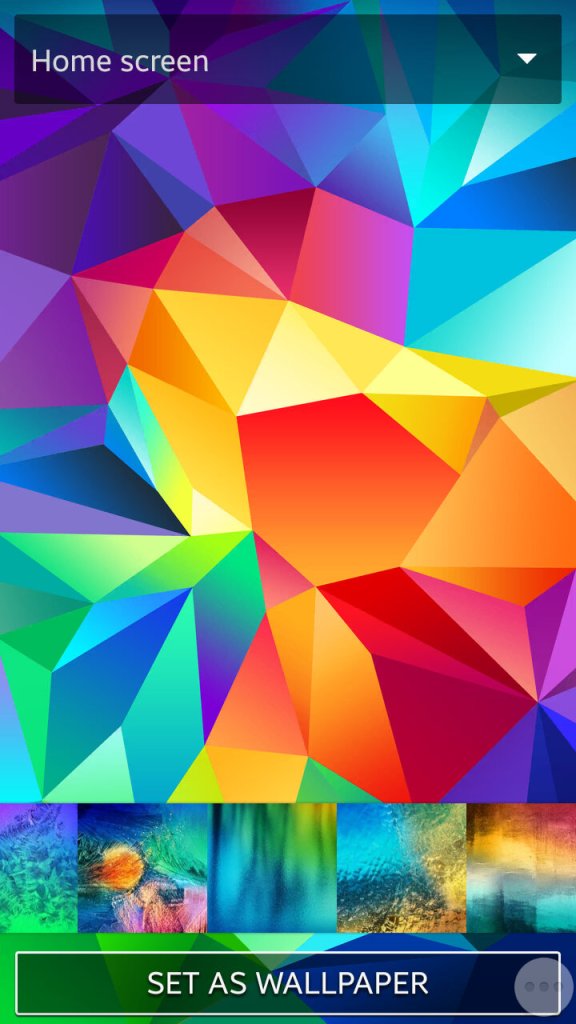
Setting the wallpaper and a look at the default wallpapers that shipped with the phone
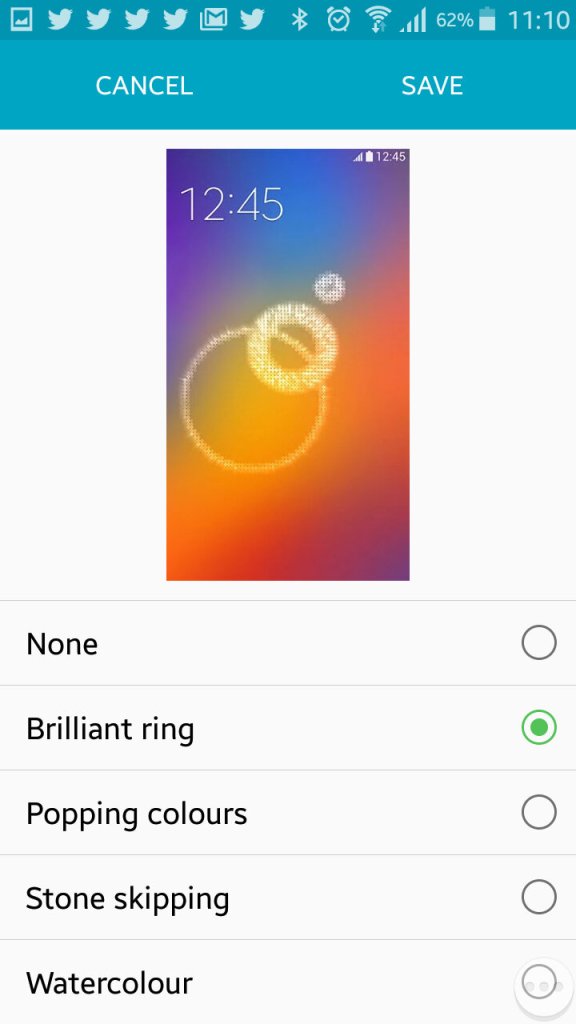
Changing the unlock animation that plays when you swipe your finger on the lock screen.
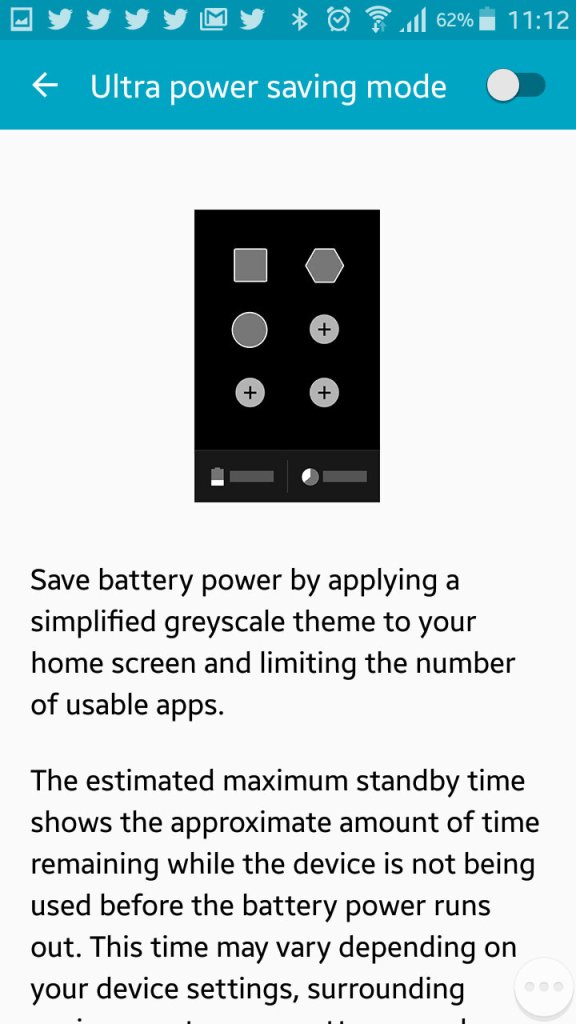
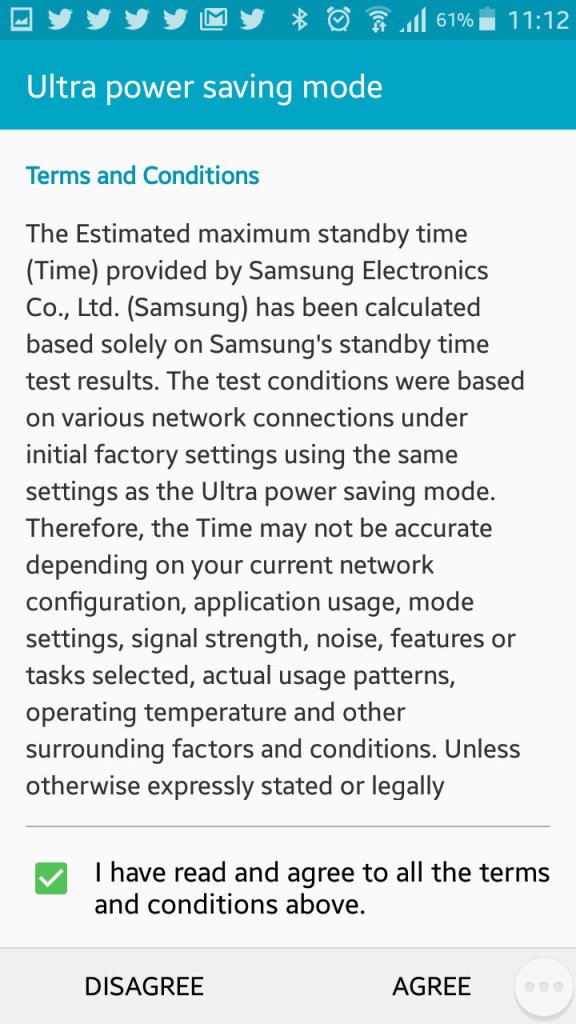
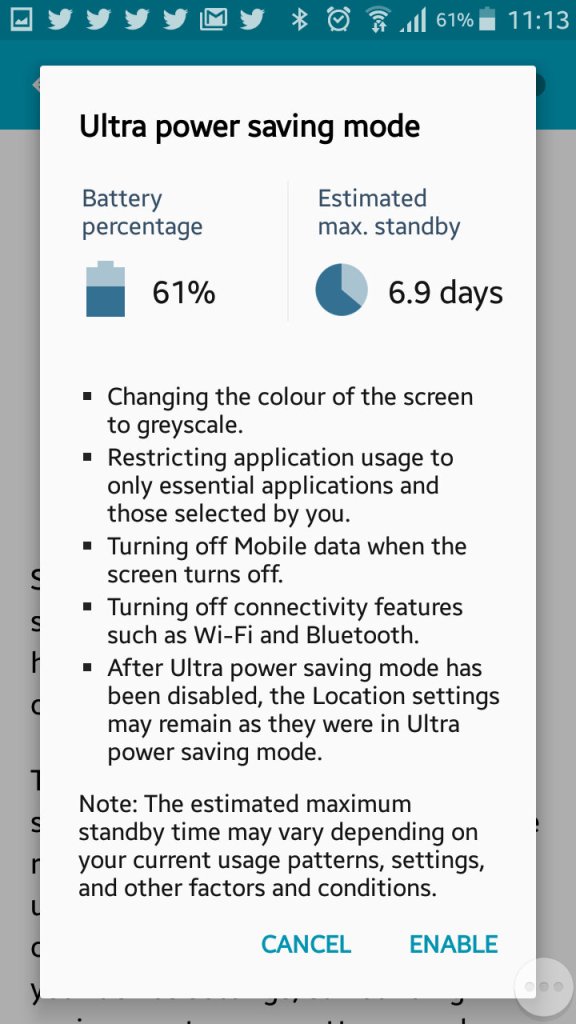
Ultra power saving mode, when enabled will change the display to greyscale mode and will restrict the apps that canoe run on the device. Ideal if you will be away for while and wont have access to a power supply. Apps can still run though you are very limited to the ones that can run, Twitter was the only third party app that could be run in this mode.
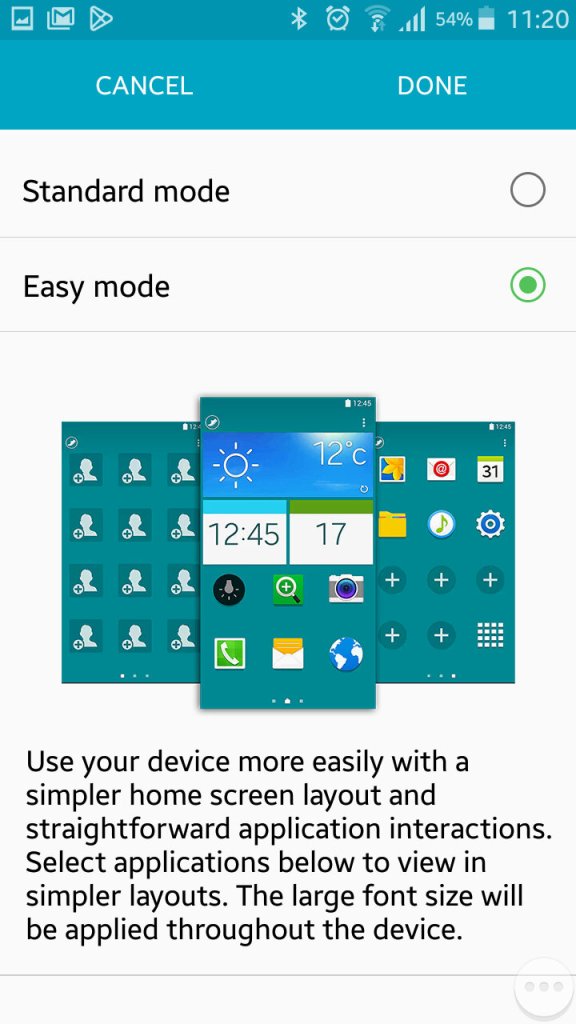
Easy mode makes the phone more simple to use for users who are not experienced with Android handsets
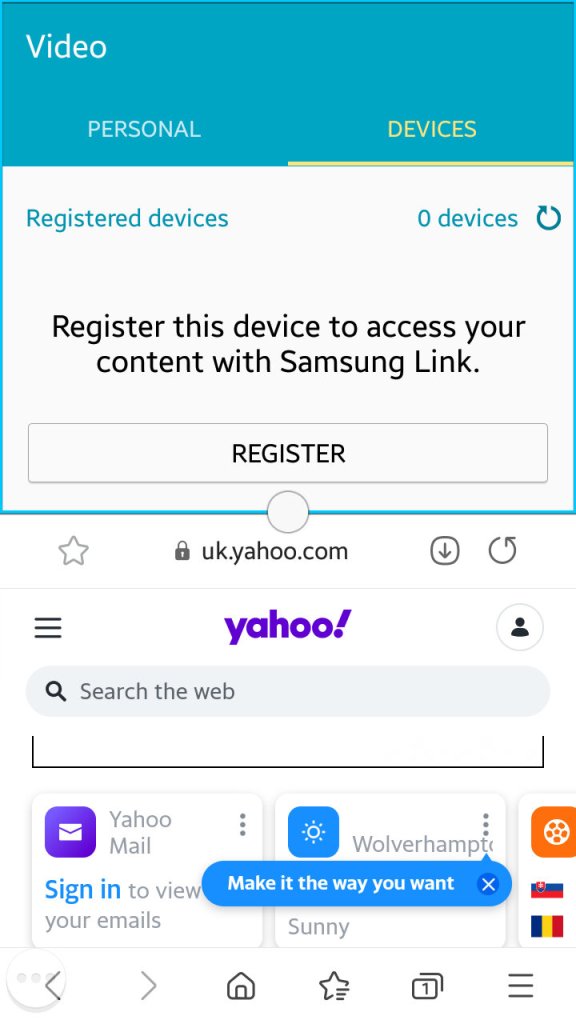
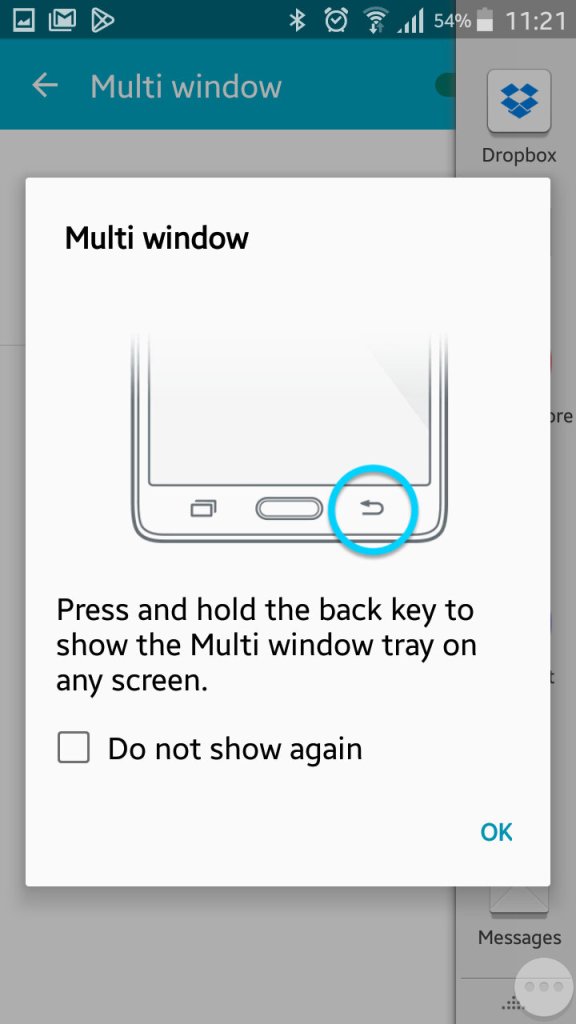
Multiwindow allows you to open multiple apps in a small window to be viewed on the same screen. Here you can split screen apps and have a Youtube video in one part of the screen whilst you browse the internet with another. Whilst handy it’s limited by the 4.7 inch screen, defiantly something that was useful on the Note series of phones.
Enabling it can be down by bringing up the list of apps and tapping on the split screen icon, this can only be done with supporting apps.
The follow-up to the Galaxy S, which would become the staple Android handset, a highly popular smartphone that was released back in 2011. This was when Samsung started to become the goto Android manufacturer, and the main competitor to Apple’s iPhone 4S
The Galaxy S2 initially launched with Android 2.3 Gingerbread and later received updates to Android 4.1 Jelly Bean. Samsung’s TouchWiz user interface was layered on top, which added some extra features and customization options. However, over time, the device started to experience slowdowns and lacked software updates, as is often the case with older smartphones.
TouchWiz UI
TouchWiz was the main user interface that Samsung had developed and gave the device its unique identity compared to other Android handsets. Elements of the Fruitger Aero design can be seen, though the style was already on the decline with the majority of software moving to the flat design (Windows Phone)
TouchWiz offered a visually appealing and user-friendly interface. It featured colorful icons, smooth transitions, and a customizable home screen. Users could add widgets, shortcuts, and folders to personalize their devices. The notification bar in TouchWiz provided quick access to notifications, such as messages, missed calls, and app alerts. It also included toggles for commonly used settings like Wi-Fi, Bluetooth, and screen rotation and can be customized by the user to add additional shortcuts.
The app drawer housed all the installed applications on the device. TouchWiz offered a grid-based layout, allowing users to arrange and organize their apps as per their preferences. Users could also create folders within the app drawer for better app categorization.
TouchWiz on the Galaxy S2 introduced several motion and gesture-based features. For example, users could tilt the device to zoom in on images or webpages, turn over the device to mute incoming calls, or swipe their finger across the screen to capture a screenshot. The Smart Stay feature used the front-facing camera to detect the user’s eye movements and kept the screen on as long as they were looking at it, helping to prevent the display from timing out while reading or viewing content. The phone will occasionally notify you. of these gesture features when they are useful.
The task switcher is activated by holding down the home button. Clicking on the pie menu on the bottom left takes you to the active applications window, where you can force quit running applications that are in the background. It will also show currently available memory, and the amount of storage in the handset. In essence this is very similar to the Windows Task Manager or the System Monitor in Mac OS X.
Another nice feature where the default live pictures change based on the time of day. The Samsung D900 also did something similar to this with its default theme.
And the notification bar that’s pulled down from the top of the screen, which allows quick access to common phone functions like Bluetooth or settings. You can scroll through the top bar by sliding, which will reveal additional settings like power saving, or mobile data.
Apps
The Samsung Galaxy S2 came preloaded with several exclusive bundled apps that were designed to enhance the user experience, at a time when Samsung wanted to differentiate their Android phones from competitor handsets and to be a better competitor for Apple:
Samsung ChatON: This was a messaging app developed by Samsung that allowed users to send text messages, and multimedia messages, and engage in group chats. It also supported sharing of images, videos, and voice messages. Whist commonly bundled with Samsung handsets, Samsung did allow other smartphones to use the service and was also made available on Windows Phone. It was shut down as Whatsapp and Telegram were much more popular.
Samsung Apps: This was Samsung’s own app store, similar to Google Play Store, where users could discover and download apps specifically optimized for Samsung devices. Surprisingly this still works and I was able to create an account, though signing in is a mess since it has to open a separate browser to facilitate a two-step login.
AllShare: This app enabled users to wirelessly stream and share content, such as photos, videos, and music, between the Galaxy S2 and other compatible devices on the same network, like smart TVs and laptops. I’d say this would use DLNA, but it requires an account to setup which is no longer possible.
Voice Talk: This app aimed to provide a hands-free and convenient way to interact with the device, especially when users were unable or unwilling to use the touchscreen interface. With the Voice Talk app, users could activate their phone’s voice recognition system by launching the app or using a designated hotkey. Once activated, users could speak commands or requests, and the app would interpret and execute them.
As this was before the days of Google Assistant integration, this was a useful feature, although now obsolete as it’s now bundled with the latest Android releases. Common tasks supported were making phone calls, Sending messages, Opening apps, performing web searches, settings reminders & alarms, and controlling the music player.
Game Hub: provided a centralized platform for accessing and downloading games. It was designed to enhance the gaming experience on Samsung devices and offer a variety of gaming options to users. This was mainly to compete against Xbox LIVE integration on Windows Phone, and Game Center on iOS, which allowed users to keep track of achievements and leaderboards with other users. Google had yet to introduce this functionality, and would later do so under Google Play Games.
Radio: Plays FM radio and can store presets. There’s. a very skeuomorphic design with a radio dial being represented here, it’s clear Samsung was trying to mimic Apple’s design language of the era, though I do like Samsung’s twist on the design.
My Files: The phone’s file manager that lets you browse selected folders on the handset’s internal memory, or a microSD card if one is inserted. One hindrance is only one storage medium can be browsed at a time, you have to manually change the paths of the folders to either the internal storage or the memory card. Though when you insert memory card for the first time, the phone automatically changes this to the card.
I can kind of understand this, as it simplifies the storage setup on the phone, Samsung assumes the memory card will be used for multimedia content like music or photos, with the internal storage being left for the apps. I believe Android upon the phones release restricted apps to just run from the internal storage.
Power users on the other hand might prefer to use another app that gives them more access to the phone’s storage.
Gallery: Similar to the file manager but focuses on photos captured with the camera, and any screenshots that have been taken. Albums can be sorted by date taken, location (If GPS tagging was enabled) or if the photo contains a specific person (set manually). Within this you can rotate, crop, edit or set the photo as wallpaper. Printing is also supported, but only supported Samsing printers can be used that support Wi-Fi direct.
S Planner: Samsung’s calendar application, and an alternative to the Google calendar. As with other calendar apps, events and reminders can be added in the future and are synced with the Samsung account on the phone.
Other productivity apps that are included include the Calculator, Clock, Email client and a basic internet browser based on Chromium.
Music Player: Plays back MP3 and AAC files located on the phone’s storage. A simple equalizer (SoundAlive) lets you choose from different presets. You can also stream music from different DLNA sources, like a NAS server. There is also a music sequencer that lets you choose tracks based on them being Calm, Joyful, Exciting or Passionate, though none of them would open any tracks, so I’m not sure how this works. There is a quick list that you can add songs to, which acts as a playlist.
Messaging: Standard text messaging apps that has support EMS and MMS. Like iOS and Windows Phone, a threaded view is used by default. Templates are integrated by default and can be inserted into any message, along with smilies (predecessor to Emoji’s)
Another app known as Messenger+ is included, but I believe this was an old instant messenger supported by Google that is now defunct.
Mini Diary: Very similar to what was found on the Omnia W, you can create diary entries and add any photos or videos, along with a location. Useful to keep track of any memories, but is not exportable to any other application or online service.
Readers Hub: A convenient app for accessing and reading various types of digital content, such as e-books, magazines, and newspapers. Very similar to Apple’s Newsreader that was introduced in iOS 5. Readers Hub offered access to a vast library of e-books, allowing users to browse, purchase, and download e-books directly to their device. It supported various e-book formats and provided features like bookmarking, text highlighting, and adjustable font sizes for a customizable reading experience.
The app also provided access to a wide selection of digital magazines across different genres and interests. Users could subscribe to their favorite magazines or purchase individual issues, which could be read in a digital format with features like page flipping and zooming. Lastly, allowed users to access digital versions of newspapers. It offered a range of newspapers from different regions and provided a convenient way to read daily news and articles on the device.
Group cast: This was an app designed to allow sharing and viewing of content among multiple devices. The app allowed users connected on the same network to share and display their device’s screen in real-time on other devices participating in the Group Cast session, sort of like Miracast but restricted to supported Samsung devices which limits its usefulness.
When creating a session, a PIN is created to restrict access on who can access the session, who can then join provided they are connected to the same Wi-Fi network.
Memo: Simple note-taking app that supports sync with Google Docs
Video:The video app allows users to play various video formats directly on their phone. It supports common video file types such as MP4, AVI, MKV, WMV, and more. The app typically offers basic playback controls like play, pause, rewind, fast forward, and seek. Basic editing is supported for videos captured with the internal camera where videos can be trimmed/clipped.
Lastly a look at the clock app which offers the ability to set an alarm, along with a timer and stopwatch. There is a briefing alarm feature that reads out the time, upcoming schedule, weather forecast and current news headlines, very similar to what Google Assistant offers.
Widgets
TouchWiz introduced a range of widgets that users could place on their home screens. These widgets provided quick access to information and functions, such as weather updates, calendar events, news feeds, and music playback controls.
Like on other Android handsets, Widgets let users pin accessible sections of apps for quick reference or as a shortcut.
Shows your frequently accessed apps, settings or contacts.
Various clock faces can be set and displayed on the home screen
Quickly access the radio, and any stored frequencies
Quickly create a new diary entry
Shortcuts to the S Planner, which is the default calendar application for Samsung phones. From here you can quickly create a new calendar event or task.
Settings Menu
The settings menu is divided into several categories:
Wireless & Networks: Wifi, USB and Bluetooth settings. Also lets you configure DLNA configuration for sharing media. Wi-Fi Direct can also be configured here for local device-to-device sharing.Wi-Fi direct can be enabled here for connection to other wireless devices, and you can check the mobile network data usage.
Device: This has options for sound/display/storage and power settings. You can also enable the blocking feature which will backlist certain contacts or notificatins, like an early Do not disturb mode.
Personal: Settings in relation to locking/unlocking the device, and security settings.
Accounts: Shows any accounts that are setup on the device, be default you will see your Google and Samsung accounts, but additional accounts will show up here as you install third-party apps.
Storage is a little odd on this phone, there’s 2GB of main storage, plus 11.5GB ‘USB Storage’ which appears to be internal to the phone, along with SD card storage if one is inserted. I’m not sure why the internal memory is split into two, possibly to get around current Android storage limitations. The phone does support dedicated USB storage when you connect to a computer, so possibly it’s intended for direct access to the content files on the phone, as an alternative to MTP (Which is also supported), maybe Samsung wanted to give the user the luxury of two methods?
Although there are options to clear memory, Android automatically suspends tasks that are not currently in use to conserve battery power, normally the user does not need to do this.
PC Software
Kies: Kies provided both wired and wireless connectivity between the Galaxy S2 and a computer, allowing users to transfer files, sync data, and manage their device using a Windows or Mac computer.
Kies can transfer (Sync or Manual) music to either internal storage of onto the memory card. Songs that are transferred are not automatically updated by the phones music app, instead you have to wait a few minutes for the app to update with the newly added songs.
You can also optionally install the AllShare client for Windows, which lets you push content using DLNA.
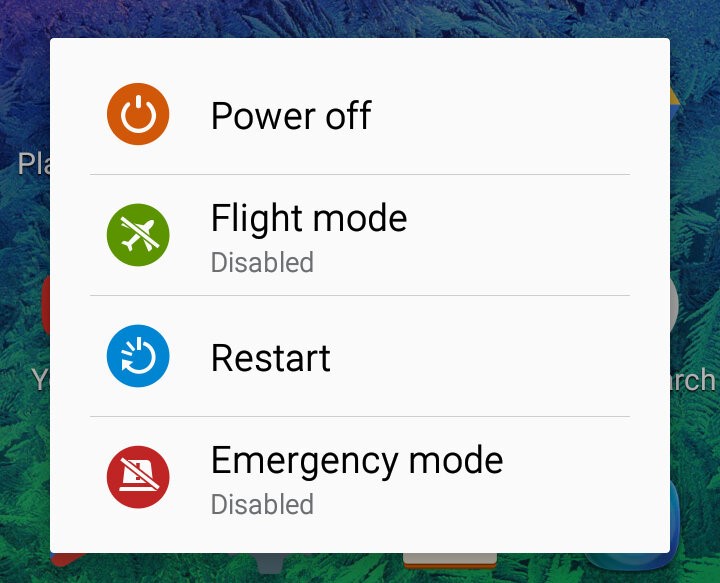
Lastly, shutting down the S2. This menu appears when you press the lock/power button.
A mid-range smartphone released in 2011 and part of the second generation of Windows Phone 7 devices which see an increase in the processing power and shipping with the Mango update by default.
The Omnia W has a sleek and stylish design with a 3.7-inch AMOLED display. It has a solid build quality and feels comfortable to hold, though its plastic feels a tad on the cheap side.
Powered by a 1.4 GHz single-core processor and comes with 512MB of RAM along with a Adreno 205 GPU which gave it better performance. Even with stock apps the performance increase is noticeable with the Xbox Avatar app having a much smoother framerate compared to Adreno 200 devices like the LG Optimus 7. Out of the box the smartphone runs on Windows Phone 7.5 Mango OS, which is a stable and reliable operating system. The phone performs well for basic tasks like web browsing, email, and social media though at the time it had access to the Windows Phone store which has now since been discontinued.
Storage is where the Omnia W falls, as it comes with 8GB of internal storage, which is non-expandable. Compared to the Optimus 7 that had 16GB, its a step backward for those that want to store more. Microsoft had launched the Zune music pass at around this time, which would as stream music rather than have it saved locally on the handset itself. Like other Windows Phone devices, the Zune software is used to sync media to the phone.
Applications
There were some exclusive apps available for the Samsung Omnia W that were not available on other devices running on Windows Phone 7.5.
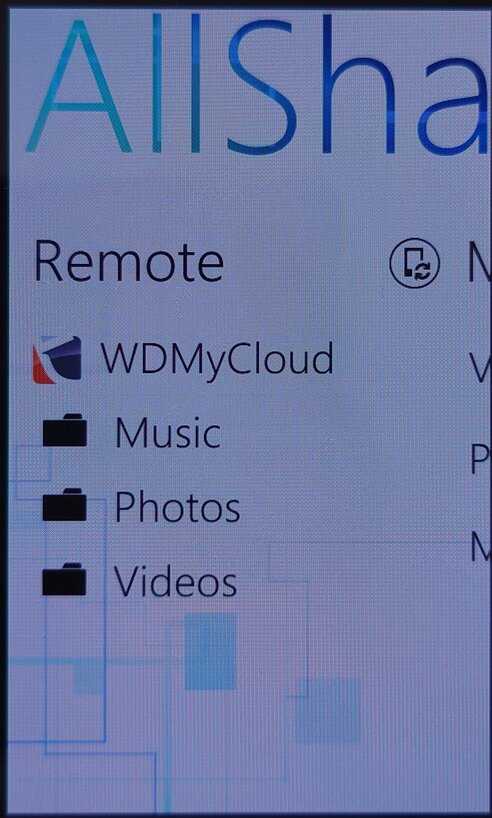
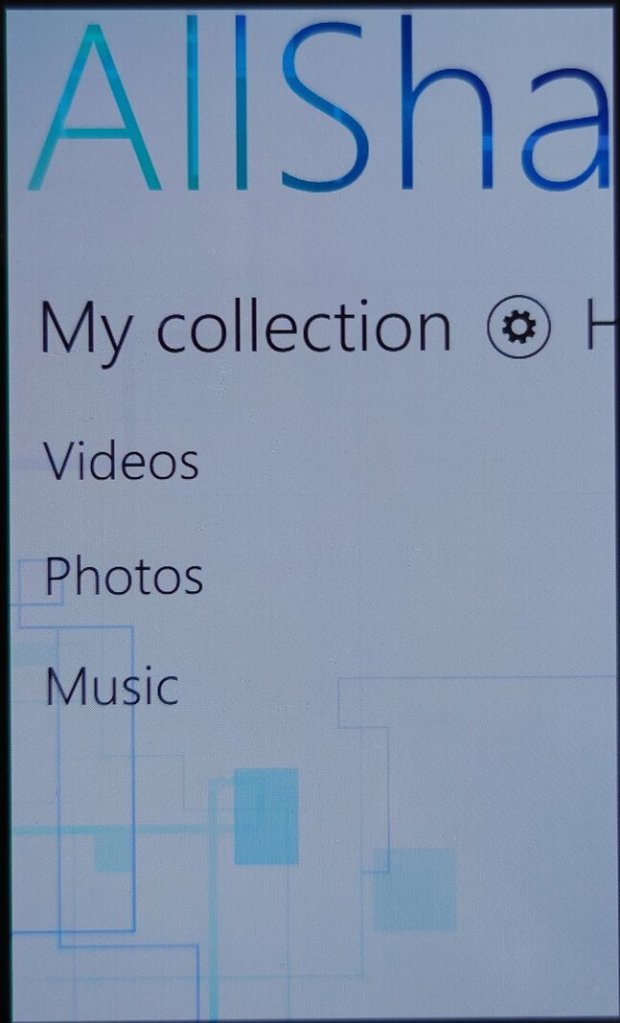
AllShare: This app allowed users to stream media from their phone to other compatible devices, such as a TV or a computer. This uses the DLNA protocol to share to a supported device on the same network. As Windows Phone did not have native support for DLNA, many manufacturers would bundle their own media player apps that supported it. Also screen casting/mirroring wasn’t a thing back then, or was very uncommonly supported so DLNA acted as a good workaround to push content onto an external screen or device. Several Android handsets would do the same, at least until Miracast became standard.
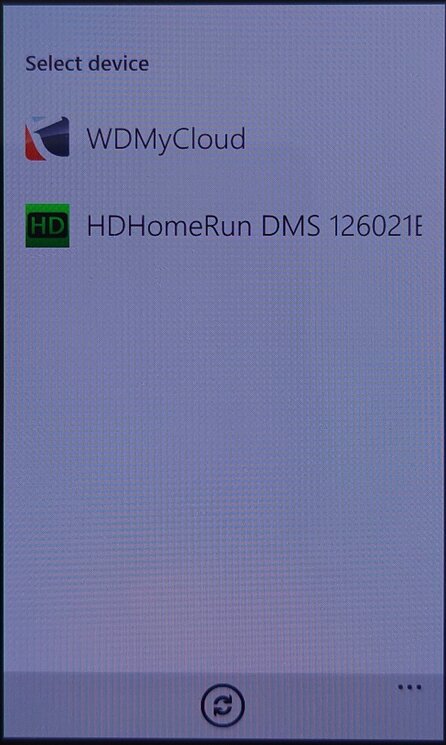
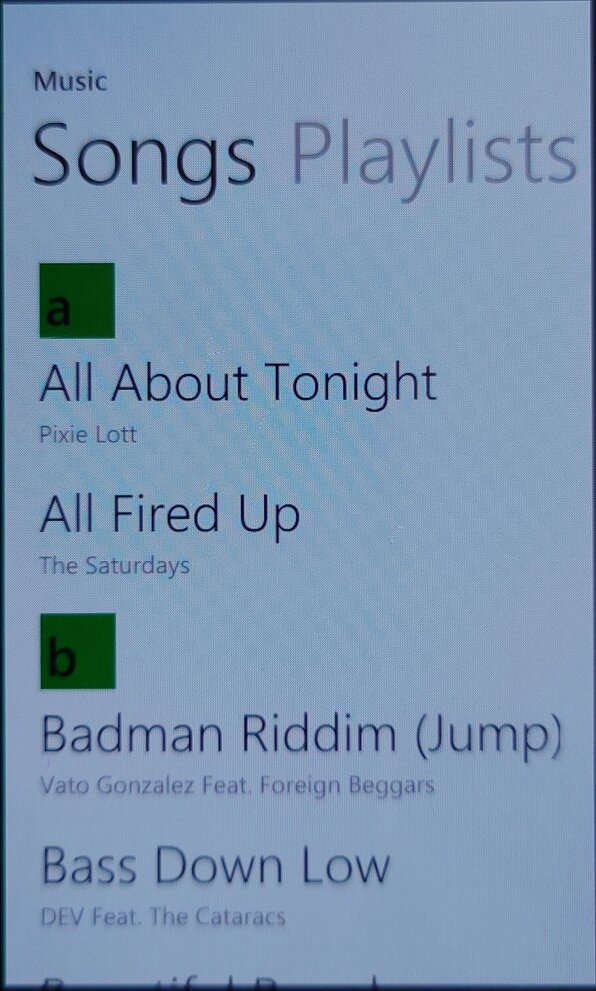
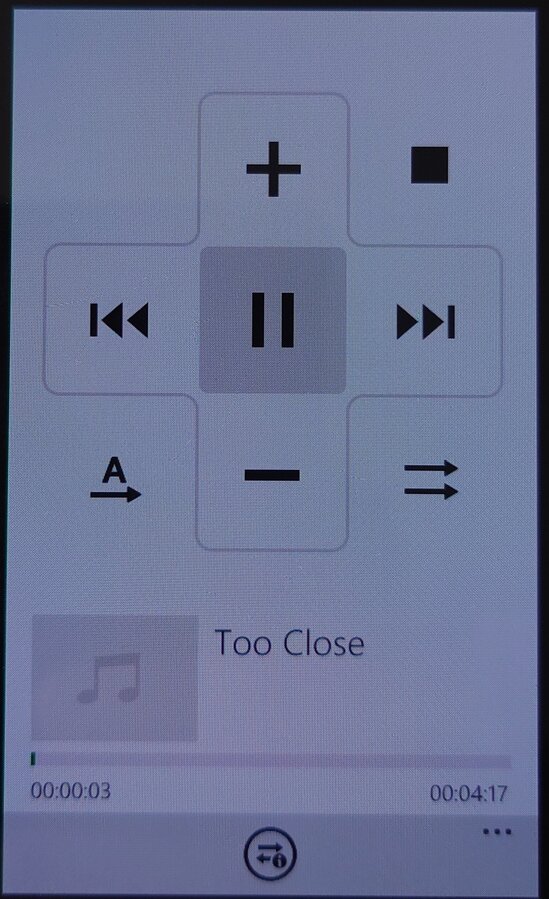
The app is able to pull music from an external source or server, and push it to another DLNA-compatible device, in this example I was able to stream from my MyCloud DLNA server, and cast it to a Panasonic smart speaker.
Not all devices were supported, my PS3 and Sony Android smart TV did not appear in the device list, the HDHomeRun appeared but nothing could be done with it.
Family Story: This app allowed users to share photos, videos, and messages with family members and friends who were using a Samsung device.
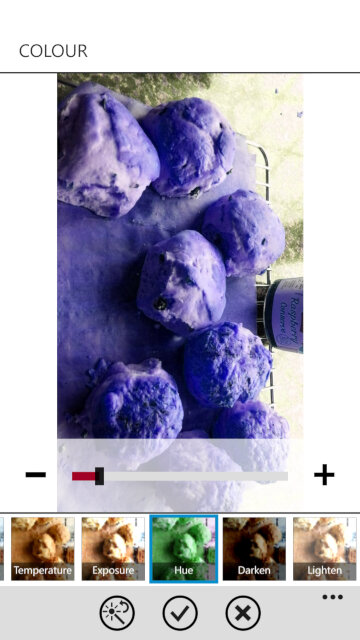
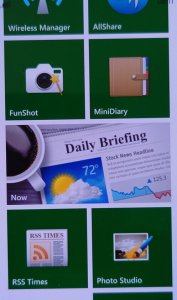
Fun Shot: This app provided users with a variety of camera effects and filters to enhance their photos, example effects are bulge, pinch, twirl, twist and stretch. Many of these were not supported in the stock Windows Phone camera app.
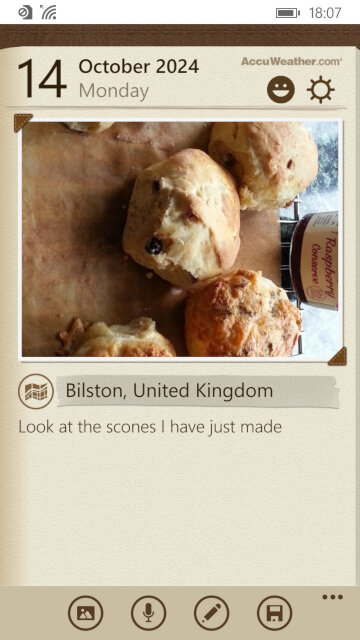
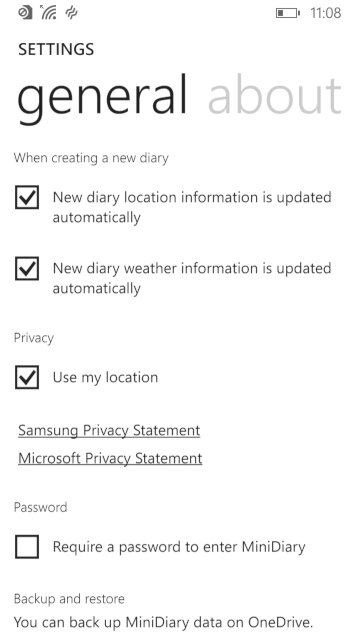
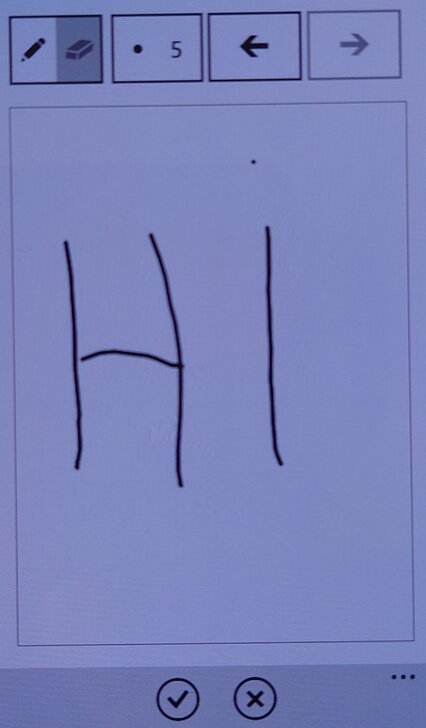
Mini Diary: This app allowed users to create and save notes, photos, and other information in a digital diary. Kind of like a digital scrap book.
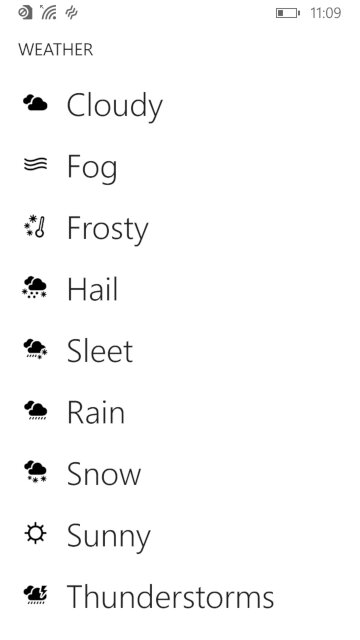
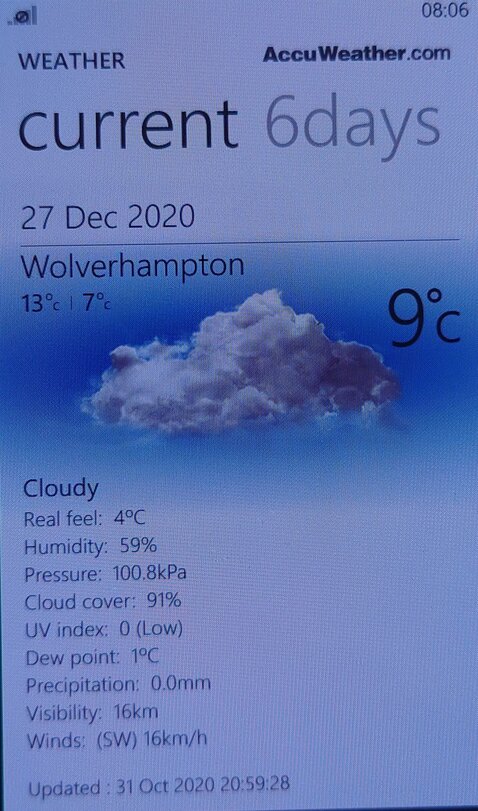
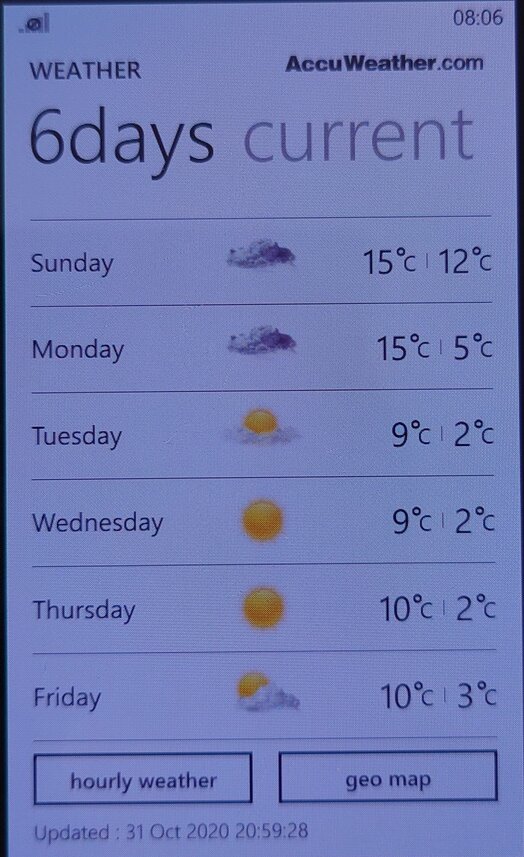
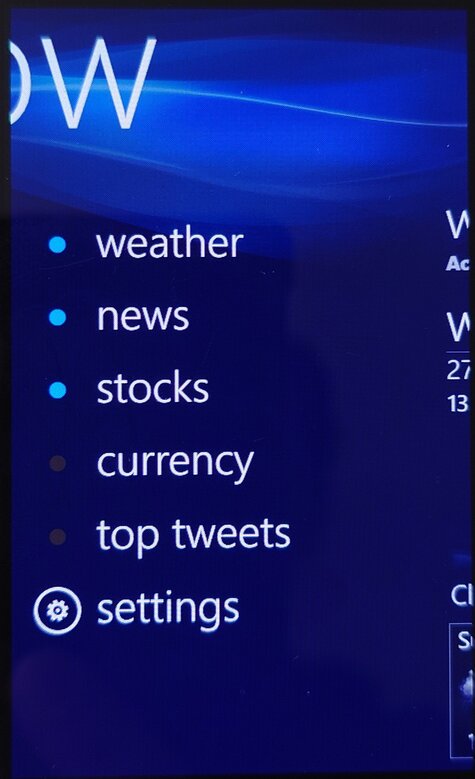
Now: This app provided users with information about the weather, news, and other updates in real-time. Information like news bulletins and weather are displayed on the live tile. Weather information was done using the Accuweather protocol whilst the news & stocks is provided by Yahoo! News. Lastly there is also a top tweets section that would shows you the popular tweets of the week.
I don’t recall Windows Phone having a built-in News application (MSN News was an optional download Microsoft offered) so this would have been an essential addition.
The services for the app appear to have stopped working around 2021, with December 2020 being the last time I was able to sync the app.
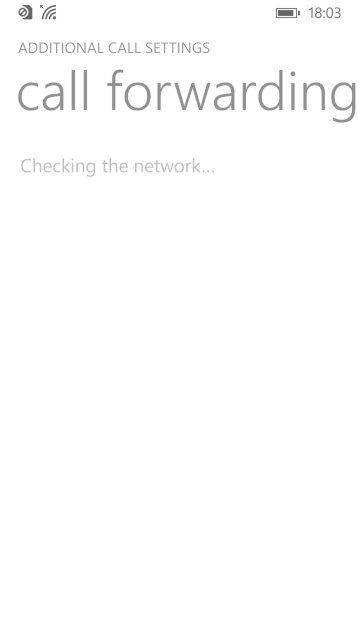
Wireless Manager: You would think this was to do with WiFI-related settings, but is really where you can configure mobile network settings that the standard Windows Phone OS does not let you directly configure. Options such as Call forwarding, call waiting and APN configuration can be set here. The APN is typically set automatically by Windows Phone, but in some circumstances, you may have to manually enter settings if Windows Phone does not have any for your mobile operator.
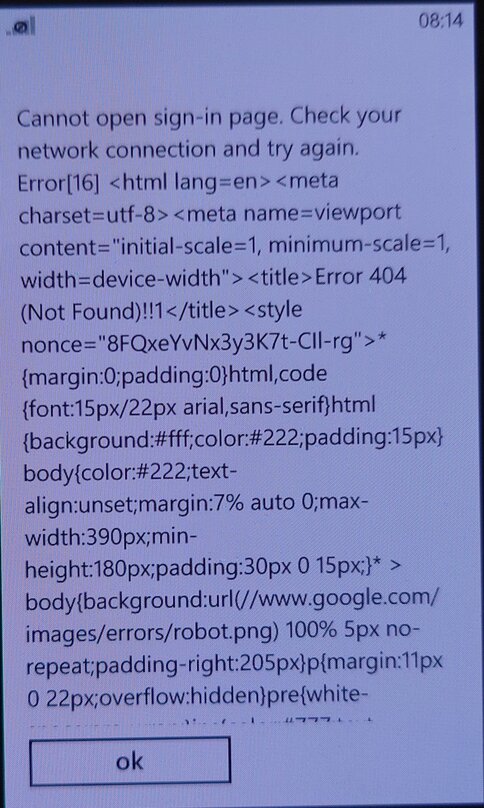
RSS Times: A RSS reader that allows you to subscribe and update your RSS feeds. This requires use of a Google account, of which it’s no longer possible to sign into.
Video Call: Lets you make a video call over the 3G UMTS network protocol, I guess Windows Phone did not support this natively? Odd since this is supposed to be a smartphone platform.
Settings Menu
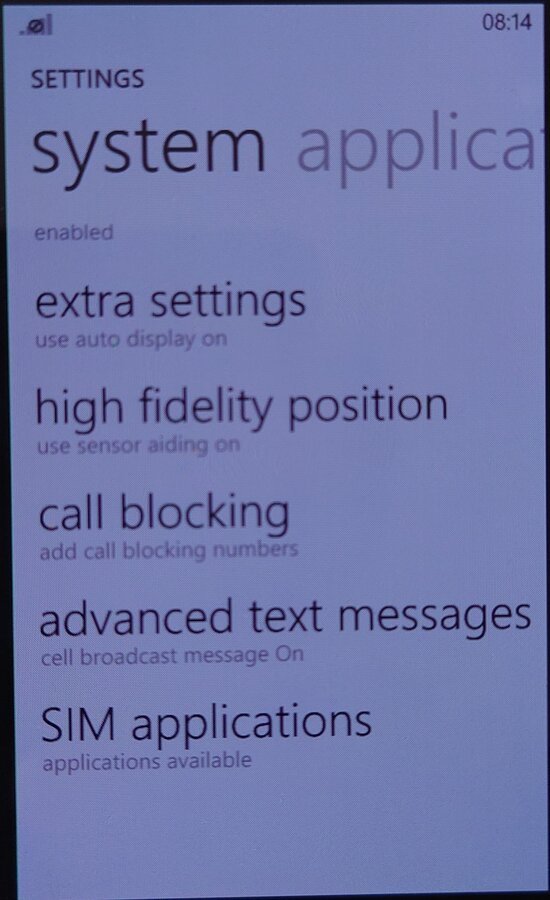
Microsoft allowed manufacturers to bundle their own settings applications
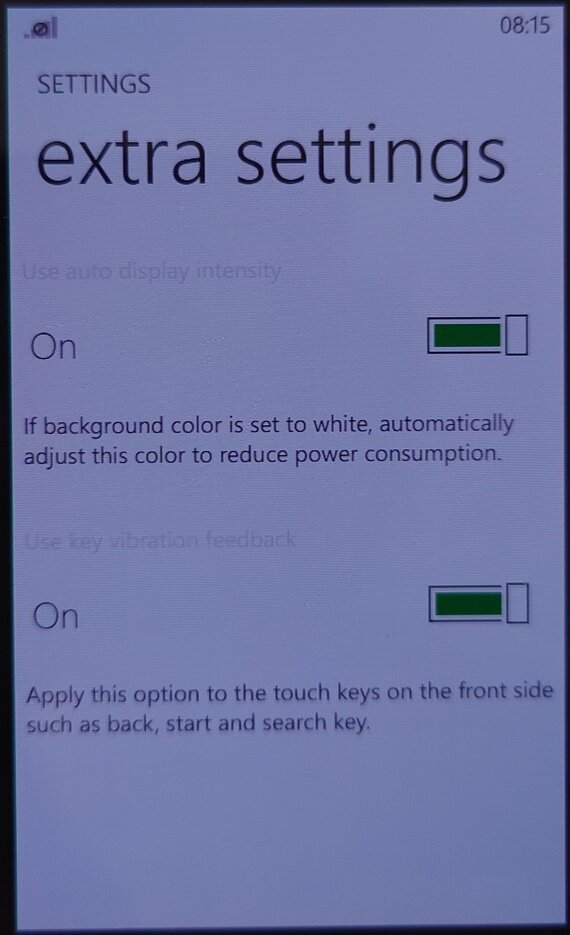
Extra Settings: Enable auto display intensity which reduces the brightness for the AMOLED screen when the display is mostly white. The second setting is to enable haptic feedback when you press the bottom navigation button (Back, Search) which are touch buttons, this provides haptic feedback when these buttons are pressed.
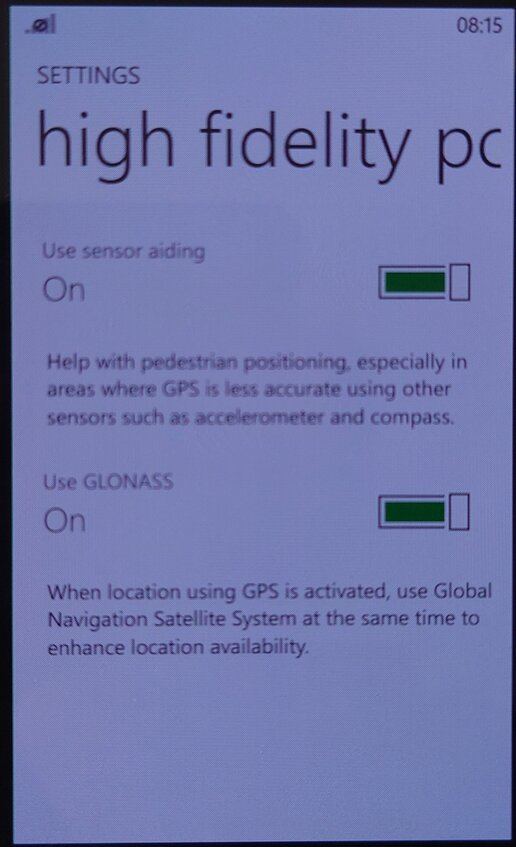
High-Fidelity Position: Enables the use of GLONASS for more accurate GPS tracking. These can be turned off to conserve battery power.
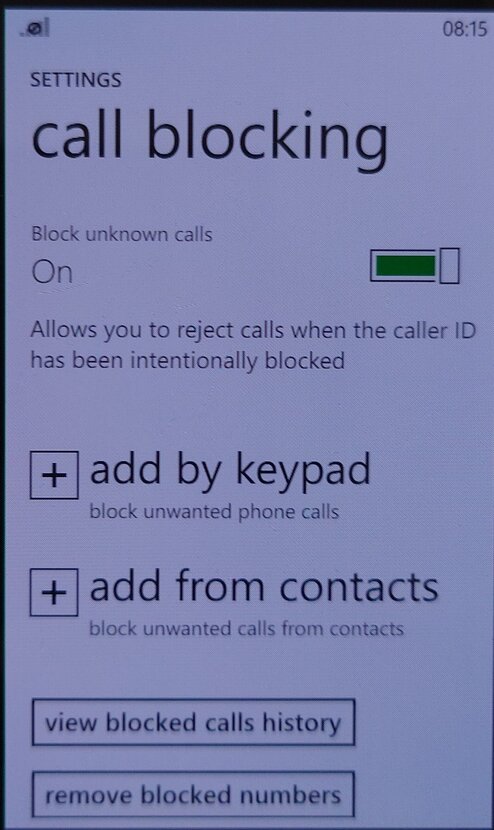
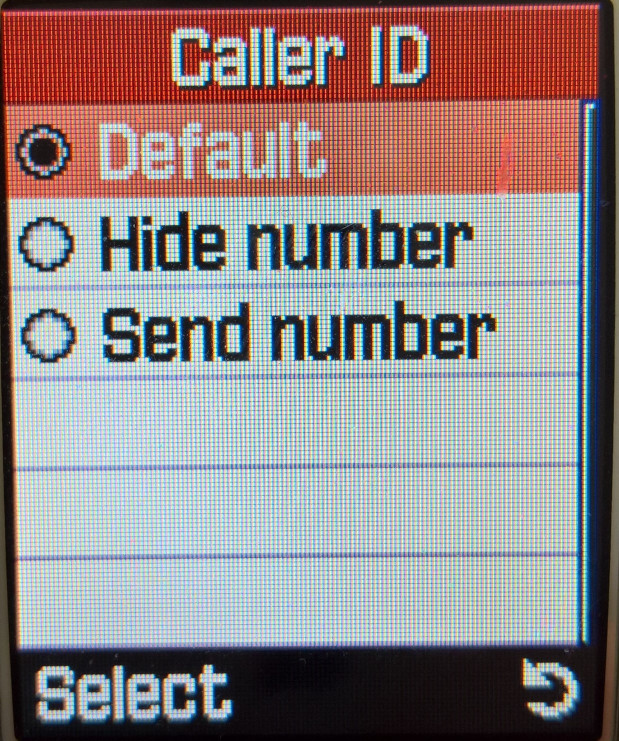
Call Blocking: Block specific numbers from calling or sending SMS messages. You can also block calls without caller ID (Caller Display)
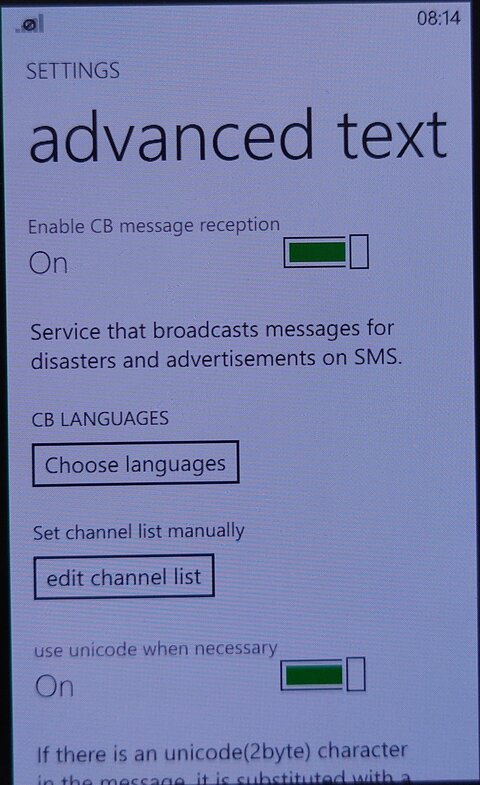
Advanced Text Messages: Enables the use of CB broadcast SMS messages if they are supported by your network operator. Useful for nearby alerts though I’ve never seen this used in the UK.
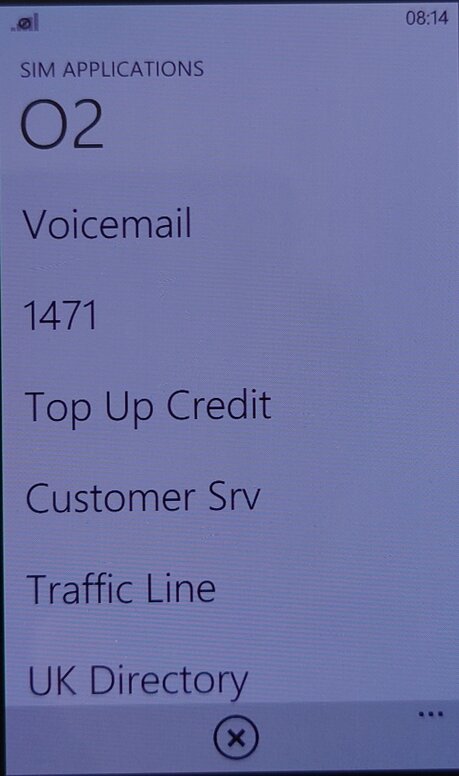
SIM Applications: Access the SIM-AT Toolkit, if they are offered by your SIM card or operator. They are commonly used to access certain features of your operator.
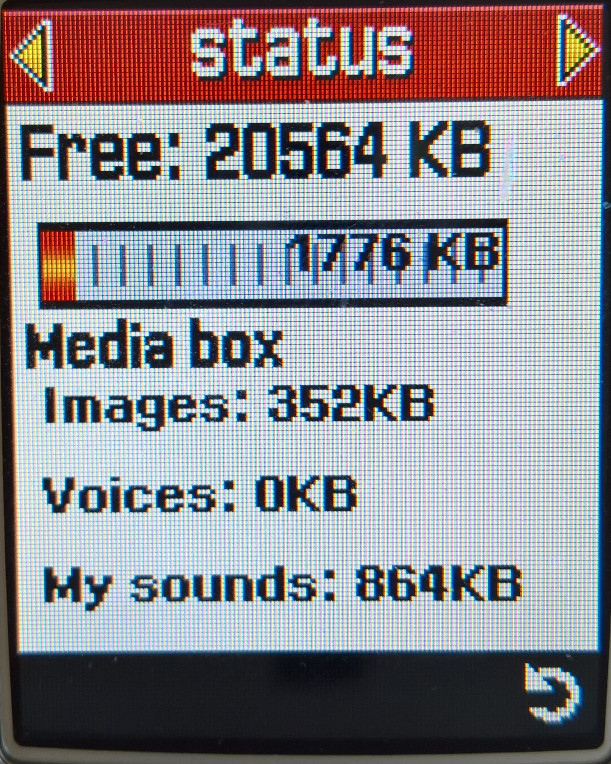
The Samsung E800 was one of the first generation of Samsung’s slide form factor which is semi-automatic. A gentle push will make the slide mechanism open and close automatically, spec wise it was in line with their other models of the time, with a VGA camera and a 128×160 resolution screen. It’s very similar to the Samsung E600 in terms of specifications, but has a different screen aspect ratio and uses the slide form factor. Memory capacity has been increased, with 19Mb for user storage, and 3Mb reserved for Java apps.
The screen of the device is 128x 160 resolution, and can display up to 5 text lines. The font is standard for Samsung’s phones of the era and is nice and readable, even outside.
Missing however seems to be Bluetooth functionality, with only IrDA being offered for wireless connectivity, alongside 2G GPRS. On the side there is a handsfree connector, intended for use with the optional handfree accessory, you can also connect the D500 external speaker to this connector.
Home screen
The menu system uses a grid-like layout interface, and the numeric keys can be used as shortcuts to access different menu items.
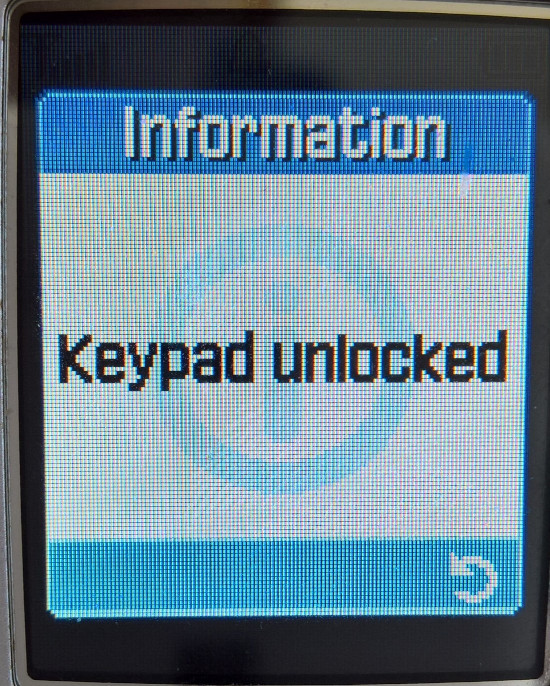
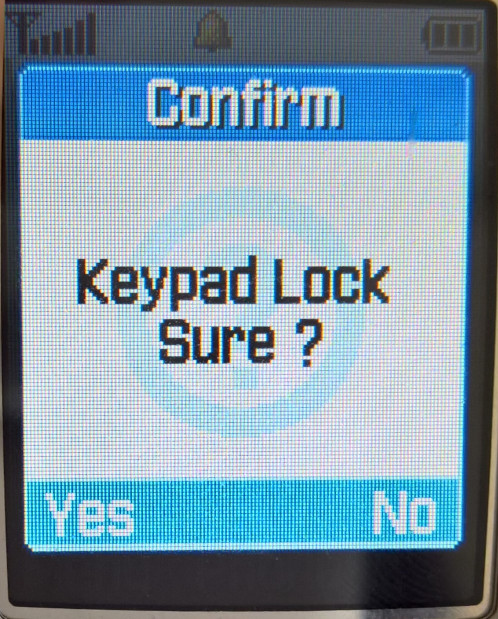
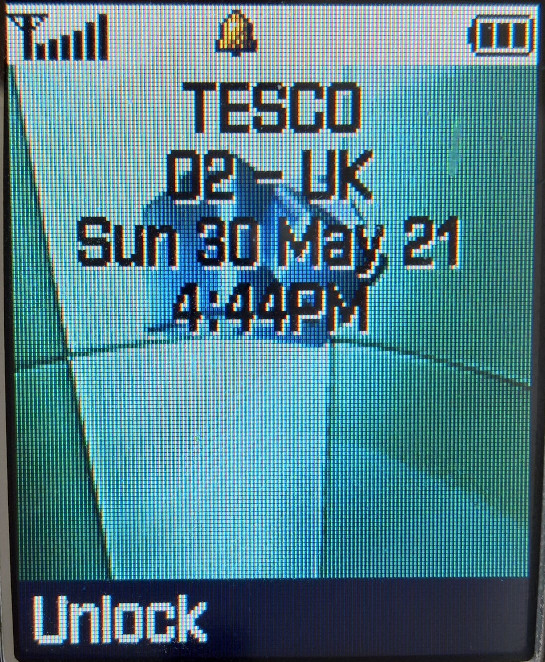
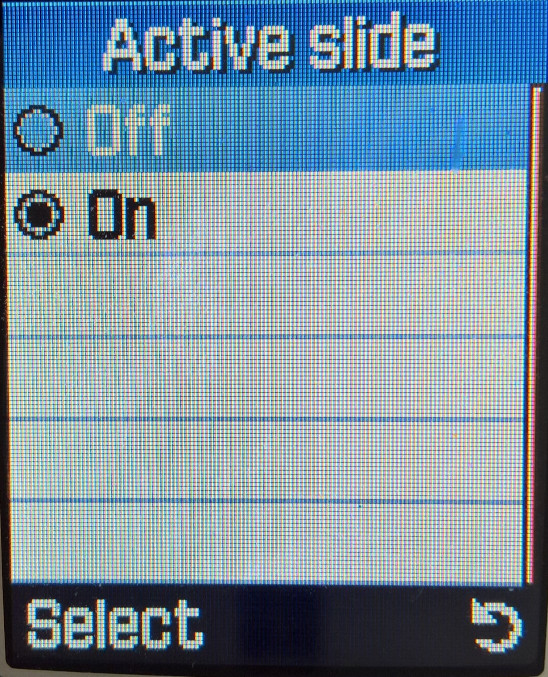
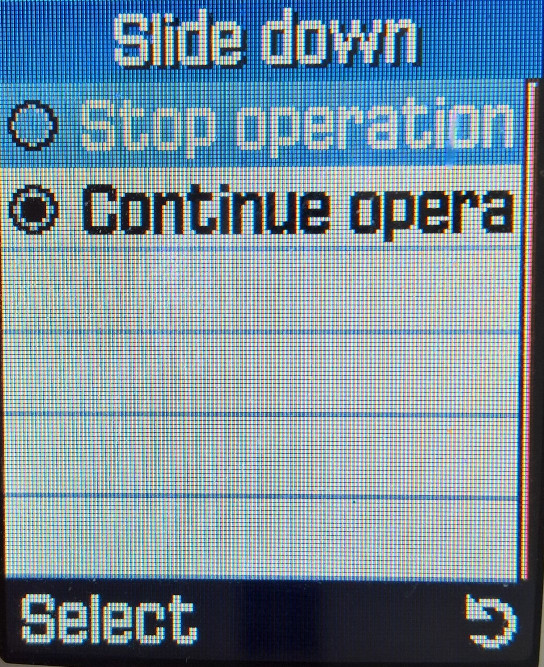
Being one of the first Samsung models to come with a slide form factor, ergonomically the phone is designed to be pushed up withyour on directional buttons, a gentle push is all thats needed for the phone to slide up. The phone is capable of functioning even with the slide down, although you cannot access the camera or numeric functions. The phone automatically locks the front visable buttons when the slide is closed, which prevents accidental operations when the phone is in your pocket, you can still unlock the phone if you need to quickly access or show photos.
Phonebook
Contacts are saved to either the phone memory or the SIM card, the storage capacity of up to 1000 on the device, and 250 on the SIM card (depending on the SIM card itself, could be less for older SIM’s. Contacts can also be shared via infrared.
When contacts are saved to the phone memory, you can set picture for individual contacts and can store and manage them into groups (Home, work, friends), of which a specific ringtone can be set for that contact. Up to 10 groups can be set.
Call Records
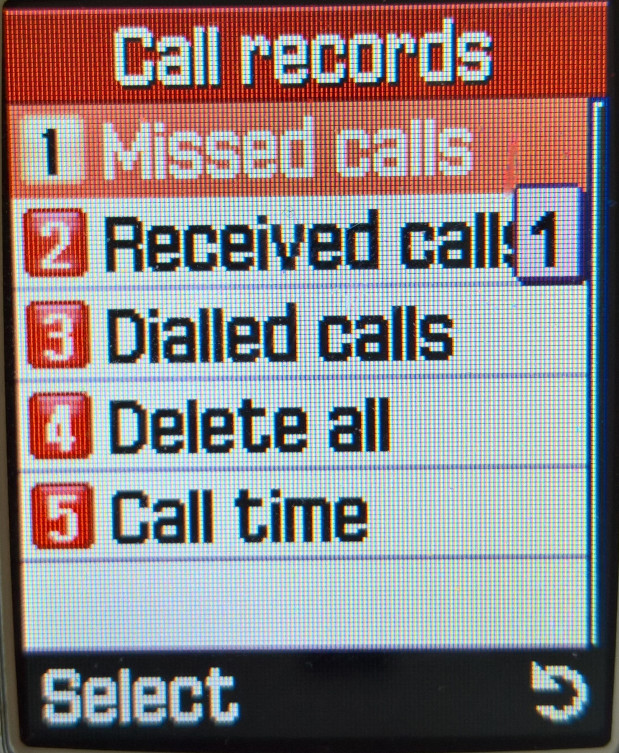
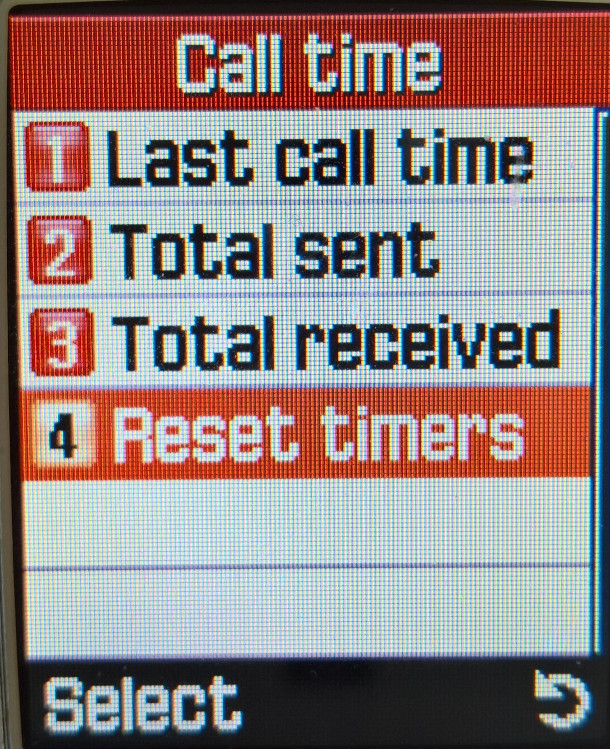
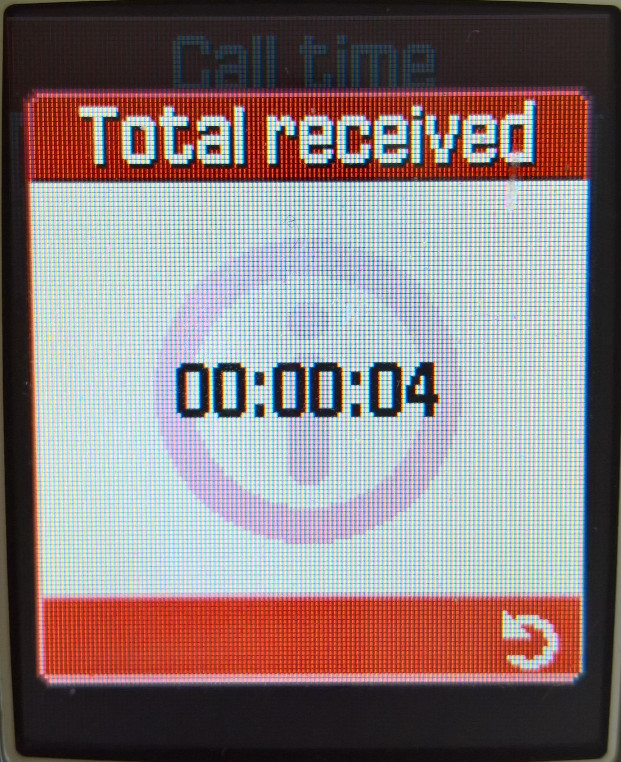
Call records can be accessed here, and by pressing the green phone button from the home screen. The handset can show the total time spent on the last call, and for all calls made in total.
Network
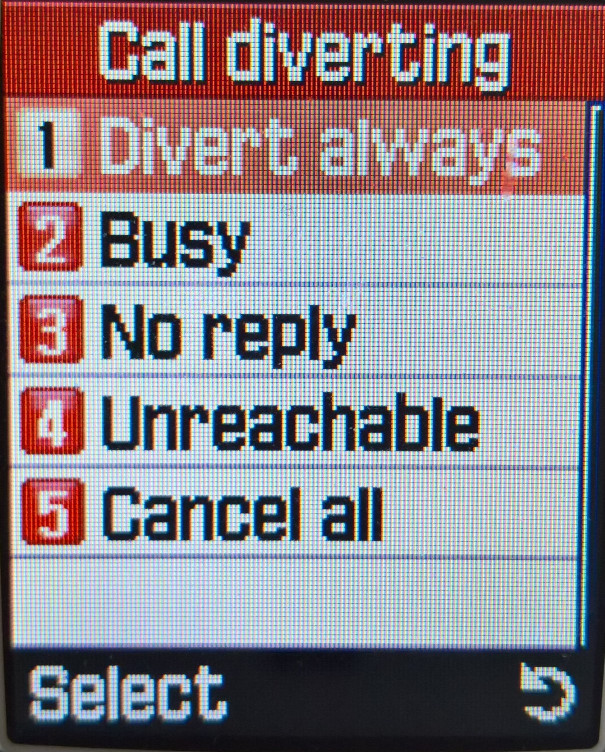
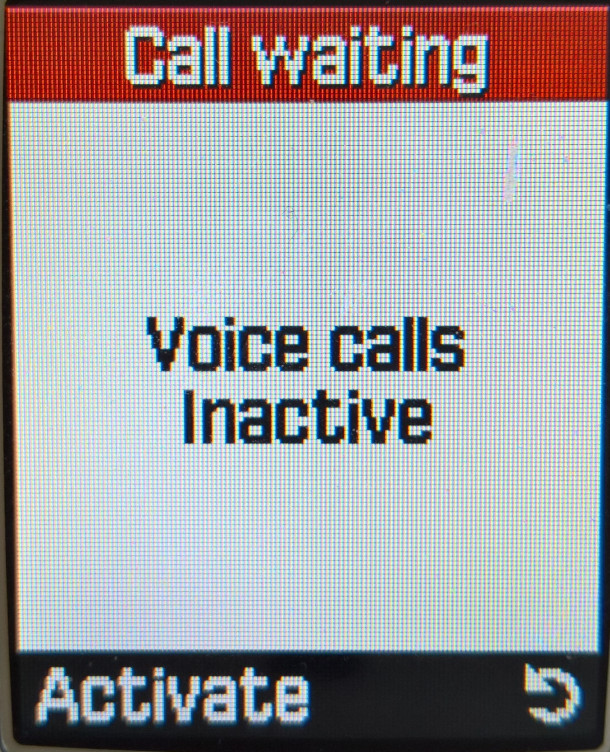
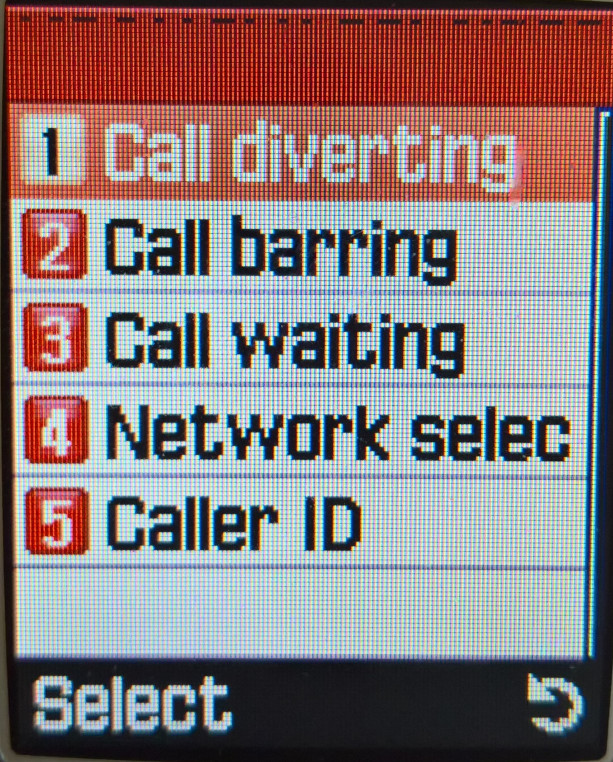
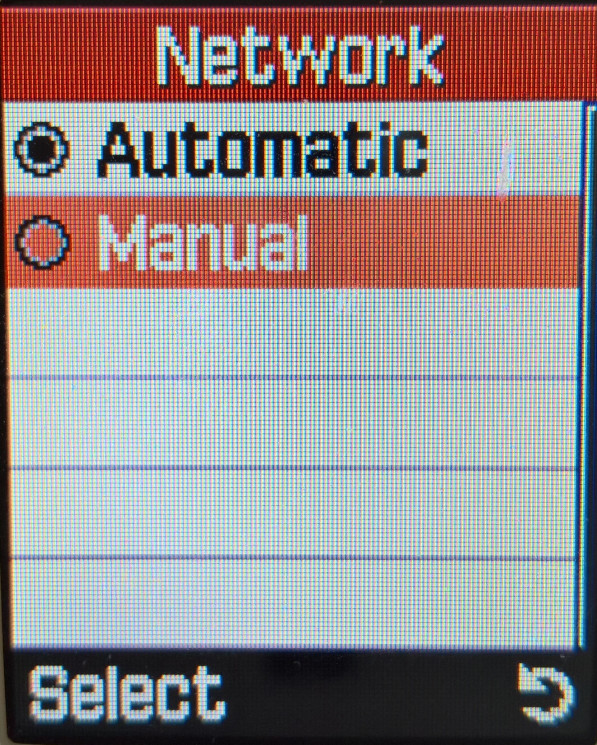
Call diverts can be managed here, and you can manually select the network to connect to if your SIM card has permission to access it.
Sound Settings
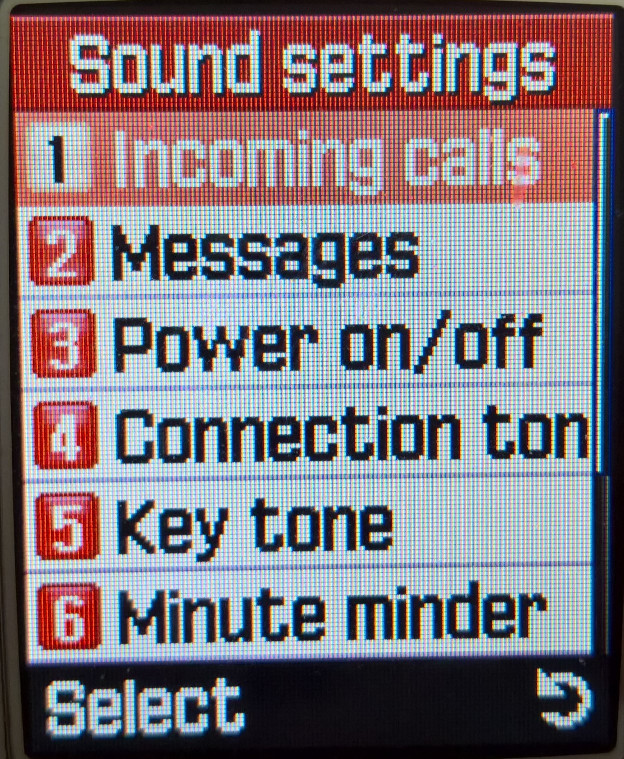
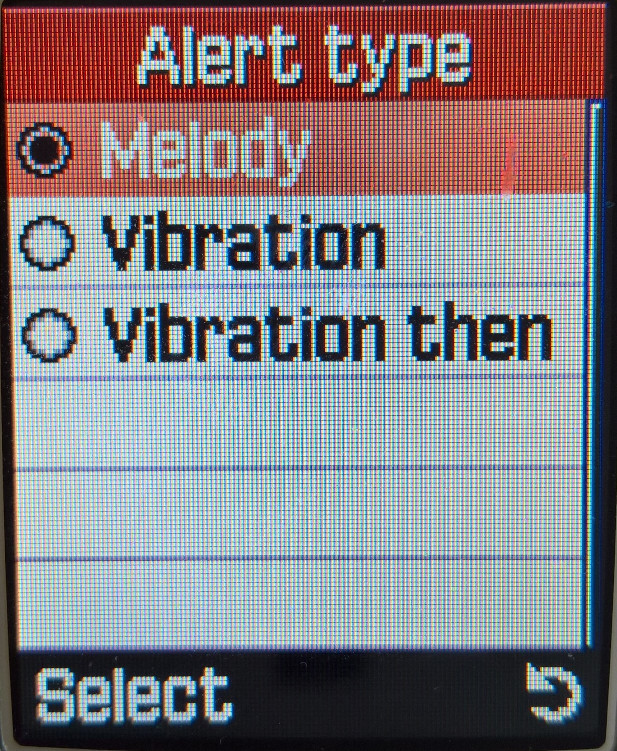
Alert and ringtones can be set here, along with any alert and menu sound the phone is capable of making
Incoming Calls
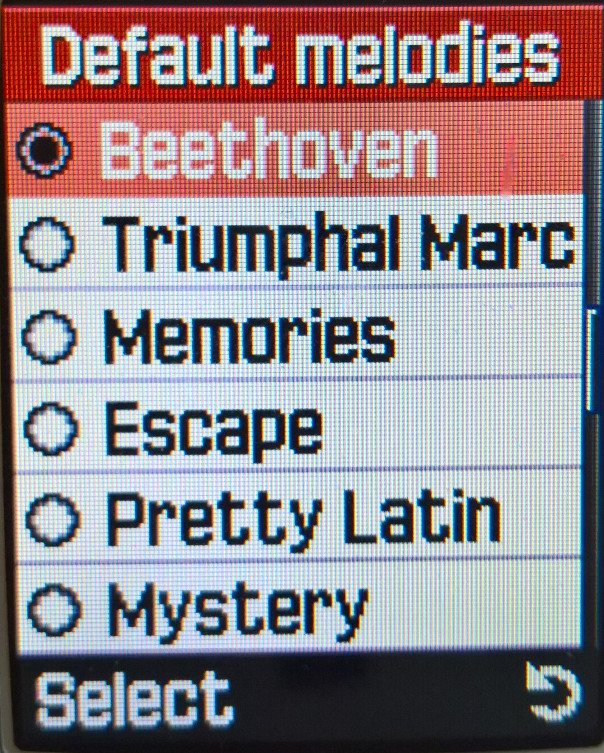
There are 30 default ringtones, plus 15 additional pre-downloaded ringtones. More can be added using the PC Suite software, which comes with up to 100 ringtone samples that can be transferred over. These are saved to the My Sounds folder.
Messages
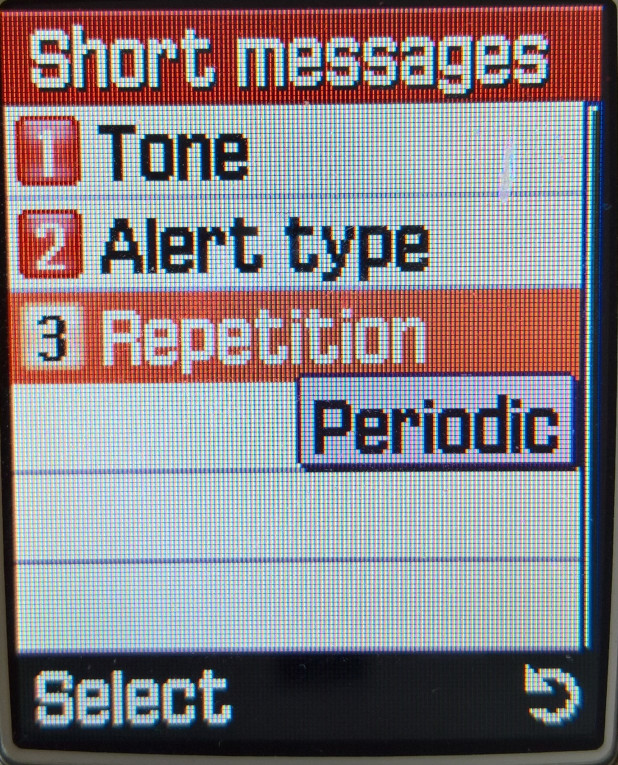
SMS message alerts can be repeated until they are read, useful if you are away from the phone for a period of time.
Other Sounds
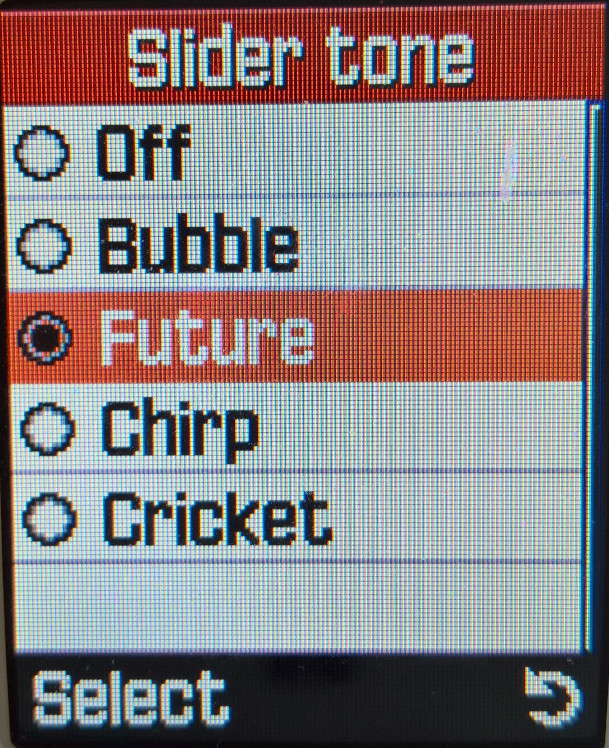
The handset will make a sound when a key is pressed, or if the slider is moved up or down. The minute minder sounds a beep every minute, allowing you to keep track of how long the call is, useful for pre-paid and customers on a limited call plan.
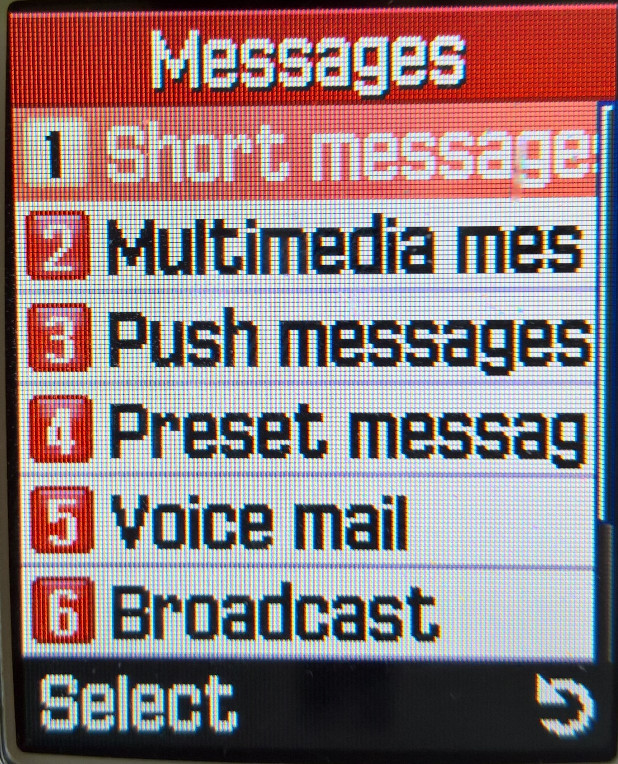
Messages
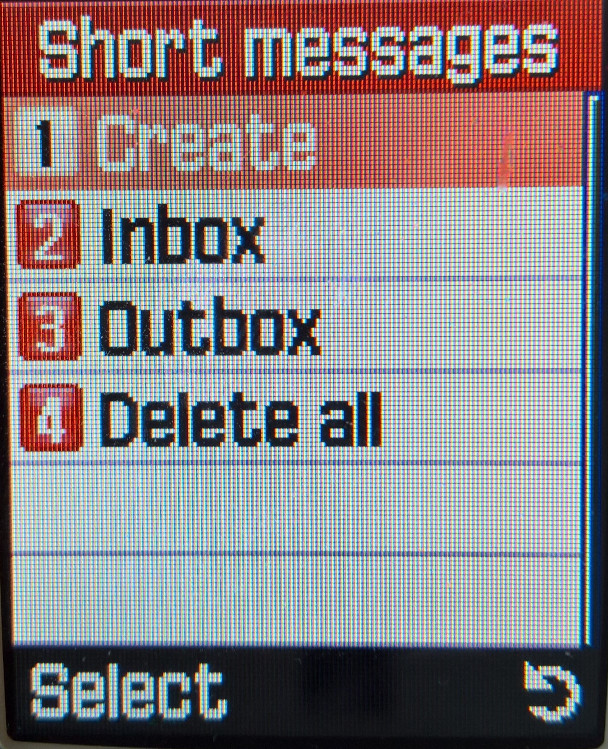
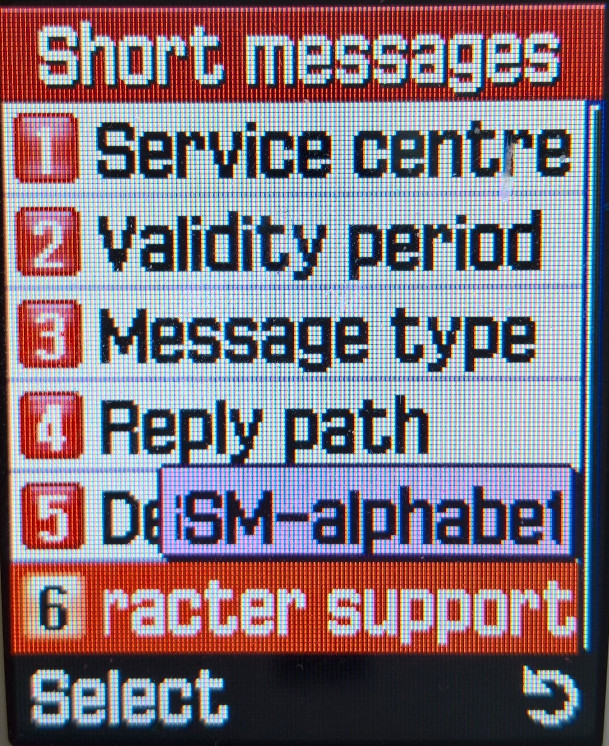
Short Messages
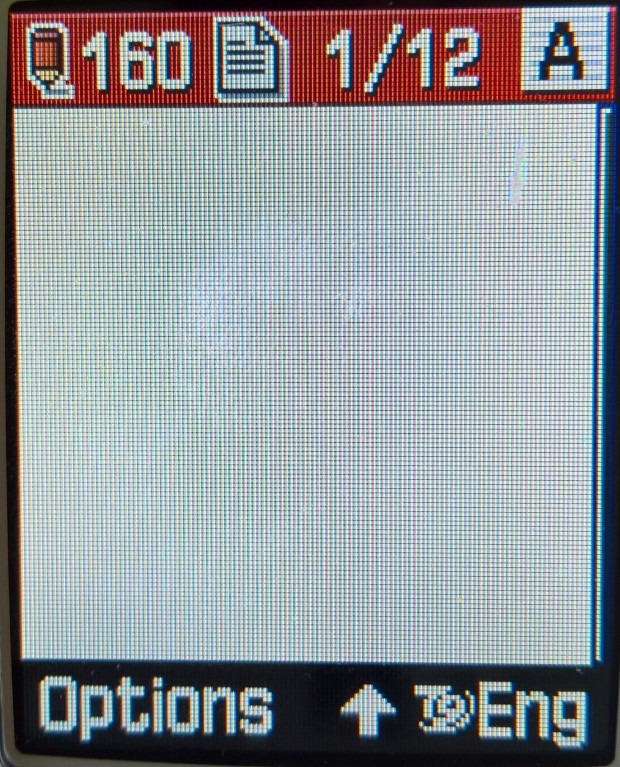
SMS messages can be created and sent from here, you also have access to MMS multimedia messages, where ringtones and pictures can be sent. Predictive text is supported for faster texting and the text size can be adjusted for easier readability. EMS is also supported and the phone comes with preloaded graphics that can be sent, ringtones can also be sent but as they are mmf files, they may not be compatible with other handsets, unlike general midi files.
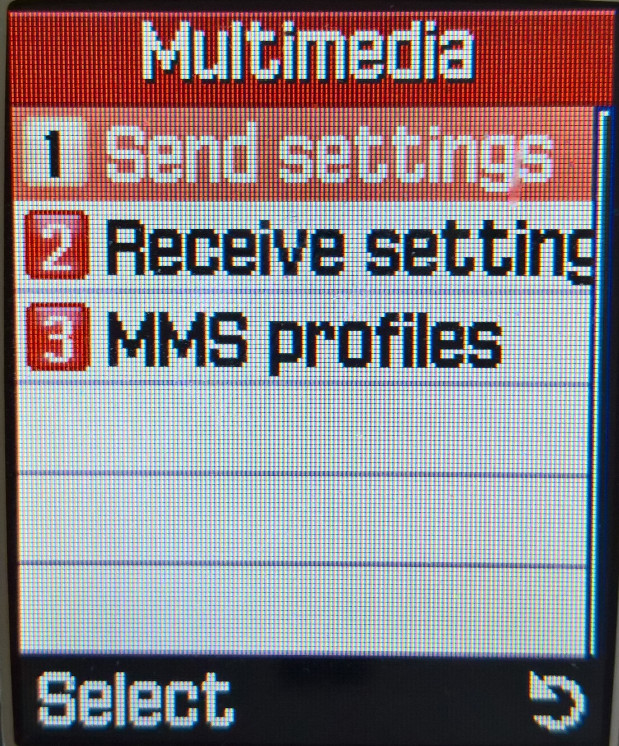
Multimedia messages
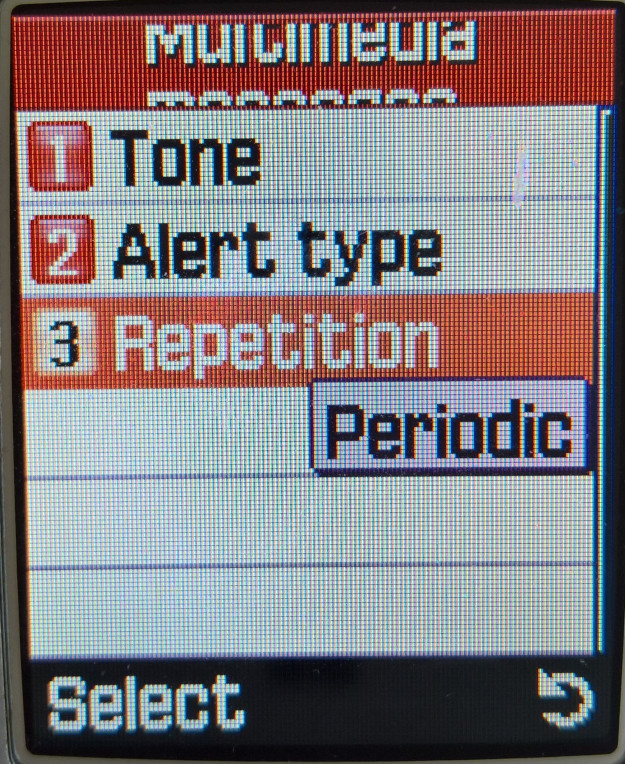
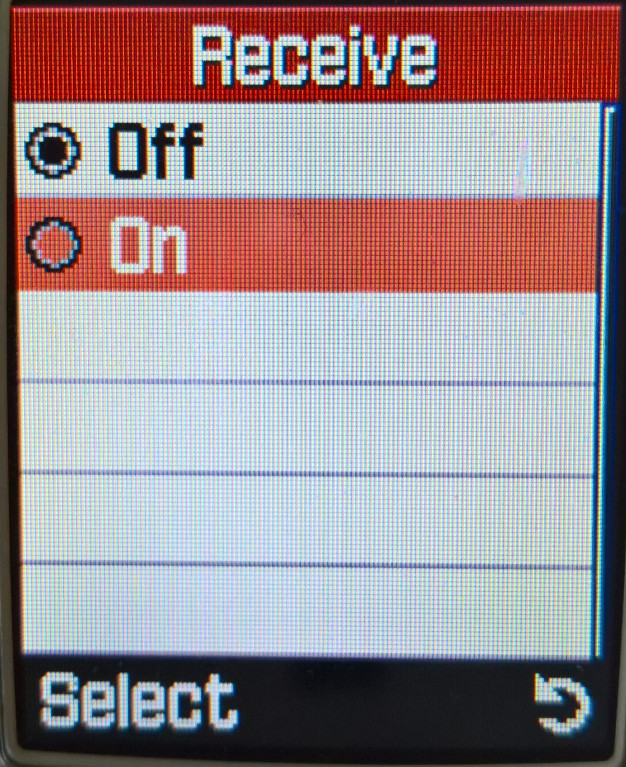
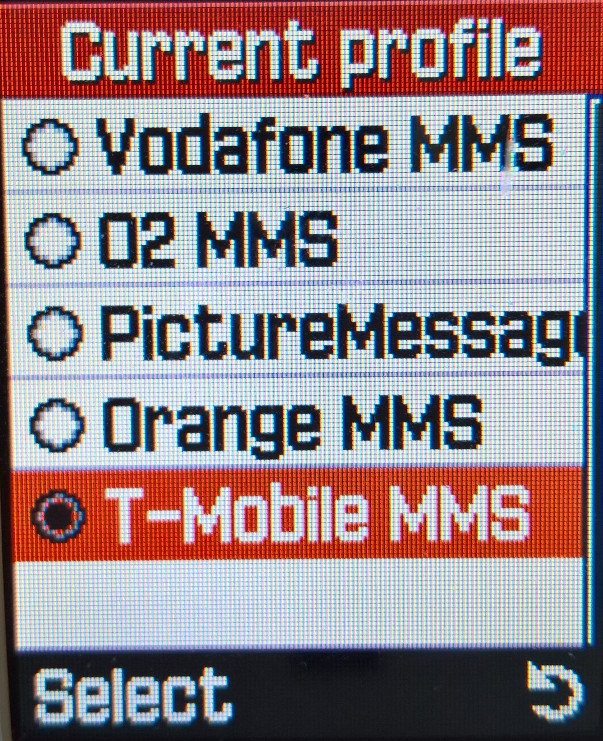
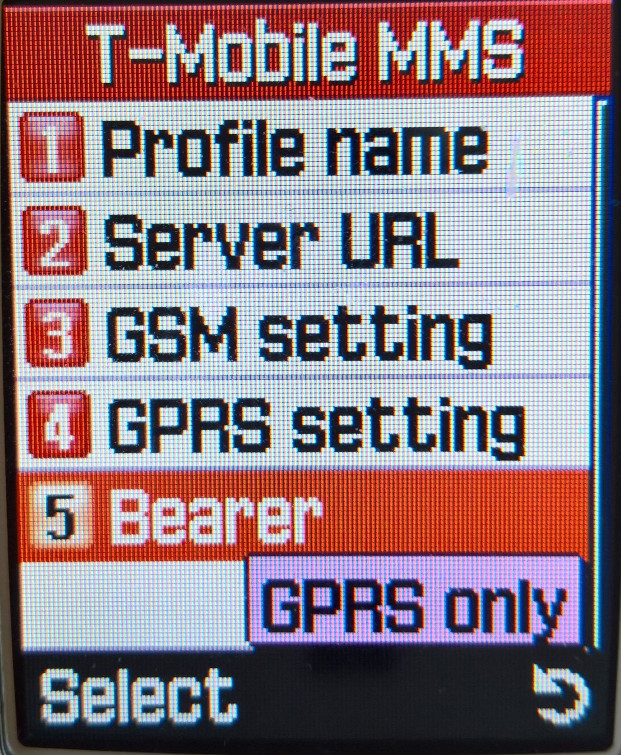
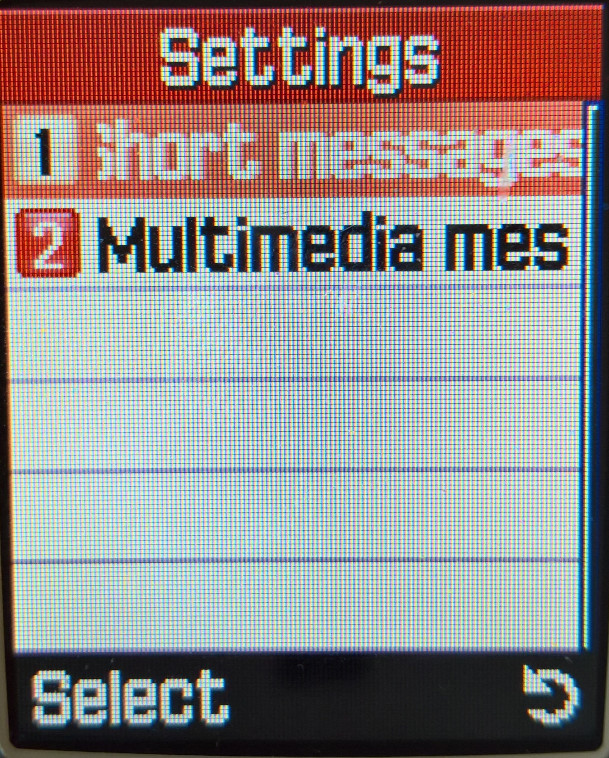
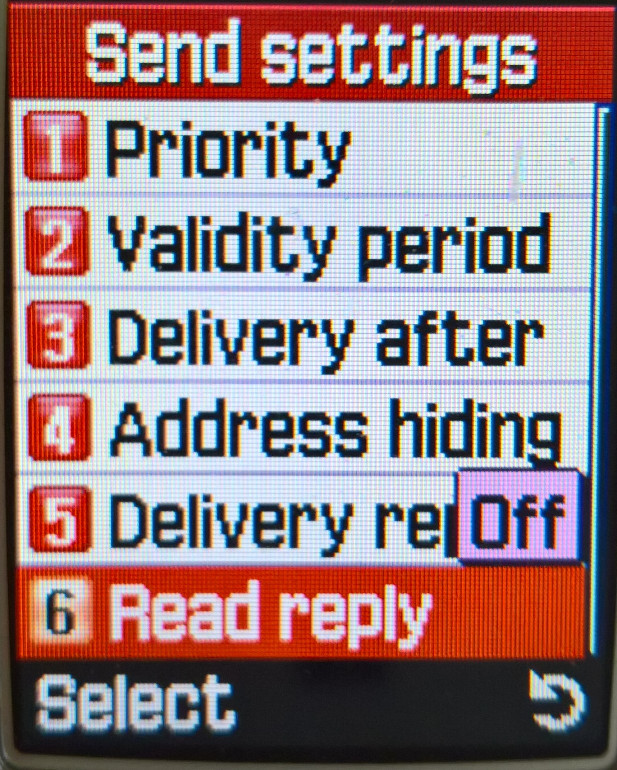
MSS Multimedia messages have their own menu item, and pictures and sound files can be attached to a single message. The limit for outgoing messages was 100Kb and incoming messages were limited to 45Kb and up to 150 MMS messages can be saved.
Push Messages
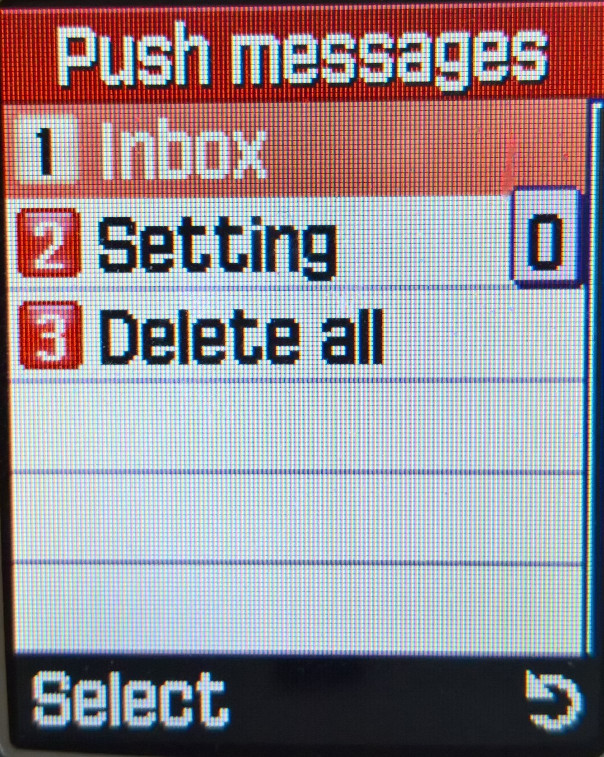
WAP push messages are received here, these messages were typically links to online services and promotions, such as discount ringtones or Java games. Blyk, a short-lived mobile operator used this to push advertising to users as part of its business model.
Preset Messages
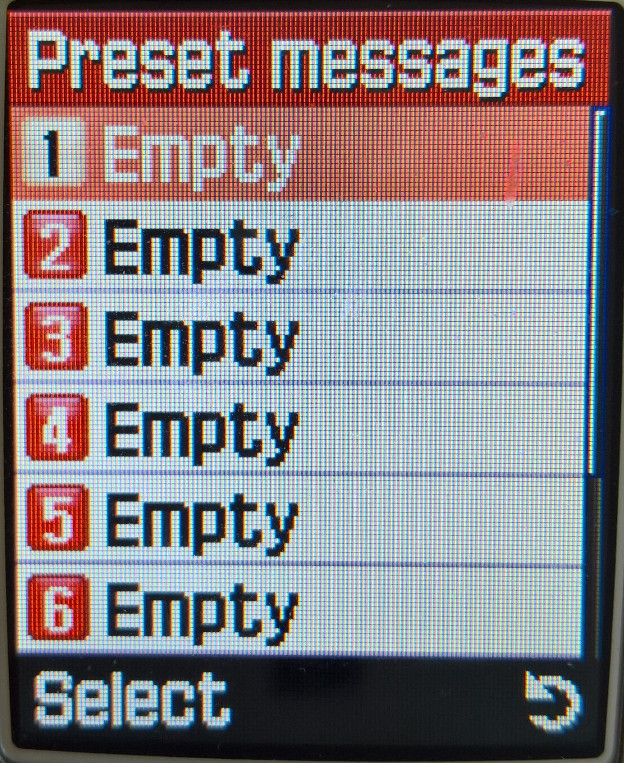
You can create and save message templates to be sent later. none have already been created by Samsung, you have to create them yourself.
Voice Mail
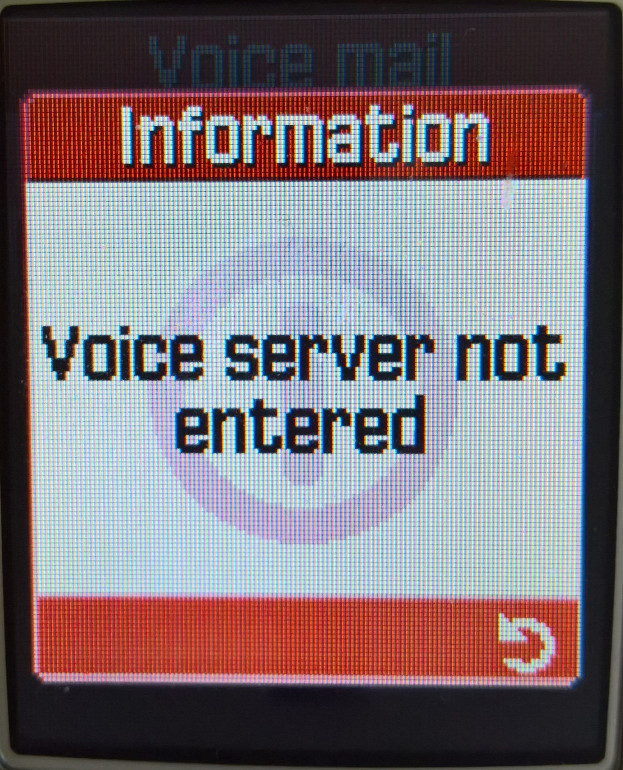
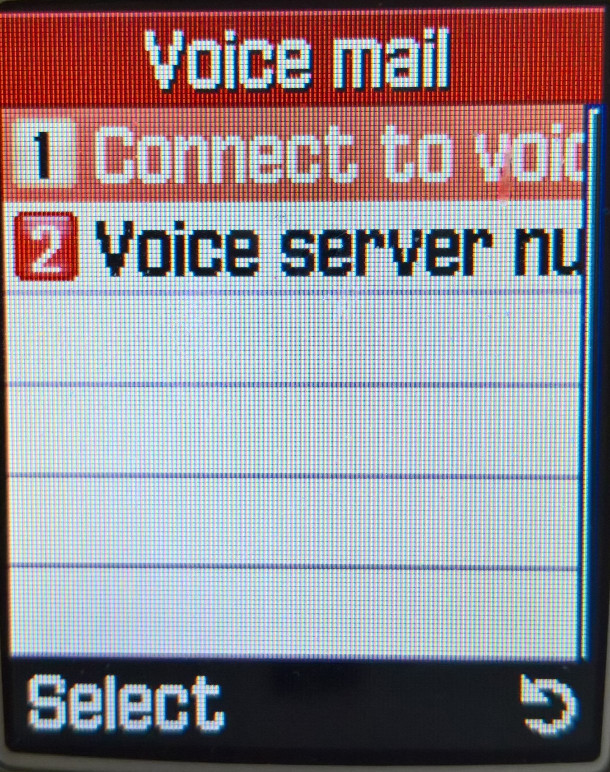
Configure the voicemail contact number for your network provider, you can then access voicemail by pressing and holding the 1 key
Broadcast
This is similar to regular SMS messages, but whereas SMS is traditionally used for user-to-user messaging, Cell broadcast is intended to send a single message to a large group of users based on their geographic location. This can be used to alert users to local emergencies or planned outages. These messages would be received and displayed here, but I can’t remember any UK providers taking advantage of this.
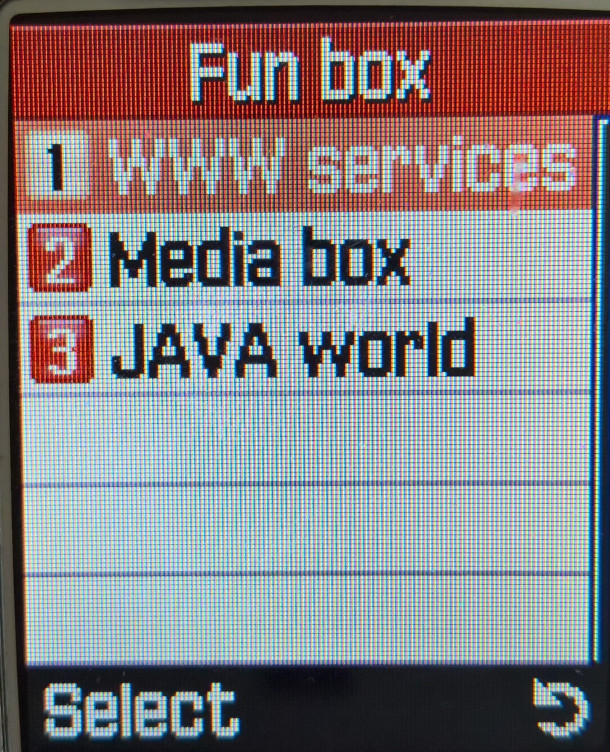
Fun Box
WWW Services
The phone’s internet browser supports both WAP and GPRS. Up to 15 bookmarks can be set and a custom URL can be set to load a website.
Media Box
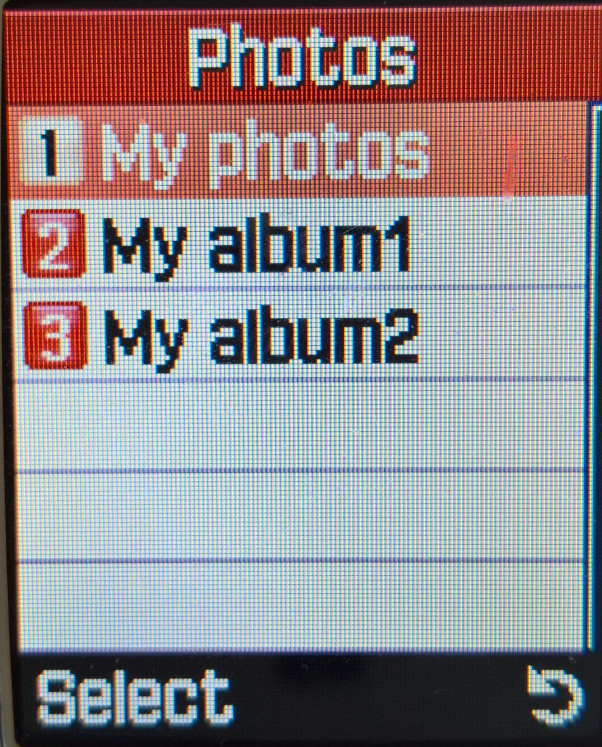
Acts as the phone’s media player, a photo viewer shows pictures that were captured to be viewed and sent. Photos can also be stored in two separate albums.
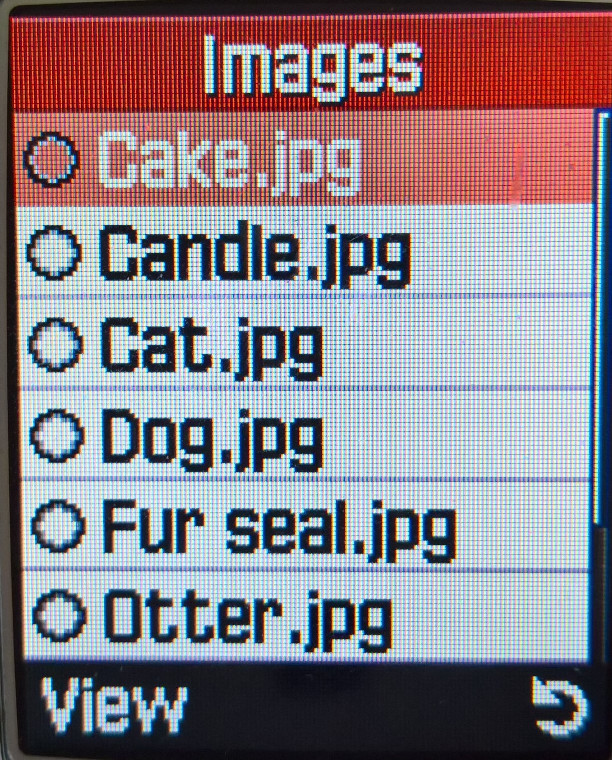
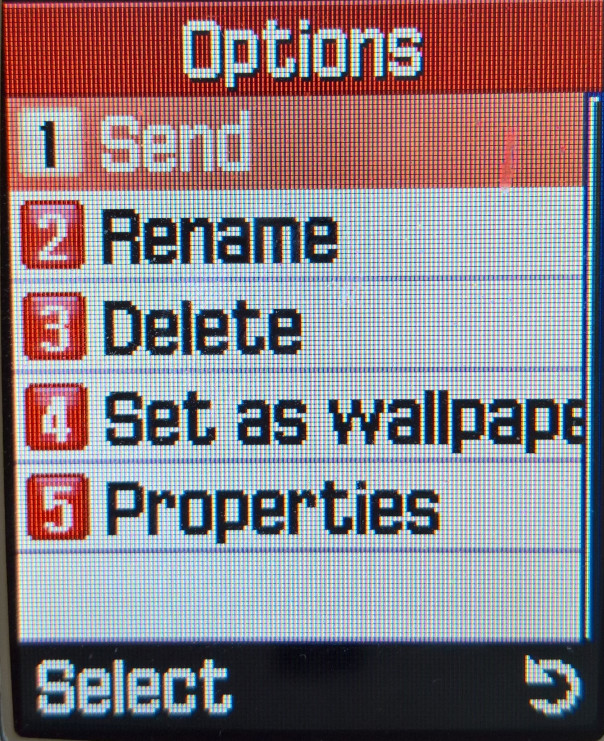
The images folder is where the phone’s wallpapers are saved, 8 wallpapers are shipped with the phone, and more can be added, either downloaded through the browser or received over MMS or IrDA.
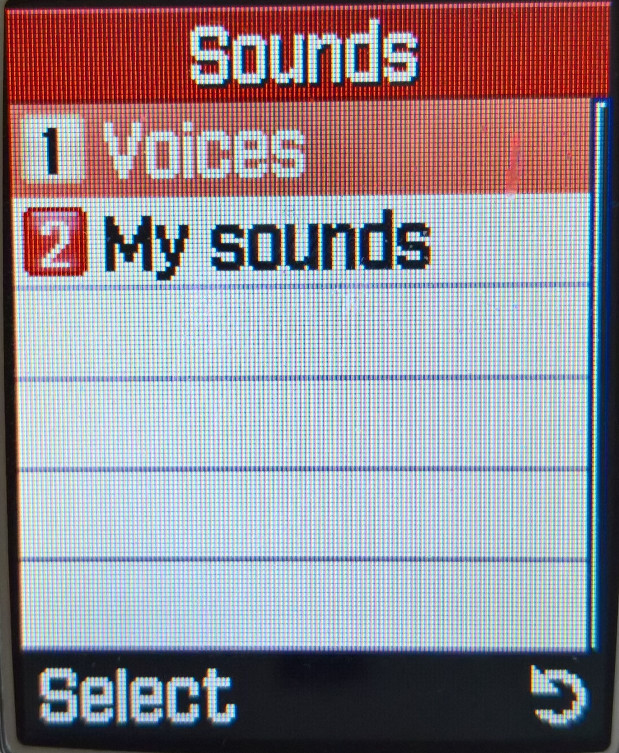
Sounds is where the voice recordings and any downloaded ringtones are saved. 15 sounds come with the phone, and more can be added by downloading via the internet browser, received from MMS or using the PC suite software. The files here can also be set as a ringtone. Ringtones are in the Yamaha MMF format, and use the internal MA-5 sound processor, which is capable of decoding 64 voice polyphonic, MMF files can store MIDI and PCM audio which is evident in some of the ringtones. Some tones can also vibrate the phone in rhythm.
Samsung also offered a multimedia pack, where polyphonic ringtones can wallpapers could be downloaded to the users PC and then transferred to the phone.
JAVA World
Java games can be downloaded and installed from here, two games are preinstalled, SnowBallFight and BubbleSmile. Up to 3Mb can be allocated for Java applications. The PC suite software does not allow for Java applications to be installed to the phone, unless specific software is used, and the phone must be put into a serial download mode.
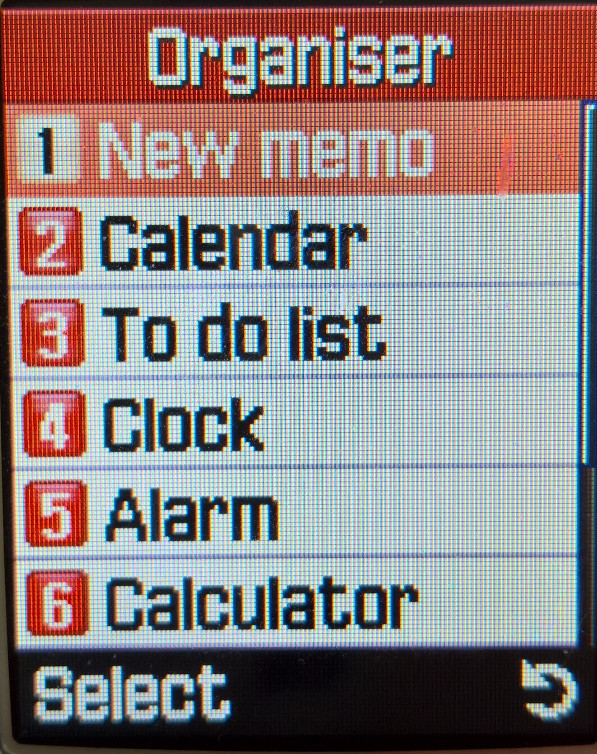
Organiser
Memo
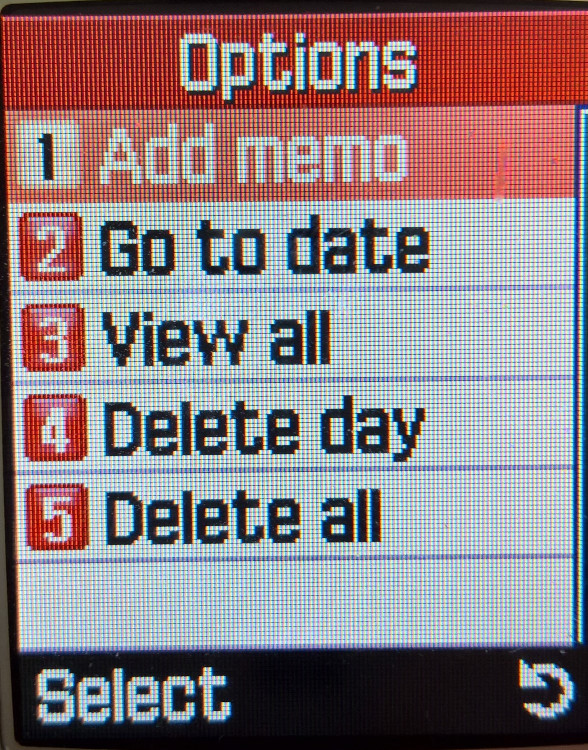
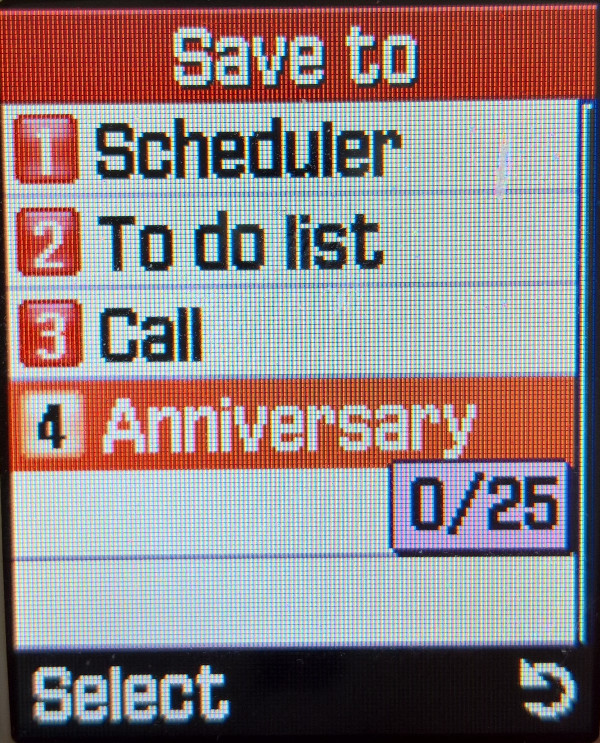
Notes can be taken and saved to the phone’s memory, text entry is similar to the SMS editor, but you are limited to 100 characters. Notes can be classified as either Scheduler, To Do list, call, or an anniversary. Up to 25 notes can be saved.
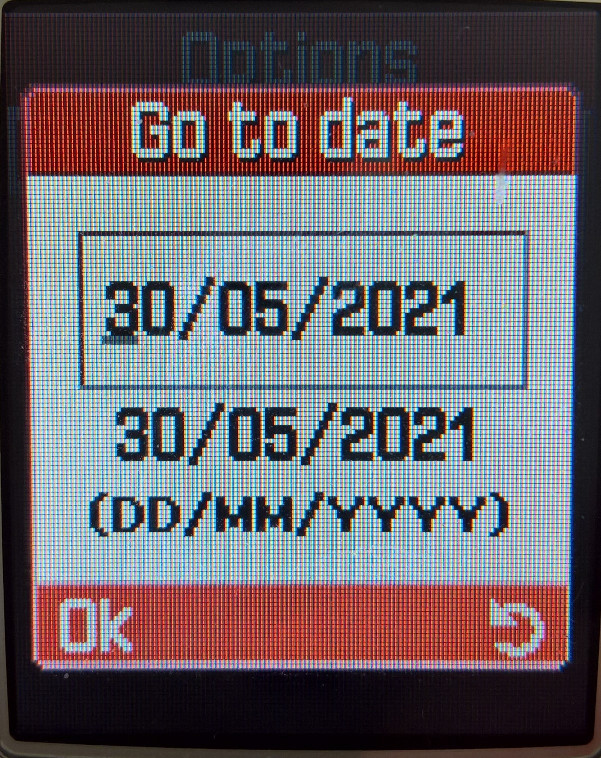
Calendar
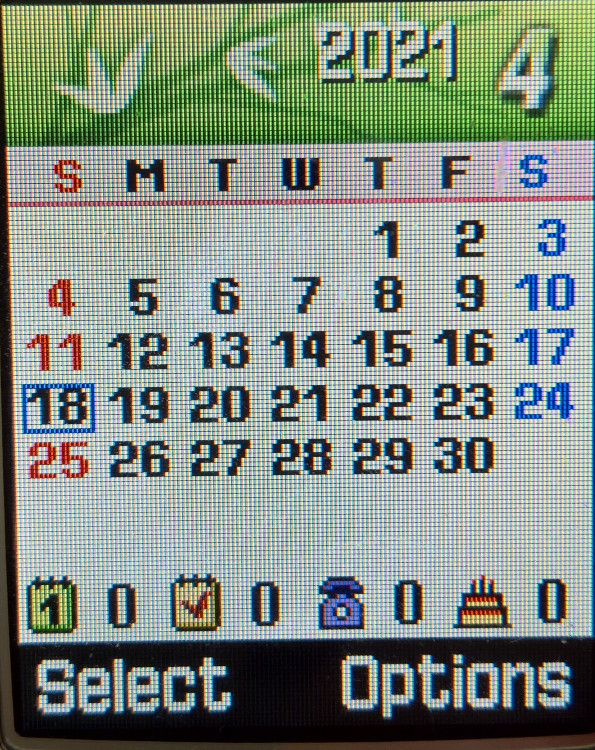
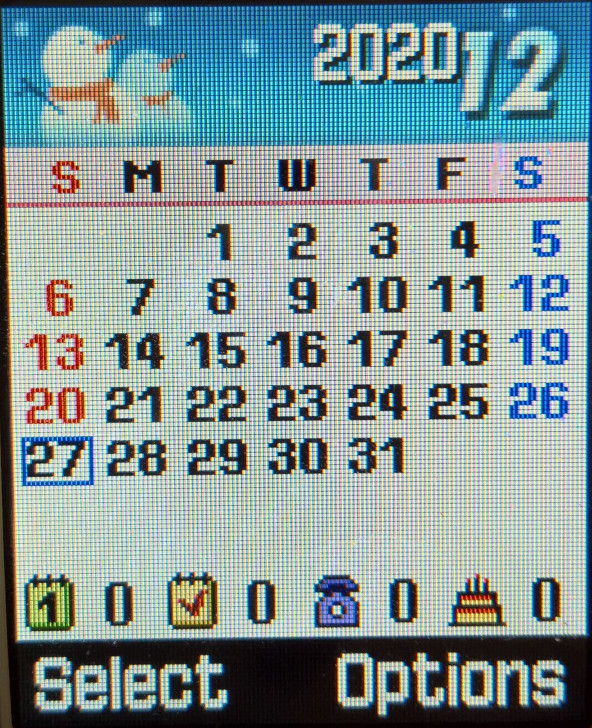
A calendar that can be used to set reminders and appointments, memos, as described above can be added to each day. A nice touch is a graphic that appears at the top of each month that reflects the month or season, kind of reminds me of the PSP XMB that would change its colour on the month.
To-Do List
Similar to the Memo, lists can be created and saved, with the option to set a date and time for an alert. This is normally intertwined with the calendar.
Clock
Time and date can be set here, along with the time format and the time zone.
Alarm
Up to 3 alarms can be set here with different times, you can set the re-occurrence and the ability for the phone to automatically power on.
Calculator
Conversion
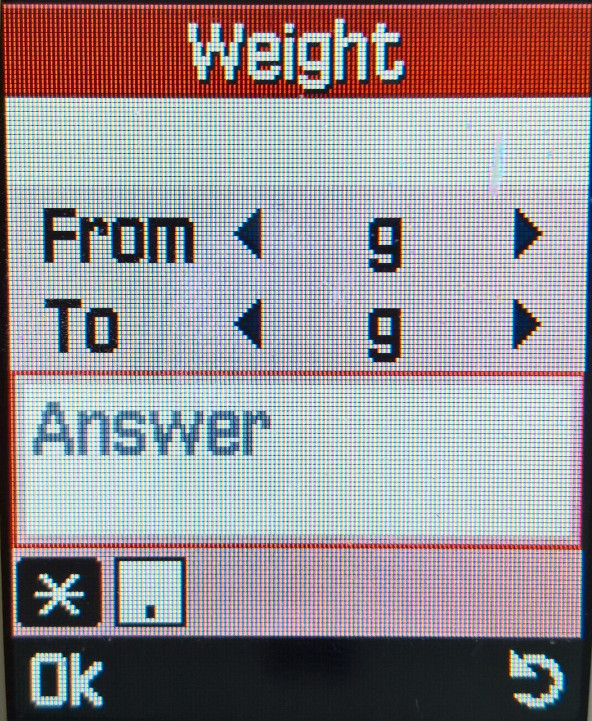
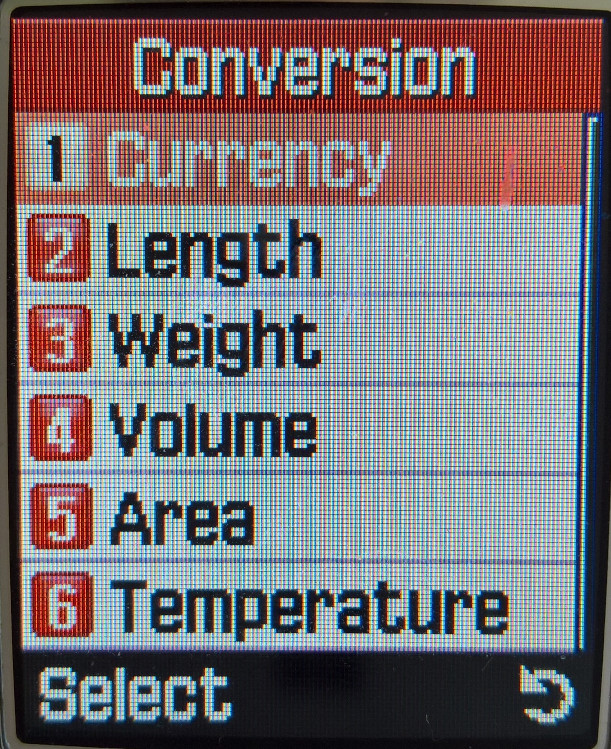
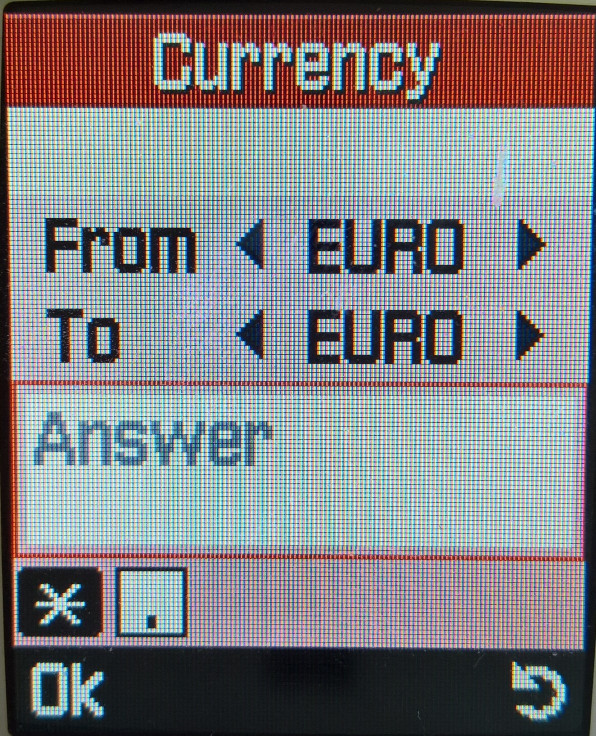
A numeric converter that supports converting currency, Length, Weight, Volume, area or temperature.
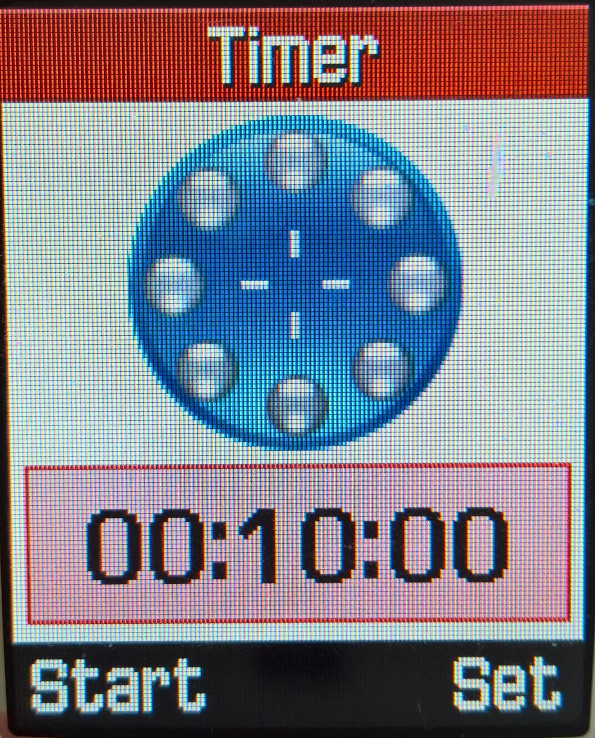
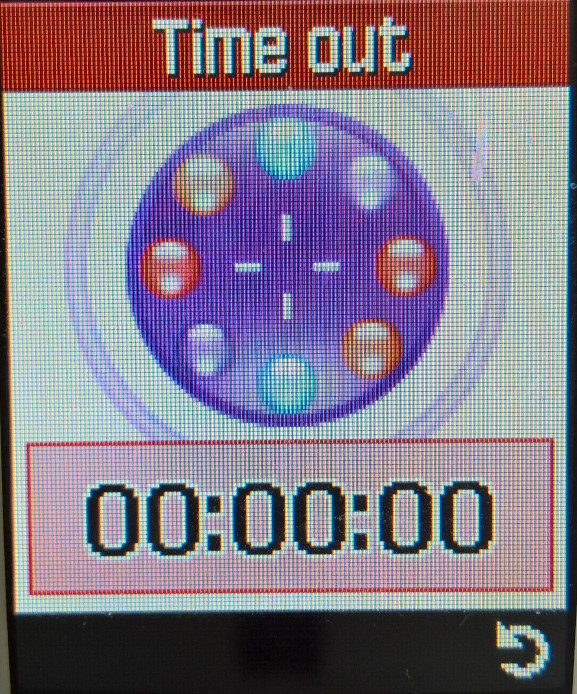
Timer
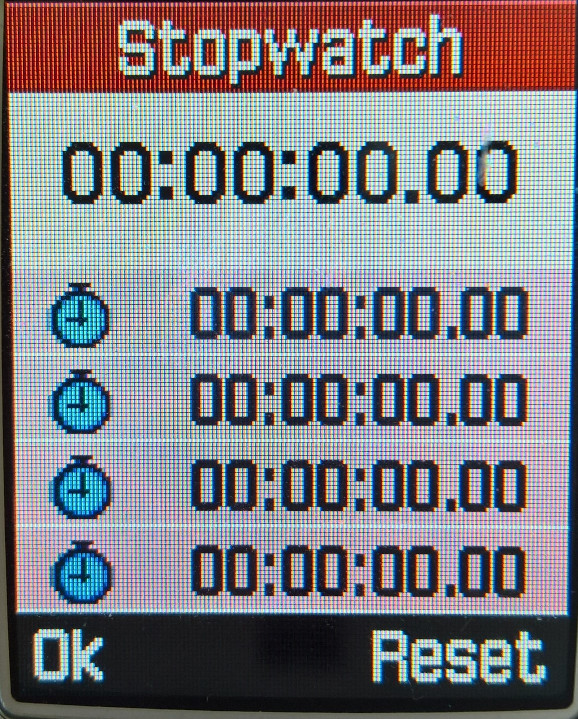
Stopwatch
Camera
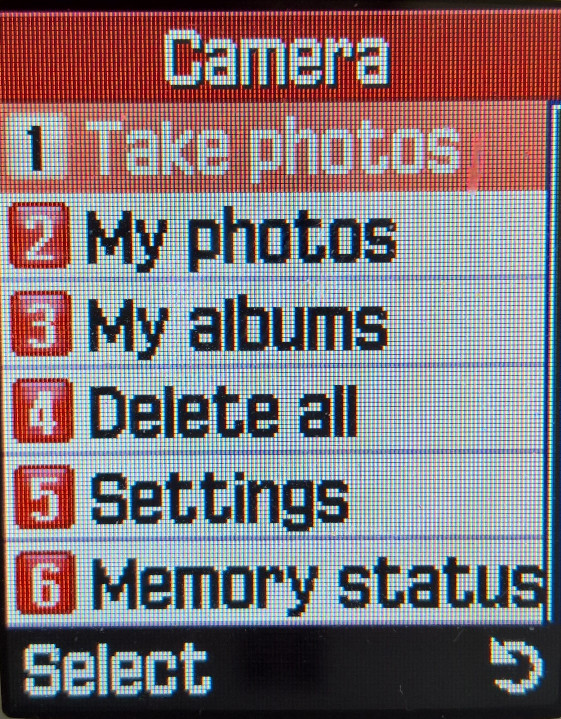
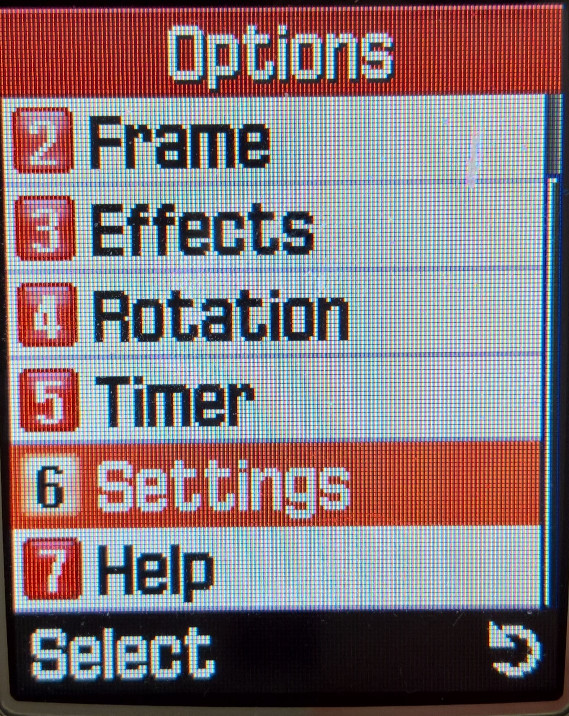
The phone has a VGA camera built in with flash and 8x digital zoom. The resolution can be changed to CIF 320×240. Built-in functions include a timer, frames, and effects (sepia, greyscale, negative). There is also a multishot function, when you press the capture key, 6,9 or 15 pictures are taken, and you can select the best picture.
Compression levels can be set from Economy, Normal, Fine and Super Fine)
Phone Settings
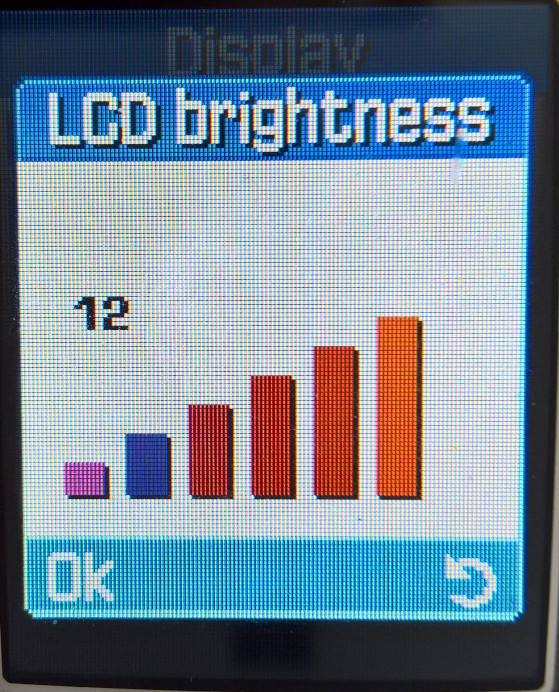
Display
Greeting Message
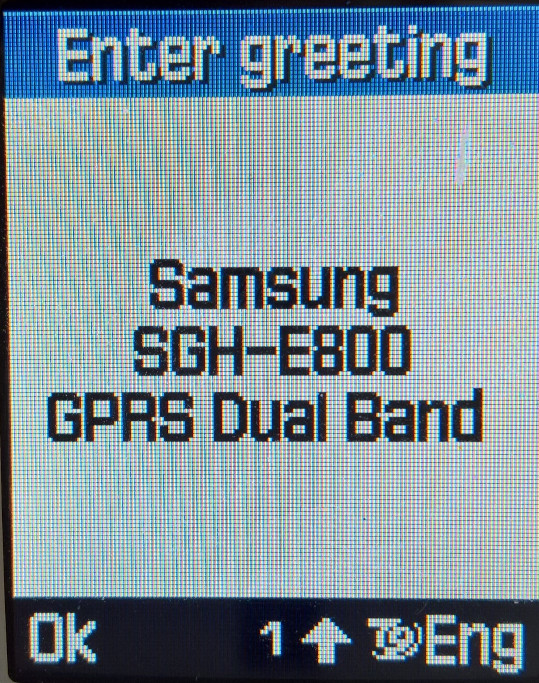
A message can be displayed when the handset is switched on with the default message is shown on the right.
Language
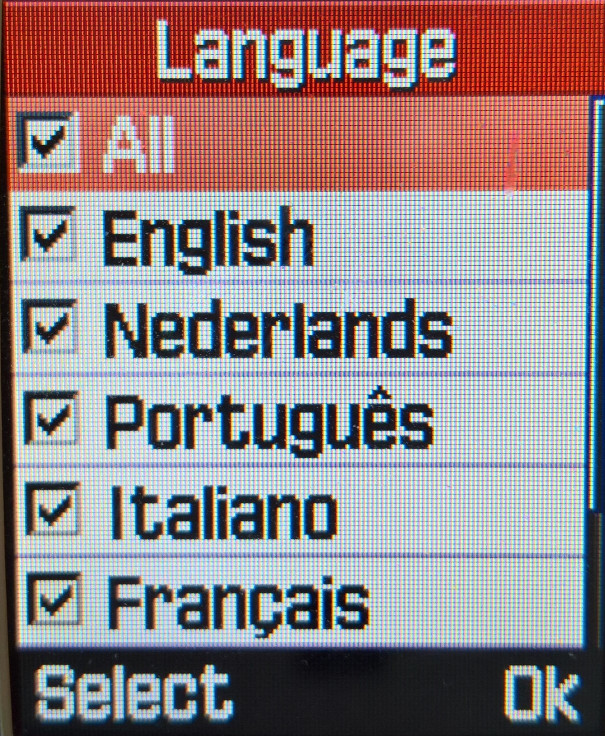
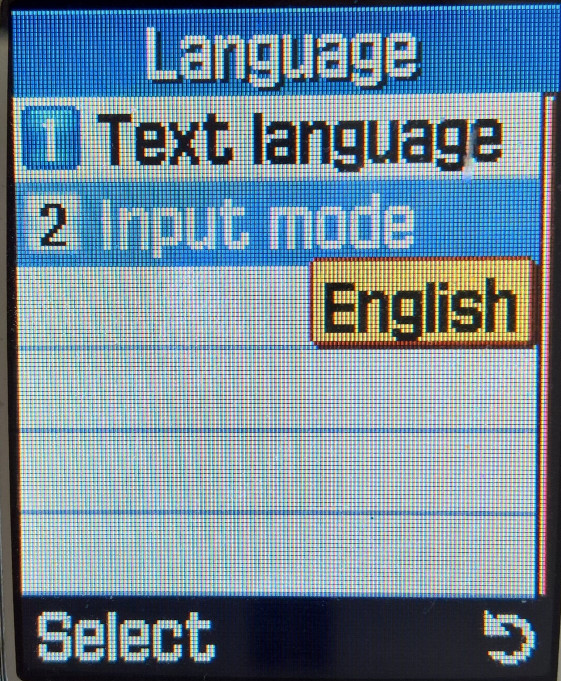
Setting the language and the type of input. As this software was intended for Europe, only common European languages are shown.
Security
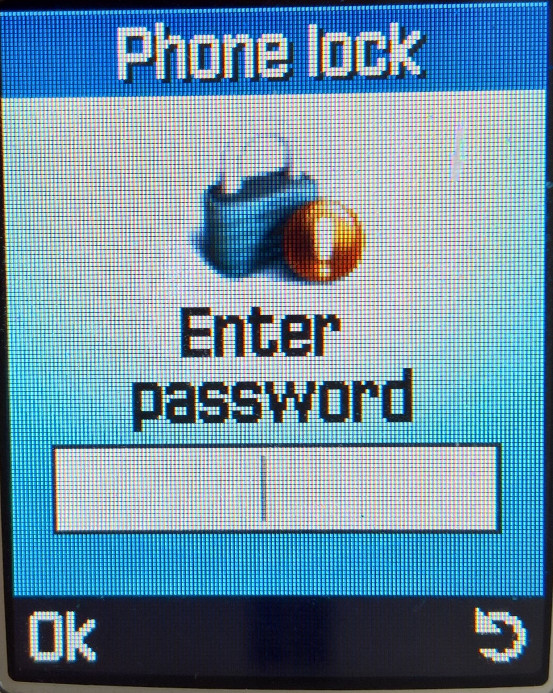
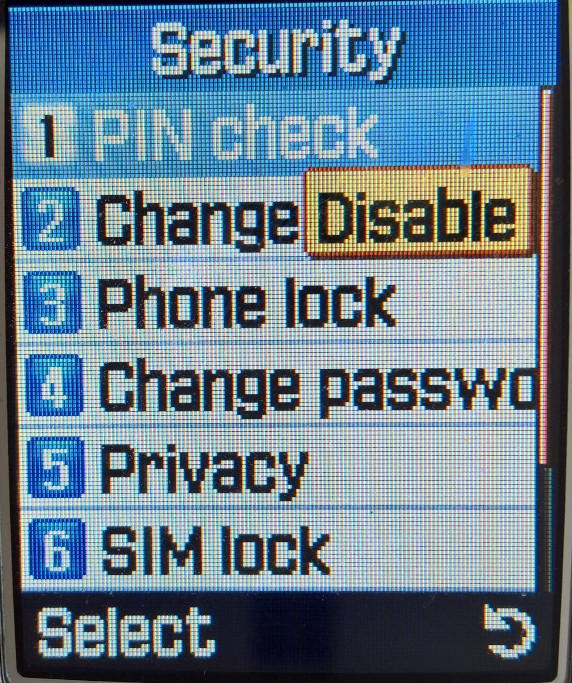
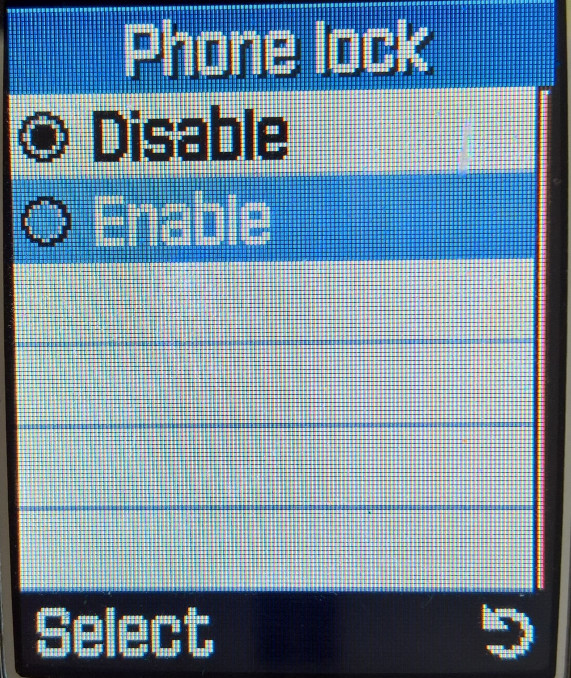
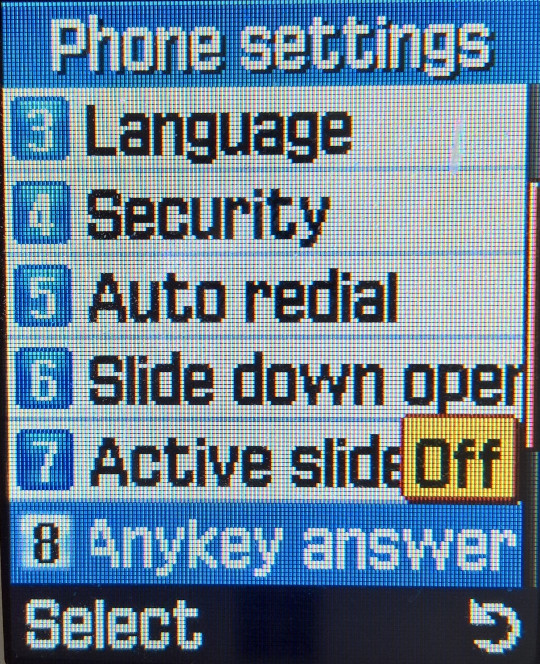
A passcode can be set for when you try to access any photos or sounds on the device. PINs can also be modified here.
Other
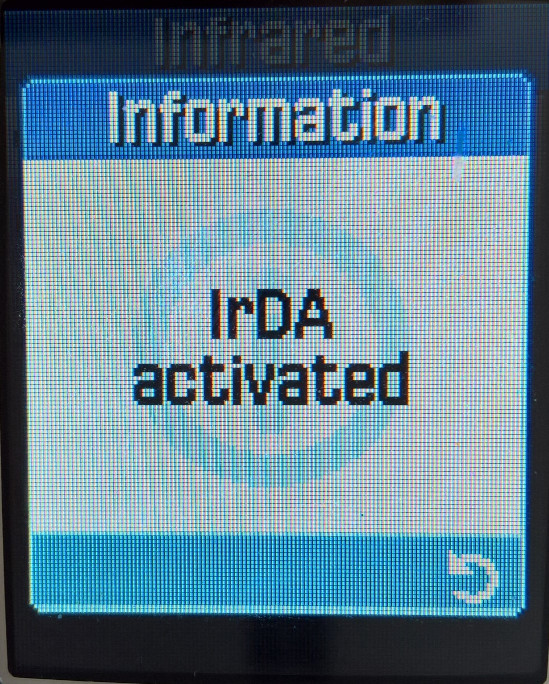
Infrared IrDA is supported however you can only use this with a Windows PC with the Samsung PC studio software, or the Samsung PIM & File Manager. You cannot exchange files with another handset, nor can you send and receive files using the default windows IrDA file transfer, you must use the Samsung software. Also, the camera and IrDA cannot be active at the same time, you cannot enter the camera without disabling the IrDA.
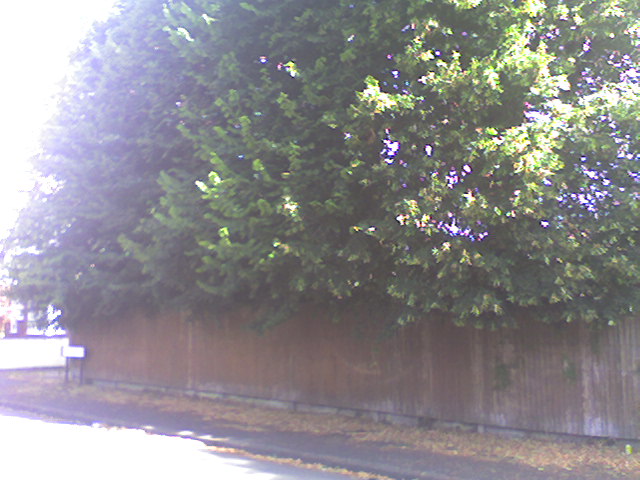
Camera Photo’s
A few sample images captured on a sunny day, the image sensor seems to struggle in bright conditions
The camera can also apply different effects, but this can only be done when capturing the image. The effects are in order: Grey, Negative, Sepia, Emboss & Sketch.
Conclusion
Overall it’s a very nice functional phone with a lot of compelling features for the time. It’s slide form factor would become standard for Samsung’s high and mid-range handsets until the release of the Android-based Galaxy series.
Only downside is the lack of Bluetooth, with was beginning to become more common on handsets in this price range, and the Infra-red is limited to PC use only, although the manual mentions the ability to share contact with another Samsung handset. You can’t transfer files with another handset and for PC use, the Samsung PIM software is needed (Version 1 only, V2 has issues initiating transfers)
To Do – Possibly we can try to get GPRS working whilst 2G is still a thing in the UK, and to see if we can upload Java games over Irda, or using a data cable








































































 Drew1440: Blog