Oh god, its just like the PCV-90. This is gonna be a pain in the ass
Or maybe not since we actually get working mouse support and the software is able to see the CD drive so we don’t have to modify the boot disk.
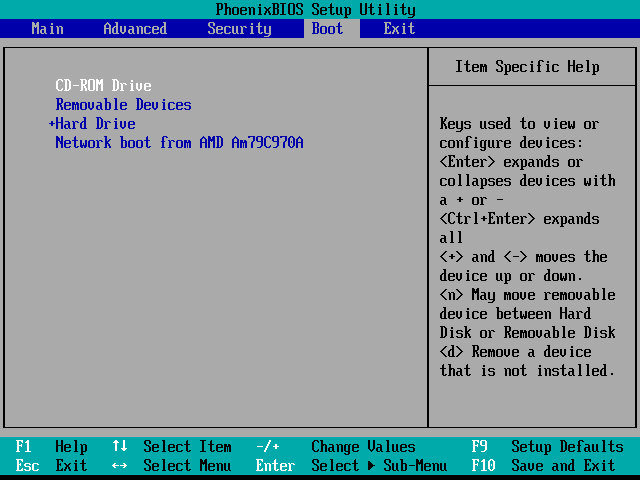
The restore utility cannot initialize a drive since it assumes its already formatted, What you need to do is FDISK it and initialize the drive, in order to start the recovery process. Also once you init the drive, VMWare will try to boot from it. If you keep getting Missing Operating System – Power off the VM and them click on Power On To Firmware option in the dropdown menu next to the Play/Power button. Once you are in the Firmware (BIOS), go to the boot section and pop the CD-ROM drive at the top of the list (Press Shift and + to move it up)
Although the recovery program tells you to run a specific .bat command, this is very specific to the machine’s hard disk and will not apply to our VM, unless our HDD is the exact size.
Before we get to the desktop, we are treated with an IOS error
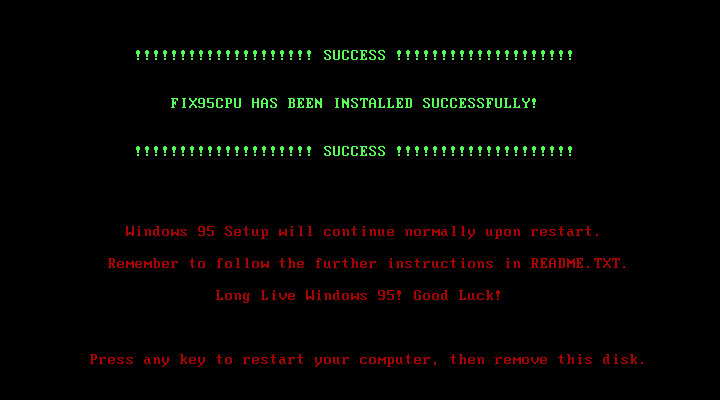
This occurs because the CPU we are running on is too fast for Windows 95 and this causes a fault with a built-in race condition as part of the Windows 95 boot process. Thankfully there’s a community made fix for this and allows us to have a bootable system
Post Install
After we are taken through the last part of the installation where we need to enter identity information. We then have to progress through a series of New Hardware prompts, (Use a hardware profile 6.2 or lower to avoid this, later versions install a lot of PCI-PCI bridges which are way overkill for what we are using)
Installing VMware Tools, Or maybe not, our CD-ROM drive has gone missing…
It came back after a reboot, I’m not sure why it disappeared
From here it’s very similar to the PCV-90 that was looked at previously, with a lot of the software being bundled with the install.
86Box
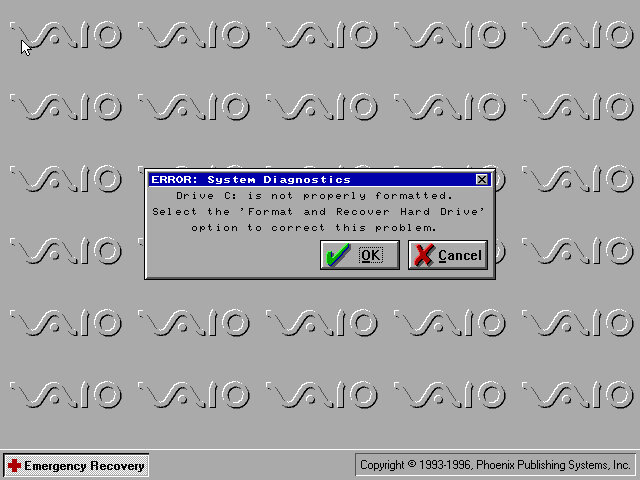
VMWare can be a bit problematic with these old Windows 95 installs, so we can use 86Box instead. Here I quickly setup a system using VirtualPC 2007 motherboard, and loaded the restore CD when it gave this error message:
I don’t get it, the BIOS screen reports no errors?
I disabled ACPI in the BIOS since that can cause problems and made sure both floppy drives were correctly enabled in the BIOS, and that seemed to fix it. Lets give this another try…
After going through the recovery steps again this time it worked properly, and the hardware detection was a lot less painful to go through. However there is one other issue, the IDE CD-ROM drive is no longer detected once we boot into Windows 95 and this is likely due to the Hitachi IDE drivers being used which causes issues. It’s possible to fix this by changing the motherboard but considering we had issues with the PCV-90, I believe it’s more of an emulation issue with 86Box. A workaround is to install and use the SoundBlaster 16 PNP which will feature its own IDE controller. If you do this you must put the CD-ROM as IDE 2:0 or 2:1 to assign it to the SoundBlaster, Windows 95 will generally detect and install a driver BUT you must have a copy of the Windows 95 install disc, as it requires a few files in order for it to install the driver. Alternatively, you can attach an Adaptec SCSI interface instead, again you will need to have a Windows 95 install disc for it to detect and install a driver, or you can locate the driver files yourself. The SCSI option is a lot more flexible as you can install up to around 7 drives (CD/ZIP or hard disks)
Overall this system is very similar to the PCV90 and included a lot of its software, so there isn’t much to cover that we have not done so already. To be honest its probably worthwhile installing in VMWare, then upgrading it to Windows 98 to make it usable in VMWare, as it should be more useable that way.
A high-end multimedia laptop released in 2010, featuring a Core i5 processor, 6-8GB of RAM, a built in Blu-Ray player and a Radeon HD 5450 graphics processor.
The laptop comes with Windows 7 Home Premium with some Sony software included. When I got the laptop it had a fresh install with Windows 10, but the recovery partition was broken on this model as it could not complete a restore. And even worse the laptop shipped with a 5400rpm hard drive which was slow after using SSD’s for a few years. Recovering the install was another issue, since the only recovery disc I could find online was intended for a similar model, but the recovery utility still would not co-operate due to the model number mismatch, despite the laptops having similar specifications.
A work around was to extract the recovery image and use a utility to extract the files. They are actually Windows Installer files but in a container format (.mod) which is run during the Sony restore utility. By using this method we can install the Sony itilities and drivers, making this close to an actual install. For installing Windows 7, I used a standard OEM Home Premium found online and activated it using the product key found underneath the notebook itself.
Sony VAIO Recovery Patcher – A bit time consuming to run, I found it easier to extract the mod files and run them as Windows insallers (double click to run). Some of these are redundant since they are designed for specific regions, and some just install registry keys. For more information, see the support page
VAIO Control Center
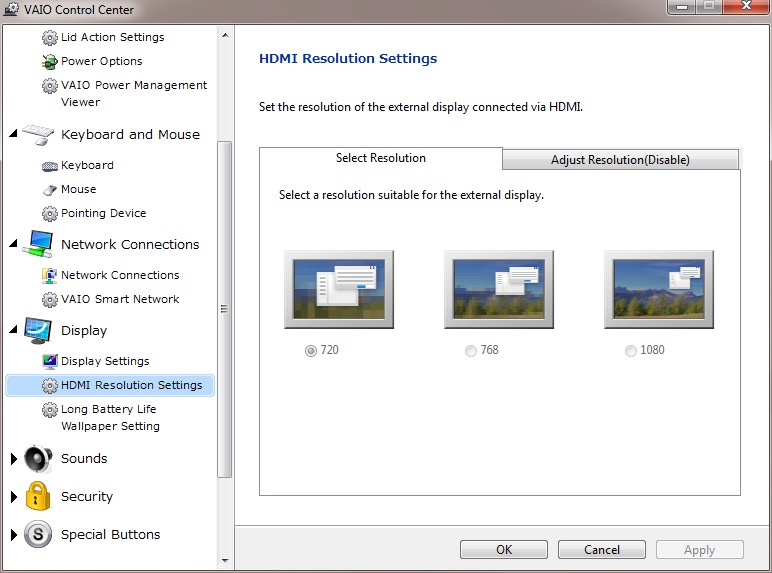
This acts as a control panel that is customised for Sony’s specific functions, here you can change settings relating to power management, Network and display options. It’s a more simplified interface of the Windows control panel.
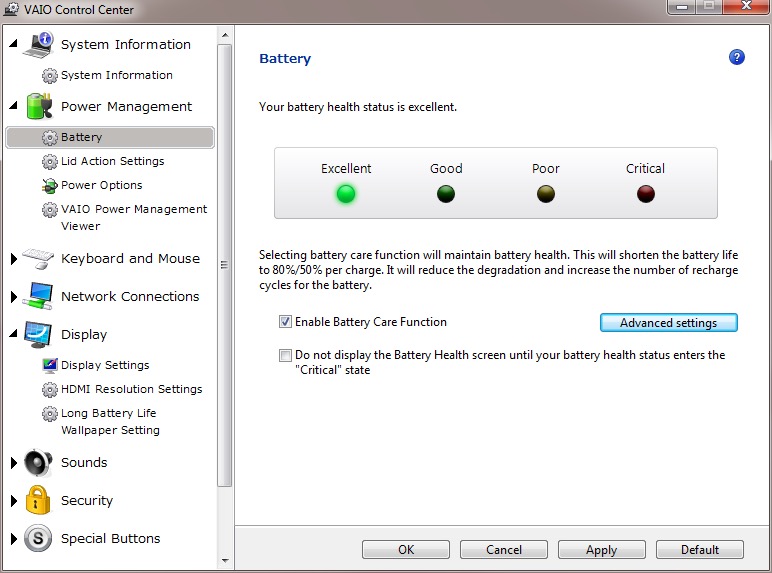
It will also display the heath of your battery (this one happens to be a GreenCell battery I got off Amazon, which shows as healthy yet struggled to hold a charge when disconnected from the AC adaptor.
There is also a battery care function that limits the charging to 80%, which is supposed to extend the life of the battery.
VAIO Media plus
Sony’s Media Centre that lets you view photo’s video and music that is stored on your notebook in a full screen view. Possibly intended for use when you connected your VAIO to your HD TV.
There is the SenseME feature which analyses and organises your music into different modes/playlists, depending on how energetic or smoothing the song is.
VAIO Gate
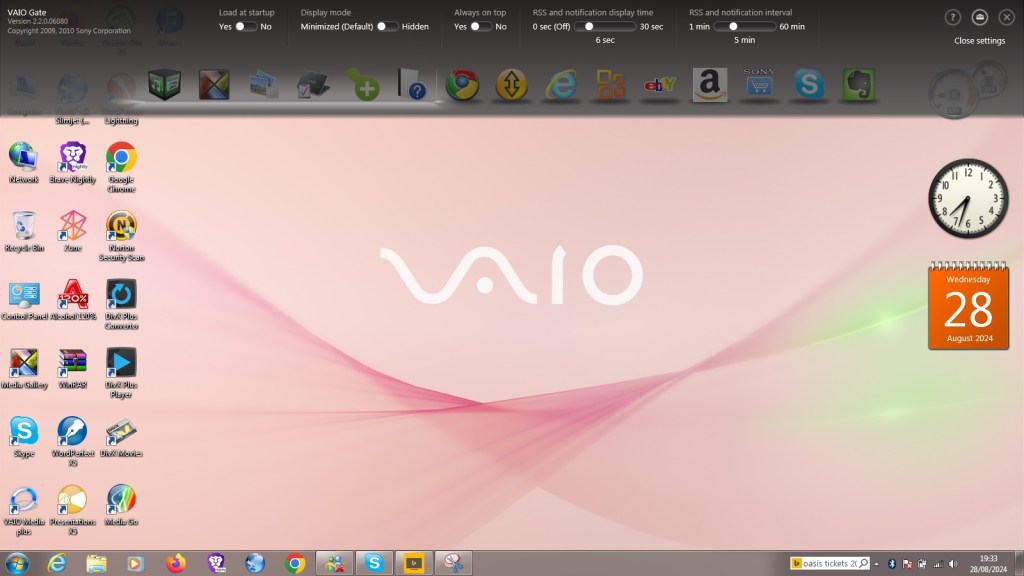
This acts as a shortcut launcher that appears at the top of the screen, and has shortcuts to most preinstalled utilities. You can also pin applications here for pick access, similar to the Mac OS X dock or the Windows Quick Launch that was deprecated in Windows 7.
Whilst intended to be useful, its placement can be annoying, by default if you place your mouse cursor anywhere near the top of the screen it will poppet, making it difficult to use iof you’re using a browser such aa Google Chrome, or any browser that places it’s tab bar at the top of the screen, which is all of them.
At the time this was released, this design was uncommon as Firefox and Internet Explorer placing their tab bars near the bottom of the toolbar. Just above the web page itself with the applications title bear residing at the top.
PlayStation Tools
If you owned a PS3 gaming system at the time of this laptop, Sony bundled two useful utilities to use with your PS Triple.
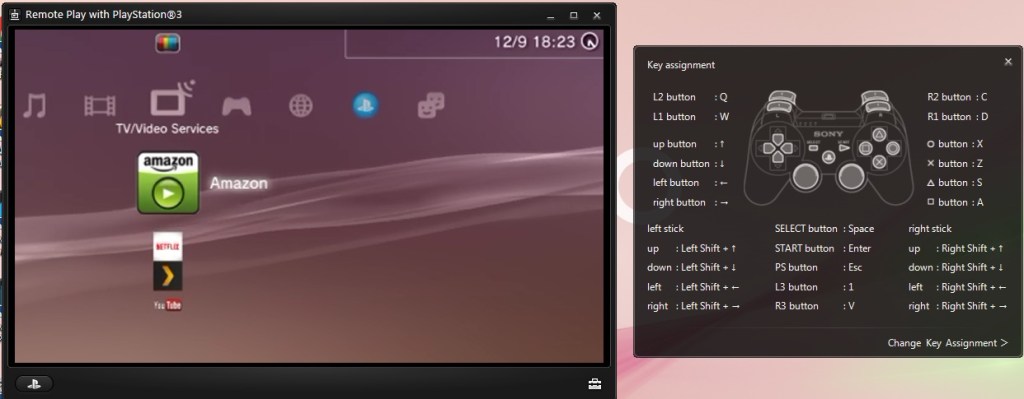
Remote Play
Sony bundled two utilities to allow fours with the PlayStation3, which was their current console when this computer was released. Remote Play will let you control and stream your PS3 console to your laptop.
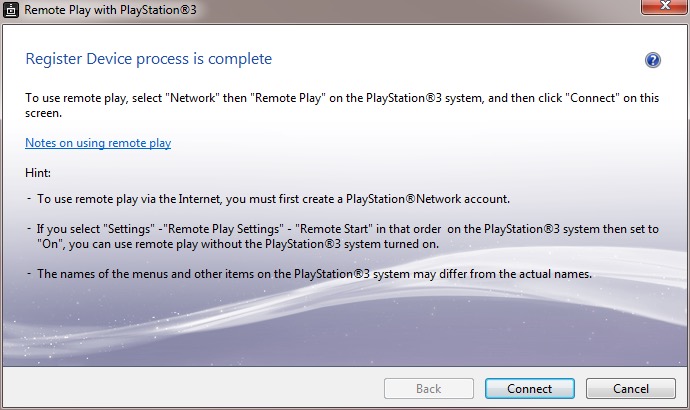
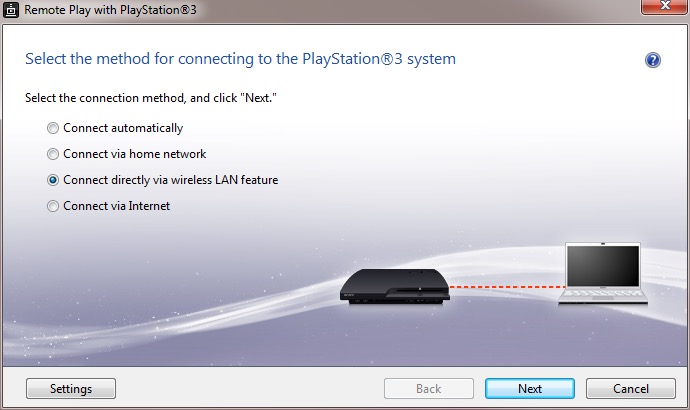
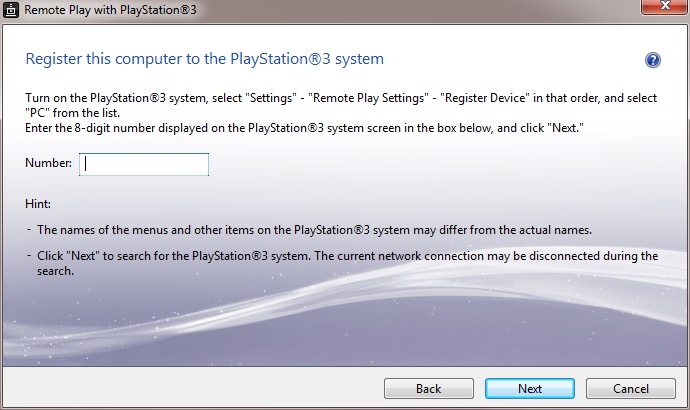
Setting it up requires pairing your PS3 to your computer by entering a code, you can then enabled and allow the PS3 to functional a WiFI hotspot to allow your remote device to turn the PS3 on. This is only for remote play use, you cannot share your internet connection this way.
The performance leaves a lot to be desired, even when both devices are connected via ethernet, the performance is just too poor with the lag reaching to around 3-5 seconds delay to respond to a button press. This gradually gets worse as you use it.
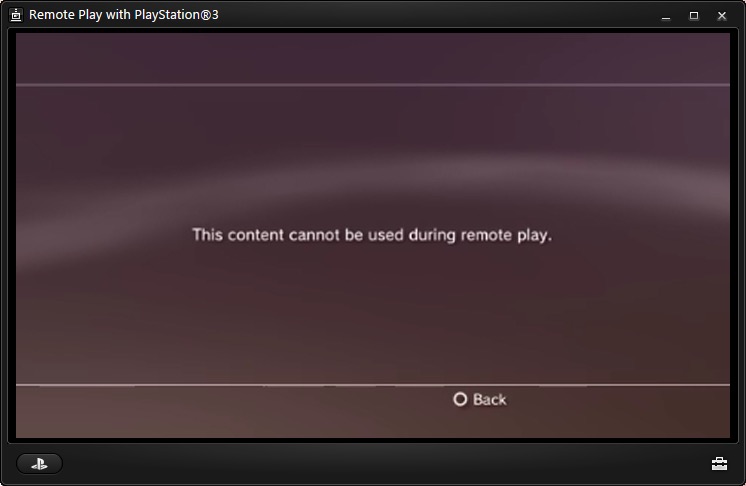
Also to play games, the PS3 game itself must support remote play since it required a certain amount of system RAM to be reserved, along with a spare SPU to encode the video. The amount of titles supported is very small, too much that I don’t have access to a game that is on the list.
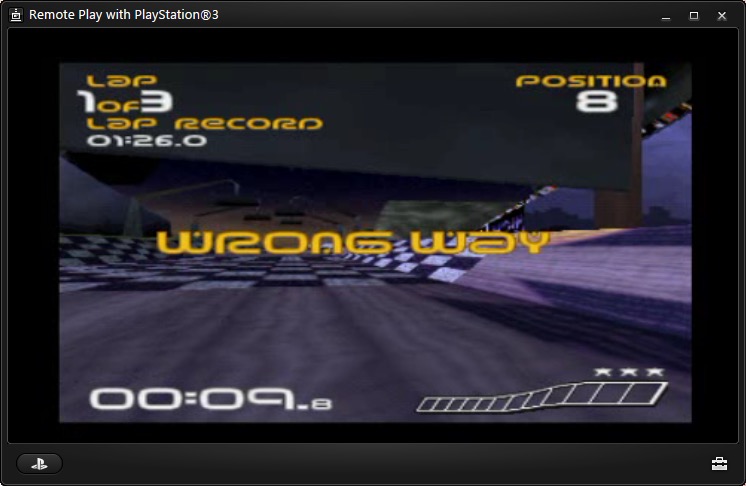
PS1 games are supposed to work and a few of the digital titles do work, but you could just download an PSX emulator and play it that way instead, then you woudnt have to deal with the poor latency.
Overall it’s a waste of effort. I remember this working much better with the PSP instead.
Remote Keyboard
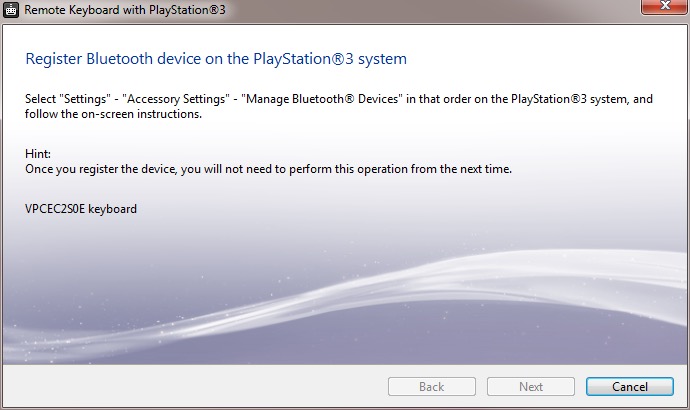
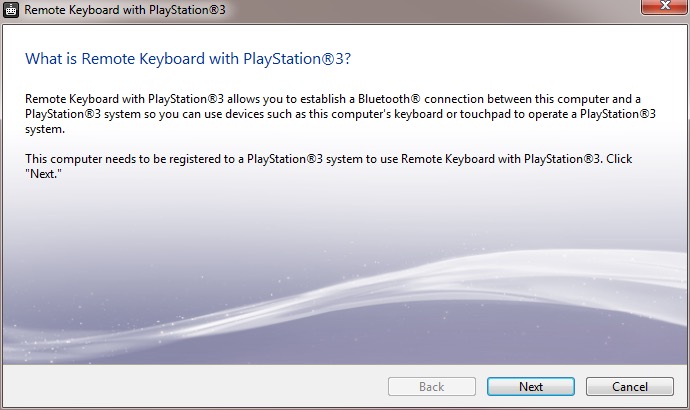
The other utility is the remote keyboard, which lets you pair the PS3 via Bluetooth to allow your VAIO’s keyboard and trackpad to functional it it were connected to the PS3. The setup will guide you on how to pair both devices and once enabled, you can fully control the XMB. This does prevent you from using the laptop whilst connected to the PS3, requiring you to disconnect it from the PS3 XMB, or by pressing Ctrl + Alt+ Backspace on the keyboard.
It useful but niche, how often are you going to be using this in games? Maybe for text entry for games that require it, but many games just don’t need this.
There are a few select titles that did support the keyboard function for gameplay, Unreal Tournament 3 was one such title (the PS2 port of Unreal Tournament also supports this) allowing me to enter a match and play using the PC traditional WASD controls.
There are issues when sending a keystroke and moving the mouse at the same time, making aiming jerky. You can also send only one keystroke at a time, making dodging or jumping difficult. Really you’re best of getting a cheap Bluetooth keyboard and mouse and just pair it directly top the PS3. Maybe at the time these were much more expensive which made it a nice addition, but I just can’t see this being useful.
The only other use for it would be to browse the PS3’s web browser, which again is pointless since the laptop’s browser will be a much better experience.
Upgrade Options
This is one of the few laptops that supports upto two internal SATA drives through the use of an aftermarket adapter which allows you to connect two SATA drives which would have been ideal to add an SSD as a extra SATA drive. These are very difficult to find now, so I had to replace the internal HDD with the SSD instead and leave the second bay empty.
Still the laptop also features an eSATA connector which you can use to attach an external eSATA hard drive or optical drive. eSATA hard drive enclosure’s are difficult to find, but the Dell external optical drives are easily available for eBay.
There is also an ExpressCard connector, which allows for an expansion card to be inserted. A USB 3.0 card can be inserted, or alternatively a Firewire 800 card can be installed instead. The power supply is limited over Expresscard, so for high power devices you will need a power adaptor that supplied an additional 5V or a powered USB 3.0 hub.
Another day another VAIO. This one is A Windows ME desktop PC orientated with video and multimedia features. Whilst eMachines, HP and Compaq were after the low end market with internet ready PCs, Sony hung out in the multimedia sector with their machines being built out of box for photo and video editing with its bundled software and iLink support for DV cameras.
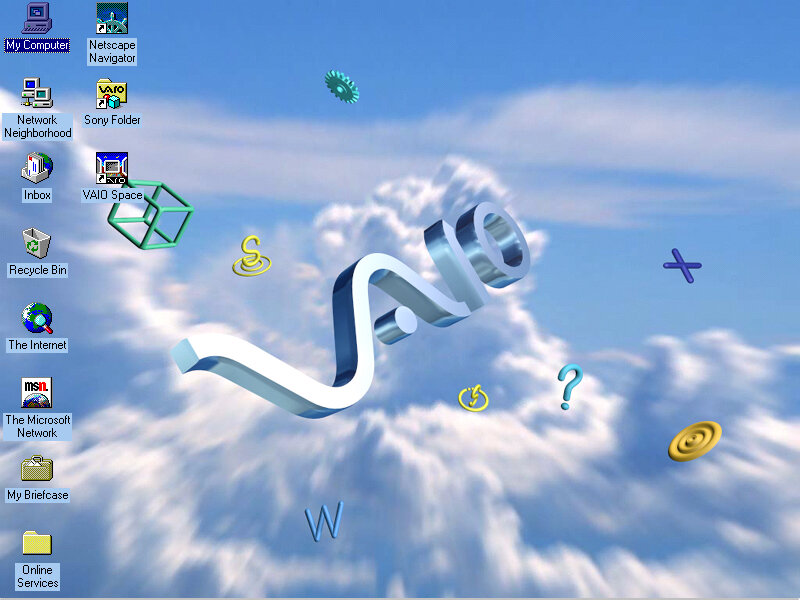
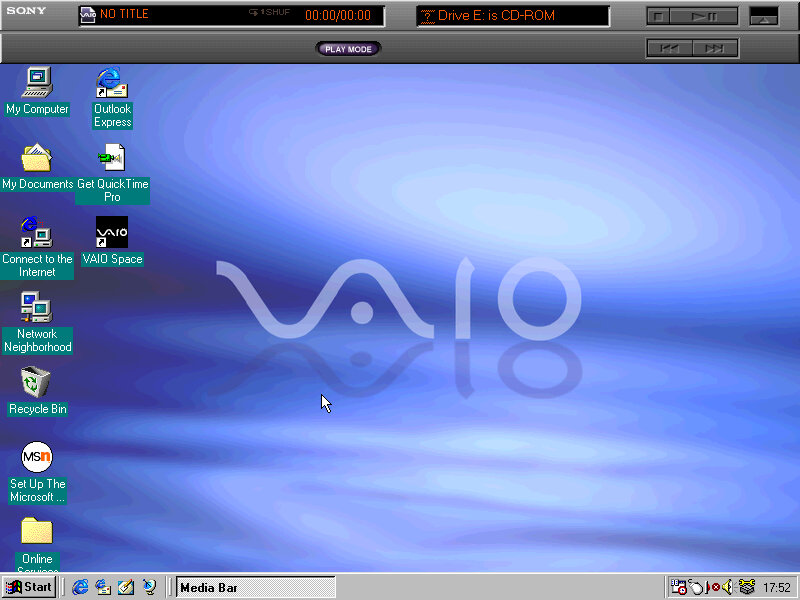
The VAIO desktop with a cool blue background
Some remaining software that needs to be installed
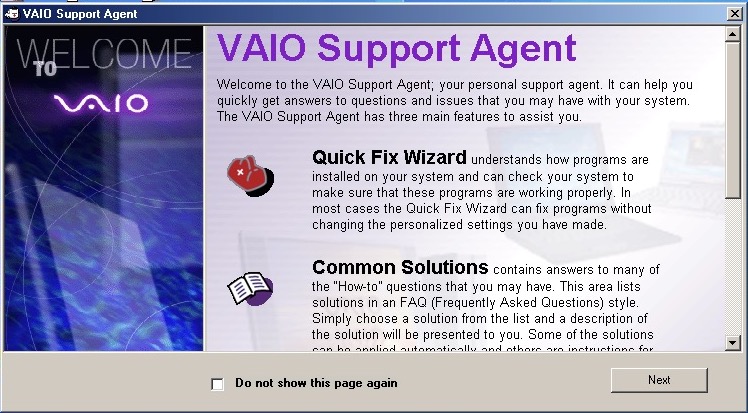
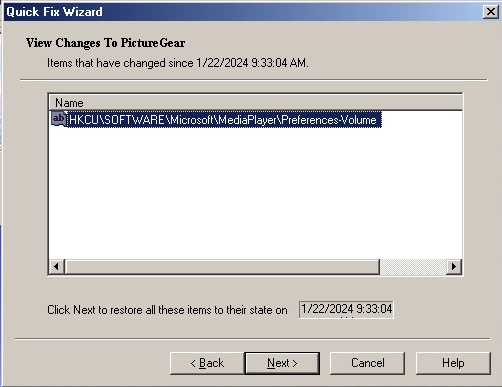
The VAIO support agent which features a quick fix wizard to diagnose problems with your installed applications. Not exactly sure what this does but it might undo any changes made to applications.
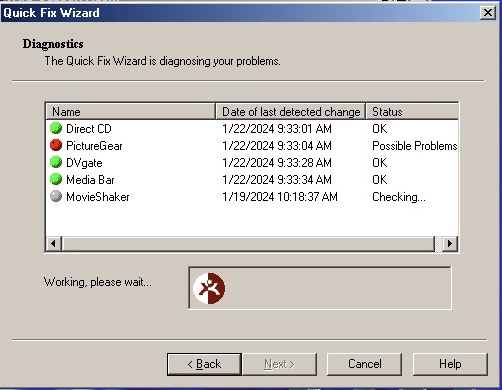
Issues with PictureGear already?
Looks like a registry setting has changed. My guess is to not mess with it unless there’s an actual issue with the software.
The VAIO tour which is also set as the default screensaver. This is an advertisement of the computer itself and its features and would have been used in a shop setting.
Sony Screenblast take you to a website, sadly It wasn’t archived well. According to a few older articles it was a video editing and music creation software you could purchase for editing.
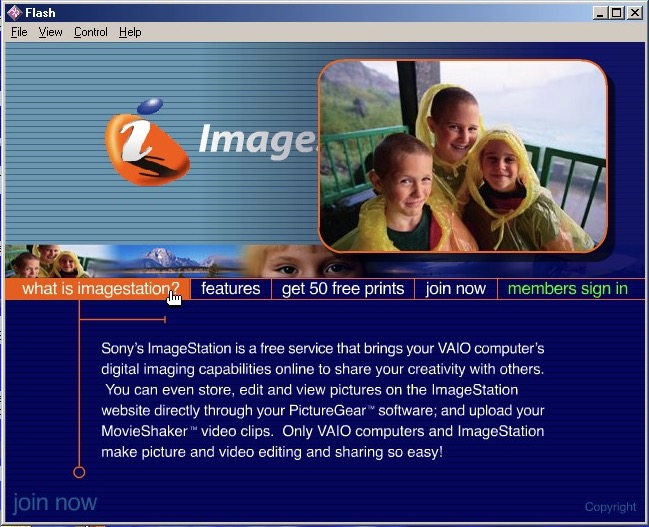
ImageStation – Sony’s solution for printing images online, like HP’s Snapfish. Photo printers were still expensive at the time.
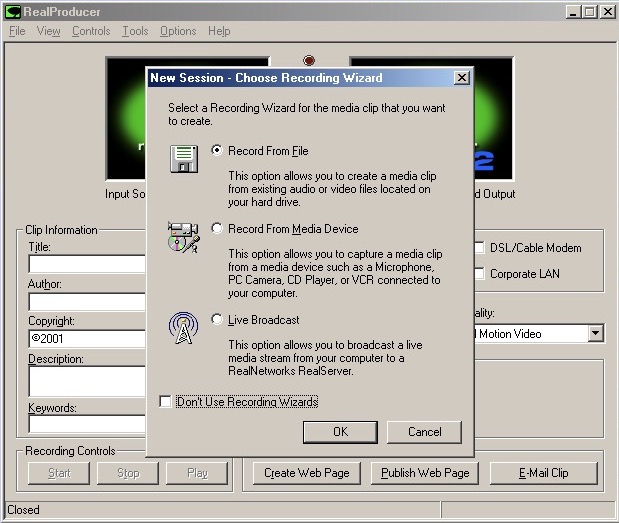
RealProducer – capture digital video or still images from a capture device
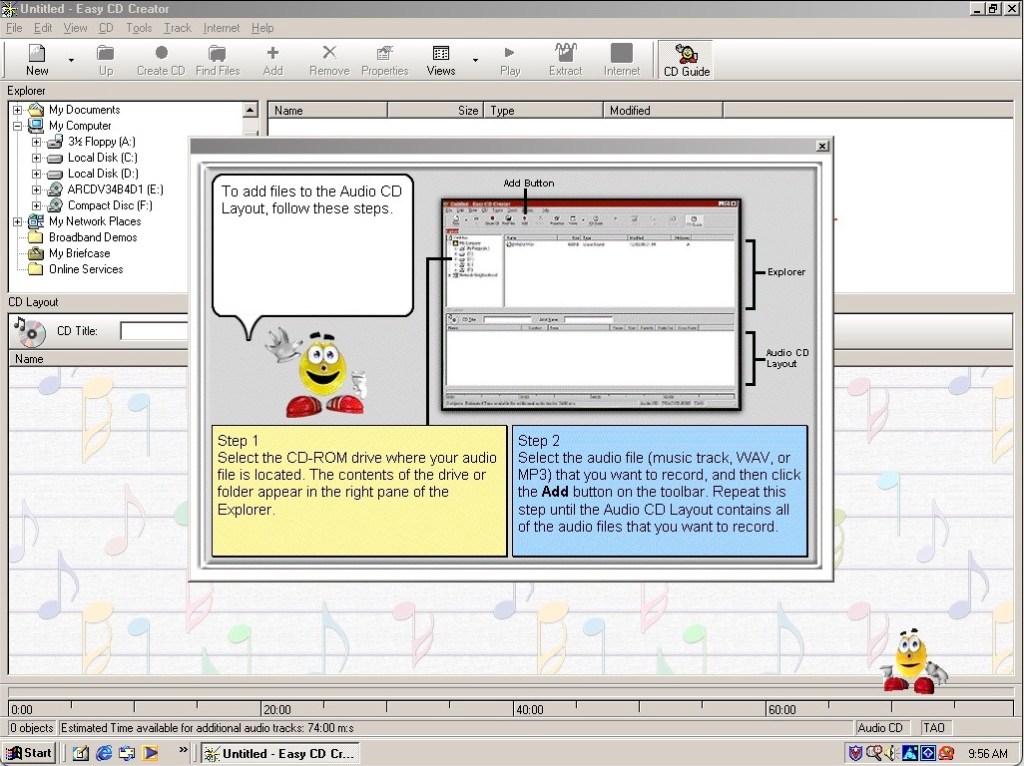
Adaptec EasyCD creator 4 – As Windows ME did not provide support for CD burning from within explore, you needed dedicated software to do that instead. This kind of system would have come with a CD-RW drive, along with a DVD-ROM drive installed as the secondary drive. You also have an assistant in the style of the Microsoft Office assistants, to guide you through the burning process.
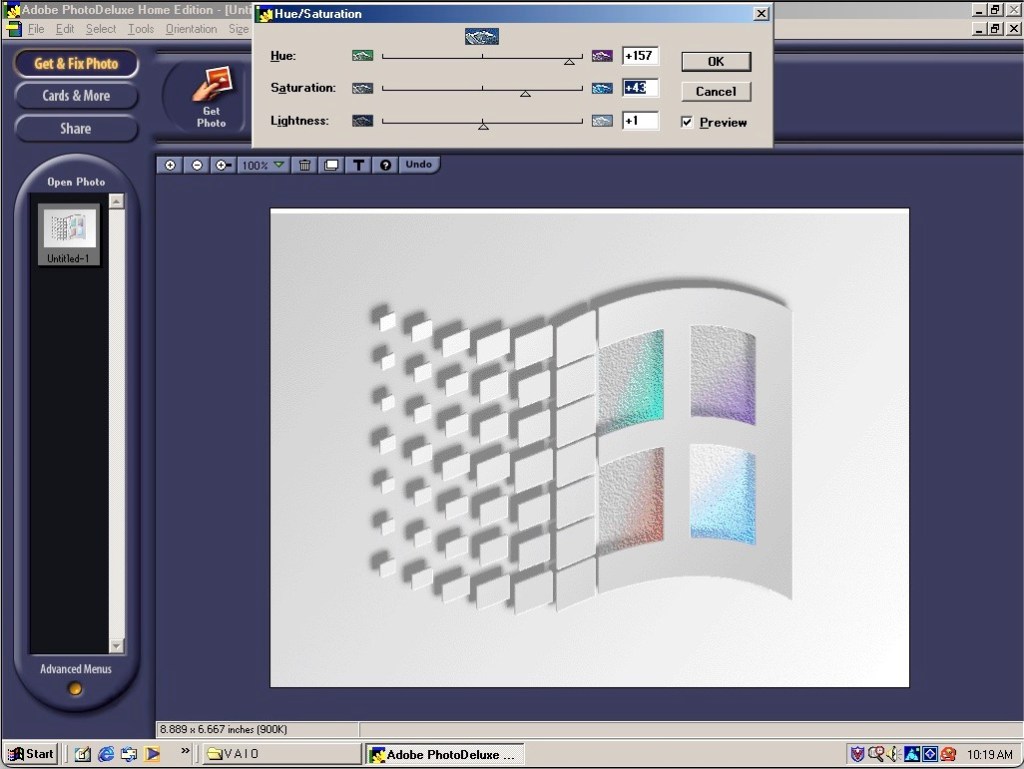
Adobe PhotoDeluxe – An entry level photo editing software for manipulating photographs and can be used to make greeting cards. It has an easy-to-use interface, making it accessible to users who were not necessarily experienced in graphic design or image editing. Basic image editing tools provided were as cropping, resizing, rotating, adjusting brightness and contrast, and applying various filters and effects.
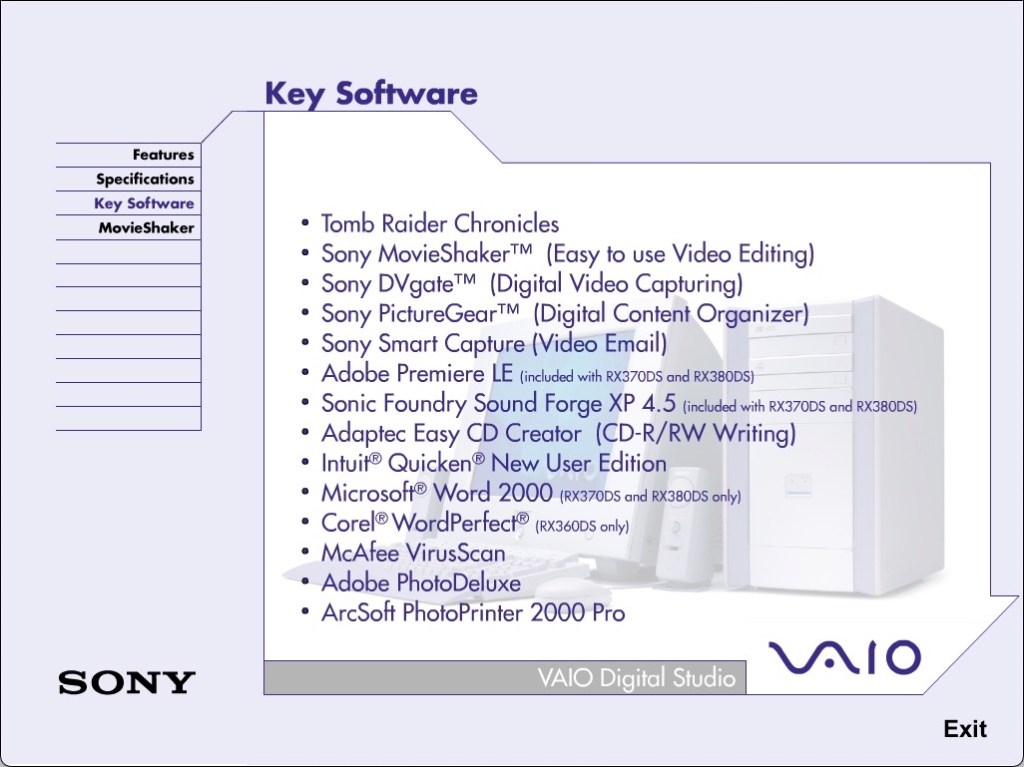
DVgate Motion, MediaBar, MovieShaker, PictureGear and VisualFlow are other bits of software included that only runs on a Sony VAIO system, due to the BIOS check.
The system does come with Tomb Raider Chronicles preinstalled. Not the best Tomb Raider but does serve as a good demo of what the graphics hardware can do.
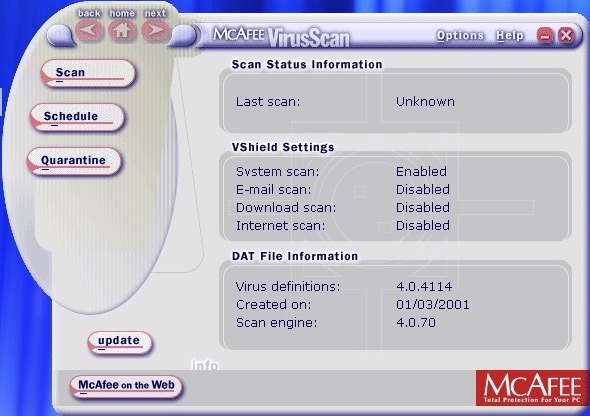
McAfee security comes as standard
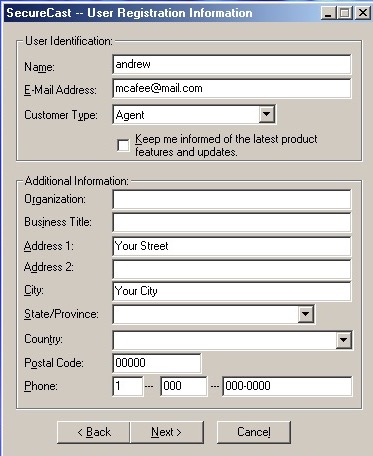
Trying to download new updated virus definitions, McAfee wants address and location details just to update.
The PCV-70 originally shipped with Windows 95, but can be upgraded possibly to Windows XP. Along the way you will have to upgrade the processor and the amount of memory to run modern versions of Windows, which is easier to do in 86Box (4.0.1)
For this I’m more concerned with how far the OEM install can take us whilst maintaining the existing install. And what applications that Sony shipped with the PC still remain functional.
Windows 98
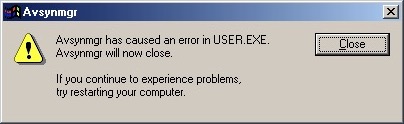
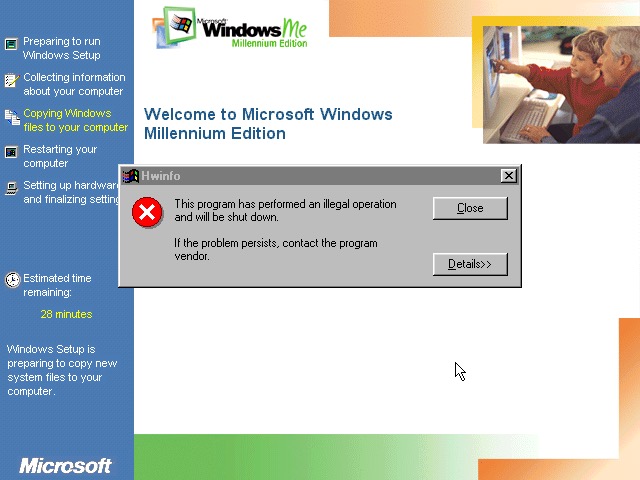
Great, something called HWINFO has crashed. That’s always a good sign
Install appears to continue though
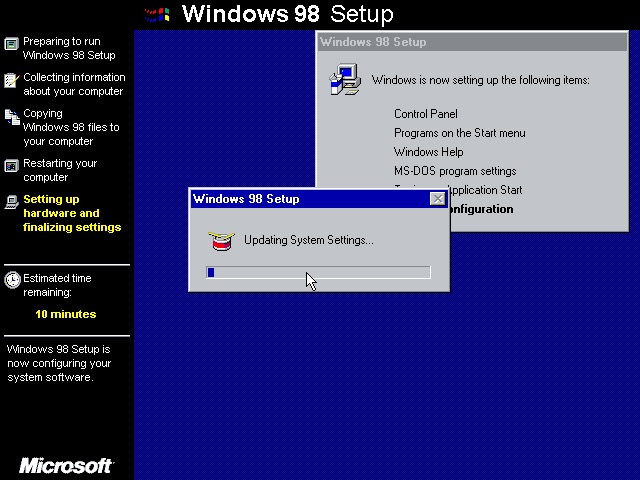
A couple of reboots and Windows 98 starts to initialize its driver database
Not this shit again, thankfully the installation continues
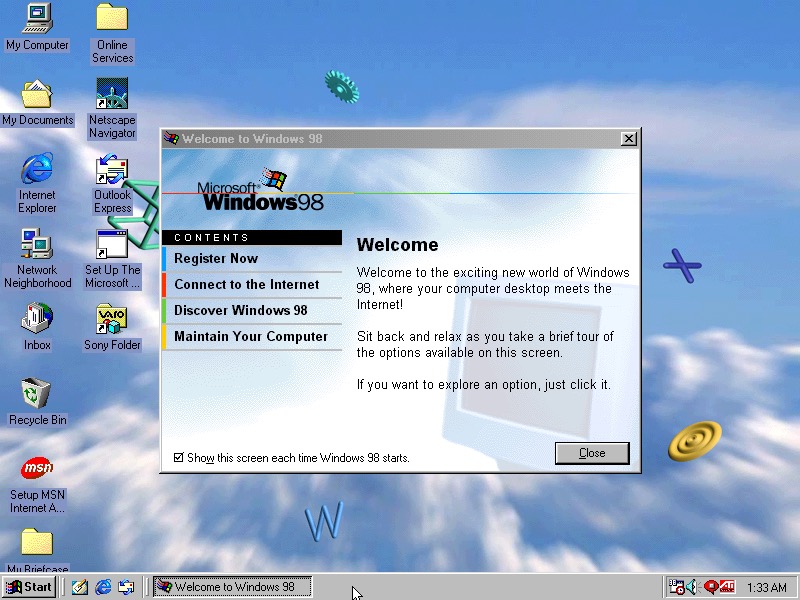
Install was successful with the welcome to Windows dialog appearing
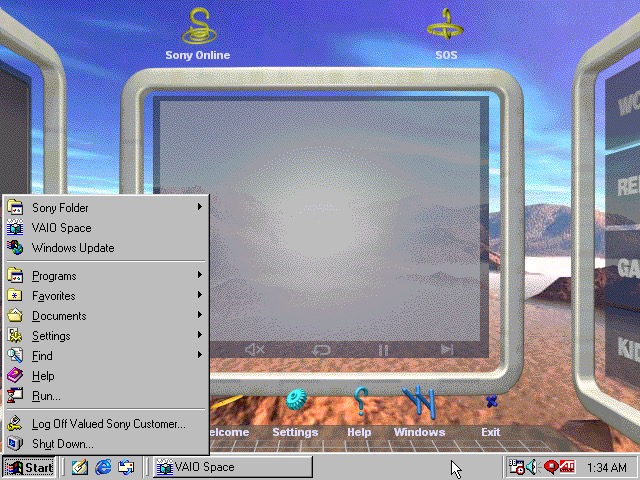
The VAIO Space appears to work OK
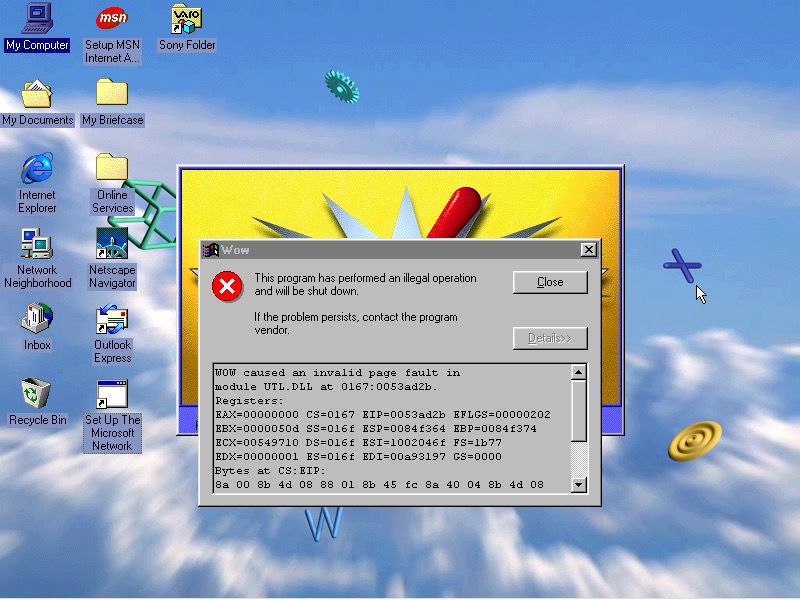
Another casualty is the WOW application. Wipeout also no longer launches, I won’t count this since we are not using a RAGE 3D accelerator (No 86Box support for that yet)
VAIO themes, wallpapers and colour schemes have been preserved
Windows ME
Looks like I need to bump up the CPU speed, so ME allows us to install. Enter the Pentium running at 166MHz
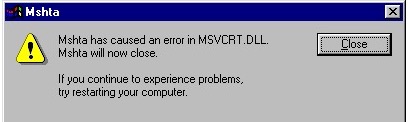
Again, Seriously? What is this and why does it keep crashing through an upgrade?
Something else went wrong
Windows Media Player seems to have taken a hit during the install
VAIO space is up and running, but some of the program links are missing. Also we are unable to launch the CD player or any of the multimedia applications
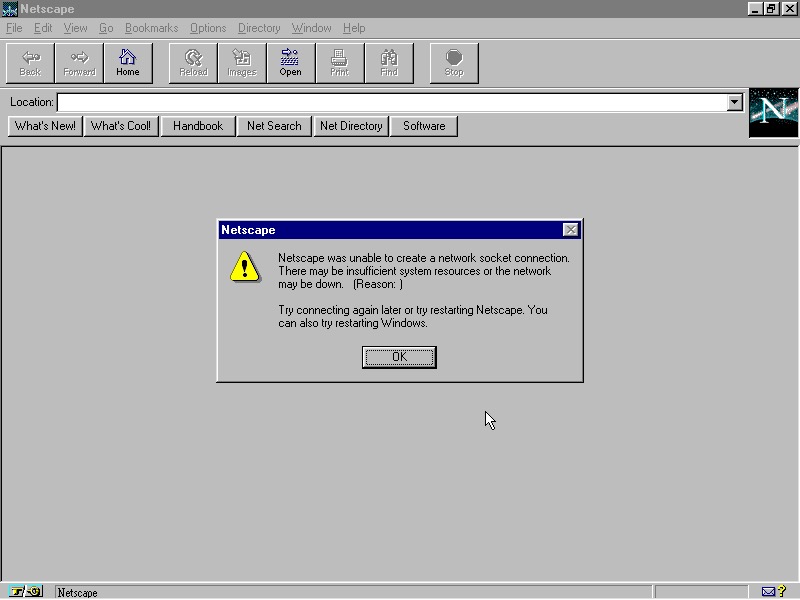
Netscape Navigator also has issues, but this is a very old version (2.0)
And Windows Media Player now works, not sure how?
No major issues were found with other applications, though losing functionality from VAIO space takes away one of the unique features of the PC.
Windows XP
Sadly we hit a roadblock here, as we do not have enough disk space to complete the upgrade (We have a 2GB hard disk with 652MB free, but Windows XP demands at least 800MB)
Perhaps I can expand the VHD. It’s worth noting the original system only came with a 2.1GB hard drive.
Even if we got XP installed, it’s a struggle running it on a 200MHz Pentium through 86Box, any faster and the emulator starts to throttle the speed. Might be worth revisiting in the future but for now ME is the best we can get.
The Sony Vaio 505 was a line of laptop computers that were first introduced by Sony in the late 1990s. The Vaio 505 was known for its thin and lightweight design, which made it a popular choice among mobile professionals.
The Sony VAIO 505 series of laptops were available with different variations of the Intel 440TX chipset, which was a popular chipset at the time of the VAIO 505’s release in the late 1990s. The chipset provided support for Intel Pentium III and Celeron processors, as well as support for AGP graphics and up to 1 GB of RAM. Some variations of the Vaio 505 also included integrated graphics using the Intel 810 chipset. Closest match we have is the Intel YM430TX which uses the same i430TX chipset as the VAIO laptop.
The (cracked) restore utility, this requires us to have a HDD that is already preformatted to FAT32. IF this isn’t done you will need to use the FDISK utility found on the Windows 9x bootdisk to set this up. Also if you have two or more CD-ROM drives the install will not be able to mount the optical drive, as it assigns it the letter Z:
After the restore has completed we are booted into Windows 98, the first edition.
OEM Customization
A few wallpapers are included with the VAIO water being set as the default, other wallpapers include VAIO Sky (As seen in the PCV-70), VAIO Earth and VAIO Wind.
A screensaver is also included, the PictureGear Screen Saver which acts as a photo screensaver that you can link your images to. Up to eight image files can be used with transition effects.
A customized Welcome To Windows screen, with a fifth option for launching the Vaio desktop space.
Included Software
Start Menu with its own category for preinstalled VAIO software
VAIO Space
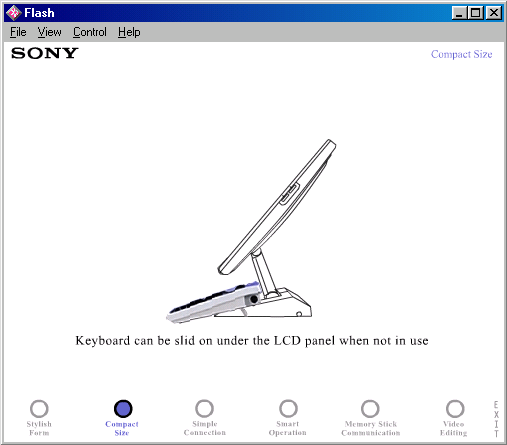
Demonstration software that details the features and capabilities of the notebook. It also provided tutorials. It was a pre-installed software on Sony VAIO computers that provided a centralized location for managing media and accessing online services.
FrontPage Express
FrontPage Express was designed to be an easy-to-use tool for creating basic web pages without requiring any knowledge of HTML coding. It had a simple interface that allowed users to drag and drop images, text, and other elements onto a page and arrange them as desired. It also provided basic formatting tools, such as font and color selection, and allowed users to preview their pages in a web browser.
ScribblePad
Some models for this laptop had a touchscreen along with a stylus which allowed the user freehand input. TO take advantage of this Sony had included their own ScribblePad utility. This was a necessarily as Windows 98 did not include any pen input functionally (That I know of).
VoiceMemo
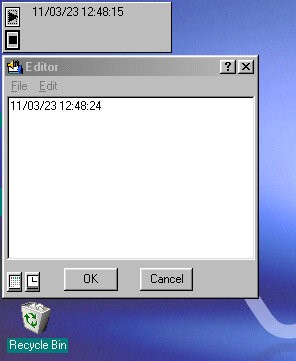
A utility for recording notes in text or voice format. These remain on the desktop after creation and can be moved about freely, similar to the sticky notes on Windows 7. The background colour can be customized using the standard Windows palette along with the font style.
PowerPanel
A very interesting utility that lets you control some of the power features of the laptop. The CPU speed can be adjusted to a slower speed to conserve the battery, You can also switch the HDD into standby immediately rather than wait for the OS to do it, and switch to standby or hibernate mode. The PowerPanel appears as a sidebar on the desktop than can be set to autohide if its not needed.
MediaBar
Some sort of Sony branded music CD player, kind of redundant since Windows 98 already comes with one, unless this plays some specific Sony format? Video files in the AVI/MOV or MPEG format can be played.
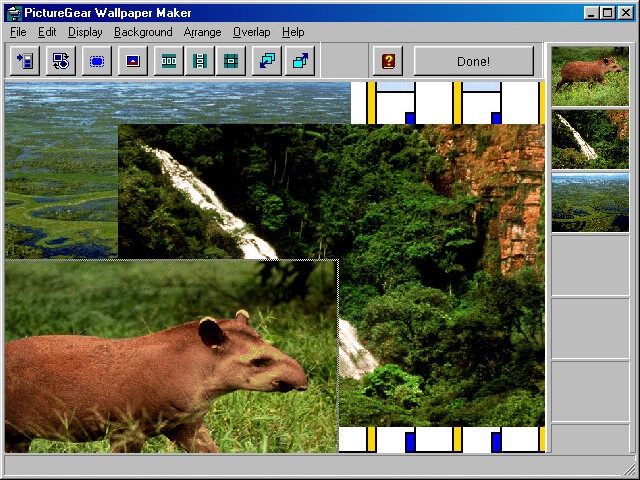
PictureGear WallpaperMaker
A software program developed by Sony Corporation that allows users to create customized wallpapers for their computers. With this, users can choose from a variety of pre-designed templates or create their own custom wallpaper designs using their own photos or images. The software includes a variety of tools for editing and manipulating images, such as adjusting brightness and contrast, adding text and graphics, and applying special effects.
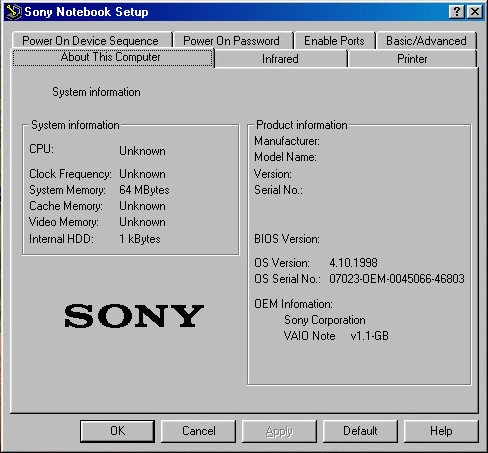
Sony Notebook Setup
Graphical BIOS utility where you can change settings without having to enter the BIOS.
PhoneTools
A utility to manage phone calls, Fax and user contacts. It also appears to support cellular 2G GSM modules to make add receive phone calls over a mobile network, and there is also support for SMS messages. Alternatively you can connect a Sony phone to the computer instead, and use its GSM modem for an internet connection.
Featured on Tech Tangents (Akubuku) Youtube channel, this is a slim form factor PC released in 1999 and was positions as Sony’s premium line of PC’s.
Recovery
This one was pretty simple since the hard disk contents was extracted and put u for download. To transfer it back to a bootable 86box image required me to created the VHD and initialize it using FAT32 (via the Windows 95 OSR2 boot disk), then to mount the VHD using disk manager on the host system. Lastly the files could be copied back to the drive.
For 86Box, the Tyan Tsunami ATX motherboard was used as it uses the same chipset (Intel i440BX) as the PCV-L630. For the graphics an ATI Mach64 can be substituted for the 3D RAGE somewhat, but you will be missing 3D acceleration (No bundled applications use this currently).
First Boot
Since we are using a different configuration that the OS does not expect, we have to go through the New Hardware messages and prompts. However I did encounter a weird System File Error message that related to a DDEML.dll file that was complaining that was replaced with an older version. Akubuku did mention some files were corrupted, likely due to failing sectors on the hard drive but this turned out to be CAB files that were replaced with one from a Windows 98SE CD. I wasn’t sure how to fix this or what caused it. It could be when I extracted the file out of the archive. Booting into Safe Mode didn’t do much, since the OS was complaining about the file being in use I figured Safe Mode would be an environment where it could be fixed.
I decided to use the System File Checker, just to make sure everything was intact but its hard to know if these file changes are the result of Windows update
OEM Customization
Four background wallpapers come included which are part of an Active Desktop script that changes the background depending on the time of day. Very similar to how the XMB background on the PlayStation 3 and PSP worked. Different resolutions and colour depth can be selected.
A screen saver (VAIO Tour) is included which appears to show off the different features of the system, built on Macromedia Flash. This can also be opened from the desktop and features as a demonstration/advert of the computers features. It seems more suited to use in a retail environment.
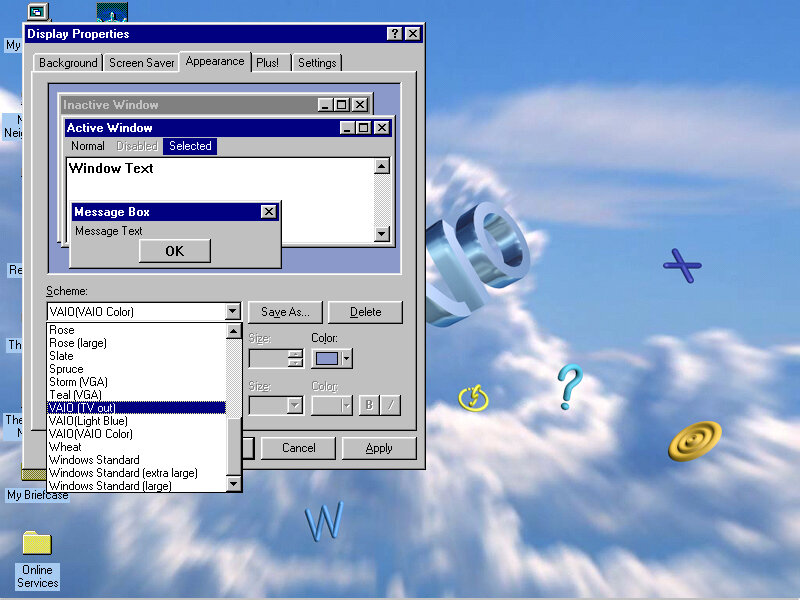
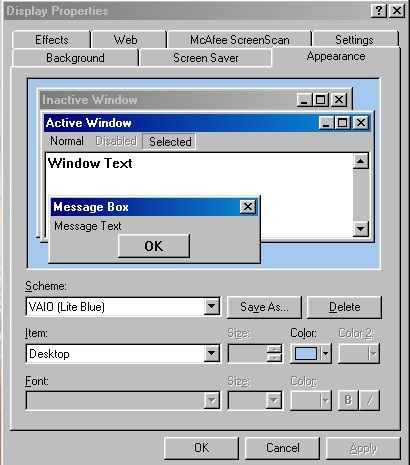
A VAIO Light Blue colour scheme also comes included and selected by default. This comes in a similar colour to the actual desktop unit.
Included Bundled Software
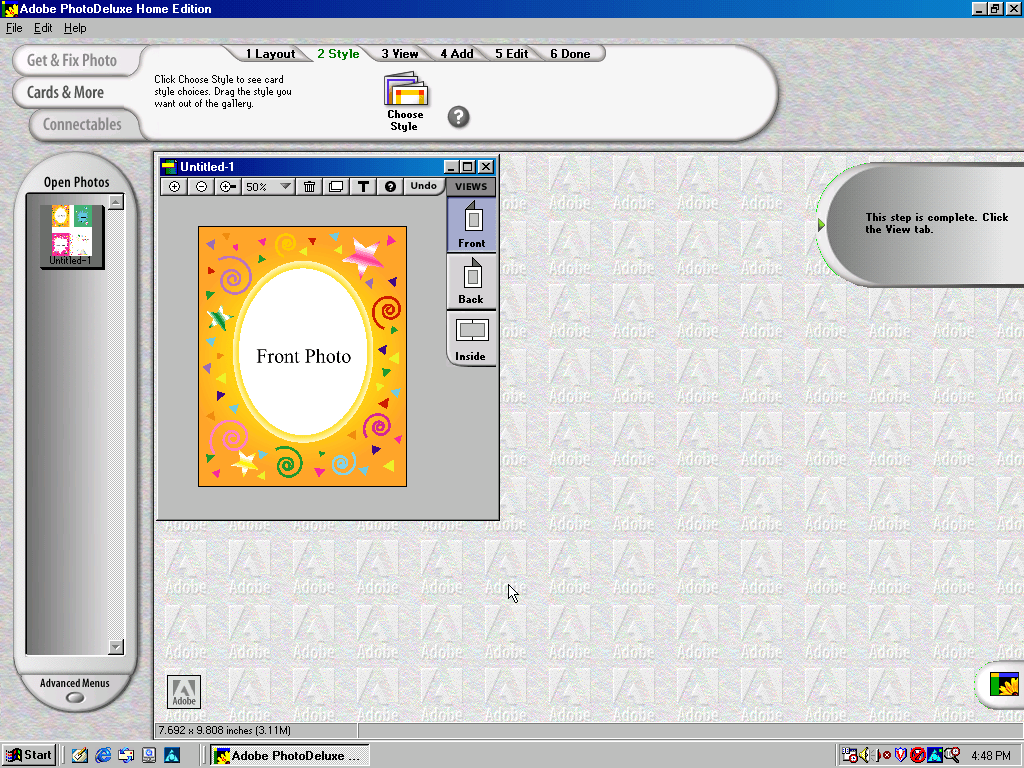
Adobe PhotoDeluxe Home Edition
Adobe PhotoDeluxe was a consumer-oriented image editing software program that was first introduced by Adobe Systems in 1996. It was designed to be an easy-to-use photo editing tool for home users, and it offered a range of basic image editing features, such as cropping, resizing, color correction, and special effects.
PhotoDeluxe was popular in the late 1990s and early 2000s as it was one of the few image editing programs that was accessible and easy to use for non-professional users. However, as more powerful and comprehensive image editing software became available, Adobe discontinued PhotoDeluxe in 2002 and instead focused on its other photo editing programs, such as Adobe Photoshop Elements.
Adobe Premiere 5.1
Adobe Premiere 5.1 is a video editing software program that was released by Adobe Systems in 1998. It was an upgraded version of Adobe Premiere 5.0, which was the first version of the software to offer support for Windows 98. It included several new features and improvements over its predecessor, including enhanced support for real-time video editing, improved performance, and expanded compatibility with a wider range of video and audio file formats. As this computer shipped with a iLink (Firewire 1394 connector), video capture from a DV camera.
DVGate
A plugin for Adobe Premiere, The primary function of Sony DVgate was to allow users to capture digital video footage from their Sony cameras and camcorders and then edit that footage on their computer. The software supported a range of video formats, including DV, MPEG-1, and MPEG
Media Bar
A suite of applications for media playback, this included a visualizer, minidisc player, and a DVD player. None of these work on a non-Sony system.
MouseWare
Software by Logitech to take advantage of the mouse that shipped with the PC. This includes a set of custom mouse cursors.
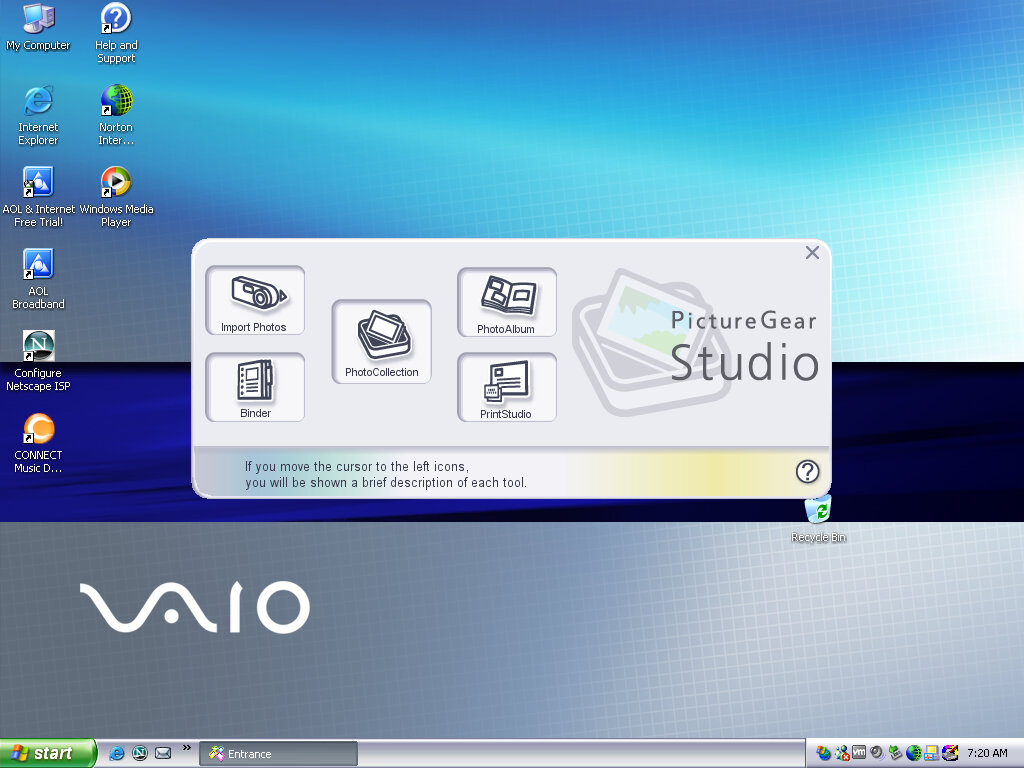
Picturegear
Can only run on Sony hardware, PictureGear is a software program developed by Sony that was pre-installed on some VAIO computers in the late 1990s and early 2000s. The software was primarily designed to help users manage and edit digital photos, including importing, organizing, and enhancing images.
Smart Utilities
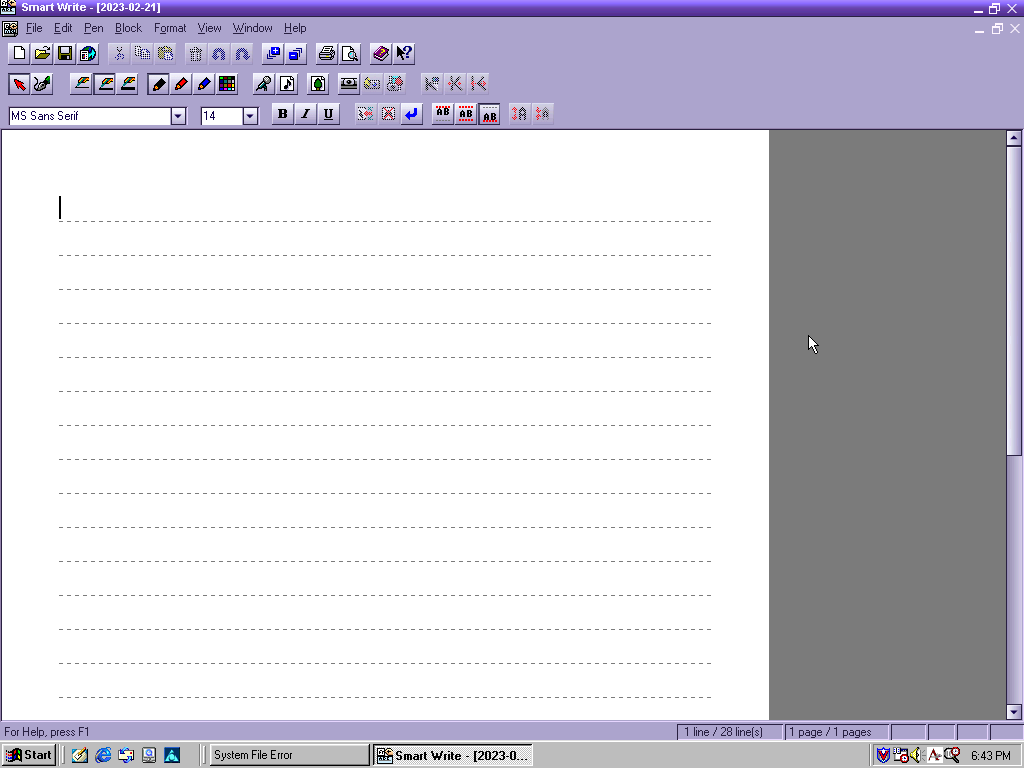
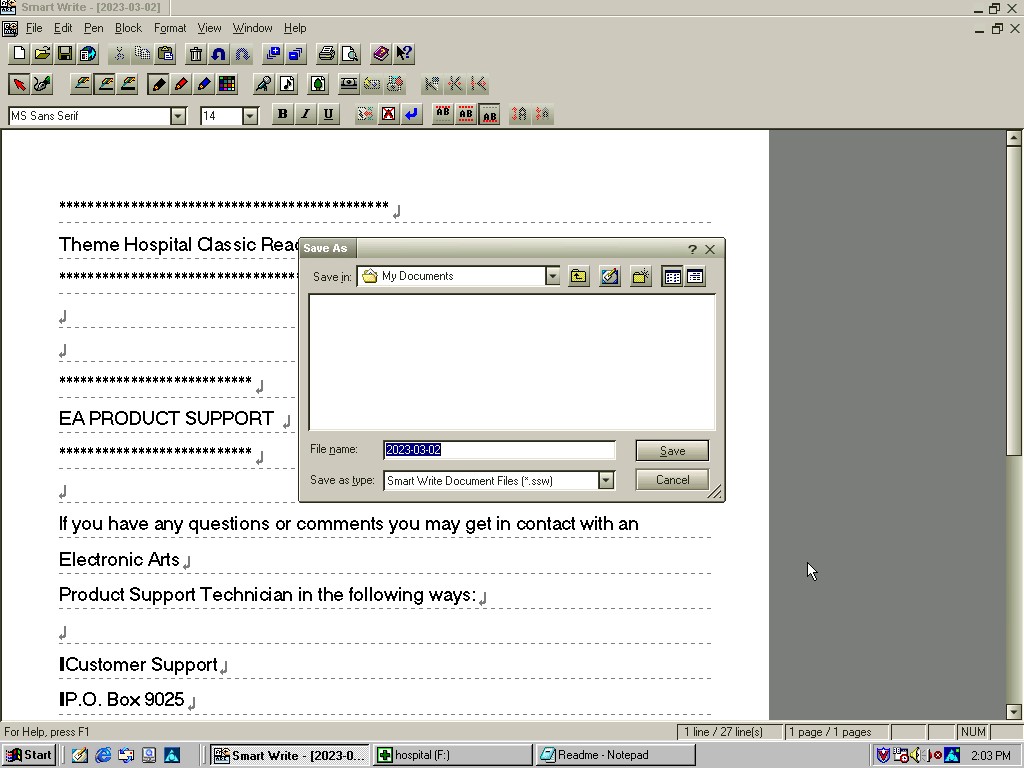
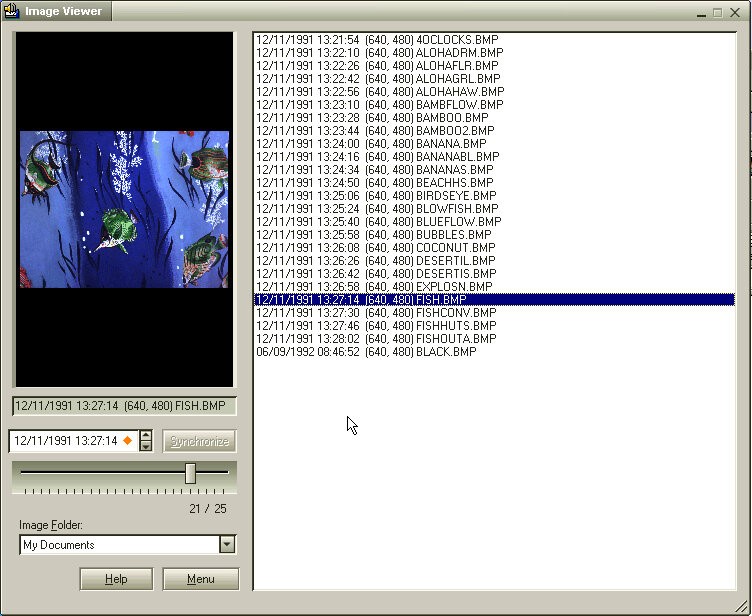
This appears to be an office productivity suite developed by Sony, at least licensed by them. It appears to use the VAIO colour scheme if one is set. Programs here include Smart Write (Word Processor), Smart Label (Lets you create birthday labels) and Smart Publisher which let’s you upload files to an FTP server, possibly HTML files for web use. There is also an image viewer which can be used to create labels that appear on the desktop.
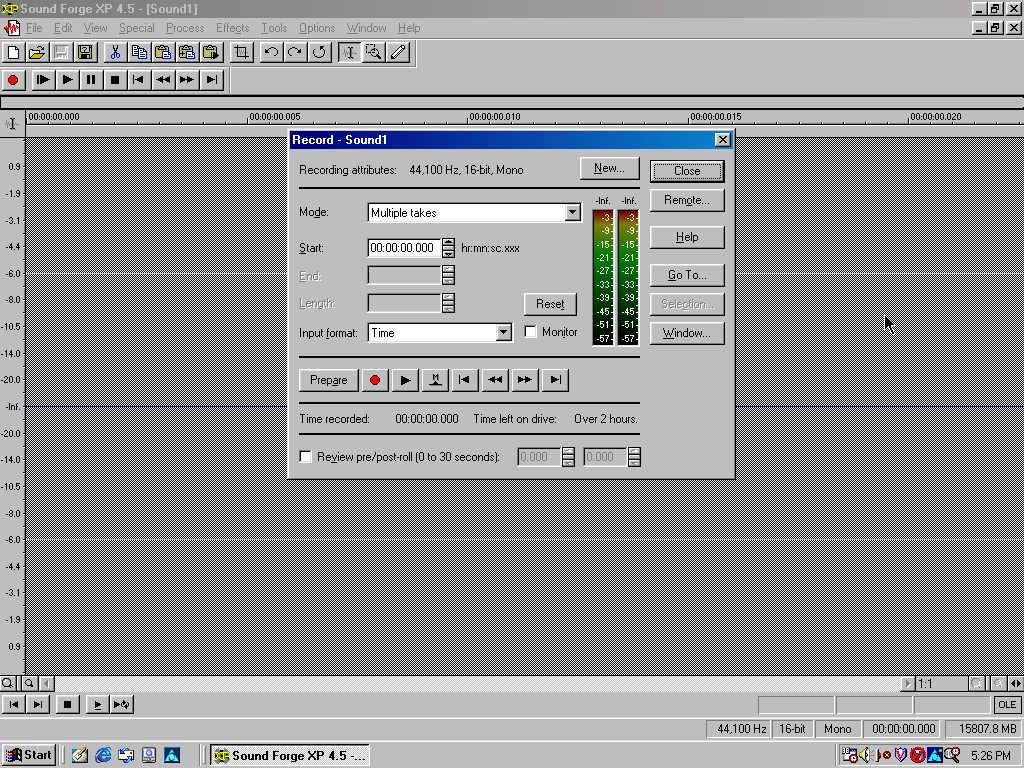
Sonic Foundary Sound Forge XP
Sonic Foundry Sound Forge XP is a digital audio editing software that was developed by Sonic Foundry and released in the early 2000s. The software was designed to provide professional-grade audio editing and processing capabilities to users, with a focus on music and audio production.
Sound Forge XP offered a wide range of features for audio editing and mastering, including tools for editing, processing, and analyzing audio files. Users could use the software to perform tasks like trimming, splitting, and merging audio files, as well as applying various effects, such as reverb, echo, and distortion.
Other Software
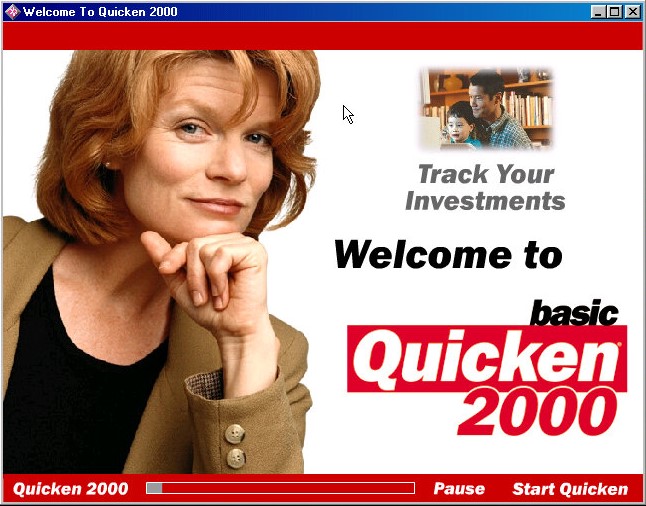
Quicken Basic 2000: Quicken Basic 2000 was one of the earlier versions of Quicken and was designed to run on Windows operating systems. It offered basic features and functionality, such as the ability to track income and expenses, create a budget, manage bank accounts and credit cards, and generate basic reports.
Netscape Communicator 4.5: Popular alternative web browser that integrates an email client, Some of the key features of Netscape Communicator 4.5 included the ability to display websites with advanced HTML features, support for JavaScript and CSS, and integration with various internet services like AOL Instant Messenger, Netscape Netcenter, and RealPlayer.
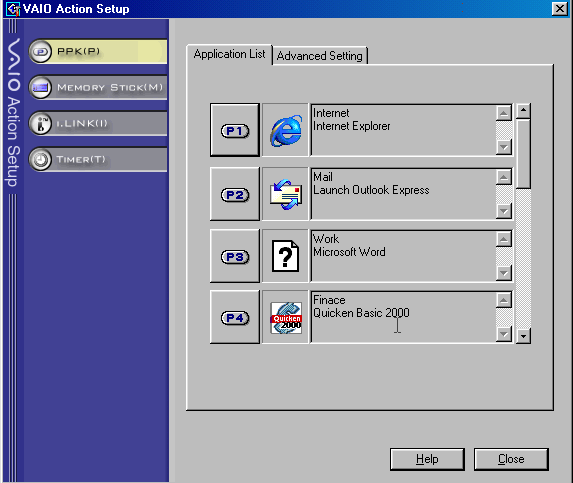
VAIO Action: Appears to be a utility to control the soft keys on the included keyboard and the applications associated with them.
Control Panel
There is a VAIO power scheme which by fault disables the monitor and hard disk standby.
There is an applet for the Aurreal Vortex sound card that was built into the systems motherboard which lets you adjust the sound capabilities of the system. Non functional as 86Box does not emulate this sound card.
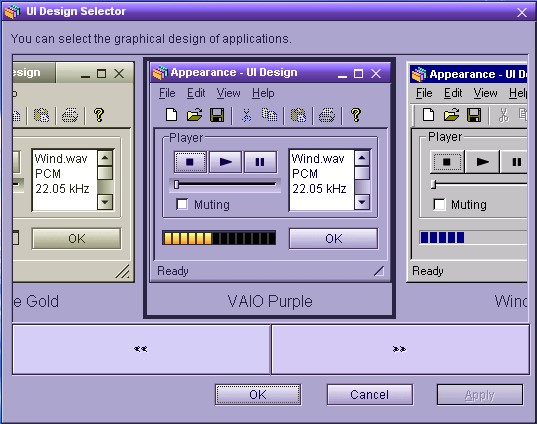
UI Design Selector: Lets you change the user interface for many of the VAIO applications, These do not use the standard Windows UI elements with Sony opting to use their own. Included schemes are VAIO Purple, Vintage Gold, Black and Silver and Windows.
A mid-2003 desktop PC that functions as a media center of sorts, and features dual optical drives (CD burner with a DVD reader) and remote control with an IR receiver. Some models featured an analog TV tuner and a dial-up modem fitted to one of the PCI slots.
VAIO Style
Recovery Wizard
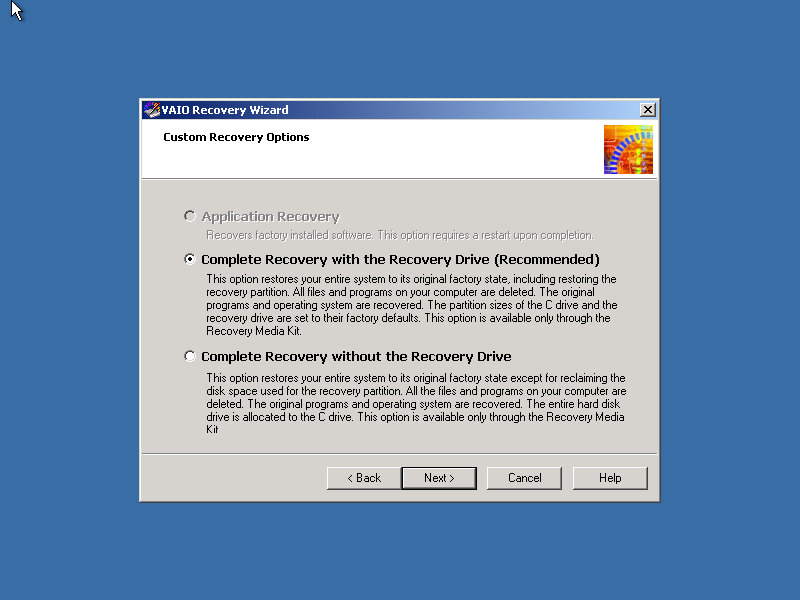
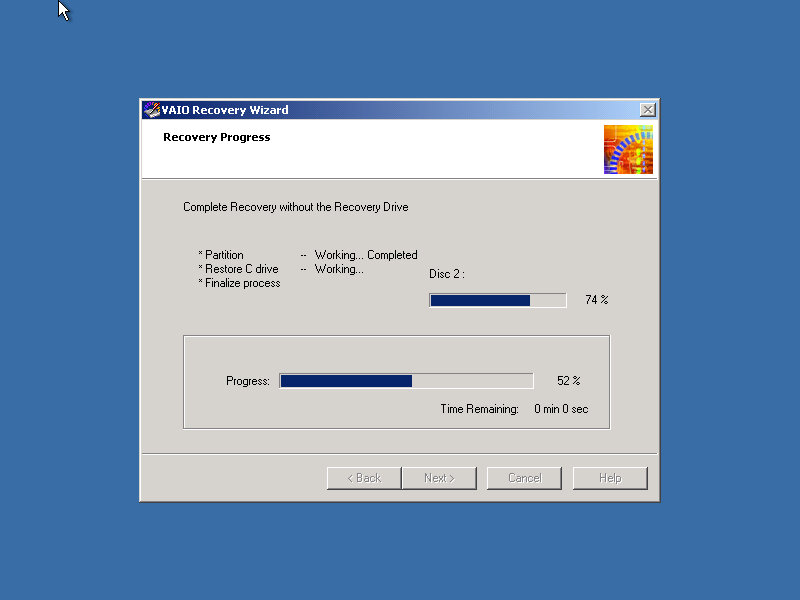
Our VAIO journey starts with the Recovery Wizard, which takes us through the formatting process.
Remarkably it looks like a Windows 2000 environment.
Post Install
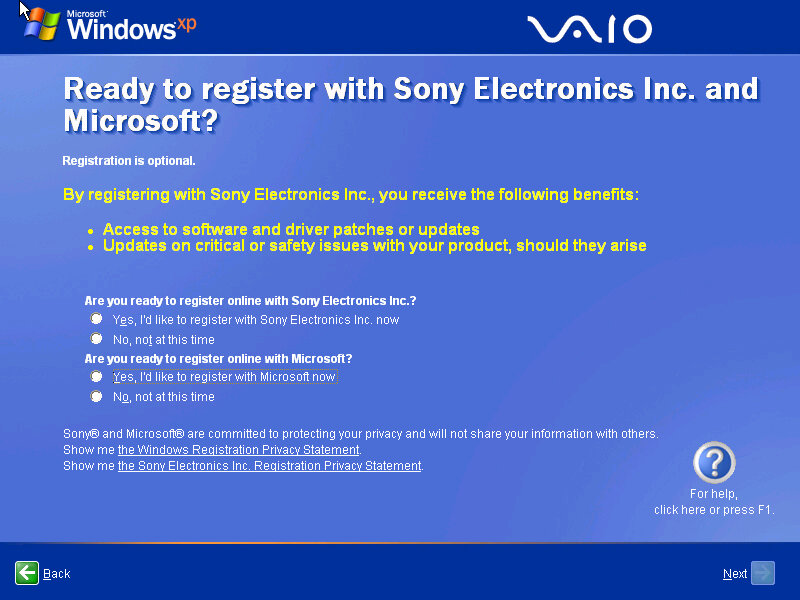
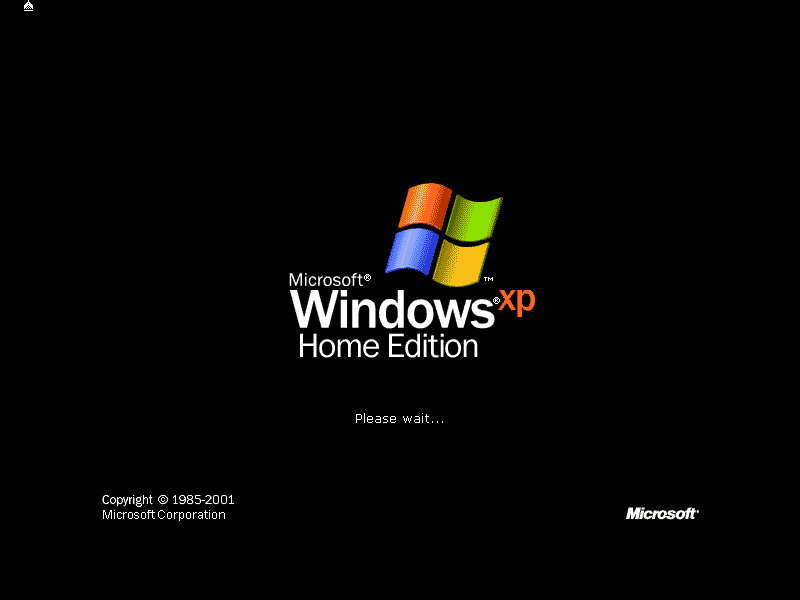
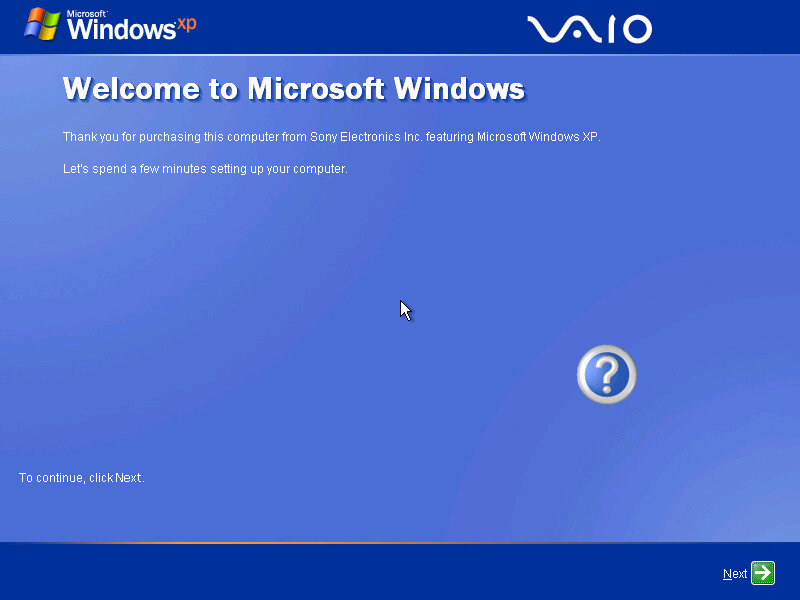
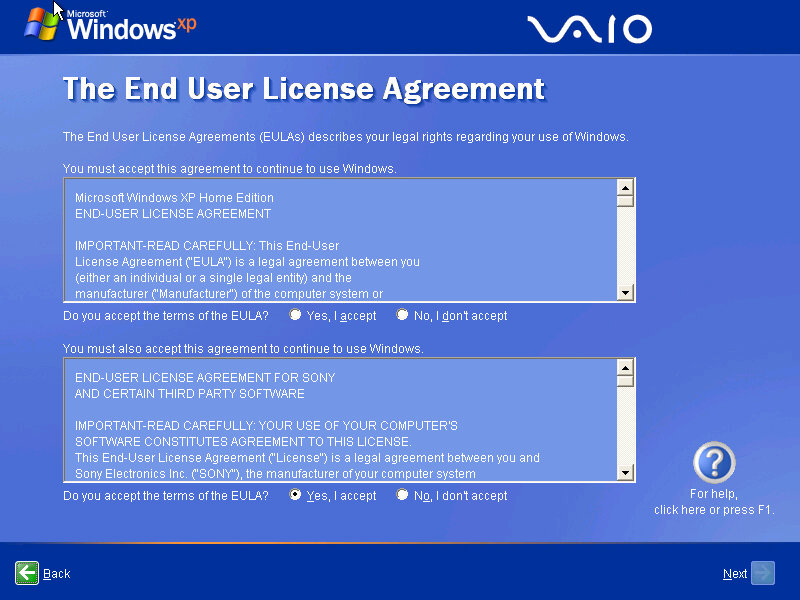
The Sony-branded OOBE, which presents the opportunity to register with Sony and Microsoft.
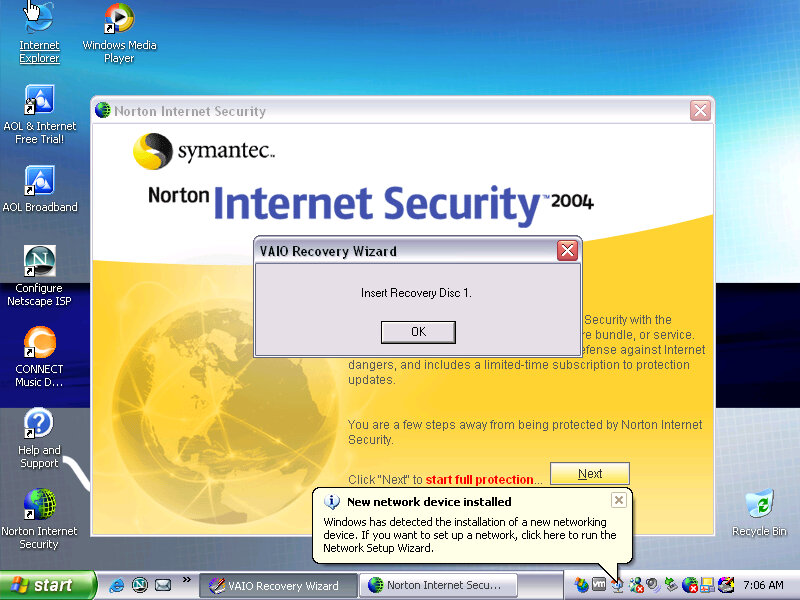
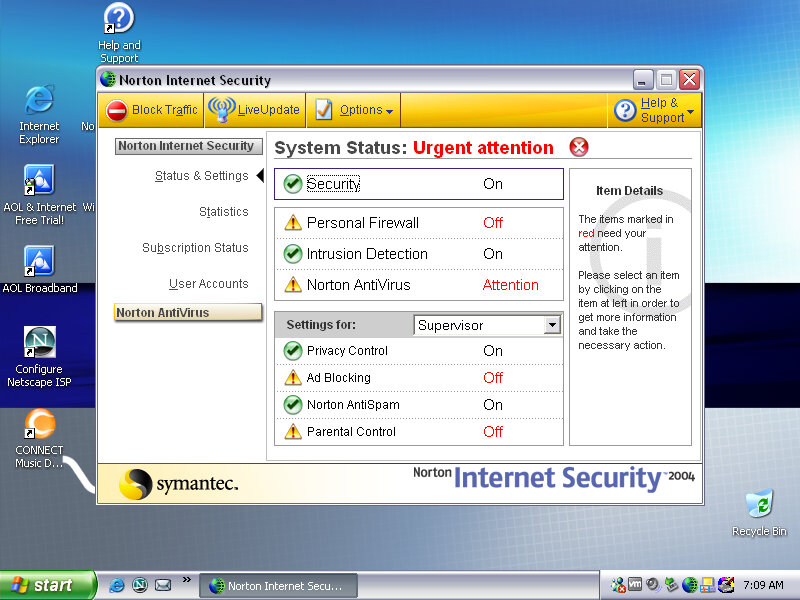
Norton Internet Security comes bundled with the laptop which provides virus protection for a year since it is activated, along with a firewall. Norton also integrates itself into Internet Explorer, providing popup protection. It also appears within Windows Explorer itself.
After the first bootup, we are prompted to insert one of the VAIO recovery disks, these are tied to the machine and will not work inside a virtual environment, and rely on different copy protection
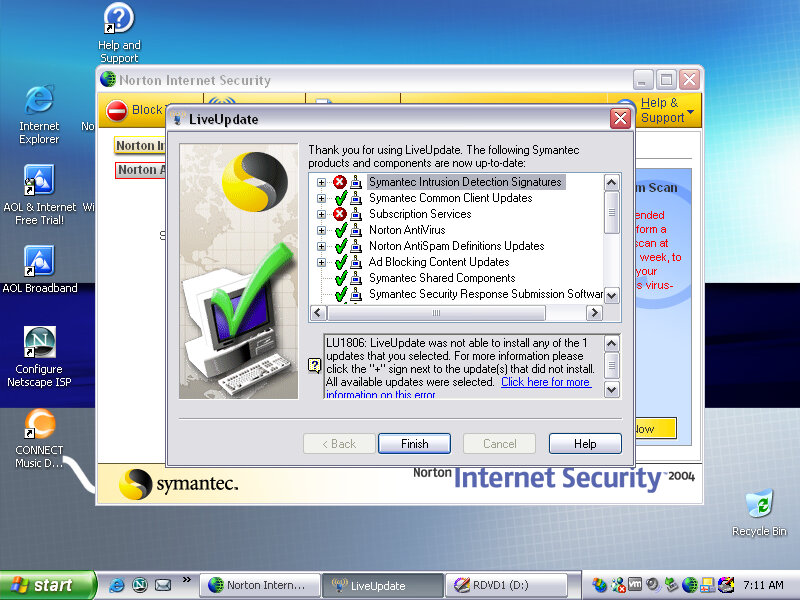
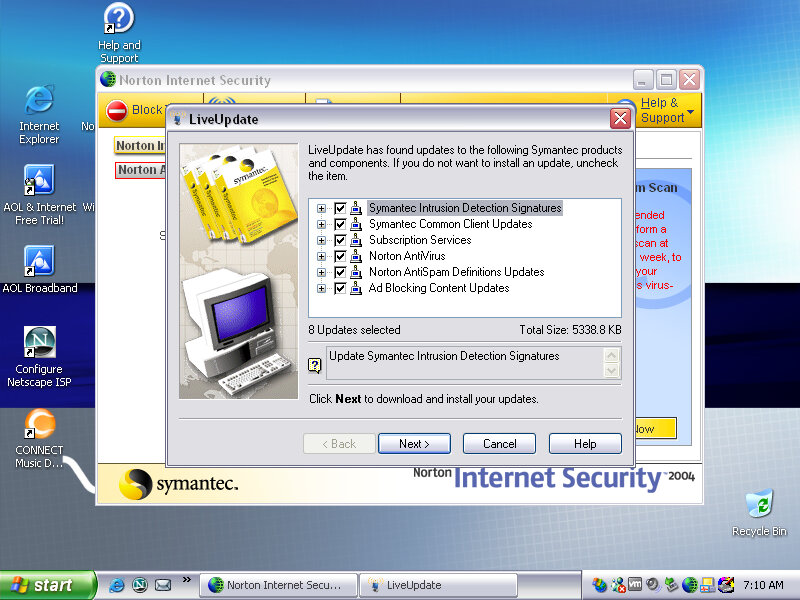
Interesting, Norton seems to be able to pickup and download a few updates, considering this product is nearing 20 years old that’s quite impressive. But I doubt these cover the latest virus definitions, Norton possibly still operates the server that holds these aged definition updates.
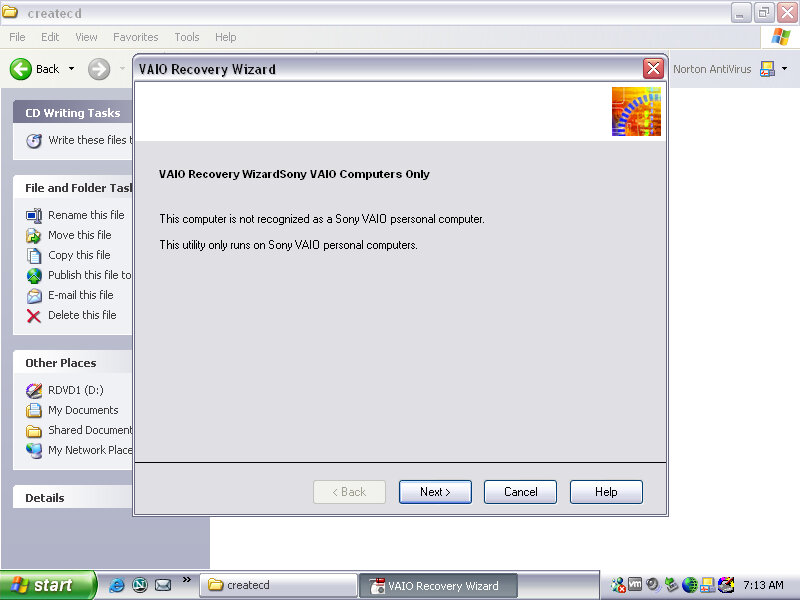
There are a few programs missing since the final part of the recovery wizard specifically checks that you are running on a Sony VAIO PC. I wonder if this checks for the exact model, or if there is just the Sony string in the BIOS, would this work for other Sony models?
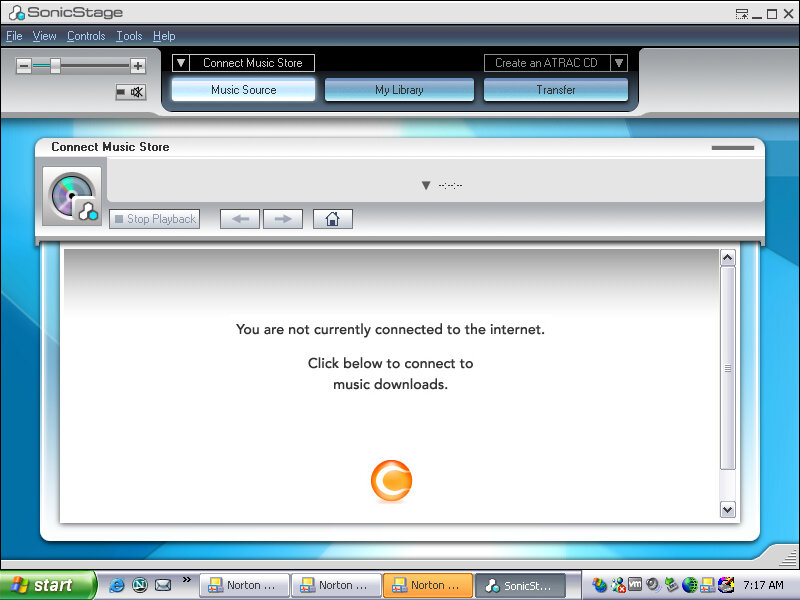
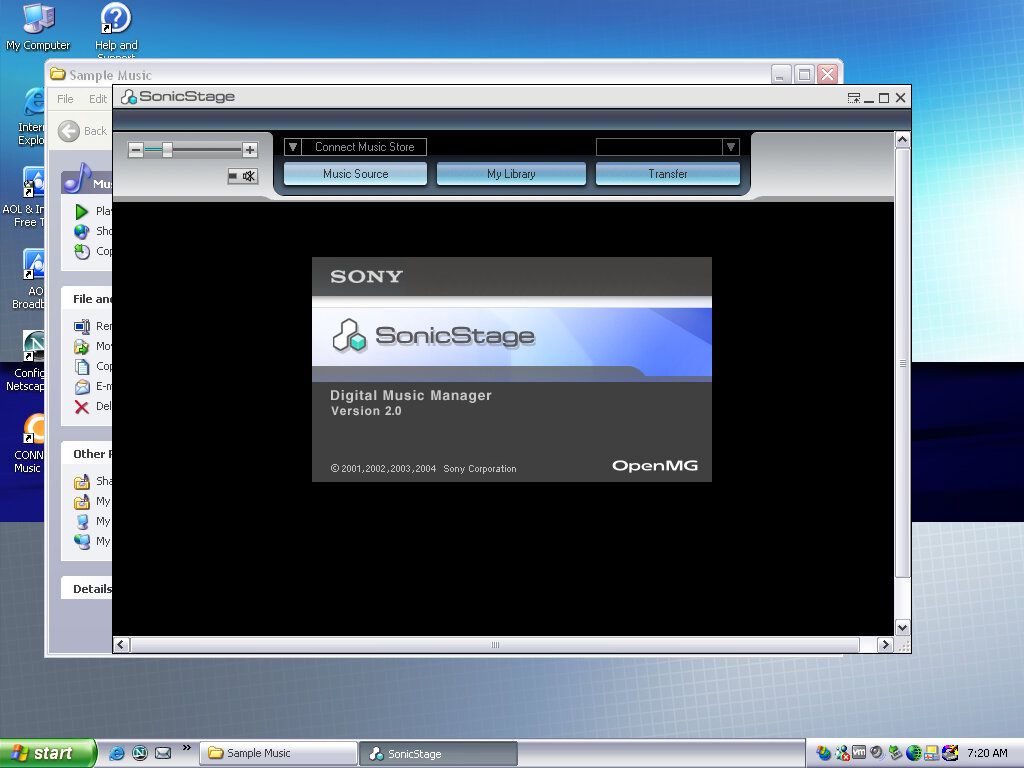
SonicStage
SonicStage was the software used to manage and playback Sony’s ATARC format audio, which was their own property audio format that was initially used on the first MiniDisc models, and was later used for their Walkman digital music players. ATARC was more efficient than MP2 and MP3 at higher bitrates but compared less with AAC or WMA. ATARC was also only supported on Sony products, and even then not all of their electronics supported it, Sony Ericsson phones in Europe had no support for ATRAC, and neither did the first PlayStation or the PlayStation 2, with the PS3 introducing support for the codec.
SonicStage was very similar to iTunes in concept and acted as a way to play purchased songs from Sony’s CONNECT store. As these files were protected by DRM, an account and correct authorization was required to playback the songs purchased by the user. SonicStage could also sync and transfer songs to supported Walkman players, and only Walkman players.
This was during a dark period of time where record companies insisted that much purchases online had to be digitally protected using some form of DRM, which meant purchasing music from one vendor would mean you could only play that track on software or a device that the vendor had support for. This meant music purchased from iTunes could not be played back on a Walkman or a Microsoft PlaysForSure device without burning it to a CD, then reimporting it as MP3 or whichever format the program and device supported, basically the analog hole.
Was it any wonder people turned to piracy?
DRM free music stores later came about, and many vendors eventually started offering DRM free downloads for their songs and all was well. Then the music industry went one step further and insisted streaming was the next best thing, meaning you no longer owned or had direct access to music, instead of being steamed from the cloud for a monthly fee.
As for Sony, the CONNECT store closed down in 2008, and Sonic Stage was discontinued and replaced a few years later with MediaGo, which was mainly intended for the Sony PSP but could work with compatible Walkman devices. Sony would later try again in the music market with Quircity, a streaming playroom before being rebranded to PlayStation Music, and then been killed off in favor of Spotify on the PS4.
For a company that has its own major record label, Sony does suck with online music services.
Screensavers & Wallpapers
Theirs a VAIO screensaver bundled which is a bunch of stock photos taken with a few transition effect applied, with stock music being placed in the background.
You can of course customize it with your own photos, or memes if that is more your thing.
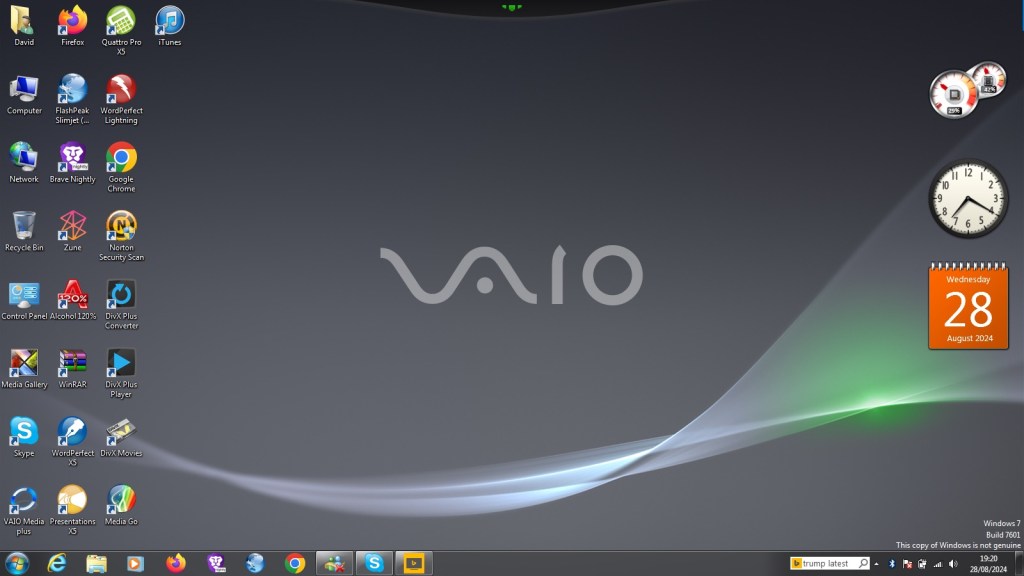
Various backgrounds, these would blend in with the laptop design and supported a variety of resolutions (whilst the internal LCD would use its optimal resolution, Sony provided different wallpaper resolution’s in the event you connect an external monitor.
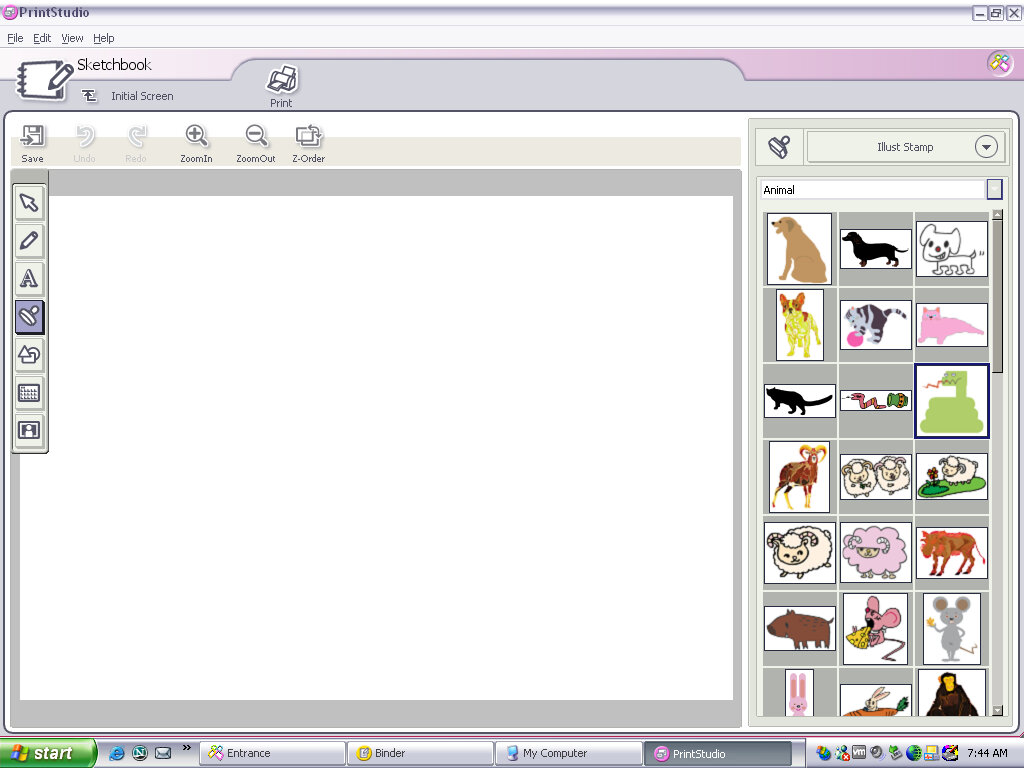
PrintStudio
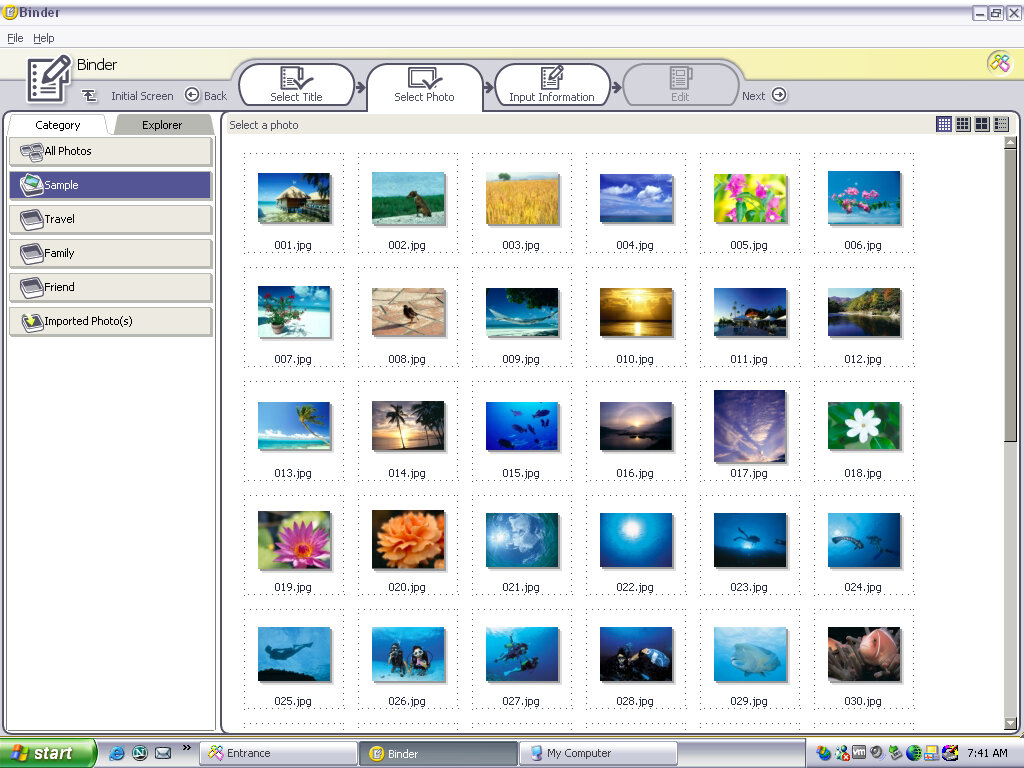
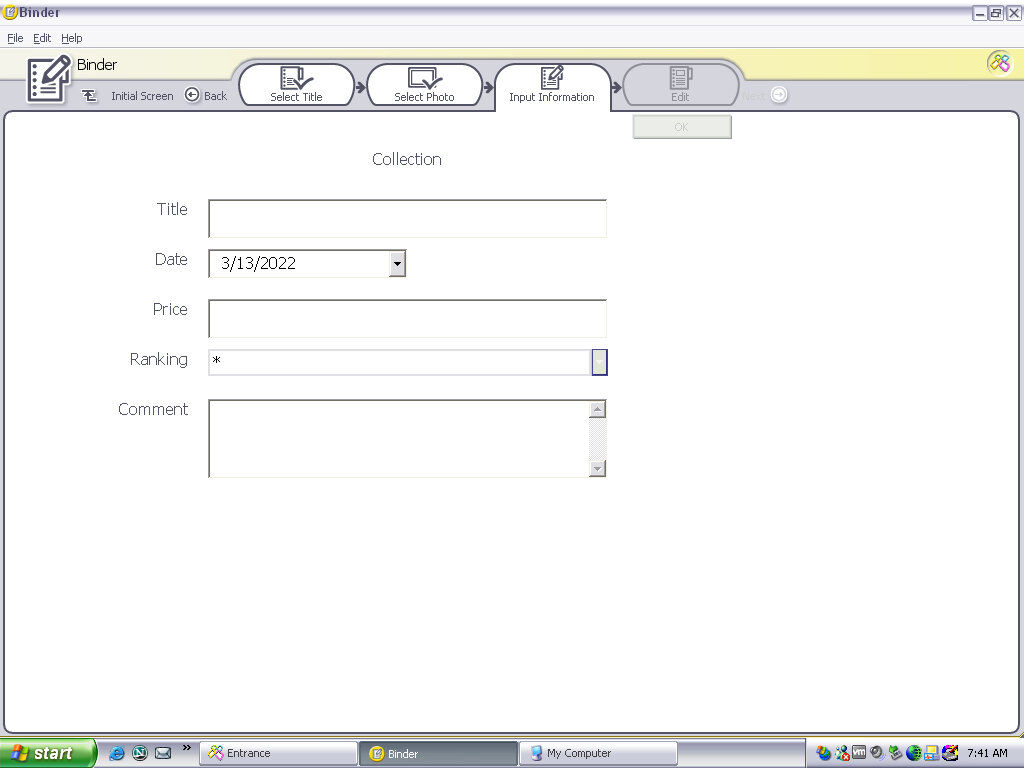
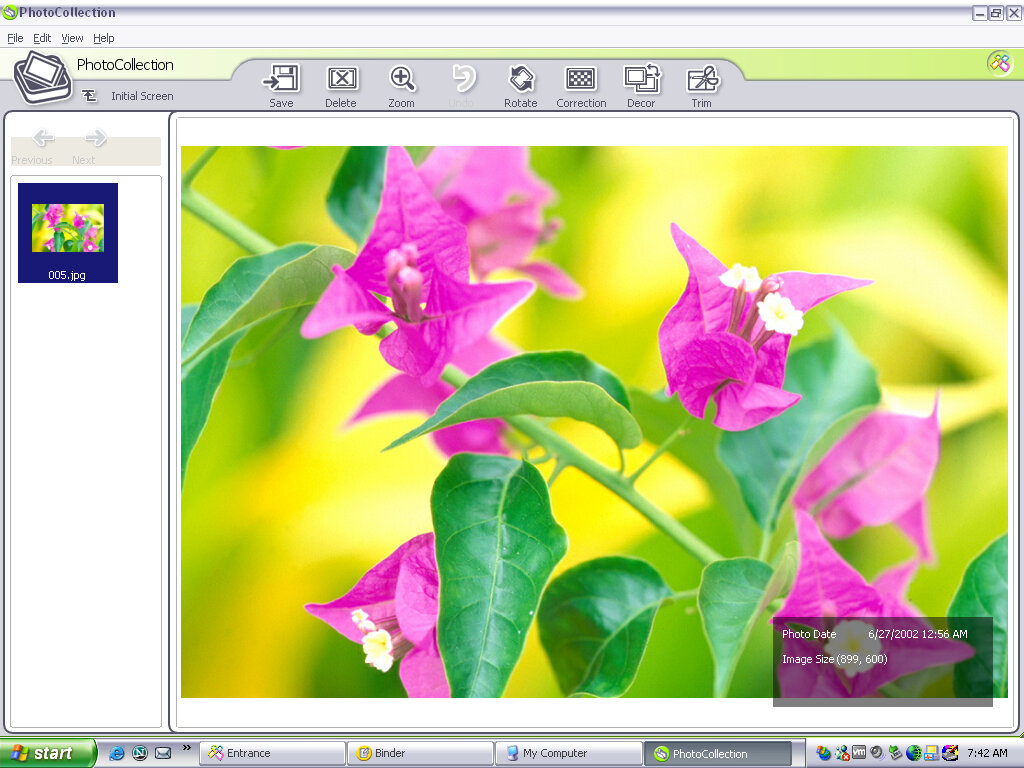
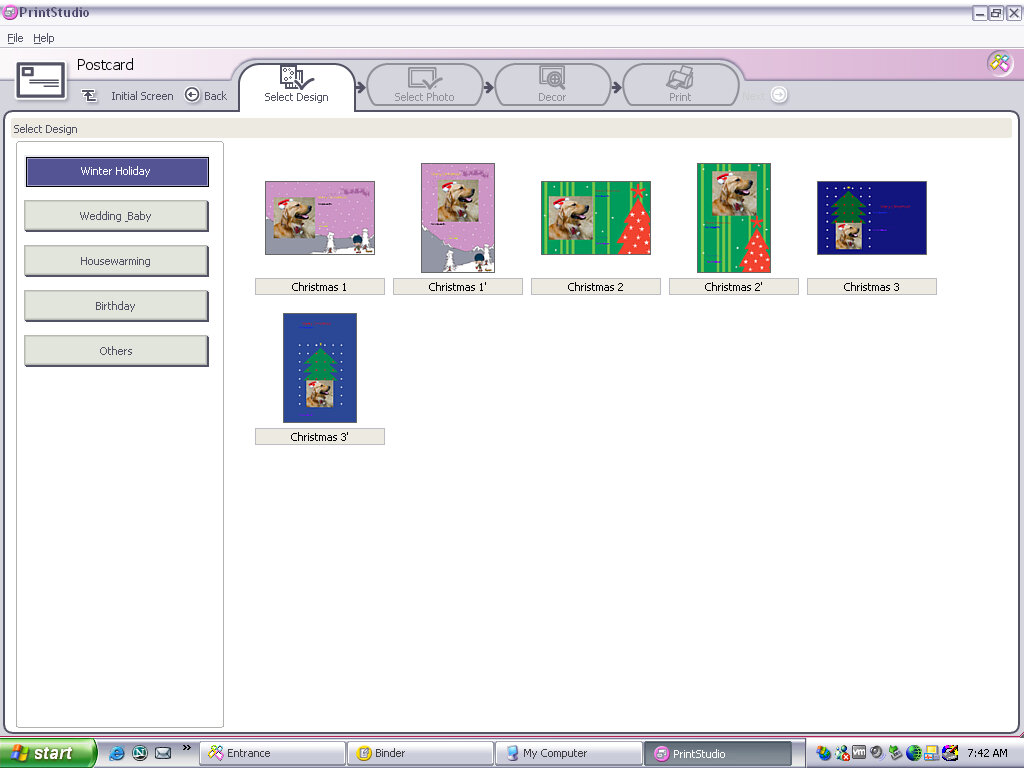
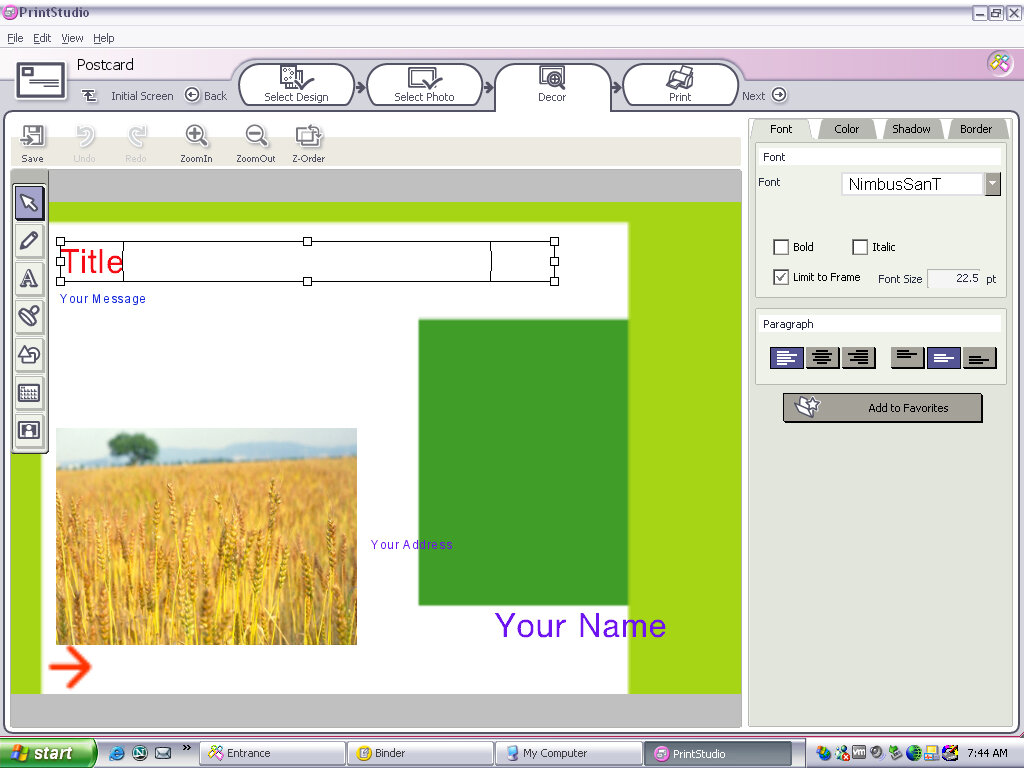
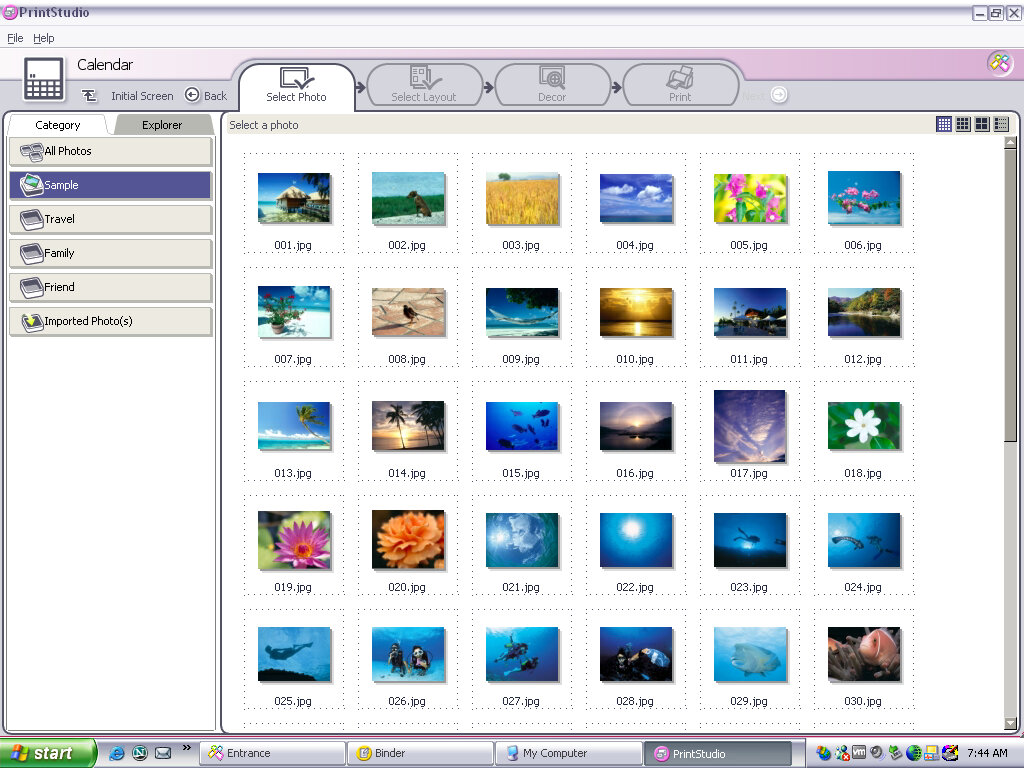
Appears to be a creative photo editing application where you can import photos from a digital camera (maybe a Sony CyberShot camera) and apply effects or add clip-art to them. You then have the option of printing these out or attaching them as an email. you can also create greeting cards with this, so it acts similar to Microsoft Publisher in a way,
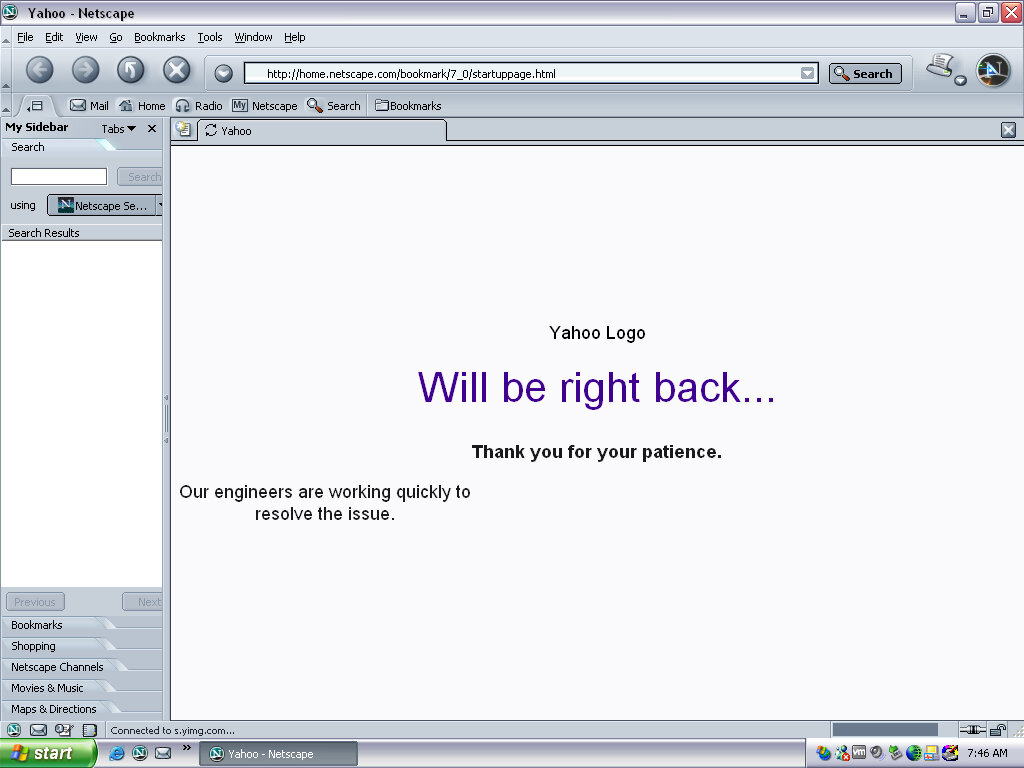
Netscape browser version 6, a popular alternative browser (Didn’t Microsoft discourage OEM’s from doing this? Sony clearly didn’t give a fuck)
Moodlogic
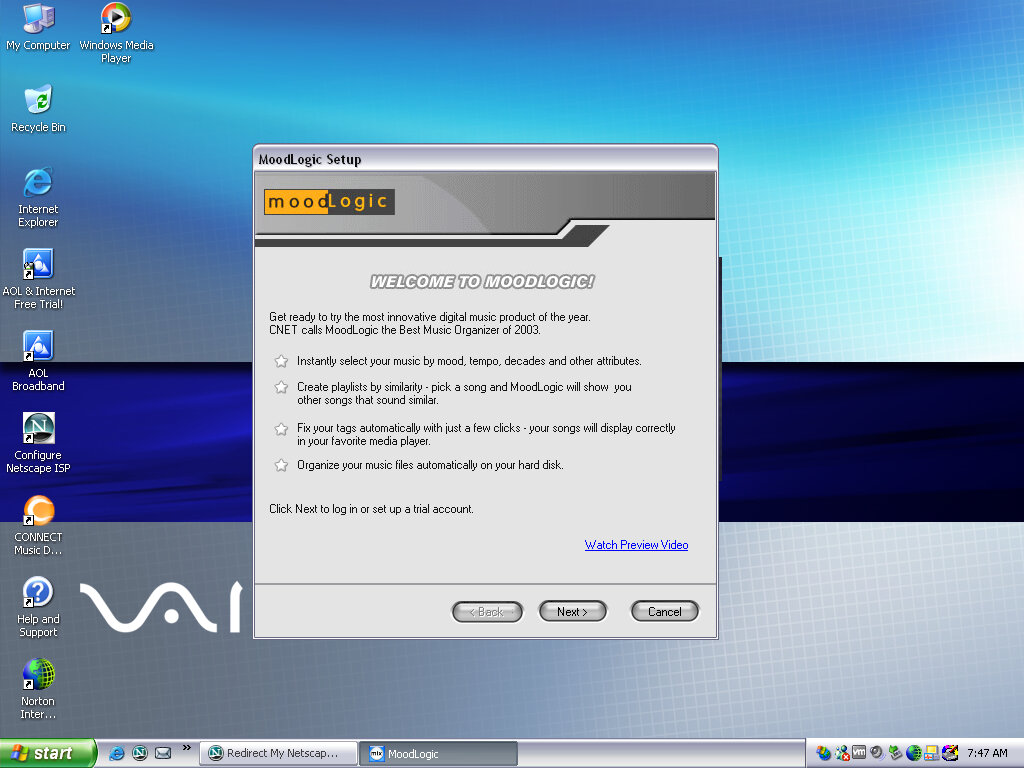
I think this is some sort of last.fm service from before its time, where it will organize and find similar artists depending on the ones currently in your library, whilst organizing your current music collection. This no longer works and requires a connection to a server that is long since defunct. It sort of similar to Apple Genius playlists.
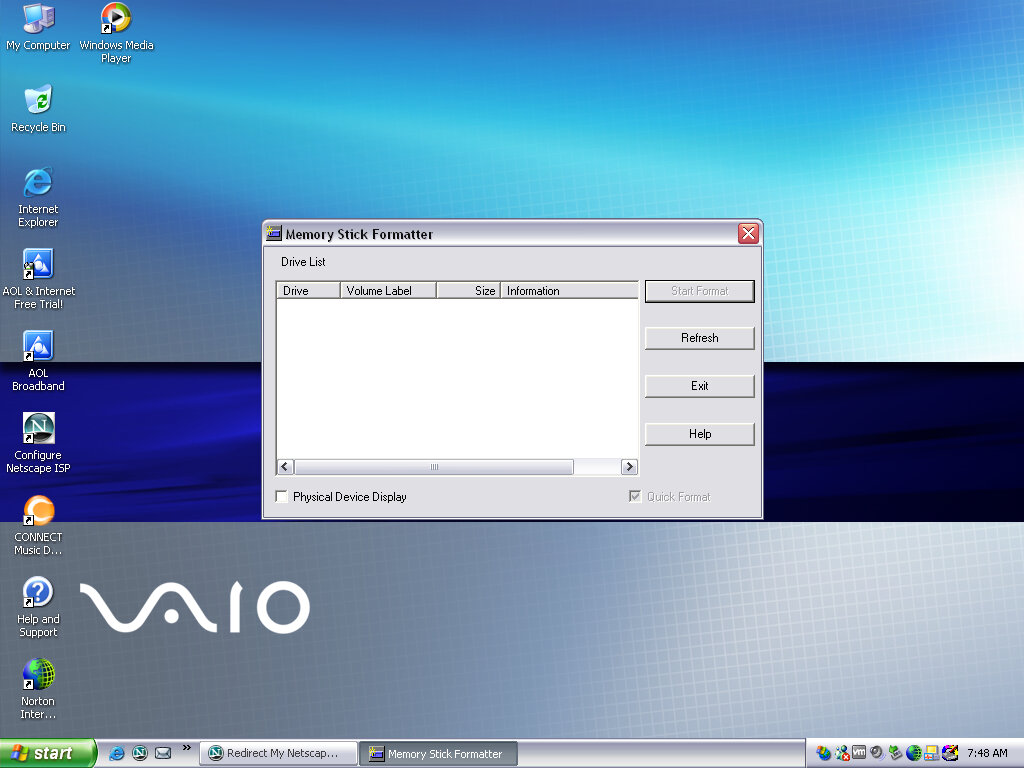
Memory Stick Formater
Formats a Sony Memory Stick, nuff said. Not sure why you can’t do this in Windows Explorer, possibly due to Magic Gate encryption?
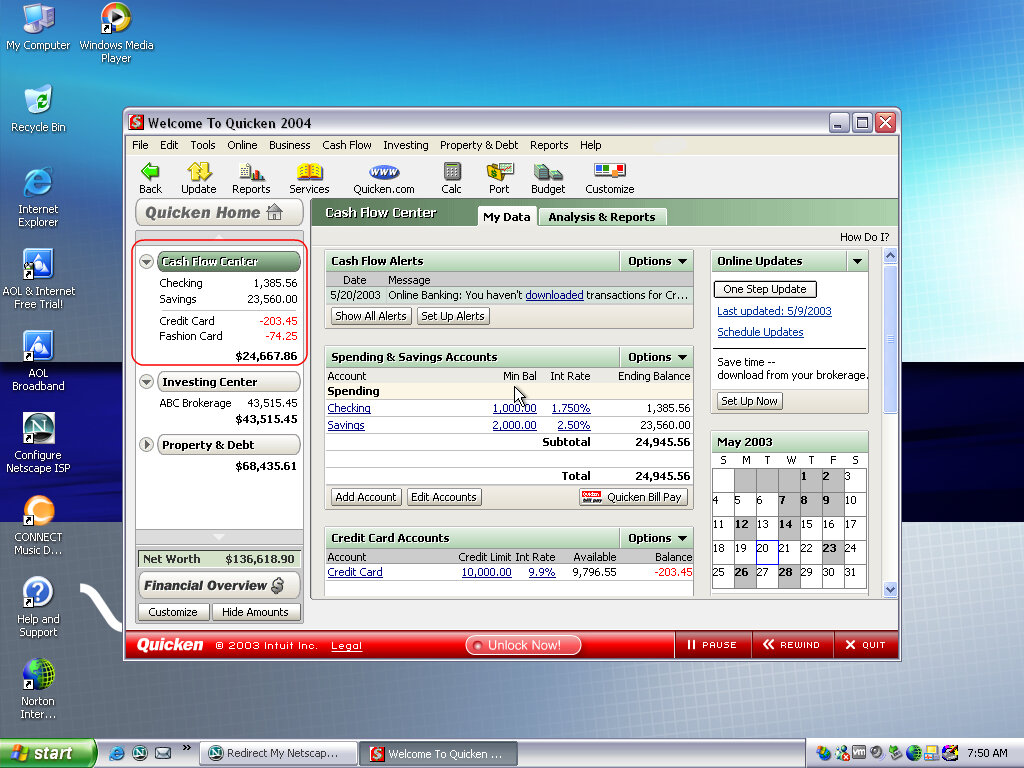
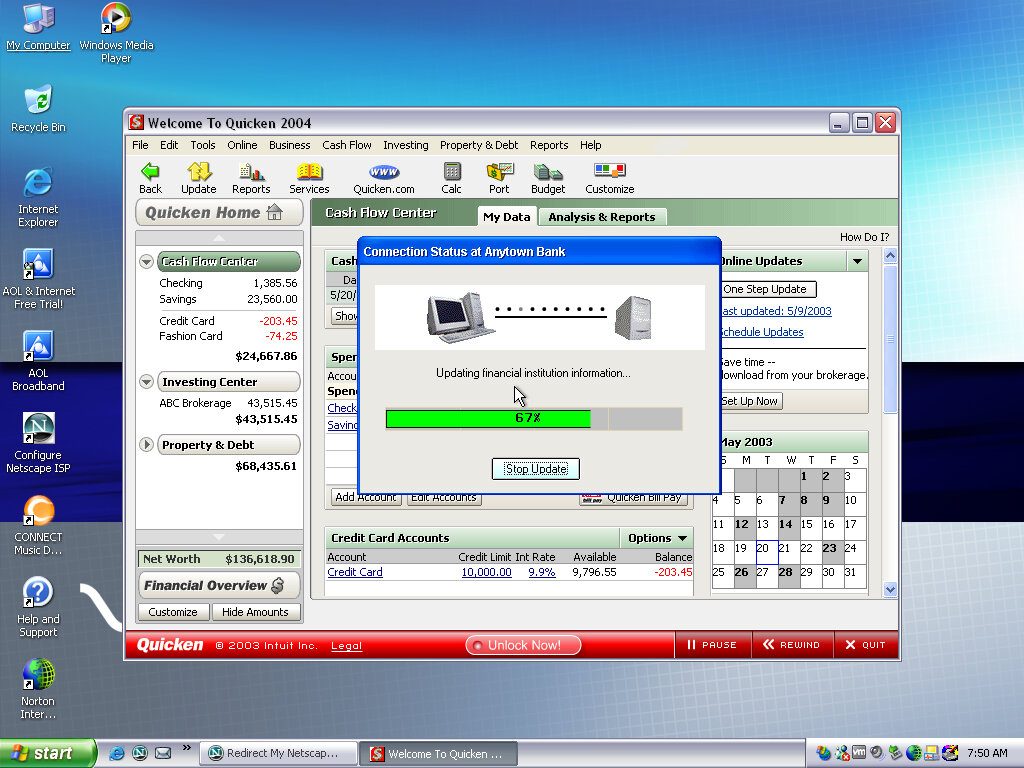
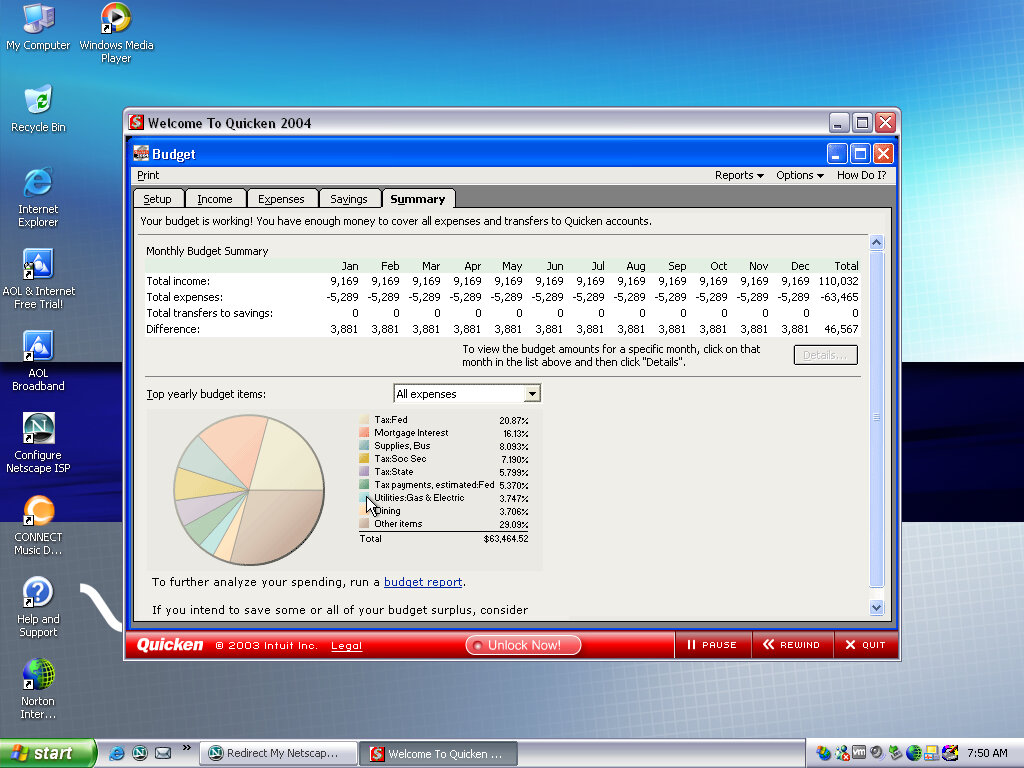
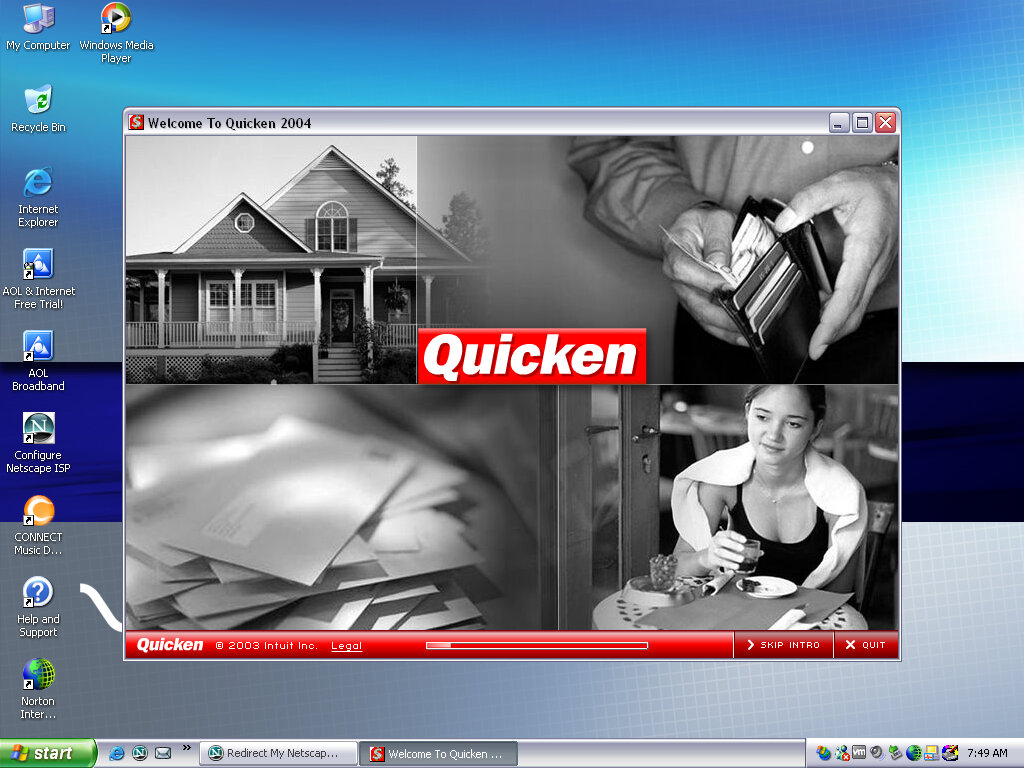
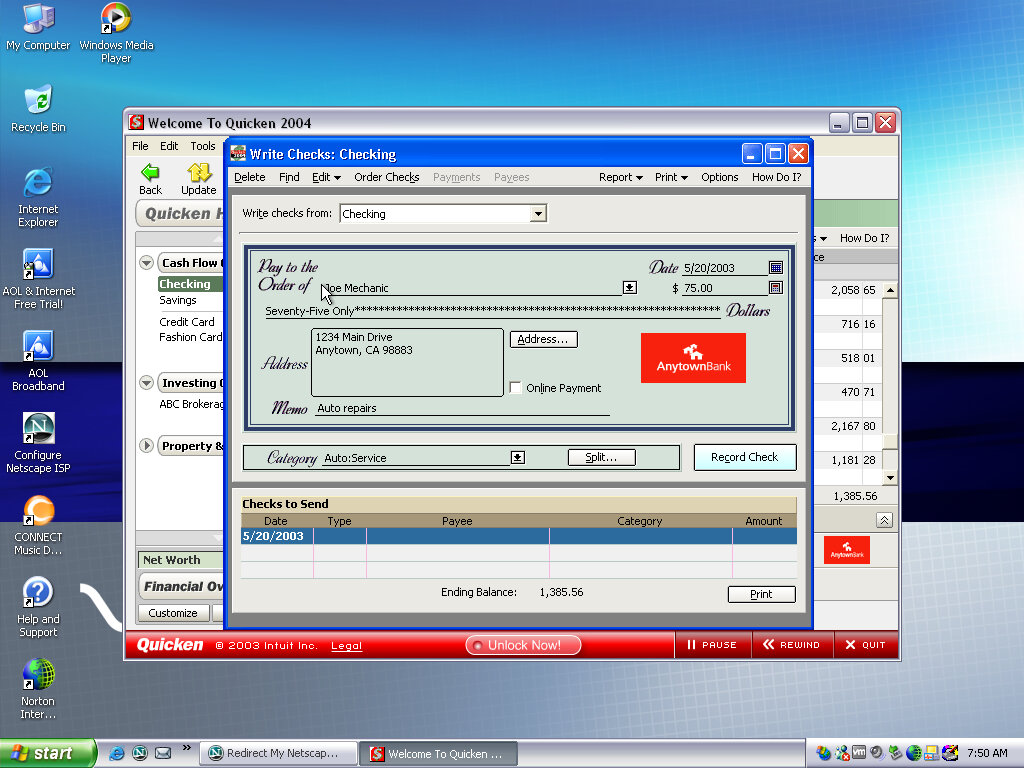
Quicken 2004
Software that Sony loved to bundle with their VAIO systems, is some sort of account and spending management software.
AOL
An advert for AOL, looks a bit basic for 2003 standards.
Another machine that’s supported by 86box and has a recovery CD available online
A desktop PC with a Pentium 166Mhz (No MMX), 32MB of RAM (Although we will be giving it 128MB, the max amount), an 8X CD-ROM, floppy drive, and a 2.1GB HDD. The PCV-90 was a higher-end machine and featured the Pentium at 200Mhz and a 2.5GB HDD. Both systems use the ATI RAGE 3D graphics card with 2MB VRAM.
Setting Up
86box does not support all of the hardware that the PCV70 shipped with, the ATI RAGE graphics accelerator is missing and currently un-emulated so we had to substitute another graphics card instead.
Recovery Disc
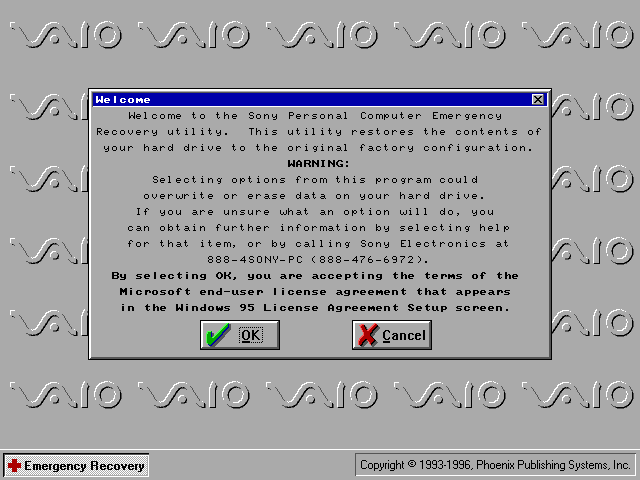
A copy was posted onto the Internet Archive which was the full backup disc that shipped with the computer, which was intended to restore the PC back to factory shipped state. This is where we encountered issues, the recovery utility rightly detected that the hard drive was unformatted since this was a new machine VHD, and instructed me to exit the interface and run a command, which would have initialized the disc. But these commands fail to run, they appear to be batch files that would have run FDISK with a specific argument to create the disc. There are two of these, one for each model since both models had different hard disk sizes.
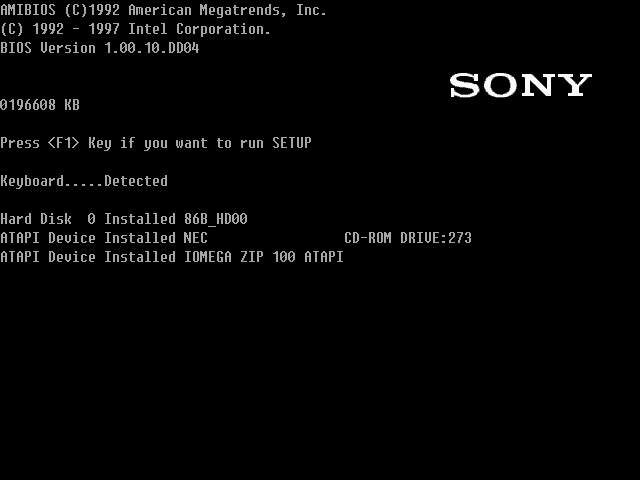
When the CD-ROM boots, it mounts a virtual floppy drive to drive A: and the actual floppy drive is moved to B: This image is located as an IMG file and can be extracted and mounted in modern Windows. For some reason when this IMG file is booted, it loads some sort of customized boot disk but fails to load the CD-ROM drive despite it being detected by the Windows 95 or 98 bootdisks. As a result, the recovery utility cannot see the CD-ROM drive since that is running off the virtual floppy drive mentioned earlier. The reconvey utility is non-functional due to the lack of CD drive detected by the emulated boot disk, likely Sony is using a custom boot disk that came with its own set of drivers. When the driver loads you can quickly see an error message informing no CD drivers were found.
So in order to make these CD’s work with 86Box we are going to have to work around them
Solution
The easiest way was to install Windows 95 RTM, then boot into the recovery program and have it overwrite the files and replace the install, this also involved initializing the disk. To save time I would opt for a minimal install and use the RTM version instead of the later OSR releases as that’s the version Sony used (They actually used the plus pack version, which is integrated into the recovery image and gets installed regardless)
Once Windows 95 is installed and fully bootable, I had to trick the recovery utility to load files from the G: CD-ROM drive, but the regular Microsoft boot discs will place the CD-ROM drive as D: which the Sony utility will refuse to see. Multiple ways to do this was: Both methods work best when you have a basic Windows 95 install, this is because the recovery software has issues writing to the bootsector.
Method 1: Bruteforce SCSI
Add a supported SCSI adaptor to the 86box machine, and add a load of both IDE and SCSI CD-ROM drives with the hope one of them would become the G: drive.
I would then use the Windows 98 recovery disc, which has the SCSI drivers to detect the drives and load the recovery program. Once the boot disk environment had loaded, verify the C drive was accessible (If not FDISK it using FAT16). You have to type ‘lock C:’ to enable full access to the C: (See the Note below) Then I mounted the extracted OSBOOT file as a floppy disk in 86box. This was done by extracting the OSBOOT file from the iso and mounting it after the Windows 98 boot disk had loaded, once mounted I ran the recover.exe file and mounted the actual iso image under the G drive.
Once the recovery utility loads, select restore system without format, and it should begin the restore process, where it will copy the files onto the C drive, once completed you can reboot the system and it will go through the initial setup procedure. Remember to eject any floppy discs
Note: The version of DOS that the Windows 98 bootdisk shipped with disables direct writing to the C: drive by default unless the lock C: command was used before the recovery software was loaded. Even then the software had issues writing to the boot sector, so even after transferring and unpacking the files we were still left with an unbootable system. This is why I advised installing an RTM version of 95 then using the recovery utility to overwrite it with the Sony image.
Once the OS is installed you can remove the SCSI drive if you prefer.
Method 2: Modify the 95 bootdisk (Recommended)
Here we modify the existing Windows 95 boot disk to set the CD-ROM drive to be G: instead of D: The easiest way to do this was to mount 9Make a backup first) the bootdisk in a working Windows install or use a third-party utility, and edit the AUTOEXEC.BAT file on the root of the boot disc and change the line:
LH A:\MSCDEX.EXE /D:mscd001 /l:d
See the /l:d We want to change that to /l:g instead Then save This tells the DOS driver to start allocating CD-ROM or ATAPI drives from G: onwards
Now we mount and open the OSBOOT.IMG that was extracted from the Recovery CD, and pinch some files off it, namely the recover.exe, recover.ini, profile.ini and sony.exe All four of the files total 236KB and we want to copy them to the Windows 95 boot disk, If you run out of space there are a few utilities like regedit that can be deleted off the boot disk. Save and then mount the modified boot disc and boot the machine into it. If prompted on the startup disc, load the NEC IDE CROM driver. If everything is correct it should show
Drive G = Driver MSCD001 unit 0
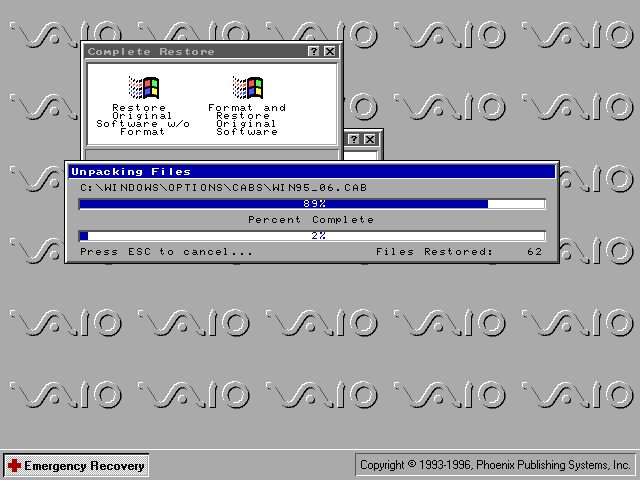
At the prompt, type recover then hit enter (Should be on the A: drive) The recovery environment will then load Select Complete Restore Select Restore Original Software w/o Format You may get a few error messages that it was unable to copy certain system files, I believe this is related to the boot sector files I indicated earlier, as long as your original Windows 95 install was bootable then the recovery should work regardless.
I should note that despite testing both methods, both methods result in missing applications like Netscape Navigator. This wasn’t so much of an issue since I could reinstall them alter, and the recovery CD has dedicated options for reinstalling both browsers anyway, along with Microsoft Works and Money.
Update: It seems I had to do another reinstall, and on that one it did install both Netscape and Internet Explore, not sure what I did differently?
We had to substitute a few device drivers in order for us to have a working system
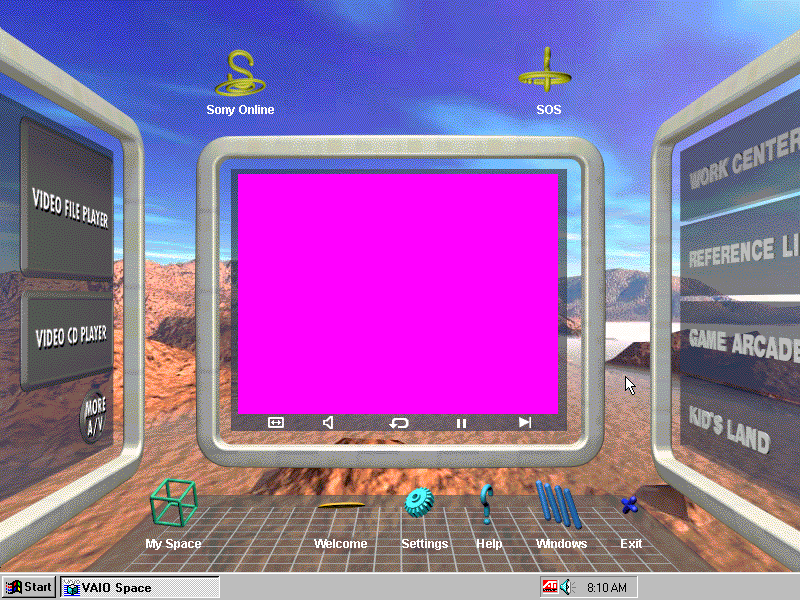
The ATI RAGE card is unemulated in 86box, instead, I used an ATI MAch64VT2 instead. Do note this card lacks MPEG decoding support so some video sequences will be corrupted and will just display a pink color screen
The Yamaha sound card was also unemulated, instead, I replaced it with a Crystal ISA soundcard instead. The originally bundled utilities will still function to an extent.
There is a shedload of software bundled with this VAIO PC, with many titles requiring an additional CD-ROM to be inserted in order to run, which would have been bundled with the system.
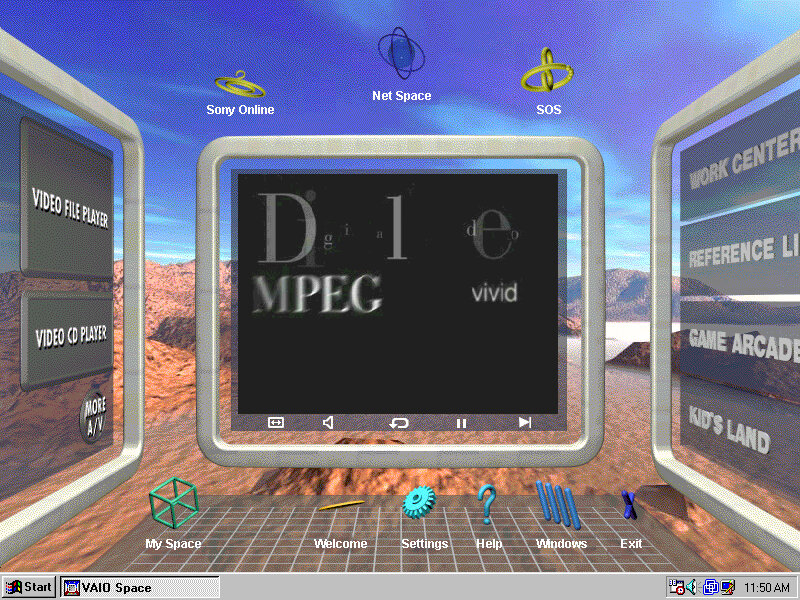
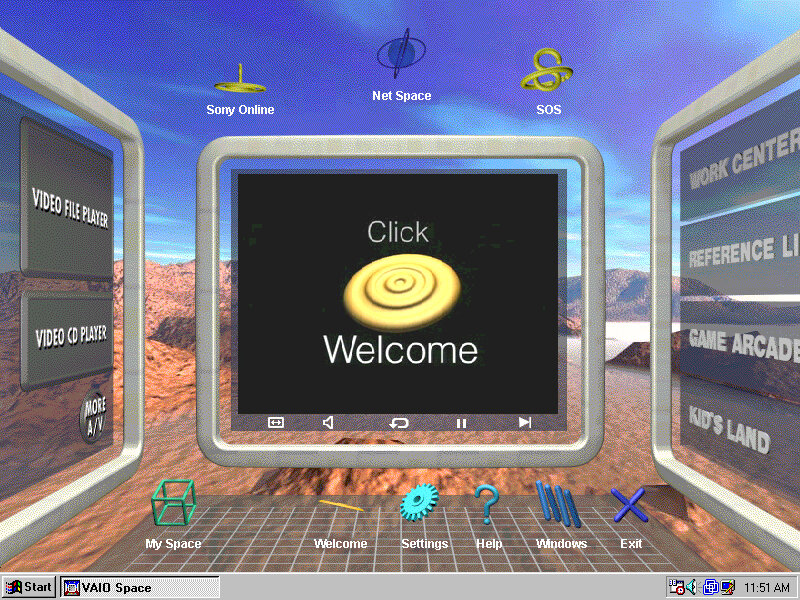
VAIO Space
This was the default launcher that came with the system and would run in place of the Windows desktop, similar to the Packard Bell navigator and RM Window Box, oh and don’t forget Microsoft BOB. VAIO Space tries to take full advantage of the hardware that Sony offered and many parts of the launcher make use of MPEG video (which isn’t functional in 86box since no graphics card can accelerate MPEG video, so your left with pink squares instead.
There are a few different areas of the VAIO Space that contains links to dedicated applications: Home: Features links to My Space, a Welcome demo, the setting page. The Windows button takes you back to the 95 desktop My Space: Add shortcuts to your favorite applications. Windows: Take you to the Windows 95 desktop Help: Gives you a short description on how to use the VAIO Space utility
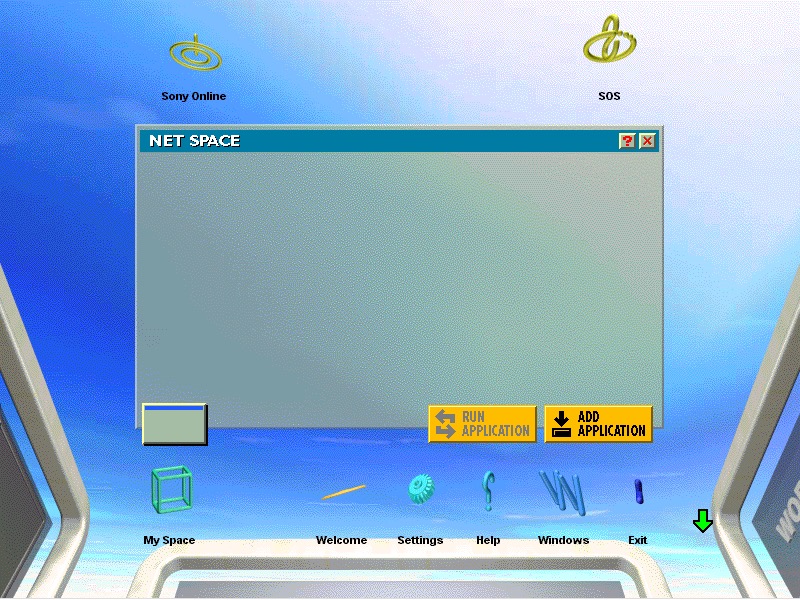
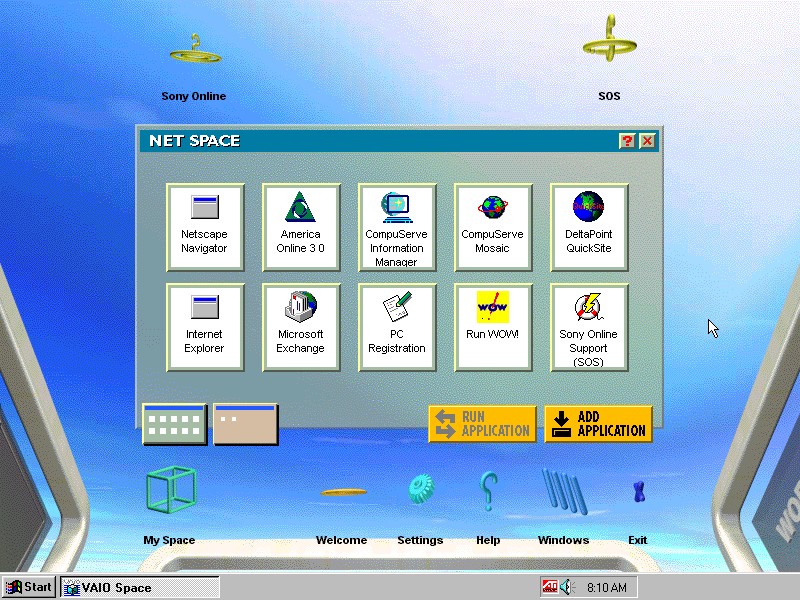
Net Space Accessible by clicking towards the top of the screen, this takes you ‘up’ and gives you a selection of internet applications like AOL, Netscape and Internet Explorer which were not installed on my system. There’s also links to Sony’s online website and an SOS button which opens up a phone dialler to dial 911
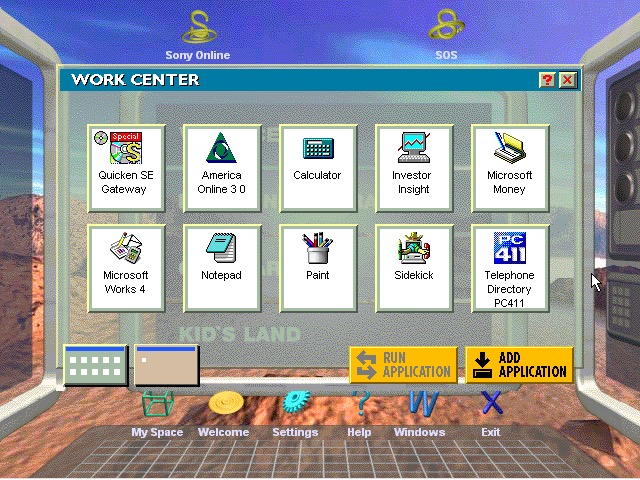
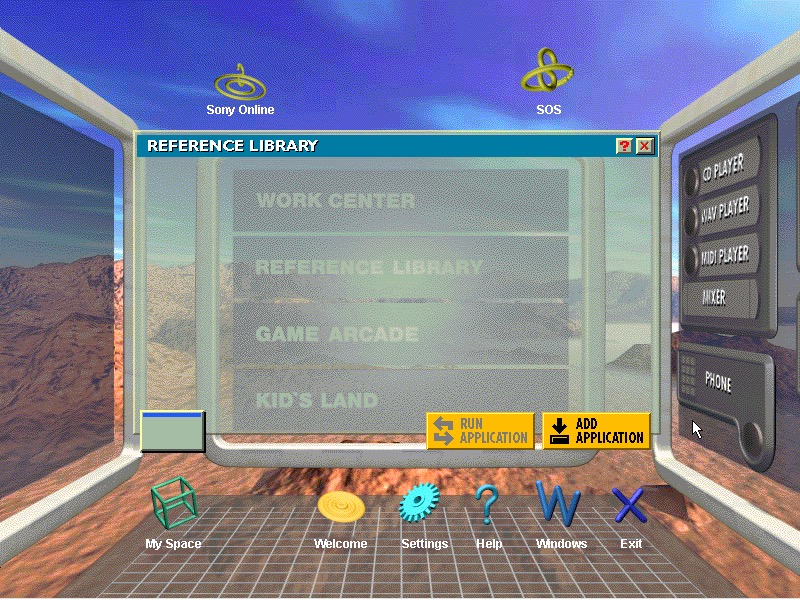
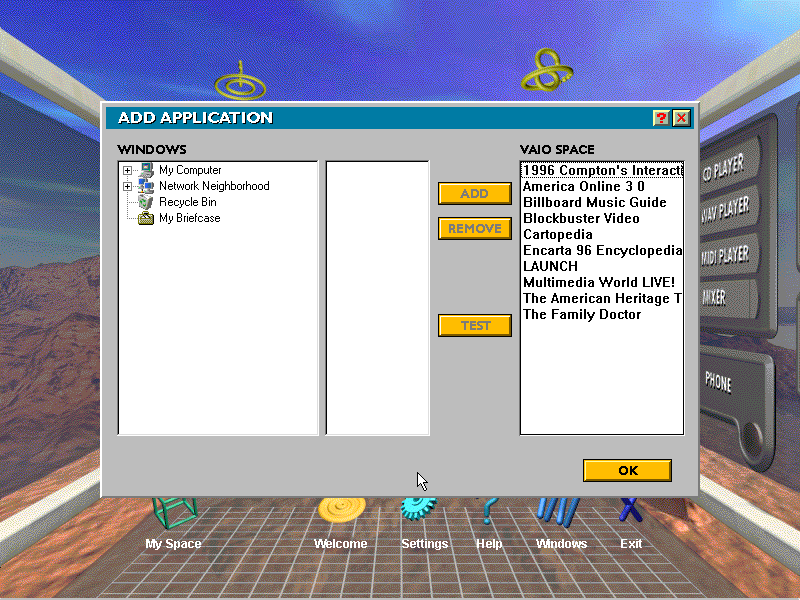
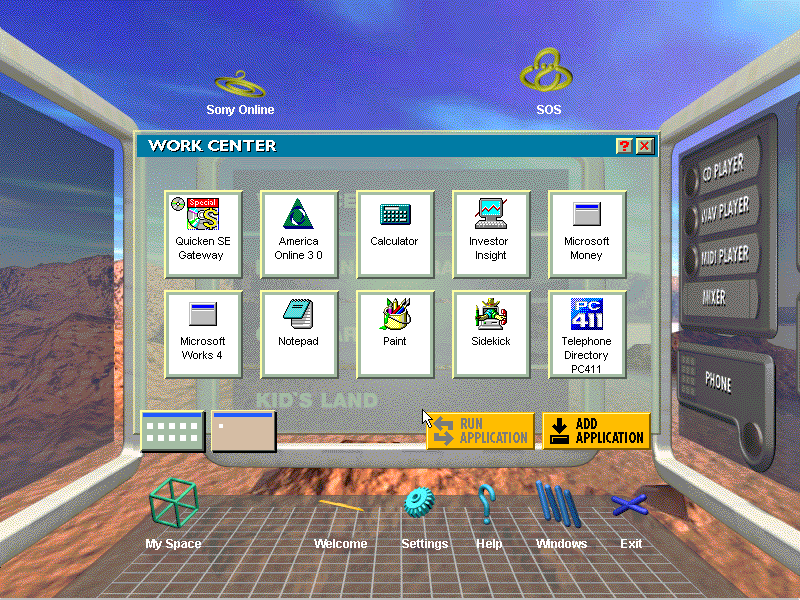
Screen 2 Click left from the home screen takes you to this screen, here you see four different categories: Work Center: features productivity software like Microsoft Works, Microsoft Money and Paint Reference Library: Links to reference stuff like Encarta, Family Doctor and Compton’s interactive encyclopedia. As the internet wasn’t very widespread it made sense to bundle this software/ Game Arcade: Links to various games like Wipeout and Mechwarrior 2, also featuring the entertainment pack games and the bundled windows games. Kids Land: Child-friendly software like 3D movie maker
Screen 3 Multimedia applications like the CdPlayer and WAV/MIDI player. These do not open the standalone windows applications, rather Sony’s own that they have bundled. The More A/V button shows the Window standard programs.
Judging from the software bundled, this was designed to be a family PC with various bits of software to suit everyone.
Overall its defiantly a unique experience and was designed to make it easier for novice users to use the system. Not sure how Microsoft felt about it though, image developing a new user interface only for some OEM to replace it with their own.
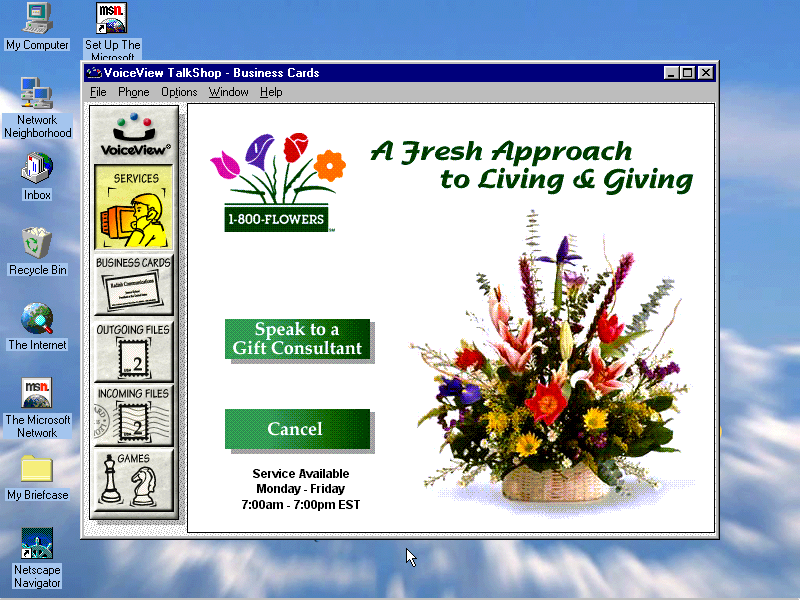
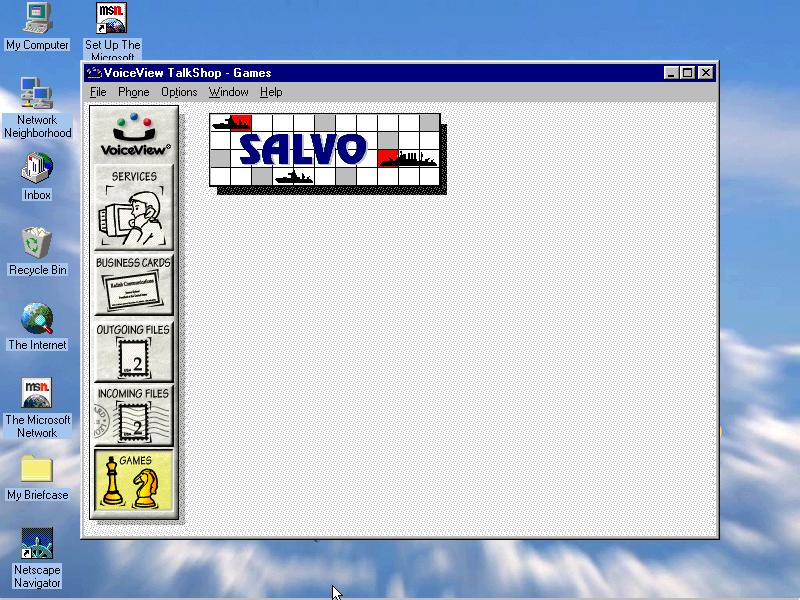
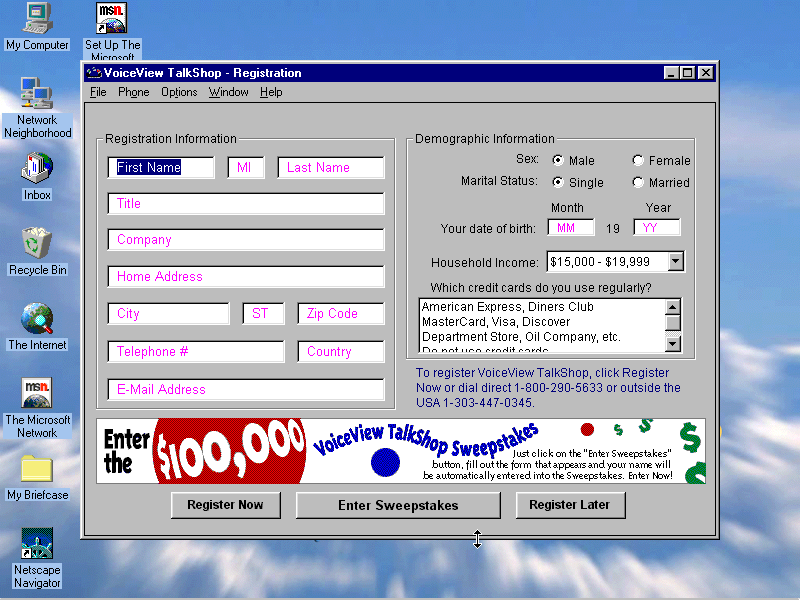
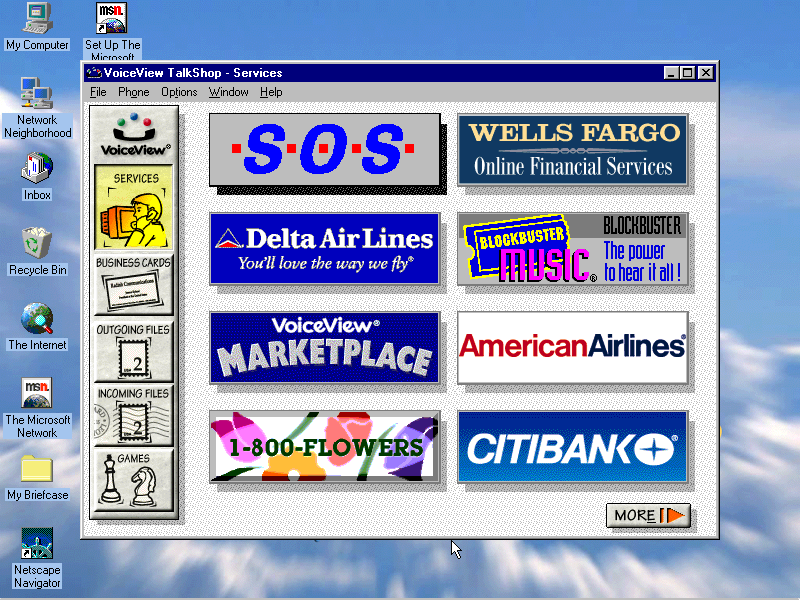
VoiceView: Seems to be a gateway to various online services, has an online game but this crashes when you try to open it
Billboard Music Guide: Needs CD-ROM
Compton’s Interactive Encyclopedia: Needs CD-ROM
AOL: Desktop client for AOL, an internet service provider
Compuserve: Another Internet service provider client
Microsoft 3D Movie Maker: Popular movie maker application that was part of the Microsoft Home bundle
CyberPassage: Needs CD-ROM
DeltaPoint: Needs CD-ROM
Cartopedia: Needs CD-ROM
The Family Doctor: CD-ROM needed
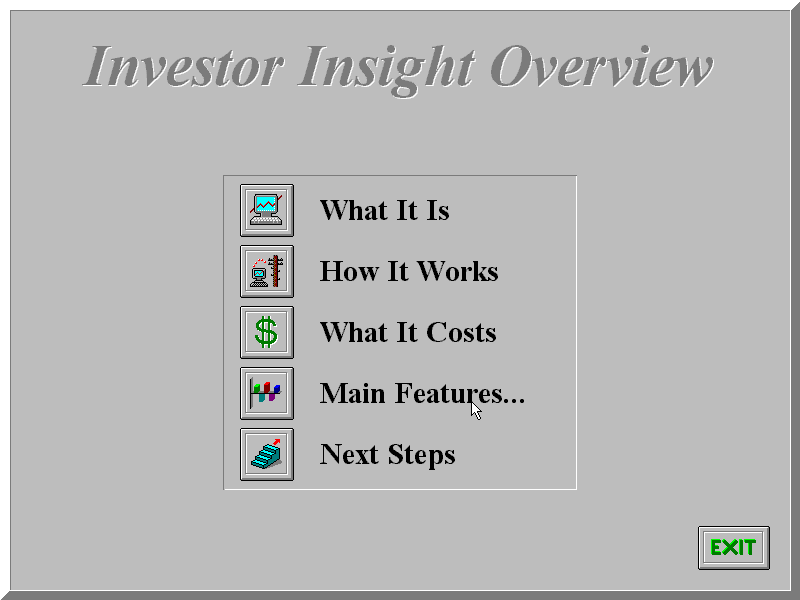
Investor Insight: Another financial application
LAUNCH: Unknown, does not even open without the CD inserted
Microsoft Money: Accounting management software, the 96 edition is included here
Microsoft Phone: Looks like a phone dialer, to make calls through your PC
Microsoft Works: Microsoft’s basic productivity suite, version 4
Microsoft Reference: Works like an offline Wikipedia, needs a CD to run
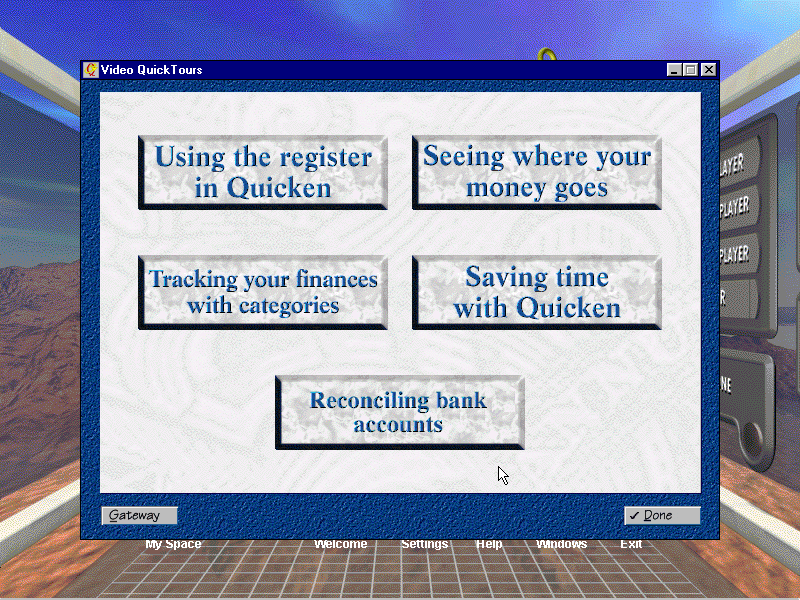
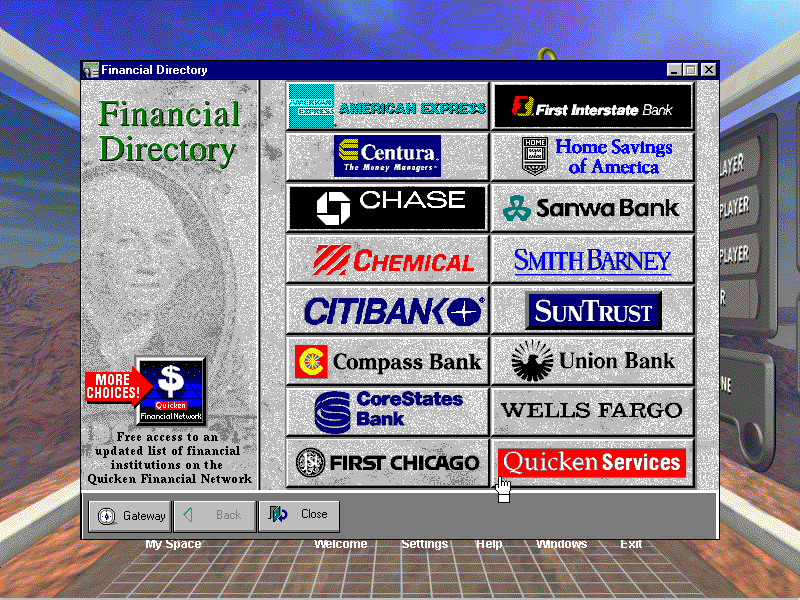
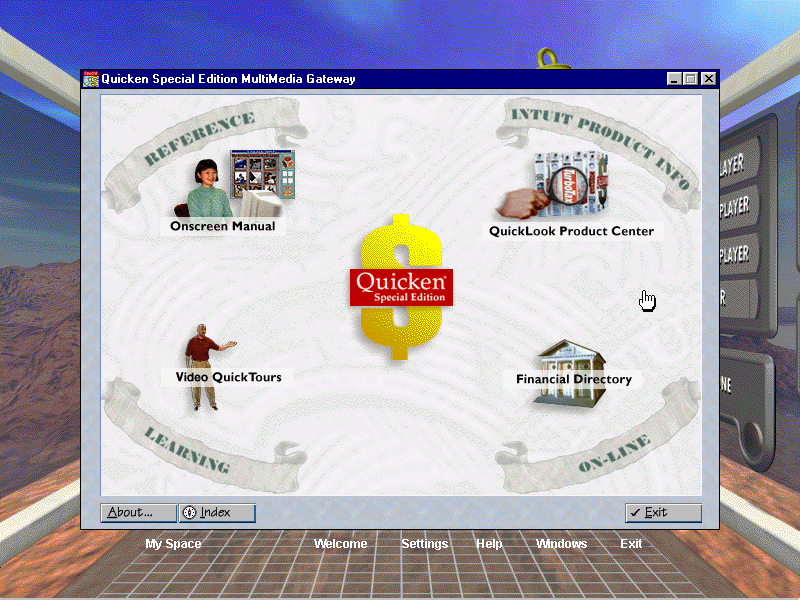
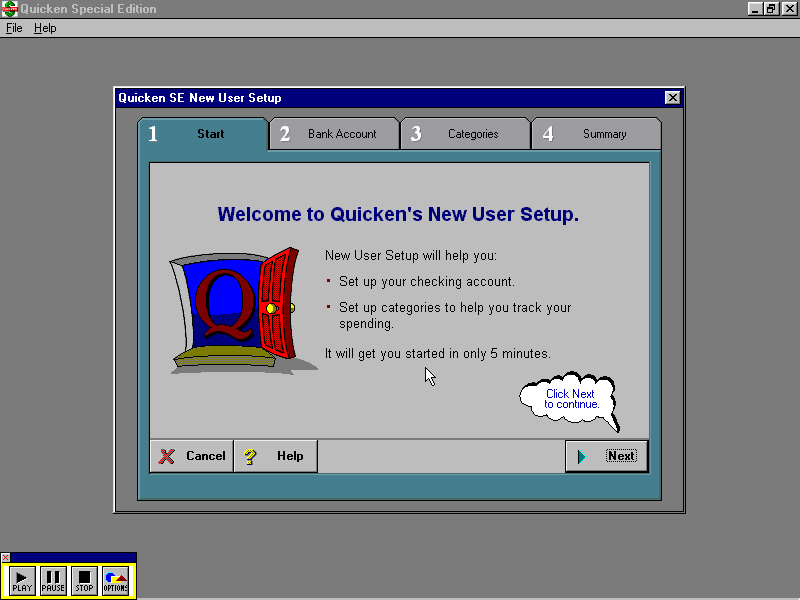
Quicken SE Gateway: Looks to be a finance application and has a lot of links to various banks, requires a CD to fully run and appears to be trialware – limited to 10 launches.
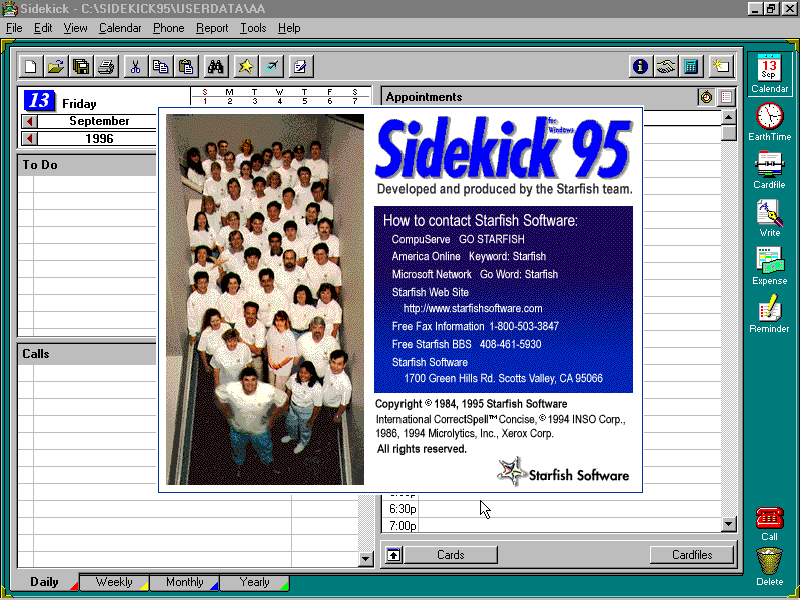
Sidekick 95: Some sort of personal information manager, like Outlook that would store user contacts email address and phone numbers
Reader Rabbit: Needs a CD in order to run
American Heritage Talking Dictionary: Mainly functions as a dictionary, but has a few extras including an anagram generator and a thesaurus
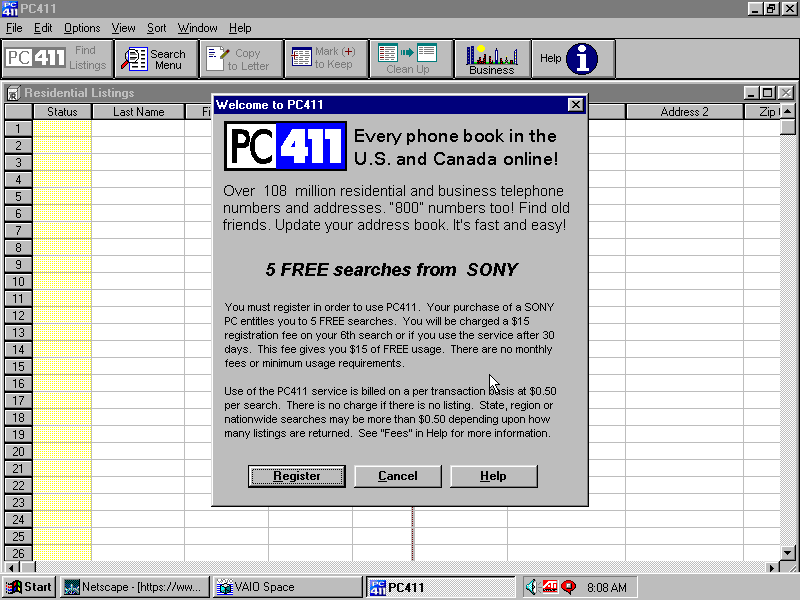
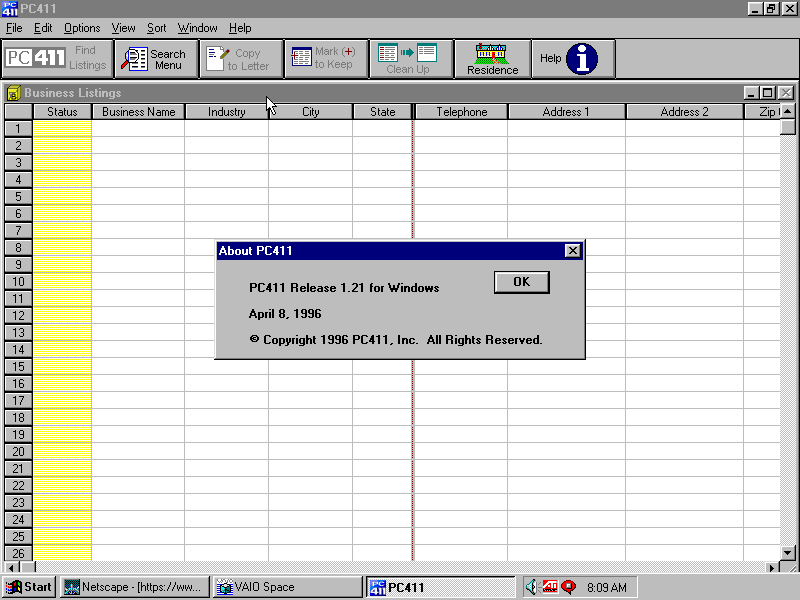
Telephone Directory PC411: A phonebook application
Games
Wipeout: A 32bit version of the popular PlayStation game, running using the ATI CIF graphics engine. Sadly 86box cannot emulate this and using a 3DFX or the S3 ViRGE won’t work because it’s designed exclusively for the ATI CIF API, which I hope to cover later on as there are quite a few titles that use this technology.
Also to note, WipEout was one of the launch games for the PlayStation
MechWarrior 2: Retail game that I’ll cover separately at some point in the future, again it needs its own CD-ROM
Microsoft Entertainment Pack: Included games like Chip’s Challange, Dr Black jack, and Jezzball to name a few
Hover: That game that came on the Windows 95 CD
Other
USB Support
This was one of the first home desktops to ship with onboard USB, two years before the iMac which was said to have popularised the standard. However, the version of Windows 95 that Sony shipped with the computer had no USB support. The intention was to ship USB support in an update once Microsoft had released the upgrade for Windows 95, which would be introduced in a supplement update to OSR2 which was released in August 1997, nearly a year after Sony had released the PCV-70/90.
Early Windows 95 USB was a bit of a disaster and didn’t have much support, in fact, it wasn’t until Windows 98SE that USB support was to the standard that we accept today, with the earlier versions lacking many USB drivers.
86Box does not allow for USB devices to be connected, so there isn’t much point in upgrading to this version anyway. Regardless i did try to upgrader it to a USB supported build, which ended up bricking the OS completely. Apparently you have to upgrade in steps first, to OSR1, then OSR2, then install the USB supplement, whilst I tried to install the USB supplement update only, which resulted in a VxD error upon bootup. Not even safe mode could rescue me here, I had to reinstall from scratch.
You would think the Microsoft installer would check first and tell me to upgrade to a supported version of 95, instead it just happily installed







































 Drew1440: Blog