Tag Archives: The Sims

Debug Cheats with The Sims Legacy

EA recently found the source code for the original Sims games, and decided to bless us with a modern rerelease of the original Sims game with all of the expansion packs and DLC added on, along with an updated Vulkan renderer to allow for support for higher resolutions without hex editing the games EXE file.

Whilst it’s nice to experience the original Sims games in 1440p, there were a few bugs uncovered shortly after launch which EA has been attempting to fix. Whilst looking online, it appears you can unlock the games executable file to allow you to enter cheats which typically cannot be used under normal gameplay. These cheats were intended for when the game was under development and as such were disabled after the game release.

To enable these cheats, you do need to run a conversion tool that decrypts your sims EXE file, since it uses Steam’s protection. Once this is done, we can patch the exe file directly. Do remember that EA are still actively fixing and updating the game, so this might cause issues in the future should EA release an update. As always, backup your game’s files.

The Cheats

Below is a few useful ones that I’ve commonly used, a full list can be found on the Github
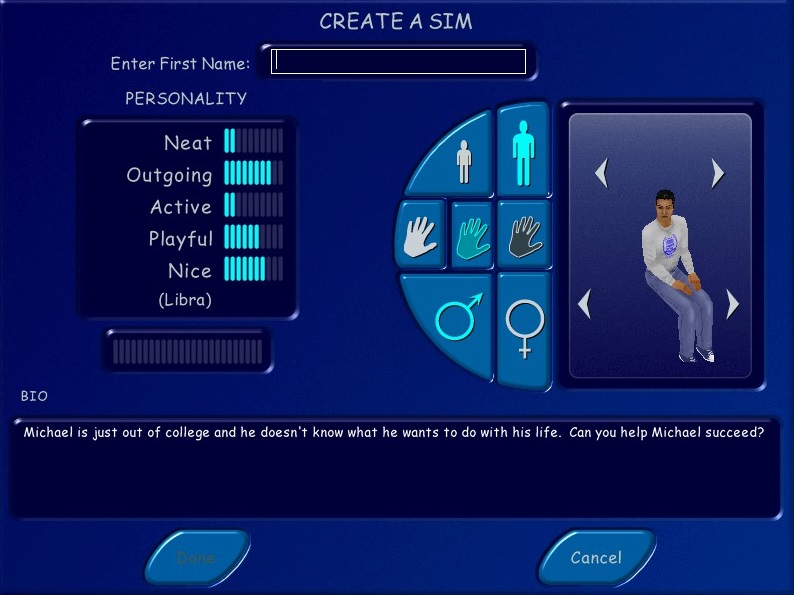
Edit_char: This opens the Create-A-Sim where you can completely edit the selected sim, as if you were creating them for the first time. Useful if you need to change your sims head, body or personality since the game normally prevents you from editing. A funny side effect is if your sim is currently performing an interaction, they will play that animation when you are editing them. This can cause some weird side effects, I recommend having them stand still without any interactions, since the game did lock up after editing.

Move_lots: lets you reposition the lots on the neighborhood screen, useful for cosmetic use but the change isn’t permanent.

Sim_speed: Adjust the speed of the simulation, default is 100
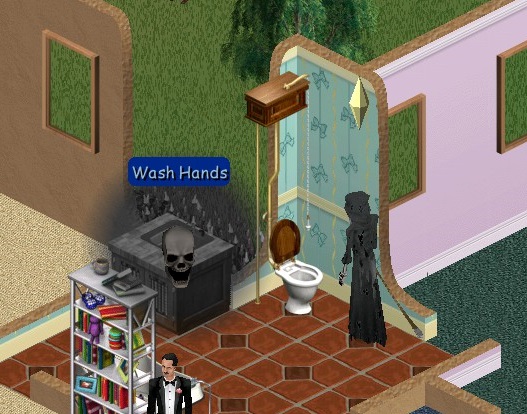
Visitor_control: lets you control visitors by pressing the space bar to select the sim, and then using the mouse to issue commands. Depending on the NPC there are a limited set of commands you can give, visitor sims like neighbors have access to a limited set of interactions like watching TV but they cannot use the phone or take a bath. True NPCs like the Maid, Mime or Police officer are a lot more restricted, you can only use the toilet and watch TV.
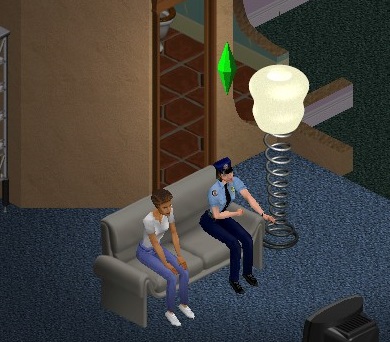
Set_hour: Missed the carpool? just set the game to a couple of hours before (set_hour 10 for 10:00AM, or set_hour 15 for 3:00PM)

Lot Swapping

By using the swap_houses cheat, its possible to swap occupied and unoccupied lots around, even with lots that do not appear on the neighborhood selection screen. By using for example, Swap_houses 03 06, lots 03 and 06 will swap their positions on the neighborhood screen, along with their family. Since lots can differ in plot size, its recommended to swap with lots that are of the same size, but there are no negative effects with the exception of the neighborhood screen looking a little odd.

Now I did wonder what would happen if we were to swap lots with houses outside of the game’s normal range, and if the house were to remain playable. The answer is you can, but there are some weird effects.

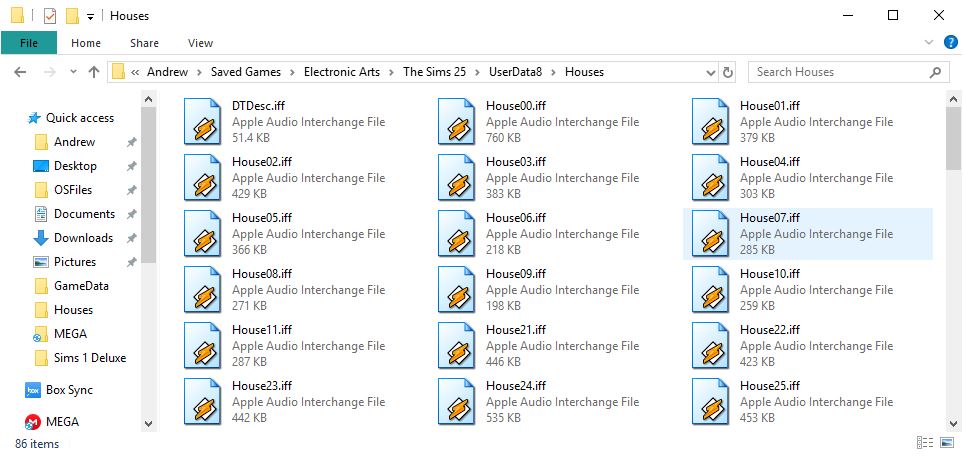
First since we are swapping, we need to actually create the house files for the game to swap with. Originally the game assigned Houses 1-10 for the main neighborhood, House00 being intended for NPC’s and House11 not having any noticeable use. Hot Date used House 20-29 for its downtown lots, along with On Holiday for the 3x range. Now the Unleashed expansion did add a plethora of lots to use with the large neighborhood screen, but oddly did not use the House 11-19 range and to my knowledge, no expansion has ever used this range. I’m unsure if Maxis had any plans for this range or if there was a technical reason why this was never used.
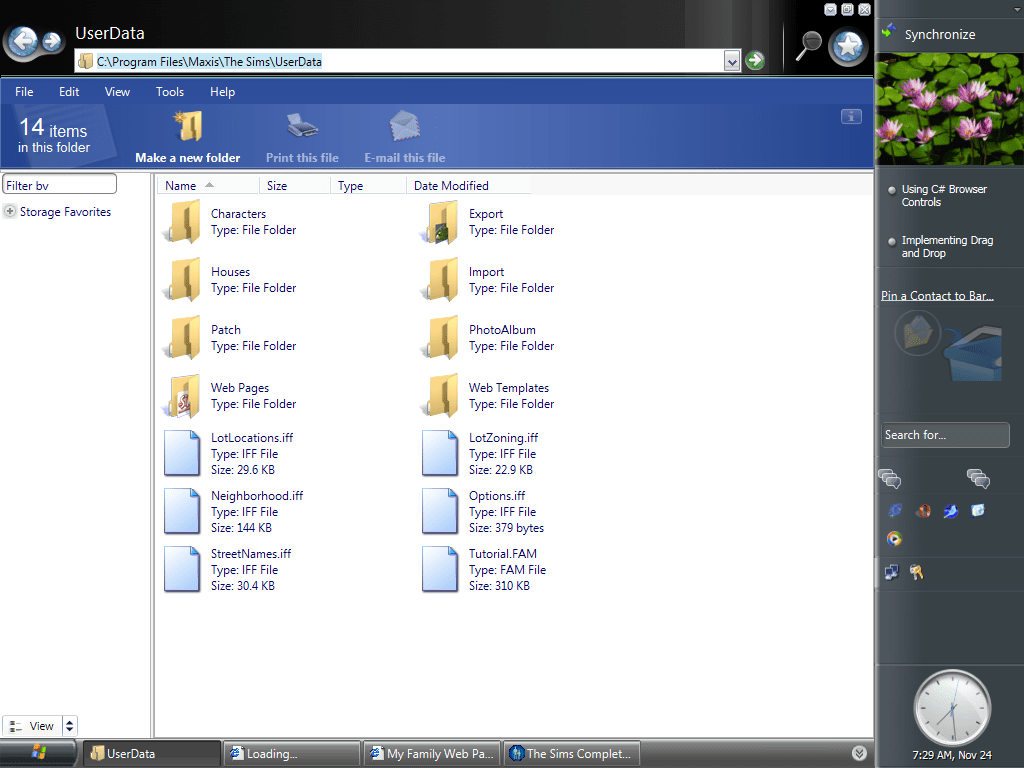
The Sims house directory
Where did House 12-20 go?

To add lots to this range, You can simply navigate to the game save directory, This is located in the Saved Games folder located in your Documents folder. You can them copy an existing Housexx.iff file and rename it to say House12.iff

With the debug cheat, you can force the game to load the lot by typing ‘Lot 12’ or ‘House 12’ into the cheat box (Ctrl+Shift+C). Once the lot loads, this is where the weirdness starts.

If the lot is vacant, as in there is no sim that is moved in, you can edit the lot but you cannot save. You also are unable to purchase or build because of the balance being 0, but by using a money cheat, you can indeed enter build or buy modes but you are still unable to save.

If the lot is occupied, lot will load but the sims will initially be missing. You can restore them by clicking on their portrait panel which will spawn them onto the lot. But they will not move regardless of the free will setting. Many objects like the telephone or refrigerator cannot be used or interacted with and NPC sims will not walk by. No carpool will appear, so sims cannot get to their jobs and earn money. Of the objects that do function, some of the interactions are not available. The bookcase only allows for you to read a book, you cannot study for any skills.

Lack of a functional phone means you cannot call other sims, However they do appear in the phonebook if you have a neighbor sim that wished to contact them.

I should mention this behavior affects lots 12-19, but lot 11 appears to function normally for the most part, suggesting this was originally supposed to be playable from the hood screen. I’m interested as why the game will not process normally when lots are loaded this way, with the exception of lot 11.

Overall, it’s an interesting way to add more families to your neighborhood. Whilst you cannot directly play the lots, you can swap them with the lots on the neighborhood screen, and then just swap them back. They will still appear as walkby’s, on community lots and in the phonebook and if you don’t mind using the swap commend when you wish to play that family, its mostly fine.

I’m actually curious if there is a way to add more lots onto the neighborhood screen, from inspecting the .iff files in each userdata, it’s possible to change the lot names and descriptions, but I cannot see where the game determines 1 Sim Lane as House01.iff
Ultimate Sims 1 Neighbourhood

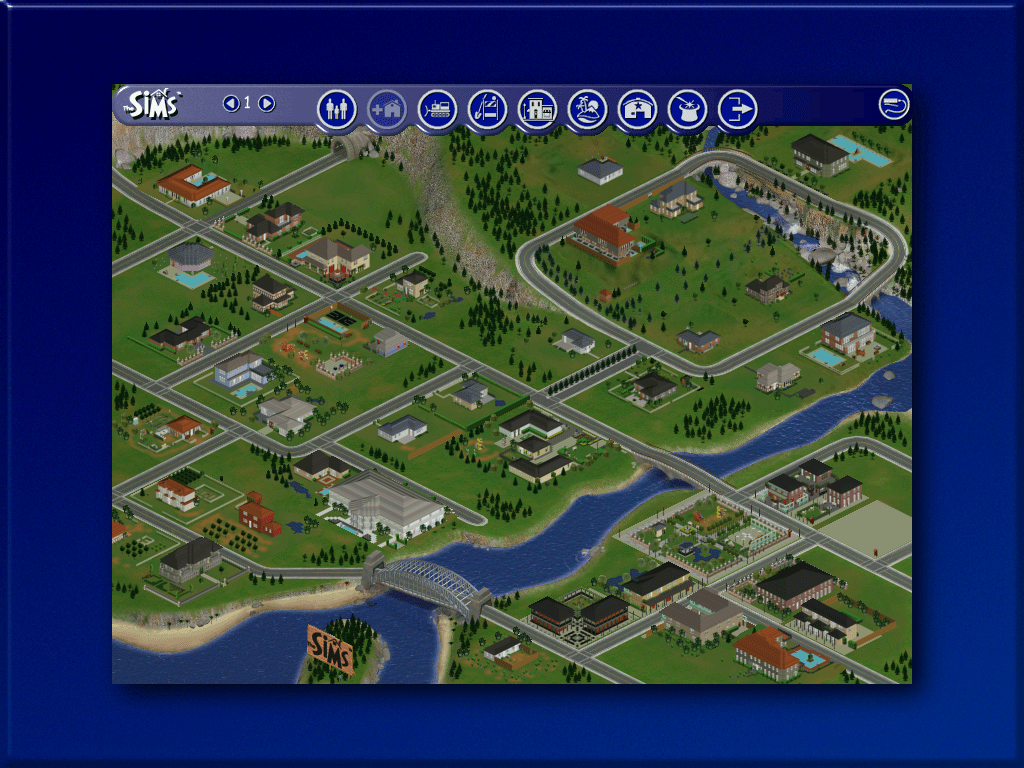
Over the course of the original sims lifespan, Maxis had released early forms of free DLC (Downloadable Content) for free on their website. Listed as ‘Get Cool Stuff’ players were able to download free families, objects and skins to use in their game. Whilst skins and objects are easy to integrate into your game, lots and families are harder, especially if you had the original base game that had no support for multiple neighbourhoods.

This meant if you wanted to use the downloaded families, they had to overwrite an existing lot in the neighbourhood, which would replace the family on the lot. Livin large mitigated this by allowing multiple neighbourhoods, but Unleashed went one step further and expanded the neighbourhood to accommodate a large amount of lots.

One thing that bothered me with Livin Large was the Mashuga family, who up until Unleashed were the sole residents of neighbourhood 2. Maxis intended for you to create and move in sims to keep them company but personally i’d rather have all Maxis sims in one hood.

Playing Sims 2 for as couple of years I came across multiple projects that seek to combine multiple neighbours into one ‘Megahood’, where pre-made neighbourhoods could be merged into one large neighbourhood. This took advantage of the sub-hoods introduced in the Open for Business expansion pack. For example Pleasentview would be the main neighbourhood, with Veronaville, Strangetown would become sub hoods, known as shopping districts in the game. You could even do this with hoods introduced in later expansion packs, and hoods that shipped with the Sims stories spin-offs. By doing this you could have one large hood where different sims from different hoods could interact with each other.

I wondered if something similar could be done for the original sims.

For this we need to be using The Sims with at least Unleashed expansion installed, since the increased lot slots were a requirement for this. Livin Large is also a desired expansion to have, solely for the Mashuga family. In order to have all Maxis families and lots in one hood, we need to move a couple of files around, unfortunately since the game lacks these tools we need to resort to trusty Windows Explorer. As always make sure you back up your UserData folders. The goal is to have one large neighbourhood with all Maxis made houses and families

To keep the neighbourhood appearance as genuine as possible, since we will be exchanging lots that may have a different size, some lots may overlap onto the world or another lot, we can use the map_edit tool to overcome this.

Download Links

Since the original Sims website was removed a while ago, all of the Maxis downloadable files were no longer obtainable, however they can be downloaded using the below links;

https://archive.org/details/thesims1getcoolstuffcontent

SimEchoes Archive

Phase 1 – The Mashuga’s

Before & After the lot relocation

We want to transfer the Mashuga family from hood 2 to hood 1. If the game is running, exit the lot and go to the hood screen. Then alt tab out of the game. The Mashuga’s reside in Lot 9, but this clashed with the Hatfield family who also reside on Lot 9, so we move the Mashuga’s to a vacant lot. The ideal lot found is lot 52, because the lot size is identical (2646 Sq Ft) and has two roads perpendicular.

To do a lot swap we need to temporally suspend the game by using alt-tab, then navigating to the game installation directory to manipulate the files

The lot will be vacant, here’s what I did to import and migrate to another lot;

  1. First exit back to the nhood,
  2. Switch back to nhood 2
  3. Enter the Mashuga lot with family moved in,
  4. Save the lot, regardless if any changes or any time has elapsed, we do this so the game generates an export file.
  5. Exit the lot back to the nhood screen
  6. Alt-Tab out of the game, and navigate to the game userdata 2 directory, then open the Export folder
  7. Copy the Mashuga.FAM file and paste it into the Userdata/Import folder, Has to be Userdata not userdata2
  8. Alt tab back into the game, the import button should be lit, switch back to the nhood 1 and press the import button
  9. The game will import the Mashuga family into lot 9 an will replace the family on that lot, this is temporary as we will be moving them to another lot.
  10. Verify the lot works by loading the lot
  11. Evict the Mashuga family from lot9 by clicking on the Evict button, this will move the family to the lots and houses bin
  12. Move them into the empty lot 52
  13. Save the game and return to the nhood
  14. In the Userdata2 folder, enter the Houses folder and copy House 09 file to the desktop, or to a temporary folder.
  15. Rename that file to House52 and copy it to the directory userdata/Houses. The Userdata folder is the first nhood, with userdata2 being the second nhood.
  16. Alt tab back into the game and switch to hood1, or hood 2 then hood 1 if your are already on the first nhood.
  17. The Mashuga house will appear on lot 52 Ridge Road.
  18. Enter the lot and the family should load near intact, if there are any red circles on the sims, click on them and they should spawn near the mailbox.

The Mashuga family should now be fully playable.

Phase 2 – Preparing for the Maxis refugees

Here is some information about the downloadable Maxis families

Family nameLotConflicts
Jones1Hood1: None
Hood2: Vacant lot with Home
Hatfield9Hood1: None
Hood2: Mashuga Family
Snooty Patooty2Hood1: Vacant lot with Home
Hood2: Vacant
Valentino8Hood1: Vacant
Hood2:Vacant
Maximus4Hood1: Vacant
Hood2:Vacant

The Valentino and Maximus family have no clashes and can be imported into a stock maxis hood without any issues. The Hatfield family can be imported and will replace the old Mashuga house, but since we have teleport-ed them to lot 52, that wont be a problem. The Jones family can also be imported without any issue on hood 1 also.

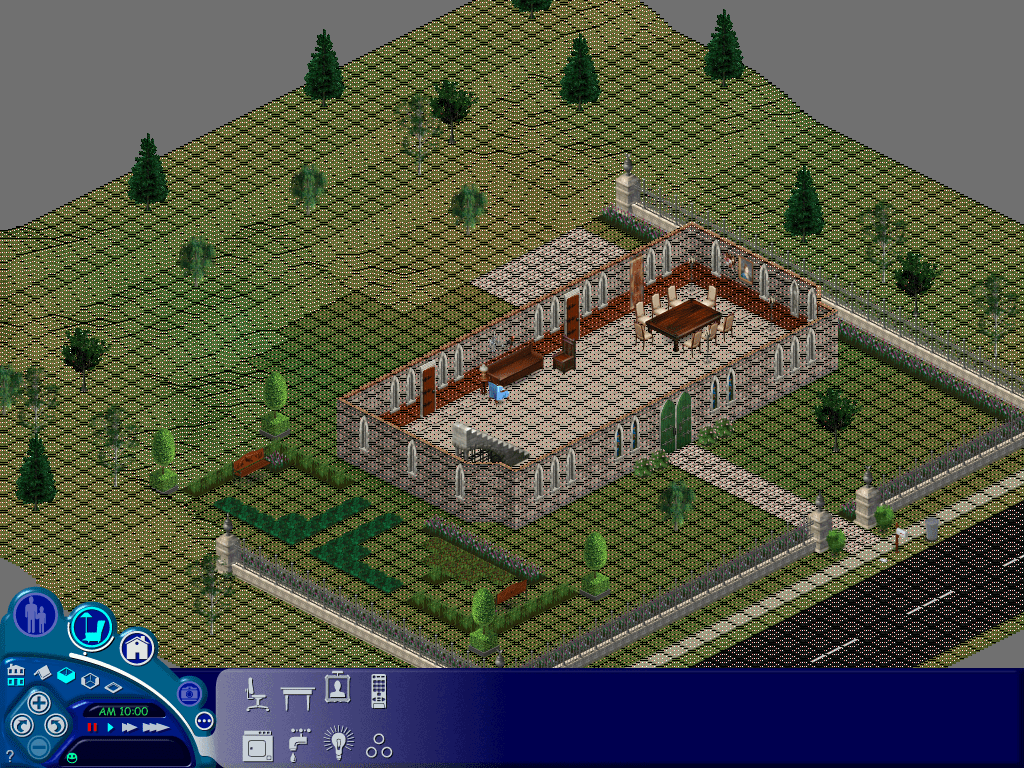
The Problem is the Snooty Patooty family. If you imported the family into the stock first nhood, it will replace the mansion on lot 2. We don’t want this to happen, especially since its a really nice house. We’d want to preserve it so like the mashuga house we can move it to another lot. However lot 2 is quite a big lot and if we were to migrate it to another empty lot we would have an issue where the lot would overlap another lot. This isn’t an issue when playing the game but looks funky on the hood screen.

After experimenting with multiple empty lots and using the map edit tool to change the lot boundaries, the ideal lot I found was lot 79, Crumplebottom Court. It’s not ideal but it does blend in with the other lots adjacent.

  1. Similar to the Mashuga lot moving processes, alt tab out of the game
  2. In the Userdata/houses directory, copy the House02 file and paste it to the desktop
  3. Rename the file from House 02 to House 79
  4. Paste it into the same Userdata/houses folder, overwrite if prompted
  5. Alt/Tab back into the game, switch between hood 2 and 1 to refresh the screen
  6. The lot should appear but looks a bit… iffy. This is because the lot is a lot larger than the lot it has replaced, fortunately we can do something to amend the lot data using the map_edit tool
  7. Enter lot 79
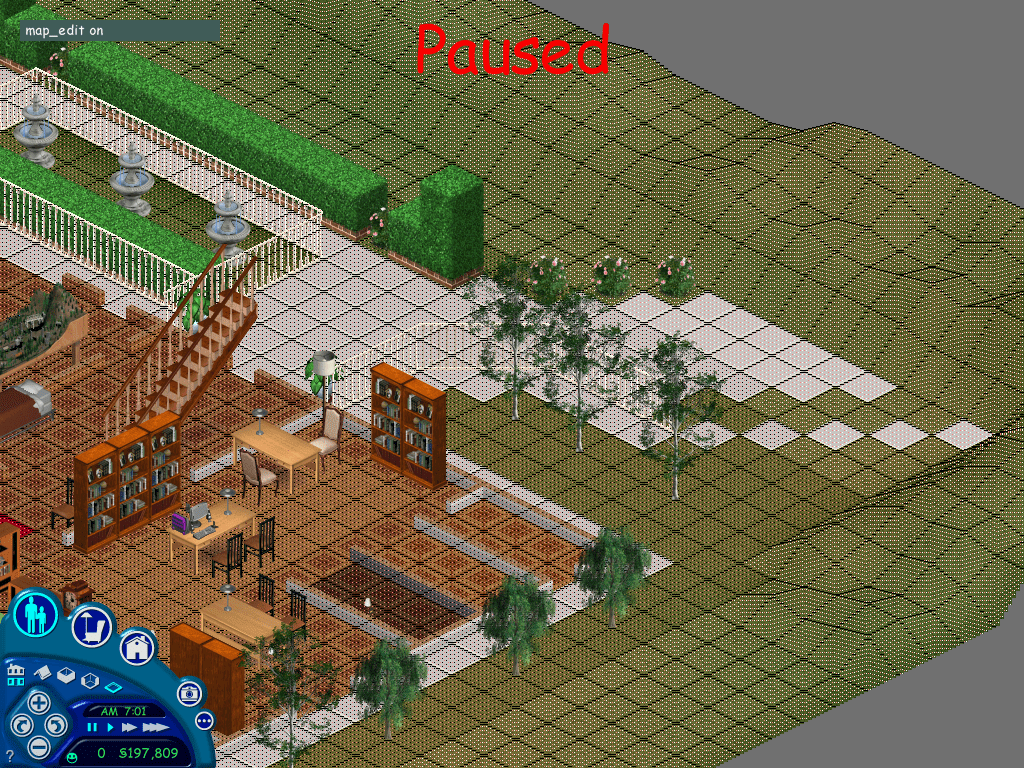
  8. Hold Ctrl Shift C, in the command box, enter “map_edit on”

This puts you into the map editor mode, were you can select the tiles we are able to edit, this also controls which roles appear on the hood screen. Thankfully this lot is quite large and has a lot of editable space.

The shaded/red square tells the game that the tile can be user edit, whilst the white parts tell the game this tile is off limits and cannot have objects placed on it. You will notice both sides of the lot are unshaded, along with the road at the front of the house, which should give you an idea how the map edit works.

For this lot, we want to section off the rear, so the map on the nhood screen wont bleed onto the road (technically the map is the wrong way round compared to the nhood screen, but this wont affect the game stability and is purely for cosmetic, you will however lose the ability to place objects in this area but since this is a huge map that should not be a huge issue, also the carpools will continue to function normally)

Once you are happy with the map, hold Ctrl Shift C and enter map_edit off to disable the map editor, and then save and exit back to the hood. You must save the game by using the save button (floppy disk icon) first, then press the neighbourhood icon, if you just press the neighbourhood icon you will lose all map editing changes, the game wont even ask if you wish to save. I think this occurs because no new items have been placed on the lot or no game time has elapsed, so the game thinks no changes have been made to to the lot, despite editing the map parameters.

Once you hare happy with the changes, we can go ahead with importing the Snooty Patooty family

Phase 3 – Importing the remaning Vacant lots

Migrating the remaining vacant lots from hood 2

The second hood contains 2 vacant lots which we can import into the first neighbourhood, however there are a few clashes that we nee to solve before we can migrate them to hood1

1 Sim LaneClashes with the downloaded Jones family
7 Sim LaneClashes with the Newbie Lot in Hood1

1 Sim Lane

Lot 65 seems to be a good fit

  • Alt tab out of the game
  • Goto Maxis/Userdata2/Houses
  • Copy House01 to the desktop and rename it to House65
  • Copy an paste House65 to the UserData/House directory, Overwrite if prompted
  • Enter the lot, once loaded enable the map edit tool (map_edit on)
  • for this lot I would unshaded the hilly areas at the back of the lot
  • Once everything is correct, turn off the map edit tool (Map_edit off)
map editing lot 1

Lot 7

We can move this lot onto lot 50 Ridge Road

  • Alt tab out of the game
  • Goto Maxis/Userdata2/Houses
  • Copy House07 to the desktop and rename it to House50
  • Copy and paste House50 to the UserData/House directory, Overwrite if prompted
  • Enter the lot, once loaded enable the map edit tool (map_edit on)
  • This lot you can unshaded the right side, near the patio next to the road.
  • Once everything is correct, turn off the map edit tool (Map_edit off) and then save.

The ‘Other’ Lot 2 – The Agent Household

There is another Maxis download known as the Agent house, however given the size of the house and lot, i’m not sure on the best way to integrate it into the hood. This lot also occupies lot 2 so it would conflict with the mansion from the original game and the Snooty Patooty household.

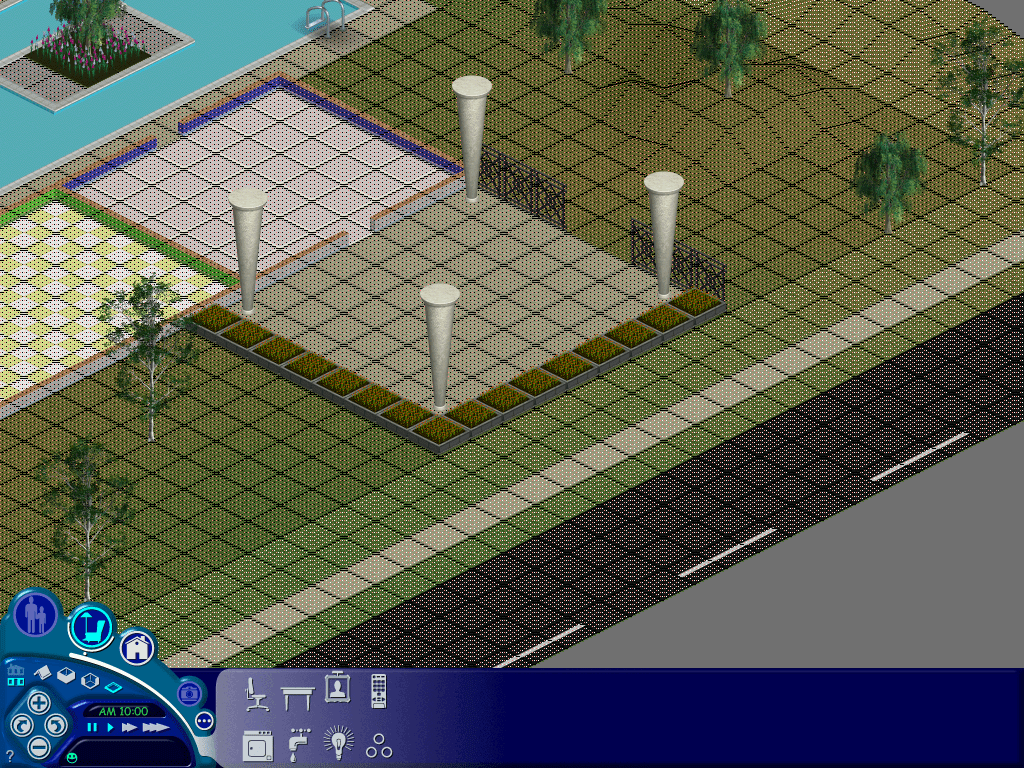
Lot 67 seems to be a good candidate but requires a lot of map editing.

There isn’t much room to cut away before you start selecting tiles that are already occupied. Still it’s not too visible from the hood screen, only the white tiles can be seen overlapping onto the road.

That’s it! i’m not sure if there were any additional lots or families released by EA/Maxis for the original game but we at least have a vacant lot on 51 Ridge Road for future use. Unfortunately with the original sims you are quite limited on how lots can be placed in a single hood, in addition to the quantity of lots. Looking at the game files it seems theirs an engine limit of 99 lots, with many being used for commercial lots. Strangely lots 11-20 are unused by the game, with the Downtown lots start from 21 -30. Maybe there’s a way be can unlock and access these lots and find a way to map them on the main neighbourhood screen so they’re accessible by the game.