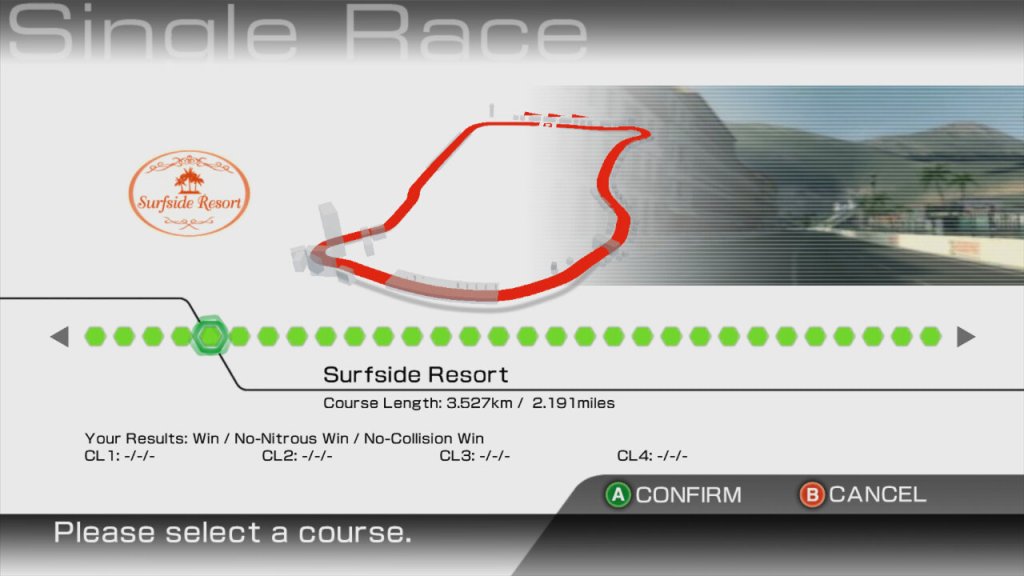
Ridge Racer 6 is a fast-paced and adrenaline-fueled racer that’s easy to pick up and play, but difficult to master. The game features a wide variety of cars and tracks to choose from, each with its own unique handling and feel. The controls are responsive and tight, and the drifting mechanics are especially satisfying. However, some may find the game’s AI to be a bit too aggressive and unfair at times, especially at the last section of the world tour.
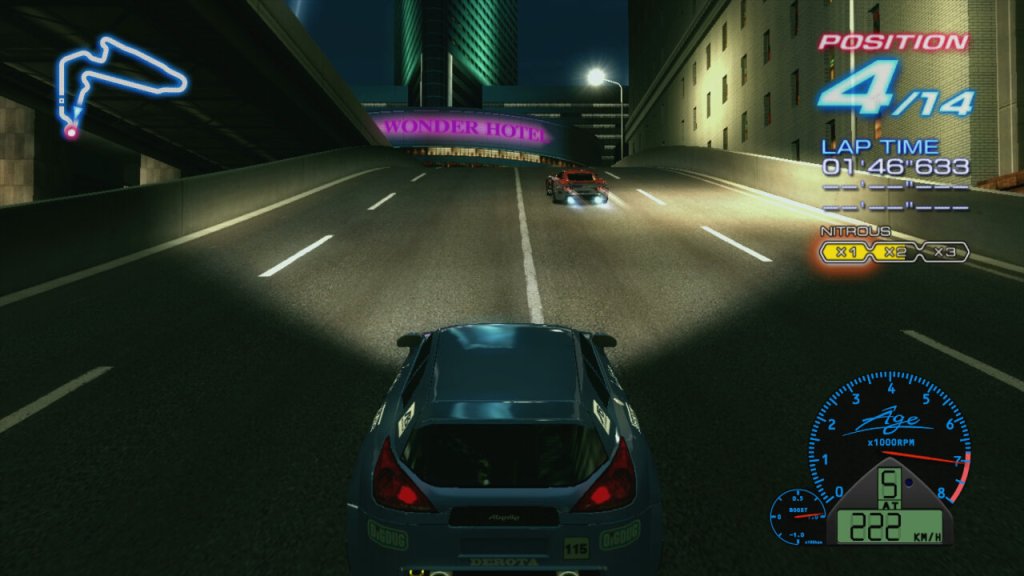
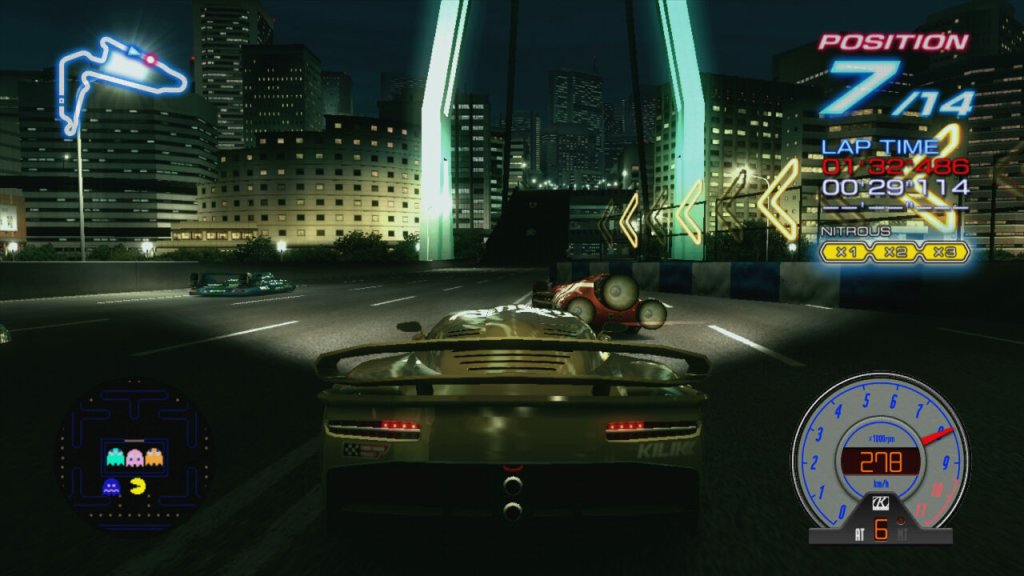
Like other Ridge Racer games, it features a mini arcade game based on a Namco property, in this case it’s the original Pac-Man. The interface is very similar to Ridge Racers on the PSP, with a very similar menu structure and HUD design, this would also carry over to the iOS version.
The game makes use of its own brands of cars that feature unique handling and statistics, with some cars performing better at drifts. Some examples of fictional cars that are known to be included in Ridge Racer 6 include the Kamata Fiera, the Danver Bayonet, the Assoluto Bisonte, the Terrazi Wild Gang, and the Himmel 490B. Each of these vehicles has its own unique strengths and weaknesses.
Harborline 765 – a city course that winds through a harbor area.
Southbay Docks – another city course that features tight turns and narrow streets.
Highland Cliffs – a mountain course with plenty of twists and turns.
Sunset Heights – a coastal course with plenty of jumps and high-speed sections.
Midtown Expressway – an urban course with long straights and wide corners.
Seaside Route 765 – a coastal course that takes place along a scenic seaside highway.
Lakeside Parkway – a course that features a long straightaway and tight turns around a lake.
The World Tour mode is a game mode in Ridge Racer 6 that allows players to compete in a series of races across a variety of different locations and tracks. In this mode, players progress through a series of Grand Prix events, with each event consisting of multiple races that take place on different courses. I believe this is also the first Ridge Race title to feature online lay over the internet, using Xbox Live, which remains active to this day.
As players progress through the World Tour mode, they earn points and unlock new cars, upgrades, and tracks. The difficulty of the races increases as players advance through the Grand Prix events, providing a challenging and engaging gameplay experience. In addition to the standard races, World Tour mode also includes a variety of special challenges and events, such as time trials, drift challenges, and lap battles. These challenges offer a unique twist on the standard racing gameplay, and provide an additional layer of depth and variety to the World Tour mode.
The Nitro game mechanic in Ridge Racer 6 is a system that allows players to temporarily boost their car’s speed and acceleration, giving them a strategic advantage during races. The Nitro system works by filling up a meter that is located on the game’s heads-up display (HUD) when players perform certain actions, such as drifting or drafting behind other cars. Once the Nitro meter is full, players can activate the Nitro boost by pressing a button, which causes their car to accelerate at a significantly faster rate than normal. This can be particularly useful during key moments in a race, such as when players are trying to overtake opponents or catch up to the pack.
In addition to the standard Nitro boost, Ridge Racer 6 also features a “Full Nitro” mechanic that can be activated when players have filled their Nitro meter to its maximum capacity. Full Nitro provides an even greater speed boost than standard Nitro, and can be particularly useful for closing large gaps between players or pulling away from the pack.
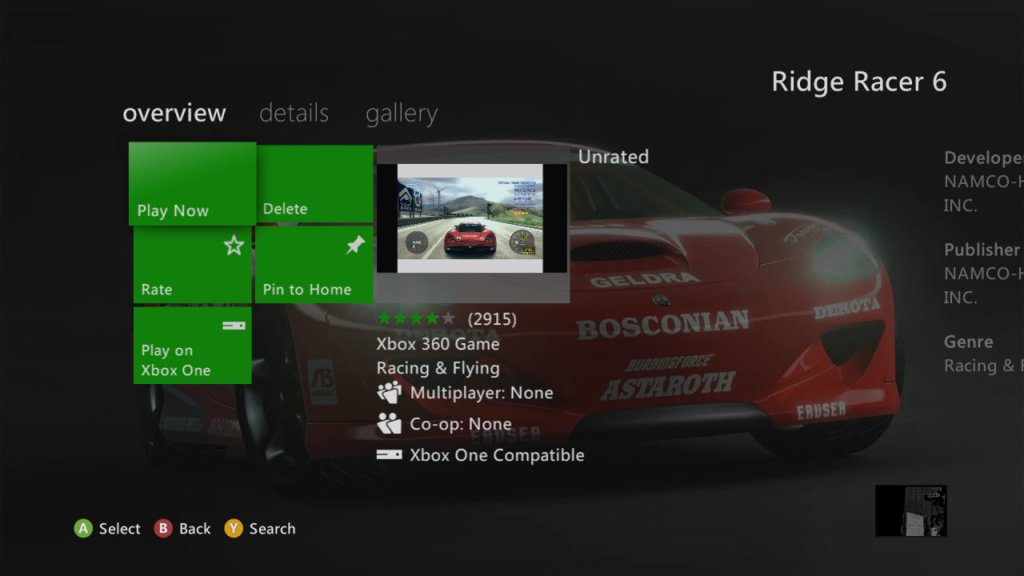
The game was only ever released for the Xbox 360, but was ported to the Xbox One as an Xbox 360 backward-compatible title. This isn’t Xbox One X enhanced which means it does not benefit from the higher resolution the Xbox One X provides.
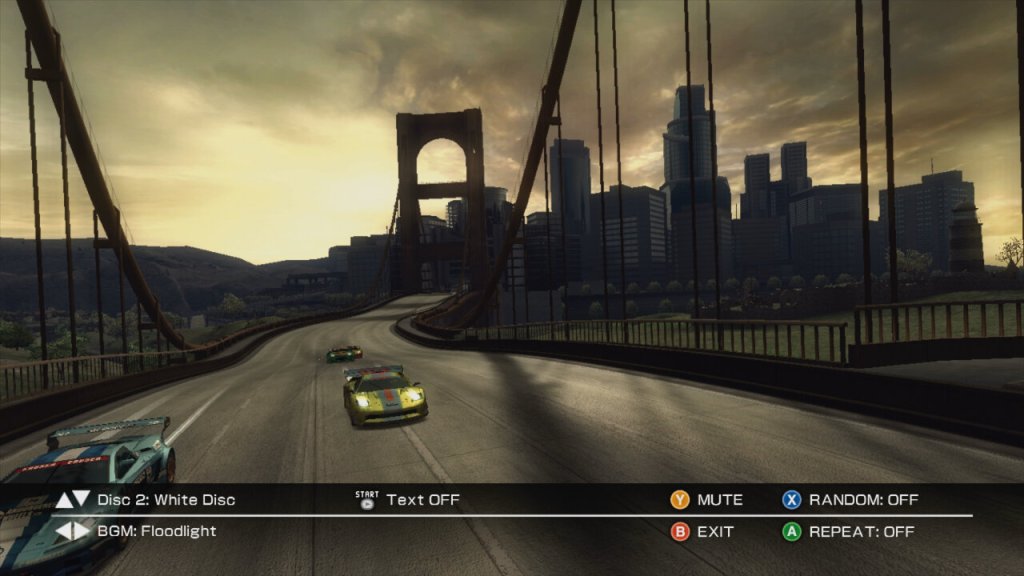
Many of the tracks and cars appear in Ridge Racer 7, a PS3-exclusive game. Some of the music tracks that feature in R6 could also be downloaded for the PS3 as DLC.
Speaking of DLC there are numerous unlock codes to enable machines to be unlocked, and you can also purchase additional songs that were featured on the PSP version of the game.
The song downloads are rather large for their size, which makes me think these are using a lossless format, or they feature additional files. I always assumed Xbox 360 games used the WMA format for audio, or at least the Xbox version of it which should result in a smaller file size. It could also be for surround sound or additional channels, as the songs have additional effects when you fire off Nitorus.
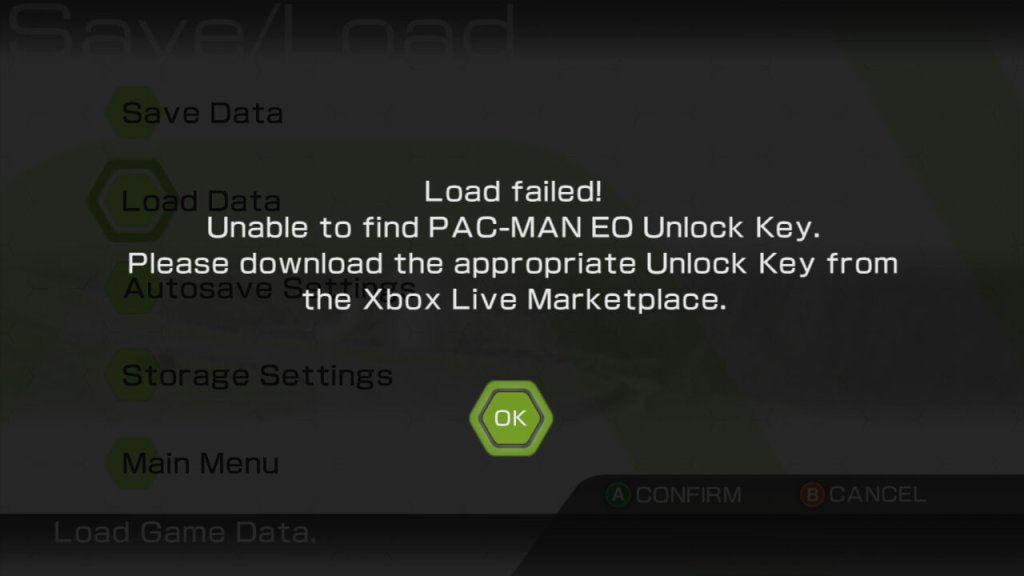
A quick warning, the DLC become attached to your save file and you cannot load your save without them, this becomes more problematic as the Xbox 360 store becomes more ‘broken’. In order to redownload the DLC I had to navigate through the download list in the Settings/Account section of the Xbox dashboard. They no longer appear in the game information tile of the dashboard.
A better way is to purchase them from the Xbox One store (console or Web) which will then push them to the top of the download list on the Xbox 360, which makes it easier to download. Remember to save the files to the same storage location as your gamesave, the hard drive or memory unit is best.
Also a nice touch, you can change the race announcer from the standard voice to the robotic system voice, or Heiachi from the Tekken series. And there’s an option to lay the Mac-Man game from earlier.
Overall, Ridge Racer 6 is a fantastic racing game that’s sure to please fans of the genre. The game’s stunning visuals, tight controls, and satisfying drifting mechanics make for a truly exhilarating experience. While some may find the game’s AI to be a bit too aggressive, it’s a small price to pay for an otherwise fantastic racing experience. As it stands, it was a great launch for the Xbox 360, and a taste of what HD gaming would bring for racing games.
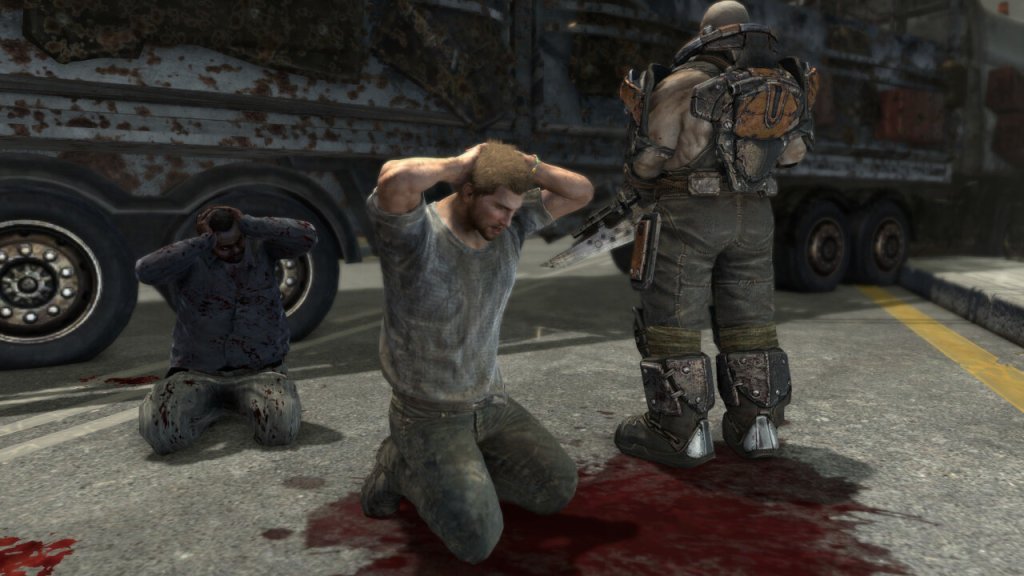
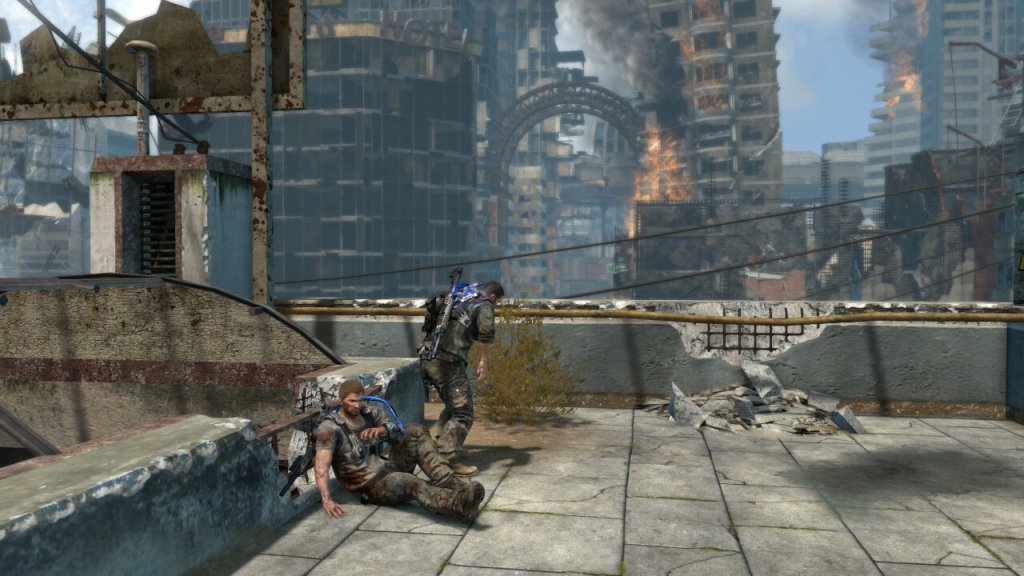
Inversion, released in 2012 for multiple platforms, aimed to offer a unique twist on the shooter genre with its gravity-manipulating mechanics and a focus on destructible environments. Developed by Saber Interactive and published by Namco Bandai Games, it generated some initial buzz due to its innovative concept.
It’s best thought about as a Gear of War clone with gravity gameplay mechanics.
The story of Inversion centers around the protagonist, Davis Russel, and his quest to rescue his missing daughter in a world invaded by an alien force known as the Lutadores. Set in the fictional city of Vanguard, the game explores the aftermath of a catastrophic event called the Inversion, where gravity has been altered, leading to widespread destruction and chaos. Davis Russel, a police officer, and his partner Leo Delgado find themselves separated from their families when the Inversion occurs. As Davis navigates through the decimated city, he discovers that the Lutadores are using their advanced technology to control gravity and oppress humanity. Davis encounters an underground resistance group called the Resistance 33, led by a man named Dr. Raymond Gonzales, who holds knowledge about the Lutadores and their motives.
Throughout the game, Davis embarks on a journey to find his daughter and unravel the mystery behind the Inversion. Along the way, he confronts various Lutadores forces, including powerful bosses and their minions. Davis gains access to a gravity-manipulating weapon known as the Gravlink, which allows him to manipulate gravity, alter the environment, and combat enemies. As the story progresses, Davis discovers the Lutadores’ true intentions and their connection to his missing daughter. The narrative explores themes of family, sacrifice, and the fight against oppression. Davis must overcome personal challenges and make difficult choices to save his daughter and liberate humanity from the grip of the Lutadores.
Inversion’s core gameplay mechanic revolves around manipulating gravity to alter the environment and combat situations. While the concept was intriguing, the execution left much to be desired. The gravity manipulation abilities lacked fluidity and precision, making it challenging to execute actions with the desired accuracy. The controls felt clunky and imprecise, hindering the overall enjoyment and responsiveness of the gameplay.
Inversion features numerous combat encounters throughout the game. However, the combat lacked depth and strategy, resulting in repetitive and monotonous gameplay. The enemy AI is often predictable, and the lack of varied enemy types and tactics diminished the challenge. Additionally, the AI of allied characters proved to be lackluster, failing to provide meaningful assistance or engage players in cooperative gameplay elements.
One of the touted features of Inversion was its destructible environments. Players could use gravity manipulation to collapse structures and create cover. While this added a layer of dynamism to the gameplay, the destructibility felt scripted and limited, lacking the freedom and interactivity seen in other games with similar mechanics. The impact of environmental destruction on gameplay and strategy was not fully explored, resulting in missed opportunities to enhance the overall experience. In most cases, you will use the gravity mechanics to clear debris so you can progress to the next area and that’s about it.
They really could of added secret areas to the levels that could have been uncovered using gravity that would reward you with additional ammo or collectibles that could flash out the backstory. Again very similar to Gears Of War but it adds a lot more depth to the game itself.
Versions
Like most seventh-generation games, it was released on the HD twins (Xbox 360 and PS3) and on the PC (Windows). Nowadays it’s difficult to obtain this game digitally, meaning physical copies are the only feasible way.
Windows
This version was available on Steam, but has since been delisted for users outside North America. I had issues running the game on Windows 10 & 11, with the game refusing to launch. Only way to play the game was to use an older Windows 8 machine. There are supposedly fixes available online but unfortunately I was unable to get them to work.
Also announcing is the lack of Stream achievements despite this game being released in 2012, many Steam games were supporting achievements by then.
Xbox 360
The preferred console platform, but sadly this is not compatible with the Xbox One.
PlayStation 3
Pretty much the same as the 360 version but suffers from a lower frame rate.
The follow-up to the Galaxy S, which would become the staple Android handset, a highly popular smartphone that was released back in 2011. This was when Samsung started to become the goto Android manufacturer, and the main competitor to Apple’s iPhone 4S
The Galaxy S2 initially launched with Android 2.3 Gingerbread and later received updates to Android 4.1 Jelly Bean. Samsung’s TouchWiz user interface was layered on top, which added some extra features and customization options. However, over time, the device started to experience slowdowns and lacked software updates, as is often the case with older smartphones.
TouchWiz UI
TouchWiz was the main user interface that Samsung had developed and gave the device its unique identity compared to other Android handsets. Elements of the Fruitger Aero design can be seen, though the style was already on the decline with the majority of software moving to the flat design (Windows Phone)
TouchWiz offered a visually appealing and user-friendly interface. It featured colorful icons, smooth transitions, and a customizable home screen. Users could add widgets, shortcuts, and folders to personalize their devices. The notification bar in TouchWiz provided quick access to notifications, such as messages, missed calls, and app alerts. It also included toggles for commonly used settings like Wi-Fi, Bluetooth, and screen rotation and can be customized by the user to add additional shortcuts.
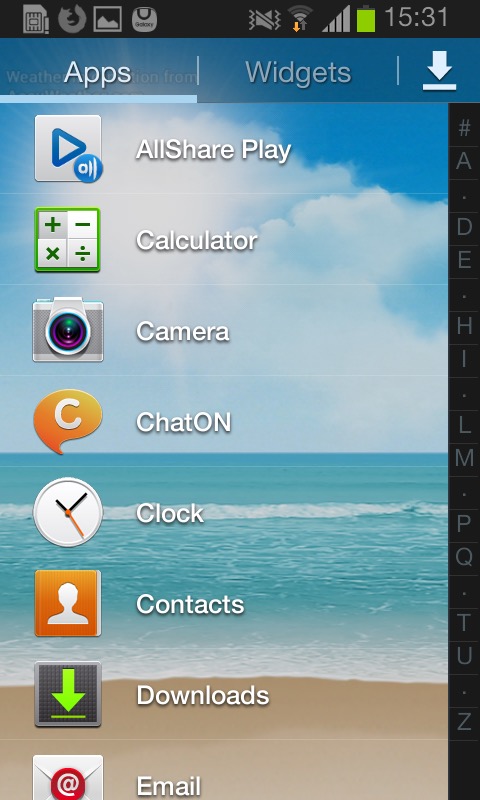
The app drawer housed all the installed applications on the device. TouchWiz offered a grid-based layout, allowing users to arrange and organize their apps as per their preferences. Users could also create folders within the app drawer for better app categorization.
TouchWiz on the Galaxy S2 introduced several motion and gesture-based features. For example, users could tilt the device to zoom in on images or webpages, turn over the device to mute incoming calls, or swipe their finger across the screen to capture a screenshot. The Smart Stay feature used the front-facing camera to detect the user’s eye movements and kept the screen on as long as they were looking at it, helping to prevent the display from timing out while reading or viewing content. The phone will occasionally notify you. of these gesture features when they are useful.
The task switcher is activated by holding down the home button. Clicking on the pie menu on the bottom left takes you to the active applications window, where you can force quit running applications that are in the background. It will also show currently available memory, and the amount of storage in the handset. In essence this is very similar to the Windows Task Manager or the System Monitor in Mac OS X.
Another nice feature where the default live pictures change based on the time of day. The Samsung D900 also did something similar to this with its default theme.
And the notification bar that’s pulled down from the top of the screen, which allows quick access to common phone functions like Bluetooth or settings. You can scroll through the top bar by sliding, which will reveal additional settings like power saving, or mobile data.
Apps
The Samsung Galaxy S2 came preloaded with several exclusive bundled apps that were designed to enhance the user experience, at a time when Samsung wanted to differentiate their Android phones from competitor handsets and to be a better competitor for Apple:
Samsung ChatON: This was a messaging app developed by Samsung that allowed users to send text messages, and multimedia messages, and engage in group chats. It also supported sharing of images, videos, and voice messages. Whist commonly bundled with Samsung handsets, Samsung did allow other smartphones to use the service and was also made available on Windows Phone. It was shut down as Whatsapp and Telegram were much more popular.
Samsung Apps: This was Samsung’s own app store, similar to Google Play Store, where users could discover and download apps specifically optimized for Samsung devices. Surprisingly this still works and I was able to create an account, though signing in is a mess since it has to open a separate browser to facilitate a two-step login.
AllShare: This app enabled users to wirelessly stream and share content, such as photos, videos, and music, between the Galaxy S2 and other compatible devices on the same network, like smart TVs and laptops. I’d say this would use DLNA, but it requires an account to setup which is no longer possible.
Voice Talk: This app aimed to provide a hands-free and convenient way to interact with the device, especially when users were unable or unwilling to use the touchscreen interface. With the Voice Talk app, users could activate their phone’s voice recognition system by launching the app or using a designated hotkey. Once activated, users could speak commands or requests, and the app would interpret and execute them.
As this was before the days of Google Assistant integration, this was a useful feature, although now obsolete as it’s now bundled with the latest Android releases. Common tasks supported were making phone calls, Sending messages, Opening apps, performing web searches, settings reminders & alarms, and controlling the music player.
Game Hub: provided a centralized platform for accessing and downloading games. It was designed to enhance the gaming experience on Samsung devices and offer a variety of gaming options to users. This was mainly to compete against Xbox LIVE integration on Windows Phone, and Game Center on iOS, which allowed users to keep track of achievements and leaderboards with other users. Google had yet to introduce this functionality, and would later do so under Google Play Games.
Radio: Plays FM radio and can store presets. There’s. a very skeuomorphic design with a radio dial being represented here, it’s clear Samsung was trying to mimic Apple’s design language of the era, though I do like Samsung’s twist on the design.
My Files: The phone’s file manager that lets you browse selected folders on the handset’s internal memory, or a microSD card if one is inserted. One hindrance is only one storage medium can be browsed at a time, you have to manually change the paths of the folders to either the internal storage or the memory card. Though when you insert memory card for the first time, the phone automatically changes this to the card.
I can kind of understand this, as it simplifies the storage setup on the phone, Samsung assumes the memory card will be used for multimedia content like music or photos, with the internal storage being left for the apps. I believe Android upon the phones release restricted apps to just run from the internal storage.
Power users on the other hand might prefer to use another app that gives them more access to the phone’s storage.
Gallery: Similar to the file manager but focuses on photos captured with the camera, and any screenshots that have been taken. Albums can be sorted by date taken, location (If GPS tagging was enabled) or if the photo contains a specific person (set manually). Within this you can rotate, crop, edit or set the photo as wallpaper. Printing is also supported, but only supported Samsing printers can be used that support Wi-Fi direct.
S Planner: Samsung’s calendar application, and an alternative to the Google calendar. As with other calendar apps, events and reminders can be added in the future and are synced with the Samsung account on the phone.
Other productivity apps that are included include the Calculator, Clock, Email client and a basic internet browser based on Chromium.
Music Player: Plays back MP3 and AAC files located on the phone’s storage. A simple equalizer (SoundAlive) lets you choose from different presets. You can also stream music from different DLNA sources, like a NAS server. There is also a music sequencer that lets you choose tracks based on them being Calm, Joyful, Exciting or Passionate, though none of them would open any tracks, so I’m not sure how this works. There is a quick list that you can add songs to, which acts as a playlist.
Messaging: Standard text messaging apps that has support EMS and MMS. Like iOS and Windows Phone, a threaded view is used by default. Templates are integrated by default and can be inserted into any message, along with smilies (predecessor to Emoji’s)
Another app known as Messenger+ is included, but I believe this was an old instant messenger supported by Google that is now defunct.
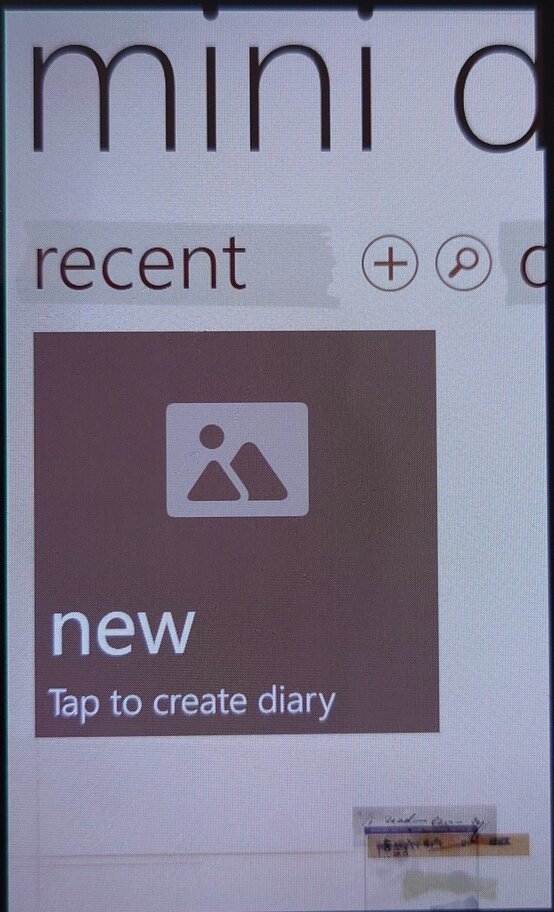
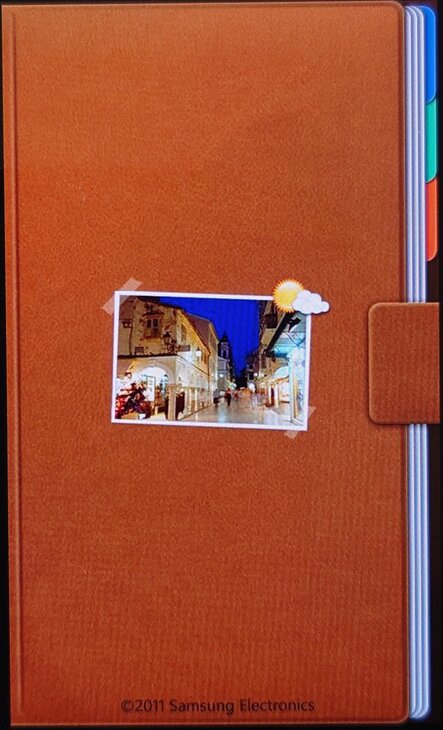
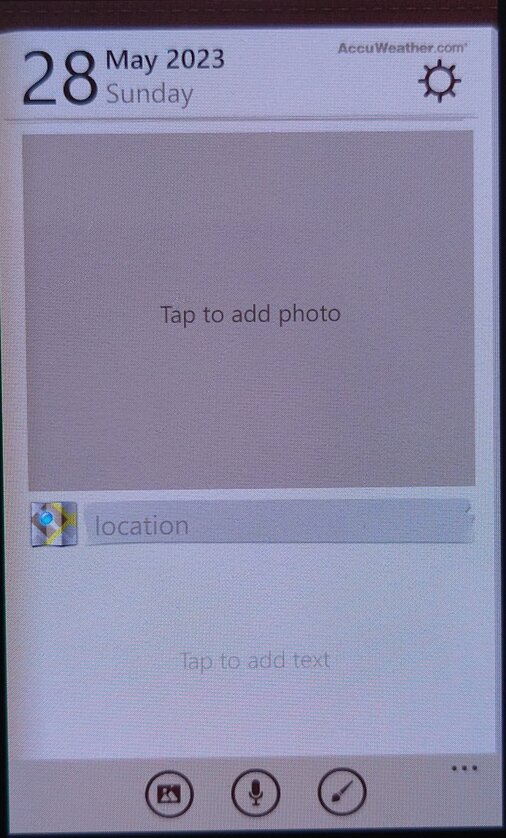
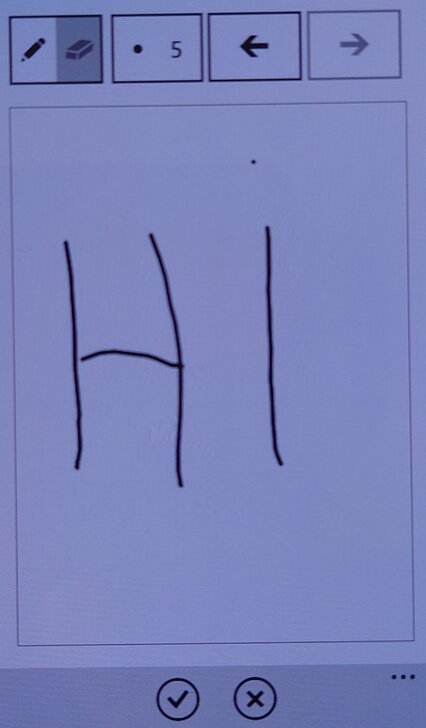
Mini Diary: Very similar to what was found on the Omnia W, you can create diary entries and add any photos or videos, along with a location. Useful to keep track of any memories, but is not exportable to any other application or online service.
Readers Hub: A convenient app for accessing and reading various types of digital content, such as e-books, magazines, and newspapers. Very similar to Apple’s Newsreader that was introduced in iOS 5. Readers Hub offered access to a vast library of e-books, allowing users to browse, purchase, and download e-books directly to their device. It supported various e-book formats and provided features like bookmarking, text highlighting, and adjustable font sizes for a customizable reading experience.
The app also provided access to a wide selection of digital magazines across different genres and interests. Users could subscribe to their favorite magazines or purchase individual issues, which could be read in a digital format with features like page flipping and zooming. Lastly, allowed users to access digital versions of newspapers. It offered a range of newspapers from different regions and provided a convenient way to read daily news and articles on the device.
Group cast: This was an app designed to allow sharing and viewing of content among multiple devices. The app allowed users connected on the same network to share and display their device’s screen in real-time on other devices participating in the Group Cast session, sort of like Miracast but restricted to supported Samsung devices which limits its usefulness.
When creating a session, a PIN is created to restrict access on who can access the session, who can then join provided they are connected to the same Wi-Fi network.
Memo: Simple note-taking app that supports sync with Google Docs
Video:The video app allows users to play various video formats directly on their phone. It supports common video file types such as MP4, AVI, MKV, WMV, and more. The app typically offers basic playback controls like play, pause, rewind, fast forward, and seek. Basic editing is supported for videos captured with the internal camera where videos can be trimmed/clipped.
Lastly a look at the clock app which offers the ability to set an alarm, along with a timer and stopwatch. There is a briefing alarm feature that reads out the time, upcoming schedule, weather forecast and current news headlines, very similar to what Google Assistant offers.
Widgets
TouchWiz introduced a range of widgets that users could place on their home screens. These widgets provided quick access to information and functions, such as weather updates, calendar events, news feeds, and music playback controls.
Like on other Android handsets, Widgets let users pin accessible sections of apps for quick reference or as a shortcut.
Shows your frequently accessed apps, settings or contacts.
Various clock faces can be set and displayed on the home screen
Quickly access the radio, and any stored frequencies
Quickly create a new diary entry
Shortcuts to the S Planner, which is the default calendar application for Samsung phones. From here you can quickly create a new calendar event or task.
Settings Menu
The settings menu is divided into several categories:
Wireless & Networks: Wifi, USB and Bluetooth settings. Also lets you configure DLNA configuration for sharing media. Wi-Fi Direct can also be configured here for local device-to-device sharing.Wi-Fi direct can be enabled here for connection to other wireless devices, and you can check the mobile network data usage.
Device: This has options for sound/display/storage and power settings. You can also enable the blocking feature which will backlist certain contacts or notificatins, like an early Do not disturb mode.
Personal: Settings in relation to locking/unlocking the device, and security settings.
Accounts: Shows any accounts that are setup on the device, be default you will see your Google and Samsung accounts, but additional accounts will show up here as you install third-party apps.
Storage is a little odd on this phone, there’s 2GB of main storage, plus 11.5GB ‘USB Storage’ which appears to be internal to the phone, along with SD card storage if one is inserted. I’m not sure why the internal memory is split into two, possibly to get around current Android storage limitations. The phone does support dedicated USB storage when you connect to a computer, so possibly it’s intended for direct access to the content files on the phone, as an alternative to MTP (Which is also supported), maybe Samsung wanted to give the user the luxury of two methods?
Although there are options to clear memory, Android automatically suspends tasks that are not currently in use to conserve battery power, normally the user does not need to do this.
PC Software
Kies: Kies provided both wired and wireless connectivity between the Galaxy S2 and a computer, allowing users to transfer files, sync data, and manage their device using a Windows or Mac computer.
Kies can transfer (Sync or Manual) music to either internal storage of onto the memory card. Songs that are transferred are not automatically updated by the phones music app, instead you have to wait a few minutes for the app to update with the newly added songs.
You can also optionally install the AllShare client for Windows, which lets you push content using DLNA.
Lastly, shutting down the S2. This menu appears when you press the lock/power button.
A mid-range smartphone released in 2011 and part of the second generation of Windows Phone 7 devices which see an increase in the processing power and shipping with the Mango update by default.
The Omnia W has a sleek and stylish design with a 3.7-inch AMOLED display. It has a solid build quality and feels comfortable to hold, though its plastic feels a tad on the cheap side.
Powered by a 1.4 GHz single-core processor and comes with 512MB of RAM along with a Adreno 205 GPU which gave it better performance. Even with stock apps the performance increase is noticeable with the Xbox Avatar app having a much smoother framerate compared to Adreno 200 devices like the LG Optimus 7. Out of the box the smartphone runs on Windows Phone 7.5 Mango OS, which is a stable and reliable operating system. The phone performs well for basic tasks like web browsing, email, and social media though at the time it had access to the Windows Phone store which has now since been discontinued.
Storage is where the Omnia W falls, as it comes with 8GB of internal storage, which is non-expandable. Compared to the Optimus 7 that had 16GB, its a step backward for those that want to store more. Microsoft had launched the Zune music pass at around this time, which would as stream music rather than have it saved locally on the handset itself. Like other Windows Phone devices, the Zune software is used to sync media to the phone.
Applications
There were some exclusive apps available for the Samsung Omnia W that were not available on other devices running on Windows Phone 7.5.
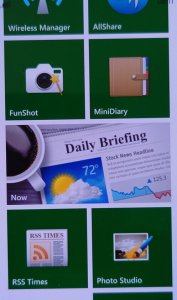
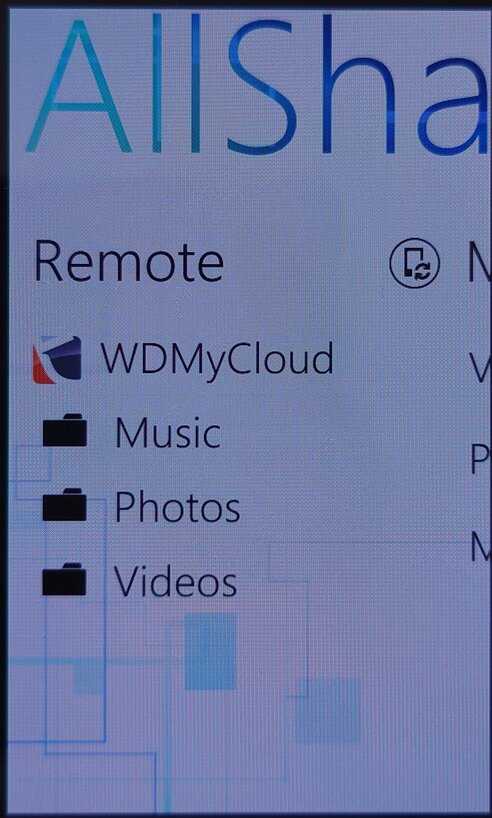
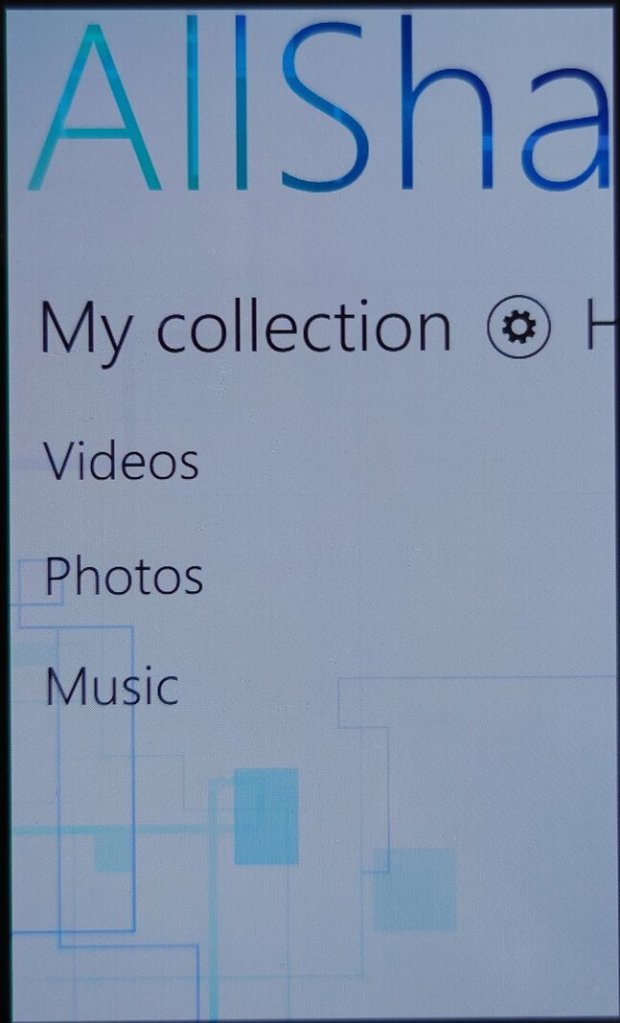
AllShare: This app allowed users to stream media from their phone to other compatible devices, such as a TV or a computer. This uses the DLNA protocol to share to a supported device on the same network. As Windows Phone did not have native support for DLNA, many manufacturers would bundle their own media player apps that supported it. Also screen casting/mirroring wasn’t a thing back then, or was very uncommonly supported so DLNA acted as a good workaround to push content onto an external screen or device. Several Android handsets would do the same, at least until Miracast became standard.
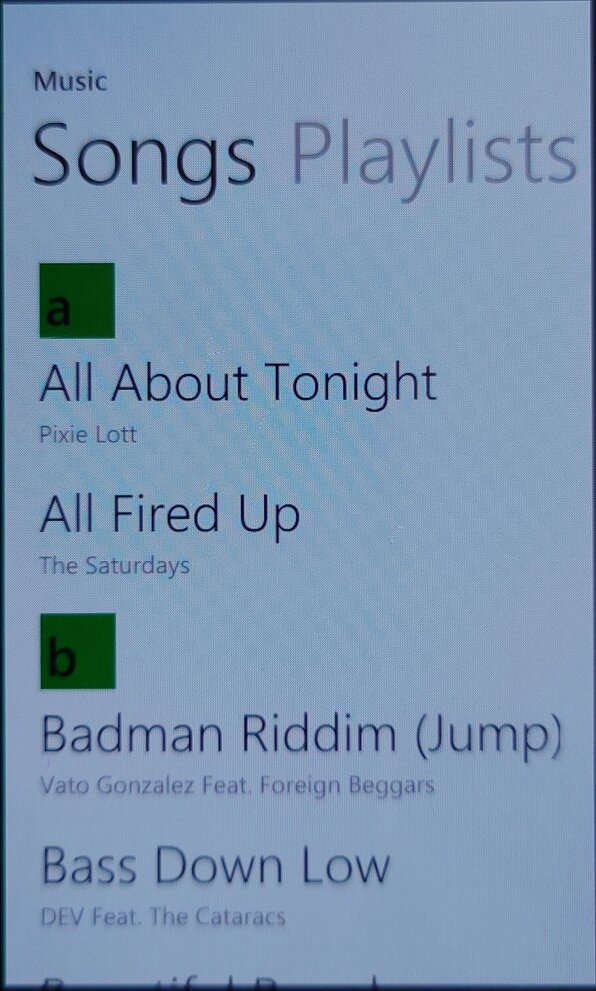
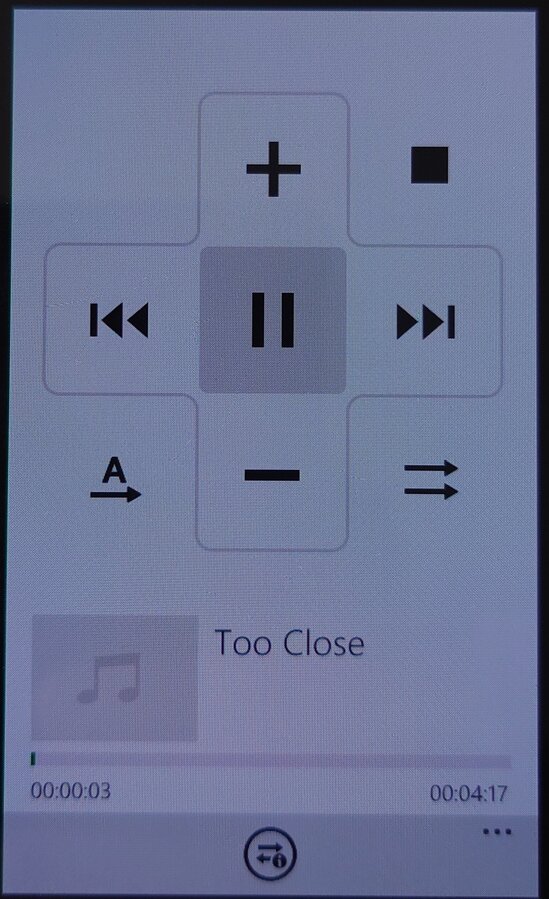
The app is able to pull music from an external source or server, and push it to another DLNA-compatible device, in this example I was able to stream from my MyCloud DLNA server, and cast it to a Panasonic smart speaker.
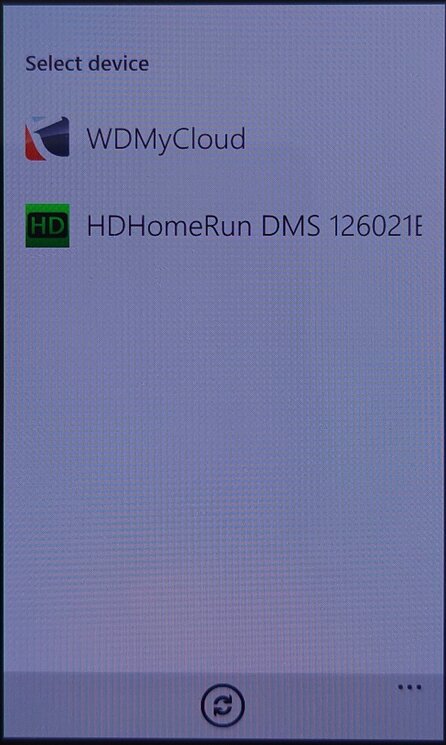
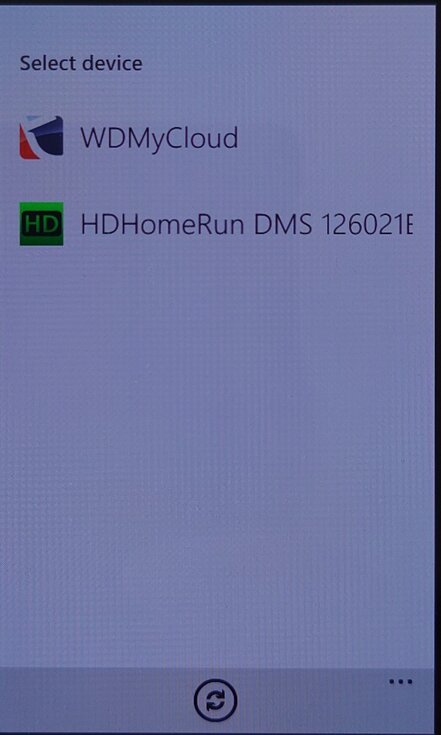
Not all devices were supported, my PS3 and Sony Android smart TV did not appear in the device list, the HDHomeRun appeared but nothing could be done with it.
Family Story: This app allowed users to share photos, videos, and messages with family members and friends who were using a Samsung device.
Fun Shot: This app provided users with a variety of camera effects and filters to enhance their photos, example effects are bulge, pinch, twirl, twist and stretch. Many of these were not supported in the stock Windows Phone camera app.
Mini Diary: This app allowed users to create and save notes, photos, and other information in a digital diary. Kind of like a digital scrap book.
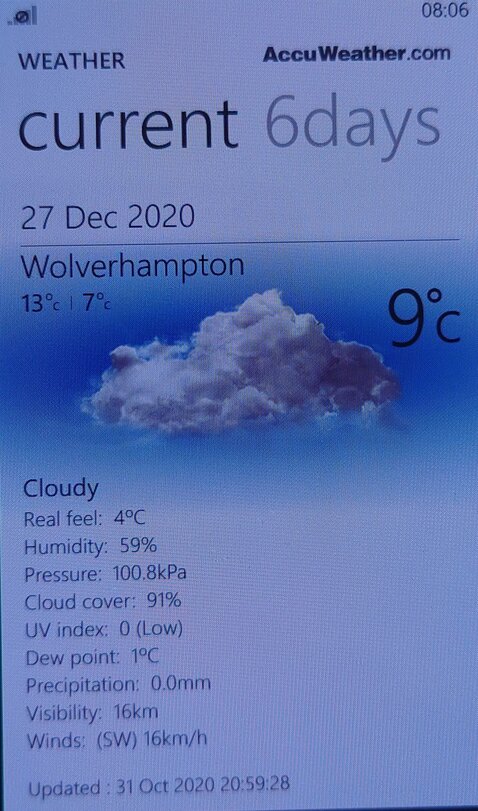
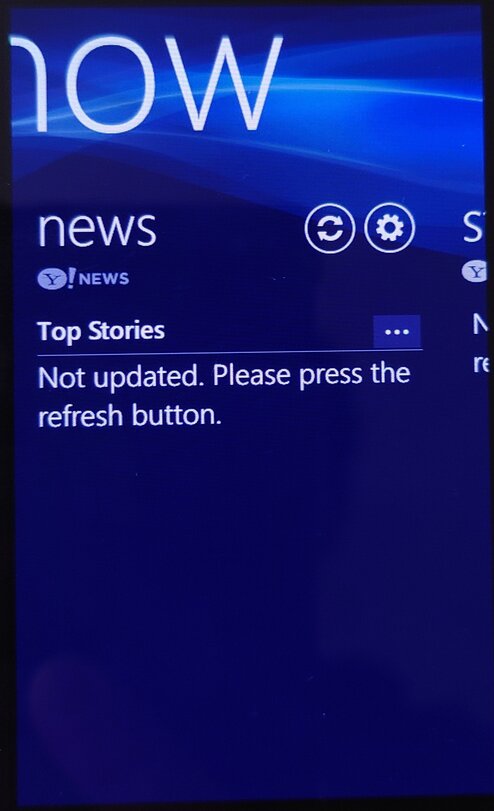
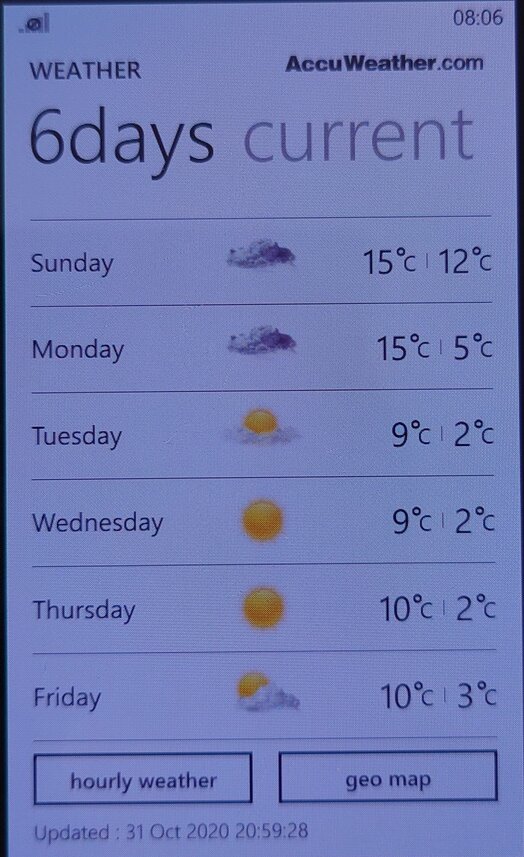
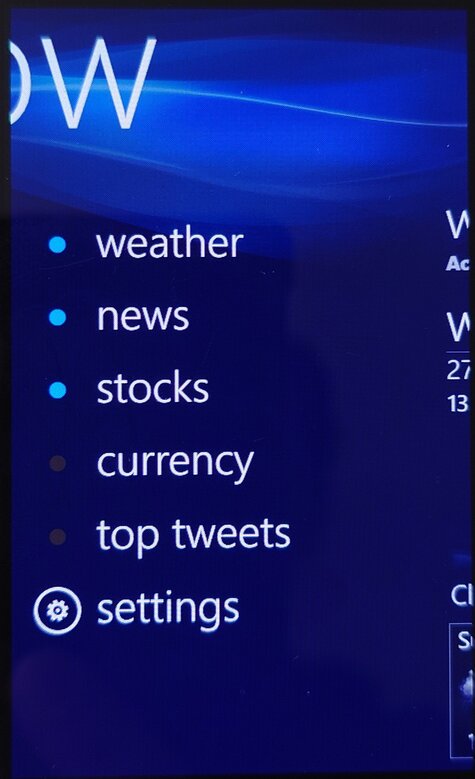
Now: This app provided users with information about the weather, news, and other updates in real-time. Information like news bulletins and weather are displayed on the live tile. Weather information was done using the Accuweather protocol whilst the news & stocks is provided by Yahoo! News. Lastly there is also a top tweets section that would shows you the popular tweets of the week.
I don’t recall Windows Phone having a built-in News application (MSN News was an optional download Microsoft offered) so this would have been an essential addition.
The services for the app appear to have stopped working around 2021, with December 2020 being the last time I was able to sync the app.
Wireless Manager: You would think this was to do with WiFI-related settings, but is really where you can configure mobile network settings that the standard Windows Phone OS does not let you directly configure. Options such as Call forwarding, call waiting and APN configuration can be set here. The APN is typically set automatically by Windows Phone, but in some circumstances, you may have to manually enter settings if Windows Phone does not have any for your mobile operator.
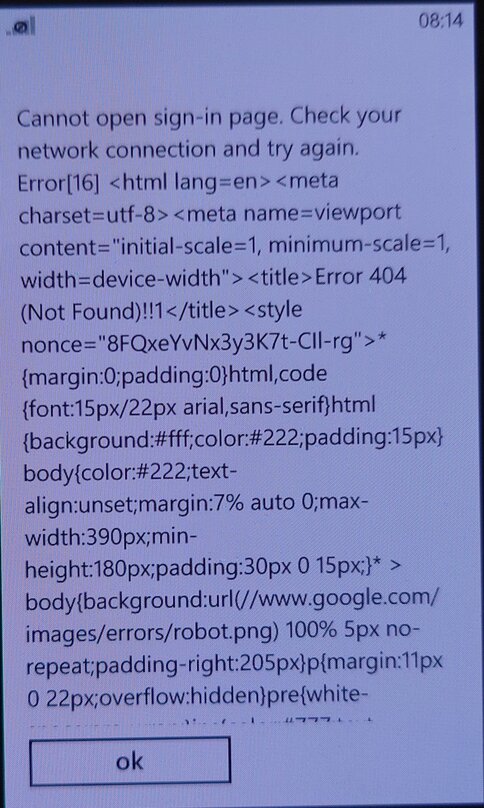
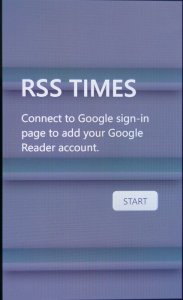
RSS Times: A RSS reader that allows you to subscribe and update your RSS feeds. This requires use of a Google account, of which it’s no longer possible to sign into.
Video Call: Lets you make a video call over the 3G UMTS network protocol, I guess Windows Phone did not support this natively? Odd since this is supposed to be a smartphone platform.
Settings Menu
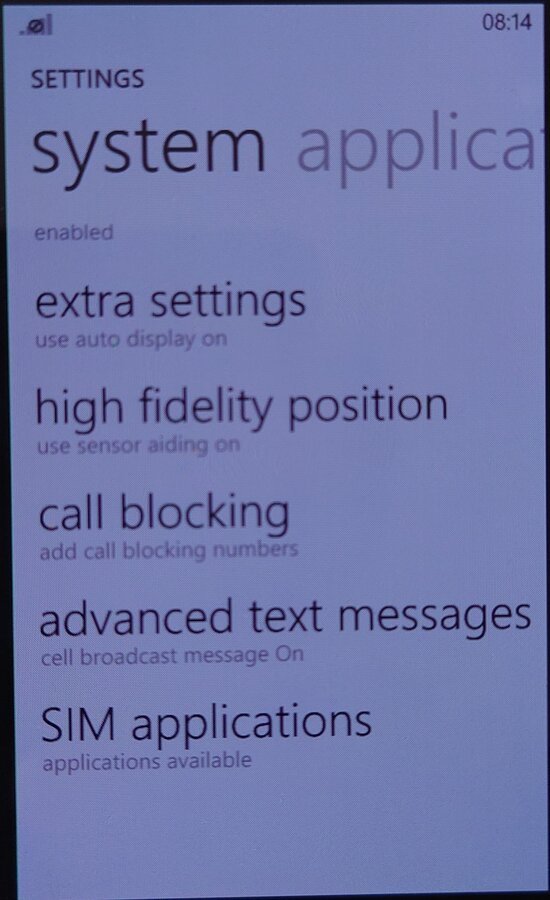
Microsoft allowed manufacturers to bundle their own settings applications
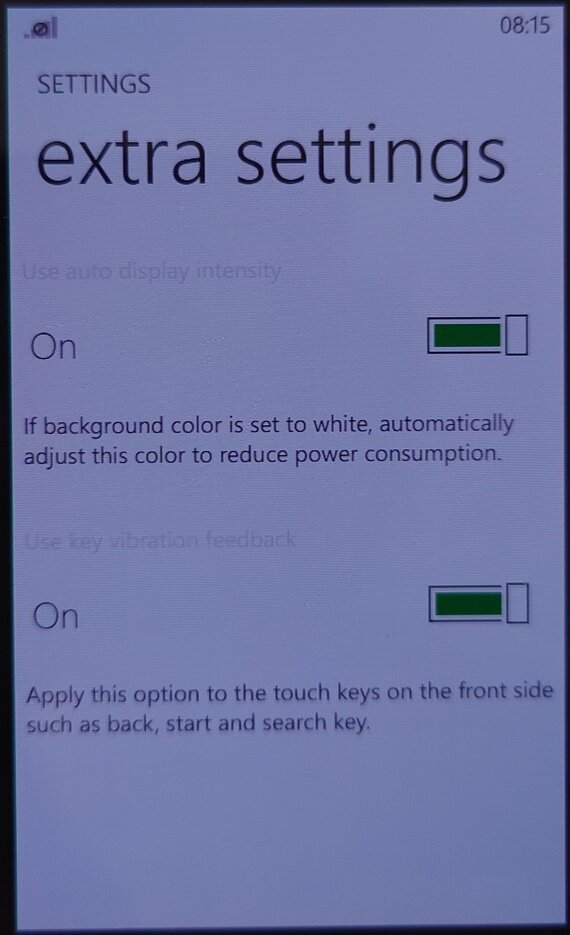
Extra Settings: Enable auto display intensity which reduces the brightness for the AMOLED screen when the display is mostly white. The second setting is to enable haptic feedback when you press the bottom navigation button (Back, Search) which are touch buttons, this provides haptic feedback when these buttons are pressed.
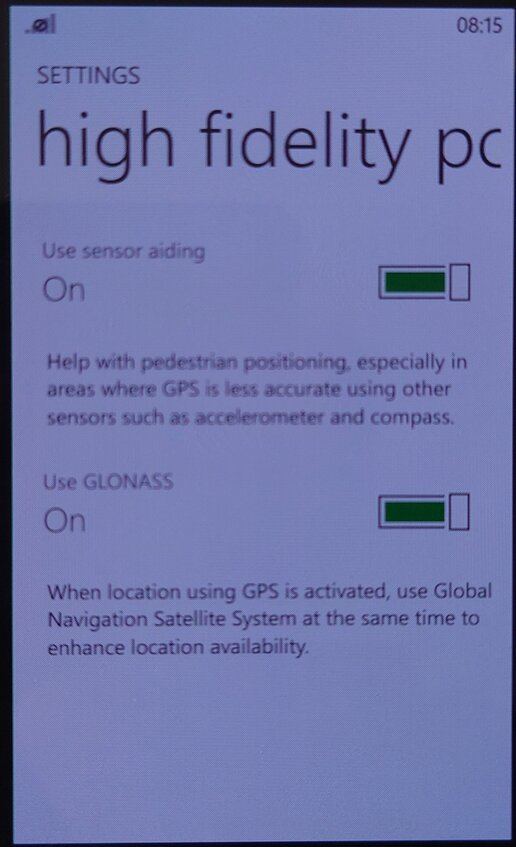
High-Fidelity Position: Enables the use of GLONASS for more accurate GPS tracking. These can be turned off to conserve battery power.
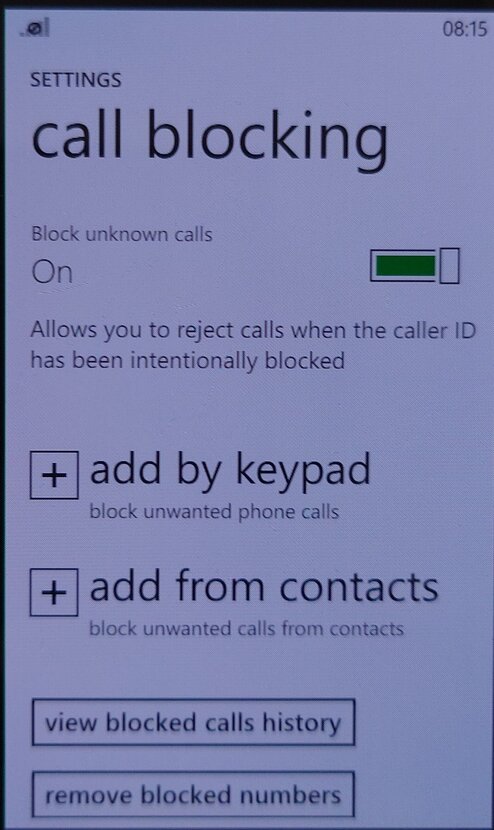
Call Blocking: Block specific numbers from calling or sending SMS messages. You can also block calls without caller ID (Caller Display)
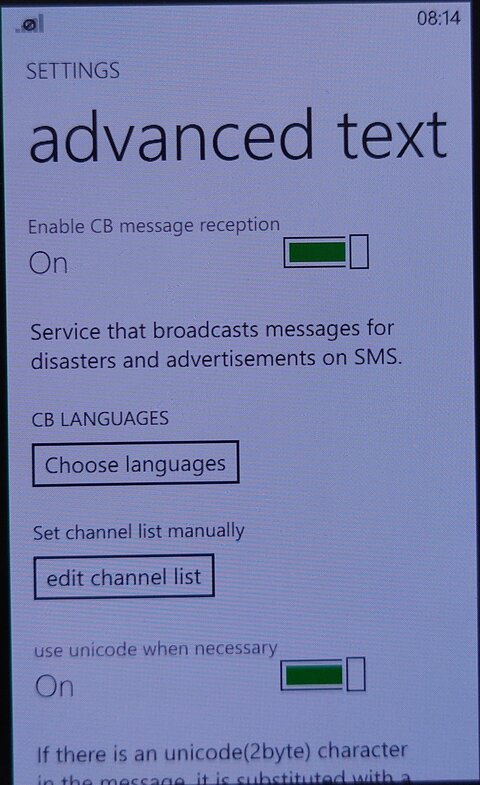
Advanced Text Messages: Enables the use of CB broadcast SMS messages if they are supported by your network operator. Useful for nearby alerts though I’ve never seen this used in the UK.
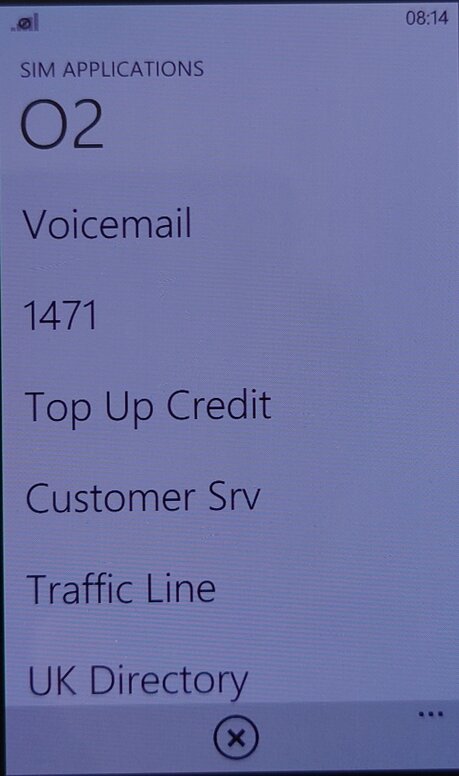
SIM Applications: Access the SIM-AT Toolkit, if they are offered by your SIM card or operator. They are commonly used to access certain features of your operator.
Compton’s Interactive Encyclopedia 99 was a popular educational software program released in the late 1990s. It aimed to provide users with a comprehensive and interactive encyclopedia experience on their personal computers. This version was taken from a Time PC bundle.
Distributed on two CD-ROMs, you will be required to swap out the CD for certain articles or media clips. If your PC had two CD drives and has both discs inserted, the software will automatically switch between the two drives. You will still receive a prompt to swap the disc but if you click Ok, then the software will automatically swap to the next drive.
Atlas
Clicking on the Atlas button on the Control Bar displays an interactive atlas that lets you find places in the world by location and name. Use the atlas to find locations on a world map; maps of continents, regions, countries and dependencies, states, and provinces; and historical and thematic maps.
When you first click on the Atlas button, a world map appears. If you click on an atlas icon in an article, in Related Items, in the Find Viewer, or in other lists, the atlas opens to the specified location.
Timeline
The Timeline button on the Control Bar lets you explore information about important events, people, and eras or trends throughout world history, from 10,000 B.C. to the present. Use the timeline to discover when a particular event occurred, the order in which a series of events happened, and which events were happening at the same time.
The timeline has a horizontal scroll bar along the top of the window that shows the complete span of time, a portion of which can be viewed on the timeline below. The small box in the scroll bar represents the position in time that is currently shown in the timeline.
The pictures, icons, text, and era bars on the timeline mark specific events you can explore. Use the vertical scroll bar to move up and down to see all the timeline elements for the currently displayed time period for the United States and/or World History. Move the cursor over a timeline element to see the date an event happened and a brief description of it. Clicking on other elements will present music or sound, movies, tables, maps, or articles. Some era bars may also link to lists of events from that era that in turn link to articles, sound, and other types of media. Click on any underlined text in an article to open a related article.
Research Tools
The Topic Chooser can be used to see the contents of the encyclopedia as a set of topics and branching subtopics. Browse through the topic lists to find areas of interest. Start with a broad subject and narrow your view to a specific aspect by exploring related subtopics.
Each topic on the first list has a folder beside it, indicating that each topic has related subtopics and articles. Subtopics are indicated by folders, which can also be opened to show more subtopics or articles.
You can use the Bookmark List to see a list of the bookmarks you’ve created. (Bookmarks can be created to mark an article, a Dictionary/Thesaurus entry, a Timeline item, a picture, a movie, a sound, a table, an Atlas map, an update, or a Web link.
Dictionary / Thesaurus
The Dictionary/Thesaurus can be used to look up words using Webster’s New World Dictionary, Third College Edition, and the New Revised Edition of Webster’s New World Thesaurus. You can also double-click on a word in an article or a caption to access these features. When you open the Dictionary/Thesaurus from the Research Tools button on the Control Bar, type a word in the viewer’s text box and press Enter to see the word’s definition. When you open the Dictionary/Thesaurus by double-clicking on a word in text, the word appears in the viewer’s text box and its definition is displayed.
Presentation Maker
Presentation Maker allows you to create multimedia shows and presentations by combining and arranging information you find in Compton’s Interactive Encyclopedia—articles, tables, pictures, Atlas maps, Timeline items, movies (including animations and slide shows), sounds, atlases, and star maps. You can also create title screens and other screens of text, which you can decorate with borders and colored backgrounds. For a finishing touch, you can even record your voice to narrate the show.
Creating a show is easy, Gather or create the components of your show and place them into a script. Your show can contain any combination of these four kinds of elements:
Items from the encyclopedia, such as articles, tables, pictures, maps, movies, and sounds. You can “collect” items from the encyclopedia by creating bookmarks, or you can select them directly from the Presentation Maker screen.
Title screens, which are screens of text that you create.
Extra sounds, which you can record or add from other sources.
Extra pictures, such as art you’ve created in a paint program, photos you’ve scanned, or pictures you’ve gathered from other sources.
Online
The options available from the Online button on the Control Bar give you access to Internet resources. Offline, you can browse a list of Web site descriptions and then link to a site by clicking on its title.
In addition to searching for a topic, you can click on the topic categories. Websites are grouped thematically. When you click on a topic with a Web link icon, a pop-up viewer displays a listing of one or more related Web sites that includes a title, an Internet address, a target age group, and a description. You can use the listings to look up information available on the Internet, and then click on the Web site title to go to that Web site, though most of the links are no longer active unless you use the WayBack machine.
You can view descriptions of Web sites by clicking on the Web Links information type in the Find Viewer, Web Links in the drop-down menu in Related Items, or the Web Links icon in articles, on the Timeline, and elsewhere in the encyclopedia.
Special Features
Here you can explore exciting multimedia collages and timelines related to a specific subject.
Biomes of the World: Explore environments from the harsh desert landscapes of Asia and North Africa to the forests of the temperate zones.
Space Exploration: Race to space with the Soviets and the Americans from the first orbiting satellite to space stations and the space shuttle program. The pioneers of the last frontier include many firsts—the first person in space, the first in orbit, the first to walk in space, and the first to land on the moon.
Ancient & Classical Civilizations: Go back in time and relive the ancient world of the Chinese dynasties, Greek and Roman empires, and other civilizations.
World Cultures: Journey through five continents and meet the people who live there through their art, music, and dance.
U.S. History 1775–1877: Travel back in time to the Revolutionary War, the Oregon Trail, the California Gold Rush, and the building of the transcontinental railroad.
U.S. History 1877–Present: Discover the events that shaped American life 100 years ago and 10 years ago.
The Planetarium shows the night sky in your area at the current time (if you are using the program at night) or at dusk (if you are using the program during daylight hours). The date and time appear at the top of the map.
Overall, Compton’s Interactive Encyclopedia 99 was a comprehensive and engaging educational resource for its time. It provided a wealth of information on various topics, along with interactive features that enhanced the learning experience. Its age means a lot of articles are now outdated, but its nice to go back and look at previous articles in hindsight.
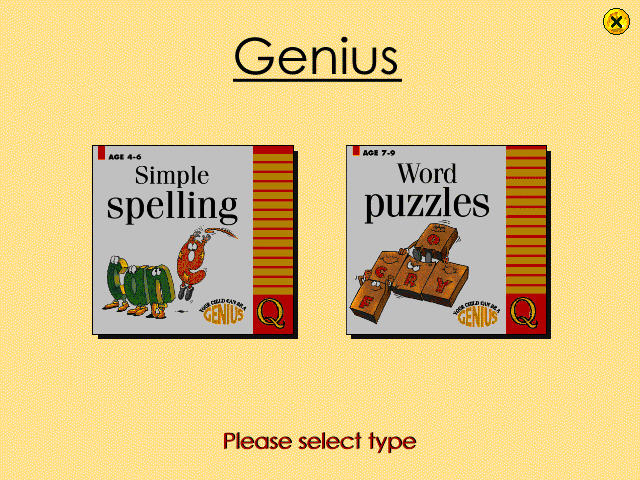
A bundled CD-ROM multimedia title designed for primary school users, that was often bundled with a Time Windows PC (A common OEM at the time). This stuff pretty much helped me graduate from school.
Simple Spelling
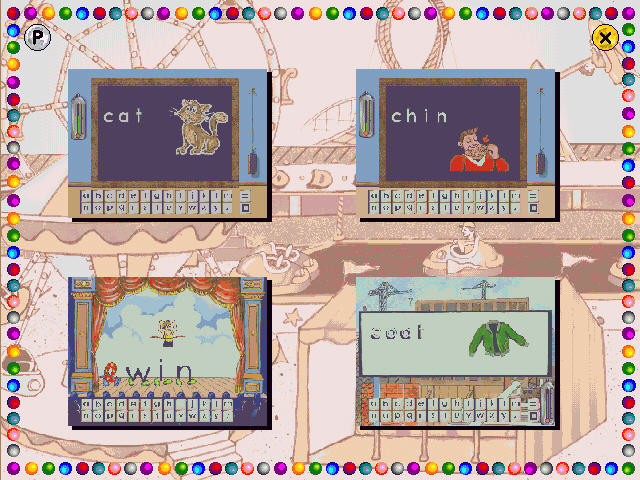
This section teaches spelling in the form of phonetic concepts. There are three programs in the package that provide speech, graphics, animations and sound effects and is controlled by using the mouse.
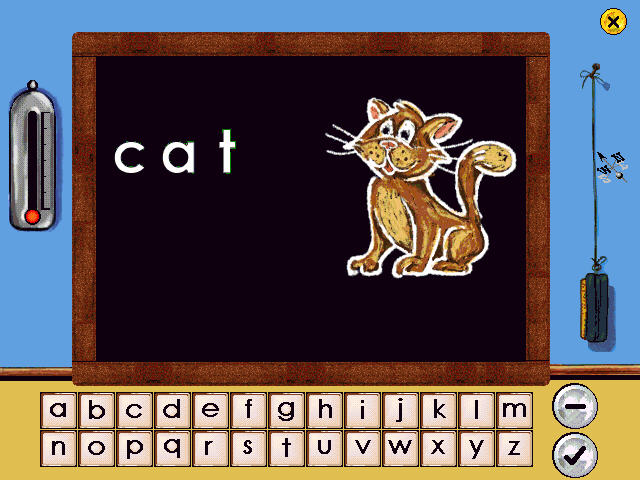
The first program concentrates on the fundamental three-letter words that are the traditional phonic nursery slopes – cat, mat, hat, etc. You also get audio that sounds out the word, though it comes through rather choppy.
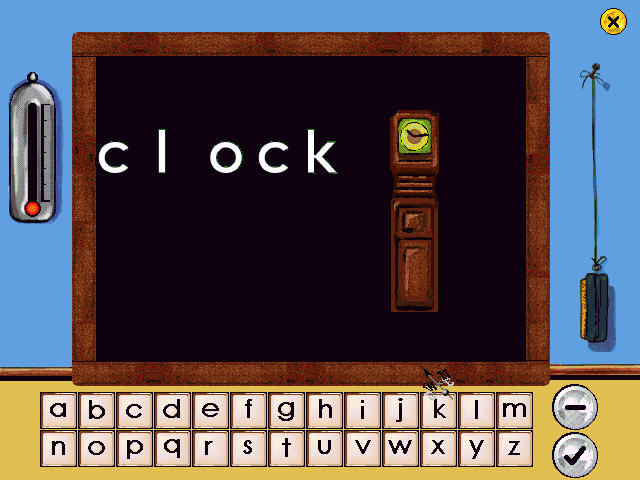
On the next activity, you deal with letter blends such as cl (clown/clown), bl, and fl. Again words are shown and sounded out and we are given the task to spell out the words.
Again the sounds occasionally come out choppy, despite running on a 16x CD-ROM drive.
The final activity teaches the concept of magic e, how putting the letter e at the end of a word changes the sound of a preceding vowel.
So it’s basically your average English lesson with the magic of 90s PC multimedia.
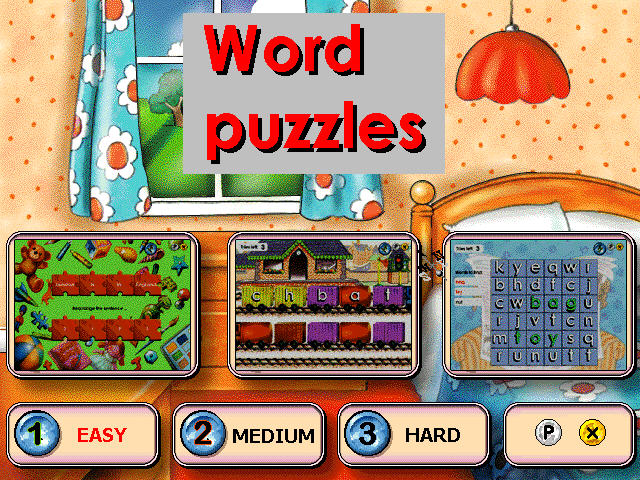
Word Puzzles
There are three puzzles, anagrams, word search and fun with sentences.
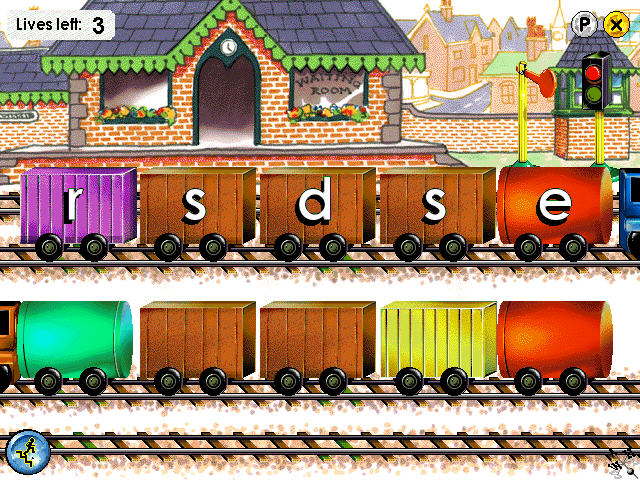
Anagrams: This help understand the structure of a word, particularly noting the position of vowels and the way words blend together, such as “fr” and “cl”, there are three levels that range in difficulty, the user rearranges the letters in the correct order. The player uses the mouse to click on a letter and drag it onto a blank space to build up the correct word. Three attempts are allowed before moving on to the next word.
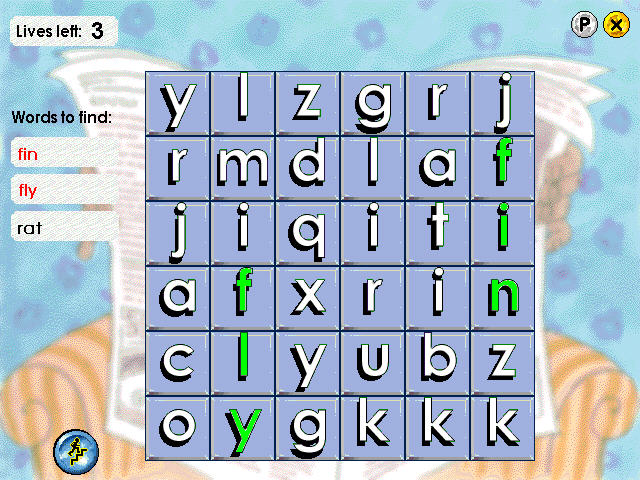
Word Search: A list of the words is shown on the left of the screen and each is highlighted when the word has been found. Clicking on the correct first letter of a word turns the whole word green. Clicking on the wrong letter loses a life, of which there are only three. If the player clicks on a letter and nothing happens, it means the letter is within a hidden word.
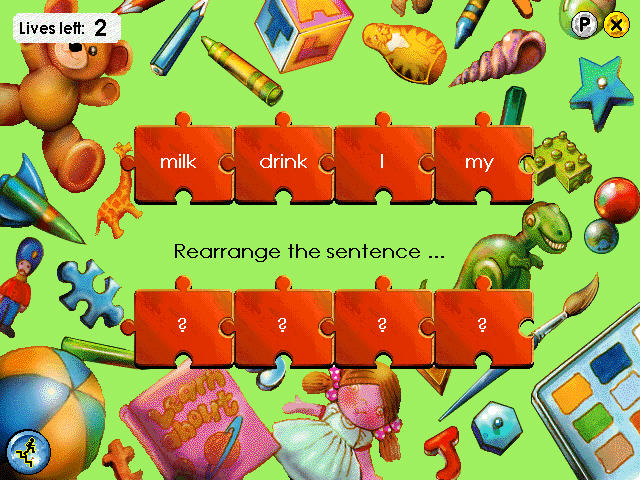
Fun with Sentences: This consists of two different puzzles, each of which is designed to help think of the structure of sentences. In the first game, the player is invited to pick the correct word from a choice in order to complete a simple sentence. The second game requires the player to rearrange the words in a jumbled sentence. The mouse is used to click on a word and drag it to its correct place in the sentence.
SATs Tests
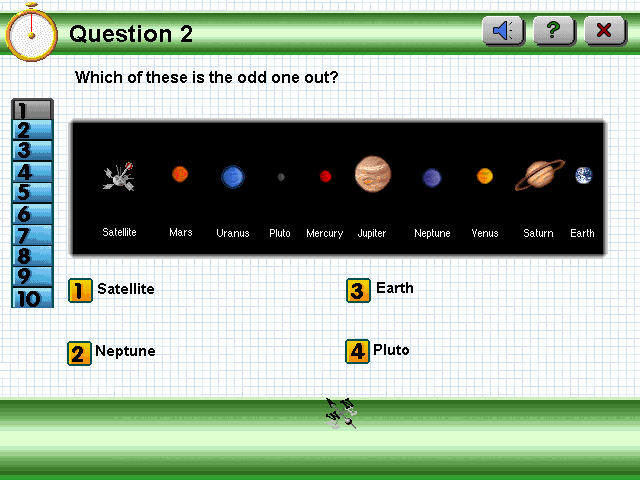
Helps prepare for SAT’s tests, which are standardized exams that are carried out in the UK. The questions included here are part of the national curriculum. There are 20 questions to be answered that are covert at either a Key Stage 1 or 2 levels (the difference being the age, 1 intended for ages 7 and 2 intended for 11)
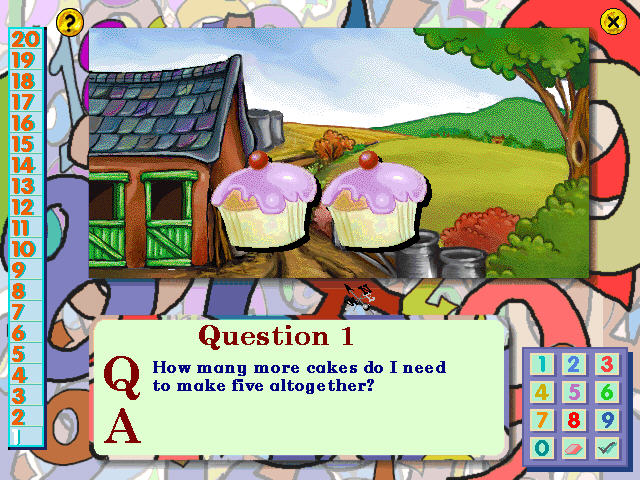
Each question is selected at random and can be answered by selecting a number or typing the answer. Sometimes you will need to select a graphic or icon on the screen.
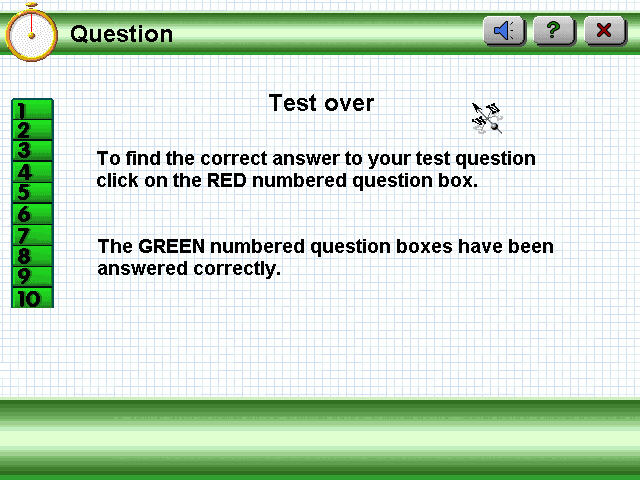
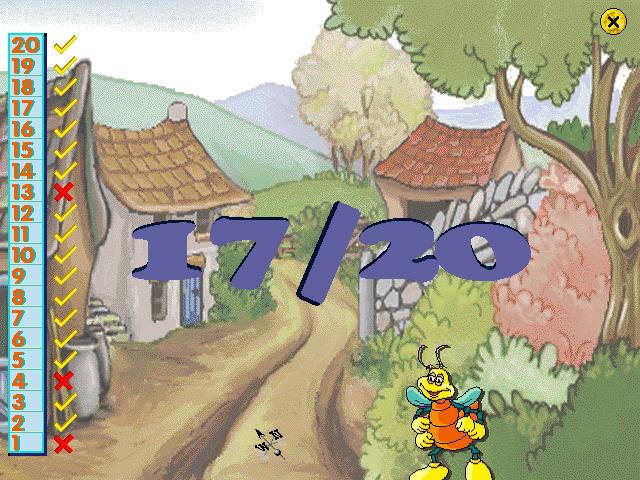
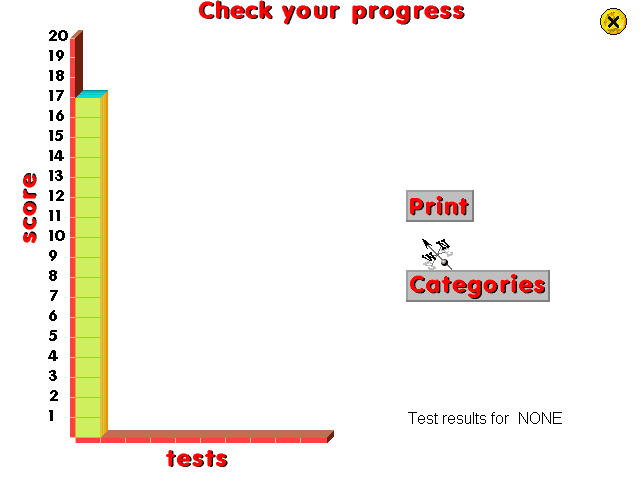
At the end of the test, you are graded and can see the questions that you got incorrect. The program keeps track of your scores in a graph view so you can track your progress over time.
Similar to Letts Science Explorer, Maths Explorer uses the same Pre-rendered environment to navigate a virtual maths learning center, which appears to be set on Mars (The Science one appeared to be set underwater), it kind of gives the feel of Myst.
The application is desinged to run under Windows 95 or 99, but the user guide makes reference to Win32s which is intended for use on Windows 3.11.
The entrance that appears when you start the program, you are prompted to enter your name, which is where your score and progress are saved under. There is also a link to the Letts online website, that opens your default web browser.
Navigation is done by clicking on the edges of the screen to move to a different section of the room, doors can be clicked on to go to a specific room, which are based on different subjects of mathematics. As you browse the center, you are offered various different activities that can be invoked by clicking on them, each zone has its own set of activities. You can quickly view these by clicking on the Map button on the top left of the screen.
The different zones are:
Number: Fractions, currency & counting.
Calculation Zone: Use of a calculator and different functions
Computer Zone: What computers are and a summarization of how they function
Game Zone: Various activities that are designed to test your maths skills.
Data Zone: Relating to collecting and analyzing data, and how it becomes information
Measurement Zone: Various different units of imperial and metric and how they are used
Shape Zone: Shapes, Angles & Symmetry.
Information Point: Serves as an introduction to the zone itself and how it relates to mathematics and what can be explored
Fact Point: Shows an important fact that is relevant to the zone itself
Puzzle Post: Gives you a challenge that can be done away from the computer.
Investigations: The main attraction of the zone, this explores a specific subject and they are divided into three sections, Learn About, Main Investigation & Tell Me More
Learn About – This is where you learn more about the subject at hand, a narrator will read what is displayed on the screen (which can be muted at any time) and a picture or graphics will appear to accompany the learning material
Main Investigation – A mini-game or activity that is in relation to what was conveyed in the Learn About section, these typically have three difficulty levels and some allow you to play with another person, but only one player can play at a time.
Tell Me More: Offer supplementary information on that subject, not essential but information that is good to know
There is also a Test Yourself activity where you can answer questions related to that subject and can view your score
Towards the top of the screen there is a navigation bar of some sort, that lets you access different areas of the application. The map will let you quickly jump to a specific area of the zone, which saves having to keep clicking in order to navigate.
The catalog gives a directly of the different topics that can be quickly accessed, useful if you need to learn about a specific subject, and which subject they belong to
The Notes section lets you view any saved notes that are specific to your user profile and are tied to any investigations that you complete.
The Logbook will keep track of your progress and will mark any activities taken. Scores from Test Yourself activities are also recorded.
Lastly, there are Print Materials which is its own separate application. Here you can select a subject and a topic that you can print out for later reference.
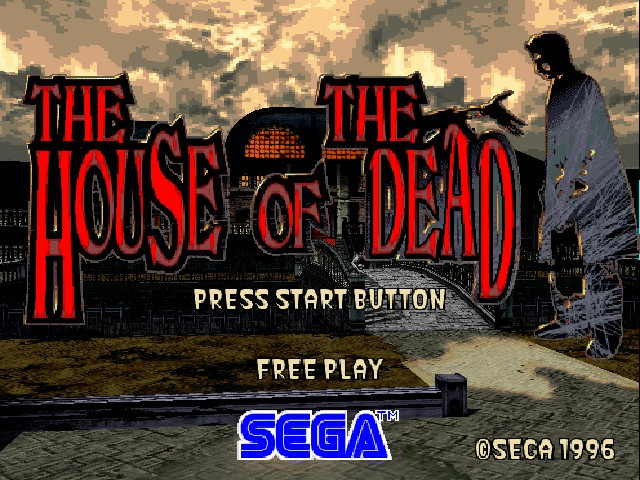
A mid-90s arcade rail shooter that takes the Virtua Cop formula and puts a horror spin on it, giving birth to a new franchise.
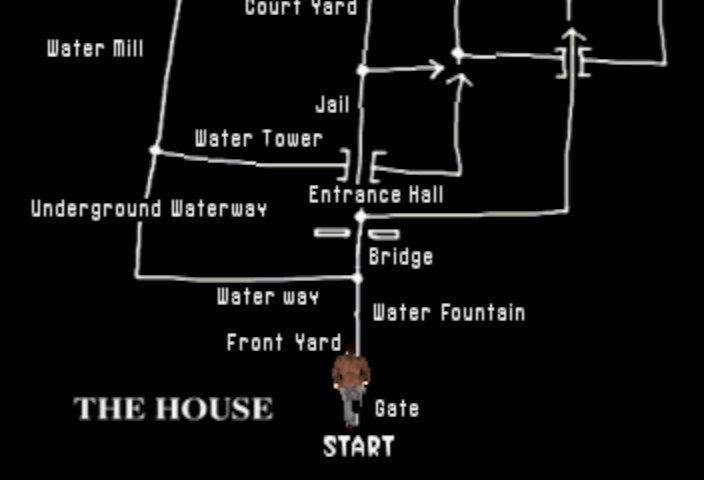
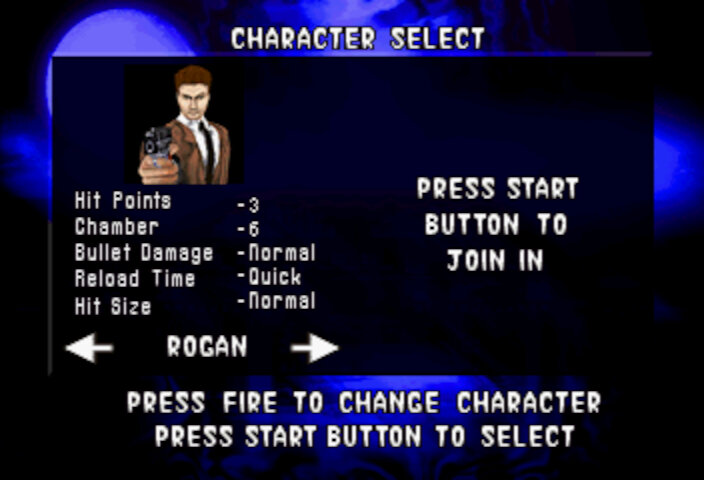
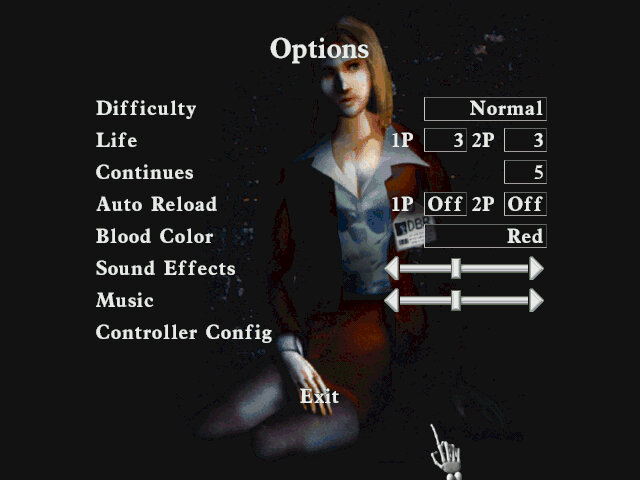
In House of the Dead, the main characters are two AMS agents named Thomas Rogan and G (Yes, just G). They are sent to investigate a mysterious outbreak at the DBR Corporation’s genetic research facility, which has been overrun by hordes of undead creatures. Throughout the game, the player controls either Thomas or G as they fight their way through the facility and uncover the truth behind the outbreak. Along the way, they encounter various other characters, including DBR’s CEO, Caleb Goldman, and his assistant, Dr. Roy Curien, who is responsible for the creation of the undead creatures.
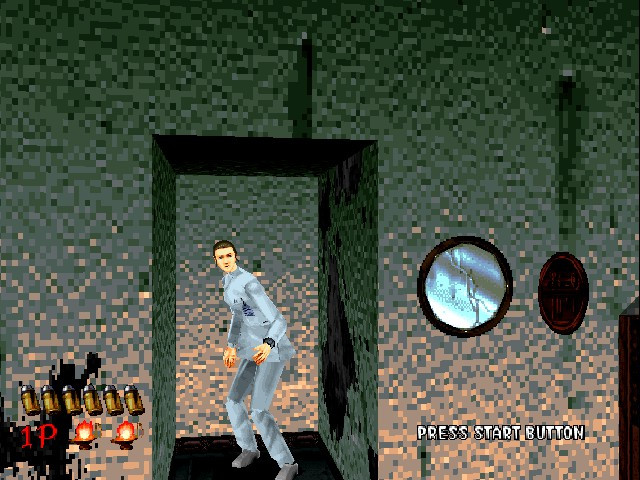
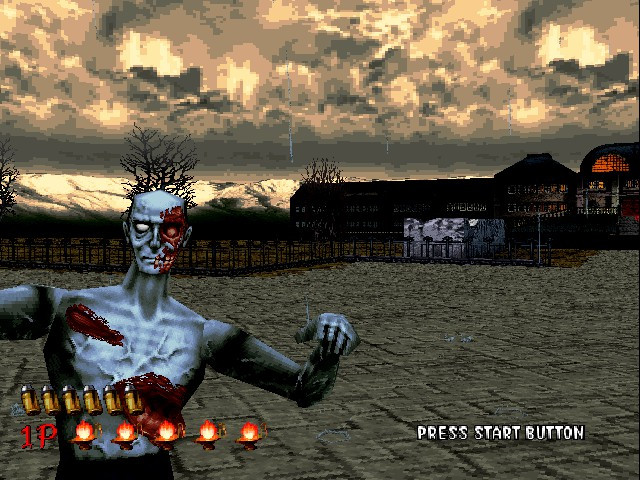
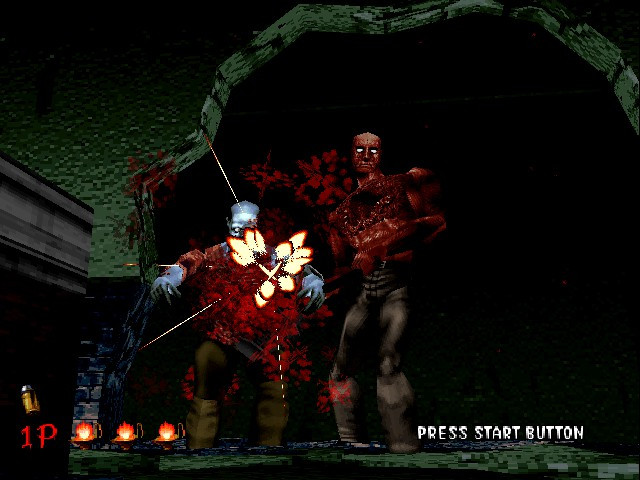
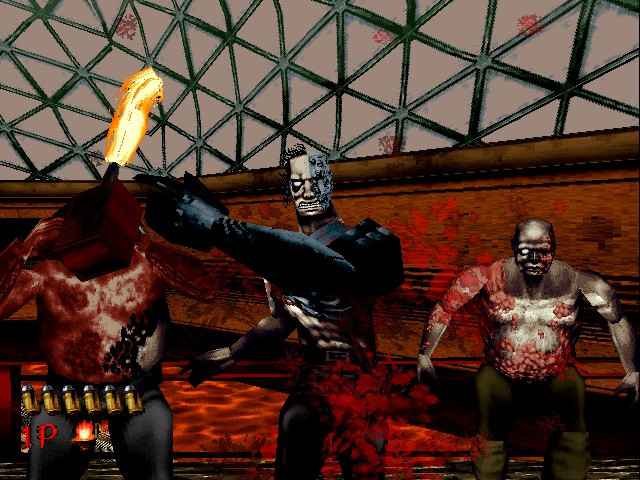
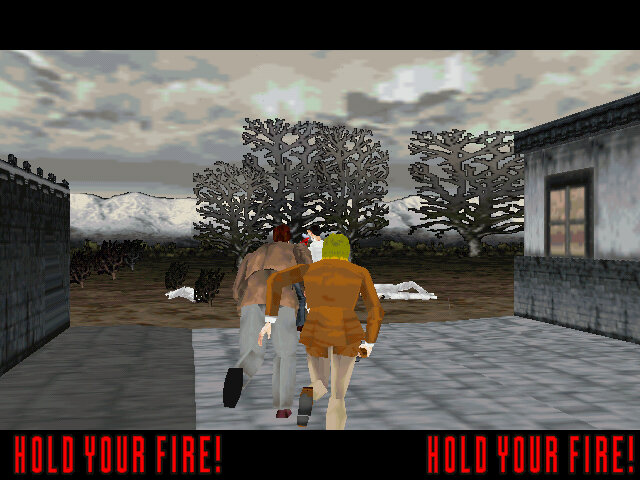
The gameplay of House of the Dead is simple, you’re armed with a light gun and tasked with shooting your way through levels filled with zombies, mutants, and other monstrous creatures. The gameplay is fast-paced and requires quick reflexes, as enemies can come at you from all angles in the form of jump scares. The game also features branching paths, which add some variety to the levels and encourage replayability as many of these will affect the ending sequence.
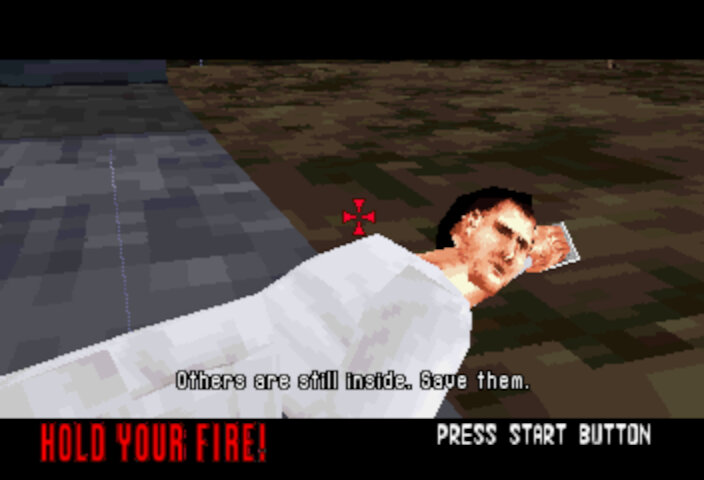
Some items can be shot at, typically pots, and will reveal additional lives. There are also opportunities to save scientists, who will sometimes reward you with an extra life or will direct you to another path.
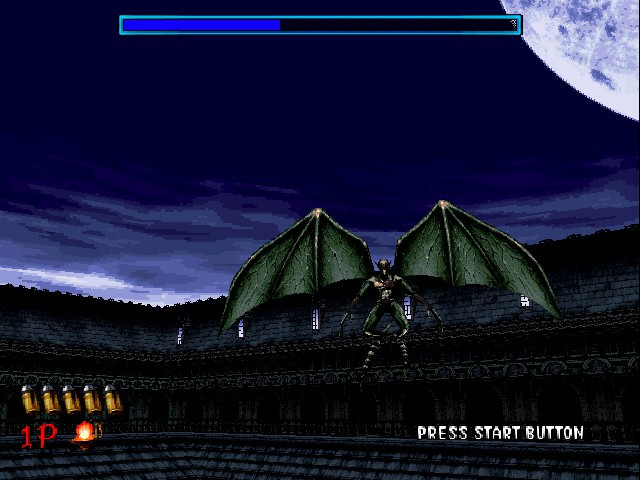
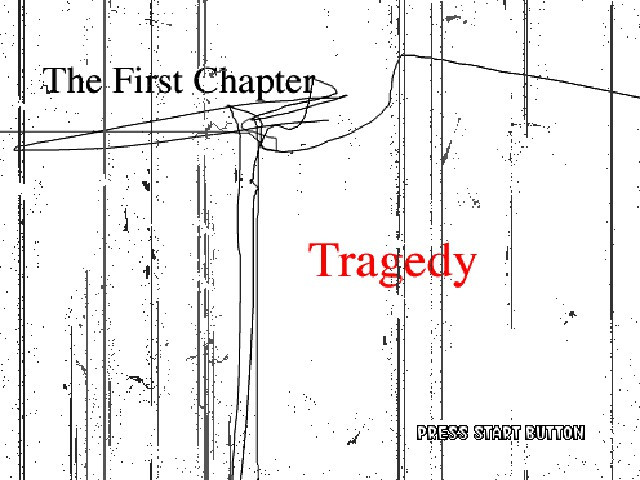
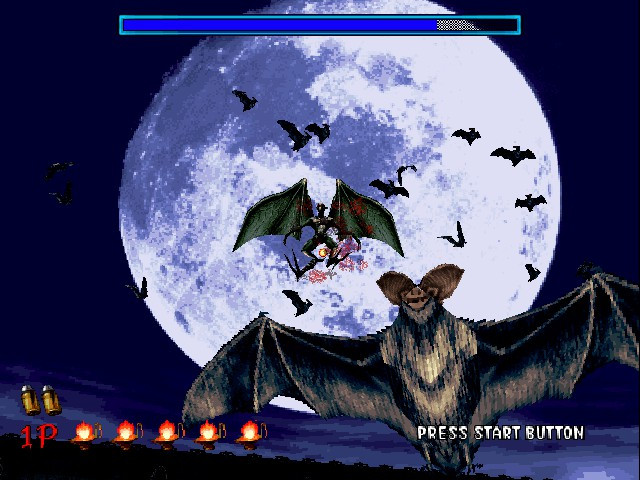
There are a few boss battles, each with a different way of defeating them. These occur at the end of each chapter. The Chariot is a large, armored zombie and appears at the end of Chapter 1 with the goal to target its weak spot in the armor to damage it. The final boss being the Magician serves as a challenging and memorable boss battle. He is able to create multiple illusions of himself, making it difficult for the player to determine which one is real. Additionally, he has powerful psychic attacks that can drain the player’s health and make it more difficult to aim. Defeating the Magician requires careful observation, quick reflexes and a lot of coins.
Versions
The game was somewhat popular and prompted Sega to port it to their Saturn console, it also get a Windows PC port similar to Daytona USA and Manx TT Superbike.
Arcade
The arcade version of House of the Dead is considered a classic and is highly regarded by many gamers and fans of the shooter genre. The game was initially released in arcades in 1996 and like other Sega arcade titles of the era, it ran on the Model 2 arcade board.
This version of House of the Dead was popular due to its use of light guns, which allowed players to aim and shoot at enemies on the screen. Reloading is done by shooting outside of the screen, In contrast to Namco’s Time Crisis where you have to release the pedal to enter cover to reload.
Sega Saturn
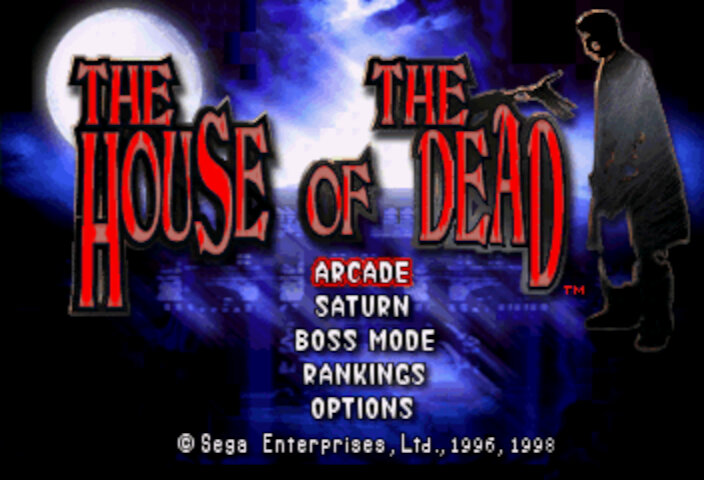
The Sega Saturn version of House of the Dead was a faithful recreation of the arcade version’s gameplay mechanics, graphics, and sound effects. However, the game’s performance on the Saturn can be a bit sluggish, with some frame rate drops and occasional slowdowns during intense action sequences. The Saturn version also supports use of a light gun controller that was intended to give more precise aiming. Unfortunately this does not work well on modern LCD displays leaving the traditional controller as the only form of input.
You do have the ability to play as different characters, either ‘G’, Sophie or one of the Scientists which will affect the cutscenes as they are rendered in engine. Compared to the arcade version, the graphics takes a downgrade but you do get the benefit of high quality sound.
Still there’s no option to revert to the arranged arcade soundtrack, odd because both the Saturn and the Model 2 have the same sound processor (SCSP)
Microsoft Windows
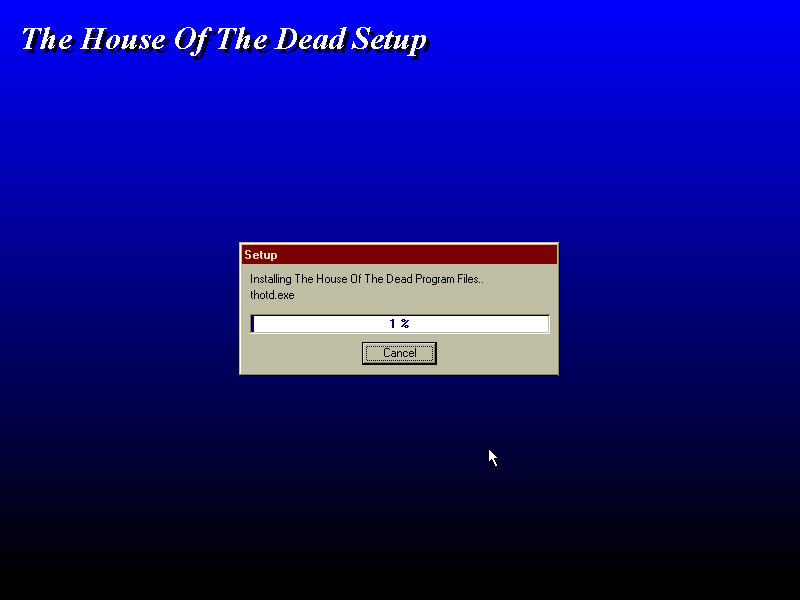
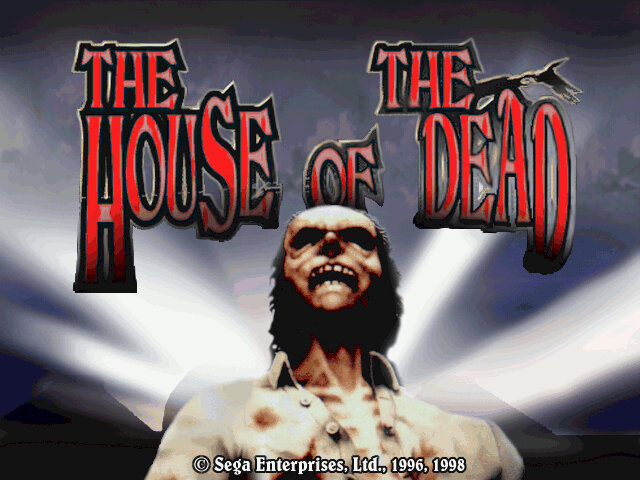
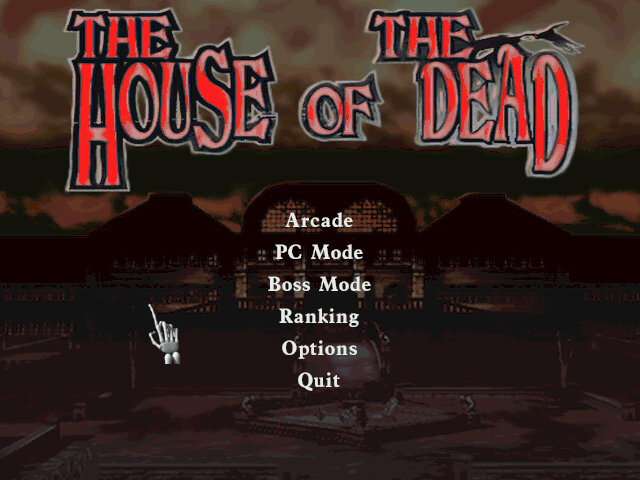
The game was initially released for PC in 1998, It offers several enhancements over the arcade version, including improved graphics and higher resolution support. Additionally, players have the option to use a keyboard and mouse or a controller for more precise aiming. Some parts of the Mansion have been retextured, likely to give it a more colder atmosphere and due to differences in how Model 2 and DirectX games handle textures.
For video cards that don’t support Direct3d, the game can run in DirectDraw mode instead. The 3DFX Voodoo card is capable of Direct3D acceleration and is supported in 86Box.
Conclusion
House of the Dead is a classic arcade game that still holds up today. Its addictive gameplay, impressive graphics, and horror-themed setting make it a must-play for any fan of arcade shooters.
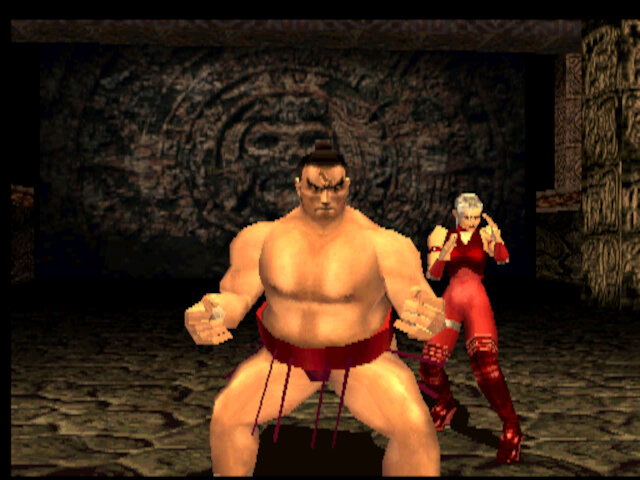
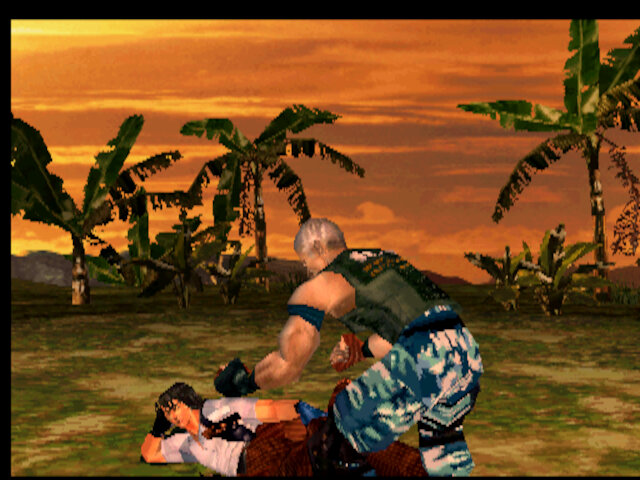
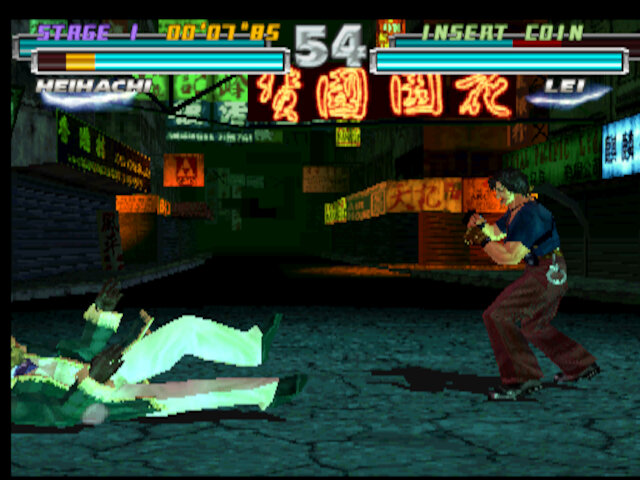
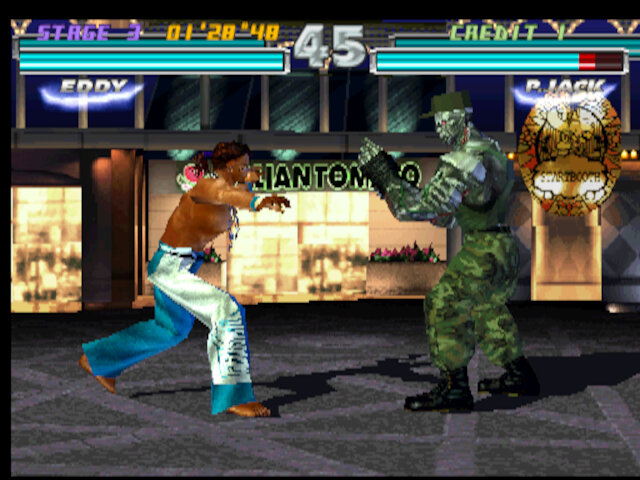
Tekken 3 but with a new tag mechanic and a huge roster.
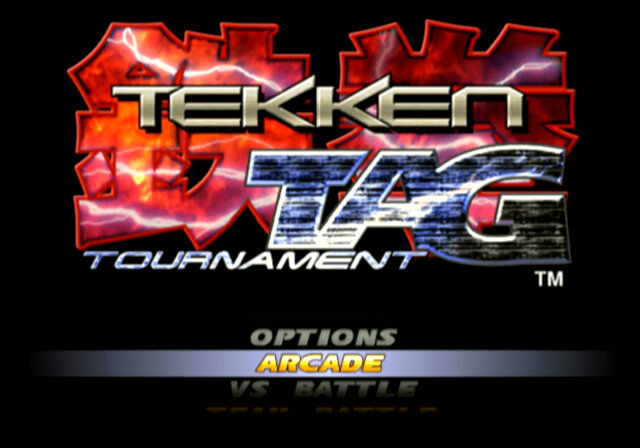
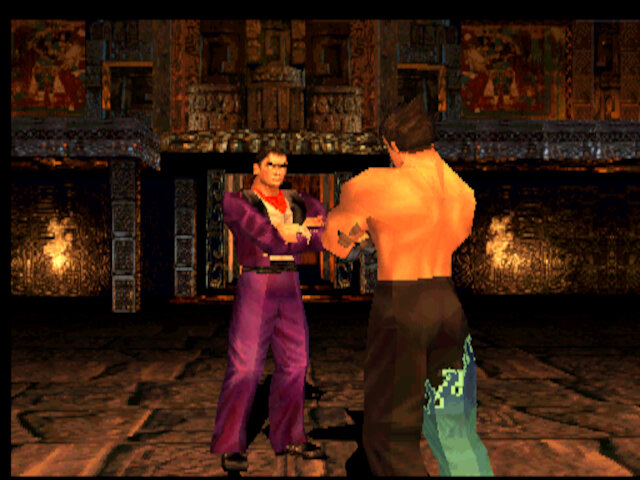
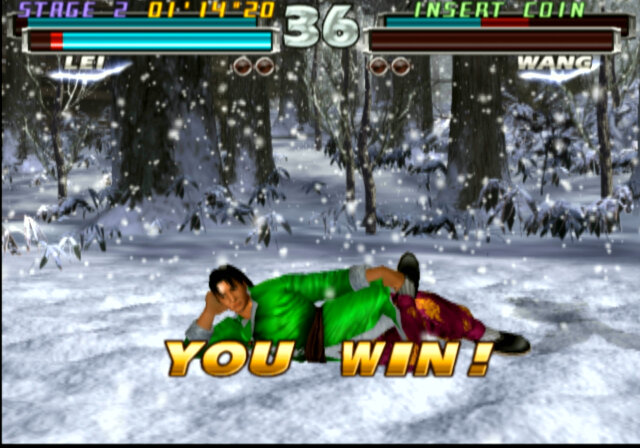
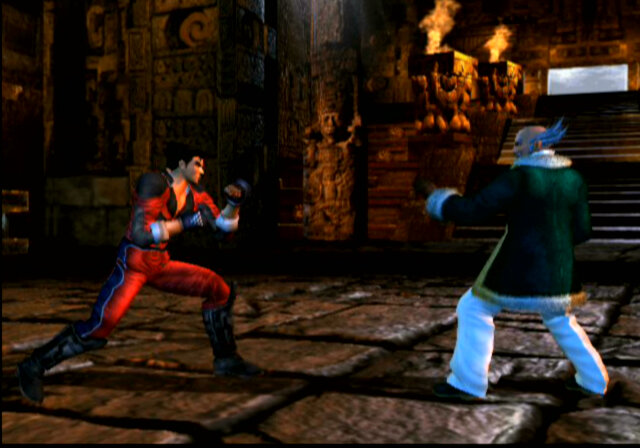
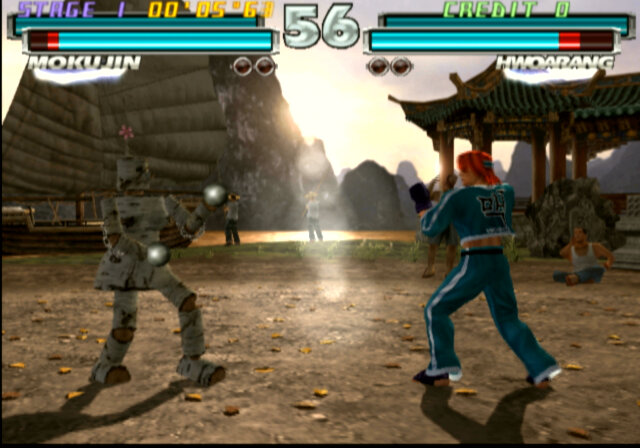
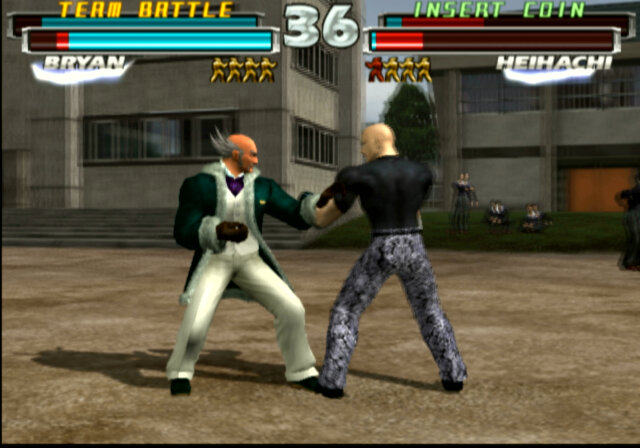
Tag Tournament takes the existing Tekken formula and adds a new tag team mechanic, allowing up to four characters to fight against each other. Its also one of the few games to be released for three generations of PlayStation hardware (sort of, The System 12 arcade board is an overclocked PS1 board.)
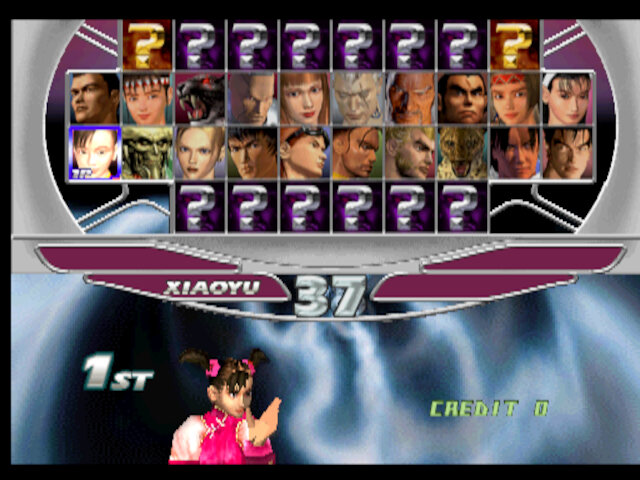
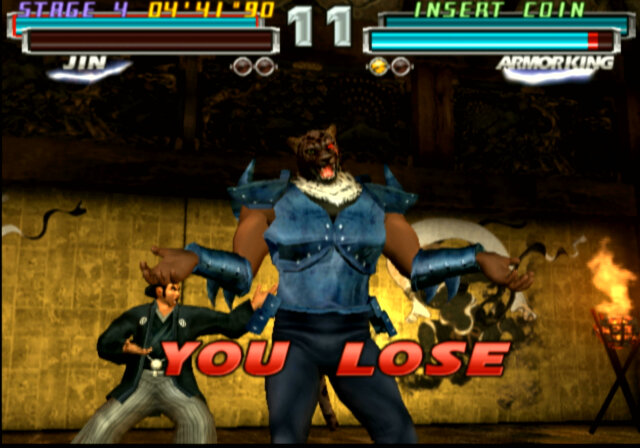
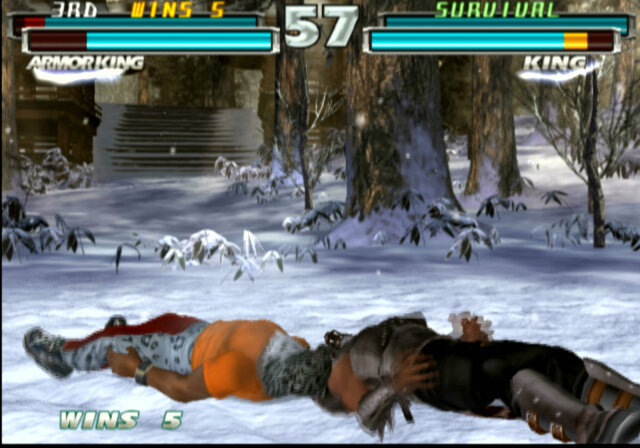
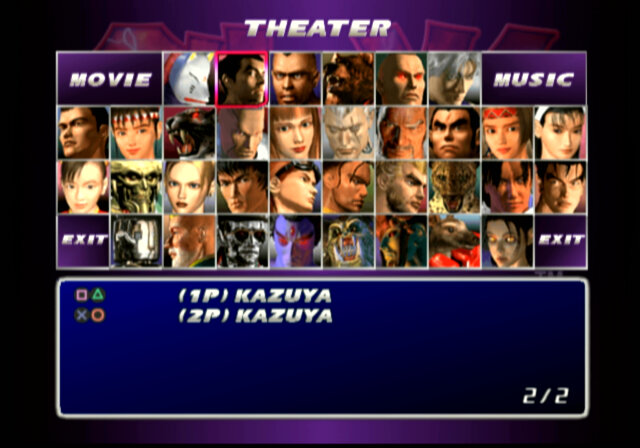
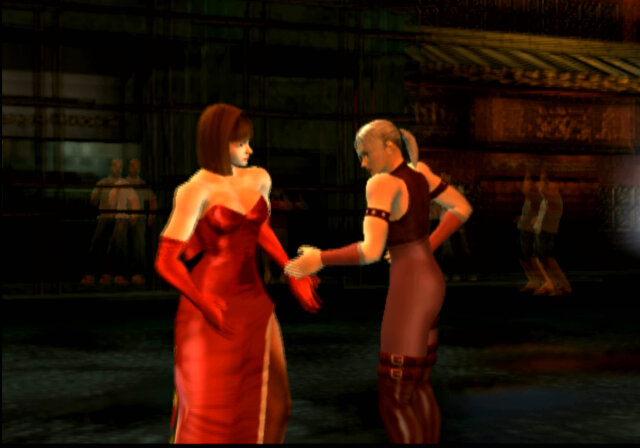
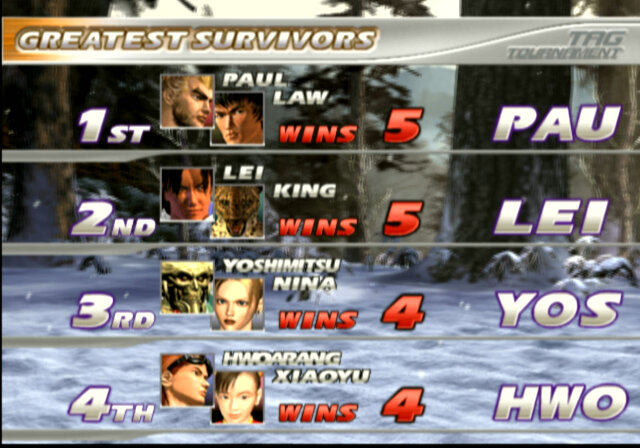
The fighter roster is stacked with an insane lineup of characters, many of which all featured in the first three installments of the Tekken franchise. You’ve got your classics like Kazuya, Jin, and Heihachi, all ready to unleash their devastating combos. Its like a Tekken greatest hits reunion featuring everyone’s favourite characters from previous games, but there are a few omissions like the original Jack, King and Armour King. Still Namco have also implemented Easter eggs for when you choose a certain par of characters, that affect the characters animations before and after the fight. Pairs like Nina & Anna, Kazaya & Heihachi and Michelle & Ganryu are a few examples to name that do this this, and it gives a nod to the Tekken backstory that fans of the franchise will be invested in.
Some pairs will also have unique moves that can be used to attack and switch out at the same time. These require a button combination along with the tag out button to trigger.
Versions
Arcade
The original release of the game was in the arcade, like other early Tekken games. The game ran on the Namco System 12 board which was an upgraded PlayStation with additional memory and a faster clocked processor. This allows for multiple fighters to be featured onscreen, required for some of the character move sets. This version of the game also features its own soundtrack which is played on Namco’s own C352 sound processor that was also used in their System 23 arcade boards.
Many characters are locked in this version and are on a time based unlock, where characters gradually come available as the arcade machine is powered on. There is a MAME cheat to unlock all the characters upon clearing the EEPROM that can be used instead.
PlayStation 2
Tag Tournament was one of the launch titles for the PS2, and remained exclusive to the console for the home release until the HD PS3 version. This version features completely upgraded graphics that take advantage of the PS2’s Graphics Synthesizer
Unknown is a fully playable character in this version and has a unique feature where she can emulate another fighters moves.
This version also features a few unlock-able features and game modes.
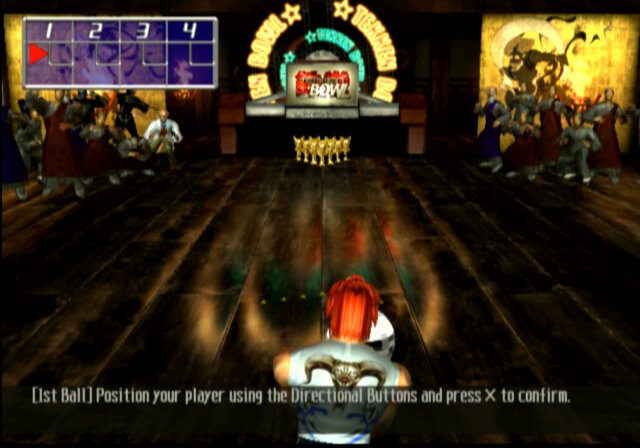
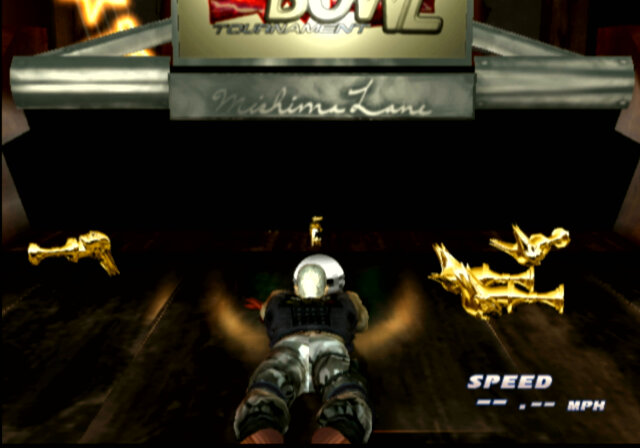
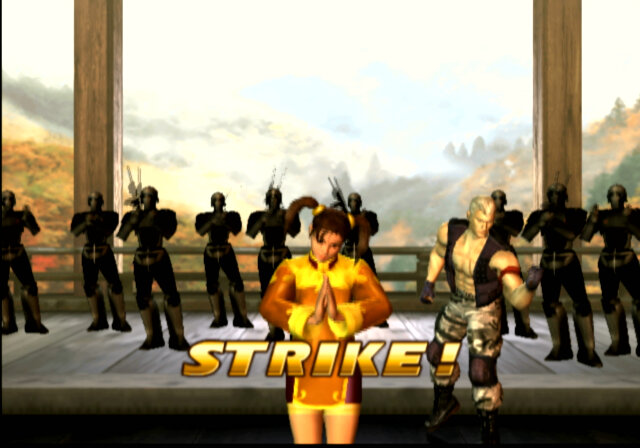
Tekken Bowl: In Tekken Bowling, players would select a character from the roster and take them to the bowling alley. The character would replace the traditional bowling ball, and players would control their chosen character’s movement and angle as they approached the lane. The objective was to knock down as many pins as possible in each frame.
The mini-game incorporated the unique abilities and characteristics of each character into the bowling mechanics. Characters would have their own distinct bowling animations and techniques, adding a touch of personality to the gameplay. Some characters might have special abilities or moves that affected the trajectory or speed of the “ball” they threw.
Namco would later create a Tekken bowling spin-off for smartphones.
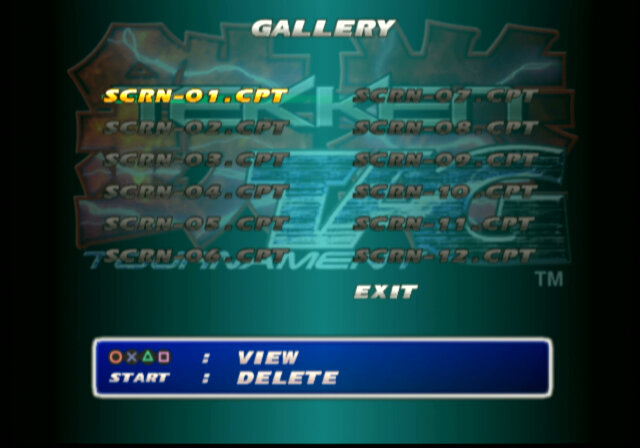
Screenshots: A screenshot can be captured and saved to the memory card, useful when you want to capture for character whilst they’re in the middle of a combo. A screenshot can be taken by pressing the pause button and selecting screenshot.
Pair Play mode: Another feature is the pair play mode, which allows two players to fight with their own controller against the CPU. Four plays can also play in a VS match if the PS2 multi-tap controller is used.
Lastly each character has a unique ending sequence which is rendered within the game engine, except for unknown which is a pre-rendered MPEG2 FMV.
PlayStation 3
Namco ported the game to the PS3 in 2012, and was released as part of Tekken blood Vengeance. Inserting the Blu-ray disc would prompt you to install the game as a bonus feature of the disc.
This version featured upscaled graphics running in HD resolution, trophy support, and is a port of the PS2 version. The soundtrack mostly remains the same, though there are some differences in composition. Sadly there is no online play over the PlayStation network, which would have made a nice addition though it would have suffered a limited population, as this game was not released standalone. Rather it was treated as a bonus.
Conclusion
Tekken Tag Tournament is an absolute knockout of a game. It’s a high-energy, pulse-pounding experience that’ll have you hooked from the moment you pick up the controller. Whether you’re a casual fighting game fan or a seasoned pro, this game delivers the goods. The Tag Tournament formula would be repeated in 2011 with the release of Tag Tournament 2 for the PS3, Wii U and Xbox 360.
The phone that introduced me to the world of Windows Phone
Released in 2010, the Optimus 7 is one of the first generation of Windows Phone 7 smartphones. As part of the first generation, its quite similar ins specifications to other Windows Phones of the time, with a single core Snapdragon processor running at 1Ghz, Adreno 200 graphics core and 512MB of RAM. For storage , it has 16GB onbord memory, but no expandable memory, a 3.8 inch screen and a 5 megapixel camera with a dedicated camera button.
This model was purchased back in 2011, originally unlocked from Expansys. Originally Running Windows Phone 7, it was alter upgraded with the NoDo update, followed by Mango and eventually the 7.8 update.
Windows Phone 7 had no screenshot support so images are captured by pointing a camera to the screen.
Bundled Apps
LG had bundled a few applications with the handset, which were available on the LG Apps Store section on the Marketplace. There were a few other apps that could be downloaded but have since been nixed by Microsoft. A few I can remember was a web and walk app, and a couple of Winnie apps that did nothing spectacular. Since the phon was factory reset at some point (gave it to a relative after they managed another iPhone) meaning all the original apps have since been lost.
Network Setup
Used to setup the network operator, to install settings for the APN and MMS configuration. Usually this is dedicated automatically by the network operator but you can manually amend them using this utility.
ScanSearch
This would search for local buisness and point of interest by suing the Gps and the phones camera to scan for barcodes or items. Its sort of like an augmented reality application that displays businesses according to the camera. I guess it was useful if you were in an unknown location and needed to find a local shop. Either Bing or Google could be used to locate the information.
As you can guess, the network functionality is dead now.
PlayTo
A DLNA casting app that lets you share photos, music and video stored on the phone, which can then be displayed on any device that supports DLNA like a network connected TV, console (PS3) or Windows Media Player (11+). In this example it picked up my AV receiver (Yamaha RX-481D) The app does warn that DRM protected content will not be shared, so no music purchased from the Zune store.
As screen mirroring or casting was not a common features in smartphones, setting up your phone as a DLNA server was an alternative workaround for displaying content on the big screen.
Panorama
A basic app that lets you take a panoramic photo, the app will guide you through the process of capturing a panoramic picture, which it will then stitch together.
MFG
A test application that used to access the phones registry, and to access developer related options. This can be accessed by entering ##634# into the phone dialler app, and then entering the password 277634#*# followed by pressing enter. You can also perform a few hardware tests for the touchscreen, camera, light and proximity sensors.





































 Drew1440: Blog