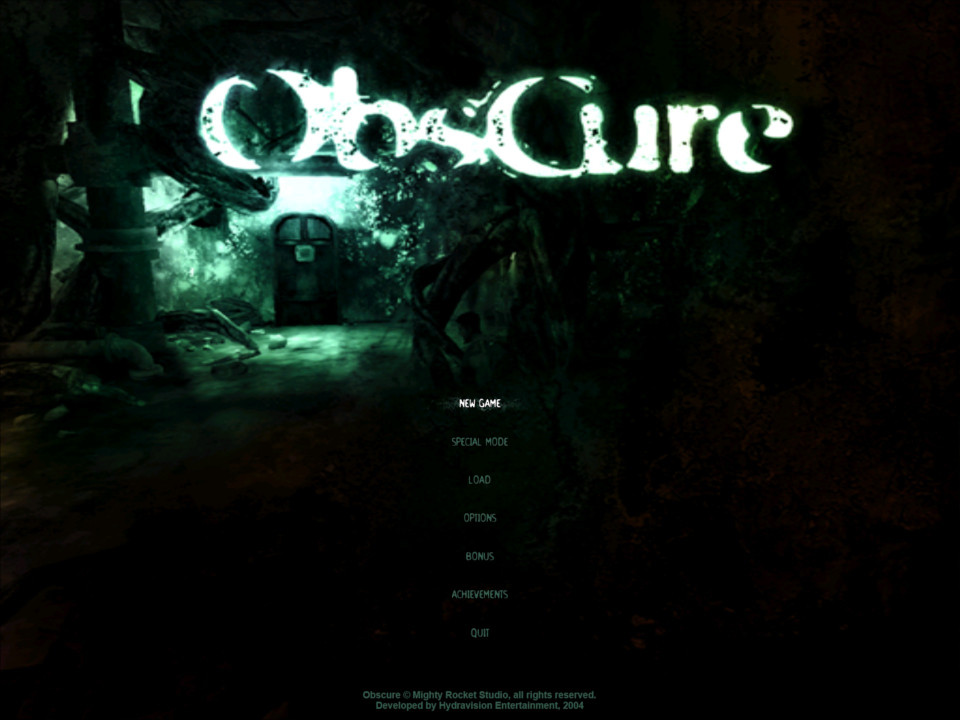
Obscure

A horror game released in 2004, developed by Hydravision Entertainment. Set in a fictional high school where a bunch of students must uncover dark secrets of their school after one of their friends goes missing. It’s a survival horror game that features some co-operative elements.
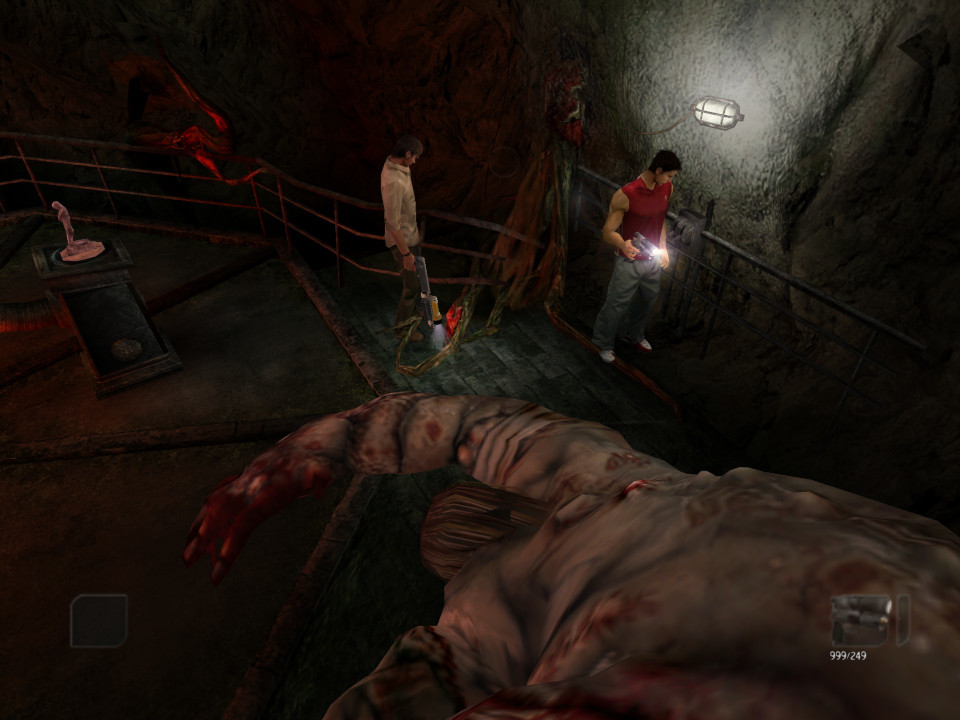
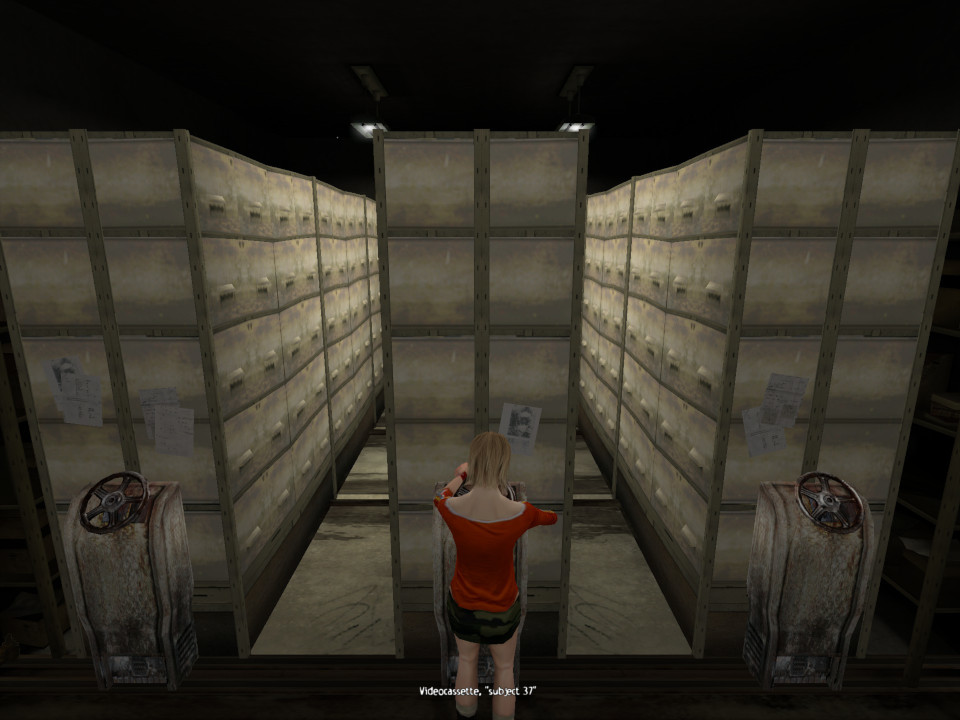
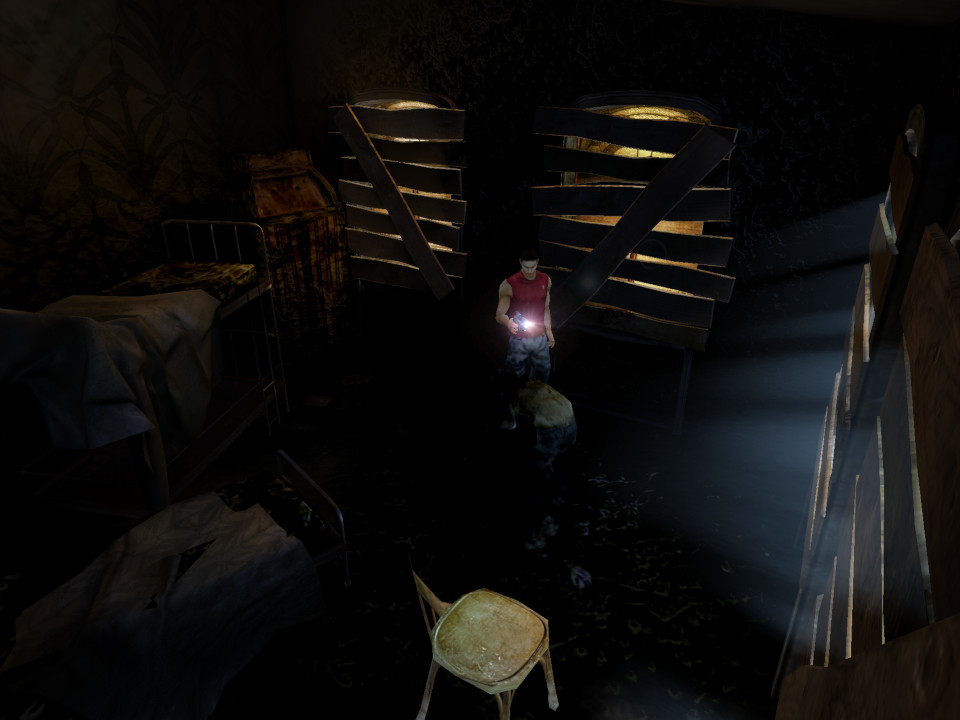
There’s a few puzzle’s that require you to acquire and use certain objects present around the school. Since the game starts after school is over, the earlier levels are set in the evening time and are a lot brighter, with it soon becoming night as the game progresses. As the enemies are sensitive to light, this makes the first few chapters easier since light will weaken them, proving you use a melee weapon to smash open the windows.
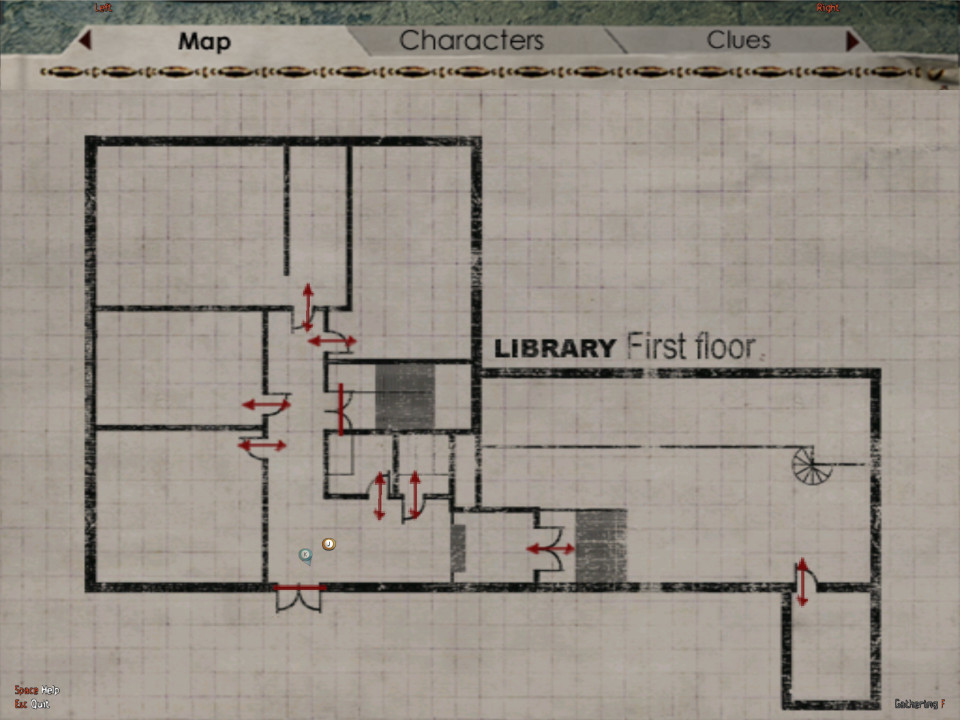
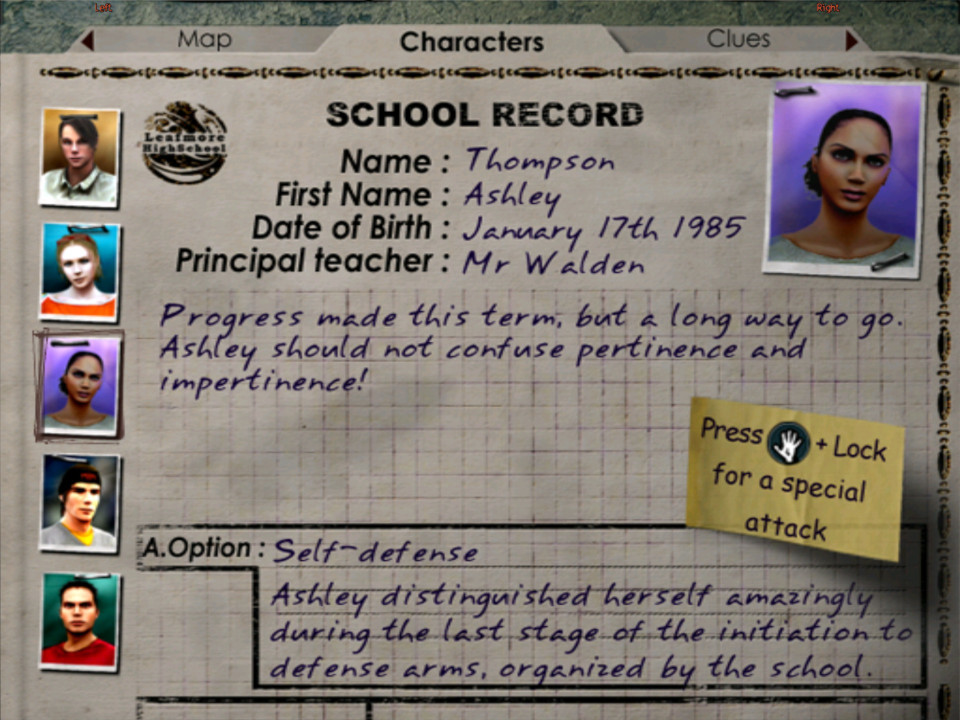
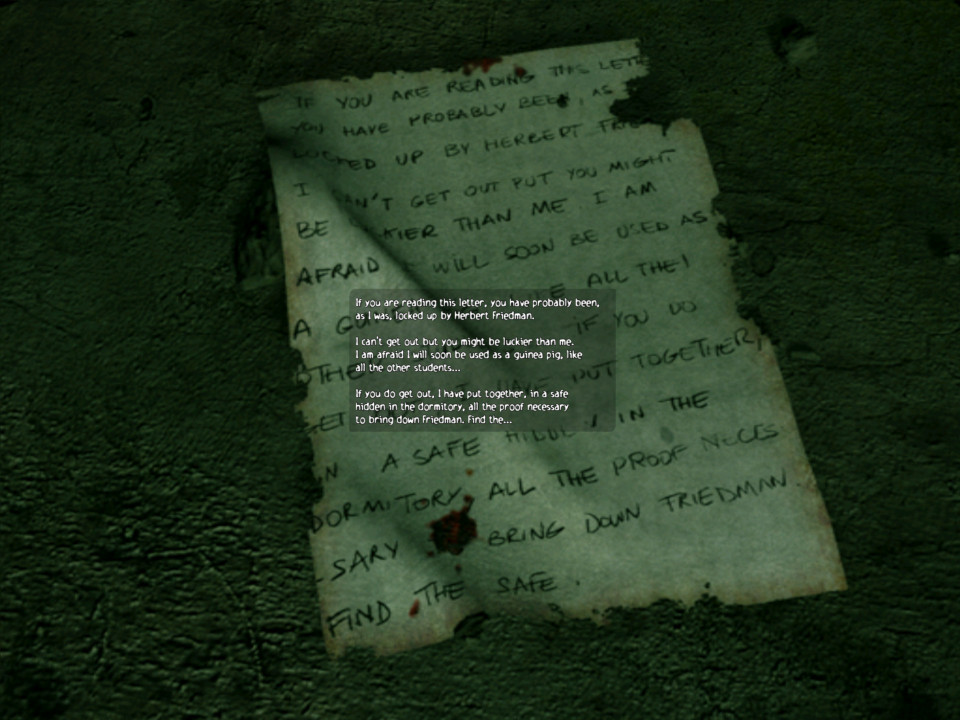
Whilst the game provides a map, there is no navigation or cursor to help assist you, meaning you must manually locate the objectives to progress the game. This can be frustrating as you will often need to backtrack through certain area’s and its easy to get lost or go around in circles. I would advise to seek a walkthrough if this is your first time playing the game.
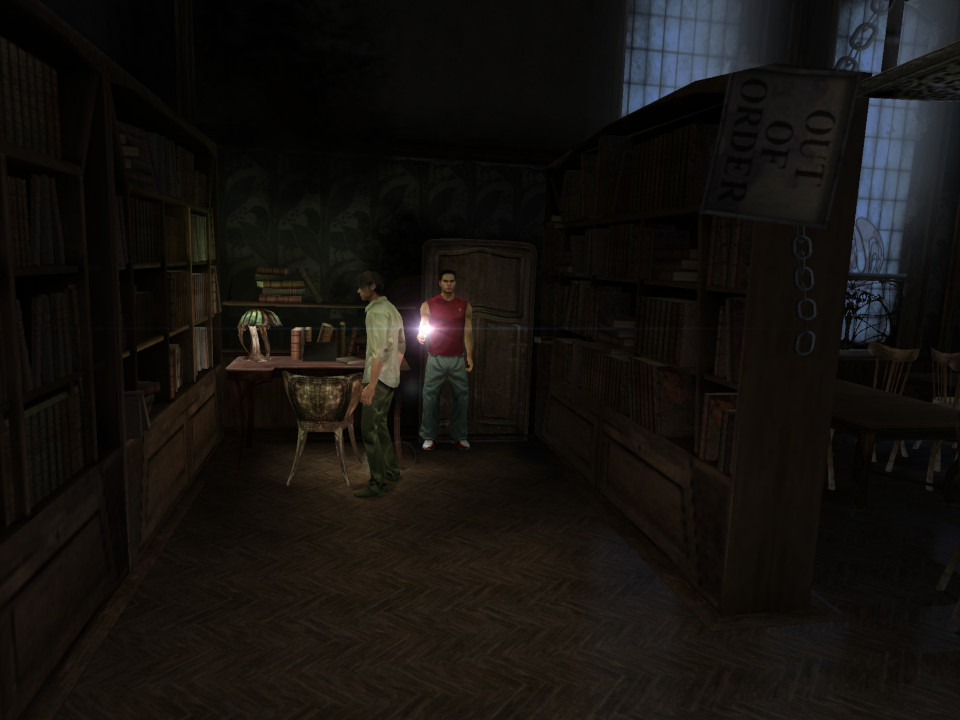
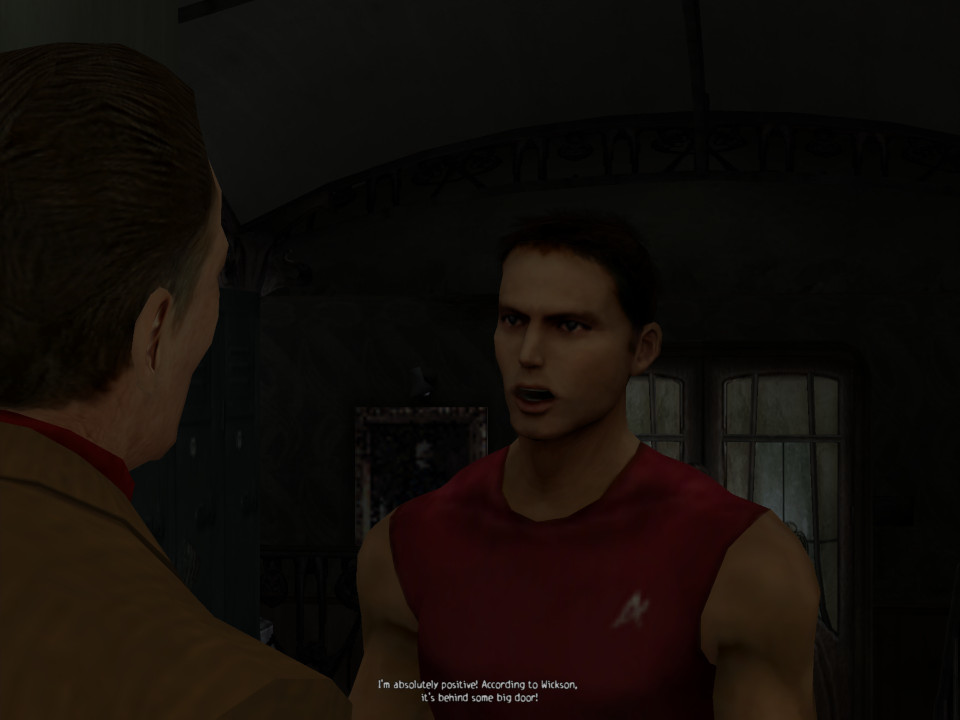
The game uses a limited save system, you can only save the game when you collect a compact disc, of which they are limited depending on the difficulty level chosen.
Bullets in the game are also limited, so you must conserve your ammo when possible. The game gives you melee weapons at first which are useful for smaller enemies, and for breaking objects to get energy drinks (that restore a small amount of health), later you are given a pistol and a shotgun, along with more powerful enemies to deal with.
You can also pickup torches (flashlights) which can be combined with guns using tape to increase the visibility in darker areas, of which there are a lot. This is one of those games where you need to whack up the brightness of your TV to see.
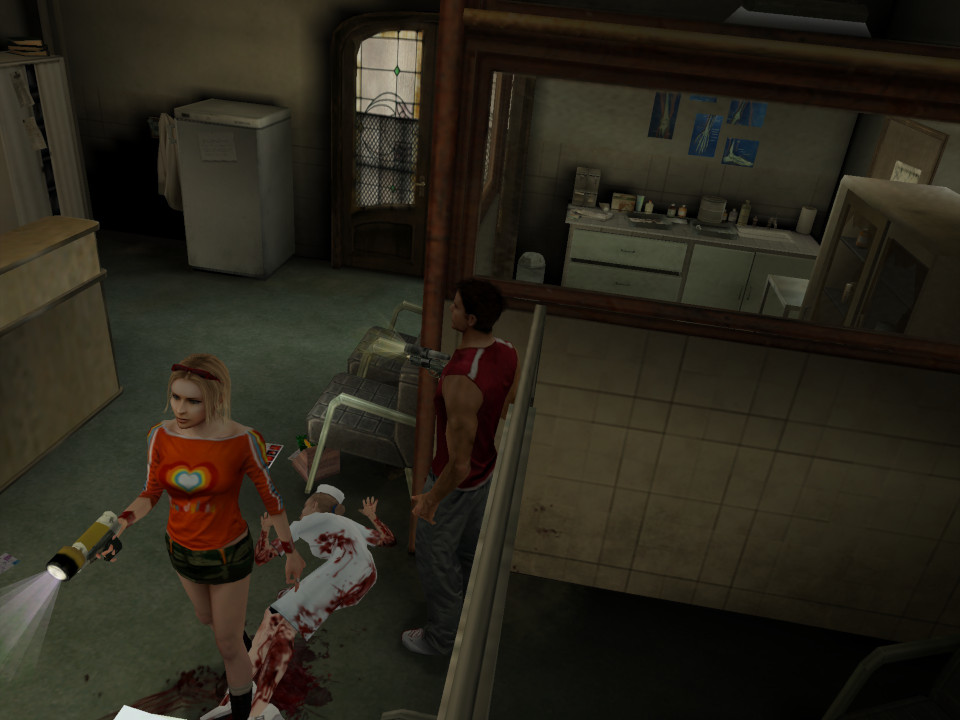
There are multiple characters in the game which you can switch between, each has a few perks exclusive to that character:
Kenny: Has the ability to run faster, might be more resistant to enemy attacks
Shannon: Kenny’s younger sister, The most useful for first time players since she will give hints on what or where we should be
Stanley: Picks locks more quicker, could be useful in enemy combat or speed running
Josh: A reporter for the school newspaper, Finds hidden items and clues to them
Ashley: Kenny’s girlfriend who a badass, she’s better when it comes to combat as she has a combo attack
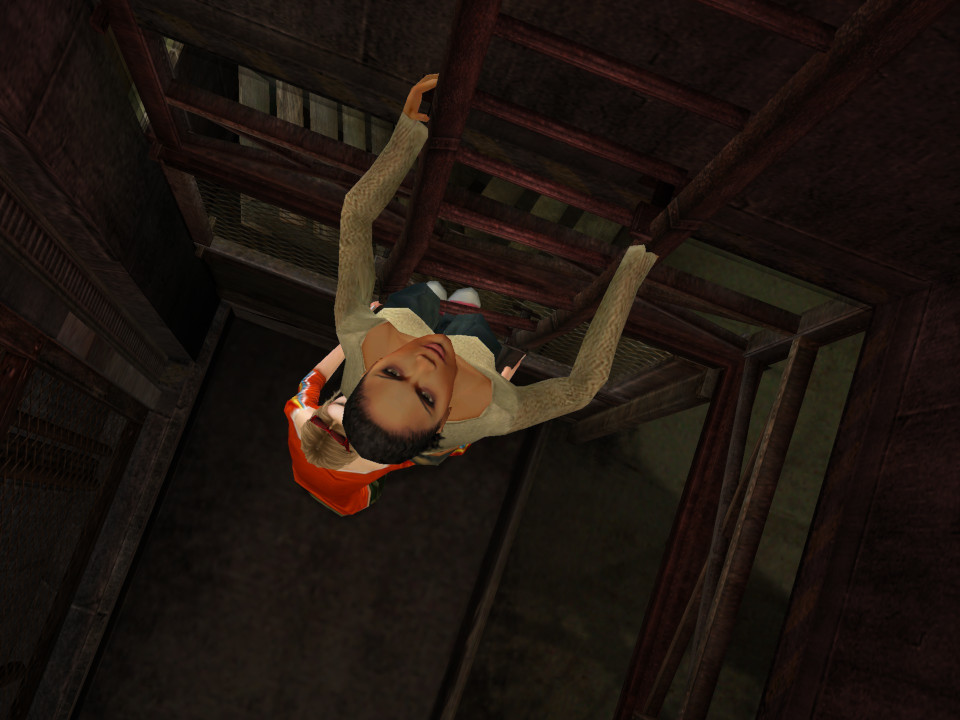
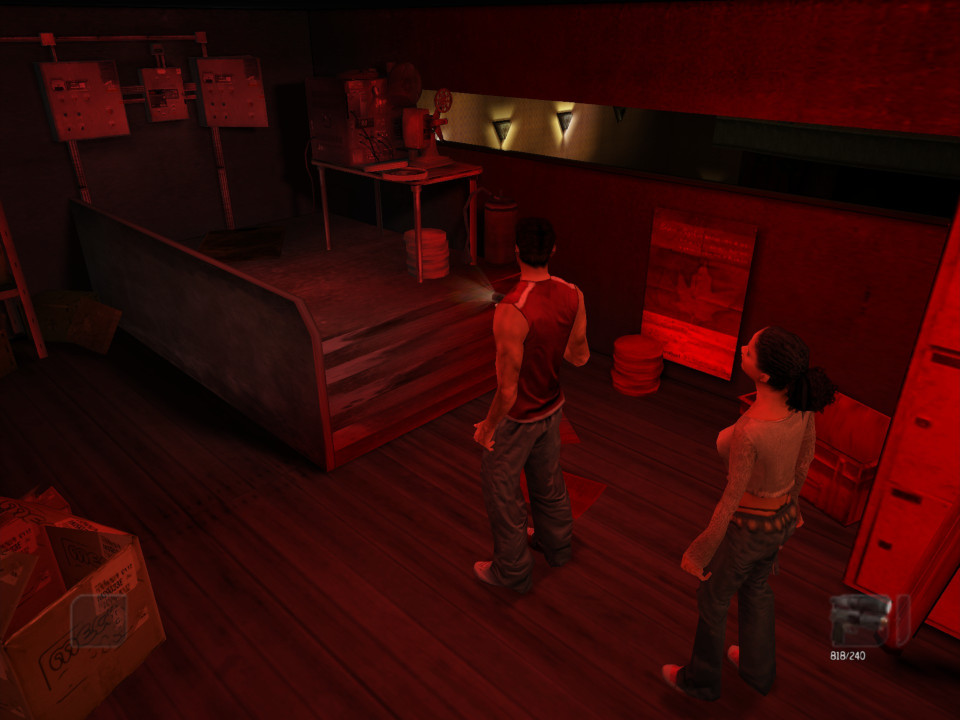
These characters will slowly be rolled out as you progress through the game, but be aware they can die as certain points if you run out of health or during cutscenes if you leave items in a certain way. Up to two characters can be active at a time, one that you controller with the other being controlled as an NPC, you can easily switch between the two but to swap out to the other character you must return to the meeting point. It’s sort of like Scooby-Doo where the gang will split into different groups, thought the other group will just stay at the meeting spot.
From time to time you will encounter some of the teachers within the cutscenes, who will detail what is going on with the school. Many cutscenes will take place in engine if it involves the students since they can have different costumes, scenes involving monsters or NPC’s will be prerendered.
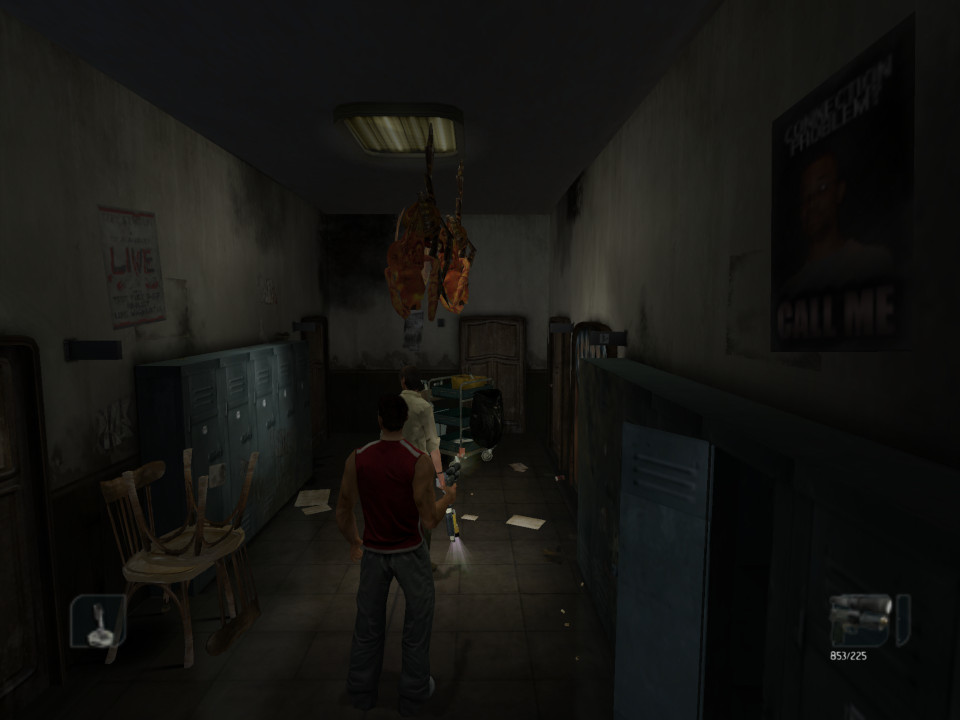
The game was released for the Original Xbox, PlayStation 2 and Windows in 2004, there’s no major difference between them with the Xbox having higher resolution textures compared to the PS2. The Windows version was later released on Steam with achievement support. The console version might have easier co-operative support since you can just plug in a second controller, but they do not appear to be compatible with their successor consoles.
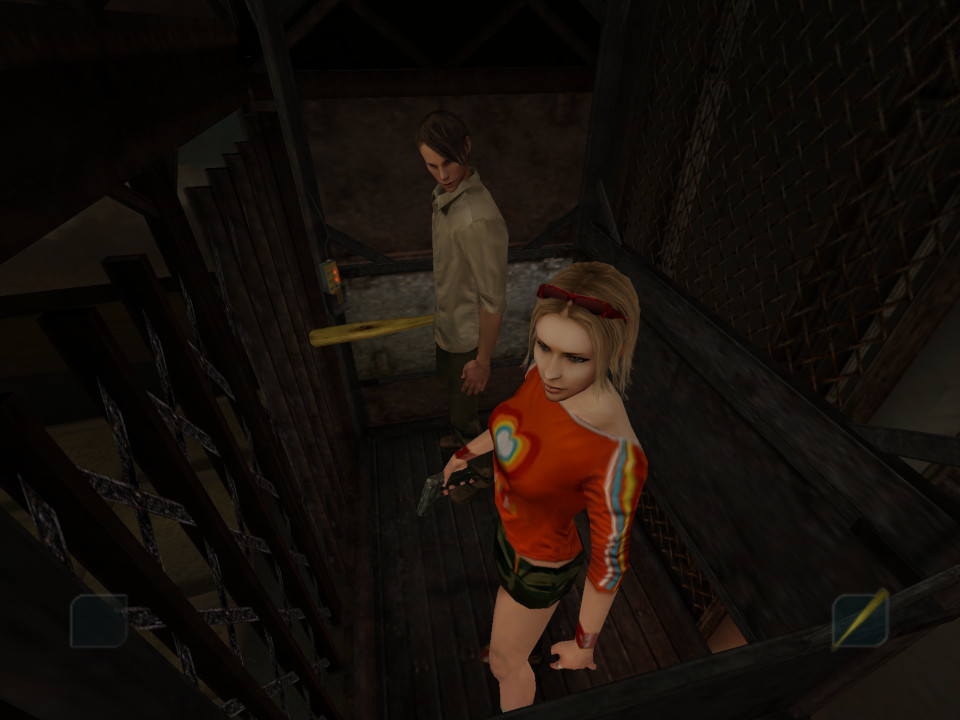
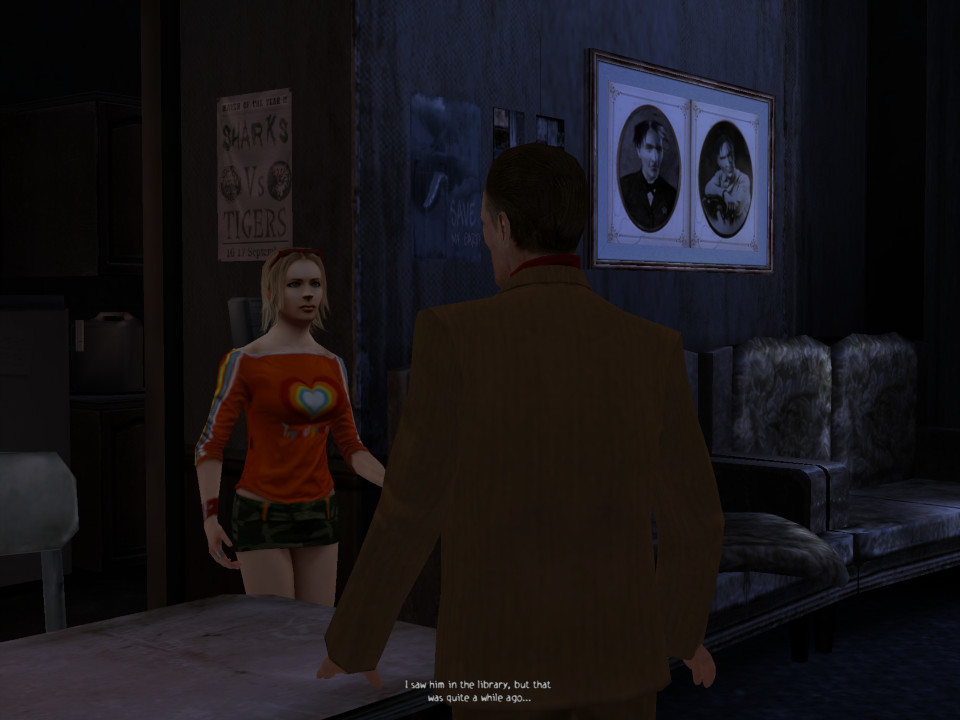
The original release of the game comes with a few extra’s such as a Sum41 music video, and New Game+ being unlocked along with some concept art. There is also some behind the scenes footage which shows the game’s development. Sadly it was never made compatible with the modern consoles, so you will need an original PS2 or Xbox (or an emulator) to play.
Samsung Galaxy Alpha

Samsung’s attempt to appeal to the high-end iDevice market.

Samsung’s Android line of handsets have always had their mass appeal style, prioritising form over function which is reflected in their handsets with removable batters, plastic covers that can easily be replaced and are cheap to manufacture and feature upgradable storage. The Galaxy Alpha gives up most of that, and serves to appeal to the market Samsung had struggled to capture.

Lets look at the Android experience Samsung has shipped with the phone.

The home screen with the default wallpaper, which is a departure from the Bliss-like wallpapers on the Galaxy S4. This blends in with the premium design of the Alpha which Samsung had targeted.

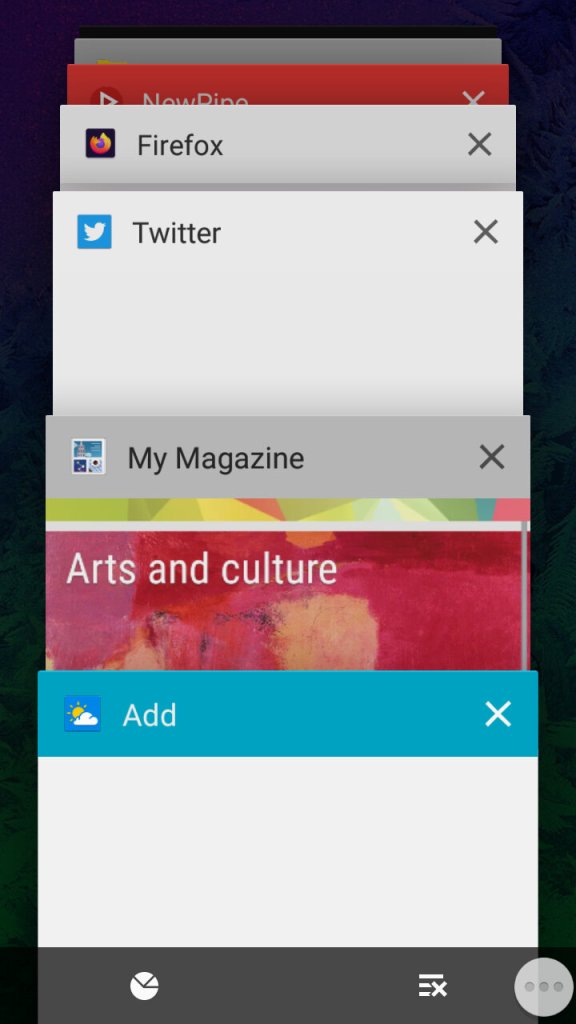
The task switcher that Samsung has added a dedicated button to access this, replacing the menu button on previous handsets. This brings it in line with other Android handsets that follow the stock button scheme, though the back button is still to the right of the home button. Tapping on the icons at the bottom will take you to the  memory status where you can see what apps are consuming memory, and even end them. As Android manages your memory automatically and will liberate apps that aren’t in use, you normally don’t need to do this unless you have a malfunctioning app.

The button to the right will close all inactive windows.

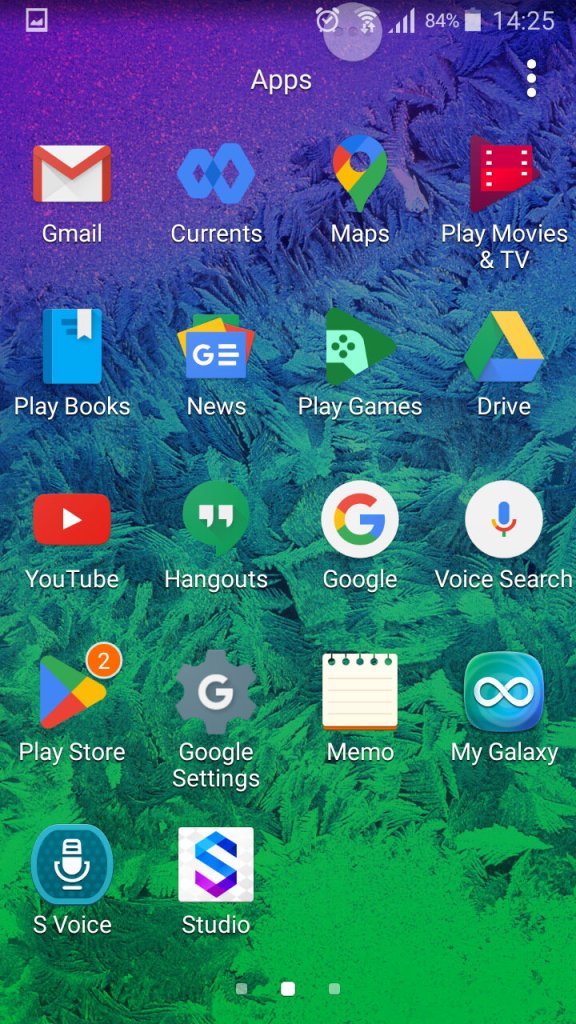
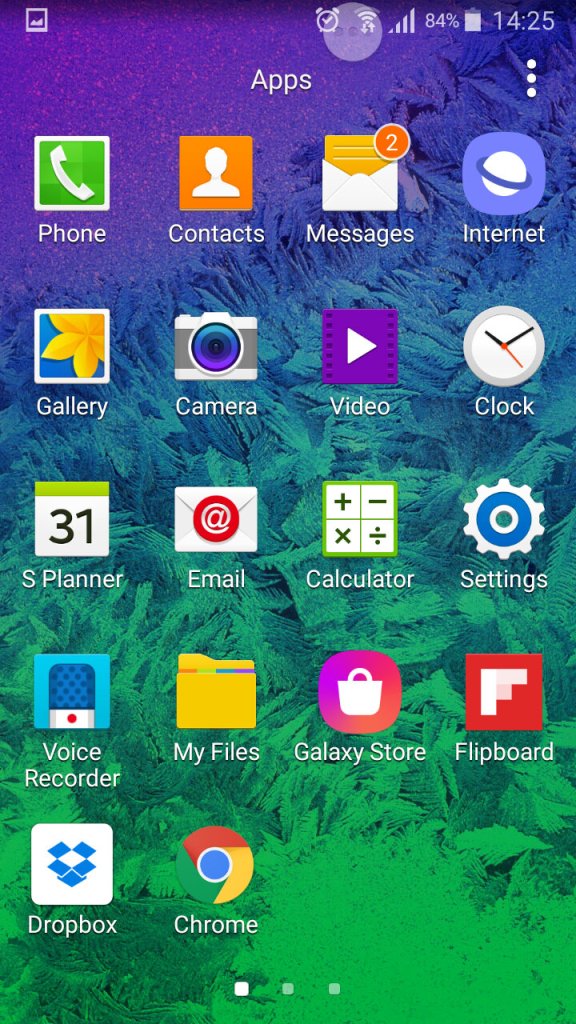
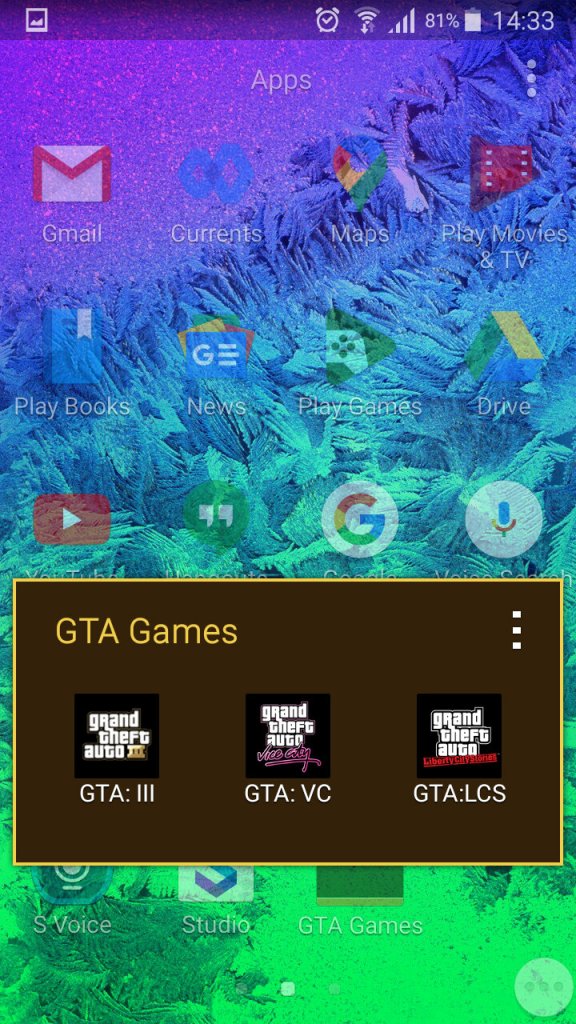
The list of apps, here you can sort apps by alphabetical, or in a custom order.

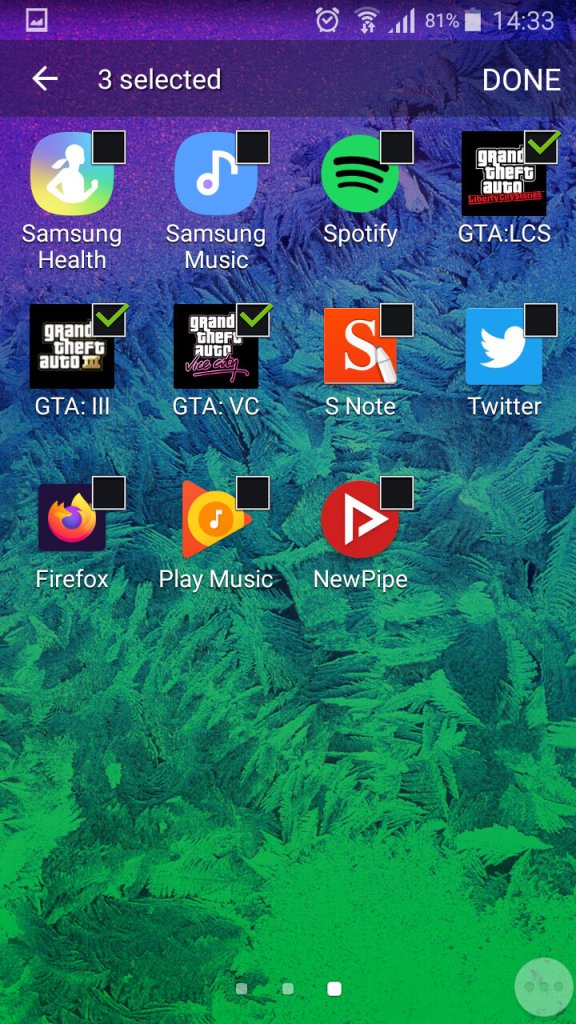
You can also create app folders to keep thing organised by tapping on the tree dots, then select ‘Add’, you cannot just drag an app over the folder icon like you can on the home screen.

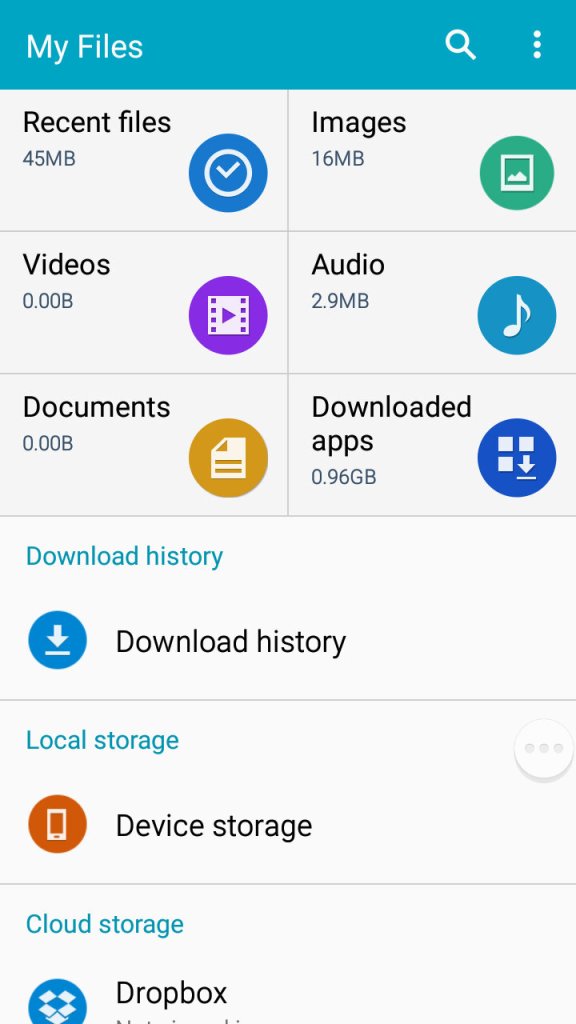
A look at the phones file manager. Unlike other Samsung handsets of the time, the Alpha only comes with 32GB Internal Storage with no option for a microSD card. Samsung would later do this for the Galaxy S6, to a negative reception. 

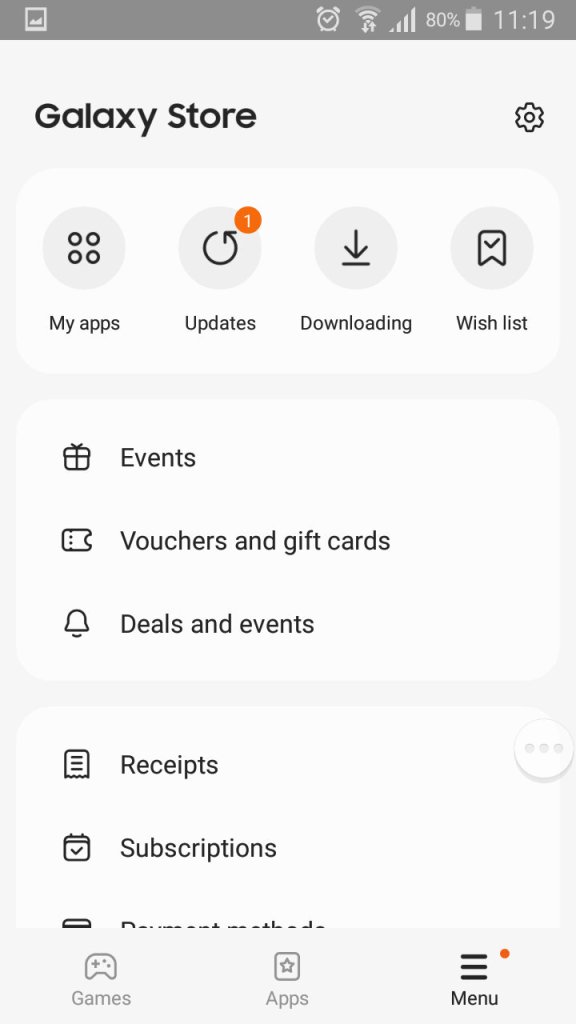
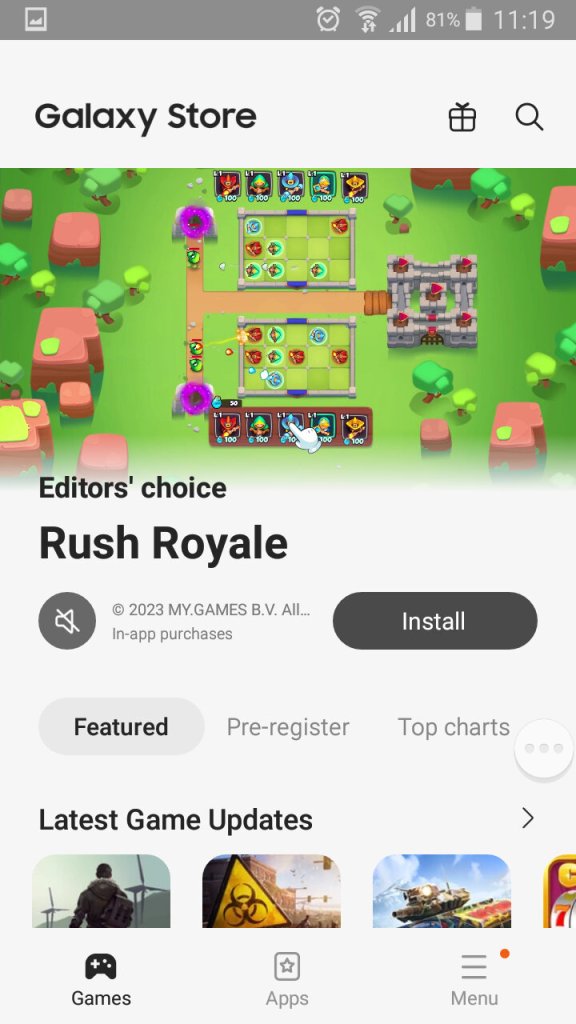
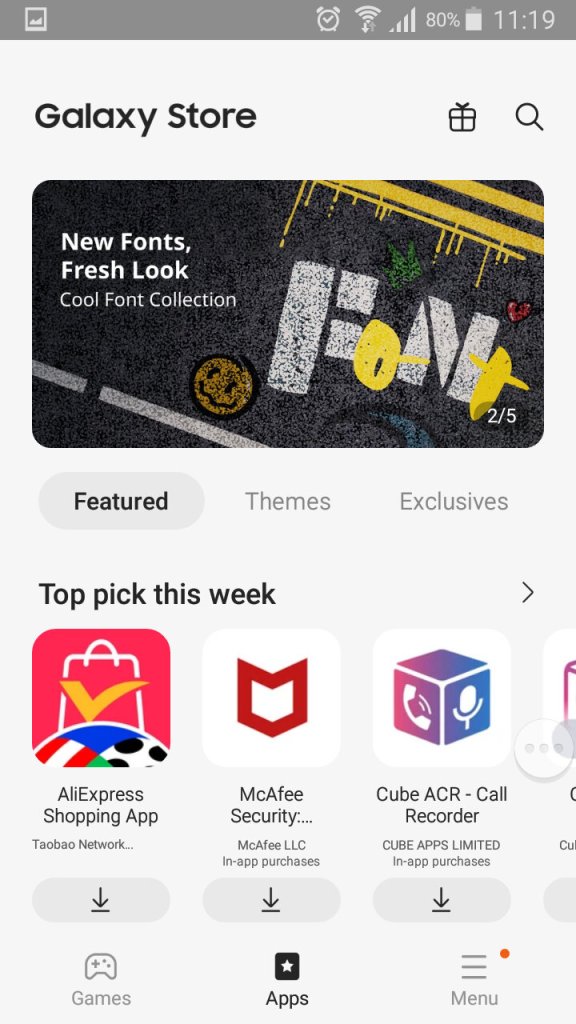
The Galaxy Store, which is Samsung’s own App Store and a alternative to the Google Play Store.

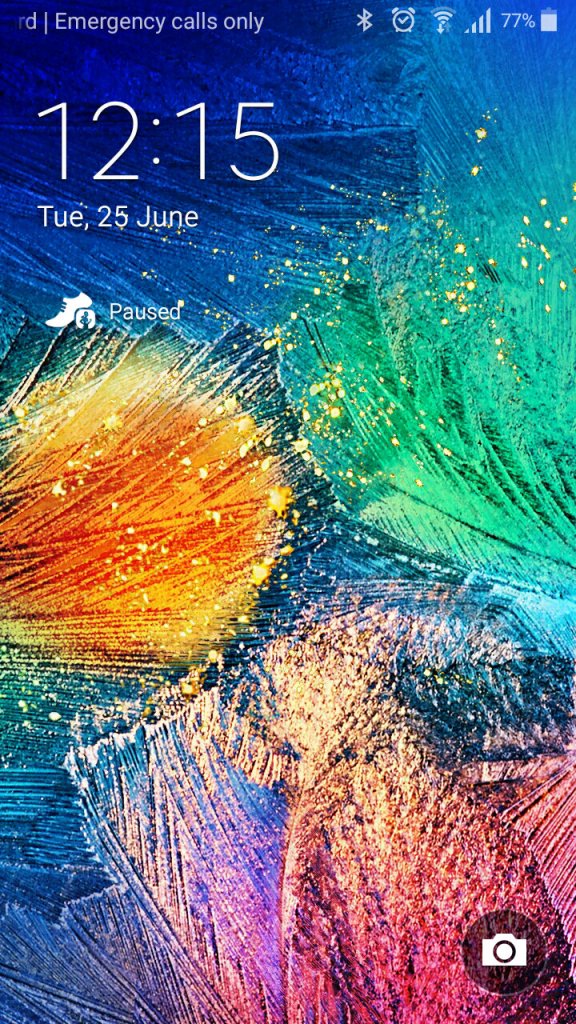
A very colourful lock screen, with Samsung adopting a different wallpaper styles for the Alpha, gone are the fields with blue skies that we say with the Galaxy S4. It’s a welcome change and gives the phone a more edgy appearance.

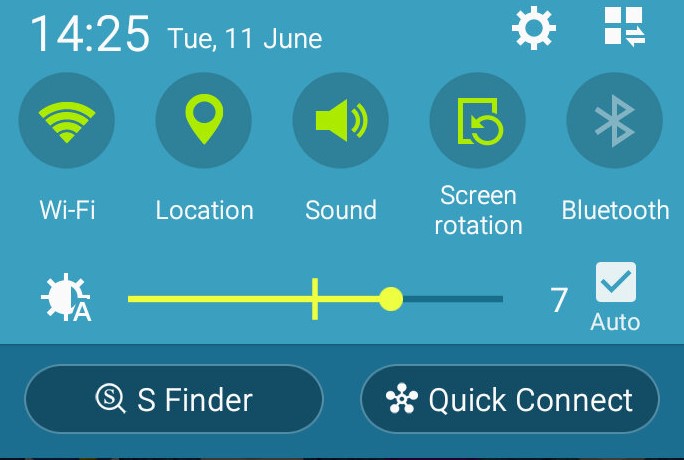
The dropdown still remains the same as the S4, 

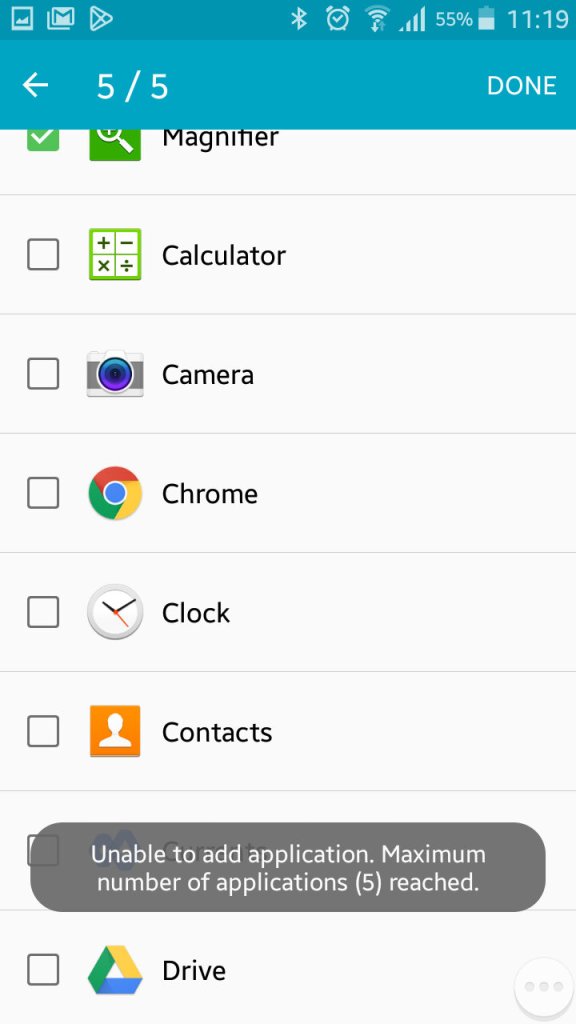
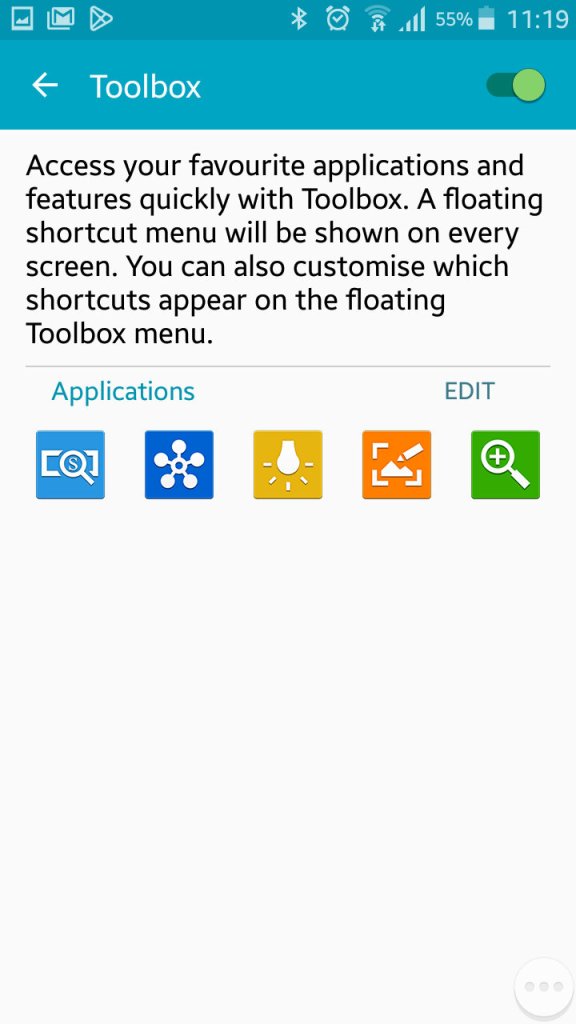
Once thing you might have noticed is a floating three-dot widget that you can press to open shortcuts. This is called the toolbox, you can quickly access the camera, take a screenshot, activate the flashlight and open QuickConnect. This can be turned off if you find this annoying as it does appear over all apps. You can also add additional apps, but you are always limited to 5. 

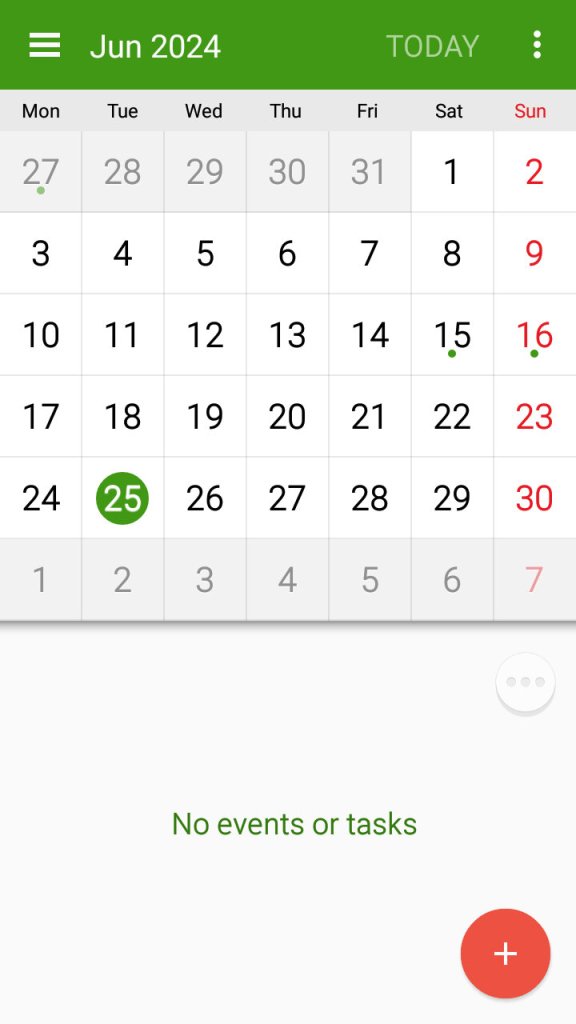
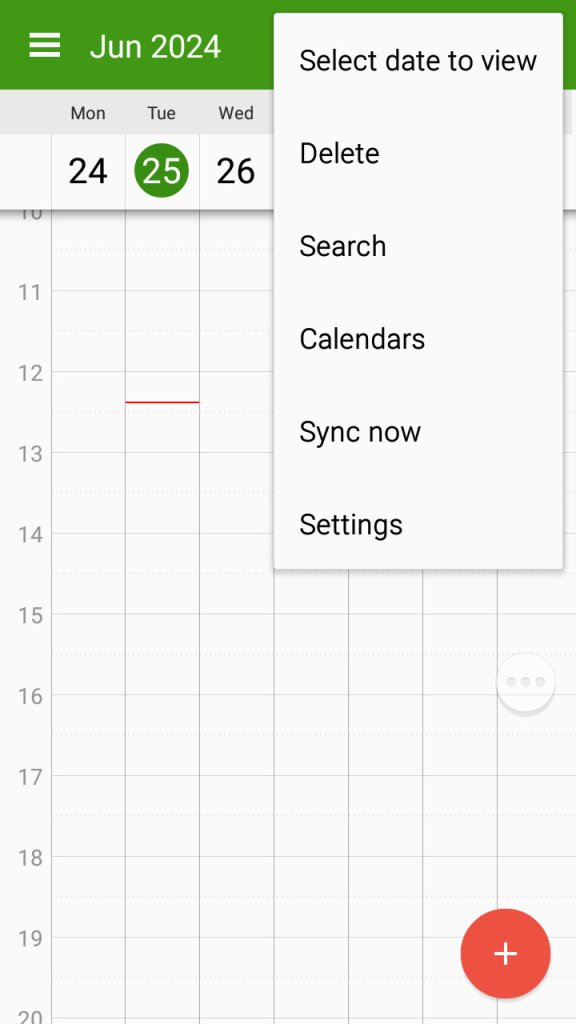
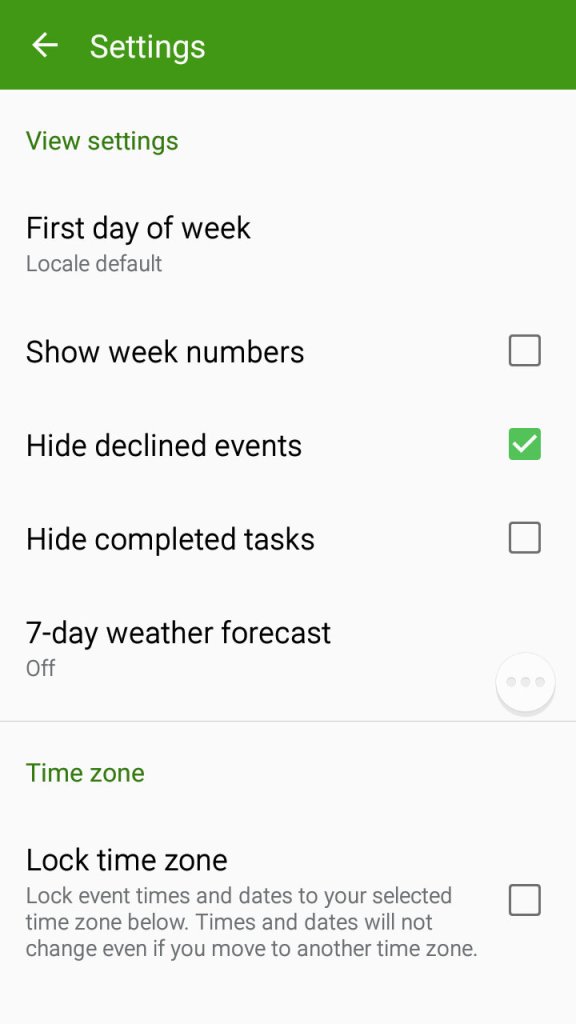
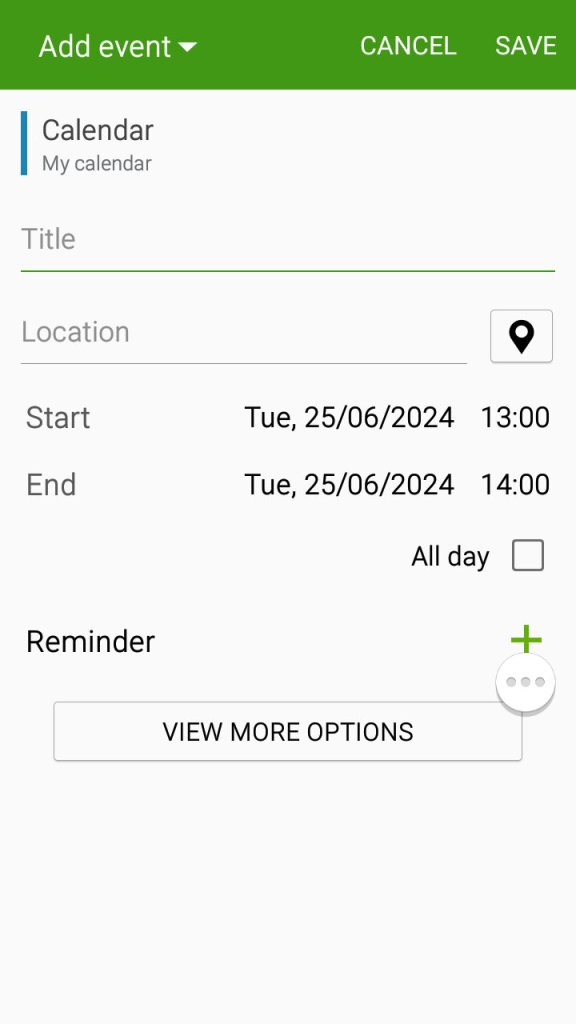
The S planner app which can be used to view the calander, set appointments and reminders and sync with Samsung or Google’s web calendar.

Settings Menu

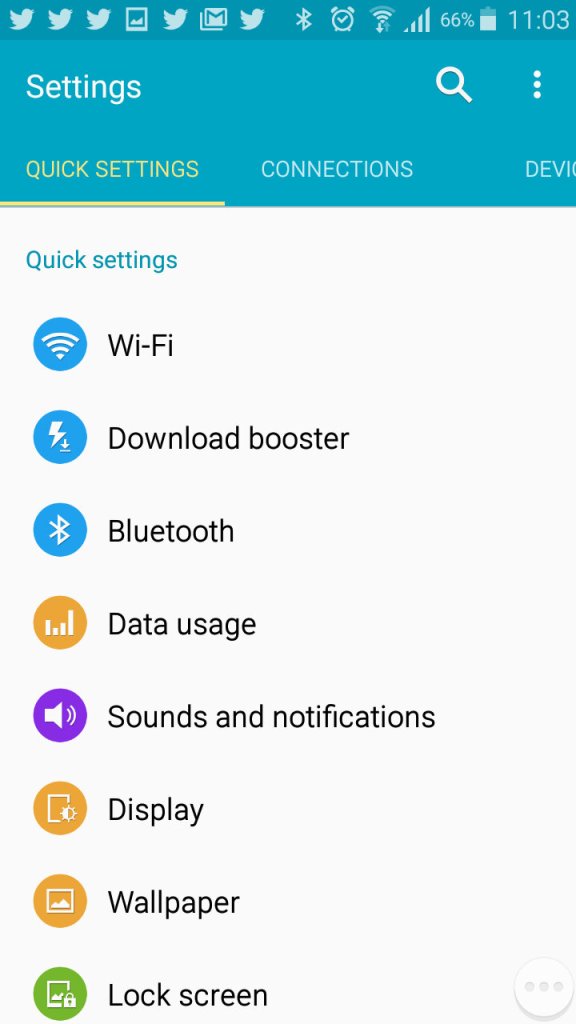
A look at the setting menu which Samsung has reorganised

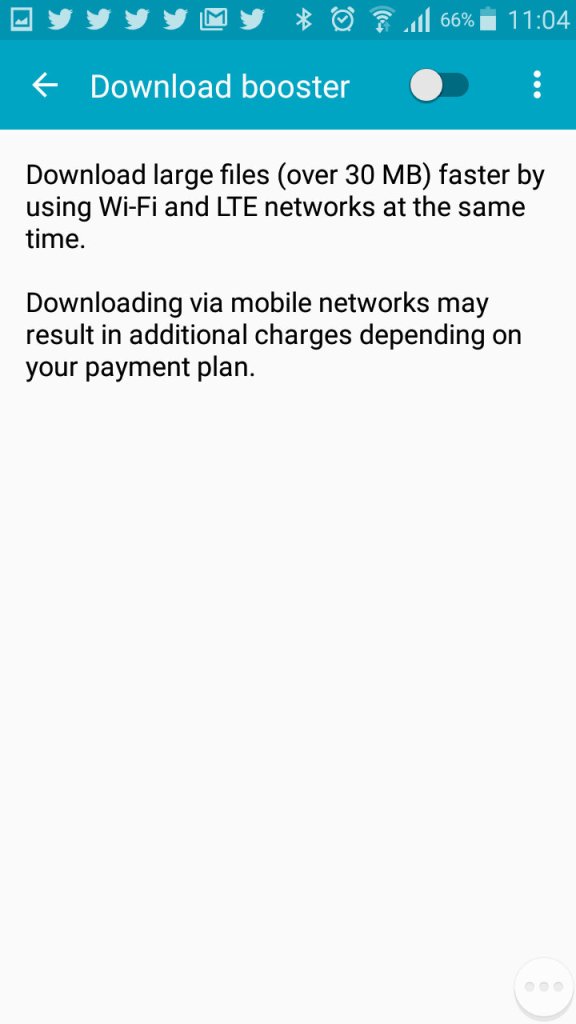
Download booster allows your phone to download using both the mobile network and the WiFi network, subject to the operator supporting this functionality

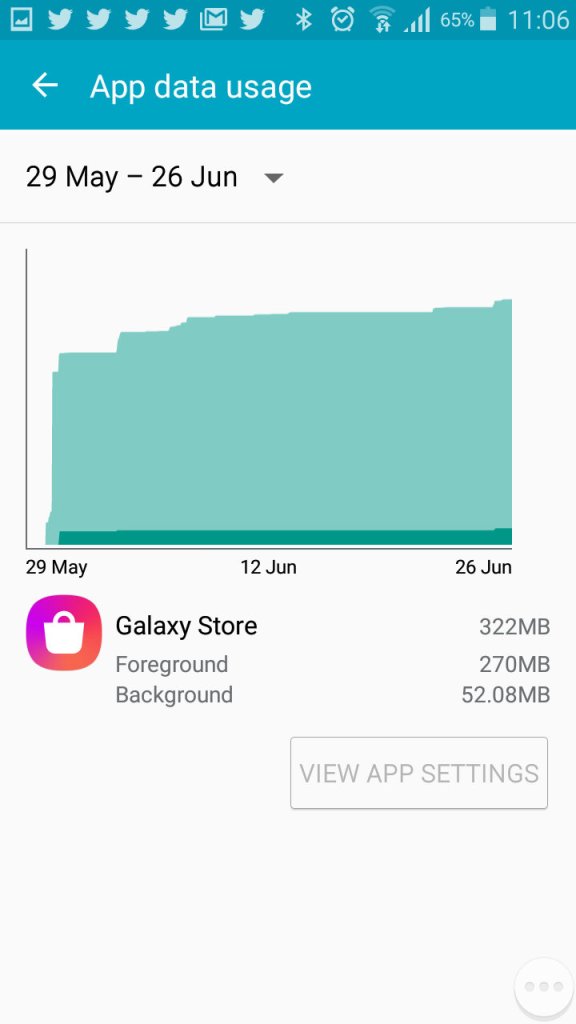
Viewing Android data usage

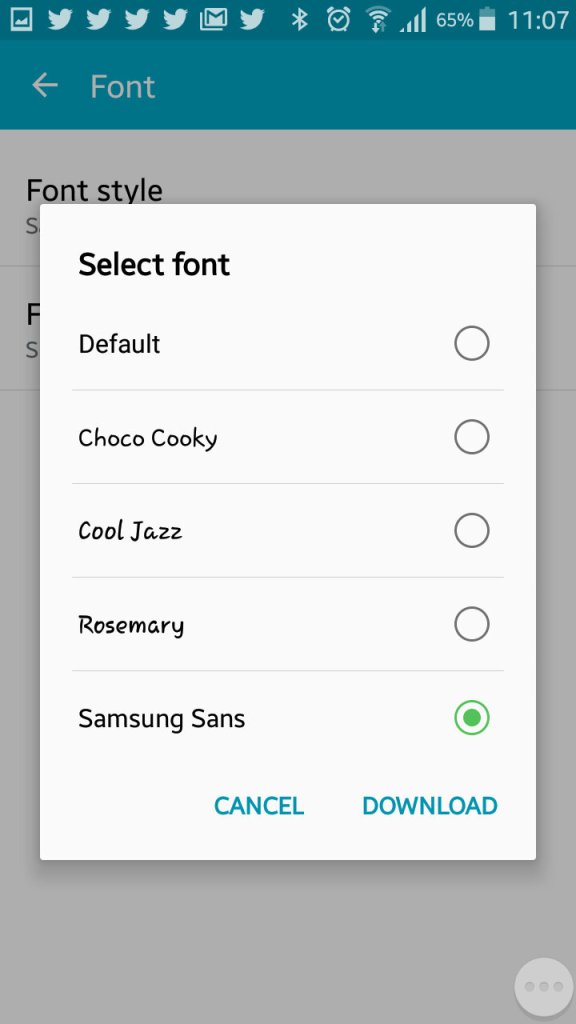
Samsung are one of the few OEM’s that allow you to change the active font of the device. You can also increase the font size to make the text more readable.

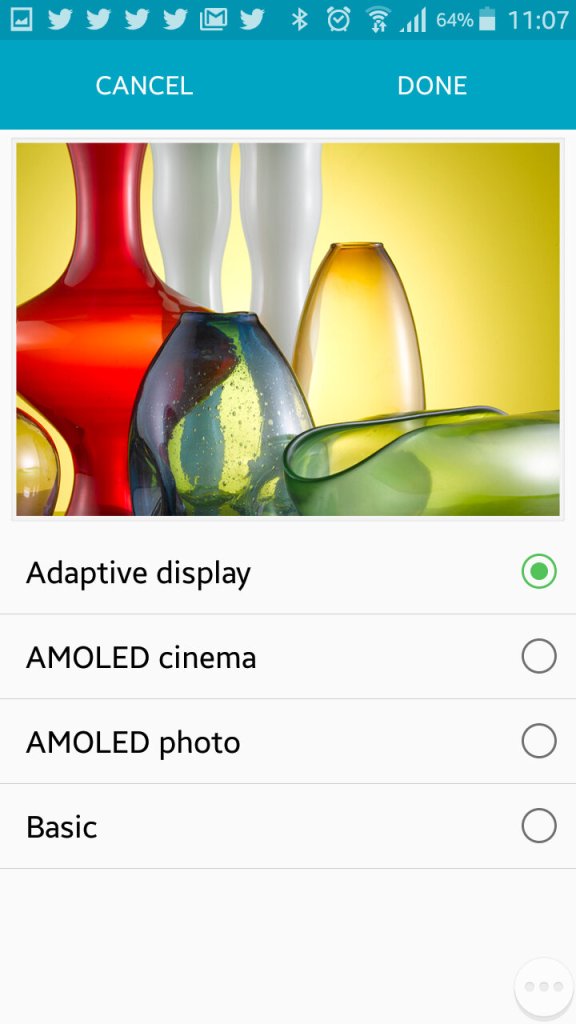
The adaptive display feature which adjusts the displays contract depending on the media or app you are using.

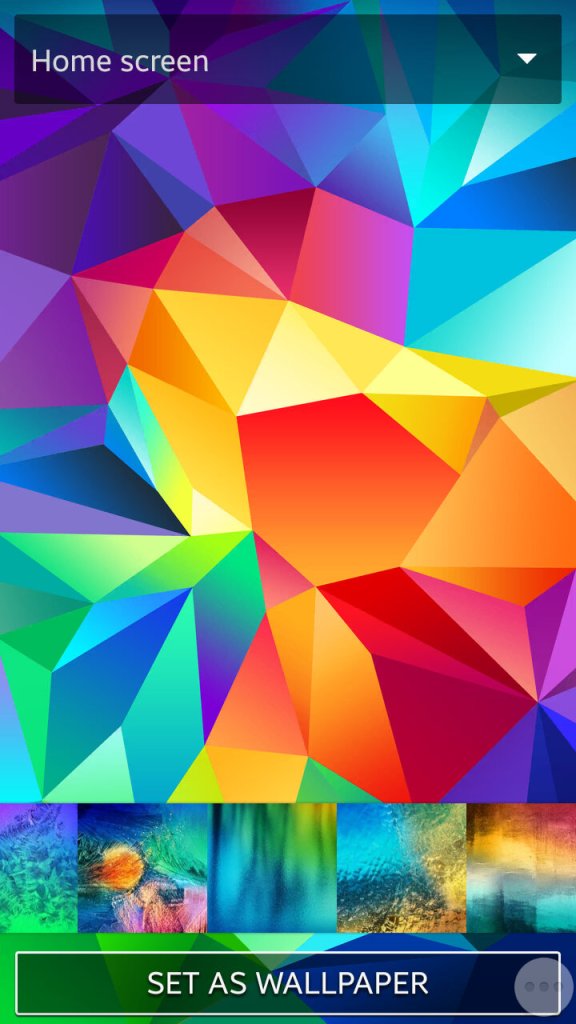
Setting the wallpaper and a look at the default wallpapers that shipped with the phone

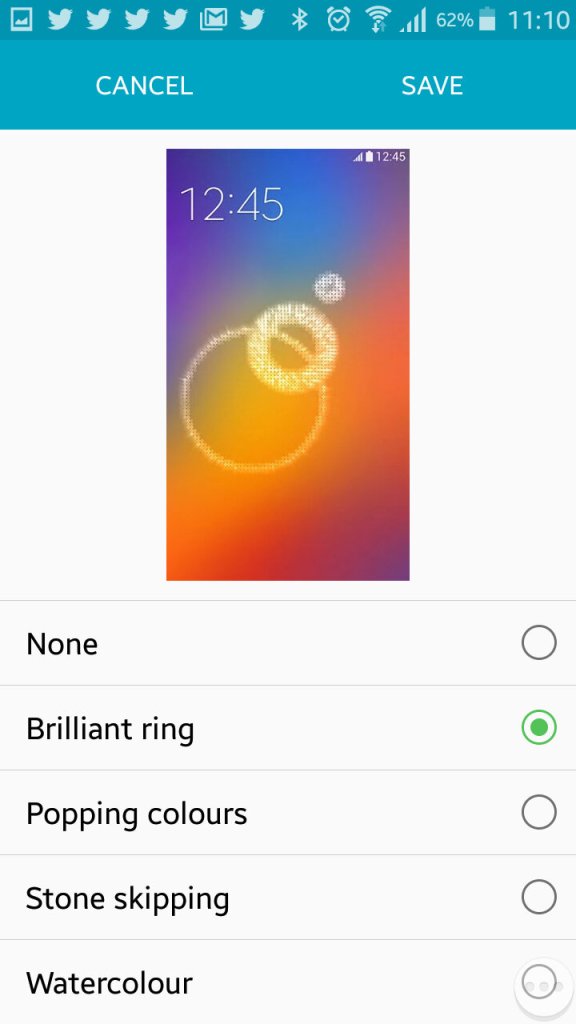
Changing the unlock animation that plays when you swipe your finger on the lock screen.

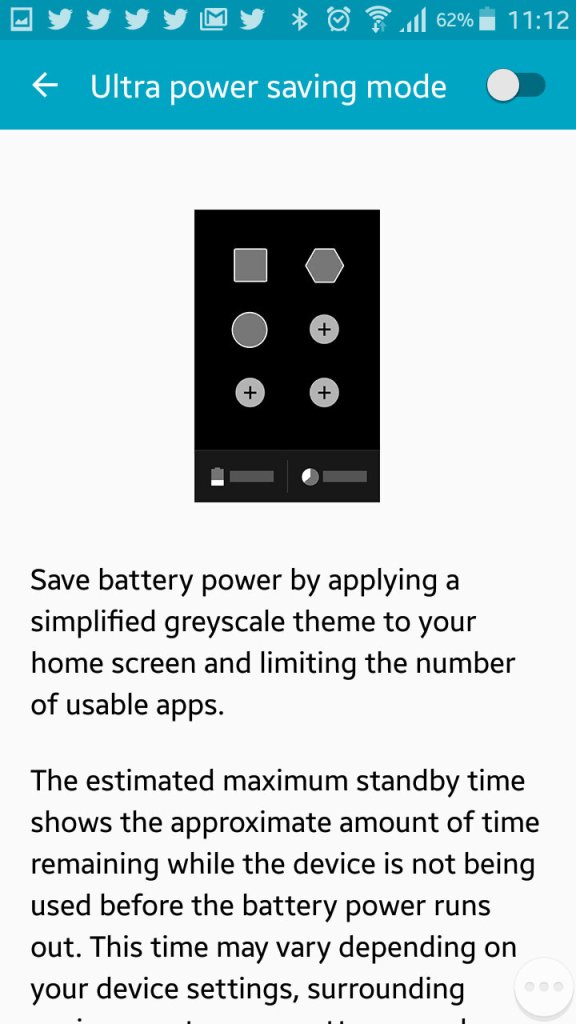
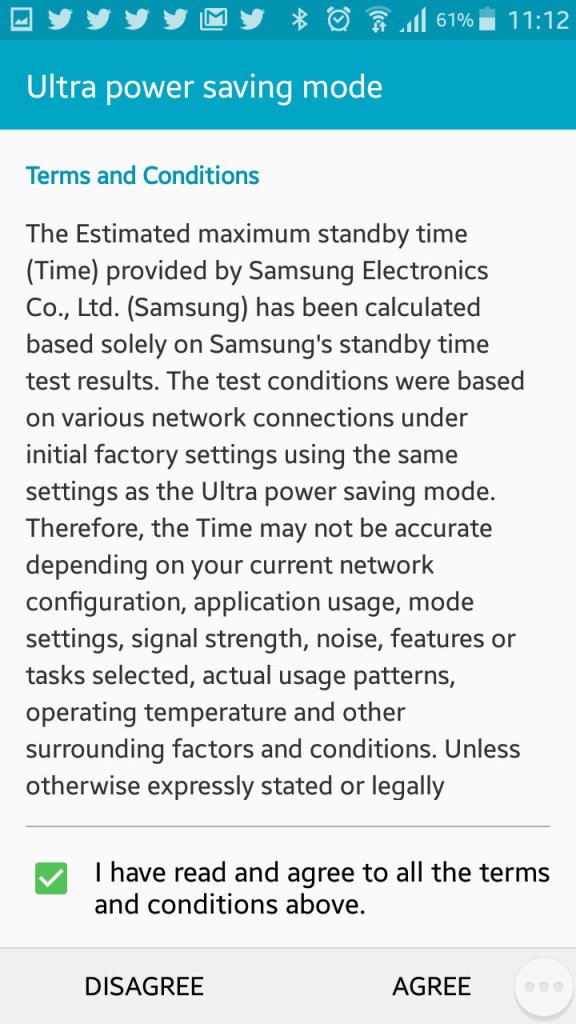
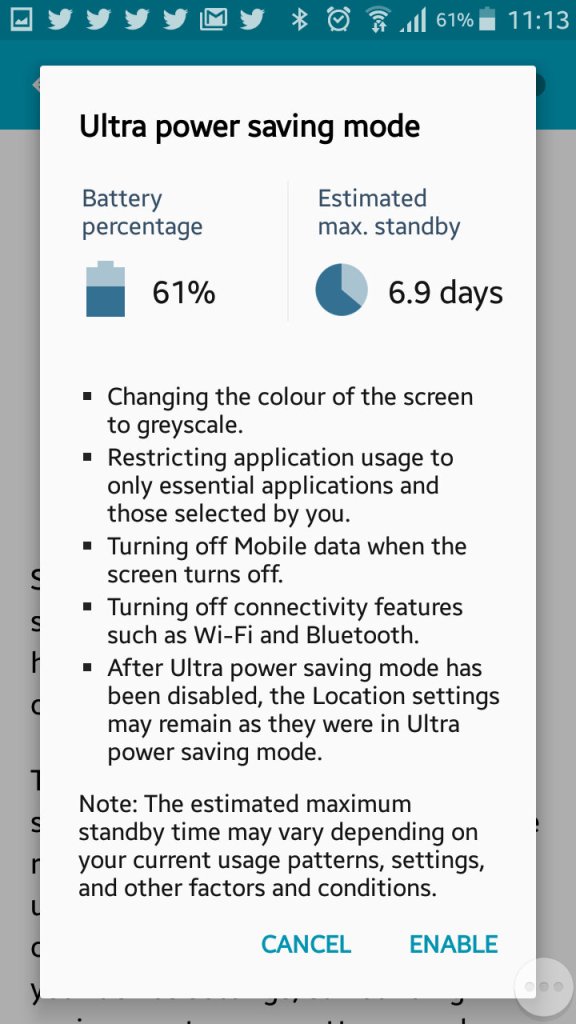
Ultra power saving mode, when enabled will change the display to greyscale mode and will restrict the apps that canoe run on the device. Ideal if you will be away for while and wont have access to a power supply. Apps can still run though you are very limited to the ones that can run, Twitter was the only third party app that could be run in this mode.

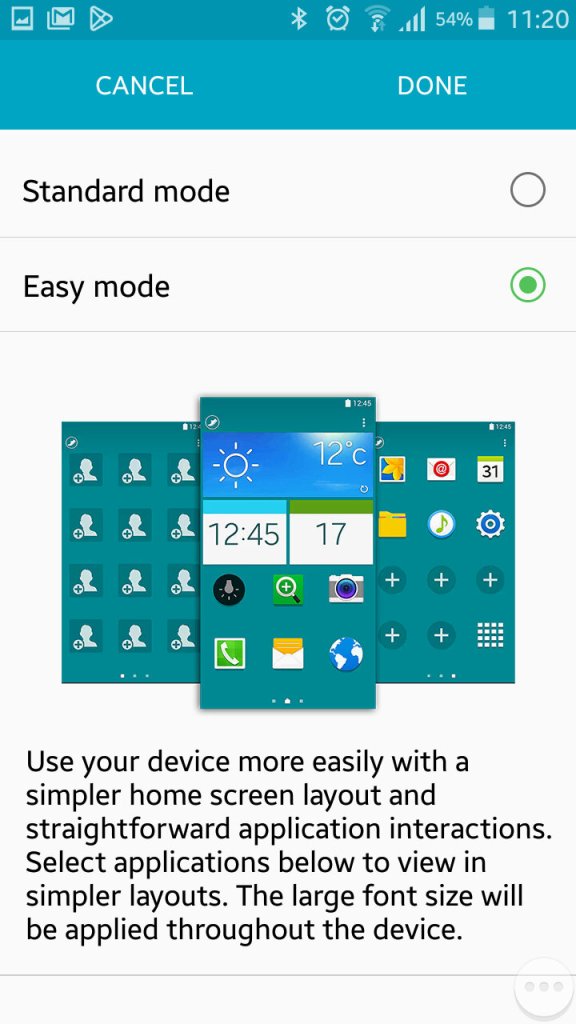
Easy mode makes the phone more simple to use for users who are not experienced with Android handsets

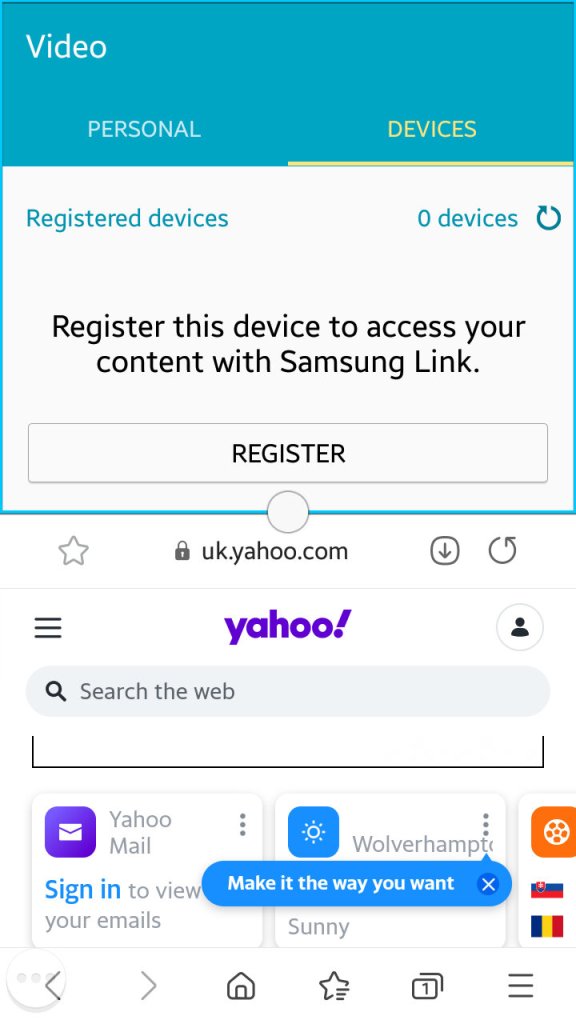
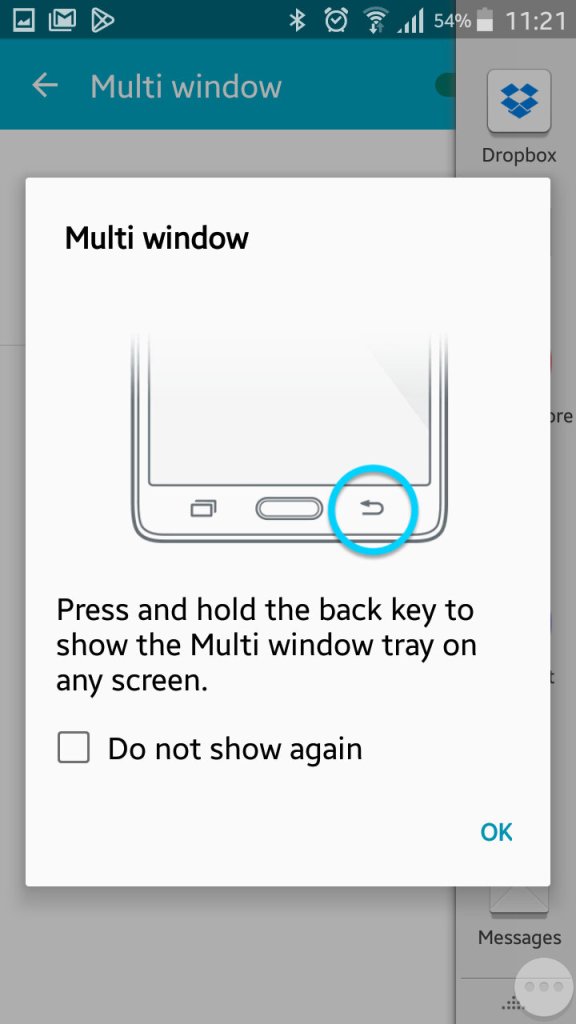
Multiwindow allows you to open multiple apps in a small window to be viewed on the same screen. Here you can split screen apps and have a Youtube video in one part of the screen whilst you browse the internet with another. Whilst handy it’s limited by the 4.7 inch screen, defiantly something that was useful on the Note series of phones.

Enabling it can be down by bringing up the list of apps and tapping on the split screen icon, this can only be done with supporting apps.

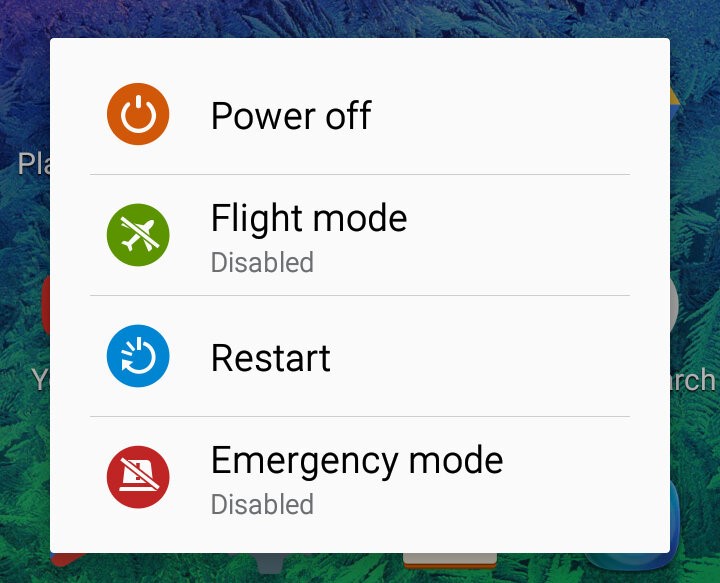
Powering off the phone

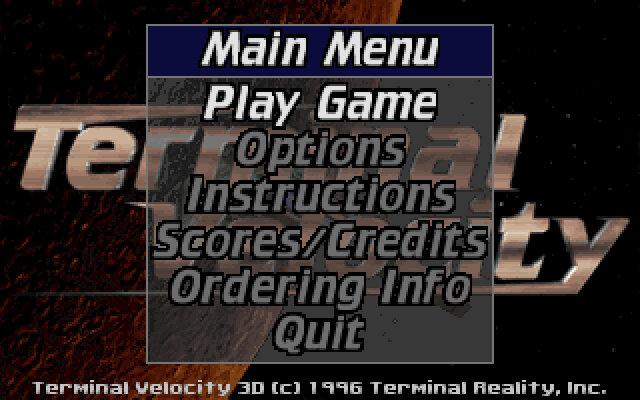
Terminal Velocity

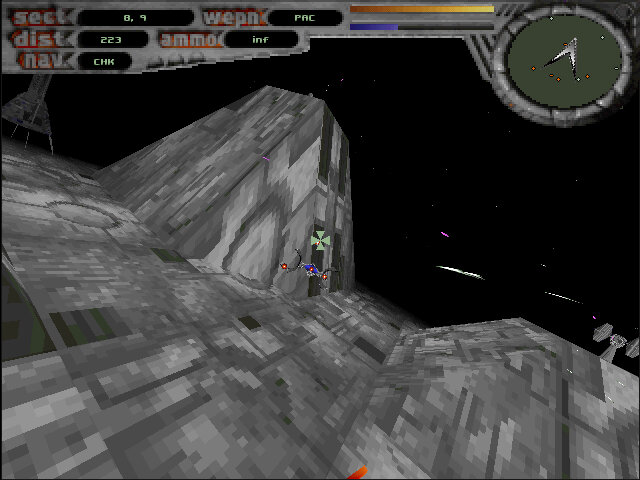
A flight combat game, very similar to Fury3 where you have to fly around and shoot stuff.

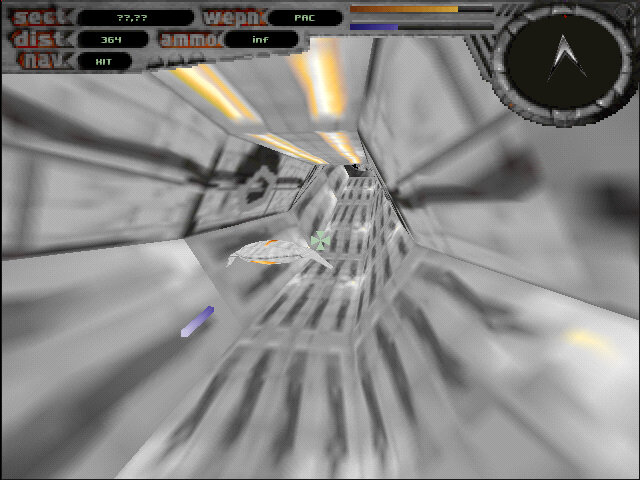
The game comes with various missions with multiple objects that require you to destroy enemy ships and locations in order to progress. Some objectives require you to fly through a deathtrap tunnel where you have to avoid obstacles to prevent damage to your ship.

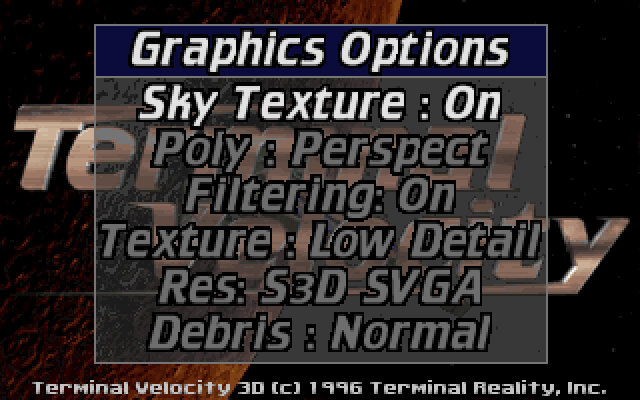
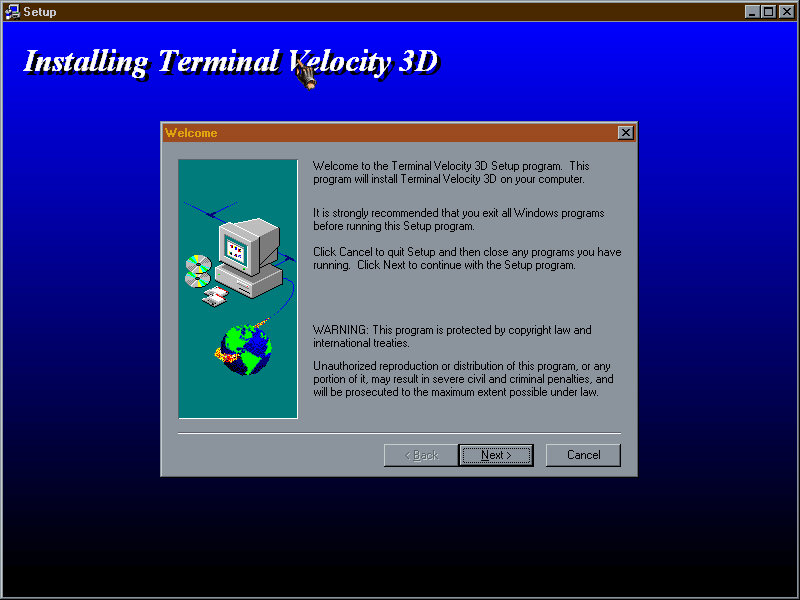
The game was released for MS-DOS, with later 3D patches becoming available for 3D video cards like the S3D S3 ViRGE graphics card. These versions make use of the hardware acceleration features that can improve the features for the graphics of the game including texture filtering. The S3 ViRGE isn’t that much of an accelerator, with a strong Pentium being able to match or provide improved performance on software rendering alone. Still if you are using an AMD or Cyrix 5×86 chip, the S3 provides a good improvement.

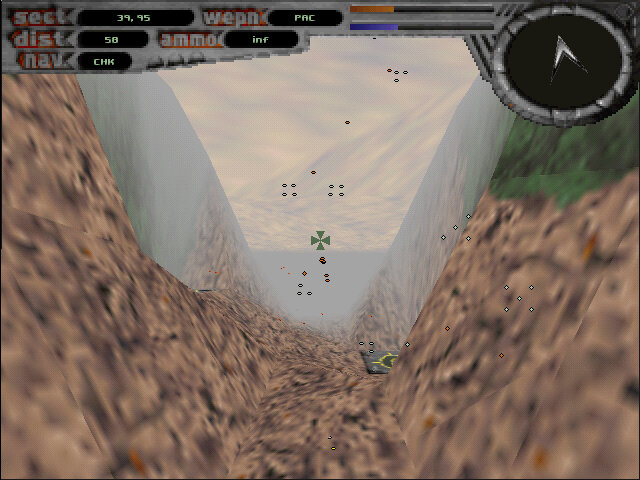
The levels themselves are large and vast, allowing you to simply fly around in a sandbox environment. As such it’s a perfect demo to test a brand-new 3D graphics card.

The shareware version is the most common and was bundled with some OEM graphics cards as a showcase for what their video card was capable of. This only includes three levels/missions with more that can be unlocked by purchasing the full version of the game. Sadly the only unlocked version is the non-accelerated DOS version.

There was also a port for MacOS that runs in software mode, unlike other 3D titles this was never ported to a fifth-generation console.

HTC 10

The HTC 10 is a well-rounded flagship smartphone with a focus on build quality, audio performance, and camera capabilities. It’s a solid choice for users who prioritize these aspects and prefer a near-stock Android experience since HTC dialled down their customisations with the launcher. The phone’s design is more similar to what you would see with a typical Samsung or Sony flagship handset.

There’s no doubting that the HTC10 is fast. The Snapdragon 820 processor is quadcore, running at 2.2GHz, and has a massive 4GB of RAM available. It’s a noticeable step-up from the slower 8-core processor of the One M9, but perhaps not quite as powerful as Samsung’s Exynos processor used in the Galaxy S7. The phone is equipped with 32GB of data storage, and can be upgraded with a microSD card.

The OS is Android 6 with the latest pared-down version of HTC Sense with fewer pre-installed apps, and has received upgraded to Android 7 and 8. HTC’s new Freestyle Layout frees up your creativity, allowing you to pin icons and widgets wherever you like. It’s a welcome change from the usual Android grid, but can get a little anarchic at times.

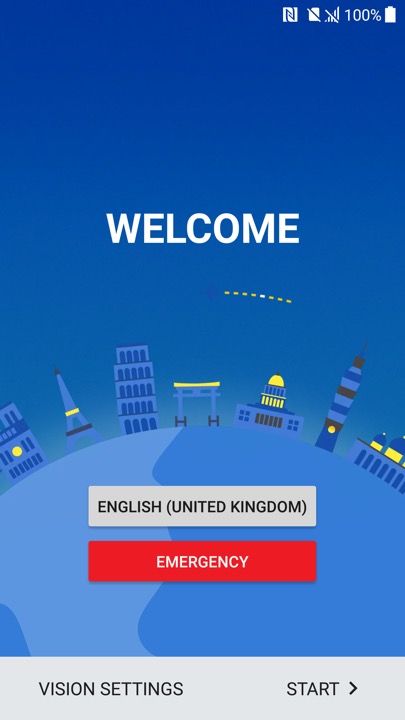
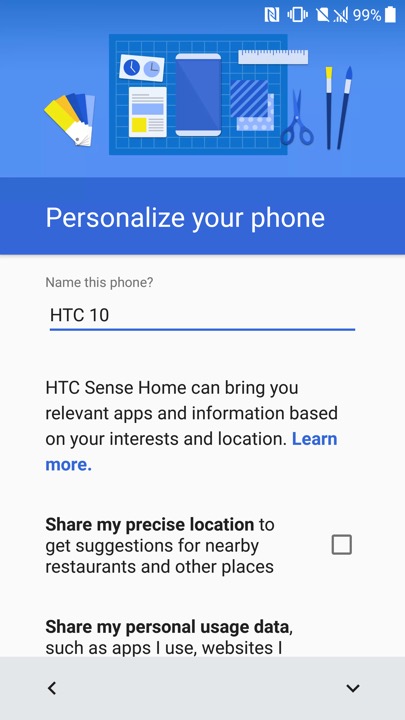
Ther setup wizard that appears when you power on the phone for the first time

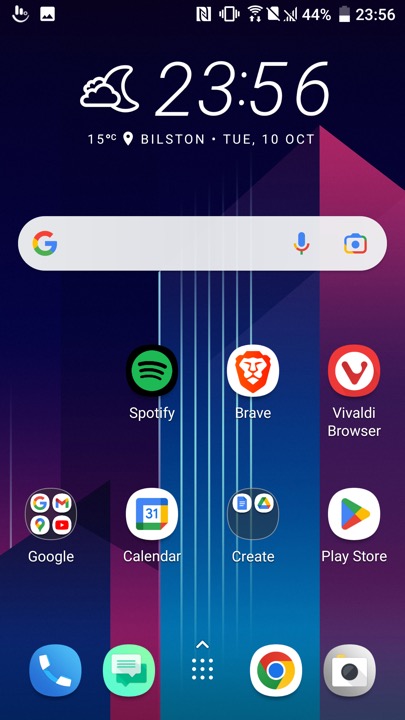
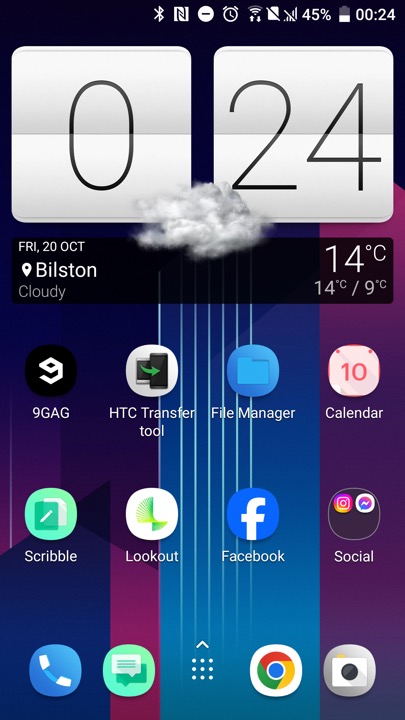
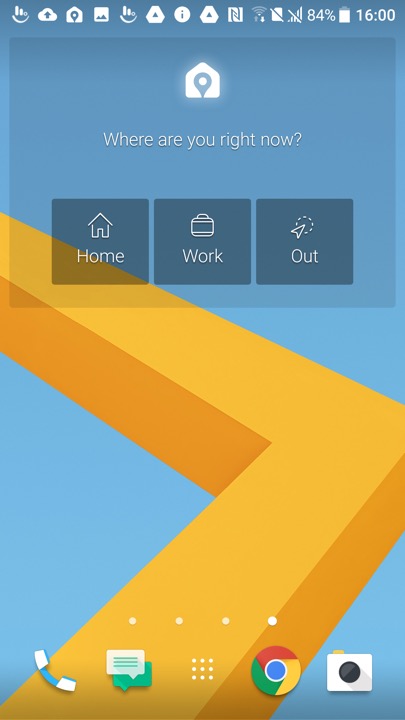
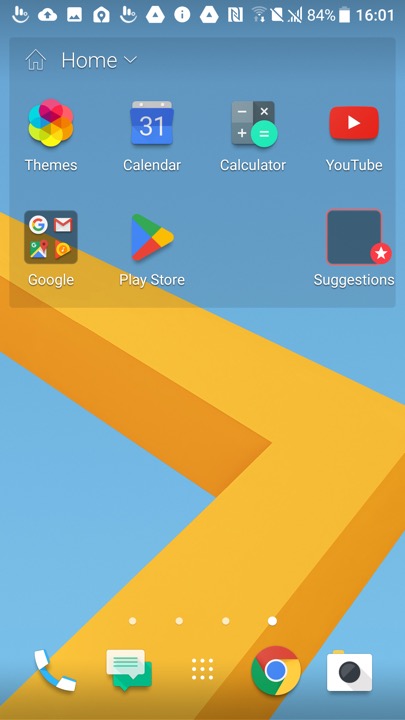
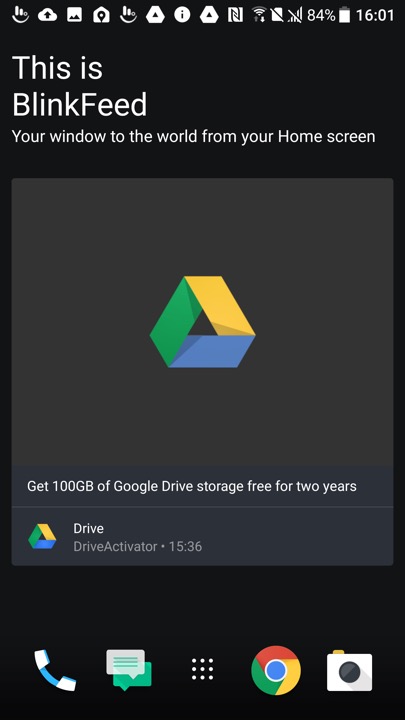
The HTC home screen which used their own custom launcher, swiping to the left will show another screen which will display the time and weather which will be a widget that you can tap on to open the weather app

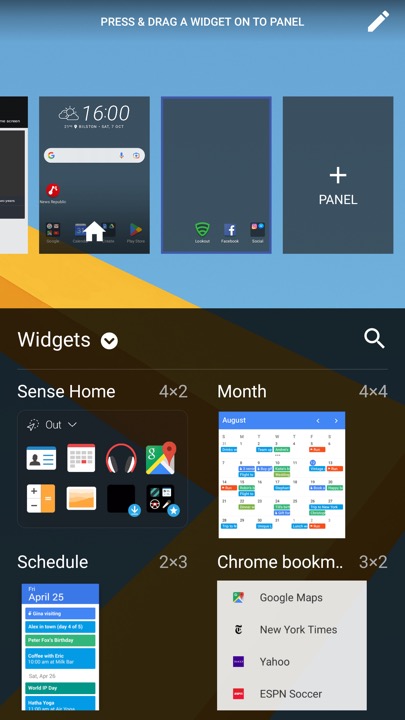
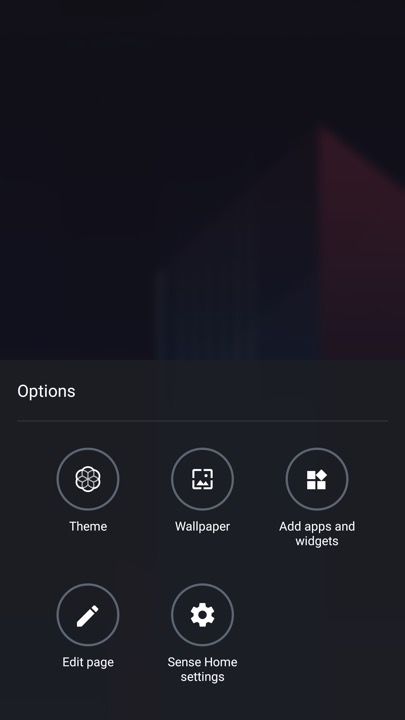
Customising the launcher, here you can select a different theme, change the background wallpaper and add additional widgets or app shortcuts. The edit page button lets you select which screen you want to appear as the home screen, or remove any vacant screens.

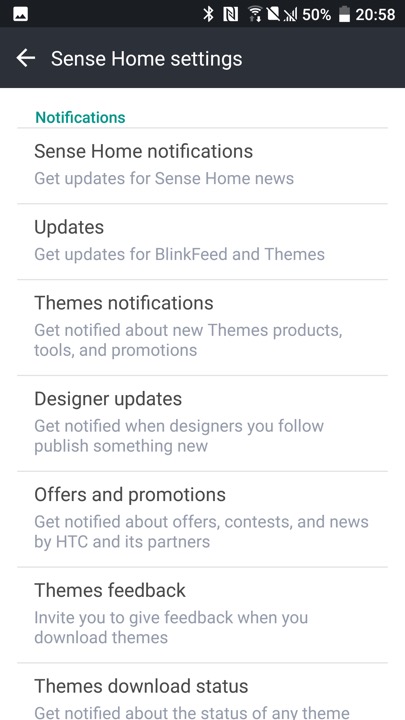
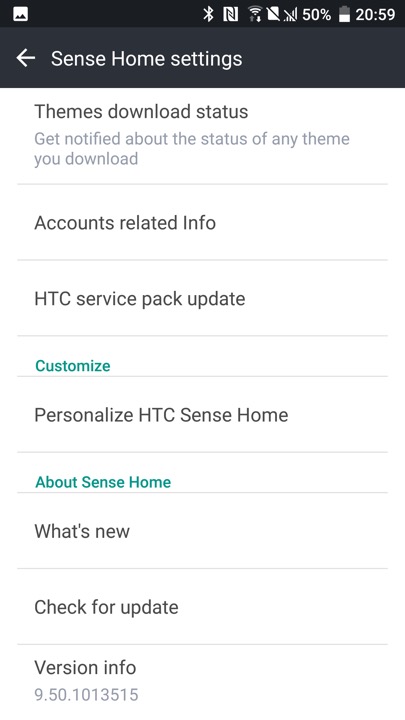
The HTC Sense settings, where you can adjust the notification settings. HTC would have sent notifications regarding new themes that had been released, and any offers and promotions. The settings screen can be triggered by holding your finger on an empty area of the launcher, which will popup the menu on the left.

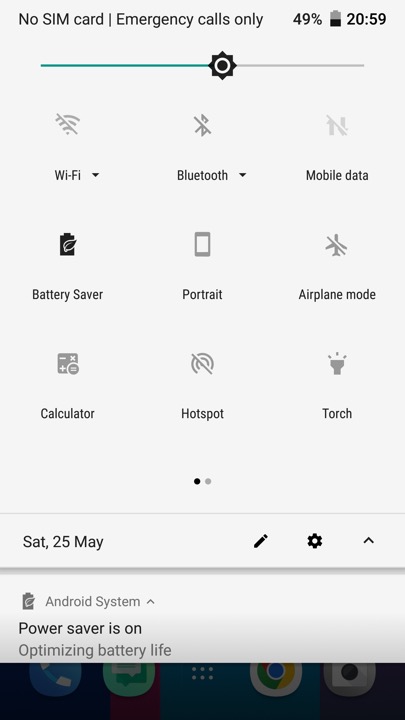
The pull down notification bar which gives quick access to common phone functions.

The messaging app which incorporates Google’s material design. Messages can be backed up  and protected with a password. You can also setup a block list to block specific numbers or spam. There are also message templates to quickly enter a message to send.

The phone app which is used to make calls, and to view saved contacts. Voice dialling is supported where you can speak the name of your contact, though a language pack must be downloaded first.

HTC 10 Camera

The camera viewfinder, The camera may just have 12 megapixels, but it does everything it can to capture light – using a 1.55μm pixel size, a huge f/1.8 aperture and Optical Image Stabilisation. A two-tone LED flash is also available, to get the very best night-time shots.

Perhaps even better is the front camera, which, although it has just 5 megapixels, is very good at capturing the best shots. It’s an autofocus camera and also features an f/1.8 aperture, auto HDR mode and (uniquely) Optical Image Stabilisation, making it one of the best selfie cameras you’ll find. The rear camera can capture 4K video, while the front camera sticks to 1080p.

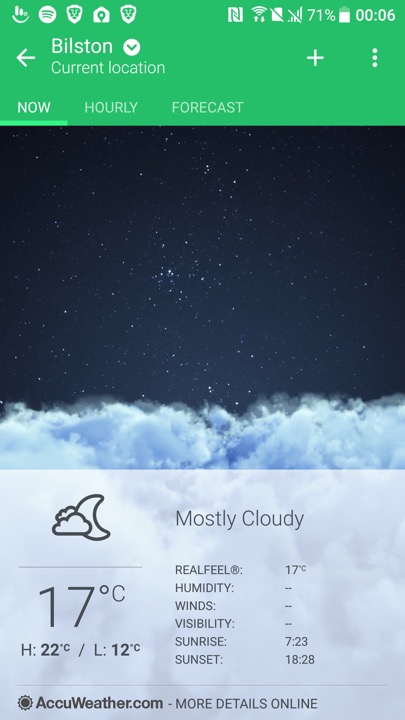
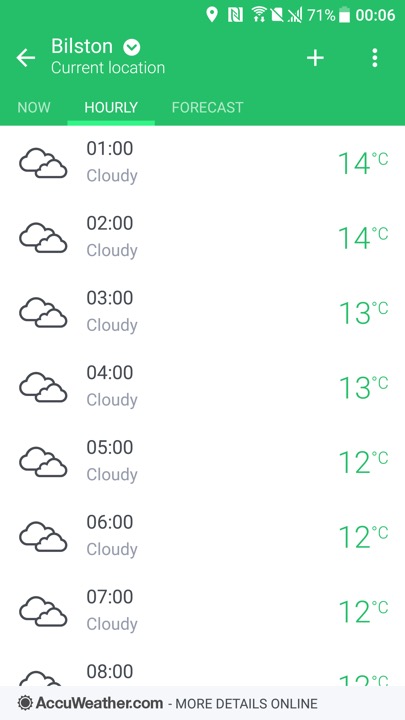
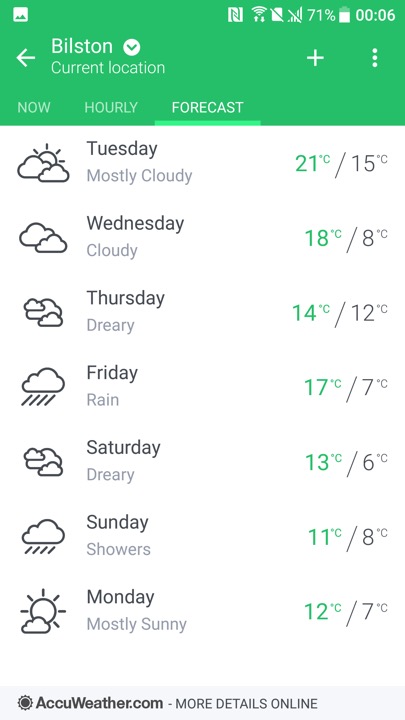
HTC’s weather app which by default shows your local weather based on your location, and will show for the different major cities. Data is obtained from either Google, or Accuweather.

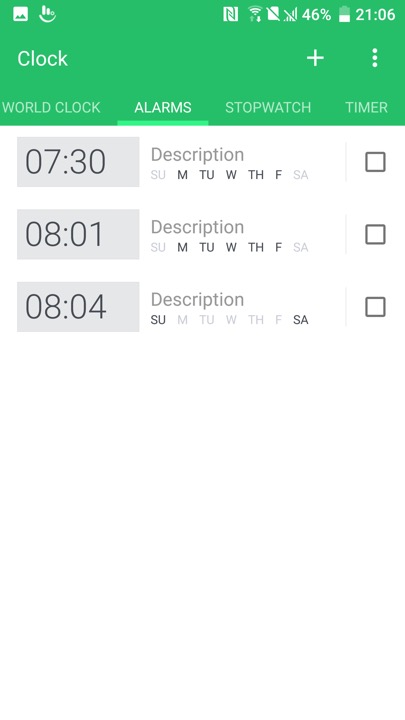
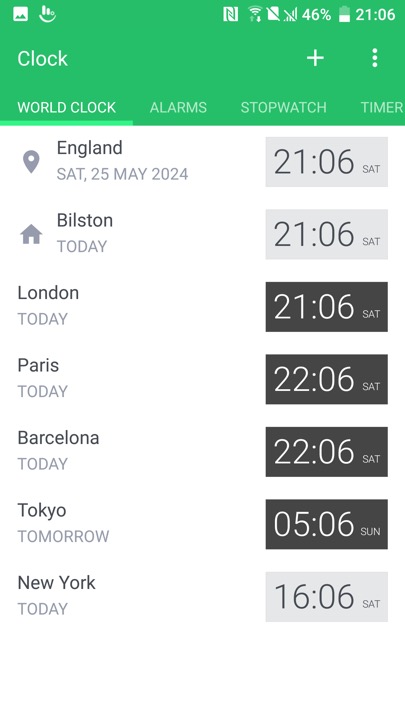
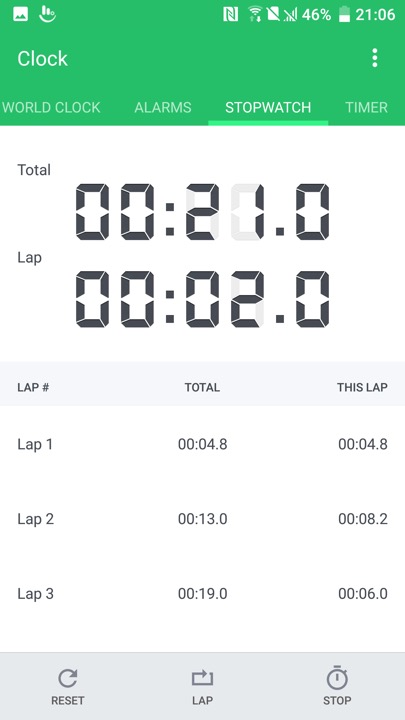
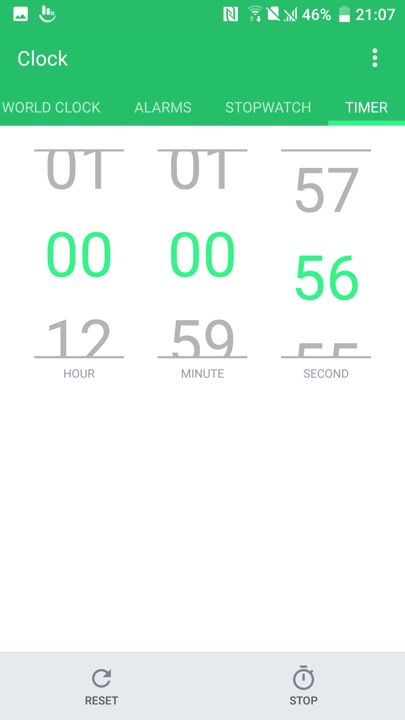
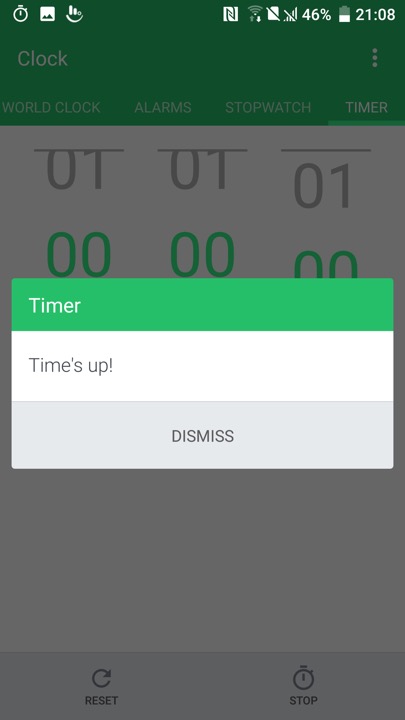
The Clock app, which also functions as a timer and a stopwatch

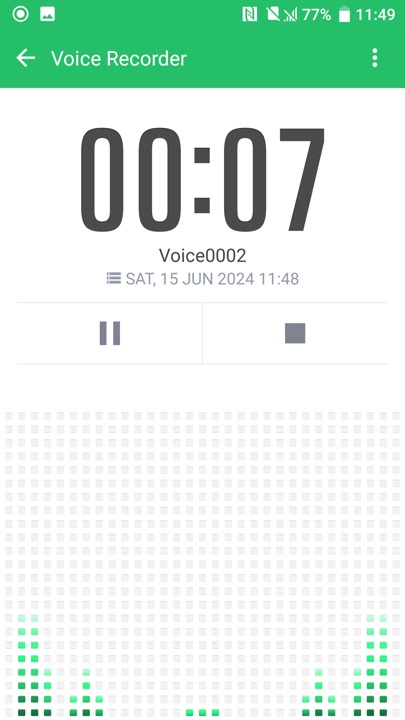
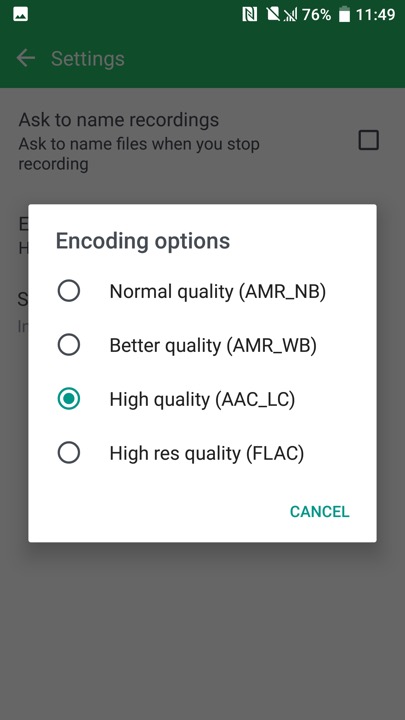
The voice recorder, which supports saving recorded audio in AMR or AAC format, AMR is lower quality but is more supported when sending to older devices

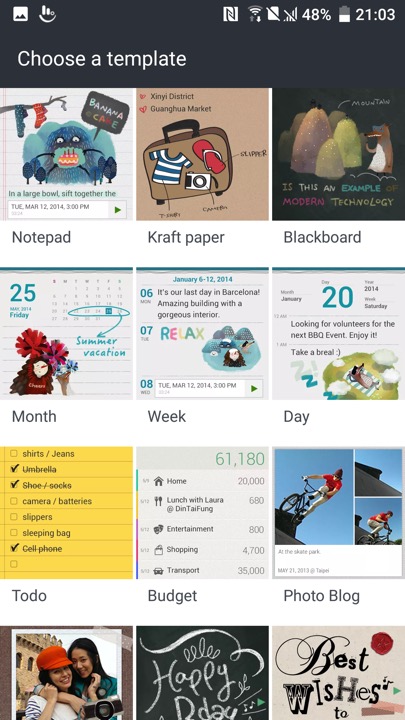
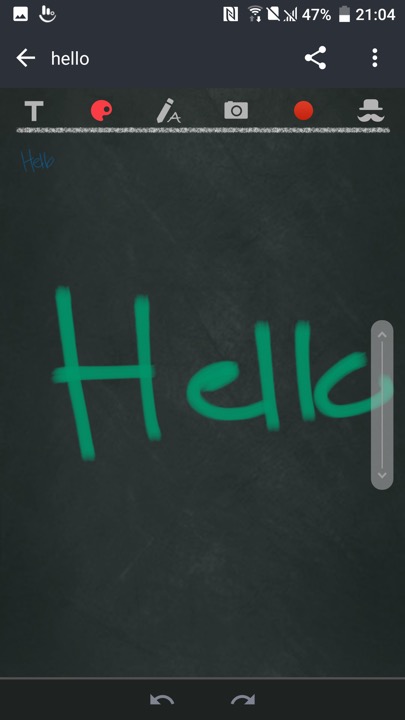
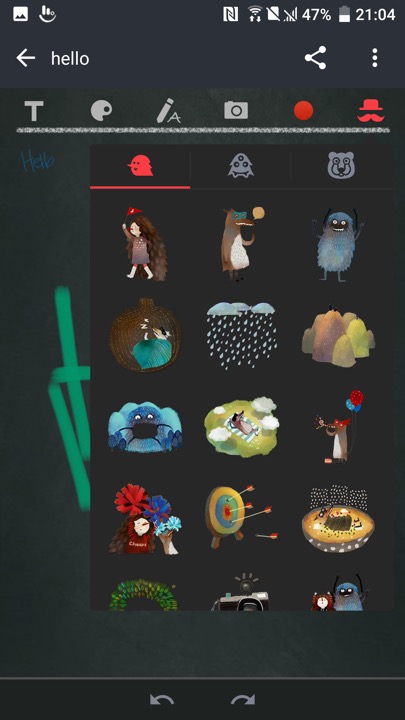
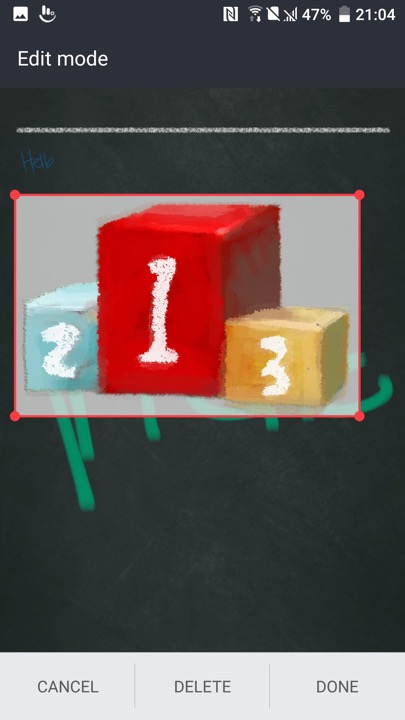
Scribble – A memo drawing app that can be used to create notes. These can contain text, or any drawing created by the touchscreen. Images taken from the camera can also be inserted into the memo, along with stickers.

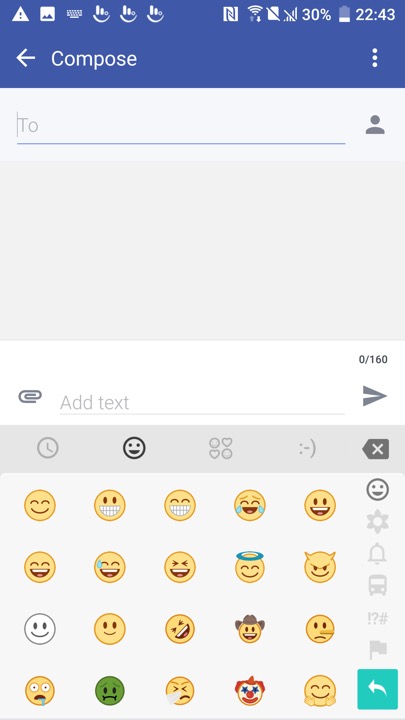
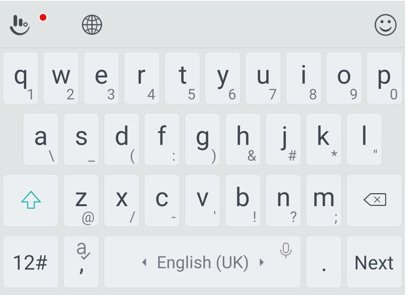
The bundled keyboard which is a customised variant of the Touchpad keyboard. As with other android keyboards you can adjust the size, appearance and features of the keyboard such as emoji or GIF support.

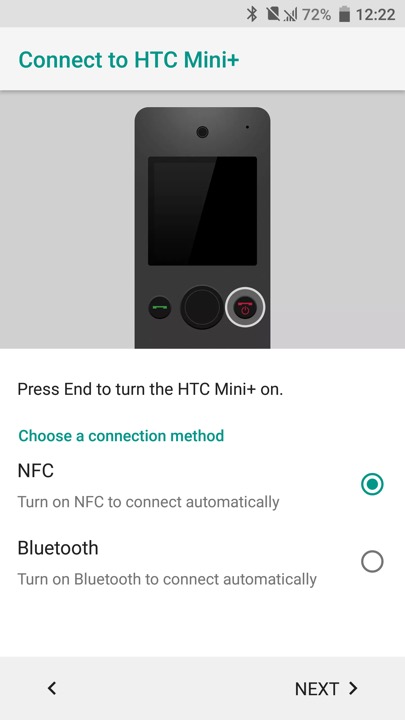
HTC Mini is also supported, which is a compact device that links to your smartphone, kind of like a smartwatch.

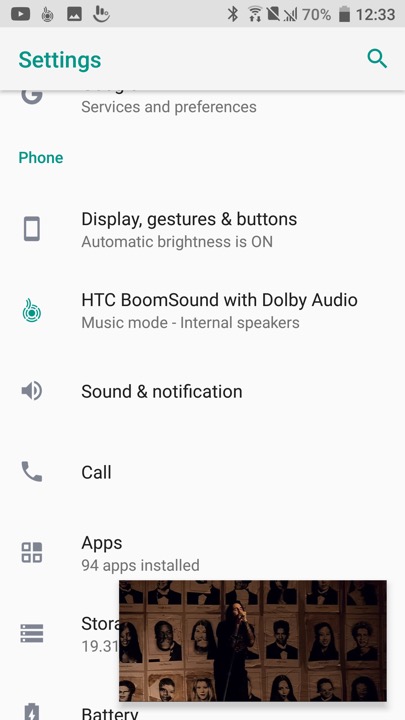
A feature you will see in the settings menu is HTC Boomsound manipulates the phones speak to provide multichannel audio using the phone’s mono speaker. There are two modes, Music and Theater which will relelate to the type to content you are playing. Unlike the preious HTC flagships (M9,M8) the 10 only has a single speaker located at the bottom of the device.

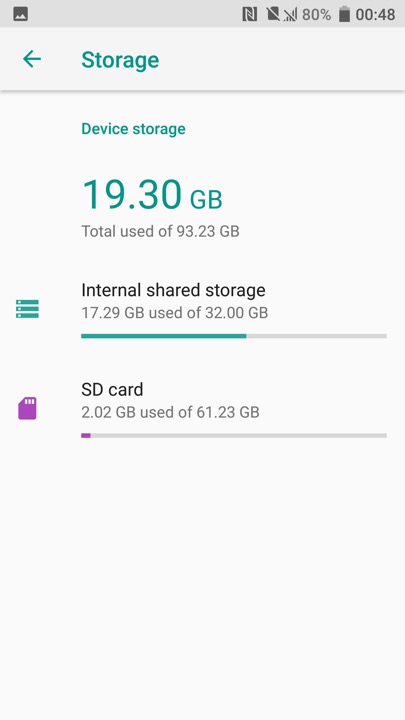
Device storage screen, HTC are one of the few Android OEMs to support adoptable stage where the microSD card is merged with the internal phone storage. This has the benefit that larger apps (Games) can use both types of storage, but means the apps cannot be used should the microSD be removed.

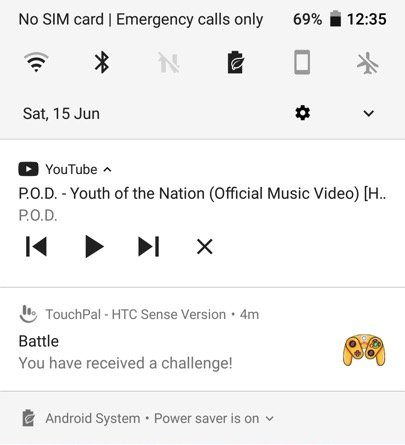
Is that a GameCube controller?

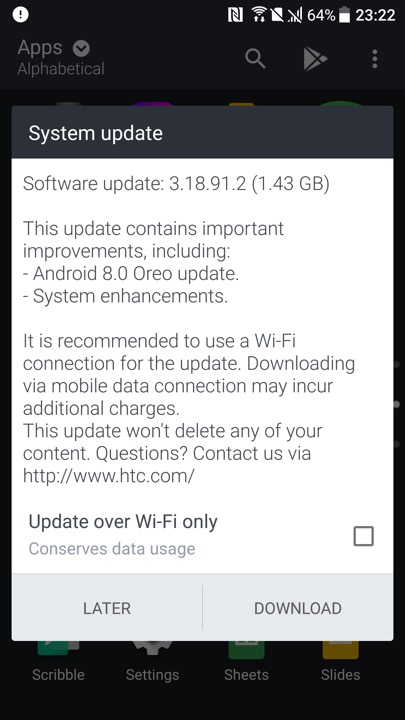
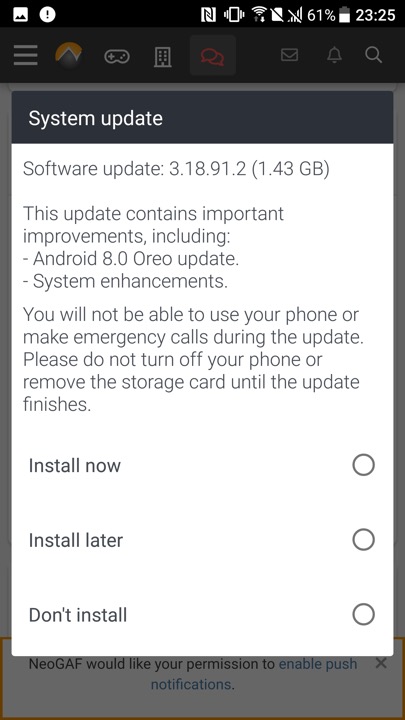
Lastly we have a software update, even though the phone is around 8 years old.

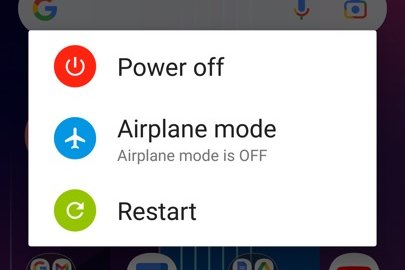
Powering off the phone

LG G3

A high end Android phone released in 2014, and put LG on the map against the Galaxy S5, The Sony Xperia Z2 and the HTC One M7. It’s sucsessor, the G4 is very similar but with the faster Snapdragon 808 processor.

Powered by a quad-core Qualcomm Snapdragon 801 processor and 2GB or 3GB of RAM (depending on the variant), the LG G3 delivered smooth and responsive performance. Apps launched quickly, and multitasking was a breeze. The device handled everyday tasks with ease, including web browsing, gaming, and media consumption, even today with modern apps. With a 5.5 inch screen, it almost competed in the phablet market with the Galaxy Note 4

The phone also came with LG’s flavour of Android, original 4.4, it was updated to Android 6.

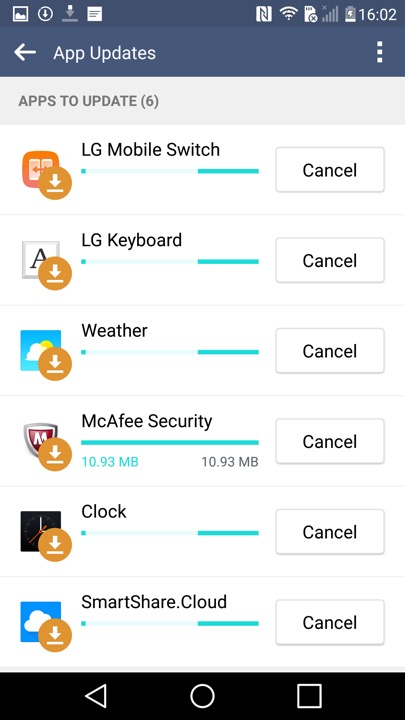
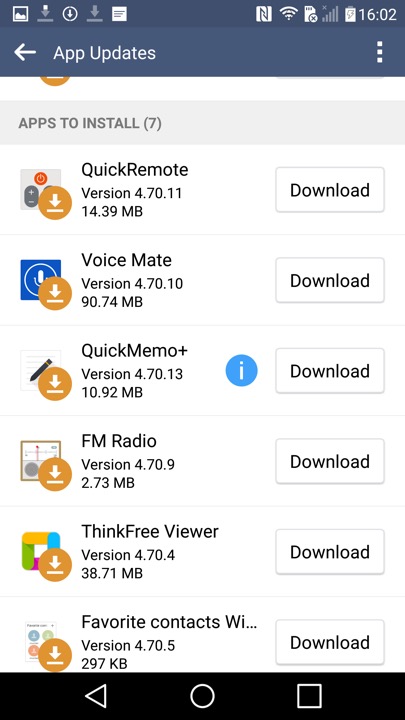
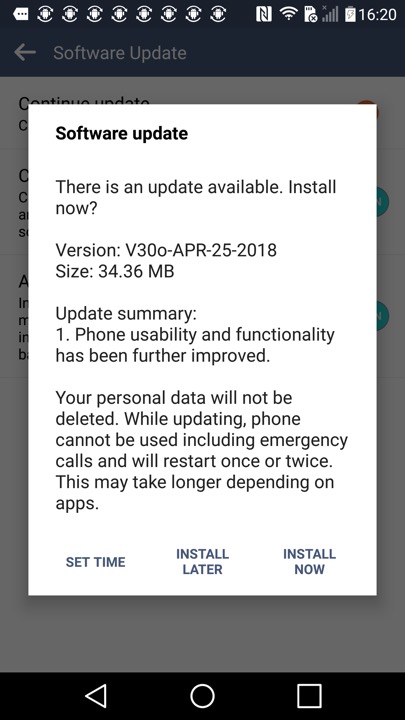
Shortly after the first boot, the phone picks up a few updates

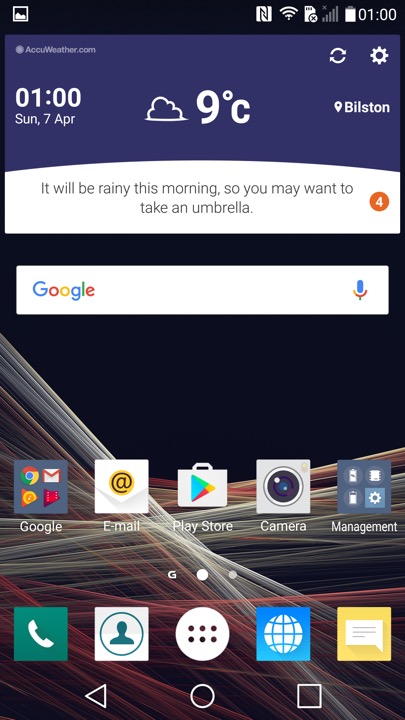
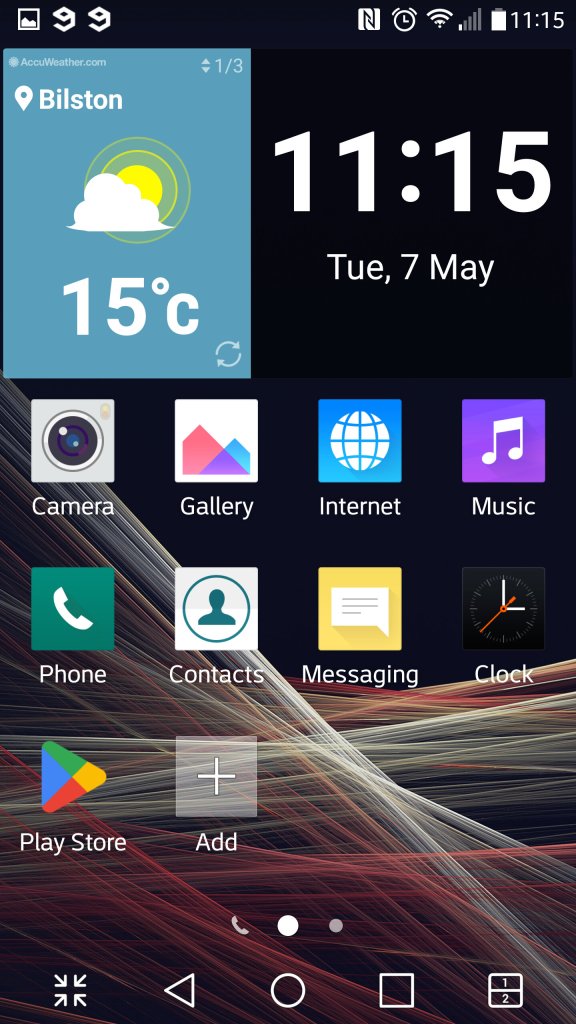
The home screen, showing the LG launcher with the default widget and icon layout.

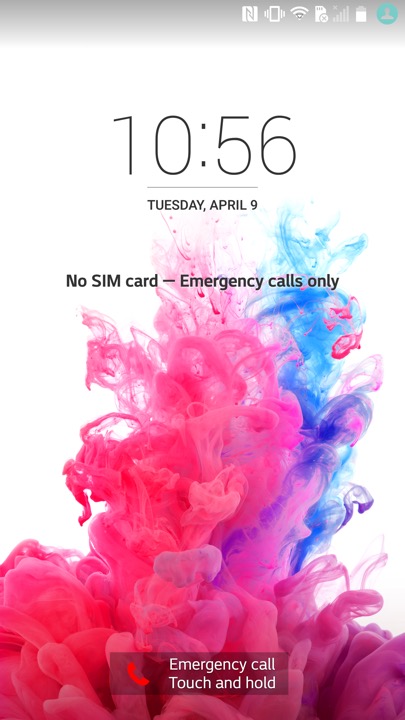
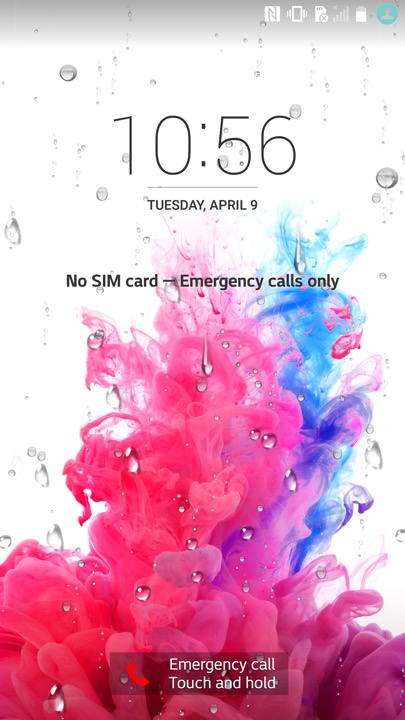
The lock screen, which will display weather affects if you have your location enabled. here you can see raindrops that signify rain. I wonder what effect a hurricane or a blizzard would have?

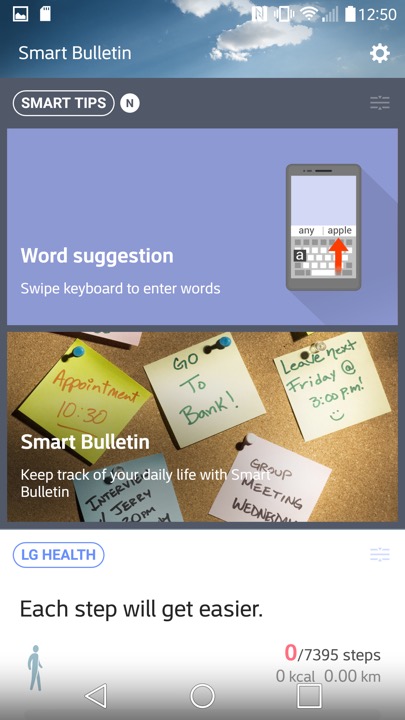
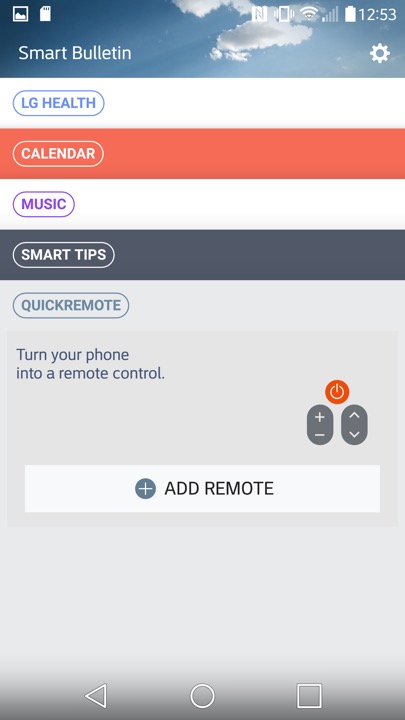
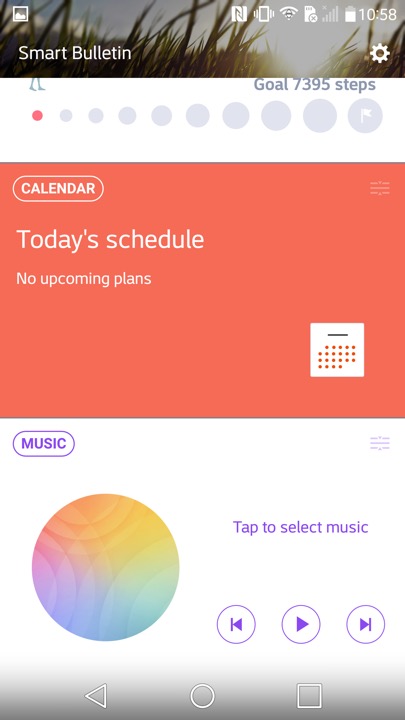
Swiping to the left will reveal the Smart Bulletin section of the launcher.  Smart Bulletin served as a central hub for aggregating and displaying relevant information from different sources and apps on the device. This included things like upcoming calendar events, weather forecasts, recent photos, and LG Health data. You can customize Smart Bulletin by adding or removing different cards based on their preferences and needs.

There is integration with the LG Health app, which will show you your current step count and the amount of calories burnt. You can also launches the music player, and control your TV if you have the QuickRemote configured. Ina. Way it’s similar to the live tiles feature on Windows Phone and It think this was what LG was attempting to replicate.

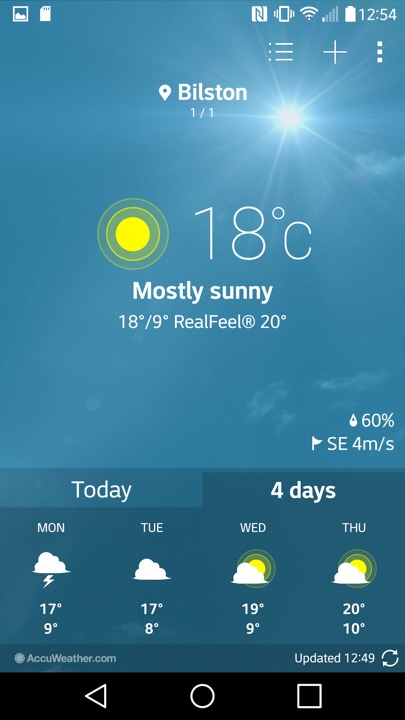
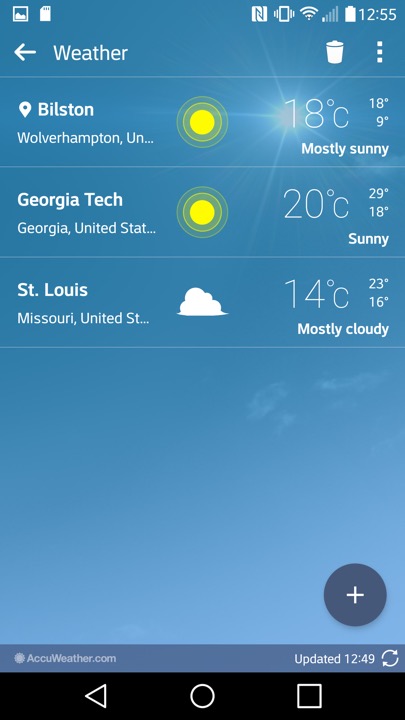
The weather app, which pulls data from Accuweather. You can let it detect your location, or manually add a city.

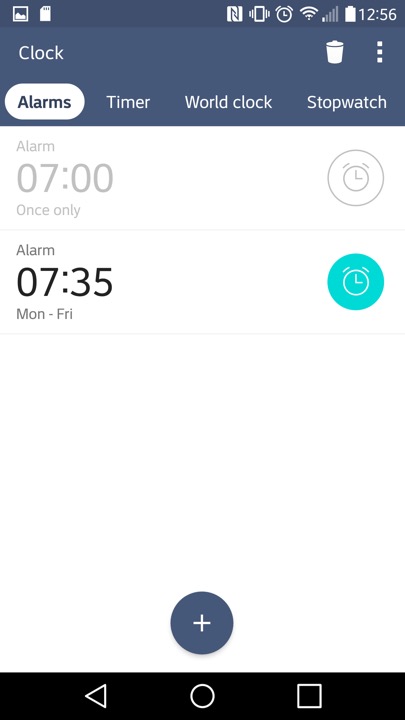
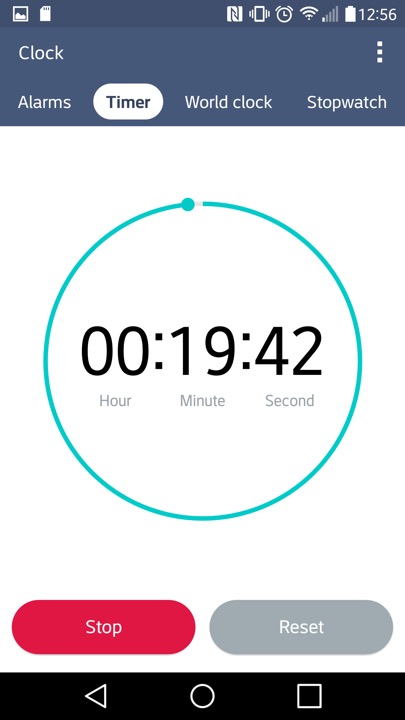
The Clock app, of which you can set alarms and stuff. The navigation bar near the top can be swiped to move to the next item, similar to the Windows Phone interface.

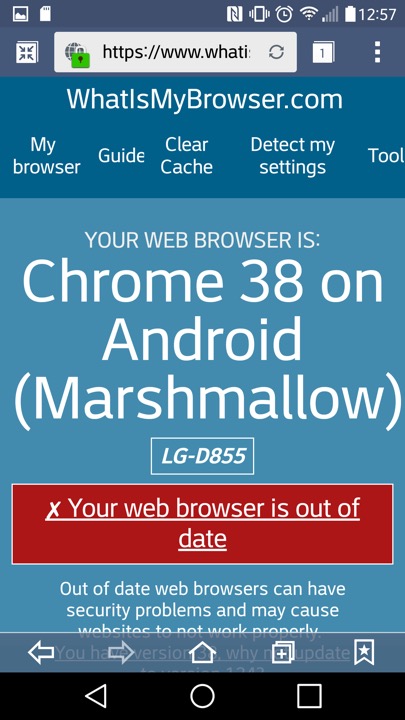
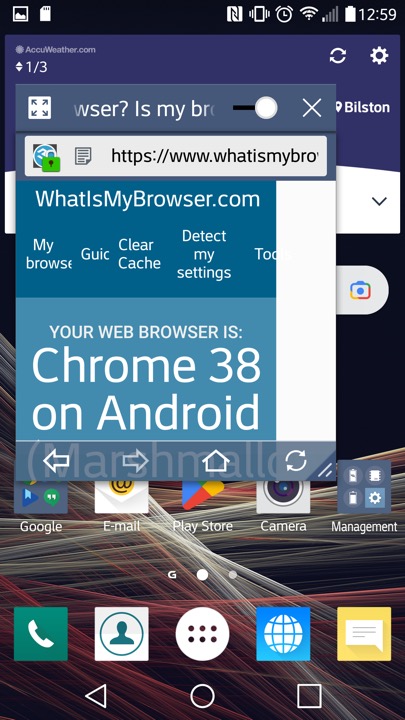
LG’s internet browser which is based on Chrome 38 that was released in 2014. That’s quite out of date and LG papers to have not released further updated that apply to the handset. At least a more modern browser can be installed through the Play Store, like Brave 1.31.90 (Chrome 95) which the latest supported for Android 6.

This might be using the Android embedded browser, which might explain

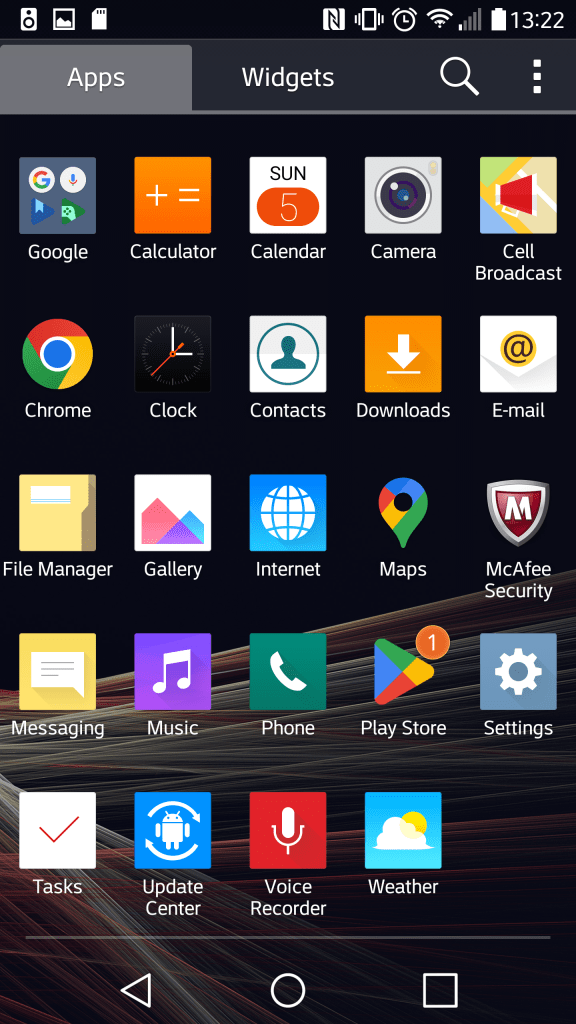
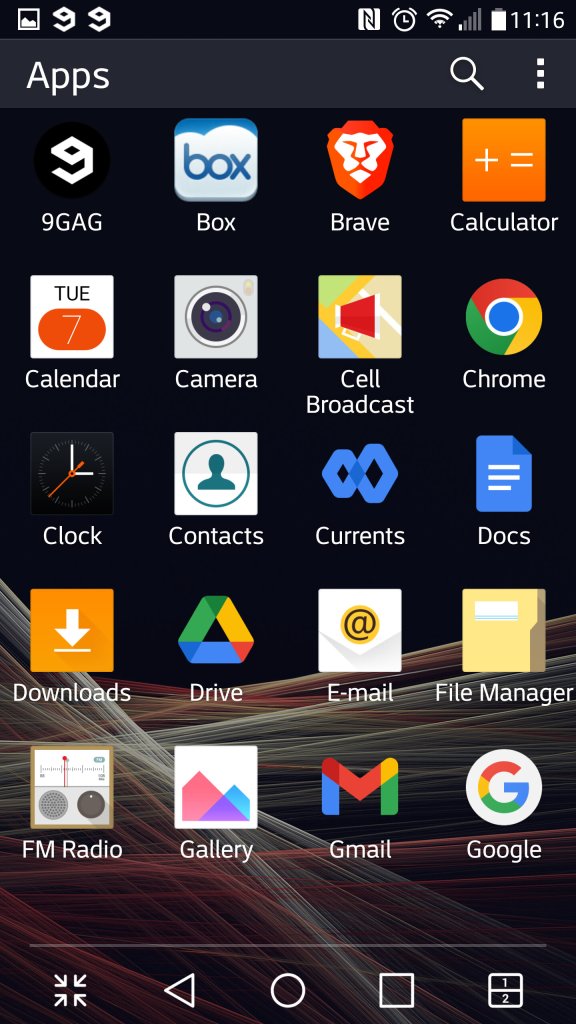
The App drawer which will display App’s and Widgets, along with the Home Screen Settings that lets you change the icon size. You can also organise the apps by name, download date or in a custom order.

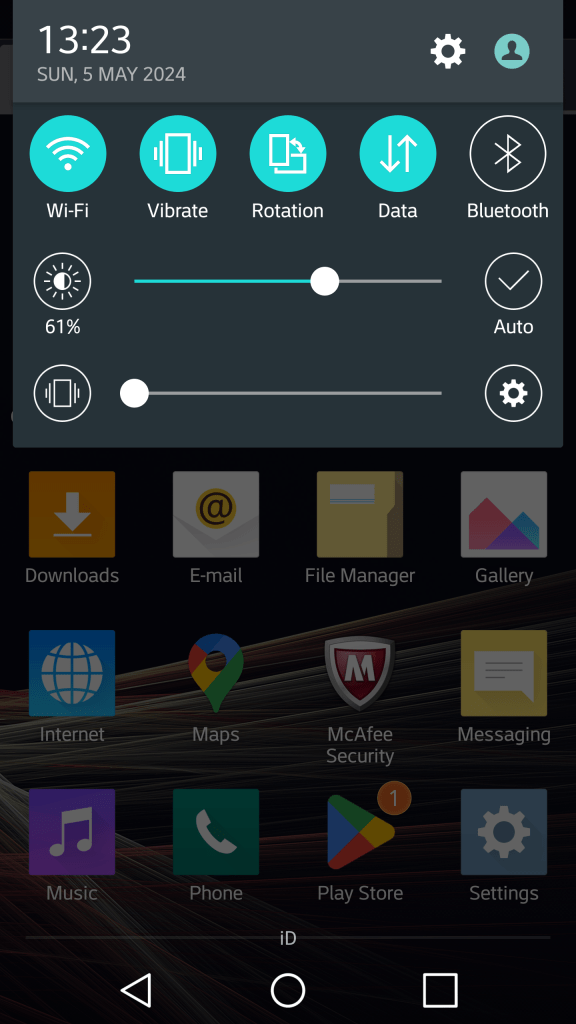
The pull down notification section. You can swipe the icons to reveal more quick settings and add additional icons and reorder the existing set. Some additional options are for the extra features LG have included, but aren’t enabled by default as to not intimidate users.

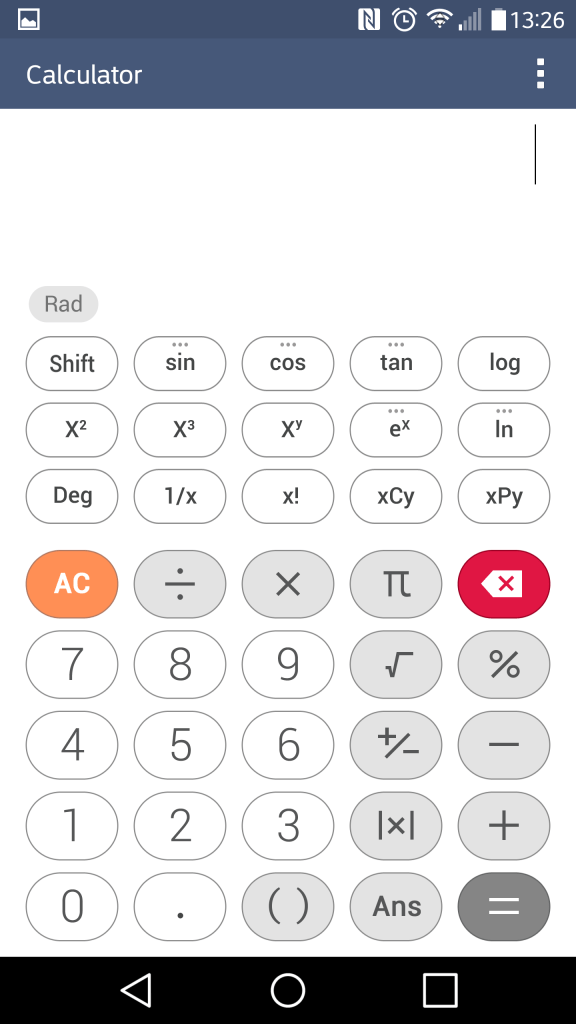
The calculator which can function in a simple or scientific mode.

I should mention the Slide feature that appears on multiple LG apps, this lets you multitask the apps as they appear, mimicking a desktop user interface. You can drag to move the window and a slider lets you make the app transparent. This makes good use of the G3’s Hughe screen and give you a Samsung Note-like experience.

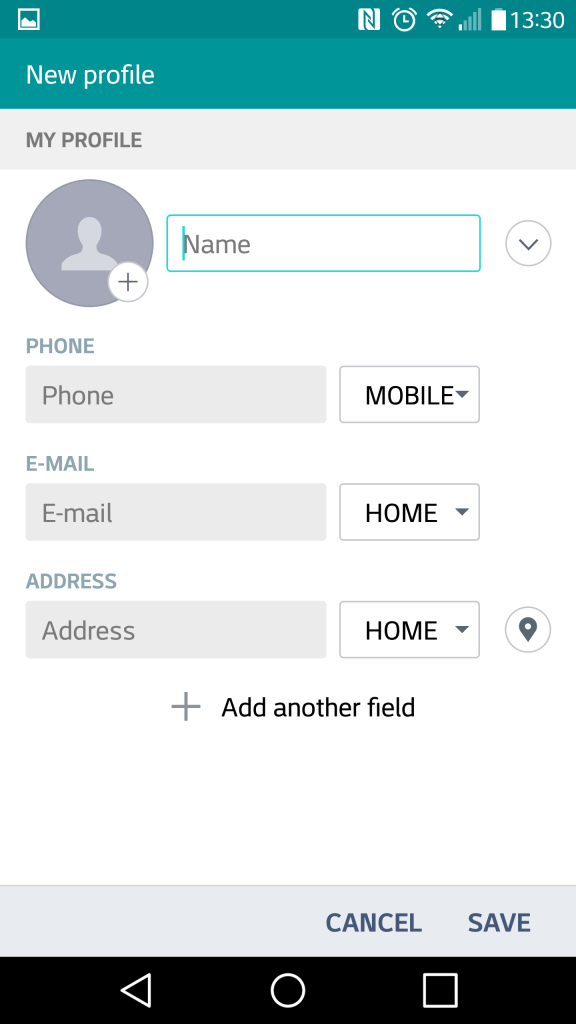
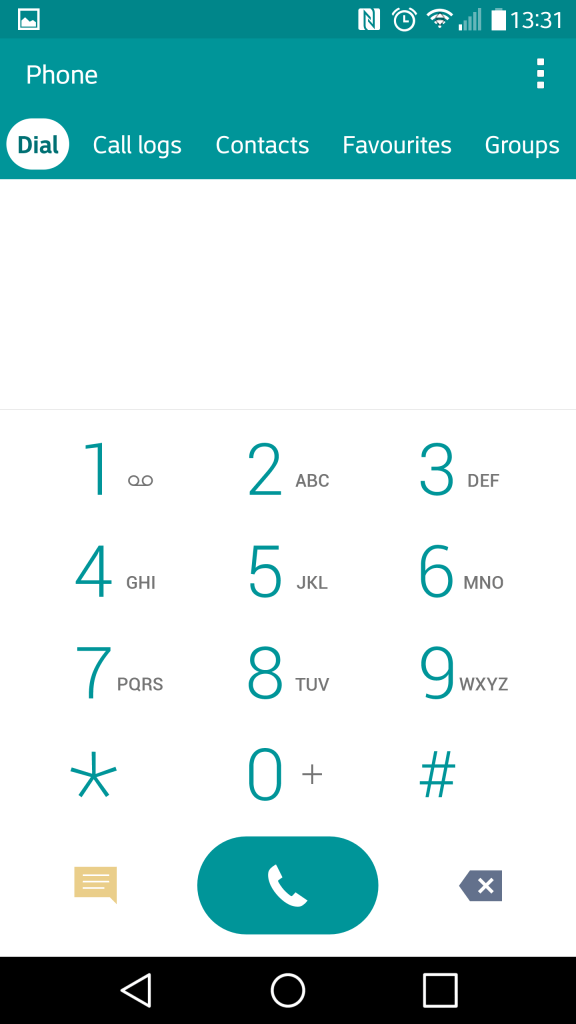
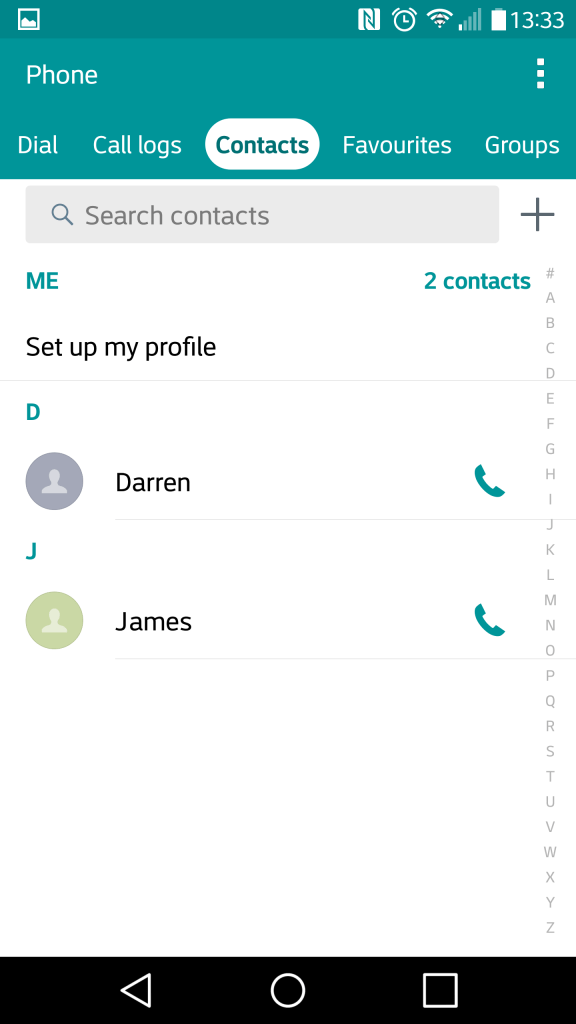
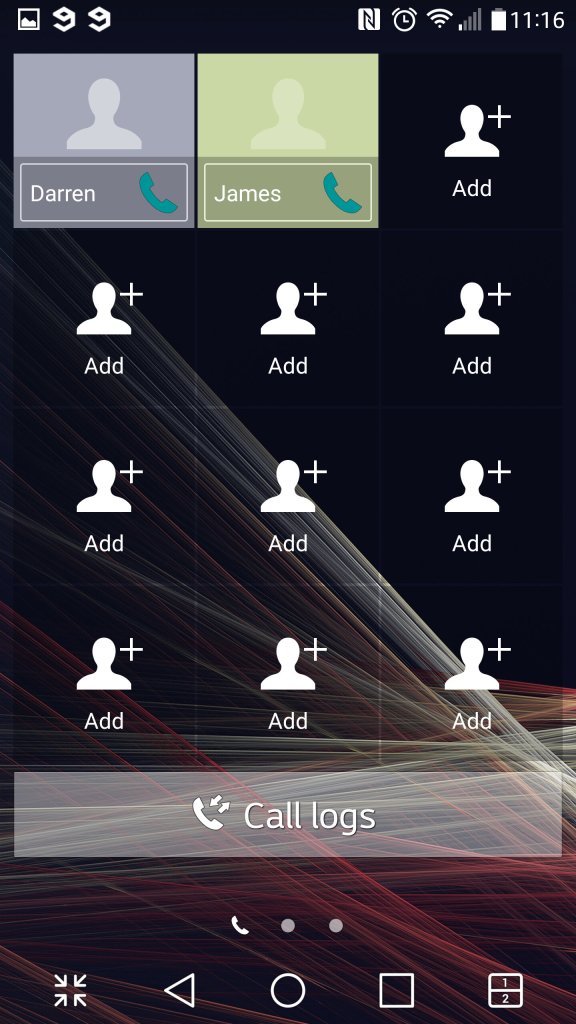
The contacts app which also serves as the phones dialer. Contacts can be pulled from the phones memory, the Sim card or sync’d from your Google account. Each contact can have a custom ringtone, a photo assigned to it and a custom notification colour. Favourite contacts can be set, for frequently used contacts.

The file manager, which is used to display various files that are present on the internal, external SD storage and any supported cloud storage services. Supported services are Google Drive, Box, Dropbox and OneDrive. Of all the services, only Google Drive appears to still be functional as of 2024.

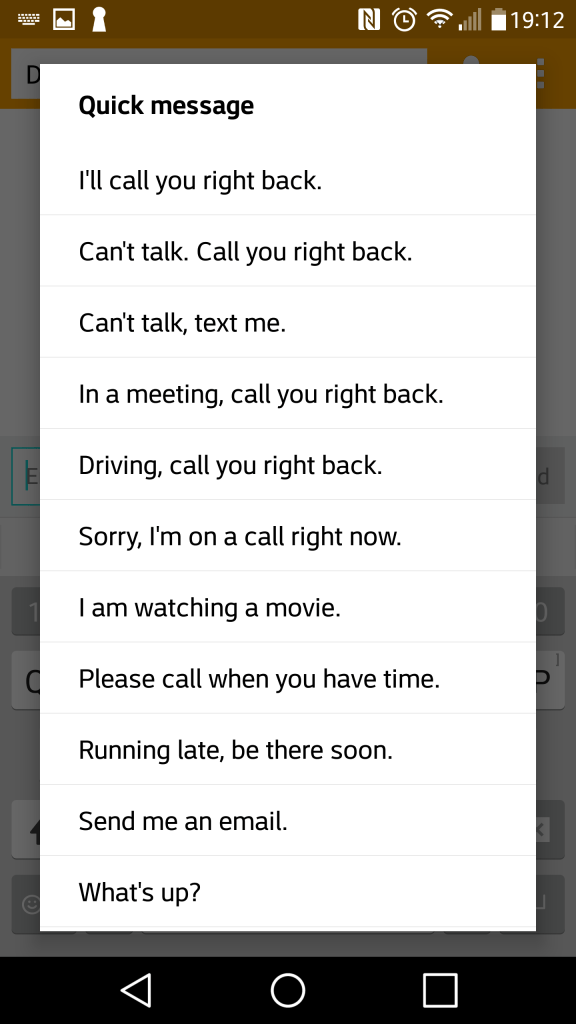
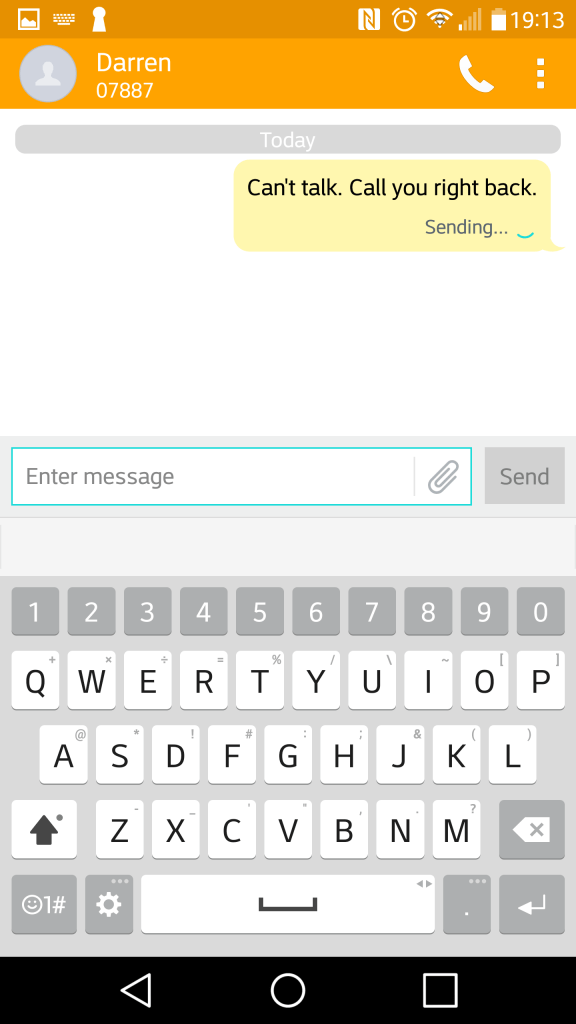
The SMS app, with a spam feature that lets you block SMS messages based on keywords. Flagged messages are immediacy stored in a dedicated spam folder. There are a few template messages that can be selected and sent for quick messaging. The attachment icon lets you add media, which will convert to an MMS message.

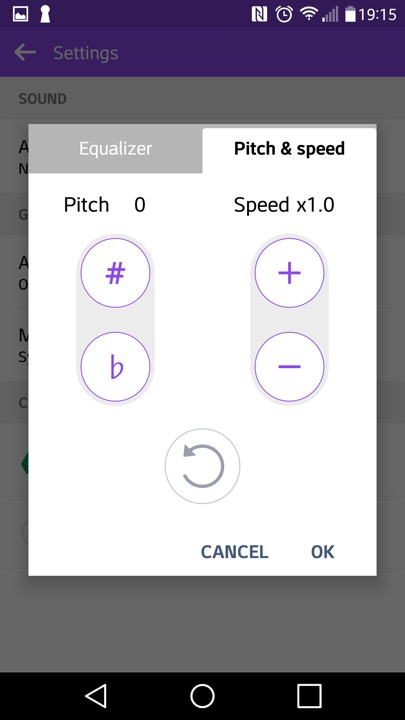
The music player, which can play back files stored locally or from the (Google) cloud. Additional effect’s can be applied such as adjusting the pitch and speed.

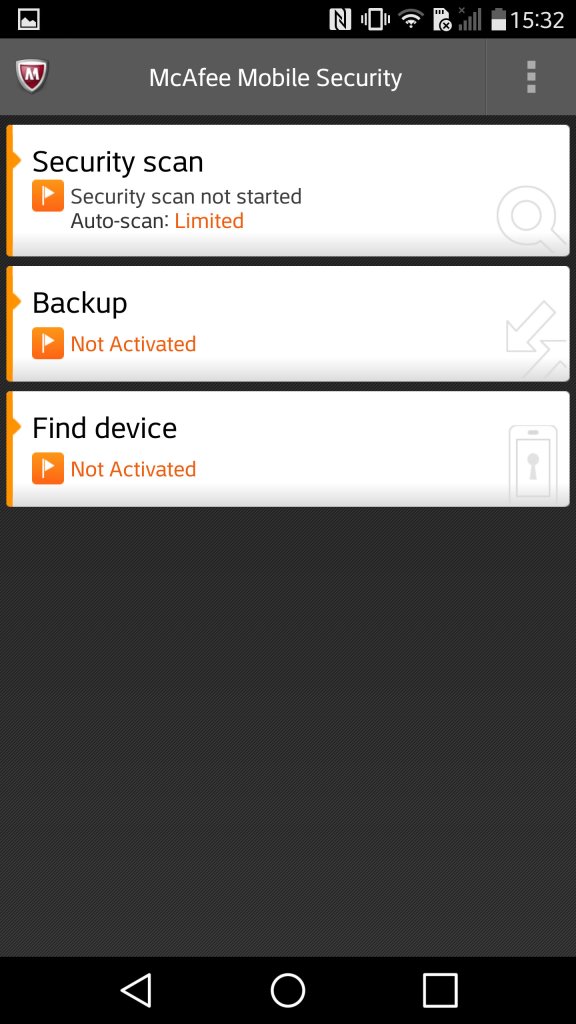
McAfee comes included with adds an anti-virus scanner. It also comes with a backup utility with requires you to subscribe to McAfee;s cloud service

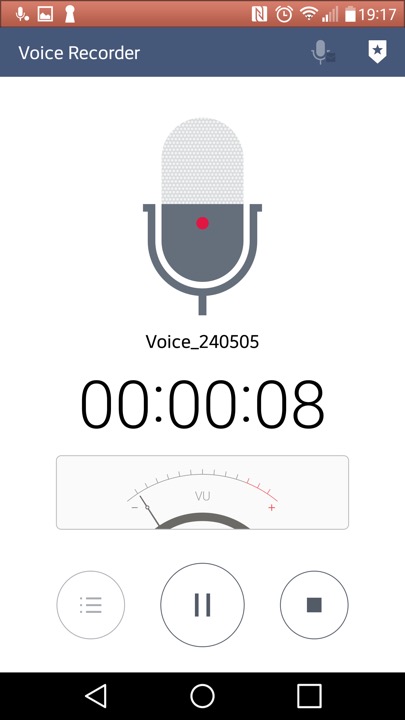
The voice recorder app

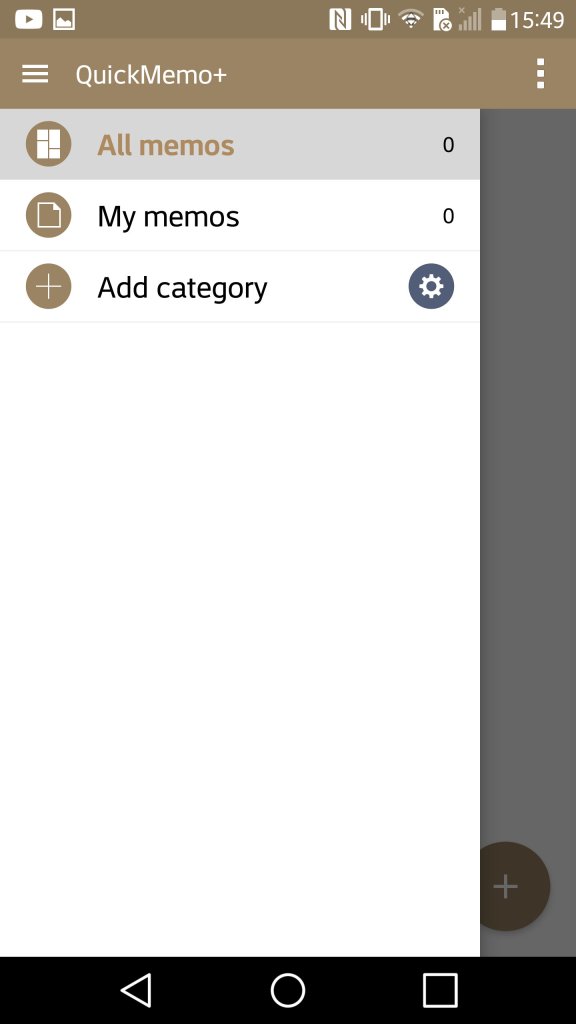
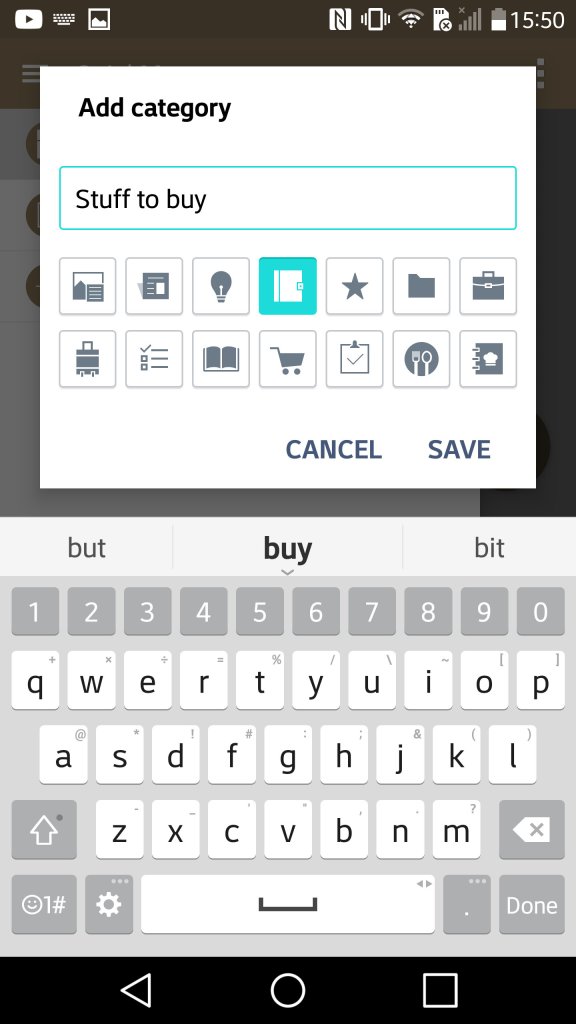
QuickMemo which lets you create a journal consisting of either text, freeform drawing or pictures imported from apps. You can also add supplementary information like the weather and location which can be done by tapping on its respective icon at the bottom. It’s kinda useful if you want to capture and record an outing or event.

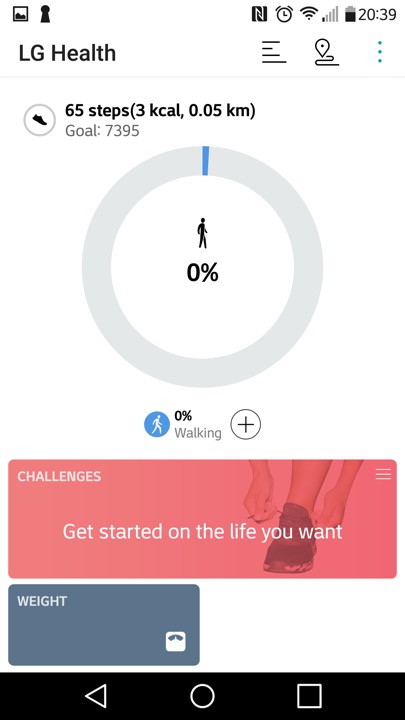
LG Health app lets you monitor the amount of steps walked in a day, along with settings fitness goals and targets.

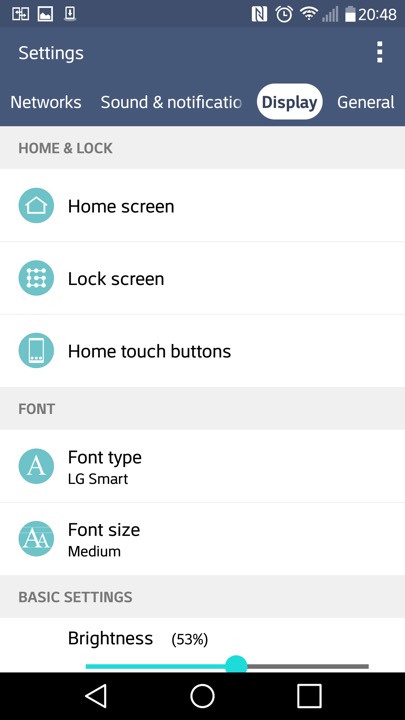
A look at the settings page

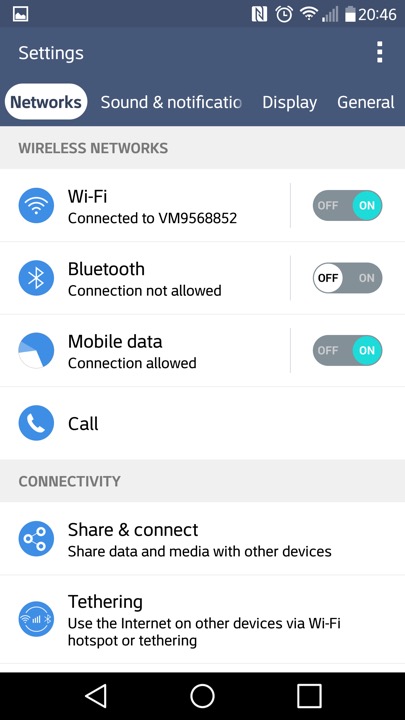
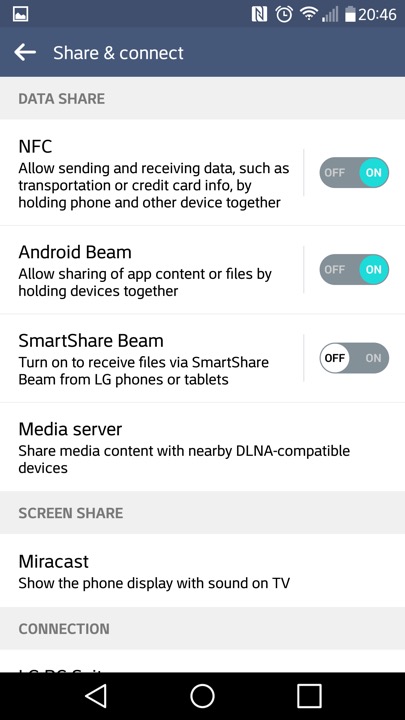
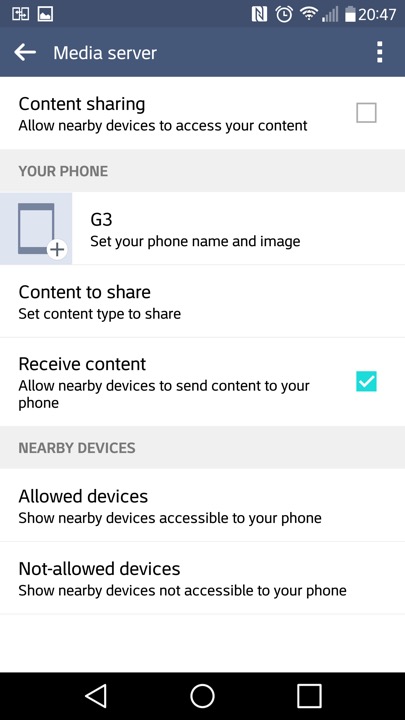
Media sharing is where the phone will act as a DLNA media server, so you can stream content to a supported TV or console.

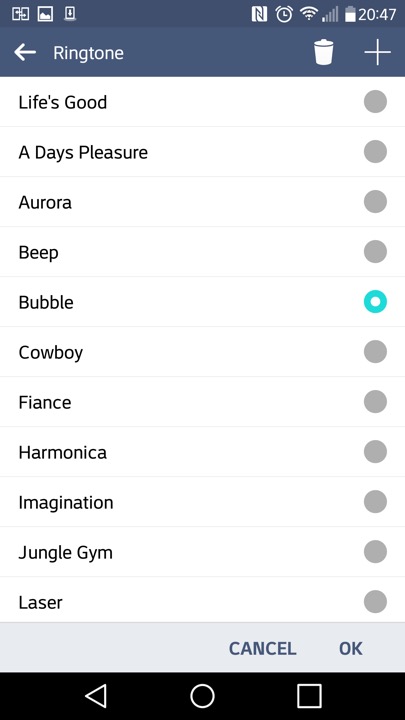
The stock ringtones that come with the phone

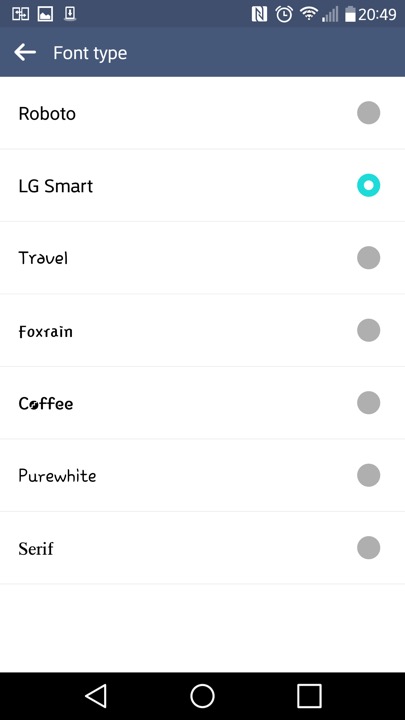
Different fonts can be set also

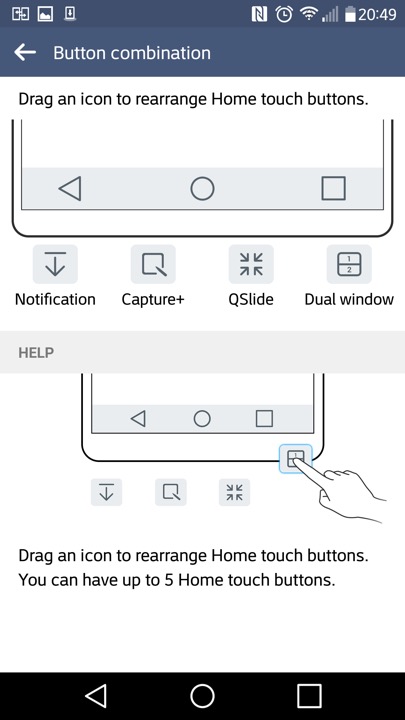
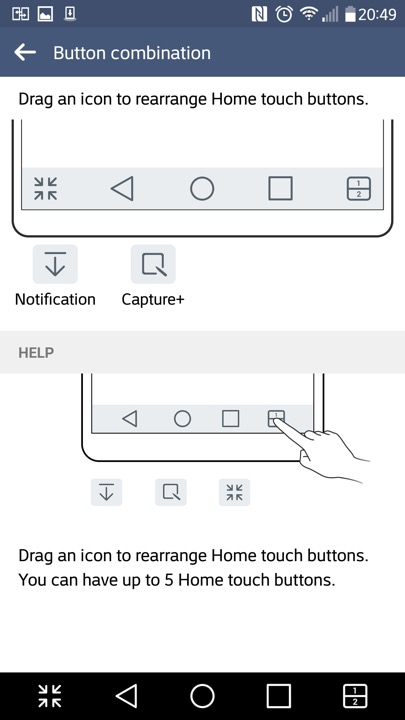
The navigation bar that appears at the bottom of the screen can have additional icons at the bottom,. The Android Back, Home, Task buttons can’t be removed but can be rearranged.

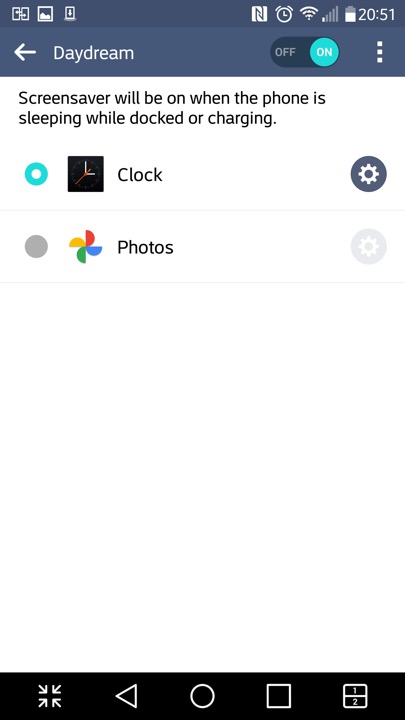
Daydreams are essentially screensavers and will appear if the phone is docked or is charging.

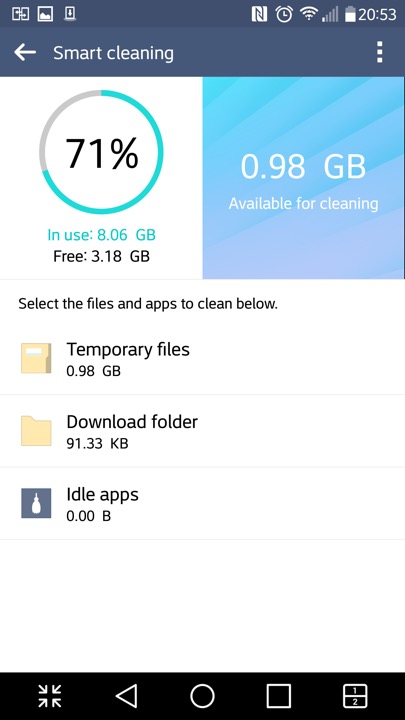
The SmartCleaning app helps to delete files that consume space

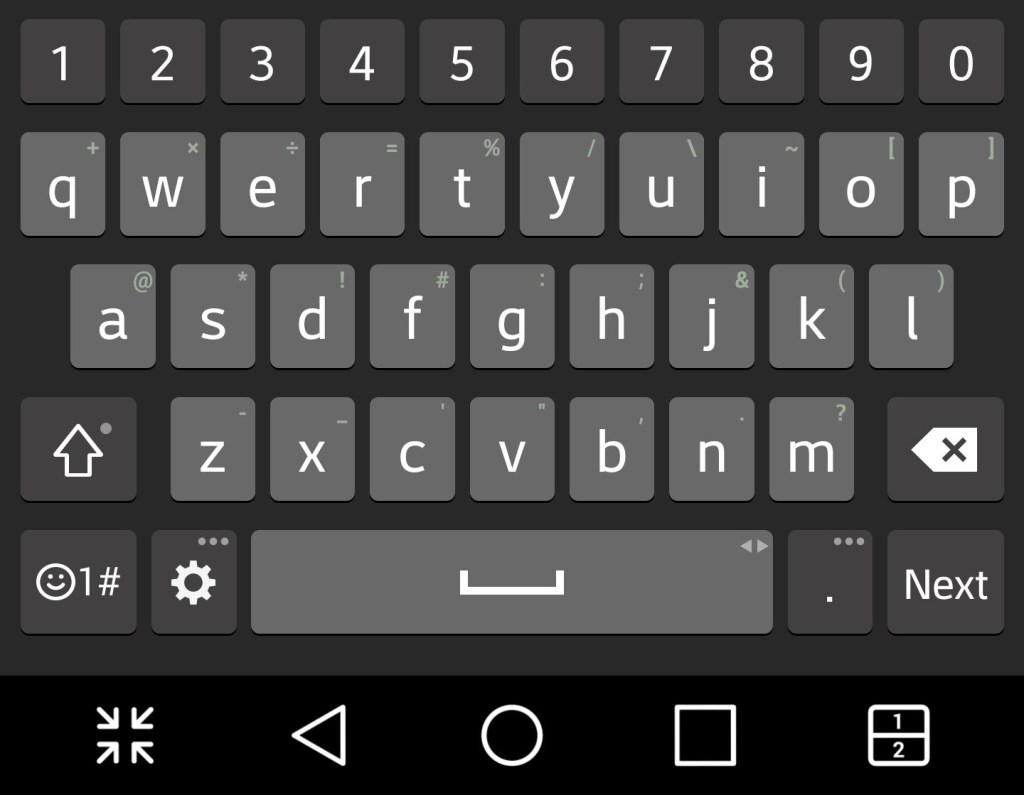
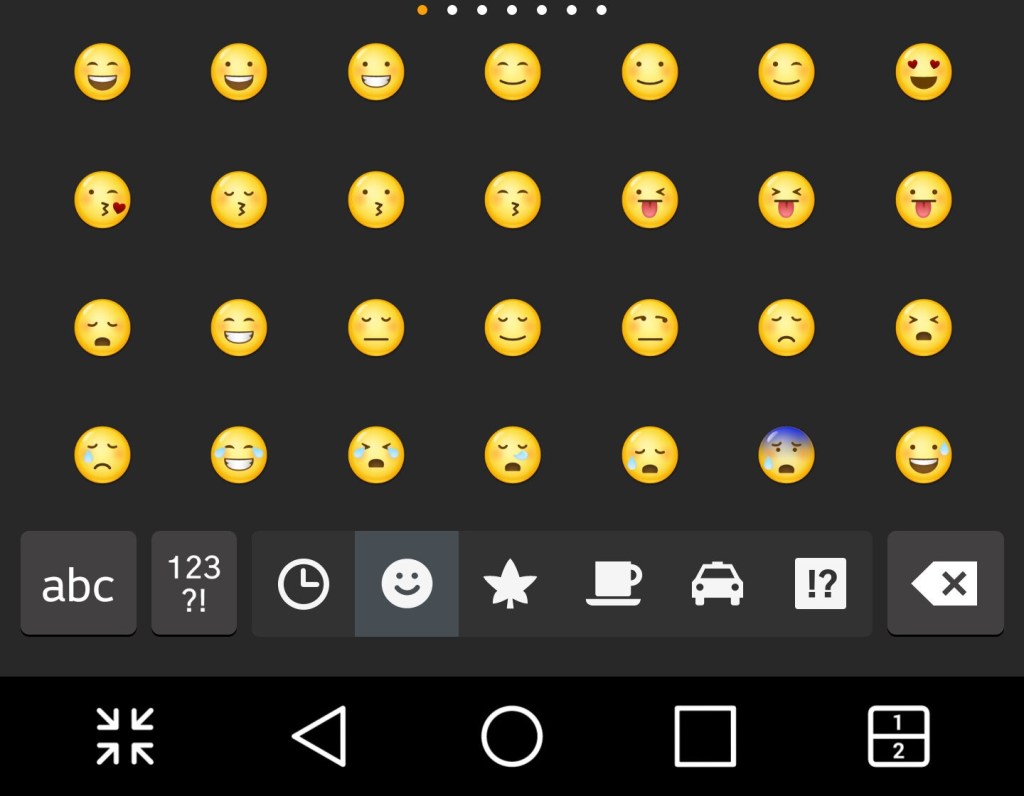
And a look at the stock keyboard, along with LG’s emoji set

LG EasyHome

This was a feature that make the device’s user interface much more simplified, at least for the launcher. This is meant to appeal to basic users, or users that have come from iOS or a feature phone that are new to Android smartphones. .

LG PC Sync

LG’s version of iTunes, that lets you back up the data on your phone, transfeer content to and from your PC in a user friendly manor. You can aos performs oftware updateds and enable SmartShare – where the Suite software acts as a DLNA server for over devices on your network.

Music, photo and Videos can also be transferred, though its a bit limited compared to iTunes or Windows Media Player. For one you cannot sync and convert music to a lwoer bit rate and there’s no support for smart playlist’s.

Still you can use Windows Media Player to transfer music, as long as the phone is conencted in MTP mode.

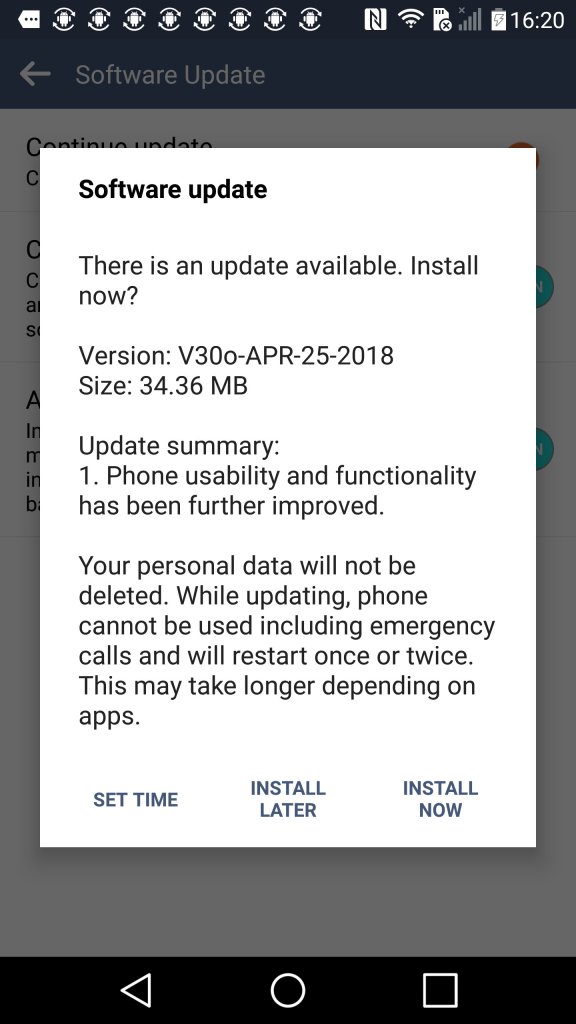
Another software update, looks like LG kepp supporting the handset until 2018.

Gateway Restore CD 7.7

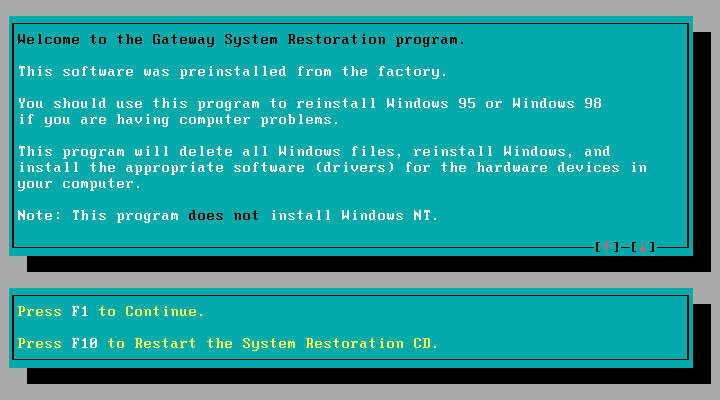
A look at a typical restore CD provided by Gateway systems of the era. Unlike recovery discs provided by other OEM’s, Gateway requires you to have the Windows 98, or 95 install disc. This was also bundled with the system.

The latest release of 86Box (Version 4.1.1) has added a load of Gateway systems for us to look at, here I am using the Lucas motherboard which is a modified MSI MS-5185

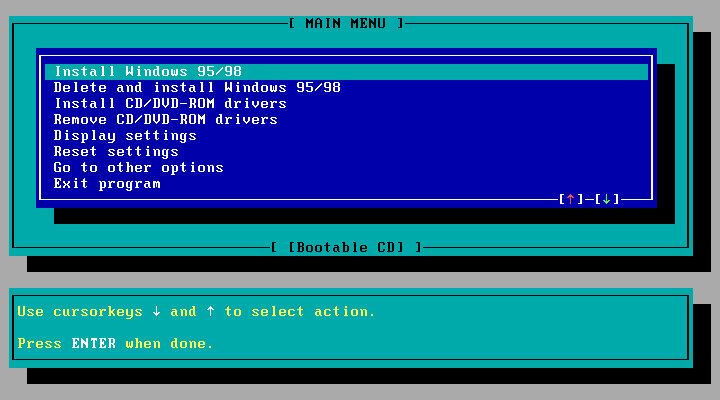
The recovery disc is bootable and can initialize a blank hard drive using the built in FDISK tool. When booted, you are given the option to use either a Windows 98 or 95 install CD. No mention of Windows NT, which might have been out of the scope of Gateway since they commonly shipped PC’s for the home consumer market.

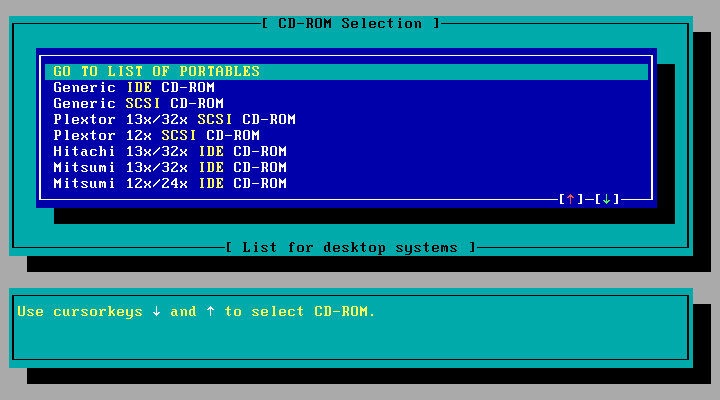
Selecting an CD-ROM driver, you have a list of IDE drives to choose from which would have been the drives that Gateway had actually shipped from the factory, or you can select a generic IDE driver.

Selecting the install option, which will reboot and will prompt you to reboot your PC and will then prompt you to insert the Windows install disk. This actually boots from the HDD and will go through an automated Windows install. You don’t need to navigate or answer any questions for the installer.

Once completed, the system will reboot and will boot into Windows. Here you will go through the regular OOBE where you will need to provide your name, and the Windows OEM serial key.

Were not done yet, since additional software provided by Gateway will need to be installed. This is done automatically and the Windows will reboot several times here.

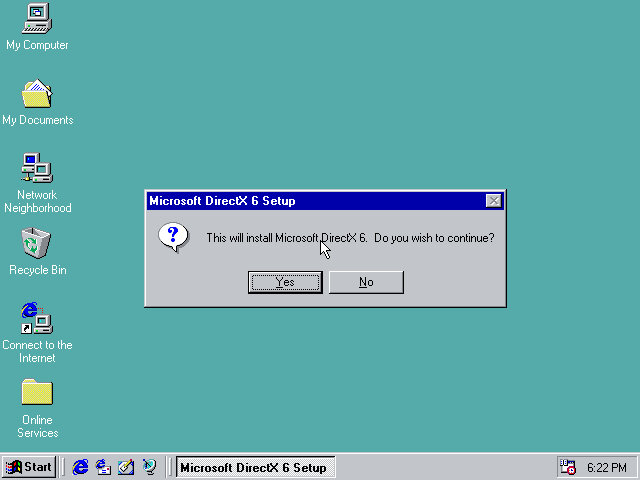
DirectX6 is automatically installed, of which 5.1 came with Windows 98.

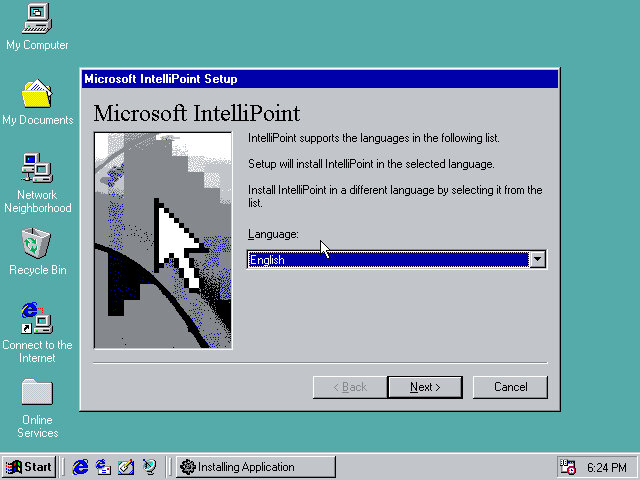
Microsoft IntelliPoint is also installed, as Gateway typically bundled Microsoft Mice with their systems.

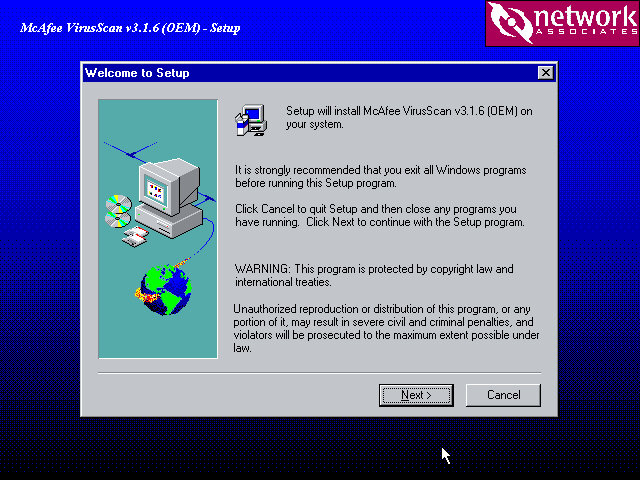
McAffee VirusScan also comes included.

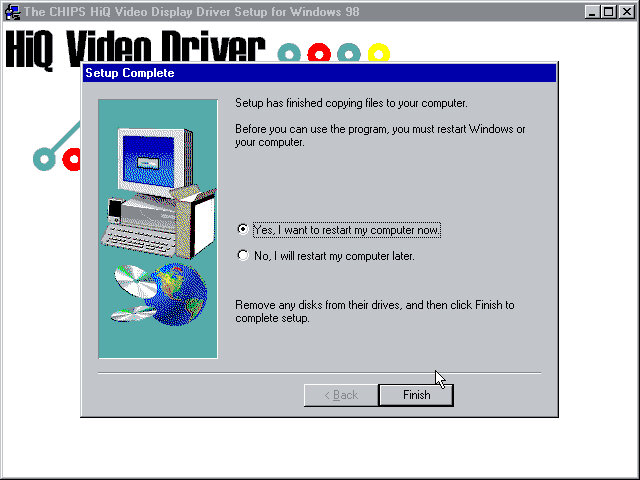
The Chips Technology driver also starts to install here, since I’m using the B69000 video card. This also indicates drivers are also installed if supported hardware can be found.

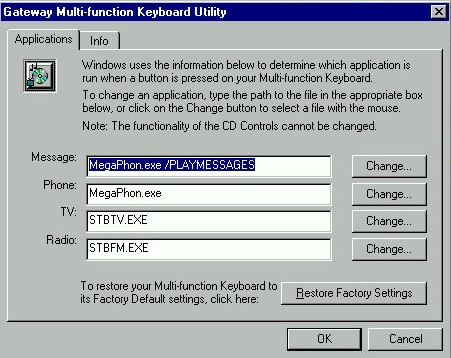
The keyboard utility in the Windows Control Panel

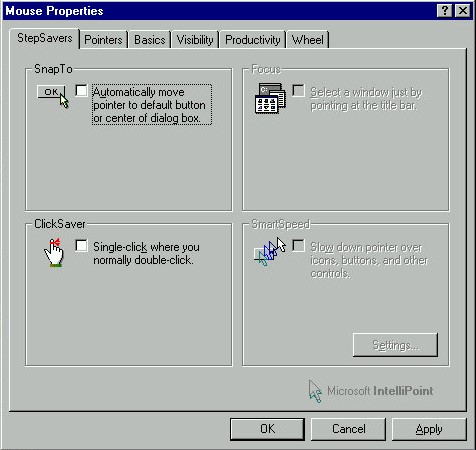
IntelliPoint comes with additional features for the mouse. You don’t actually need as Microsoft Mouse to use most of these features, and some like the scroll wheel will work on all models of mice.

And a look at the system properties, strangely there is no OEM logo or information. Just the Registered To fields are prepopulated.

Restore CD – Archive.org

Acer 1997 Install

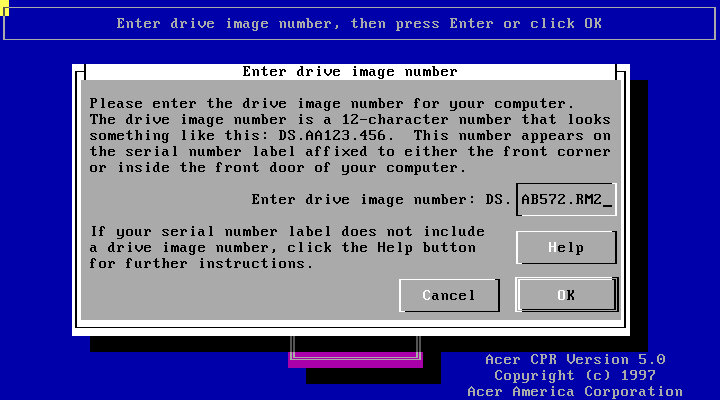
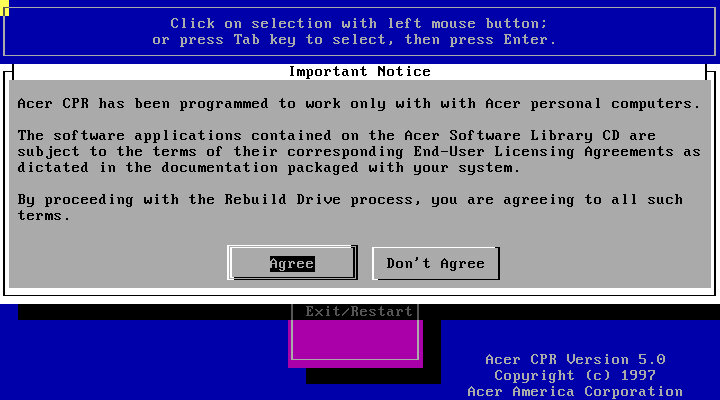
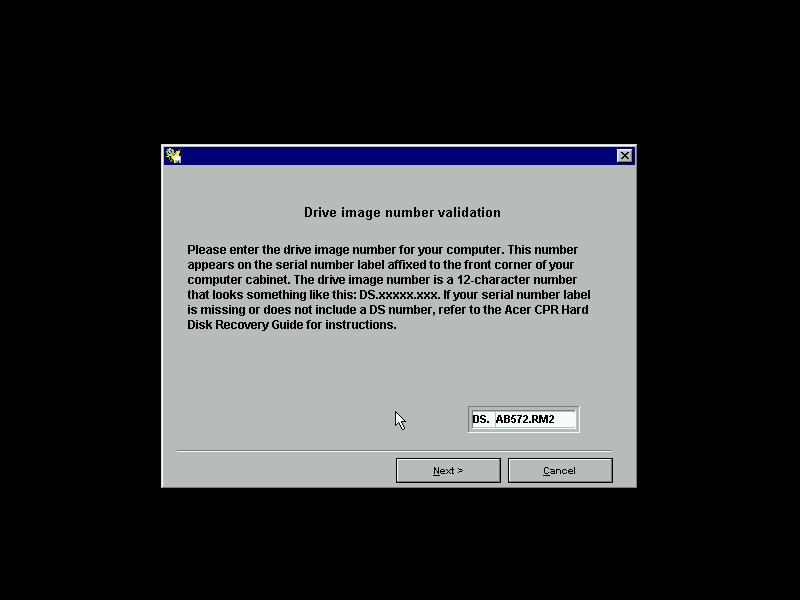
A non-model specific restore/OEM Install, this looks like it was intended to be used across various models of Acer’s Aspire line, as it prompts for a reference number during recovery. Aspire is Acer’s brand for desktop and laptop computers for domestic users, similar to Dell’s Dimension or IBM’s Aptiva line of systems.

Acer 1997 desktop

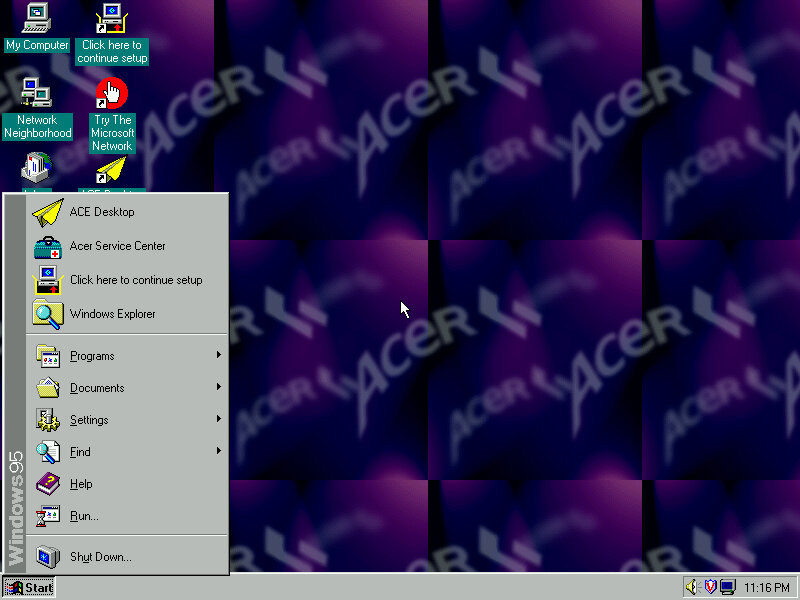
The default desktop, post recovery

Acer recovery program

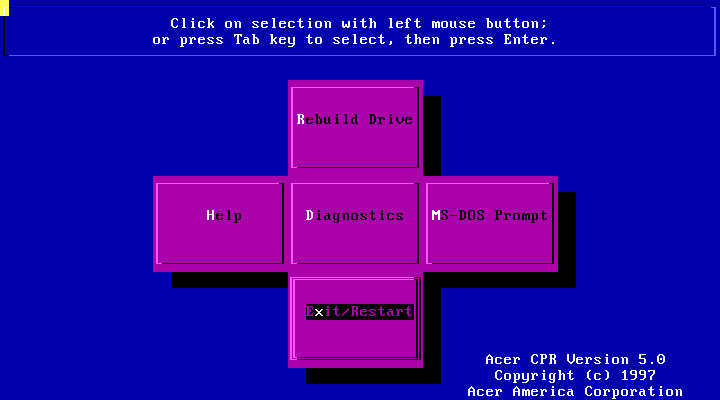
Running the recovery program, interesting menu layout you see here which gives you options to restore the drive, perform a few diagnostics or to go straght to the MS-DOS Prompt.

Following through with a full recovery, which will initalise the hard drive

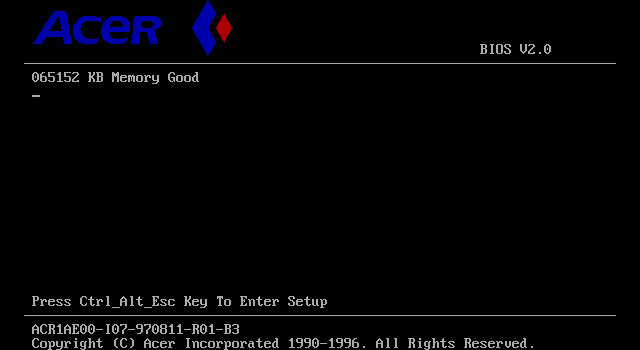
The Acer BIOS, here we are using the V35 motherboard that is emulated in 86Box.

Acer Windows 95

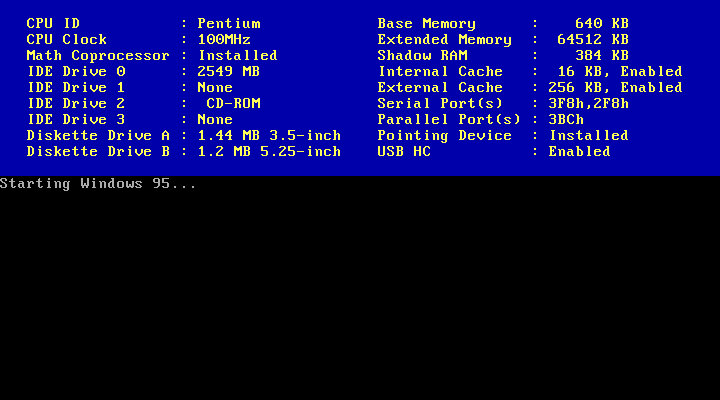
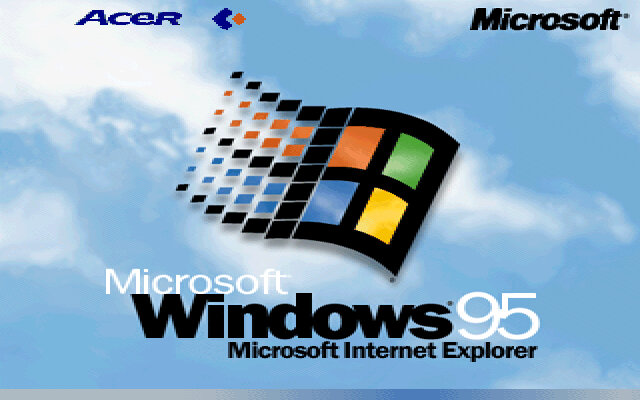
The boot screen, with Acer branding. Here we have Windows 95B, with the USB supplement already installed.

It’s a shame than the bootscreen gets overwritten when installing the 95 Plus! pack. If you wish to preserve it, copy the LOGO.SYS file on the root of your C: drive before installing the Plus! Pack.

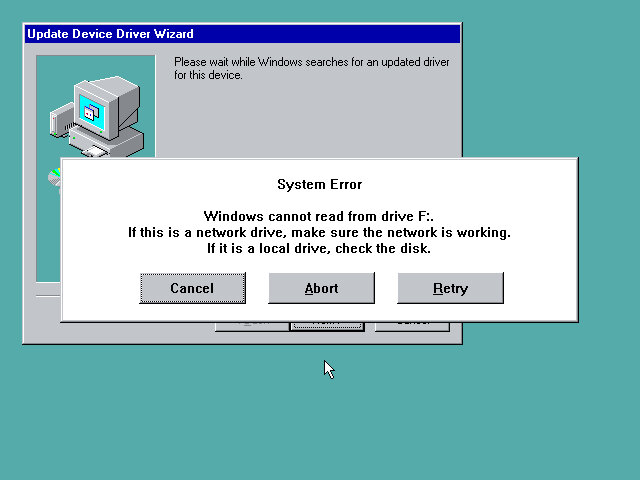
Uh-Oh, not sure what happened here but a quick reboot fixed it. My guess is that setup reinstalled or updated the IDE drivers, and lost access to the CD drive as a result. Acer possibly used various different IDE controllers or chipsets across their motherboard, and this was their way of ensuring the correct drivers were installed for that specific chipset.

Thankfully after a reboot we were able to proceed with the setup and registration wizard

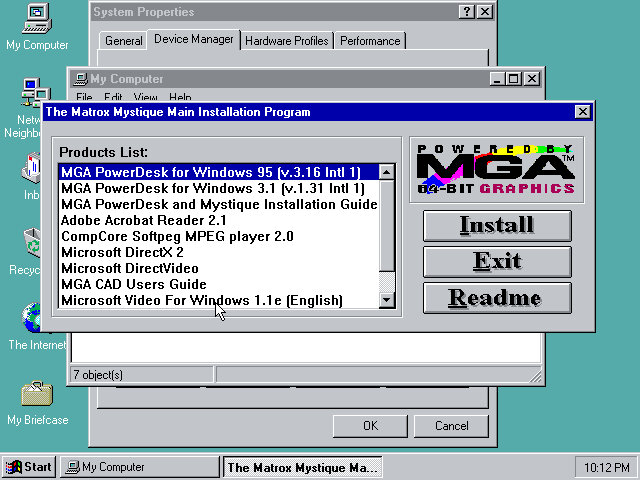
Installing graphics drivers for the Matrox graphics card, which 86Box now supports.

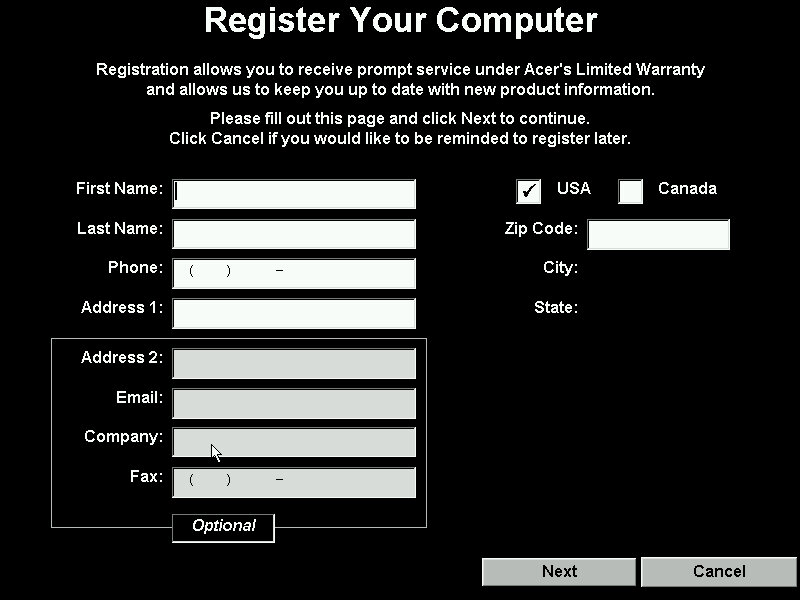
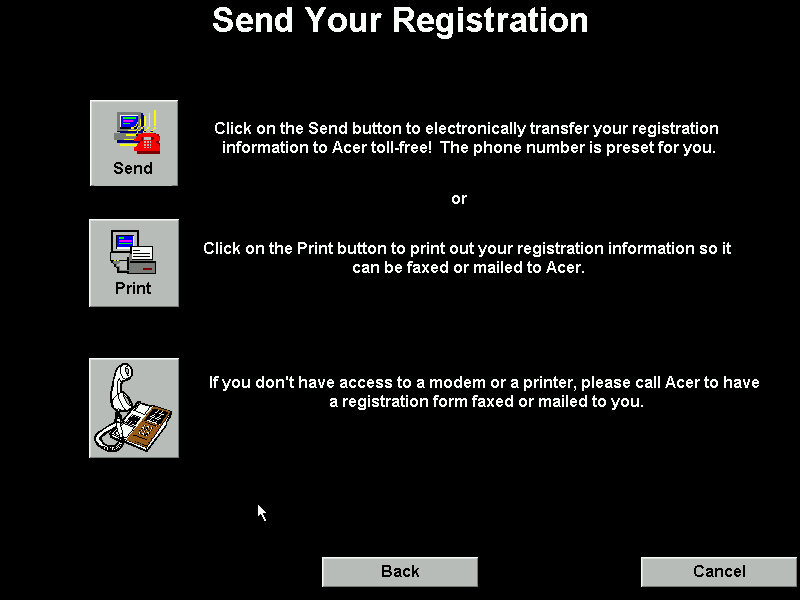
Running the registration utility

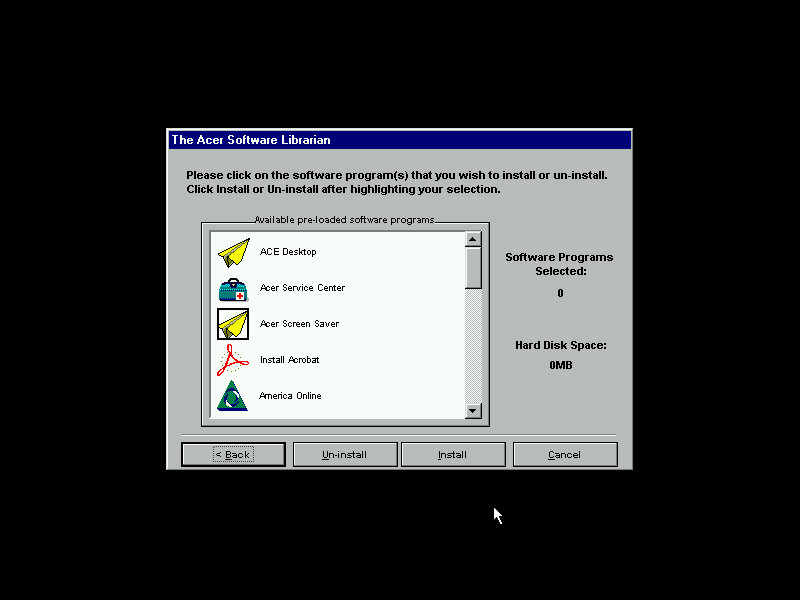
The Acer Software Librarian which is used to install the software that shipped with your machine. You need to enter an identifier provided so the software knows which software and drivers to install for the correct model

Some of the software requires additional CD’s to install from

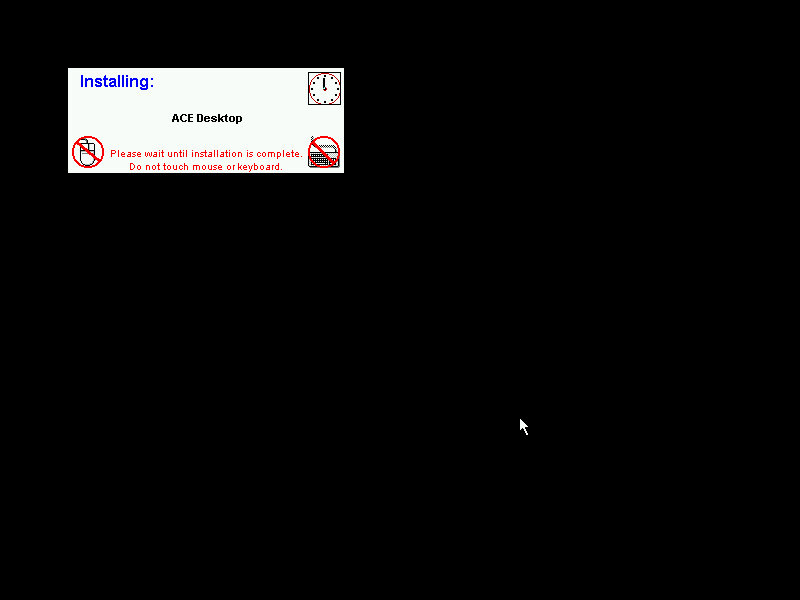
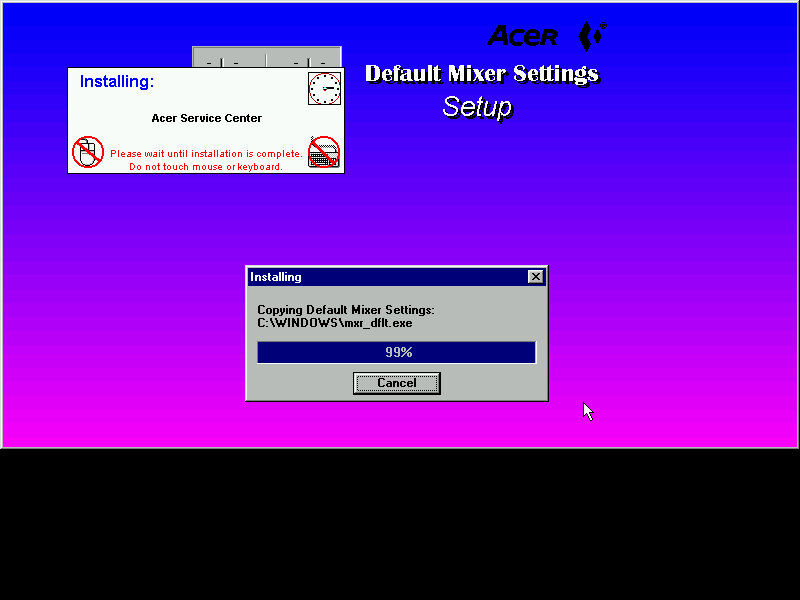
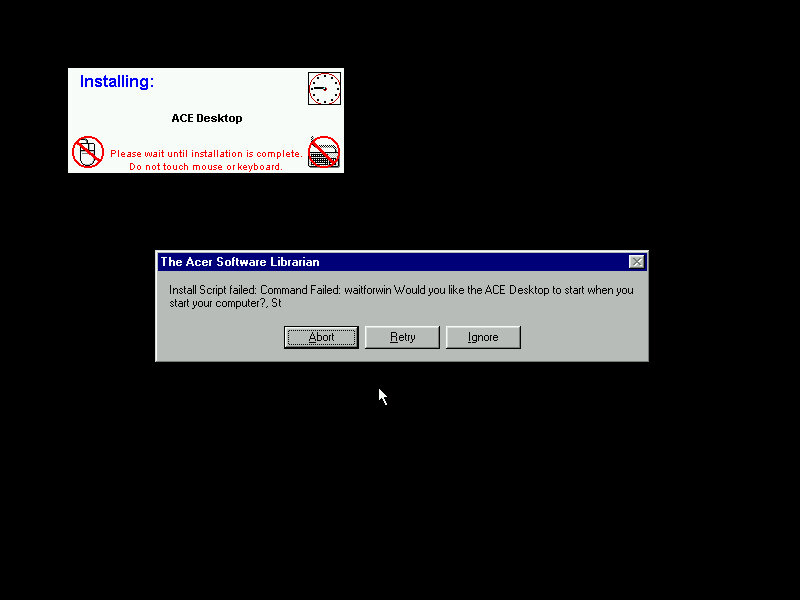
The installers are automated, but can go AWOL if the installer throws up a message that wasn’t expected. This will result in the message informing that the install script failed and will give you the famous Abort, Retry or Fail Ignore. Choosing the retry option to restart the installer. I believe the install script tries to mimic the user’s keypresses, during this it’s best not to touch the keyboard or mouse whilst the script is running.

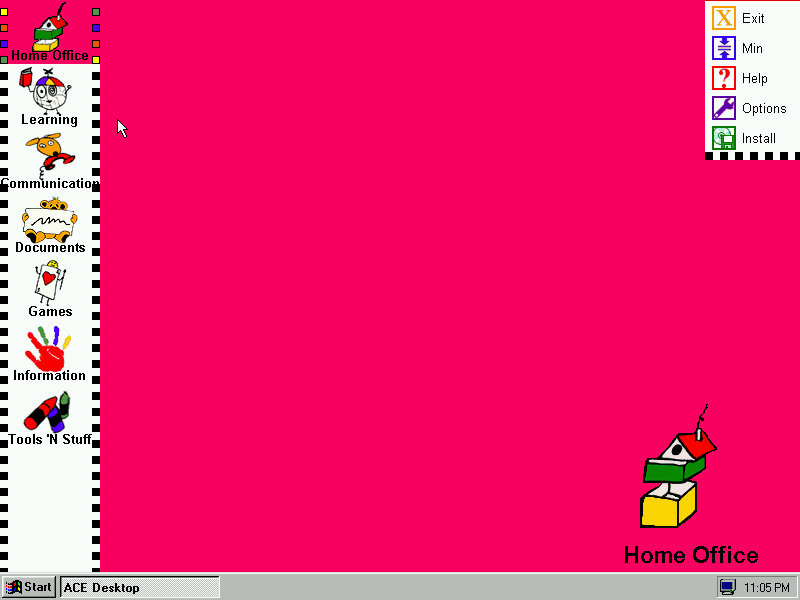
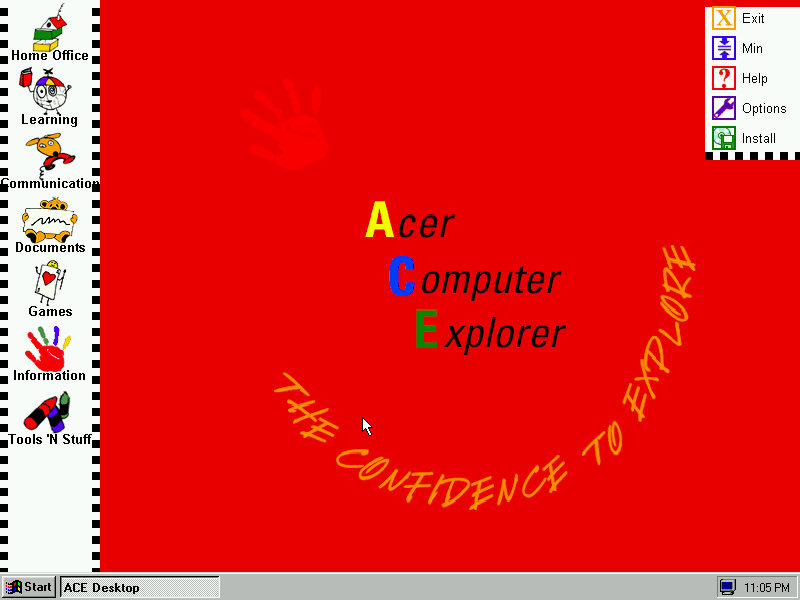
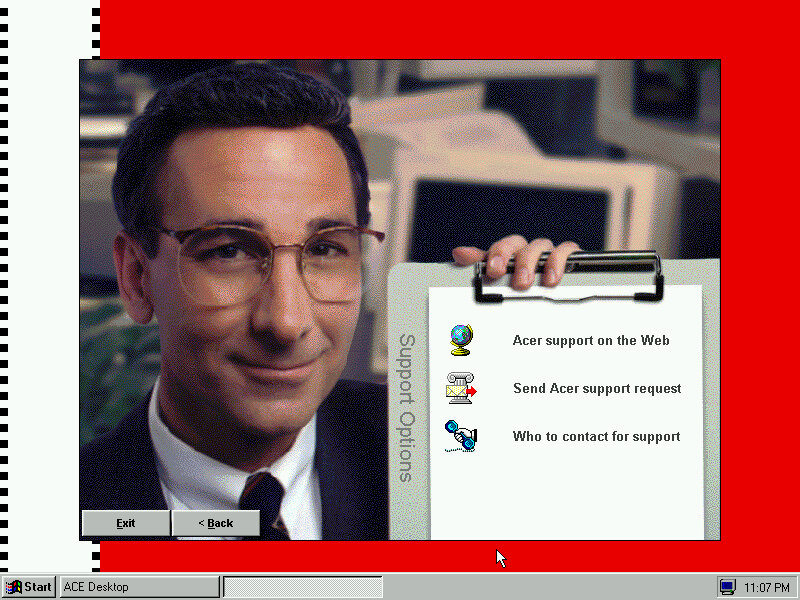
ACE Acer Computer Explorer provide a child friendly interface, like Packard Bell Navigator. There isn’t any software installed that takes advantage of this so we can’t fully demonstrate it.

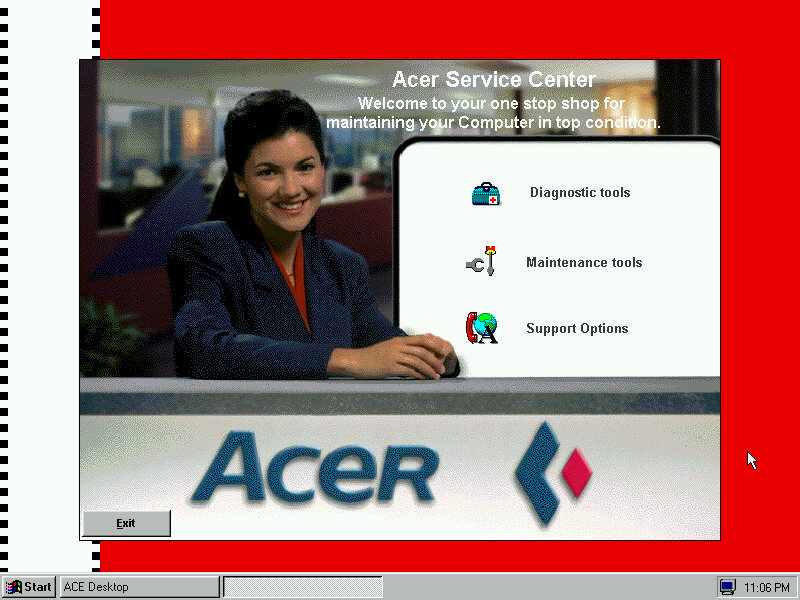
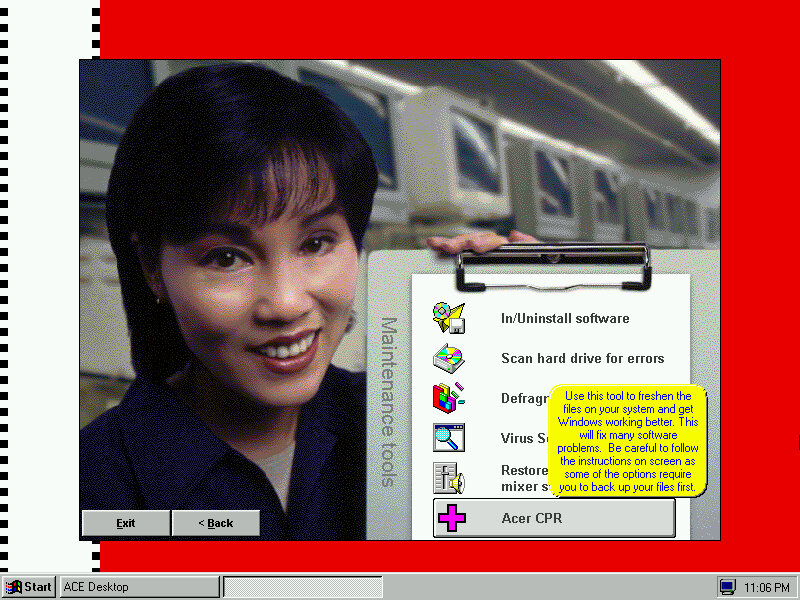
Acer Service Center which providers support information and details about your computer. I kinda dig the aesthetic with the dithered stock photograph of a typical 90s office, almost like an episode of Friends.

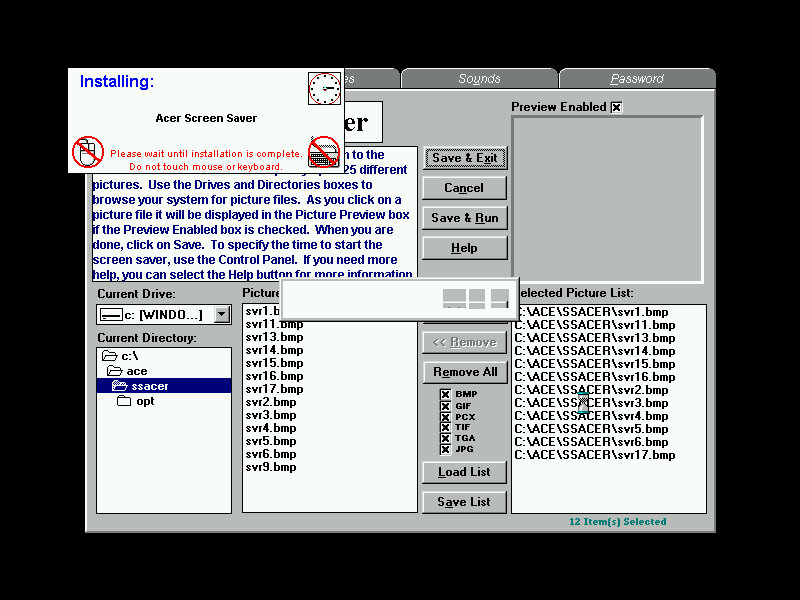
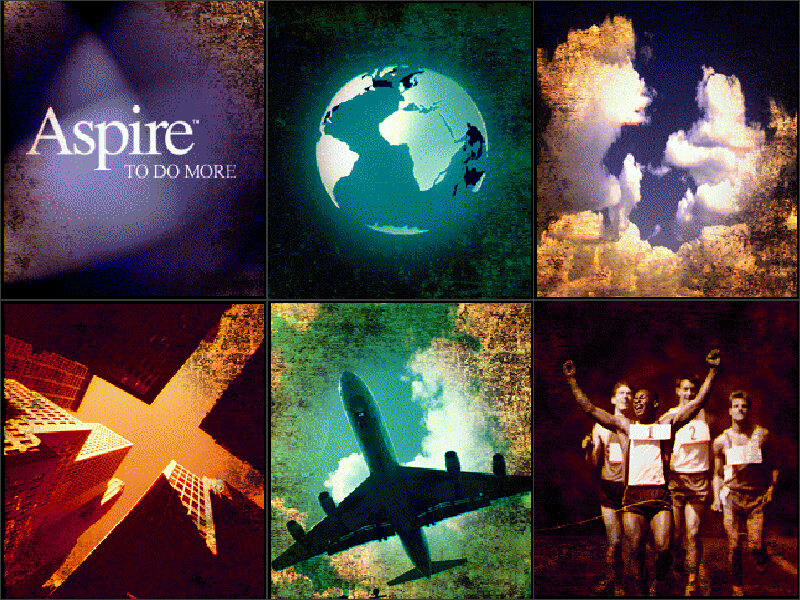
The default screensaver which shows a collage of aspiring photographs (Acer Aspire, geddit?)

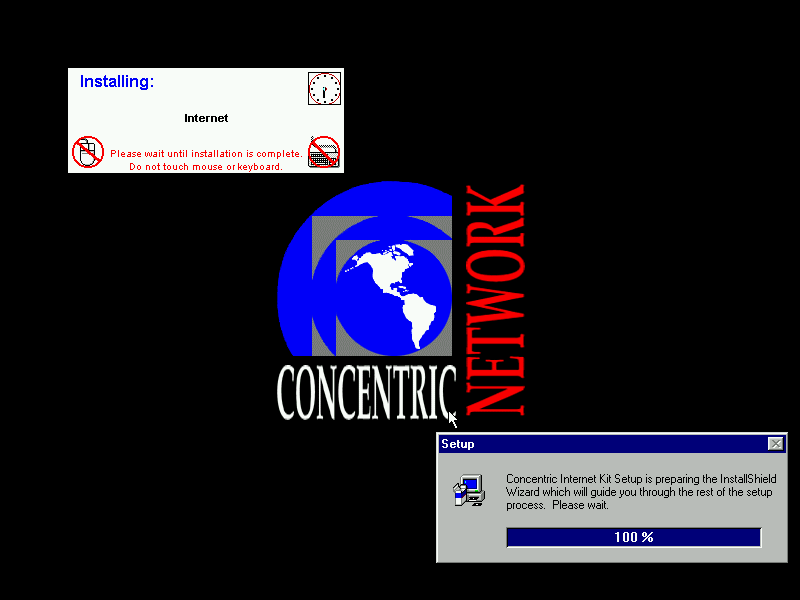
Concentric Network Communications, appears to be an internet provided for SME businesses, it’s since been absorbed into Verizon, according to the XO Communications wiki page.

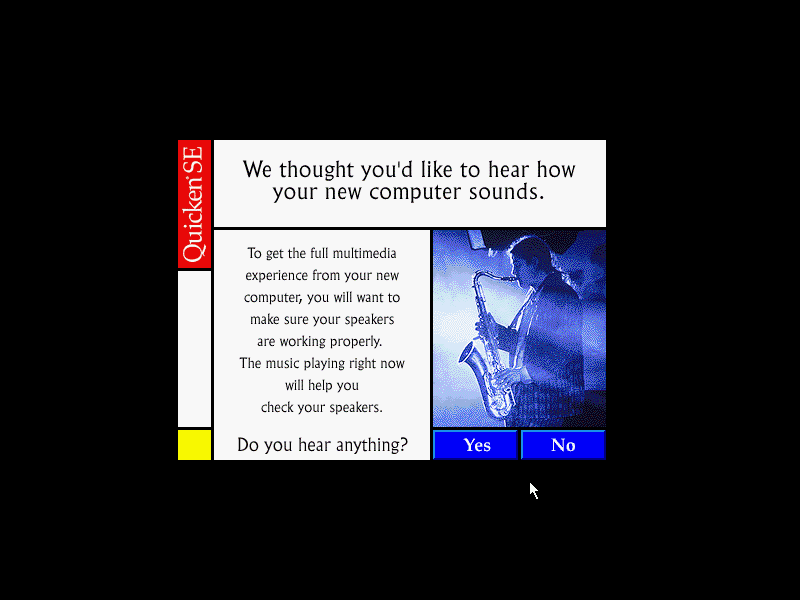
The Quicken, this popped up once I install the sound drivers

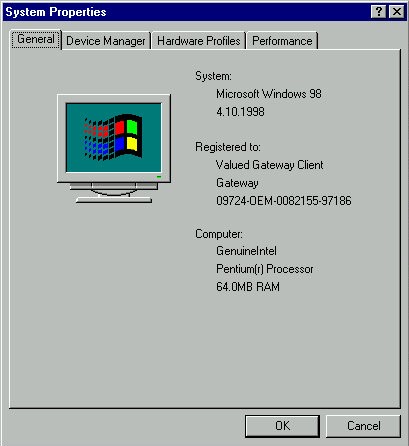
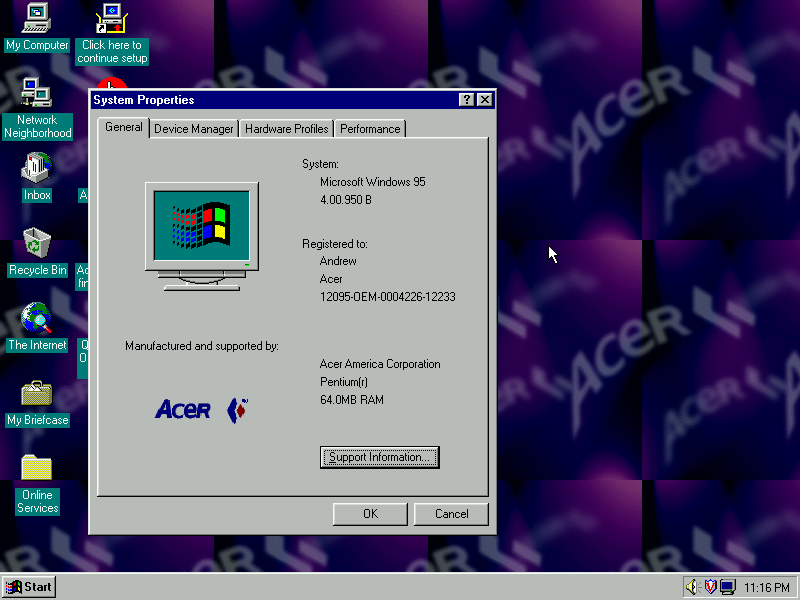
Another look at the desktop with the System Properties

The included wallpapers, which are small Acer logo’s which are intended to be tiled

Download link if you’re interested in trying this yourself. I’ve not tested it on any other motherboard in 86Box apart from the Acer V35, so I’m not sure if it performs a hardware check or if it just relies on the code you enter being correct to perform the restore.

Source – Internet Archive

Destruction Derby

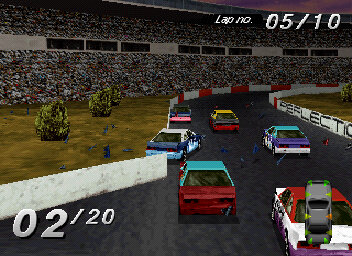
A racing & combat game, developed by Reflections (Who went on to produce Driver) that was released in 1995, at the begriming of the 3D gaming revolution. In Destruction Derby, players compete in demolition derby-style events where the objective is to crash into opponents’ cars to damage them while trying to survive and be the last car running. The game features both racing and demolition derby modes:

Destruction Derby Mode: In this mode, players compete in arenas specifically designed for vehicular combat. The last car that remains operational wins the match. Players can earn points by inflicting damage on opponents’ vehicles.
Wreckin’ Racing Mode: This mode combines racing and demolition derby elements. Players race around circuits while attempting to wreck opponents’ cars. The winner is determined by a combination of finishing position and damage inflicted.
Stock Car Racing: Traditional racing mode where you finish a race of multiple laps
Time Trials: Similar to Stock Car Racing, but you have to aim to get the fastest lap time. Getting the quickest time will allow you to enter your name as a high score.

Each mode can be played in practice, championship, dual or multiplayer mode.

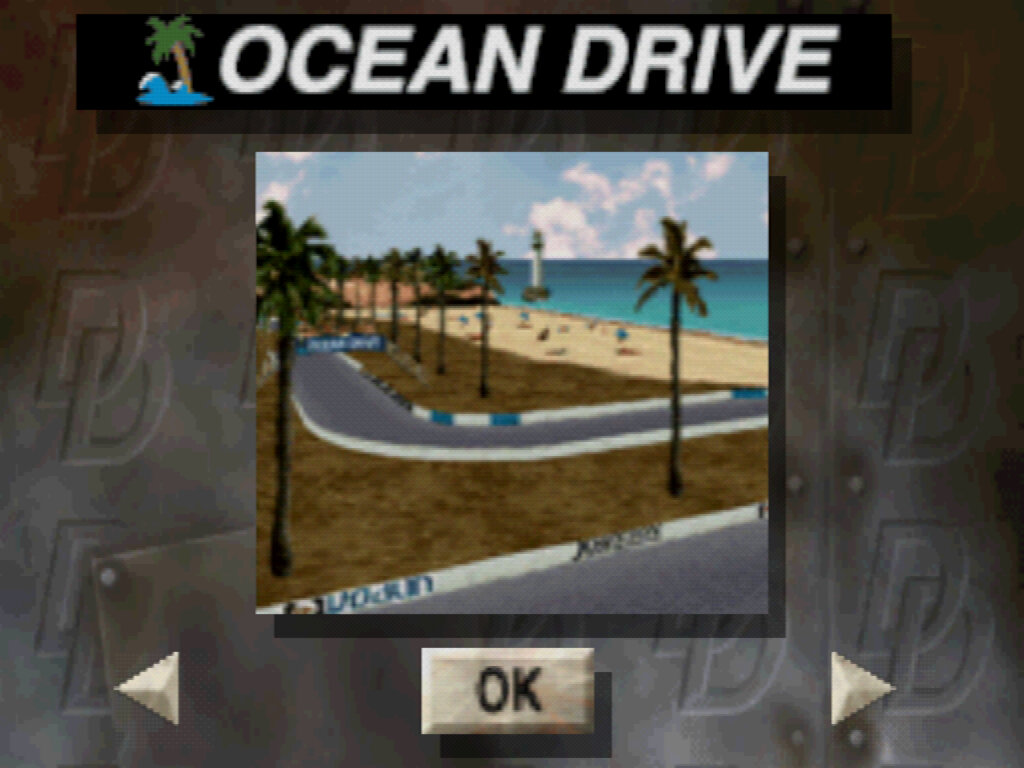
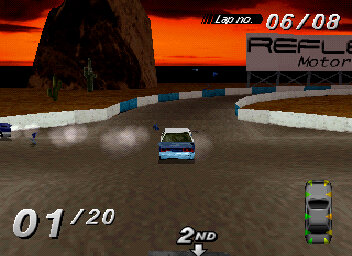
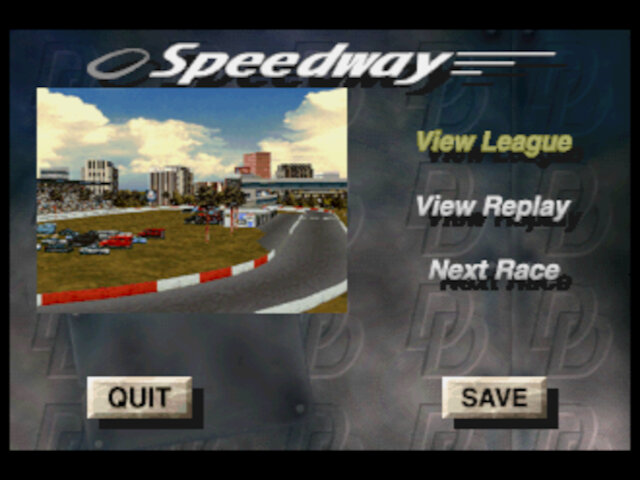
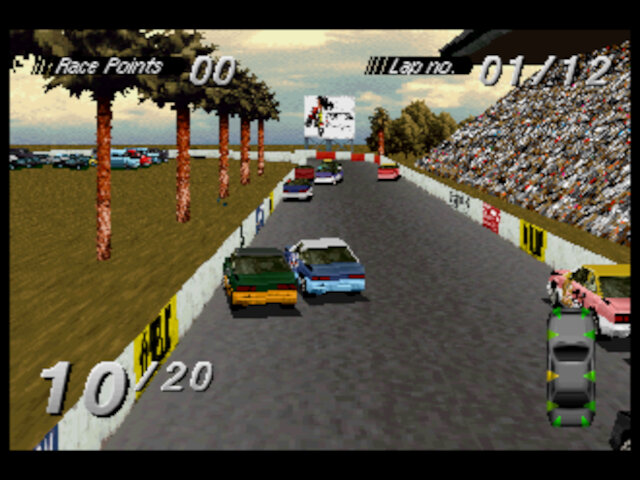
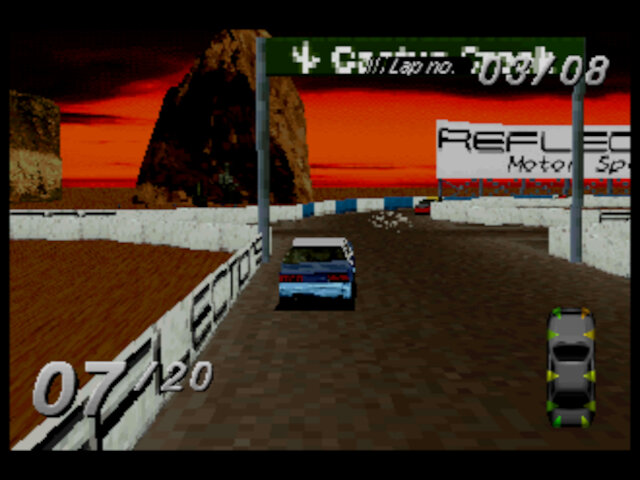
Five tracks are available at the start of the game, Speedway, CrossOver, Ocean Drive, Catus Creek, and City Heat. Each track is set in it’s own environment and have their own unique track design. Some feature a loop design which require you to dodge and avoid opposing cards, otherwise it easy to lose which direction you’re supposed to go. Pileups are also fairly common on these type of tracks.

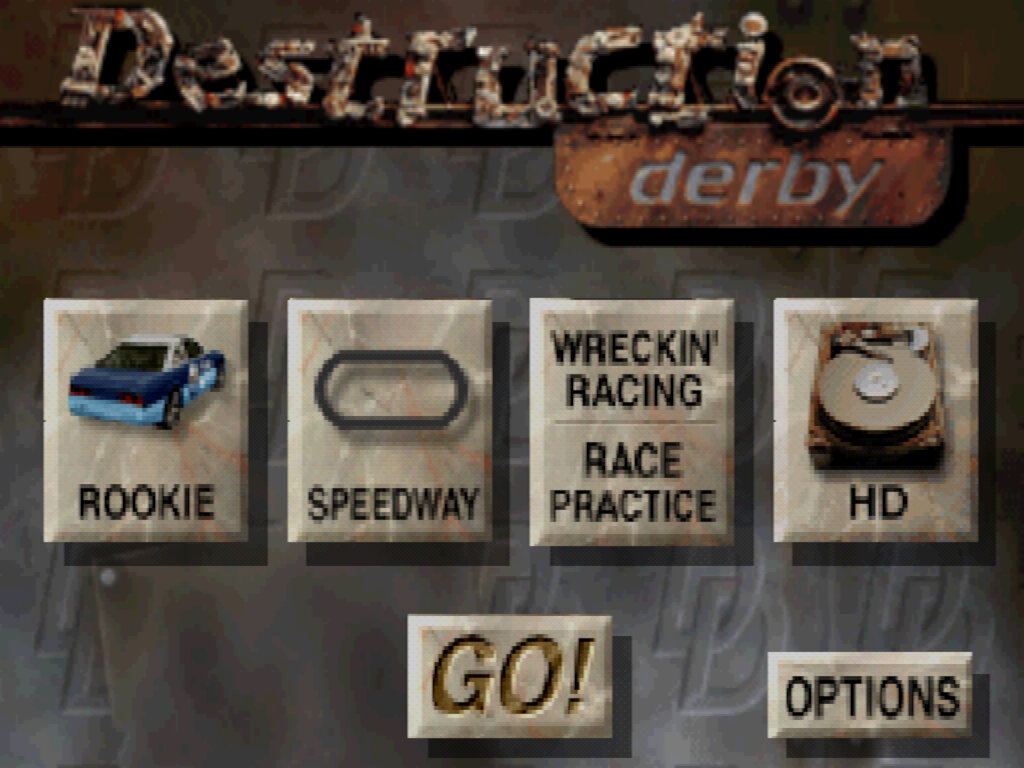
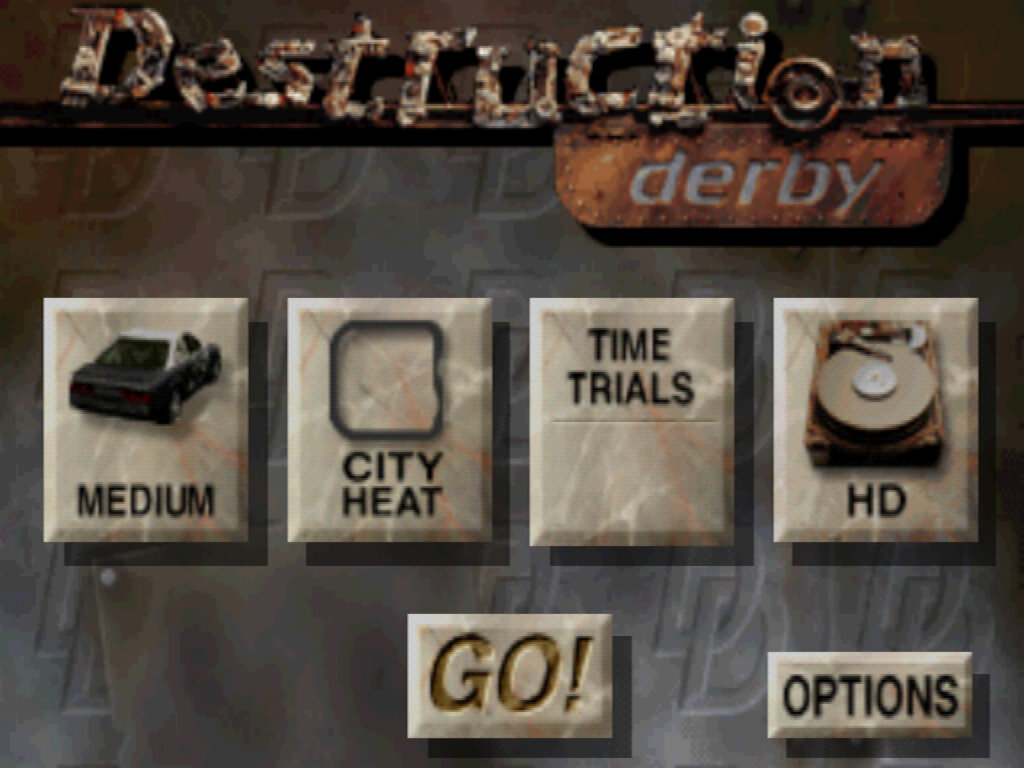
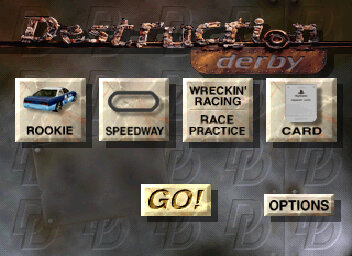
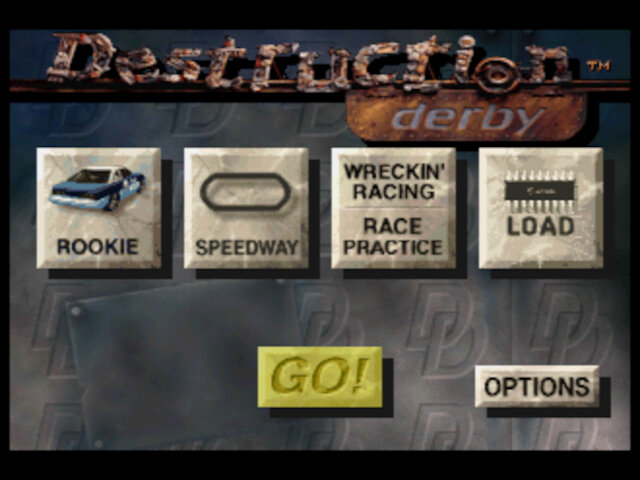
A look at the main menu of the PC relase, which features 3D tiles that function as menu items. Similar to the save screen on Mario 64 or on the SGI demos of the era.

Windows

The Windows version had support for S3D acceleration, with was supported on S3 graphics cards which were common of the time. This required the use of a specific OEM copy of the game that shipped with a computer that featured the S3 ViRGE video card. Other PC releases would make use of MS-DOS and software rendering instead, which was inferior to the S3D and console releases.
One issue with the S3 version is it’s limited to Diamond Stealth 3D 2000 cards, and will refuse to function on even the 3000 model. This can be bypassed with a patch that removes this check.
There I also an option to enable texture filtering that gives the textures a smoother look, but at the expense of framerate. It can be togged on the settings menu of the game.

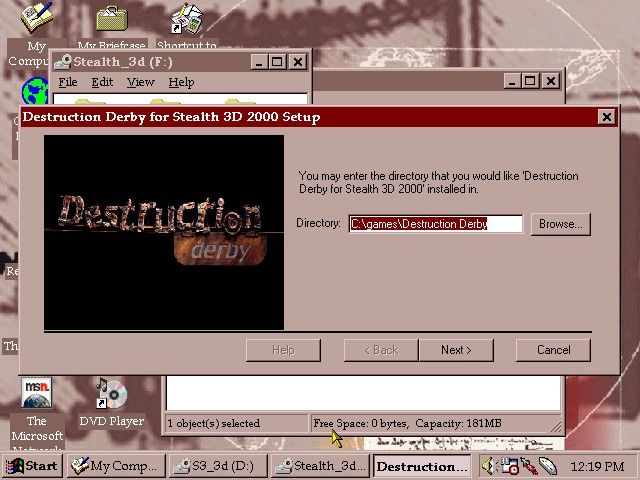
86Box is able to play this version of this game by using the emulated Diamond Stealth 3D card, paired with a Pentium MMX. Windows 95 lacks built in drivers for this card but they can be obtained here.

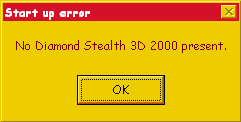
Trying to run the game without using a Diamond graphics card, using a generic S3 ViRGE card instead. A patch exists to remove this check.

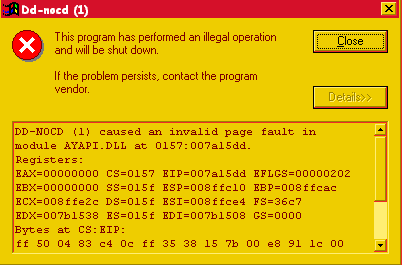
Using the Stealth 3000 caused a crash, with the AYAPI.DLL causing the issue despite using the Diamond drivers and the fixed EXE.

If you’re wondering about the colour scheme, its the RE-MAN theme from the Windows 95 Plus! pack.

PlayStation

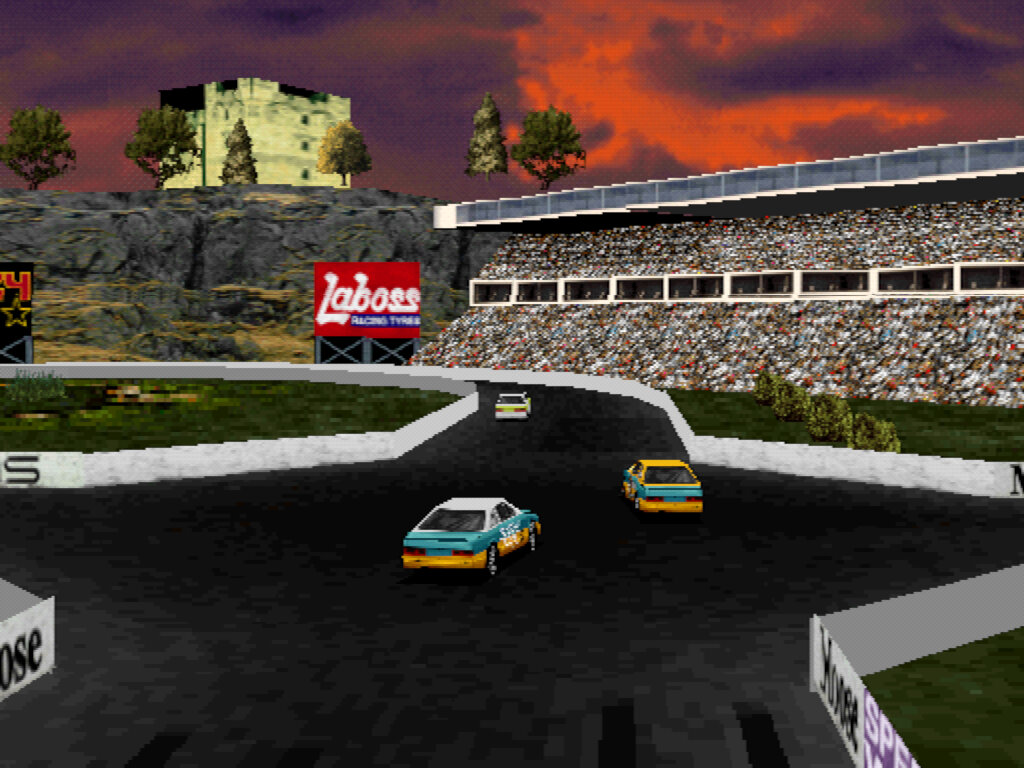
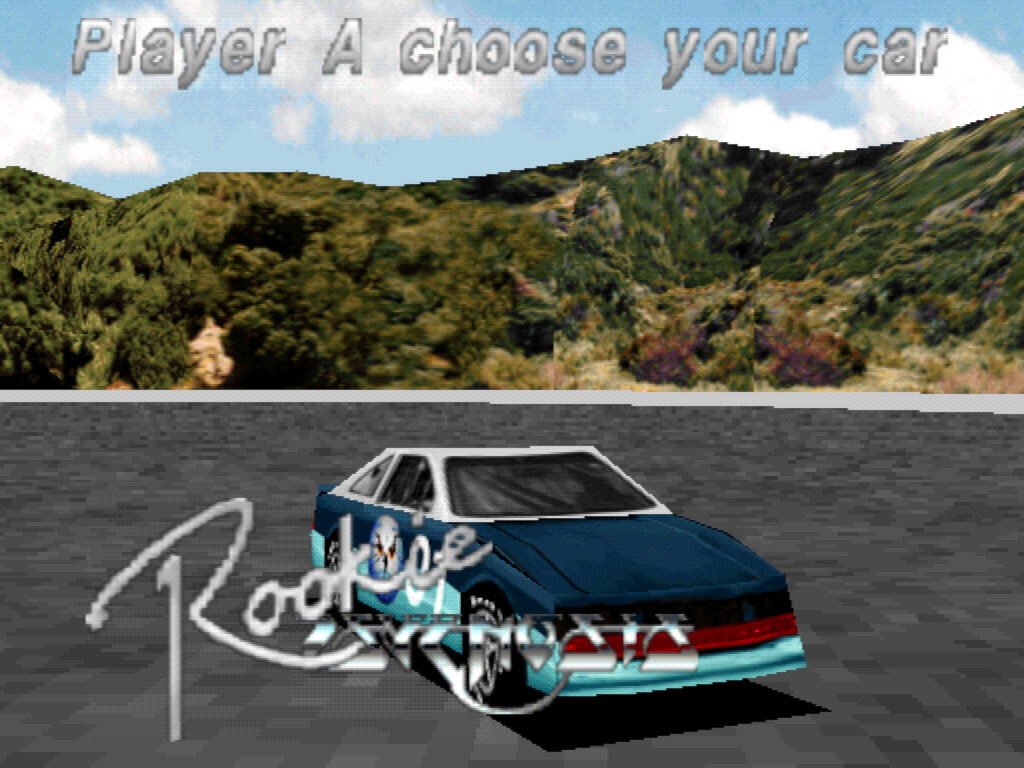
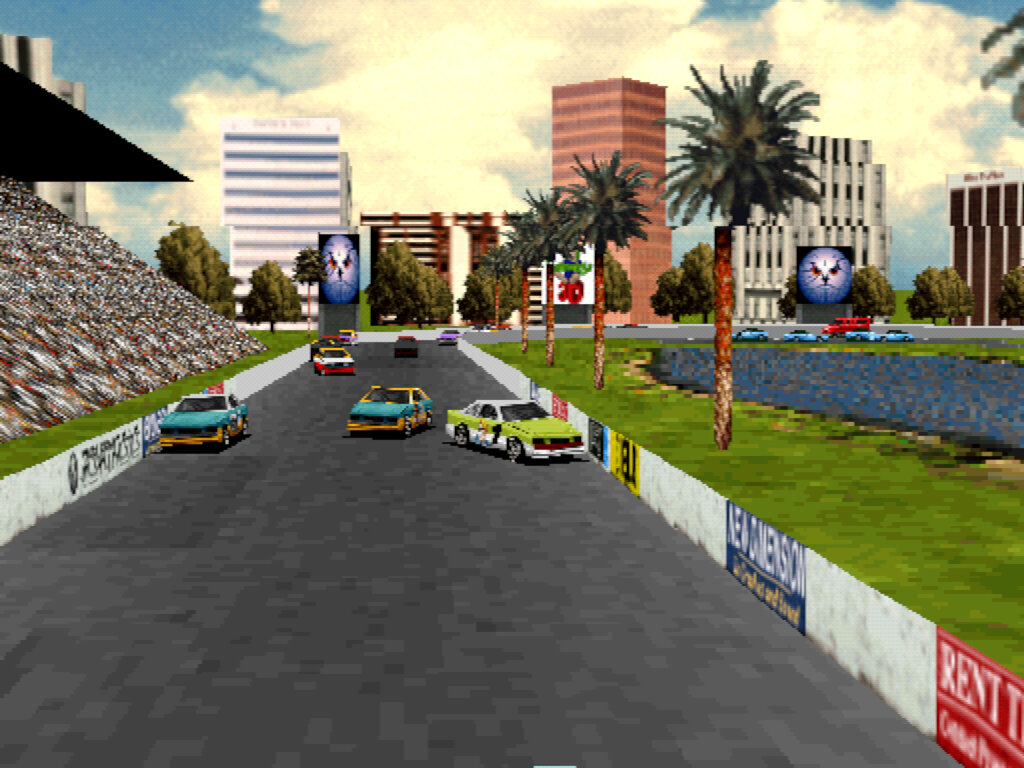
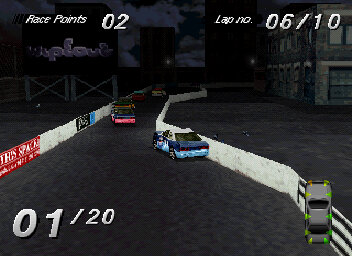
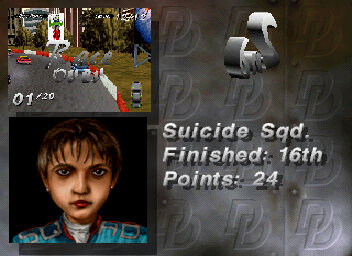
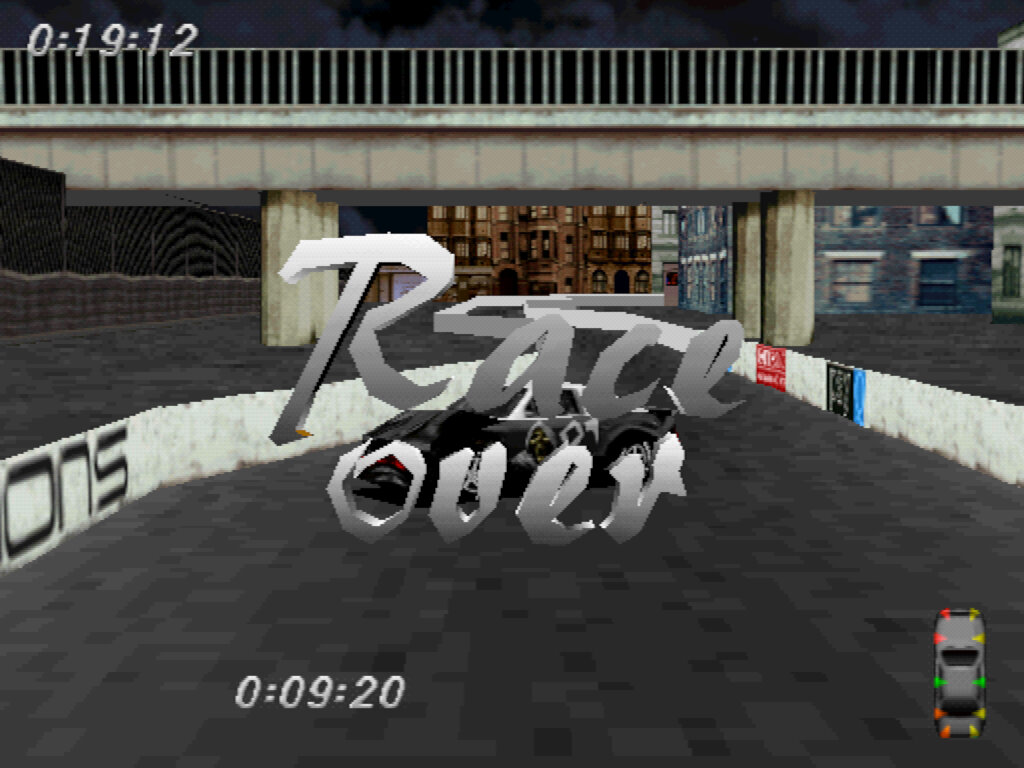
The game was also ported to the PlayStation, This release is a lot more polished, and features thumbnails of the rival characters after the race, showcasing their overall position. The framerate is also a lot more smoother compared to the PC but misses out on the potential of texture filtering unless an emulator is used. DuckStation is the emulator used here, with the stock graphic settings (no enhancements)

For analogue control the NeGcon controller can be used for more precise turns, as this game predates the release of the dual-analogue controller. The menu controls are awkward to control compared to traditional PlayStation games, as you have to press the start button to confirm/enter menus rather than using the X button that most other games use.

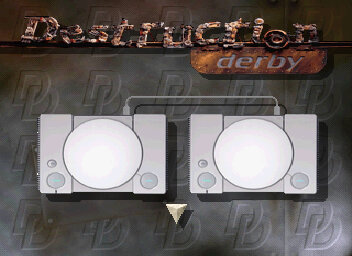
Multiplayer is also a better experience in this version of the game because it supports the use of the PlayStation link cable. For this, two consoles and copies of the game are required, as split screen is not supported.

It’s also a lot more easily accessible, since it can be brought from the PSN store and played on the PS3.

Sega Saturn

There was also a Saturn version, released in 1996 in Europe. Like other third-party ports it suffers from a poorer framerate compared to the PlayStation version. Still the game is playable and defiantly worth checking out if you’re interested in Saturn racing games. The Mednafen emulator is used for the screenshots below.

The game supports saving to the internal memory, or though the backup cartridge

The game does not appear to support the 3D controller, which means the game lacks analogue control support.

POD (Planet Of Death)

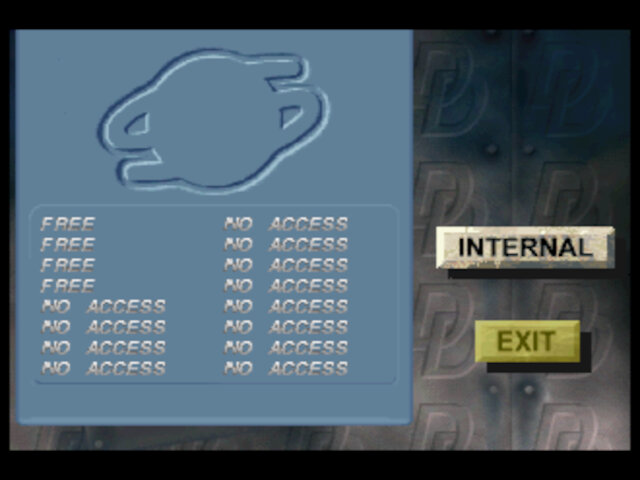
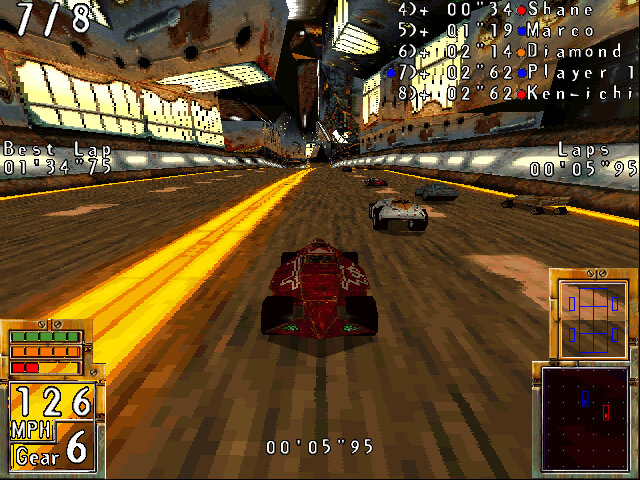
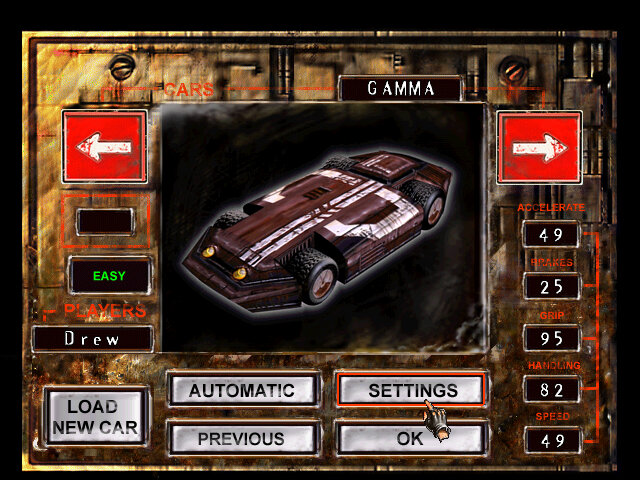
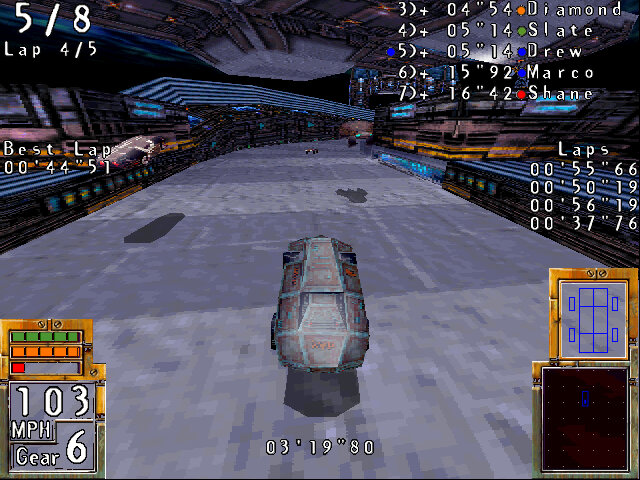
A futuristic racing game developed and published by Ubisoft in 1997, exclusively on the Microsoft Windows platform. A showcase of Intel’s MMX technology and a standard futuristic racing game. There are no weapons, just your opponents and the track with a few hazards in the way. Unusually despite being a 3D textured racing game, there was no port for a home console, I guess the developers were busy supporting the different 3D graphics cards of the day.
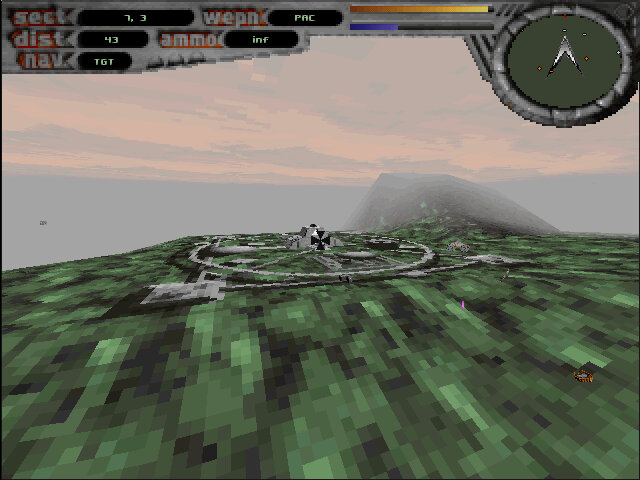
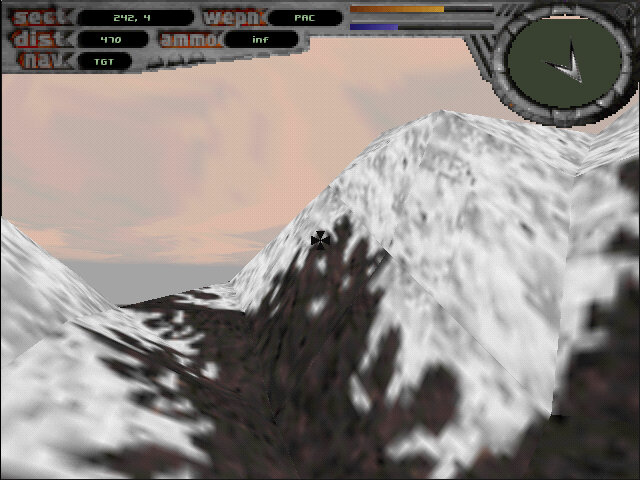

There are a few FMV’s in the game that make use of Intel’s Indeo technology which is installed by default.
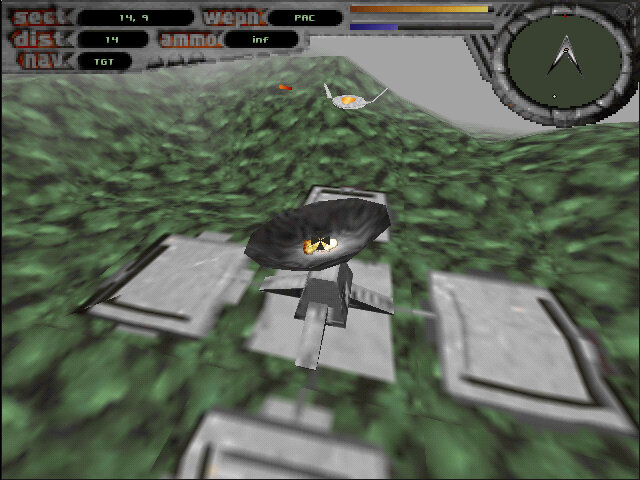
Content-wise there’s a lot of tracks included, with the ability to download and install further more tracks. Many of the tracks follow their own unique style and are varied in their environment. Some of the tracks feature multiple routes which offer shortcuts where others can increase the difficulty of the race. Making a wrong turn can cause you to lose the race, which requires you to memorise the tracks and their routes.

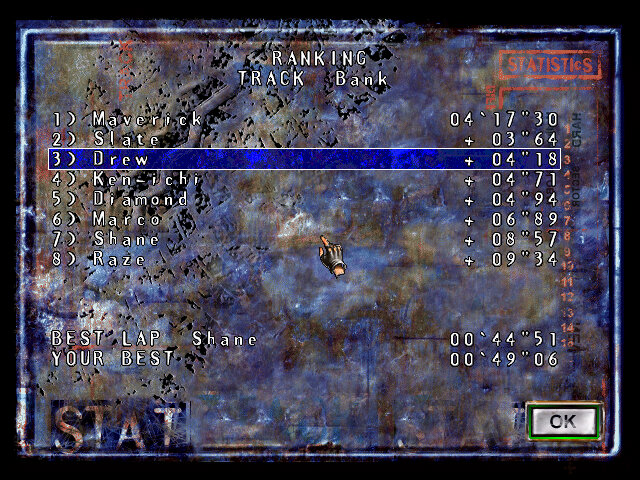
A championship mode is included, here you earn points depending on your finishing position. Each race has eight opponents, which you can reduce if desired.

Multiplayer is supported, either by using a split screen mode which is done through the keyboard which both plays will need to share. Multiplayer over a network is also supported over IPX or via the serial cable.

The game was only released on Microsoft Windows, making it one of the few PC exclusive games. As it was released in the mid 90s, it supports a wide range of 3D API’s including the industry standard DirectX.

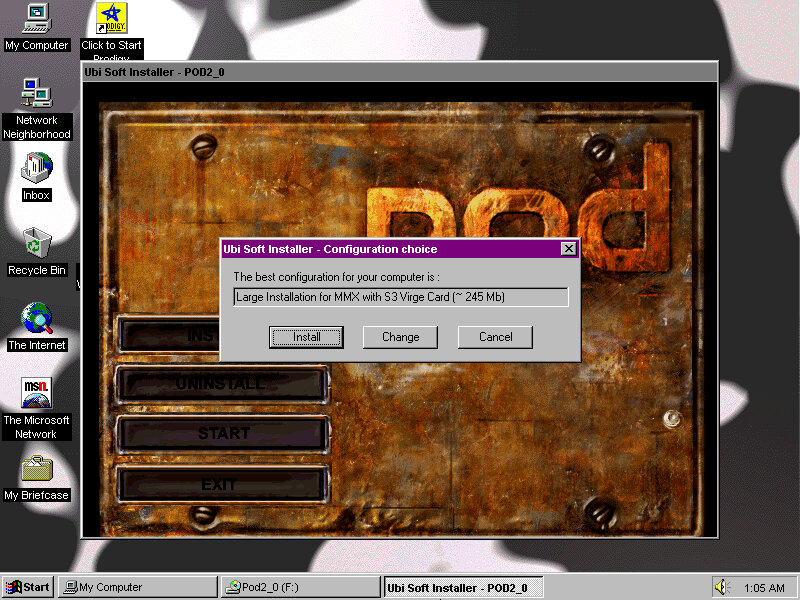
The installer will detect and will load the appropriate version the game that matched your 3D hardware. Some later games support additional API’s and Intel MMX.

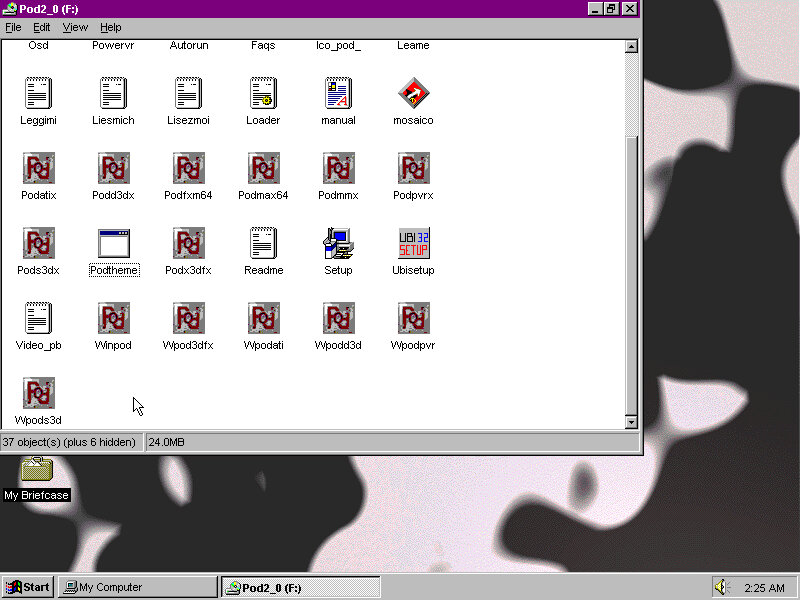
So many exe files for different configurations

S3 S3D

This version is playable on 86box using a virtual machine with an S3 ViRGE video card and the Windows 95 operating system. You may have to install updated drivers from S3, as the stock drivers that ship with Windows 98 will lack S3D support.

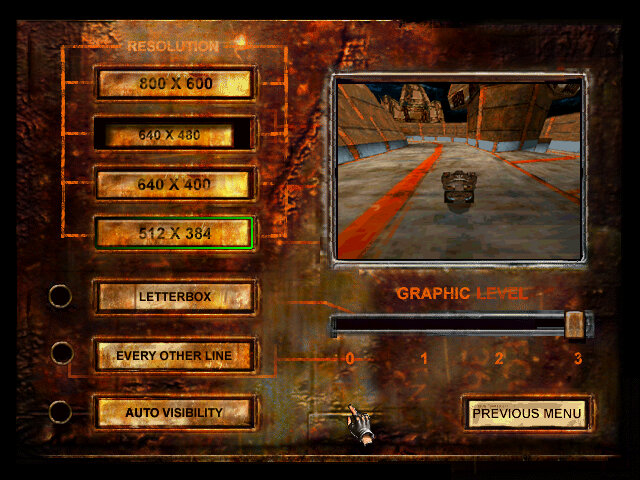
The graphics settings screen for the S3D version of the game

ATI CIF

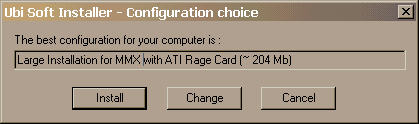
Supported on most ATI RAGE cards with pre-2000 drivers, this version has texture warping on the outer walls of the track. Screens here were captured off a Dell OptiPlex GX1 with the ATi RAGE PRO TURBO onboard graphics.

Other graphics API’s supported are 3DFX’s Glide, and PowerVR. POD fails to run on Windows NT 4 with either an S3 or a 3DFX voodoo card., it only appears to run on the Windows 9x series of operating systems.

Windows Theme

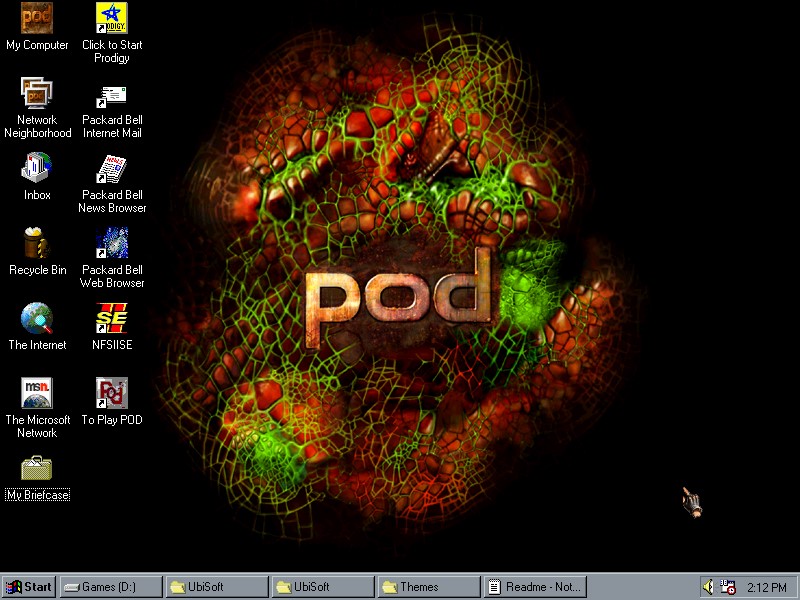
A custom desktop theme comes bundled with the game which gives a wallpaper, colour scheme and sound from the game onto your desktop. For Windows 95 you will need the Plus/1 pack as themes are not supported by default. For 98 and ME you can use the Desktop Themes applet that comes with those operating systems.
To install you have to open the installer that’s at the root of the CD-ROM, and then run the WinZip self-extractor and extract to the Themes folder. You can also replace the bootup and shutdown screens that appear when Windows starts up.

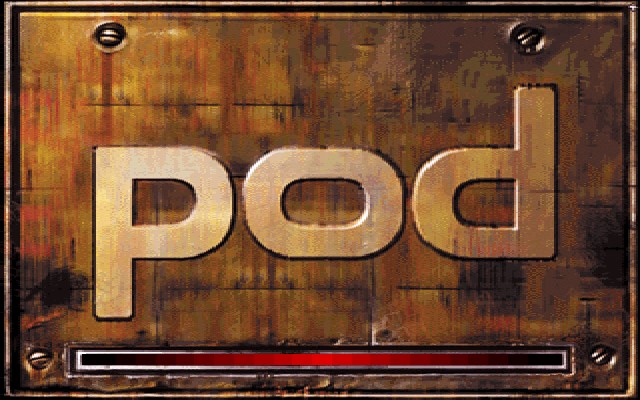
The Windows bootscreen

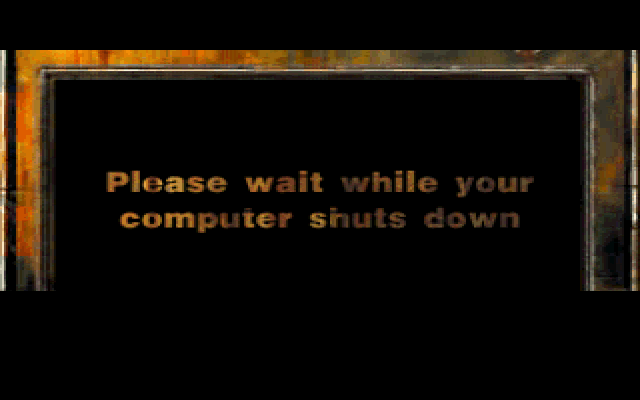
The shutdown screen which appears and disappears quicky, preventing a full screenshot from being taken

Apple TV – OS X Leopard

Apple TV OS X

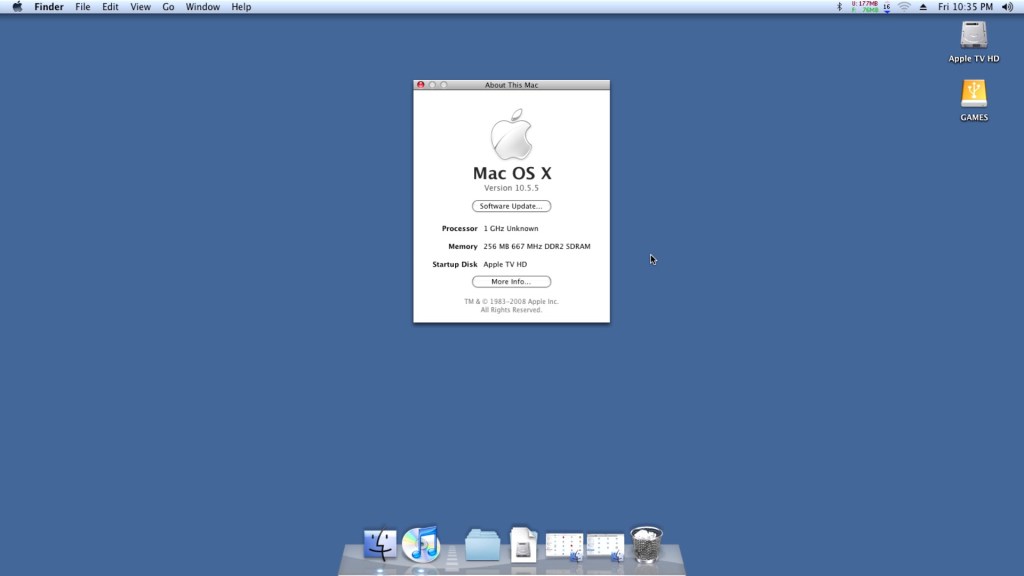
The Apple TV for the most part is pretty much a regular Mac, but cut down and intended for use in streaming content from iTunes. Spec wise it features an Intel Pentium M, and an Nvidia GoForce 7300. In a way it’s kinda similar to the original Xbox with its Pentium P3 based CPU and Nvidia graphics. Whilst it was once the forefront of Apple’s contribution to your living room, nowadays it’s a doorstop with only the iTunes sync counterpart being the only working feature. Thanks to the modding communities it’s possible to run OS X on the unit itself, turning it into a mini Mac mini, or a thin client Mac if you prefer.

Mac OS X can be installed, either Tiger or Leopard onto either the internal hard disk or an external USB drive. To install to a USB drive, you will need to issue some terminal commands as the Apple TV firmware expects a specific partition layout for it to boot from an external drive. Here’s the full tutorial that I used.

OS X Leopard is quite heavy to be running on the 256MB Apple TV, given that Apple required you to have 512 MB of RAM minimum. So running it with 256MB is not going to be a good experience, with a lot of disk swapping going on as OS X tries to find scraps of RAM to use. As the memory is fixed onto the mother LogicBoard, it’s difficult (but not impossible) to upgrade the memory. Tiger would be a much better fit and it is possible to run and install Tiger, After all the Apple TV’s stock firmware was actually based on the Tiger kernel, but all of the tutorial’s found online involve stripping out the Nvidia kexts (device drivers) from the system folder, leaving you with no graphics acceleration and leaving the poor Pentium M having to do all the work and limits the software you can run.
So it’s either choose between an OS that gives you not much memory for multitasking, or an OS without any graphics acceleration.

Install was pretty simple when you follow this guide, Really you just need a lot of patience if you go down the USB flash drive route, since this is very slow to boot and run from. Also given the limited RAM it’s going to be page filing a lot, making it even more slow. Alternatively you can take out the internal hard drive and connect into a more modern Mac, which should allow you to restore directly to the drive by using an IDE adaptor.

Once the restore is completed we can boot into our new operating system,. Here it continues like any other Mac would where the opening welcome movie plays, followed by the registration assistant.

Software

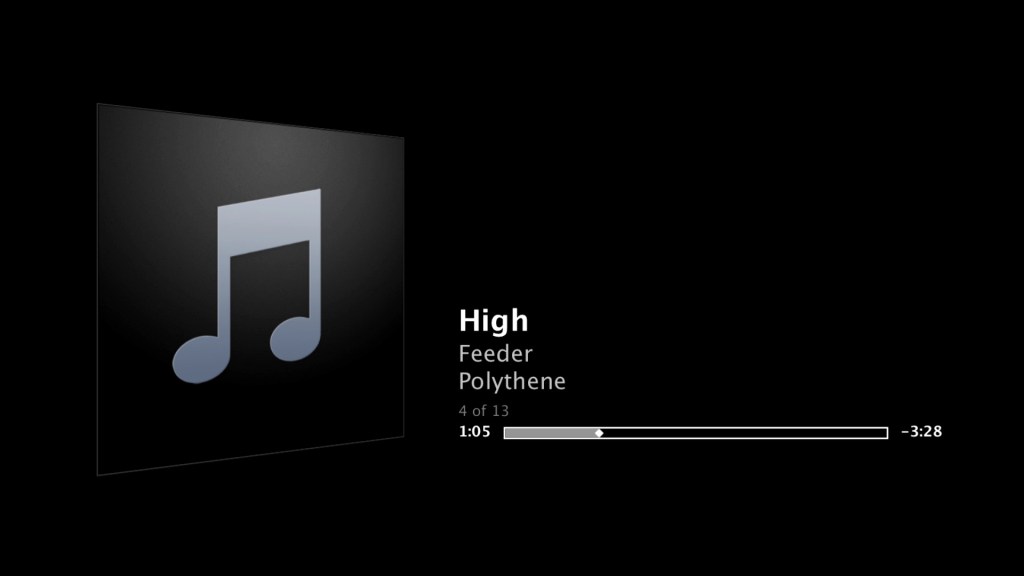
iTunes works OK here, and is a lot more functional compared to the stock software. Here you can store music onto the unit itself, m or use an external USB HDD if you prefer to have your media directly connected. Playback from iTunes servers are also supported, which the stock software didn’t appear to support. Most NAS drives have support for this and allows you to share your music over LAN.

iTunes Apple TV

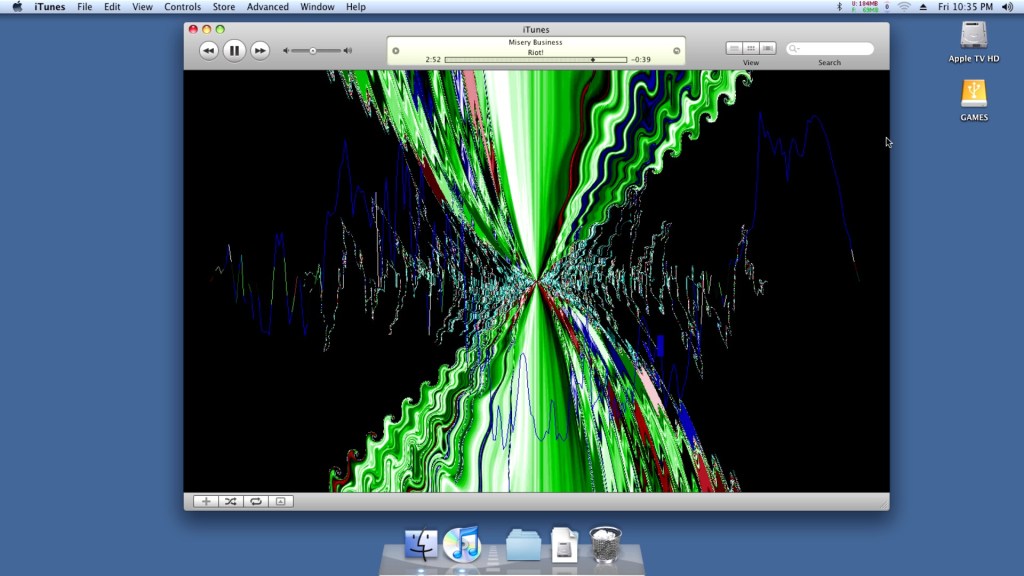
A look at the iTunes visualisations, which run flawlessly.

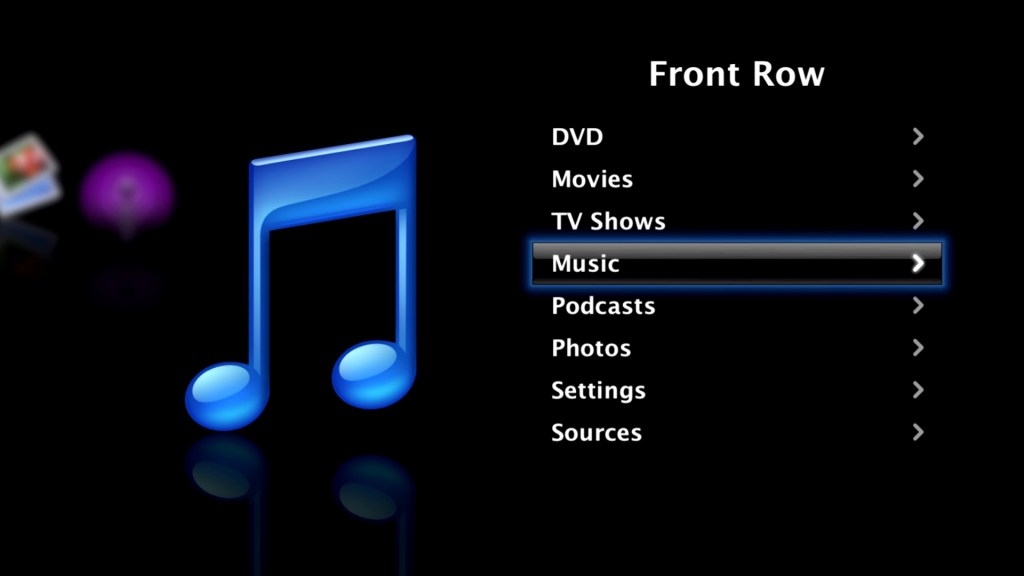
Also the Front Row experience itself, you can continue to use your existing Media Remote to control and navigate the menu’s.

DVD playback did run into some issues. So the stock software for the Apple TV does not support DVD playback since the unit has no optical drive and despite the presence of a USB port, you cannot connect an external DVD drive. Apple fully intended you to purchase and watch your movies though the iTunes Store.

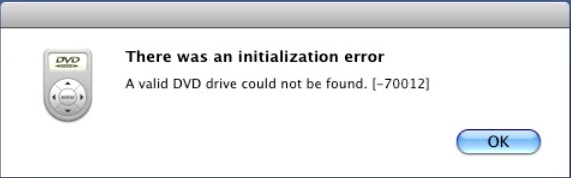
Leopard comes with a DVD player built in, and by connecting an external USB DVD drive we have the ability to play back DVD’s. Although for some reason it failed to detect my Dell external drive, even though it was connected to a powered USB hub port. The LG drive worked perfectly and OS X recognised a DVD movie was in the drive but refused to play it back with there error message below:

Not sure why this was the case, even Front Row had issues playing back a DVD

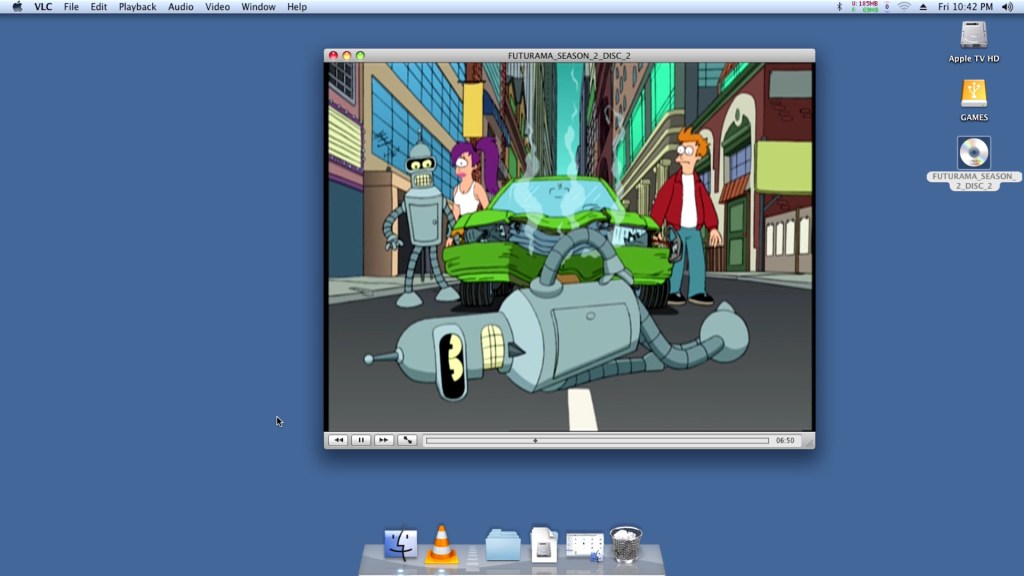
Well where OS X lets you down, VLC has your back. Version 1.1.10 appears to be the latest for Leopard, and it works perfect for playing back DVD’s. I’m not sure if this is using the MPEG2 acceleration that the GeForce supports, but the playback appears smooth for a PAL DVD.

VLC Apple TV

Honestly I don’t get why this wasn’t a standard feature on the stock software, given they would have wanted customers to transition to the iTunes Store for their content, It would make sense to bundle a DVD player for customers who have an existing DVD collection to eventually migrate their purchases to the iTunes Store, especially with the HD era on the horizon.

Rosetta does not appear to run, which locks us out of PowerPC applications. One theory from this post is due to the Pentium M processor not featuring certain instructions that the later Core/Core 2 processor feature, which Rosetta needs in order to translate the PowerPC instructions.

This does give us a problem with installing and running Universal software, since many would have been released in PowerPC format, with their installer also being written in PowerPC also. Once workaround was to install the software in a Leopard/Tiger VM (A Macintosh VM will work just as well), and then transfer it back to the Apple TV where it would run.

Sometimes you can also inspect the package contents and run the PKG installer instead, which should work regardless of CPU.

Games

Well how well does the AppleTV perform with some Mac games, well with only 256MB of RAM were are going to be limited in what titles we can run, and with the Rosetta issues outlined above we are restricted to games that have universal binaries. Still the AppleTV comes with a Nvidia GoForce 7300, which whilst mostly intended for use with decoding MPEG4 video, can also do a decent job rendering 3D graphics. Quartz and CoreImage are also supported for iWork and iLife applications.

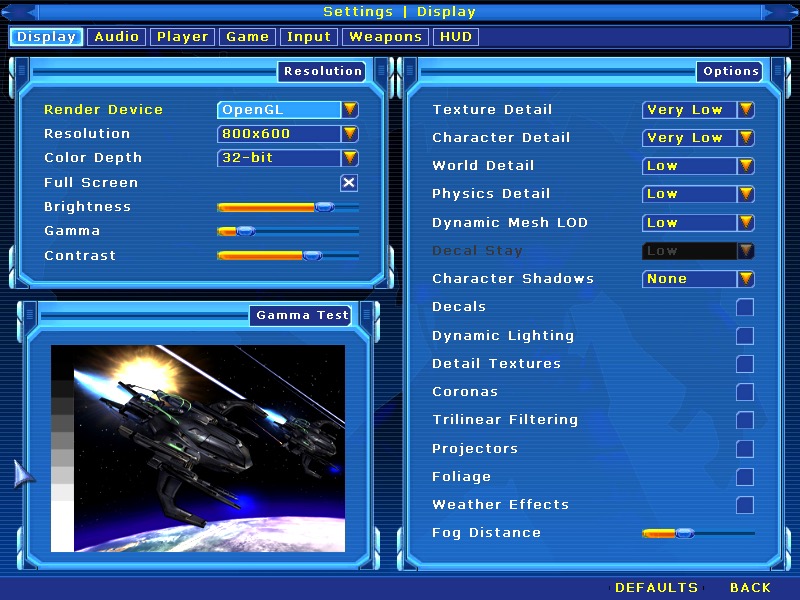
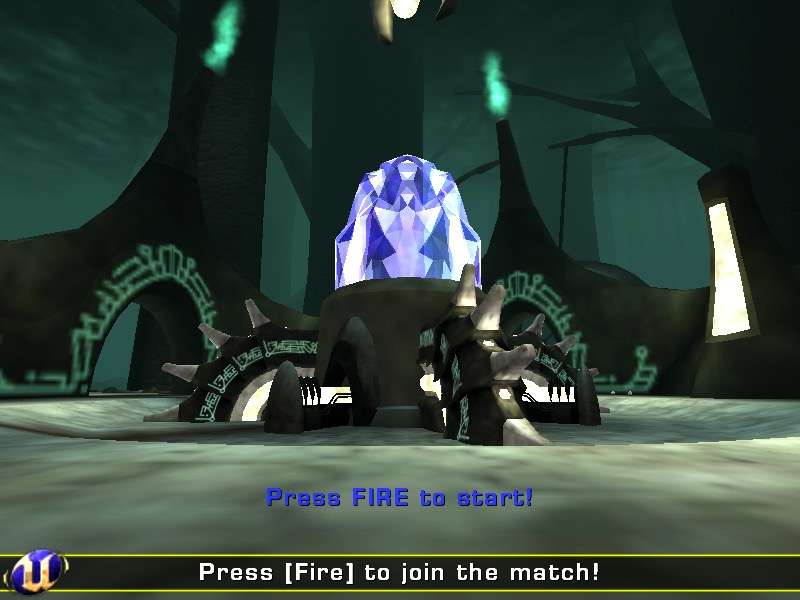
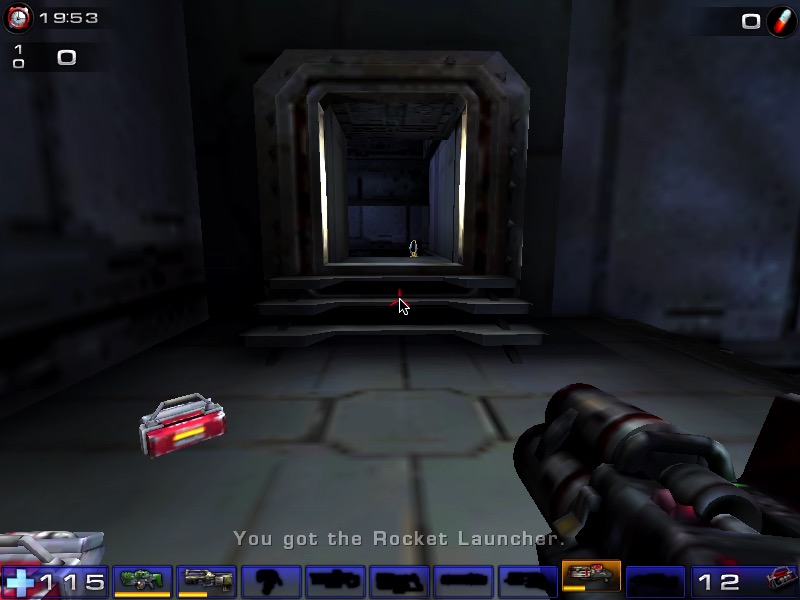
Unreal Tournament 2004 – Works well if you set the graphics settings to their lowest values. At this  settings it looks worse than its Xbox counterpart (Unreal Championship) though you do benefit from a higher resolution. Multiplayer also works well, though the master servers were taken down recently. Still LAN multiplayer is possible and given the small footprint of this machines, it would have made for a nice portable LAN party box.

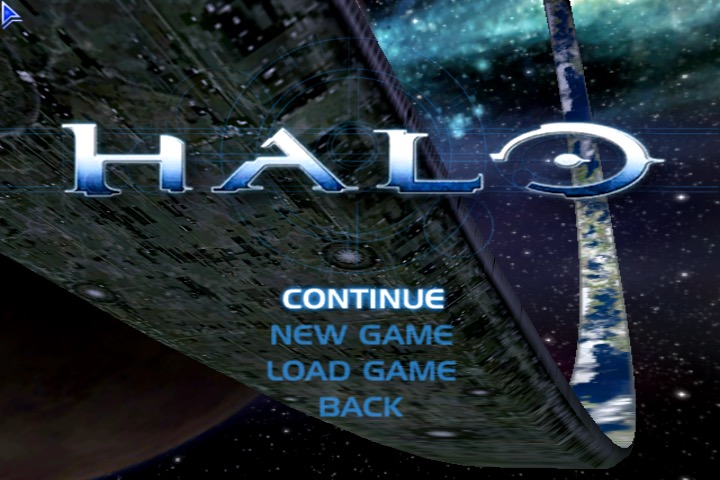
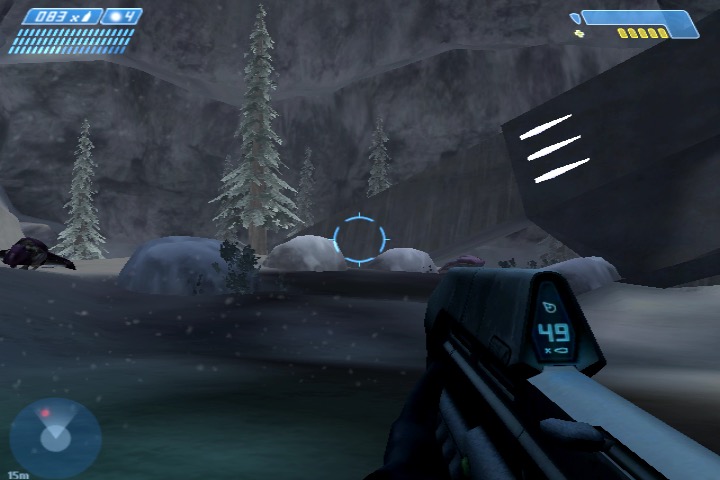
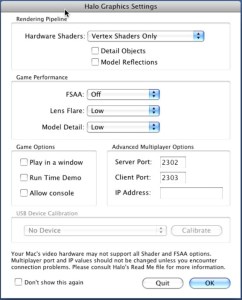
Halo: Combat Evolved – also works well if you run at 800×600 resolution with vertex shaders only. It’s relatively stable if you turn off the AA (Anti-Aliasing) as I managed to play through a couple of hours.

Sample settings for the game

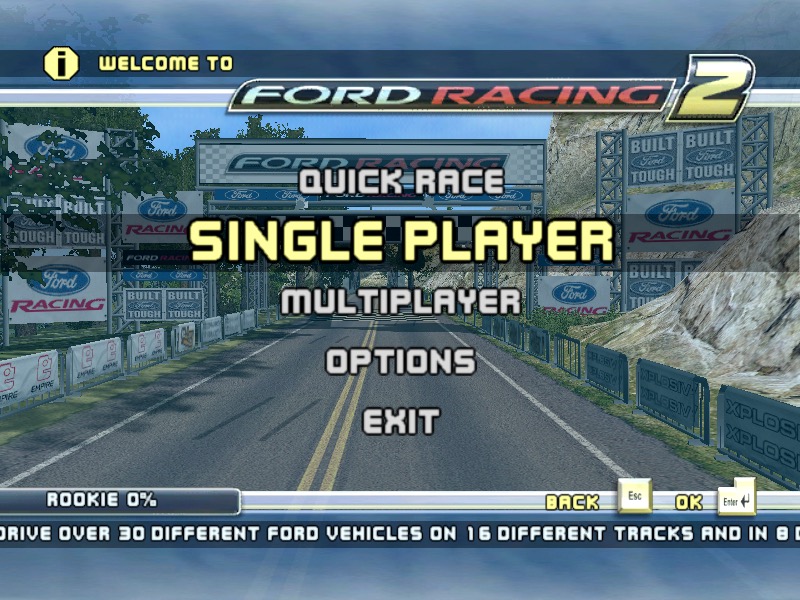
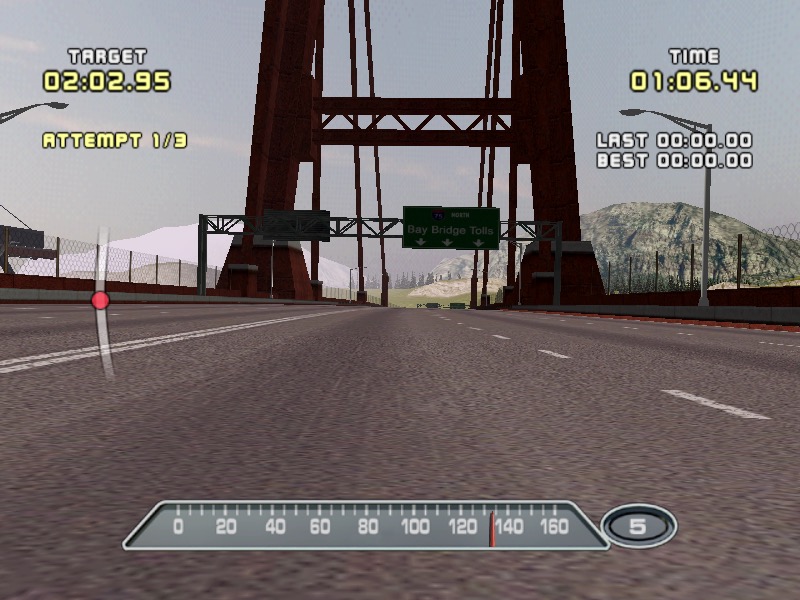
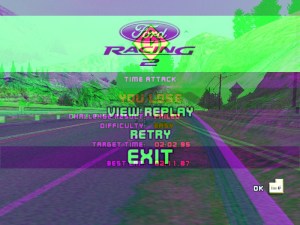
Ford Racing 2 – Works well but after a few minutes some weird graphical glitches appear on screen which remain throughout the game.

Ford Racing 2 Mac

Not sure what causes this as it appears regardless of the graphic settings chosen

Postal 1 – Works well considering this was originally a 1997 game

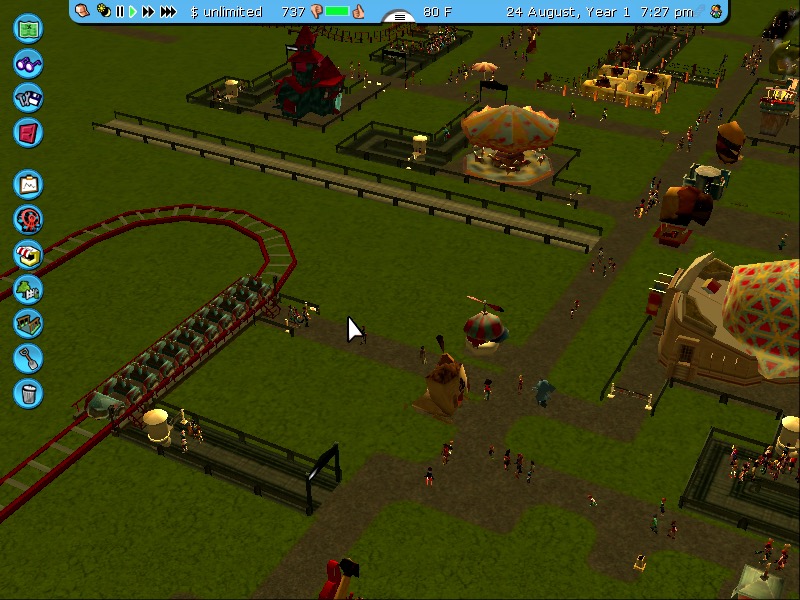
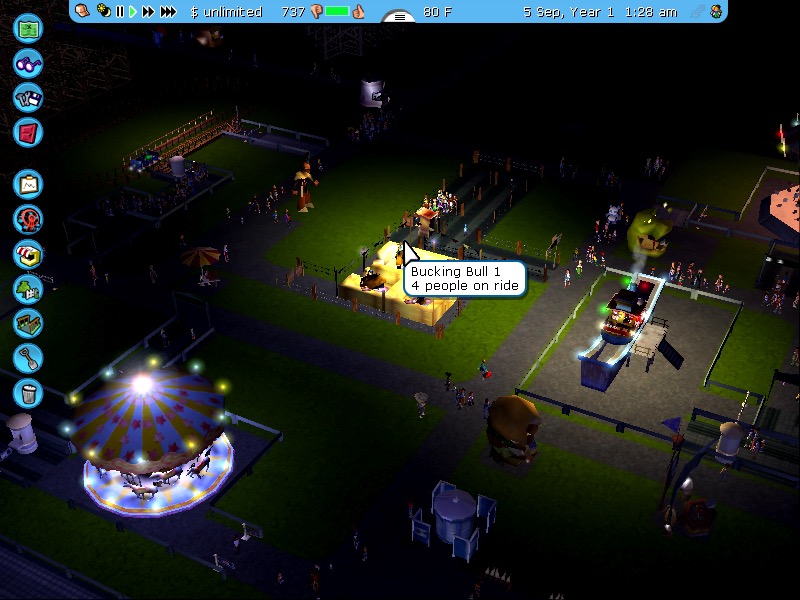
RollerCoaster Tycoon 3 – works well even after playing for a few hours.

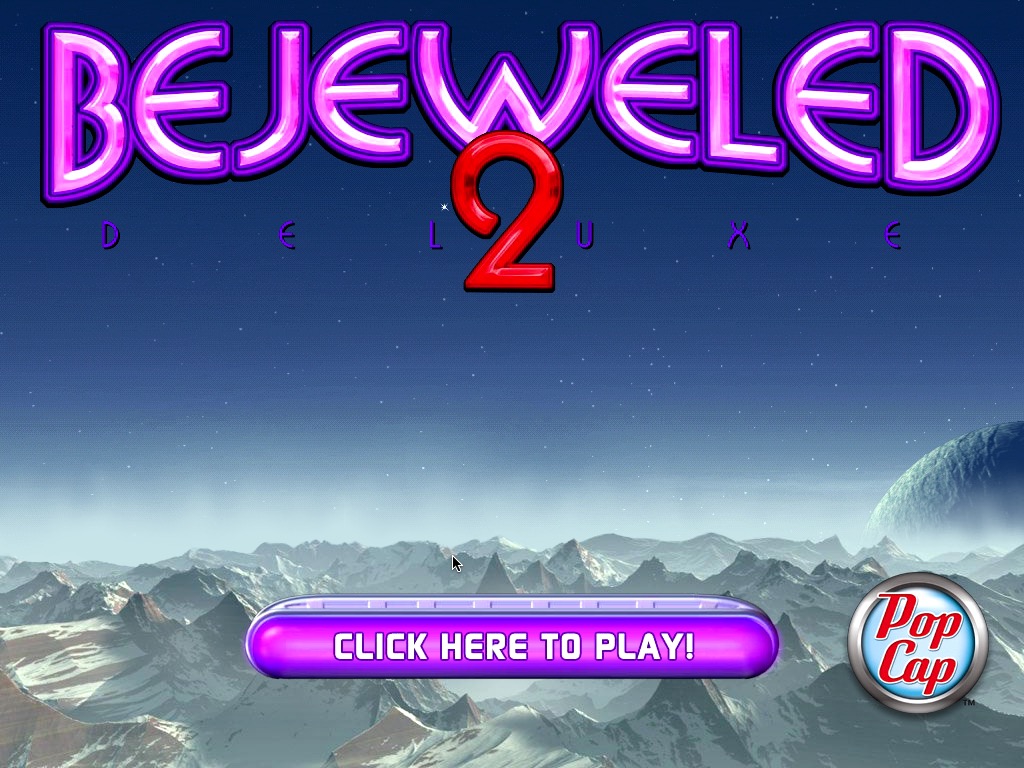
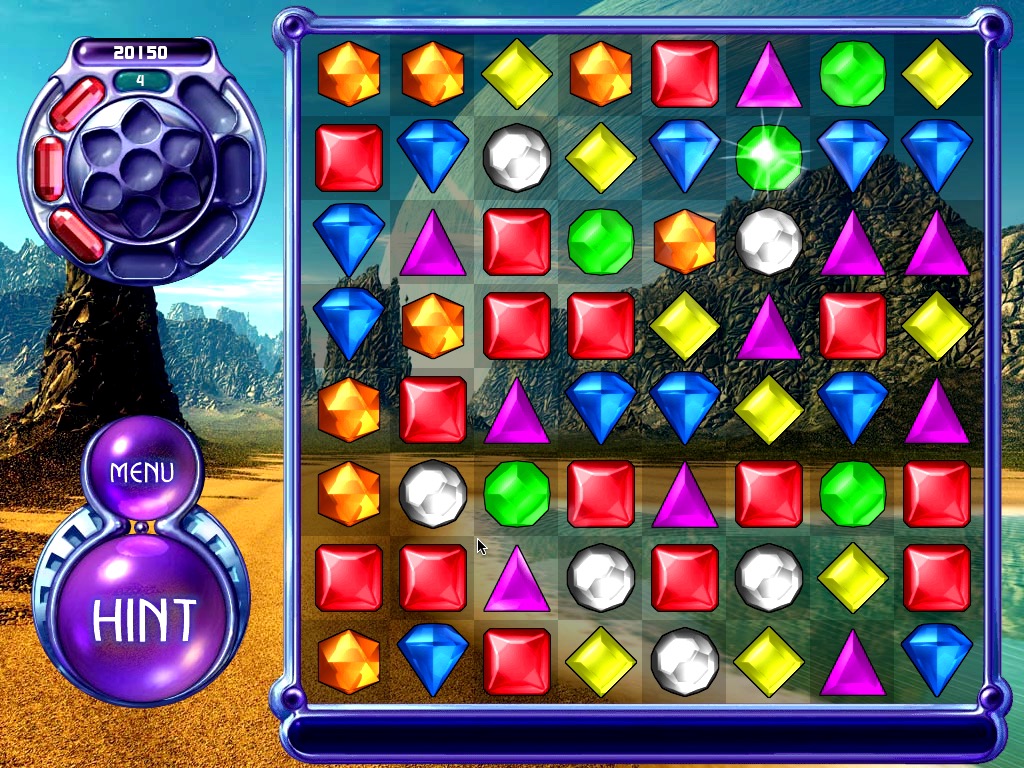
Bejewelled 3 – It’s a pretty simple game, so it runs well on the AppleTV

Shrek 2 – Starts up and runs ok for the most part, but it does jitter when moving about due to the RAM limitations

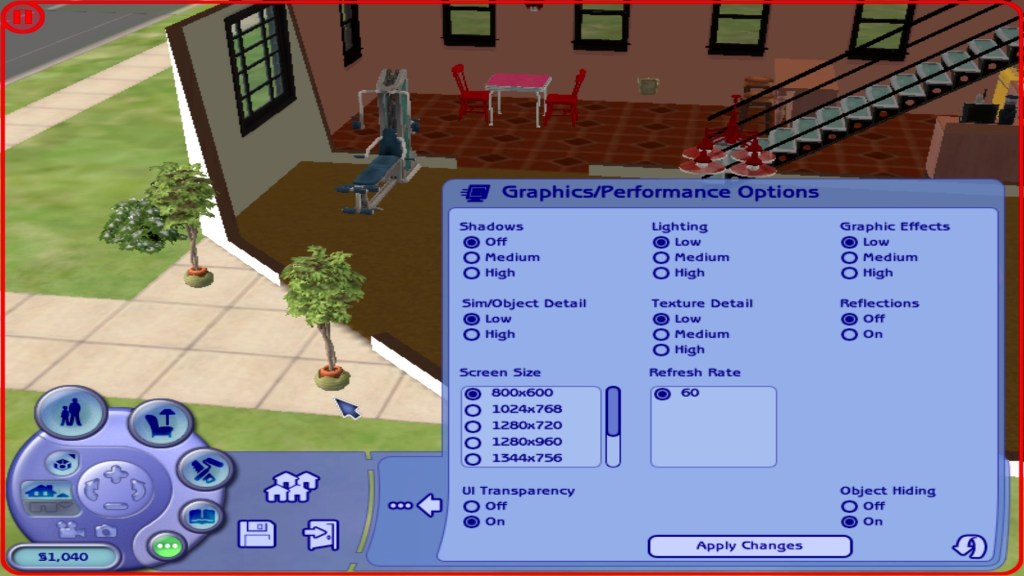
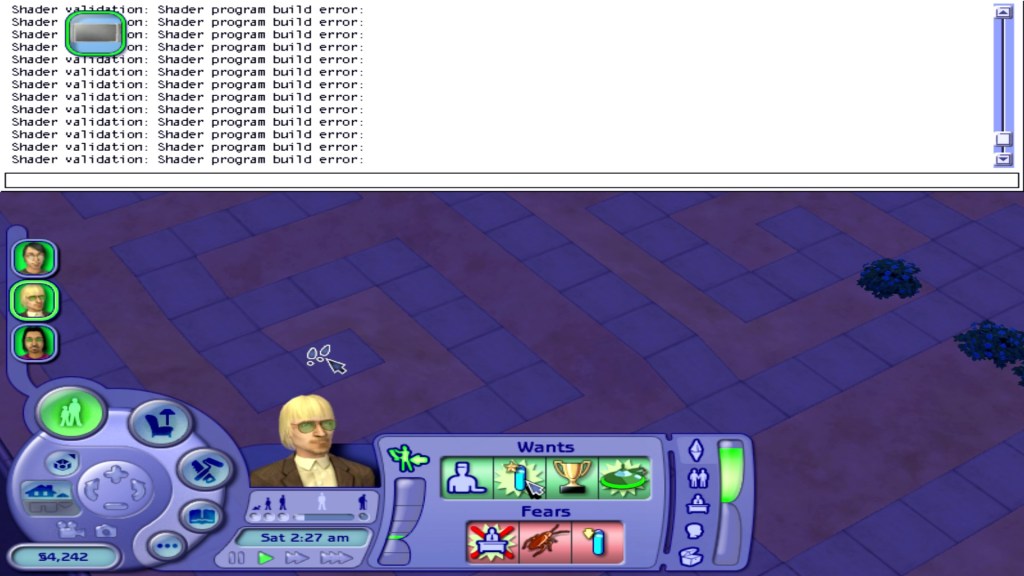
The Sims 2 – Runs Ok on the lowest graphics settings on small lots. Some weird error messages appear in the games cheat console.

So it ain’t exactly a console experience given the mixed results above, but if you don’t mind playing the supported titles on low settings, then it is passable.

Misc Observations

  • The unit does not appear to shut down, and selecting the shutdown options appears to spin down the hard drive, and you land on a light blue screen. Here you will have to cut power to the AppleTV since it won’t power off in this state (and there’s no power button either)
  • Restarting works fine
  • Sleep mode also does not work, it will enter sleep mode but will immediately resume.
  • No audio on the HDMI, but you can use the optical audio out to a local sounder. There are around four audio outputs in the system preferences and I suppose you could always use USB speakers or a supported sound card instead.
  • It’s really quiet, not sure if the fan speed can be adjusted since I don’t trust Apple with cooling. Problem is many software fan controllers run resident in memory, which is a previous commodity on the Apple TV.
  • A lot of games I had installed to an external Hard drive connected via USB, since the internal HDD is typically busy with the VM pageful. USB2 isn’t very fast compared to the internal IDE, but is the fastest external interface we have for the Apple TV.
  • Speaking of, the Intel HDD is a Fujitsu 4200RPM IDE (Yes, IDE) drive. Being 4200rpm, the HDD can also become a bottleneck especially with the content swapping. An SDD might bring some improvements and some IDE SSD’s exist but the ones I have found are from unknown Chinese brand’s that have varied reviews. Also many lack DRAM support, though it’s arguable how much benefit this would bring over the IDE inference. Then again it would make a difference for ram access reads. I guess the easiest way is to try one and find out. 
  • OS X isn’t the only OS the AppleTV could run, since it’s an X86 computer at heart you could run a supported Linux distro. Forget about Windows XP, whilst it would be ideal for this XP cannot boot from EFI which is what the AppleTV likely uses. Maybe this might be possible in the future with a mod, but XP SP3 on 256MB is equally painful.

Further Information & Resources

Macintosh Garden

TinkerDifferent Thread

Archive.org Source