IBM Aptiva 2159S

The default desktop post install, some of the desktop icons are animated, a first that i‘ve seen

If you move your mouse cursor over some of the desktop icons, a bubble will show up that gives information on what that icon does.

This appears to be part of the Aptiva Desktop customization software, which was developed by Moon Valley Software for IBM. There is an icon in the tray area that you can click to open various options, and you can turn off the animations if you find the desktop too ‘busy’

Voyeta AudioStation with some IBM branding, this was used to manage the volume mixer controls and to play CD’s MIDI open WAV files within one place, if you didn’t wish to use the built in Windows utilities. Although were not using the same sound card, the software will still work with the emulated soundcard.

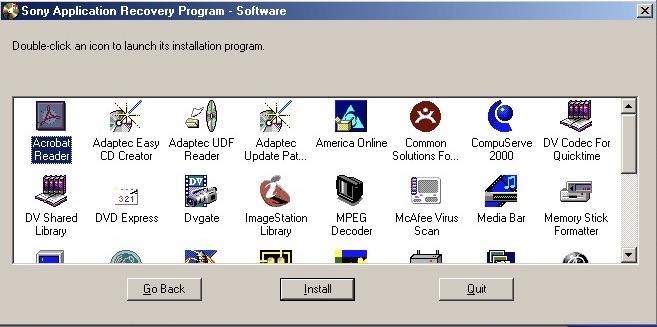
The Aptiva installer that lets you quickly install software that came with your Aptiva computer but was shipped on a separate disk. Kind of a good feature since many OEM’s installs have been criticized in the past for shipping with bloatware, though it was understandable in the 90s since the internet wasn’t very common which made downloading and installing software difficult.

Some of the existing software that comes included

There’s also an update connector to keep IBM software up to date

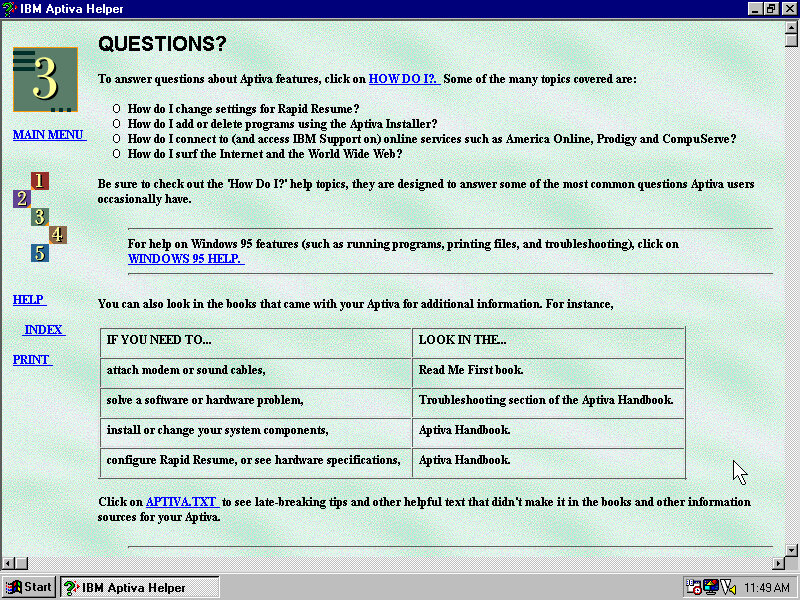
Aptiva Helper that serves as a guide to using the computers features

IBM AntiVirus comes included, and is covered in the Helper application

It also explains how disk fragmentation works and how/when to run the defragmenter utility.

Some misc screenshots

SmartSound Mastro – Lets you create sound effect which sound like something off a 90’s shopping infomercial. Ideally this might have been used in backgrounds for presentations.

Editing the music in more details, here you can choose the different segments and effects

The Kid’s room (7th Level), their version of Microsoft BOB and Packard Bell’s CyberTrio. This is fully animated with voice acting, though they have a tendency to ramble on.

Intended for use by children, it lets them access their Windows programs without using the Windows 95 interface which helps prevent them changing any settings. By default the Windows game come pinned by default (Solitaire, Minesweeper and Hearts) which don’t strike me as games that kids would enjoy. Possibly any additional software that IBM provide who automatically be added. Also it takes around 15 second to launch a program

The calendar, you can save reminders that can be viewed by anyone

Create Writer comes bundled with the install, which was originally part of the Microsoft Kids Plus Pack

A memory game where you have to remember the sequence the light flash up in.

A game of tic tac toe

Another game that should look familiar, yo have to match two of the same to clear the board, which will reveal the background picture.

Setting an alarm, where you can also leave a message. I’m curious if this goes off whilst the computer is running but the program isnt. Maybe there is a background task.
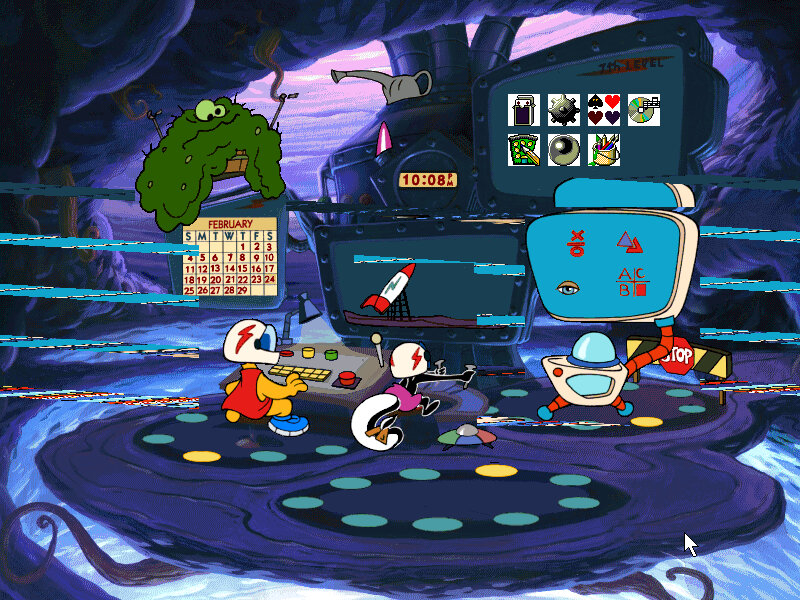
To exit out, simply click on the red STOP sign and you will be returned back to the desktop.

A look at the Logitech MouseWare software that comes included as a Control Panel applet

Windows 98 Upgrade

So that’s pretty much it, you can tell this was designed to be a family PC but the type of software that comes included with the install, as IBM’s Aptiva line was destined for home use and many OEM’s were bundling education software to make their home PC’s more appealing for all members of the family.

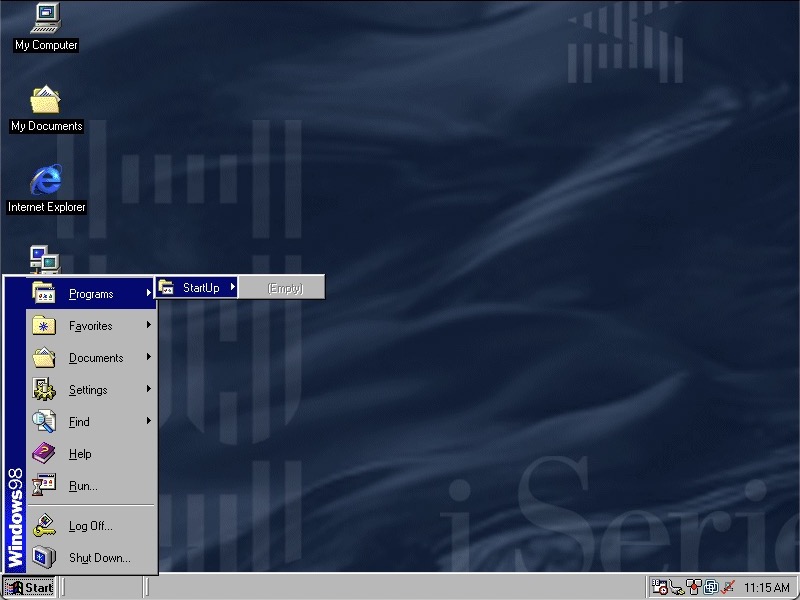
The OS post Windows 98 upgrade, a lot of the IBM stuff still remains like the Aptiva desktop.

External Links

Image Source (Archive.org)
Windows NT4 Resource Kit

A sort of expansion pack for the Windows NT 4 operating system, which adds a set of tools and resources. You can consider this to be a mixture of the resource packs that were released for the 9x line of operating system, but with Plus! content included

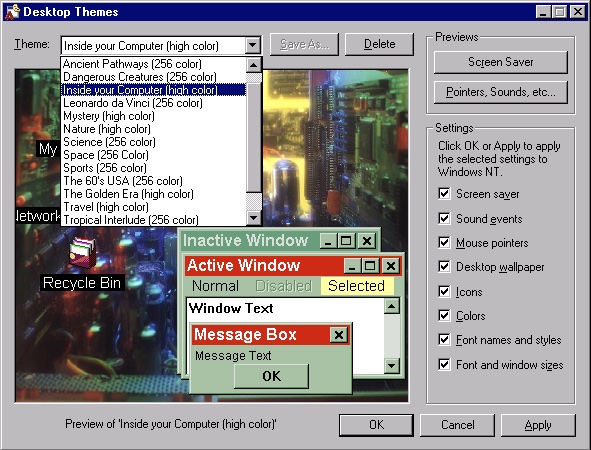
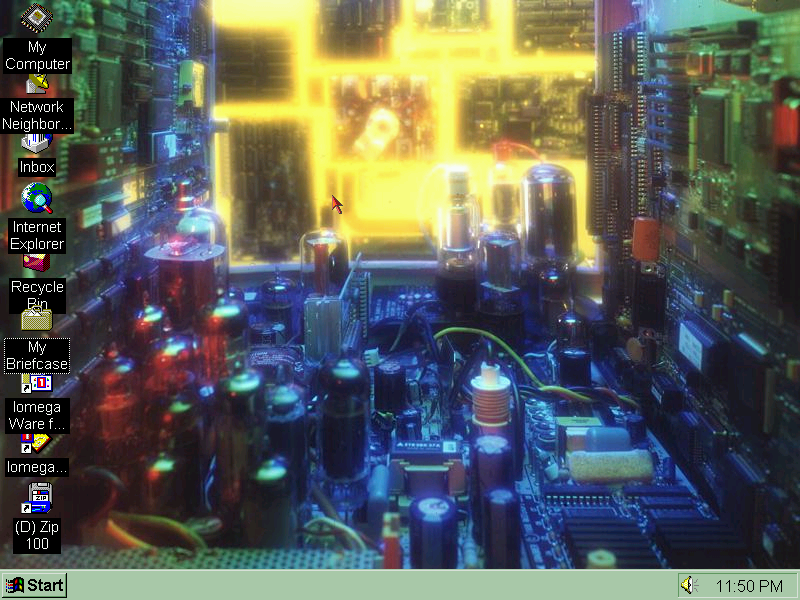
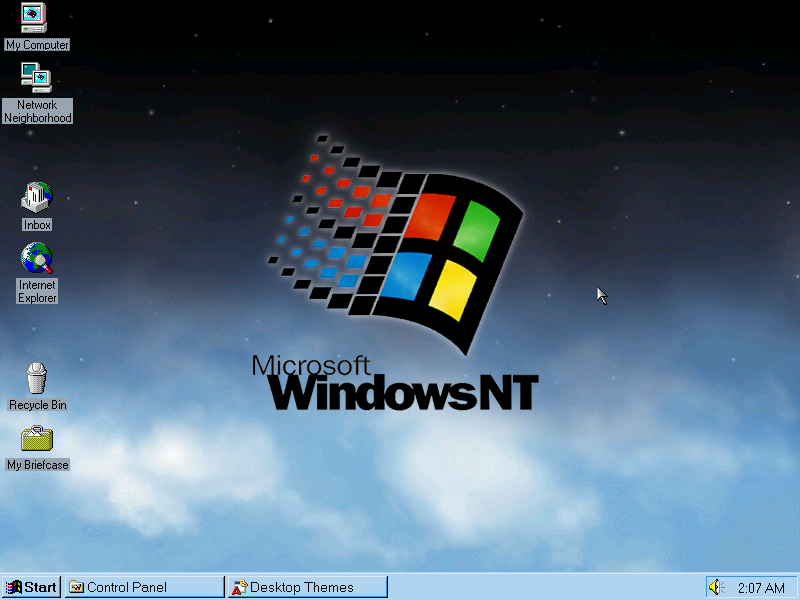
A new desktop theme and wallpaper that ships with the resource kit, this makes use of additional colours that the regular NT desktop themes lack the use of.

Themes

Screenshot

Like the Plus! pack for Windows 95, the resource kit adds desktop theme support and comes bundled with themes, some of which came with the 95 Plus! and some would go on to appear in Windows 98.

Themes exclusive to Windows NT

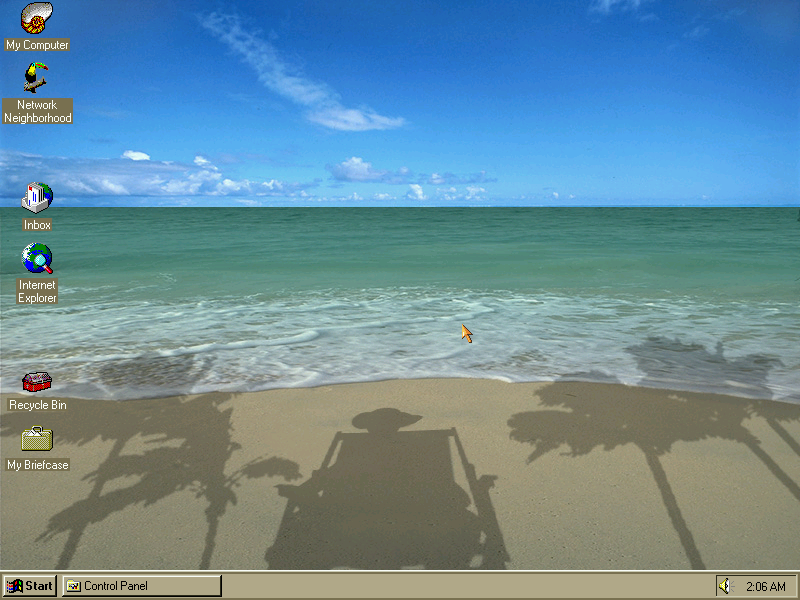
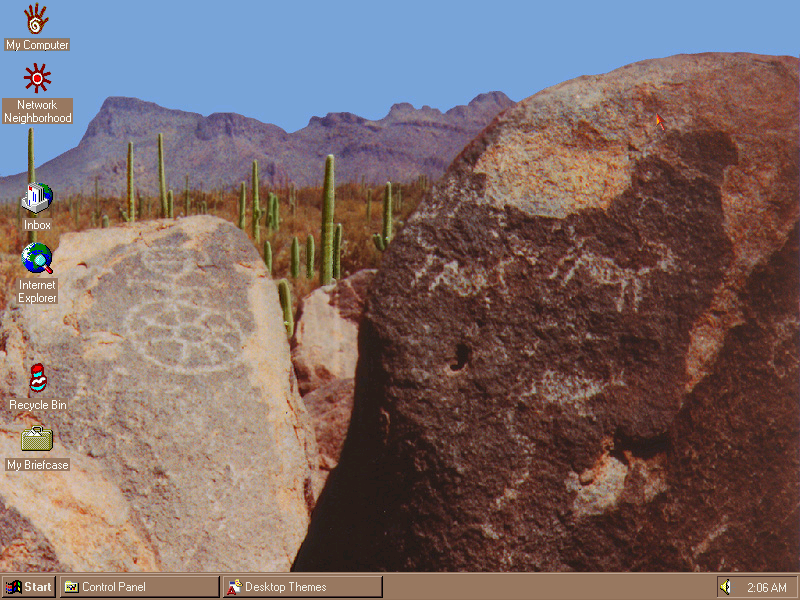
From L-R, Tropical Interlude, Ancient pathways, and the Windows NT theme pictured at the very top, These were exclusive to the NT resource kit.

Themes from Windows 95 Plus!

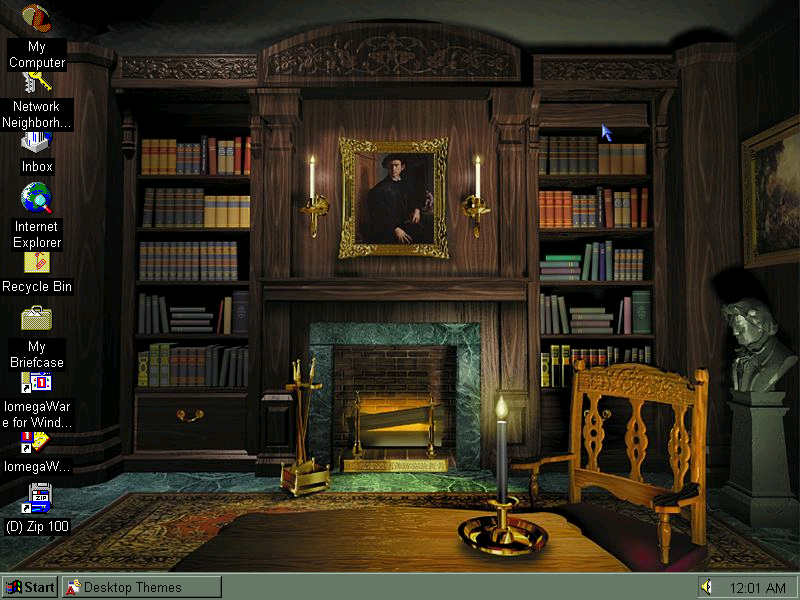
Returning themes include The Golden Era, Mystery, Space and Inside Your Computer which were included in Plus! 95 and in Windows 98. Some of these themes differ in the chosen font compared to the 9x counterparts

Configuration

Screenshot

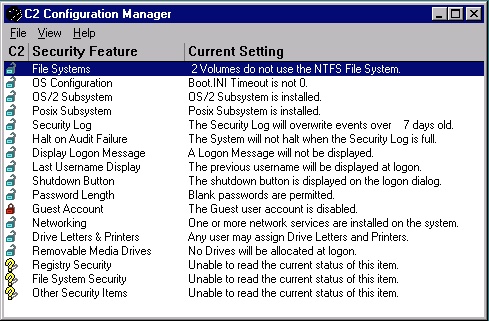
C2 Configuration: This was a tool to ensure your PC workstation was C2 compliant, which was a set of standards by the NSA to ensure integrity and security. Here you can configure certain policies such as logon messages/privacy where the previous username is cleared upon logon. These features are now standard in every corporate domain environment.

Auto Logon: Automatically log on a specific user when the PC is turned on. Useful if this is the only user that will be using the PC or if the PC is intended for specific use like in a factory or automation. This only appears to work once in my case.

Command Scheduler: Like the task scheduler in Windows 98, you can schedule maintenance tasks for disk defragmenter or virus scanners.

Desktop Tools

Screenshot

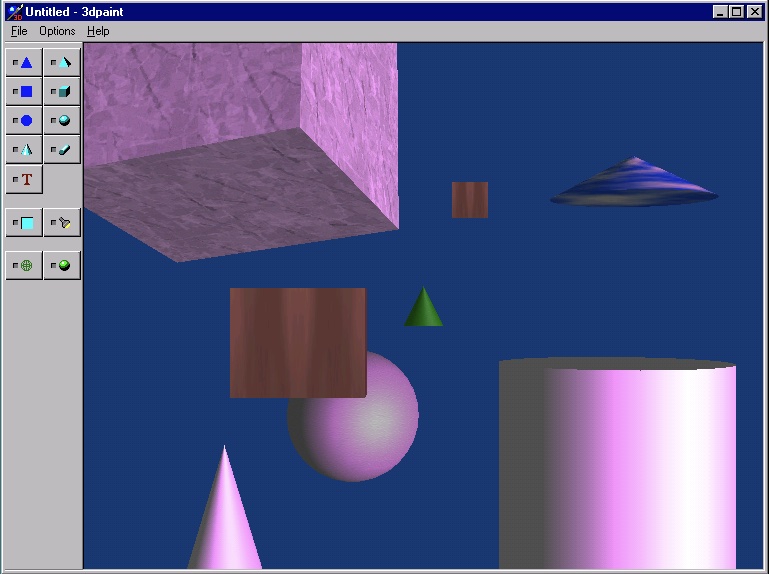
3D Paint: Not to be confused with the 3D Paint from later versions of Windows 10, this lets you place 3D objects onto the viewport. You can adjust the size, rotation and dimensions of the object, and add any additional shading or texture mapping. It’s not Bryce, but it does let you create some interesting images if you’re willing to spends some time with it. Bitmaps can be applied to the 3D objects themselves, and you can apply different colour hues to the shading and change the direction of light.

Files are saved in the 3DP format.

Advanced Cursor Editor: Open and edit cursor animations, including the ones that come with the operating system. You can edit additional frame, or add new frames in between.

Screenshot

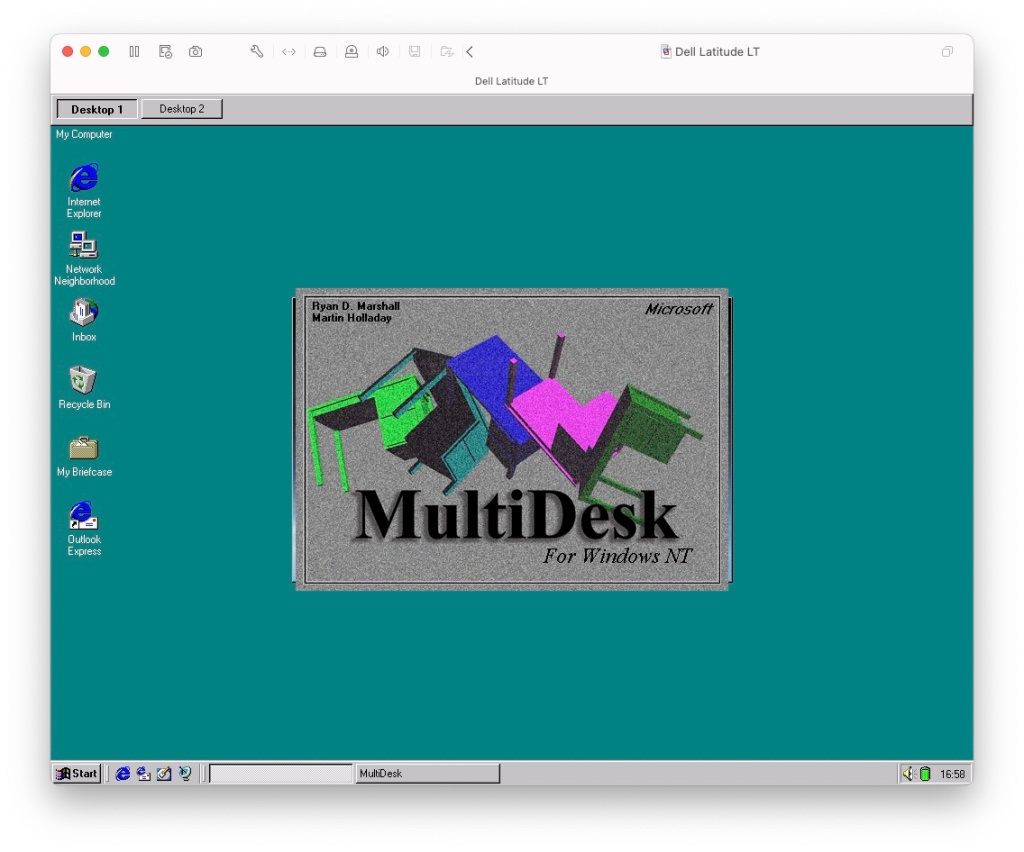
Microsoft Desktops: Lets you have multiple desktops with active windows, like many Linux distros supported.

Image Editor: Bitmap image editor, not much use for JPEG or GIF images. Even with bitmaps you are limited to images no larger than 256×256. Even if you try to open a smaller bitmap, it has to be a valid 3.0 format bitmap file. Because it these limitations, there not much use outside editing icons or clipart. The program dates from 1992 which could explain the limitations.

Text Viewer: Looks like Windows Explorer in tree view, but when you click on a file it appears as if you have opened it in notepad. Useful for HTML developers or programmers, or even gamers if they need to quickly edit an ini file since you can edit and save text file directly.

There are other various utilities such as Disk Probe, Fault Tolerance Editor, Network Watch, Process Viewer and Quick Slice. A lot of these are niche for use to look at as they serve a specific purpose.

Panasonic TOUGHBOOK CF-53

Panasonic is another Japanese brand that’s produced notebook computers, Panasonic largely specialise in rugged laptops, hence the name Toughbook. They are mostly used in field engineering which can be rough environments for laptops. They feature reinforced exteriors, spill-resistant keyboards, and enhanced shock absorption to withstand rough handling.

Screenshot

The default Windows 7 desktop, with a custom theme from Panasonic applied. Just a solid white wallpaper.

Screenshot

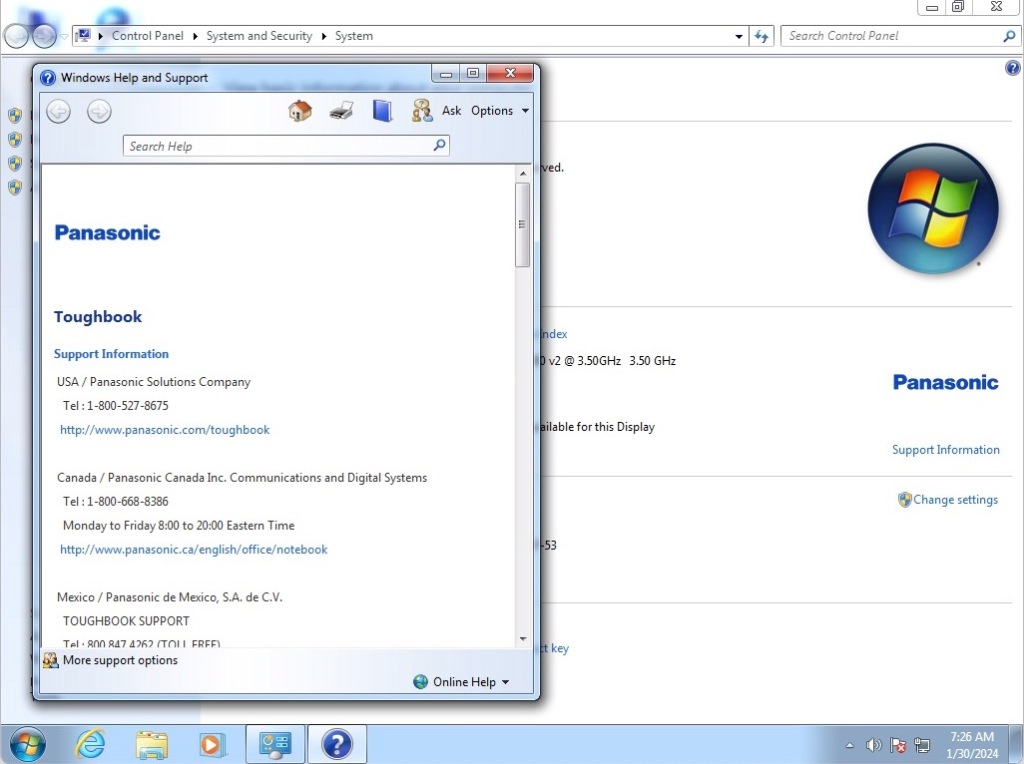
A view of the system info with details of contacting support.

Screenshot

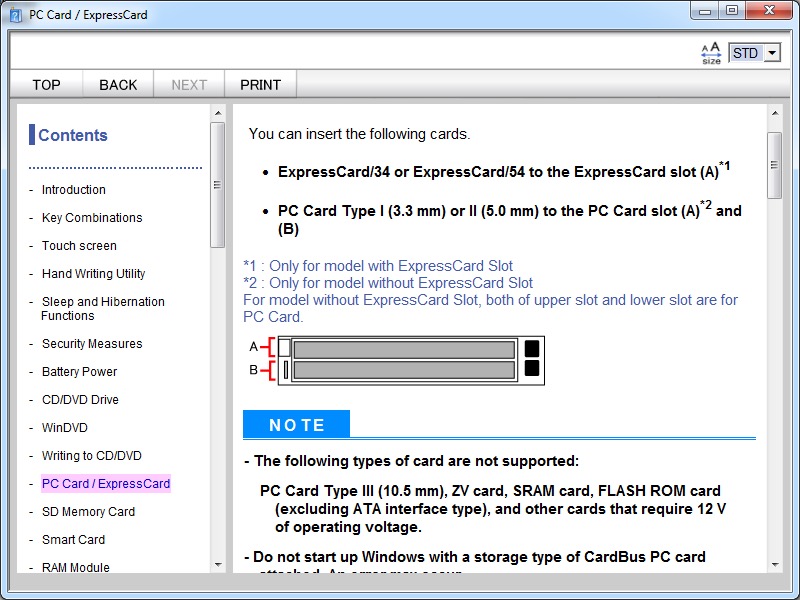
A look at the reference manual that provides instructions on how to use various features the laptop, including how to make use of the removable drive bays. These can be swapped out for a different device or drive, similar to some models of Dell’s Latitude series.

Dual Express card slots, you don’t see these on laptops now. Typically you can add addition wires, USB 3 expansion cards, 3/4G modems or just plain storage devices through these.

The notebook comes with WinDVD playback software included, but refuses to launch as it performs a BIOS check on startup.

Toshiba Bluetooth

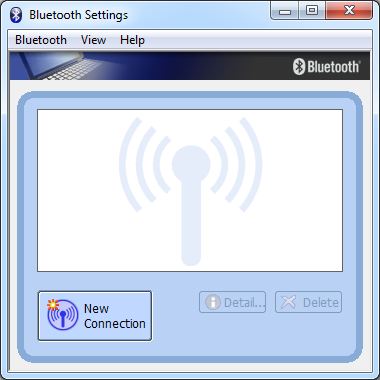
Toshiba Bluetooth Stack: Instead of using the standard Windows 7 Bluetooth utility, it appears to have its own installed. I’ve seen this a few times on Toshiba and Dell laptops so It appears to be common among OEM’s, some users also prefer it over the Windows default stack.

Roxio Creator

Roxio Creator comes bundled with the laptop, Roxio Creator is a software suite designed for multimedia creation, editing, and management. It allows users to create, edit, convert, and burn CDs, DVDs, and Blu-ray discs, as well as manage digital media files.
Audio Cd’s can be ripped or burnt to a disc, if you don’t wish to use Windows Media Player. Data disc images can be managed also, supported formats are iso, go and udi.

It’s a very barebones installation with only a handful of utilities included, as these notebooks were designed to be used in a corporate environment who would install the appropriate software.

Alienware M7700 

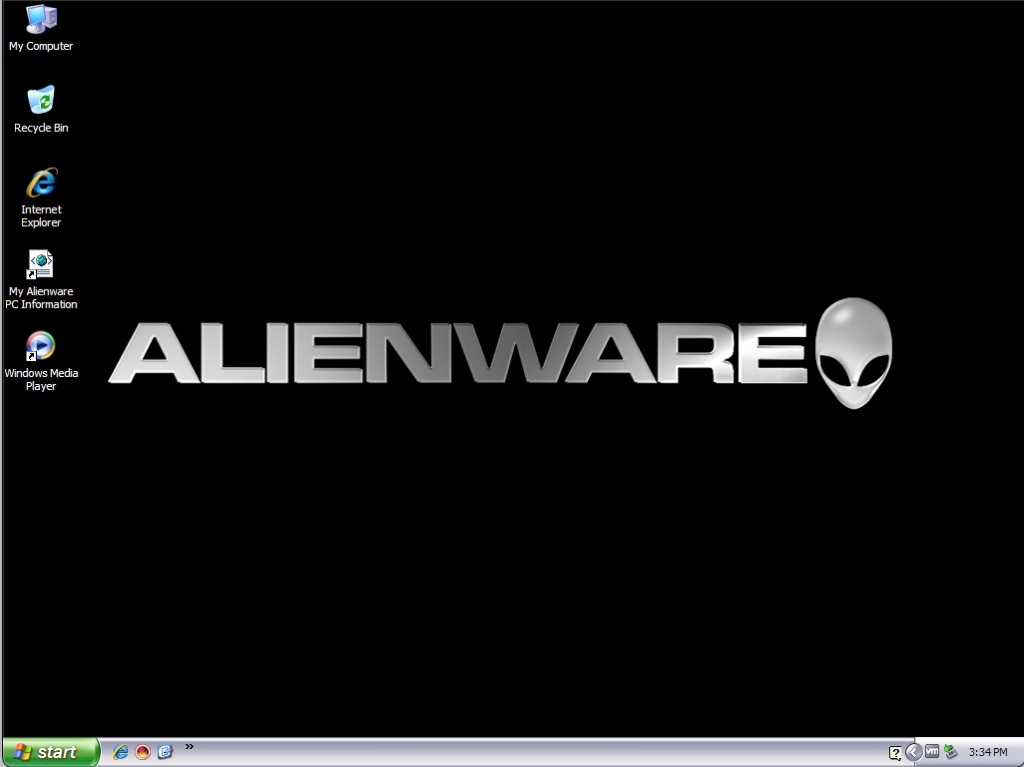
Browsing a couple of preinstalled VMWare OEM images and found an Alienware Windows XP install, I was curious to see what an XP install would have looked like from Alienware since this would have been before the Dell acquision. Since this is a preinstalled VMWare images all I had to do was extract and import it into VmWare Fusion.

Product Information

A successful boot up, surprisingly we have not triggered the Windows XP activation. The install appears to be a late generation XP install as wee have Service Pack 3 and DirectX 9c included.

A look at the My PC Information file on the desktop, this contains customer name and account information that I’ve blanked out to stop any possible privacy issues. This goes though the configuration of the laptop as it left the production, and shows the results of the various different benchmarks

125fps in Doom 3, that’s good for a laptop from this era. It appears this laptop is based off the Clevo D900T design, who are a common OEM for laptops for uncommon brands like Medion, Advent, Time/Tiny and RM (Research Machines). Acer/Samsung also did this and are such examples of such OEM’S that sell hardware designed to be rebranded.

Dual optical drives? That’s very rare for laptops in 2006. Makes you wonder how often both were utilised. 

For a lot of PC’s of this era, it was common to see dual optical drives since one would be the DVD-ROM drive and the second being a CD-RW drive. DVD-R drives that could also write to CD existed for laptops at this point, so I’m unsure why they didn’t go for that approach instead, unless you wanted to burn a CD whilst you watched a DVD movie.

A look at the different checks that Alienware go through before the system is shipped, I wonder if they still do this when Dell took over? (Maybe, since there is no sign of McAfee, or any antivirus for that matter)
CyberLink PowerDVD – Designed for the playback of DVDs but also various video files. Also features a screen-capture feature to save screencaps of content.

Alternatively you could use Windows Media Player 10 instead which came bundled with Windows.

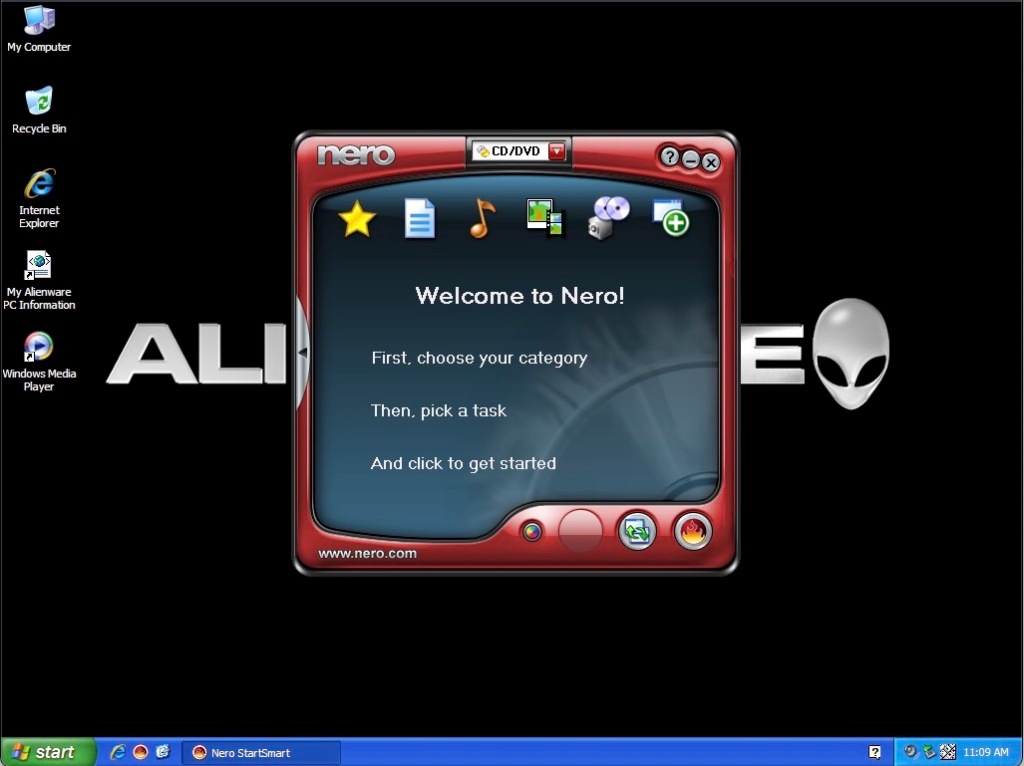
Nero also comes included to copy and burn CD and DVD’s, there is a few components included for multimedia playback.

Nero later developed into full media center software to compete with Windows Xp Media Center Edition.

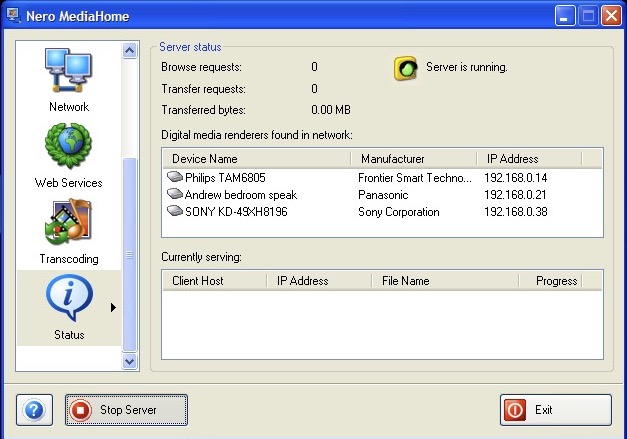
This can also function as a DLNA media server, to share content with the consoles and set top boxes of the era. This actually still works with modern stuff like smart speakers or smart TV’s. Useful since Windows XP did not have support for DLNA media sharing unless you installed the Windows Media Player 11 Update.

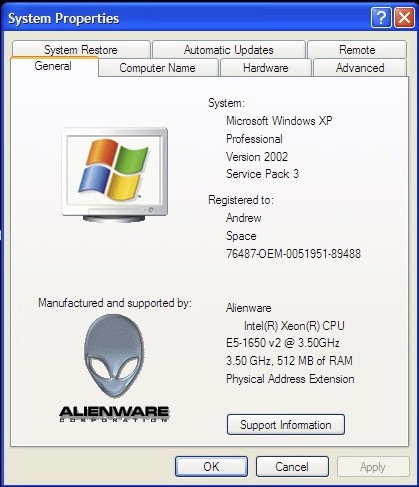
Lastly, A look at the system properties box with the Alienware branding.

Overall it’s a clean install with a few multimedia software packages included. I’m surprised about the lack of game demos since this was designed as a gaming laptop, a few demo’s of games of the era would have been a good way to demo the graphics capabilities of the notebook.

Download – Works in VMWare Player or Fusion

Sharp AV18P

A first time look at a Sharp OEM install. Sharp was a manufacturer of compact laptops that were popular in Japan, but also made a few for the western market. They did have some sort of a retail presence in the UK as you could find their laptops in stores like Curry’s, but they were always sub-notebooks. Like Fujitsu and NEC, Sharp also made computers for the 8/16bit home computer market in Japan.

Product Information

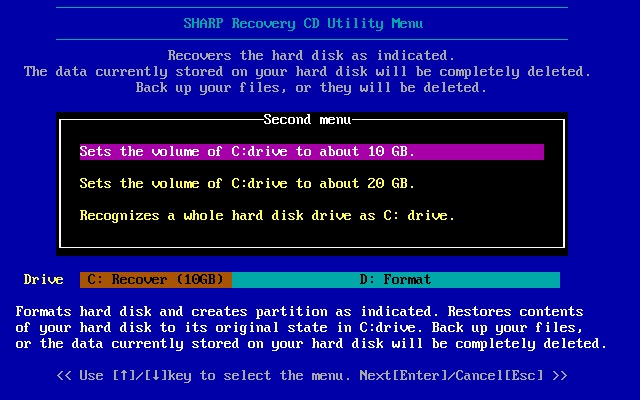
The recovery utility which seems to want us to split the disk into two partitions. This was common across some OEM’s with the belief that storing user data on the second partition would help with fragmentation whilst leaving the operating system and program files on the main partition. Though your document folder would still be mapped to the main partition also.

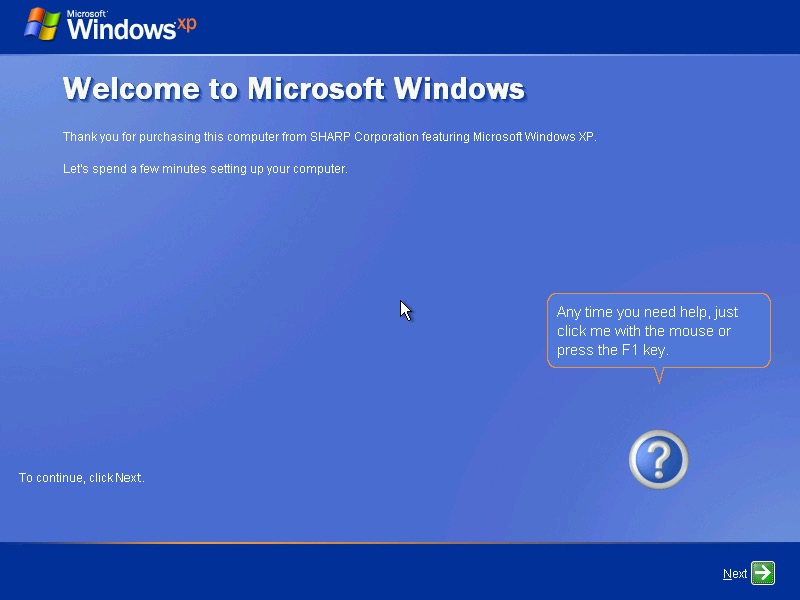
Going through the OOBE, theres no logo in the top right corner as we’ve seen with other OEM installs

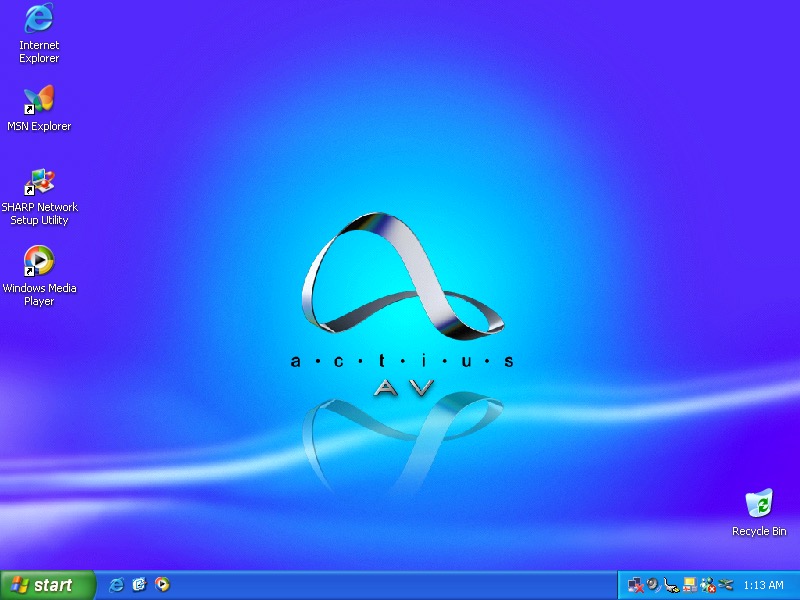
The desktop, with a custom wallpaper. Resolution is a little but understandable considering this is a netbook class of computer

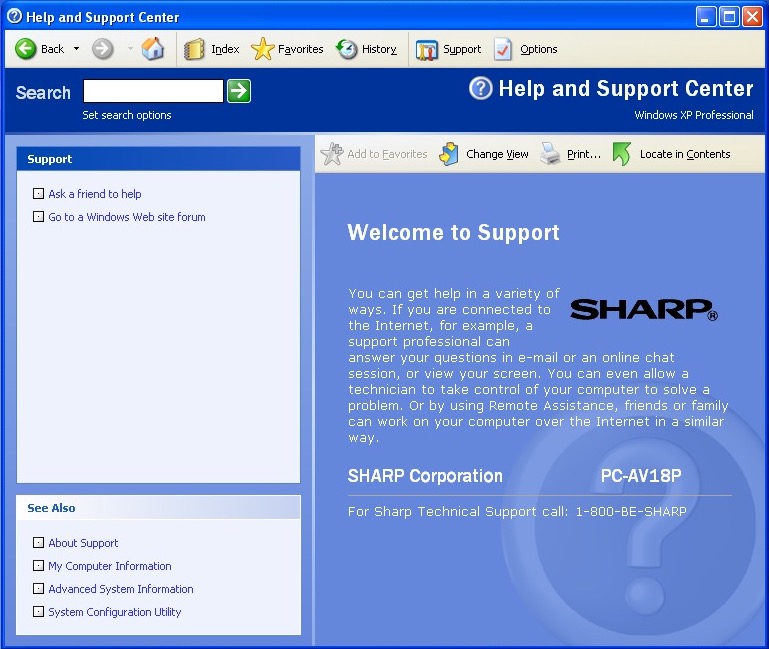
Windows Help & Support with a touch of Sharp

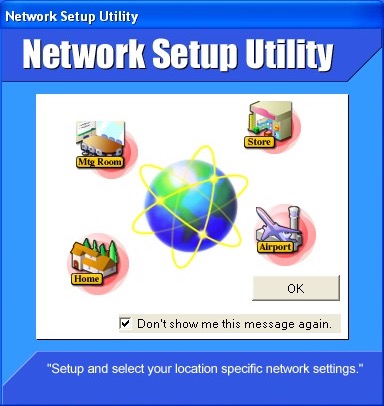
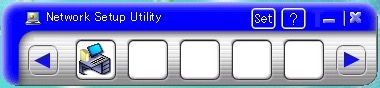
Network Setup Utility, each icon represents a network settings or profile. It looks a little blank as it was intended for use with the notebooks internal WiFi card.

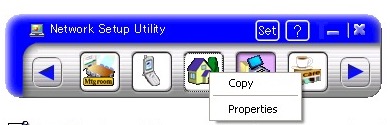
Here is what it’s supposed to look like. The different icons represent the types of network you can connect to and the profiles can represent the different sharing settings. This isn’t too different to what modern Windows does when it asks you to set either a Home, Work or Public connection which affect the file sharing ability, since you might not want to enable Public file sharing when you’re connected to a public hotspot

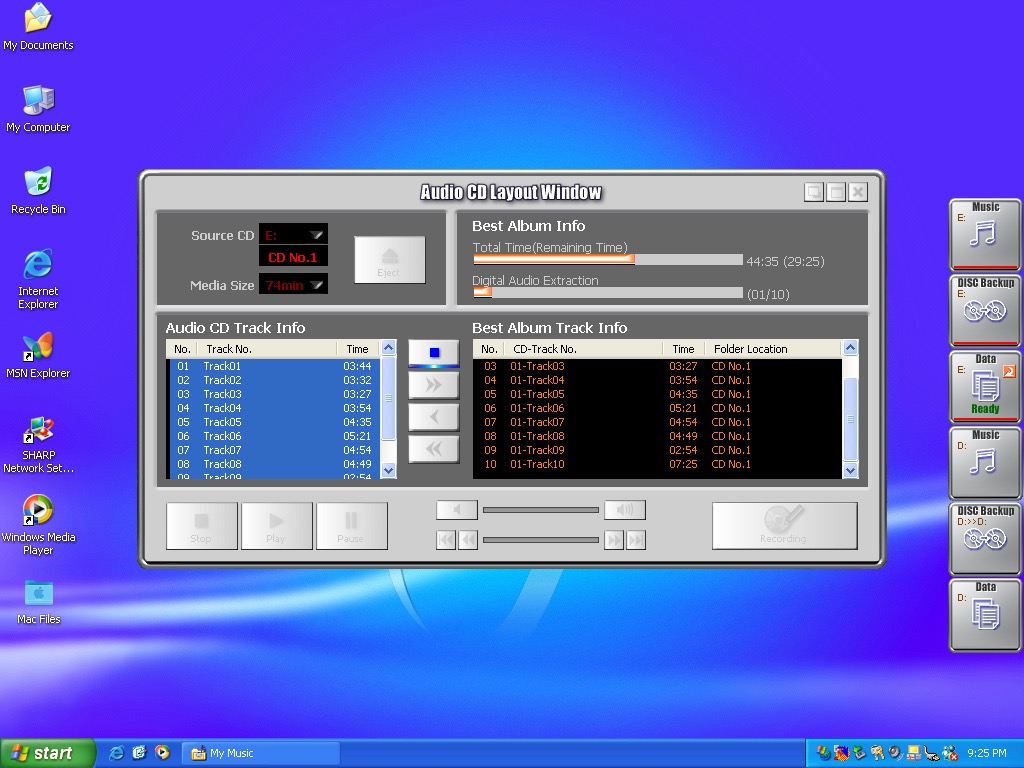
Drag’n Drop CD+DVD – disc burning application. This places a sidebar to the bottom right of the screen where you can drag files to be copied to a CD.

This appears to have been developed by Sonic Solutions who also went to develop RecordNow! Seen on other OEM installs.

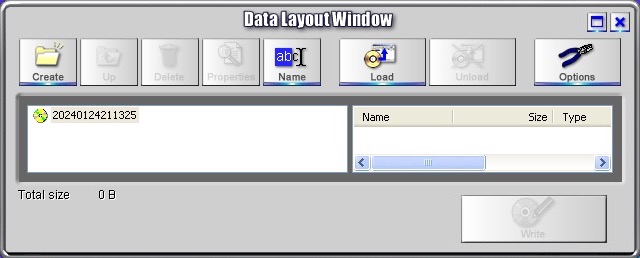
Here you can rip an audio CD, or burn existing files to disc. It a bit clunky to operate and the UI looks like something you would see out of a Hollywood TV, it’s rare to see a program refer to itself as a window.

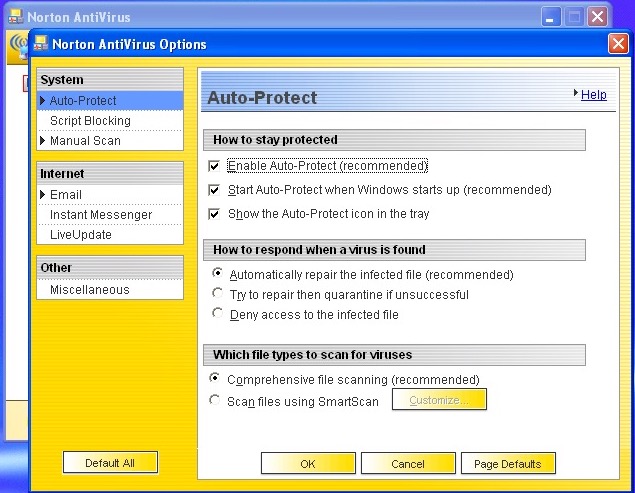
And Norton Antivirus 2003 comers included

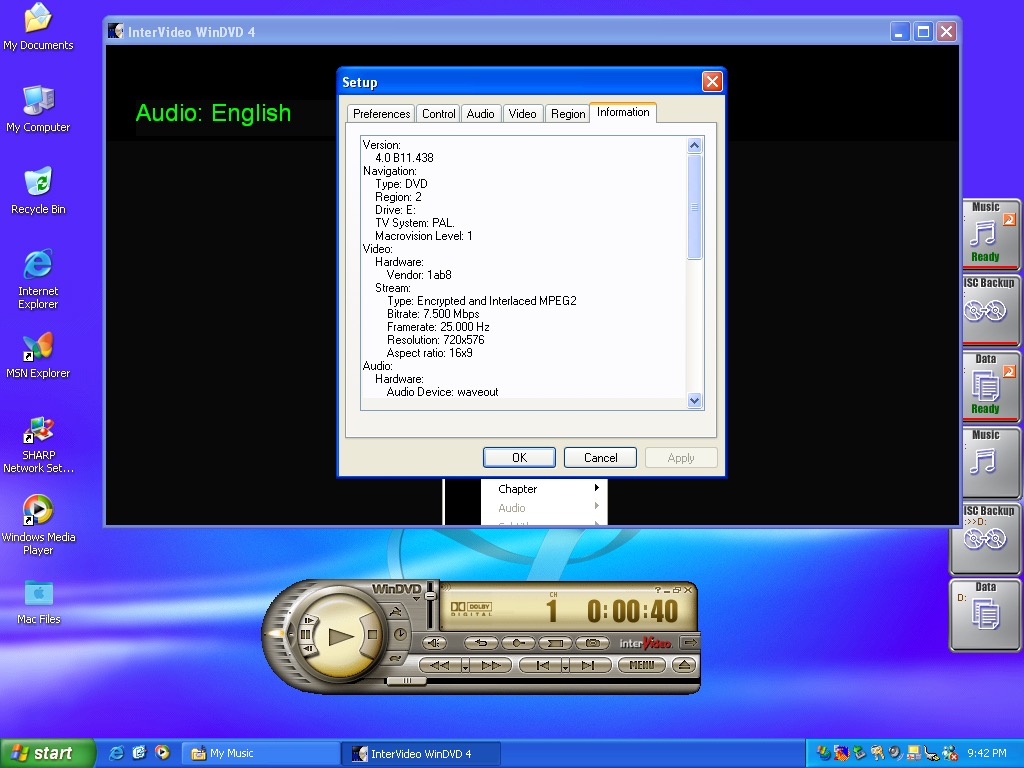
Lastly we have InterVideo WinDVD4 which serves as the default DDVD player. Amazing this worked within the virtual machine so this must provide some sort of software MPEG2 recorder. At least I thought it worked, it decoded the first frame and was then froze on that frame. The audio was still playing however and when I eventually closed, a quick shot of the last frame came up before closing the program.

Recovery Media Download – From Archive.org, This version is unlocked to function on any machine

Fujitsu LifeBook S6120

A look at the Fujitsu LifeBook S6120 Windows install, running in a Parallels Virtual machine. Fujitsu are a well known brand in Japan for Personal Computers and are no stranger in the West either, having enterprise contracts with various corporations and governments for IT solutions. Fujitsu also produced FM Townes Marty range of computers that were popular with the Japanese market and used x86 processors. 

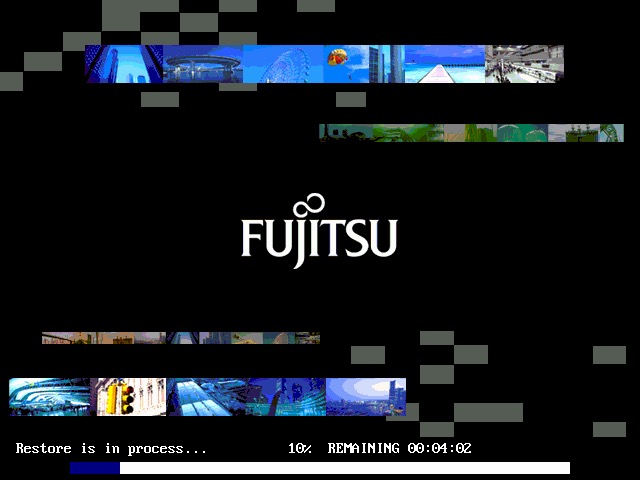
Starting the recovery process. At first i thought the graphics were corrupted, probably not a good idea to use this effect for recovery software

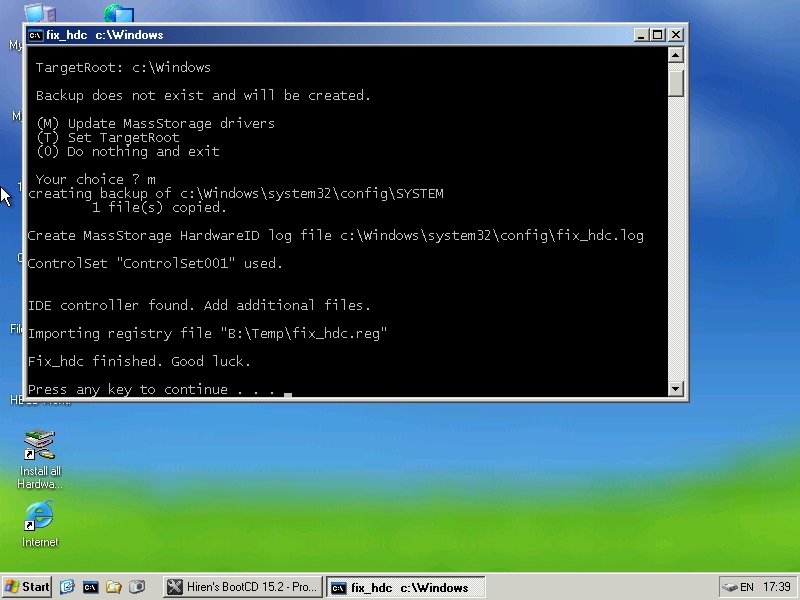
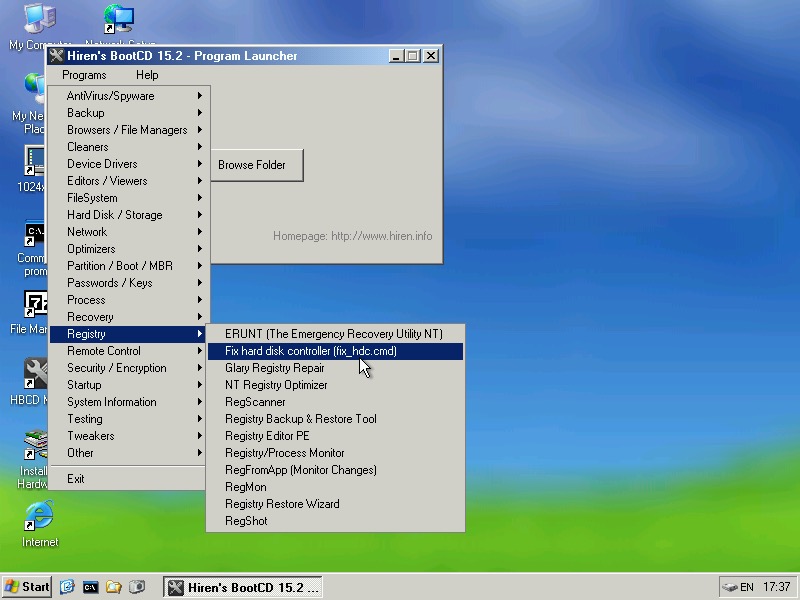
We need to reset the HDDcontroller settings in the Windows registry, to do this we need Hiren’s boot cd. Start Mini windows XP and then click on Hiren’s Menu and select Fix HDD controller form the Registry menu. If you’re stuck at this point, refer to the two screens above which will point you in the right direction

Once the console comes up, select option 2 and then enter the install directory of the Windows folder, which will be C:\Windows.

If unsure, Alt Tab out and check in my Computer to see which drive letter its mounted as

When everything is correct, you can reboot into the install

Windows XP Fujitsu

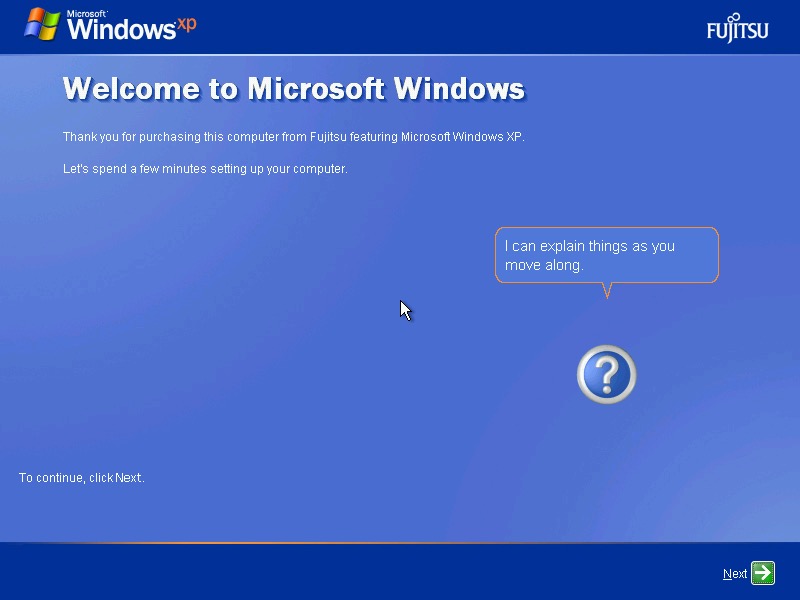
The OOBE with the Fujitsu Logo

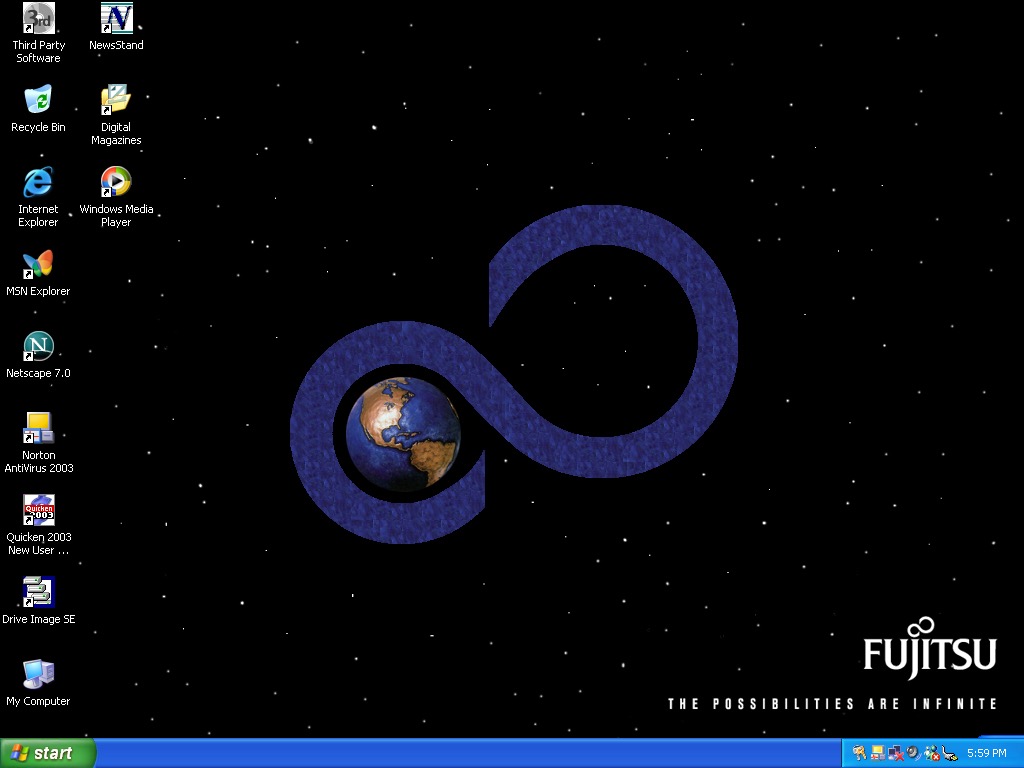
Fujitsu desktop

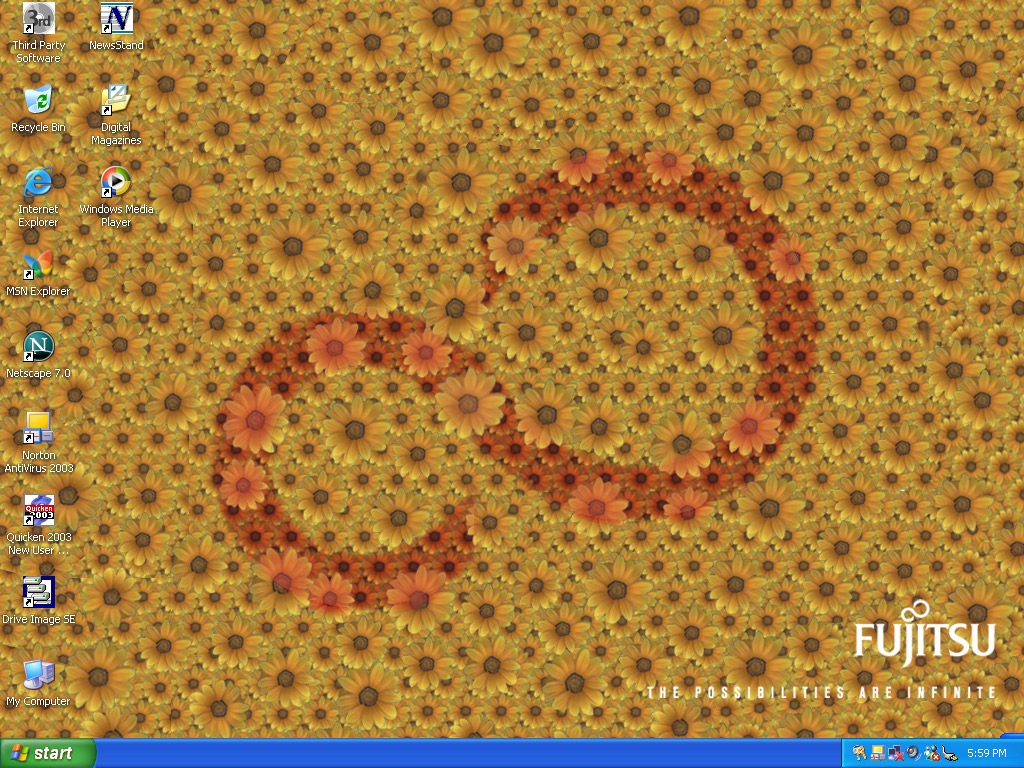
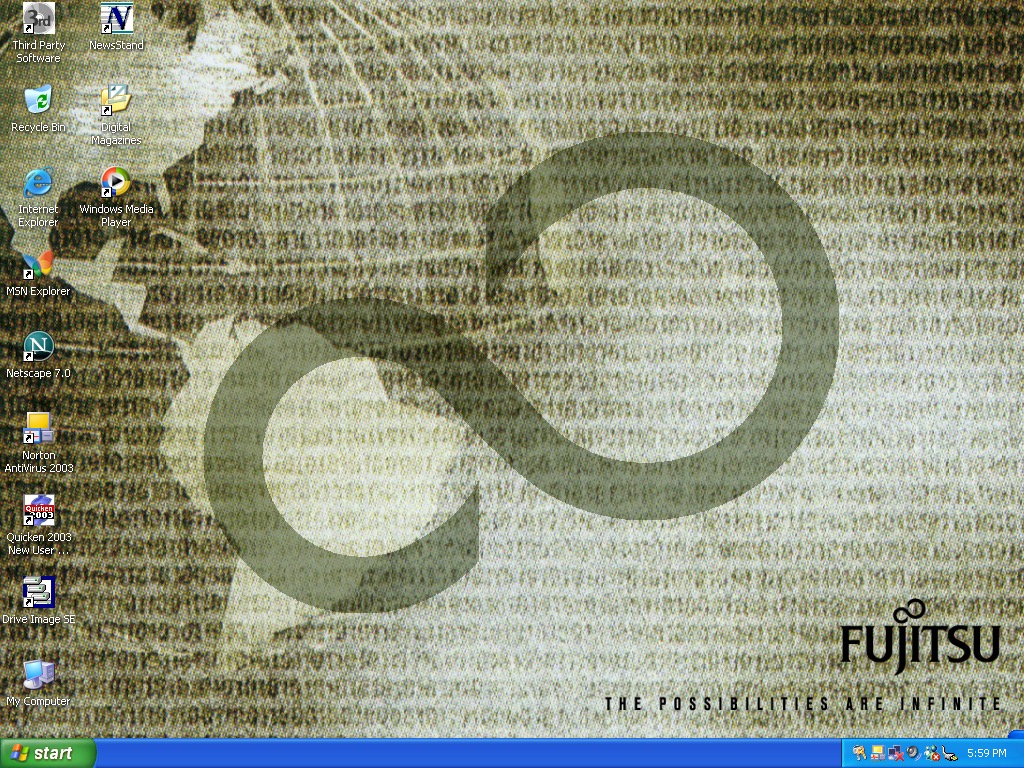
And the desktop, with a custom Fujitsu wallpaper. A few others come included that have the Fujitsu infinite logo, which reminds me of that hidden Sonic CD screen (fun is infinite)
Now lets take a look at some of the software

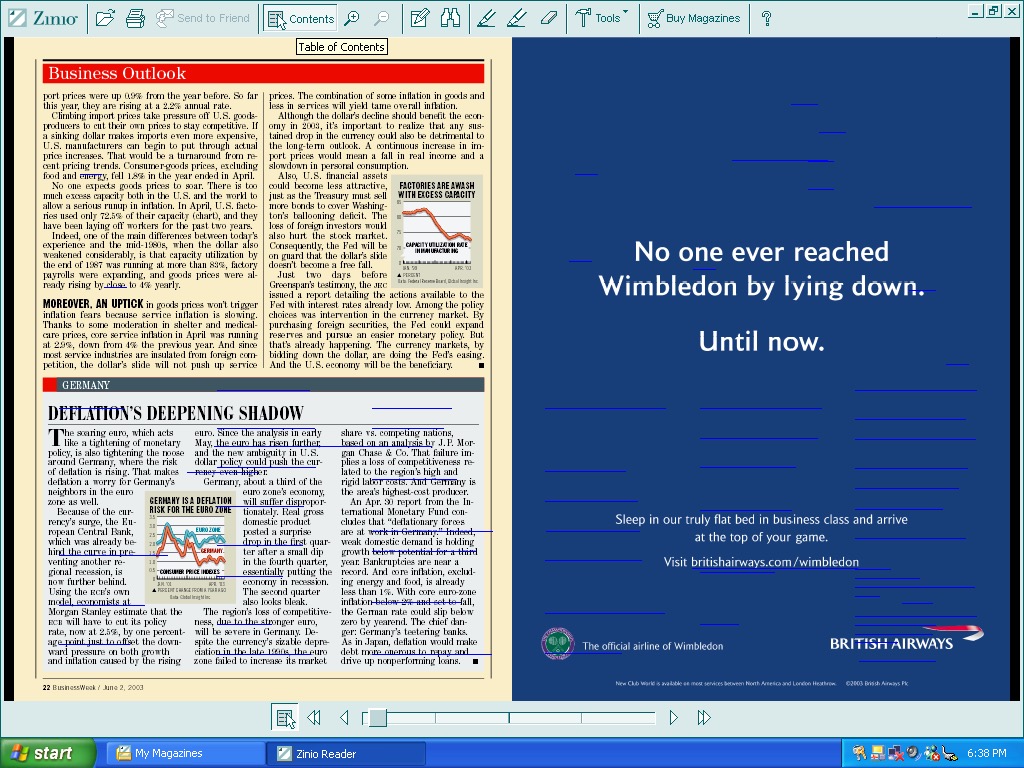
Zinio Reader, appears to be a magazine reader of sorts. Kind of like Adobe Reader but has a few documents on there already which look to be magazines.

Unfortunately whilst I can open them, trying to turn the page causes the VM to freak out and suspend with a graphics error. I’m guessing the program is trying to do something that the virtual GPU does not like. This happens quite friendly and you can see a bunch of blue lines appear when it happens.

Included magazines appear to be from BuisnessWeek, Harvard Business Review, Sporting News and PC Magazine. This service is actually still going, and you can still purchase magazines from there, although this version of the client is long obsolete.

NewsStand Reader

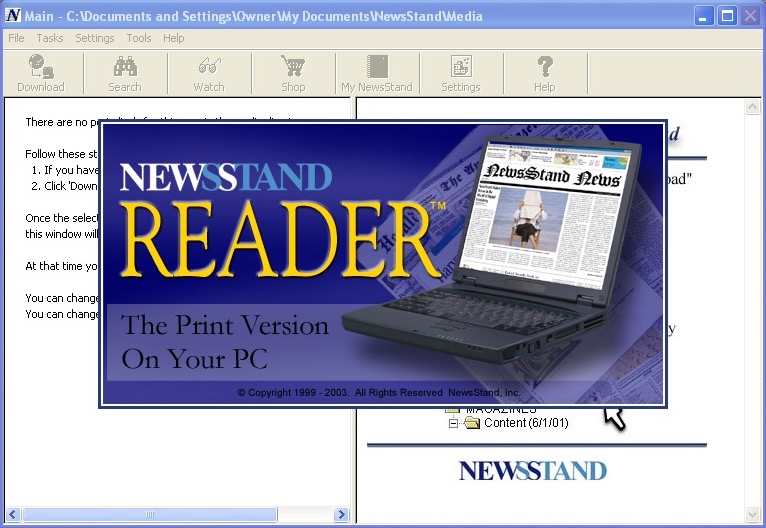
There’s also NewsStand reader, which serves the same purpose

Netscape Fujitsu

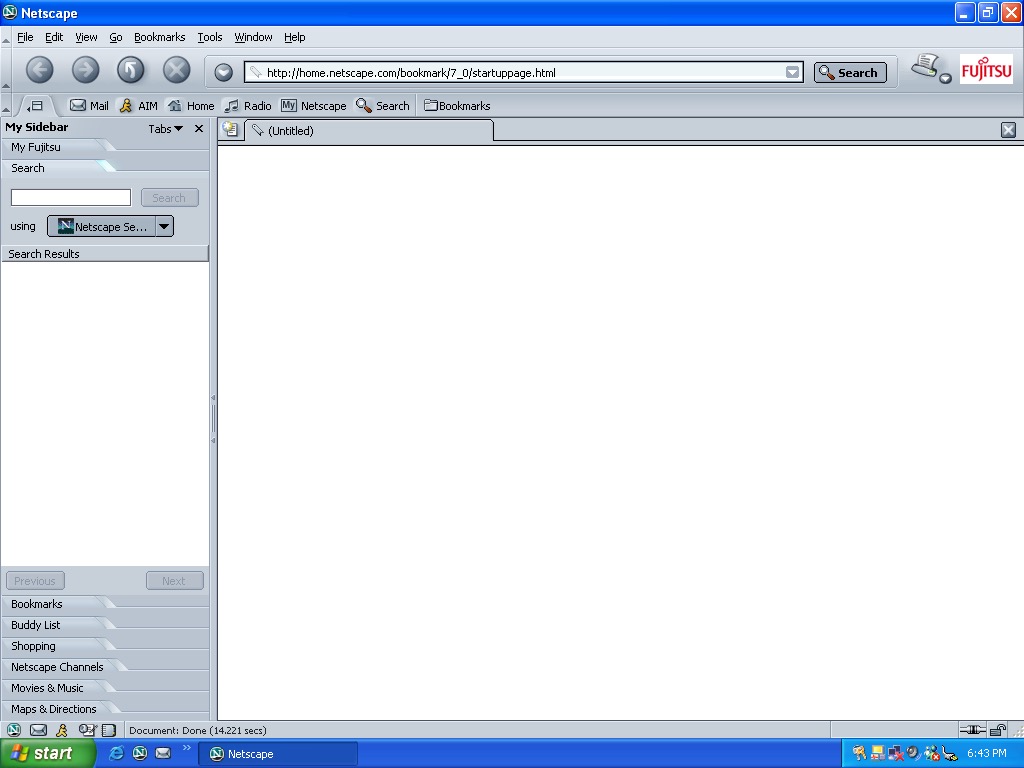
Netscape version 7 comes included, with some Fujitsu branding

Norton Antivirus 2003

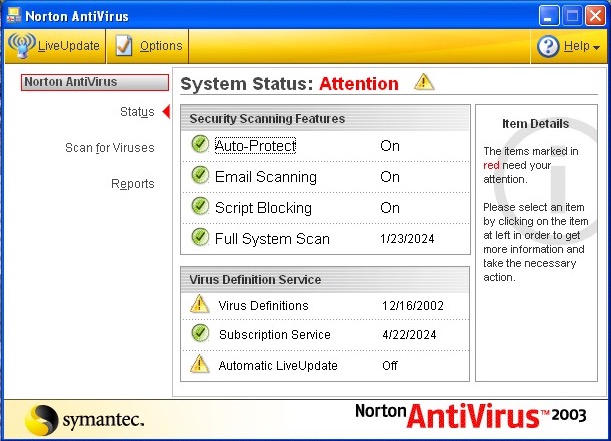
Norton AntiVirus 2003 is the security software included here. This only includes the antivirus, not the internet security suite. I couldn’t get this to update unlike the Norton Internet Security that was seen in the VAIO RG620

Veritas RecordNow DX

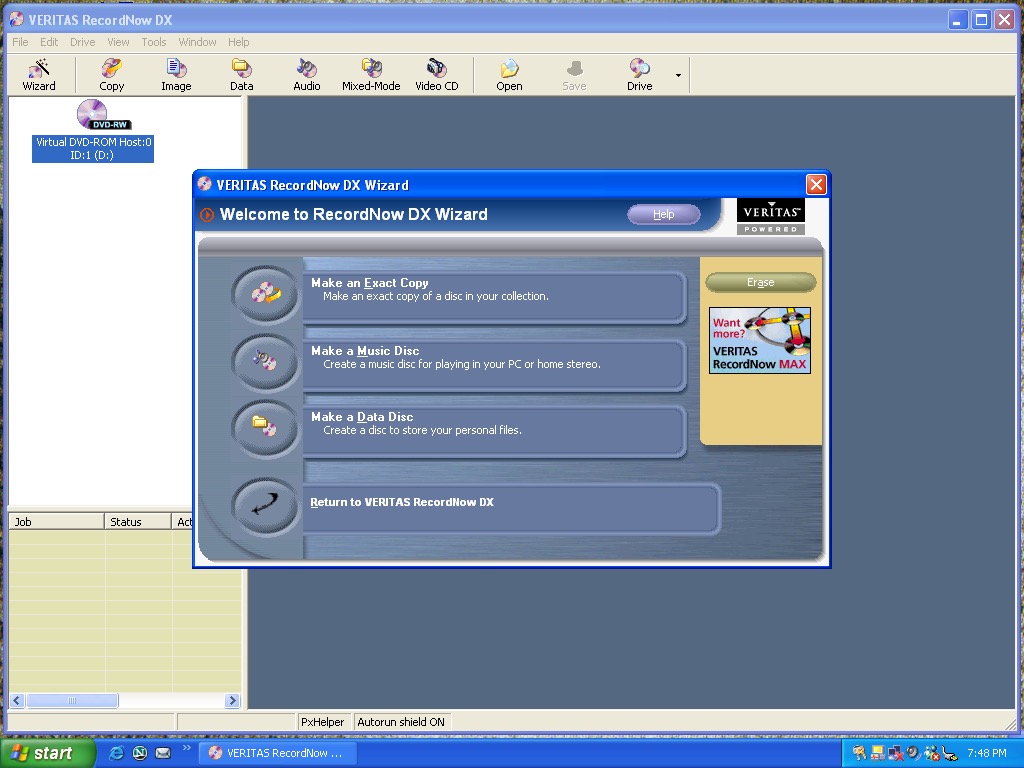
Veritas RecordNow – I’m sure this was originally made by Sonic (Sonic RecordNow!) or they might have acquired off them. Either way this is the software used to burn CD and DVD’s containing either data or music.

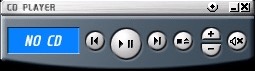
A CD player application comes invoiced that can play audio compact discs. You might think why does this exist when you have Windows Media Player installed but this is a dedicated CD pLayer application and have a very compact interface, ideal if you just want to listen to CD’s without the bloat of Windows Media Player. This only plays from the primary CD player, so connecting a USB CD drive didn’t work at first until I 69’d the drive letters in disk management so that the USB drive was the D:\ drive.

It’s a nice program to listen to music to whilst you work, and you can possibly control the playback via the media keys on the laptop itself.

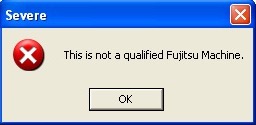
There is also a security panel application, but this does not load. Instead we are treated to this error message. Chances are its BIOS locked to Fujitsu laptops.

Microsoft Works comes included here which serves as a basic productivity suite. Im surprised this here as this class of laptops would have been used in an office environment where Microsoft Office would have been used instead.

Other software that comes with, but not already installed is Microsoft Reader and Windows Journal Viewer. This can be installed by clicking on the Third Party Software icon on the desktop which opens the folder where the installers are located

Fujitsu Windows XP

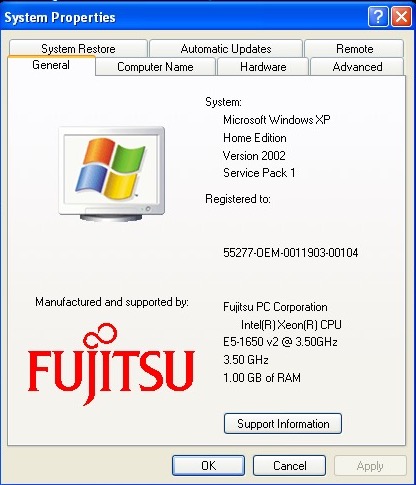
A look at the OEM branding in the system properties

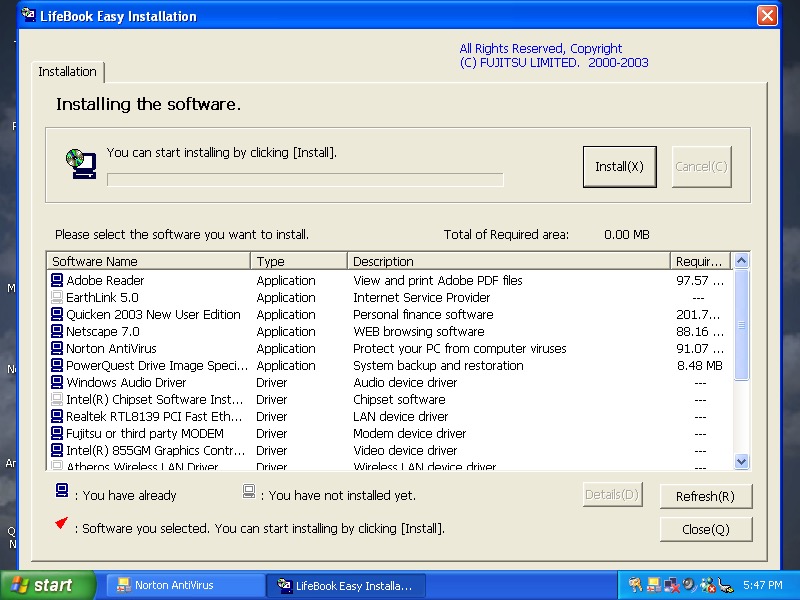
Inserting the second CD-ROM starts the easy instillation which is used to install additional software. So far everything appears to be installed already from the recovery image, though this might be used to install supplementary software the retailer might have included as part of a bundle.

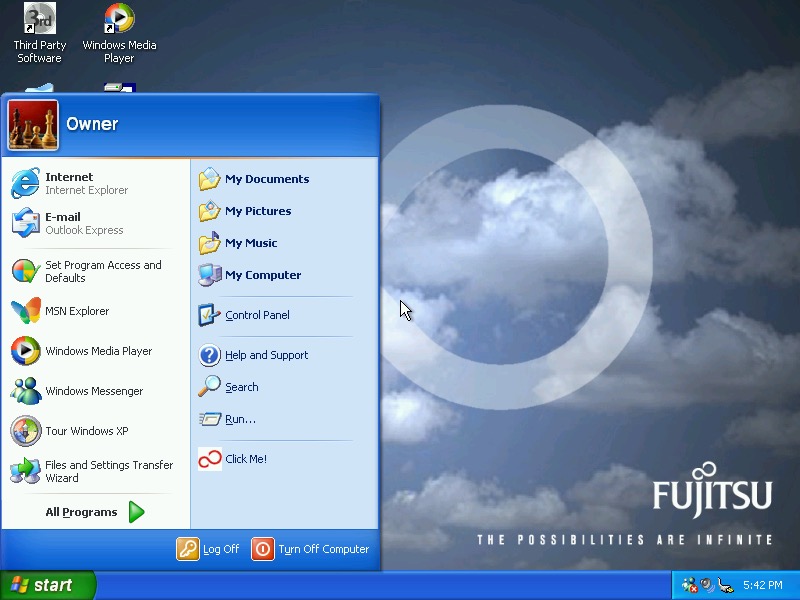
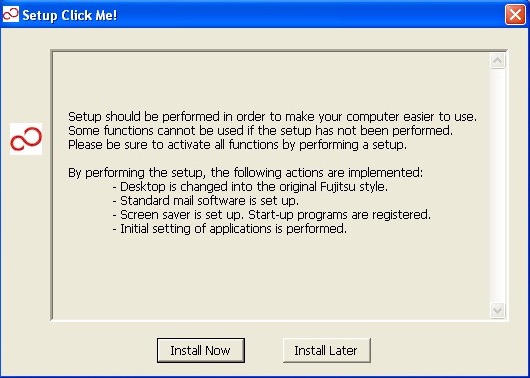
If you’re wondering what the Click Me! link in the start menu does, it displays this message and then disappears, along with the shortcut itself. Probably self terminates if it detects it’s not on a legit Fujitsu machine

Sony VAIO PCV-RX360

Another day another VAIO. This one is A Windows ME desktop PC orientated with video and multimedia features. Whilst eMachines, HP and Compaq were after the low end market with internet ready PCs, Sony hung out in the multimedia sector with their machines being built out of box for photo and video editing with its bundled software and iLink support for DV cameras.

The VAIO desktop with a cool blue background

Some remaining software that needs to be installed

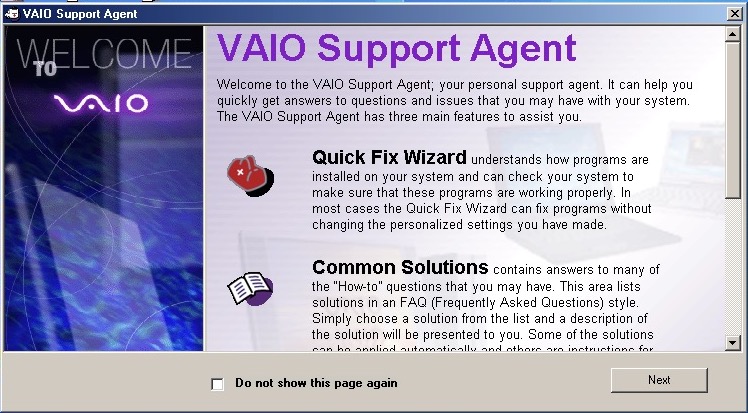
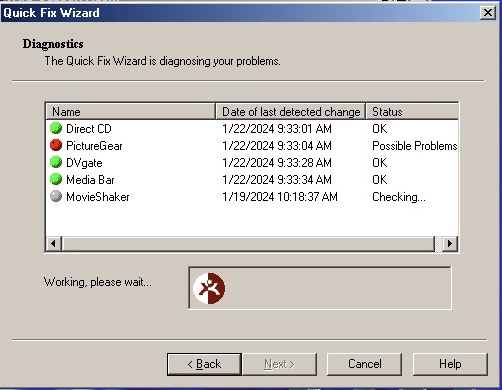
The VAIO support agent which features a quick fix wizard to diagnose problems with your installed applications. Not exactly sure what this does but it might undo any changes made to applications.

Issues with PictureGear already?

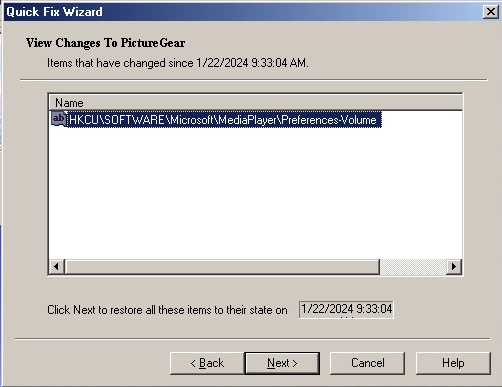
Looks like a registry setting has changed. My guess is to not mess with it unless there’s an actual issue with the software.

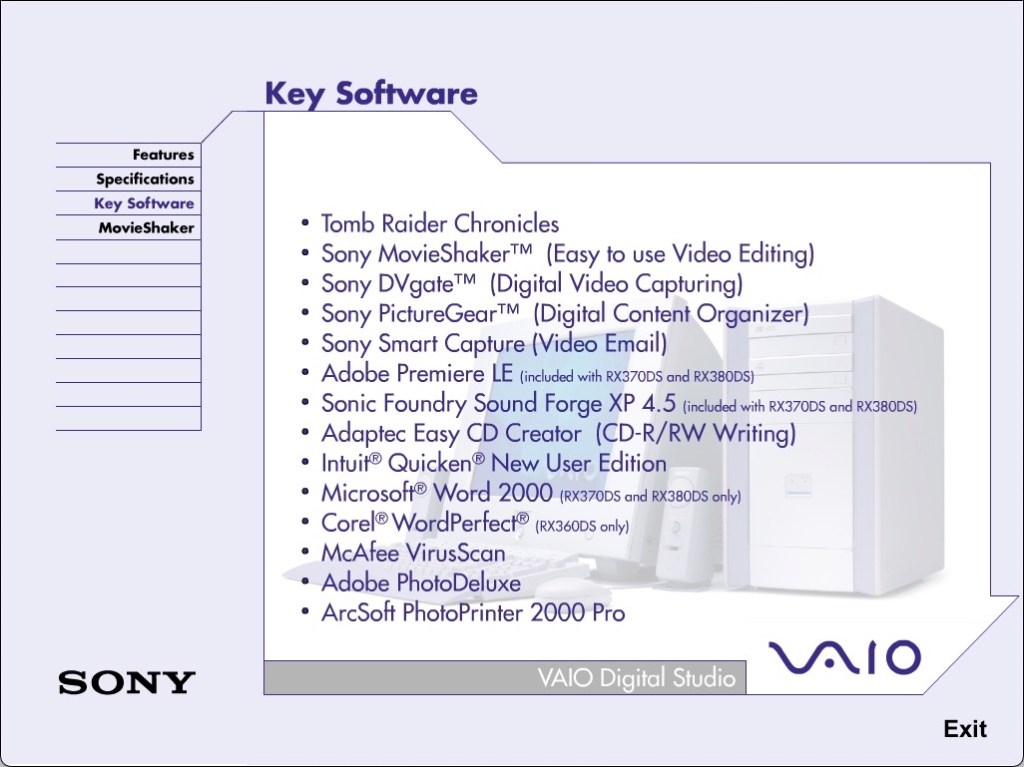
The VAIO tour which is also set as the default screensaver. This is an advertisement of the computer itself and its features and would have been used in a shop setting.

Sony Screenblast take you to a website, sadly It wasn’t archived well. According to a few older articles it was a video editing and music creation software you could purchase for editing. 

Further Information

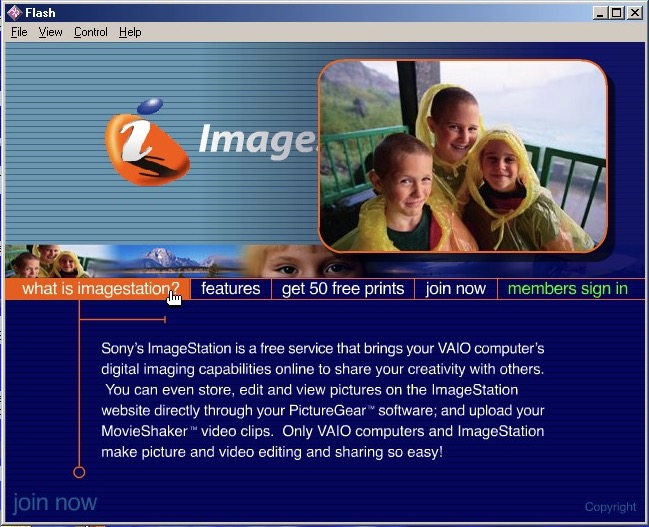
ImageStation – Sony’s solution for printing images online, like HP’s Snapfish. Photo printers were still expensive at the time.

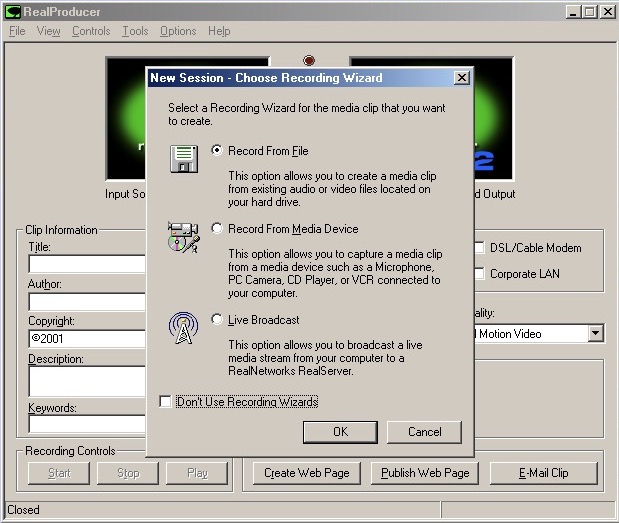
RealProducer – capture digital video or still images from a capture device

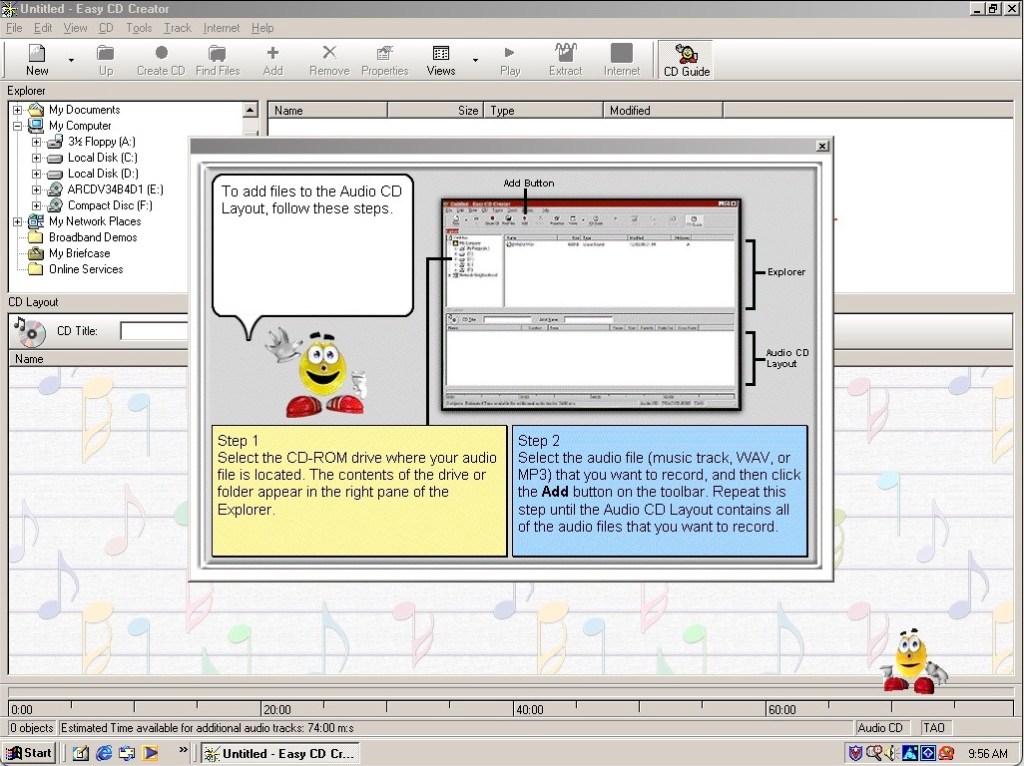
Adaptec EasyCD creator 4 – As Windows ME did not provide support for CD burning from within explore, you needed dedicated software to do that instead. This kind of system would have come with a CD-RW drive, along with a DVD-ROM drive installed as the secondary drive. You also have an assistant in the style of the Microsoft Office assistants, to guide you through the burning process.

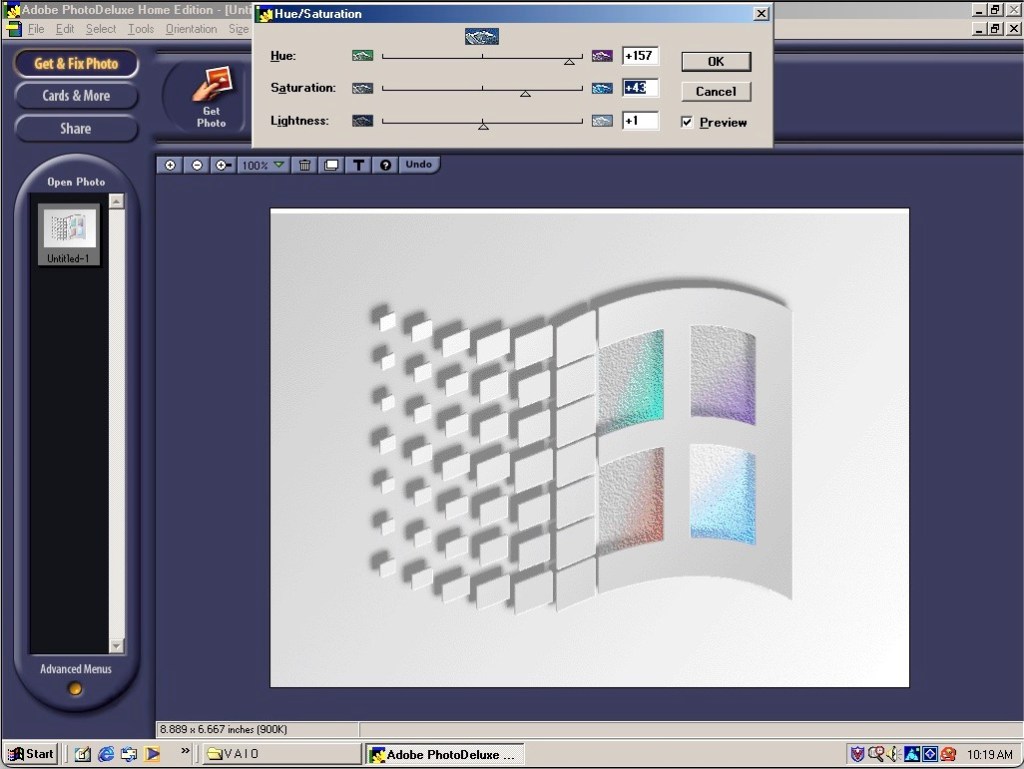
Adobe PhotoDeluxe – An entry level photo editing software for manipulating photographs and can be used to make greeting cards. It has an easy-to-use interface, making it accessible to users who were not necessarily experienced in graphic design or image editing. Basic image editing tools provided were as cropping, resizing, rotating, adjusting brightness and contrast, and applying various filters and effects.

DVgate Motion, MediaBar, MovieShaker, PictureGear and VisualFlow are other bits of software included that only runs on a Sony VAIO system, due to the BIOS check.

The system does come with Tomb Raider Chronicles preinstalled. Not the best Tomb Raider but does serve as a good demo of what the graphics hardware can do.

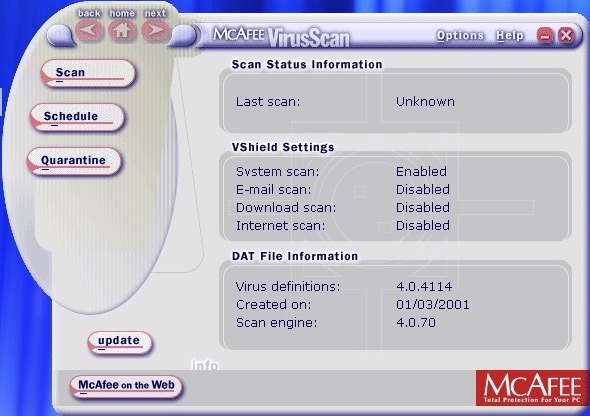
McAfee security comes as standard

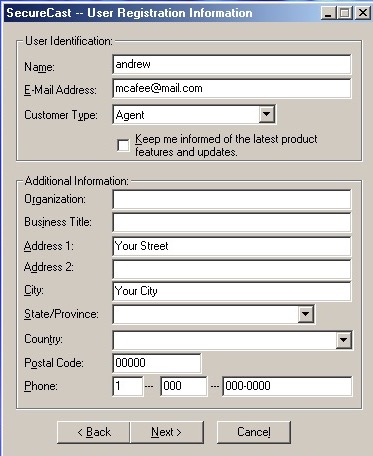
Trying to download new updated virus definitions, McAfee wants address and location details just to update.

Worth a try, but the update server is long gone

Recovery Download – Archive.org

Compaq Presario 5222

Compaq Presario 5222

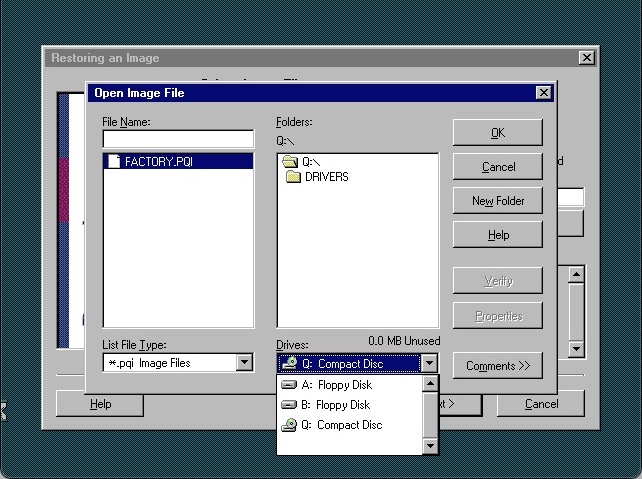
To restore the image, you need to manually select the recovery image from the explorer window, select the FACTORY.PQI from the Q drive (That’s the CD drive mapped to Q)

Password is ZZZHIND

The program can be quite unresponsive, the only thing you can do is wait until it loads.

Norton Ghost

After recovery has completed, the system will reboot into the Setup screen here you will need to enter the OEM serial key and registration details as with your typical Windows 98 setup.

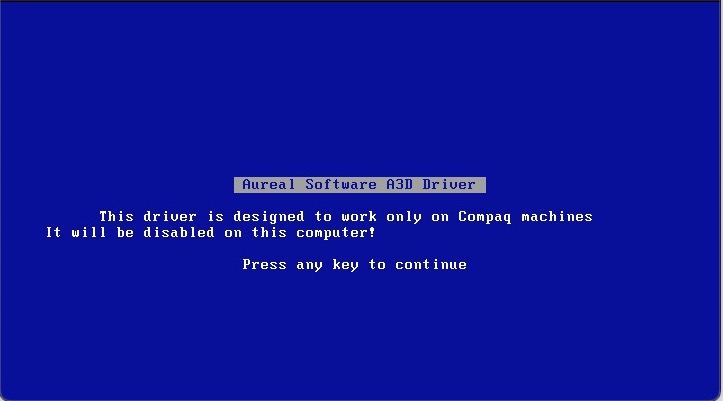
Windows starts to detect the new hardware and we get a BSOD from the Aureal driver. This ends up crashing the entire PC. Rebooting will take us back into the driver wizard but we still get blue screens due to the sound driver

Aureal

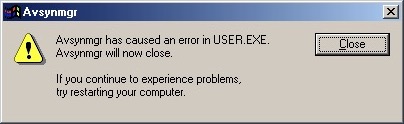
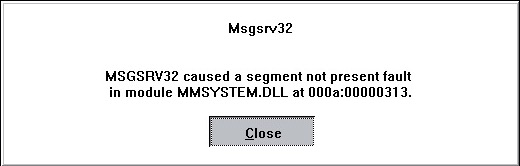
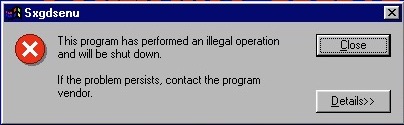
Trying to remove the old driver by booting into safe mode and uninstalling it from there, this mostly worked but then encountered a hard crash with the below:

Not sure if this is considered a fix but I ended top removed the entry from the system.ini file and that seemed to stop the crashing. Not sure what this does but hey, as long as it works

Don’t know what this thing that keeps crashing, a quick search revels some Yamaha sound driver

On the subject of sound, the VmWare sound drivers will fail to install since they expect 98SE, and this is the first edition of 98. There were further problems with installing the standard Creative driers since these VM’s use a fucked up PCI/IRQ steering which the drivers cannot handle. The solution was to edit the VMX file to remove the PCI bridges, and to manually add the legacy sound card.

Following this archived guide is what worked for me:

https://web.archive.org/web/20200808203541/https://www.howson.pro/windows-98-vmware-fusion-sound-fix/

What’s annoying is most of the online literature assumes Windows 98 is 98Se which isn’t the case for this version, so a lot of the solutions will not work. I suppose you could always upgrade it to Windows 98SE, but that’s too easy isn’t it?

Don’t forget to uninstall the Yamaha and Aureal drivers, they will cause issues with the Creative sound card. You can easily do this form the Add/Remote programs applet from the control panel

Eventually we get the system into usable state

The main desktop, its defiantly an Internet PC which means a low end Celeron/Cyrix system with a 56K modem and internet orientated software.

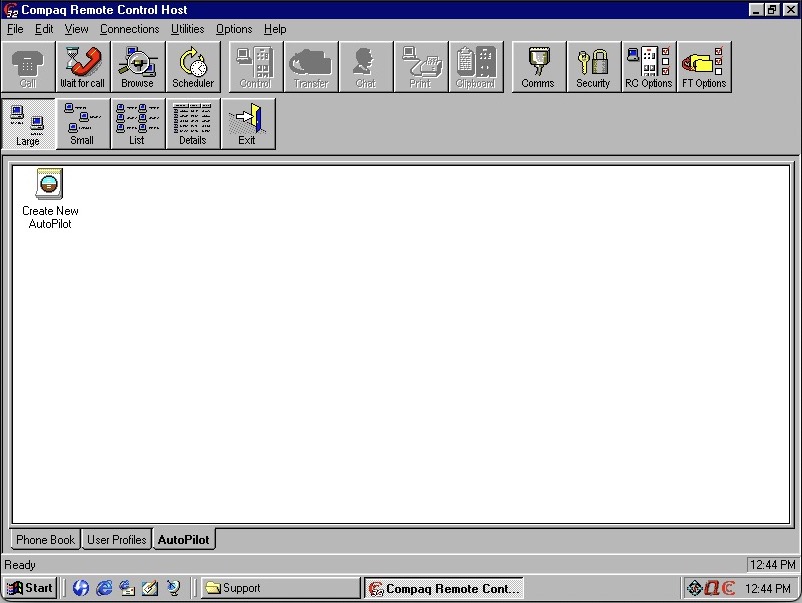
Compaq Remote Control

Compaq Carbon Copy – A remote support software. In the event you experience technical problems, you can contact Compaq who would then be able to connect to your PC and provide remote support. Looking in the software you can also use this over a LAN with other computers that have this software installed. You can also use this to transfer files and voice chat to the other user, kind of amazing pulling that off on a dial up connection.

Netscape Communicator 4.06

Netscape Communication also makes an appearance, this appears to be a customised Compaq version that has additional bookmarks added by Compaq. The Quicken 99 is included along with Microsoft Encarta Encyclopedia 99, this seems to be very common with OEM systems. Encarta was like our Wikipedia of the 90s, only it wasn’t publicly editable since all the data was held on the CD-ROM.

This version of Netscape also comes with support for the Cosmo VMRL plugin which allows the browser to display 3D models and graphics within the browser.

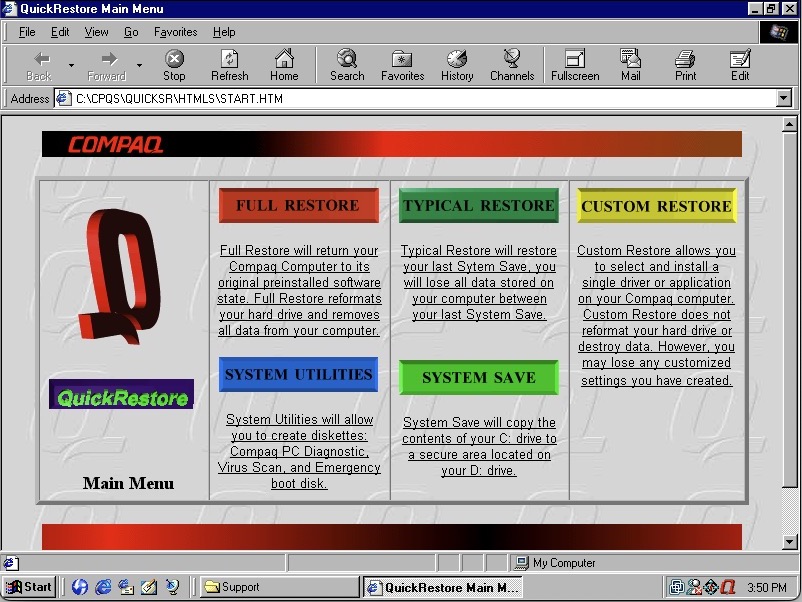
Compaq QuickRestore which is a utility to restore your system back to factory defaults, and to create boot disks. This interface is very 90s, even with the spinning Q logo.

Intel Video Phone

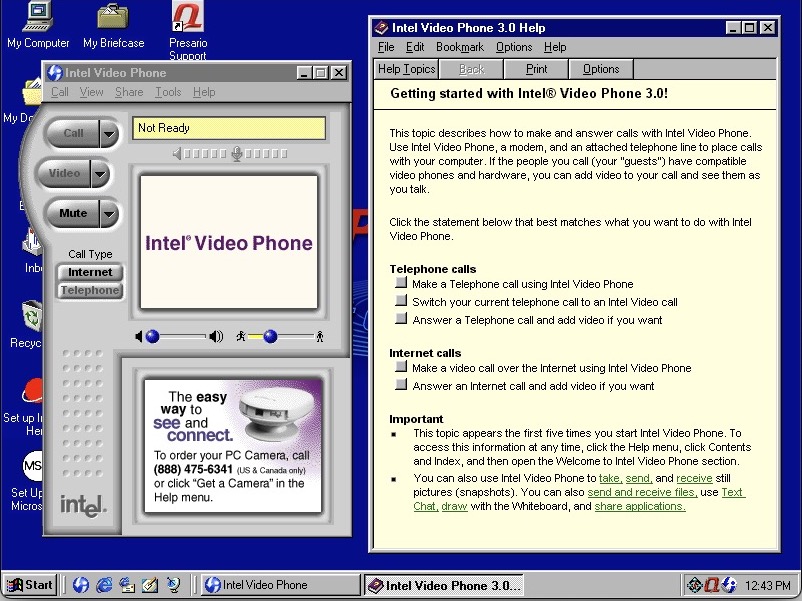
Intel Video Phone, to make visual phone calls. This software typically came with Intel branded webcams. Now I’m not sure if both users had to be running the same software or if it was comparable with other video phone software like VDOPhone, I believe there was a standard (H.263) butI’m not sure how well adopted or supported this was. The help file does reference calling recipients with other software so it might have been compatible in that regard.

You can also make traditional phone calls, though not when your PC was connected to the internet.

I don’t believe this would have worked with 3G phone when they arrived, as they would have used the 3GP standard.

Compaq’s easy access utility lets you adjust the soft keys that are featured on the Compaq keyboard. You can configure this to point to a specific website or program. By default this would have launched your homepage or opened your default email client.

Compaq easy access

There is also a tray icon with a menu that can be brought up by right clicking on it. This appears to emulate the soft keys on the keyboard.

The is an onscreen display that appears when you adjust the volume. This can be adjusted or disabled altogether and is similar to the OSD of a regular TV of the time.

And that’s it, there is additional software like the Yamaha and Aureal sound programs, but these won’t function without the actual hardware being present.

HP Pavilion 6835

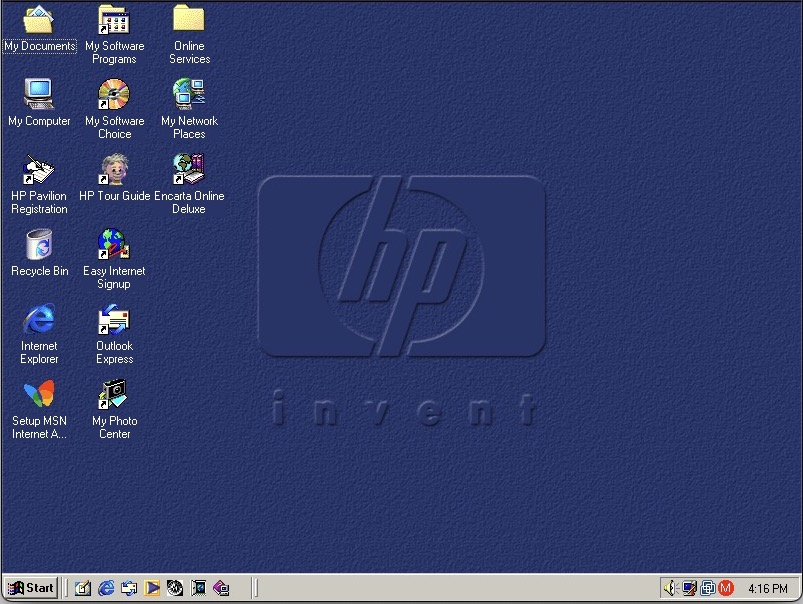
The OOBE can be tricky to navigate without the proper graphics drivers, but if you use the Tab keys to navigate, and then press c to accept (It’s underlined) the terms and conditions, it should let you progress through. The main issue here is the lack of graphics drivers, and the HP OOBE assumes you are running at 800×600.

Can this wait until I’ve installed the graphics drivers? The dude at the bottom left is HP’s tour guide and assistant that has a habbit of popping up whilst you’re trying to install stuff.

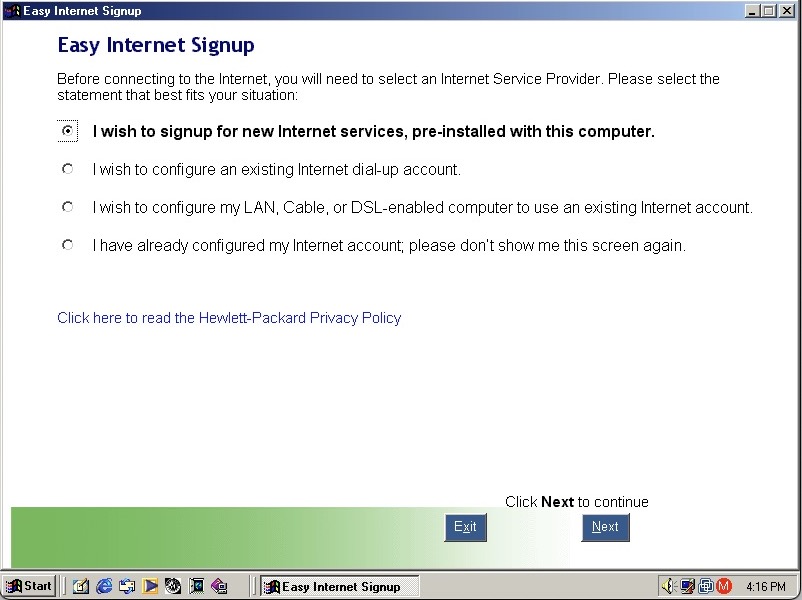
HP Internet setup utility that helps you connect to the internet, which would most likely be a dial up connection unless you were lucky enough to have a ADSL or Cable DOCSIS connection.

HP’s own assistant. Its like they saw Clippit and went ‘Hold my beer’

As you can imagine it’s designed focusers who are new to computing and need assistance in navigating Windows. He sort of acts as a tutorial guide and clicking him can be used to ask about either the desktop, software or internet applications. Unlike the Microsoft Assistant, these questions are fixed, you cannot type in a question.

MusicMatch Hp

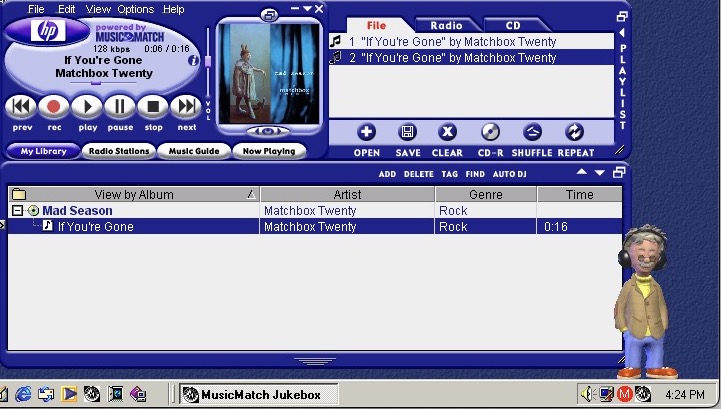
MusicMatch Jukebox with custom HP branding, MusicMatch was an MP3 and WAV music player that also supported internet radio streams. Main alternatives were RealPlayer with RealAudio Jukebox, iTunes/Quicktime and of course Windows Media Player which is still included.

MusicMatch 2000
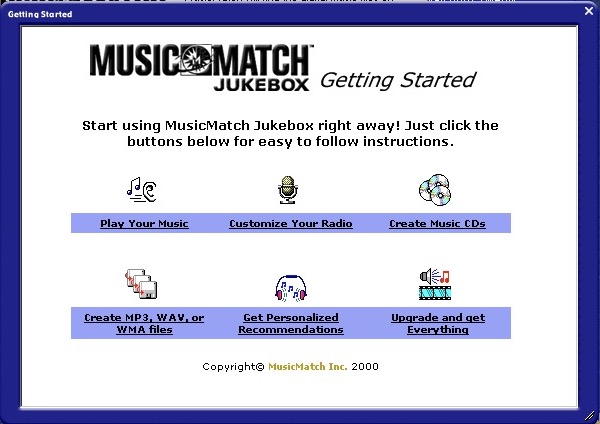
MusicMatch start screen

A song comes included, If’ You’re Gone by Mad Season, its only a short 16 second clip compared to the Beck Sample that Windows Media Player provided. A nice touch is the HP assistant will put on his headphones whilst the music plays.

The Radio guide is long obsolete, I wonder what streaming format was supported?

Hp Photo Center

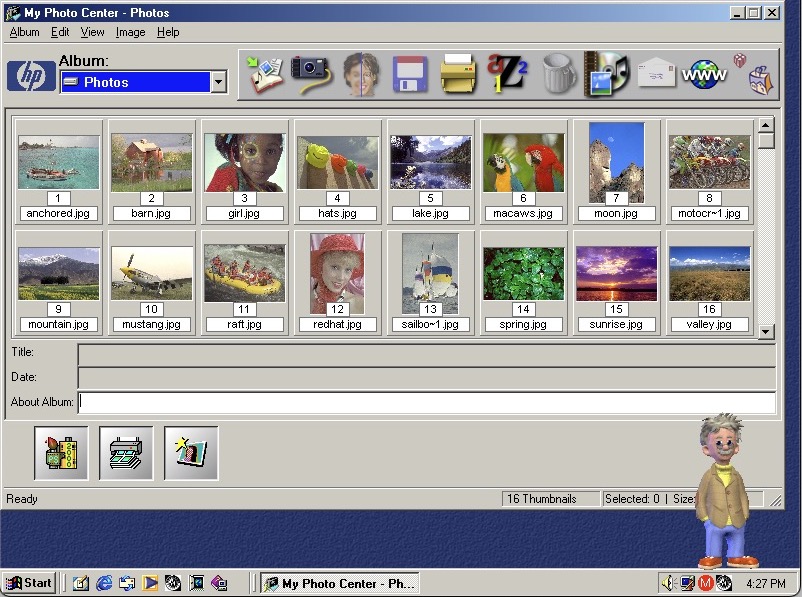
HP PhotoBase – A photo editing application. Here you can import photos off a supported digital camera, which were becoming popular at the time. You can edit photos (like removing red eye), and print them to a photo printer or email them as an attachment.

ArcSoft PhotoStudio 2000 – This is the default image editing applications and opens when you try to edit a photo in PhotoBase.

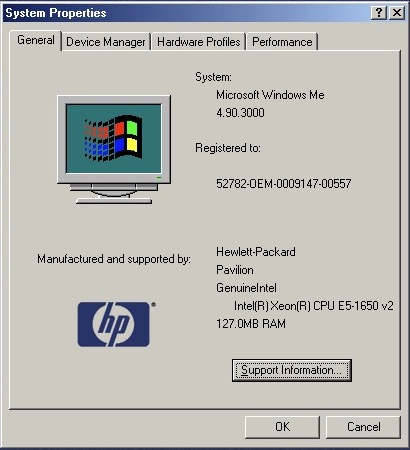
System properties with the OEM logo

Start Menu showing the included programs

Microsoft Money 99

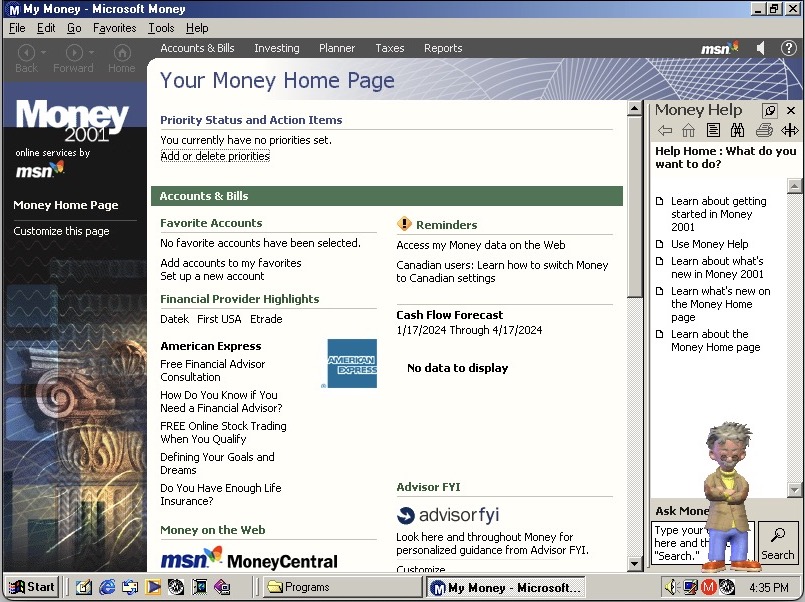
Microsoft Money, a standard on budget home PC’s of the era

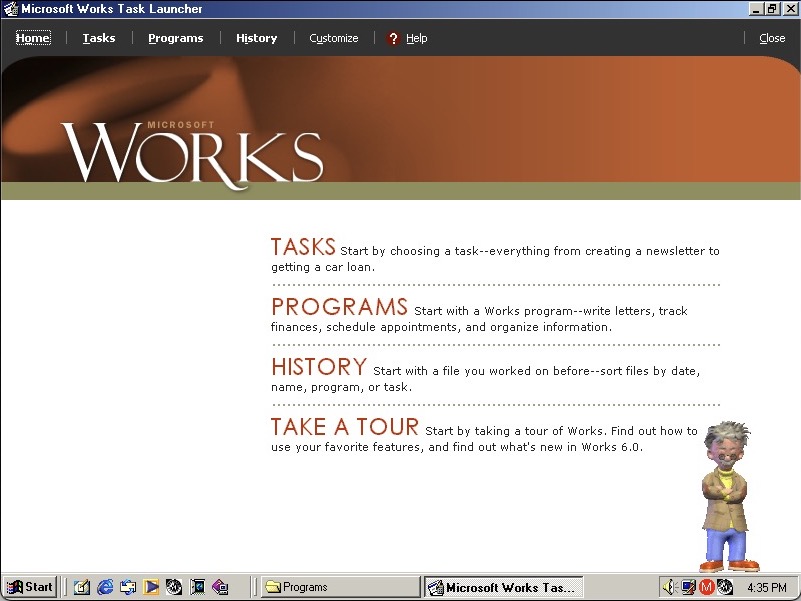
Microsoft Works also comes bundled as a basic productivity suite, version 6

HP Help & Support Center that shows information of the system. Sadly it crashed when tying to access the other tabs

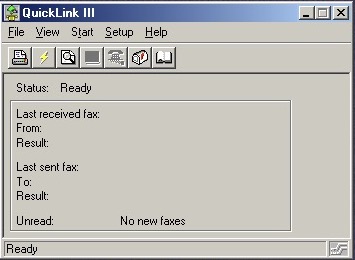
QuickLink III looks like modem software, we don’t have one so there’s limited use. This would have been used to send and receive fax’s. This was a common method of sending documents over the telephone line, before email attachments became more common.

Trellix Web

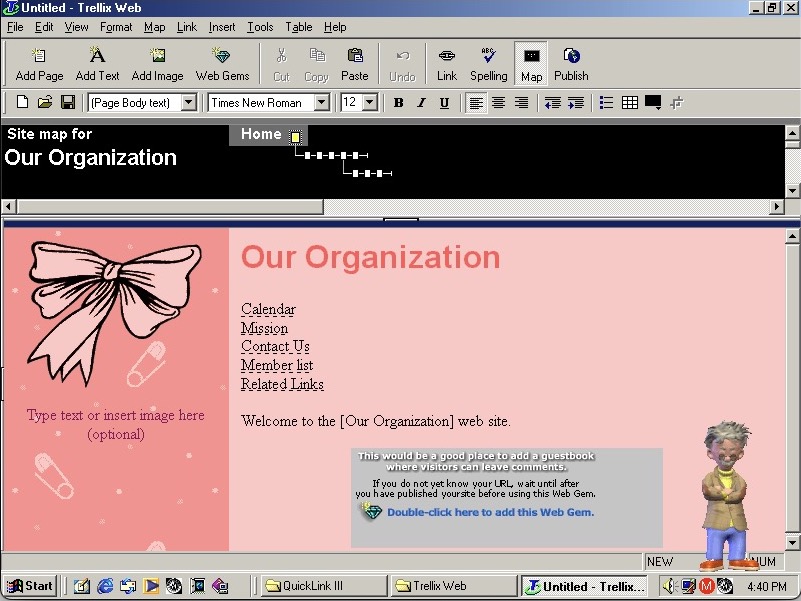
Trellix Web is software to create your own websites, the same as included on a few eMachines installs

Adaptec Scandisc

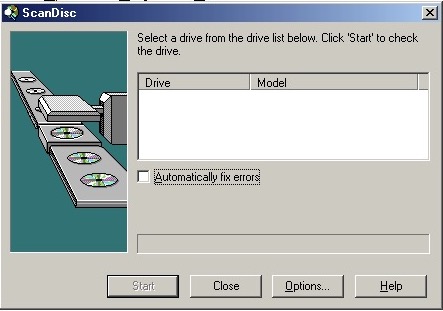
Adaptec DirectCD is included, I guess this system would have come with a CD recorder so you can burn the songs acquired from Napster. Nothing shows up when using the VMWare drives. I connected a Usb external DVD drive writer and passed it through VmWare but this wasn’t detected. Turns out we have an issue with the USB PCI device. Calling it ScanDisc is going to cause confusion with the disk checking utility on Windows, not sure why they named it that.

IBM ThinkPad i1400

A compact netbook laptop released around 2000. Lets look at a recovery image for that laptop.

Something’s gone wrong, where are the start menu items?

The Program Files folder does not look good…

Well for some reason the install script that ran after you reboot wasn’t converting the directories back to the respective lengths, so they were stuck at 8 characters. I believe this is called 32-bit file access?

The only way to fix it was to reformat the hard drive as FAT16 and then retry the restore process again. Eventually this worked but we are limited to 2GB, though we could later convert to FAT32 and expand the partition back to 8GB. I can’t image they would have used FAT16 on the actual laptop since it came with a 4.3GB hard drive, according to a few archived product information pages. Might be a quirk with the recovery utility.

Also for your own sake, If you’re using VMWare make sure you are using hardware version 6, as using later versions means you are stuck having to install a bunch of PCI to PCI bridges. I swear there are 30 of these to go through and Windows 9X always wants to search for a driver for it. The later hardware versions offer no advantage for operating systems this old.

Post Install

After a few driver issues, the sound drivers were not installed automatically but a separate driver install is available here for VMWare guests – https://archive.org/details/win95-98-driver

There’s an OOBE registration process where you can fill in your personal details to personalize your install. This is only available in VGA since this runs before we can install the VMWare SVGA drivers.

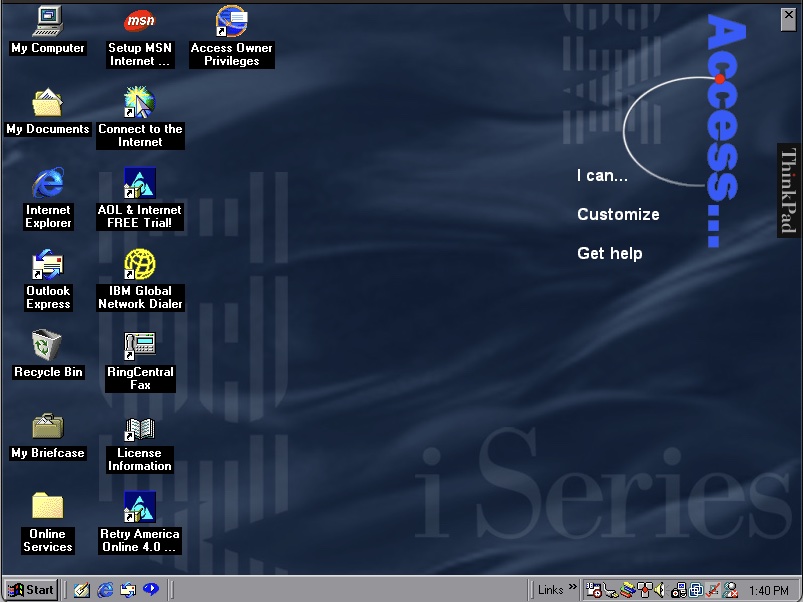
Once we are at the desktop you can see the Access Thinkpad which resides on the desktop and gives access to common programs and functions depending on what you want to do. Clicking on I Can will show you different tasks like Writing a Letter or Send e-mail which will open Outlook. This makes the system easier to use as a newbie might not be aware of Outlook but might want to send an email that they have heard of. Power users might also find this useful as a shortcut to quickly send an email. Some links will open help dialog boxes that provide further information.

If this is annoying or you prefer a traditional desktop you can close this via the X in the right corner

Also regarding the wallpaper, it’s a very corporate blue style background that would expect to find in your typical office. 

As with other IBM installs, you also have custom colour schemes, wallpapers and sound schemes.

For security we have Norton Anti-Virus 5.0, which the virus definitions are dated March 1999. I wonder how this fares against the common malware/worms of the era. Like other Anti-Virus programs it will run in the background and scan files automatically that could be suspicious. There is also a LiveUpdate utility to download new virus definitions.

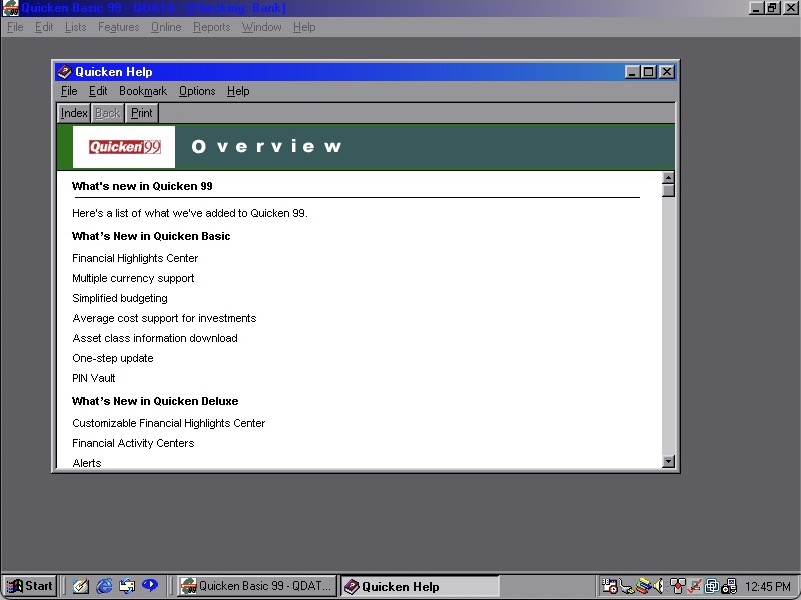
Quicken 99 also comes included for our financial needs

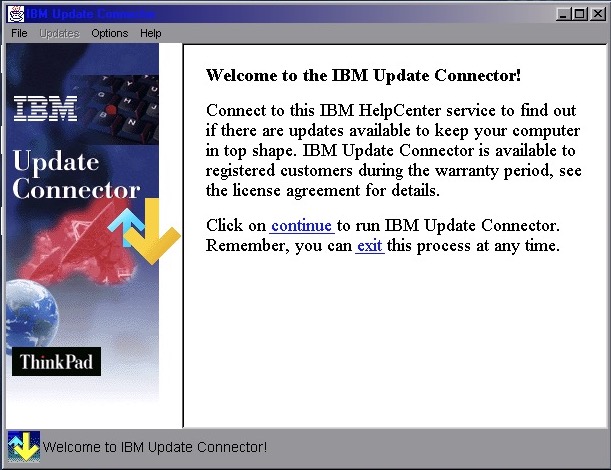
IBM Update Connector makes another appearance, this would check for driver and software updates for the included IBM software. Not sure if it supports Windows updates since you could use Windows Update for that.

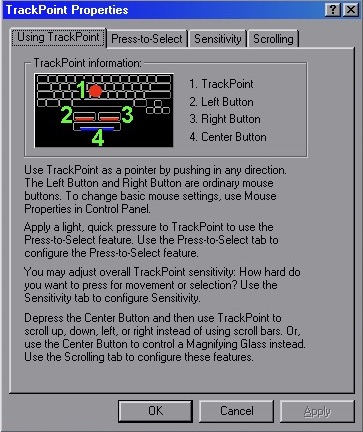
TrackPoint properties lets you view and adjust the features of the Trackball which was commonly unique to IBM’s ThinkPad as an alternative to the trackpad. Here you can adjust the sensitivity, enable the press-to-select feature and adjust the scrolling method.

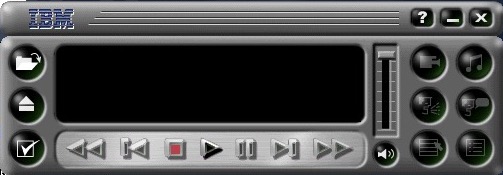
Mediamatics DVDExpress , enabled you to play back DVD’s which would have been a very high-end feature for 1999. This would have required some sort of MPEG2 decoder or accelerator since processors of the time couldn’t decode this software, so it wouldn’t work within VMWare.  It looks to be a custom branded version with IBM logo’s added on.

Features of the software include parental control that works off the age rating of the disc, and the ability to change the region of the DVD drive. There is also a 256 colour mode, cant imagine what that would look like.

IBM Global Network Dealer lets you set and configure different phone numbers or internet providers to dial out to, back when dial up was the main method of using the internet.

One observation I found is the Windows Explorer windows are designed to be as minimal as possible since this laptop had an 800×600 screen.

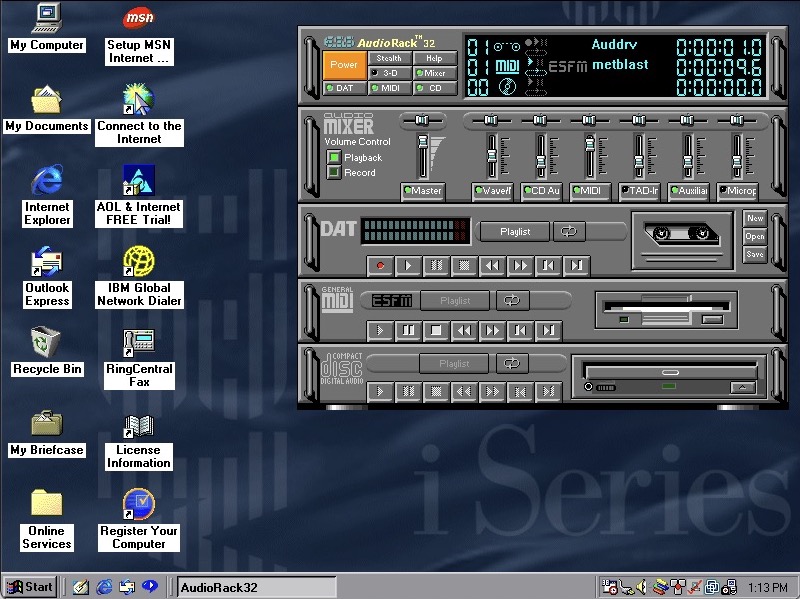
ESS AudioRack 32 – lets you play MIDI, CD music and DAT tapes? Clicking on open brings up an open dialog box for wav files. Despite using the VMWare SoundBlaster, this appears to work well for playing MIDI and WAV music files.

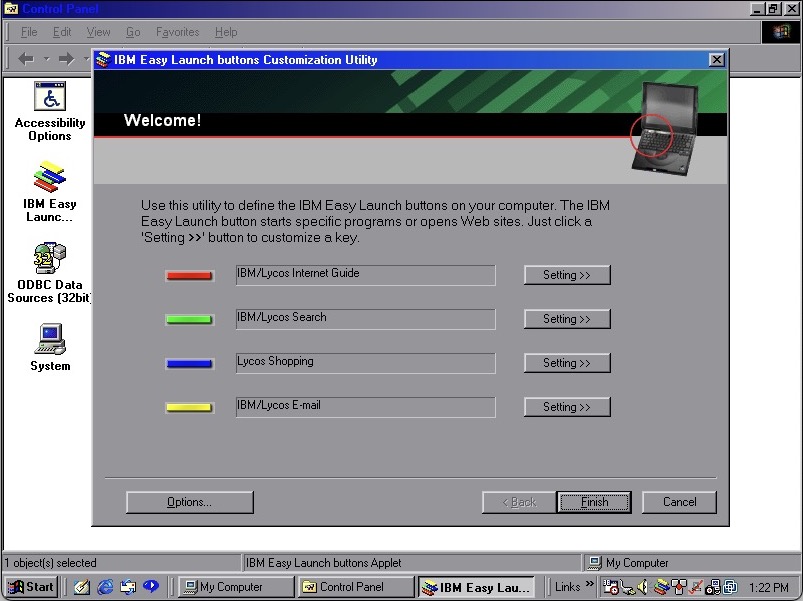
IBM Easy Launch Buttons, these act as shortcuts to open preferred programs or links. They use the same colours as Teletext/fastext keys found on televisions in Europe with the red/green/blue/yellow that correspond to a function. When a button is pressed, an onscreen text of the command appears on screen in bright green, simulating the OSD on some older Sony CRT TV’s of the time.

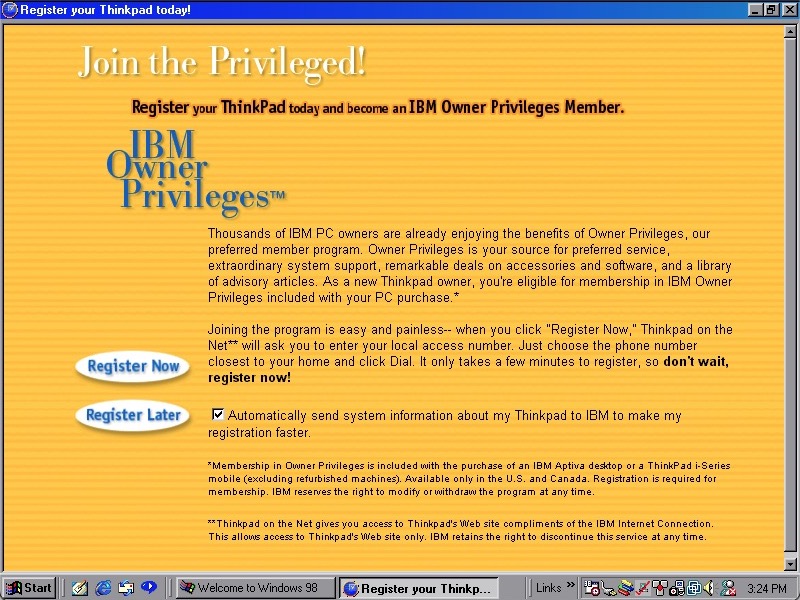
How to register your ThinkPad model, this would have given discounts in purchasing software from IBM, probably Lotus SmartSuite office.

Checking for updates using a restored version of the Microsoft Update, Using windowsupdaterestored.com

Other software included is RealPlayer G2/v6, RingCentral Fax and Config Safe. Many of these have been covered in a similar install.

Sell Also

Recovery Image Download – On Archive.org, unlocked to work on any system

Information on ThinkWiki