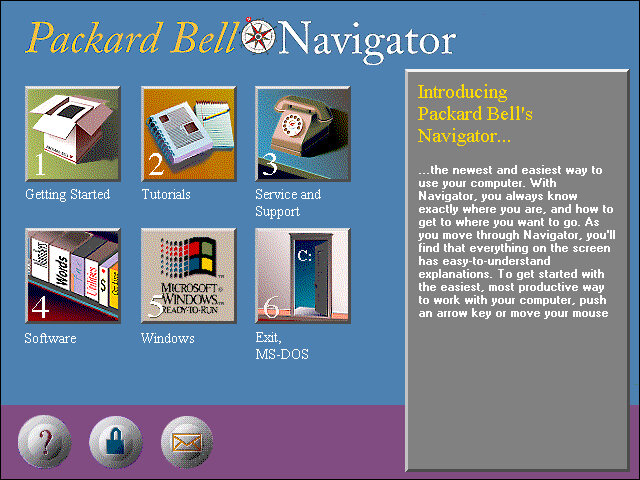
A Packard Bell Windows 3.1 install

First hurdle we get to the hard disk recovery key, this is a six digit number that identifies the SKU model of the computer, and dictates which software will be restored along with the needed drivers. 555251 was the one I had used, but you can find a list of them on the CD-ROM drive itself. Simply navigate to the BU\A\ directory where you will find a list of SCR files with the number titled in the file name. These can also be opened in notepad or any text editor and will list the files that will be restored.

For 86Box I used the Packard Bell PB410A as the motherboard which comes with an onboard video card (Headland) and uses an Intel 486 class processor.

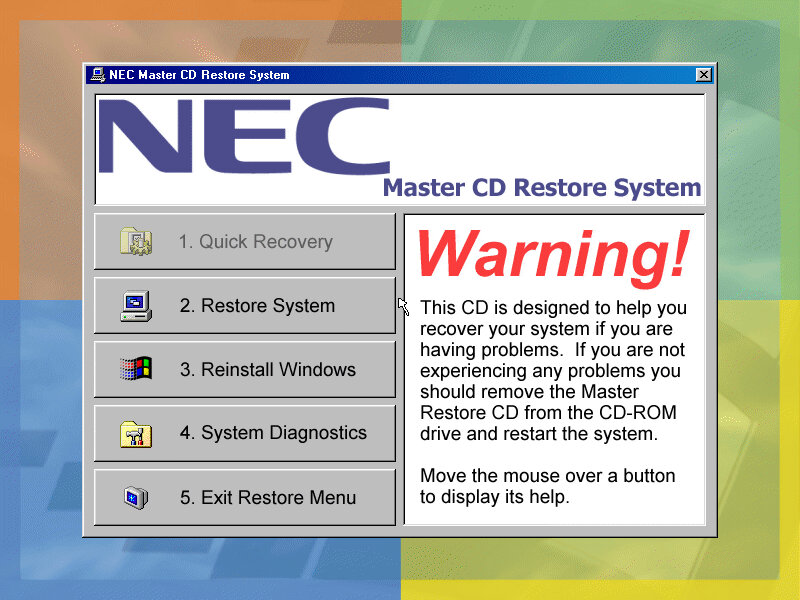
Running the recovery application, you may have to specific a NEC drive in order for the recovery to work. As this motherboard only has one IDE channel, the CD-ROM drive was placed as a slave drive. Its likely Packard Bell had used one of the propriety CD-ROM interface that were commonly used from around this era. Panasonic, Sony, Philips and Mitsumi all used their own CD-ROM interface as opposed to IDE.

First hurdle we get to the hard disk recovery key, this is a six digit number that identifies the SKU model of the computer, and dictates which software will be restored along with the needed drivers. 555251 was the one I had used, but you can find a list of them on the CD-ROM drive itself. Simply navigate to the BU\A\ directory where you will find a list of SCR files with the number titled in the file name. These can also be opened in notepad or any text editor and will list the files that will be restored.
One caution is to ensure the video card being used matches what you are emulating, a Cirrus Logic driver wont go very far on a VM running a Headland video card. The soundcard driver will also throw up an error as no emulator currently support the soundcard that Packard bell had used, but we can easily uninstall it and add our own, though some soundcard utilities will no longer function.

Looks like its expecting to use a Panasonic CD-ROM drive, likely a Matshuita CD interface drive.
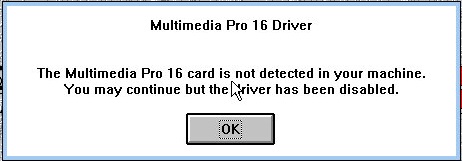
Sound card error, not much we can do about that
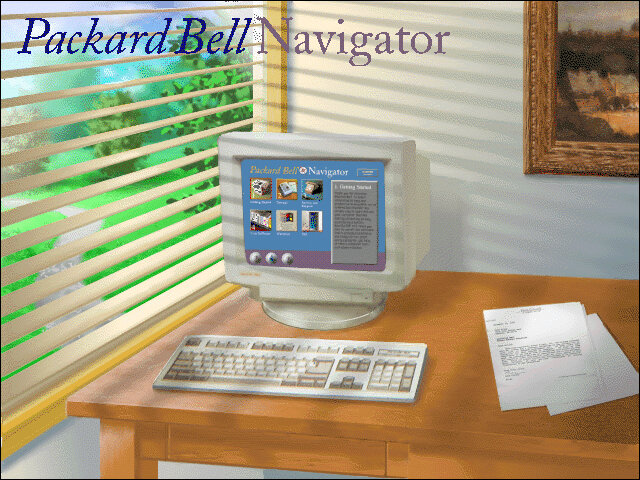
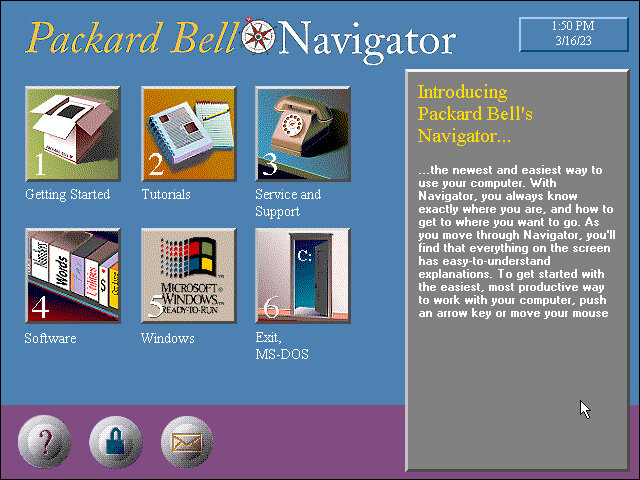
The Packard Bell Navigator which was an alternative user interface to make it more appealing to use a computer for the novice user. It serves as an alternative launcher to install applications, though the Windows 3.1 interface is still included and can be accessed via a dedicated option on the main menu. Launching an application will run it in the standard Windows 3.1 interface.


There were many attempts to make computers more user friendly by incorporating a dumbed down user interface, one that comes to mind was RM Window Box which was a user interface targeted towards primary school users, and allows teachers to manage the programs installed on the computer whilst restricting access to the Windows system for the students.
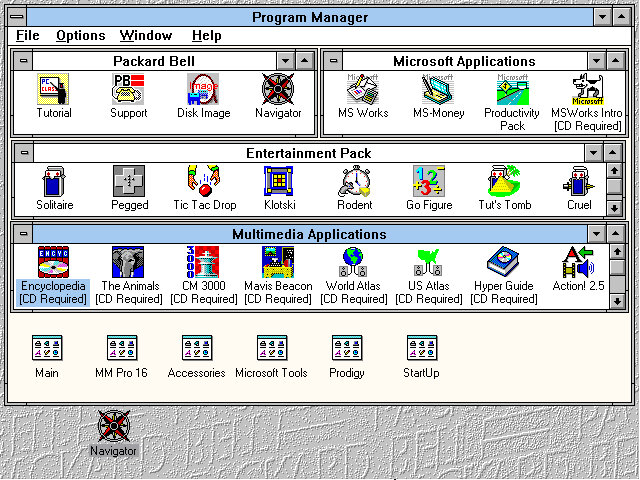
The Program Manager with a customised preset design, showcasing the preinstalled applications.

The Headland utility for changing the screen resolution and the colour palette.
Included software

From Packard Bell
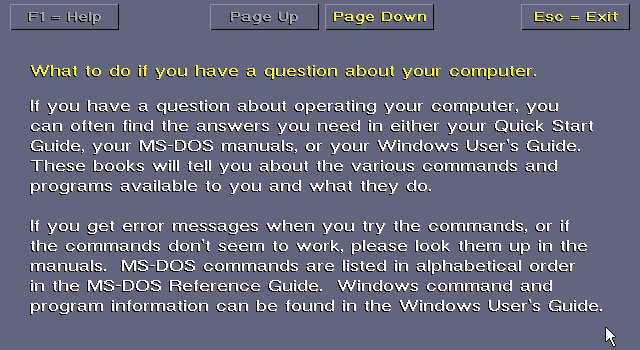
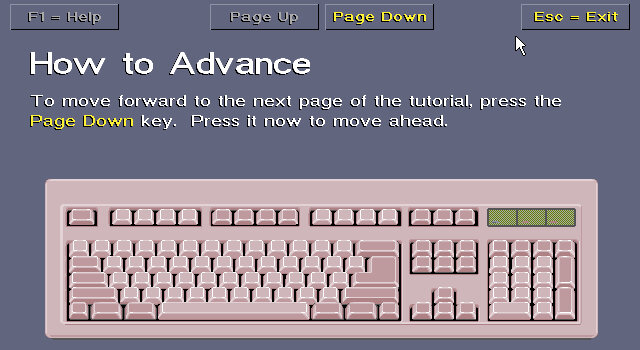
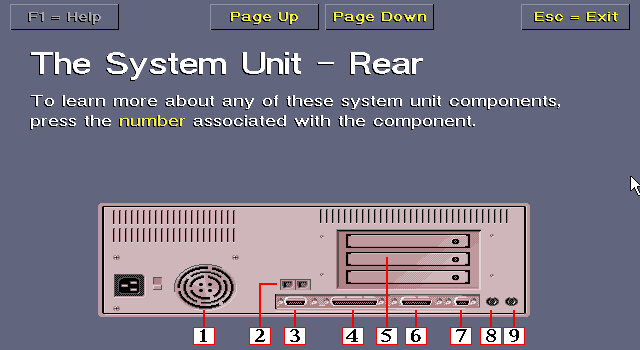
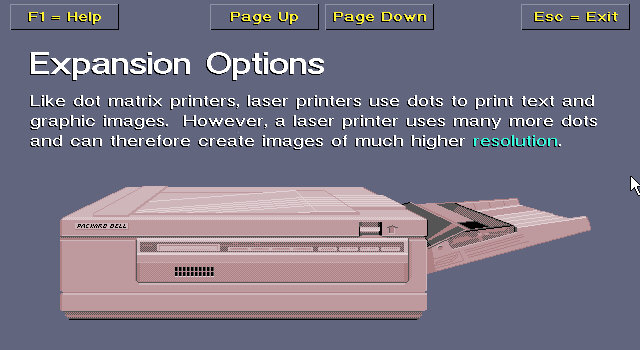
Tutorial: Gives an in-depth insight into how your computer operates, its expansion options, and how to use the software.

Support: A simple application that shows how to contact Packard Bell for support, how to connect to their BBS and warranty information.

Disk Image: Creates a recovery disc image

Navigator: Starts the Packard Bell Navigator environment

The Microsoft Entertainment pack

A selection of additional games which included Rodent, Go Figure, Tut’s Tomb and Tic Tac Drop.

There is also a Jurassic Park that comes with the install and is located under the Entertainment pack program group.

Microsoft Applications

MS Works: Versions 2.0 Multimedia Edition, software suite that included several applications, including a word processor, spreadsheet, database, calendar, and communications tools. It was intended to be a comprehensive solution for basic office tasks, suitable for home and small business use. The word processor included in Microsoft Works 2.0 had a range of basic formatting options, such as font selection, text alignment, and line spacing. The spreadsheet application supported basic formulas and functions and could create charts and graphs. The database application allowed users to create and manage simple databases, while the calendar application provided basic scheduling features.
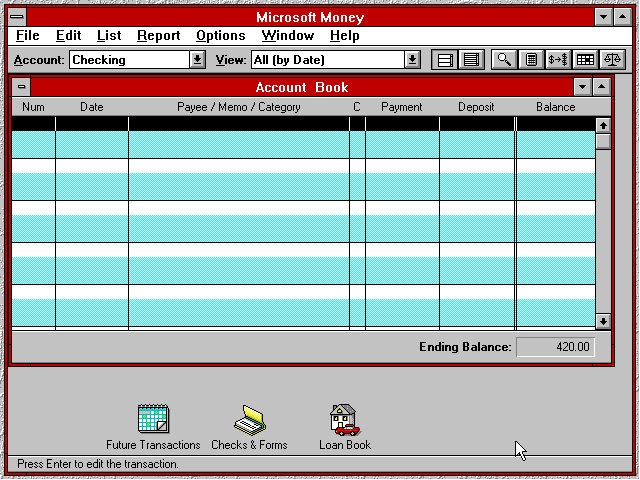
MS Money: Version 2.0a, a personal finance software program developed by Microsoft Corporation and released in 1992 as a successor to the original Microsoft Money. It was designed to help users manage their personal finances by tracking income and expenses, creating budgets, and analysing financial data. The software included several features to help users manage their finances, including checkbook balancing, bill payment tracking, and investment tracking. It also included a range of tools for creating reports and charts to help users visualize their financial data.
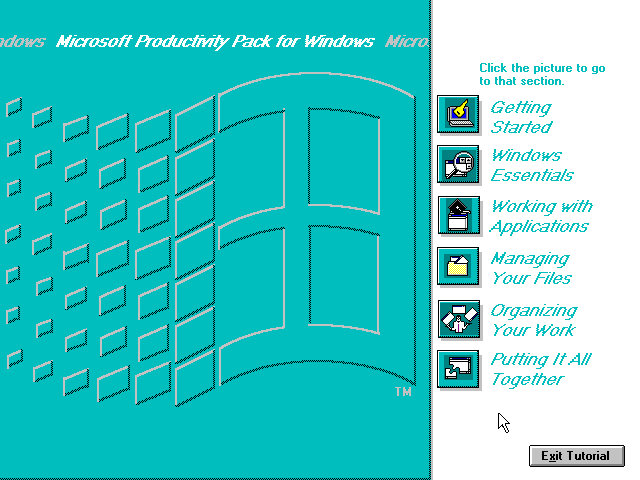
Productivity Pack: A tutorial to using the mouse and keyboard and elements of using Windows 3.1

Multimedia Applications
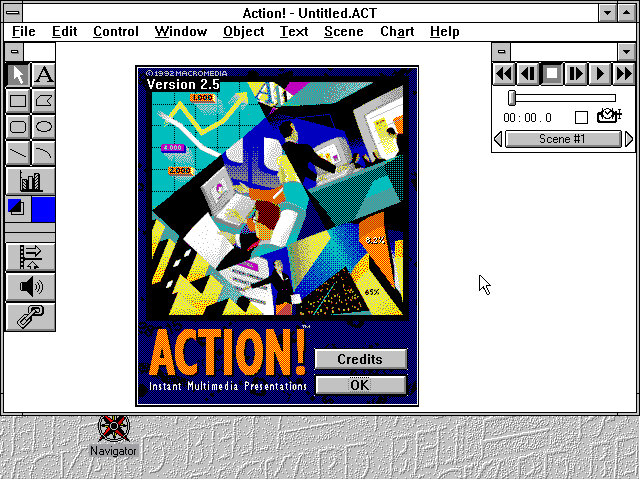
Macromedia Action! 2.5: This was an early competitor to Microsoft PowerPoint and allowed for presentations that incorporated multimedia elements
PBTV: Allows for video capture form an external analog capture card or device.
Authorware Star: Authorware Star was a software program developed by Macromedia, which was a multimedia authoring tool used for creating interactive learning content. The software was widely used for creating educational and training materials, especially in the early days of e-learning. One of the key features of Authorware Star was its ability to create branching scenarios, where learners could choose different paths through the content depending on their responses to questions or interactions. This made it possible to create personalized learning experiences that were tailored to the needs and preferences of individual learners.

Other software that is included but requires a separate CD-ROM to run: Mavis Beacon,US Atlas, Music Box, Encyclopedia.

Upgrades

Lets see that the upgrade experience was like, as this motherboard came with a 486 processor we should be able to upgrade to Windows 98 and later 98.
Windows 2000 & ME will require a processor upgrade, perhaps to the Pentium Overdirve which would have fitted into the existing CPU socket, though the experance will be rough as were still using the same video card. Memory will also have to be upgraded.

Windows 95

Install appeared to go smoothly with most of the settings being carried over. This was done using the floppy disk version of Windows 95 as the VM lacked CD-ROM support.

A message indicating for us to power off our computer appears on startup, likely a remaint from
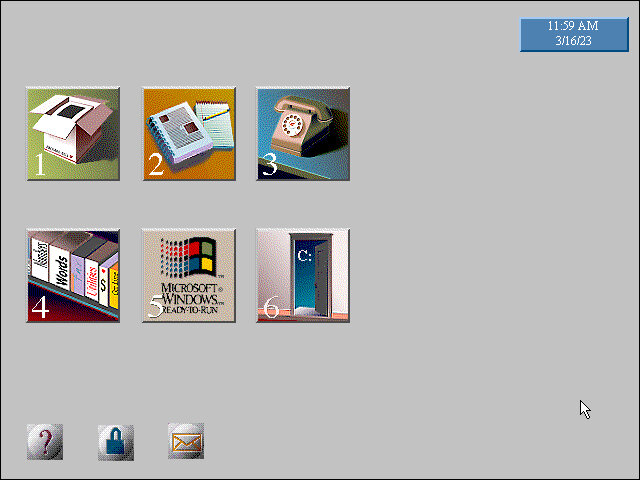
Some compatibility issues with the Packard Bell Navigator with the background elements missing, Most of the other applications appear to be fine
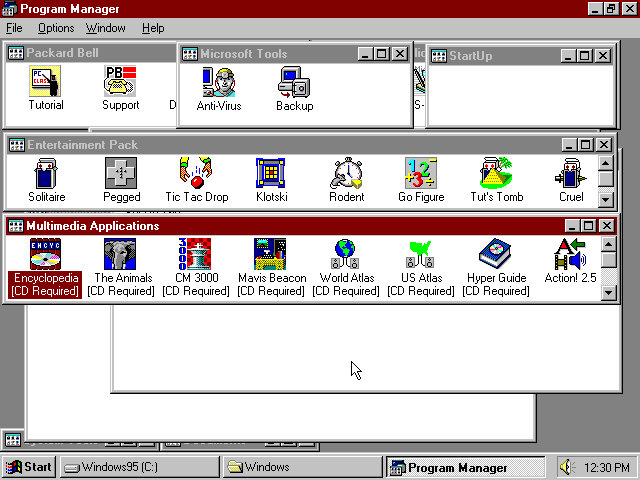
And the Program Manager which can still be accessed from Windows 95

Windows 98
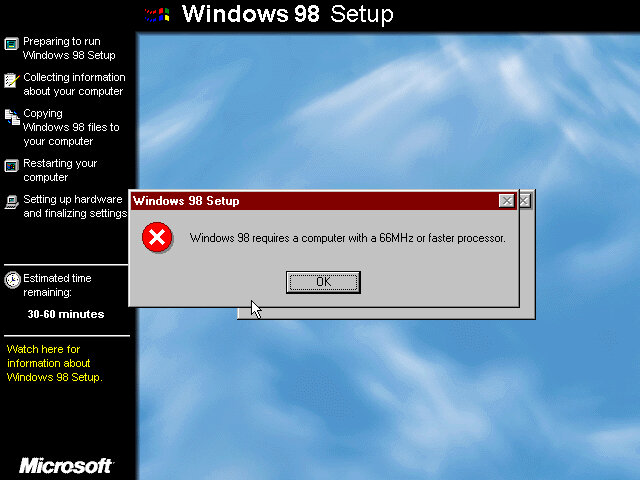
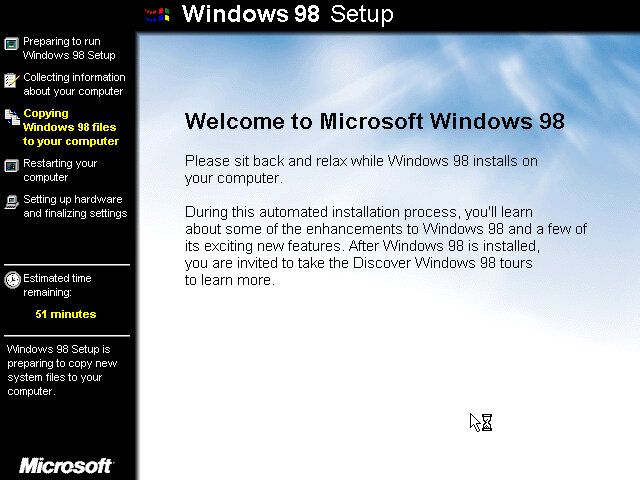
Now that its running 95, lets try to install 98. For this we have to bump up the memory to around 16MB at a minimum, instead I maxed it out to 36MB which is the most the motherboard supports. Initially it appears we need a faster CPU to install Windows 98, With 86Box we have an option to use an AMD486 running at 75Mhz which should allow for 98 to install. How well it runs is another issue.

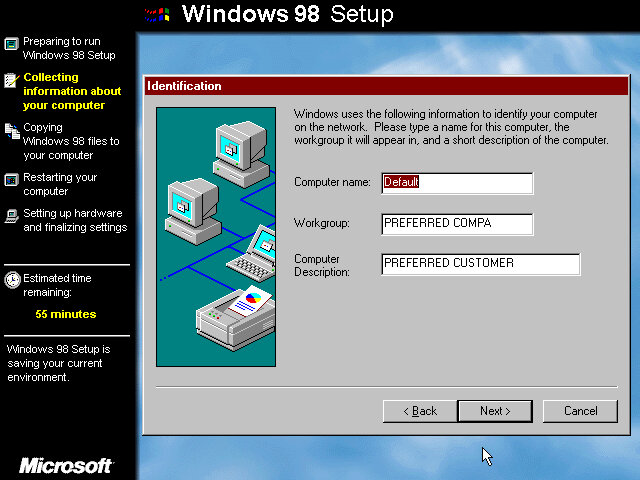
Also the 98 upgrade installer looks a lot better? It makes a change from the electric blue background of the OEM/Retail installer.

Packard Bell navigator appears to work better in this version.

Windows 2000 & ME
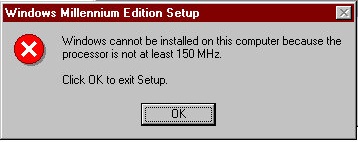
Was not able to install as our CPU isn’t fast enough as I was running a AMD 486 at 75MHz and Windows ME needs at least 150MHz. I tried a Cyrix 5×86 at 133Mhz on the off chance it might work, but no luck.
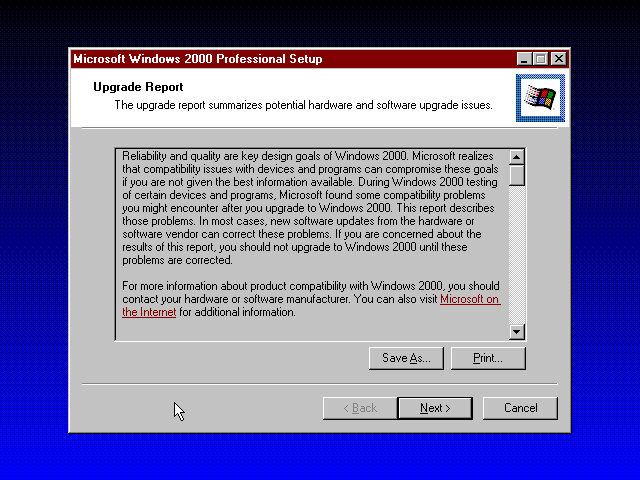
Windows 2000 was more promising and gave us a report of the potential incompatibilities, including the Headland video card. Unfortunate I was unable to progress due to the lack of hard disk space as this motherboard can only address around 518MB due to being reliant on the old C/H/S system. It seems Windows 98 is the max we can take this install to.

Maybe using a SCSI hard disk could get around that issue.
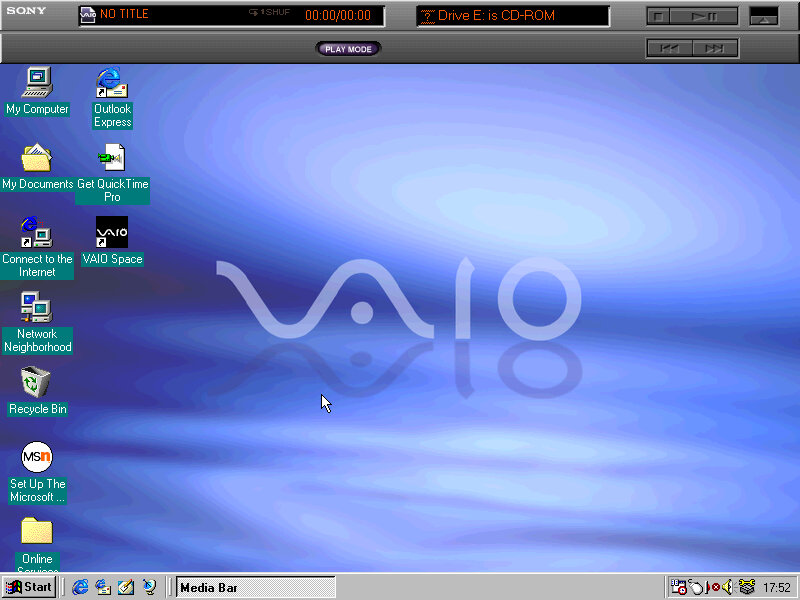
Sony VAIO PCG-505G

The VAIO goes portable

The Sony Vaio 505 was a line of laptop computers that were first introduced by Sony in the late 1990s. The Vaio 505 was known for its thin and lightweight design, which made it a popular choice among mobile professionals.

The Sony VAIO 505 series of laptops were available with different variations of the Intel 440TX chipset, which was a popular chipset at the time of the VAIO 505’s release in the late 1990s. The chipset provided support for Intel Pentium III and Celeron processors, as well as support for AGP graphics and up to 1 GB of RAM. Some variations of the Vaio 505 also included integrated graphics using the Intel 810 chipset.
Closest match we have is the Intel YM430TX which uses the same i430TX chipset as the VAIO laptop.

The (cracked) restore utility, this requires us to have a HDD that is already preformatted to FAT32. IF this isn’t done you will need to use the FDISK utility found on the Windows 9x bootdisk to set this up. Also if you have two or more CD-ROM drives the install will not be able to mount the optical drive, as it assigns it the letter Z:

After the restore has completed we are booted into Windows 98, the first edition.

OEM Customization

A few wallpapers are included with the VAIO water being set as the default, other wallpapers include VAIO Sky (As seen in the PCV-70), VAIO Earth and VAIO Wind.

A screensaver is also included, the PictureGear Screen Saver which acts as a photo screensaver that you can link your images to. Up to eight image files can be used with transition effects.

A customized Welcome To Windows screen, with a fifth option for launching the Vaio desktop space.

Included Software

Start Menu with its own category for preinstalled VAIO software

VAIO Space

Demonstration software that details the features and capabilities of the notebook. It also provided tutorials. It was a pre-installed software on Sony VAIO computers that provided a centralized location for managing media and accessing online services.

FrontPage Express

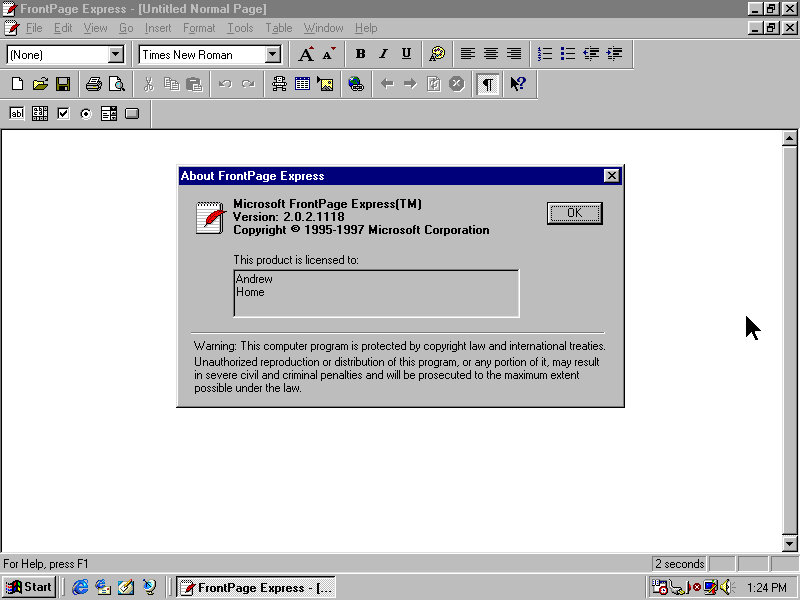
FrontPage Express was designed to be an easy-to-use tool for creating basic web pages without requiring any knowledge of HTML coding. It had a simple interface that allowed users to drag and drop images, text, and other elements onto a page and arrange them as desired. It also provided basic formatting tools, such as font and color selection, and allowed users to preview their pages in a web browser.

ScribblePad

Why I need a Waccom

Some models for this laptop had a touchscreen along with a stylus which allowed the user freehand input. TO take advantage of this Sony had included their own ScribblePad utility. This was a necessarily as Windows 98 did not include any pen input functionally (That I know of).

VoiceMemo

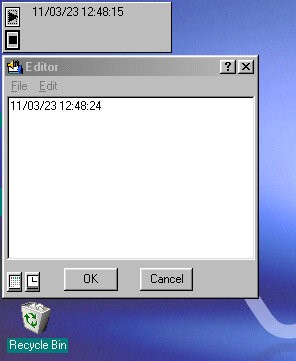
A utility for recording notes in text or voice format. These remain on the desktop after creation and can be moved about freely, similar to the sticky notes on Windows 7. The background colour can be customized using the standard Windows palette along with the font style.

PowerPanel

A very interesting utility that lets you control some of the power features of the laptop. The CPU speed can be adjusted to a slower speed to conserve the battery, You can also switch the HDD into standby immediately rather than wait for the OS to do it, and switch to standby or hibernate mode.
The PowerPanel appears as a sidebar on the desktop than can be set to autohide if its not needed.

MediaBar

Some sort of Sony branded music CD player, kind of redundant since Windows 98 already comes with one, unless this plays some specific Sony format? Video files in the AVI/MOV or MPEG format can be played.

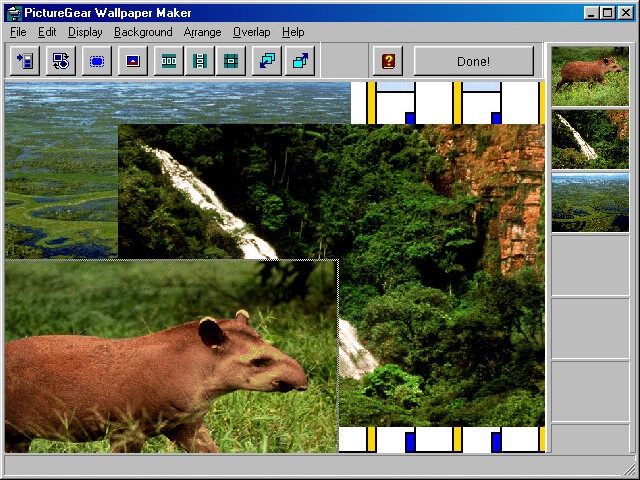
PictureGear WallpaperMaker

A software program developed by Sony Corporation that allows users to create customized wallpapers for their computers. With this, users can choose from a variety of pre-designed templates or create their own custom wallpaper designs using their own photos or images. The software includes a variety of tools for editing and manipulating images, such as adjusting brightness and contrast, adding text and graphics, and applying special effects.

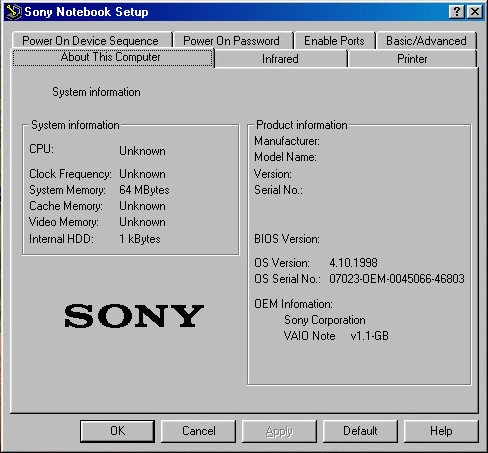
Sony Notebook Setup

Graphical BIOS utility where you can change settings without having to enter the BIOS.

PhoneTools

A utility to manage phone calls, Fax and user contacts.
It also appears to support cellular 2G GSM modules to make add receive phone calls over a mobile network, and there is also support for SMS messages. Alternatively you can connect a Sony phone to the computer instead, and use its GSM modem for an internet connection.

HTC One X

No, not the Xbox One X

The HTC One X was released in 2012 and was a flagship smartphone from HTC at that time. With its sleek and stylish design, with a polycarbonate unibody and a 4.7-inch Super LCD2 display, The phone is light and easy to hold, and the display is large and clear even in outdoor environments.

The HTC One X is powered by a quad-core NVIDIA Tegra 3 processor and 1GB of RAM. It runs Android 4.0 Ice Cream Sandwich, which is upgradable to Android 4.2.2 Jelly Bean. The phone offers smooth and snappy performance for its time, with fast app loading times and seamless multitasking. The phone was powered by a quad-core NVIDIA Tegra 3 processor clocked at 1.5 GHz, which was a high-end processor at the time of its release as most smartphones only featured dual-core processors. It also had 1GB of RAM to help with multitasking, a respectable amount for the time. The Tegra 3 processor featured a fifth battery-saver core that kicked in when the phone was idle or performing low-intensity tasks to save power. When more processing power was needed, the other four cores would activate to provide smooth performance without any intervention from the user.

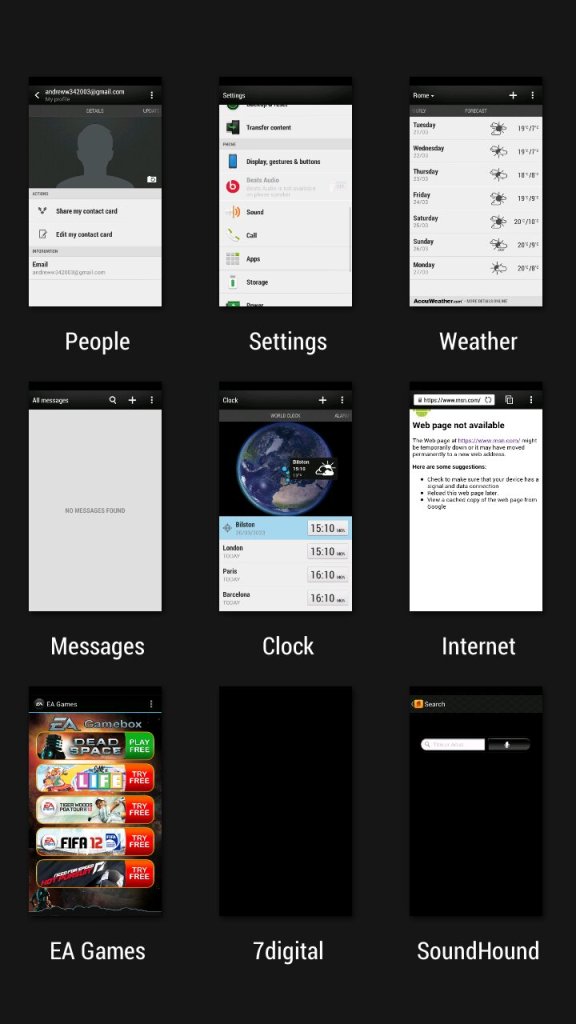
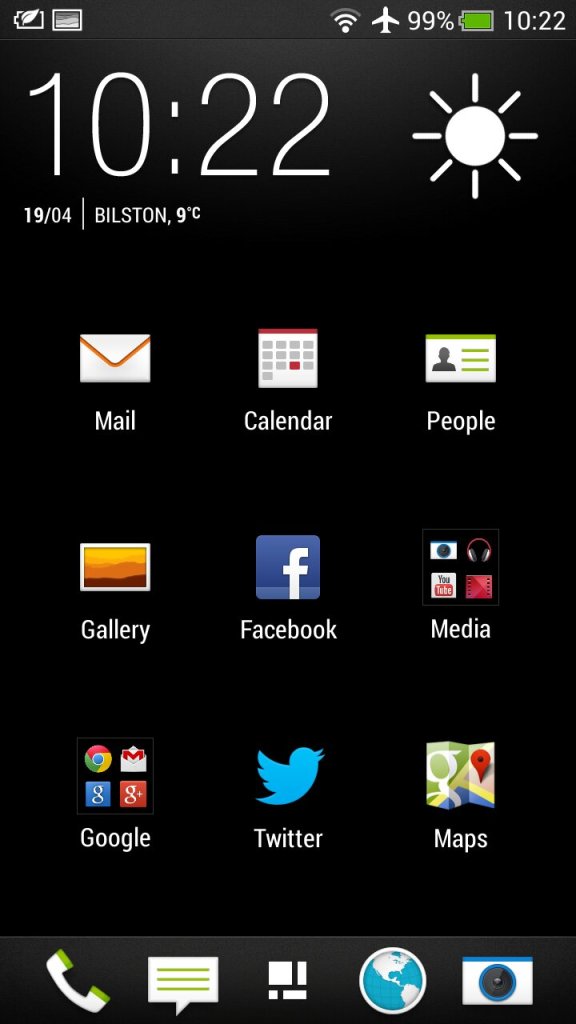
The second page of the home screen, along with the task switcher that shows recently opened apps, and lets you quickly switch between apps.

HTC Sense

The HTC Sense UI (User Interface) is a custom skin or overlay that HTC uses on top of the Android operating system on its smartphones. It is designed to provide a unique and personalized user experience for HTC users, and it includes features and enhancements that are not available on stock Android.

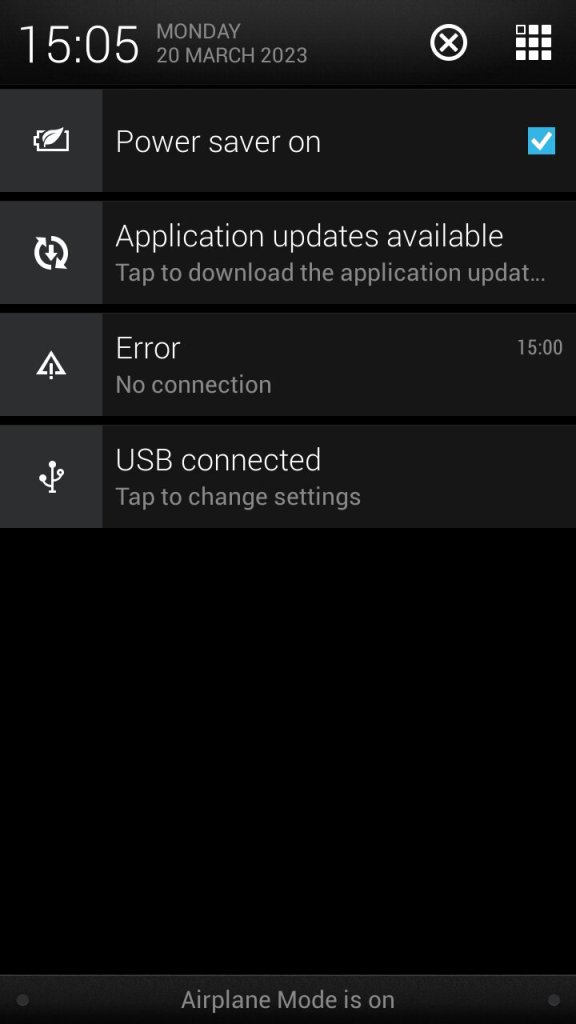
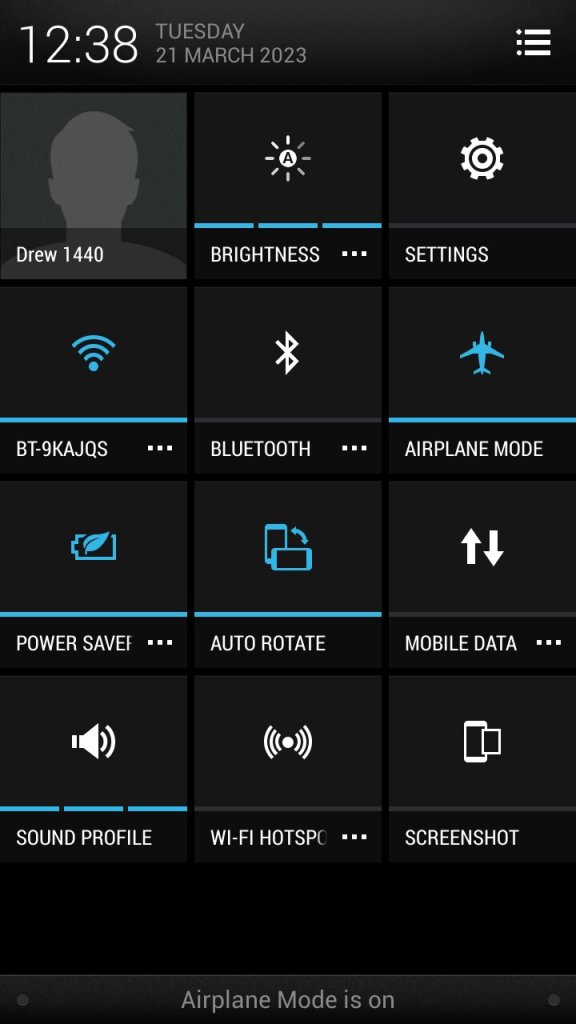
The app menu will show all installed apps on the phone, this can be customized to show apps that have been recently opened, in alphabetical order or in a custom order. The grid size can also be customized. Also the notification section, tapping on the grid button on the top right will switch to the quick access section where common features can be toggled on or off like the WiFi or Bluetooth, and the phones ringtone profile.

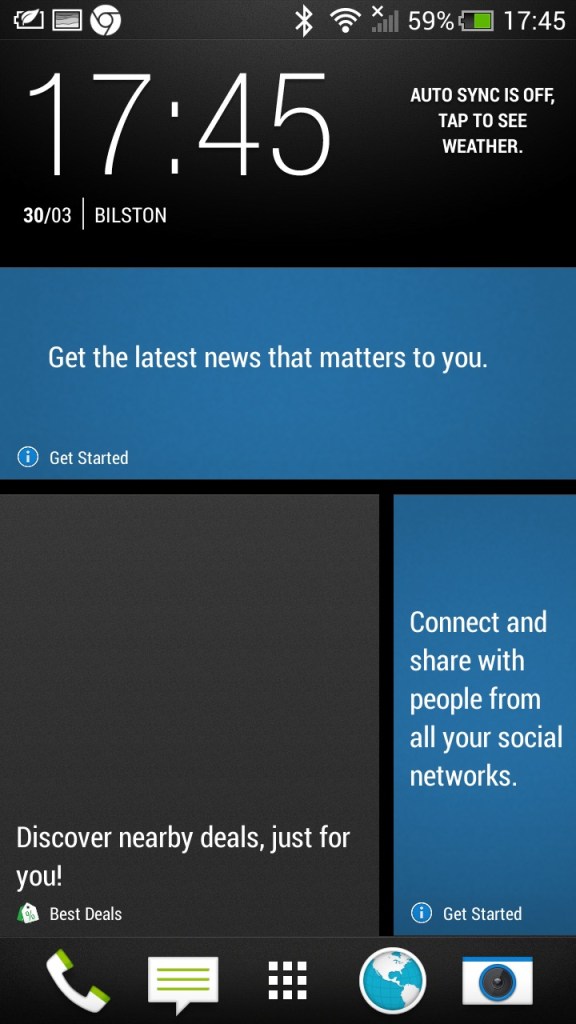
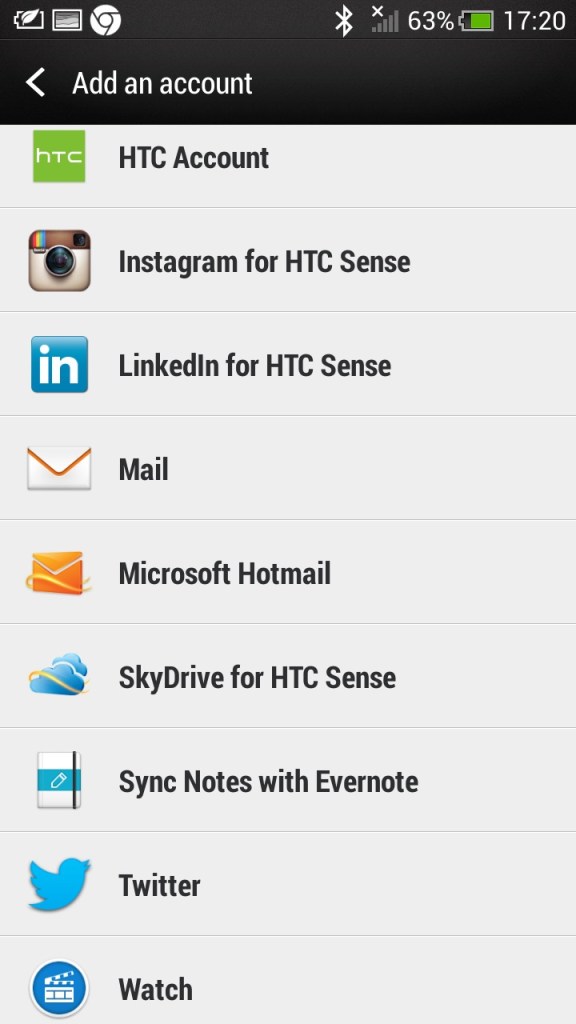
There is also Blinkfeed which collates updates from supported social media apps used on your phone (Twitter, Facebook, Instagram) and news updated from your preferred networks. I can’t help but feel its design was inspired by the Windows Phone design language.

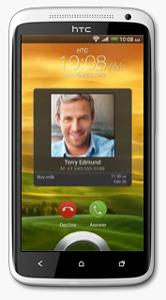
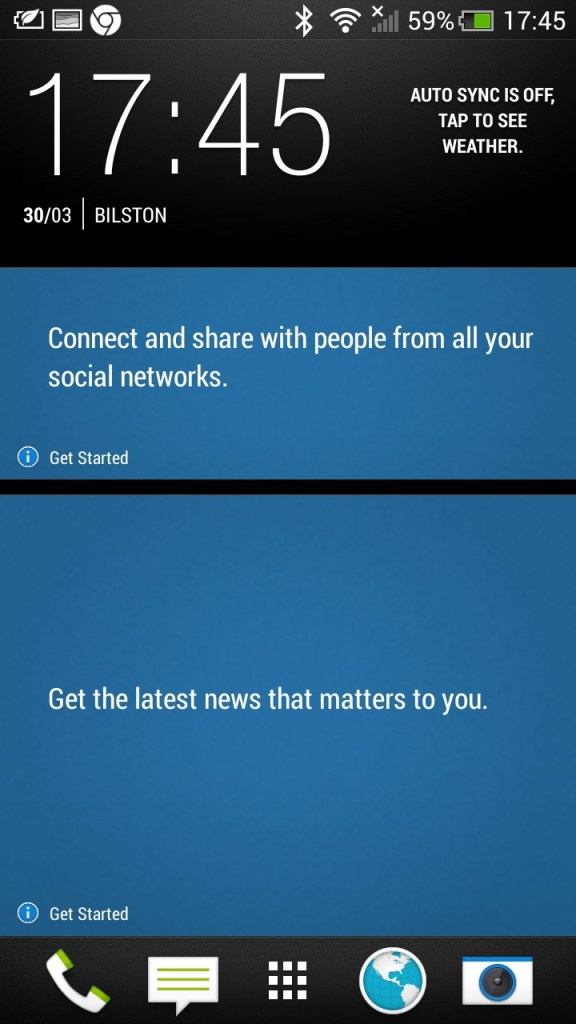
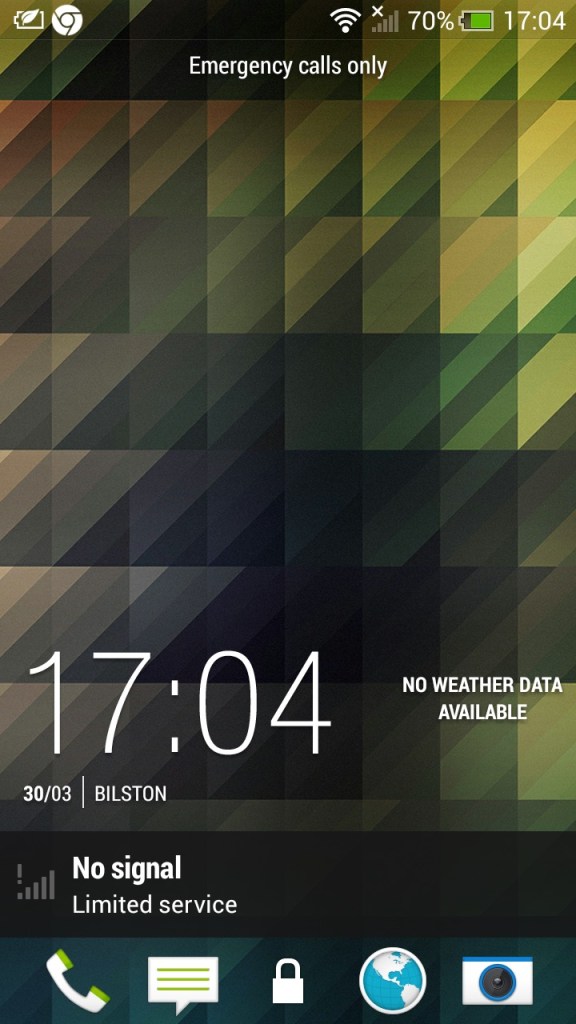
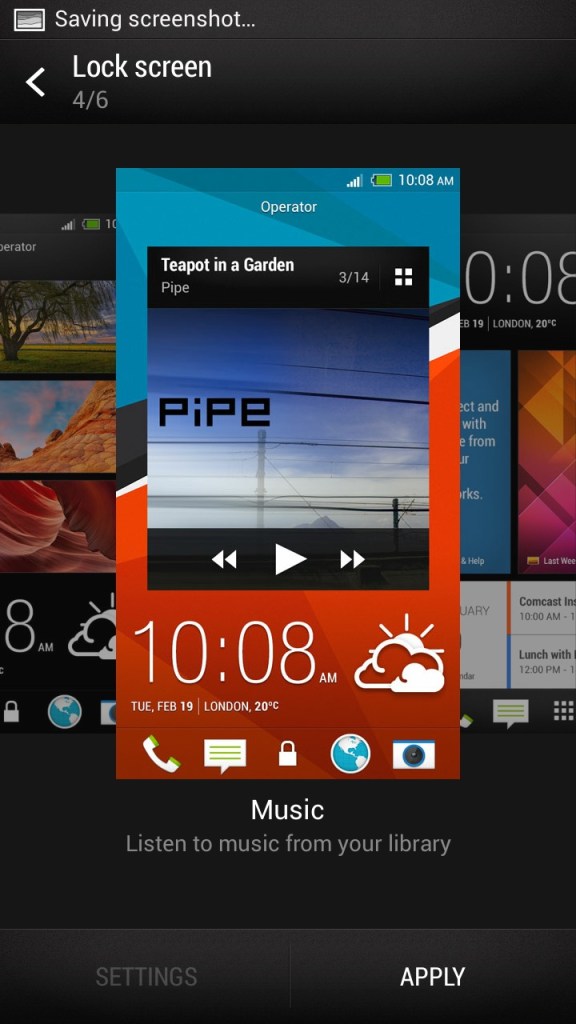
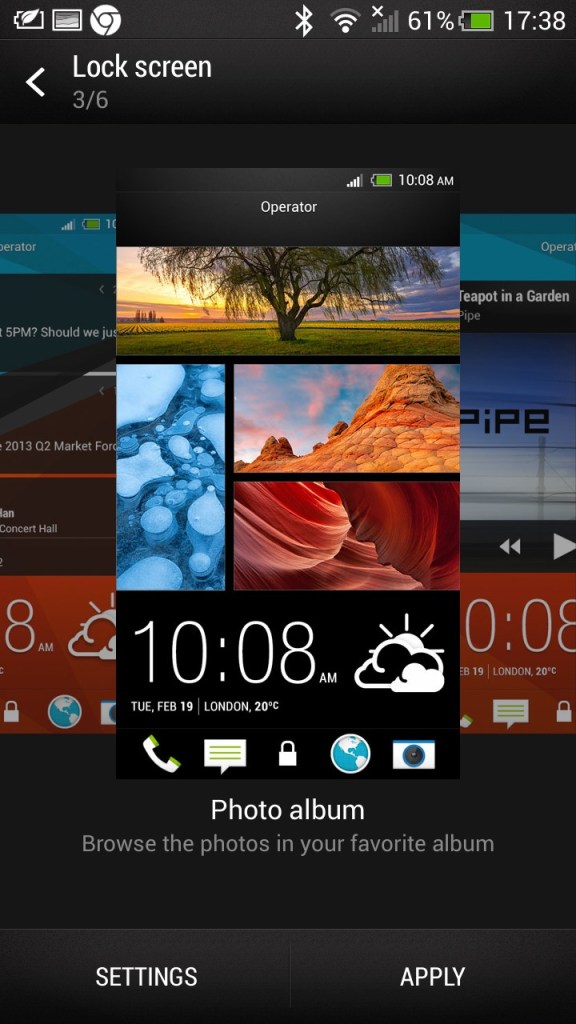
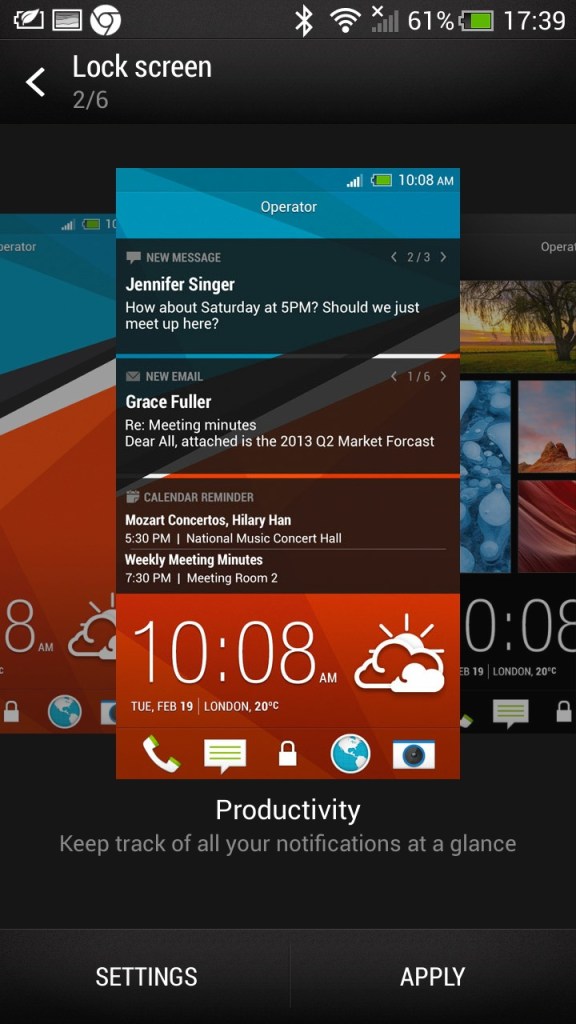
The lockscreen which is unlocked by sliding upwards, doing so raises the clock upwards which is very similar to the Windows Phone lock-screen behavior. Different lockscreens can also be set according to your preference,

  • Productivity – Shows information from email and calendar apps
  • Photo Album – Shows images in your photo albums
  • Music – Shows and lets you play music in your library directly from the lock screen
  • Or it can be configured to display a specific widget, like the weather

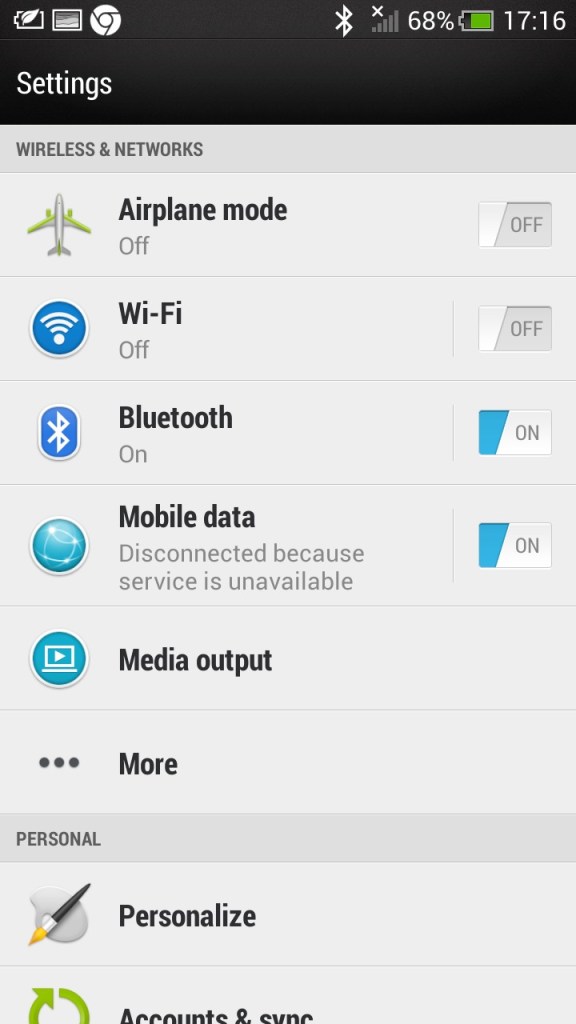
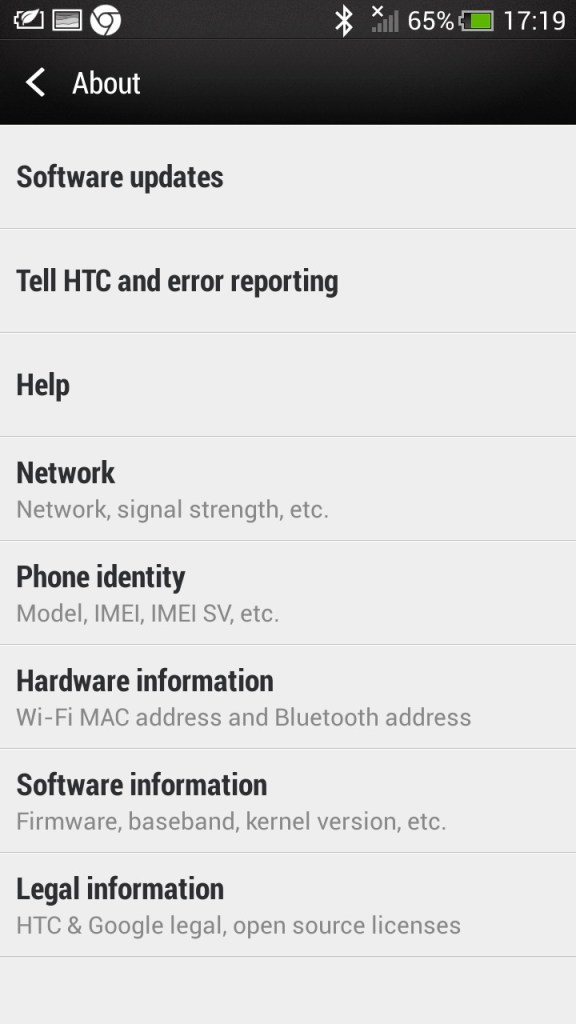
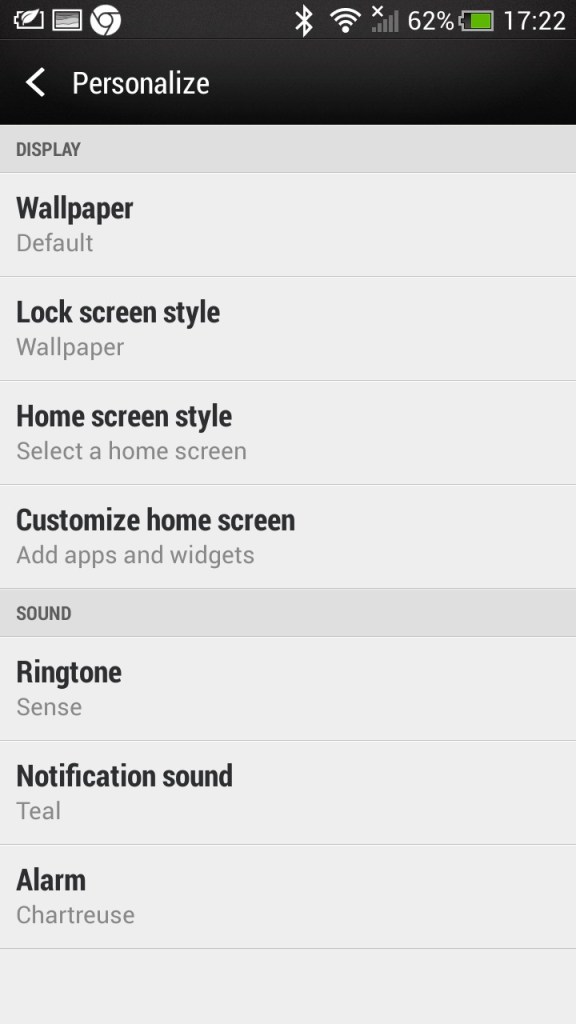
The main settings screen which divides into different sections (Wireless & Networks), Personal, Phone)

Beats audio, which was a selling feature of the phone, This was before Beats was acquired by Apple. It’s supposed to be an audio equalizer that has a specific preset, though I can’t say it makes much of a difference.

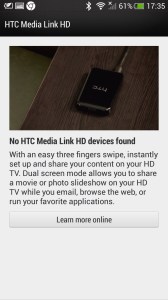
Media Link: The Media Link setting, that acts as a screensharing utility that requires the Media Link device which plugs into your TV’s HDMI input. I guess this was a predecessor to Miracast that is featured on all modern phones. The bundled tutorial showcases the ability to play movies and videos from the phone, ideal for displaying videos recorded from the camera, but I can’t imagine using it to cast Netflix (Some people actually do this, just get a streaming stick/box for fucks sake) Also remember most, if not all TV’s from this period were not ‘smart’ in that they could receive video over a network.

Multitasking is possible where the media will play on the big screen whilst you open another app, at least until the handset overheats. Still, it shows this was a very versatile smartphone.

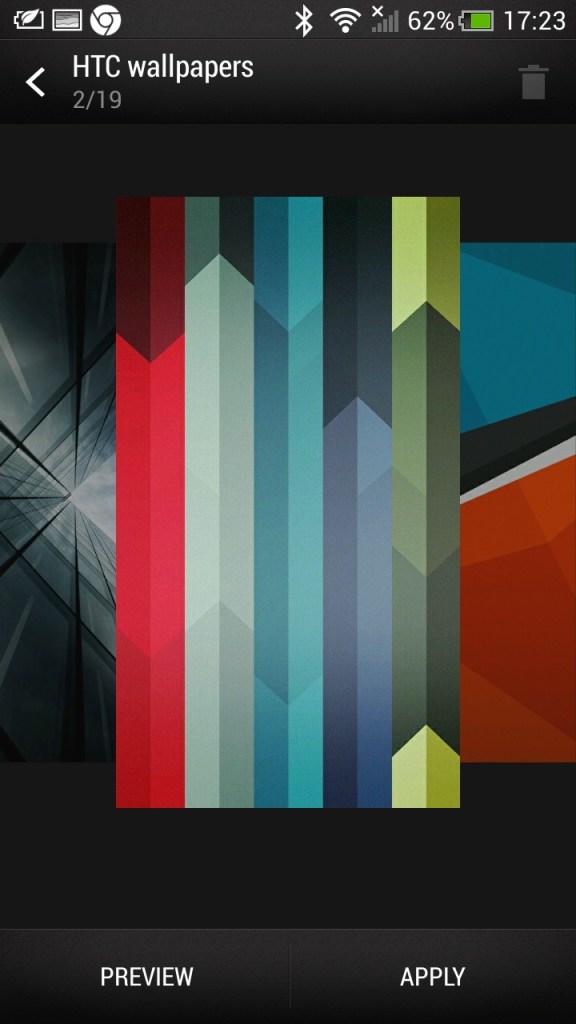
Some additional screens, including the default wallpapers HTC shipped with the phone

HTC Applications

As part of the HTC sense user interface, HTC also provided their own apps for common functions of the phone. These all conform to the same design language, achieving a consistent design across the pre-installed apps.

Messages: Your standard SMS app which can also handle MMS messages, both being presented in a threaded view.

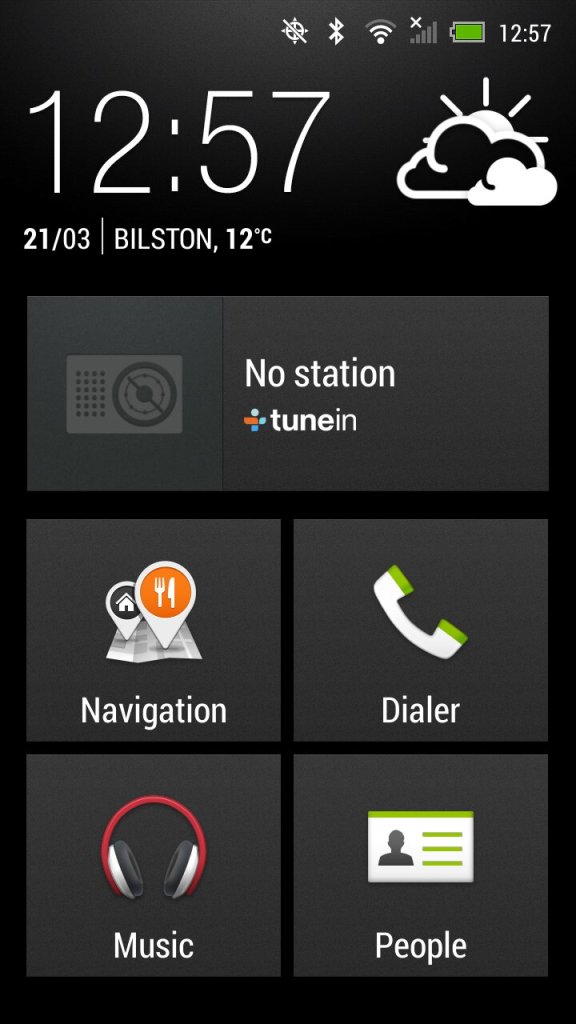
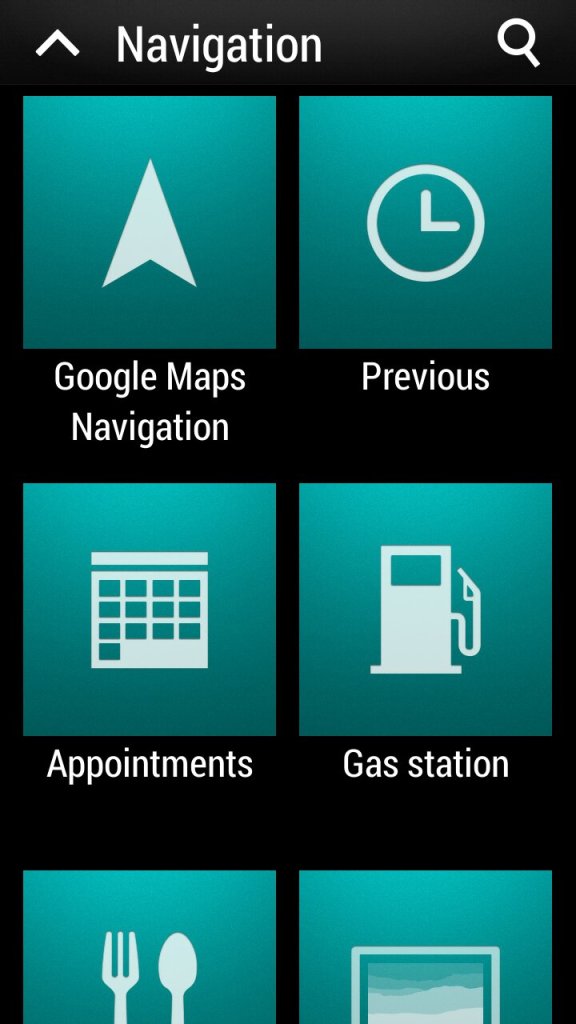
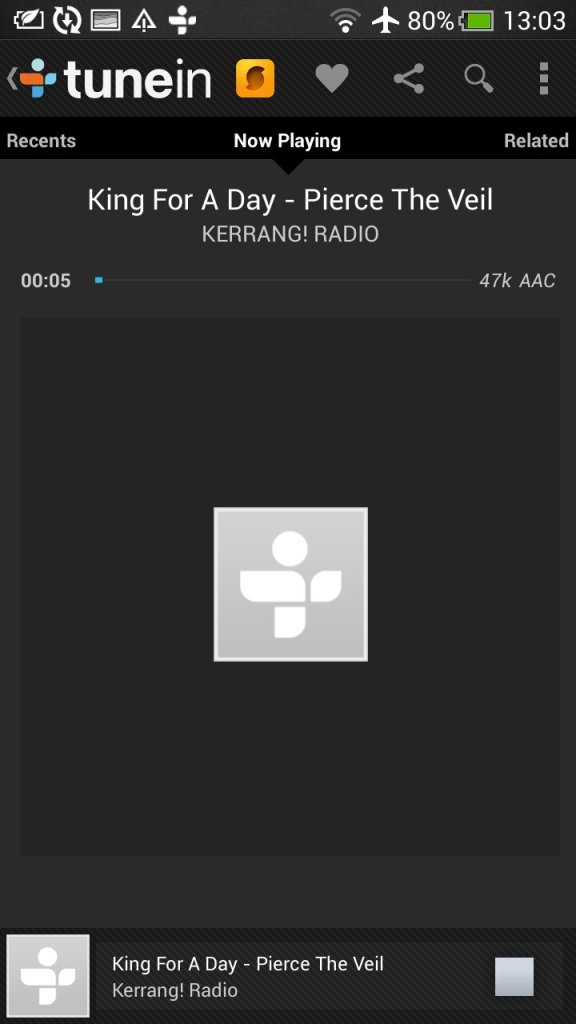
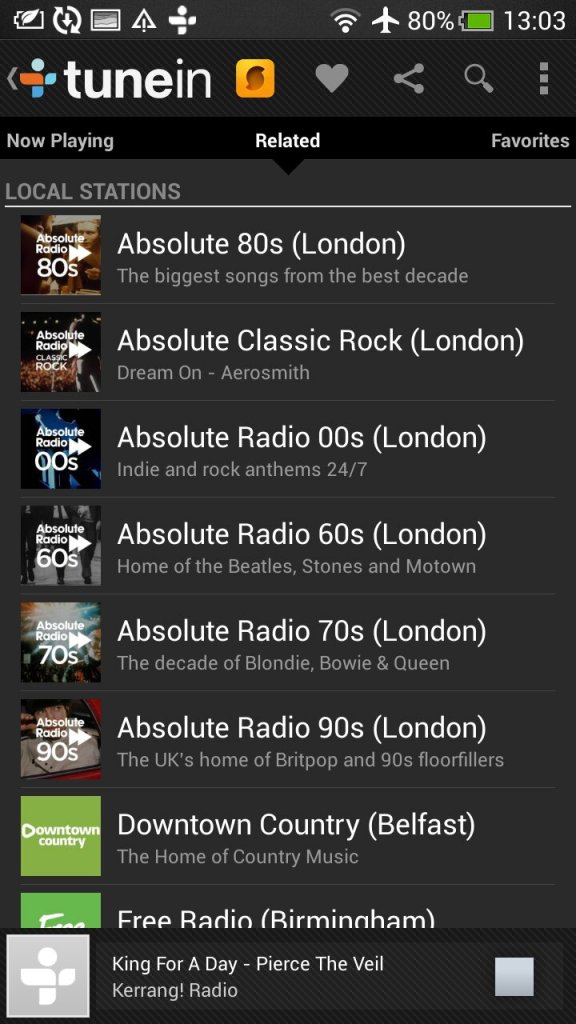
Car: for use when driving, present an easily accessible interface for using the GPS navigation and music/radio apps which are powered by Tunein. The BBC podcasts appear to work but are a few months out of date, the others no longer function. The menu can be customized to add apps that are not there by default.

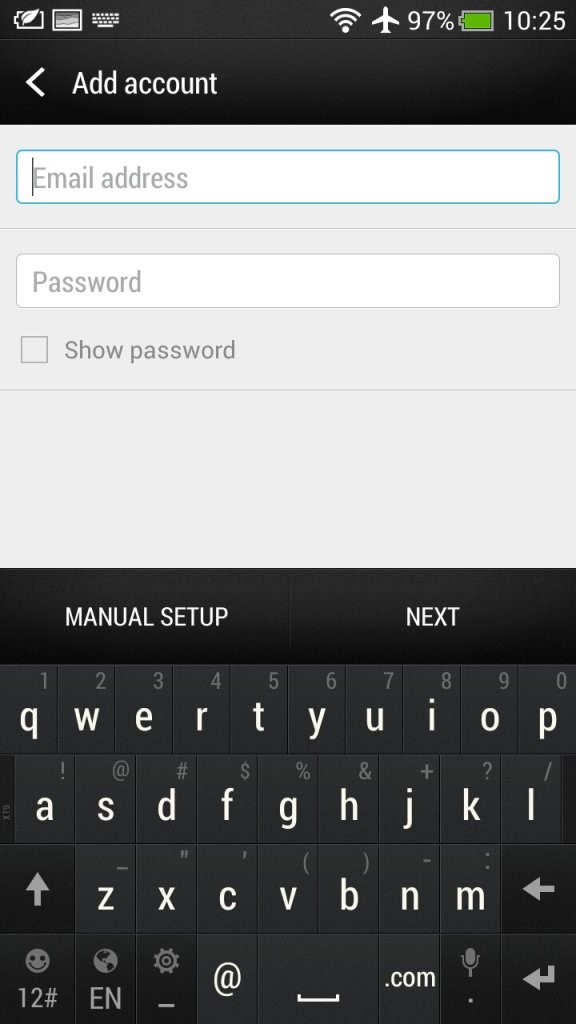
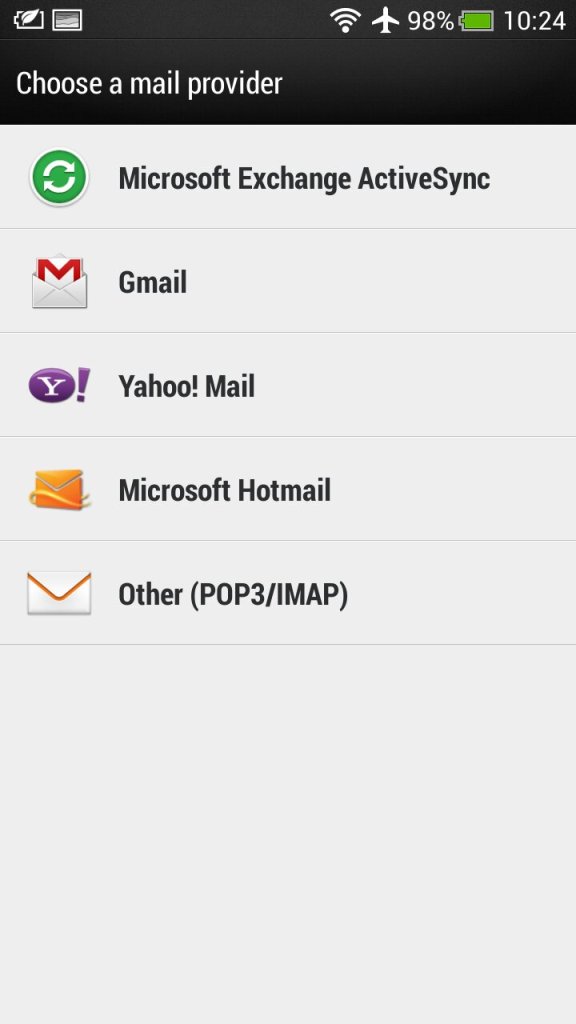
Mail: HTC’s own email client that had support for Gmail, Yahoo! Mail and Hotmail (Outlook). Other email providers can be used by setting the correct POP3/IMAP configuration. Microsoft Exchange can also be used.

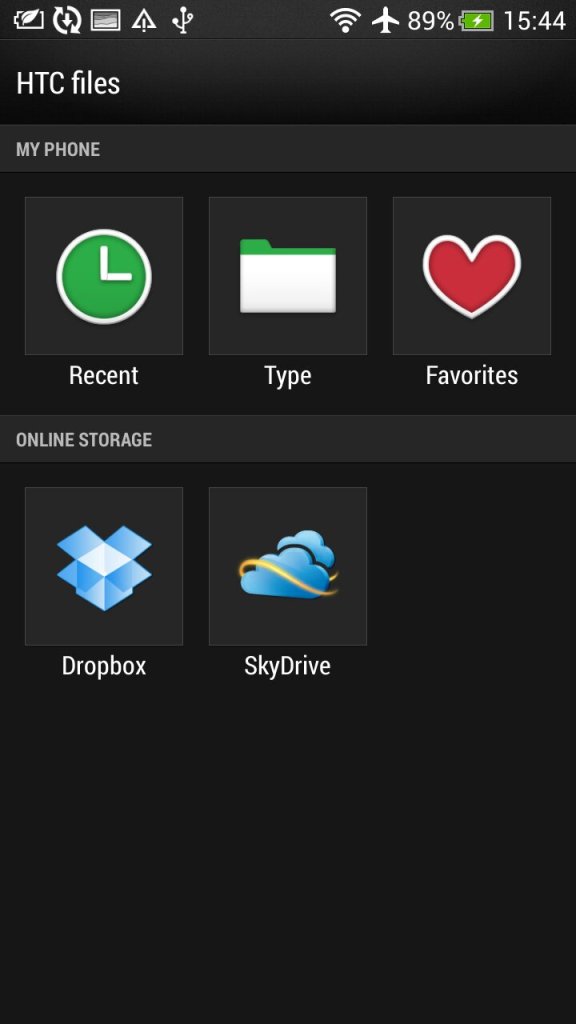
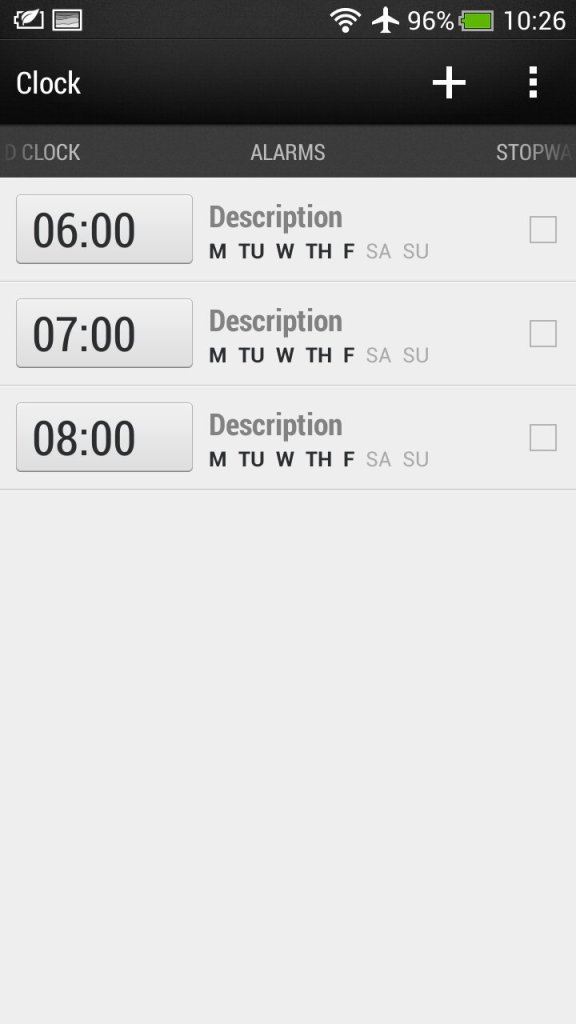
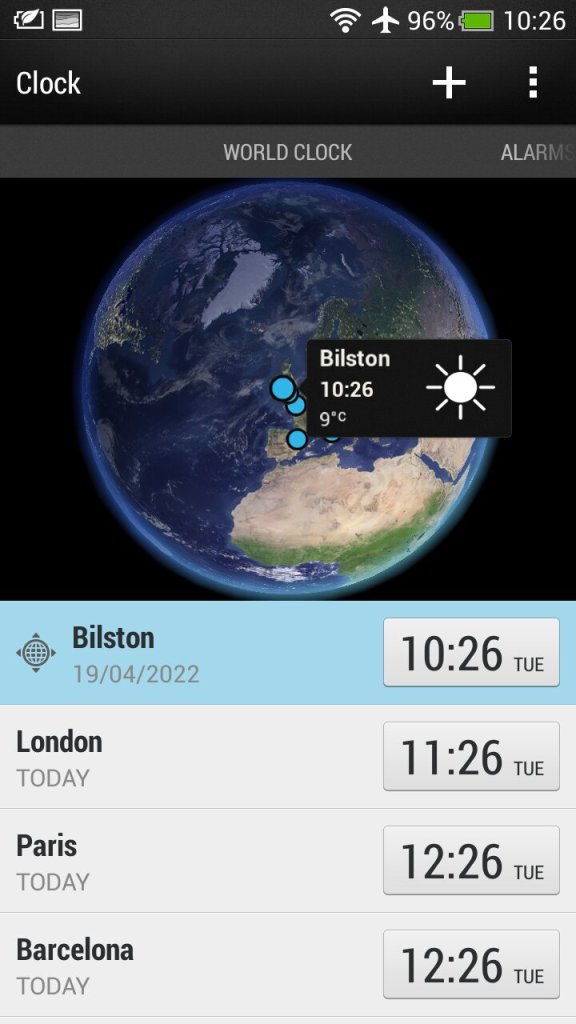
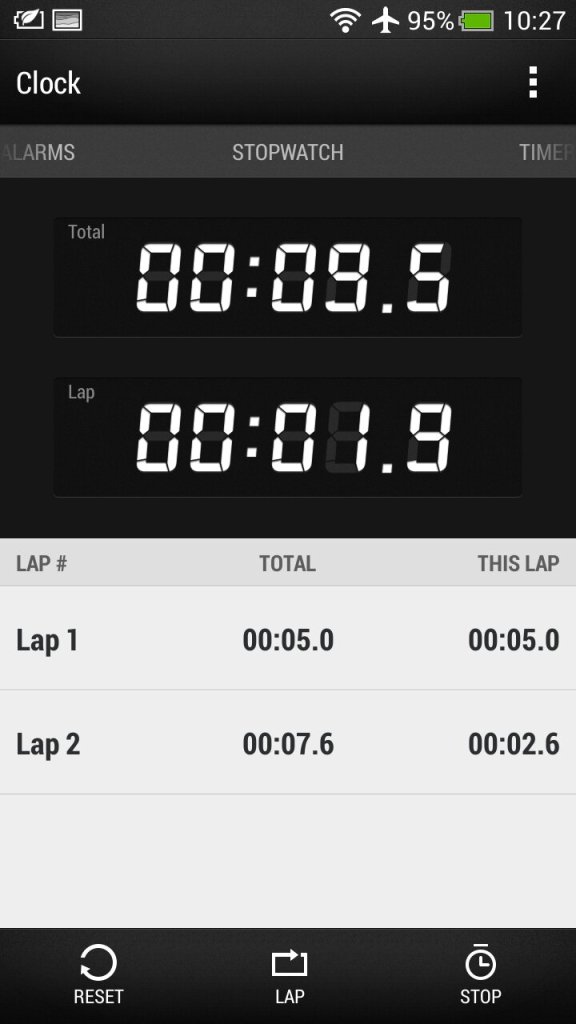
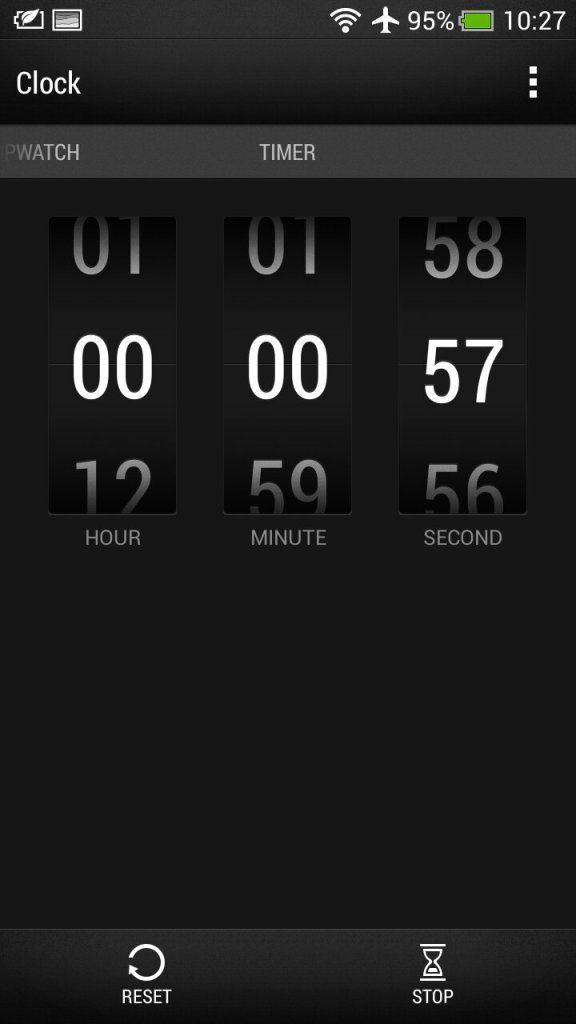
Clock: For setting the time or different timezones, of which HTC has configured a few for you. Here you can also set multiple alarms that can be a standalone or recurring. A stopwatch and a timer are also provided which mimics an old alarm clock.

Stocks: Check your stocks of which the information is delivered from Yahoo Finance.

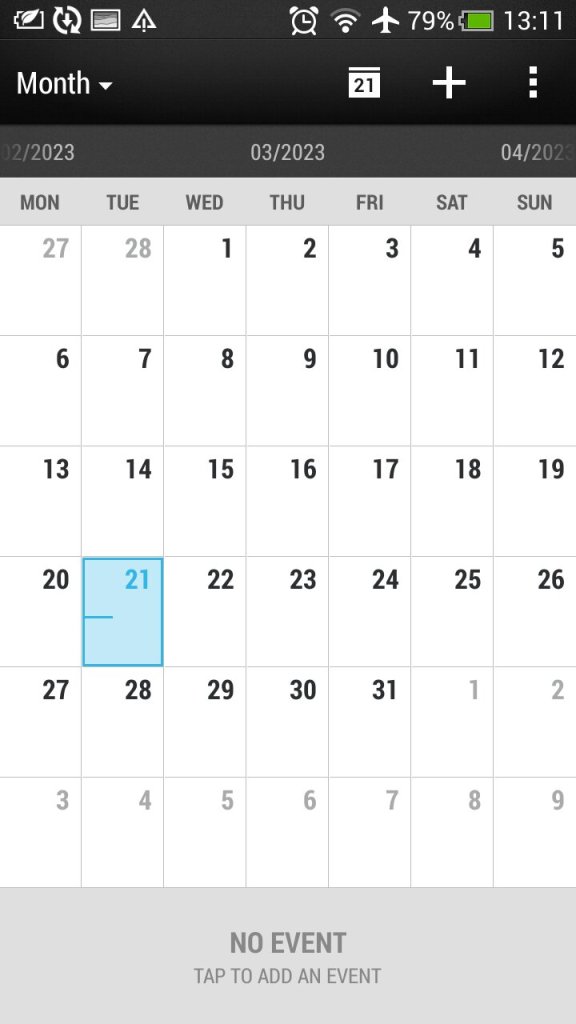
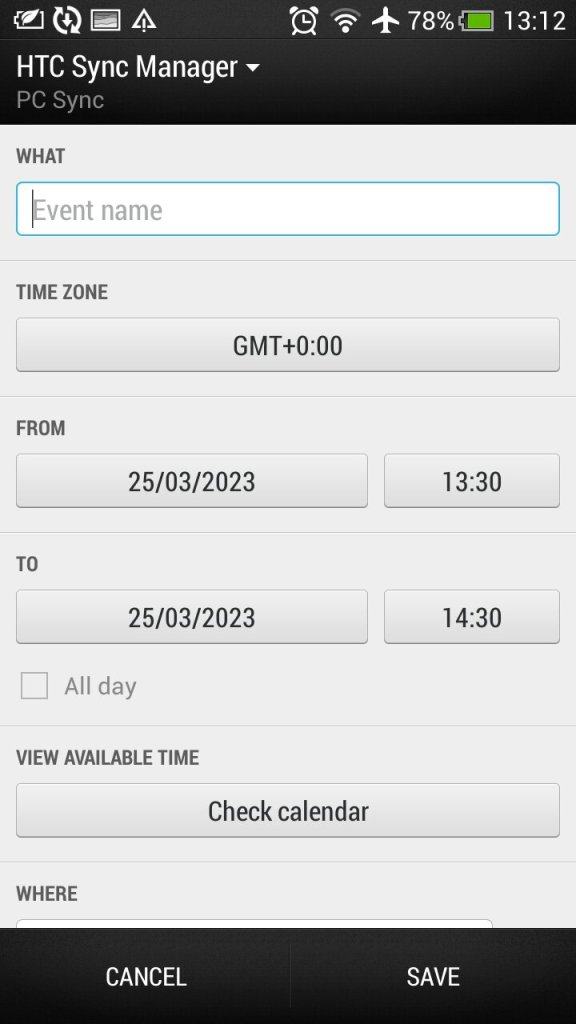
Calendar: Typical calendar app to set reminders and events. This will sync with the calender of your email provided if one is supported, otherwise this can be set to sync with HTC Sync manager, an application for your desktop PC.. Default view can be either Day, Week or Month.

Camera: The handset features an 8-megapixel camera with autofocus and LED flash. The camera is capable of capturing high-quality images and 1080p video, with good colour accuracy and sharpness. It also has a front-facing camera for video calls and selfies.

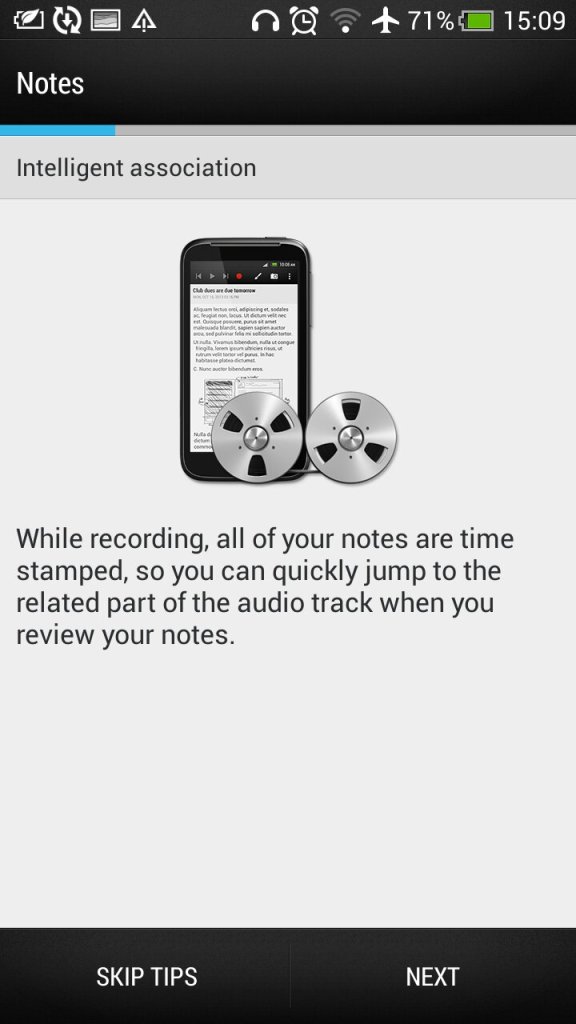
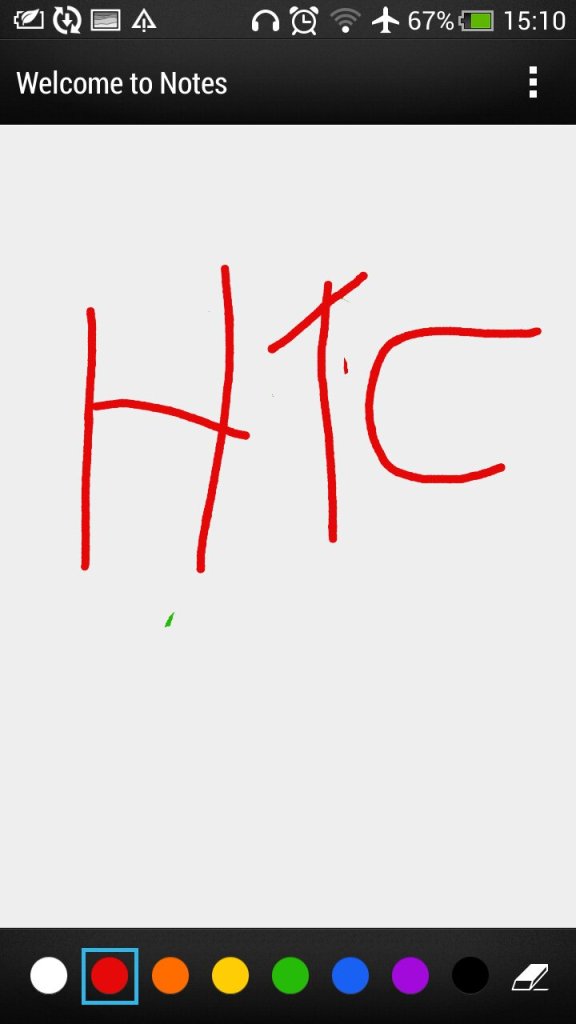
Notes: Supports both text notes and handwriting/freehand notes. Also gives access to the voice recorder feature.

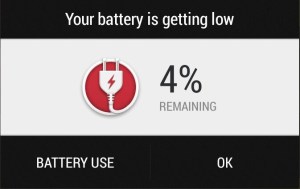
Low battery notification, which gives you a shortcut to the battery-use application that shows apps that have consumed the most power

Preinstalled Apps

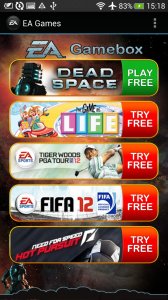
EA Gamebox: Gives us links to EA’s mobile games that you could download to your device including Dead Space, The Game of Life, Tiger Wilds, FIFA12 and Need for Speed Hot Pursuit.

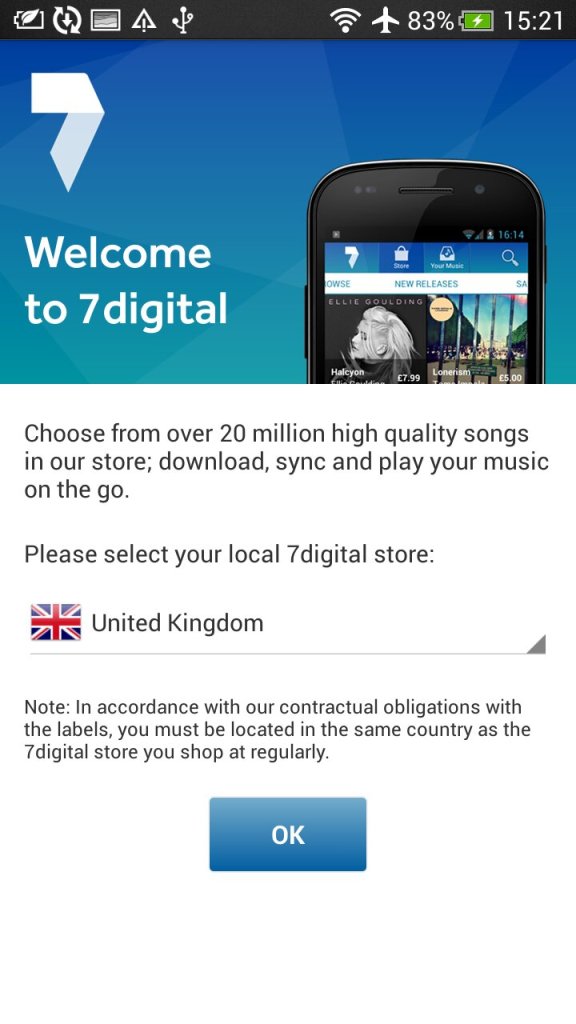
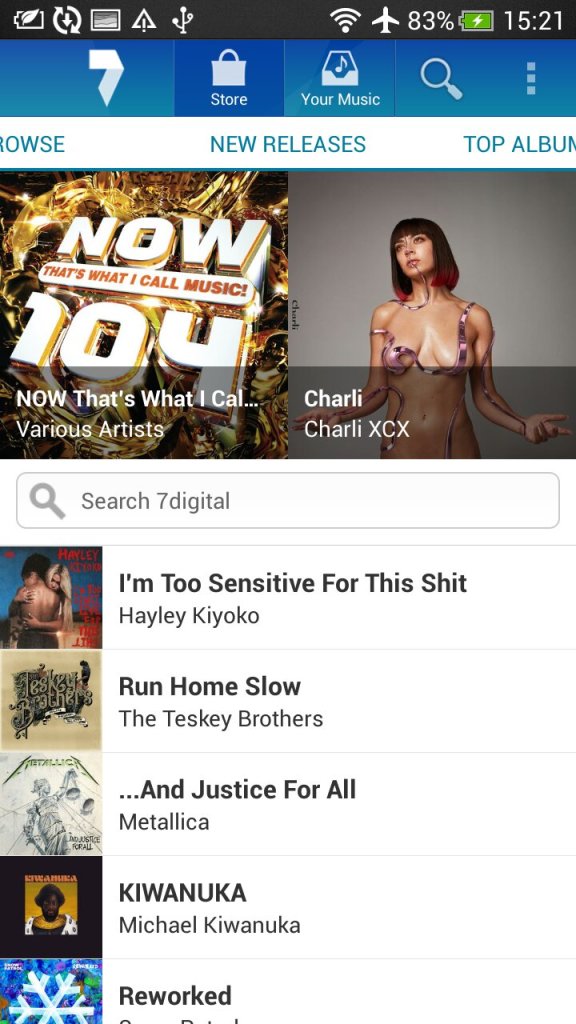
7digital: Popular music store, an alternative to the iTunes or AmazonMP3 for purchasing music. This also serves as a music player as I can play both download music off the store and any local files you transfer from a PC.

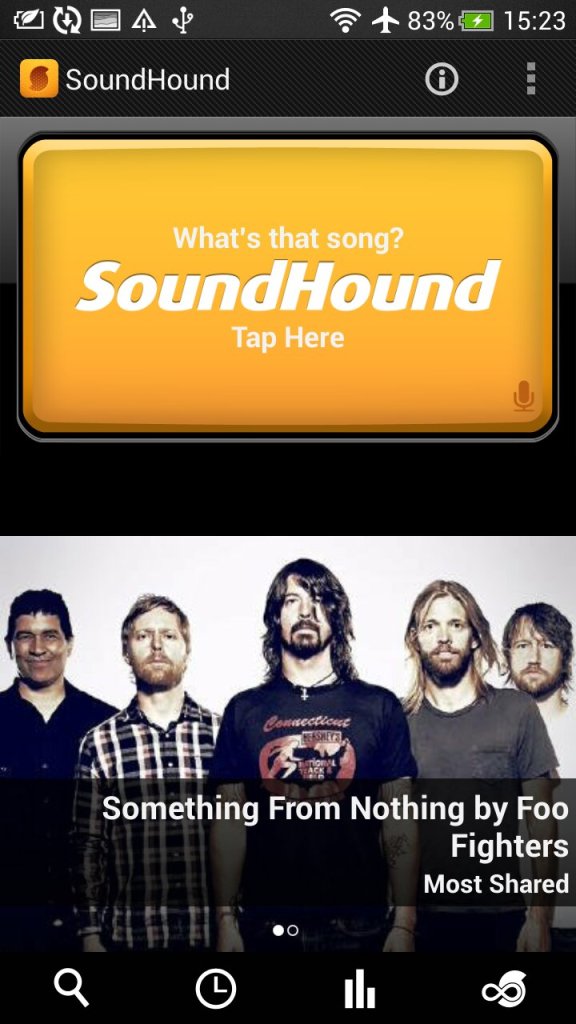
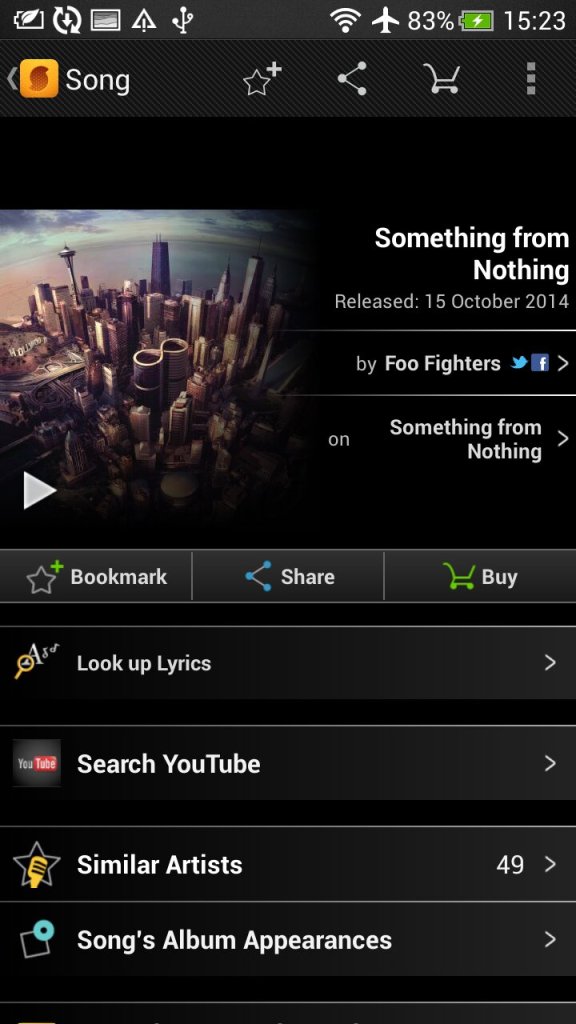
SoundHound: Music discovery tool that can detect and identify music playing my listing and sending a sample. Useful to identify a track that is unknown.

Tunein Radio: Radio player directory, used to discover and listen to internet radio stations

Dropbox: Cloud file storage app that can sync with multiple devices.

Polaris Office: Mobile office productivity suite to open documents, this can auto integrate with both Dropbox and SkyDrive (Now Onedrive) or open files off USB storage.

Standard social media apps are also included like Twitter and Facebook

Widgets

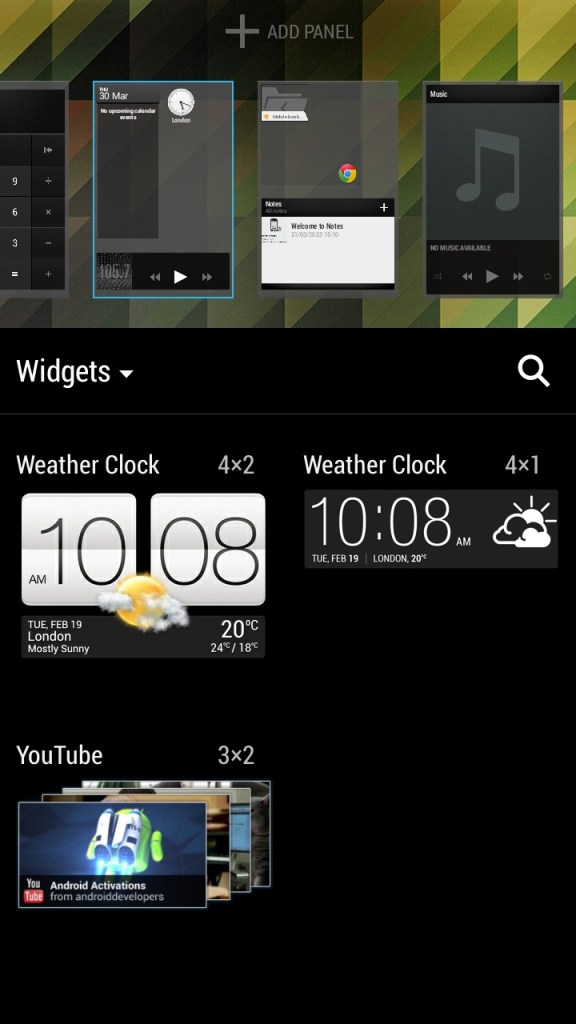
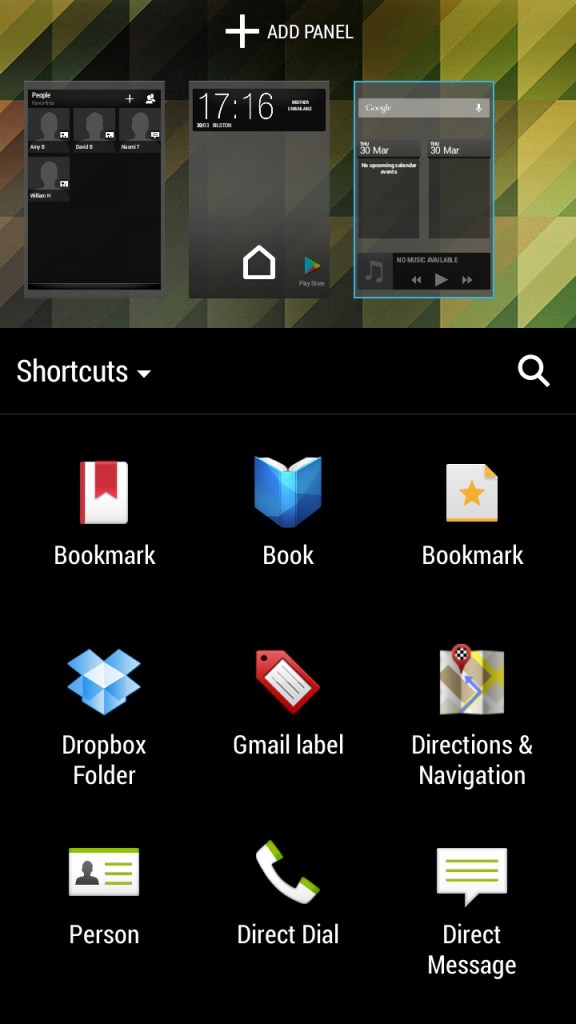
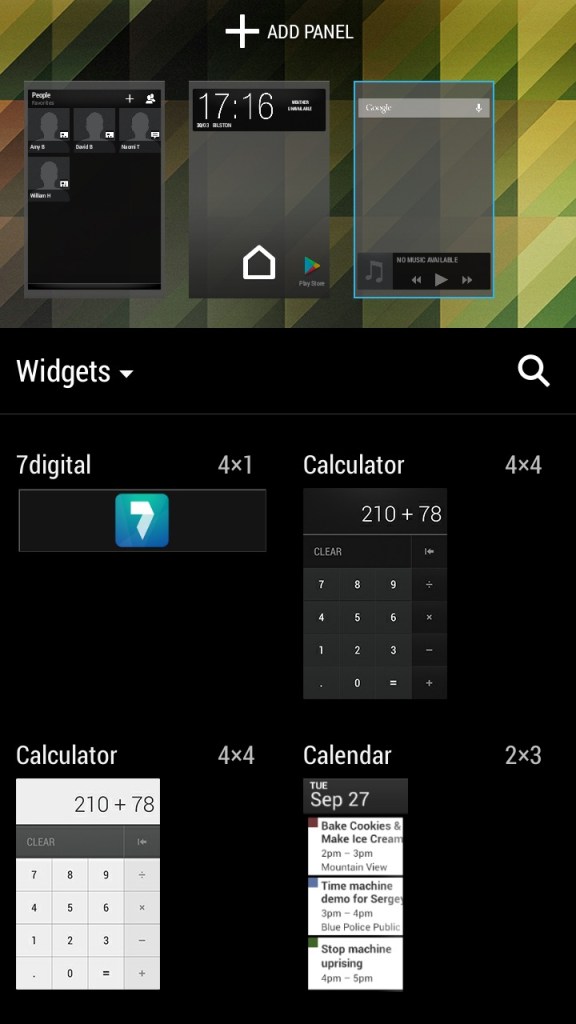
Like other Android handsets, HTC have included a few default widgets that can be placed on the Sense UI, most of these will link to existing apps on the phone and incorporate some of their functionality. You can have up to 8 different panels containing widgets or app icon shortcuts fro easy access. Switching between panels is as easy as swiping left or right.

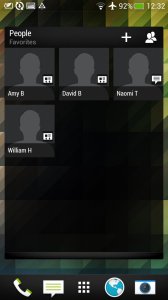
The contacts widget lets you place your top 9 contacts, of which can be pinned for quick access. Kind of like a speed dial of sorts but you can customize what to do when you select them, either open the contact card or directly call or message the contact instead.

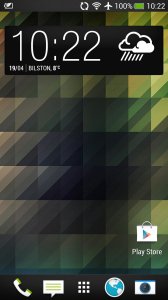
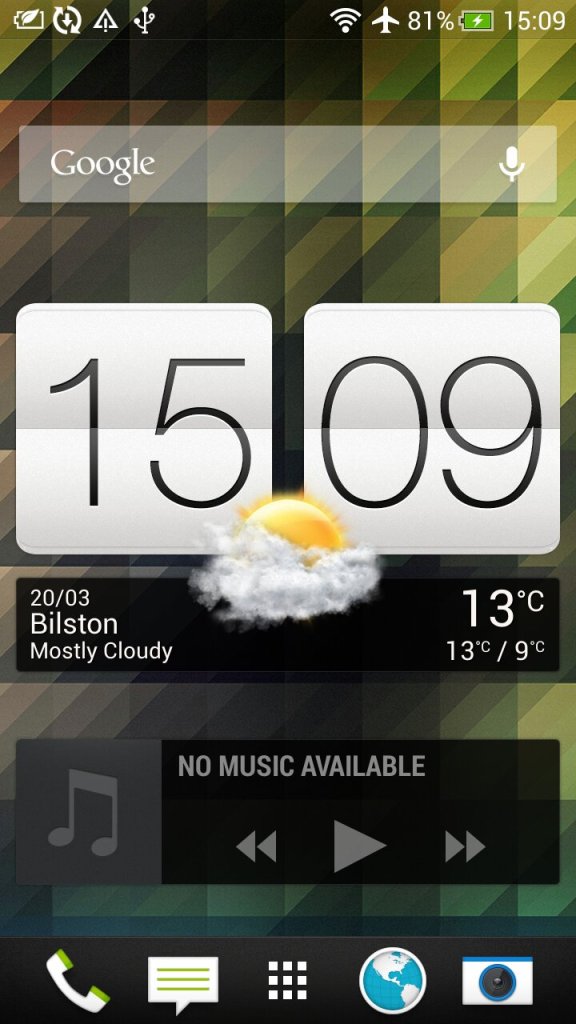
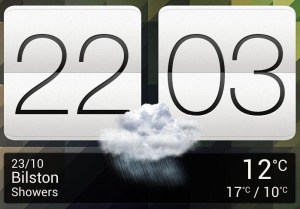
The weather and clock widget which will show the weather according to your phone’s location, when pressed will just take you to the clock app.

The music widget lets you quickly play the last played track and also lets you pause and skip tracks directly. Pressing on it will open the HTC music app.

Conclusion

Overall, the HTC One X was a great smartphone for its time, offering excellent performance, a good camera, and solid battery life. However, it is now outdated and may not be suitable for users who require the latest features and technology. Trying to use it as a daily driver 10 years later will be a challenge, whilst you can still connect and sync a Google account, the amount of Play store apps that can be installed is very low, with Twitter, Facebook and even Google’s own Youtube apps no longer being supported. Oddly Youtube Music and Kids can still be installed.

The browser side isn’t much better, the latest Google Chrome dates from 2015, whilst Dolphin Browser 12.2.9 is the latest supported. You have to remember a lot of modern Android apps are not ARM64, and his handset is only 32bit.

Toshiba Satellite 300

A notebook computer released in 1998 and running the first edition of Windows 98. Toshiba are well known for its notebook systems and was remarkably popular with business users who valued portability and continue to manufacture notebooks under the Dynabook brand. The Satellite series are mid-range systems orientated for small businesses or home office users.

For 86box we used the Toshiba Equibim 5200 which is also a Pentium-based system from the same era but is a desktop system.

Recovery Install Process

Looks like it’s using the eMachines recovery utility to allow installation on a generic machine.

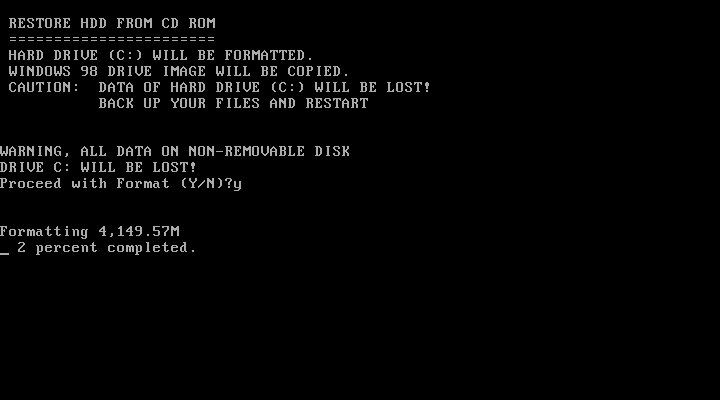
We do need to ensure the hard disk is initialized and the partition’s ready for installation. You are given the option to format the hard disk or leave the volume intact providing its FAT32 (FAT16 might work but is untested) Once formatted the restore begins.

First Boot

The customized active desktop wallpaper is based on the Windows 98 default active desktop wallpaper but with custom links to Toshiba websites.

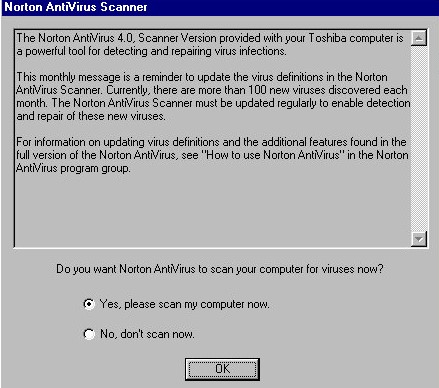
We are welcomed with a reminder about our antivirus software, of which Norton comes installed by default.

OEM information, ‘In Touch with Tomorrow’ was Toshiba’s slogan for their laptops.

Toshiba have customized some of the screensavers including the 3D text.

Another screensaver

Included software

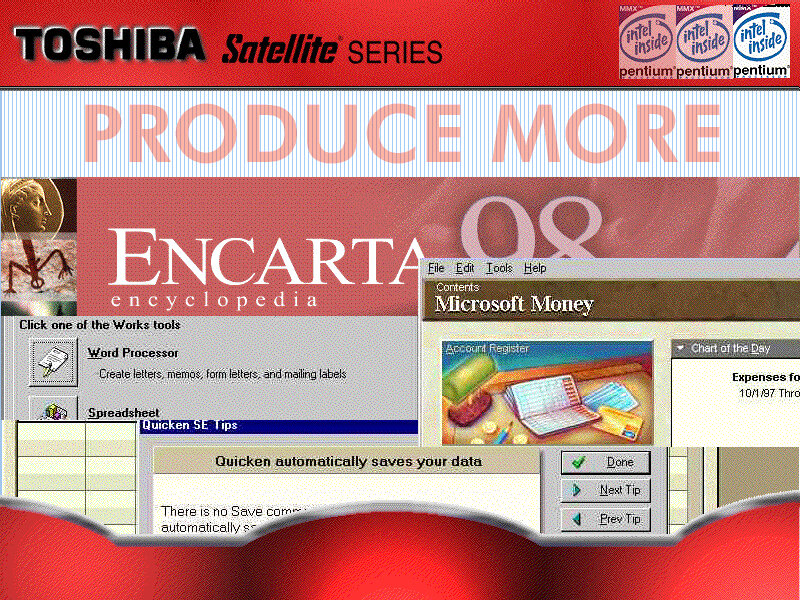
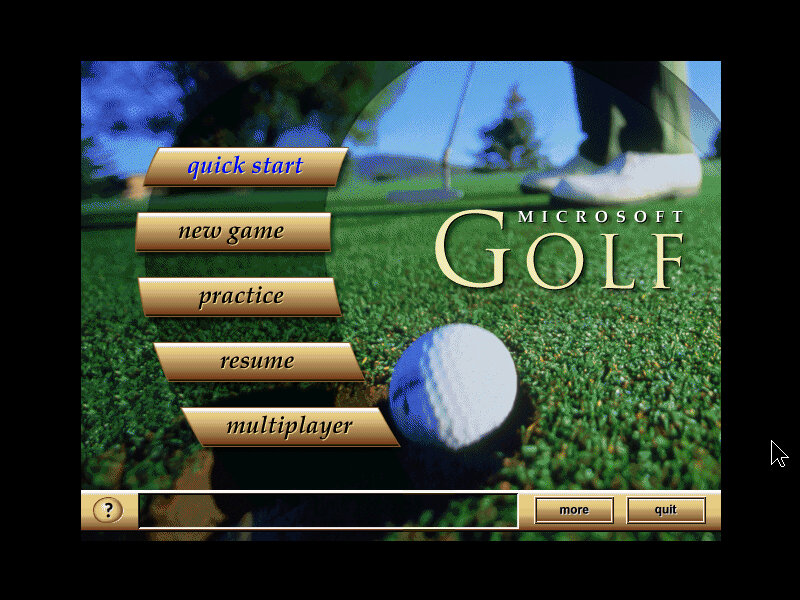
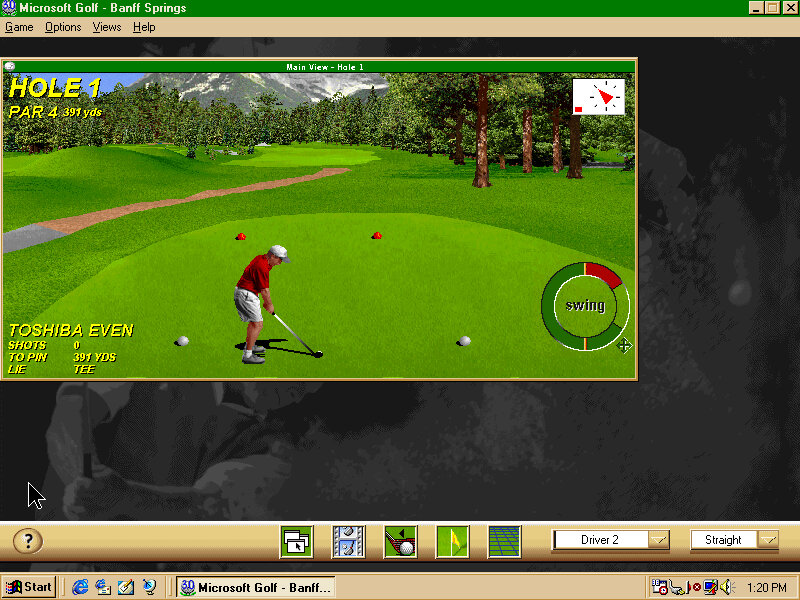
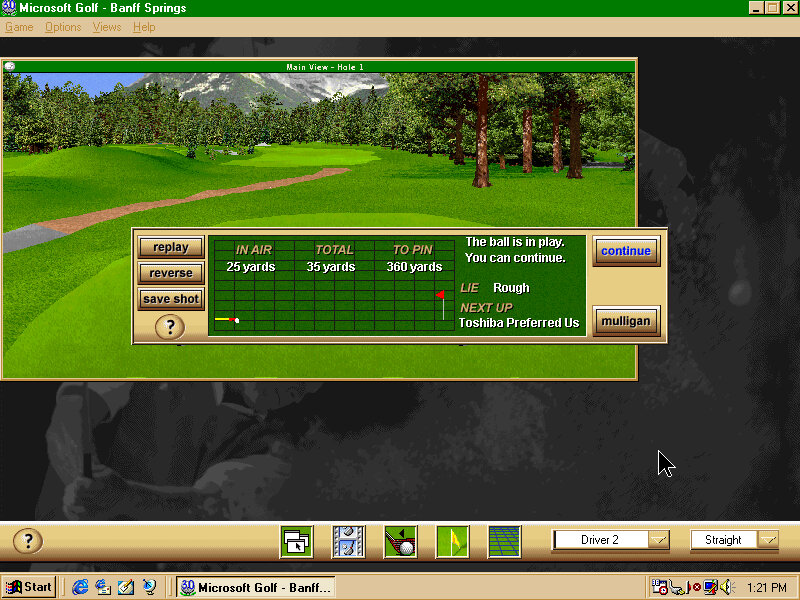
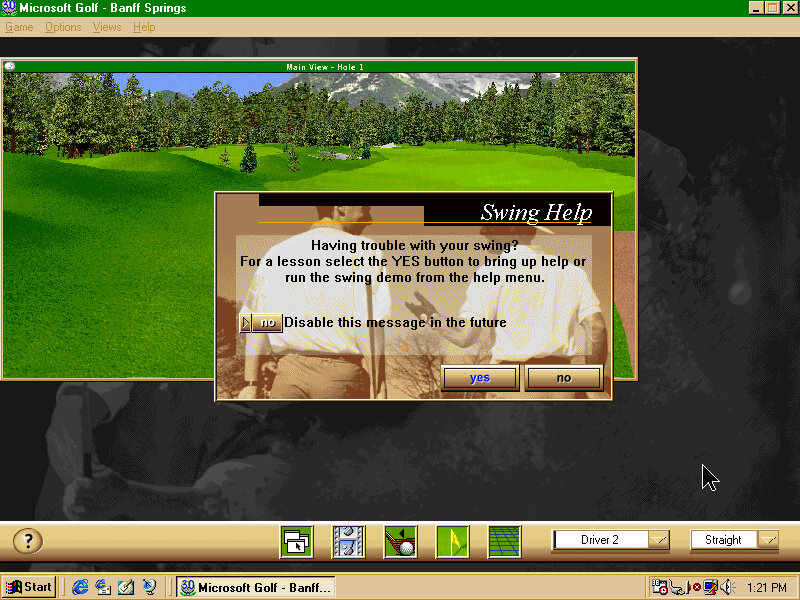
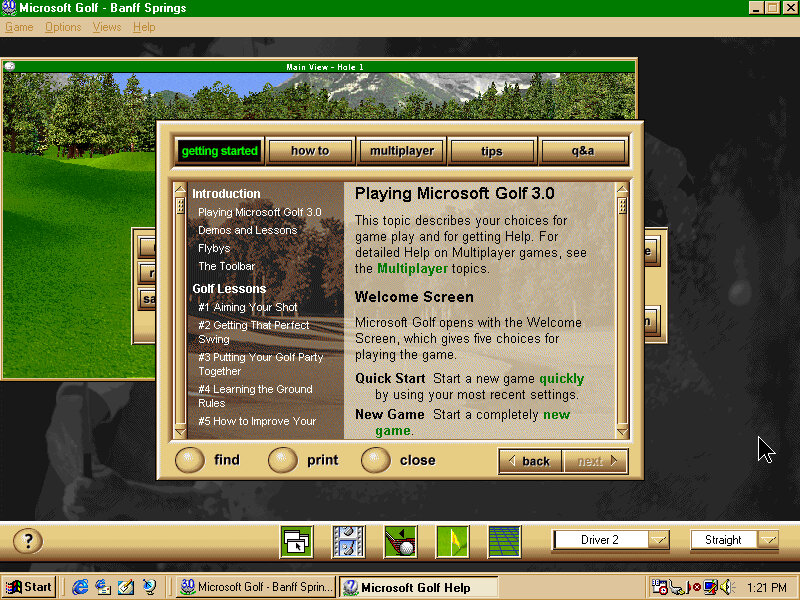
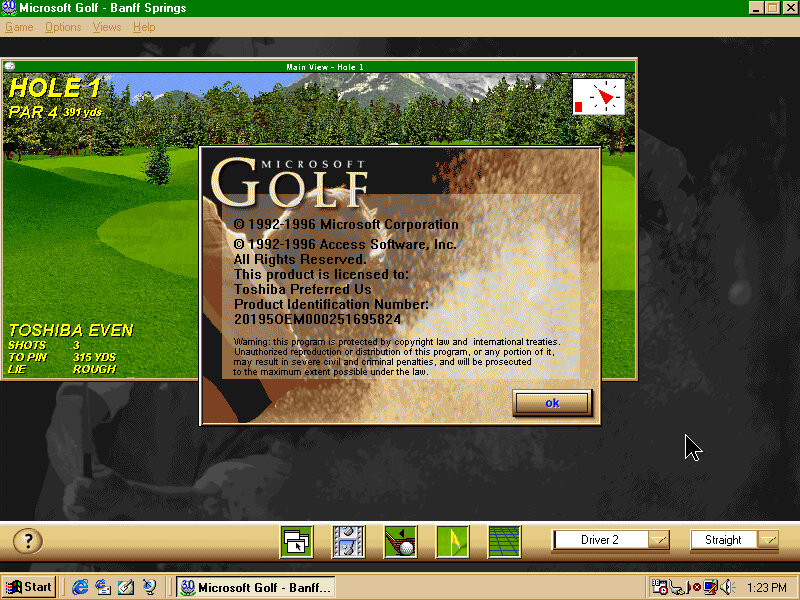
Microsoft Golf: A golf simulation game, the 1998 edition is bundled here though it’s not a complete install with the CD-ROM being required for some parts. This is a budget counterpart to Microsoft Links which was a proper golf simulator.

Microsoft Office Outlook 98: An updated version of Outlook that was featured in Office 97, Outlook 98 featured a number of key improvements over its predecessor, including a redesigned interface with better integration between email, calendar, and contact features.

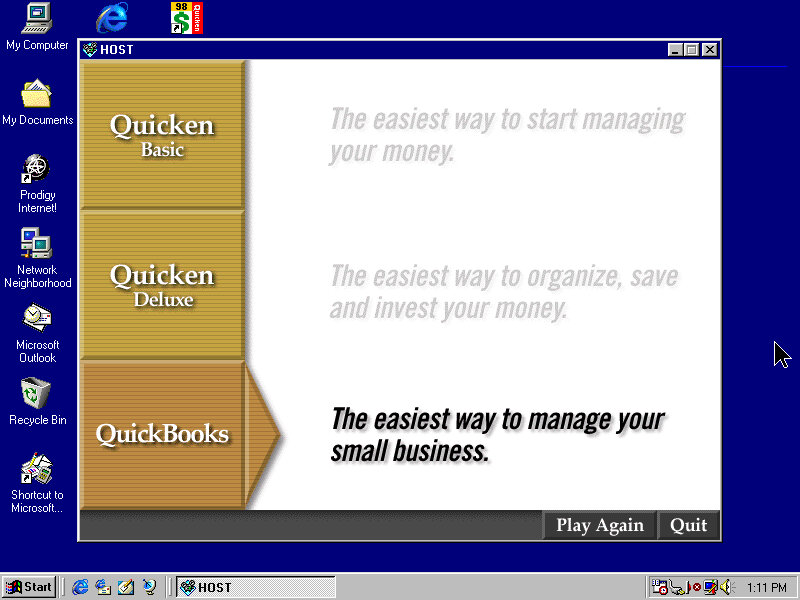
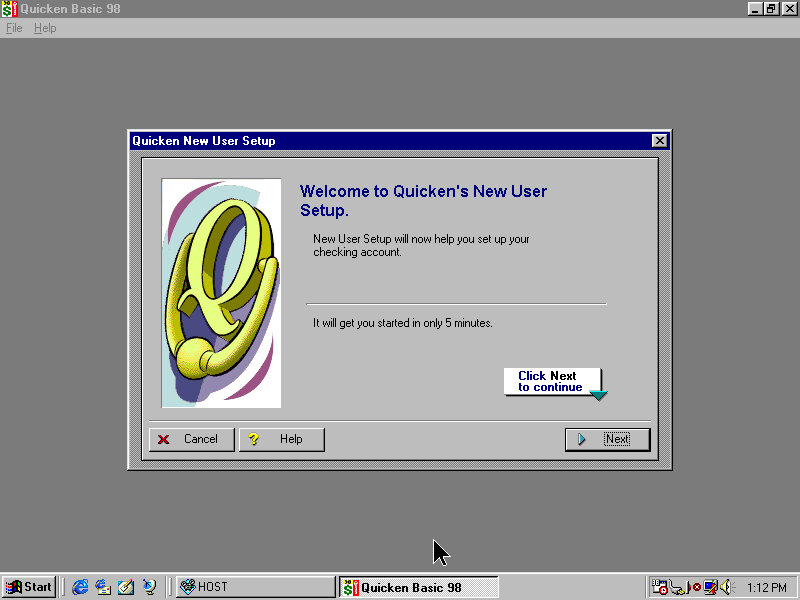
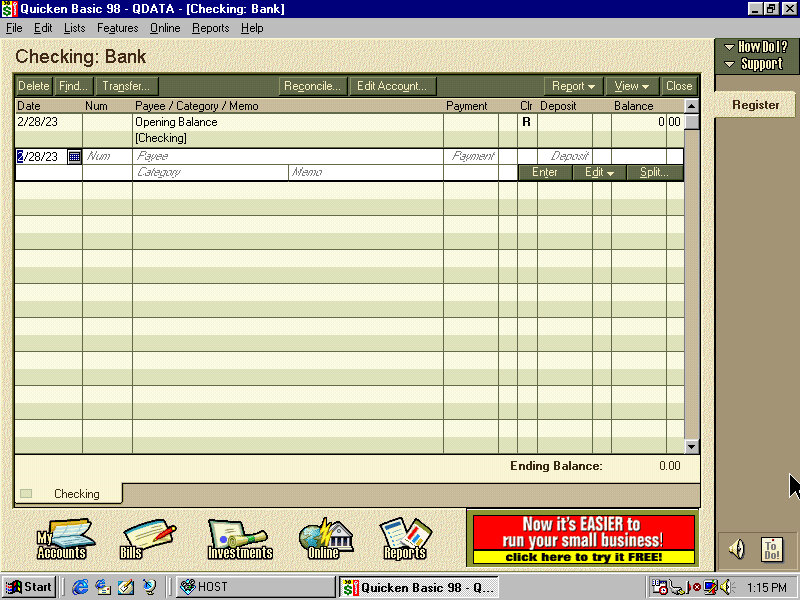
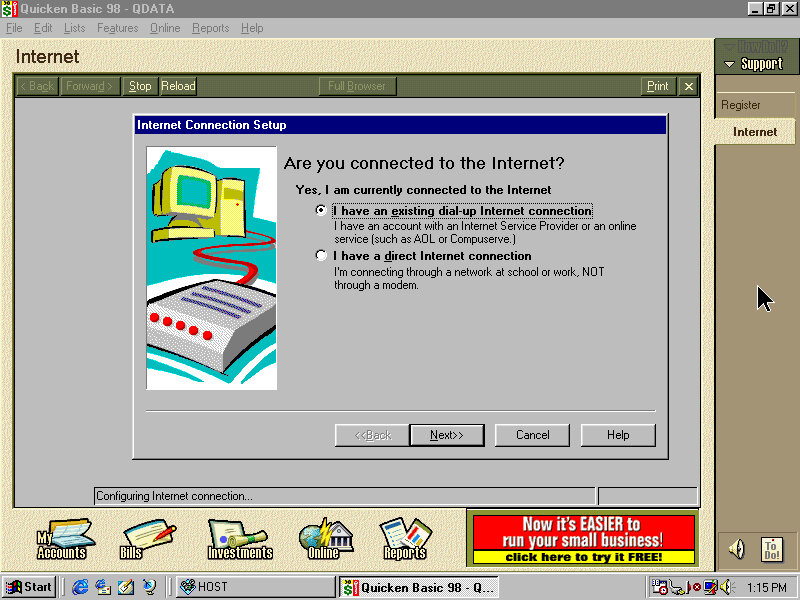
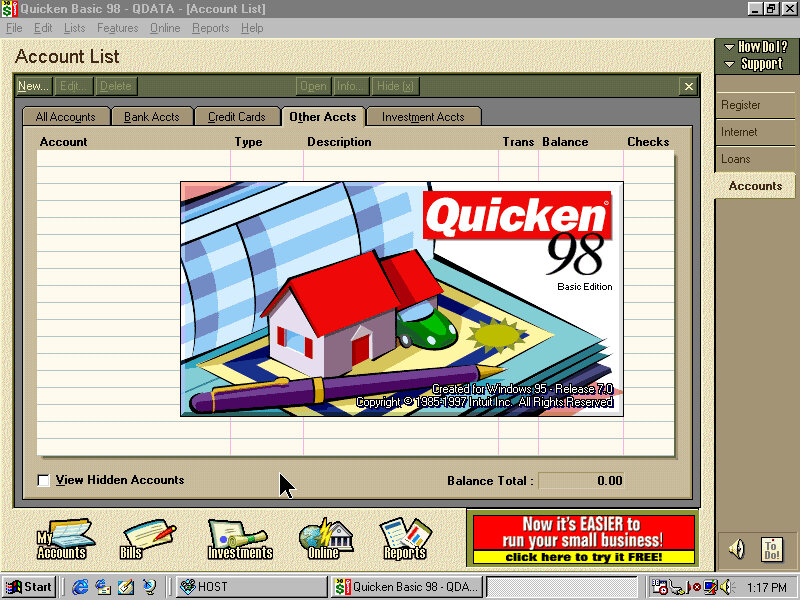
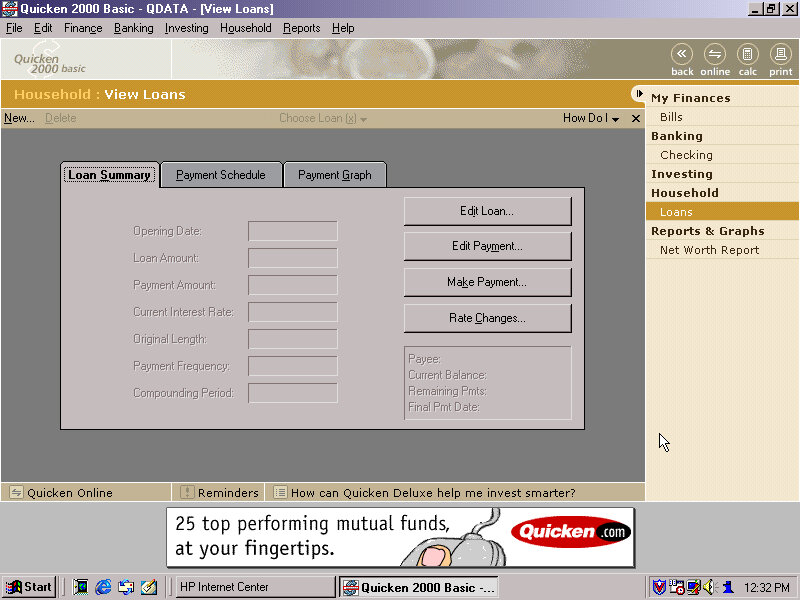
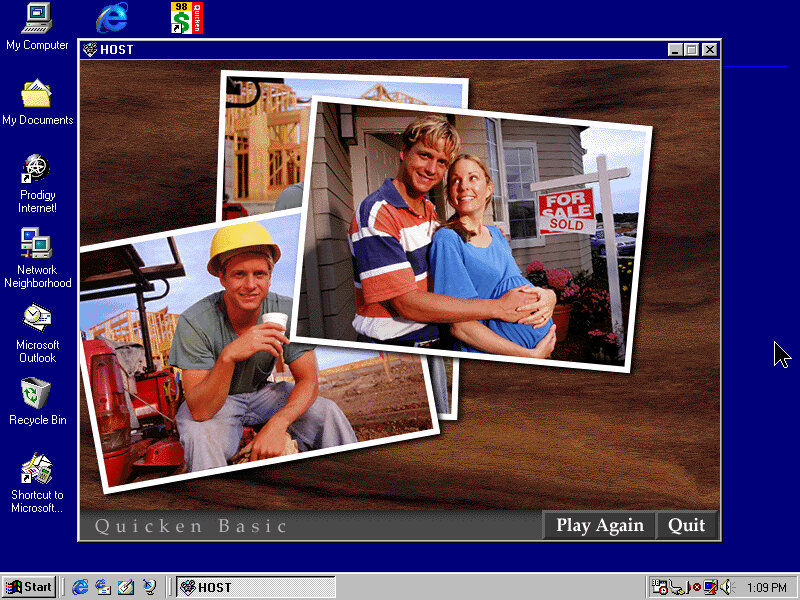
Quicken Basic 98: A personal finance management software program, that enables users to schedule and pay bills directly from the software. The software also included tools to help users prepare their tax returns.

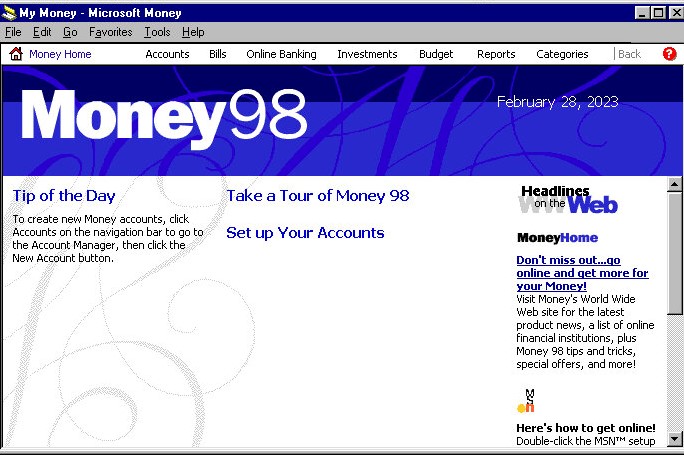
Microsoft Money 98: Microsoft Money 98 allowed users to track their income and expenses, create and manage budgets, monitor their investments, and pay bills online. It also included a tax planner, which could help users estimate their tax

Microsoft Works 4.5: Includes four main applications: a word processor, a spreadsheet, a database, and a calendar. It also included a dictionary and thesaurus, as well as a variety of templates for creating documents such as letters, resumes, and newsletters.

Microsoft Encarta Encyclopaedia: A digital multimedia encyclopaedia that was first released in 1993 by Microsoft Corporation. It was designed to provide users with a comprehensive reference tool that includes articles, images, videos, and other interactive content. The software included a range of features including a dictionary, thesaurus, atlas, timelines, and other educational tools.

Norton AntiVirus: Standard preinstalled antivirus software.

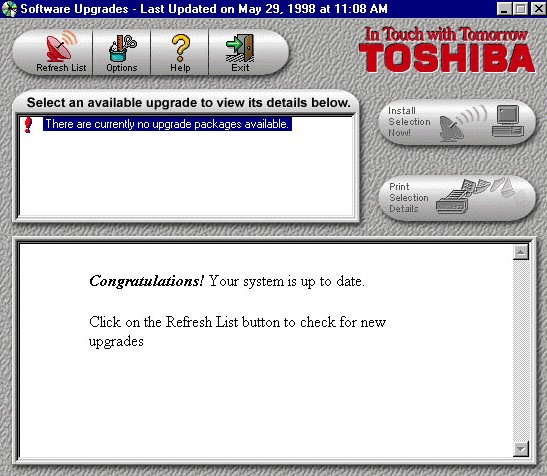
Toshiba Update: A utility that would have downloaded updates to the bundled applications and possibly drivers. Note the last update date of May 1998 which predates the release of Windows 98, I’m sure this was originally a Windows 95 install that was upgraded to 98.

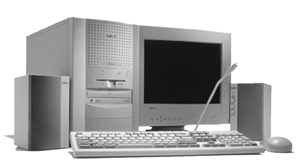
NEC Ready 9748

NEC is no stranger to x86 computers having a respected line of computers in Japan under the PC98 branding. The PC98 is a family of personal computers that was popular in Japan in the 1990s. NEC was one of the major manufacturers of PC98 computers, which were known for their compatibility with Japanese software and games. The PC98 ran on a proprietary operating system called PC-98, which was developed by NEC and other Japanese companies.
Outside of Japan NEC had a minor presence with the Powermate line for the business and enterprise market, and the Ready line for home and small office market.

This is one of their many models that NEC had around the time which were being sold as complete home PC’s that featured bundled software and internet compatibility (being sold with an internet browser package, or ISP software)

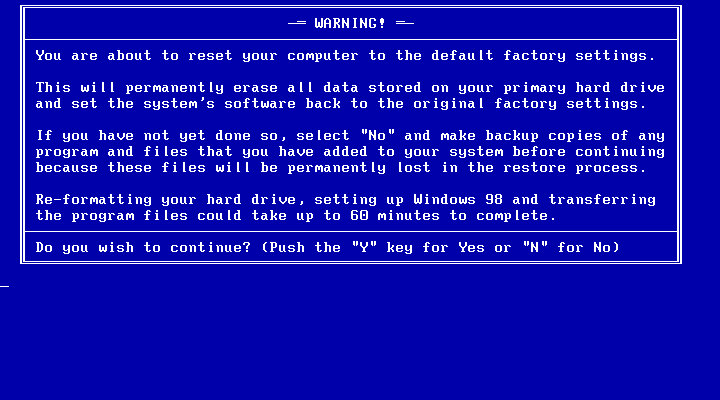
Getting to boot the recovery image was a bit of a complicated dance. The CD itself does not seem to be bootable, despite there being files on there that suggest so. Plop bootloader did not appear to be able to boot the disk either.

First thing I tried was to use a Windows 95 boot floppy to cd into the floppy directory and run the bat file which I assumed would begin the recovery process.

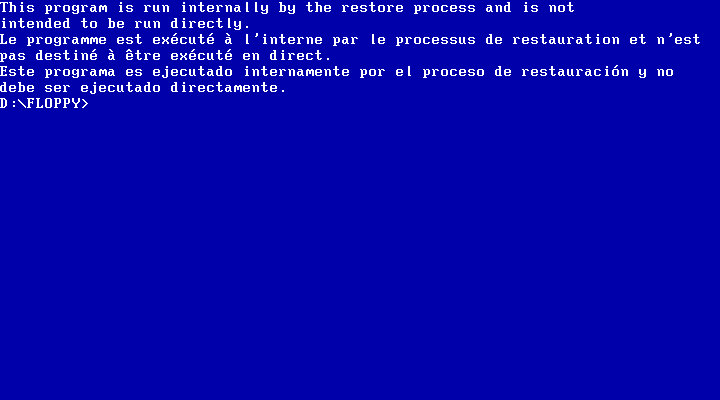
Instead it gave me the finger and the recovery must be started indirecrtly

What I had to do is open the iso and extract the floppy directory to a folder, and then use WinImage to create a bootable floppy disk using those files that were extracted from that folder. Now this could be forgiven as NEC were possibly using a BIOS that did not support CD-ROM booting, or the hardware was using non standard CD-ROM drive like a SCSI drive (Unlikely but possible, since the Ready series were their budget line of PCs)

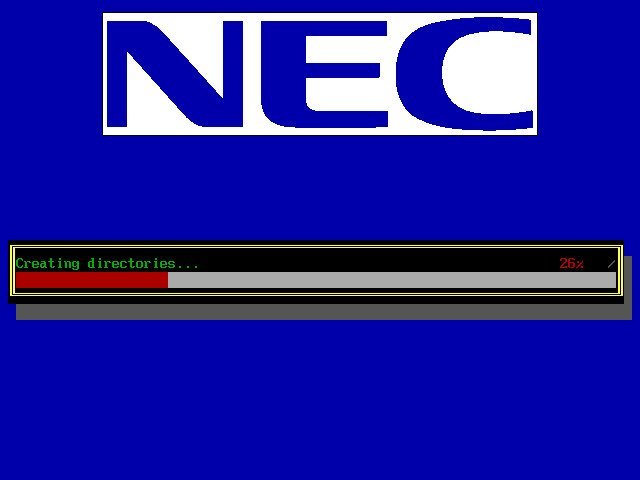
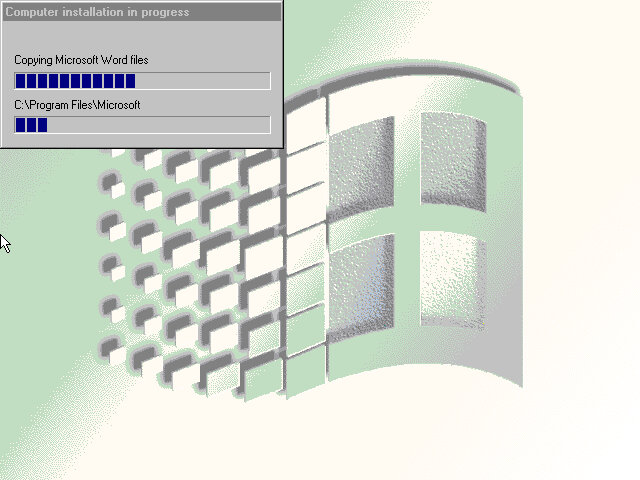
Once we booted the floppy, it picked up the CD and began the recovery process. It appears to transfer a few files to the hard drive.

Another recovery process begins, but this time we are givern a few options on how we want to proeed with the recovery. I chose the second option which began to format the hard drive (so what was the point in copying those files in the first place?

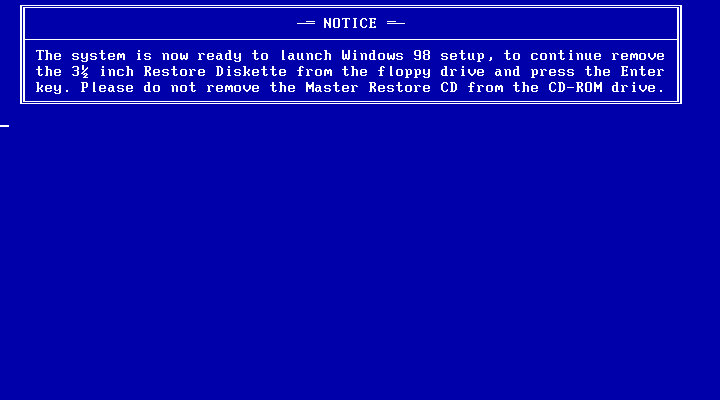
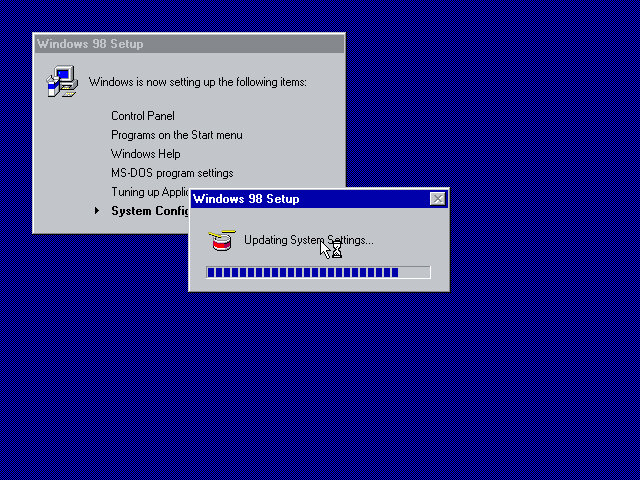
After the copying is complete we are invited to reboot into Windows setup, where the install will continue. This is where the drivers are initialized and detected.
Strangely we are not prompted to enter a product key or any owner or regional information, odd but not a complaint as this makes the install more streamlined.

After this has completed we are rewarded with our new windows desktop, though we are not finished with the recovery just yet as we have another install utility to go through.

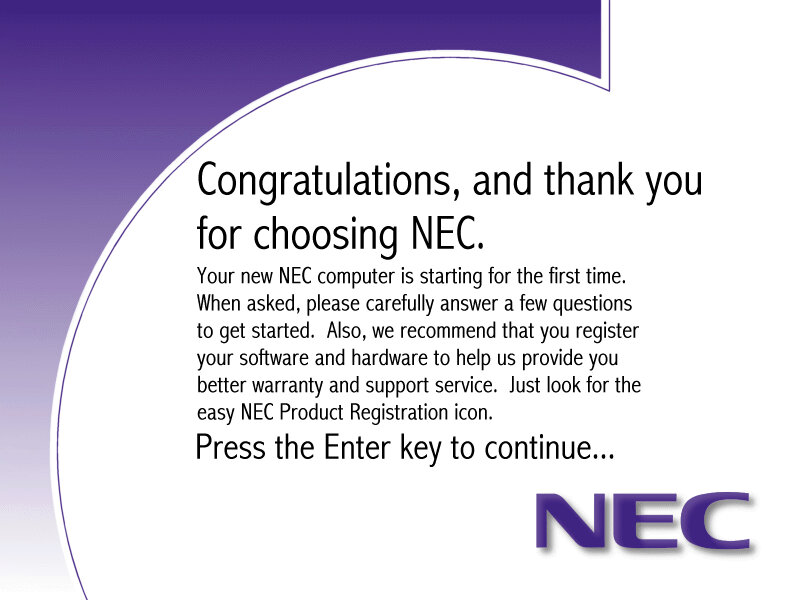
A nice thank you from NEC, followed by another reboot

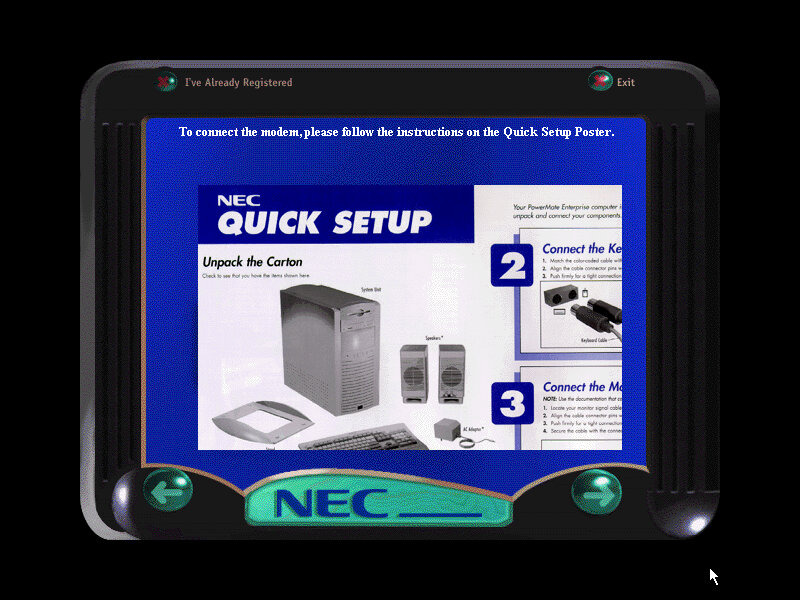
The NEC Welcome program that invites us to reegister our system

Software

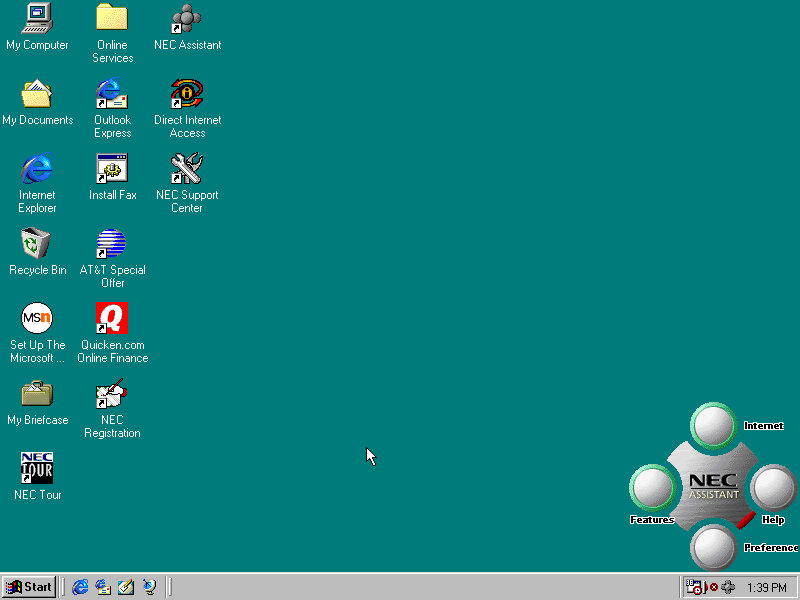
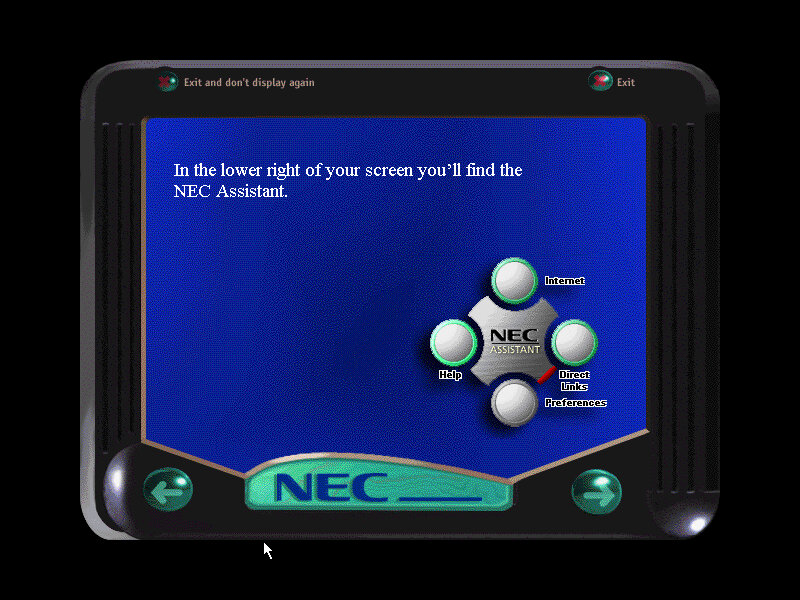
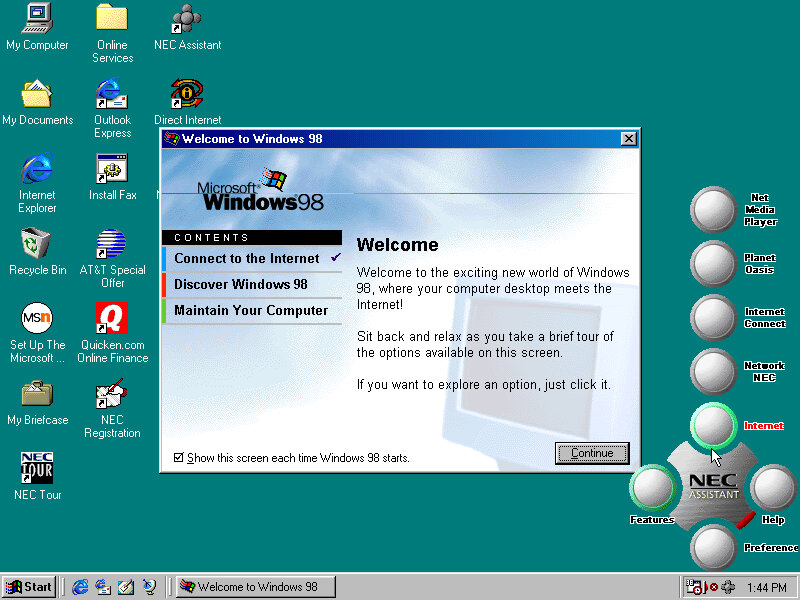
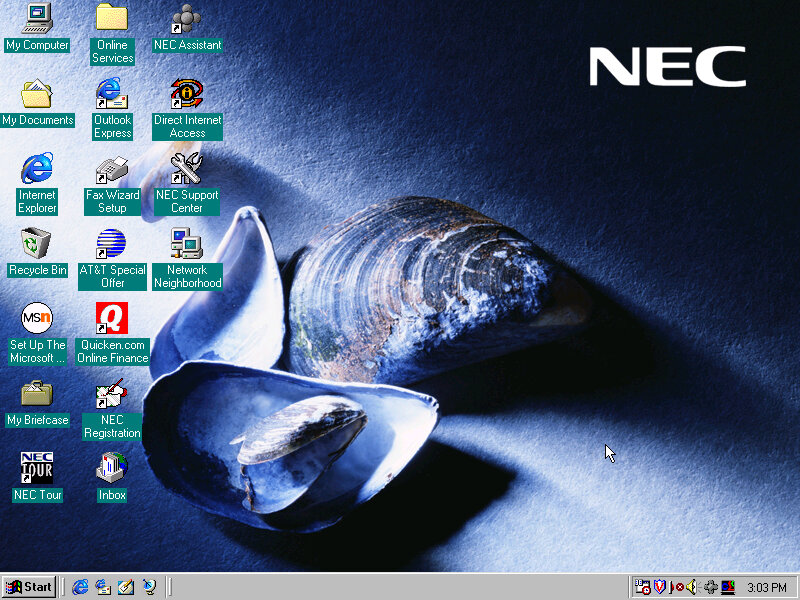
Welcome to Windows, this appears to only have three options, also a sneak look at the NEC assistant

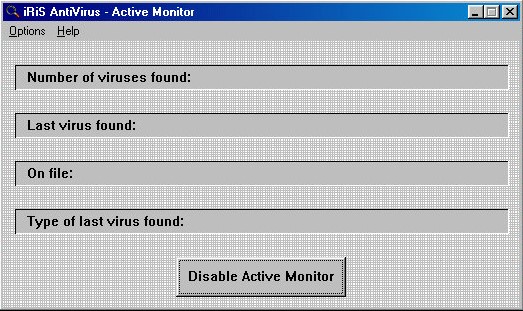
iRiS AntiVirus: A relatively unknown series of antivirus software, seems rather basic even for its time.
Microsoft Entertainment Pack: A suite of games such as Chip’s Challange, Tetis, SkiFree and Tut’s Tomb

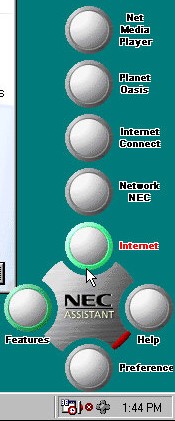
NEC Merlin Assistant

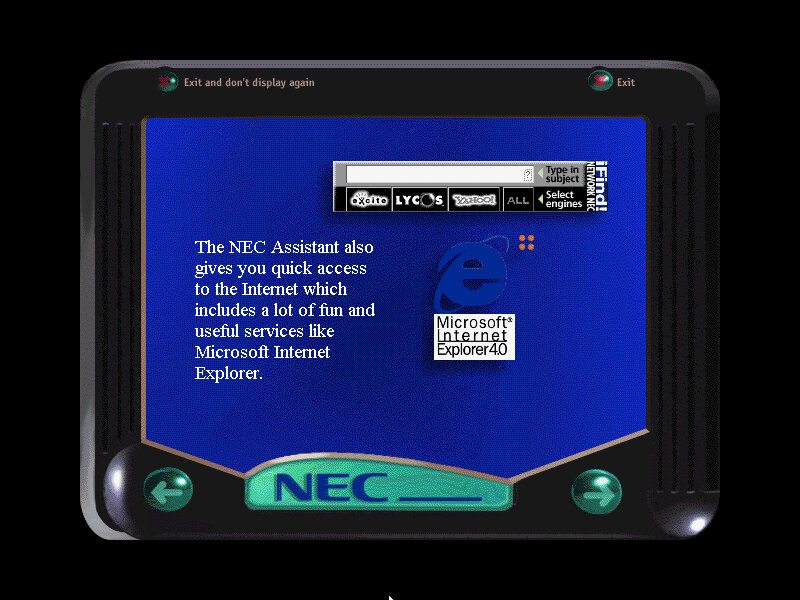
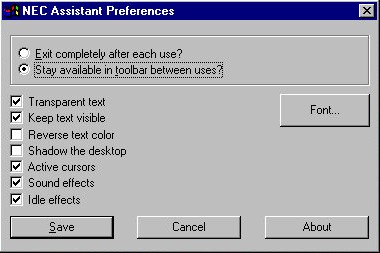
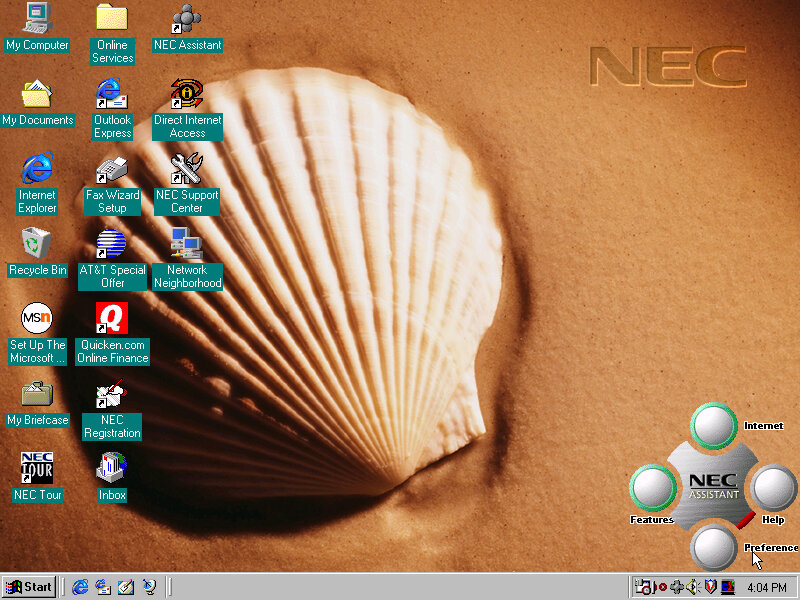
This is situated on the bottom right of the screen and also appears in the system tray. Mousing over it will bring it up. The main buttons are the Features and Internet buttons, which will bring up links to the Net Media player, Planet Oasis, and Network NEC. These require you to sign up with an internet provided using the NEC provided wizard.
This can also be used to set a custom wallpaper to a NEC branded one, these do not appear in the desktop wallpaper section of the display properties. Instead you have to click their button to cycle through them.

Sample backgrounds:

Other Software

These have been seen so many times in OEM installs

Microsoft Works 4.5: Basic productivity software

Microsoft Word 97: Popular word processing software, only Microsoft World is included here, not Excel, PowerPoint or Outlook.

MGI PhotoSuite 8.05: photo editing software developed by MGI Software Corporation. It was originally released in 1997 and was one of the most popular photo editing software of its time. It is designed to provide users with an easy and intuitive way to edit, enhance and manipulate digital images. The software includes a wide range of features such as image editing tools, special effects, filters, borders, frames, and more. It also has a user-friendly interface and provides step-by-step tutorials and wizards to guide users through the editing process

Quicken Basic 98: Quicken Basic 98 was a popular personal finance management software at the time of its release, and was designed to help users manage their personal finances and budget effectively. It helped to establish Intuit as a leader in the financial software market.

Sony VAIO PCV-L630

Featured on Tech Tangents (Akubuku) Youtube channel, this is a slim form factor PC released in 1999 and was positions as Sony’s premium line of PC’s.

Recovery

This one was pretty simple since the hard disk contents was extracted and put u for download. To transfer it back to a bootable 86box image required me to created the VHD and initialize it using FAT32 (via the Windows 95 OSR2 boot disk), then to mount the VHD using disk manager on the host system. Lastly the files could be copied back to the drive.

For 86Box, the Tyan Tsunami ATX motherboard was used as it uses the same chipset (Intel i440BX) as the PCV-L630. For the graphics an ATI Mach64 can be substituted for the 3D RAGE somewhat, but you will be missing 3D acceleration (No bundled applications use this currently).

First Boot

Since we are using a different configuration that the OS does not expect, we have to go through the New Hardware messages and prompts. However I did encounter a weird System File Error message that related to a DDEML.dll file that was complaining that was replaced with an older version. Akubuku did mention some files were corrupted, likely due to failing sectors on the hard drive but this turned out to be CAB files that were replaced with one from a Windows 98SE CD.
I wasn’t sure how to fix this or what caused it. It could be when I extracted the file out of the archive. Booting into Safe Mode didn’t do much, since the OS was complaining about the file being in use I figured Safe Mode would be an environment where it could be fixed.

I decided to use the System File Checker, just to make sure everything was intact but its hard to know if these file changes are the result of Windows update

OEM Customization

Four background wallpapers come included which are part of an Active Desktop script that changes the background depending on the time of day. Very similar to how the XMB background on the PlayStation 3 and PSP worked. Different resolutions and colour depth can be selected.


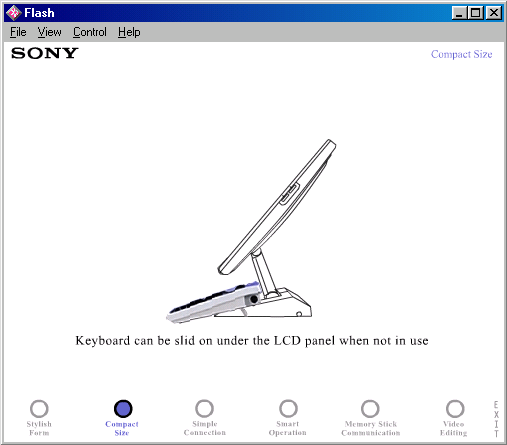
A screen saver (VAIO Tour) is included which appears to show off the different features of the system, built on Macromedia Flash. This can also be opened from the desktop and features as a demonstration/advert of the computers features. It seems more suited to use in a retail environment.

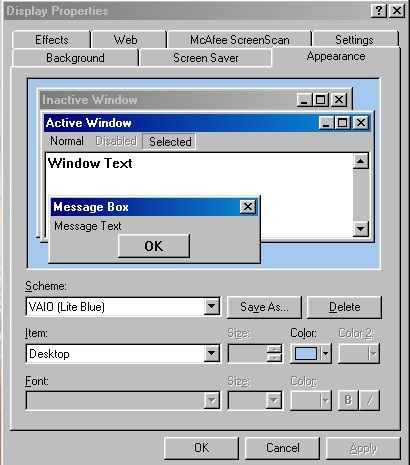
A VAIO Light Blue colour scheme also comes included and selected by default. This comes in a similar colour to the actual desktop unit.

Included Bundled Software

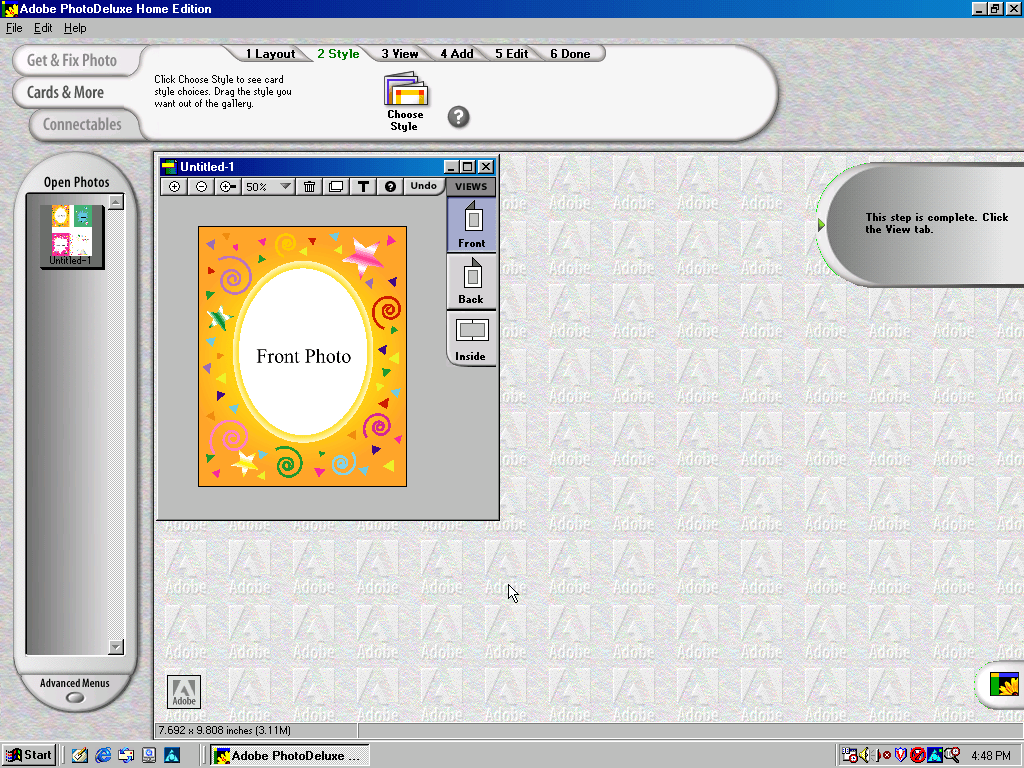
Adobe PhotoDeluxe Home Edition

Adobe PhotoDeluxe was a consumer-oriented image editing software program that was first introduced by Adobe Systems in 1996. It was designed to be an easy-to-use photo editing tool for home users, and it offered a range of basic image editing features, such as cropping, resizing, color correction, and special effects.

PhotoDeluxe was popular in the late 1990s and early 2000s as it was one of the few image editing programs that was accessible and easy to use for non-professional users. However, as more powerful and comprehensive image editing software became available, Adobe discontinued PhotoDeluxe in 2002 and instead focused on its other photo editing programs, such as Adobe Photoshop Elements.

Adobe Premiere 5.1

Adobe Premiere 5.1 is a video editing software program that was released by Adobe Systems in 1998. It was an upgraded version of Adobe Premiere 5.0, which was the first version of the software to offer support for Windows 98. It included several new features and improvements over its predecessor, including enhanced support for real-time video editing, improved performance, and expanded compatibility with a wider range of video and audio file formats.
As this computer shipped with a iLink (Firewire 1394 connector), video capture from a DV camera.

DVGate

A plugin for Adobe Premiere, The primary function of Sony DVgate was to allow users to capture digital video footage from their Sony cameras and camcorders and then edit that footage on their computer. The software supported a range of video formats, including DV, MPEG-1, and MPEG

Media Bar

A suite of applications for media playback, this included a visualizer, minidisc player, and a DVD player. None of these work on a non-Sony system.

MouseWare

Software by Logitech to take advantage of the mouse that shipped with the PC. This includes a set of custom mouse cursors.

Picturegear

Can only run on Sony hardware, PictureGear is a software program developed by Sony that was pre-installed on some VAIO computers in the late 1990s and early 2000s. The software was primarily designed to help users manage and edit digital photos, including importing, organizing, and enhancing images.

Smart Utilities

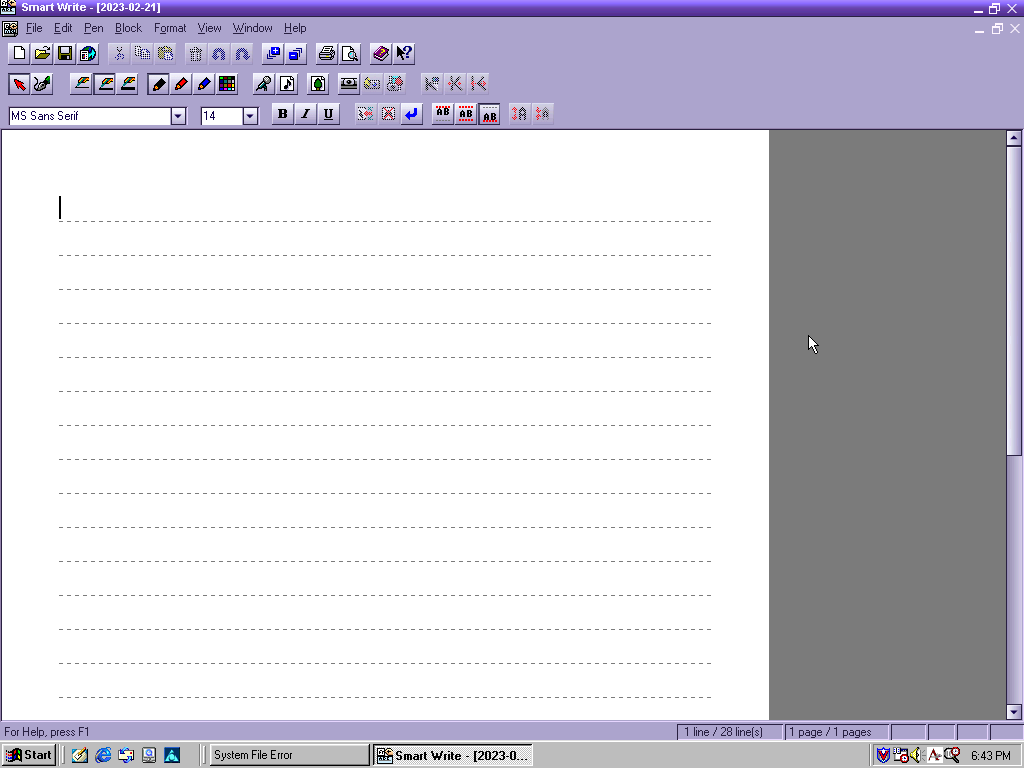
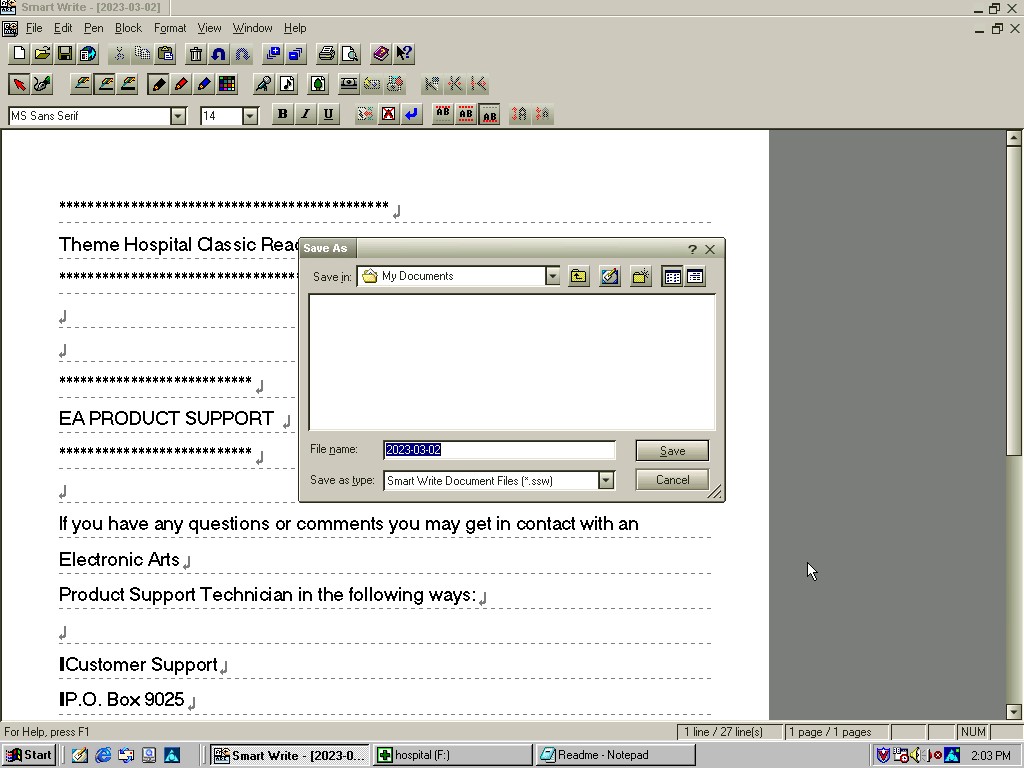
This appears to be an office productivity suite developed by Sony, at least licensed by them. It appears to use the VAIO colour scheme if one is set. Programs here include Smart Write (Word Processor), Smart Label (Lets you create birthday labels) and Smart Publisher which let’s you upload files to an FTP server, possibly HTML files for web use.
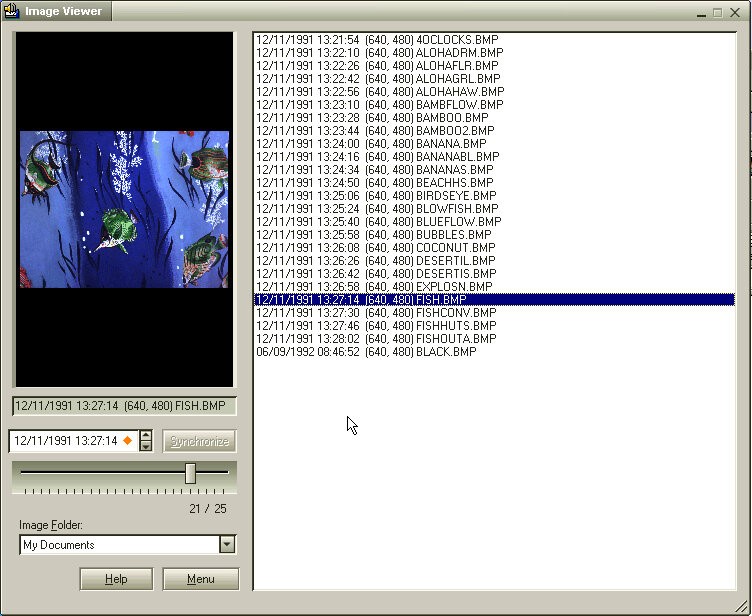
There is also an image viewer which can be used to create labels that appear on the desktop.

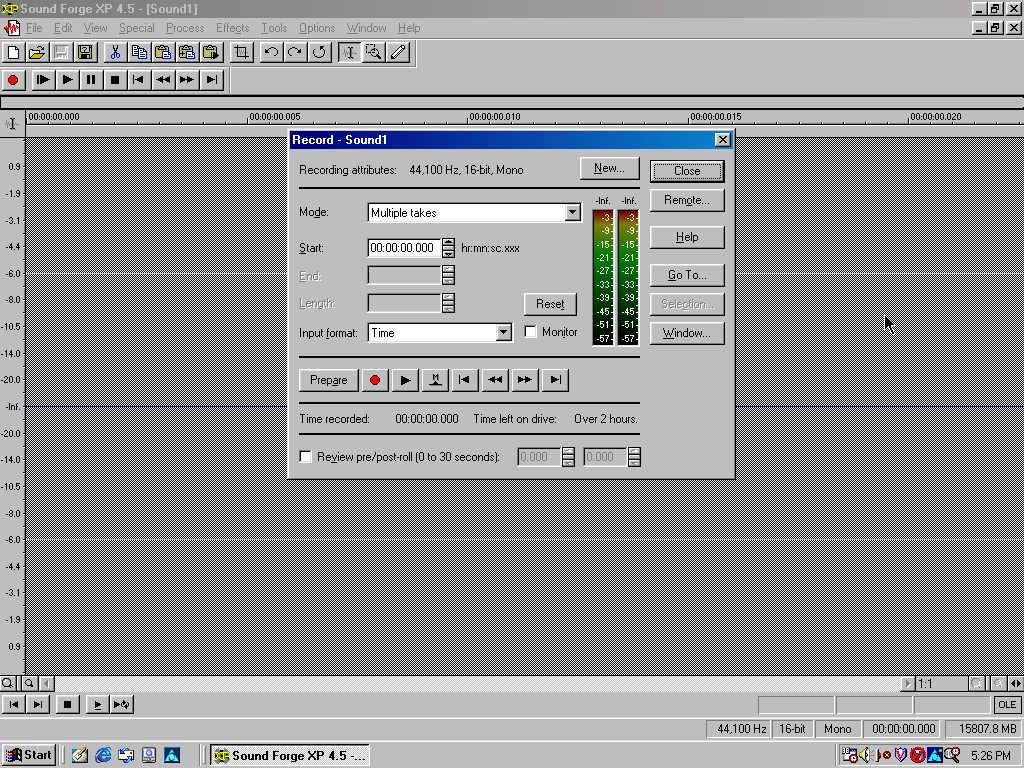
Sonic Foundary Sound Forge XP

Sonic Foundry Sound Forge XP is a digital audio editing software that was developed by Sonic Foundry and released in the early 2000s. The software was designed to provide professional-grade audio editing and processing capabilities to users, with a focus on music and audio production.

Sound Forge XP offered a wide range of features for audio editing and mastering, including tools for editing, processing, and analyzing audio files. Users could use the software to perform tasks like trimming, splitting, and merging audio files, as well as applying various effects, such as reverb, echo, and distortion.

Other Software

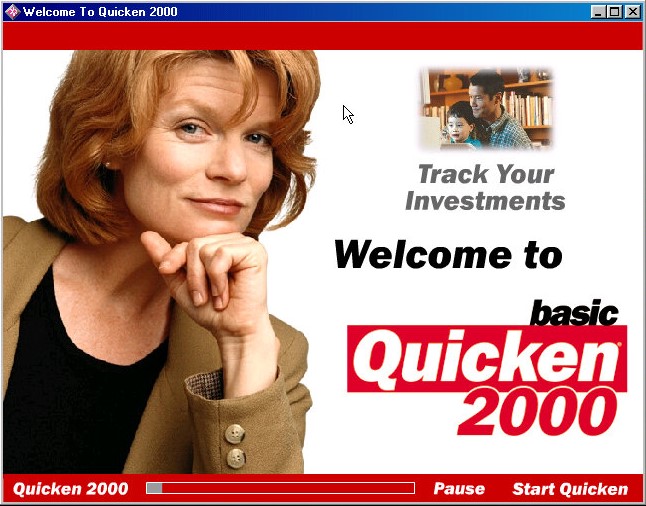
Quicken Basic 2000: Quicken Basic 2000 was one of the earlier versions of Quicken and was designed to run on Windows operating systems. It offered basic features and functionality, such as the ability to track income and expenses, create a budget, manage bank accounts and credit cards, and generate basic reports.

Netscape Communicator 4.5: Popular alternative web browser that integrates an email client, Some of the key features of Netscape Communicator 4.5 included the ability to display websites with advanced HTML features, support for JavaScript and CSS, and integration with various internet services like AOL Instant Messenger, Netscape Netcenter, and RealPlayer.

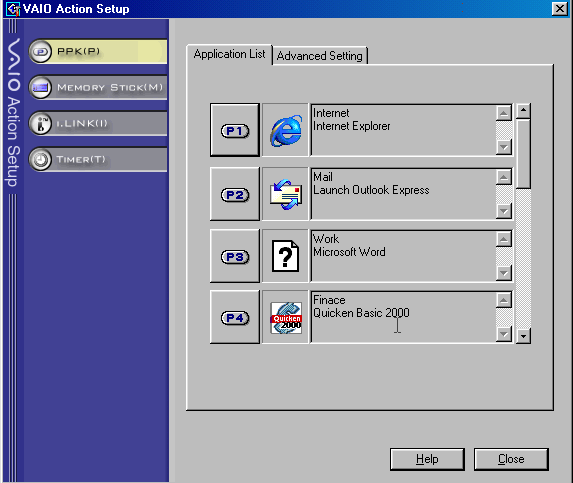
VAIO Action: Appears to be a utility to control the soft keys on the included keyboard and the applications associated with them.

Control Panel

There is a VAIO power scheme which by fault disables the monitor and hard disk standby.

There is an applet for the Aurreal Vortex sound card that was built into the systems motherboard which lets you adjust the sound capabilities of the system. Non functional as 86Box does not emulate this sound card.

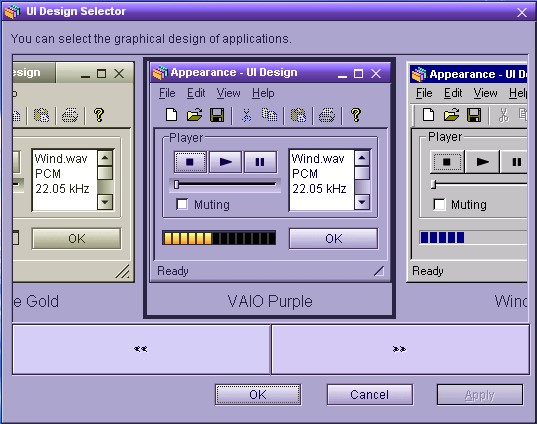
UI Design Selector: Lets you change the user interface for many of the VAIO applications, These do not use the standard Windows UI elements with Sony opting to use their own. Included schemes are VAIO Purple, Vintage Gold, Black and Silver and Windows.

Links

Archive.org Image

OEM Customization files – Includes the wallpapers, OEM Information text, colour scheme registry key and screensavers

eMachines eTower 466ix

The eMachines eTower 466ix was a budget desktop computer released in 1999 by eMachines. The system was made available with an Intel Celeron clocked at 466MHz, 64MB of RAM, 4.3GB of storage (which varies based on the model) and integrate Intel graphics. Windows 98 Second Edition is the operating system used here.

Recovery Install Process

Recovery is started by booting from the CD. As with other eMachines recovery software we need to have a pre partition disk (does not need to be formatted but must be initalized using the FDISK utility) before we can begin the install.

Had to switch motherboards after the recovery was complete as I got hammered with IOS errors upon bootup, changing to the ABIT LX6 worked much better. Plus it had the advantage of having a similar if not the same chipset as the original motherboard, albeit with no onboard ATI video.
The eTower also had a Crystal sound chip onboard along with the software but we can sort of substitute it with the Crystal 4236B ISA soundcard that is supported in 86box.
Windows 98 does not seem to come with a driver, so a third party driver must be installed.

Desktop First Boot

Windows 98 boot screen, with the Microsoft logo on the top right.

Looks very similar to the eMachines eMonster that was also a Windows 98SE based install, but we see a lot less software bundled and installed.

The eMachines website, or whats left of it

OEM Customisation

We get a few emachines desktop backgrounds for us to use:
E – Windows 98 dark blue background with the emachines logo centred
Emachine – the emachine logo in 800×600
Ewall – same as Emachine but zoomed out slightly, also 800×600
Ewalls – low resolution of Ewall, at 640×480

The Musica sound scheme is set as the default with no customer schemes included or set.

Included software

eWare

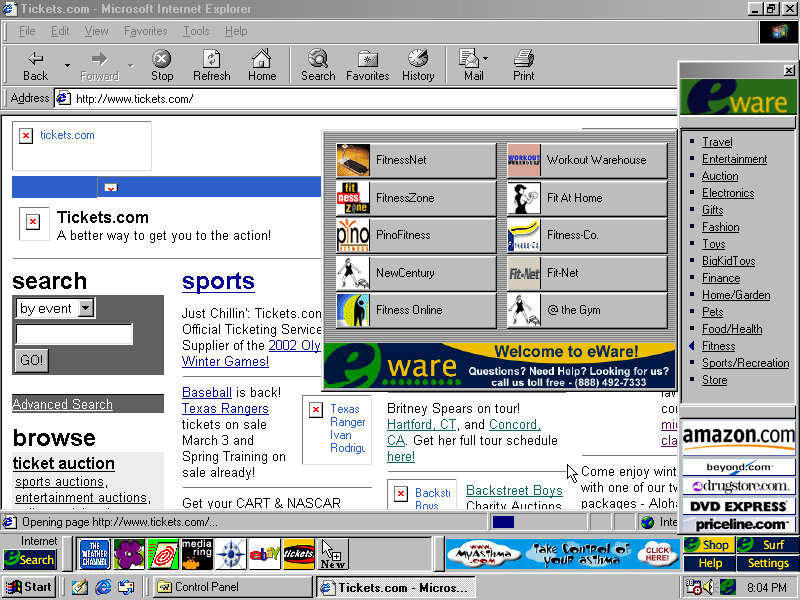
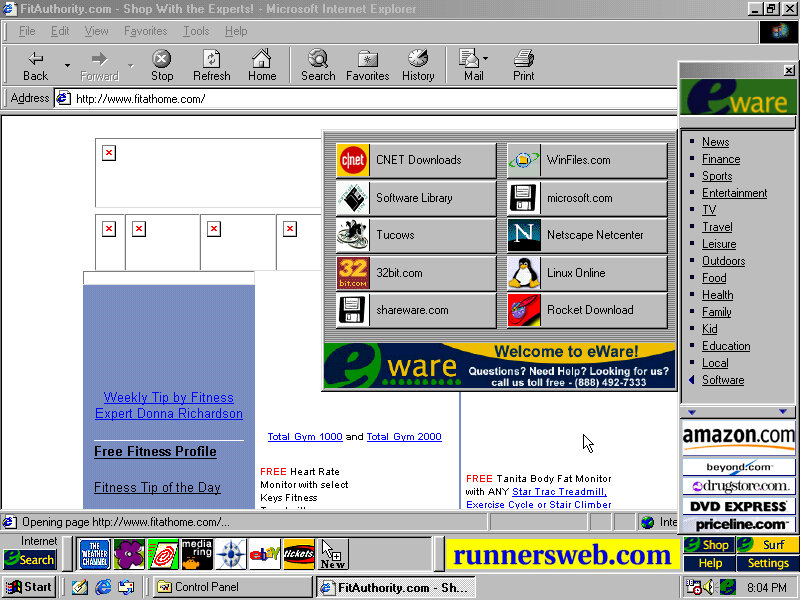
The eWare bar come bundled and appears at the bottom, but on top of the Windows taskbar. This will show shortcuts to popular internet website in addition to a few adverts right on your desktop. There are dedicated buttons for shopping and search engine sites.

Most of these are custom affiliate links which haven’t been archived by the OldNet, so we just get an error page.

There is also an option to take a survey. There is also some sort of search function that similar to Sherlock that’s included on MacOS 9 that can pull search results from Yahoo, Lycos and AltaVista.

Voyeta AudioStation

An audio/MIDI playback application which functions only on Crystal soundcards, at least for the one bundled here. This means it wont function on say a Creative Soundblaster but if we use the Crystal 4236B ISA soundcard in 86Box and install the appropriate drivers (they’re not bundled in Windows 98) we are able to use the application. Again it gives the appearance of a mid 90s home HiFi.

ATI Video Player

A simple video player that makes use of the video acceleration that some of ATI’s RAGE chipsets had supported. 86Box does not exactly emulate a RAGE based chipset but we do have the ATI Mach graphics cards to use instead.
It does work somewhat, I can playback AVI files with the exampling being one pulled from Microsoft Garden Home software. The video can be scaled in size and mentions support for MPEG video.

Other Software

Microsoft Works: A basic office Suite, Works 2000 Version 5.0 is installed here.
Netscape Communicator: A shortcut exists on the desktop but it not completely installed opening it will launch the 4.6 installer. This will also install RealPlayer G2.
AOL 5.0: Also has to be installed from the desktop
Adobe Reader 3.01: It’s a bit old as its copyright is dated from 1997 and Reader 4.0 was released in April 1999
Microsoft Money: Finance management software

Links

Archived discussion of motherboard specifications

Restore CD – Archive.org

Compaq Presario 5000 series

A basic internet orientated desktop PC install that features Windows ME. Very similar to the HP Pavilion and the eMachines system that were looked at previously. Compaq was a major OEM of Wintel machines, with the Presario line being orientated for the home consumer market. Systems like these typically come quipped with a Celeron, Intel or S3 onboard graphics an ‘Internet’ keyboard that features dedicated web browser and email keys and Windows ME or 98. The will commonly have bundled software or ISP offers to entice you to join.

Compaq Presaio internet PC

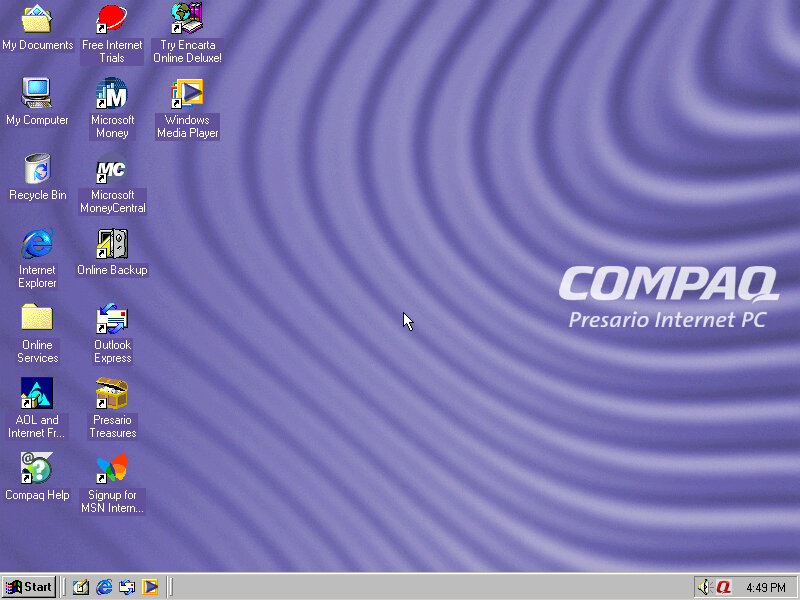
You can kind of see Compaq trying to stylise their computers, as a response to the funky looking iMac and the eMachines eOne, rather than having them appear as a typical beige box.

Recovery Process

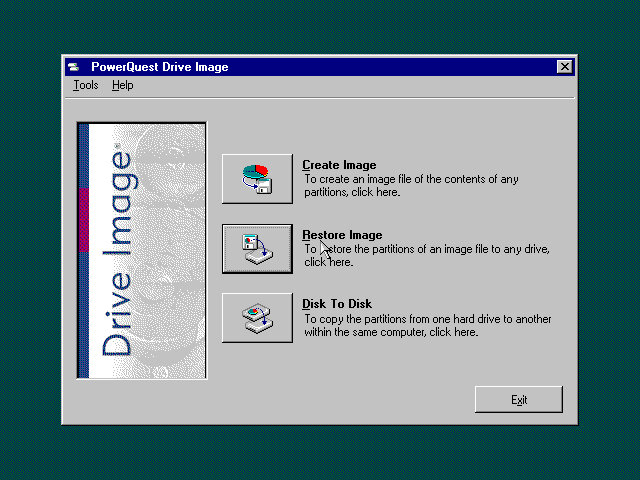
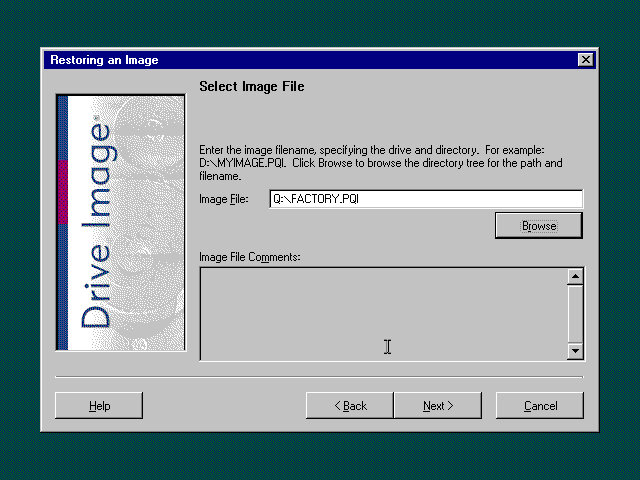
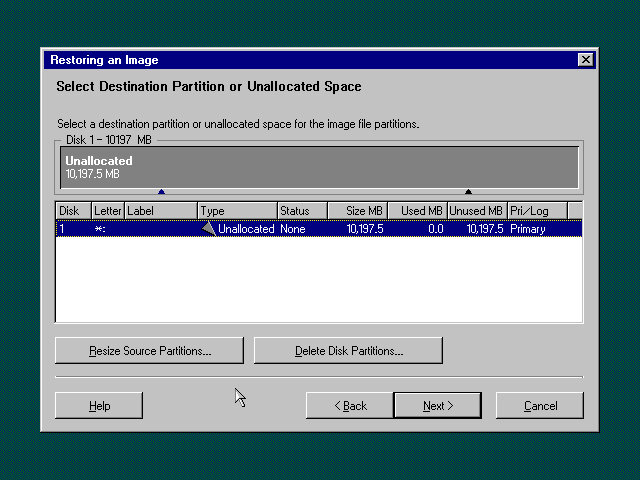
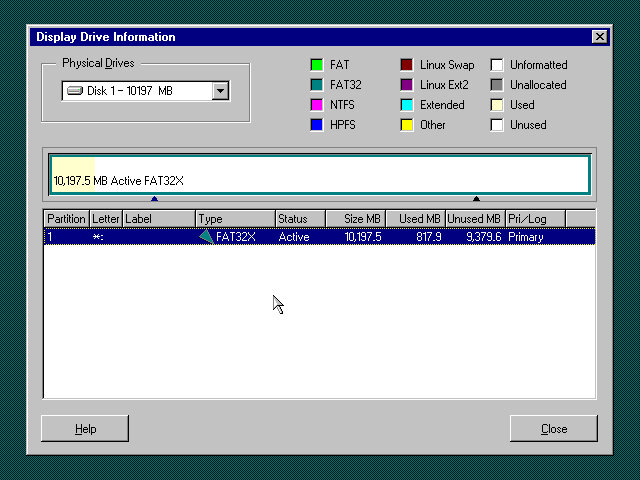
This appears to not be the actual recovery program, as the original would have been restricted to function on that actual machine. However using this bootable utility we can restore the hard disk image back to the system. This fruitions even if the hard disk isn’t initialised or formatted, as the utility can do this for us.
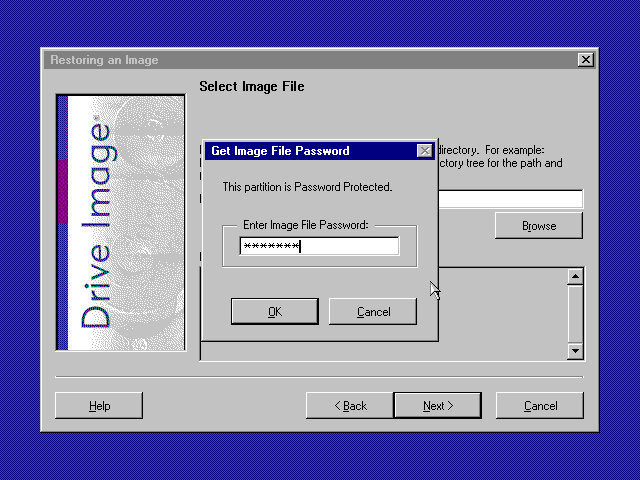
This recovery image is password protected,

Boot Up

16 colours my old friend

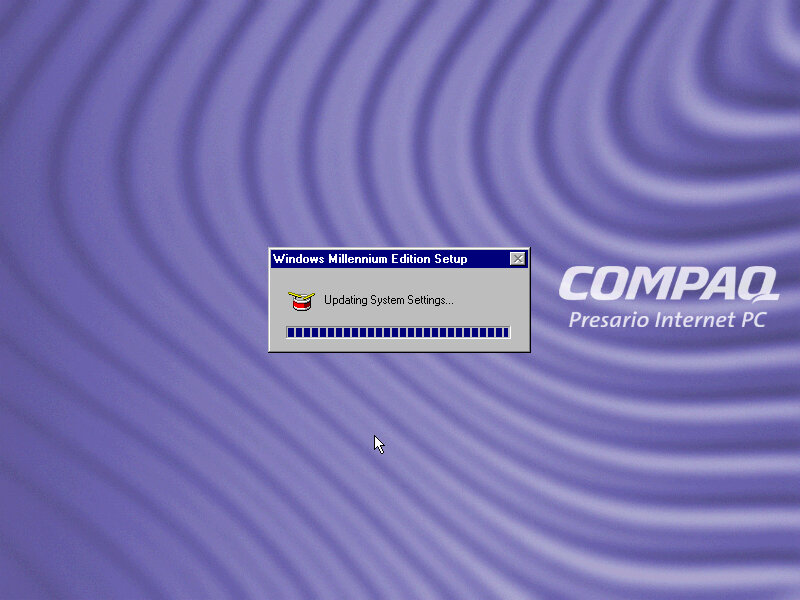
Starting Windows ME for the first time. After the splash screen it lingered on this screen for a while with the mouse cursor flickering between the pointer and the hourglass, indicating it was working in background.
What’s actually happening is Windows ME is detecting and installing the new hardware and unlike Windows 98, it does not spam you with a dialog box indicating as to what’s going on.
At least for system devices, since it did pop up for the video card, along with the PS/2 keyboard and mouse.
Normally this wouldn’t be an issue, since the hardware detection stage is done during the OS install, but since the recovery program transferred an existing install to the disk which was designed to be used on different hardware, it has to go through the detection process again.
After around 10 minutes we are presented with out desktop.

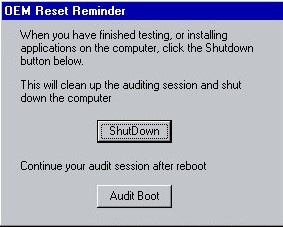
A utility pops up soon after logging in. This appears to be an. The Compaq engineer would install any additional software or hardware drivers if the customer had requested it, and would then click on the ShutDown button in this utility. Then when the end customer would boot up their system, they would be greeted with the registration wizard, along with the tutorial. This would mean the end user would already have their additional software installed and ready to use,
In my case, this was an excellent opportunity to get the video and sound drivers up and running, as Windows ME did not have a driver for the video card I had chosen (S3 Trio3D)

Windows ME had a infamous reputation for stability which was undeserved im my opinion, as I’ve found 98SE to be more unreliable. Part of the issue was ME dropped some DOS support which upset the luddite’s that wanted to use their own ancient hardware when the rest of the world was trying to move on, and OEMs slapping together botched installs with tons of adware as they race to the bottom of their profit margins.
The truth is, Windows ME is a perfectly fine OS, so long as you get the drivers right which can be said for any OS really. The 9x series of operating systems were not known for the reliability and were more of a botch that just about managed to work. Frankly I can understand why Microsoft wanted to jump straight into NT with Windows XP.

The introduction and setup wizard, complete with a speaking wizard, Merlin who sounds like a chronic smoker. Once you have accepted the licence agreement you are presented with your new desktop.

Personalisation

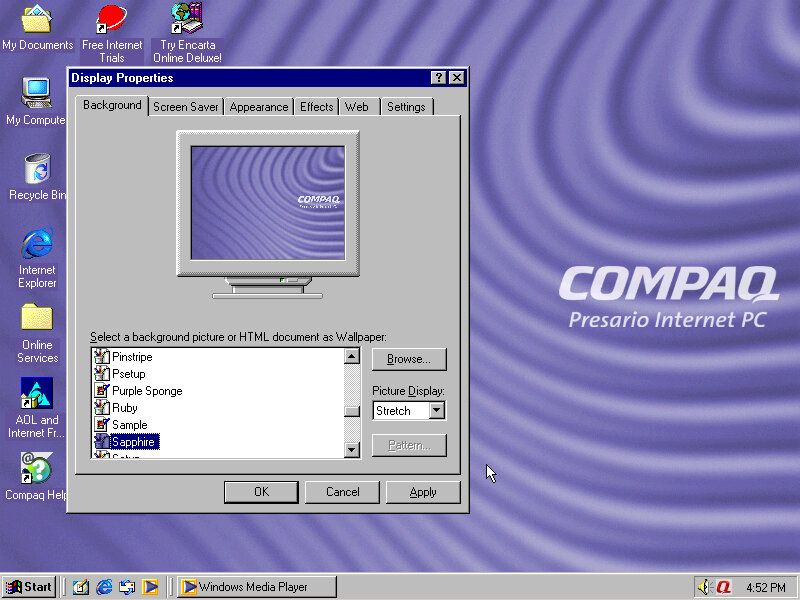
Compaq included a few wallpapers that are selectable and are pretty much the same pattern but with a different colours (Ruby, Sapphire, Amethyst, Amber, Emerald, Jade and Grey. This kind of reminds me of the iMac G3 colours.

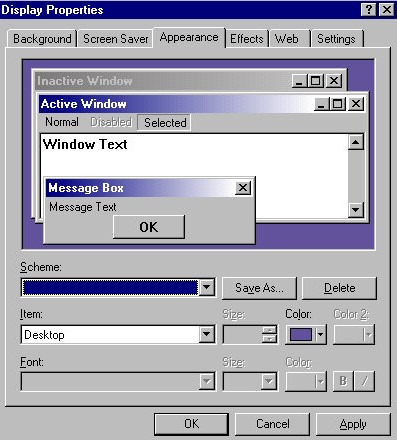
There is also a custom colour scheme set by Compaq but it has no pre-set name. So if you choose another colour scheme then its lost.

Theres even a custom Internet Explorer throbber that appears

A screensaver that is included called BackWeb. This appears too be some sort of bulletin board what pulls information online and displays it in a news ticker format (like in SimCity 3000) With no server connectivity it just appears to refresh itself repeatedly.
This isn’t a bad idea of a screensaver, being very similar to the Active Desktop Channel screensaver or the Wii News Channel.

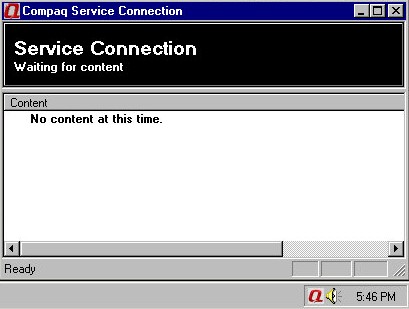
The utility that manages content going into the Backweb screensaver

Included Software

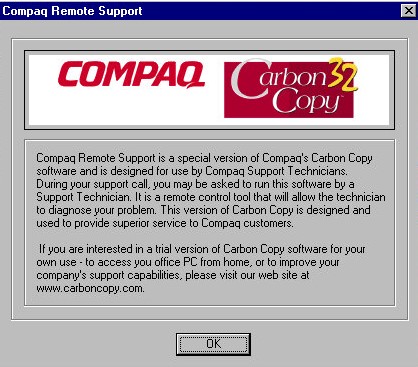
Compaq Remote Support: A utility where a customer representative can remotely control you PC, useful for support purposes if the end user requires support or is experiencing technical issues. Typically this would be sold as part of a support package and is aimed for novice issues who are not experience in diagnosing issues or perhaps installing software. Still im not sure how well this would have functioned over a dial up connection.
Windows would later included a utility into the operating system itself with Windows XP.

Netscape Communicator – A popular alternative web browser, for those that do not wish to use Internet Explorer, Netscape also included an email client. Version 4.7 is included here ad features the Compaq throbber.

Microsoft Money – Finance and accounting software, version 2000 is used here

Compaq Help – A customised version of the Windows Help & Support with additional links to Compaq programs and utilities

Compaq.Net – Opens the Compaq branded internet connection wizard

There are also some premade web shortcuts located on the desktop like Compaq Treasures and another for online backup.

A weird omission is Microsoft Works, or any office applications which allows for basic word processing or spreadsheet use. Possibly this would be bundled with a specific SKU of the system that would have been installed by the engineer before shipment.

Control Panel Items

Compaq Connection Helper: Lets you change the default internet browser and the internet connection to use.

Digital Helper: Lets you customise the digital dashboard, which is the LED light that are present on the keyboard. In addition to the standard Caps/Num/Scroll lock indicators there’s a message/alerts and a power/sleep indicator.
There is also a internet time sync feature that allows the system to be synchronised the time & date with a server, as Windows ME lacked this feature. Microsoft would introduce this with Windows XP.
The email notification light can also be configured here, which requires you to manually setup the email server connection settings and would light up if there’s an unread email in your inbox. It does not appear to detect email from applications like Outlook or Eudora.

Easy Access Buttons: The keyboard that was shipped with these machines featured a dedicated easy access buttons that could be assigned a function for customized look.

Intel Graphics Technology: As this computer would have featured integrated Intel graphics, this utility would let you adjust advenced graphics settings.

HP Pavilion 6630

An early 2000s desktop PC running Windows 98SE, designed as a basic desktop PC for simple web browsing as evidenced with its included software which is geared to the casual home user.

The Pavilion is HP’s brand of conventional desktop PCs tailored to the home market, similar to IBM’s Aptiva and the Dell Dimension line.

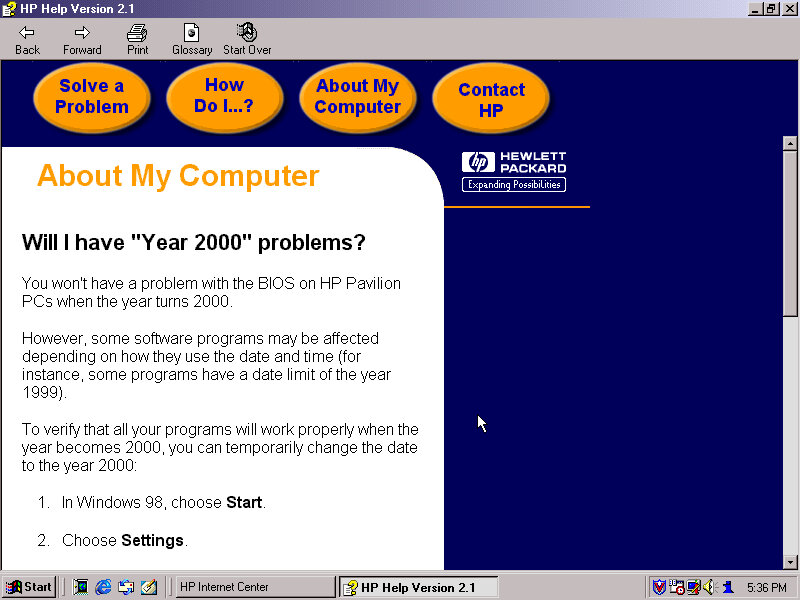
According to an archive CNET page, it has a Celeron 500MHz processor with 64MB of memory and a 10.2GB hard drive. For 86Box I used a smaller 4GB hard drive and a slower processor to ease on the emulation. Variations of this model exist with different optical drives, hard drives and processor combinations with some coming with AMD K6 processors and CD-R drives.

Engadget

Starting the recovery process, which just inflates the OS files from a previous install. There is no instillation wizard, HP just took an install and made a restore image out of it. This does mean a lot of New Hardware dialog boxes will appear due to this, and I had originally intended to use it on a HP Brio motherboard in 86Box, but had great difficulty with resource conflicts and BSoD’s. The Virtual PC profile/motherboard worked much better instead.

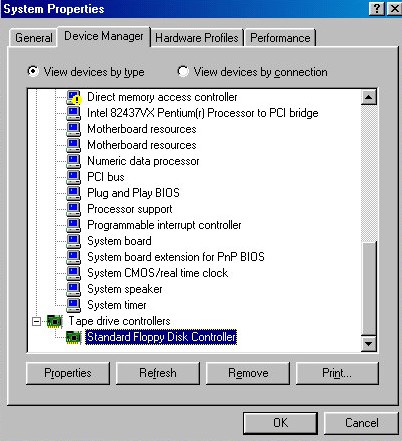
With the old VM it even thought the floppy drive controller was a tape drive.

Post Restore

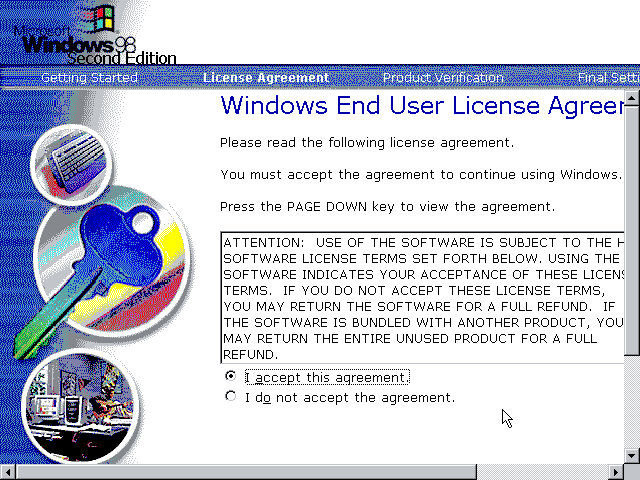
We are booted into a wizard that asks us to confirm the licence agreement, set the keyboard layout, confirm our region and our OEM product key. After a reboot, another wizard starts:

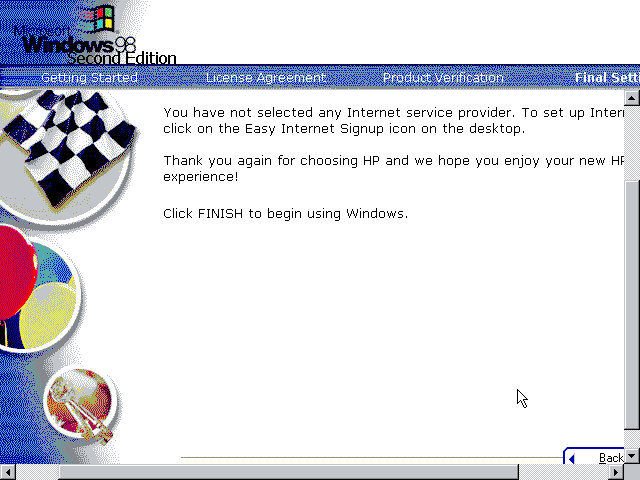
Before we get to the desktop, we are invited to complete the registration wizard where we enter our name, address and our product key which would have been provided in a separate booklet.

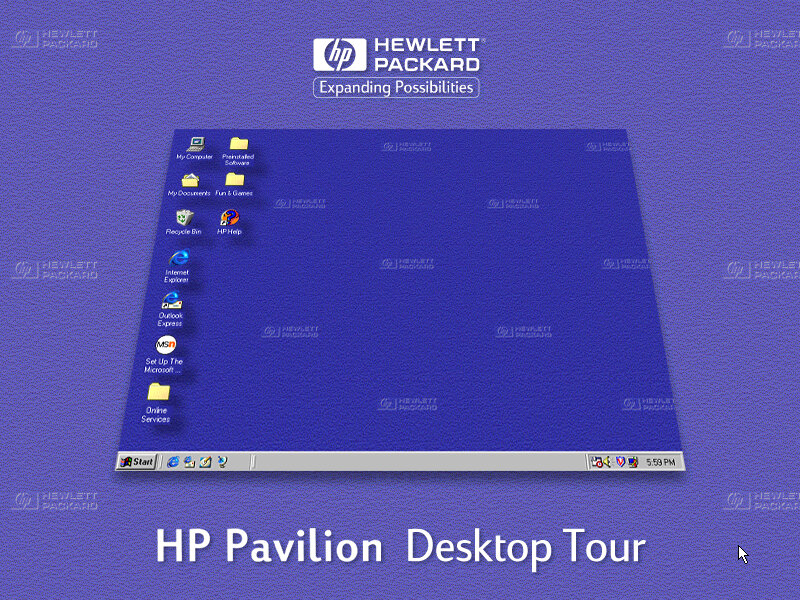
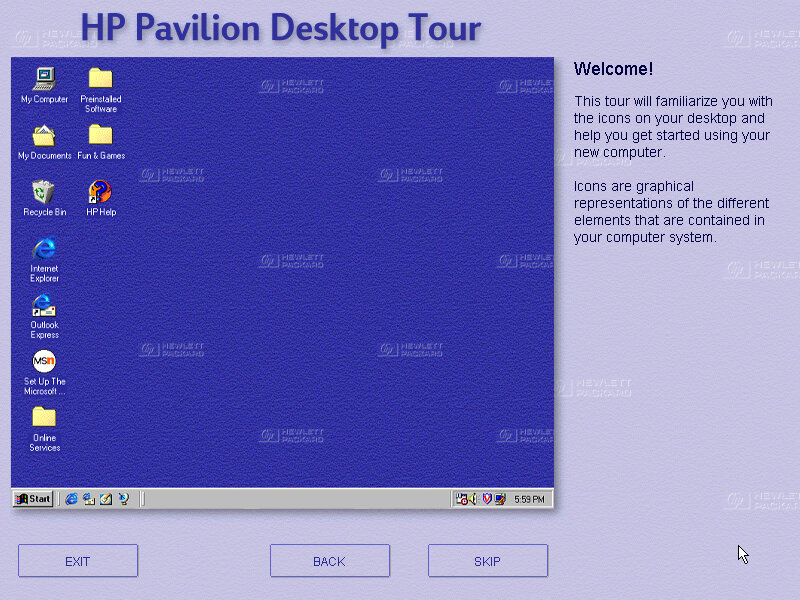
And then after that we are given a tour of the operating system, as some users may have been upgrading from a Windows 95 system, or might even be their first PC. This goes around the basic elements of Windows 98 and gives an animated demonstration of navigating Windows Explorer. This also complement’s the built in Windows tutorials for Microsoft.

Desktop

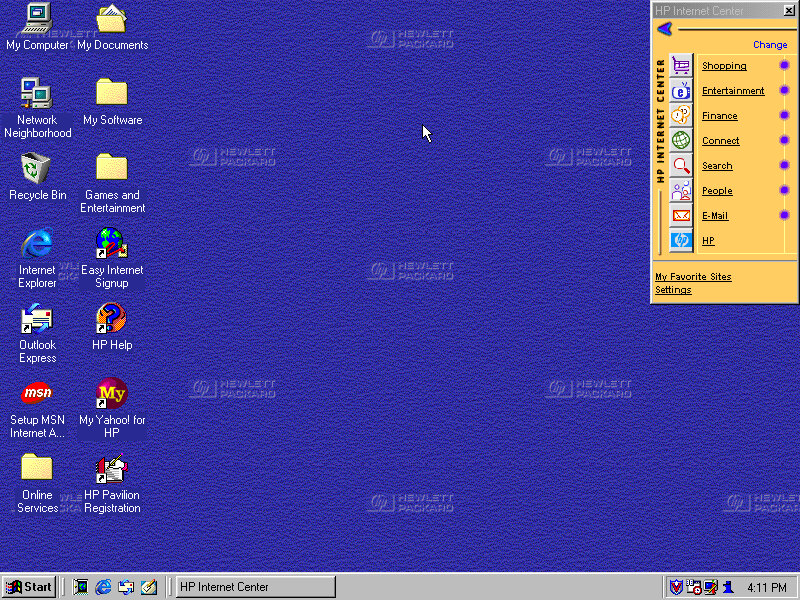
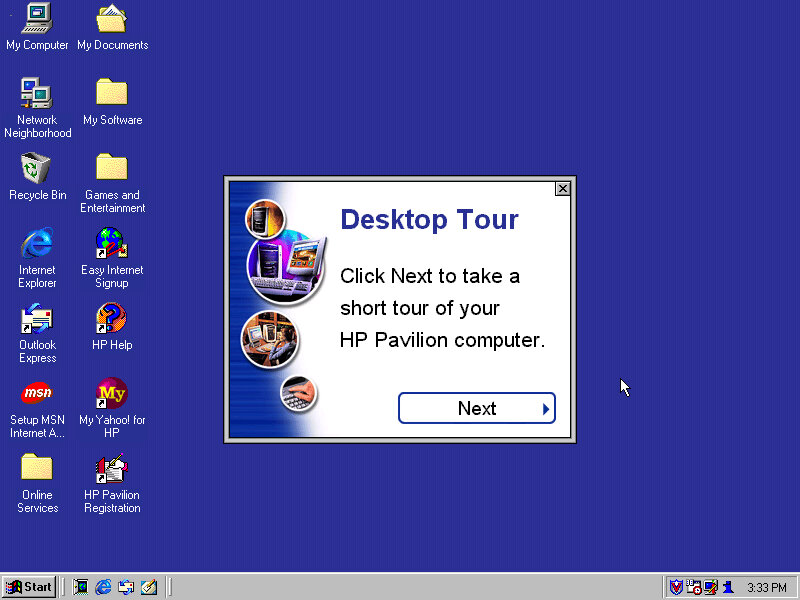
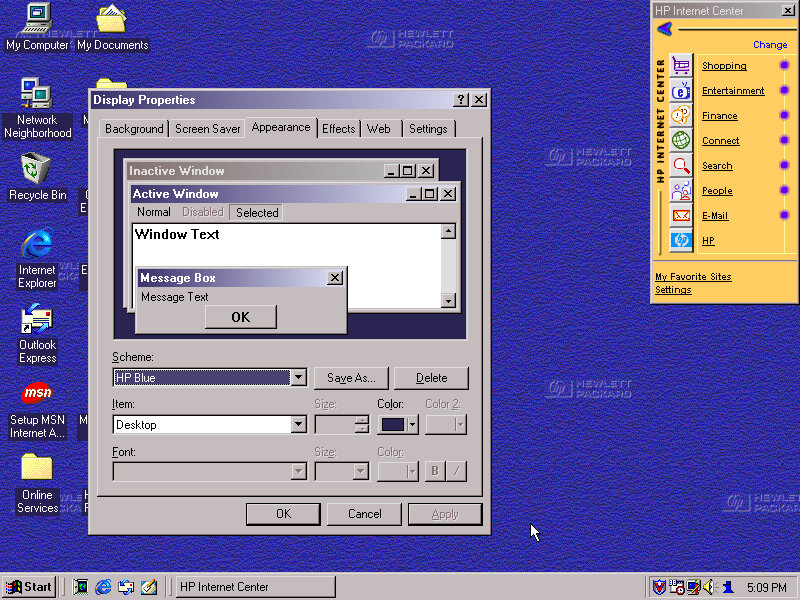
The Windows desktop with some of HP’s customisations. You will notice the HP Internet Manager, which provides easy access to various internet sites and are sorted by categories affirming that this computer was designed for the consumer that wants to browse the internet.

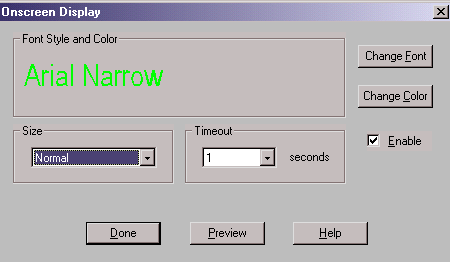
Clicking on any of the links (Such as Shopping) will open Internet Explorer with a customised link to that page. It sort of works in a similar manor to the internet channels included with Windows 98 and is HP’s replacement for the channel bar. Also, when you click on a link, large green text appears to the bottom left of the screen showing which button you clicked. I think this is supposed to replicate the OSD of many TV’s of the 90s where volume would be displayed in that style of display.

Sadly most of these links are long since dead, and the wayback machine does not hold any archived copies, possibly because they were not designed to be indexed. All of them lead to a paviliondownload.com domain.

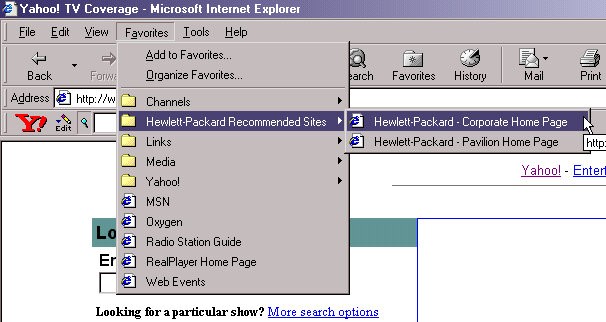
Whilst we have Internet Explorer open, we can see the Yahoo! Toolbar that was preinstalled. Yahoo was popular at the time and was the common homepage for many users, similar services were AOL, Lycos and AOL. As for Internet Explorer, version 5.00.2614.3500 is installed.

HP have also bundled a few favourites (Bookmarks) of their own with links to their corporate and dedicated Pavilion homepage.

Also another look at the green OSD, it appears when you adjust the volume too. You can actually customise this in the HP keyboard utility. Changes that can be made include the duration of the message, colour and font size.

Themes and Customisation

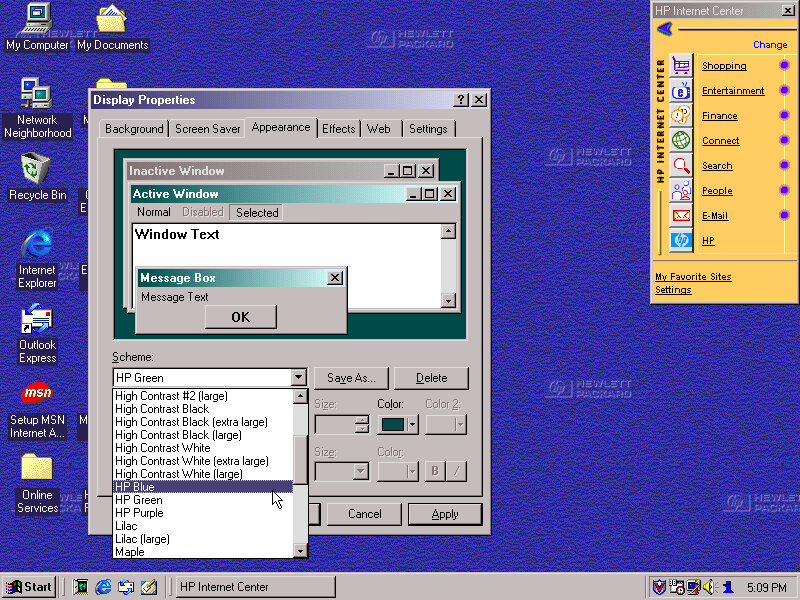
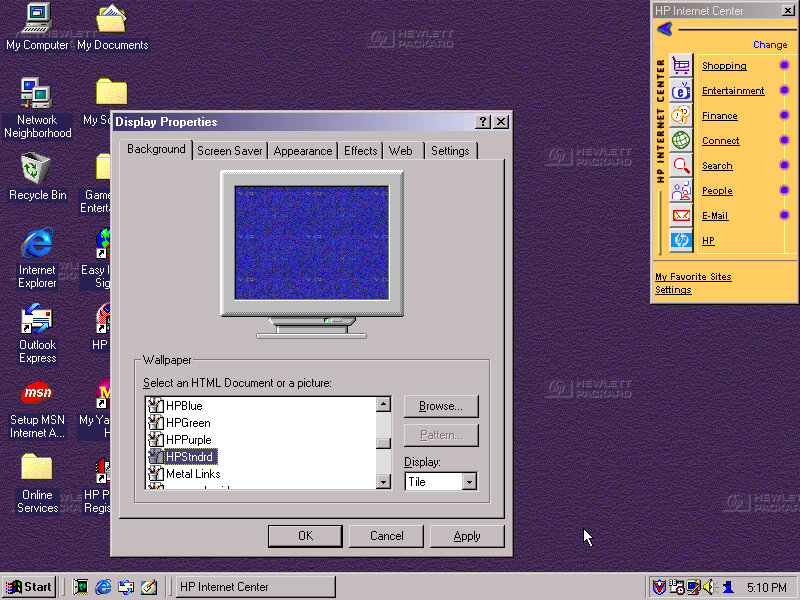
We can see HP have included a customised desktop wallpaper, in fact there are four of them provided in different colours (Purple, Green & Blue) and HPStndrd which is a lighter version of blue.
HP also added three custom colour schemes that can be selected in the appearance tab, again the choices being Blue/Green and Purple

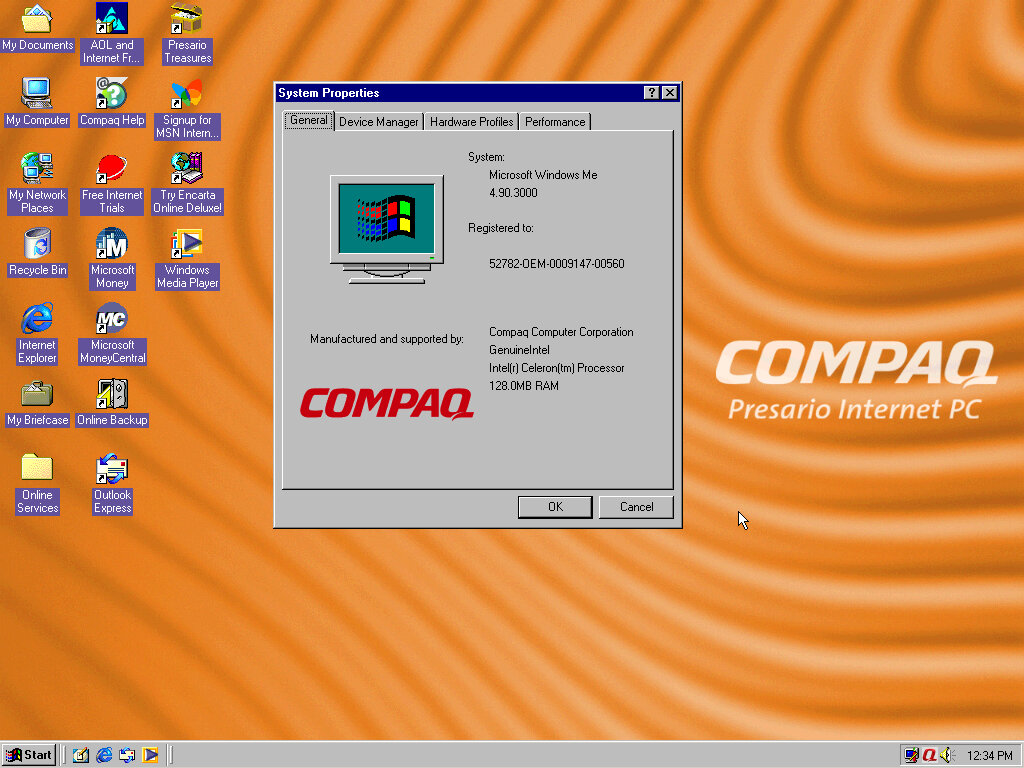
Also a shot of the system properties box, with the OEM logo and support information.

Bundled Applications & Utilities

Microsoft Encarta 2000 – Preinstalled but requires the Encarta 2000 disc in order to do anything.

Microsoft Money – Finance management software, the 2000 edition is used here.
Microsoft Works – basic productivity suite that includes a word processor, organiser and a spreadsheet application.
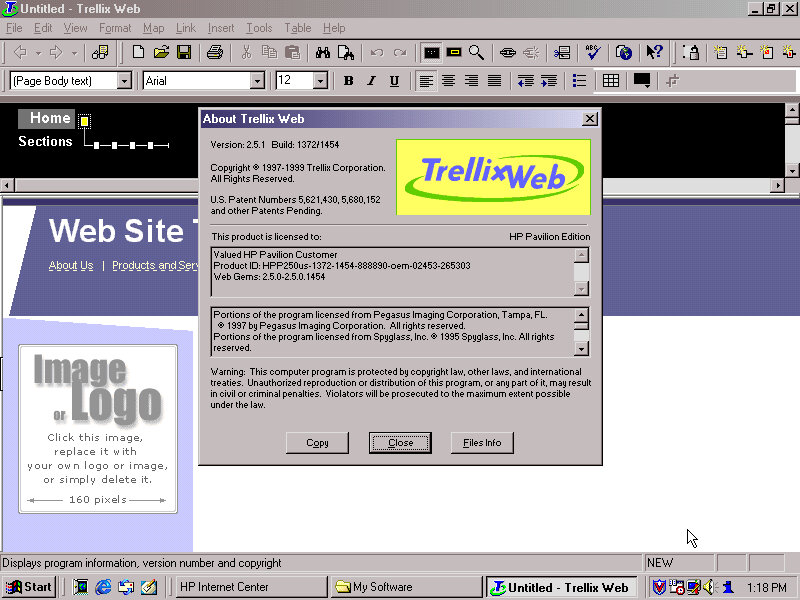
Trellix – Some sort of website builder that included a few templates that allowed for users to create and build their own website. I wonder if they will work with WordPress?

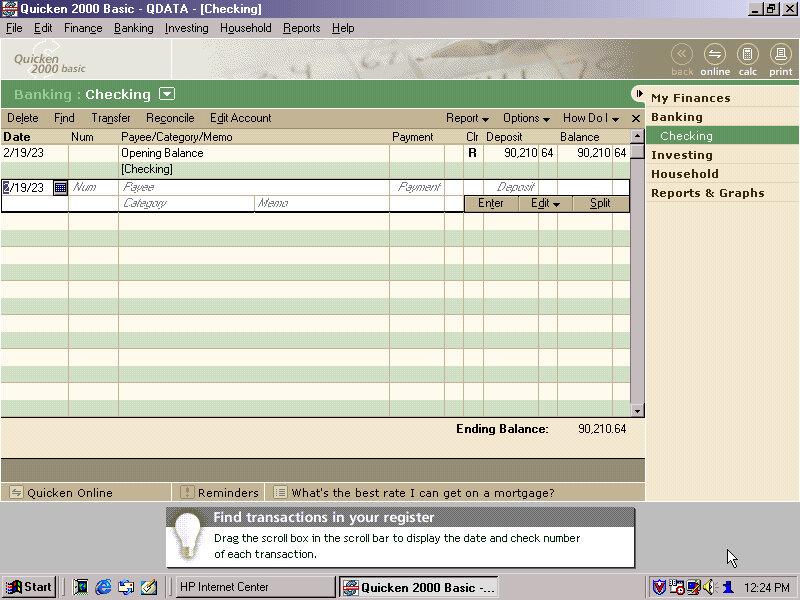
Quicken – Basic 2000 comes preinstalled and is a personal finance management utility, similar to Microsoft Money which was also included. I guess here you’re supposed to populate this with you bank statements and recent purchase’s, so you can get a rough idea of your balance history.

There’s a few online services included within the Online Services folder – AOL, AT&T WorldNET, Disney’s Club Blast, EarthLink, GTE Easy Sign Up, MindSpring, Prodigy internet and Compuserve.

Also, a Games and Entertainment category in the Start menu. Here you can find links to RealPlayer G2 and MusicMatch JukeBox which was a popular MP3 music player, along with a link to Emusic.com. There are also shortcuts to Windows games like Solitaire.

There is a My Yahoo program in the Start Menu, clicking on that takes you to an internet connection wizard that is HP branded. Since we are connecting via LAN, we can breeze past this. Dialup internet was a very common way of accessing the internet and would have been the de facto way of getting online, but was also around the era where cable and DSL broadband internet was starting to become mainstream.

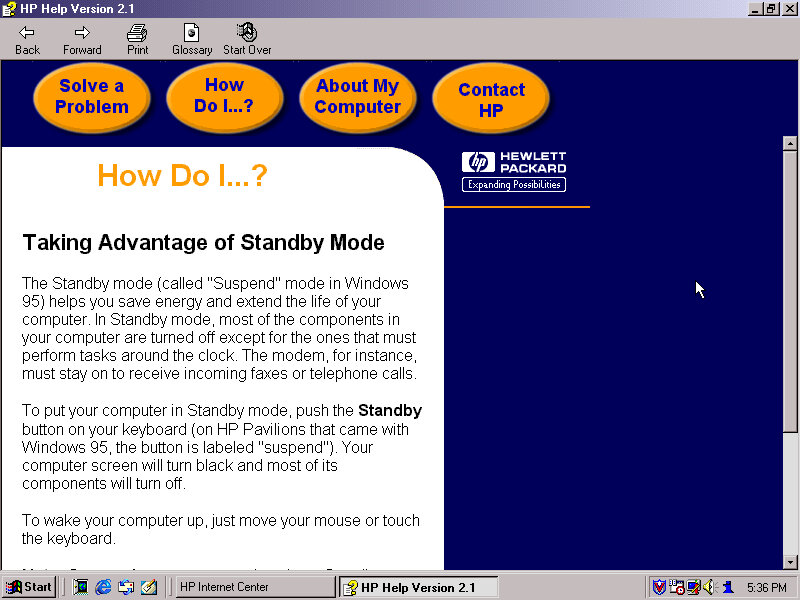
HP Help: Help and support centre for novice users. This can give information about your HP system and comes with a link to the user manual. This does require a separate CD that has this contained, it is not saved on the hard disk.

FAX (QuickLink III) Fax application, if you cannot use the built in Windows fax utility.

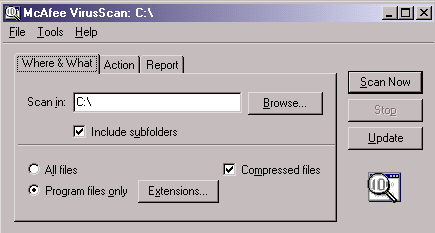
Lastly we also have McAfee security suite which can be found in the system tools folder. This includes the anti-virus and the V-Shield that acts as a firewall. A necessity as Windows did not come with any virus protection at all, that was left up to the end user or the system builder and may would bundle either McAfee or Norton Security.

The typical Windows 98 experience

Additional Links

Recovery Image – Archive.org – This version is cracked which allows for it to be installed on any PC or virtual environment and is an alternative to a regular install. There are two versions with the November 1999 being linked, an August 1999 version exists but has not been tested, perhaps that’s regular Windows 98FE?

Acer Extensa 700

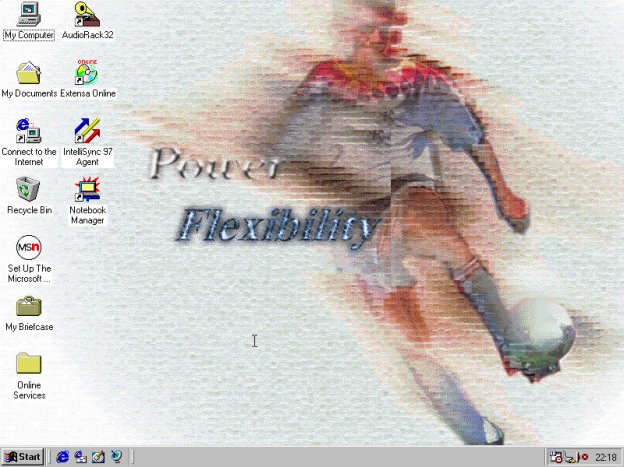
A first look of a typical Acer OEM install

The Acer Extensa 700 was a high end business class laptop released in 1998, and came with a Pentium II processor running between 233 – 300Mhz, offered 32 or 64MB RAM and came with an integrated 56K dial up modem. Optional docking accessories were made available supporting DMI 2.0

Although 86Box has a few Acer branded motherboards, there are a few issues in getting them to run due to the erratic keyboard controller they implement. For these its recommended to use the VirtualPC BIOS which can be found in the miscellaneous section of the motherboard list.

The Restore utility

Originally these restore images were designed to be used on the system they had shipped with, as often they will contain software that is either licenced to that particular machine / model, or uses specific drivers that the hardware requires.

That said, I used a modified recovery image that can be found on the Internet Archive. From the looks if it, it appears a few files on the boot floppy image have been modified to allow instillation on non Acer machines.

Recovery Image – Archive.org

A Windows 95 version also exists, I guess this system was released between the two OS’s.

Boot up was pretty straightforward since this is a bootable CD, we are booted directly into the recovery utility where the system immediately begins its restore. This does require us to have initialized the disk in FDISK prior.

Initially the recovery seemed to be going well, and it immediately quit and dumped us to an A:\ prompt. This was a little odd, as normally recovery software informs the user the recovery process has completed and that they can restart their system. Still I rebooted, only to find it was stuck on an missing operating system error.
I decided to run the recovery again, thinking maybe it has crashed the first time but to no avail. IT would exit to the a:\ prompt after reaching 100% completion and upon reboot there would be no bootable OS.
I fired it up with the Windows 95 boot disk and check to see the status. Running a dir command on C:\ shows no results, and running FDISK showed no partitions, despite me creating and formatting to FAT32 prior to running the software.

It was defiantly writing files to the disk, as I could see the status icons in 86box light up for the hard drive, and the VHD file has grown to around 550MB meaning that files had defiantly been written to the hard disk (VHD image files can be set to dynamically expand as they are used).

This was bizarre and I wasn’t sure what was going on, was the recovery program nuking the partition table? Or maybe the virtual HDD wasn’t big enough and it was overwriting data.
Unlikely since I had created 4GB image, and FDISK defiantly detected the full amount, along with the BIOS.

The Solution

I decided to try an alternative method, there is a way to manually invoke the recovery program which might let us see whats going on.

To manually start the recovery process, point your command line to the TOOLS folder, then run GHOSTRO.EXE

To do this you must be in a command prompt that has been booted into the recovery image, this is located in the [BOOT] folder and is the Boot-1.44M.img file

You will need to manually locate the image file, this can be located in the IMAGES\PRELOAD.HDD location on the CD. Its worth noting the CD drive gets mounted to a different drive letter for the recovery only, it follows the standard Windows conventions after restore has completed.

The image field is password protected, the password being ACERMSU in block capitals. This was found in the AUTOEXEC.BAT file, located in the floppy image file on the CD 9 located in the [BOOT] folder and is the Boot-1.44M.img file)

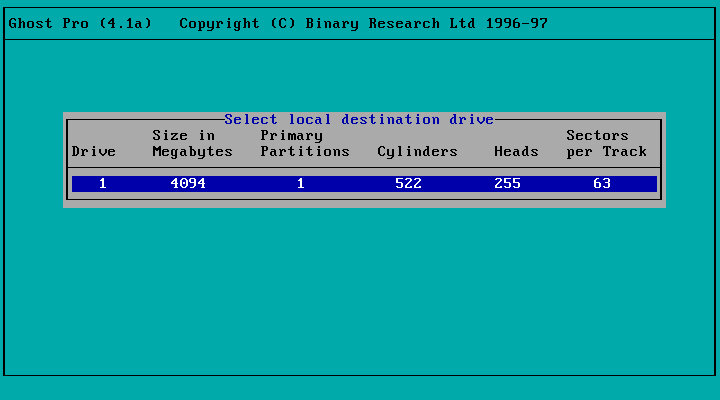
You are then given the option to select which drive or partition you wish to recover to

Recovery started again, looking similar to the original process, but this time we are told to press Ctrl+Alt+Del to reboot the system

Look! An OEM customized boot screen for Windows 98. It wasn’t uncommon to see these on Dell, Compaq or TIME PCs of the era.

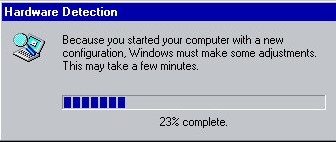
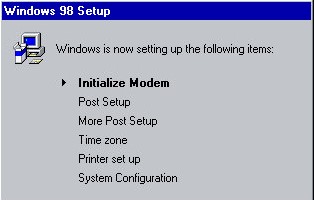
Since we are running this on completely different hardware, we need to go through the hardware detection process which will take a while and will require a few reboots. Window s98 should have the drivers on the hard disk in CAB form so it should not prompt for the install CD-ROM.
It’s a good idea at this point to keep the 86box hardware as simple as possible, don’t install any sound/network cards or SCSI controller just yet.

Never seen this before, appears Windows 98 has to reconfigure itself. I guess this cleans up the old hardware that is no longer used.

Once we have the graphics card drivers installed, we can explore the install fully, An S3 ViRGE or Trio32 is recommended as 98 has built in drivers and support for hardware acceleration, plus you get basic 3D capability though for some serious gaming you will want to give it a Voodoo.

The included background wallpaper, which is an active desktop wallpaper.

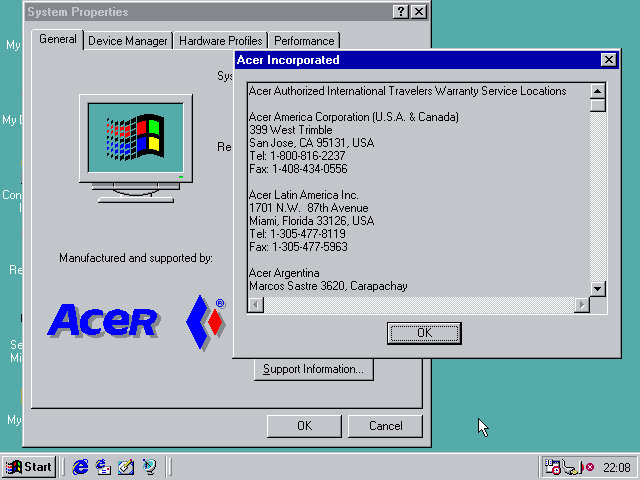
The system properties box, showing the OEM logo and support information.

Despite the VM not having IrDA support, we still see the icons for it in the system tray and the My Computer.

A utility to change the modem region, but the system cannot find the included modem.

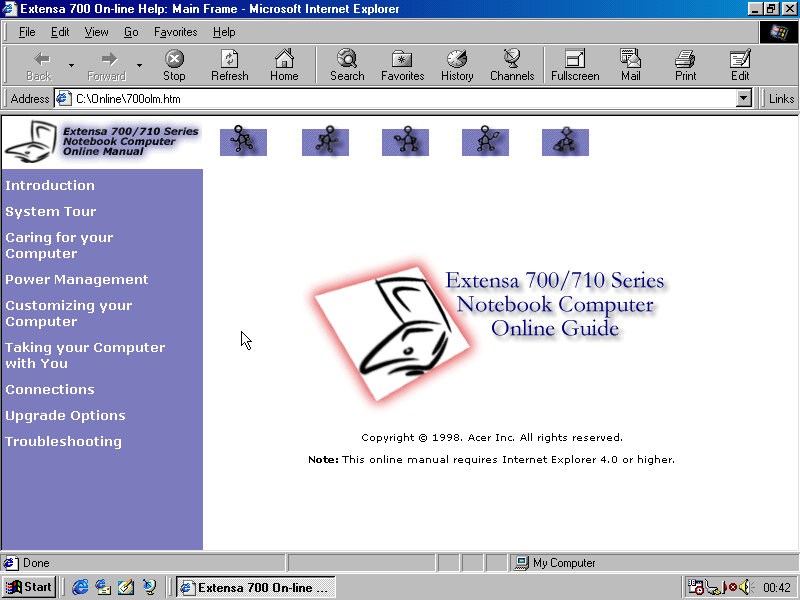
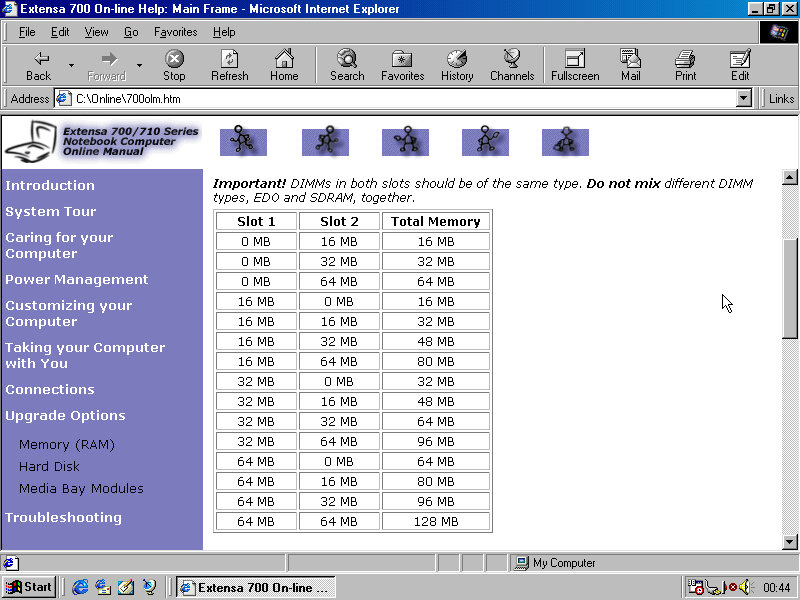
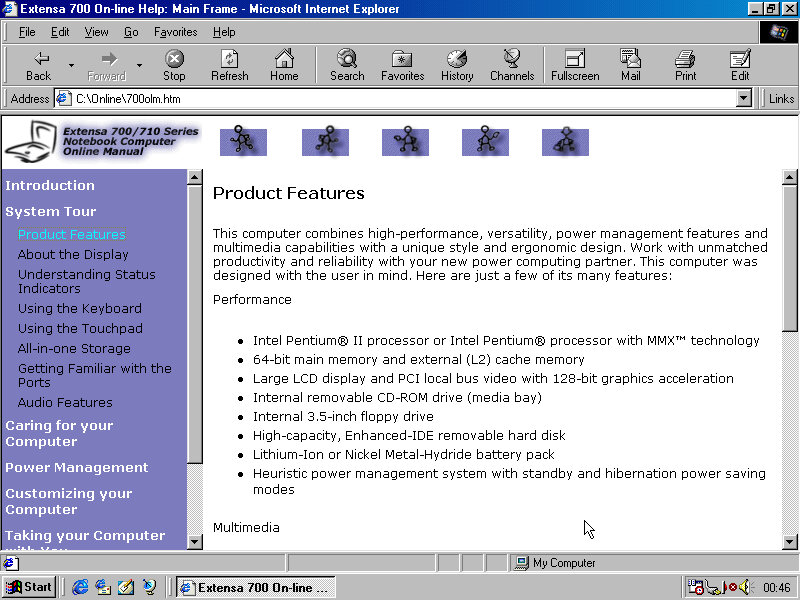
A full guide to the notebook computer, presented in HTML form. This acts as an user manual of sorts. It seems Acer neglected to update this for Windows 98 as much of the documentation refers to Windows 95 or NT.

A look at the notebook manager which is the program that interacts with the laptop BIOS, Which does not function on this VM sadly, we only have the screenshots from the manual to go by.

Intellisync

Seems to be a PIM (personal Information Manager) management tool which makes sense as this would have been marketed as a business computer. Developed by Pumatech

After loading we have this small window that lingers on the desktop

We first need to create a sync relationship, possibly with an external PDA or drive

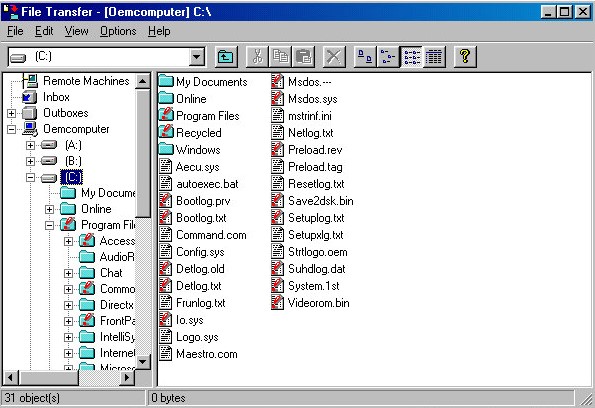
The file transfer utility

The support screen, which just gives you the opportunity to register the software and view the readme

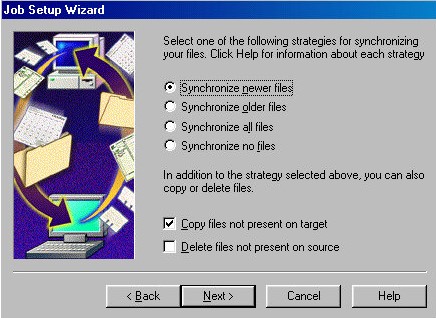
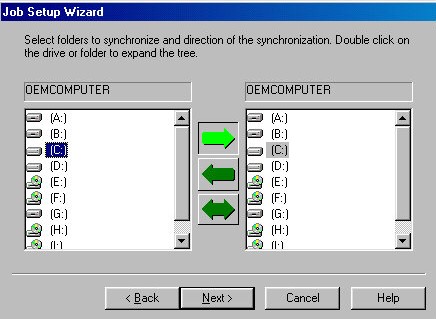
Lastly the synchronize tool to connect with another drive. I’m not sure if this is for a specific device that Acer might have bundled with this laptop or if its using a standard protocol to exchange data. This could be intended to sync files with a remote server, like a workplace domain for when the user needs to take their system home for the day. They can then later upload their files back to the server when they come in the next day
This was way before the days of cloud sync service like Dropbox or OneDrive
You could also use this to backup files to another hard drive, or an external Zip or Magneto optical disk (which 86Box supports)

Trying to backup the entire PC to a 100MB ZIP disk, I assumed it would only backup the documents folder.

AudioRack32

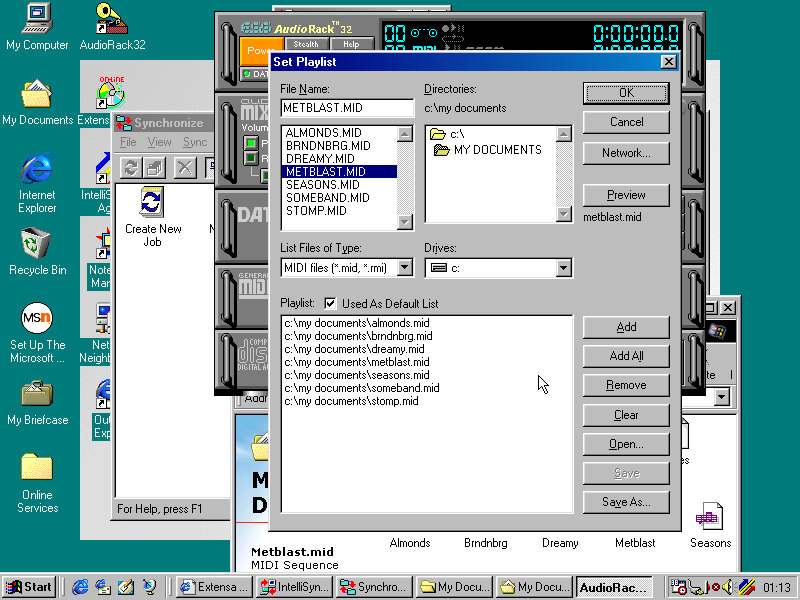
Some soft of MIDI/CD player and mixer that makes use of the soundcard built into the machine. Probably not much use with the SoundBlaster we have instead.
The DAT section has me curious, can this play digital audio tapes if one is connected?

MIDI files can be played, but you need to add them as part of a playlist first.

SafeOFF – some sort of utility that refuses to run, possibly an ACPI power standby utility.

And that’s it, very little bundled software with notable exceptions like Microsoft Works or Quicken which seems weird for a business laptop, perhaps they expected the user might already have access to Microsoft Office from their business or workplace?

There isn’t much included in the way of these or colour scheme, overall it’s a nice install of Windows 98 and not bloated like the Sony VAIO was.

Acer Extensa 700 Archive product page