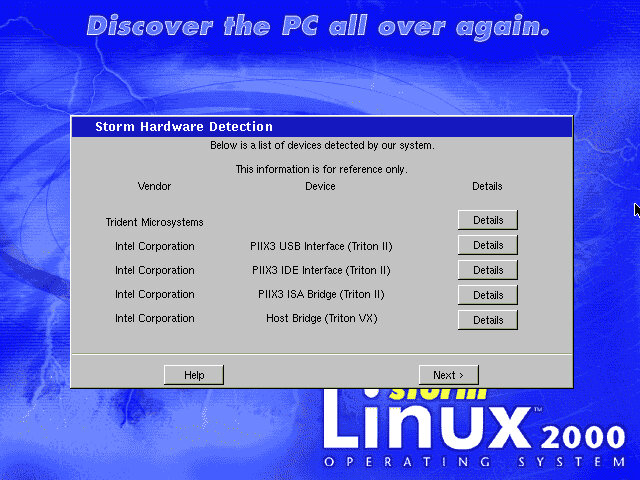
Storm Linux

Discovering the PC all over again

A Linux distro released in 1999, it as desinged to be commercial Linux distribution to complete with the like’s of Red Hat, and Windows to an extent.
86Box Hardware


86Box Version 3.7.1
Motherboard: Azza PT-5IV, later PC Partner MB540N
Memory: 128NMB
Processor: Intel Pentium OverDrive MMX @ 180MHz
Video: S3 ViRGE/GX2 – More on this alter
Sound: Nothing seems to be picked up, tried both ISA PnP and PCI

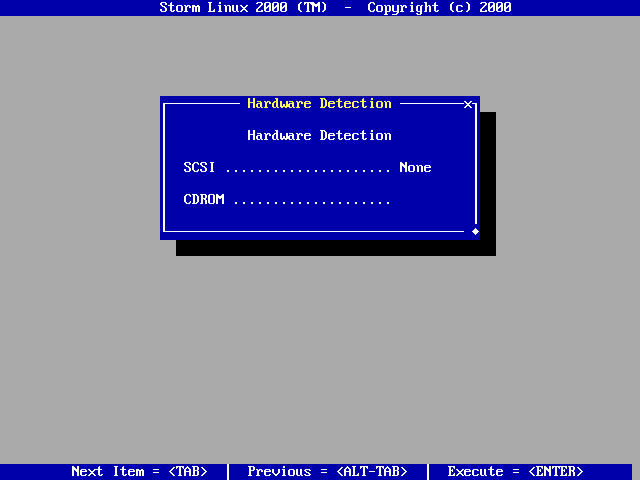
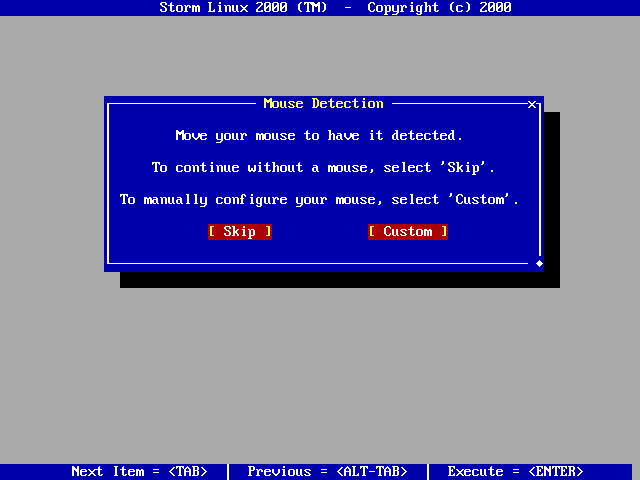
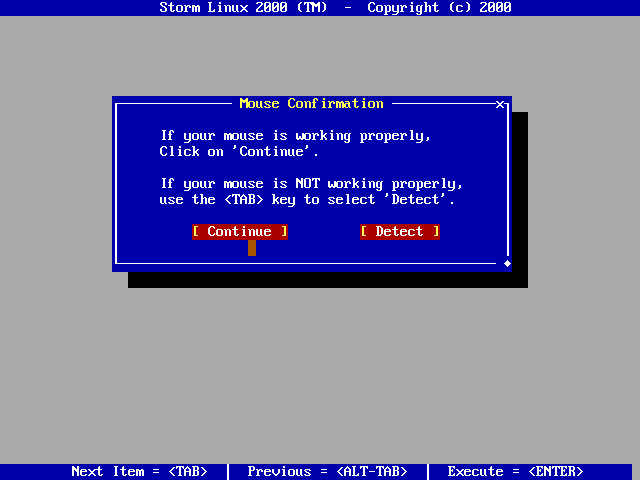
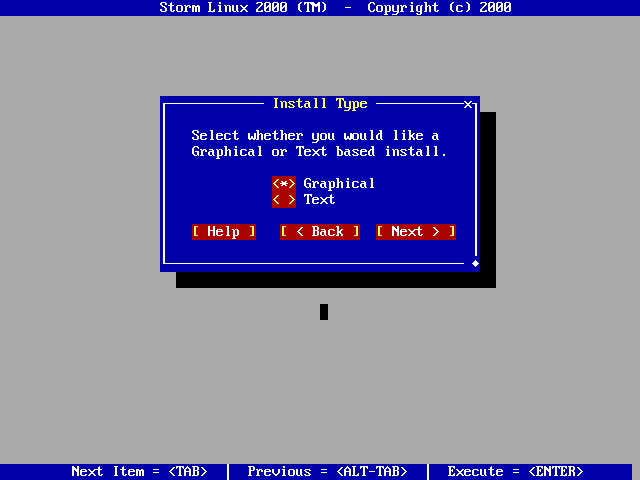
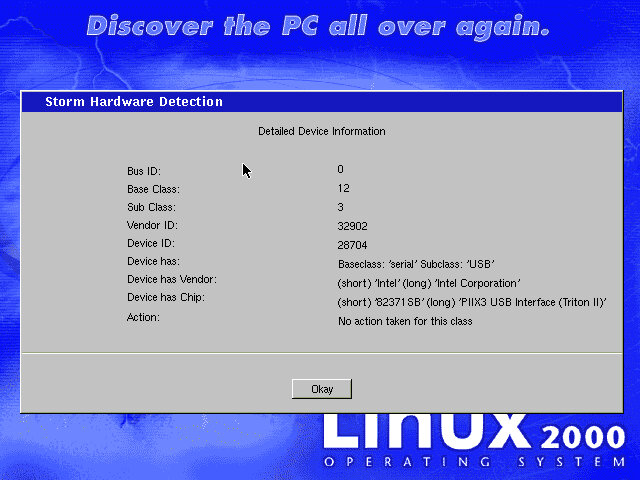
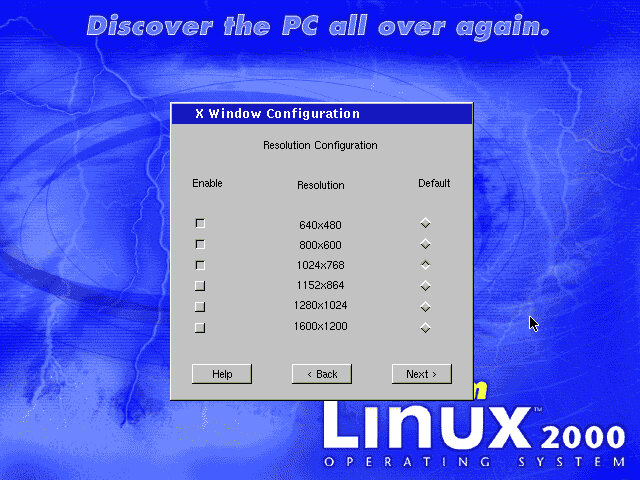
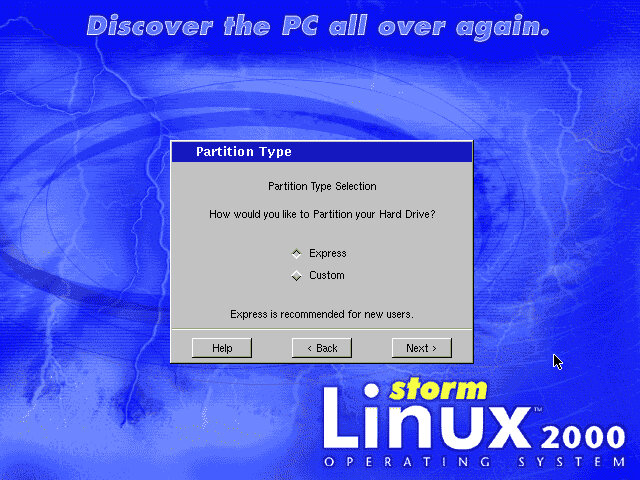
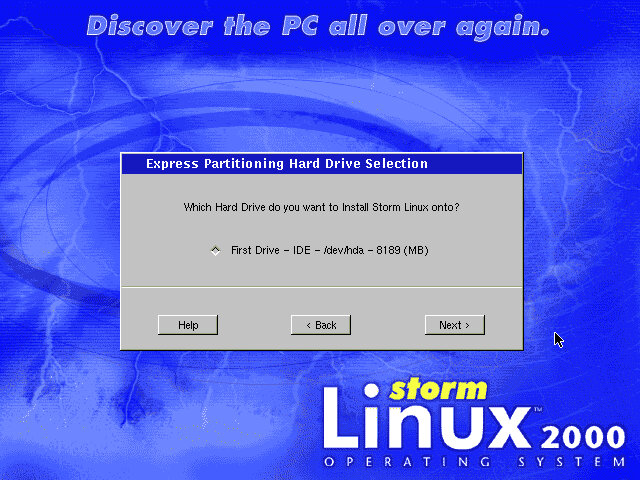
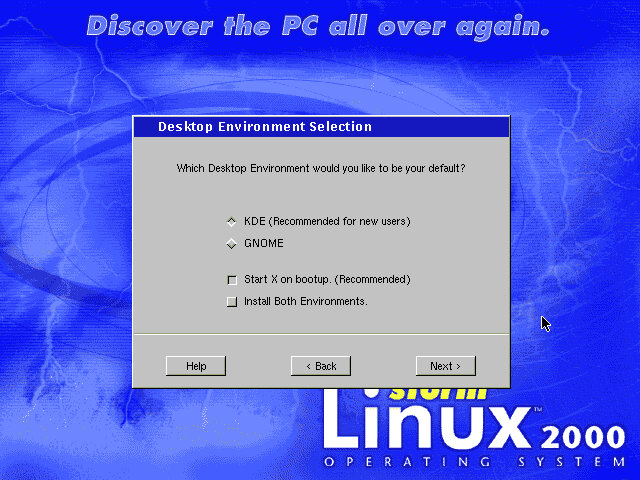
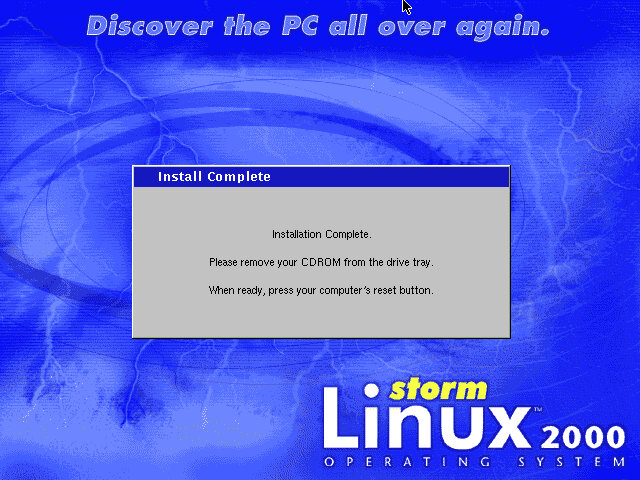
instillation went OK, and it gives you the option for text or a graphical installer. Main hurdle was with the video card, the Trident video card would not launch the X window system, Swapped to an ATI video card that had the same issue. Eventually changed to the trusty S3 ViRGE, which works and loads the X Window System.
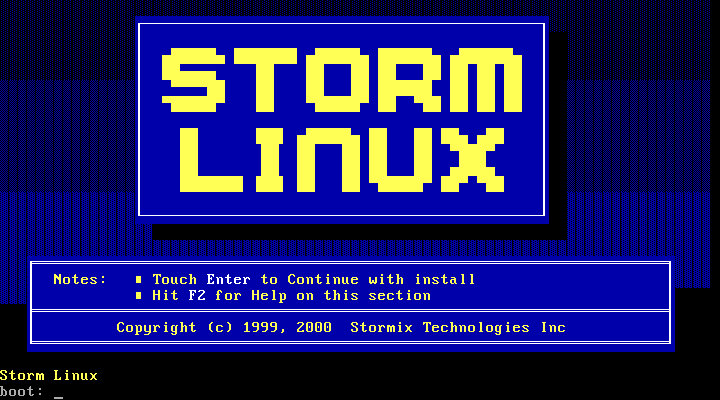
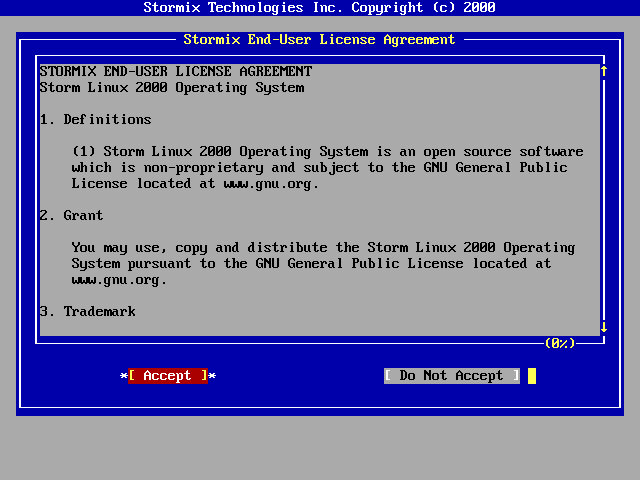
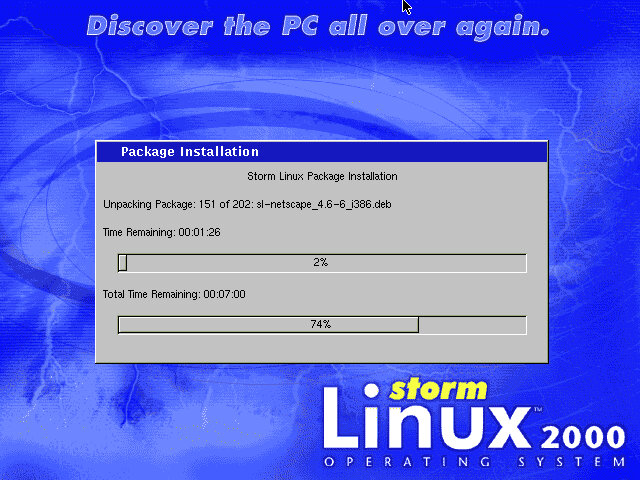
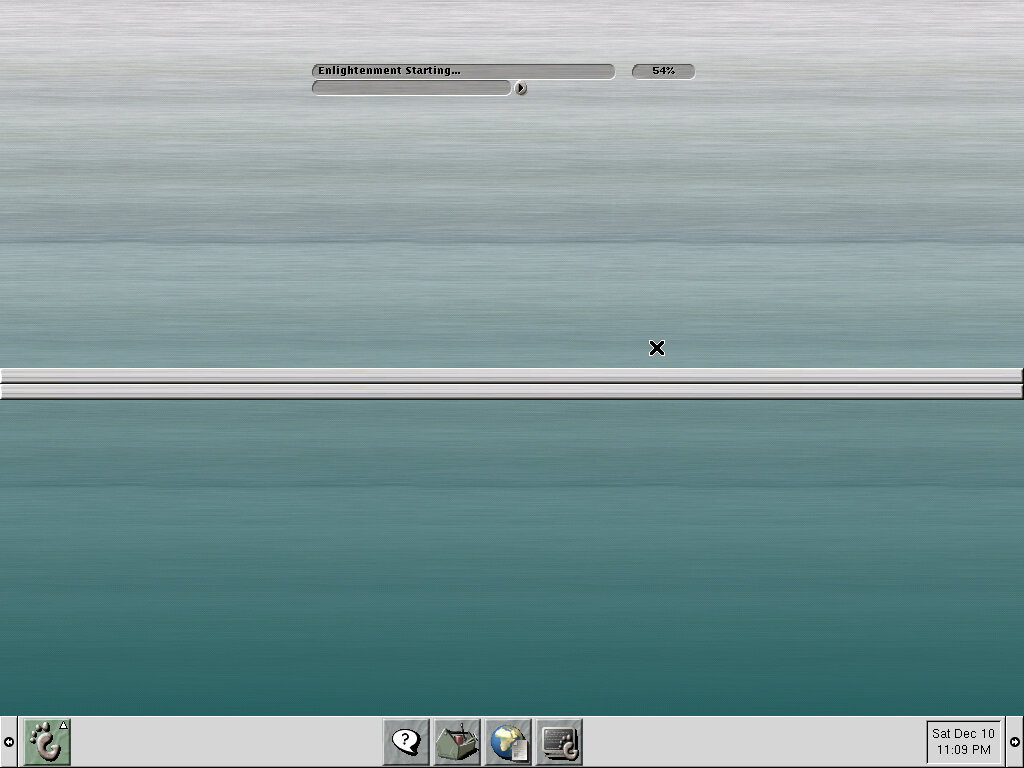
The first time you boot the OS, it goes through settings up the various packages that have been installed, and then starts up the X Window System.
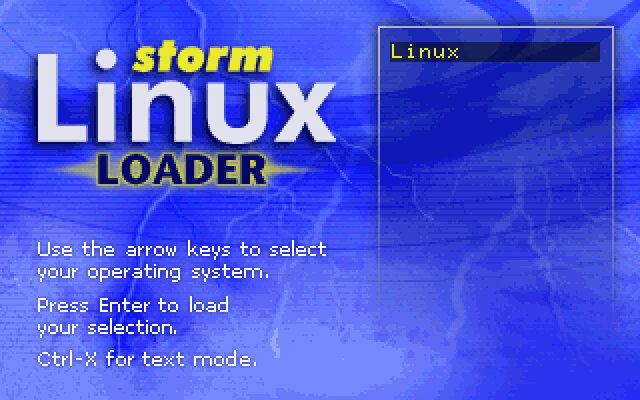
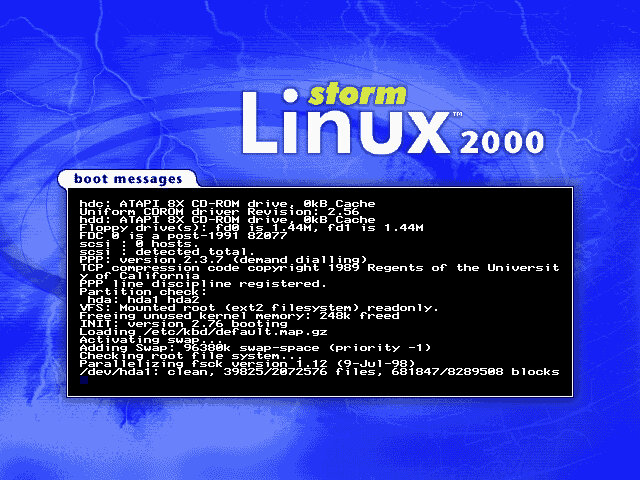
I ran into the same issue that had occurred with Mandrake Linux where the X Window system had problems starting up which was down to the video card chosen, it seems S3 graphics card work the best with these early Linux distros.

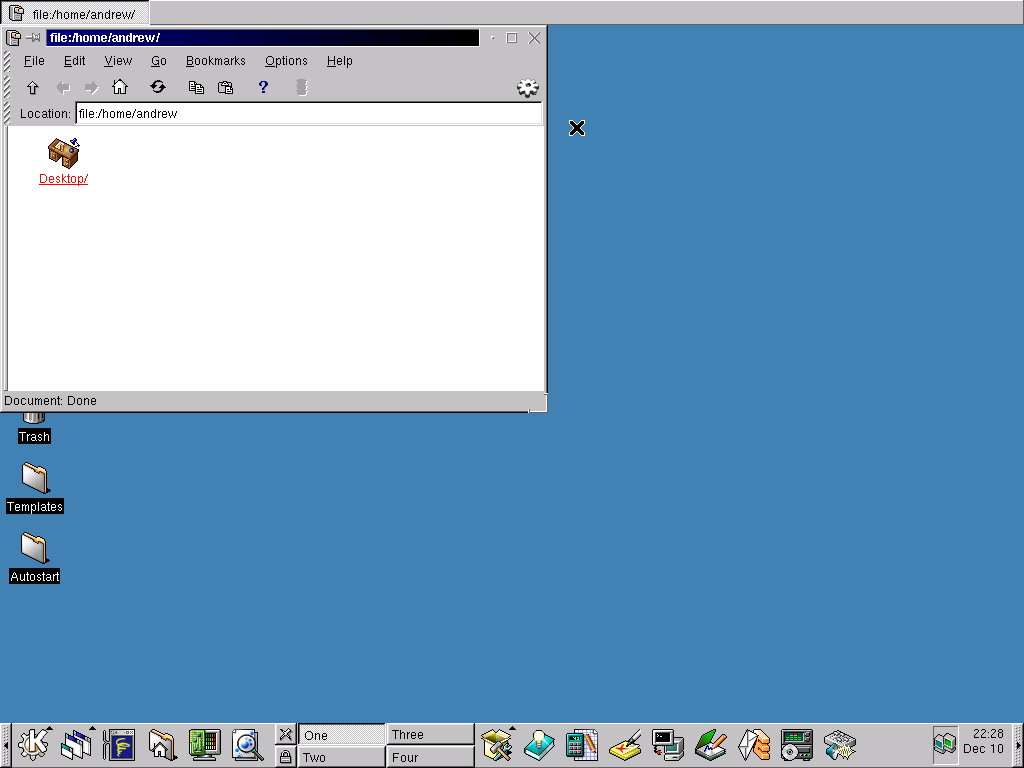
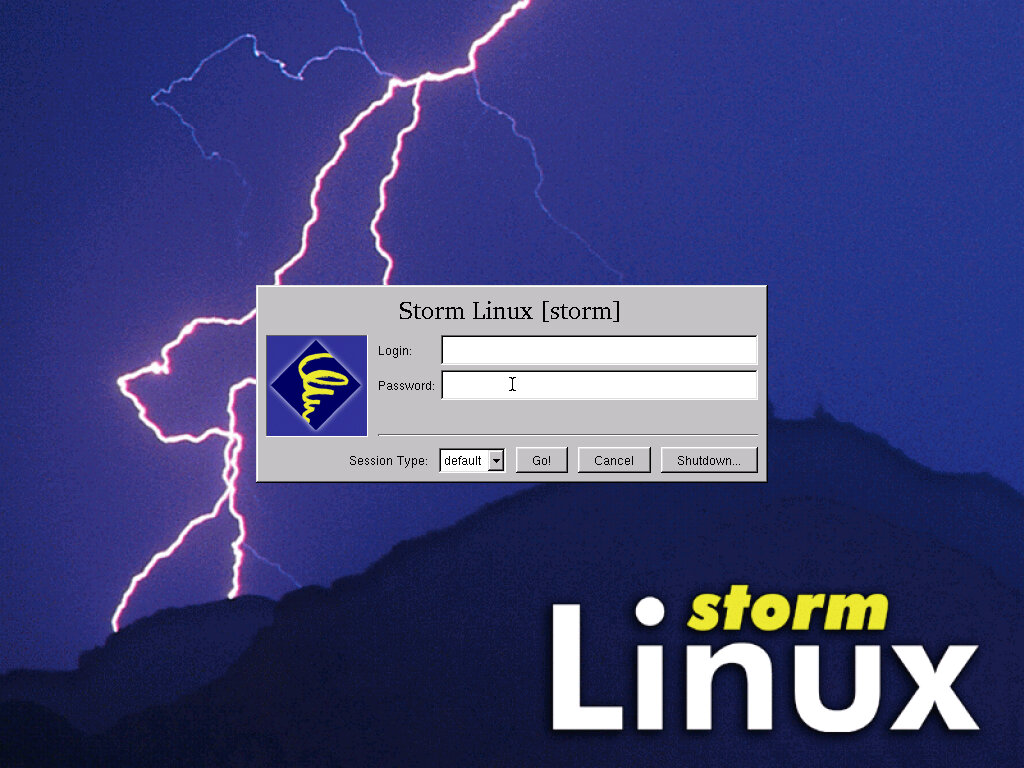
Logging on is simple, just entering the username and password that was created during setup. If you chose to install either KDE or GNOME, you are presented a choice on which desktop environment to use.
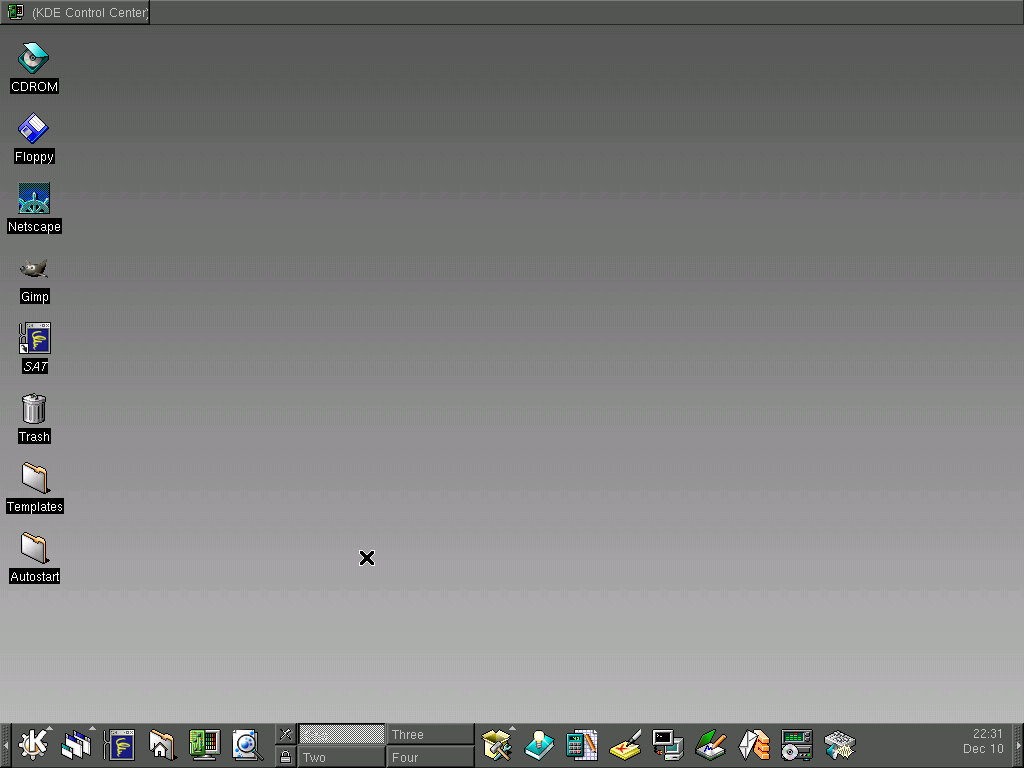
KDE

This was a common environment that was bundled with multiple distros back from this period.
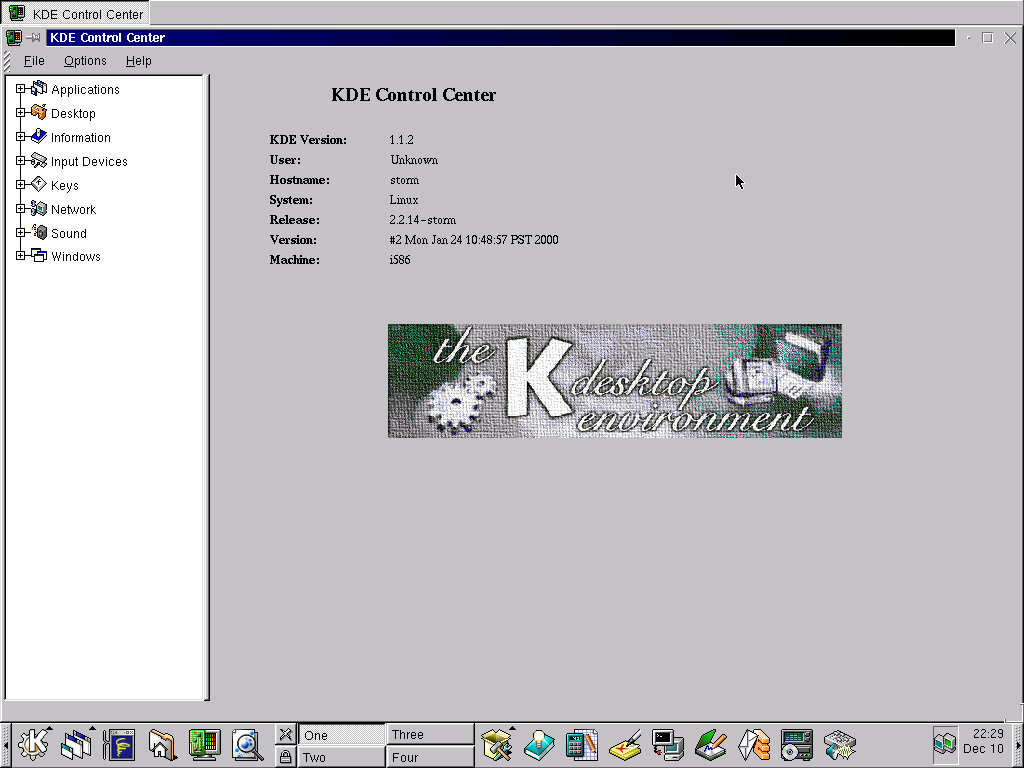
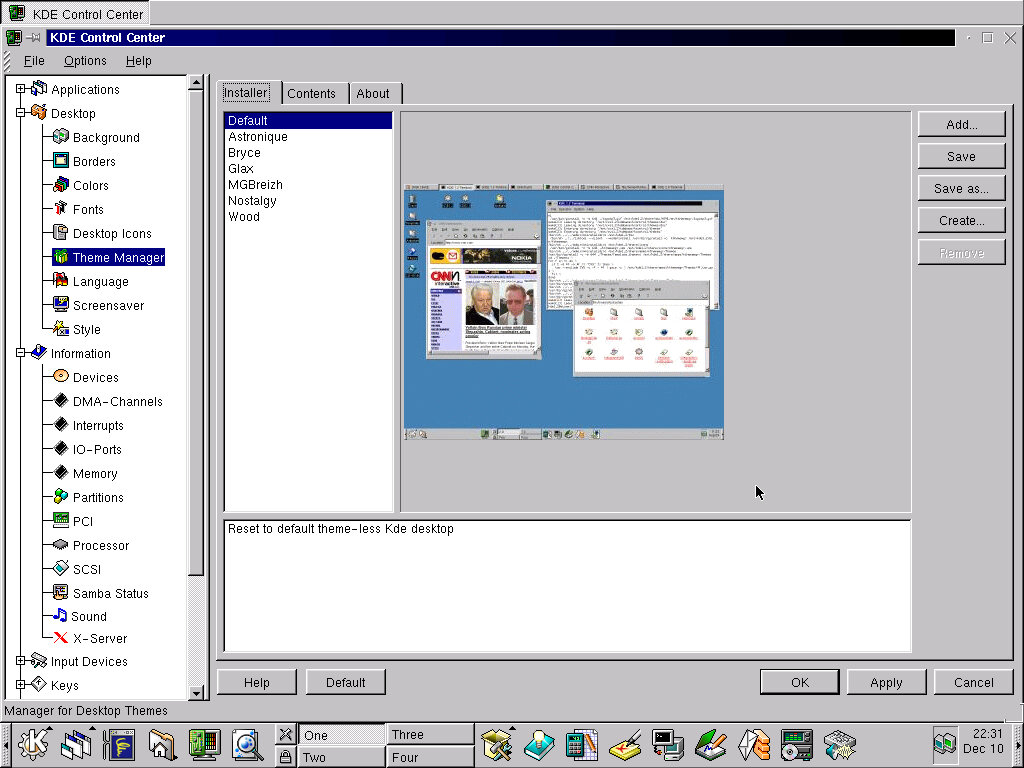
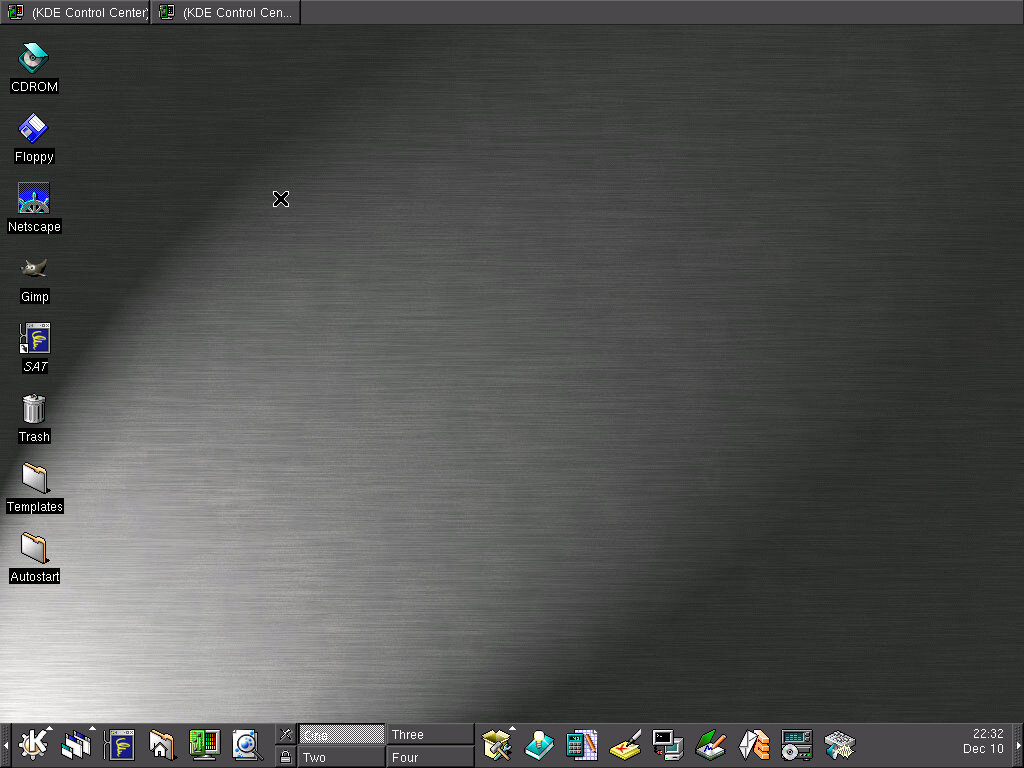
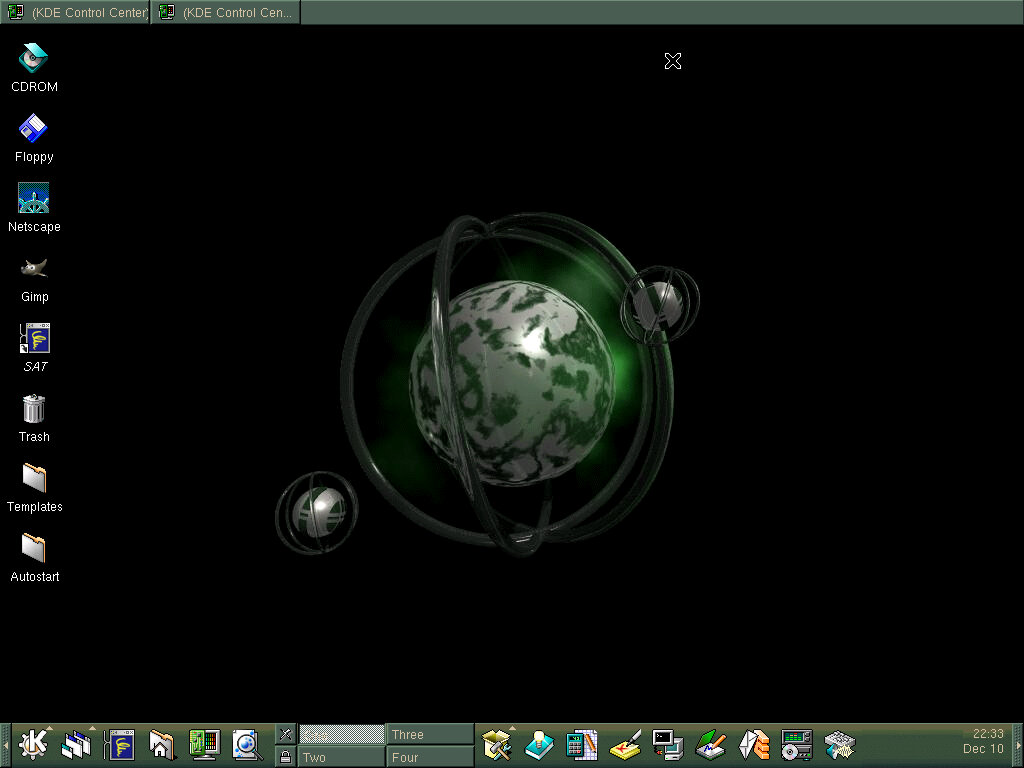
Like other KDE distros, custom themes can be applied and there are a few included out of the box
Software

Most of the software here is already featured in existing Linux distros

Applications – Includes Text Editor and Advanced Editor (Kwrite 0.96)

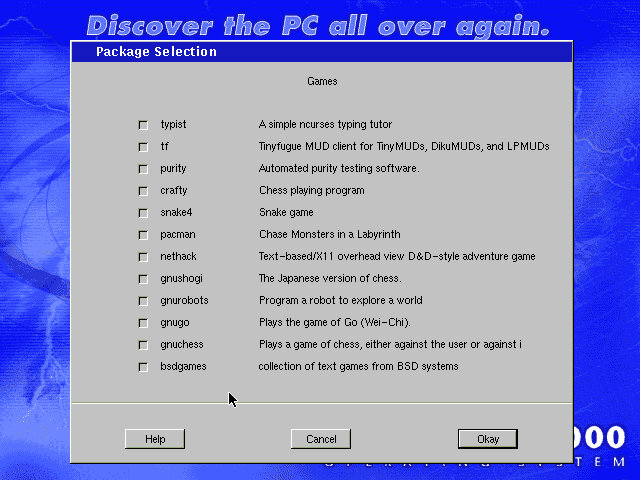
Games – A few games are bunded, Abalone, Asteroids, KblackBox, Konquest, Mahjongg, Minesweeper, Patience, Poker, Reversi, SameGame, Shisen-Sho, Sirtet, Smiletris, Snake Race and Sokoban. Many of these have been included in other distros.

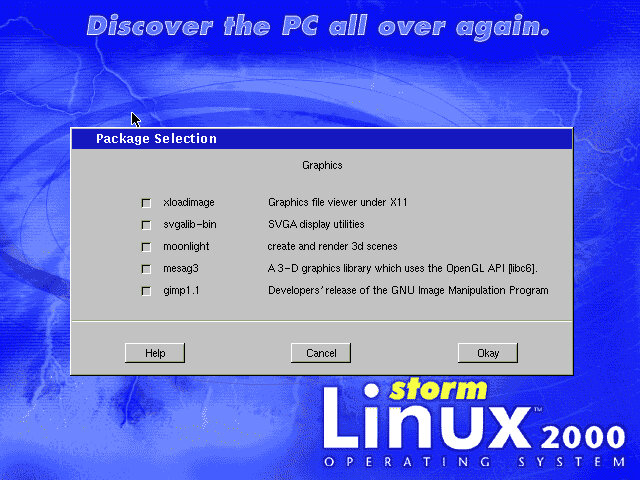
Graphics – Dvi Viewer, Fax Viewer, Fractal generator, Gimp, Icon Editor, Image Viewer, Paint (kPaint 0.4.3), PS Viewer and Snapshot
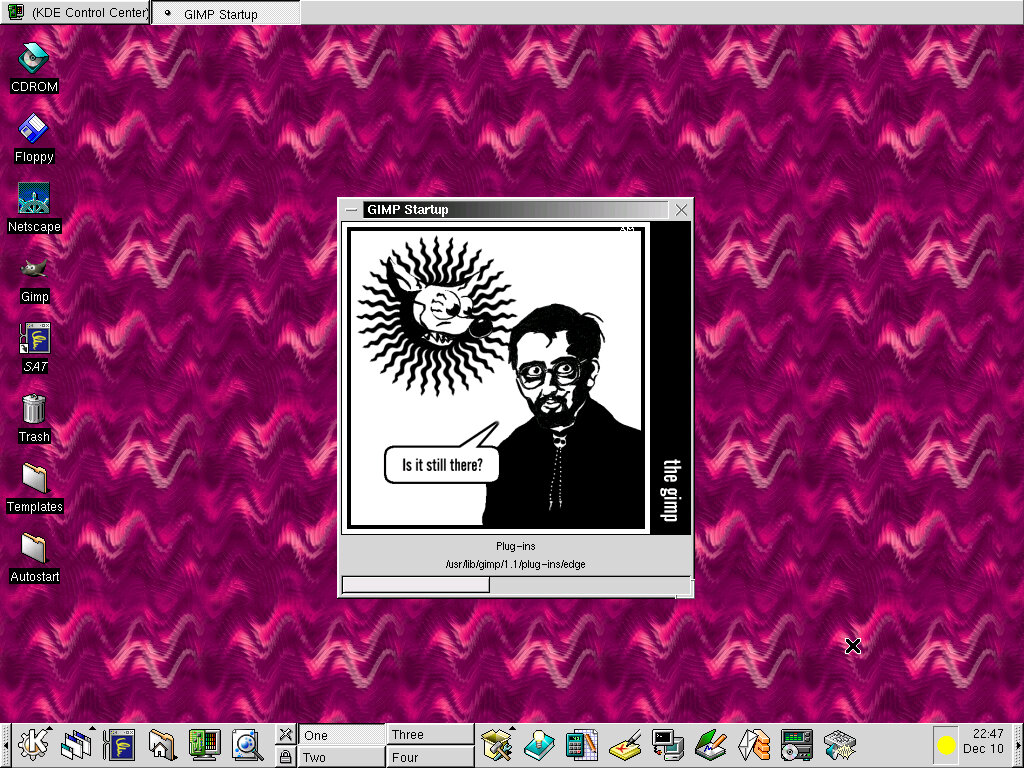
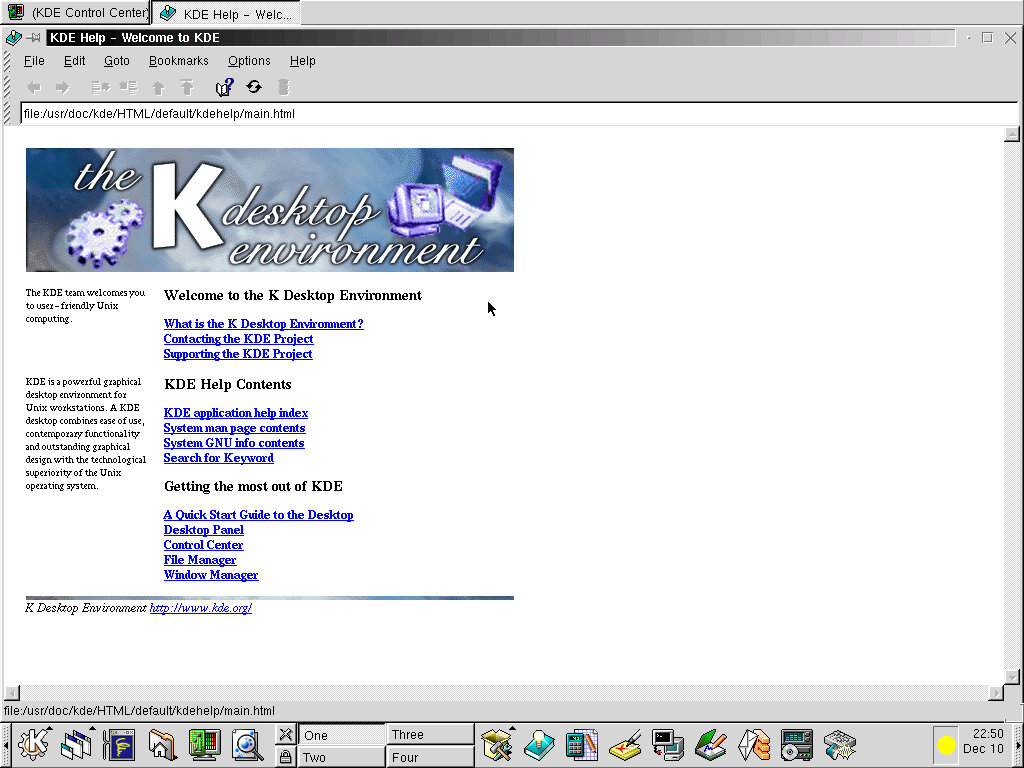
Internet – Archie client (Some sort of file sharing program?), Biff, Chat Client (Ksirc), Mail Client, Netscape and News Client

Multimedia – CD Player, Media Player, Midi Player, Midi/Karaoke Player and the Sound Mixer Panel.

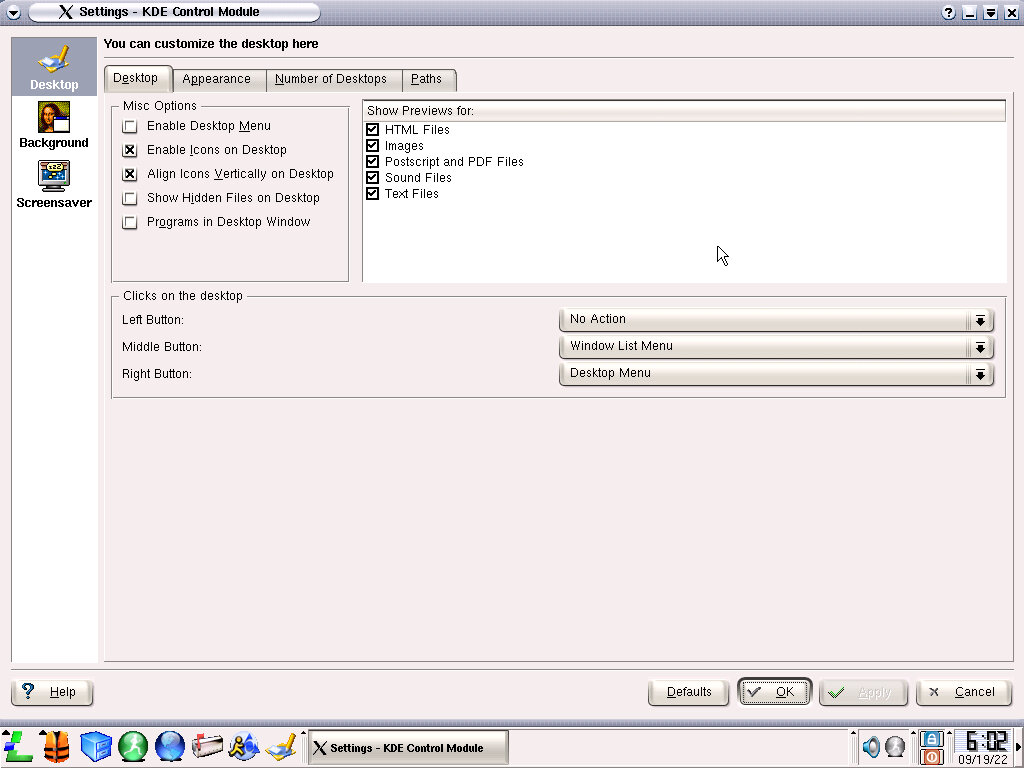
Settings – Sort of like the Control Panel, this relates to the KDE user interface and can be used to set the screensaver, theme, wallpaper background and sound effects.
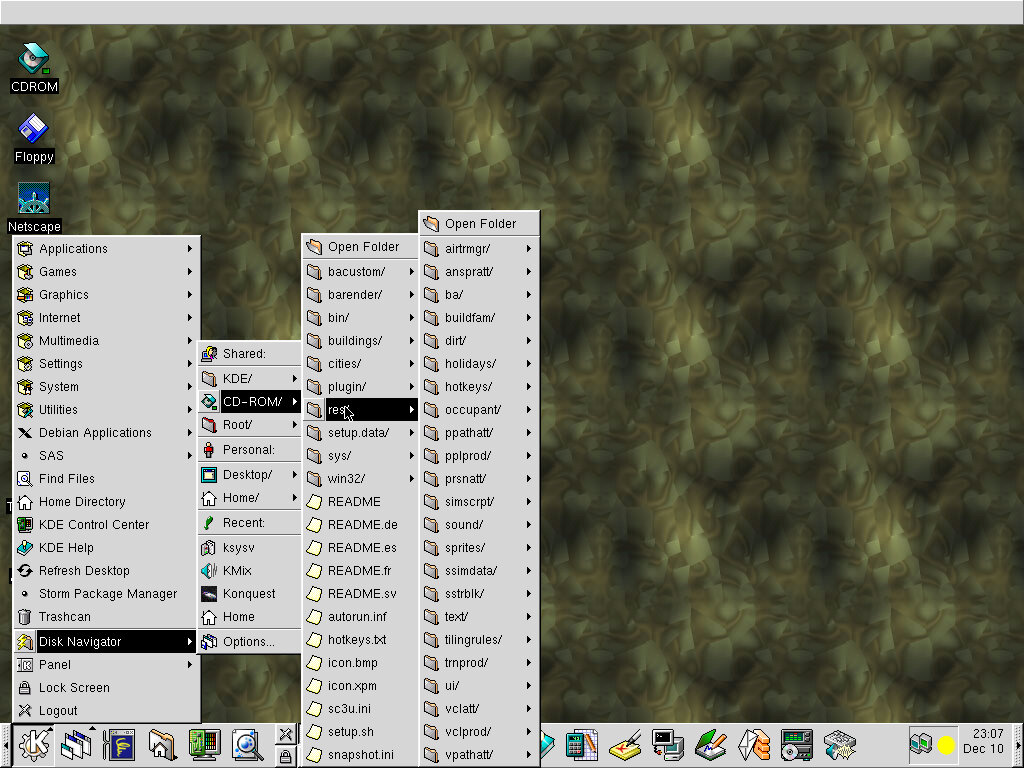
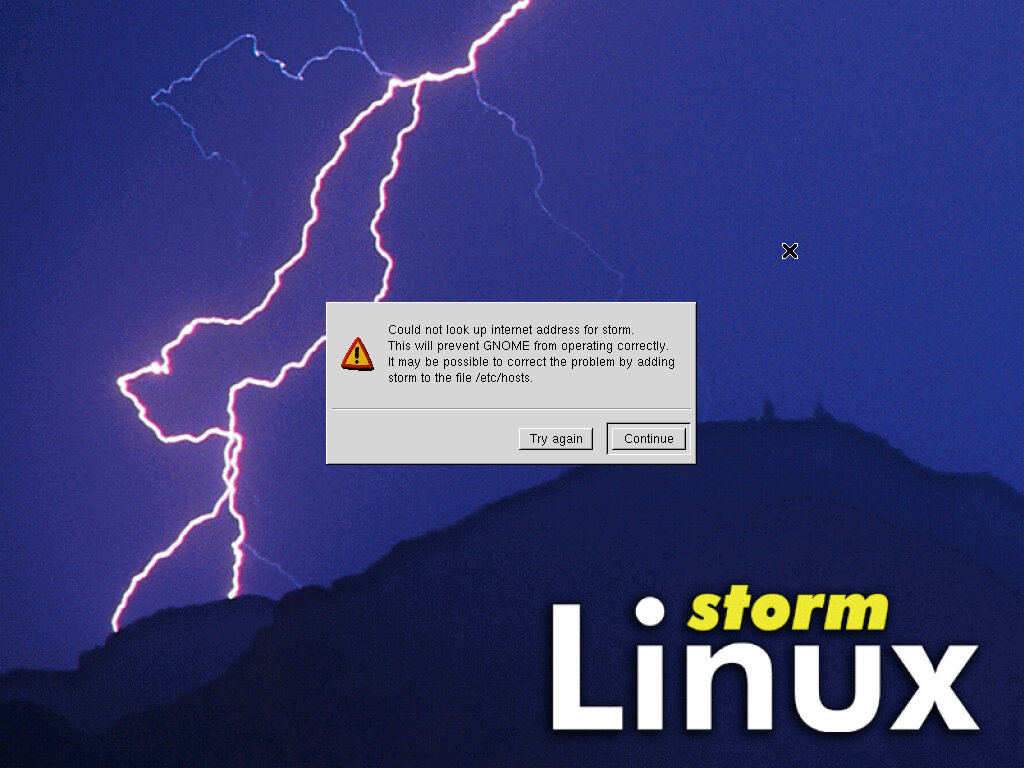
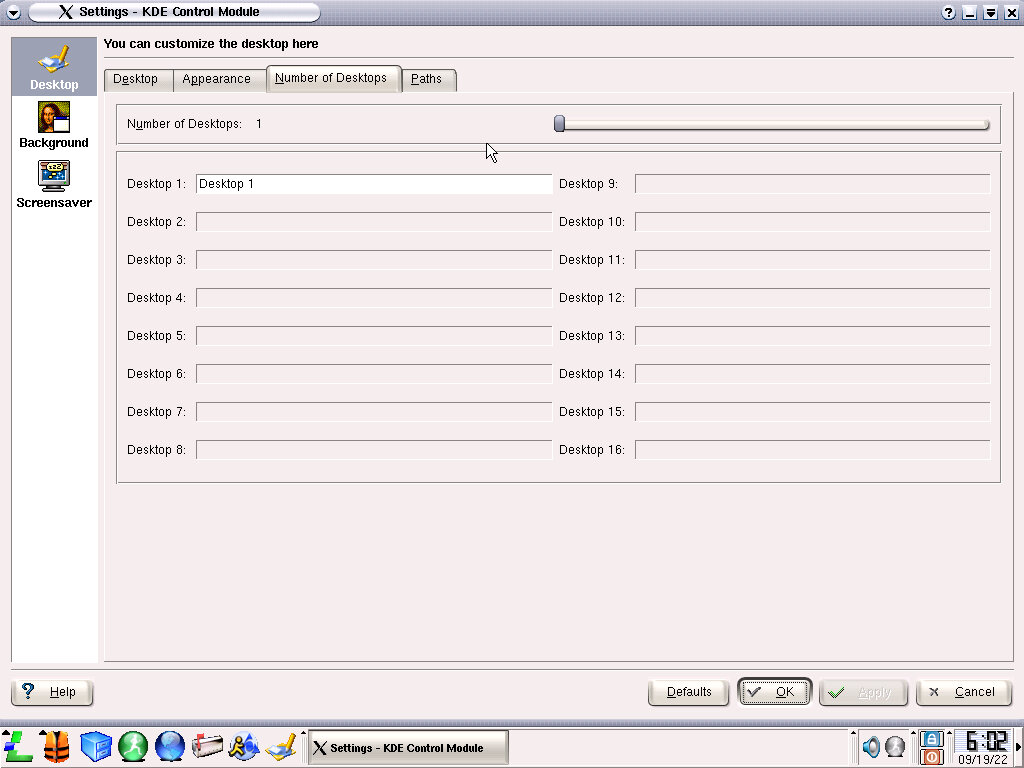
System – Appfinder, Arrange Icons, Desktop pager (manage multiple desktops), File manager, Font Manager, SysV Init Editor and Task / User manager. Some of these only function with root access.

Utilities – Features programs like the Address book, Archiver, Calcuator, Cut & Paste History (klipper), Hex editor, kFloppy, kLots, kNotes, Konsole, MoonPhase, Mousepedometa, Personal time Tracker, Printer Queue, Process Manager, Terminal and World Watch.

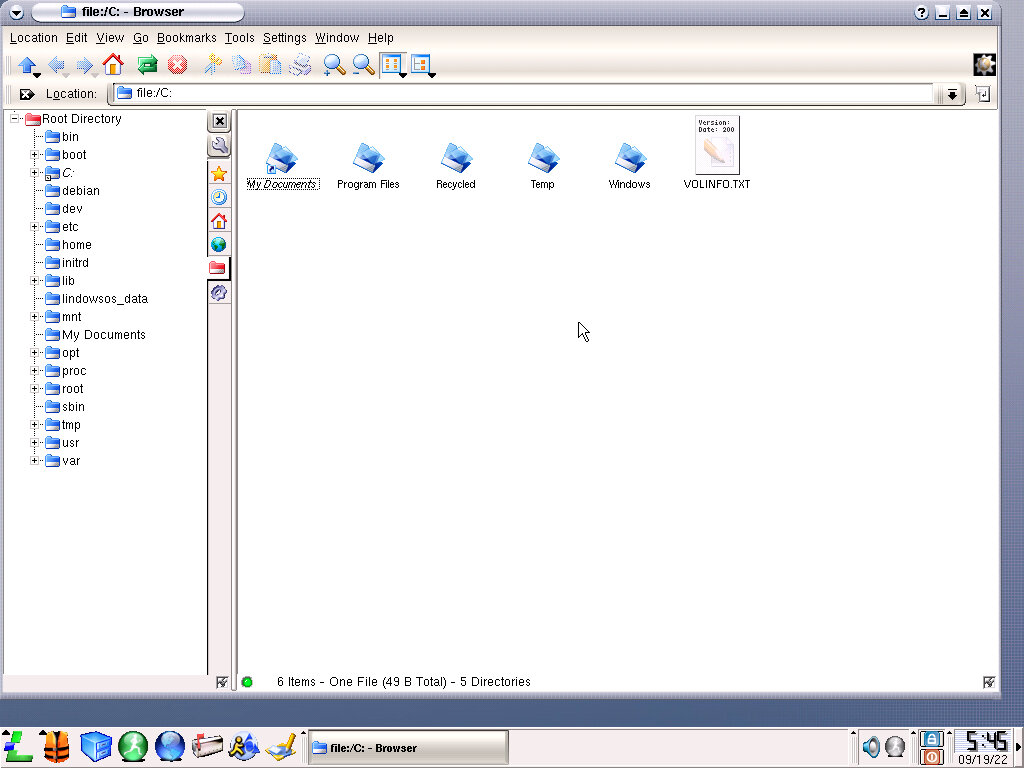
Disk Navigator : Quickly access and navigate through the hard disk and the directories on the system. Despite having two floppy drives and two CD-ROM drives, Storm Linux only shows one of each.

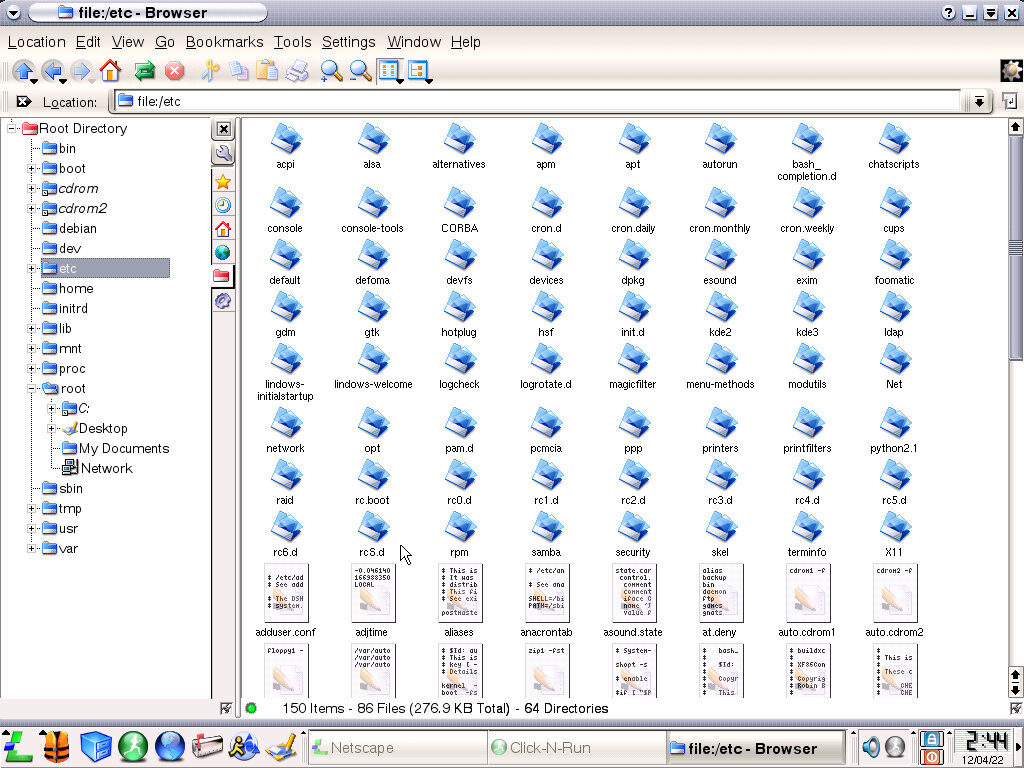
Unfortunately this is where I started getting problems with this distro, I was unable to browse the drives with removable storage, No CD-ROM I had mounted would show up which meant I could not install any additional software. Same occurs with the floppy drive.

Even after reinstalling the distro on a different emulated motherboard, I was still unable to mount and browse any forms of removable storage, for both IDE or SCSI drives.

Enlightment & GNOME

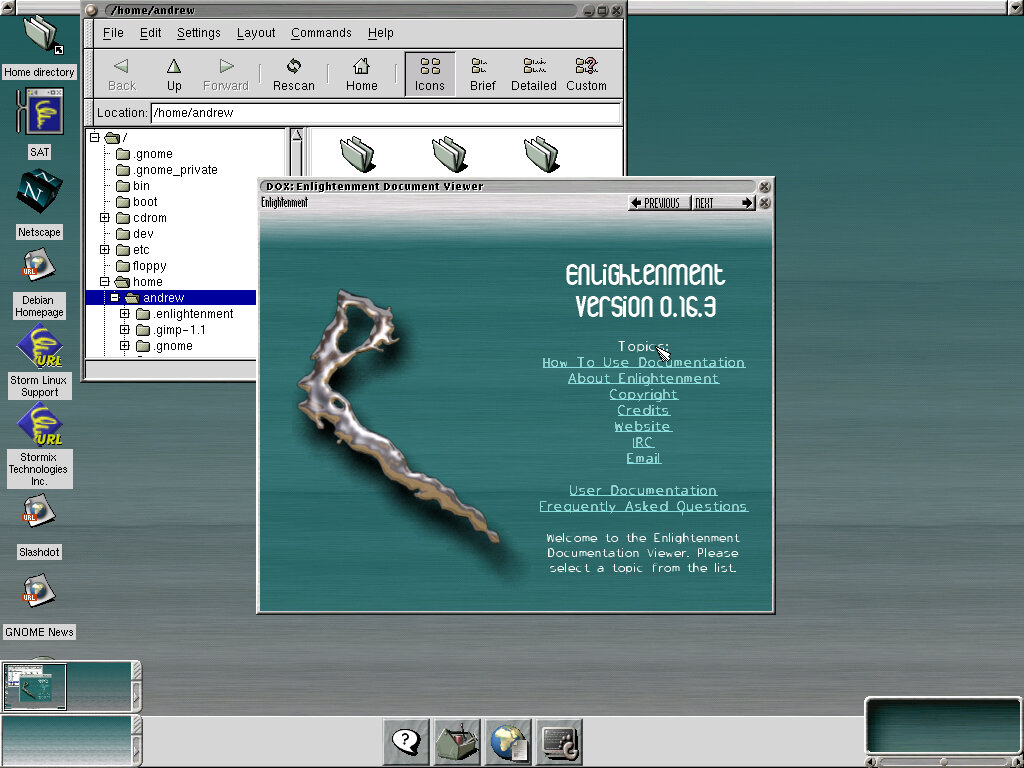
The interface is similar to what we saw with mandrake 7, and features GNOME bundled with Enlightment.

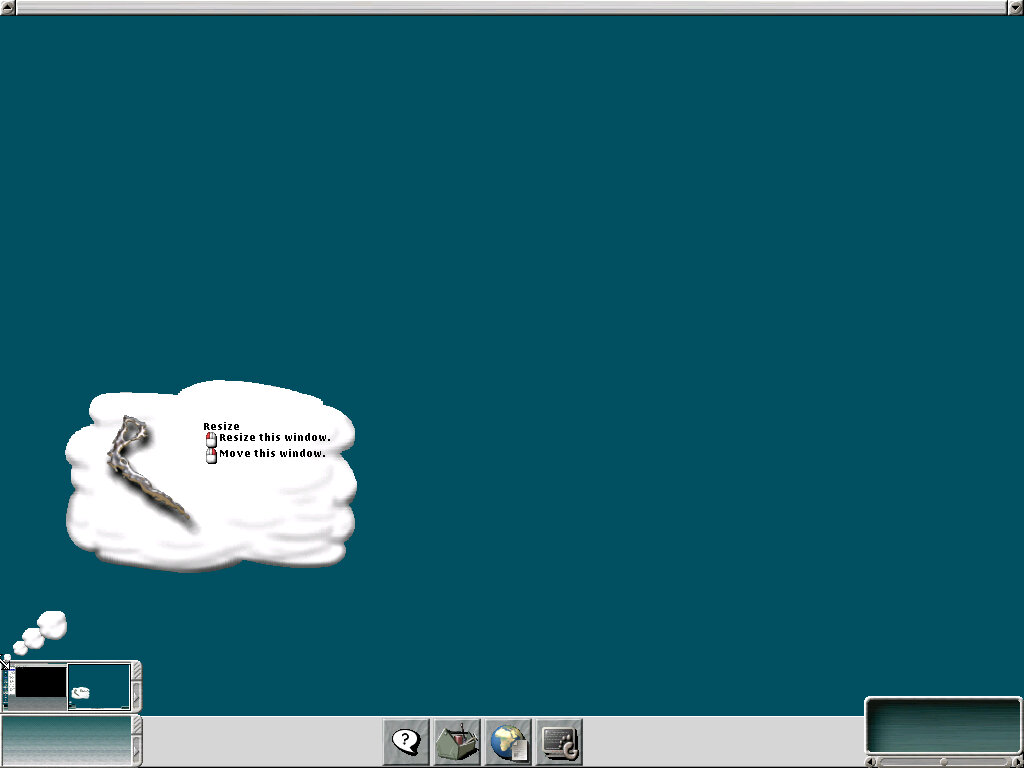
There are occasionally pop-ups that are generated by Enlighment that convey the shortcuts used by the desktop environment.
Multiple desktops are supported, and enlightment gives a smooth transition when switching to another desktop. You can use a mouse gesture to flick between the desktop’s, this behaves very erratic in 86box, with the traditions being too sensitive.

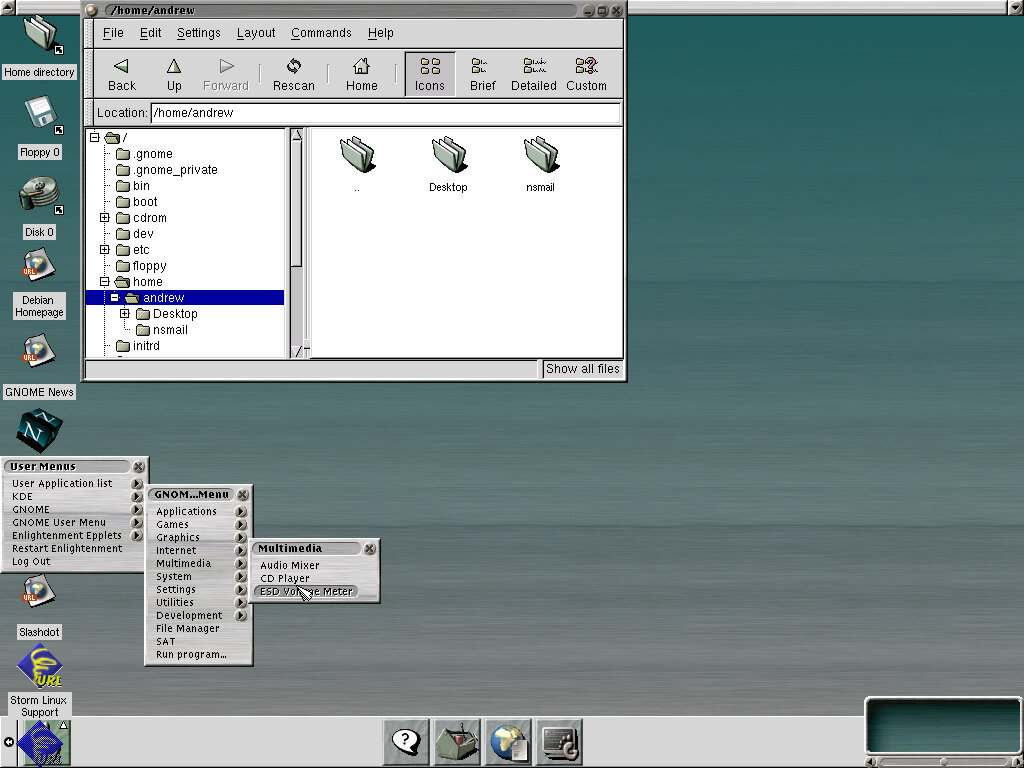
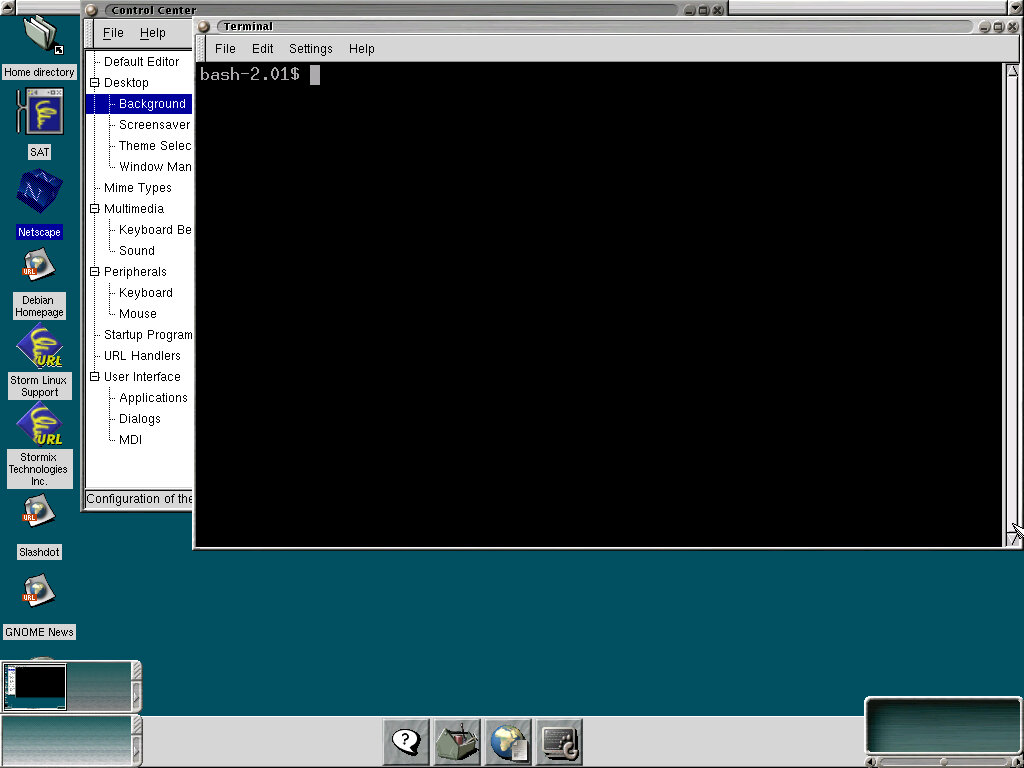
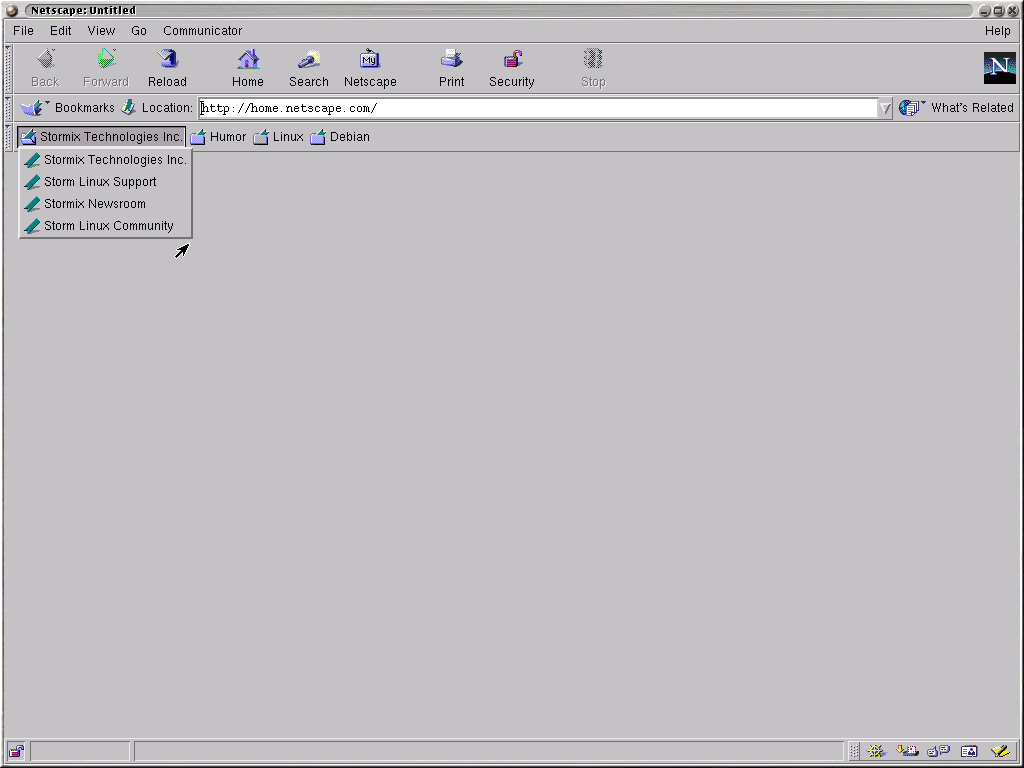
Shortcuts are provided on the desktop, with a 3D looking Netscape navigator icon, along with shortcuts to GNOME news, Debian Homepage and Slashdot.
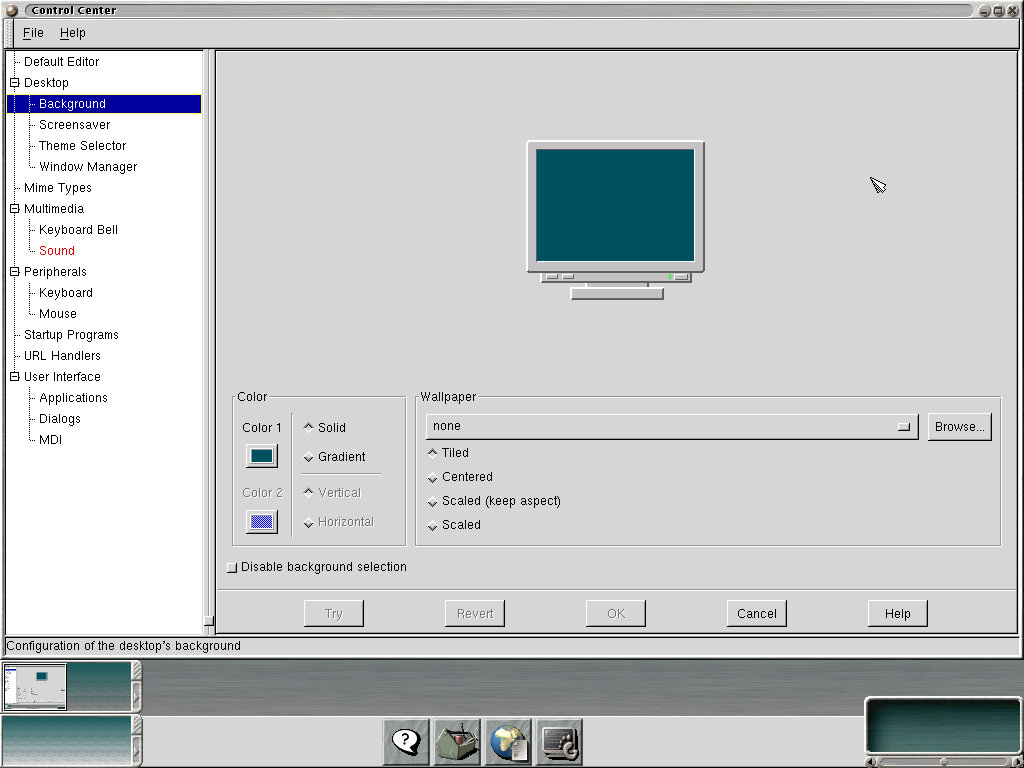
Control Panel

Most options that relate to GNOME can be found here, options are divided into several categories. Version desktop – 1.0.51
When a setting has been changed, the text on the left turns to red to show a change has been made that has not been saved, pressing the OK button will save and apply that setting.

Options can be set:
Default Editor: Usually emacs by default, change the default text editor
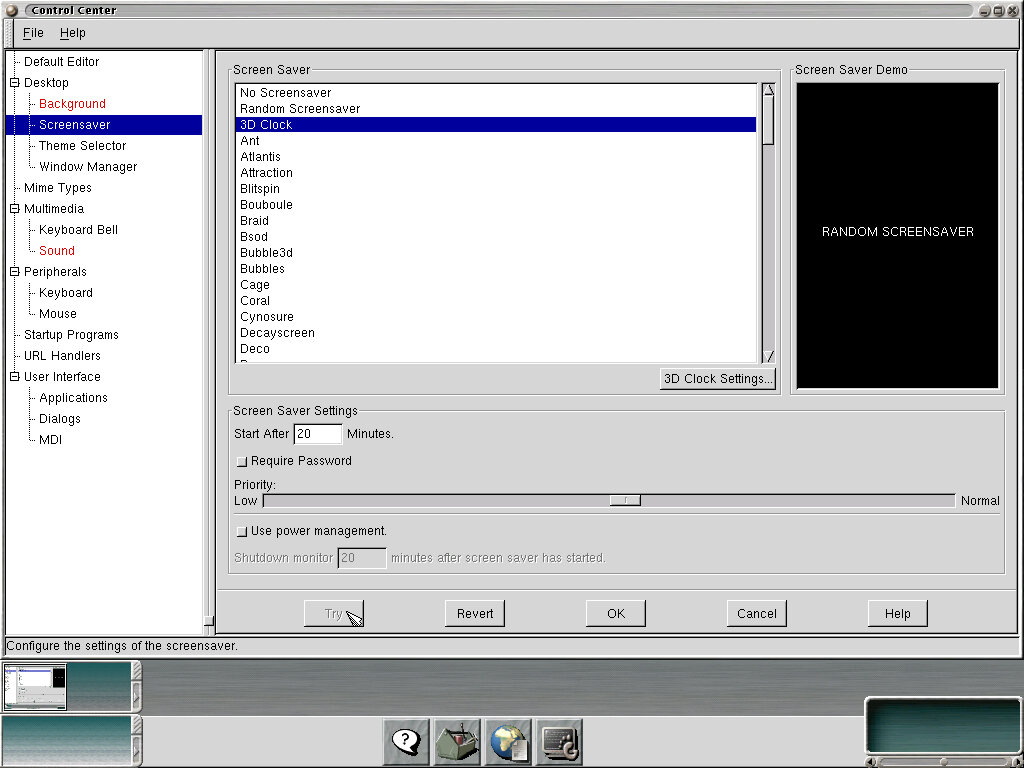
Desktop: Change the background by selecting a supported image file, images can be tiled, centered or scaled. Alternatively a gradient colour can be set instead. Set a screesaver of which the OS comes with a large bundle of screensavers, you can also set the monitor standby time from here. Themes are also supposed which relate to the colour schemes used for the user interface, in GNOME only one theme comes included (Default) with the option to add more. Lastly there is an option to set the Window Manager, currently Enlightment.
Mime Types: Change the default file typles for selection file extensions
Multimedia: Change sound settings for event like when the user minimizes or restores a program, similar to the sound effects in Windows or the appearance sounds in Mac OS.
Peripherals: Configure settings for the keyboard and mouse, such as the keyboard auto-repeat, or have a clicking sound when a key is pressed. Here you can also amend the mouse sensitivity and acceleration, and if the mouse buttons are left or right handed.
StartUp Manager: Change programs that run on startup
URL Handlers: Change which browser a handler should open with
User Interface: Change the appearance of application windows, and for the status bar.
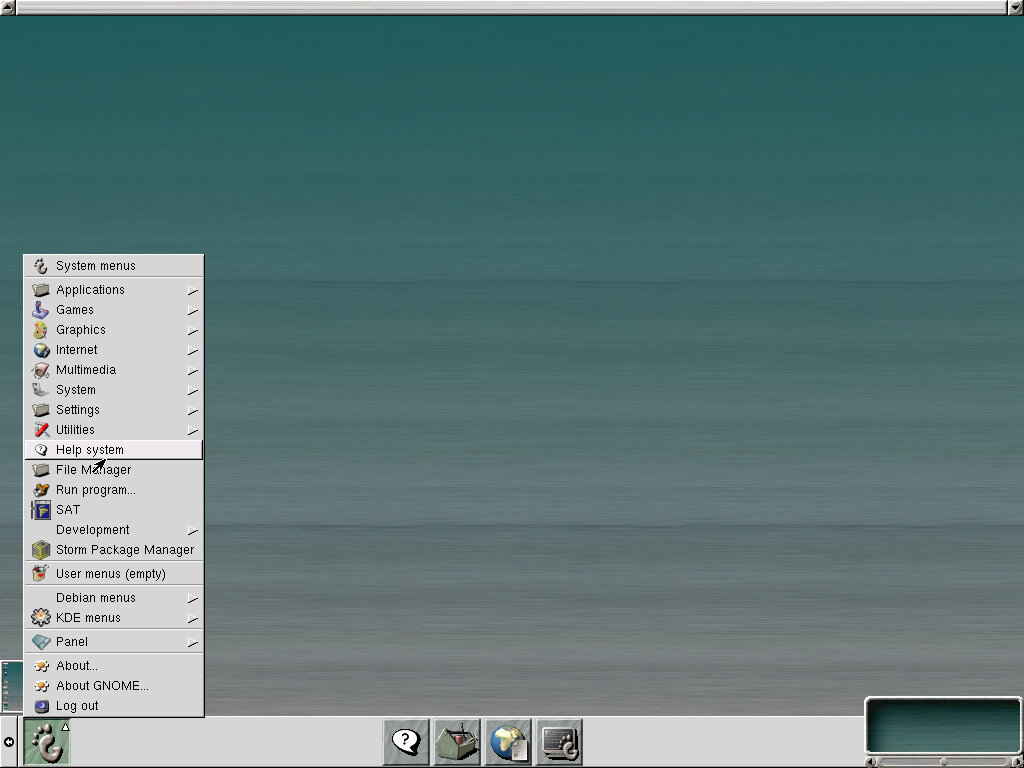
GNOME Applications

KDE programs that have been installed can also appear here within their own submenu

Applications: Includes shortcuts for popular software like Netscape, gEdit, Emacs, Address Books, GHEX, gnotepad and Gnumeric spreadsheet.

Games: Its empty, no GNOME games appear in the list

Graphics: Electric eyes and The GIMP

Multimedia: Includes EDS Volume Meter, Audio Meter and CD Player (TCD 1.0.51)

Settings: Shortcuts to the GNOME Control Center
Utilities: Includes a few utilities like the GNOME Terminal, System Monitor, Search Tool and a Stripchart Plotter.

Help System – Shows information on how to use the operating system

File Manager – Bring up the file explorer

SAT – Some sort of administration system, as this distro was intended for use on an enterprise network.

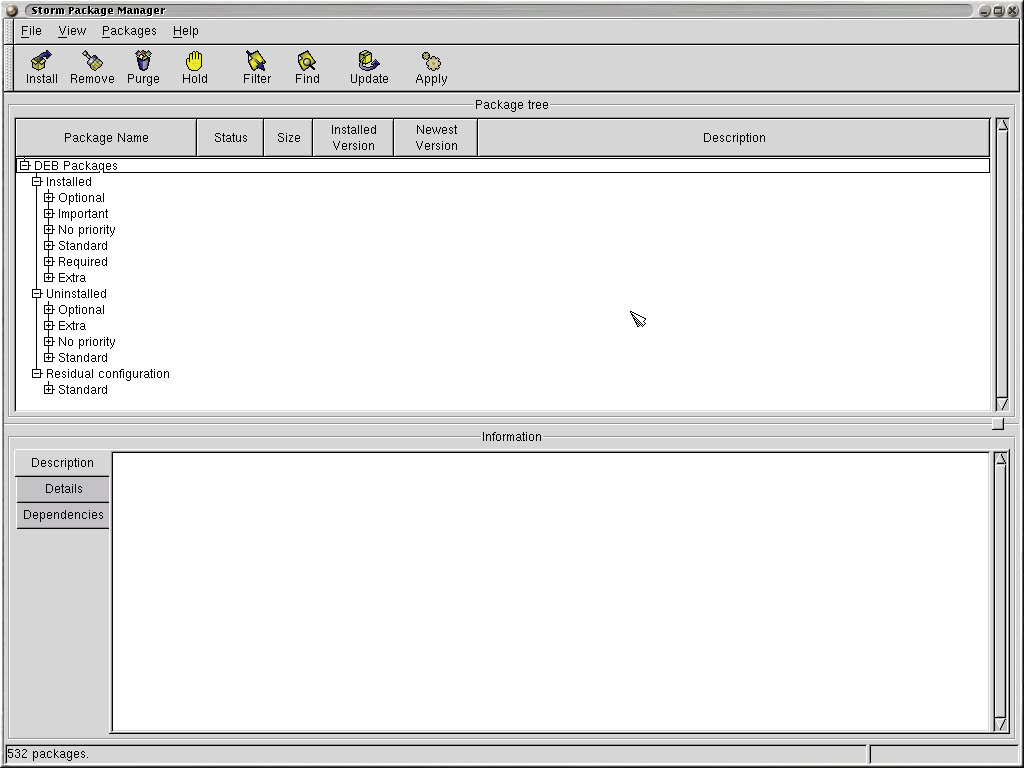
Storm Package Manager – The package manager for this distro, install and remove packages that correspond to applications
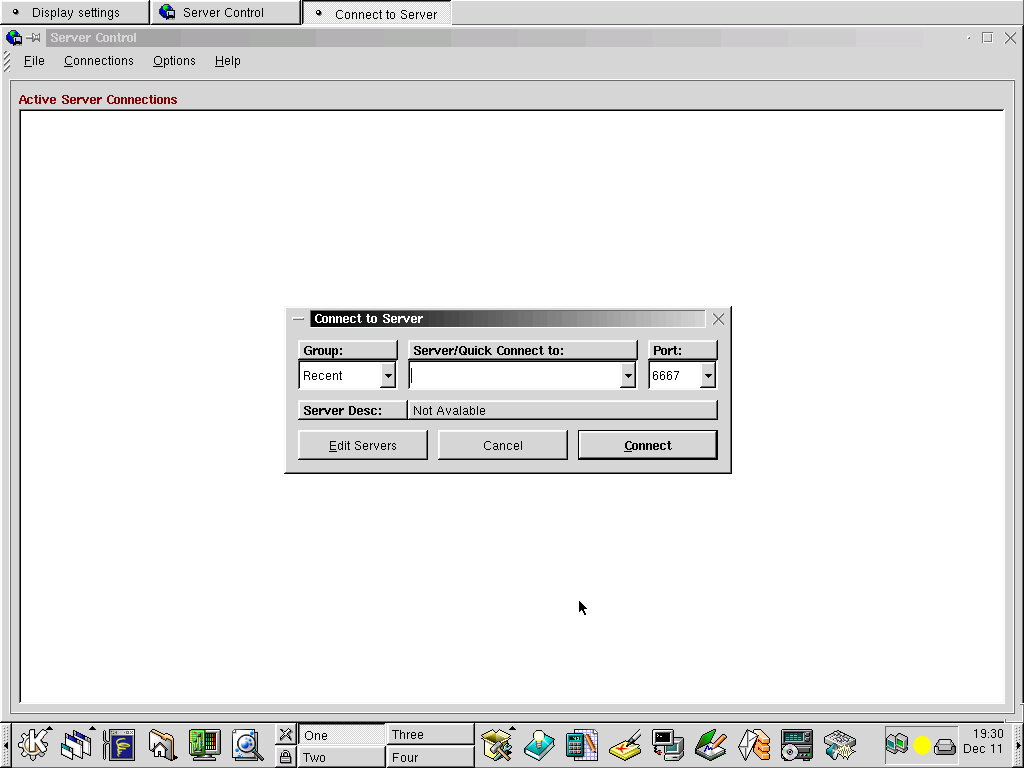
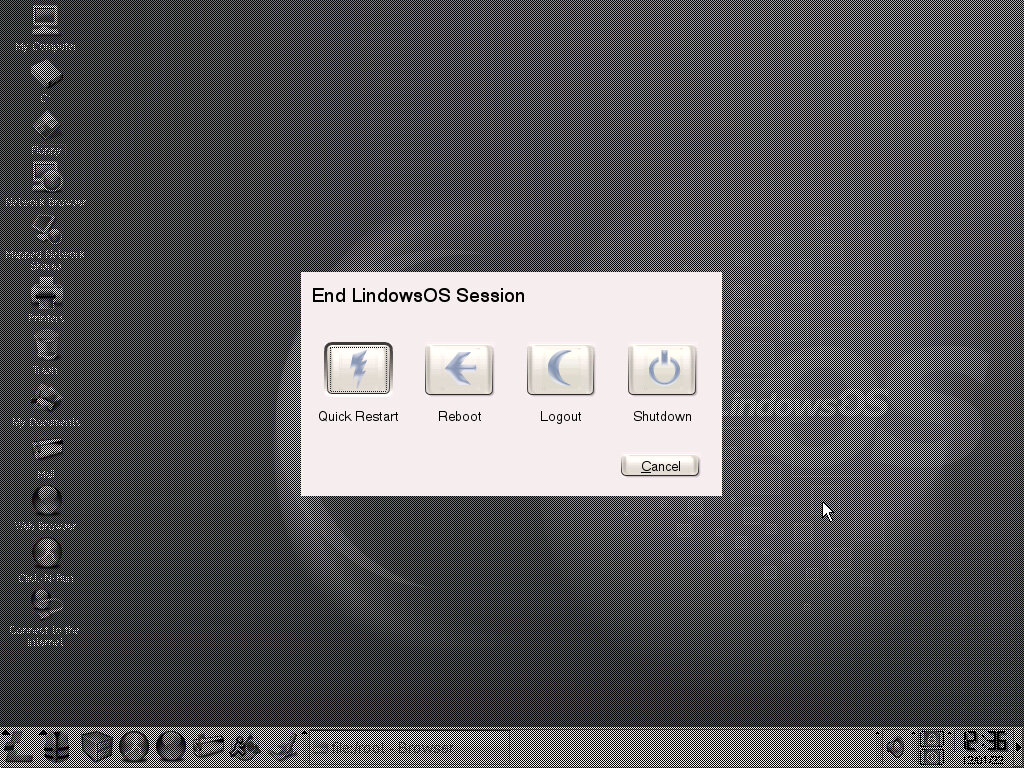
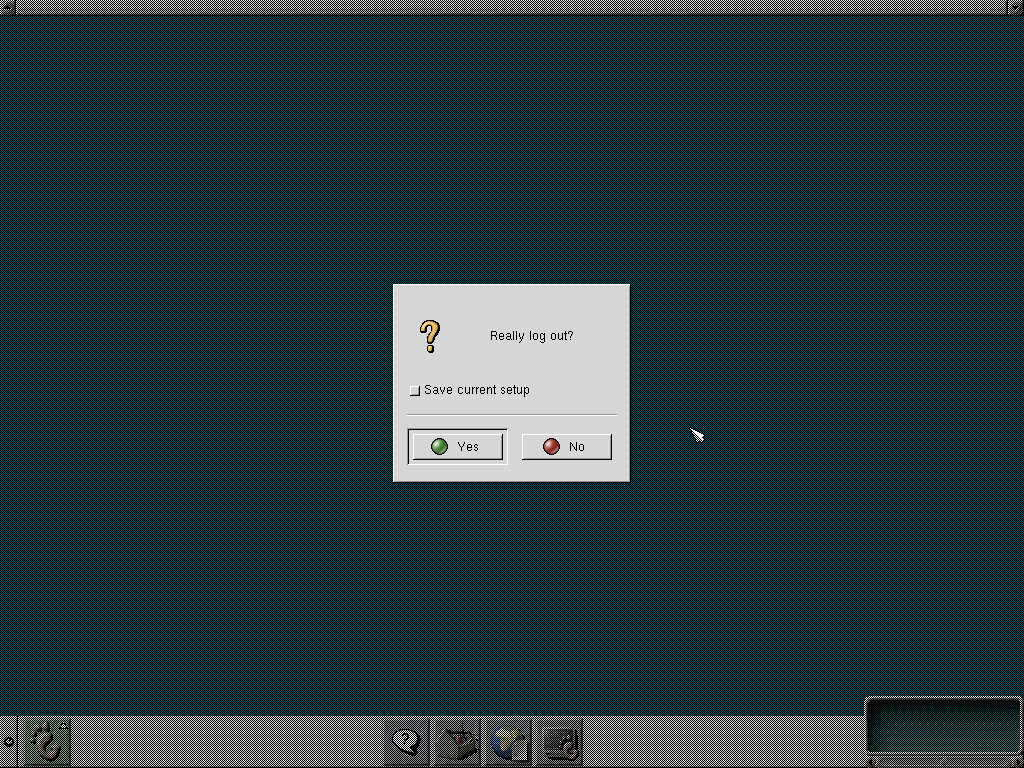
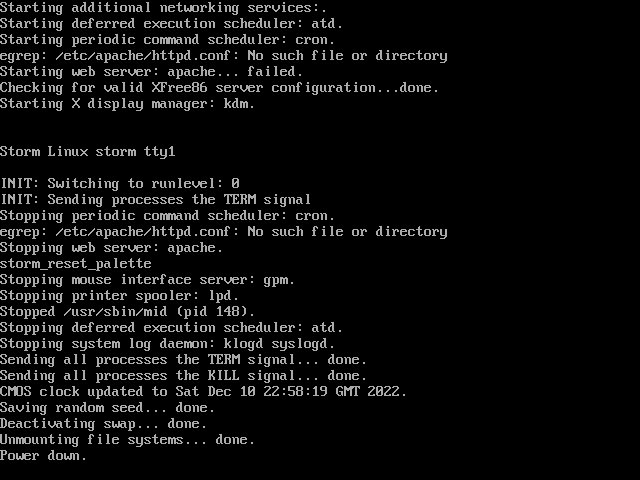
Logging out of the GNOME environment that returns you to the logins screen. From there you can start the shutdown process.
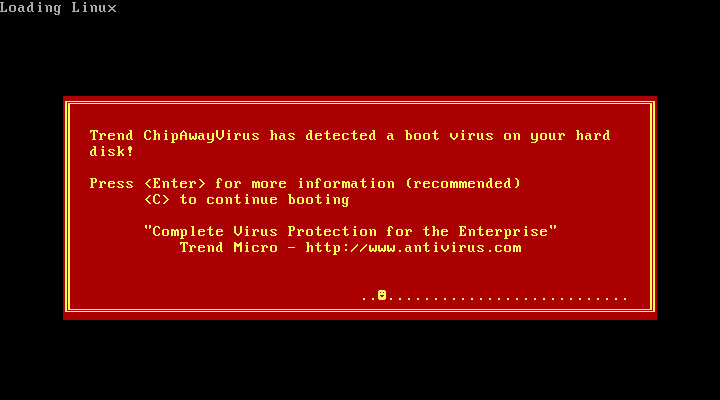
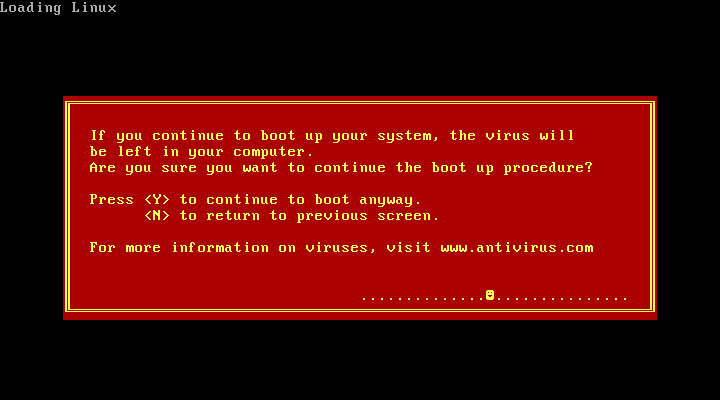
Also a bonus screenshot, here the motherboards BIOS antivirus detects Linux as a virus, possibly since its modifying the boot sector.
Lindows 3.0

A follow up to Lindows 2, an popular Linux distro that was released in 2002, lets see what has changed in this version.
It’s also an operating system that’s a pain to search for since both Google & Bing think it’s a type and keep correcting it to Windows.

VM Specifications

86Box 3.7.1

Motherboard: Micronics M7S-Hi
Processor: AMD K6 233Mhz
Video: S3 ViRGE/DX 2MB
Sound: Ensoniq AudioPCI
Network: AMD Pcnet-ISA+
SCSI: Adaptec AHA-154xA

The install process is typically the same as before, with the install being booted directly off the CD

Upon bootup we still get the same selection process.

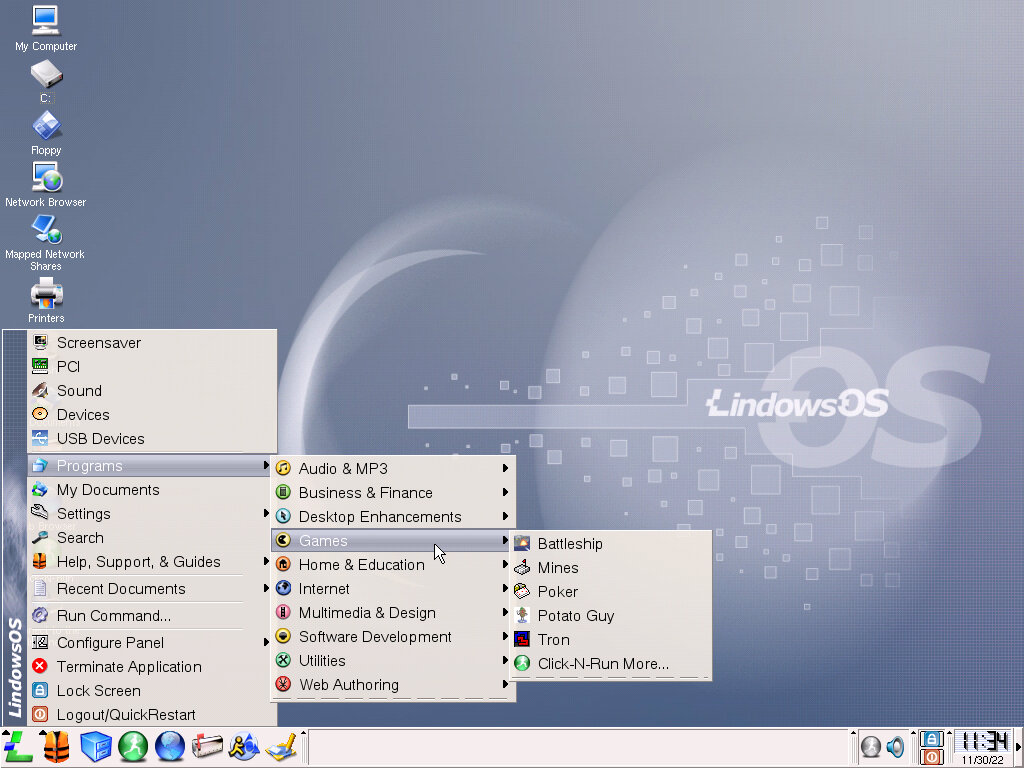
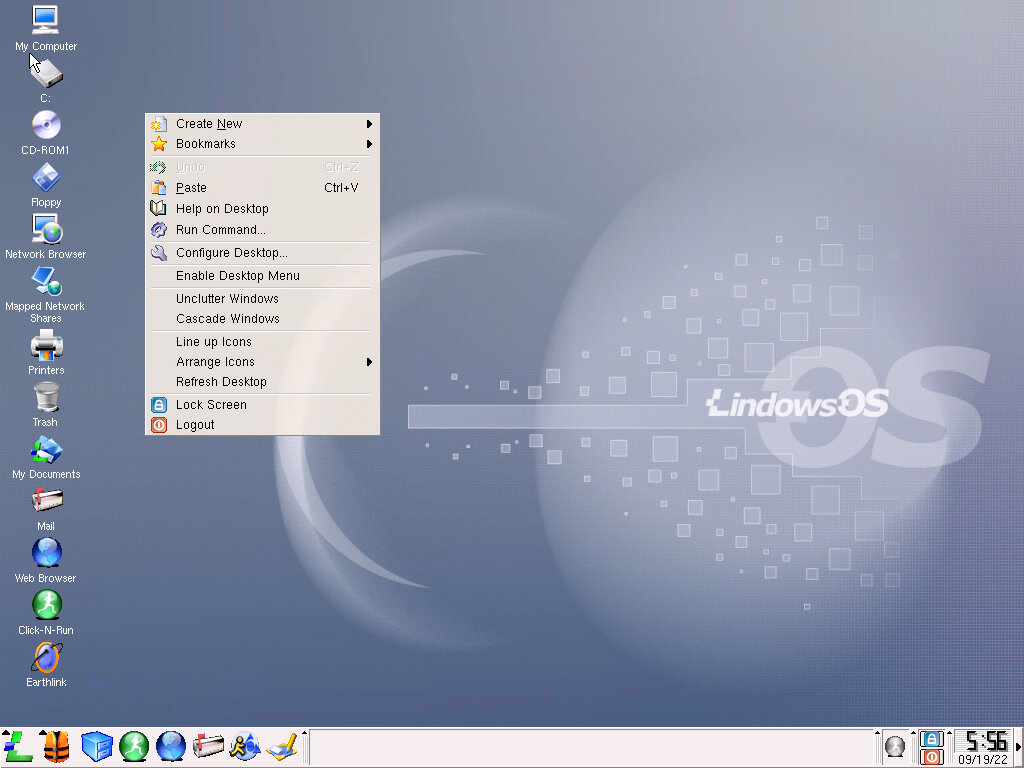
Desktop, not much has changed, but when clicking the Lindows menu we see a slightly altered font
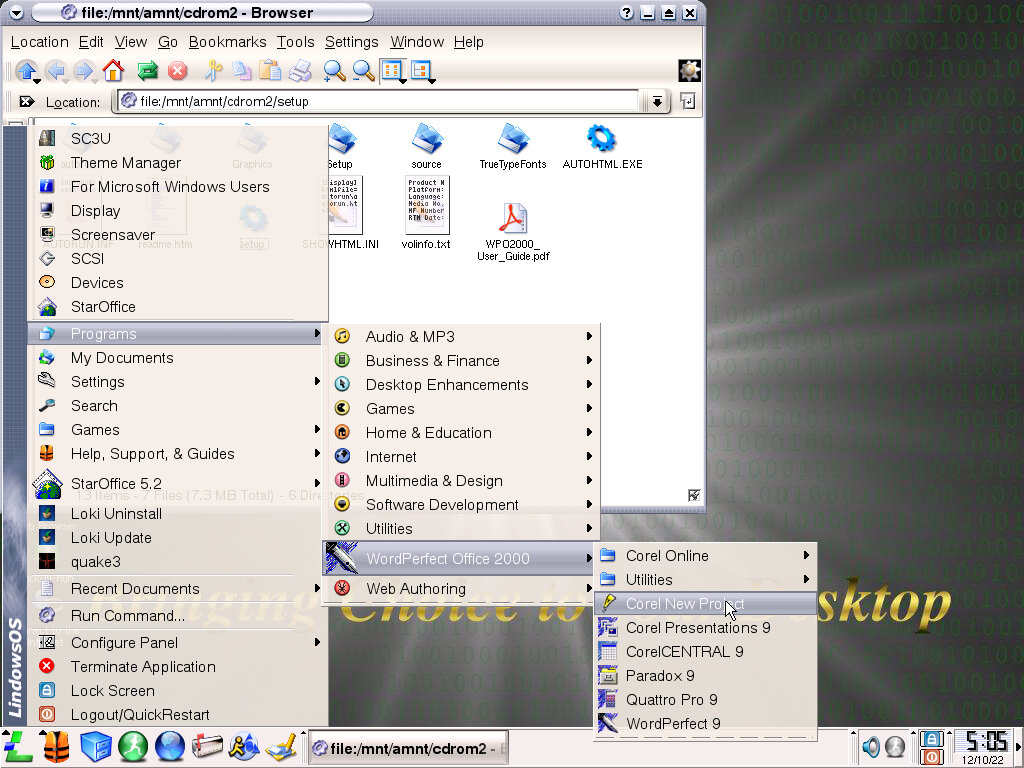
The menu itself holds the same layout as the previous distro, with bundled programs being placed in their own category to make organizing much more easier. Not all applications will install into this folder, Simcity 3000 for example creates its own games directory instead of using the one located in the game folder. This can lead to confusion as you have two of the same folders unless the user manually changes the directory upon installation.

It also means whilst the menu looks relatively tidy, it will become cluttered as more applications are installed.

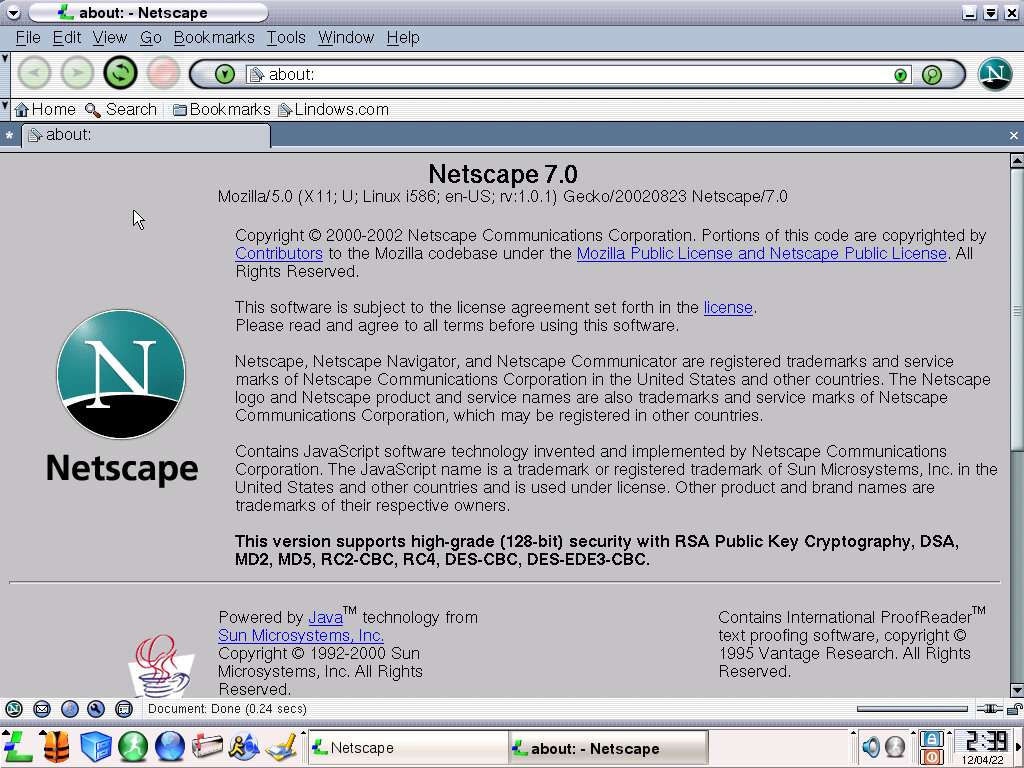
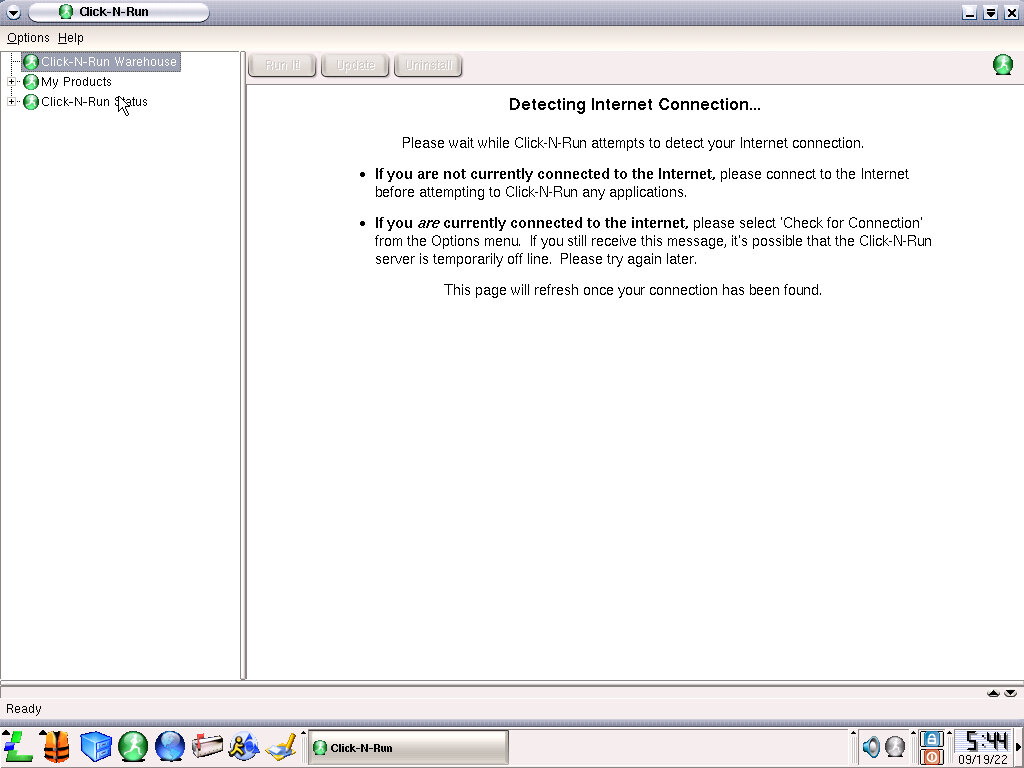
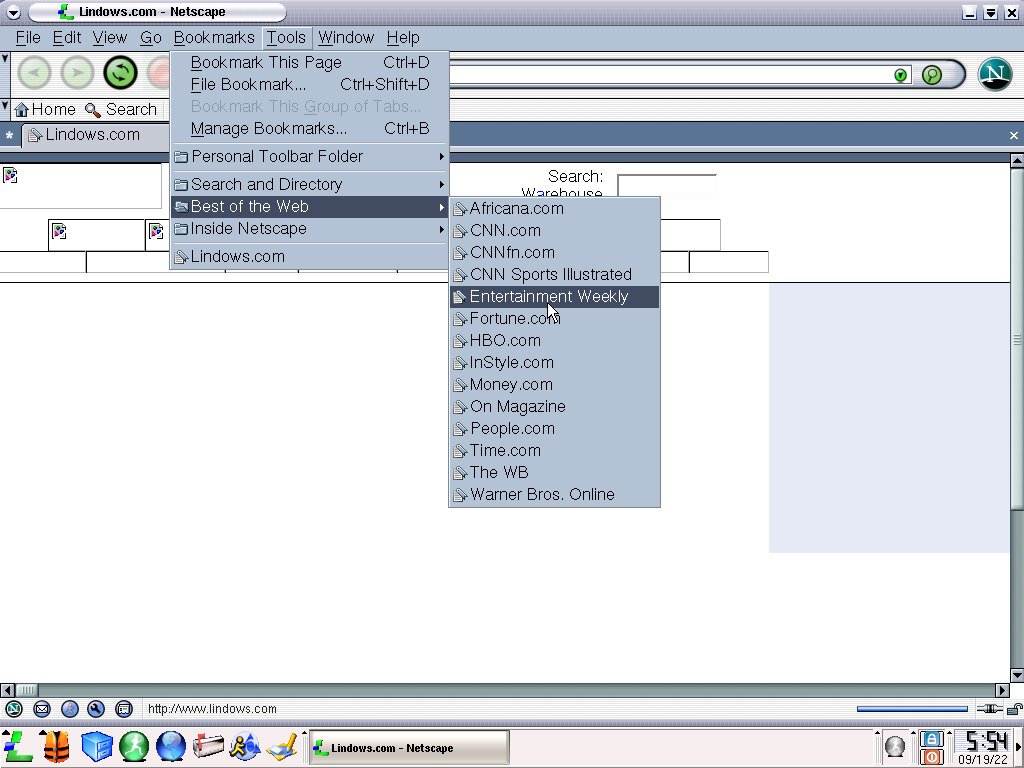
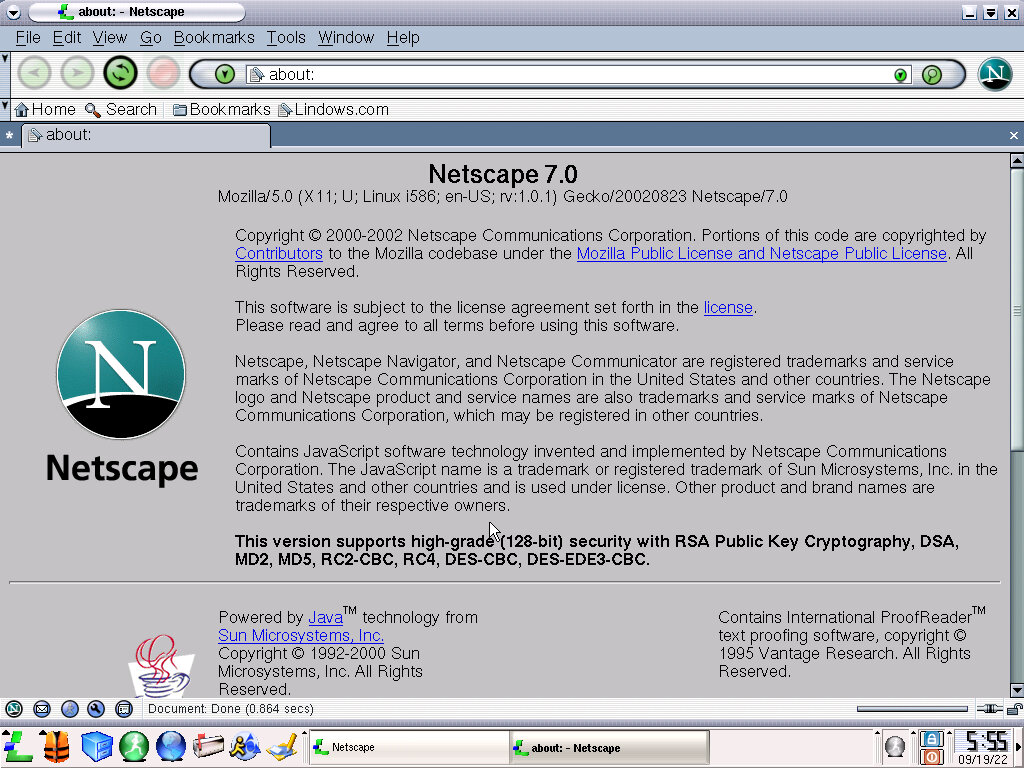
Click-N-Run applications are present, although there are no major changes, with only a few minor updates. Netscape browser comes as the default internet browser which is the exact same version as the preious release.

Missing from this build is the Microsoft Office viewers, with only the basic Text editor remaining in the Business & Finance category. I guess Redmond brought out the lawyers.

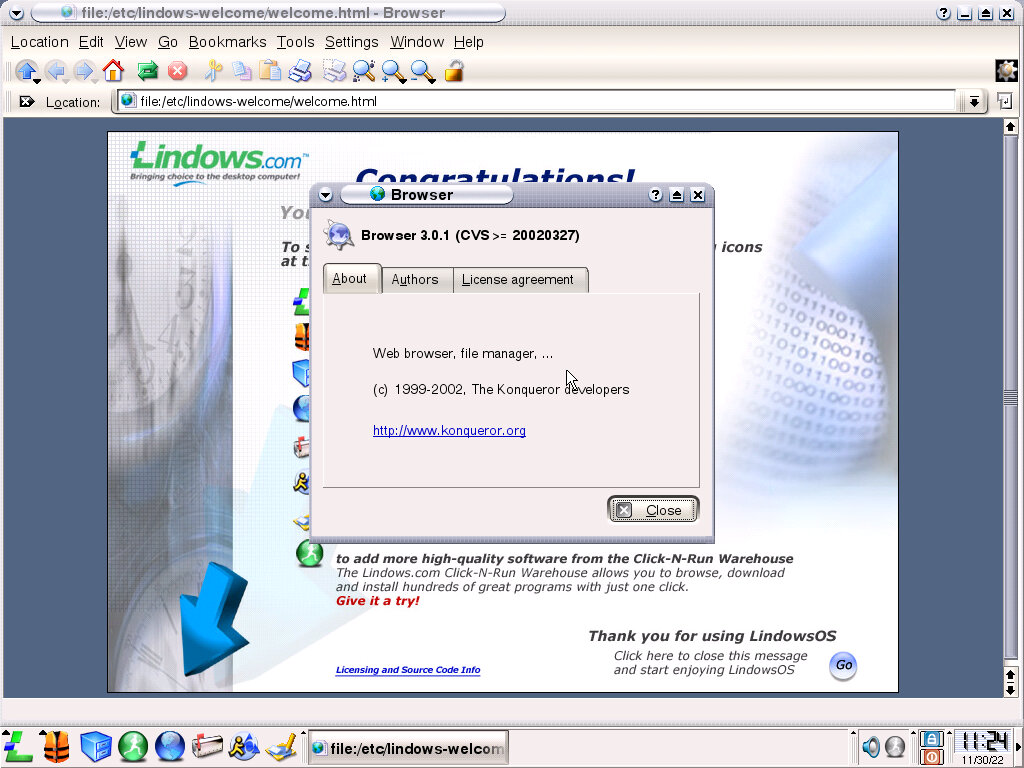
The KDE file manager is modeled after Windows Explorer which should make it familiar to switching users. Konqueror version 3.0.1 is used.

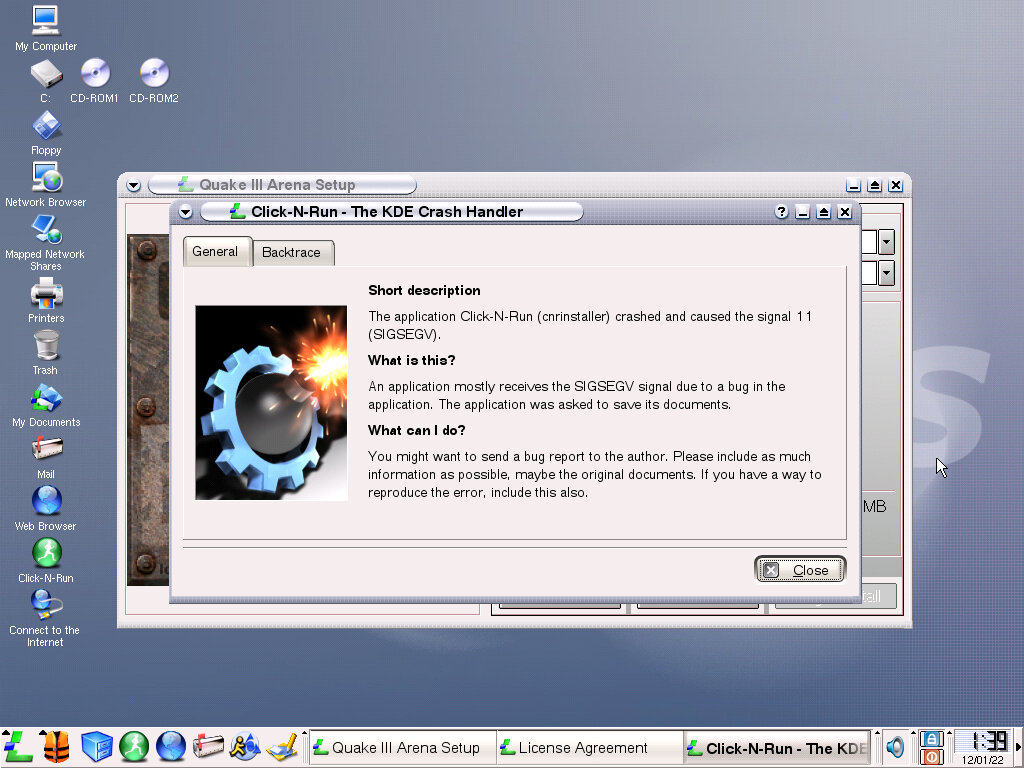
When software crashes in Lindows, a crash handler comes up explaining what has happened.

Software

Since there isn’t much that’s changed compared to Lindows 2, let’s see what period-correct software we can use.

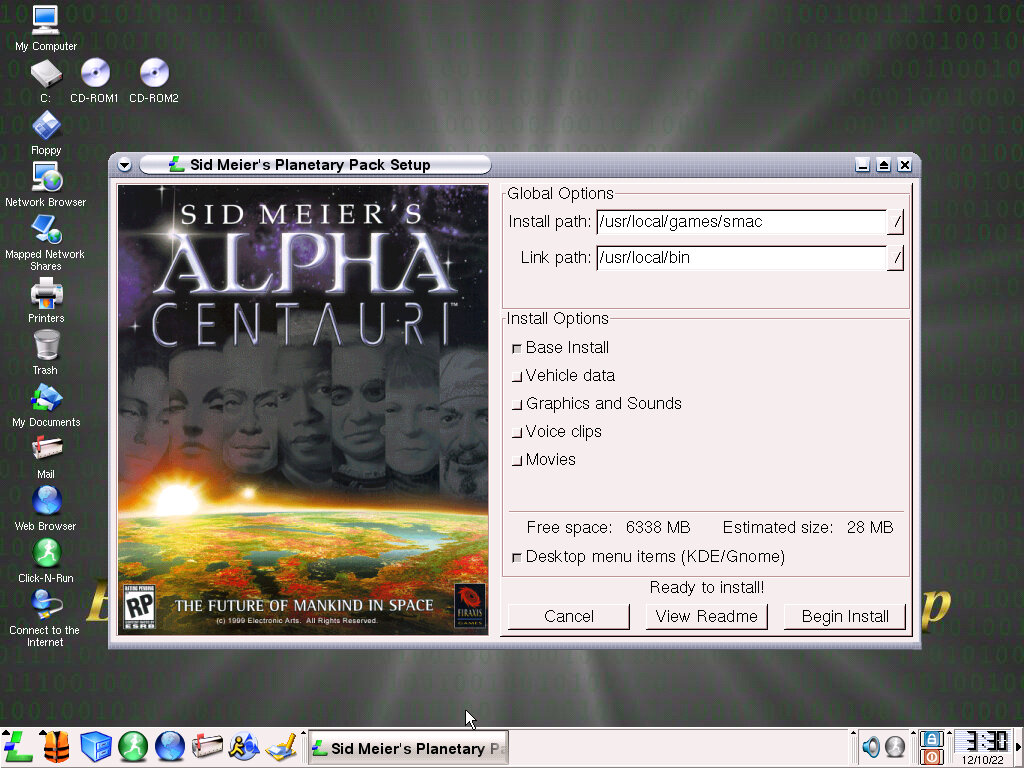
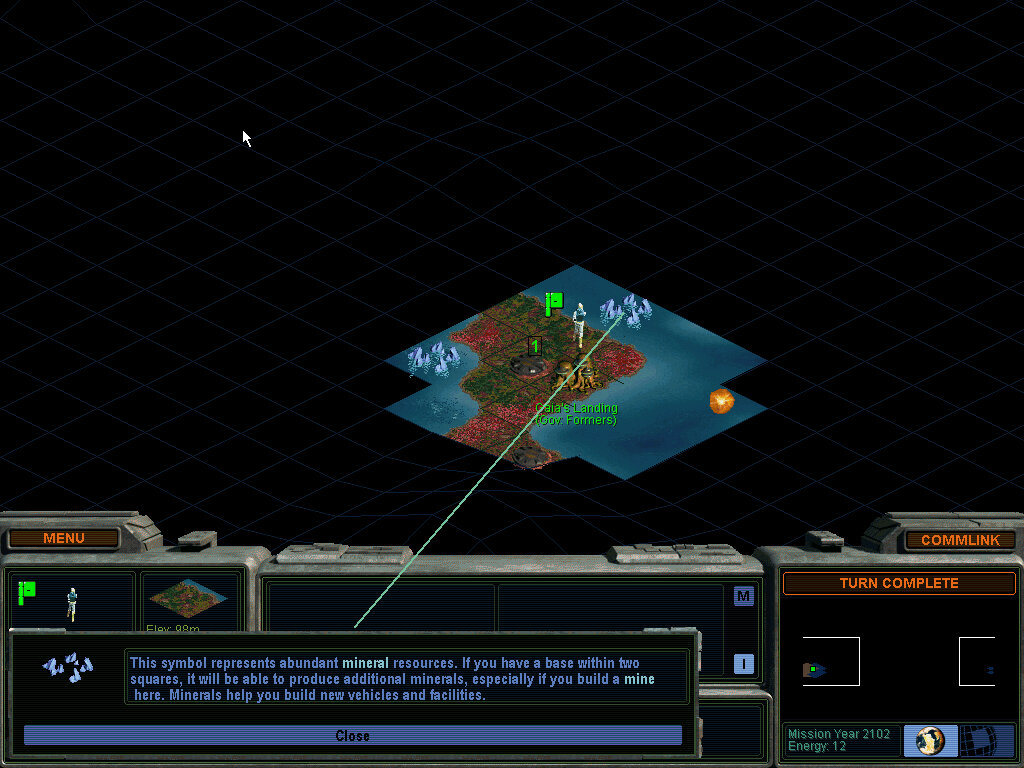
Sid Meier’s Alpha Centauri – Seems to work well, installs successfully and the opening FMV plays with a bit of stuttering probably because of the CPU chosen. I do wonder if these early Linux games were well-optimized or just quick and dirty ports. There is a bit of slowdown at the start of a level which could be an issue with no graphics acceleration with the video card chosen ( S3 ViRGE)

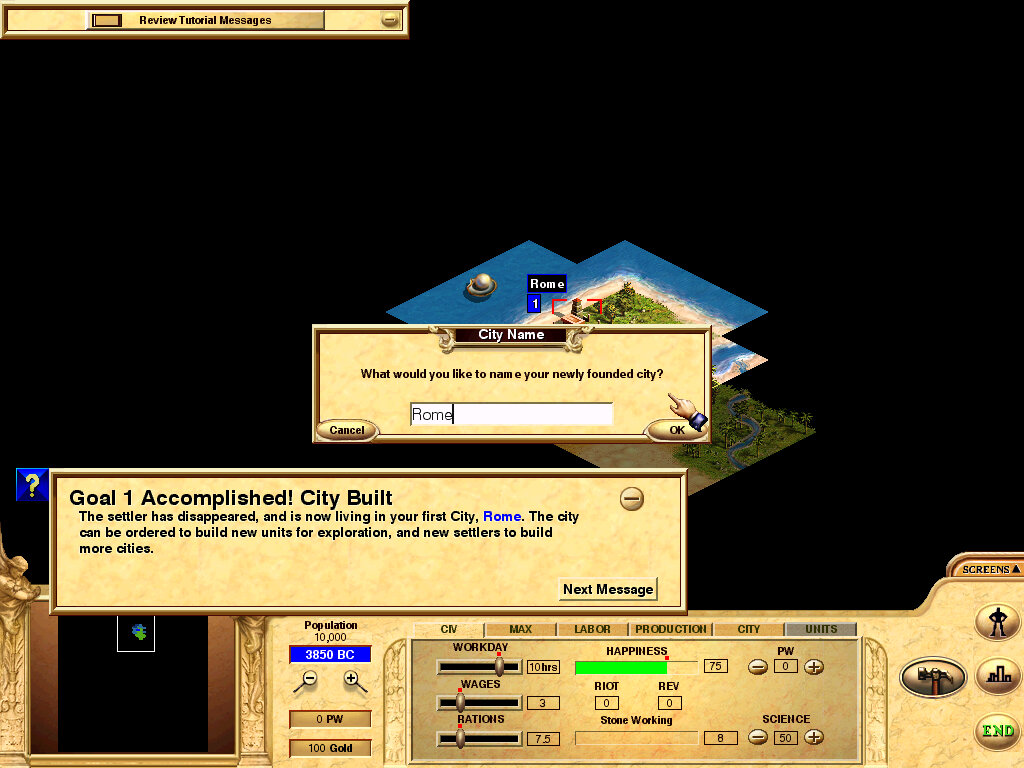
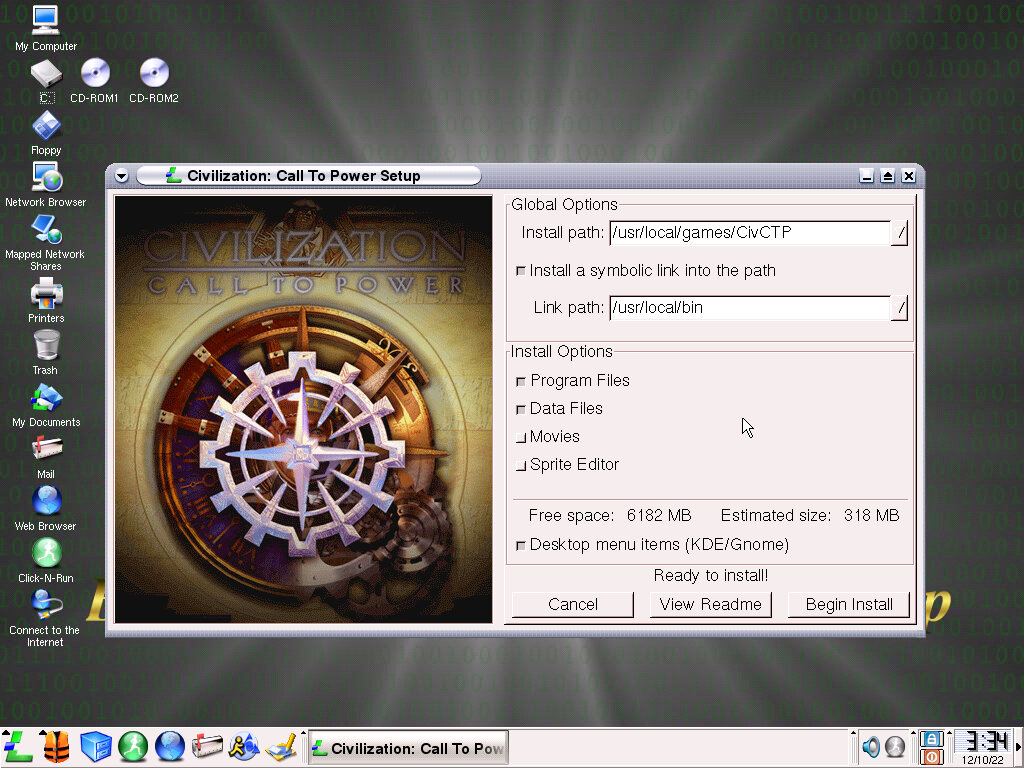
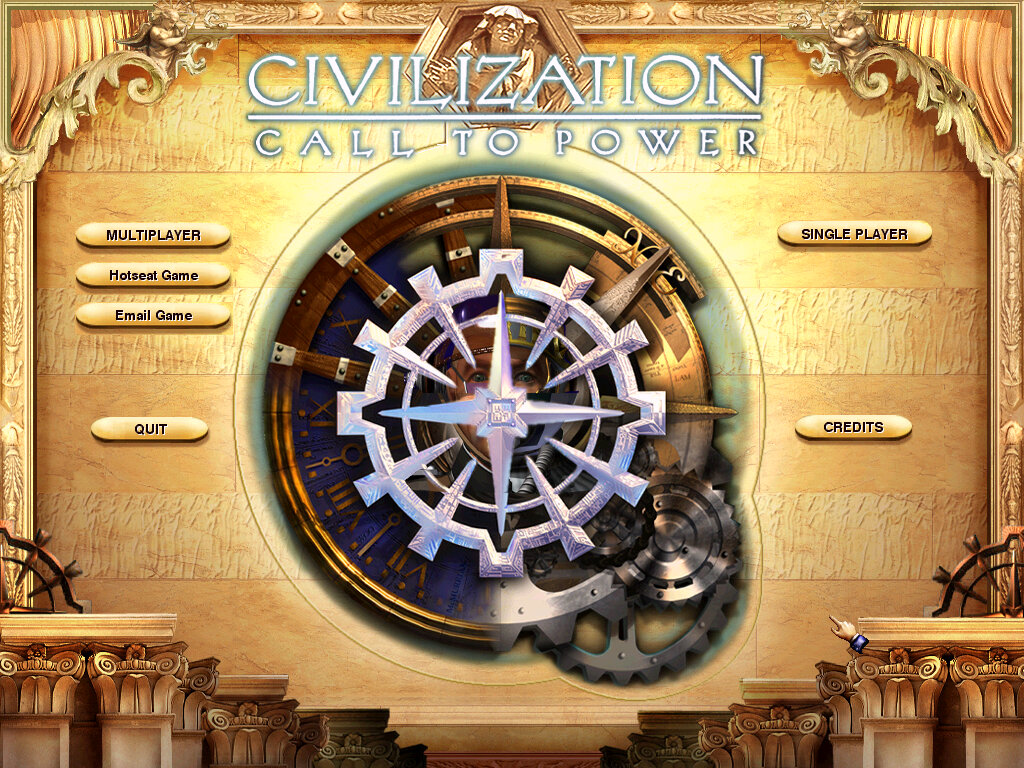
Civilization Call to Power – Installs and works fine, this game seems to be less demanding than Alpha Centauri and runs a lot better.

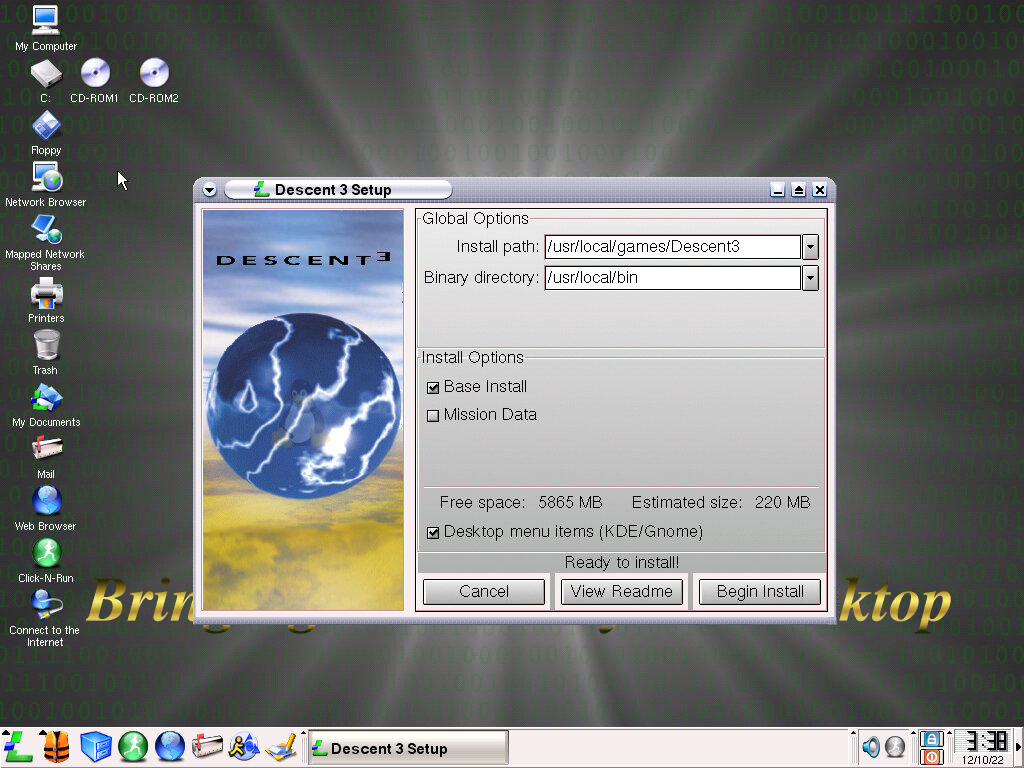
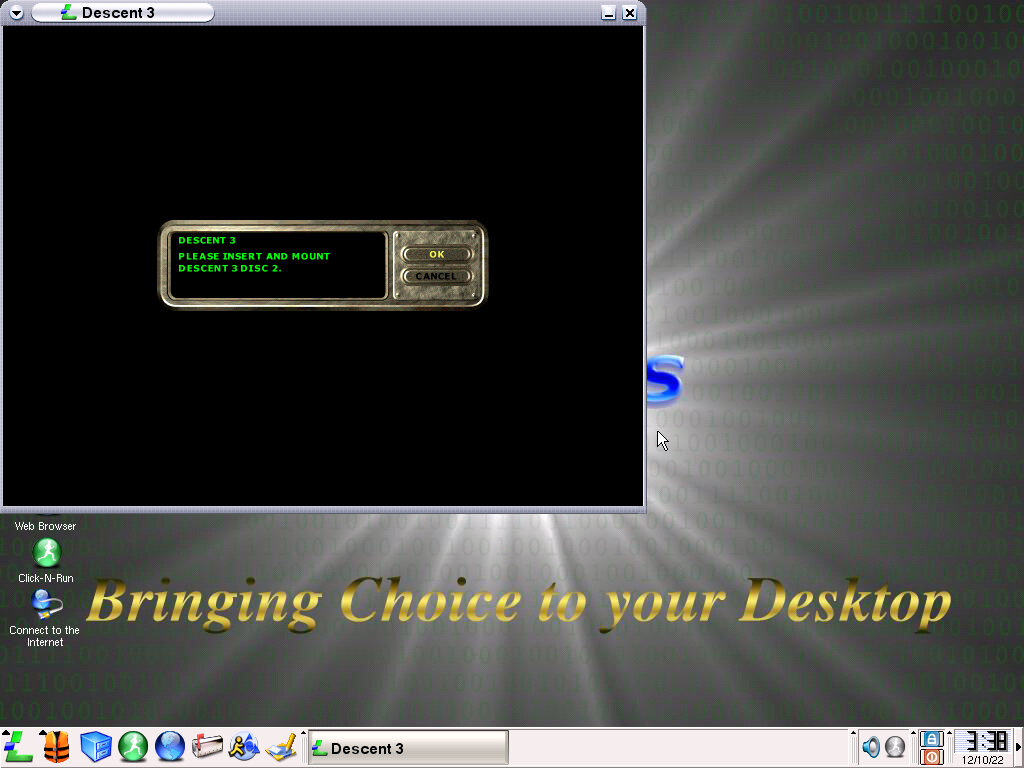
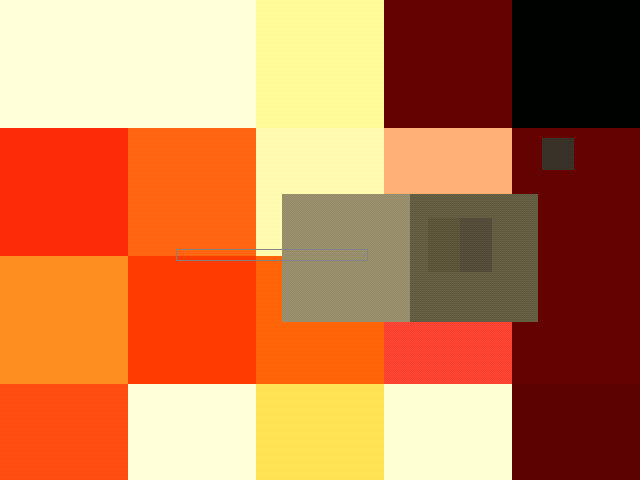
Descent 3 – Installs fine, but when running it prompts you to insert disc 2 which is not recognized after mounting in 86Box. Clicking Ok seems to launch the game but the graphics are pixilated. Had to hard reset the VM to get back into the desktop, After rebooting the game loads and plays the opening FMV, but still has blocky graphics.

SimCity 3000 – Still non-functional

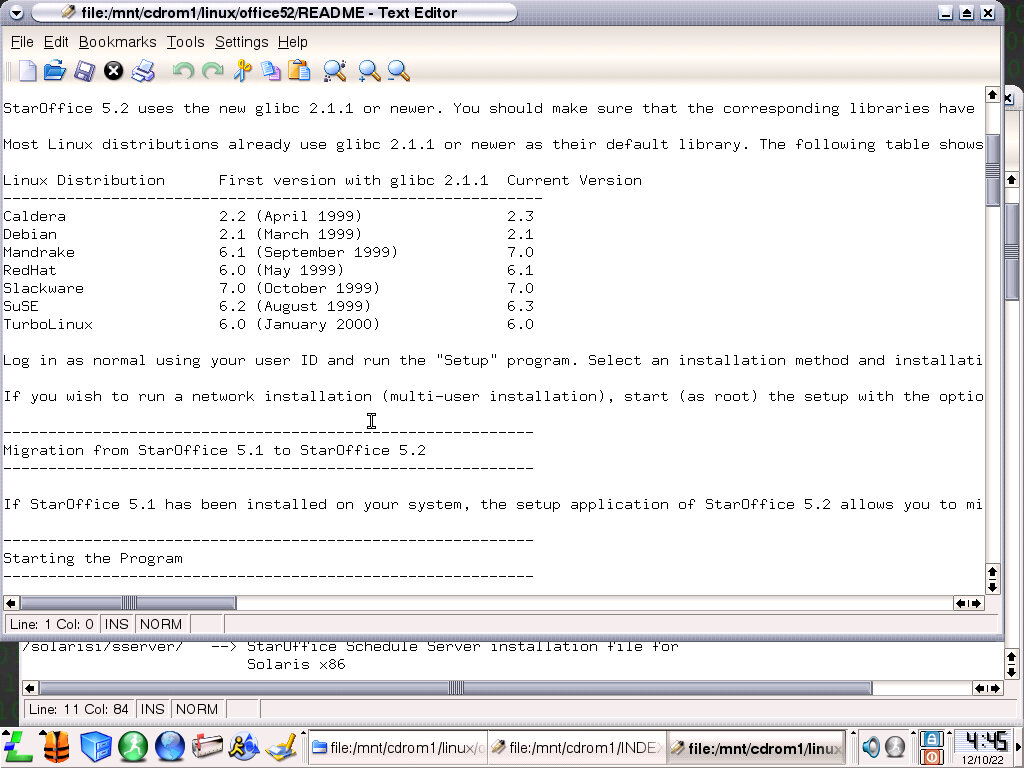
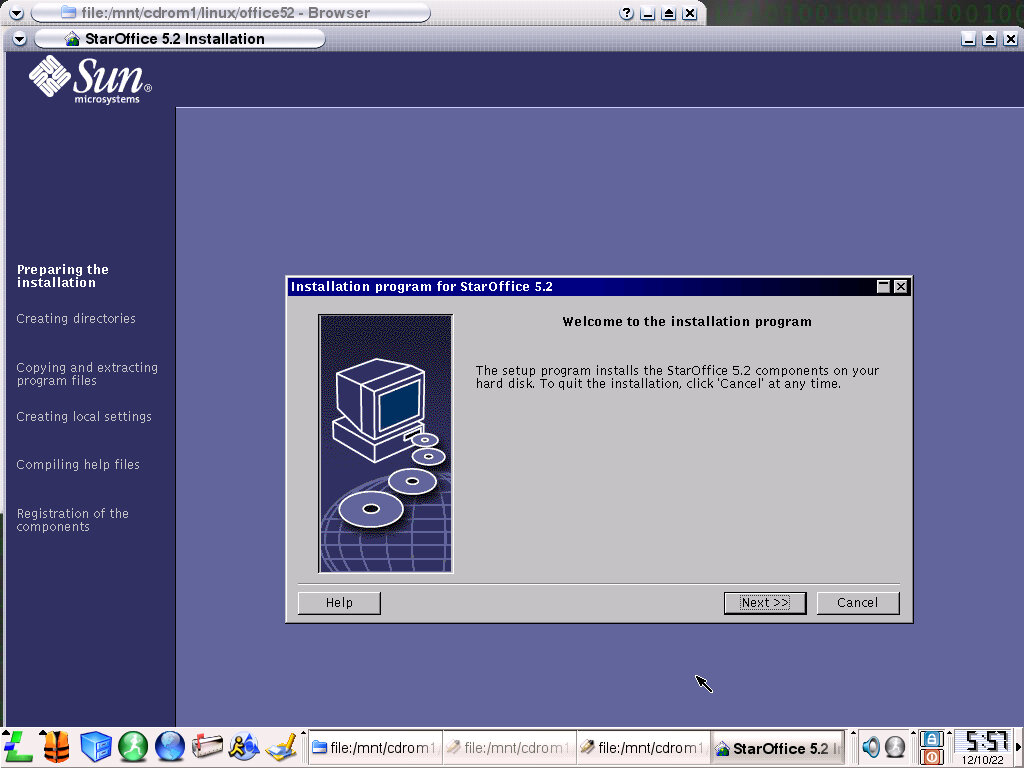
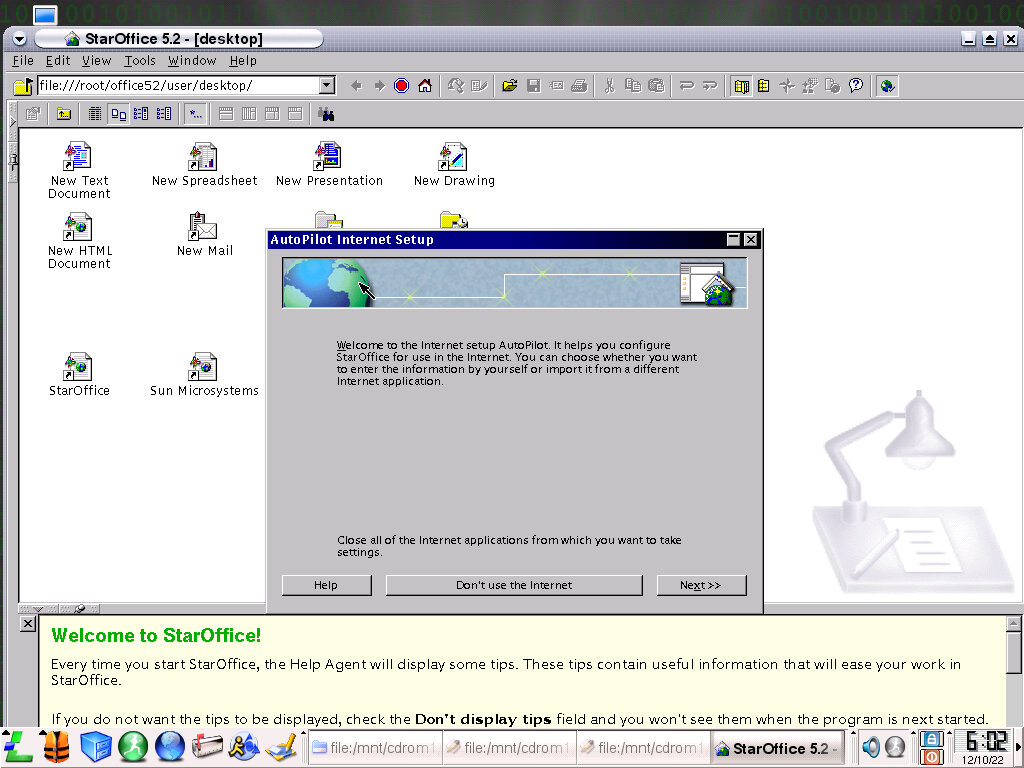
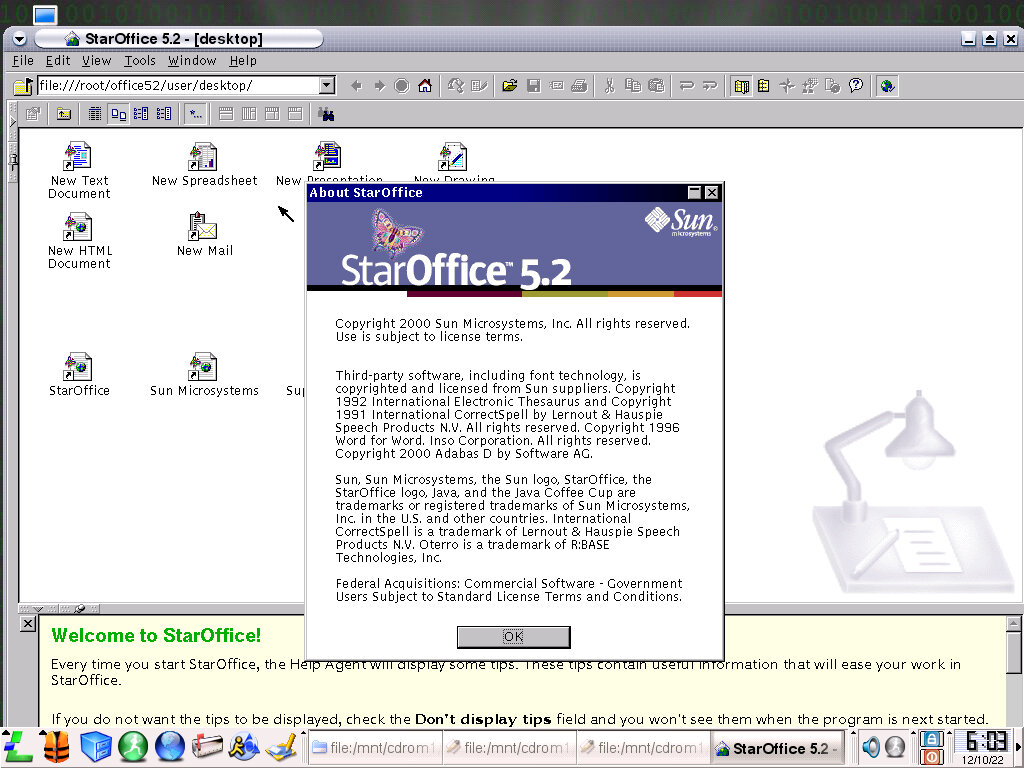
Star Office – An office suite by Sun Microsystems that installs and runs perfectly. It’s very similar to Microsoft Office or IBM Lotus SmartSuite in that it bundles a word processor, spreadsheet software and slide show into one package.
The interface tries to mimic Windows, there’s even a start menu present, along with a taskbar.

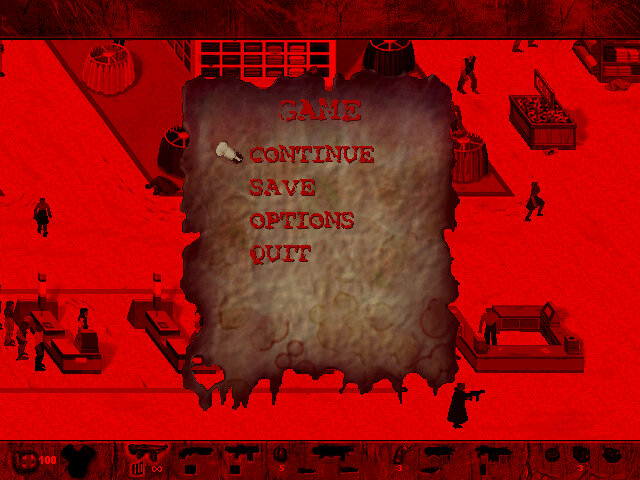
Postal – Installs and works fine but the menus run too fast. The demo sequence starts after 3 seconds meaning you need to quickly navigate the menu. Quitting the game seems to cause a graphics error.

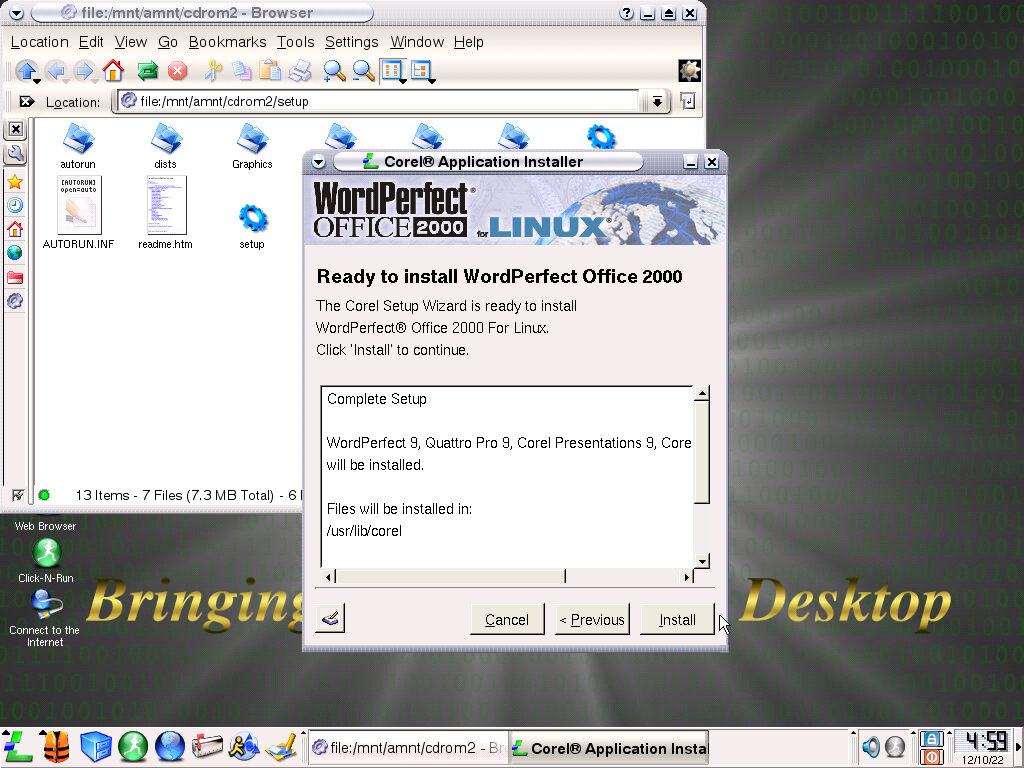
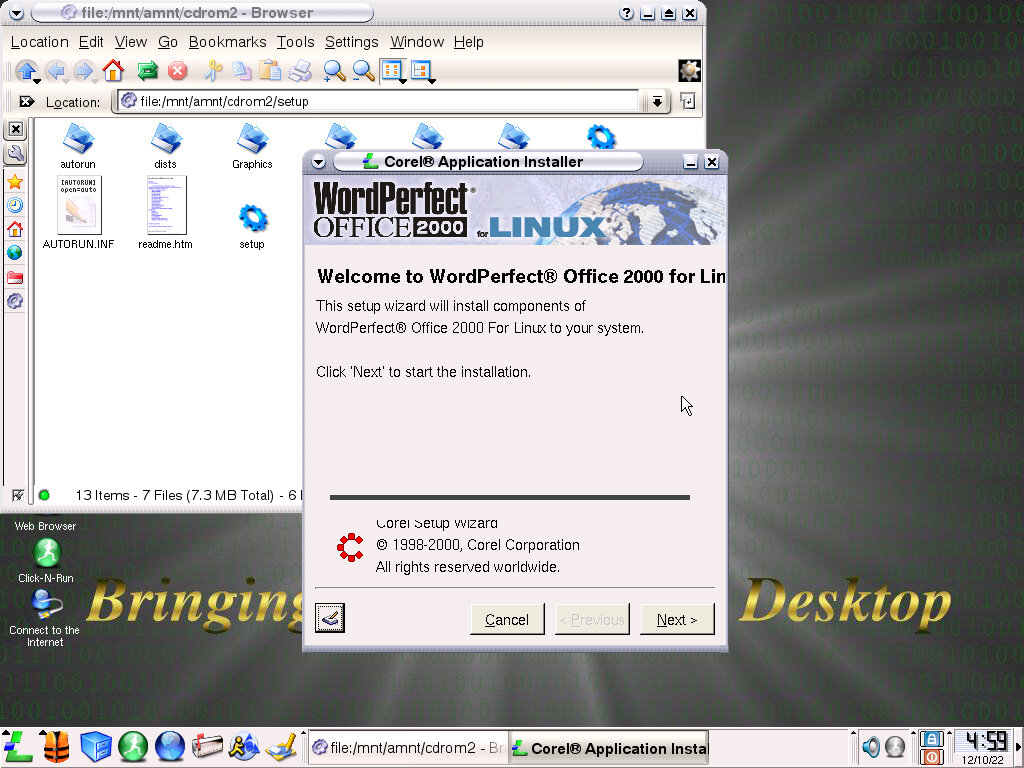
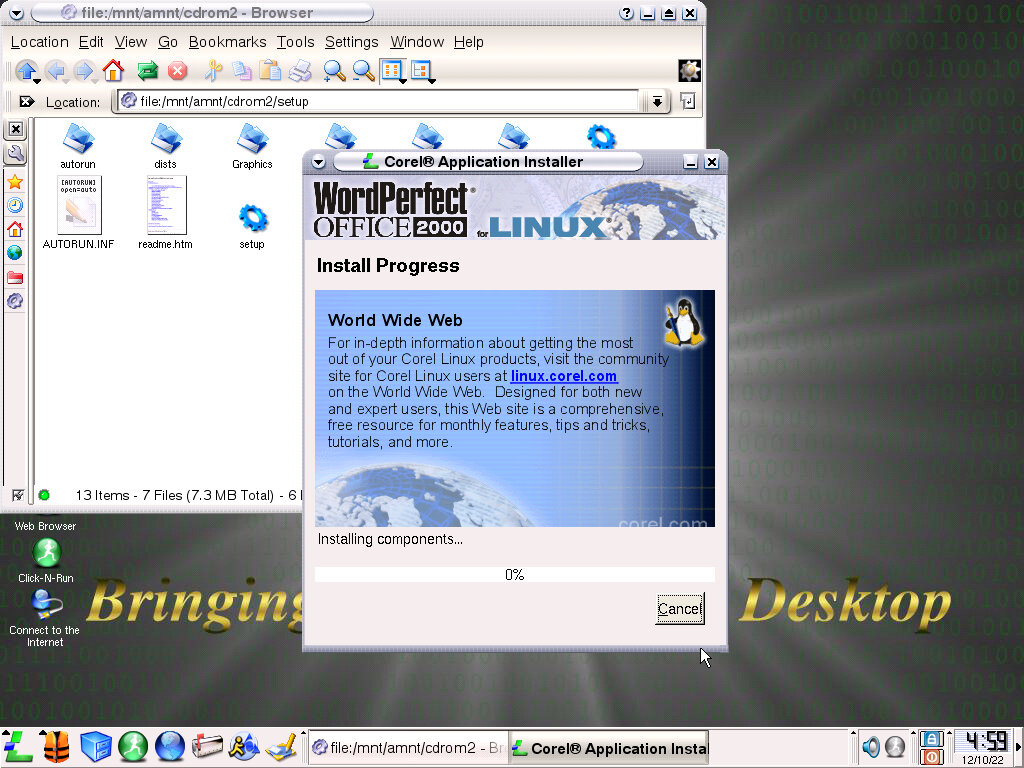
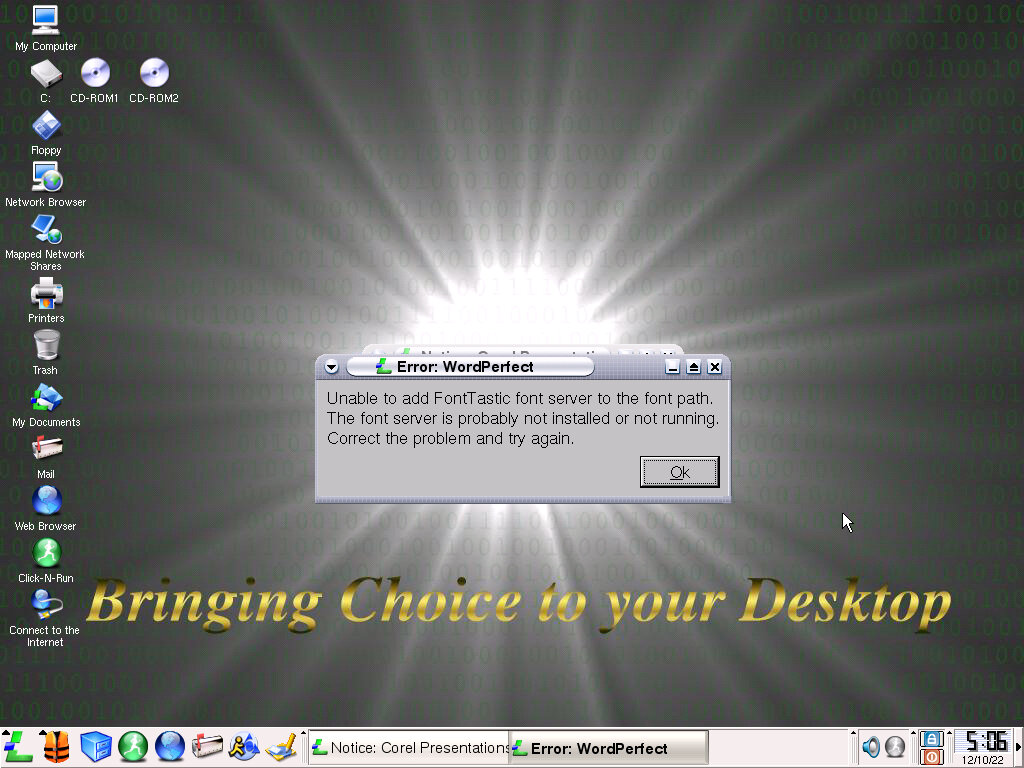
Wordperfect – Installs correctly and appears in the application. Upon launching it shows a message advising not to run the application as root, and another in relation to a missing font server. Unable to progress past this point, even after a reboot it refused to run due to this missing font server.

Soldier of Fortune – Installed and ran fine, but required a CD key. I think this is the first time I’ve used Linux software that requires a CD key? Performance isn’t good, it runs so slow on this VM at nearly 1fps. Checking the readme file indicates it needs some sort of 3D accelerator, I guess it’s time to add a Voodoo card but I figure the CPU that we have (AMD K6 233Mhz) isn’t enough to cut it.

Shutting down

Sony Ericsson T610

One of the first generation camera phones, with its built-in CIF resolution camera and a large for-the-time colour screen with a 128×160 portrait resolution. A new user interface is included to take advantage of the new display.

The phone itself also has a nice contrasting design of black with silver, and a few colours were made available including Black/Blue and Black/red. Released in 2003, it competed mainly with the Nokia 6610i, 7250i, Siemens MC60, and the Sagem My V-55.

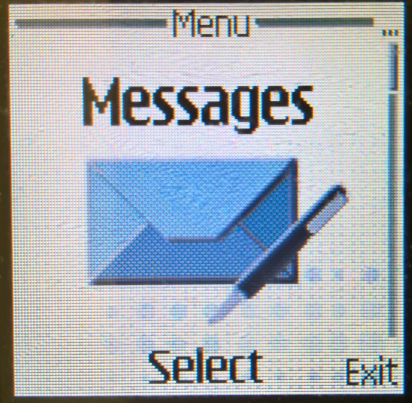
Navigation is done through the joystick located near the center of the phone. After a few years but it seems to have lost its functionality which makes navigating the menus difficult. Thankfully we can get around this by using the numeric keys to quickly access menus as a shortcut, in the main menu you can press the 5 key to open the message or the # key to access the settings menu.

For any list menus, you can use the volume keys at the side to select a menu item.

The usual left and right soft keys are present that correspond to the onscreen context, but there is also a back/return key and a C button that deletes onscreen text or cancel operations. No send or end keys that you see on regular phones.

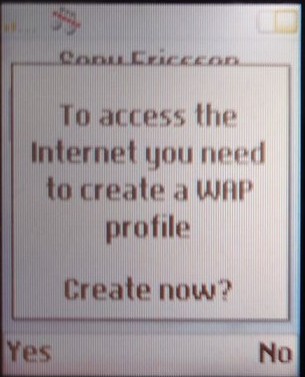
On the right there is a dedicated internet browser button that opens the WAP browser, even when the handset is in standby which could trigger it accidentally and incur additional WAP charges if not part of your plan, locking the keys will stop this.

On the left side there is a dedicated camera key that will open the camera to take photos, and the two-volume keys to quickly adjust the volume in a call. On standby mode you can press to see the handset status, and hold it to access the voice command feature if you have set this up.

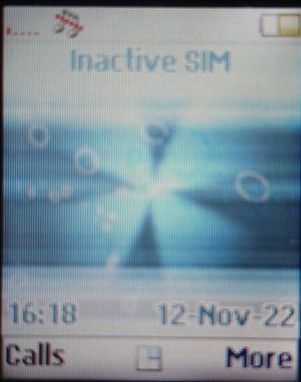
On the home screen the mobile network is displayed alogn with the time and date. The soft keys default to calls and the More menu which lets you quickly access certain functions of the phone,

Main Menu

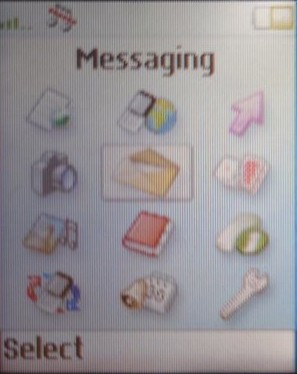
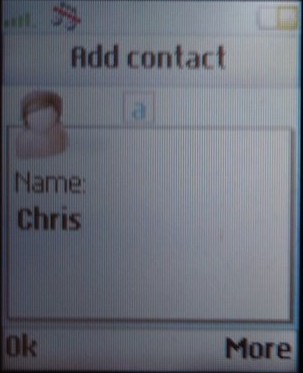
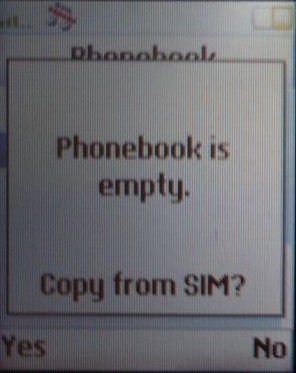
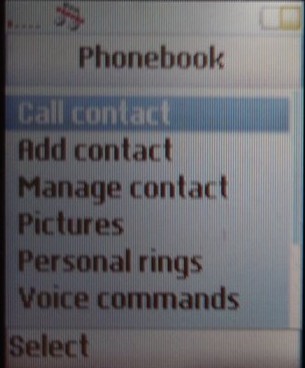
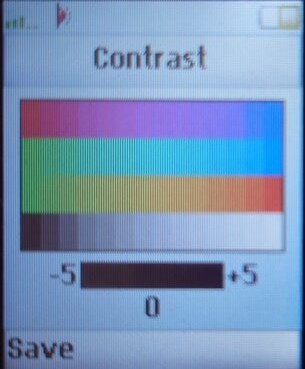
Images are a bit unclear since the screen on this model seems to have issues with its contract, possibly due to the age of the phone (Nearly 20 years old). I’ve tried to adjust the contrast in the phone’s service menu but there’s only so much that can be done, given this handset is approaching 20 years old and is an STN display.

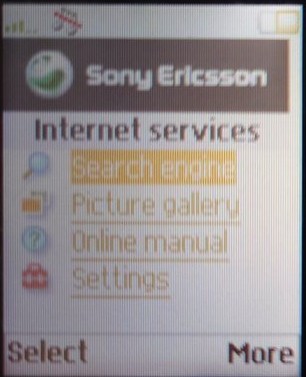
From the top left, the First option takes you to the Sony Ericsson WAP site, which was intended for you to download ringtones, wallpapers & additional games. If you got your phone through an operator, then this will be replaced with the operator’s logo and will be a link to their WAP site if they customized the phones ROM.

Internet Services

Takes you to your WAP homepage, by default this will be the Sony Ericsson homepage or one set by your operator. Here you can freely browse the internet using the internal browser, and have access to features such as bookmarks and the ability to send the page as an SMS message link.

The phone supports both CSD and GPRS for data.

My Shortcuts

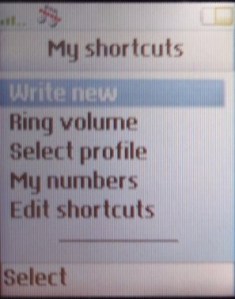
A customized menu that lets you quickly access various features of the phone within one menu. By default, we are given the option to write a new SMS message, adjust the ring volume, select the ringer profile, view your SIM card number, and edit shortcuts. The menu can be modified at any time with your own shortcuts.

Camera

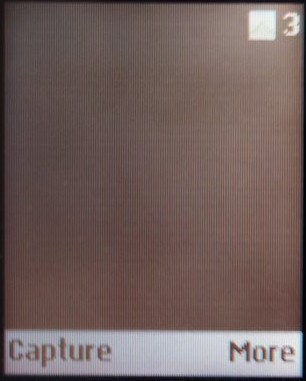
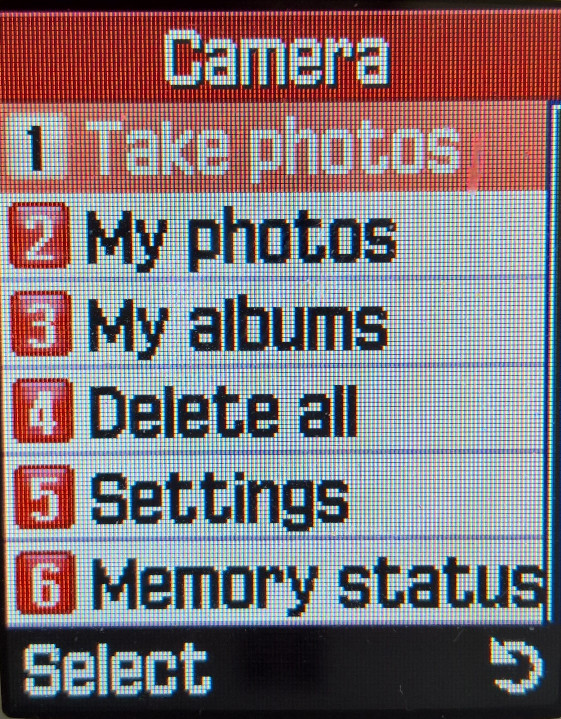
Takes you directly to the camera viewfinder where you can capture a phone by pressing the Capture soft key. The viewfinder will then give you the option to save, or send directly to an MMS recipient.

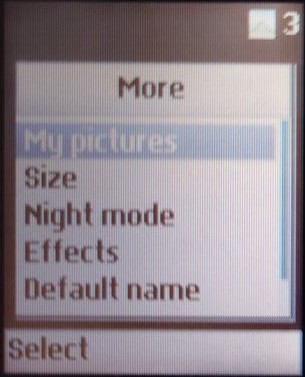
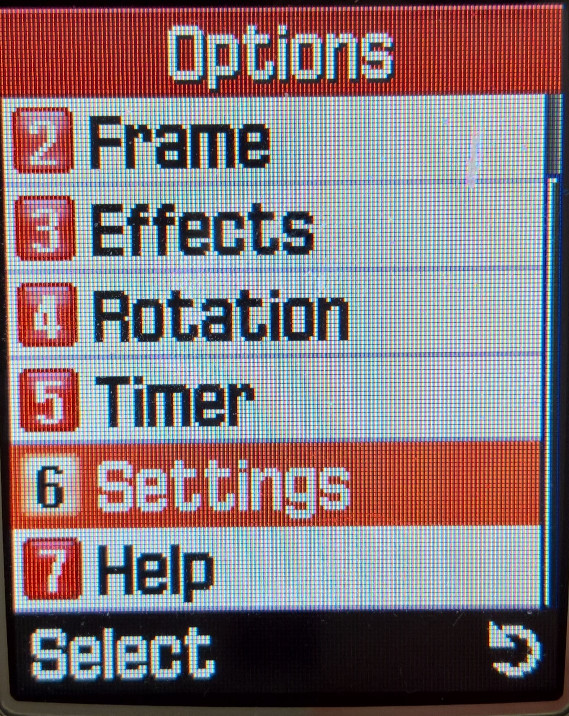
The viewfinder will also show the remaining photos that can be taken according to the internal memory. You can also adjust the resolution of the photos captured, from CIF (228×352) to MMS (120×160), using a lower resolution reduces file size. A night mode allows for pictures to be captured in the dark, although this isn’t much use as the camera lacks a flash. You also have the option of adding effects such as black & white, negative colour and sepia. Lastly, there is also a self-timer option that counts down from 7 seconds.

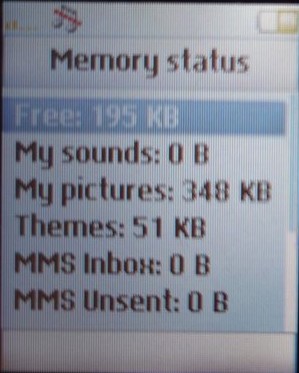
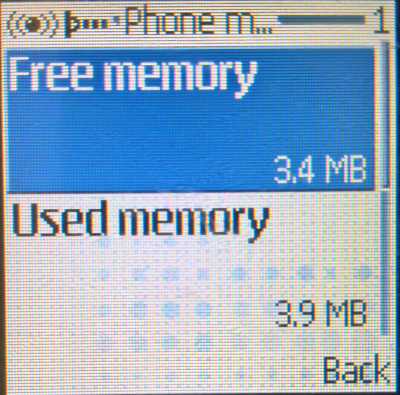
With only 2MB of storage that is shared across the phone, you will quickly run into space limits and will have to delete content to save space.

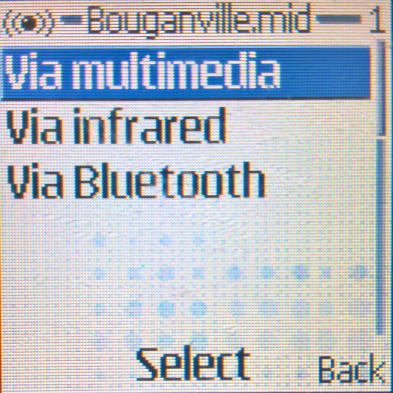
Photos are the main feature of the phone, with a dedicated camera button on the left side of the phone which launches the image capture, another press will capture the image. Once saved, you can easily send photos via Bluetooth, Infrared or via MMS which Sony Ericsson promoted as Quickshare.

Messages

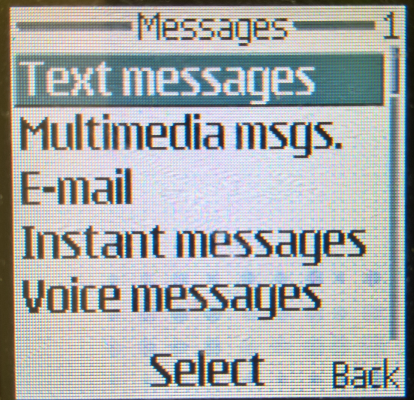
Various options for sending and viewing receiving messages

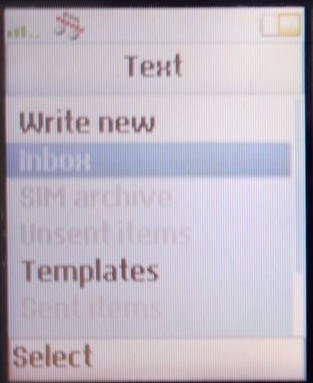
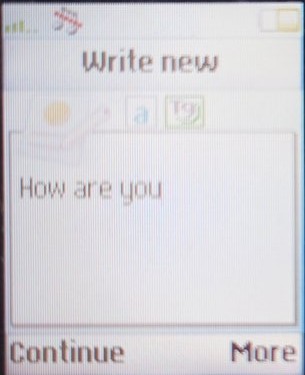
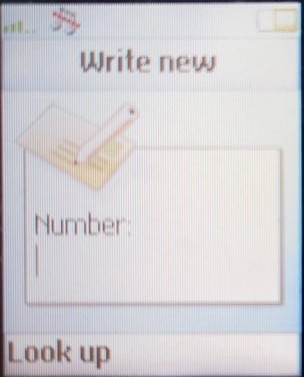
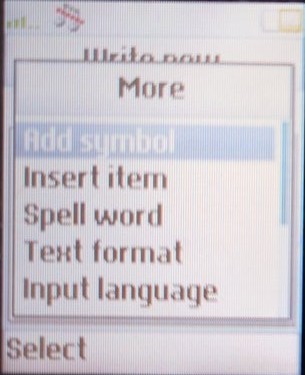
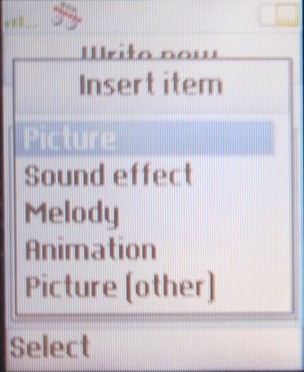
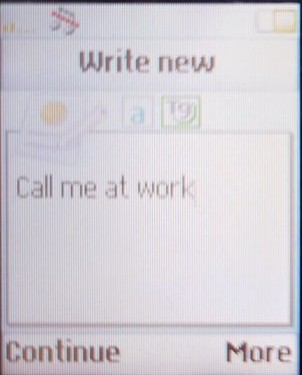
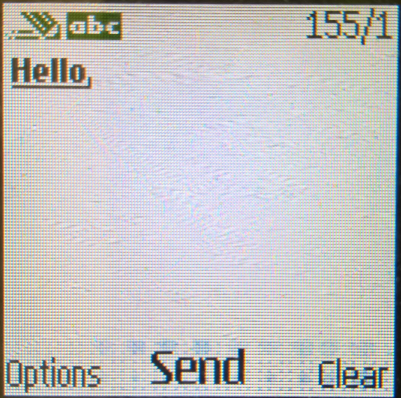
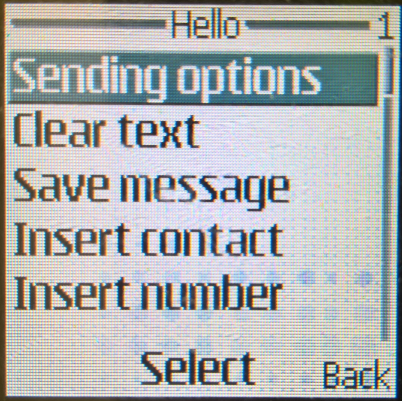
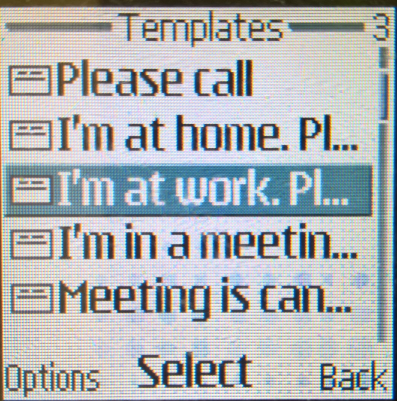
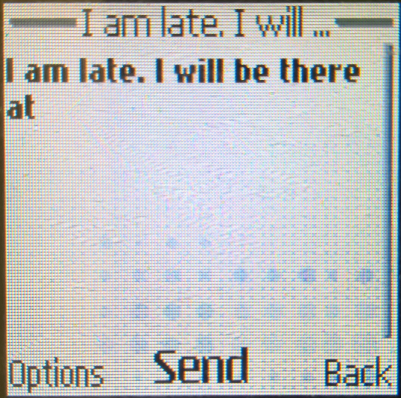
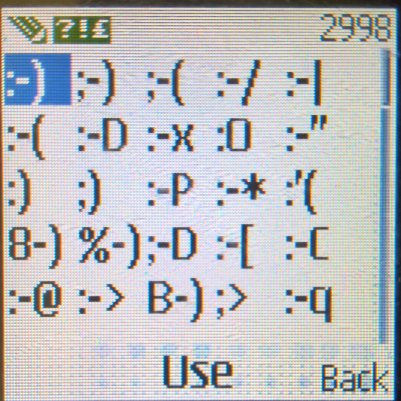
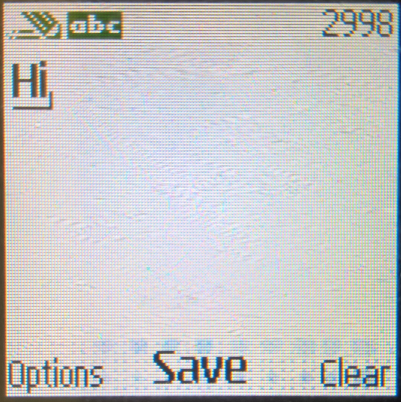
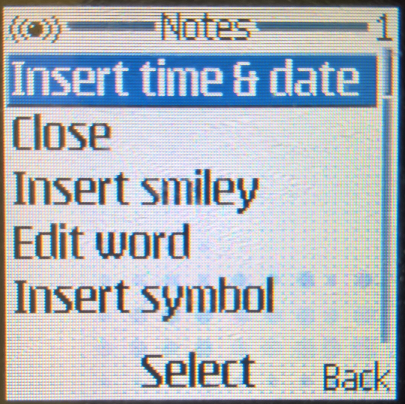
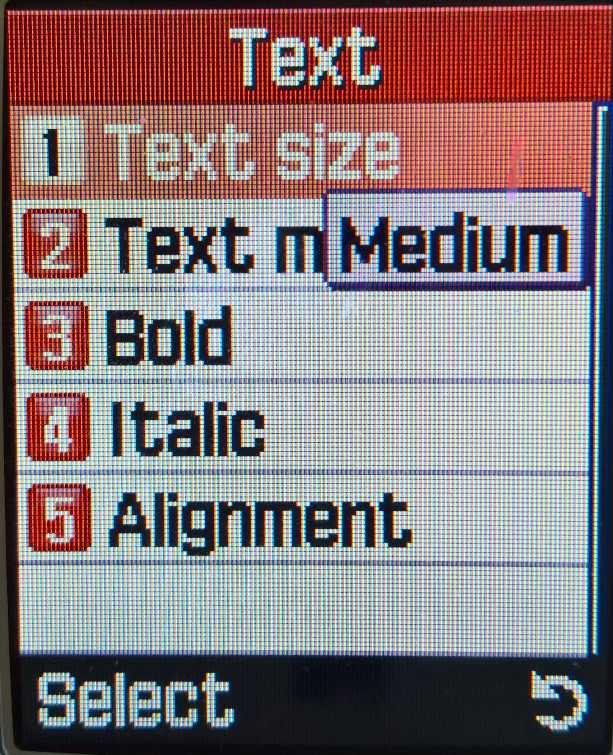
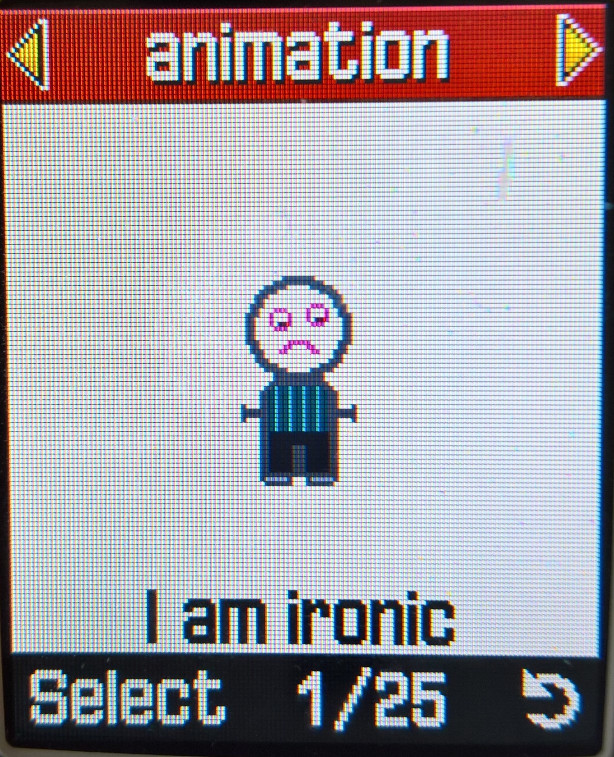
Text refers to standard SMS messages that can be composed using the text editor. Symbols can be added, and emojis (Then known as smileys) could also be added. Graphics can also be added which uses the EMS protocol, and the handset will show you the number of characters remaining within a single SMS message, and will show you if two or more SMS messages need to be sent. Canceling a typed message will automatically save it as a draft for you to edit or delete later. You also have the option of using an SMS template if you need to quickly text someone. Finally, messages can be saved to either the SIM card or the phone’s memory.

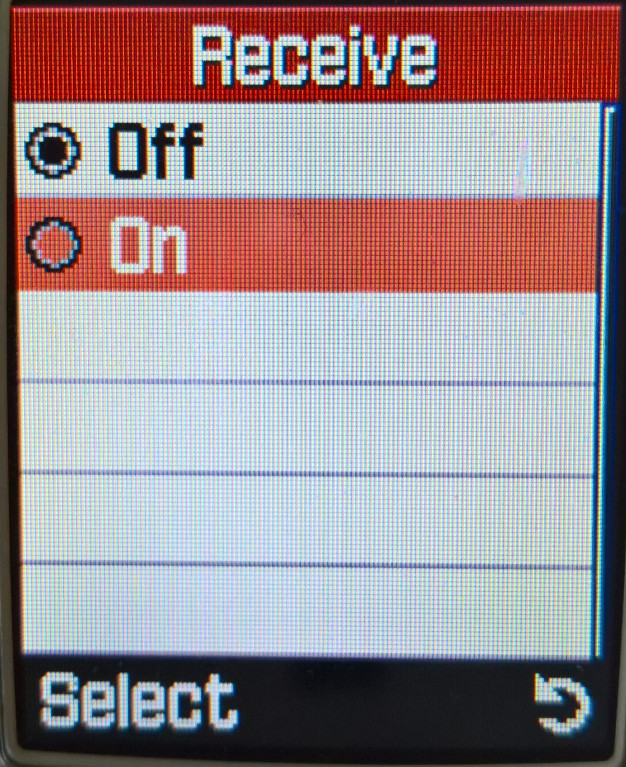
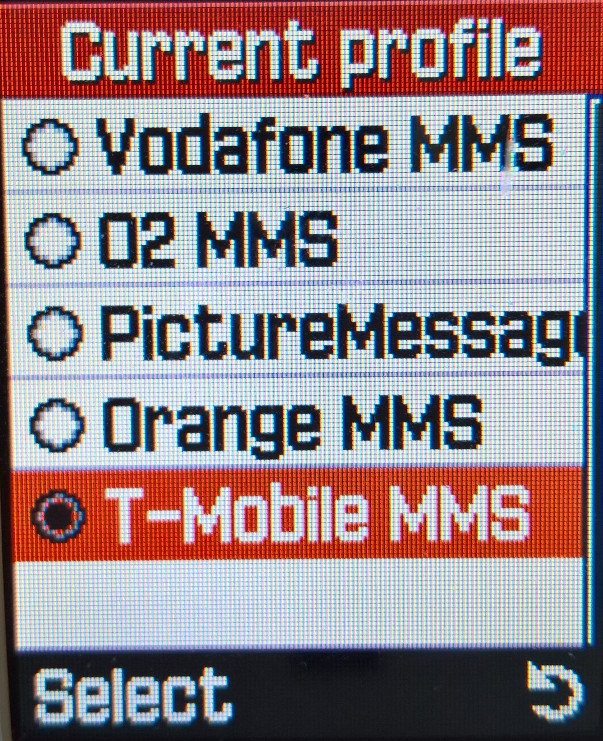
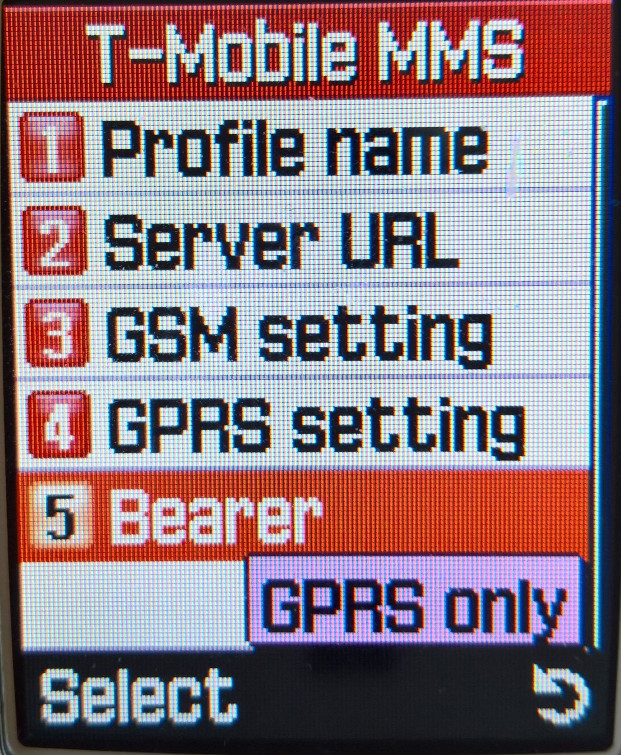
A picture message is essentially an MMS message, here you can attach photos or ringtones to the message. The phone does require an MMS profile to be created, which is done then your mobile network operator send you their APN configuration.

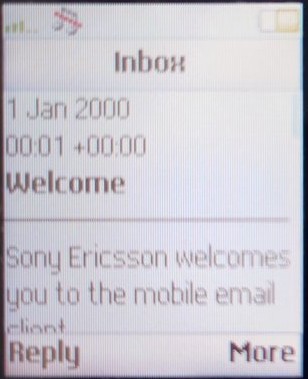
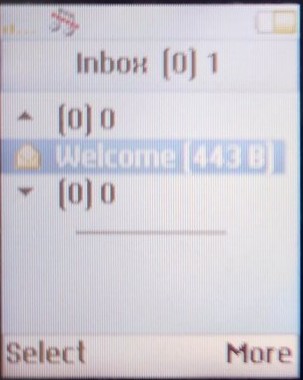
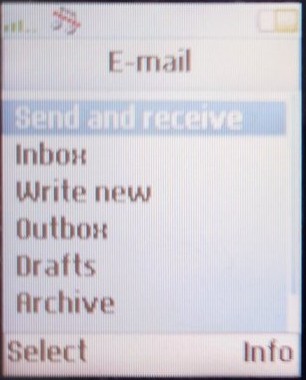
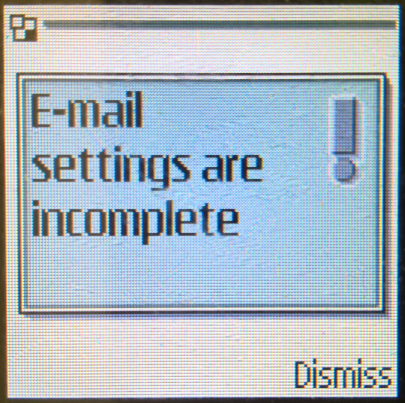
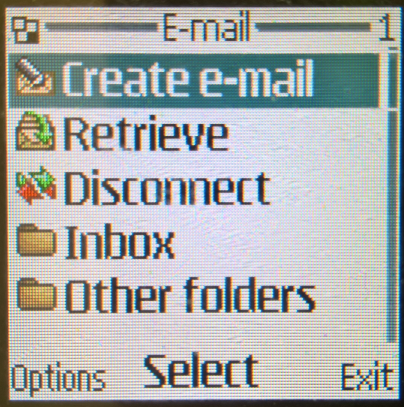
Emails can also be sent using the phones GRPS data connection, but this is not a push-based system like you would see on a BlackBerry. Instead, you will need to manually check and download any messages or attachments. Like MMS you can add attachments such as a photo to the email, and you can specify options for CC, BCC or priority settings.

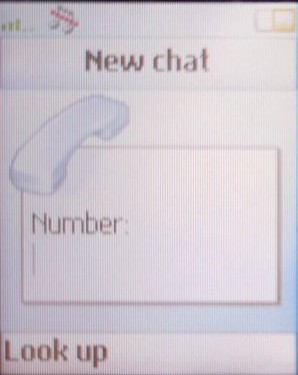
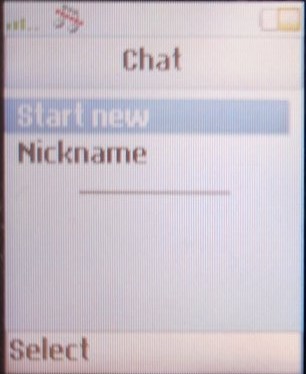
Chat is like SMS messages but gives you a 1-1 interface with the sender.

Games

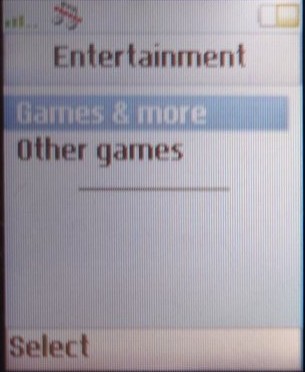
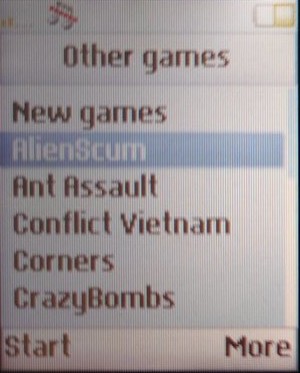
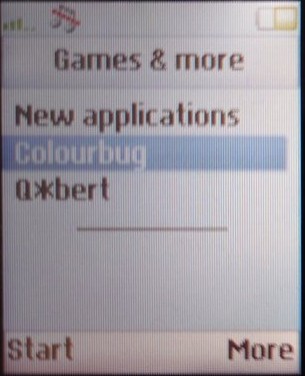
The handset also features support for both Java and Mophun, allowing for a large game library to be played. There is no limit to the amount of Java games that can be installed, with only the phone’s memory being the limit. The Games & More option is where the Java-based game are found, whilst Mophun games are under Other Games. Games can be downloaded and installed either through WAP or via PC, even through Bluetooth. The phone will automatically install the application once received.

Pictures & Sounds

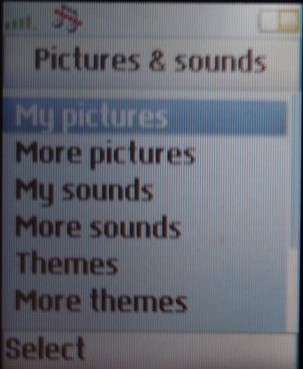
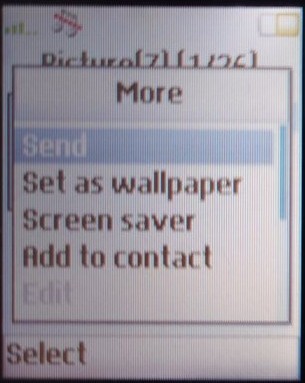
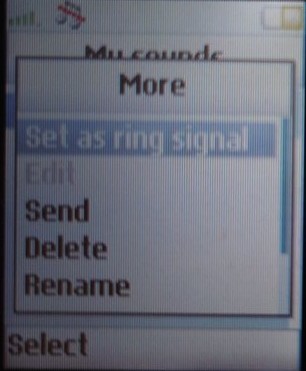
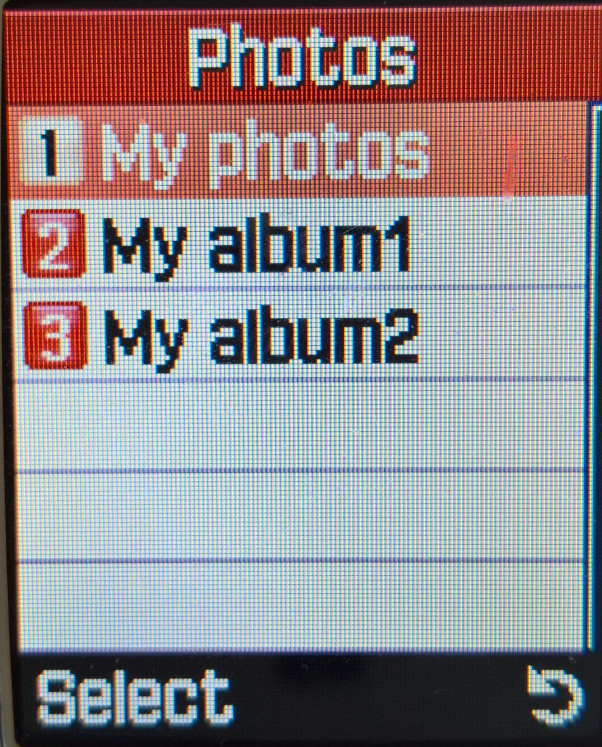
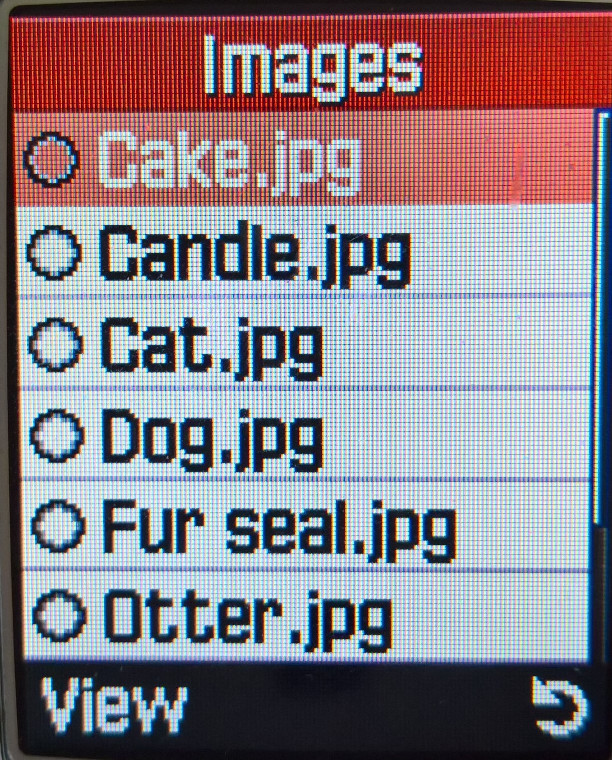
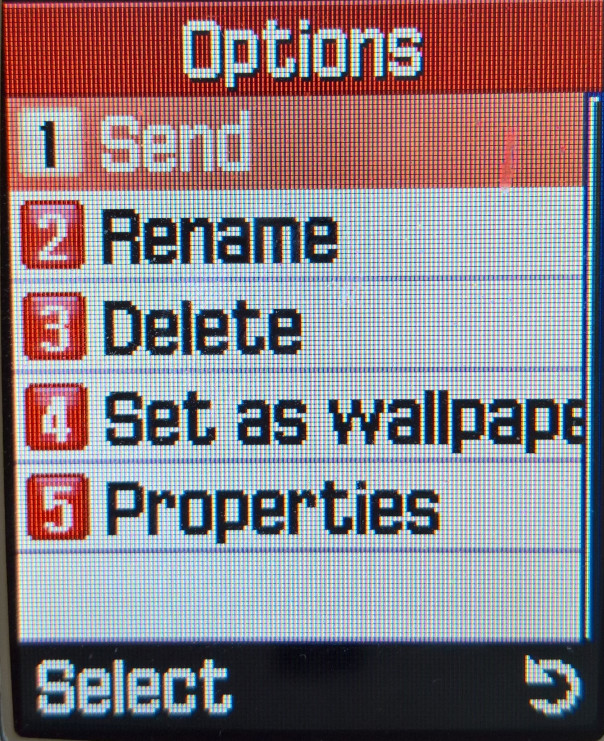
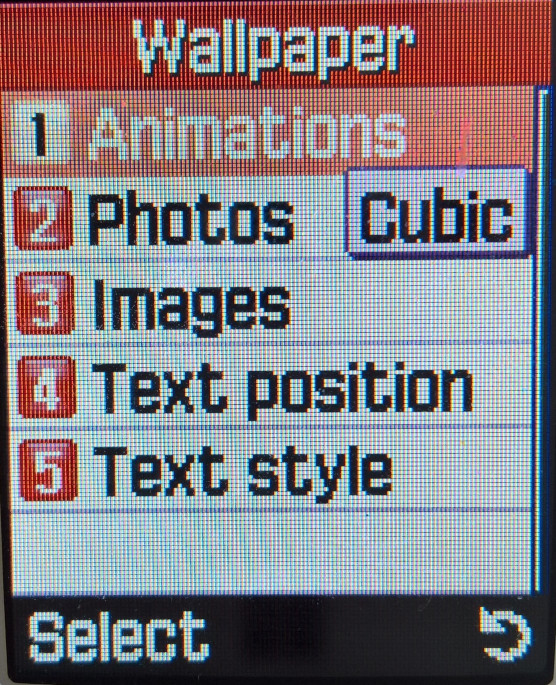
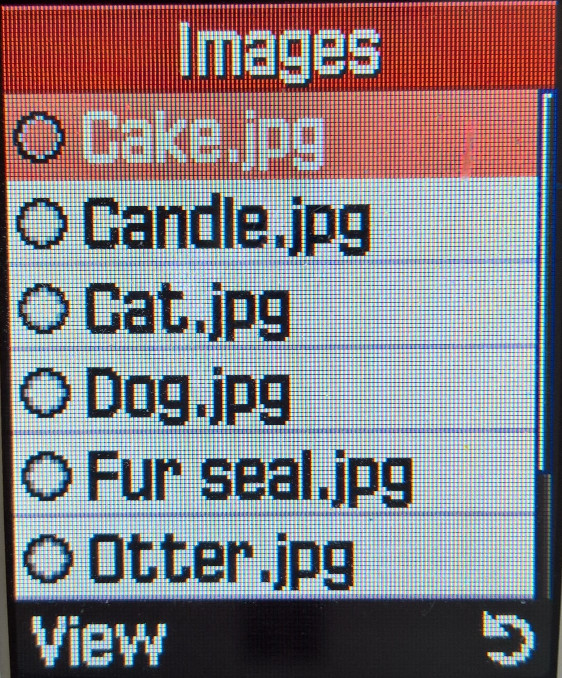
Photos taken with the camera will be found here, along with the default wallpapers. Opening a picture file allows you to set it was the wallpaper, or the screensaver instead, or even assign it to a contact. Basic editing can also be done with rotating. There is a edit option in the menu but its currently grayed out.

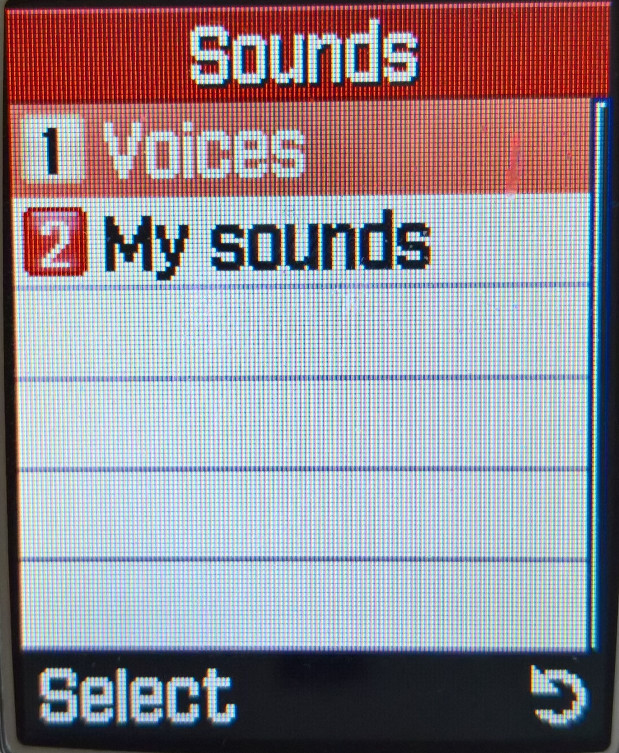
Sounds is very similar, but you can set either the ringtone or the message alert tone. Any tracks created with MusicDJ will show up here.

The themes option lets you view any apply different themes, although only one comes with the handset, Classic.

There is also a hyperlink option to download more pictures/sounds from WAP, in case you missed the dedicated menu option. They really wanted users to buy and download, thought you would think they would have included more memory for storage.

Phonebook

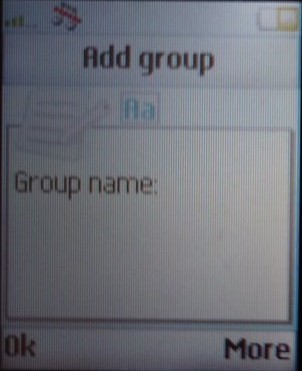
Contacts can be saved to either the phone memory or the SIM card. Contacts saved to the phone memory can have additional attributes assigned to them such as work/home contact numbers & email addresses.

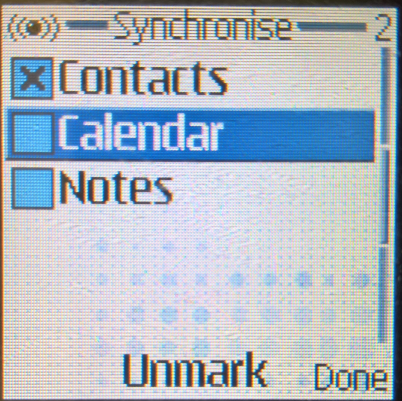
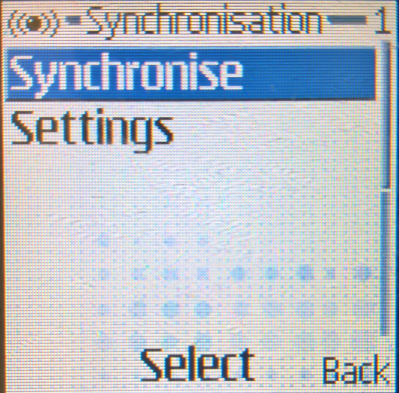
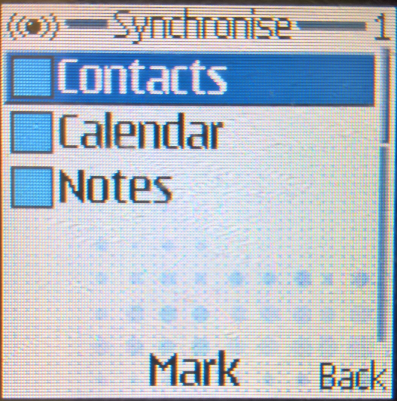
Contacts can also be synchronized with an external service or using the iSync utility in OS X.

You can also set a unique ringtone for each contact.

Calls

A menu to manage incoming, outgoing and missed calls, by default, there is a shortcut to this on the home screen. You can also view call costs and minutes used, useful for keeping track of your monthly usage. Options for call waiting can be set here also. You can also use the Manage Calls option to filter to only numbers in the phonebook, or in a certain group.

Connectivity

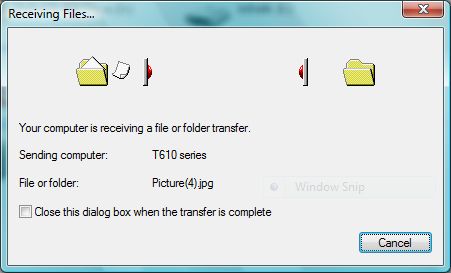
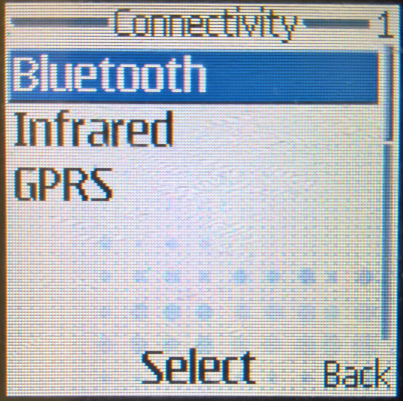
For connectivity there is Bluetooth, infrared and WAP support, supporting both GSM data and GPRS for faster network connections for the time. MMS is also supported which allows for pictures to be sent as a text message, one of the main selling points of the phone. Infrared does not require any additional software to use, you can freely send and receive files using the standard IrDA protocol.

There is also access to the Sim toolkit menu if your Sim card supports this. Lastly, there is also a synchronization option that lets you sync calendar and phone book contacts with a service provider.

Organizer

  • Calendar: Your standard calendar which you can set reminders and events for later notification, you can change the view to a daily weekly or monthly, which will also list upcoming events, or you can search for them using the search tool built into the phone.
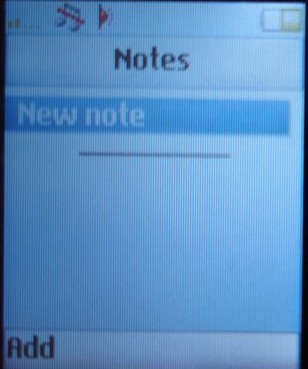
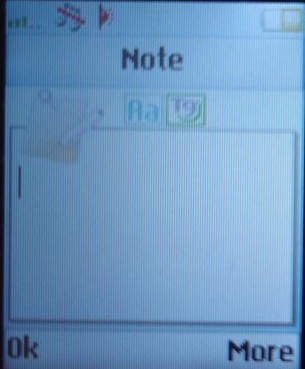
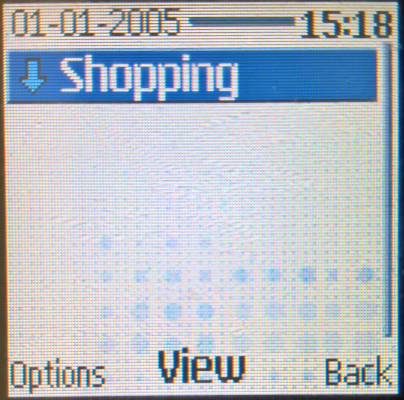
  • Note: Similar to how the Windows notepad would work, lets you save text notes to the phone for later viewing
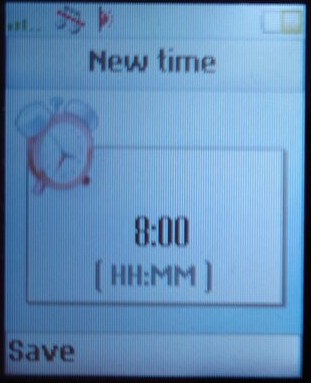
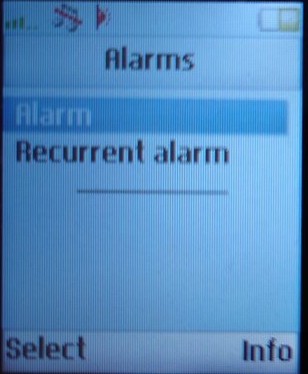
  • Alarms: Set a single or recurring alarm that repeats on certain days of the week.
  • Timer: Sets a countdown timer
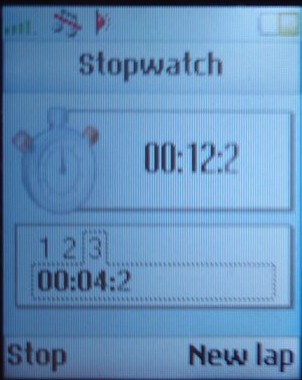
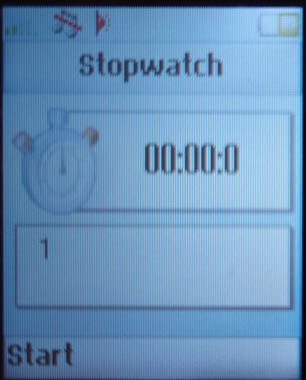
  • Stopwatch: Supports lapping and can run in the background.
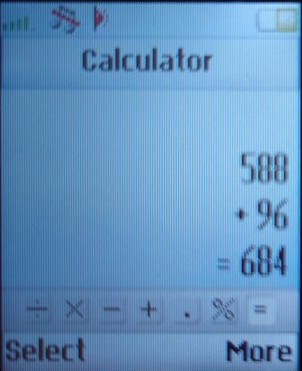
  • Calculator: A typical calculator
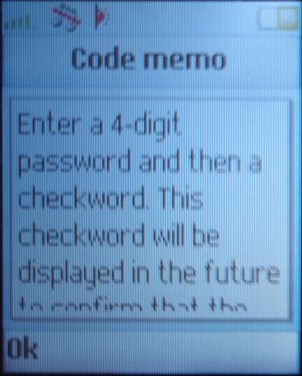
  • Code Memo: Same as notes but you can set a 4-digit PIN to access and save notes, this is not the same as the PIN for the SIM card.

Settings

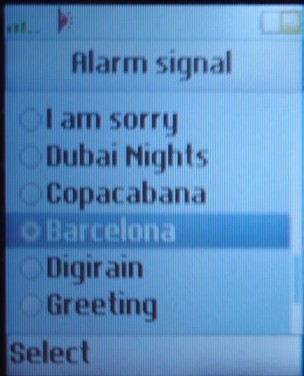
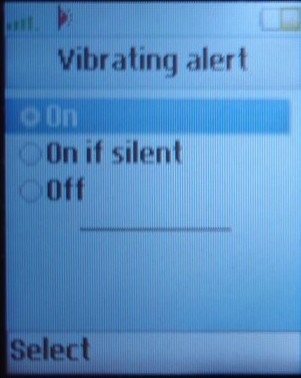
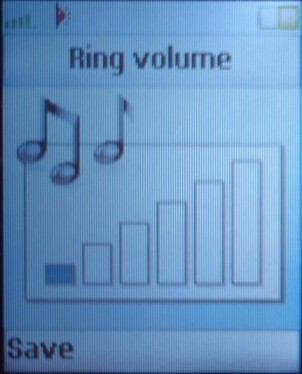
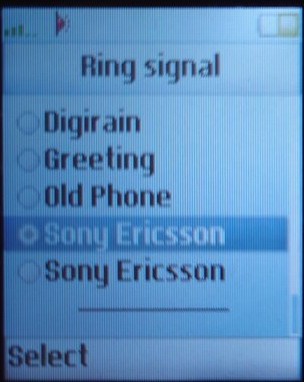
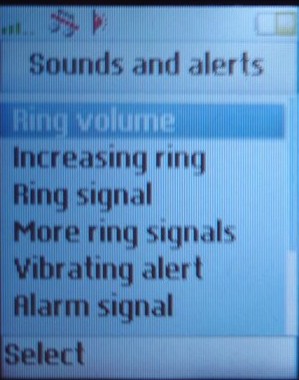
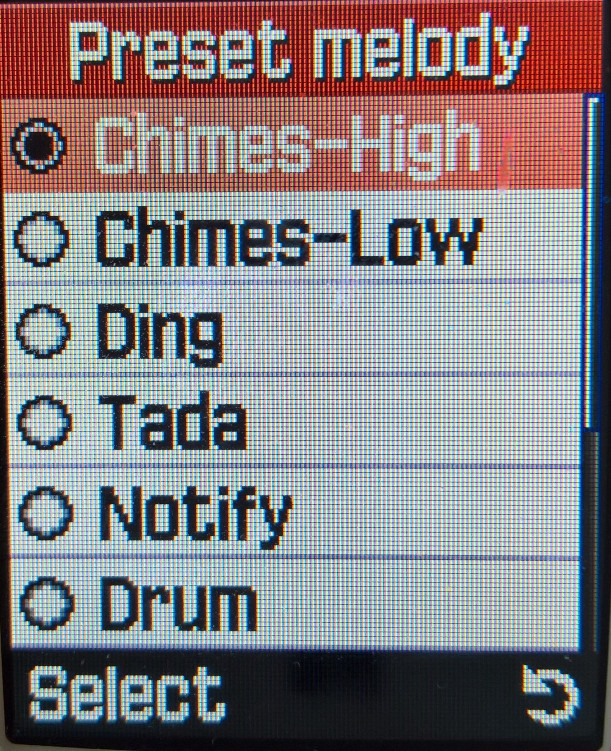
  • Sound and Alerts – Set the ringtone, and message alert tone, you can set the ringing to be ascending and can also enable toe vibration alert. A key sound can also be enabled which sounds upon button press and a minute minder which will beep when you are in a call, allowing you to keep track on how long the call has lasted, ideal for PAYG customers keeping track of their usage.
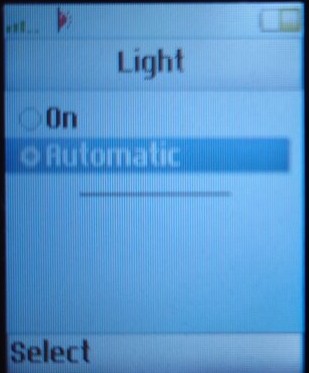
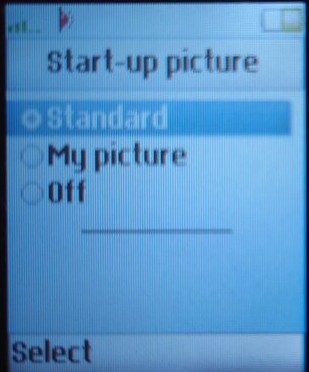
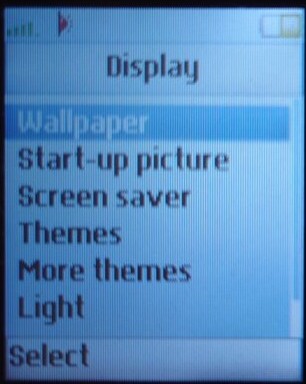
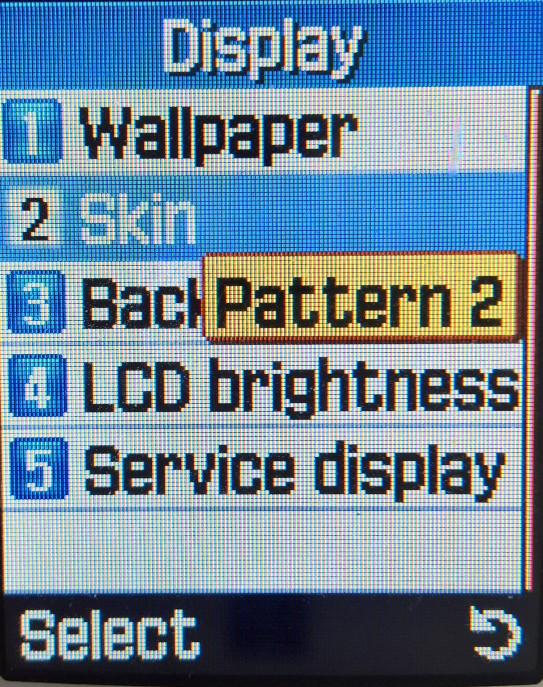
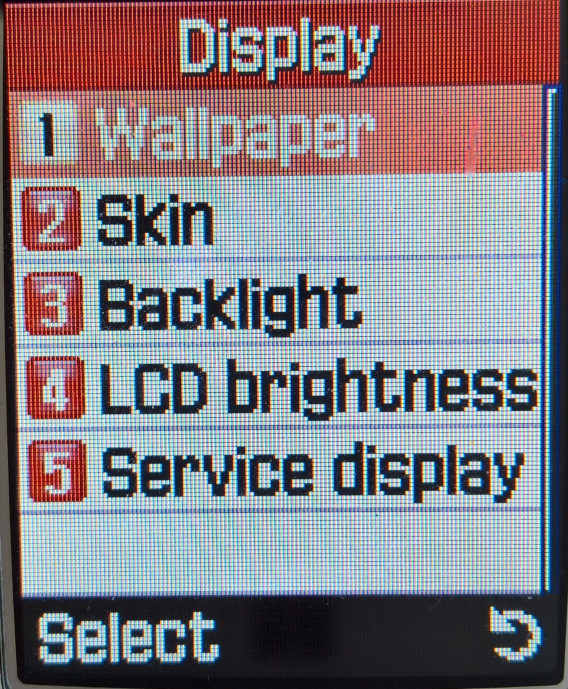
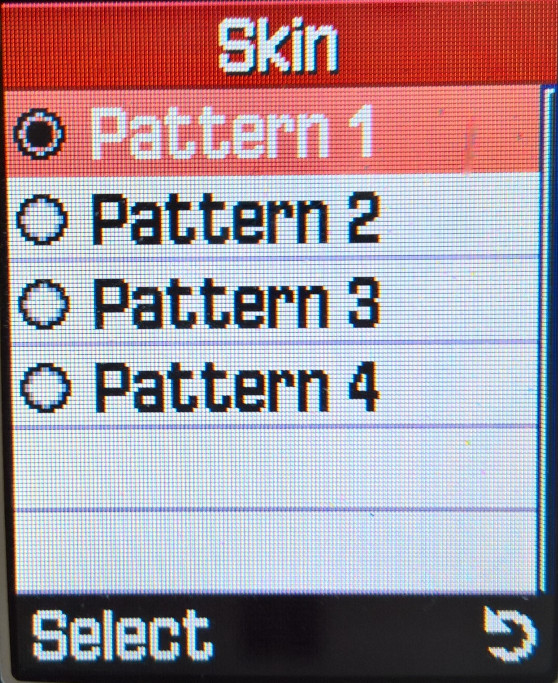
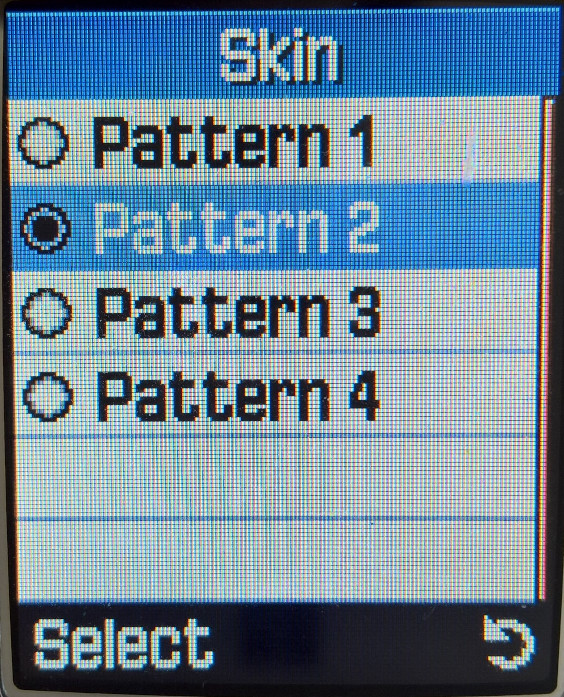
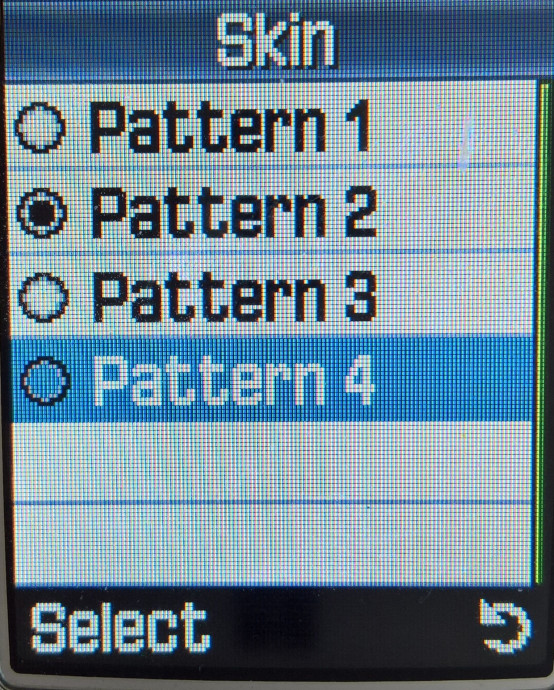
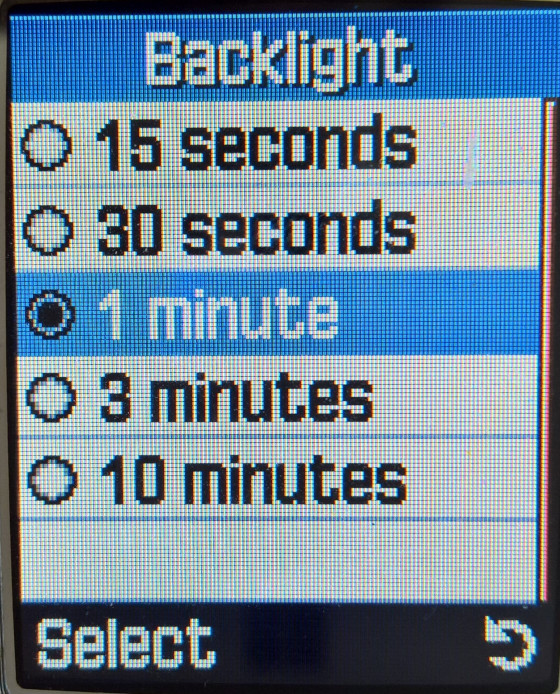
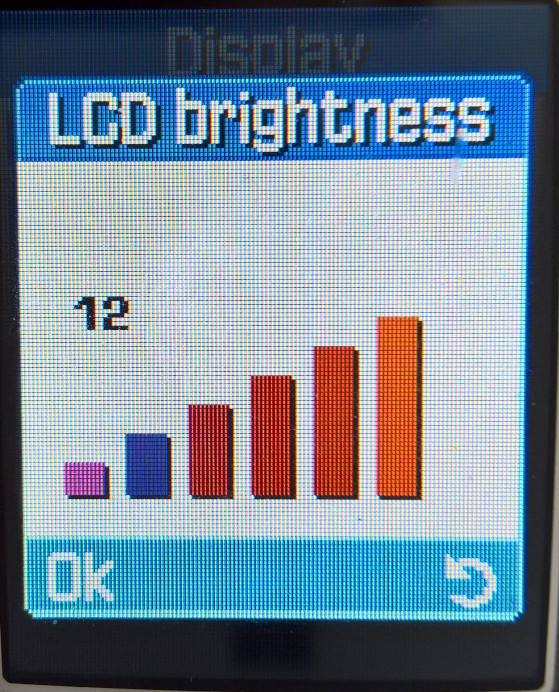
  • Display: Change the wallpaper, the stary-up picture, the screensaver and set a theme. The backlight and screen contrast can also be set.
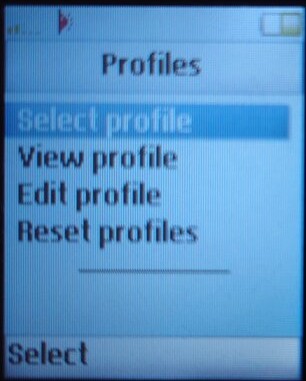
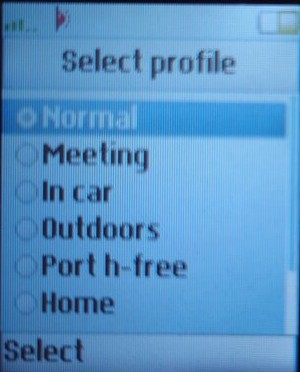
  • Profiles: Set and adjust the ring tone profiles, preset profiles are Normal, Meeting, In car, Outdoors, Port hands-free, Home, Office, & TTY Accessory.
  • Language: Set the language for both the phone menus and the T9 predictive input, options are English, French or German.
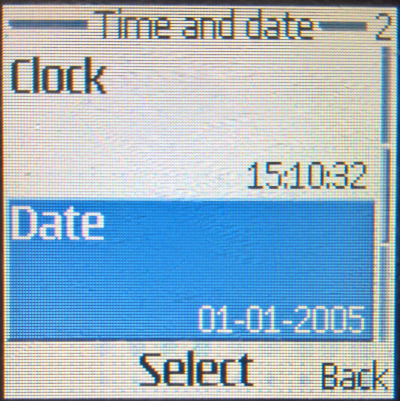
  • Time and Date: Set the time and date or have the phone update it automatically.
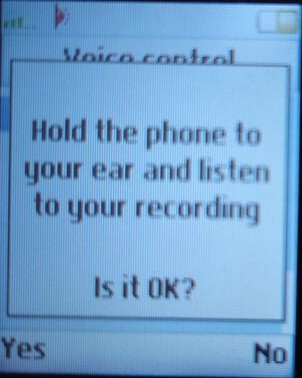
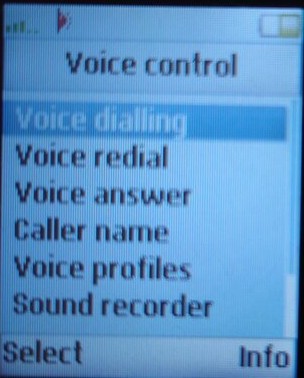
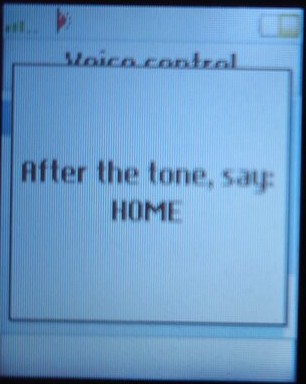
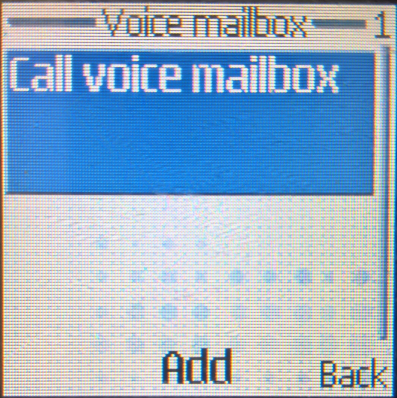
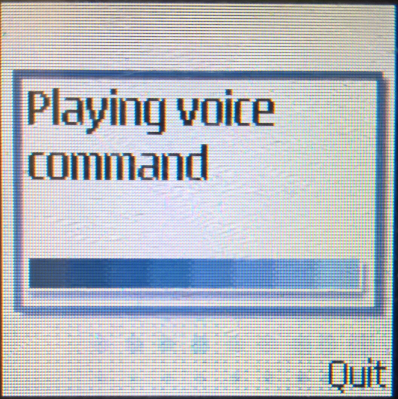
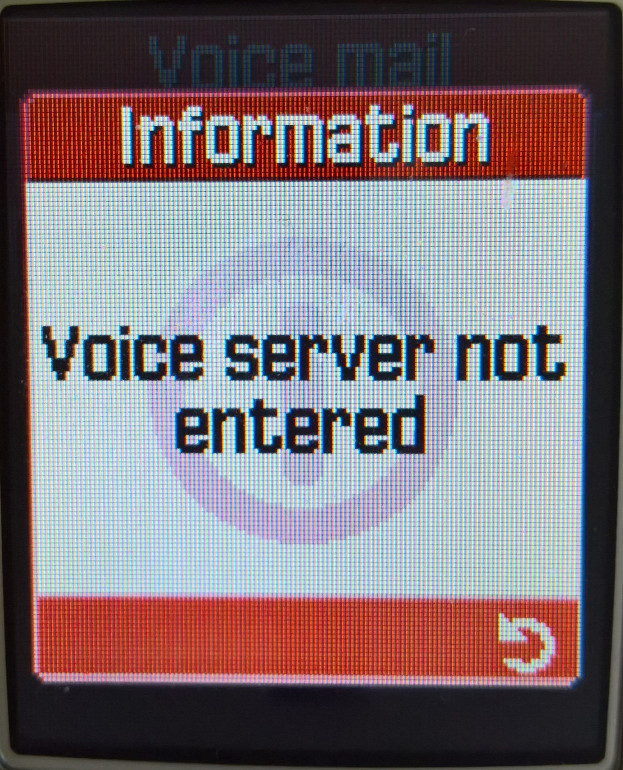
  • Voice Control: You can record and set voice commands for common phone functions, then you can trigger them by holding the volume key in standby mode and then speaking the command. Surprisingly this works considerably well, but struggles in noisy environments.
  • Locks: Set and change the SIM and Phone locks, and enable the auto keylock.
  • Master Reset: reset the phone settings back to the factory default

Downloads

A collection of themes that originated from the Sony Ericsson WAP download site, originally intended for the Z600 but will work on the T610 and possibly the T630.

T610/Z600 Themes

A set of Mophun games that can be transferred to the phone, many of them are trial & demo copies to show the capabilities of the platform, some are intended for the T68 and have a smaller screen resolution. Always look for the 129×160 version for the T610.

Mophun Games Archive

Mobile Captures

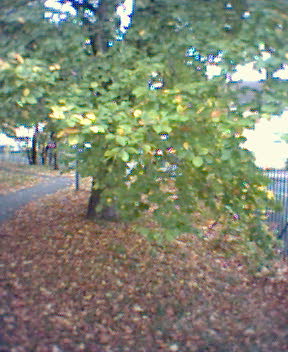
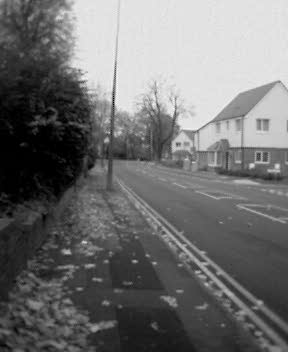
First two images are captured using the standard mode, with the last two using the Black&White and negative mode. All images are captured at 288×352

T-Six-Ten

To promote the phone, a website was launched called T-Six-Ten which was to promote the photo and image capabilities of the phone. users can submit their captured photos and share them online, as well as show tips and information to get the most from your T610 phone.

Lindows 2

Windows from wish.com

A simple-to-use Linux distribution designed for the Windows migrant, with a familiar user interface to make them feel at home. Built on the KDE user interface and introducing an early form of an App Store, it would be one of the more popular distro for its time but would eventually lose its userbase to Ubuntu or Fedora.

Installation

Install was done using an 86box virtual machine, since these old Linux distros have issues running on more modern hardware. For memory give it as much as the virtual machine supports, generally 256MB or higher will ensure a smooth experience.
86Box Version 3.6
Motherboard: AOpen AP53
Processor: IDT WinChip 2 200Mhz
Video: S3 Vision968
Sound: C-Media CMI8338
Network: Realtek RTL8029AS

Install was started from the boot floppy which comes with the operating system, as many motherboard of the era has not mastered booting from the CD-ROM drive just yet.

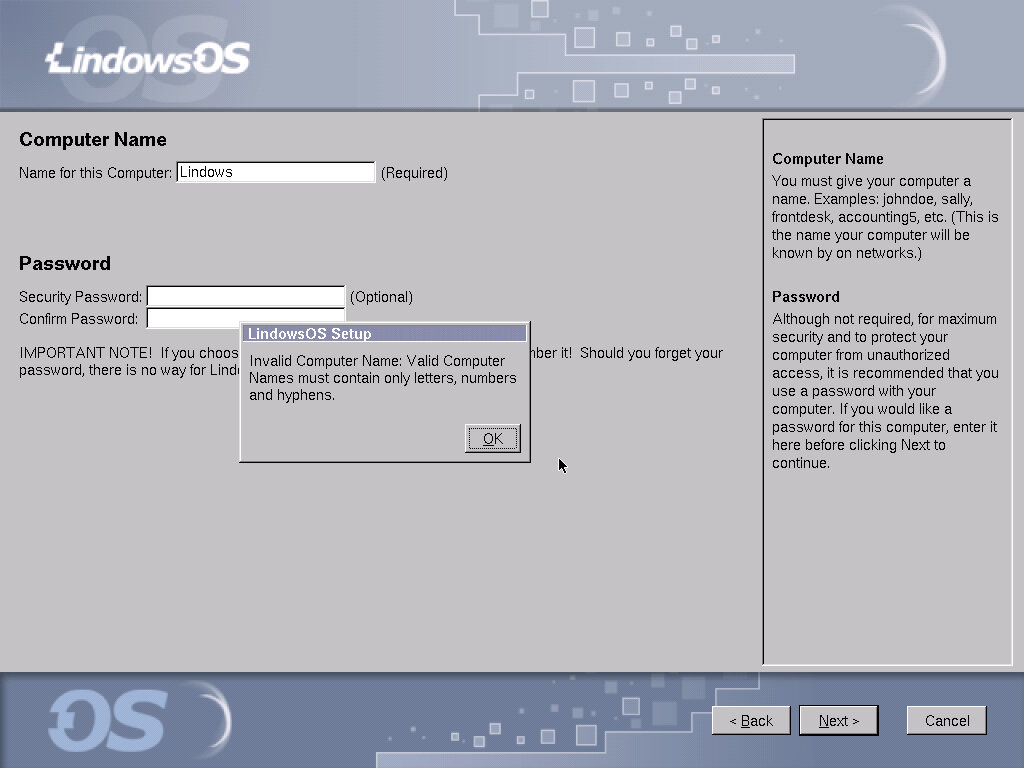
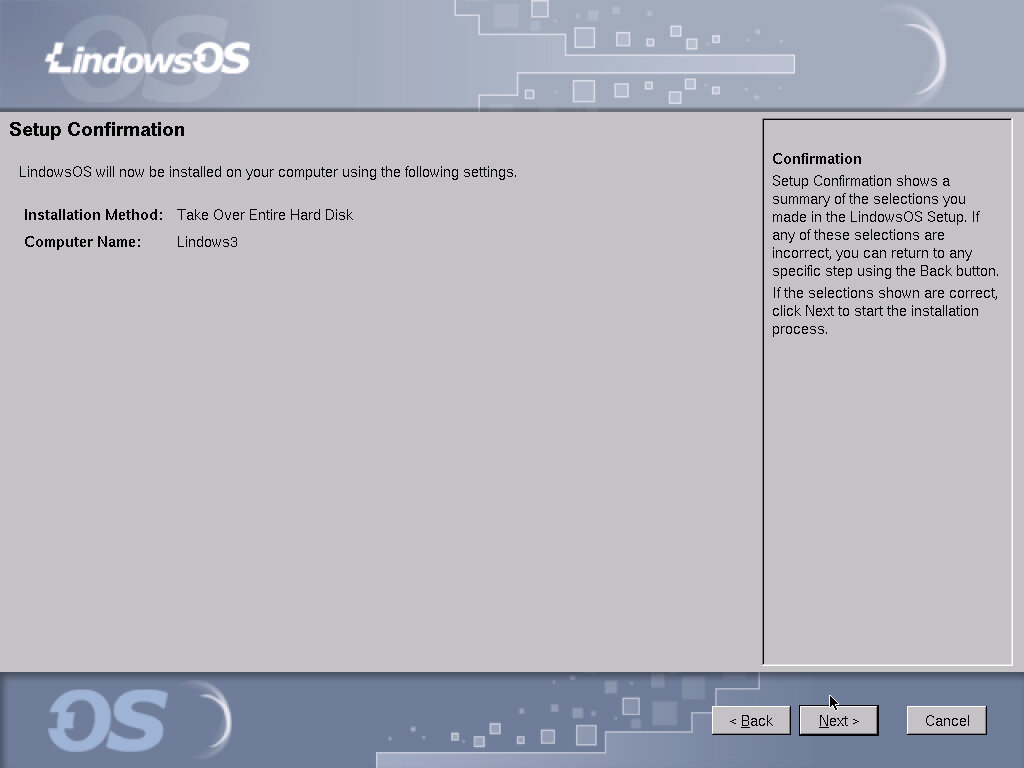
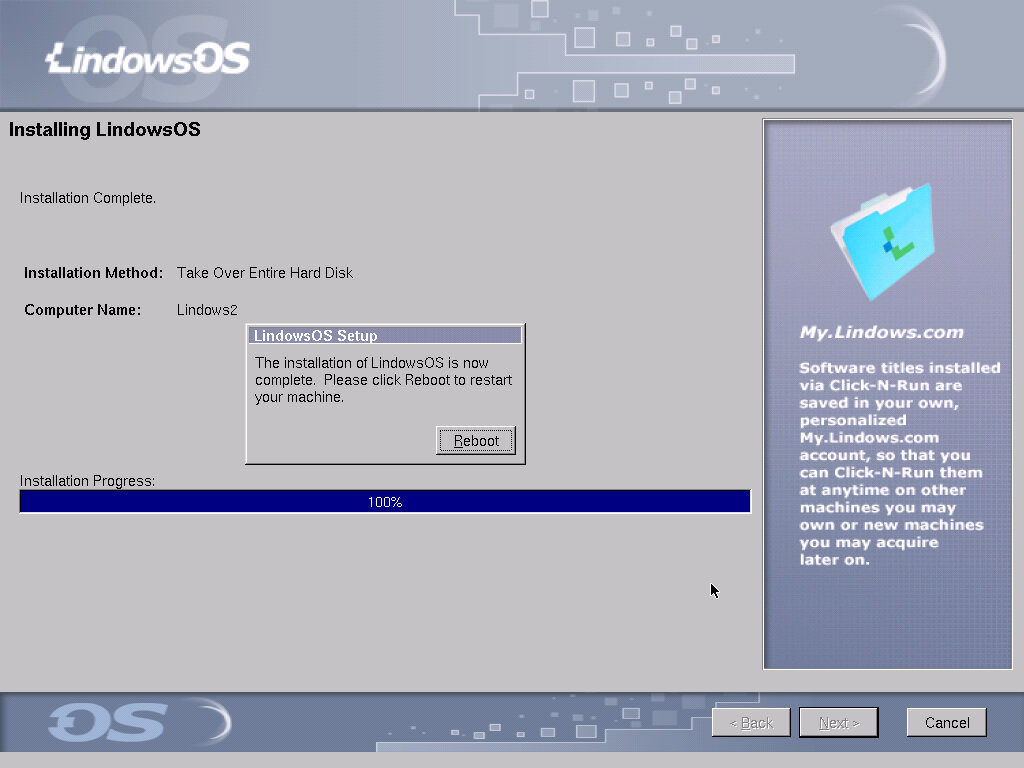
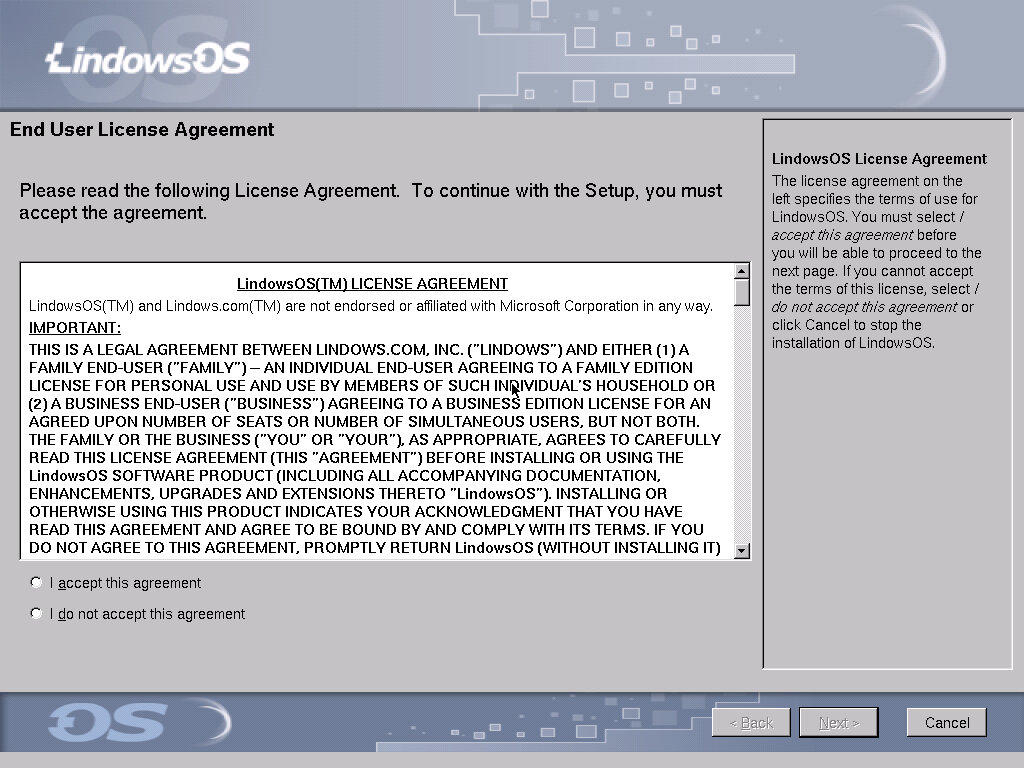
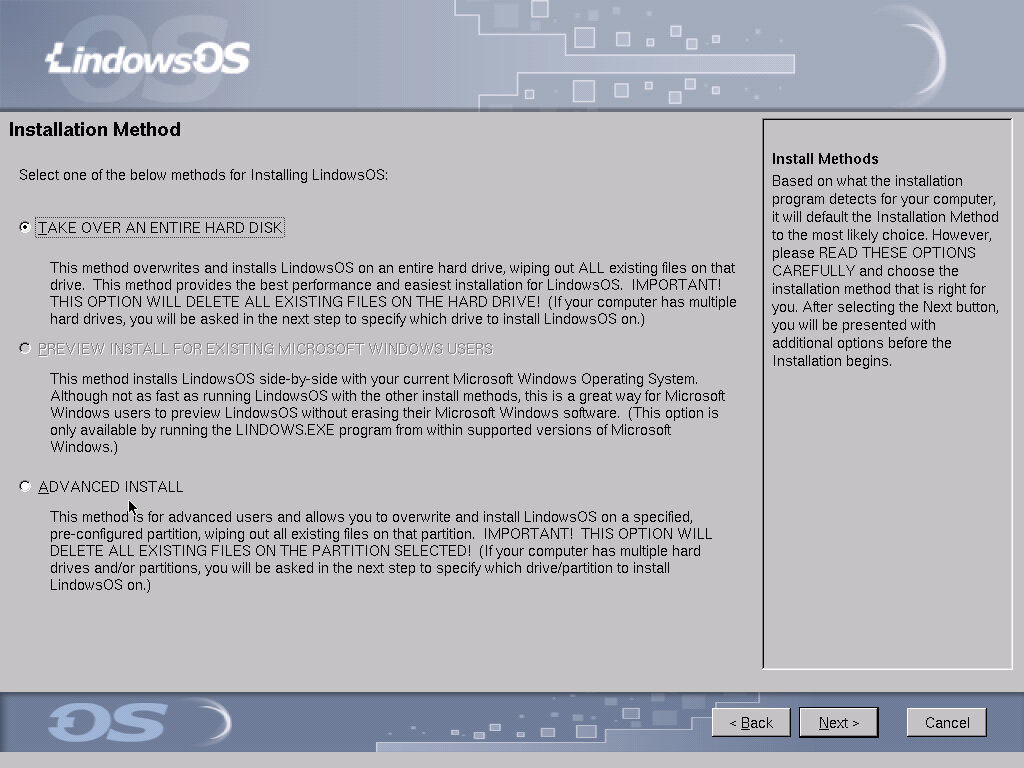
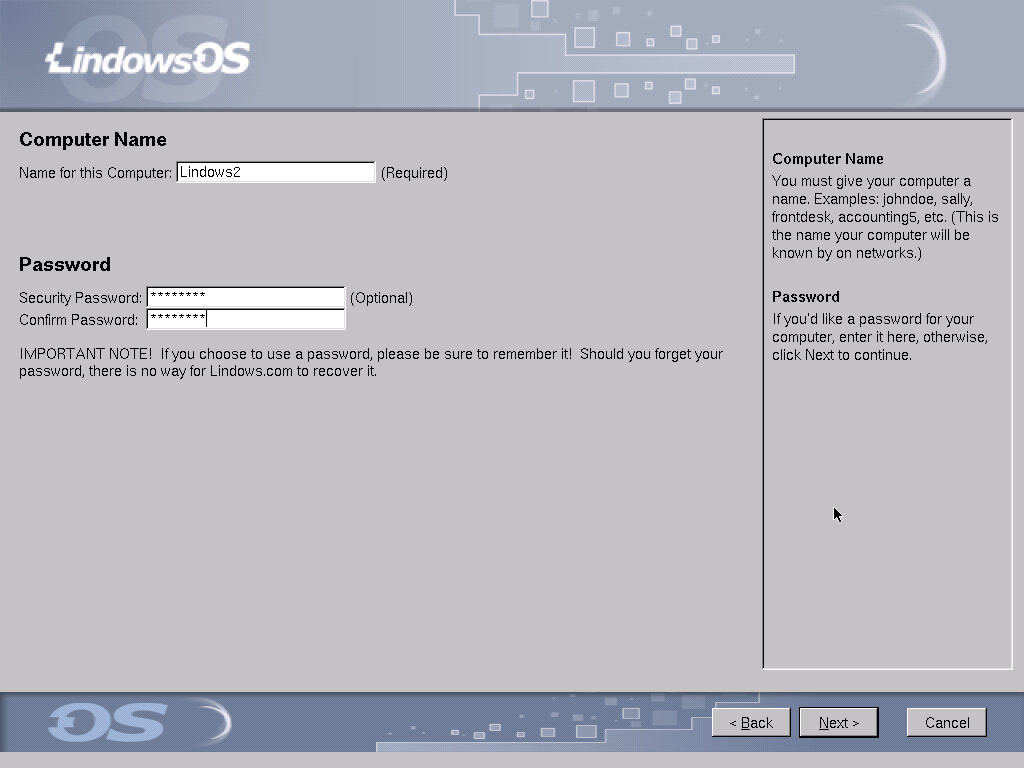
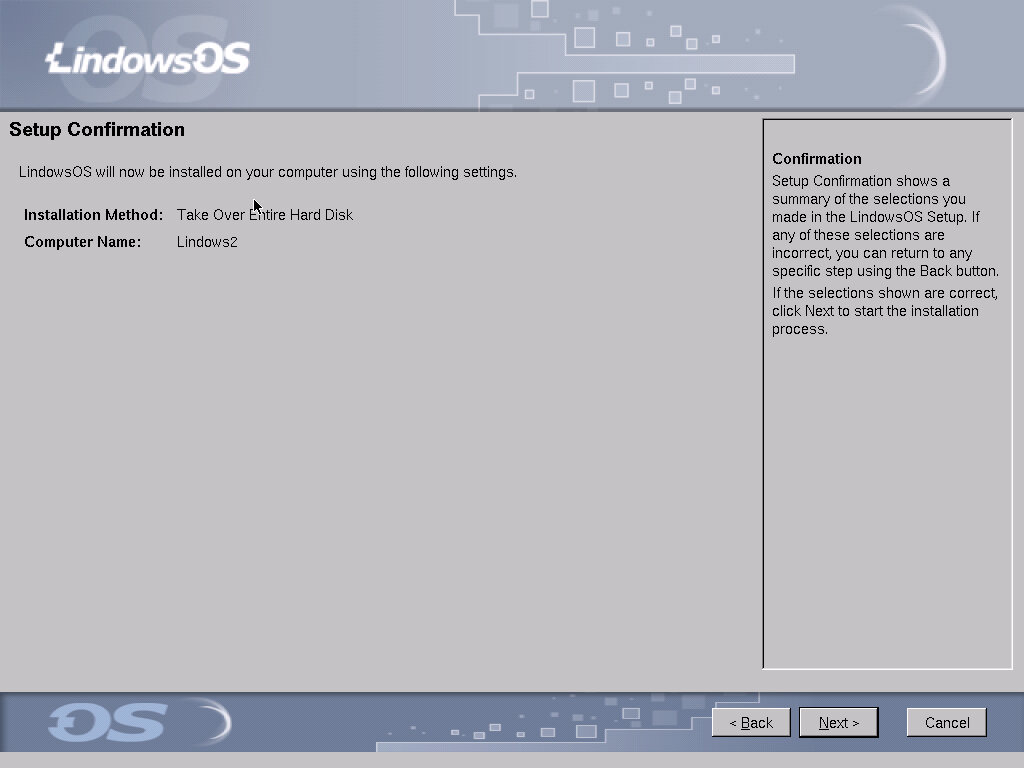
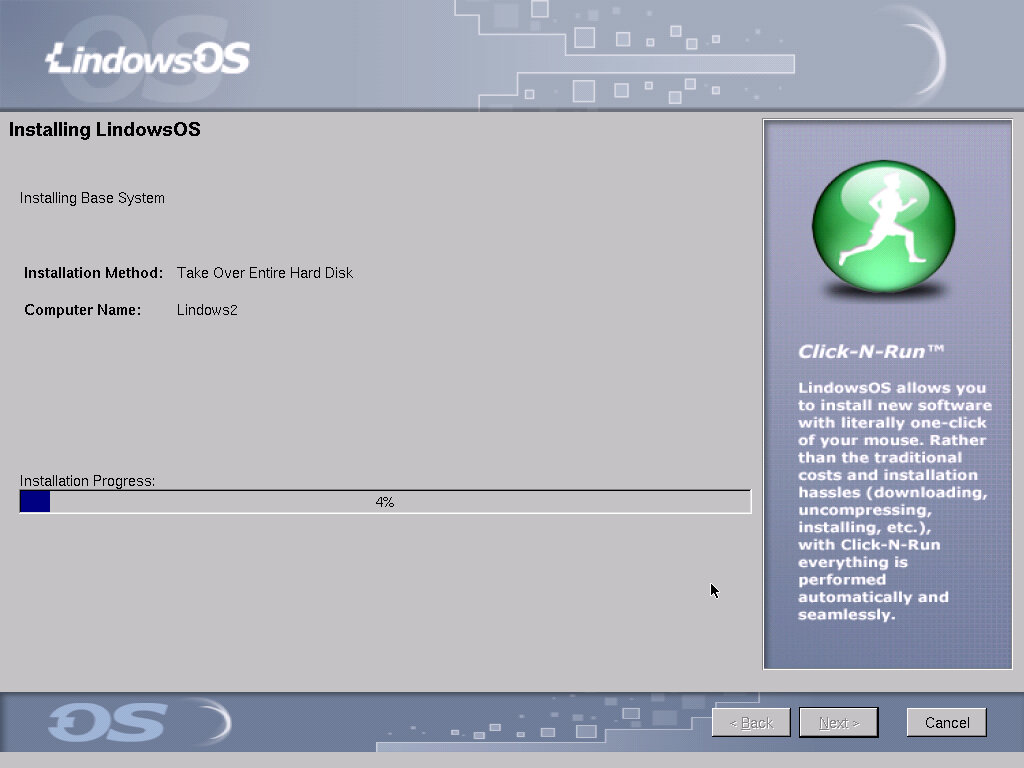
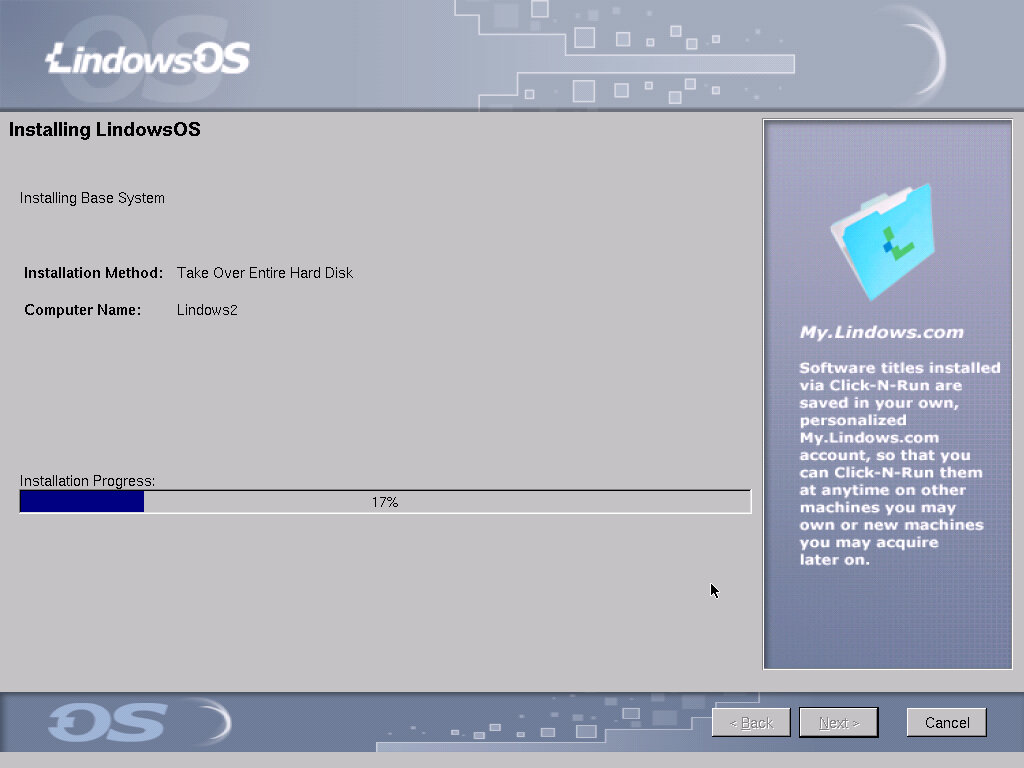
When the install menu appears, a wizard-like interface is used to guide you through the installation process. You are presented with the opportunity to configure the install, and to set a user password. Once completed, the system will prompt you to reboot.

Post – Install

Booting up the system will land you at a boot menu first, giving you the option of booting into a recovery mode, if you choose the regular mode. The login screen will appear, here you enter the password that you created during the install.

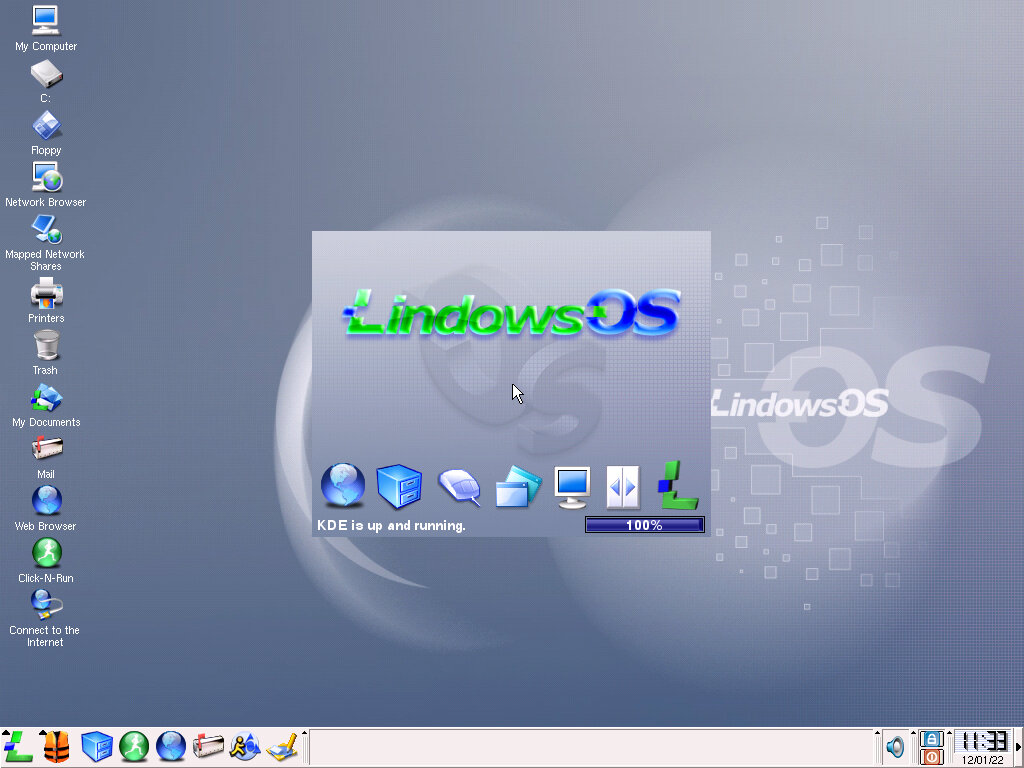
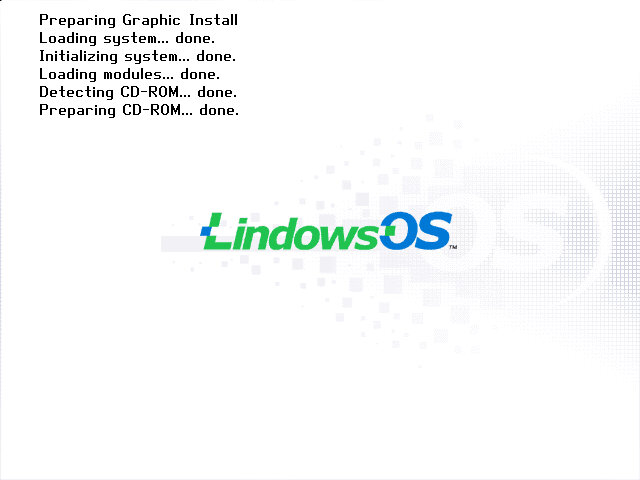
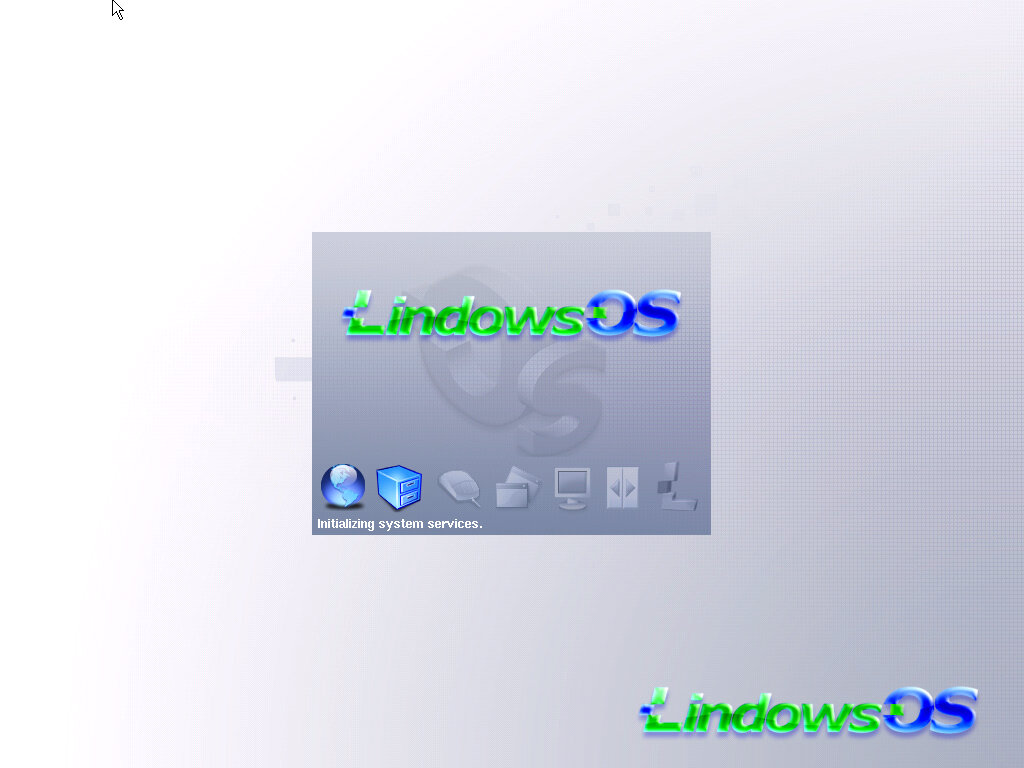
A logon splash screen, seems various components of the OS are not even initialized yet.

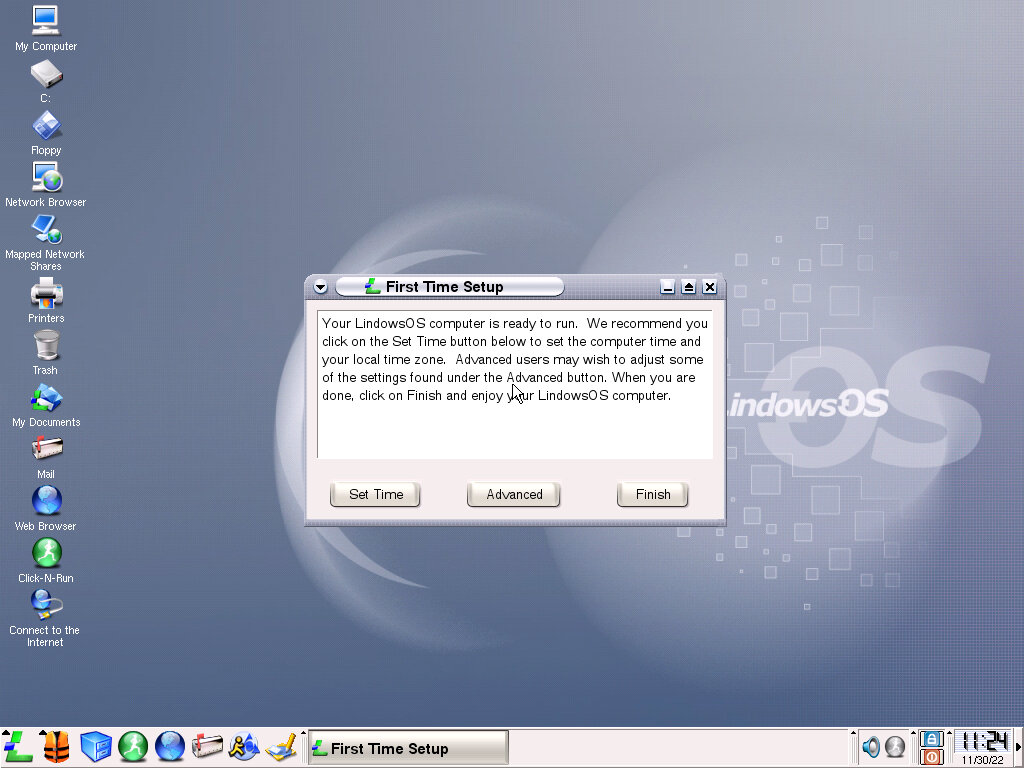
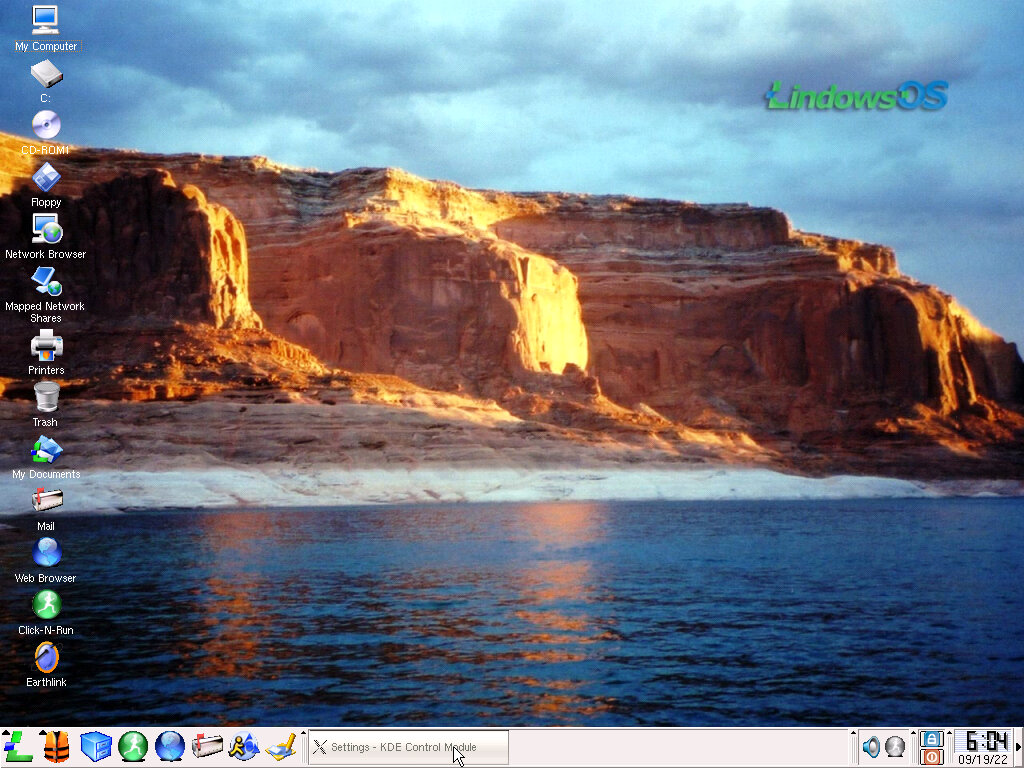
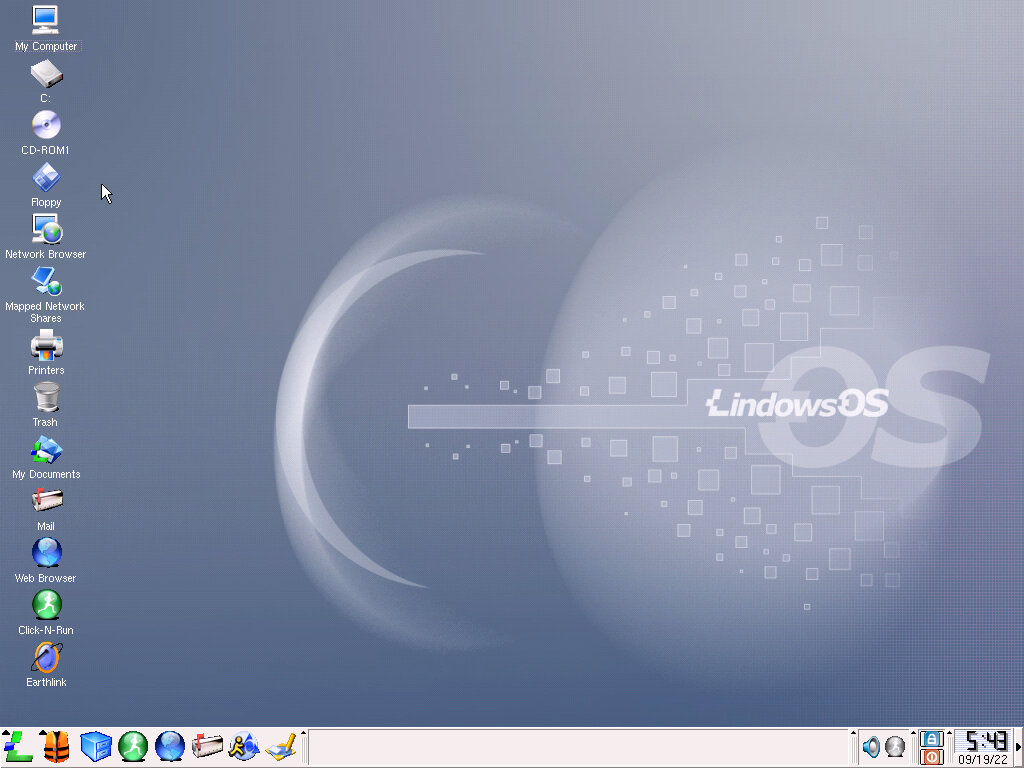
Here we are at the desktop, which looks similar to your average Windows desktop install.

Windows from Wish

Click-N-Run

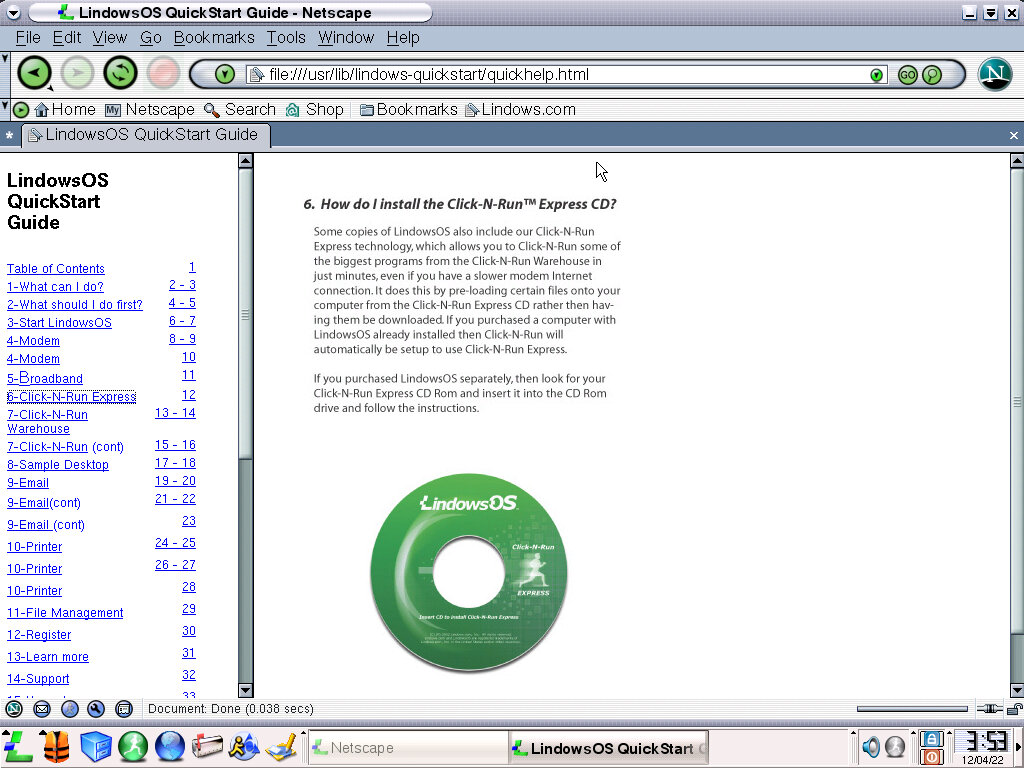
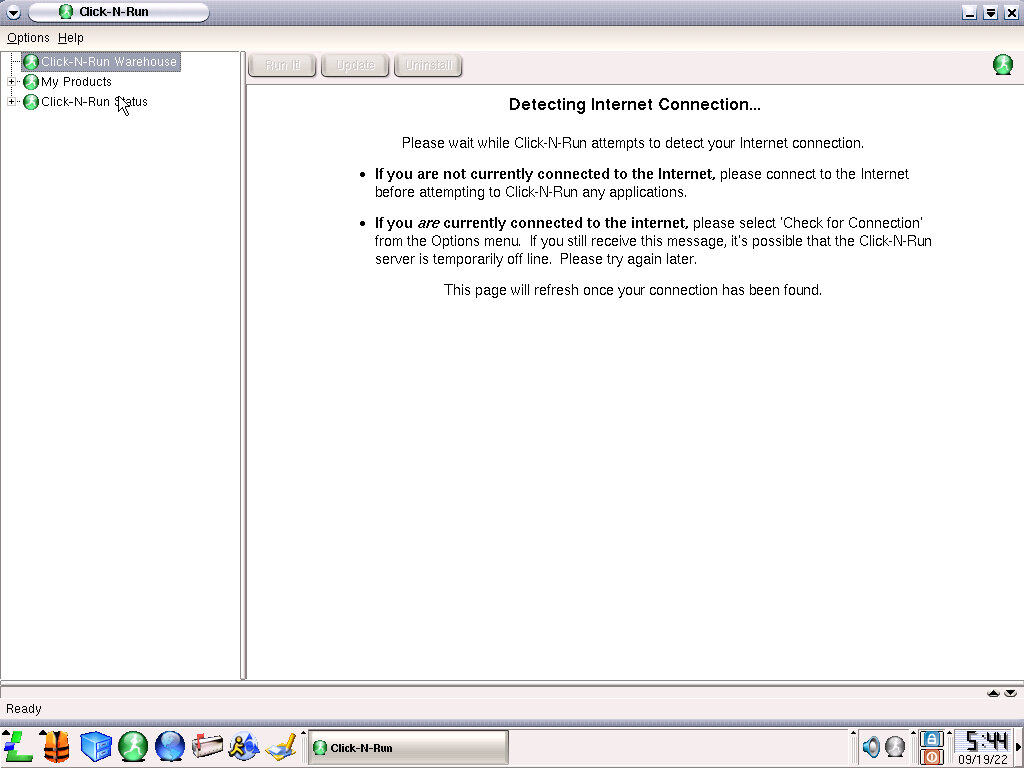
This was an attempt to bring an app store-like interface to the Linux desktop by offering applications that could easily be downloaded and installed to the user’s PC. This would consist of commercial applications and free software (Both gratis and price). The portal has long since been discontinued, so software can no longer be obtained this way.
Modern Linux distros introduced something similar like the Ubuntu software center and the elementaryOS store which offers paid for apps. All of these are designed to increase the software support of Linux, and to allow for an easy way for the user to install software.

Interface

First impressions are that it’s a bit cluttered, compared to a clean Windows install with various icons placed on the desktop (like the individual drives that were detected during startup) and a few sponsored applications like EarthLink. Still its clear to the end user which applications does what, and there are shortcuts to the internet browser that can easily be accessed, along with the email client.

Like Windows, there is a taskbar at the bottom of the screen which will hold currently open programs. This can be customized and additional panels can be added. One example is a resource meter that lets you see your systems memory and processor usage in a realtime graph (like task manager embedded into the taskbar,
Like Windows, you can right click on a running application on the taskbar to minimize it, or shade it. What this does is shirk the window to just its title bar, similar to what the classic MacOS does. I’m not sure what benefit this has over just minimizing the window, but I feel its intended for Mac users who may prefer that method. You can also send a program window to another screen, or desktop. Like many distros, this supports having multiple desktop panels that can be switched through easily.

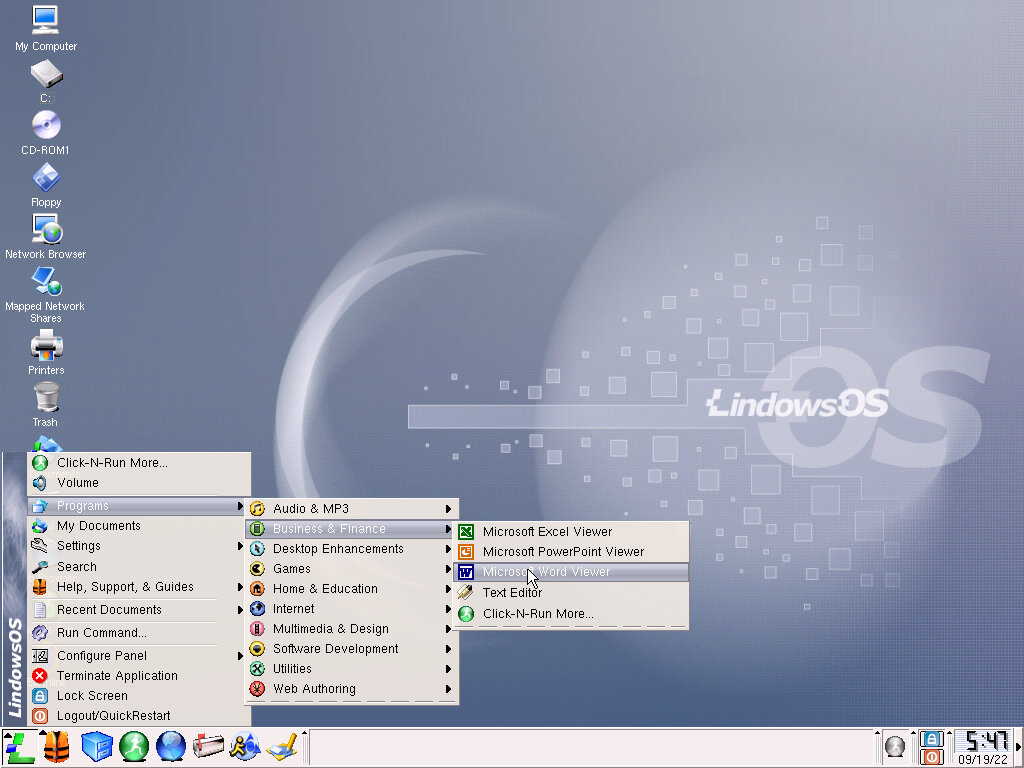
Installed software can be accessed using the start Lindows menu, which looks a lot familiar to a certain operating system. Whilst it’s good to bring a familiar interface, it does feel like a rip-off of sorts. Plus this was already outdated, as Windows XP debuted the previous year with its revised Start menu, although it could be configured to show the classic start menu instead.

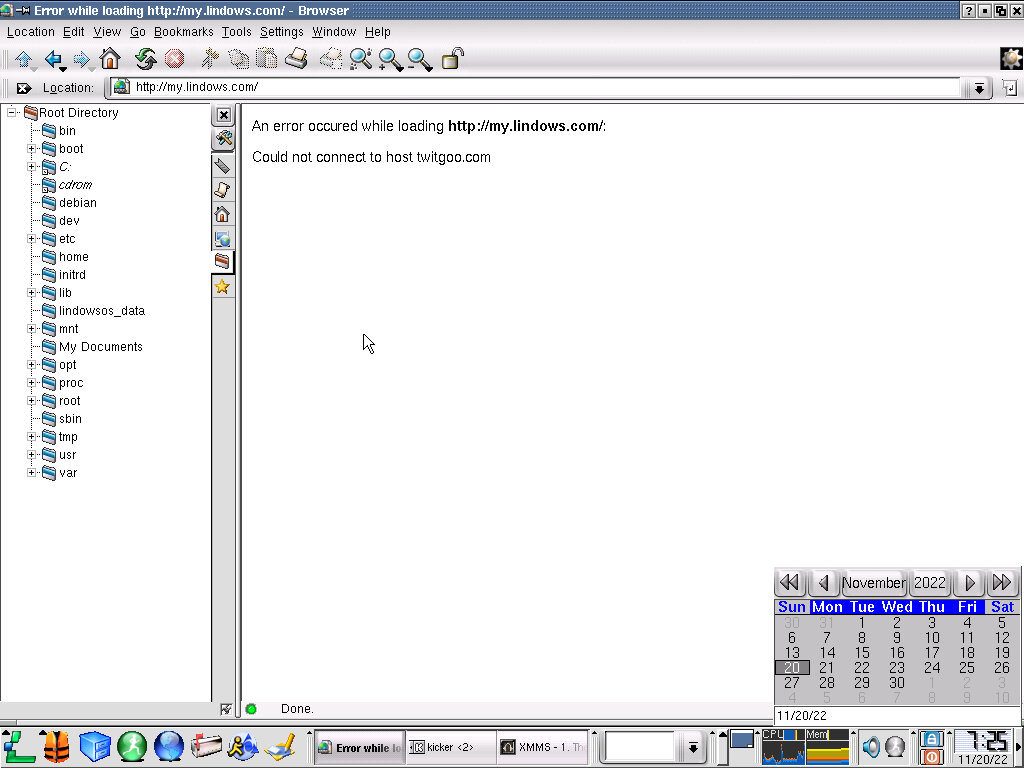
Clicking on the time will bring up the date, along with a mini calendar.

Lastly to the left is a series of icons that will bring up various menus and software applications. The large ‘L’ icon will bring up the equivalent start menu where programs and settings can be accessed. The yellow life jacket-looking icon will bring up the help menu and the blue file cabinet icon will bring up the file explorer window.
Other icons will act like the quick launch feature from windows, and applications can be pinned easily for convent use.

Settings

A submenu on the Lindows menu, this is the Control Panel of the operating system and is sorted into subcategories.

Login Manager: Part of the KDE Control Module, lets you create and manage user accounts and the appearance of the login screen. You can change the background, the font of the login window, the greeting message and the type of session to use (which will often be kde3) There are also options for auto login, similar to what TweakUi could do for Windows NT

File Manager: Change file extension associations and the appearance of the file browser window. You can set folders (directories) to open in a new window

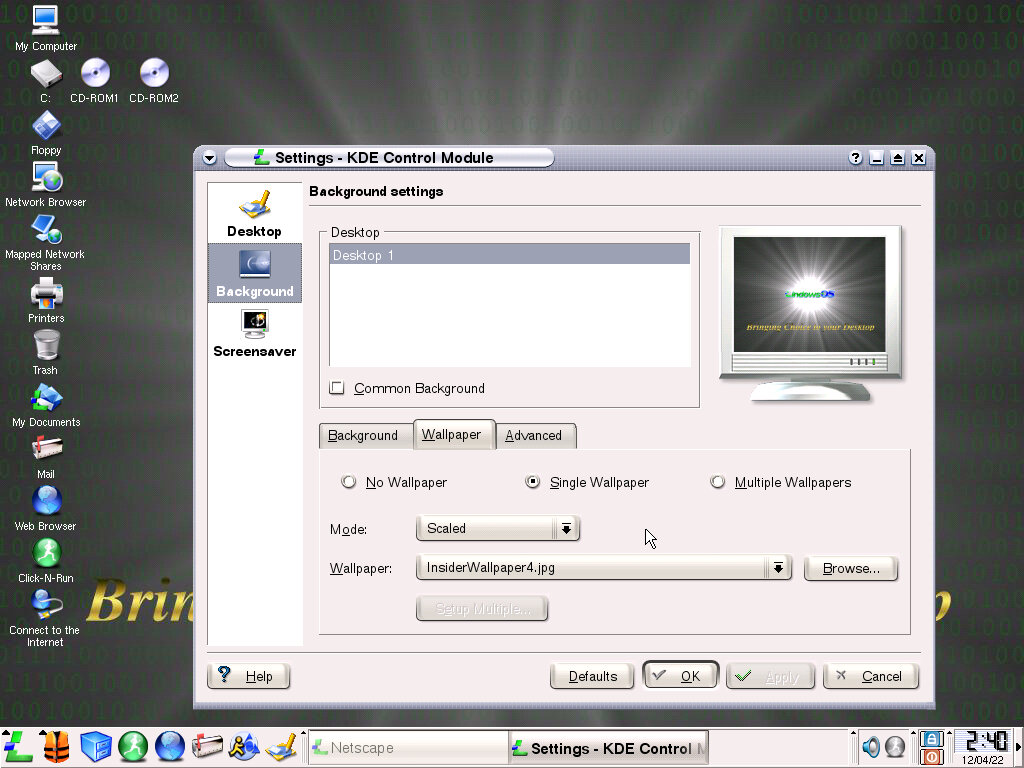
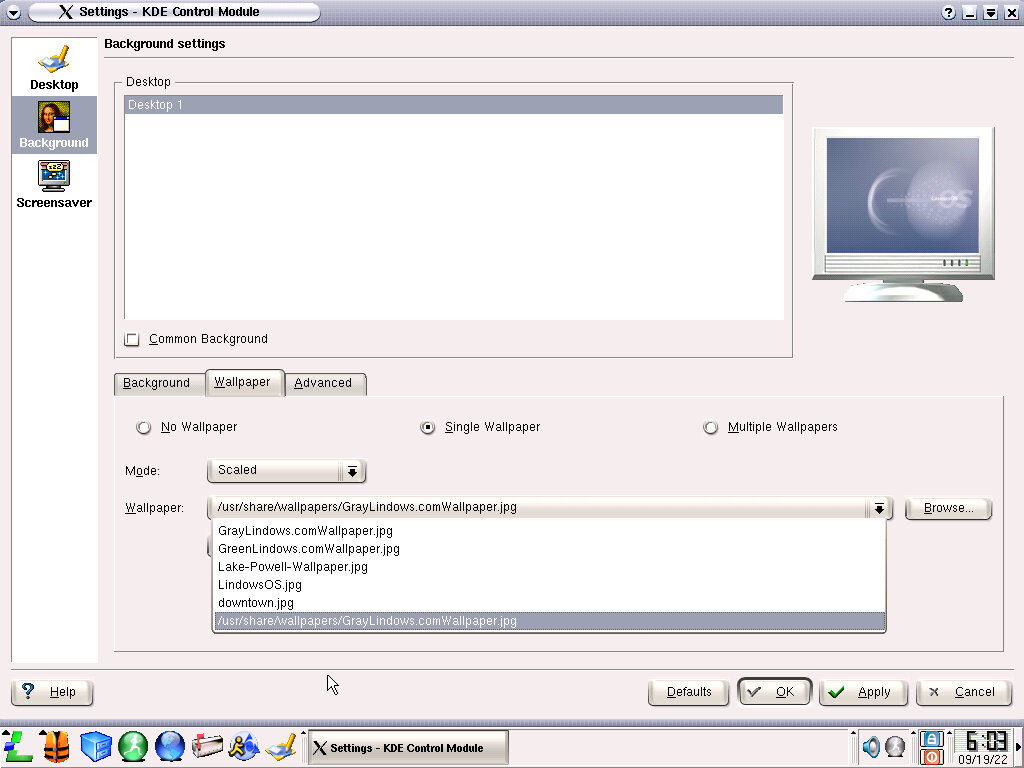
Look & Feel: Change various settings in relation to the appearance of the OS. Includes the wallpaper, the screensaver, mouse cursor and the installed fonts. Very similar to what can be done within Windows. At lot of the built on styles can be set to mimic various other operating systems to make the interface more familiar to the user.

Network: Configure options such as TCP/IP and Samba file sharing. Appears to have basic WiFi support, possibly only 802.11a/b given the age of the operating system.

Peripherals: Options for the Monitor, Mouse, keyboard and Printers. Again similar to what Windows offers where the colour depth and refresh rate can be set for the monitor, the type rate and layout for the keyboard and scroll wheel settings for the mouse.

Personalization: Appears to the miscellaneous settings like accessibility and the region of the install. Also has a shortcut for the command console.

Power Control: More useful for laptops, lets you set the low battery notifications, and the energy usage. Can also set the monitor and HDD standby times

Sound: Adjust the volume and system notification sounds

Web Browsing: Similar to network, but has options for proxies, cookies and cache. Most of this only applies to the Netscape browser.

Advanced Settings: Options for Midi, Audio CD IO and Mixer, could these not have been included under Sound?

Installed Software

Software can be accessed using the start Lindows menu which looks a lot familiar to a certain operating system. Whilst its good to bring a familiar interface, it does feel like a rip off of sorts. Plus this was already outdated, as Windows XP debuted the previous year with its revised Start menu, although it could be configured to show the classic start menu instead.

Audio & MP3

CD Player: Typical CD player that uses the analog CD audio line for playback.

KreateCD: Some sort of CD burning applications, of limited use since 86Box does not emulate a CD burner.

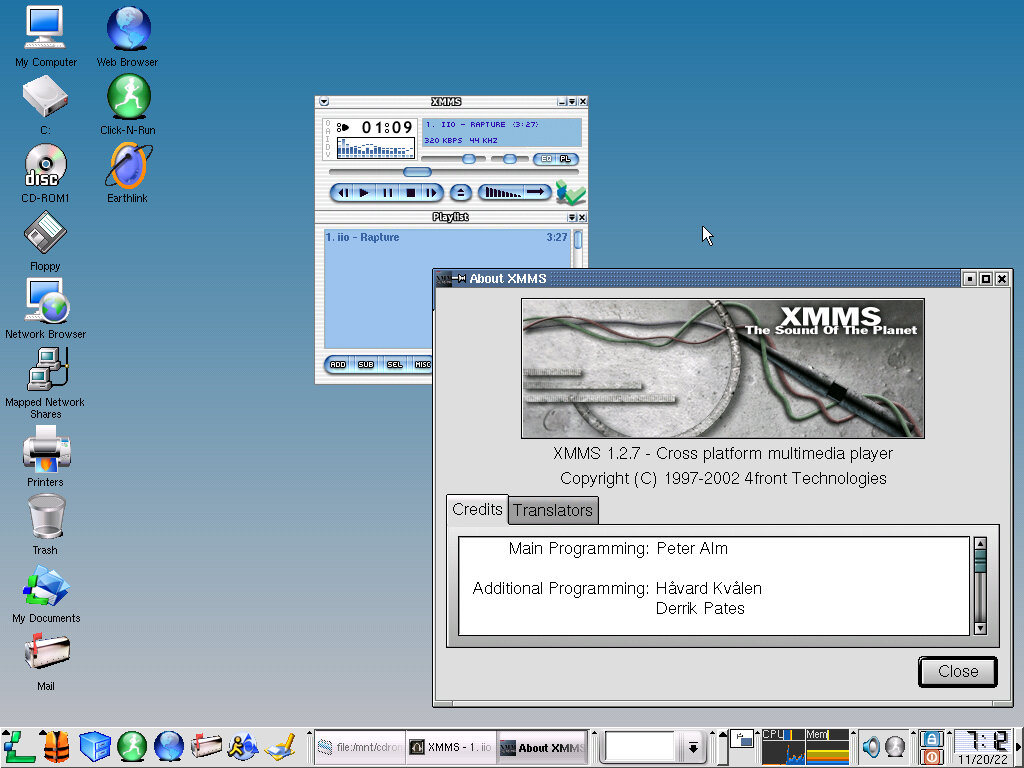
MP3 Player: A typical MP3 player with the Mac OS X Aqua-like interface of the era. Works well with modern MP3 files even if the interface is a bit hard to read on the count of the text being too small. Supports the use of playlists and can play files from a remote network server. Appears to be a variant of XMMS 1.2.7

Business & Finance

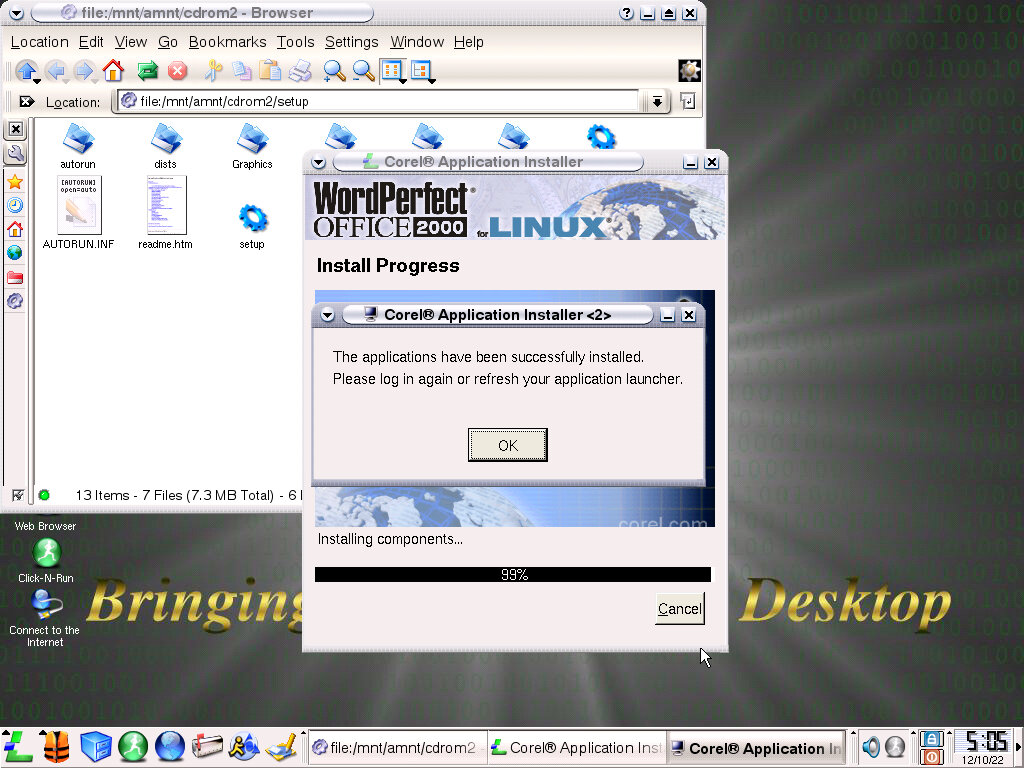
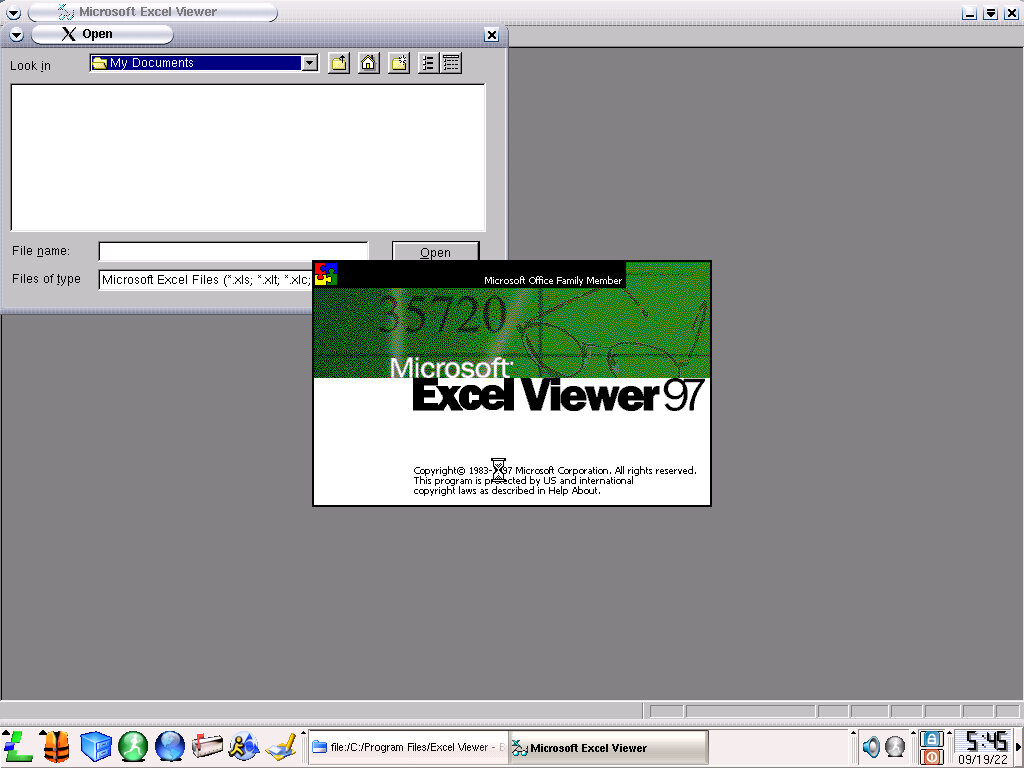
Microsoft Office Viewer: Office 97 viewers actually come bundled with the operating system and look to be the actual Windows version that is included. Possibly this is running under a Win32 wrapper such as Wine. Either that or it’s a very well-made knock off, even plagiarizing the copyright notice from Microsoft.

Text Editor: Your typical notepad-like text editor, based on Kwrite 4.0

Games

Battleship: A multi-player battleship client

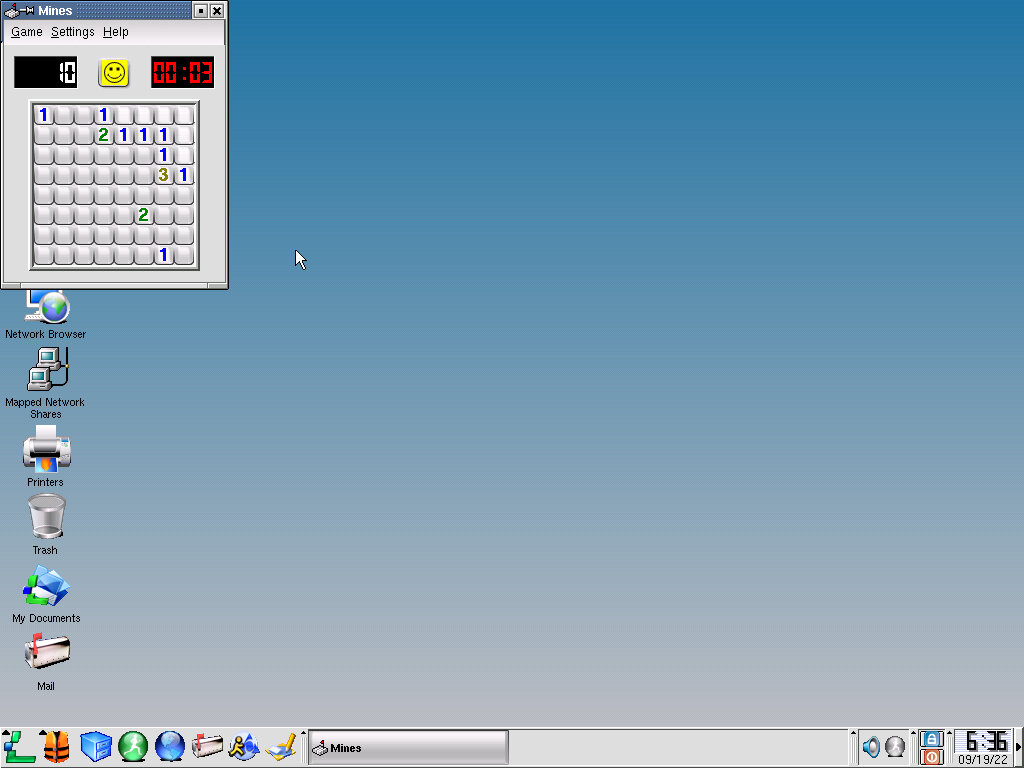
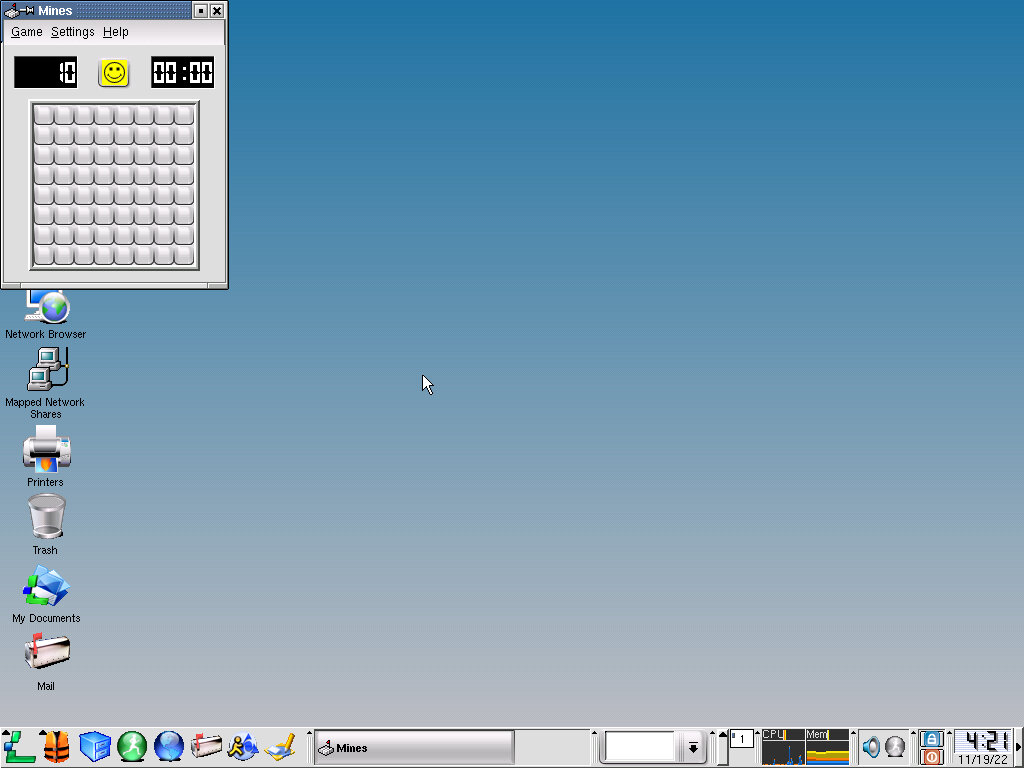
Mines: Minesweeper clone

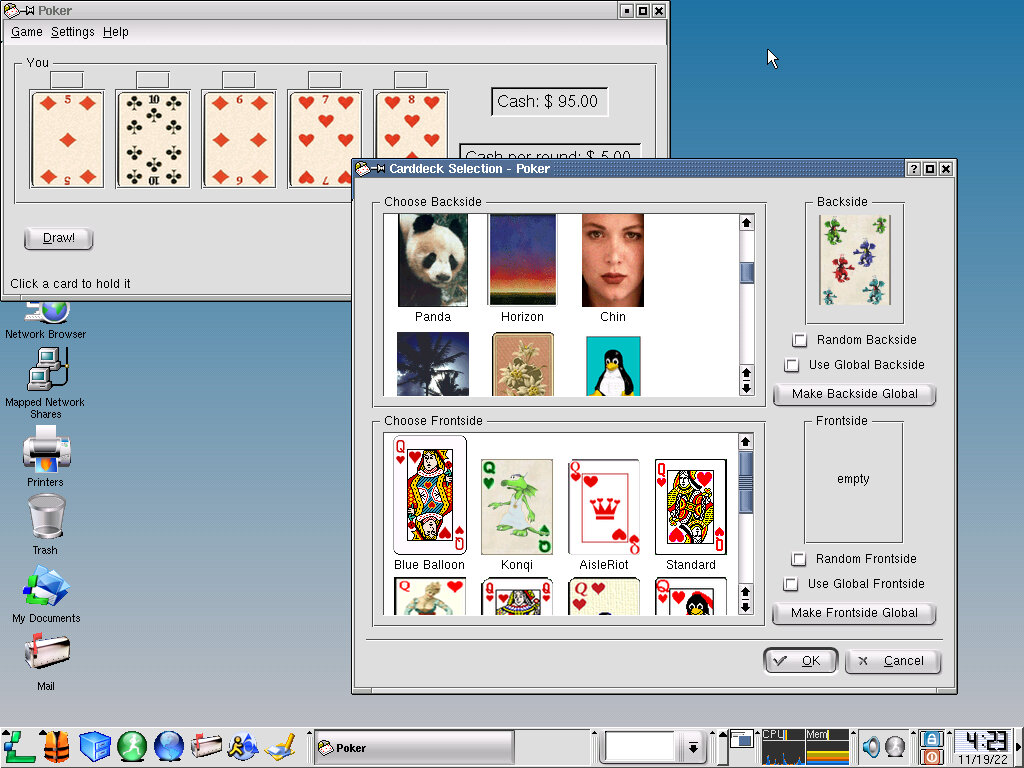
Poker: Some sort of poker game, I’ve never played poker so I have no clue what to do here

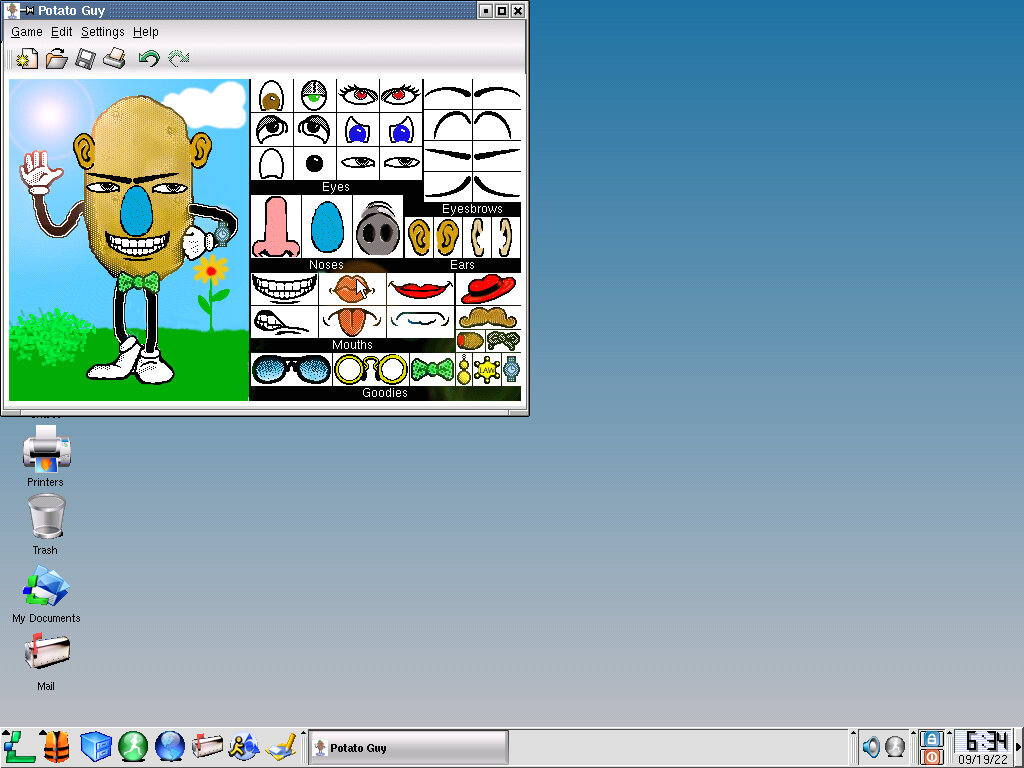
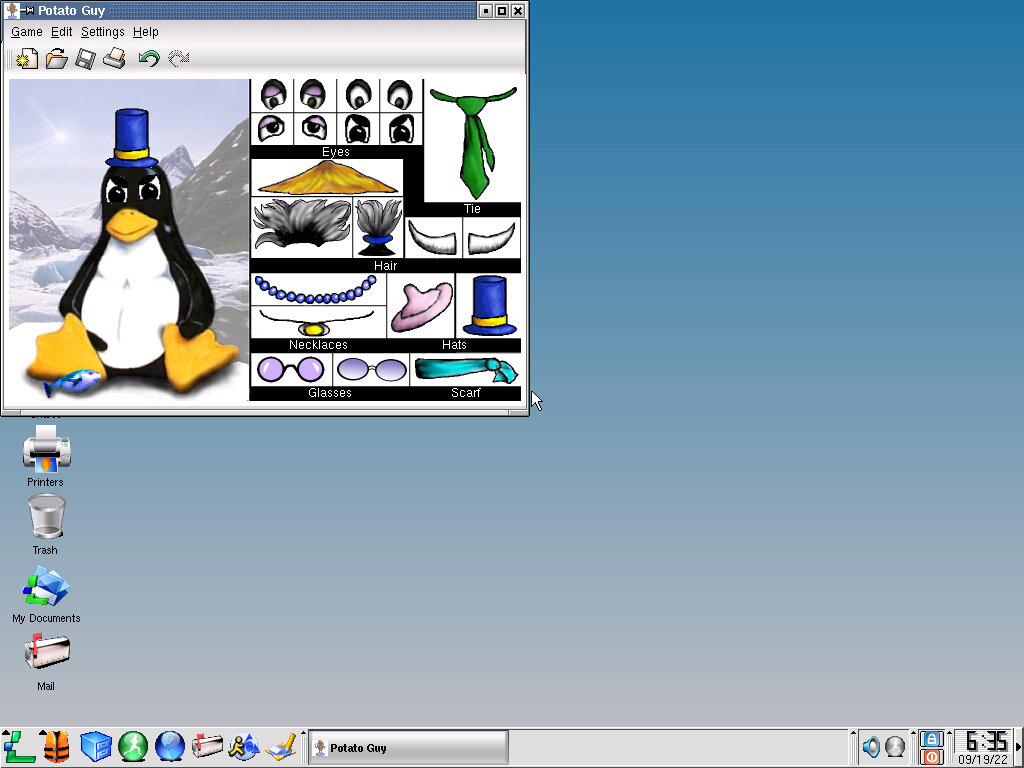
Potato Guy: Not really a game, more like a kids activity where they have to drag the different parts in order to dress up, similar to Mr Potato Head where you have to give them eyes, ears and hats.

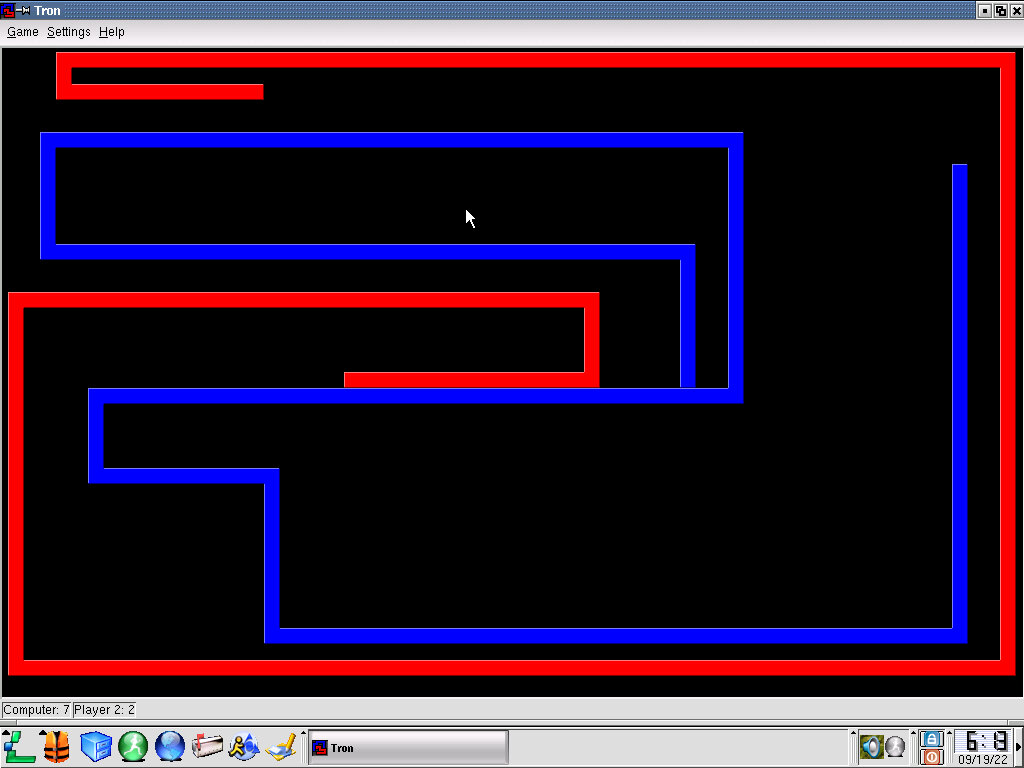
Tron: Tron game inspired by the movie, similar to the version included in Mandrake 7

Internet

Address Book: This opens the Netscape address book, here you can address contacts that are presented as ‘Cards’ which can then be saved.

Instant Messenger: Again this uses the Aim component of Netscape browser, which will sign onto the AOL instant messenger service.

Internet Dial-Up Tool: Connects and starts a dial up connection, intended for users who are using a dial-up modem which were still common back in 2002. This is a rebrand of the kppp utility.

Mail: Opens the Netscape client, which incorporates a mail client.

Multimedia & Design

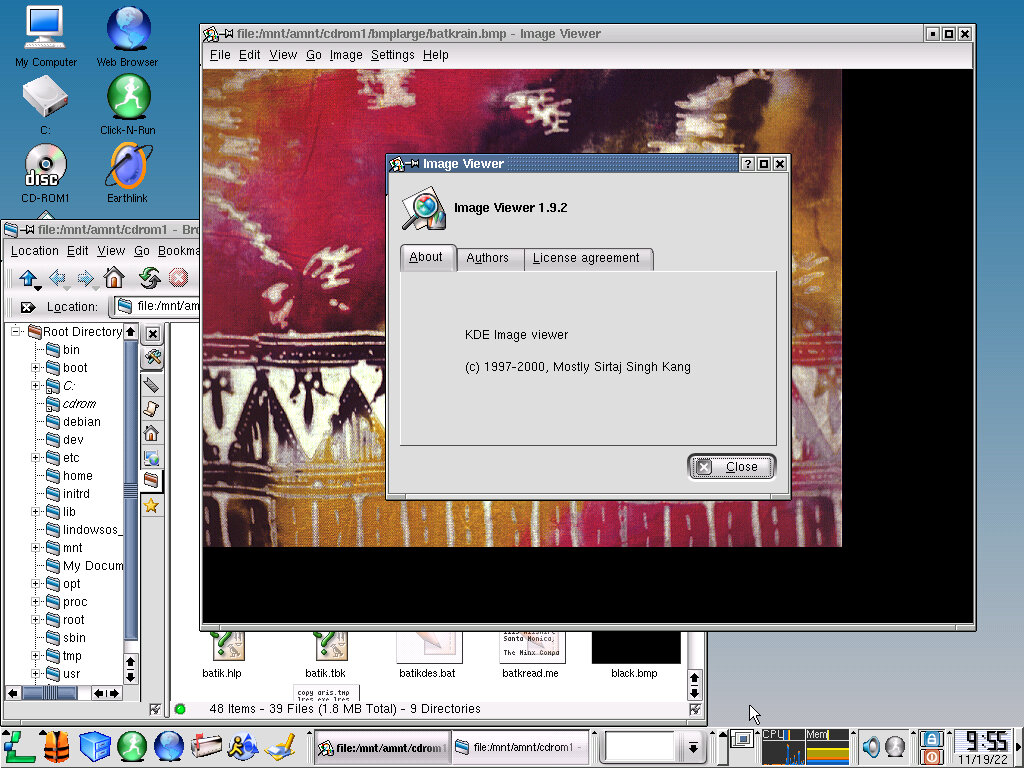
Image Viewer: KDE Image viewer

PS/PDF Viewer: KghostView 0.13.1 – standard PDF viewer

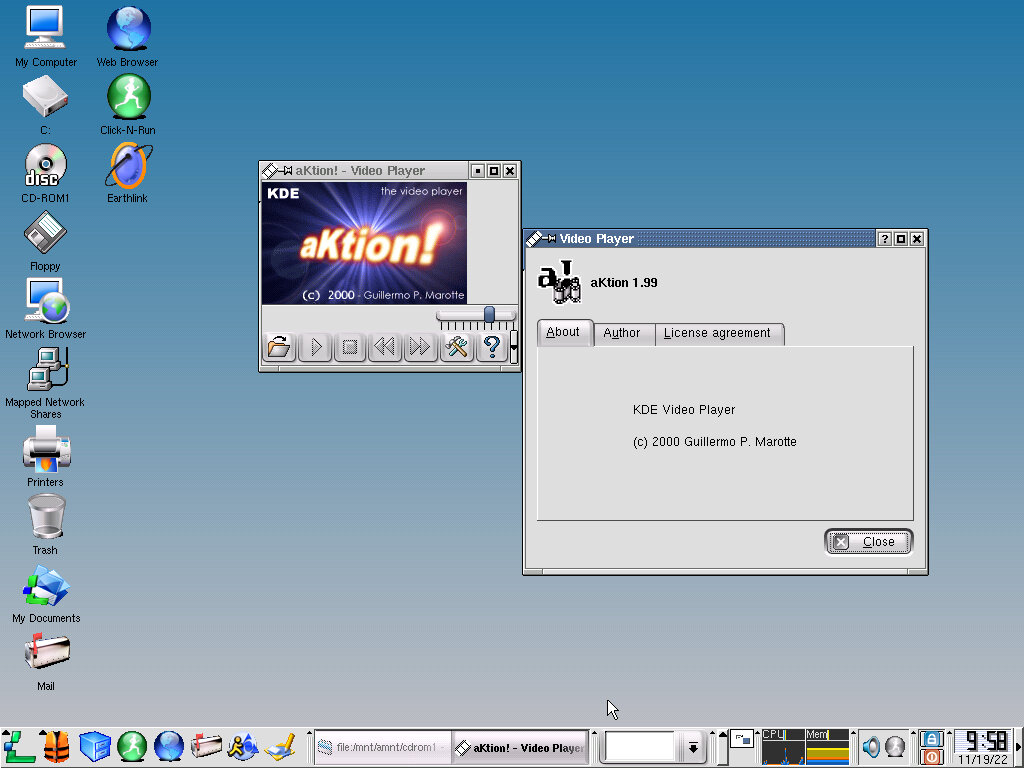
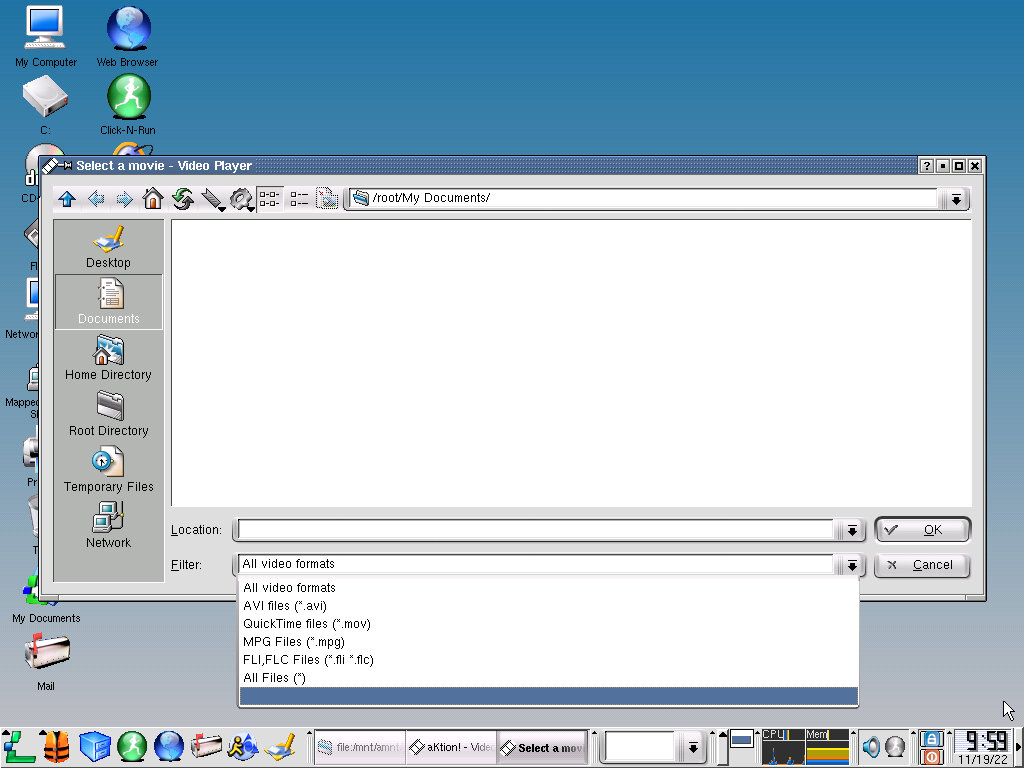
Video Player: aKtion 1.99 – Video file player, supports AVI/Quicktime MOV/ MPEG MPG and FLI/FLC files.

Utilities

Archiving Tool: Ark v2.1.9 – An archive utility to create or open archive ZIP and tar archives, along with RAR archives

Clipboard Tool: Klipper – Runs in the background and allows you to manage items copied to the clipboard

There are various other utilities like the Console, Floppy Formatter, KDE Help Center, KDE System Guard and the Network Share Manager

Third Party Software (Wine)

Wine comes integrated within the operating system which is supposed to provide some sort of Win32 compatibility. In practice whilst it runs the included Office viewers, experience with other Windows software is very poor, if not horrendous. With many graphical glitches and programs closing for no reason (possibly crashing in background).

I did attempt to run a set of popular Windows software that was commonly used when this operating system was released (2002) like MusicMatch, Also tried to use a few CD-ROM titles like Adi, and Microsoft Encarta. When switching an ISO image within the emulator, the virtual machine has to be restarted before it will see the new disc. Trying to browse the CD-ROM directory results in a list of garbled file names. I’m not sure if there’s a specific command that I’m supposed to run when swapping the CD image but its defiantly annoying having to reboot the system each time a new CD-ROM is inserted.

Third Party Software (Linux)

So I tried a few Linux games and applications that were also released in the period, these are actual ports of Windows games that were released for Linux in general.

Quake 3: Installed but did not run, would not even load in software rendering mode.

Simcity 3000: This also refused to run after install. I tried switching video cards just to see if that was the issue, but no luck.

I seem to remember experiencing the same issues with Corel Linux, but I put this down to the distro being too old to work. It’s possible a component is missing that is not installed but the setup program.

Postal: This one actually works… barley. I can get the game to appear but its not much playable with the window not filling the entire screen and the game running at a slower speed.

Terminate Application

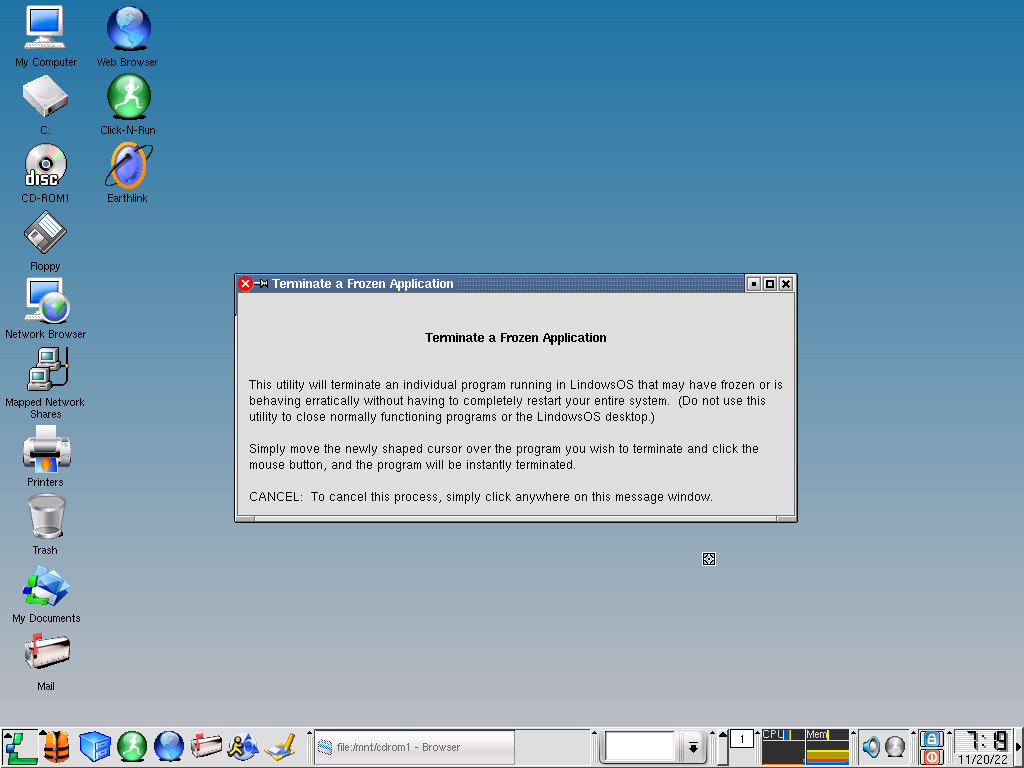
If a program becomes unresponsive, you can open the Terminate Application program, which is used to force close applications that become unresponsive. This is not without its problems, since clicking everywhere will terminate the process associated with it, even when you click on the taskbar or the desktop which will make it difficult, if not impossible to open applications. It seems like very poor design but I guess they didn’t think the user would find a terminal list of process appealing, still it means the user could accidently terminate a critical system process by accident, without any confirmation.

KDE Control Panel

Themes

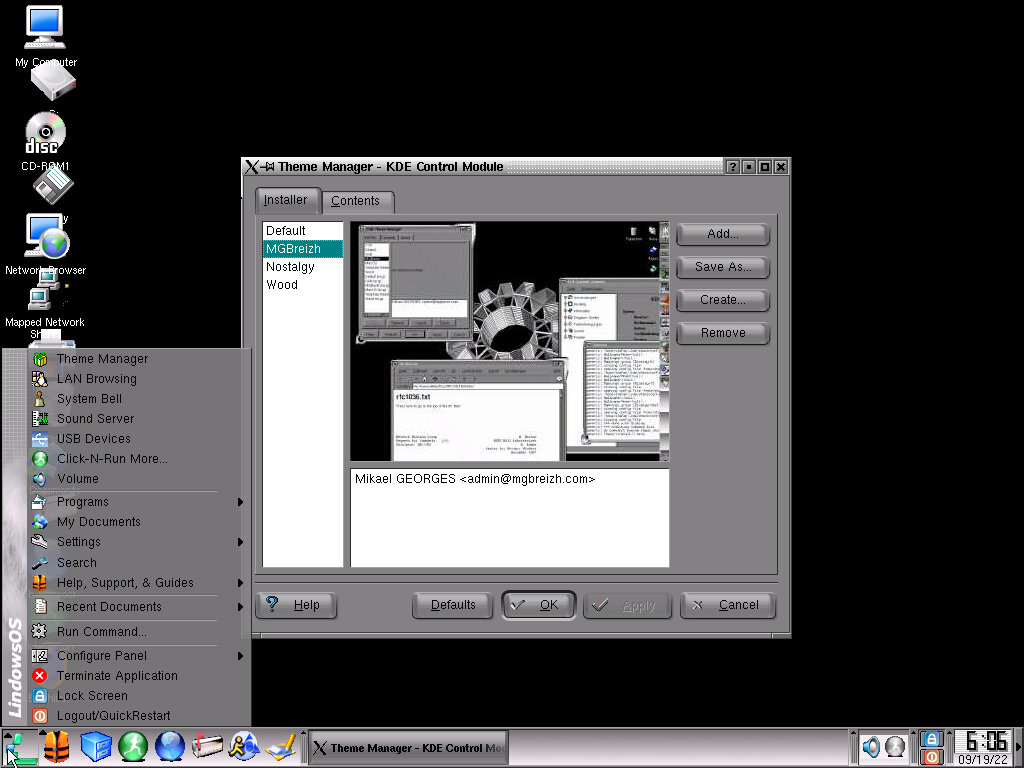
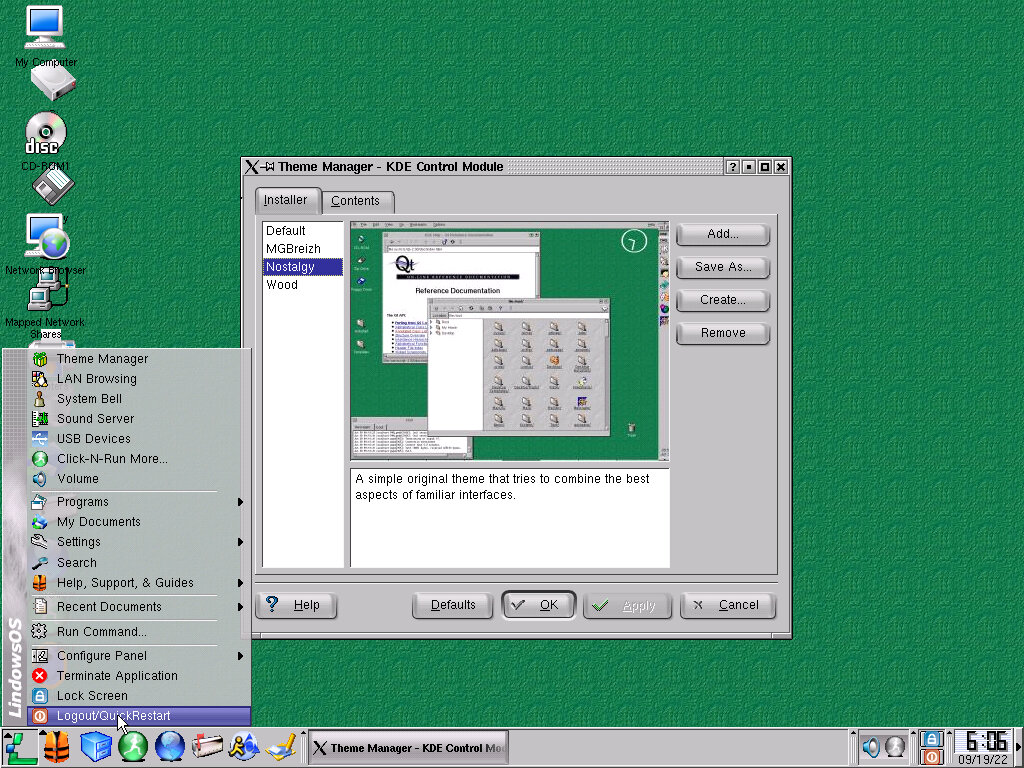
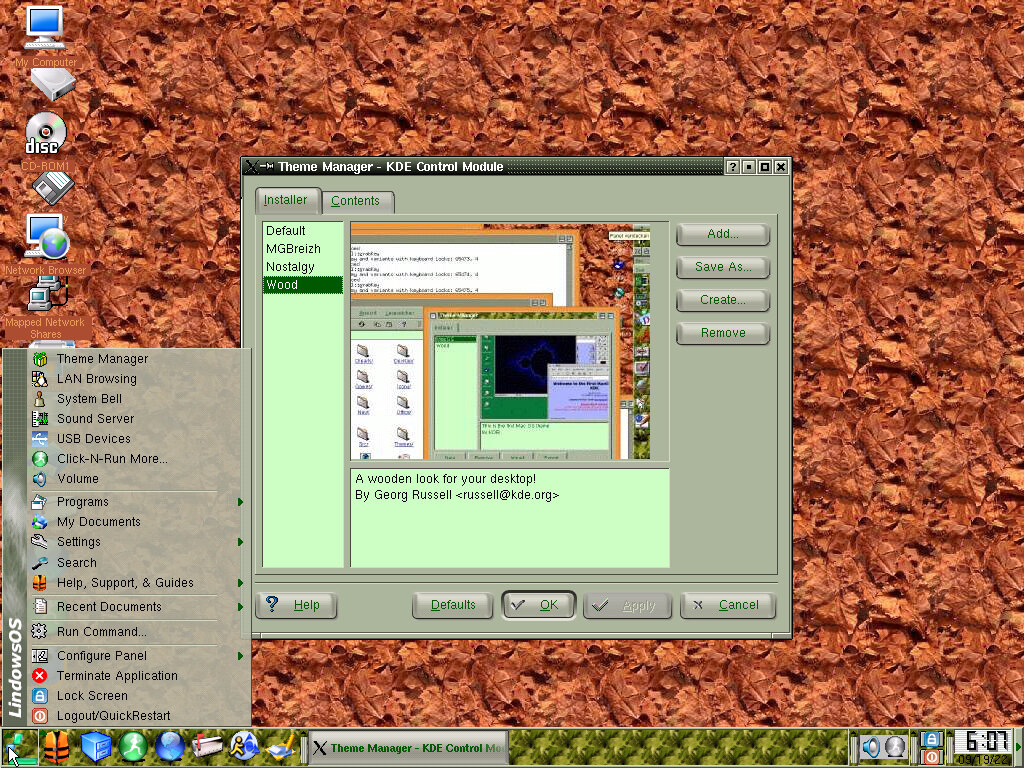
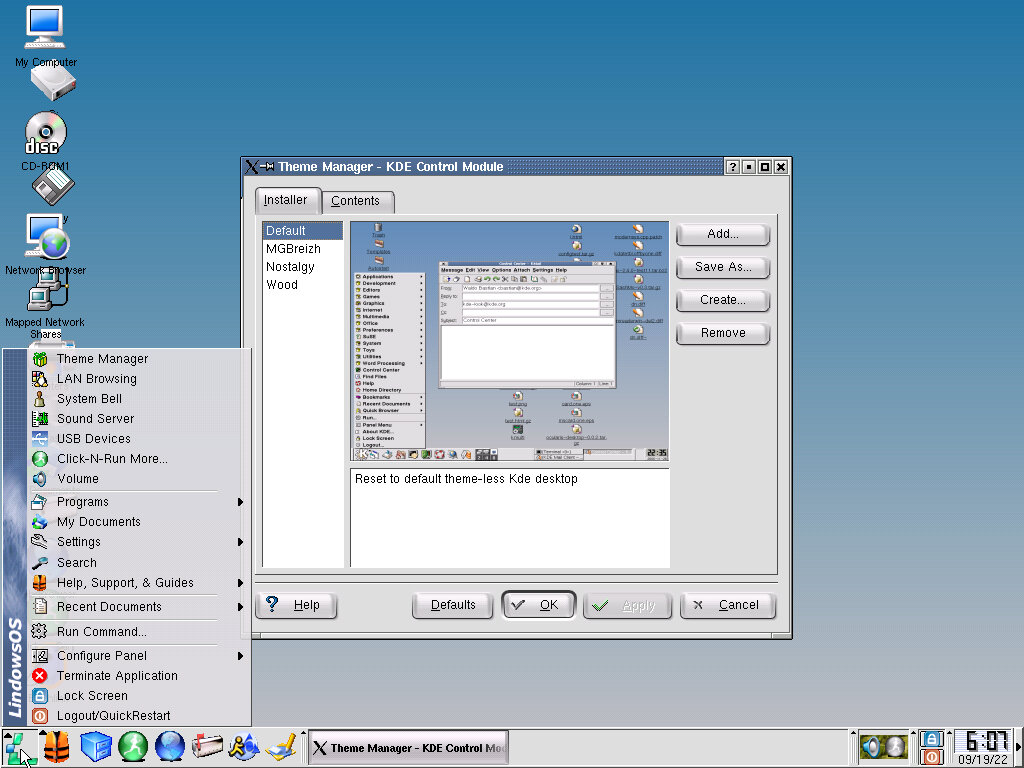
A few themes come bundled with Lindows, with additional themes to be downloaded

Screensavers

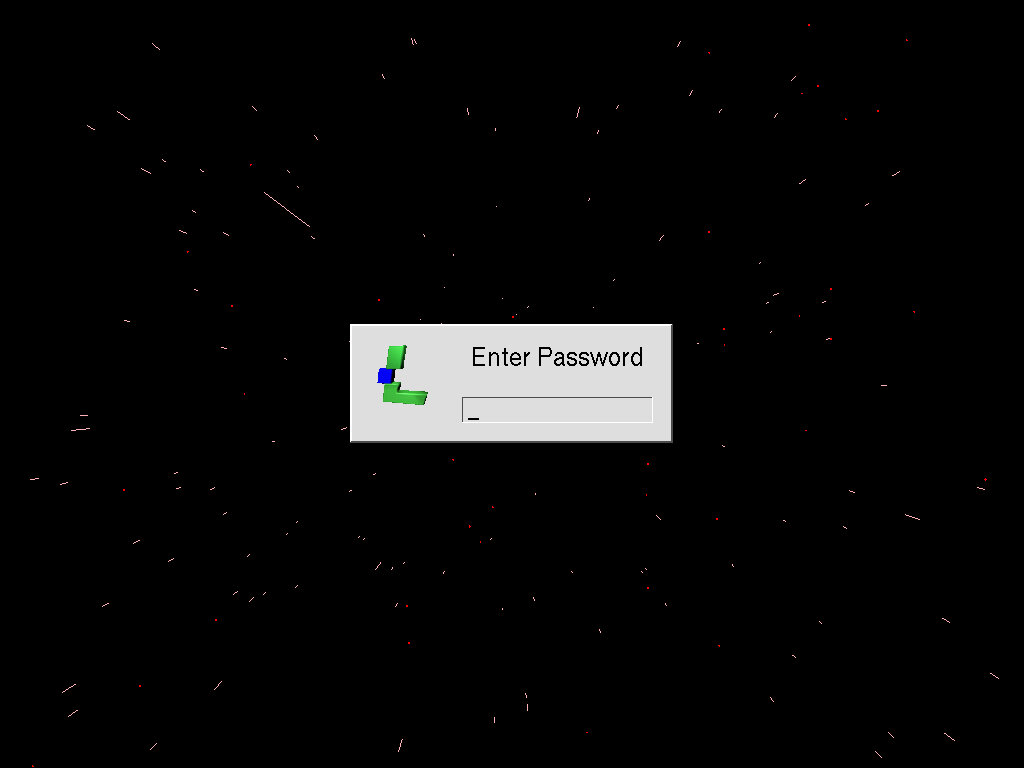
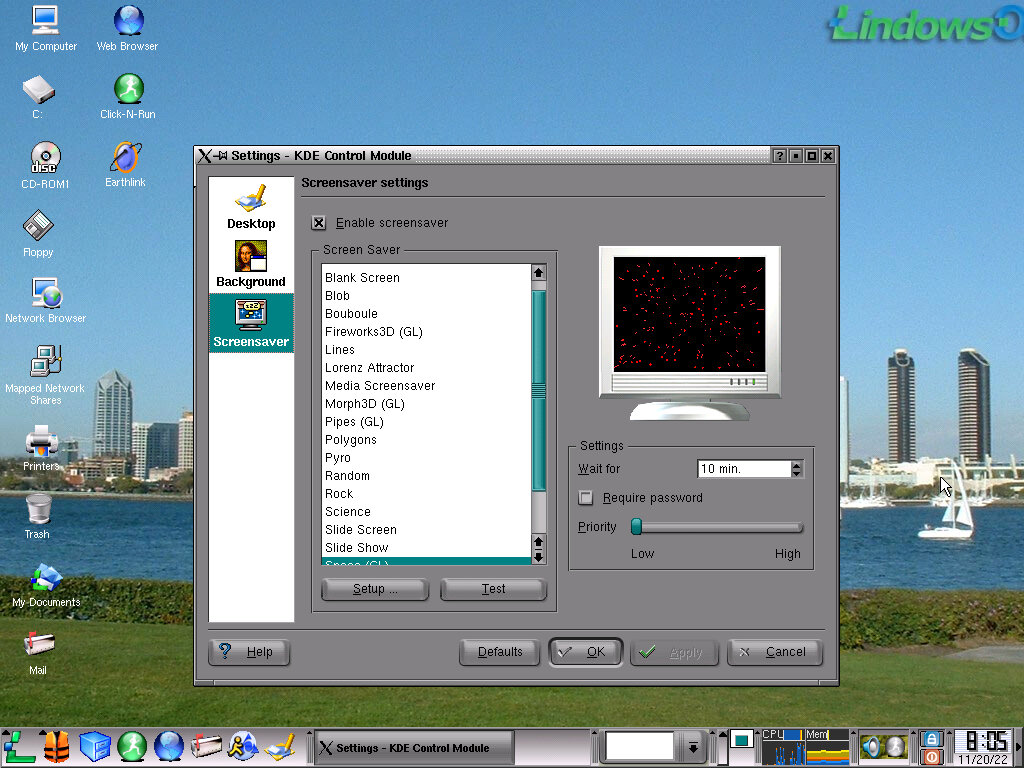
A collection of screensavers that come with operating system, like Windows you can set a password to unlock after a set amount of time. There are 21 screensavers that come included.

Shutdown

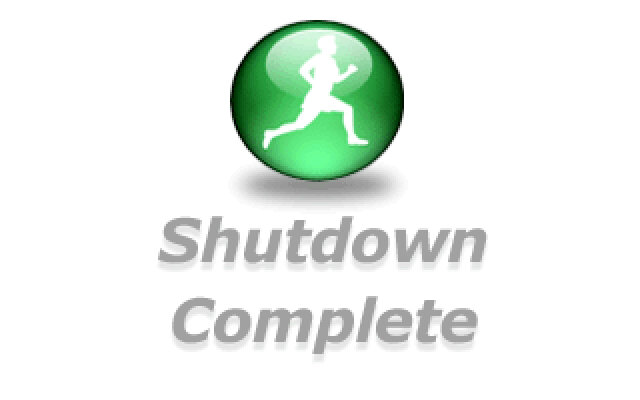
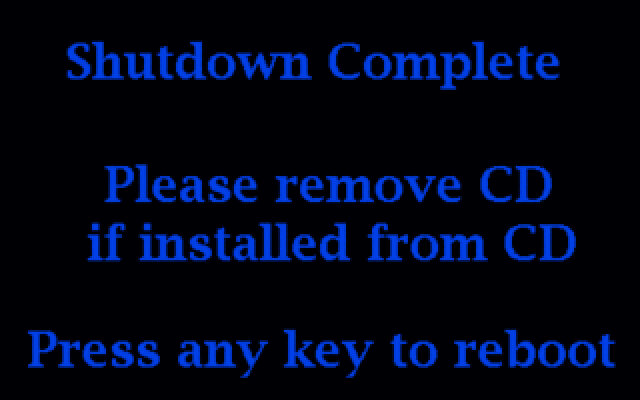
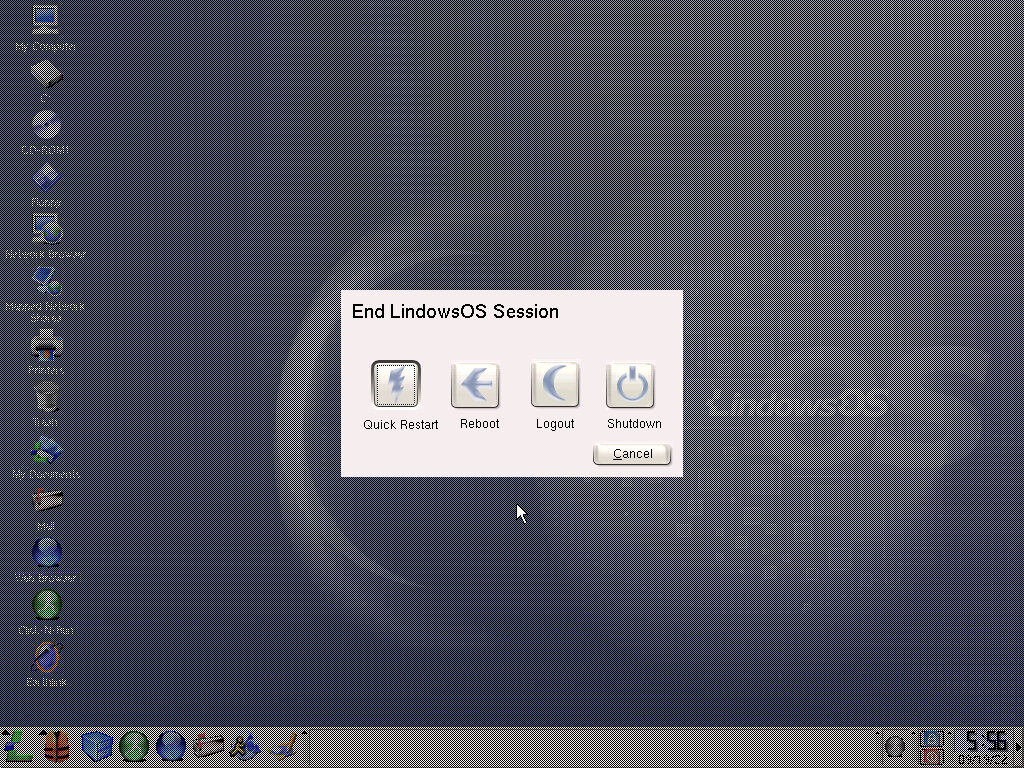
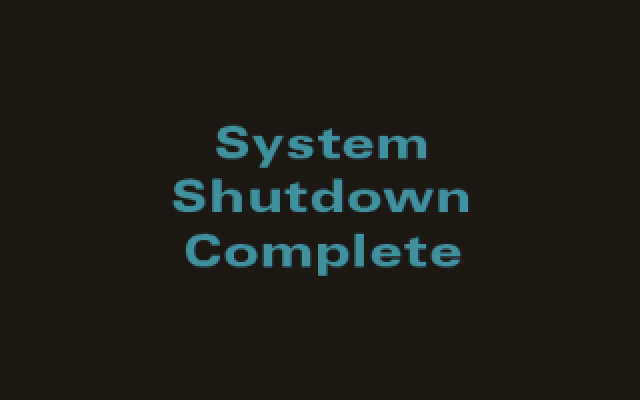
The shutdown process is similar to Windows, where you click on the applications menu, then shutdown. A menu will appear, giving you options to restart, enter standby mode or shutdown your PC. Upon shutdown, the system will close all running GUI programs, will drop down to a command terminal and eventually display the shutdown complete screen. If your PC is ACPI aware, the PC may turn off automatically.

Dell Venue Pro

The first and last Dell Windows Phone

Dell was one of the launch manufacturers for Windows Phone, back when it launched in 2010. The Venue 7 stood out compared to the other models thanks to its slide form factor which is reminiscent of the old Samsung slide phones of the era. A gentle push will reveal the phone’s keyboard, which looks similar to a standard PC keyboard in terms of layout.

Aside from that, it’s pretty much the same compared to other Windows Phone 7 handsets with its 5-megapixel camera, Qualcomm Snapdragon 1GHz processor with an Adreno 200 graphics core, and 16GB onboard storage. No micro-SD support so storage cannot be expanded.

This would be Dell’s last foray into the mobile market, Dell also had a few Android handsets like the Dell Streak and would produce a few tablet devices like the Dell Venue.

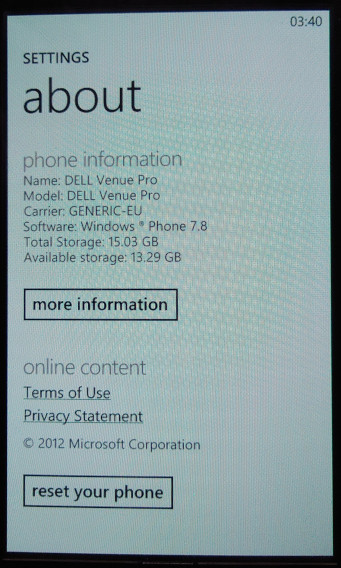
This handset originally ran the launch builds of Windows Phone 7 and was later upgraded to 7.8 which backported various Windows Phone 8 features.

Microsoft has slowly phased support for Windows Phone 7, with various services ceasing support. Bing no longer works, the app store has since been discontinued meaning you can no longer download and install applications for the device, limiting its capabilities as a smartphone. You’re pretty much limited to what comes with the device, which is very little in this case. The handset has pretty much become a basic feature phone with web browsing functionality but with Internet Explorer 9 the browsing is very limited with certain sites refusing to load due to how old the browser is and the lack of support for modern security protocols.

As someone who use Windows Phone from 2011 – 2017, it’s a sad state to see how this once fantastic but flawed mobile OS has been abandoned, kind of like seeing how deteriorated the Titanic wreck is.
Some things still work as of October 2022, like the search suggestions that appear when you type into the Internet Explorer search bar, and the Bing background wallpaper.

The games will certainly be missed as Microsoft actually put some effort into porting popular titles like Doodle Jump and Fruit Ninja, and also embraced new titles like Beards n Beaks and Wordament. All of these feature Xbox Live achievements and leaderboards which synced with your main Xbox profile.

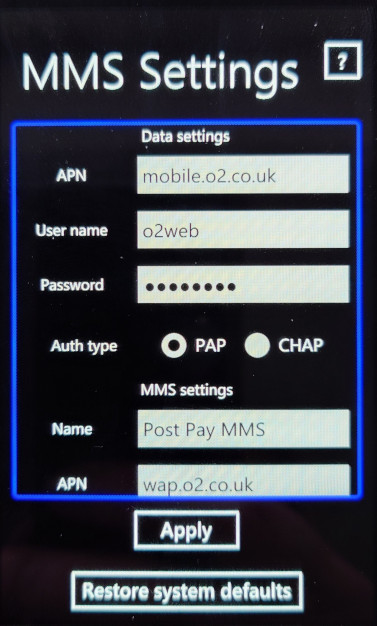
There are very few applications that are preinstalled, which Windows OEMs could do so. Considering this is a Dell, I’m surprised there no McAfree security preinstalled. The only one I can see is a network operation settings app, that lets you set the correct internet and MMS configuration for your network provider.

Music & Video

The Zune software is used to transfer media from and to the phone and is required for this purpose. You cannot use MTP to transfer content as the phones file system is not exposed to the host in any form. Its a very similar approach to what Apple took with the iPhone, where iTunes was the only way to exchange media to the phone. (Although later ios released supported PTP for easier photo transfers)

The problem here is Zune is partially broken on later Windows 10 releases since the conversion function is nonfunctional. This was useful for when you had high quality MP3 files that you wanted to transfer to the phone Zune could transcode them to a lower quality, say 128Kbps, and copy them to the phone. The result is a smaller file size in a more efficient WMA format whilst maintaining some form of quality.

Using Windows 8, 7 or Vista is recommended if you wish to transcode your music through Zune.

This does make the phone a kickass music player, and back when if was functional Zune pass was revolutionary for the time as it allowed you to subscribe to stream music from their library, similar to Spotify or Deezer today.

Lastly the Zune software could also sync podcasts and applications/games downloaded from the Zune store. This functionality has since been removed and has not been replicated, making it impossibly to load apps from your PC onto the phone itself.

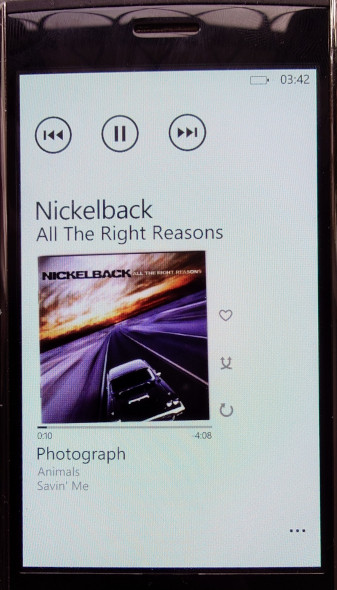
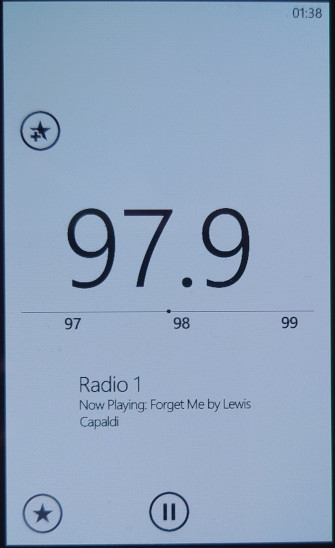
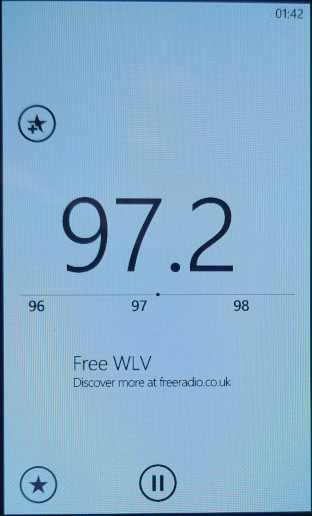
You at least get access to an FM radio, which lets you change the frequency by sliding your finger in the direction you want to scan. It can pick up station name indicators along with any supplementary information if broadcast by the station. You can also pin stations individually onto the start screen for quick access.

Conclusion

Well, it’s a shame to see that was once a smartphone has now been relegated to a feature phone, or even a dumb phone as compared to your typical Nokia or Sony Ericsson feature phone that has the ability to run third party Java programs, Windows Phone 7 now lacks this ability. Only merit it has is its Internet Explorer browser which is losing support by the day.

Nokia 6230

The 6230 was one of the major milestones when it came to multimedia handsets of 2004, whilst it lacked 3G network support, it made up for it with its 2G EDGE and Bluetooth support which allows for file transfers with other handsets that support it. A TFT colour display is offered which supports up to 65536 colours, but is stuck with the low resolution of 128×128. Marketed and sold as a business-class phone, which meant it included an email client and a calendar that could sync with an external server. A VGA resolution camera is included which is capable of capturing video.

The 6230 was another example of Nokia’s flagship handsets of the time and incorporated all of the common characteristics of Nokia, including exchangeable covers, a lanyard, and a hands-free port.

There are three soft keys, left, middle and right which can be used to activate certain functions depending on what’s displayed on the screen. The middle soft key is typically the select button, which is commonly used to confirm and enter menus. The left/right buttons are commonly used to go back or display an option/list menu.
Lastly, you have the common Send/End keys, also known as green/red phone keys.

Nokia would later continue to enhance the 6230 with the 6230i, which adds a larger screen, better camera and more storage, whilst sticking with the popular form factor.

Homescreen

This will look familiar to anyone who has used Nokia S40 phones in the past, with the signal and battery power meters on the left and right respectively, along with the network operator in the middle, which can be replaced with an operator logo if one is provided (very few actually did this).

The directional keys can be used as shortcuts to common menu items, like pressing the up button opens the camera, left will open the SMS message composer.

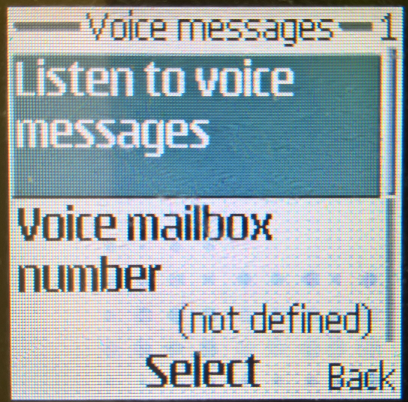
Speed dialing can be activated by pressing and holding down a key, which will dial out the contact number assigned to it. 1 will always dial out the voicemail number.

Menu Navigation

The 6230 uses the Series 40 platform, but with an updated icon set, still the menu layout remains the same as previous models.

Messages

Here you can create and send SMS text messages, or compose one using the built-in templates offered. Received messages can be entered into custom folders for long-term keeping.
There is also a distribution list for when you want to spam multiple contacts with the same message, you simply enter the numbers to send the message to or select from your phonebook, and your message will be set to multiple recipients. Useful for making an announcement or sending the same message to multiple contacts frequently.

Nokia smart messaging is supported, which allows sending and receiving of ringtones and black/white static images to other supported handsets (commonly Nokia) but also with some Samsung/LG/Motorola. There are 10 templates that have been included with the handset that can be sent.
EMS is not supported. Instead MMS is supported, which allows for photos and small audio clips to be sent using the phones data connection. Up to 100kb can be attached to a single MMS file.

There is an option or instant messaging, where it requires connecting to an instant messaging client. Possibly you could use this for AIM or MSN Messenger, but I believe these services required you to use their own mobile clients. Possibly this was intended to be used by the network provided instead, although it may only function for users on the same mobile network.
I don’t think any network providers in the Uk made use of the feature.

Lastly, there is also a built-in email client which supports POP3 and SMTP protocols which were commonly used in that time. However, it is very limited, which no support for attachments

Contacts

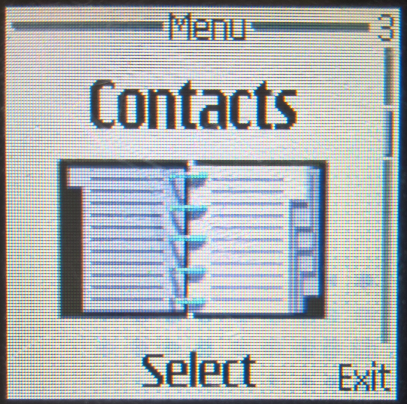
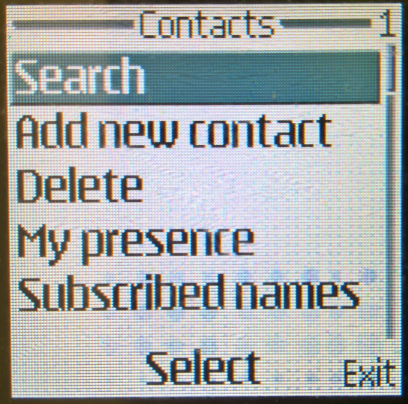
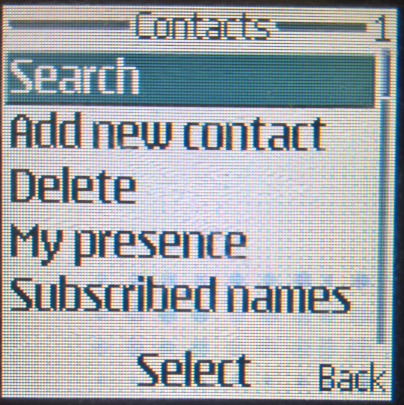
The Phonebook, up to 1000 entries can be saved to the internal memory, with a little more being saved to the SIM card. Contacts stored in the phone memory can have additional information assigned to it, such as the email address, home/landline number, fax number, office/work, and a photo of the contact assigned, which will appear onscreen when the contact shows. If a contact has multiple numbers assigned to it, the first number entered will be the default contact used.

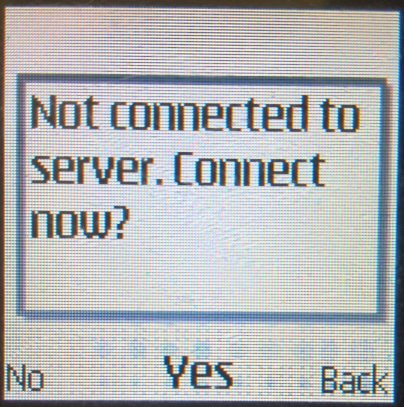
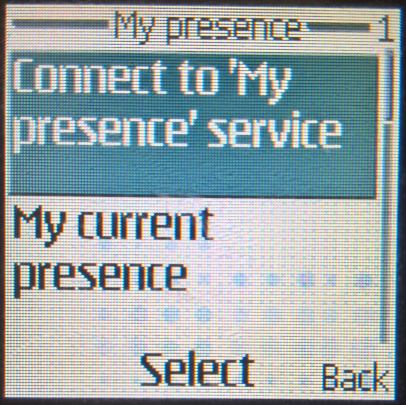
A presence service is supported, which lets you know if any contacts are available directly for chat, im not sure how this works exactly, if it uses some obscure GSM protocol to achieve this, but it was not widely used.
As mentioned earlier, the contact’s photo can be st to appear when the contact calls, although you are limited to using a portrait version of the contact, and its still hard to make out due to the low size and resolution of the display. Plus you are limited to 100 contacts that can have a photo assigned to them,
Contacts can slo be assigned to groups, upto 5 in total are supported. Each group can have its own custom ringtones.

Call Register

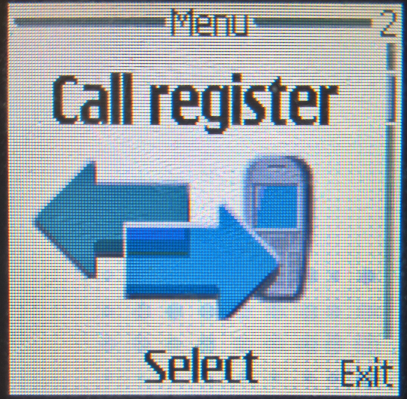
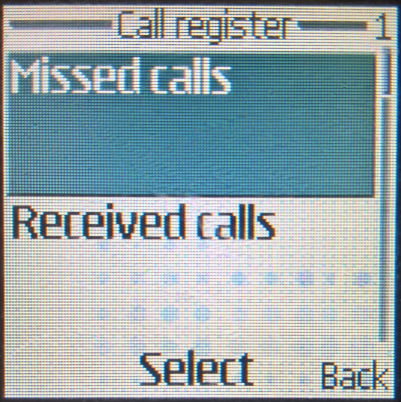
Three lists are stored here, each for received, dialed and missed calls. Each list can save up to 20 entries and will show the date/time of the call. You can also press the green call button from the idle screen to show the recently dialed numbers.

Settings

This section remains largely unchanged from the previous models, but there are some new options to take advantage of the added functionality

Profiles: Phone profiles can be set and configured from there, you can also access this by pressing the power button, located at the top of the handset.

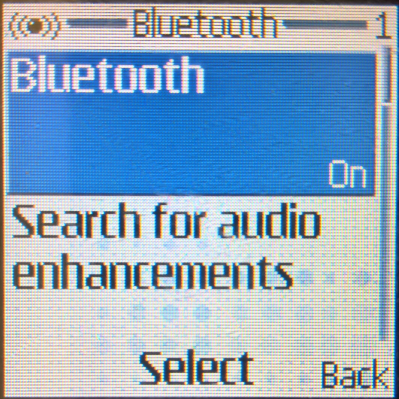
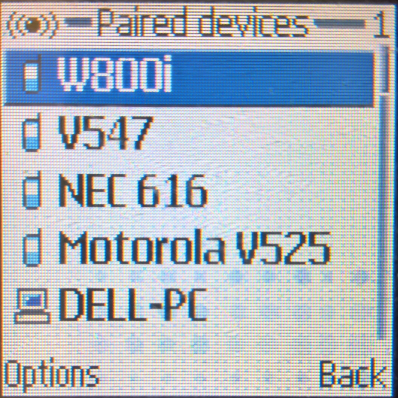
Communication: lets you access the Bluetooth, IrDA (Infra-Red) and GPRS sync settings. For Bluetooth you can set the device to be discoverable, view any previously paired devices and set devices to connect without any confirmation required.
The support of both Bluetooth and Irda is useful, as many laptops lacked Bluetooth support, but included Infrared support for data exchange. With additional software like Nokia PC Suite, you could use the GPRS connection to connect to the internet.

Gallery

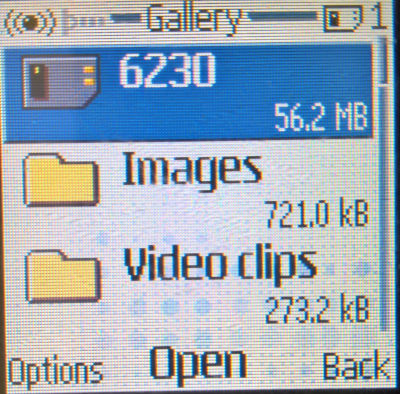
The file manager, here you can view any photos captured by the camera, or any of the ringtones and default wallpapers.
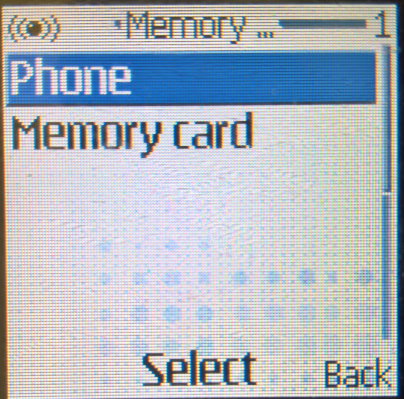
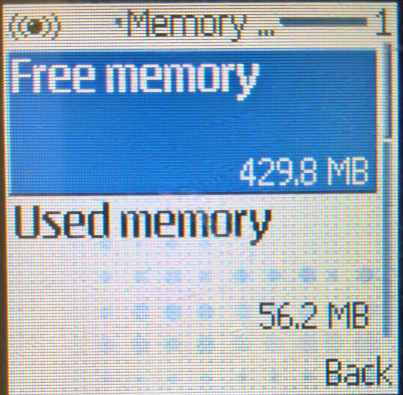
The memory card can also be accessed and managed here, and files can be copied over from phone memory to the memory card. Upto 128MB is officially supported, using the MultiMedia Card standard (MMC). The added storage makes the device useful for an MP3 player.
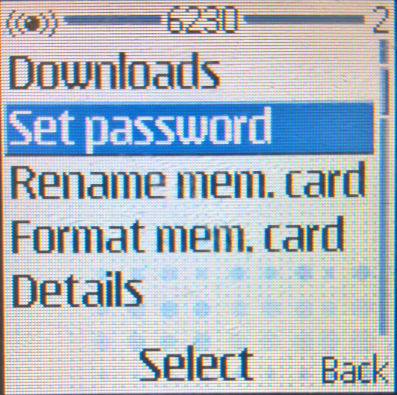
As a layer of security, you can set a passcode for the memory card, which must interfered when the card is inserted into another device.

One poor design decision is the Send soft key when you are viewing a photo, pressing it directly inserts it into an MMS message, however you assume it would give you a menu to choose from if you want to send via MMS, Bluetooth or Infrared.

Media

This is where you can access most of the phone’s multimedia functions,
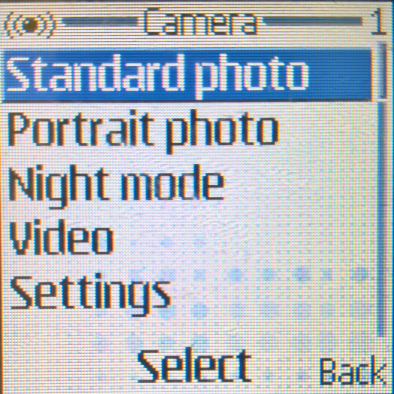
The Camera can capture phones in regular and portrait modes, and an added night mode lets you try to take photos in low-light conditions. The files are saved in the JPEG format, and three types of compression can be used.

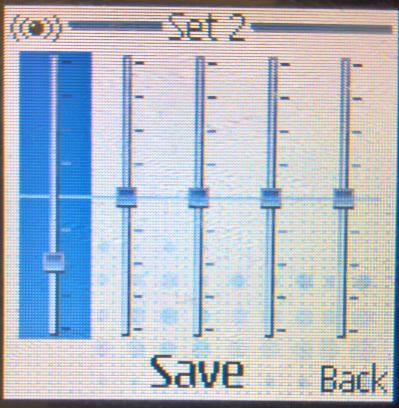
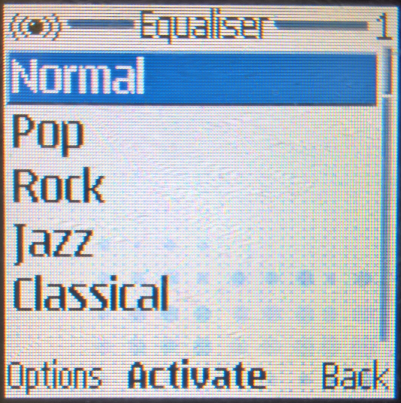
Media Player – Plays multimedia files like MP3 files. You can adjust the audio using the equalizer to adjust the sound output.

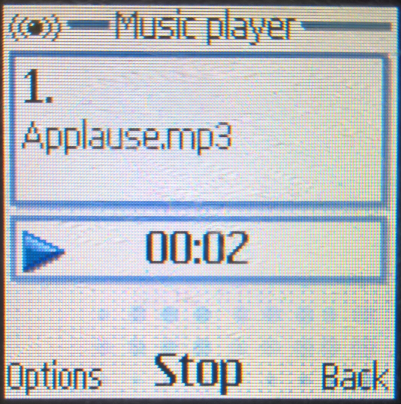
Music Player – Searches for and plays back Mp3 files, and supports the use of playlists.

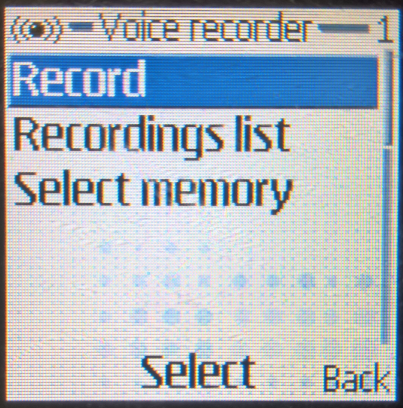
Voice Recorder – lets you record upto 3 minutes of speech, which can function during a phone call when the handset is on loudspeaker mode.

Radio – FM radio player, this requires the handsfree or the headphones to be connected, since it functions as the radio’s antenna.

Organizer

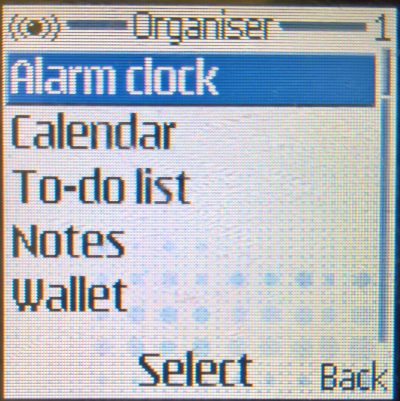
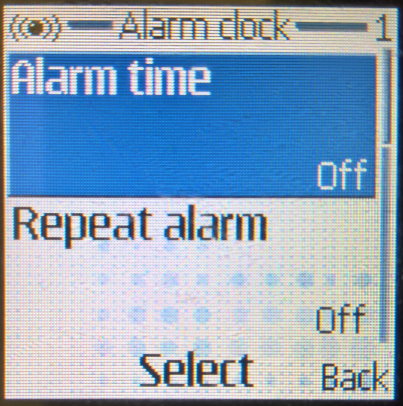
Alarm Clock: A single alarm can be set, and can be on set days of the week. A unique ringtone can be set for the alarm to distinguish it from the regular ringtones, or it can be set to play the radio, which requires the headset to be connected for it to play.

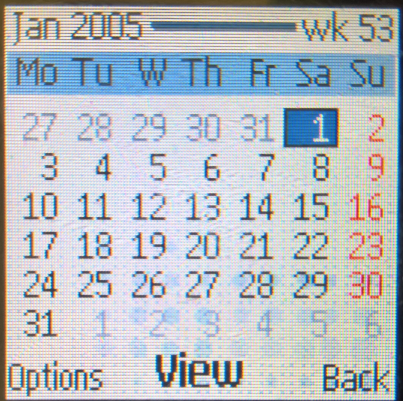
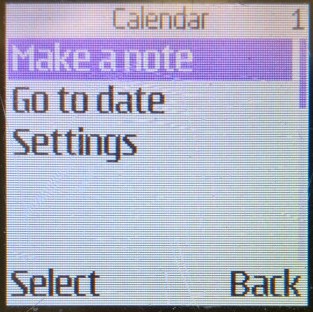
Calendar: A monthly calendar can be displayed, and up to around 200 entered can be set into the handset memory. You can view the calendar weekly or monthly, depending on which is preferred, and you can jump directly to a date, which seems to max out at the year 2080 of which the phone wraps around to 1980.

I’d be surprised if this phone will even be in use by then

Types of calendar events that can be added are meeting, call reminders, birthday, normal reminders and memo)

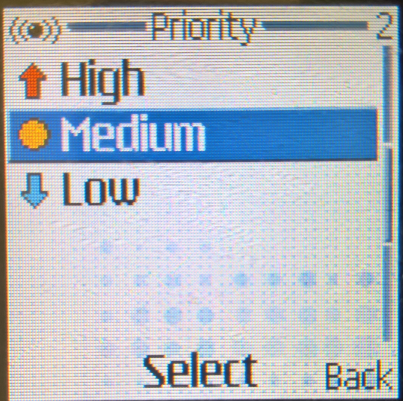
To Do List: Create occasions with three proitory rates, being High, Normal and Low, with the deadline date being set. The text editing interface is almost the same as the SMS composer.

Wallet: Information here can be protected by a passcode which makes it useful to store sensitive information like payment info.

Lastly there is a sync utility that lets you synchronise the data on your phone with an external server, which can then sync with a desktop PC or a PDA.

Applications

J2ME, which is the mobile implementation of Java is supported here, and Nokia have included a few games with the handset. Applications can only be saved onto the phone’s internal memory and is limited to 1.5MB which is shared across all applications.

Nokia also offered free downloadable games that could be downloaded through the internal browser.

Games that come included are Golf, Chess and a Beach Rally II. Additional games can be installed using the Nokia PC Suite, or through the WAP browser, but they have a chance of being installed under the Collection folder, rather than games.

For applications, a unit converter and a world time app are preinstalled.

Web

The XHTML browser, mobile websites could be browsed, and up to 20 bookmarks can be saved for easy access. There is also a service inbox that saved any web links your network operator may send. WAP sites can also be accessed, but these were quickly falling out of favor with the rise of proper mobile internet.

Photo Captures

Images have a VGA resolution of 640 x 480

ReplayTV

An alternative Tivo-like DVR that was introduced in 1999. Hardware was typically made by Panasonic although a few other brands existed also.

ReplayTV had a few defining features, one of which was the ability to share shows between two compatible DVR units, providing both had ethernet sockets. Another feature was the ability to skip adverts completely with the touch of a button. Naturally the TV industry hated the idea and ReplayTV (SonicBlue) was sued because copyright matters more than human rights.

Like Tivo a separate subscription was required for your DVR to receive EPG data

Main Menu

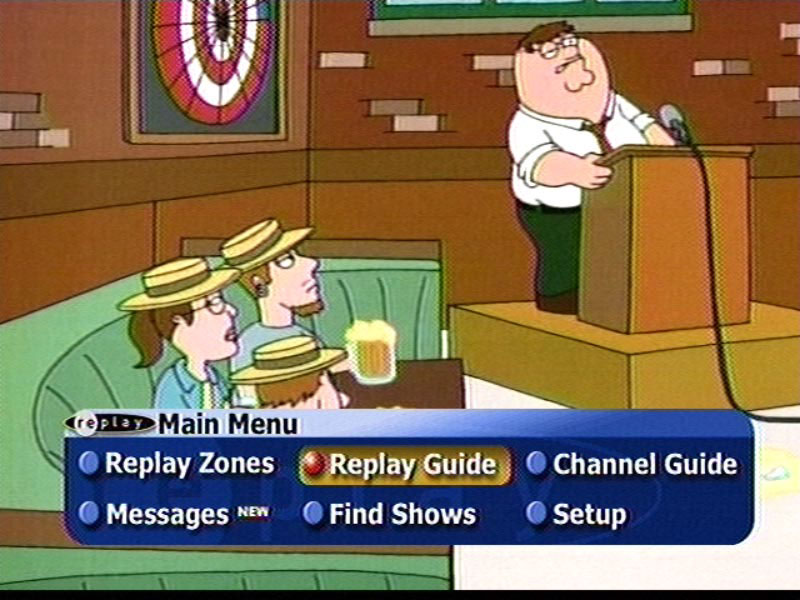
To begin using ReplayTV the best place to start is the Main Menu.  To access the Main Menu, simply hit the menu button at the bottom of the ReplayTV Remote Control.  The main menu screen is available without leaving the current channel.  It pops up as a small section at the bottom of TV screen and presents the following options, most of which are also available directly on the remote control.

  • ReplayTV Guide – This shows the ReplayTV Channels you have created.
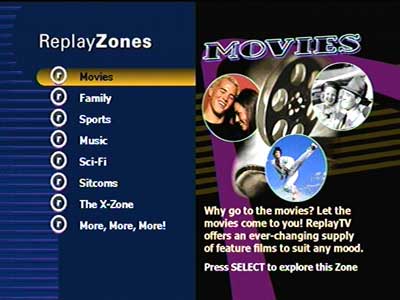
  • ReplayTV Zones – ReplayTV Zones are common themes of shows organized together.
  • Channel Guide – Shows a grid-style TV guide for selecting something to watch.
  • Messages – Shows any messages you have received.
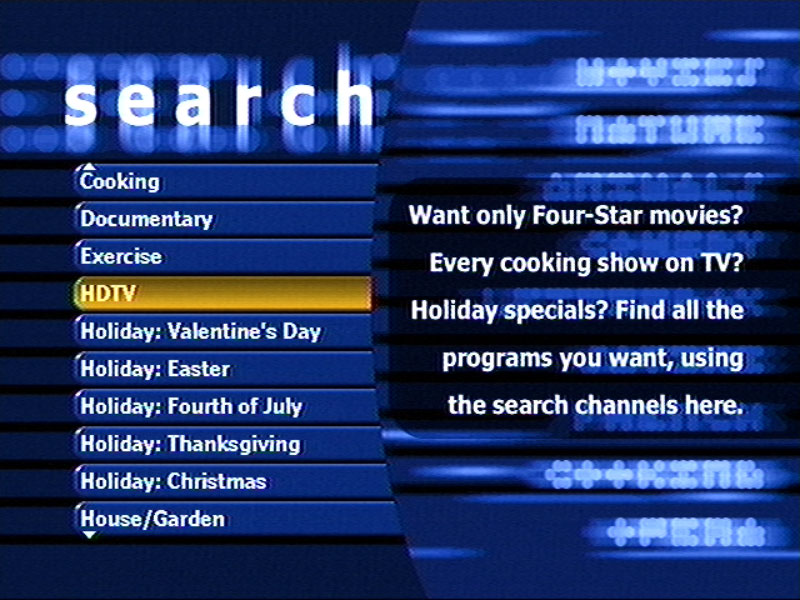
  • Find Shows – Search tool to help you find something to watch or record.
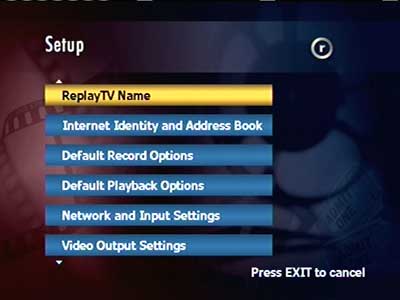
  • Setup  – Configuration of the ReplayTV TV Reciever.

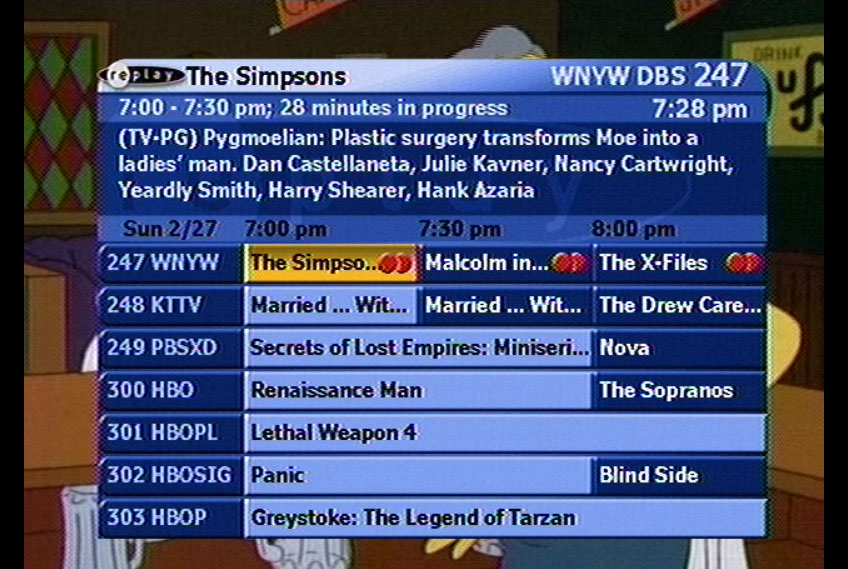
ReplayTV’s channel guide is pretty conventional.  It is a Grid style Guide that shows 6 channels down and 1 1/2 hours across.  It also shows the currently selected channel, title, time, and description of the show. One very cool feature is the way it shows your position in the selected show. Rather than showing how much time is remaining, which is pretty useless information,  it tells you how far into the show you are.  For example, on a thirty-minute show that has 10 minutes left, the ReplayTV will say 20 minutes in progress. This is great if what you want to know is how much you have missed.

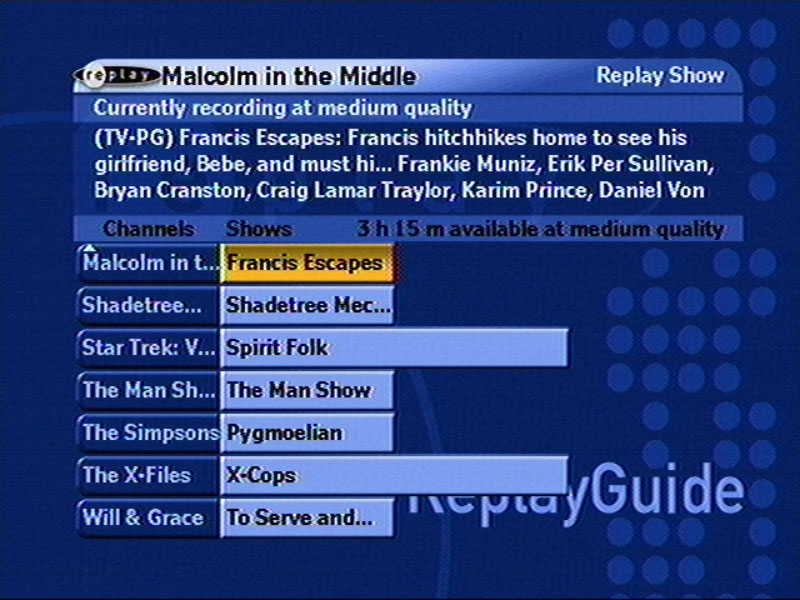
Rather than organizing the recorded shows into a simple list, ReplayTV decided to use a concept similar to a grid-style guide to organizing the recorded shows. When you select shows to record, whether they are setup to record based on a theme or setup to record a specific show, they appear as a channel in the ReplayTV Guide.

ReplayZones are logical groupings of shows.  For instance, there is a ReplayTV zone for NBC and Cartoon Network, which lets you explore some of the best shows on the channel.  There are also zones for Movies, Comedies and ReplayTV Picks.  The ReplayTV Movies zone shows various movies that are coming to a channel near you organized by category  ReplayTV Sitcoms, shows you comedies organized by audience, such as 17 and over.  Finally, ReplayPicks lists a random show in various categories that you might want to watch.

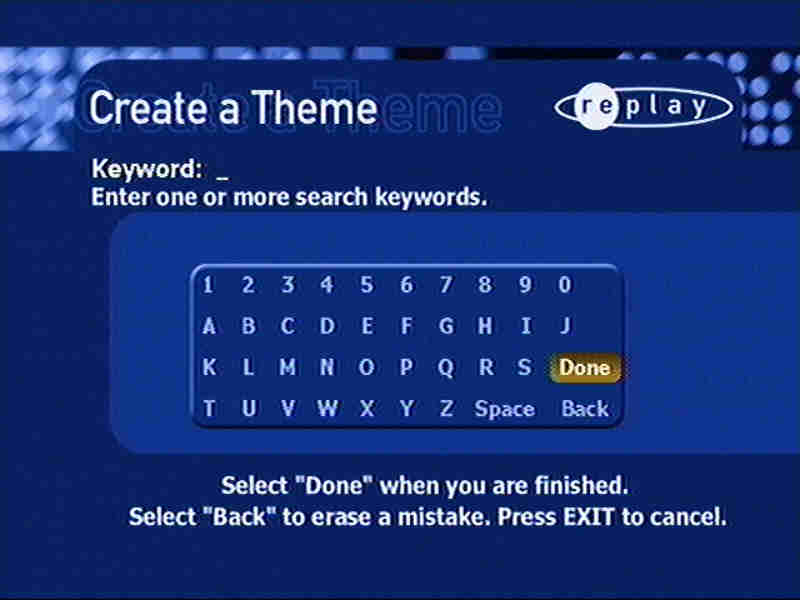
Also in the ReplayZones screen are two other options, Search and Create a Theme.  Search allows you to search for shows based on a large number of pre-created groupings, such as ratings, or genres.  The Create a Theme option allows you to specify your own keyword searches to use for looking up shows that will be recorded.  You can also specify if the keyword will be compared against actors, directors, titles or part of the description. These themes show up in your ReplayGuide as channels and are great for creating themes for related shows when the title isn’t the same. 

As with all PTV Receivers, there are certain features that separate these boxes from VCR’s   And ReplayTV is no exception. For instance you can pause, rewind and fast forward Live TV.   When you hit pause the box will begin recording to the hard drive.  This happens regardless of whether you are watching Satellite or Cable programs.  Also, whenever you change the channel,  ReplayTV immediately starts recording the new channel.  This means that you can rewind at anytime to the point where you switched to the current channel.  You can also jump backward or forward to live television at the touch of a button. 

Further Information

The Replay Zones menu was redesigned to a more flat and simple appearance

A slideshow composed of various photos can be played back

The Setup menu

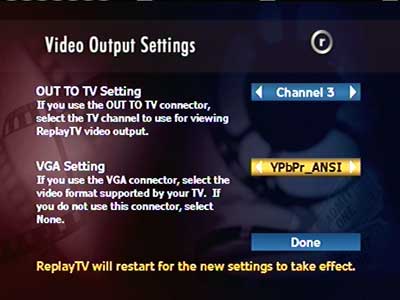
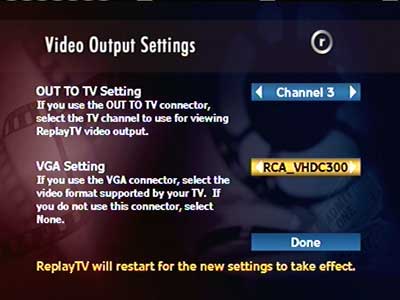
Video output settings, The RF output channel can be changed, along with the VGA output standard

Many early HDTV TV’s used either VGA or DVI to display the HD signal, as HDMI was not standardized at this point

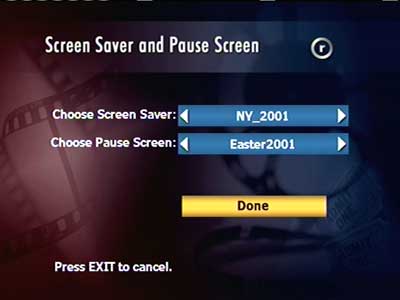
Configuring slideshow settings for displaying photos

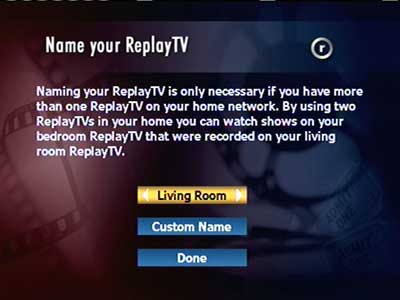
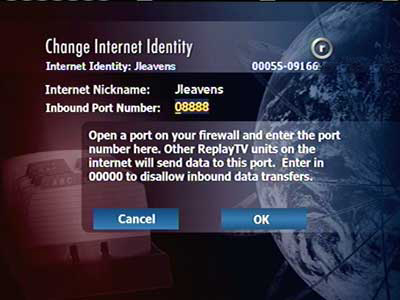
Multiple ReplayTV units can exist on a network, and a unique name can be used to identify an individual box

Quality settings can be changed, as the DVR captures analog video from its composite input

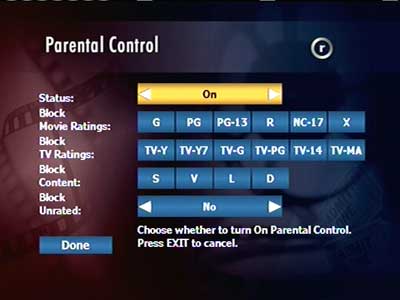
Parental control settings

Settings can be applied depending on the age rating

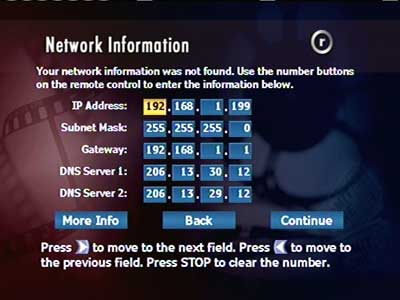
Manually setting an IP address

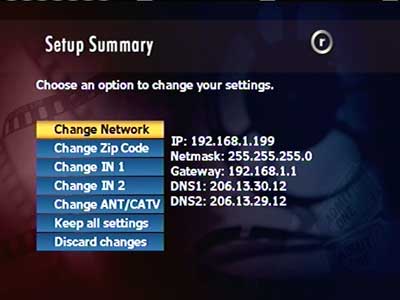
Another view of the network settings

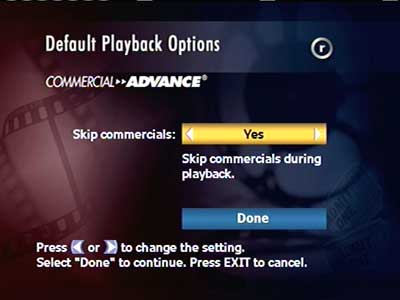
A controversial feature allowing you to skip advert breaks entirely. Other DVRs like Tivo require you to manually fast forward.

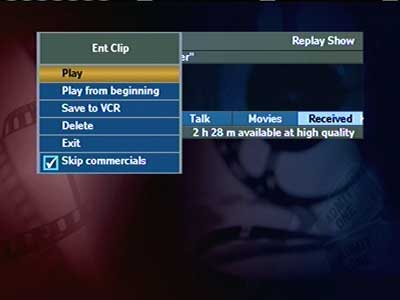
Playing back a show, which gives the option to archive to a VCR

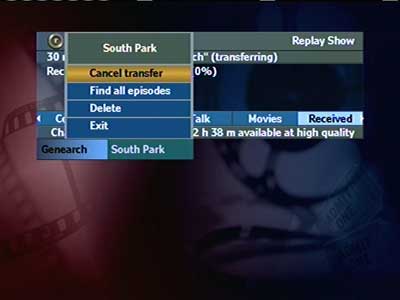
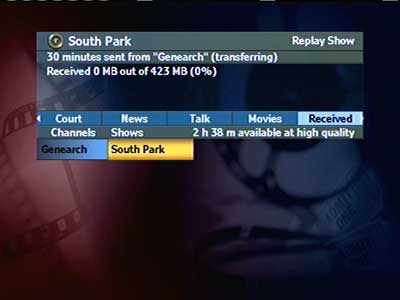
Transferring shows to another DVR over the network, I bet the networks would have loved that.

Icon that is displayed when you skip forward in a recorded show

Looks like a hidden test/setting menu

Samsung E800

The Samsung E800 was one of the first generation of Samsung’s slide form factor which is semi-automatic. A gentle push will make the slide mechanism open and close automatically, spec wise it was in line with their other models of the time, with a VGA camera and a 128×160 resolution screen. It’s very similar to the Samsung E600 in terms of specifications, but has a different screen aspect ratio and uses the slide form factor. Memory capacity has been increased, with 19Mb for user storage, and 3Mb reserved for Java apps.

The screen of the device is 128x 160 resolution, and can display up to 5 text lines. The font is standard for Samsung’s phones of the era and is nice and readable, even outside.

Missing however seems to be Bluetooth functionality, with only IrDA being offered for wireless connectivity, alongside 2G GPRS. On the side there is a handsfree connector, intended for use with the optional handfree accessory, you can also connect the D500 external speaker to this connector.

Home screen

The menu system uses a grid-like layout interface, and the numeric keys can be used as shortcuts to access different menu items.

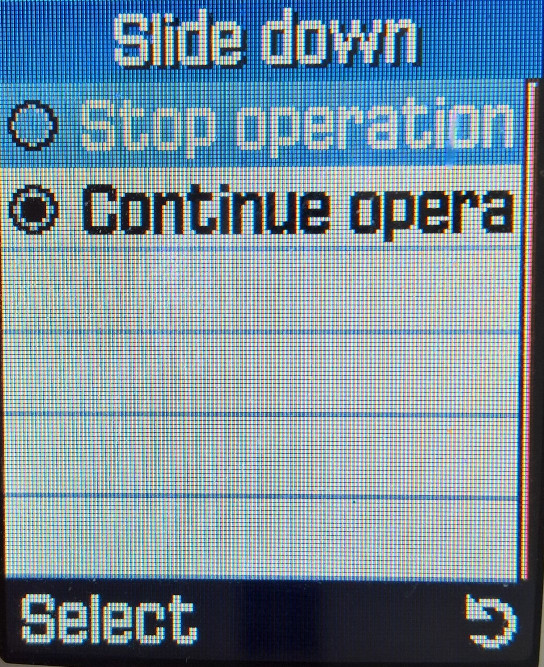
Being one of the first Samsung models to come with a slide form factor, ergonomically the phone is designed to be pushed up withyour on directional buttons, a gentle push is all thats needed for the phone to slide up. The phone is capable of functioning even with the slide down, although you cannot access the camera or numeric functions. The phone automatically locks the front visable buttons when the slide is closed, which prevents accidental operations when the phone is in your pocket, you can still unlock the phone if you need to quickly access or show photos.

Phonebook

Contacts are saved to either the phone memory or the SIM card, the storage capacity of up to 1000 on the device, and 250 on the SIM card (depending on the SIM card itself, could be less for older SIM’s. Contacts can also be shared via infrared.

When contacts are saved to the phone memory, you can set picture for individual contacts and can store and manage them into groups (Home, work, friends), of which a specific ringtone can be set for that contact. Up to 10 groups can be set.

Call Records

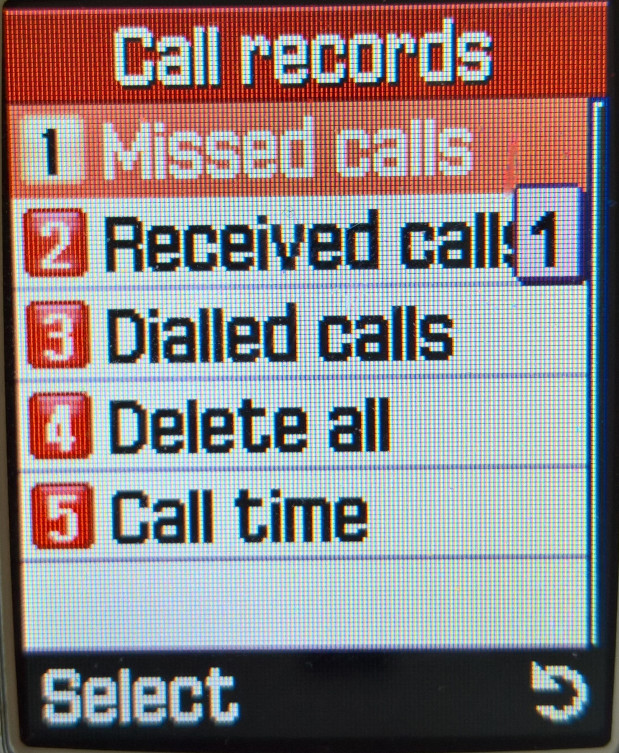
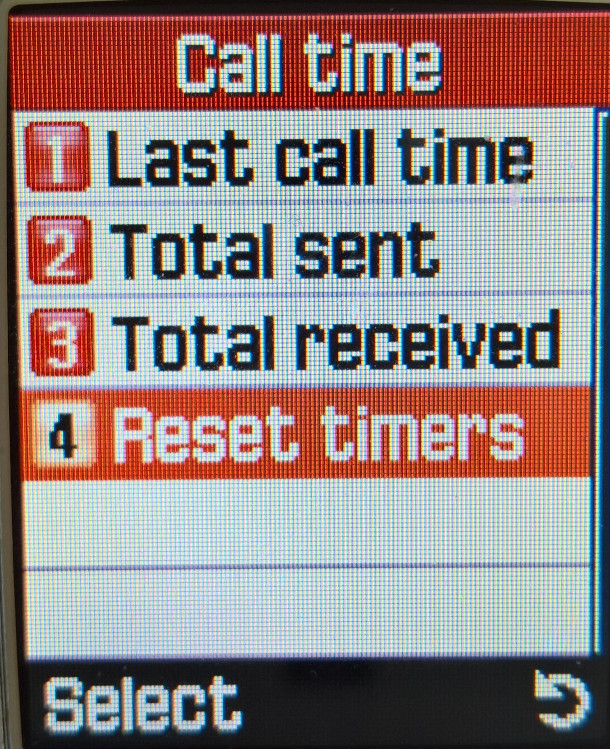
Call records can be accessed here, and by pressing the green phone button from the home screen. The handset can show the total time spent on the last call, and for all calls made in total.

Network

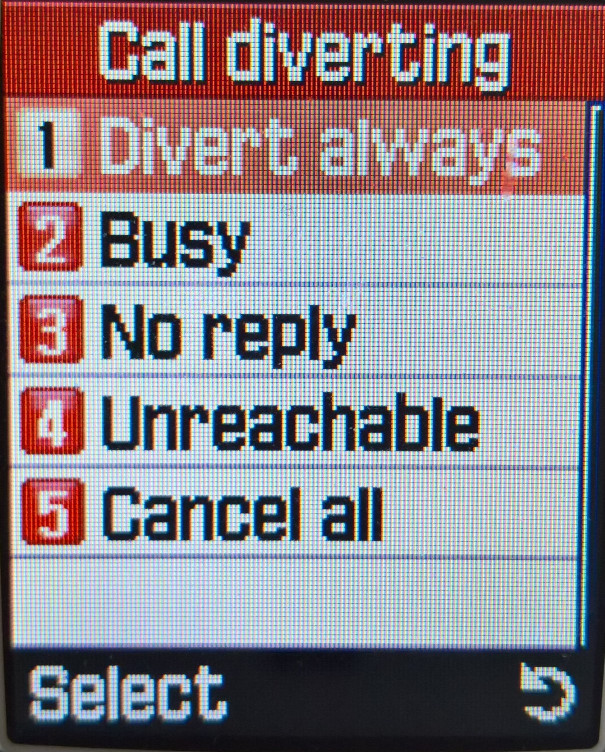
Call diverts can be managed here, and you can manually select the network to connect to if your SIM card has permission to access it.

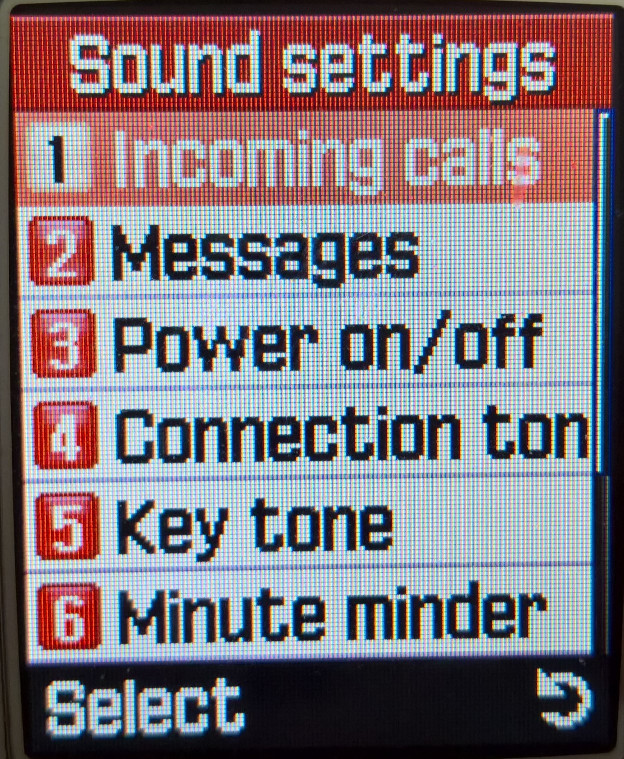
Sound Settings

Alert and ringtones can be set here, along with any alert and menu sound the phone is capable of making

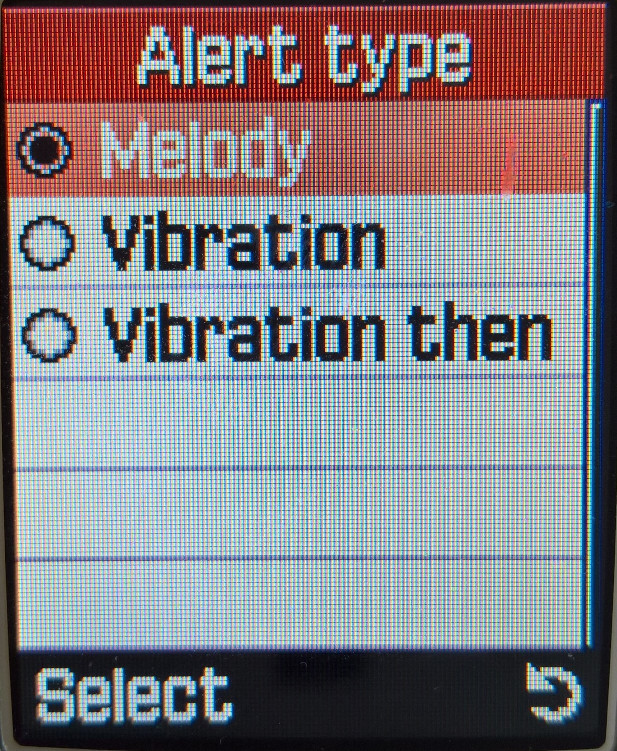
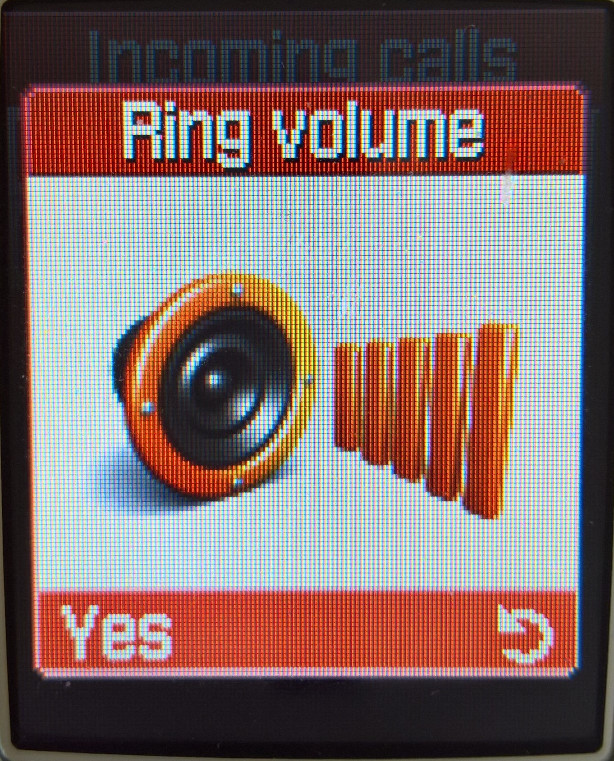
Incoming Calls

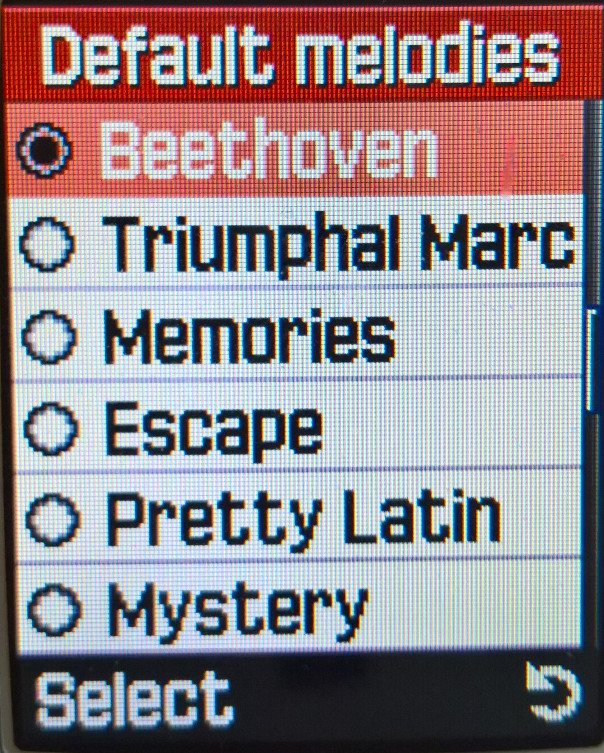
There are 30 default ringtones, plus 15 additional pre-downloaded ringtones. More can be added using the PC Suite software, which comes with up to 100 ringtone samples that can be transferred over. These are saved to the My Sounds folder.

Messages

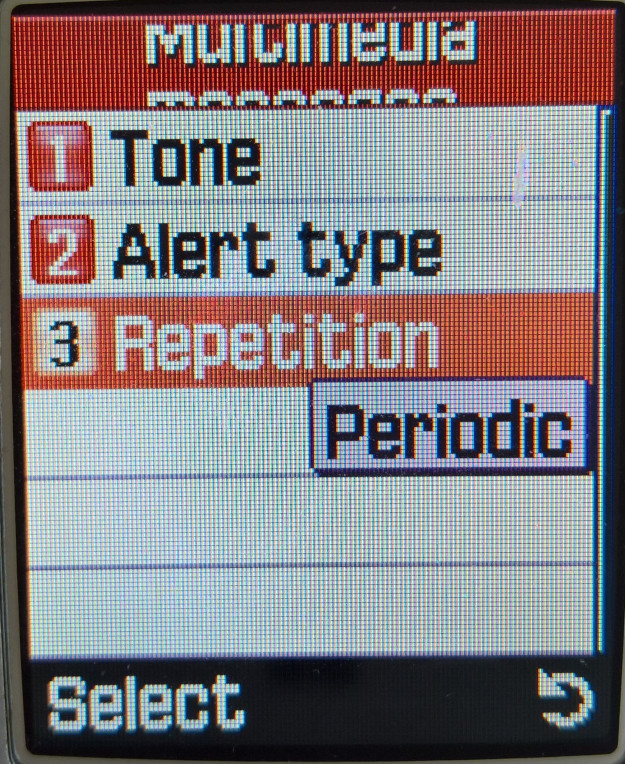
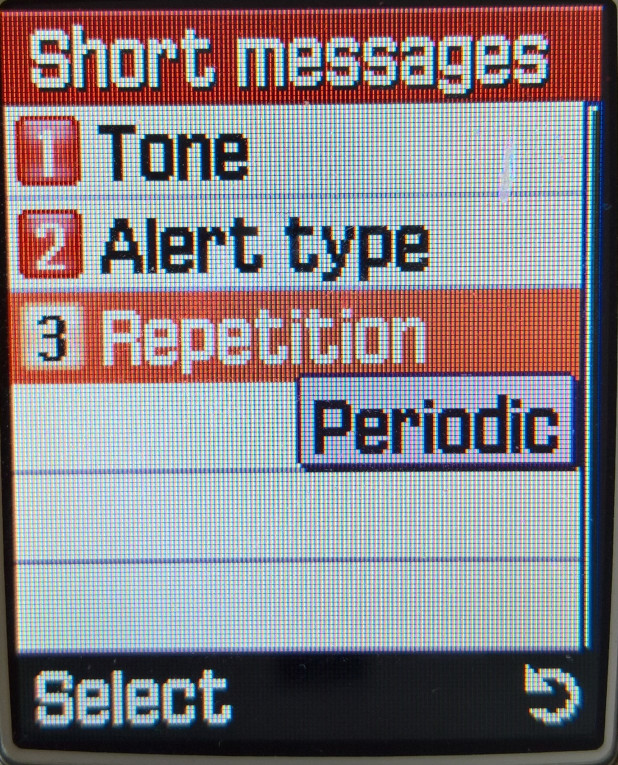
SMS message alerts can be repeated until they are read, useful if you are away from the phone for a period of time.

Other Sounds

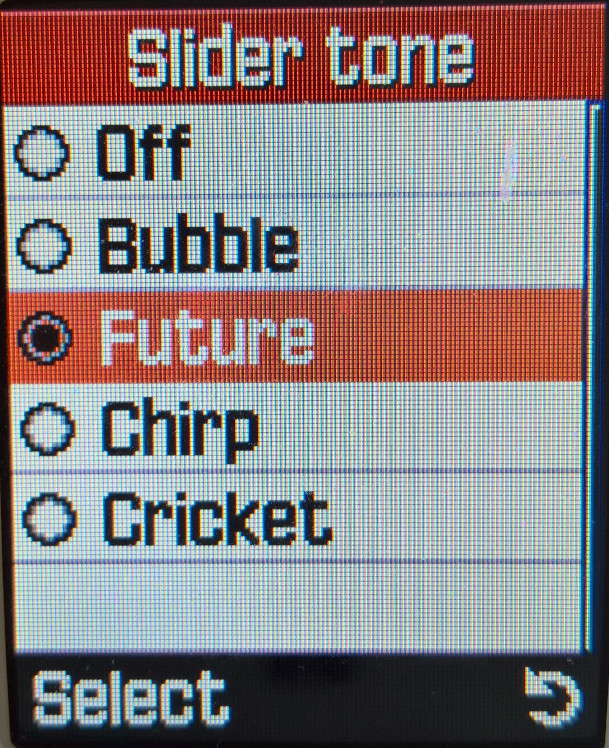
The handset will make a sound when a key is pressed, or if the slider is moved up or down. The minute minder sounds a beep every minute, allowing you to keep track of how long the call is, useful for pre-paid and customers on a limited call plan.

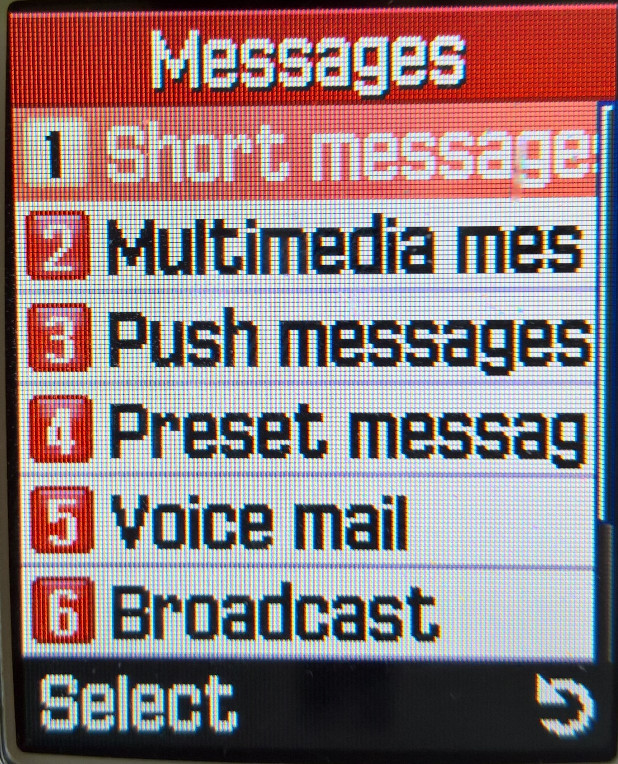
Messages

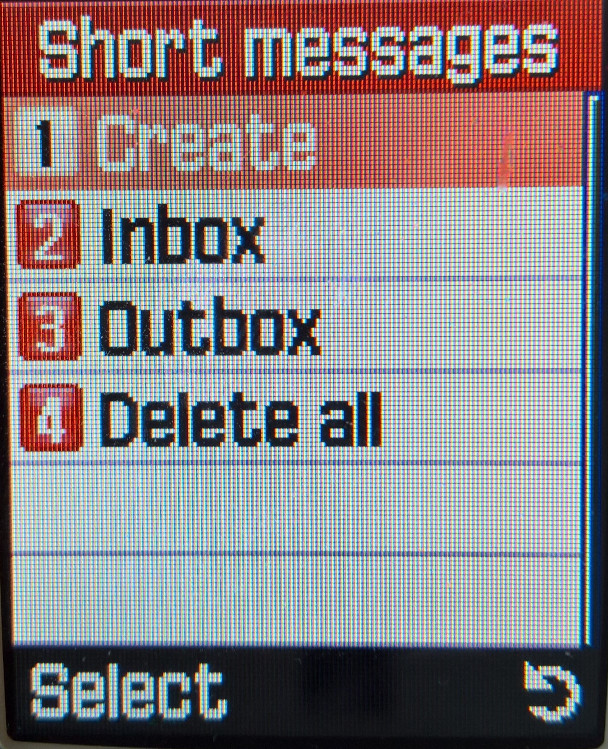
Short Messages

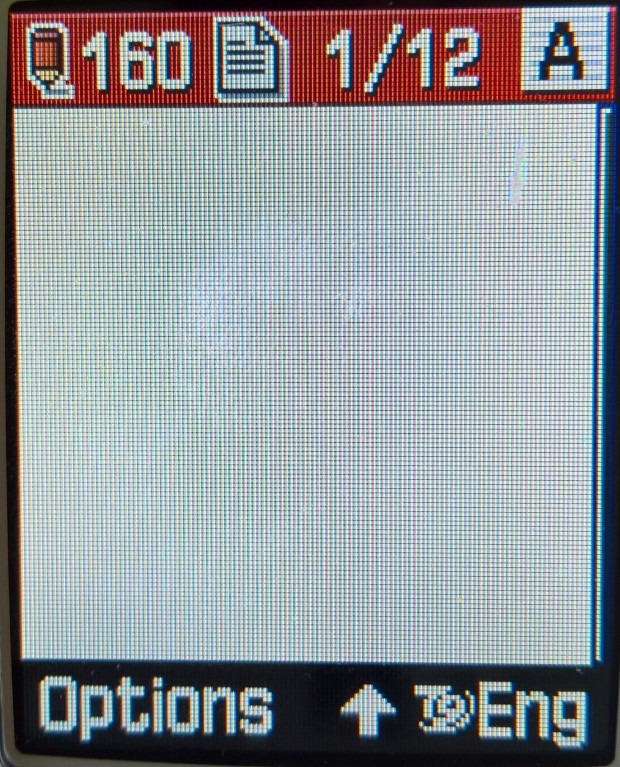
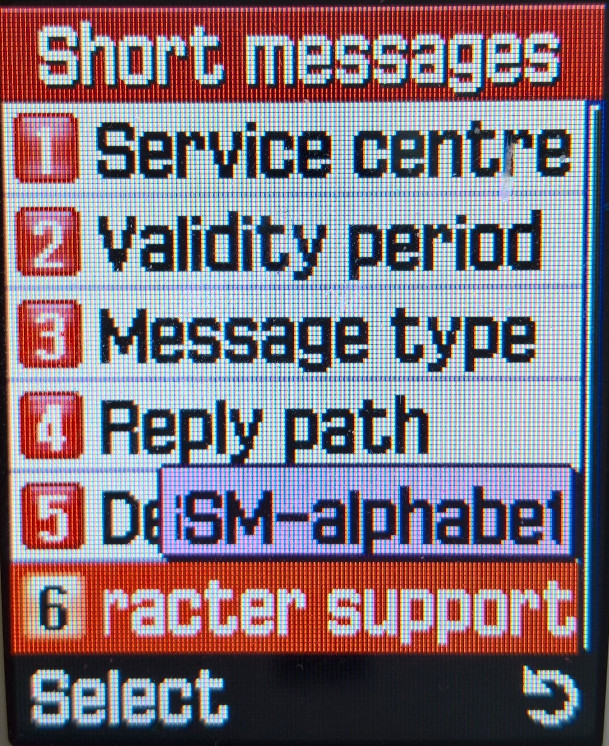
SMS messages can be created and sent from here, you also have access to MMS multimedia messages, where ringtones and pictures can be sent. Predictive text is supported for faster texting and the text size can be adjusted for easier readability. EMS is also supported and the phone comes with preloaded graphics that can be sent, ringtones can also be sent but as they are mmf files, they may not be compatible with other handsets, unlike general midi files.

Multimedia messages

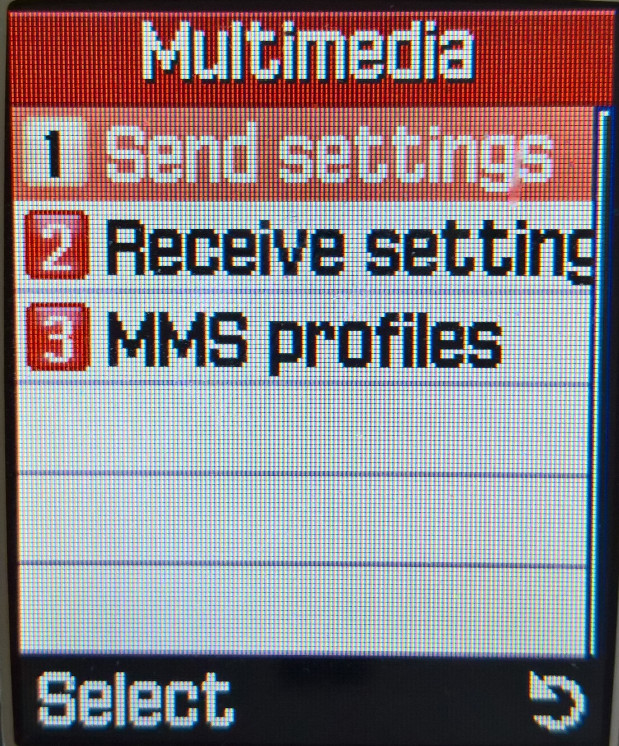
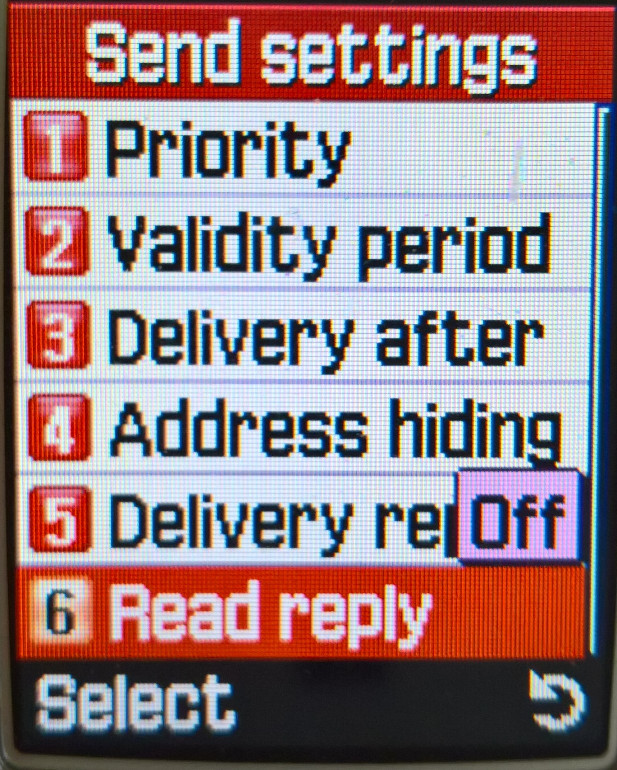
MSS Multimedia messages have their own menu item, and pictures and sound files can be attached to a single message. The limit for outgoing messages was 100Kb and incoming messages were limited to 45Kb and up to 150 MMS messages can be saved.

Push Messages

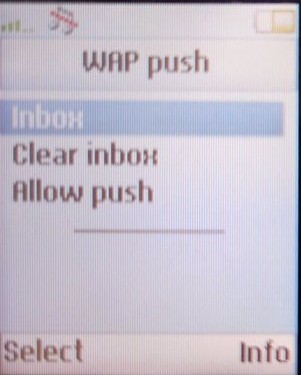
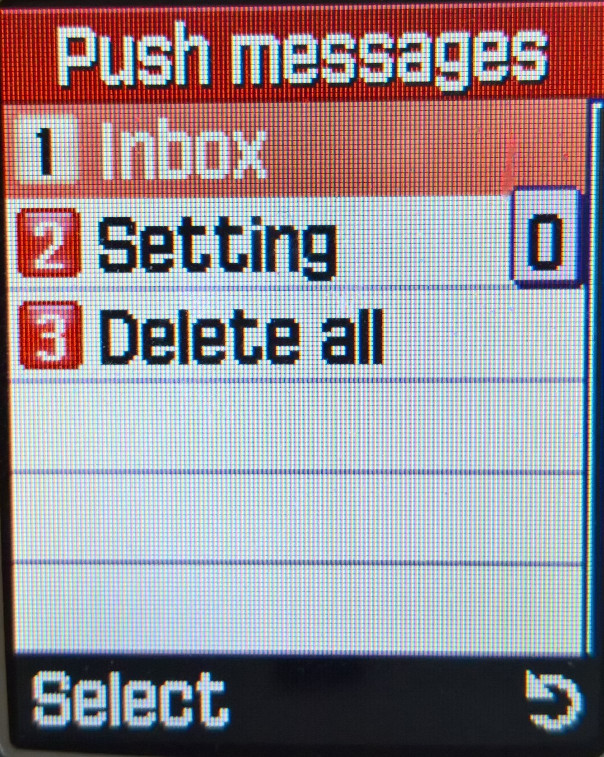
WAP push messages are received here, these messages were typically links to online services and promotions, such as discount ringtones or Java games. Blyk, a short-lived mobile operator used this to push advertising to users as part of its business model.

Preset Messages

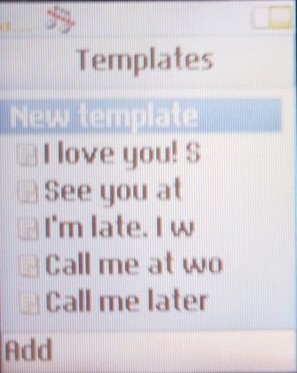
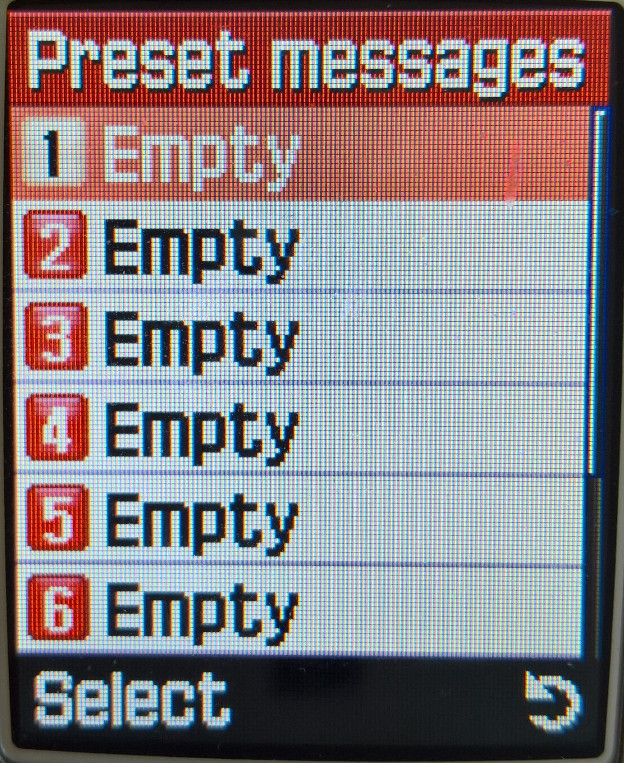
You can create and save message templates to be sent later. none have already been created by Samsung, you have to create them yourself.
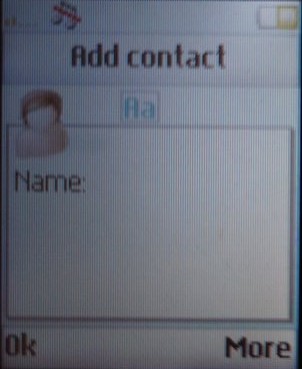
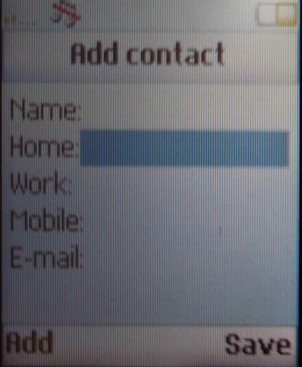
Voice Mail

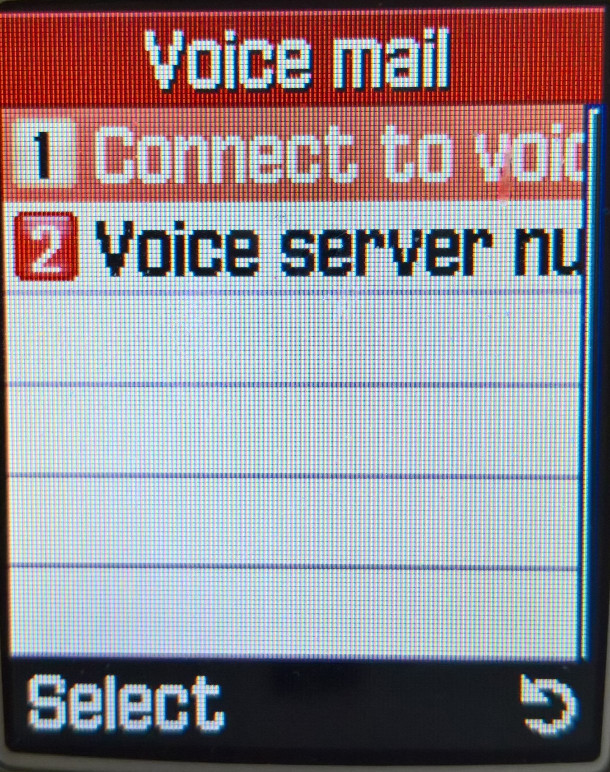
Configure the voicemail contact number for your network provider, you can then access voicemail by pressing and holding the 1 key

Broadcast

This is similar to regular SMS messages, but whereas SMS is traditionally used for user-to-user messaging, Cell broadcast is intended to send a single message to a large group of users based on their geographic location. This can be used to alert users to local emergencies or planned outages. These messages would be received and displayed here, but I can’t remember any UK providers taking advantage of this.

Fun Box

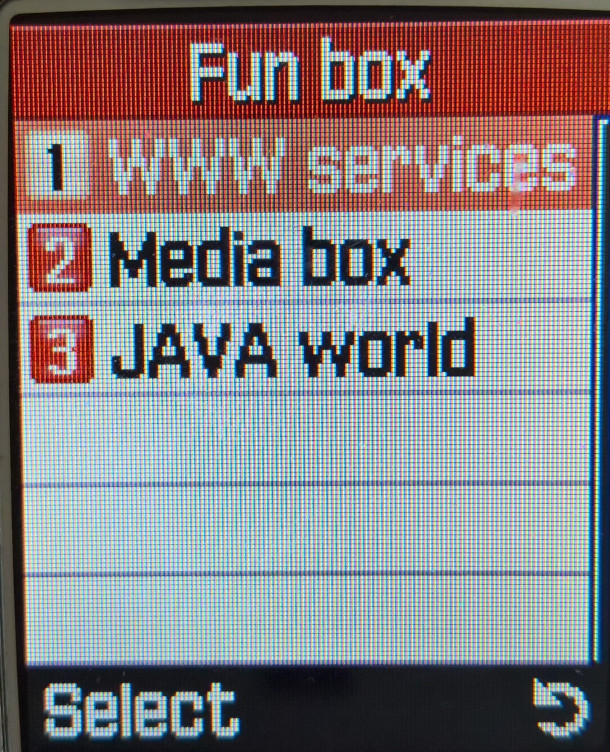
WWW Services

The phone’s internet browser supports both WAP and GPRS. Up to 15 bookmarks can be set and a custom URL can be set to load a website.

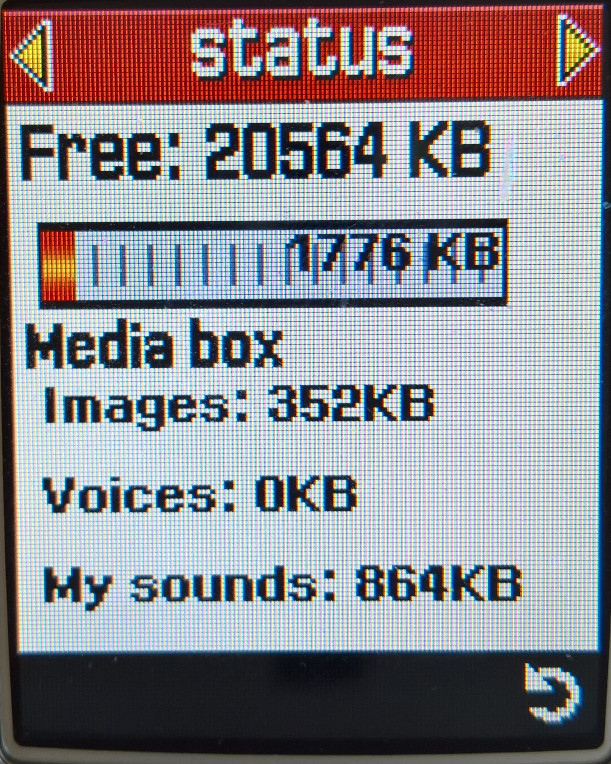
Media Box

Acts as the phone’s media player, a photo viewer shows pictures that were captured to be viewed and sent. Photos can also be stored in two separate albums.

The images folder is where the phone’s wallpapers are saved, 8 wallpapers are shipped with the phone, and more can be added, either downloaded through the browser or received over MMS or IrDA.

Sounds is where the voice recordings and any downloaded ringtones are saved. 15 sounds come with the phone, and more can be added by downloading via the internet browser, received from MMS or using the PC suite software. The files here can also be set as a ringtone. Ringtones are in the Yamaha MMF format, and use the internal MA-5 sound processor, which is capable of decoding 64 voice polyphonic, MMF files can store MIDI and PCM audio which is evident in some of the ringtones. Some tones can also vibrate the phone in rhythm.

Samsung also offered a multimedia pack, where polyphonic ringtones can wallpapers could be downloaded to the users PC and then transferred to the phone.

JAVA World

Java games can be downloaded and installed from here, two games are preinstalled, SnowBallFight and BubbleSmile. Up to 3Mb can be allocated for Java applications. The PC suite software does not allow for Java applications to be installed to the phone, unless specific software is used, and the phone must be put into a serial download mode.

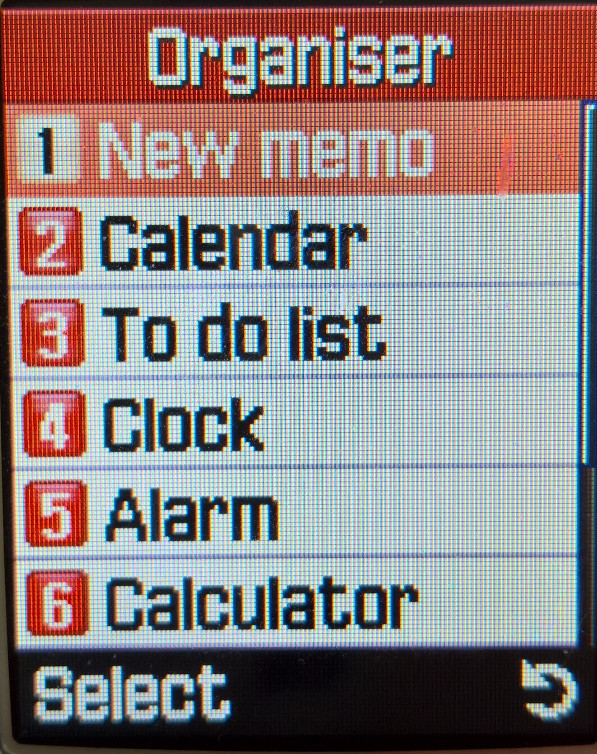
Organiser

Memo

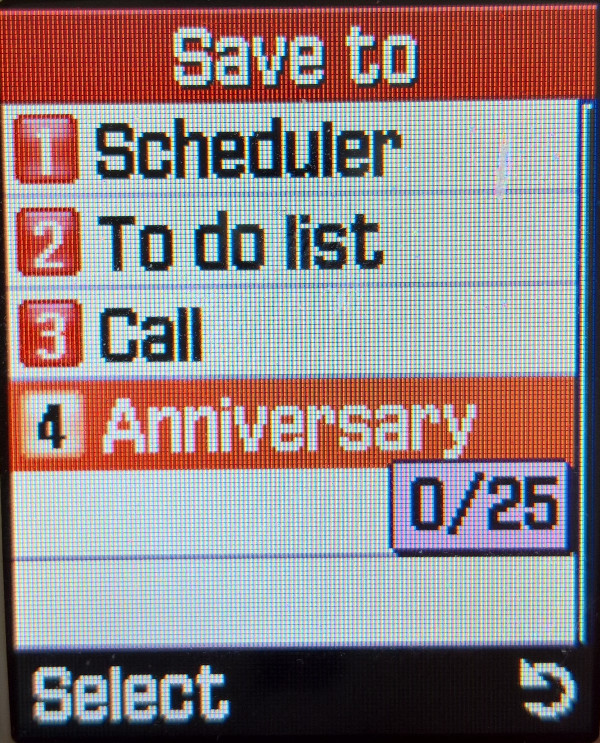
Notes can be taken and saved to the phone’s memory, text entry is similar to the SMS editor, but you are limited to 100 characters. Notes can be classified as either Scheduler, To Do list, call, or an anniversary. Up to 25 notes can be saved.

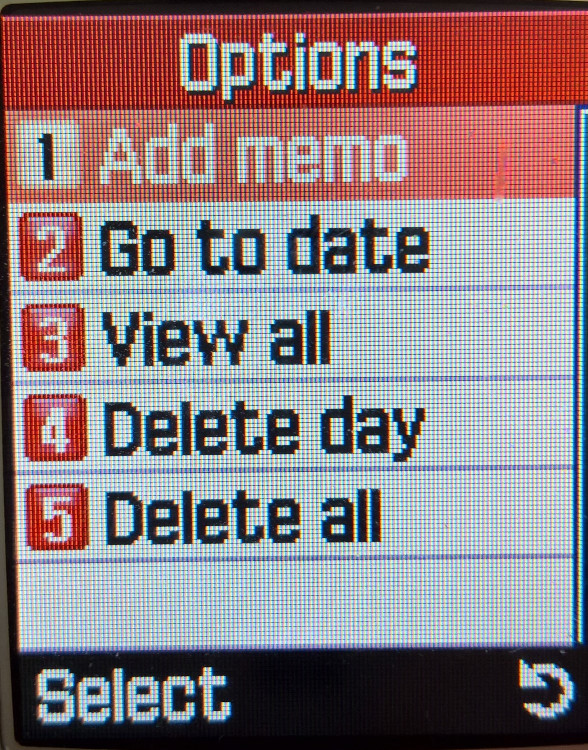
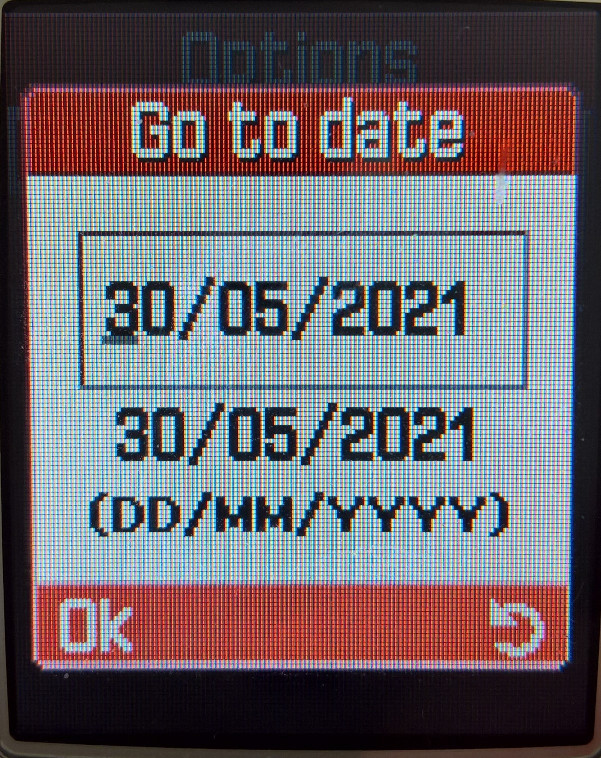
Calendar

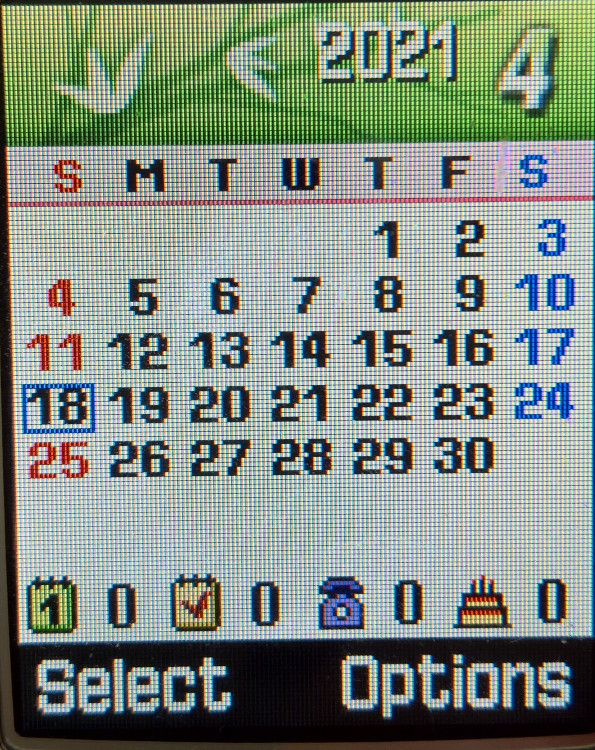
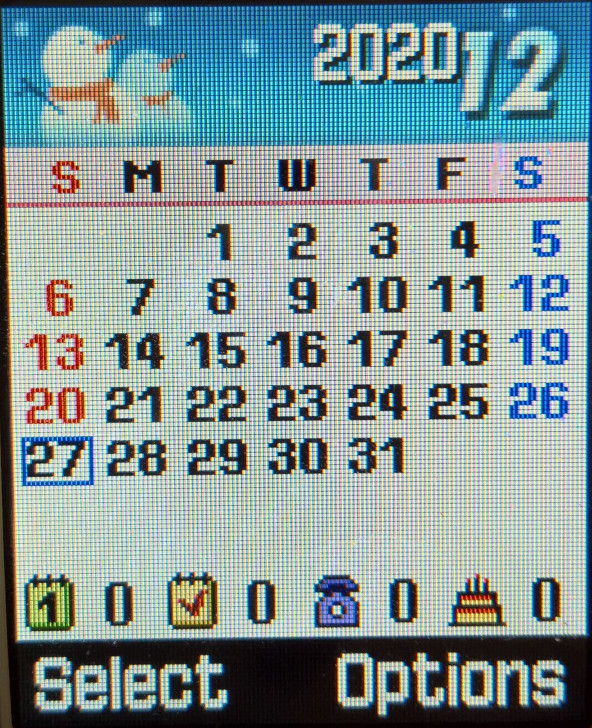
A calendar that can be used to set reminders and appointments, memos, as described above can be added to each day. A nice touch is a graphic that appears at the top of each month that reflects the month or season, kind of reminds me of the PSP XMB that would change its colour on the month.

To-Do List

Similar to the Memo, lists can be created and saved, with the option to set a date and time for an alert. This is normally intertwined with the calendar.

Clock

Time and date can be set here, along with the time format and the time zone.

Alarm

Up to 3 alarms can be set here with different times, you can set the re-occurrence and the ability for the phone to automatically power on.

Calculator

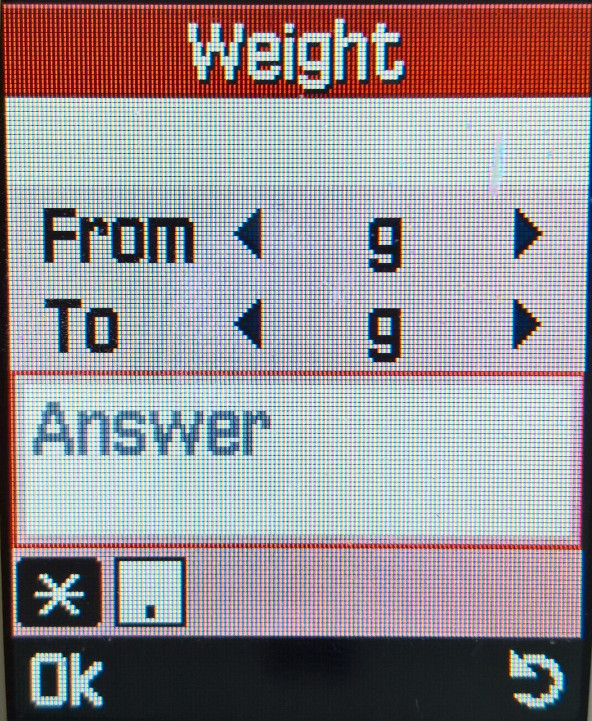
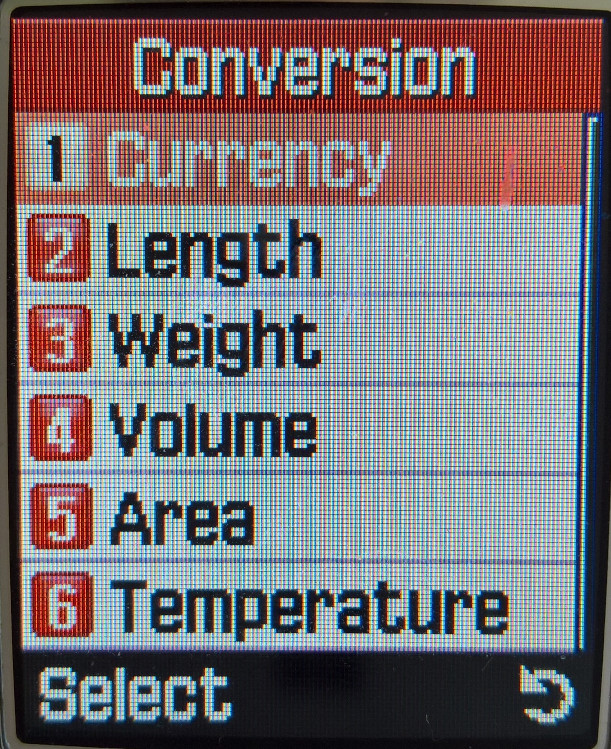
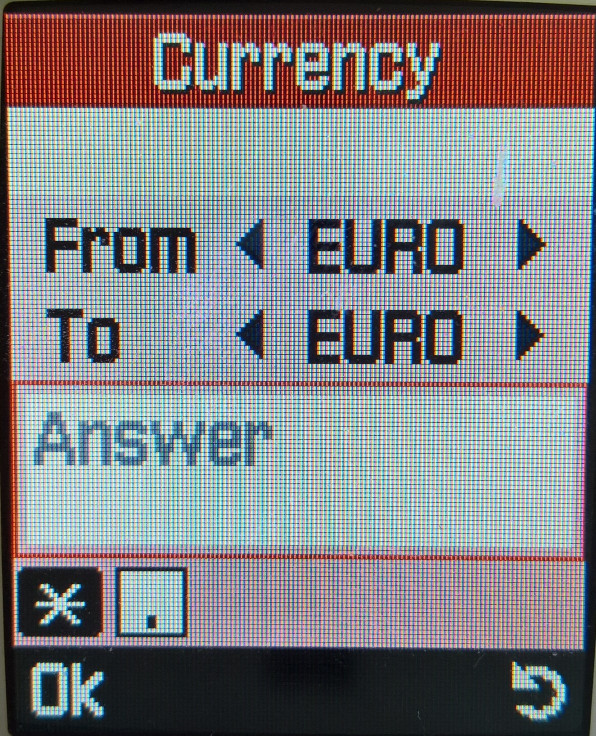
Conversion

A numeric converter that supports converting currency, Length, Weight, Volume, area or temperature.

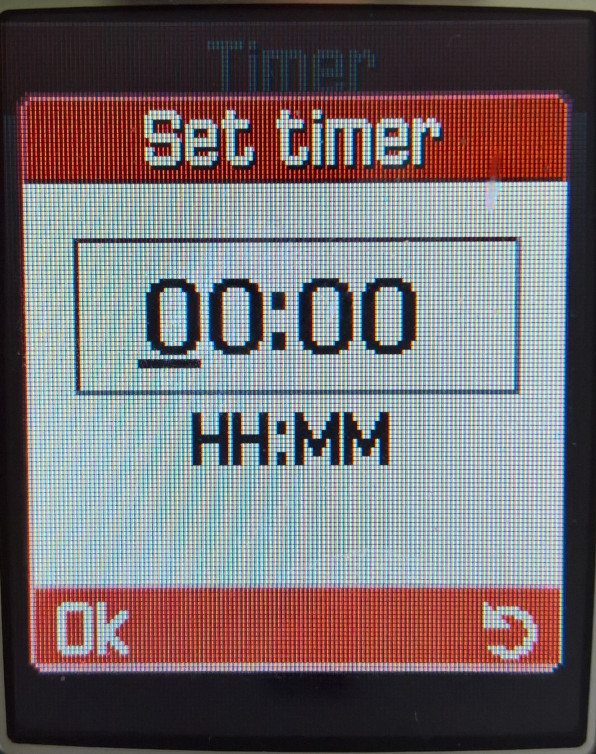
Timer

Stopwatch

Camera

The phone has a VGA camera built in with flash and 8x digital zoom. The resolution can be changed to CIF 320×240. Built-in functions include a timer, frames, and effects (sepia, greyscale, negative). There is also a multishot function, when you press the capture key, 6,9 or 15 pictures are taken, and you can select the best picture.

Compression levels can be set from Economy, Normal, Fine and Super Fine)

Phone Settings

Display

Greeting Message

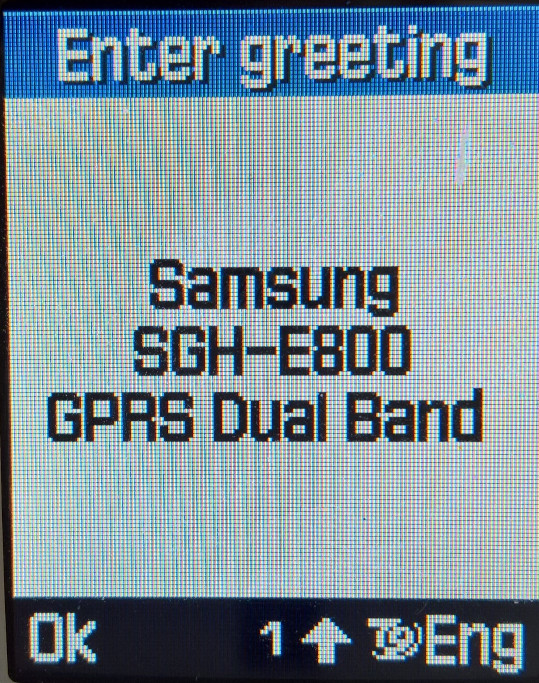
A message can be displayed when the handset is switched on with the default message is shown on the right.

Language

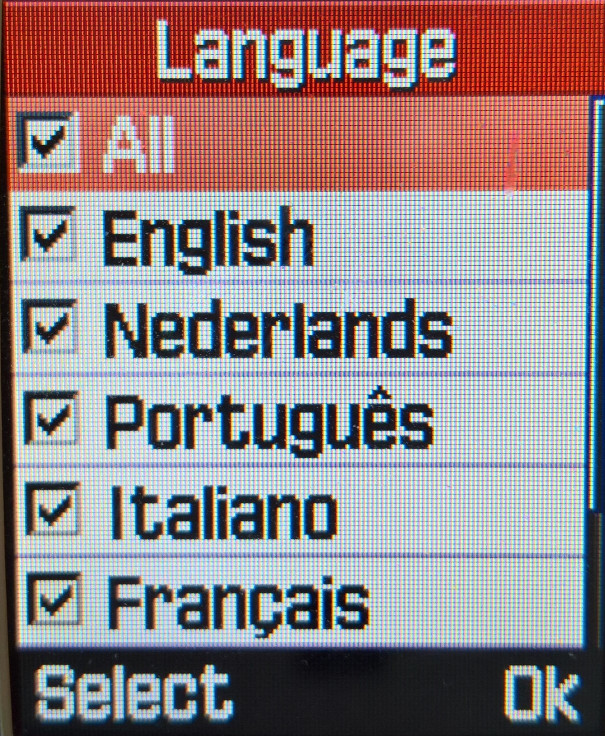
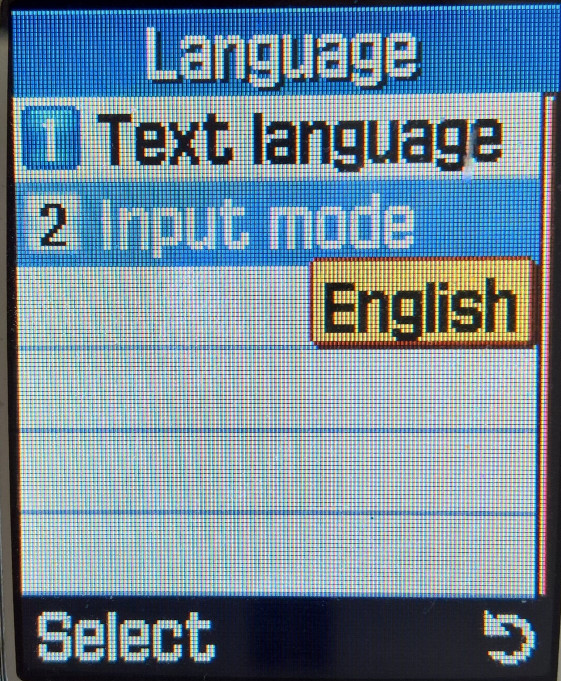
Setting the language and the type of input. As this software was intended for Europe, only common European languages are shown.

Security

A passcode can be set for when you try to access any photos or sounds on the device. PINs can also be modified here.

Other

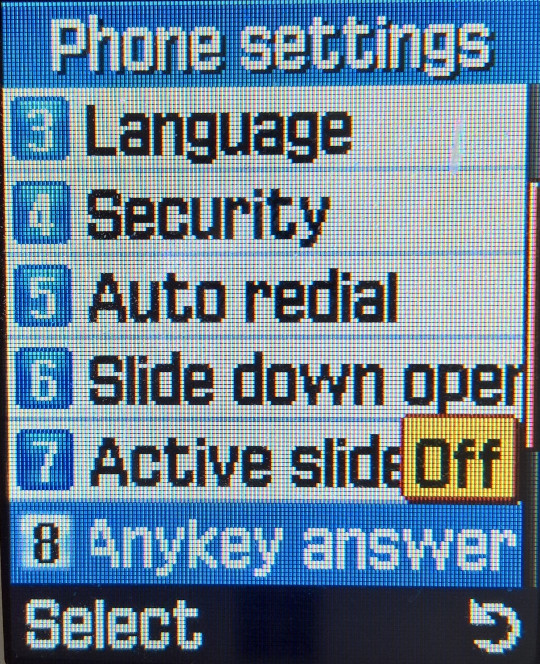
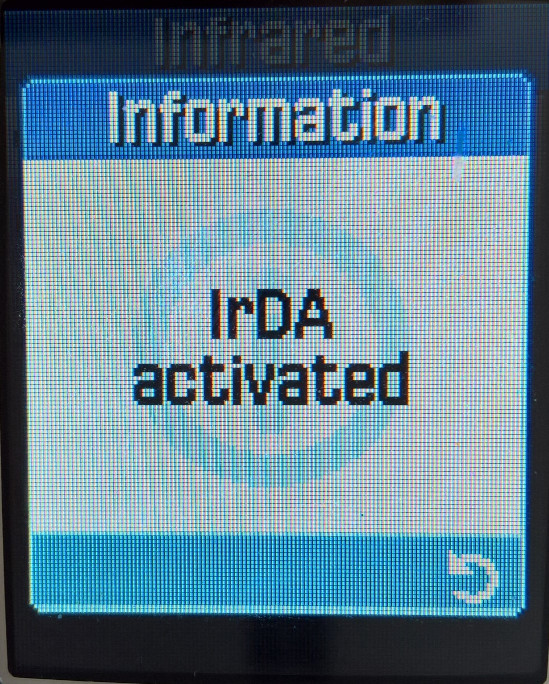
Infrared IrDA is supported however you can only use this with a Windows PC with the Samsung PC studio software, or the Samsung PIM & File Manager. You cannot exchange files with another handset, nor can you send and receive files using the default windows IrDA file transfer, you must use the Samsung software. Also, the camera and IrDA cannot be active at the same time, you cannot enter the camera without disabling the IrDA.

Camera Photo’s

A few sample images captured on a sunny day, the image sensor seems to struggle in bright conditions

The camera can also apply different effects, but this can only be done when capturing the image. The effects are in order: Grey, Negative, Sepia, Emboss & Sketch.

Conclusion

Overall it’s a very nice functional phone with a lot of compelling features for the time. It’s slide form factor would become standard for Samsung’s high and mid-range handsets until the release of the Android-based Galaxy series.

Only downside is the lack of Bluetooth, with was beginning to become more common on handsets in this price range, and the Infra-red is limited to PC use only, although the manual mentions the ability to share contact with another Samsung handset. You can’t transfer files with another handset and for PC use, the Samsung PIM software is needed (Version 1 only, V2 has issues initiating transfers)

To Do – Possibly we can try to get GPRS working whilst 2G is still a thing in the UK, and to see if we can upload Java games over Irda, or using a data cable

Nokia 3100

A feature phone designed to appeal to the youth of the time, with its 4096 colour screen (128×128 resolution) and polyphonic ringtones, and featured support of GRPS internet browsing and MultiMedia messages. The phone also features a glow-in-the-dark cover which allows you to find your phone in the dark. As for the display, The screen uses STN technology, which makes it hard to read in the sun, and has a low response rate which can result in ghosting when navigating the menus.

The device lacks a built-in camera, but Nokia provided optional support with the Nokia Fun Camera, which could be connected to the phone’s Pop-Port to transfer photos, which can be sent via MMS.

There is also a lack of FM Radio and MP3 audio support since this was targeted as an entry-level device. There is also no Infrared or Bluetooth, so you will need to purchase a Nokia data cable to connect to your PC. In this mode you can transfer ringtones and wallpapers, and download Java apps to the phone. You can also use the handset as a modem but you are limited to GRPS.

Still the phone enables internet and multimedia message use and is compatible with nearly all of the Java mobile apps

The screens below are captured from the handset itself. Unfortunately, Nokia Series 40 phones cannot take screenshots of their display. Because of the low DPI nature of the screen, there are some screendoor like artifacts that can be seen.

Home Screen

Appears the same as any other Nokia handset from the same era. Some operators may include their own brandings, such as an operator logo or a custom background. This one appears to have the O2 background preinstalled.

Menu

The traditional Nokia interface is used for the handsets menus, but with an updated icon set. The interface is similar to the 6610 and 6230, being Series 40-based.

The directional keys can be used as shortcuts to common menu items, like pressing the up button opens the camera, left will open the SMS message composer.

Speed dialing can be activated by pressing and holding down a key, which will dial out the contact number assigned to it. 1 will always dial out the voicemail number.

Messages

Here you can create and send SMS text messages, or compose one using the built-in templates offered. Received messages can be entered into custom folders for longer-term keeping.
There is also a distribution list for when you want to spam multiple contacts with the same message, you simply enter the numbers to send the message to or select from your phonebook, and your message will be set to multiple recipients. Useful for making an announcement or sending the same message to multiple contacts frequently.

Nokia smart messaging is supported, which allows sending and receiving of ringtones and black/white static images to other supported handsets (commonly Nokia) but also with some Samsung/LG/Motorola. There are 10 templates that have been included with the handset that can be sent.

MMS is supported, which allows for photos and small audio clips to be sent using the phone’s data connection. Up to 100kb can be attached to a single MMS file. As the phone lacks a built-in camera, you would think this would have limited use. But as mentioned earlier Nokia did release a Fun Camera, which was a portable camera that would connect to the phone’s pop-port, pictures can then be imported to the phone where they can be sent.

Sony Ericsson also release something similar to their T68 handset, which is considered the direct competitor to the 3100.

Contacts

The Phonebook can save around 200 entries with a little more being saved to the SIM card. Contacts stored in the phone memory can have additional information assigned to it, such as the email address, home/landline number, fax number, office/work, and a photo of the contact assigned, which will appear on screen when the contact shows. If a contact has multiple numbers assigned to it, the first number entered will be the default contact used.

Call Register

Three lists are stored here, each for received, dialed and missed calls. Each list can save up to 20 entries and will show the date/time of the call. You can also press the green call button from the idle screen to show the recently dialed numbers.

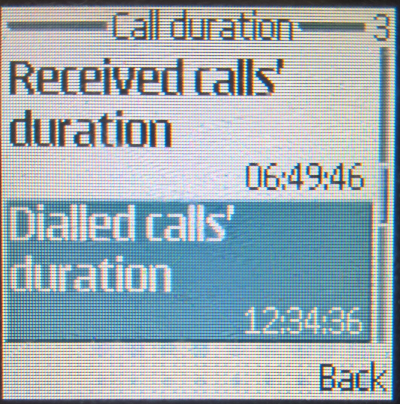
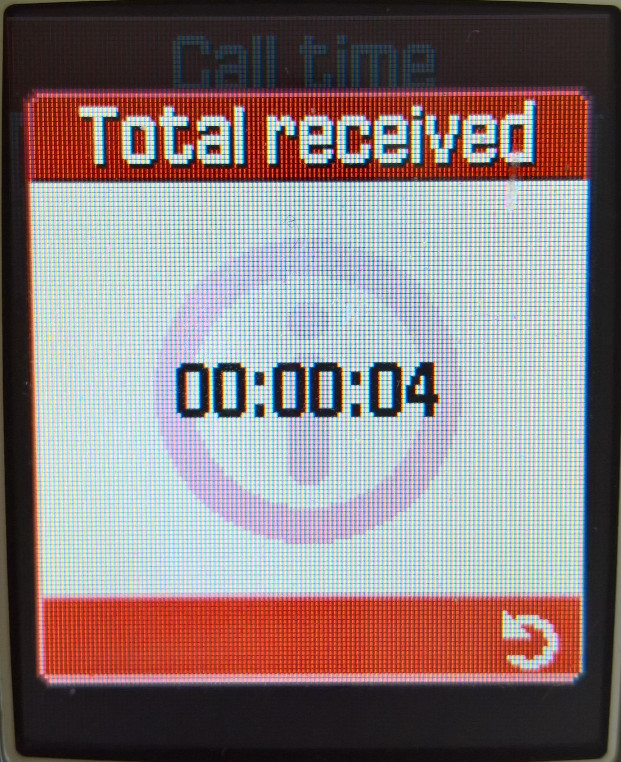
You can also view the call time counters for the last phonecall, and the lifetime calls for the device. This can also be reset at any time.

Profiles

Profiles can be set and configured from there, you can also access this by pressing the power button, located at the top of the handset. Profiles can also be timed so they expire after a set amount of hours, useful when setting the device to be on silent for when you enter a meeting.
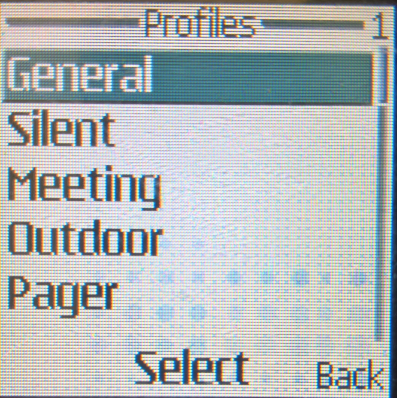
The default profiles are General, Silent, Discreet, Loud, Outdoor and Pager.

Settings

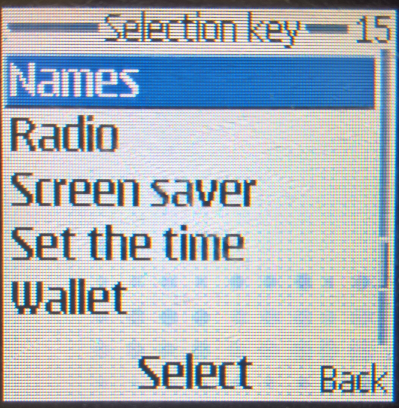
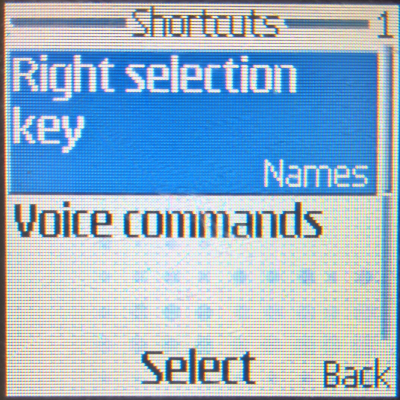
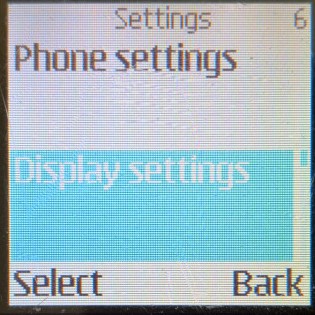
Personal Shortcuts: Change what the right selection key performs at the home screen, and customize the Go To menu
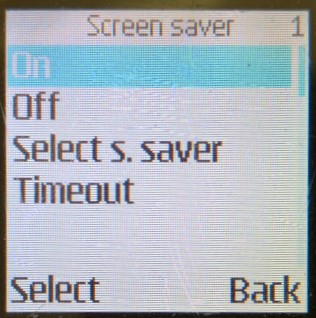
Screen saver: Displays and sets the phone screensaver, and how long the screensaver should be displayed
Time and date: Set the phones time and date, if it has not been set by the network
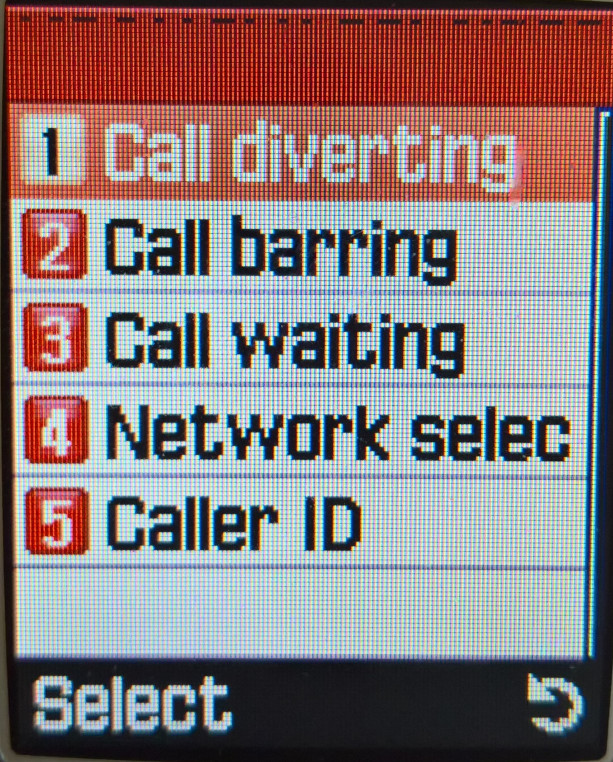
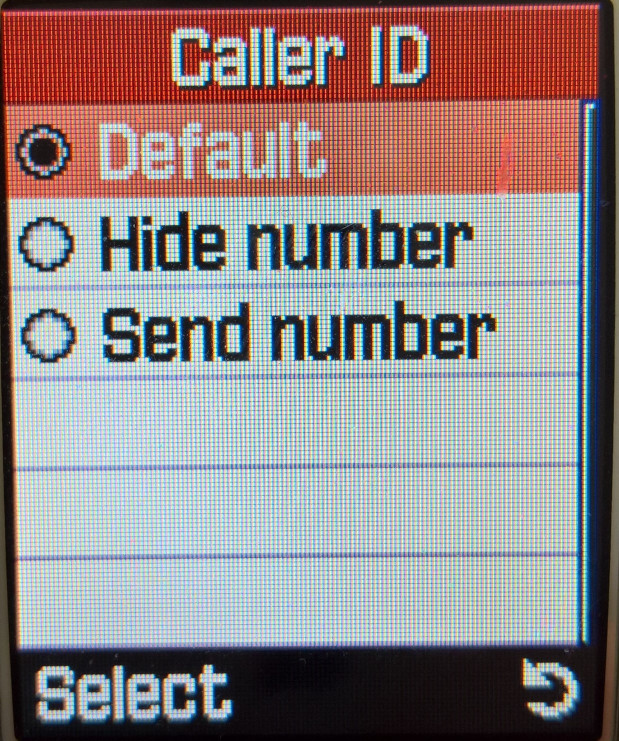
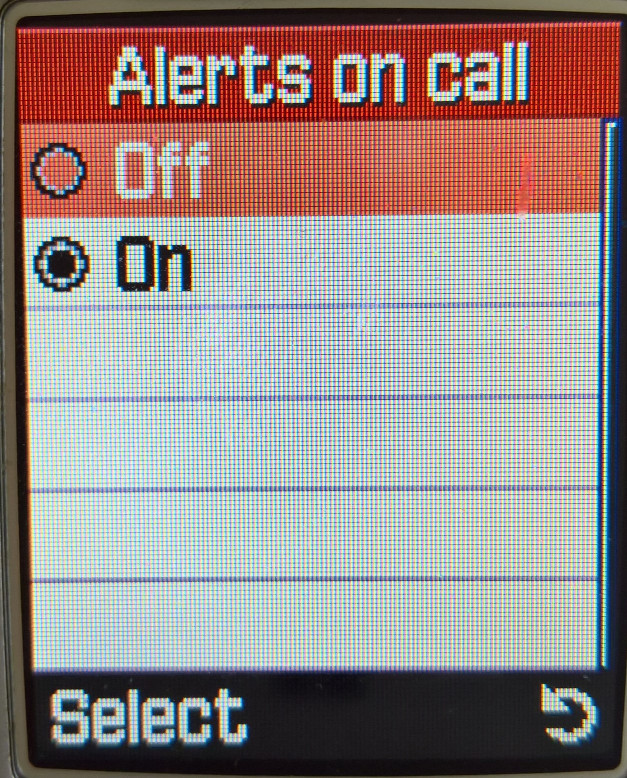
Call: Set the call to divert and waiting options, and if you want your caller ID to be sent
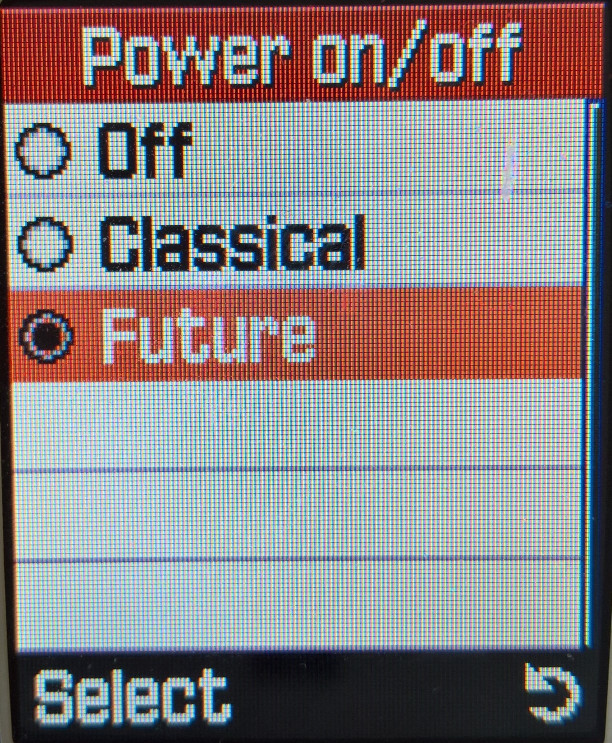
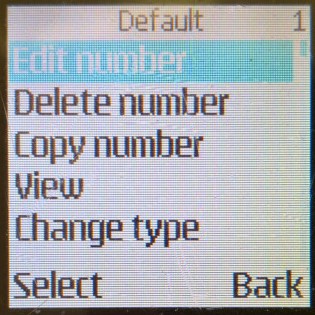
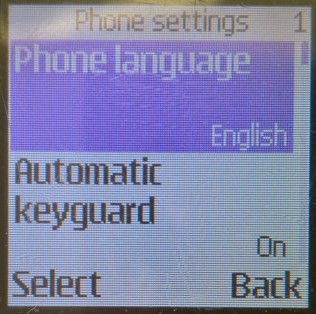
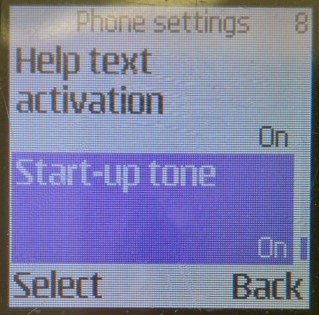
Phone: Change phone-specific settings like the language, automatic keyguard and the delay to lock the keys, Cell info display that show local information provided by the nearest mast, set the phones welcome note, the startup tone and the help text which is displayed after a few seconds when a menu item is highligted.
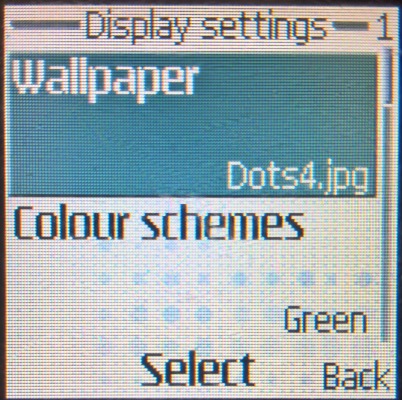
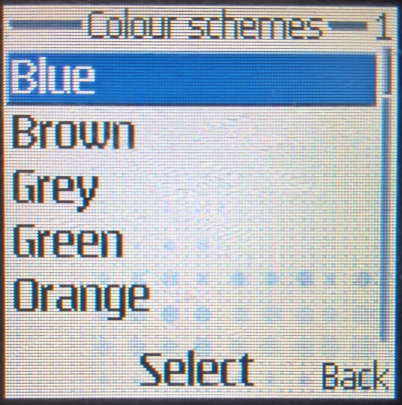
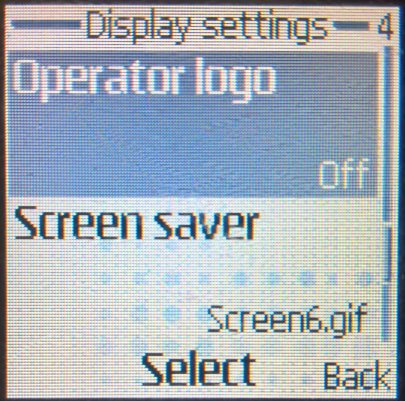
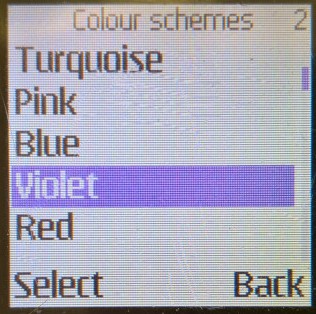
Display: Change the wallpaper, colour scheme, and operator logo (if one has been setup).
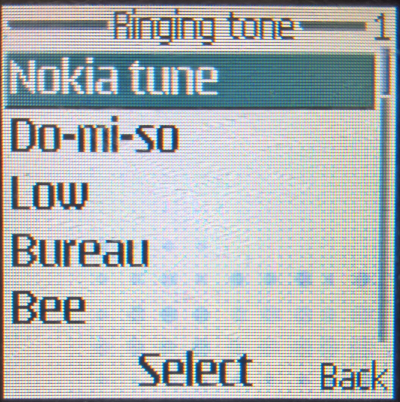
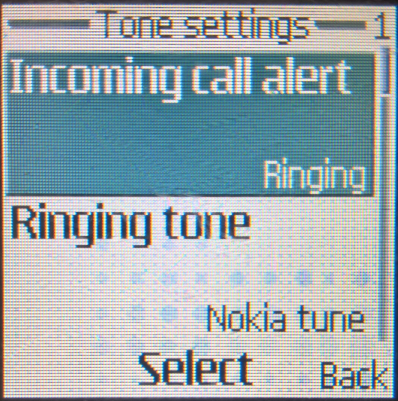
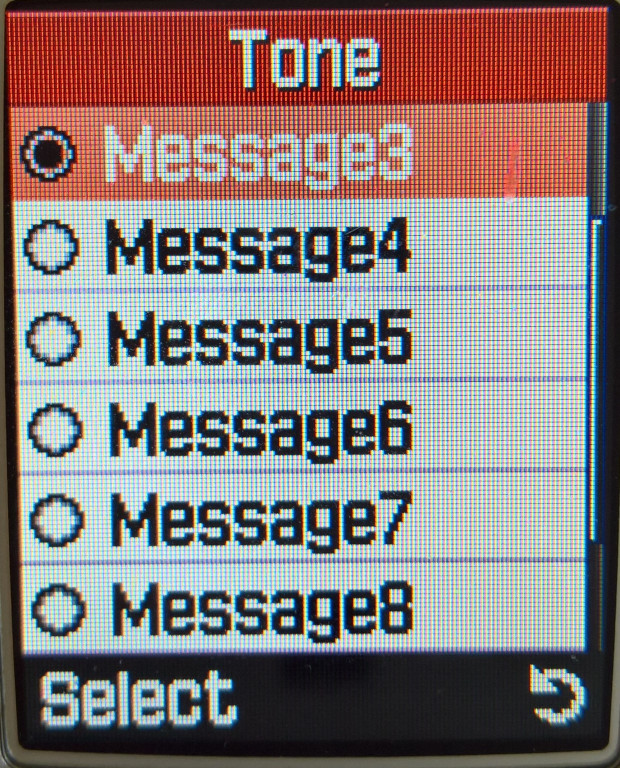
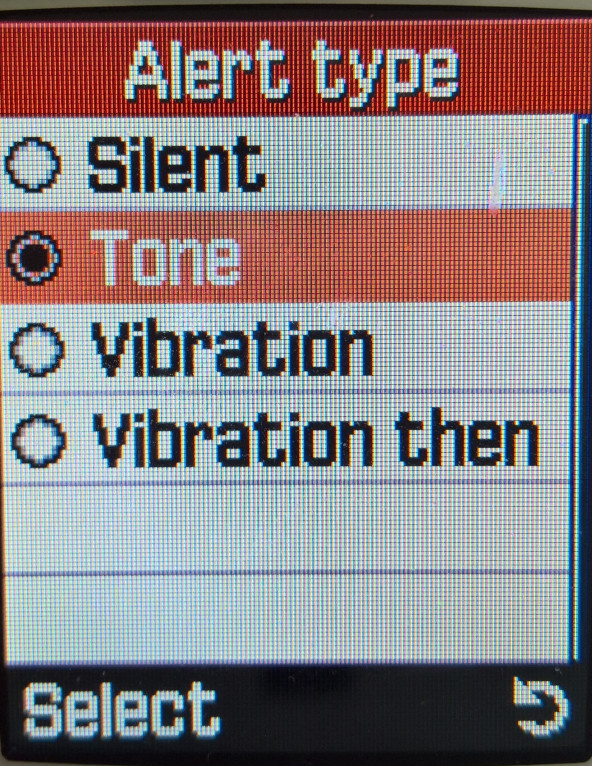
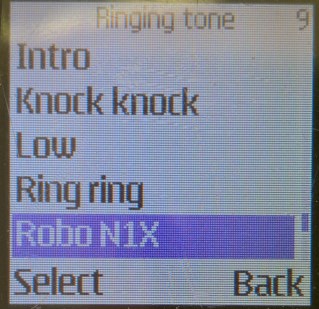
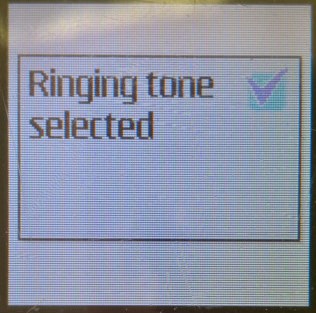
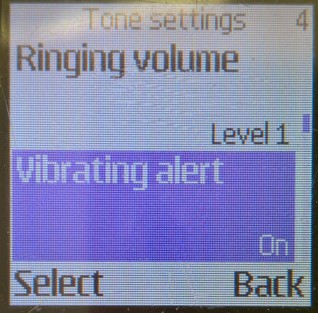
Tone: Set the ringing tone, the message tone and to enable vibration. A unique feature of the phone is it can flash its backlights in rhythm with the ringtone, however this only seems to work for ringtones shipped with the handset, downloaded ringtones will simply flash the backlight on and off.
Enhancement: Which profile to set when a handsfree headset is connected to the phone
Security: set and change the phones security code, and the Sim card PIN code
Lastly, you can restore the factory settings, but this will require the phone security code.

Gallery

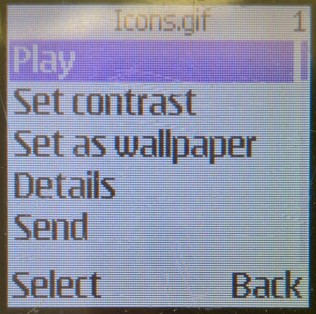
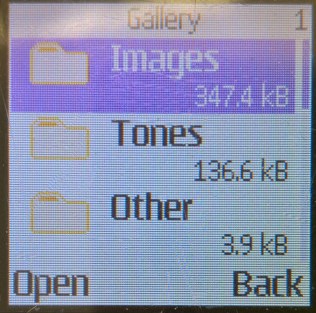
To view wallpapers and ringtones that are included with the phone, any that have been downloaded.

Alarm Clock

Set an alarm, only one can be set here but it can be set to repeat daily or weekly. This has its own place in the main menu, rather than being embedded into the Organiser menu on other handsets.

Calendar

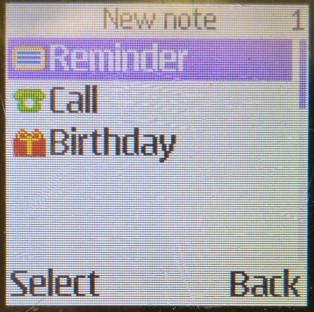
A standard calendar is offered, which can be used to add events to each day. Three times of events can be added, Reminder, Call and Birthday

Games

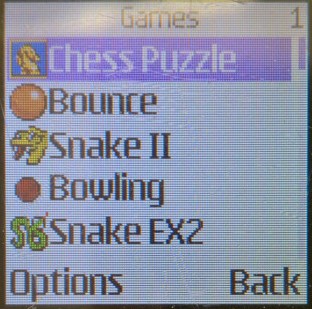
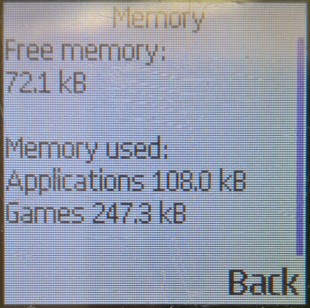
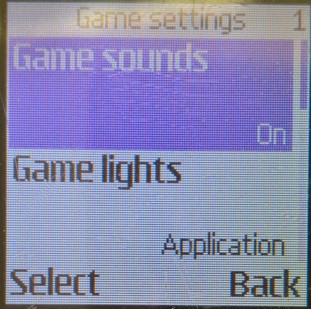
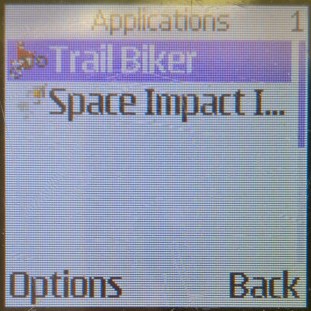
Three games are included: Snake, Beach Rally & Bowling. Optional games that could be downloaded and installed are Bounce, Space Impact, Trail Biker & Chess Puzzle. With under 1MB of user storage you’re limited to the number of games you can download.

There is also an applications menu, but none are included and must be downloaded. Sometimes games that have been downloaded will appear in the applications folder.

Extras

Calculator: Just a standard basic calculator
Countdown Timer: Enter a time to countdown to
Stopwatch: Choose either Split or Lap timing, and view any previous times

Services

The phone’s WAP and internet browser, with pre-set links to download more content like ringtones and wallpapers.
Also a bookmark for Blyk, which was a mobile network that launched in 2007 and was a free mobile network that r would send adverts in the form of SMS text messages which would provide you with free credit. It totally flopped and closed in 2009.

Go To

A menu that lists shortcuts that have been added

Lastly, there is also a dedicated menu for the Sim card application toolkit which will appear if the SIM card is configured to display one.

Dead or Alive

Virtua Fighter with bouncing physics

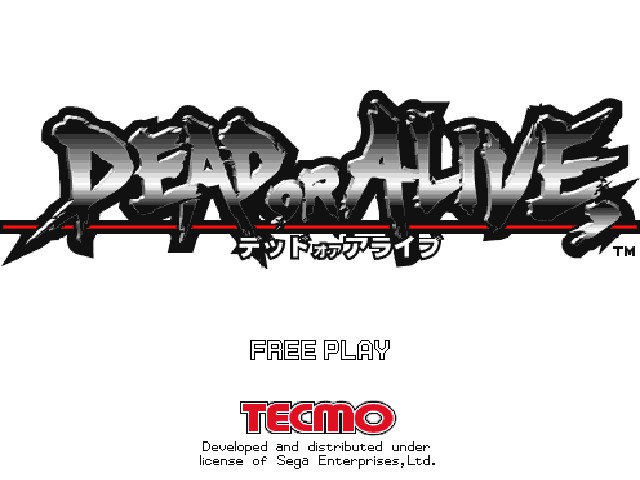
Released in 1996, Dead or alive was the fighting game created by Tomobou Itagaki, who is known for hating the Tekken game with a passion.

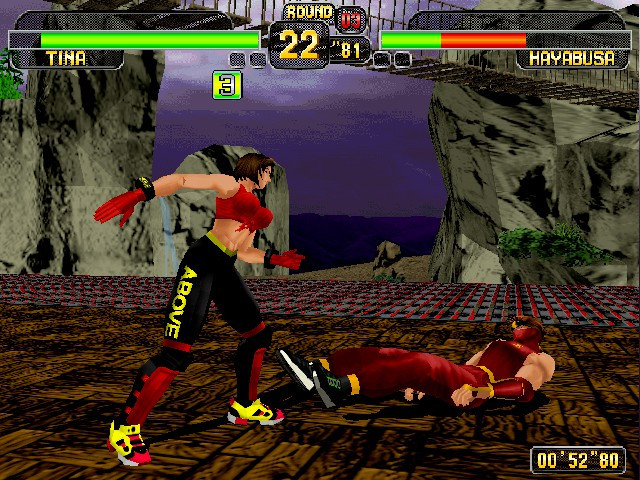
There are some similarities to the Virtua Fighter series of games by Sega, and have the same input controls and move-sets with Punch, Kick and Guard/Hold.

Characters

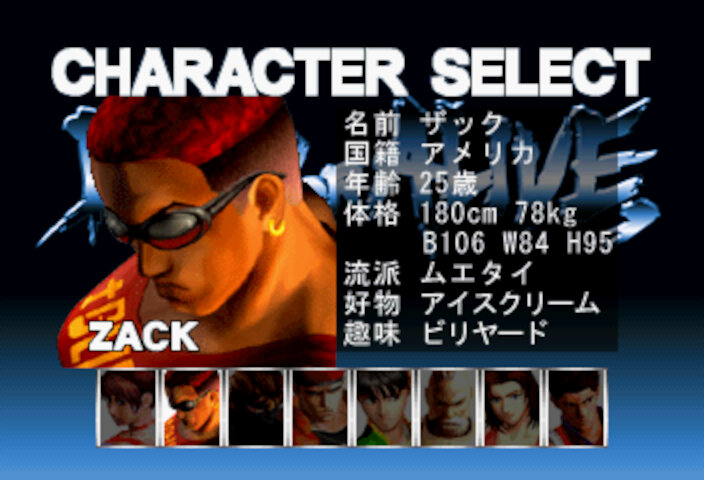
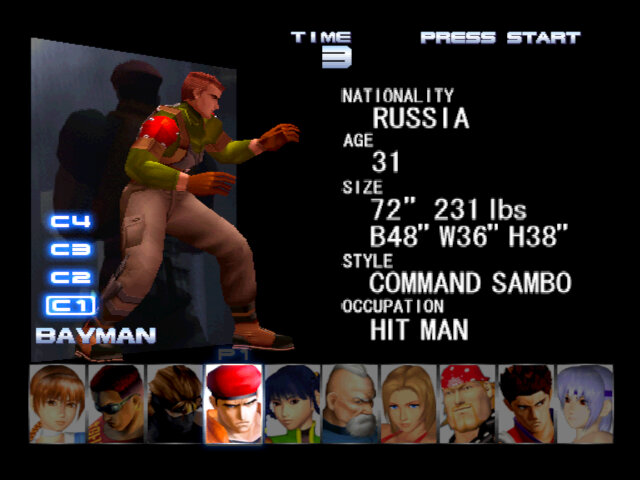
The character select screen displays basic stats on the characters and some not-so-useful information like the character’s favorite food and their hobbies. Honestly, this looks more like a dating site profile but does add a bit of personality to the fighters.

As with other fighting games, each character has their own unique fighting style which is tailored to their culture, and there are some obvious inspirations with Jann Lee being based off Bruce Lee.

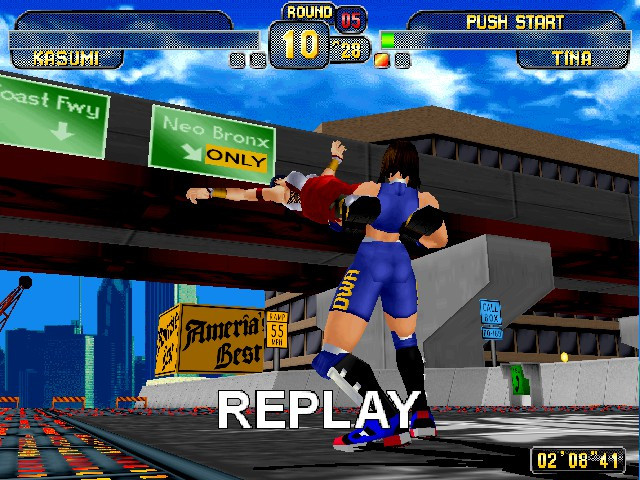
  • Kasumi: The ginger ninja, or runaway shinobi according to the games lore
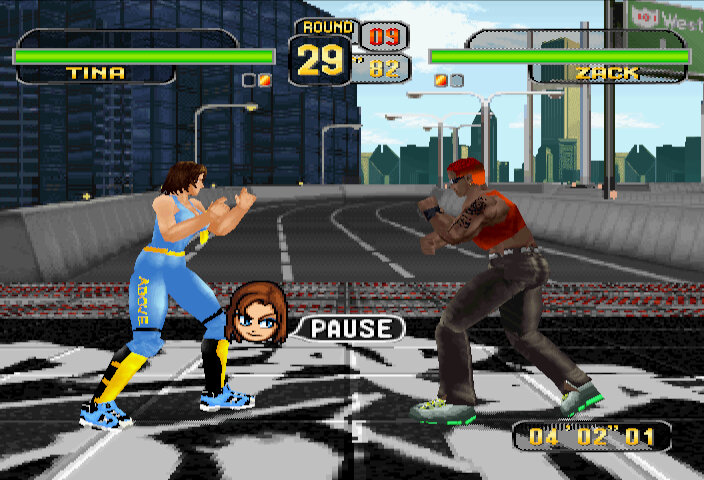
  • Zack: Dennis Rodman-inspired character who has a kickboxer moveset. The first opponent who stage is set on a tropical beach set at sunset
  • Ryu: Another Ninja, from the game Ninja Gaiden. The third opponent set on a rural Japanese stage with a hut in the background
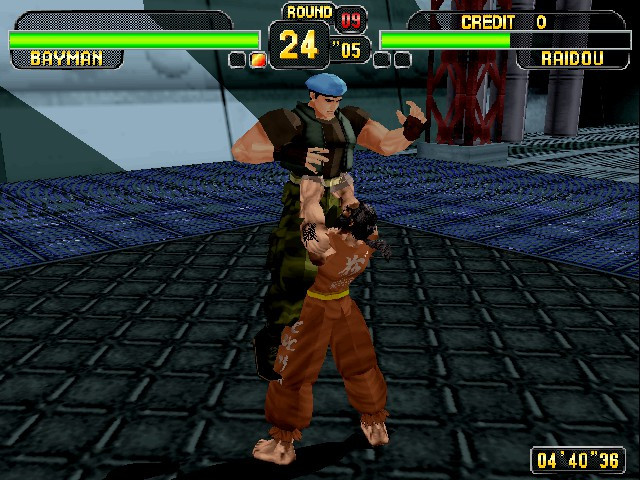
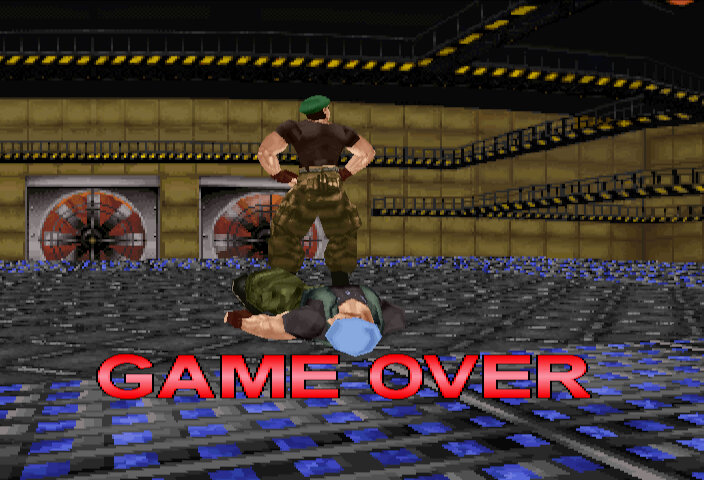
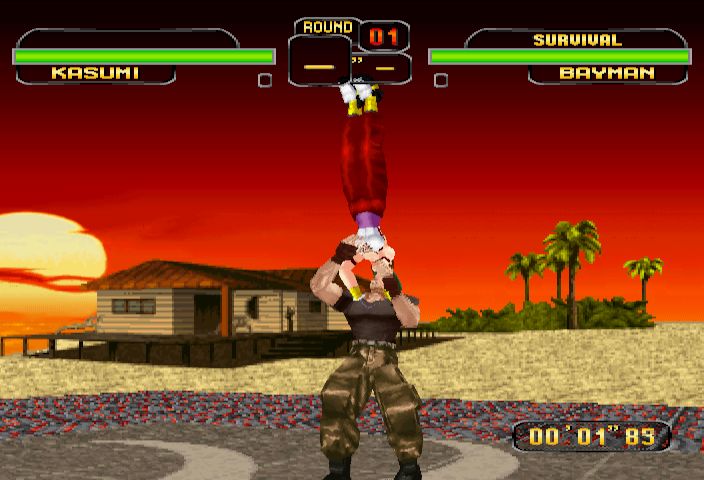
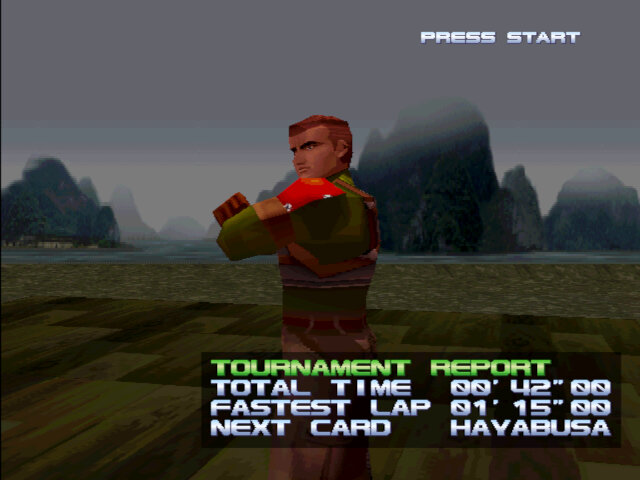
  • Bayman: A Russian henchman/assassin, the sixth opponent whose stage is set in an aircraft hangar since he is supposed to have a military background
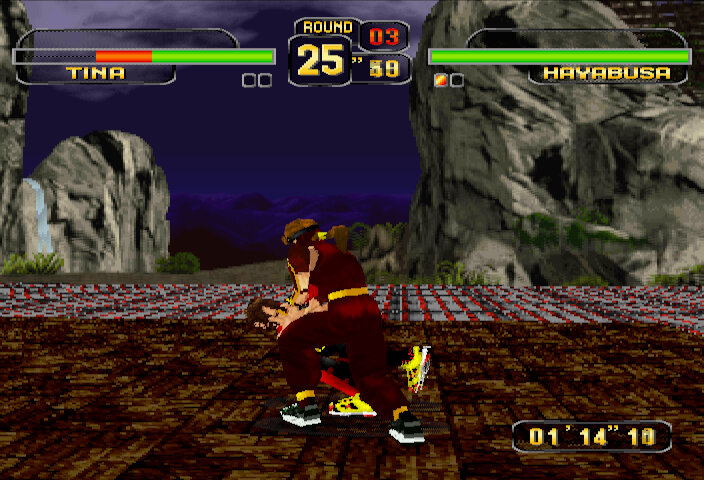
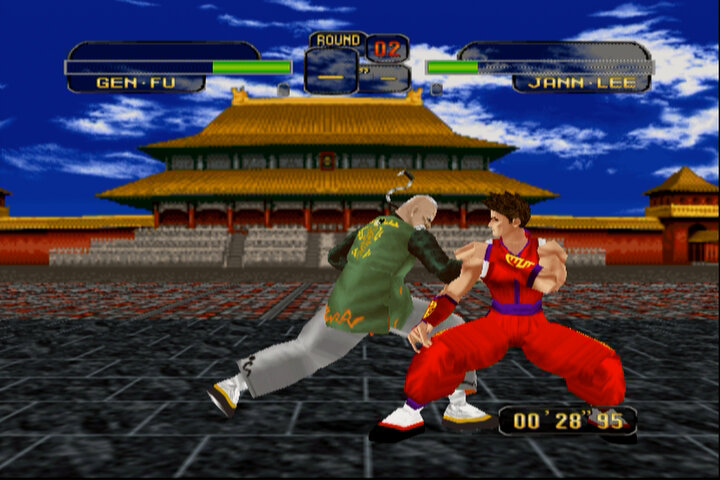
  • Jann Lee: Bruce Lee, similar to Law from Tekken. The fourth opponent and shares a stage with Tina, which is an American downtown highway set at night
  • Tina Armstrong: A wrestler and daughter of Bass Armstrong
  • Gen Fu: Old dude who is a master in Kung Fu, like Wang from Tekken
  • Lei Fang: A Chinese fortune teller turned fighter
  • PlayStation Only
    • Ayane: Kasumi’s half-sister who are rivals. Looks like a feminist
  • Bass Armstrong: Tina’s father, Hulk Hogan and Randy Savage crossover

Versions

Dead or Alive was released initially in arcades in 1996, and then ported to home consoles in 1997

Arcade (Original)

The game runs on the Sega Model 2 arcade board and is very similar to Virtua Fighter 2 which also ran on the same board. The control movesets and even the background stages are similar. This version of the game renders its stage background in full 3D, allowing for certain moves that use the background elements like a couple of Ryu’s moves on his stage. There is also a ‘Danger Zone’ around the stage that when your opponent lands on it, will be propelled into the air with a mild explosion, dealing some damage.

Sega Saturn

The game was ported to the Saturn and was the first home port of the game. This version is a mostly faithful conversion of the arcade original, with some changes taking place due to the less capabilities of the Saturn 3D hardware. Still, the Saturn has always done good with fighting games, and Dead Or Alive is no exception to this, yet this version of the game was only released in Japan.

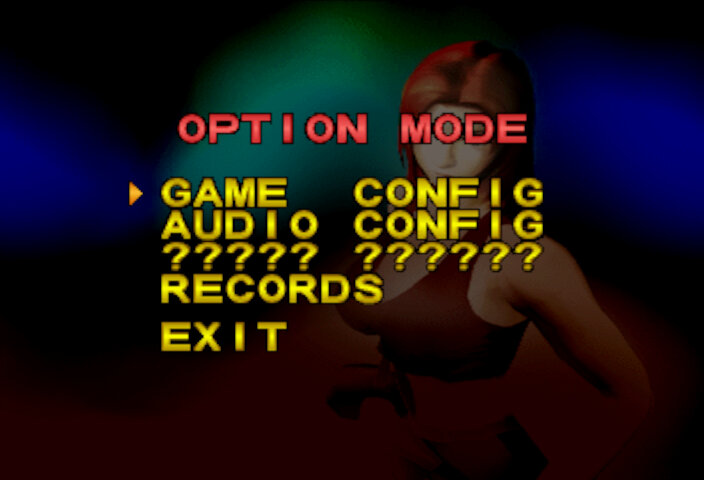
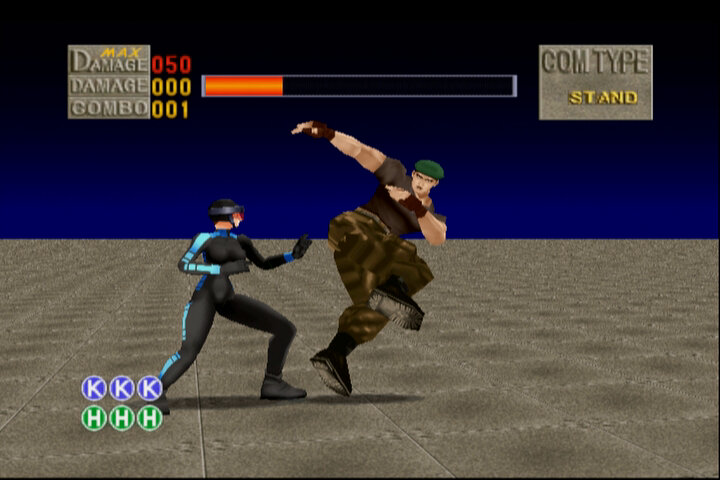
There are a few menu options added, with a Time Attack mode being similar to arcade mode but with the goal of completing rounds in the shortest amount of time. V.S being versus, allowing a second player to fight head to head. Survival mode has you fight against multiple opponents, one at a time, using a single life bar. Kumite is somewhat a sparing mode where you can fight from 30/60/100 opponents which the goal of having the highest winning percentage. Lastly, there is also a standard training mode that lets you practice each character move, and test against opponents’ defensive moves.

Like other Arcade to Saturn conversions, an opening FMV is included which gives a quick montage of the characters.

As the Saturn version of the game was only released in Japan, I would avoid this version and get the original Xbox version instead, which is the same game but with added online play and cleaned-up graphics.

Sony PlayStation

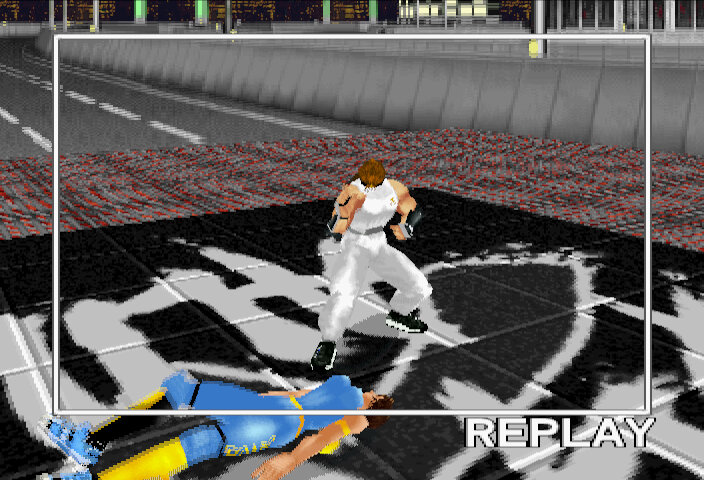
An updated version of the game was released for the PlayStation, which came with updated moves, two new added characters & backgrounds. This is considered a remake of sorts, as the stage background and music have been redesigned and are vastly different compared to the Sega versions. Two new characters have also been added which also feature in the arcade version, Dead or Alive ++, not the Model 2 version.

This version also includes the training, Kumite, Survival and Vs modes.

Arcade (Dead Or Alive++)

Another arcade version was released, this time on the PlayStation-based ZN arcade board, and shared a lot of similarities with the PlayStation home release. Each fighter has 4 different costumes to choose from, and a tag match mode has been added. New characters, Bass Armstong and Ayane have been added to this version.

Xbox

This version was based of the original Sega Saturn release but takes advantage of the Xbox hardware. However, id say it pales graphically compared to the Model 2 version which features full 3D background objects, whilst the Xbox version features the static 2D backgrounds (no moving objects in the background, but some textures are animated) the Saturn uses. Still the character’s models and textures are more detailed, and Xbox Live support is included in this port of the game to allow online multiplayer. This has since been shut down following Microsoft discontinuing support for original Xbox Live titles in 2010.

Still, you miss out on Bass Armstrong and Ayane which is an odd omission.

This version of the game is playable on the Xbox One and Series consoles and can be brought online. You can also play on the Xbox 360 with a compatible hard drive.

Conclusion

Dead Or Alive came at a very hard time for Tecmo, who was facing bankruptcy prior to the release, hence the name of Dead Or Alive.

Dead Or Alive would be followed up in 1999, with the release of Dead or Alive 2 for the Dreamcast, and the PlayStation 2. It would be the last game released for the arcades. Future installments would be released on the Xbox exclusively, before returning to multiplatform with Dead or Alive 5.