ntl launched it’s digital TV service in 2000, shortly before acquiring the Cable & Wireless consumer division. Since the two networks had select differences between the implementation, it took some time before the networks were fully merged. The original network is referred to as ‘Langely’ as that was the location of the main headend and playout centre.
Now & Next
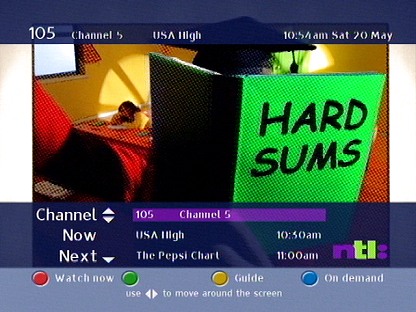
Now and next banner that appear when you change channels
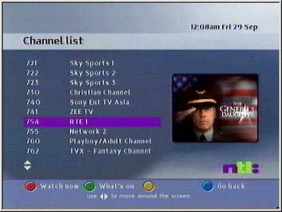
You can bring up the information banner, which shows what’s on now and next, and allows you to browse through the channels on ntl digital
TV Guide Listings
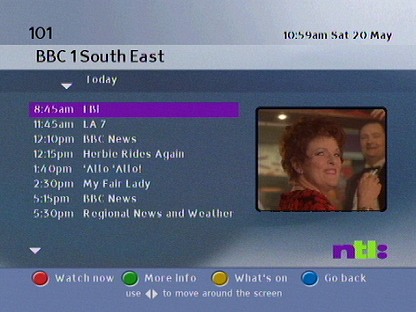
Pressing Guide bring up this menu, this gives two options. The regular channel guide and the On Demand (NVOD) guide
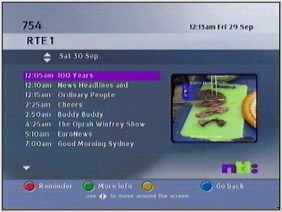
The guide layout is quite different here compared to the grid view that other systems like Sky Digital use. Here you select a channel from a list which will then show a page full of listings.
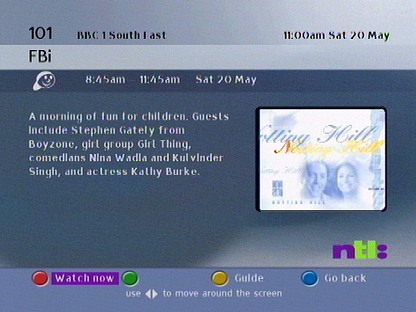
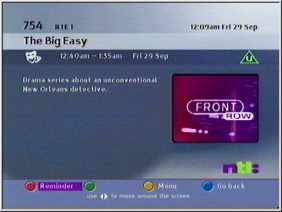
Pressing info brings up a description of the program or episode
TV On Demand
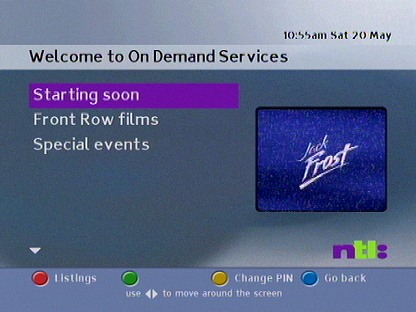
Front row was the services used to provide PPV events for cable customers, similar to Sky Box Office
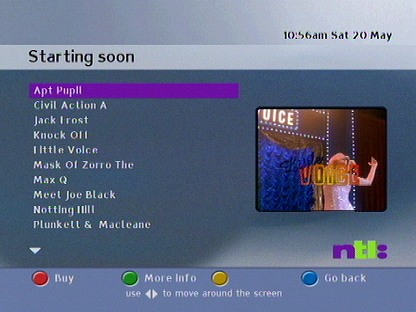
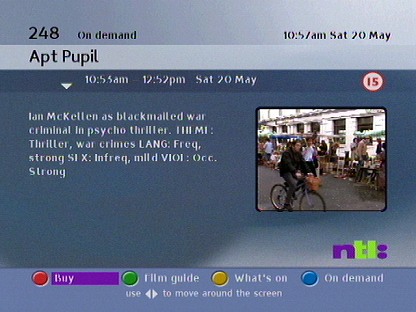
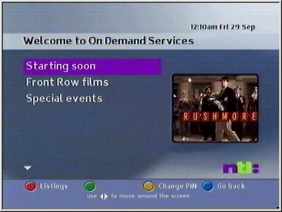
A list of movies and events to order
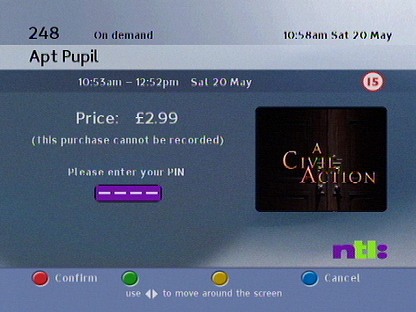
Purchasing a movie,
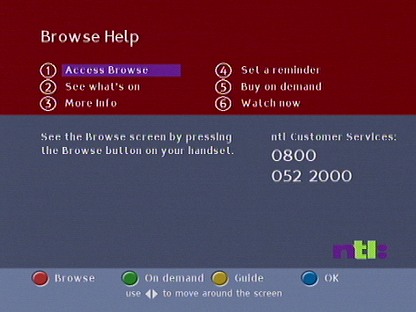
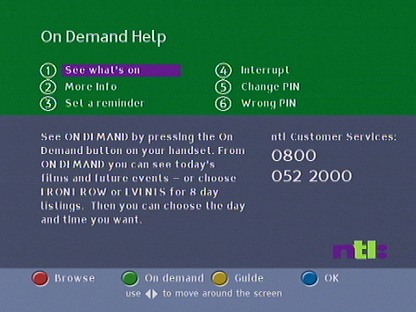
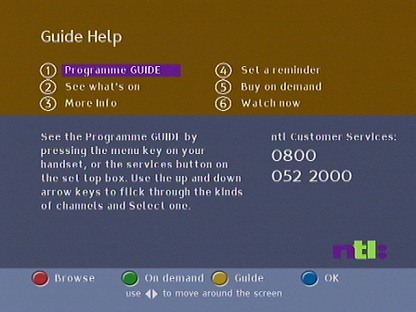
Help Information
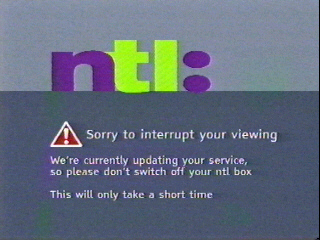
Appears when the set top box is in the process of starting up
Updated Build
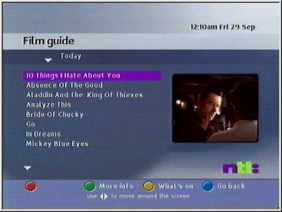
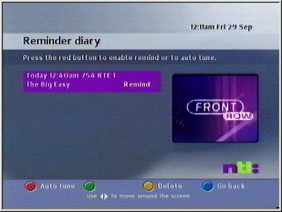
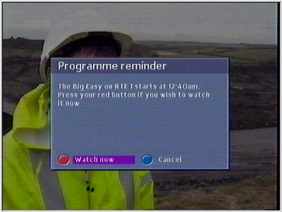
A revised update now adds a reminder diary feature, that allows reminders to be set for future program’s – similar to the Sky personal planner
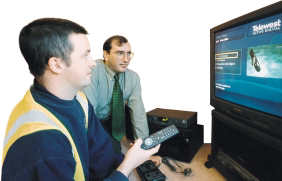
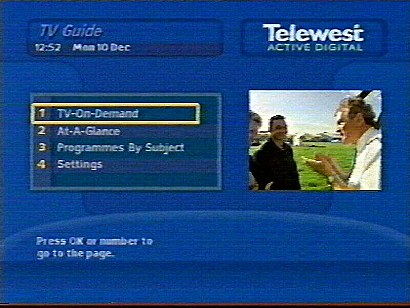
Telewest launched it’s Active Digital TV service in 1999 and was built on the same foundation that Cable & Wireless used for their digital TV service.
These screenshots were originally hosted on Digitalspy and were captured by a forum member, but the links to them were broken in an update, and were no longer directly accessible. From the looks of it they were captured using the RF output, so they are not indicative of the quality available at the time.
Startup Screen
Now & Next bar, very similar in practice to Sky Digital
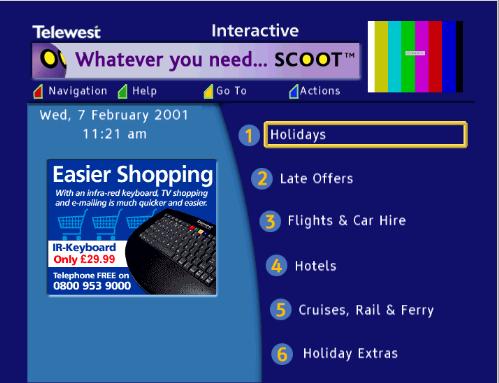
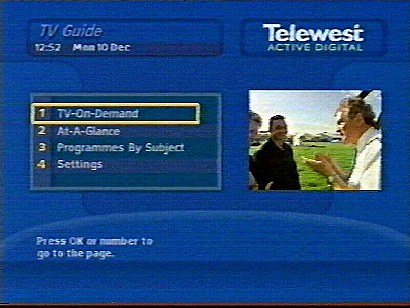
The main home screen
At-A-Glance
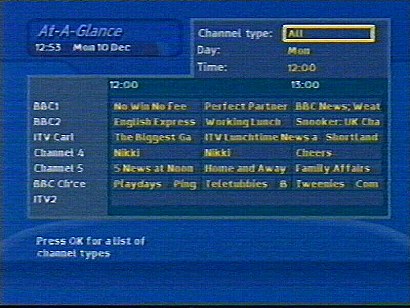
The main TV Guide, called ‘At-A-Glance’, this shows TV listings for the next three days
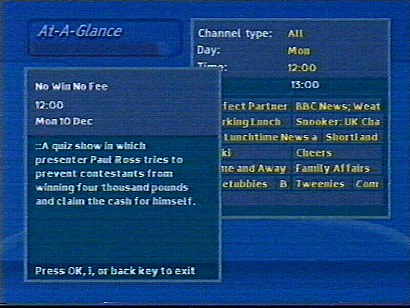
Pressing i calls up a description of the program
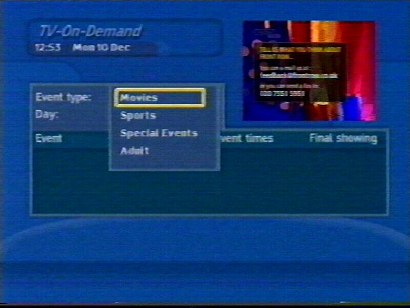
TV-On-Demand
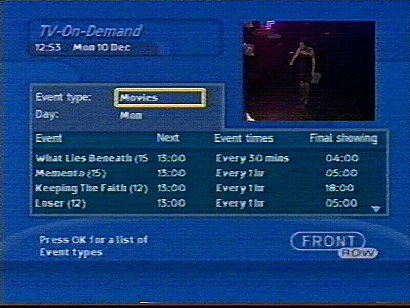
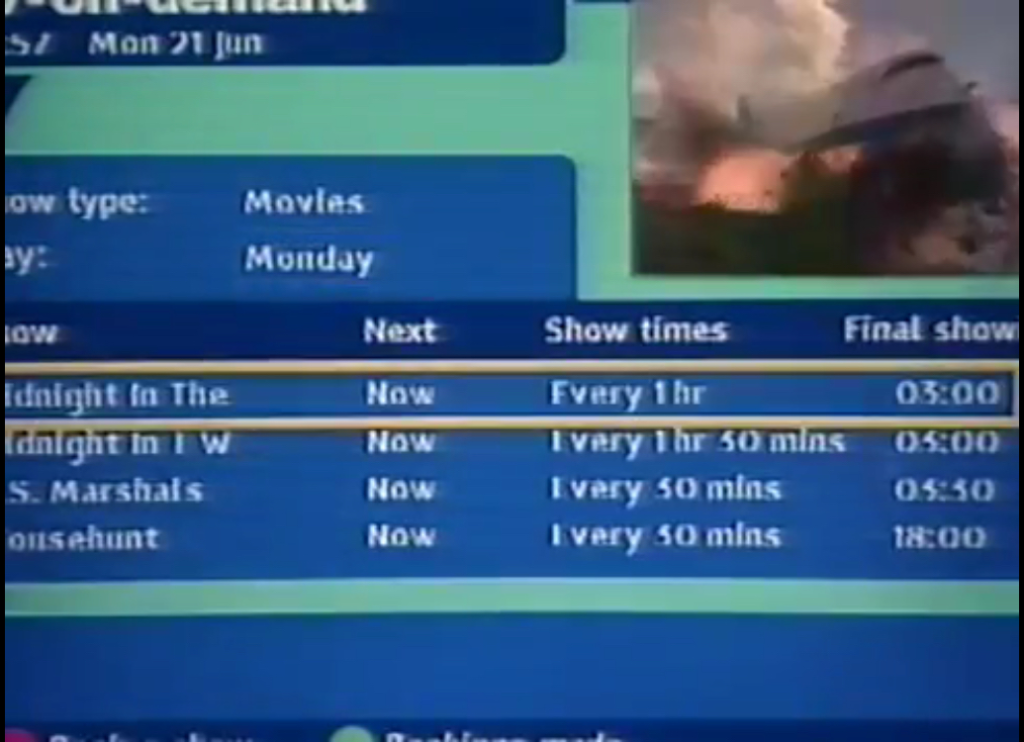
This isn’t true video on demand, at this point only NVOD was supported. the customer selects a convenient time slot showing to view the movie or event
Different categories
Programs-By-Subject
This I imagine is similar to the A-Z listings on Sky, where you can view programmes by their genre. Useful for discovering new or similar programs.
Settings
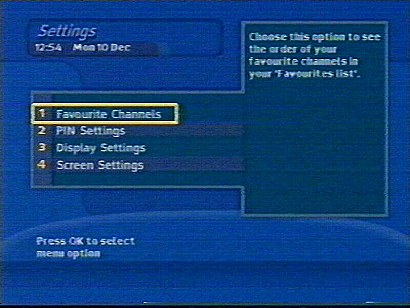
Main settings area
You can set the reminder notification warning before the program starts. Its worth noting that cable had implemented this before Sky Digital,
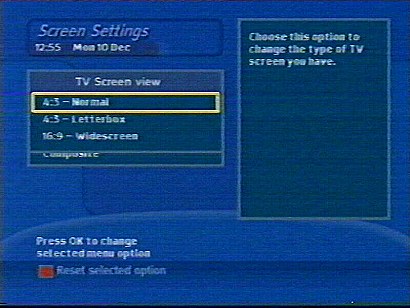
Here you can change from RGB to Composite, and set the box to output widescreen or standard. Letterbox options are also available.
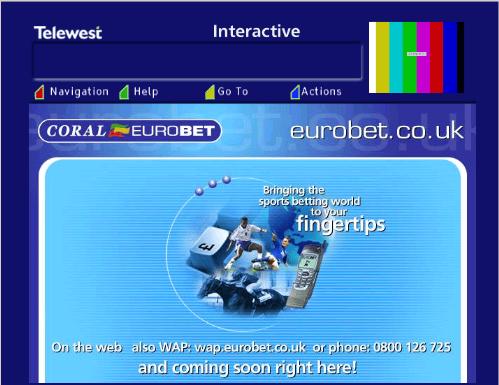
Interactive
The early implementation of interactive was done in a separate Liberate browser, that had to be loaded separately. this meant that red button functionality was not yet possible in this build, since the Liberate environment was not yet running full time.
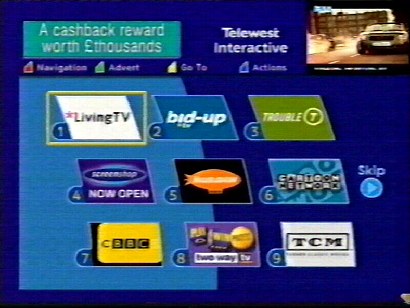
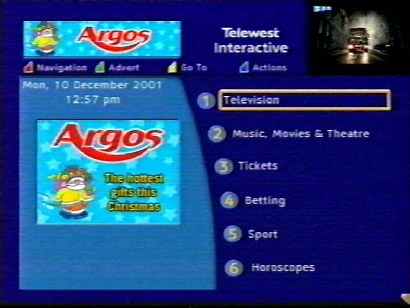
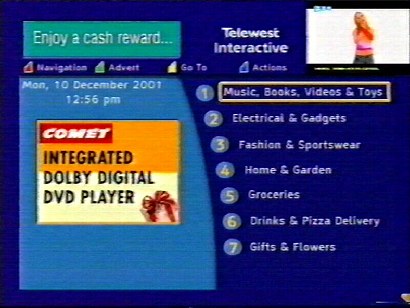
The main interactive menu, very similar to the ntl interactive portal
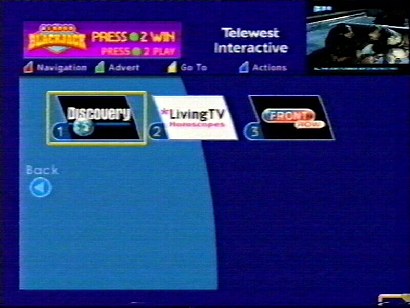
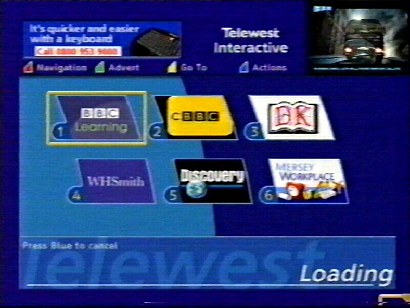
List of all entertainment interactive services, which are customised websites that are designed for use on an embedded set-top-box.
Interactive is delivered using the internal broadband cable modem built into the set top box, a phoneline is not required and the service is always on
Nearly all of the content and service are built using HTML3, which makes it easy to develop and host service, although there are some differences and restrictions comparted to a desktop class website.
A navigation bar can be used to browse around the service, and to exit back to the tv channel you were watching
An email service was built into the service, and was tied into the blueyonder email service.
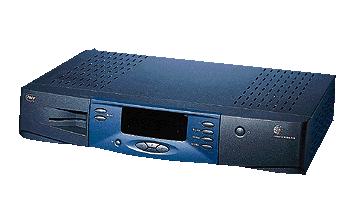
The DiTV 1000 was one of the first digital cable boxes released in the UK, and one of the first DVB-C box’s with a built in DOCSIS cable modem.
The DITV1000 was also used by Telewest, where it was branded as the Di1000T, however the internals should be the same, although there may be differences in the memory configuration
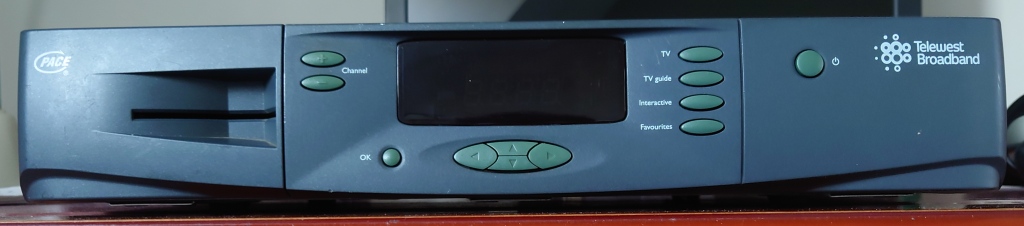
DiTV 1000 Front
Two card slots are present, with the smartcard slot visible behind the front cover flap. Front panel buttons can be used to change channel, move and navigate the on screen cursor and access various different menus.
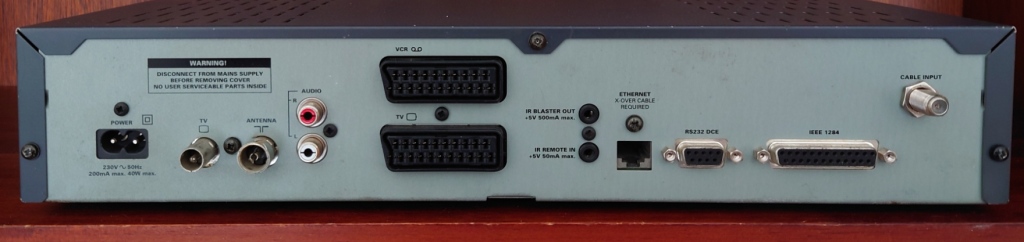
DiTV 1000 Rear
Power – Mains input
RF Output: Outputs a modulated RF signal to a TV
RF Input: In from antenna
Audio Output: Outputs audio to a HiFi system, useful for radio
Scart Ports: Supports compostie and RGB, and VCR passthrough
IR Remote In/Out: To connect external IR blaster devices, Not officially used but is power enabled
Ethernet Port: Originally used to provide broadband services to a computer using the internal DOCSIS modem, redundant as cable modems are now preferred.
Serial Port: Labelled as RS232, Not Officially used
Pararell Port: Labelled is IEEE1284, Not Officially used
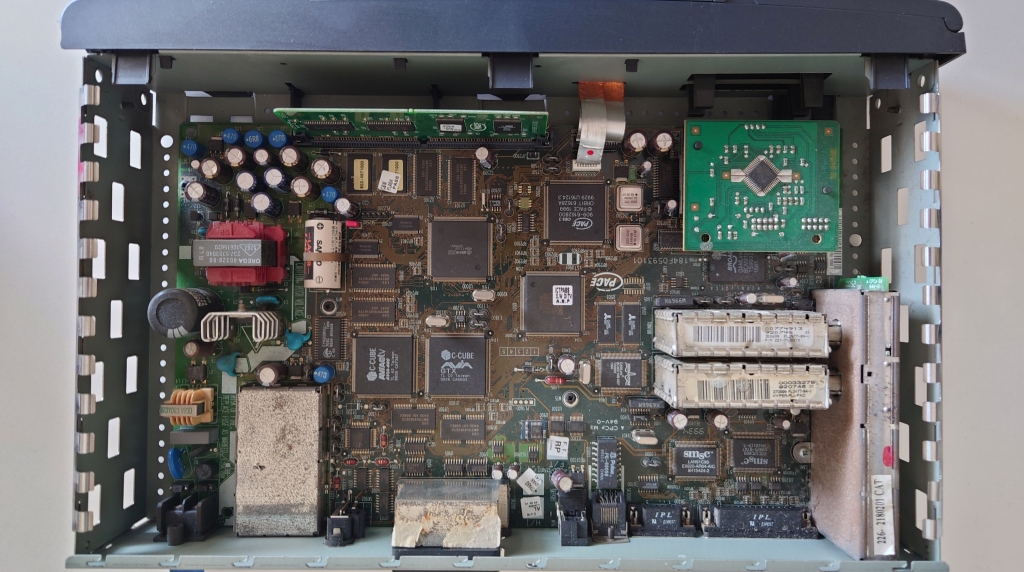
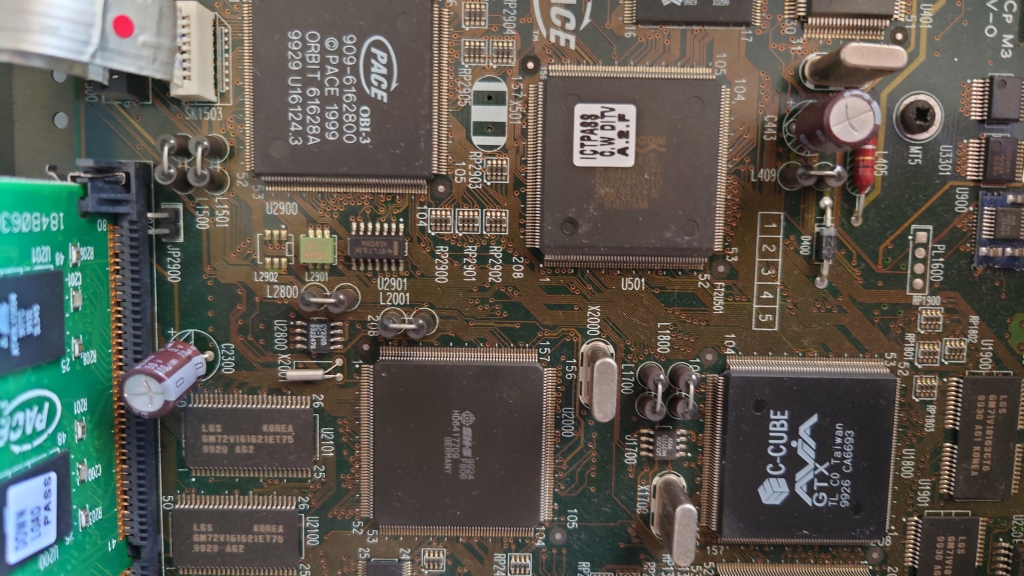
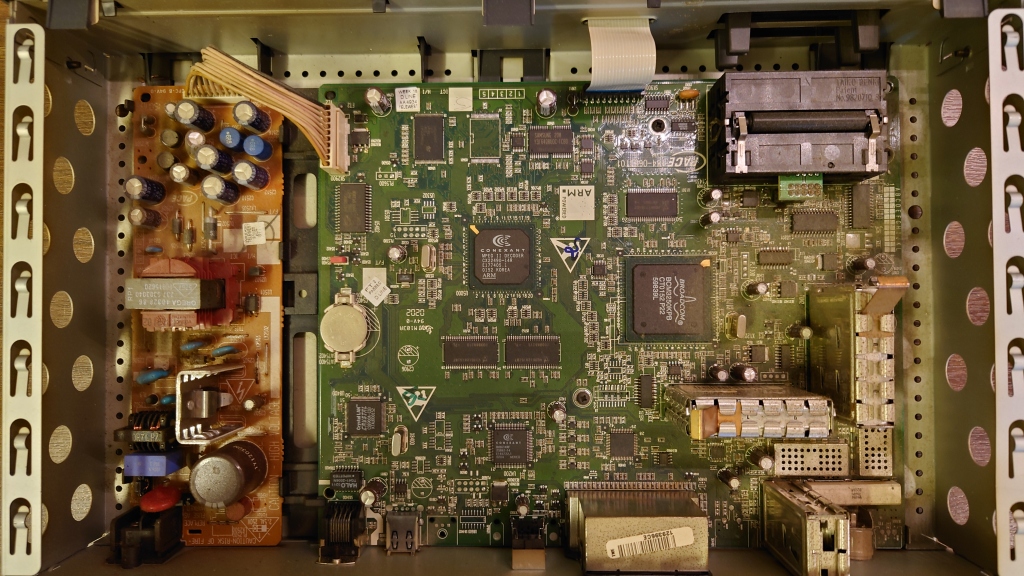
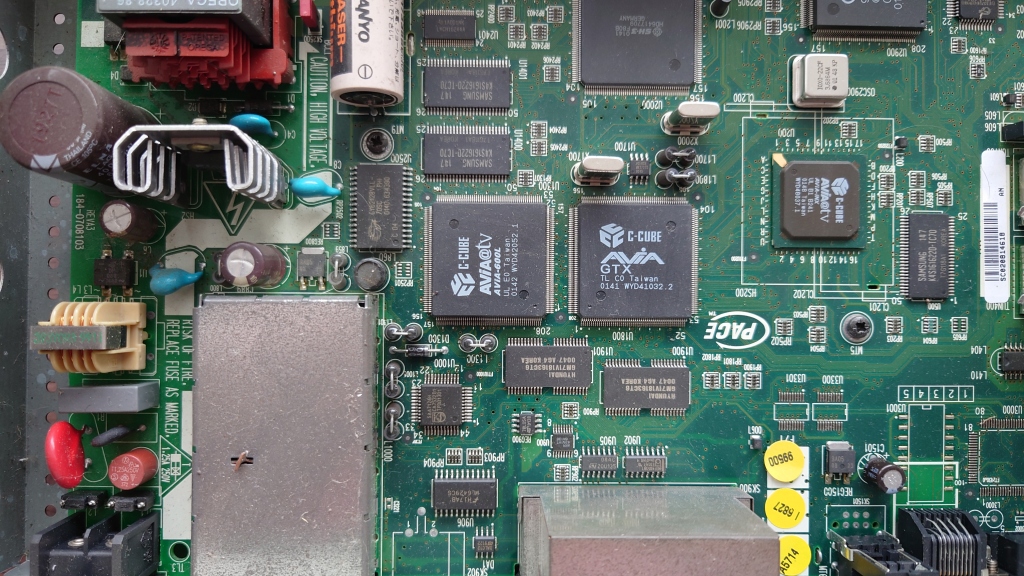
Internals of the DITV 1000, note the various amount of processors in this box, no wonder it runs hot.
It kind of reminds me of the Sega Saturn, which itself had 8 processors for various different tasks. Remember this box has to function as a high end STB and a cable mode, and still has to remain the size of a typical VCR.
Note the lack of a fan, since these box’s run hot they would have benefitted greatly from an additional fan to extract the heat generated by the components. Whilst this would have increased the cost of the stb slightly, the increase in reliability would have paid for itself in time, remember ntl had to pay installers to come out and replace the box once it had failed, and then had to be sent back to Pace in order to be diagnosed and repaired. Also customers are generally poor at maintaining AV equipment, with many putting the boxes in Tv cabinets and stands with closed doors, often on top of a VCR or DVD player that already generates heat. It’s no secret that heat is the main reason electronic components die early, and this was before the days of thermal throttling.
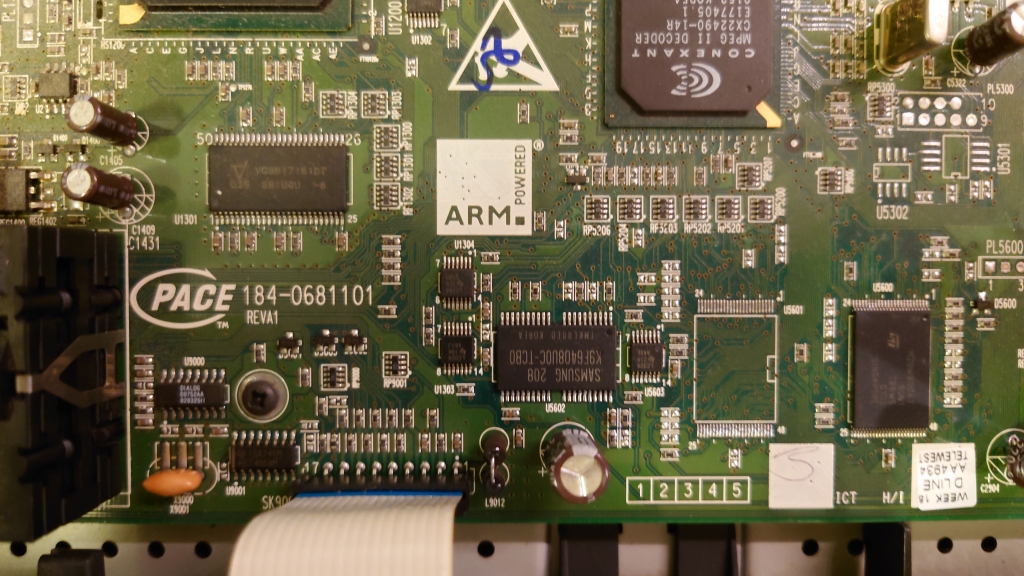
View of the memory and flash chips, with the memory module. Interesting to note the two flash banks, one labelled C&W Flash and the other as Download, wonder if these store two separate images? One for main use and the other for backup?
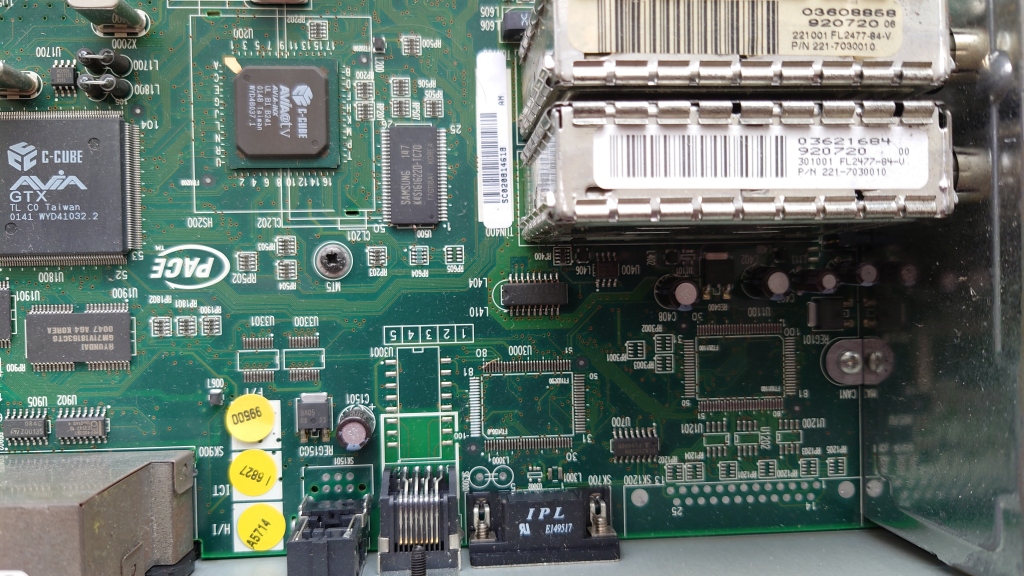
View of the bottom right side, showing part of the PSU
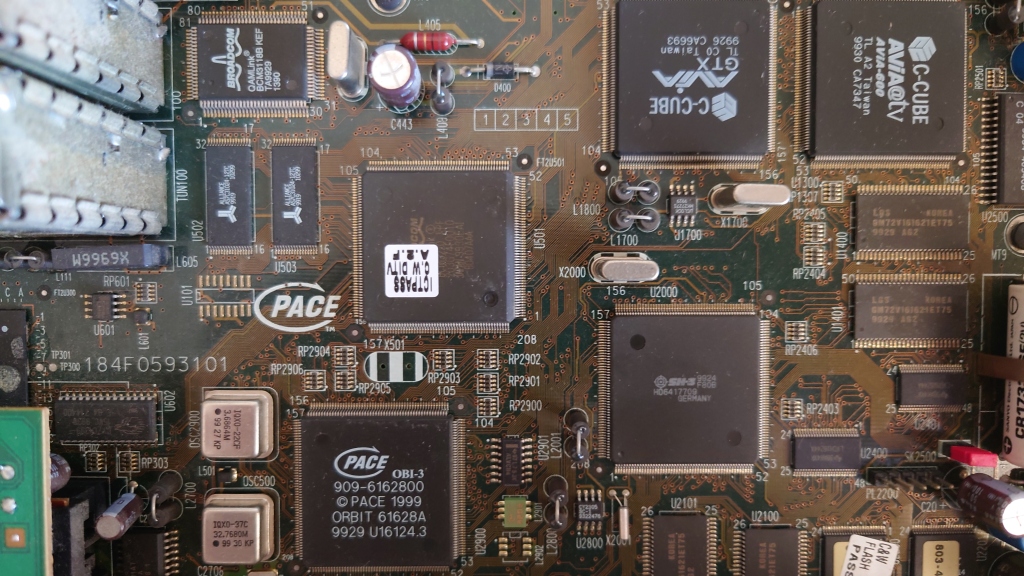
The main set of processors, from top left working down
Hitachi SuperH/SH3 Processor – Central Processing Unit
Another view of the main processors
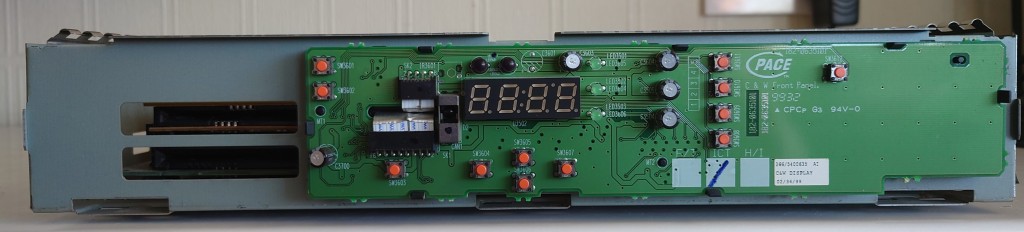
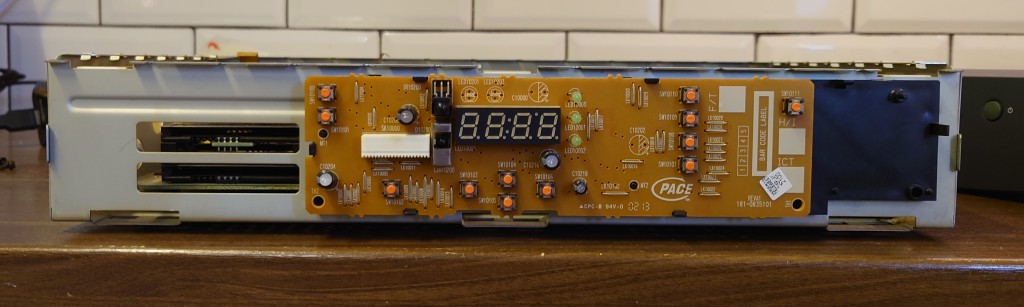
DiTV1000 Front Panel
Update Process
So looking into the update process for the Ditv1000 I came to a plausible theory, When pace had written the initial loader for the stb, they neglected to include a function to check for a firmware update on boot up, which the later boxes did support and do. Typically when you boot up a cable box, it checks the default frequency for a valid netID and if there are any updates available for that stb, and the loader application for the ditv1000 may not have done that.
Since the loader is present on some sort of ROM medium and its likely Pace had already manufactured the software on the ROM chips themselves, they did not want to write off these chips since it would be a considerable expense, instead they included a workaround in the software loaded in flash, where once the operator had released a new update, a signal flag would be sent out within the transport stream, of which the software would then corrupt itself in an extent that the loader would fail to boot (possibly by failing a checksum) and would then trigger the download process.
To force an update on the Ditv1000, Hold the power button upon powering on the box from the mains power, release the power button when OHAY appears on the screen. then press
Update Process, this is displayed after you enter the key sequence
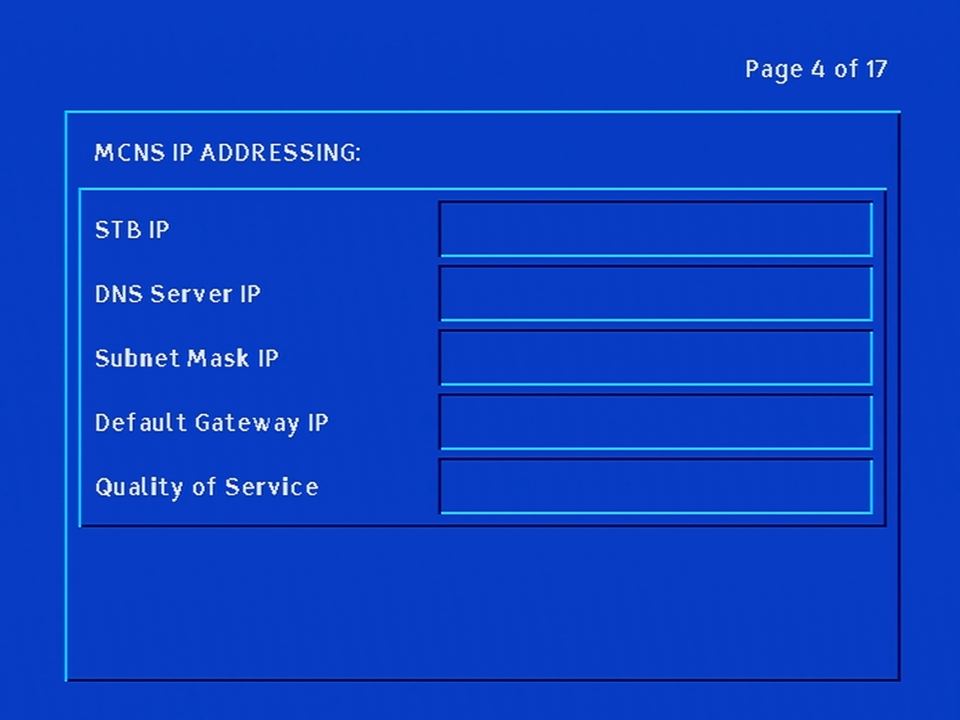
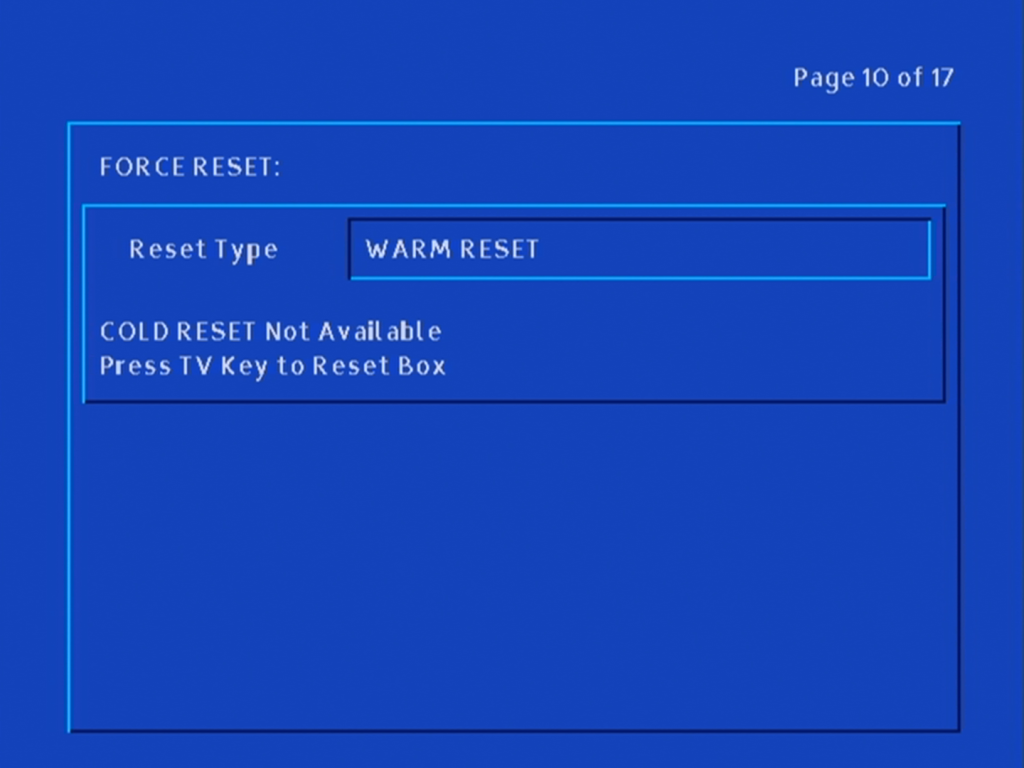
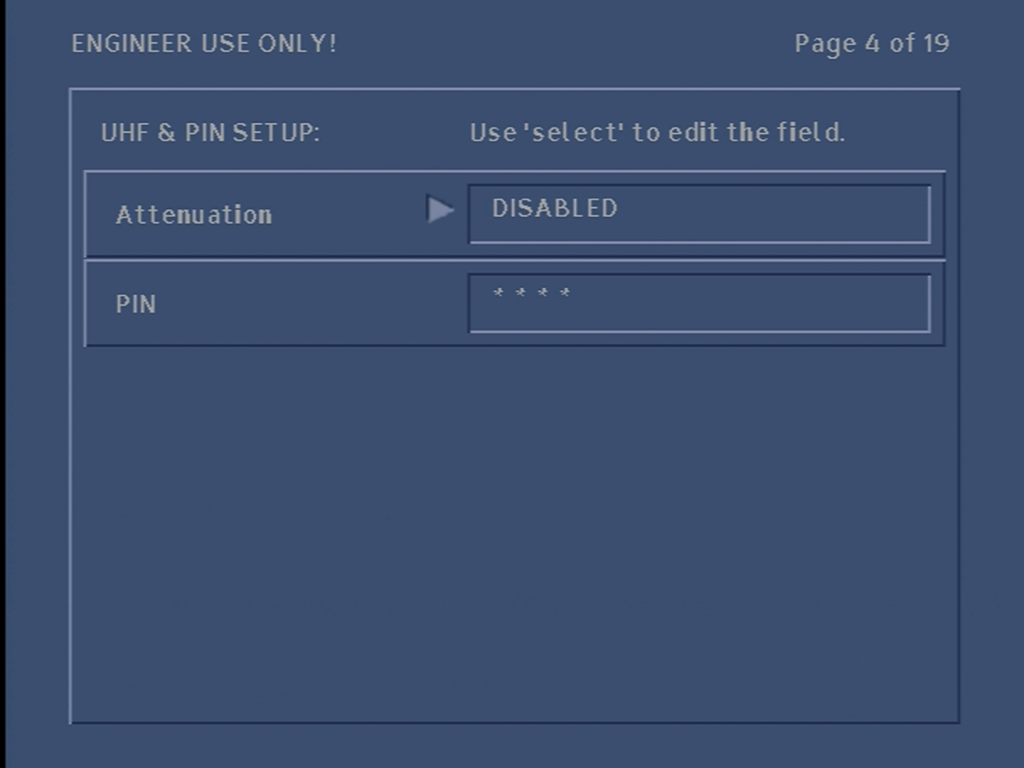
Diag Screens
To access, hold the Up/Down front panel buttons together after powering the box from the mains, release once DIAG appears on the front panel.
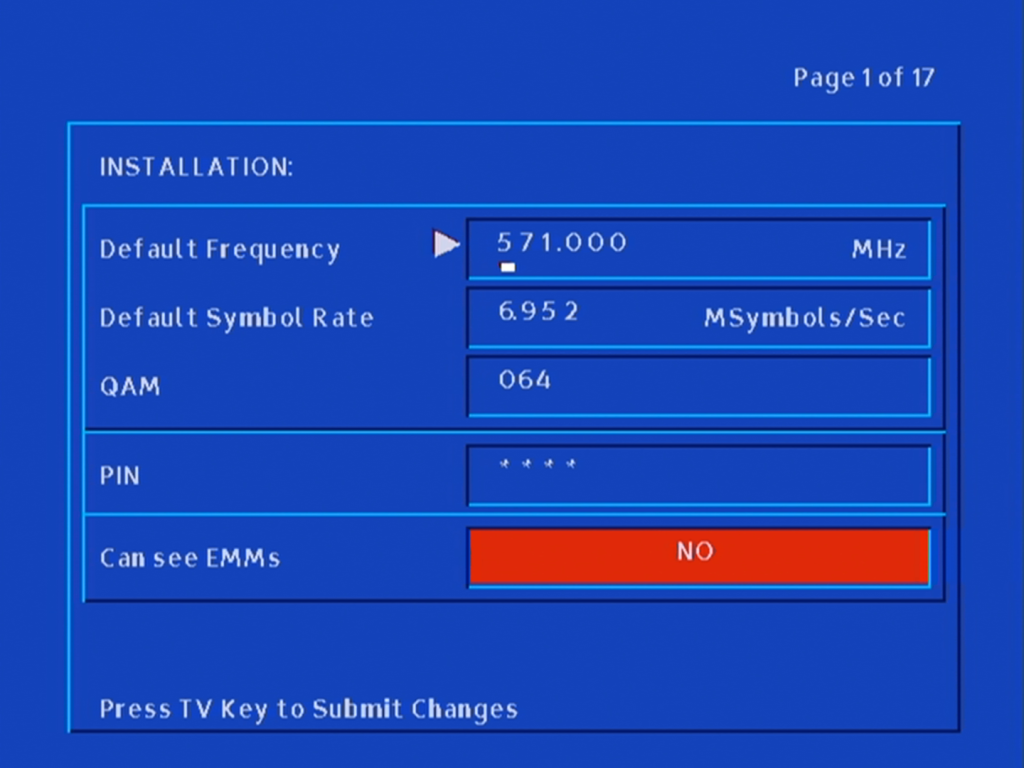
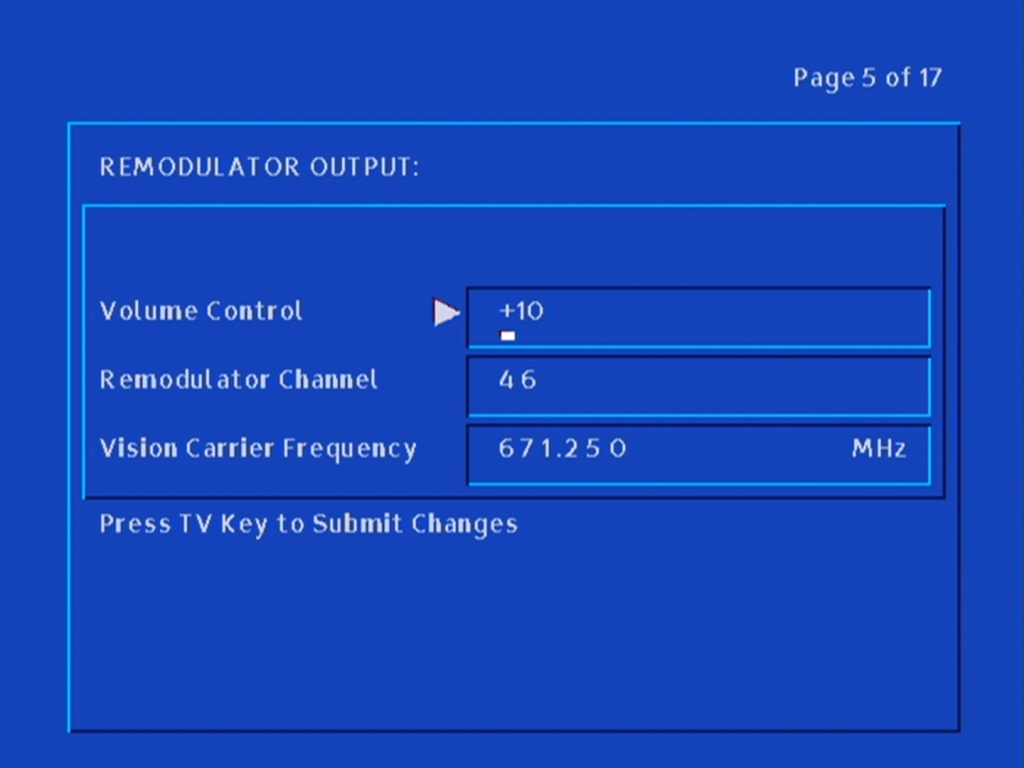
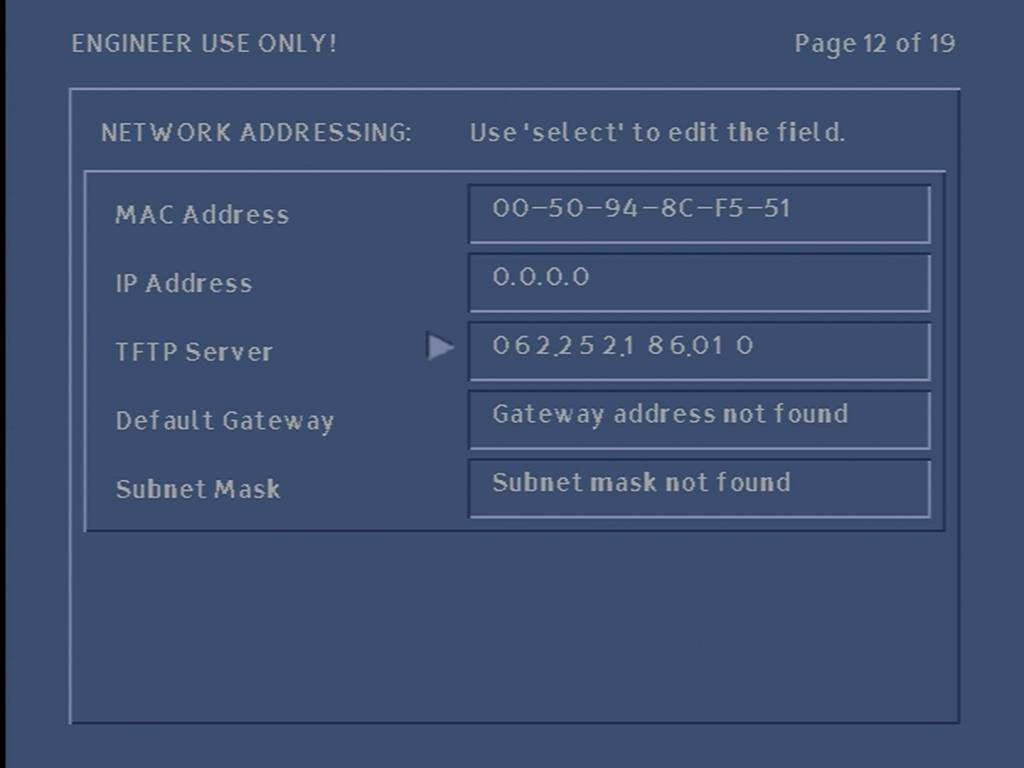
Default Frequency settings
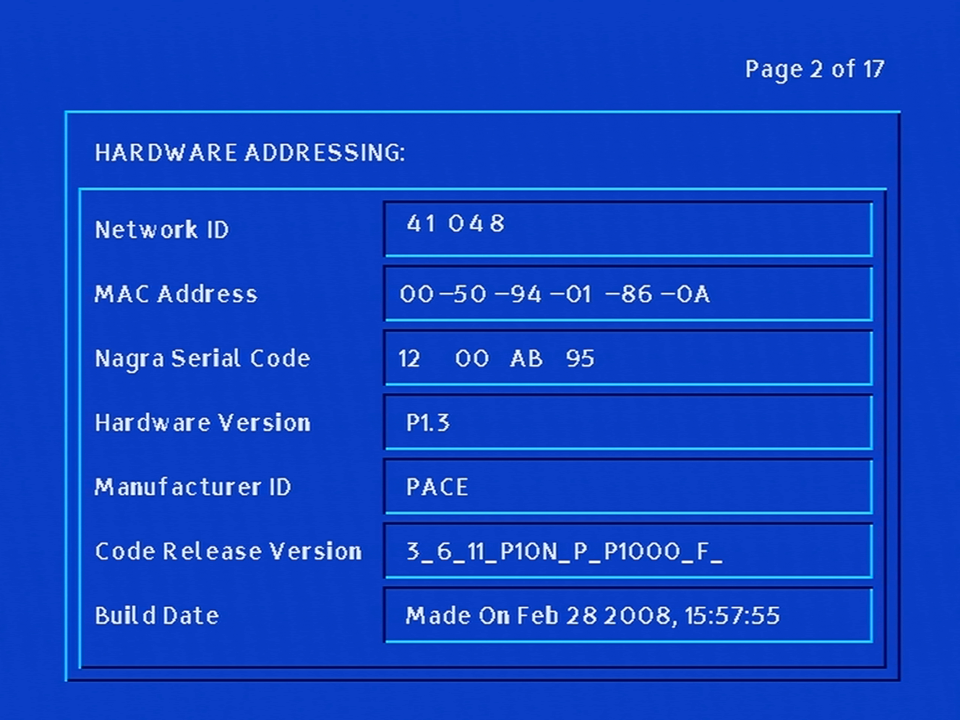
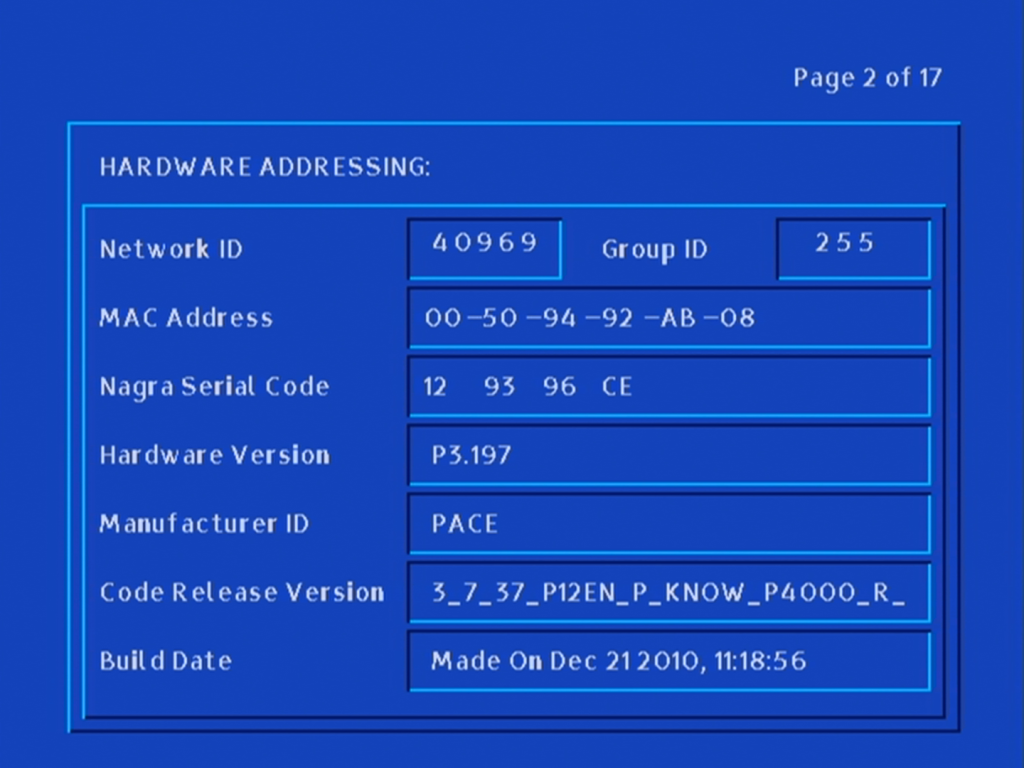
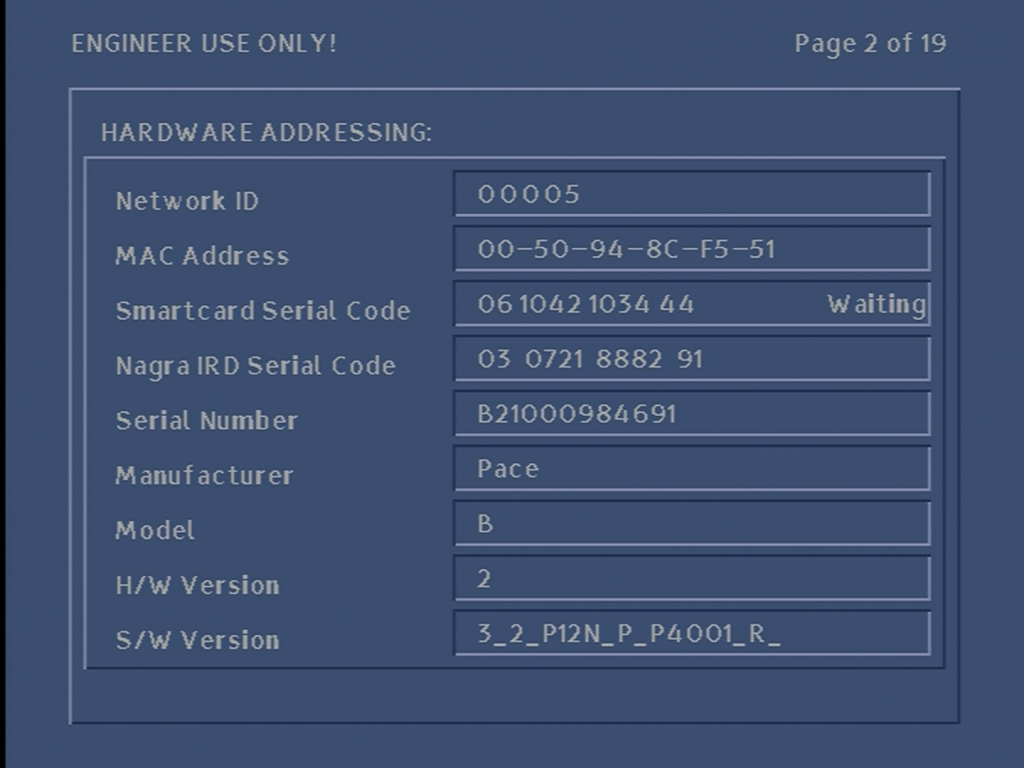
Hardware version information and the loaded software information
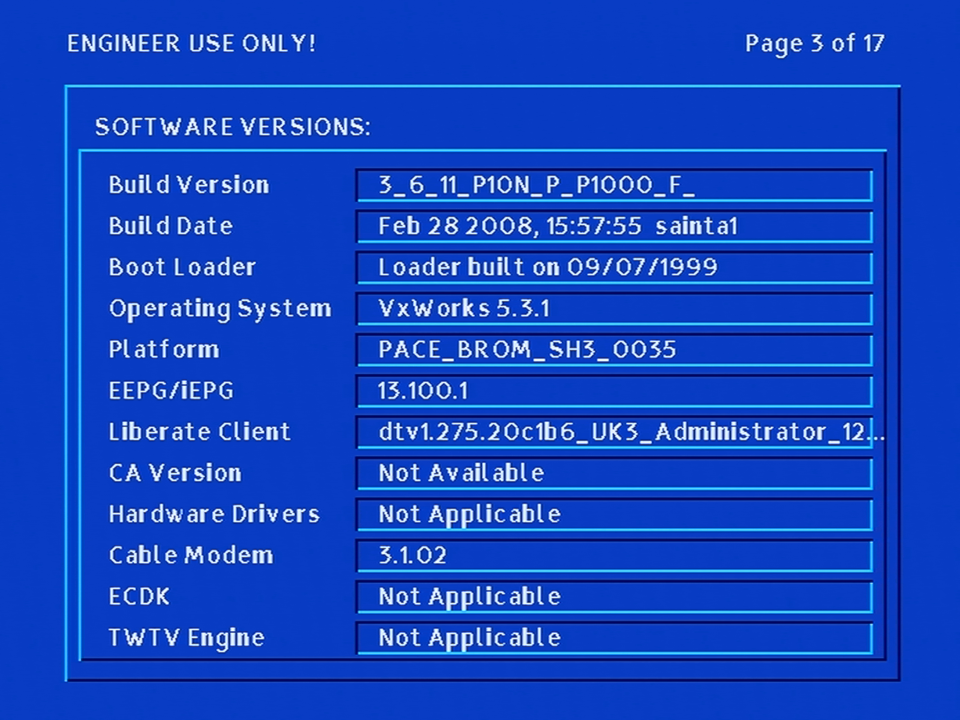
Software versions for various components
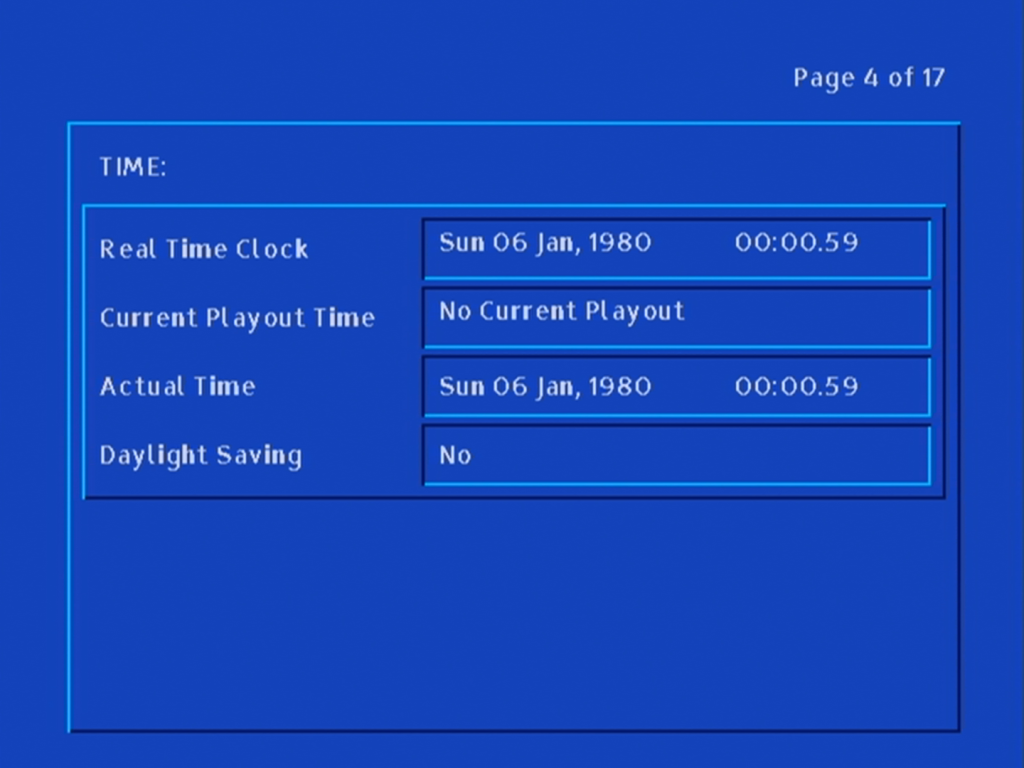
Date & Time Information
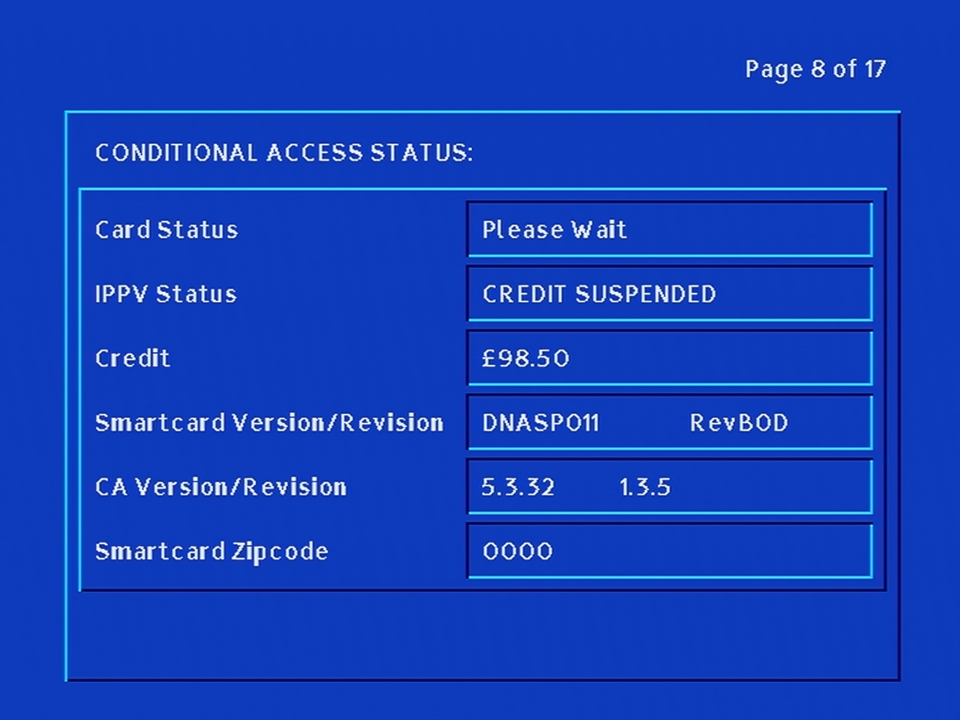
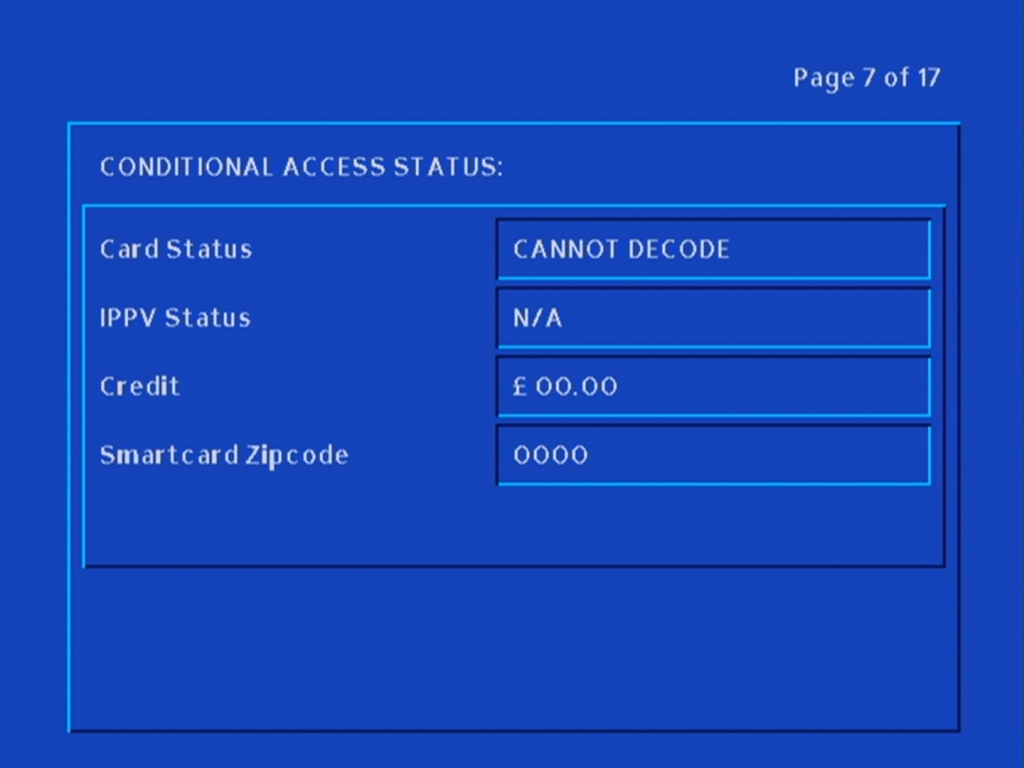
That’s a lot of credit
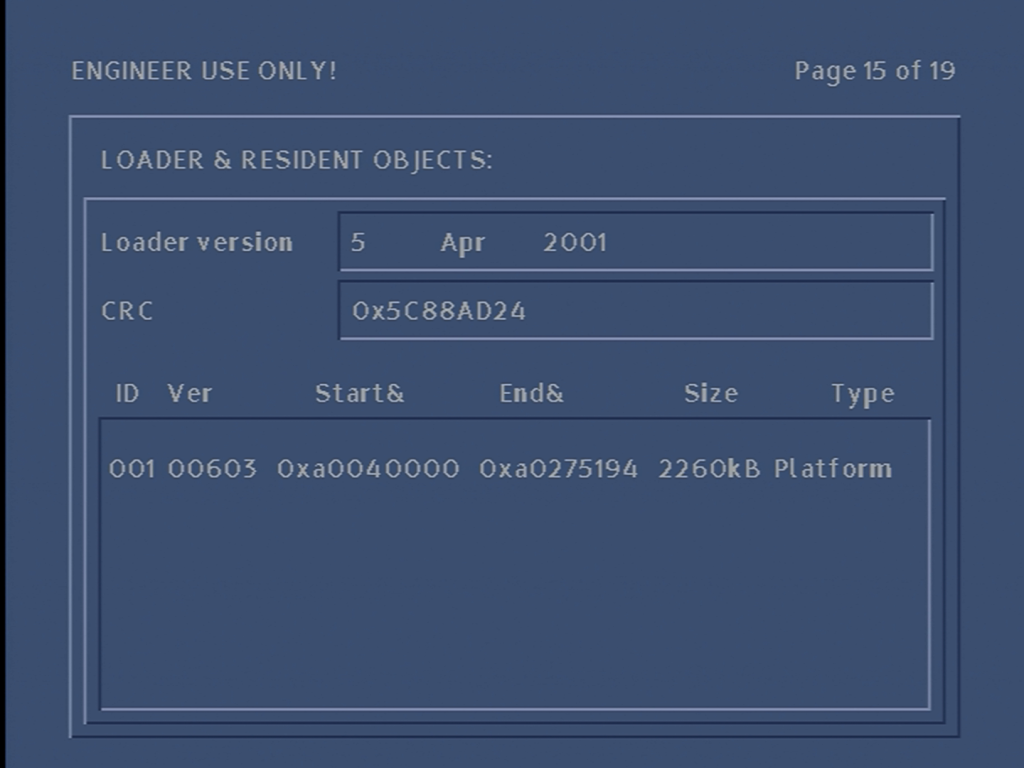
The bootloader status
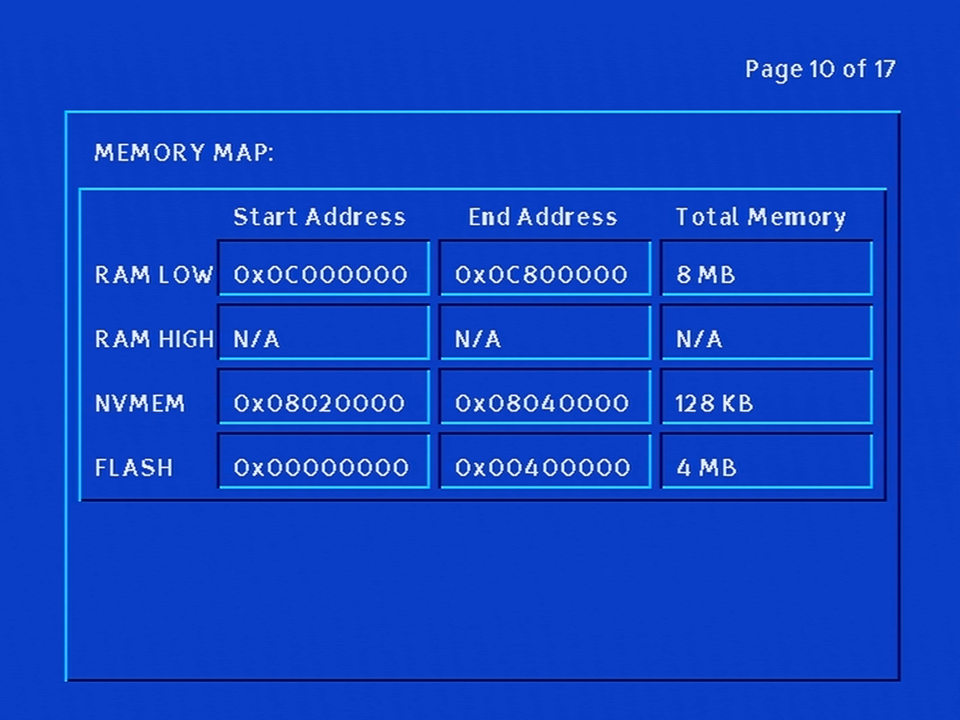
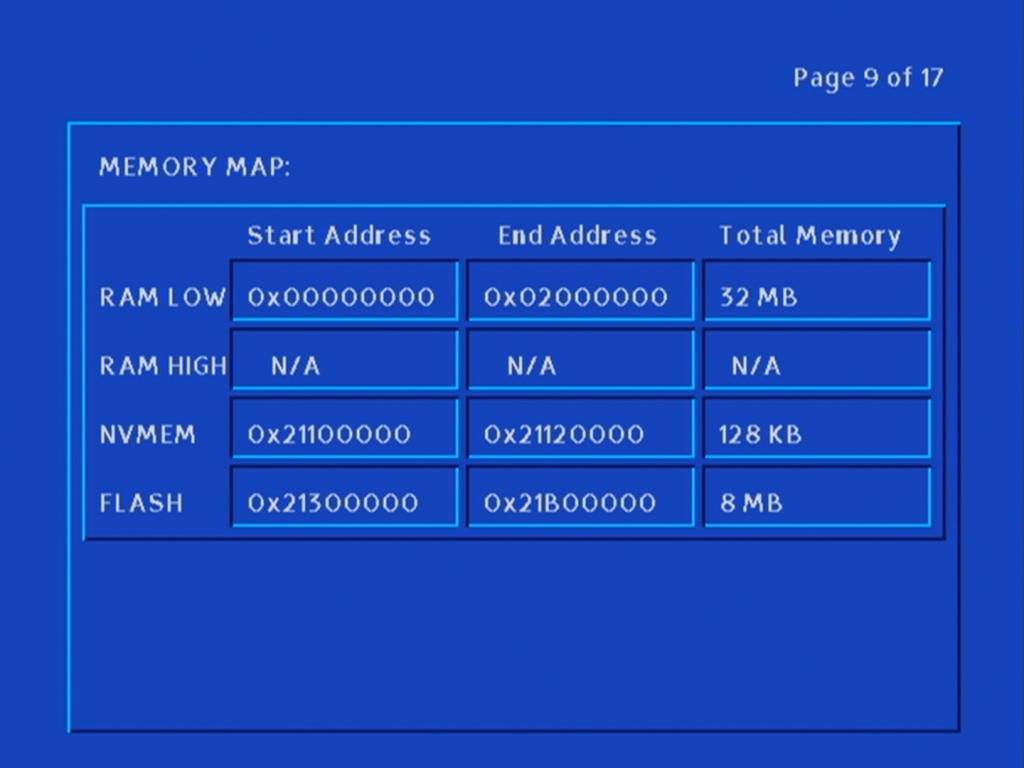
Memory information for both RAM and Flash memory
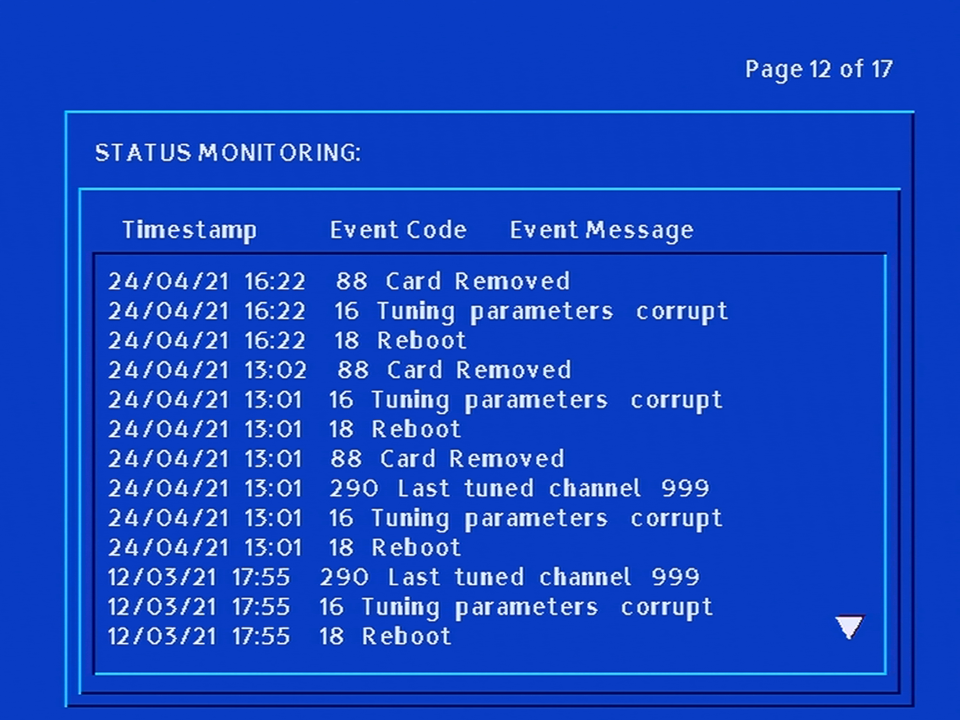
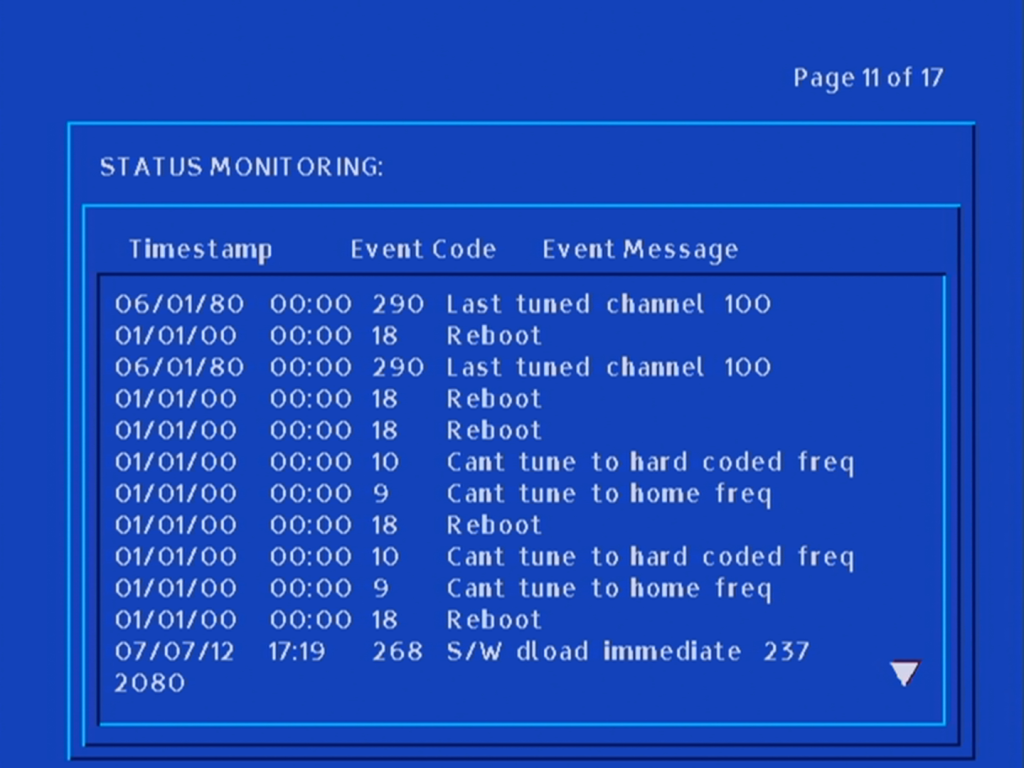
Status and a list of logs and events
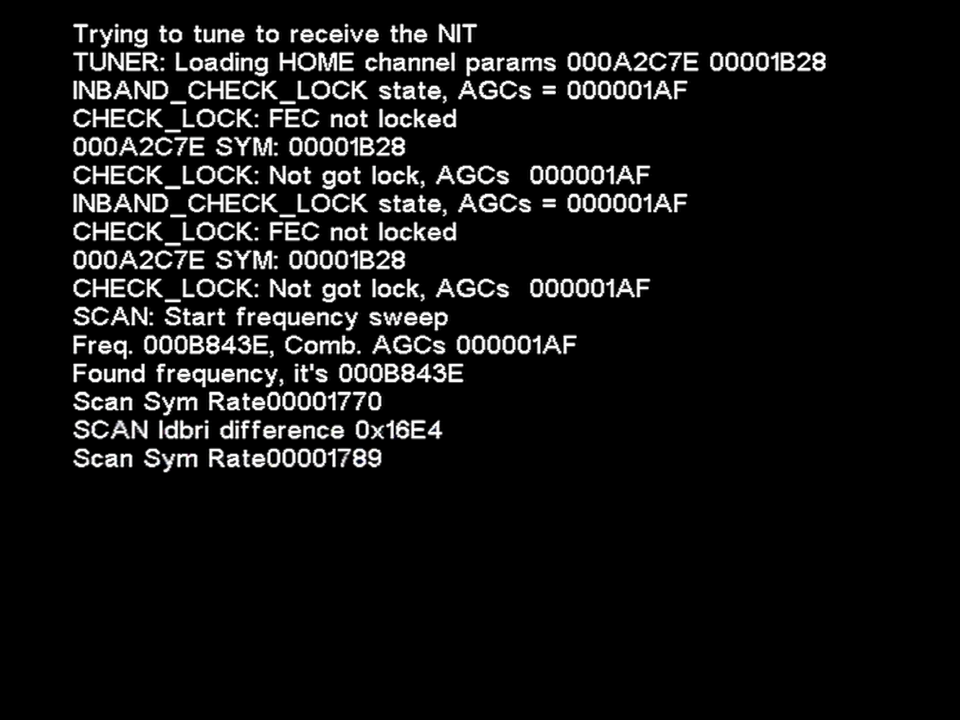
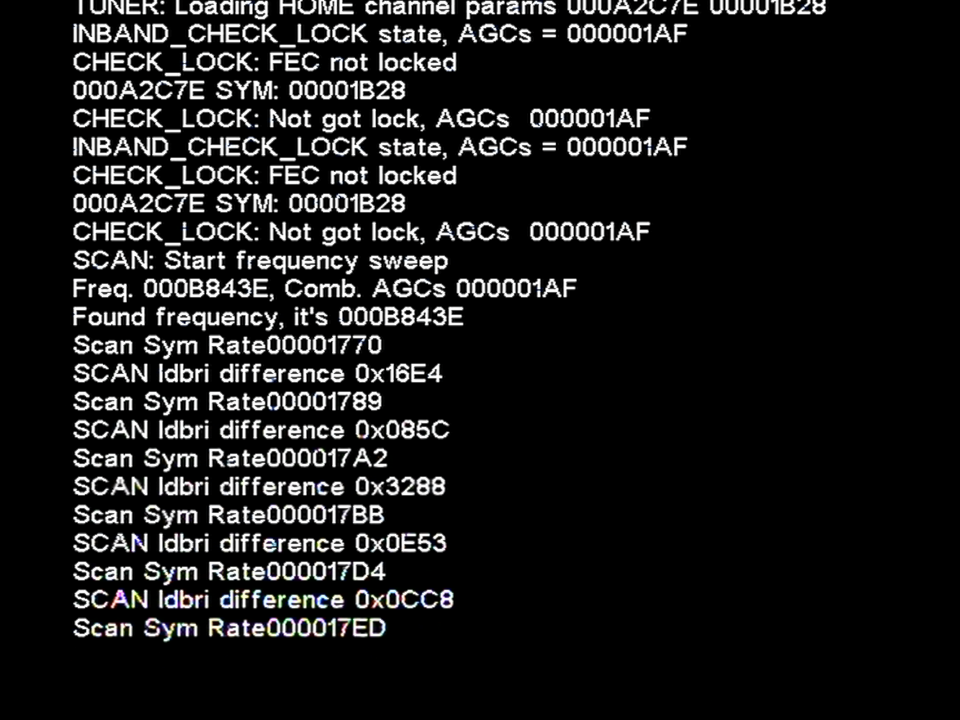
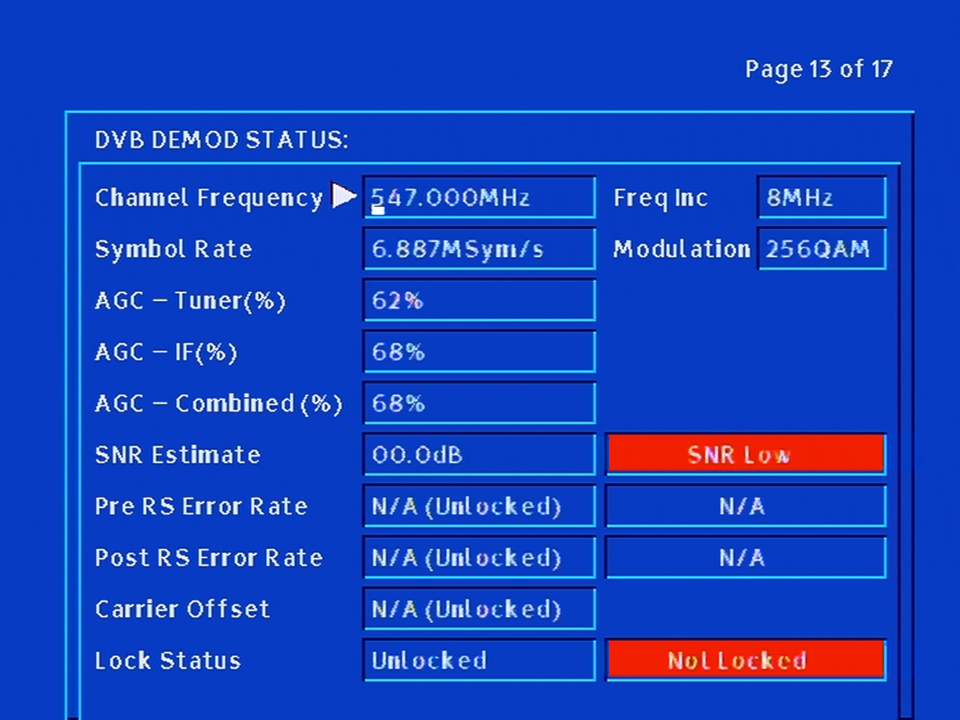
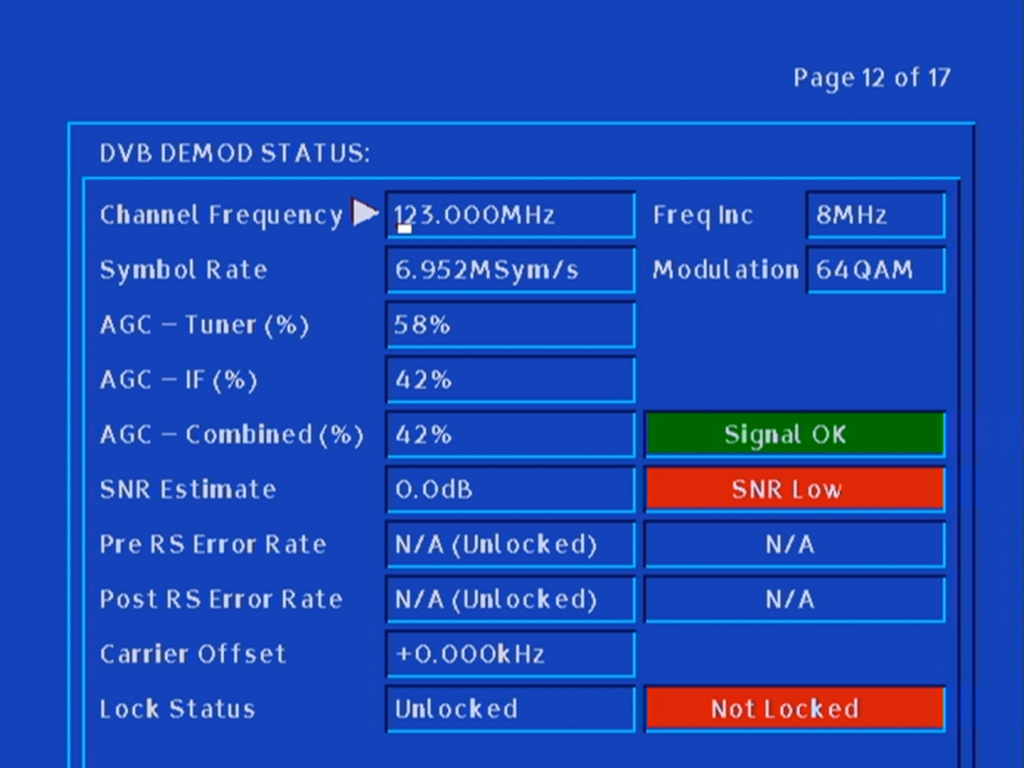
Signal information for the DVB tuner
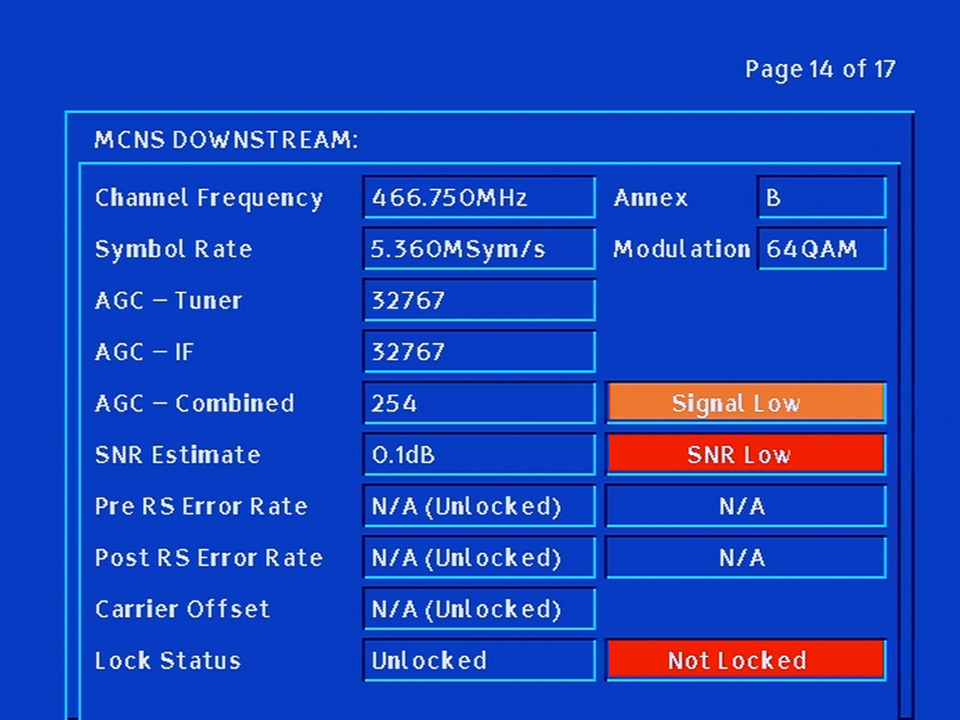
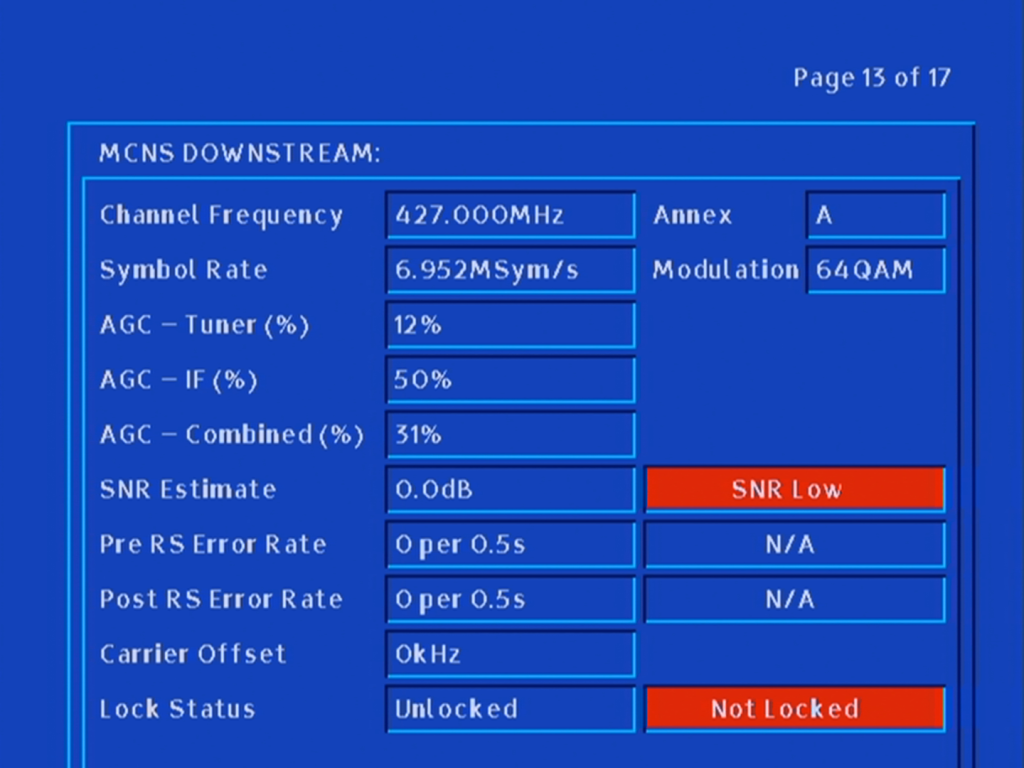
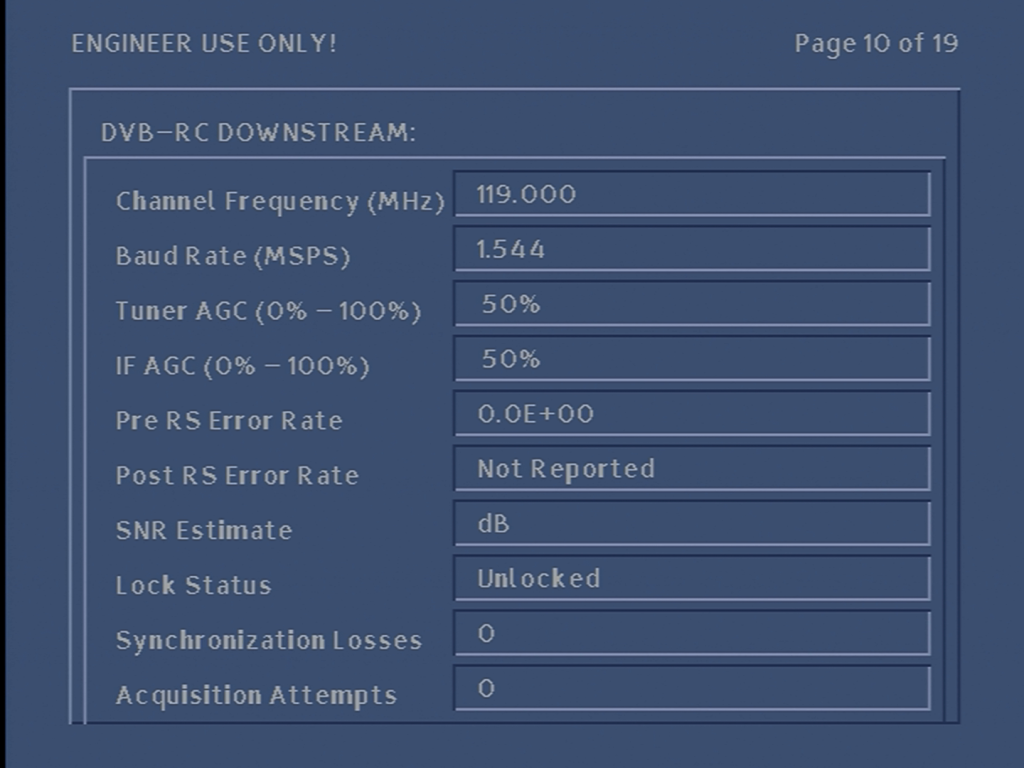
Downstream signal information for the cable modem
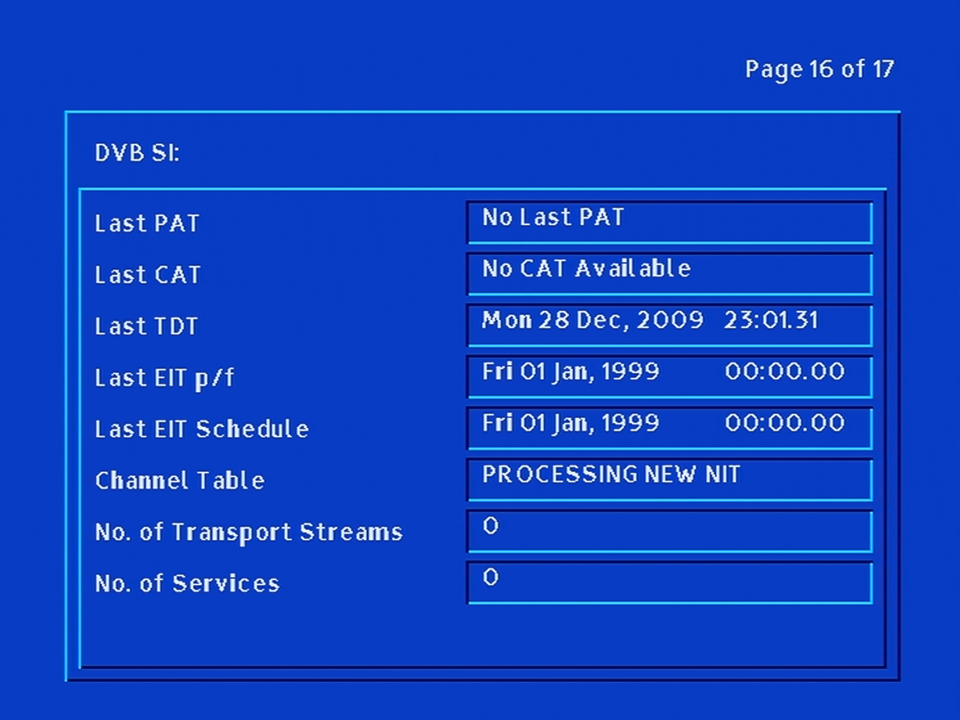
Information for the DVB Signal Information that is currently being received
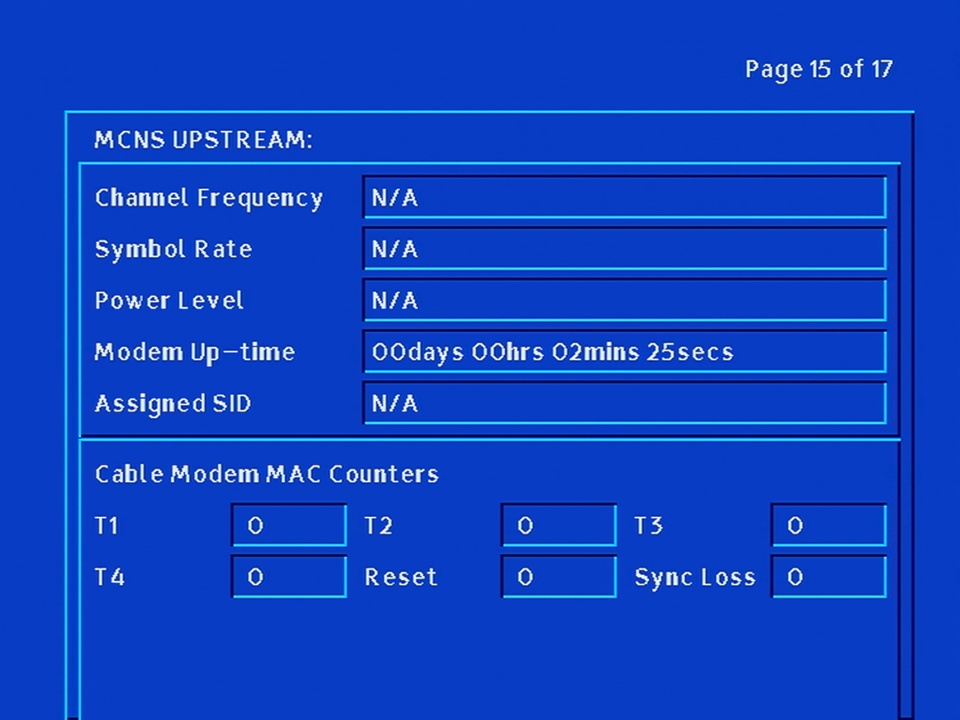
Cable modem upstream
Front LCD Display
There are three light’s to the right o the LCD display which indicate the following:
The top light indicates power is being received by the stb
The middle light indicated the return path status of the modem, this light should be steady which indicates it is connected, flashing means the modem is attempting to connect – also means interactive services are unavailable until the stb connects.
The bottom light is for the remote control, and light up when a command has been received
Message
Meaning
PACE
Appears when the stb is powered on
—-
Liberate middleware is initialising, normal part of boot up
LAIT
Wait, The stb is preparing to update
OHAY
Appears when you hold the power button down upon boot, stb waiting for a front panel command
ERAS
Erasing flash
FLAS
Flashing memory, part of the update process
GOOD
Checksum passed, last part of the update process
ERRX
Error code, where X means the error number
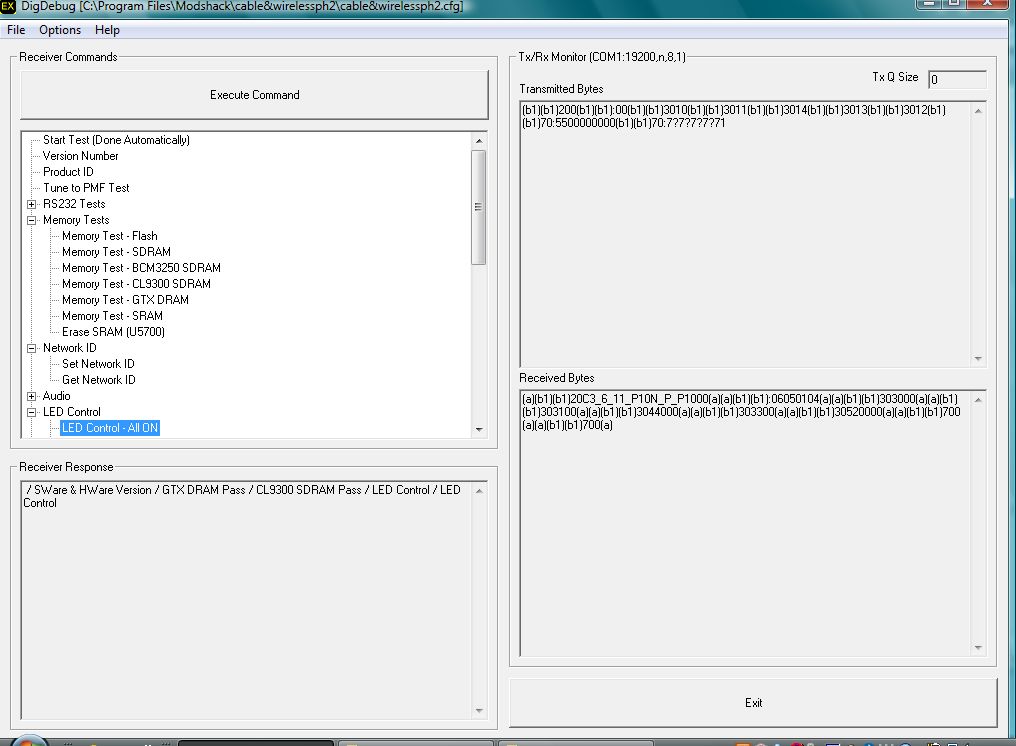
DigDebug
DigDebug can be used to test various aspects of the hardware and can be triggered by connecting an RS232 extender cable to the box, and booting whilst DigDebug is active. Whilst connected, PL:03 is displayed on the front LED display.
Additional tests can be completed for the various pools of DRAM used for the CPU/Decoder/Demodulator and a test pattern can be displayed.
The Di4001NC was a cost reduced cut down version of the Di4001 series of ntl set top boxes. One of the noticeable differences is the removal of the second card slot, in favour of just a single smartcard slot for the smartcard. The second card slot was originally designed for Mondex cashcards, which never launched.
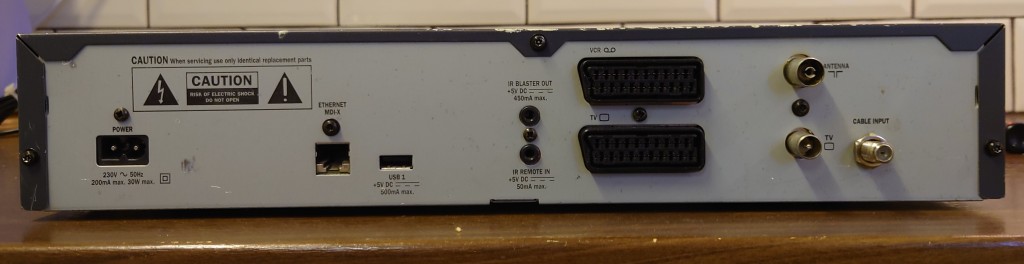
Another removal was the ethernet port, despite the box still having a built in cable modem, the IEEE1284 port has also been removed, along with the audio output
From left to right:
Power Input
RF Out – outputs the RF modulator, does not pass through the cable signal
TV & VCR Scart
IR Input & IR Output – No official function
RS232 – No official function
Cable Input
The RF output no longer includes an internal combiner, which means you will no longer be able to tune in cable channel’s via the RF tuner. Instead only the modulated output of the set top box will remain. This was due to the intention of removing the analogue channels, and to prevent the DVB-C channels from being tuned in on modern digital TV sets.
Well it looks very similar to the Di4001, but on closer inspection you can see the components removed, also in this model there aren’t any stickers covering the various chips.
The removal of the ethernet and IEEE1284 controllers, the ethernet port seems to remain but is not wired internally.
A closer look at the Broadcom DAVIC processor and the mysterious Pace chip, of which the sticker covered some of it on the previous model. At the very top you can see the main processor, which is unchanged since the previous model (Hitachi SH3)
Hitachi SH-3 HD6417709
Pace 909 6162800, ORBIT 61628
Broadcom QAMLink BCM3120KTB
Engineer Mode
To access, hold the Up/Down buttons upon bootup, and release when DIAG appears on the front panel display.
Default frequency settings, this would carry any software updates the STB would download upon boot up
Some version numbers, as well as the Network ID. This box appears to be running CR3.2
Further information in relation to the software versions on the STB
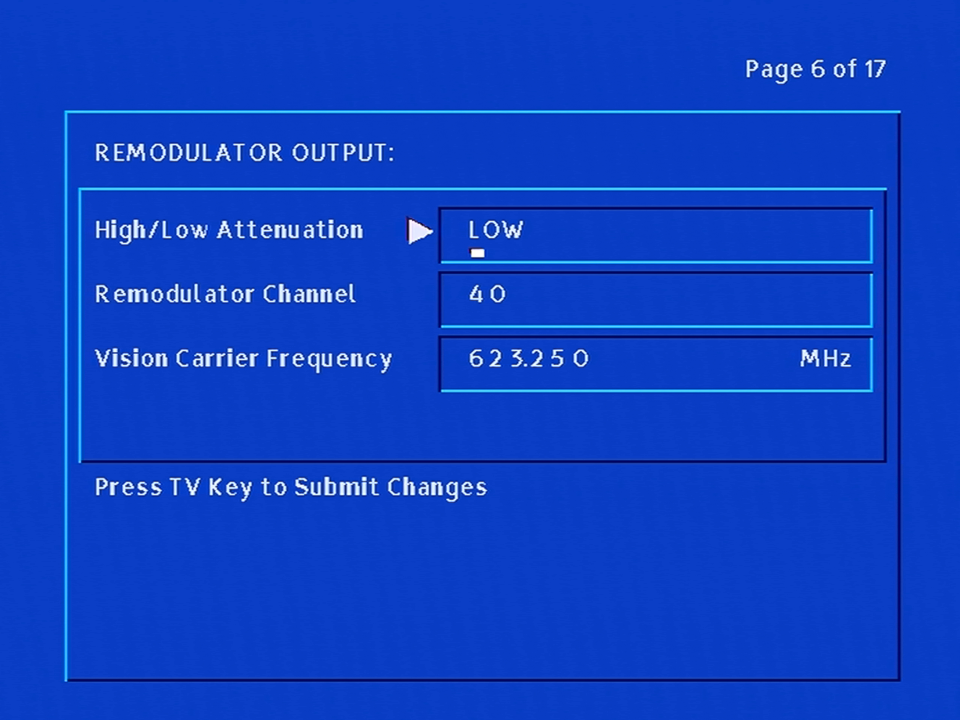
Since this revision lacks the internal combiner, you cannot control the outputted cable feed
Service status of the box, indicated that the signal is OK and the regional information
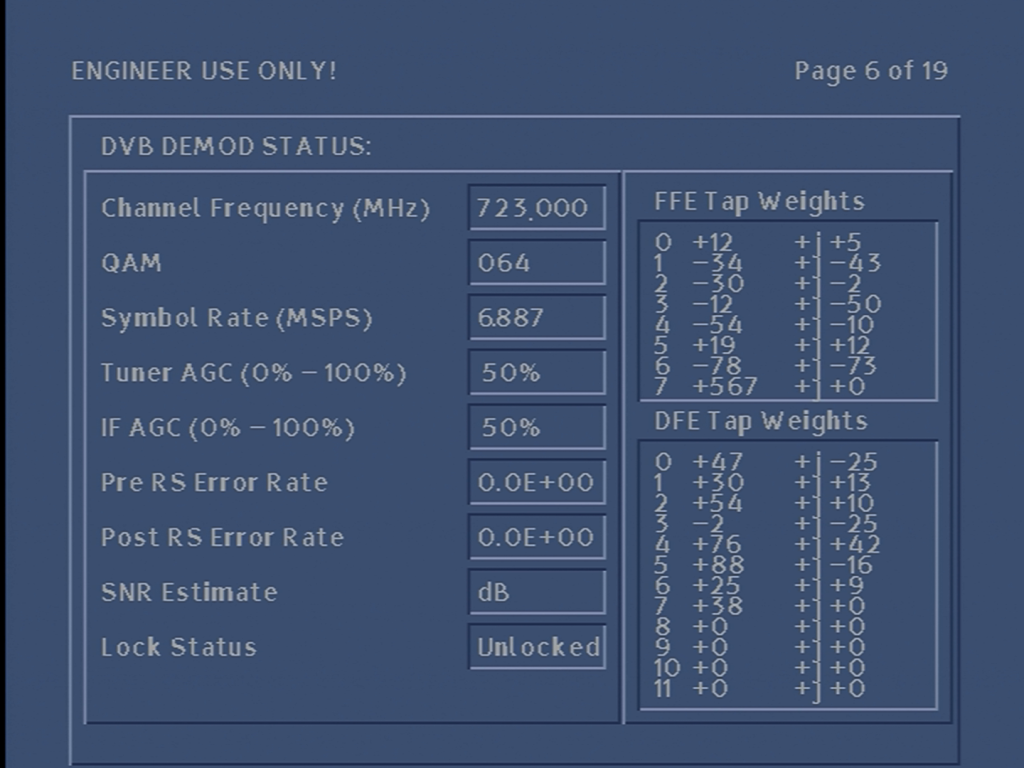
Signal information for the current frequency, this is the same frequency as the default frequency
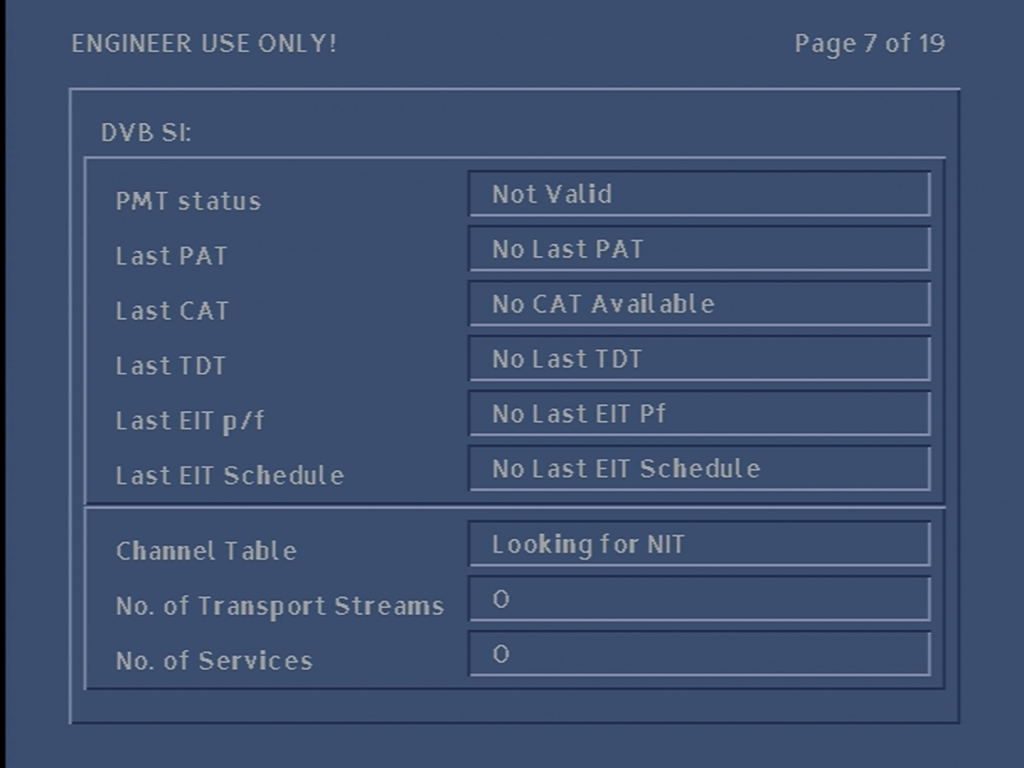
Information relating to the DVB-SI, and the amount of services received
CAT – Encryption systems
PAT – Channel numbers
TDT – Updates the time & date
EIT – Event info, current program
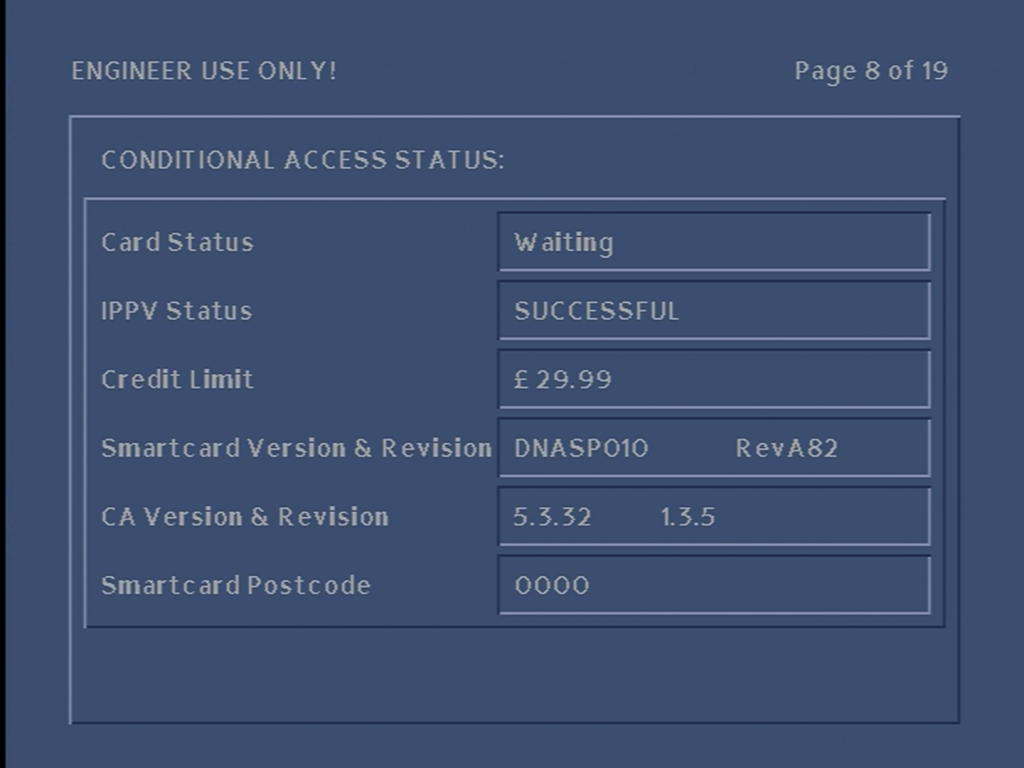
Information for the inserted smartcard, the credit amount and the pairing status
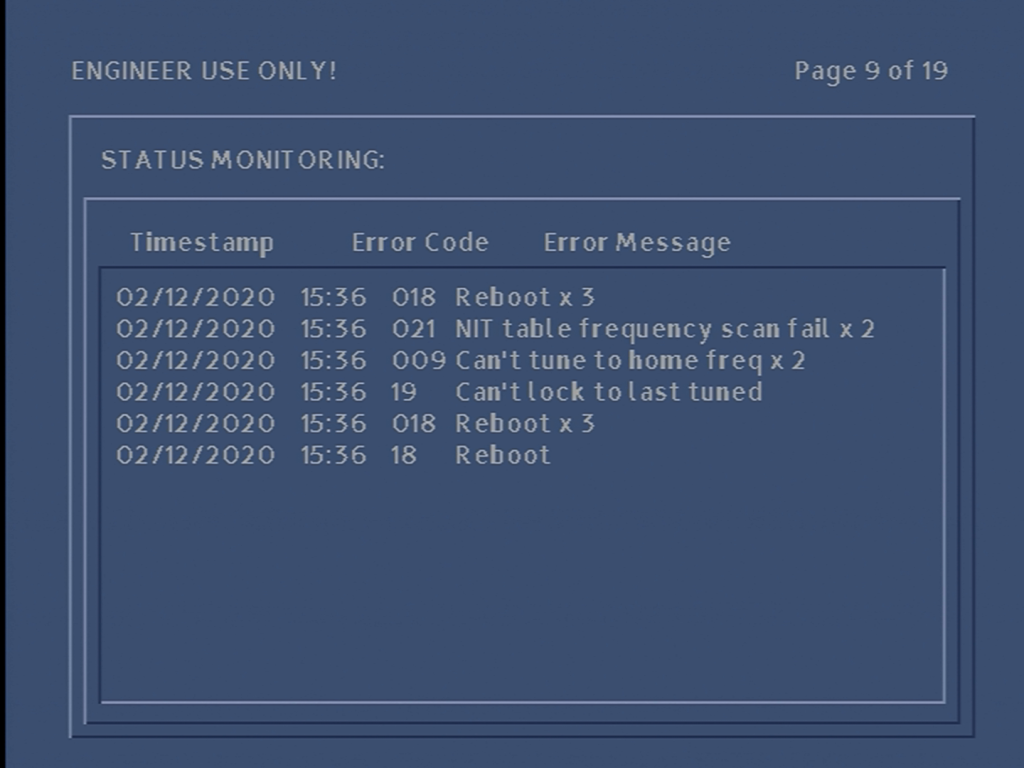
A log of events generated by the STB
Signal strength status, but this time for the DAVIC tuner (also known as DVB_RC)
Same as above but for the upstream
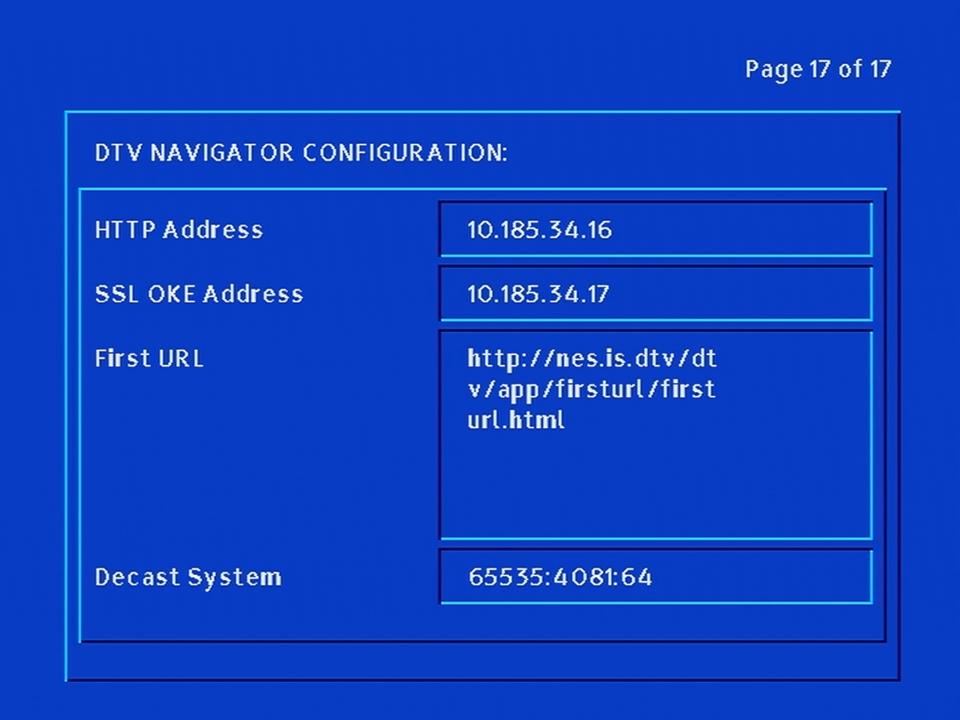
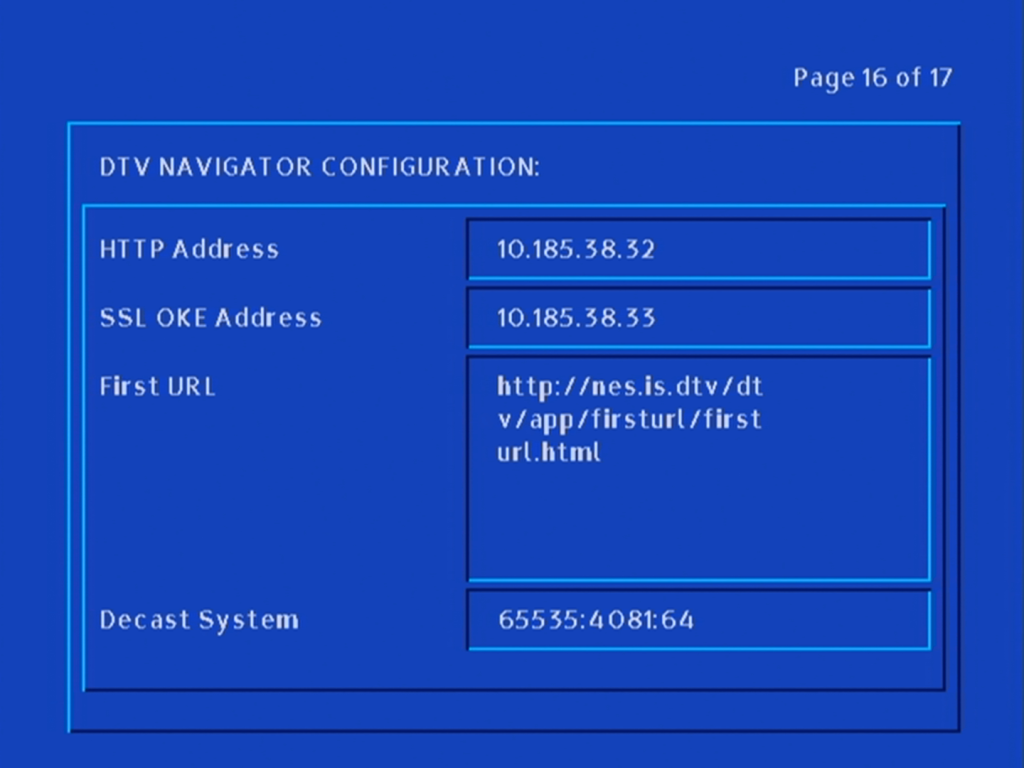
Browser settings, for the Liberate navigator client
Current date and time, this cannot be set, but is retrieved from the network stream, the STB has a built in CMOS battery
Bootloader version and flash information
Memory information, according to these values the box has 16Mb, with 4Mb Flash
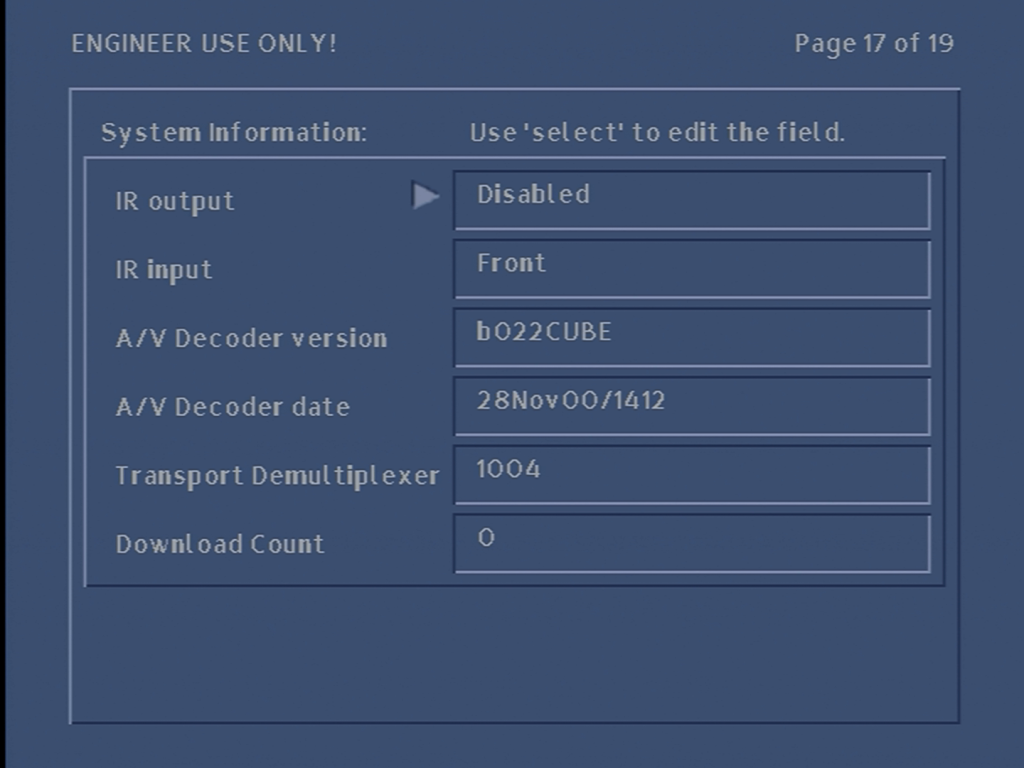
Information relegating to the MPEG decoders. You can also set the remote control configuration here and enabled the rear in or outputs, this has little effect since the software does not support this
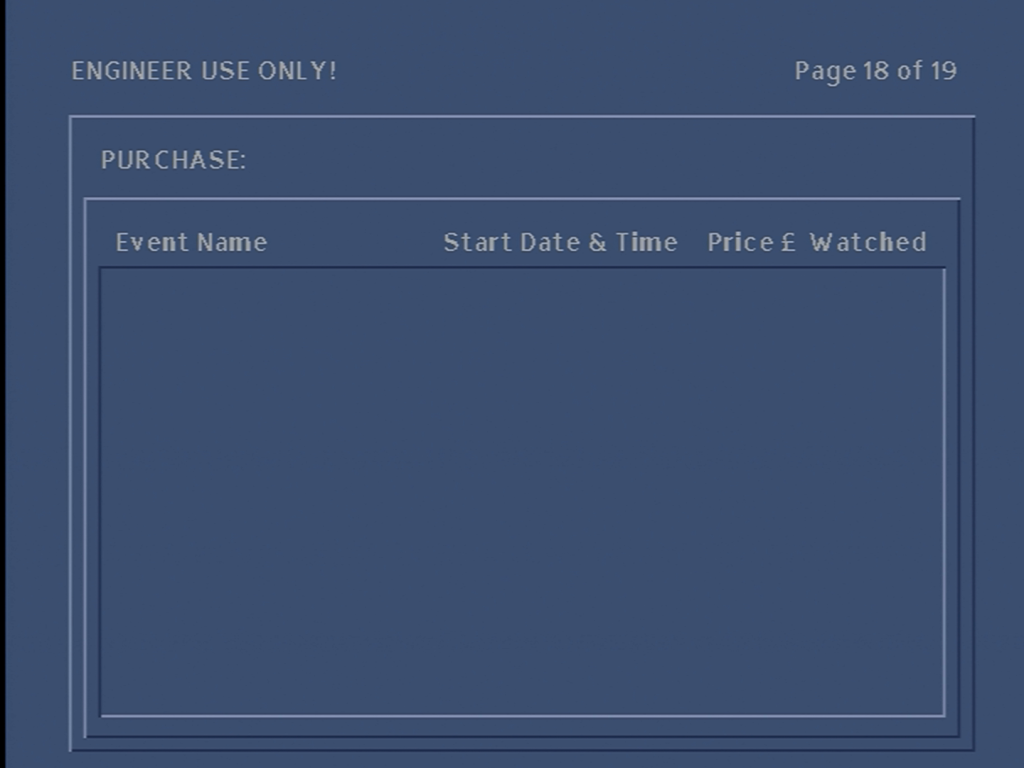
No PPV events…
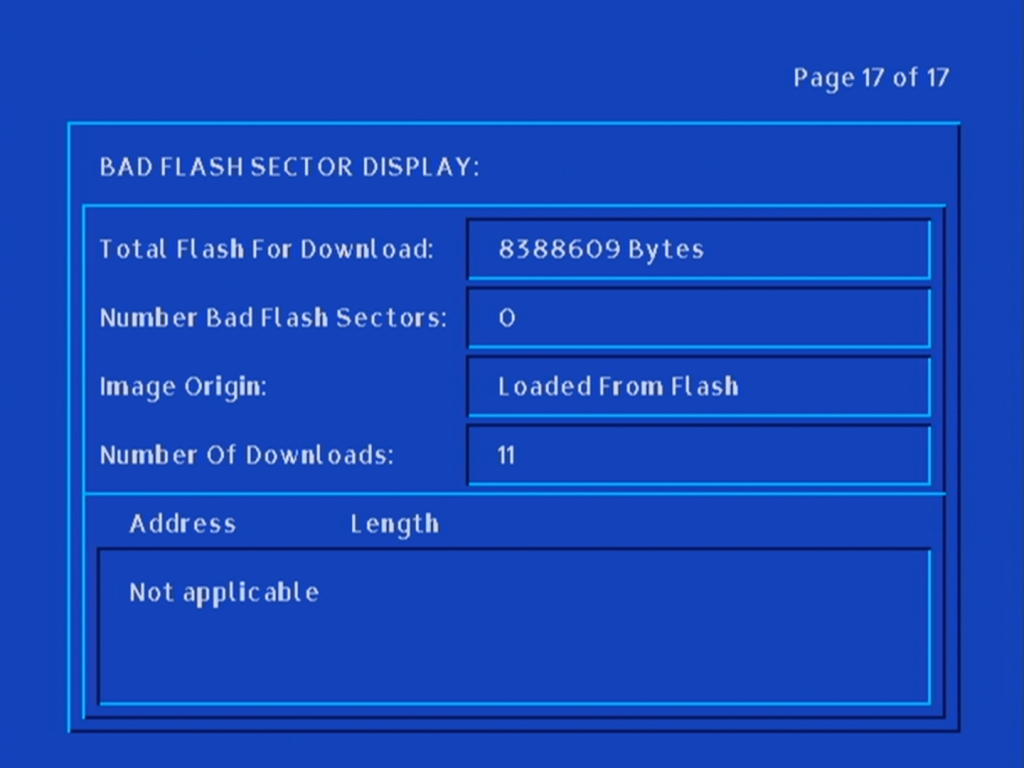
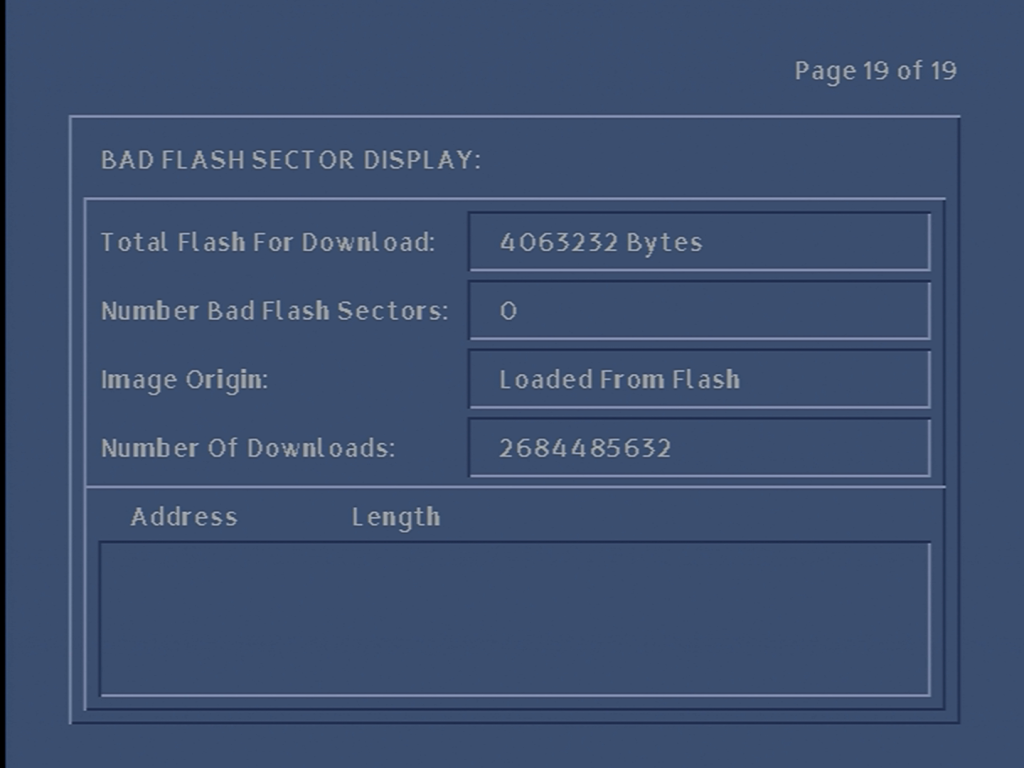
Flash memory information, the capacity, bad flash sectors and where the image came from.
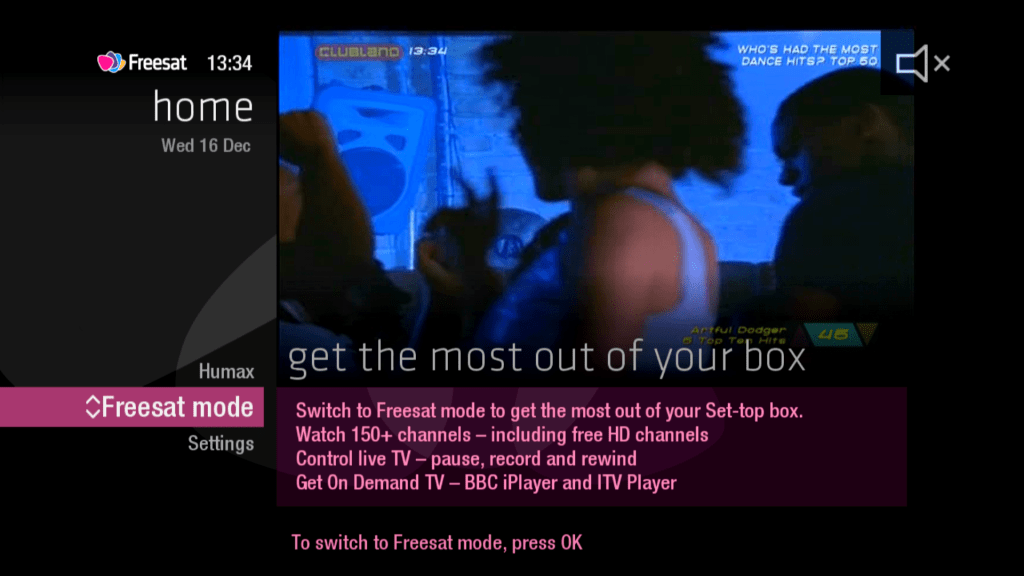
Freesat introduced its smart tv platform in 2013, which was designed to be a competitor to smart TV platforms like Youview and Tivo (Virgin Media)
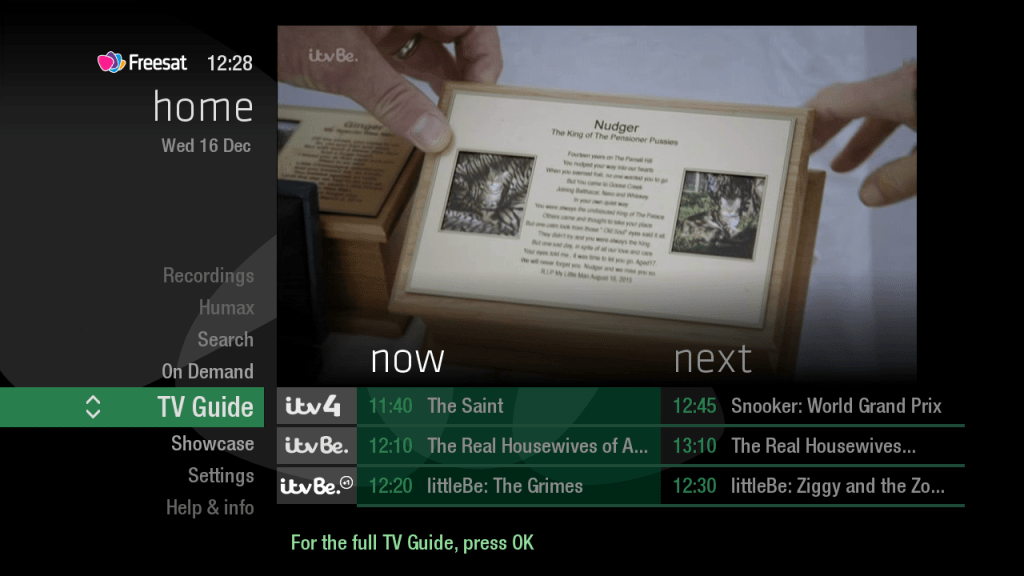
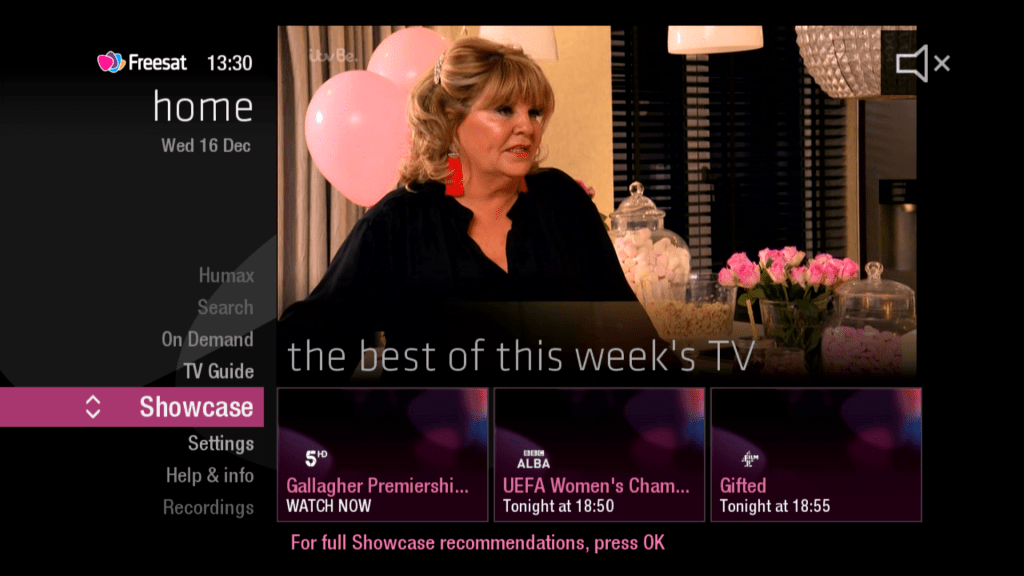
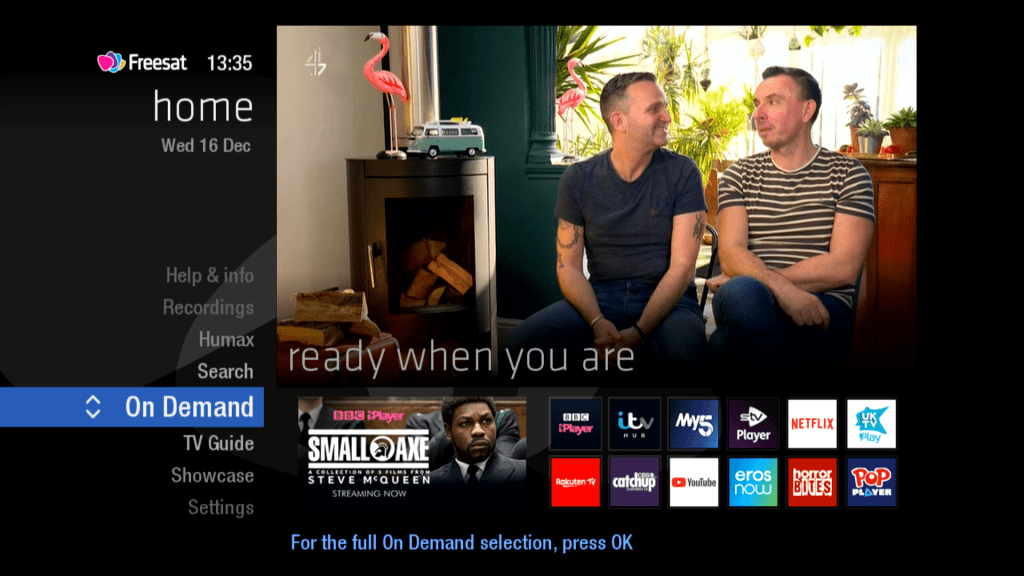
The main home screen, appears when you first turn on the reciever,
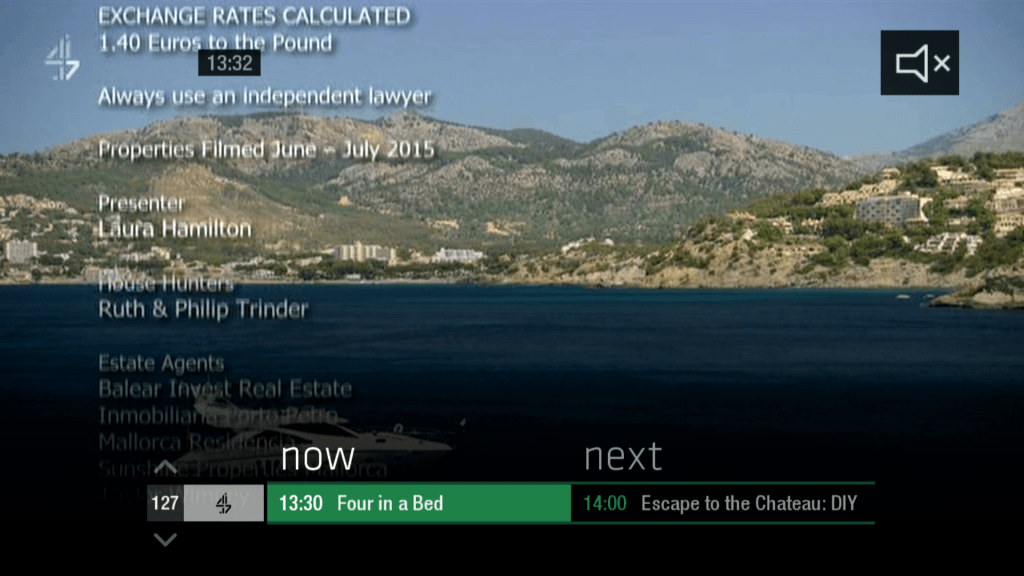
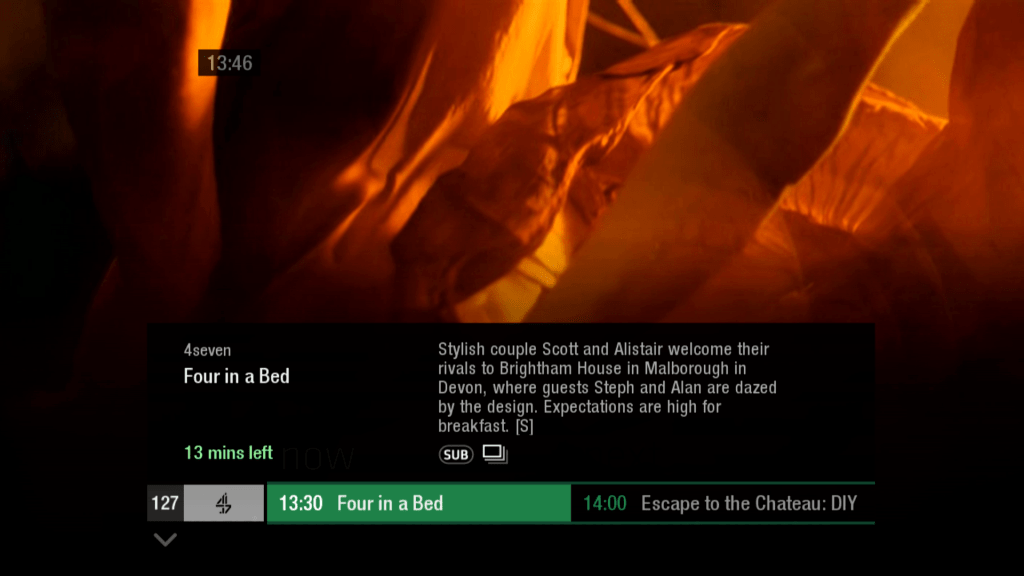
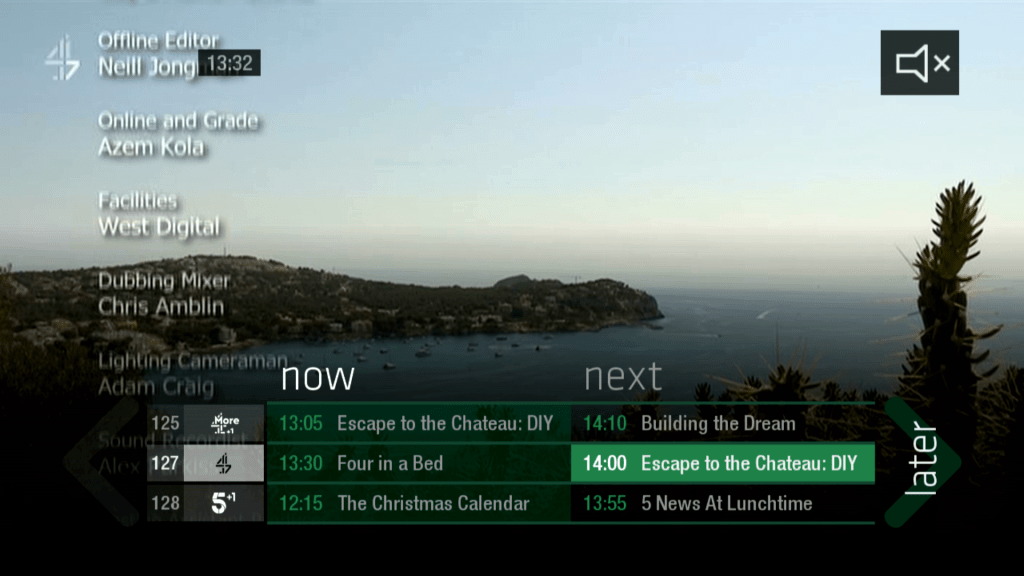
Now & Next bar, you can skim through the channels by using the Up & Down buttons
Pressing the i button bring up information about the current program, you can also view information for programs on other channels and future programs
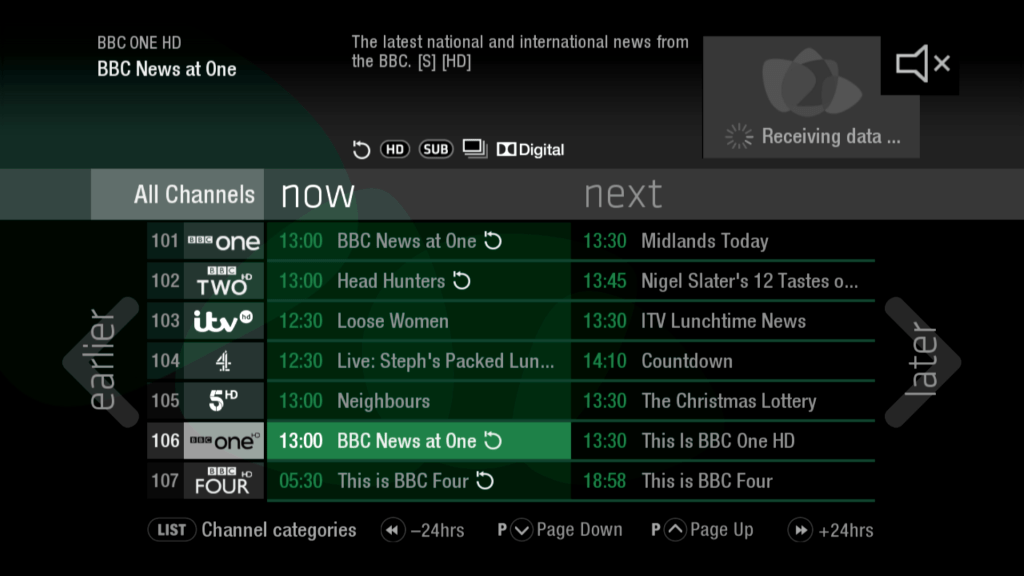
The main TV guide, shows what’s currently on. Like most other internet connected EPG’s you can scroll backwards through the guide, which will then take you to an on demand link for the program.
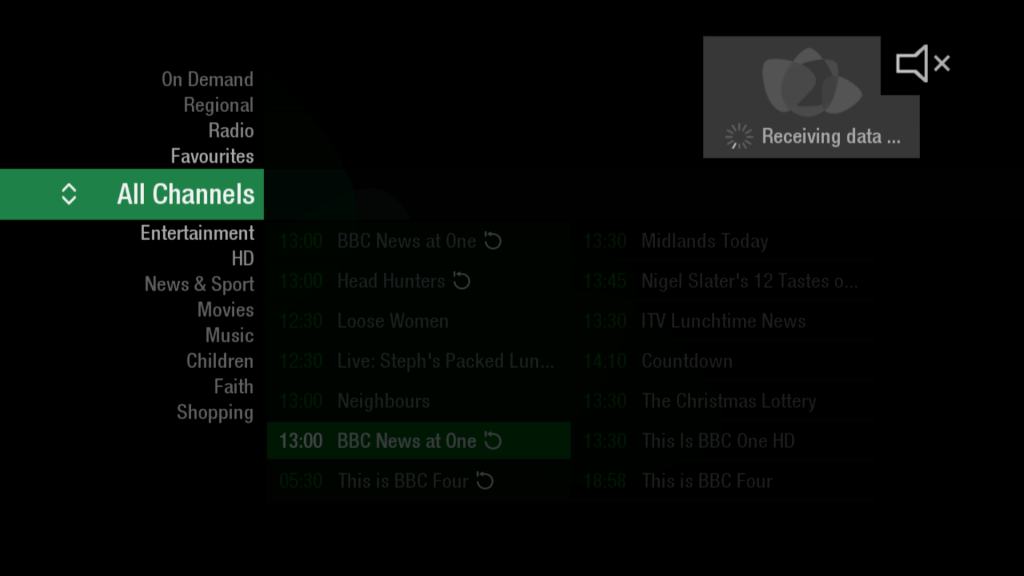
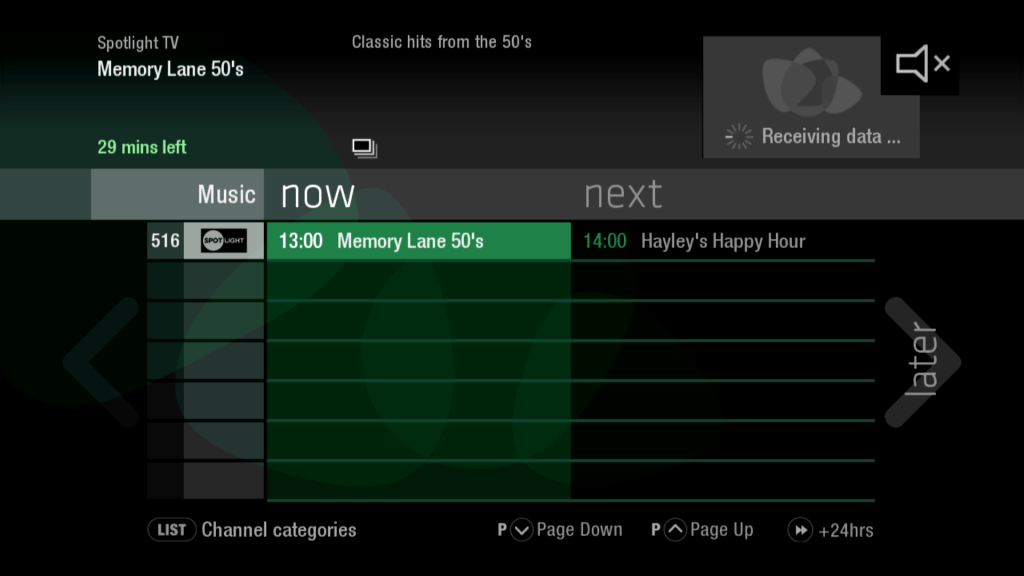
A list of genres for certain channels, accesssed by pressing the List button
Where have all the music channels gone? Seems you need to manually tune them in these days
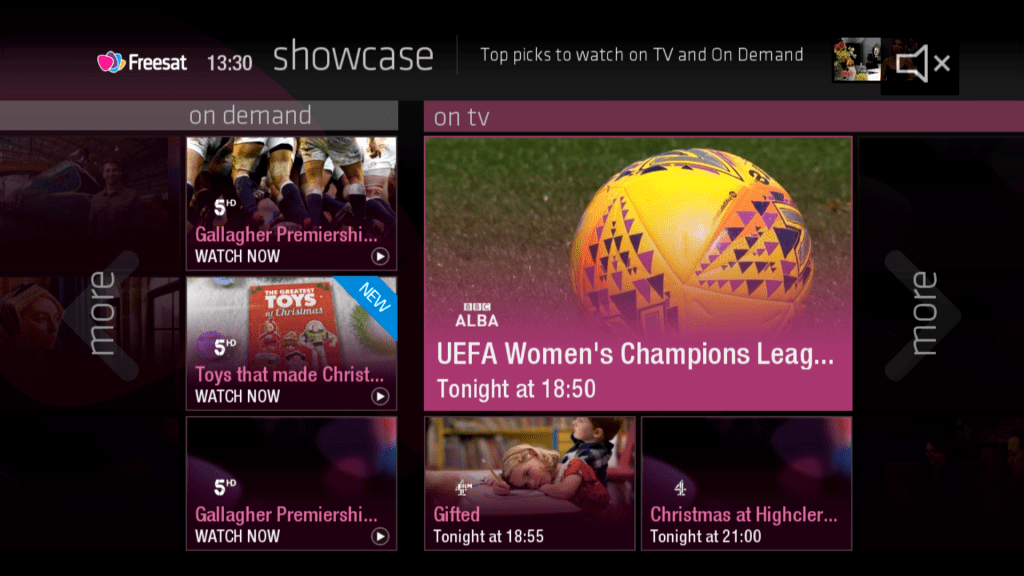
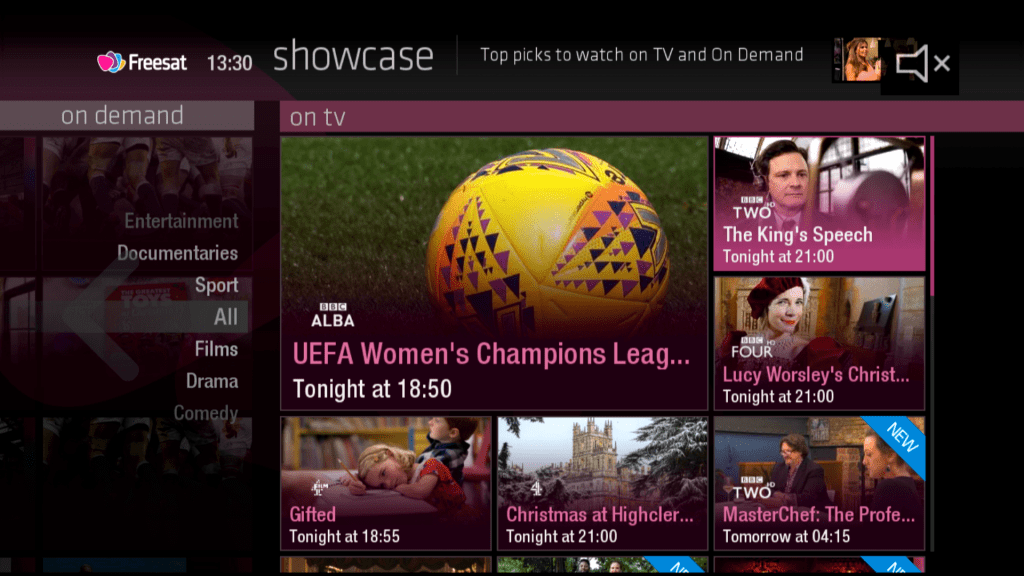
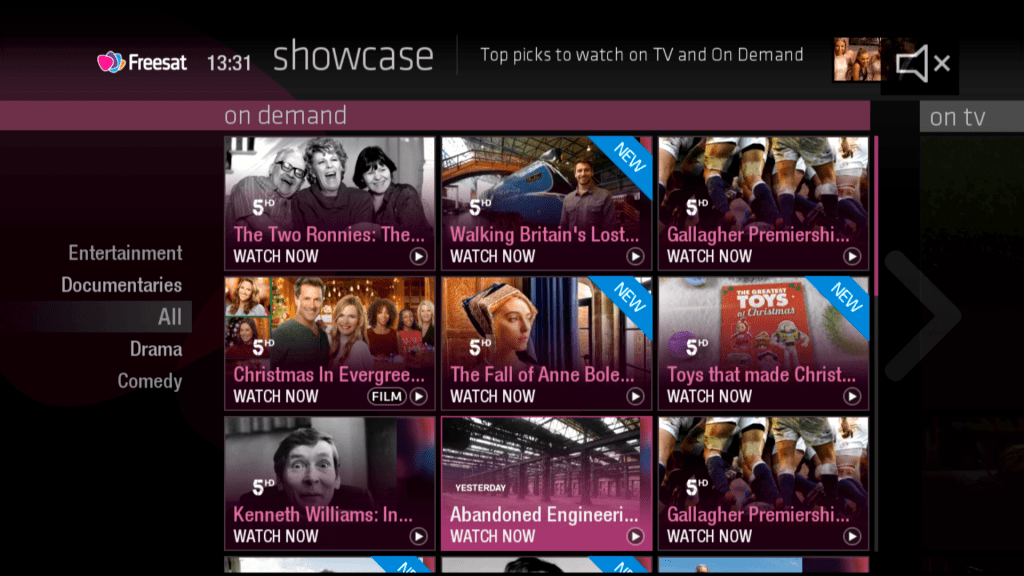
Showcase
Freetime showcase is mean to highlight and advertise upcoming programmes of interest. Similar to how TV guide magazines showcase programs of interest
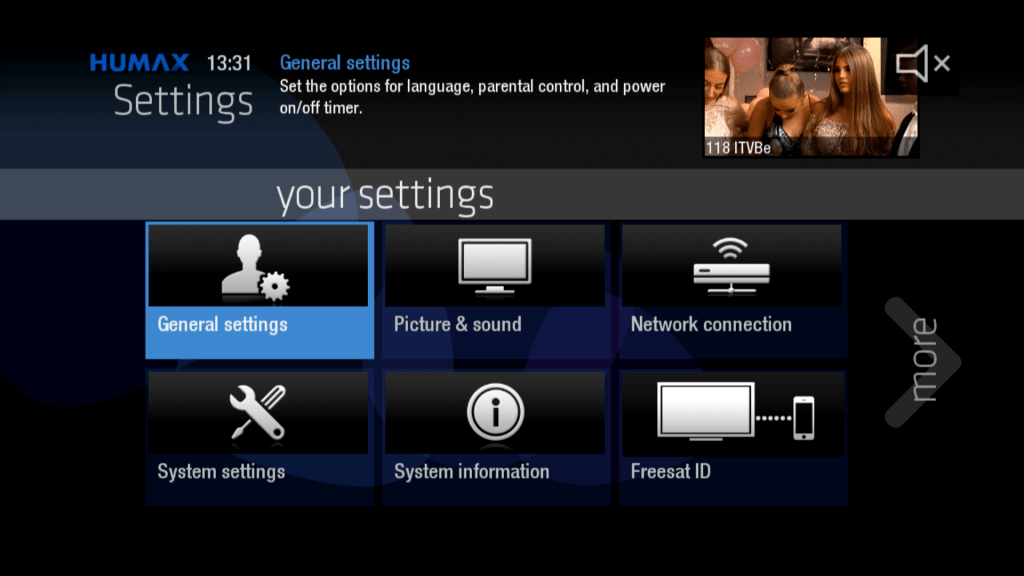
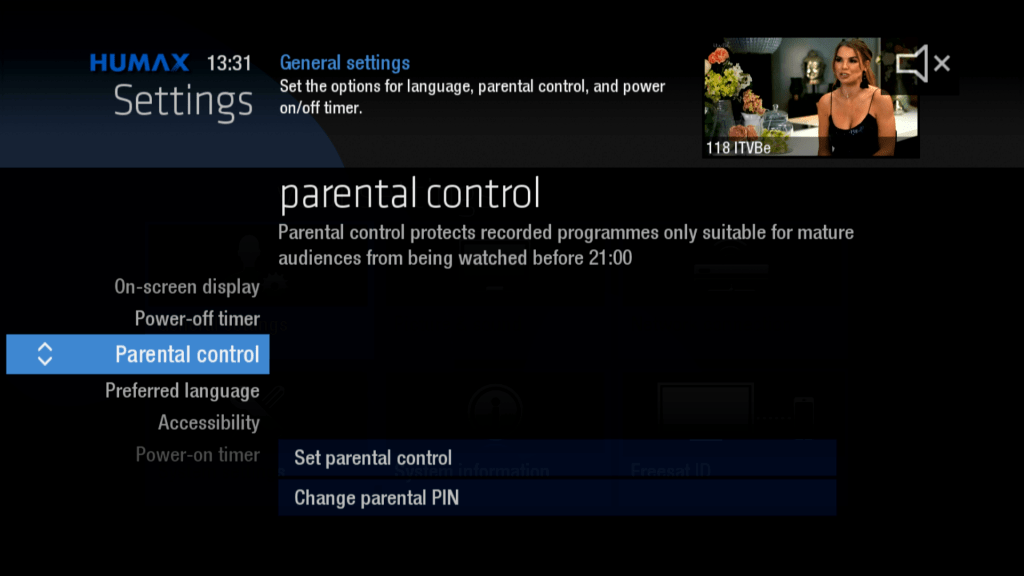
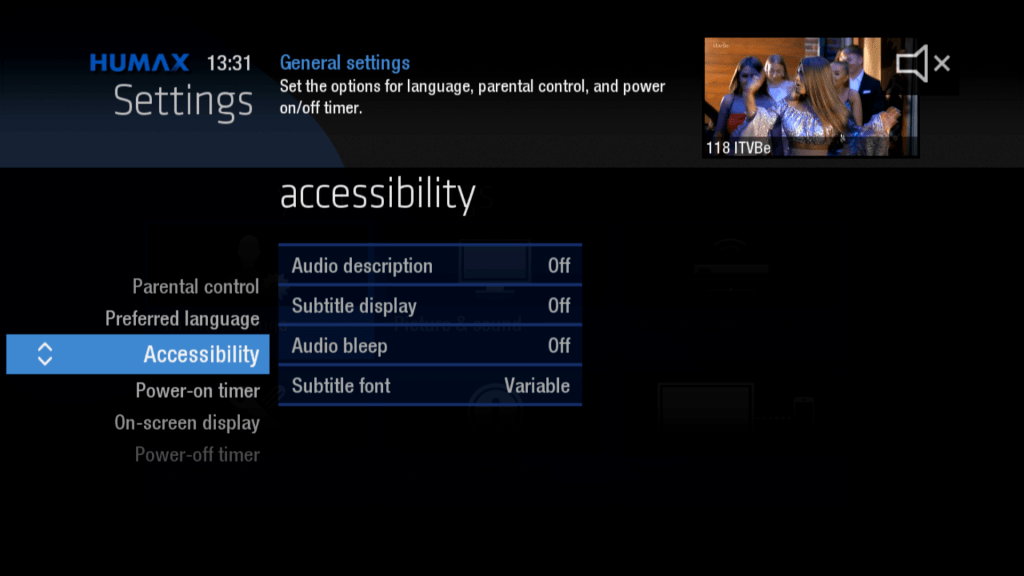
Settings
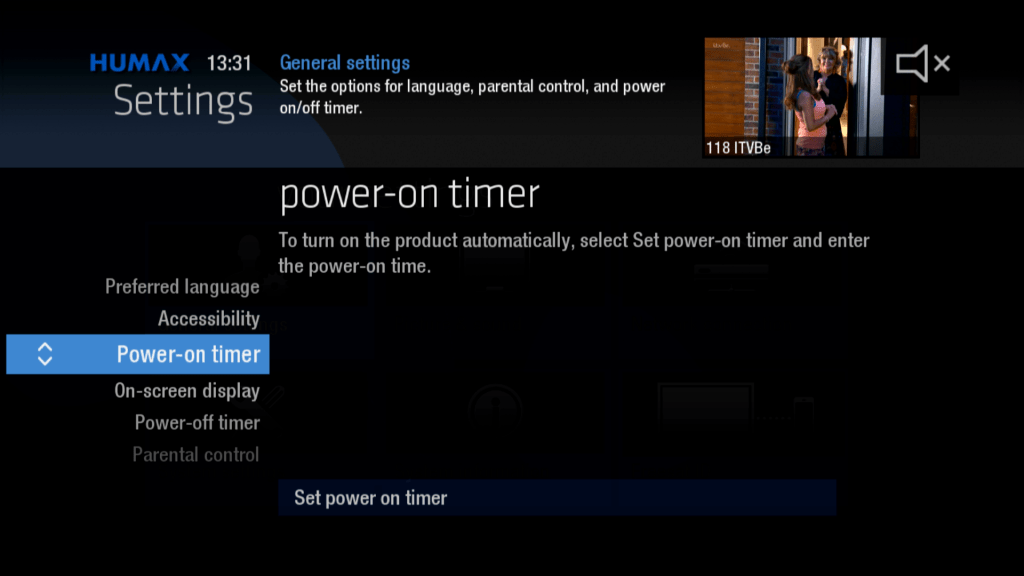
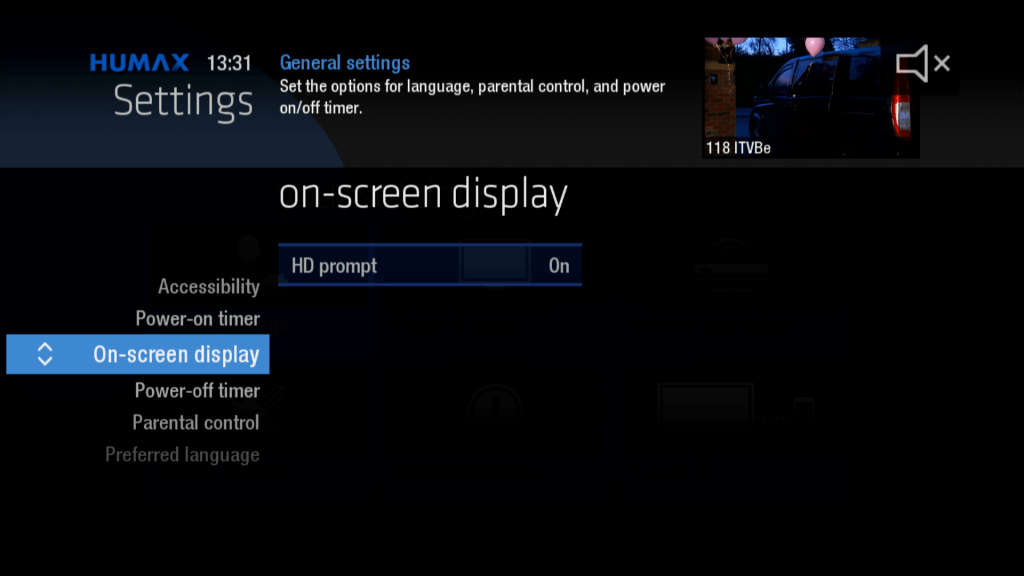
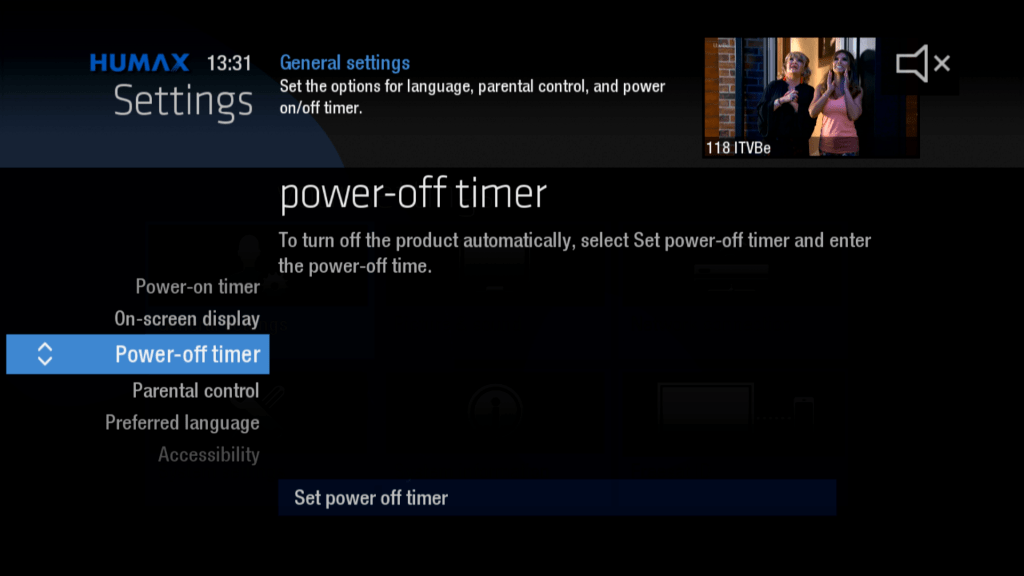
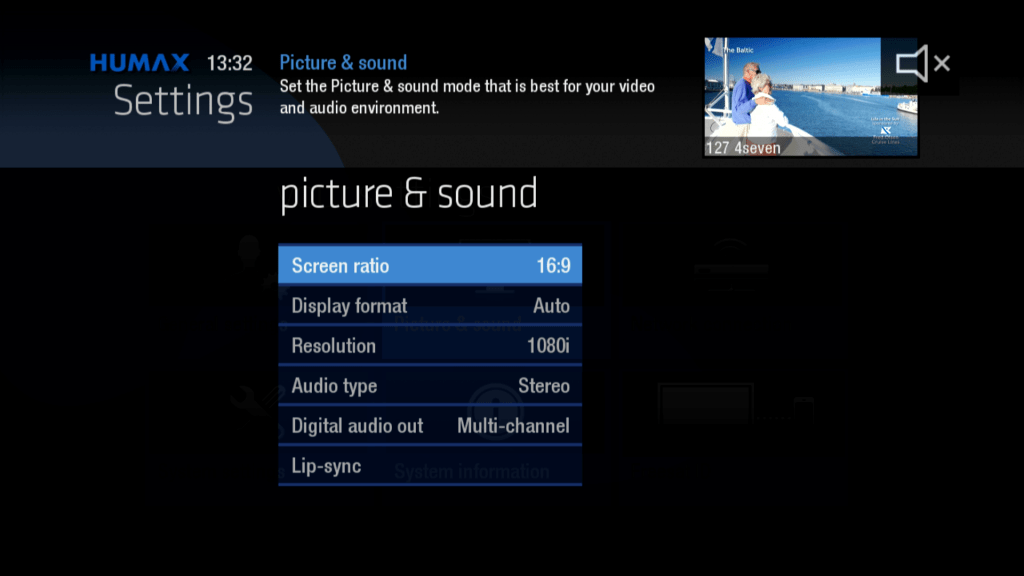
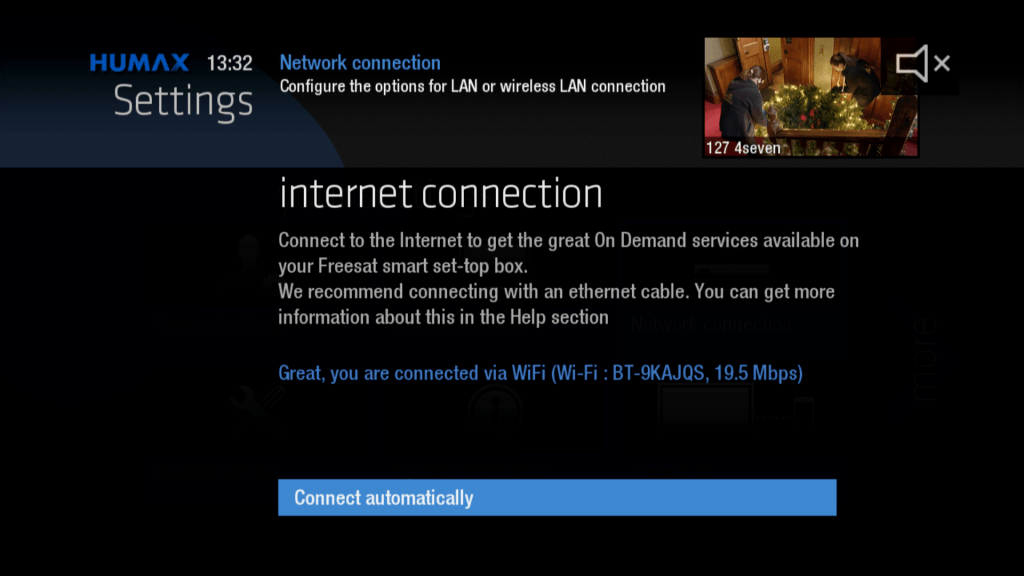
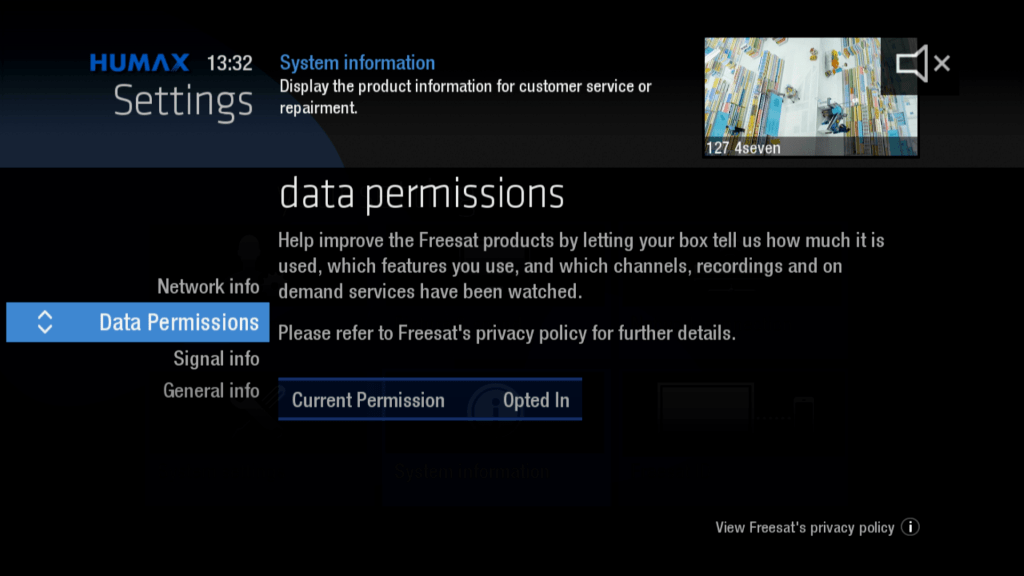
This model supports both Ethernet and Wifi, however a separate USB dongle is required for WiFi functionality.
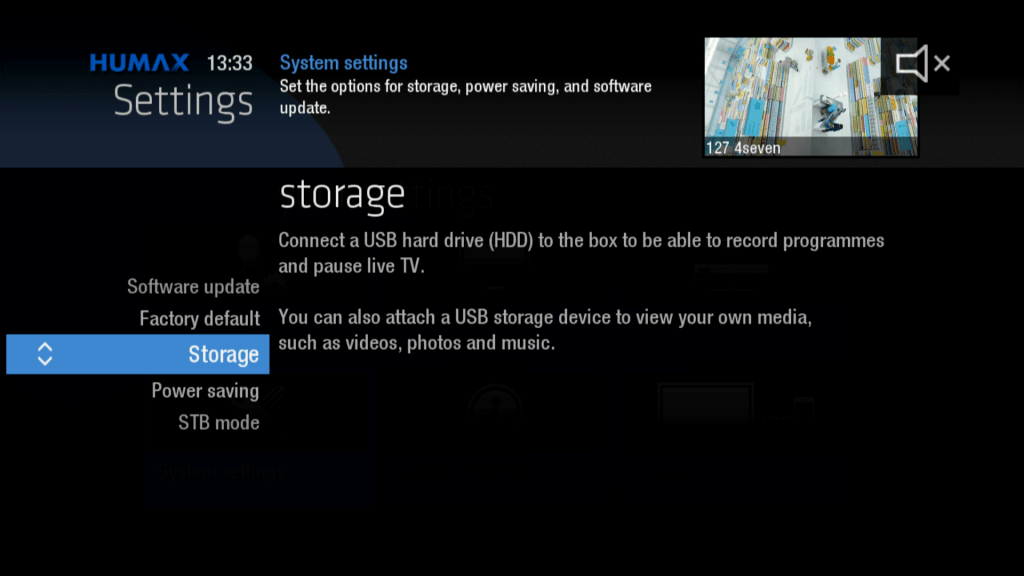
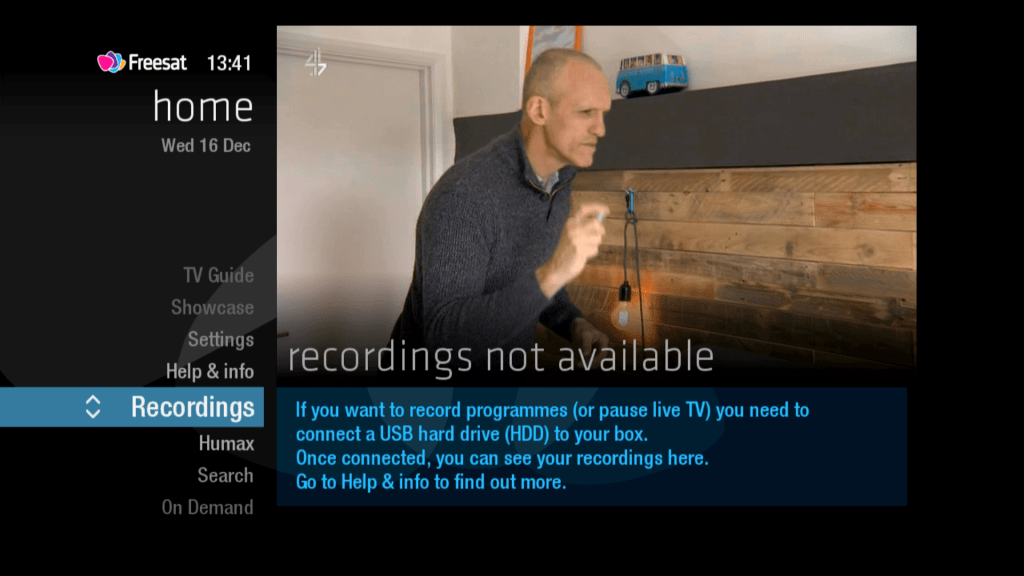
An external hard drive can be connected via USB to enable recording functionality, if you have a Freesat box that does not have an internal disk drive. This allows you to record and rewind TV, but with only one tuner you are limited to just one program/channel at a time.
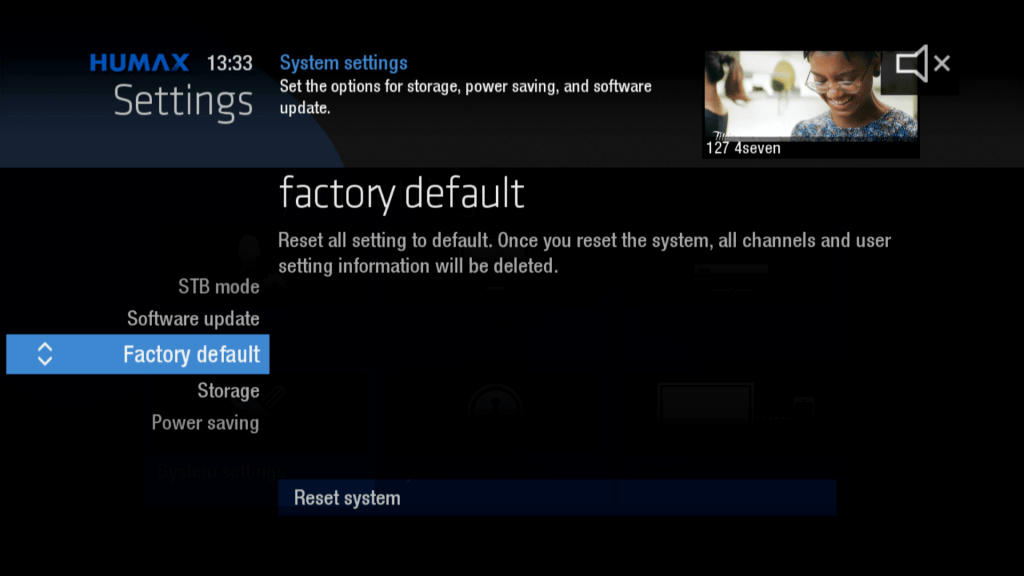
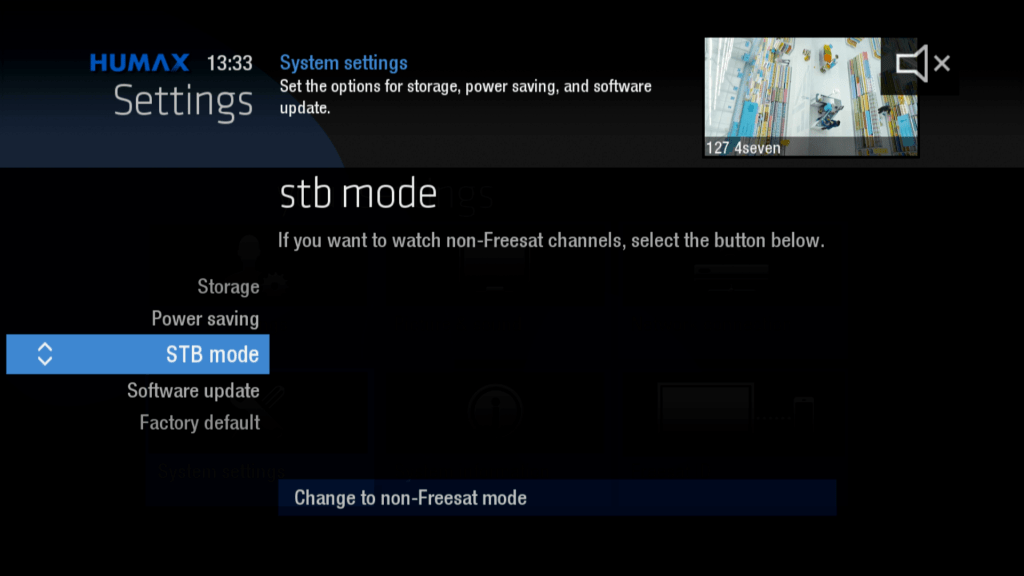
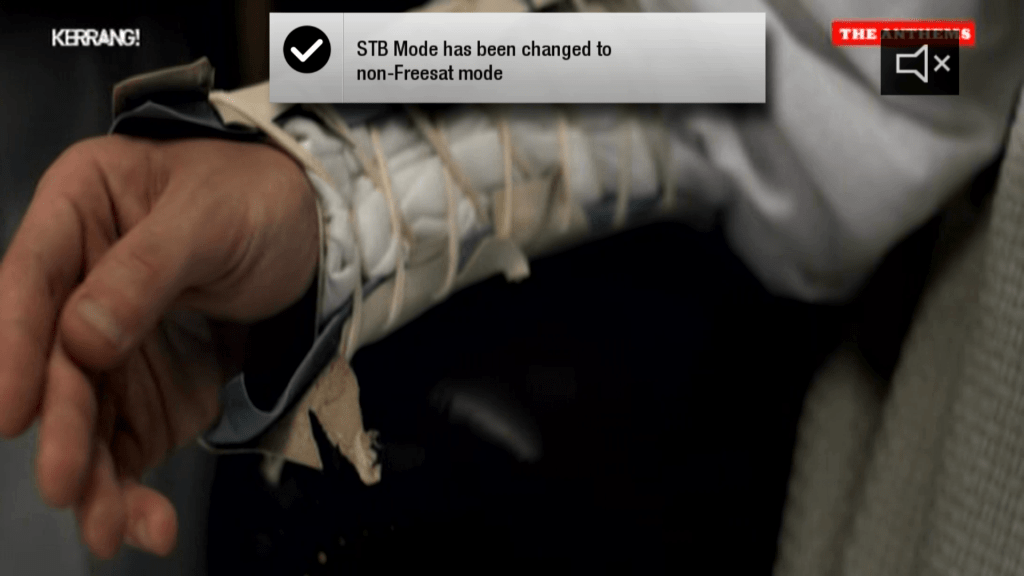
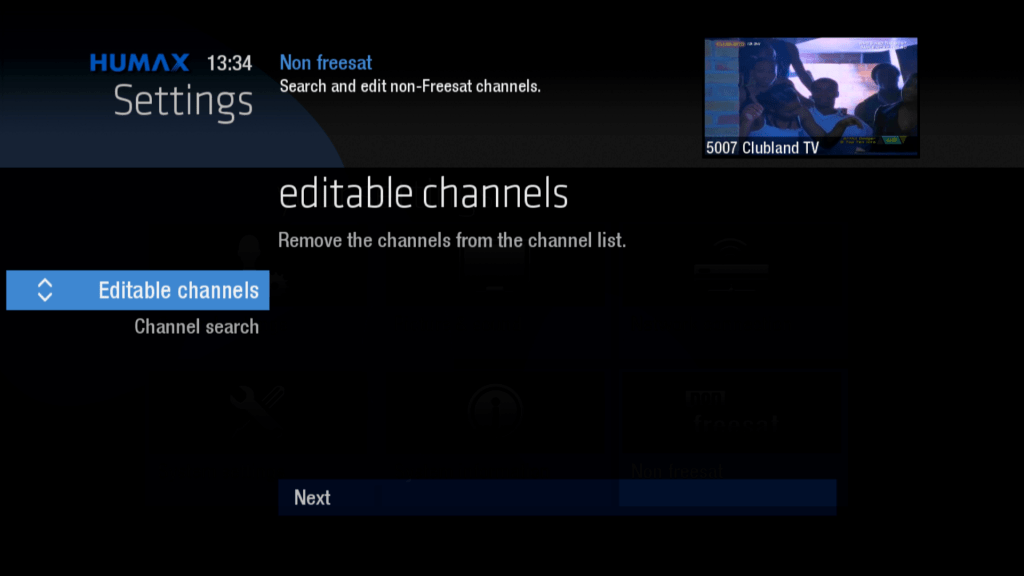
Non-Freesat Mode
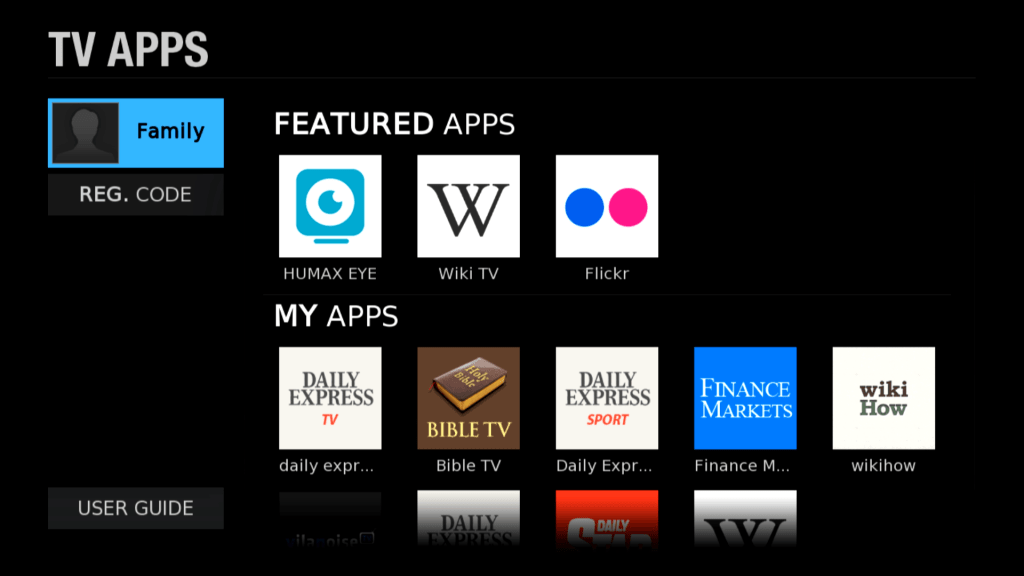
TV portal is still accessible in this mode.
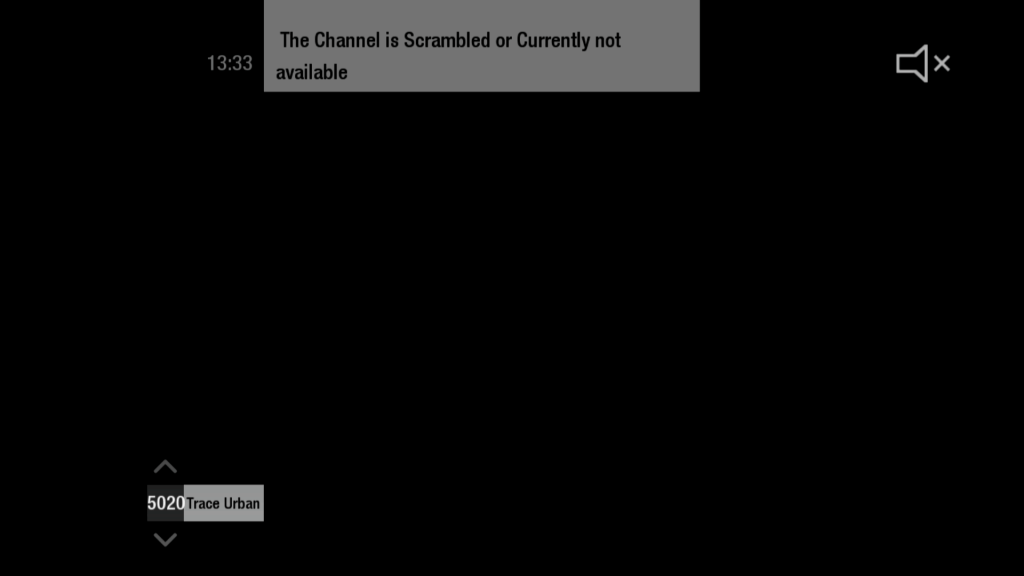
Personally if you wish to manually tune on channels without any BS restrictions I would advise just to get a standalone FTA receiver, or get a TV with one built in.
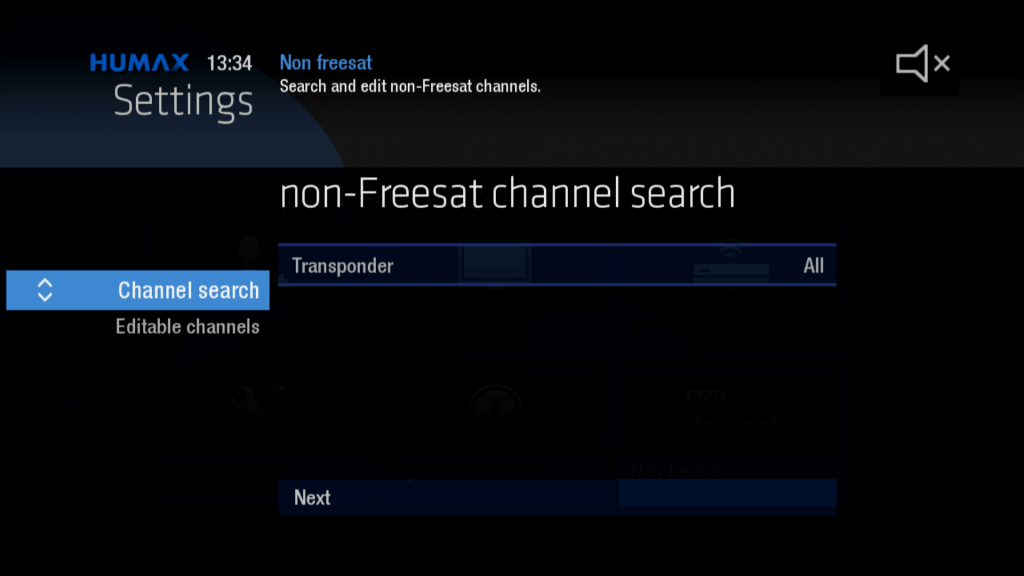
Settings – Non-Freesat
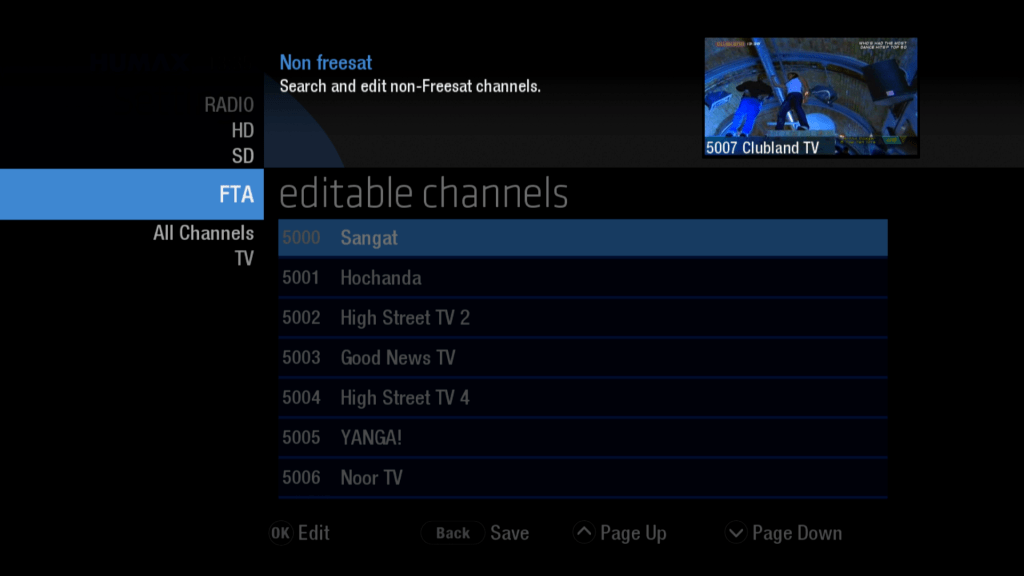
Non-Freesat mode can be used to add channels that are not part of the Freesat EPG, but are still FTA. This won’t work with encrypted Sky channels, rather channels that are testing or misc ITV regions
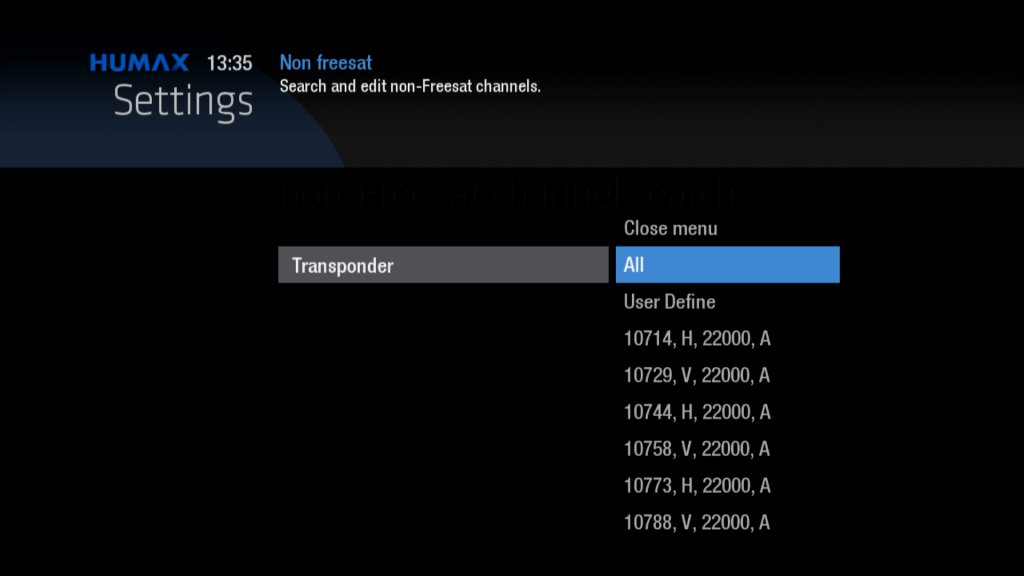
A list of all Astra 28.2E transponders that can be selected, save having to enter the parameters manually
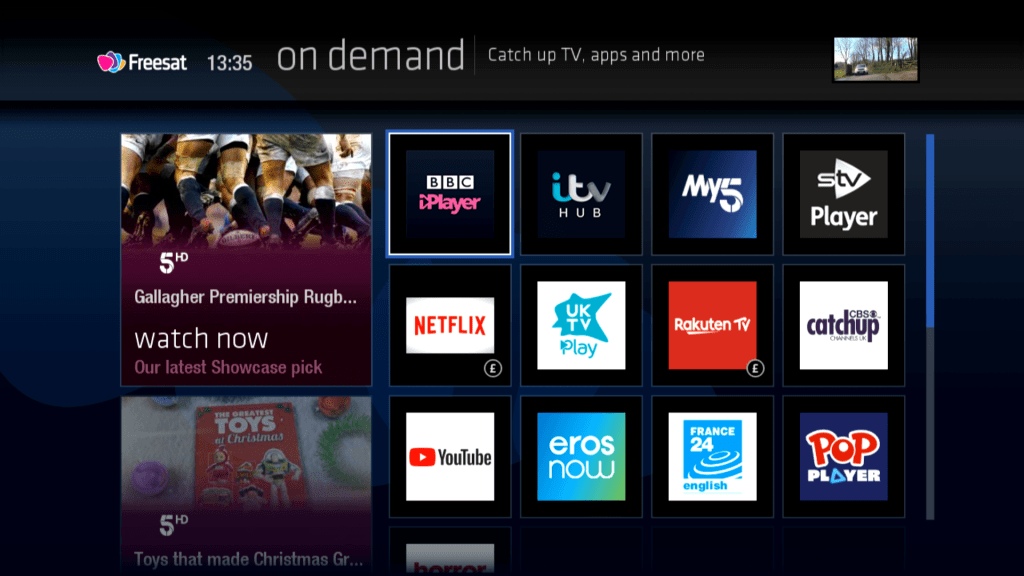
On Demand
A good selection of both Free and subscription on demand services. Most of the major catchup service are present, most of them anyway. There are some omissions though like Britbox, Amazon Prime, StarzPlay, Nowtv and Channel 4
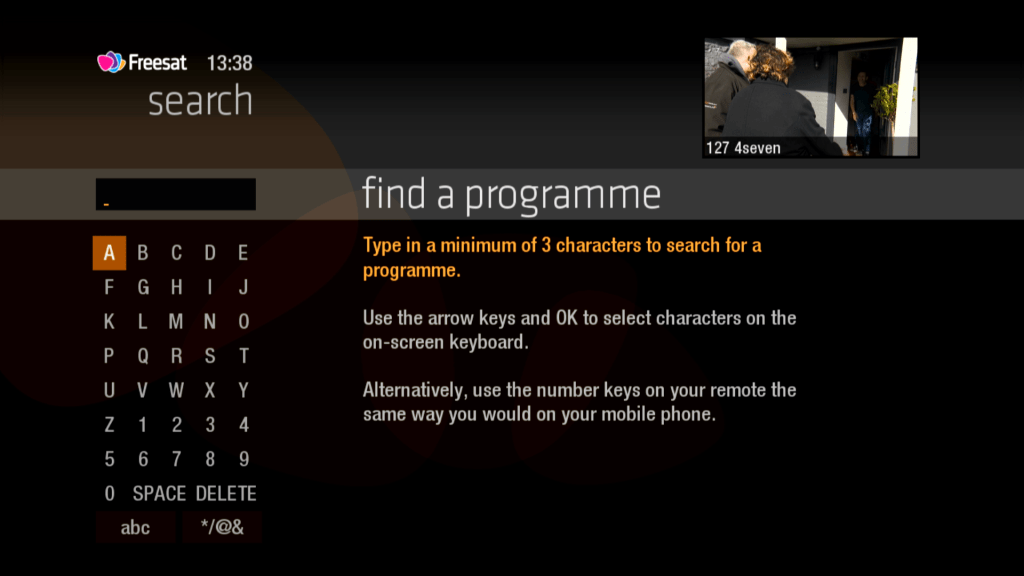
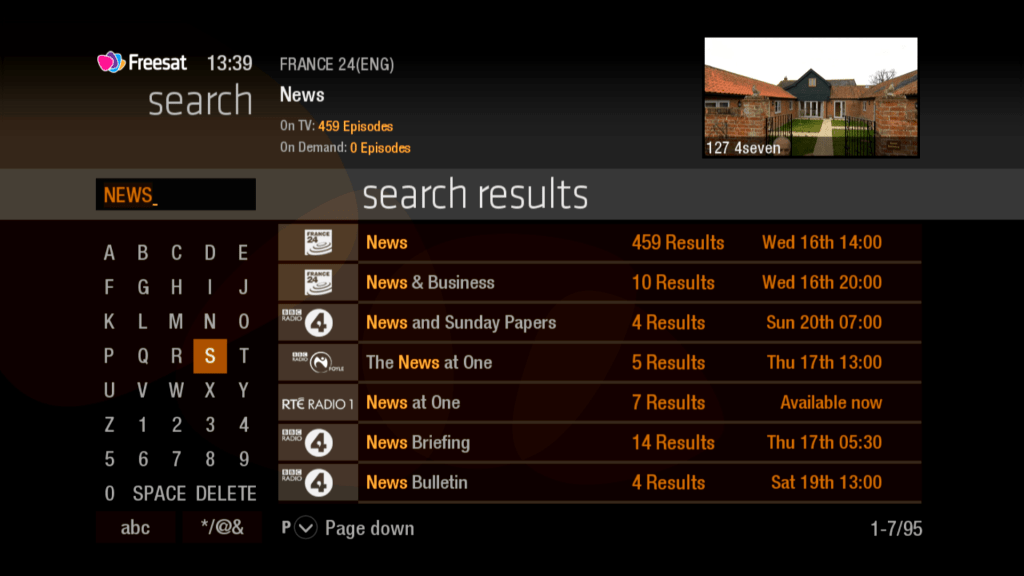
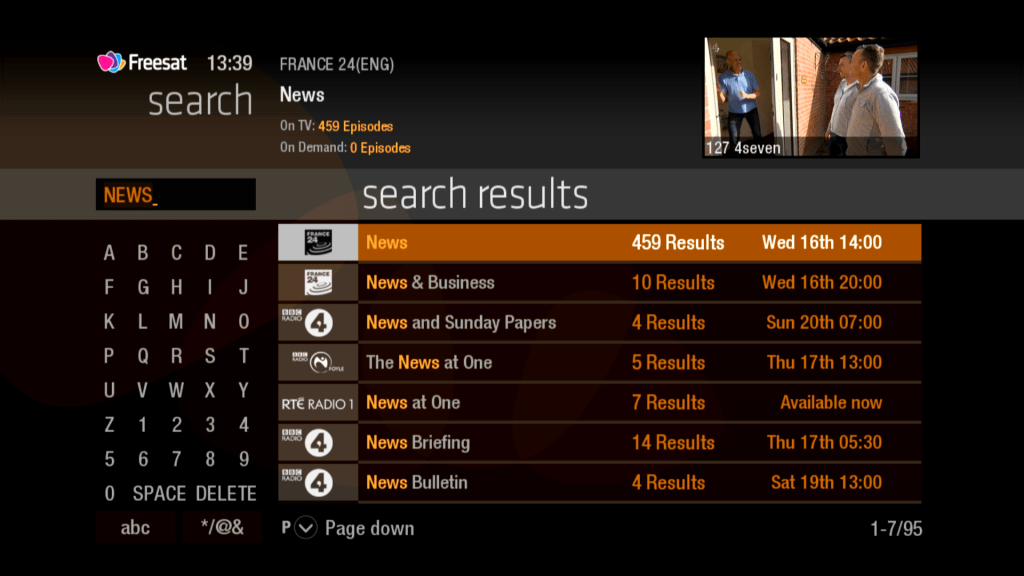
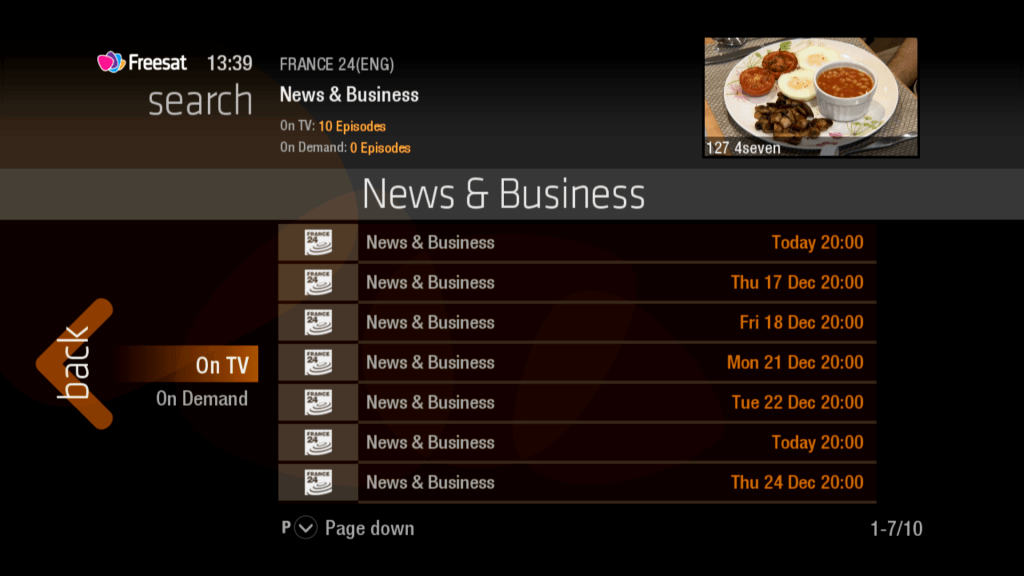
Search
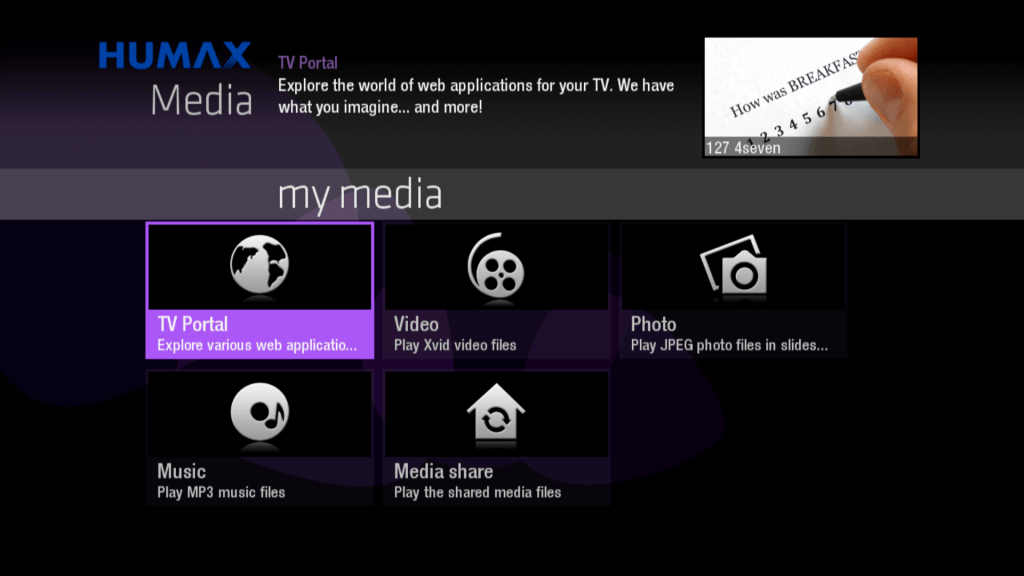
Media Player
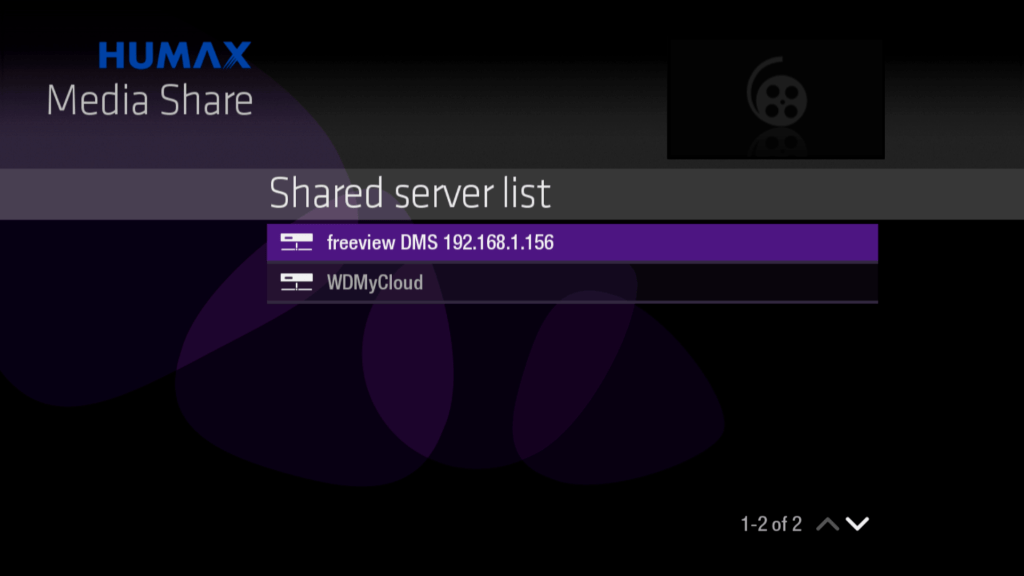
You can also play media files from an external USB hard disk or a DLNA server using the built in media player
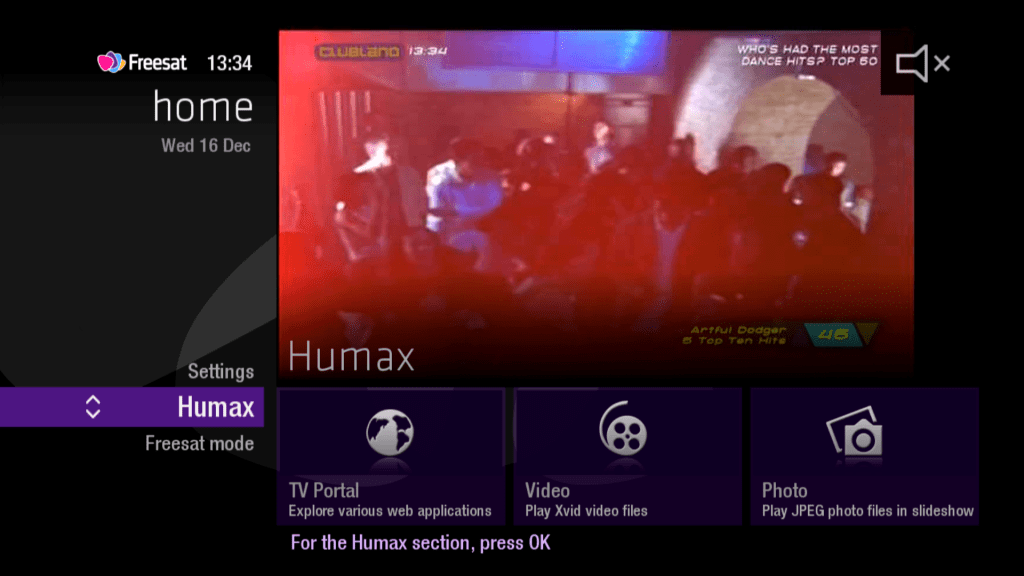
Humax TV Portal
Humax TV Portal allows you to access interactive applications hosted by Humax, originally supported on their Freeview HD receivers.
Recordings & DLNA
On this model, an external USB Hard disk drive can be connected to the Freesat box, to allow the use of recording. The Freesat software will automatically format the box and prepare it for storage.
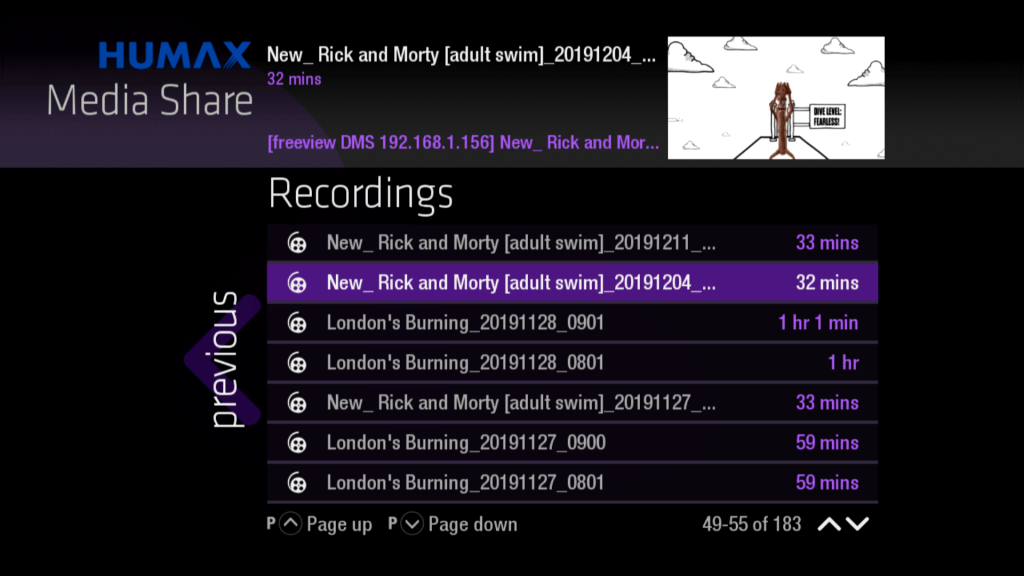
Alternatively you can also stream recoding from another Freesat box, or any box that allows DLNA streaming. Some Panasonic TV sets allow this.
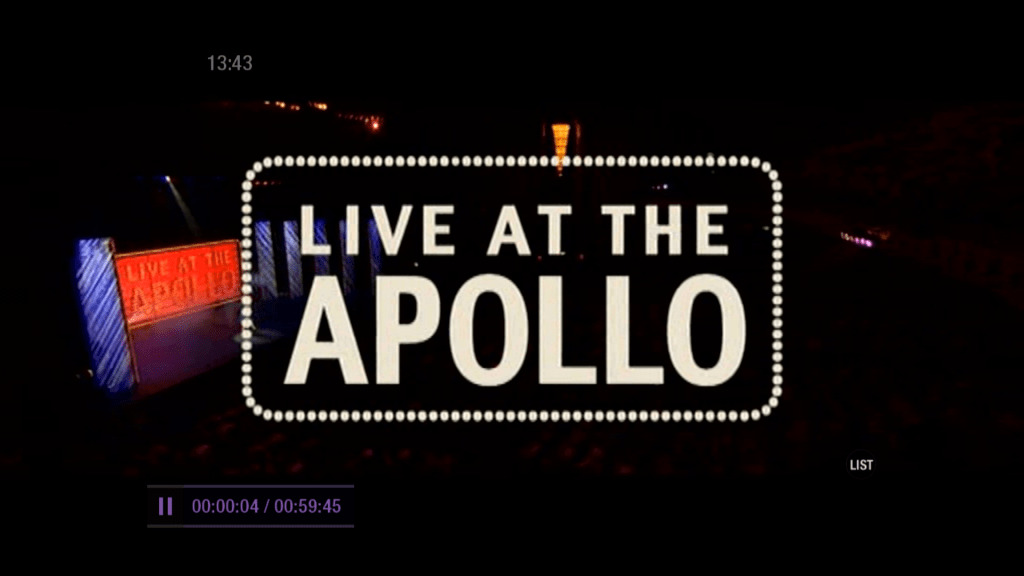
You can select the recording, or file to play. And can fast forward and rewind at will, depending on the network conditions, ethernet is recommended.
Alternatively you can stream from a network attached storage device.
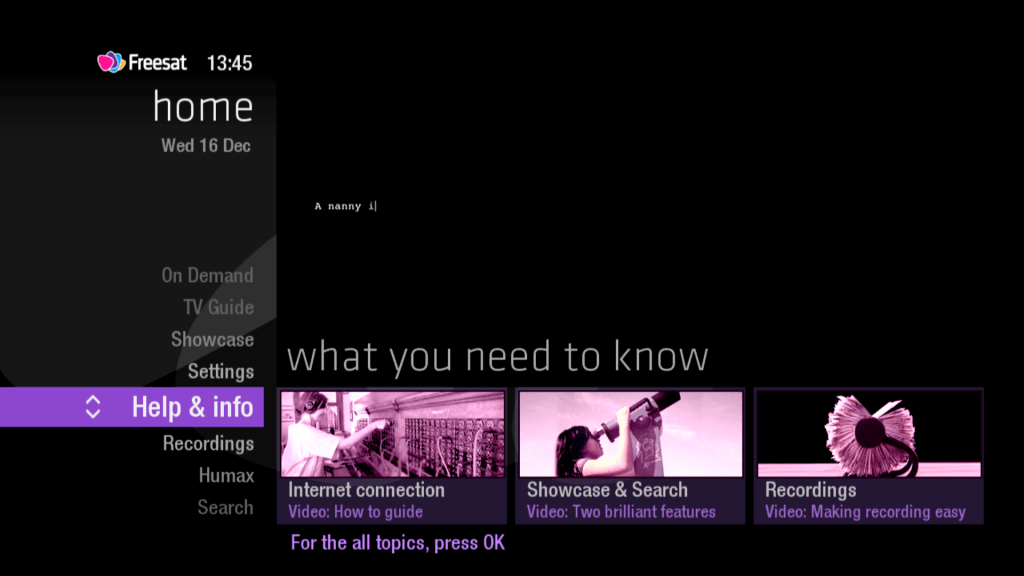
Finally there is a section to provide help and support, which takes you to instructions and articles on how to use the various Freesat services.
Sky and BIB (British Interactive Broadcasting) launched their interactive service in late 1999, one year after the launch of Sky Digital. Designed to be an alternative to the world wide web being delivered through the TV, the early service looked promising.
The service was originally to be branded BIB, but changed to Open…., I’m not sure if this is in reference to the OpenTV middleware stack used by BSkyB at the time. The Open interface was to mimic the experience of a TV High Street, with various banking, shopping and entertainment services being offered.
Open….
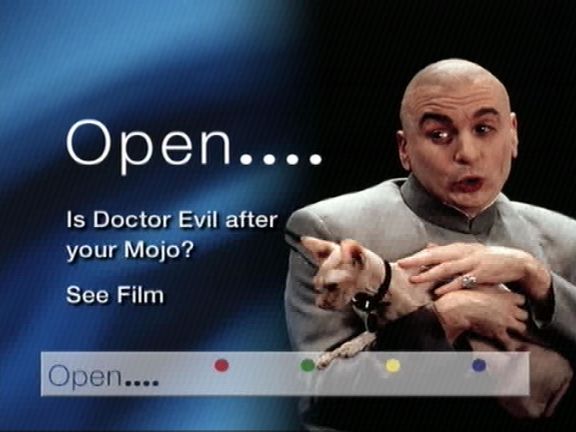
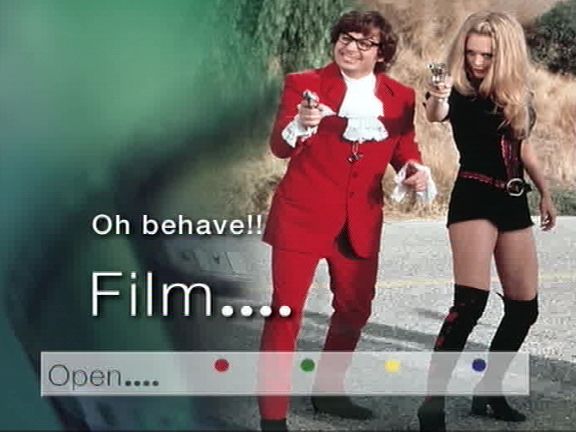
One of the loading bumpers for Open….
Austin Powers 2
The main Open…. menu
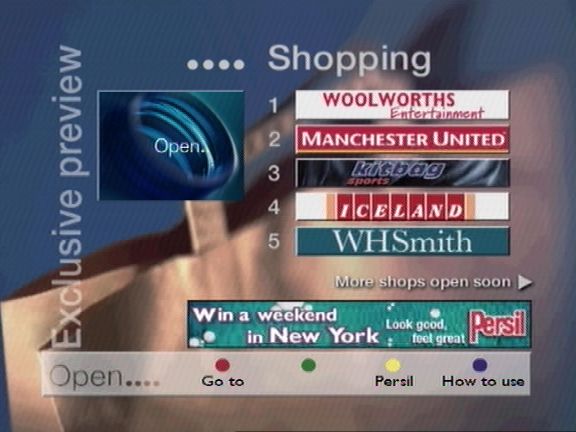
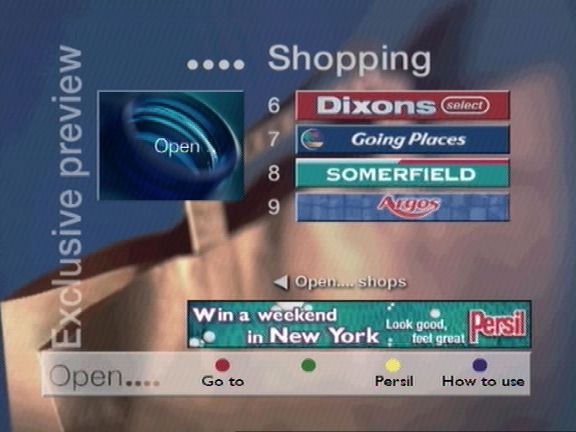
Shopping Menu – Shows a list of retails who have a storefront through Open
Even more shopping, E-commerce was supposed to be a huge draw for the service, considering the popularity of shopping channels of the time. Payment is made via a credit card, which the customer enters, and information is sent back encrypted via the phone line. At some point it was planned to use the interactive card as a form of payment
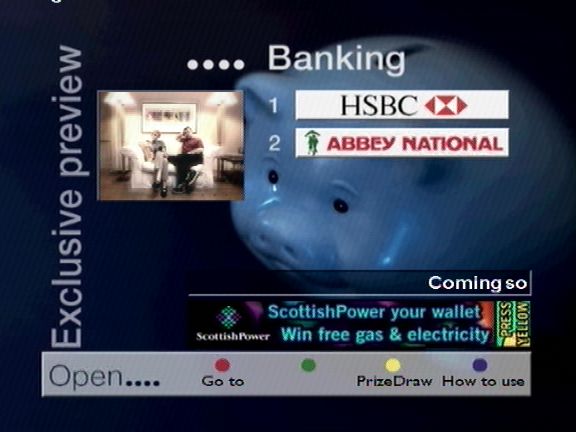
Home banking services were offered, designed after the popularity of online banking
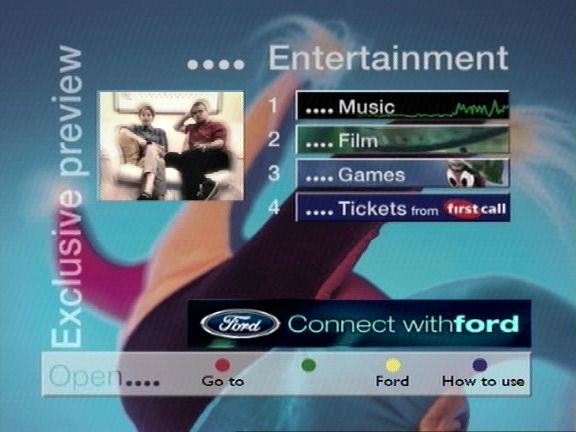
Entertainment sections, which leads to the popular game section
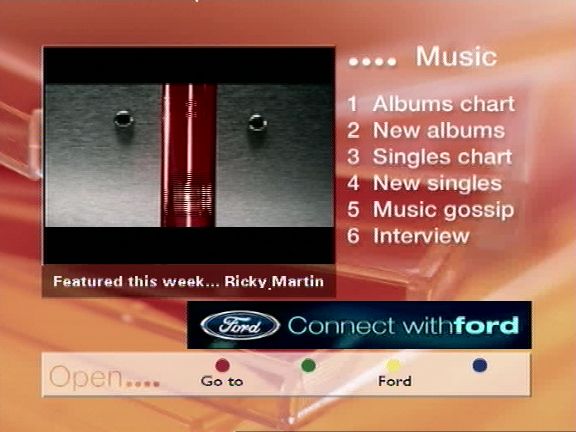
Music section, where you can check the latest charts, and purchase physical albums
Another loading screen, these were common to see on interactive satellite TV, since data is fed through a carousel like system, this means the digibox has to wait for the data to be transmitted
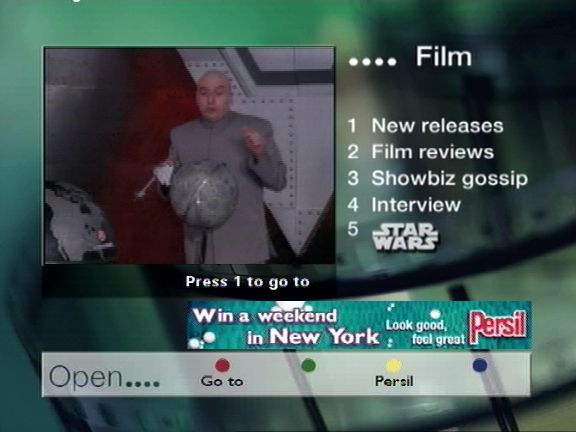
Film section, surprisingly there isn’t much integration with Sky Movie channels at the time (Premier & MovieMax)
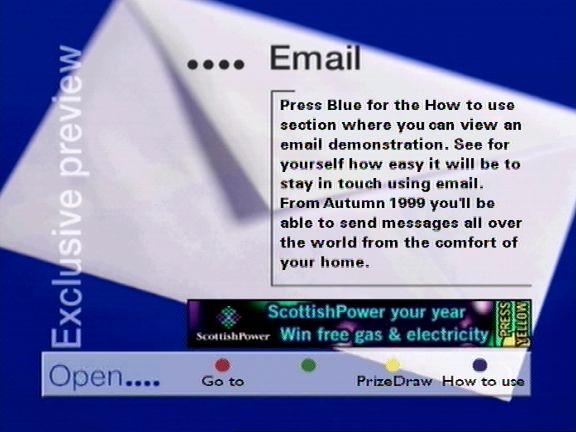
Email – initial offerings were BT’s talk21 service. Email was not push based, you were not alerted when an email came through, instead you had to load the service and connect to open via the telephone line which would then display your inbox. Emails could be typed using the Open keyboard.
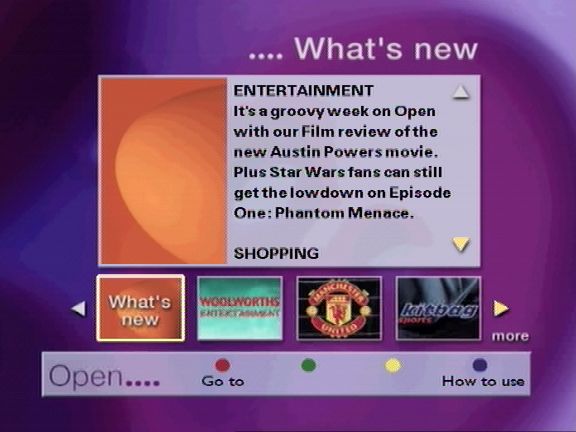
Whats New section
Any new additions to the service would appear here
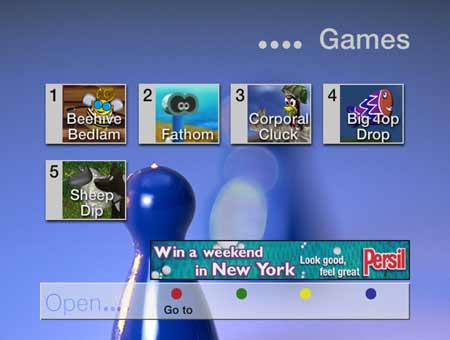
Games – games were originally delivered on open itself, they later had their own dedicated section (Game Attic), before being spun off into Sky Gamestar and having its own place on the interactive menu.
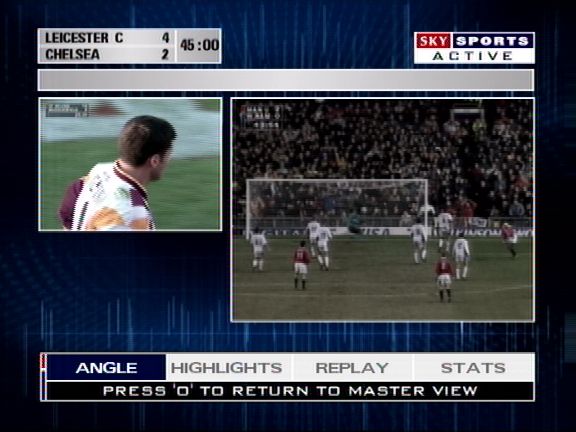
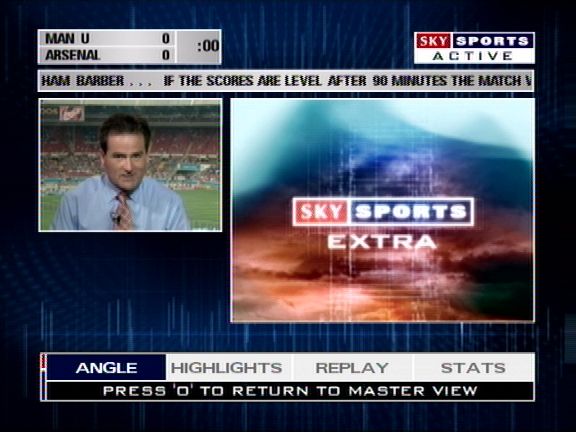
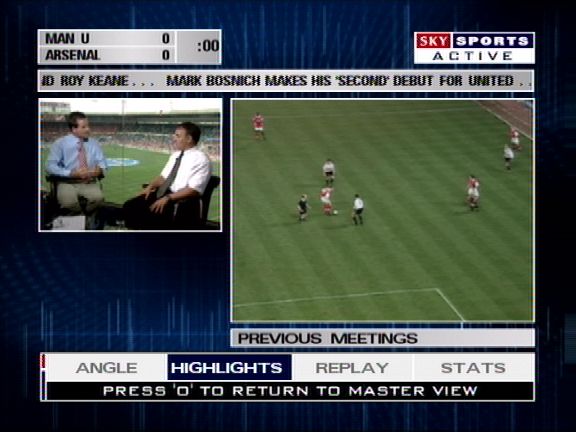
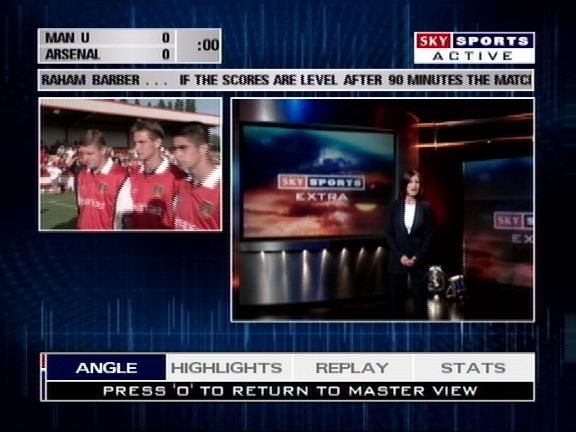
Sky Sports Active
Sky sports active, one of the defining feature was the ability to choose your viewing angle when watching a main sports event, which was offered when Sky had first launched digital. This could be done via the interactive service, but it was also possible to tune into the stream via the other channels feature
Games
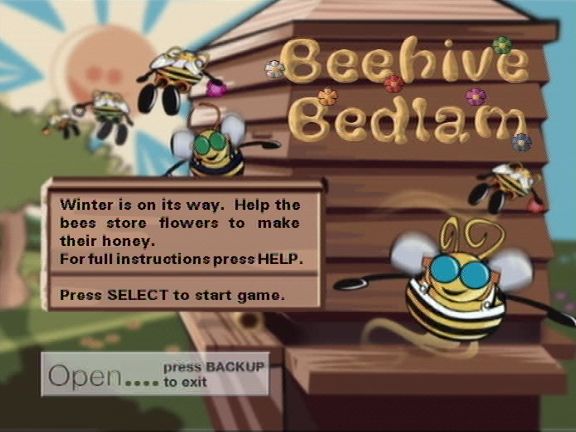
Beehive Bedlam
One of the classic games on Sky Digital, and the most well known. Beehive Bedlam was one of the only games that stayed free to play, with the exception of the master levels update in 2004, however the classic levels were still free to play
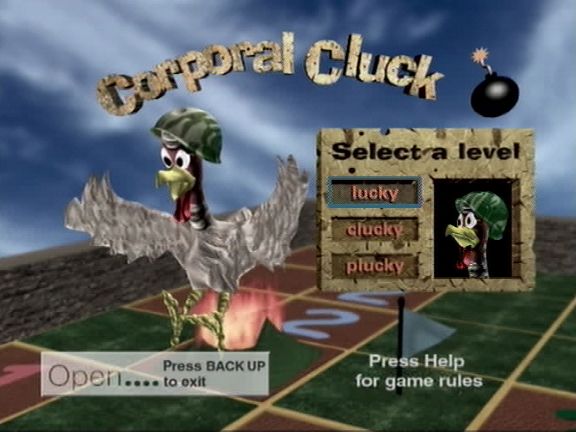
Corporal Cluck
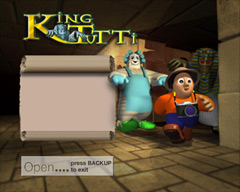
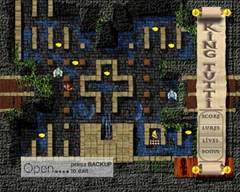
King Tutti
Early EPG concept
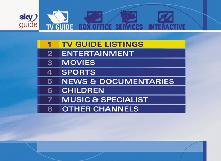
An early pre launch EPG background design, also note the channel text below the Sky logo
Another look at the Sky guide design
Meanwhile, here’s the actual EPG design Sky launched with, note how it says TV GUIDE LISTINGS rather than ALL CHANNELS
Despite the Superhub’s remaining property of Virgin Media, when I asked about the return on the Superhub, they advised that the hub didn’t need to be sent back, most likely because they have moved into the Superhub4, and that the old hub can be disposed of.
This seems quite wasteful, since the hub works perfectly. I’m not a fan of disposing electronics needlessly if its in working order. Besides if you need an extra few ethernet ports, why not reuse the equipment you already have?
Starting from Scratch
Probably best to reset the hub back to its factory state. This can be done by holding the reset button down for 10-12 seconds, then waiting for the router to restart
Configuration
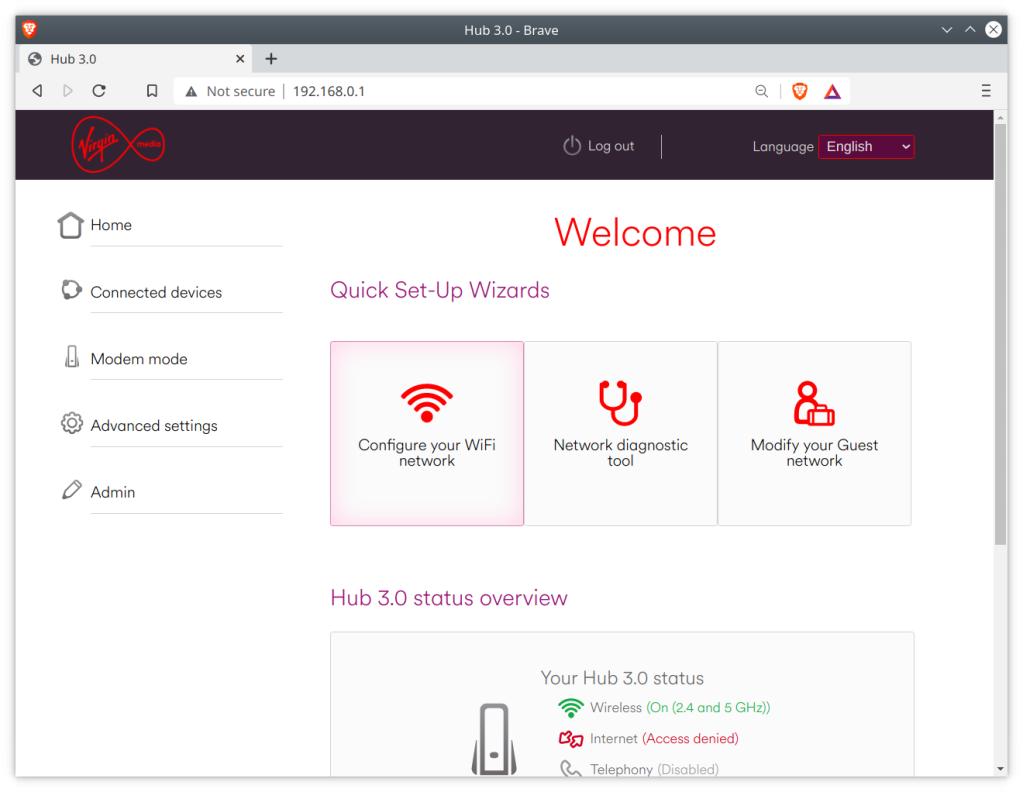
Enter 192.168.0.1 into the browser address bar to access the superhub configuration page, you will need to enter the settings password, which can be found on the underside of the superhub.
Before we make any major changes, we can configure the basic settings using the interface. Use this to change any settings relation to the Wifi configuration, as it will be harder to change later.
Disabling DHCP
Since you will be using the superhub on a network that already has a DHCP server, you will need to disable the DHCP on the superhub, since your main router will perform the DHCP duties.
What is DHCP? It is responsible for issuing and maintain the IP address on your network, which ties into NAT (Network address translation). You only need one on your network, having multiple DHCP servers is unnecessary unless you have an enterprise network. Also not to be confused with HDCP
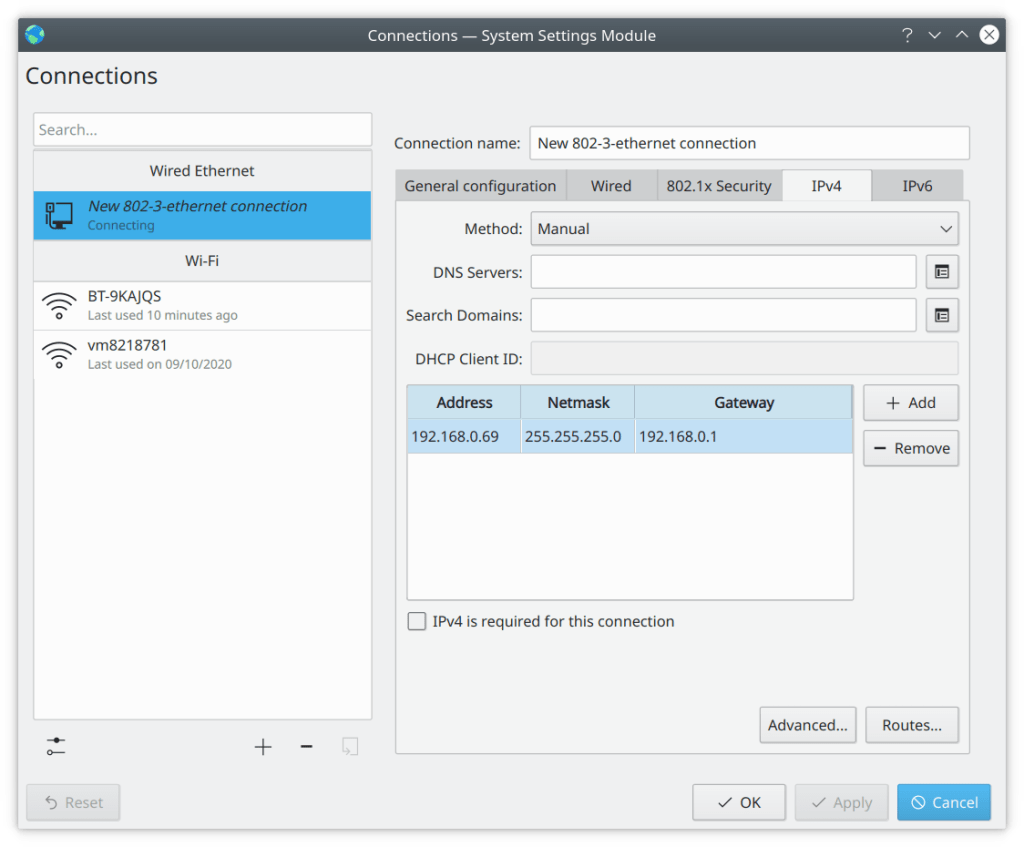
After this you will lose network connectivity with the router, this is because the super hub is no longer assigning IP address. To restore you will need to switch to a static IP temporarily whilst we configure the router. In Kubunu you can configure this in the connections panel in the system settings. For Windows there are various tutorials on how to configure a static IP.
Remember to use 192.168.0.1 for the default gateway, as for the client IP address, you can use 192.168.0.2, You might need to login to the router interface again.
Changing the gateway IP (optional)
You might not need to do this, depending on the IP configuration of your network. By default the super hub uses the address 192.168.0.1 as long as you don’t have any other devices using this address then you should be fine, but you should check first regardless.
Unfortunately with the superhub 3, if you change the default IP address to anything other than 192.168.0.1, the configuration page is no longer accessible. the router will still function as a switch or hub but you will no longer be able to edit any settings or access the configuration page. therefore before you do this, ensure the superhub is configured as you prefer as you will be unable to modify them later, unless you perform factory reset.
This also means that if you have two superhub 3’s, then you will need to do this on one of the superhubs to stop one from interfering with the others, since its a bad idea two have two devices using the same IP address, especially if one is a router/gateway.
Normally you cannot change this via the default interface. We can work around this by entering commands via the address bar as outlined below.
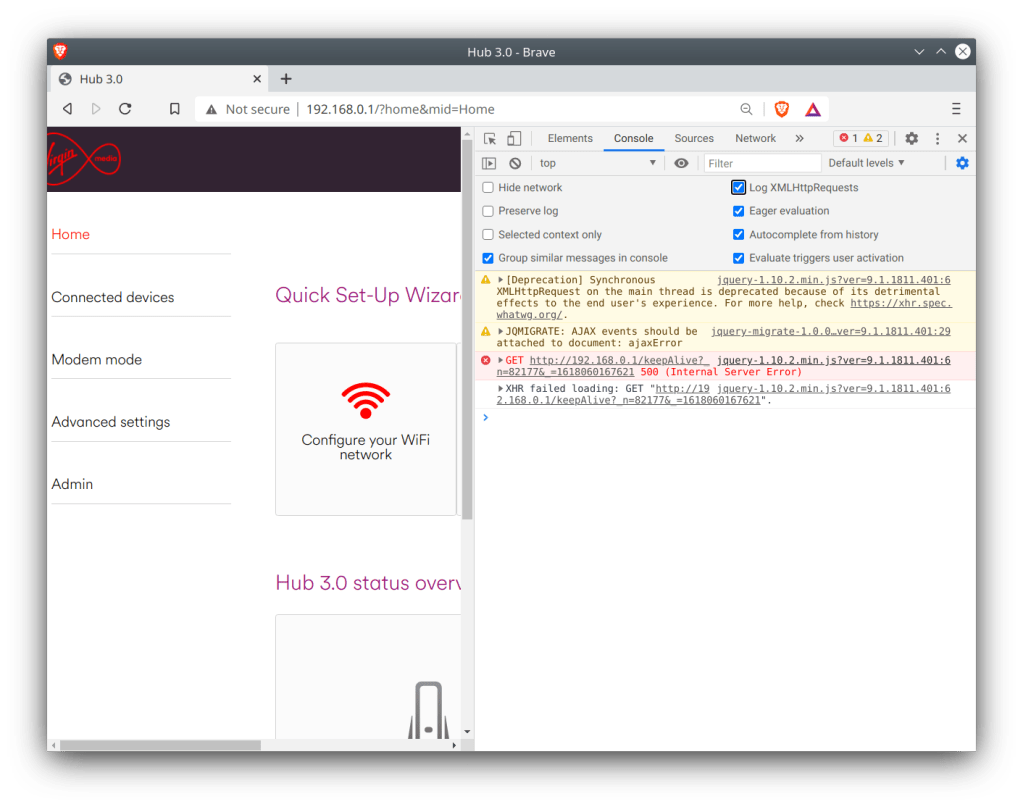
First, enable the developer window in your browser by pressing F12
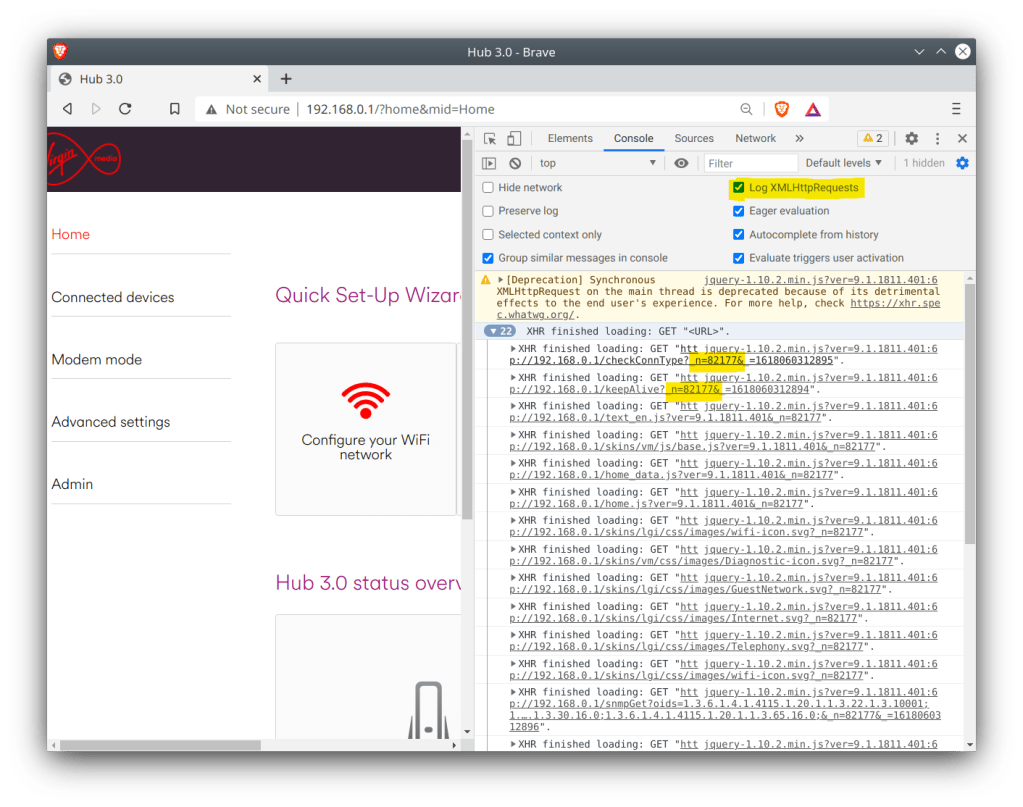
For Chrome based browsers, Click Console, then enable LogXWLHttpRequests
For Mozilla based browsers, this should be enabled by default
Refresh the router page and inspect the console log
We need to get the authenticator code. This is generated when you log into the router interface and can be found highlighted below, and will begin with n=, followed by a random string of numbers, in this case mine was 82177
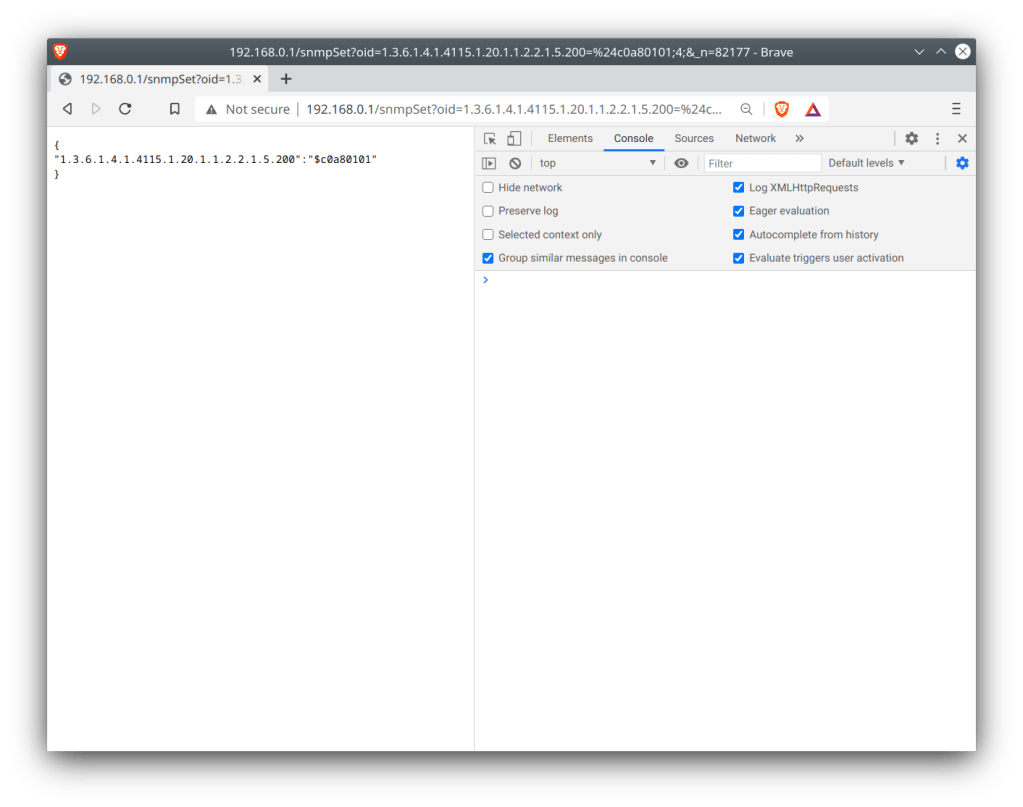
To change the default gateway address to 192.168.1.1, use the address below and paste it into the browser, changing the n= value at the end to the one we noted down earlier
The Superhub should shortly reboot itself after. If not, check the commands have been issued correctly, especially the last one since that applies the settings.
Does it work well?
Almost, there are a few issues with the router being in this setup.
One of which is the constantly flashing green light at the front of the hub. This is due to the router attempting to find a DOCSIS signal, even though it is technically connected to the internet, the cable modem side of things is still trying to connect via its coax connection. There’s no option to disable this so I’d advise to just tape over the light, since its never going to find a DOCSSIS signal.
Firmware updates for the Superhub are delivered via the cable network only, and the Superhub has to be authorised at the headend in order to receive the update. This means you will be stuck with t he same software currently on the router. Whilst this isn’t a huge issue, since the Superhub firmware is relatively stable, with the main issue being on the cable side of things which we are no longer using.
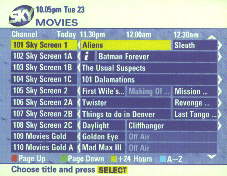
A few screenshots of the original Cable&Wireless guide have surfaced online. They look to have been taken from a magazine, and may have been an early preview of the software. Similar to the pre launch Sky software that was a redesigned prior to its launch.
There isn’t much to say since it looks remarkably similar to the Telewest guide that was used for its launched, and was possibly based on the same code base. the initial EPG used by both Telewest and ntl was built using by Pace, and was designed to be a basic EPG with the Liberate browser running in background.
The software below is known as CR1, this lacks interactivity as the liberate client was yet to be deployed to the STB’s of the time, and the service was still in the process of launching. ntl later rebranded the CR1 software to their own colour scheme, but the design remained the same until ntl started rolling out CR3, which saw the EPG being completely redesigned to use the Liberate TV Navigator. In some areas of London, the ntl CR1 EPG was still in use, due to the poor condition of the Videotron network that was originally deployed.
The main menu, shows TV on demand (Pay per view), at a glance (EPG guide listings), programes by subject (subgenres) and preferences.
The options and layout of the guide look similar to the Telewest build of the software, and the later ntl rebrand
PayPerView on demand listings, I believe Cable & Wireless used Sky Box Office at the time, rather than Front Row
List of the PPV event along with the show times, again very similar to the Telewest layout
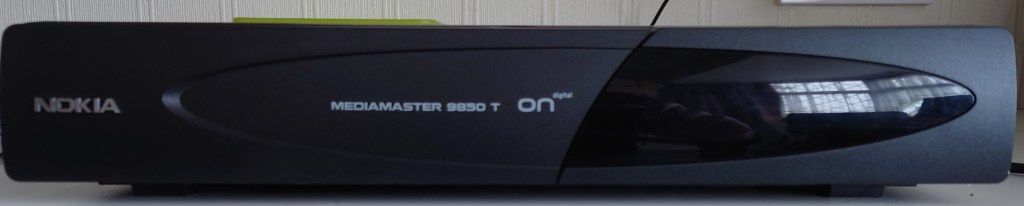
The Nokia Mediamaster 9850T was one of the first ONdigital receivers released to the market, alongside the Philips and Pace models, and one of the first digital terrestrial receiver that Nokia had made.
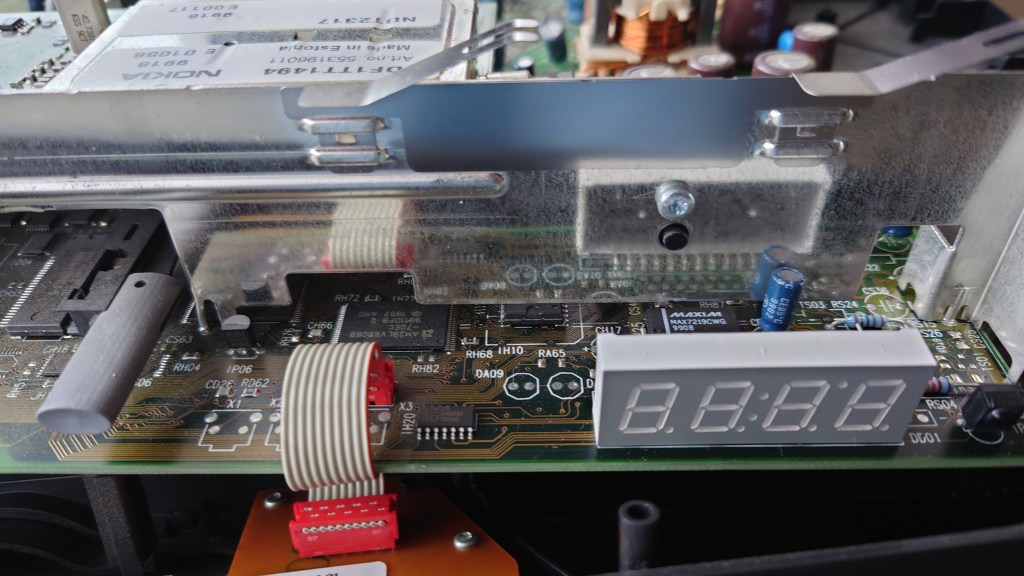
Like other ONdigital boxes, the 9850T uses SECA Media-highway for its middleware, alongside the MediaGuard conditional access system. The box also has a PCMCIA slot for future digital interfaces, likely to enable upgrades. The front panel design is similar to the other models of the time, all boxes had a Power, Select, Menu and directional buttons to allow basic control of the receiver without a remote, and a 4 digit display which would show the channel number and the time in standby
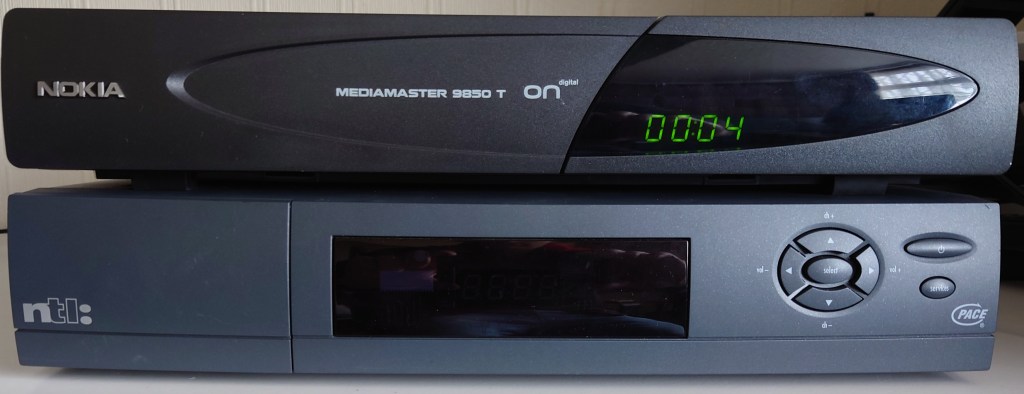
Front View
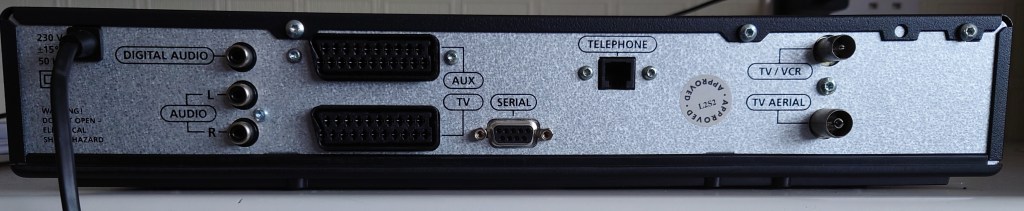
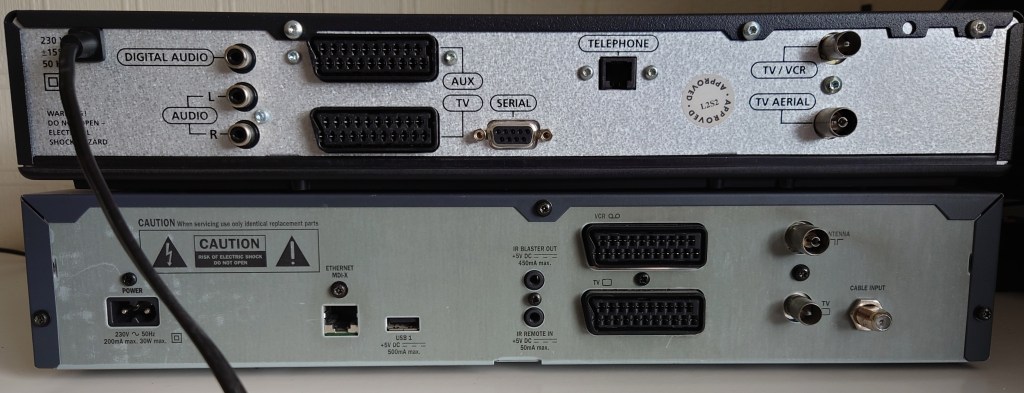
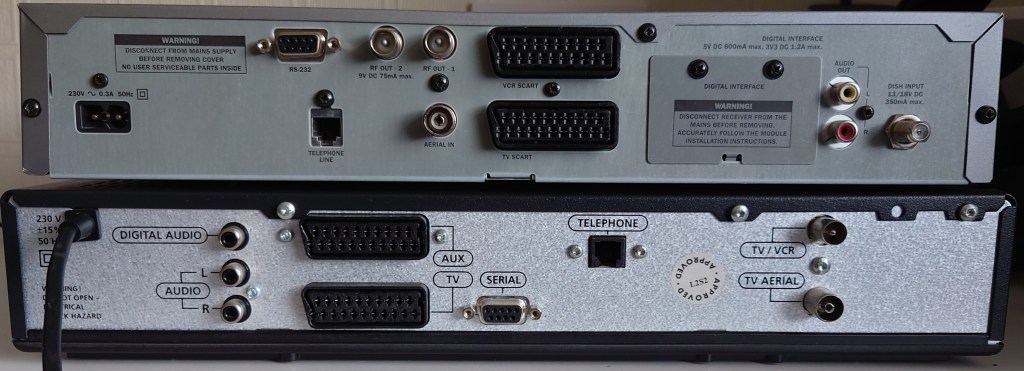
Rear View
Lifting the Lid
Tuner Block
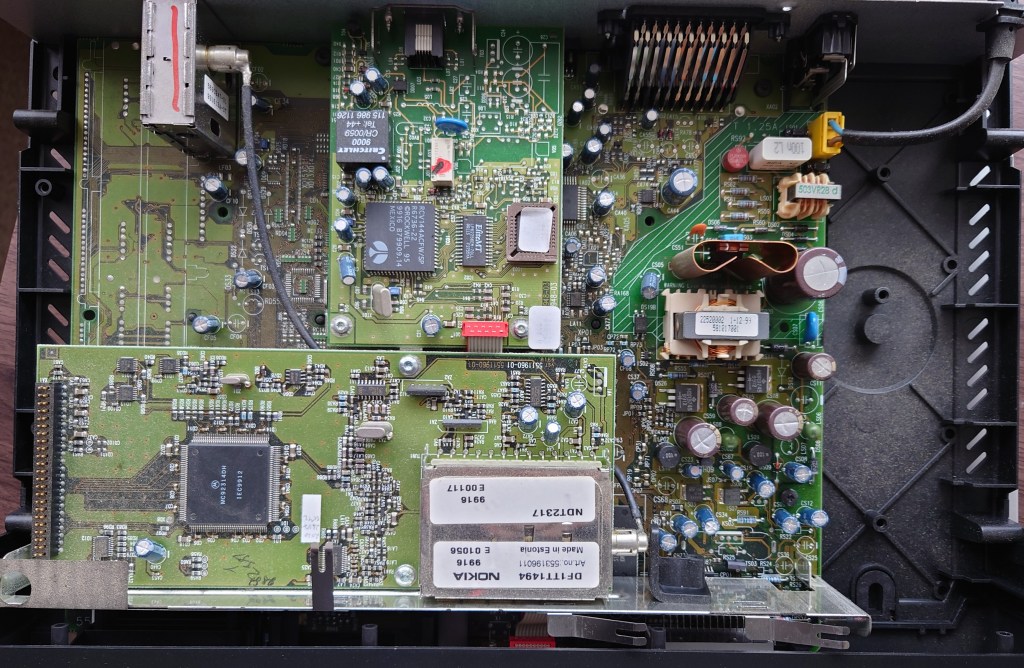
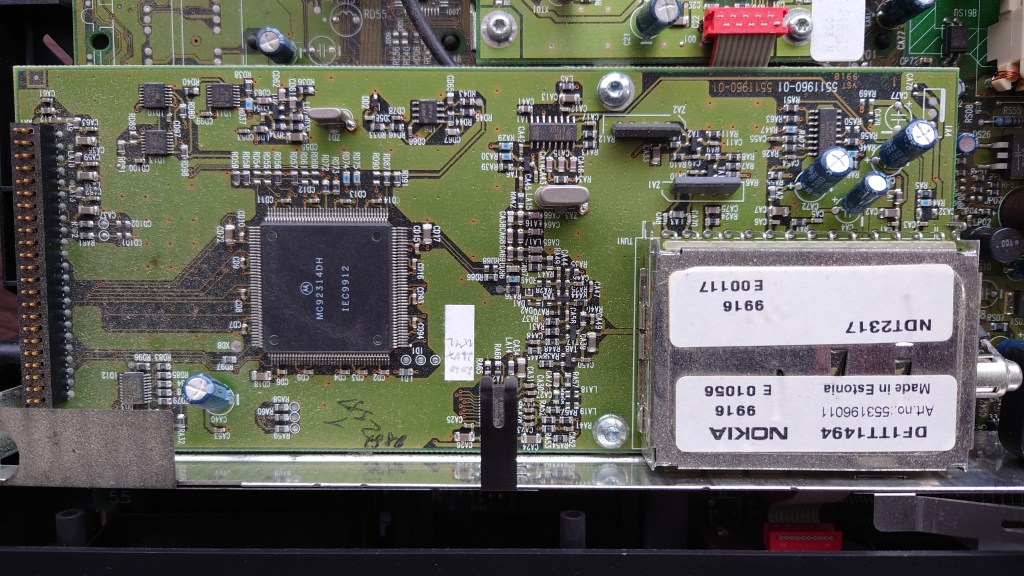
The tuner is implemented on a separate module away from the mainboard, it seems the board is based off the 9800/9700 satellite receiver, and when it came to adapting the design for the 9850T, Nokia added the DVB-T tuner module as a separate module. This module is soldered in and cannot be removed.
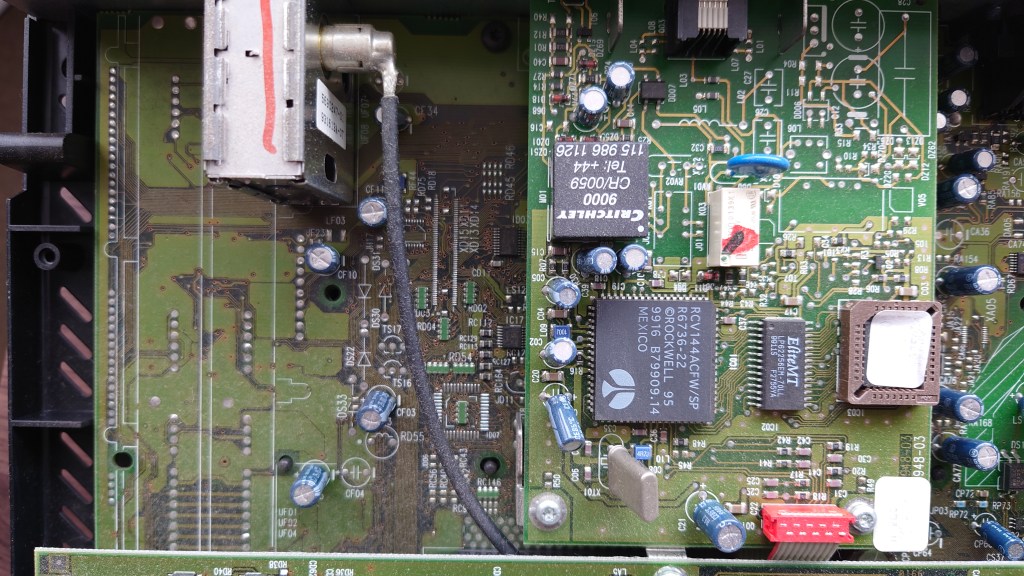
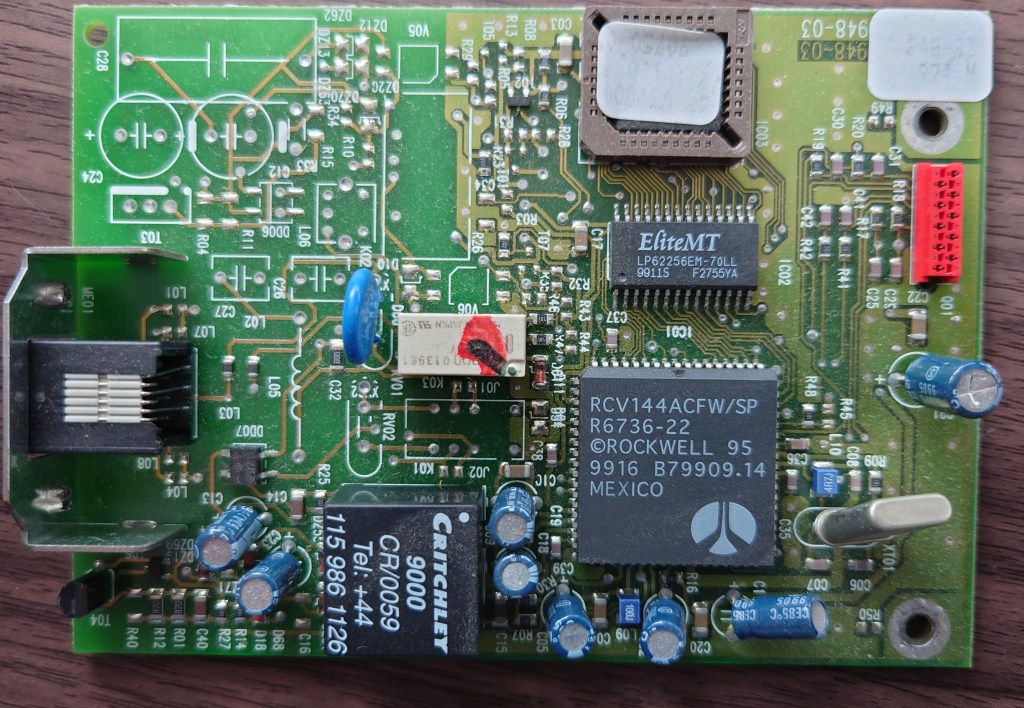
The modem is also a separate component, connected what looks like an internal RS232 port, to the left you can see spaces reserved for the satellite tuner modules
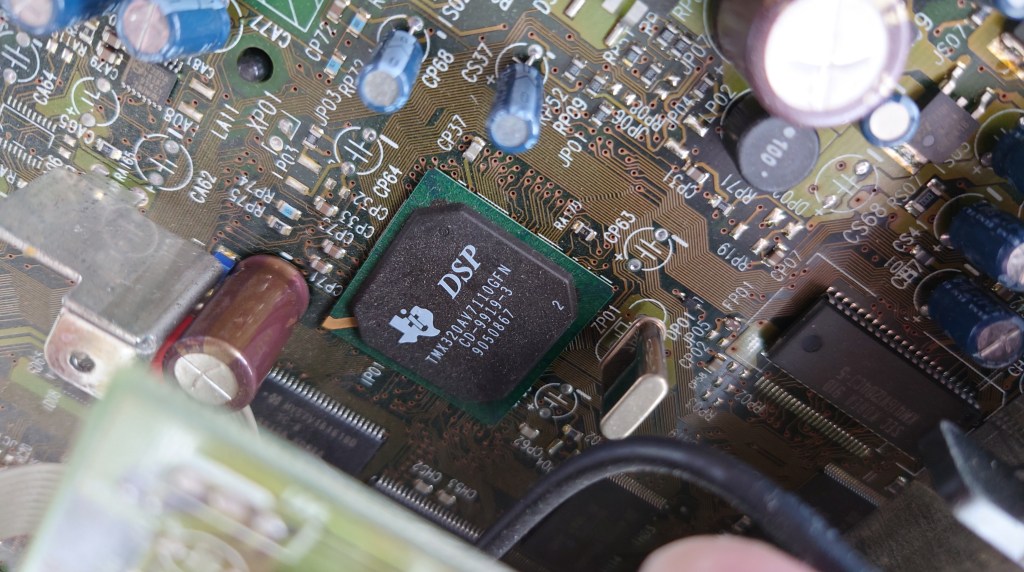
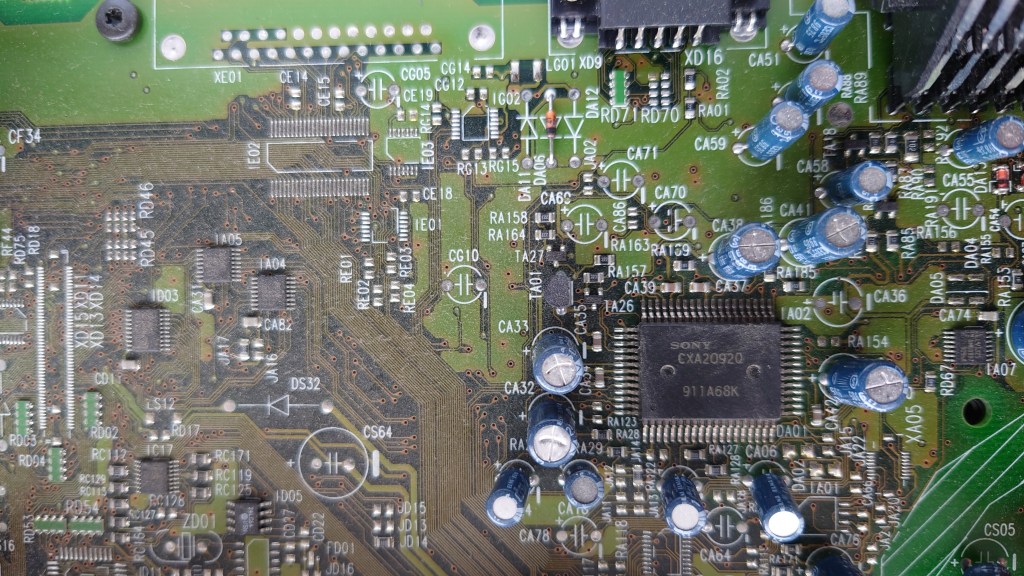
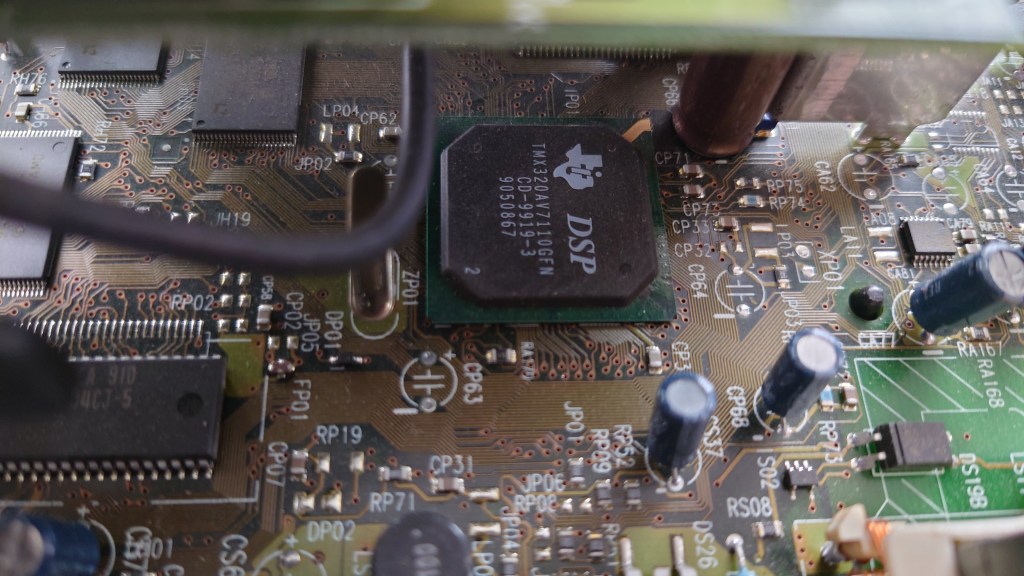
Shot of the CPU and MPEG2 decoder, cannot find any other chips unless they are on the underside, so I assume this also contains the decoder.
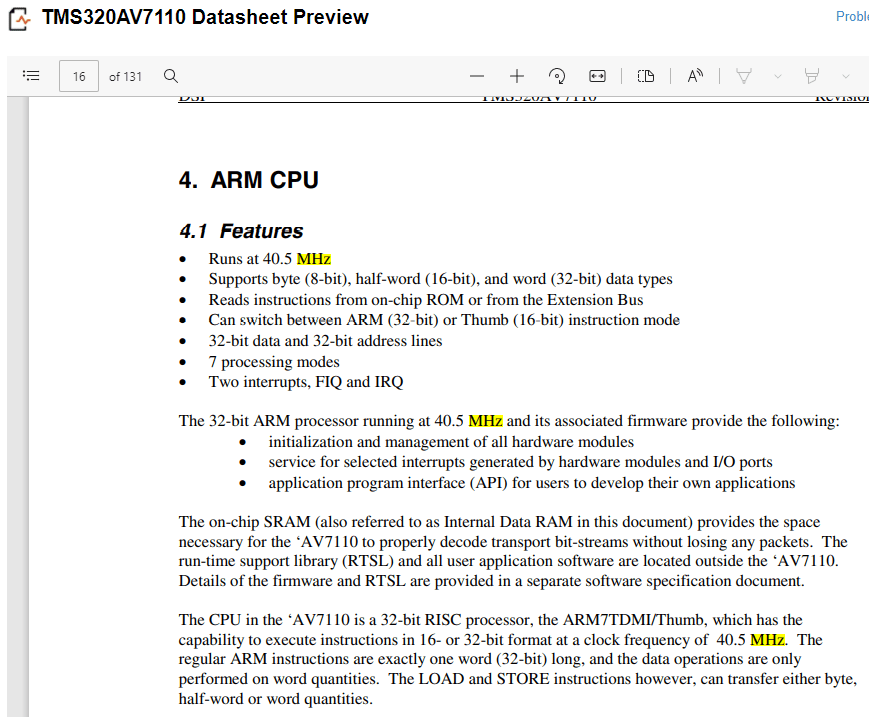
Texas Instruments TMS320AV7110
From looking at the datasheet below, the CPU of the box is based on an ARM design and runs at 40.5MHz
Another shot of the main CPU and MPEG2 decoder, the Flash and RAM chips can be seen to the left side
The modem module itself
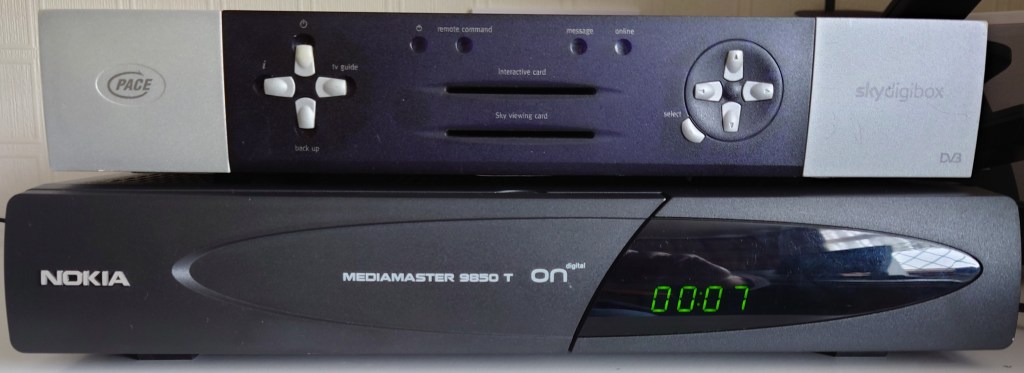
Size Comparison
Vs Pace Di4000
Vs Pace 2500S5
Conclusion
As this was one of the first DTT receivers on the market, the box seems to be quite primitive compared to the later Freeview receivers with its lack of a full EPG and more importantly 8K tuner support, however in the ONdigital era the Nokia was considered to be the more reliable and supported box (The Sony and Toshiba models did not get MHEG support) and there are reports of the 9850T being able to lock onto weaker signals better than its Philips or Pace counterpart.
The addition of the digital audio connecter would have been the main distinction from the other ONdigital boxes besides the Sony, since they were the only models to feature this.
Nokia would later go on to continue creating DTT receivers for the Freeview service, with models like the 221T or the 121T, which had an unorthodox and unique design compared to the traditional 9850T. Unfortunately Nokia exited the Freeview market after 2005, along with its satellite receivers and focused on mobile phones before Microsoft purchases their handset division. It’s not known it Nokia will reenter the set top box market.























































 Drew1440: Blog