Reusing a Virgin Media Superhub 3 as a Wifi Extender

Or an ethernet hub

Despite the Superhub’s remaining property of Virgin Media, when I asked about the return on the Superhub, they advised that the hub didn’t need to be sent back, most likely because they have moved into the Superhub4, and that the old hub can be disposed of.

This seems quite wasteful, since the hub works perfectly. I’m not a fan of disposing electronics needlessly if its in working order. Besides if you need an extra few ethernet ports, why not reuse the equipment you already have?

Starting from Scratch

Probably best to reset the hub back to its factory state. This can be done by holding the reset button down for 10-12 seconds, then waiting for the router to restart

Configuration

Enter 192.168.0.1 into the browser address bar to access the superhub configuration page, you will need to enter the settings password, which can be found on the underside of the superhub.
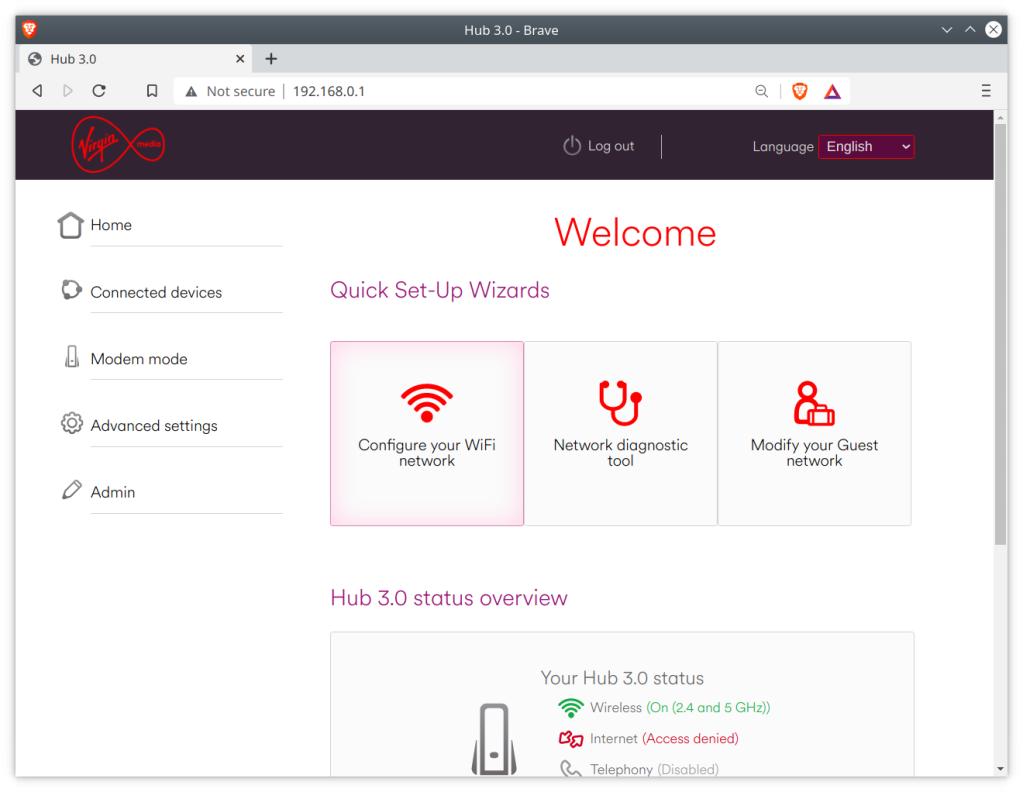
Before we make any major changes, we can configure the basic settings using the interface. Use this to change any settings relation to the Wifi configuration, as it will be harder to change later.

Disabling DHCP

Since you will be using the superhub on a network that already has a DHCP server, you will need to disable the DHCP on the superhub, since your main router will perform the DHCP duties.

What is DHCP? It is responsible for issuing and maintain the IP address on your network, which ties into NAT (Network address translation). You only need one on your network, having multiple DHCP servers is unnecessary unless you have an enterprise network. Also not to be confused with HDCP

After this you will lose network connectivity with the router, this is because the super hub is no longer assigning IP address. To restore you will need to switch to a static IP temporarily whilst we configure the router. In Kubunu you can configure this in the connections panel in the system settings. For Windows there are various tutorials on how to configure a static IP.

Remember to use 192.168.0.1 for the default gateway, as for the client IP address, you can use 192.168.0.2, You might need to login to the router interface again.
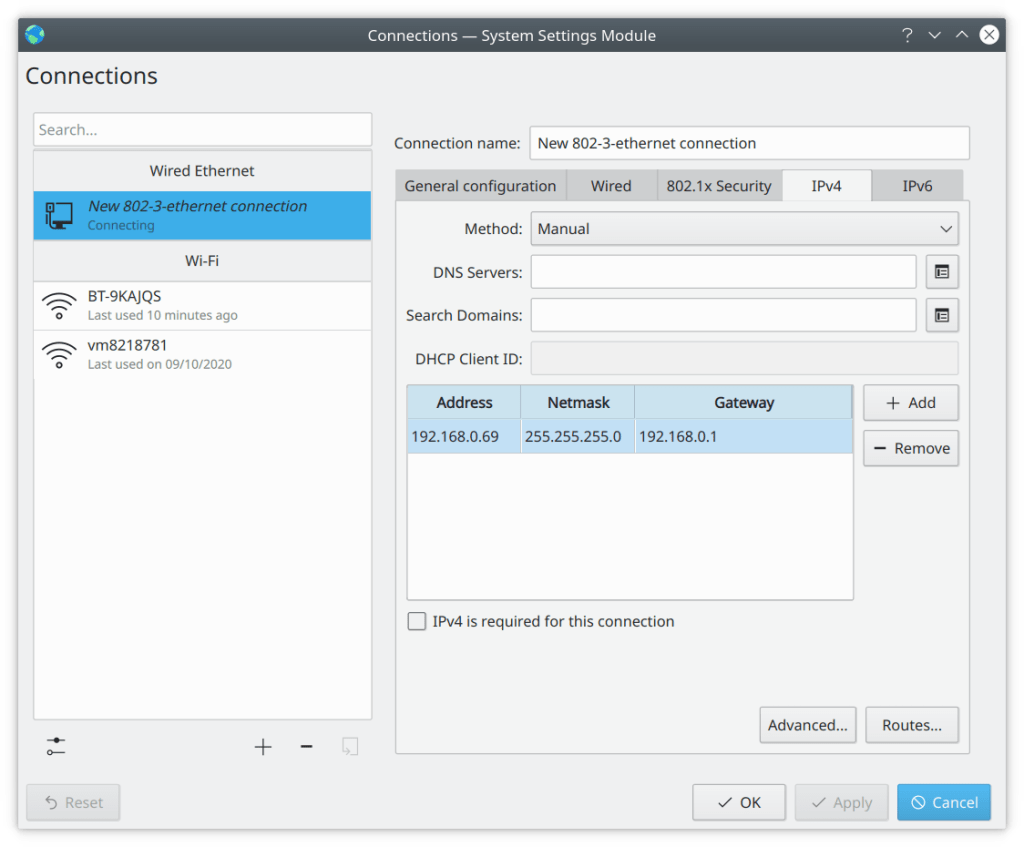
Changing the gateway IP (optional)

You might not need to do this, depending on the IP configuration of your network. By default the super hub uses the address 192.168.0.1 as long as you don’t have any other devices using this address then you should be fine, but you should check first regardless.

Unfortunately with the superhub 3, if you change the default IP address to anything other than 192.168.0.1, the configuration page is no longer accessible. the router will still function as a switch or hub but you will no longer be able to edit any settings or access the configuration page. therefore before you do this, ensure the superhub is configured as you prefer as you will be unable to modify them later, unless you perform factory reset.

This also means that if you have two superhub 3’s, then you will need to do this on one of the superhubs to stop one from interfering with the others, since its a bad idea two have two devices using the same IP address, especially if one is a router/gateway.
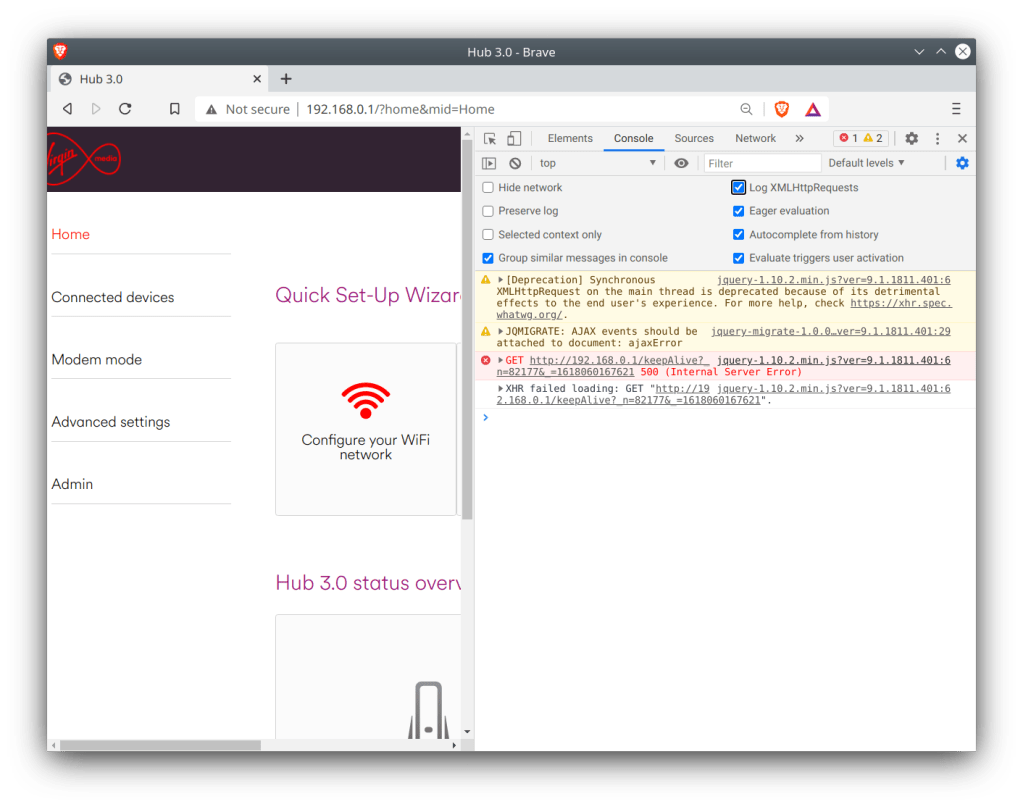
Normally you cannot change this via the default interface. We can work around this by entering commands via the address bar as outlined below.

First, enable the developer window in your browser by pressing F12

For Chrome based browsers, Click Console, then enable LogXWLHttpRequests

For Mozilla based browsers, this should be enabled by default

Refresh the router page and inspect the console log

We need to get the authenticator code. This is generated when you log into the router interface and can be found highlighted below, and will begin with n=, followed by a random string of numbers, in this case mine was 82177
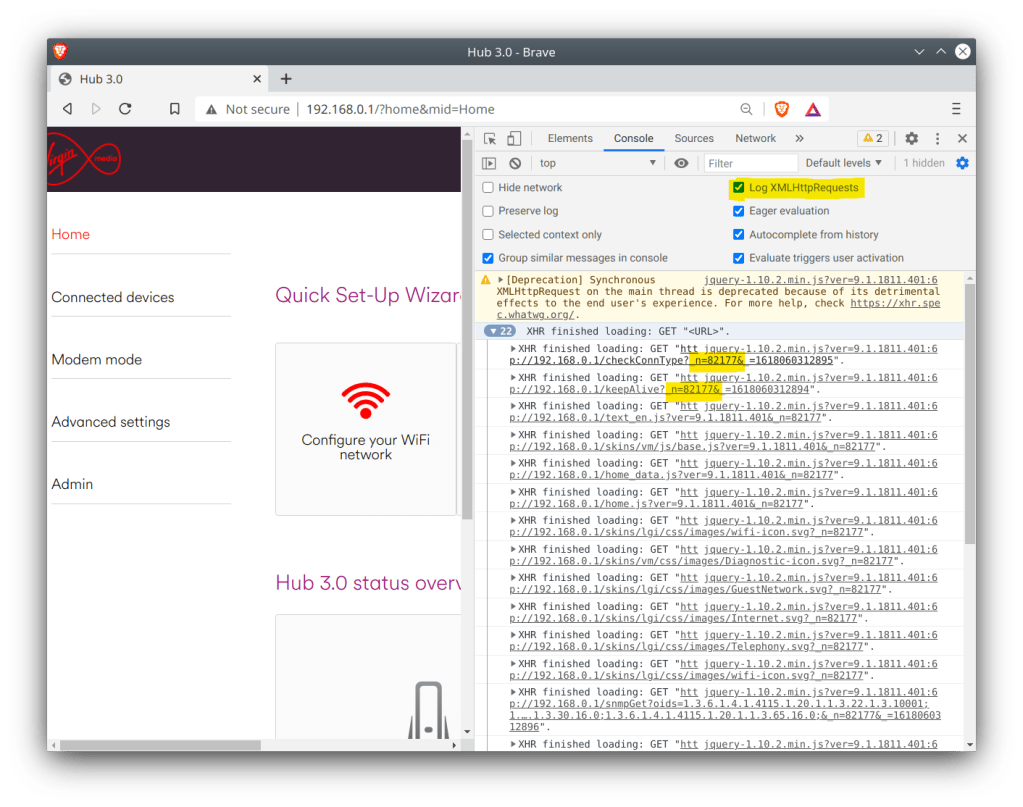
To change the default gateway address to 192.168.1.1, use the address below and paste it into the browser, changing the n= value at the end to the one we noted down earlier

http://192.168.0.1/snmpSet?oid=1.3.6.1.4.1.4115.1.20.1.1.2.2.1.5.200=%24c0a80101;4;&_n=0

Best Hex to IP Converter / Translator (codebeautify.org)

likewise if you wanted to change it to 192.168.0.2 instead

http://192.168.0.1/snmpSet?oid=1.3.6.1.4.1.4115.1.20.1.1.2.2.1.5.200=%24C0A80001;4;&_n=0

To save and apply the settings, again amend the n= number

http://192.168.0.1/snmpSet?oid=1.3.6.1.4.1.4115.1.20.1.1.9.0=1;2;&_n=0
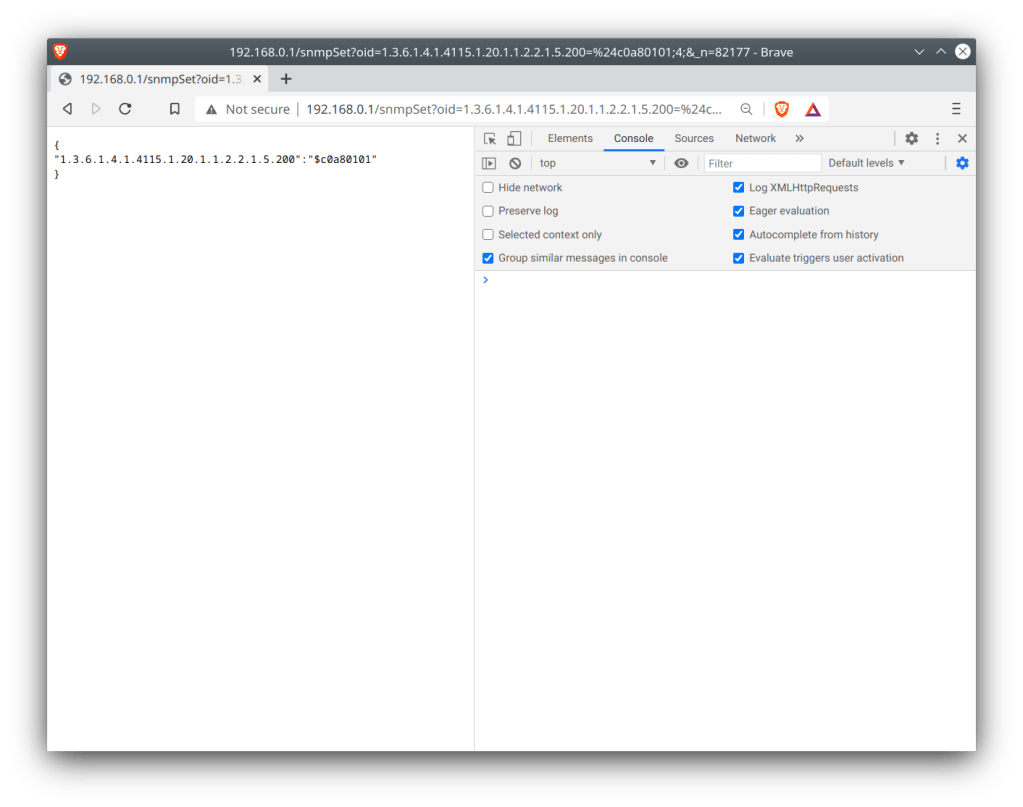
The Superhub should shortly reboot itself after. If not, check the commands have been issued correctly, especially the last one since that applies the settings.

Does it work well?

Almost, there are a few issues with the router being in this setup.

One of which is the constantly flashing green light at the front of the hub. This is due to the router attempting to find a DOCSIS signal, even though it is technically connected to the internet, the cable modem side of things is still trying to connect via its coax connection. There’s no option to disable this so I’d advise to just tape over the light, since its never going to find a DOCSSIS signal.

Firmware updates for the Superhub are delivered via the cable network only, and the Superhub has to be authorised at the headend in order to receive the update. This means you will be stuck with t he same software currently on the router. Whilst this isn’t a huge issue, since the Superhub firmware is relatively stable, with the main issue being on the cable side of things which we are no longer using.

Further Information

Re: Superhub 3 internal network address – Virgin Media Community

Original Process used to change the default gateway address on a superhub 3.

Cable & Wireless TV Guide Pace DiTV1000

Cable & Wireless launch EPG

A few screenshots of the original Cable&Wireless guide have surfaced online. They look to have been taken from a magazine, and may have been an early preview of the software. Similar to the pre launch Sky software that was a redesigned prior to its launch.
There isn’t much to say since it looks remarkably similar to the Telewest guide that was used for its launched, and was possibly based on the same code base. the initial EPG used by both Telewest and ntl was built using by Pace, and was designed to be a basic EPG with the Liberate browser running in background.

The software below is known as CR1, this lacks interactivity as the liberate client was yet to be deployed to the STB’s of the time, and the service was still in the process of launching. ntl later rebranded the CR1 software to their own colour scheme, but the design remained the same until ntl started rolling out CR3, which saw the EPG being completely redesigned to use the Liberate TV Navigator. In some areas of London, the ntl CR1 EPG was still in use, due to the poor condition of the Videotron network that was originally deployed.

Cable&Wireless Guide

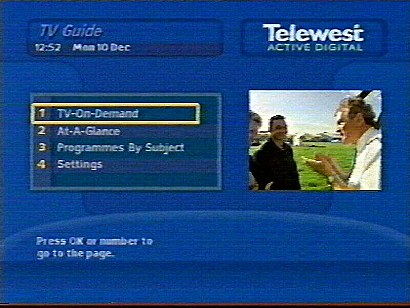
The main menu, shows TV on demand (Pay per view), at a glance (EPG guide listings), programes by subject (subgenres) and preferences.

Cable&Wireless EPG

The options and layout of the guide look similar to the Telewest build of the software, and the later ntl rebrand

Cable & Wireless 1999

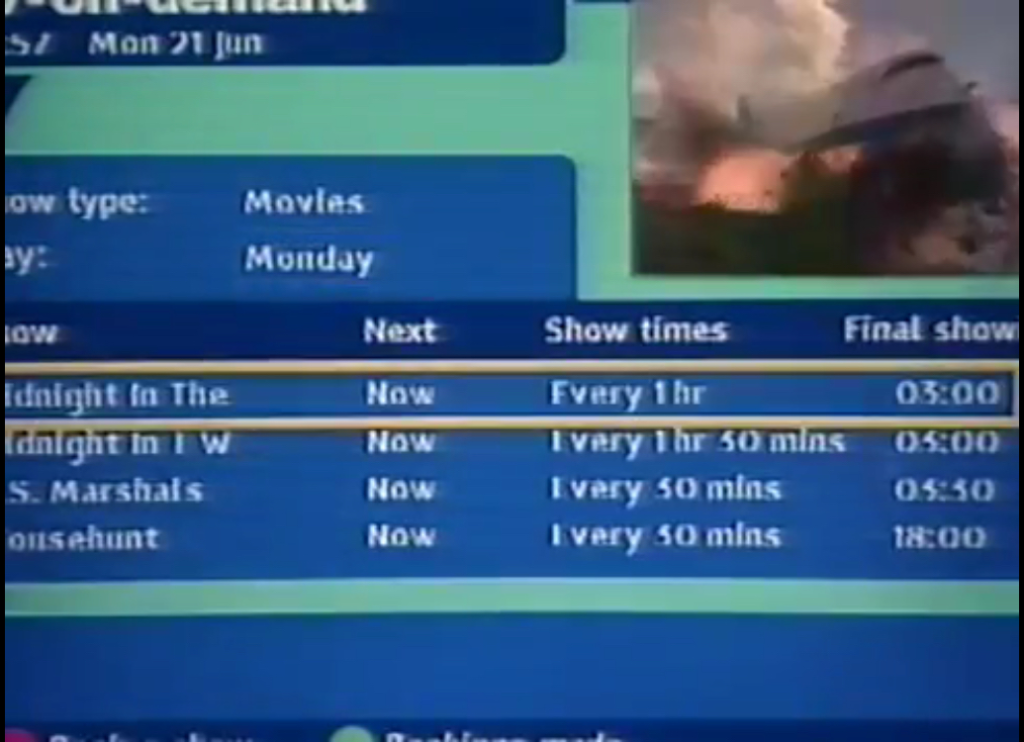
PayPerView on demand listings, I believe Cable & Wireless used Sky Box Office at the time, rather than Front Row

Cable & Wireless listings

List of the PPV event along with the show times, again very similar to the Telewest layout

Cable & Wireless Interactive

It’s a shame the pictures appear to be zoomed in and that there are not any better shots of the ‘At-A-Glance’ EPG available

Comparison with Telewest

You can see distinct similarities within the layout the the guide software, I’d imagine the rest of the guide would look the same.

A look at the Nokia 9850T

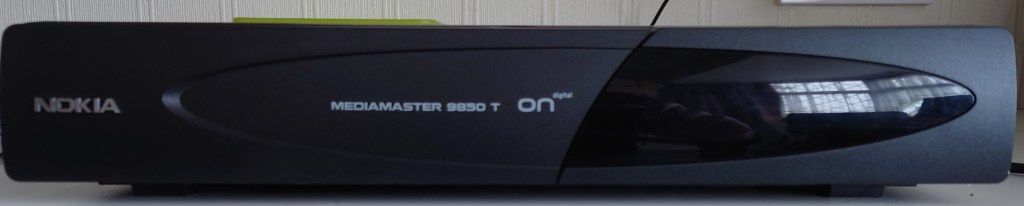
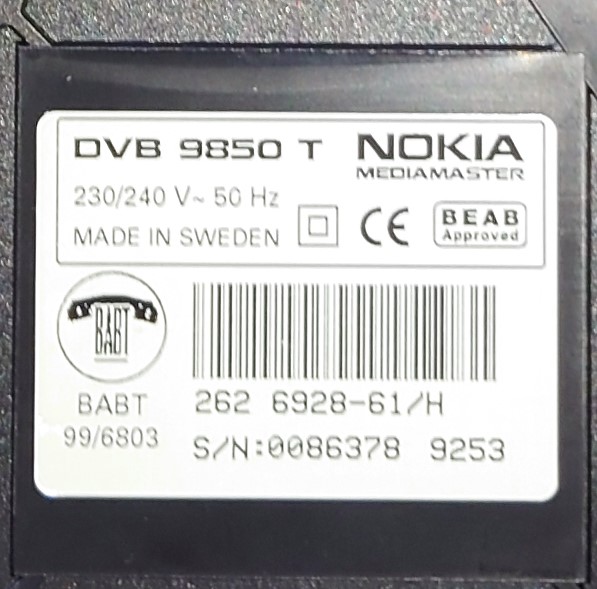
The Nokia Mediamaster 9850T was one of the first ONdigital receivers released to the market, alongside the Philips and Pace models, and one of the first digital terrestrial receiver that Nokia had made.

Like other ONdigital boxes, the 9850T uses SECA Media-highway for its middleware, alongside the MediaGuard conditional access system. The box also has a PCMCIA slot for future digital interfaces, likely to enable upgrades. The front panel design is similar to the other models of the time, all boxes had a Power, Select, Menu and directional buttons to allow basic control of the receiver without a remote, and a 4 digit display which would show the channel number and the time in standby

Front View

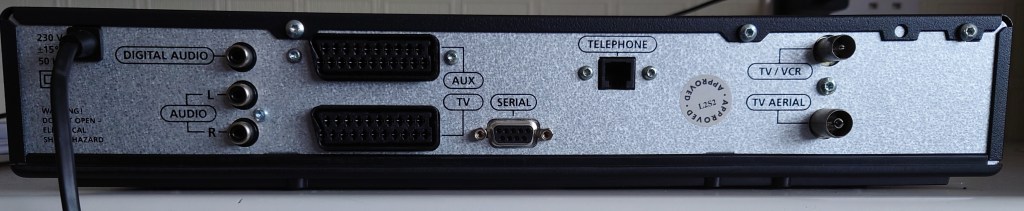
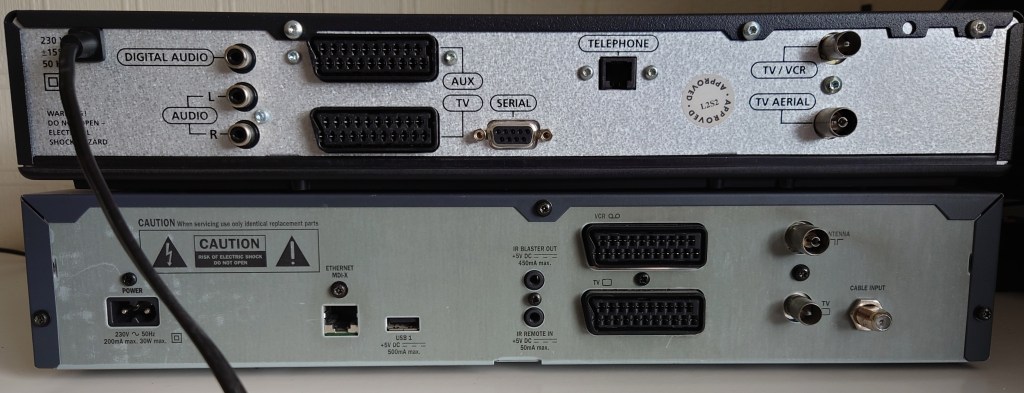
Rear View

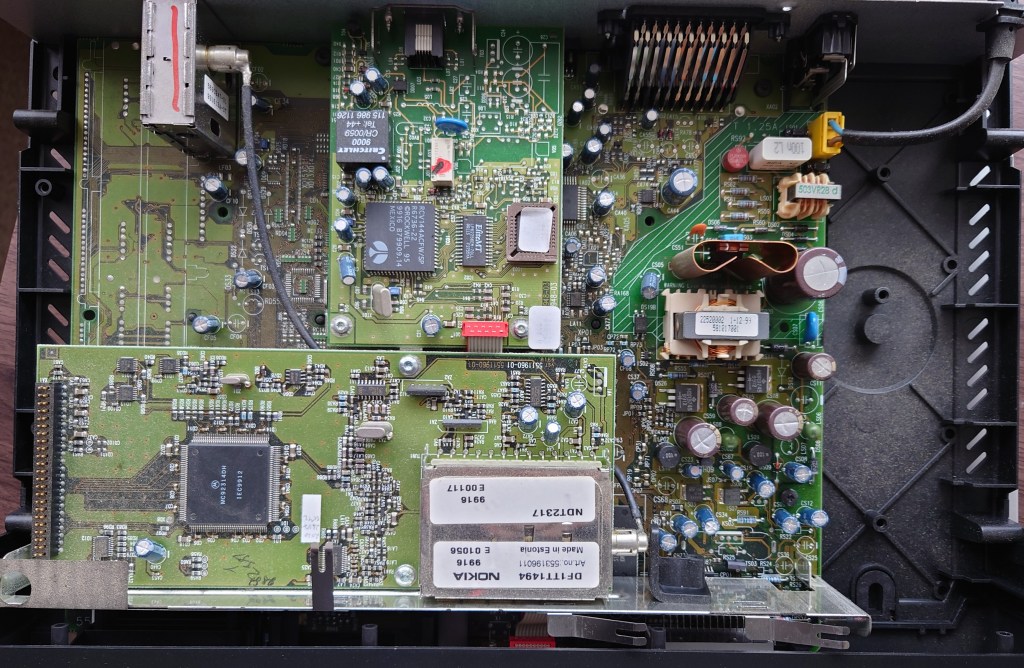
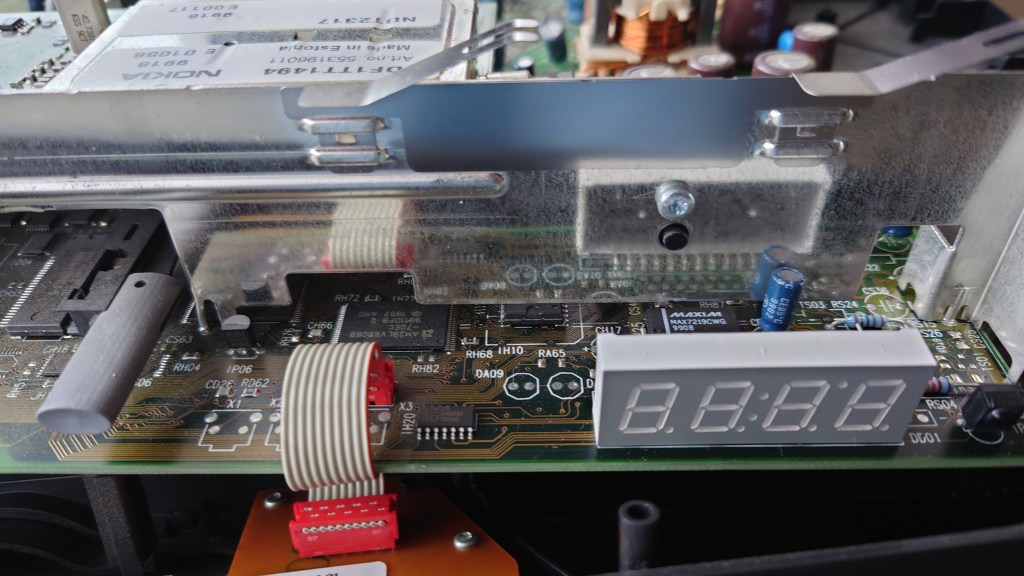
Lifting the Lid

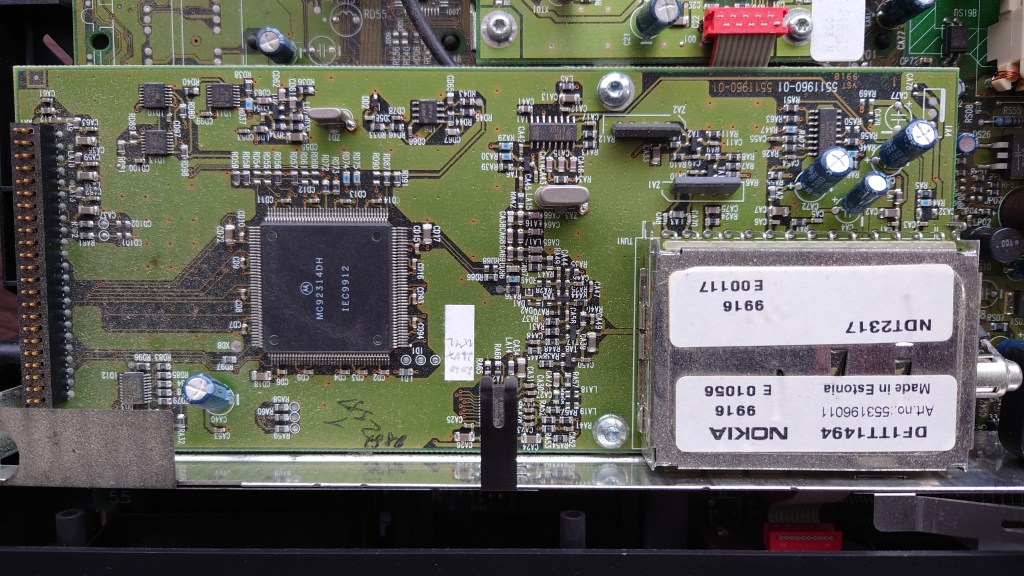
Tuner Block

The tuner is implemented on a separate module away from the mainboard, it seems the board is based off the 9800/9700 satellite receiver, and when it came to adapting the design for the 9850T, Nokia added the DVB-T tuner module as a separate module. This module is soldered in and cannot be removed.

Motorola MC92314 Datasheet

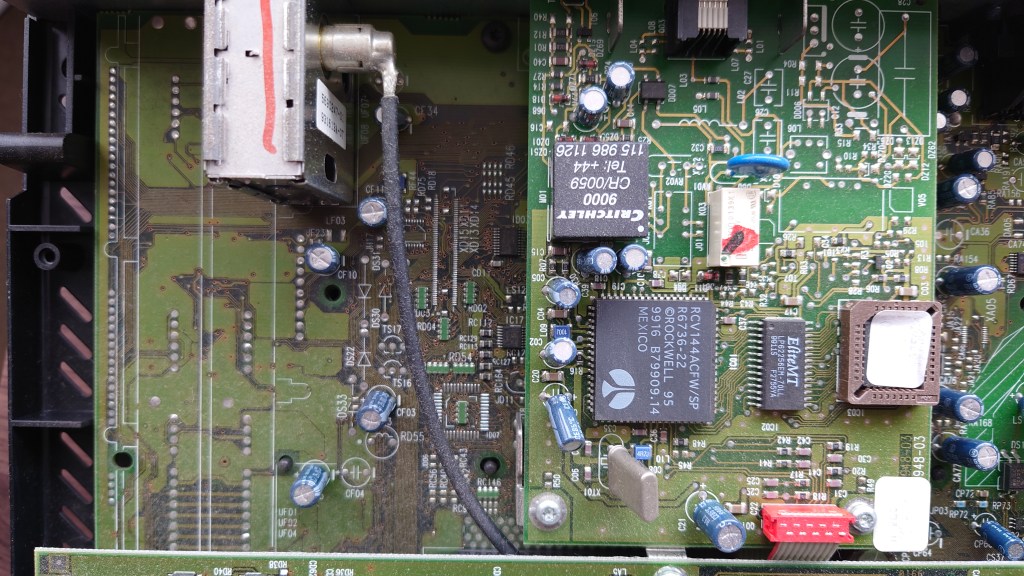
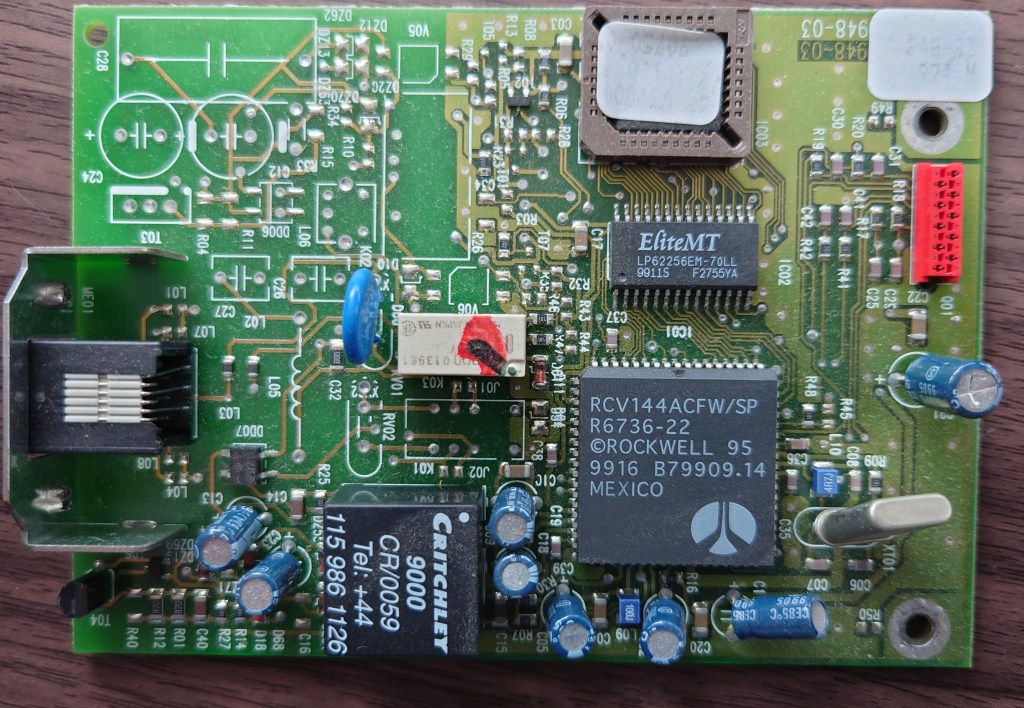
The modem is also a separate component, connected what looks like an internal RS232 port, to the left you can see spaces reserved for the satellite tuner modules

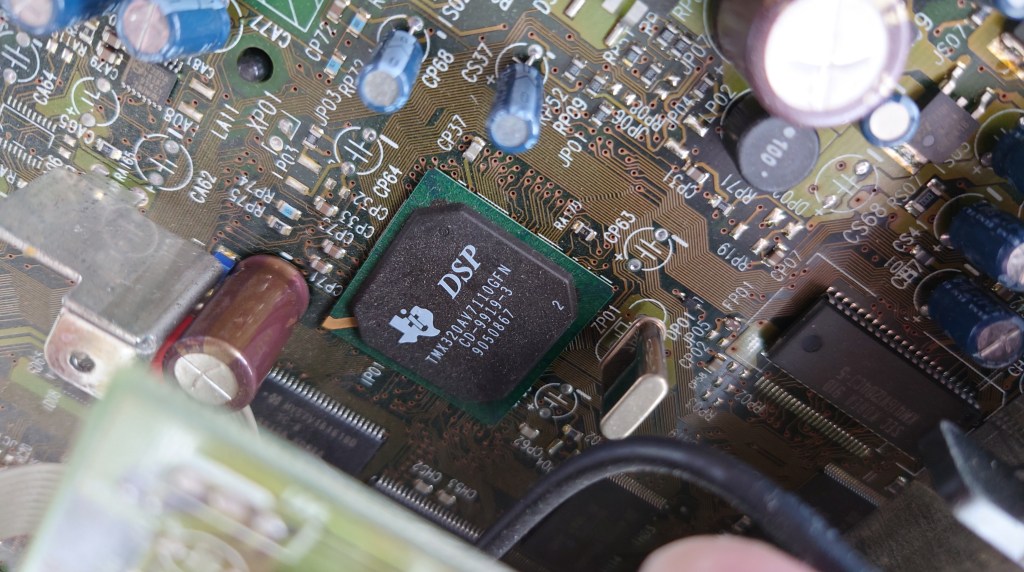
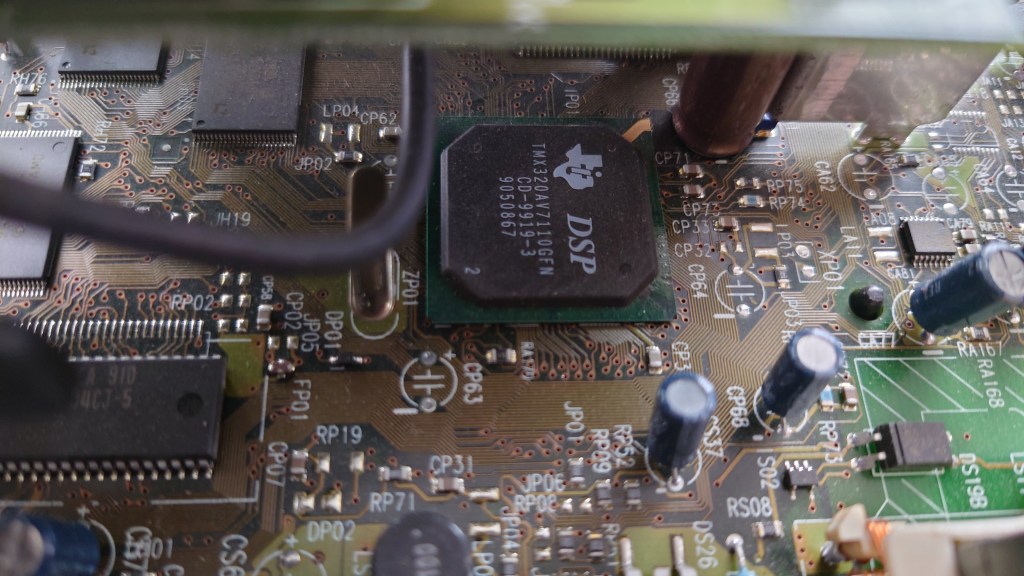
Shot of the CPU and MPEG2 decoder, cannot find any other chips unless they are on the underside, so I assume this also contains the decoder.

Texas Instruments TMS320AV7110

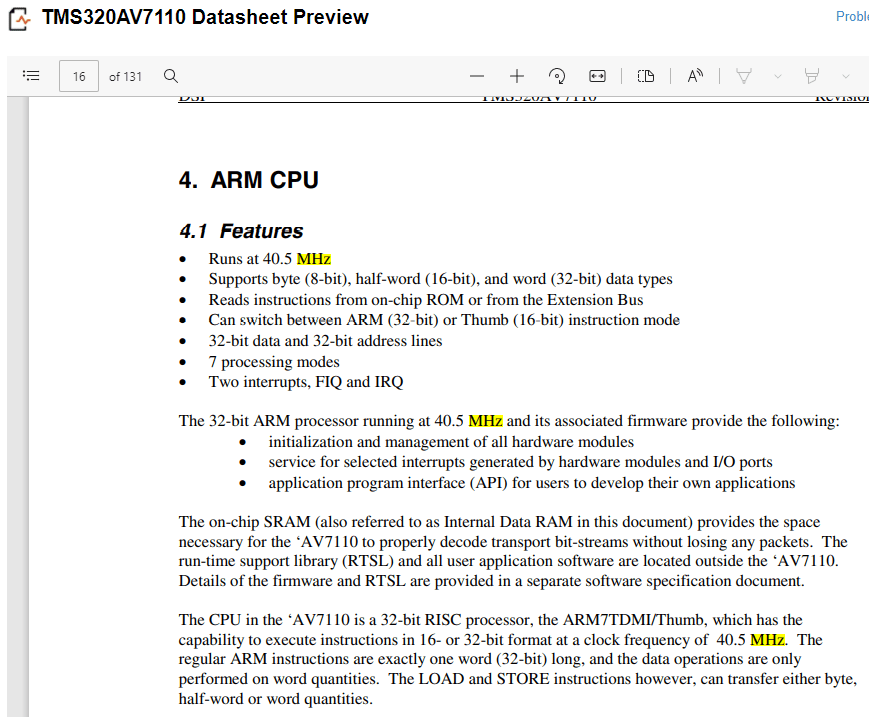
From looking at the datasheet below, the CPU of the box is based on an ARM design and runs at 40.5MHz

Datasheet

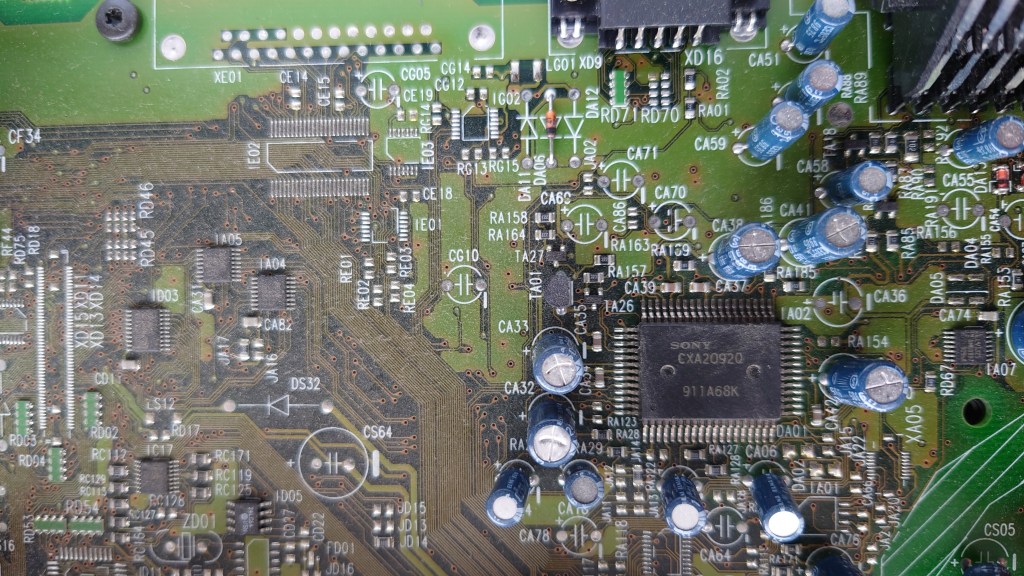
Sony CXA20920 – AV encoder

Front panel display

Another shot of the main CPU and MPEG2 decoder, the Flash and RAM chips can be seen to the left side

The modem module itself

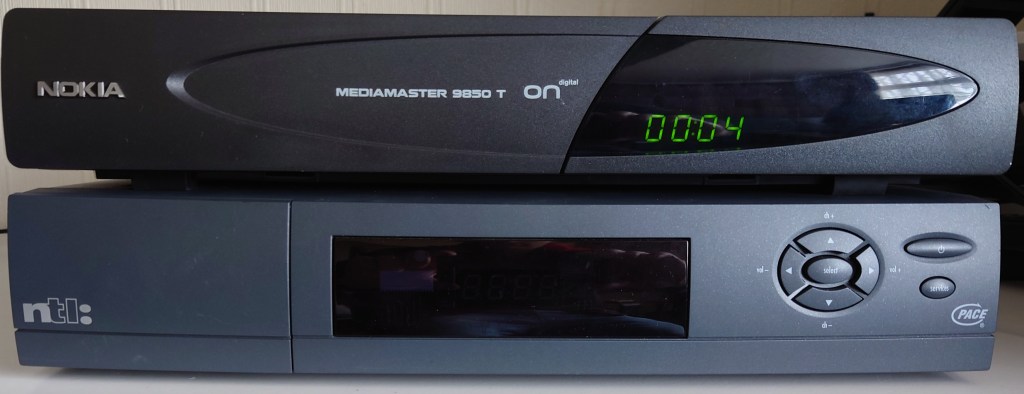
Size Comparison

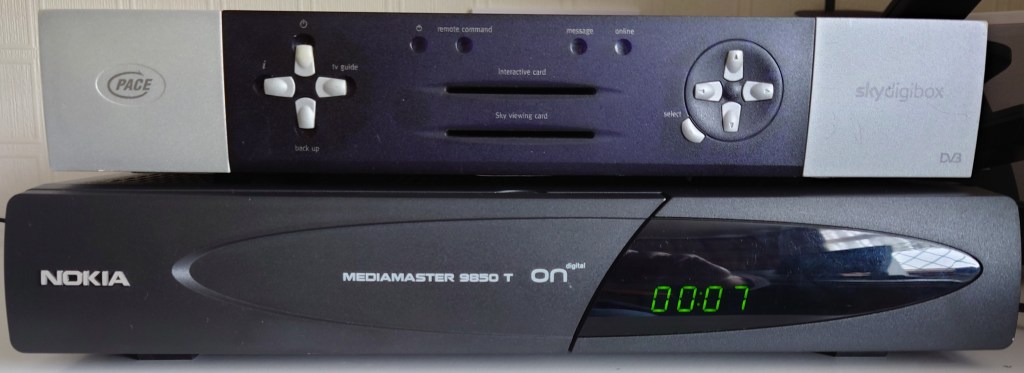
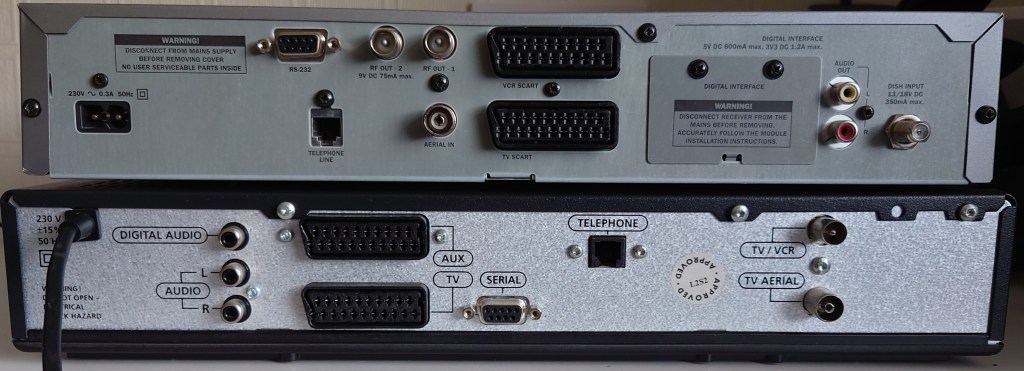
Vs Pace Di4000

Vs Pace 2500S5

Conclusion

As this was one of the first DTT receivers on the market, the box seems to be quite primitive compared to the later Freeview receivers with its lack of a full EPG and more importantly 8K tuner support, however in the ONdigital era the Nokia was considered to be the more reliable and supported box (The Sony and Toshiba models did not get MHEG support) and there are reports of the 9850T being able to lock onto weaker signals better than its Philips or Pace counterpart.

The addition of the digital audio connecter would have been the main distinction from the other ONdigital boxes besides the Sony, since they were the only models to feature this.

Nokia would later go on to continue creating DTT receivers for the Freeview service, with models like the 221T or the 121T, which had an unorthodox and unique design compared to the traditional 9850T. Unfortunately Nokia exited the Freeview market after 2005, along with its satellite receivers and focused on mobile phones before Microsoft purchases their handset division. It’s not known it Nokia will reenter the set top box market.

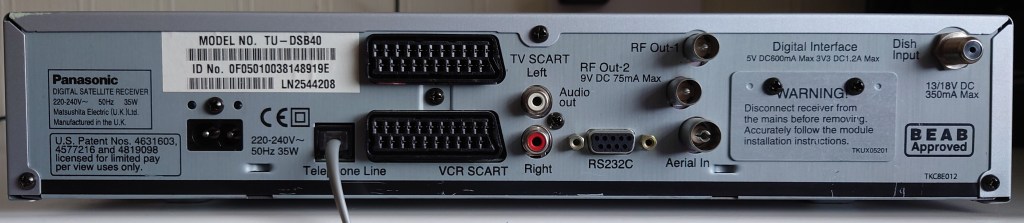
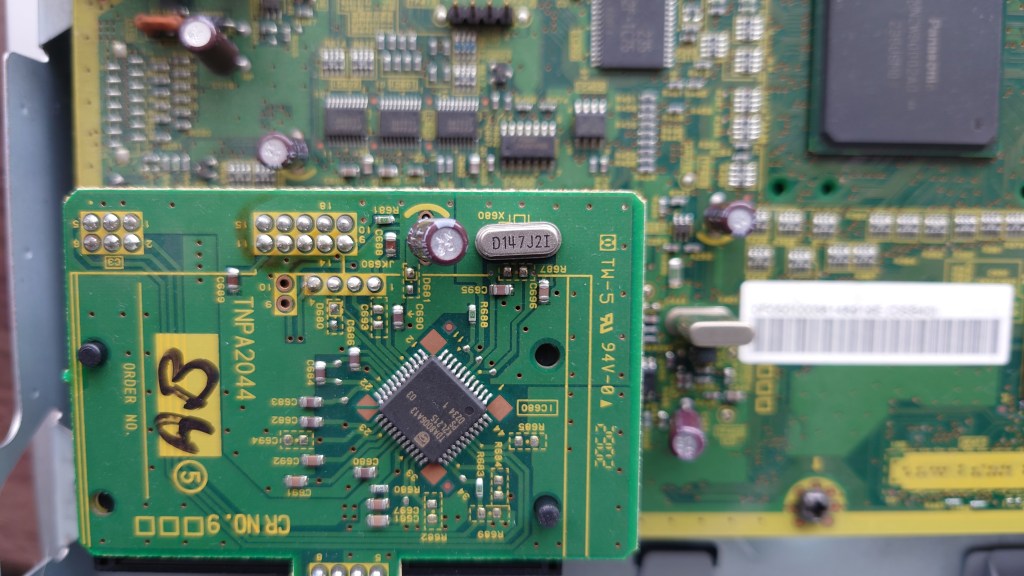
A look at the Panasonic TU-DSB40

Panasonic were one of the major manufactures of Sky Digibox’s, and were considered to be one of the more reliable makes in terms of reliability and performance.

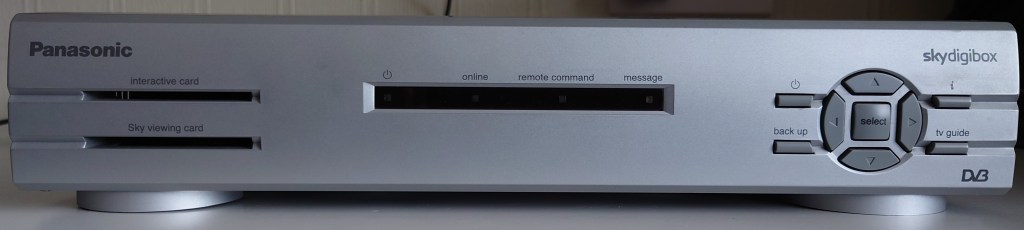
The front panel is typical of the average Sky box of the era, 4 led lights followed by 9 front panel buttons along with two card slots.

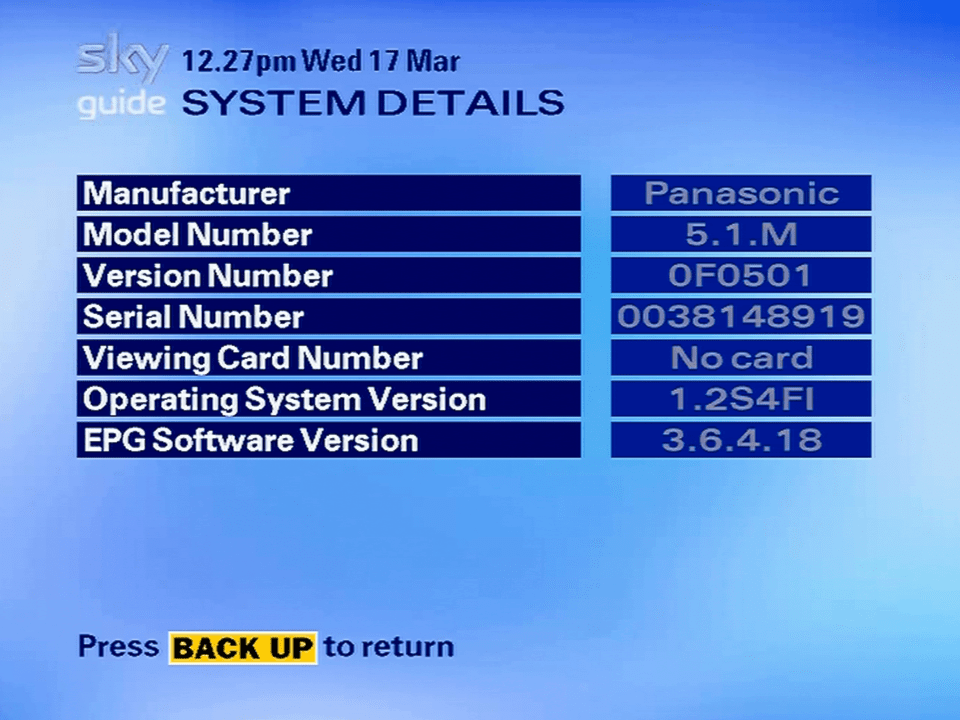
A loot at the system details screen, showing the software and revision information

Lifting the Lid

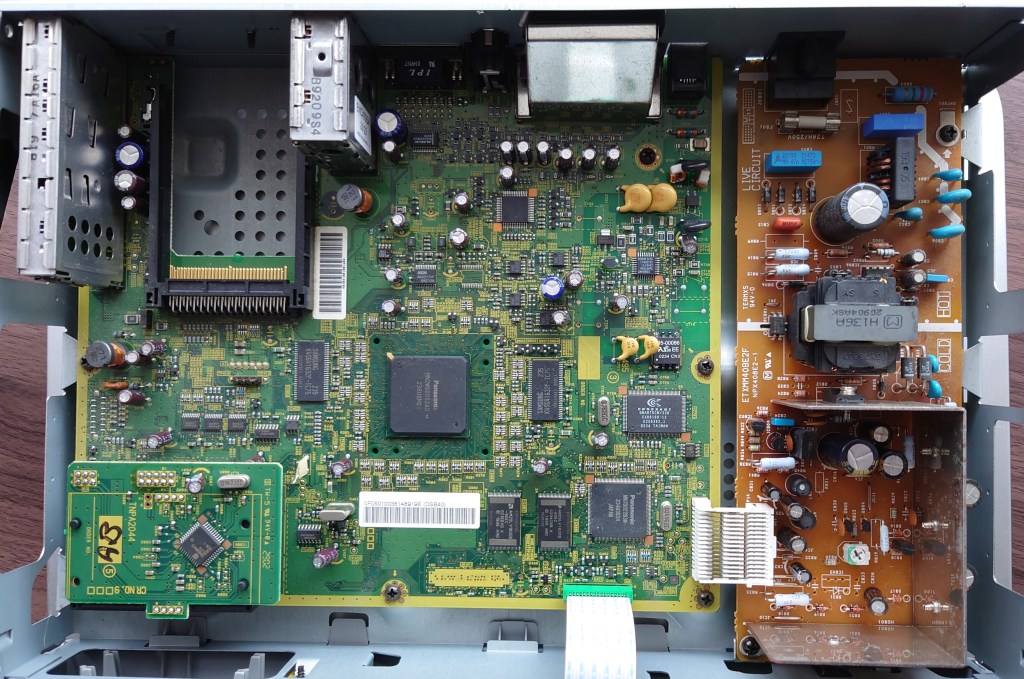
A very clean design, similar to the 2500S5

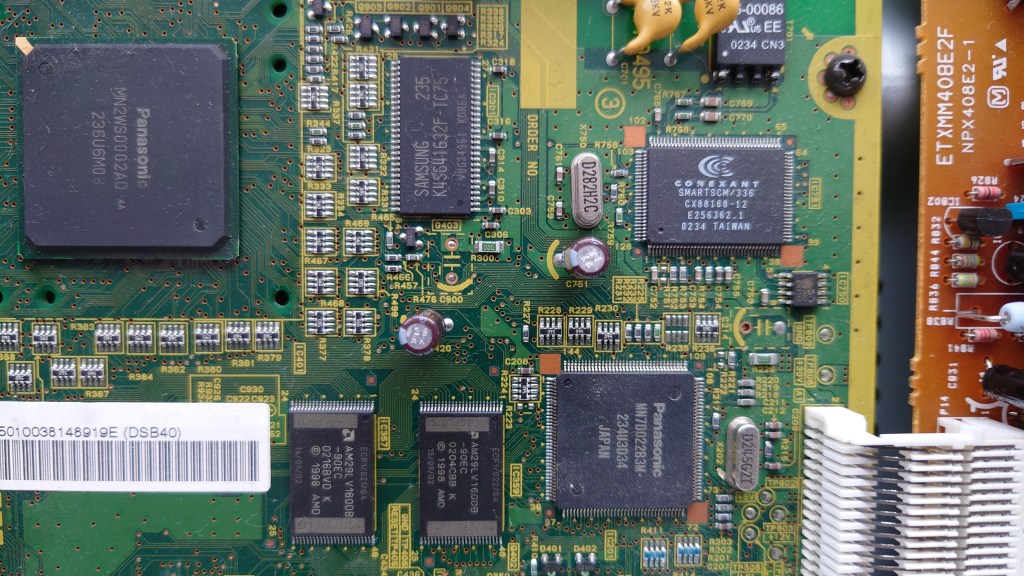
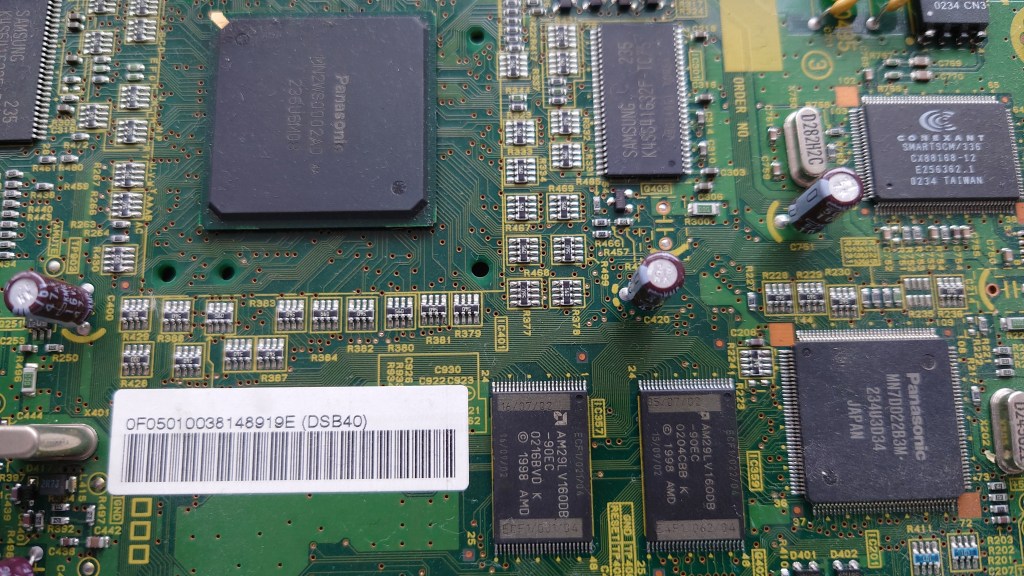
On the left you can see the main CPU and MPEG2 decoder, seems to be a custom Panasonic MN2 processor (MN2WS0002AD). Whilst I’ve not been able to find a lot of detail on it online, It’s a lot faster than the ST 5512 found in the Pace 2500S5

Not sure about the Panasonic chip towards the bottom, the MN7D022B3M, nothing much turns up online. Not much can be found with the Conexant chip either (SMARTSCM/336 CX88168-12) however one MAME driver source page has it down as a modem

Second card slot

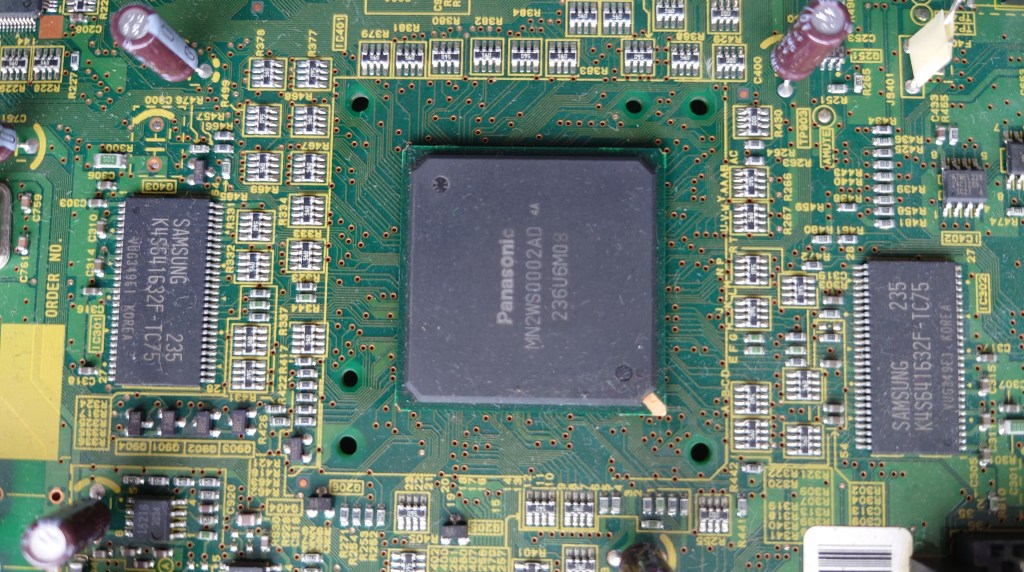
Another view of the MN2 chip with the flash rom (bottom) and memory (Samsung chip next to the MN2)

Main central processor MN2WS0002AD, Looks like it’s missing a heatsink, or maybe Panasonic figured it didn’t need one. Most likely Sky winged about the price so Panasonic had to cut corners. Still the box feels cool to the touch when in use.

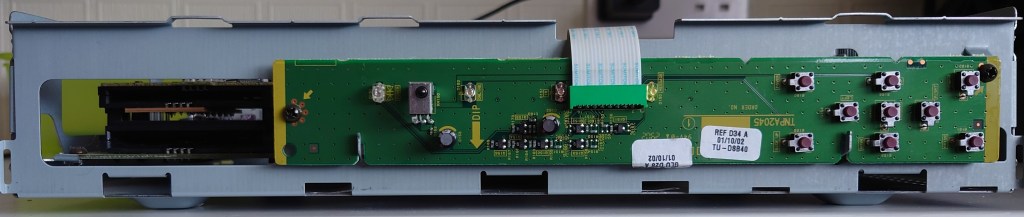
The front panel removed

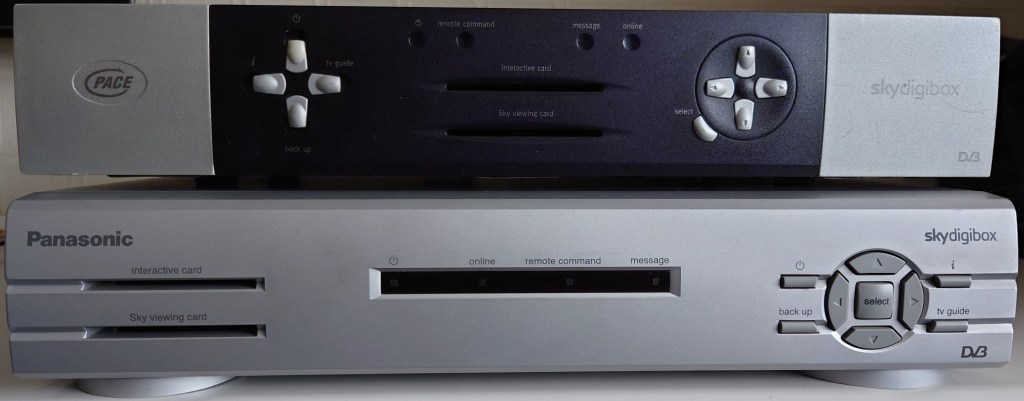
Vs Pace 2500S5

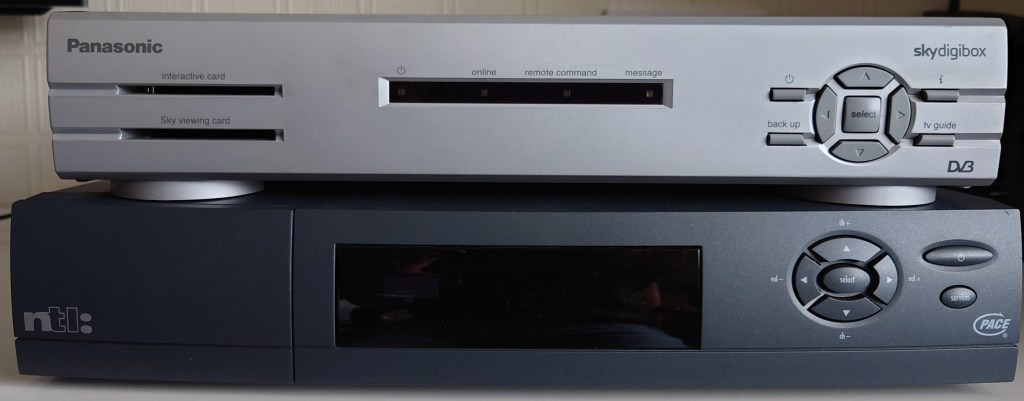
Vs Pace Di4000N

Conclusion

The DSB40 comes from the same generation of digibox as my 2500S5, yet it feels so much faster in operation thanks to its processor. I’m not sure why Pace held onto the St5512 for so long when over digibox’s were moving onto more capable processors. Unfortunately I’m not able to find any further information regarding Panasonic’s MN2 chips that they used, only that they were used for Directv and OpenCable boxes also, and they were mostly MIPS based designed like the NEC EMMA used on some digibox’s.

Then again this box is running older software, maybe the later versions were more demanding?

The only major issue the the telephone cable connector, once you insert the wire, its suck to the digibox and cannot be removed without removing the back panel. I’m not sure why this is, if the connecter was mismatched for the case or maybe it was a cost saving design.

Dell Optiplex GX1 PSU

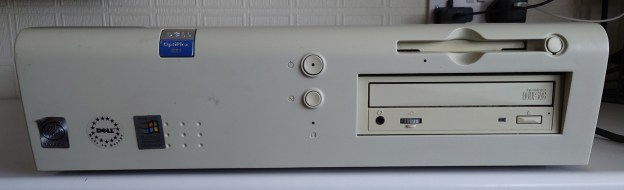
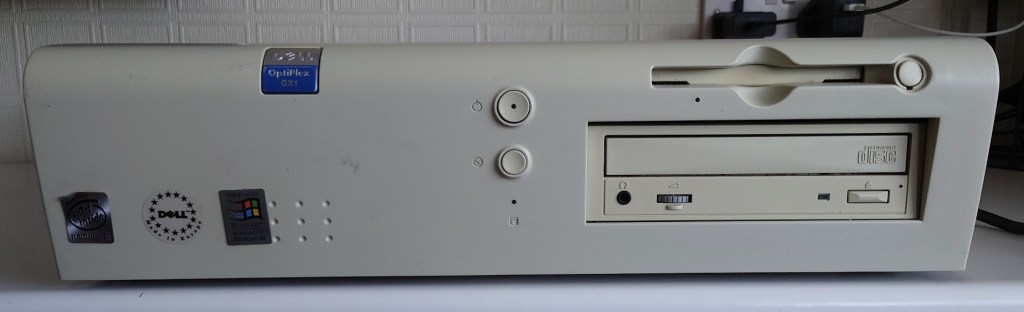
Dell Optiplex GX1

A SSF (Small Form Factor) desktop class PC powered by the Pentium 2 processor.

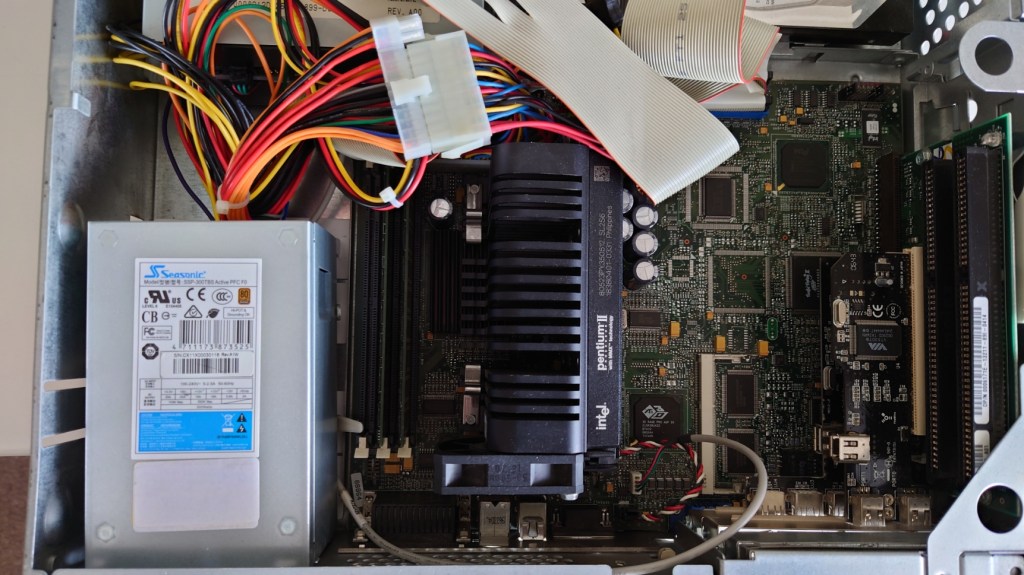
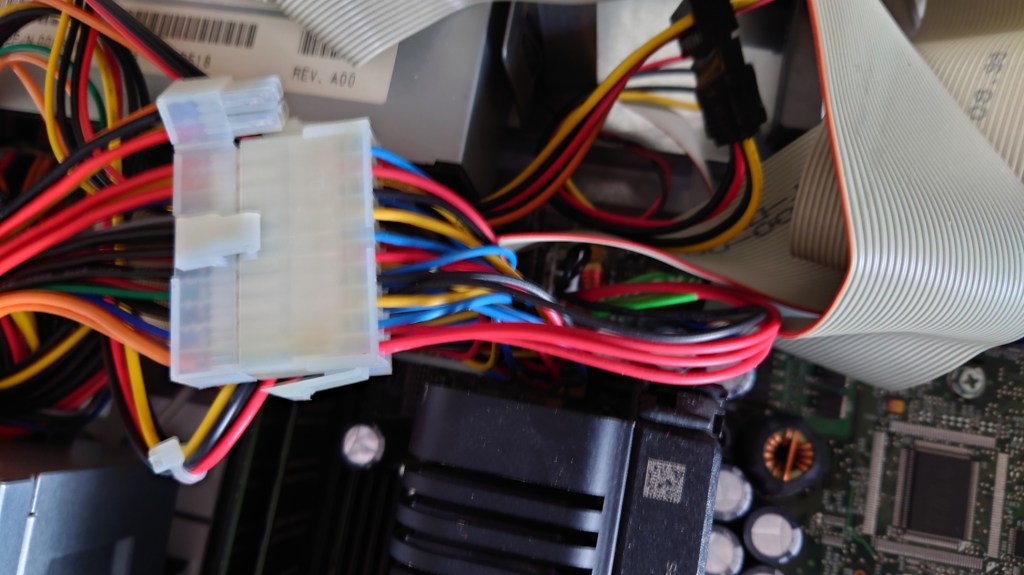
Internal view of the GX1 showing the replacement PSU with adaptor

Power Supply replacement

The power supply in this desktop was well over 20 years old, and was in dire need for replacement, since the system had issues remaining stable after adding two PCI cards. Unfortunately with these old Dell Optiplex machines, changing or upgrading the PSU is not an easy task since Dell opted to use a different pinout for their ATX connector, alongside a proprietary connector than provided 3V to the mainboard. Using a regular AT power supply will damage the mainboard since the wiring is completely different, therefore an adaptor is required for a PSU replacement.

6 Pin Dell P10 AUX Connector Adapter (atxpowersupplies.com)

One downside to this adaptor is that it adds additional slack to the ATX main power cable, which was already long to begin with, this means I had to tie up the excess cable and shove it under the CD drive.

There are various other Dell models which use this type of power supply wiring, generally models from the Pentium 2 and 3 era. The website linked has a list of affected models that use this type of power supply.

Seriously! Don’t use a regular ATX power supply without this adaptor!

Operating Systems

The Optiplex GX1 had a range of officially supported operating systems to use;

Windows 98

The go to operating system for PC retro gaming. Whilst its not the most stable operating system in the world, its widespread support and popularity and to an extent charm means it deserves an install. The GX1 has native support for 98, and most likely came preloaded on most shipped systems for this model.

Windows NT 4.0

The GX1 had full driver support for NT4, since it was designed as a business class system to be used in offices, however with limited DirectX support, the games we can run on NT4 is a lot more limited comparted to 98.

IBM OS/2

The GX1 has official drivers for OS/2 Warp 4, I’ve not tried installing on this system, however I am interesting in getting it running on the system since I have only used OS/2 on virtual machines or PCem.

Red Hat 6.2

One of the officially supported GNU/Linux distro, at least going by the Dell driver support page, which offered official downloads for the GX1. I’ve not tried installing Red Hat on this system (yet)

PCI Expansion

This system has 2 PCI slots and 2 ISA slots, a maximum of three cards can be installed because the middle slot is shared between the PCI and ISA

USB 2.0

USB 2.0 4 Port 480Mbps High Speed VIA HUB PCI Controller Card Adapter PCI

A must have upgrade since the USB bus on this system is limited to the 1.1 standard, and maxes out as 12Mbps. VIA still provide Windows 98 drivers for their cards. Plus the 4 extra USB connectors are useful.

Some older motherboards can be picky in regards to the USB chipset used, apparently VIA chipsets are considered more problematic compared to NEC ones, due to the way IRQ’s are handled and reserved with different chipsets.

Which USB 2.0 cards for old motherboards \ VOGONS

Firewire 1394

Firewire 1394a Dual Port – PCI Full Height Card | eBay

Surprisingly Windows 98 supported 1394 Firewire/iLink cards, and drivers for 98 exist for this card. By adding a 1394 card, this become one of the faster interfaces on the PC, the other being the USB 2.0 PCi card. The onboard ethernet maxes out as 100Mbps.

Spare ISA Slot

Not sure what to put here, a modem? Gameport card? (useful since I have a Microsoft Sidewinder that has a Gameport)

Compact Flash Card

Could be used in the slave IDE channel with the correct adaptor, in order to add additional storage, or to install another operating system like one of the many supported OS.

Specifications

OptiPlex GX1 Midsize Managed PC Systems Reference and Installation Guide (dell.com)

Graphics

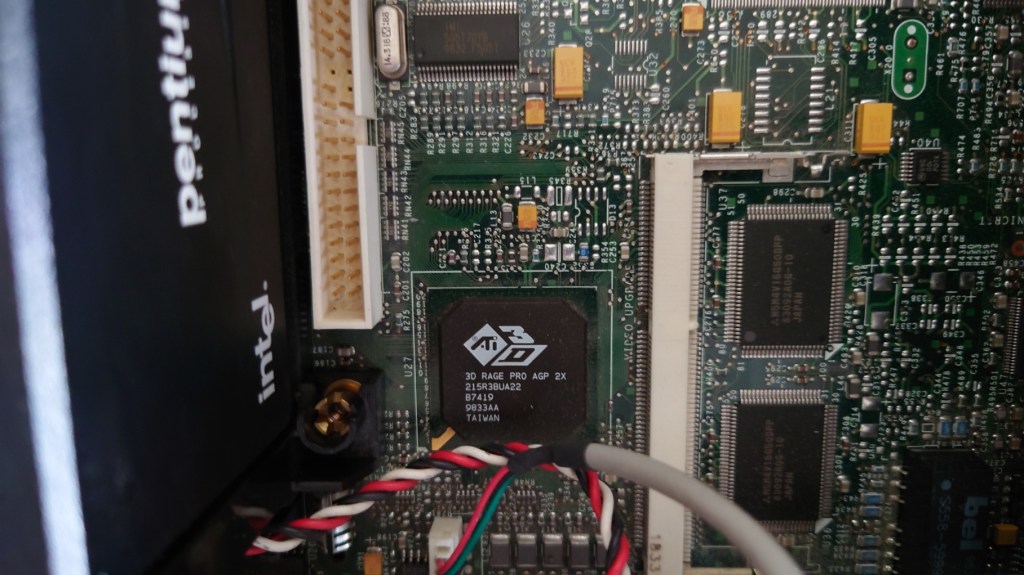
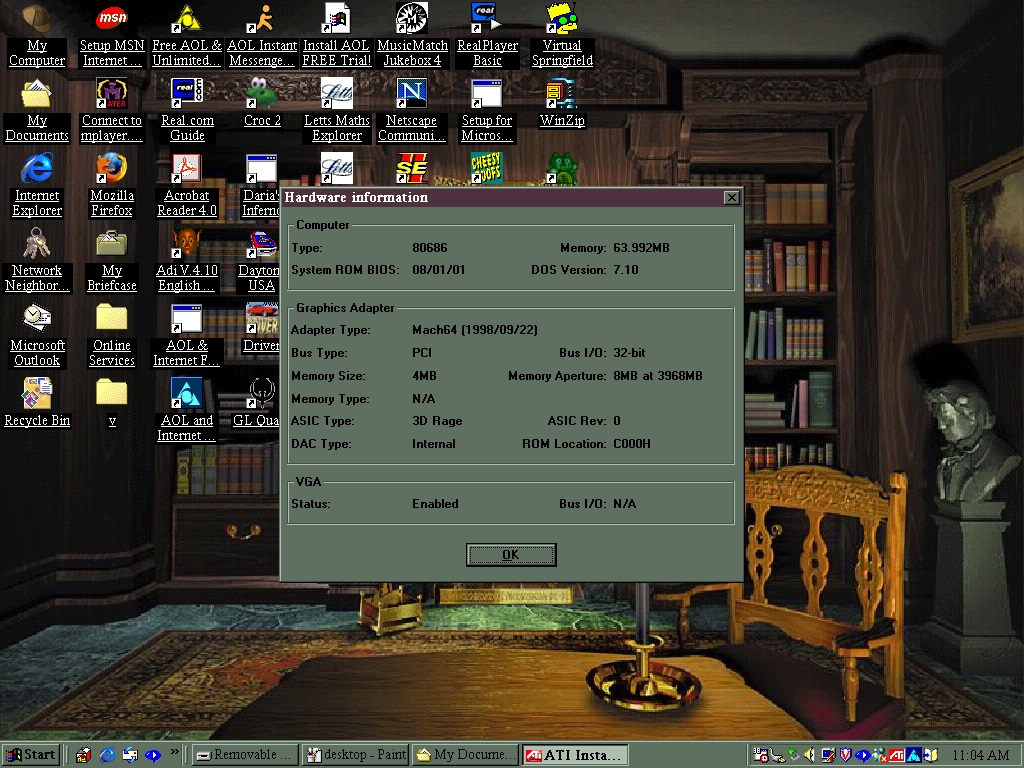
ATI Rage II – This is the main graphics adaptor built onto the mainboard. Internally it uses the AGP bus and has 4MB of VRAM with the ability to upgrade to 8MB via onboard memory upgrade.

The graphics processor, with the VRAM to the right along with the VRAM expansion slot. The white IDE looking connector to the top right is the ATI video connector and is meant to connect to an ATI MPEG2 decoder.

This graphics card support the ATI CIF 3D API, which was ATI’s graphics library used with some early 3D titles before the widespread adoption of DirectX. Games such as Wipeout, Tomb Raider used this API. This API was only supported on Windows 95 and 98, it had no support for Windows NT, also later ATI drivers versions remove the CIF support.

Chipset

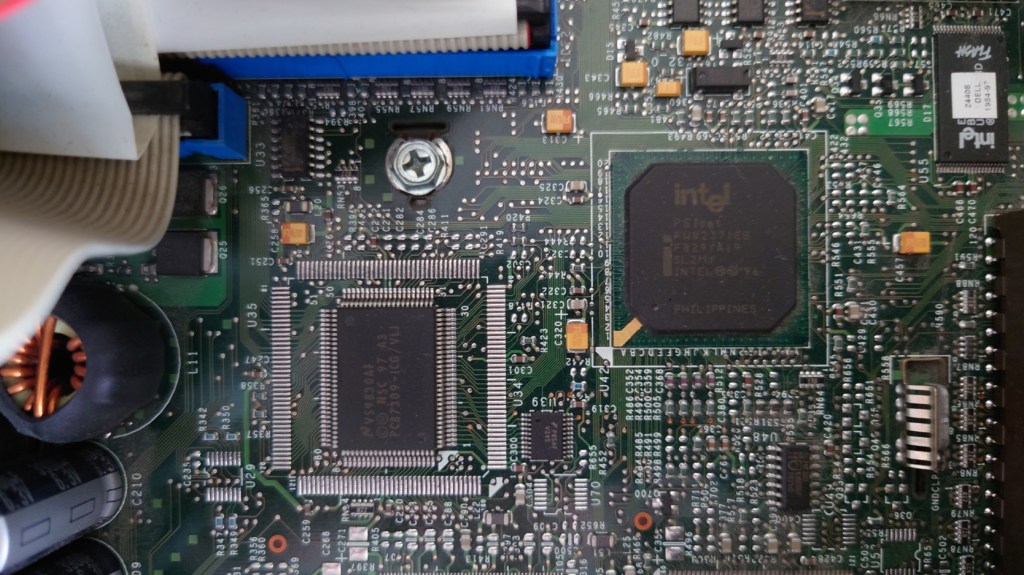
Intel 82440BX

Memory

There are 3 SDRAM slots available, with one slot populated with a 64MB module, and an extra 64MB module was added to the GX1 to bring the memory up to 128MB. According to the Dell documentation, the system can handle a maximum of 768MB of memory.

Desktop

ATi RAGE utility, showing information about the onboard graphics

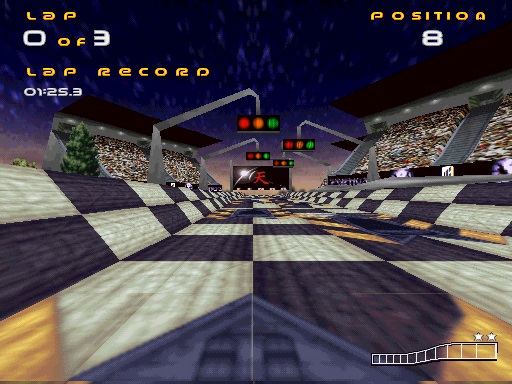
wipEout

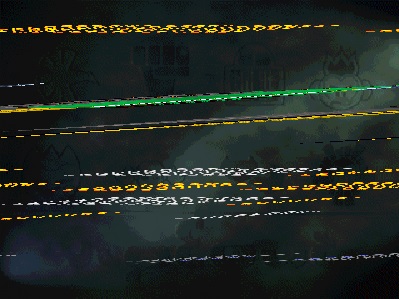
Oh my… lets try a different resolution

Ah that’s better, Wipeout running at 640×480

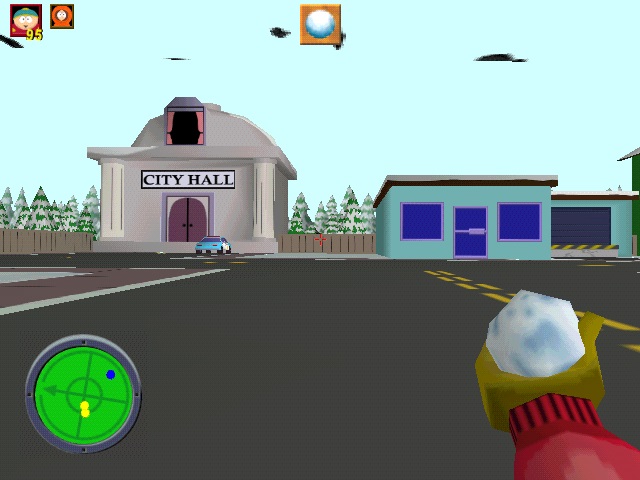
South Park

South Park had a PC port, in addition to the console PSone and N64 releases, running in a higher resolutions with Anti-Aliasing

Driver

ATI CIF

I plan on looking at further ATI CIF powered games, in addition to Wipeout listed above (Driver/South Park are DirectX games)

A full list of CIF supporting games is available here

Using ntl CR3 Guide on Virgin Media 2021

Previously I connected a former ntl box (Pace Di4000N) running an old outdated version of its guide software to a modern Virgin media network in attempt to see what would happen, the result was it could load the TV guide listings somewhat (now & next) but the channels would be out of order. There was also no chance of receiving any channels, since the NetID didn’t match my area.

ntl bromly CR3 on modern Virgin Media

I came across an ntl: Langely box (Pace Di4001NC) which still had an older build of its software installed, which was later build than the Di4000 box described above. It can take a few boot attempts to get it to load the TV channels, sometimes it gets stuck on the loading screen.

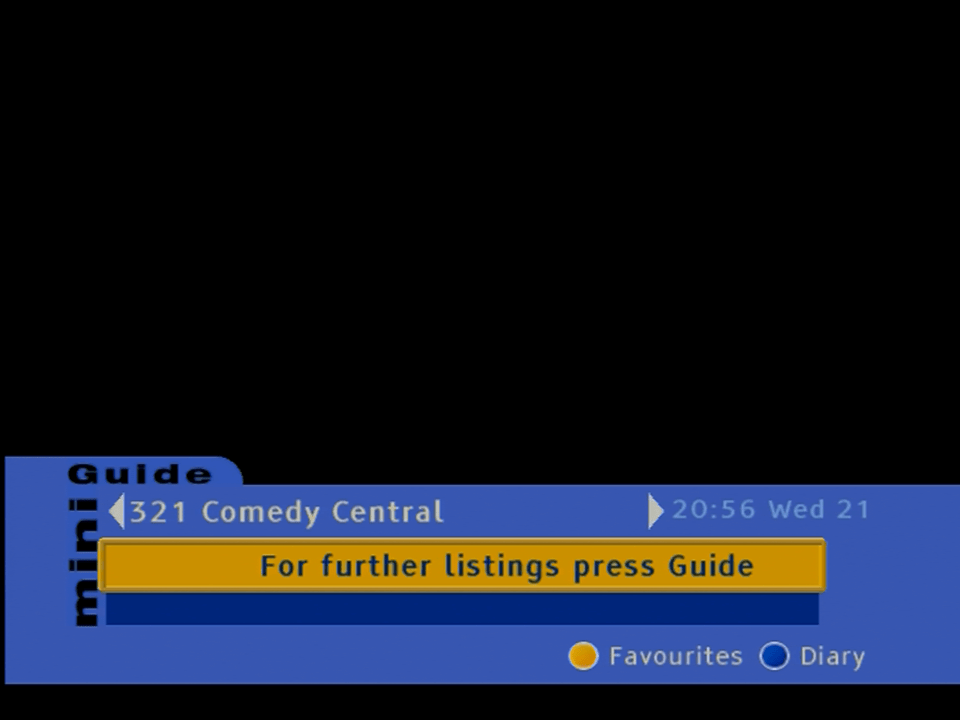
Well it defaults onto channel 321 upon bootup

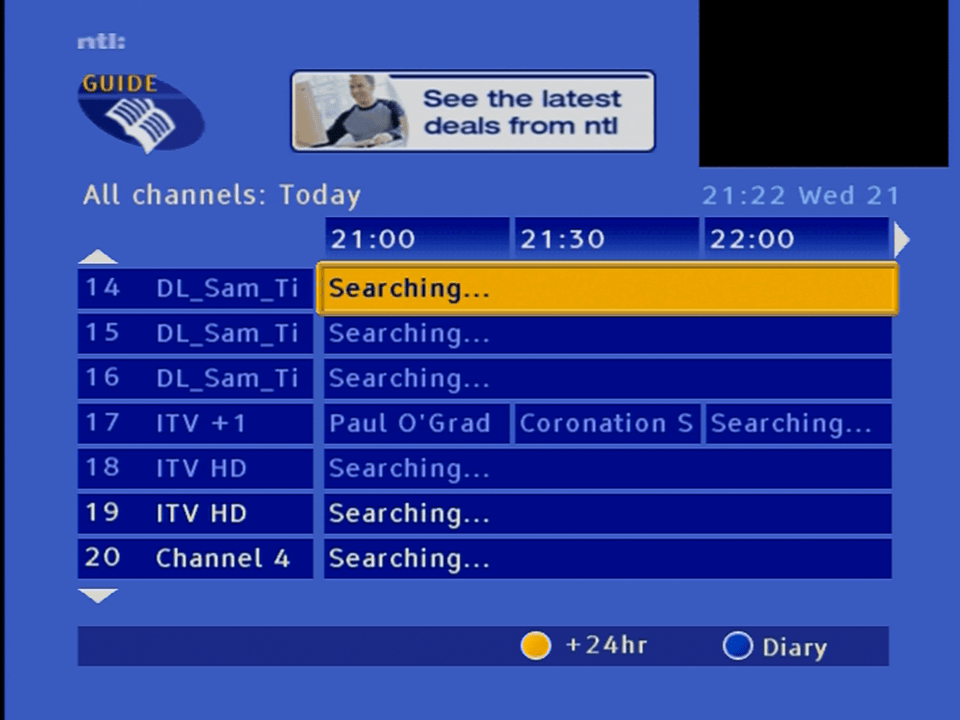
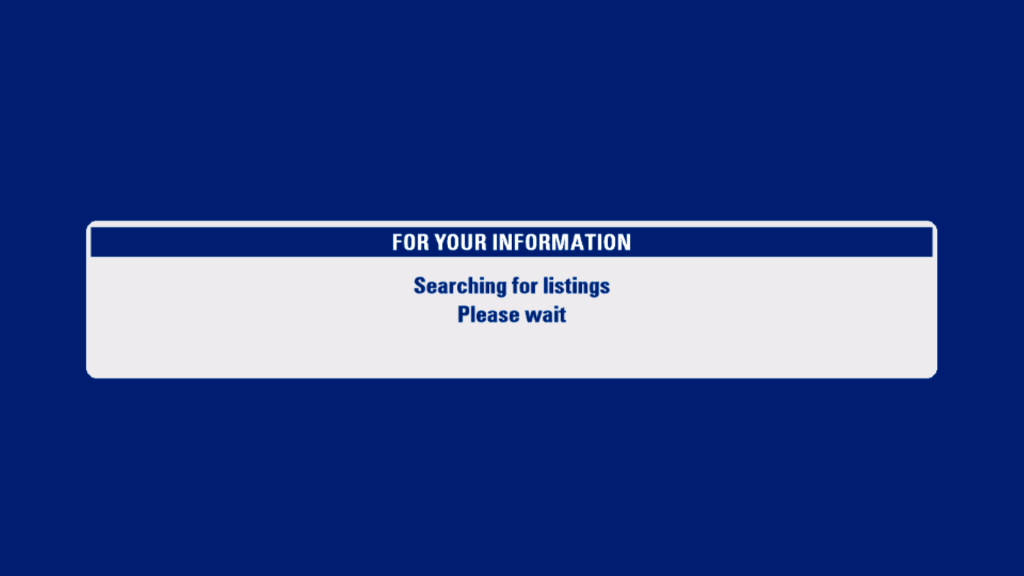
Attempting to browse TV listings via the TV Guide browser, some listings do come through whilst others seem to be missing

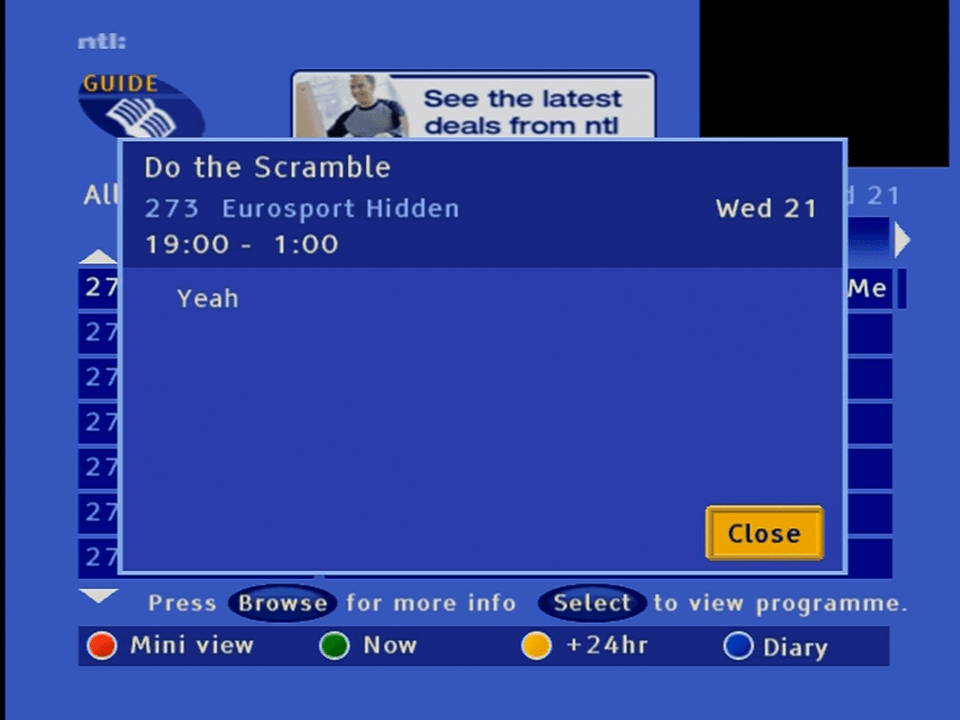
At least program synopsis works somewhat

From what I’ve researched, ntl used a proprietary iEPG system for its listings, which may have used the regular DVB SI for program listings, with the iEPG handling the extra stuff that the regular DVB-SI didn’t cover. This could apply to channel genres and maybe the numbers themselves

Adding events to the diary, which is similar to the personal planner in Sky Guide

Information for a future event

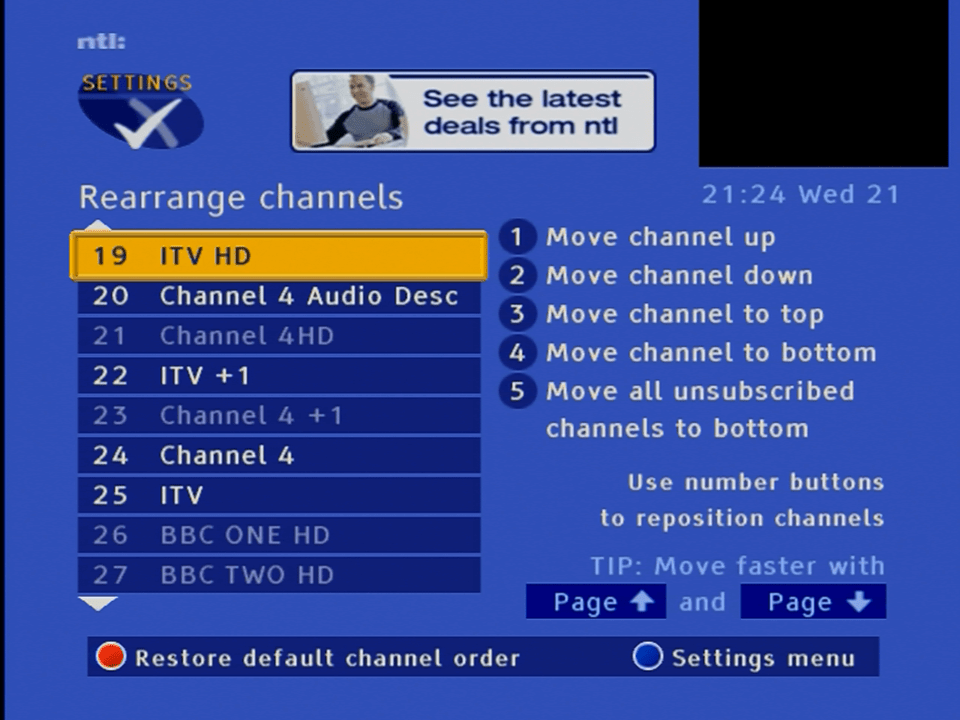
A list of channels, ntl CR3 had the ability to reorder the channel list to the user preference, a feature that was lost when it was replaced by the Virgin Media UK2 software. (UK1 in some areas)

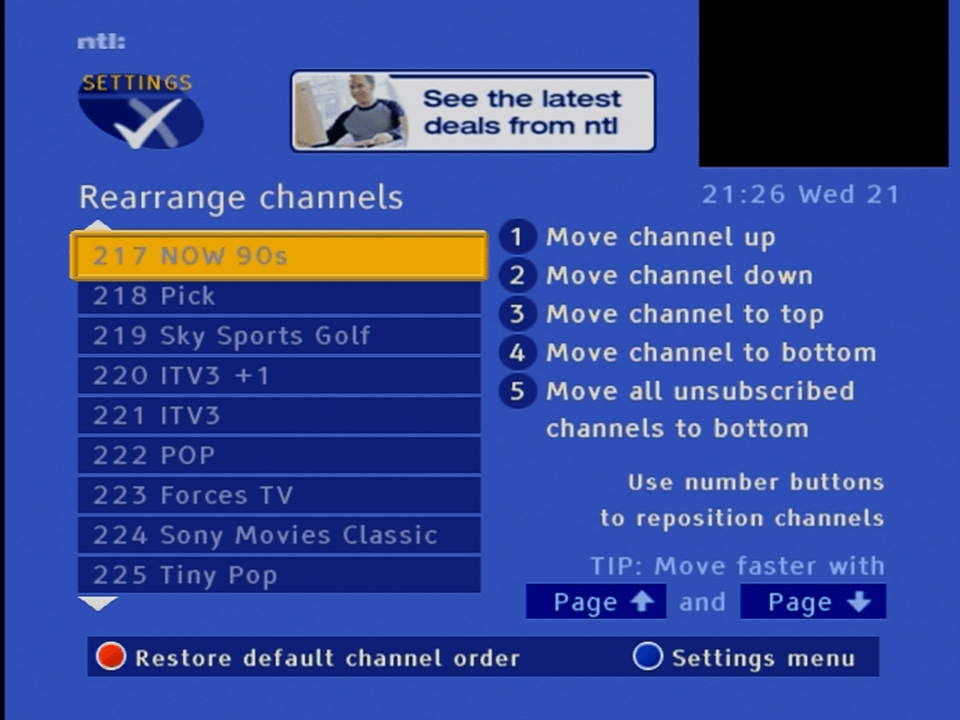
Further list of channels, These are not in EPG order, rather the box assigns them channel numbers by itself

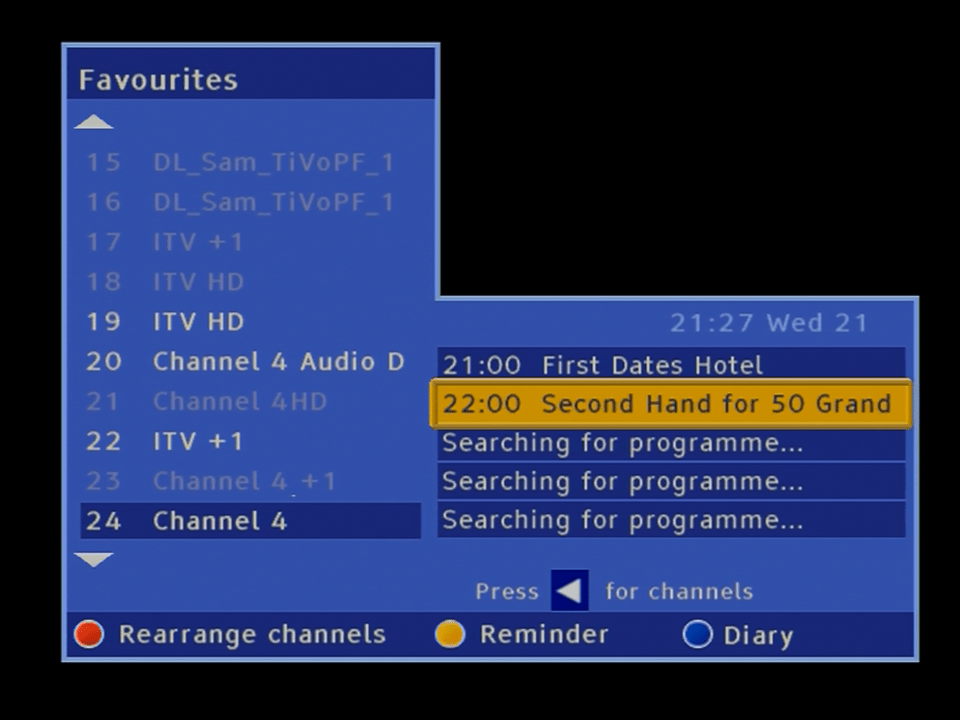
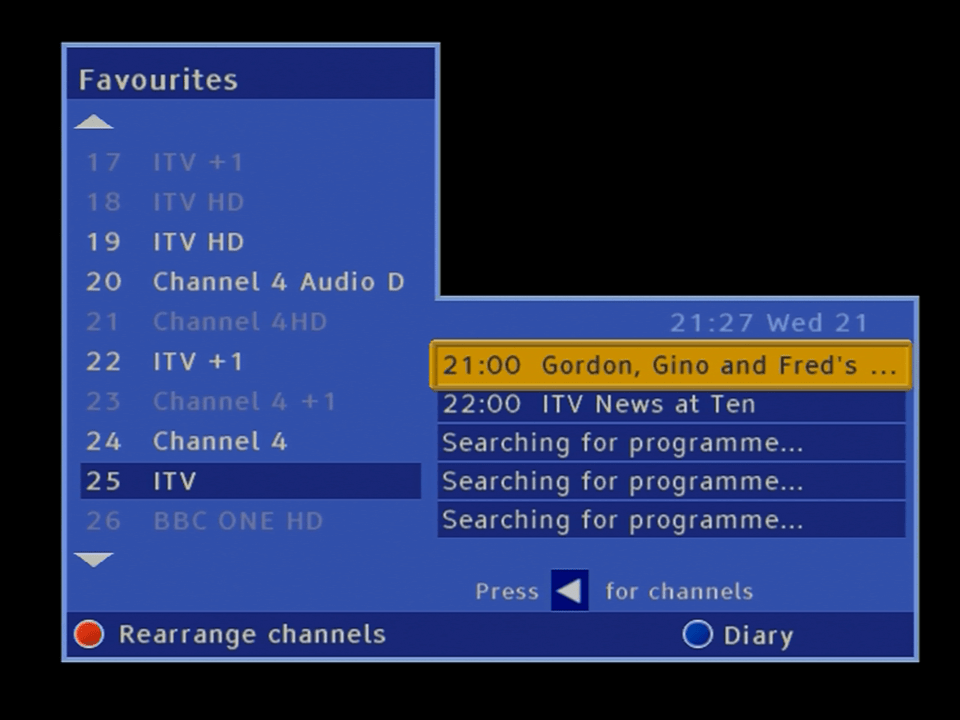
List of channels using the favourite channels feature

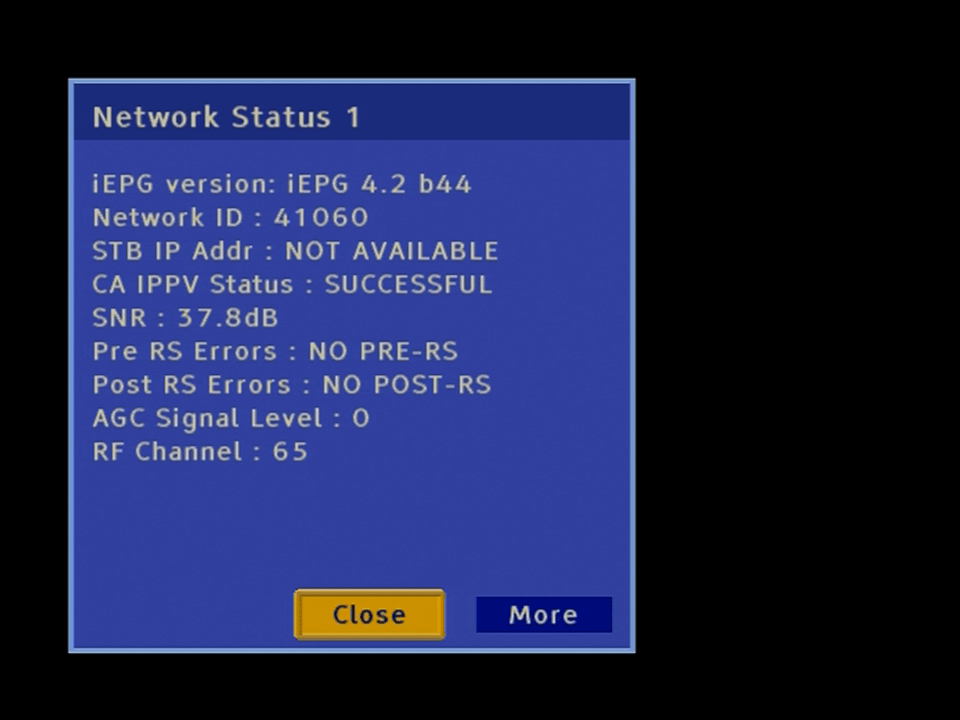
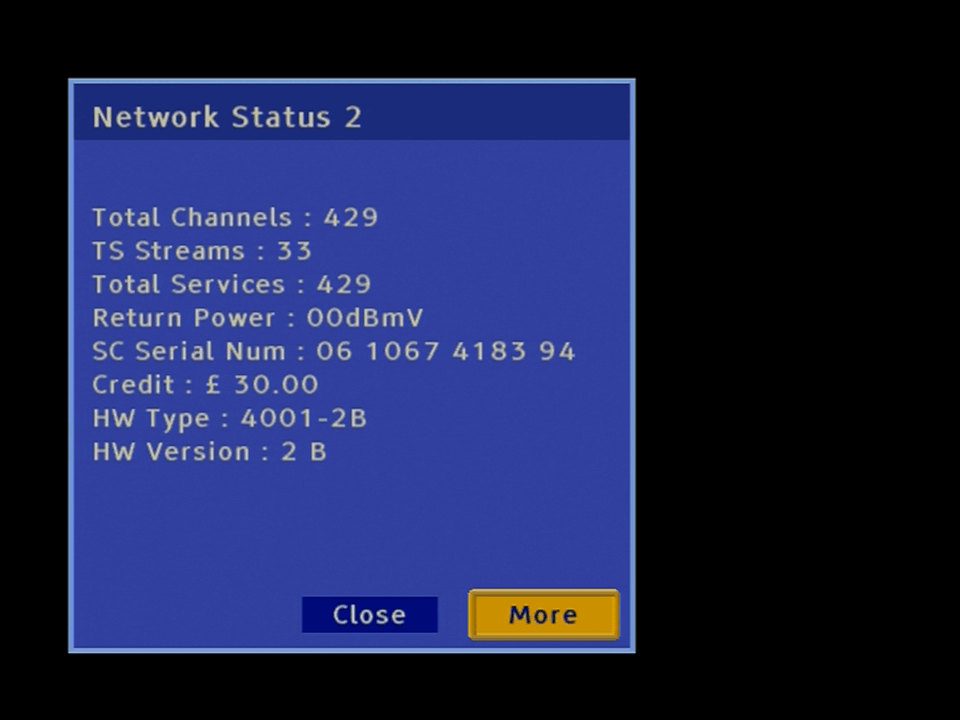
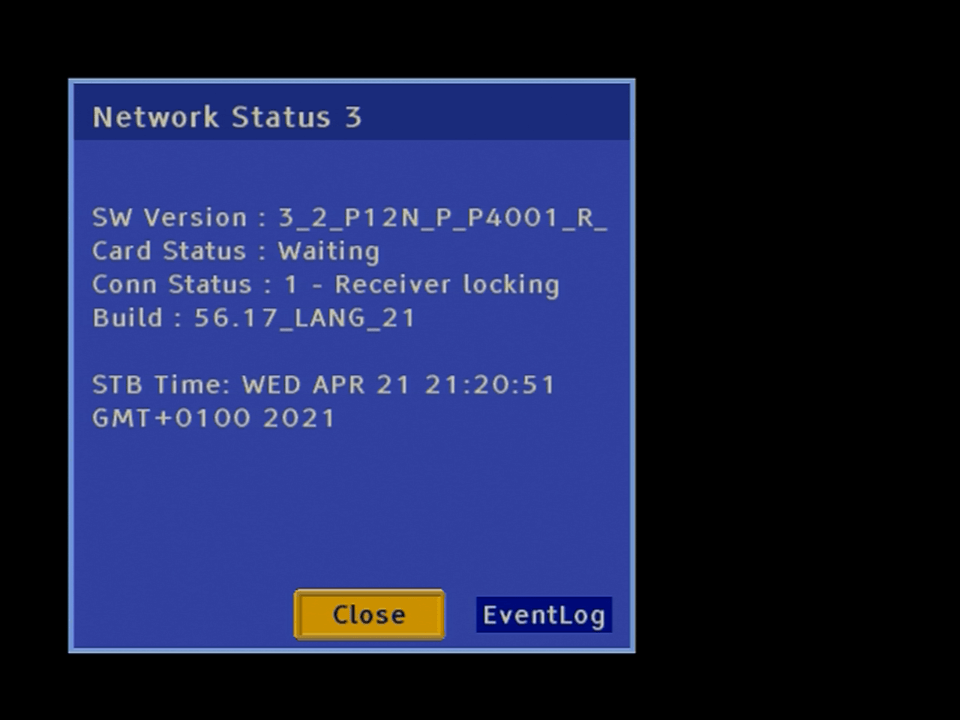
And finally some system and technical information

Still no channels come though, likely due to the Network ID being incorrect, and with the Di4001 boxes, they were designed to set their own Network ID. In practice however it seems to cycle through the different Network ID’s that Virgin Media use, perhaps the box was not designed to handle multiple Network ID’s?

A look at the Sky HD Guide (2008 era)

Since Sky had launched its digital service back in 1998, very little had changed form its Sky Guide interface. Whilst numerous software upgrades were deployed that added certain features and altered the background, the menu structure and user interface remained the same thought-out. Unfortunately when the HD era rolled around, it was clear a new EPG and menu system had to be designed to accommodate the higher resolutions that HD offered.

Even though SkyHD launched in 2006,the software seen below wasn’t deployed until 2009, so existing HD boxes used a modified version of the old Sky+ guide with HD support.

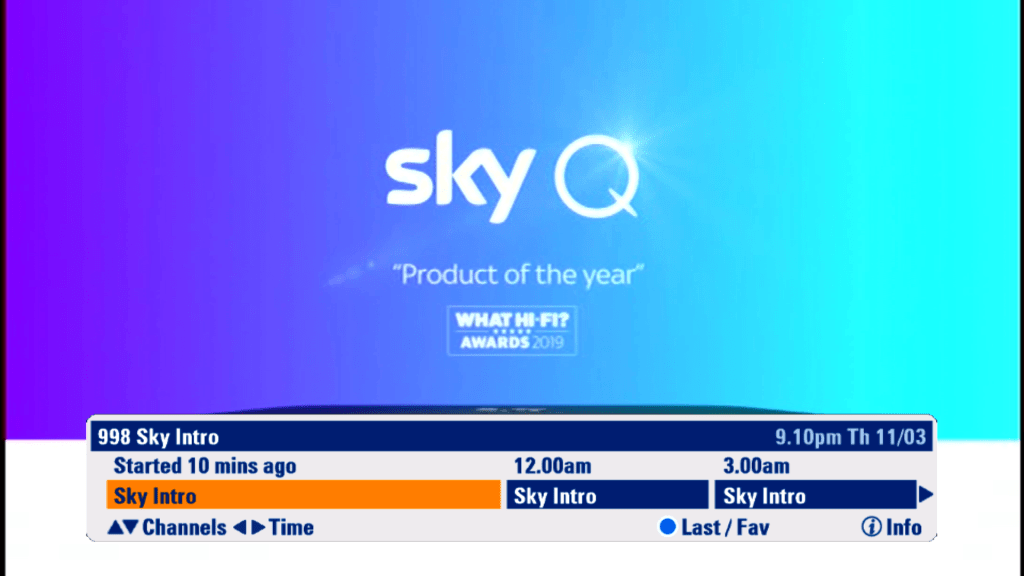
Starting Up

The message banners have had a new colour design, gone is the yellow and blue in favor of white and blue.

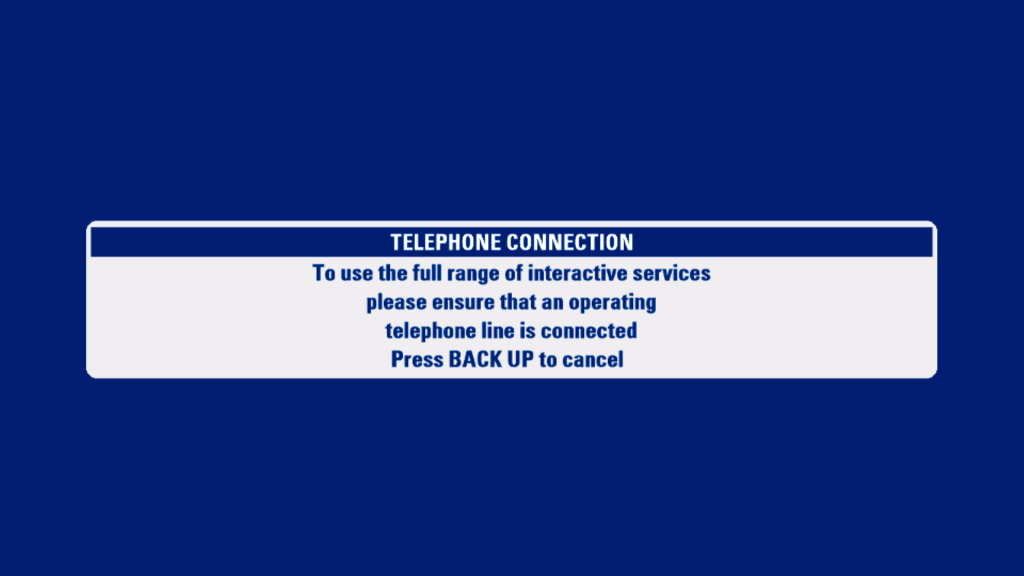
The obligatory telephone line nag screen

The search and scan banner has been redesigned to accommodate the extra resolution offered by HD

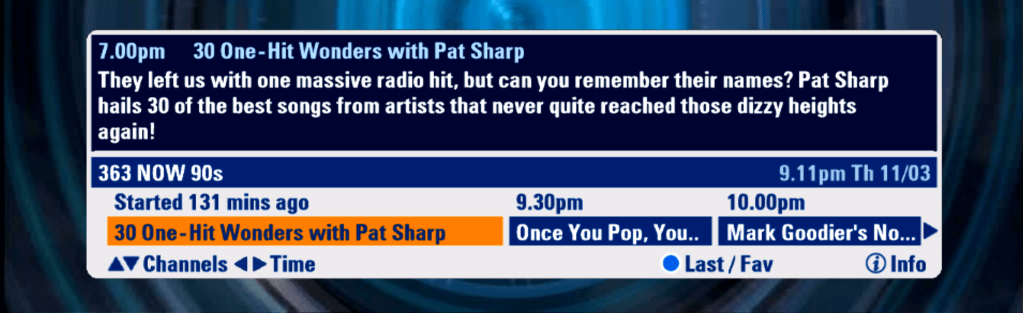
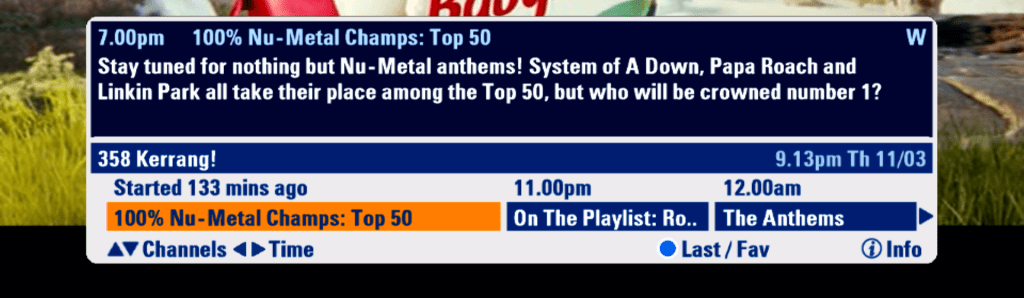
Now its possible to see what’s on now, next and later, with the option to scroll forward upto 6 hours

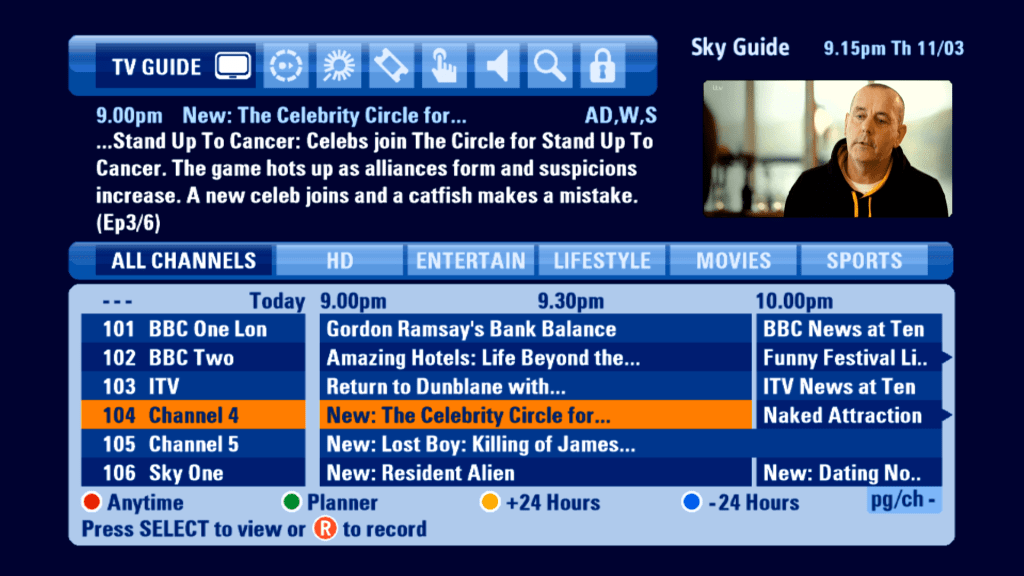
You can now view information for future programs, and programs broadcast on other channels

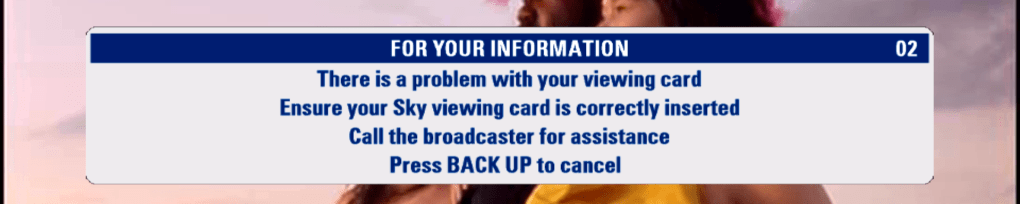
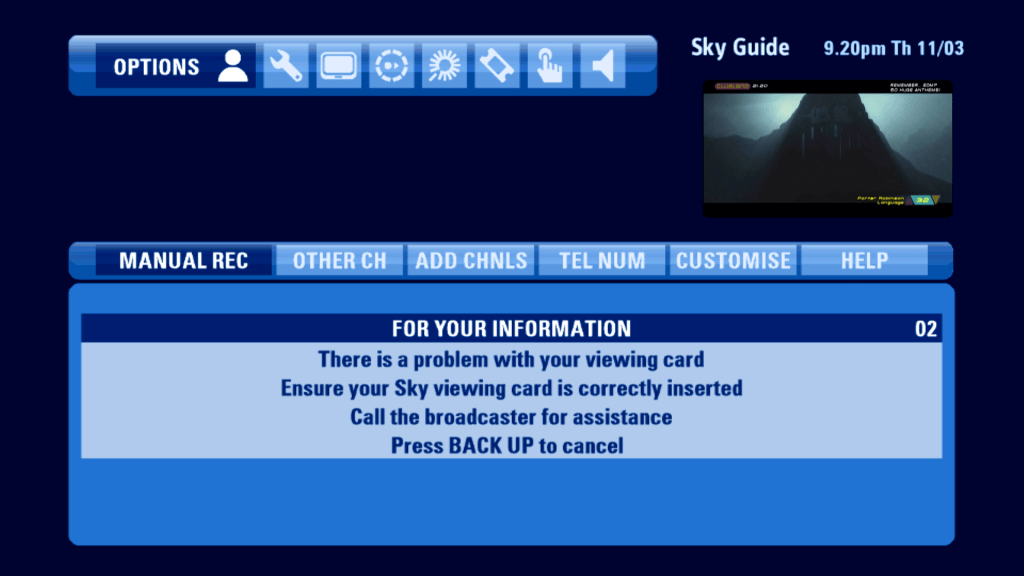
Message that appears when asked to check your viewing card

Channels that don’t offer digital text will display this message, informing the user to access analogue text via their tv remote

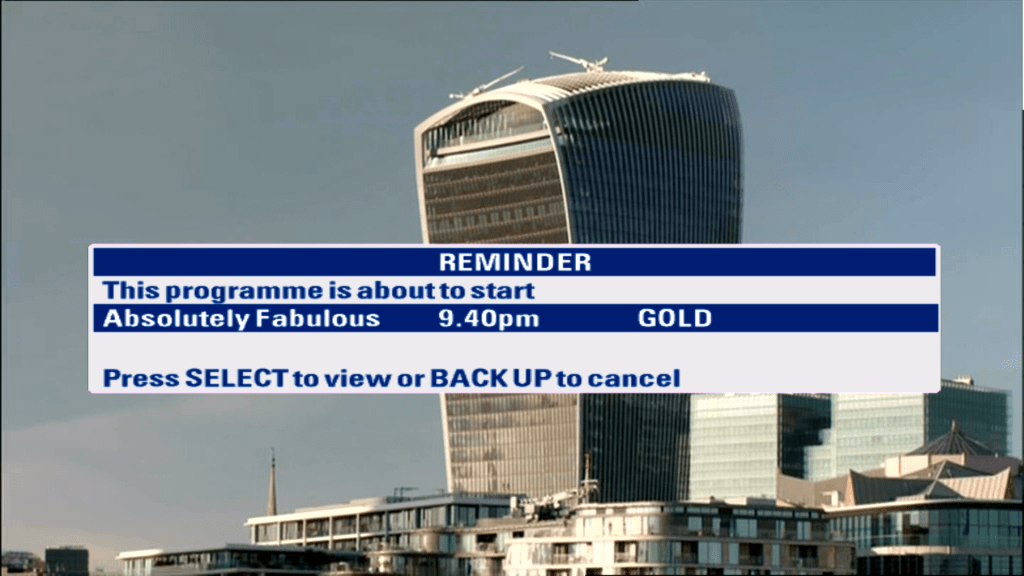
When a program is about to start thats in your persdonal planner, you will be informed via the on scrren message,

TV Guide

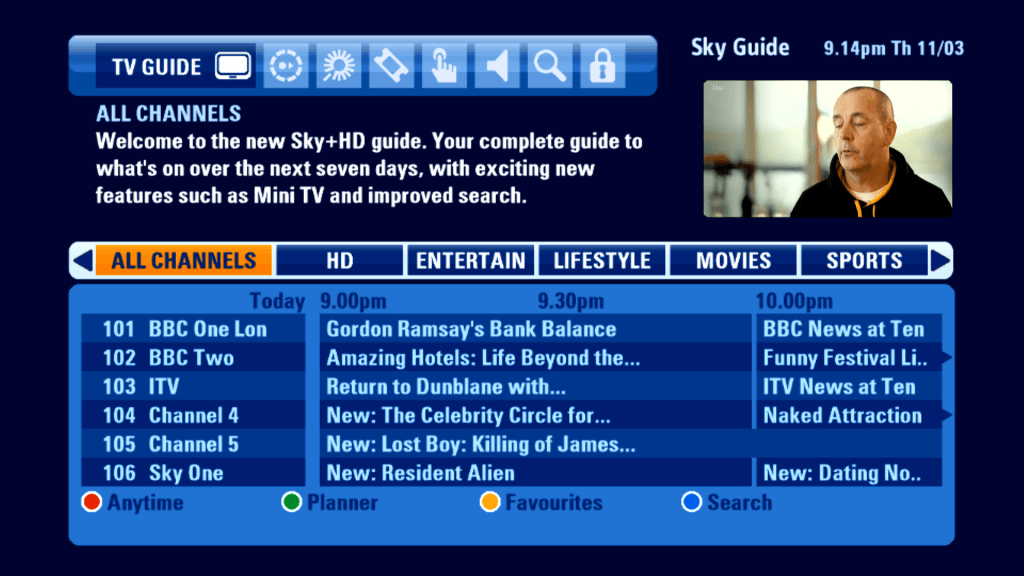
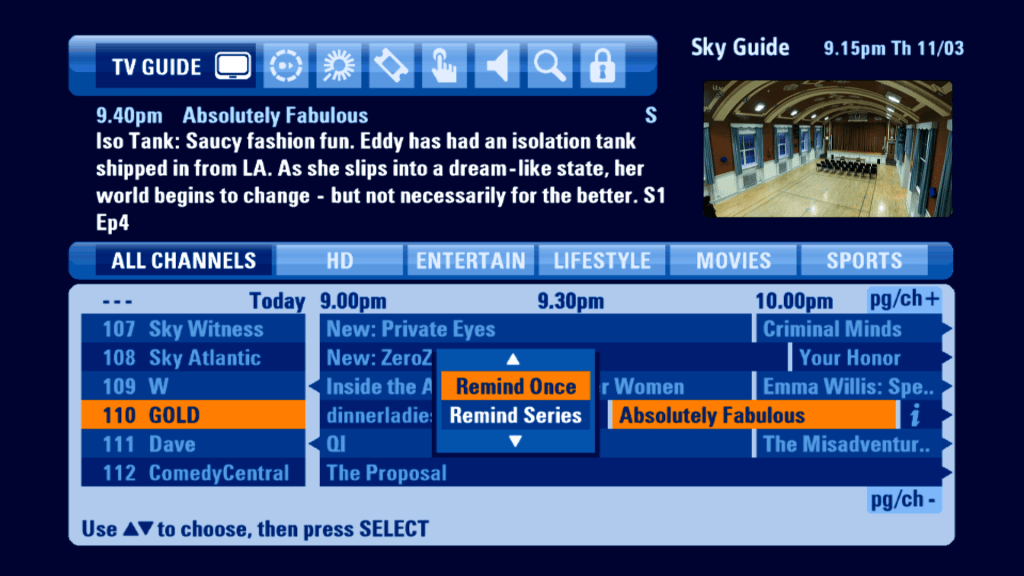
The main TV guide screen has been revamped. Gone is channel genre list, which has been replaced with a tab-like view of genres that allows for the EPG to be filtered.

Selecting a future program gives you an option to set a reminder for this single program, or to add a series link. This differs from the older EPG, where you would add the program and would then enable the Series Link option.

Anytime

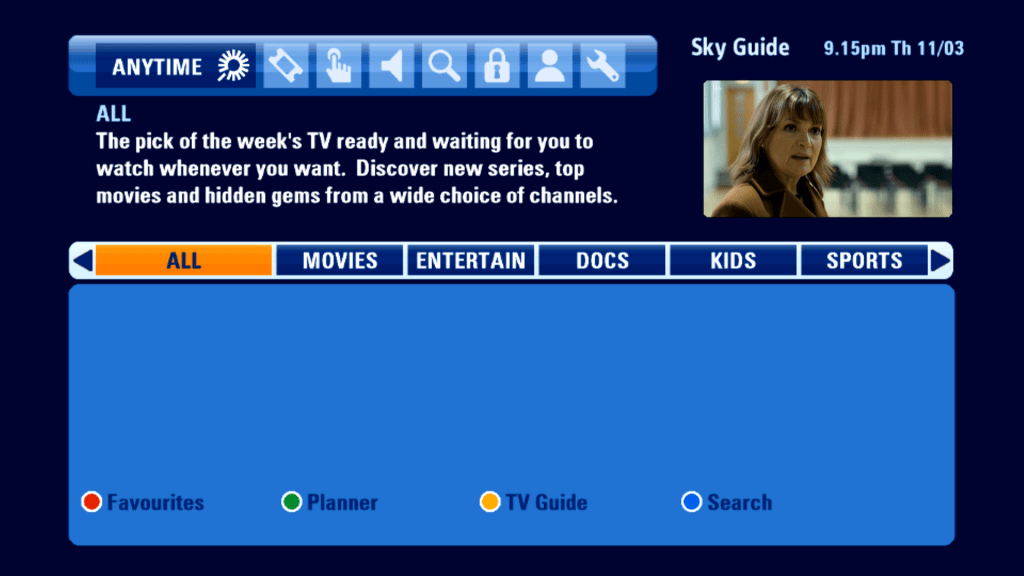
Sky’s answer to Virgin Media’s Video On Demand service, which used the reserved hard drive space of the Sky+ drive to load ‘Push’ on demand content. Despite only having 140Gb of storage

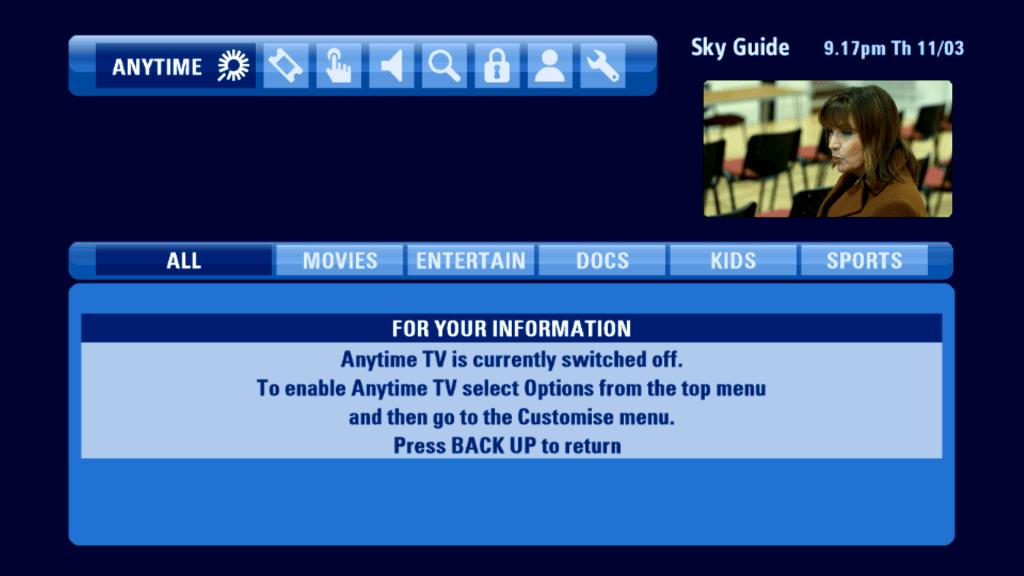
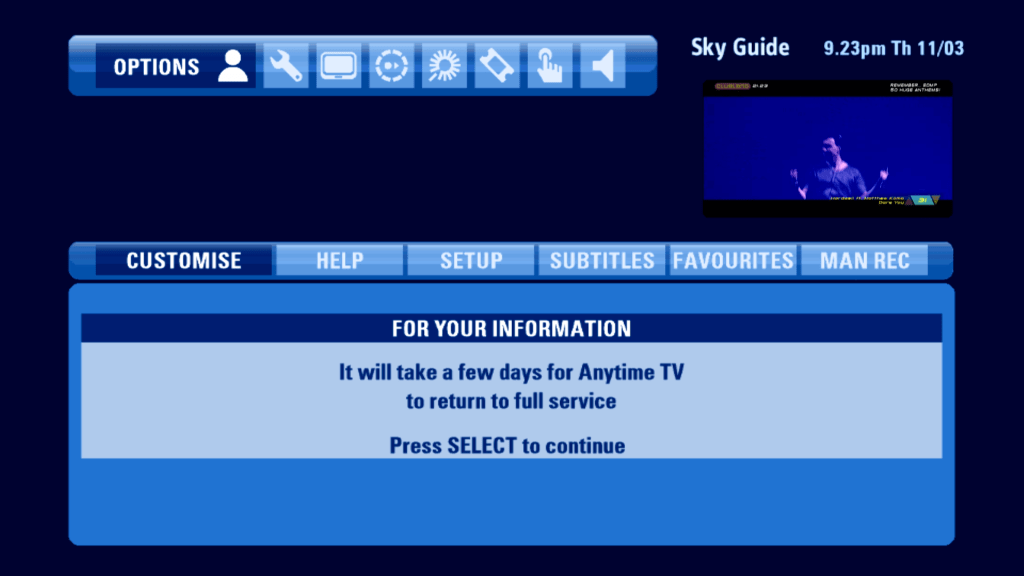
Sadly the Anytime Push service has been axed in favor of Sky On Demand, which is delivered via a broadband connection.

The best part of Anytime. Unfortunately it does not give back the reserved diskspace.

Planner

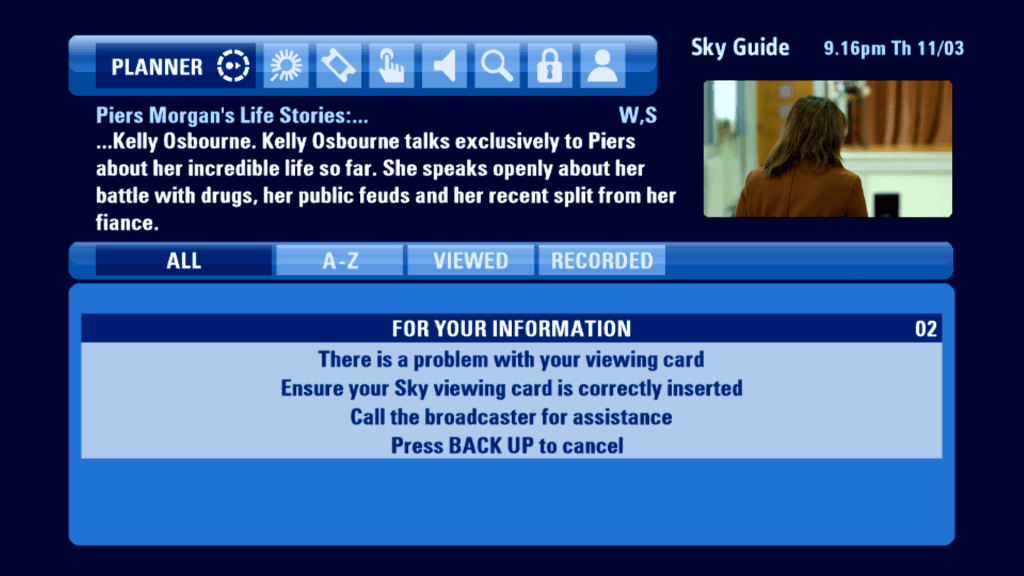
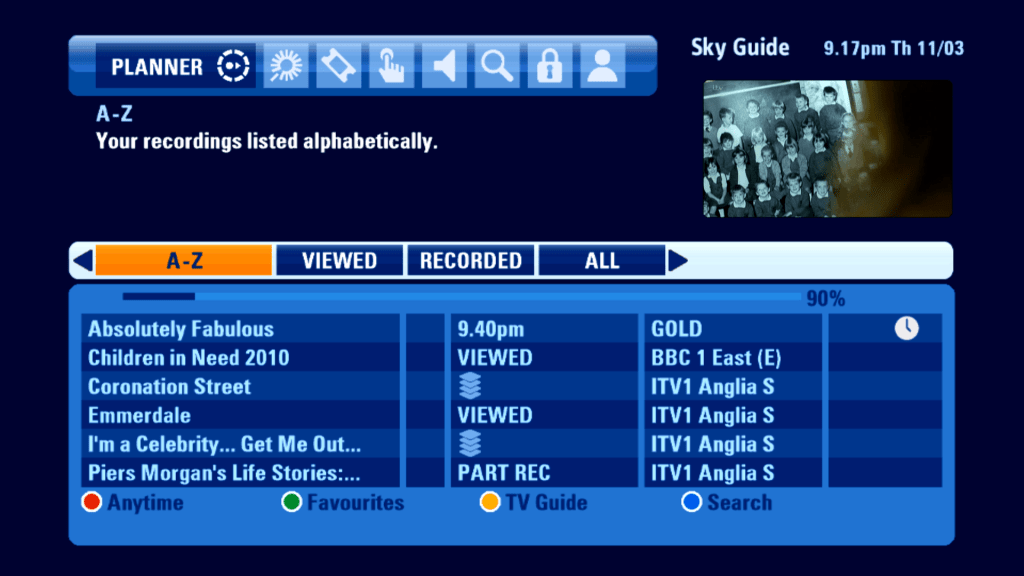
The Sky+ Planner, which shows programs that have been recorded.

Unfortunately playing back recordings requires the use of a viewing card, which the current box is unable to read.

Contents of the planner can be sorted by alphabetical, or grouped by unwatched but recorder, or anything that has already been viewed.

Box Office

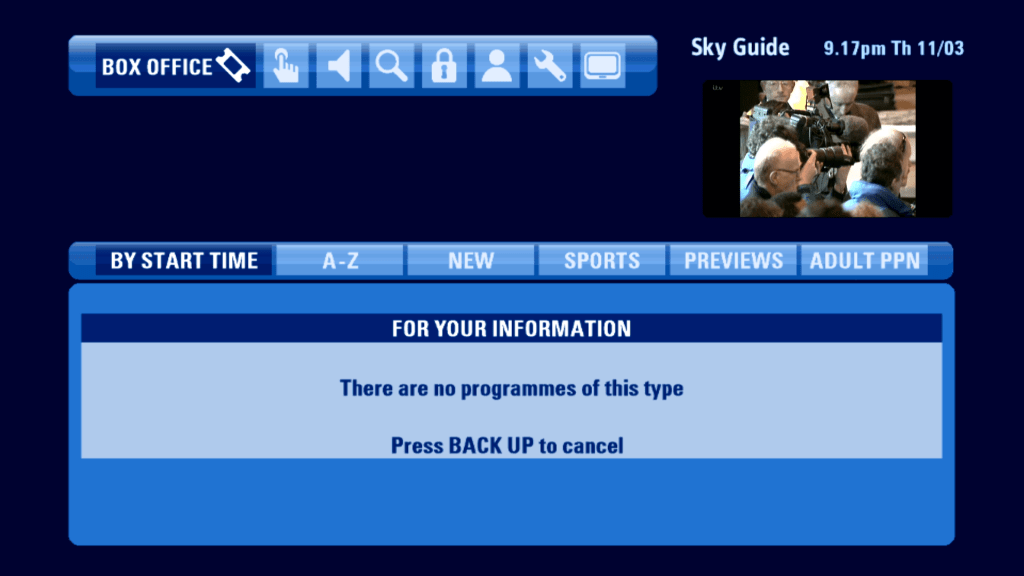
Still no sign of life for Sky Box Office, which was axed in 2016.

Interact(ive)

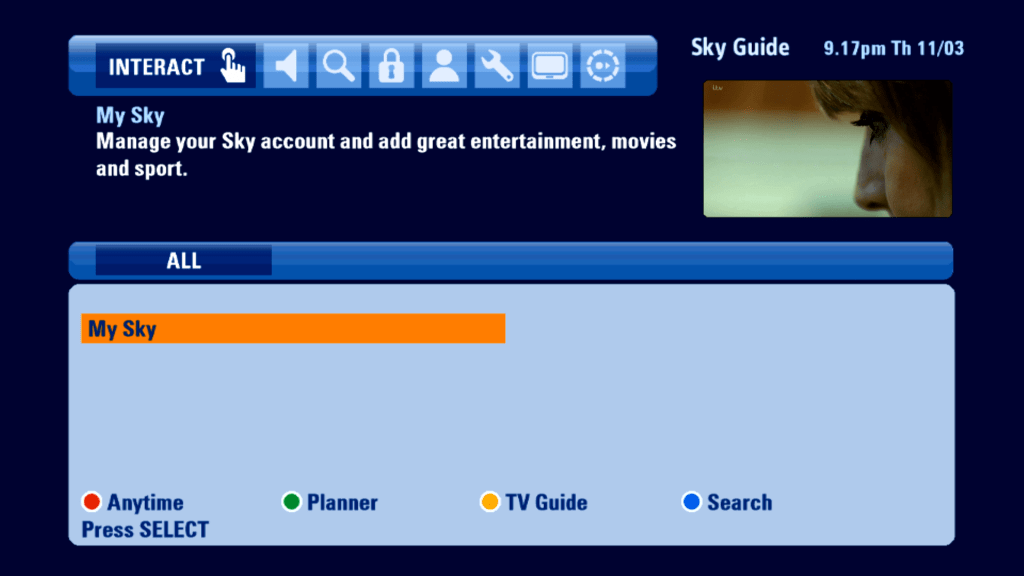
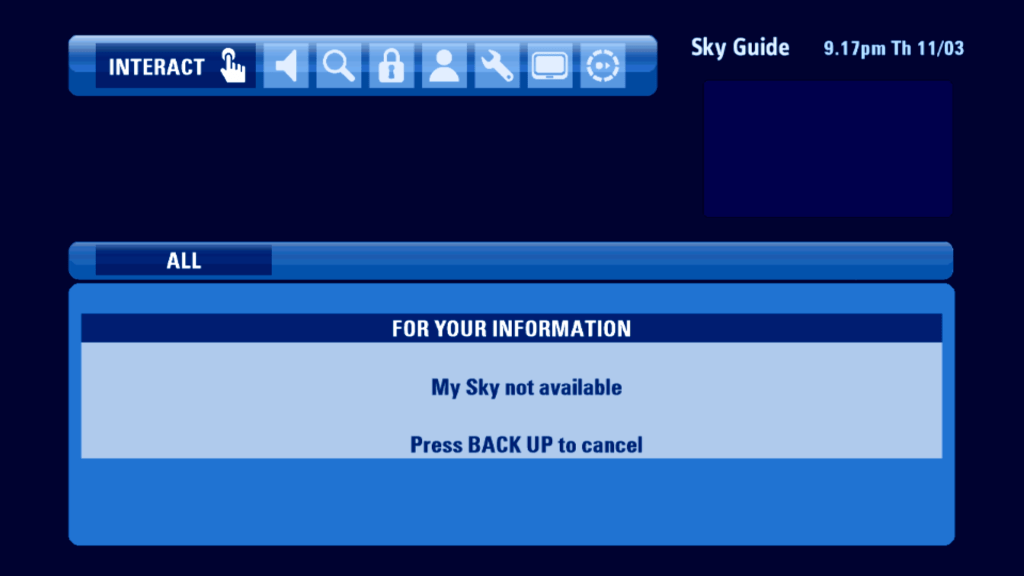
Not much to see here except for one last remaining service. Does it load?

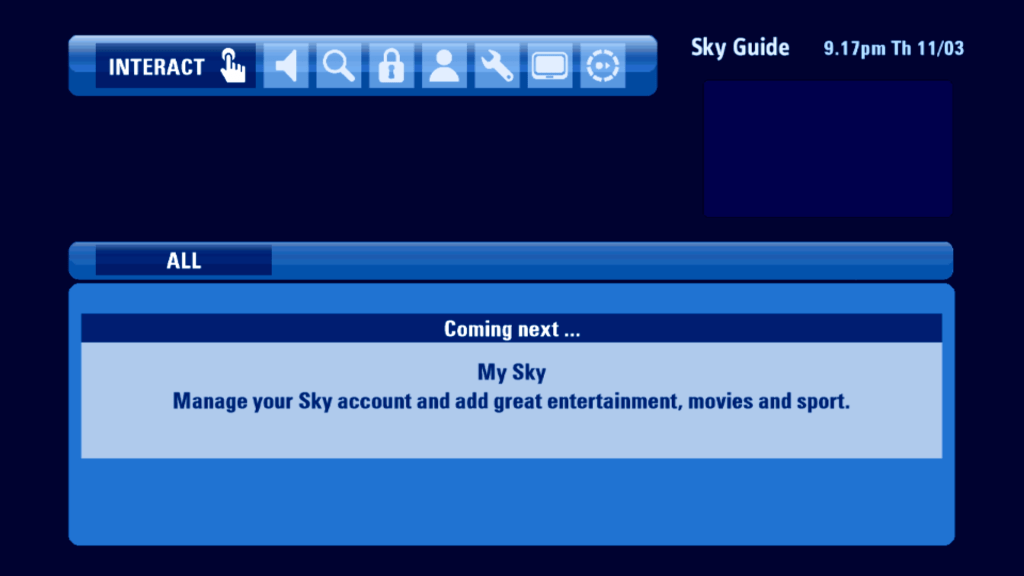
Oh well…

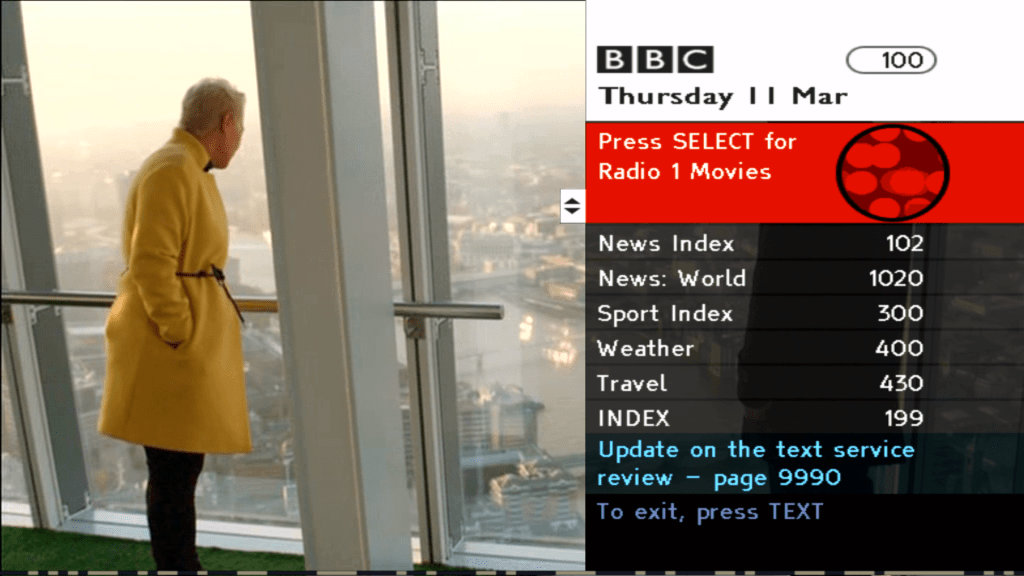
Here’s a service that does load, BBC Red Button

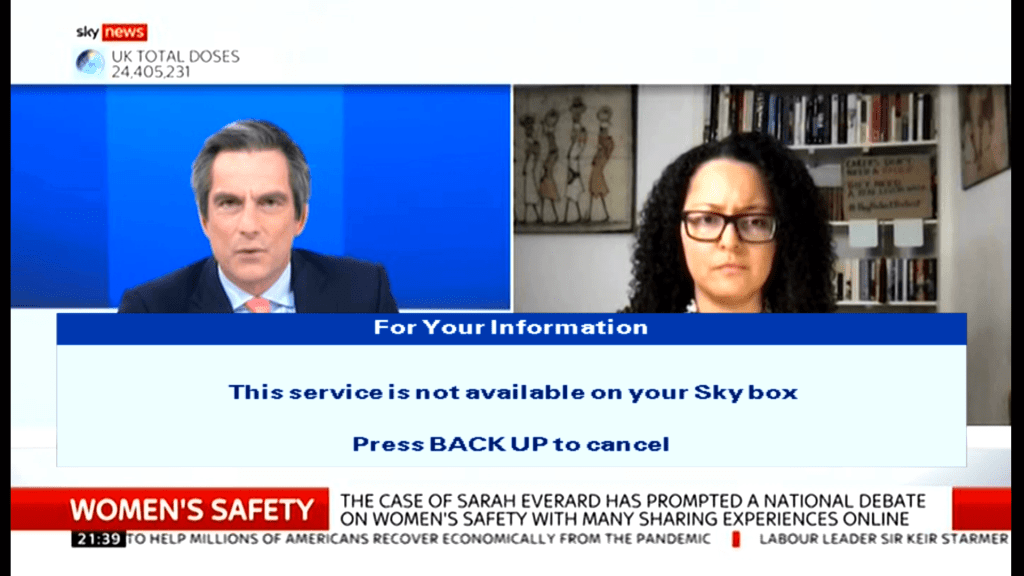
Meanwhile on Sky News…

Radio

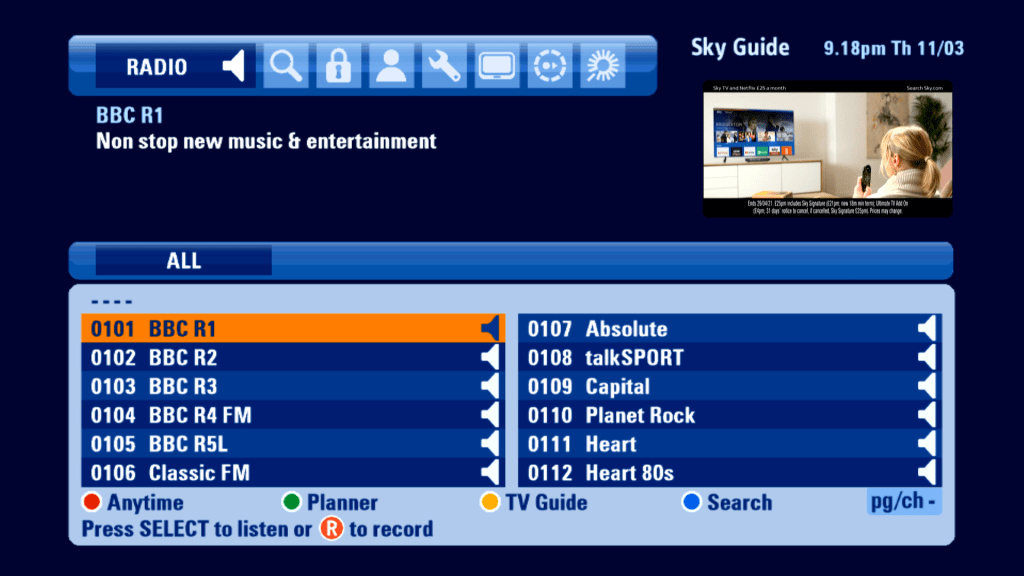
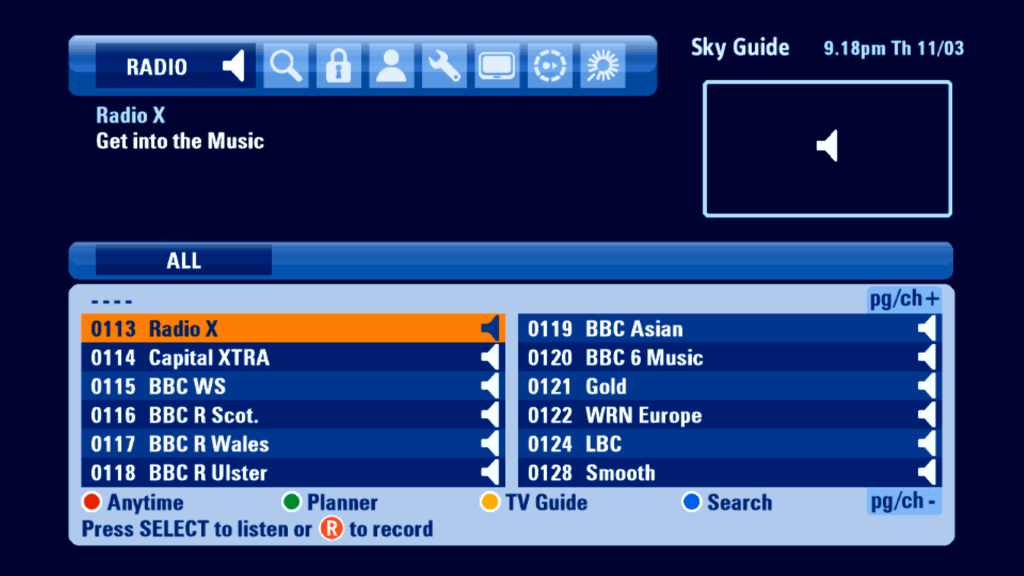
Radio channels had their owns section in this EPG, however still no genres

Search

Options

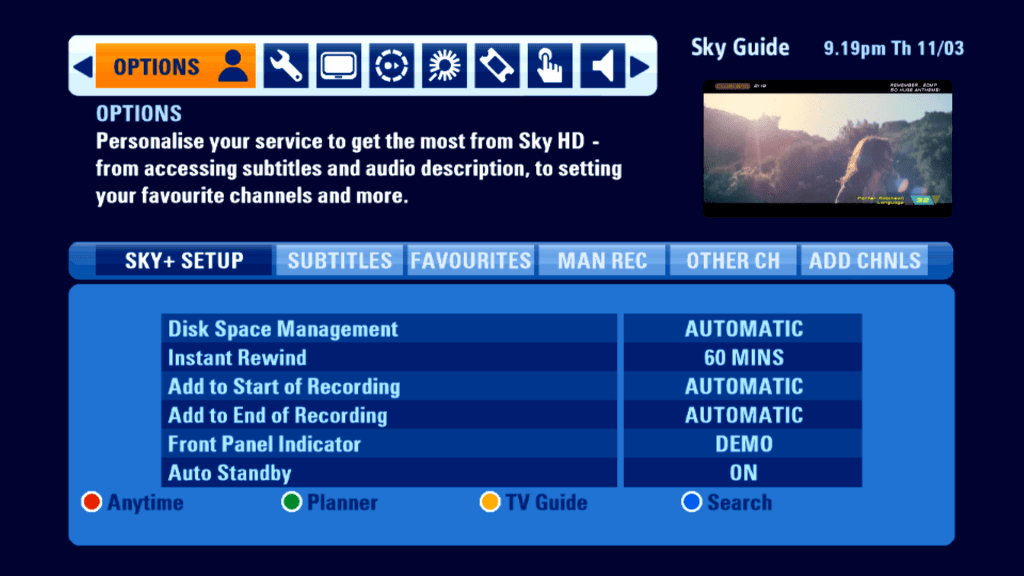
The Services menu from the previous Sky Guide has been split into two, Options and Settings. Probably because the EPG design does not allow for a submenu to be under another menu.

General Sky+ Settings, you can add padding to the start and end of a program

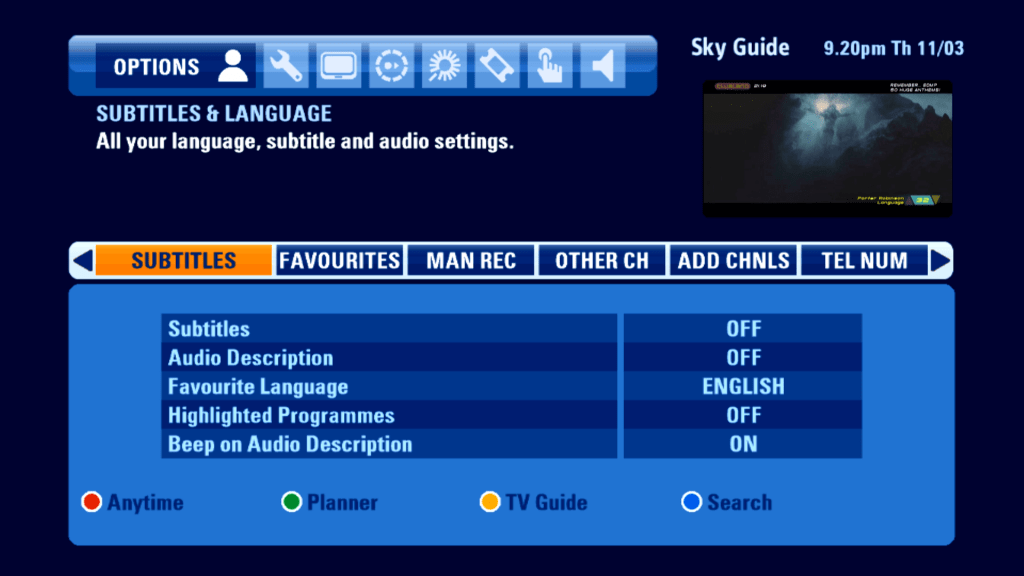
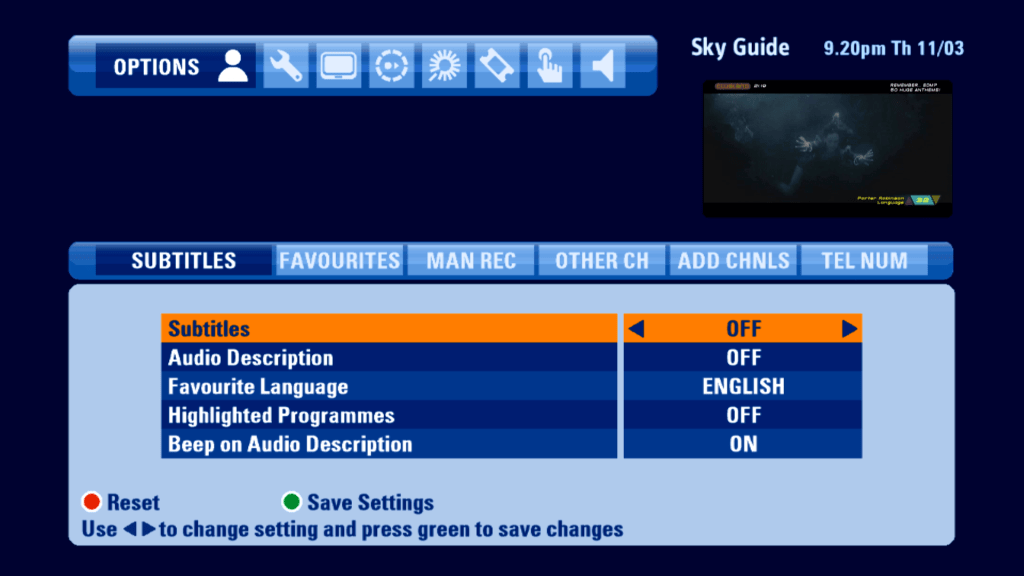
Language and subtitles, not much has changed from the previous EPG

You will notice when you move the cursor down to the bottom half, the background colour changes to indicate it has been selected.

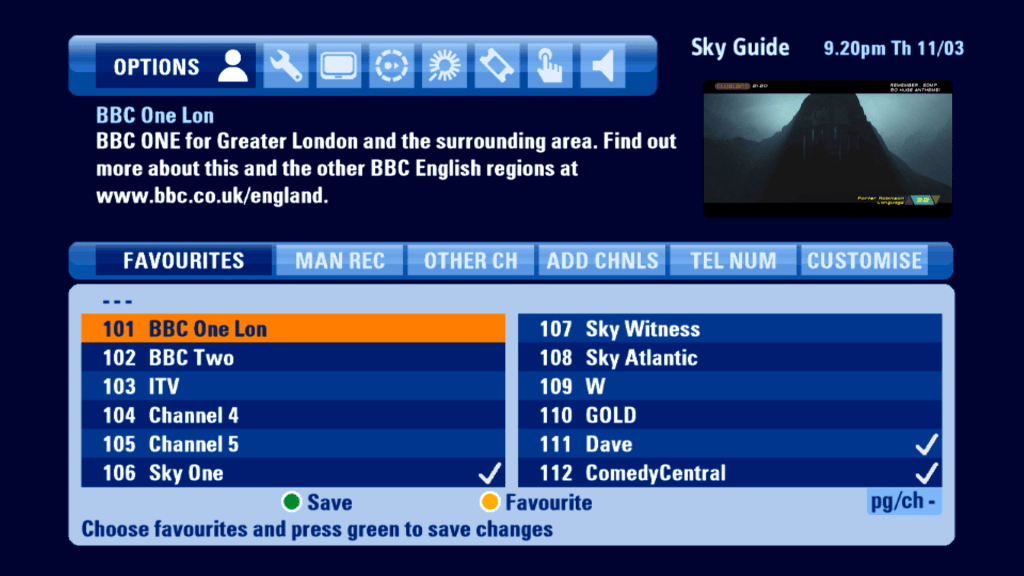
Favorite channels

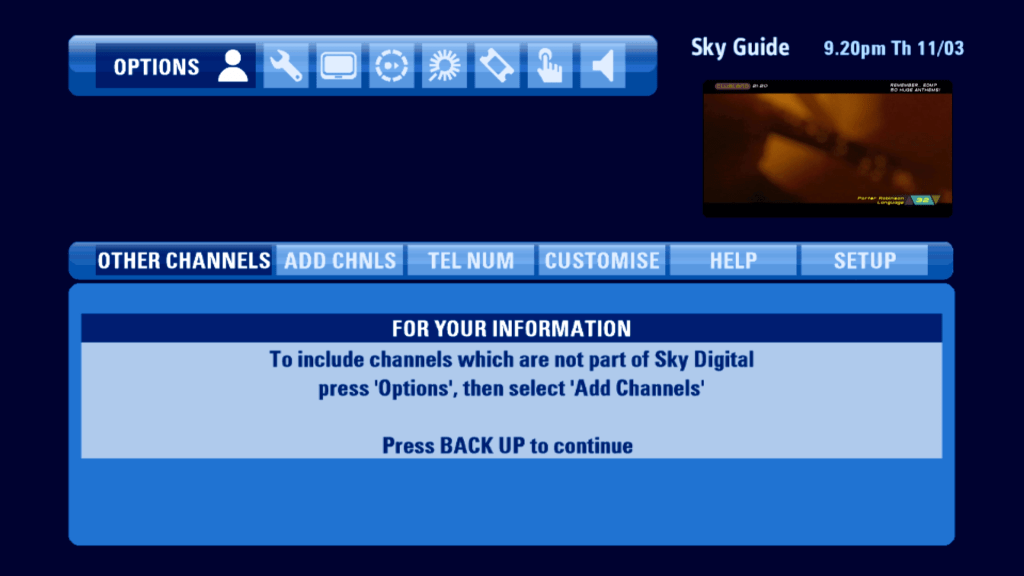
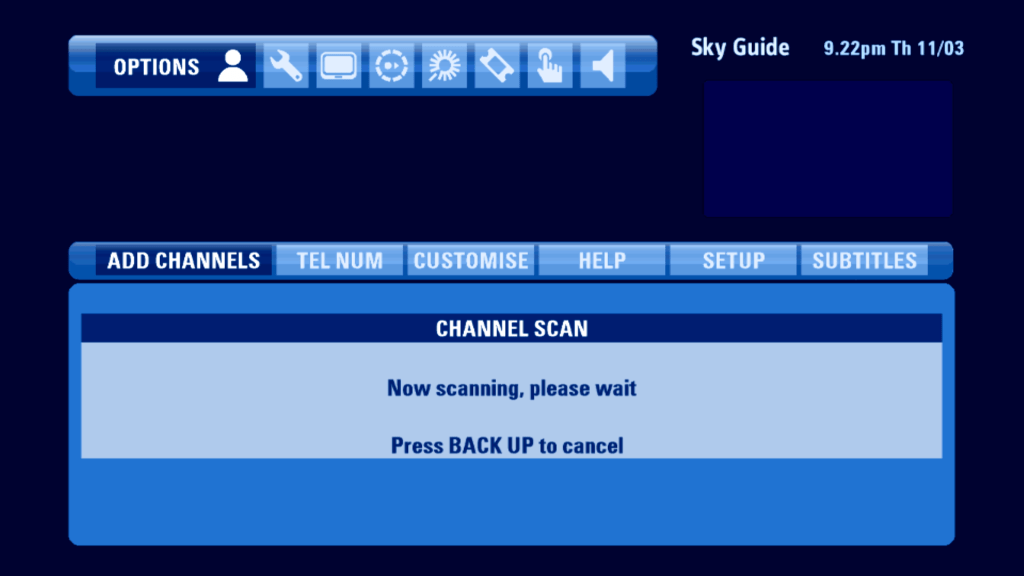
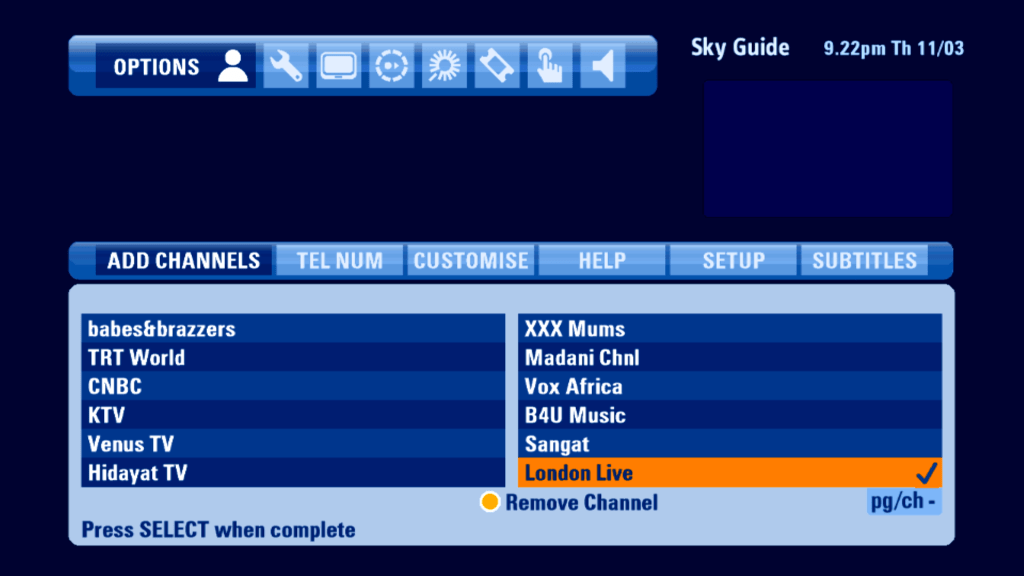
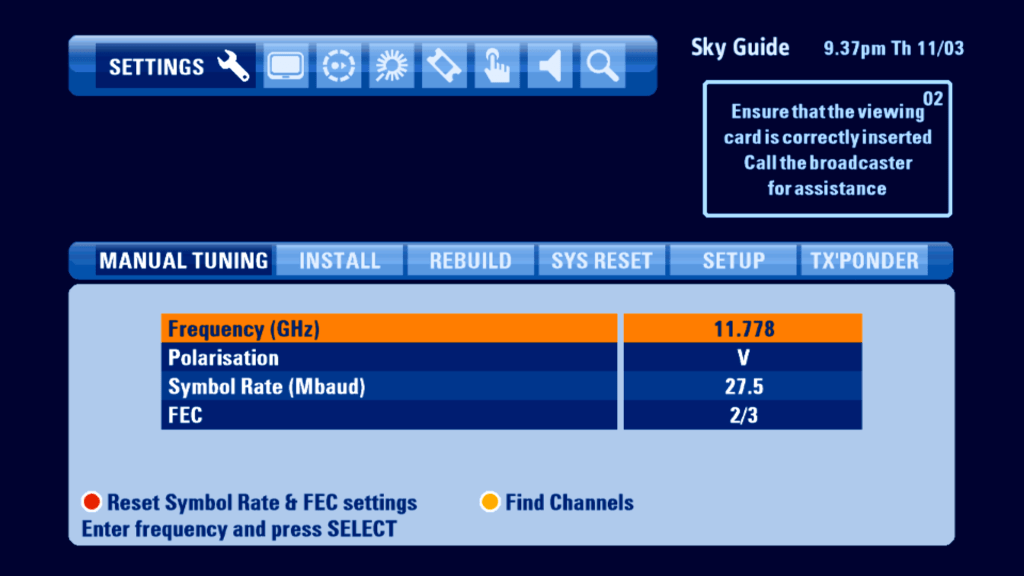
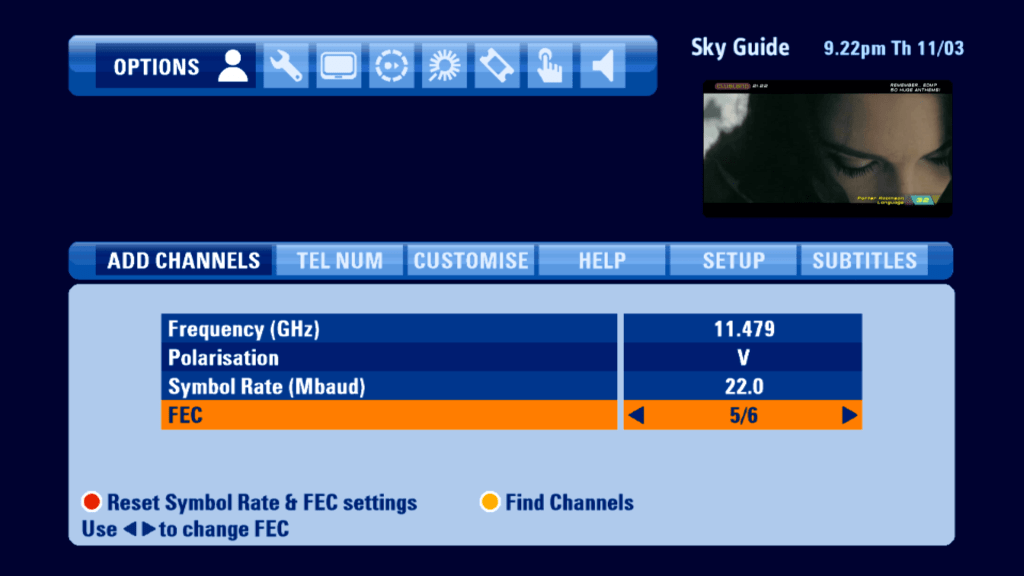
Adding channels has not changed in regards to the previous Sky Guide, you are still limited to two symbol rates

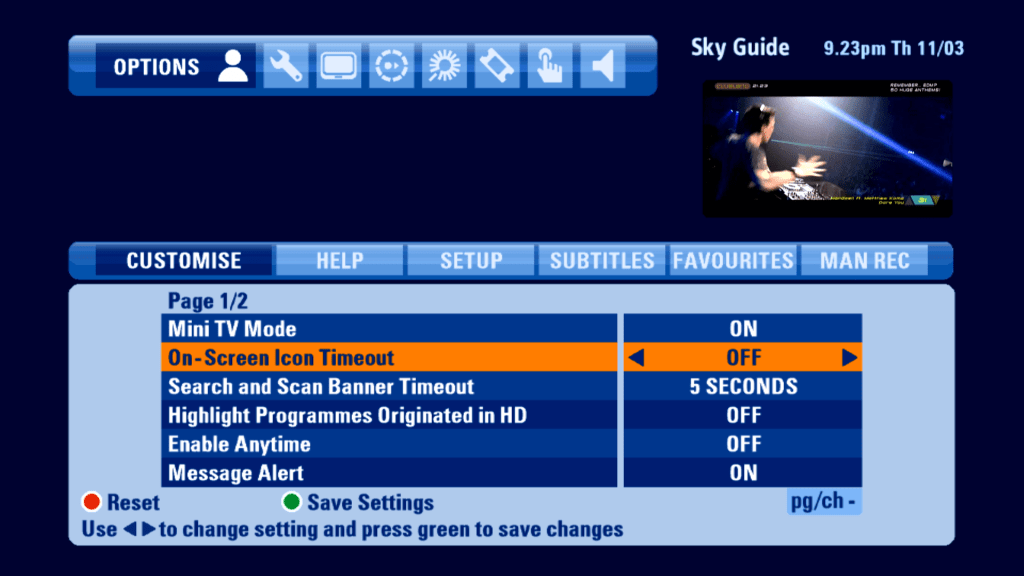
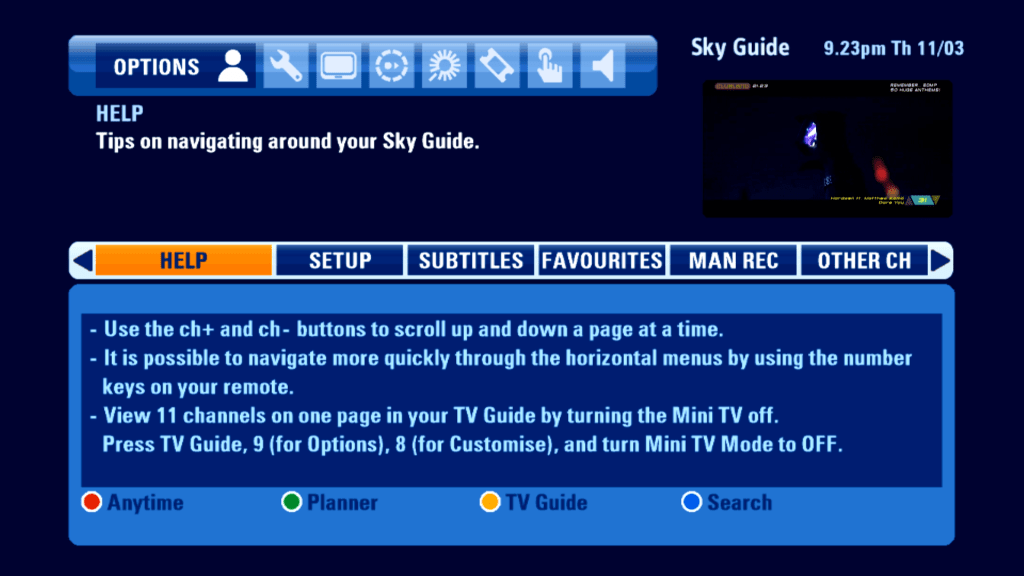
Anytime can be turned off, but does not reclaim the disk space, Mini TV can also be disabled, extending the guide interface

Settings

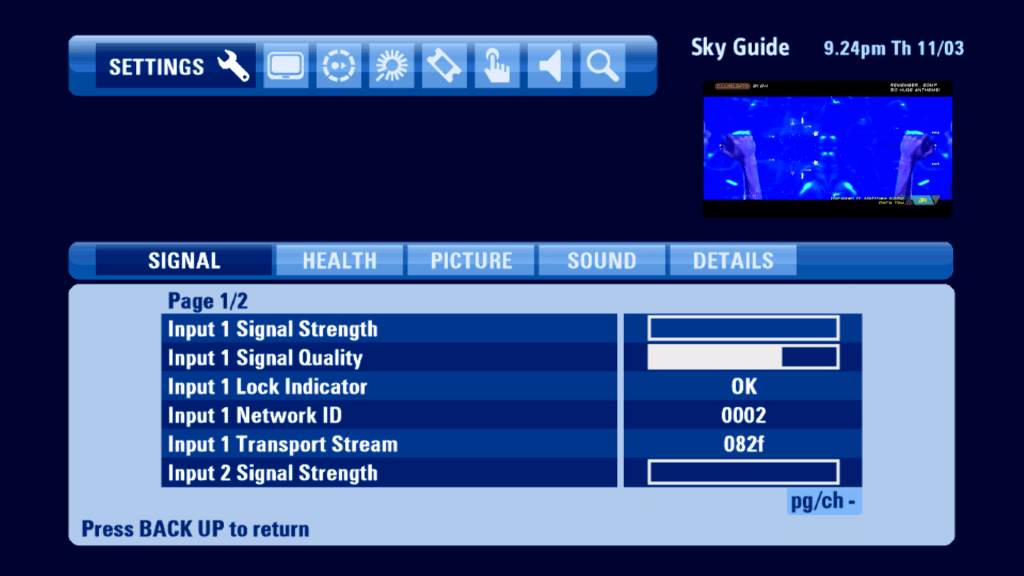
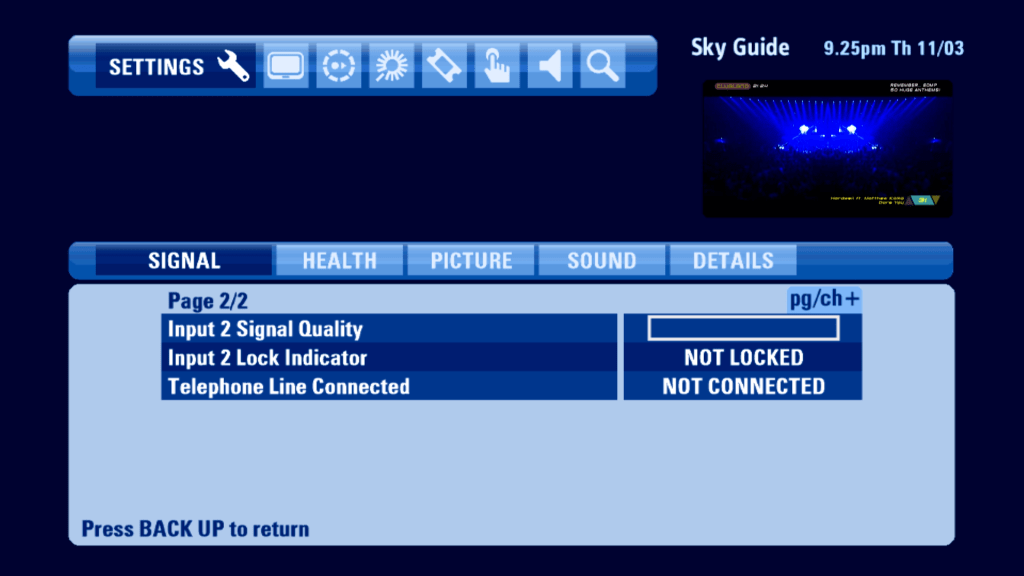
Seems to be doing a good job considering there’s no signal strength

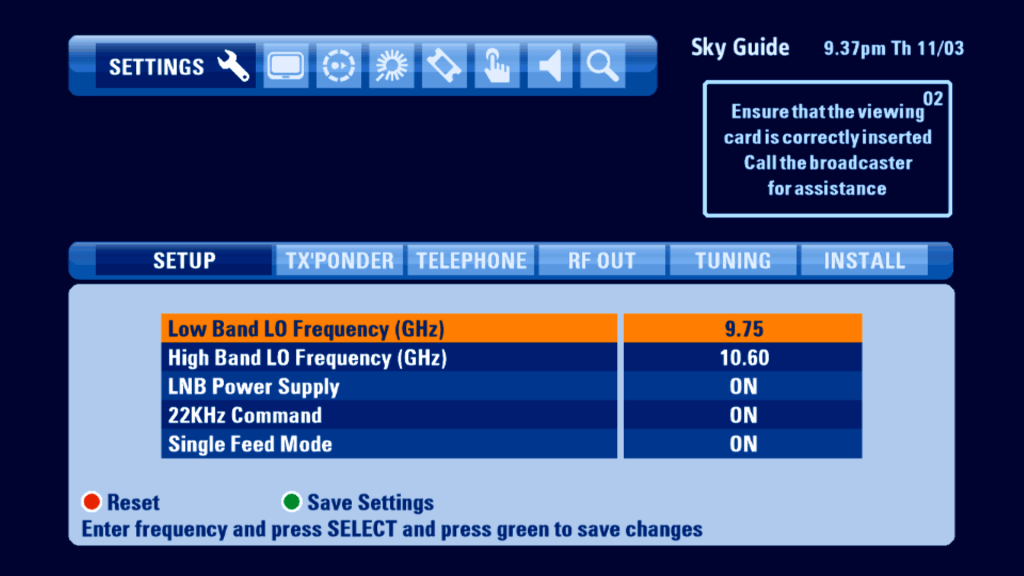
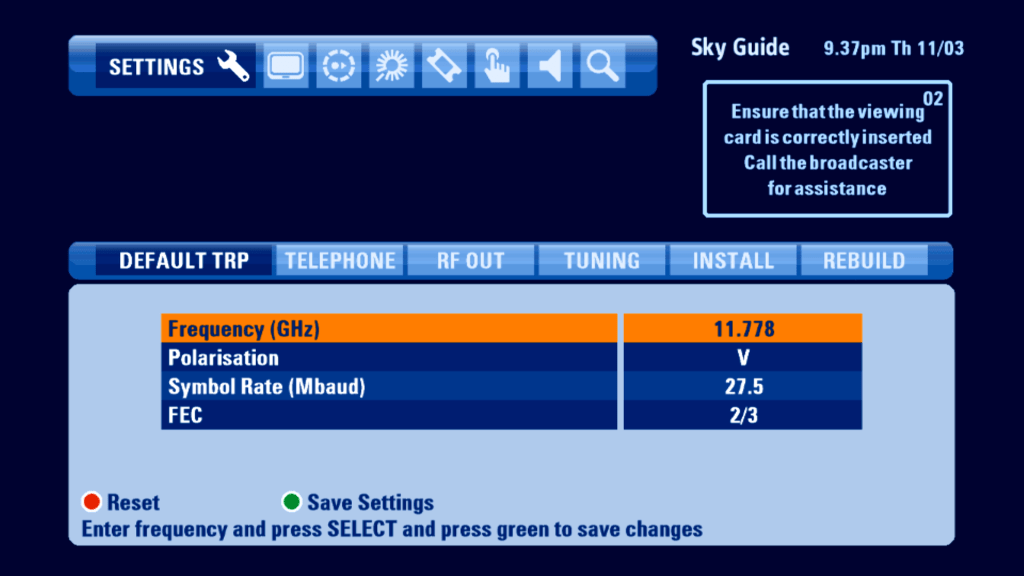
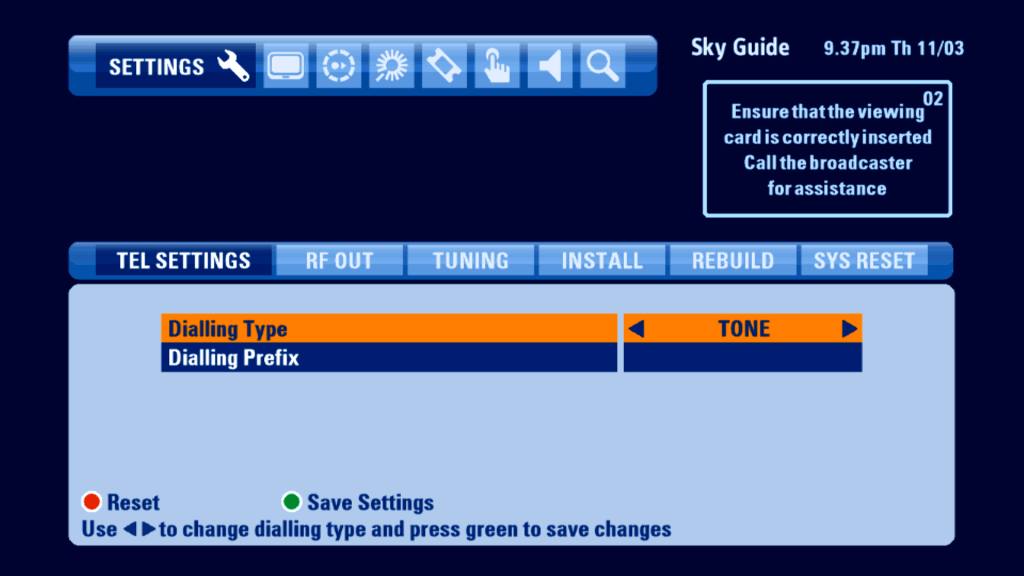
Installer Menu

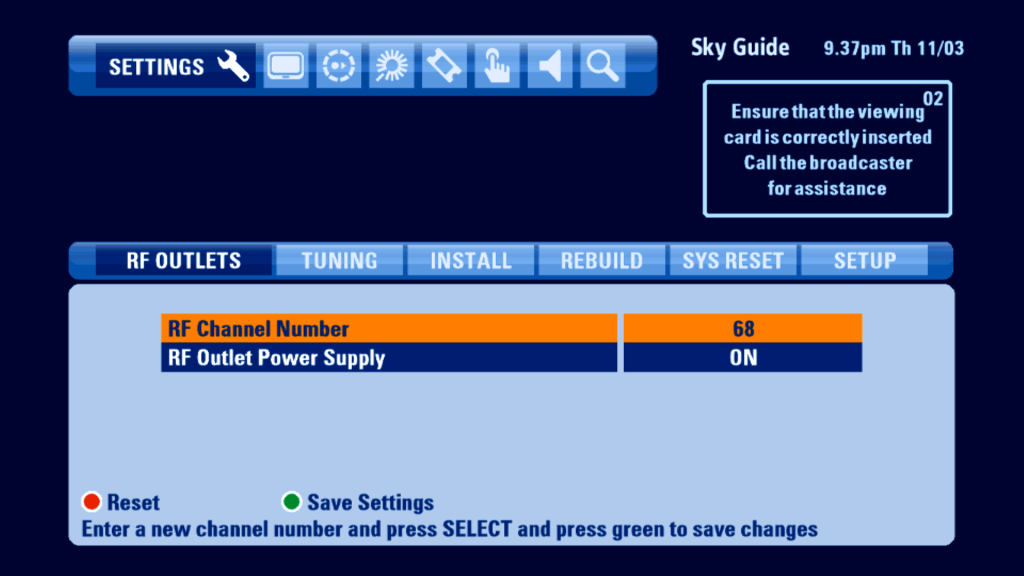
Single feed mod optimizes the HD box to work off one feed, useful if you only have one feed from a dish or multiswitch however you cannot wewatch and record one program at the same time.

Error Messages

Conclusion

Overall its a mostly well designed EPG with a lot of much needed improvements to bring it in line with system that Virgin Media and BT offer. The introduction of the mini TV in the guide was a welcome addition,

Whilst the new software takes better advantage of the Sky HD digibox hardware, it does fall into the trap of being too cluttered, sometimes getting stuck of confused as to where you are on screen. Whilst Sky had tried hard to make the colours stand out, they are just different shades of blue, which can get repetitive. Also the tab interface could be better designed, since it looks separate to the main TV listings area, with a slight gap between the two sections.

ONdigital User Interface

Switch On….

ONdigital was the first Digital Terrestrial platform in the world, and was to be a subscription service to compete with Sky analogue. Sadly it wasn’t to last as ONdigital entered administration in April 2002. The boxes themselves continued to work with the FTA Freeview service until 2011 when the transmissions were broadcast using 8K FFT, which the ONdigital boxes did not support.

The ONdigital guide software was developed using Canal+ Mediahighway middleware, alongside the NHEG5 virtual machine for digital text services. Mediaguard was used for the conditional access system.

Now & Next

ONdigital

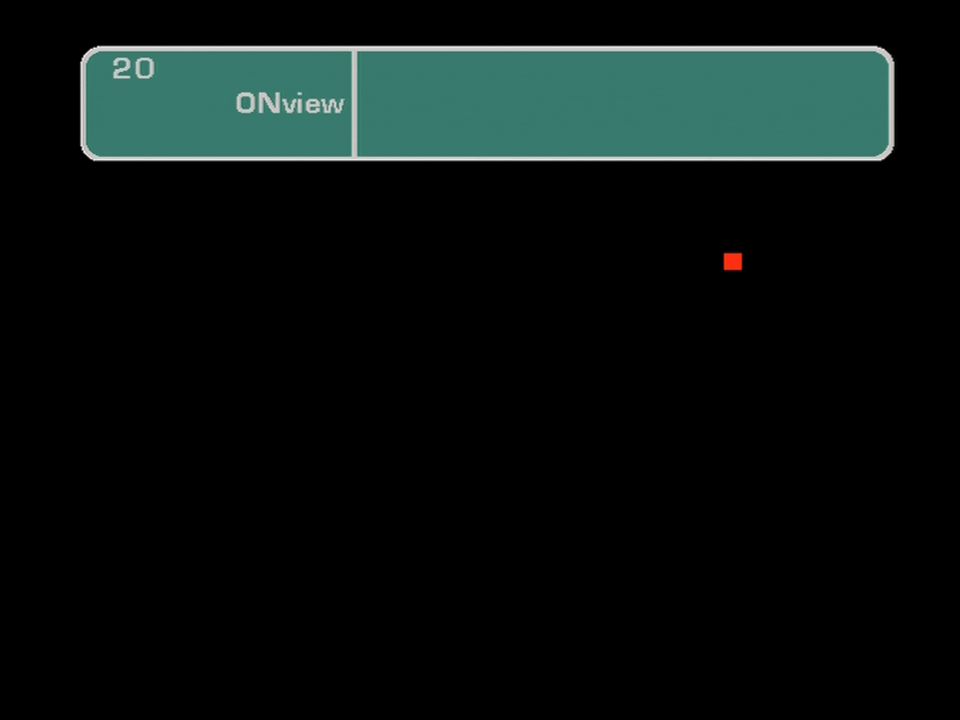
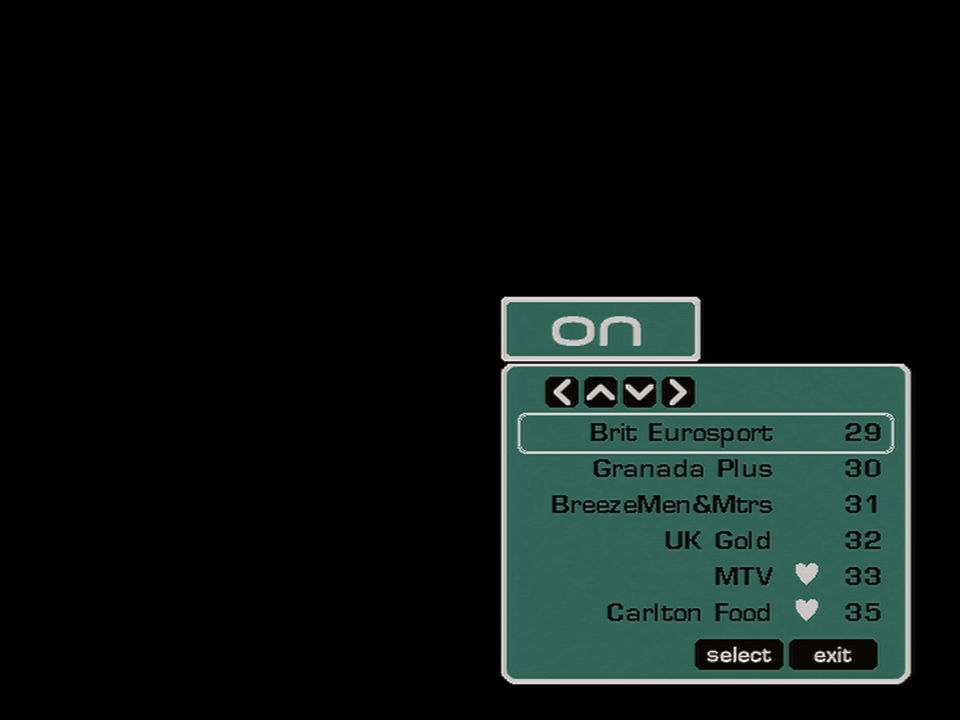
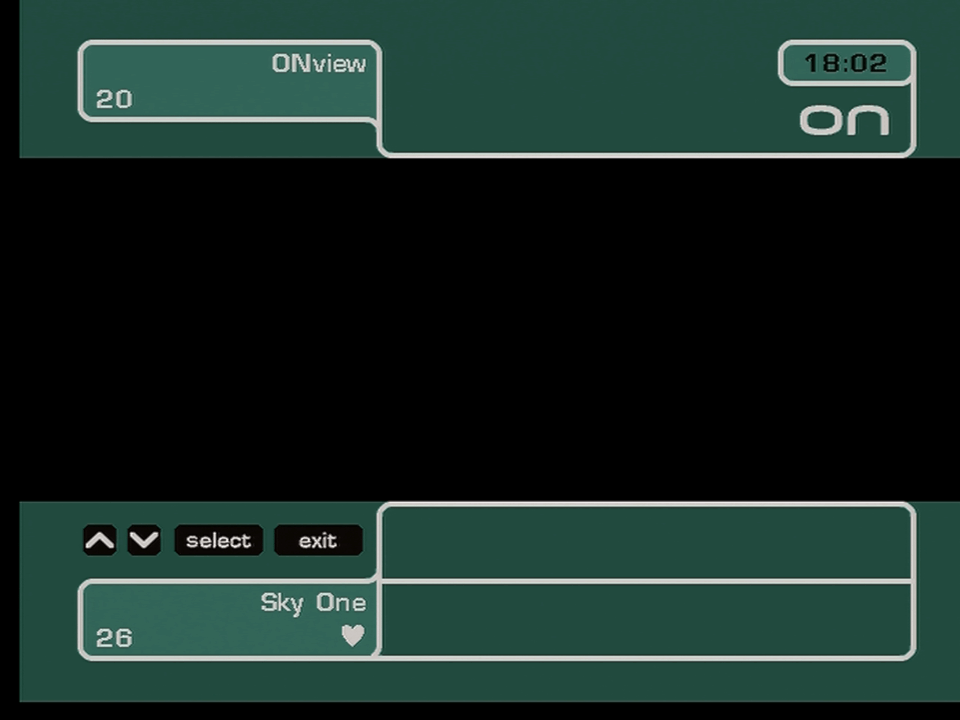
Appears when you change channels, it cannon be called up by a button on the remote, you would use the Info button for now & next

The red dot means no signal

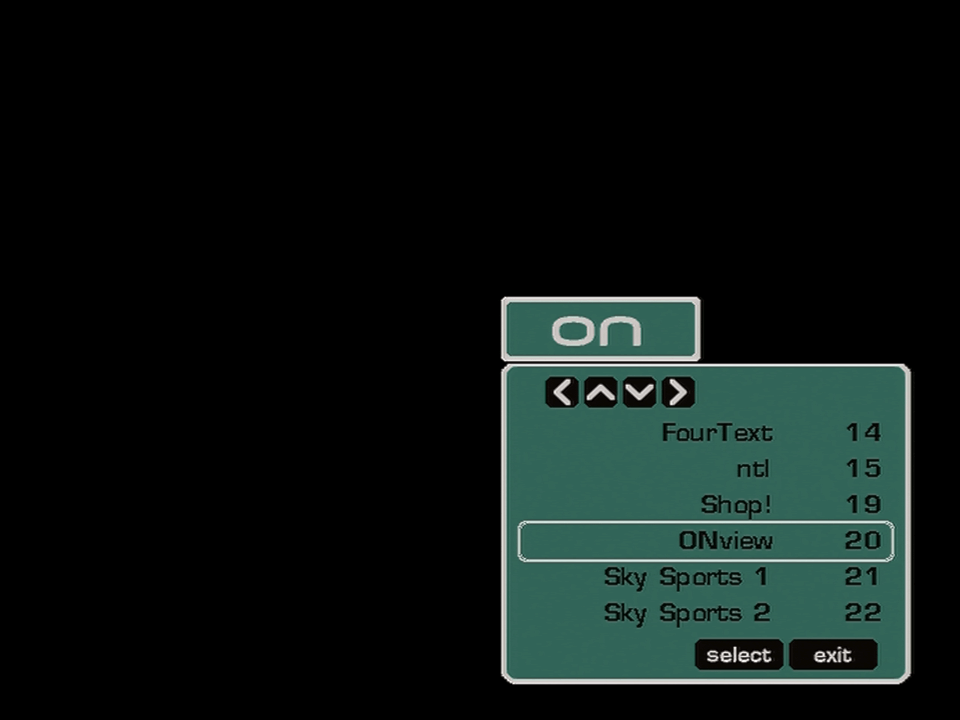
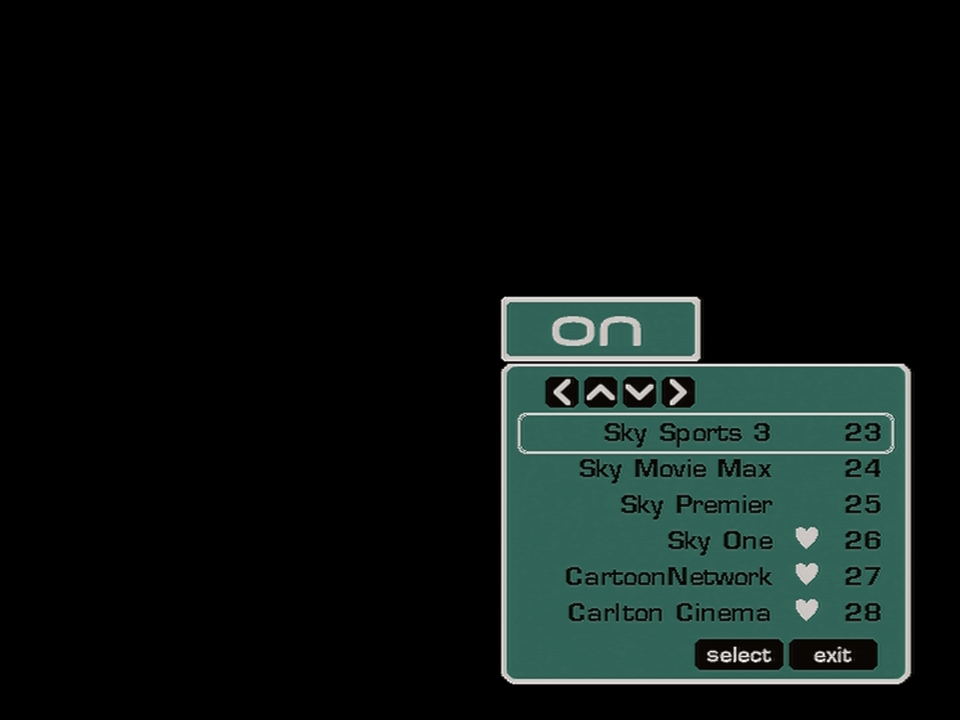
Ondigital channel list

Pressing OK brings up a channel list, that can be used to jump to certain channels

Ondigital Info

Pressing info gives a now and next view on what’s currently being broadcast, you can select different channels but can only see now & next.

Main Menu

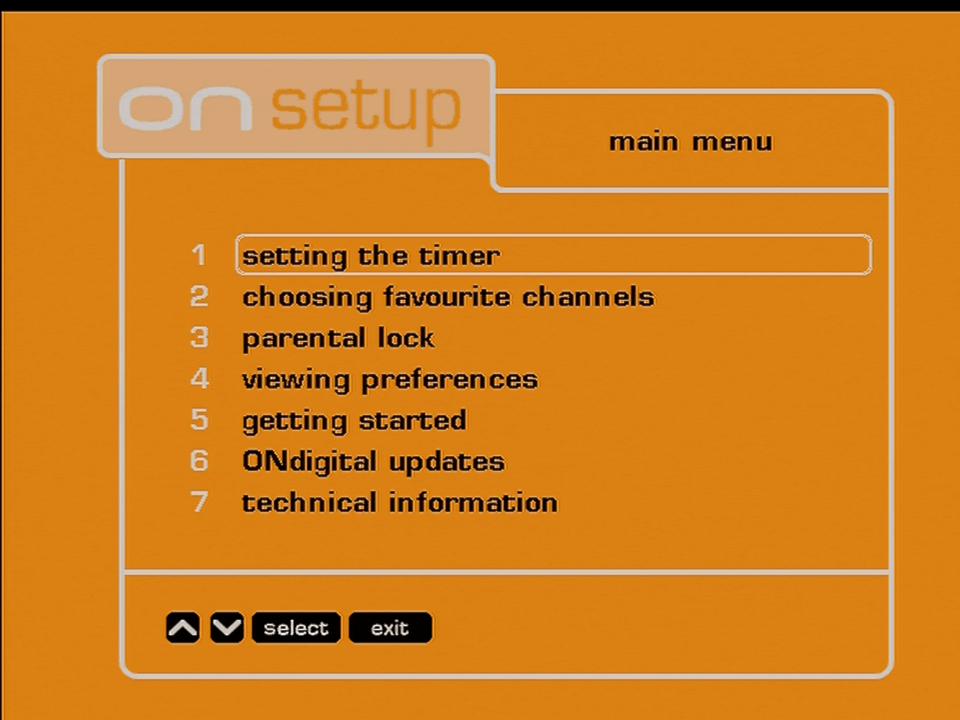
Ondigital Main Menu

The main menu

Setting the Timer

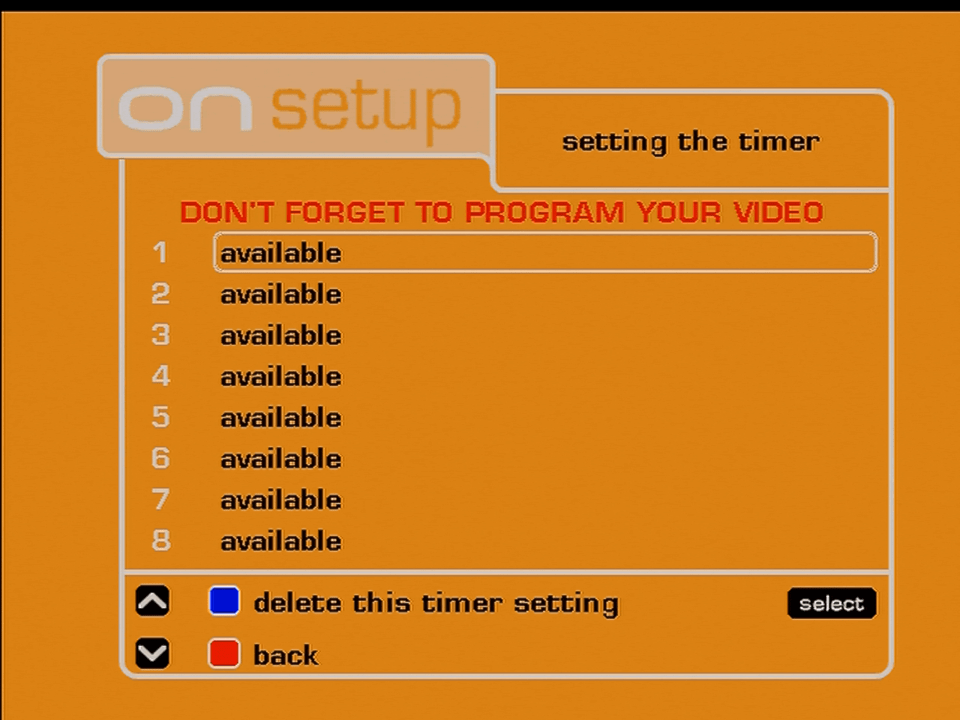
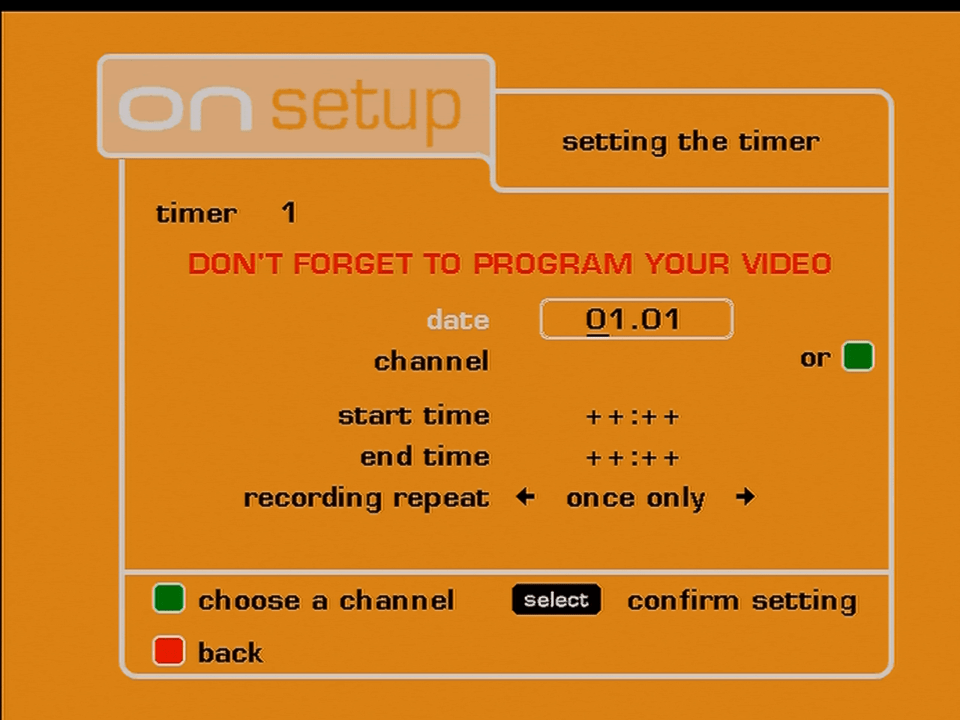
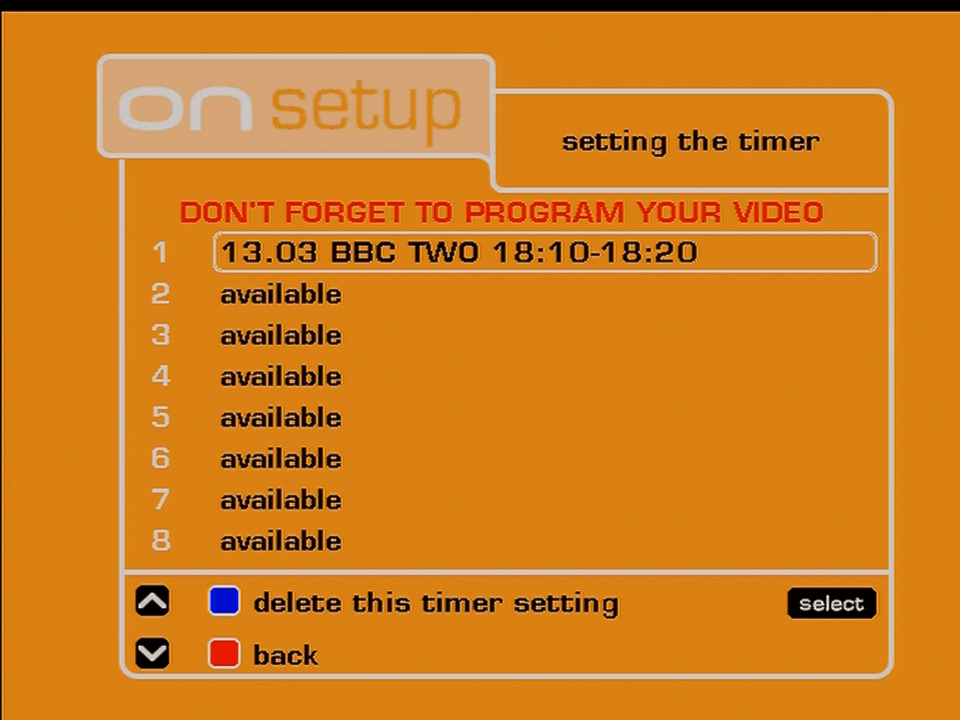
ONDigital timer

ONdigital lacked an EPG, it had only now & next and that was it. If you wanted to record a program in the future you had to manually set it. ONdigital did provide a monthly magazine that gave TV listings for all of their channels which could be used to track the TV listings.

Its worth mentioning that Teletext, BBC, ntl, and ONview (ONdigital) offered MHEG service that broadcasted a TV guide, but this could not be used to set a reminder.

Favourite Channels

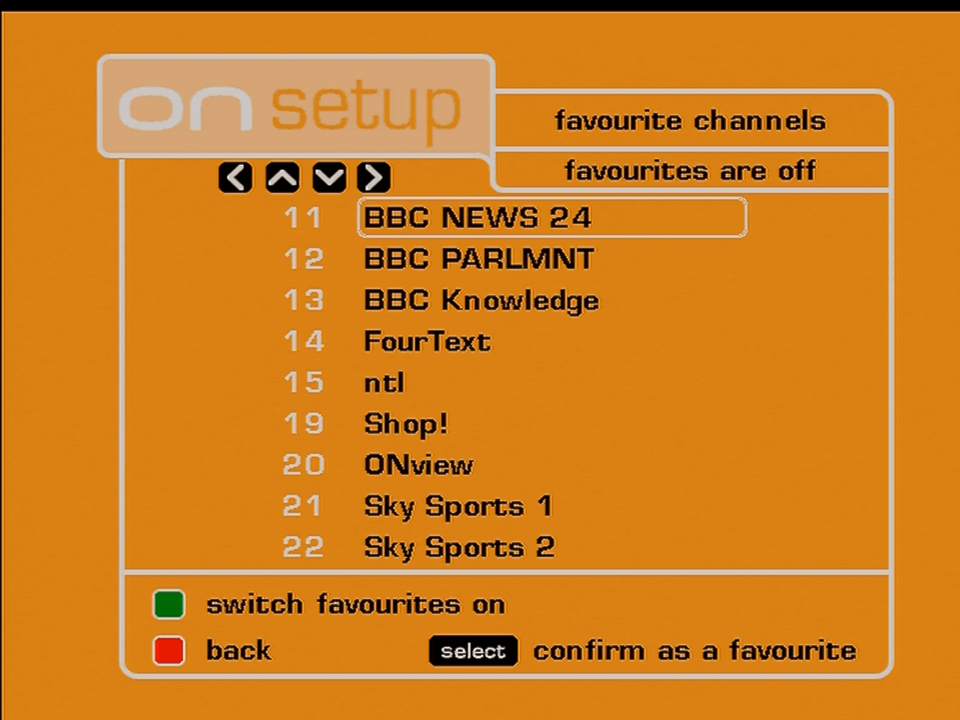
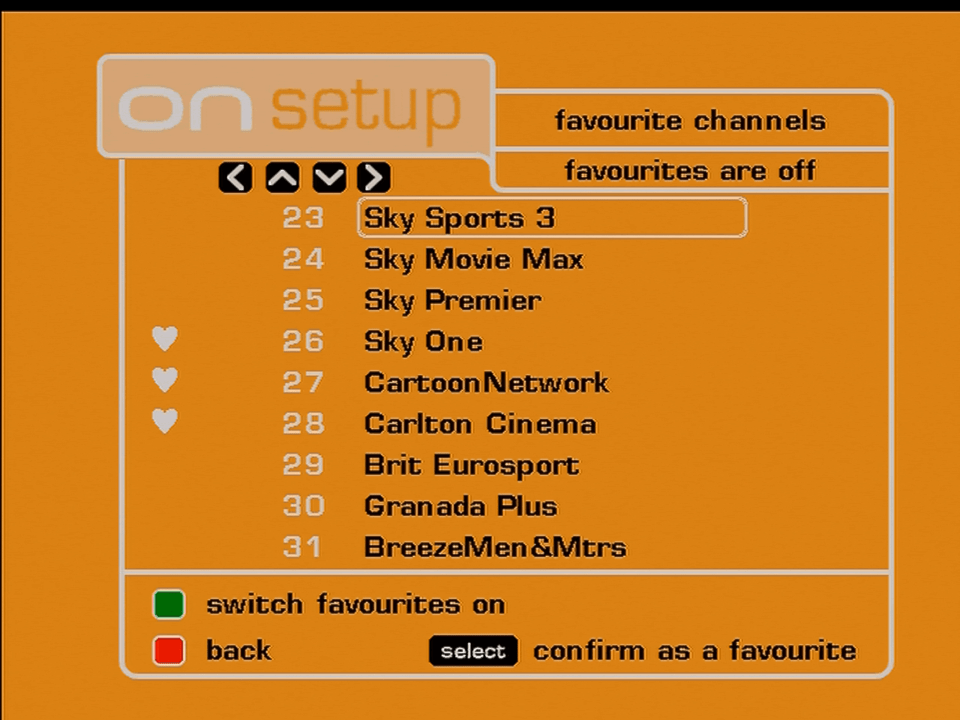
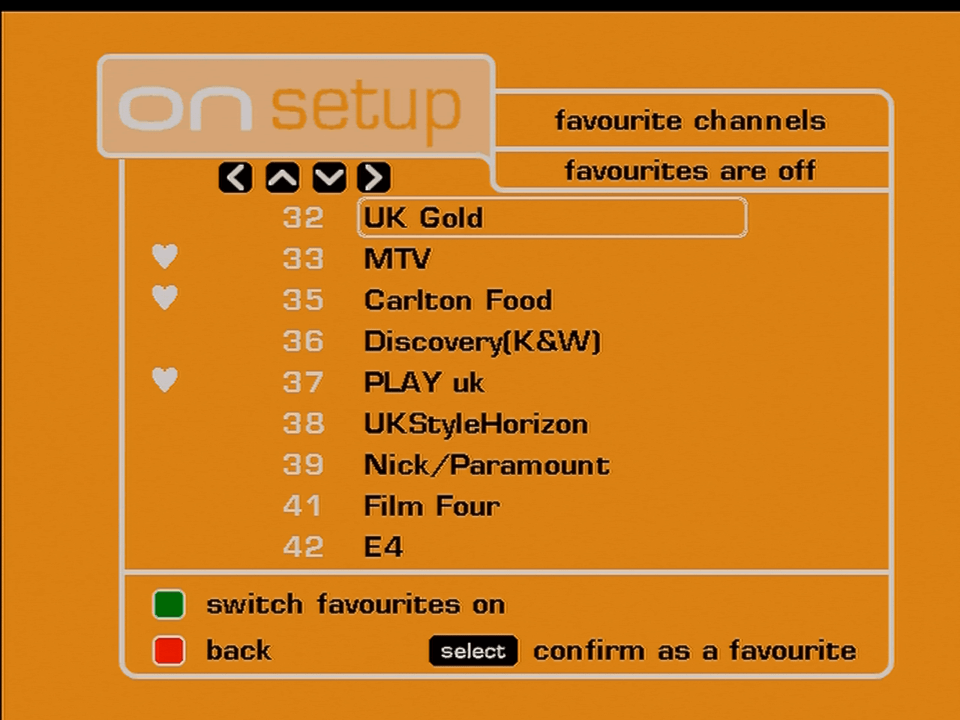
Favourite channels worked differently comparted to Sky or cable, you could mark as many channels as you wanted as a favorite, symbolized by a heart icon. However when the favorite channels settings was on, the Chan+ and Chan- would only scroll through favorite channels list only.

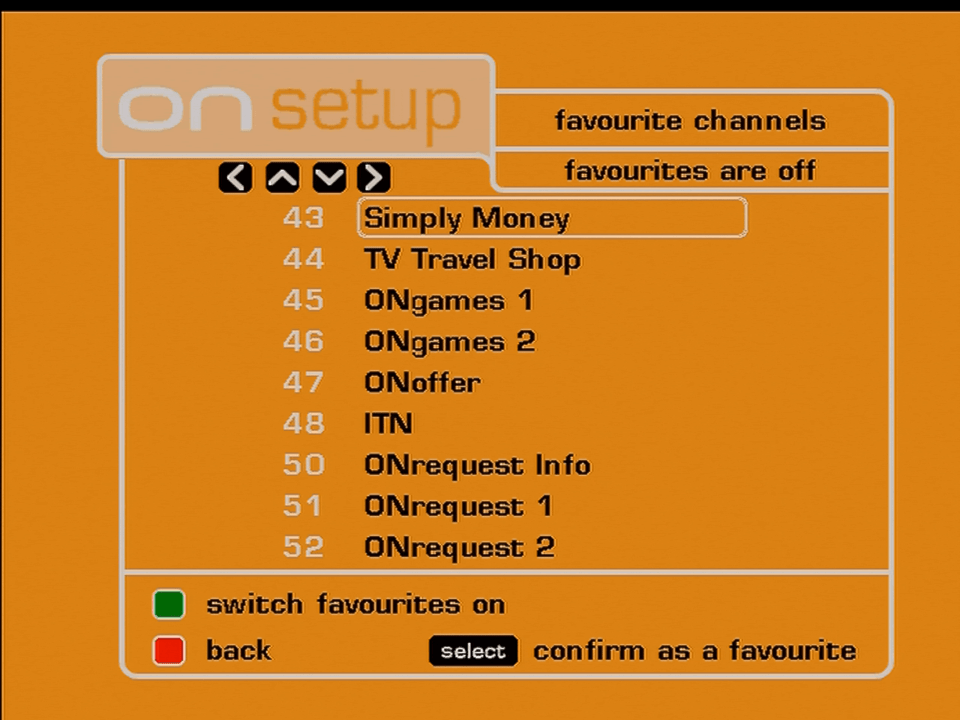
ONdigital favourite channels

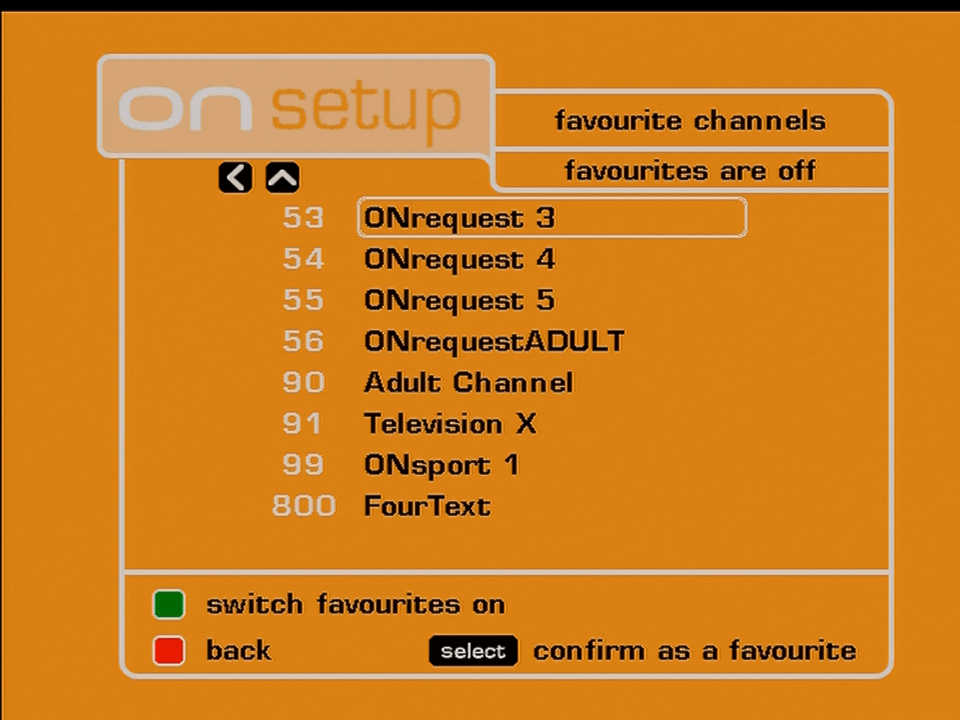
Whilst we are here, might as well look at the ONdigital era channel list, it seems the original owner never bothered to rescan the box after Freeview launched, and did not rescan it either after ONdigital rebranded to ITV Digital.

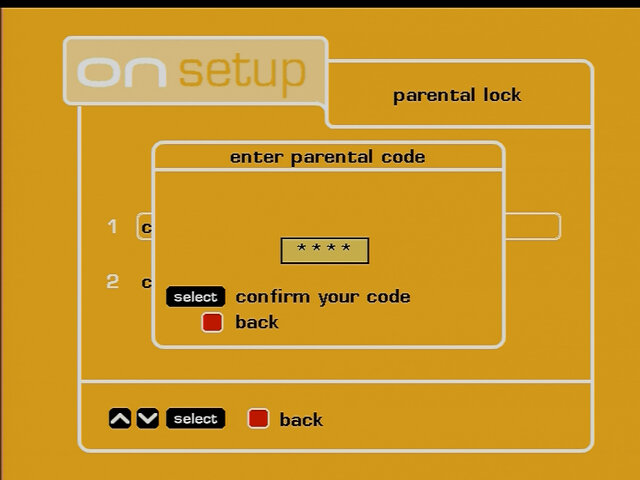
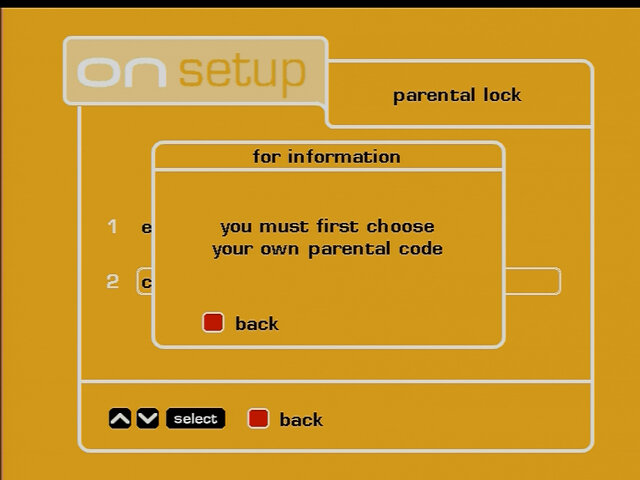
Parental Lock

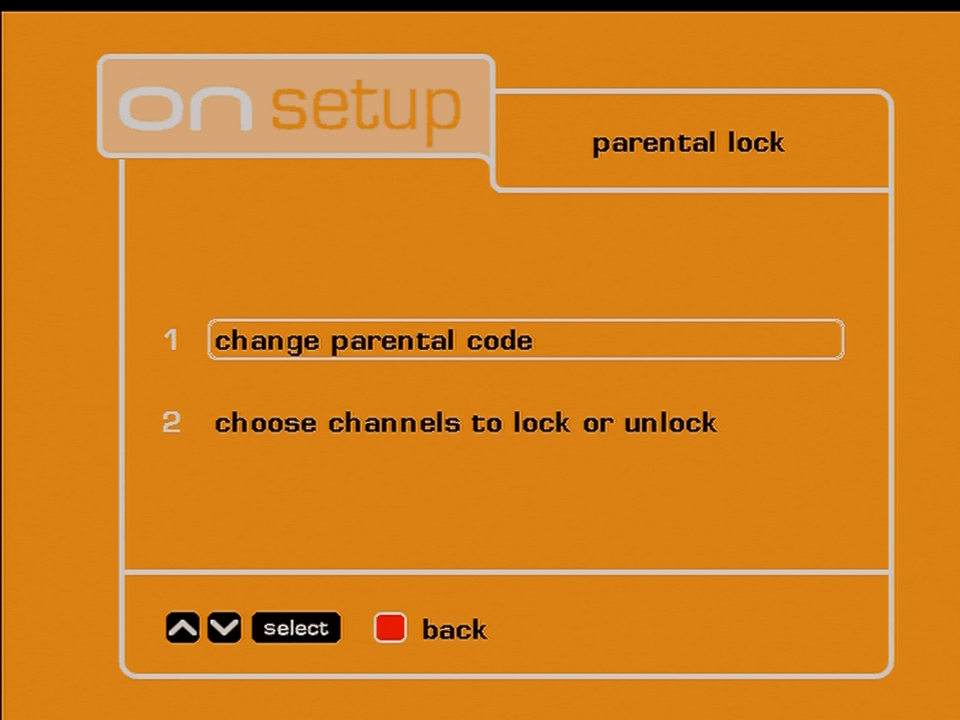
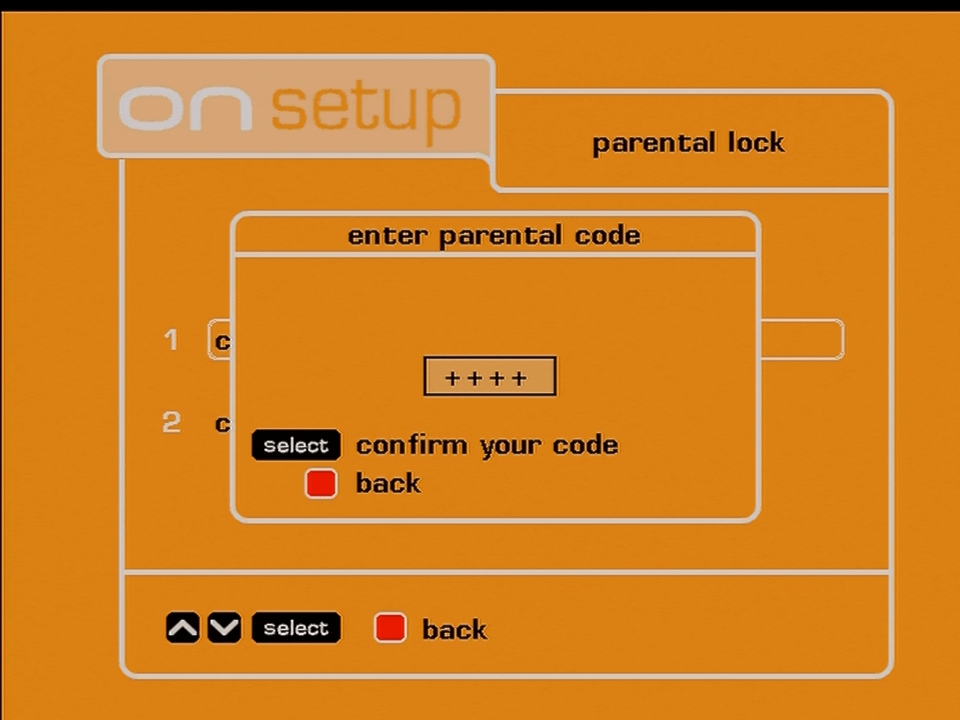
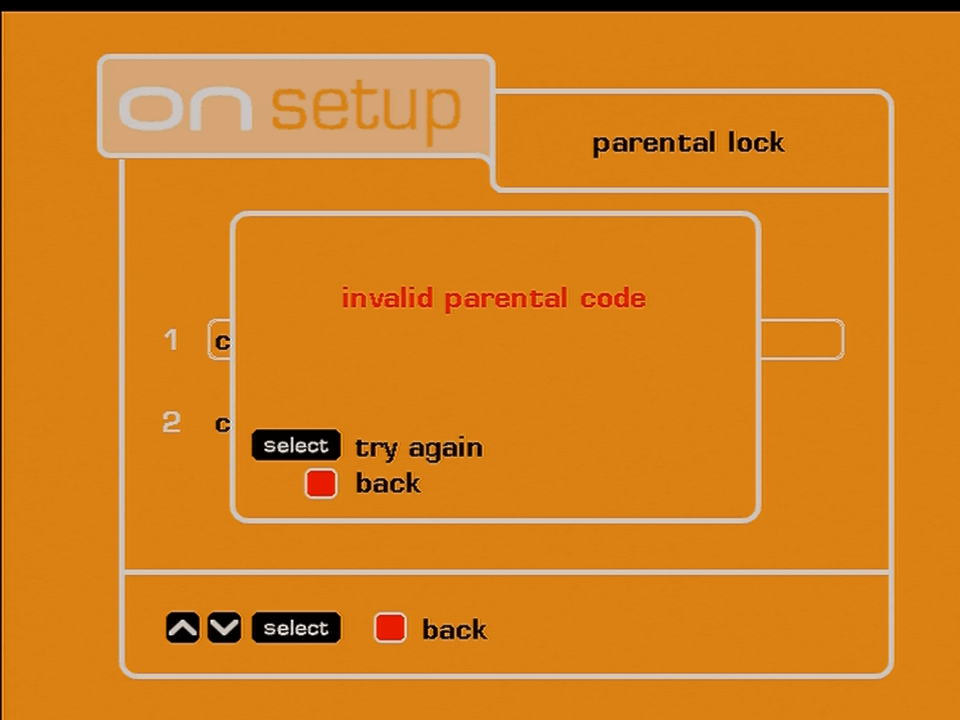
ONdigital parental lock

Not much to see since I don’t know the smartcard PIN, but from memory you can lock certain channels.

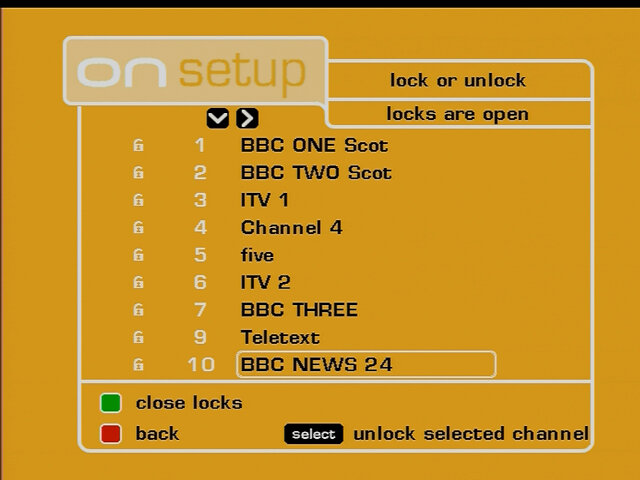
Update: Managed to find the default PIN code, now we can see whats in the menu

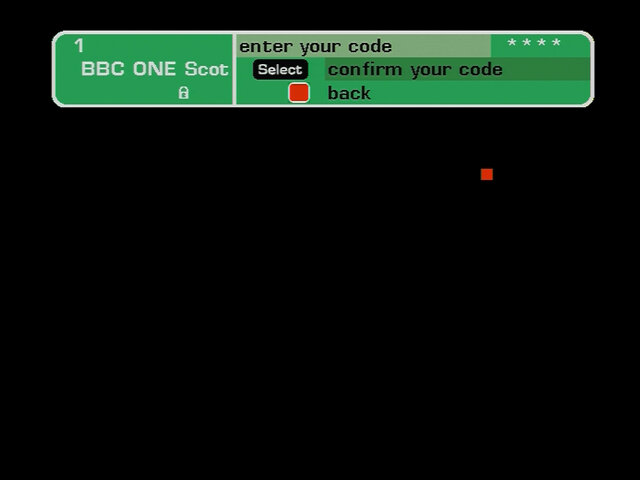
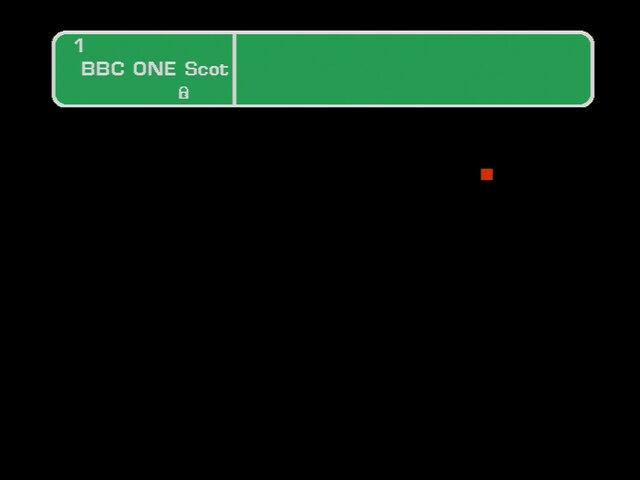
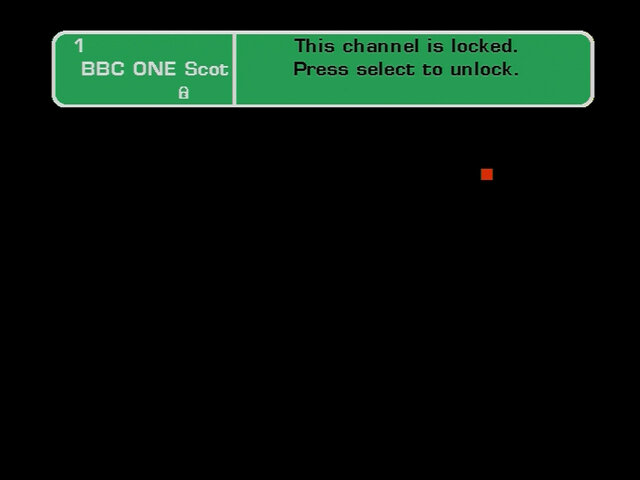
Here you can lock individual channels from being accessed by marking them with the lock symbol, you can then press the green button to activate the locks. When you try to enter a channel you will be prompted to enter the PIN number to unlock.

You can change the PIN code to whichever you choose.

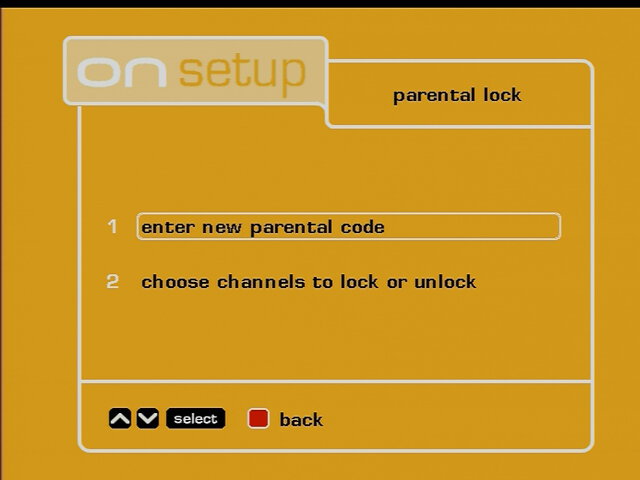
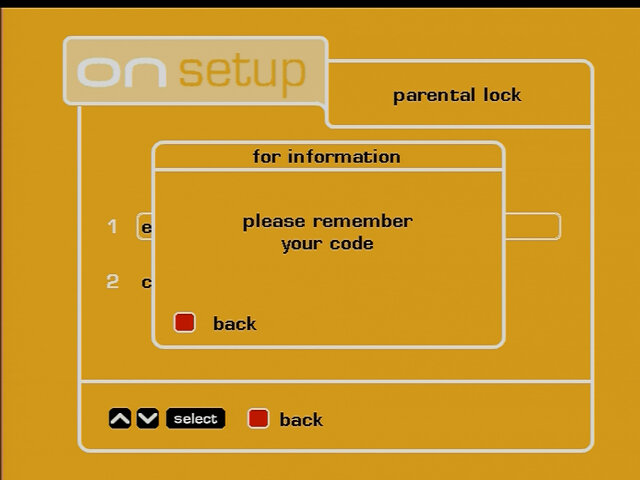
If you change the PIN back to 0000, the menu option changes to Enter new parental code instead of change parental code, and you are prompted to set a PIN code.

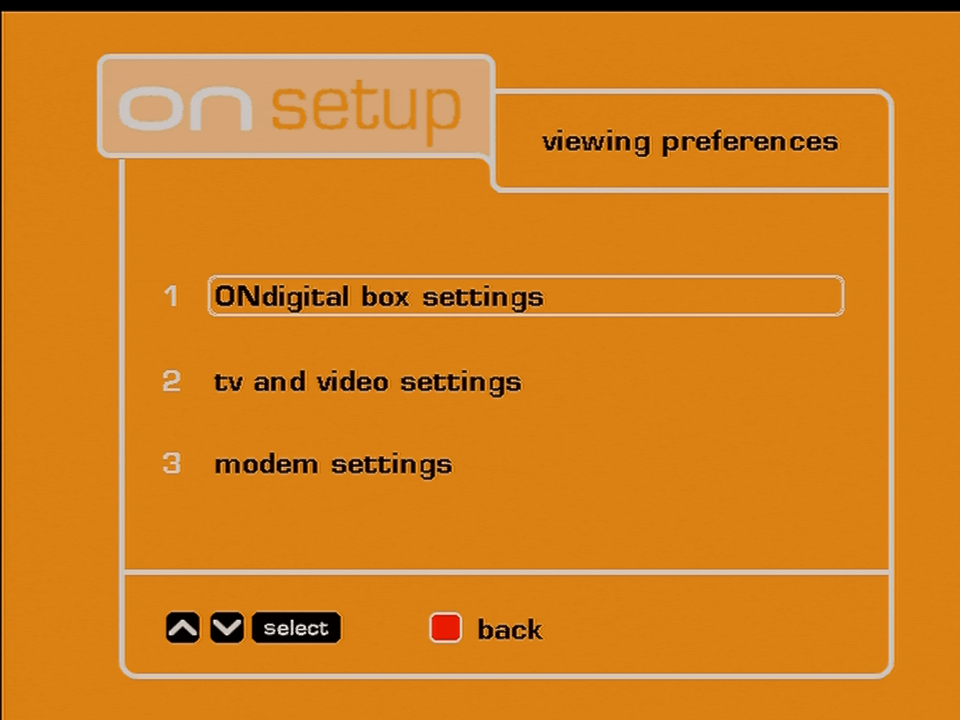
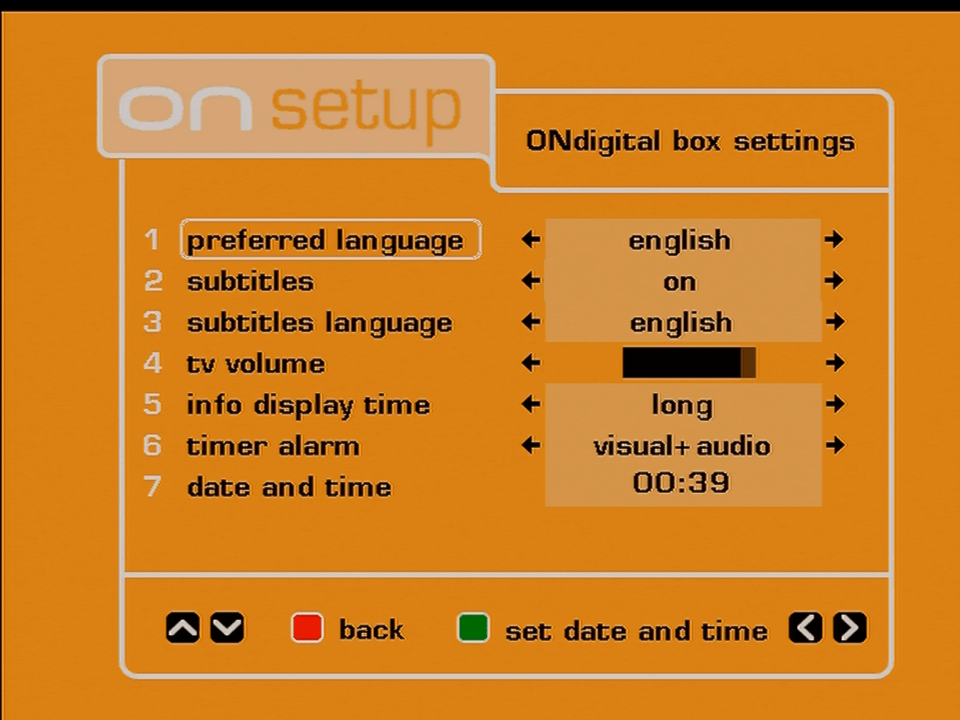
Viewing Preferences

ONdigital viewing preferences
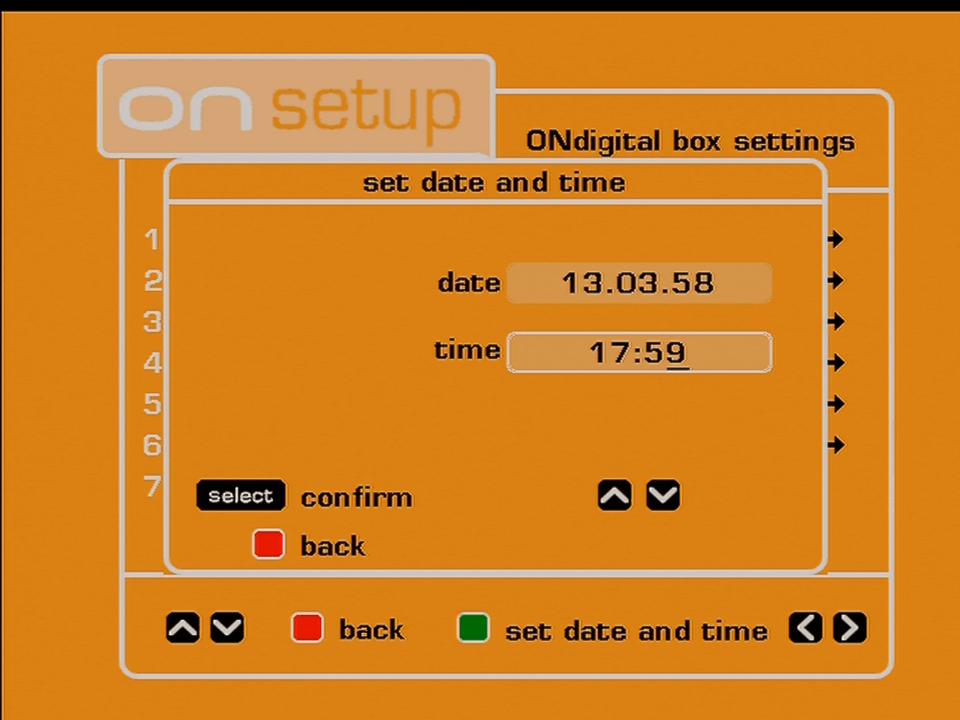
ONdigital box settings
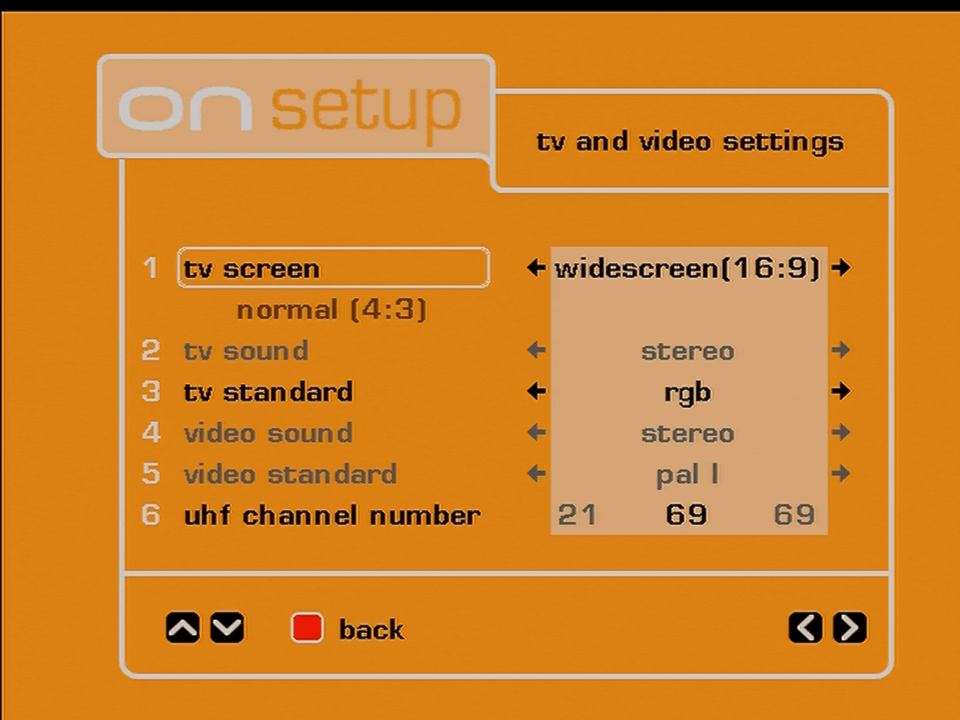
ONdigital tv video settings
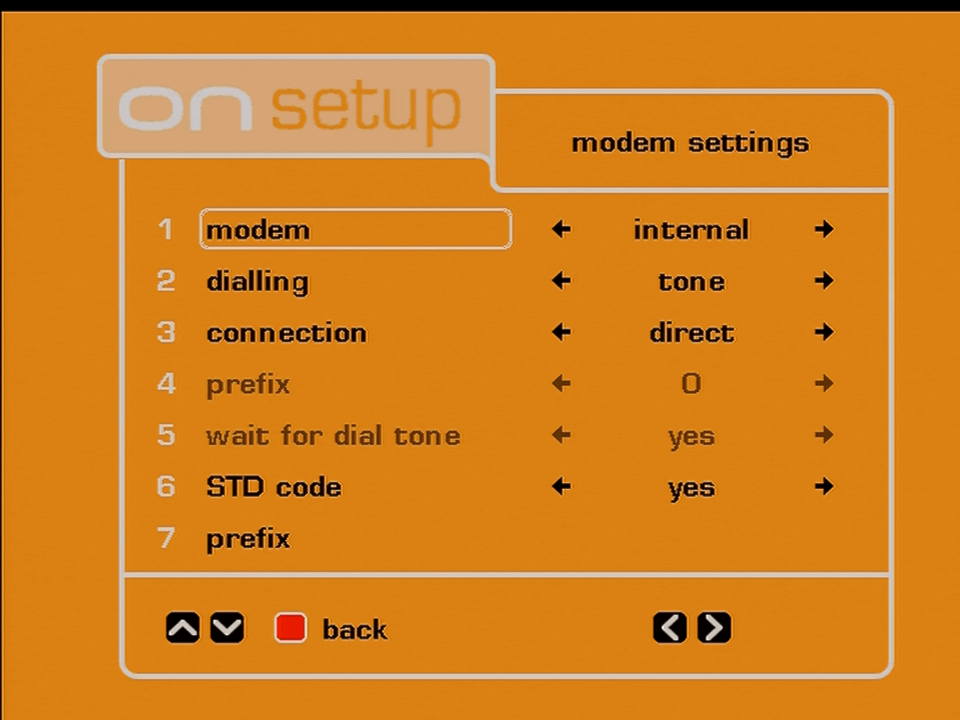
ONdigital modem settings

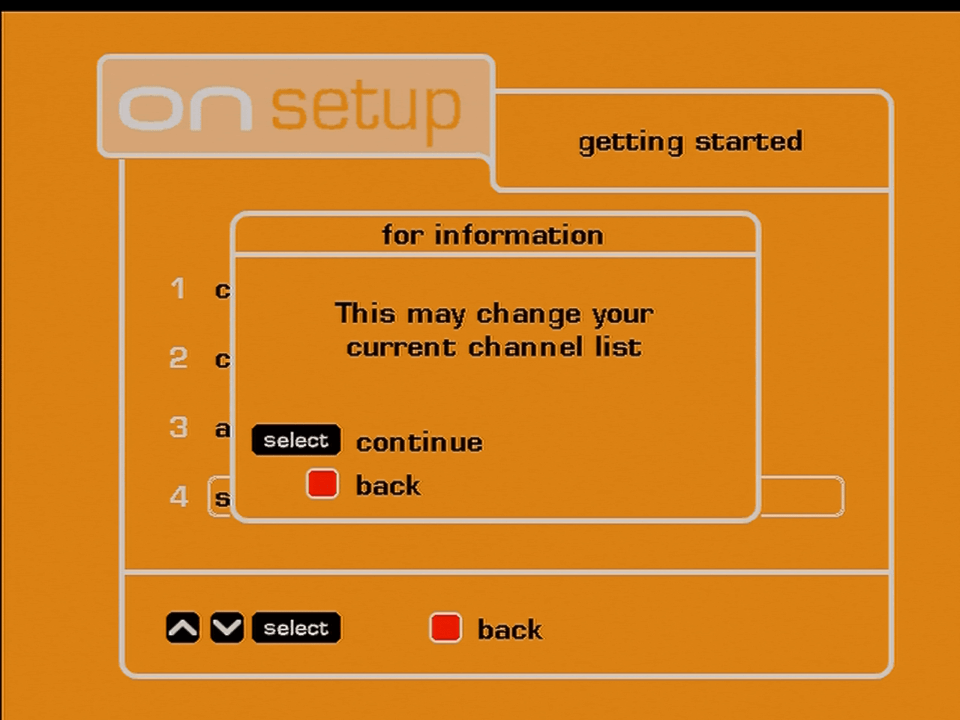
Getting Started

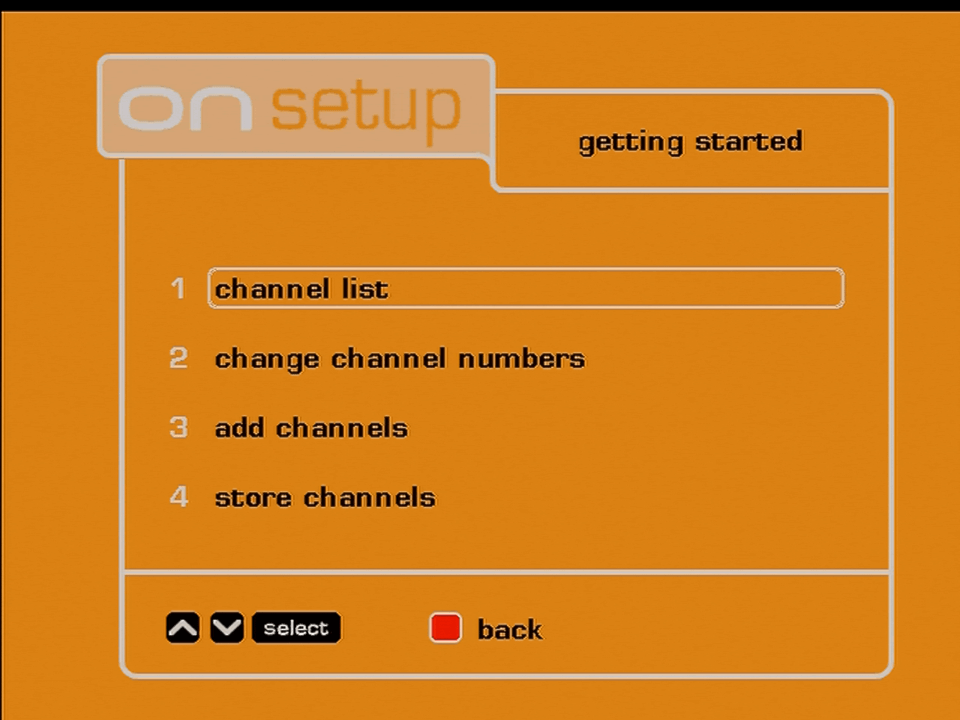
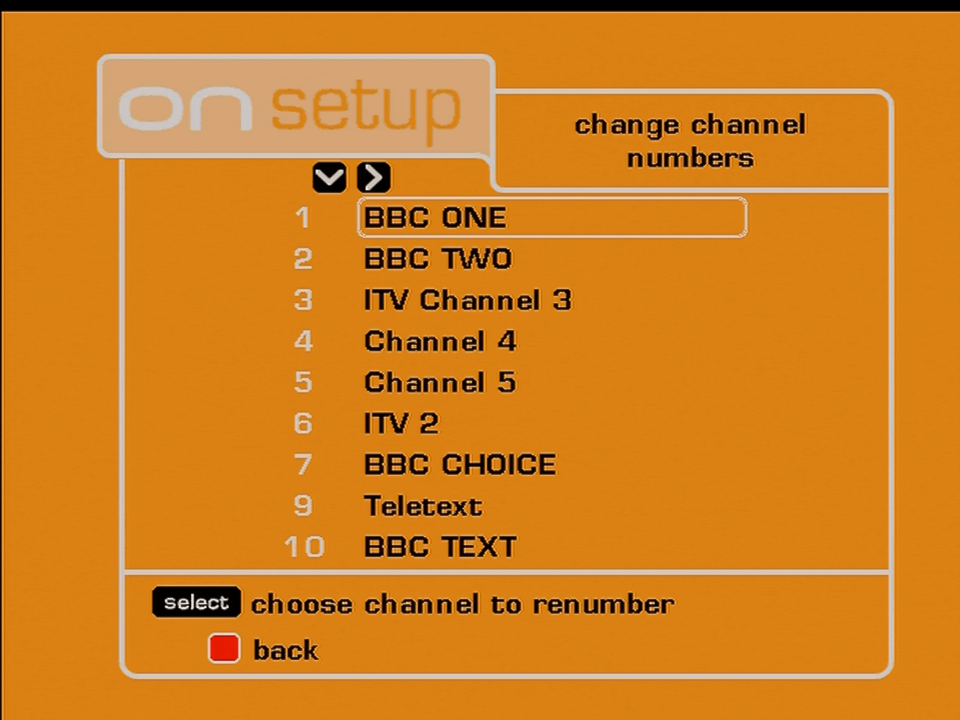
ONdigital getting started
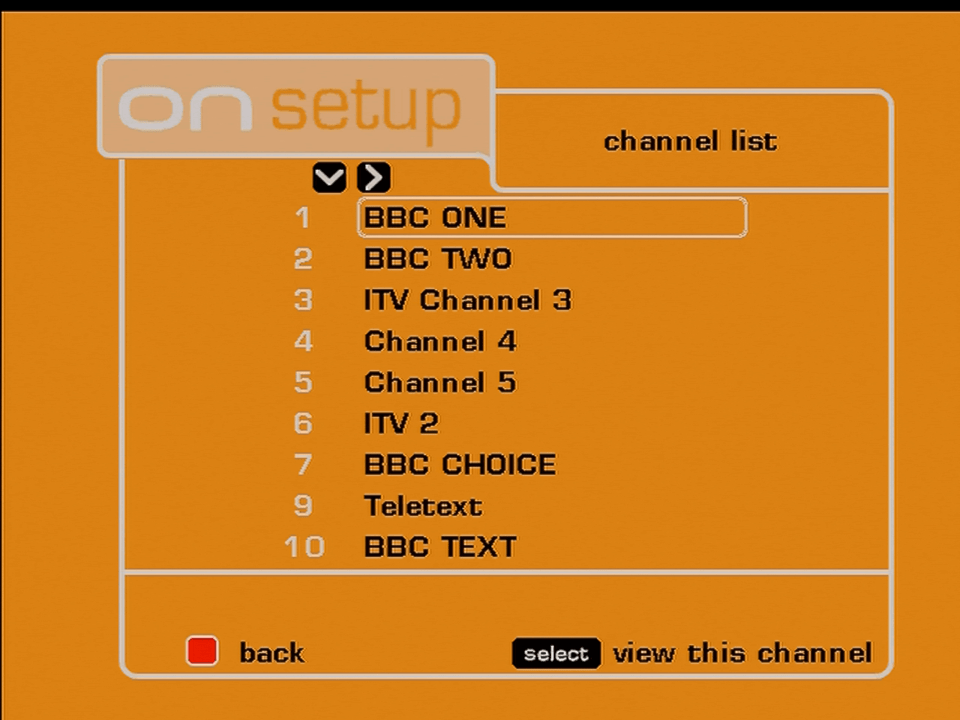
ONdigital channel list
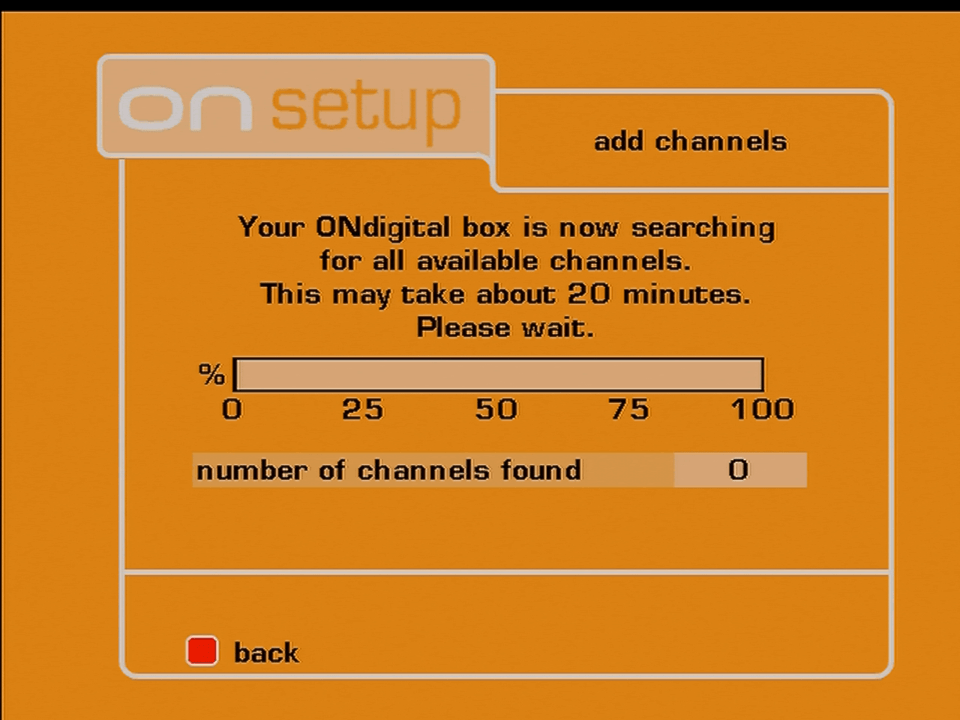
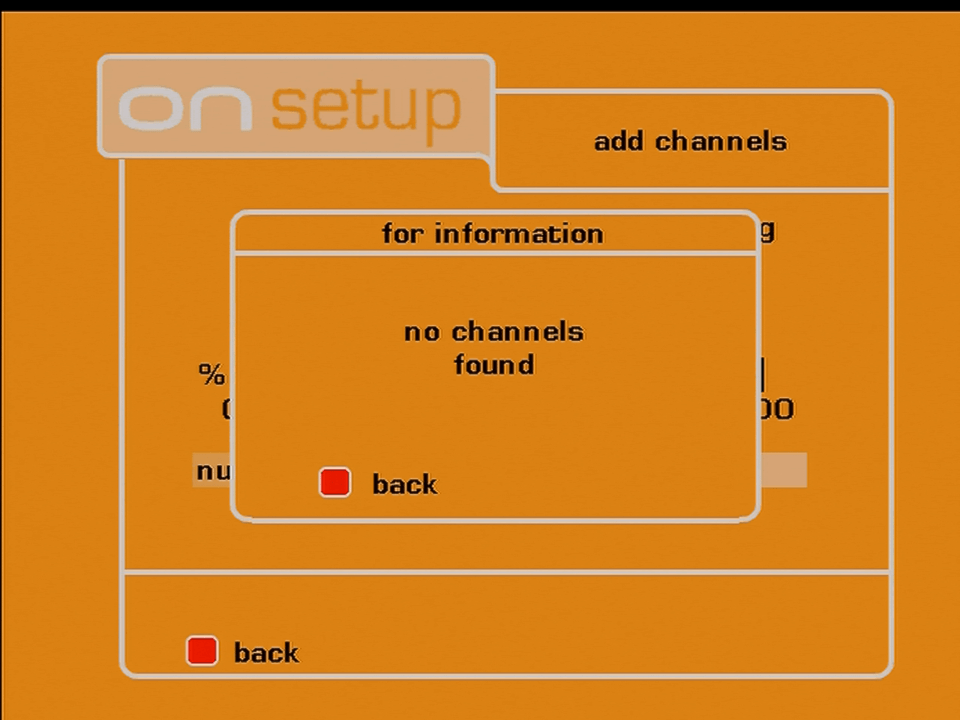
ONdigital add channels

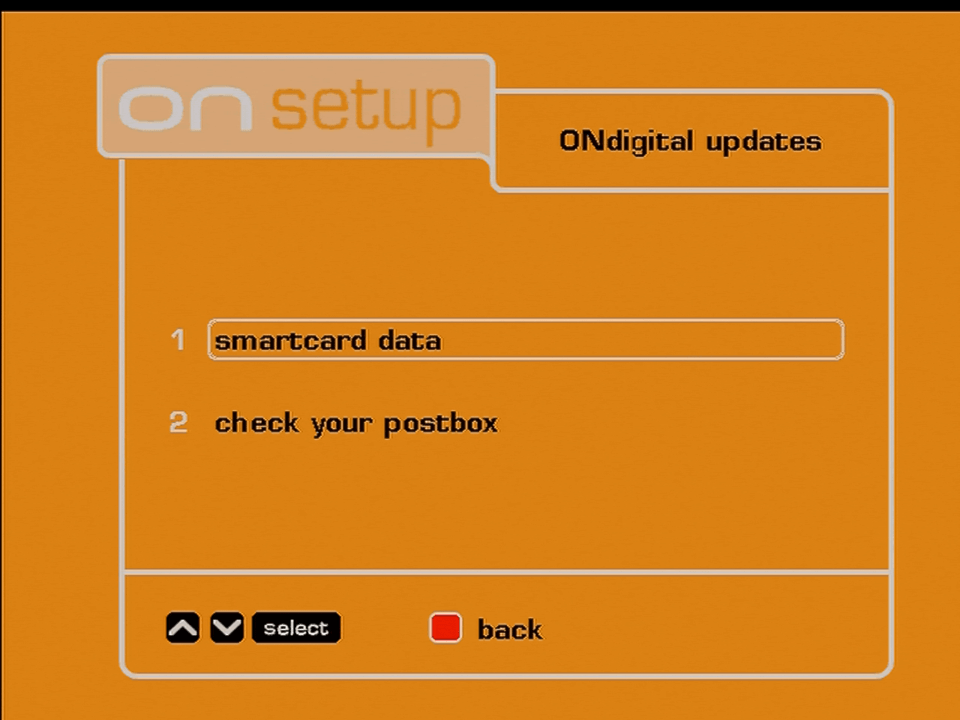
ONdigital Updates

ONdigital updates
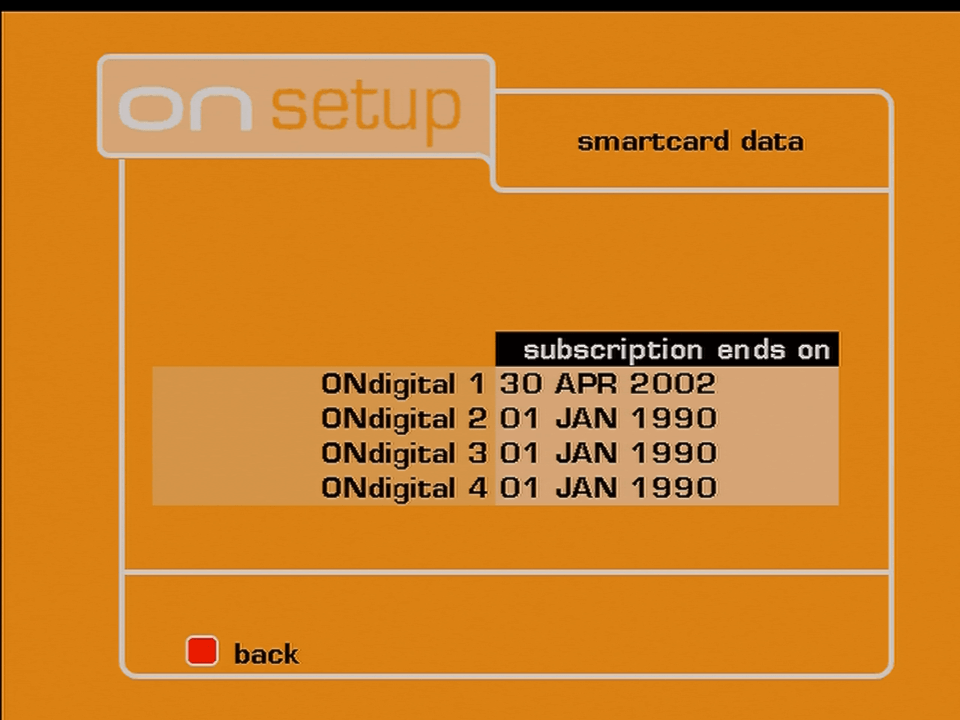
ONdigital smartcard

Smart Card data, shows when the current entitlements expire. it appears this card was in use until the demise of ITV Digital

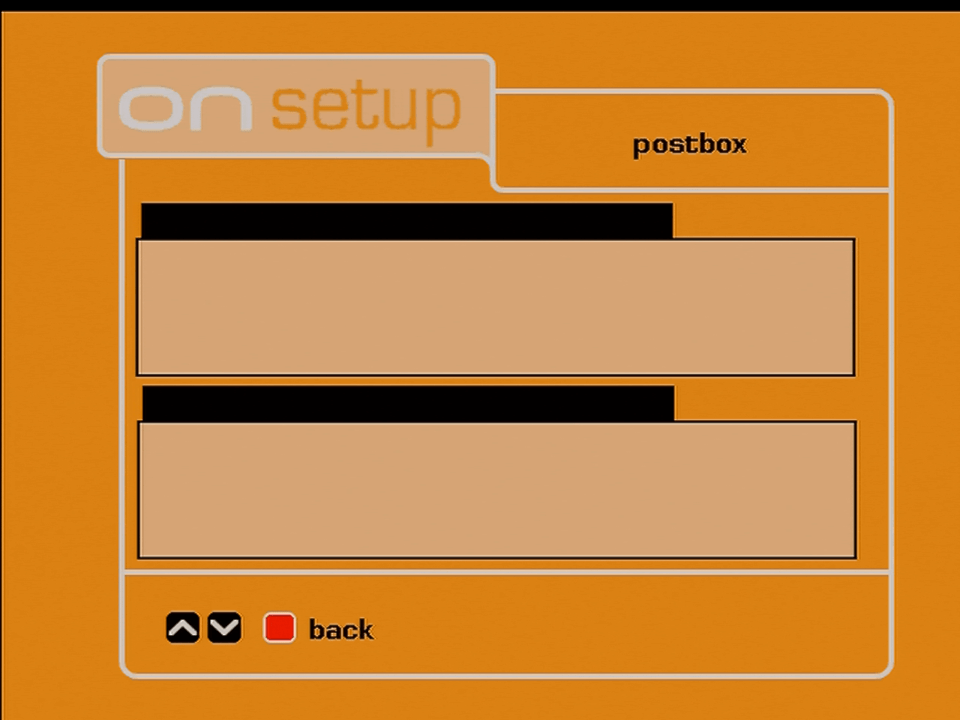
ONdigital postbox

The postbox, designed to receive broadcast messages, this was never used

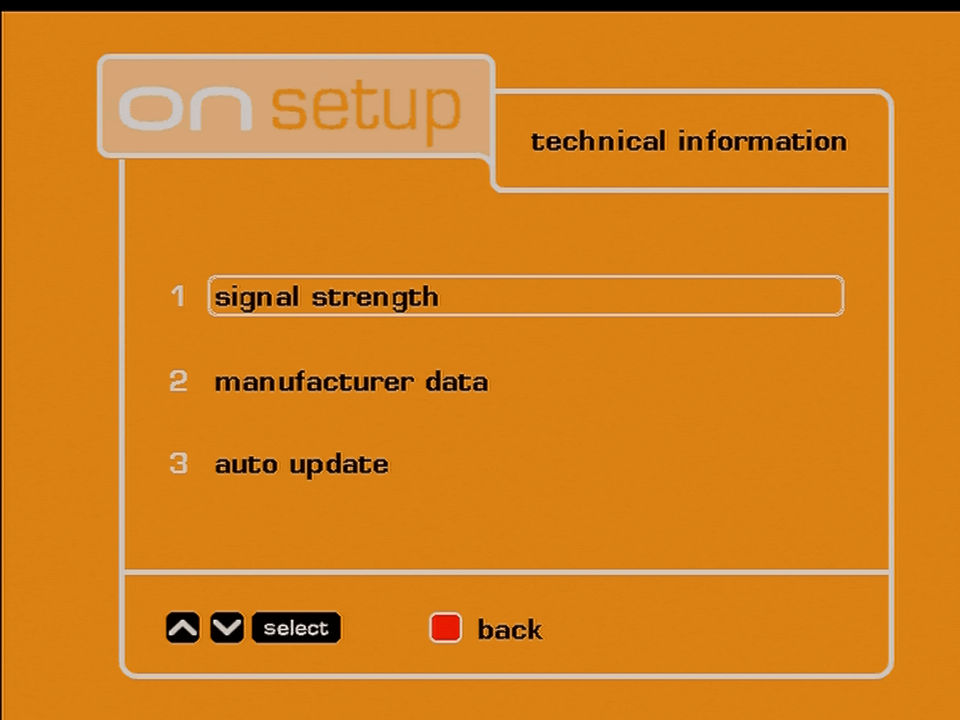
Technical Information

Ondigital technical information
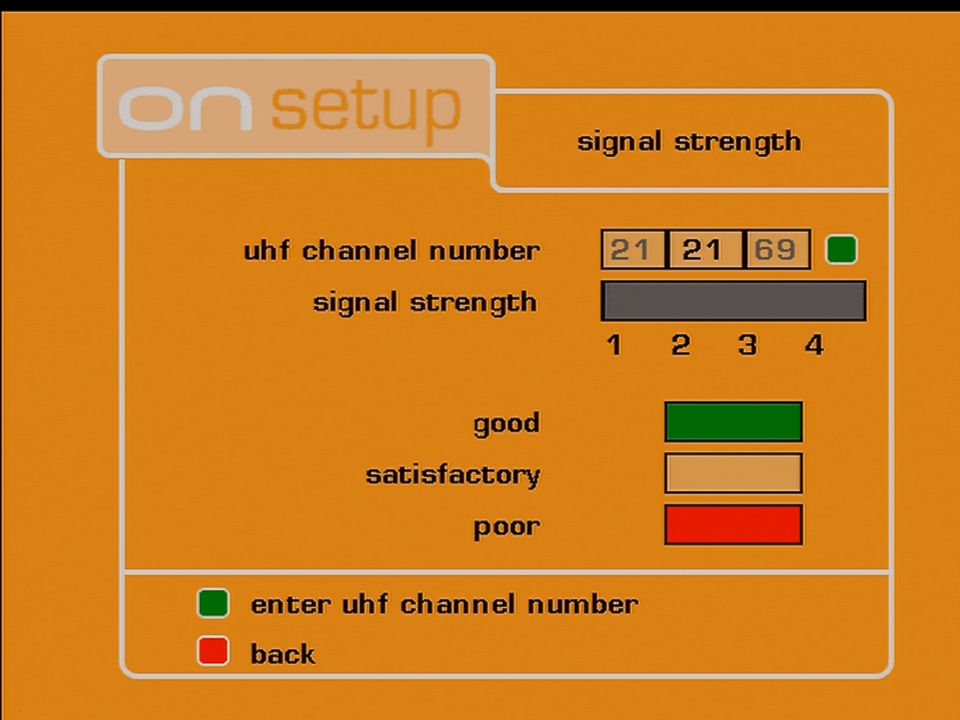
ONdigital signal strength

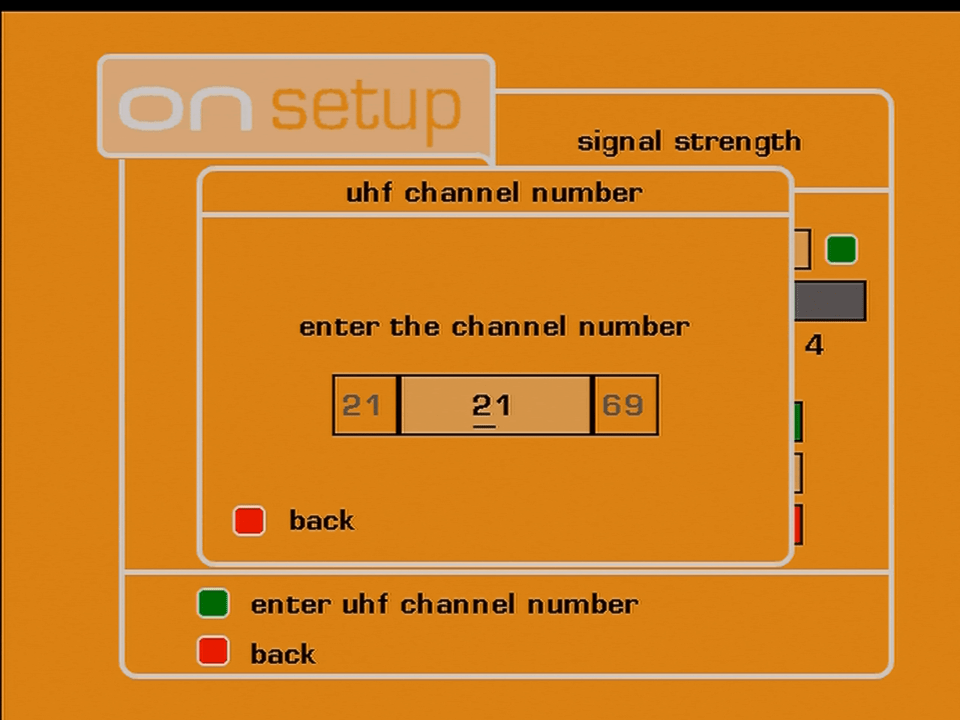
Signal strength, you have to manually enter the channel number to find out

ONdigital signal strength
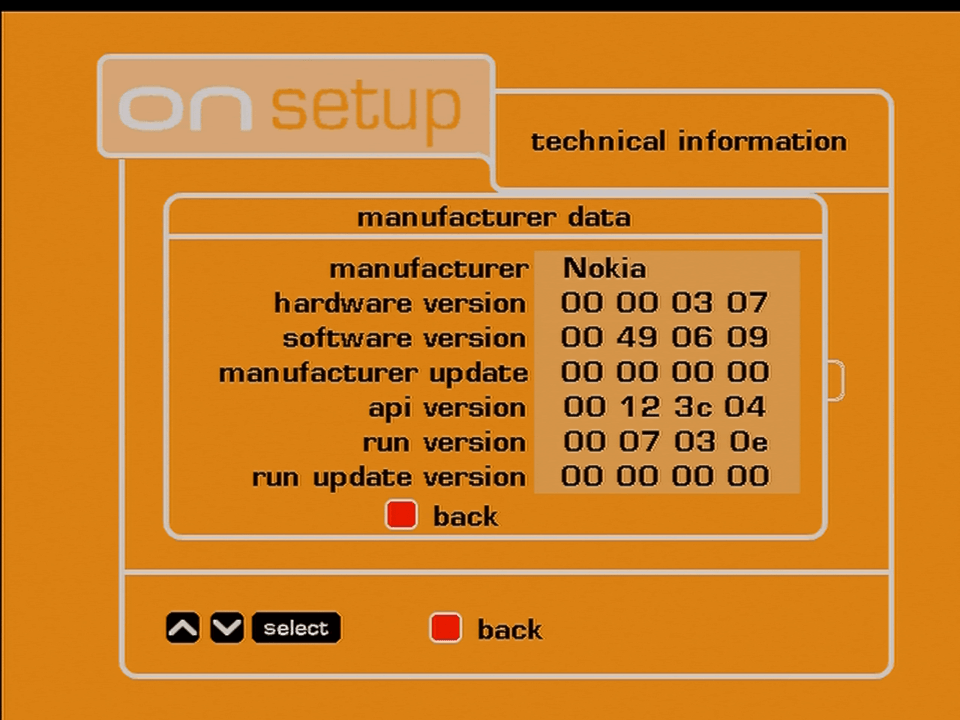
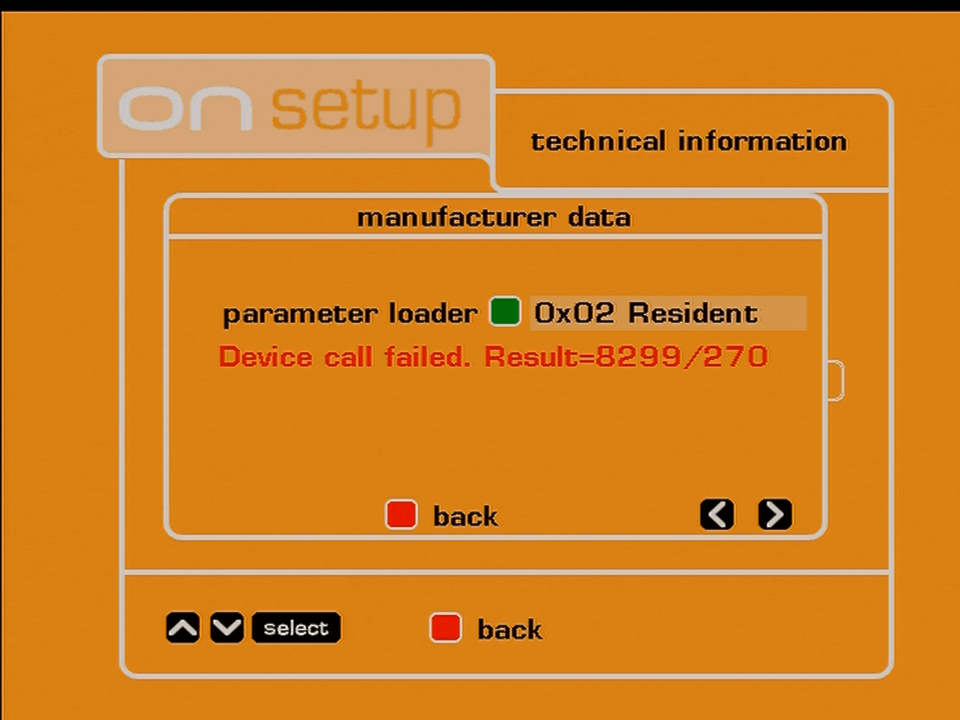
Ondigital Nokia

Information relating to the manufacturer, software version and hardware revision

ONdigital technical information

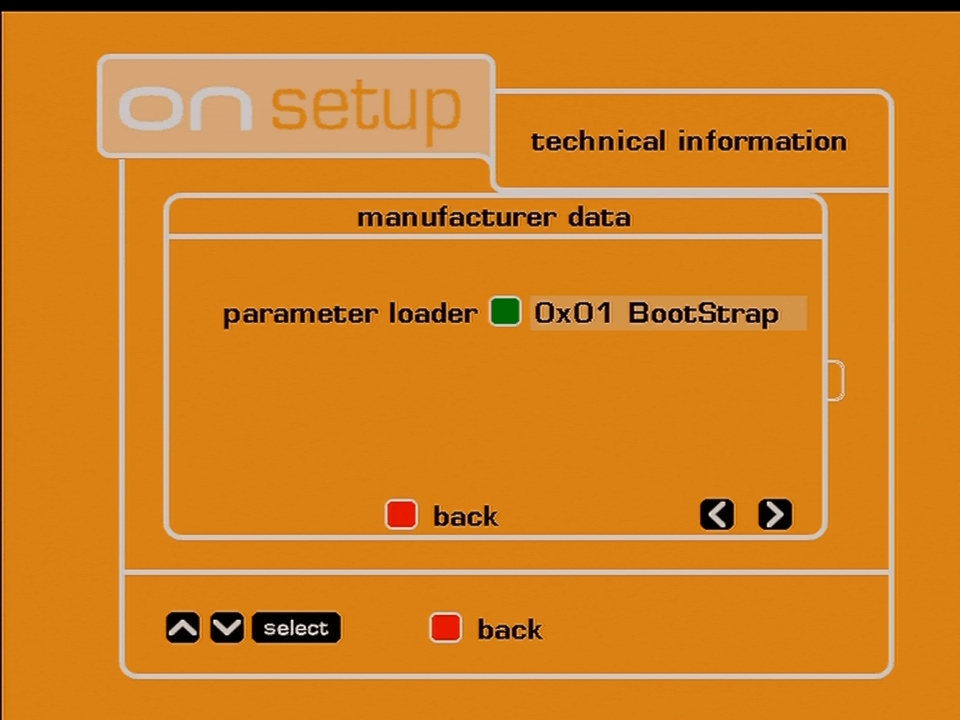
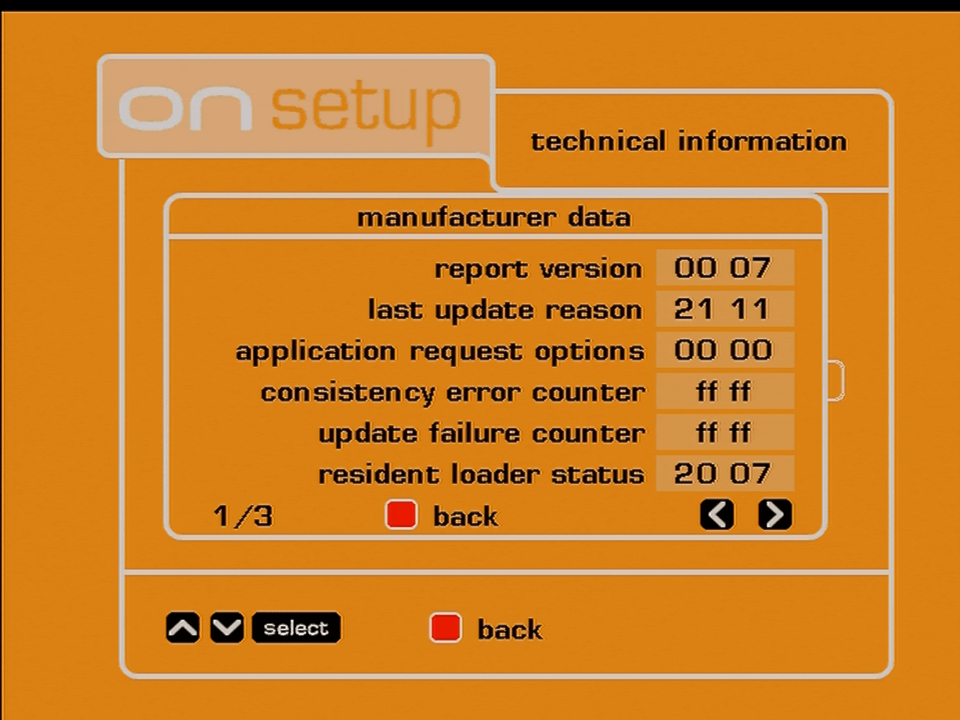
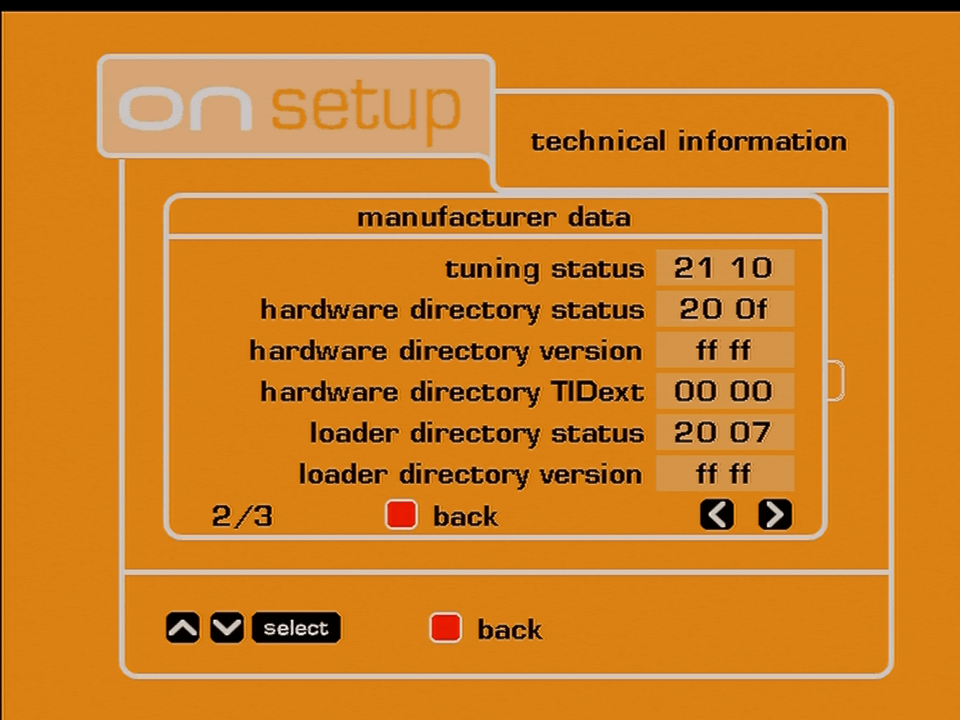
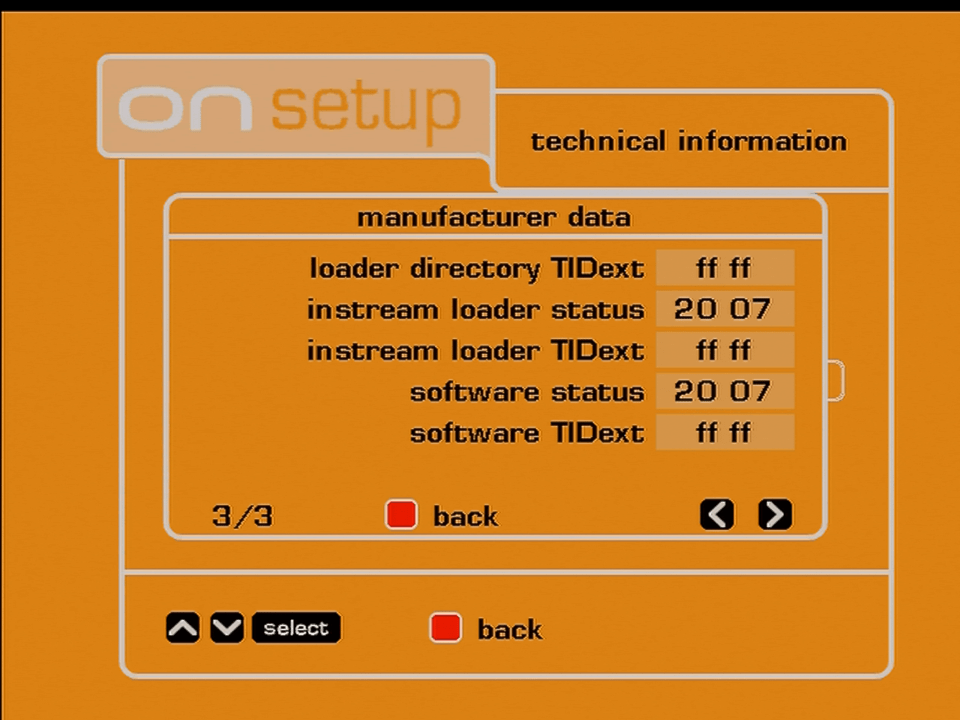
Hidden information menu, not much to do except to view certain debug information

Guide: ONMail

ONMail

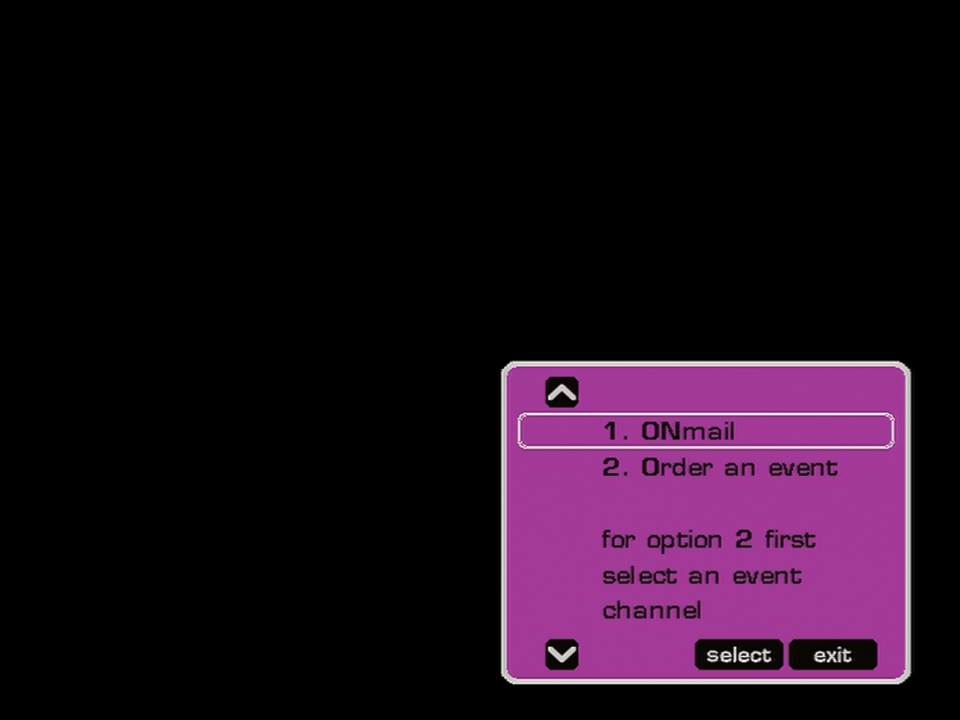
Pressing the guide button brings up this menu

ONMail

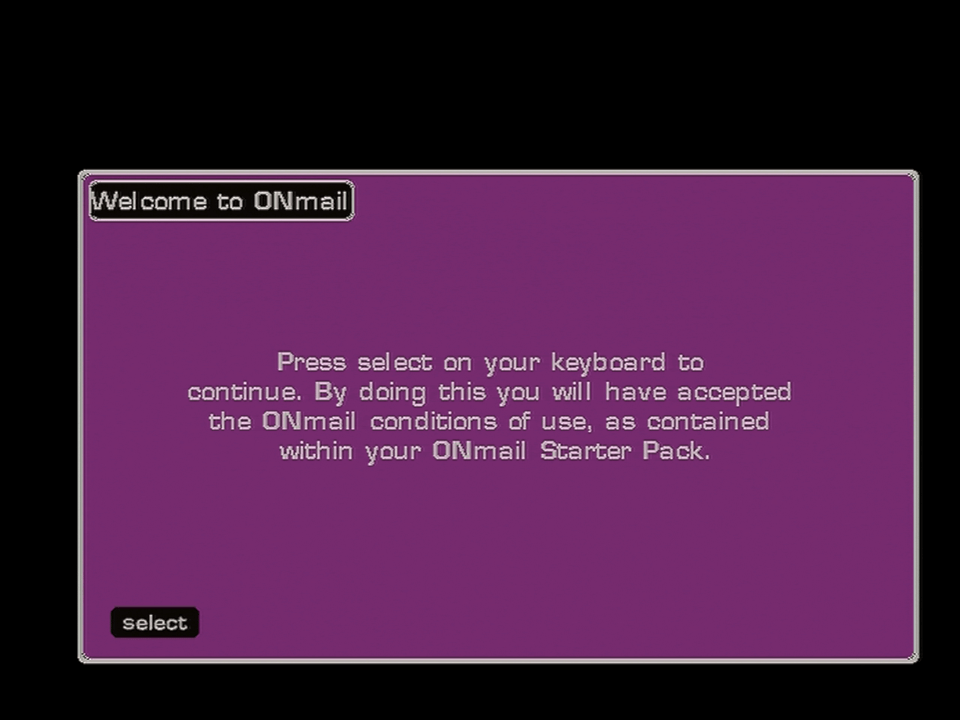
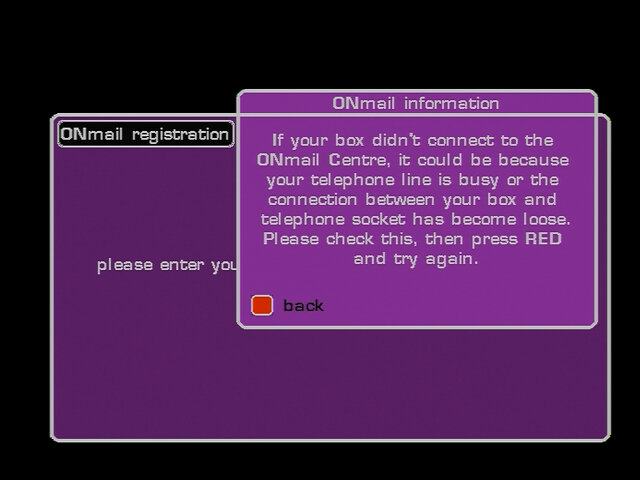
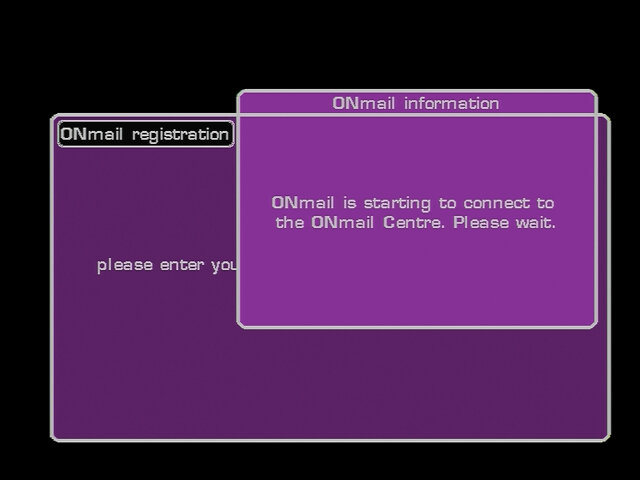
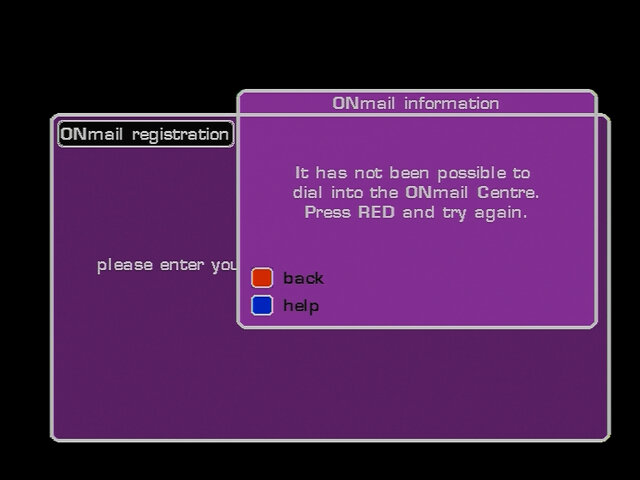
ONmail was ONdigital’s email service that could be accessed through the set-top box, using a remote and a receiver that plugs into the serial port on the ONdigital box.

ONMail

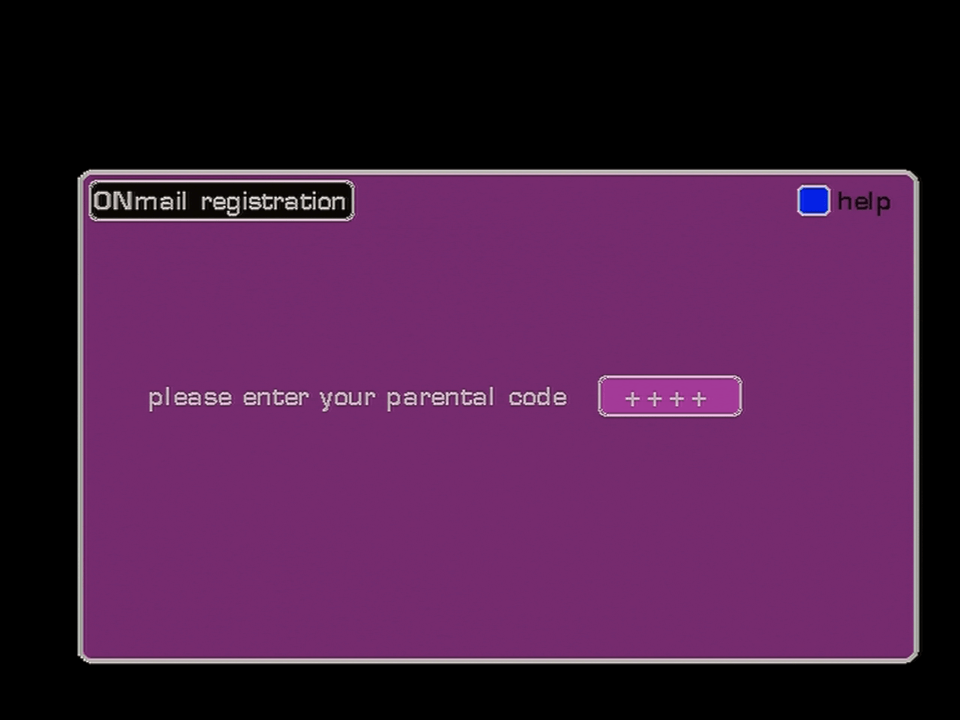
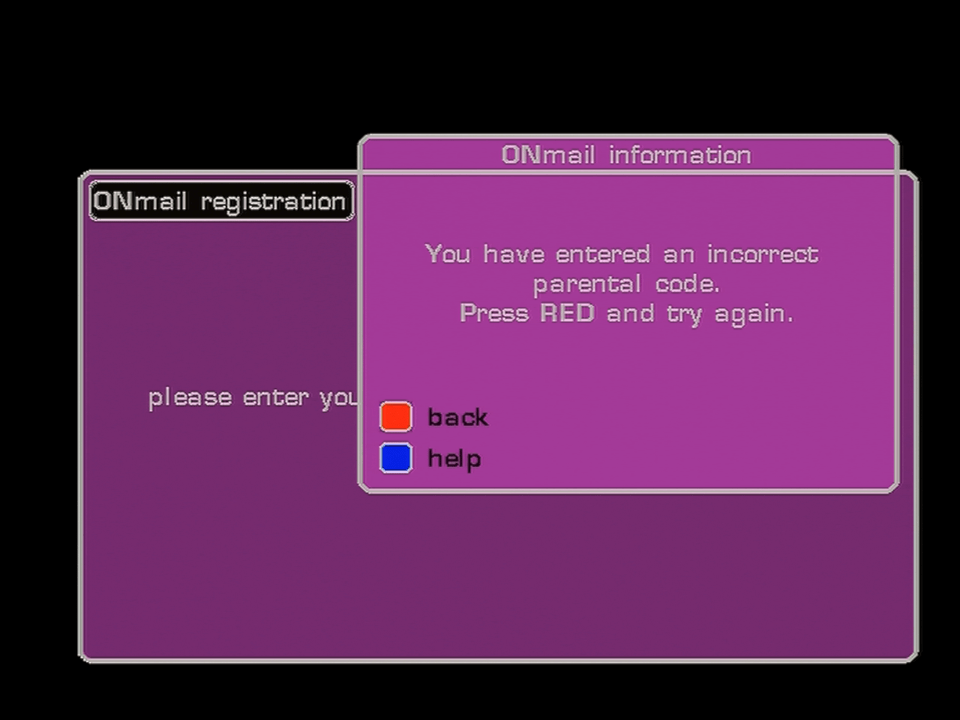
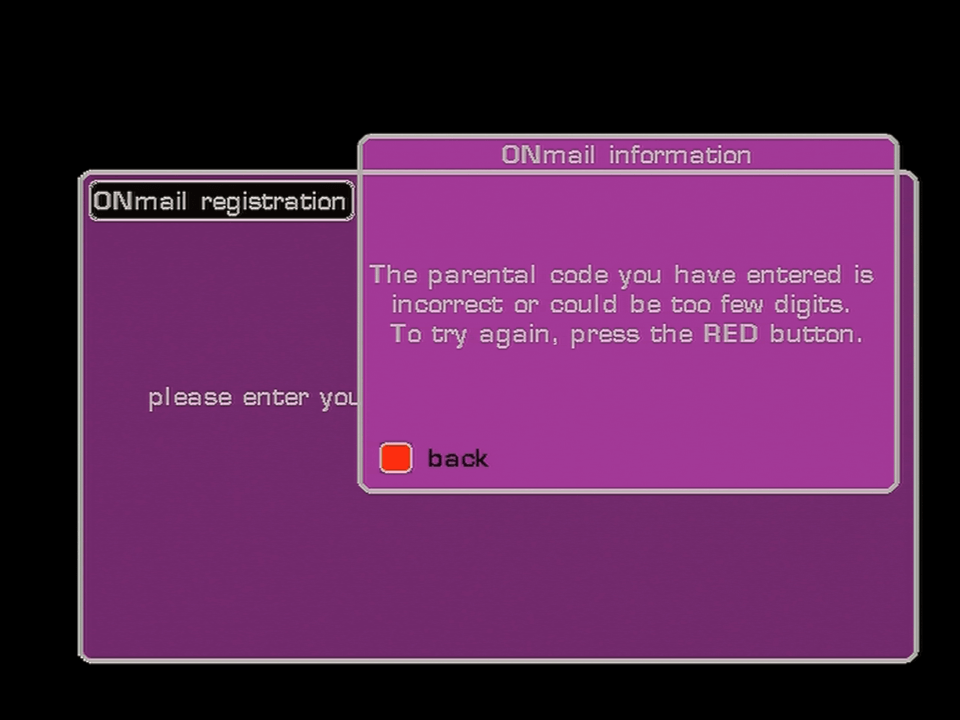
A PIN is required to access the service, since the PIN number on the card is unknown, we are unable to progress past this point.

ONMail

Not that we’d get any further, the servers were shut off shortly after ONdigital entered administration.

ONMail
ONMail
ONMail

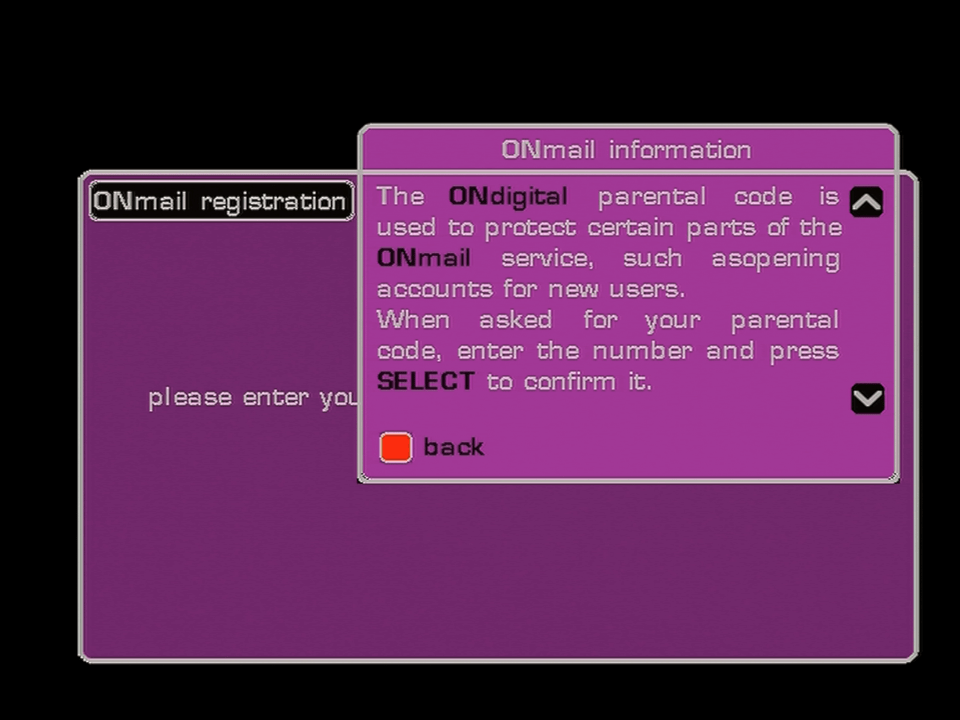
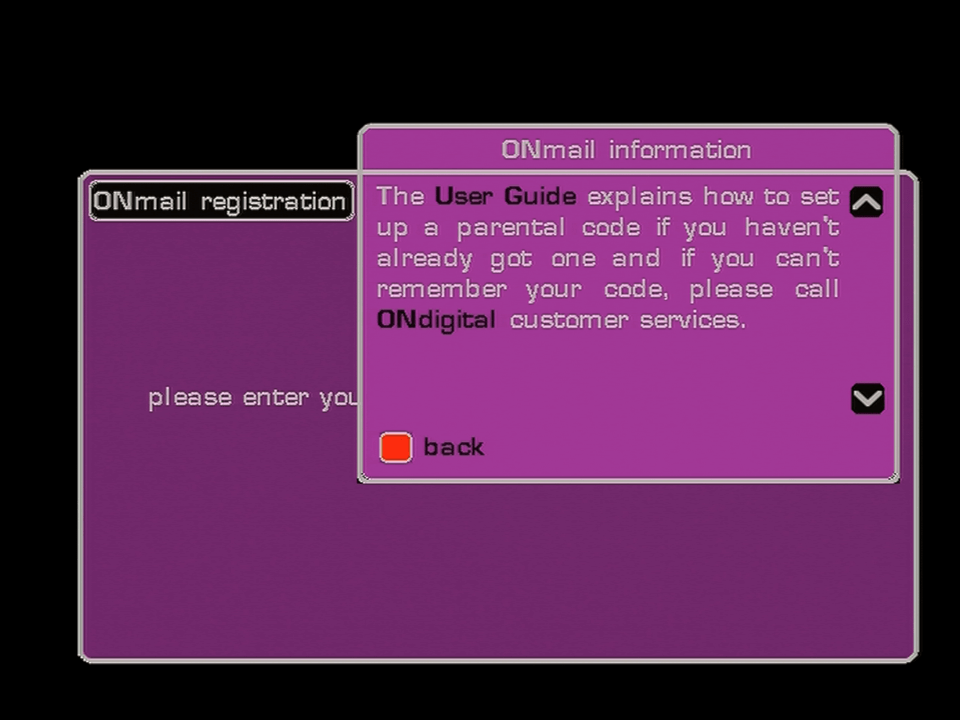
Update: Managed to get further

Misc

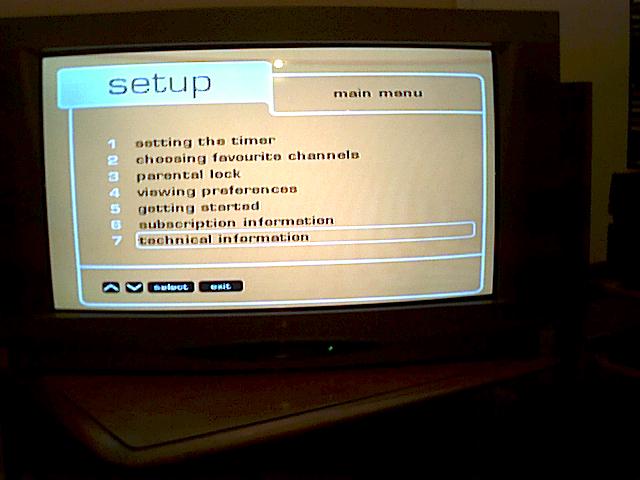
The menu from a Bush IDTV, here you can see some changes. Various references to ONdigital have been removed with option six being renamed to subscription information, and the ON logo being removed from the top left of the screen. This must be due to the change from ONdigital to ITV digital

Sky Interactive – Part 1

A look at Sky’s interactive services offered in 2002, back when interactive TV was a thing

Also can’t mention Sky interactive without the Red button dude, who’s sole purpose was to promote Sky interactive services by pressing your red button, even though that only worked on a Sky channel.

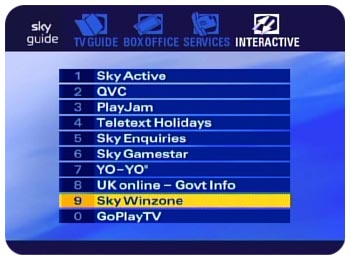
sky guide interactive

Interactive Menu

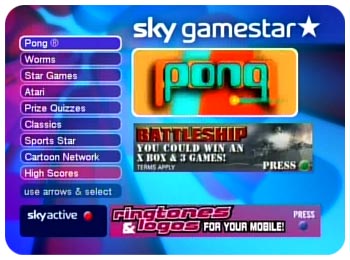
sky gamestar

Sky Gamestar

Sky’s interactive game service

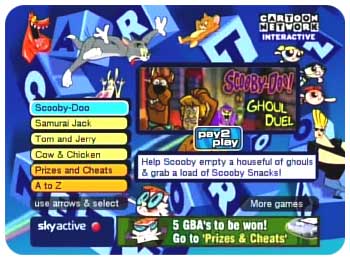
sky gamestar cartoon network

Sky Gamestar – Cartoon Network

A dedicated section of gamestar with games based on Cartoon Network shows

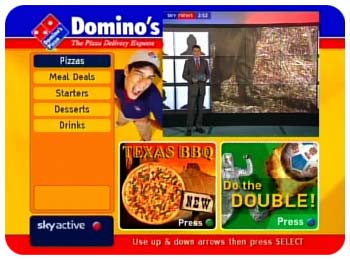
sky interactive dominos pizza

Domino’s Pizza

At one time you could order Pizza through your Sky Digibox

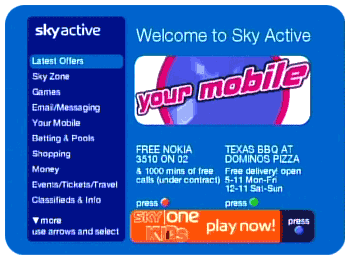
sky active 2003

Sky Active

sky active 2001

Sky Active

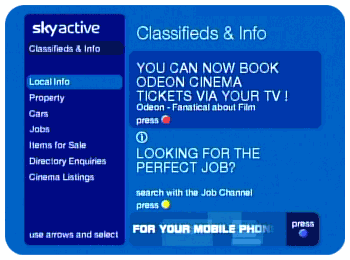
The Classifieds and info section, for local jobs and marketplace

sky cinema listings

Cinema Listings

View and book local listings, this only worked with Odeon cinemas, which was useless because there were no Odeon cinemas in my area.

sky active sky+ domino's pizza

Adverts

Sky used to advertise their services and competitions whilst interactive screens were loading

Lovetomeet

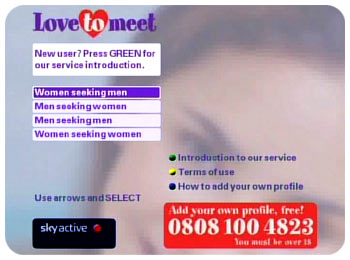
A dating service that relied on the internal modem

sky interactive hsbc

HSBC

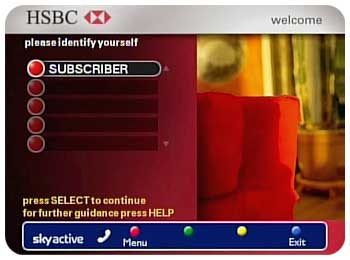
Before internet banking there was Interactive TV banking, again I only saw HSBC and LLoyds TSB being supported, other banks were not on the service

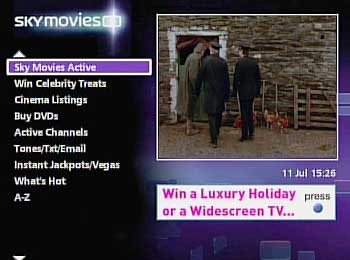
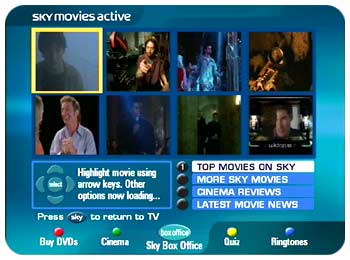
sky movies

Sky Movies

Exclusive to the Sky Movie channels, shows local cinema listings and to purchase DVD’s, a nice feature of this service was you could see behind the scenes clips from moves.

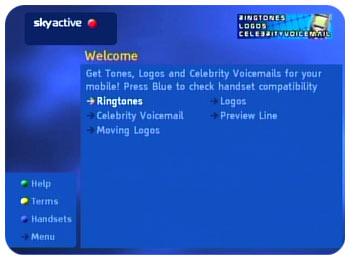
Sky active mobile

Your Mobile

Download ringtones, logos and custom voicemail, back when ringtones were polyphonic (think Nokia 3210, Ericsson T28s)

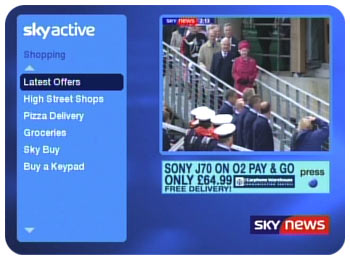
Sky active shopping

Sky Active: Shopping

Home shopping was considered to be a main feature of interactive TV, since customers could see the items themselves. Sky allowed a range of retailers to have presence on interactive, and even had their own storefront, SkyBuy

Sky marketplace

Marketplace

Some sort of eBay/Gumtree service, customers could buy and sell locally

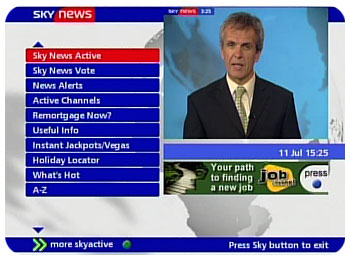
Sky News Active

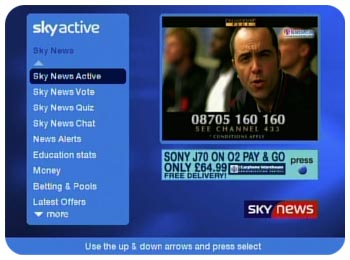
Sky News Active

Activated by the red button, a very useful service where you can browse news headlines, view ‘Active Channels’ which were small channels dedicated to certain subjects or headline coverage. These could also be tuned in using the Other Channels feature, bypassing the service

Sky Movies Active

Sky Movies Active

This is where you could see the behind the scenes stuff from movies, similar to bonus scenes on DVD’s

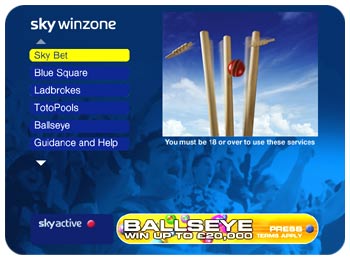
Sky Winzone

Sky Winzone

Sky Active 2002

Sky Active

Another view of the main Sky Active home screen

Interactive today

Sadly Sky axed most of their interactive services, so here is the interactive menu that you are left with

Does it work? Well…

It seems the only OpenTV interactive TV services available is BBC Red Button and the S4C language changer, none of which use the modem/return path. I’m not sure if the services offered on Sky Q are the same, I believe it’s mostly Netflix/Prime type of applications that are video on demand services.

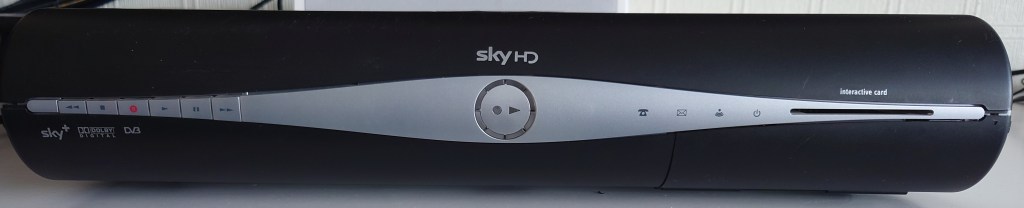
Restoring a Thomson SkyHD box

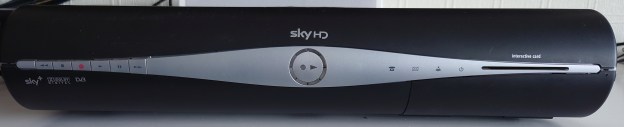
I’ve been meaning too document the HD era of Sky for some time now and whilst I do have a HD Sky box (the DRX595), I’m interested in the early era of SkyHD.

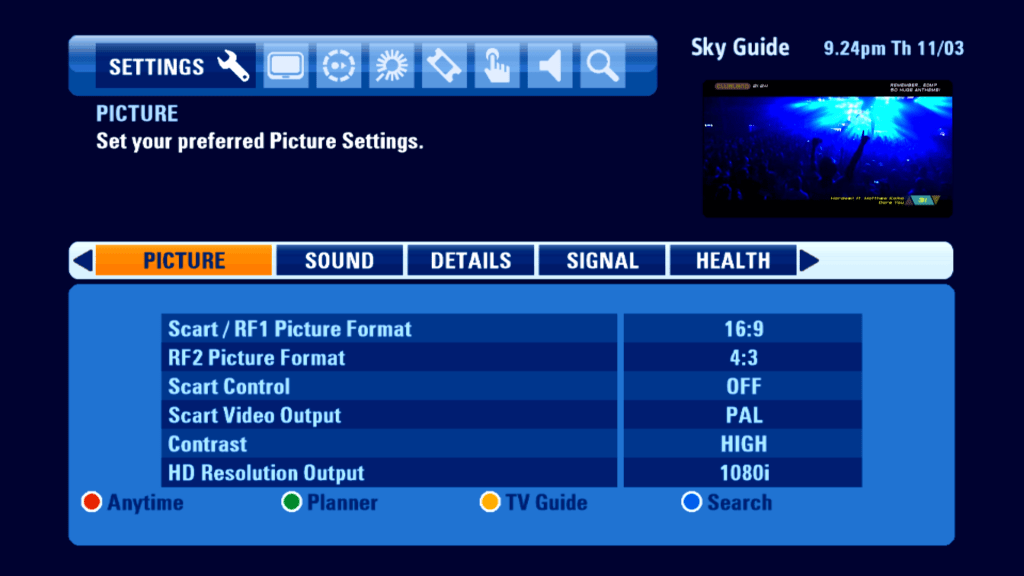
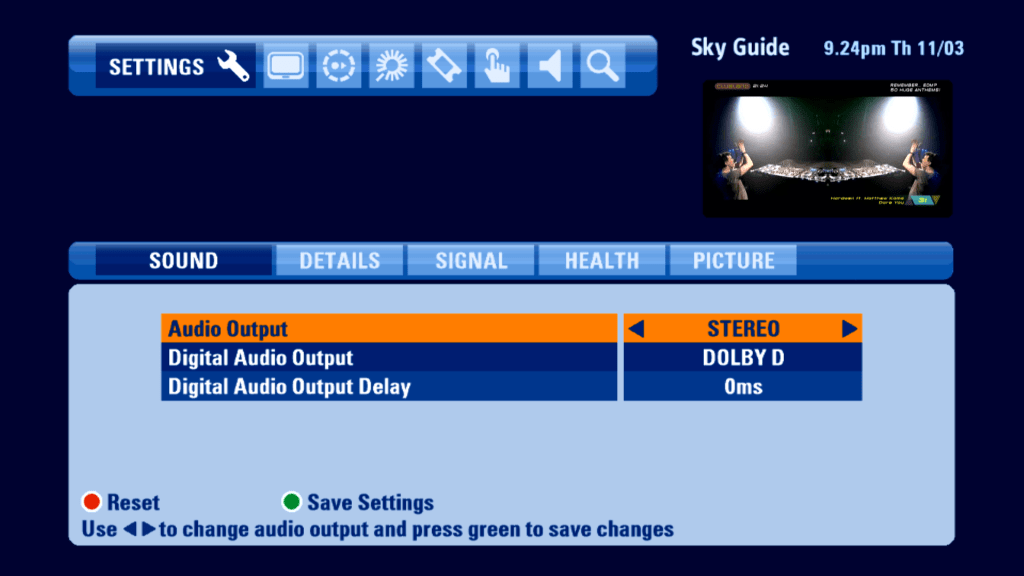
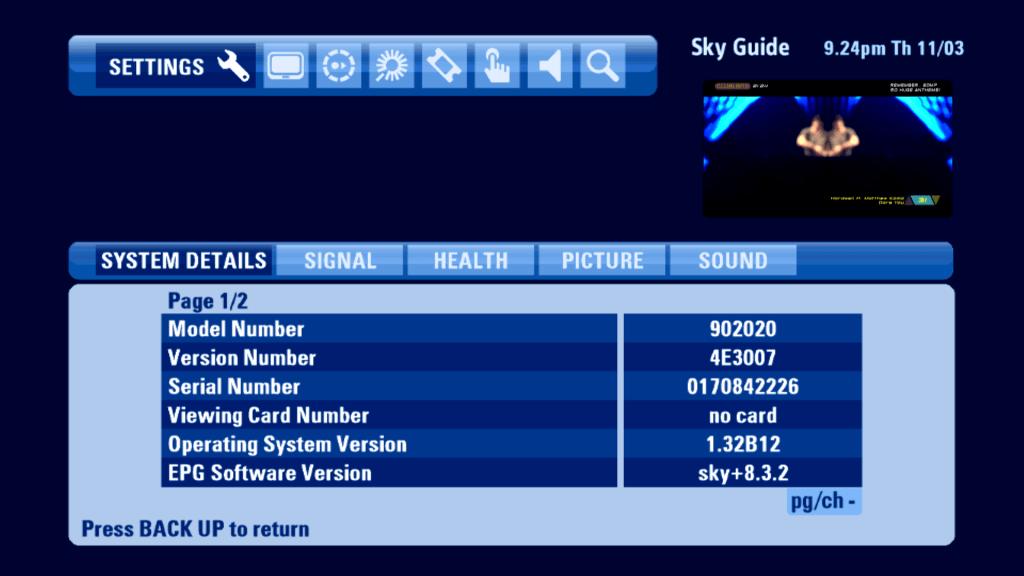
The HD EPG has been through multiple iterations, first it launched with an upscaled version of the Sky Guide interface that graced many Digibox’s since 1998. Sky redesigned the EPG exclusively for the HD boxes in 2008, which is the EPG I’m currently interested in below, unfortunately the majority of all HD boxes run newer versions of Sky HD guide, all except for one

Thomson DS8215

Thomson DSI8215

This was the launch STB for Sky HD, and remained the only box until 2008 when Sky started sourcing from Pace, Amstrad and Samsung, and were the only boxes that had analogue HD outputs (Component/YPbPr). Whilst the other boxes continued to receive updates after 2011, Sky began to phase out the Thomson models, which remained on the 8.3.2 EPG, and was the last OpenTV based EPG.

Admittedly Thomson were not the best manufacturer of Sky digibox’s. Don’t get me wrong, they’re mostly fine but nearly all Thomson (and Grundig, more on that later) digibox fall suspect of faulty PSU capacitors, which can cause myriad of issues from being stuck in standby to no satellite signal, and the HD box was sadly no exception to this.

First Impression

The box seemed to have been in use for a few years, and has had a bit of wear and tear.

Well it looks OK so far…

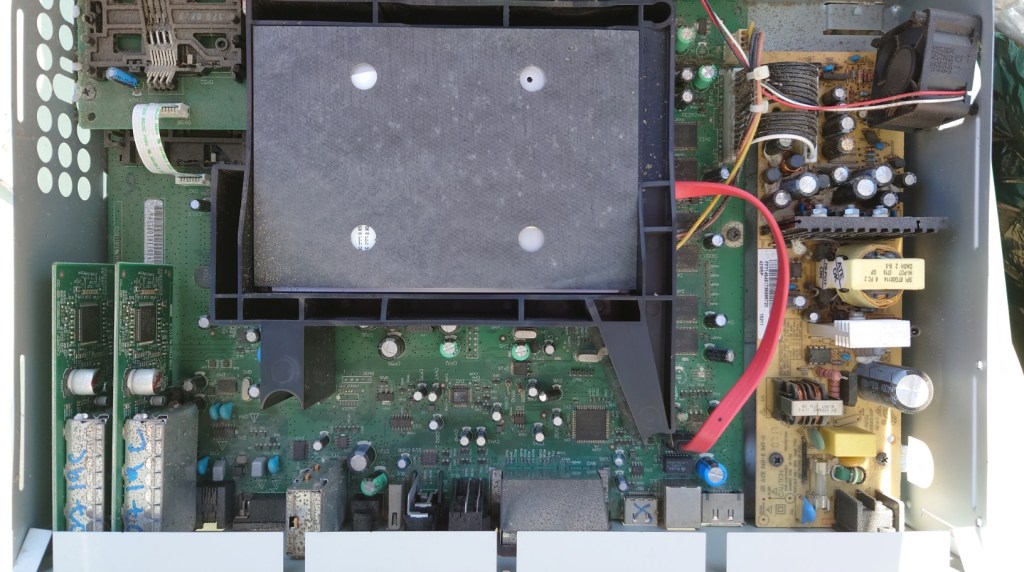
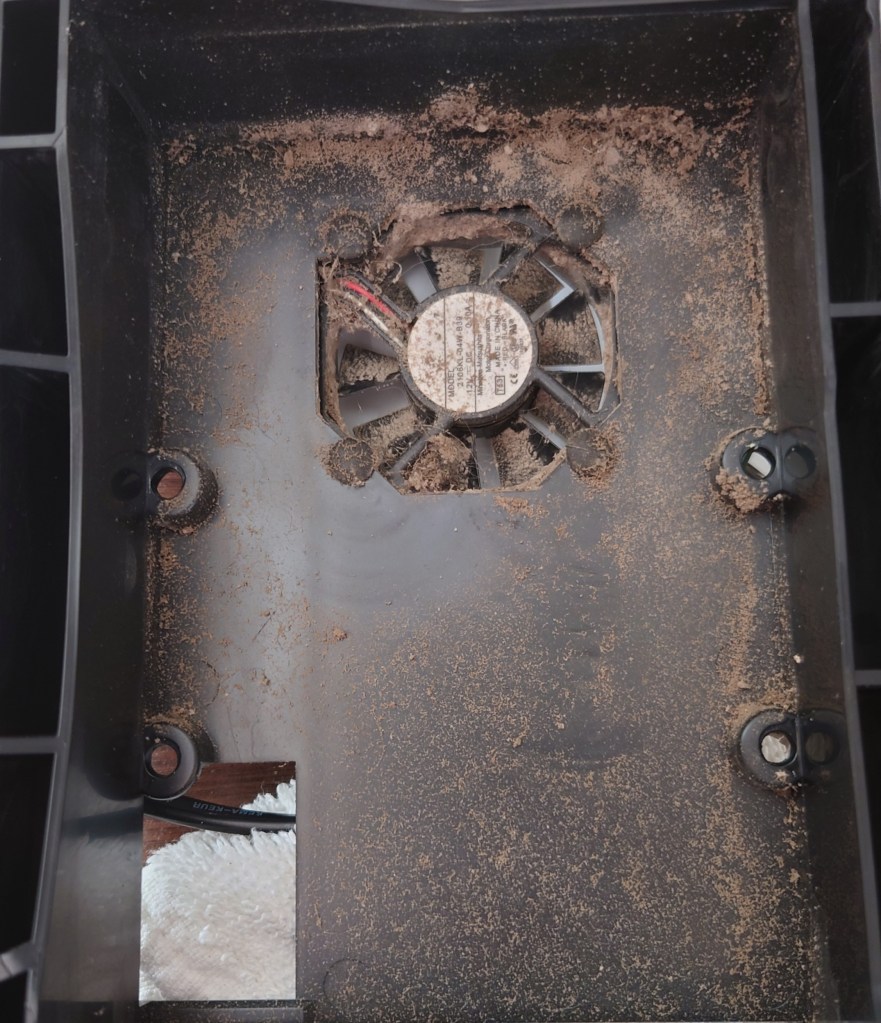
Seems to have had a lot of dust and grime build up over the past few years from the previous owner

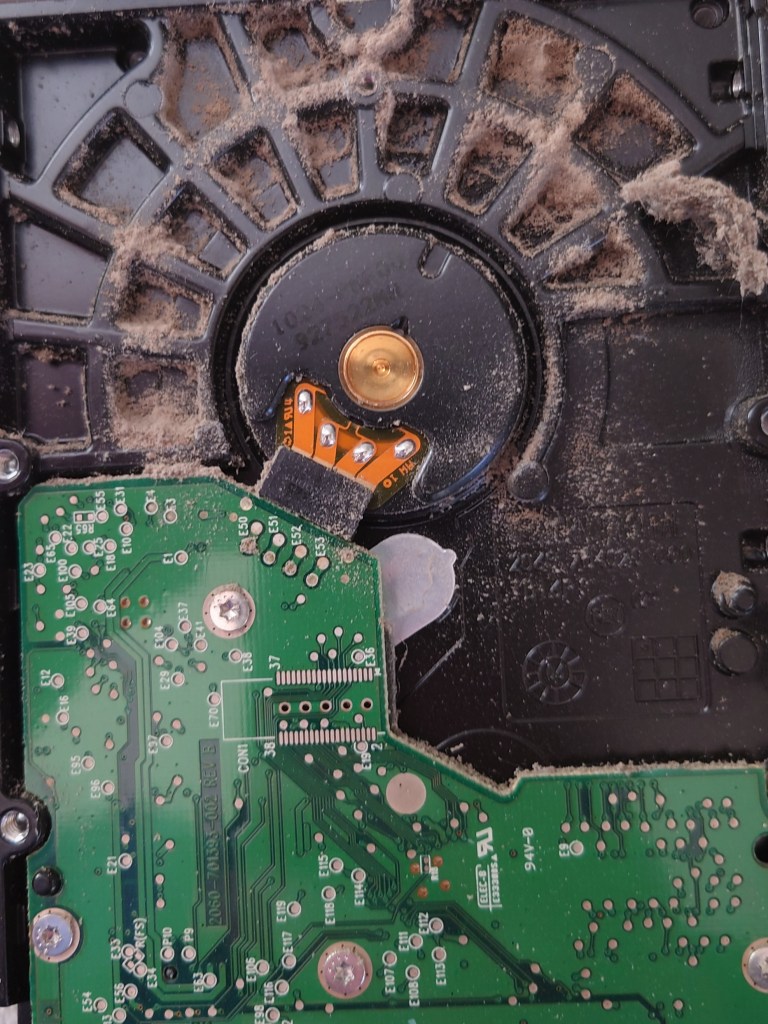
The hard drive seems to have taken the brunt of it all, since there is a fan situated right below it that serves as the air intake.

Yeesh…

At this point I figured I had to take the box outside and clean it with a can of compressed air to get the dirt out.

Power Supply

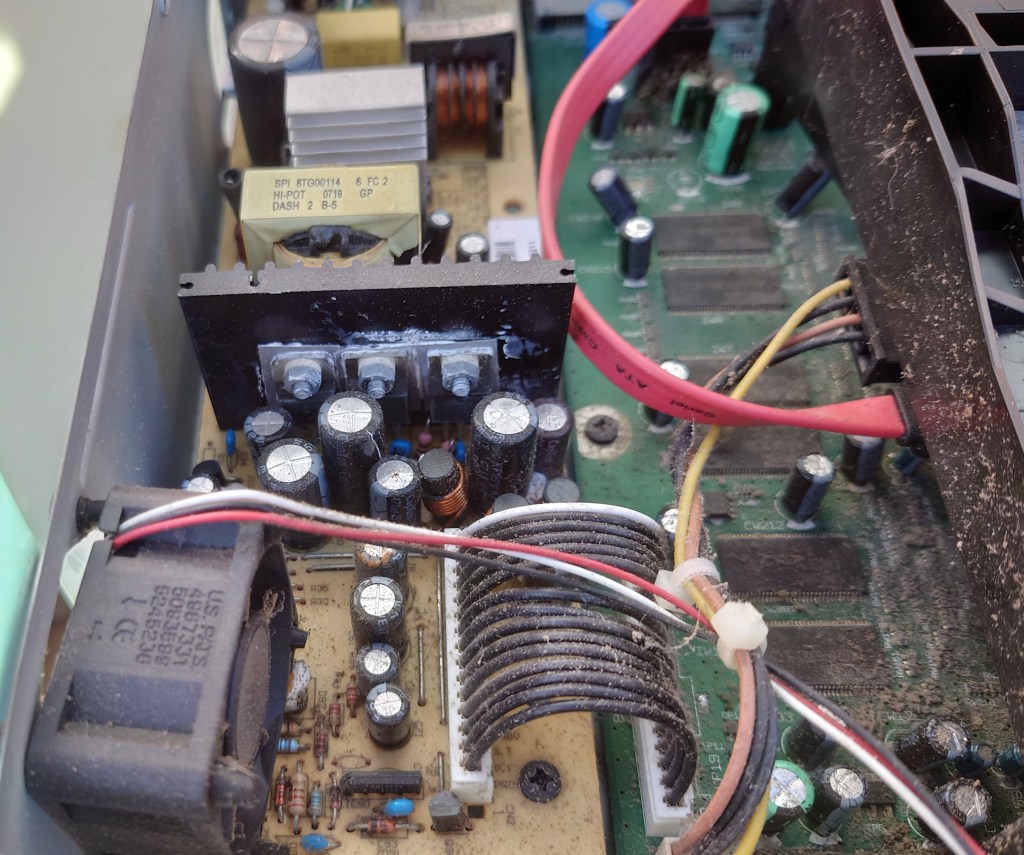
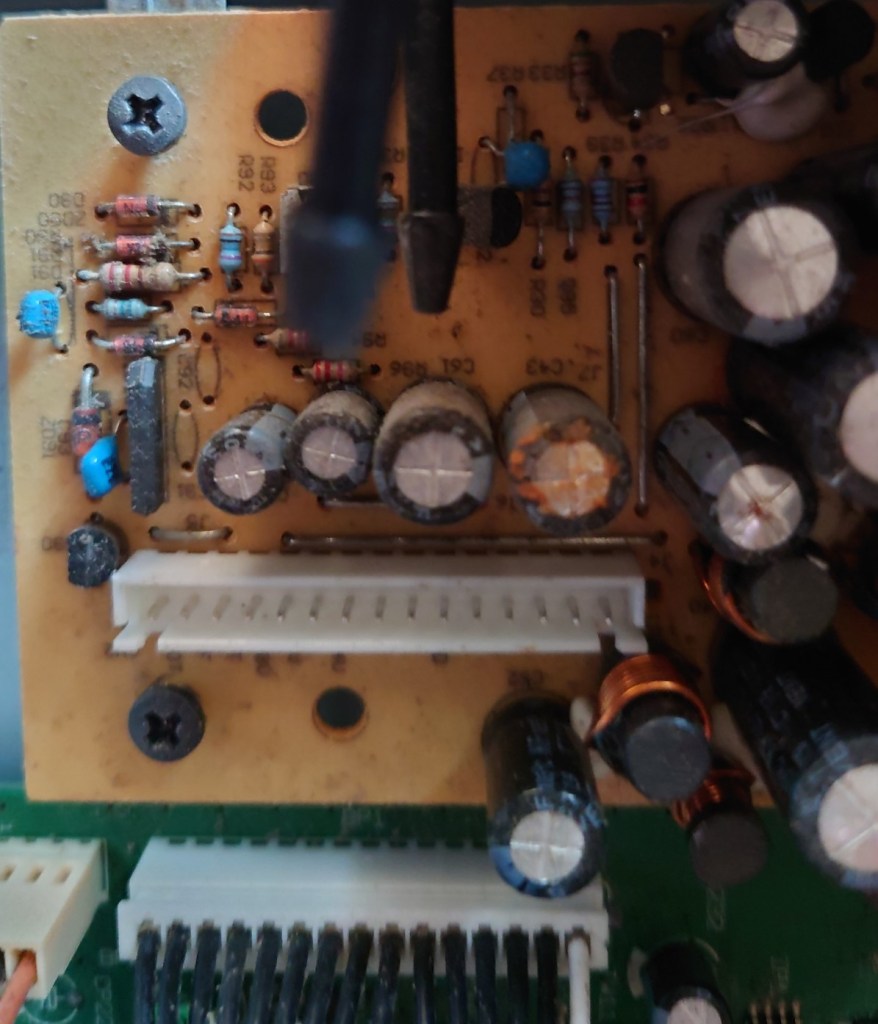
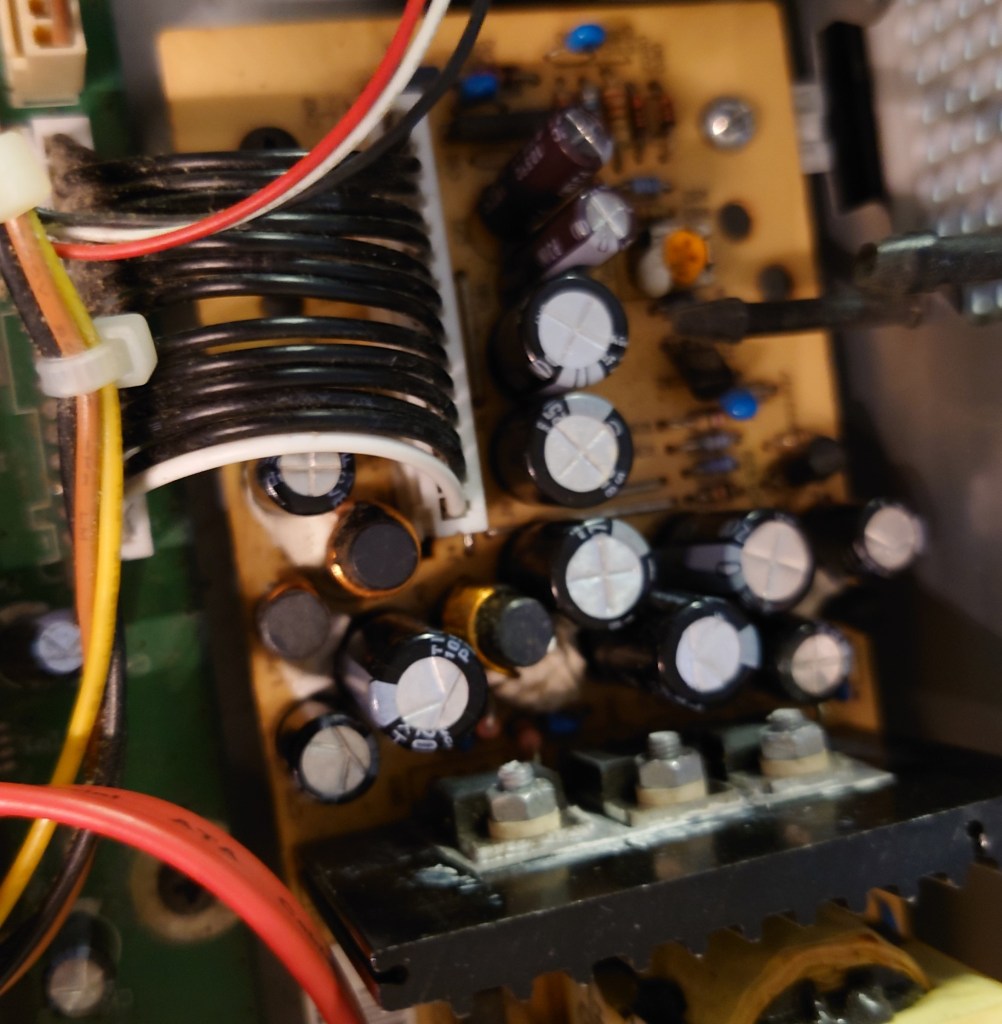
A common issue on Thomson SkyHD (and Sky+/Digibox’s) is the power supply capacitors failing, all thanks to capacitor plague. This isn’t unique to Thomson Sky boxes as it can affect Grundig models as well, Thankfully it’s fixable even in 2021 either by yourself or you can send it off to be repaired. You can see in the above picture that one of the capacitors has started leaking, whilst others are bulging slightly.

This can also affect other consumer electronics from the 1999-2006 era, notably the clock capacitor on the original Xbox and various PC motherboards.

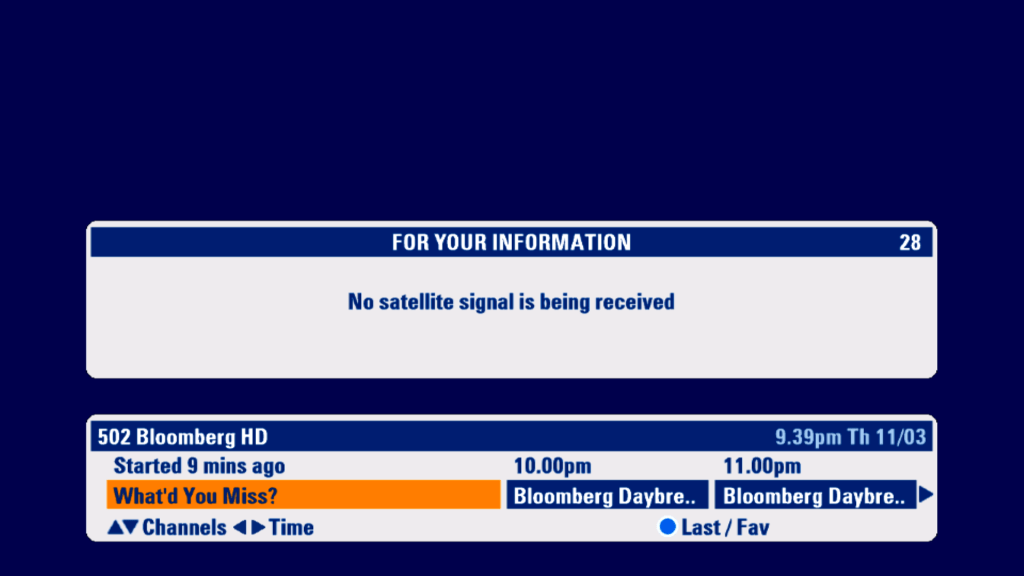
This box specifically had issues finding a satellite signal, and would only display ‘no Satellite signal is being received’ on both tuners, respective of either single or dual feed being used. Also a audible whine could be heard from the power supply, which is usually not a good sign.

The replaced capacitors

Conclusion

its worth mentioning that Sky no longer support this box for HD channels, whilst SD subscription channels and HD Free-To-Air channels will work, HD subscription channels will not work, since Sky moved to a different card pairing method this this box does not support, still for Freesat or basic subscription use the box will continue to work. The box also does not support any catch-up or On demand services offered by Sky.

Another thing to mention with this box is it will no longer recognize any viewing cards, this is probably due to fault with the box, either the card reader has failed or the contacts are dirty. This makes it impossible to use it with Sky+ modes since they require a Sky+ reenabled viewing card to work.

With this in mind I may decide to change the hard drive for a dummy Sata-SD card adaptor, since it makes no since having a hard drive that wont be used. I’m not sure what HDD space requirements the box has, since the box likes to reserve 140Gb for Anytime use.

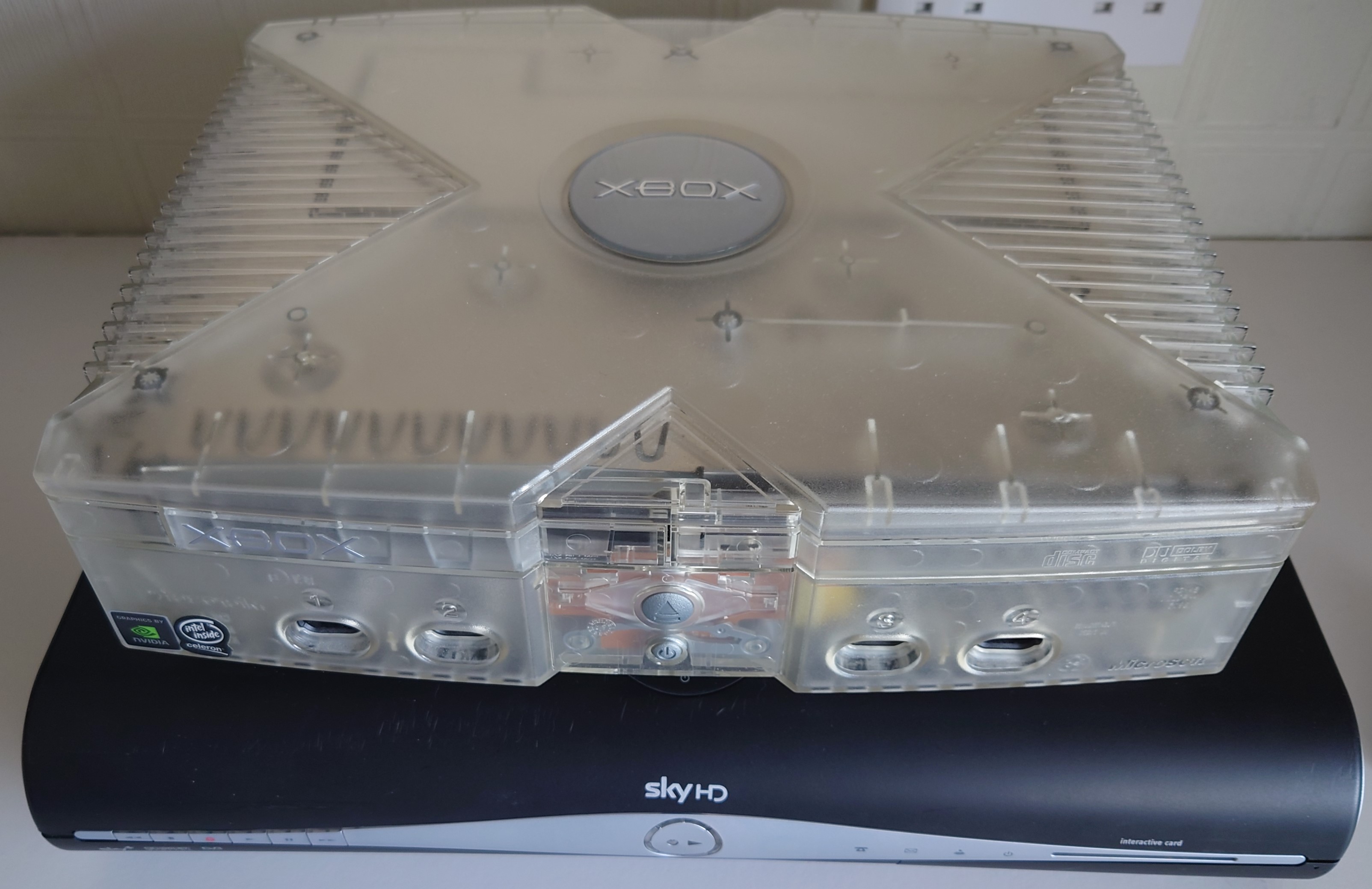
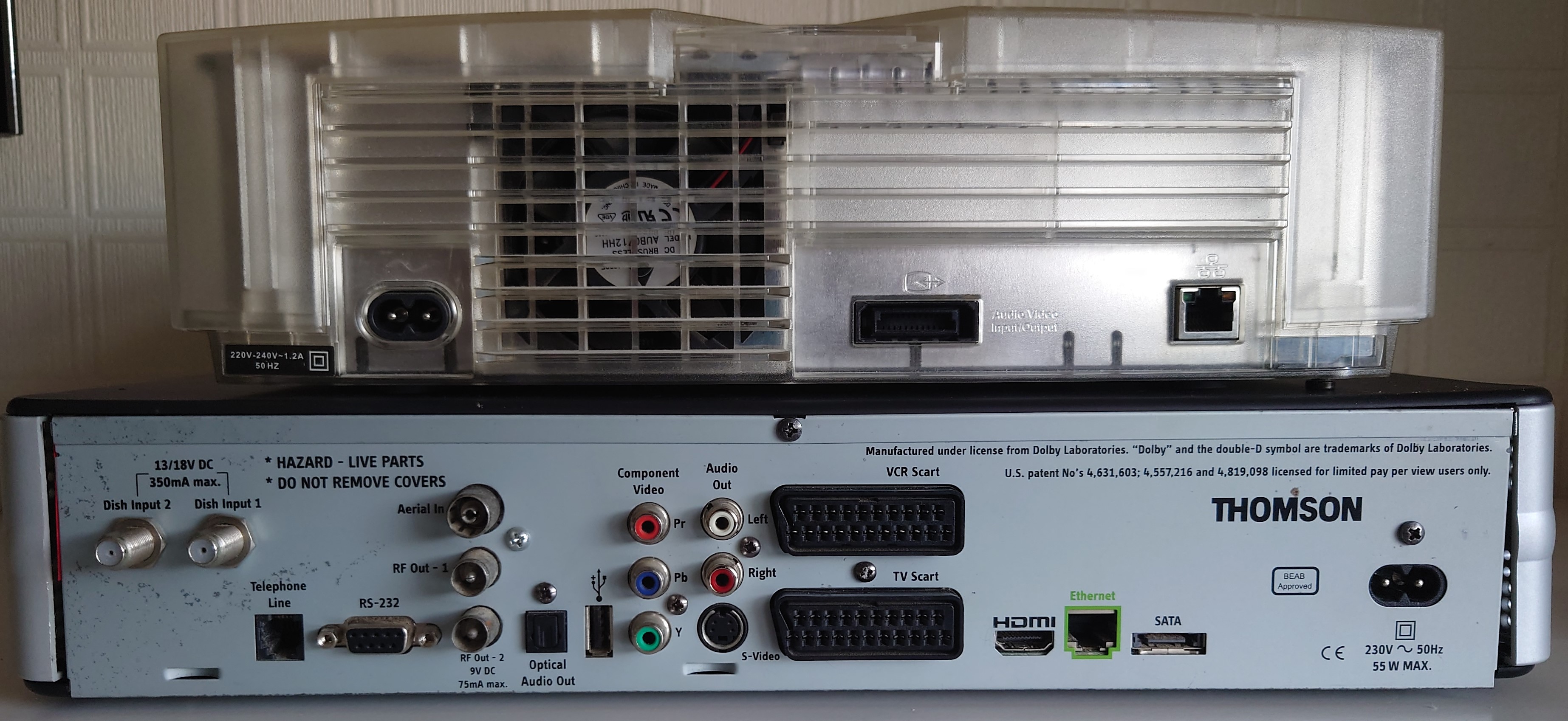
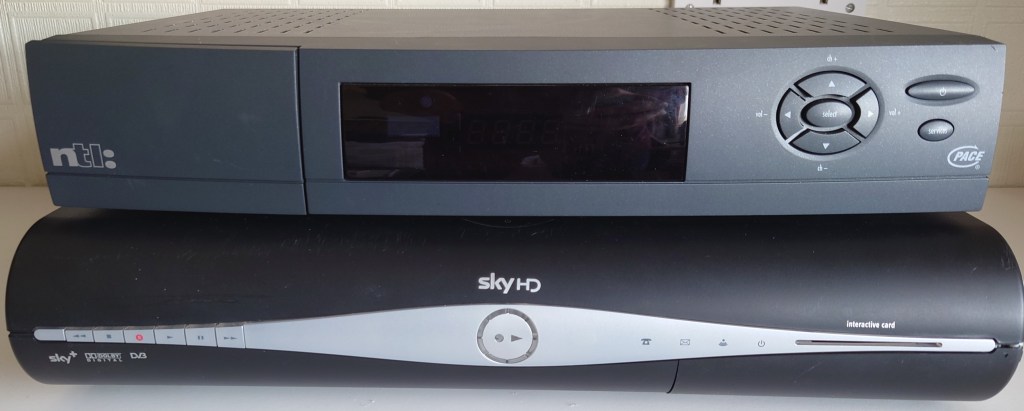
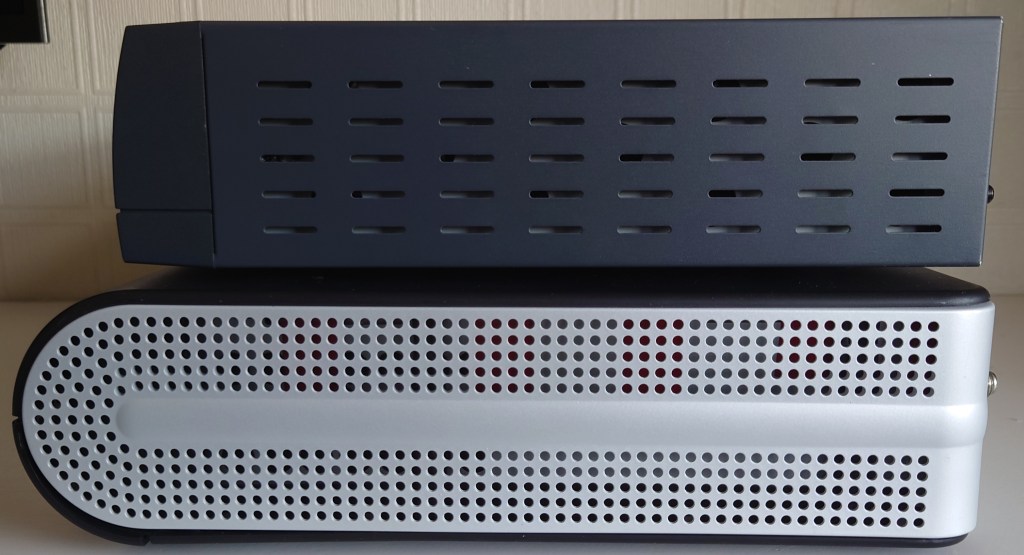
Size Comparison

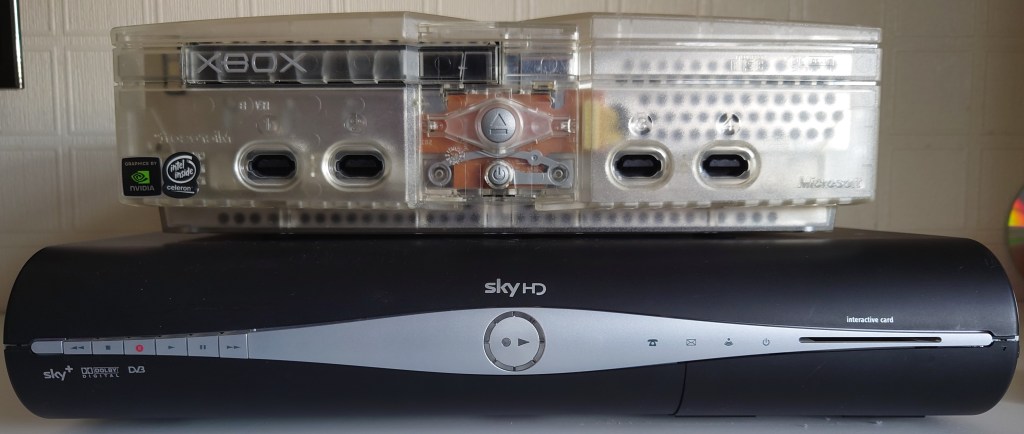
The Thomson SkyHD box was quite large compared to the previous set top boxes Sky have deployed, lets see how it compares:

Vs Xbox

Vs ntl: box

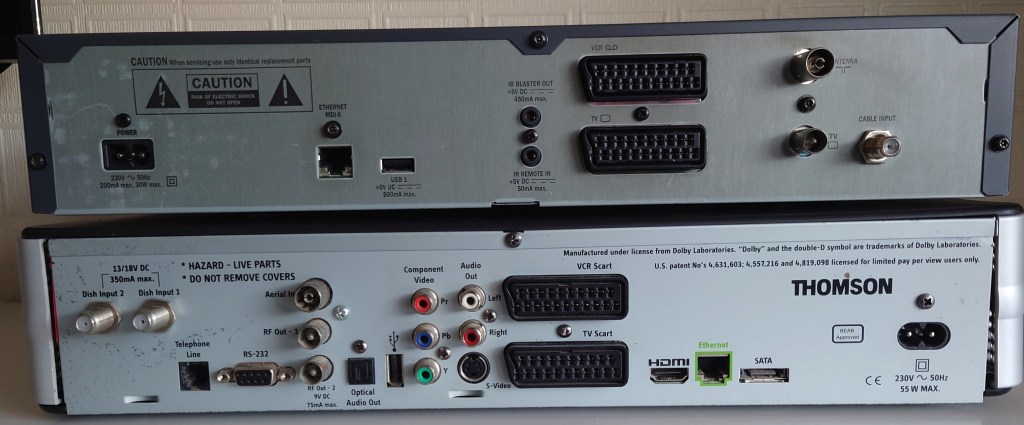
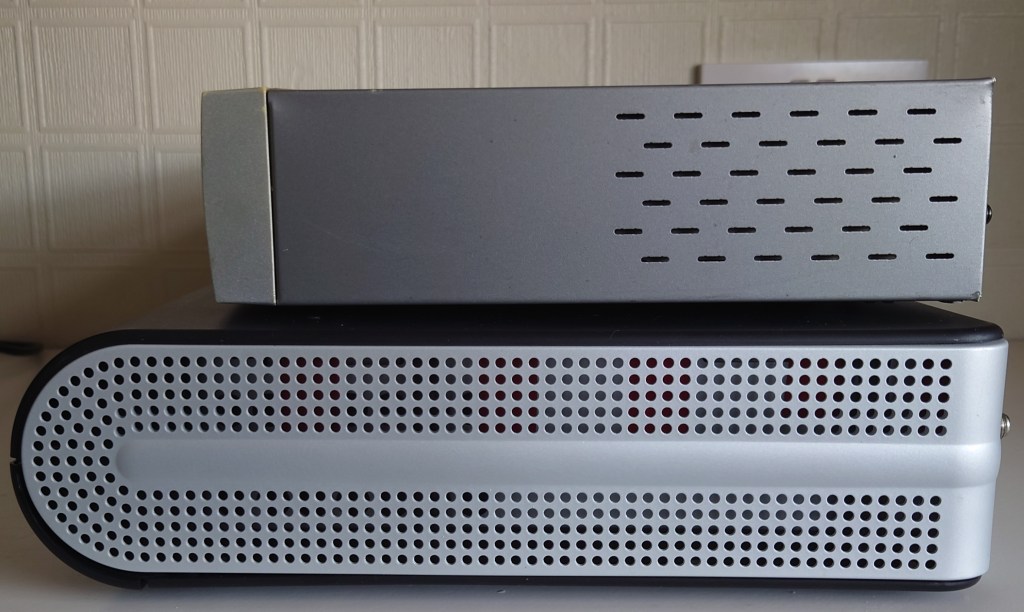
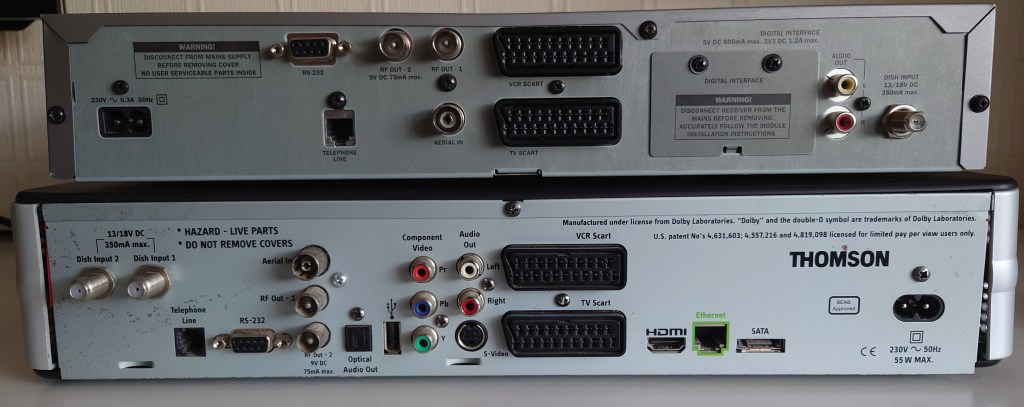
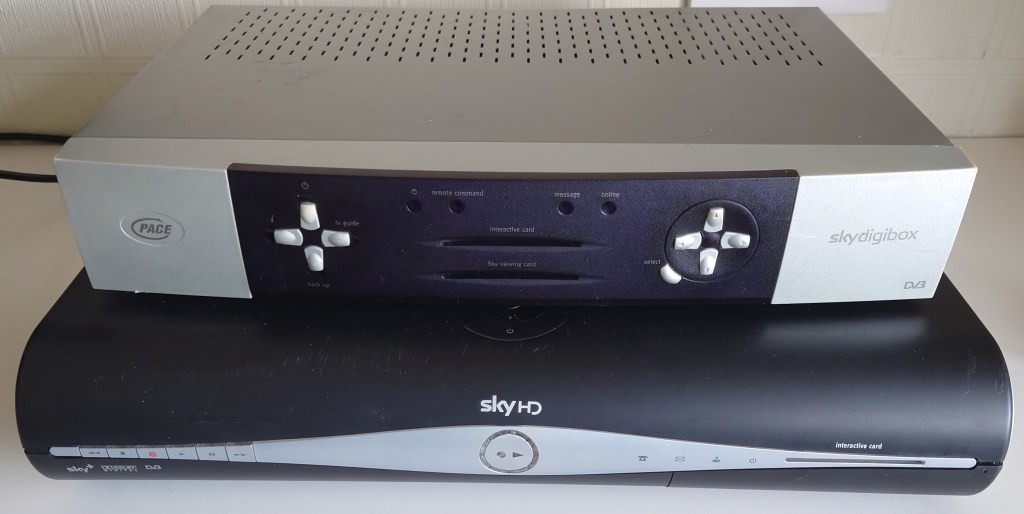
Vs Pace Digibox

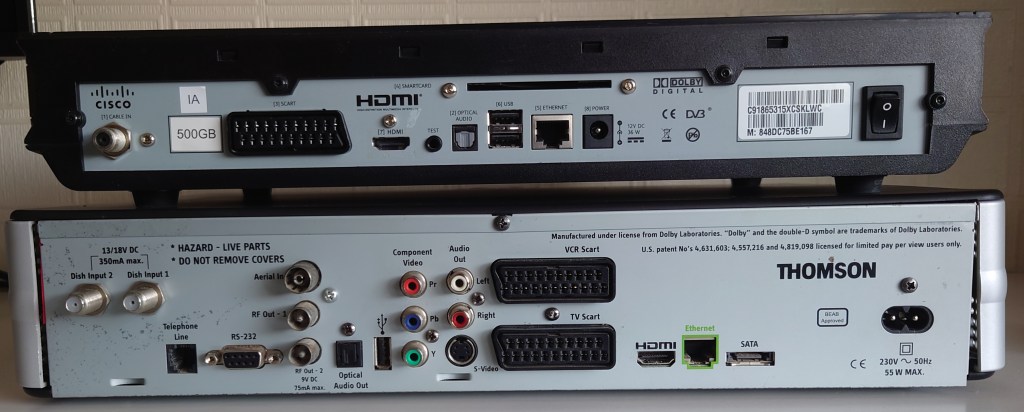
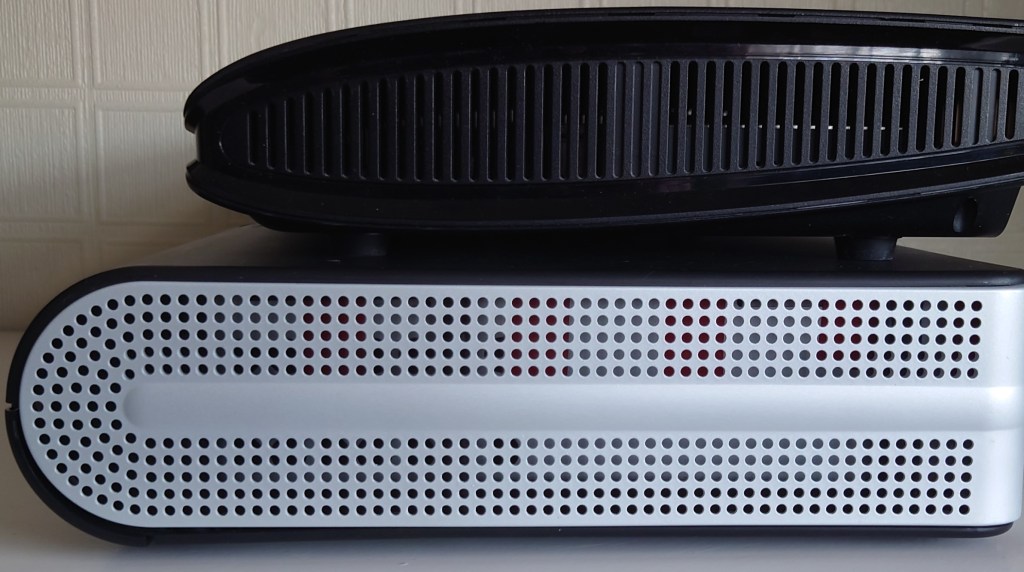
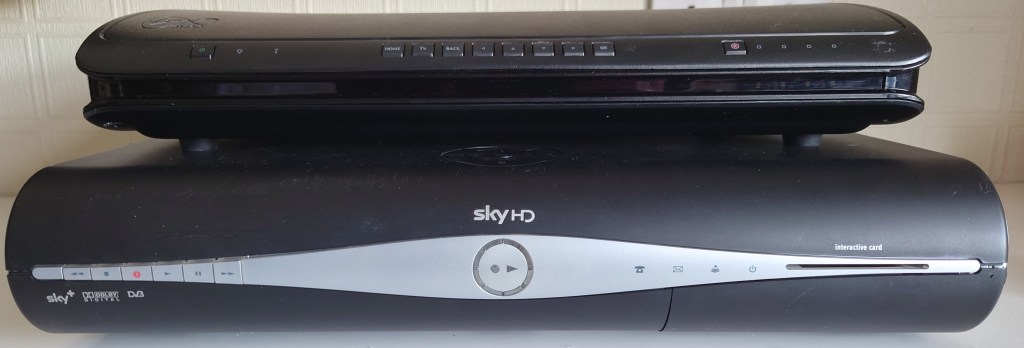
Vs Virgin Media Tivo