A look at Sky’s interactive services offered from 2001
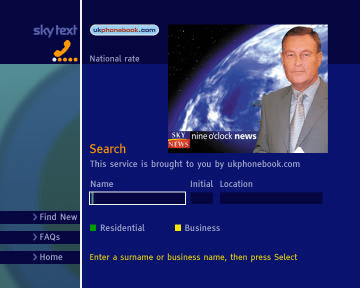
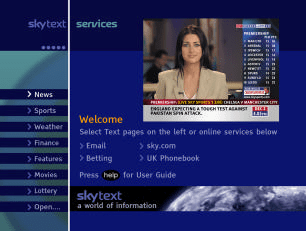
Sky Text
An alternative interactive service provided by Sky, unlike Active that focused on shopping and games, Text focused on information like local listings, news, weather, etc
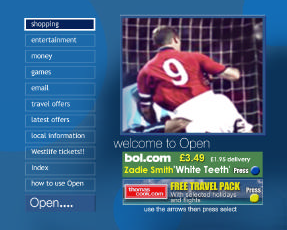
Open…
Prior to its relaunch to Sky Active in late 2001. Open… was the main interactive portal on Sky Digital, and provided a gateway to other interactive services
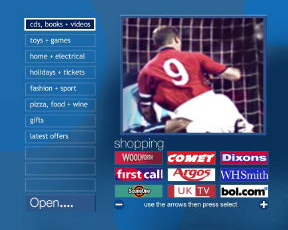
Open… Shopping
E-commerce was the main attraction of interactive TV, with the ability to buy products though Sky Digital
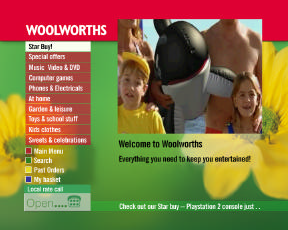
Woolworths
Woolworth (Remember them?) was one such retailer
Sky Text
Sky text was designed to be used whilst watching regular Sky TV channels
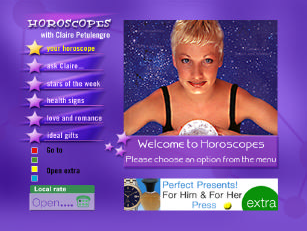
Horoscopes
Not much to say, just star signs and horoscopes
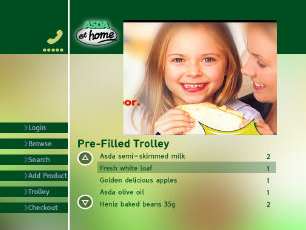
Asda
Supermarket portal, do your grocery shopping through your TV
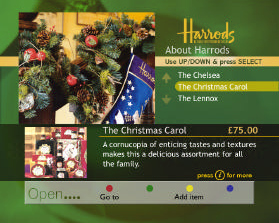
Harrods
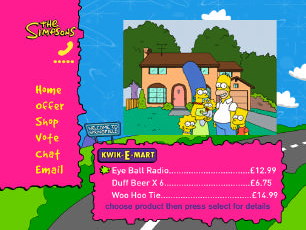
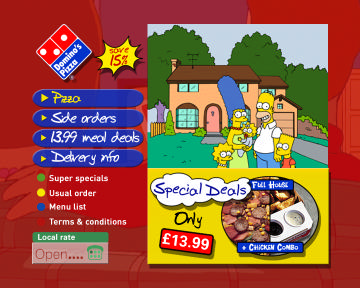
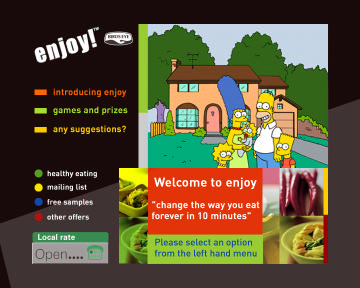
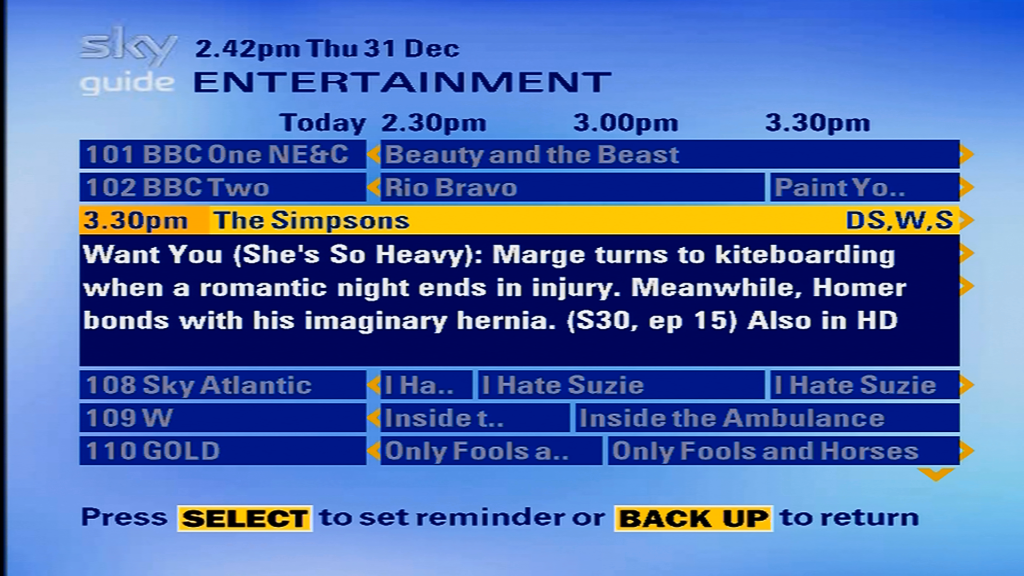
The Simpsons
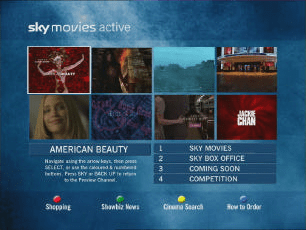
Sky Movies Active
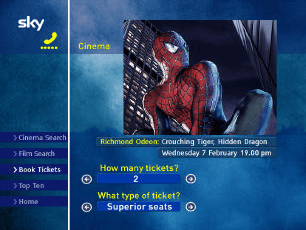
Cinema Listings
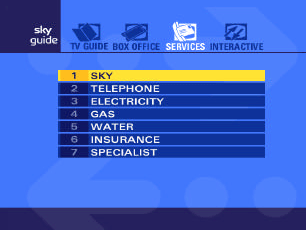
Sky Guide Redesign
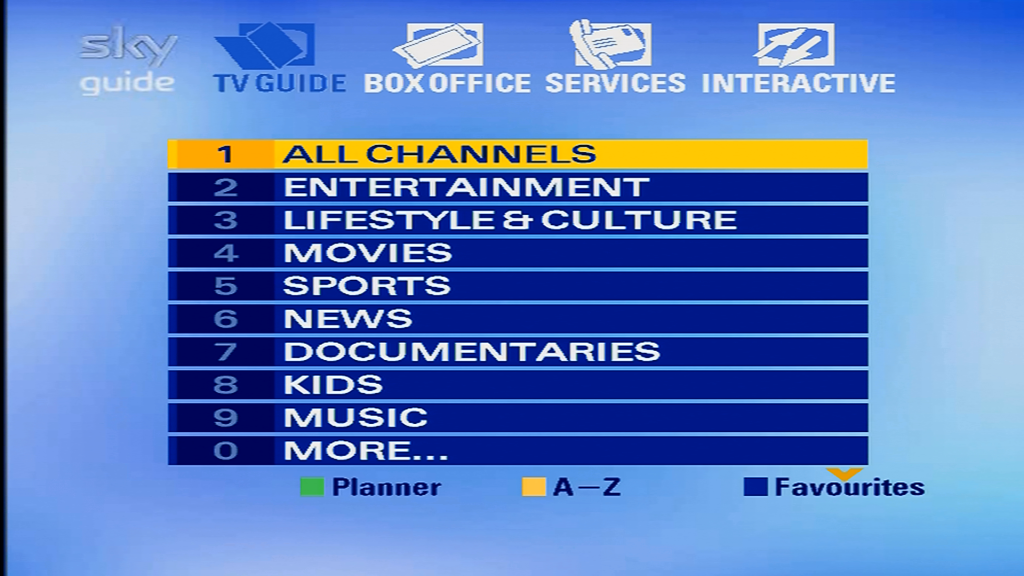
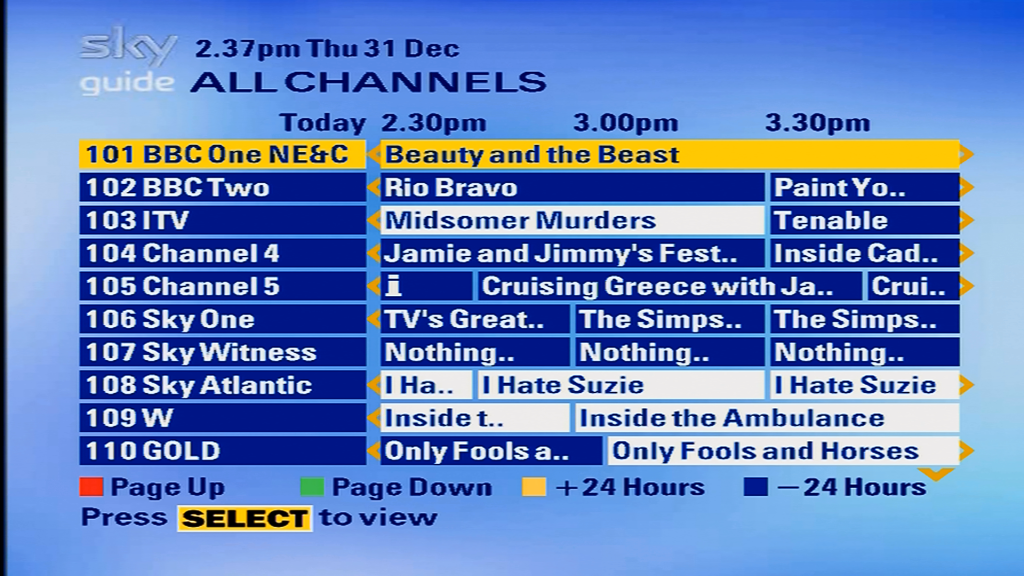
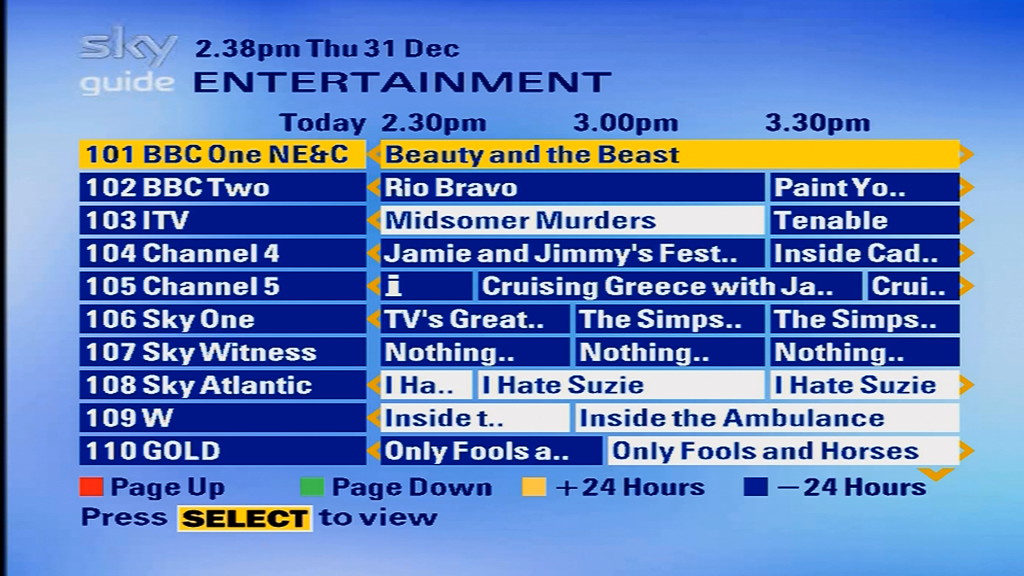
Sky were due to redesign the Sky Guide interface, with a new two tone blue interface in line with the corporate branding of the time.
BT Phone
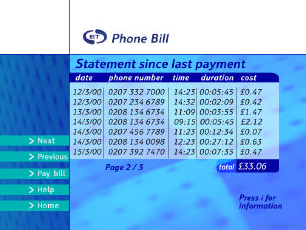
This never officially launched, but at some point you were supposed to be able to manage your phone bills via your TV, this would have extended to your Gas, Electric and Water
Note: If you have a newer (2018+) Sony Bravia TV, Sony has recently introduced Freesat support for these models. Simply update the software, then hit the settings, Watching TV, than add the Freesat options in the tuning settings menu. More Information
For now the below applies to 2017 and older Android TV models. This may also apply to older non-Android models that Sony produced.
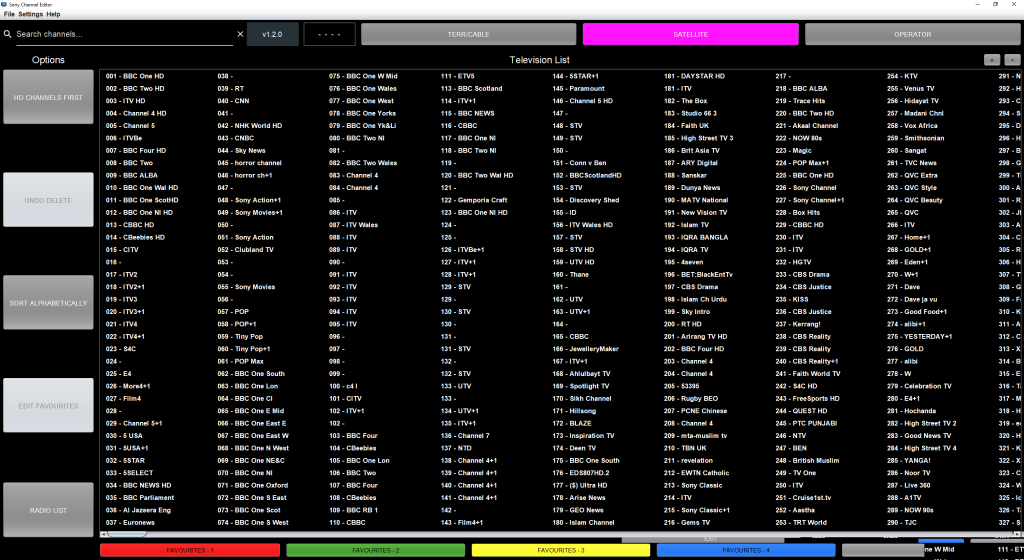
Many higher end Sony TV’s have had satellite tuners for a while now, and whilst you can easily connect it to a Sky dish and it’ll pick up and tune in channels, you will find that they are randomly allocated across the guide, which makes navigating them difficult. Compare this to similar Panasonic and Samsung TV’s that have proper official support for the Freesat EPG.
I decided to modify the EPG used by the TV in order to get it as close as I can to the Freesat order, allowing for a similar experience to an actual Freesat certified TV. This doesn’t fix the issue of lack of TV listings, since Freesat and Sky do not transmit their listings in the common DVB format so you will still be left with Now & Next only, you also won’t be able to decrypt the FTV channels, only view FTA channels that Freesat receivers can decode.
Whilst many Sony TV’s sold in the UK come with DVB-S2 compatible tuners, the issue is Freesat (and Sky) don’t use standard EIT (Event Information Table), which prevent these TV’s from being able to correctly manage and allocate these channels, the result is after a channel scan the TV will place them in a seemly random order, and you will receive little to no TV listings
Youview
I should also mention at this point that what were doing involves disabling Youview, since when Youview is enabled you lose access to the satellite tuner. On the plus side you can now add an external USB3 drive to record onto, although I recommend a dedicated PVR device
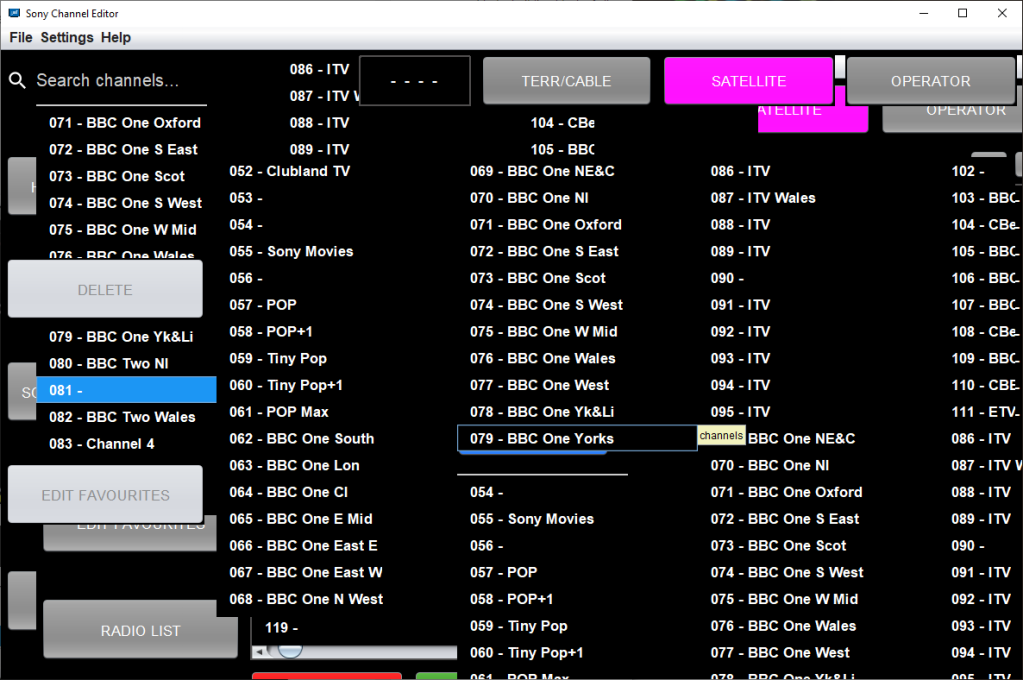
I’m not gonna sugarcoat it, this software is garbage. Complete Garbage
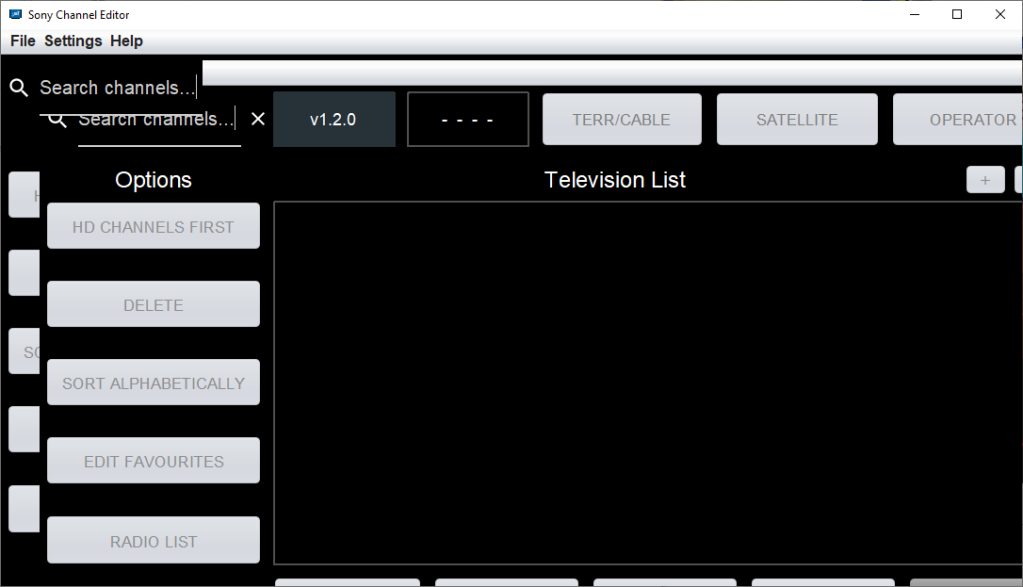
Whilst it’s able to just do the bare minimum, its a horrible piece of software to navigate, and has a tendency to garble the interface if you select too many channels at once.
WTF?
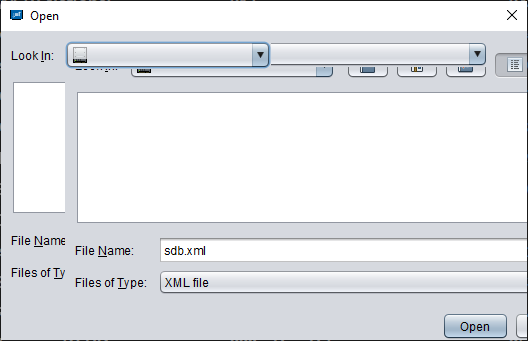
I don’t get it, why is Sony incapable of producing software that is able to function property without glitching itself? Why did they feel the need to theme it all to hell and back, a simple Win32 application would have been more then welcome, but instead it has to be skinned. Just look at the open dialog
Why not just use the default Windows open dialog?
This is a frequent occurrence, Alt/tabbing sometimes fixes it, otherwise you will need to save and close.
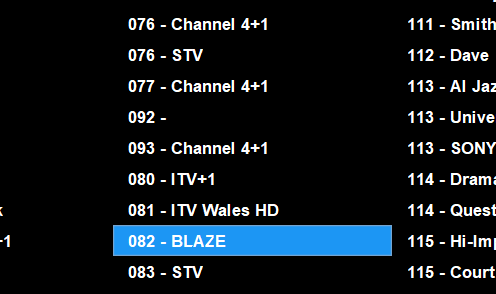
This is also a pain, rearranging TV channels causes the software to get confused and plonks the channels out of order, see how it goes from 77 to 92, 93 and then back to 80
Chansort
After getting fed up with Sony’s software I instead opted for an alternative
Chansort is a channel list editing application designed for various TV and satellite receivers on the market. Simply open the sdb.xml extracted from your TV and away you go. This this it was easier to manage and reorganize the channel list to the Freesat order, rather than having channel spread across the EPG.
A common issue was when reordering the channel list with the Sony editor software, it would frequently push the channel list down, rather than replacing or swapping them. With Chansort, you can tell the software if you want to swap the channels, or just insert it before or after, whilst keeping the other channel intact. This became a huge problem with the Sony software as after organizing one section of the EPG, the rest would either shuffle out of their modified positions.
Testing
After making the changes I copied the xml file back to the memory stick and plugged it in the TV to import. After importing and letting the TV reboot, the custom channel list loaded.
Unfortunately I had then hit a snag, since the TV is set to automatically update the channel list, and because I had originally deleted the encrypted Sky channels of the guide, the TV would add the channels back into the EPG, and then decided to merge and slot them into the existing channel list, so whilst it kept my custom channel order (mostly), you ended up with a bunch of encrypted channels in between.
One solution to this was disabling the service update option, that would stop the TV from adding channels, but that would mean any new Freesat channels wouldn’t be picked up, also if a channel had changed transponders, then the TV would not pick up the new frequency, instead that channel would display a blank screen.
A workaround to this was to hide the channels instead of deleting them, so whilst the channels would still exist to the TV, they would be ignored. In addition I also moved the channels to the 1000+ section, so that in the event the TV does not hide the channels, they are out of the way from main view.
Update 23/06/2021 – Whilst this worked to an extent, if a new channel had launched or had moved transponders, the TV would still randomly insert the channel in the modified channel list, so another workaround had to be made, this meant slotting the encrypted and hidden Sky channels within the Freesat channels, closing the gaps so when the TV had detected a new channel, it would insert it into the 1000s section, a side effect is if you type the channel numbers in manually, they can still be accessed but you just wont see then within the guide or when scrolling / channel flicking using the Channel + and – keys.
Considerations
Whilst the EPG now mirrors the Freesat guide, you still don’t get the full TV listings, rather the Now and Next data
When Sky/Astra add new channels, your TV will detect and will automatically add them to the guide, likewise if a channel changes frequency. You will then have to hide the channel, unless it’s a FTA channel that you want to view. A downside is the channel will be placed on a ramdom number
Regional channels, the BBC have multiple feeds for different regions, as do ITV for local news. Channel 4 also has different feeds for local advertising. These are all recognized by the TV as separate channels. Whilst the BBC channels are easy to figure out, since the region is in the channel name, ITV and Channel 4 are more difficult, since they all have the same label (except for STV and UTV, although there are multiple STV regions) I ended up using the main London regions that a regular Sky box used if it had no viewing card inserted. Alternatively you could change the regions themselves using the same software I had used. Regardless I placed all regional channels in the 900 section, but they are not in a particular order.
Some channels are duplicated twice, like Challenge. This is due to Sky running different feeds for Sky and Freesat, maybe the Freesat versions have adverts targeting to resubscribing to Sky or NOWtv?
Some channels are FTA but they are not on Freesat, most of the music channels and many international non English channels, to solve this I allocated the 400 section for international channels since that range is vacant (not sure why Freesat has that empty?) For the music channels I used the old channel numbers, since many of them were on Freesat at some point. Channels that were not on Freesat are place near the end of their genre group.
The Astra UHD test channels are assigned to 1-3, since they are interesting to view and many satellite Sony TV’s are 4K, 4-99 are vacant, My assumption is should the TV find new channels, they will be added here, making it easer to manage, in practice however the TV prefers to put new channels in the 200-400 section
Also, when importing the satellite channel list, it will also replace the terrestrial Freeview channel list also. So after importing the channel list you may need to do a full rescan on the Freeview side unless your on the Sutton Coldfield transmitter. I’m currently looking at a way to remedy this
Download
SDB.xml – Contains the edit channel list that follows the Freesat line up
The Chansort software refernces other TV brands such as Panasonic, Samsung and Toshiba, so the xml file may be compatable with those brands.
Importing (Export to TV)
Copy the sdb.xml file to a FAT32 formatted memory stick to the root of the drive (don’t place the file in any folders)
Insert the USB memory stick into the TV’s USB2 port
After a few seconds the TV should pop up with a message asking what to do with the memory stick, Select Cancel or Ignore
For newer models (Android 9), Press Home → Select Settings (Cog wheel) → Select Watch TV → Select Channels → Program List Transfer → Import
For older models (Android 8), Press Home → Select Settings→ Select Channel Setup → [Digital setup] → [Technical Set-up] → [Program List Transfer] → [Import]
The TV will then import the channel list and will then reboot
There are a few issues and inconsistences as outlined above, mostly with duplicated channels, and the auxiliary channels section being out of order (900+), hopefully the TV’s should have minimal issues with keeping the channels updated.
When Cable & Wireless launched their digital cable service, Interactive TV was the main attraction and focus for the platform.
Cable & Wireless teamed up with Liberate to deploy it’s eNavigator middleware client for their set top boxes. Liberate had already made deals with many US digital platforms for both Motorola and Scientific Atlanta networks, and had partnered with Acer & Thomson/RCA for their own set top box / internet tv devices. These allowed for the internet to be browsed on a TV itself, similar to a webTV or the Bush Internet TV. With that in mind it made sense to go with Liberate for its interactive platform, with many of the interactive being HTML based, essentially being microsites being designed to be useable on a PAL TV screen, as well as being usable on the set top box hardware itself. By using a HTML based system, it would be easy for existing web developers to adapt their websites for cable interactive TV.
The main interactive developer portal, viewed within the Cable & Wireless interactive browser. This also showcases the browser interface, note the lack of address or URL bar, since this service was designed to be a walled garden. Instead a url bar is provided on the developer portal, likely to allow developers to test their websites.
An interesting oversight is if you sent an email with a hyperlink embedded into it to a website such as Lycos or Google, you could use that link to open the browser to that page, and if its a search engine you could use that to load other websites that are not part of the service
Developer Website
Not much to say here, the developer portal provide links to documentation details the requirements and limitations of the TV internet platform. This goes into details the specifics of the Liberate eNavigatior platform.
Viewed in Internet Explorer 5
A look at the services…
Unfortunately the screenshots are of a low quality and resolution since they have been extracted from the PDF documents above but give a general idea of the scope of the service provided. Some screens have the browser banner at the top of the screen, I’m assuming these are portals to the microsites.
Another view of the interactive home screen, this may be from a later redesign
TV Internet Home
Similar to the Open… home screen, provides links to various services available
Sports Main Menu
Provides links to other sports themed websites,
Email Main Menu
Menu options are Check Email, Write Message, not sure of the third items, Drafts? Templates? Deleted?
Email Inbox
The STB had a built in email client, designed for the C&W email service
Two Way TV
Looks like a games service, hard to tell because of the resolution
RAC Breakdown
A resource for traffic information and a route planner
TravelTime
Looks like some sort of holiday broker
Travel
Provide links to holidays, not sure if this goes directly to the sites themselves?
News
News headlines, and weather from various sources.
When the consumer division of Cable & Wireless was acquired by ntl in 2000, the interactive platform continued it’s development. In 2002 ntl deployed the Liberate 1.2 middleware which bought improvements to the browser rendering engine, and the TV guide was rewritten to take advantage. ntl would later spend time developing services for the Langely platform, which was originally planned to use the PowerTV platform, but chose Liberate instead. This was done to ensure parity between the two platforms.
The Sky Guide user interface has been though a lot of changes ever since its launch in October 1998. Being one of the first Digital TV platforms in the UK, however despite having numerous software updates throughout the years, its core design remains the same albeit with certain alterations being made in light of new feature being added to the service.
Screenshots below are captured off a Pace 2500S5 running EPG software version
Search & Scan
Pressing the blue button cycles through the selected favorite channels, Personally I’ve never understood why it cant just open up a small menu showing favorite channels along with what’s being broadcast now, the way it’s been implemented seems like it was tacked on at the last minute, and if you have nearly 50 favorite channels it can take a while to cycle through them all.
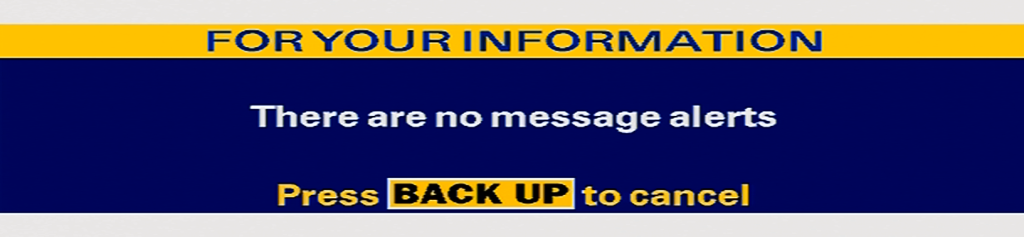
If you wondered what the messages button does, It just shows the message above. Originally it was supposed to received broadcast style messages to the digibox, informing customers of any changes to their service
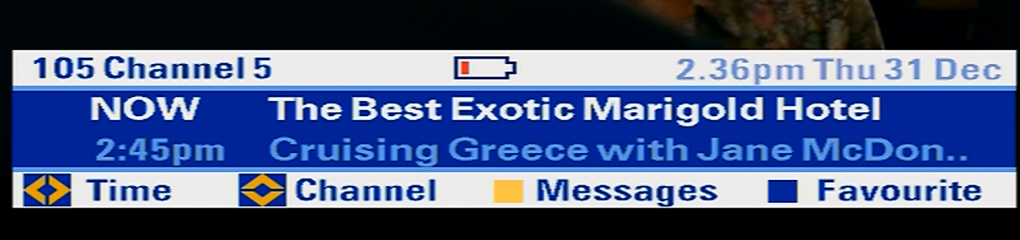
Low battery icon, supported on 2001 and later revision remotes
Sky Guide
TV Guide
Main grid style view, programmes highlighted in white have audio description, this can be changed in the Language & Subtitles menu in the Services section.
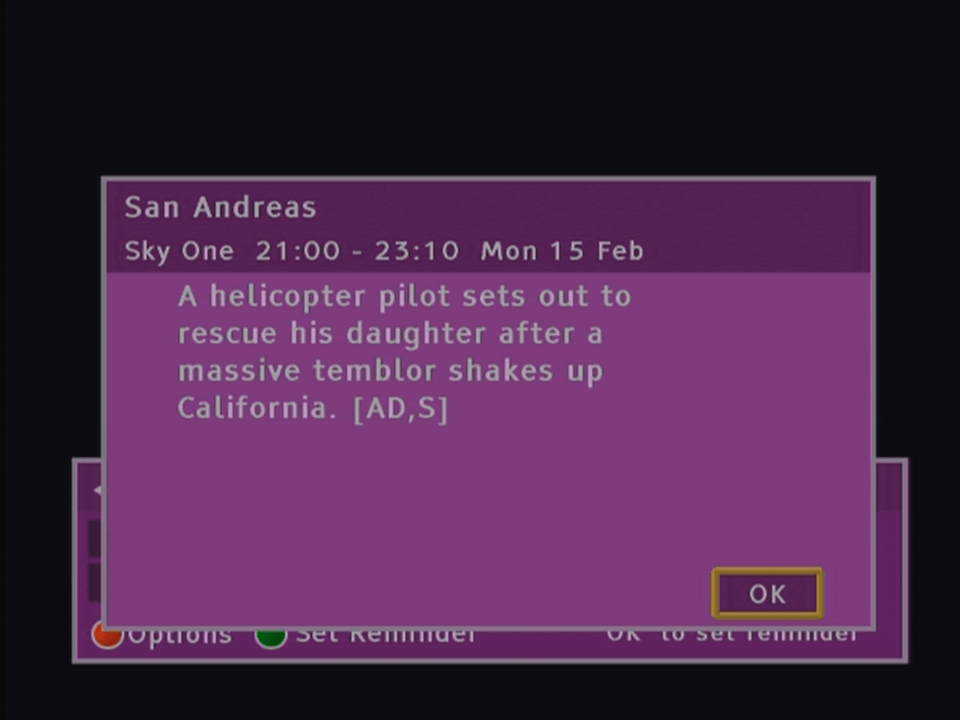
Pressing i on the remote brings up a synopsis of the program selected. Also wtf is going on with modern Simpsons?
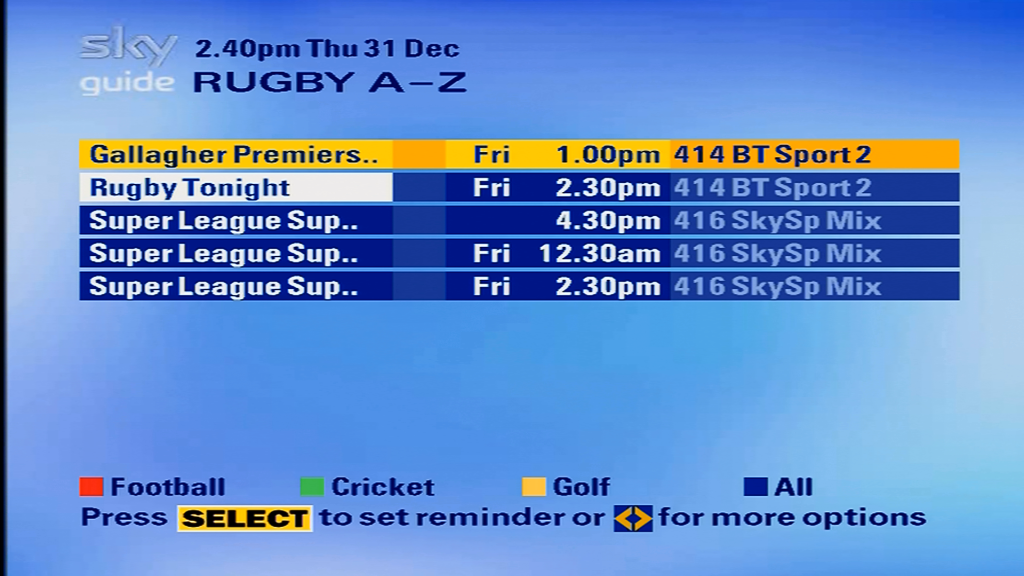
Sky added further categories in 2005 to accommodate the amount of channels. However in 2021 some of these genres are redundant, there’s only one channel in the Gaming & Dating category for example.
Viewing channels based on genre
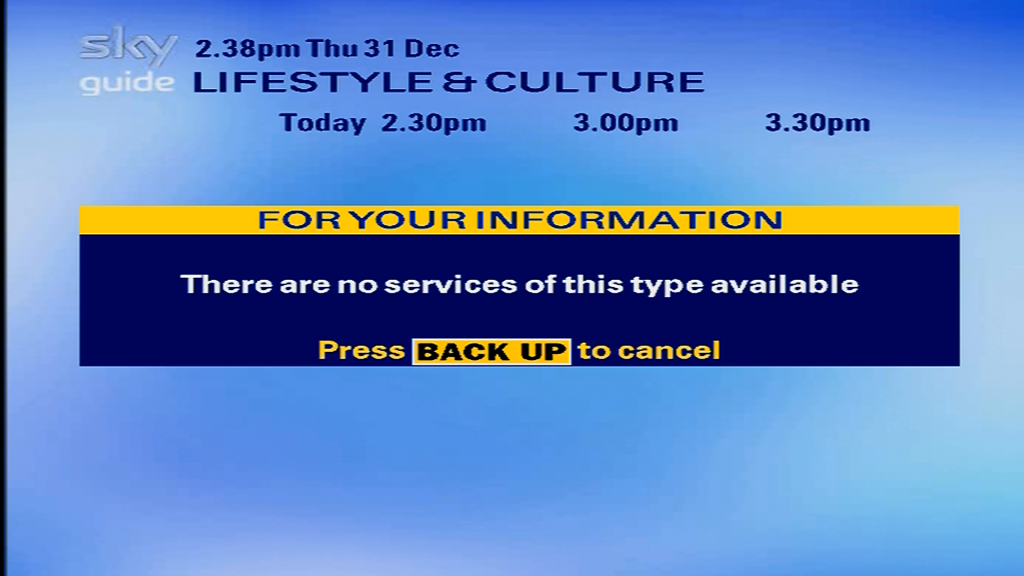
No more Lifestyle & Culture channels, Sky merged the genre back into Entertainment
TV Guide: A-Z Listings
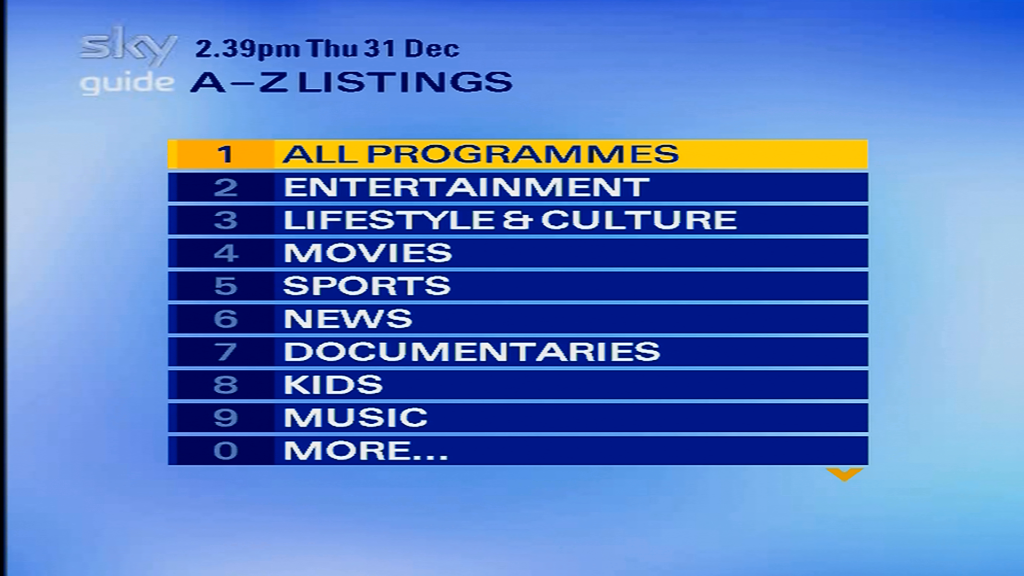
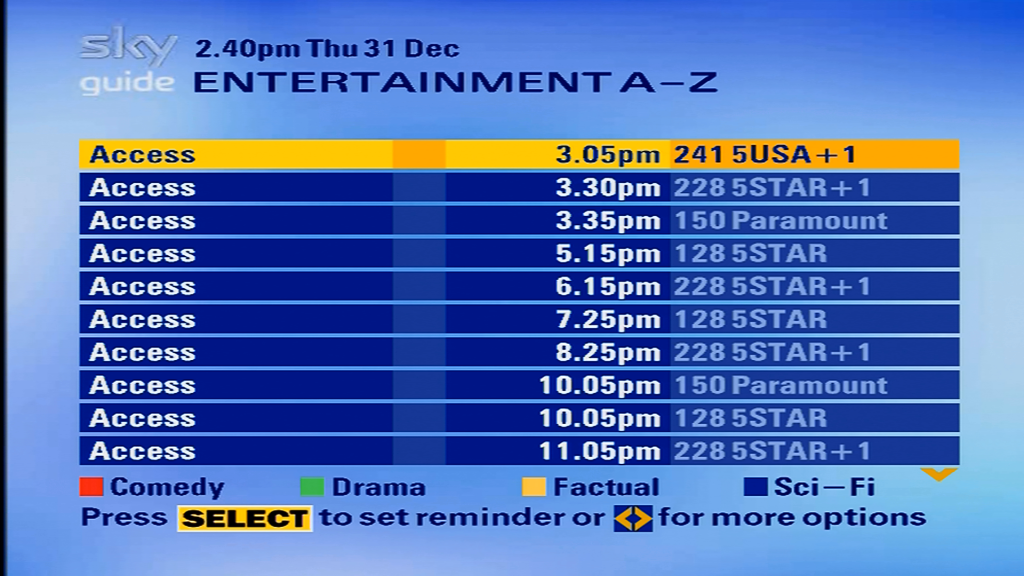
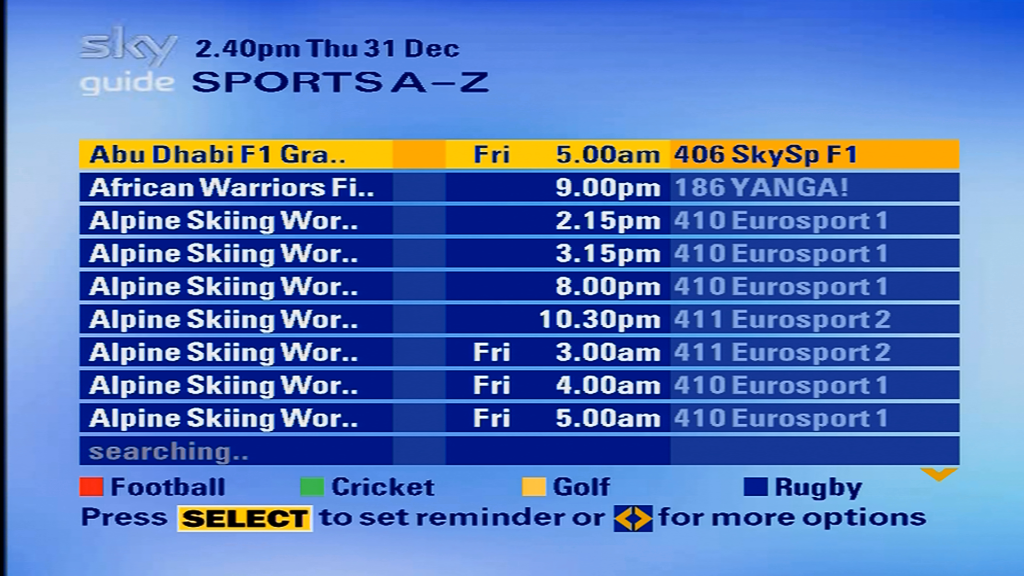
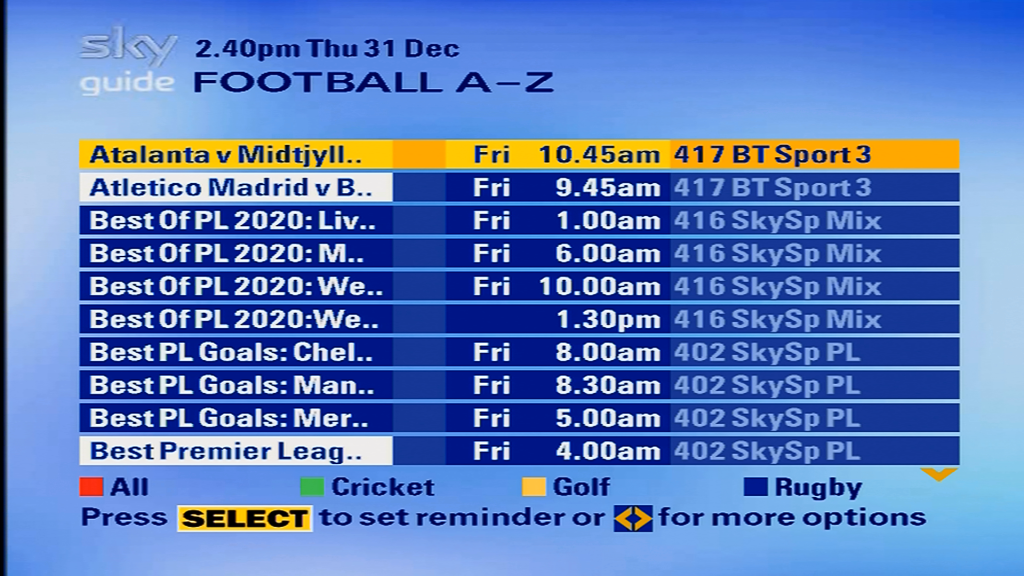
Viewing A-Z list of programs by genre. This has always been a mess since the same programme is repeated multiple times due to the advent of +1 and HD simulcasts, Ideally Sky should have combined the same program title into one per channel, instead you can have pages of the same program if it is repeated on multiple channels at different times.
Programs can be viewed by subgenres, which can be selected using the bottom row of colour buttons.
TV Guide: Personal Planner
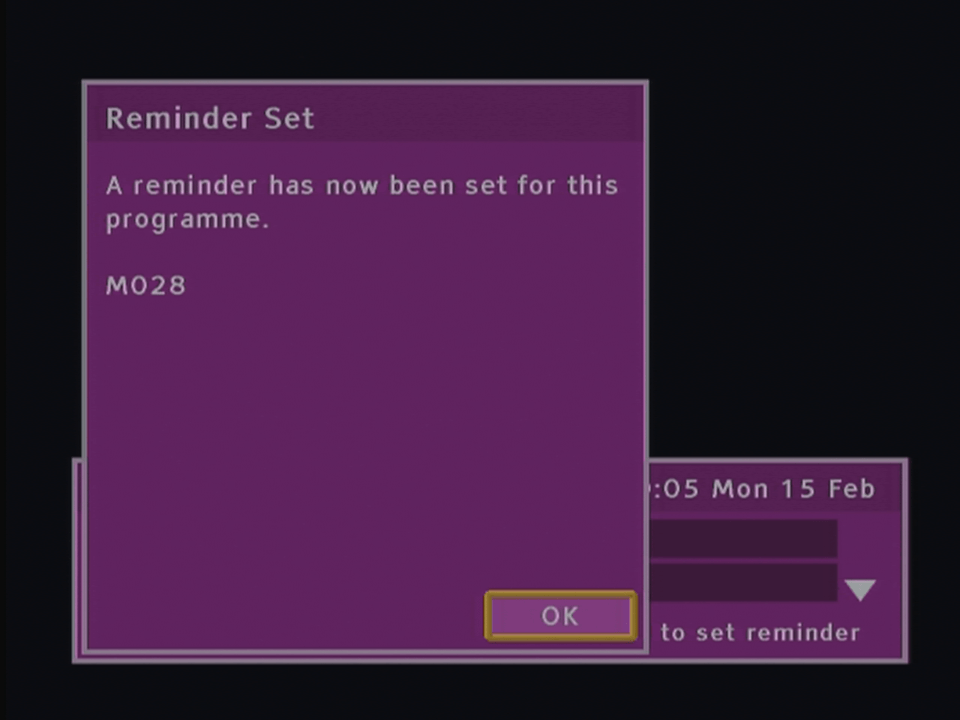
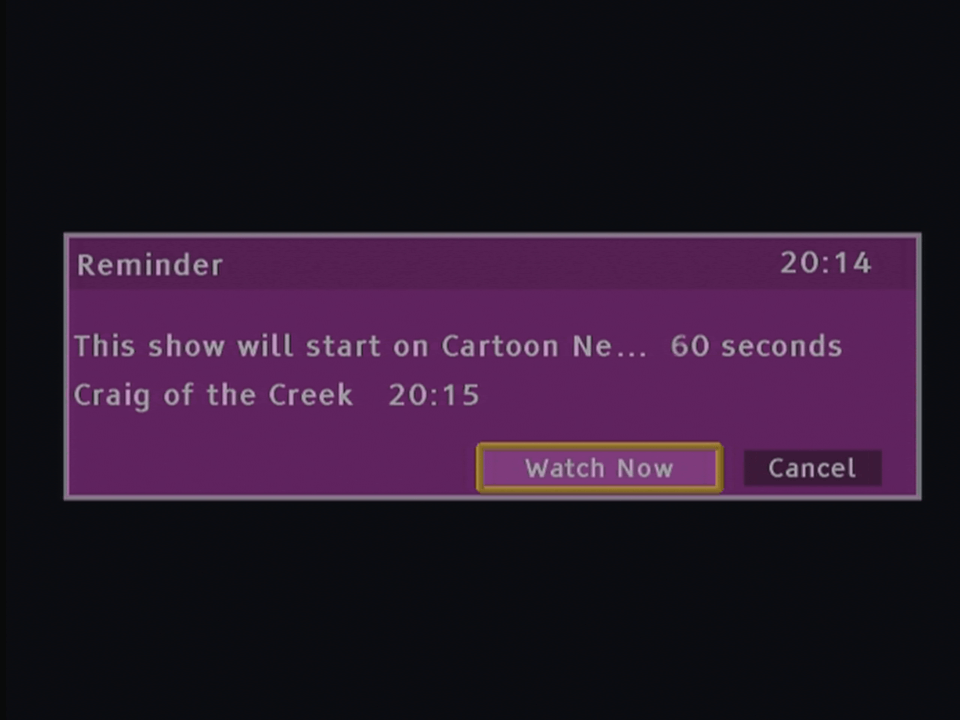
The Personal Planner was introduced in 2001, and serves as a timer and reminder feature of Sky Guide. Programs can be added here and the digibox will remind you when the program starts. Autoview will make the digibox switch over to the channel automatically, useful for recording programs to a VCR (remember those?). Series Link automatically adds the next program to the personal planner, like the Season Pass feature of the Tivo.
To be honest, I found the Personal Planner to be buggy, many series links will randomly disappear over time.
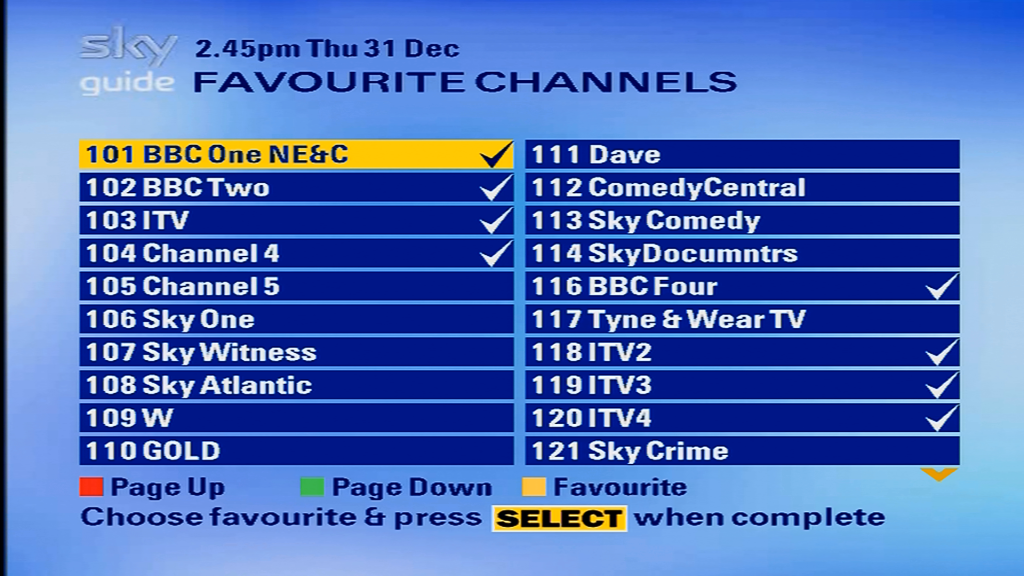
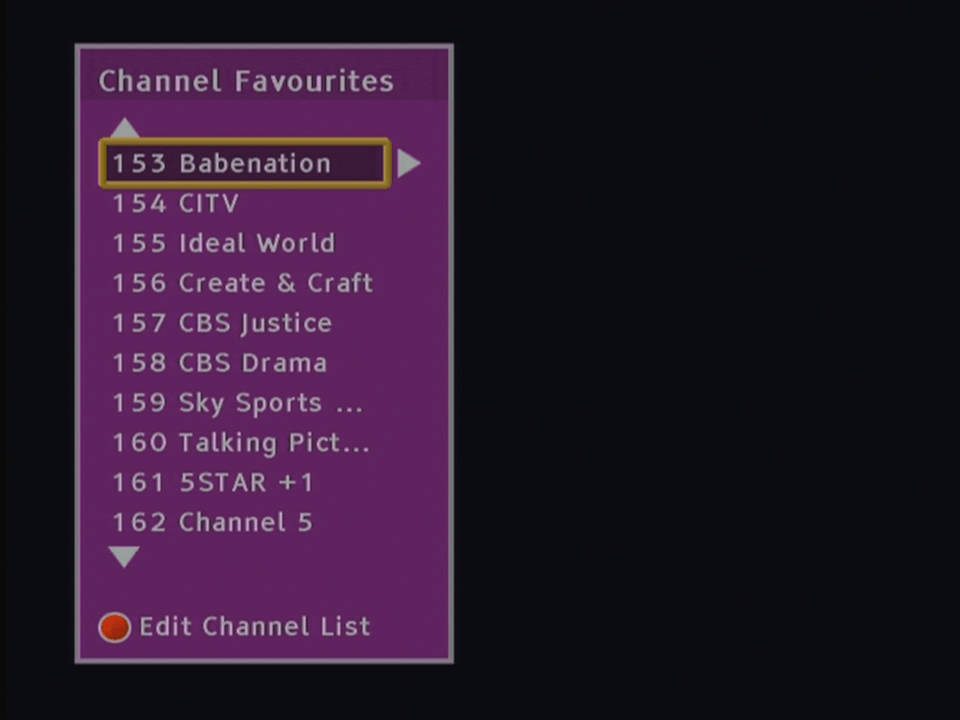
TV Guide: Favorite Channels
The Digibox can store up to 50 favorite channels, which a separate EPG being introduced that lists the favorite channels exclusively, introduced in the EPG 3.4 update
Box Office
Sadly Sky axed it’s Box Office Pay-Per-View in 2016 in favor of its on demand service. So this part of the guide is now dead.
Services
Shows telephone numbers for broadcasters and departments on Sky. I thought this was a wasted feature since how often do you contact these broadcasters?
A better feature would be to allow the user to enter and save their own phone numbers, then should a contact call, a small message would appear with the callers phone number and name, like a caller display feature. It would certainly give customers a good reason to plug the Digibox into the phoneline. The only time I’ve seen this feature implemented was on a BT Freeview box.
Services: System Setup
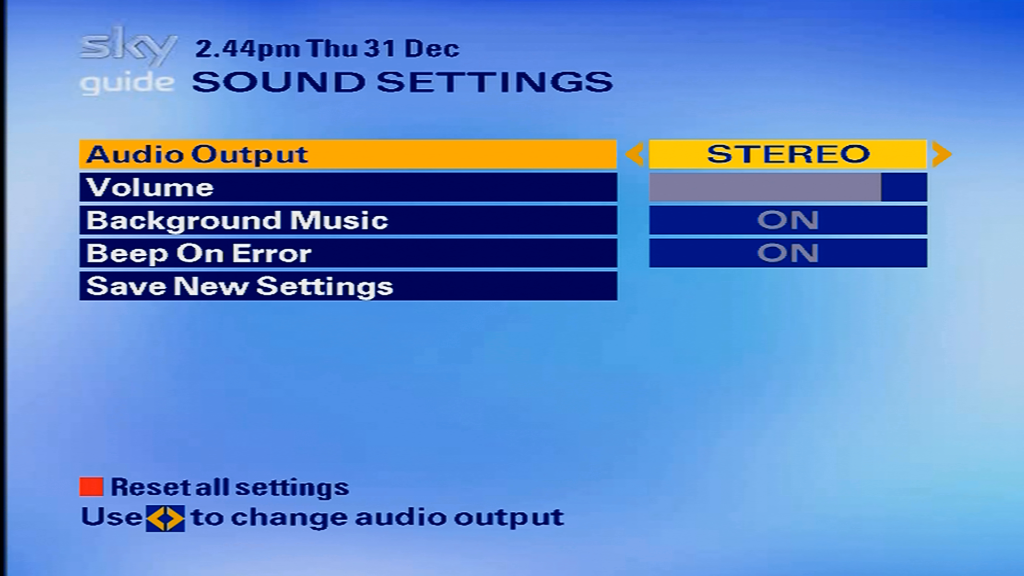
Second Location Picture Format refers to the RF2 output, if the second TV is 4:3 with the main set being 16:9
On-Screen icon timeout referrers to the red button props that appear for interactive. Previously the red button icons would stay on screen unless the user pressed the Backup key
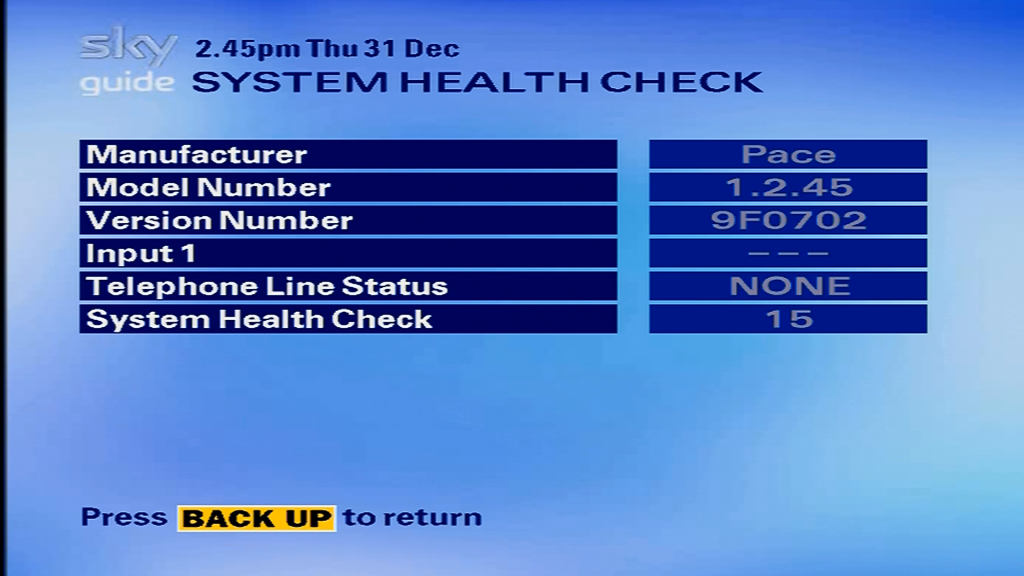
Model number referrers to the driver stack implemented on the digibox, and varies for each box model and revision
Version Number – First two characters refer to the Digibox manufacturer, the next two are the major revision (model/CPU chipset), the last two refer to the minor Digibox hardware revision. This field is static and remains the same throughout
Serial Number – identifies the digibox uniquely
Viewing Card Number – Refers to the viewing card number currently inserted
Operating System – the core operating system on the digibox, using a modified OpenTV1.2 with the NucleusOS realtime kernel
EPG Software Version – Version of Sky Guide currently running
Signal Strength – How much signal is being received, determined by the size of the dish, quality and length of the cable run and the quality of the tuner used in the box.
Signal Quality – Signal to noise ratio
Lock Indicator – If the digibox can decode the transport stream
Network ID – Used to identify the satellite the user is on, Astra 28.2 is 0002 with Astra 19.2E being 0001, Hotbird 13E is 013e
Transport Stream – The transponder that the digibox is tuned to
Services: Installer Setup
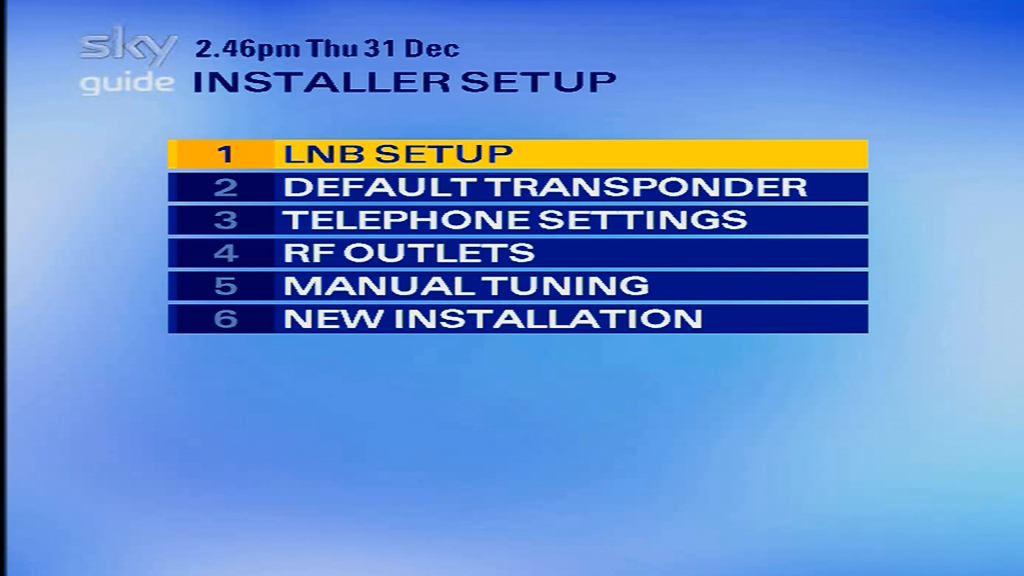
This menu is hidden in plain view, since it can technically disrupt normal operation of the digibox.
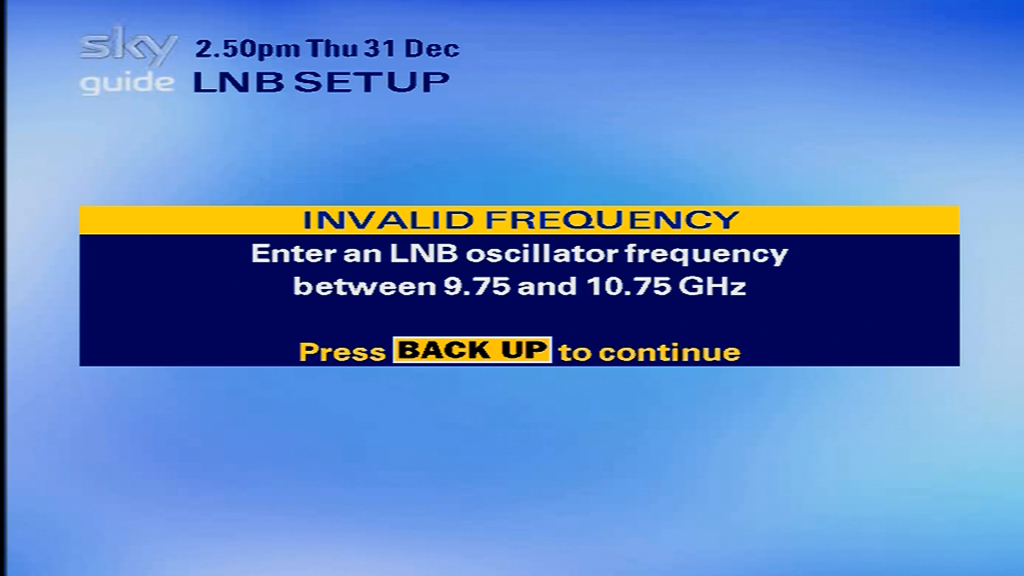
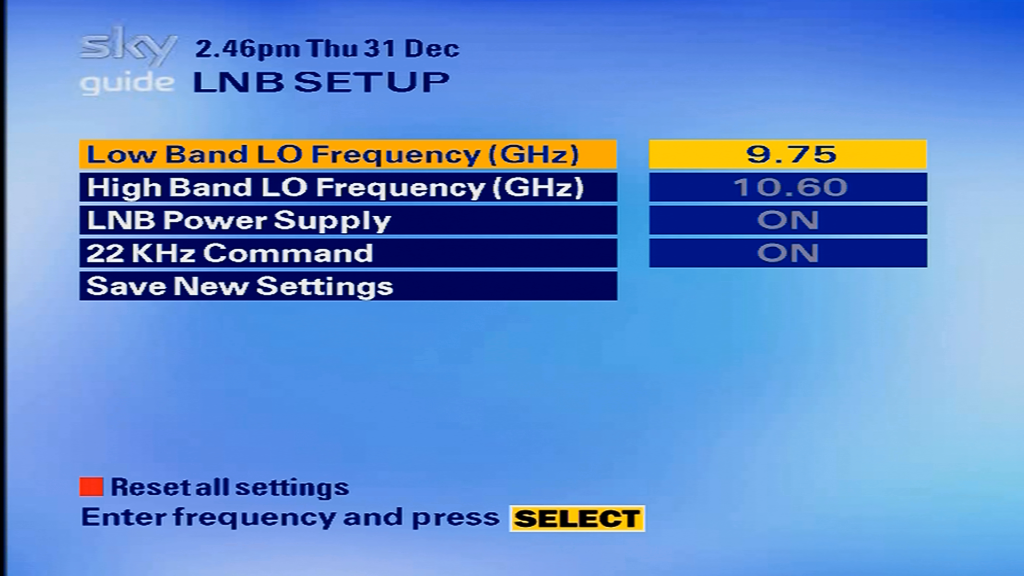
LNB Setup – To change tuning parameters of the LNB if a non standard LNB is being used, not needed if using a Sky Minidish.
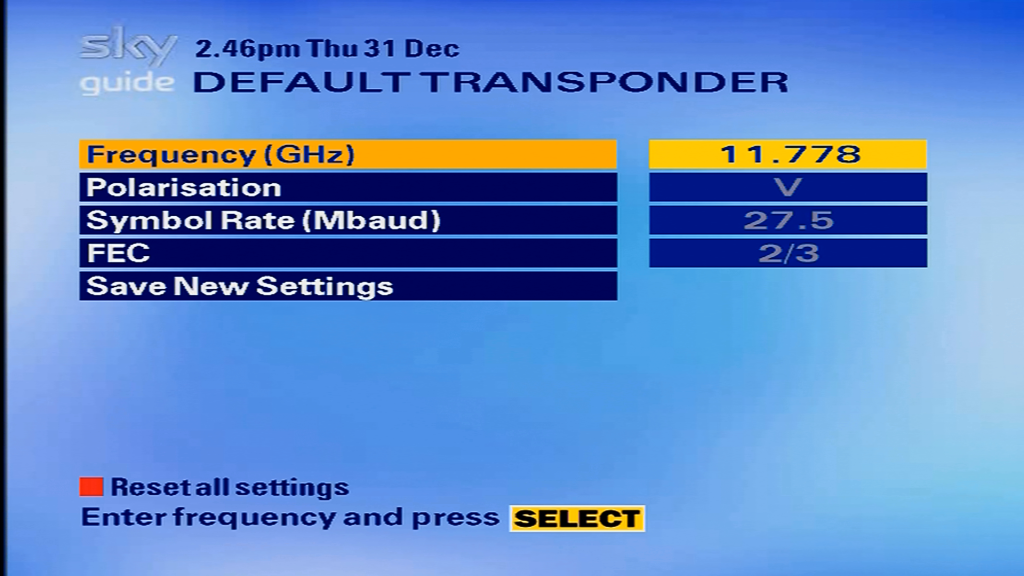
Default Transponder – The transponder where the Digibox loads its TV listings upon bootup
Telephone Settings – If the user need to specify a prefix to access the outside line
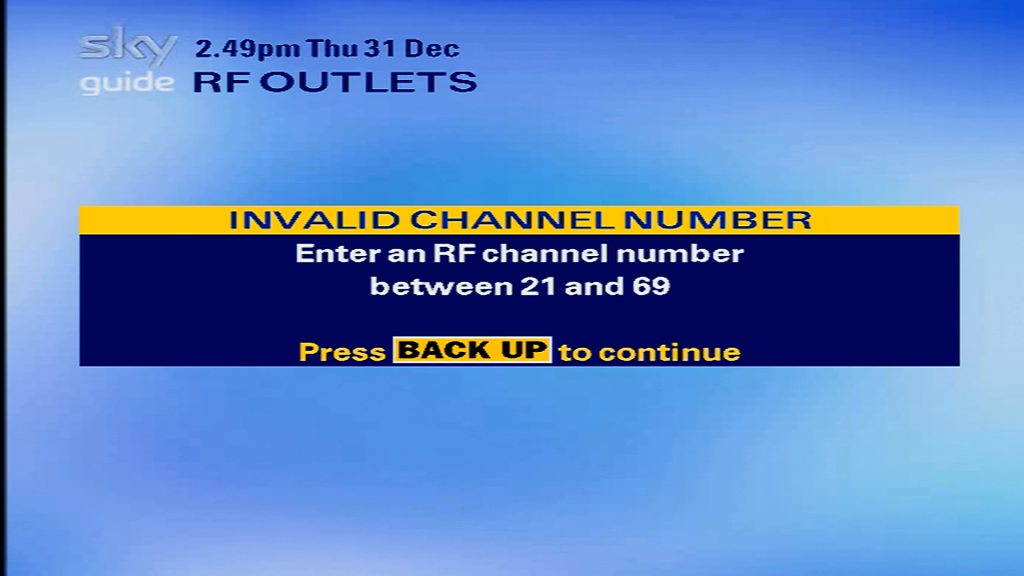
RF Outlets – To change the RF output channel
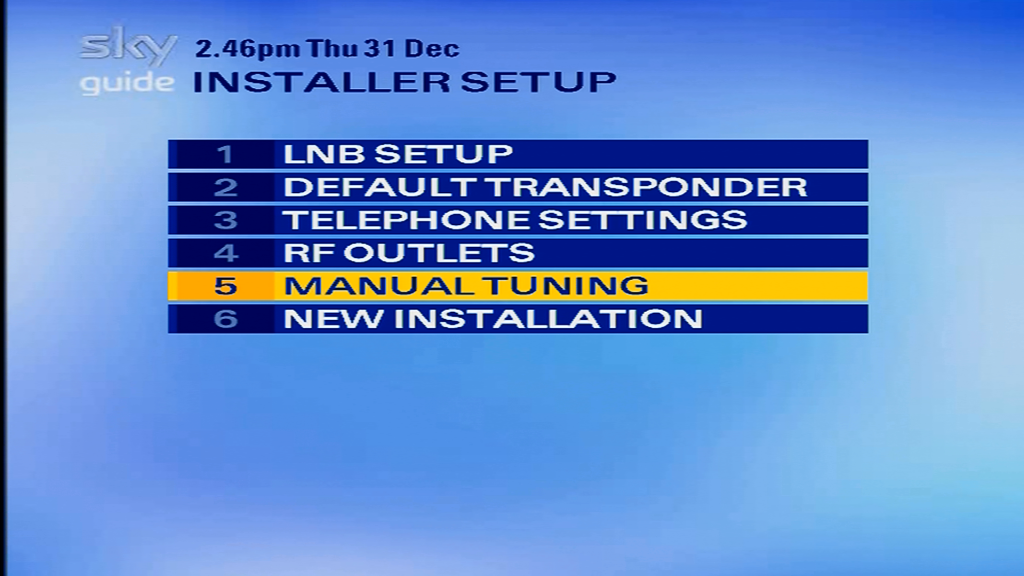
Manual Tuning – Manually tune a frequency, similar to Add Channels but shows the signal strength and quality.
Services: Auto Standby
Services: Other Channels
Other Channels lets you add channels that are not on the Sky EPG, but are broadcasting on the 28.2E satellite. These could be regional channels not populated on the guide, or test channels.
In theory you could use this feature to watch channels on different satellite providing your dish is pointed to the satellite. In practice you are limited to two symbol rates (22.0 and 27.5) which restricts what transponders you can tune into (on 19.2E this isn’t much of an issue since Astra frequencies tend to stay consistent). The digibox isn’t a good receiver for this purpose since it wasn’t designed for it, it only barley works with the standard Sky digital service.
Services: Favorite Channels
Lets the customer program up to 50 favorite channels. This was originally 20 channels with the limit being increased in 2005.
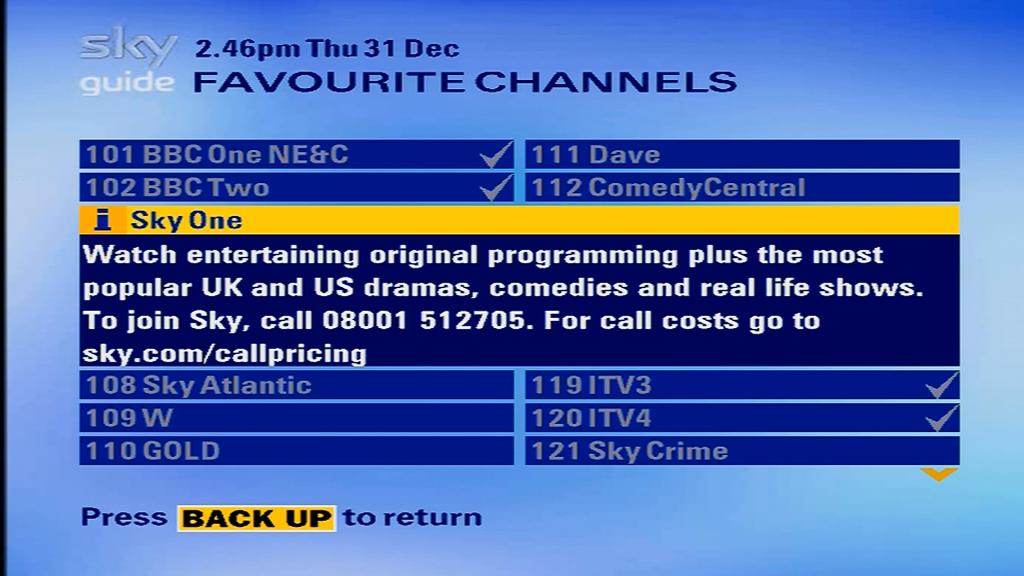
Pressing i gives you a channel description, this also appears when you access a channel that you are not subscribed to.
Interactive
MySky
A list of interactive services, or service. Sadly this menu used to be full of different service that were available back in the day (Playjam, Sky Active, QVC, DirectGov, Gky Gamestar)
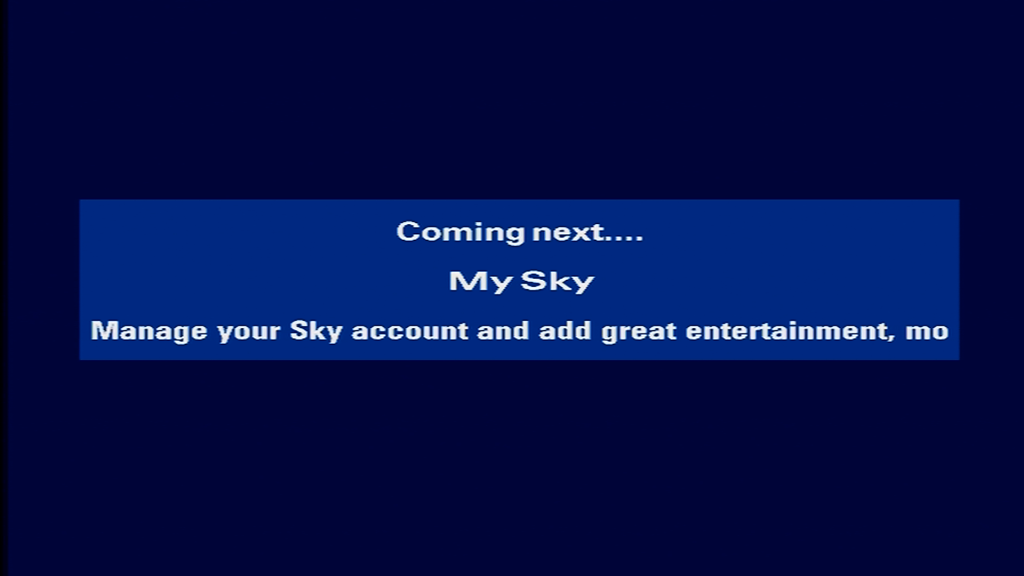
Unfortunately MySky no longer loads
Pressing i gives you a description of the service
Error Messages
What happens when you disconnect the sat feed, the box cannot load listings, showing that the full listings are not cached in the digibox itself
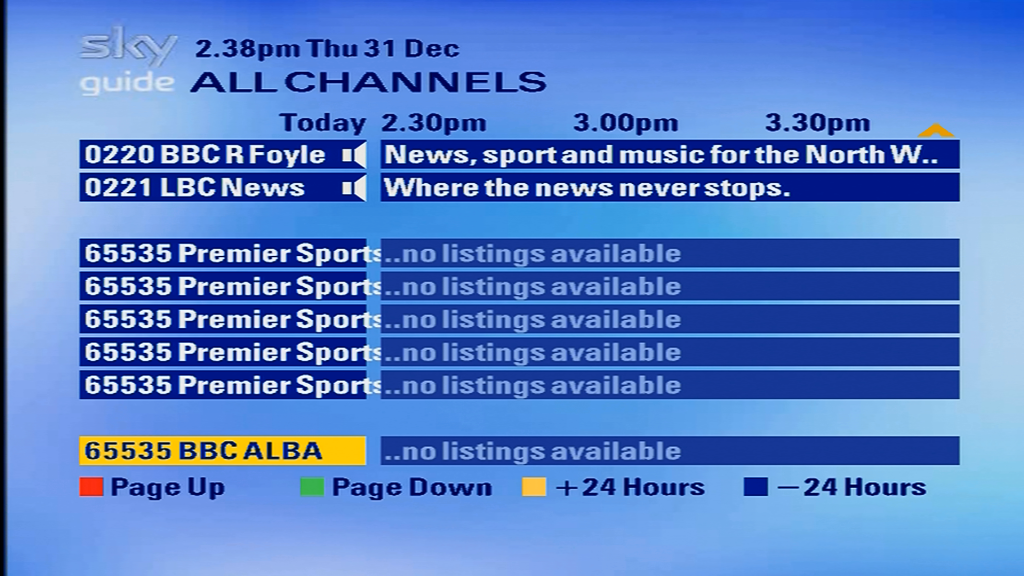
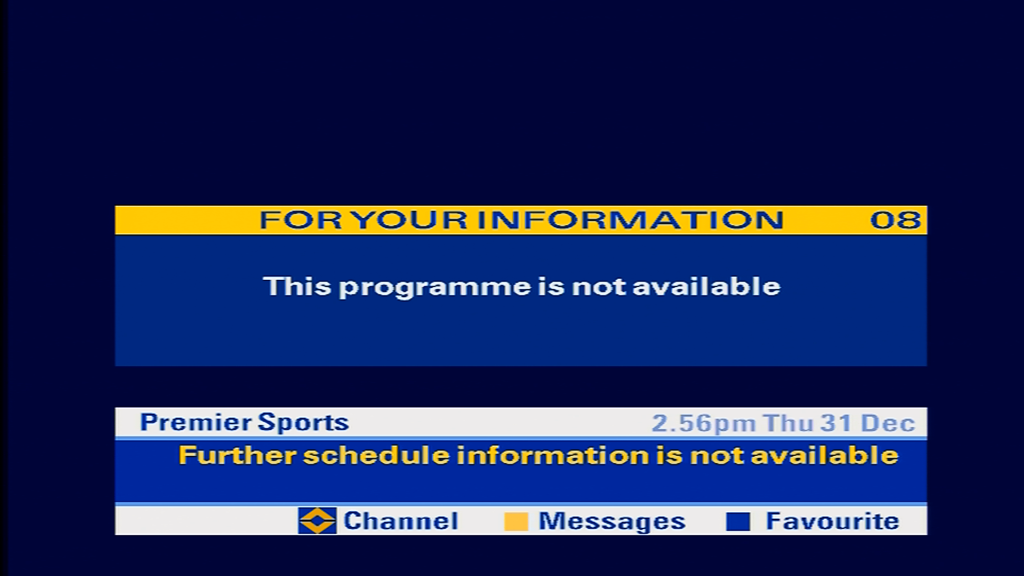
A weird glitch, BBC Alba and Premier Sports on channel 65535
I believe this is due to a channel being restricted via the encryption, yet the customer is enrolled on the package. Could be due to area/post code restrictions,
Low battery message, supported on v4 remotes and later
Nag screen that appears when you boot up the digibox without a telephone line connected, since Sky have axed all of the interactive services (except for BBCi which does not use the telephone) they might as well remove this prompt
Appers when you switch on the digibox from the mains
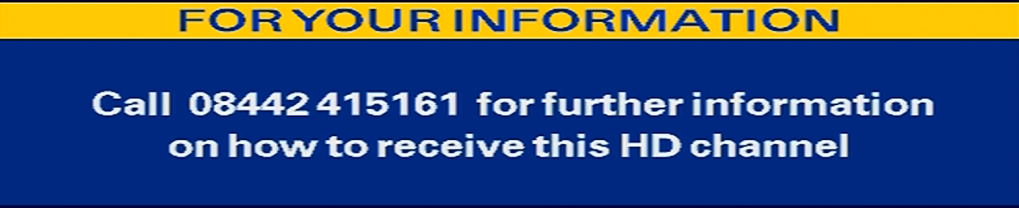
All regular Sky digibox’s can only decode MPEG2 SD channels, if you go to an HD channel you simply receive this message. You used to be able to get tv listings for HD channels but Sky remove this to conserve memory since they were running out of EPG spaces
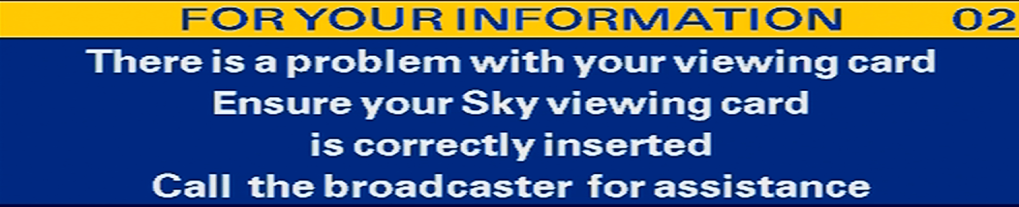
Appears when you insert the viewing card backwards, rumored to charge Sky for the subscription rather than the customer
When you have no signal being received for that channel transponder
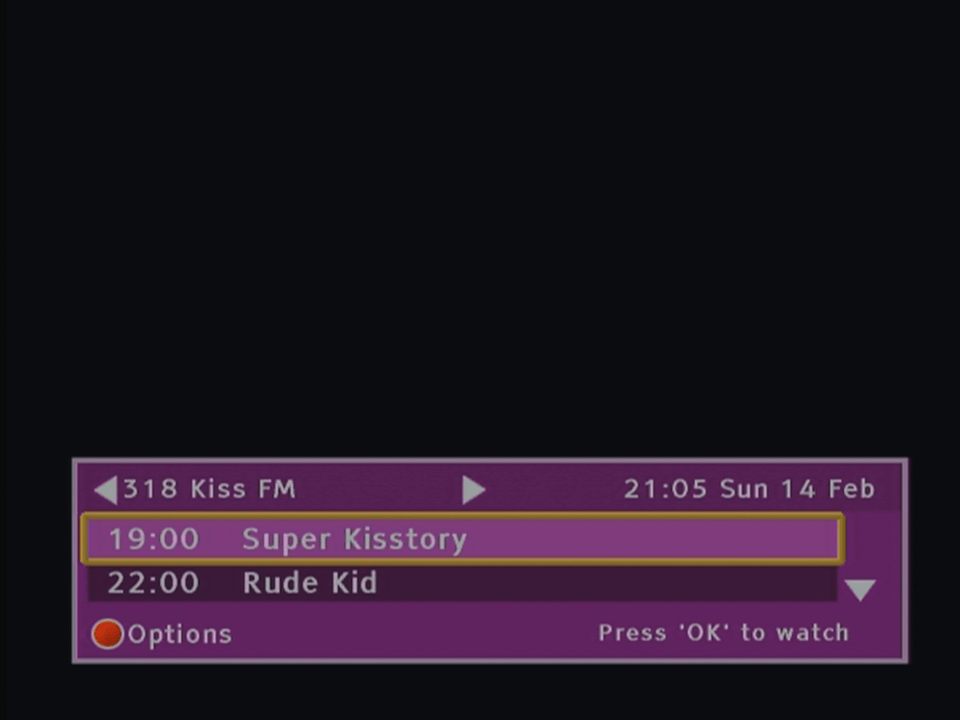
Sometimes the digibox can’t load the program information, this message will be diplayed for a few seconds before the synopsis appears.
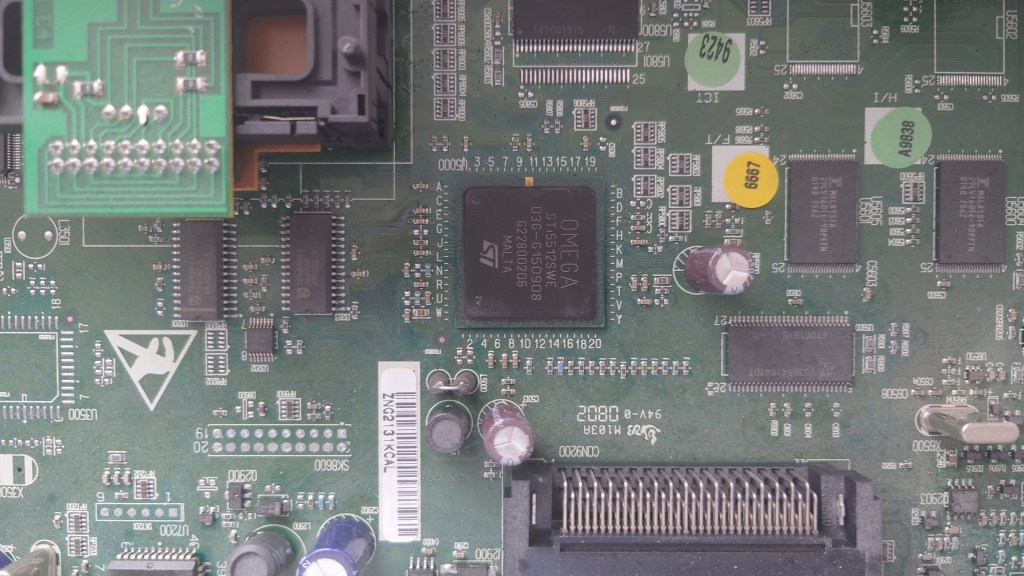
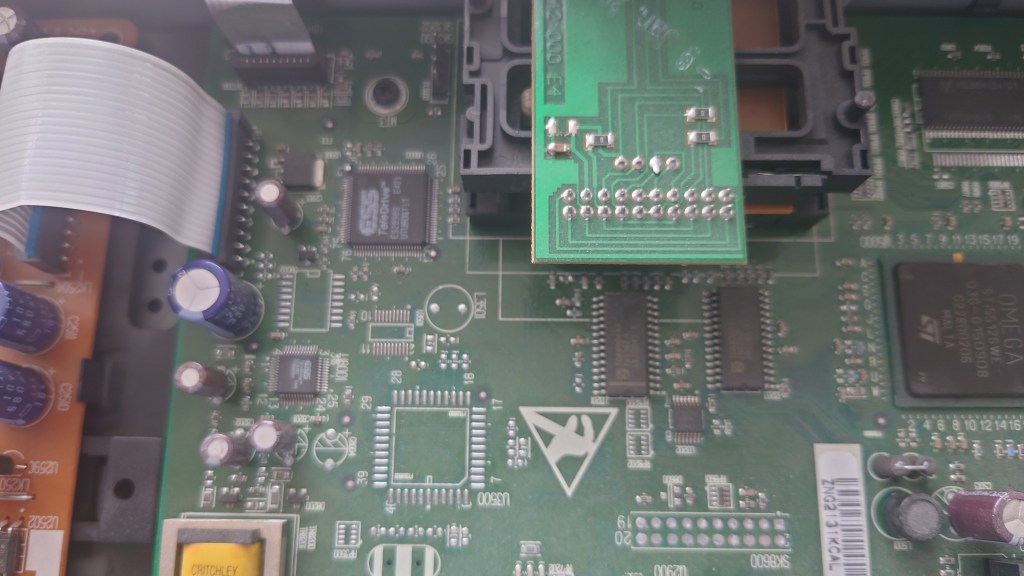
One of the many Digibox’s Pace produced over the years, and one of the first to have the tuner integrated on the mainboard, previous models had the tuner enclosed on a separate metal box fixed onto the board, or as a ZIF style socket module.
Pace 2500S digibox mainboard
Another box from the same era was the PaceDi4000N for ntl, although this is a cable receiver you can see some similarities in the design.
Pace Di4000 ntl box mainboard
Its quite a minimal clean design compared to the other boxes Pace have produced, like the Di4001
Back to the 2500S5, you can see the CPU of the box
The main, and only processor STi5512SWE. This chip incorporates the CPU (ST20) running at 60Mhz, MPEG2 decoder and graphics processor, basically a receiver on a chip. I’m not sure how it compares to other digibox’s of the era in terms of speed, considering this box was made in 2002.
ST processors were stupidly popular in many satellite receivers, and this one seems to be an NDS variant
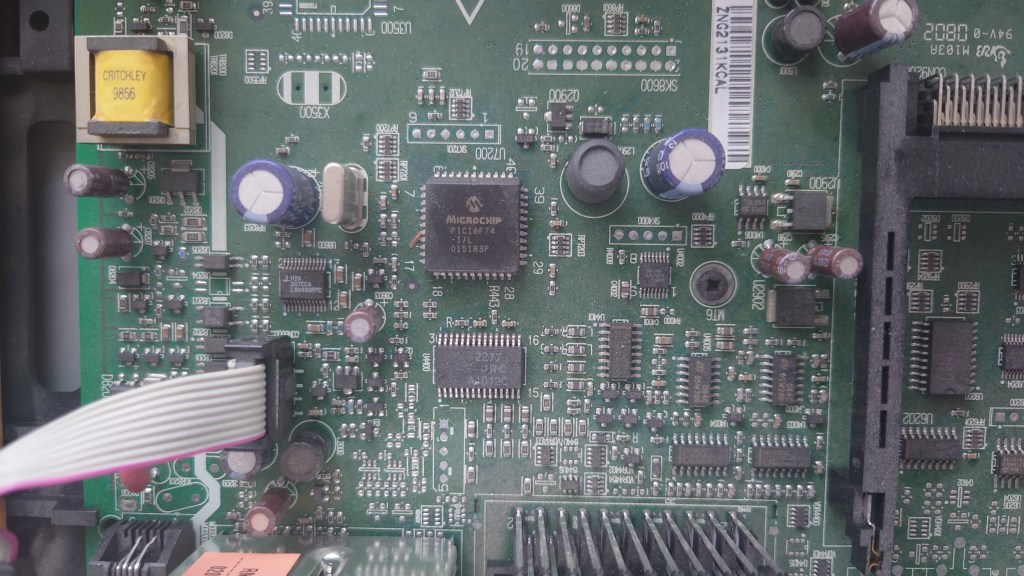
Not sure what this chip does, maybe I/O for the RS232 port?
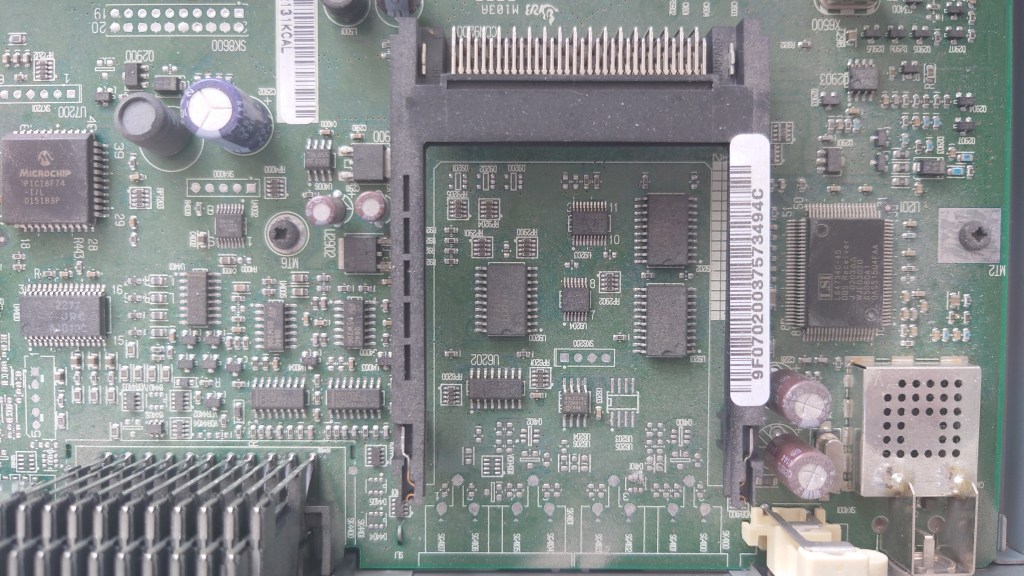
The unused PCMCIA slot
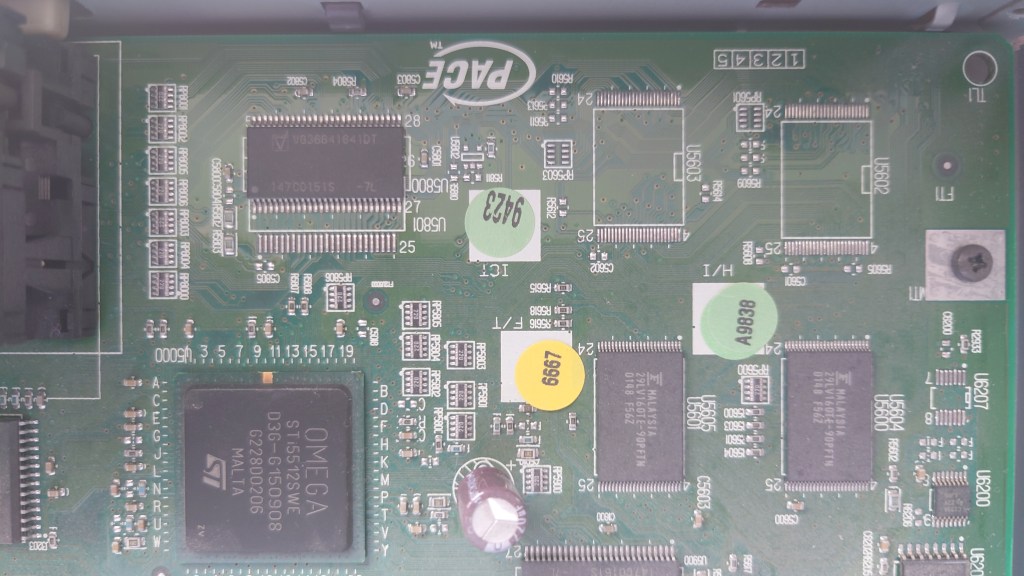
Flash memory chips (right) that store the EPG software and operating system. Each chip is 2Mb for a total of 4Mb Flash. There are two unpopulated banks for a potential of 8Mb. The chip at the top left, above the Omega chip is part of the RAM.
View of the dual card slots, the bottom is for the viewing card, whilst the top is for the interactive card.
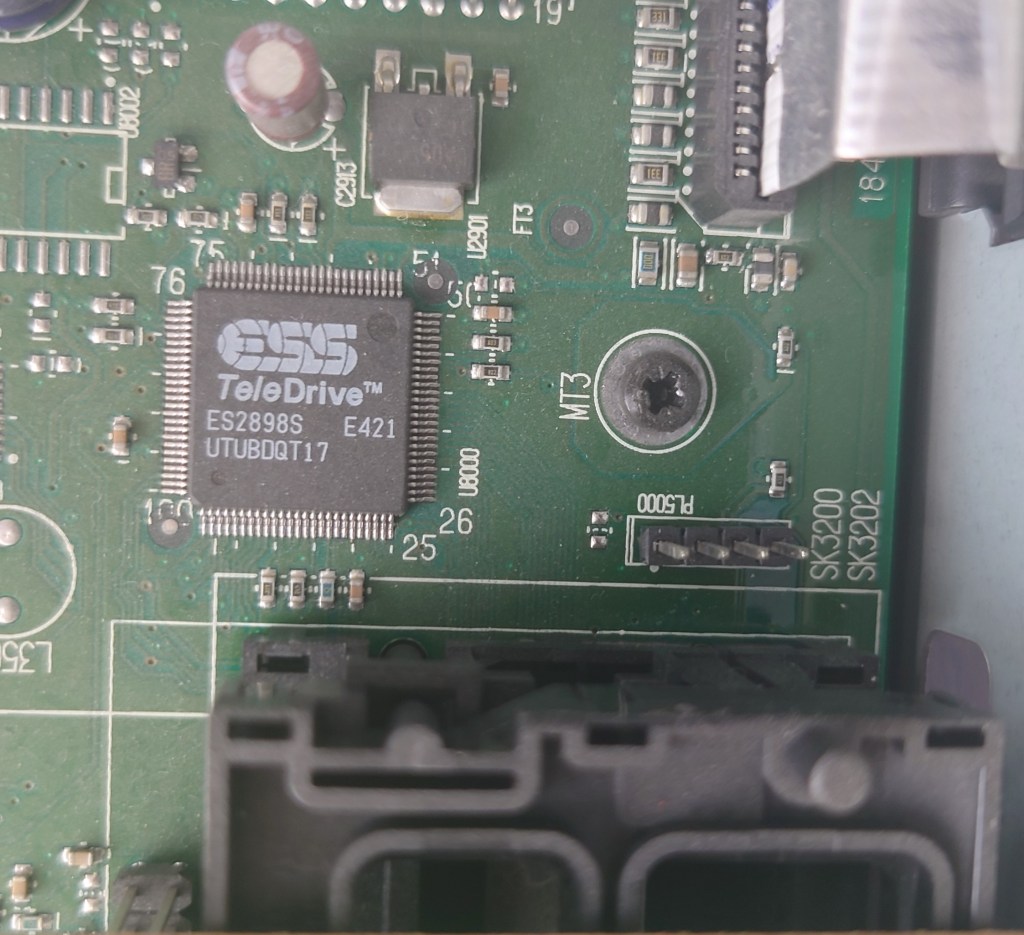
ESS Teledrive ES2898S
Appears to be the modem used for the Digibox’s return path. This allows for the digibox to communicate back to Sky for box office events and interactive. Unsure of the port on the right
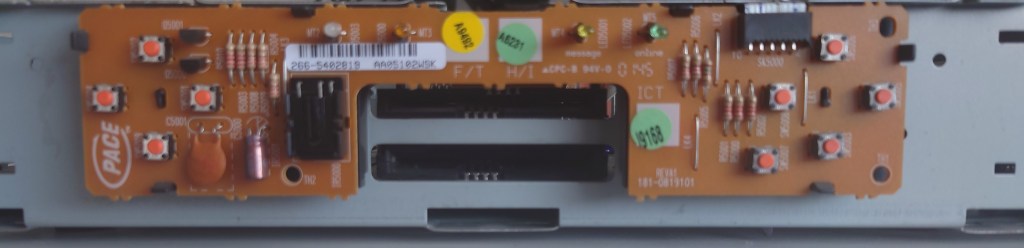
The front of the box with the panel removed, showing the location of the remote sensor
Connecting an old ntl box running ancient (by cable standards) software to a modern Virgin Media network. Whilst Virgin Media is the sucessor to ntl there are a few possible roadblocks to this;
VM no longer broadcast their channels in MPEG2 with the exception of a few off air slates and radio channels.
The DVB-SI that VM broadcast may not be consistent with what the software is expecting
The STB itself may be looking for something that VM are no longer transmitting
Getting the box to boot was a struggle itself, just connecting it to a cable feed is not enough since the box will get stuck on the starting up screen, I left it overnight and the box was still trying to start up
Forcing a boot (holding Up+Down and letting go once LDR appears on the display) wouldn’t work either
What worked in the end was to power up the STB will the cable feed disconnected, this will cause the box to display NIT on the front panel LED display. Connecting the coax feed, the box will then proceed to the start up screen and after around 5 minutes a channel will be displayed.
Well the box managed to load something, lets see what we get…
The main EPG, showing the many channels or streams Virgin broadcast
What’s disappointing is nothing can be tuned, you can select a channel but nothing will play, not even radio channels. Potentially this could be the NetID mismatch causing this , since the STB originated from a different area of the network.
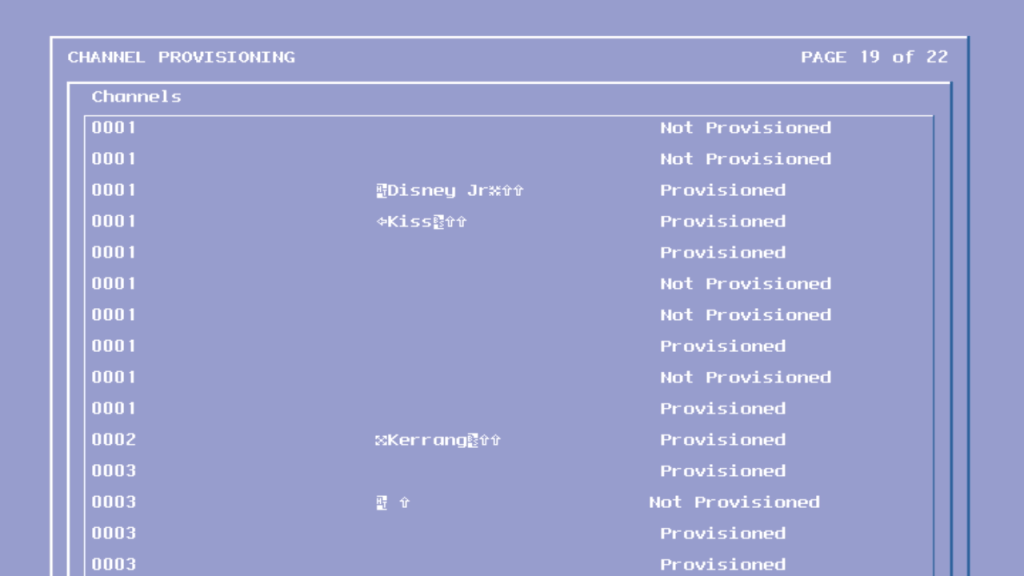
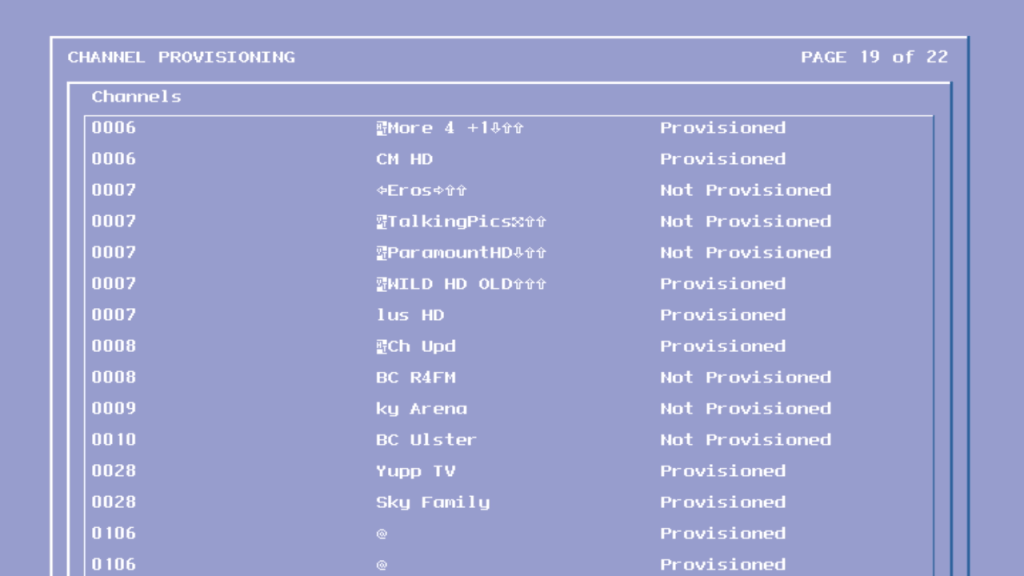
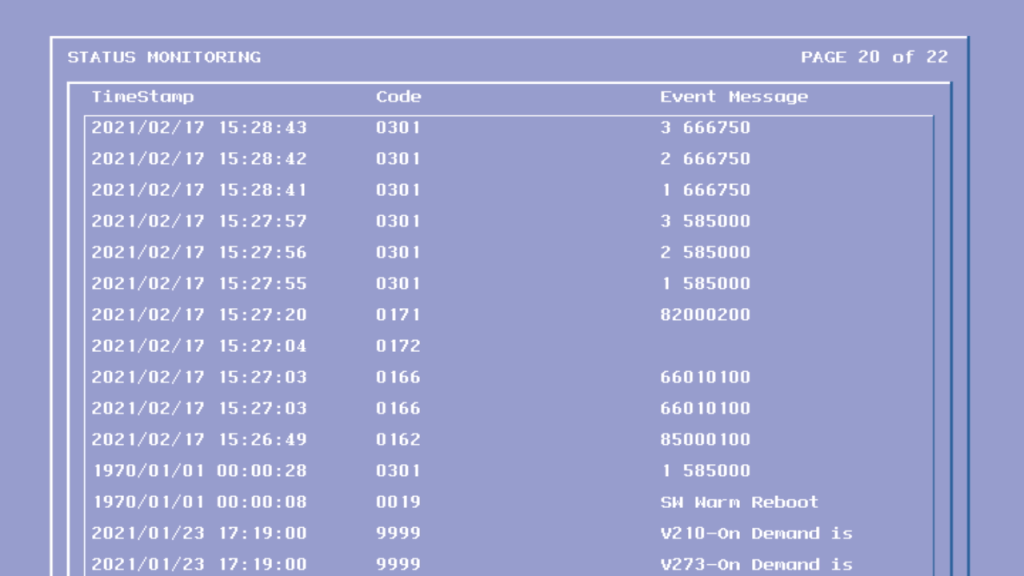
Looks like software update streams for the various tivo box models currently in use with Virgin Media.
To breakdown what works and not
Channels Numbers exist but its not the order that Virgin use, the STB seems to place them consecutively in the EPG, i.e starts at 1 and goes up to 350
There are issues selecting channels over 255 in the guide, trying to select a channel number over 255 causes the box to pull a channel from the top section of the EPG, i.e selecting channel 260 causes channel 5 to get selected instead.
Only now and next information is loaded, no further schedule information is available
Subject search does not function
Channel genres do not work, selecting Entertainment or Sports shows no channels.
Various hidden streams and channels appear in the guide
Changing channels using the + and -, the list is out of order and the STB seems to jump between different channels.
Program reminders work and can be set
Maybe changing the Net ID will at least allow the radio channels to be opened
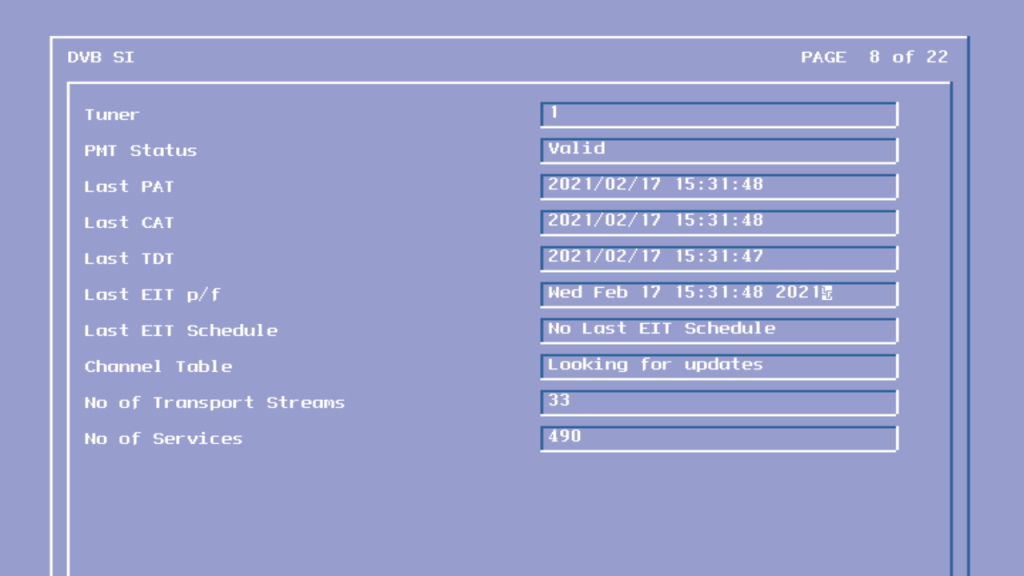
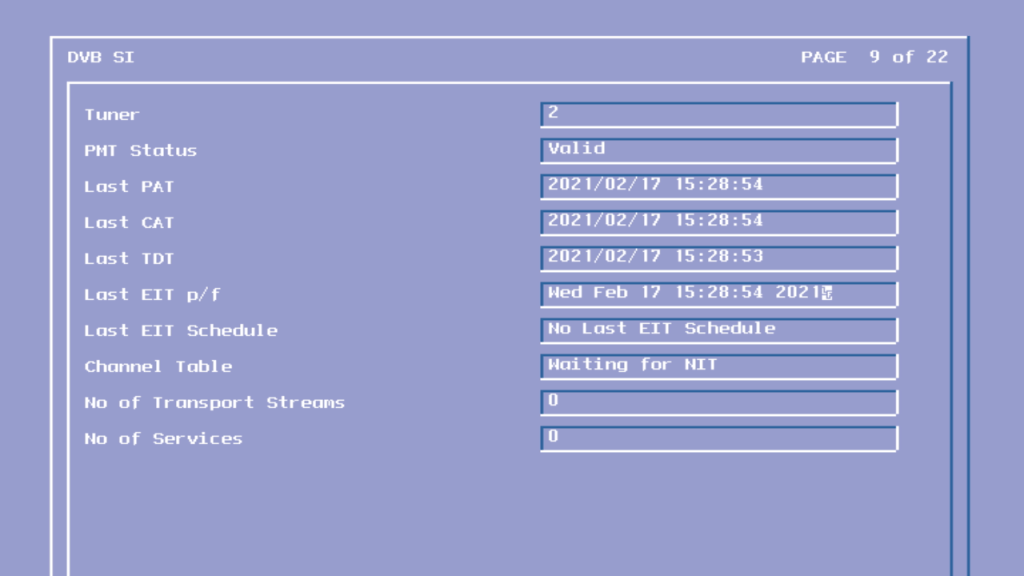
To access the engineering mode, unplug the Virgin media Tivo box and hold down the Up + Down arrow buttons on the front panel to the STB (not the remote), continue holding until Starting Up disappears off the screen, typically around 50 seconds.
Screens were captured through the HDMI output, I’m not sure if tis will work via the Scart connection.
The first frequency the tivo checks when it is booting up, typically contains firmware updates
STB information and local network ID
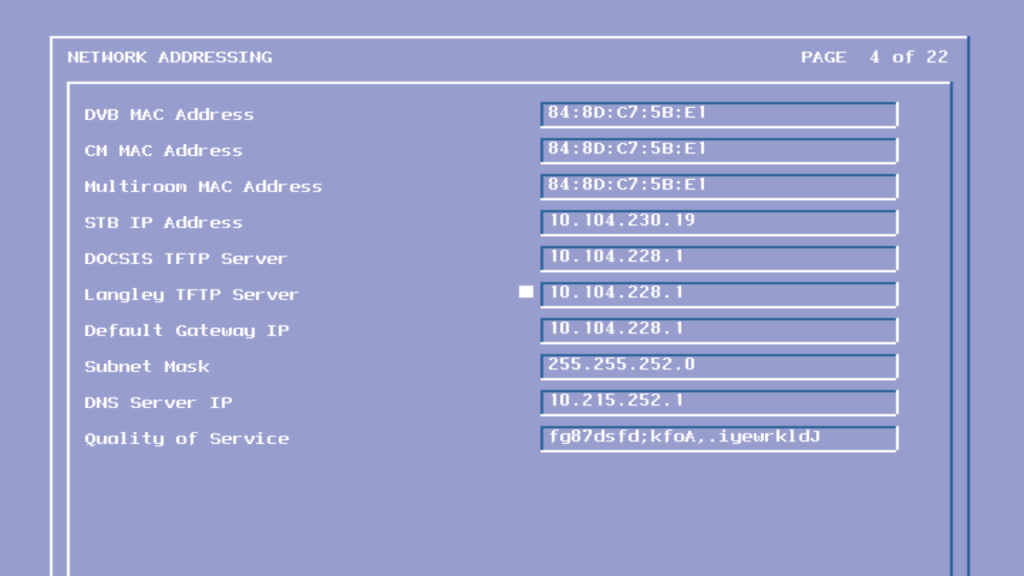
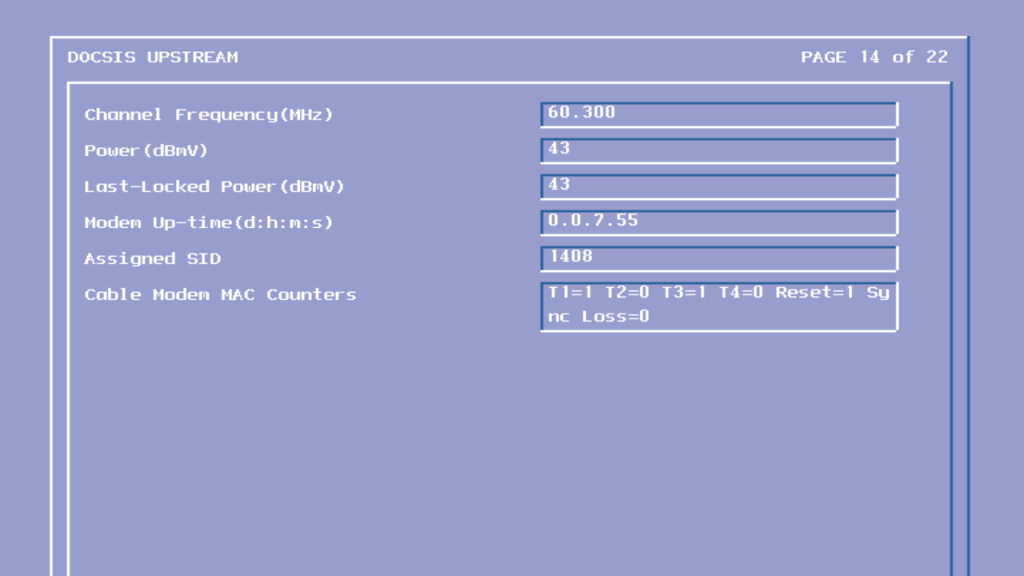
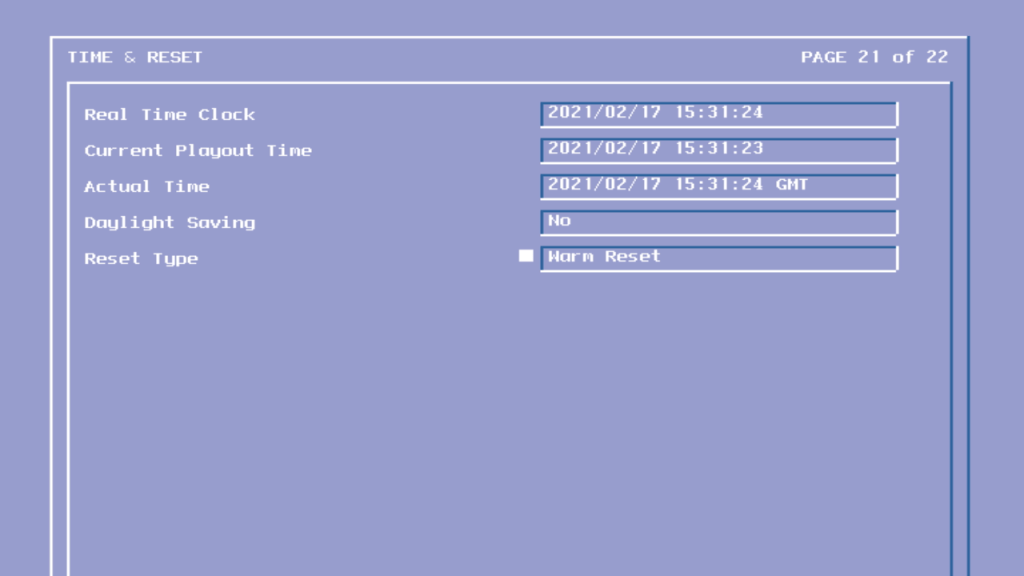
Various MAC and IP address used by the STB networking interfaces
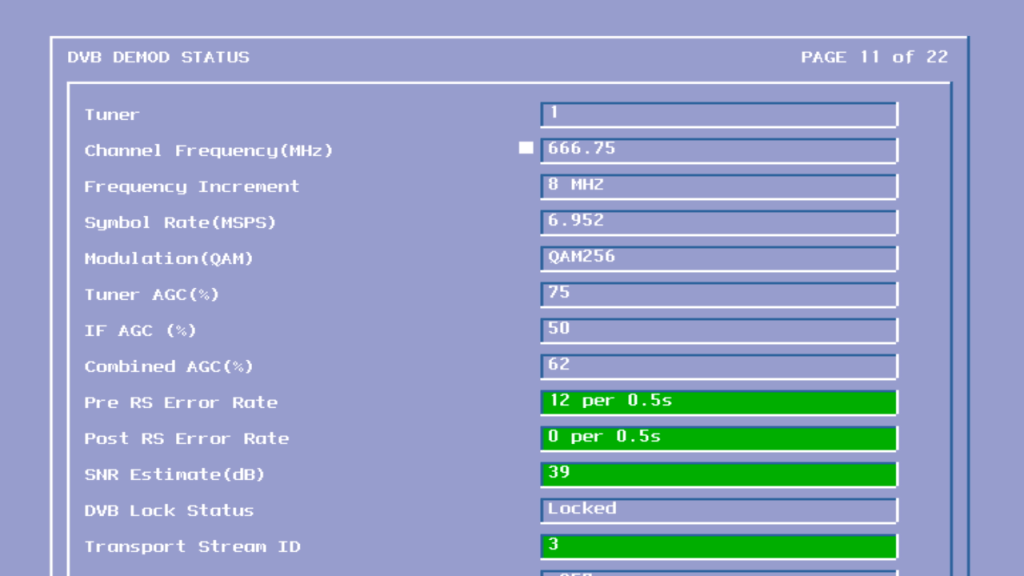
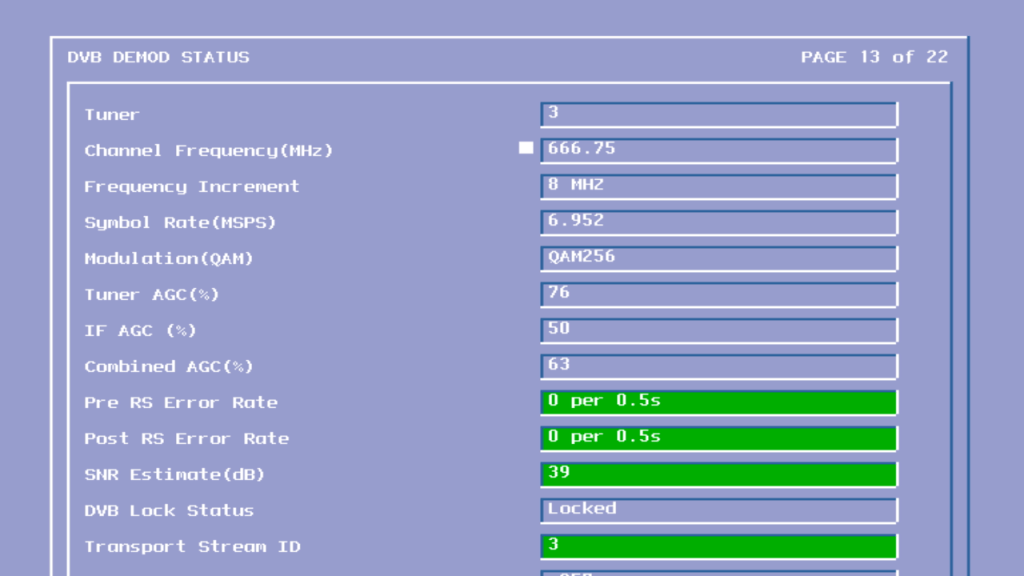
Signal information
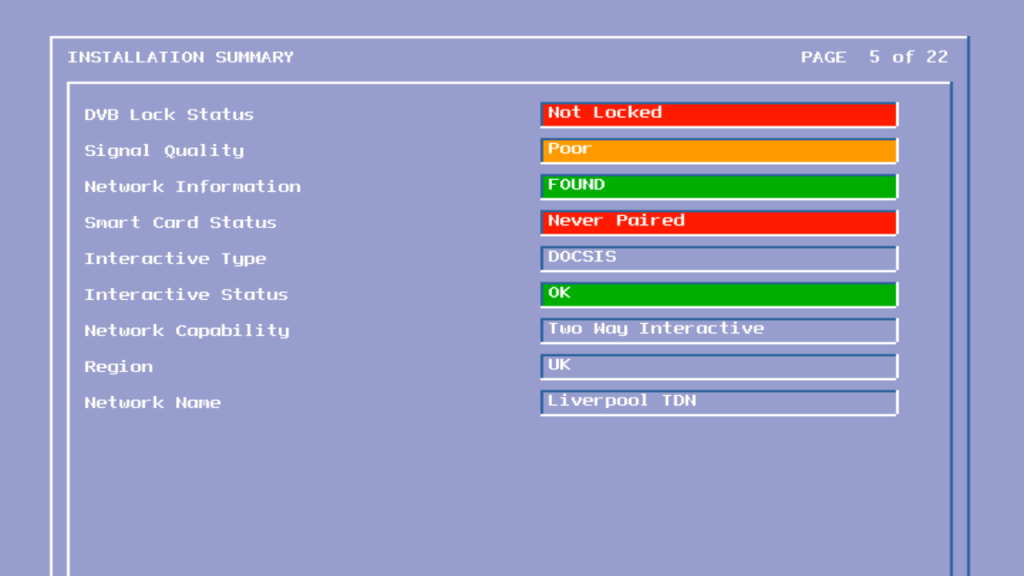
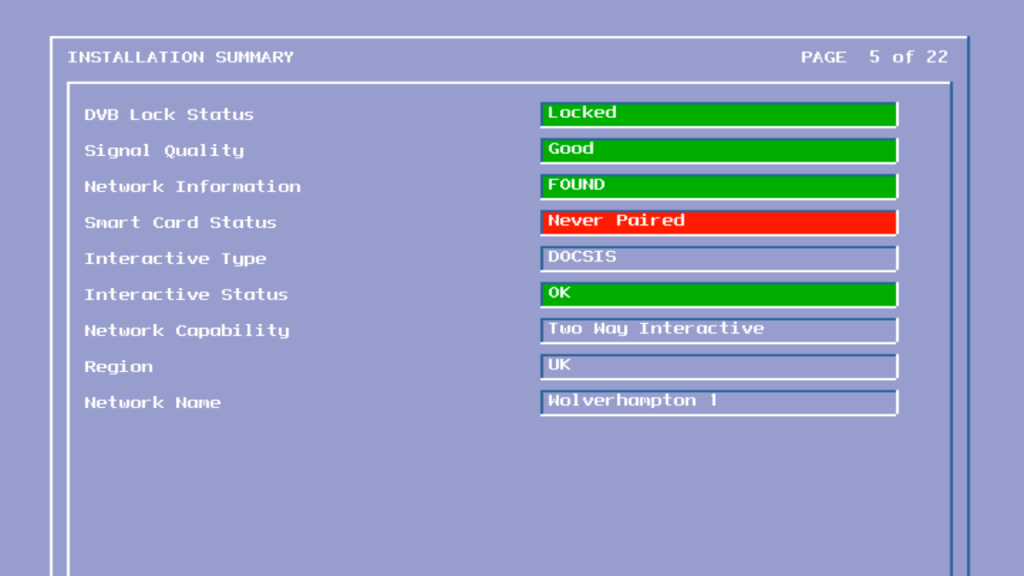
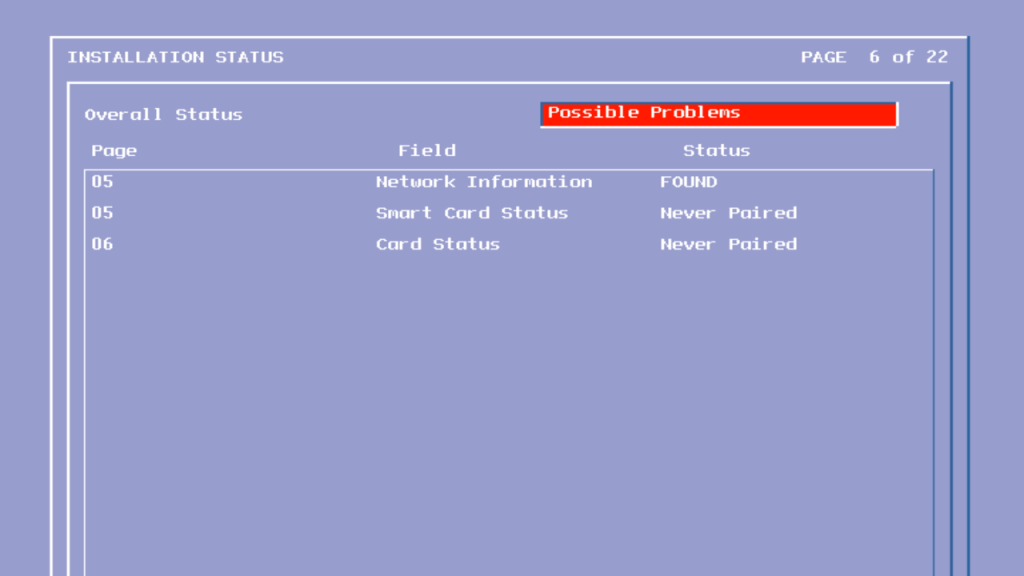
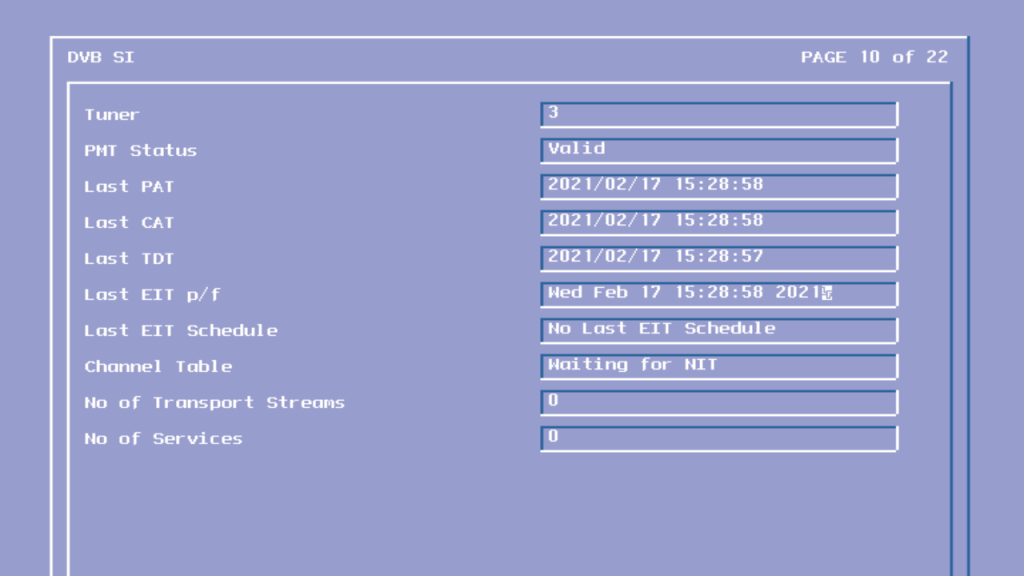
Information found in the DVB signal information tables
Earlier I went though the ntl CR3 Bromley software which was introduced in 2002 and was the basis for ntls new interactive services.
The Pace Di4000 was a redesign of the previous 4001 and 1000/2000 series box. Its worth mentioning that Pace’s model numbers don’t seem to follow a specific scheme, you would assume the Di4001 was the successor to the Di4000, however the Di4001 was the launch box for ntl in Langely areas and was a DAVIC based box, with the Di1000/DiTV1000 being its DOCSIS equivalent for Telewest and ntl Bromley areas.
These early generation boxes were designed around the Hitachi SH3 CPU with C-Cube Chipset for MPEG2 decoding and descrambling. The Di4000 replaces that with the Broadcom demodulator and the Conexant MPEG2 decoder which contains the ARM CPU.
Pace Di4000
Left Pace Di4001, Right Pace 2500 Sky Digibox
The main difference you will notice between the two is the reduction of components, with the Di4000 only having two main processors. The previous generation was split over 5 different processors. this reduction means the mainboard is smaller and the box produces less head as a result. In fact its not too far off an average Sky Digibox.
The Power supply is now separated from the main board, like the Sky Digibox design, allowing for the PSU to be replaced independently from the main board.
The audio out jacks have been removed, no you can no longer connect the box to a Hi-Fi system unless you use a scart breakout adaptor. The design for it still exists on the main board however.
The Serial port and Printer part are removed in favor of a single USB port. the serial port still exists and can be access using a VCR to RS232 adapter.
The second card slot has been removed, this was originally designed for Mondex cashcards.
The remote control protocol now supports IRDA and RC5
Conexant CX22490 – ARM920 based core, 160Mhz – 175MIPS
Broadcom BCM3250KPB – Demodulator
CrystalLAN CS8900A-CQ – Ethernet controller
Conexant Bt861KRF – Video encoder for Scart/AV output
The tuner modules, one for TV and the other for data/DOCSIS modem
Pace Di4000 front panel boardPace Di4000 rear panel
Power Input
Ethernet – For internet connectivity for the internal cable modem
USB port – To connect additional devices, never used officially by ntl or Telewest
IR in/Out – never used by ntl or Telewest
Scart ports
RF Input/Output
Cable Input
Diag Screens
To access these on this box, hold down the Up & Down buttons whilst the STB is booting, and continue to hold them down until you see this screen. The front panel LED display will change to ldr and will then go blank once you have entered diag mode.
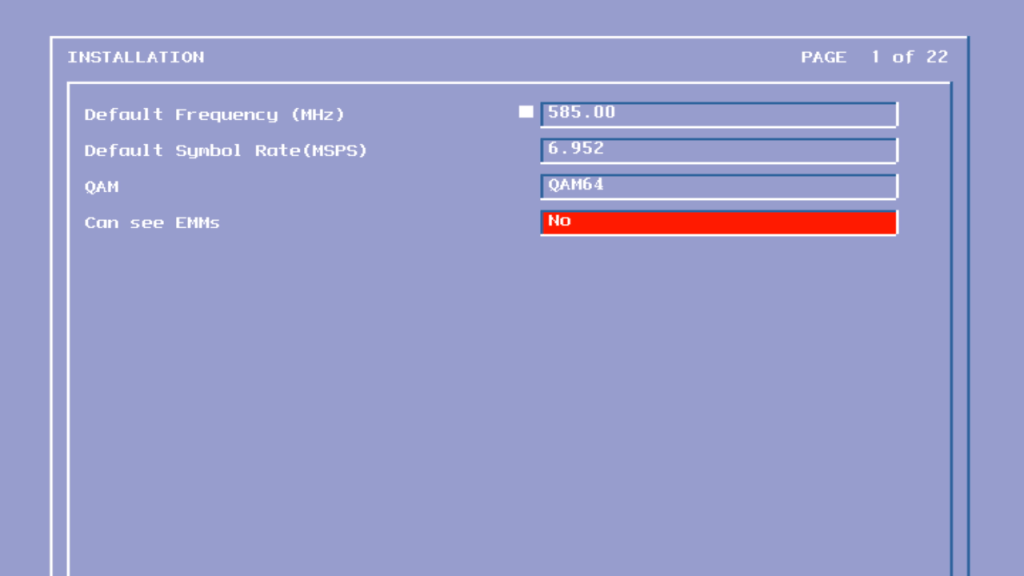
Di4000 Setup screen 1
Sets the default frequency which is checked when the stb boots up, this frequency carries the netid for the area and any software updates
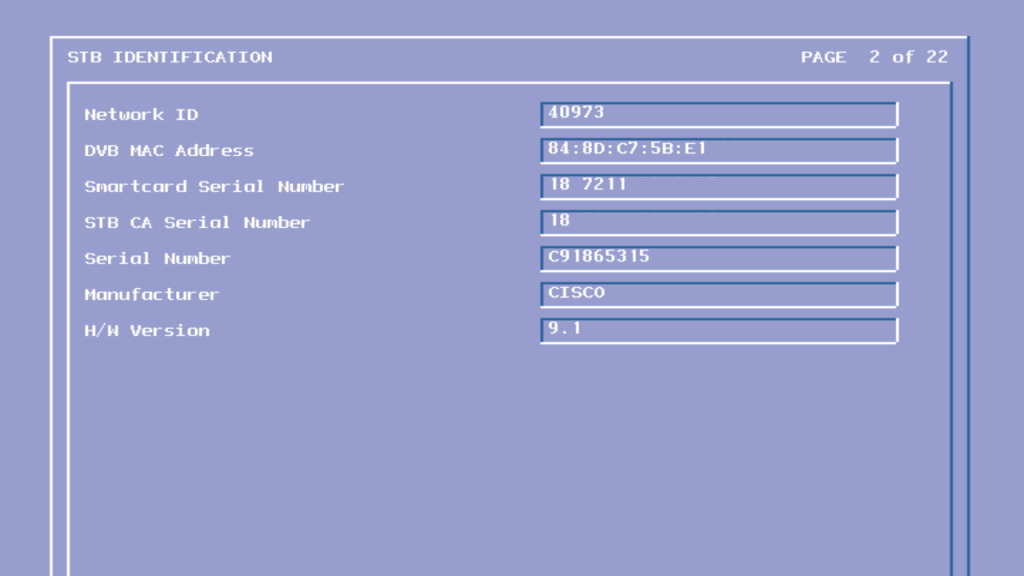
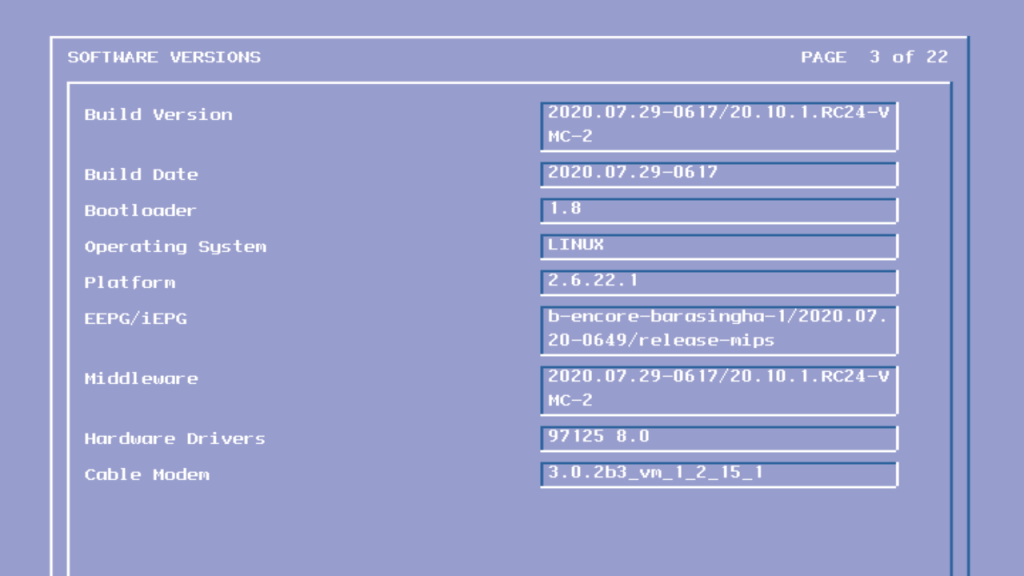
Di4000 Setup screen 2
Shows build information about the software loaded, and the hardware identifier of the box.
The replacement to CR2 software that saw the launch of interactive services for the bromley platform, CR3 saw a rewrite of the guide software, with everything now being written in the Liberate browser, and Two Way TV support for downloadable applications, whilst Liberate being used for interactive. This software would form the basis for Langely CR3, and would be the next step in unifying the platforms in terms of feature set.
Sadly not all areas had access to CR3 with former Videotron areas in London being stuck on pre-interactive CR1 blue to the networks inability to support a return path connection. ntl would have to upgrade and repull the network in order to provide support for broadband and on demand services, all of which are dependent on a return path.
The software here is running on a Pace Di4000N
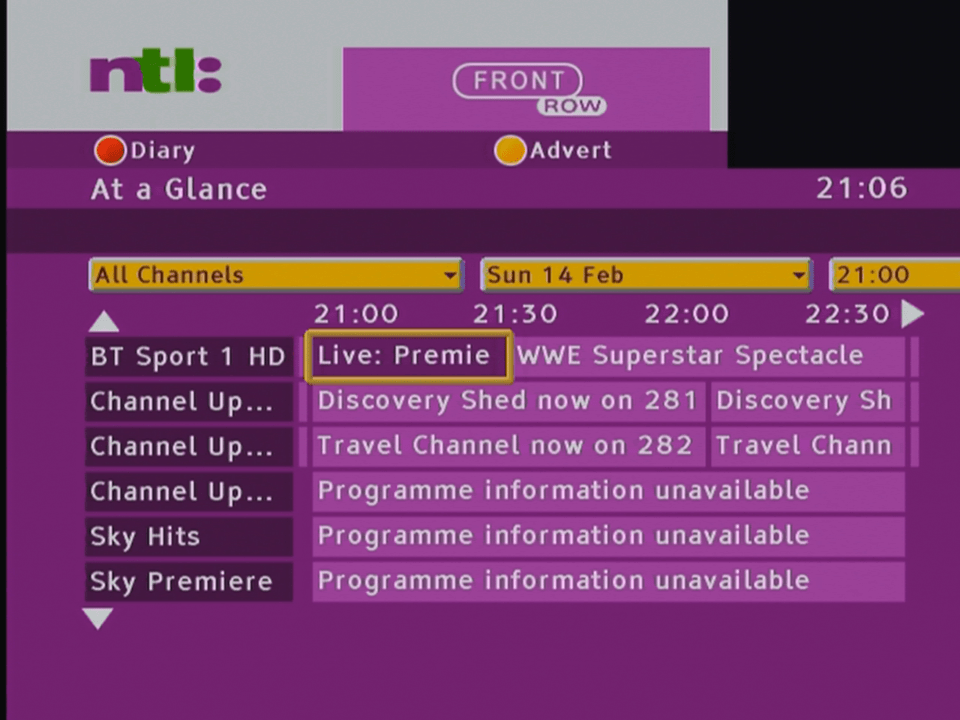
The user interface of ntl digital, not a fan of their purple/pink colour scheme and the bad thing is that its everywhere, thankfully they changed the scheme by the time it can to Langely.
Interesting is the listing for interactive settings, rather than be part of the list it looks like a separate link,
Now & next
Unfortunately the purple makes it’s way onto normal viewing, with the now and next bar
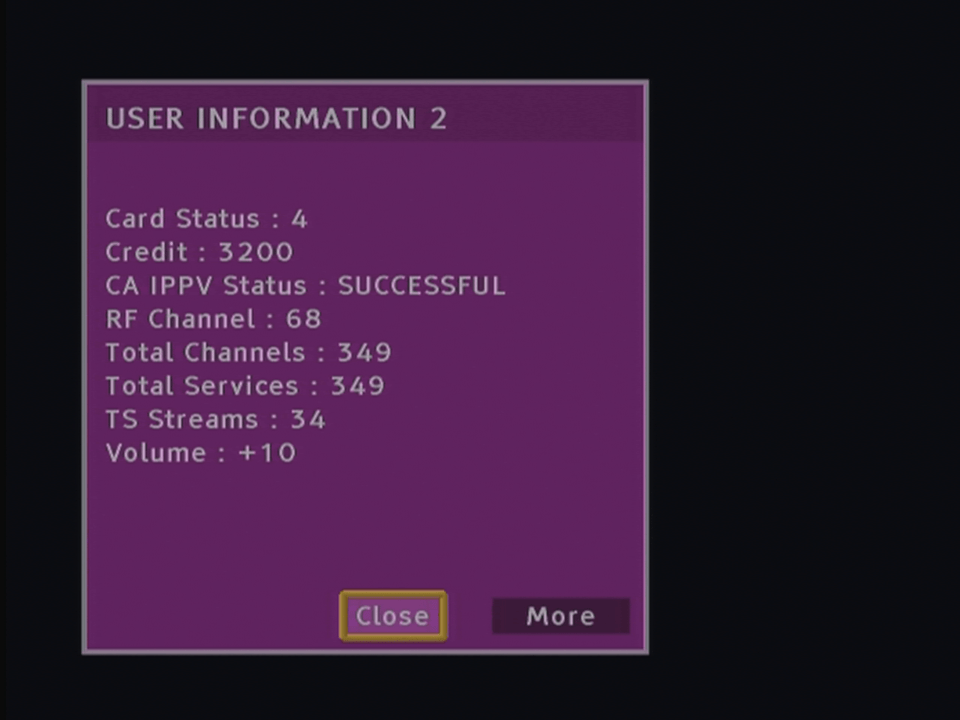
I’m not sure why these early cable TV software did not allow for the volume to be changed via the STB remote, since the Telewest side also did not support changing the volume. One theory was that customer would complain to ntl about how they were unable to her any sound through their TV, unaware that the volume on the analogue box has been set to a low level or mute, so to prevent further calls that disabled the feature.
In the end they enabled the volume control in a later build ofCR3, along with Telewest. Maybe they got fed up of the support calls asking why the volume control isn’t working on their box. In hindsight they should have followed the Sky design where the STB remote controls the volume on the TV at launch (they ended up doing this later, with the newer remotes)
The options button gives a small menu, allowing for access to the help function and a shortcut to the diary. The audio Language lets to changed the language of the audio, or enabled narrative audio description, Sky would later implement a similar feature in its Sky Guide.
TV Guide
The main TV guide grid. No channels here since the box is not connected to the cable feed.
Here would have been a list of all channel genres, such as Movies, Sports, News, etc
Pressing the i button shows a short description of the program
TV Guide: Diary
The diary is ntl’s version of the personal planner, and is used to store reminders for future events and shows. Future PPV events appear here.
Subject Search
The subject search feature can be thought of as an alternative to the A-Z listings of Sky Guide, showing programs rather than the channels themselves. The idea is that the customer can find a program they like by the genre of the show.
Sadly the TV guide only has 3 days of TV listings, compared to the 7 days offered by Sky Digital.
A list of subgenres
Searching for a specific program via text
The on screen keyboard, not sure if this is the way it’s supposed to look since a lot of the text to the right being cropped off.
ntl customers could also purchase an optional keyboard to make it easier to enter text.
One nice feature is the ability to save personalized genre lists, here you choose the type of programs to like to see and you can easily search for that list without having to manually select categories.
Interactive
Trying to load interactive services which sadly no longer exist. the Liberate middleware was used to deploy the interactive microsites, with the TwoWayTV middleware being used for the interactive applications such as games.
On Demand
Looking for PPV events, this was before true video on demand had launched
Settings
The parental control feature
Changing TV settings, not sure what Enhanced Programming corresponds to?
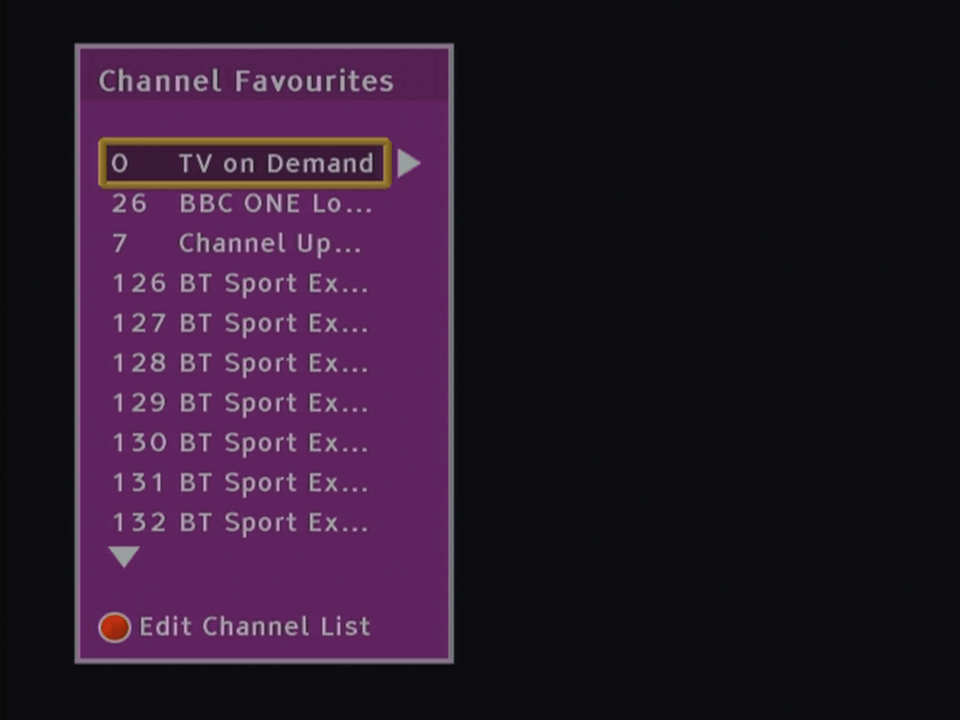
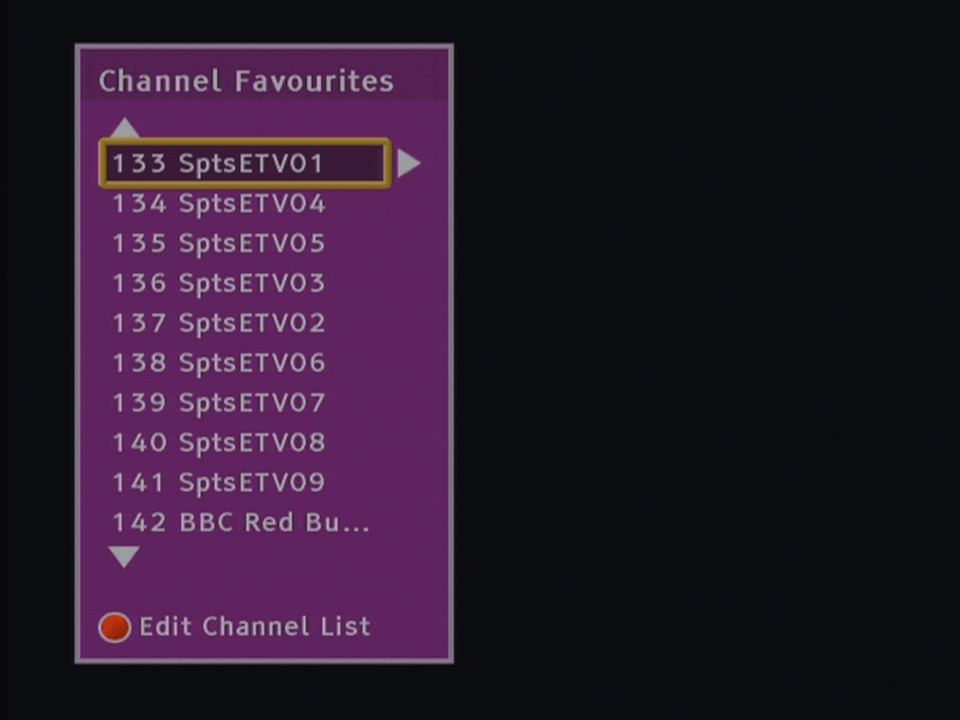
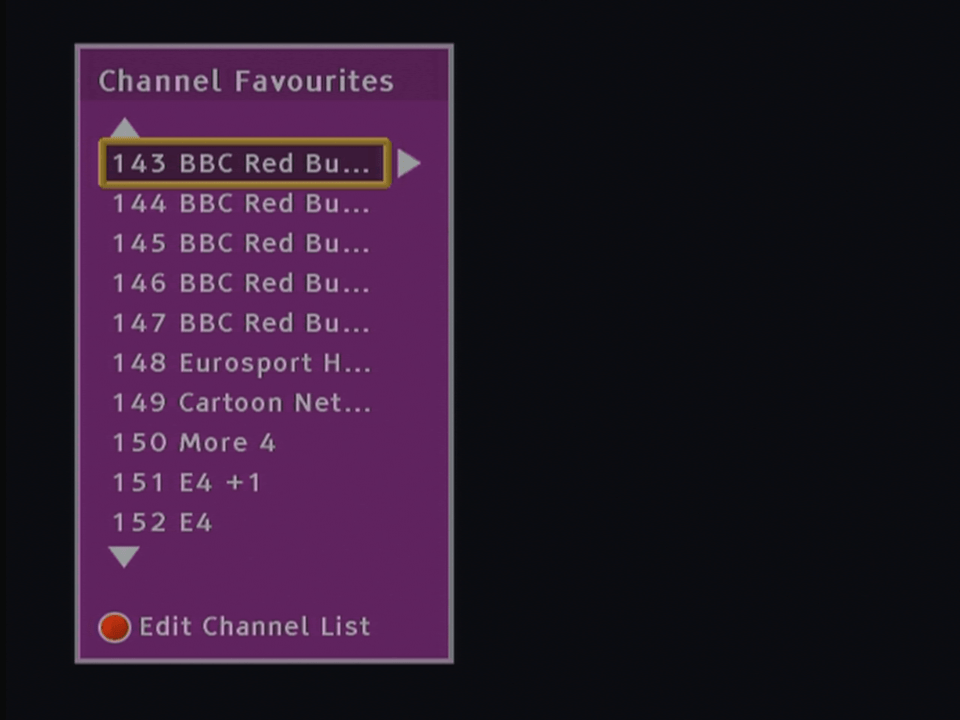
Favourites
The favorites feature, very similar to Ntl Langely CR3
Help
There’s a help system but with no content stored on the box.
Diag Screen
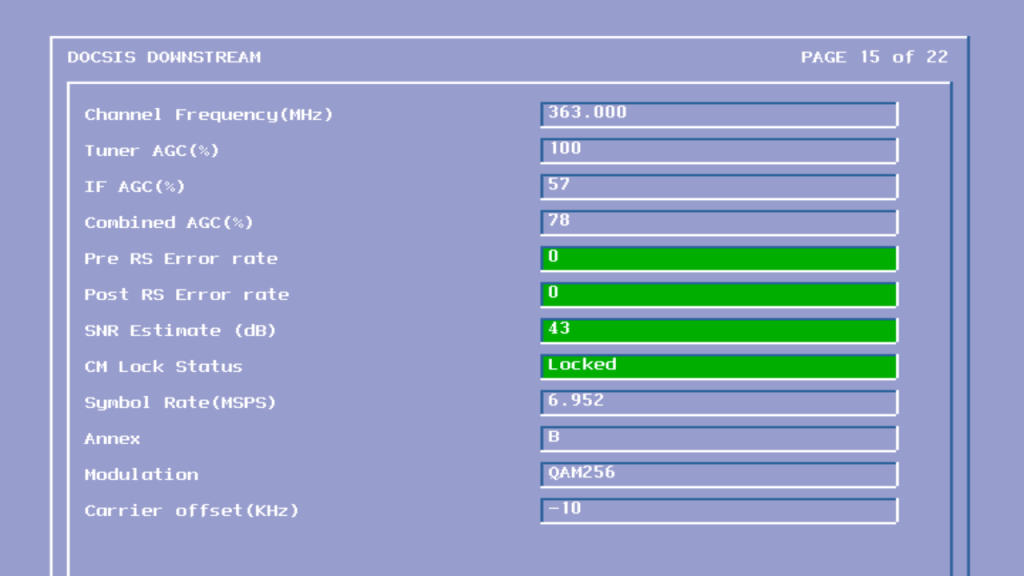
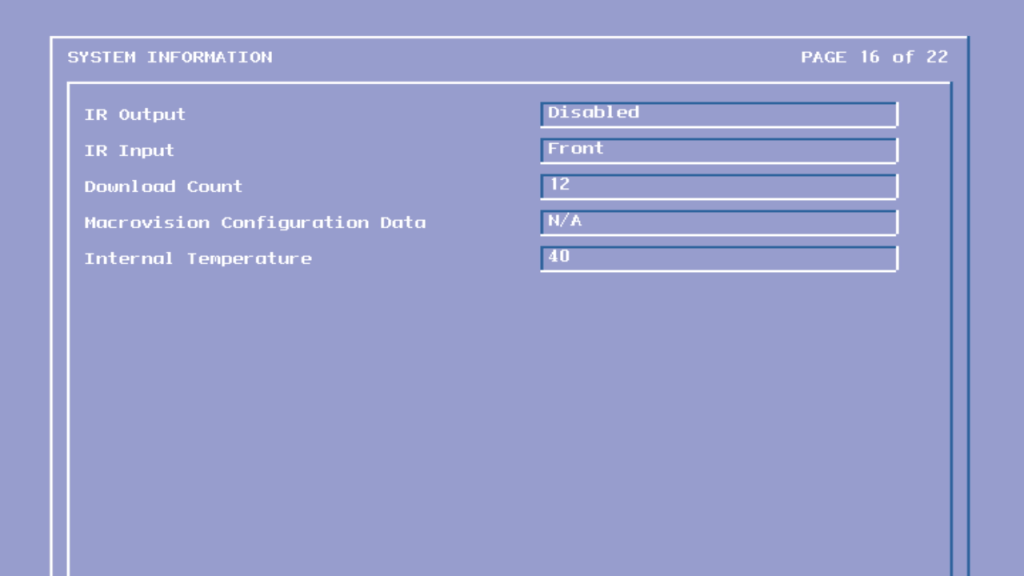
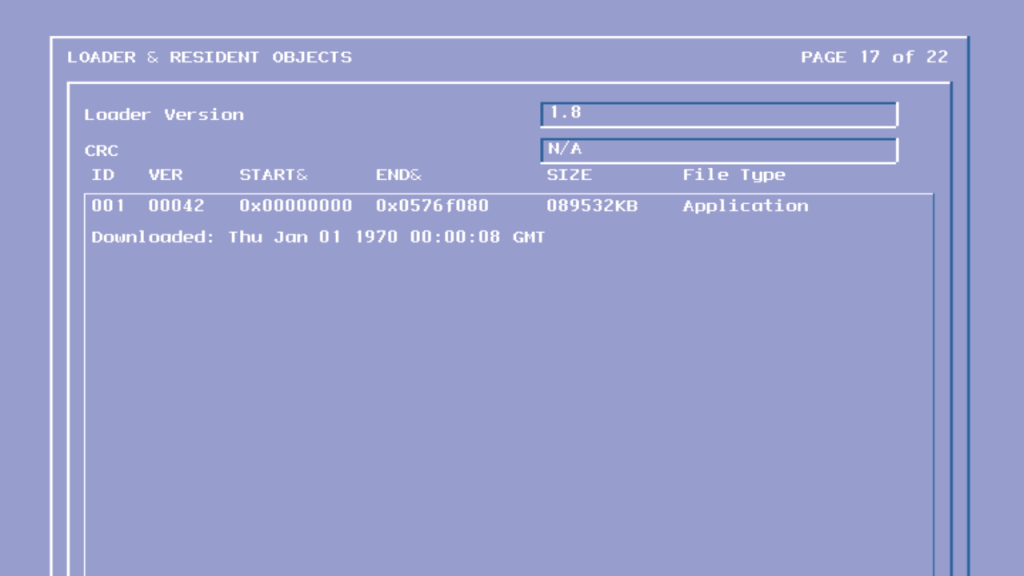
Diag screen that shows the software an signal information
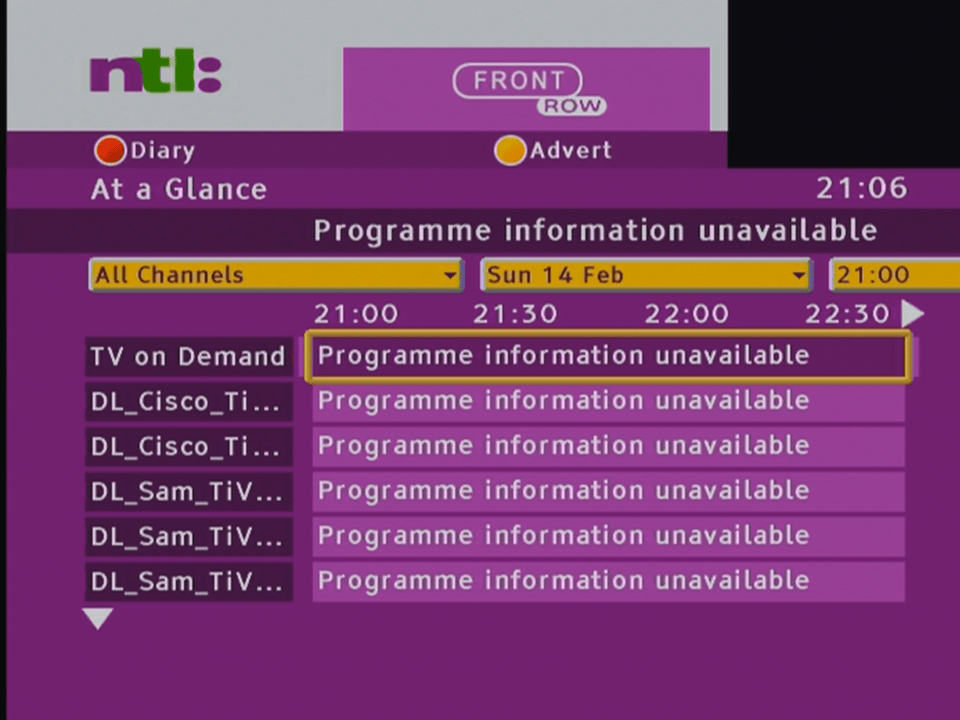
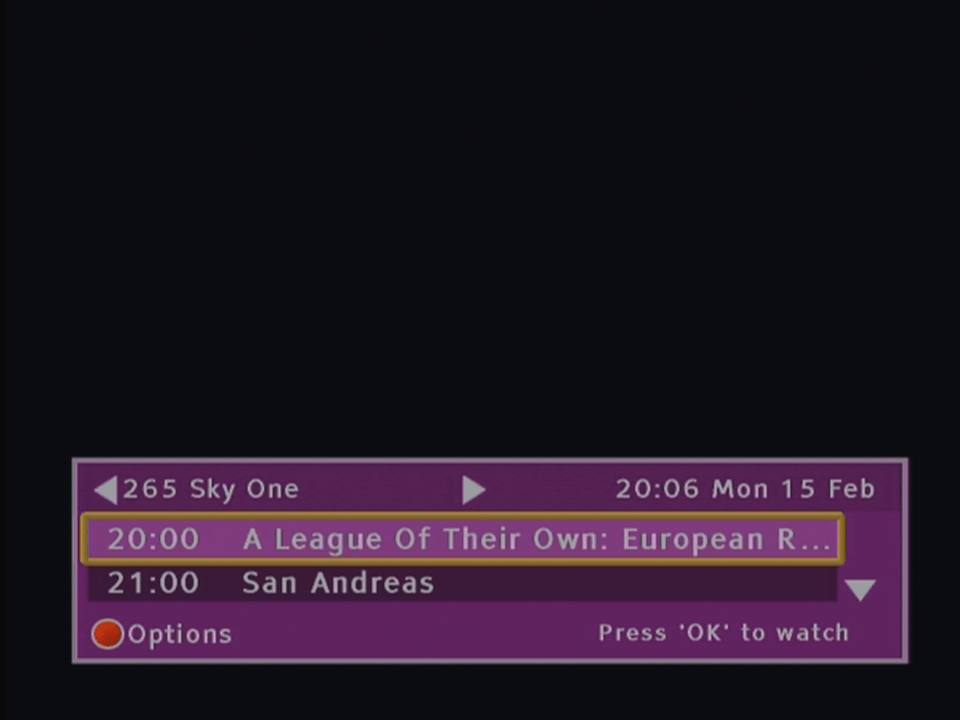
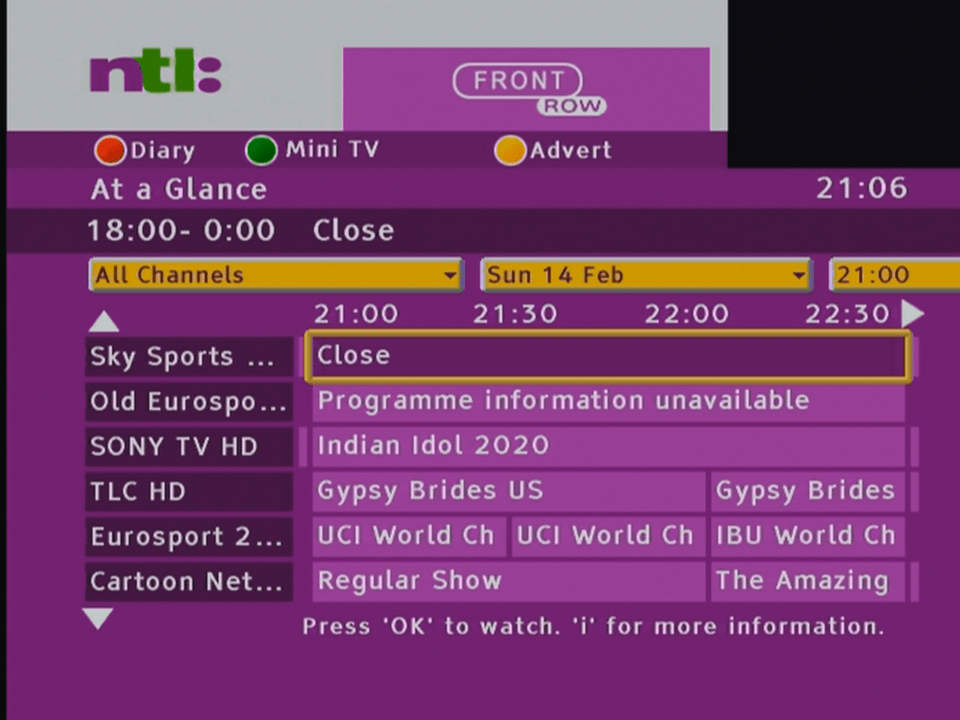
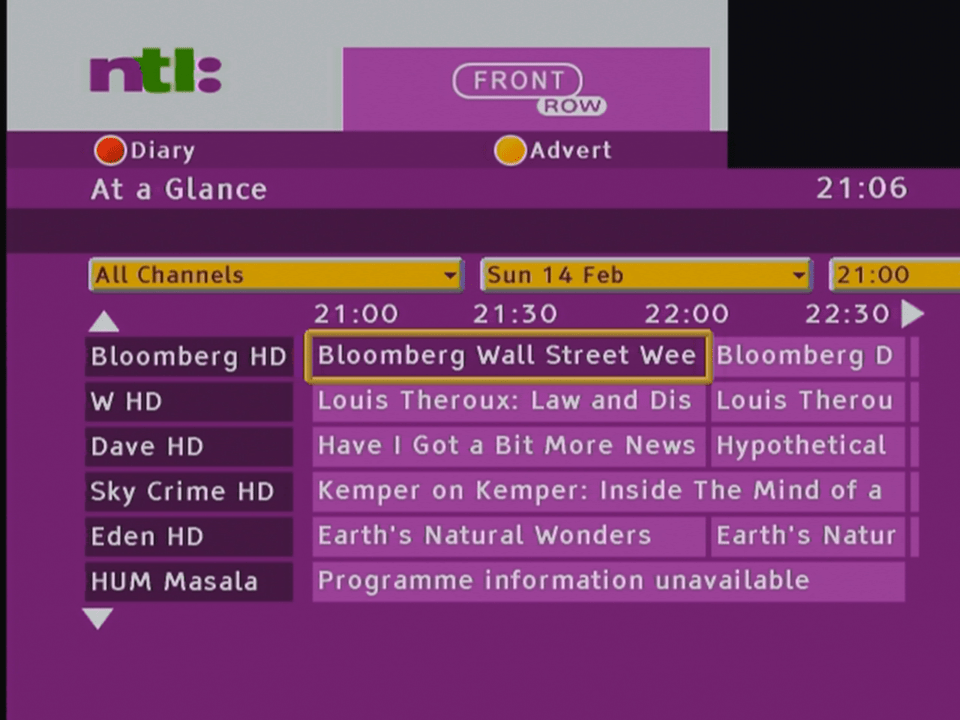
Using with Virgin Media
Somehow I was able to get the box to bootup on a modern Virgin media connection, with many Channel and TV listings being loaded. Sadly I was not able to get any TV channels to load, not even radio channels which still broadcast in MPEG2
So I’ve been trying to install and use old Linux distros, mainly to look at the possibility to get older Linux games to work, like Simcity 3000 and Unreal Tournament 2004, all of which run into issues when attempting to play on modern Linux operating systems. First thing I tried was to use a virtual machine to run install the OS into.
VirtualBox
Not sure if this is an error or if it’s just because the hard disk just uninitialised
Why would I enable hard drive optimisations when it could cause data corruption?
So far so good, were at the login screen
Oh…
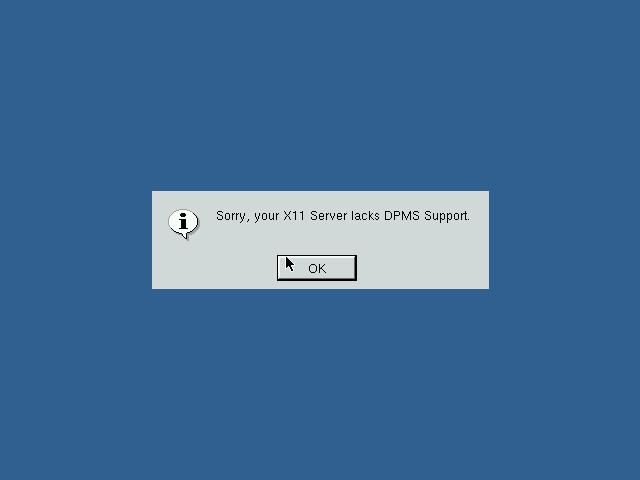
Might be because we don’t have any graphics drivers for the virtual graphics card. At least you would expect a failsafe graphics driver
On VMware
Like on Virtualbox we are able to install as normal, but when it comes to booting the OS,
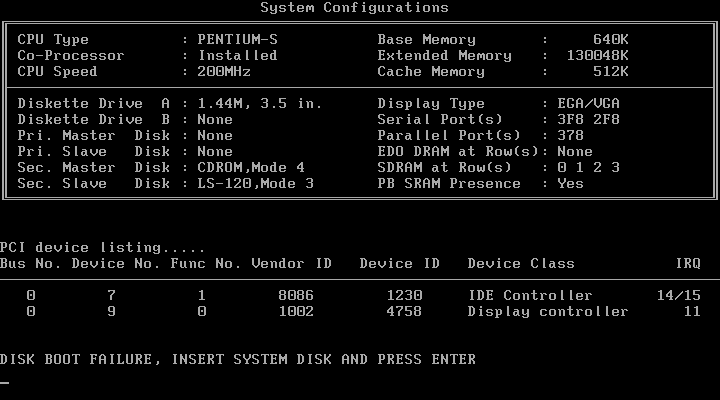
It seems to have issues detecting the hard disk. Since by default VMWare uses an IDE drive for these old Linux operating systems I though we could try SCSI instead. Unfortunately I was unable to get the installer to detect the SCSI controller.
On PCem
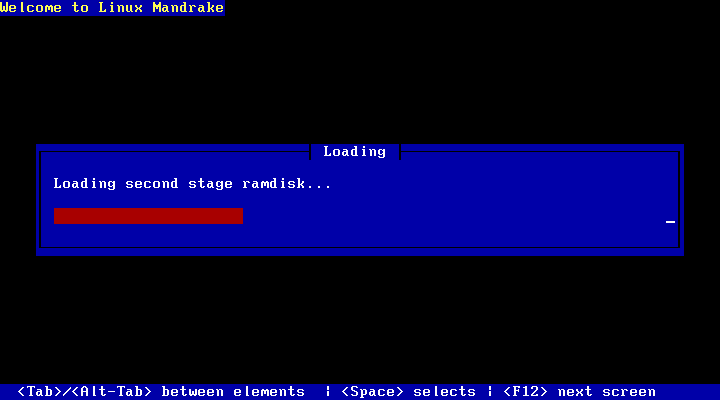
I had better luck using Pcem v17, which actually emulates older PC hardware, rather than using a virtual environment. This has its benefits regarding compatibility but at the expense of performance. Not only must you emulate a slower x86 CPU (In our case an AMD K6 or Pentium, but your host CPU must be able to emulate that older CPU in addition to the video card, chipset and any other peripherals Pcem is emulating. Since Pcem is a single threaded application, having a CPU with a high IPC is beneficial, which is something my AMD FX processor is not well known for. Also depending on the motherboard you emulate in Pcem you may not be able to boot off the CD-ROM directly. Thankfully there was a Linux boot floppy that could be used instead.
The first install went by without a hitch, but when it came to booting the OS it would immediately reboot and would continue to reboot by getting stuck in a boot loop. I fixed this by changing the CPU from a Cyrix to an AMD K6.
The next issue I ran into was with this screen, where it would get stuck at a terminal looking screen with that penguin, where the screen would blink every second. I wasn’t sure what was causing this initially however after changing graphics card in PCem (from a Cirrus Logic 5432? to an ATI Mach, this triggered the Kudzu utility which is used to install system drivers, kind of like the add new hardware wizard in Windows.
Once I selected the correct graphics card, the system rebooted and loaded up the login screen. This helped me understand what was going on previously, either Mandrake did not have the correct driver support for the cirrus logic or PCem is not able to emulate the VGA card properly in Linux. Either way Mandrake was trying to load the X Window system but was failing each time, hence why it was ‘blinking’, the X window system was loading and then crashing.
Unfortunately the speed issues caused a problem with this approach, since PCem would frequently go under 100%, which is the percentage of the speed being emulated by it. Anytime it goes under 100% means the emulator has to slow down in order to catch up. I ended up changing the CPU from an AMD K6 166Mhz to a Pentium 75Mhz, which is below the specification needed for Simcity 3000 and way below what’s needed for Unreal Tournament 2004.
Still at least I was able to boot into a desktop, I guess it’s time for a host CPU upgrade.